
ALP40P - Video projector AIWA - Free user manual and instructions
Find the device manual for free ALP40P AIWA in PDF.


| Product Type | Video Projector |
| Brand | Aiwa |
| Model | ALP40P |
| Light Source | LED |
| Brightness | 2800 Lumens (LED bulb) |
| Native Resolution | 800 x 480 pixels |
| Supported Video Resolution | Up to 1080p (1080p, 1080i, 720p, 576i, 480p, 480i) |
| Display Color | 16.7 million colors |
| Projection Size | 30 - 150 inches |
| Keystone Correction | Manual (trapezoidal adjustment) |
| Focus | Manual |
| Bluetooth | Yes, version 4.1/4.2 (for external speakers) |
| Built-in Speakers | Yes |
| Audio Output | 3.5mm audio out |
| Video Inputs | 2x HDMI, VGA, AV (3.5mm) |
| USB Port | USB 2.0 (supports up to 1TB) |
| MicroSD Card Slot | Up to 32GB |
| Power Consumption | 36W (operating), 0.8W (standby) |
| Power Input | DC 12V, 4A (adapter AC 100-240V) |
| Weight | 0.9 kg |
| Dimensions (W x D x H) | 203 x 150 x 82 mm |
| Remote Control | Yes (with 2x AAA batteries) |
| Included Accessories | AC power adapter, AV cable, lens cover, remote, user manual |
| Installation Options | Front/table, front/ceiling, rear/table, rear/ceiling |
Frequently Asked Questions - ALP40P AIWA
User questions about ALP40P AIWA
0 question about this device. Answer the ones you know or ask your own.
Ask a new question about this device
Download the instructions for your Video projector in PDF format for free! Find your manual ALP40P - AIWA and take your electronic device back in hand. On this page are published all the documents necessary for the use of your device. ALP40P by AIWA.
USER MANUAL ALP40P AIWA
natural_image
White projector with blue lens and control panel, no visible text or symbols on bodyInstruction Manual
CAUTION:
Usage of controls or adjustments or performance of procedures other than those specified herein may result in hazardous radiation exposure.
This unit should not be adjusted or repaired by anyone except qualified service personnel.
KEEP THESE INSTRUCTIONS IN MIND:
- Do not use this device near water.
- Clean only with a slightly damp cloth.
- Do not cover or block any ventilation openings. When placing the device on a shelf, leave 5 cm (2") free space around the whole device.
- Install in accordance with the supplied user manual.
- Don't step on or pinch the power adaptor. Be very careful, particularly near the plugs and the cable's exit point. Do not place heavy items on the power adapt or, which may damage it. Keep the entire device out of children's reach! When playing with the power cable, they can seriously injure themselves.
- Unplug this device during lightning storms or when unused for a long period.
- Keep the device away from heat sources such as radiators, heaters, stoves, candles and other heat-generating products or naked flame.
- Avoid using the device near strong magnetic fields.
- Electrostatic discharge can disturb normal usage of this device. If so, simply reset and restart the device following the instruction manual. During file transmission, please handle with care and operate in a static-free environment.
- Warning! Never insert an object into the product through the vents or openings. High voltage flows through the product and inserting an object can cause electric shock and/or short circuit internal parts. For the same reason, do not spill water or liquid on the product.
- Do not use in wet or moist areas such as bathrooms, steamy kitchens or near swimming pools.
- Do not use this device when condensation may occur.
- Although this device is manufactured with the utmost care and checked several times before leaving the factory, it is still possible that problems may occur, as with all electrical appliances. If you notice smoke, an excessive build-up of heat or any other unexpected phenomena, you should disconnect the plug from the main power socket immediately.
- This device must operate on a power source as specified on the specification label. If you are not sure of the type of power supply used in
your home, consult your dealer or local power company.
-
The socket outlet must be installed near the equipment and must be easily accessible.
-
Do not overload ac outlets or extension cords. Overloading can cause fire or electric shock.
-
Devices with class 1 construction should be connected to a main socket outlet with a protective earthed connection.
-
Devices with class 2 construction do not require a earthed connection.
-
Keep away from rodents. Rodents enjoy biting on power cords.
-
Always hold the plug when pulling it out of the main supply socket. Do not pull the power cord. This can cause a short circuit.
-
Avoid placing the device on any surfaces that may be subject to vibrations or shocks.
-
To clean the device, use a soft dry cloth. Do not use solvents or petrol based fluids. To remove severe stains, you may use a damp cloth with dilute detergent.
-
Damage or lost data caused by malfunction, misuse, modification of the device or battery replacement will not be covered under warranty.
-
Do not interrupt the connection when the device is formatting or transferring files. Otherwise, data may be corrupted or lost.
-
If the unit has USB playback function, the USB memory stick should be plugged into the unit directly. Don't use a USB extension cable because it can cause interference resulting in failing of data.
-
The apparatus shall not be exposed to dripping or splashing and make sure that no objects filled with liquids, such as vases, are placed on or near the apparatus.
-
To completely disconnect the power input, the mains plug of the apparatus shall be disconnected from the mains, as the disconnect device is the mains plug of apparatus.
-
Battery shall not be exposed to excessive heat such as sunshine, fire or the like.
-
Attention should be drawn to the environmental aspects of battery disposal.
-
The unit should only be used in moderate climates. Avoid using in extremely cold or extremely warm environments.
-
The rating label has been marked on the bottom or back panel of the apparatus.
-
This device is not intended for use by people (including children) with physical, sensory or mental disabilities, or a lack of experience and knowledge, unless they're under supervision or have received instructions about the correct use of the device by the person who is responsible for their
safety.
- This product is intended for indoor, household only and not for commercial or industrial use.
- Make sure the unit is adjusted to a stable position. Damage caused by using this product in an unstable position or by failure to follow any other warning or precaution contained within this user manual will not be covered by warranty.
- Never remove the casing of this apparatus.
- Never place this apparatus on other electrical equipment.
- Do not use or store this product in a place where it is subject to direct sunlight, heat, excessive dust or vibration.
- Do not allow children access to plastic bags.
- Only use attachments/accessories specified by the manufacturer.
- Refer all servicing to qualified service personnel. Servicing is required when the apparatus has been damaged in any way, such as the power supply cord or the plug, when liquid has been spilled or objects have fallen into the apparatus, when the apparatus has been exposed to rain or moisture, does not operate normally, or has been dropped.
- Do not use a damaged power cord or plug or a loose outlet. Doing so may result in fire or electric shock.
- Prolonged exposure to loud sounds from personal music players may lead to temporary or permanent hearing loss.
INSTALLATION
- Unpack all parts and remove protective material.
- Do not connect the unit to the mains before checking the mains voltage and before all other connections have been made.
Packing Included :

Remote
(2 X AAA batteries included)

natural_image
Line drawing of a projector with lens and screen (no text or symbols)Main unit
natural_image
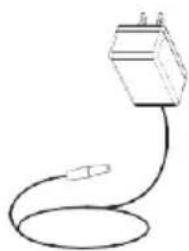
Simple line drawing of a cable or wire with a rectangular object attached (no text or symbols)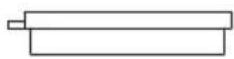
AC Power Adapter Lens Cover User Manual

natural_image
White projector with blue lens and label 'Instruction Manual' (no other text or symbols visible)
3.5 mm to RCA AV cable
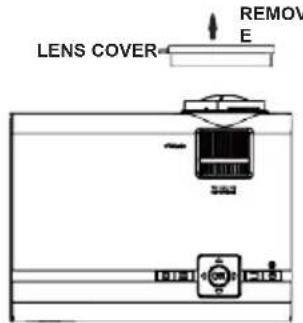
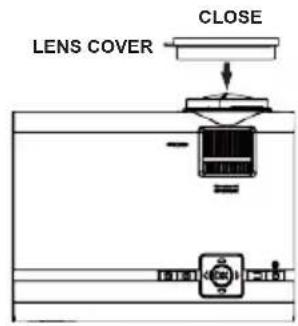
Remove & Close The Lens Cover
Remove the lens cover before using
Close the lens cover when unit not in use
Placing Your Projector
Your projector can be installed in four different configurations (see picture below):
Front Table:
Select this location with the projector placed near the floor in front of the screen. This is the most common way to position the projector for quick setup and portability.
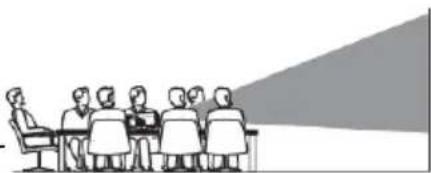
natural_image
Illustration of a group of people seated at a table facing a presentation screen (no text or symbols visible)FRONT TABLE
Front Ceiling:
Select this location with the projector suspended upside-down from the ceiling in front of the screen.
NOTE: A projector mount is required to install the projector in a ceiling.
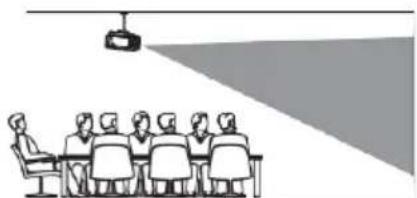
natural_image
Illustration of a meeting with a projection screen above a group of people seated at a table (no text or symbols present)FRONT CEILING
Rear Table:
Select this location with the projector placed near the floor behind the screen.
NOTE: A special rear projection screen is required.

natural_image
Illustration of a group of people seated at a table facing a large triangular flag, with a small podium nearby (no text or symbols present)REAR TABLE
Rear Ceiling:
Select this location with the projector suspended upside-down from the ceiling behind the screen.

natural_image
Illustration of a meeting room with a speaker at the front and a projection screen on the right (no text or symbols)REAR CEILING
NOTE:
A projector mount is required to install the projector in a ceiling.
A special rear projection screen is required.
To Reduce Image Distortion
Square /Rectangle
It is recommended to move the projector as close to center of screen.
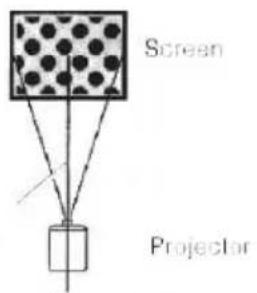
Distance Between The Projector And Screen
Measure the distance between the projector and where you want to position the screen. This is the projection distance.

Placing Your Projector On Ceiling
When installing the projector in the ceiling, please purchase a projector mount recommended by an installation professional and follow the instructions that come with the mount.
Before installing the projector in the ceiling, please check to make sure the ceiling structure can support the weight of the projector and the mount. If in doubt, please ask the advice from an installation professorial.
NOTE: Projector mount and screw(s) not included
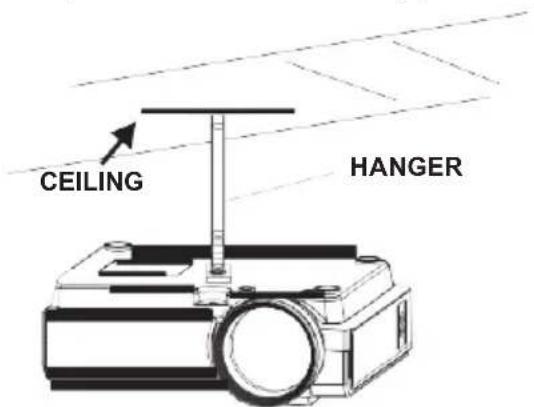
FIXED HANGER HOLE

natural_image
Diagram of a rectangular device with internal grid pattern and a diagonal line, no text or symbols presentAdjust The Vertical Angle
Note: This does not apply for ceiling mounted projectors. To adjust the vertical angle of the image, adjust the Height Adjustment Peg on the bottom of the projector as shown. Turn this Peg clockwise or anticlockwise to adjust the vertical angle.
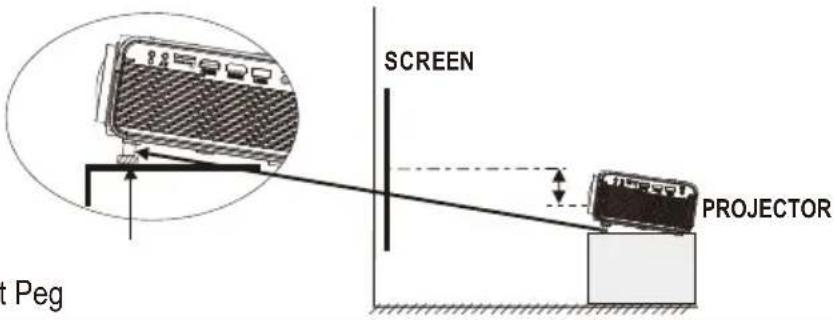
Height Adjustment Peg
Adjust The Focus And Keystone
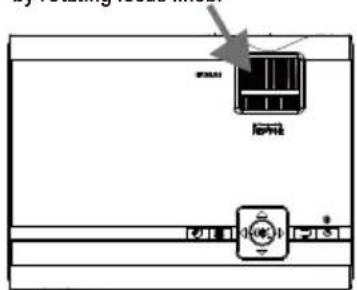
Follow below picture to adjust the focus and trapezoidal screen.
Adjust the focus by turning the knob while observing the image pixels near the center of the screen. Optimal focus is obtained when the pixels are clearly visible. Depending on the projected screen size, the focus near the screen edges may be less sharp than the screen center.
FOCUS ADJ. KNOB
Then sharpen the image by rotating focus knob.
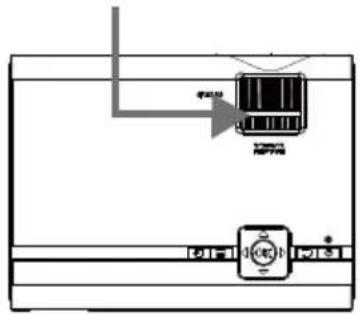
Keystone image is created when the projector beam is projected to the screen in an angle. Keystone correction will restore the distorted image to a rectangular or square shape.
TRAPEZOIDAL ADJ. KNOB
Controls Of Remote
Power
Press to power ON.
Press and hold to power OFF.
Previous / Next
Press to skip between chapters or tracks.
Stop
Press to stop playback.
Flip
Press t display image 180°.
Play/Pause
Press to play or pause an individual
chapter or track.
Arrows/OK
Press to navigate and c rm selections in
Settings and other menus.
Menu
Press to access projector Settings.
Go To/Number Keypad
Press to enter spec tercohtrpck
numbers. Use Play button to begin
playing.

Mute
Press to mute volume.
Back / Fwd
Press to search through an individual chapter or track.
VOL+/VOL-
Press to adjust audio level.
Source
Press to select media source
(AV, PC, HDMI, MEDIA).
Exit
Press to exit menus.
Zoom
Press to zoom display image in or out.
Install / Remove Battery Of Remote

Remove the battery compartment cover on the back of your remote by carefully sliding to open. The battery cover can then be lifted away. Fit the correct batteries (2 X AAA batteries included), referring to the polarity markings. Finally, replace the cover.
NOTES:
- Batteries shall not be exposed to excessive heat such as sunshine, fire
- Be sure that the batteries are installed with correct polarity.
• Only same or equivalent type batteries as recommended are to be used. - Do not dispose of batteries in fire, battery may explode or leak. Do not try to recharge a battery
• Do not mix old and new batteries. - Do not mix alkaline, standard (carbon-zinc), or rechargeable (Nickel-cadmium, Nickel-metal hydride etc) batteries.
Controls Of Projector

Main Operation
- Projector Lens
- Height Adjustment Peg
- Focus Adjustment
- Micro SD Card Port
- Keystone Adjustment
- HDMI Input 1 &2
- Controls/Power Indicator
- USB Port
- VGA/PC Input
- 3.5mm Audio Output
- Remote Sensor (duplicated on the front of the projector)
- DC Power Port
- Speakers
- 3.5mm AV Input
Controls

flowchart
graph LR
    A["Source Press to change media source mode."] --> B["Menu Press to access on-screen menus and options."]
    B --> C["OK Arrows/OK Press to navigate on-screen menus and make selections."]
    C --> D["Back Press to return to a previous page or setting in the on-screen menus."]
    D --> E["Power/Pair Press to power on the projector. Press and hold to power OFF."]
Install Power Adapter
Follow below picture to connect power adapter
Connect small end of adapter FIRST. Plug the adapter body to power outlet.

Connect HDMIShow The Image On Projector Screen
Follow below picture to connect HDMI cable and device.
- Turn off the unit before connectingHDMI cable.
- After connecting, press the ⏻ button to turn on unit and power indicator will light GREEN
-
Press the ✉ / SOURCE button to switch to HDMI mode, the video from the HDMI device is displayed on the screen. There are 2 HDMI inputs (HDMI 1 and HDMI 2), select the correct source accordingly.
-
Press the ⏻ button to turn off unit power.
Note: For HD signal input through HDMI

Follow below picture to connect AV cable and device.
- Turn off the unit before connecting AV cable.
- Use AV cable to connect as per the below figure
- After connecting, press the ⏻ button to turn on unit and power indicator will light GREEN
- Press the ☑ / SOURCE button to switch to AV mode, the video from the connected device will be displayed on the screen.
- Press the ⏻ button to turn off unit power.

Connect VGAShow The Image On Projector Screen
Follow below picture to connect VGA cable and device.
- Turn off the unit before connecting VGA cable.
-
Press the ⏻ button to turn off power of your projector before connection.
-
After connecting, press the ⏻ button to turn on unit and power indicator will light GREEN
-
Press the ☐ / SOURCE button switch to VGA mode, the video from the connected device will be displayed on the screen.
-
Press the button to turn off unit power.

flowchart
graph TD
    A["Note Book"] --> B["C OMPUTER CABLE"]
    B --> C["To VGA PORT"]
    B --> D["C C OMPUTER CABLE"]
    D --> E["DESKTOP"]
    style A fill:#f9f,stroke:#333
    style B fill:#ccf,stroke:#333
    style C fill:#cfc,stroke:#333
    style D fill:#fcc,stroke:#333
    style E fill:#cff,stroke:#333
Please refer to the following table to adjust the output signal from computer
| Type | Resolution | Frequency | Field Frequency | |
| PC | VGA | 640x480 | 31.5 60 | |
| 34.7 70 | ||||
| 37.9 72 | ||||
| 37.5 75 | ||||
| SVGA | 800x600 | 31.4 50 | ||
| 35.1 56 | ||||
| 37.9 60 | ||||
| 46.6 70 | ||||
| 48.1 72 | ||||
| 46.9 75 | ||||
| XGA | 1024x768 | 40.3 50 | ||
| 48.4 60 | ||||
| 56.5 70 | ||||
Connect Audio Output (Aux Out / Line Out / Earphones)
Follow below picture to connect audio cable and device.
- Press the ⏻ button to turn off projector power before connecting.
- Use an audio cable as shown below to connect the external device to the projector.
- Turn on the projector and the external device. Now the projector sound will be played on the external device speakers.
- Turn off both the projector and the external device after use.
Station Amplifier

Install USB Device And Micro SD Card
Connect your USB device or microSD card to the respective slots.
Turn off the projector when inserting.

MicroSD Card And USB Playback (Media Player)
Install USB / microSD device:
- Turn off the unit before inserting USB/ microSD card.
- Install the USB device into USB port.
- After connecting, press the ⏻ button to turn on unit and the power indicator lights up GREEN.
- Press the E /SOURCE button to enter and use 🔒 buttons to search for MEDIA mode.
- After selection, use 🔒 buttons to search the MUSIC / PHOTO / MOVIE icon and press the OK button to enter. If necessary, use the ◀/▶ button to select microSD card or USB and press the OK button to enter.
- Use 🔒 buttons to search the correct file and press the ⏻ button to preview playback file and press the ⏱ button of unit or ⏠ button of remote to start playback.
- Press button to fast search forward and rewind.
- Press button to search next or previous file.
- During playback, press the ▶ button to pause and press again to resume.
NOTE: Remove USB / microSD device, press the ⏻ button to turn off power FIRST.
| Sub-Menu on Photo screen | |
| 1. During photo playback, press the OK button and more function screens show up (figure 1).2. Use the button to select icon and press the OK button to play special function. | Figure 1.Pause Prev. Next Stop Re... background music PL... InfoRotate Rotate Zo... Zo... M... |
| Sub-Menu on Music screen | |
| 3. During music playback, press the OK button and more function screens show up (figure 2).4. Use the button to select icon and press the OK button to play special function. | Figure 2Pause FB FF Prev. Next Stop Re... Set AMUTE PL... Info Go... |
| Sub-Menu on Movie screen | |
| 5. During photo playbackpress the OK button and more function screens show up (figure 3).6. Use the button to select icon and press the OK button to play special function. | Figure 3Pause FB FF Prev. Next Stop Re...Set A PL... Info SI... St... Go...AS... |
Using Bluetooth Playback
Pairing to Bluetooth Wireless Speakers or Sound Bar
NOTE: Bluetooth is OFF by default when the projector first powers ON. Bluetooth can be turned ON or OFF from the OPTIONS Menu.
- Enable Bluetooth on the receiver (external speakers, sound bar, etc.) to which you wish to connect. Devices such as smartphones, tablets, or computers are not Bluetooth receivers and will not connect to the projector. To eliminate confusion, you should disable Bluetooth on all receivers to which you do not wish to connect.
- Power on the projector and make sure the projector's Bluetooth is ON (see note above). The projector will begin searching for nearby Bluetooth devices to connect to, and will automatically initiate pairing.
- When successfully paired, the Bluetooth receiver should indicate it is connected, usually with a chime or other audible noise. Check the user manual on your Bluetooth receiver for more information.
- When successfully connected, the projector will display the Bluetooth receiver's name on the top right portion of the Main Menu screen, and sound played from the projector will be heard through the Bluetooth receiver.
After initial pairing, the projector and the Bluetooth speakers will stay paired unless unpaired manually by the user, or erased due to a reset of either device. If this occurs, or you find either unit is unable to connect, repeat the above steps.
Using Projector Menu 1.0
Press ≡ button to enter projector menu. Press again for previous status.
| Picture Mode | Standard |
| Contrast | 50 |
| Brightness | 50 |
| Color | 50 |
| Sharpness | 50 |
| Tint | 50 |
| Color Temperature Medium | |
| Aspect Ratio | Auto |
| Noise Reduction Middle | |
| Screen | |
Use buttons to select manual page.
This manual shows on right upper of view screen.
- Picture Mode Select Vivid, User (custom), Soft, or Standard
- Contrast, Brightness, etc Set Picture Mode to "User" to adjust these settings
- Color Temperature Select Warm, Cool, or Medium.
- Aspect Ratio Select 16:9, 4:3, or Auto
- Noise Reduction Select Off, Low, Middle, High or Default
- Screen
| Color temper⋯ (temperature) | |
| Customer define Parameter | |
| red 0-100 | |
| blue 0-100 | |
| green 0-100 | |
| Aspect Ratio | |
| 4:3 The signal in a | 4:3 aspect ratio projection image |
| 16:9 The signal in | a 16:9 aspect ratio projection image |
Using Projector Menu 2.0
Press button to enter projector menu. Press again for previous status.
| Sound Mode | Standard |
| Treble 50 | |
| Bass 50 | |
| Balance 0 | |
| Auto Volume | Off |
| Surround Sound | Off |

Use buttons to select manual page.
This manual shows on right upper of view screen.
- Sound Mode
Select Music, Movie, User (custom), Sports, or Standard - Treble, Bass
Set Sound Mode to "User" to adjust these settings - Balance
Adjust the audio balance. - Surround Sound
Turn Surround Sound ON or OFF.
| Sound Mode - User Parameter | |
| Treble 0-100 | |
| Bass | 0-100 |
Using Projector Menu 3.0
Press ≡ button to enter projector menu. Press again for previous status.
| OSD Language | English |
| BluetoothRestore Factory Default | |
| Panel Rotate | 0 |
| Info |
Use buttons to select manual page. This manual shows on right upper of viewing screen.
1. OSD Language
Select different language, Follow below figure.
2. Bluetooth
Turn Bluetooth ON or OFF
3. Restore Factory Default
Select Y or N.
4. Panel Rotate
Select rotate 0, rotate 1, rotate 2, rotate 3..
5. INFO
Display the unit information as below.
Model: ALP40P
SN:EV0386/1
AIWA
SW Ver: V7.0
LOGO: AIWA
BT V4.1/V4.2
| English Hrvatski N | ederlands Chinese | ||
| Franais Deutech S | lovenina Slovak | ||
| Espanol Italiano N | orsk | ||
| Portugues Magyar | Srpski | ||
| Esky Polski Svenska | |||
| Dansk | Romnete | Suomi | |
Using Projector Menu 4.0
Press button to enter projector menu. Press again for previous status.
Clock -- --
Off Timer Off
On Timer Off
Sleep Timer Off
Auto Sleep Never
Use buttons to select manual page.
This manual shows on right upper of view screen.
- Clock-- --
Select clock to Day, Month, Year, Hour, and Minutes.
- Off Timer
Select turn off timer to Day, Hour, and Minutes.
- On Timer
Select turn on timer to Day, Hour, and Minutes.
- Sleep Timer
Select sleep timer to Off, 10min, 20min, 30 min, 60min, 90min, 120min, 180min, 240min
- Auto Sleep
Select auto sleep function to Never, 4 hour, 6 hour, 8 hour.
Specifications
| Light Source Type | LED |
| Brightness Output | LED bulb 2800 LumensWhite light output 40 Lumens |
| Display Native Resolution | 800 x 480 |
| HDMI Input SupportedVideo Resolution. | 1080p, 1080i, 720p, 576i, 480p, and 480i |
| Power Consumption | Operating 36W; Standby 0.8W |
| Power InputConnect Included Adapter | DC 12V, 4A |
| Included AdapterConnect DC input of unit | Input AC100-240V,50/60HzOutput DC12V, 4A |
| Display Color | 16.7K |
| Projection Size 30-150 inch | |
| Signal Port | Video / VGA / HDMI |
| USB Port Support USB device up to 1TBSupport format mpeg1, Mpeg2 ,mpeg4, mp3 , Jpeg | |
| MicroSD Card Support MicroSD card up to 32GBSupport format mpeg1, Mpeg2 ,mpeg4, mp3 , Jpeg | |
| Weight 0.9 kg | |
| Dimensions 203 x 150 x 82 mm | |
TROUBLESHOOTING
This section summarises a few common problems you might encounter when using this product. If the answer to your problem is not found within this table, or you need further assistance, please contact Customer Service.
| No Image is Projected or a "No Signal" message is displayed | 1. Is the Power light on? If it is not on, check that the projector is plugged into the mains, that the socket is switched on, and then press the power button on the projector.2. Check the lens cover has been removed.3. Check the cables are securely attached and installed as per the User Manual.4. The image source may not be set correctly. Press the Source button on the Control Panel or the Remote, to select the correct setting.5. Check in the Menu section under Video input signal to make sure that has been set correctly. |
| The Lamp (Bulb) switches off after a period of time | 1. Leave the projector to cool for a few moments.2. Once cooled, check if anything is blocking the ventilation vents.3. Turn on the projector.If the issue persists please contact your support provider for further assistance. |
| The Image is wider at the top/bottom of the screen | This is called keystone and is due to the projection angle not being perpendicular to the screen. To correct, use the projector's inbuilt keystone function to adjust the image. |
| Spots on the screen | Use a vacuum cleaner to clean the lens. |
| The image brightness has faded | This might be caused by the ambient light in the room. If not ,you may need to replace the lamp (bulb). |
aiwa
- CAUTION:
- KEEP THESE INSTRUCTIONS IN MIND:
- safety.
- INSTALLATION
- Packing Included :
- Remove & Close The Lens Cover
- Placing Your Projector
- Front Table:
- Front Ceiling:
- Rear Table:
- Rear Ceiling:
- NOTE:
- To Reduce Image Distortion
- Distance Between The Projector And Screen
- Placing Your Projector On Ceiling
- Adjust The Vertical Angle
- Adjust The Focus And Keystone
- Controls Of Remote
- Install / Remove Battery Of Remote
- NOTES:
- Controls Of Projector
- Main Operation
- Install Power Adapter
- Connect HDMIShow The Image On Projector Screen
- Note: For HD signal input through HDMI
- Connect VGAShow The Image On Projector Screen
- Connect Audio Output (Aux Out / Line Out / Earphones)
- Install USB Device And Micro SD Card
- MicroSD Card And USB Playback (Media Player)
- Using Bluetooth Playback
- Pairing to Bluetooth Wireless Speakers or Sound Bar
- Using Projector Menu 1.0
- Using Projector Menu 2.0
- Using Projector Menu 3.0
- OSD Language
- Bluetooth
- Restore Factory Default
- Panel Rotate
- INFO
- Using Projector Menu 4.0
- TROUBLESHOOTING
Brand : AIWA
Model : ALP40P
Category : Video projector