
EB-800C - Electronics ECS - Free user manual and instructions
Find the device manual for free EB-800C ECS in PDF.


| Product Type | eBook Reader |
| Brand | ECS |
| Model | EB-800C |
| Dimensions (L x W x H) | 277 mm x 156.5 mm x 10.8 mm |
| Weight | 340 g (without 3G module) |
| Display | 8-inch E-Ink ePaper, 1024x768 pixels, 16 grey scales |
| Processor | Marvell PXA166e, 800 MHz |
| Memory | 256MB SLC NAND Flash + 256MB LP-DDR1 RAM + 2GB embedded microSD |
| Battery | Li-Ion, 3.7V, 2090 mAh (non-user-serviceable) |
| Operating System | Android 2.1 |
| Connectivity | USB 2.0, SD memory card slot, Wi-Fi 802.11 b/g/n, 3G (optional), Bluetooth 3.0 + EDR |
| Audio | Built-in 1.5W speaker, 3.5mm headphone jack |
| Supported eBook Formats | ePub, PDF, TXT |
| Supported Photo Formats | JPEG, PNG, BMP, GIF |
| Supported Audio Formats | MP3, AAC, WAV |
| Preloaded Applications | eBook Reader, Audio Player, Photo Viewer, My Favorites, Search, Browser, Settings, Calendar, File Manager |
| Control Buttons | Power, Home, Menu, Back, Volume Up/Down, Reset |
| Touch Gestures | Press, Long Press, Slide Up/Down/Left/Right, Slide Apart/Close |
| Maintenance | Keep device clean and dry; battery not user-replaceable |
| Safety | FCC Class B compliant; follow standard electronic device precautions |
Frequently Asked Questions - EB-800C ECS
User questions about EB-800C ECS
0 question about this device. Answer the ones you know or ask your own.
Ask a new question about this device
Download the instructions for your Electronics in PDF format for free! Find your manual EB-800C - ECS and take your electronic device back in hand. On this page are published all the documents necessary for the use of your device. EB-800C by ECS.
USER MANUAL EB-800C ECS
EB-800C eBook Reader User Manual.
May 11, 2011
Revision 1.8.6
ELITEGROUP COMPUTER SYSTEMS CO., LTD.
Revision History
Version Author Date Notes
Table of Contents
1 Introduction....10
1.1 Technical Specification....10
1.2 Control Placement....11
2 About EB-800C 13
2.1 Design concept....13
2.2 Controls....13
2.3 Touch Gesture....13
2.4 Input Method / On-screen Keyboard 15
2.4.1 On-screen Keyboard for English Input Method....15
2.4.2 Google Pinyin Input Method....17
2.5 SD Card....17
2.5.1 Access a SD card....18
2.6 SIM Card....19
3 Power ON/OFF 20
3.1 Steps to power on: 20
3.2 Steps to power off....21
4 Interface 22
4.1 Home Screen....22
4.2 Status Bar 23
4.2.1 Battery status....23
4.2.2 Wireless network status....23
4.2.3 3G/2G status....23
4.2.4 Bluetooth status....24
4.2.5 SD card status....24
4.3 Home screen menu....24
4.4 Head Bar 25
4.5 Function Menu....26
4.6 Context Menu....28
5 Features....30
5.1 eBook....30
5.2 Music....30
5.3 Picture 30
5.4 My favorite....30
5.5 Search....30
5.6 Browser....31
5.7 Setup 31
5.8 File management....31
5.9 Calendar....31
6 E-Book....32
6.1 Supported Format....32
6.2 E-Book library structure....33
6.3 eBook Library Screen 34
6.4 EBook library Navigation....35
6.4.1 List Mode / Thumbnail Mode 35
6.4.2 Turn page up/down or left/right 35
6.5 Browsing operations 35
6.5.1 Function menu....36
6.5.2 Context menu 36
6.6 How to open an ebook....38
6.7 Reading operations....39
6.7.1 Turn page 39
6.7.2 Function menu....39
6.7.3 Copy 40
6.7.4 Bookmarks 42
6.7.5 Highlight 45
6.7.6 Annotation....48
6.7.7 Contents....52
6.7.8 Search....53
6.7.9 Settings....55
6.7.10 Audio player ....58
6.7.11 Photo viewer....58
6.7.12 Browser....58
6.7.13 Go to page 58
6.7.14 Rotate....60
6.7.15 When reading a PDF-format ebook 60
7 Audio Player 63
7.1 Supported audio formats....63
7.2 Audio library structure....63
7.3 Audio Library Screen....65
7.4 Audio Library Navigation....66
7.4.1 List Mode/ Thumbnail Mode 66
7.4.2 Turn page up/down or left/right....66
7.5 Browsing Operations: 66
7.5.1 Function menu....66
7.5.2 Context menu....67
7.6 How to play a track....68
7.7 Audio Play Operations....68
7.7.1 Playing screen....68
7.7.2 Play modes....69
7.7.3 Function menu....70
7.7.4 Play controls....70
8 Photo Viewer 71
8.1 Supported photo formats....71
8.2 Photo Library Structure....72
8.3 Photo Library Screen 73
8.4 Photo Library Navigation....73
8.4.1 List Mode/Thumbnail Mode 73
8.4.2 Turn page up/down/left/right 74
8.5 Viewing operations....74
8.5.1 Function menu....74
8.5.2 Context menu 75
8.6 How to view photos....76
8.7 Viewing operations....76
8.7.1 Function menu....76
8.7.2 Photo view toolbar 77
8.7.3 Touch Zoom operations 78
9 My Favorites....79
9.1 Features....79
9.2 My Favorites Screen....79
9.3 Create a New Category 80
9.4 Add to My Favorites 81
9.5 Manage My Favorites 85
9.5.1 Rename....86
9.5.2 Cut 86
9.5.3 Paste into Folder....86
9.5.4 Paste 86
9.5.5 Delete 87
10 File Explorer 89
10.1 Features....89
10.2 File Explorer Screen 89
10.3 File Explorer Operations....89
10.3.1 Function Menu....90
10.3.2 Context Menu 91
11 Search....93
11.1 Features....93
11.2 Search Screen....93
11.3 Global Search....95
11.4 Search by File Types....96
12 Settings....97
12.1 Upgrade....97
12.1.1 Upgrade Screen....98
12.1.2 Upgrade procedure....98
12.1.3 After Upgrade....99
12.2 Wireless & Networks....99
12.2.1 Wireless & Networks Settings Screen....100
12.2.2 Settings for 3G and Mobile Networks .... 100
12.2.3 Wi-Fi Settings....100
12.2.4 Bluetooth Settings....101
12.3 Sound Settings 102
12.3.1 Media Volume 103
12.3.2 Notification Ringtone 104
12.3.3 SD Card Notification....105
12.4 Display Settings 105
12.4.1 Orientation....106
12.4.2 Next Page Gesture 106
12.5 Power Saving....107
12.5.1 Wireless Network Power Saving Options....107
12.5.2 Auto Standby Options....108
12.6 Connect to PC....109
12.6.1 Ask Me....109
12.6.2 Connection Type....109
12.7 Security....110
12.7.1 Screen Lock....111
12.7.2 Enter Password to Unlock Screen....111
12.7.3 Visible Password....111
12.8 SD Card....111
12.9 Date and Time....112
12.10 Language and Keyboard....113
12.11 About eBook....114
12.11.1 Model Number....115
12.11.2 MCU Version/ Software Version....115
12.11.3 Internal eBook Storage 115
1 Introduction
This manual is to introduce the user interface of EB-800C eBook reader, giving you an idea on how to use EB-800C.
1.1 Technical Specification
| Model Name | EB-800C |
| CPU | Marvell PXA166e, 800MHz with embedded ePaper controller |
| Memory | 256MB SLC NAND FLASH for boot code256MB LP-DDR1-200 for working memory2GB microSD for content storage embedded. |
| Buttons &Navigation Controls | Projective Capacitive ScreenHome, Menu, Back, Power, Reset, Volume up/down keysG-sensor |
| Display | 8” 1024x768, 16 grey scale E-Ink ePaper |
| Battery | Non-user-serviceable Li-Ion Battery, 3.7V 2090mAh |
| Connectivity | USB 2.0 device and power connectionSD memory card slotWiFi 802.11 b/g/n3G Wireless(Optional)Bluetooth 3.0 + EDR |
| Audio | Single 1.5W built-in speaker3.5mm headphone jack |
| Dimension | 277mm x 156.5mm x 10.8mm (LxWxH) |
| Weight | 340g (without 3G) |
| Operating System | Android 2.1 with support for multiple languages and S/W keyboard |
| Content formats | eBook: ePub, PDF, Txt,Photo: JPEG, PNG, BMP, GIFAudio: MP3, AAC,WAV |
| Preloaded S/W | eBook, Audio, Photo, Favorite, Search, Android Browser, Settings, Calendar, File management |
1.2 Control Placement
Front view:

Back view:
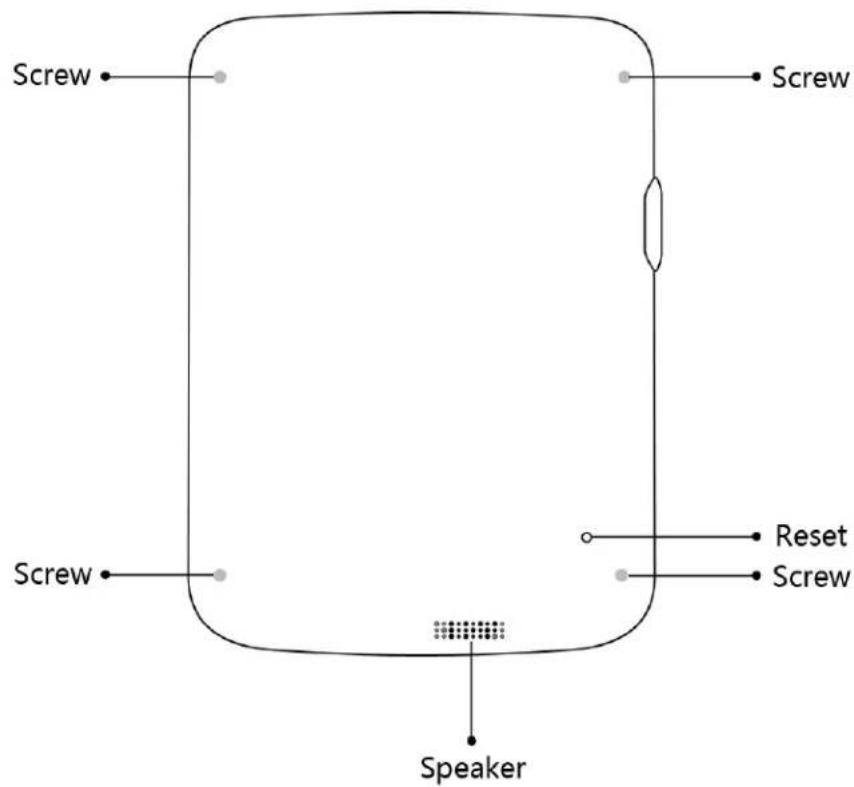
2 About EB-800C
2.1 Design concept
The EB-800C is an eBook reader running on Android 2.1.
2.2 Controls
The EB-800C provides seven control buttons, which are “POWER”, “HOME”, “BACK”, “MENU”, “VOLUME UP”, “VOLUME DOWN”, and “RESET”.
POWER: Pressing and holding this button for two (2) seconds will open a dialog box prompting you if you want to shut down the system.
HOME: Press this button whenever you want to switch back to the main screen.
MENU: Pressing this button will open the option menu of the active application.
BACK: Pressing this button during any operation will send you back to the previous menu.
VOLUME UP: Pressing this button can tune up the audio volume.
VOLUME DOWN: Pressing this button can tune down the audio volume.
RESET: Pressing this button will reboot the system.
2.3 Touch Gesture
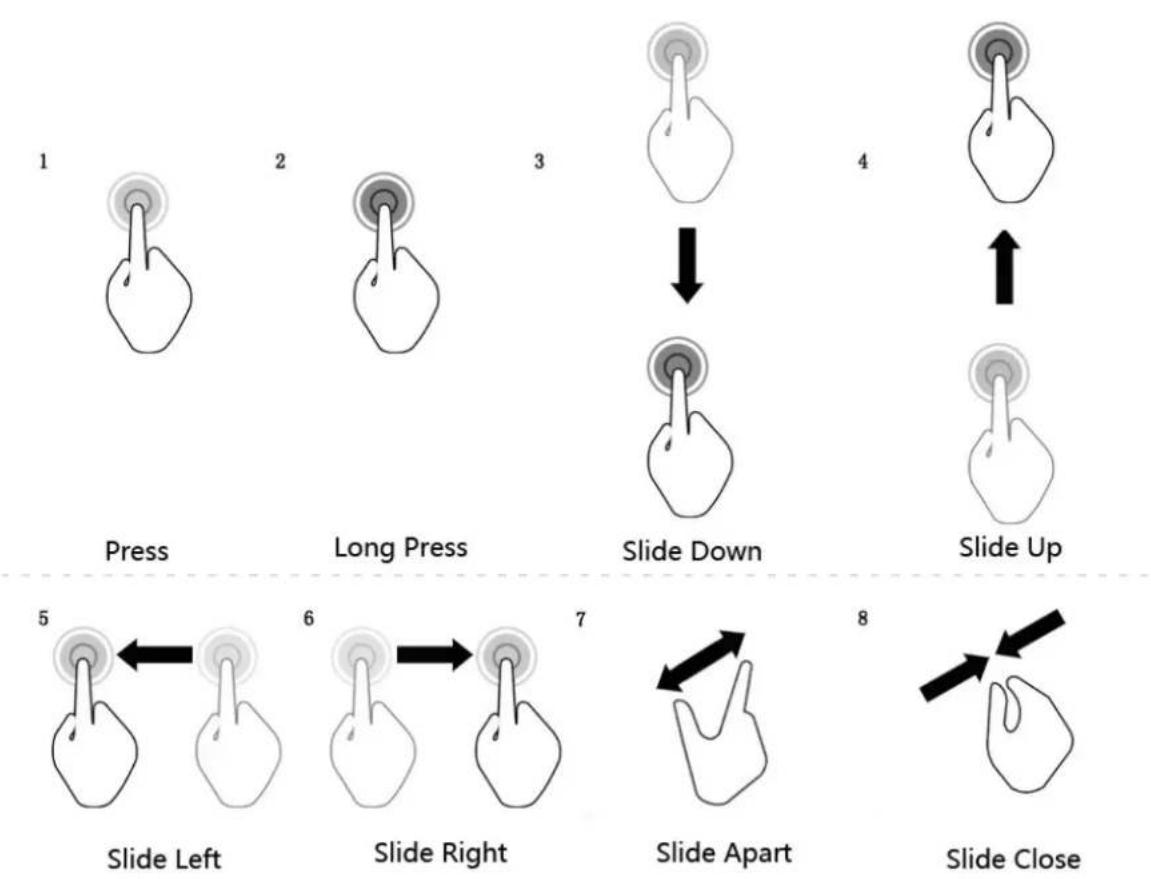
The EB-800C can detect and recognize following touch gestures as shown below:
flowchart
graph TD
    A["1: Press"] --> B["2: Long Press"]
    B --> C["3: Slide Down"]
    C --> D["4: Slide Up"]
    D --> E["5: Slide Left"]
    E --> F["6: Slide Right"]
    F --> G["7: Slide Apart"]
    G --> H["8: Slide Close"]
Press: This is the most useful gesture, requires only a single tap on the touch panel, and is frequently used to select an option. The detectable minimum area for an effective press is 1.0 cm x 1.0 cm.
Long Press: Press and hold your finger on the panel for 2 to 3 seconds – this is one long-press gesture. A long press on the screen of EB-800C will bring up a context menu. The detectable minimum area for this gesture is 1.0 cm x 1.0 cm.
Slide-down: Put your fingers on the panel softly, slide it down at least 2cm, and lift it from the panel – this is one slide-down gesture. For EB-800C, this gesture is often applied for scrolling back the ebook library, audio library, photo gallery, my favorites, and files.
Slide-up: Put your fingers on the panel softly, slide it up at least 2cm, and lift it from the panel – this is one slide-up gesture. For EB-800C, this gesture is often applied for scrolling down the ebook library, audio library, photo gallery, my favorites, and files.
Slide-left: Put your fingers on the panel softly, slide it to left at least 2cm, and lift it from the panel – this is one slide-left gesture. For EB-800C, this operation is often applied for turning page when you are reading an ebook or viewing photos.
Slide-right: Put your fingers on the panel softly, slide it to right at least 2cm, and lift it from the panel – this is one slide-right gesture. For EB-800C, this gesture is often applied for turning page when you are reading an ebook or viewing photos.
Slide-apart: First put your two fingers on the panel with at least 1cm in between, and then slide them apart. For EB-800C, this gesture is often applied to zoom-in or to enlarge font/photo size.
Slide-close: First put your two fingers on the panel with at least 2cm in between, and then close them together in slide motion. For EB-800C, this gesture is often applied to zoom-out or to shrink font/photo size.
Note: The magnifying/shrinking rate applied to the font/photo size will be proportional to the magnetite detected from your slide-apart/close gesture.
In short, the rate = (the distance between two fingers before the gesture) / (that after)
For the slide-apart -- more the fingers slide open, more the zoom-in rate.
For the slide-close -- closer the fingers get close to each other, more the zoom-out rate.
2.4 Input Method / On-screen Keyboard
The EB-800C provides in default two kinds of input methods – English and Google Pinyin -- with their corresponding on-screen keyboard. You can specify your favorite input method as default through setting menus.
Note: Press an input area can bring up the on-screen keyboard.
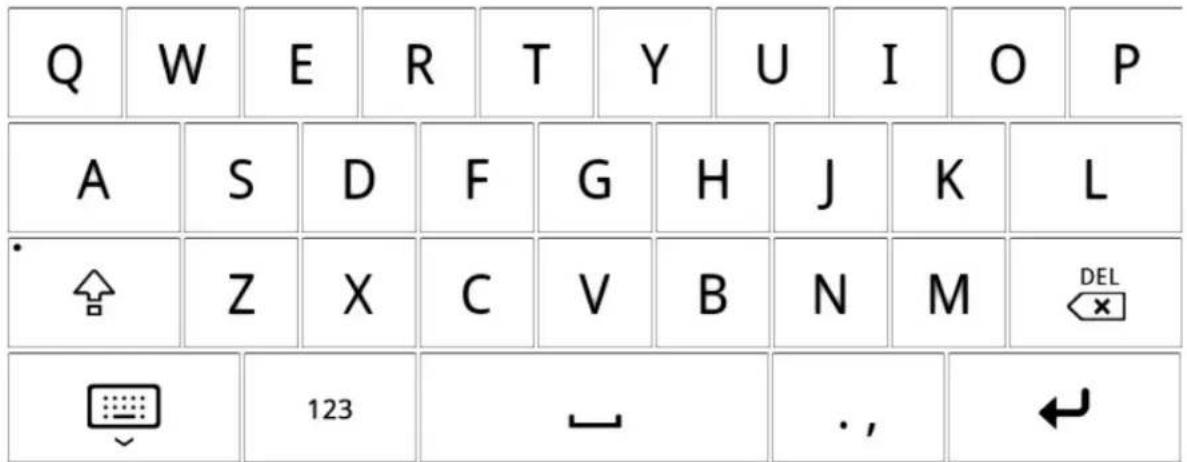
2.4.1 On-screen Keyboard for English Input Method

The function for each key shown above is as described below:
The key with an alphabet character printed on it is an alphabet key, and you can press on it to input the corresponding character.
This is the Enter key.

This is the Space key.
This is the Delete key (which is for deleting input character).
A press on this will hide the on-screen keyboard.
A press on this will active the capital mode, and will change the interface of the on-screen down below:
This is the numerical switching key. A press on it will change the interface of the keyboard w:
| 1 | 2 | 3 | 4 | 5 | 6 | 7 | 8 | 9 | 0 |
| @ | # | $ | % | & | * | - | = | ( | ) |
| °[YSHW] | ! | " | ' | : | ; | / | ? | DEL× | |
 | ABC | ← | , | ← | |||||
2.4.2 Google Pinyin Input Method
The key functions for this method are similar to that of the English input method, so the description is saved here and please refer to the previous section for details. With the Pinyin input method, you can input text in English and Simplified Chinese. The interface of the on-screen keyboard is as below.
The EB-800C provides the capability of reading and writing SD cards, and all media files can be accessed through SD cards. The EB-800C supports both MicroSD cards (hereafter referred as “Internal SD cards”) and traditional SD cards (hereafter referred as “External SD cards”). The internal SD cards are used as
internal system drives for storing user's data, and the external SD cards are used as external drive expansions that require to be inserted in to the SD card slot before being accessed.
2.5.1 Access a SD card
You can access from a PC to your SD card installed in your EB-800C to exchange files, whether such SD card is an internal or external one.
All you need is to connect your EB-800C to your PC with a USB cable. As soon as you complete the connection, the screen will change to the one as shown below:
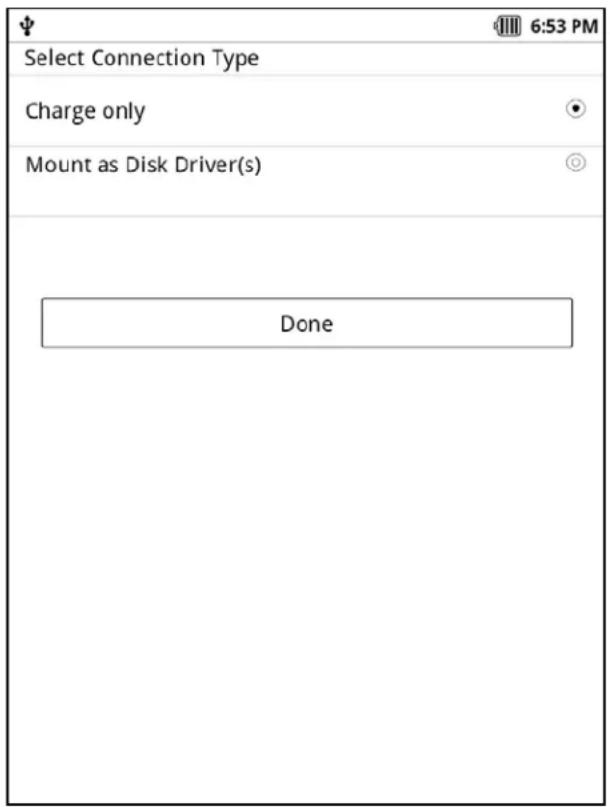
Select here “Mount as Disk Driver(s)”, and the internal and external SD cards will be mounted as two standard removable disk drivers. In the Windows XP, for example, there will be two removable disks newly added, as shown below. Now, you can copy files from your PC to both SD disks, as well as manage the documents stored in your EB-800C.

You can store files in your external SD card using other SD card devices, and then insert it into the SD card slot on your EB-800C to read the files.
Note: To the files stored in the internal and external SD cards, your EB-800C will automatically perform necessary processes such as sorting and categorizing. The time required for such processes depends on the number and size of the files.
2.6 SIM Card
The EB-800C comes with 3G telecommunicating capability. Just insert your SIM card, and the 3G-network service is ready.
3 Power ON/OFF
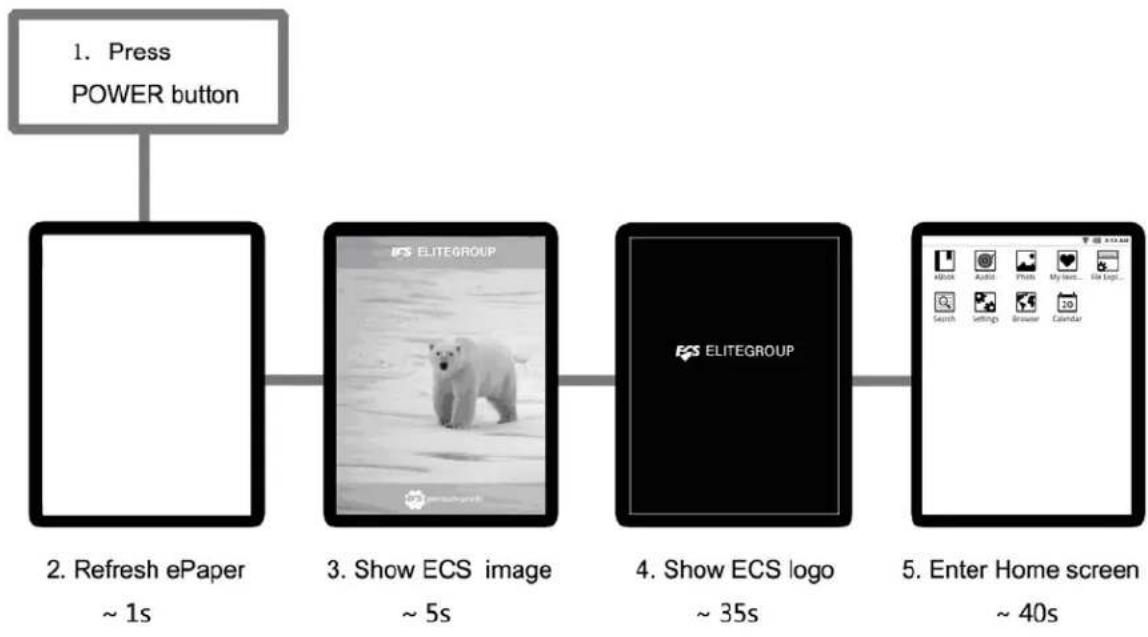
3.1 Steps to power on:
flowchart
graph LR
    A["1. Press POWER button"] --> B["2. Refresh ePaper ~ 1s"]
    B --> C["3. Show ECS image ~ 5s"]
    C --> D["4. Show ECS logo ~ 35s"]
    D --> E["5. Enter Home screen ~ 40s"]
-
A press on the POWER button.
-
The ePapaer screen display to white (after 1 second)
- ECS image appears (after 5 seconds)
- ECS LOGO appears (after 35 seconds)
- The system is completely booted and the Home screen is open (after 40 seconds)
3.2 Steps to power off

\~ 0s
\~ 2s
\~ 2s
\~ 10s
- Long press the POWER button
-
A shutdown confirmation dialog box pops out (after 2 seconds)
-
After user's confirmation, the system shows the shutdown is progressing (after 2 seconds)
- The ePapaer screen turn to white (after 10 seconds)
4 Interface
4.1 Home Screen
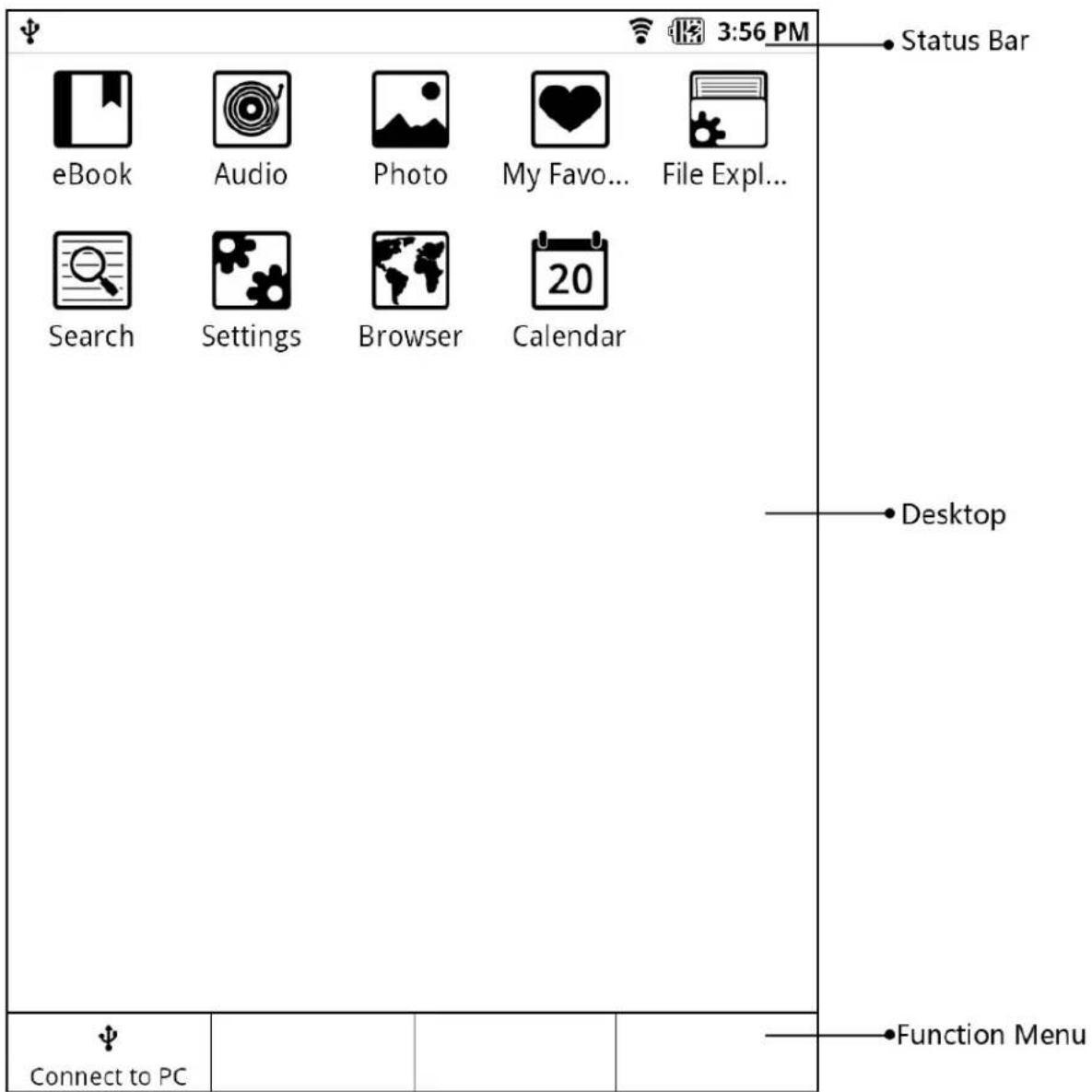
In the Home Screen, there are several icons arranged in matrix, and each of them represents an application program. A press on one of the icon will start the corresponding application.
4.2 Status Bar
On the top area of the screen, there is the Status Bar. It is for showing many kind of system operating information, including battery status, network status, current time, and system version, as well as messages notifying you an external SD card being inserted/removed.
4.2.1 Battery status
In normal operation mode, the battery status icon indicates how many power is still left – more the black stripes, more the power left. When the battery is in full charged, the icon will be full of the stripes.

natural_image
Row of battery icons in sequence: three gray, one black, one striped (no text or symbols)When starting the battery charging, the icon will turn into as shown below.

And once the battery fully charged, the icon will switch back to the normal operation mode with indicating fully charged.
4.2.2 Wireless network status
The network status will be shown in one of the icons shown below: more the black stripes, better the network signal.

4.2.3 3G/2G status
Your EB-800C can show the 3G/2G network status, and the actual icon depends on the available network.
When WCDMA:

When EDGE:

ELITEGROUP COMPUTER SYSTEMS CO., LTD.
When GPRS:


When HSDPA/HSUPA:


4.2.4 Bluetooth status

This icon indicates the Bluetooth function has been activated. If see no this icon, it means the function is still not activated.

This icon indicates that your EB-800C has established a connection with other Bluetooth device.
4.2.5 SD card status

This icon indicates a SD card is newly inserted and the system is running a check on it (In most of case, you will not see this icon appears, since the check is seldom required). The icon often will quickly be blocked from your sight by the “Preparing the SD card” message, which will also disappear soon after the SD card is ready.

This icon indicates the system is performing some preparations to the files stored in the external SD card. The preparations can be such as sorting and categorizing. Once the preparations are completed, this icon will disappear. The time required for such preparations depends on the number and size of the files.

This icon indicates the external SD card can be removed safely, and will be shown until the card

is removed from the slot. After the card being removed, the icon will be replaced by 📄 to remind you that the SD card slot is now empty.

This icon indicates that the SD card slot is empty, and will be shown until a SD card being inserted into the slot.
4.3 Home screen menu
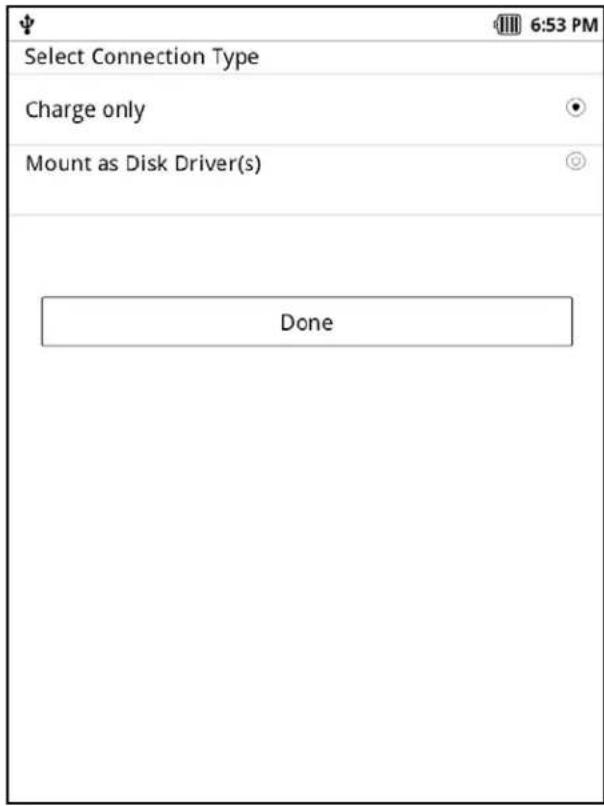
In the Home screen, you can press the MENU button to open the Home screen menu. On the menu you can find the option
below. If not being connected to a PC, your EB-800C will open a setup screen to let you setup your default way for the option. For details of this setup, please refer to section 12.6.
4.4 Head Bar
Under the Status Bar, there is an area called . For instance, if you open an ebook, its book title will be added to the header bar.
As the figure shows, the area showing

4.5 Function Menu
After activating an application program, you can press the MENU button to open the function menu. The function menu is a standard pop menu seen in the Android system. The actual function menu depends on the application you open and will be detailed in later chapters.
The example below demonstrates the function menu when you open an ebook:
| This motherboard uses a socket AM3 that carries the following features:Accommodates AM3 PhenomTM II/AthlonTM II/ SempronTM processorsSupports HyperTransportTM (HT) 3.0 interface speedsSupport transfer rate up to 5200 mega-transfers per secondHyperTransportTM Technology is a point-to-point link between two devices, it enables integrated circuits to exchange information at much higher speeds than currently available interconnect technologies.This board supports CPU up to 125W TDP only: you can refer to AMD website to check your CPU. | |||
| ChipsetThe RS780L Northbridge (NB) and SB710 Southbridge (SB) chipsets are based on an innovative and scalable architecture with proven reliability and performance.RS780L (NB)One x4 A-Link Express III interface for connection to an AMD Southbridge. The A-Link Express III is a proprietary interface developed by AMD basing on the PCI Express technology, with additional Northbridge-Southbridge messaging functionalities. It supports the PCIe Gen 2 transfer rate of 5 GT/s, and is backward compatible with the A-Link Express II interface.Supports one PCI-Express x16 Gen2 graphics InkSupports two PCI-Express x1 slotsFully supports ACPI states S1, S3, S4 and S5Supports ATI Radeon HD3000 Graphics*.Supports 16-bit up/down HyperTransport (HT) 3.0 interface up to 4.4 GT/s. | |||
| SB710 (SB)Compliant with PCI 2.3 specification at 33 MHzSupports five Serial ATA devices which speeds up to 3.0 Gb/s and one eSATA 3.0Gb/s.Integrated USB 2.0 Host Controller supporting up to twelve USB 2.0 portsIntegrated IDE controller supports Ultra ATA 133/100/66 modes | |||
| Highlight | Annotate | Copy | Add Bookmark |
| Rotate | Find | Table of Contents | Go To Page |
| Settings | Audio Player | Photo Viewer | Browser |
In the vertical screen mode, as shown above, the available function icons are arranged in a four-column pattern: arranged from left to right, and four icons in each row.
In the horizontal screen mode, as shown below, the available function icons are arranged in a six-column pattern: arranged from left to right, and six icons in each row.
| This motherboard uses a socket AM3 that carries the following features: • Accommodates AM3 Phenom™ II/Athlon™ II/ Sempron™ processors • Supports HyperTransport™ (HT) 3.0 interface speeds • Support transfer rate up to 5200 mega-transfers per second HyperTransport™ Technology is a point-to-point link between two devices, it enables integrated circuits to exchange information at much higher speeds than currently available interconnect technologies. This board supports CPU up to 125W TDP only: you can refer to AMD website to check your CPU. Chipset The RS780L Northbridge (NB) and SB710 Southbridge (SB) chipsets are based on an innovative and scalable architecture with proven reliability and performance. RS780L (NB) • One x4 A-Link Express III interface for connection to an AMD Southbridge. The A-Link Express III is a proprietary interface developed by AMD basing on the PCI Express technology, with additional Northbridge-Southbridge messaging functionalities. It supports the PCIe Gen 2 transfer rate of 5 GT/s, and is backward compatible with the A-Link Express II interface | |||||
| Highlight | Annotate | Copy | Add Bookmark | Rotate | Find |
| Table of Contents | Go To Page | Settings | Audio Player | Photo Viewer | Browser |
4.6 Context Menu
Besides pressing, your EB-800C also supports a menu operation other than pressing – we called it long pressing. When you are viewing a database or list and you want to apply action to a certain item, you can long press the item and a menu that listed available actions should pop-up. Such menu is the context menu. The actual menu depends and will be detailed in later chapters.
The example below demonstrates the context menu when viewing the ebook list.

5 Features
In this chapter, we are going to introduce the main functions preloaded in your EB-800C. All these functions are available in the Home Screen.
5.1 eBook
This is the function your EB-800C is mainly designed for. The ebook function supports all kind of ebook formats such as Epub, Fb2, PDF, Txt, chm, and RTF will many operations available -- namely font zoom-in/out, label, search, copy, note, and bookmark.
5.2 Music
You EB-800C comes with the ability to play music files whose format is WAV, AAC, or OGG -- not only in the foreground but also the background. Furthermore, this play function provides you all the common operations, namely, such as pause, previous track, and next track, as well as play-mode options including repeat-all, single-repeat, and sequence.
5.3 Picture
This function enables you to open and view picture files in JPEG, PNG, BMP, GIF formats, and gives you the ability to perform operations such as zoom-in/out, dreg, and switch to next/previous picture.
5.4 My favorite
With this function, you can add your favorite media files -- such as ebooks, audio tracks, and photos - to the column
5.5 Search
Your EB-800C comes with the ability to perform global-search and user-defined-search over the media library. As the searching conditions, you can specify the area and the text string before a search. In the result column, any files match the conditions will be will be listed.
5.6 Browser
Your EB-800C can access to the Internet through 3G and WiFi. The default browser used here is an Android one.
5.7 Setup
The system of your EB-800C is upgrade-ready, and will automatically detect if there is any upgrade available. The upgrade can be performed through the network connection or using an external SD card. Besides, you can perform setup and customization of its many features including network, audio, display, language, time, date, and programs.
5.8 File management
The EB-800C comes with the ability to manage the files in the internal and external SD cards. You can copy, cut, add, paste, and delete files. We will detail these in later.
5.9 Calendar
You can check the date with EB-800C using this function.
6 E-Book
6.1 Supported Format
Your EB-800C supports following ebook formats:
- ePub
- Pdf
• Fb2 - Txt
- Chm
- RTF
6.2 E-Book library structure

flowchart
graph TD
    A["eBook"] --> B["Now Reading"]
    A --> C["Authors"]
    A --> D["Author1"]
    A --> E["Types"]
    A --> F["PDF"]
    A --> G["Genres"]
    A --> H["Novel"]
    A --> I["All Books"]
    I --> J["Book 1.fb2"]
    I --> K["Book 2.epub"]
    I --> L["(book files)"]
    A --> M["My Favorites"]
    M --> N["Favorite things"]
    M --> O["Book13.fb2"]
    M --> P["Book14.pdf"]
    M --> Q["Bookmark 15"]
    A --> R["My Bookmarks"]
    R --> S["Book16.rtf"]
    R --> T["Bookmark 161"]
    R --> U["Bookmark 162"]
    A --> V["My Highlights"]
    V --> W["Book17.fb2"]
    V --> X["Highlight 171"]
    V --> Y["Highlight 172"]
    A --> Z["My Annotations"]
    Z --> AA["Book18.fb2"]
    Z --> AB["Annotation 181"]
    Z --> AC["Annotation 182"]
6.3 eBook Library Screen

Select the eBook in the Home screen, your will find several folders – as shown above, namely, Authors, Types, Genres, All Books, My Favorite, My Bookmarks, My Highlights, and My Annotations. In each folder, there is an ebook list arranged and categorized by the definition as the folder name suggests.
Now Reading -- A press on this icon, you can directly go to the page you stop reading last time. Your EB-800C will record the ebook you last time opened, making this possible.
Authors -- In this folder, all ebooks are categorized by the authors. You can press on your favorite author to view all his/her works.
Types -- In this folder, all ebooks are categorized by the file formats. A press on your favorite format, the system will list out all the ebooks of the format.
Genres -- In this folder, all ebooks are categorized by the book genre. A press on your favorite genre, the system will list out all the ebooks of your specified genre.
All Books -- This will list all the ebooks available in your system.
My Favorites -- In this folder, all the ebooks or folders you have added as your favorite will be listed under here. A press on the listed folder will make it expand and list out the ebooks in it.
My Bookmarks -- In this folder, all the ebooks you have bookmarked will be listed under here. When you press on a listed ebook, all the bookmarks made in the ebook will be listed.
My Highlights -- In this folder, all the ebooks you have made highlights will be listed under here. When you press on a listed ebook, all the highlights made in the ebook will be listed.
My Annotations -- In this folder, all the ebooks you have made annotations will be listed under here. When you press on a listed ebook, all the annotations made in the ebook will be listed.
6.4 EBook library Navigation
6.4.1 List Mode / Thumbnail Mode
The EB-800C provides two ways of navigating your ebook library – List Mode and Thumbnail Mode.
List Mod: the text titles of all items will be arranged and listed horizontally, one item in each row.
Thumbnail Mode: the cover images or icons of all items will be arranged and listed in matrix pattern.
The buttons for both modes can be found on the Head Bar.
6.4.2 Turn page up/down or left/right
When browsing the ebook library that cannot be squeezed and displayed in one screen, you will need to turn page left/right or up/down to navigate through the library.
When you are in the List Mode:
Slide your fingertip on the touch screen upward (a slide-up operation), you can turn page to the next one.
Slide your fingertip on the touch screen downward (a slide-down operation), you can turn page to the previous one.
When you are in the Thumbnail Mode: (the actual turn-page gesture will depend on the setup in the Display Settings screen)
Slide your fingertip on the touch screen to your left (a slide-left operation), you can turn page to the next one.
Slide your fingertip on the touch screen to your right (a slide-right operation), you can turn page to the previous one.
6.5 Browsing operations
When you are browsing the ebook library, you can perform several operations using the function menu and pop-up menu.
6.5.1 Function menu
Press the MENU button, the option menu will appear.

Rescan: A press on this option will start the system to rescan the media files in the external SD card. This can ensure the listed content is the latest one.
eBook Library: A press on this option will go back to the main screen of the ebook library.
6.5.2 Context menu
A long-press on an ebook item will open its context menu, as shown below:
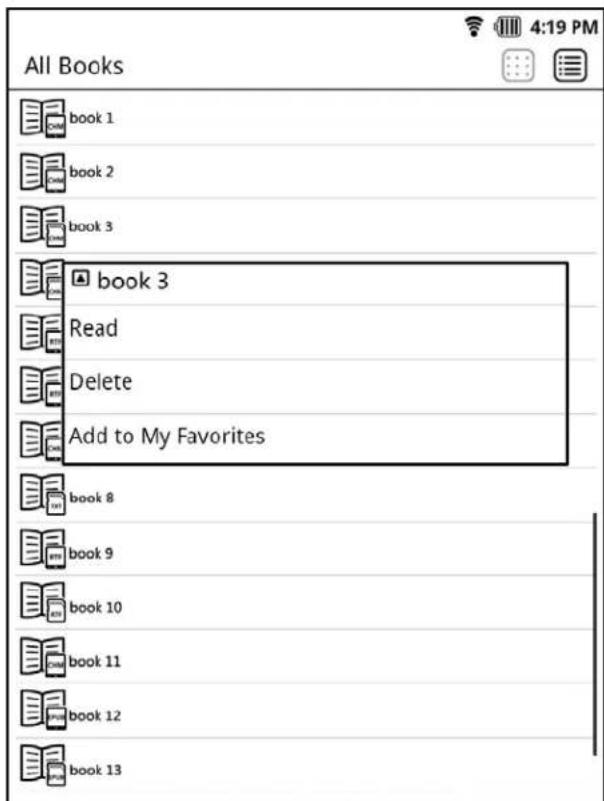
Read: A press on this option will open the ebook.
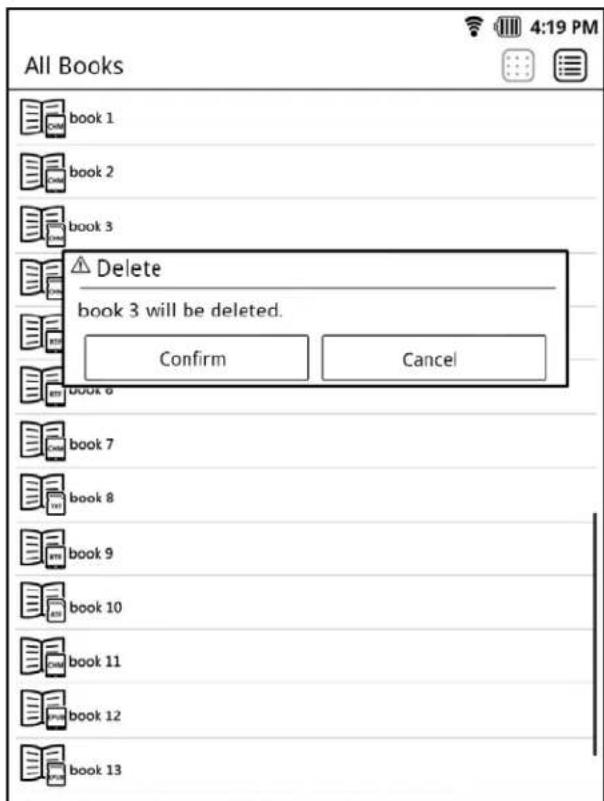
Delete: A press on this option will delete the selected item from the ebook library.
Note: Each time you select to delete an item, your EB-800C will display a dialog box for you to confirm your action.
Add to My favorites: A press on this option will open the [My Favorite] folder. Right here, you select a folder where you want to store the selected item. Once you finish the selection, you will automatically switch back to the browsing screen.
6.6 How to open an ebook
When you find the ebook you want to read, just a clink on it will open the ebook. Or you can long-press the item to open the Context menu, and select the Read command form that menu.
| This motherboard uses a socket AM3 that carries the following features • Accommodaries AM3 Phenom™ II/Athlon™ II Sempron™ processors • Supports HyperTransport™ (HT) 3.0 interface speeds • Support transfer rate up to 5200 mega-transfers per second | |
| HyperTransport™ Technology is a point-to-point link between two devices, it enables integrated circuits to exchange information at much higher speeds than currently available interconnect technologies. This board supports CPU up to 125W TDP only; you can refer to AMD website to check your CPU. | |
| Chipset The RS780L Northbridge (NB) and SB710 Southbridge (SB) chipsets are based on an innovative and scalable architecture with proven reliability and performance. RS780L (ND) | One x4 A-Link Express III interface for connection to an AMD Southbridge. The A-Link Express III is a proprietary interface developed by AMD basing on the PCI Express technology, with additional Northbridge-Southbridge massaging functionalities. It supports the PCIe Gen 2 transfer rate of 5 GT/s, and is backward compatible with the A-Link Express II interface. Supports one PCI-Express x10 Gen2 graphics link Supports two PCI-Express x1 slots Fully supports ACPI states S1, S3, S4 and S5 Supports ATI Radeon HD3000 Graphics* Supports 10-bit up/down HyperTransport (HT) 3.0 interface up to 4.4 GT/s. |
| SB710 (SB) | Compliant with PCI 2.3 specification at 33 MHz Supports five Serial ATA devices which speeds up to 3.0 Gb/s and one eSATA 3.0Gb/s. Integrated USB 2.0 Host Controller supporting up to twelve USB 2.0 ports Integrated IDE controller supports Ultra ATA 133/100/66 modes Supports integrated RAID0, RAID1, and RAID 10 (requires use of 4 or more SATA ports) functionalities across all 5 ports |
| Memory • Supports DDR3 1600 (OC)/1333/1066/800 DDR3 SDRAM with Dual-channel architecture • Accommodates four unbuffered DIMMs • 4 x 240-pin DDR3 DIMM sockets support up to 16 GB | |
| 1/15 Page Number | |
Note: When reading an ebook, you may encounter several symbols – which are Highlight, Annotation, and Bookmark.
____: Highlight

: Annotation

:Bookmark
6.7 Reading operations
6.7.1 Turn page
Slide your fingertip on the touch screen to your right (a slide-right operation), you can turn page to the next one (the actual turn page gesture will depend on the setup in the Display Settings screen).
Slide your fingertip on the touch screen to your left (a slide-right operation), you can turn page to the previous one (the actual turn page gesture will depend on the setup in the Display Settings screen).
6.7.2 Function menu
When reading an ebook, you can press the MENU button to open the function menu to apply any available operation you want.
| This motherboard uses a socket AM3 that carries the following features:Accommodates AM3 PhenomTM II/AthonTM II/ SempronTM processorsSupports HyperTransportTM (HT) 3.0 interface speedsSupport transfer rate up to 5200 mega-transfers per secondHyperTransportTM Technology is a point-to-point link between two devices, it enables integrated circuits to exchange information at much higher speeds than currently available interconnect technologies.This board supports CPU up to 125W TDP only: you can refer to AMD website to check your CPU. | |||
| ChipsetThe RS780L Northbridge (NB) and SB710 Southbridge (SB) chipsets are based on an innovative and scalable architecture with proven reliability and performance.RS780L (NB)One x4 A-Link Express III interface for connection to an AMO Southbridge. The A-Link Express III is a proprietary interface developed by AMD basing on the PCI Express technology, with additional Northbridge-Southbridge massaging functionalities. It supports the PCIe Gen 2 transfer rate of 5 GT/s, and is backward compatible with the A-Link Express II interface.Supports one PCI-Express x16 Gen2 graphics InkSupports two PCI-Express x1 slotsFully supports ACPI states S1, S3, S4 and S5Supports ATI Radeon HD3000 Graphics*.Supports 16-bit up/down HyperTransport (HT) 3.0 interface up to 4.4 GT/s.SB710 (SE)Compliant with PCI 2.3 specification at 33 MHzSupports five Serial ATA devices which speeds up to 3.0 Gb/s and one eSATA 3.0Gb/s.Integrated USB 2.0 Host Controller supporting up to twelve USB 2.0 portsIntegrated IDE controller supports Ultra ATA 133/100/ | |||
| Highlight | Annotate | Copy | Add Bookmark |
| Rotate | Find | Table of Contents | Go To Page |
| Settings | Audio Player | Photo Viewer | Browser |
6.7.3 Copy
You can copy text form the ebook you are reading to the clipboard, and paste the text as an annotation or even to the input area of other programs such as a browser.
First, press on the Copy option in the function menu. The reading screen should turn into the Select mode. Second, slide your finger on the touch screen across the text you want to copy. The text should be
underlined with a head cursor indicates the start end of the underline and an end cursor indicates the end, as shown below. By sliding your finger up/down/left/right, you can adjust the selected area.
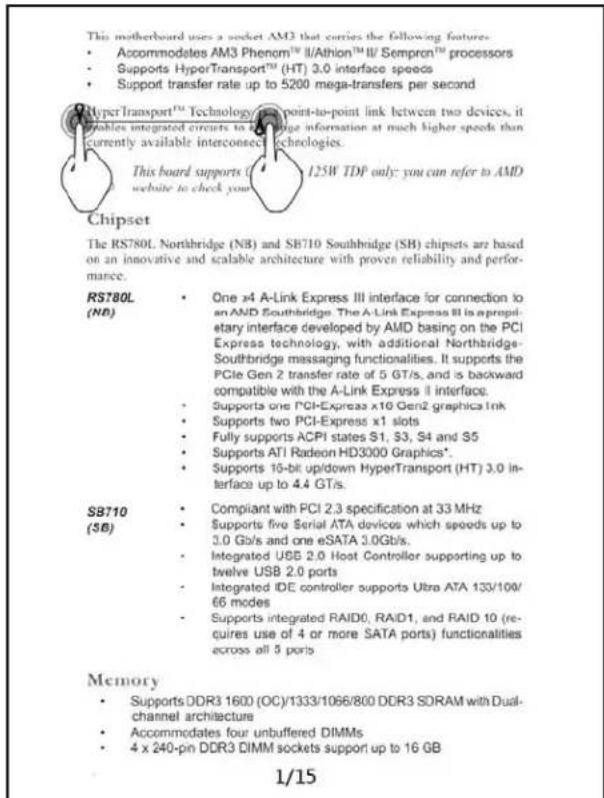
Finally, lift your finger from the touch panel to complete the selection. A dialog box should appear, as show below:
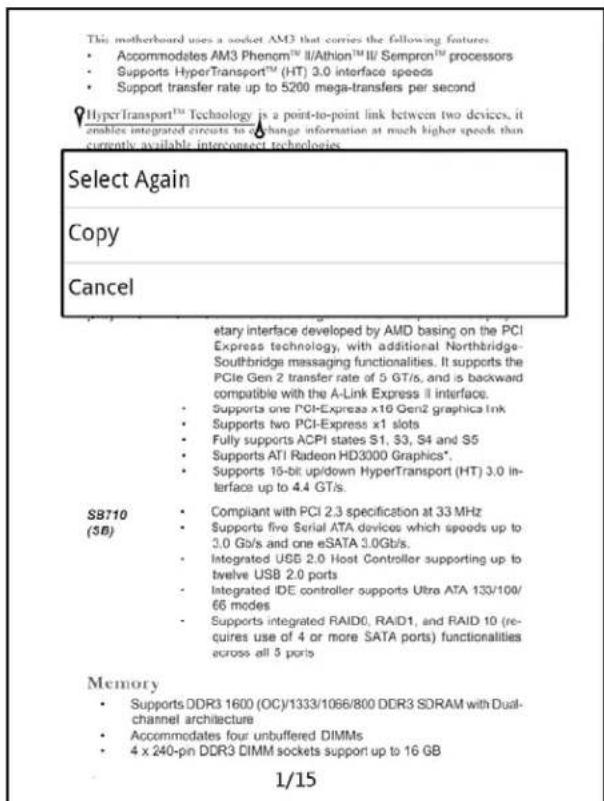
Select Again: When you select this option, you can adjust the previous selection area by moving either the head or end cursor. After you release your finger to finish the selection, the same dialog box will appear.
Copy: When you select this option, the selected text will be copied into the clipboard, allowing you paste to any input area. After the copy operation is complete, you can continue your reading.
Cancel: This will cancel the select mode, and you can continue your reading.
Note: During the above operation, if you want to go back and continue your reading directly, you can just press the Enter button to immediately cancel the operation.
6.7.4 Bookmarks
You can add a bookmark to a selected text.
6.7.4.1 Add a new Bookmark
First, press on the Add Bookmark option in the function menu. The reading screen should turn into the Select mode. Second, slide your finger on the touch screen across the text you want to add a bookmark.
The text should be underlined with a head cursor indicates the start end of the underline and an end cursor indicates the end, as shown below. By sliding your finger up/down/left/right, you can adjust the selected area.

Finally, lift your finger from the touch panel to complete the selection. A dialog box should appear, as show below:
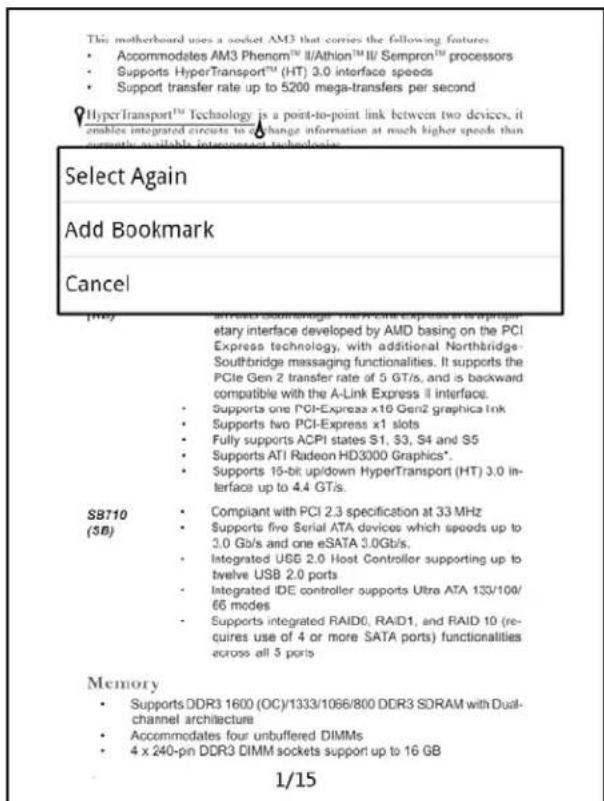
Select Again: When you select this option, you can adjust the previous selection area by moving either the head or end cursor. After you release your finger to finish the selection, the same dialog box will appear.
Add Bookmark: When you select this option, the selected text will be saved with an effective bookmark, as shown below. After the operation is complete, you can continue your reading.
This motherboard uses a socket AM3 that carries the following features: - Accommodates AM3 Phenom™ II/Athion™ II/ Semprcn™ processors - Supports HyperTransport™ (HT) 3.0 interface speeds - Support transfer rate up to 5200 mega-transfers per second
HyperTransport™ Technology is a point-to-point link between two devices, it enables integrated circuits to exchange information at much higher speeds than currently available interconnect technologies.

This board supports CPU up to 125W TDP only: you can refer to AMD website to check your CPU.
Chipset
The RS780L, Northbridge (NB) and SB710 Southbridge (SB) chipsets are based on an innovative and scalable architecture with proven reliability and performance.
RS780L (ND)
One x4 A-Link Express III interface for connection to an AND Southbridge. The A-Link Express III is proprietary interface developed by AMD basing on the PCI Express technology, with additional Northbridge-Southbridge messaging functionalities. It supports the PCIe Gen 2 transfer rate of 5 GT/s, and is backward compatible with the A-Link Express II interface.
• Supports one PCI-Express x10 Gen2 graphics ink
• Supports two PCI-Express x1 slots
• Fully supports ACPI states S1, S3, S4 and S5
• Supports ATI Radeon HD3000 Graphics ^* .
• Supports 16-bit up/down HyperTransport (HT) 3.0 interface up to 4.4 GT/s.
SB710 (SB)
- Compliant with PCI 2.3 specification at 33 MHz
- Supports five Serial ATA devices which speeds up to 3.0 Gb/s and one eSATA 3.0Gb/s.
- Integrated USB 2.0 Host Controller supporting up to twelve USB 2.0 ports
- Integrated IDE controller supports Ultra ATA 133/100/66 modes
- Supports integrated RAID0, RAID1, and RAID 10 (requires use of 4 or more SATA ports) functionalities across all 5 ports
Memory
• Supports DDR3 1600 (OC)/1333/1066/800 DDR3 SDRAM with Dual-channel architecture
- Accommodates four unbuffered DIMMs
- 4 x 240-pin DDR3 DIMM sockets support up to 16 GB
1/15
Cancel: This will cancel the select mode, and you can continue your reading.
Note: During the above operation, if you want to go back and continue your reading directly, you can just press the Enter button to immediately cancel the operation.
6.7.4.2 Delete Bookmarks
If you want to delete a bookmark, you can long-press on the bookmark. This should open a dialog box prompting you about the deletion. Confirm it by pressing [Delete], and the bookmark will be deleted.

6.7.5 Highlight
You can highlight a selected text.
6.7.5.1 Add a new highlight
First, press on the Highlight option in the function menu. The reading screen should turn into the Select mode. Second, slide your finger on the touch screen across the text you want to highlight. The text should
be underlined with a head cursor indicates the start end of the underline and an end cursor indicates the end, as shown below. By sliding your finger up/down/left/right, you can adjust the selected area.
| This motherboard uses a socket AM3 that carries the following features • Accommodates AM3 Phenom™ II/Athion™ II/ Sempron™ processors • Supports HyperTransport™ (HT) 3.0 interface speeds • Support transfer rate up to 5200 mega-transfers per second | |
| HyperTransport™ Technologies, one point-to-point link between two devices, it enables integrated circuits to address information at much higher speeds than currently available interconnect technologies. This board supports (125W TDP only: you can refer to AMD website to check your website) | |
| Chipset The RS780L, Northbridge (NB) and SB710 Southbridge (SB) chipsets are based on an innovative and scalable architecture with proven reliability and performance. | |
| RS780L (NB) | One x4 A-Link Express III interface for connection to an AMD Southbridge. The A-Link Express III is a proprietary interface developed by AMD basing on the PCI Express technology, with additional Northbridge-Southbridge massaging functionalities. It supports the PCIe Gen 2 transfer rate of 5 GT/s, and is backward compatible with the A-Link Express it interface. Supports one PCI-Express x16 Gen2 graphics ink Supports two PCI-Express x1 slots Fully supports ACPI states S1, S3, S4 and S5 Supports ATI Radeon HD3000 Graphics* Supports 15-bit up/down HyperTransport (HT) 3.0 interface up to 4.4 GT/s. |
| SB710 (SB) | Compliant with PCI 2.3 specification at 33 MHz Supports fire Serial ATA devices which speeds up to 3.0 Gb/s and one eSATA 2.0Gb/s. Integrated USB 2.0 Host Controller supporting up to twelve USB 2.0 ports Integrated IDE controller supports Ultra ATA 133/100/66 modes Supports integrated RAID0, RAID1, and RAID 10 (requires use of 4 or more SATA ports) functionalities across all 5 ports |
| Memory • Supports DDR3 1600 (OC)/1333/1066/800 DDR3 SDRAM with Dual-channel architecture • Accommodates four unbuffered DIMMs • 4 x 240-pin DDR3 DIMM sockets support up to 16 GB | |
Finally, lift your finger from the touch panel to complete the selection. A dialog box should appear, as show below:

Select Again: When you select this option, you can adjust the previous selection area by moving either the head or end cursor. After you release your finger to finish the selection, the same dialog box will appear.
Highlight: When you select this option, the selected text will be saved with highlighted, as shown below. After the operation is complete, you can continue your reading.
| This motherboard uses a socket AM3 that carries the following features: • Accommodates AM3 Phenom™ III/Athon™ II/ Sempron™ processors • Supports HyperTransport™ (HT) 3.0 interface speeds • Support transfer rate up to 5200 mega-transfers per second | |
| HyperTransport™ Technology is a point-to-point link between two devices, it enables integrated circuits to exchange information at much higher speeds than currently available interconnect technologies. | |
| This board supports CPU up to 125W TDP only: you can refer to AMD website to check your CPU. | |
| Chipset The RS780L Northbridge (NB) and SB710 Southbridge (SB) chipsets are based on an innovative and scalable architecture with proven reliability and performance. | |
| RS780L (NB) | One x4 A-Link Express III interface for connection to an AMD Southbridge. The A-Link Express III is a proprietary interface developed by AMD basing on the PCI Express technology, with additional Northbridge-Southbridge messaging functionalities. It supports the PCIe Gen 2 transfer rate of 5 GT/s, and is backward compatible with the A-Link Express II interface. |
| Supports one PCI-Express x16 Gen2 graphics Ink | |
| Supports two PCI-Express x1 slots | |
| Fully supports ACPI states S1, S3, S4 and S5 | |
| Supports ATI Radeon HD3000 Graphics* | |
| Supports 16-bit up/down HyperTransport (HT) 3.0 interface up to 4.4 GT/s. | |
| SB710 (SE) | Compliant with PCI 2.3 specification at 33 MHz |
| Supports five Serial ATA devices which speeds up to 3.0 GB/s and one eSATA 3.0Gb/s. | |
| Integrated USB 2.0 Host Controller supporting up to twelve USB 2.0 ports | |
| Integrated IDE controller supports Ultra ATA 133/100/66 modes | |
| Supports Integrated RAID0, RAID1, and RAID 10 (requires use of 4 or more SATA ports) functionalities across all 5 ports | |
| Memory • Supports DDR3 1600 (OC)/1333/1066/800 DDR3 SDRAM with Dual-channel architecture • Accommodates four unbuffered DIMMs • 4 x 240-pin DDR3 DIMM sockets support up to 16 GB | |
Cancel: This will cancel the select mode, and you can continue your reading.
Note: During the above operation, if you want to go back and continue your reading directly, you can just press the Enter button to immediately cancel the operation.
6.7.5.2 Delete highlights
If you want to delete a highlight, you can long-press on the highlight. This should open a dialog box prompting you about the deletion. Confirm it by pressing [Delete], and the highlight will be deleted.

6.7.6 Annotation
You can add an annotation to a selected text.
6.7.6.1 Add an new annotation
First, press on the Annotate option in the function menu. The reading screen should turn into the Select mode. Second, slide your finger on the touch screen across the text you want to highlight. The text should
be underlined with a head cursor indicates the start end of the underline and an end cursor indicates the end, as shown below. By sliding your finger up/down/left/right, you can adjust the selected area.
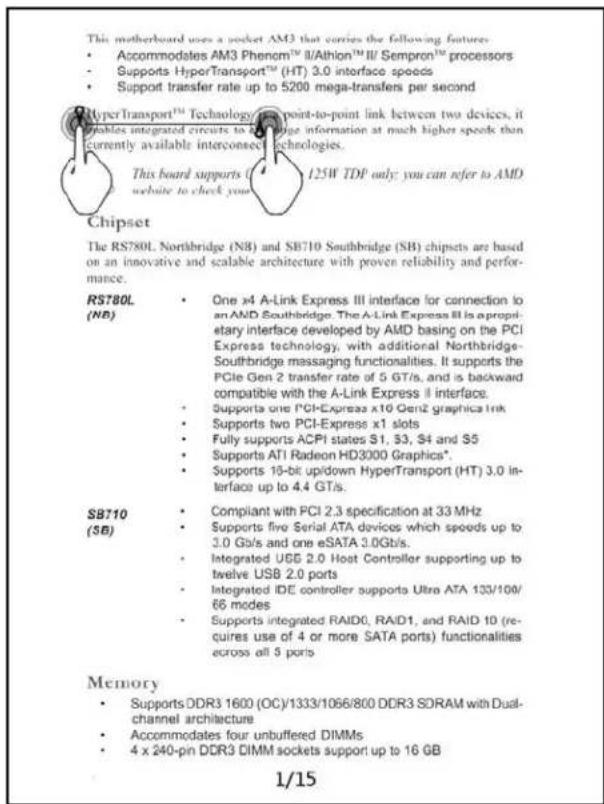
Finally, lift your finger from the touch panel to complete the selection. A dialog box should appear, as show below:

Select Again: When you select this option, you can adjust the previous selection area by moving either the head or end cursor. After you release your finger to finish the selection, the same dialog box will appear.
Annotate: When you select this option, the selected text will be added an annotating area. In this area, you can input your annotation, as shown below. After the operation is complete, you can continue your reading.
| This motherboard uses a socket AM3 that carries the following features: • Accommodates AM3 Phenom™ III/Athon™ II/ Sempron™ processors • Supports HyperTransport™ (HT) 3.0 interface speeds • Support transfer rate up to 5200 mega-transfers per second | |
| HyperTransport™ Technology is a point-to-point link between two devices, it enables integrated circuits to exchange information at much higher speeds than currently available interconnect technologies. | |
| This board supports CPU up to 125W TDF only: you can refer to AMD website to check your CPU. | |
| Chipset The RS780L Northbridge (NB) and SB710 Southbridge (SB) chipsets are based on an innovative and scalable architecture with proven reliability and performance. | |
| RS780L (NB) | One x4 A-Link Express III interface for connection to an AMD Southbridge The A-Link Express III is a proprietary interface developed by AMD basing on the PCI Express technology, with additional Northbridge-Southbridge messaging functionalities. It supports the PCIe Gen 2 transfer rate of 5 GT/s, and is backward compatible with the A-Link Express II interface. • Supports one PCI-Express x16 Gen2 graphics Ink • Supports two PCI-Express x1 slots • Fully supports ACPI states S1, S3, S4 and S5 • Supports ATI Radeon HD3000 Graphics* • Supports 16-bit up/down HyperTransport (HT) 3.0 interface up to 4.4 GT/s. |
| SB710 (SE) | Compliant with PCI 2.3 specification at 33 MHz • Supports five Serial ATA devices which speeds up to 3.0 GB/s and one eSATA 3.0Gb/s. • Integrated USB 2.0 Host Controller supporting up to twelve USB 2.0 ports • Integrated IDE controller supports Ultra ATA 133/100/66 modes • Supports integrated RAID0, RAID1, and RAID 10 (requires use of 4 or more SATA ports) functionalities across all 5 ports |
| Memory • Supports DDR3 1600 (OC)/1333/1066/800 DDR3 SDRAM with Dual-channel architecture • Accommodates four unbuffered DIMMs • 4 x 240-pin DDR3 DIMM sockets support up to 16 GB | |
Cancel: This will cancel the select mode, and you can continue your reading.
Note: During the above operation, if you want to go back and continue your reading directly, you can just press the Enter button to immediately cancel the operation.
6.7.6.2 Edit annotation
A long-press on the annotated text will open a context menu as shown below:
| Edit |
| Delete |
Press on the Edit option, and a dialog box as shown below will be opened for text editing.

6.7.6.3 Delete annotation
A long-press on the annotated text will open a context menu as shown below:
| Edit |
| Delete |
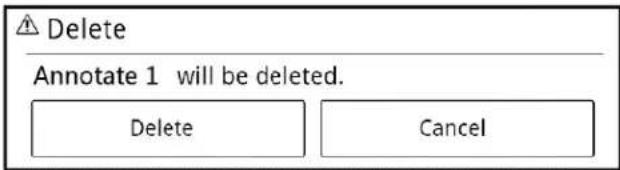
Press the Delete option, and this should bring up a dialog box prompting you about the deletion. Press on the Delete, and the annotation will be deleted.
6.7.7 Contents
A press on the Contents option in the function menu can bring up the contents of the ebook you are reading.
In the contents screen, press on the chapter or section you want to go to, and the specific page will be open.
| contents |
| Chapter 1 |
| chapter 2 |
| chapter 3 |
| chapter 4 |
| chapter 5 |
| chapter 6 |
| chapter 7 |
| chapter 8 |
| chapter 9 |
| chapter 10 |
Note: This function is only available for ebooks in Epub, fb2, or CHM format. The RTF, txt, and PDF are not supported here.
6.7.8 Search
A press on the Search option in the function menu can bring up a dialog box for you to input the text you want to search.
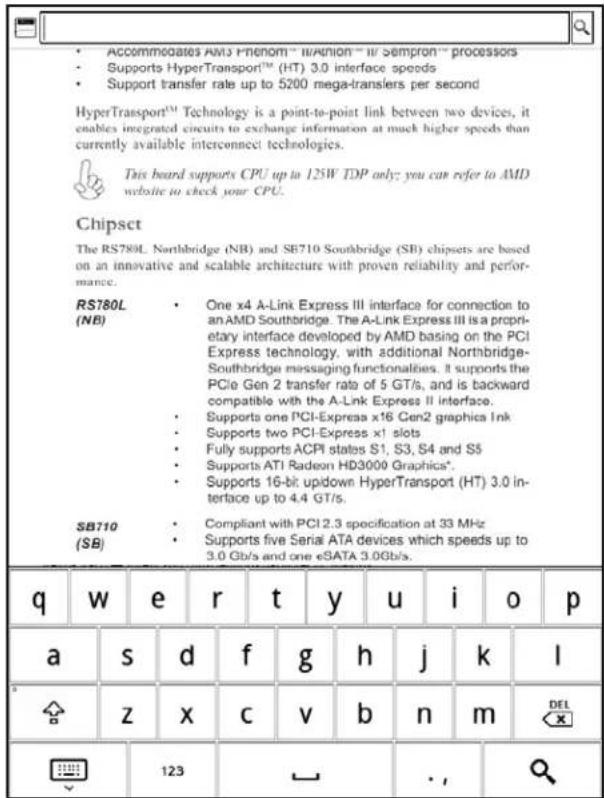
After entering the text for searching, press the search icon. The screen will move to the paragraph that contains the text.
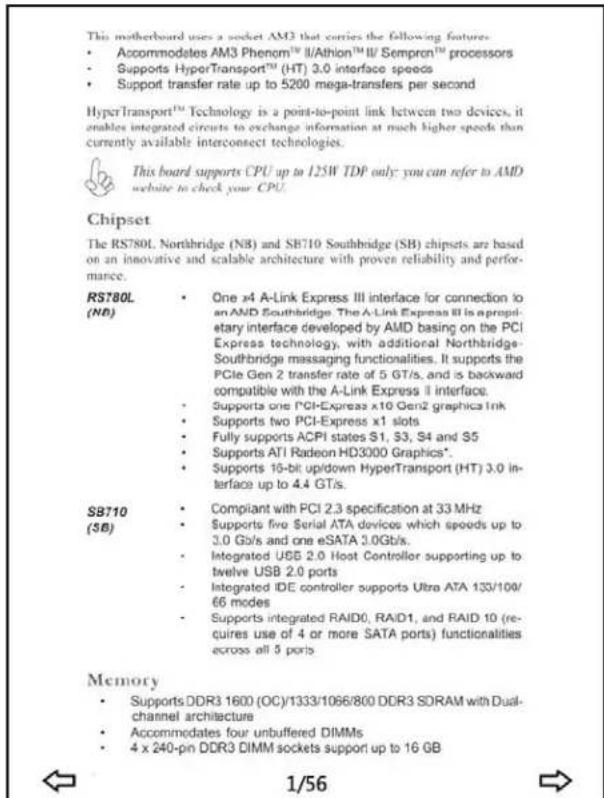
As shown below, in the bottom area of the screen there is a toolbar for searching and navigating. Using the toolbar or the left/right arrows you can go to previous/next paragraph matching the search criteria.
6.7.9 Settings
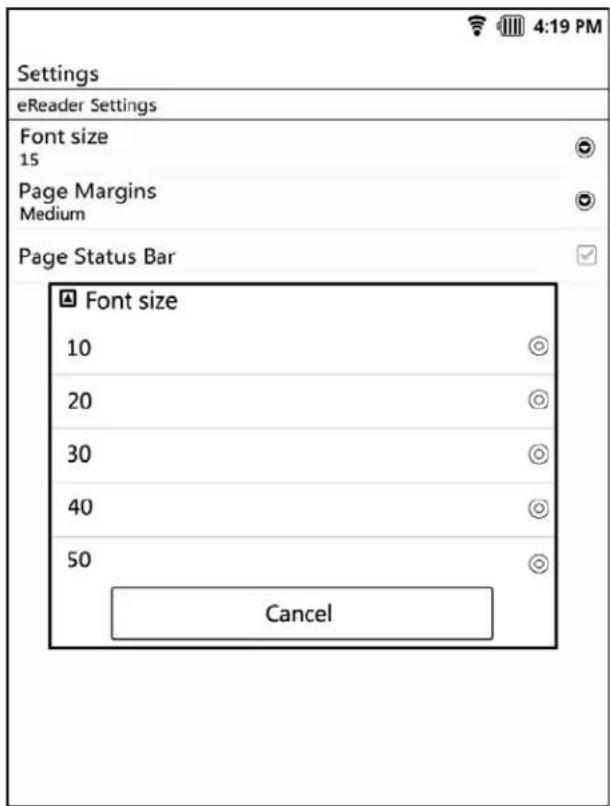
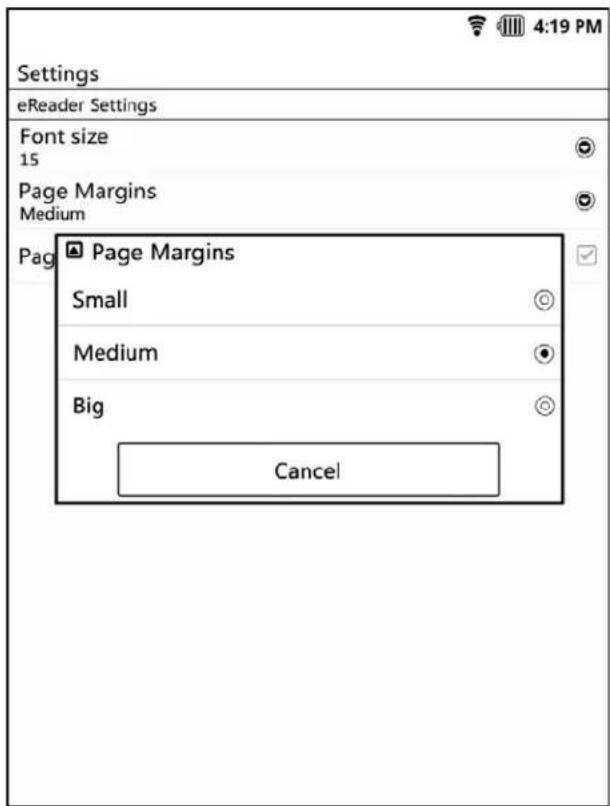
A press on the Setting option in the function menu will bring up a context menu for page setting. In this setting menu you can find many customizable options such as Font Size, Page Margins, Page Status Bar, and so on.

Font size -- This is for setting the font size. The font size set here will be applied to the ebook when you read it. The current font size is shown below the option name (as shown above, the current font size is 15). In this setting, there are 5 available font-sizes.
Page Margins -- This for setting the page margins of ebooks. The current size of page margins is shown below the option name. In this setting, there are three available options, as shown below.
Page Status bar -- In here you can turn on/off the display of the page number. When you set it off, the ebook you open will not show the page number.
6.7.10 Audio player
For easing the way switching between screens, your EB-800C provides some shortcuts to doing so.
A press on this option will bring up the Audio Player screen.
6.7.11 Photo viewer
A press on this option will bring up the Photo Viewer screen.
選擇圖片播放將會跳轉到圖片播放的頁面。
6.7.12 Browser
A press on this option will bring up a Web browser.
6.7.13 Go to page ...
A press on the Go to Page option in the function menu will bring up an input box. In this box, you can input the page number that you want to switch to.
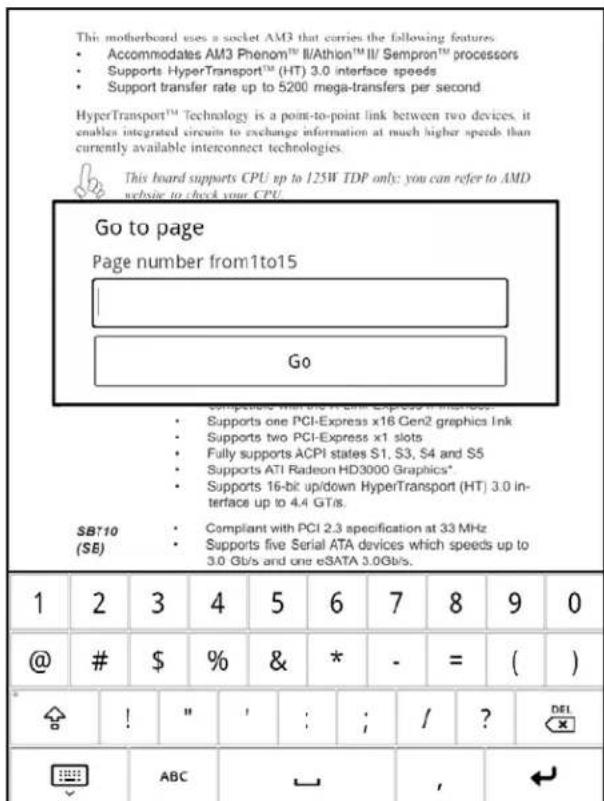
Besides, through the setting in the Page Status bar, you can turn on the display of the page number.
This motherboard uses a socket AM3 that carries the following features:
• Accommodates AM3 Phenom ^™ II/Athion ^™ III/ Sempron ^™ processors
• Supports HyperTransport™ (HT) 3.0 interface speeds
• Support transfer rate up to 5200 mega-transfers per second
HyperTransport™ Technology is a point-to-point link between two devices, it enables integrated circuits to exchange information at much higher speeds than currently available interconnect technologies.

This board supports CPU up to 125W TDP only: you can refer to AMD website to check your CPU.
Chipset
The RS780L, Northbridge (NB) and SB710 Southbridge (SB) chipsets are based on an innovative and scalable architecture with proven reliability and performance.
RS780L (NB)
One 34 A-Link Express III interface for connection to an AND Southbridge. The A-Link Express III is a proprietary interface developed by AMD basing on the PCI Express technology, with additional Northbridge-Southbridge messaging functionalities. It supports the PCIe Gen 2 transfer rate of 5 GT/s, and is backward compatible with the A-Link Express II interface.
• Supports one PCI-Express x10 Gen
• Supports two PCI-Express x1 slots
• Fully supports ACPI states S1, S3, S4 and S5
• Supports ATI Radeon HD3000 Graphics*.
• Supports 16-bit up/down HyperTransport (HT) 3.0 interface up to 4.4 GT/s.
SB710
• Compliant with PCI 2.3 specification at 33 MHz
• Supports five Serial ATA devices which speeds up to 3.0 Gb/s and one eSATA 3.0Gb/s.
- Integrated USB 2.0 Host Controller supporting up to twelve USB 2.0 ports
- Integrated IDE controller supports Ultra ATA 133/100/66 modes
- Supports integrated RAID0, RAID1, and RAID 10 (requires use of 4 or more SATA ports) functionalities across all 5 ports
Memory
• Supports DDR3 1600 (OC)/1333/1066/800 DDR3 SDRAM with Dual-
channel architecture
• Accommodates four unbuffered DIMMs
• 4 x 240-pin DDR3 DIMM sockets support up to 16 GB
1/15
A press on the display area of the page number will also bring up the same input box for you to entering the page number that you want to switch to.
6.7.14 Rotate
Each time you press on this Rotate option in the function menu, the screen display will switch between Landscape and Portrait modes.
6.7.15 When reading a PDF-format ebook
In this case, the function menu will be different from that of other reading modes.
under international copyright laws, with all rights reserved. Neither this manual, nor any of the material contained herein, may be reproduced without written consent of the author.
Version 1.0
Disclaimer
The information in this document is subject to change without notice. The manufacturer makes no representations or warranties with respect to the contents hereof and specifically disclaims any implied warranties of merchantability or fitness for any particular purpose. The manufacturer reserves the right to revise this publication and to make changes from time to time in the content hereof without obligation of the manufacturer to notify any person of such revision or changes.
Trademark Recognition
Microsoft, MS-DOS and Windows are registered trademarks of Microsoft Corp.
AMD, Phenom, Athlon, Sempron and Duron are registered trademarks of AMD Corporation.
Other product names used in this manual are the properties of their respective owners and are acknowledged.
Federal Communications Commission (FCC)
This equipment has been tested and found to comply with the limits for a Class B digital device, pursuant to Part 15 of the FCC Rules. These limits are designed to provide reasonable protection against harmful interference in a residential installation. This equipment generates, uses, and can radiate radio frequency energy and, if not installed and used in accordance with the instructions, may cause harmful interference to radio communications. However, there is no guarantee that interference will not occur in a particular installation. If this equipment does cause harmful interference to radio or television reception, which can be determined by turning the equipment off and on, the user is encouraged to try to correct the interference by one or more of the following measures:
| Fit to Page | Fit to Width | Go to Page... | Rotate |
| Find | Audio Player | Photo Viewer | Browser |
The options available here are listed as follows:
Fit to Width/Fit to Page -- These are to adjust the PDF page to fit the width of the screen panel or to the size that whole page can be displayed.
Rotate -- Please refer to Section 6.7.14
Search -- Please refer to Section 6.7.8
Audio Player -- Please refer to Section 6.7.10
Photo Viewer -- Please refer to Section 6.7.11
Browser -- Please refer to Section 6.7.12
Go to Page... -- Please refer to Section 6.7.13

7 Audio Player
Your EB-800C supports many kind of Audio format with earphone output. You can play and enjoy your music while you are reading an ebook or viewing photos.
7.1 Supported audio formats
- AAC
- OGG
- WAV
7.2 Audio library structure
flowchart
graph TD
    A["Audio"] --> B["Now Playing"]
    A --> C["Artists"]
    A --> D["Genres"]
    A --> E["Albums"]
    A --> F["All Tracks"]
    A --> G["My Favorites"]

    B --> H["Artist1"]
    B --> I["Album1"]
    H --> J["song 1.wav"]
    H --> K["song 2.aac"]

    C --> L["Pop music"]
    L --> M["song 3.aac"]
    L --> N["song 4.ogg"]

    E --> O["Album1"]
    O --> P["song 5.ogg"]
    O --> Q["song 6.wav"]

    F --> R["(music files)"]

    G --> S["Favorite things"]
    S --> T["song9.aac"]
    S --> U["song10.ogg"]
    S --> V["song 11.wav"]

    G --> W["song12.ogg"]
    G --> X["song13.aac"]
    G --> Y["song14.wav"]
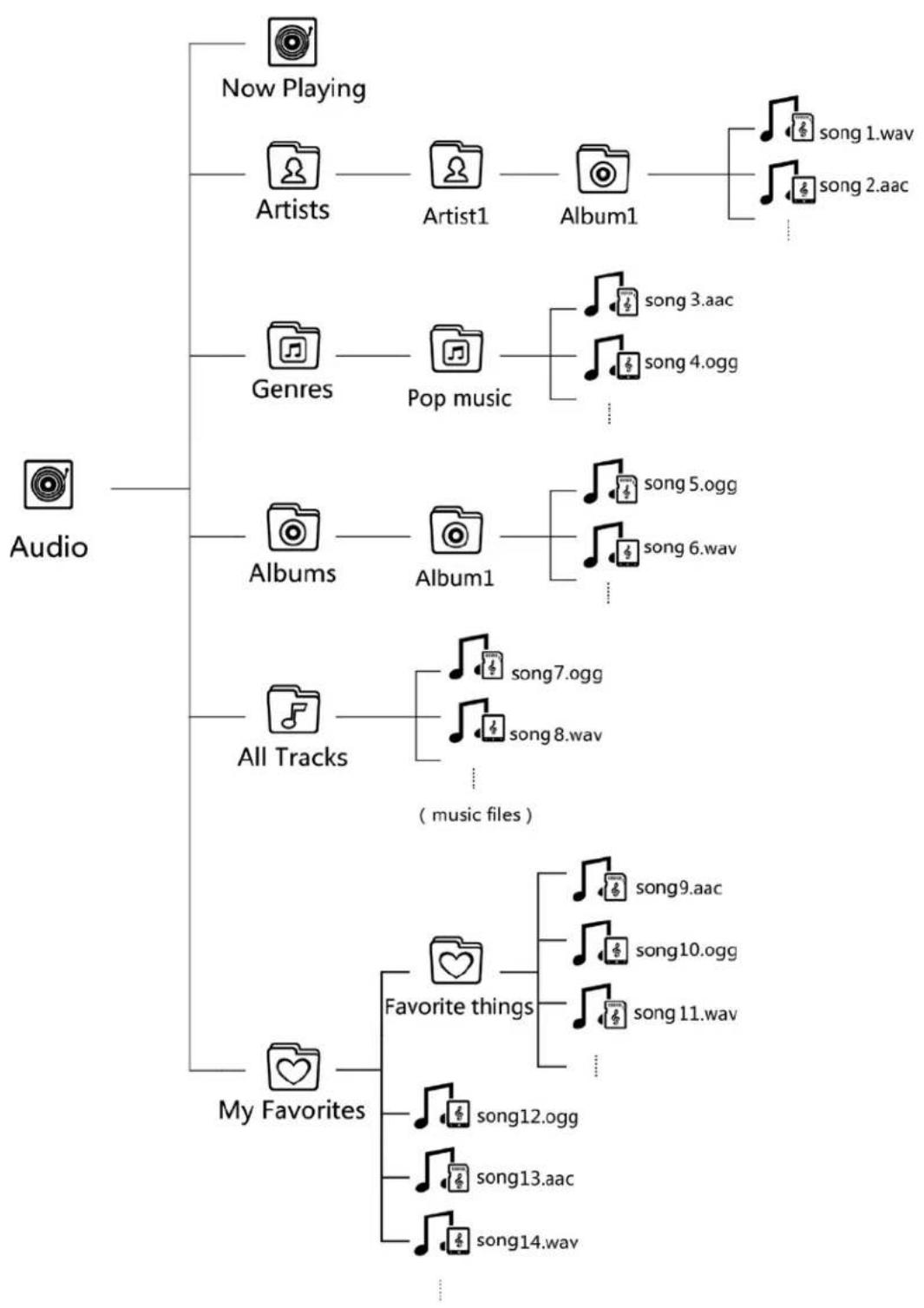
When you press open the Audio folder in the Home Screen, you will find several categorizations – namely, Artists, Genres, Albums, All Tracks, and My Favorites as shown below. In each categorization, there will be a list of the tracks matched the criteria.
7.3 Audio Library Screen

Now Playing -- This is a shortcut to the Audio Player screen. A press on this icon will change the screen to the Audio Player screen, with the current audio information displayed if audio is playing.
Artists -- In this folder, all tracks are categorized by the artists. A press on your favorite artist name will list the albums by the artist. A press on the album will list the tracks of the album.
Genres -- In this folder, all tracks are categorized by the genres. A press on here will list all the genres available. A press on your favorite genre will list the tracks of the genre.
Albums -- In this folder, all tracks are categorized by the albums. A press on here will list all the albums available. A press on your favorite album will list the tracks of the album.
All Tracks -- In here, you can navigate through all the tracks available.
My Favorites -- In this folder, you can find the tracks added as your favorites. A press on here will list the track title or folders. A press on the folder will list the further categorized tracks.
7.4 Audio Library Navigation
7.4.1 List Mode/ Thumbnail Mode
The EB-800C provides two ways of navigating your audio library – List Mode and Thumbnail Mode.
List Mod: the text titles of all items will be arranged and listed in one column.
Thumbnail Mode: the cover images or icons of all items will be arranged and listed in matrix pattern.
7.4.2 Turn page up/down or left/right
When browsing the audio library that cannot be squeezed and displayed in one screen, you will need to turn page left/right or up/down to navigate through the library.
When you are in the List Mode:
Slide your fingertip on the touch screen upward (a slide-up operation), you can turn page to the next one.
Slide your fingertip on the touch screen downward (a slide-down operation), you can turn page to the previous one.
When you are in the Thumbnail Mode: (the actual turn page gesture will depend on the setup in the Display Settings screen)
Slide your fingertip on the touch screen to your left (a slide-left operation), you can turn page to the next one.
Slide your fingertip on the touch screen to your right (a slide-right operation), you can turn page to the previous one.
7.5 Browsing Operations :
7.5.1 Function menu
Press the MENU button, and the function menu will be brought up.

Rescan -- A press on this option will start the system to rescan the media files in the external SD card. This can ensure the listed content is the latest one every time you insert an external SD card.
Audio Library -- This option can bring you back to the main screen of the audio library.
7.5.2 Context menu
A long-press on particular item will bring up a context menu available for the item.
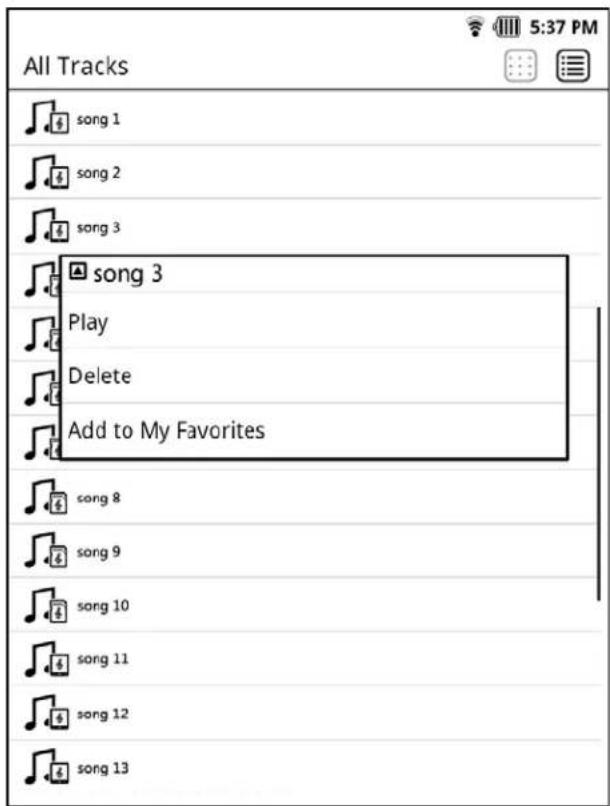
Play --This option will start playing the track directly.
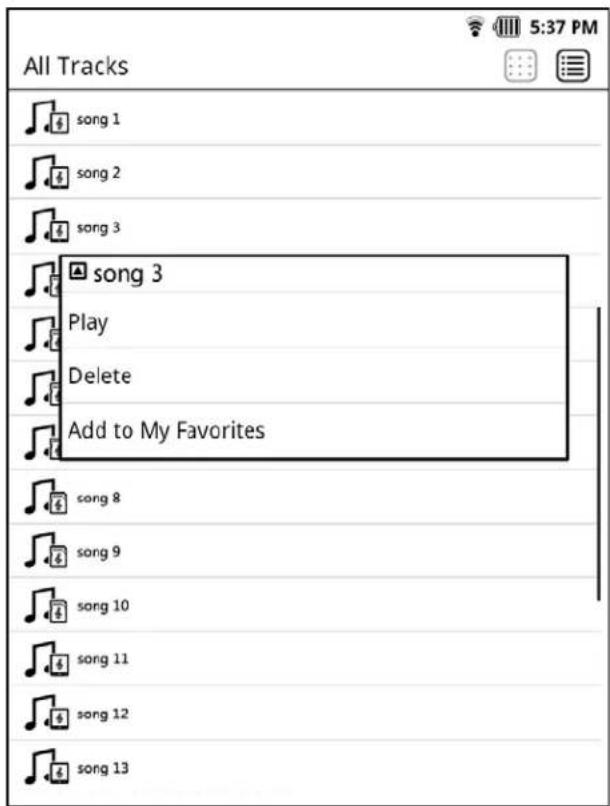
Add to My Favorites -- This option will add the track to the My Favorites folder.
Delete -- This option is for deleting the track.
7.6 How to play a track
When navigating to a track that you want to play, a press on it will start playing it. Or, you can long-press the track to bring up its context menu, and select the Play option to start playing it, as shown above.
7.7 Audio Play Operations
7.7.1 Playing screen
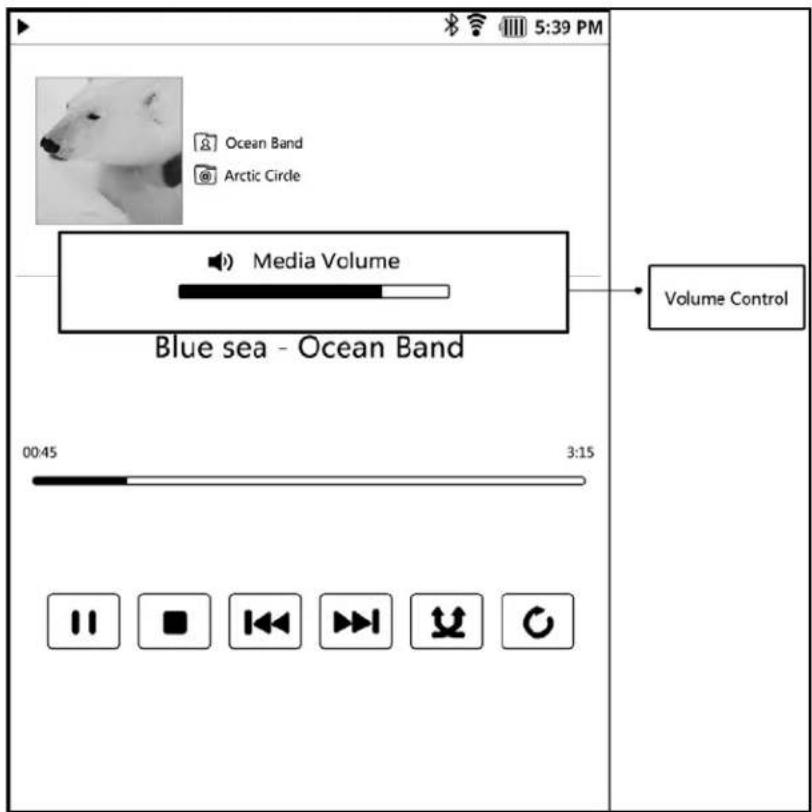
Note: The volume control box will show itself only you press and hold the volume button, and will disappear once you release the button.
7.7.2 Play modes
Here are several play modes you can apply while playing tracks. They are:
- Normal sequential mode
- Single repeat mode
- Repeat-all mode
- Random mode
- Random repeat mode
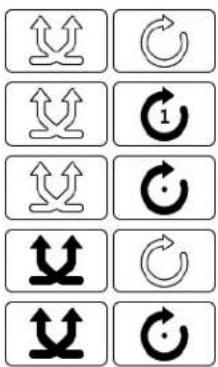
By press setting the repeat and random icons to different statuses, you can select and set your mode according to the combinations as shown above.
7.7.3 Function menu
In the Audio Playing screen, a press on the MENU button will bring up the function menu.
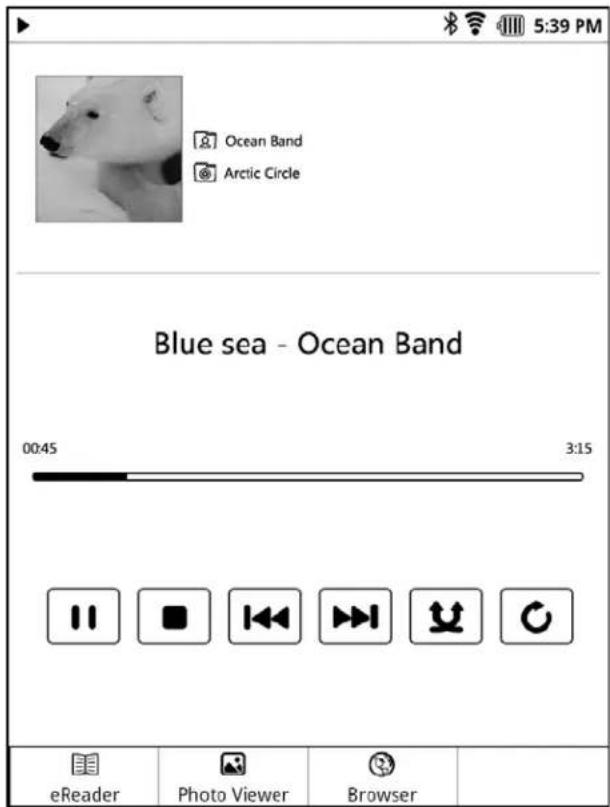
Select the eBook option will bring you to the eBook screen.
Select the Photo Viewer option will bring you to the Photo Viewer screen.
Select the Browser option will bring you to the Browser screen.
7.7.4 Play controls
While an audio track being played, you can perform pause/stop/play/previous/next actions by pressing the corresponding button.

When you press the Pause button and the play is stopped, the button will change its icon and become a Play button. A second press on the button will resume the playback.

Press the Previous icon will start playing the previous track.
Press the Next icon will start playing the next track.
Press the Stop icon will bring you back to the previous audio library screen.
8 Photo Viewer
Your EB-800C supports many kind of photo format. You can view and enjoy your photos with no need to quit reading ebook or playing music.
8.1 Supported photo formats
- JPEG
● PNG - BMP
- GIF
8.2 Photo Library Structure
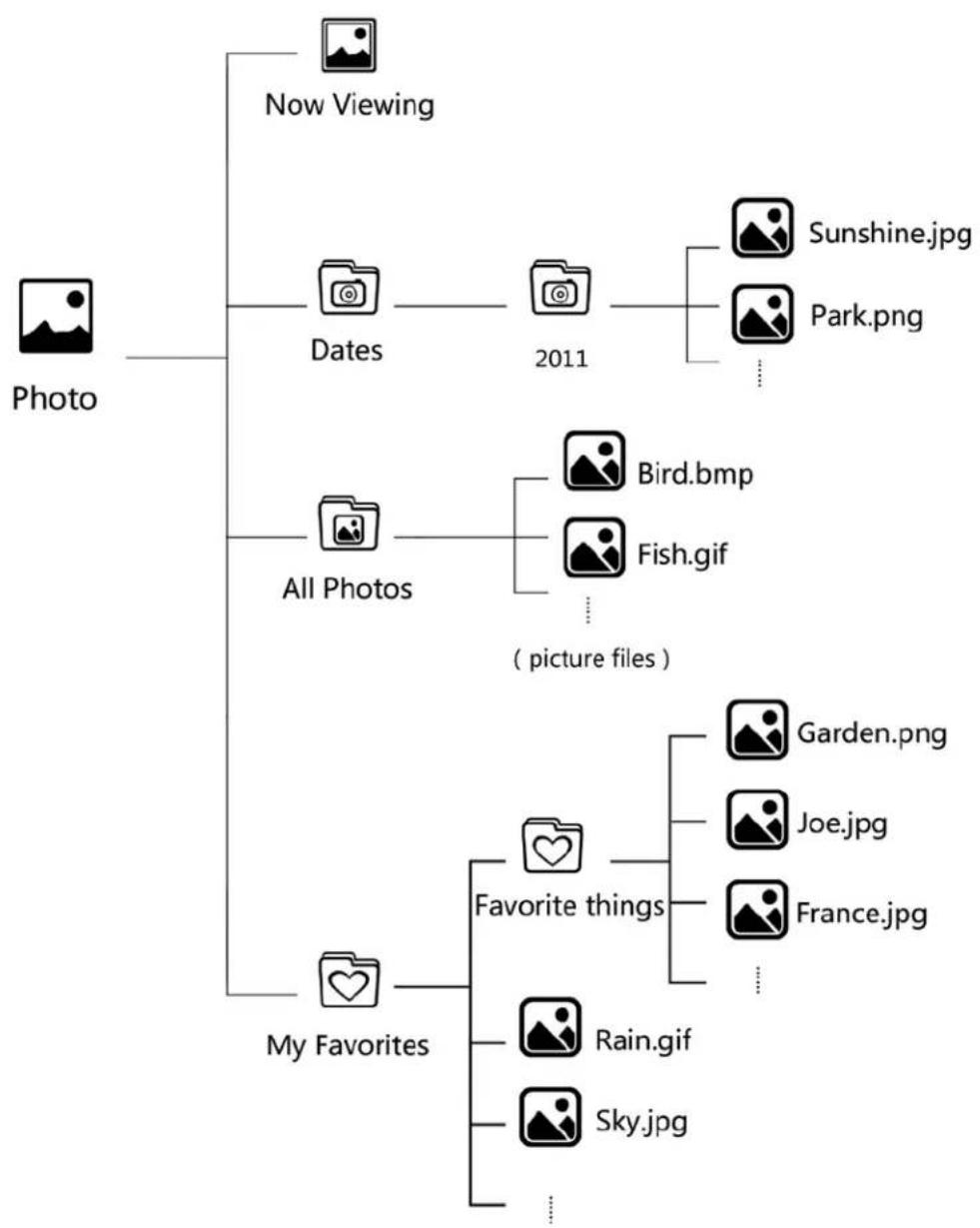
flowchart
graph TD
    A["Photo"] --> B["Now Viewing"]
    A --> C["Dates"]
    A --> D["All Photos"]
    A --> E["My Favorites"]
    B --> F["Sunshine.jpg"]
    B --> G["Park.png"]
    C --> H["Bird.bmp"]
    C --> I["Fish.gif"]
    D --> J["(picture files)"]
    E --> K["Favorite things"]
    E --> L["Rain.gif"]
    E --> M["Sky.jpg"]
When you press open the Photo folder in the Home Screen, you will find several categorizations – namely, Dates, All Photos, and My Favorites as shown below. In each categorization, there will be a list of the photos matched the criteria.
8.3 Photo Library Screen
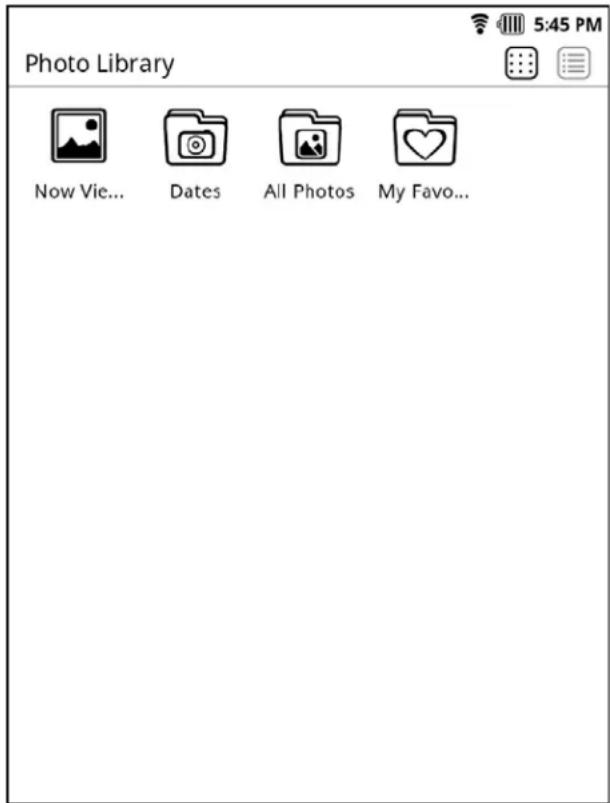
Now Viewing -- This is a shortcut to the Photo Viewer screen. A press on this icon will bring you to the Photo Viewer screen with the previous viewed photo displayed (if for first time, a default photo will be displayed).
Dates -- In this folder, all photos are categorized by the dates. A press on here will list all the dates available. A press on your favorite date will list the photo of that date.
All Tracks -- In here, you can navigate through all the photos available.
My Favorites -- In this folder, you can find the photos added as your favorites. A press on here will list the thumbnails or folders. A press on the folder will list the further categorized thumbnails.
8.4 Photo Library Navigation
8.4.1 List Mode/Thumbnail Mode
The EB-800C provides two ways of navigating your photo library – List Mode and Thumbnail Mode.
List Mod: the text titles of all items will be arranged and listed in one column.
Thumbnail Mode: The cover images or icons of all items will be arranged and listed in matrix pattern.
8.4.2 Turn page up/down/left/right
When browsing the photo library that cannot be squeezed and displayed in one screen, you will need to turn page left/right or up/down to navigate through the library.
When you are in the List Mode:
Slide your fingertip on the touch screen upward (a slide-up operation), you can turn page to the next one.
Slide your fingertip on the touch screen downward (a slide-down operation), you can turn page to the previous one.
When you are in the Thumbnail Mode: (the actual turn page gesture will depend on the setup in the Display Settings screen)
Slide your fingertip on the touch screen to your left (a slide-left operation), you can turn page to the next one.
Slide your fingertip on the touch screen to your right (a slide-right operation), you can turn page to the previous one.
8.5 Viewing operations
8.5.1 Function menu
Press on the MENU button, and the function menu will be brought up.

Rescan -- A press on this option will start the system to rescan the media files in the external SD card. This can ensure the listed content is the latest one every time you insert an external SD card.
Photo Library: A press on this option will go back to the root of the photo library.
8.5.2 Context menu
A long-press on an item will open its context menu, as shown below:
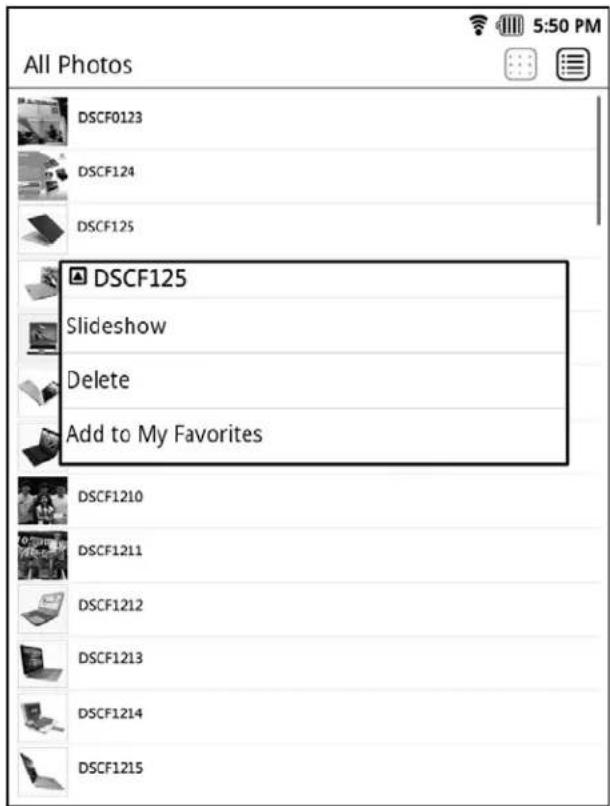
Slideshow -- This will repeat a slideshow started from the photo item being pressed and so on.
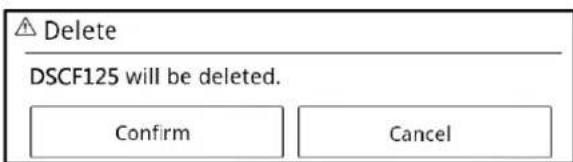
Delete -- This is for delete the photo. When you select this option, a dialog box will appear and prompt your confirmation, as shown below:
Add to My Favorites –This will add the selected photo to the My Favorites folder.
8.6 How to view photos
When navigating to a photo that you want to play, a press on it will open it. Or, you can long-press the photo item to bring up its context menu, and select the Slideshow option to start viewing it, as shown above.
8.7 Viewing operations
8.7.1 Function menu
When viewing photos, you can press the MEMU button to bring up the function menu.

Select the Slideshow option will activate the slideshow mode with few seconds between slides.
Select the eBook option will bring you to the eBook screen.
Select the Audio Player option will bring you to the Audio Player screen.
Select the Browser option will bring you to the Browser screen.
Select Settings option will bring up the setting screen, where you can set such as the slide transition time, as shown below:
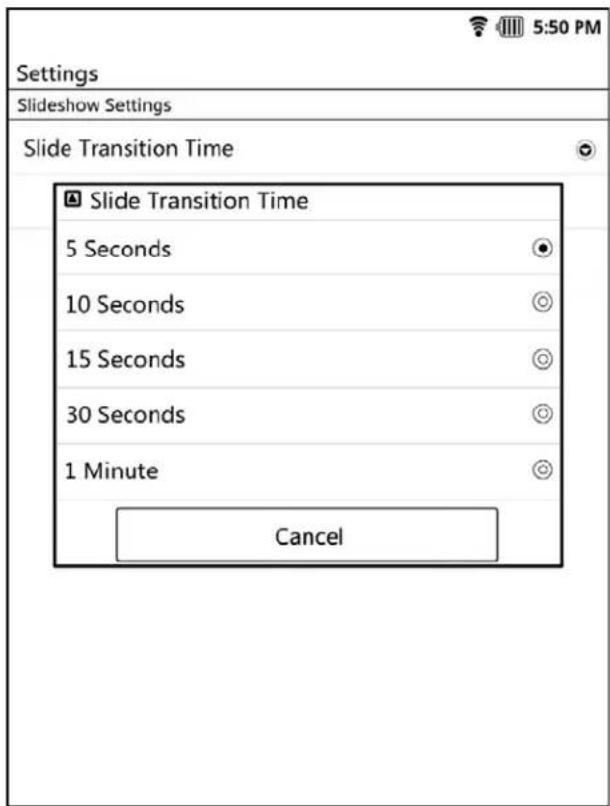
Slide Transition Time -- This is for setting the interval between slides.
8.7.2 Photo view toolbar
When viewing photos, a tap on the screen can bring up the toolbar as shown below, and the toolbar will be hidden after 4 seconds if not being used.

natural_image
Exterior view of the Beijing National Stadium (Bird's Nest) with a distinctive lattice structure and mountain backdrop, featuring no visible text or symbols.The is for switching back to the previous photo. Or, slide your fingertip on the touch screen to your left - a slide-left operation - can also achieve the same result (the actual turn page gesture will depend on the setup in the Display Settings screen).
The ▶▶▶▶ is for switching forward to the next photo. Or, slide your fingertip on the touch screen to your right - a slide-right operation - can also achieve the same result (the actual turn page gesture will depend on the setup in the Display Settings screen).
A press on the ⬆ will zoom-in the photo by 1.25 times
A press on the will zoom-out the photo by 1.25 times
A press on the will rotate the photo 90 degrees counter-clockwise.
A press on the C will rotate the photo 90 degrees clockwise.
8.7.3 Touch Zoom operations
Your EB-800C supports the Touch Zoom operations. For details, please refer to Section 2.3 for the specific touch operations.
9 My Favorites
9.1 Features
You can add your favorite item – no matter it is an ebook, an audio track, or a photo – to a specific path/folder in the My Favorites folder. This can make you easily find your favorite items any time you want it. Besides, you can manage these items with many feathers provided herein.
9.2 My Favorites Screen
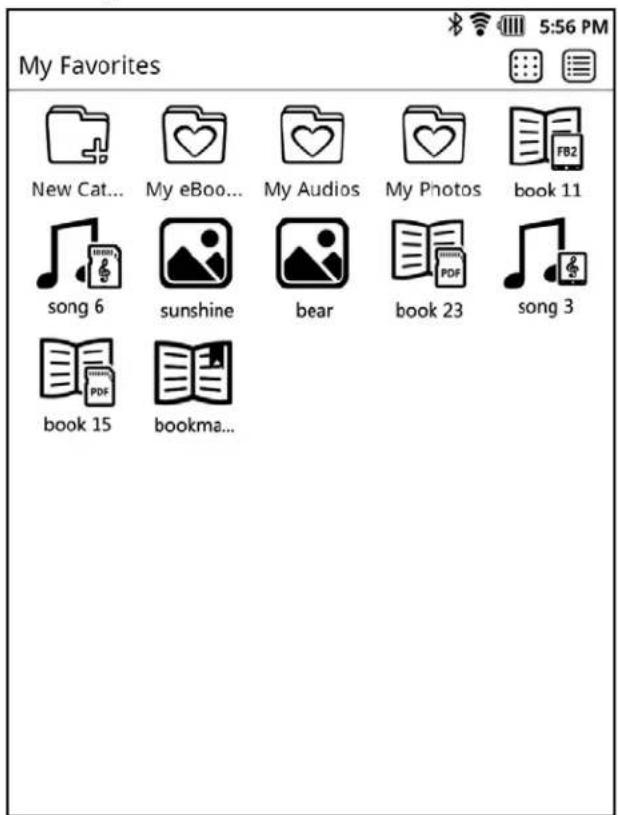
Folder icons --These are the folders added and named by you. With these folders, you can add your favorite item to the folder you think suitable.
Item icons -- These are the items added by you. The actual icon used to represent an item will depend on the file type.
In default, there are three basic folders created and ready for you in the My Favorites folder, and they are:
- My eBooks
• My Audios - My Photos
9.3 Create a New Category
There are two ways to create a new category.
First way is by the function menu. After you open the My Favorites screen, press the MENU button to bring up the menu, and then select the New Category option.
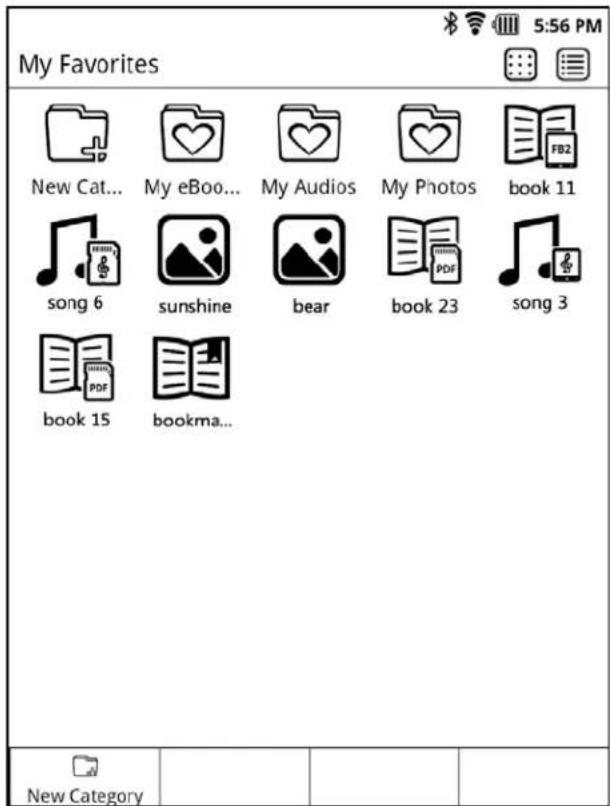
Second way is by just pressing the New Category icon in the screen. This will also guide you through the process to create a new category.
Here is the dialog box for creating a new category.

9.4 Add to My Favorites
No matter you are navigating ebooks, audio tracks, or photos, when you encounter an item you want to add to the My Favorites folder, all you need is to long-press the item to bring up its context menu, and from it you select the Add to My Favorites option to add the item.
For eBook:

For audio tracks:
For photos:

After select the option, the My Favorites screen will be brought up.
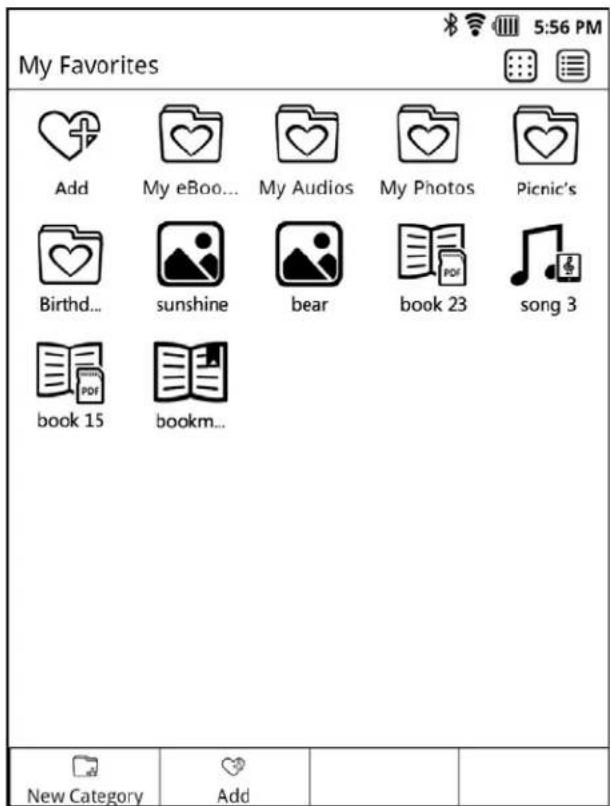
In here, select the destination you want the item to be added to. If you select an existed folder, the item will be added to the folder. If you press the Add icon, the item will be added to the root directory in the My Favorites folder. As the addition is completed, the system will notify you with a ring sound effect.
9.5 Manage My Favorites
In the My Favorites, you can manage or update the existed items using several features provided by the system.
For doing so, you need to long-press the folder or item that you want to manage. This should bring up a context menu as shown below:

9.5.1 Rename
This option enables you to change the name of the selected folder. After you select this option, an input box will be brought up and prompt you to enter the new name.
9.5.2 Cut
Select this option will make the system cut the selected item and save it temporally in the clipboard.
9.5.3 Paste into Folder
After the cut operation, select and long-press the folder you want to paste the item into to bring up the context menu. In the menu, select the Paste into Folder option. This will make the system paste the item form clipboard into the folder. Besides, you can just paste the item into the My Favorites folder by selecting Paste in the function menu. Please note that this operation will achieve nothing if the clipboard is empty.
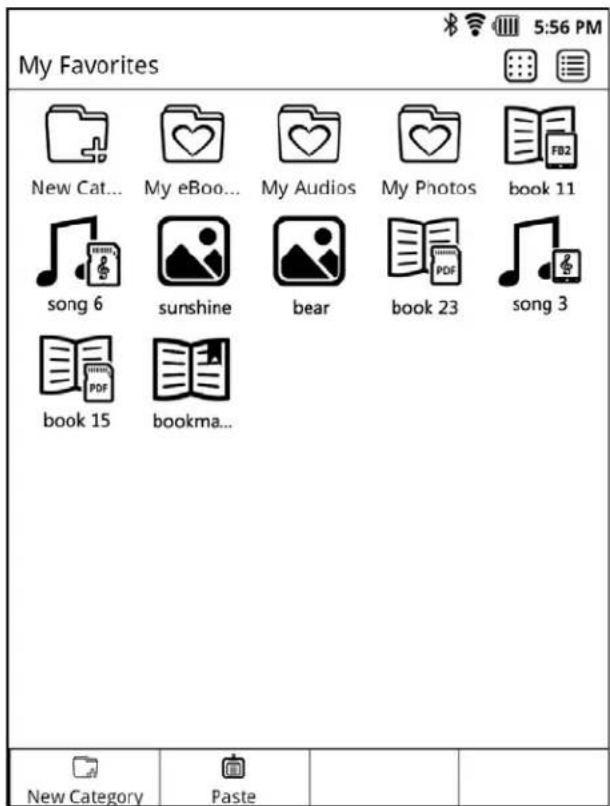
9.5.4 Paste
After the cut operation, you can just paste the item from the clipboard into the My Favorites folder by selecting Paste in the function menu, which you can bring up by press the MENU button.
Note: This option will be unavailable if the clipboard contains no item.
9.5.5 Delete
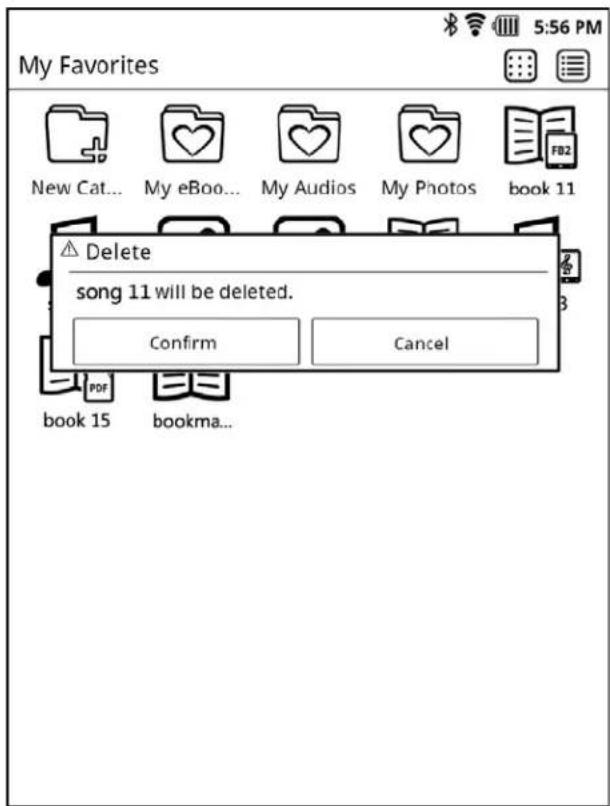
This option enables you to delete folders or items from the My Favorites folder. After you select this option, a dialog box will appear and prompt for your confirmation.
Note: This option only removes the information representing the selected item from the My Favorites folder, not deleting the selected item itself from the system.
10 File Explorer
10.1 Features
The file explorer are for managing the files and directories in the internal and external SD cards, allowing you to create, copy, paste, delete, and rename any directories and files. We are going to detail these features in this chapter.
10.2 File Explorer Screen
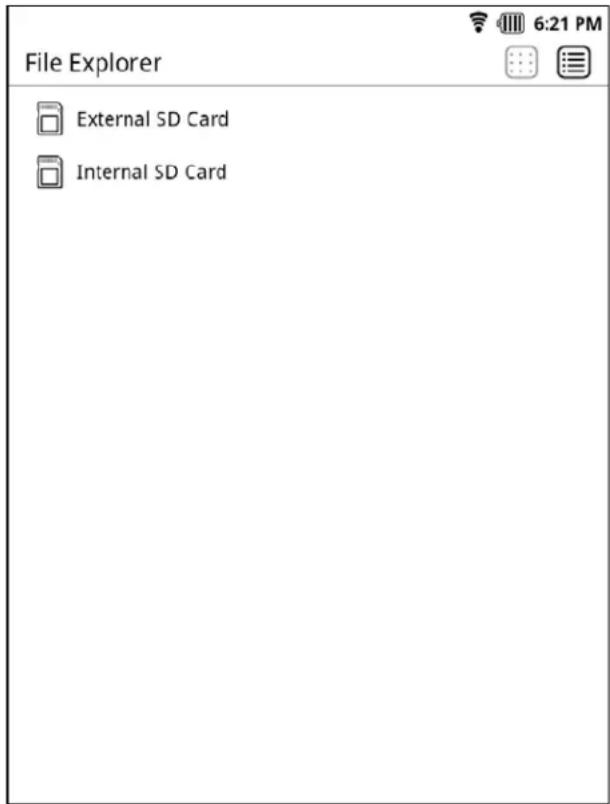
In the screen, all the SD cards in the system will be shown. Practically, you will find at least an internal SD card, and an external SD card if inserted in your EB-800C – which makes it two SD cards shown.
10.3 File Explorer Operations
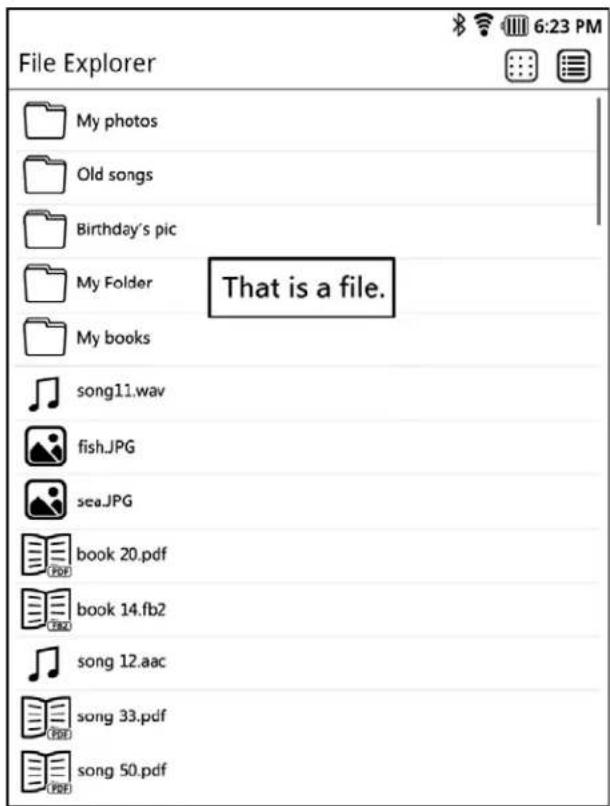
The main feature of the File Explorer is to provide you the ability of file management, enable you to create, copy, cut, paste, delete, and rename files. While a press on a folder will open the folder, a press on a file will open a message box that reminds you that you are opening a file, as shown below. The message box will disappear automatically after five seconds.
10.3.1 Function Menu
In the File Explore screen, a press on the MENU button will bring up the function menu.

New Folder -- This option will add a new folder in the current screen.
Paste -- After a copy or cut operation, select a folder that you want the file to be copied or pasted into, press the MENU button to bring up the function menu, from the menu select the Paste option, and then the files will be pasted into the folder. However, this Paste option will be not available if the clipboard is empty.
10.3.2 Context Menu
A long-press on a file or folder will open a context menu, as shown below.
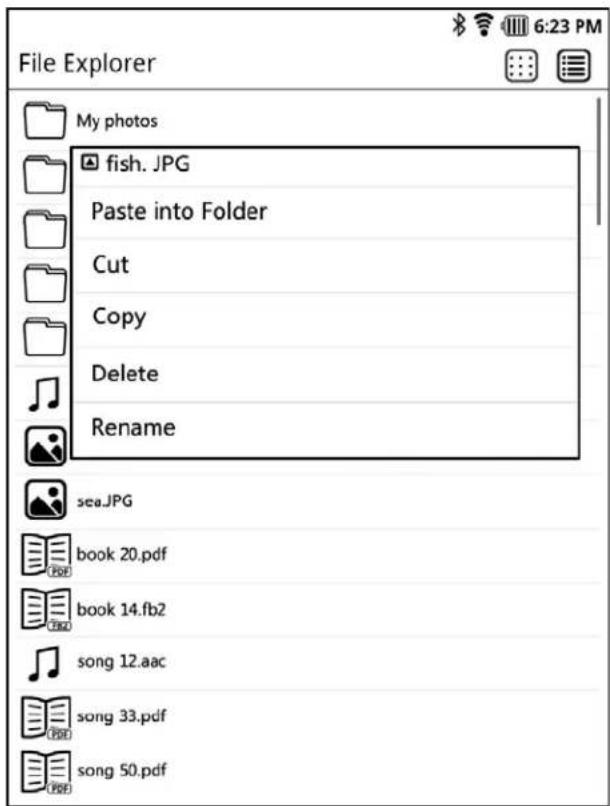
Paste into Folder -- This option will paste any file or folder saved in the clipboard into the selected folder. However, this option will be unavailable if the clipboard is empty.
Cut -- This option will cut the selected file or folder into the clipboard.
Copy -- This option will copy the selected file or folder into the clipboard.
Rename -- This option enables you to rename the selected file or folder.
Delete -- This option enables you to delete the selected file or folder. Select this option will bring up the following dialog box.

11 Search
11.1 Features
Your EB-800C comes with a global search feature enable you to search entire system for whatever you want – no matter it is an ebook, audio track, or photo. Besides, it also provides a categorized search feature that allows you to search by media type (ebook, audio track or photo). Both search features will search for the keyword you entered, and return you, if any, all successful matches.
11.2 Search Screen
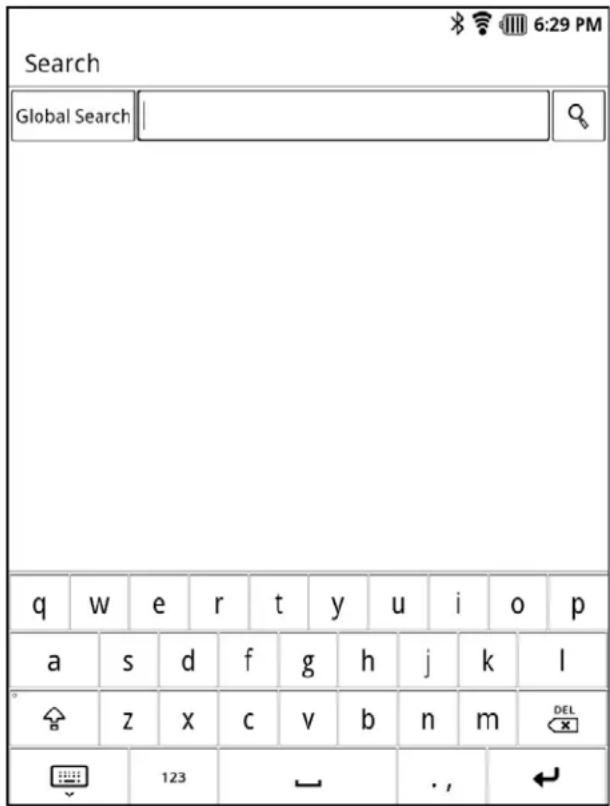
In the function menu, select and press a search option that best suit for your need, enter the keywords you want to be searched for, and start the search.

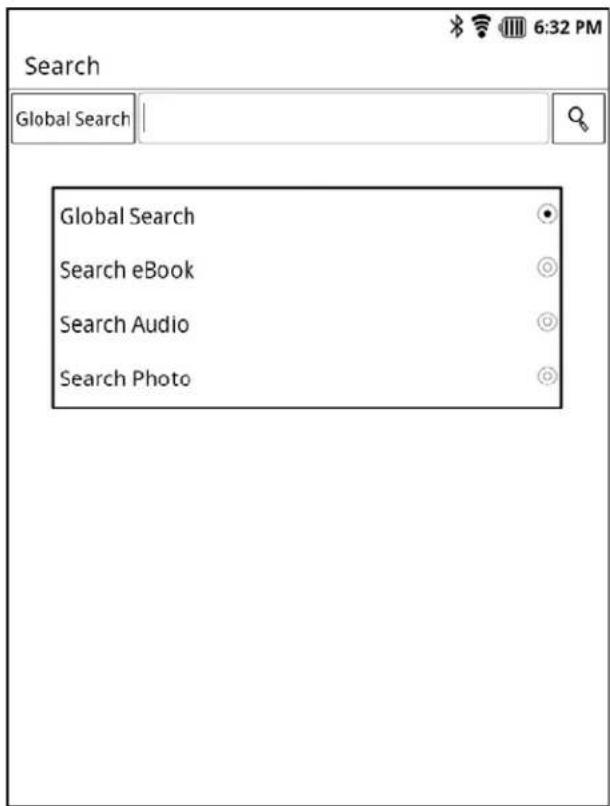
There is another way to select search option. Before entering your search keywords, press the [Global Search] on the screen to open a context menu, and then select another search option from the menu.
11.3 Global Search
After selecting the Global Search, press the input box to bring up the software keyboard. Enter the keywords using the keyword, and then press the search icon in the right corner to start your search.
The successful matches, if any, will be listed and categorized by file types.
A long-press on a matched item can bring up the context menu for you to handle the item.
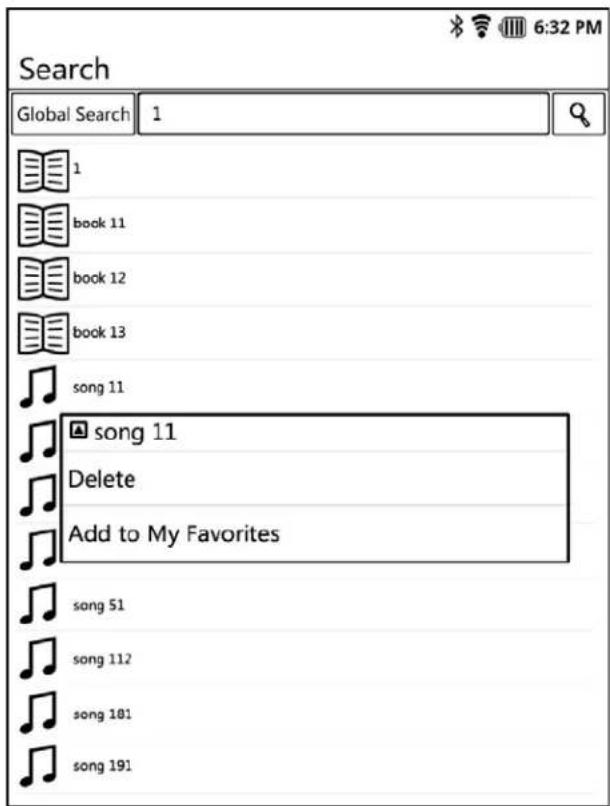
Delete --This will delete the item.
Add to My Favorites -- This will add the item into the My Favorites folder.
11.4 Search by File Types
Besides the keywords, you can also specify a file type for your search. This can narrow your search area to the items of the same file type.
For example, you can select the Search eBook option.
This will make your search focus on the ebooks matched with the keywords.
12 Settings
In the Setting screen, you can see a list of items available for setting is listed, as shown below:

12.1 Upgrade
This feature is for system upgrading and its version.
12.1.1 Upgrade Screen
12.1.2 Upgrade procedure
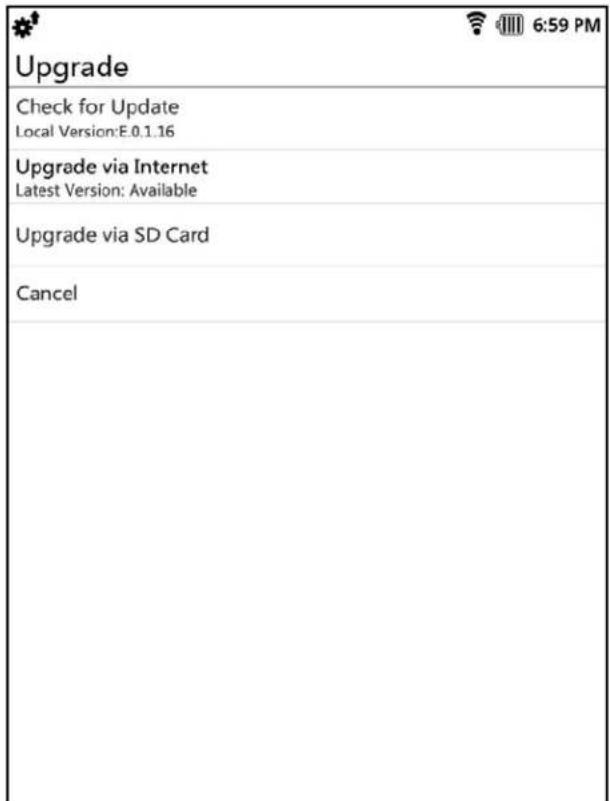
After opening the Upgrade screen, press the Check for Upgrade field. This will start the system to check the current system version and if there is a latest upgrade package available from Internet or the external SD card. If a latest version available from Internet, the Upgrade via Internet field will be highlighted to notify you such. If a latest version available from the external SD card, the Upgrade via SD Card field will be highlighted.
If you select the Upgrade via Internet field, the system will download the package from Internet and start upgrading. After completion, your system version will be updated to that of the downloaded.
If you select the Upgrade via SD Card field, the system will upgrade itself with the package stored in the SD card. After completion, your system version will be updated to that of the package.
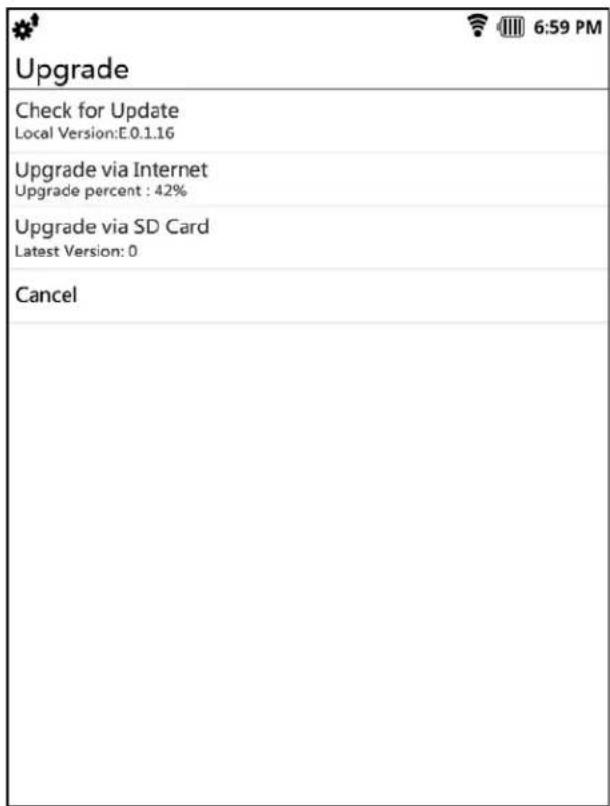
In the process, you can keep tracking the progress from the screen. As shown above, the percentage progress of the upgrading is shown right below the Upgrade via SD card filed. Before completion, you can cancel the upgrade by just pressing the Cancel. Such cancel will not effect the current system operation.
12.1.3 After Upgrade
After the completion of upgrade, you can go to the About eBook to check for the system version.
12.2 Wireless & Networks
This is for setting the wireless and 3G network features.
12.2.1 Wireless & Networks Settings Screen
| Wireless & Networks Settings 7:00 PM | |
| Turn On 3G NetworkTurn on 3G network connection | |
| Mobile Network SettingsSetup Roaming, Network, APN Options | |
| Wi-FiTurn On Wi-Fi | |
| Wi-Fi SettingsSetup & Manage Wireless Access Points | |
| BluetoothTurn on Bluetooth | |
| Bluetooth SettingsManage connections, set device name & discoverability | |
12.2.2 Settings for 3G and Mobile Networks
Turn ON 3G Network – Select this option will turn on the 3G network feature. If your system has a 3G SIM card installed, it will then automatically start connecting to the 3G network. The 3G network feature will not be turned on until this option is selected.
Mobile Network Settings -- This is for setting options about roaming, network, APN, and so on.
12.2.3 Wi-Fi Settings
Wi-Fi -- Select here will turn on the Wi-Fi. Otherwise, the Wi-Fi feature will not turn on until this option is selected.
Wi-Fi Settings -- After the Wi-Fi feature is turned on, you can set the Wi-Fi configuration here.
| Wi-Fi Settings | |
| Wi-Fi | ✓ |
| Network Notification | ✓ |
| Notify me when an open network is available | |
| Wi-Fi Networks | |
| ChinaNet | ● |
| SYSUWLAN | ● |
| Z-App-Chief | ● |
| Using WPA/WPA2 PSK security | |
| WITS ZH | ● |
| Using WPA/WPA2 PSK security | |
| zhongkexinxi | ● |
| Using WPA/WPA2 PSK security | |
| EMIS | ● |
| Using WEP security | |
| ET-TECH | ● |
| Using WEP security | |
| zhww | ● |
| Using WEP security | |
| ASUS | ● |
| Using WEP security | |
In the Wi-Fi Setting screen, a list of available hot-spots will be provided. Under each hot-spot, its encryption style will also be provided. Press your preferred hot-spot, enter your password in the dialog box appeared, and you are connected to it.
12.2.4 Bluetooth Settings
Bluetooth -- Select here will turn on the Bluetooth. Otherwise, the feature will not turn on until this option is selected.
Bluetooth Settings -- After the Bluetooth feature is turned on, you can connect to other Bluetooth device through here.
| Bluetooth Settings | |
| Bluetooth | √ |
| Device NameEB-800C | ○ |
| DiscoverableMake deviced discoverable | √ |
| Scan for devices | |
| Bluetooth devices | |
| WEP870Pair with this device | ○ |
In this Bluetooth Setting screen, all available Bluetooth devices searched will be listed. Choose and press your desired one, enter your PIN into the dialog box if appears, and you will be paired and connected to it.
12.3 Sound Settings
This is for adjusting the system sound volume and for setting the operation beep features.
| Sound Settings 7:00 PM | |
| Silent ModeMute all sounds except for media and alarm operations | √ |
| Media VolumeSet volume for music | ○ |
| Notification RingtoneSet default notification ringtone | ○ |
| Audible SelectionPlay sound when making screen selections | √ |
| SD Card NotificationPlay sound for SD card notifications | √ |
12.3.1 Media Volume
A press on the Media Volume will pop-out a dialog box. In the box, you can adjust the volume to suit your comfort level.
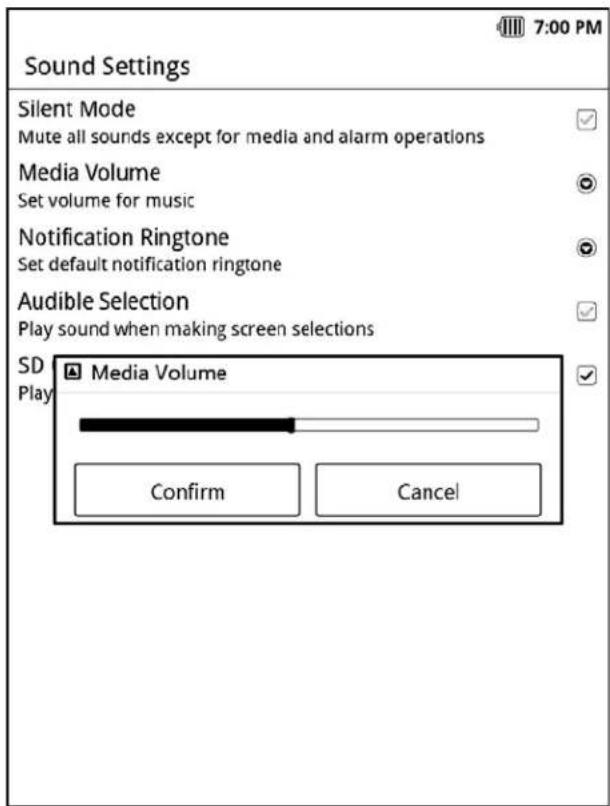
12.3.2 Notification Ringtone
A press on the Notification Ringtone item can bring up a dialog box that allows you to select ringtone.

12.3.3 SD Card Notification
This is a ringtone to notify you if any change is detected in the external SD card slot. When an external SD card is inserted into or pull out of the slot, this ringtone will be played.
12.4 Display Settings
You can determine here the system will rotate its display according to the orientation of your EB-800C. Also, you can set the Next page Gesture here.

12.4.1 Orientation
This determines whether the system will switch its display automatically between portrait and landscape according to the orientation of your EB-800C.
12.4.2 Next Page Gesture
This is to determine the direction of the next page gesture when you are browsing a library in the thumbnail mode, reading an ebook, or viewing photos. The direction opposite to the one set here will be for the previous page gesture.
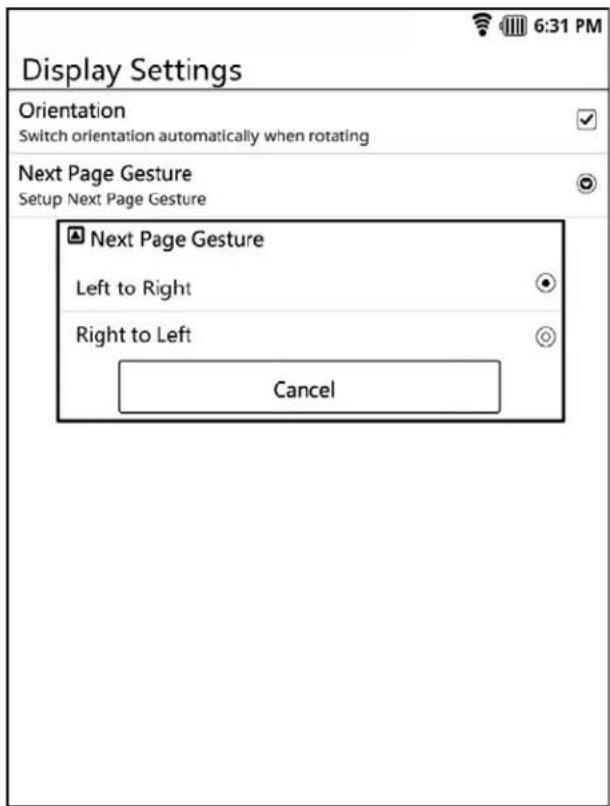
12.5 Power Saving
12.5.1 Wireless Network Power Saving Options
This manages the power saving of the WiFi function. When the power saving mode is enabled, your system will automatically turn on/off the function according to the network usage.
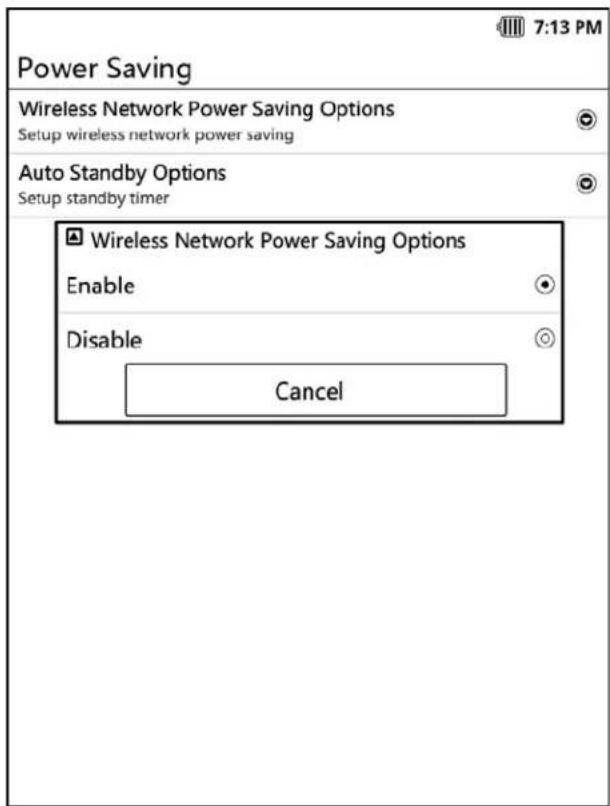
12.5.2 Auto Standby Options
You can set here the system to go into its standby mode automatically after a preset time with no operation.
A press on this option will bring up a dialog box for setting the preset time.

12.6 Connect to PC
You can determine here how your system will respond when you connect your EB-800C to a PC with a USB cable.
12.6.1 Ask Me
If you check to enable this option, the system will prompt you to select the connection type every time your EB-800C is connected to a PC. If not, the system will automatically handle the connection according to the preset type.
12.6.2 Connection Type
Here are two options available for the connection type: "Charge Only" and "Mount As Disk Driver(s)".

12.7 Security
You can set here the options for the screen lock feature, as well as the visibility of the password field.
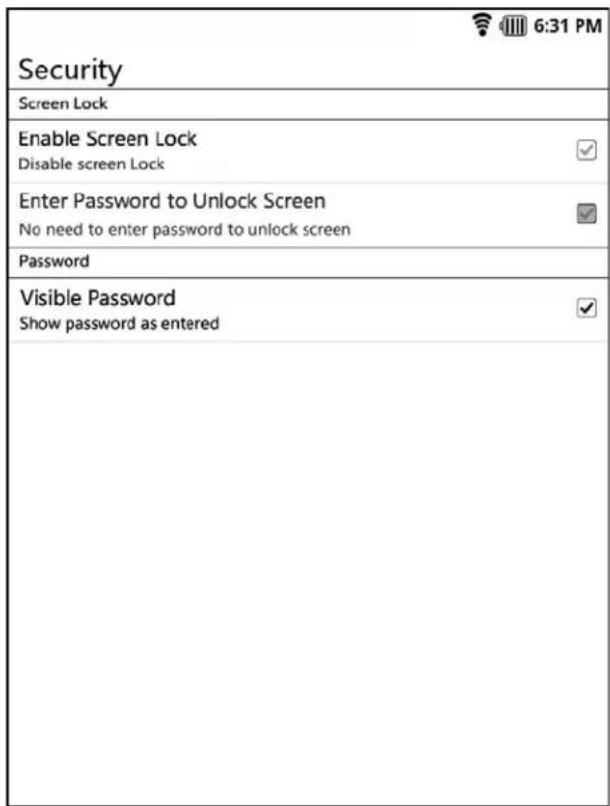
12.7.1 Screen Lock
After this feature being enabled, the system will lock the screen every time it boots up or goes into the standby mode. It requires a password to unlock the screen.
12.7.2 Enter Password to Unlock Screen
You can set here the password that requires for unlocking the screen.
12.7.3 Visible Password
You can determine here whether the password field will be shown on the screen when you enter your password.
12.8 SD Card
This screen shows you the space usage of your internal and external SD cards, and enables you to mount/remove your external SD card and to format disk space.
| SD Card 7:20 PM |
| External SD Card |
| Total Space8GB |
| Available Space6GB |
| Unmount SD Cardunmount SD Card for safe removal |
| Format SD CardFormat (erase) SD Card |
| Internal SD Card |
| Total Space1GB |
| Available Space0.5GB |
12.9 Date and Time
You can adjust the system time and date, as well as their formats. A press on this option will bring up the dialog box as shown below.
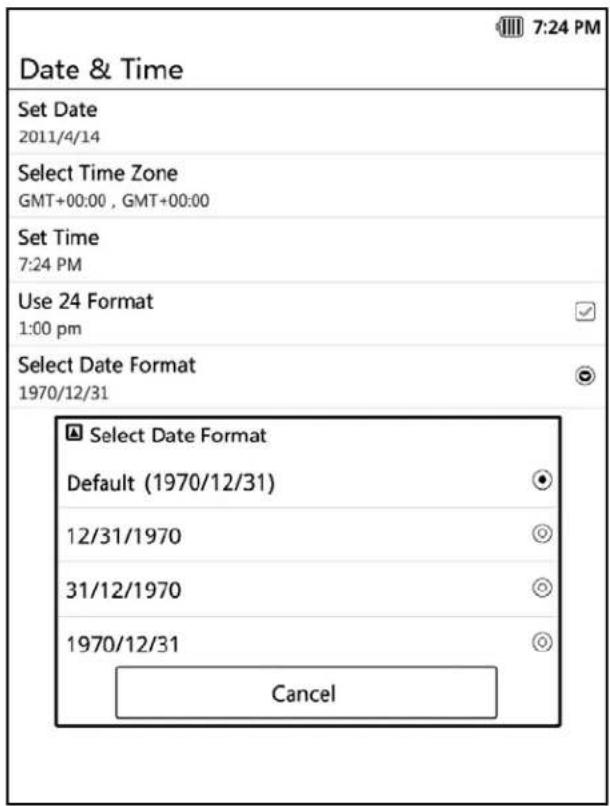
12.10 Language and Keyboard
You can determine here the system language, input method, and keyboard configuration.
| Language & Keyboard 7:27 PM | |
| LanguageSelect Language | |
| Text settings | |
| English Input Method | ✓ |
| 谷歌拼音输入法 | ✓ |
| 谷歌拼音输入法谷歌拼音输入法settings | |
| KeyboardSetup keyboard type | |
12.11 About eBook
In this screen, you can find some important system information regarding your EB-800C such as the system version and messages.
| About eBook |
| Model NumberEB-800C |
| MCU Version2.0.0.7 |
| Software VersionEBOOK.1.0.1.15 |
| Internal eBook Storage |
| Available Space160M |
12.11.1 Model Number
This shows the model number of this product.
12.11.2 MCU Version/ Software Version
These fields show the MCU firmware version and the system version respectively.
12.11.3 Internal eBook Storage
This field shows the storage space of the internal media. The space is saved for the APK installation, and is excluded from that of the internal/external SD card. The system will prevent any direct access to this space by its user.
- EB-800C eBook Reader User Manual.
- Revision History
- Table of Contents
- E-Book....32
- Browsing operations 35
- How to open an ebook....38
- Reading operations....39
- Audio Player 63
- Introduction
- Technical Specification
- Control Placement
- About EB-800C
- Design concept
- Controls
- Touch Gesture
- Input Method / On-screen Keyboard
- On-screen Keyboard for English Input Method
- Google Pinyin Input Method
- Access a SD card
- SIM Card
- Power ON/OFF
- Steps to power on:
- Steps to power off
- Interface
- Home Screen
- Status Bar
- Battery status
- Wireless network status
- 3G/2G status
- Bluetooth status
- SD card status
- Home screen menu
- Head Bar
- Function Menu
- Context Menu
- Features
- eBook
- Music
- Picture
- My favorite
- Search
- Browser
- Setup
- File management
- Calendar
- E-Book
- Supported Format
- eBook Library Screen
- EBook library Navigation
- List Mode / Thumbnail Mode
- Turn page up/down or left/right
- Browsing operations
- Function menu
- Context menu
- How to open an ebook
- Reading operations
- Turn page
- Function menu
- Copy
- Bookmarks
- Add a new Bookmark
- Chipset
- RS780L (ND)
- SB710 (SB)
- Memory
- Delete Bookmarks
- Highlight
- Add a new highlight
- Delete highlights
- Annotation
- Add an new annotation
- Edit annotation
- Delete annotation
- Contents
- Search
- Settings
- Audio player
- Photo viewer
- Browser
- Go to page ...
- RS780L (NB)
- SB710
- Rotate
- When reading a PDF-format ebook
- Disclaimer
- Trademark Recognition
- Federal Communications Commission (FCC)
- Audio Player
- Supported audio formats
- Audio library structure
- Audio Library Screen
- Audio Library Navigation
- List Mode/ Thumbnail Mode
- Turn page up/down or left/right
- Browsing Operations :
- Function menu
- Context menu
- How to play a track
- Audio Play Operations
- Playing screen
- Play modes
- Function menu
- Play controls
- Photo Viewer
- Supported photo formats
- Photo Library Structure
- Photo Library Screen
- Photo Library Navigation
- List Mode/Thumbnail Mode
- Turn page up/down/left/right
- Viewing operations
- Function menu
- Context menu
- How to view photos
- Viewing operations
- Function menu
- Photo view toolbar
- Touch Zoom operations
- My Favorites
- Features
- My Favorites Screen
- Create a New Category
- Add to My Favorites
- Manage My Favorites
- Rename
- Cut
- Paste into Folder
- Paste
- Delete
- File Explorer
- Features
- File Explorer Screen
- File Explorer Operations
- Function Menu
- Context Menu
- Search
- Features
- Search Screen
- Global Search
- Search by File Types
- Settings
- Upgrade
- Upgrade Screen
- Upgrade procedure
- After Upgrade
- Wireless & Networks
- Wireless & Networks Settings Screen
- Settings for 3G and Mobile Networks
- Wi-Fi Settings
- Bluetooth Settings
- Sound Settings
- Media Volume
- Notification Ringtone
- SD Card Notification
- Display Settings
- Orientation
- Next Page Gesture
- Power Saving
- Wireless Network Power Saving Options
- Auto Standby Options
- Connect to PC
- Ask Me
- Connection Type
- Security
- Screen Lock
- Enter Password to Unlock Screen
- Visible Password
- SD Card
- Date and Time
- Language and Keyboard
- About eBook
- Model Number
- MCU Version/ Software Version
- Internal eBook Storage
Brand : ECS
Model : EB-800C
Category : Electronics