
CHE-HDBTWP230K - AV Transmitter Comprehensive - Free user manual and instructions
Find the device manual for free CHE-HDBTWP230K Comprehensive in PDF.


| Product Type | HDBaseT Wall Plate Transmitter |
| Model | CHE-HDBTWP230K |
| Inputs | 2x HDMI, 1x VGA + 3.5mm stereo audio |
| Outputs | 1x HDMI (local), 1x RJ-45 (HDBaseT to receiver) |
| Max Resolution | HDMI: 3840x2160@30Hz (4K UHD); VGA: 1920x1080@60Hz (Full HD) |
| Extension Distance | Up to 70m (230ft) for 4K, up to 100m for Full HD via CAT5e/6 |
| Power Supply | DC 12V, 1A (included adapter with terminal block) |
| Power Consumption | < 10W (typical) |
| Enclosure | Metal wall plate with plastic Decora faceplate |
| Dimensions (W x H x D) | 4.5 x 2.5 x 1.2 inches (wall plate) |
| Weight | 0.5 lb (approx.) |
| Serial Control | RJ-12 (RS-232), 38400 baud, 8N1 |
| Source Selection Modes | Manual, Auto, Priority HDMI, Priority VGA/DP |
| EDID Functions | EDID Copy (local/remote), Auto-Mixing, pre-set resolutions |
| HDCP Support | HDCP 1.4/2.2 compliant |
| LED Indicators | Source (HDMI/VGA), Remote, Local (color-coded status) |
| Link Port Modes | Power Saving, Active, Long Reach (up to 150m for 1080p) |
| Software GUI | AV Console Center (Windows) for advanced configuration |
| Operating Temperature | 32°F to 104°F (0°C to 40°C) |
| Compliance | FCC, CE, RoHS |
Frequently Asked Questions - CHE-HDBTWP230K Comprehensive
User questions about CHE-HDBTWP230K Comprehensive
0 question about this device. Answer the ones you know or ask your own.
Ask a new question about this device
Download the instructions for your AV Transmitter in PDF format for free! Find your manual CHE-HDBTWP230K - Comprehensive and take your electronic device back in hand. On this page are published all the documents necessary for the use of your device. CHE-HDBTWP230K by Comprehensive.
USER MANUAL CHE-HDBTWP230K Comprehensive
HDBaseT™ Wall Plate Extender TX/RX Kit (up to 230ft) with HDMI, VGA and Audio
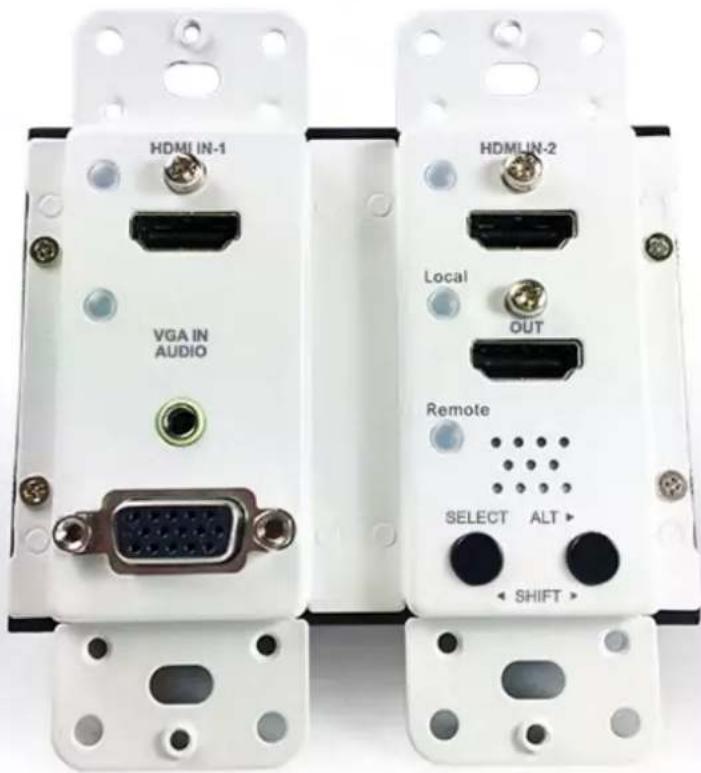
Table of Contents
Introduction 1
Overview....1
Product Features....2
Package Content 3
Product Description 4
Installation....7
Device Connection....7
Connection Pattern 7
LED Indications 8
Push Button Control....9
Operation....9
Specifications 11
Serial Configuration....12
I. Simple Serial Connection .... 12
II. GUI over Serial 13
A. Installing Application....13
B. Uninstalling Application .... 13
C.Description & Operation....13

Please read this manual thoroughly and follow the Installation procedures to prevent any damage to the unit or any connecting device.
* The final specifications are the actual product based.
* Features and functions are subject to change since the manual was written.
Please visit the related website to download the latest version of manual for reference.
FCC € V©I RoHS
Introduction
Overview
4K Multi-Format HDBase ^™ Transmitter could extend full uncompressed 4K video and HD audio over CATx cable of up to 70/100 meters. It does not only support resolution up to Full HD 1080p and 4K, but supports Deep Color and HD Audio formats as well.
The advanced and inexpensive all-in-one connectivity technology by using low-cost and handy CATx cables, 4K Multi-Format HDBaseT ^TM Transmitter is perfect for situations like hospitality (hotels, conference rooms) and digital signage (airports, shopping malls), etc.
You also need Receiver Unit/Repeater :
Repeater Unit
| Repeater Unit | |||
| Type Model | Distance Function | ||
| BOX TYPE Repeater | CHE-HDBTWP230RX | 70M | CATx HDMI Repeater (Max. 4K) |
Connection Diagram (with receiver)
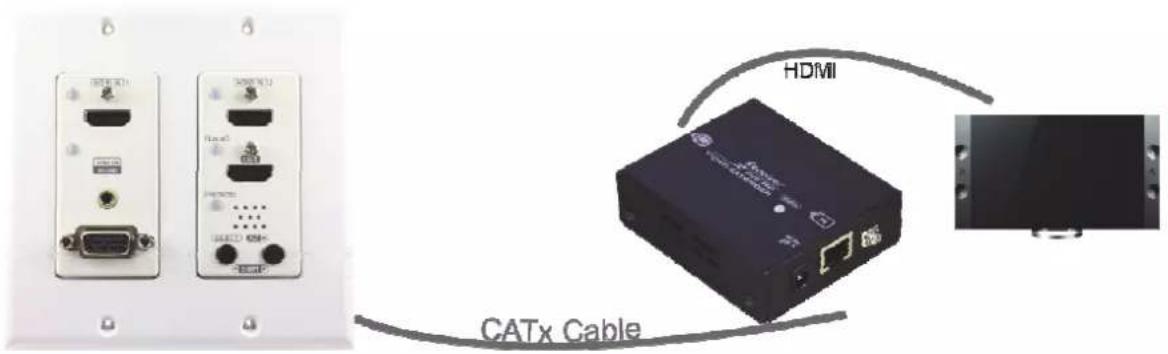
Product Features
● Transmit HDMI / VGA with analog audio signal up to 70 / 100 meters
- Uses HDBaseT™ technology
● Auto EQ (Sharpness) adjustment for optimal signal clarity
- Screen Shift Mode provides user to adjust image's shifting
- Use Resolution Alternation Mode when catching multiple similar video timing
● Input source sequence selectable
● Auto-sensing function enables the system to automatically select the latest video source
- Support resolutions up to UHD (3840 x 2160) and Full HD (1920 x 1080) and compatible with most of the popular screen resolution
● HDCP compliant, 3D-video and Blu-ray ready over single CATx cable
● Plug-and-Play system without any drivers or software installation
Unique EGO MX Functions
◆ Versatile port selection functions of Pri. HDMI, Pri. VGA/DP, Auto and Manual modes
◆ User-friendly port switching via button pressing or priority setting
◆ Two priority settings to start with VGA / HDMI source for different needs
◆ Auto-Sensing function enables the system to automatically select the latest video source
Exclusive EDID Functions
◆ Multi-functions for EDID setting, like EDID Copy and EDID Pre-setting, ensuring accurate output display
◆ Enable separately learn Audio and Video EDID for multimedia/ Home Theater system integration
◆ Read and store the EDID from the connecting display to the video extension
Exclusive GUI Operation Functions
◆ Graphically show connection status
◆ Most commonly used menu items are duplicated as icons on the top
◆ Common icons are provided
◆ Can name and use your own images for every source and display icon
Exclusive Link Port Functions
◆ Increase the extension distance up to 150 meter for Full HD 1080p
◆ Automatically save energy for better efficiency
Package Content
| Content Quantity | |
| Video Transmitter Unit 1 | |
| US Dual-gang Decora plate (Plastic) | 1 |
| Screws for wall-plate installation | 1 |
| DC 12V Adapter 1 | |
| DC Jack to Terminal Block adapter | 1 |
| Quick Start Guide | 1 |
| User's Manual 1 |
| Optional |
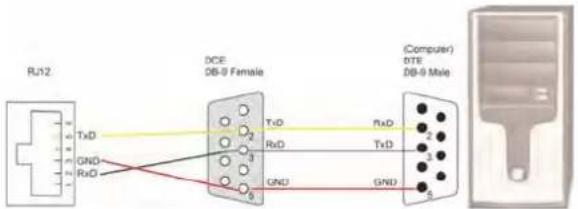
| RJ12 Cable + RJ12 to RS232 adapter* |
*NOTE: If users want to use RJ12 to RS-232 adapter, please follow the diagram below to properly connect the pin:
Product Description
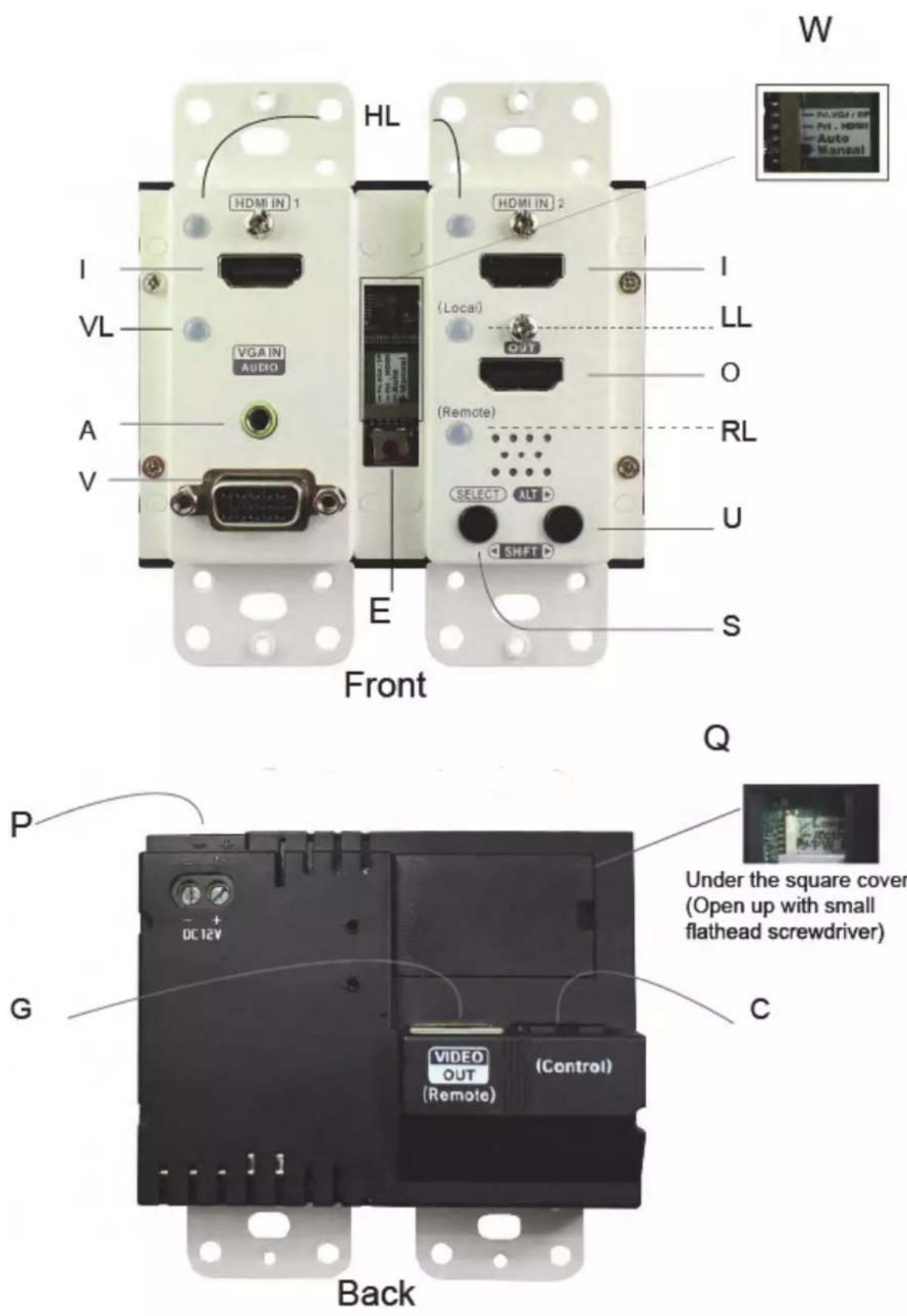
| Transmitter | I | Video input port | HDMI input 1 and HDMI input 2, connect to HDMI source |
| V | Video Input Port | Connect to an VGA source | |
| O | Local Out | HDMI local out | |
| VL | VGA LED Indicator | Please see LED Indicator | |
| HL | HDMI LED Indicator | ||
| RL | Remote LED Indicator | ||
| LL | Local LED Indicator | ||
| E | EDID Button | Perform EDID function | |
| U | Alt Button | Please see Operation (For VGA only) | |
| S | Select Button | Please see Push button/Operation | |
| W | EGO Slide Switch | Adjust EGO setting | |
| A | Audio input | Audio input (pair with VGA) | |
| G | Remote out port | Connect to Receiver's input | |
| C | Serial control | Connect to a Serial control | |
| Q | Link Port Switch | Adjust extension/power save mode | |
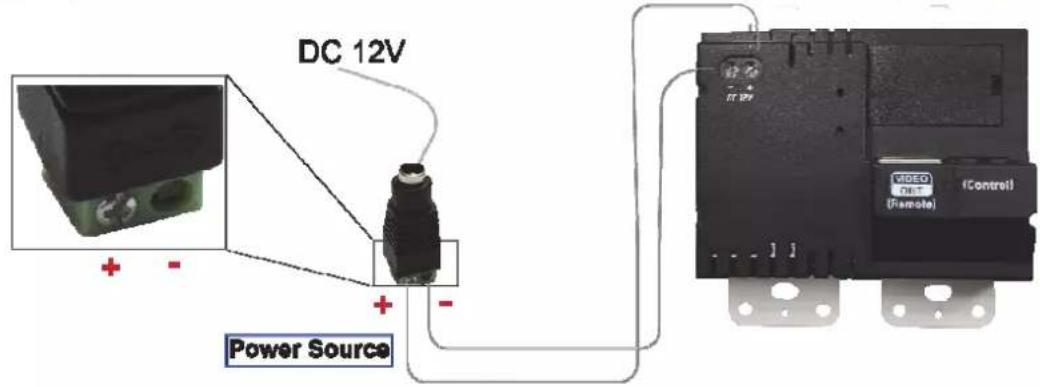
| P | DC Jack Terminal Block* | DC 12V power supply |
* Ensure that the positive pole on the terminal block is connected to the positive pole on the wallplate and the negative pole on the terminal block is connected to the negative pole on the wallplate.
DC Jack Terminal Block
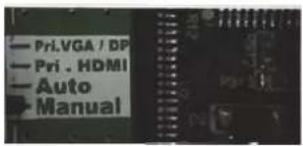
| Mode | Description | |
| 1 | Manual | Press Seletc to select Source-n; all monitors display Source-nNOTE: When switching from other modes to Switch mode, all monitors display Source-1. But if there's no source detected in Source-1, it's required to manually press the button for other source selection. |
| 2 | Auto | System will automatically select the latest video source for displayNOTE: When switching from other modes to Auto mode, all monitors display Source-1. But if there's no source detected in Source-1 (HDMI1), the system will automatically display the latest video source. |
| 3 | Pri.HDMI | Priority: (High Priority)HDMI1 > HDMI2 > DP / VGANOTE: If there's no source detected in HDMI1 port, the system will automatically display the next video source. |
| 4 | Pri.VGA/DP | Priority: VGA/DP > (High Priority)HDMI2 > HDMI1NOTE: If there's no source detected in VGA/DP port, the system will automatically display the next video source. |
Port Link Switch

| Mode Description | |
| Power Saving Automatically save energy when source or monitor connected failure | |
| Active Normal operation and stay Active (up to 4K) | |
| Long Reach | Extend distance from 100M to 150M (up to Full HD 1080p). (This function is Only available on EVBMV-A1391WL) |
Installation
WARNING!
- Prior to installation, ensure to power off all devices that will be connected to this system.
- Ensure that all devices you will connect are properly grounded.
- Place cables away from fluorescent lights, air conditioners and machines that are likely to generate electrical noise.
- Please allow adequate space around the unit for air circulation.
Grounding
To prevent any damage to the product or any connecting devices, and to improve audio/video signal quality, it is important to make sure that the extender systems are properly grounded.
Device Connection
- Use a CAT5 cable to connect to a receiver. Connect the receiver to an HDMI display.
- Use an HDMI cable to connect the source device to the HDMI input port on the Unit. The HDMI input ports are located on the rear of the Unit. Use a HDMI cable to connect the source device to the HDMI input port and a VGA cable to connect the source device to the VGA input port on the Unit. Connect the stereo audio source to 3.5mm earphone jack (if necessary)
- Use an HDMI cable for connection between display and the HDMI output port on the Unit (if needed).
- Apply the proper power to the Unit; then power on all the attached sources and devices.
NOTE:
If users encounter no screen display in display connection, you may
1. make sure the device cables are correctly and firmly attached.
2. set your display device's input source as HDMI.
3. check the PC BIOS configuration about the video output setting.
4. connect your computer to the HDMI Display DIRECTLY to check if the video signal gets through.
5. slide the switches to the correct positions according to your displays.
6. apply EDID Copy to your display (see EDID Setting section).
Connection Pattern

LED Indications
| HDMI/DP Input Source LED (B/R) | Video OK | Source Selected Note | |
| Emit Blue and go off 3 times Yes | Yes | w/o HDCP | |
| Flash Blue once Yes No | |||
| Emit Purple and go off 3 times Yes | Yes | w/ HDCP | |
| Flash Purple once Yes No | |||
| Emit Blue and flash Red once No | Yes | ||
| OFF | No | No |
| VGA Input Source LED(B/G/R) | Video OK | Source Selected Note | |
| Steady Red | NO | Yes | Or Input signal not supported |
| Steady Blue Yes Yes | |||
| OFF | NO | ||
| Emit Blue and Flash Orange twice | Please Refer to the operation section for more detail | ||
| Flash Pale Blue. | Please Refer to the operation section for more detail | ||
| Remote Unit LED (B/G/R) | ON / OFF | CAT5 detected (TLS series only) | TLSM series Status | Status |
| Flash Blue once | ON | YES | N/A | Monitor Non-detected |
| Steady Blue | ON | YES | Monitor detected | |
| Emit Blue and Flash Purple once Red twice | ON | YES | HDCP doesn’t match | |
| Flash Green once | ON | NO | Monitor Non-detected | |
| Local Unit LED (B/R) | ON / OFF | Status |
| Flash Blue once | ON | Monitor Non-detected |
| Steady Blue | ON | Monitor detected |
| Emit Blue and Flash Purple once Red twice | ON | HDCP doesn’t match |
The quality of the output signal will depend largely upon the quality of video source, cable, and display device used. Low-quality cables degrade the output signal causing elevated noise levels. Use the proper cable and make sure the display device can handle the resolution and refresh rate selected.
Push Button Control
◆ A/V Source Selection
Press Select : select the source in sequence (S1→S2→S3→S1...)
◆ Stand-by mode:
Press and hold both of Select button for 5 sec. and release right after Remote LED flash Green. Then when the Remote LED flashes Blue once per 3 seconds, the system is in the stand-by mode.
And just follow the same steps to wake up from stand-by mode.
Operation
◆ Screen Shift Mode (Select VGA Input)
Step 1. Press two buttons (Select & Alt.) simultaneously over 2 sec. and release the buttons RIGHT AFTER VGA LED turns to flash Pale Blue.
Step 2. Press left button (Select) or right button (Alt.) to adjust image's position.
NOTE:
-
The system will automatically retain user's last setting.
-
Max. horizontal image displacement is 50 steps.
-
The system will automatically escape from shift mode if no activity is detected within 15 seconds, or directly press the two buttons simultaneously over 2 sec. again to leave the shift mode right away.
◆ Resolution Alteration Mode (Select VGA Input)
Under some particular video resolution issue, the VGA LED will turn to emit Blue and flash Orange twice when catching multiple similar video timing.
Step 1. Press the button (Alt.) over 2 sec.
Step 2. LED flashes Purple once indicating the setting working
NOTE:
-
The system will automatically retain user's last setting.
-
Press the button over 2 sec. again to select next available resolution or switch back to the previous resolution.
◆ EDID Copy:
Copy Remote Monitor EDID
Step 1. Apply power to the unit.
Step 2. Use CAT5 to connect Remote unit to Local unit and the (EDID compliant) monitor connects to the Remote Unit. Power on the monitor.
Step 3. Press and hold the button "EDID COPY" around 3 sec. and release the button RIGHT AFTER the Remote LED flashes GREEN.
Result. If the Remote LED returns to normal status, indicating that the EDID Copy is completed.
Copy Local Monitor EDID
Step 1. Apply power to the unit.
Step 2. Connect the (EDID compliant) monitor to local output port "Local OUT" of the Unit and power on the monitor.
Step 3. Press and hold both of the buttons "EDID COPY" around 6 sec. and release the button RIGHT AFTER the Local LED flashes BLUE.
Result. If the Local LED returns to normal status, indicating that the EDID Copy is completed.
EDID Auto-Mixing
Step 1. Apply power to the unit.
Step 2. Press and hold the buttons "EDID COPY" around 9 sec. and release the button RIGHT AFTER the Local & Remote LED flash BLUE.
Result. If the Local & Remote LED return to normal status, indicating that the Factory Default Setting is completed.

flowchart
graph LR
    A["press and hold EDID Copy"] --> B["3 sec."]
    B --> C["6 sec."]
    C --> D["9 sec."]
    D --> E["[Local & Remote LED flash Blue"]]
    D --> F["[Local LEDs flash Blue"]]
    D --> G["copy Local Unit EDID"]
    D --> H["[Remote LED flash Green"]]
    H --> I["copy Remote Unit EDID"]
Otherwise, if the LED flashes RED, it means that
a. The monitor is not properly connected.
b. The monitor is not powered on.
c. EDID data of the monitor is not applicable.
Try to repeat Step 3 to 4 again.
Specifications
| Model | Transmitter | |
| CHE-HDBTWP230RX | ||
| Input | HDMI x 2VGA + Analog Stereo x 1 | |
| Output HDMI x 1 | ||
| Connection RJ-45 x 1 | ||
| LED Indicator(Power / Status) | Source x 3Remote x 1, Local x 1 | |
| Push Button | SELECT x 1, ALT x 1EDID Copy x 1 (under the cover) | |
| Serial Configuration RJ-12 x 1 (Control) | ||
| Mode Configuration Pri-VGA/DP / Pri-HDMI / Auto / Manual | ||
| Video Resolution(Max.) | UHD (3840 x 2160) for HDMIFull HD (1920 x 1080) for VGA | |
| Extension Distance* | HDMI70M @ Full HD(1920 x 1080)35M @ UHD(3840 x 2160)VGA70M @ Full HD(1920 x 1080) | HDMI100M @ Full HD(1920 x 1080)70M @ UHD(3840 x 2160)VGA100M @ Full HD(1920 x 1080) |
| Enclosure Metal | ||
Serial Configuration
The 4K Multi-Format HDBaseT™ Transmitter's built-in serial interface allows users to control the unit via serial control. Please follow the installation and operation steps as shown below.
If there's no serial connector on your computer, you may use USB-to-serial adapter for connection.
The configuration of controller's serial port is shown as below.
| Baud Rate 38,400 bps | |
| Data Bits 8 | |
| Parity None | |
| Stop Bits 1 | |
| Flow Control None | |
I. Simple Serial Connection
The following window is an example of Windows XP HyperTerminal.
Connect and power on the Unit, and then set up serial configuration, such as correct baud rate and com port.

II. GUI over Serial
A. Installing Application
The serial console (PC) running Windows 98/2000/XP/Vista/7 is required to install the appropriate software. Please follow the step-by-step instructions as listed below. All prompt screens and dialog boxes shown in this section are for Windows 98 and above. Some dialog boxes and folders may slightly different in other versions of Windows.
Install the "AV Console Center" driver (Windows 98 and above)
Insert the CD into the CD/DVD-ROM drive and browse:
There are two ways to install the driver.
a) Manually copy the file "TuApp.exe" to the Windows platform and run it directly.
b) Run "Setup.exe" to automatically install the utility on the Windows platform. The "Setup.exe" will create a shortcut "AV Console Center" on Windows' desktop, and a program group "AV Console Center".
B. Uninstalling Application
To uninstall the driver, it depends on the installation method you have applied.
a) If you have manually installed the utility, you can just manually delete the file "TuApp.exe" from the Windows platform.
b) If you have installed "Setup.exe" before, you have two ways to uninstall the application. One is that uninstall "AV Console Center" from Windows' Control Panel. The other is by clicking the icon "Uninstall" from the "AV Console Center" program group.
C. Description & Operation
The Graphical User Interface (GUI) is designed for users to operate easier and friendlier. We divide this application into two parts—Basic Operation and Advanced Operation. For more information, please refer to the following statements.
Basic Operation
1. GUI Connection
After software installation, connect the DB9 RS-232 serial cable (straight type male-female) to serial port of the Switch-Splitter. And connect the other end to the serial port (COM1, COM2...) of your computer. Next, open Program files on Windows and then click "AV Console Center" to start GUI operation.
Step 1. Check "COM Port" and choose the proper serial port you connect, such as COM1, and set the Baud Rate as "38400".
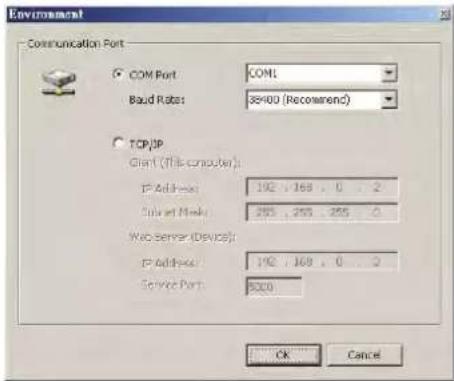
Step 2. A dialog box will pop out indicating device(s) detected.

Step 3. Double-click "Digital Switch-Splitter" on the left block. (There are other ways to detect the device. Please refer to Toolbar Guidance / Action.)
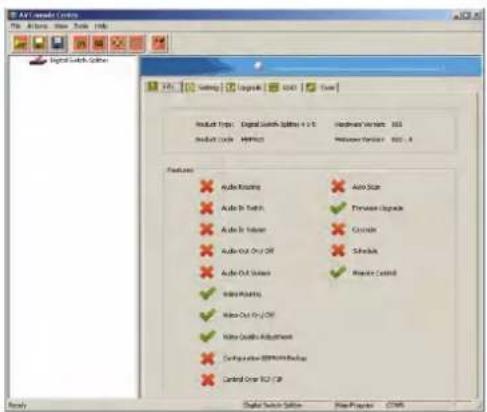
2. GUI Toolbar Guidance
You can see the toolbar on the upper-left corner. Both top toolbars are identical in functions. For further information, please refer to the following guidance.
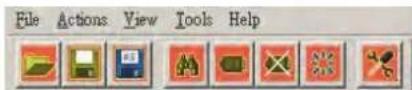
2.1 File: Allow users to open or save topology files. A topology is a usually schematic description of the arrangement of a network, including its nodes and connecting lines. So it is suggested saving a topology file.
| 2.1 | Option Function | |
| 1 | Open Existing Topology Open | pre-stored topology file |
| 2 | Save Current Topology | Allow users to save current topology file in the software installed location |
| 3 | Save Current Topology As... | Allow users to save current topology file in the requested location |
| 4 | Exit Exit the system |
2.2 Actions: Detect all devices or connect the selected device.
When checking Detect All Devices, it will show the dialog box below which means successfully detect the device.
2.3 View: Show or hide the (Icon) Toolbar / Status Bar (on the bottom of the window)
2.4 Tools: Select Environment to set up COM Port and Baud Rate or set up TCP/IP address for the device..
2.5 Help: Show the software version and copyright information.
3. GUI Function Description

The following will describe the overall functions. And four sections will be included: Info, Setting, Upgrade, EDID and Tools.
3.1 Info: Show information and features.
3.2 Setting: In this section, users can set up port connection, enable or disable audio/video separately, set scan time rate, etc. By default, the system will automatically apply source 1 routing to all displays as shown below.
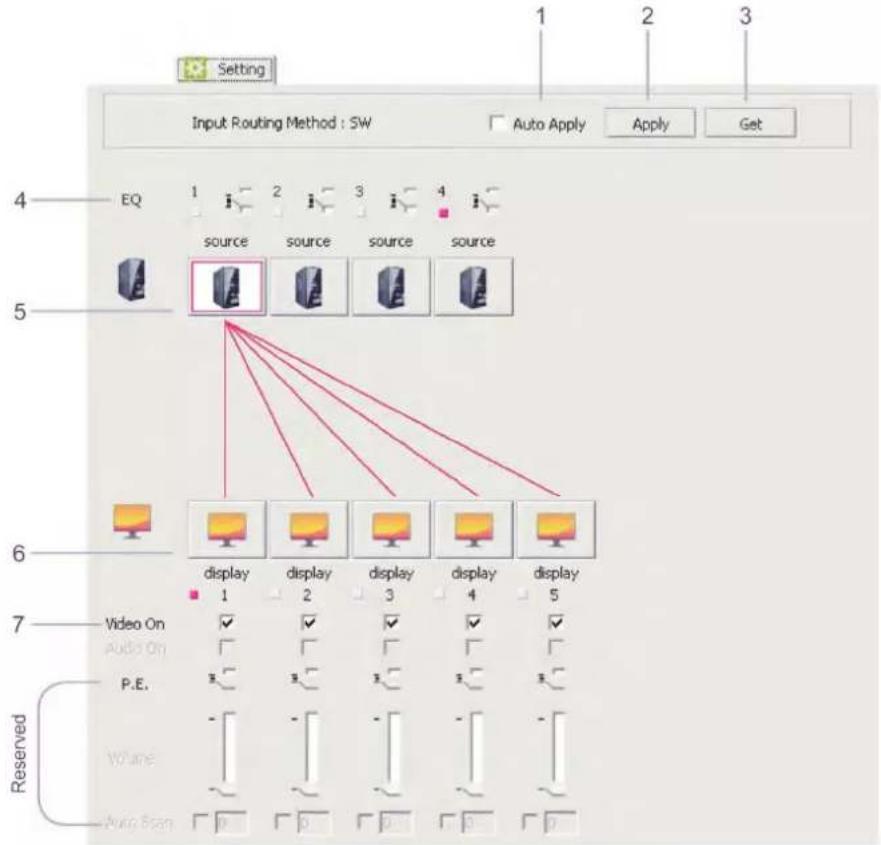
| 3.2 Option Function | ||
| 1 | Auto apply | Automatically apply settings. It is not suggested checking this item for it may result in loading down the system. |
| 2 | Apply To bring the | settings into action. |
| 3 | Get | Detect and show the current setting status for users may operate the unit via front panel push button or IR remote controller |
| 4 | EQ Adjust the video equalization (sharpness) | |
| 5 | Source Icon | Double-click the icon and there will be a pop-up menu. Users can change the picture (.ico file with 32x32 or 36x36 pixel) and give an alias for the source or display.◆ Linking:Click one of the source icons and then click “Apply” to bring the settings into action. |
| 6 | Display Icon* | |
| 7 | Video On Check/ | uncheck the item to turn on/off the display |
Here's the comparison table of the monitor port number on GUI and the output port on the Unit.
| display 1 Local Output Port |
| display 2 Remote OUT 1 |
| display 3 Remote OUT 2 |
| display 4 Remote OUT 3 |
| display 5 Remote OUT 4 |
Advanced Operation
3.3 EDID: Users can not only select the desired ports to copy EDID via multiple methods, but also use built-in EDID for all connected monitors.
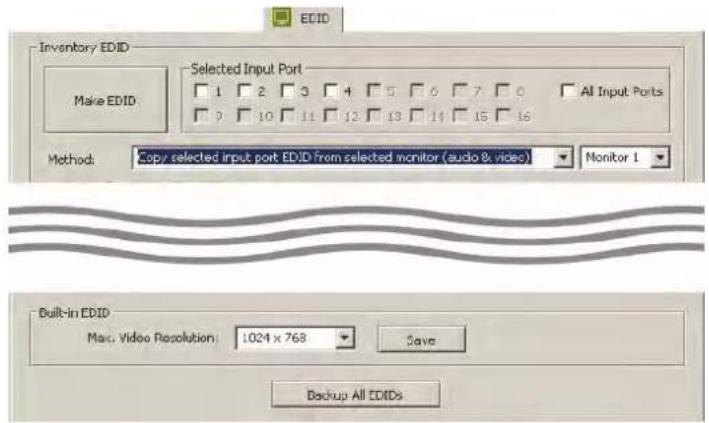
| 3.3 Option Function | |||
| 1 | Inventory EDID | Make EDID | Copy EDID to the selected input port(s). |
| 2 | Method | Multiple methods of EDID copy are provided. See the diagram below. | |
| 3 | Built-In EDID (optional) | All connected monitors use the selected built-in EDID; resolution ranging from 1024 x 768 to 2048 x 1152.After saving, it is required to reboot the system (click “Reboot The Selected Device” icon on the top toolbar).ActionsDetect Device Ctrl+tConnect The Selected Device Ctrl+CDisconnect The Selected Device Ctrl+DReboot The Selected Device Ctrl+R | |
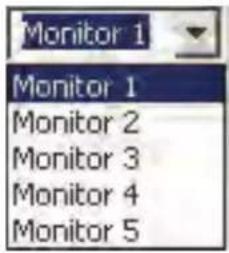
Here's the comparison table of the monitor port number on GUI and the output port on the Unit.
| Monitor 1 Local Output Port |
| Monitor 2 Remote OUT 1 |
| Monitor 3 Remote OUT 2 |
| Monitor 4 Remote OUT 3 |
| Monitor 5 Remote OUT 4 |
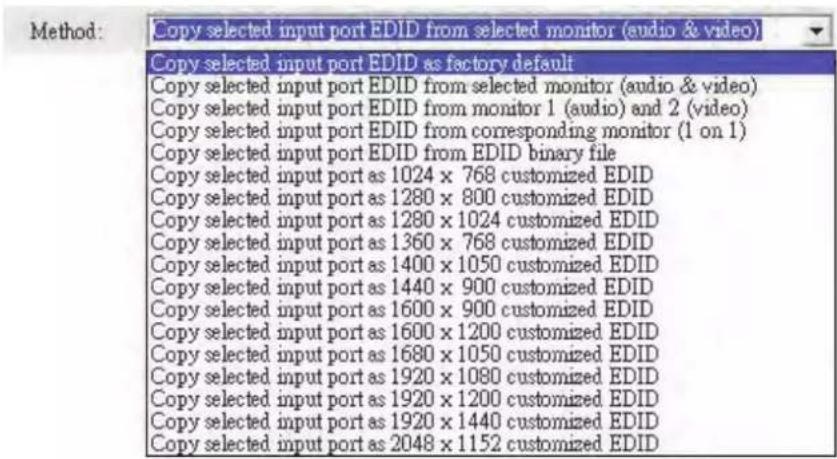
| Method Operation Steps | |
| Copy selected input port EDID as factory default | Step 1. Check the desired input port(s) or check All input ports to select all.Step 2. Click Make EDID. |
| Copy selected input port EDID from selected monitor (audio & video) | Step 1. Check the desired input port.Step 2. Select the desired Monitor (next to Method)Step 3. Click Make EDID. |
| Copy selected input port EDID from corresponding monitor (1 on 1) | Step 1. Check the desired input port(s) or check All input ports to select all.Step 2. Click Make EDID. |
| Copy selected input port EDID from *EDID binary file | *EDID binary file: A file that store EDID informationStep 1. Check the desired input port(s) or check All input ports to select all.Step 2. Click Make EDID.Step 3. Select the desired binary file. |
| Copy selected input port as *1024 x 768 customized EDID | *Customized EDID: selectable resolution ranging from 1024 x 768 to 2048 x 1152Step 1. Check the desired input port(s) or check All input ports to select all.Step 2. Click Make EDID. |
3.4 Tools: Allow users to set up Remote Controller ID. Up to 16 units can share one remote controller. Therefore, it is designed to name the units for fear of confusion on receiving commands simultaneously.
◆ Changing Source/Display Icon:
Double-click the source/display icon and there will be a pop-up window. Users may change the icon and name the selected source or display.
-
Name the display/source: click the corresponding icon and insert any name you want.
-
Change the icon
a) Built-in Icons:
The GUI application provides commonly used icons (Built-in Icons) as shown on the upside of pop-up window.

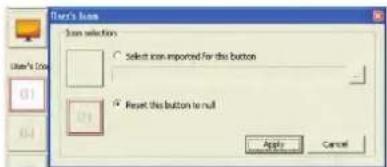
b) User's Icon - Reset the button to null
As shown on the downside of pop-up window; double-click the icon (01-12) and following by one dialogue box.
Click this option to set the icon as blank.
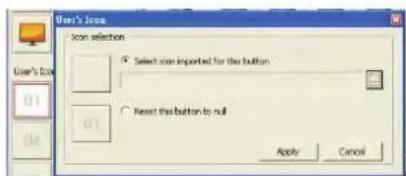
c) User's Icon - Import icon file (.ico) for this button
As shown on the downside of pop-up window; double-click the icon (01-12) and following by one dialogue box. You may upload your own icon but it should be .ico file with 32x32 or 36x36 pix.

80 Little Falls Road, Fairfield, NJ 07004
sales@comprehensiveco.com | 800.526.0242 | www.ComprehensiveCo.com


- Table of Contents
- Introduction 1
- Serial Configuration....12
- Introduction
- Overview
- Product Features
- Unique EGO MX Functions
- Exclusive EDID Functions
- Exclusive GUI Operation Functions
- Exclusive Link Port Functions
- Package Content
- Product Description
- Port Link Switch
- Installation
- WARNING!
- Grounding
- Device Connection
- NOTE:
- LED Indications
- Push Button Control
- ◆ A/V Source Selection
- ◆ Stand-by mode:
- Operation
- ◆ Screen Shift Mode (Select VGA Input)
- ◆ Resolution Alteration Mode (Select VGA Input)
- ◆ EDID Copy:
- Copy Remote Monitor EDID
- Copy Local Monitor EDID
- EDID Auto-Mixing
- Serial Configuration
- Simple Serial Connection
- GUI over Serial
- Installing Application
- Uninstalling Application
- Description & Operation
- Basic Operation
- GUI Connection
- GUI Toolbar Guidance
- GUI Function Description
- Advanced Operation
- ◆ Changing Source/Display Icon:
Brand : Comprehensive
Model : CHE-HDBTWP230K
Category : AV Transmitter