
AQUOS Board PN--L603WA - Interactive whiteboard SHARP - Free user manual and instructions
Find the device manual for free AQUOS Board PN--L603WA SHARP in PDF.


| Product Type | Interactive Whiteboard (Touch Display) |
| LCD Panel Size | 60.1 inches (152.5 cm diagonal), TFT LCD |
| Maximum Resolution | 1920 x 1080 (Full HD) |
| Brightness (Typical) | 300 cd/m² |
| Contrast Ratio | 3000:1 |
| Viewing Angle (CR ≥ 10) | 160° horizontal/vertical |
| Touch Technology | Infrared blocking detection; supports finger and wireless touch pen |
| Touch Pen | Wireless (2.4 GHz, Bluetooth Low Energy); up to 4 simultaneous pens |
| Video Inputs | HDMI (3), VGA (D-Sub 15-pin) (2), DisplayPort (1) |
| Audio Inputs | 3.5mm stereo mini jack (2) |
| Other Inputs | RS-232C (3.5mm mini jack), LAN (RJ-45), USB 2.0 (Type B for touch, Type A for peripherals) |
| Outputs | DisplayPort (1), Audio 3.5mm stereo mini jack (1), external speaker terminals |
| Built-in Speakers | 10 W + 10 W (stereo) |
| Wireless Connectivity | Wi-Fi 802.11 a/b/g/n (2.4/5 GHz); supports MirrorOp for screen mirroring |
| Power Requirements | AC 100-240 V, 2.3 A, 50/60 Hz |
| Power Consumption (Max) | 190 W |
| Standby Power | 3.5 W (POWER SAVE MODE OFF); 0.5 W (POWER SAVE MODE ON) |
| Dimensions (W x D x H) | 56.6 x 3.7 x 35.1 inches (1437 x 94 x 890 mm) |
| Weight | Approx. 105.9 lbs (48 kg) |
| Operating Temperature | 41°F to 95°F (5°C to 35°C) |
| Operating Humidity | 20% to 80% (non-condensing) |
| VESA Mount | Compliant; use M6 screws, max depth 10 mm |
| Safety Compliance | Class A digital device (FCC Part 15), UL, cUL |
| Cleaning Instructions | Unplug power; clean with dry soft cloth; no liquid cleaners |
| Repairability | No user-serviceable parts; contact qualified service personnel |
Frequently Asked Questions - AQUOS Board PN--L603WA SHARP
User questions about AQUOS Board PN--L603WA SHARP
0 question about this device. Answer the ones you know or ask your own.
Ask a new question about this device
Download the instructions for your Interactive whiteboard in PDF format for free! Find your manual AQUOS Board PN--L603WA - SHARP and take your electronic device back in hand. On this page are published all the documents necessary for the use of your device. AQUOS Board PN--L603WA by SHARP.
USER MANUAL AQUOS Board PN--L603WA SHARP
To aid reporting in case of loss or theft, please record the product's model and serial numbers in the space provided. The numbers are located in the rear of the product.
Model No.:
Serial No.:
U.S.A. ONLY
WARNING: TO REDUCE THE RISK OF FIRE OR ELECTRIC SHOCK, DO NOT EXPOSE THIS PRODUCT TO RAIN OR MOISTURE.
CAUTION
RISK OF ELECTRIC SHOCK DO NOT OPEN

CAUTION: TO REDUCE THE RISK OF ELECTRIC SHOCK, DO NOT REMOVE COVER. NO USER-SERVICEABLE PARTS INSIDE. REFER SERVICING TO QUALIFIED SERVICE PERSONNEL.

The lightning flash with arrowhead symbol, within a triangle, is intended to alert the user to the presence of uninsulated “dangerous voltage” within the product’s enclosure that may be of sufficient magnitude to constitute a risk of electric shock to persons.

The exclamation point within a triangle is intended to alert the user to the presence of important operating and maintenance (servicing) instructions in the literature accompanying the product.
WARNING:
FCC Regulations state that any unauthorized changes or modifications to this equipment not expressly approved by the manufacturer could void the user's authority to operate this equipment.
NOTE:
This equipment has been tested and found to comply with the limits for Class A digital device, pursuant to Part 15 of the FCC Rules. These limits are designed to provide reasonable protection against harmful interference when the equipment is operated in a commercial environment. This equipment generates, uses, and can radiate radio frequency energy and, if not installed and used in accordance with the instruction manual, may cause harmful interference to radio communications. Operation of this equipment in a residential area is likely to cause harmful interference in which case the user will be required to correct the interference at his own expense.
This product utilizes a CR coin Lithium battery which contains a Perchlorate material.
Special handling for this material may apply,
California residents, See www.dtsc.ca.gov/hazardouswaste/perchlorate/
Others, consult local environmental officers.
U.S.A. ONLY
Thank you for your purchase of a SHARP LCD product. To ensure safety and many years of trouble-free operation of your product, please read the Safety Precautions carefully before using this product.
SAFETY PRECAUTIONS
Electricity is used to perform many useful functions, but it can also cause personal injuries and property damage if improperly handled. This product has been engineered and manufactured with the highest priority on safety. However, improper use can result in electric shock and/or fire. In order to prevent potential danger, please observe the following instructions when installing, operating and cleaning the product. To ensure your safety and prolong the service life of your LCD product, please read the following precautions carefully before using the product.
- Read instructions — All operating instructions must be read and understood before the product is operated.
- Keep this manual in a safe place — These safety and operating instructions must be kept in a safe place for future reference.
- Observe warnings — All warnings on the product and in the instructions must be observed closely.
- Follow instructions — All operating instructions must be followed.
- Cleaning — Unplug the power cord from the power outlet before cleaning the product. Use a dry cloth to clean the product. Do not use liquid cleaners or aerosol cleaners. Do not use dirty cloths. Doing so may damage the product.
- Attachments — Do not use attachments not recommended by the manufacturer. Use of inadequate attachments can result in accidents.
- Water and moisture — Do not use the product near water. Do not install the product in a place where water may splash onto it. Be careful of equipment which drains water such as an air-conditioner.
- Ventilation — The vents and other openings in the cabinet are designed for ventilation.
Do not cover or block these vents and openings since insufficient ventilation can cause overheating and/or shorten the life of the product. Do not place the product on a sofa, rug or other similar surface, since they can block ventilation openings. Do not place the product in an enclosed place such as a bookcase or rack, unless proper ventilation is provided or the manufacturer's instructions are followed. - Power cord protection — The power cords must be routed properly to prevent people from stepping on them or objects from resting on them.
- The screen used in this product is made of glass. Therefore, it can break when the product is dropped or applied with impact. Be careful not to be injured by broken glass pieces in case the screen breaks.
- Overloading — Do not overload power outlets or extension cords. Overloading can cause fire or electric shock.
- Entering of objects and liquids — Never insert an object into the product through vents or openings. High voltage flows in the product, and inserting an object can cause electric shock and/or short internal parts.
For the same reason, do not spill water or liquid on the product. - Servicing — Do not attempt to service the product yourself. Removing covers can expose you to high voltage and other dangerous conditions. Request a qualified service person to perform servicing.
- Repair — If any of the following conditions occurs, unplug the power cord from the power outlet, and request a qualified service person to perform repairs.
a. When the power cord or plug is damaged.
b. When a liquid was spilled on the product or when objects have fallen into the product.
c. When the product has been exposed to rain or water.
d. When the product does not operate properly as described in the operating instructions.
Do not touch the controls other than those described in the operating instructions. Improper adjustment of controls not described in the instructions can cause damage, which often requires extensive adjustment work by a qualified technician.
e. When the product has been dropped or damaged.
f. When the product displays an abnormal condition. Any noticeable abnormality in the product indicates that the product needs servicing. - Replacement parts — In case the product needs replacement parts, make sure that the service person uses replacement parts specified by the manufacturer, or those with the same characteristics and performance as the original parts. Use of unauthorized parts can result in fire, electric shock and/or other danger.
- Safety checks — Upon completion of service or repair work, request the service technician to perform safety checks to ensure that the product is in proper operating condition.
- Wall mounting — When mounting the product on a wall, be sure to install the product according to the method recommended by the manufacturer.
-
Heat sources — Keep the product away from heat sources such as radiators, heaters, stoves and other heat-generating products (including amplifiers).
-
Batteries — Incorrect use of batteries may cause the batteries to burst or ignite. A leaky battery may corrode the equipment, dirty your hands or spoil your clothing. In order to avoid these problems, make sure to observe the precautions below:
-
Use the specified batteries only.
- Install the batteries with due attention to the plus (+) and minus (-) sides of the batteries according to the instructions in the compartment.
- Do not mix old and new batteries.
- Do not mix batteries of different types. Voltage specifications of batteries of the same shape may vary.
- Replace an exhausted battery with a new one promptly.
- If you will not use the remote control for a long time, remove the batteries.
- If leaked battery fluid gets on your skin or clothing, rinse immediately and thoroughly. If it gets into your eye, bathe your eye well rather than rubbing and seek medical treatment immediately. Leaked battery fluid that gets into your eye or your clothing may cause a skin irritation or damage your eye.
- Usage of the monitor must not be accompanied by fatal risks or dangers that, could lead directly to death, personal injury, severe physical damage or other loss, including nuclear reaction control in nuclear facility, medical life support system, and missile launch control in a weapon system.
-
Do not stay in contact with the parts of the product that become hot for long periods of time. Doing so may result in low-temperature burns.
-
Do not modify this product.
WARNING:
This is a Class A product. In a domestic environment this product may cause radio interference in which case the user may be required to take adequate measures.
An apparatus with CLASS I construction shall be connected to a MAIN socket outlet with a protective earthing connection.
To maintain compliance with EMC regulations, use shielded cables to connect to the following terminals: HDMI input terminal, D-SUB input terminal, and DisplayPort input/output terminals.
If a monitor is not positioned in a sufficiently stable location, it can be potentially hazardous due to falling. Many injuries, particularly to children, can be avoided by taking simple precautions such as:
- Using fixing devices like wall mount brackets recommended by the manufacturer.
- Only using furniture that can safely support the monitor.
- Ensuring the monitor is not overhanging the edge of the supporting furniture.
- Not placing the monitor on tall furniture (for example, cupboards or bookcases) without anchoring both the furniture and the monitor to a suitable support.
- Not standing the monitors on cloth or other materials placed between the monitor and supporting furniture.
• Educating children about the dangers of climbing on furniture to reach the monitor or its controls. - This equipment is not suitable for use in locations where children are likely to be present unsupervised.
Especially for child safety
- Don't allow children to climb on or play with the monitor.
- Don't place the monitor on furniture that can easily be used as steps, such as a chest of drawers.
- Remember that children can become excited while watching a program, especially on a “larger than life” monitor. Care should be taken to place or install the monitor where it cannot be pushed, pulled over, or knocked down.
- Care should be taken to route all cords and cables connected to the monitor so that they cannot be pulled or grabbed by curious children.
- The TFT color LCD panel used in this monitor is made with the application of high precision technology. However, there may be minute points on the screen where pixels never light or are permanently lit. Also, if the screen is viewed from an acute angle there may be uneven colors or brightness. Please note that these are not malfunctions but common phenomena of LCDs and will not affect the performance of the monitor.
- Do not display a still picture for a long period, as this could cause a residual image.
- Never rub or tap the monitor with hard objects.
- Please understand that SHARP CORPORATION bears no responsibility for errors made during use by the customer or a third party, nor for any other malfunctions or damage to this product arising during use, except where indemnity liability is recognized under law.
- This monitor and its accessories may be upgraded without advance notice.
- Do not use the monitor where there is a lot of dust, where humidity is high, or where the monitor may come into contact with oil or steam. Do not use in an environment where there are corrosive gases (sulfur dioxide, hydrogen sulfide, nitrogen dioxide, chlorine, ammonia, ozone, etc.). As this could lead to fire.
- Ensure that the monitor does not come into contact with water or other fluids. Ensure that no objects such as paper clips or pins enter the monitor as this could lead to fire or electric shock.
- Do not place the monitor on top of unstable objects or in unsafe places. Do not allow the monitor to receive strong shocks or to strongly vibrate. Causing the monitor to fall or topple over may damage it.
- Do not use the monitor near heating equipment or in places where there is likelihood of high temperature, as this may lead to generation of excessive heat and outbreak of fire.
- Do not use the monitor in places where it may be exposed to direct sunlight. Risk of cabinet deformation and failure if the monitor is used in direct sunlight.
- The power outlet shall be installed near the equipment and shall be easily accessible.
- Please be sure to constantly remove dust and garbage that has attached to the ventilation opening. If dust collects in the ventilation opening or the inside of the monitor, it may lead to excessive heat, outbreak of fire, or malfunction. Please request a cleaning of the inside of the monitor from an authorized SHARP servicing dealer or service center.
- Do not touch the screen when the monitor power is turned on, it will lead to a malfunction. When this occurs, turn the monitor power off and then on.
- Do not operate the screen with a hard or pointed object such as a fingernail or pencil.
- If another USB device is connected to the computer to which the touch panel is connected, do not operate the USB device during touch panel input. Input may not take place correctly.
- If the infrared transmitter/receiver becomes dirty, malfunctioning may result. Use a soft cloth to gently wipe dirt off the infrared transmitter/receiver.
- If dust accumulates inside the infrared transmitter/receiver, the product cannot transmit or receive infrared rays properly, resulting in a malfunction. To clean the dust accumulated inside, contact an authorized SHARP servicing dealer or service center (extra charge required).
The Power Cord
- Use only the power cord supplied with the monitor.
- Do not damage the power cord nor place heavy objects on it, stretch it or over bend it. Also, do not add extension cords. Damage to the cord may result in fire or electric shock.
- Do not use the power cord with a power tap. Adding an extension cord may lead to fire as a result of overheating.
- Do not remove or insert the power plug with wet hands. Doing so could result in electric shock.
- Unplug the power cord if it is not used for a long time.
- Do not attempt to repair the power cord if it is broken or malfunctioning. Refer the servicing to the service representative.
Manual Scope
- Microsoft and Windows are either registered trademarks or trademarks of Microsoft Corporation in the United States and/or other countries.
- The terms HDMI and HDMI High-Definition Multimedia Interface, and the HDMI Logo are trademarks or registered trademarks of HDMI Licensing Administrator, Inc. in the United States and other countries.
- DisplayPort is a registered trademark of Video Electronics Standards Association.
- Intel, Celeron, and Intel Core are trademarks or registered trademarks of Intel Corporation or its subsidiaries in the U.S.A. and other countries.
- MirrorOp is a registered trademark of Awind, Inc.
- This product comes with RICOH Bitmap Fonts produced and sold by RICOH COMPANY, LTD.
- All other brand and product names are trademarks or registered trademarks of their respective holders.
- Language of OSD menu used in this manual is English by way of example.
- Illustrations in this manual may not exactly represent the actual product or display.
LED Backlight
- The LED backlight in this product has a limited lifetime.
* If the screen gets dark or does not turn on, it may be necessary to replace the LED backlight.
* This LED backlight is exclusive to this product and must be replaced by an authorized SHARP servicing dealer or service center. Please contact an authorized SHARP servicing dealer or service center for assistance.
• This product is for use indoors.
- A mounting bracket compliant with VESA specifications is required.
- Since the monitor is heavy, consult your dealer before installing, removing or moving the monitor.
- Mounting the monitor on the wall requires special expertise and the work must be performed by an authorized SHARP dealer. You should never attempt to perform any of this work yourself. Our company will bear no responsibility for accidents or injuries caused by improper mounting or mishandling.
- Use the monitor with the surface perpendicular to a level surface. If necessary, the monitor may be tilted up to 20 degrees upward.
- When moving the monitor, be sure to hold it with the handles and the unit bottom. Do not grasp the screen or tray. This may cause product damage, failure, or injury.
- This monitor should be used at an ambient temperature between 41°F (5°C) and 95°F (35°C). Provide enough space around the monitor to prevent heat from accumulating inside.
![7-7/8 [20] 2 [5] 2 [5] Unit: inch [cm] 1-7/16 [3.5]](/content/2026/06/1204592/images/cf0ea213a404b45403ce0096de91b7fb32c4e7ec135888d6d258cec79455dda5.jpg)
- If it is difficult to provide sufficient space for any reason such as the installation of the monitor inside a housing, or if the ambient temperature may be outside of the range of 41° F ( 5° C) to 95° F ( 35° C), install a fan or take other measures to keep the ambient temperature within the required range.
- Temperature condition may change when using the monitor together with the optional equipments recommended by SHARP. In such cases, please check the temperature condition specified by the optional equipments.
- When installing two or more monitor units side-by-side, provide space of at least 3/16 inch (5 mm) around them to prevent stress on the adjacent unit or structure due to thermal expansion.
- Do not block any ventilation openings. If the temperature inside the monitor rises, this could lead to a malfunction.
- Do not place the monitor on a device which generates heat.
- Do not use the product in locations where the unit is exposed to direct sunlight or other strong light. Since this product operates with infrared rays, such light may cause a malfunction.
- When using multiple monitors closely, be sure the infrared transmitter/receiver does not affect the other ones.
Contents
IMPORTANT INFORMATION......3
DEAR SHARP CUSTOMER....4
SAFETY PRECAUTIONS......4
TIPS AND SAFETY INSTRUCTIONS....6
MOUNTING PRECAUTIONS....7
Supplied Components....9
System Requirements....9
Part Names ....10
Connecting Peripheral Equipment....12
Connecting the Power Cord ....14
Binding Cables....14
Preparing the Remote Control Unit....15
Installing the batteries ....15
Remote control operation range....15
Removing the Handles....16
Mounting a web camera....16
Connecting the wireless adapter ....17
Connecting the wireless token....17
Turning Power On/Off....18
Turning on the main power....18
Turning power on 18
Turning power off 19
Touch Panel / Touch Pen Preparations....20
Connecting the touch pen adapter....20
Touch Pen Preparations....20
Computer preparations ....20
Touch pen actions 21
Adding touch pens (pairing) 21
Touch action....22
Touch action....22
Other functions....24
Cautionary points 24
Eraser....24
Basic Operation 25
Using the touch menu 25
Using the remote control unit 26
Menu Items....29
Displaying the menu screen....29
Menu item details....30
Adjustments for PC screen display ....40
Initialization (Reset)/Functional Restriction Setting
(FUNCTION)....41
Controlling the Monitor with a PC (RS-232C)....42
PC connection....42
Communication conditions....42
Communication procedure....42
Setting of the GAMMA user data....44
RS-232C command table....45
Controlling the Monitor with a computer (LAN)....53
Settings to connect to a LAN....53
Controlling with a computer....55
[Advanced operation]
Command-based control....61
Troubleshooting....62
Specifications 64
Mounting Precautions
(For SHARP dealers and service engineers)....69
For information on Wireless Controller, Touch pen Management Tool, Pen Software and Information Display Downloader, see the manual for each.
Supplied Components
If any components are missing, please contact your dealer.
□ Liquid Crystal Display Monitor: 1
□ Remote control unit: 1
□ Power cord: 1
☐ Remote control unit battery (R-6 ("AA" size)): 2
□ Cable clamp: 3

□ Cable clamp (insertion type): 2
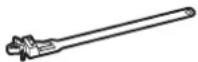
□ Touch pen adapter: 1

□ Wireless adapter: 1
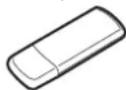
□ Wireless token: 1

□ CD-ROM (Utility Disk): 1
☐ SHARP Display Connect License: 1
□ Setup Manual: 1
□ Touch pen: 1
□ Pen tip (for touch pen): 2
☐ Touch pen battery (LR-03 ("AAA" size)): 1
□ Tray: 1
□ USB cable: 1
□ Eraser: 1
□ Camera mount: 1
☐ Camera screw (inch thread): 1
□ Touch pen adapter screw (Step screw, M3): 1
□ Tray mounting screws (M3) : 5
☐ Wireless adapter cover: 1
☐ RS-232C conversion cable (3.5mm mini jack): 1
□ Cover SHARP logo: 1
Place this sticker onto the SHARP logo to cover the logo.
* SHARP Corporation holds authorship rights to the Utility Disk program. Do not reproduce it without permission.
* For environmental protection!
Do not dispose of batteries in household waste. Follow the disposal instructions for your area.
System Requirements
| Computer | PC/AT compatible computer with a USB 2.0 port and able to output a resolution of 1920 x 1080. (CD-ROM drive required for software installation.) |
| OS | Windows 7 (32-bit or 64-bit version), Windows 8.1 (32-bit or 64-bit version), Windows 10 (32-bit or 64-bit version) |
| CPU | Intel Celeron B810E 1.6 GHz or fasterIntel Core i7-3517UE 1.7 GHz or faster recommended |
| Memory At least 2 GB | |
| Free space on hard drive At least 5 GB (free space separately required for data storage) | |
To use a touch panel with a computer connected to the video input terminal on this monitor, the touch panel and computer must be connected, and Touch pen Management Tool and Pen Software must be installed on the computer from the supplied CD-ROM.
When the Information Display Downloader is installed, you can check and download the most recent versions of the software programs.
To use a touch panel with a computer connected to the bottom, connect to the USB 1 port.
To use a touch panel with a computer connected to the side, connect to the USB 2 port.
(Factory setting. Can be changed in TOUCH INPUT SELECT in the SETUP menu.)
Download the setup program for the SHARP Display Connect and Touch Viewer with the Information Display Downloader.
To display a computer screen on the monitor by wireless, use MirrorOp for SHARP and the built-in Wireless controller.
In Wireless mode, a touch panel can be used even with a computer that does not have Touch pen Management Tool installed.
To install and use the software, see the manual for each.
Part Names
■Front view
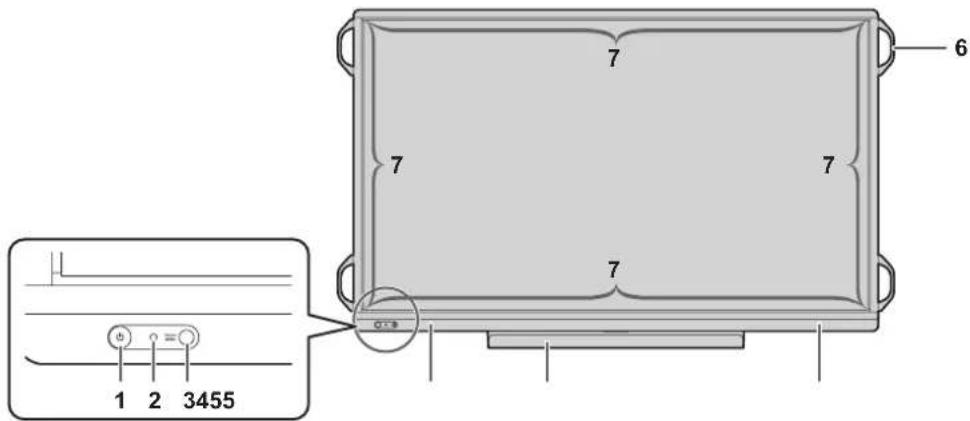
- POWER button / Power LED (See page 18.)
- Remote control sensor (See page 15.)
-
TOUCH MENU button (See page 25.)
-
Tray
- Speakers
- Handles (2 on the PN-L603WA)
- Infrared transmitter/receiver
■Rear view
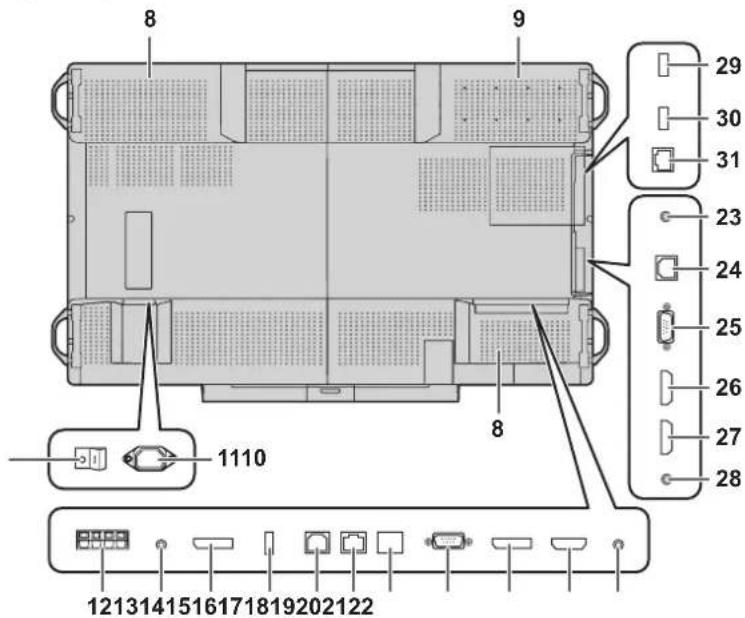
TIPS
- It is convenient to use the terminals for separate purposes; for example, using the terminal on the bottom of the monitor to connect a fixed computer and using the terminal on the side of the monitor to connect a mobile computer.
! Caution
- Consult your SHARP dealer for attachment/detachment of optional parts.
- Vents
- Optional attachment section
This section is used to connect optional hardware for function expansion. Offering this attachment location is not a guarantee that future compatible hardware attachments will be released.
- Main power switch (See page 18.)
- AC input terminal (See page 14.)
- External speaker terminals (See page 13.)
- Audio output terminal (See page 13.)
- DisplayPort output terminal (See page 13.)
- Touch pen adapter port (See page 20.)
- USB 1 port (for touch panel) (See page 13.)
- LAN terminal (See page 13.)
- Optional terminal
This terminal is provided for possible future (optional) function expansion. Offering of this terminal is not a guarantee that future expanded functionality will be provided.
- D-sub 1 input terminal (See page 12.)
- DisplayPort input terminal (See page 12.)
- HDMI 1 input terminal (See page 12.)
- Audio 1 input terminal (See page 13.)
- RS-232C input terminal (See page 13.)
- USB 2 port (for touch panel) (See page 13.)
- D-sub 2 input terminal (See page 12.)
- HDMI 2 input terminal (See page 12.)
- HDMI 3 input terminal (See page 12.)
- Audio 2 input terminal (See page 13.)
Wireless controller terminals
- Wireless adapter port (See page 13.)
- USB port (See page 13.)
- LAN terminal (See page 13.)
■Remote control unit

- Signal transmitter
- POWER button (See page 18.)
- MUTE button (See page 26.)
- VOL +/- buttons (See page 26.) BRIGHT +/- buttons (See page 27.) Cursor control ▲ / ▼ / ▶ buttons
- DISPLAY button (See page 27.)
- MODE button (See page 27.)
- INPUT button (See page 26.)
- MENU button (See page 26.)
- ENTER button (See page 27.)
- RETURN button (See page 27.)
- SIZE button (See page 27.)
Connecting Peripheral Equipment
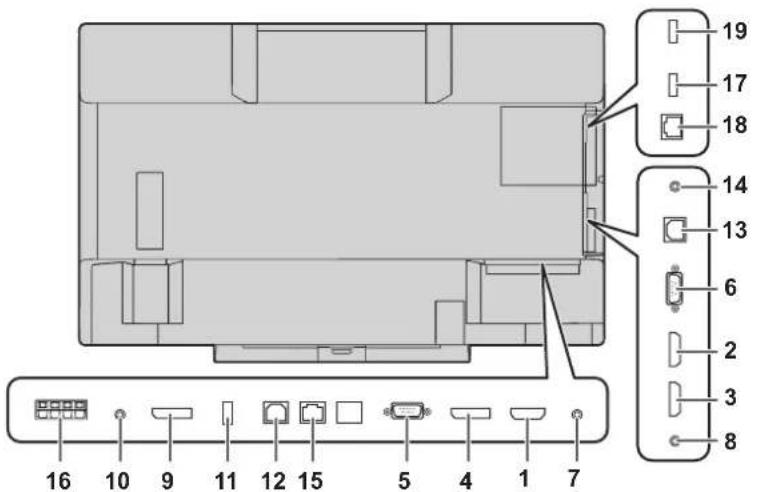
! Caution
- Be sure to turn off the main power switch and disconnect the plug from the power outlet before connecting/disconnecting cables. Also, read the manual of the equipment to be connected.
- Be careful not to confuse the input terminal with the output terminal when connecting cables. Accidentally reversing cables connected to the input and output terminals may cause malfunctions and the other problems.
- Do not use any cable that has a damaged or deformed terminal. Using such cables may cause malfunctions.
TIPS
- When using a touch panel with a computer connected to the video input terminal on this monitor, connect the USB cable to the computer. For details, see the Touch pen Management Tool Operation Manual.
- Images may not be displayed properly depending on the computer (video card) to be connected.
- Use the automatic screen adjustment when a computer screen is displayed for the first time using D-SUB1 or D-SUB2, or when the setting of the computer is changed. The screen is adjusted automatically when SELF ADJUST in the MONITOR menu is set to ON.
- If the audio output from the playback device is connected directly to speakers or other devices, the video on the monitor may appear delayed from the audio portion. Audio should be played through this monitor by connecting the playback device to the monitor's audio input, and connecting the monitor's audio output to the speakers or other devices.
- The audio input terminals used in each input mode are factory-set as follows.
| Input mode | Audio input terminal (Factory setting) |
| D-SUB1 Audio 1 input terminal | |
| D-SUB2 Audio 2 input terminal | |
| DisplayPort DisplayPort input terminal | |
| HDMI1 HDMI 1 input terminal | |
| HDMI2 HDMI 2 input terminal | |
| HDMI3 HDMI 3 input terminal | |
| Direct Drawing Audio 1 input terminal | |
| Wireless Wireless |
It is convenient to use the terminals for separate purposes; For example, using the terminal on the bottom of the monitor to connect a fixed computer and using the terminal on the side of the monitor to connect a mobile computer.
1. HDMI 1 input terminal
2. HDMI 2 input terminal
3. HDMI 3 input terminal
- Use a commercially available HDMI cable (conforming to the HDMI standard).
- Set HDMI1/HDMI2/HDMI3 of INPUT SELECT on the SETUP menu according to the device to be connected.
- Select the audio input terminal to be used in AUDIO SELECT of the SETUP menu. When HDMI is selected, it is not necessary to connect an audio cable to the audio input terminal.
4. DisplayPort input terminal
- Use a commercially available DisplayPort cable (conforming to the DisplayPort standard).
- Select the audio input terminal to be used in AUDIO SELECT of the SETUP menu. When DisplayPort is selected, it is not necessary to connect an audio cable to the audio input terminal.
5. D-sub 1 input terminal
- Set D-SUB1 of INPUT SELECT on the SETUP menu according to the device to be connected.
- To use with D-SUB1[VIDEO], connect the green terminal to the device's video output.
- Select the audio input terminal to be used in AUDIO SELECT of the SETUP menu.
6. D-sub 2 input terminal
- Select the audio input terminal to be used in AUDIO SELECT of the SETUP menu.
7. Audio 1 input terminal
8. Audio 2 input terminal
- Use an audio cable without resistance.
- Set the audio input terminal to be used in each input mode in AUDIO SELECT on the SETUP menu.
9. DisplayPort output terminal
- The screen displayed on the monitor and the audio output from the monitor can be output to an external device.
- Use a commercially available DisplayPort cable (conforming to the DisplayPort standard).
- Outputting HDCP-encrypted video requires an external device which supports HDCP.
10. Audio output terminal
- The output sound varies depending on the input mode.
- The volume of the output sound can be fixed by setting AUDIO OUTPUT of AUDIO OPTION on the SETUP menu.
- It is not possible to control the sound output from the audio output terminals with the AUDIO menu.
11. Touch pen adapter port
- Connect the touch pen adapter (supplied). (See page 20.)
12. USB 1 port (for touch panel)
- To use the touch panel with the computer connected to the bottom, connect the touch panel to the computer with the USB cable. (Factory setting. Can be changed in TOUCH INPUT SELECT on the SETUP menu.)
13. USB 2 port (for touch panel)
- To use the touch panel with the computer connected to the side, connect to the computer with the USB cable. (Factory setting. Can be changed in TOUCH INPUT SELECT in the SETUP menu.)
14. RS-232C input terminal
- The monitor can be connected to a computer using the RS-232C conversion cable (supplied) and a commercially available RS-232 straight cable to control the monitor from the computer.
15.LANterminal
- You can control the monitor from a computer on a network by connecting a commercially available LAN cable between this terminal and a network.
16. External speaker terminals
- To use external speakers, set SPEAKER SELECT to EXTERNAL in AUDIO OPTION on the SETUP menu.
- Be sure to use external speakers with an impedance of 6Ω or greater and a rated input of at least 10 W.

-
While pushing the tab, insert the tip of the cable.
-
Release the tab.
TIPS
- Be sure to connect the + and - terminals and the left and right speakers properly.
- Avoid short circuiting the + and - terminals.
- When SPEAKER SELECT is set to EXTERNAL, the internal speakers are disabled.
Wireless controller terminals
For information on the wireless controller, see the Wireless Controller Operation Manual.
17.USBport
- Connect the USB flash drive that will be used with the wireless controller.
18. LAN terminal
- A commercially available LAN cable can be used to connect the wireless controller to the network while in use.
19. Wireless adapter port
- Connect the wireless adapter (supplied). (See page 17.)
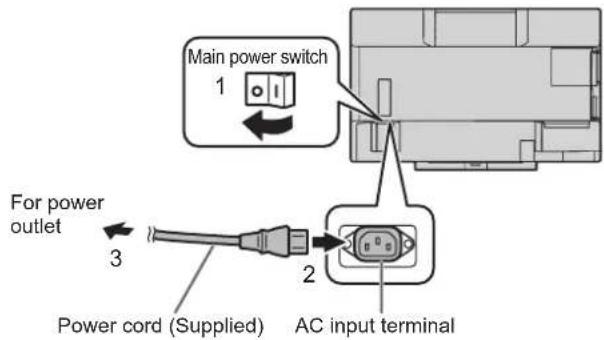
Connecting the Power Cord
!Caution
- Use only the power cord supplied with the monitor.
- Turn off the main power switch.
- Plug the power cord (supplied) into the AC input terminal.
- Plug the power cord (supplied) into the power outlet.
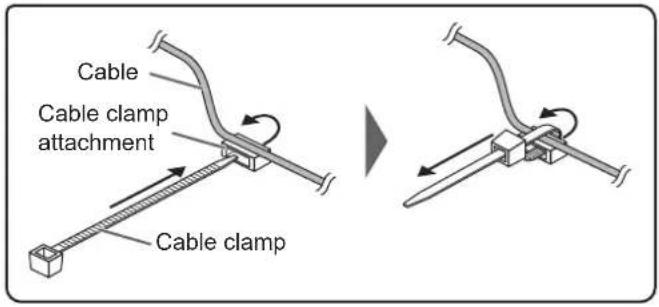
Binding Cables

The cables connected to the terminals on the rear of the monitor can be fastened with the cable clamp.
*1 *2

Preparing the Remote Control Unit
Installing the batteries
- Press the cover gently and slide it in the direction of the arrow.
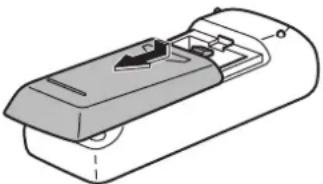
- See the instructions in the compartment and put in the supplied batteries (R-6 ("AA" size) x 2) with their plus (+) and minus (-) sides oriented correctly.
- Close the cover.
TIPS
- When the batteries become exhausted, replace them with new (commercially available) batteries.
- The supplied batteries (R-6 ("AA" size) x 2) may become exhausted quickly depending on how they are stored.
- If you will not be using the remote control for a long time, remove the batteries.
- Use manganese or alkaline batteries only.
Remote control operation range
The operation range of the remote control unit is approx. 16.4 feet (5 m) at an angle of approx 10° from the center to the top/bottom/right/left of the remote control sensor.
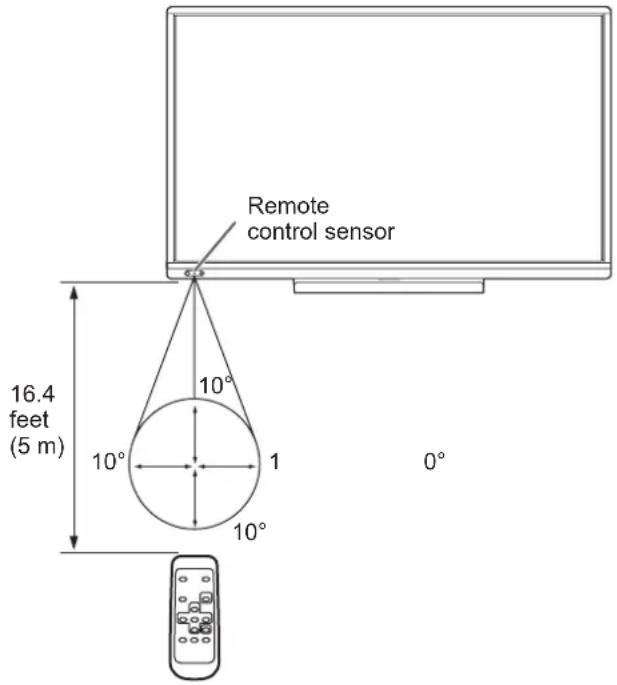
TIPS
- Do not expose the remote control unit to shock by dropping or stepping on it. This could lead to a malfunction.
- Do not expose the remote control unit to liquids, and do not place it in an area with high humidity.
- The remote control unit may not work properly if the remote control sensor is under direct sunlight or strong lighting.
- Objects between the remote control unit and the remote control sensor may prevent proper operation.
- Replace the batteries when they run low as this may shorten the remote control's operation range.
- If a fluorescent light is illuminated near the remote control unit, it may interfere with proper operation.
- Do not use it with the remote control of other equipment such as air conditioner, stereo components, etc.
Removing the Handles
The handles can be removed.

Caution
- The removable handles and handle screws are for use with this monitor. Do not use them for any other devices.
- To attach handles, be sure to use the handles and handle screws which were removed from this monitor.
- Be sure the handles are attached securely.
Mounting a web camera
It is possible to mount a commercially available web camera in the following positions:
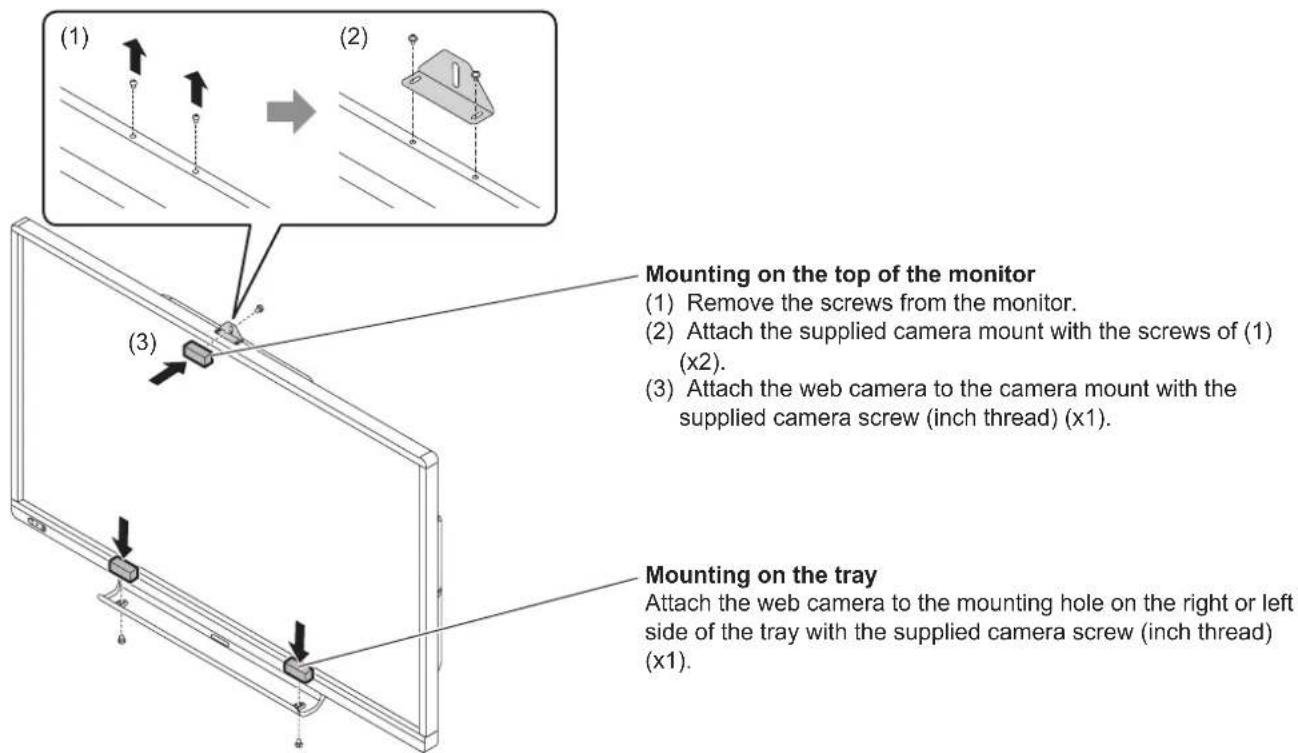
Connecting the wireless adapter
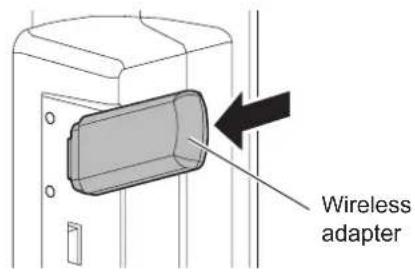
To connect a computer to this monitor by wireless, connect the wireless adapter (supplied) to this monitor.
- Remove the screw next to the wireless adapter port on this monitor.
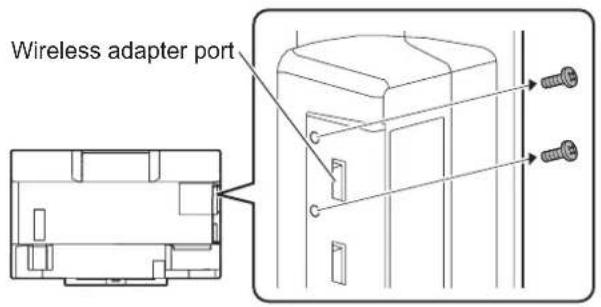
- Insert the wireless adapter (supplied) into the wireless adapter port.
- Attach the wireless adapter cover (supplied), and fasten with the screw you removed in step 1.
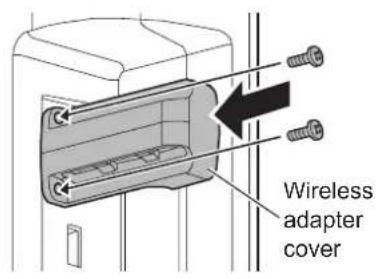
!Caution
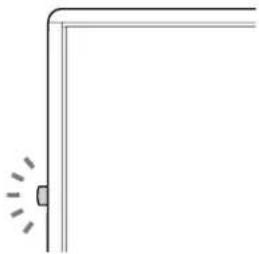
- On the PN-L603WA, the wireless adapter extends out from the monitor. Take care not to bump or pull on the terminal.
Connecting the wireless token
The wireless token contains the "MirrorOp for SHARP" software used to connect a computer by wireless. Connect the wireless token to the computer that you want to display by wireless. For details, see the Wireless Controller Operation Manual.
Turning Power On/Off
!Caution
- Turn on the monitor first before turning on the computer or playback device.
• To keep the performance of the wireless controller stable, put the monitor in the Power off (Standby mode) state once a day. - When switching the main power switch or the POWER button off and back on, always wait for at least 5 seconds. A short interval may result in a malfunction.
Turning on the main power

!Caution
- The main power must be turned on/off with the main power switch. Do not connect/disconnect the power cord or turn the breaker on/off while the main power switch is on.
- For a complete electrical disconnection, pull out the main plug.
Turning power on
- Press the POWER button.
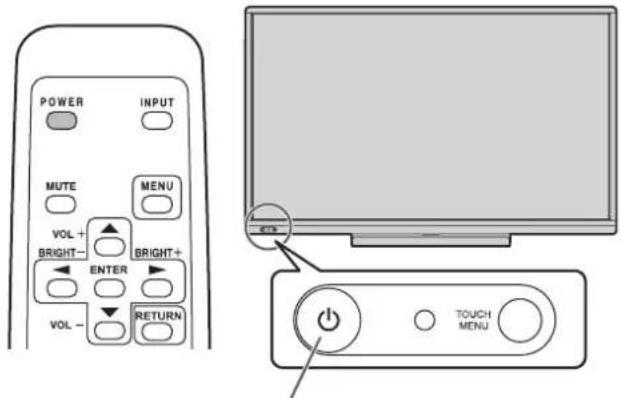
POWER button / Power LED
| Status Status of the monitor | |
| Green lit Power on | |
| Orange lit Power off (Standby mode) | |
| Green flashing Input signal waiting mode | |
TIPS
- When the main power switch is off, the monitor cannot be turned on.
- If the monitor is in input signal waiting mode and you press the POWER button, the monitor enters standby mode.
- Setting the SCHEDULE flashes the power LED alternately in red and orange in standby mode.
- To disable the logo screen from displaying when turning the power ON, set LOGO SCREEN to OFF on the OTHERS menu. (See page 37.)
- You can fix the input mode that appears after startup. Set START INPUT MODE on the SETUP menu.
■Date/time setting
- If the time has yet to be set when the monitor is first turned on, the date/time setting screen appears. Set the date and time.
![DATE/TIME SETTING —/—/— —— —:— 01/16 12:4:0 OK…[ENTER] CANCEL…[RETURN]](/content/2026/06/1204592/images/f28f7fd2794bb7e99a39017f5f89f21b882bc828b9ab89fab537a67f6a0a50e4.jpg)
-
Press or to select the date and time, and press or to change the numerical values.
-
Press ENTER .
-
Be sure to set the date and time.
- The date/time setting screen will close automatically if no operation is performed for about 15 seconds. The date and time can be set using DATE/TIME SETTING from the SETUP menu when the date/time setting screen disappears.
TIPS
- Set the date in "Month/Day/Year" order.
- Set the time on a 12-hour basis.
- The clock is maintained by the internal battery.
- If you already set the time but the date/time setting screen appears when the power is turned on, the internal battery may be exhausted. Please contact your local SHARP servicing dealer or service center for assistance with battery replacement.
• Estimated service life of the internal battery: About 5 years (depending on monitor operation) - The initial battery was inserted at the factory when the monitor was shipped, so it may run out of power before its expected operation life.
Turning power off
1. Press the POWER button.
The monitor enters standby mode.
!Caution
- When the power is in the off state, the wireless LAN access point function of the wireless controller cannot be used.
- When the power is turned off, any handwritten data on the Wireless mode and Direct Drawing mode is lost. Always save any data that you need before turning off the power. In Direct Drawing mode or Wireless mode, a confirmation message appears when the POWER button is pressed.
- If the monitor will be turned off by SCHEDULE, LAN control, or OFF IF NO OPERATION, save any data you need in advance. The power will turn off even if there is unsaved data. (The data will be lost.)
Touch Panel / Touch Pen Preparations
Connecting the touch pen adapter
To use the touch pen, insert the touch pen adapter into the touch pen adapter port on the monitor.

Touch Pen Preparations
■Inserting the battery
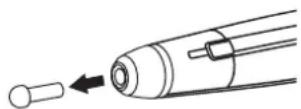
- Remove the battery cap.
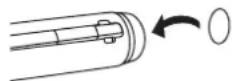
- Open the cover and insert the supplied battery (LR-03 ("AAA" size)) into the touch pen.
Check the plus (+) and minus (-) markings on the inside of the touch pen and insert the battery in the correct orientation.

- Replace the cover and battery cap.
TIPS
- The supplied battery (LR-03 ("AAA" size)) may be exhausted in a short time, depending on how it was stored.
- If the touch pen will not be used for an extended time, remove the battery from the touch pen.
- For the battery, use an alkaline battery.
Computer preparations
To use the touch panel, the touch pen and the eraser with a computer that is connected to the video input terminal on this monitor, install the software below.
- Touch pen Management Tool
- Pen Software
To install the software, see the manual for each.
TIPS
- In Wireless mode, a touch panel can be used even with a computer that does not have Touch pen Management Tool installed.
Touch pen actions
Only use touch pens that are used with this monitor (supplied touch pens or optional PN-ZL02A).
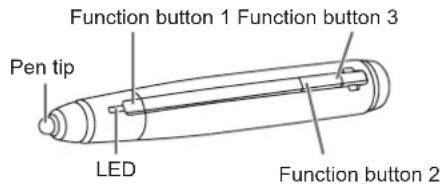
The factory default settings for the function buttons are as follows.
• Function button 1 : Pen Software Link
• Function button 2 : PageDown
• Function button 3 : PageUp
You can change the functions that are assigned to the function buttons. For details, see the Touch pen Management Tool Operation Manual.
Using as a digitizer pen
A touch pen can be used as a Windows digitizer pen. To use a touch pen as a digitizer pen, change the "Touch Operation Mode Setting" to "Pen digitizer Mode" in the Touch pen Management Tool. For details, see the Touch pen Management Tool Operation Manual.
TIPS
- When the function button is pressed, the LED illuminates. If the LED does not illuminate, check if the battery is depleted.
• If the LED blinks orange, the battery is low. - If not connected to the touch pen adapter, the LED will blink light blue.
- Use function buttons near the front of the screen. If too far away, operation will not be possible.
- Press function buttons slowly and firmly. If pressed too quickly, the action may not be recognized.
- The line may break if the touch pen battery is low or there is other wireless equipment in operation nearby.
• If the pen tip becomes worn or damaged, replace it.
■Touch pen settings
Touch pen settings are configured using the Touch pen Management Tool. For details on the settings and how to use the utility, see the Touch pen Management Tool Operation Manual.
TIPS
- When using the Wireless controller, you do not need to set the touch pen. The setting of Touch pen Management Tool is also unnecessary.
Adding touch pens (pairing)
- Up to 4 touch pens can be used simultaneously. (Up to 8 touch pens can be registered.) When touch pens are added, they can be used to write simultaneously, and a different color can be set for each pen.
| Item Model Remarks | |
| Touch pen PN-ZL02A Additional | touch pen |
- To use an optional touch pen with the monitor, the touch pen must be registered in the touch pen adapter. (pairing)
- Use the Touch pen Management Tool to perform touch pen pairing. For details, see the Touch pen Management Tool Operation Manual.
- Perform touch pen pairing for one pen at a time.
TIPS
- When multiple touch pens are used, touch positions and touch pen information (color, thickness, etc.) may become interchanged, and lines may break.
- When touched simultaneously
- When touch pens are moved near each other
- When batteries are low
- When other wireless equipment is operating nearby
- Do not press the pen tip on other than the screen. This may cause malfunctioning.
- One touch pen cannot be registered in multiple touch pen adapters.
- You can affix the supplied ID labels to the PN-ZL02A to distinguish the touch pens.
Touch action
Touch action
Touch actions that can be used with this monitor differ according to operating system and application. The functions of touch actions are also different. For details, check Windows Help and the application's support documentation.
| OS Touch action | Windows 8.1 / 10 | Windows 7 |
| Single-tap | Yes Yes | |
| Double-tap | Yes Yes | |
| Swipe | Yes Yes | |
| Swipe from edge of screen | Yes No | |
| Drag-and-drop | Yes Yes | |
| Slide to pan | Yes Yes | |
| Flicks | Yes Yes | |
| Press-and-hold | Yes Yes | |
| Zoom | Yes Yes | |
| Press-and-tap | No Yes | |
| Rotate | Yes Yes |
TIPS
- In Windows 7, if the checkmark has been removed from "Enable multi-touch gestures and inking" in "Pen and touch" in Control Panel, select the checkbox.
- For the procedures for using the touch pen in the Pen Software, see the Pen Software Operation Manual.
■Common finger and touch pen actions
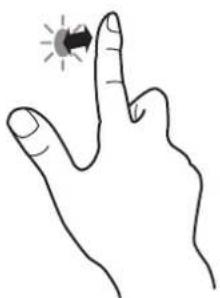
Single-tap
Same action as left-clicking a mouse. Touch with your finger/touch pen.
Double-tap
Same action as double-clicking a mouse. Quickly touch twice with your finger/touch pen.
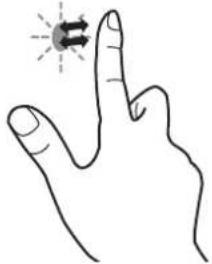
When double-tapping with your finger, be sure to lift your finger sufficiently off the screen after the first tap. If there is insufficient distance between the screen and your finger, double-tap will not take place.
Swipe
Touch the screen with your finger/touch pen, move without lifting, and then stop.
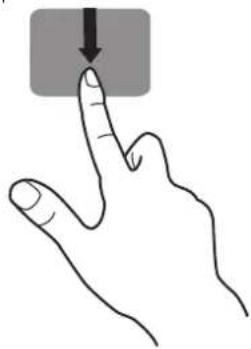
Swipe from edge of screen
After touching the edge of the monitor with your finger/touch pen, move horizontally without releasing your finger/touch pen and then stop.

Drag-and-drop
Same action as drag-and-drop with a mouse.
Touch the screen with your finger/touch pen and move without lifting. When you have finished the movement, lift your finger/touch pen.
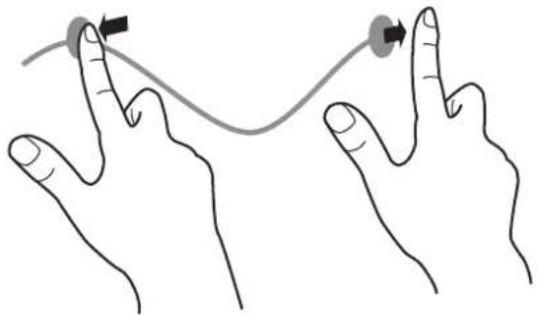
Flicks
Flick your finger/touch pen in the direction of the function you want to use.

Press-and-hold
Same action as right-clicking a mouse.
Press briefly with your finger/touch pen, and then lift your finger/touch pen from the screen.

Slide to pan
With your finger/touch pen touching the screen, move it up and down to scroll the screen.
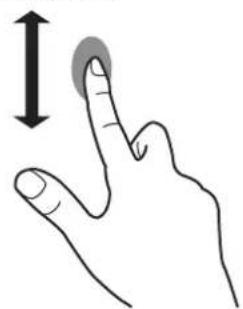
■Finger actions
Zoom
Use in a screen that is capable of enlargement/reduction. Touch the screen with two fingers and move your fingers closer together to reduce the view, or apart to enlarge the view.

Reduction
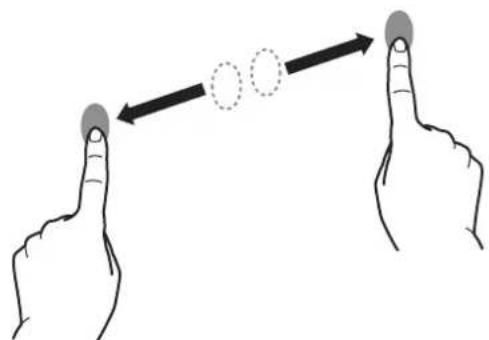
Enlargement
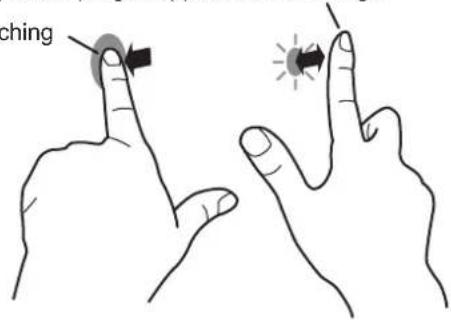
Press-and-tap
Same action as right-clicking a mouse.
With one finger touching the screen, tap once (single tap) with another finger.
Tap once (single tap) with another finger
With one finger touching
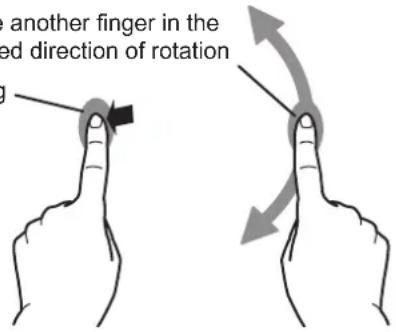
Rotation
Use this action in a screen that is capable of image rotation. Touch the center point of the rotation with one finger. While holding that finger still, move another finger in the desired direction of rotation.
Move another finger in the desired direction of rotation
With one finger touching
TIPS
- The screen may not respond correctly in the following cases:
Touch gesture is too quick
The distance between the two points is too short
The two points intersect
Other functions
In Windows 8.1/10, input panel functions can be used.
In Windows 7, touch pointer and input panel functions can be used.
For information on these functions, see Windows Help.
Touch pointer :
A translucent image of a mouse appears near the point touched. The left/right buttons of the image can be clicked to perform the same actions as left/right clicking a mouse.
Input panel :
A software keyboard and an input panel with handwriting recognition appear on the screen.
Windows 8.1/10 and Windows 7 (excluding Starter), the ink function of Microsoft Office can be used.
Handwritten comments can be written, and handwriting can be recognized.
For details, see Microsoft Office Help.
Cautionary points
- Do not use the touch pen for any purpose other than touch panel operation.
- Do not press hard on the pen tip.
- Operation will not take place correctly if there is an obstacle between the infrared transmitter/receiver and the touch pen or your finger. Operation will not take place correctly if your fingers or your sleeve is near the screen.
- If the touch pen is held too flat against the screen, the touch position may not be correctly detected.
- If the touch pen does not work at the edge of the screen, move it slowly.
- This may not operate correctly if there is an inverter fluorescent light nearby.
- Do not store with the pen tip of the touch pen or function button pressed. The battery will be exhausted.
- If there is dirt or foreign matter on the tip of the touch pen, remove it. Foreign matter may damage the screen.
- The touch pen position may occasionally deviate in the login screen. In this case, use the keyboard or mouse.
- If the USB cable becomes disconnected, the touch panel may not operate correctly after the USB cable is reconnected. In this case, restart the computer.
Eraser
The eraser is used with the Pen Software and Direct Drawing. For the procedure for using the eraser, refer to the Pen Software Operation Manual or Wireless Controller Operation Manual.
!Caution
- When using the eraser, gently bring the cloth side into contact with the screen. Touching the screen with one of the non-cloth sides will damage the screen.
- If there is any dirt or foreign matter on the surface that contacts the screen, remove it. Foreign matter may damage the screen.
- When the "Touch Operation Mode Setting" of the Touch pen Management Tool is "Pen digitizer Mode":
- Even if you use the eraser in the Pen Software, the eraser will be the standard size eraser.
- The eraser can be used in the software below. Microsoft Office 2007/2010/2013/2016
Basic Operation
Using the touch menu
You can touch the monitor to change input mode, volume, and other settings.
1. Press the TOUCH MENU button.
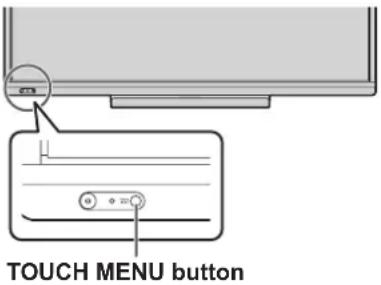
2. Touch the screen to change settings.

(1) INPUT (Input mode selection)
Changes the input mode.
| Input mode Video | Audio | |
| DisplayPort DisplayPort input terminal | *5 | |
| HDMI1 HDMI1 input terminal | *1 | |
| HDMI2 HDMI2 input terminal | *2 | |
| HDMI3 HDMI3 input terminal | *3 | |
| D-SUB1 D-sub1 input terminal | *4 | |
| D-SUB2 D-sub2 input terminal | ||
| Direct Drawing*6 | Direct Drawing | |
| Wireless*7 | Wireless | |
- When the input mode is changed, the touch panel connection also changes. You can set whether the side or bottom USB port is used in each input mode. (See page 34.)
*1 Select the terminal to be used in HDMI1 of INPUT SELECT. (See page 33.)
*2 Select the terminal to be used in HDMI2 of INPUT SELECT. (See page 33.)
*3 Select the terminal to be used in HDMI3 of INPUT SELECT. (See page 33.)
*4 Select the terminal to be used in D-SUB1 of INPUT SELECT. (See page 33.)
*5 Select the terminal for AUDIO SELECT which is used for audio input. (See page 33.)
*6 Select this to use the monitor as a whiteboard. For details, see the Wireless Controller Operation Manual.
*7 Select this to display a computer by wireless. For details, see the Wireless Controller Operation Manual.
(2) Volume adjustment
Changes the volume.

Touch again to return the sound to the original volume.
(3) Touch action setting
Touch to disable touch action.
Touch again to enable touch action.
TIPS
- When the input mode is changed, the disable touch action setting is canceled.
- When TOUCH OUTPUT INVALID ICON is set to ON and touch action is disabled, the TOUCH OUTPUT INVALID icon appears in the monitor.
- You can touch the TOUCH OUTPUT INVALID icon in the monitor to enable touch action.
- The position of the TOUCH OUTPUT INVALID icon can be changed. (See page 35.)
- The TOUCH OUTPUT INVALID icon appears even when a USB cable is not connected.
(4) Exit touch menu
Closes the touch menu.
TIPS
- The touch menu can also be used with the remote control unit.
(1) Hold down DISPLAY at least 5 seconds. The touch menu appears.
(2) Select the setting item with
(3) Set with ▲, and press
- The setting is entered.
- Press RETURN to exit the touch menu.

Using the remote control unit
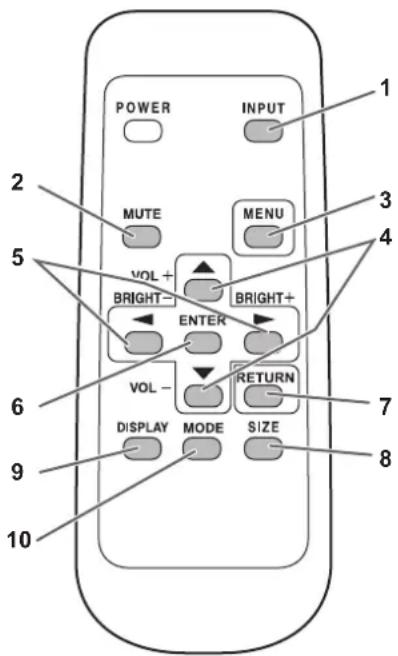
1. INPUT (Input mode selection)
The menu is displayed. Press □ or □ to select the input mode, and press ENTER to enter.
* For the input modes that can be selected, see "Using the touch menu" (see page 25.).
2. MUTE
Turns off the volume temporarily.
Press the MUTE button again to turn the sound back to the previous level.
3. MENU
Displays and turns off the menu screen. (See page 29.)
4. VOL +/- (Volume adjustment)
Pressing ▲ or ▼ displays the VOLUME menu when the menu screen is not displayed.

Press or to adjust the volume.
* If you do not press any buttons for about 4 seconds, the VOLUME menu automatically disappears.
* You can also change the setting by touch action.
5. BRIGHT +/- (Backlight adjustment)
Pressing □ or ▶ displays the BRIGHT menu when the menu screen is not displayed.

Press or to adjust the brightness.
* If you do not press any buttons for about 4 seconds, the BRIGHT menu automatically disappears.
6. ENTER
Confirms the setting.
7. RETURN
Returns to the previous screen.
8. SIZE (Screen size selection)
The menu is displayed.
Press □ or ▼ to select the screen size. (See page 28.)
9. DISPLAY
Displays monitor information.
![INFORMATION1 01/01/2016 FRI 12:00:00 AM INPUT MODE : D-SUB1 [RGB] SIZE : WIDE COLOR MODE : STD BRIGHT : 31 VOLUME : 15 MODEL : PN-L703W [X.X.X.X/X.X.X.X] S/N : XXXXXXXX STATUS : 0000-000000-00-0000 TOUCH PANEL : OK LAN 1920x1080 V: 60 Hz H: 67.5 kHz](/content/2026/06/1204592/images/39fd320bc5d706f9fb43659a35ffec4dabab394f96f647e8231b37c91202a34d.jpg)

The display changes from INFORMATION1 →
INFORMATION2 → clear display, and so on every time you press this button.
- The display disappears automatically after about 15 seconds.
• LAN is displayed during LAN communication. - If LAN is displayed in red, there is a duplicate IP address.
10. MODE (Color mode selection)
Each time you press this button, the color mode changes in the following order:
STD (Standard) → VIVID → sRGB → HIGH ILLUMINANCE → STD...
- sRGB applies to PC input only.
sRGB is international standard of color representation specified by IEC (International Electrotechnical Commission). Color conversion is made in taking account of liquid crystal's characteristics and represents color tone close to its original image.
- HIGH ILLUMINANCE is a display with colors suited to bright locations.
■Switching the screen size
Even when the screen size is changed, the display may remain the same depending on the input signal.
| WIDE PC input Displays image so it fills the entire screen. | |||
| AV input An image with a 4:3 aspect ratio is stretched to fill the entire screen. | |||
| ZOOM 1 | 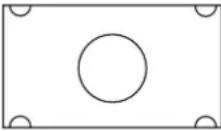 | PC input An image with a 4:3 aspect ratio is enlarged to fill the entire screen without changing the aspect ratio. The edges of the image may be cut off. | |
| AV input | |||
| ZOOM 2 | 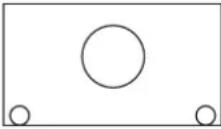 | PC input Use this size if ZOOM 1 cuts off the subtitles. | |
| AV input | |||
| NORMAL | 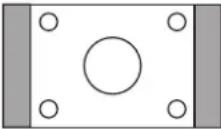 | PC input Displays image so it fills the screen without changing the aspect ratio of the input signals. | |
| AV input Displays the entire image of the aspect ratio of 4:3 without changing the aspect ratio. | |||
| Dot by Dot | 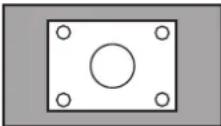 | PC input Displays the dots of the signals input from the connected PC as the corresponding dots on the screen. | |
| AV input Displays the dots of the input signals as the corresponding dots on the screen. | |||
TIPS
- Using this monitor's screen-size switching or dual-screen display functions to compress or expand the screen for commercial or public viewing in establishments like cafes or hotels may infringe on the rights of the creators, as protected by Copyright Law, so please be careful.
- When dual-screen display is selected, the screen size cannot be changed.
- The appearance of the original video may change if you select a screen size with a different aspect ratio than the original image (e.g. TV broadcast or video input from external equipment).
- When an ordinary non-wide image (4:3) is viewed with the whole screen using the screen-size switching function of this monitor, the edge of the image may be lost or appear distorted. If you wish to respect the creator's intentions, set the screen size to "NORMAL".
- When playing commercial software, parts of the image (like subtitles) may be cropped. In this case select the optimal screen size using the screen-size switching function of this monitor. With some software, there may be noise or distortion at the edges of the screen. This is due to the characteristics of the software, and is not a malfunction.
- Depending on the original image size, black bands may remain at the edges of the screen.
Menu Items
Displaying the menu screen
Video and audio adjustment and settings of various functions are enabled. This section describes how to use the menu items. See pages 30 to 37 for details of each menu items.
Caution
- Do not turn the main power switch off while the menu items are being displayed. Doing so may initialize the settings.
■Example of operation
(Adjusting CONTRAST in the PICTURE menu)
- Press ☐ to display the menu screen.
![SCREEN SCREEN D-SUB1[RGB] PICTURE AUDIO SETUP MONITOR PIP/PbyP OTHERS AUTO CLOCK 600 PHASE 25 H-POS 610 V-POS 37 H-SIZE 50 V-SIZE 50 RESOLUTION SETTING ⇒ RESET ⇒ OK…[ENTER] BACK…[RETURN] 1920 x 1080 V: 60 Hz H: 67.5 kHz](/content/2026/06/1204592/images/c39873f2aee1b299606678d57d19b7655caff720034cf30aafbdcbd0459f6b91.jpg)
-
Press ▲ or ▼ to select PICTURE, and press ENTER.
-
Press ▲ or ▼ to select CONTRAST.
![SCREEN PICTURE BRIGHT 31 CONTRAST 30 BLACK LEVEL 30 TINT 30 COLORS 30 SHARPNESS 12 COLOR ADJUSTMENT ⇒ ADVANCED ⇒ RESET ⇒ 〈D-SUB1[RGB]〉 BACK...[RETURN]M 1920 x 1080 V: 60 Hz H: 67.5 kHz](/content/2026/06/1204592/images/e638e6698bee44be9d49fa406a8ff52a827ae63aa37c999e057fea74219014e7.jpg)
- Press or to adjust the setting.
![SCREEN PICTURE BRIGHT 31 CONTRAST 40 BLACK LEVEL 30 TINT 30 COLORS 30 SHARPNESS 12 COLOR ADJUSTMENT → ADVANCED → RESET → 〈D-SUB1[RGB]〉 AUDIO SETUP MONITOR PIP/PbyP OTHERS BACK...[RETURN]M 1920 x 1080 V: 60 Hz H: 67.5 kHz](/content/2026/06/1204592/images/13ef58d5c691fbc8f14f53b7d6511fce3b8ea2ab483245d9c64fe92a4cba1bd7.jpg)
For items that have ▶press ENTER, make settings and then press RETURN.
- Press ☐ to close the menu screen.
TIPS
- The menu will differ depending on the input mode.
- The menu screen will close automatically if no operation is performed for about 15 seconds. (DATE/TIME SETTING, SCHEDULE and LAN SETUP screens will close in about 4 minutes.)
■Menu screen display
![SCREEN PICTURE BRIGHT 31 CONTRAST 30 BLACK LEVEL 30 TINT 30 COLORS 30 SHARPNESS 12 COLOR ADJUSTMENT ADVANCED → RESET → (D-SUB1[RGB]) AUDIO SETUP MONITOR PIP/PbyP OTHERS 1920 x 1080 V: 60 Hz H: 67.5 kHz BACK...[RETURN]M 4](/content/2026/06/1204592/images/8b7be491b071ad84844d5beb01831918fe0ed07cc8d2eb952045e17b5c319570.jpg)
1 Name of the menu
2 Input mode
3 An item being selected (highlighted)
4 Screen resolution of input signal, and other data.
TIPS
- Items that cannot be selected appear in gray. (e.g. Function not supported by the current input signal)
Menu item details
The menu will differ depending on the input mode.
■SCREEN
You can move the menu screen display position each time DISPLAY is pressed.
AUTO (D-SUB1[RGB]/D-SUB2/Direct Drawing/Wireless)
The CLOCK, PHASE, H-POS, and V-POS are automatically adjusted. Pressing ENTER performs adjustment. Use this automatic adjustment when you use the D-SUB1[RGB] or D-SUB2 to display a computer screen for the first time or when you change the setting of the computer. (See page 40.)
CLOCK (D-SUB1[RGB]/D-SUB2/Direct Drawing/Wireless)
Adjusts frequency for sampling clock for applicable video.
Adjust when there is flickering in the form of vertical stripes.
When using the adjustment pattern (see page 40), make adjustments so that no vertical stripe noise appears in it.
PHASE (D-SUB1[RGB]/D-SUB2/Direct Drawing/Wireless)
Adjusts sampling clock phase for applicable video. Useful when small characters appear with low contrast and/or there are flickers at corners. When using the adjustment pattern (see page 40), make adjustments so that no horizontal stripe noise appears in it. * Adjustments to PHASE should be made only after CLOCK has been correctly set.
H-POS
Adjust the horizontal position of the image.
V-POS
Adjust the vertical position of the image.
H-SIZE
Adjust the horizontal size of the image.
V-SIZE
Adjust the vertical size of the image.
RESOLUTION SETTING (D-SUB1[RGB]/D-SUB2/Direct Drawing/Wireless)
H-RESOLUTION
Sets proper horizontal resolution when the resolution of input signals is not recognized properly. (Adjustment may be impossible with some signals.)
V-RESOLUTION
Sets proper vertical resolution when the resolution of input signals is not recognized properly. (Adjustment may be impossible with some signals.)
RESET
Resets the values of the SCREEN menu items to the factory preset values. Select "ON" and then press ENTER.
■PICTURE
You can move the menu screen display position each time DISPLAY is pressed.
BRIGHT
Adjusts the backlight brightness. (In PIP mode, the main side setting is reflected in the image.)
CONTRAST
Adjusts the difference between the bright and dark portions of the image.
BLACK LEVEL
Adjusts the entire brightness of the video signals.
TINT
Adjusts the hue. Selecting + changes the color towards green, and selecting - changes it towards magenta.
COLORS
Adjusts the color intensity.
SHARPNESS
Adjusts the sharpness of the image.
COLOR ADJUSTMENT
COLOR MODE
Changes the color mode on the screen. The color mode on the screen can also be changed using a remote control unit. (See page 27.)
* sRGB is PC input only. See page 27 for details.
(In PIP mode, the main side setting is reflected in the image.)
WHITE BALANCE
THRU ......Displays the input signal level as is. (for PC input only)
PRESET......Selects the color temperature using PRESET.
USER ....Used for adjusting R-/G-/B-CONTRAST and R-/G-/B-OFFSET respectively.
(In PIP mode, the main side setting is reflected in the image.)
PRESET
Selects the color temperature when the WHITE BALANCE is set to PRESET.
The setting values are shown for reference. The color temperature of the screen varies over time. This function is not intended to keep the color temperature constant.
USER
Adjusts each item when the WHITE BALANCE is set to USER.
R-CONTRAST....Adjusts bright-toned red component.
G-CONTRAST ... Adjusts bright-toned green component.
B-CONTRAST ....Adjusts bright-toned blue component.
R-OFFSET ...... Adjusts dark-toned red component.
G-OFFSET......Adjusts dark-toned green component.
B-OFFSET ...... Adjusts dark-toned blue component.
COPY TO USER
Copies the value of PRESET to the USER setting.
Select "ON" and then press ENTER.
(In the case other than white, color tone may differ from the PRESET.)
GAMMA
Selects the gamma. USER sets the gamma to the sent value (see page 44).
(In PIP mode, the main side setting is reflected in the image.)
FLESH TONE (AV input)
Adjust the hue control.
When FLESH TONE is set to LOW or HIGH, C.M.S.-HUE/-SATURATION/-VALUE cannot be set.
C.M.S.-HUE (AV input)
Adjusts color tone with 6 colors of R (red), Y (yellow), G (green), C (cyan), B (blue), and M (magenta).
C.M.S.-SATURATION (AV input)
Adjusts color vividness with 6 colors of R (red), Y (yellow), G (green), C (cyan), B (blue), and M (magenta).
C.M.S.-VALUE (AV input)
Adjusts color brightness with 6 colors of R (red), Y (yellow), G (green), C (cyan), B (blue), and M (magenta).
Menu Items
ADVANCED
AUTO (D-SUB1[RGB]/D-SUB2/Direct Drawing/Wireless)
The ANALOG GAIN and ANALOG OFFSET are automatically adjusted.
Pressing ENTER performs adjustment.
ANALOG GAIN (D-SUB1[RGB]/D-SUB2/Direct Drawing/Wireless)
Adjusts the bright portions of the video input signal.
ANALOG OFFSET (D-SUB1[RGB]/D-SUB2/Direct Drawing/Wireless)
Adjusts the dark portions of the video input signal.
3D-NR (AV input)
Reduce the noise of playback images on video.
Setting a higher level reduces more noise. However, it may cause blurring on an image.
MPEG-NR (AV input)
Reduce block noise caused by digital compression.
3D-Y/C (D-SUB1[VIDEO])
Specify whether to perform 3-dimension Y/C separation.
If dot interference or cross-color is occurring in fast-motion scenes, selecting "OFF" may improve the image quality.
RGB INPUT RANGE (HDMI[PC]/HDMI[AV]/D-SUB1[RGB]/D-SUB2/DisplayPort/Direct Drawing/Wireless)
Sets the RGB input signal range. When using HDMI or DisplayPort set to AUTO, the RGB input signal range is detected automatically. Use AUTO normally.
If the RGB input signal range cannot be set appropriately even when using AUTO, set according to the image. When the setting is different, images will be displayed with washed out blacks and compressed gradients.
ACTIVE CONTRAST (AV input)
Automatically adjusts the contrast according to the image.
(In PIP mode, the main side setting is reflected in the image.)
The adjustment operation may not be smooth depending on the image. In this case select OFF.
DISPLAY COLOR PATTERN
Displays a color pattern. Can be displayed while the menu screen is displayed, so you can refer to the pattern while adjusting the image.
OFF......No pattern display.
WHITE......White single color pattern display.
RED......Red single color pattern display.
GREEN ......Green single color pattern display.
BLUE......Blue single color pattern display.
USER....Red/green/blue mixed color pattern display. When USER is selected, set each color's level.
RESET
Resets the values of the PICTURE menu items to the factory preset values.
Select "ON" and then press ENTER
AUDIO
TREBLE
Adjusts the volume of treble-level sound.
BASS
Adjusts the volume of bass-level sound.
BALANCE
Adjusts the balance of the audio sound between right and left.
RESET
Resets the values of the AUDIO menu items to the factory preset values.
Select "ON" and then press ENTER.
SETUP
DATE/TIME SETTING
Set the date and time. Press □ or ▶ to select the date and time, and press ▲ or ▼ to change the numerical values.
Set the date in "Month/Day/Year" order.
Set the time on a 12-hour basis. (Factory default)
DATE/TIME FORMAT
Sets the date/time display format.
DATE ....MM/DD/YYYY, DD/MM/YYYY, YYYY/MM/DD
(YYYY: Year, MM: Month, DD: Day)
TIME......Select 12- or 24-hour time.
SCHEDULE (See page 39.)
You can turn the power on/off and change the screen brightness at a specified time.
LANGUAGE
Sets the display language for the menu screen.
INPUT SELECT
HDMI1/HDMI2/HDMI3
Select the input mode to be used in HDMI1, HDMI2 and HDMI3 input terminals.
D-SUB1
Select the input mode to be used in D-Sub1 input terminal. Select SET after selecting the input mode, and then press ENTER.
HDMI AUTO VIEW
When ON is selected, the screen size is adjusted automatically according to the screen size control signal included in the video signal input from the AV HDMI input terminal.
HOT PLUG CONTROL
Sets whether to use hot plug control for the HDMI1, HDMI2, and HDMI3 input terminals.
INPUT MODE NAME
For each terminal, you can change the input mode name that is displayed during input mode selection and display. The names of INPUT1 to INPUT6* can be changed. (*Factory default)
(1) Select the input mode name (INPUT1 to INPUT6) that you want to change, and press ENTER. If the input mode name can be changed, "EDIT ... [ENTER]" will appear.
(2) Move the cursor to the character that you want to change with , and change the character with Change the character type with MODE (upper case alphabet, lower case alphabet, numbers, symbols).
(3) When you have finished the change, press ☐. Up to 18 characters can be used.
AUDIO SELECT
Selects the terminal used to input audio signals in each input mode.
Menu Items
AUDIO OPTION
SPEAKER SELECT
Set whether to use the built-in speakers or the external speakers connected to the external speaker terminals.
AUDIO OUTPUT
Sets the volume of sound output from the audio output terminals.
VARIABLE1...... You can adjust the volume from the speakers of this monitor and the audio output terminal simultaneously by using VOLUME.
VARIABLE2...... You can adjust the volume from the audio output terminal by using VOLUME.
Sound will not be output from the speakers of this monitor.
FIXED...... Fixes the volume from the audio output terminal. Adjust the volume by using an external device. You can adjust the volume from the speakers of this monitor by using VOLUME.
* The output sound from the speakers of this monitor (internal/external) varies depending on SPEAKER SELECT.
AUDIO INPUT LEVEL 1/2
Selects the maximum audio input level of the audio input 1, 2 terminals.
TOUCH INPUT SELECT
These settings enable use of the touch panel according to input mode selection.
BOTTOM USB
Sets which input mode the touch panel connected to the USB 1 port is used in. Select the terminal into which the video signal of the computer connected to the USB 1 port will be input.
When BOTTOM INPUT TERM. is selected and the input mode is DisplayPort, HDMI1, or D-SUB1, the touch panel can be used with the computer connected to the USB 1 port.
When “-” is selected, the touch panel cannot be used.
SIDE USB
Sets which input mode the touch panel connected to the USB 2 port is used in. Select the terminal into which the video signal of the computer connected to the USB 2 port will be input.
When SIDE INPUT TERM. is selected and the input mode is HDMI2, HDMI3, or D-SUB2, the touch panel can be used with the computer connected to the USB 2 port.
When “-” is selected, the touch panel cannot be used.
START INPUT MODE
You can set the input mode that will be in effect when the power is turned on.
When this is set to LAST INPUT MODE, the input mode when the power was last turned off will appear.
* When NO SIGNAL AUTO INPUT SEL is ON and there is no input signal in the set input mode, the input mode will change to the input mode that has an input signal.
COMMUNICATION SETTING
RS-232C/LAN SELECT
Selects the method with which to control the monitor from the computer.
BAUD RATE
Selects the communication speed used for RS-232C communication.
LAN SETUP
Configures the settings to control the monitor from the computer via LAN. (See page 53.)
WIRELESS SETTING
WIRELESS FUNCTION....Set whether or not the wireless controller's wireless LAN is used. Even when this is set to OFF, the LAN terminal of the wireless controller can be used. * When the setting is changed, the monitor restarts.
CONNECT AUTO INPUT SELECT ... Set whether or not the input automatically changes to Wireless when a video signal is input via the wireless controller.
■MONITOR
OSD H-POSITION
Adjusts the horizontal display position of menu screen.
OSD V-POSITION
Adjusts the vertical display position of menu screen.
POWER SAVE MODE
When OFF is selected, startup time from standby mode is reduced. Note, however that, more power will be consumed in standby mode.
When ON is selected, current consumption is reduced while the monitor is in standby mode. Note, however, that the startup time from standby mode becomes longer.
When ON is set, LAN control and RS-232C commands control are not possible in standby mode.
OFF IF NO OPERATION
Determines whether or not to set the monitor to go into standby mode when there is no operation from the remote control unit, RS-232C commands, or LAN.
When the setting is ON, set the time until standby mode is entered in TIME.
POWER ON DELAY
If POWER ON DELAY is set to ON, you can delay the screen display after the monitor is turned on. When ON is selected, set the delay time with INTERVAL (interval can be set up to 60 seconds in units of 1 second).
When this function is activated, the power LED flashes (at approx. 0.5 second interval) in green.
SELF ADJUST
On a D-SUB1[RGB]/D-SUB2 screen, specify whether to perform screen adjustment automatically or not.
When ON is selected, the screen is automatically adjusted when its resolution is 800 x 600 or higher and the timing of input signals changes. "ADJUSTING" appears on the screen during the adjustment.
If SELF ADJUST is set to ON, set the time it takes to start the SELF ADJUST function in START TIMING.
For images with black edges, etc., depending on the signal, adjustment may not be possible. In this case select OFF. (Perform manual adjustment of the screen.)
TOUCH PANEL
TOUCH OUTPUT INVALID DISP.
TOUCH OUTPUT INVALID ICON ....Sets whether the TOUCH OUTPUT INVALID icon is displayed when touch action is disabled.
CHANGE DISPLAY POSITION......Sets the display position of the TOUCH OUTPUT INVALID icon.
The operating conditions of this monitor do not use MOUSE MODE.
* The touch panel must be connected in order to configure this setting.
* This cannot be set when the input mode is Direct Drawing or Wireless.
TOUCH PANEL MODE (PC input)
When the resolution is 1920 x 1080, setting this to ON improves touch panel tracking.
When two screens are displayed, or when V-POS or V-SIZE is adjusted on the SCREEN menu, the screen may become distorted. In this event, set to OFF.
Menu Items
■PIP/PbyP
PIP MODES
Sets the display method.
OFF ......Displays one screen.
PIP......Displays a sub screen inside a main screen.
PbyP ......Displays a main screen and a sub screen in a line.
PbyP2......Displays a main screen which measures 1280 pixels in the longest direction and a sub screen in a line.
PIP SIZE
Sets the size of the sub screen in PIP mode.
PIP H-POS
Adjusts the horizontal position of the sub screen in PIP mode.
PIP V-POS
Adjusts the vertical position of the sub screen in PIP mode.
PIP BLEND
In PIP mode, use this menu item to display the sub screen transparently.
PIP SOURCE
Selects the input signal of the sub screen in PIP, PbyP, or PbyP2 mode.
SOUND CHANGE
Sets the sound which is output in PIP, PbyP, or PbyP2 mode.
If the main screen is displayed as a full screen by the AUTO OFF function, the sound for the main screen is output even when the sound for the sub screen is specified.
MAIN POS
Sets the position of the main screen in PbyP or PbyP2 mode.
PbyP2 POS
Sets the position of the sub screen in PbyP2 mode.
AUTO OFF
Sets the display method when no signals for the sub screen are input in PIP, PbyP, or PbyP2 mode.
MANUAL..... Displays a main screen and a black sub screen.
AUTO......Displays the main screen as a full screen.
OTHERS
SCREEN MOTION
PATTERN
Residual images are reduced by moving the screen.
OFF ...... SCREEN MOTION function is disabled.
PATTERN1..... The whole screen moves vertically and horizontally.
PATTERN2.....A black screen spreads from the bottom of the screen and then shrinks to the bottom of the screen.
PATTERN3.....A black bar moves from the left end to the right end of the screen.
PATTERN4.....Black screens appear from both the top and bottom of the screen, and the displayed image is compressed into the central field.
PATTERN1PATTERN2

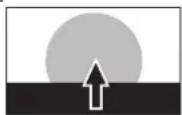
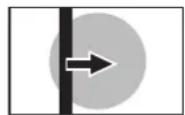
PATTERN4PATTERN3

MOTION TIME 1
Specify a time period (operating interval) until SCREEN MOTION starts.
MOTION TIME 2
Specify a time period during which SCREEN MOTION operates (time period during which the screen will move).
* Touch actions cannot be performed while SCREEN MOTION is in operation.
POWER MANAGEMENT
POWER MANAGEMENT determines whether or not to switch modes from no signal to the input signal standby mode.
CONNECT AUTO INPUT SELECT
Sets whether the input into the input terminal automatically changes when a video signal is input into that terminal.
(With some input signals, the input may not change.)
NO SIGNAL AUTO INPUT SEL.
Specify whether to change inputs automatically. When ON is selected and no signal is present in the selected input mode, the monitor automatically changes the selected mode to another mode where a video signal is present.
When there are video signals in multiple input modes, switching takes place according to the order of priority set in AUTO INPUT SELECT PRIORITY.
AUTO INPUT SELECT PRIORITY
Sets the order of input terminal priority for NO SIGNAL AUTO INPUT SEL..
Input does not change automatically for terminals without a priority setting.
LOGO SCREEN
Sets whether or not to display the logo screen.
INPUT SIGNAL (D-SUB1[RGB]/D-SUB2/Direct Drawing/Wireless)
If the resolution of the computer is one of the following, make a selection from the following options.
480 LINES ...... AUTO, 640x480 or 848x480
768 LINES ......AUTO, 1024x768, 1280x768, or 1360x768
1050 LINES .....1400x1050 or 1680x1050
ZOOM2 SPECIAL SETTING (See page 38.)
SCAN MODE (AV input)
Sets the scan mode used for AV mode input.
MODE1...... Over-scan display
MODE2......Under-scan display
MODE3......Under-scan display when the input signal is 1080i/p. Otherwise, over-scan display
* Even when MODE1 is selected, under-scan display is used when the input signal is 1080i/p and the screen size is Dot by Dot.
COLOR SYSTEM (D-SUB1[VIDEO])
Select the color system of the AV equipment which is connected to D-sub1 input terminal. (AUTO / PAL / PAL-60 / SECAM / NTSC3.58 / NTSC4.43)
When AUTO is selected, the color system is automatically set according to the input signal.
TIPS
- When WHITE BALANCE is set to THRU, BLACK LEVEL, CONTRAST, TINT, COLORS, RGB INPUT RANGE, GAMMA and COPY TO USER cannot be set.
- If COLOR MODE is set to sRGB, the following items cannot be set.
WHITE BALANCE, PRESET, USER, COPY TO USER, and GAMMA
- When the COLOR MODE is set to VIVID or HIGH ILLUMINANCE, GAMMA can not be adjusted.
- POWER SAVE MODE cannot be set to ON when SCHEDULE is effective.
- When displaying the color pattern, it is possible to adjust certain items of the PICTURE menu.
Non-adjustable items cannot be selected.
Audio input from the HDMI input terminal is also not output.
■Dual screen display
You can display two screens simultaneously.
Set this function with "PIP MODES" in the PIP/PbyP menu.
| PIP |  | A sub screen is displayed inside a main screen. |
| PbyP |  | A main screen and a sub screen are displayed in a line. |
| PbyP2 | 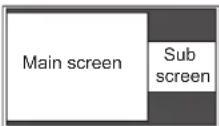 | Displays a main screen which measures 1280 pixels in the longest direction and a sub screen in a line. |
* The currently selected input signal is displayed on the main screen.
* The following combinations are available for display:
Wireless - DisplayPort
Wireless - HDMI1, HDMI2, HDMI3
Direct Drawing - DisplayPort
Direct Drawing - HDMI1, HDMI2, HDMI3
DisplayPort - D-SUB1, D-SUB2
HDMI1, HDMI2, HDMI3 - D-SUB1, D-SUB2
TIPS
- You might infringe on a copyright of the author which is protected by copyright law when you display the images of the computer screen and television/VCR simultaneously for profit-making or to show the image to the public.
- The screen size for dual-screen display is the same as the screen size for single-screen display. The Dot by Dot screen is displayed in NORMAL size except when it is set as the PIP main screen.
- When dual-screen display is selected, the SCREEN MOTION function is disabled.
- When dual-screen display is selected, the CONNECT AUTO INPUT SELECT function and NO SIGNAL AUTO INPUT SEL. function are disabled.
- When dual-screen display is selected, the INPUT SELECT options cannot be set.
- When dual-screen display is selected, the AUDIO menu cannot be set.
- When an interlaced signal (1080i, 480i, video) is input to the sub screen, horizontal lines may flicker. If this happens, display the image on the main screen.
- Touch operation cannot be used in the sub screen.
If you connect a laptop computer with any of the following screen resolutions and black bands appear around the screen, set ZOOM2 SPECIAL SETTING of INPUT SIGNAL on the OTHERS menu to ON and then select ZOOM2 in the SIZE setting.
This displays the area inside the black band.
| Laptop computer resolution | Corresponding signal*1 |
| 1280x800 1280x1024, 1280x960, 1400x1050* | 2 |
| 1280x600 1280x720 | |
| 1024x600 1024x768 |
*1: This setting is effective only when the screen resolution, including the black band, is one of the resolutions listed above.
*2: Use the automatic screen adjustment.
■SCHEDULE
You can set the time to switch the monitor on and off. Set this function with SCHEDULE in the SETUP menu. (See page 33.)
![SCHEDULE No. (1) POWER DAY OF THE WEEK (5)(2) (3) (4) TIME INPUT BRIGHT 1 2 3 4 5 6 7 8 OK...[ENTER] CANCEL...[RETURN] 1920x1080 V: 60 Hz H: 67.5 kHz](/content/2026/06/1204592/images/8d7c57739c2a80852fbb90289a3213058a687c387d8075c3dfefde858edf638a.jpg)
- Press ▲ or ▼ to select the SCHEDULE number, and press ▶.
- Set the SCHEDULE. (See the description below.)
Press ▲ or ▶ to select items, and press ▲ or ▽ to change the setting. - Press ENTER. SCHEDULE becomes effective.
(1)
•: SCHEDULE effective
-: SCHEDULE not effective
(2) POWER
ON : Switches the monitor on at the specified time.
OFF : Switches the monitor off at the specified time and puts the monitor in standby mode.
(3) DAY OF THE WEEK
Specifies the day of the week to execute the SCHEDULE.
0:ONLY ONCE
Executes the SCHEDULE once on the specified day. Specify the day of the week to execute the SCHEDULE.
1: EVERY WEEK
Executes the SCHEDULE on the specified day of the week every week. Specify the day of the week to execute the SCHEDULE.
Periodic setting such as "Monday through Friday" is also possible.
2:EVERY DAY
Executes the SCHEDULE every day regardless of the day of the week.
(4) TIME
Specifies the time to execute the SCHEDULE.
Set the time on a 12-hour basis. (Factory default)
Can be entered as 24-hour time using the TIME setting in DATE/TIME FORMAT.
(5) INPUT
Specifies the input mode at power-on. If you don't specify this the input active at the last power-off will appear. Input modes displayed on HDMI1, HDMI2, HDMI3 and D-SUB1 will depend upon the INPUT SELECT settings.
(6) BRIGHT
Sets the brightness when changing the screen brightness at a specified time.
Caution
- Do not switch off the main power after setting the SCHEDULE.
- Specify the correct date and time. (See page 33.) SCHEDULE does not function unless the date and time are specified.
- Check regularly that the set date and time are correct.
- When POWER SAVE MODE is ON, SCHEDULE cannot be set.
- When a temperature abnormality occurs and the backlight brightness is reduced, the brightness is not changed even if a schedule set to BRIGHT is executed.
TIPS
- Up to 8 SCHEDULE items can be registered.
- Setting the SCHEDULE flashes the power LED alternately in red and orange in standby mode.
- A SCHEDULE that has a large number has precedence over that of a small number when schedules overlap.
Adjustments for PC screen display
■Automatic adjustment
When you use D-SUB1 or D-SUB2 to display a computer screen for the first time, or when you change the setting of the computer, use the automatic screen adjustment.
- Switch the input to D-SUB1 or to D-SUB2 and display the adjustment pattern. (See the description below.)
- Press MENU and use or to display the SCREEN menu.
- Press ENTER and select "AUTO".
- Press ENTER.
The automatic adjustment is complete in several seconds.
- Press MENU to close the menu screen.
TIPS
- If the screen cannot be adjusted properly with one automatic adjustment, repeat the automatic adjustment two or three times. Try manual adjustment if necessary.
■Screen display for adjustment
Before making adjustments in the SCREEN menu or PICTURE menu, display an image to brighten the entire screen. If you are using a Windows PC, use the adjustment pattern on the supplied CD-ROM.
Opening the adjustment pattern
The following example is performed in Windows 7.
- Load the supplied CD-ROM into the computer's CD-ROM drive.
- Open [CD Drive] in [Computer].
- Double-click [Adj_uty.exe] in the [Monitor] folder.
The adjustment pattern will appear.
Adjust the screen automatically or manually.
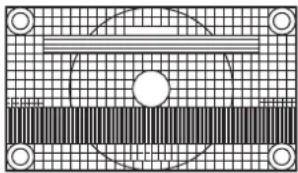
- When adjustment is finished, press the [Esc] on the computer's keyboard to quit the adjustment program.
- Eject the CD-ROM from the CD-ROM drive.
TIPS
- If the display mode on the computer you are using is 65,000 colors, the color levels in the color pattern may appear differently or grayscale may appear to be colored. (This is due to the specifications of the input signal and is not a malfunction.)
Initialization (Reset)/Functional Restriction Setting (FUNCTION)
You can return the settings to their factory-preset values and restrict operations.
- Hold ☐ down until "F" appears in the upper left corner of the screen.
- While "F" appears, press ▲, ▶, in that order.
![FUNCTION ▶ ALL RESET ADJUSTMENT LOCK OFF ▶ ADJUSTMENT LOCK TARGET RS-232C/LAN UNLOCKED ▶ OSD DISPLAY ON 1 ▶ LED ON ▶ TEMPERATURE ALERT LED ▶ STATUS ALERT OFF ▶ POWER BUTTON MONITOR EXTERNAL CONTROLLER INPUT OK...[ENTER] END...[RETURN]](/content/2026/06/1204592/images/78b0e8ccb53a1c20a8d2e7e86b663fdc83d170981664d08a7b6f84fa34c04e76.jpg)
3. Select and set the items.
ALL RESET
Resets the settings to the factory default settings.
Press ENTER, select the resetting method, and then press ENTER.
ALL RESET1 .... Resets all the settings to the factory default settings.
ALL RESET2 ....Returns all settings to the factory default settings except for the following items: LAN SETUP, RS-232C/LAN SELECT, BAUD RATE, NETWORK, MAIL, SERVICE & SUPPORT, and SNMP (See page 34, and pages 57 to 60.)
* The wireless controller settings will not be reset.
ADJUSTMENT LOCK
You can disable operations on the monitor and the remote control unit that use buttons.
OFF ...Enables operation.
ON 1 ..Disables all operations other than turning power on/off and FUNCTION.
ON 2 .. Only the FUNCTION operation is enabled. Disables all operations other than FUNCTION (not even power on/off). When POWER SAVE MODE is set to ON, ON 2 cannot be set.
ADJUSTMENT LOCK TARGET
Sets the target to prohibit operation of with ADJUSTMENT LOCK.
REMOTE CONTROL.....Prohibits remote control operation
MONITOR BUTTONS ... Prohibits monitor button operation
BOTH....Prohibits remote control and monitor button operation
RS-232C/LAN
Specifies whether to allow control via RS-232C or LAN (see pages 42 and 53).
OSD DISPLAY
Shows/hides the menu, modes and messages.
The FUNCTION screen cannot be hidden.
ON 1 ...... Shows all menus, modes and messages.
ON 2 ...... Hides messages automatically displayed by the display. Shows messages during operation.
OFF ...... Hides all menus, modes and messages.
LED
Specifies whether to light the power LED.
TEMPERATURE ALERT
Selects the notification method for an abnormal temperature.
OFF .... Do not notify about an abnormal temperature.
OSD & LED .. When an abnormal temperature is detected, the power LED flashes in red and green alternately and the screen displays a message: TEMPERATURE.
LED..... When an abnormal temperature is detected, the power LED flashes in red and green alternately.
STATUS ALERT
Selects the notification method for a hardware error.
OFF ...... Do not notify about the error.
OSD & LED .. When a hardware error is detected, the power LED flashes in red and the screen displays a message: STATUS [xxxx].
LED...... When a hardware error is detected, the power LED flashes in red.
POWER BUTTON
Normally, leave this setting as MONITOR.
When using an optional part, if instruction appears, change the setting accordingly.
EXTERNAL CONTROLLER INPUT
Normally, you do not need to change this setting.
When using an optional part, if instruction appears, change the setting accordingly.
- Press RETURN to return to the normal screen.
TIPS
- When both abnormal temperature and hardware error are detected, the hardware error notification overrides.
- If TEMPERATURE ALERT or STATUS ALERT is set to OSD&LED, alert messages will appear even if the OSD DISPLAY is set to ON 2 or OFF.
- If TEMPERATURE ALERT or STATUS ALERT is set to LED or OSD & LED, the LED lights even if the LED function is set to OFF.
Controlling the Monitor with a PC (RS-232C)
You can control this monitor from a PC via RS-232C (COM port) on the PC.
TIPS
- To control the monitor via RS-232C, set RS-232C/LAN SELECT to RS-232C.
- When POWER SAVE MODE is set to ON, control is not possible in standby mode.
- You cannot use RS-232C and LAN control simultaneously.
PC connection
Connect the RS-232C conversion cable (supplied) to the RS-232C input terminal on the monitor. Connect the RS-232C conversion cable (supplied) to the COM port (RS-232C port) on your computer with an RS-232 cable (straight).
![graph TD A["Computer"] -->|To COM port| B["RS-232 straight cable (commercially available)"] B --> C["RS-232C conversion cable (supplied)"] C --> D["RS-232C input terminal"]](/content/2026/06/1204592/images/8d746eafb69a07638602fd1c1348da8b7763cb491d88257005a58f193d00361a.jpg)
Communication conditions
Set the RS-232C communication settings on the PC to match the monitor's communication settings as follows:
| Baud rate * | |
| Data length 8 bits Flow control | |
| Parity bit None | |
| Stop bit | 1 bit |
| None |
* Set to the same baud rate as the BAUD RATE setting of SETUP menu. (Initial setting: 38400 bps)
Communication procedure
■Command format
When a command is sent from the PC to the monitor, the monitor operates according to the received command and sends a response message to the PC.

Example: VOLM0030 VOLM _ 30
* Be sure to input 4 characters for the parameter. Pad with spaces (“_”) if necessary.
("☐" is a return code (0DH, 0AH or 0DH))
Wrong : VOLM30
Right : VOLM 30
When inputting a negative value, specify a numerical value in three digits.
Example: AUTR-005
Do not use spaces for MPOS, DATE, and SC01 through SC08. Specify parameters using a specified number of characters.
Example: MPOS010097
If a command has "R" listed for "Direction" in the "RS-232C command table" on page 45, the current value can be returned by using "?" as the parameter.
Example:
VOLM ? ? ? ?
From PC to monitor (How much is current volume setting?).
30
From monitor to PC (Current volume setting: 30).
■Response code format
When a command has been executed correctly
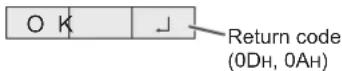
A response is returned after a command is executed.
When a command has not been executed

TIPS
- "ERR" is returned when there is no relevant command or when the command cannot be used in the current state of the monitor.
- If communication has not been established for reasons such as a bad connection between the PC and monitor, nothing is returned (not even ERR).
- "ERR" may be returned when a command cannot be received correctly due to interference from the surrounding environment.
Please ensure that the system or software retries the command if this occurs.
If execution of the command is taking some time

When the following commands are used, "WAIT" is returned. In this case, a value will be returned if you wait a while. Do not send any command during this period.
- Commands which return WAIT: RSET, INPS, ASNC, WIDE, PXSL, POWR, AGIN, MWIN, MWIP, MWPP, WLFC
When control via RS-232C is locked (see page 41)

When RS-232C/LAN SELECT is set to LAN

■Communication interval
- After OK or ERR is returned, you must send the following commands.
To set a timeout for the command response, specify 10 seconds or longer. - Provide an interval of 100 ms or more between the command response and the transmission of the next command.
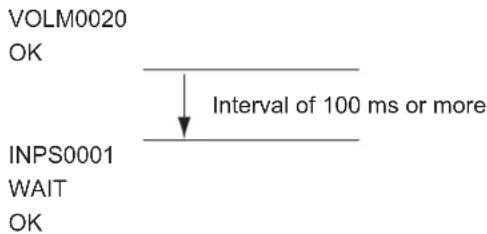
TIPS
- When executing ALL RESET, set the timeout period to 30 seconds or longer.
- When turning the power on while the POWER ON DELAY function is in use, set the timeout period to the POWER ON DELAY period + 10 seconds or longer.
Setting of the GAMMA user data
■To transfer the GAMMA user data
Use the user data transfer commands (UGRW, UGGW and UGBW). For each of the R, G and B colors, divide the total 512 pieces of user data into 16 blocks, and transfer 32 pieces of data with each command.

Example: To transfer the data of block 1 (0 to 31 levels) of red (R) data
![graph TD A["Command"] --> B["Block number"] B --> C["One piece of data consists of 4 digits."] C --> D["32 pieces of data Checksum"] D --> E["UGRW001000000010002 ... 0031C0"]](/content/2026/06/1204592/images/de6e3291ba8f57a782856df05e1434bc6dd95d6ae13cc770a2109eea93db2c15.jpg)
* If data is less than 4 digits, add a "0" (zero) to make it 4 digits.
* The checksum field is the character string (ASCII) data of lower-order one byte which indicates the sum of the block number and 32 pieces of data in hexadecimal (0 to F).
■Saving the GAMMA user data
Use the user data save command (UGSV) to save the transferred user data in the monitor.
If the data is not saved, it will be cleared when:
• The main power switch is off.
- POWER SAVE MODE is ON and the monitor enters standby mode.
■Activating the GAMMA user data
To activate the transferred user data, select USER for GAMMA of the PICTURE menu, or send the corresponding RS-232C command.
■Checking the GAMMA user data
Use the user data read commands (UGRR, UGGR and UGBR) to return 512 pieces of user data for each of the R, G and B colors. Divide the data into 16 blocks and return 32 pieces of data with each command. The value to be returned is not the value stored in the monitor, but the value in the temporary memory for display. (These values are the same when the user data save command (UGSV) above has been sent.)
TIPS
- The user data is not initialized by RESET of the PICTURE menu. To initialize the user data, use ALL RESET of the FUNCTION menu.
The GAMMA user data initialize command (UGRS) allows the initialization of the user data only.
RS-232C command table
How to read the command table
Command: Command field (See page 42.)
Direction: W When the "Parameter" is set in the parameter field (see page 42), the command functions as described under "Control/Response Contents".
R The returned value indicated under "Reply" can be obtained by setting "?????" or "parameter field (see page 42).
____?" in the
Parameter: Parameter field (See page 42.)
Reply: Response (Returned value)
* : When "POWER SAVE MODE" is set to "OFF":
“○”:Indicates a command which can be used in standby mode or when the power is on.
“-”: Indicates a command which can be used when the power is on. Cannot be used in standby mode.
When "POWER SAVE MODE" is set to "ON":
“○/−”: Indicates a command which can be used when the power is on. Cannot be used in standby mode.
Power control/Input mode selection
| Function | Command | Direction | Parameter | Reply Control/Response contents * | ||
| POWER CONTROL POWER W 0 | Switches to standby mode. | ○ | ||||
| 1 | Enters the power ON state. | |||||
| R | 0 | Standby mode | ||||
| 1 | Normal mode | |||||
| 2 | Input signal waiting mode | |||||
| INPUT MODE SELECTION | INPS | W | 0 | Toggle change for input mode. Terminals not selected in INPUT SELECT cannot be selected. | ||
| 2 | D-SUB1[RGB] "ERR" when other than RGB is selected for D-SUB1 of INPUT SELECT. | |||||
| 3 | D-SUB1[COMPONENT] "ERR" when other than COMPONENT is selected for D-SUB1 of INPUT SELECT. | |||||
| 4 | D-SUB1[VIDEO] "ERR" when other than VIDEO is selected for D-SUB1 of INPUT SELECT. | |||||
| 9 | HDMI1[AV] "ERR" when PC is selected for HDMI1 of INPUT SELECT. | |||||
| 10 | HDMI1[PC] "ERR" when AV is selected for HDMI1 of INPUT SELECT. | |||||
| 12 | HDMI2[AV] "ERR" when PC is selected for HDMI2 of INPUT SELECT. | |||||
| 13 | HDMI2[PC] "ERR" when AV is selected for HDMI2 of INPUT SELECT. | |||||
| 14 | DisplayPort | |||||
| 16 | D-SUB2 | |||||
| 17 | HDMI3[AV] "ERR" when PC is selected for HDMI3 of INPUT SELECT. | |||||
| 18 | HDMI3[PC] "ERR" when AV is selected for HDMI3 of INPUT SELECT. | |||||
| 19 | Direct Drawing | |||||
| 20 | Wireless | |||||
| R | 2 | D-SUB1[RGB] | ||||
| 3 | D-SUB1[COMPONENT] | |||||
| 4 | D-SUB1[VIDEO] | |||||
| 9 | HDMI1[AV] | |||||
| 10 | HDMI1[PC] | |||||
| 12 | HDMI2[AV] | |||||
| 13 | HDMI2[PC] | |||||
| 14 | DisplayPort | |||||
| 16 | D-SUB2 | |||||
| 17 | HDMI3[AV] | |||||
| 18 | HDMI3[PC] | |||||
| 19 | Direct Drawing | |||||
| 20 | Wireless | |||||
SCREEN menu
| Function | Command Direction | Parameter Reply Control/Response contents * | |||||
| AUTO ASNC W 1 When the input mode is D-SUB1[RGB], D-SUB2, Direct Drawing, Wireless. | - | ||||||
| CLOCK | CLK | WR | 0-1200 | 0-1200 | When the input mode is D-SUB1[RGB], D-SUB2, Direct Drawing, Wireless. Varies depending on the signal. | ||
| PHASE | PHSE | WR | 0-63 | 0-63 | When the input mode is D-SUB1[RGB], D-SUB2, Direct Drawing, Wireless. | ||
| POSITIONING | POSITION OF THE LONGEST DIRECTION | HPOS | WR | 0-100 | 0-100 | 0-800 on D-SUB1[RGB], D-SUB2, Direct Drawing, Wireless. Varies depending on the signal. | |
| POSITION OF THE SHORTEST DIRECTION | VPOS | WR | 0-100 | 0-100 | 0-200 on D-SUB1[RGB], D-SUB2, Direct Drawing, Wireless. Varies depending on the signal. | ||
| SIZE | SIZE OF THE LONGEST DIRECTION | HSIZ | WR | 0-100 | 0-100 | ||
| SIZE OF THE SHORTEST DIRECTION | VSIZ | WR | 0-100 | 0-100 | |||
| RESOLUTION | LONGEST DIRECTION RESOLUTION | HRES | WR | 300-1920 | 300-1920 | When the input mode is D-SUB1[RGB], D-SUB2, Direct Drawing, Wireless. Only even numbers are valid for parameters. Varies depending on the signal. | |
| SHORTEST DIRECTION RESOLUTION | VRES WR | 200-1200 | 200-1200 | ||||
| RESET | ARST W 1 | ||||||
PICTURE menu
| Function | Command | Direction | Parameter | Reply | Control/Response contents * | |||
| BRIGHT | VLMP | WR | 0-31 | 0-31 | ○ | |||
| CONTRAST | CONT | WR | 0-60 | 0-60 | ||||
| BLACK LEVEL | BLVL | WR | 0-60 | 0-60 | ||||
| TINT | TINT | WR | 0-60 | 0-60 | ||||
| COLORS | COLR | WR | 0-60 | 0-60 | ||||
| SHARPNESS | SHRP | WR | 0-24 | 0-24 | ||||
| COLOR ADJUSTMENT | COLOR MODE | BMOD | WR | 0 | 0 | STD | ||
| 2 | 2 | VIVID | ||||||
| 3 | 3 | RGB (When the input mode is PC) | ||||||
| 4 | 4 | HIGH ILLUMINANCE | ||||||
| WHITE BALANCE | THRU | CTMP | WR | 0 | 0 | PC input | ||
| PRESET | 1-28 | 1-28 | From 1: approximately 3,000K to 15: approximately 10,000K (500K steps)16: approximately 5,600K, 17: approximately 9,300K, 18: approximately 3,200KFrom 19: approximately 10,500K to 28: approximately 15,000K (500K steps) | |||||
| USER | 99 | 99 | ||||||
| R-CONTRAST | CRTR | WR | 0-256 | 0-256 | "ERR" when CTMP is not set to 99. | |||
| G-CONTRAST | CRTG | WR | 0-256 | 0-256 | ||||
| B-CONTRAST | CRTB | WR | 0-256 | 0-256 | ||||
| R-OFFSET | OFSR | WR | -127-127 | -127-127 | ||||
| G-OFFSET | OFSG | WR | -127-127 | -127-127 | ||||
| B-OFFSET | OFSB | WR | -127-127 | -127-127 | ||||
| COPY TO USER | CPTU | W | 0 | Copies a preset value to the user setting. | - | |||
| GAMMA | GAMM | WR | 0-2 | 0-2 | 0: 1.8, 1: 2.2, 2: 2.4 (during PC input)0: LIGHT 2, 2: DARK (during AV input) | ○ | ||
| 4-6 | 4-6 | : USER, 5: 2.0, 6: STD (during PC input)4: USER, 5: LIGHT 1, 6: STD (during AV input) | ||||||
| FLESH TONE (AV input) | FLES | WR | 0-2 | 0-2 | 0: OFF, 1: LOW, 2: HIGH | |||
| C.M.S.-HUE (AV input) | CMHR | WR | -10-10 | -10-10 | R "ERR" when other than OFF is selected for FLESH TONE. | |||
| CMHY | Y "ERR" when other than OFF is selected for FLESH TONE. | |||||||
| CMHG | G "ERR" when other than OFF is selected for FLESH TONE. | |||||||
| CMHC | C "ERR" when other than OFF is selected for FLESH TONE. | |||||||
| CMHB | B "ERR" when other than OFF is selected for FLESH TONE. | |||||||
| CMHM | M "ERR" when other than OFF is selected for FLESH TONE. | |||||||
| CRST W | 1 | Resets the hue. | "ERR" when other than OFF is selected for FLESH TONE. | |||||
| C.M.S.-SATURATION (AV input) | CMSR | WR | -10-10 | -10-10 | R "ERR" when other than OFF is selected for FLESH TONE. | |||
| CMSY | Y "ERR" when other than OFF is selected for FLESH TONE. | |||||||
| CMSG | G "ERR" when other than OFF is selected for FLESH TONE. | |||||||
| CMSC | C "ERR" when other than OFF is selected for FLESH TONE. | |||||||
| CMSB | B "ERR" when other than OFF is selected for FLESH TONE. | |||||||
| CMSM | M "ERR" when other than OFF is selected for FLESH TONE. | |||||||
| CRST W | 2 | Resets the saturation. | "ERR" when other than OFF is selected for FLESH TONE. | |||||
| C.M.S.-VALUE (AV input) | CMVR | WR | -10-10 | -10-10 | R "ERR" when other than OFF is selected for FLESH TONE. | |||
| CMVY | Y "ERR" when other than OFF is selected for FLESH TONE. | |||||||
| CMVG | G "ERR" when other than OFF is selected for FLESH TONE. | |||||||
| CMVC | C "ERR" when other than OFF is selected for FLESH TONE. | |||||||
| CMVB | B "ERR" when other than OFF is selected for FLESH TONE. | |||||||
| CMVM | M "ERR" when other than OFF is selected for FLESH TONE. | |||||||
| CRST W | 3 | Resets the brightness. | "ERR" when other than OFF is selected for FLESH TONE. | |||||
| Function | Command | Direction | Parameter | Reply Control/Response contents * | |||
| ADVANCED | AUTO | AGIN W 1 | When the input mode is D-SUB | 1[RGB], D-SUB2, Direct Drawing, Wireless. | - | ||
| ANALOG GAIN | ANGA WR | 0-127 0-127 | When the input mode is D-SUB1[RGB], D-SUB2, Direct Drawing, Wireless. | ○ | |||
| ANALOG OFFSET | ANOF WR | 0-127 0-127 | When the input mode is D-SUB1[RGB], D-SUB2, Direct Drawing, Wireless. | ||||
| 3D-NR (AV input) TDNR WR | 0-2 | 0-2 0: OFF, 1: LOW, 2: HIGH | |||||
| MPEG-NR (AV input) | MPNR | WR | 0-1 | 0-1 | 0: OFF, 1: ON | ||
| 3D-Y/C | YCSP | WR | 0-1 | 0-1 | 0: OFF, 1: ON (When the input mode is D-SUB1[VIDEO]) | ||
| RGB INPUT RANGE (HDMI1[AV]) | AHDR WR | 0-2 | 0-2 0: AUTO, 1: FULL, 2: LIMITED | ||||
| RGB INPUT RANGE (HDMI1[PC]) | PHDR WR | 0-2 | 0-2 0: AUTO, 1: FULL, 2: LIMITED | ||||
| RGB INPUT RANGE (HDMI2[AV]) | AH2R | WR | 0-2 | 0-2 | 0: AUTO, 1: FULL, 2: LIMITED | ||
| RGB INPUT RANGE (HDMI2[PC]) | PH2R | WR | 0-2 | 0-2 | 0: AUTO, 1: FULL, 2: LIMITED | ||
| RGB INPUT RANGE (HDMI3[AV]) | AH3R | WR | 0-2 | 0-2 | 0: AUTO, 1: FULL, 2: LIMITED | ||
| RGB INPUT RANGE (HDMI3[PC]) | PH3R | WR | 0-2 | 0-2 | 0: AUTO, 1: FULL, 2: LIMITED | ||
| RGB INPUT RANGE (D-SUB1[RGB]) | PDSR WR | 1-2 | 1-2 1: FULL, 2: LIMITED | ||||
| RGB INPUT RANGE (D-SUB2) | PD2R | WR 1-2 | 1-2 1: FULL, 2: LIMITED | ||||
| RGB INPUT RANGE (Wireless, Direct Drawing) | PWHR | WR 1-2 | 1-2 1: FULL, 2: LIMITED | ||||
| RGB INPUT RANGE (DisplayPort) | PDPR WR | 0-2 | 0-2 0: AUTO, 1: FULL, 2: LIMITED | ||||
| ACTIVE CONTRAST (AV input) | ACNT | WR 0-1 | 0-1 0: OFF, 1: ON | ||||
| DISPLAY COLOR PATTERN | PTDF | WR | 0 | 0 | No pattern display. | ||
| 1 | 1 | White single color pattern display. | |||||
| 2 | 2 | Red single color pattern display. | |||||
| 3 | 3 | Green single color pattern display. | |||||
| 4 | 4 | Blue single color pattern display. | |||||
| 99 | 99 | Red/green/blue mixed color pattern display. Set each color's level with PTDR, PTDG, PTDB. | |||||
| DISPLAY COLOR PATTERN (R) | PTDR | WR | 0-15 | 0-15 | "ERR" when PTDF is not set to 99. | ||
| DISPLAY COLOR PATTERN (G) | PTDG WR | 0-15 | 0-15 | ||||
| DISPLAY COLOR PATTERN (B) | PTDB | WR | 0-15 | 0-15 | |||
| RESET | ARST | W 2 | - | ||||
AUDIO menu
| Function | Command Direction | Parameter Reply Control/Response contents * | ||||
| TREBLE | AUTR | WR | -5-5 | -5-5 | ○ | |
| BASS | AUBS | WR | -5-5 | -5-5 | ||
| BALANCE | AUBL | WR | -10-10 | -10-10 | ||
| RESET | ARST | W 3 | - | |||
SETUP menu
| Function | Command Direction | Parameter Reply Control/Response contents * | ||||
| DATE/TIME SETTING DATE WR | AABBCCDDEEAABBCCDDEE | AA: Year, BB: Month, CC: Day, DD: Hour, EE: Minute | ||||
| DATE DISPLAY FORMAT DTFT WR | 0-2 0-2 | 0: YYYY/MM/DD, 1: MM/DD/YYYY, 2: DD/MM/YYYYYYY: Year, MM: Month, DD: Day | ||||
| TIME DISPLAY FORMAT TMFT WR | 0-1 0-1 | 0: 24-HOUR TIME, 1: 12-HOUR TIME | ||||
| SCHEDULE SC01- | SC08 | WR ABCDEFFGGH ABCDEFFGGH Schedule | of a specified numberA: Schedule 0= Not effective, 1 = EffectiveB: Power 0 = OFF, 1 = ONC: Day of the week 1 0 = Only once, 1 = Every week, 2 = Every dayD: Day of the week 2* 0 = Sunday, 1 = Monday through 6 = Saturday,9 = Not existE: Day of the week 3* 0 = Sunday, 1 = Monday through 6 = Saturday,9 = Not existF: Hour 00-23G: Minute 00-59H: Input 0 = Not specified, 1 = HDMI1, 2 = HDMI2, 3 = HDMI3,4 = D-SUB1, 5 = D-SUB2, 6 = DisplayPort,7 = Direct Drawing, 8 = Wireless* If "Every day" is selected for "Day of the week 1", "ERR" occurs when other than 9 is selected."ERR" when ON is selected for POWER SAVE MODE. | |||
| SCHEDULE BRIGHTNESS | SB01-SB08 | WR | 0-31 | 0-31 | Screen brightness to change | |
| 99 | 99 | Disable brightness setting | ||||
| LANGUAGE | LANG | WR | 14 | 14 | ENGLISH | |
| 1 | 1 | DEUTSCH | ||||
| 2 | 2 | FRANÇAIS | ||||
| 3 | 3 | ITALIANO | ||||
| 4 | 4 | ESPAÑOL | ||||
| 5 | 5 | PYCCKIЙ | ||||
| 6 | 6 | 日本語 | ||||
| INPUT SELECT | HDMI1 | HDSL | WR | 0-1 | 0-1 | 0:PC, 1:AV |
| HDMI2 | H2SL | WR | 0-1 | 0-1 | 0:PC, 1:AV | |
| HDMI3 | H3SL | WR | 0-1 | 0-1 | 0:PC, 1:AV | |
| D-SUB1 | SLDS | WR | 0-2 | 0-2 | 0:RGB, 1:COMPONENT, 2:VIDEO | |
| HDMI1 AUTO VIEW | HDAW | WR | 0-1 | 0-1 | 0: OFF, 1: ON | |
| HDMI2 AUTO VIEW | H2AW | WR | 0-1 | 0-1 | 0: OFF, 1: ON | |
| HDMI3 AUTO VIEW | H3AW | WR | 0-1 | 0-1 | 0: OFF, 1: ON | |
| HOT PLUG CONTROL (HDMI1) | HPCH | WR | 0-1 | 0-1 | 0: OFF, 1: ON | |
| HOT PLUG CONTROL (HDMI2) | HPH2 | WR | 0-1 | 0-1 | 0: OFF, 1: ON | |
| HOT PLUG CONTROL (HDMI3) | HPH3 | WR | 0-1 | 0-1 | 0: OFF, 1: ON | |
| INPUT MODE NAME | DisplayPort | INDP | WR | 0-30 | 0-30 | 0: NO SETTING, 1: PC1, 2:PC2, 3: PC3, 4: TV, 5: VIDEO, 6: DVD, 7: HDD,8: DVR, 9: BD, 10: CAMERA, 11: DOCUMENT CAMERA, 12: VIDEO CAMERA,13: VIDEO CONFERENCE, 14: WIRELESS, 15: STB, 16: CONTROLLER,17: COMPOSITE, 18: COMPONENT, 19: RGB, 20: INPUT1, 21: INPUT2,22: INPUT3, 23: INPUT4, 24: INPUT5, 25: INPUT6, 26: SATELLITE,27: CABLE, 28: CAMCORDER, 29: TABLET, 30: SURVEILLANCE CAM.20 to 25 can be changed (see below) |
| HDMI1 | INH1 | |||||
| HDMI2 | INH2 | |||||
| HDMI3 | INH3 | |||||
| D-SUB1 | IND1 | |||||
| D-SUB2 | IND2 | |||||
| Edit the input mode name | INPUT1 | IN1E | WR XXXXXXXXXXXXXX | Input mode name (alphanumeric characters and symbols only, maximum of 18 characters) | ||
| INPUT2 | IN2E | |||||
| INPUT3 | IN3E | |||||
| INPUT4 | IN4E | |||||
| INPUT5 | IN5E | |||||
| INPUT6 | IN6E | |||||
| AUDIO SELECT | DisplayPort | ASDI | WR | 1-3 | 1-3 | 1: AUDIO1, 2: AUDIO2, 3: DisplayPort |
| HDMI1[PC] | ASHP | WR | 0-2 | 0-2 | 0: HDMI, 1: AUDIO1, 2: AUDIO2 | |
| HDMI1[AV] | ASHA | WR | 0-2 | 0-2 | 0: HDMI, 1: AUDIO1, 2: AUDIO2 | |
| HDMI2[PC] | AH2P WR | 0-2 | 0-2 | 0: HDMI, 1: AUDIO1, 2: AUDIO2 | ||
| HDMI2[AV] | AH2A WR | 0-2 | 0-2 | 0: HDMI, 1: AUDIO1, 2: AUDIO2 | ||
| HDMI3[PC] | AH3P WR | 0-2 | 0-2 | 0: HDMI, 1: AUDIO1, 2: AUDIO2 | ||
| HDMI3[AV] | AH3A WR | 0-2 | 0-2 | 0: HDMI, 1: AUDIO1, 2: AUDIO2 | ||
| D-SUB1[RGB] | ASAP WR | 1-2 | 1-2 | 1: AUDIO1, 2: AUDIO2 | ||
| D-SUB1[COMPONENT] | ASC2 WR | 1-2 | 1-2 | 1: AUDIO1, 2: AUDIO2 | ||
| D-SUB1[VIDEO] | ASV2 WR | 1-2 | 1-2 | 1: AUDIO1, 2: AUDIO2 | ||
| D-SUB2 | ASA2 WR | 1-2 | 1-2 | 1: AUDIO1, 2: AUDIO2 | ||
| Direct Drawing | ASWH | WR | 1-2 | 1-2 | 1: AUDIO1, 2: AUDIO2 | |
| Wireless | ASWL | WR | 0-2 | 0-2 | 0: Wireless, 1: AUDIO1, 2: AUDIO2 | |
| AUDIO OPTION | SPEAKER SELECT | SPSL WR | 0-1 | 0-1 | 0: Internal speaker, 1: External speaker | |
| AUDIO OUTPUT | AOUT | WR | 0-2 | 0-2 | 0: VARIABLE1, 1: FIXED, 2: VARIABLE2 | |
| AUDIO INPUT LEVEL1 | AIVP | WR | 0-1 | 0-1 | 0: 1.0Vrms, 1: 0.5Vrms | |
| AUDIO INPUT LEVEL2 | AIV2 | WR | 0-1 | 0-1 | 0: 1.0Vrms, 1: 0.5Vrms | |
| TOUCH INPUT SELECT | BOTTOM USB | USCB | WR | 0-7 | 0-7 | 0: INVALID, 1: BOTTOM INPUT TERM., 2: DisplayPort, 3: HDMI1,4: HDMI2, 5: HDMI3, 6: D-SUB1, 7: D-SUB2 |
| SIDE USB | USCS | WR | 0-7 | 0-7 | 0: INVALID, 1: SIDE INPUT TERM., 2: DisplayPort, 3: HDMI1,4: HDMI2, 5: HDMI3, 6: D-SUB1, 7: D-SUB2 | |
| START INPUT MODE | SUIM | WR | 0-5, 7-9 | 0-5, 7-9 | 0: Direct Drawing, 1: LAST INPUT MODE, 2: DisplayPort, 3: HDMI1, 4: HDMI2,5: HDMI3, 7: D-SUB1, 8: D-SUB2, 9: Wireless | |
| Function | Command Direction | Parameter Reply Control/Response contents * | |||||
| COMMUNICATION SETTING | RS-232C/LAN SELECT | CTLS WR | 0-1 | 0-1 | 0: RS-232C 1: LAN | ○ | |
| BAUD RATE BAUD WR | 0-2 | 0-2 | 0: 9600bps, 1: 19200bps, 2: 38400bps | ||||
| WIRELESS FUNCTION WLFC | WR | 0-1 | 0-1 0: OFF 1: ON | - | |||
| CONNECT AUTO INPUT SELECT | AICW | WR | 0-1 | 0-1 0: OFF 1: ON | ○ | ||
MONITOR menu
| Function | Command Direction | Parameter Reply Control/Response contents ^ | |||||
| OSD H-POSITION | OSDH | WR | 0-100 | 0-100 | ○ | ||
| OSD V-POSITION | OSDV | WR | 0-100 | 0-100 | |||
| POWER SAVE MODE | STBM | WR | 0-1 | 0-1 | 0: OFF, 1: ONWhen ADJUSTMENT LOCK is set to ON2, ON cannot be selected (ERR). "ERR" when SCHEDULE is effective. | ||
| OFF IF NO OPERATION | OFF IF NO OPERATION | ATOF | WR | 0-1 | 0-1 | 0: OFF, 1: ON | |
| TIME | AOFT | WR | 1-12 | 1-12 | 1-12: Hour | ||
| POWER ON DELAY | POWER ON DELAY | PODS | WR | 0-1 | 0-1 | 0: OFF, 1: ON | |
| INTERVAL | PWOD | WR | 0-60 | 0-60 | 0: OFF, 1-60 seconds | ||
| SELF ADJUST | SELF ADJUST | AADJ | WR | 0-1 | 0-1 | 0: OFF, 1: ON | |
| START TIMING | AADD | WR | 10-200 | 10-200 | 10: 1 second through 200: 20 seconds | ||
| TOUCH OUTPUT INVALID DISP. | TOUCH OUTPUT INVALID ICON | TOPI | WR | 0-1 | 0-1 | 0: OFF, 1: ON | |
| CHANGE DISPLAY POSITION | TOIP | WR | 0-3 | 0-3 | 0: UPPER RIGHT, 1: UPPER LEFT, 2: LOWER RIGHT, 3: LOWER LEFT | ||
| TOUCH OPERATION MODE | TOMD | WR | 0-2 | 0-2 | 0: AUTO, 1: MULTI-TOUCH MODE, 2: MOUSE MODE "ERR" when the touch panel is not connected."ERR" when the input mode is Direct Drawing or Wireless. | - | |
| TOUCH PANEL MODE | GMDP | WR | 0-1 | 0-1 | 0: OFF, 1: ON (When the input mode is PC) | ○ | |
PIP/PbyP menu
| Function | Command Direction | Parameter Reply Control/Response contents * | |||||
| PIP MODES | MWIN | WR | 0-3 | 0-3 | 0: OFF, 1: PIP, 2: PbyP, 3: PbyP2 | ○ | |
| PIP SIZE MPSZ WR | 1-64 | 1-64 | |||||
| PIP POS | THE LONGEST DIRECTION | MHPS | WR | 0-100 | 0-100 | ||
| THE SHORTEST DIRECTION | MVPS | WR | 0-100 | 0-100 | |||
| PIP POS LD+SD BATCH | MPOS | W | 0-100,0-100 | Specify the position in MPOSxxxxyy format. (xxx: Longer side, yyy: Shorter side position) | |||
| R | 0-100,0-100 | Returns a response in (xxx,yyy) format. (xxx: Longer side, yyy: Shorter side position) | |||||
| PIP BLEND | MWBL | WR | 0-15 | 0-15 | |||
| PIP SOURCE | MWIP | WR | 2 | 2 | D-SUB1[RGB] | ||
| 3 | 3 | D-SUB1[COMPONENT] | |||||
| 4 | 4 | D-SUB1[VIDEO] | |||||
| 9 | 9 | HDMI1[AV] | |||||
| 10 | 10 | HDMI1[PC] | |||||
| 12 | 12 | HDMI2[AV] | |||||
| 13 | 13 | HDMI2[PC] | |||||
| 14 | 14 | DisplayPort | |||||
| 16 | 16 | D-SUB2 | |||||
| 17 | 17 | HDMI3[AV] | |||||
| 18 | 18 | HDMI3[PC] | |||||
| 19 | 19 | Direct Drawing | |||||
| 20 | 20 | Wireless | |||||
| SOUND CHANGE | MWAD | WR | 1-2 | 1-2 | 1: MAIN, 2: SUB | ||
| MAIN POS (Main screen) | MWPP | WR | 0-1 | 0-1 | 0: POS1, 1: POS2 | ||
| PbyP2 POS (Sub screen) | MW2P | WR | 0-2 | 0-2 | 0: POS1, 1: POS2, 2: POS3 | ||
| AUTO OFF | MOFF | WR | 0-1 | 0-1 | 0: MANUAL, 1: AUTO | ||
OTHERS menu
| Function | Command Direction | Parameter Reply Control/Response contents * | |||||
| SCREEN MOTION PATTERN SCSV WR | 0-4 0-4 0: OFF, 1-4: PATTERN1-4 | ○ | |||||
| MOTION TIME1 MT M WR 0-20 0-20 | |||||||
| MOTION TIME2 (PATTERN1) | MINT WR | 10-990 | 10-990 Per 10 seconds | ||||
| MOTION TIME2 (PATTERN2-4) | MINT WR | 5-20 5-20 Per second | |||||
| POWER MANAGEMENT (PC) | PMNG | WR | 0-1 | 0-1 | 0: OFF, 1: ON | ||
| POWER MANAGEMENT (AV) | PMAV | WR | 0-1 | 0-1 | 0: OFF, 1: ON | ||
| CONNECT AUTO INPUT SELECT | AICO | WR | 0-1 | 0-1 | 0: OFF, 1: ON | ||
| NO SIGNAL AUTO INPUT SEL. | AINO | WR | 0-1 | 0-1 | 0: OFF, 1: ON | ||
| AUTO INPUT SELECT PRIORITY | DisplayPort | APDP WR | 0-8 0-8 0: Not selected by auto | input selection, 1-8: Priority setting*ERR* when OFF is selected for NO SIGNAL AUTO INPUT SEL..All input terminals cannot be set to 0 simultaneously. | |||
| HDMI1 | APH1 | ||||||
| HDMI2 | APH2 | ||||||
| HDMI3 | APH3 | ||||||
| D-SUB1 | APD1 | ||||||
| D-SUB2 | APD2 | ||||||
| Direct Drawing | APWB | ||||||
| Wireless | APWL | ||||||
| LOGO SCREEN | BTSC | WR | 0-1 | 0-1 | 0: OFF, 1: ON | ||
| INPUT RESOLUTION (PC) | RESOLUTION CHECK | PXCK R | - Returns current resolution in the form of hhh, vvv. | - | |||
| PIXEL SETTING (D-SUB1[RGB], D-SUB2, Direct Drawing, Wireless) | PXSL WR | 1 | 1 768) | (360 x 768) | |||
| 2 | 2 768) | 1280 x 768 | |||||
| 3 | 3 768) | 1024 x 768 | |||||
| 5 | 5 480) | 848 x 480 | |||||
| 6 | 6 480) | 640 x 480 | |||||
| 7 | 7 | (050) 1680 x 1050 | |||||
| 8 | 8 | (050) 1400 x 1050 | |||||
| 9 | 9 768) | AUTO | |||||
| 10 | 10 480) | AUTO | |||||
| INPUT RESOLUTION (AV) | RESOLUTION CHECK | RESO | R | - | 480i, 480p, 1080i, 720p, 1080p , etc. | ||
| ZOOM2 SPECIAL SETTING (D-SUB1[RGB], D-SUB2, Direct Drawing, Wireless) | Z2SP | WR 0-1 0-1 | 0: OFF, 1: ON | ○ | |||
| SCAN MODE | SCAN | WR | 0-2 | 0-2 | 0: MODE1, 1: MODE2, 2: MODE3 (When the input mode is AV) | ||
| COLOR SYSTEM | CSYS | WR | 0-5 | 0-5 | 0: AUTO, 1: PAL, 2: PAL-60, 3: SECAM, 4: NTSC3.58, 5: NTSC4.43 | ||
Initialization/Functional Restriction Setting (FUNCTION) menu
| Function | Command Direction | Parameter Reply Control/Response contents * | ||||
| ALL RESET RSET W 0-1 0: ALL RESET | 1, 1: ALL RESET 2 - | |||||
| ADJUSTMENT LOCK ALCK WR 0-2 0-2 | 0: OFF, 1: ON1, 2:ON2 | When POWER SAVE MODE is set to ON, ON2 cannot be selected (ERR). | ○ | |||
| ADJUSTMENT LOCK TARGET | ALTG | WR | 0-2 | 0-2 | 0: REMOTE CONTROL, 1: MONITOR BUTTONS, 2: BOTH "ERR" when OFF is selected for ADJUSTMENT LOCK. | |
| OSD DISPLAY | LOSD | WR | 0-2 | 0-2 | 0: ON1, 1: OFF, 2: ON2 | |
| LED | OFLD WR | 0-1 0-1 0: ON, 1: OFF | ||||
| TEMPERATURE ALERT | TALT | WR | 0-2 | 0-2 | 0: OFF, 1: OSD & LED, 2: LED | |
| STATUS ALERT | SALT | WR | 0-2 | 0-2 | 0: OFF, 1: OSD & LED, 2: LED | |
| POWER BUTTON | PBTN WR | 0-1 0-1 0: MONITOR, 1: EXT. | CONTROLLER | |||
| EXTERNAL CONTROLLER INPUT | PCIP | WR | 0-5 | 0-5 | 0: D-SUB1, 1: D-SUB2, 2: DisplayPort, 3: HDMI1, 4: HDMI2, 5: HDMI3 "ERR" when MONITOR is selected for POWER BUTTON. | |
Others
| Function | Command | Direction | Parameter | Reply Control/Response contents * | |||
| SCREEN SIZE (PC) | WIDE WR | 0-5 0-5 | 0: Toggle to change size, 1: WIDE, 2: NORMAL, 3: Dot by Dot, 4: ZOOM1, 5: ZOOM2 | ○ | |||
| SCREEN SIZE (AV) | WIDE WR | 0-5 0-5 | 0: Toggle to change size, 1: WIDE, 2: ZOOM1, 3: ZOOM2, 4: NORMAL, 5: Dot by Dot | ||||
| VOLUME | VOLM | WR | 0-31 | 0-31 | |||
| MUTE | MUTE | WR | 0-1 | 0-1 | 0: OFF, 1: ON | - | |
| INFORMATION | MODEL | INF1 | R | Value | ○ | ||
| SERIAL NO | SRNO | R | Value | ||||
| TEMPERATURE SENSOR | DSTA | R | 0 | Internal temperature normal | |||
| 1 | Internal temperature abnormal has occurred and the monitor is in standby mode | ||||||
| 2 | Internal temperature abnormal occurred (To delete the information of temperature abnormal, turn off the main power.) | ||||||
| 3 | Internal temperature abnormal has occurred and backlight brightness is dimmed | ||||||
| 4 | Temperature sensor abnormal | ||||||
| TEMPERATURE ACQUISITION | ERRT | R | Value | Returns the temperature at the temperature sensors.Indicates a temperature sensor abnormality when "126" is returned. | |||
| CAUSE OF LAST STANDBY MODE | STCA | W | 0 | Initialization | |||
| R | 0 | No detectable error has occurred | |||||
| 1 | Standby mode by POWER button | ||||||
| 2 | Main power off by the main power switch | ||||||
| 3 | Standby mode by RS-232C or LAN | ||||||
| 4 | Input signal waiting mode by No Signal | ||||||
| 6 | Standby mode by abnormal temperature | ||||||
| 8 | Standby mode by SCHEDULE setting | ||||||
| 20 | Standby mode by OFF IF NO OPERATION setting | ||||||
| Touch operation valid/invalid | TPEN WR | 0-1 0-1 0: Invalid, 1: Valid | "ERR" when TOUCH INPUT SELECT is set to INVALID or the touch panel is not connected. | - | |||
Commands for setting of the GAMMA user data
| Function | Command Direction | Parameter Reply Control/Response contents * | |||
| RED GAMMA DATA TRANSFER UGRW W aaxxxx | ... xxxcc (xxxx: 32 pieces)aa: 01-16xxxx: 0000-1023cc: 00-FF | aa: Block numberxxxx: 32 pieces of user datacc: Checksum (ASCII data) of the block number and user data | ○ | ||
| GREEN GAMMA DATA TRANSFER UGGW W | |||||
| BLUE GAMMA DATA TRANSFER UGBW W | |||||
| RED GAMMA DATA READ UGRR W 1-16 xxxx | ... xxxx (xxxx: 32 pieces)xxxx: 0000-1023 | xxxx: User data of 32 pieces | |||
| GREEN GAMMA DATA READ | UGGR | W 1-16 | |||
| BLUE GAMMA DATA READ | UGBR | W 1-16 | |||
| USER DATA INITIALIZE | UGRS | W | 0 | Initialize the user data. | |
| USER DATA SAVE | UGSV | W | 0 | Save the user data in the monitor. | |
Controlling the Monitor with a computer (LAN)
Your monitor can be connected to a LAN allowing you to control it from a computer on the LAN.
You can also configure the monitor to send e-mail notification when it has a problem.
The connection requires a commercially available LAN cable (UTP cable, Category 5, straight through).
![graph TD A["LAN terminal"] --> B["Network (LAN)"] B --> C["Hub"] C --> D["LAN cable (commercially available, straight)"] D --> E["Computer 1"] D --> F["Computer 2"] D --> G["Computer 3"]](/content/2026/06/1204592/images/c2e9ada168590120dae91083a3f62bdac0a0aa72c638189e3e24496cc4456b36.jpg)
TIPS
- You must assign an IP address to the monitor by following the procedures in "Settings to connect to a LAN". (See the description on the right.)
- Your computer must be installed with the web browser.
- When POWER SAVE MODE is set to ON, control is not possible in standby mode.
- To control the monitor via LAN, set RS-232C/LAN SELECT to LAN. (See page 34.)
- You cannot use RS-232C and LAN control simultaneously.
Initializing personal information
- Personal information such as e-mail addresses can be registered in the monitor. Before transferring or disposing of the monitor, initialize all settings by selecting ALL RESET 1 (see page 41). Note that ALL RESET 2 will not initialize e-mail addresses and other settings.
Settings to connect to a LAN
Set the monitor's IP address and subnet mask to match the settings of your LAN.
These settings can be made on either the monitor or a computer connected to the monitor.
The settings depend on the configuration of your LAN. Ask your LAN administrator for details.
■ To set on the monitor
Set RS-232C/LAN SELECT of COMMUNICATION SETTING on the SETUP menu to LAN, and then set the LAN SETUP options. (See page 34.)
After setting each item, select SET and press ENTER.
DHCP CLIENT
If your LAN has a DHCP server and you wish to obtain an address automatically, change this setting to ON.
To set the address manually, set this to OFF.
IP ADDRESS
If the DHCP CLIENT is set to OFF, specify an IP address.
Press ▶ or ▶ to select items, and press ▶ or ▶ to change the values.
SUBNET MASK
If the DHCP CLIENT is set to OFF, specify the subnet mask.
Press ▶ or ▶ to select items, and press ▶ or ▶ to change the values.
DEFAULT GATEWAY
If the DHCP CLIENT is set to OFF, specify the default gateway.
If you are not using a gateway, specify "0.0.0.0".
Press ▲ or ▶ to select items, and press or ▲ to change the values.
RESET
Resets the values of the LAN settings to the factory preset values.
Select ON and then press ENTER.
Controlling the Monitor with a computer (LAN)
■ To set from a computer
When the monitor is connected to a computer, LAN settings can be configured via computer.
Set up process
(1) Connect your monitor to a computer
(2) Specify the computer's IP address
(3) Configure the monitor's LAN settings
(1) Connecting your monitor to a computer
Connect a commercially available crossover LAN cable (UPT cable, Category 5) to the LAN port on the computer and this monitor.
![graph TD A["LAN terminal"] --> B["To LAN terminal"] B --> C["Computer"] D["LAN cable"] --> B style A fill:#f9f,stroke:#333 style B fill:#ccf,stroke:#333 style C fill:#cfc,stroke:#333](/content/2026/06/1204592/images/3b38f503fa1e5601a58503dc95d3e1bc4d9250698721d9db4f22aae6c775ece8.jpg)
(commercially available, crossover)
(2) Specifying the computer's IP address
To configure the monitor's LAN settings, you must temporarily change the settings on the computer.
This explanation is based on Windows 7.
- Log on to the computer with an administrator account.
- Click [Start], and then click "Control Panel".
- Click "View network status and tasks" in "Network and Internet".
In "Classic View", click "Network and Sharing Center".
- Click "Local Area Connection" and then "Properties".
- Click "Internet Protocol Version 4 (TCP/IPv4)" and then "Properties".
- Make a note of the current IP address, subnet mask, and default gateway settings.
Make sure you write this information now as you will be changing the IP address, subnet mask, and default gateway settings back to these settings afterwards.
- Temporarily change the IP address and subnet mask. To access the monitor as it is shipped from the factory, set as follows.
• IP Address: 192.168.150.1
- Subnet Mask: 255.255.255.0
- Default Gateway: (leave blank)

- Click [OK] and then reboot the PC.
TIPS
- This monitor is factory preset as shown below. (When DHCP CLIENT is set to OFF)
IP Address : 192.168.150.2
Subnet Mask : 255.255.255.0
Default Gateway : 0.0.0.0
(3) Configuring the monitor's LAN settings
Access the monitor using the web browser.
Controlling the monitor
- Turn the power ON to the monitor.
- Set RS-232C/LAN SELECT of COMMUNICATION SETTING on the SETUP menu to LAN.
- Set DHCP CLIENT of LAN SETUP of COMMUNICATION SETTING on the SETUP menu to OFF.
PC operation
- Launch the web browser, in the "Address" box type "http://192.168.150.2/" and press the Enter key.

http://192.168.150.2/
- Click on "LAN SETUP" under NETWORK.

- Specify the "DHCP CLIENT", "IP ADDRESS", etc.

DHCP CLIENT
If your LAN has a DHCP server and you wish to obtain an address automatically, change this setting to "ON". To set the address manually, set this to "OFF".
IP ADDRESS
If the DHCP CLIENT is set to "OFF", specify an IP address.
SUBNET MASK
If the DHCP CLIENT is set to "OFF", specify the subnet mask.
DEFAULT GATEWAY
If the DHCP CLIENT is set to "OFF", specify the default gateway. If you are not using a default gateway, specify "0.0.0.0".
- When the setting is changed, click [Apply].
- Check the message and click [OK].
- Exit the web browser.
- Restore the computer's IP address jotted in Step 6, "(2) Specifying the computer's IP address".
- Connect the monitor and the computer to the LAN.
TIPS
- Wait 10 seconds after clicking [OK] before proceeding.
- When operating using the remote control unit or similar, click [Refresh].
Controlling with a computer
TIPS
- For security, set a USER NAME and PASSWORD.
■ Basic operation
You use the web browser on a computer on the LAN to control the monitor.
- Launch the web browser on the computer.
- In the "Address" box, type "http://" followed by your monitor's IP address followed by "/", then press the Enter key. You can confirm the IP address with the DISPLAY function.

http://192.168.150.2/
When prompted to enter a USER NAME and PASSWORD, type the user name and password that you specified in the SECURITY settings (see page 57), and click [OK].
- You can check, control, and change the monitor's status and settings by clicking the menu items on the left side of the screen.
![INFORMATION CONTROL ADJUSTMENT - ACCESS - DATA - ECONOMICS/ANNUAL - AOS - SELL - METER - CNTS - SCROLL - FLIGHT - FUNCTION NETWORK - LAN SEAT - REGUL - GENERAL MAIL - ORANGE - RESEARCH - PERSONAL SNMP - GENERAL - TRUE SERVICE & SUPPORT - US INFORMATION Model: Reconciliation [XXXX/XXXX] S/N: XXXXXXX…](/content/2026/06/1204592/images/d95e4bea5e6feb7594e3dc343cacb6c4fc9fcfbb97a8c9ff2cb8dca8c67fe7b1.jpg)
- If you see an [Apply] button next to a setting, click it after you change that setting.
TIPS
• See pages 56 to 60 for details on each setting.
- If you click [Refresh] before the screen finishes updating the current display, the "Server Busy Error" will appear. Wait for a moment before operating your monitor again.
- You cannot operate the monitor while it is warming up.
- If "DHCP CLIENT" is set to "ON", press DISPLAY on the remote control unit two times and then check the monitor's IP address.
Controlling the Monitor with a computer (LAN)
■ INFORMATION
Information about this monitor appears.

■ CONTROL
You can control the operations corresponding to the buttons
(POWER INPUT SIZE) on the remote control unit. (See pages 26, 27.)
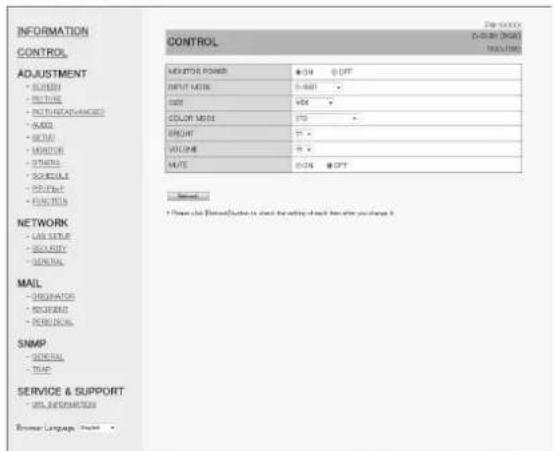
TIPS
- In standby mode, Power ON is the operation available.
■ ADJUSTMENT
You can adjust these settings which are also available on the monitor's menu.
• SCREEN (See page 30.)
• PICTURE (See pages 31 to 32.)
• AUDIO (See page 33.)
- SETUP (See pages 33 to 34.)
• MONITOR (See page 35.)
• SCHEDULE (See page 39.)
- PIP/PbyP (See page 36.)
- OTHERS (See page 37.)
• FUNCTION (See page 41.)
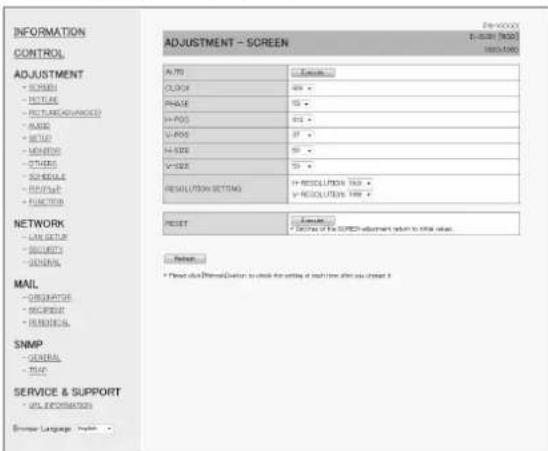
TIPS
- After changing DISPLAY COLOR PATTERN to OFF in PICTURE menu, click [Refresh] to correctly retrieve the status of the monitor.
■ NETWORK (LAN SETUP)
This screen allows you to set the settings necessary when the monitor is connected to a LAN.

DHCP CLIENT
If your LAN has a DHCP server and you wish to obtain an address automatically, change this setting to ON. To set the address manually, set this to OFF.
IP ADDRESS
If the DHCP CLIENT is set to OFF, specify an IP address.
SUBNET MASK
If the DHCP CLIENT is set to OFF, specify the subnet mask.
DEFAULT GATEWAY
If the DHCP CLIENT is set to OFF, specify the default gateway. If you are not using a default gateway, specify "0.0.0.0".
DNS SERVER ADDRESS AUTO ACQUISITION
If the DHCP CLIENT is set to ON, specify whether or not to automatically obtain the DNS server address.
DNS SERVER
Specify the DNS server address if the DHCP CLIENT is set to OFF or the DNS SERVER ADDRESS AUTO ACQUISITION is set to OFF. If you are not using a DNS server, specify "0.0.0.0".
RESET
Clicking [Execute] returns all of the LAN SETUP settings to the factory-preset values except for the DNS SERVER ADDRESS AUTO ACQUISITION and DNS SERVER settings.
■ NETWORK (SECURITY)
This screen allows you to specify the security-related settings.
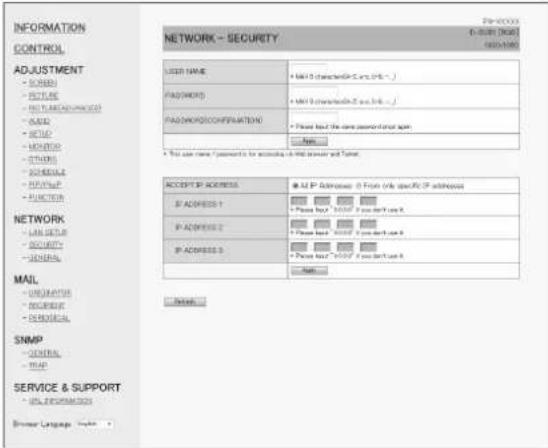
USER NAME / PASSWORD
Sets up a user name and password to restrict access to this monitor. After entering a user name and password, click [Apply].
ACCEPT IP ADDRESS
You can limit access to this monitor by registering IP addresses of PCs that should have access. To limit access, specify the option "From only specific IP addresses". Otherwise, to allow access from any PC, specify "All IP Addresses".
IP ADDRESS 1 to 3
If "ACCEPT IP ADDRESS" is set to "From only specific IP addresses", enter the IP addresses that you want to allow.
TIPS
- The USER NAME and PASSWORD can be up to 8 alphanumeric characters (hyphens and underscores allowed).
- To cancel the user name and/or password after it has been set, make the box empty and click [Apply].
Controlling the Monitor with a computer (LAN)
■ NETWORK (GENERAL)
This screen allows you to specify the general LAN settings.
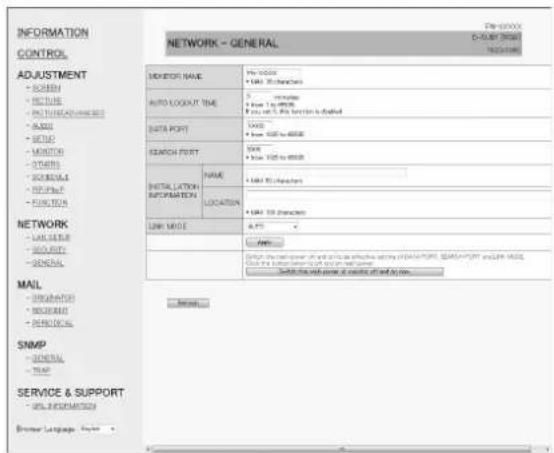
MONITOR NAME
Specify a name for this monitor as it should appear on the web browser screen.
AUTO LOGOUT TIME
Specify the time (in minutes) to elapse before automatically disconnecting this monitor from the network. Specify in minutes from 1 to 65535. A value of '0' will disable this function.
DATA PORT
Specify the TCP port number to use for exchanging data with the monitor. Specify a value from 1025 to 65535.
SEARCH PORT
Specify the port number to use when searching for this monitor. Specify a value from 1025 to 65535.
INSTALLATION INFORMATION (NAME/LOCATION)
Specify the information to display for this monitor in the web browser window.
LINK MODE
Selects the link speed and duplex. Use AUTO normally.
TIPS
- The MONITOR NAME can be up to 16 alphanumeric characters or symbols.
- Enter up to 50 characters in the NAME field in the INSTALLATION INFORMATION.
- Enter up to 100 characters in the LOCATION field in the INSTALLATION INFORMATION.
■ MAIL (ORIGINATOR)
This screen allows you to configure the e-mail sent periodically or when the monitor has an error.
The settings depend on the configuration of your LAN. Ask your LAN administrator for details.
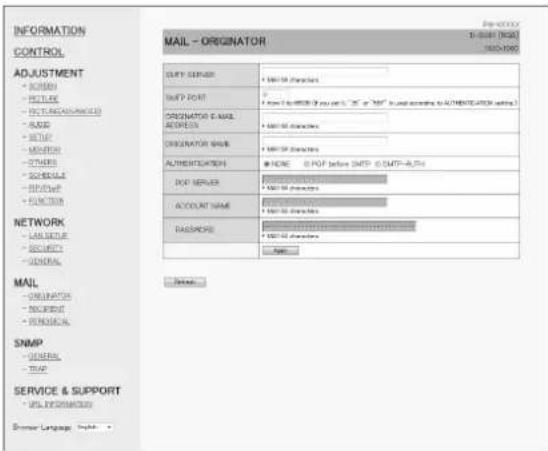
SMTP SERVER
Specify the SMTP server address for sending e-mail.
* When using a domain name, make sure to specify the DNS SERVER as well. (See page 57.)
SMTP PORT
If the "AUTHENTICATION" is "SMTP-AUTH", specify the port number.
ORIGINATOR E-MAIL ADDRESS
Specify the e-mail address for this monitor. This address becomes the e-mail address of the originator.
ORIGINATOR NAME
Specify the name for the originator. This name appears in the "Originator Name" field of the e-mail.
AUTHENTICATION
Specify the authentication method to use when sending e-mail.
POP SERVER
If the "AUTHENTICATION" method is "POP before SMTP", specify the POP server address.
ACCOUNT NAME / PASSWORD
If the "AUTHENTICATION" is "POP before SMTP" or "SMTP-AUTH", specify the account name and password to connect to the SMTP server.
TIPS
- You can enter up to 64 alphanumeric characters or symbols for the ORIGINATOR E-MAIL ADDRESS, ORIGINATOR NAME, ACCOUNT NAME, and PASSWORD.
- The SMTP SERVER and POP SERVER can be up to 64 characters.
The following characters can be used: a-z, A-Z, 0-9, - , .
■ MAIL (RECIPIENT)
This screen allows you to specify the recipients of the e-mail sent periodically or when the monitor has an error.

RECIPIENT E-MAIL ADDRESSES
Specify the e-mail addresses to send error notification e-mail to.
CONDITION
Specify the conditions to send mails.
When you check PERIODICAL, specify the date and time to send the mails in the PERIODICAL setting.
CONFIRMATION
Sends test e-mail.
This allows you to confirm that the e-mail settings are configured properly.
Attach the log file to a TEMPERATURE/HARDWARE error e-mail.
When this option is checked, a log is added to the mail which notifies a temperature or status error.
E-MAIL TRANSMISSION ERROR REPORT
A report of the latest e-mail transmission errors will be displayed.
The error report will be displayed when an e-mail transmission error occurs.
Also, the e-mail transmission errors will be cleared when ALL RESET1 is executed. (See page 41.)
TIPS
- The RECIPIENT E-MAIL ADDRESSES can be up to 64 alphanumeric characters or symbols.
■ MAIL (PERIODICAL)
When PERIODICAL for CONDITION of MAIL (RECIPIENT) is checked, set the date and time to send the mail.

DAY OF THE WEEK
Specify the day of the week to send the periodical mails.
TIME
Specify the time of the day to send the periodical mails.
!Caution
- Do not turn off the main power when you set to send the periodical mails.
- Specify the correct date and time. (See page 33.) If the date and time settings are incorrect, the periodical mail is not sent properly.
- Regularly confirm that the specified date and time is correct.
- When ON is selected for POWER SAVE MODE, periodical mails will not be sent in standby mode.
Controlling the Monitor with a computer (LAN)
SNMP
You can configure settings related to SNMP.
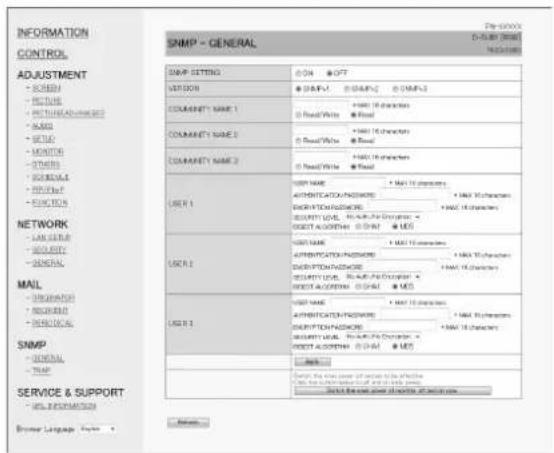
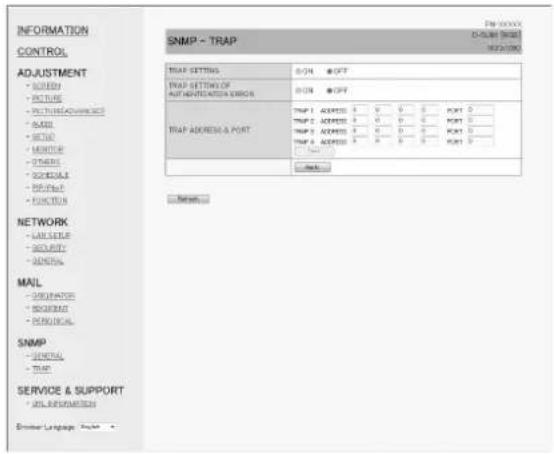
SNMP SETTING
Set whether to enable or disable SNMP.
VERSION
Set the version of the SNMP to be supported.
COMMUNITY NAME 1 to 3
Set the name of the community required for the access.
USER 1 to 3
Set the user name, password, authentication method and other options required for access.
TRAP SETTING
Set whether to enable or disable the trap function.
When this function is enabled, a trap will be sent when the monitor is turned on.
A test transmission of a trap can be performed in "Test".
TRAP SETTING OF AUTHENTICATION ERROR
Set whether the trap function sends a notification when authentication fails.
TRAP ADDRESS & PORT
Set the destination address and port number of the notification sent by the trap function.
!Caution
- After you set SNMP, click [Switch the main power of monitor off and on now.] or turn off the monitor and then turn it on again with the main power switch. When the monitor restarts, wait about 30 seconds and then start the next operation.
- If the IP address is changed while the SNMP function is operational, turn off the monitor and then turn it on again with the main power switch.
TIPS
- Depending on the SNMP settings, a short delay may occur before the SNMP is usable. (About 5 minutes)
- Up to 16 alphanumeric letters and symbols can be used for the community name, user name and password.
■ SERVICE & SUPPORT
(URL INFORMATION)
You can display a specific URL in the URL INFORMATION field on the INFORMATION screen when an error occurs in the monitor. (See page 56.)
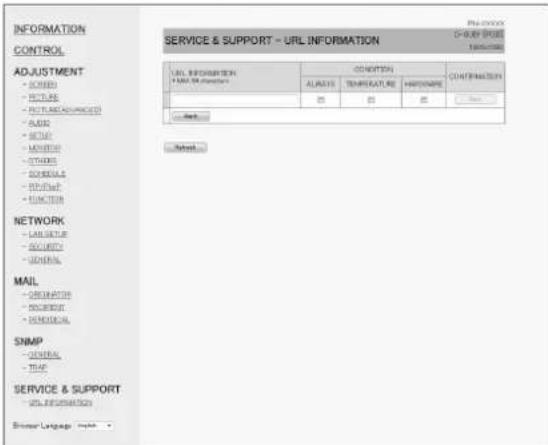
URL INFORMATION
Enter the URL to display on the INFORMATION screen when an error occurs on the monitor.
Up to 64 alphanumeric characters or symbols can be used.
CONDITION
Specify the condition to display the URL.
CONFIRMATION
The home page of the specified URL is displayed. You can check whether the URL you entered is correct.
TIPS
- It is also possible to specify the message text, such as the name of a contact or a telephone number, to be displayed instead of the linked URL.
[Advanced operation]
Command-based control
You can control the monitor using RS-232C commands (see page 45) via terminal software and other appropriate applications.
In order to use this function, enable a connection to the monitor through the web browser.
Read the manual for the terminal software for detailed instructions.
(1) Connect the computer to the monitor.
-
Specify the IP address and data port number and connect the computer to the monitor. When connection has been established successfully, [☐ Login:] is returned as response.
-
Send the user name set in the SECURITY settings (see page 57).
-
Send [user name] + [ ]
- If the user name is not set, send [☐].
-
When the transmission is successful, [ ☐ Password:] is returned as response.
-
Send the password set in the SECURITY settings (see page 57).
-
Send [password] + [ ]
- If the password is not set, send [ □].
- When the transmission is successful, [OK ☐] is returned as response.
(2) Send commands to control the monitor.
- The commands used are the same as those for RS-232C. Refer to the communication procedure (see page 42) for operation.
- Usable commands are provided in the RS-232C command table (see page 45).
(3) Disconnect the connection with the monitor and quit the function.
- Send [BYE]
When the transmission is successful, [goodbye] is returned and the connection is disconnected.
TIPS
- Connection is automatically disconnected when the time specified in AUTO LOGOUT TIME elapses over a no-communication period.
Troubleshooting
If you are experiencing any problem with your display, before calling for service, please review the following troubleshooting tips.
There is no picture or sound.
• Is the power cord disconnected? (See page 14.)
• Is the main power switch off? (See page 18.)
- Is the monitor in standby mode (the power LED illuminating in orange)? (See page 18.)
- Is an input mode selected that is appropriate for the input terminal to which the cable is connected? (See pages 25, 26.)
- If any external equipment is connected, make sure the equipment is operating (playing back).
Remote control does not work.
- Are the batteries inserted with polarity (+,-) aligned? (See page 15.)
• Are the batteries exhausted? - Point the remote control unit toward the monitor's remote control sensor. (See page 15.)
- Is the menu display hidden or is operation disabled? (See page 41.)
Sound from left and right speakers is reversed.
Sound is heard from only one side.
- Are audio cables connected properly? (See page 13.)
- Make sure audio cables for external speakers are connected properly: left and right cables may be reversed or one of the two cables may not be connected. (See page 13.)
- Check the setting of BALANCE for AUDIO menu. (See page 33.)
There is a picture but no sound.
• Is the sound muted?
• Make sure the volume is not set to minimum.
- Are audio cables connected properly?
- Is the setting of AUDIO SELECT on the SETUP menu correct? (See page 33.)
- Is the setting for SPEAKER SELECT of AUDIO OPTION on the SETUP menu correct? (See page 34.)
Unstable video.
• The signal may be incompatible.
- Try the automatic screen adjustment when D-SUB1[RGB] or D-SUB2 are used.
- If the top and bottom of the image are not horizontally aligned, set TOUCH PANEL MODE on the MONITOR menu to OFF.
• Is SCREEN MOTION set? (See page 37.)
The video from the HDMI input terminal does not appear properly.
- Is the setting for HDMI1/HDMI2/HDMI3 of INPUT SELECT on the SETUP menu correct? (See page 33.)
- Is the HDMI cable HDMI standard compliant? The monitor will not work with cables that are not standard compliant.
- Is the input signal compatible with this monitor? (See pages 66, 67.)
The video from D-sub1 input terminal does not appear correctly.
- Is the setting for D-SUB1 of INPUT SELECT on the SETUP menu correct? (See page 33.)
- Is the input signal compatible with this monitor? (See page 66.)
The video from D-sub2 input terminal does not appear correctly.
- Is the input signal compatible with this monitor? (See page 66.)
The video from DisplayPort input terminal does not appear correctly.
- Is the input signal compatible with this monitor? (See page 66.)
- Is the DisplayPort cable DisplayPort standard compliant?
The monitor will not work with cables that are not standard compliant.
Control buttons do not work.
There is no picture.
- Load noises from outside may be interfering with normal operation. Turn off the power and turn it on after waiting at least 5 seconds, and then check the operation.
The input mode changes automatically.
- When CONNECT AUTO INPUT SELECT is ON, the input mode automatically changes to that terminal when a video signal is input into the input terminal.
For this reason, the input mode may change when the computer wakes up from system standby. - When the NO SIGNAL AUTO INPUT SEL. is ON and no signal is present in a selected input mode, the monitor automatically changes the selected mode to a mode where a video signal is present.
The input mode may change in the following cases: - When a computer is in standby mode.
- When video play is stopped with a playback device.
The touch panel does not respond.
- Is the USB cable connected properly? (Touch pen Management Tool Operation Manual)
This monitor has 2 USB ports (for touch panel). The USB port (for touch panel) depends on the terminal to which the computer's video signal cable is connected. (See pages 13 and 34.) - Has Touch pen Management Tool been installed? (Touch pen Management Tool Operation Manual)
- Has the pen tip of the touch pen become worn? Replace the pen tip. (See page 21.)
- Is the battery inserted in the wrong orientation (+, -) in the touch pen? (See page 20.)
• Is the touch pen battery exhausted? - Touch actions cannot be performed while SCREEN MOTION is in operation.
The response of the touch screen is slow. Some parts of the screen do not respond.
A different place is touched
- Is the screen exposed to direct sunlight or other strong light? The touch panel uses infrared rays and thus may not operate correctly.
- Is there an obstacle between the infrared transmitter/receiver and the touch pen or your finger? An obstacle will prevent correct operation. If your fingers or a sleeve are too close to the screen, correct operation will not be possible.
- Is the infrared transmitter/receiver dirty? Gently wipe off any dirt with a soft cloth.
- If the touch panel is touched with a small tip less than about 3/16 inch (5.5 mm) x 3/16 inch (5.5 mm), the touch may not be detected by infrared and correct operation will not take place.
- When starting your computer or connecting the USB cable, do not touch the touch panel. If you touch the touch panel, this may be detected as an element failure in the infrared transmitter/receiver and incorrect operation will result.
Power LED flashes red.
"STATUS [xxxx]" appears in the corner of the screen.
- Hardware has a problem. Turn off the monitor and request repair from your SHARP dealer.
(When STATUS ALERT is set to OSD & LED. This varies depending on the setting.)
The monitor makes a cracking sound.
- You may occasionally hear a cracking sound from the monitor. This happens when the cabinet slightly expands and contracts according to change in temperature. This does not affect the monitor's performance.
The Power LED is flashing in red and green alternately. When "TEMPERATURE" is displayed in the corner of the screen.
- When the internal temperature of the monitor rises excessively, the brightness of the backlight decreases automatically in order to prevent high-temperature-related problems. When this occurs, "TEMPERATURE" is displayed on the screen and the Power LED flashes red and green alternately. (When TEMPERATURE ALERT is set to OSD & LED. This varies depending on the setting.)
- If the internal temperature rises further, the monitor automatically enters standby mode. (The Power LED continues flashing red and green alternately.)
- Remove the cause of the excessive temperature rise.
- If the monitor enters standby mode due to a rise in temperature, to return to normal display, turn the power switch off and then back on again. The monitor, however, will enter standby mode again if the cause of the temperature rise is not eliminated. (See page 7.)
- Check whether the monitor is placed at a location where a quick rise in temperature is likely. Internal temperature rises quickly if the vents on the monitor are blocked.
- Internal temperature rises quickly if dust accumulates inside the monitor or around the vents. Remove dust if possible. Ask SHARP dealer about removing internal dust.
When "AUTO DIMMING" is displayed.
- When the internal temperature of the monitor rises excessively, the brightness of the backlight automatically decreases in order to prevent a further temperature rise. If you attempt to use ↗ to adjust the brightness while the monitor is in this state, "AUTO DIMMING" is displayed and you cannot change the brightness.
- Remove the cause of the excessive temperature rise.
Specifications
■Product Specifications
| Model PN-L703WA PN-L603WA | |||
| LCD component | 70" Class [69-1/2 inch (176.6cm) diagonal] TFT LCD | 60" Class [60-1/16 inch (152.5cm) diagonal] TFT LCD | |
| Max. resolution (pixels) | 1920 x 1080 | ||
| Max. colors | Approx. 1.06 billion colors | ||
| Pixel pitch | 0.802 mm (H) × 0.802 mm (V) 0.692 | mm (H) × 0.692 mm (V) | |
| Max. brightness (typical) | 300 cd/m2*1 | ||
| Contrast ratio (typical) | 3,000 : 1 | ||
| Viewing angle | 160° right/left/up/down (contrast ratio ≥ 10) | ||
| Screen active area inch (mm) | 60-9/16 (W) x 34-1/16 (H)(1538.9 x 865.6) | 52-5/16 (W) x 29-7/16 (H)(1329.1 x 747.6) | |
| Computer input signal | Analog RGB (0.7 Vp-p) [75 Ω], DisplayPort 1.1a | ||
| Sync signal | Horizontal/vertical separate (TTL: positive/negative), Sync-on-green2,Composite sync (TTL: positive/negative)*2 | ||
| Video color system | NTSC (3.58MHz)/NTSC (4.43MHz)/PAL/PAL-60/SECAM | ||
| Plug and play | VESA DDC2B | ||
| Power management | VESA DPMS | ||
| Input terminals | PC/AV HDMI x 3 | ||
| PC Mini D-sub 15 pin, 3 rows x | 2DisplayPort x 1 | ||
| Audio | 3.5 mm mini stereo jack x 2 | ||
| Serial (RS-232C) | 3.5 mm mini jack x 1 | ||
| Output terminals | Video/Audio | DisplayPort x 1 | |
| Audio | 3.5 mm mini stereo jack x 1 | ||
| LAN terminal 10 BASE-T/100 BASE-TX | |||
| Speaker output (internal/external) 10 W + 10 W/10 W + 10 W 6 Ω | |||
| Touch Panel | Detection method Infrared blocking detection method | ||
| PC connector USB (2.0 compliant) (Type B) x 2 | |||
| Touch pen Wireless communication method | (2.4 GHz, Bluetooth Low Energy, FHSS method) | ||
| USB (2.0 compliant) (Type A) | |||
| Wireless controller | Wireless communication method(2.4 GHz, IEEE802.11b/g/n)(5 GHz, IEEE802.11a/n) | ||
| BASE-TX | |||
| USB port | USB (2.0 compliant) (Type A) | ||
| Wireless adapter port | USB (2.0 compliant) (Type A) | ||
| Power requirement | AC 100 V - 240 V, 2.7 A, 50/60 Hz | AC 100 V - 240 V, 2.3 A, 50/60 Hz | |
| Operating temperature *3*4 | 41°F to 95°F (5°C to 35°C) | ||
| Operating humidity*4 | 20% to 80% (no condensation) | ||
| Power consumption(Maximum / input signal waiting mode *5 / standby mode *6) | 235 W / 25.0 W / 3.5 W | 190 W / 25.0 W / 3.5 W | |
| Dimensions (excluding protrusions) inch (mm) | Approx. 64-13/16 (W) x 3-11/16 (D)x 39-3/4 (H) (1647 x 94 x 1010) | Approx. 56-9/16 (W) x 3-11/16 (D)x 35-1/16 (H) (1437 x 94 x 890) | |
| Weight | Ibs. (kg) | Approx. 134.5 (61) | Approx. 105.9 (48) |
*1 Brightness will depend on input mode and other picture settings. Brightness level will decrease over time. Due to the nature of the equipment, it is not possible to precisely maintain a constant level of brightness.
*2 D-sub input terminal only.
*3 Temperature condition may change when using the monitor together with the optional equipments recommended by SHARP. In such cases, please check the temperature condition specified by the optional equipments.
*4 In addition, check the requirements of the computer and other devices to be connected, and make sure that all requirements are satisfied.
*5 When CONNECT AUTO INPUT SELECT and NO SIGNAL AUTO INPUT SEL. are set to OFF.
*6 When POWER SAVE MODE is set to OFF. When POWER SAVE MODE is set to ON: Q5 W
As a part of our policy of continuous improvement, SHARP reserves the right to make design and specification changes for product improvement without prior notice. The performance specification figures indicated are nominal values of production units. There may be some deviations from these values in individual units.
■Dimensional Drawings
Note that the values shown are approximate values.
[PN-L703WA]
![3-11/16 [94] 1-15/16 [49] 64-13/16 [1647] 1-15/16 [49] Opening width (62-3/16 [1580]) 39-3/4 [1010] Opening height (35-13/16 [910]) 41-13/16 [1062] 31-11/16 [805]3-1/4 [82]](/content/2026/06/1204592/images/835dd234898d7316a66778a4542a875d6d871e6a6e38016757f1a1ffaa9acf8e.jpg)
Unit: inch [mm]
![VESA holes * 7-7/8 7-7/8 [200] [200] 7-7/8 [200]](/content/2026/06/1204592/images/9e123a047ae0783273d98327e5d3fc134bec8bff27774c0e431bd8e352d1bb3b.jpg)
[PN-L603WA]
![3-11/16 [94] 1-15/16 [49] 3-1/4 [82] 56-9/16 [1437] 1-15/16 [49] 37-1/16 [942] 35-1/16 [890] Opening width (53-15/16 [1370]) Opening height (31-1/8 [790]) 31-11/16 [805]](/content/2026/06/1204592/images/5517d7d3dcf6d7c4e54ef1a1c499d215a82133cd1e945f3e968570738bf30212.jpg)
Unit: inch [mm]
![VESA holes * 7-7/8 7-7/8 [200] [200] 7-7/8 [200]](/content/2026/06/1204592/images/32d2138e99052ee41ed41c235a5c4e2c655b8fabd56545d40f4d88cc8c6cefa3.jpg)
When mounting the monitor, be sure to use a wall-mount bracket that complies with the VESA-compatible mounting method. SHARP recommends using M6 screws and tighten the screws.
Note that screw hole depth of the monitor is 3/8 inch (10 mm). Loose mounting may cause the product to fall, resulting in serious personal injuries as well as damage to the product. The screw and hole should come together with over 5/16 inch (8 mm) length of thread. Use a bracket which has been approved for UL1678 standard, and which can endure at least 4 times or more the weight of the monitor.
■Power management
This monitor conforms to VESA DPMS. Both your video card and computer must support the same standard in order for the monitor's power management function to work.
DPMS: Display Power Management Signaling
| DPMS Screen | Power consumption*1 | Hsync Vsync | ||
| ON STATE Display | 235 W190 W | Yes Yes | ||
| STANDBY | No displayNo No | 25.0 W *225.0 W *2 | No Yes | |
| SUSPEND Yes display | ||||
| OFF STATE No No | ||||
*1 Upper value: PN-L703WA, Lower value: PN-L603WA.
*2 When CONNECT AUTO INPUT SELECT and NO SIGNAL AUTO INPUT SEL. are set to OFF.
■DDC (plug and play)
The monitor supports the VESA DDC (Display Data Channel) standard.
DDC is a signal standard for plug and play between monitors and computers. Information about resolution and other parameters is exchanged between the two. This function can be used if the computer supports DDC and it has been configured to detect plug-and-play monitors.
There are several types of DDC, depending on the communication method used. This monitor supports DDC2B.
■Compatible signal timing (PC)
| Screen resolution Hsync | Vsync | Dot frequency | Digital | Analog (D-SUB) | |||
| DisplayPort | HDMI | ||||||
| VESA | 640 × 480 | 31.5kHz | 60Hz | 25.175MHz | Yes | Yes | Yes |
| 37.9kHz | 72Hz | 31.5MHz | Yes | Yes | Yes | ||
| 37.5kHz | 75Hz | 31.5MHz | Yes | Yes | Yes | ||
| 800 × 600 | 35.1kHz | 56Hz | 36.0MHz | - | - | Yes | |
| 37.9kHz | 60Hz | 40.0MHz | Yes | Yes | Yes | ||
| 48.1kHz | 72Hz | 50.0MHz | Yes | Yes | Yes | ||
| 46.9kHz | 75Hz | 49.5MHz | Yes | Yes | Yes | ||
| 848 × 480 | 31.0kHz | 60Hz | 33.75MHz | - | - | Yes | |
| 1024 × 768 | 48.4kHz | 60Hz | 65.0MHz | Yes | Yes | Yes | |
| 56.5kHz | 70Hz | 75.0MHz | Yes | Yes | Yes | ||
| 60.0kHz | 75Hz | 78.75MHz | Yes | Yes | Yes | ||
| 1152 × 864 | 67.5kHz | 75Hz | 108.0MHz | Yes | Yes | Yes | |
| 1280 × 768 | 47.8kHz | 60Hz | 79.5MHz | Yes | - | Yes | |
| 60.3kHz | 75Hz | 102.25MHz | Yes | - | Yes | ||
| 1280 × 800 | 49.7kHz | 60Hz | 83.5MHz | Yes | Yes | Yes | |
| 1280 × 960 | 60.0kHz | 60Hz | 108.0MHz | Yes | Yes | Yes | |
| 1280 × 1024 | 64.0kHz | 60Hz | 108.0MHz | Yes | Yes | Yes | |
| 80.0kHz | 75Hz | 135.0MHz | Yes | Yes | Yes | ||
| 1360 × 768 | 47.7kHz | 60Hz | 85.5MHz | Yes | Yes | Yes | |
| 1400 × 1050 | 65.3kHz | 60Hz | 121.75MHz | Yes | Yes | Yes | |
| 1440 × 900 | 55.9kHz | 60Hz | 106.5MHz | Yes | Yes | Yes | |
| 1600 × 1200* | 75.0kHz | 60Hz | 162.0MHz | Yes | Yes | Yes | |
| 1680 × 1050 | 65.3kHz | 60Hz | 146.25MHz | Yes | Yes | Yes | |
| 1920 × 1200* | 74.0kHz | 60Hz | 154.0MHz | Yes | Yes | Yes | |
| Wide | 1280 × 720 | 44.7kHz | 60Hz | 74.4MHz | Yes | Yes | Yes |
| 1920 × 1080 | 67.5kHz | 60Hz | 148.5MHz | Yes | Yes | Yes | |
| US TEXT | 720 × 400 | 31.5kHz | 70Hz | 28.3MHz | Yes | Yes | Yes |
| Sun | 1024 × 768 | 48.3kHz | 60Hz | 64.13MHz | - | - | Yes |
| 53.6kHz | 66Hz | 70.4MHz | - | - | Yes | ||
| 56.6kHz | 70Hz | 74.25MHz | - | - | Yes | ||
| 1152 × 900 | 61.8kHz | 66Hz | 94.88MHz | - | - | Yes | |
| 71.8kHz | 76.2Hz | 108.23MHz | - | - | Yes | ||
| 1280 × 1024 | 71.7kHz | 67.2Hz | 117.01MHz | - | - | Yes | |
| 81.1kHz | 76Hz | 134.99MHz | - | - | Yes | ||
| 1600 × 1000 | 68.6kHz | 66Hz | 135.76MHz | - | - | Yes | |
* Displays a reduced image, except in Dot by Dot. In Dot by Dot, the image will be cut down to panel size then displayed.
- Depending on the connected PC, images may not be displayed properly even if the compatible signal described above is input.
- The frequency values for the Sun are reference values.
■Compatible signal timing (AV)
| Screen resolution Frequency HDMI Component | |||
| 1920 × 1080p 24Hz Yes - | |||
| 50Hz Yes Yes | |||
| 59.94Hz Yes Yes | |||
| 60Hz Yes Yes | |||
| 1920 × 1080i 50Hz Yes Yes | |||
| 59.94Hz Yes Yes | |||
| 60Hz Yes Yes | |||
| 1280 × 720p 50Hz Yes Yes | |||
| 59.94Hz Yes Yes | |||
| 60Hz Yes Yes | |||
| 720 × 576p 50Hz Yes Yes | |||
| 720 × 480p 59.94Hz Yes Yes | |||
| 60Hz Yes Yes | |||
| 640 × 480p(VGA) 59.94Hz Yes - | |||
| 60Hz Yes - | |||
| 720(1440) × 576i 50Hz Yes Yes | |||
| 720(1440) × 480i | 59.94Hz Yes Yes | ||
| 60Hz Yes Yes | |||
■ Channels that can be used in wireless LAN
| Standard | Channel | Frequency band (center frequency) |
| IEEE802.11b/g/n | 1-11ch | 2412 - 2462MHz |
| IEEE802.11a/n | 36/40/44/48/149/153/157/161/165ch | 5180 - 5240MHz5745 - 5825MHz |
- Outdoor use of the 5 GHZ band is prohibited by the Radio Law.
Specifications
■D-sub input terminal pins
(Mini D-sub 15 pin)

| No. | Function No. Function | ||
| 1 | Red video signal input 9 +5V | ||
| 2 | Green video signal input 10 GND | ||
| 3 | Blue video signal input 11 N.C. | ||
| 4 | N.C. 12 DDC data | ||
| 5 | GND 13 Hsync signal input | ||
| 6 | GND for red video signal 14 V | sync | signal input |
| 7 | GND for green video signal 15 | DDC | clock |
| 8 | GND for blue video signal | ||
■DisplayPort input terminal pins
Mounting Precautions (For SHARP dealers and service engineers)
- When installing, removing or moving the monitor, ensure that this is carried out by at least 4 people. (PN-L603WA: at least 3 people.)
- Be sure to use a wall-mount bracket designed or designated for mounting the monitor.
- This monitor is designed to be installed on a concrete wall or pillar. Reinforced work might be necessary for some materials such as plaster / thin plastic board / wood before starting installation.
This monitor and bracket must be installed on a wall which can endure at least 4 times or more the weight of the monitor. Install by the most suitable method for the material and the structure.
- To attach a VESA-compliant mounting bracket, use M6 screws that are 5/16 inch (8 mm) to 3/8 inch (10 mm) longer than the thickness of the mounting bracket.
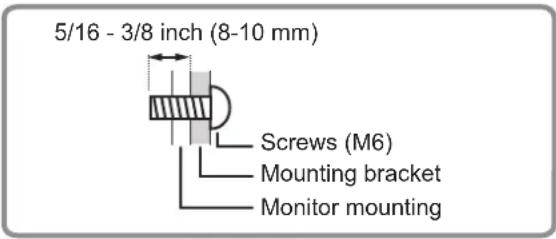
- Do not use an impact driver.
• After mounting, please carefully ensure the monitor is secure, and not able to come loose from the wall or mount. - Do not use any screw holes other than VESA holes for installation.
■Attaching the Tray
Secure the tray using 5 tray mounting screws (M3) (supplied).

SHARP®
SHARP CORPORATION
- CAUTION
- WARNING
- NOTE
- SAFETY PRECAUTIONS
- ESPECIALLY FOR CHILD SAFETY
- THE POWER CORD
- MANUAL SCOPE
- LED BACKLIGHT
- CONTENTS
- SUPPLIED COMPONENTS
- SYSTEM REQUIREMENTS
- PART NAMES
- TIPS
- WIRELESS CONTROLLER TERMINALS
- REMOTE CONTROL UNIT
- CONNECTING PERIPHERAL EQUIPMENT
- HDMI 1 INPUT TERMINAL
- HDMI 2 INPUT TERMINAL
- HDMI 3 INPUT TERMINAL
- DISPLAYPORT INPUT TERMINAL
- D-SUB 1 INPUT TERMINAL
- D-SUB 2 INPUT TERMINAL
- AUDIO 1 INPUT TERMINAL
- AUDIO 2 INPUT TERMINAL
- DISPLAYPORT OUTPUT TERMINAL
- AUDIO OUTPUT TERMINAL
- TOUCH PEN ADAPTER PORT
- USB 1 PORT (FOR TOUCH PANEL)
- USB 2 PORT (FOR TOUCH PANEL)
- RS-232C INPUT TERMINAL
- 15.LANTERMINAL
- EXTERNAL SPEAKER TERMINALS
- 17.USBPORT
- LAN TERMINAL
- WIRELESS ADAPTER PORT
- CONNECTING THE POWER CORD
- BINDING CABLES
- PREPARING THE REMOTE CONTROL UNIT
- INSTALLING THE BATTERIES
- REMOTE CONTROL OPERATION RANGE
- REMOVING THE HANDLES
- MOUNTING A WEB CAMERA
- CONNECTING THE WIRELESS ADAPTER
- CONNECTING THE WIRELESS TOKEN
- TURNING POWER ON/OFF
- TURNING POWER ON
- DATE/TIME SETTING
- TURNING POWER OFF
- PRESS THE POWER BUTTON
- TOUCH PANEL / TOUCH PEN PREPARATIONS
- CONNECTING THE TOUCH PEN ADAPTER
- TOUCH PEN PREPARATIONS
- INSERTING THE BATTERY
- COMPUTER PREPARATIONS
- TOUCH PEN ACTIONS
- USING AS A DIGITIZER PEN
- TOUCH PEN SETTINGS
- ADDING TOUCH PENS (PAIRING)
- TOUCH ACTION
- COMMON FINGER AND TOUCH PEN ACTIONS
- SINGLE-TAP
- DOUBLE-TAP
- SWIPE
- SWIPE FROM EDGE OF SCREEN
- DRAG-AND-DROP
- FLICKS
- PRESS-AND-HOLD
- SLIDE TO PAN
- FINGER ACTIONS
- ZOOM
- PRESS-AND-TAP
- ROTATION
- OTHER FUNCTIONS
- TOUCH POINTER
- INPUT PANEL
- CAUTIONARY POINTS
- ERASER
- BASIC OPERATION
- USING THE TOUCH MENU
- PRESS THE TOUCH MENU BUTTON
- TOUCH THE SCREEN TO CHANGE SETTINGS
- INPUT (INPUT MODE SELECTION)
- VOLUME ADJUSTMENT
- TOUCH ACTION SETTING
- EXIT TOUCH MENU
- USING THE REMOTE CONTROL UNIT
- MUTE
- MENU
- VOL +/- (VOLUME ADJUSTMENT)
- BRIGHT +/- (BACKLIGHT ADJUSTMENT)
- ENTER
- RETURN
- SIZE (SCREEN SIZE SELECTION)
- DISPLAY
- MODE (COLOR MODE SELECTION)
- SWITCHING THE SCREEN SIZE
- MENU ITEMS
- DISPLAYING THE MENU SCREEN
- EXAMPLE OF OPERATION
- MENU SCREEN DISPLAY
- MENU ITEM DETAILS
- SCREEN
- AUTO (D-SUB1[RGB]/D-SUB2/DIRECT DRAWING/WIRELESS)
- CLOCK (D-SUB1[RGB]/D-SUB2/DIRECT DRAWING/WIRELESS)
- PHASE (D-SUB1[RGB]/D-SUB2/DIRECT DRAWING/WIRELESS)
- H-POS
- V-POS
- H-SIZE
- V-SIZE
- RESOLUTION SETTING (D-SUB1[RGB]/D-SUB2/DIRECT DRAWING/WIRELESS)
- H-RESOLUTION
- V-RESOLUTION
- RESET
- PICTURE
- BRIGHT
- CONTRAST
- BLACK LEVEL
- TINT
- COLORS
- SHARPNESS
- COLOR ADJUSTMENT
- COLOR MODE
- WHITE BALANCE
- PRESET
- USER
- COPY TO USER
- GAMMA
- FLESH TONE (AV INPUT)
- C.M.S.-HUE (AV INPUT)
- C.M.S.-SATURATION (AV INPUT)
- C.M.S.-VALUE (AV INPUT)
- ADVANCED
- ANALOG GAIN (D-SUB1[RGB]/D-SUB2/DIRECT DRAWING/WIRELESS)
- ANALOG OFFSET (D-SUB1[RGB]/D-SUB2/DIRECT DRAWING/WIRELESS)
- 3D-NR (AV INPUT)
- MPEG-NR (AV INPUT)
- 3D-Y/C (D-SUB1[VIDEO])
- RGB INPUT RANGE (HDMI[PC]/HDMI[AV]/D-SUB1[RGB]/D-SUB2/DISPLAYPORT/DIRECT DRAWING/WIRELESS)
- ACTIVE CONTRAST (AV INPUT)
- DISPLAY COLOR PATTERN
- AUDIO
- TREBLE
- BASS
- BALANCE
- SETUP
- DATE/TIME FORMAT
- SCHEDULE (SEE PAGE 39.)
- LANGUAGE
- INPUT SELECT
- HDMI1/HDMI2/HDMI3
- D-SUB1
- HDMI AUTO VIEW
- HOT PLUG CONTROL
- INPUT MODE NAME
- AUDIO SELECT
- AUDIO OPTION
- SPEAKER SELECT
- AUDIO OUTPUT
- AUDIO INPUT LEVEL 1/2
- TOUCH INPUT SELECT
- BOTTOM USB
- SIDE USB
- START INPUT MODE
- COMMUNICATION SETTING
- RS-232C/LAN SELECT
- BAUD RATE
- LAN SETUP
- WIRELESS SETTING
- MONITOR
- OSD H-POSITION
- OSD V-POSITION
- POWER SAVE MODE
- OFF IF NO OPERATION
- POWER ON DELAY
- SELF ADJUST
- TOUCH PANEL
- TOUCH OUTPUT INVALID DISP
- TOUCH PANEL MODE (PC INPUT)
- PIP/PBYP
- PIP MODES
- PIP SIZE
- PIP H-POS
- PIP V-POS
- PIP BLEND
- PIP SOURCE
- SOUND CHANGE
- MAIN POS
- PBYP2 POS
- AUTO OFF
- OTHERS
- SCREEN MOTION
- PATTERN
- MOTION TIME 1
- MOTION TIME 2
- POWER MANAGEMENT
- CONNECT AUTO INPUT SELECT
- NO SIGNAL AUTO INPUT SEL
- AUTO INPUT SELECT PRIORITY
- LOGO SCREEN
- INPUT SIGNAL (D-SUB1[RGB]/D-SUB2/DIRECT DRAWING/WIRELESS)
- SCAN MODE (AV INPUT)
- COLOR SYSTEM (D-SUB1[VIDEO])
- DUAL SCREEN DISPLAY
- SCHEDULE
- (1)
- POWER
- DAY OF THE WEEK
- TIME
- INPUT
- ADJUSTMENTS FOR PC SCREEN DISPLAY
- AUTOMATIC ADJUSTMENT
- SCREEN DISPLAY FOR ADJUSTMENT
- OPENING THE ADJUSTMENT PATTERN
- INITIALIZATION (RESET)/FUNCTIONAL RESTRICTION SETTING (FUNCTION)
- SELECT AND SET THE ITEMS
- ALL RESET
- ADJUSTMENT LOCK
- ADJUSTMENT LOCK TARGET
- RS-232C/LAN
- OSD DISPLAY
- LED
- TEMPERATURE ALERT
- STATUS ALERT
- POWER BUTTON
- EXTERNAL CONTROLLER INPUT
- CONTROLLING THE MONITOR WITH A PC (RS-232C)
- PC CONNECTION
- COMMUNICATION CONDITIONS
- COMMUNICATION PROCEDURE
- COMMAND FORMAT
- RESPONSE CODE FORMAT
- WHEN A COMMAND HAS BEEN EXECUTED CORRECTLY
- WHEN A COMMAND HAS NOT BEEN EXECUTED
- IF EXECUTION OF THE COMMAND IS TAKING SOME TIME
- WHEN CONTROL VIA RS-232C IS LOCKED (SEE PAGE 41)
- WHEN RS-232C/LAN SELECT IS SET TO LAN
- COMMUNICATION INTERVAL
- SETTING OF THE GAMMA USER DATA
- TO TRANSFER THE GAMMA USER DATA
- SAVING THE GAMMA USER DATA
- ACTIVATING THE GAMMA USER DATA
- CHECKING THE GAMMA USER DATA
- RS-232C COMMAND TABLE
- HOW TO READ THE COMMAND TABLE
- CONTROLLING THE MONITOR WITH A COMPUTER (LAN)
- INITIALIZING PERSONAL INFORMATION
- SETTINGS TO CONNECT TO A LAN
- TO SET ON THE MONITOR
- DHCP CLIENT
- IP ADDRESS
- SUBNET MASK
- DEFAULT GATEWAY
- TO SET FROM A COMPUTER
- SET UP PROCESS
- CONNECTING YOUR MONITOR TO A COMPUTER
- SPECIFYING THE COMPUTER'S IP ADDRESS
- CONFIGURING THE MONITOR'S LAN SETTINGS
- CONTROLLING THE MONITOR
- PC OPERATION
- CONTROLLING WITH A COMPUTER
- INFORMATION
- CONTROL
- ADJUSTMENT
- NETWORK (LAN SETUP)
- DNS SERVER ADDRESS AUTO ACQUISITION
- DNS SERVER
- NETWORK (SECURITY)
- USER NAME / PASSWORD
- ACCEPT IP ADDRESS
- IP ADDRESS 1 TO 3
- NETWORK (GENERAL)
- MONITOR NAME
- AUTO LOGOUT TIME
- DATA PORT
- SEARCH PORT
- INSTALLATION INFORMATION (NAME/LOCATION)
- LINK MODE
- MAIL (ORIGINATOR)
- SMTP SERVER
- SMTP PORT
- ORIGINATOR E-MAIL ADDRESS
- ORIGINATOR NAME
- AUTHENTICATION
- POP SERVER
- ACCOUNT NAME / PASSWORD
- MAIL (RECIPIENT)
- RECIPIENT E-MAIL ADDRESSES
- CONDITION
- CONFIRMATION
- ATTACH THE LOG FILE TO A TEMPERATURE/HARDWARE ERROR E-MAIL
- E-MAIL TRANSMISSION ERROR REPORT
- MAIL (PERIODICAL)
- SNMP
- SNMP SETTING
- VERSION
- COMMUNITY NAME 1 TO 3
- USER 1 TO 3
- TRAP SETTING
- TRAP SETTING OF AUTHENTICATION ERROR
- TRAP ADDRESS & PORT
- SERVICE & SUPPORT
- (URL INFORMATION)
- URL INFORMATION
- [ADVANCED OPERATION]
- COMMAND-BASED CONTROL
- CONNECT THE COMPUTER TO THE MONITOR
- TROUBLESHOOTING
- THERE IS NO PICTURE OR SOUND
- REMOTE CONTROL DOES NOT WORK
- SOUND FROM LEFT AND RIGHT SPEAKERS IS REVERSED
- SOUND IS HEARD FROM ONLY ONE SIDE
- THERE IS A PICTURE BUT NO SOUND
- UNSTABLE VIDEO
- THE VIDEO FROM THE HDMI INPUT TERMINAL DOES NOT APPEAR PROPERLY
- THE VIDEO FROM D-SUB1 INPUT TERMINAL DOES NOT APPEAR CORRECTLY
- THE VIDEO FROM D-SUB2 INPUT TERMINAL DOES NOT APPEAR CORRECTLY
- THE VIDEO FROM DISPLAYPORT INPUT TERMINAL DOES NOT APPEAR CORRECTLY
- CONTROL BUTTONS DO NOT WORK
- THERE IS NO PICTURE
- THE INPUT MODE CHANGES AUTOMATICALLY
- THE TOUCH PANEL DOES NOT RESPOND
- THE RESPONSE OF THE TOUCH SCREEN IS SLOW. SOME PARTS OF THE SCREEN DO NOT RESPOND
- A DIFFERENT PLACE IS TOUCHED
- POWER LED FLASHES RED
- STATUS [XXXX]" APPEARS IN THE CORNER OF THE SCREEN
- THE MONITOR MAKES A CRACKING SOUND
- THE POWER LED IS FLASHING IN RED AND GREEN ALTERNATELY. WHEN "TEMPERATURE" IS DISPLAYED IN THE CORNER OF THE SCREEN
- WHEN "AUTO DIMMING" IS DISPLAYED
- SPECIFICATIONS
- DIMENSIONAL DRAWINGS
- DDC (PLUG AND PLAY)
- COMPATIBLE SIGNAL TIMING (PC)
- D-SUB INPUT TERMINAL PINS
- DISPLAYPORT INPUT TERMINAL PINS
- MOUNTING PRECAUTIONS (FOR SHARP DEALERS AND SERVICE ENGINEERS)
- ATTACHING THE TRAY
- SHARP®
- SHARP CORPORATION
Brand : SHARP
Model : AQUOS Board PN--L603WA
Category : Interactive whiteboard