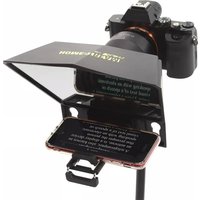
HS-Pompter - Teleprompter Ikan - Free user manual and instructions
Find the device manual for free HS-Pompter Ikan in PDF.


| Product Type | Teleprompter for Smartphones |
| Brand | Ikan |
| Model | HS-Pompter |
| Compatible Devices | DSLR and Mirrorless Cameras, Smartphones (as camera and prompting device) |
| Included Components | Teleprompter, Glass Cover, Smartphone Holder, Smartphone Clamp, Bluetooth Remote Control, 8x Lens Adapter Rings, 2x Foam Rings, Screwdriver |
| Remote Control | Bluetooth remote with auto-pair, power saving (5 min idle off if unpaired, 30 min if paired) |
| Lens Adapters | 8 included rings for various camera lens sizes |
| Foam Rings | 2 included for smartphone camera alignment |
| Dimensions | Approximately 12 x 8 x 6 inches (30 x 20 x 15 cm) |
| Weight | Approximately 3.3 lbs (1.5 kg) |
| Power Supply | Bluetooth remote: 1x CR2032 battery (not included) |
| Main Functions | Camera teleprompter with smartphone prompting, adjustable phone clamp, horizontal/vertical mounting, compatible with Homestream Teleprompter app |
| Maintenance | Clean glass cover with a soft, lint-free cloth. Avoid harsh chemicals. |
| Safety | Use on a stable surface. Do not disassemble. Avoid exposure to extreme temperatures or moisture. |
| Spare Parts | Foam rings and lens adapters available from Ikan support. |
| Repairability | Contact Ikan support at support@ikancorp.com for service. |
| Warranty | 1 year free service for manufacturing defects. |
| General Information | Designed for smartphone prompting with camera recording. Uses Homestream Teleprompter app (iOS/Android). |
Frequently Asked Questions - HS-Pompter Ikan
User questions about HS-Pompter Ikan
0 question about this device. Answer the ones you know or ask your own.
Ask a new question about this device
Download the instructions for your Teleprompter in PDF format for free! Find your manual HS-Pompter - Ikan and take your electronic device back in hand. On this page are published all the documents necessary for the use of your device. HS-Pompter by Ikan.
USER MANUAL HS-Pompter Ikan
Homestream by Ikan Teleprompter Designed For Smartphones
www.ikancorp.com | 1.713.272.8822 | sales@ikancorp.com


What's Included
1 x Teleprompter
1 x Teleprompter Glass Cover
1 x Smartphone Holder
1 x Smartphone Clamp (already installed on teleprompter)
1 x Bluetooth Remote Control
8 x Lens Adapter Rings
2 x Foam Rings for Smartphone
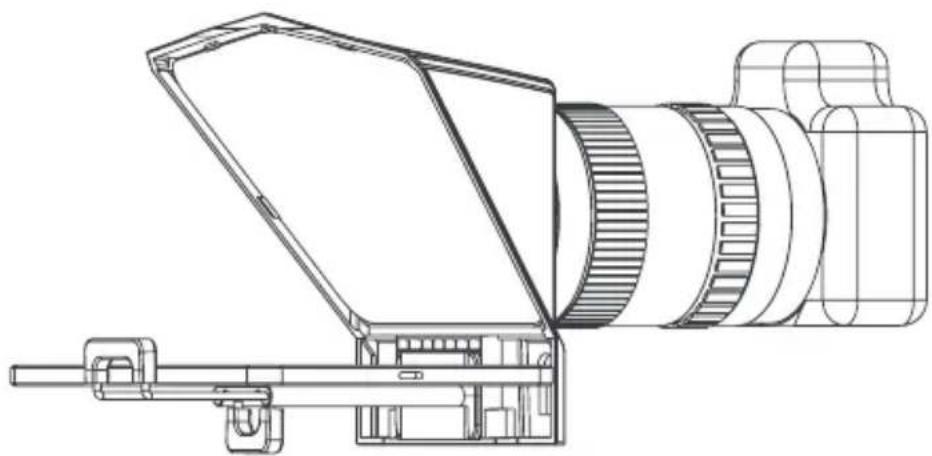
Installation Steps (DSLR or Mirrorless Camera)
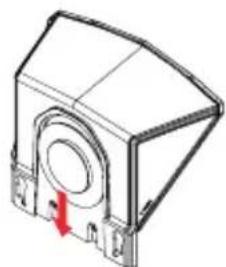
- Remove the rear cover of the teleprompter

- Use the included screwdriver to attach the phone clamp

- Install the lens adapter by screwing it to your lens. Make sure the adapter is screwed on completely
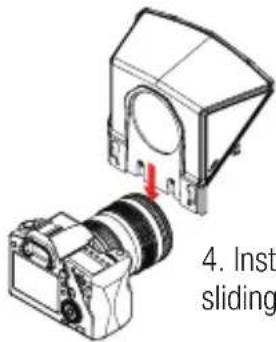
- Install the teleprompter by sliding it over the ring adapter

- Place a smartphone on the clamp
Installation Steps (Smartphone as Camera)

1. Remove the front and rear cover of the teleprompter
3. Use the included screwdriver to attach the phone clamp
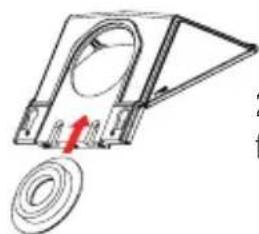
- Install the adapter ring with foam on the adapter
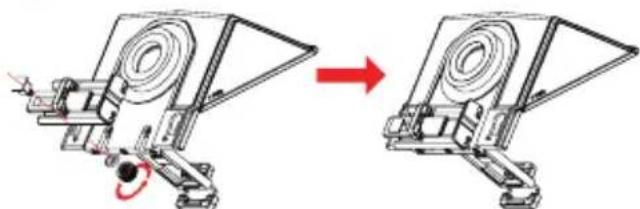
- Unscrew the knob from the smartphone holder. Smartphone holder can be installed on either side depending on your preference. To record horizontal footages install smartphone holder vertically. To record vertical footages install smartphone holder horizontally
Installation Steps (Smartphone as Camera)

- Remove the protective cover of the teleprompter
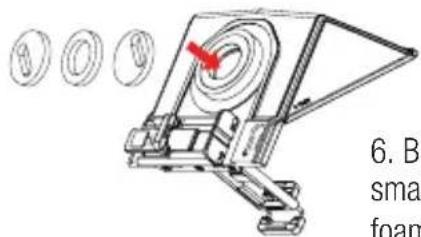
- Based off the camera of your smartphone place one of the two foam rings into the adapter ring

- Attach the phone to the smartphone holder. Foam ring may need to be rotated and adjusted for various smartphone camera locations
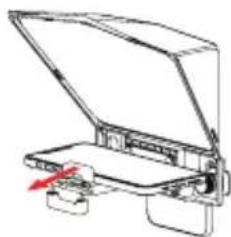
- Place another phone for prompting on the phone clamp
Bluetooth Remote Controller
(For Homestream Teleprompter App Only)

Bluetooth Remote Controller
(For Homestream Teleprompter App Only)
Instructions
- Power On: Hold down power button for 2 seconds LED light will come on.
- Power Off: Hold down power button for 5 seconds LED light will turn off.
- Pairing Remote: Once the remote is turned on it will be placed in auto pair mode. In your phone's Bluetooth settings locate the HOMESTREAM remote to pair. If you want to pair to a different/new device turn off the remote. Hold down the power button for 8 seconds and the LED light should blink indicating the remote is in pairing mode.
- Power Saving Feature: If the remote is not paired to a device, it will turn off after being in idle for 5 minutes. If the remote is connected to a device, it will turn off after being in idle for 30 minutes.
HOMESTREAM Telepromper App
The Homestream teleprompter app can be found by searching in either the iOS App Store or the Android Play Store for "HomeStream Teleprompter"
Learn More
More dynamic information at official website: www.ikancorp.com
Support
Contact email: support@ikancorp.com
CONDITIONS OF WARRANTY SERVICE
- Free service for one year from the day of purchase if the problem is caused by manufacturing errors.
- The components and maintenance service fee will be charged if the warranty period is expired.
Free Service will not be Provided in the Following Situations:
(*Even if the product is still within the warranty period.)
- Damage caused by abuse or misuse, dismantling, or changes to the product not made by the company.
- Damage caused by natural disaster, abnormal voltage, and environmental factors, etc.


- WHAT'S INCLUDED
- INSTALLATION STEPS (DSLR OR MIRRORLESS CAMERA)
- INSTALLATION STEPS (SMARTPHONE AS CAMERA)
- BLUETOOTH REMOTE CONTROLLER
- (FOR HOMESTREAM TELEPROMPTER APP ONLY)
- INSTRUCTIONS
- HOMESTREAM TELEPROMPER APP
- LEARN MORE
- SUPPORT
- CONDITIONS OF WARRANTY SERVICE
- FREE SERVICE WILL NOT BE PROVIDED IN THE FOLLOWING SITUATIONS
- (*EVEN IF THE PRODUCT IS STILL WITHIN THE WARRANTY PERIOD.)
Brand : Ikan
Model : HS-Pompter
Category : Teleprompter