
MEK Ultra GU2070C701B - Desktop computer Zotac - Free user manual and instructions
Find the device manual for free MEK Ultra GU2070C701B Zotac in PDF.


| Product Type | Desktop computer (PC gaming system) |
| Brand | Zotac |
| Model | MEK Ultra GU2070C701B |
| Processor | Intel Core i7-8700K (six-core 3.7GHz, up to 4.5GHz) |
| Graphics | NVIDIA GeForce RTX 2070 8GB GDDR6 |
| Memory | 16GB DDR4 (max 64GB) |
| Storage (SSD) | 240GB NVMe M.2 SSD |
| Storage (HDD) | 2TB 3.5-inch HDD |
| Power Supply | 1000W |
| Operating System | Windows 10 Home 64-bit |
| Networking | Gigabit LAN, Killer AC WiFi, Bluetooth 5 |
| Audio | Onboard 7.1 channel with optical S/PDIF output |
| I/O Ports (Front) | 1x Headphone, 1x Microphone, 2x USB 3.0, 2x USB 2.0 |
| I/O Ports (Rear) | 2x USB 3.1 Gen1 (1 Type-C), 6x USB 3.0, 2x USB 2.0, 3x DisplayPort 1.4, 1x HDMI 2.0b, 1x USB Type-C (max 4 displays), PS/2 combo, LAN, 5 audio jacks + optical |
| Dimensions (Approx.) | 18.3 x 8.3 x 17.5 inches (465 x 210 x 445 mm) |
| Weight (Approx.) | 12 kg (26.5 lbs) |
| Ventilation | Do not block vents; leave space around system |
| Operating Temperature | 0°C to 35°C |
| Safety Features | Overcurrent protection, UL listed extension cord recommended, unplug before cleaning |
| Accessories Included | Glass side cover, power cord(s), WiFi antennas, user manual, quick start guide, warranty card, recovery DVD (optional), USB flash drive with recovery image and drivers |
Frequently Asked Questions - MEK Ultra GU2070C701B Zotac
User questions about MEK Ultra GU2070C701B Zotac
0 question about this device. Answer the ones you know or ask your own.
Ask a new question about this device
Download the instructions for your Desktop computer in PDF format for free! Find your manual MEK Ultra GU2070C701B - Zotac and take your electronic device back in hand. On this page are published all the documents necessary for the use of your device. MEK Ultra GU2070C701B by Zotac.
USER MANUAL MEK Ultra GU2070C701B Zotac
1 facebook.com/irona
twitter.com/zai@
8 youtube.com/zetae_official
vimes.com/zulac
insagram.com/zotoc_official



ZOTAGAMING
MEK ULTRA
PC GAMING SYSTEM
USER'S MANUAL
natural_image
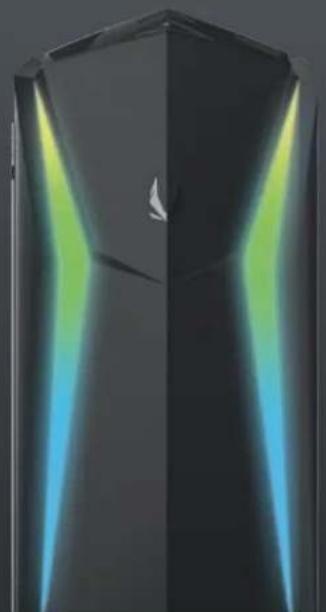
Abstract geometric object with gradient lighting and a central hole (no text or symbols)ZOTAC GAMING MEK ULTRA PC GAMING SYSTEM User's Manual
natural_image
Exterior view of a modern office building (no signage)No part of this manual, including the products and software described in it, may be reproduced, transmitted, transcribed, stored in a retrieval system, or translated into any language in any form or by any means, except documentation kept by the purchaser for backup purposes, without the express written permission of ZOTAC.
Products and corporate names mentioned in this manual may be registered trademarks or copyrights of their respective companies, and are used for identification purposes only. All trademarks are the property of their respective owners.
Every effort has been made to ensure that the contents of this manual are correct and up to date. However, the manufacturer makes no guarantee regarding the accuracy of its contents, and reserves the right to make changes without prior notice.
CAUTION:
Risk of explosion if the battery is replaced with an incorrect type. Batteries should be recycled where possible. Disposal of used batteries must be in accordance with local environmental regulations.
Table of Contents
Product specifications 3
Safety information 9
Setting up your system----9
Care during use 9
Welcome 10
Package contents 10
Getting to know your ZOTAC GAMING MEK Ultra PC Gaming System----11
Top view----11
Rear view 12
Installing the glass side cover----16
Configure your ZOTAC GAMING MEK Ultra PC Gaming System 19
Configuring a wireless connection 19
Configuring a wired connection 19
Using a static IP----19
Configuring audio output----20
Product specifications For GU208TS901B(i9-RTX2080Ti)
Microprocessor Support
Intel Core i9-7900X (ten-core 3.3GHz, up to 4.5GHz)
Onboard Graphics Support
ZOTAC GAMING GeForce RTX 2080Ti 11GB GDDR6
Internal Expansion:
◆ 32GB DDR4 Memory (max 128GB)
◆ 500GB NVMe M.2 SSD
◆ 32GB Intel Optane Memory
◆ 4TB 3.5-inch HDD
Networking
◆ Gigabit LAN (10/100/1000Mbps)
Killer AC WiFi
Bluetooth 5
Audio
◆ Onboard 7.1 Channel with Optical output
I/O
◆ 3x DisplayPort 1.4, 1x HDMI 2.0b, 1x USB Type-C (max 4 displays)
Mic/Headphone
◆ 2x USB 3.1 Gen1 Ports (1x Type-C), 6x USB 3.0 Ports, 4x USB 2.0 Ports
Power Supply
◆1000W
OS Pre-installed
◆Windows 10 Home Edition, 64-bit
For GU208TC701B(i7-RTX2080Ti)
Microprocessor Support
Intel Core i7-8700K (six-core 3.7GHz, up to 4.7GHz)
□ Onboard Graphics Support
ZOTAC GAMING GeForce RTX 2080Ti 11GB GDDR6
Internal Expansion:
◆ 32GB DDR4 Memory (max 64GB)
◆ 500GB NVMe M.2 SSD
◆ 4TB 3.5-inch HDD
Networking
◆ Gigabit LAN (10/100/1000Mbps)
Killer AC WiFi
Bluetooth 5
Audio
◆ Onboard 7.1 Channel with Optical output
□ I/O
◆ 3x DisplayPort 1.4, 1x HDMI 2.0b, 1x USB Type-C (max 4 displays)
Mic/Headphone
◆ 2x USB 3.1 Gen1 Ports (1x Type-C), 6x USB 3.0 Ports, 2x USB 2.0 Ports
Power Supply
◆1000W
OS Pre-installed
◆Windows 10 Home Edition, 64-bit
For GU208TC702B(i7-RTX2080Ti)
Microprocessor Support
Intel Core i7-8700K (six-core 3.7GHz, up to 4.7GHz)
□ Onboard Graphics Support
ZOTAC GAMING GeForce RTX 2080Ti 11GB GDDR6
Internal Expansion:
◆ 32GB DDR4 Memory (max 64GB)
◆ 500GB NVMe M.2 SSD
◆ 2TB 3.5-inch HDD
Networking
◆ Gigabit LAN (10/100/1000Mbps)
Killer AC WiFi
Bluetooth 5
Audio
◆ Onboard 7.1 Channel with Optical output
□ I/O
◆ 3x DisplayPort 1.4, 1x HDMI 2.0b, 1x USB Type-C (max 4 displays)
Mic/Headphone
◆ 2x USB 3.1 Gen1 Ports (1x Type-C), 6x USB 3.0 Ports, 2x USB 2.0 Ports
Power Supply
◆1000W
OS Pre-installed
◆Windows 10 Home Edition, 64-bit
For GU2080C701B(i7-RTX2080)
Microprocessor Support
Intel Core i7-8700K (six-core 3.7GHz, up to 4.7GHz)
□ Onboard Graphics Support
ZOTAC GAMING GeForce RTX 2080 8GB GDDR6
Internal Expansion:
◆ 16GB DDR4 Memory (max 64GB)
◆ 240GB NVMe M.2 SSD
◆ 2TB 3.5-inch HDD
Networking
◆ Gigabit LAN (10/100/1000Mbps)
Killer AC WiFi
Bluetooth 5
Audio
◆ Onboard 7.1 Channel with Optical output
I/O
◆ 3x DisplayPort 1.4, 1x HDMI 2.0b, 1x USB Type-C (max 4 displays)
Mic/Headphone
◆ 2x USB 3.1 Gen1 Ports (1x Type-C), 6x USB 3.0 Ports, 2x USB 2.0 Ports
Power Supply
◆1000W
OS Pre-installed
◆Windows 10 Home Edition, 64-bit
For GU2070C701B(i7-RTX2070)
Microprocessor Support
Intel Core i7-8700K (six-core 3.7GHz, up to 4.7GHz)
□ Onboard Graphics Support
ZOTAC GAMING GeForce RTX 2070 8GB GDDR6
Internal Expansion:
◆ 16GB DDR4 Memory (max 64GB)
◆ 240GB NVMe M.2 SSD
◆ 2TB 3.5-inch HDD
Networking
◆ Gigabit LAN (10/100/1000Mbps)
Killer AC WiFi
Bluetooth 5
Audio
◆ Onboard 7.1 Channel with Optical output
I/O
◆ 3x DisplayPort 1.4, 1x HDMI 2.0b, 1x USB Type-C (max 4 displays)
Mic/Headphone
◆ 2x USB 3.1 Gen1 Ports (1x Type-C), 6x USB 3.0 Ports, 2x USB 2.0 Ports
Power Supply
◆1000W
OS Pre-installed
◆Windows 10 Home Edition, 64-bit
For GU2070B702B(i7-RTX2070)
Microprocessor Support
Intel Core i7-8700K (six-core 3.7GHz, up to 4.7GHz)
□ Onboard Graphics Support
ZOTAC GAMING GeForce RTX 2070 8GB GDDR6
Internal Expansion:
◆ 16GB DDR4 Memory (max 64GB)
◆ 240GB NVMe M.2 SSD
◆ 2TB 3.5-inch HDD
Networking
◆ Gigabit LAN (10/100/1000Mbps)
Killer AC WiFi
Bluetooth 5
Audio
◆ Onboard 7.1 Channel with Optical output
I/O
◆ 3x DisplayPort 1.4, 1x HDMI 2.0b, 1x USB Type-C (max 4 displays)
Mic/Headphone
◆ 2x USB 3.1 Gen1 Ports (1x Type-C), 6x USB 3.0 Ports, 2x USB 2.0 Ports
Power Supply
◆650W
OS Pre-installed
◆Windows 10 Home Edition, 64-bit
Safety information
Your ZOTAC GAMING MEK Ultra PC Gaming System is designed and tested to meet the latest standards of safety for information technology equipment. However, to ensure your safety, it is important that you read the following safety instructions.
Setting up your system
Read and follow all instructions in the documentation before operating your system.
Do not use this product near water or a heat source such as a radiator.
- Set up the system on a stable surface.
Openings on the chassis are for ventilation. Do not block or cover these openings. Make sure you leave plenty of space around the system for ventilation. Never insert objects of any kind into the ventilation openings.
Use this product in environments with ambient temperatures between 0°C and 35°C.
If you use an extension cord, please use the UL listed cord and make sure that the total ampere rating of the devices plugged into the extension cord does not exceed its ampere rating.
Care during use
Do not walk on the power cord or allow anything to rest on it.
Do not spill water or any other liquids on your system.
When the system is turned off, a small amount of electrical current still flows. Always unplug all power, modem, and network cables from the power outlets before cleaning the system.
If you encounter the following technical problems with the product, unplug the power cord and contact a qualified service technician or your retailer.
The power cord or plug is damaged.
Liquid has been spilled onto the system.
The system does not function properly even if you follow the operating instructions.
The system was dropped or the cabinet is damaged.
Welcome
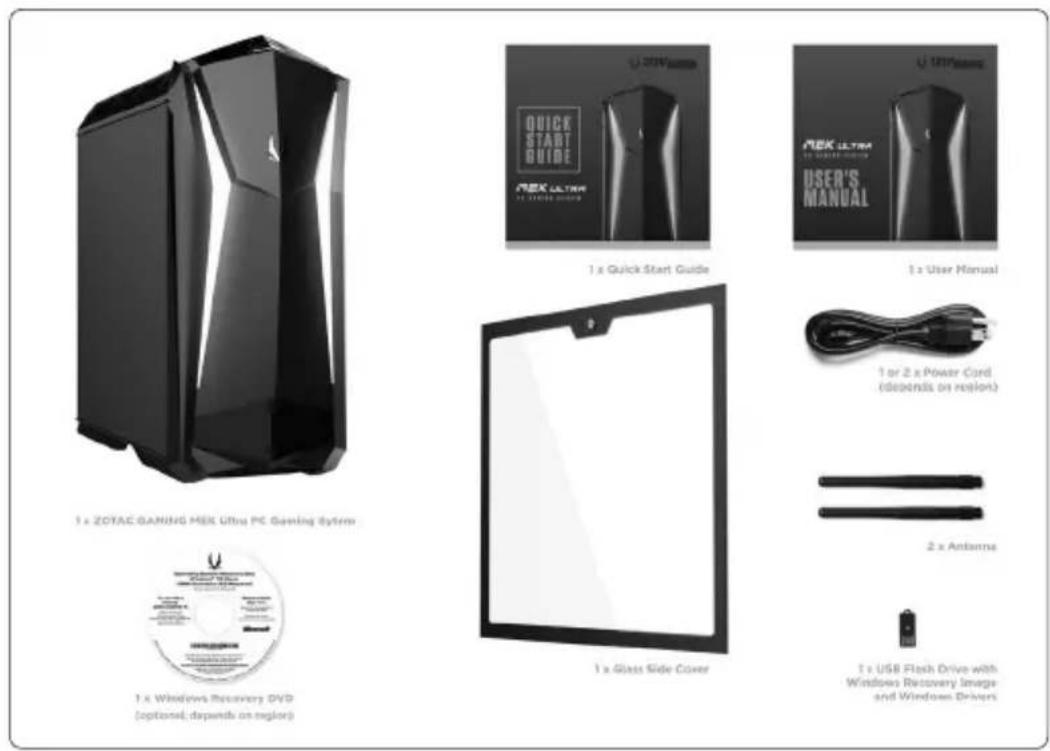
Congratulations on your purchase of the ZOTAC GAMING MEK Ultra PC Gaming System. The following illustration displays the package contents of your new MEK Ultra PC Gaming System. If any of the below items is damaged or missed, contact your retailer.
Package contents
• 1 x ZOTAC GAMING MEK Ultra PC Gaming System
- 1 x Glass Side Cover
• 1 or 2 x Power Cord (depends on region)
- 2 x WiFi Antenna
• 1 x Windows Recovery DVD (Optional; depends on region)
• 1 x USB Flash Drive with Windows Recovery Image and Windows Drivers
• 1 x User Manual & Warranty Card
• 1 x Quick Start Guide
Getting to know your ZOTAC GAMING MEK Ultra PC Gaming
System
Top view
natural_image
Exterior view of a black rectangular electronic device with ventilation slots and a small button (no visible text or symbols)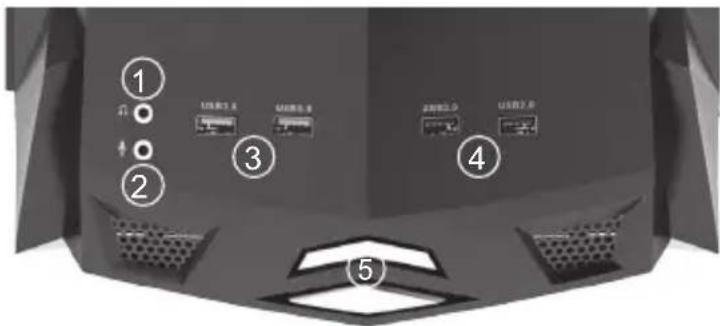
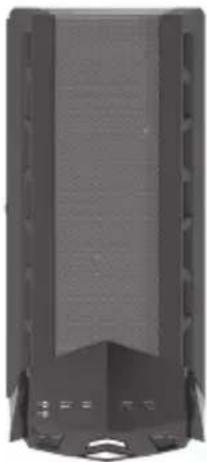
Refer to the diagram below to identify the components on this side of the system
1. Headphone/Audio Out jack
The stereo headphone jack (3.5mm) is used to connect the system's audio out signal to gaming headset.
2. Microphone jack
The microphone jack is designed to connect the microphone used for easy connection with gaming headset.
3. USB 3.0 ports
The USB 3.0 port supports the SuperSpeed USB 3.0 devices and is backwards compatible with USB 2.0/1.1 devices. Use this port for USB 3.0 devices for maximum performance with USB 3.0 compatible devices.
4. USB 2.0 ports
The USB (Universal Serial Bus) port is compatible with USB devices such as keyboards, mice, cameras and hard disk drives.
5. Power button
The power button turns the system ON and OFF.
Rear view (i9)
natural_image
Back view of a desktop computer tower showing drive bays, ventilation fan, and rack-mounted ports (no text or labels visible)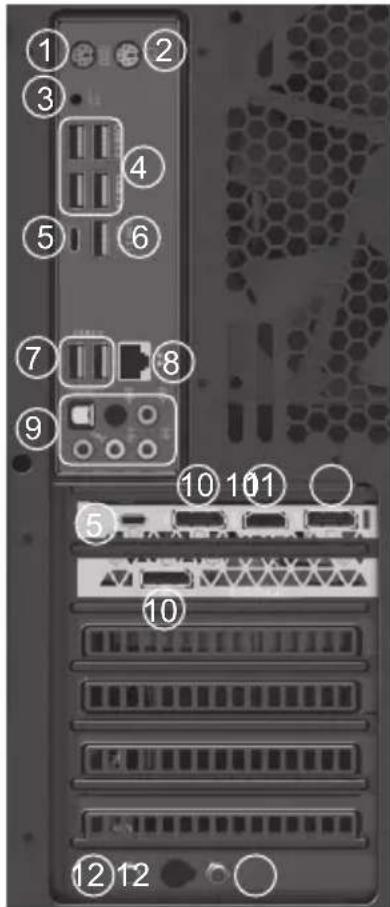
- PS2 keyboard port
The PS/2 port is used to connect with keyboard.
- PS2 mouse port
The PS/2 port is used to connect with mouse.
- Clear CMOS button
Press the button for 3 seconds to clear CMOS.
- USB 3.0 ports
The USB 3.0 port supports the SuperSpeed USB 3.0 device. Use this port for USB 3.0 devices for maximum performance with USB 3.0 compatible devices.
5. USB 3.1 Type-C ports
The type-C USB 3.1 port supports the SuperSpeed USB 3.1 devices. Use this port for USB 3.1 devices for maximum performance with USB 3.1 compatible devices.
6. USB 3.1 port
The USB 3.1 port supports the SuperSpeed USB 3.1 devices. Use this port for USB 3.1 devices for maximum performance with USB 3.1 compatible devices.
7. USB 2.0 ports
The USB (Universal Serial Bus) port is compatible with USB devices such as keyboards, mice, cameras and hard disk drives.
8. LAN port
The eight-pin RJ-45 LAN port support standard Ethernet cables for connection to a local network.
9. Audio ports with SPDIF-out
Use the five audio ports to connect audio devices. The pink jack is for microphone. The green jack is for front speaker out signal. The blue jack is for side speaker out signal. The orange jack is for rear speaker out signal. The black jack is for center/subwoofer signal. The optical S/PDIF output enables connectivity with digital audio receivers and speakers for crystal clear digital audio and surround sound from compatible soundtracks.
10. DisplayPorts
DisplayPorts supports both external (box-to-box) and internal (laptop LCD panel) display connections.
11. HDMI port
The HDMI (High Definition Multimedia Interface) port supports a UHD device such as an LCD TV or monitor to allow viewing on a larger external display.
12. WiFi antenna connectors
The WiFi antenna connector supports the included WiFi antenna.
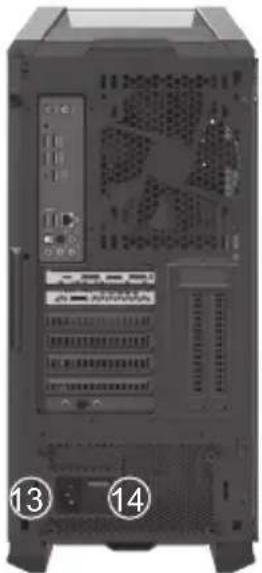
13. Power input (IEC C20 or C14, standard power cord connection)
Connected with power cord to mains for AC input.
14. Power switch
The power button turns the system ON and OFF.
Do not block ventilation outlet for warm air exhaust.
Rear view (i7)
natural_image
Back view of a desktop computer tower showing internal hardware racks and ventilation slots (no readable text or symbols)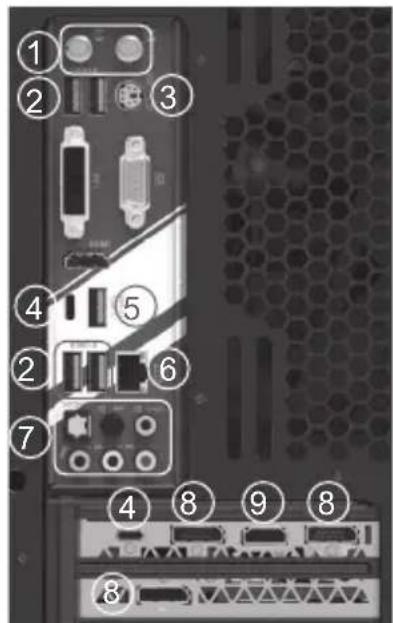
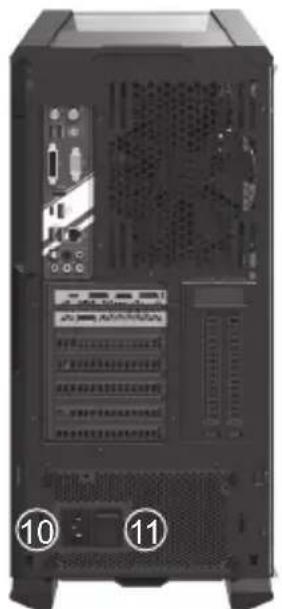
1. WiFi antenna connectors
The WiFi antenna connector supports the included WiFi antenna.
2. USB 3.0 ports
The USB 3.0 port supports the SuperSpeed USB 3.0 device. Use this port for USB 3.0 devices for maximum performance with USB 3.0 compatible devices.
3. PS2 keyboard/mouse port
The PS/2 port is used to connect with keyboard/mouse.
4. USB 3.1 Type-C ports
The type-C USB 3.1 port supports the SuperSpeed USB 3.1 devices. Use this port for USB 3.1 devices for maximum performance with USB 3.1 compatible devices.
5. USB 3.1 port
The USB 3.1 port supports the SuperSpeed USB 3.1 devices. Use this port for USB 3.1 devices for maximum performance with USB 3.1 compatible devices.
6. LAN port
The eight-pin RJ-45 LAN port support standard Ethernet cables for connection to a local network.
7. Audio ports with SPDIF-out
Use the five audio ports to connect audio devices. The pink jack is for microphone. The green jack is for front speaker out signal. The blue jack is for side speaker out signal. The orange jack is for rear speaker out signal. The black jack is for center/subwoofer signal. The optical S/PDIF output enables connectivity with digital audio receivers and speakers for crystal clear digital audio and surround sound from compatible soundtracks.
8. DisplayPorts
DisplayPorts supports both external (box-to-box) and internal (laptop LCD panel) display connections.
9. HDMI port
The HDMI (High Definition Multimedia Interface) port supports a UHD device such as an LCD TV or monitor to allow viewing on a larger external display.
10. Power input (IEC C20 or C14, standard power cord connection)
Connected with power cord to mains for AC input.
11. Power switch
The power button turns the system ON and OFF.
Do not block ventilation outlet for warm air exhaust.
Installing the glass side cover
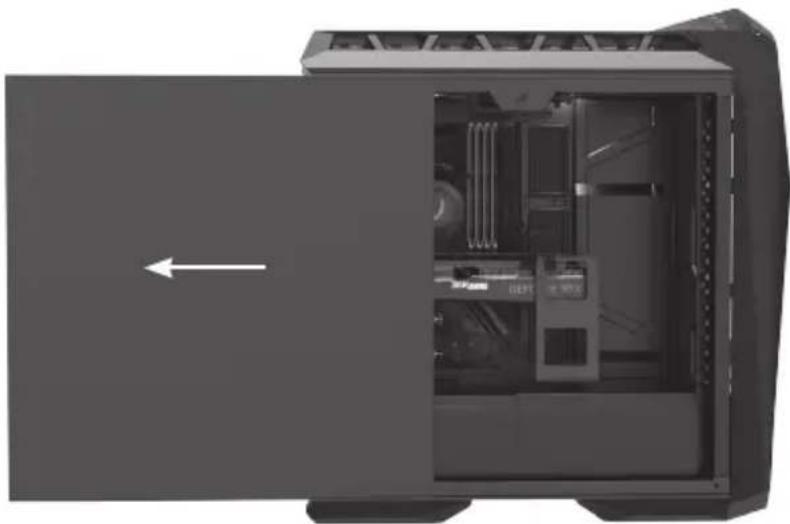
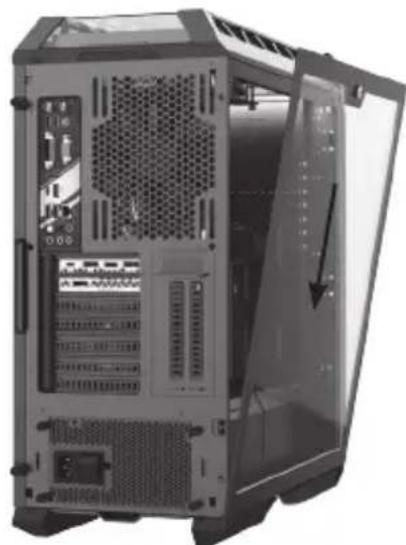
The MEK Ultra PC gaming system is pre-installed with an iron side cover, users can also install the glass side cover in accessories. Please follow the instructions below to install the glass side cover.
- Rotate and remove the two screws securing the iron side cover.
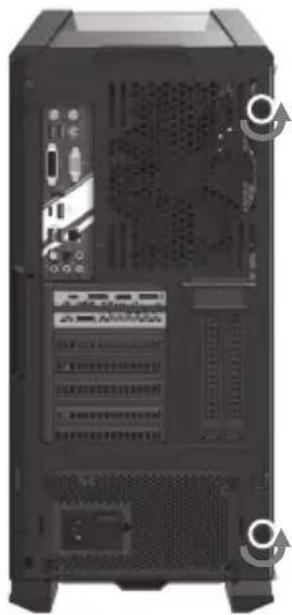
natural_image
Back view of a black desktop computer tower showing ventilation slots and drive bays (no text or labels visible)- Gently push the iron side cover and remove it as shown below.
natural_image
Interior view of a computer tower case showing internal hardware and ventilation (no text or symbols visible)- Insert the glass side cover to the side of the MEK Ultra PC Gaming system, and ensure that the installation is in place.
natural_image
Back view of a desktop computer tower case showing internal hardware and ventilation slots (no text or labels visible)- Use a coin to turn the screw to secure the glass side cover.
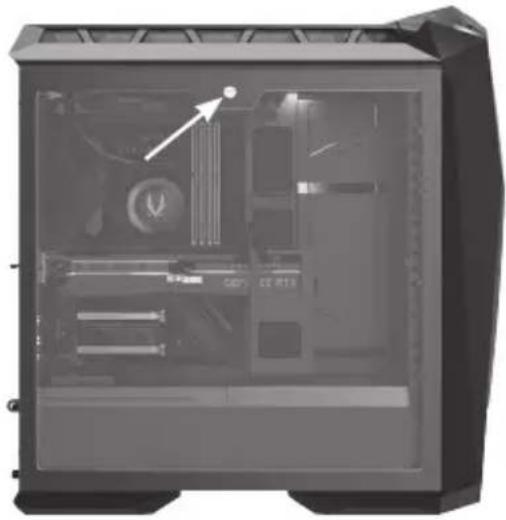
natural_image
Interior view of a computer tower case showing internal components and ventilation ducts (no text or symbols visible)Configuring your ZOTAC GAMING MEK Ultra PC Gaming System
Configuring a wireless connection
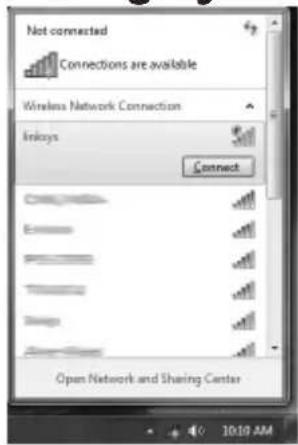
Please follow the instructions below to connect to a wireless network:
- Double-click the wireless network icon (pic) in the notification area.
- Select the wireless network you want to connect to from the list and click Connect.
- After connection is established, you will see "Connected."
Note 1: For security concerns, Do NOT connect to an unsecured network, otherwise, the transmitted information without encryption might be visible to others.
Note 2: Enter the network security key if necessary.
Configuring a wired connection
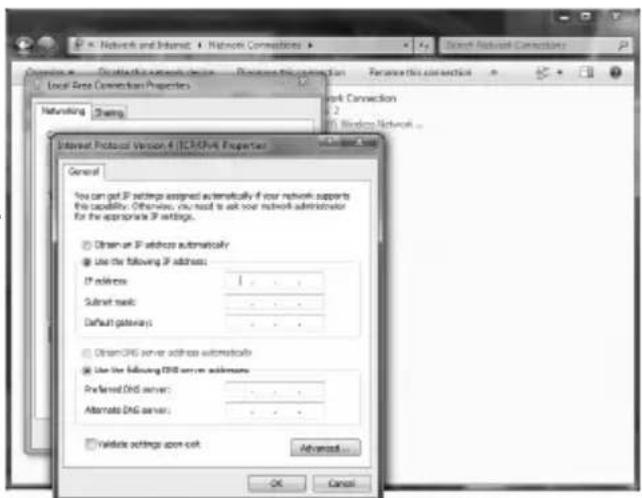
Using a static IP
- Connect one end of the Ethernet cable to your Internet Service Provider (ISP) modem/router.
- Connect the other end to the Ethernet port in the rear of the MEK Ultra PC Gaming System.
- Highlight "Internet Protocol (TCP/IP)" and click "Properties".
- Select "Use the following IP address".
- Enter your IP address, subnet mask and Default gateway.
-
Enter the preferred DNS server address if necessary.
-
After entering all of the related values, click "OK" to finish the configuration.
Configuring audio output
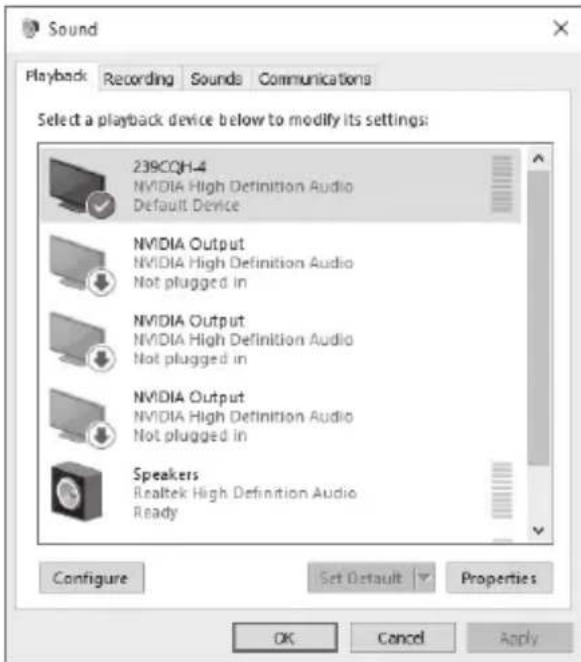
Follow the steps below to enable audio output when connecting the MEK Ultra PC Gaming
System to a TV or receiver via DP/HDMI adapter.
- Access the Sound settings via the system Control Panel.
- Under Playback devices, click the display device that corresponds with your audio compatible display.
- Click the "Set Default" button in the lower right hand corner.
- Click "OK" to exit the setup.
- MEK ULTRA
- USER'S MANUAL
- ZOTAC GAMING MEK ULTRA PC GAMING SYSTEM User's Manual
- CAUTION:
- Table of Contents
- Product specifications 3
- Safety information 9
- Welcome 10
- Getting to know your ZOTAC GAMING MEK Ultra PC Gaming System----11
- Installing the glass side cover----16
- Configure your ZOTAC GAMING MEK Ultra PC Gaming System 19
- Product specifications For GU208TS901B(i9-RTX2080Ti)
- Microprocessor Support
- Onboard Graphics Support
- Internal Expansion:
- Networking
- Audio
- I/O
- Power Supply
- OS Pre-installed
- For GU208TC701B(i7-RTX2080Ti)
- □ Onboard Graphics Support
- □ I/O
- For GU208TC702B(i7-RTX2080Ti)
- For GU2080C701B(i7-RTX2080)
- For GU2070C701B(i7-RTX2070)
- For GU2070B702B(i7-RTX2070)
- Safety information
- Setting up your system
- Care during use
- Welcome
- Package contents
- Getting to know your ZOTAC GAMING MEK Ultra PC Gaming
- System
- Top view
- Headphone/Audio Out jack
- Microphone jack
- USB 3.0 ports
- USB 2.0 ports
- Power button
- Rear view (i9)
- USB 3.1 Type-C ports
- USB 3.1 port
- USB 2.0 ports
- LAN port
- Audio ports with SPDIF-out
- DisplayPorts
- HDMI port
- WiFi antenna connectors
- Power input (IEC C20 or C14, standard power cord connection)
- Power switch
- Rear view (i7)
- WiFi antenna connectors
- USB 3.0 ports
- PS2 keyboard/mouse port
- USB 3.1 Type-C ports
- USB 3.1 port
- LAN port
- Audio ports with SPDIF-out
- DisplayPorts
- HDMI port
- Power input (IEC C20 or C14, standard power cord connection)
- Power switch
- Installing the glass side cover
- Configuring your ZOTAC GAMING MEK Ultra PC Gaming System
- Configuring a wireless connection
- Configuring a wired connection
- Using a static IP
- Configuring audio output
Brand : Zotac
Model : MEK Ultra GU2070C701B
Category : Desktop computer