
Lenovo K13 Pro - Cellphone MOTOROLA - Free user manual and instructions
Find the device manual for free Lenovo K13 Pro MOTOROLA in PDF.


| Product Type | Smartphone |
| Brand | Motorola (Lenovo) |
| Model | Lenovo K13 Pro |
| Operating System | Android (with Google services) |
| Main Camera Resolution | 64 MP (Ultra-Res mode) |
| Additional Cameras | Ultra-wide (118°) and Macro |
| Front Camera | Selfie camera (not specified resolution) |
| Display | Touchscreen (size not specified) |
| Battery | Rechargeable via USB-C |
| Charging Port | USB Type-C |
| Memory Card Slot | microSD up to 512 GB (sold separately) |
| SIM Card | Nano-SIM (dual SIM possible) |
| Fingerprint Sensor | Yes (on device) |
| Face Unlock | Yes |
| Connectivity | Wi-Fi, Bluetooth, NFC, GPS |
| Water Resistance | Water repellent (not waterproof) |
| Maintenance | Clean with 70% isopropyl alcohol wipes; avoid moisture in openings |
| Safety | SAR guidelines; use at least 5 mm from body |
| Spare Parts | microSD card, USB cable, charger (use recommended) |
| Repair | Service via Lenovo support; water damage not covered by warranty |
Frequently Asked Questions - Lenovo K13 Pro MOTOROLA
User questions about Lenovo K13 Pro MOTOROLA
0 question about this device. Answer the ones you know or ask your own.
Ask a new question about this device
Download the instructions for your Cellphone in PDF format for free! Find your manual Lenovo K13 Pro - MOTOROLA and take your electronic device back in hand. On this page are published all the documents necessary for the use of your device. Lenovo K13 Pro by MOTOROLA.
USER MANUAL Lenovo K13 Pro MOTOROLA
Tip: To best view this guide, download a PDF reader app, then open the guide in the app.
Contents
Hot topics
Get Started
First look
Insert the SIM and microSD cards
Power on
Sign in
Connect to Wi-Fi
Check your battery charge level
Navigate your phone
Improve battery life
Care for your phone
Learn the basics
I lome screen
Help & more
Search
Notifications
Status icons
Volume
Do not disturb
Lock screen
Quick settings
Speak
Gestures
Direct Share
Picture-in-Picture
Personalize your phone
Redecorate your home screen
Digital wellbeing & parental controls
Apps
Phone
Messages
Chrome™
Camera
Photos
Gmail
Duo
Cale
Moro and
Connect, share, pay & sync
Connect with WI-FI
Connect with Bluetooth wireless
Share files with your computer
Share your data connection
Share or pay with NFC
Share with contacts nearby
Sync to the cloud
Cast your screen to a TV
Use a memory card
Airplane mode
Mobile network
Protect your phone
Screen lock
Your privacy
App pinning
Backup & restore
App safety
Troubleshoot your phone
Restart or remove an app
Restart your phone
Check for software update
Reset
Stolen phone
Accessibility
Make your phone speak
Speak to your phone
Change your phone's display
Change your phone's sounds
Get more help
Where is my legal, safety, & regulatory
information?
Service & repairs
Copyright & trademarks
Hot topics
» Quick settings
» Personalize our phone
» Camera
» Protect our phone
» Speak
» Connect to WFi
» System navigation
Tip: To view all of these topics on your phone, swipe up ▲ from the home screen and tap ? Device Help > Learn. For FAQs and other phone support, visit http://support.lenovo.com.
SAR To view the SAR and/or PD values for your phone, from the home screen, swipe up and tap Settings > Q, then type Regulatory labels.
This product meets the applicable national or international RF exposure
guidance (SAR guideline) when used normally against your head or, when worn or carried, at a distance of 5 mm from the body. To meet RF exposure guidelines during body-worn operation, the device should be positioned at least this distance away from the body. The SAR guideline includes a considerable safety margin designed to assure the safety of all persons, regardless of age and health.
To view additional information, visit www.sar-tick.com.
Caution: Before using your phone, please read the legal information. Swipe up ▲>
Settings > About phone > Legal information.
Get Started
First look
Let's get started. We'll guide you through startup and tell you a bit about your phone's features.
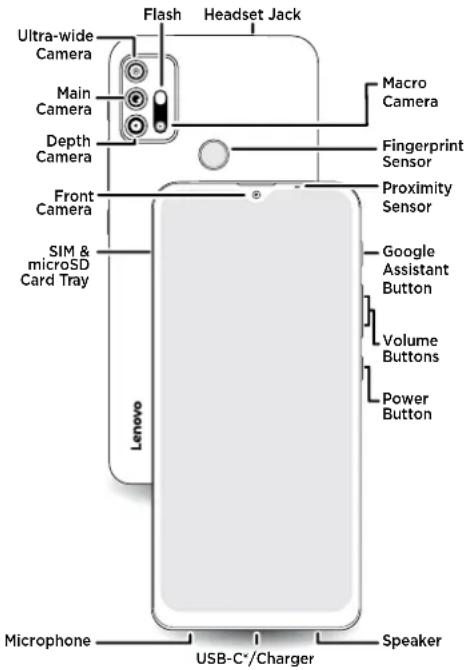
Note: Certain apps and features may not be available in all countries.
Power button
Choose from these options:
» Power on/off: Press and hold the Power button, then tap Power off. When your phone is off, press and hold the Power button to turn it on.
» Sleep/Wake upTo conserve battery power and prevent accidental touches, put the touchscreen to sleep by pressing the Power button. Press it again to wake it up.
» Restart to restart your phone, press and hold the Power button, then tap Restart.
Tip: see Protect your phone.
Volume buttons
To turn volume up or down:
» Music/video volume: Press the buttons when your phone is not ringing, or during a song or video, to adjust media volume.
» Ringer volume: Pass a volume button, then tap and slide the Ring volume bar. Press a volume button when your phone is ringing to silence a call.
» Earpiece volume press the buttons during a call.
Tip: For more on volume control, see Volume.
Google Assistant button
Press the Google Assistant button, then speak a command or ask a question. For more about this feature, see The Google Assistant™.
Insert the SIM and microSD cards
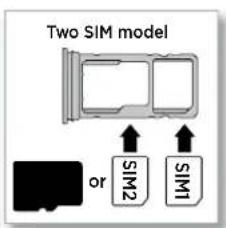
To activate phone service, you might need to insert a SIM card (or two), or this may have been done for you. You can also add a microSD card, which is optional and sold separately.
Put in the cards
Caution: Make sure you use the correct size SIM card and don't cut the SIM card.
1 Insert the SIM tool into the hole next to the tray to pop out the tray.
2 Insert the SIM card(s) with the gold contacts down, then gently push the tray into the slot. Add a microSD card for additional storage.
Note: microSD card is optional, sold separately.


Power on
Press and hold the Power button, then follow the prompts to get started.

Sign in
If you use Gmail™, you already have a Google™ account—if not, you can create an account during setup. Signing into your Google account lets you access, sync, and backup your stuff. You can see your Google apps, contacts, calendar, photos, and more.
Tips
» To add. edit, or delete accounts, swipe up ▲> Settings > Accounts.
» To set up email accounts, see Gmail.
» For help with your Google account, visit www.google.com/accounts.
Connect to Wi-Fi
For faster Internet access and to conserve mobile data use, swipe the status bar down. Touch and hold 🔒 to choose a Wi-Fi network. For full instructions, see Connect with Wi-Fi
Note: This phone supports apps and services that may use a lot of data, so make sure your data plan meets your needs. Contact your service provider for details.
Check your battery charge level
Now is a good time to check if your phone needs to be charged. Swipe down on the home screen to show battery charge level.

To charge your phone, insert the charging cable that came with your phone into the charging port (see First look for port location). Plug the other end into a power receptacle.
Note: Use of other chargers is not recommended.
Navigate your phone
Explore by touch
Use your fingers to find your way around:
» Tap: Choose an icon or option.
» Touch and hold: See meroptions.
» Drag: Mee items on the home screen.
» Swipe: Soll through lists or between screens.
» Pinch or double-tap: Zoom in and out on websites, photos, and maps.
» Twist: wist a map with two fingers to rotate it, and pull two fingers down to tilt it.
» Split screen: 📞 wipe up from the bottom of the screen and hold, then tap the icon at the top of the screen and tap ⚪ Split screen. Not all apps will work in split screen. To close the split screen, drag the dividing line to the bottom of the screen.
» Menus: When gu see : = , you can tap it to open options for the current screen.
» Close Keyboard: To close a keyboard, tap √
System navigation
Navigate using either gestures or buttons on the screen.
Navigation bar
Find it: Swipe up ∧ > Settings > System > Gestures > System navigation > Gesture navigation

For Home screen, swipe up

For recent apps swipe up and hold,
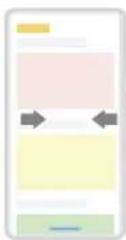
To go back, swipe toward the middle.
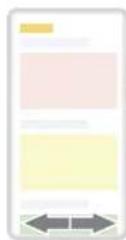
To switch apps swipe left or right at the bottom.
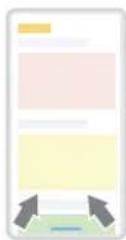
For Google Assistant, swipe up diagonally
» Go to the home screen: Swipe up from the bottom of the screen.
» See recent apps\$wide up from the bottom of the screen and hold. Tap an app to reopen it. Tap the app icon to see app info or split the screen.
» Go back a screen: Sipe toward the middle of the screen from the left or right edge.
» Switch between apps: Swipe left or right across the bottom of the screen.
» Launch the Google Assistant: Swipe up diagonally from the bottom corner of the screen to launch the Google Assistant. Learn more about The Google Assistant™.
Navigation buttons
Find it: Swipe up ▲ > Settings > System > Gestures > System navigation > 3-button navigation
» Back: Tap Back to go to the previous screen.
» Home: Tao Hom● to return to the home screen.
» RecentsTap Recents ■ to see your recent apps (or browser tabs), and tap an app to reopen it. Double tap to quickly switch between your recent apps. To remove an app from the recent list, swipe it up. To scroll the list, swipe right or left.
» Google AssistantTouch and hold Home ● to launch the Google Assistant. Learn more about The Google Assistant™.
Improve battery life
Your phone processes tons of information. Depending on what apps are in use, your phone may use a lot of power.
When your phone is not in use for a period of time, unnecessary background processes are shut down to optimize battery life.
» To see what's using up battery power, swipe up > Settings > Battery > USAGE DETAILS.
» To help improve battery life, swipe up ▲ > Settings > Battery > Battery Saver and turn it on. When on, your phone's display changes to Dark theme.
» To limit battery use for apps that you don't use often, swipe up ▲> Settings > Battery > Adaptive Battery, and turn it on.
Tip: To quickly open Settings, swipe down twice on the status bar and tap
Battery Tips
To save even more battery life between charges, you could reduce:
» Widgets that stream information to your home screen, like news or weather.
» Unused accounts: 📤pe up ▲> Settings > Accounts.
» Recording or streaming videos or music.
Care for your phone
Tips
» When you're near water, consider using a Bluetooth speaker to listen to music from your phone while keeping it safe. For more, see Connect with Bluetooth wireless.
» Hold your phone firmly when using gestures to open the camera or to turn the flashlight on/off. For more, see Gestures.
» Don't leave your phone in a hot car on a sunny day. If you do accidentally do this, let your phone cool off before powering up.
In case of water
Mobile devices marketed as water repellent are not waterproof. Avoid prolonged exposure to water, and do not submerge in water. In the event your device is exposed to water, dry your device and ports thoroughly with a soft, clean cloth. Water damage is not covered by your warranty.
Tips to prevent damage to your phone:
» Dry your phone and ports thoroughly with a soft, clean cloth.
» Don't try to charge gur phone when it's wet.
» Do not expose your phone to salt water or other liquids.
» Do not expose your phoned water at high pressure.
» Do not drop or puncture your device, as this could damage the water repellent features.
Clean your phone
To disinfect your phone:
» Use wipes or cloths moistened with isopropyl alcohol with a concentration of 70% (specific for electro-electronic products).
» It is recommended that you turn your phone off to clean it.
» Avoid moisture in the phone's openings, including the charging port, headset jack, microphones, and speakers.
» Do not immerse the phone in cleaning agents, and do not use cleaning materials that contain bleach or abrasive agents.
» Do not use spraydirectly on the screen.
Learn the basics
Home screen
The home screen is what you see when you turn on your phone. From here you can explore apps and more.
Note: Software updates may change the look of your home screen.
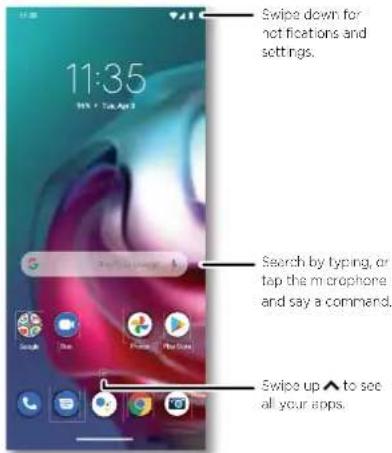
Tips
» Open app list: Swipe up^to see all your apps.
» Return home: if return to the home screen from any location, swipe up from the navigation bar.
» Pages: To add a page, drag an app to the right side of the screen until you see a new page. You can add multiple pages. To see other pages of shortcuts and widgets (if available), swipe the home screen left.
» Settings: To quickly open common settings, swipe the status bar down. To open more settings, swipe the status bar down again and tap
» Customization: To personalize your home screen and other features, see Personalize your phone.
Help & more
Learn even more about your phone and get support.
Find it: Swipe up ▲ > Device Help
Tip: Some apps have their own help that's specific to their features. Just tap the menu inside the app for details.
Search
On the home screen, tap the Google Search box for a text search or tap to search by voice.
When you type, suggestions appear below the search field:
» To search for a suggestion, tap it.
» To searchof text in the search field, tap on the keyboard
Tip: To close the keyboard, tap ▼.
Note: For voice search, see Speak.
Notifications
At the top of the screen, icons on the left notify you about new messages or events. If you don't know what an icon means, swipe the status bar down for details.
Tip: Getting too many notifications? Touch and hold a notification to see which app is sending them to you. Then you can turn them off.

Swipe down to see your notifications.
Tap a notification to open it, or choose an option, such as Reply.
Tip: Swipe left or right to remove a notification. Some notifications show more options when you slide them halfway.
Tip: To quickly change common settings, swipe the status bar down. For more, see Quick settings.
Smart reply
See suggestions based on notification content. For example, a text with an address may show Google Maps as an option.
To turn off Smart reply, tap 📄 Messages > Menu : > Settings > Suggestions in chat > Smart Reply.
App notifications
You may see a notification dot on an app. This app notification, or badge, tells you the app has an update or an announcement, such as a new email or a missed call. Touch and hold the app for more information, options, or app shortcuts.

Status icons
Icons at the top right of the screen tell you about phone status:
| Status Icons | ||
 | Network strength | Alarm set |
| Wi-Fi in range/connected | Data Saver on | |
| [7K28] | Bluetooth on/connected | Battery Saver on |
| Airplane mode / Battery charging/m | ||
| [7603] | do not disturb | |
Volume
Press the side volume buttons up or down to select a ringer volume and see other controls.
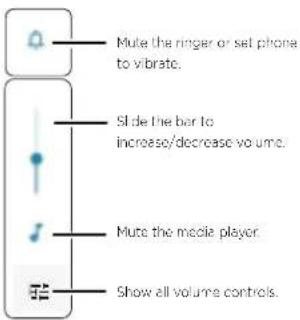
Live Caption detects speech on your phone and shows you captions. When a caption shows, touch and hold the caption to move it. Double-tap the caption to expand it.
Do not disturb
To turn off some or all sounds, swipe the status bar down, and tap Do not disturb. To change Do Not Disturb settings, touch and hold Do not disturb, then select an option:
» People: Allow some people to interrupt when they call, send a message, or start a conversation.
Tip: Create an exception for repeat callers that allows a call to sound from the same person within a 15 minute period, tap People > Calls > Allow repeat callers.
» Apps: Choose the apps that can interrupt you when Do Not Disturb is on.
» Alarms & other interruptions: Choose whether to hear sounds from alarms, media, keypad, reminders, and calendar events.
» Schedules: Set a schedule to turn or Do Not Disturb at specific times during the day or night.
Lock screen
Your touchscreen is on when you need it and off when you don't.

» Screen off and on: Press the Power button to turn the screen off and on.
» Screen lock: a unlock the main lock screen, swipe up from the bottom of the screen. To apply security to the lock screen (recommended), see Screen lock.
» Notifications: Double tap a notification to open it.
Tip: To prevent notifications from appearing in the lock screen, swipe up ▲ > Settings > Apps & notifications > Notifications > Notifications on lockscreen > Don't show notifications.
» Lock screen message: To add a message to your lock screen, such as your name in case your phone gets lost, swipe up ▲> ⚙ Settings > Display > Advanced > Lock screen > Add text on lock screen.
» Screen timeout: To change your timeout (screen locks automatically), swipe up > Settings > Display > Advanced > Screen timeout
Quick settings
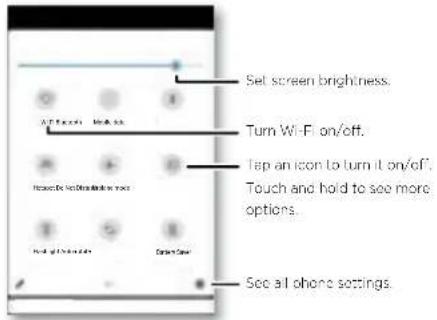
For quick access to Wi-Fi, Bluetooth, Airplane mode, brightness, and other settings, swipe the status bar or lock screen down. Swipe down again for more settings. Tap an icon to turn features on or off. Touch and hold an icon to see more options. For even more settings, tap 🙏
Tap to rearrange your settings and add or remove settings.
Speak
Google Voice™
Use Google voice commands to tell your phone what you want.
» Use voiced make a call: Tap ↓ on the home screen. Then say "Call" and then a contact name or number. Or, say "Send text."
Tip: If a contact has more than one number, you can say which number to call (for example, "Call Joe Black Mobile").
» Search by voice: Tap on the home screen to search by voice.
Note: To wake up your phone by saying "Hey Google," see The Google Assistant™.
Voice to text
On a keyboard, tap ↓ then speak your message or search text. You can also speak punctuation.
The Google Assistant™
Note: This feature may not be available in all languages.
To open the Google Assistant:
» Press the Google Assistant button, then speak a command.
» Tap from the home screen or from your list of apps.
» Swipe up from the bottom corner of the screen, then speak or type a command.
Note: You can also say "Hey Google" or "Ok Google" to start the Google Assistant. To turn this feature on, swipe up ▲> ⚙️ Settings > Google > Account services > Search, Assistant & Voice > Voice > Voice Match.
Tip: For more on the Google Assistant, visit https://support.google.com/assistant.
Gestures
Explore special gestures designed to save you time and make your day easier.
Find it: Swipe up ▲ > Settings > System > Gestures
» Swipe fingerprint for notifications: Swipe down on the fingerprint sensor to check your notifications.
» Quickly open camera: Press the Power button twice to quickly open the main camera.
» System navigation: Navigate using either gestures or buttons at the bottom of the screen. For more, see System navigation.
» Prevent ringing: Press the Power and Volume Up buttons at the same time to switch incoming calls to vibrate or mute.
» Power menu: Use the Power button as a shortcut to turn off or restart your phone, make an emergency call, select a payment method, and see connected devices quickly.
» Three finger screenshot: Touch and hold the screen with three fingers to take a screenshot.
» Fast Flashlight: Turn the flashlight on/off with two chopping motions.
» Quick capture: wrist your wrist twice quickly to open the camera anytime.
Direct Share
In some apps, you can share something directly to a contact, app, or conversation.

Select the share option (usually by tapping) within an app, then select a contact, choose an app, or type a name or number to find a contact.
To use NFC, Bluetooth, or Nearby Share to share files, see Connect, share, pay & sync.
Picture-in-Picture
If you're watching a video, on a video call, or using navigation, and you change screens, your video continues to play in a small window on your screen.
» Tap twice return to it.
» Tap the X to close it.
» Swipe up from the boom of the screen to put the video in a small window.
» Drag video aroundgur screen.
Note: Not all apps support this feature.

Tap the video twice to return to it.
Personalize your phone
Redecorate your home screen
Customize your home screen the way you want.
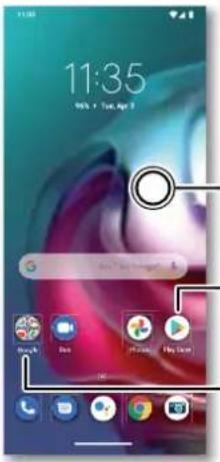
Touch and hold an empty spo. to change wallpaper.
Tap a shortcut to open. Touch and hold to move or dc ste.
Drag shortcuts on top of each other to make a folder.
» Change your wallpaper: Touch and hold an empty spot on the home screen, then tap Wallpapers.
» Add a home screen pageDrag an app to the right side of the home screen until a new page appears. You can add multiple pages.
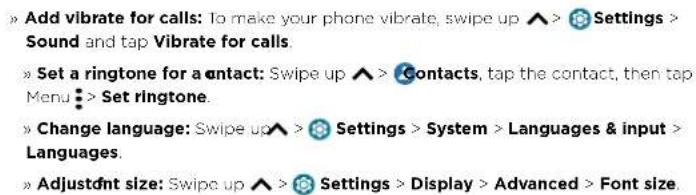
» Adjust display settings: Adjust brightness, font size, and screen saver. Swipe up ▲ > Settings > Display.
» Switch dark theme: Change your display to use dark theme, which saves battery and can be easier on your eyes. Swipe up ▲ > Settings > Display > Dark theme.
» Change your style: Change your font and icon style. Touch and hold an empty spot and tap Styles.
» Rotat In many apps, the touchscreen switches from portrait to landscape when you rotate your phone. To turn this on or off, swipe up ▲ > (Settings > Display >
Advanced > Auto-rotate screen.
Tip: To see more home screen settings, touch and hold an empty spot and tap Home settings.
Choose apps & widgets
» Add apps to the home screen: Swipe up ⚠, touch and hold an app, then drag it to one of your home screen pages.
» Download new apps:ap ▶ Play Store. For more on apps, see App safety.
» Group apps togetherDrag one app onto another. Do it again to add more apps to the folder. To name the folder, tap it and enter a name below the apps.
» See app options: Touch and hold an app. If the app has quick options (shortcuts), you'll see a list.
» Add widgets: Such and hold an empty spot on the home screen, tap Widgets, touch and hold a widget, then drag it to your home screen.
» Resize widgets: You can resize some widgets—touch and hold a widget until you feel a vibration, then release. Drag the white circles at the edges to resize.
» Move or delet widgets and apps: Touch and hold a widget or app and drag it to another spot, another page, or to ✗ Remove.
Note: Removing an app from your home screen doesn't uninstall the app from your phone.
Customize sounds & appearance
Customize your phone's sounds and display settings:
» Set ringtone and notificationsSwipe up ▲> Settings > Sound.
Tip: Set notification sounds for individual apps within the app's settings.
» Night Light: Set your screen to turn slightly amber colored at night. Swipe up > Settings > Display > Night Light.
Digital wellbeing & parental controls
Set limits on how much time you spend on your phone, get a bedtime reminder, and manage notifications.
Find it: Swipe up ▲ > Settings > Digital Wellbeing & parental controls

To supervise this phone remotely, view and set screen time limits, and add restrictions to services and apps, tap Set up parental controls.
Apps
Your phone comes ready with some great apps. To find and add more apps, tap Play Store. To learn more, see App safety.
Phone
Keep in touch by choosing a contact, returning a missed call, or using a voice command to start a call.
Make a call
Find it: Phone
» Call a contact: call a contact or recent call, tap the contact name.
» Dial a phone number: To open the dialpad, tap! Enter a number, then tap to call it.
» Voice dial: o voice dial, tap 🖼 on the home screen or say "Hey Google", then say "Call
» Voicemail appears in the status bar when you have new voicemail. To hear it, swipe down and tap the notification.
» Make a contact widget touch and hold an empty spot on the home screen, tap Widgets, then touch and hold the Direct dial widget. Drag it to your home screen, then select the contact. Tap the widget to call the person:
Tip: To enter the international dialing code (+), touch and hold 0. To add a pause or wait after numbers, tap Menu

Receive a call
» Answer a call: When your phone is locked, swipe 📋 up to answer. When the phone is unlocked, tap Answer.
» Ignore a call: Men your phone is locked, swipe down to reject the call and send it to voicemail. When the phone is unlocked, tap Decline.
Tip: You can also press the Power button to ignore the call, or press a volume button to silence the ringer.
» Respond with a text: When your phone is locked, tape Reply, and select a message to respond.
Note: When you hold your phone to your ear, the touchscreen goes dark to avoid accidental touches. When you move the phone away from your ear, the screen lights up again. Don't use covers or screen protectors (even clear ones) that cover the proximity sensor above the touchscreen.
During a call
» Mute a call: Tap 🚗 Mute on the call screen to mute the call. You can hear your caller, but they can't hear you.
» Multi-task: Whilequ're on a call, swipe up from the bottom of the screen to look up a phone number, address, or open other apps. To reopen the call screen, swipe the status bar down and tap Ongoing call.
» Answer a second call: To answer a second call, tap 📋 Hold and Answer Voice. The first call is placed on hold. To switch between calls, tap ⏻ Swap.
» 3-wa call: To join two calls together, answer the second incoming call while your first call is active, or tap Add call to dial a second call. The first call is placed on hold. Tap Merge to join the calls together.
» End a call: Tap
Favorites
See all your favorite contacts together.
Find it: Phone > Favorites
To add favorites, tap 📋 Contacts, scroll or search to find the contact, then tap ☆
Recent calls
View your calls (with newest first), and then call, text, or store them.
Find it: Phone > Recents
» To return a call, tap, next to the caller's name or number.
» To send a bet message, store the number, or other options, tap the caller's picture.
» To remove an entry from the call log, touch and hold the name or number, then tap
Delete
» To clear the list, tap Men:> Call history > Menu:> Clear call history.
Caller ID and spam
Find it: Phone > Menu : > Settings > Caller ID & spam
Tap Filter spam calls to prevent suspected spam callers from disturbing you.
To block a caller from calling again, tap 📊 Phone > 📎 Recents, touch and hold the name or number, then tap 🔒 Block/report spam.
Your phone number
Find it: Swipe up ▲ > Settings > About phone > Phone number
Emergency calls
Your service provider programs one or more emergency phone numbers you can call under any circumstances, even when your phone is locked. Emergency numbers vary by country. Your pre-programmed emergency number(s) may not work in all locations, and sometimes an emergency call cannot be placed due to network, environmental, or interference issues.
1 Tap Phone (if your phone is locked, drag up from the bottom of the screen to unlock it, then tap Emergency).
2 Enter the emergency number.
3 Tap to call the emergency number.
Note: Your phone can use location based services (GPS and AGPS) to help emergency services find you. For more information, swipe up ▲ > Settings > Location >
Advanced > Emergency Location Service.
Messages
Stay in touch with messages and pictures. For tips on using the keyboard, see Use the keyboard.
Find it: Messages
» Creat Tap
» Attach: When you're typing a message:
- Tap ⊕ to attach a GIF or a contact, share your location, create a voice recording, and more.
- Tap to attach a photo from the gallery or take and attach a new photo.
» Send: Tapms to send the message.
» Reply: Open a conversation, then enter your response in the text box at the bottom
and tap SMS

Apps
Tips
» Add another contact to a message thread: In a conversation, tap Menu :> Details > Add people.
» Delete thread: To delete a whole thread of messages, touch and hold the thread, then tap 📄. To archive a thread, swipe it left or right. You can find archived messages by tapping Menu :> Archive.
» Save pictures: Touch and hold a picture, and then tap to save it. To see the picture, swipe up ▲ > Photos.
» Voice entryTap a text box, then tap↓ on the keyboard.
Tip: If you don't see ▼ on the keyboard, swipe up ▲ > ⚙️ Settings > System > Languages & input > On-screen keyboard > Google voice typing to activate voice entry.
» Turn off notifications:luck in a busy conversation? You can turn off notifications. Tap the thread, then tap Menu: > Details or Group details > Notifications.
» Add or block a phone number: In a conversation, touch and hold a message to see options to save as a contact, delete the message, or block the phone number.
» Spam protection: To turn on spam protection, tao Men > Settings > Spam protection.
Set your default messaging app
To set your default messaging app, swipe up ▲ > ⚙️ Settings > Apps & notifications > Advanced > Default apps > SMS app, and select the messaging app to use as the default.
Use the keyboard
When you tap a text box, like in a message or search, you have keyboard options.
» Type or gesture Enter letters by touching them one at a time. Or, enter a word by tracing a path through the letters. While you're typing, word suggestions appear above the keyboard. Tap one to select it:
» Voice entry: Tap on the touchscreen keyboard, then say what you want to type.
» Close the keyboard: Tap ▼
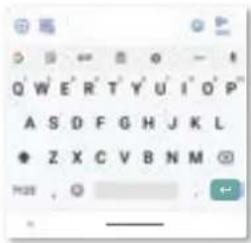
See a different keyboard? It varies by app. This one is for texting.
» Symbols and numbers: Touch and hold a letter to enter the number at the top of it. To enter symbols, tap 📄
» Capital letters:ap ↑ for one capital letter. For all capital letters, tap ↑ twice quickly.
» Keyboard options: To customize your keyboard, swipe up ▲ > Settings > System
Languages & input > On-screen keyboard > Gboard.
» Cut, copy and paste: Touch and hold a word to highlight it, tap Cut or Copy. Touch and hold the location you want to paste the text, and tap Paste.
Chrome™
Access the Internet with the Chrome browser app.
Find it: Chrome
Or, from the home screen, tap the Google search box and enter or speak text to search. Note: Your phone uses your Wi-Fi network (or your mobile phone network) to access the Internet. If you can't connect, contact your service provider. Your service provider may charge to surf the web or download data.
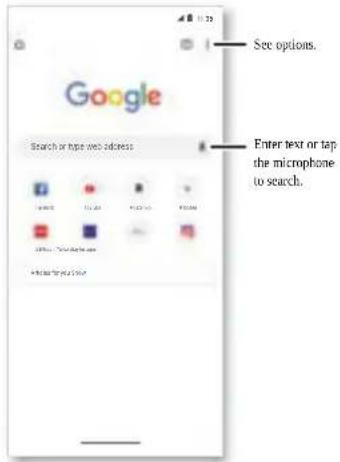
» Go to a web page: Tap the address bar at the top of a page and enter an address.
» Add a bookmark: T
ap Menu
☆
» Open a bookmark: Tap Menu
Bookmarks.
» Web page shortcut: To add a web page shortcut to your home screen, go to the web page and tap Menu > Add to Home screen.
» Mobile sites: Some websites automatically show you a "mobile" version of their page—if you want to see the computer version of a website, tap Menu > Desktop site. » Reload: If a page doesn't load correctly, tap Menu > C » Tabs: To open a new tab, tap Menu > New tab. To move from one tab to another, tap □. » Clear history: In the browser, tap Menu > Settings > Privacy > Clear browsing data. Then choose history, cache, cookies, and other options. » Help: For more about Google Chrome, tap Menu > Help & feedback or visit https://support.google.com/chrome.
Downloads
Warning: Apps downloaded from the web can be from unknown sources. To protect your phone and personal data from theft, download apps only on Google Play™ Store.
» Files: Tap the do wnload link. To see the file, tap Menu
Downloads.
» Pictures: 'Touch and hold it, then tap Download image. To see the picture, tap Photos > Download.
Browser settings
To change your browser security settings, text size, and other options, tap Menu > Settings.
...
Safe surfing & searching
Keep track of what your browser and searches show:
» Incognito: To open a tab that won't appear in your browser or search history, Menu > New Incognito tab.
» Auto complete: Your browser automatically fills in names and addresses, if you have
entered the same information before. To turn o this feature, tap Menu Addresses and more > Save and fill addresses.
Settings >
Tip: Auto complete also fills in payment information, such as a credit card. To turn
o this feature, tap Menu methods.
Settings > Payment methods > Save and fill payment
» Pop-ups: To stop pop-up windows from opening, tap Menu : > Settings > Site settings > Pop-ups and redirects, then tap the switch to turn it off.
» Safety check □ protect your phone from websites or data breaches that might be unsafe, tap Menu □ > Settings > Safety check.
Camera
Take crisp, clear photos.
Find it: Camera
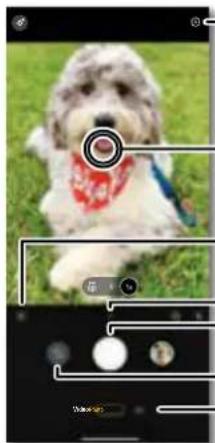
Adjust settings.
Tao anywhere to change the focus (rear camera only) or exposure. Touch and hold to lock the focus in an area.
Use Google Lens
See more options.
Take a photo.
Switch to selfie camera.
Slide to choose photo video, or select a mode.
» Take a photo: Tap to take a photo.
» Take a selfie:ap in the camera screen to switch to the selfie camera.
» Multi-shot: Touch and hold to take a burst of photos.
» Tips:ā see tips to help you take great photos, tap 📞
Record videos
Find it: Camera, then tap Video
Tap ☐ to start recording. Then tap ☐ to stop recording. Tap ☐ on the screen while recording to save a photo. Or tap ☐ to pause the video.
Camera options
Point, tap, and you're done, or play with these camera options. Tap to see some of these options:
| Viewfinder options for rear and front cameras | |
| Google Lens | Find out more about the things you see in the viewfinder.SeeIdentify & scan items using Google LensTM. |
| Zoom | Choose 1x to take a regular photo with the main camera.Choose .5 to take an ultra-wide angle photo with the 118-degree ultra-wide camera. Or tap Macroto take a detailed close-up photo with the dedicated macro camera.Touch and slide left or right to set custom magnification. |
| Flash | Set toOn, Off, or Auto. |
| Timer | Set a timer to3or10seconds. |
| Active photos | Turn on to capture a brief photo in motion of your subject. |
| Aspect ratio | Choose the width/height screen ratio as3:4,9:16,or Full [] |
| Face Beauty | With the selfie camera, smooth skin and beautify faces. Set toAuto, Manual, orOff. |
| Additional viewfinder options for video camera | |
| Torch | Turn on a flashlight when taking a video. |
| Stabilization Remove shakiness when taking a video. | |
| Frame rate | Set to 30 or 60 FPS. |
| ↓ Mic | Turn on/off the microphone. Switch to an external microphone device, if connected. |
Photo and video modes
To see photo and video modes, tap
Tip: Tap ≡, then touch and hold a photo or video mode to move it. Slide it to change the order, or drag outside the mode option box to add it to the camera options.
| Photo modes | |
| Portrait | Take portraits using special enhancements and effects. For more, seeTake a portrait photo |
| Cutout | Cut out the subject in the foreground and replace the background. For more, seeChange the background |
| Spot color | Pick one color from the viewfinder while everything else becomes black & white. |
| Night Vision | Take photos in low light situations. |
| Cinemagraph | Freeze parts of a video for an artistic effect. For more, seeTake moving cinemagraphs. |
| Panorama Take a wide-angle shot. Use the on-screen guide to slowly pan while you are taking the photo. | |
| Group selfie Take a wide-angle selfie for groups. | |
| Ultra-Res | Use the 64 MP main camera to take a full-resolution photo.Note: This option is best used in bright light conditions. |
| Live filter | Choose a filter to apply to your photo. |
| Pro | Control professional camera settings. |
| Feedback | Send feedback to the developers of this camera app. |
| Photo modes | |
| 7 Help | See help for using the camera. |
| Video modes | |
| Slow motion | Take a video that will play in slow motion. |
| Timelapse | Take a video using timelapse to make a longer video play faster. You can set the playback speed as 4x, 8x, 16x, and 32x (times) faster than a regular video. |
| Spot color | Pick one color from the viewfinder while everything else becomes black & white. |
Camera settings
To find these options, tap at the top of the viewfinder:
| Camera settings | |
| Photo size Set the photo ratio and resolution for the main and selfie cameras. | |
| HDR Turn on HDR (high dynamic range) effect for better pictures in challenging lighting situations, such as outdoors. | |
| Selfie photo mirror Turn on to take a mirrored selfie. Note that the viewfinder won't show a mirrored selfie, but the photo will be mirrored after you take it. (If your phone has Active Photos, turn it off to use this feature.) | |
| Quick capture Twist twice to open the camera app, or switch between front and back cameras. | |
| Tap anywhere to capture | Capture photos or videos by tapping anywhere on the screen. |
| Shutter sound Turn the shutter sound on or off. | |
| Assistive grid Overlay a | grid to help align the subjects in your photos or videos. |
| Leveler Take perfectly level photos using a guide line in the viewfinder. | |
| Keep last mode Open the camera with the last mode active. | |
| Watermark Add a watermark, signature, date or time to your photos. | |
| Auto Smile Capture Automatically detect smile and take a photo when all of the subjects (limited to five faces) in the viewfinder are smiling. | |
| Gesture Selfie Hold up your palm to start a two-second timer to take a selfie. | |
| Smart Composition Generate an alternate shot that automatically straightens the photo and realigns the subject based on the photography rule of thirds. | |
| Shot Optimization Turn on automatic tuning and scene detection. | |
| Google Lens Turn on to see Google Lens on the main camera display. | |
| Storage Choose a storage location for your photos and videos (Phone or Memory card). | |
| Save location Turn on to tag photos with a location. | |
Take a portrait photo
You can use the portrait mode to add a blur effect to the background, while keeping the main subject in perfect focus.
Find it: 📄 Camera > ≡ Portrait
1 Line up your subjects. The closest subject is prioritized automatically. Tap the screen to change the focal point.
2 Tap, then slide the bar to increase or decrease the background blur.
3 Tap ○ to take the photo.
Tip: For best results, subjects should be two to six feet away.
Change the background
Use cutout mode to replace the background of a photo with another image.
Note: Available when using the back camera only.
Find it: Camera > Output
1 Line up your subject at close range.
2 Tap ○ to take the photo.
Tip: When photographing people, aim for the face. After taking the photo, use the photo editor to change the background. See Photos.
Take moving cinematographs
Create a splash of motion in a still photo.
Find it: Camera > ≡ Cinemagraph
1 Touch and hold ⚙ to capture the scene.
2 Tap ⚙️ and swipe over a portion of the scene to keep it in motion.
- Tap 🔒 to erase some or all of your selection.
- Tap CLEAR to remove all of the selection.
3 Drag the slider bars to edit the length of the clip.
4 Pick the loop style:
- Regular loop repeats the clip from start to end.
- Bounce loop repeats the clip from start to end, then reverses the action.
5 Touch PREVIEW to view the cinematograph, then choose to save as a GIF or MP4, and touch SAVE.
Tip: After the clip is saved, tap Menu to see more options for the clip.
Identify & scan items using Google Lens™
Search landmarks, products, explore books, identify plants and animals, copy text, scan barcodes, QR codes, business cards, and more.
Find it: Camera >
1 Focus your camera on an object, landmark, or code.
2 Tap 🔒 to search. Depending on the object, you can see the details, take an action, or find products.
Note: Google Lens may not work in all languages. You need to be logged into your Google account to use this feature.
Capture your screen
There's more than one way to capture your phone's screen.
» Press and hold both the Bwer and the Volume Down buttons at the same time.
» Set up Gestures so you can capture screenshots by touching the screen with three fingertips.
Tip: To see the screen capture, tap Photos > Screenshots.
Record your screen
Start a screen recording to capture information visible on your device.
Swipe the status bar or lock screen down to display Quick settings, then tap Screen Record.
To see the screen recording, tap Photos > Screenrecord
Photos
View, edit, and share photos.
Find it: Photos
» Vleyshare, or delete: Tap a thumbnail to open it, then tap < to share, 📋 delete, or Menu : for more options.
Tip: To select multiple files, open a folder, touch and hold a photo, then tap others. Or group photos in an album and share the whole album.
» Zoom: Open a photin your gallery, then double-tap or drag two fingers apart or together on the screen.
Tip: Turn your phone sideways for a landscape view. To turn Auto-rotate screen on or off, swipe up ▲ > Settings > Display > Advanced > Auto-rotate screen.
» Wallpaper or contact photo: Open a photo, then tap Menu: > Use as
» Edit: Open a photo then tap 菜
» Change or add a backgroundOpen a photo that was taken in Cutout mode. Tap
Add Background. Select a background image, then tap Save.
» Slideshow: a photo, then tap Menu: > Slideshow. To stop the slideshow, tap the screen. To show the slideshow on a television or other device, see Connect, share, pay & sync.
Note: For more about Google Photos™, visit https://support.google.com/photos.
Gmail
Send and receive email from all of your personal accounts (even if they're not Gmail accounts). You can manage your accounts in Gmail and easily switch between them.
Find it: Swipe up ▲> Gmail

» Add Gmail accounts: The first time you turned on your phone, you probably set up or logged in to your Google account—that sets up the Gmail app for one account. To add more Google accounts, swipe up ▲ > Settings > Accounts, then tap + Add account > Google.
Tip: In the 📂 Gmail app, tap ≡ > Settings > Add account.
» Start or join a meeting: ▶□ Meet, then tap New meeting or Join a meeting.
» Add email accounts: The Gmail app manages all of your email accounts. To add other personal email accounts to the Gmail app, swipe up ▲ > Settings >
Accounts > + Add account. For Microsoft® Exchange server work email accounts, tap + Add account > Exchange, and enter details from your IT administrator.
» Change account settingsTo change the settings for a Gmail or email account, swipe up ▲ > Gmail > >Settings, then tap the account name.
» Delete accounts: Swipe up ▲> Settings > Accounts, then tao the account name and Remove account.
Duo
Sign in with your Google account to make and receive video calls.
Find it: Swipe up ▲ > Duo

» Start a new video call: Tap the search box, then type or tap a name in your contacts to start the video call.
» Preview Incoming calls: See live video of the caller before you answer. To turn this off for both the caller and receiver, tap Menu: > Settings > Call settings > Knock Knock
» Change settings: Tap Men > Settings to change the vibration setting, block numbers, and more.
» Call anyoneDuo works across platforms, allowing you to call friends with the Duo app on any device.
Tip: When on a video call, your phone will automatically switch from cellular network to Wi-Fi, if available.
Calendar
See all your events, all in one place.
Find It: Swipe up ^> Calendar

» Change the view: Tap the month at the top to choose a date to view. Or tap ≡ to choose Schedule, Day, 3 Day, Week, or Month.
» Go to today's date: Tap □ at the top. (If you have an appointment that day, you'll see a dot in the icon.)
» Add eants, reminders, or goals: Tap ⚠️ Event, Reminder or Goal, enter details, then tap Save.
Tip: In most views, tap a time on the calendar to enter event details.
» Show, edit, or deletevents: Tap an event to open it, then tap √ to edit it, or tap Menu : > Delete to remove the event.
» Show, hideor add calendars: Tap ≡ and select which options, such as events, reminders or other calendars, to show or hide. You can use a computer to add or remove calendars on your Google account at www.google.com/calendar.
Tip: Add a Calendar widget to your home screen. Touch and hold an empty spot on the home screen, tap Widgets, then touch and hold a calendar widget and drag it to your home screen.
More apps
Google Play
Google Play is a digital content experience from Google where you can find and enjoy your favorite music, movies, TV shows, books, magazines, and Android apps and games.
» Download apps: aip Play Store.
» Log in or open a Google account: Visit www.google.com/accounts.
» Google help: See www.google.com/support.
Contacts
Combine information from your Google contacts and social networks for quick access to everyone you know.
Tip: You can find most of these features on the 🎨 Contacts tab in the Phone app. See Phone.
Find it: Swipe up ▲ > Contacts
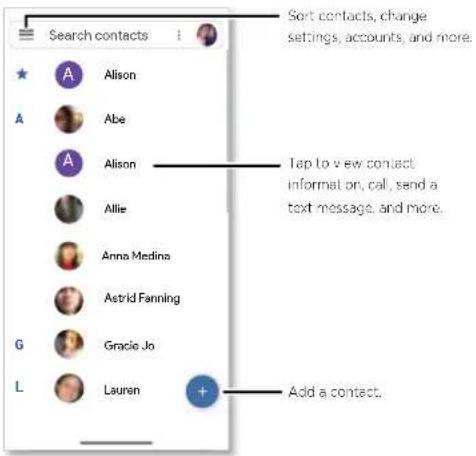
» Add a contact: Tap
» Edit or delete: Tap a contact, then tap 📄 or tap Menu :> Delete.
» Call, text, or email Tap a contact, then tap an option. (If the contact doesn't have an email address, you can add one, and use Duo to video chat.)
» Search contacts: In the Contacts list, tap Search contacts.
Tip: From the home screen, tap the Google search box and enter a contact's name.
» Share a contact!ap a contact, then tap Menu: > Share to send it in a message or email, via a Bluetooth connection, or save to Google Drive™.
Tip: Tap a contact, then tap Menu: > Add to Home screen to add a shortcut for the contact on your home screen.
» Synchroniz On your phone, swipe up ▲ > Settings > Accounts, and choose your Google account. Then tap Account sync > Menu > Sync now.
» Add your detailsTo store your user profile, tap≡> Settings > Your info
Favorites
Set your most-used contacts as favorites, so you can get to them faster.
» To set a favorite, swipe up ▲> Contacts, select a contact and tap . ☆
» To see your favorites, tap 📋 Phone > Favorites.
Get contacts
Get all your contacts in one place.
» To add your social networking contacts, swipe up ▲> ⓂSettings > Accounts, then tap Add account.
» To add your emailcontacts, see Gmail.
Tip: If you add an Exchange account, you can send messages to your coworkers, even if you don't have them stored in your contacts.
» To import contacts from your SIM card (if it didn't happen automatically), swipe up > Contacts > Menu ≡ > Settings > Import > SIM card. Tap OK to confirm.
» To import contacts from your computer, upload the contacts to your Google account at http://contacts.google.com. On your phone, swipe up ▲ > Contacts > Menu
Settings > Accounts > Automatically sync data. You can also see these contacts at http://mail.google.com.
Maps
Find a nearby cafe, get directions or step-by-step GPS voice navigation using Google Maps™.
Find it: Swipe up ∧> Maps
Enter what you want to find in the search bar, or tap ↓ to search by voice.
Note: Your map screen may look different.
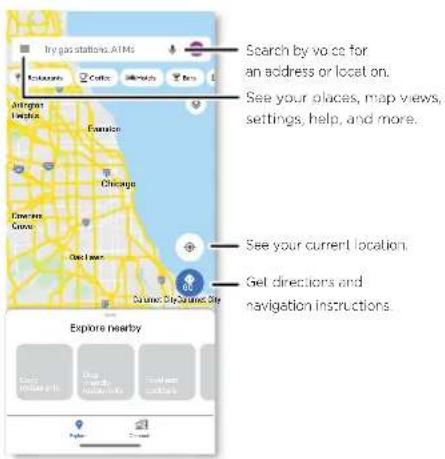
» Find an address: In the search field, type an address or something you're looking for, like "restaurant." Tap an item to see more, or tap Directions, Call, or Share.
» Get directions: 3p GO, then enter a place or address.
» Zoom: σ zoom in or out, drag two fingers together or apart on the screen.
» Turn and tilt: Rotate two fingers on the map to turn it, or drag up/down to tilt.
» Identify address: Touch and hold a spot on the map to show the nearest address.
» Get map help: Tap your Google account, then tap Help and feedback.
For more on maps, visit support.google.com/maps.
Drive
Keep all your photos, videos, documents, and more safely in one place—private unless you choose to share. Available on Google Drive 14 from all your devices.
Find it: Swipe up ▲ > Drive
» To create a new file or folder, tag.
» To open a file, tap it.
» To edit a document, tap anywhere in the text to begin typing.
Music, movies, TV & YouTube
Music
Music everywhere—stream it, buy it, save it, play it. Listen and create playlists anytime.
Find it: Swipe up ▲>YT Music
To upload your music library to YT Music, from a computer, visit music.youtube.com.
Tip: Share songs directly with your contacts. Tap Menu next to a song and tap Share. See Direct Share.
For more on the YT Music app, see support.google.com/youtubemusic.
Note: Copyright—do you have the right? Always follow the rules. See "Content Copyright" in the legal and safety information on your phone.
FM Radio
Find it: Swipe up ▲ FM Radio
Plug in a headset, then use the arrows to tune to a higher/lower frequency station.
Note: Your phone has the Frequency Modulation (FM) broadcast receiver functionality for reception without data usage. The phone will perform an auto tuning for the radio channels with the best signal.
YouTube™
Watch videos and podcasts from YouTube users everywhere—or log in to your account to share your own.
Find it: Swipe up ▲> YouTube
Movies & TV
Find and rent movies and TV shows to watch on your phone, tablet, or computer.
Find it: Swipe up ▲>Play Movies & TV
Clock
Find it: Swipe up ▲ Clock
| Options | |
| Alarm | Tap 📋. Tap an alarm to edit it, or tap 📋 to add a new alarm.Tip:Pressing the volume button up or down sets the volume level for that alarm.When an alarm sounds, tap and drag to 📋 to turn it off, or drag to zz to snooze for ten minutes. |
| Clock To change your alarm volume, snooze delay, or other settings, tapMenu ⚠ > Settings. For other time zones, tap Home time zone. | |
| Timer For a timer, tap 🎨 | |
| Stopwatch | For a stopwatch, tap 🔊 |
| Bedtime Set a consistent bedtime for better sleep. Tap 📌 | |
Tip: To set your current date, time, time zone, and formats, swipe up ▲ > Settings > System > Date & time.
Connect, share, pay & sync
Connect to other devices, share files with friends, pay with your phone, and sync to the cloud.
Connect with Wi-Fi
Turn Wi-Fi power on/off
Find it: Swipe up ∧ > Settings > Network & Internet, then tap the switch to turn it on
When Wi-Fi is on, your phone automatically reconnects to available networks it has used before.
Note: You can also turn Wi-Fi on and off in Quick settings.
Connect to networks
To find networks in your range:
1 Swipe up ▲> Settings > Network & internet > Wi-Fi.
2 With Wi-Fi turned on, tap a found network to connect to it. When connected, you'll see ▼ in the status bar.
Note: If you see a question mark in the Wi-Fi status indicator, swipe the status bar down, tap the network, and enter the network's password.
Wi-Fi hotspot
Your can make your phone a Wi-Fi hotspot to provide portable, convenient Internet access to other Wi-Fi enabled devices. Your phone turns off Wi-Fi and uses the mobile network for Internet access. This feature may require an additional subscription service from your service provider.
Find it: Swipe up ▲ > Settings > Network & Internet > Hotspot & tethering > WI-FI hotspot
Note: These steps may vary depending on your network.
To set up security:
» Hotspot name: Enter a unique namedr your hotspot.
» Hide my device: Hide your hotspot from other devices.
» Security: Select the type of security you want: None or WPA2-Personal. For WPA2-Personal, enter a unique password (8 characters) that others will need to access your Wi-Fi hotspot.
Note: To change your hotspot password or turn off hotspot automatically, tap Advanced.
Connect with Bluetooth wireless
Turn Bluetooth power on
To turn Bluetooth on, swipe the status bar down and touch ATouch and hold it to open Bluetooth settings.
Note: Your phone automatically turns on Bluetooth power when you connect to a paired device.
Tip: To extend battery life or stop connections, turn Bluetooth off when you're not using it.
Connect devices
The first time you connect a Bluetooth device, follow these steps:
1 Make sure the device you are pairing with is in discoverable mode (for details, refer to the guide that came with the device).
2 Swipe up ▲> Settings > Connected devices > Pair new device.
3 With Bluetooth turned on, tap a found device to connect it (if necessary, tap Pair or enter a passkey like 0000). You can tap to rename the device and choose what the device will be used for.
When the device connects, the Bluetooth connected indicator ✦ appears at the top of the screen.
To automatically disconnect or reconnect a device, just turn the device off or on.
Note: Using a mobile device or accessory while driving may cause distraction and may be illegal. Always obey the laws and drive safely.
Share files
» Photos or videos: Open the photo or video, then tap ◀ > Bluetooth.
» Contacts: Swipe up ▲ > 🙏 Contacts, tap a person, then tap Menu :> Share > Bluetooth.
Bluetooth tethering
To share your phone's internet connection via Bluetooth, swipe up ⚠ Settings > Network & internet > Hotspot & tethering and tap the switch to turn on Bluetooth tethering.
Share files with your computer
Note: Copyright—do you have the right? Always follow the rules. See "Content Copyright" in the legal and safety information on your phone.
USB
To load music, pictures, videos, documents, or other files from your computer, connect your phone to your computer with a USB cable. To change the type of USB connection, swipe the status bar down and tap Android System > USB Preferences > File transfer.
Tip: Make sure to connect the phone to a high power USB port.
Note: The first time you use a USB connection, your computer may indicate that drivers are being installed. Follow any prompts you see to complete the installation. This may take a few minutes.
» For Microsoft® Widows®: On your computer, choose Start > Windows Explorer. Your phone will appear as a connected drive where you can drag and drop files. For more instructions or driver files, visit http://support.enovo.com.
» For Apple™ Macintosh™: Use Android File Transfer, available at www.android.com/filetransfer.
Virtual Private Network (VPN)
A VPN lets you access files on a secured network (like an office network with a firewall). Contact the network administrator for VPN settings, and any additional apps or requirements.
To enter VPN settings, swipe up ▲> Settings > Network & Internet > Advanced > VPN. Tap + to add a new VPN. Choose the type of VPN and enter settings from the network administrator. Select the VPN name to connect.
Share your data connection
Your computer can access the Internet through your phone's mobile network—you just need a USB cable.
Note: Your phone turns off Wi-Fi and uses the mobile network for Internet access. This feature may require an additional subscription service from your service provider.
1 Connect your phone to your computer using a USB cable.
Note: If your computer is running something older than Microsoft Windows 7 or Apple Macintosh OSX, it might require special configuration.
2 On your phone, swipe up ▲ > Settings, and make sure Wi-Fi is off.
3 In Settings, tap Network & internet > Hotspot & tethering, then tap the USB tethering.
To stop the connection, tap USB tethering again, then disconnect your phone from your computer.
Share or pay with NFC
Near Field Communication technology lets you instantly share an item on your phone (like a web link, contact, or a photo) by touching the back of your phone to the back of another NFC-enabled device.
Find it: Swipe up ▲ > Settings > Connected devices > Connection preferences > NFC
Note: The other device must support NFC, too.
1 Open the screen that contains the item you want to share.
2 Tap > Android Beam
3 Touch the back of your phone to the back of the other device until you hear a sound.
Pay with your phone
You can use a secure payment app, like Google Pay, to pay for your purchase (where available and supported).
Look for the NFC logo to confirm that you can make a mobile payment. Touch the back your phone to the payment device to pay for your purchase. You may need to authenticate your purchase using your fingerprint or passcode.
Share with contacts nearby
Share files with nearby contacts using Nearby Share.
Find it: Swipe up ▲ > Settings > Connected devices > Connection preferences > Nearby Share, then tap the switch to turn it on.
1 Choose a device visibility option:
- All contacts: All contacts near you can share with your phone when the screen is unlocked.
- Some contacts: Tap the switch beside the contacts who can share with your phone when the screen is unlocked.
- Hidden: No contacts can share with your phone.
2 Tap Save, then tap Turn on.
Note: Bluetooth and Location features must be turned on.
3 Open the file you want to share, such as a photo, video, or website.
4 Tap >
Note: If you don't see 📋, tap Create link, then tap 📋.
5 Tap the contact's phone to send the file.
6 Tap Accept on the receiving phone.
Note: Not all phones can receive files using Nearby Share.
To print your photos, documents, and more from your phone, check if your printer's manufacture has an app on Google Play. Then swipe up ▲ > Settings > Connected devices > Connection preferences > Printing to get started.
You can also send your photos, docs, and more to any Android device in your cloud or to Google Drive. Just download the Cloud Print app from Play Store.
Sync to the cloud
One account with access to everything, everywhere—phone, tablet, computer.
Sync your Google account
When you log in to the same Google account, all devices can get to all the same apos, movies, books, and music from Google Play—plus you share the same Gmail, Google Calendar™, and Google Mobile™. To add Google accounts to your phone, swipe up ▲>
Settings > Accounts > Add account > Google
Phone & tablet
Your Android phone and tablet can work together to help you get the most out of both:
» Transfer media and files: Copy files to your phone and transfer them to other devices—see Share files.
» Phone hotspot: If you have a Wi-Fi tablet, turn your phone into a Wi-Fi hotspot to let your tablet access the Internet anywhere—see Wi-Fi hotspot.
» Bluetooth® accessories: If you have a Bluetooth keyboard or other accessories to use with your tablet, remember you can use them with your phone too. To connect them, see Connect with Bluetooth wireless.
Cast your screen to a TV
To cast (mirror) your screen on a TV, showing all apps and screens you use on your phone, you'll need to use a TV with Chromecast built-in, or plug a Chromecast™ device into your TV's HDMI port.
1 Make sure your phone and TV/Chromecast device are connected to the same Wi-Fi network.
2 On your phone, swipe up ▲ > Settings > Connected devices > Connection preferences > Cast.
3 Tap the name of the TV/Chromecast device to connect.
Note: To stop casting, on the casting notification, tap ▼ > Disconnect
Use a memory card
You can move pictures, videos, audio, and other media files from internal phone storage to a microSD card (sold separately).
Note: Your phone supports microSD cards up to 512 GB Use a Class 10 (or higher) microSD card for best results.
Move files from your phone to a memory card
To move files to a microSD card (sold separately):
1 Swipe up ▲> Settings > Storage, then tap the SD card name.
2 Touch and hold a folder or a particular item, then tap Menu:>Move to...
Mount or unmount memory card
To mount an microSD card, just put it in your phone (see Insert the SIM and microSD cards).
To unmount your microSD card (so you can take it out of your phone), swipe up ▲> Settings > Storage. Then tap ▲ next to the microSD card name.
Caution: Do not remove a microSD card while your phone is using it or writing files to it.
Airplane mode
Use airplane mode to turn off all your wireless connections—useful when flying. Swipe the status bar down and tap ✦ Airplane mode.
Note: When you select airplane mode, all wireless services are disabled. You can then turn Wi-Fi and/or Bluetooth power back on, if permitted by your airline. Other wireless voice and data services (such as calls and text messages) remain off in airplane mode. Emergency calls to your region's emergency number can still be made.
Mobile network
You should not need to change any network settings. Contact your service provider for help.
To see network settings options, swipe up ▲> Settings > Network & internet > Mobile network.
Protect your phone
Make sure your information is protected in case your phone is lost or stolen.
Screen lock
The easiest way to protect your phone is to lock your touchscreen when you are not using it. You can choose the best method for you to unlock your phone.
Find it: Swipe up ▲ > Settings > Security
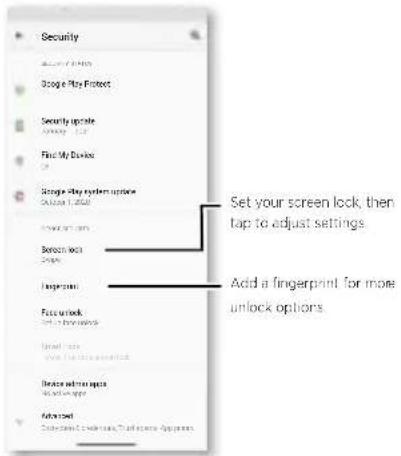
1 Tap Screen lock and select the lock type:
» None: Turn off the seen lock.
» Swipe: Drag up from the bottom of the screen to unlock.
» Pattern: Draw a pattern to unlock.
» PIN: Enter four to sixteen digits to unlock.
» Password: Enter four to sixteen letters, digits, or symbols to unlock.
2 After setting the lock type, tap ⚙ for screen lock settings.
To change when your touchscreen goes to sleep, swipe up ▲ > Settings > Display > Advanced > Screen timeout.
Note: You can make emergency calls on a locked phone (see Emergency calls). A locked phone still rings, and you do not need to enter a PIN or password to answer a call.
Smart lock
Keep your phone unlocked when it's safe with you.
Find it: Swipe up ▲> Settings > Security > Smart Lock
Tap On-body detection to keep your phone unlocked when it's in motion.
Unlock with your fingerprint
You can use the fingerprint sensor to unlock your phone.
Find it: Swipe up ▲ > Settings > Security > Fingerprint
Unlock with your face
Unlock your phone just by looking at it.
Note: Face unlock is less secure than a PIN or password.
Find it: Swipe up ▲ > Settings > Security > Face unlock
Can't unlock?
If you forget your pattern. PIN, or password, you can enter your Google account email and password on another device to unlock the phone.
If you don't have a Google account on your phone, contact your service provider to have your phone factory reset.
Warning: A factory reset will delete all data on your phone.
Your privacy
Keeping your information safe is important.
Find it: Swipe up ▲> Settings > Privacy

Tap Permission manager to see which apps have permissions to access private information, such as calendar events, contacts, email, and your location.
Tap an app, then tap one of the apps that have permissions and tap Allow or Deny.
Note: Turning off permissions may cause an app not to function correctly.
Passwords
Your phone briefly shows password characters as you type. To turn this off, swipe up
Settings > Privacy > Show passwords
Notifications
Your phone shows notifications even when it's locked.
To choose which notifications show, swipe up ▲> Settings > Privacy >
Notifications on lock screen. Tap to show all or no notifications at all.
Location
Location services, like GPS, Wi-Fi, mobile networks, and sensors help estimate your phone's location.
To see recent location requests and which apps can determine your phone's location, swipe up ▲> ⚙️ Settings > Location. Tap App access to location, then tap an app. Choose Allow all the time, Allow only while using the app, Ask every time or Deny.
App pinning
To keep an app open on your screen, pin it for easy access.
Find it: Swipe up ∧ > Settings > Security > Advanced > App pinning, then tap the switch to turn it on
To pin an app, swipe up and hold to see recent apps. Tap the icon at the top of the app and tap Pin.
To unpin the app, swipe up and hold.
Backup & restore
Find it: Swipe up ▲ > Settings > System > Advanced > Backup > Back up to Google Drive
Your Google account data is backed up online. If you reset or replace your phone, just log in to your Google account to restore the contacts, events, and other details you synced with the account.
To restore your Google Play apps, see Take care of your apps.
App safety
Tip: Choose your apps and updates carefully, as some may impact your phone's performance—see Choose carefully.
Apps from Google Play
Get music, movies, books, apps, games, and more.
Find it: Play Store
Apps from the Internet
You can get apps from other online app stores using your browser.
Tip: When installing an app, make sure you read the alerts that tell you what information the app will access. If you don't want the app to access this information, cancel the installation, or set strong privacy permissions: swipe up ▲> Settings > Privacy.
To let your phone install apps that are not on Google Play, swipe up ▲ > Settings > Apps & notifications > Advanced > Special app access, then tap Install unknown apps and choose which apps are allowed to install them.
Choose carefully
Here are a few tips:
» To help prevent spyware, phishing, or viruses, use apps from trusted sites, like Play Store.
» Check the app's rings and comments before installing. If you doubt the safety of an app, don't install it.
» Apps use up memory, data, battery, and processing power—some more than others. If you're not happy with how much memory, data, battery or processing power an app is using, uninstall it.
» Monitor children's access to apps to help prevent exposure to inappropriate content, and set limits on phone use: swipe up ▲ > Settings > Digital Wellbeing & parental controls.
» Certain apps may not provide completely accurate information. Take care, especially when it comes to personal health.
Set app permissions
You may be asked for permissions when you use a feature in an app.
To modify the app permissions settings, swipe up ▲ > Settings > Apps & notifications > Advanced > Permission manager, then tap a feature (such as
microphone) to see which apps have permissions to use it. Tap Allow management of all files, Allow access to media only or Deny to set the permission.
Take care of your apps
» Uninstall apps: To remove an app from your phone, touch and hold the app, then drag it to Uninstall.
To remove an app from the home screen, touch and hold the app, then drag it to Remove. The app isn't removed from your phone, just the home screen.
Note: Not all apps can be uninstalled, but they can be disabled.
» Disable/Stop apps: To disable an app or force it to stop running, swipe up ▲> Settings > Apps & notifications. Tap an app, then tap Disable or Force stop. To enable it, tap Enable.
» Reinstall apps to reinstall apps from Google Play, swipe up ▲> Play Store, then tap ≡> My apps & games > Library. The apps you've used before are listed and available for download.
» See app details: Touch and hold an apphen tap ⓘ.
» See app data usage: show which apps are using the most data, swipe up ▲> ⚙️ Settings > Network & internet > Mobile network > App data usage. For more, see Data usage.
Data usage
You can track the amount of data your phone uploads and downloads.
Find it: Swipe up ▲> Settings > Network & internet > Mobile network > App data usage

Some apps transfer data in the background when you're not viewing them—to help reduce this type of data usage, swipe up ▲ > Settings > Network & internet > Advanced > Data Saver.
Tip: To see Wi-Fi data usage, tap swipe up ▲ > Settings > Network & internet > Wi-Fi > Wi-Fi data usage.
Note: Usage information is provided to help you manage your phone. This may not match the amounts charged by your service provider, as they're not measured in the same way.
Troubleshoot your phone
Restart or remove an app
If an app locks up your phone as soon as you turn it on, restart in Safe Mode: Press and hold the Power button. When you see the Power off option, press and hold it and tap OK. Your phone restarts with Safe mode in the lower left. Then, try removing the app.
To exit safe mode, restart your phone.
Restart your phone
In the unlikely event that your phone stops responding to touches and button presses, try a reboot—press and hold the Power button until the screen goes dark and your phone restarts.
Check for software update
To manually check for updates, swipe up ▲ > Settings > System > Advanced > System updates.
Your phone downloads updates over your Wi-Fi connection (if available) or mobile network. We recommend that you download updates over a Wi-Fi connection. These updates can be quite large and may not be available in all countries.
For safety reasons, your phone may receive security updates automatically over mobile network. If Wi-Fi is not available.
Note: When updating your phone, make sure you have enough battery power to complete the update.
Reset
To reset your phone to factory settings and erase all the data on your phone, swipe up ▲> Settings > System > Advanced > Reset options > Erase all data (factory reset).
Warning: All downloaded apps and user data on your phone will be deleted. Data on the cloud will not be deleted.
Stolen phone
Your phone has Android Device Manager. You can remotely lock or reset your device to protect your device from thieves. For details, see www.google.com/android/devicmanager.
Find the IMEI number
You can find the IMEI number by typing '#06# on your phone's dialpad. Or swipe up ▲ > Settings > About phone > IMEI.
Note: For service and support, see Get more help.
Accessibility
See, hear, speak, feel, and use. Accessibility features are there for everyone, helping to make things easier.
Find it: Swipe up ▲ > Settings > Accessibility
Make your phone speak
Select to speak
Find it: Swipe up ▲> Settings > Accessibility > Select to Speak
Turn on, then slide two fingers up from the bottom of the screen and press. Your phone reads the screen from top to bottom.
TalkBack
Use TalkBack to read your screen out loud—screen navigation, selections, even books.
To turn TalkBack on or off, swipe up ▲ > Settings > Accessibility > TalkBack.
» Tap something on the screen to hear a description or text readout.
» Double-tap anywhere on the screen to open or activate the last touched item.
» Swipe using tw fingers to scroll through lists or between screens.
Text-to-speech output
To set the language, speech rate and pitch of the screen reader, swipe up ▲ Settings > Accessibility > Text-to-speech output.
Braille
Combine your Braille display with TalkBack for braille and speech feedback.
1 Download the BrailleBack™ app on Google Play (swipe up ▲>Play Store), and install it on your phone.
2 Swipe up ▲> Settings > Accessibility > BrailleBack.
3 Turn on your Baille display and put it in Bluetooth pairing mode.
4 On your phone, swipe up ▲> Settings >Bluetooth then tap the switch at the top to turn it on and scan.
5 Tap the name of your Braille display to pair it with the phone.
Speak to your phone
Speak a command to turn on an accessibility feature. For example: "Hey Google, turn on TalkBack". For more on voice commands, see Speak
Change your phone's display
Display settings & magnification
Get a closer look.
» Change font size increase the font size on your screen. Swipe up ▲ > Settings > Accessibility > Font size. See also Customize sounds & appearance.
» Change display size: Make the items on the screen larger. Swipe up ▲ > Settings > Accessibility > Display size.
» Pinch to zoomPinch to zoom on maps, web pages, and photos—to zoom in, tap the screen with two fingers and then drag them apart. To zoom out, drag your fingers together. You can also double-tap to zoom in.
» Screen magnification: Triple-tap the screen for full screen magnification, or triple-tap and hold to temporarily magnify. Swipe up ▲ > Settings > Accessibility > Magnification.
» Display brightness: wipe the status bar down, and drag the slider to set brightness level. Setting brightness to a high level decreases your phone's battery life.
» Browser: Choose text size when browsing websites. Swipe up > Chrome > Menu > Settings > Accessibility. Select Force enable zoom to allow zooming on all web pages.
Messages
To make text entry even easier, use features like auto-capitalization, auto-correction, and more. Swipe up ▲ > Settings > System > Languages & input > On-screen keyboard > Gboard > Text correction. Or speak your message. Tap ↓ on the keyboard.
Change your phone's sounds
Calls
When you want to hear who's calling, assign a unique ringtone to a contact. Swipe up
Contacts, tap the contact, then tap Menu >Set ringtone.
To end a call by pressing the Power button, swipe up ▲> Settings > Accessibility and tap Power button ends call.
Volume & vibrate
Find it: Swipe up ▲ Settings > Sound
» Drag the volume sliders set volume levels for your music or videos, alarms, and ringtones/notifications. » To makegur phone vibrate for incoming calls (even when the ringer is silent), tap Vibrate for calls.
Tip: Feel a vibration when you tap the screen. Tap Advanced > Touch vibration to turn it on/off.
Get more help
Where is my legal, safety, & regulatory information?
In order to provide you with better access to this important information, we've made the materials accessible from the phone's settings menu and on the web. Review these materials prior to using your device. To access the materials from a connected phone, go to Settings > About phone > Legal information, and select a topic. To access the materials on the web, visit https://lenovomobilesupport.lenovo.com/legal.
Service & repairs
If you have questions or need assistance, we're here to help. Go to https://lenovomobilesupport.lenovo.com, where you can select from a number of customer care options.
Copyright & trademarks
Certain features, services and applications are network dependent and may not be available in all areas; additional terms, conditions and/or charges may apply. Contact your service provider for details. All features, functionality, and other product specifications, as well as the information contained in this guide, are based upon the latest available information and believed to be accurate at the time of printing. Lenovo reserves the right to change or modify any information or specifications without notice or obligation.
Note: The images in this guide are examples only.
Lenovo and the Lenovo logo are trademarks of Lenovo in the United States, other countries, or both. Google, Android, Google Play and other related marks and logos are trademarks of Google LLC, microSD Logo is a trademark of SD-3C, LLC. USB Type-C ® and USB-C ® are registered trademarks of USB Implementers Forum. All other product or service names are the property of their respective owners.
© 2021 Lenovo.
Designed and manufactured by/for Motorola Mobility LLC, a wholly owned subsidiary of Lenovo.
Product: Lenovo K13 Pro
Manual Number: SSC8D15716-A

- CONTENTS
- HOT TOPICS
- GET STARTED
- FIRST LOOK
- POWER BUTTON
- VOLUME BUTTONS
- GOOGLE ASSISTANT BUTTON
- INSERT THE SIM AND MICROSD CARDS
- PUT IN THE CARDS
- POWER ON
- SIGN IN
- TIPS
- CONNECT TO WI-FI
- CHECK YOUR BATTERY CHARGE LEVEL
- NAVIGATE YOUR PHONE
- EXPLORE BY TOUCH
- SYSTEM NAVIGATION
- NAVIGATION BAR
- NAVIGATION BUTTONS
- IMPROVE BATTERY LIFE
- BATTERY TIPS
- CARE FOR YOUR PHONE
- IN CASE OF WATER
- CLEAN YOUR PHONE
- LEARN THE BASICS
- HOME SCREEN
- HELP & MORE
- SEARCH
- NOTIFICATIONS
- SMART REPLY
- APP NOTIFICATIONS
- STATUS ICONS
- VOLUME
- DO NOT DISTURB
- LOCK SCREEN
- QUICK SETTINGS
- SPEAK
- GOOGLE VOICE™
- VOICE TO TEXT
- THE GOOGLE ASSISTANT™
- GESTURES
- DIRECT SHARE
- PICTURE-IN-PICTURE
- PERSONALIZE YOUR PHONE
- REDECORATE YOUR HOME SCREEN
- CHOOSE APPS & WIDGETS
- CUSTOMIZE SOUNDS & APPEARANCE
- DIGITAL WELLBEING & PARENTAL CONTROLS
- APPS
- PHONE
- MAKE A CALL
- FIND IT: PHONE
- RECEIVE A CALL
- DURING A CALL
- FAVORITES
- RECENT CALLS
- EMERGENCY CALLS
- MESSAGES
- SET YOUR DEFAULT MESSAGING APP
- USE THE KEYBOARD
- CHROME™
- DOWNLOADS
- BROWSER SETTINGS
- SAFE SURFING & SEARCHING
- CAMERA
- RECORD VIDEOS
- CAMERA OPTIONS
- PHOTO AND VIDEO MODES
- CAMERA SETTINGS
- TAKE A PORTRAIT PHOTO
- FIND IT: 📄 CAMERA > ≡ PORTRAIT
- CHANGE THE BACKGROUND
- FIND IT: CAMERA > OUTPUT
- TAKE MOVING CINEMATOGRAPHS
- FIND IT: CAMERA > ≡ CINEMAGRAPH
- IDENTIFY & SCAN ITEMS USING GOOGLE LENS™
- FIND IT: CAMERA
- CAPTURE YOUR SCREEN
- RECORD YOUR SCREEN
- PHOTOS
- FIND IT: PHOTOS
- GMAIL
- DUO
- CALENDAR
- MORE APPS
- GOOGLE PLAY
- CONTACTS
- GET CONTACTS
- MAPS
- DRIVE
- MUSIC, MOVIES, TV & YOUTUBE
- MUSIC
- FM RADIO
- YOUTUBE™
- MOVIES & TV
- CLOCK
- CONNECT, SHARE, PAY & SYNC
- CONNECT WITH WI-FI
- CONNECT TO NETWORKS
- WI-FI HOTSPOT
- CONNECT WITH BLUETOOTH WIRELESS
- TURN BLUETOOTH POWER ON
- CONNECT DEVICES
- SHARE FILES
- BLUETOOTH TETHERING
- SHARE FILES WITH YOUR COMPUTER
- USB
- VIRTUAL PRIVATE NETWORK (VPN)
- SHARE YOUR DATA CONNECTION
- SHARE OR PAY WITH NFC
- PAY WITH YOUR PHONE
- SHARE WITH CONTACTS NEARBY
- SYNC TO THE CLOUD
- SYNC YOUR GOOGLE ACCOUNT
- PHONE & TABLET
- CAST YOUR SCREEN TO A TV
- USE A MEMORY CARD
- MOVE FILES FROM YOUR PHONE TO A MEMORY CARD
- MOUNT OR UNMOUNT MEMORY CARD
- AIRPLANE MODE
- MOBILE NETWORK
- PROTECT YOUR PHONE
- SCREEN LOCK
- SMART LOCK
- UNLOCK WITH YOUR FINGERPRINT
- UNLOCK WITH YOUR FACE
- CAN'T UNLOCK
- YOUR PRIVACY
- PASSWORDS
- LOCATION
- APP PINNING
- BACKUP & RESTORE
- APP SAFETY
- APPS FROM GOOGLE PLAY
- APPS FROM THE INTERNET
- CHOOSE CAREFULLY
- SET APP PERMISSIONS
- TAKE CARE OF YOUR APPS
- DATA USAGE
- TROUBLESHOOT YOUR PHONE
- RESTART OR REMOVE AN APP
- RESTART YOUR PHONE
- CHECK FOR SOFTWARE UPDATE
- RESET
- STOLEN PHONE
- FIND THE IMEI NUMBER
- ACCESSIBILITY
- MAKE YOUR PHONE SPEAK
- SELECT TO SPEAK
- TALKBACK
- TEXT-TO-SPEECH OUTPUT
- BRAILLE
- SPEAK TO YOUR PHONE
- CHANGE YOUR PHONE'S DISPLAY
- DISPLAY SETTINGS & MAGNIFICATION
- CHANGE YOUR PHONE'S SOUNDS
- CALLS
- VOLUME & VIBRATE
- GET MORE HELP
- WHERE IS MY LEGAL, SAFETY, & REGULATORY INFORMATION
- SERVICE & REPAIRS
- COPYRIGHT & TRADEMARKS
Brand : MOTOROLA
Model : Lenovo K13 Pro
Category : Cellphone