
ZNT6-HBT1FN20 - Security Camera Ganz - Free user manual and instructions
Find the device manual for free ZNT6-HBT1FN20 Ganz in PDF.


| Product Type | IP Security Camera (Network Camera) |
| Model | ZNT6-HBT1FN20 |
| Brand | Ganz |
| Image Sensor | 1/2.8" Progressive Scan CMOS |
| Resolution | 2 Megapixels (1920x1080) |
| Lens | Fixed 3.6mm, F2.0 |
| Field of View | 90° (Horizontal) |
| Night Vision | IR LEDs, up to 30m range |
| Power Supply | PoE (IEEE 802.3af) or 12VDC |
| Power Consumption | < 10W |
| Dimensions (W x H x D) | 70mm x 60mm x 140mm |
| Weight | 500g |
| Weatherproof Rating | IP67 |
| Operating Temperature | -30°C to 60°C |
| Video Compression | H.265+/H.265/H.264 |
| Frame Rate | 30fps at 1080p |
| Audio | Built-in microphone and speaker |
| Motion Detection | Digital, with configurable zones |
| Storage | MicroSD slot (max 128GB), NVR compatible |
| ONVIF Compliance | Yes (Profile S) |
| Warranty | 2 years |
| Maintenance | Clean lens with a soft, dry cloth; avoid using solvents. |
| Safety | Use a certified PoE switch; ensure proper grounding during installation. |
Frequently Asked Questions - ZNT6-HBT1FN20 Ganz
User questions about ZNT6-HBT1FN20 Ganz
0 question about this device. Answer the ones you know or ask your own.
Ask a new question about this device
Download the instructions for your Security Camera in PDF format for free! Find your manual ZNT6-HBT1FN20 - Ganz and take your electronic device back in hand. On this page are published all the documents necessary for the use of your device. ZNT6-HBT1FN20 by Ganz.
USER MANUAL ZNT6-HBT1FN20 Ganz
Ganz Thermal Series
Fixed Mount, Fixed Focus Thermal IP and Analog Camera User Manual
©Copyright 2013, CBC America Inc. - All rights reserved.
55 Mall Drive
Commack, NY 11725
800.422.6707
www.ComputarGanz.com
The contents of this document may not be reproduced in whole or in part without the written consent of the copyright owner.
Rev History
| Revision Number | Release Date | Description |
| A | 2/03/2014 | Initial Release |
NOTICE
ALL STATEMENTS, INFORMATION, AND RECOMMENDATIONS IN THIS MANUAL ARE BELIEVED TO BE ACCURATE BUT ARE PRESENTED WITHOUT WARRANTY OF ANY KIND. NOTWITHSTANDING ANY OTHER WARRANTY HEREIN, ALL DOCUMENT FILES AND SOFTWARE ARE PROVIDED "AS IS" WITH ALL FAULTS. CBC America INC. DISCLAIMS ALL WARRANTIES, EXPRESSED OR IMPLIED, INCLUDING, WITHOUT LIMITATION, THOSE OF MERCHANTABILITY, FITNESS FOR A PARTICULAR PURPOSE AND NONINFRINGEMENT OR ARISING FROM A COURSE OF DEALING, USAGE, OR TRADE PRACTICE.
IN NO EVENT SHALL CBC America INC. BE LIABLE FOR ANY INDIRECT, SPECIAL, CONSEQUENTIAL, OR INCIDENTAL DAMAGES, INCLUDING, WITHOUT LIMITATION, LOST PROFITS OR LOSS OR DAMAGE TO DATA ARISING OUT OF THE USE OR INABILITY TO USE THIS MANUAL, EVEN IF CBC America INC. HAS BEEN ADVISED OF THE POSSIBILITY OF SUCH DAMAGES.
THE SOFTWARE LICENSE AND LIMITED WARRANTY FOR THE ACCOMPANYING PRODUCT ARE SET FORTH IN THE INFORMATION PACKET THAT SHIPPED WITH THE PRODUCT AND ARE LOCATED HEREIN ON PAGE ii
CBC AMERICA INC.
END USER LICENSE AGREEMENT
FOR
GANZ THERMAL SERIES OF PRODUCTS
Table i: 3 rd Party Software License
| GSOAP | http://www.genivia.com/Products/gsoap/contract.h® I |
| H.264 encoder | http://www.mpegla.com/main/programs/AVC/Pages/AgreementExpress.aspx |
| ONVIFTM www.onvif.org | ____ |
| H.264 decoder (Video LAN SW)(VLC provides Source-Freeware) | http://www.gnu.org/licenses/gpl.h® I |
| Live 555 server | http://www.live555.com/liveMedia/#license |
| Linux kernel http://www.kernel.org | ____ |
| Lighttpd http://www.lighttpd.net/ | ____ |
| dhcpcd | http://www.phystech.com/download/dhcpcd.h® I |
| ntpclient | http://doolittle.icarus.com/ntpclient/ |
| zeroconfig http://avahi.org/wiki/AboutAvahi | ____ |
| esmtp | http://sourceforge.net/projects/esmtp/ |
REGULATORY AND SAFETY
FCC
This equipment has been tested and found to comply with the limits of FCC Class A Part 15 Subpart B. This equipment also complies with Canadian CES-003.
CE
This equipment complies with CE standard as below.
For Europe (CE):
IEC 60065:2001 + Amd 1:2005 / EN 60065:2002
UL
This equipment is approved by UL and is compliant to below specifications.
For North America (UL):
UL 60065, 7th Edition, 2007-12-11
CAN/CSA-C22.2 No. 60065-03, 1st Edition, 2006-04 + A1:2006
RoHS
This equipment complies with the European ROHS directive, 2011-65-EC.
WEEE

This equipment must be disposed of as electronic waste. Contact your nearest Ganz Representative for instructions on how to return the product for proper disposal.
TABLE OF CONTENTS
1 Introduction.... 1
1.1 Document Overview 1
2□ Product Overview ...... 2□
2.1 IP Camera Overview 2
2.2 Camera Hardware 4
3 Specifications....6
3.1 Quick Reference Specifications 6
3.2 Range Performance 8
4 Installation and Access 10
4.1 Package Contents 10
4.2 Installation 11
4.3 Installation Procedure.... 12
4.4 Preparing the Cable 13
4.5 Assembly 17
4.6 Mounting the Camera....20
4.7 Manual Focus and Focus Tool 21
4.8 Access 22
4.9 Login to the IP Camera 23
4.10 Log Out 23
5 Configuration and Management 24
5.1 Ganz THERMAL Web Interface and Access Privilege 24
5.2 Setup 25
6□ Use and Application....39□
6.1 Live Video....39
6.2 Motion Detection 41
6.3 Video Storage 43
7 Maintenance 46
7.1 System Status 46
7.2 Restart Camera 47
7.3 Restore Factory Defaults 48
7.4 Format Local Storage 48
7.5 System Update....49
7.6□ Camera Functions 49
7.7 Log 51
7.8 Copyright 51
8 Interoperability 52
9 Maintenance and Troubleshooting 53
9.1 Maintenance....53
9.2 Recommended Care 53
9.3 Troubleshooting....53
10 Warranty 55
11 Support 56
Table of Figures
Figure 1: Camera Hardware Overview ....4
Figure 2: ZNT6-H Series Camera Rear View ....5
Figure 3: ZNT6-Hxx1 Range Data ....8
Figure 4: ZNT6-Hxx2 Series Range Data....9
Figure 5: Camera Components....10
Figure 6: Hardware Kit....10
Figure 7: Recommended Tool Kit ....13
Figure 8: Recommended Analog Tools ....13
Figure 9: IP66 with POE 14
Figure 10: IP66 with Ethernet and AC/DC Power 14
Figure 11: Analog and Ethernet Cable through the Gland....15
Figure 12: Push Gland over the Cables....15
Figure 13: Push Gland into Gland Housing ....16
Figure 14: Tighten Gland Nut....16
Figure 15: Install Cables into Camera....17
Figure 16: ZNT6-Hxxx Pin-Out Pins 1-3: Power (GND, 24V AC, 12-24 DC or 24V AC) Pins 4-5: RS-485 (POS, NEG)....18
Figure 17: ZNT6-Hxxx Pin-Out (24V AC, 24V AC, 12V DC, GND)....18
Figure 18: Possible Configurations of the ZNT6-Hxxx....19
Figure 19: POE with Power....19
Figure 20: Back Cover and White Desiccant....19
Figure 21: Back Cover Screws and Sealing Washer....20
Figure 22: Camera with Base Mount and Axis Mount....20
Figure 23: Solar Shroud with Stem Bumpers....20
Figure 24: Fully Assembled Camera....20
Figure 25: Camera mounted to a Ganz Thermal Wall Bracket....21
Figure 26: Camera Discovery with Windows 7....22
Figure 27: Login Prompt ....23
Figure 28: Ganz Thermal Web Interface and Main Menu....25
Figure 29: Ganz Thermal Web Interface Setup Menu 25
Figure 30: TCP/IP Settings 26
Figure 31: FTP Settings....27
Figure 32: Email Settings....28
Figure 33: Ping Target....29
Figure 34: 802.1X ....30
Figure 35: Zero Network Configurations....31
Figure 36: User Accounts ....32
Figure 37: Camera Date and Time settings....33
Figure 38: Video Streaming ....35
Figure 39: Motion Detection....36
Figure 40: Video Settings....37
Figure 41: Pelco-D 38
Figure 42: Analog Video Output....38
Figure 43: Live Video and View Menu ....41
Figure 44: Motion Detection....43
Figure 45: Video Archive Menu....45
Figure 46: System Status....47
Figure 47: Restart Camera 47
Figure 48: Restore Factory Defaults ....48
Figure 49: Formal Local Storage ....48
Figure 50: System Update ....49
Figure 51: Heater Control ....50
Figure 52: Auto Calibration Interval ....50
Figure 53: Constant Recording....51
LIST OF TABLES
Table 1: Camera Hardware Components ....4
Table 2: Camera LED Indicators....5
Table 3: Ganz Thermal Family Specification Quick Reference Table 6
Table 4: Ganz Thermal ZNT6-Hxx1 Focus Information....21
Table 5: Ganz Thermal ZNT6-Hxx2 Focus Information....21
Table 6: Camera Main Menu and Access Privileges using the Ganz Web Interface....24
Table 7: Network TCP/IP Settings....26
Table 8: FTP Server....27
Table 9: Email Server ......28
Table 10: 802.1X....29
Table 11: Accounts and Users....31
Table 12: Date and Time ....33
Table 13: Video Streaming ...... 34
Table 14: Motion Detection....35
Table 15: Video Settings....37
Table 16: Pelco-D 37
Table 17: Live Video and Controls....39
Table 18: RTSP URIs 41
Table 19: Motion Detection 42
Table 20: Video Storage and Recording....43
Table 21: System Status....46
Table 22: Troubleshooting Symptoms, Causes and Recommendation....54
ACRONYMS AND ABBREVIATIONS
| Abbreviation Description | |
| VOx Vanadium Oxide | |
| IP Internet Protocol | |
| ICE | Image Contrast Enhancement |
| ONVIFTM | Open Network Video Interface Forum |
| NEDT | Noise Equivalent Delta Temperature |
| DHCP | Dynamic Host Control Protocol |
| TCP | Transmission Control Protocol |
| UDP User Datagram Protocol | |
| FTP File Transfer Protocol | |
| NTP Network Time Protocol | |
| HTTP | Hypertext Transport Protocol |
| HTTPS | Hypertext Transport Protocol Secure |
| 802.1X | Network Access Control Port based standard |
| H264 | Video Compression Standard |
| JPEG | Joint Photographic Experts Group |
| MJPEG | Motion Joint Photographic Experts Group |
| VLC VideoLAN Client | |
| AGC Automatic Gain Control | |
| ROI Region of Interest | |
| RTP | Realtime Transport Protocol |
| RTSP | Realtime Streaming Protocol |
| UPnP Universal Plug and Play | |
| EULA | End User Licensing Agreement |
REFERENCE DOCUMENTATION
The following documents form part of this user manual. In the event of a conflict between documents referenced herein and the contents of this user manual
Ganz Thermal Series Quick Start Guide
Ganz Thermal Win 7 UPnP Procedure
Ganz Thermal Series Interface Control document (ICD)
http://www.computarganz.com
VLC Media Player Download (Version 2.0.0 Recommended)
http://www.videolan.org/vlc/
SAFETY INSTRUCTIONS
NOTIFICATIONS: CAUTION, WARNING AND NOTE
Throughout this manual, notifications are used to alert the user's to potential risks and to minimize the potential for personal injury and or damage to the product. When a notification is present, it is important that the user review and understand all statements related to the notification before proceeding. If questions arise, please contact your authorized dealer or CBC America Inc.
Notifications are preceded by a symbol and followed by highlighted text. Three types of notifications are used throughout this manual and are defined below:

CAUTION
A caution is a procedure, practice, or condition that, if not strictly followed, may result in personal injury or damage to the equipment that may impede product performance.

WARNING
A warning is intended to alert the user to the presence of potentially harmful circumstances and provide precautionary guidance for mitigating risk of personal injury and or damage to the product.

NOTE
A note is a statement that clarifies or is used to emphasize important information.
WARNING
IMPORTANT SAFETY INSTRUCTIONS
-
Read these instructions.
-
Keep these instructions.
-
Heed all warnings.
-
Follow all instructions.
-
Install in accordance with the manufacturer's instructions.
-
Installation of the equipment must comply with local and national electrical codes.
-
This product must be connected to a Power Over Ethernet IEEE 802.af compliant power source or a UL Listed "Class 2" power supply rated 12-24 V DC or 24 V AC minimum 13 W or 0.54 A.
-
Operating the camera at voltage levels outside the specified range may result in permanent damage to the unit and void the product warranty.
-
Use only with the cart, stand, tripod, bracket, or table specified by the manufacturer, or sold with the apparatus. When a cart is used, use caution when moving the cart/apparatus combination to avoid injury from tip-over.

-
Clean the camera lens only with lens cleaning paper.
-
Failure to follow the proper procedure may cause permanent damage to the camera and void the product warranty.
This page intentionally left blank.
1 INTRODUCTION
1.1 DOCUMENT OVERVIEW
This document, provides details about the IP Camera features, installation, access, configuration, application, interoperability, troubleshooting, warranty and support of the Ganz Fixed Mount, Fixed Focus Thermal IP and Analog Cameras.
This document also applies to the Ganz Fixed Mount, Fixed Focus Thermal IP Camera.
2 PRODUCT OVERVIEW
2.1 IP CAMERA OVERVIEW
This manual applies to the following products:
Ganz Thermal ZNT6-H Series 30 Hz
Ganz Thermal ZNT6-H Series 9 Hz
This chapter provides an overview of the Ganz Thermal Series of Fixed Mount, Fixed Focus Thermal IP and Analog Cameras. The Ganz Thermal Series offers a feature-rich thermal camera solution for video surveillance systems. The Ganz Thermal Series is available in 2 frame rates (versions), 30Hz and 9Hz. The Ganz Thermal Series employs DRS's proven uncooled 320 x 240, 17 µm Vox thermal imaging technology. Unlike many conventional and low light video surveillance cameras, the Ganz Thermal Series does not require any ambient light or illumination. It detects infrared (heat) waves in the 8-12 µm wavelength in the Electromagnetic spectrum to provide users with superior thermal images in challenging environments, including complete darkness, over water and in dark corners, where threats are difficult to detect due to lighting constraints and weather conditions.
The camera system is an Internet Protocol (IP) networked solution, conforming to the Open Network Video Interface Forum (ONVIF™) standard and is operational in a networked environment through a central office, remote video management system or through the Ganz provided web interface utility. With an industry leading low power consumption of less than 12.95 watts, the Ganz Thermal Series is IEEE802.3af compliant, supporting video, camera control and power over a single tamper resistant cable connection. As a result, the camera can be configured and installed easily into any existing security infrastructure.
Measuring approximately 29.2 x 10.4 x 9.5 cm and weighing less than 1500 grams, the Ganz Thermal Series is compact and lightweight. It is sealed to an IP66 outdoor rating, which makes it ideal for outdoor security of critical infrastructure such as airports, utility companies, and nuclear power plants. The camera is available with a choice of three fully sealed and hard carbon coated athermalized fixed focus lenses, which provide a horizontal field of view of 40°, 24°, 16°, 9°, or 6° for ZNT6-Hxx1 models and 44°, 37.5°, 24.8°, 17.6°, or 12.4° for ZNT6-Hxx2 models, and are all capable of 4X digital zoom.
The Thermal IP camera includes the following key features:
- Thermal Imaging – Provides superior thermal imaging capabilities in complete darkness and challenging environments 24 hours a day 7 days a week using patented DRS sensor technology.
• Superior image quality with Image Contrast Enhancement (ICE) feature
- Optimized Lens – The lens material and optical design is optimized for thermal imaging and range performance.
- Outdoor ready – Suitable for outdoor deployment out-of-the box with built-in heater anti-ice and anti-fog, and IP66 ready.
- Local Storage – Comes with a built-in memory for storage of video
- Power options – The IP camera can be powered with 12/24 volts DC or 24 volts AC, which is provided through an optional external power adapter, or through PoE (802.3af), which is provided through a supported switch.
- Communications Interface – 10/100 Ethernet and Power Over Ethernet (POE).
- DHCP support – The IP camera can automatically obtain its IP address in a network in which DHCP is enabled.
- Multiple protocol support –Supports DHCP, FTP, HTTP, HTTPS, NTP, SMTP, RTP, RTSP, 802.1X, TCP/IP and UDP/IP.
- H.264 and MJPEG compression – The camera can generate multiple H.264 and MJPEG streams simultaneously, individually configurable with streams up to 30 frames per second (fps) or fixed at 9 fps for export simplification.
- Multicast and user definable ports – Supports multicast IP address and user definable ports for both H264 and MJPEG streams.
- Web-based management – Administration and management of the IP camera can be performed through the Ganz Thermal Series web-based configuration menus.
- Motion detection – The IP camera can detect motion based on region of interest definitions and can generate events/alerts if motion is detected.
• Network Time Protocol (NTP) – Allows the IP camera to synchronize its internal clock with a local or Internet time server.
- Electronic Pan/Tilt and Zoom — The IP camera supports electronic pan & tilt and digital zoom (4X).
- Camera access control — You can control access to IP camera configuration menus and live video by configuring various user types and log in credentials.
- Analog video output (NSTC/PAL) via BNC connection.
2.2 CAMERA HARDWARE
Physical details of the IP Camera is provided below.
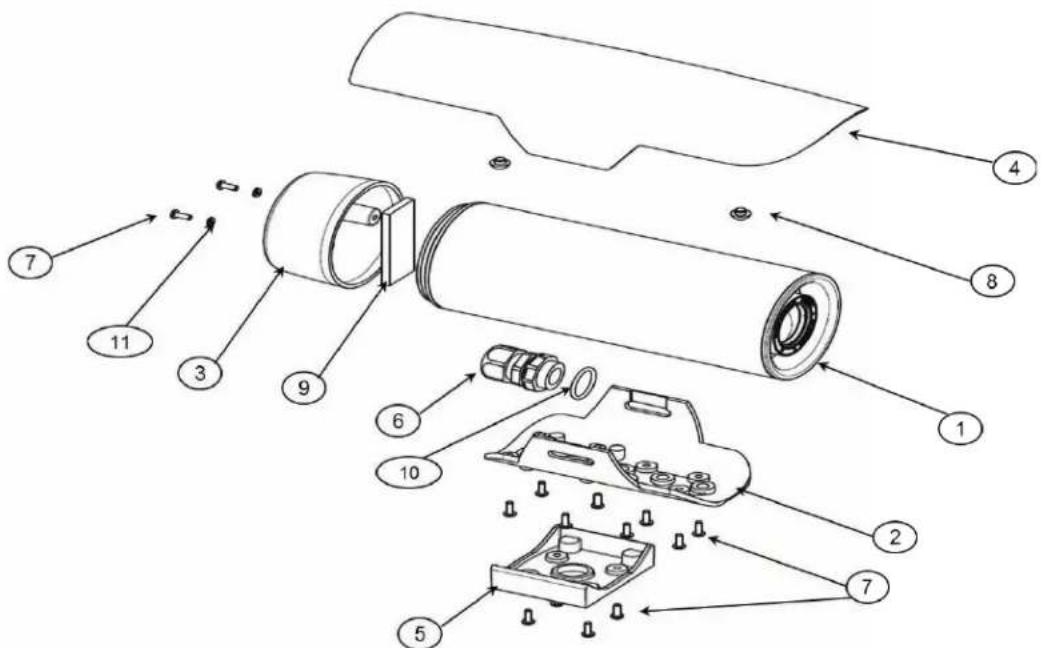
Figure 1: Camera Hardware Overview
Table 1: Camera Hardware Components
| Item Description | |
| 1 Camera Body | |
| 2 Base Mount | |
| 3 Back Cover | |
| 4 Solar Shroud | |
| 5 | 4 Hole Axis Mount Adapter (optional) |
| 6 Cable Sealing Gland with electrical nut | |
| 7 Tamper Resistant Screws | |
| 8 Stem Bumpers | |
| 9 Desiccant | |
| 10 O-ring | |
| 11 Sealing Washers with Gasket |
Figure 2 and Table 2 below describe the details of the rear of the camera.

Figure 2: ZNT6-H Series Camera Rear View
Table 2: Camera LED Indicators
| Item Description | |
| Network Port | Accepts a standard LAN cable to connect the IP camera to a 10/100Base Switch or Router. |
| LED | Indicates information about the network connections as follows:Off - LAN connection is NOT detectedSolid Green - 100 MB LAN connection is detectedSolid Amber - 10 MB LAN connection is detectedFlashing Green/Amber - Data is being transmitted or received via the LAN connection |
| Analog Video Connector | Accepts a standard BNC terminated coax cable for analog video output. A 90-degree BNC adapter is also pre-installed on the camera (not pictured above). |
| Power/RS-485 Connector | 5-pin terminal block for power input - 2 for AC power input, 1 for DC power input, 1 for Ground, and 2 for RS-485 connections.12-24V DC or 24V AC power with minimum 13W or 0.54A and 10% tolerance. |
| Factory Reset Button | Reset button reboots the IP camera and resets it to the factory default state. You can use a pin or paper clip to depress it and hold for at least 20 seconds. |
3 SPECIFICATIONS
3.1 QUICK REFERENCE SPECIFICATIONS
Ganz Thermal Series Specifications are detailed below in Table 3.
Table 3: Ganz Thermal Series Specification Quick Reference Table
| Focal Plane Array | |||||
| Sensor Type Uncooled VOx Microbolometer | |||||
| Array Format | 320x240 (ZNT6-Hxx1 Series)640x480 (ZNT6-Hxx2 Series) | ||||
| Pixel Pitch 17 μm | |||||
| Spectral Band | 8 - 14 μm (LWIR) | ||||
| Sensitivity (NEDT) @ f/1.0 | < 50 mK at f/1.0 | ||||
| Video | |||||
| Frame Rate | Configurable for up to 30 Frames Per Second (fps) or Fixed at 9 fps | ||||
| Format | Analog: NTSC/PALIP: H264/MJPEG | ||||
| Gain/Level Control Automatic | |||||
| 4X Digital Zoom | 1X-4X; 0.25X increments | ||||
| Image Display | White Hot, Black Hot, Color, Invert/Revert | ||||
| Symbology | On screen display with date, time, and user defined text | ||||
| Zoom | 4x Digital Zoom with ePan/eTilt | ||||
| Image Processing | Image Contrast Enhancement (ICE) for superior performance | ||||
| Communication Interface | |||||
| Protocols | IP: ONVIFTM Conformant (v 2.0 / Profile S), RTP, RTSP, TCP, UDP, DHCP, FTP, HTTP, and NTPAnalog: PELCO-D | ||||
| Interfaces | IP: Ethernet (10/100 Base T), RJ-45Analog: RS-485 | ||||
| Security 802.1X Network Access Control and HTTPS | |||||
| Electrical | |||||
| Voltage | 12-24 V DC, 24V AC, 802.3af Power Over Ethernet (PoE) | ||||
| Power | <12.95 W with Heater | ||||
| Environmental | |||||
| Operating Temperature | -40°C to +60°C (-40°F to 140°F) | ||||
| Storage Temperature | -50°C to +75°C (-58°F to +167°F) | ||||
| Mechanical | |||||
| Dimensions (L x H x W) | 29.2 x 10.4 x 9.5 cm | ||||
| Weight < 1500 g | |||||
| Enclosure IP66, Tamper Resistant | |||||
| Optics | |||||
| Athermalized Fixed Focus Lens for ZNT6-Hxx1 Series | |||||
| Horizontal Field of View (HFOV) | 40° | 24° | 16° | 9° | 6° |
| f/no | 1.2 | 1.0 | 1.1 | 1.2 | 1.2 |
| Effective Focal Length | 7.5mm | 13mm | 19mm | 35mm | 50mm |
| Athermalized Fixed Focus Lens for ZNT6-Hxx2 Series | |||||
| Horizontal Field of View (HFOV) | 44° | 37.5° | 24.8° | 17.6° | 12.4 |
| f/no | 1.2 | 1.2 | 1.2 | 1.2 | 1.2 |
| Effective Focal Length | 14.25mm | 16.7mm | 25mm | 35mm | 50mm |
| Software | |||||
| Ganz Thermal Web Interface | Administrator, Operator, and Viewer with Password Protection | ||||
| Hardware | |||||
| Embedded Memory | 2 GB for Video Storage and Image Capture | ||||
| Approvals | |||||
| Environmental/Enclosure | IEC 60529 IP66 | ||||
| Emissions | FCC Part 15 Subpart B Class A, CISPR22 Class B, EN55022 Class A | ||||
| Electrostatic Discharge (ESD) | EN 61000-4-2 as modified by EN 55024 | ||||
| Electrical Fast Transients (EFT) | EN 61000-4-4 as modified by EN 55024 | ||||
| Radiated Disturbances | EN 61000-4-3 as modified by EN 55024 | ||||
| Conducted Disturbances | EN 61000-4-6 as modified by EN 55024 | ||||
| Power-Frequency Magnetic Fields | EN 61000-4-8 as modified by EN 55024 | ||||
3.2 RANGE PERFORMANCE
The ZNT6-Hxx1 and ZNT6-Hxx2 range data assumptions and performance is provided below. Typical detection and recognition range performance has been modeled for multiple available lens solutions using NVTHERM 1 . See Figure 3 and Figure 4.
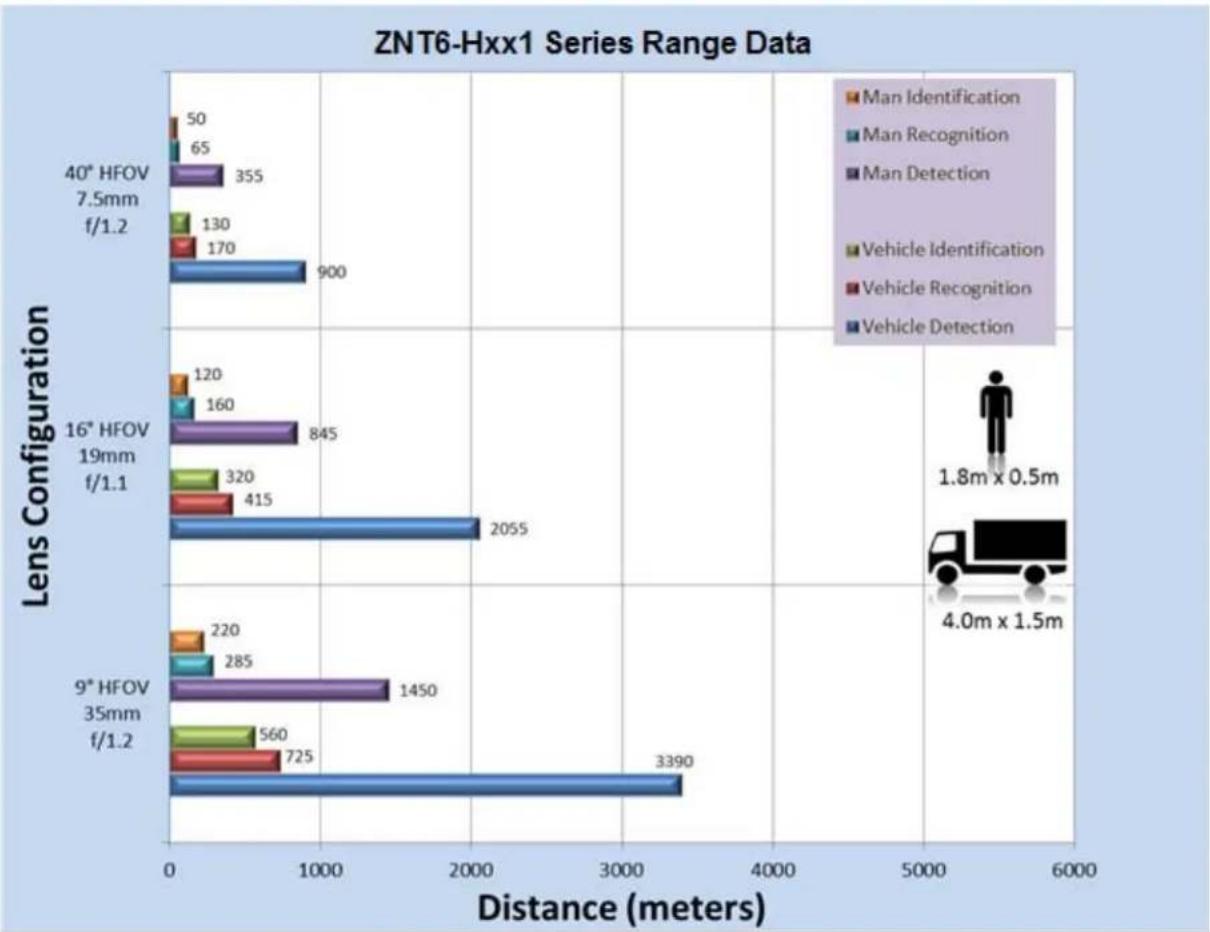
Figure 3: ZNT6-Hxx1 Range Data

Figure 4: ZNT6-Hxx2 Series Range Data

Data presented above are believed to accurately reflect camera performance under stated conditions but are not guaranteed performance metrics.
4 INSTALLATION AND ACCESS
4.1 PACKAGE CONTENTS
When unpacking, please note any damage that may have occurred during shipping and review the contents of the package to ensure all components are present. If any discrepancies arise, please notify your authorized dealer or CBC America Inc. directly. The list of standard shipping contents is provided below.
- Ganz Thermal camera with the Back Cover attached and a brown Desiccant pack inside the cover for shipping
- The Ganz ZNT6-Hxx1 and ZNT6-Hxx2 thermal cameras also includes a 90-degree BNC Adapter already attached to the back of the camera
• Ganz Thermal Camera Base Mount
• Ganz Thermal Camera 4 Hole Axis Mount Adapter
• Ganz Thermal Camera Solar Shroud
• Hardware Kit with several small plastic bags containing
- 1 - Cable Sealing Gland with electrical nut
○ 1 - O-Ring
○ 16 - #6-32 X 5/8" screws including 2 spares - 1 - White Desiccant for installation
- 3 - Sealing washers with gasket including 1 spare
- 3 - Stem Bumpers including 1 spare
• 1 – Power Block (5-pin: ZNT6-Hxx1 and ZNT6-xx2) Quick Start Guide
• End User Licensing Agreement (EULA)
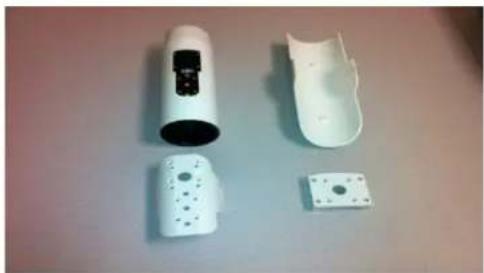
Figure 5: Camera Components

Figure 6: Hardware Kit
4.2 INSTALLATION

WARNING
Installation of the equipment must comply with local and national electrical codes.
WARNING
This product must be connected to a Power Over Ethernet IEEE 802.af compliant power source or a UL Listed "Class 2" power supply rated 12-24V DC or 24V AC minimum 13 W or 0.54 A.

CAUTION
Operating the camera at voltage levels outside the specified range may result in permanent damage to the unit and void the product warranty.

CAUTION
Failure to follow the proper procedure may cause permanent damage to the camera and void the product warranty.
WARNING
DEVICE SENSITIVE TO ELECTROSTATIC DISCHARGE
The camera electronics and electronic interfaces are sensitive to electrostatic discharge. Please follow appropriate ESD procedures when handling the camera and during installation. For PoE installations, GANZ strongly recommends the use of STP cabling and an earth grounded end point to ensure proper ESD immunity. For AC or DC powered installations, a properly earth grounded power source is strongly recommended.

CAUTION
To ensure a proper earth ground (between the GANZ camera and a PoE switch) CBC America Inc. strongly recommends the use of Shielded Twisted Pair (STP) cabling. Installations of GANZ cameras using a STP cabling and a properly earth grounded PoE switch are tested to comply with industry immunity standards for Electro Static Discharge. Any other installation method may leave the camera at risk and void the warranty.
4.3 INSTALLATION PROCEDURE
The Ganz ZNT6-Hxx1 and ZNT6-Hxx2 thermal cameras can be configured for both Ethernet/IP and Analog. The Ganz Thermal camera can be configured for Ethernet/IP only. You will need the following recommended list of tools (not included) before you can install the IP Camera.
• Power source: PoE Switch, 12-24V DC or 24V AC
- IP Network
- Ethernet Cable (STP Cat5 recommended)
- Tripod or Mounting bracket for mounting the IP Camera
• A Phillips head #2 screwdriver
- 2 Open End Wrenches – 1 inch (25mm), OR adjustable wrenches
• A 6-inch scale OR ruler
- Torque screwdriver set to 10 inch-pounds (Electric or manual)
- Torx (hole in the middle) T10 Pin-In Security bit - 3.5 inch (90mm) in Length
- Hex Wrench
- RJ-45 connector and
- RJ-45 Crimping Tool
- Suggested Tools for Analog Video (ZNT6-Hxx1 and ZNT6-Hxx2 only):
○ Coax Cable
○ Coax Cable Cutter/Stripper
○ BNC Connector
○ BNC Crimping Tool
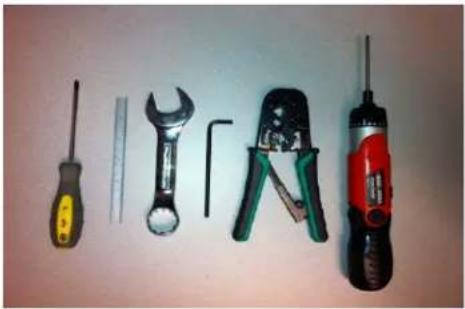
Figure 7: Recommended Tool Kit
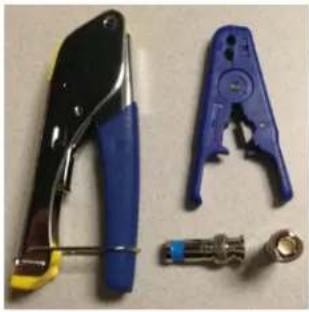
Figure 8: Recommended Analog Tools
4.4 PREPARING THE CABLE
- Disconnect power from the exposed cable(s) of the standard Bracket.
- Take the number 2 Phillips head screwdriver and pierce the membrane of the cable gland.
- If needed, pierce 2 smaller holes on the membrane of the cable gland for AC/DC power wires.
- Remove the electric nut from the sealing gland.
- Place the O-ring (Orange) on the threaded end of the cable gland. This is necessary to insure a good seal for IP66.
-
Cut off the RJ-45 connector if using existing Ethernet cable.
-
Feed existing or new cable(s) from the standard Axis or Pelco Bracket through the components in the following order:
a. 4 Hole Mount Adapter (4 hole flat surface facing the mating bracket) if required
b. 3 Hole Base Mount (Flat side first for mating 3 Hole Bracket)
c. Electrical Nut (Convex side) of the supplied Cable Sealing Gland
d. Bottom of the IP Camera body through the back hole below the connectors
Securing for IP66 (POE only)
- Slide the Ethernet cable through the threaded end of the cable sealing gland, with Orange O-Ring installed.
- Measure approximately 4.5 inches of cable slack from the end of the cable to the rubber grommet of the sealing gland. Use a scale to measure the length.
- Attach one open end wrench onto the flange of the cable gland and tighten the compression nut, with the second open wrench, to approximately 50-55 in-lbs. of torque
- Assemble a new RJ45 head to the Cat 5 Ethernet Cable
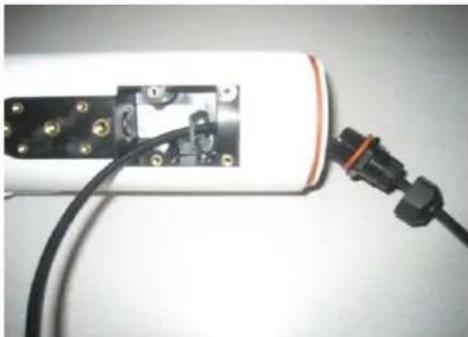
Figure 9: IP66 with POE
Securing for IP66 (Ethernet & AC/DC power):
- Slide the Ethernet cable through the threaded end of the cable sealing gland, with Orange O-Ring installed.
- Slide the 2, 20 AWG power wires through the back side of the cable sealing gland.
- Measure approximately 4.5 inches of cable slack from the end of the cable to the rubber grommet of the sealing gland. Use a scale to measure the length.
- Attach one open end wrench onto the flange of the cable gland and tighten the compression nut, with the second open wrench, to approximately 50-55 in-lbs. of torque.
- Assemble a new RJ45 head to the Cat 5 Ethernet Cable.
- Assemble a mating power connector to the 2 AC or 2 DC power cables.
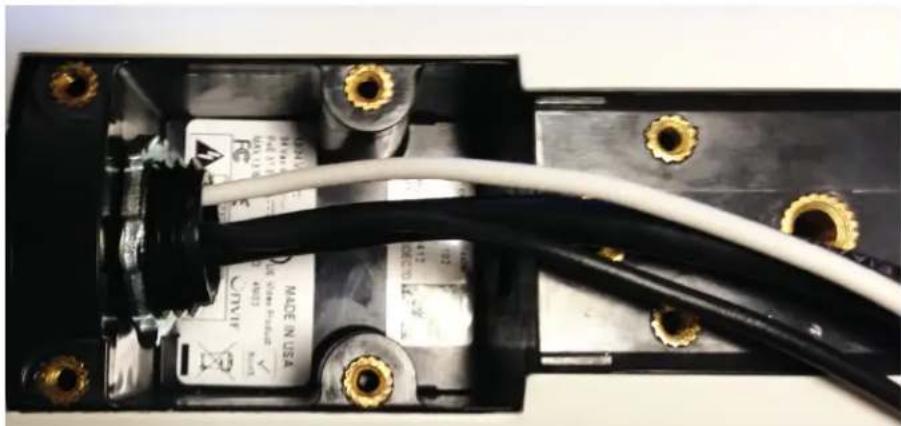
Figure 10: IP66 with Ethernet and AC/DC Power
Securing for IP66 (Analog & AC/DC Power – ZNT6-Hxx1 and ZNT6-Hxx2 Only)
- Slide the Coax cable through the threaded end of the cable sealing gland, with Orange O-Ring installed.
- Slide the 2, 20 AWG power wires (and any RS-485 wires) through the back side of the cable sealing gland.
-
Measure approximately 4.5 inches of cable slack from the end of the cable to the rubber grommet of the sealing gland. Use a scale to measure the length.
-
Attach one open end wrench onto the flange of the cable gland and tighten the compression nut, with the second open wrench, to approximately 50-55 in-lbs. of torque.
- Assemble a new RJ45 head to the Cat 5 Ethernet Cable.
- Assemble a mating power connector to the 2 AC or 2 DC power cables (and RS-485 cables if used).
Securing for IP66 (Analog & Ethernet – ZNT6-Hxx1 and ZNT6-Hxx2 Only)
- Put the nut onto the cables first. And then push the analog video cable and CAT5 cable through the gland (see Figure 11). The CAT5 cable goes through the center. The analog video goes through one of the 5 outer holes.
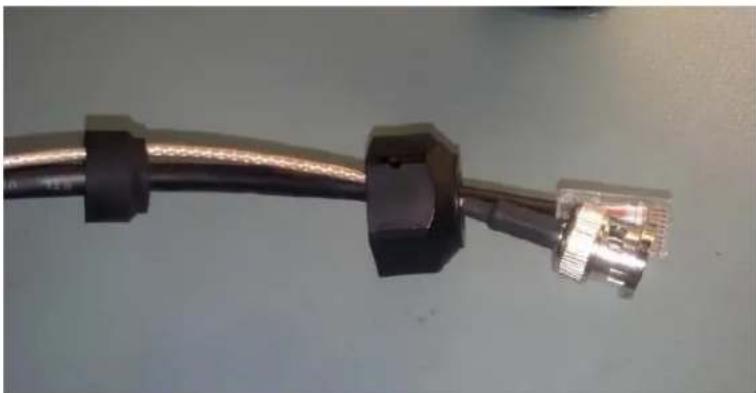
Figure 11: Analog and Ethernet Cable through the Gland
- Push the gland housing over the cables (see Figure 12).
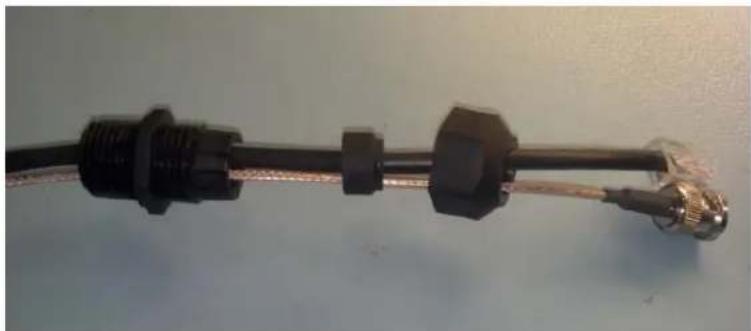
Figure 12: Push Gland over the Cables
- Push the gland rubber into the gland housing (See Figure 13)

Figure 13: Push Gland into Gland Housing
- Tighten the gland nut onto the gland housing. Leave about 8 cm of cable sticking out of the gland housing (see Figure 14).

Figure 14: Tighten Gland Nut
- Insert the cable and gland into the camera. Connect the Analog cable and CAT5 cable to the camera.
Slide the gland housing-to-chassis nut over the cables. Tighten the gland housing-to-chassis nut into the camera (see Figure 15).
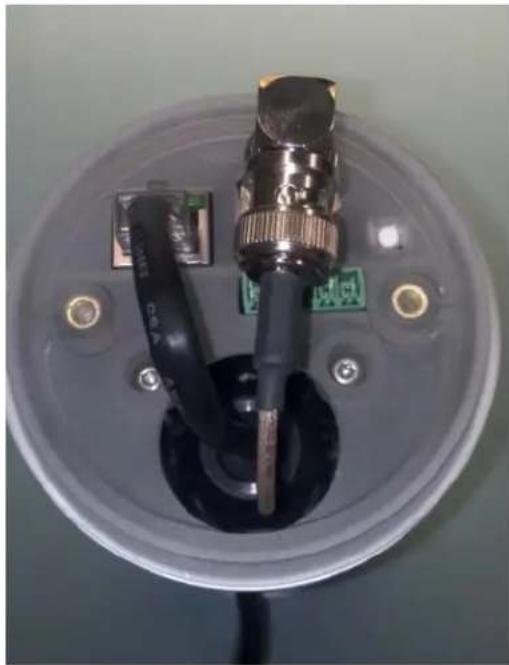
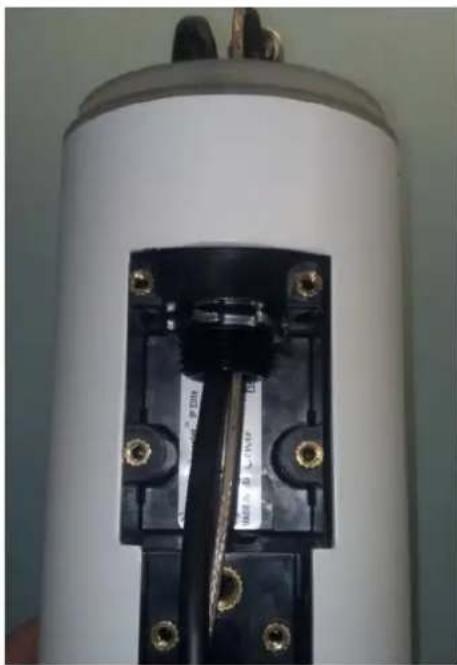
Figure 15: Install Cables into Camera
- Not shown, crimp the other end of the cables in place.
For All Configurations
-
Pull the cable(s) taut back through the IP Camera, exposing the thread of the cable sealing gland out of the base of the IP Camera.
-
Assemble the Electrical Nut back onto the gland and tighten the Nut securely until it is finger tight. Use a flat head screwdriver to continue turning the electrical nut until it reaches approximately 50 in-lbs of torque.
4.5 ASSEMBLY
-
Using 8 of the #6 screws, assemble the Base Mount, to the IP Camera. Tighten the 8 fasteners to approximately 10 in-lbs. of torque with the Electric Screw Driver, and T10 Security bit.
-
Using 4 of the #6 screws, assemble the optional Standard 4 hole Mount, to the Base Mount, and tighten the fasteners to approximately 10 in-lbs. of torque with the Electric Screw Driver, and T10 Security bit.
-
Connect the cable(s) to the respective connector:
a. Ethernet: Ethernet Port
b. Analog: Analog Video Out (ZNT6-Hxxx only)
c. AC/DC Power for ZNT6-Hxxx: Connect wires to power block according the pin-out shown in Figure 16:
i. If powering the camera with an AC supply, connect AC+ to the 24VAC input and the AC- to the GND input
ii. If powering the camera with a DC supply, connect the DC+ to the 12VDC input and the DC- (or ground) to the GND input.
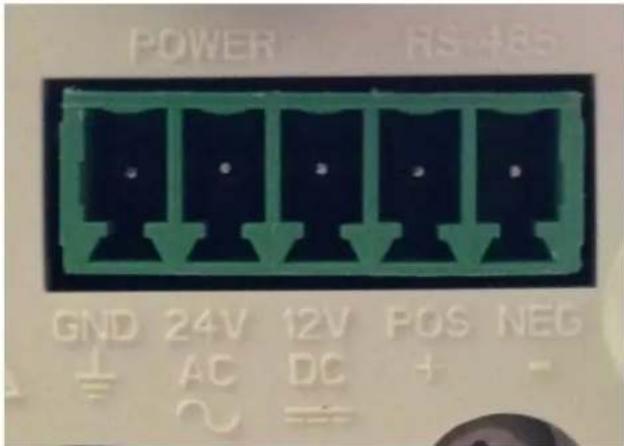
Figure 16: ZNT6-Hxxx Pin-Out Pins 1-3: Power (GND, 24V AC, 12-24 DC or 24V AC) Pins 4-5: RS-485 (POS, NEG)
d. AC/DC Power for ZNT6-Hxxx: Connect wires to power block according the pin-out shown in Figure 17:
i. If powering the camera with an AC supply, connect AC+ to the 24VAC input and the AC- to the other 24VAC input
ii. If powering the camera with a DC supply, connect the DC+ to the 12VDC input and the DC- (or ground) to the GND input.
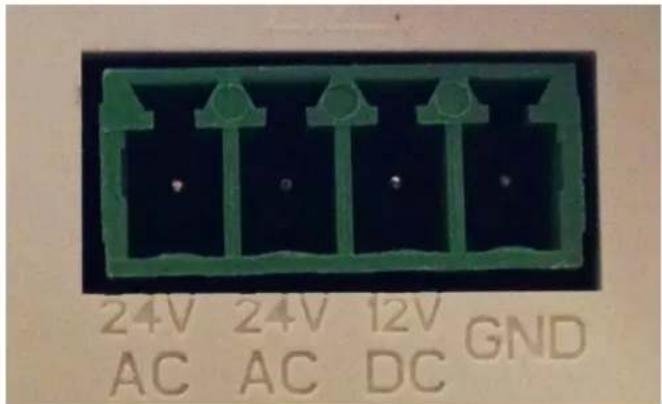
Figure 17: ZNT6-Hxxx Pin-Out (24V AC, 24V AC, 12V DC, GND)
- RS-485: Connect wires to power block according to the pin-out shown in Figure 16.
a. Connect the RS-485+ pin to the camera's POS and connect the RS-485- pin to the camera's NEG pin.
- Reconnect Power to the existing cable(s).
- Check for Solid LED on the Ethernet connector to acknowledge connectivity to the IP network. The status LED indicators are:
a. LED 1: Solid Amber for 10MB connection
b. LED 2: Solid Green for 100MB connection or Flashing Green for Activity
- Place the supplied white desiccant into the Back Cover.
- Assemble the Back Cover to the IP Camera using 2, #6 screws and 2 Master Seal Washers (metal size against the head of the screw and gasket side against the camera body). Tighten the 2 fasteners to approximately 10 in-lbs. of torque.
- Assemble the 2 Rubber Stem Bumpers onto the 2 detents in the concave surface of the Solar Shroud.
- Snap the Solar Shroud to the Base Mount.
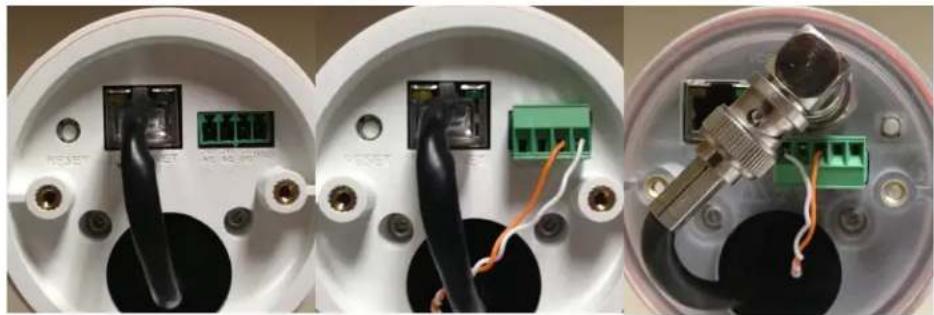
Figure 18: Possible Configurations of the ZNT6-Hxxx

Figure 19: POE with Power
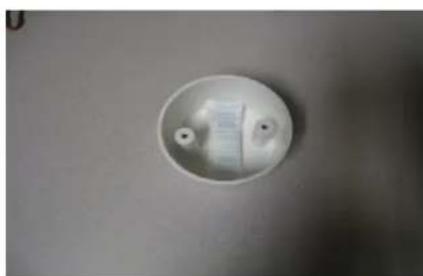
Figure 20: Back Cover and White Desiccant
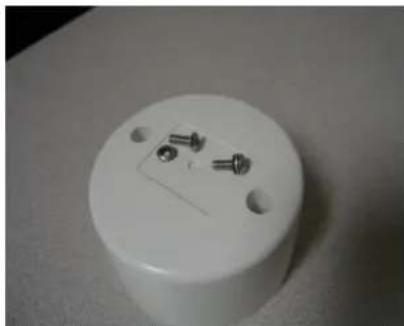
Figure 21: Back Cover Screws and Sealing Washer
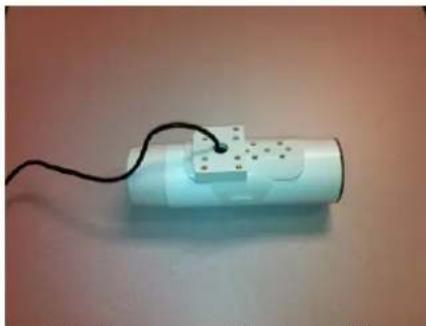
Figure 22: Camera with Base Mount and Axis Mount
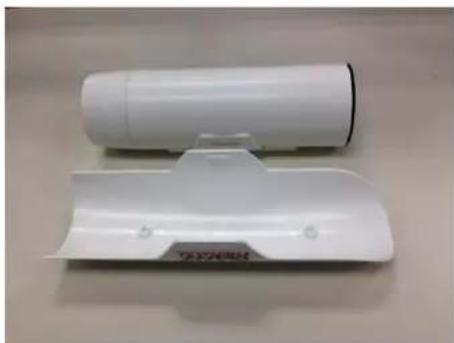
Figure 23: Solar Shroud with Stem Bumpers
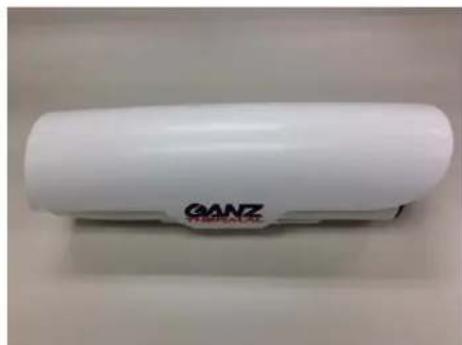
Figure 24: Fully Assembled Camera
4.6 MOUNTING THE CAMERA
- The Ganz Thermal camera can be mounted on a standard 3-hole bracket or 4-hole bracket. WatchMaster® IP Wall and Ceiling Brackets and Bracket Adaptors are offered as additional accessories. For a tripod mount, use the WatchMaster® IP Tripod Adapter which is also offered as an accessory.
- For standard 3-hole mount, secure the Camera Base Mount to the standard 3-hole bracket (not provided) using #1/4-20 screws (not provided).
- For a standard 4-hole mount and, first secure the optional 4-hole mount adapter to the base mount.
- Position the assembled Camera's 4-hole mount adapter onto the bracket and tighten the Metric M5 Screws (provided only with official WatchMaster® mounting accessories). Using a hex wrench, loosen the bracket adjustment screw to aim the camera to the point of interest.
4.7 MANUAL FOCUS AND FOCUS TOOL
The Ganz Thermal Series is set to infinity focus at the factory using a simple collimated target suitable for each FOV. Reviewing the focus during installation of the camera is recommended for optimal image quality so necessary adjustments suitable for the environment and the target object can be made. All lenses for each field of view can be focused manually by hand. Make sure not to touch the lens when adjusting the focus. However, the 40° lens may require the use of a focus tool. The focus tool is available from CBC America Inc. as an optional accessory item. For ordering details, please refer to the Ganz Thermal Series price sheet.
Table 4: Ganz Thermal ZNT6-Hxx1 Focus Information
| FOV | Effective Focal Length | f/# |
| 40° | 7.5mm | 1.2 |
| 24° | 13mm | 1.0 |
| 16° | 19mm | 1.1 |
| 9° | 35mm | 1.2 |
| 6° | 50mm | 1.2 |
Table 5: Ganz Thermal ZNT6-Hxx2 Focus Information
| FOV | Effective Focal Length | f/# |
| 44° | 14.25mm | 1.2 |
| 37.5° | 16.7mm | 1.2 |
| 24.8° | 25mm | 1.2 |
| 17.6° | 35mm | 1.2 |
| 12.4° | 50mm | 1.2 |
The camera is now ready for use!
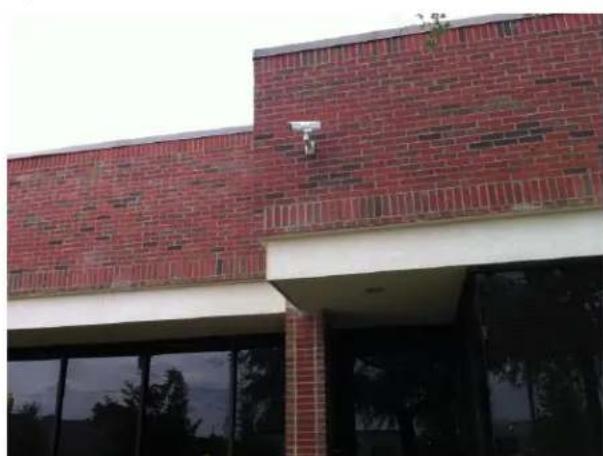
Figure 25: Camera mounted to a Ganz Thermal Wall Bracket
4.8 ACCESS
After installing the Ganz Thermal camera, you can access the IP Camera to make configuration changes and view live video using the Ganz Thermal Web Interface. In order to make these changes, you can connect to the IP Camera from any PC on your network. The PC must meet below minimum requirements:
• OS - Microsoft Windows 7 or Windows XP or Windows Vista
- Browser - Internet Explorer 9.0, Mozilla Firefox 8.0, and Google Chrome 29
- VLC Media Player Software (2.0.0 recommended) – can be downloaded from the Ganz Thermal camera directly through the Ganz Thermal Web Interface or from http://www.videolan.org/vlc/
CAMERA DISCOVERY AND IP ADDRESS
To connect to the IP camera for the first time and make initial configuration settings, the IP address must be discovered. It is recommended that the camera have access to a router with a DHCP server to enable automatic assignment of the IP Address corresponding to the MAC address of the camera. The procedure for this is network specific, but a device list usually exists on the router.
By default, when the IP camera powers on, it attempts to obtain an IP address from a DHCP server on the network. If the camera cannot obtain an IP address through DHCP within a reasonable time, it will default to an IP address of 192.168.0.200 and a subnet mask of 255.255.255.0.
In the event that the installer does not have access to the DHCP server, the Windows Network tool can be used to locate the camera. The below instructions can be used for Windows 7 and Windows XP.
Windows 7 OS:
Click on Start, Click on Computer and Click on Network. A list of devices connected to your network will appear as below. Double Click on the name (CBC Ganz Thermal) of the camera to launch the default browser. You can see the IP address of the camera in the Browser URL.
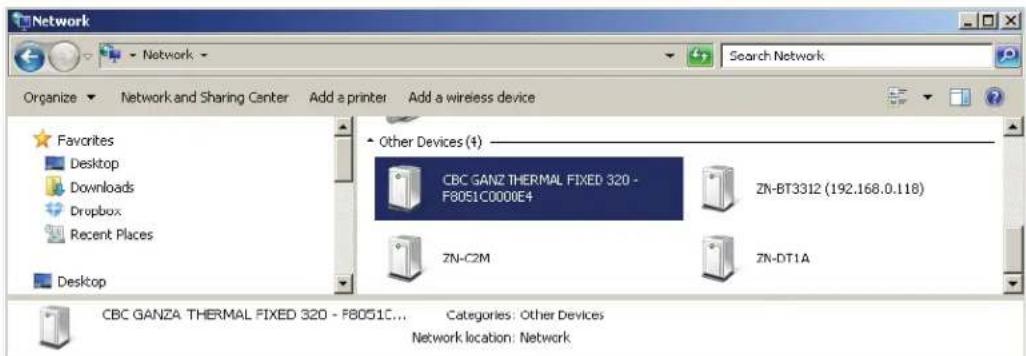
Figure 26: Camera Discovery with Windows 7
Windows 7 OS:
The procedure for discovering the IP address of the camera using Windows 7 requires activation of Universal Plug and Play (UPnP) service. Further details can be found in the Ganz Win 7 UPnP procedure document.
ONVIF™ discovery tools or other 3 rd party tools may also be used to discover the camera.
4.9 LOGIN TO THE IP CAMERA
- Enter the IP address of the IP Camera on the Browser URL line.
- Enter the default username and password when prompted (see Figure 27).
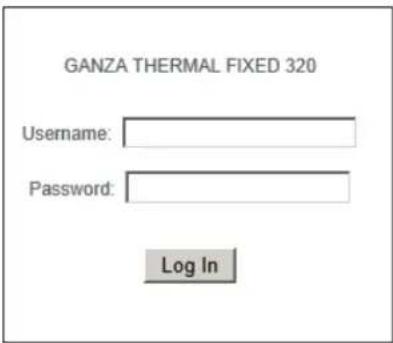
Figure 27: Login Prompt
- Default username and password are given below for Administrator access: (lower case)
Username is admin
Password is 1234
If you have not downloaded the VLC Media Player by this time, you can download it from the Camera. After login to the IP Camera, follow the prompt at the bottom of the screen to install the VLC Media Player. The minimum required VLC Media Player version is 1.1.10.
4.10 LOG OUT
To log out of the IP Camera, click on the Log Out link in the main menu or click on the Log Out link at the bottom of the screen.
5 CONFIGURATION AND MANAGEMENT
The Ganz Thermal Series of Cameras is an Internet Protocol (IP) networked solution, and is operational in a networked environment through a central office, remote video management system or through the Ganz provided Web Interface. This section covers the configuration and management of the IP camera using the Ganz Thermal Web Interface.
5.1 GANZ THERMAL WEB INTERFACE AND ACCESS PRIVILEGE
After you log in to the Ganz Thermal Series Camera, you can access the different menus (as shown in Figure 28) and perform administrative and user actions using the Ganz Thermal Web Interface. Administrators can access all of the IP camera menus, features and functions. Operators have access to limited IP camera menus, features and functions. Viewers can only view live video and access image controls. Main menus and access level details are provided in Table 6 below.
Table 6: Camera Main Menu and Access Privileges using the Ganz Thermal Web Interface
| Main Menu Description Access Privilege | ||
| View | Live video and image controls | AdministratorOperatorViewer |
| Motion Detection | Region of Interest selection and Motion Detection Settings | AdministratorOperator |
| Video Storage | Recording and Storage of video and images | AdministratorOperator |
| Maintenance | System updates, Camera reset, Factory default, | Administrator |
| Setup | IP Network settings, user and account management and camera controls | Administrator |
| Logout Log out of the camera | AdministratorOperatorViewer | |
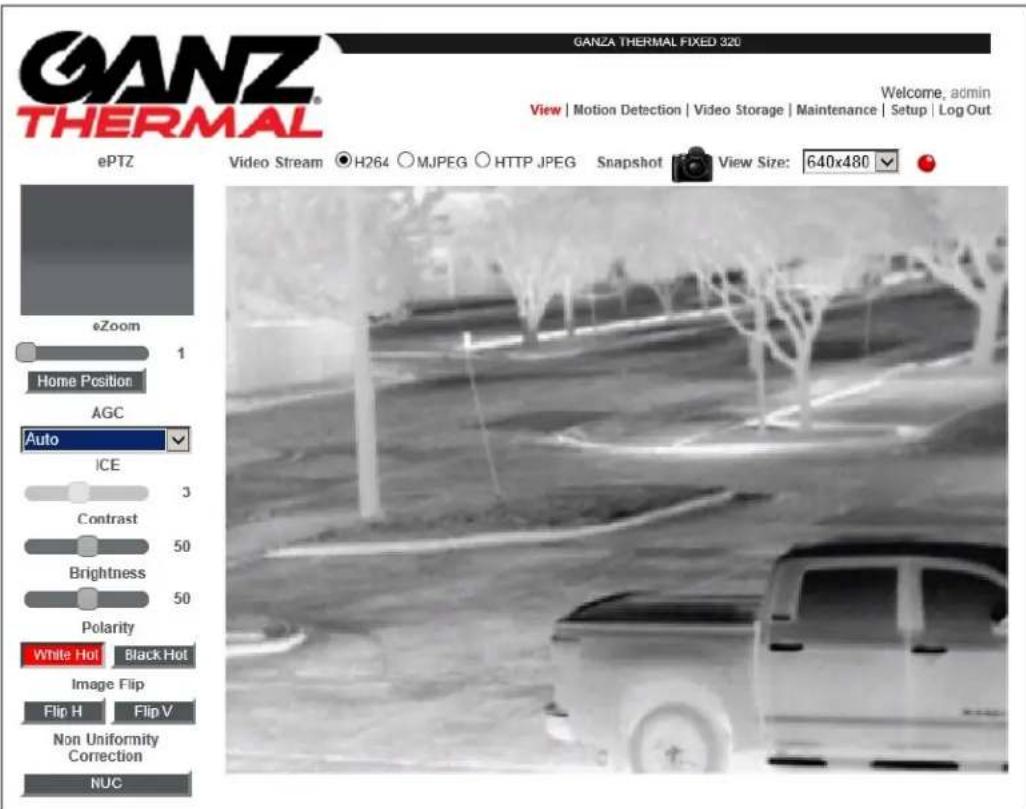
Figure 28: Ganz Thermal Web Interface and Main Menu
5.2 SETUP
When you are logged in to the IP camera as a user with administrator privileges, you can access the configuration parameters at any time by clicking the Setup menu. For information about logging in to the IP camera, see Section 4.9 "Login to the IP Camera". This section covers the setup of the camera. Using the camera setup menu (as shown in Figure 29), you can control network settings, manage users and accounts, and certain camera functions including video stream settings and motion detection.
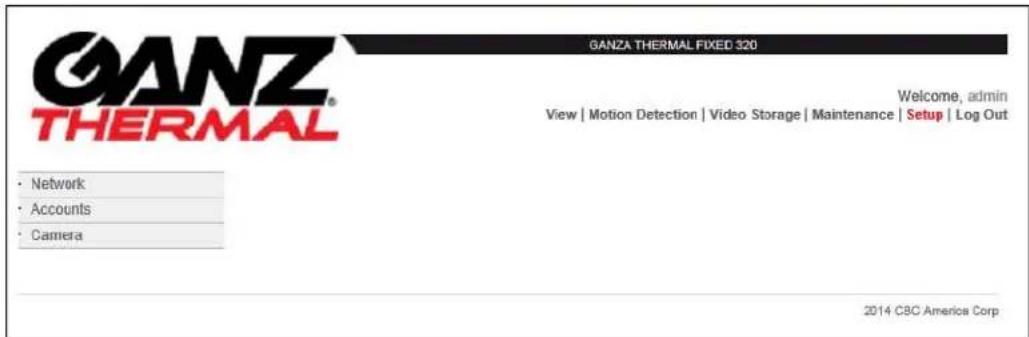
Figure 29: Ganz Thermal Web Interface Setup Menu
5.2.1 Network Setup
The network Setup pages allows the administrator to configure the camera's network settings and configure specific network features. To access the Network Settings, the user must have administrative privileges.
5.2.1 TCP/IP Settings
Table 7 and Figure 30 below provide details on configuring the TCP/IP network settings of the camera. These settings will remain saved on firmware upgrades from version 1.2.3238 onward.
Table 7: Network TCP/IP Settings
| TCP/IP Settings | Description |
| DHCP | Select the method by which the IP camera obtains its IP address:Dynamic — Choose this option if your network includes a DHCP server for dynamic allocation of IP addresses. Make sure the DHCP server assigns IP address, subnet mask, default gateway and DNS server addresses.The camera will attempt to connect to the network for ~ 5 minutes after 5 minutes, if no DHCP connection can be established, the camera will either fall back to the default IP address (192.168.0.200) or obtain a Zero Network Config assigned IP address (if Zero Network Config is enabled) |
| Static IP Address | Static — Choose the DHCP option NO if you want to manually enter the IP address and enter the IP address for the camera. |
| Subnet Mask | If you configured the IP camera for a static IP address, enter the subnet mask for the IP camera. Use the same value that is configured for the PCs on your network. |
| Gateway | If you configured the IP camera for a static IP address, enter the gateway for the IP camera. Use the same value that is configured for the PCs on your network. |
| DNS Server | Enter the IP address of the DNS server that is used in your network. Use the same value that is used for the PCs on your LAN. |
| Host Name | Default name is Ganz ZNT6-Hxxx. Enter a nickname for the IP Camera, if desired. |
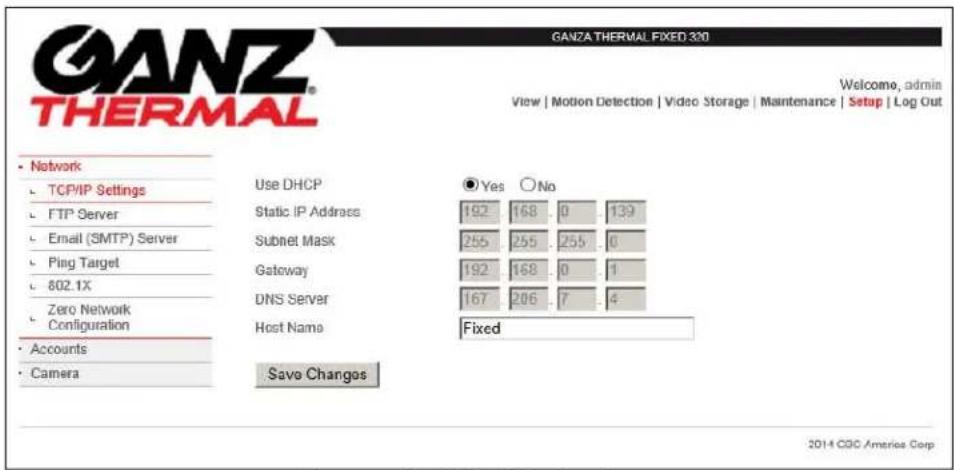
Figure 30: TCP/IP Settings
5.2.1.1 FTP Server
FTP server may be used for receiving events/alerts triggered by camera motion detection and for storing recorded video images and files. The FTP, or the File Transfer Protocol, makes it possible for users to exchange files between the camera's FTP client and a remote FTP server. The FTP configuration allows the administrator to establish a connection with a remote machine of their choice. The FTP connections are executed through certain ports, which are either the default TCP ports or custom ports set by an administrator. Once configured, the camera will download motion video files to the FTP server; this allows for a large amount of video storage.
Enter the FTP Server address, FTP port, FTP user name, ftp password, and the ftp path name which is a default folder in the ftp server. See Table 8 and Figure 31 for configuration details and an example configuration.
Table 8: FTP Server
| FTP Server | Description |
| FTP Server | The FTP Server is the IP address of the FTP server used to upload your files. |
| FTP Port | To establish an FTP session, clients initiate a connection to an FTP server that listens on TCP port 21 by default. FTP servers respond with messages that prompt the client for FTP login credentials (username and password). |
| Username | The User Name is the name of the FTP account you use to upload the files. |
| Password | This is the password associated with the Username above. |
| FTP Path | The FTP Path (also known as the "root" Web folder) is the specific folder in your Web hosting server space that contains all Web-related files (such as html and image files). |
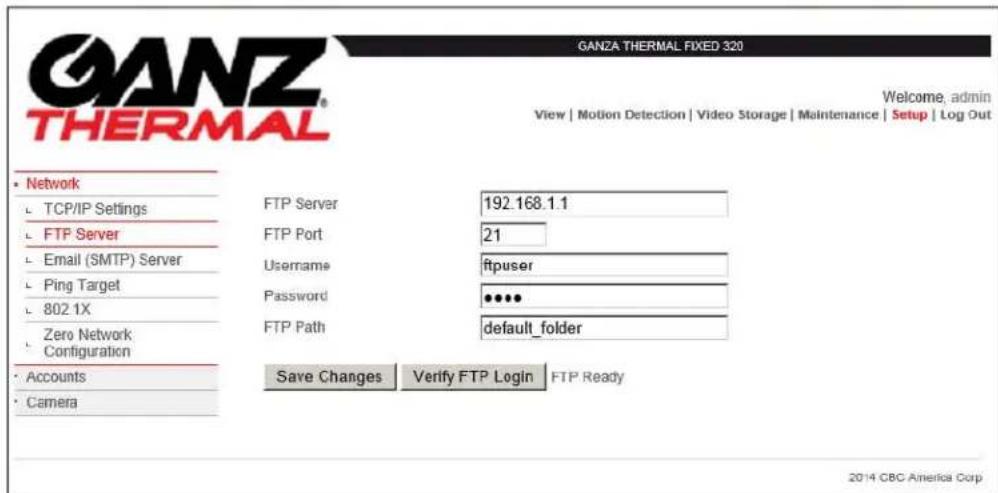
Figure 31: FTP Settings
5.2.1.2 Email Server
The camera can send you email notification on alarm but to do this it requires access to a Simple Mail Transport Protocol (SMTP) server (to actually send the email). SMTP Authentication is a means of using one's credentials to authenticate to an email server with the intent of using that email server to send email.
Check the Enable Authentication box and enter the email username, email password, email sender address, SMTP server IP address and email address in the respective fields. You can send a test email by pressing the Send Test Email button. Make sure to save the changes by pressing on the Save Changes button. Table 9 describes the fields that are necessary to authenticate to an SMTP email server. Figure 32 illustrates a completely filled out form.
Table 9: Email Server
| Email Server | Description |
| Enable Authentication | Check this box if your SMTP server requires Authentication. As a general rule most SMTP servers required authentication. |
| Username | The Username is the name that was used to set up the email server account. |
| Password | This is the password associated with the Username above. |
| Email Sender | Is your domain email address. This is the address used to send your Internet email. This address will appear in the “From” portion of the email |
| SMTP Server | The SMTP server is the outgoing mail server through which you send your outgoing mail. Since you are connected to your Internet Service Provider (ISP), they know that you are a valid subscriber and allow your outgoing email to be relayed to the destination. |
| Email To | This is the address used to receive your Internet email. This address will appear in the “To” portion of the email |
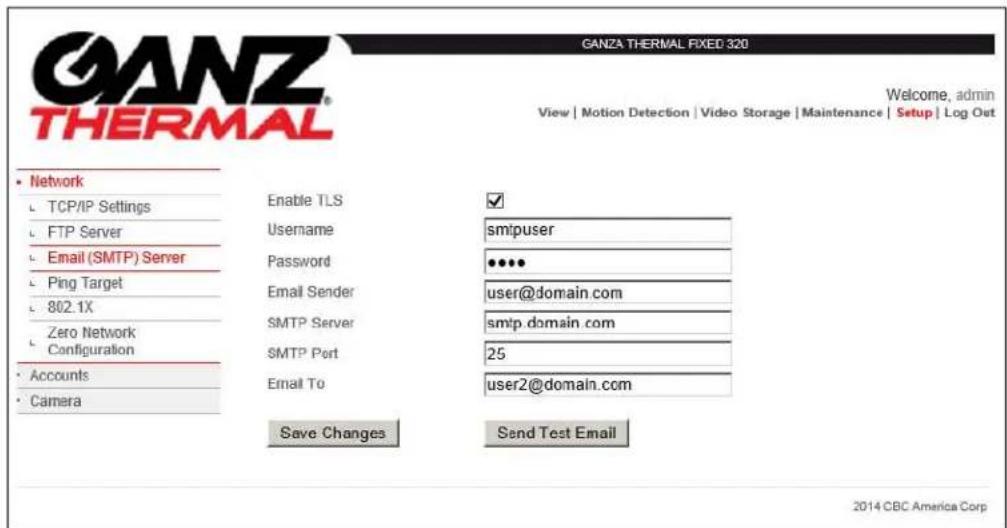
Figure 32: Email Settings
5.2.1.3 Ping Target
The camera will allow the user to Ping a Target device. This is useful when trying to configure the FTP server or SMTP server. You can both verify network connectivity and server connectivity. To ping a target, simply enter the target name or IP address and hit "Refresh" button to confirm success or failure. Select "Save changes and Ping Target" button to save the changes. See Figure 33 for an example.
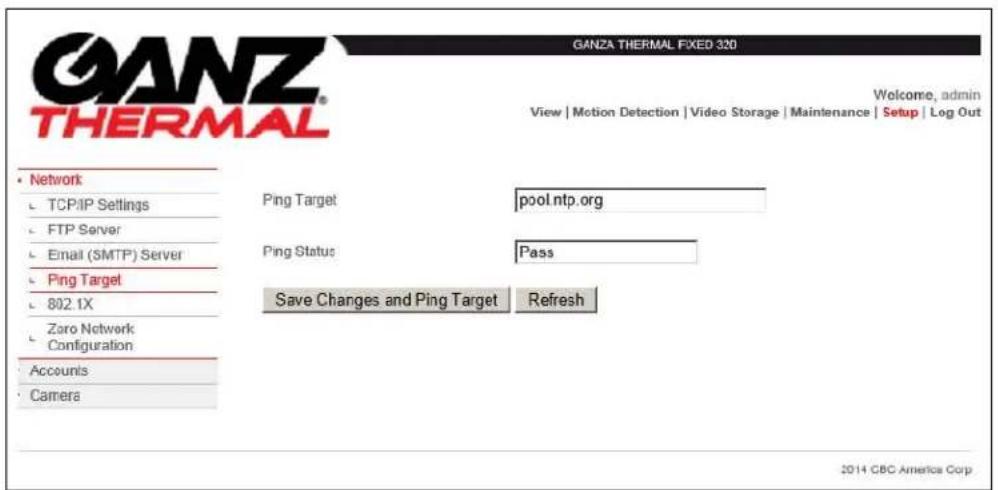
Figure 33: Ping Target
5.2.1.4 802.1X
802.1x is an IEEE standard specifying port-based network access control. Port-based network access control uses the physical characteristics of a switched local area network (LAN) infrastructure to authenticate devices that are attached to a LAN port and to prevent access to that port in cases in which the authentication process fails.
During a port-based network access control interaction, an authentication server (which can either be a separate entity or co-located with the authenticator) checks the camera's credentials. The authentication server then responds to the authenticator, indicating whether the camera is authorized to access the authenticator's services.
Extensible Authentication Protocol (EAP) is used to pass the authentication information between the camera and the authentication server. The actual authentication is defined and handled by the EAP type. The EAP Type selected is based upon how the authentication server is configured.
Table 10: 802.1X
| 802.1X Description | |
| EAP Type | Off – Disables 802.1X. This is the default settingEAP-MD5 - is typically not recommended because it provides for only one way authenticationEAP-GTC - uses clear text method to exchange authentication controls between the camera and the server. Since the authentication mechanism uses the one-time tokens (generated by the servers smartcard), this method of credential exchange is considered safe.EAP-MSCHAPV2 – Requires that the authentication server present a certificate to the camera. This protocol is used primarily in Microsoft Active DirectoryEAP-TTLS - This security method provides for certificate-based, mutual authentication of the client and network. You must upload a Certificate via the Browse button.PEAPv0—MSCHAPV2 - Provides a method to transport securely authentication data, including legacy password-based protocols. PEAP accomplishes this by using tunneling between the camera and an authentication server. You must upload a Certificate via the Browse button. |
| Server Certificate | Points to the location of the server certificate. Enter the Path and folder where the root certificate that is required for 802.1x authentication is stored. You can click browse to find this location. After you enter this information, click Upload Certificate to upload the certificate to the IP camera. Note; used for EAP-TTLS and PEAPv0-MSCHAPV2 authentication. |
| Username | The Username is the name that was used to set up the 802.1x account. |
| Password | This is the password associated with the Username above. |
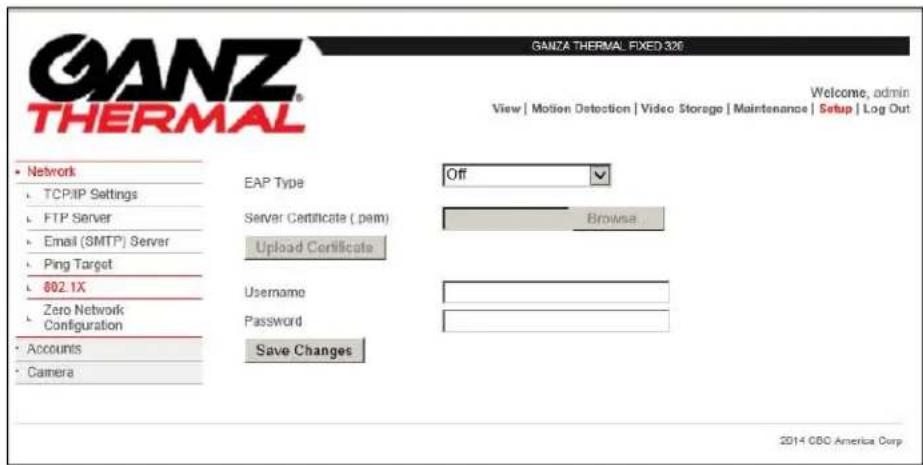
Figure 34: 802.1X
5.2.1.5 Zero Network Configuration
When the camera is configured as DHCP mode but there is no DHCP server on the network, the camera will fall back to one of the following:
- If Zero config is disabled, the camera will default to a static IP address of 192.168.0.200
- If Zero config is enabled, the camera will default to a static IP address that is within the range of 169.254.0.0 to 169.254.0.16. The IP address is selected randomly.
Note: This feature will have no affect if the camera has been assigned a static IP address.
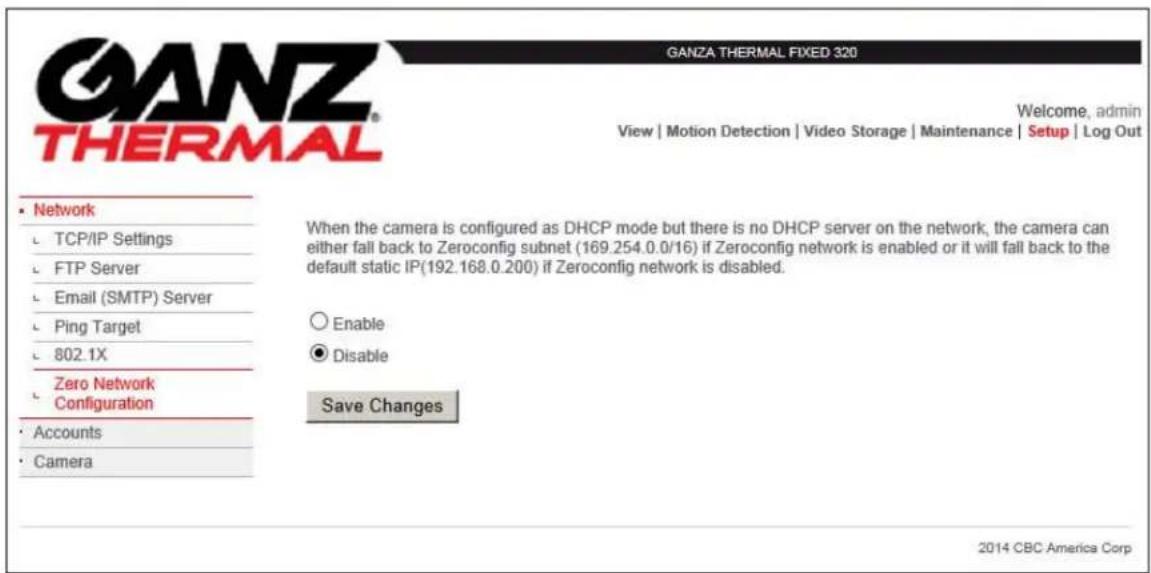
Figure 35: Zero Network Configurations
5.2.2 Accounts
For security purposes it is important to change the default IP address of your camera once it has been configured and before it is placed into a live network. This is especially true if you do not want unauthorized users to change the camera configurations. The camera offers the following authorization levels:
- Administrator – Has full access to the camera's web pages
- Operator – Does not have access to the Maintenance and Setup pages
- Viewer – Only has access to the view page
Table 11 and Figure 36 below provide details on managing accounts and users.
Table 11: Accounts and Users
| Accounts Description | |
| New users | New user accounts can be created for accessing the IP camera. To create a new account, go to the account menu and enter the new user name, select the user class (Administrator, Operator or Viewer) from the User Class drop down menu, enter and confirm the password for the user. Click on the Add User button to add the user. You will see a prompt confirming the user has been added. Repeat this process for adding more users. User name and user class will be updated in the menu. |
| Existing users | Existing user accounts can be managed and modified. To change the password for an existing user, enter a new password in the New Password field and reenter the password in the Confirm Password field. Click on Update User button to update the password. To assign a different user class to the user, select the appropriate user class (Administrator, Operator or Viewer) from the User Class drop down menu. To delete users, click on delete users. |
| Onvif Security | Enabling and disabling OnvifTM user authentication allows for better interoperability between OnvifTM Clients that don't fully support the WSSE security model. While we recommend that you leave this option enabled and provide OnvifTM clients with the same user name and password used to login to an admin account on the web interface, disabling OnvifTM security may resolve some issues that arise when clients fail to properly authenticate themselves. Note: Since WSSE uses the current time as part of its security model, the proper time must be set both on the camera and the OnvifTM client software. |
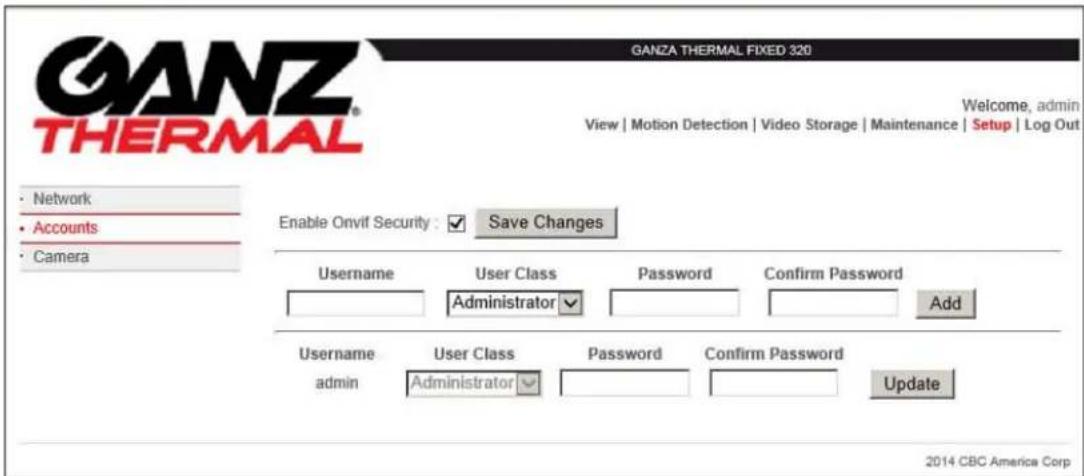
Figure 36: User Accounts
5.2.3 Camera
The Camera pages allow the administrator to configure the camera's video settings, time, and video analytic settings. To access the camera settings, the user must have administrative privileges.
5.2.4 Date and Time
The Date and Time web page allows the administrator to configure an external NTP time server for automatic time setting or manually set the time and time zone (as described in Table 12). The camera does not have a battery backup and will default back to the software build date following a power cycle. If the manual setting is used or the camera cannot connect to the NTP server, the camera time is set to the software build date. If NTP is enabled and the camera connects to an NTP server, the camera will automatically update its time setting.
It is highly recommended to enable the NTP server (as shown in Figure 37). This will ensure that the camera logs have the correct time information.
Table 12: Date and Time
| Date and Time | Description |
| NTP Server Settings | NTP time clock can also be over written manually if necessary in the Camera –Date/Time menu. Enter date/time, select the time zone and enable Daylight savings if needed. Confirm by pressing the Set Date and Time button. |
| Manual Time Settings | If NTP isn’t desired or is unavailable, date/time can be manually edited here. Select the time zone and enable Daylight savings if needed. Confirm by pressing the Set Date and Time button. NOTE: NTP must be disabled above in order to save changes. |

Figure 37: Camera Date and Time settings
5.2.5 Video Streaming
The Video Streaming web page allows the administrator to configure and adjust a wide range of H.264, MJPEG, or HTTP JPEG streaming methods; these are used to optimize the video stream for bandwidth, network configuration, quality, and compatibility with other decoders and video players. Table 13 provides details on the video streaming options and Figure 38 shows an example.
Ganz Thermal cameras use a Constant Variable Bit Rate (CVBR) rate control implementation which allows the bitrate to change in a given time interval based on the complexity of the scene. The CVBR implementation automatically adjusts the average, min and max bitrate based upon the network conditions.
Note: If the camera is connected to a heavily congested network or connected via a wireless network, it is highly recommended to set the H.264 bitrate to \~ 500Kbps and/or adjust the MJPEG quality to \~ 50%.
Table 13: Video Streaming
| Video Streaming | Description |
| Enable Multicast Streaming | Check this box to select multicast streaming. Make sure your network supports multicasting. Leave the box as unchecked for unicast streaming. The default is unicast streaming. |
| H264 Multicast Streaming IP Address | Enter the multicast streaming address. Valid range for multicast IP address is between 224.0.0.0 and 239.255.255.255. Typical multicast IP address is 239.x.y.z |
| H264 Multicast Streaming Port | Enter the multicast streaming port number. Port number can vary between 1 and 65535. Default value is set to 554. |
| H.264 Bitrate | Select the appropriate bit rate for H264 video by using the slider. The available range is between 64Kbps to 2500Kbps. This is a common setting for both unicast and multicast. |
| H.264 Frame rate | Select a frame rate from 5-30. This setting is used for both unicast and multicast. |
| H264 Network Cache | Amount of time in milliseconds (ms) that the embedded VLC player will cache. Settings too high may cause latency between live action and stream display. Settings too low may cause instability in the stream display. Default value is optimum for the default frame rate. |
| H.264 RTSP Port | Allows for setting of a custom port for RTSP streaming. |
| MJPEG Multicast Streaming IP Address | Enter the multicast streaming address. Valid range for multicast IP address is between 224.0.0.0 and 239.255.255.255. Typical multicast IP address is 239.x.y.z |
| MJPEG Multicast Streaming Port | Enter the multicast streaming port number. Port number can vary between 1 and 65535. Default value is set to 6001. |
| MJPEG Quality | Select the appropriate bit rate for H264 video by using the slider. The available range is 5% to 98%. This is a common setting for both unicast and multicast. |
| MJPEG Frame rate | Select a frame rate from 1-30. This is a common setting for both unicast and multicast. |
| MJEPG Network Cache | Amount of time in milliseconds (ms) that the embedded VLC player will cache. Settings too high may cause latency between live action and stream display. Settings too low may cause instability in the stream display. Default value is optimum for selected frame rate. |
| MJPEG RTSP Port | Allows for setting of a custom port for RTSP streaming. |

Figure 38: Video Streaming
5.2.5.1 Motion Detection
The Motion Detection web page allows the administrator to determine what happens if/when the camera detects a motion event. Keep in mind that the administrator must set up the motion detection rules on the motion detection page. If no motion detection rules are configured, no mail notifications or FTP downloads will occur. Table 14 describes the different options which are available and Figure 39 shows an example.
It is highly recommended to enable the NTP server (as shown in Figure 37). This will ensure that the camera logs have the correct time information.
Table 14: Motion Detection
| Date and Time | Description |
| Send Event to FTP Server | Check this box to send motion events to the FTP server. The administrator must configure the FTP Server in order for this feature to work correctly. |
| Media Type for FTP Upload | Select to include either a MJPEG video clip or JPEG still image to the FTP server. |
| Send email notification | Check this box to send email notification of motion events. The administrator must configure the SMTP Server in order for this feature to work correctly. |
| Media Type for email Notification | Select to include either a MJPEG video clip or JPEG still image as part of the email. |
| Save Event Video to Local Analytics Folder | Check this box to save events to a local folder. |
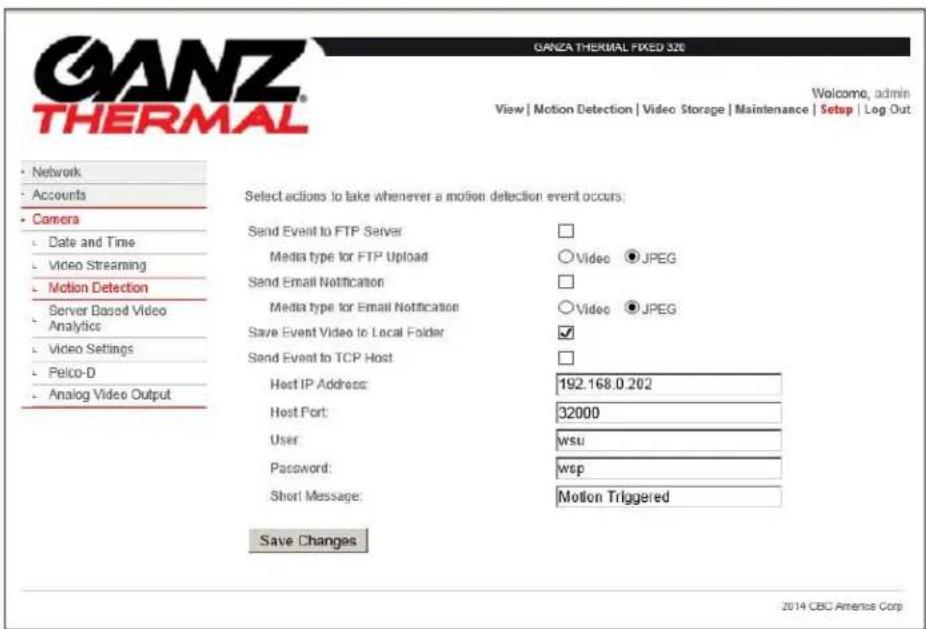
Figure 39: Motion Detection
5.2.5.2 Server Based Video Analytics
Server Based Video Analytics is a special MJPEG framing mode which transmits both the standard MJPEG video data and full dynamic range video data within the same MJPEG frame. As the name implies this video mode is designed to work in conjunction with specific video analytics servers.
For more information regarding this mode of operation, please contact Ganz technical support.
Note: This option requires third party software integration and is not recommended to be enabled if not actively being used.
Note: If this option is grayed out, your specific camera hardware does not support this software feature.
5.2.5.3 Video Settings
The Video Settings web page allows the administrator to select the Color Palette and On-screen display of time, date, and arbitrary text (which is overlaid onto the screen). The Color Palette selects the current color lookup palate used by the camera to colorize the grayscale image. Options include: White Hot, Black Hot, Red Light, Arcus, Inferno, SoftLight, Sunset, InMemoriam, Flamma Articus, Oceanus, Rain, and a Vendor Defined palette
Note: If this option is grayed out, your specific camera hardware does not support this software feature.
Table 15: Video Settings
| Video Settings | Description |
| Select Color Palette | The gray scale IR images are mapped to a number of color palettes. In different applications, a user may find a specific color palette easier to view or more desirable to watch. Often times a color palette will provide some more detail to the scene. |
| Show Date | Overlays the cameras date in the bottom right corner of the image/video. The cameras date and time must be configured via the data and time page |
| Show Time | Overlays the cameras time in the bottom right corner of the image/video. The cameras date and time must be configured via the date and time page |
| OSD Text | Overlays text in the upper left corner of the image/video. The Text can be a maximum of 24 characters. |

Figure 40: Video Settings
5.2.5.4 Pelco-D
Pelco-D is a popular PTZ (Pan/Tilt/Zoom) camera control protocol used in the CCTV industry. The Pelco-D web page allows the administrator to configure the Pelco-D address and baud rate.
Note: If this option is grayed out, your specific camera hardware does not support this software feature.
Table 16: Pelco-D
| Pelco-D Description | |
| Pelco-D Address | This is typically the hardware address for the Pelco-D controller. The Pelco-D controller will typically have a set of dip switches on the back of the controller; the dip switches represent the binary address of the controller. |
| RS485 Baud Rate | This is baud rate of the controller; typically the baud rate is printed on the back of the controller. If Auto is used, the camera will attempt to use all the baud rates |
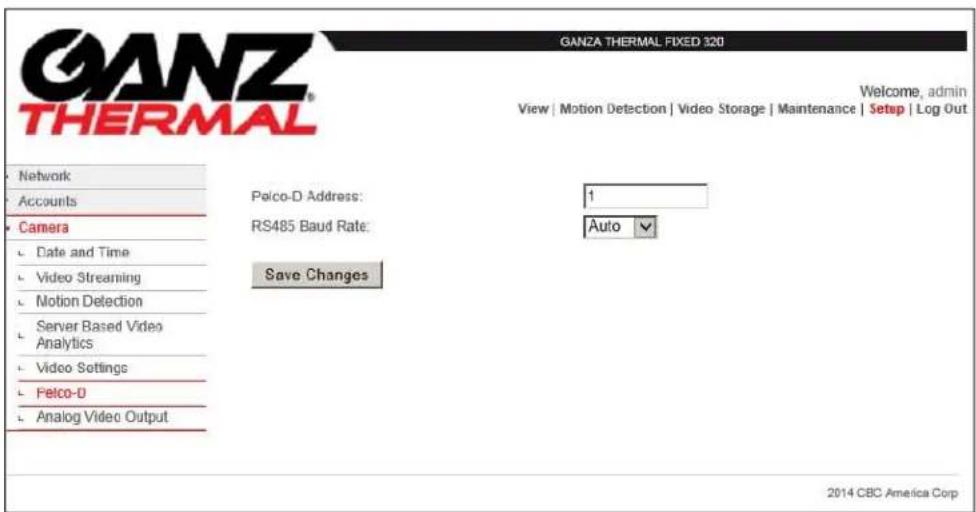
Figure 41: Pelco-D
5.2.5.5 Analog Video Output
The Analog Video Output web page allows the administrator to disable analog video or configure the analog video for either PAL or NTSC. Figure 42 shows the Analog Video Output web page.
Note: If this option is grayed out, your specific camera hardware does not support this software feature.
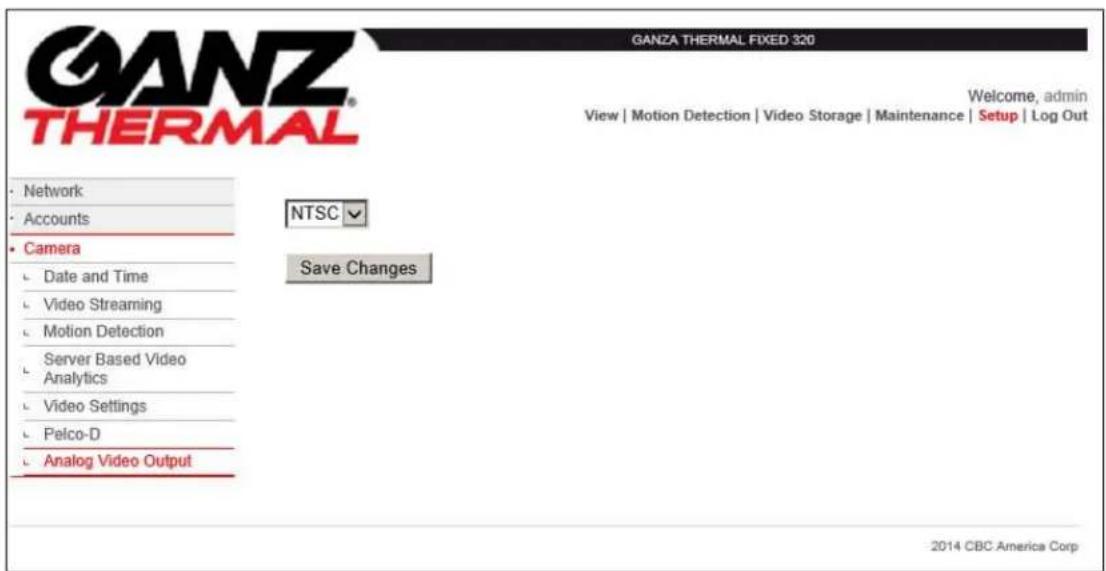
Figure 42: Analog Video Output
6 USE AND APPLICATION
The Ganz Thermal Series camera can be used for a variety of Security & Surveillance Applications. Live video can be easily accessed and managed using the Ganz Thermal Web Interface and most standard web browsers.
6.1 LIVE VIDEO
All users can view video, select video stream (H264/MJPEG/HTTP JPEG), configure Automatic Gain Control (AGC) mode, ICE Level (for Indoor/Outdoor ICE AGC settings), image polarity (black hot, white hot), flip images, adjust the zoom, and control contrast/brightness of the Camera. Table 17 describes each of the features that are available to all users. Figure 43 shows a typical View screen shot. In this screen shot, one can see that the H.264 video is being recorded, Auto AGC mode is selected, the eZoom is set for 2.25, and white hot mode is selected.
A VLC media player is required to view live video. VLC media player is available as part of the Camera software and can be downloaded by the users. The camera will prompt the user for VLC download when the camera is accessed for the first time.
Table 17: Live Video and Controls
| Live Video Description | |
| Video Stream | Select the appropriate video stream H264, MJPEG, or HTTP JPEG. It is possible to select multiple video streams from a single camera. However, separate browser windows are required to do this. |
| Snapshot | Takes a Snapshot of the image. The user can save the image to the local PC. |
| View Size | The video viewing window can be adjusted to a different size i.e. 320X240 or 160X120. The default size is 640X480. |
| Constant Recording Notification | The indicator above the top-right corner of the image will indicate whether constant recording is active (red dot) or inactive (gray dot). |
| ePTZ | Select a zoom other than 1X. Hold the zoom window inside the ePTZ area and use the mouse to move the rectangle sideways or up or down. |
| eZoom | The IP Camera supports 4X electronic Zoom. Use the slider to control the zoom from 1X-4X in increments of 0.25X. |
| Home Position | Click on the Home Position to get back to 1X zoom. This is also the default setting. |
| AGC | Automatic Gain Control (AGC) adjusts the gain and level of the entire scene. Following are the available AGC modes:Auto: Continual adjustment in real-time, providing an image with optimum average contrast and brightness. Under must operating conditions AGC Auto mode will provide the best image.Freeze: Hold turns off/freezes AGC at its current level. If this mode is selected and the scene content changes over time, the image may become washed out or not viewable. This mode of operation is only recommended when the scene content and the camera temperature remain fixed over time.Indoor ICE: Enhanced gain control that will prevent the darkening of scenes when hot objects appear and will also reduce detector noise. Best used in low contrast scenes often found indoors.Outdoor ICE: Amplify detector noise to enahnce images of high contrast scenes often found outdoors. |
| ICE | Allows the user to control the amount of Image Contrast Enhancement (ICE) that is applied to the scene. The slider is only available when the ACG drop down is set for Indoor or Outdoor ICE.Note: See GANZs' "Image Contrast Enhancement (ICE) The Defining Feature" white paper for more details on ICE |
| Contrast | Adjust the contrast by moving the slider. Range is from 1-100% |
| Brightness | Adjust the contrast by moving the slider. Range is from 1-100% |
| Polarity-White Hot | Allows one to invert the color palette, for example making hot scene items correspond to either white or black. With a gray scale color palette, hot pixels are shown as white and cold pixels are shown as black |
| Polarity-Black Hot | Allows one to invert the color palette, for example making hot scene items correspond to either white or black. With a gray scale color palette, hot pixels are shown as black and cold pixels are shown as white |
| Image Flip - Flip H | Flips the image from left to right |
| Image Flip - Flip V | Flips the image from top to bottom |
| Non Uniformity Correction (NUC) | Thermal cameras have a shutter of uniform temperature that is used to calibrate each pixels output level. Over time the output levels of individual pixels can shift causing image artifacts. This forces a shutter and calibration to occur. (This function also periodically occurs automatically). NUC can be forced manually by clicking on the NUC button. NUC interval can also be set using the maintenance/camera functions menu. |

Figure 43: Live Video and View Menu
Live video can also be viewed by using the following RTSP URLs shown in Table 18.
Note: The multicast streaming check box (under Setup, Camera, and Video Settings) must be enabled before the camera will stream multicast video.
Table 18: RTSP URIs
| Codec | URL Transport Method | |
| H.264 | rtsp:///2?videoCodecType=H.264 | UDP/TCP |
| MJPEG | rtsp://:8555/0?videoCodecType=MJPEG | UDP/TCP |
| H.264 | rtsp://:8080/2?videoCodecType=H.264 | HTTP |
| MJPEG | rtsp://:8081/0?videoCodecType=MJPEG | HTTP |
| H.264 | rtsp:///12?videoCodecType=H.264 | Multicast |
| MJPEG | rtsp://:8555/10?videoCodecType=MJPEG | Multicast |
6.2 MOTION DETECTION
The IP camera offers Motion Detection capability. Motion Detection is the ability to automatically detect items/events of interest without an operator having to view the video.
The IP camera provides the capability via the Motion Detection menu to define a Region of Interest (ROI) by dragging/sizing the image window using the mouse. Up to 16 Regions of Interest can be defined. ROI can also be defined by entering the X&Y coordinates in the ROI coordinates box. Motion detection is triggered based on Sensitivity Threshold, Object Size, and History settings. Each setting has a specific function that adjusts the motion detection algorithm.
For best results the administrator should define multiple small ROIs as opposed to one big ROI. The smaller ROIs have fewer false detects.
Table 19 describes the motion detection features that are available to the administrator. Figure 44 shows that the motion detection is enabled. A single region of interest is defined and enabled (ROI#1). The sensitivity level is set to 50% . The object size is set to 10 which is 10% of the ROI; this the approximate size of a human. The consecutive frames are set to 3; this will provide a fairly low threshold for the toggling of a motion event.
If the FTP server and/or the Email server is configured (via the Setup, Network web pages) and the camera is configured to send motion events (via the Setup, Camera web pages), either MJPEG video or JPEG images will be uploaded to the FTP server and/or Emailed via the Email (SMTP) Server.
Table 19: Motion Detection
| Motion Detection Description | |
| Enable Motion Detection | Press the Enable Motion Detection button to enable the analytics. The color of this button turns to Red. Pressing again will disable motion detection. |
| Select Region of Interest (ROI) | Click and drag on the image to select a region of interest. Up to 16 ROI can be defined. The ROI is only enabled if the Enable ROI checkbox is checked |
| ROI Coordinates | ROI can also be defined by entering the X1, Y1, X2, Y2 coordinates in the ROI coordinates box. This will define the boundary of the rectangular area of interest. |
| Sensitivity Level | Adjusts the amount of change required in the video to trigger the motion detection event within a ROI. Higher values allows for greater sensitivity. Values range from 1-100. |
| Object Size (% of ROI) | Determines the percentage of area within the ROI that must change (based on the sensitivity level) to trigger a motion event. Increasing and decreasing this value provides for fine-tuning to detect only objects of a certain size like a person or a vehicle. Values range from 1-100. |
| History (Consecutive Frames) | Determines how many consecutive frames must register motion before the camera registers a motion event based on the Sensitivity Level and Object Size settings. Values range from 1-100. |
| Enable ROI | Check the Enable ROI button to make the current ROI active if Motion Detection is enabled. |
| Save ROI Configuration | Click on save ROI button to save the settings and changes made. |

Figure 44: Motion Detection
6.3 VIDEO STORAGE
The IP Camera can record video and store video and images on the camera internal memory. The images are archived by date/time and can be retrieved easily. Following are the 3 recording options:
- Constant Recorded Video: Users can see the list of the recorded video files, and these files are in AVI format and recorded at approximately 1 minute intervals.
- Video Archive: This selection provides a list of video files that have been selected and archived.
- Motion Detection Capture Events: Video recordings that have been triggered by a motion detection event will be stored under this category.
Under any of these categories, users can select files and transfer, archive or delete files by highlighting the files and selection the appropriate action.
Table 20 describes the Video Storage options that the administrator or operator can configure. Figure 45 illustrates the video files that are available for download. Notice the videos are stored based upon the host name and the date.
Note: When the internal memory is full, constant recorded videos are automatically deleted (oldest date to most recent date). The Video Archive files are not deleted.
Table 20: Video Storage and Recording
| Video Storage Description | |
| Recorded Video Category | There are 3 video categories in the pull down menu. These categories are Constant Recorded Video, Video Archive and |
| Video Storage Description | |
| Motion Detection Capture Events. Select one of these 3 options. The default option is Constant Recorded Video. | |
| Video Archive | Select this option to view the archived files. |
| Motion Detection Capture Events | Select this option and events triggered by motion detection are available for view and actions. |
| FTP Ready | “FTP Ready” indicates that FTP server information has been entered and ftp login has been verified. Details on setting up the ftp server can be found in Section 5.3.2 other network settings. |
| Select All | Press the Select All button to select all the files. Individual files can be selected by checking the box next to each file. |
| Refresh Files | Press this button to do a refresh of the files. |
| Delete Files | Press the Delete Files button to delete the selected files. |
| Archive Files | Press the Archive Files button to archive the selected files. Archived files can be viewed from the Video Archive pull down menu. |
| Transfer Files to FTP Server | Select files and press on Transfer to FTP Server button to transfer the files to the FTP server. Click ok in the pop up confirmation window. Another pop up window will confirm the file has been successfully moved to the FTP server. |
| Search | A simple search used to search the data base name. Only the exact search parameter is used. |
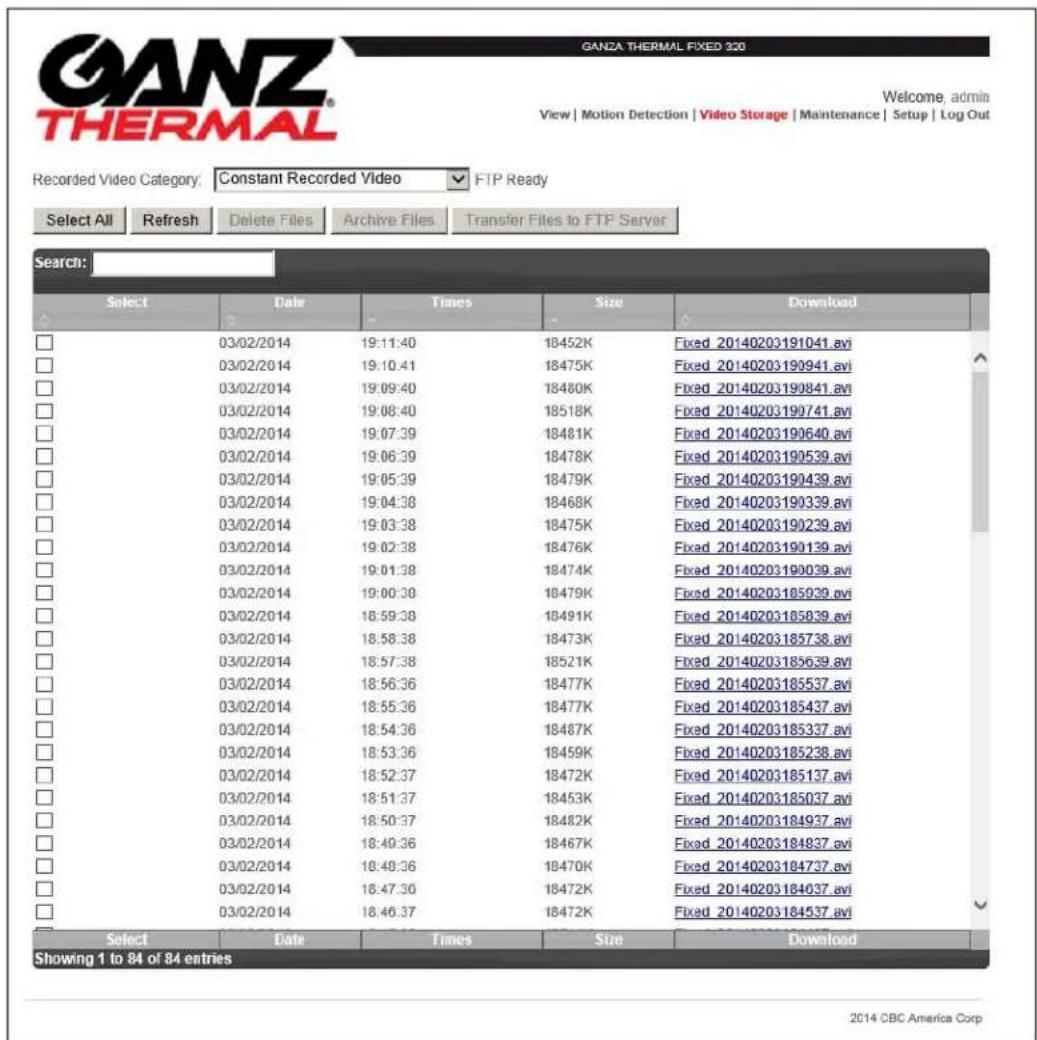
Figure 45: Video Archive Menu
7 MAINTENANCE
The camera's maintenance pages are available to the administrator to perform system software updates, reset to factory default, camera restarts, view camera logs, and enable camera functions which are normally left in their default states.
7.1 SYSTEM STATUS
The System Status provides the camera's current status such as system temperature, storage space, and version information. Table 21 provides an explanation of the system state. Figure 46 is an example of a system status page.
Table 21: System Status
| Motion Detection Description | |
| System Temperature | Displays the internal temperature of the camera. The camera has a lens heater to keep the lens from icing over during cold conditions. Under most operating conditions the system temperature will stay above 0C. |
| System Software Version | This is the software version for the camera |
| System Software Build Time | The date and time the system software was built by the GANZ engineers. |
| System Start Time | This date and time is used to set the cameras internal clock immediately after a power cycle. It is highly recommended to enable the NTP clock option. |
| System Hardware Type | This field is used to identify hardware specific features. |
| CPU Type | Displays the main CPU used in the camera |
| Video Storage Capacity | Displays the internal storage capacity which is available for video archiving (via the Video Storage web page). |
| Video Storage Free Space | Displays the remaining free space available on the internal storage. |
| Sensor Name | Displays the IR camera module name |
| Sensor Software Version | Displays the IR camera module software version |
| Sensor Firmware Version | Displays the IR camera module firmware version |
| Sensor Serial Number | Displays the IR camera module serial number |
| System MAC address | Displays the unique MAC address. This MAC address is fixed and cannot be changed. |
| System State | Displays runtime code, if recording is enabled or disabled, and if the lens heater is on or off |
| Sensor Info | Displays the IR camera module resolution, output frame rate, and field of view |
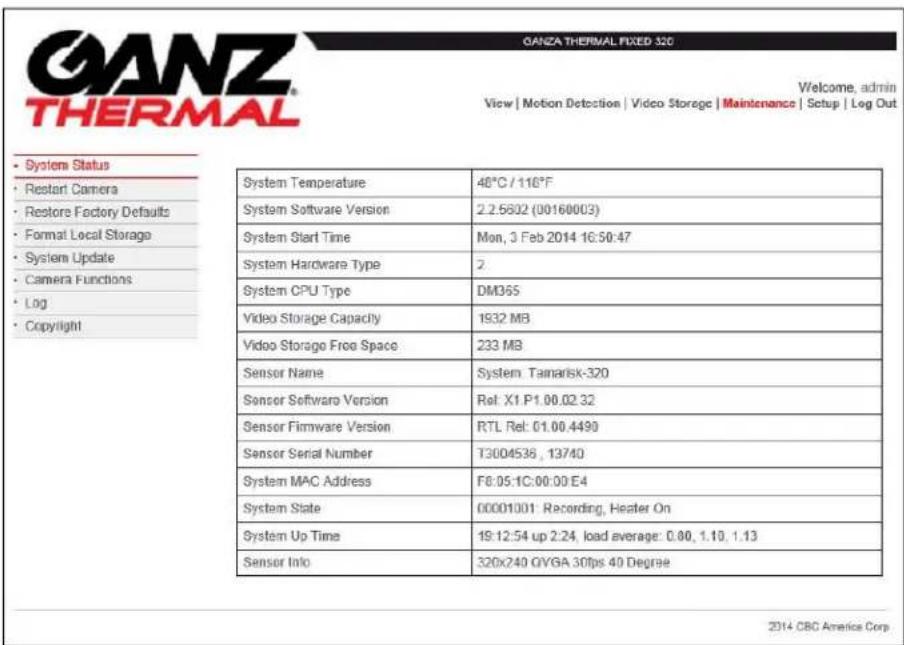
Figure 46: System Status
7.2 RESTART CAMERA
The IP Camera can be by power cycled by clicking the restart camera. Internally the camera power cycles all major sub systems including the main processor, memory, and the IR camera module. Figure 46 illustrates the Restart Camera web page.
Note: The IR camera can also be reset to factory defaults by pressing and holding the reset button (on the back of the camera) for at least 20 seconds.
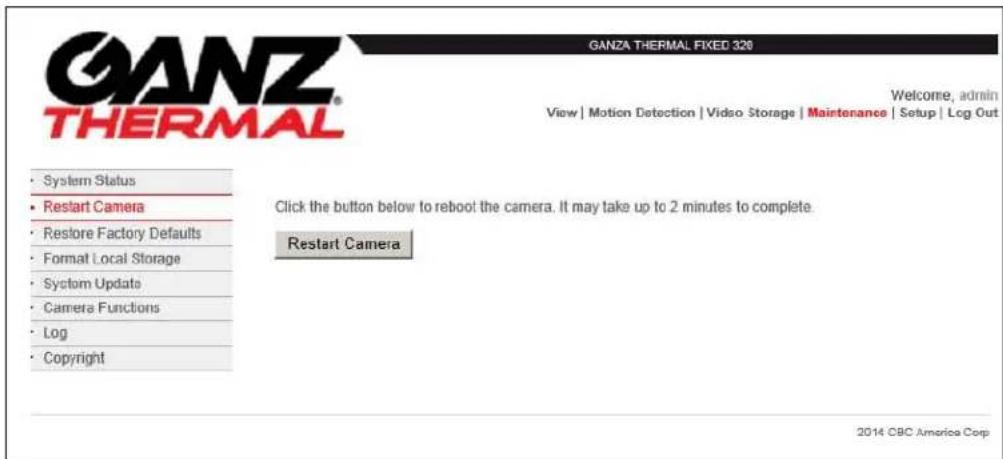
Figure 47: Restart Camera
7.3 RESTORE FACTORY DEFAULTS
The Restore Factory Defaults button is used to configure the camera to its default setting. Once the camera is set to its factory defaults a system reboot is performed automatically. Figure 48 displays the Restore Factory Defaults web page.
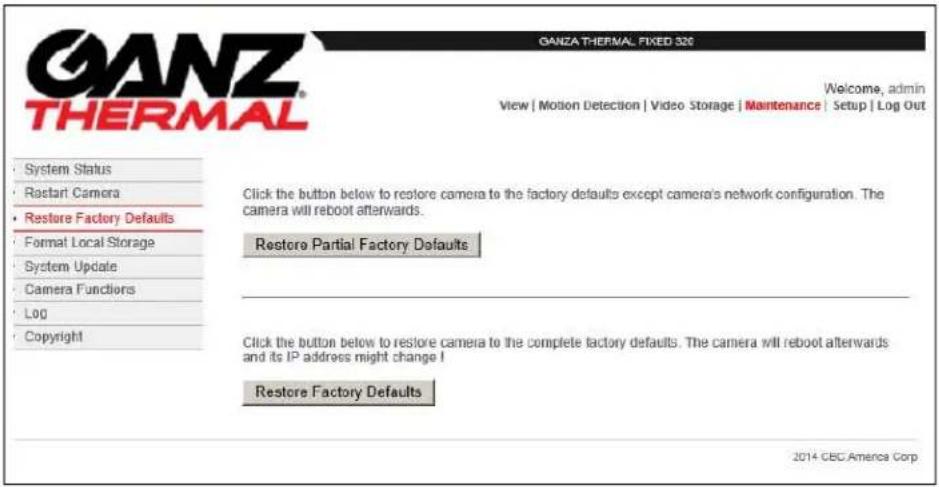
Figure 48: Restore Factory Defaults
The Format Local Storage button allows the administrator to erase all video files stored on the camera's internal memory. Figure 49 displays the Format Local Storage web page.

Figure 49: Formal Local Storage
7.5 SYSTEM UPDATE
From time to time Ganz will offer update system software for the camera; these updates typically include new features and functions. New System Software is uploaded by selecting the Browse button, navigating to the upgrade file, and clicking the Upload Software button.
The Camera Configuration can also be uploaded and downloaded. To upload a new configuration file, click the Browse button, navigate to the configuration file, and click the Upload Config File button. To download a configuration file, click Get Config File. The administrator is prompted to save the file. Configuration file downloads are typically used for camera debug or backup purposes and are not normally used. Figure 50 displays the System Update web page.
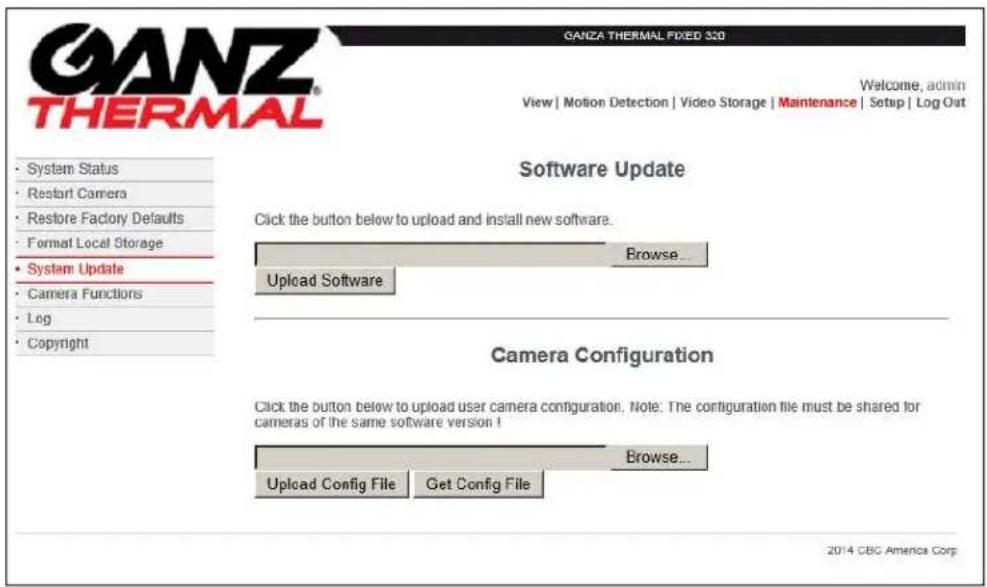
Figure 50: System Update
7.6 CAMERA FUNCTIONS
The Camera functions web page allows the administrator to enable/disable the heater, adjust the Auto calibration interval, and enable/disable video recording to the internal memory.
7.6.1 Heater Control
The lens heater can be enabled or disabled by clicking on the toggle button. When the heater is enabled, the internal camera temperature is displayed and the current heater duty cycle is displayed. As the system temperature increases the duty cycle decreases. As the system temperature decreases the duty cycle increases; at a system temperature of 0C, the duty cycle will be 100% . Figure 51 displays the Heater Control web page.

Figure 51: Heater Control
7.6.2 Auto Calibration Interval
The Auto Calibration Interval allows the administrator to adjust how often the IR camera module performs a non-uniformity correction (NUC). The default value is 5 minutes. If the camera is thermally stable, the interval can be increased to a maximum of 60 minutes.
In motion detection and video analytics applications the periodic NUC may cause a discontinuity in the video image and hence the user may want to increase the Auto Calibration Interval. Figure 52 displays the Auto Calibration web page.
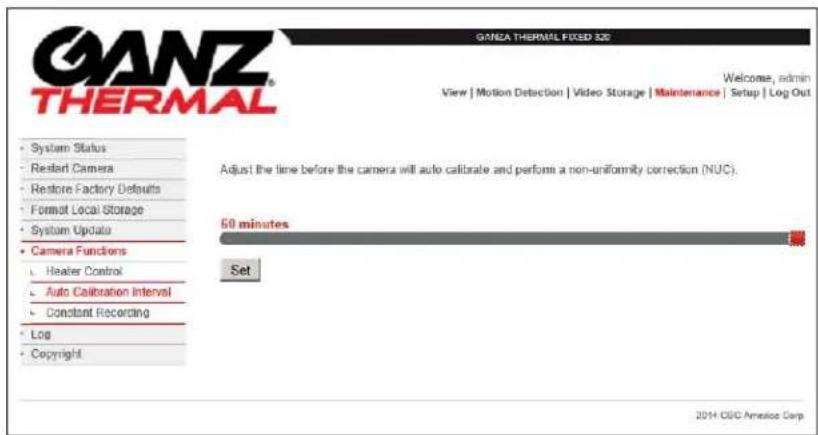
Figure 52: Auto Calibration Interval
7.6.3 Constant Recording
The administrator can enable or disable the recording of video (to the camera's internal memory) by clicking on the toggle button. If the Constant Recording is disabled, no additional videos will show up on the video storage web page. Figure 53 displays the Constant Recording web page.

Figure 53: Constant Recording
7.7 LOG
The IP camera provides logs for viewing and troubleshooting purposes. Click on Log Viewer to see the list of logs. The logs may include camera start time, camera logout time, camera recording start time, and motion event time.
7.8 COPYRIGHT
Provides the camera manufactures' copyright notice
8 INTEROPERABILITY
The Ganz Thermal Series of Cameras is an IP networked solution and is conformant to the Open Network Video Interface Forum (ONVIF™) standard in a networked environment and can easily interwork with 3 rd party Video Management Systems (VMS). The Open Network Interface Forum (http://www.onvif.org) is an open global industry forum committed to the goal of standardizing the interface of physical IP-based security products in order to promote interoperability between various security devices and software. The ONVIF™ forum is supported by industry leaders and is set out to become a mandatory feature of all IP-based security products. CBC America Inc. is a member of the ONVIF™ forum and the Ganz Thermal Series of Cameras conform to the ONVIF™ standard. ONVIF™ commands are exposed through the Simple Object Access Protocol (SOAP) interface which transports XML over the HTTP protocol in order to send standardized XML commands to the IP camera.
Please note "ONVIF" and the ONVIF logo are trademarks of ONVIF Inc.
In addition, CBC America Inc. has implemented many commands and controls to manage the camera through the Ganz Thermal Web Interface using HTTP POST methods. These commands are available for 3rd party Application providers to implement every single feature of the Ganz Thermal Series cameras.
CBC America Inc. provides an Interface Control Documents (ICD) to make it easier for 3 rd party vendors to implement ONVIF ™ commands as well as the Ganz Thermal Web interface commands. Please contact CBC America Inc. or its authorized distributor to obtain a copy of these documents.
9 MAINTENANCE AND TROUBLESHOOTING
9.1 MAINTENANCE
The IP Camera requires very little physical maintenance. The camera has a built-in heater which provides anti icing and defogging for the camera lens. The camera lens can be cleaned as necessary.
9.2 RECOMMENDED CARE
It is recommended that the user inspect the camera lens every 30 days for cleanliness and to perform cleaning as required.

CAUTION
Smudges on the camera lens windows will impair images. Avoid touching the camera lens with bare hands.
- Remove loose soil from lens surface with a clean, dry, soft brush Use lens cleaning paper for cleaning the camera lens
- Moisten a folded lens tissue; using light pressure in a circular motion starting in the center, wipe the lens surface to remove oil, smears, streaks, or haze.
- Dry the lens with a second lens tissue using the same circular wiping motion.
- Allow to dry.
- If haze or smears are present, repeat procedure until surface is clean.
9.3 TROUBLESHOOTING
This section highlights some common issues that may be encountered while using the Ganz Thermal Series of Cameras, possible causes, and recommended actions.
Table 22: Troubleshooting Symptoms, Causes and Recommendation
| Symptom Possible Cause Recommendation | ||
| Issue setting the IP address of the camera or discovering the camera | DHCP address may not be assigned to the camera or may have been changed | Check the network DHCP server IP address assignments and lease. Alternatively, move the camera to an isolated network and make sure camera gets DHCP address and is accessible. Move the camera back to the network and test it. If you still have issues, reset the camera physically by pressing the reset button on the rear of the camera and test the camera again. This will ensure the camera releases the IP address. |
| IP address may be used by another device | Check the DHCP settings. Obtain a new IP address using DHCP. Ensure this is a unique IP address | |
| The camera may be located on a different subnet | Contact your IT administrator to get the IP address of the camera | |
| POE Switch port powering the camera may have gone bad or the power provided by the POE switch may not be adequate | Check the POE switch/port and ensure the port is working ok. Ensure POE switch ports provide the necessary power (camera requires a minimum of 13 watts of power) | |
| Cannot login to the IP Camera | Login credentials may be incorrect | Check the login user id of the user or admin |
| No video image displayed on the main menu or the view menu of the GANZ Web Interface | VLC media player may not have been installed | Install the VLC media player directly from the IP Camera. Camera will prompt for the VLC install. Alternatively, download from the VLC website http://www.videolan.org/vlc/ |
| VLC media player may not be working | Reset IE or Firefox browser security settings to its default value. Go to tools->options | |
| Screen may not have been refreshed, especially after Firmware upgrade of the camera | Press the CRTL + F5 keys on your keyboard to refresh the screen and clear your browser cache | |
10 WARRANTY
CBC America Inc. warrants the Ganz Thermal Series of Cameras will perform substantially as described in the applicable User Manual during normal use for a period of twenty-four (24) months from the original shipment date. This limited warranty is void if failure of the Ganz Thermal Series Camera to conform to the warranty has resulted from improper installation, testing, misuse, neglect, accident, fire or other hazard, or any breach of this Agreement.
11 SUPPORT
For any support questions on the Ganz Thermal Series Cameras, CBC America Inc. may be contacted through the Computar Ganz web site or through the phone number listed below.
http://www.computarganz.com
(800) 422-6707
- GANZ THERMAL SERIES
- NOTICE
- REGULATORY AND SAFETY
- FCC
- CE
- UL
- ROHS
- WEEE
- TABLE OF CONTENTS
- 1 INTRODUCTION.... 1
- 2□ PRODUCT OVERVIEW ...... 2
- 3 SPECIFICATIONS....6
- 4 INSTALLATION AND ACCESS 10
- 5 CONFIGURATION AND MANAGEMENT 24
- 6□ USE AND APPLICATION....39
- 7 MAINTENANCE 46
- 8 INTEROPERABILITY 52
- 9 MAINTENANCE AND TROUBLESHOOTING 53
- 10 WARRANTY 55
- 11 SUPPORT 56
- TABLE OF FIGURES
- LIST OF TABLES
- ACRONYMS AND ABBREVIATIONS
- REFERENCE DOCUMENTATION
- SAFETY INSTRUCTIONS
- NOTIFICATIONS: CAUTION, WARNING AND NOTE
- CAUTION
- WARNING
- NOTE
- IMPORTANT SAFETY INSTRUCTIONS
- 1 INTRODUCTION
- 1.1 DOCUMENT OVERVIEW
- 2 PRODUCT OVERVIEW
- 2.1 IP CAMERA OVERVIEW
- 2.2 CAMERA HARDWARE
- 3 SPECIFICATIONS
- 3.1 QUICK REFERENCE SPECIFICATIONS
- 3.2 RANGE PERFORMANCE
- 4 INSTALLATION AND ACCESS
- 4.1 PACKAGE CONTENTS
- 4.2 INSTALLATION
- DEVICE SENSITIVE TO ELECTROSTATIC DISCHARGE
- 4.3 INSTALLATION PROCEDURE
- 4.4 PREPARING THE CABLE
- SECURING FOR IP66 (POE ONLY)
- SECURING FOR IP66 (ETHERNET & AC/DC POWER)
- SECURING FOR IP66 (ANALOG & AC/DC POWER – ZNT6-HXX1 AND ZNT6-HXX2 ONLY)
- SECURING FOR IP66 (ANALOG & ETHERNET – ZNT6-HXX1 AND ZNT6-HXX2 ONLY)
- FOR ALL CONFIGURATIONS
- 4.5 ASSEMBLY
- 4.6 MOUNTING THE CAMERA
- 4.7 MANUAL FOCUS AND FOCUS TOOL
- 4.8 ACCESS
- CAMERA DISCOVERY AND IP ADDRESS
- 4.9 LOGIN TO THE IP CAMERA
- 4.10 LOG OUT
- 5 CONFIGURATION AND MANAGEMENT
- 5.1 GANZ THERMAL WEB INTERFACE AND ACCESS PRIVILEGE
- 5.2 SETUP
- 5.2.1 NETWORK SETUP
- 5.2.1 TCP/IP SETTINGS
- 5.2.1.1 FTP SERVER
- 5.2.1.2 EMAIL SERVER
- 5.2.1.3 PING TARGET
- 5.2.1.4 802.1X
- 5.2.1.5 ZERO NETWORK CONFIGURATION
- 5.2.2 ACCOUNTS
- 5.2.3 CAMERA
- 5.2.4 DATE AND TIME
- 5.2.5 VIDEO STREAMING
- 5.2.5.1 MOTION DETECTION
- 5.2.5.2 SERVER BASED VIDEO ANALYTICS
- 5.2.5.3 VIDEO SETTINGS
- 5.2.5.4 PELCO-D
- 5.2.5.5 ANALOG VIDEO OUTPUT
- 6 USE AND APPLICATION
- 6.1 LIVE VIDEO
- 6.2 MOTION DETECTION
- 6.3 VIDEO STORAGE
- 7 MAINTENANCE
- 7.1 SYSTEM STATUS
- 7.2 RESTART CAMERA
- 7.3 RESTORE FACTORY DEFAULTS
- 7.5 SYSTEM UPDATE
- 7.6 CAMERA FUNCTIONS
- 7.6.1 HEATER CONTROL
- 7.6.2 AUTO CALIBRATION INTERVAL
- 7.6.3 CONSTANT RECORDING
- 7.7 LOG
- 7.8 COPYRIGHT
- 8 INTEROPERABILITY
- PLEASE NOTE "ONVIF" AND THE ONVIF LOGO ARE TRADEMARKS OF ONVIF INC
- 9 MAINTENANCE AND TROUBLESHOOTING
- 9.1 MAINTENANCE
- 9.2 RECOMMENDED CARE
- 9.3 TROUBLESHOOTING
- 10 WARRANTY
- 11 SUPPORT
Brand : Ganz
Model : ZNT6-HBT1FN20
Category : Security Camera