PLMRVW75 - Television Pyle - Free user manual and instructions
Find the device manual for free PLMRVW75 Pyle in PDF.


| Product Type | Portable LCD TV Monitor |
| Brand | Pyle |
| Model | PLMRVW75 |
| Screen Size | 7 inches (16:9 aspect ratio) |
| Display Type | TFT Active Matrix |
| Resolution | 800 x 600 pixels |
| TV System | NTSC / PAL Dual System |
| Power Supply | DC 12V +/-10% |
| Power Consumption | 1A (12W) |
| Operating Temperature | 0°C to +60°C |
| Storage Temperature | -25°C to +70°C |
| Input Sources | TV (antenna/cable), AV (composite) |
| Antenna Input | Coaxial (jack included) |
| Audio Output | Built-in speaker (mono/stereo/SAP depending on system) |
| Remote Control | IR remote with battery |
| Package Contents | Monitor, AC adapter, AV cable, antenna jack, stand, manual |
| Safety Warning | Not for front driver/passenger compartment; avoid rain/moisture; do not open unit |
| Mounting Options | Includes stand; can be mounted in vehicle (professional installation recommended) |
| OSD Languages | English (default) |
Frequently Asked Questions - PLMRVW75 Pyle
User questions about PLMRVW75 Pyle
0 question about this device. Answer the ones you know or ask your own.
Ask a new question about this device
Download the instructions for your Television in PDF format for free! Find your manual PLMRVW75 - Pyle and take your electronic device back in hand. On this page are published all the documents necessary for the use of your device. PLMRVW75 by Pyle.
USER MANUAL PLMRVW75 Pyle
TV SYSTEM AND AUDIO MODE OF PRIMARY
| Country | TV system | Color system | Sound modulation | Video | Audio | ||
| CHINA | D/K | PAL | NICAM D/K | PASS | MONO | STEREO | SAP |
| USA | M | NTSC | BTSC | PASS | PASS | PASS | PASS |
| SPAIN | B/G | PAL | NICAM B/G | PASS | PASS | PASS | PASS |
| FRANCE | L | SECAM | NICAM L | PASS | PASS | PASS | PASS |
| GERMANY | B/G | PAL | FM GERMANY | PASS | PASS | PASS | PASS |
| KOREA | M | NTSC | FM KOREA | PASS | PASS | PASS | PASS |
| MEXICO | M | NTSC | FM MONO | PASS | PASS | / | / |
| HUNGARY | D/K | SECAM | NICAM D/K | PASS | PASS | PASS | PASS |
| HUNGARY | D/K | SECAM | FM MONO | PASS | PASS | / | / |
| RUSSIA | D/K | SECAM | FM MONO | PASS | PASS | / | / |
" /": Show this country has no sound to output the system
Other have not listed the country and above catalogs system same also in this machine support scope.
\* Specifications
- Supply voltage DC 12V +/-10%
- Power consumption: 1A 10%
- Operating temperature: 0^ +60^
- Storage temperature: -25^ +70^
- Monitor screen size 7" (16:9)
- Operating system TFT active matrix.
- Resolution 800 x 600 dots.
- System NTSC / PAL Dual System View Area
11

Table of Contents
- Table of Contents---- 1
- Warning 1
- Package 2
4.Connection Diagram 2
5.Remote Control 3 - Appendix----4
- Using the Remote Control----4
- Monitor Section----5
- OSD Menus in A/V Source 6
TV SECTION
- OSD Menus in TV Source 7
- OPERATIONS----8
12.DISPLAY----9-10
13.TV SYSTEM AND AUDIO MODE OF PRIMARY 11
14.Specifications---- 11
WARNING
This unit is not intended for installation in the front Driver / Passenger Compartment where it may be seen by the Driver. Installation of this unit in any portion of the vehicle which could impair or distract the Driver is improper and dangerous and PYLE assumes No liability what so ever for failure to follow the proper installation of this product.
To reduce the risk of electric shock, please do not expose this unit to rain, moisture or open the unit. Dangerous high voltages are present inside the unit.
Our warranty could be voided if you make changes or modifications not expressly approved by PYLE

4. AUTO SEARCH
When the indicator is on the AUTO SEARCH, press ENTER on the unit/remote to display this picture and auto full scan channels by pressing ENTER.
5.SEARCH
When the indicator is on the SEARCH, press ENTER on the unit/remote to display this picture and auto scan channels by pressing ENTER.
6.FINE TUNE
When the indicator is on the FINE TUNE, press ENTER on the unit/remote to display this picture and fine tune by "▲" OR V+/V-" button.
7.PROGRAM
When the indicator is on the PROGRAM, press ENTER on the unit/remote to display and select the item you want to change by " ▲ OR V+/V-" button.
8.SKIP
When you feel that there are some repeated TV program or image and audio founded not good. You need to skip some program and quick to select.
When the indicator is on the SKIP, press ENTER on the unit/remote to display and select the item you want to change by "▲ OR V+/V-" button. Press "enter" button to select "ON / OFF".
Remark: Skip function is available only going on choosing the program in sequence by using the program selection of CH-/CH+.
9.FREQ:Show the TV channel's Frequency.

DISPLAY
1.MAIN MENU
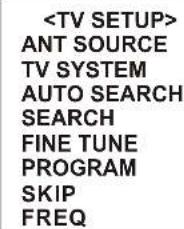
Press MENU on the unit/remote to display this picture and adjust the item by "▲/▼ OR V+/V-" button.
2.ANT SOURCE
When the indicator is on the ANT SOURCE, press ENTER on the unit/remote to display this picture and select AIR or CABLE by "▲/▼ OR V+/V-" button. When ANT SOURCE is on AIR, this will affect the frequency list in the AUTO SEARCH.
3.TV SYSTEM
When the indicator is on the TV SYSTEM, press ENTER on the unit/remote to display this picture and select NTSC, FM RADIO, SECAM-DK, PAL-I and PAL-BG by "▲/▼OR V+/V-" button.

Package
This LCD monitor comes with all the items below. Check to make sure your unit complete. Contact your dealer immediately if anything is missing.
* 7" TV Monitor X 1
* AC Adapter X 1
* A/V cable X 1
* Antenna jack X 1
* Stand X 1
* Operation manual
Connection Diagram
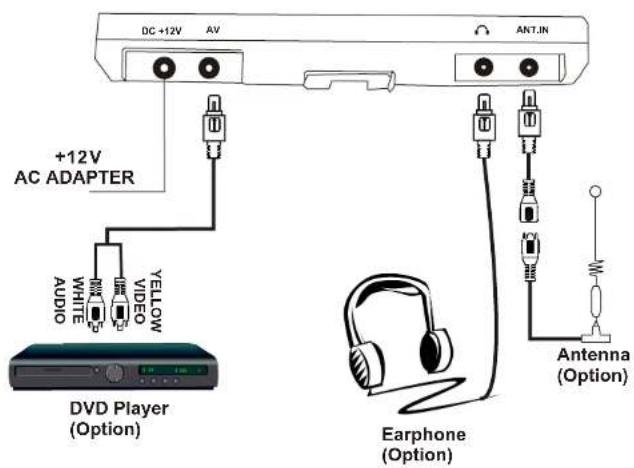

Remote Control
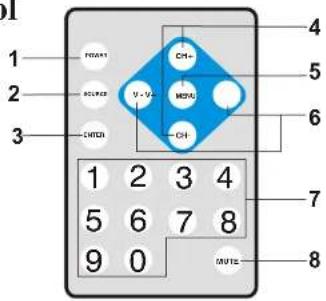
-
POWER: Power for ON or OFF
-
SOURCE: Switch input source button (TV, AV input)
-
ENTER: Confirm the selection.
-
CH+/CH-: Adjust channel up / down(For TV only).
-
MENU: A. When source input is TV. Press "MENU" button to enter TV OSD Menu. B. When source input is AV. Press "MENU" button to enter monitor OSD Menu.
-
V+/V-: A. When the OSD menu function is turned off, press the "V+/V-" buttons directly from the remote control to adjust volume. B. Make item selection in OSD menus to increase or decrease parameters as well
7.0-9: Choose number key
8.MUTE: Press the key to close the sound, press it again to resume the sound.
◀ 3
OPERATIONS
when use TV system in different countries, you must first set the system, then set the signal as antenna or the coaxial of the CATV, AUTO SEARCH. When it is OK, press MENU to return or auto return by tuner to TV picture, then you may enjoy the TV program.
SETUP 1 ANT SOURCE
Firstly press MENU to enter Main Menu. Move cursor to "ANT SOURCE" by "▲/▼ OR V+/V-" button, and then press ENTER to enter the Menu.
The items (AIR/CABLE) can be changed by "▲/▼ OR V+/V-" button. The updated parameter will be set up when items changed. And the result be shown immediately. Press MENU back to Main Menu. Press MENU again, you can cancel Main Menu, or Main Menu will be canceled automatically 30 seconds later.
SETUP 2 TV System
First press MENU to enter Main Menu. Move cursor to "TV SYSTEM" by "▲/▼ OR V+/V-" button and then press ENTER to enter the Menu. The items (NTSC/FM RADIO/SECAM-DK/PAL-I/PAL-BG) can be changed by "▲/▼ OR V+/V-" button. The updated parameter will be set up when items changed. And the result be shown immediately. Press MENU back to Main Menu. Press MENU again, you can cancel Main Menu, or Main Menu will be canceled automatically 30 seconds later.
SETUP 3 AUTO SEARCH
Press MENU to enter the Main Menu; and move the cursor to "AUTO SEARCH" by "▲/▼ OR V+/V-" button, and press ENTER; then you can enter Sub-Menu and press ENTER according to the cue. During the Channel Scan, the Schedule will be displayed in the OSD. If press Enter, the Channel Scan will be stopped. On the right angle demonstrated finally seeks the channel, 4 seconds later, it will go back to the TV mode, and the program will stay from the first channel in the guide program searching. Press MENU again, you can cancel Main Menu, or Main Menu will be canceled automatically 30 seconds later.
SETUP 4
After returns to the television picture then to depend on the common television operating mode, enjoys the various countries brilliant television program.
◀ 8
* TV SECTION
* OSD Menus in TV Source

flowchart
graph TD
    A["TV SETUP"] --> B["ANT SOURCE"]
    A --> C["TV SYSTEM"]
    A --> D["AUTO SEARCH"]
    A --> E["SEARCH"]
    A --> F["FINE TUNE"]
    A --> G["PROGRAM"]
    A --> H["SKIP"]
    A --> I["FREQ"]
    J["ANT SOURCE"] --> K["AIR"]
    J --> L["CABLE"]
    M["TV SYSTEM"] --> N["NTSC"]
    M --> O["FM RADIO"]
    M --> P["SECAM-DK"]
    M --> Q["PAL-I"]
    M --> R["PAL-BG"]
\* Quick Adjustment OSD Menus
-
By pressing "MENU" button, you may open the MAIN MENU, using "or" buttons to pick out OSD functions.
-
In order to select desire options, it is necessary to press "MENU" again to enter each mode, than using "▲"/"▼" to increase or decrease parameters as well.
-
Press "▲" or "▼" button directly to adjust speaker volume.

- Press the "EXIT" mode to store your selected parameter and leave the OSD Menus.

Appendix
Changing the New Battery in Remote Control
-
Push the battery case button to wards the right. (As shown # 1 in below figure)
-
Pull the battery case away from the remote control.(As shown #2 in below figure) Change a new battery.

Using the Remote Control
-
Point the remote control towards the IR sensor in front of the monitor housing.
-
Operation angle: IR remote control will work about 30 degree in each direction from the IR sensor of the monitor housing.

Monitor Selection

-
POWER: Power for ON or OFF
-
MENU: A. When source input is TV. Press "MENU" button to enter TV OSD Menu.
B. When source input is AV. Press "MENU" button to enter monitor OSD Menu.
- ▲▼ A. When the OSD menu function is turned off, press the "V+/V-" buttons directly from the remote control to adjust volume.
B. Make item selection in OSD menus to increase or decrease parameters as well
4.SOURCE/ENTER:
A. Switch input source button (TV, AV input)
B. Confirm the OSD selection.
5.CH+/CH-: Adjust channel up / down(For TV only).

\* OSD Menus in A/V Source
\* Quick Adjustment OSD Menus
1. By pressing "MENU" button, you may open the MAIN MENU, using "or" buttons to pick out OSD functions. 2. In order to select desire options, it is necessary to press "MENU" again to enter each mode, than using "▲"/"▼" to increase or decrease parameters as well. 3. Press "▲" or "▼" button directly to adjust speaker volume.  4. Press the "EXIT" mode to store your selected parameter and leave the OSD Menus. - \* Specifications
- Table of Contents
- WARNING
- AUTO SEARCH
- 5.SEARCH
- 6.FINE TUNE
- 7.PROGRAM
- 8.SKIP
- DISPLAY
- 1.MAIN MENU
- 2.ANT SOURCE
- 3.TV SYSTEM
- Package
- Remote Control
- OPERATIONS
- SETUP 1 ANT SOURCE
- SETUP 2 TV System
- SETUP 3 AUTO SEARCH
- SETUP 4
- \* Quick Adjustment OSD Menus
- Appendix
- Using the Remote Control
- Monitor Selection
- \* OSD Menus in A/V Source
Brand : Pyle
Model : PLMRVW75
Category : Television