
SK-26H540S - Television WESTINGHOUSE - Free user manual and instructions
Find the device manual for free SK-26H540S WESTINGHOUSE in PDF.


| Product Type | 26-inch LCD TV |
| Screen Size | 26 inches |
| Resolution | 1366 x 768 pixels |
| Aspect Ratio | 16:9 |
| Display Colors | 16.2 million |
| Viewing Angle | 170° horizontal / 170° vertical (typical) |
| TV System | Analog: NTSC M/N; Digital: ATSC / Clear QAM |
| Sound System | Analog: Multi-channel TV Sound; Digital: Multi-Track Sound |
| Speaker Output | 10W + 10W (average) |
| Inputs | RF, VGA, HDMI x2, Component (YPbPr) x1, Composite (CVBS) x2, PC audio in, HDMI audio in (for DVI) |
| Outputs | Audio out (R/L), SPDIF optical |
| Power Supply | AC 100V~240V, 50/60Hz |
| Power Consumption | Less than 200 W |
| Dimensions (W x H x D) | 655 mm x 505 mm x 175 mm |
| Weight (net) | 11 kg |
| Wall Mount | UL Listed wall mount bracket or F4030 compatible |
| Special Features | 3D Comb-filter, 3D De-interlace, Auto Picture Control, Noise Reduction, Sleep Timer, V-Chip, Closed Caption |
| Remote Control | Included (requires 2 x AAA batteries) |
| Cleaning | Unplug before cleaning; use a damp cloth; avoid liquid or aerosol cleaners |
Frequently Asked Questions - SK-26H540S WESTINGHOUSE
User questions about SK-26H540S WESTINGHOUSE
0 question about this device. Answer the ones you know or ask your own.
Ask a new question about this device
Download the instructions for your Television in PDF format for free! Find your manual SK-26H540S - WESTINGHOUSE and take your electronic device back in hand. On this page are published all the documents necessary for the use of your device. SK-26H540S by WESTINGHOUSE.
USER MANUAL SK-26H540S WESTINGHOUSE
IMPORTANT SAFETY AND PRECAUTIONS....1
Important Information....1
Safety Precautions....2
GENERAL INFORMATION......4
Feature......4
Controls and Ports of the Panel....5
Accessories 9
Remote Control....10
INSTALLATION AND FUNCTION ADJUSTMENT....12
Installation....12
How to remove the BASE....15
Function adjustment ....16
TROUBLESHOOTING 34
PC INPUT PRESET TIMMING TABLE....37
PRODUCT SPECIFICATION ....39
IMPORTANT SAFETY AND PRECAUTIONS
This wide active matrix TFT (thin film transistor) liquid crystal monitor is designed for use as a stand alone TV as well as a display device for video electronics appliances and personal computers.
Important Information
Warning : To reduce the risk of fire or electric shock, do not expose this product to rain or moisture.

CAUTION
Risk of electric shock. Do not open.


The symbol is intended to alert the user to presence of un-insulated "Hazardous Voltage" within the product's enclosure that may be of sufficient magnitude to constitute a risk of electric shock to persons.

The symbol is intended to alert the user that improper use of the product may result in product malfunction. The user should pay attention to avoid accidents or unnecessary problems.
Caution : To reduce the risk of electric shock, do not attempt to disassemble or modify this device. There are no user-serviceable parts inside. Refer any service issues to qualified service personnel.
Caution : FCC/ CSA regulations state that any unauthorized changes or modifications to this equipment may void the user's authority to operate it.
Important: One Federal Court has held that unauthorized recording of copyrighted TV programs is an infringement of U.S. copyright laws. Certain Canadian programs may also be copyrighted and any unauthorized recording in whole or in part may be in violation of these rights.
According to industrial standards for LCD display technology; there are a certain number of allowable defective pixels. Although we produce panels with more than 99.9% active cells, there still may be some cells that do not produce light or remain constantly lit. For further information, please contact sales or technical support.
Safety Precautions
-
Cleaning : Unplug the power cord from the AC outlet before cleaning the product. Use a damp cloth to clean the product. Do not use liquid cleaners or aerosol cleaners.
-
Water and moisture : Do not use the product near water or areas of high moisture content such as swimming pools, bathtubs or wet basements.
-
Ensure that no water droplets remain on the screen. Water can cause permanent discoloration.
-
Heat sources : Keep the product away from heat sources such as radiators, heaters, stoves and other heat-generating products (including amplifiers).
-
For added protection during a lightning storm or for extended periods of non-use, unplug the power cord from the wall outlet and disconnect the antenna (if used). This will prevent damage to the product due to power line surges.
-
If an outside antenna is connected to the product, make sure the antenna is properly grounded so as to provide some protection against voltage surges. (Coaxial connector shielding from cable distribution system should be probably earthed.)
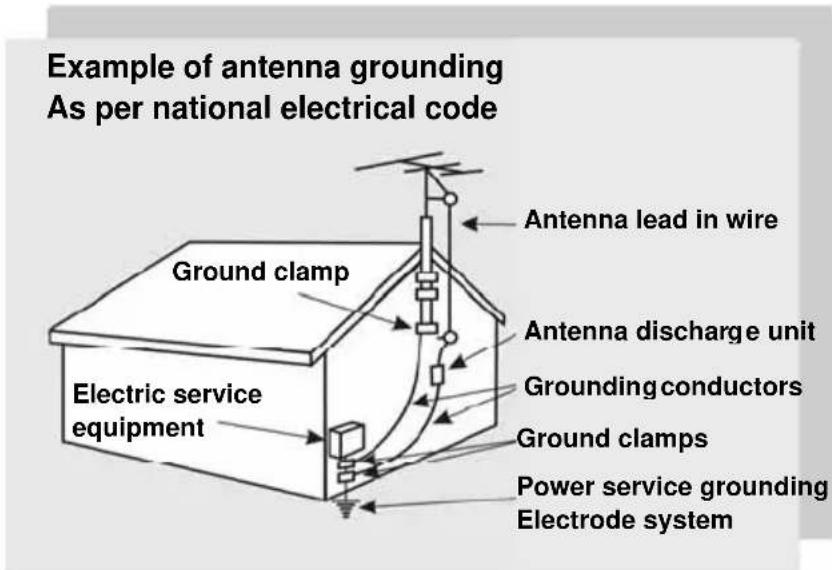
- Stand : Do not place the product on an unstable cart, stand, tripod or table. Placing the product on an unstable base can cause the product to fall, resulting in serious personal injuries as well as damage to the product. Use only a cart, stand, tripod, bracket or table recommended by the manufacturer or sold with the product. Use only mounting hardware recommended by the manufacturer.
- Use care when moving the product on a rolling cart. Sudden stops, excessive force and uneven floor surface can cause the product to fall from the cart.
- Ventilation : The vents and other openings in the cabinet are designed for ventilation. Do not cover or block these vents and openings as insufficient ventilation can cause overheating and/or shorten the life of the product. Do not place the product on a bed, sofa, rug or other similar surfaces since they can block ventilation openings. This product was not designed to operate in an enclosed environment. Don't place the product in an enclosed space such as a bookcase or rack, unless proper ventilation is provided or the manufacturer's instructions are followed.
- The LCD panel used in this product is made of glass. Therefore, it can break if the product is dropped or struck.
- During the LCD panel lifespan it is normal for a few pixels to become defective. Non-active pixels may appear on the screen as fixed points of red, blue or green. Refer pixel policy questions to the reseller for further clarification on acceptable loss.
- An outside antenna system should not be located in the vicinity of overhead power lines or other electrical conduits. When installing an outside antenna, use extreme caution to prevent the antenna from coming into contact with said items, as contact with them may be fatal.

natural_image
Silhouette of a person pushing a ladder inside a circular frame (no text or symbols)GENERAL INFORMATION
Feature
Your TV is designed with the latest technology and is a high-performance unit that includes the following special feature :
- Multi-sources input included RF IN, D-SUB, HDMIx2, Compositex2, S-Videox2, and Componentx2.
◆ Built-in combo tuner is able to receive ATSC, NTSC and Clear QAM Cable signals.
◆ Built-in 10W dual channel speakers.
◆ Embedded video enhance and noise Reduction features for the colorful and clearest picture possible.
◆ Provided multi-channel sound decoder for stereo and bilingual broadcasts.
◆ Automatic sleep timer control. - Component video input for high definition TV programming (HDTV ready), resolution up to 720p, 1080i.
Controls and Ports of the Panel
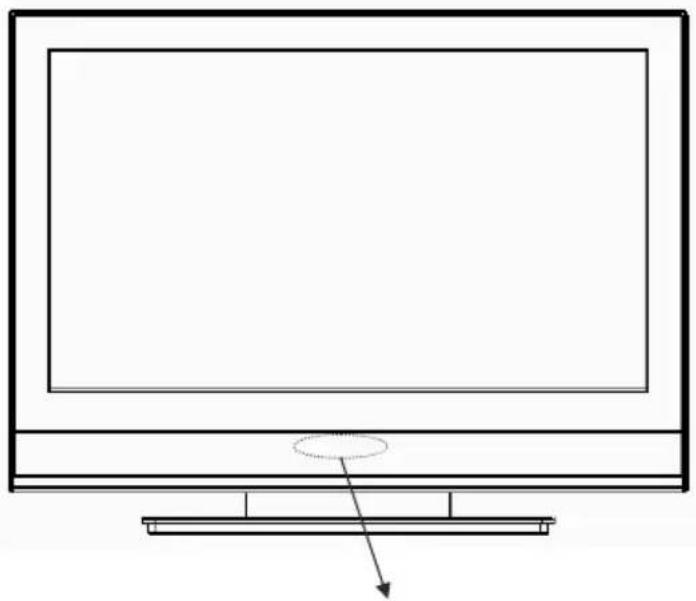
Front Panel Views (SK-26H540S)
natural_image
Line drawing of a flat-screen monitor with a circular button and an arrow pointing to the front panel (no text or symbols)Remote sensor window & Power indicator
natural_image
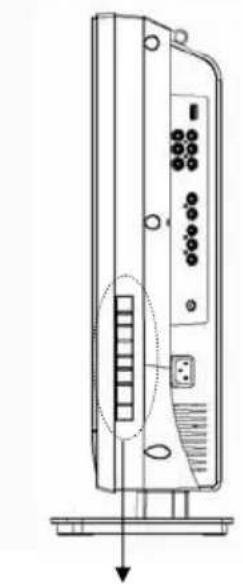
Technical line drawing of a vertical electronic device with internal components and a base mount (no text or symbols)Function Keys
FUNCTION KEYS
- MENU : Display the main menu. When OSD is appeared, press the button to select or access the sub-menu.
- VOLUME (+ / -): Increase/decrease the volume or be the left/right arrow button for menu.
- CHANNEL (+ / -): Change the channel or be the up/down arrow button for menu.
- SOURCE : Select the input source ( TV, Video 1, Video 2 , YPbPr, HDMI1, HDMI2, PC ).
- POWER : Turn the LCD-TV on or off.
- REMOTE SENSOR WINDOW : aim the remote control towards this spot on the TV.
- POWER INDICATOR : WHITE LIGHT — power on
AMBER LIGHT — power sleep
EXTINGUISHED — power off
NOTE 1: These buttons control the basic features of your TV, including the on-screen menu. To use advanced features, you must use the remote control.
NOTE 2 : The picture of LCD TV display is for reference only.
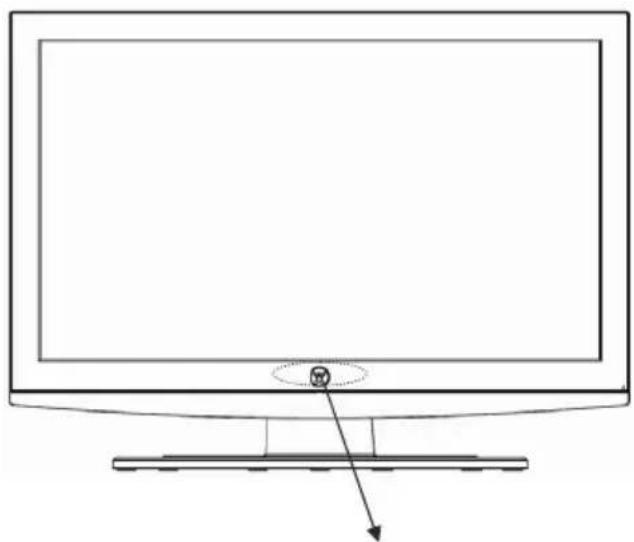
Front Panel Views (SK-26H730S)
natural_image
Line drawing of a flat-screen computer monitor with an arrow pointing to the front panel (no text or symbols)Remote sensor window & Power indicator
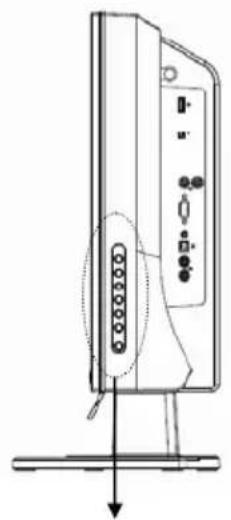
natural_image
Line drawing of a device with a vertical panel and control buttons, showing a downward arrow indicating motion (no text or symbols present)Function Keys
FUNCTION KEYS
- MENU : Display the main menu. When OSD is appeared, press the button to select or access the sub-menu.
- VOLUME (+ / -): Increase/decrease the volume or be the left/right arrow button for menu.
- CHANNEL (+ / -) : Change the channel or be the up/down arrow button for menu.
- SOURCE : Select the input source ( TV, Video 1, Video 2 , YPbPr, HDMI1, HDMI2, PC ).
- POWER : Turn the LCD-TV on or off.
- REMOTE SENSOR WINDOW : aim the remote control towards this spot on the TV.
- POWER INDICATOR : WHITE LIGHT — power on
AMBER LIGHT — power sleep
EXTINGUISHED — power off
NOTE 1: These buttons control the basic features of your TV, including the on-screen menu. To use advanced features, you must use the remote control.
NOTE 2 : The picture of LCD TV display is for reference only.
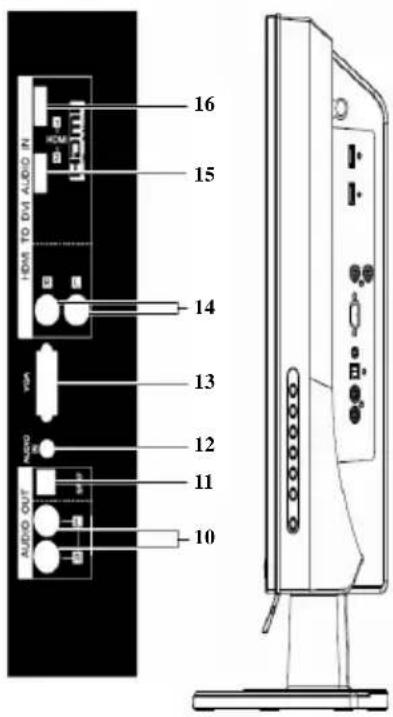
Side Panel Views (SK-26H540S)
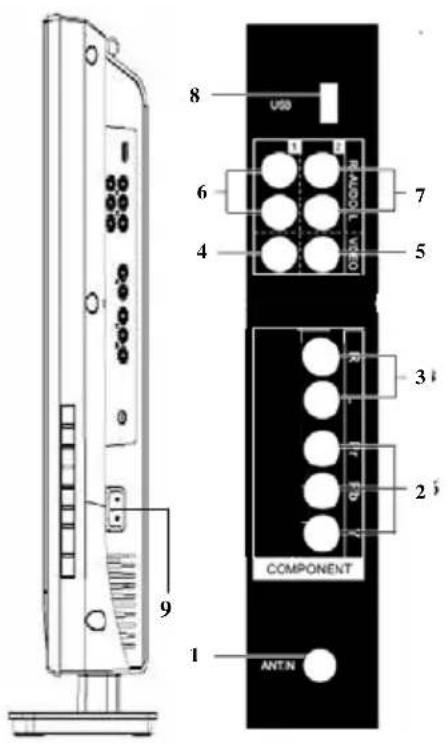
- ANT.(RF input) Connect the LCD TV to an over-the-air antenna or cable service to view NTSC and ATSC(HDTV) content.
- YPbPr input Connect an external video device with component output to this jack.
- YPbPr Audio input(L/R) Connect an external audio source to this jack.
- Video1 input Connect the Composite video to a legacy video such as a VCR or video game system.
- Video2 input
- Video1 Audio input
Connect an external audio source to this jack. - Video2 Audio input
- USB Factory service port
- AC power in Connect power cable to AC inlet.
- Audio output(R/L) Connect this output to an external stereo audio amplifier, receiver or surround sound processor with R/L audio inputs.
- SPDIF output(Optical) Connect this output to an external stereo audio amplifier, receiver or surround sound processor with SPDIF optical input.
- VGA Audio in Connect to the audio out(Green) from a computer.
- VGA Using a 15-pin VGA cable, connect to a computer.
- HDMI Audio input(R/L) Connect the audio input if you using a DVI-to-HDMI converter.
- HDMI2 input Connect to an external video device such as HD digital cable/satellite receiver, HD STB, Media center PC, or DVD player.
- HDMI1 input
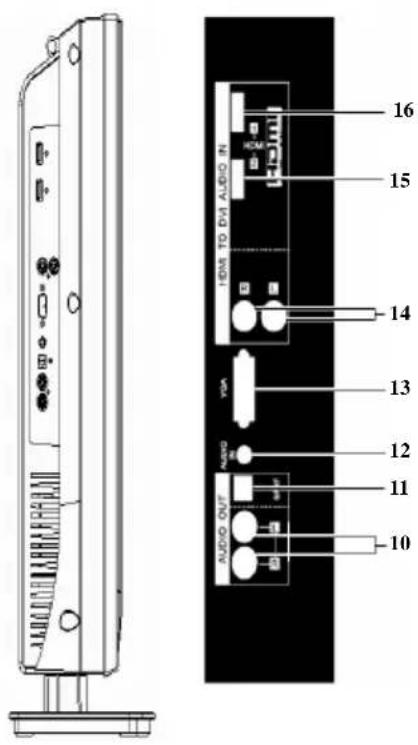
Side Panel Views (SK-26H730S)
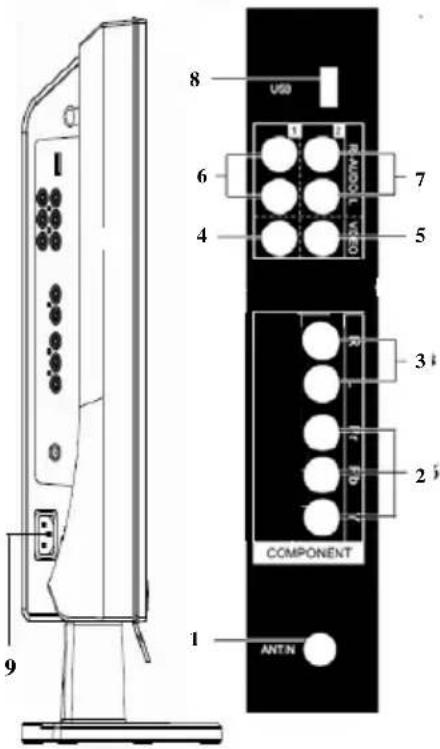
- ANT.(RF input) Connect the LCD TV to an over-the-air antenna or cable service to view NTSC and ATSC(HDTV) content.
- YPbPr input Connect an external video device with component output to this jack.
- YPbPr Audio input(L/R) Connect an external audio source to this jack.
- Video1 input Connect the Composite video to a legacy video such as a VCR or video game system.
- Video2 input
- Video1 Audio input Connect an external audio source to this jack.
- Video2 Audio input Connect an external audio source to this jack.
- USB Factory service port
- AC power in Connect power cable to AC inlet.
- Audio output(R/L) Connect this output to an external stereo audio amplifier, receiver or surround sound processor with R/L audio inputs.
- SPDIF output(Optical) Connect this output to an external stereo audio amplifier, receiver or surround sound processor with SPDIF optical input.
- VGA Audio in Connect to the audio out(Green) from a computer.
- VGA Using a 15-pin VGA cable, connect to a computer.
- HDMI Audio input(R/L) Connect the audio input if you using a DVI-to-HDMI converter.
- HDMI2 input Connect to an external video device such as HD digital cable/satellite receiver, HD STB, Media center PC, or DVD player.
- HDMI1 input
Accessories
natural_image
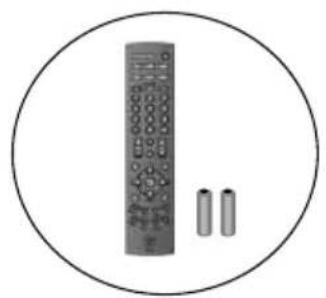
Illustration of a remote control with two batteries, enclosed in a circle (no text or symbols)User's Manual Remote Control & Batteries
natural_image
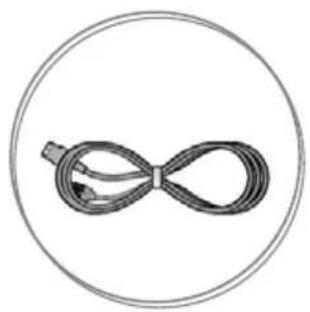
Simple line drawing of a bowtie or knot tied around a central cable, enclosed in a circle (no text or symbols)
Power Cord Quick Connect Guide
natural_image
Simple line drawing of a screwdriver inside a circle (no text or symbols)Warranty Card Screw driver & Screws x4(base)
Remote Control
| 1 Power | |
| Switch TV power on/off. | |
| 2 Mute | |
| Turn the sound on/off. | |
| 3 Swap | |
| No support | |
| 4 PIP | |
| No support | |
| 5 Backlight | |
| Adjust the LCD Backlight level | |
| 6 Sleep | |
| Press to select a preset time interval for automatic power down. | |
| 7 CC | |
| Press to enable or disabled closed caption. | |
| 8 Favorite | |
| Press and hold programable Key(A, B, or C). to save the current channel. | |
| 9 Channel number keys | |
| Select specific channel. | |
| 10 Enter | |
| Execute a command. | |
| 11 Input | |
| Select input source. | |
| 12 VOL +/- | |
| Volume Up/Down adjustment. | |
| 13 CH +/- | |
| TV channel Up/Down adjustment. | |
| 14 Screen Fit | |
| Select video display format “Standard” or “Fill”. | |
| 15 Menu | |
| Display the User setup menu. | |
| 16 Return | |
| Switch to previous TV channel | |
| 17 Enter | |
| Execute a command. | |
| 18 | ▲/▼/◄/► |
| OSD menual control(▲/▼:TV channel Up/Down;◄/►:Volume Up/Down) | |
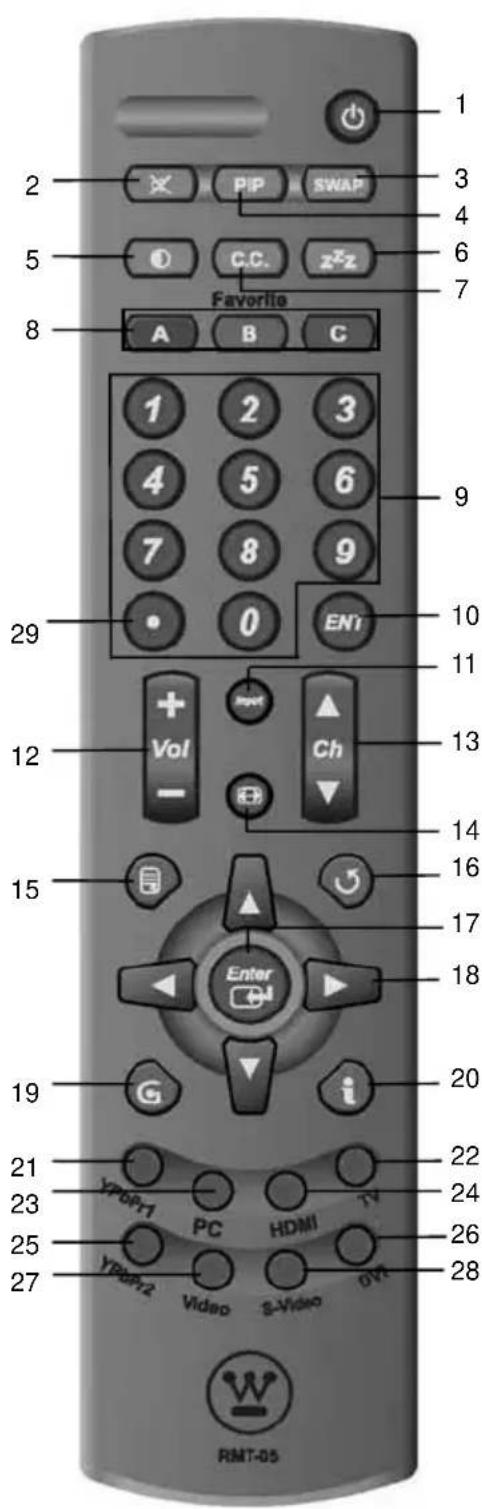
| 19 Guide | |
| Broadcast program information. | |
| 20 Info. | |
| Display the source and channel information. | |
| 21 YPbPr1 | |
| Select YPbPr1 or 2 source input. | |
| 22 TV | |
| Select TV(NTSC/ATSC) source input. | |
| 23 PC | |
| Select VGA source input. | |
| 24 HDMI | |
| Select HDMI 1 or 2source input. | |
| 25 YPbPr2 | |
| No support | |
| 26 DVI | |
| No support. | |
| 27 Video | |
| Select Video 1 or 2 input. | |
| 28 S-Video | |
| No support | |
| 29 Dot button | |
| Quicker access to all the available virtual channels | |
INSTALLATION AND FUNCTION ADJUSTMENT
Installation
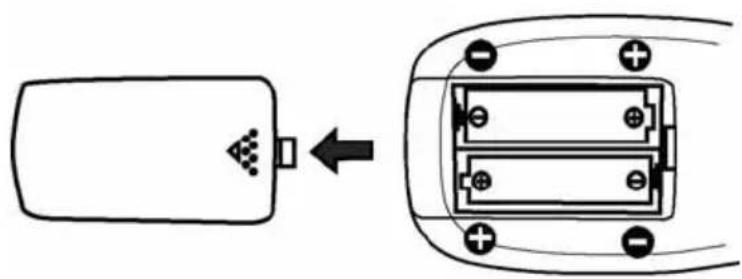
1. Insert Batteries into Remote Control
1) Remove the battery cover.
2) Insert two size AAA batteries corresponding to (+) and (-) marks on the battery compartment.
natural_image
Diagram showing a battery connected to a terminal block with polarity indicators (no text or symbols)CAUTION
• Only use AAA batteries.
- Do not mix new and old batteries. This may result in cracking or leakage, which may pose a fire risk or lead to personal injury.
- Insert batteries according to (+) and (-) markings. Inserting the batteries incorrectly may result in cracking or leakage, which may pose a fire risk or lead to personal injury.
- Dispose of used batteries in accordance with local laws and regulations.
- Keep batteries away from children and pets.
- When the remote control will not be used for an extended period, remove the batteries.
- Connections
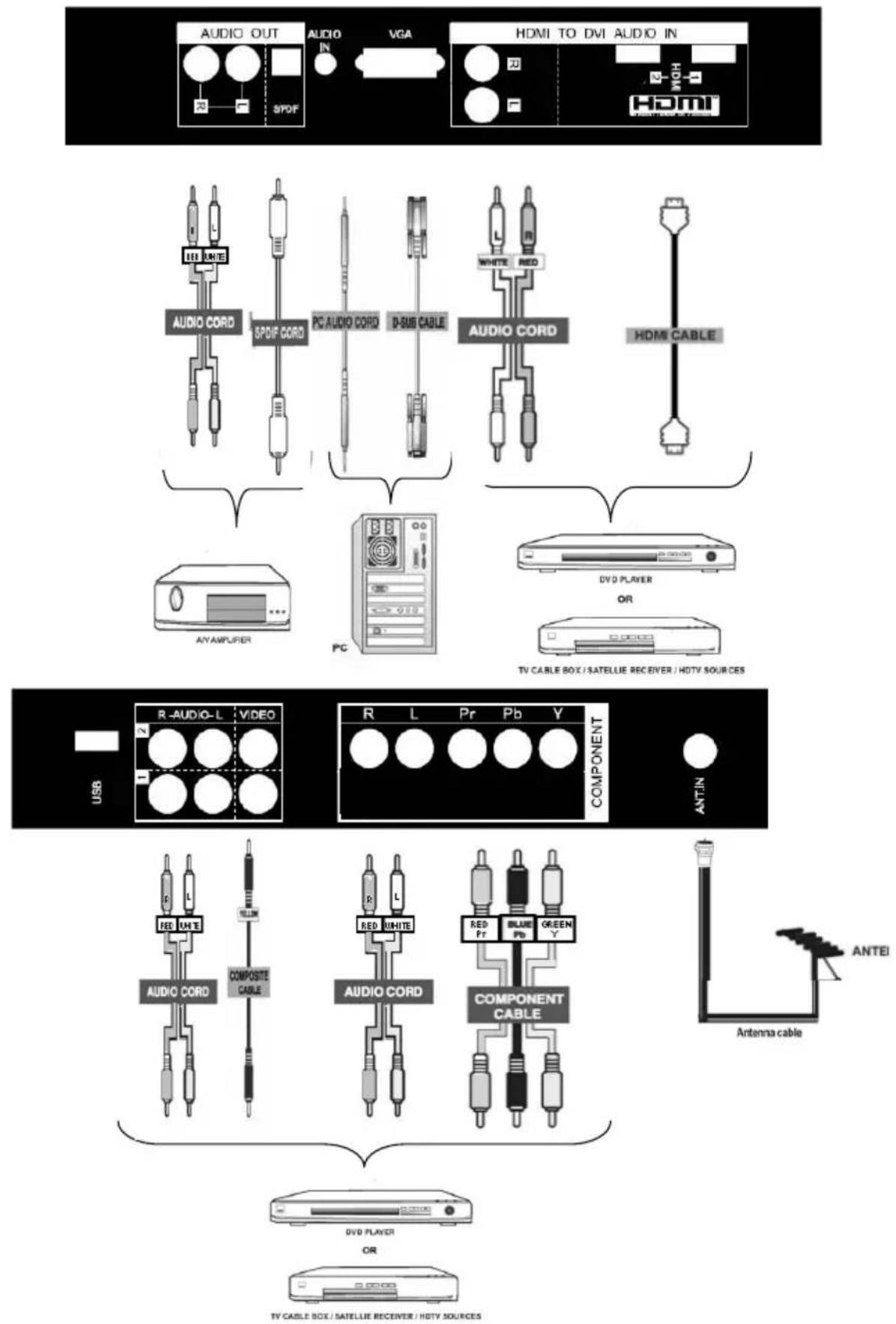
flowchart
graph TD
    A["Top Panel"] --> B["Audio OUT"]
    B --> C["SpO/F"]
    C --> D["Audio Cord"]
    D --> E["SpO/F Cord"]
    E --> F["PC AUDIO CORD"]
    F --> G["D-SUB CABLE"]
    G --> H["Audio Cord"]
    H --> I["White RED"]
    I --> J["HDMI CABLE"]
    J --> K["TV CABLE BOX / SATELLIE RECEIVER / HOTV SOURCES"]
    L["Bottom Panel"] --> M["USB"]
    M --> N["R-AUDIO-L"]
    N --> O["VIDEO"]
    O --> P["COMPONENT"]
    P --> Q["ANTIN"]
    R["Antenna cable"] --> S["Antei"]
    T["TV CABLE BOX / SATELLIE RECEIVER / HOTV SOURCES"] --> U["ComPOSITE Cable"]
    V["Audio Cord"] --> W["AUDIO CORD"]
    X["Audio Cord"] --> Y["COMPONENT CABLE"]
    Z["Video"] --> AA["Red WHITE"]
    AB["Video"] --> AC["RED PR"]
    AD["Video"] --> AE["BLUE Pb"]
    AF["Video"] --> AG["GREEN Y"]
3. Connect power cables
Connect the power cord to the LCD TV then to a proper AC outlet.
IMPORTANT: The power input voltage for TV is 120Vac, before beginning; make sure all devices are turned off.
4. Turn Power On
Press the power button on the right side of the LCD TV, or press the power (Red) button on the remote control.
5. Select input source for the LCD TV using the OSD menu or remote control direct select buttons
6. If connecting to Antenna, Cable or other RF source on TV inputs:
See page 19 to scan and edit available channels.
7. If connecting to a PC(VGA):
For the best picture quality, set the timing of your computer to 1366 x 768 at 60Hz. Refer to the graphic card's user guide of your computer to set this timing.
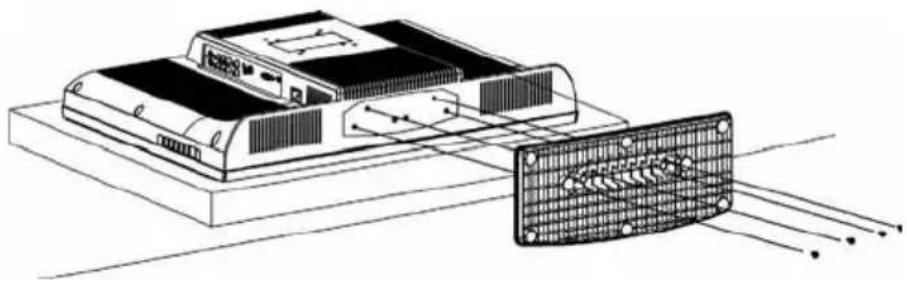
How to remove the BASE
a. Carefully place the TV face down on a soft clean surface.
b. Remove the four screws underneath the BASE.
(See picture below)
c. Pull out the BASE from the TV.
SK-26H540S
natural_image
Diagram of an electronic device with a grid-patterned panel connected to a rectangular base (no text or symbols)SK-26H730S
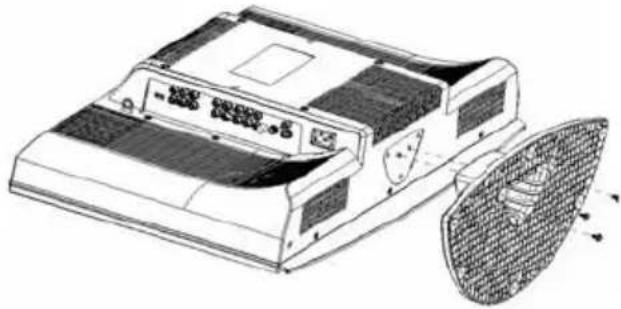
natural_image
Technical line drawing of a portable air conditioner unit with a mesh cover and ventilation slots (no text or symbols)Function adjustment
There are four main Setup Menus; these are Settings, Channels, Locks and Guide. All the functions can be adjusted either by the remote control or by using the control keys on the LCD TV's right side.
Viewing OSD Menu
To display the main menu, press the Menu button on the right side of front control keys of the LCD TV or the MENU key on the remote control. Press arrow keys to select desired OSD menu and Enter key to select desired setting.
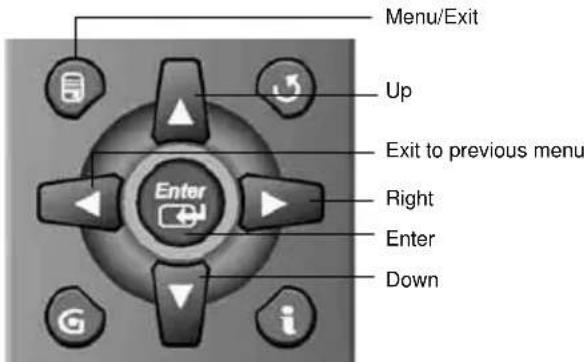
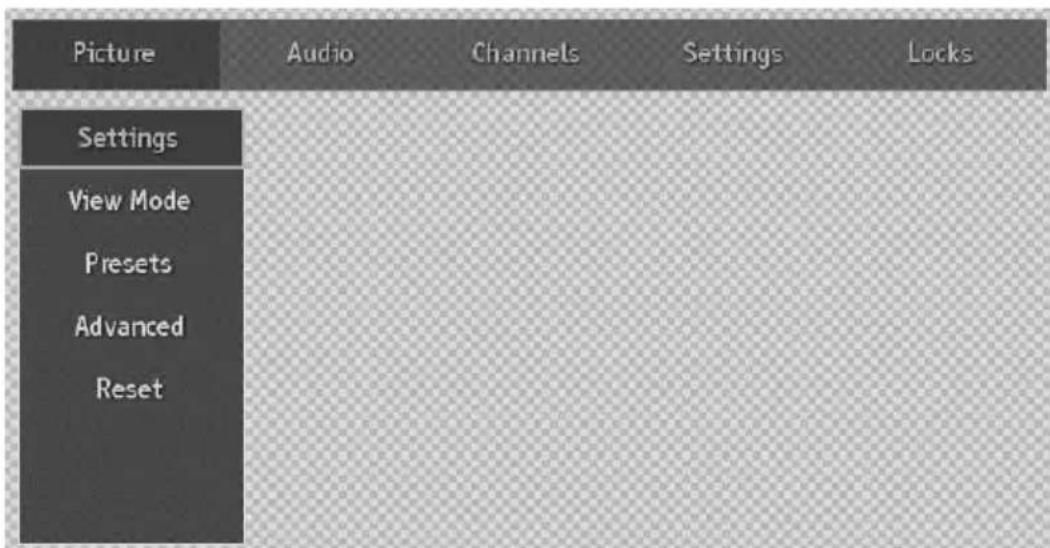
Picture
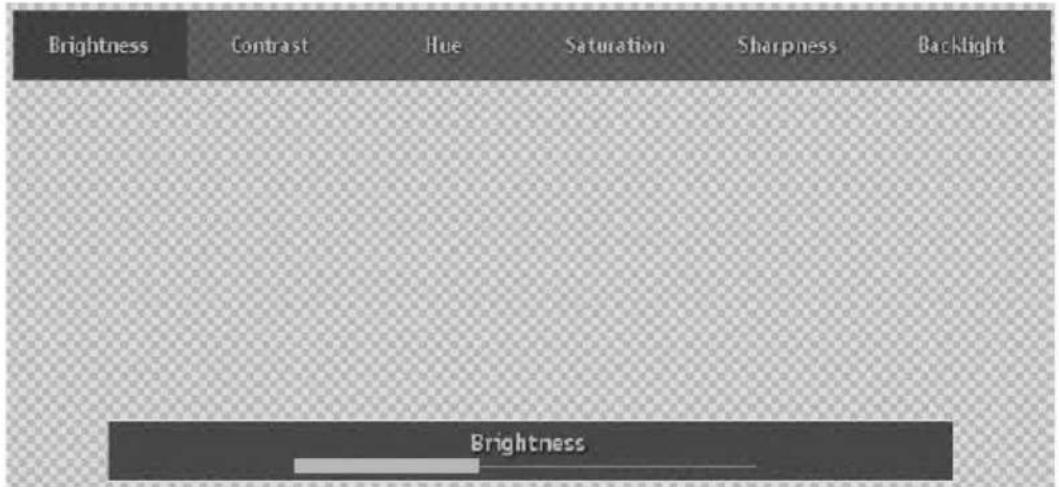
Picture including Settings, View Mode, Presets, Advanced, and Reset.
Settings
Settings including Brightness, Contrast, Hue, Saturation, Sharpness, and Backlight, please press arrow keys to select or adjust your favorite picture settings.
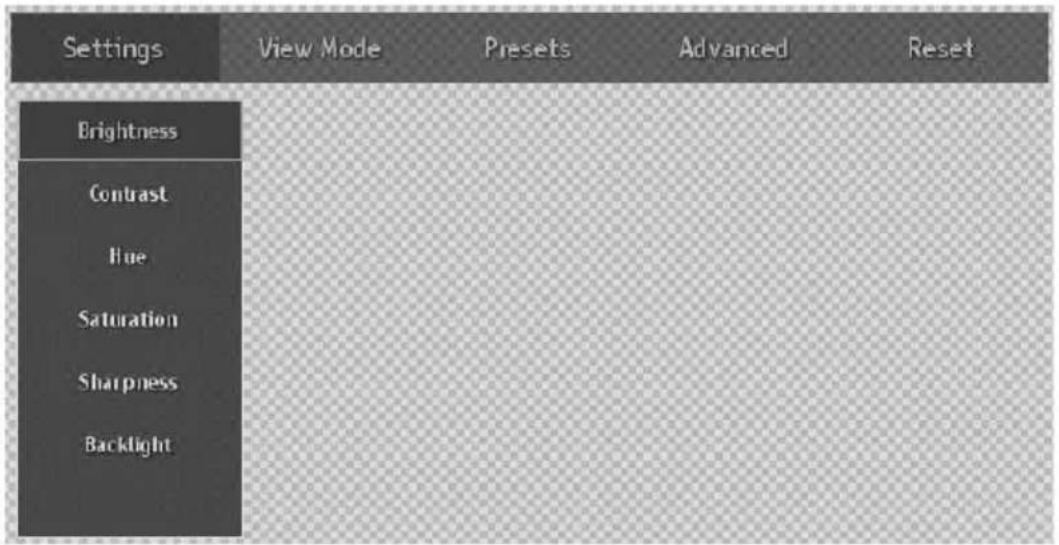
Brightness, Contrast, Hue, Saturation, Sharpness, Backlight
Press arrow keys to set value.
View Mode
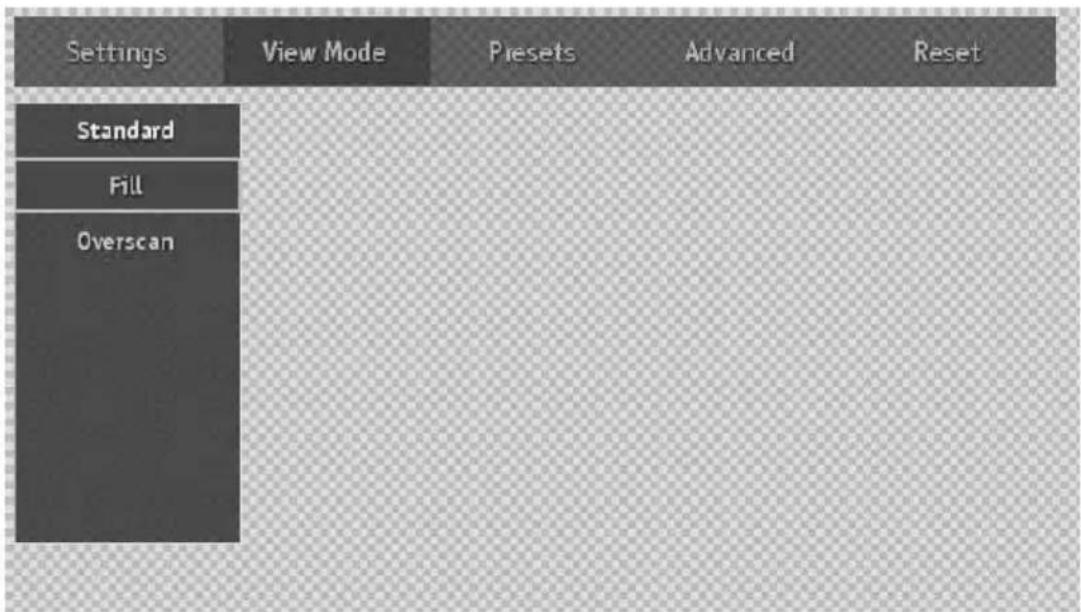
Adjust your TV screen to handle different picture formats.
Standard/Fill/Overscan
Presets
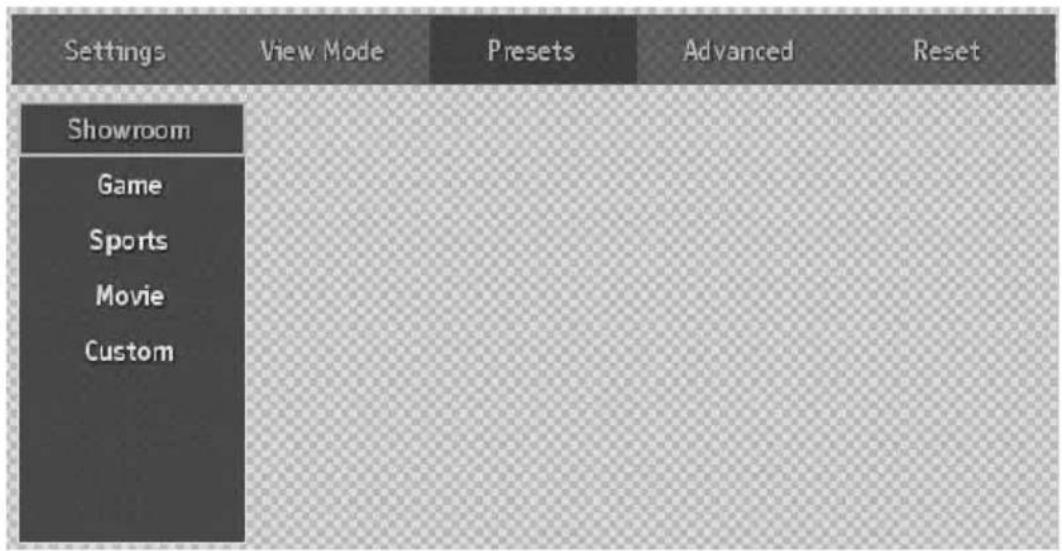
There are five presets mode for your favorite: Showroom, Game, Sports, Movie, and Custom.
Advanced
Advanced including Film Mode, Dynamic Contrast, Color Stretch, Noise Reduction, and Color Temperature.
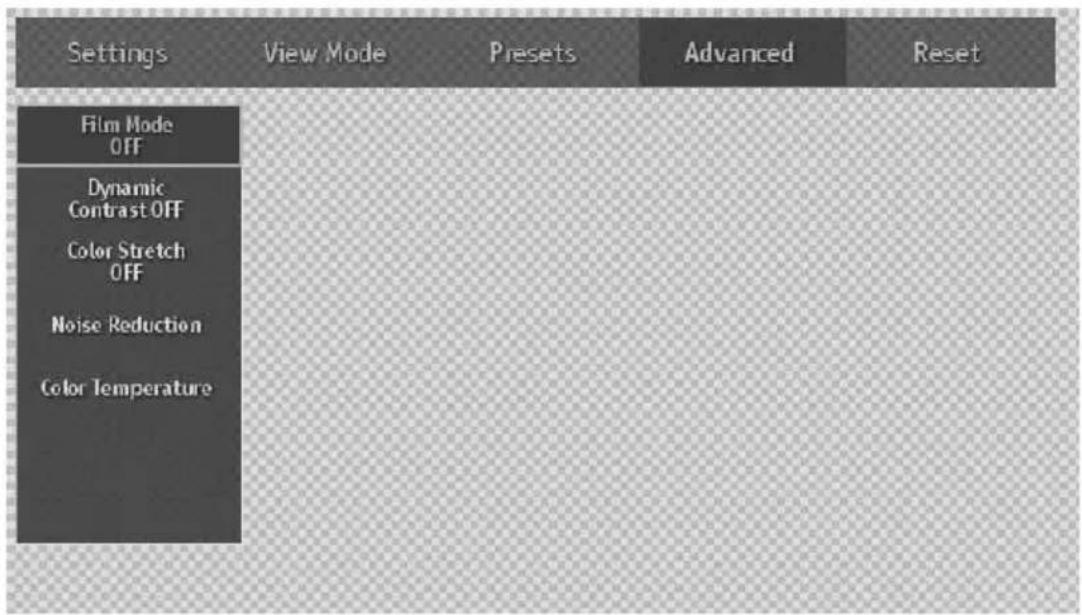
Film Mode, Dynamic Contrast, Color Stretch
Choose ON or OFF depend on your favor.
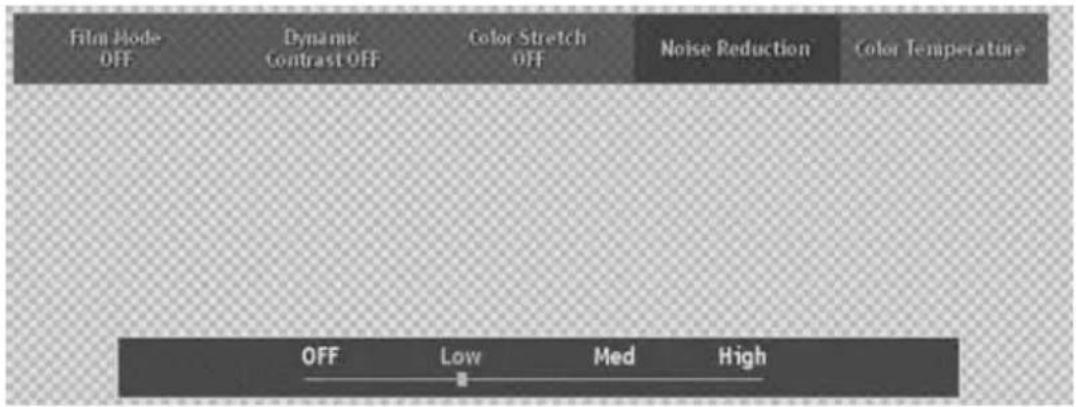
Noise Reduction
Press arrow keys to select or adjust your preferred settings.
Off/Low/Medi/High
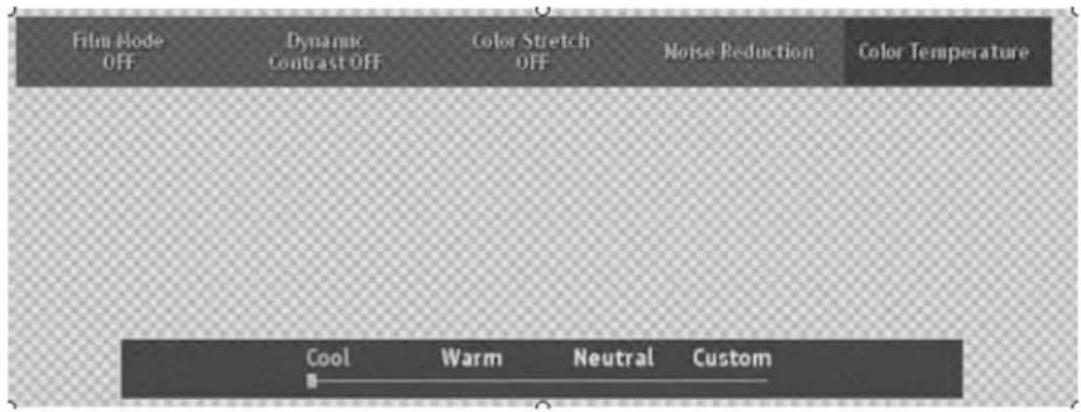
Color Temperature
Press arrow keys to select or adjust your preferred color temperature settings.
Cool/Neutral/Warm/Custom
Audio Setting
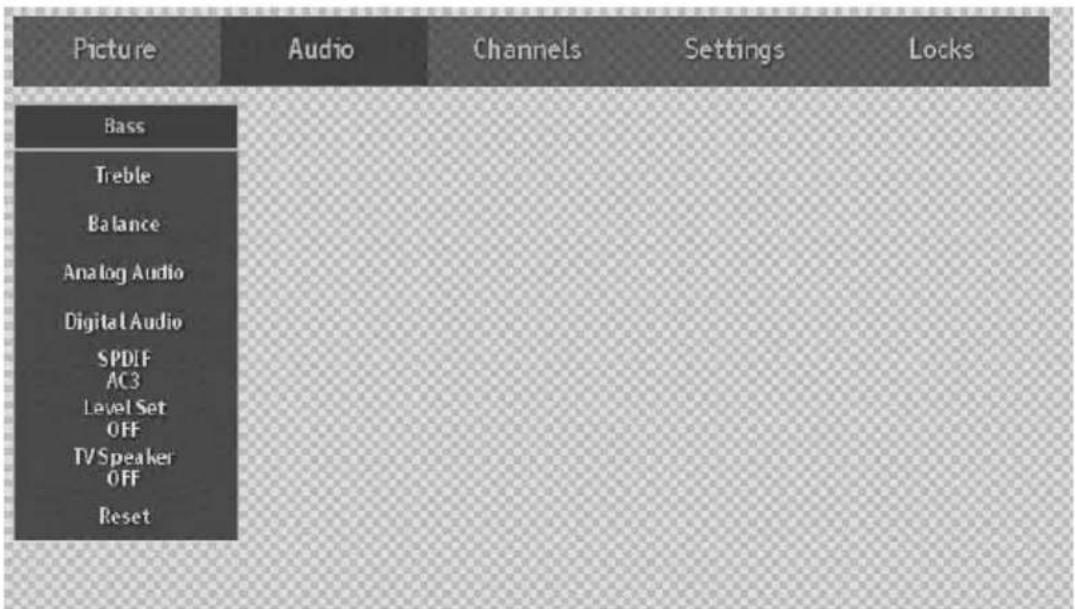
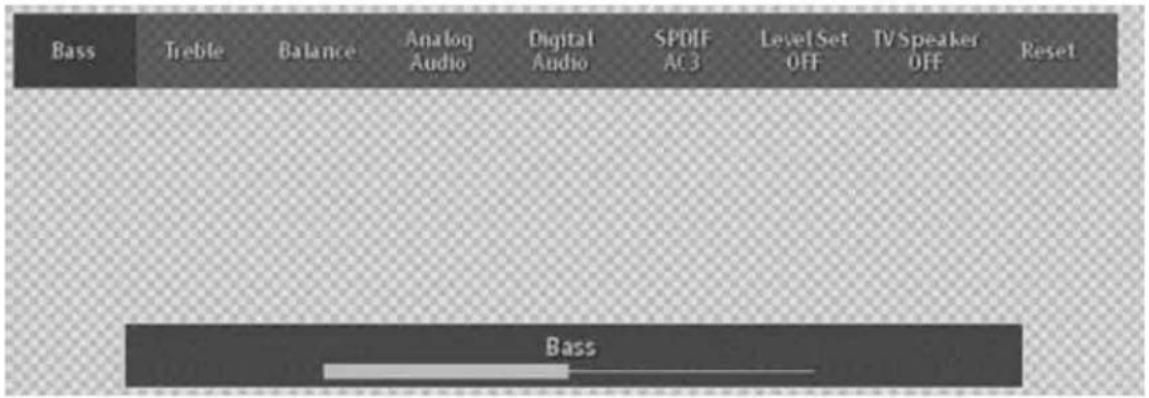
Bass, Treble, Balance
Use arrow keys to adjust value.
Analog Audio
Select an analog audio preference if TV signal is analog.
Mono/Stereo/SAP
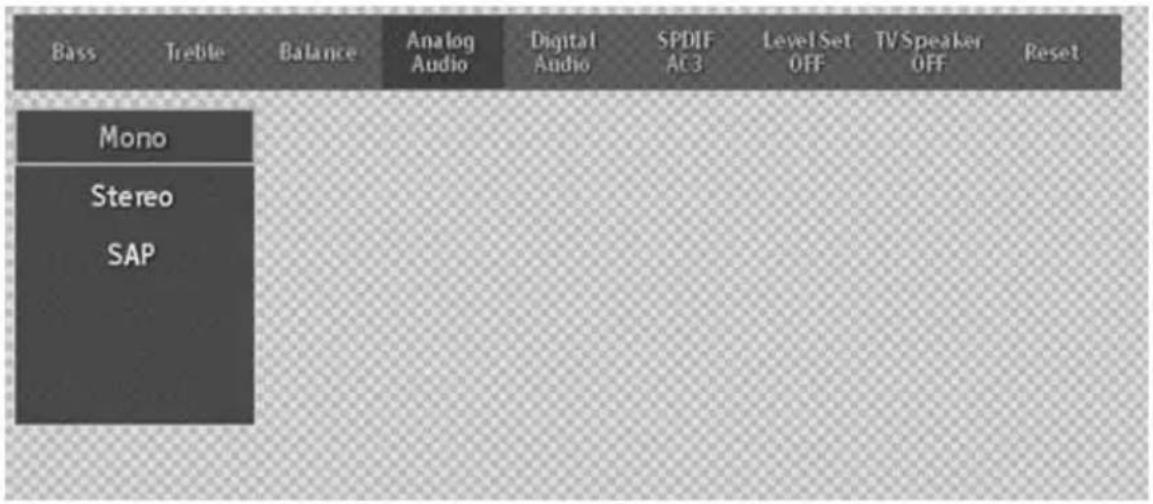
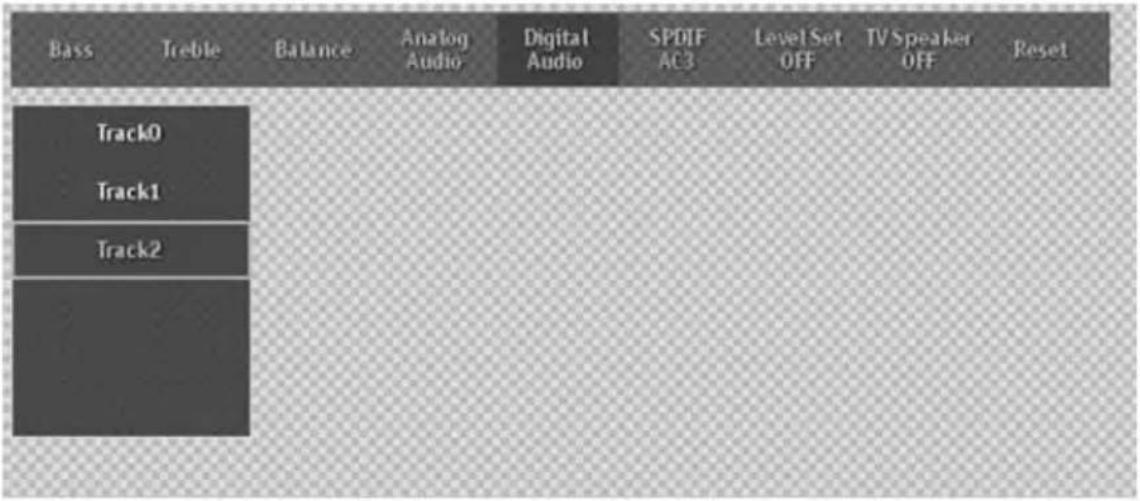
Digital Audio
Select sound track for digital channels.
SPDIF
Select AC3/PCM
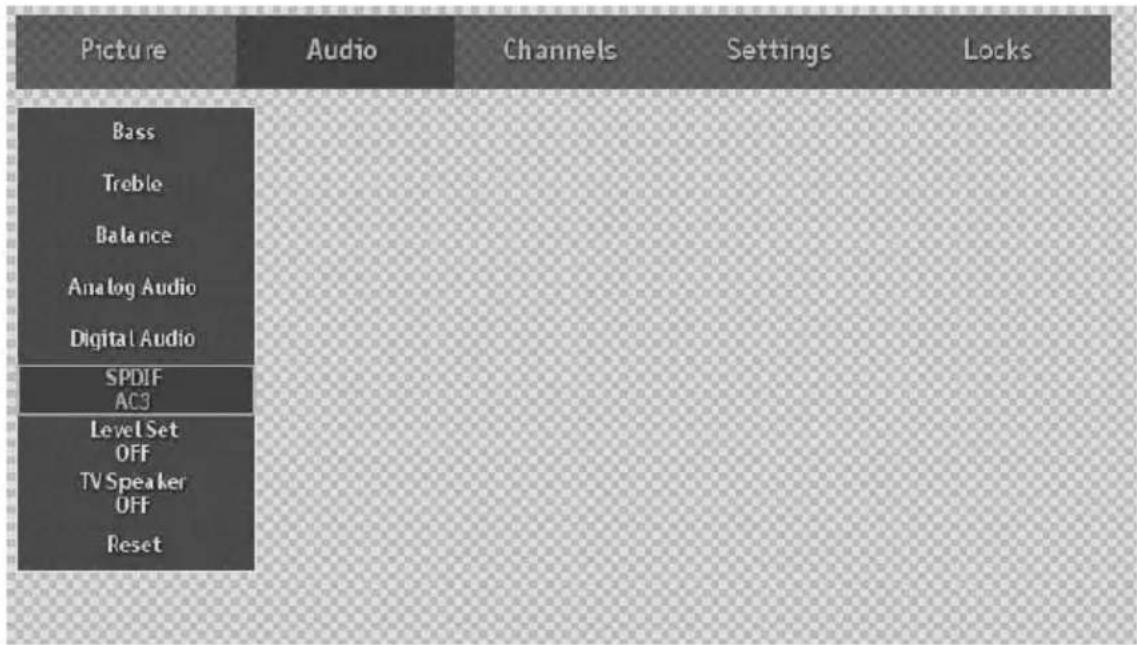
Level Set, TV Speaker
Select ON/OFF
Channels
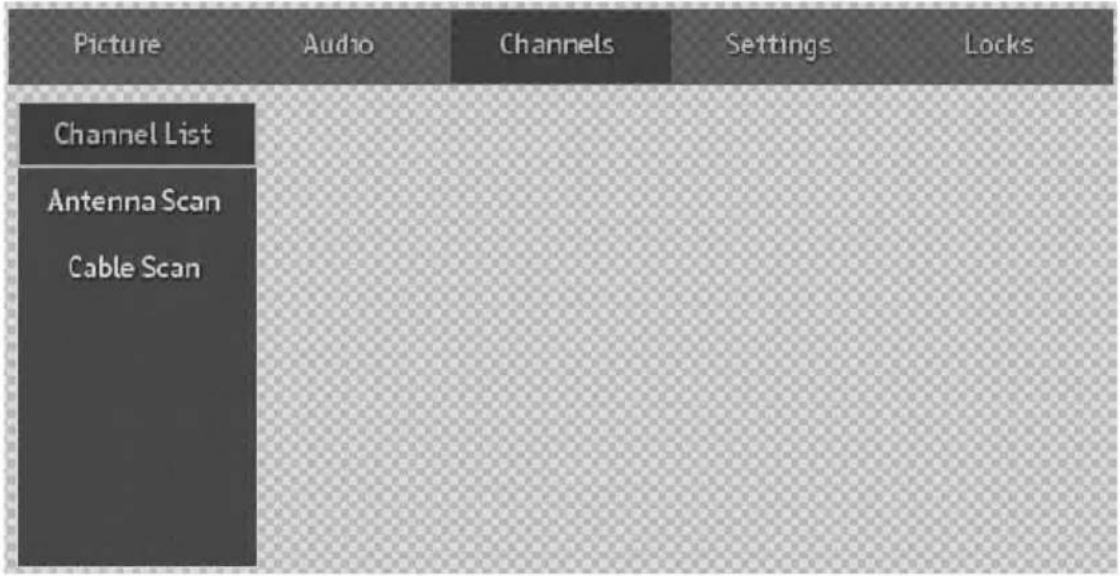
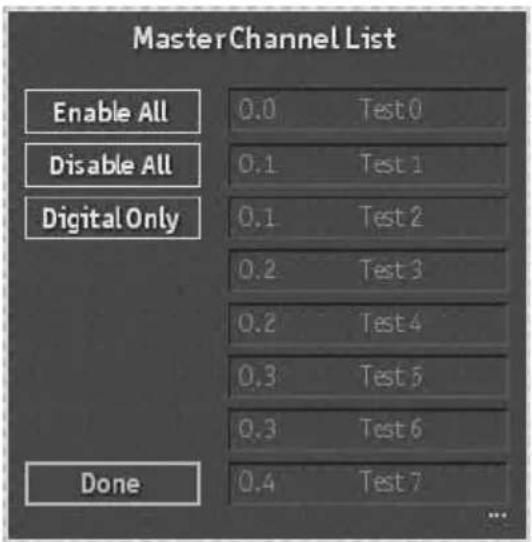
Channel list
To display which channels have been scanned.
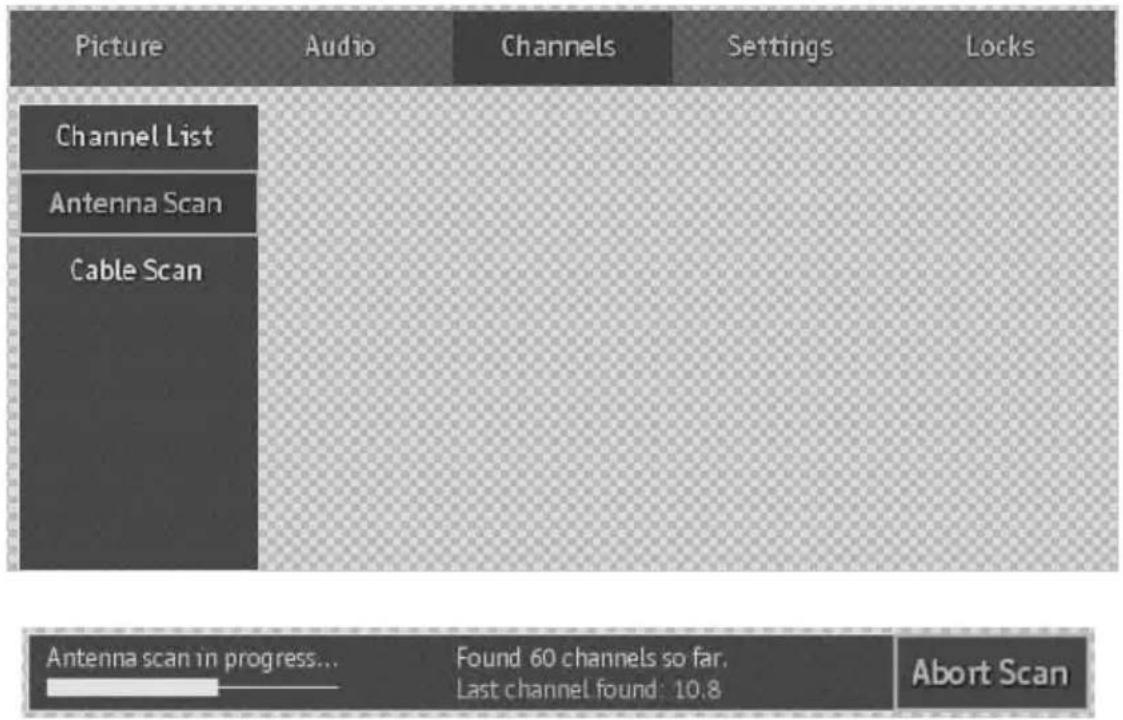
Antenna Scan
To auto scan current available channels by using Antenna Scan.
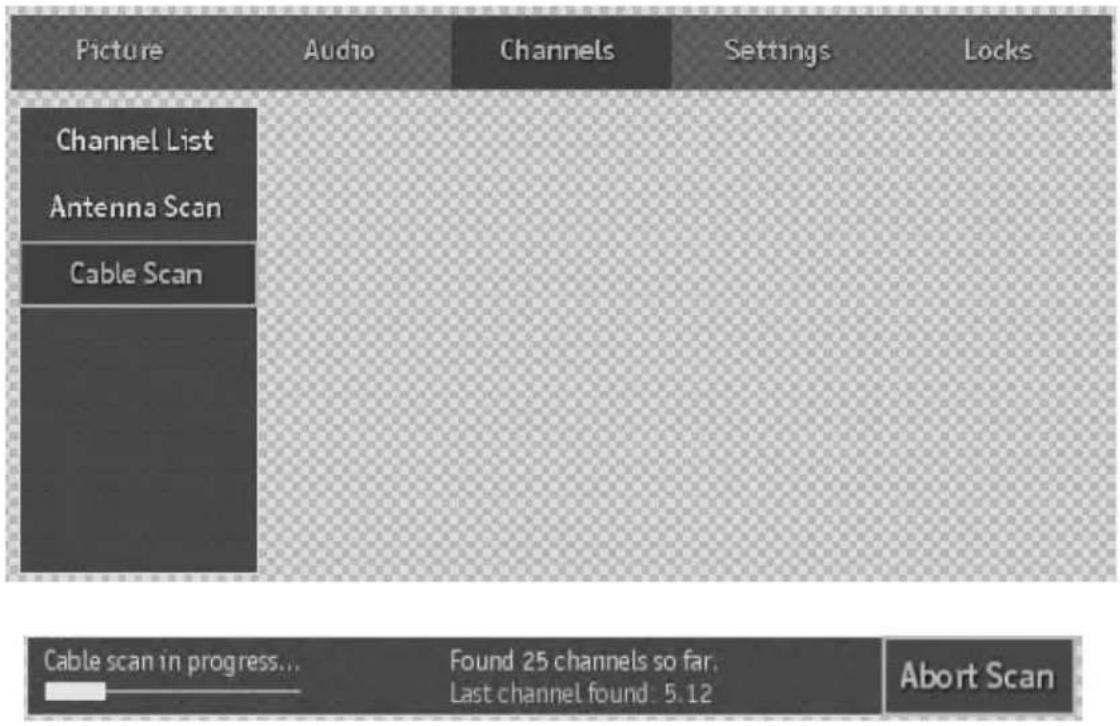
Cable Scan
To auto scan current available channels by using cable Scan.
Settings
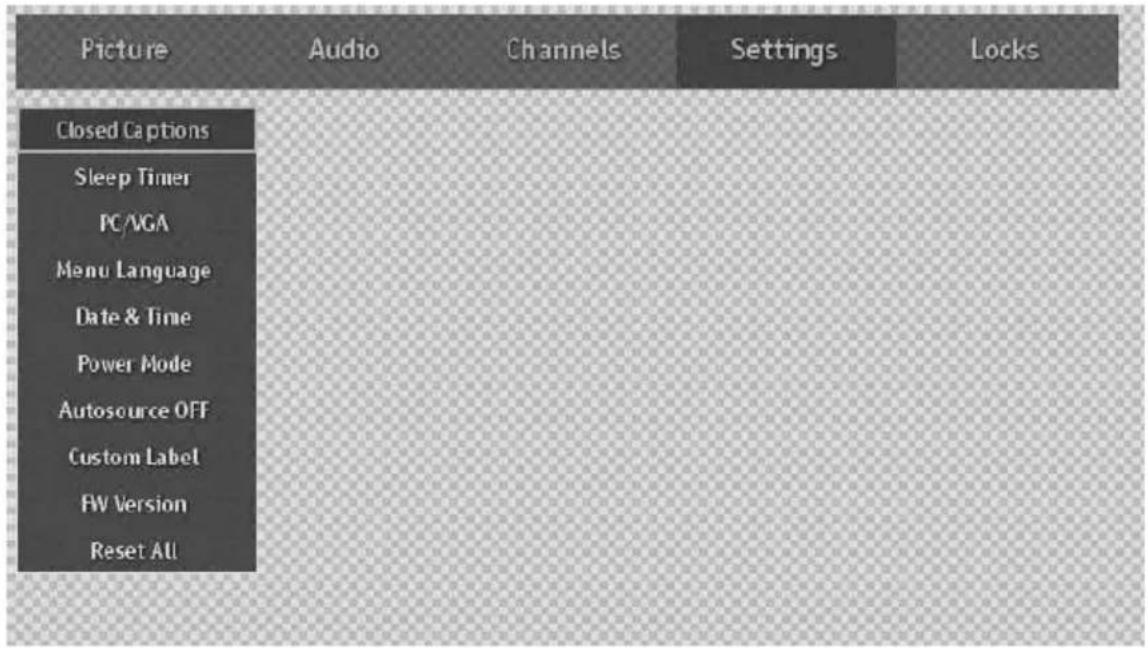
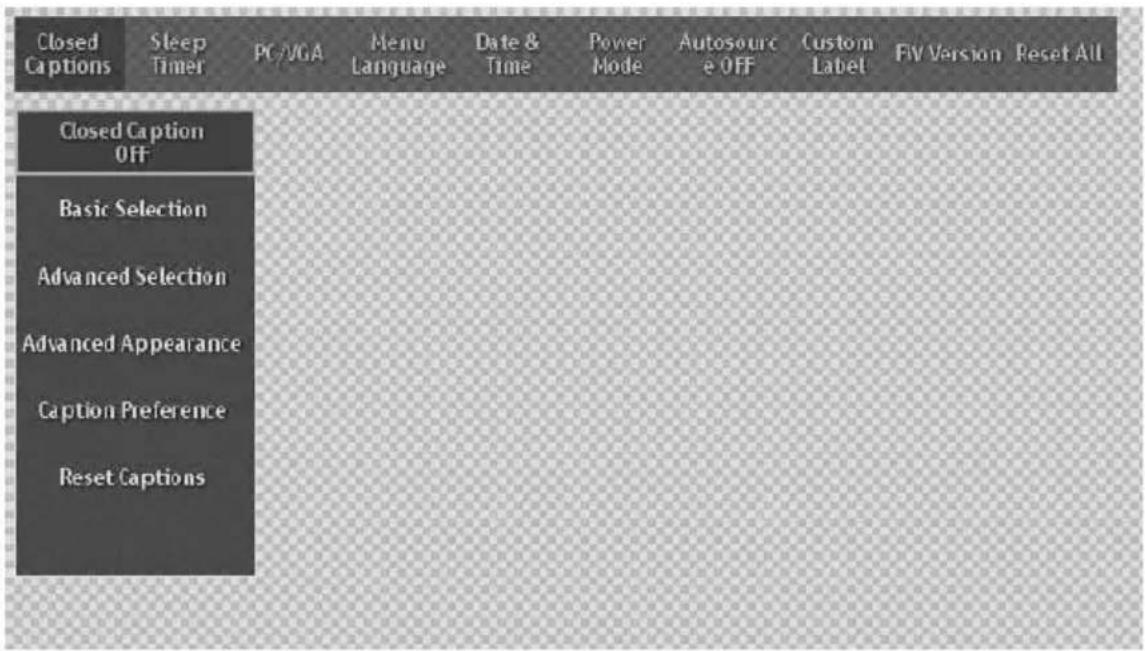
Close Captions
Set CC ON/OFF
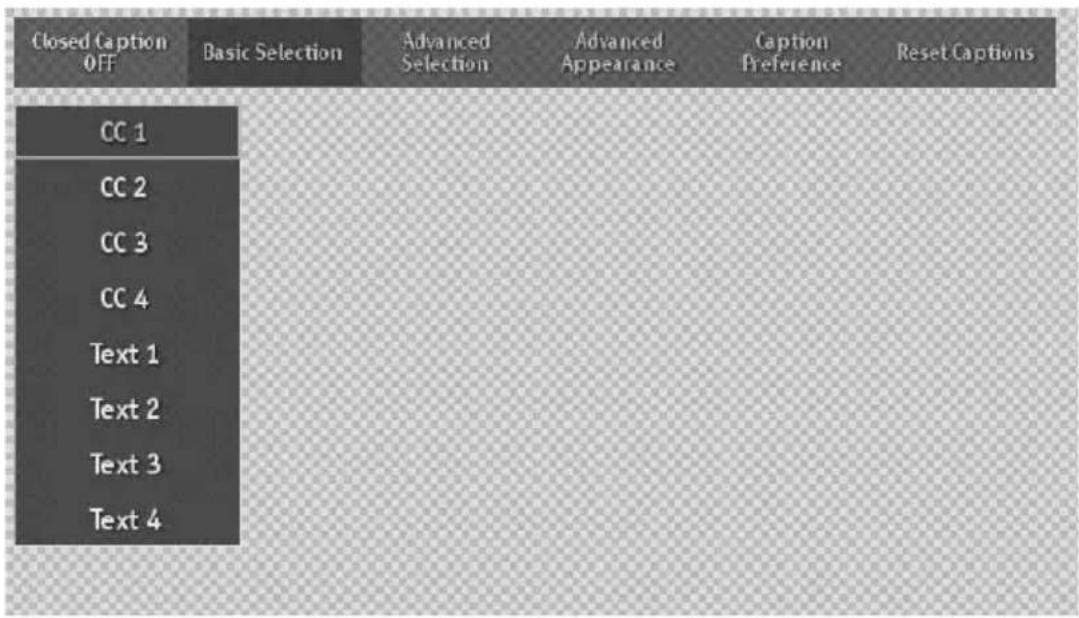
Basic Selection
Choose the type of closed caption settings to use for programs broadcast with basic caption
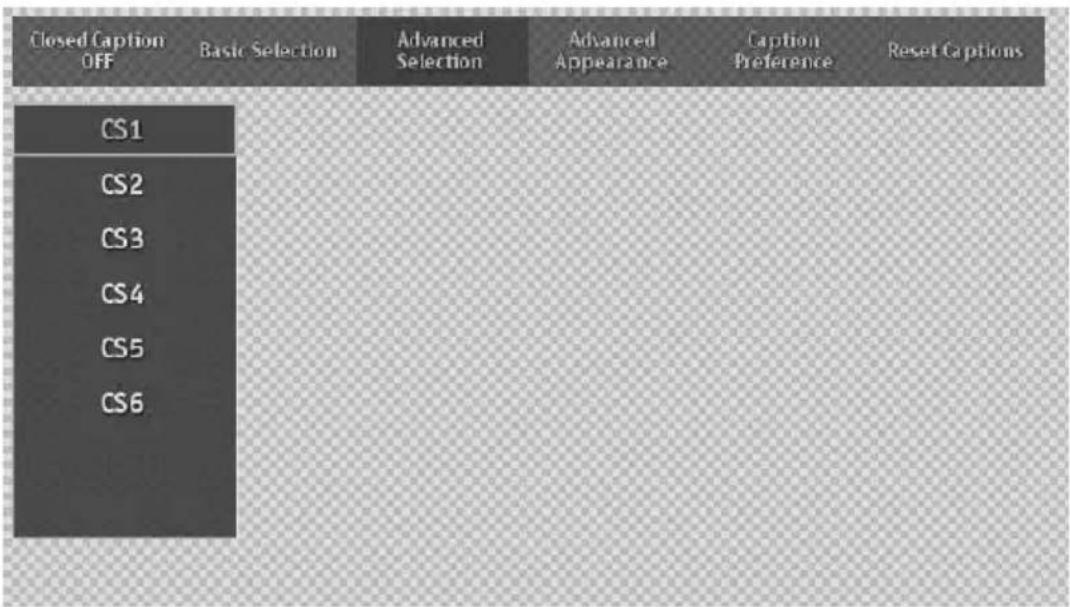
Advanced Selection
Choose the type of Advanced closed caption
Advanced Appearance
Set the appearance of advanced Closed Captions.
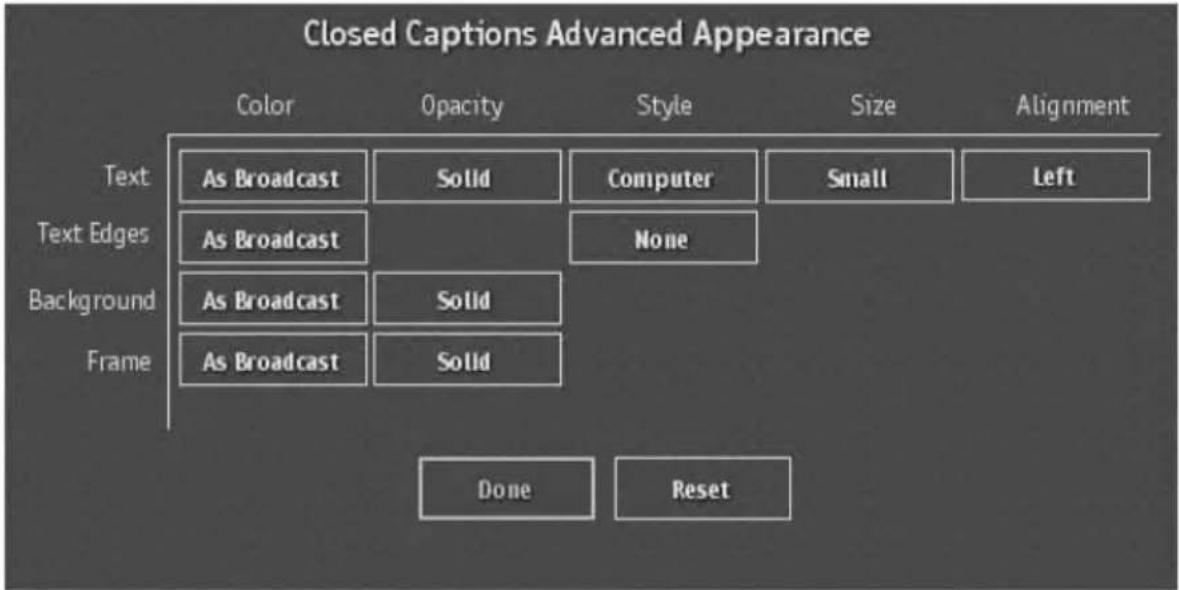
flowchart
graph TD
    A["Text"] --> B["Color: As Broadcast"]
    A --> C["Opacity: Solid"]
    A --> D["Style: Computer"]
    A --> E["Size: Small"]
    A --> F["Alignment: Left"]
    G["Text Edges"] --> H["Color: As Broadcast"]
    G --> I["Opacity: Solid"]
    G --> J["Style: None"]
    K["Background"] --> L["Color: As Broadcast"]
    K --> M["Opacity: Solid"]
    K --> N["Style: Solid"]
    O["Frame"] --> P["Color: As Broadcast"]
    O --> Q["Opacity: Solid"]
    R["Done"] --> S["Reset"]
Caption Preference
Select Always Basic/Always Advanced/Automatic.
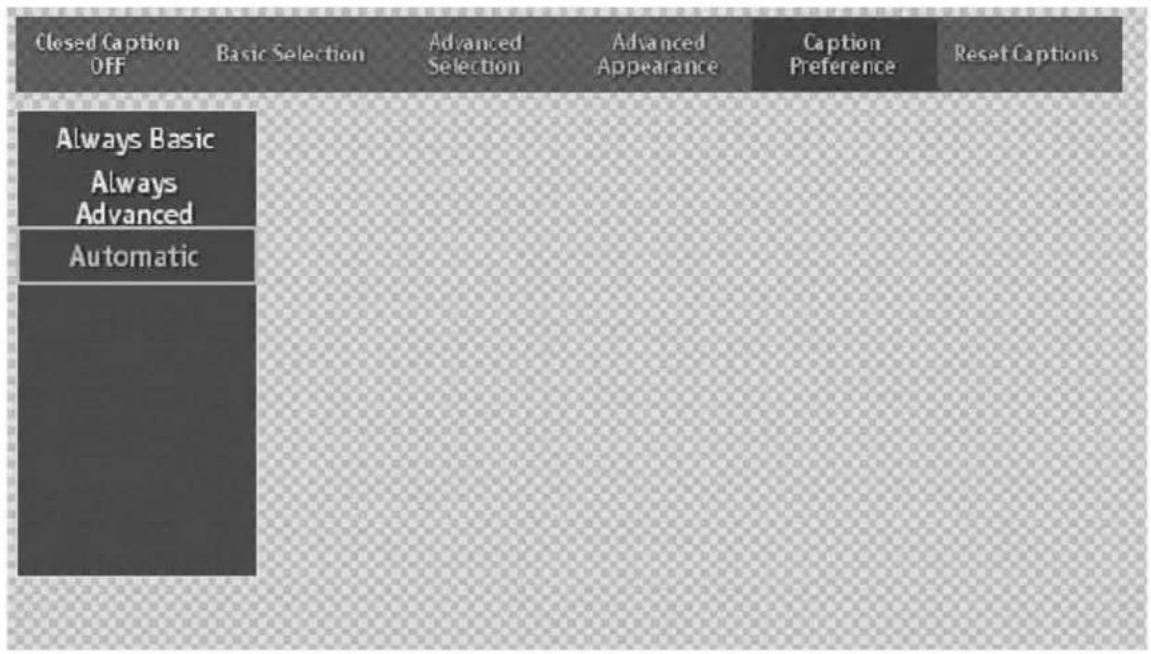
flowchart
graph TD
    A["Always Basic"] --> B["Automatic"]
    B --> C["Basic Selection"]
    C --> D["Advanced Selection"]
    D --> E["Advanced Appearance"]
    E --> F["Caption Preference"]
    F --> G["Reset Captions"]
Sleep Timer
Set the sleep timer you want.
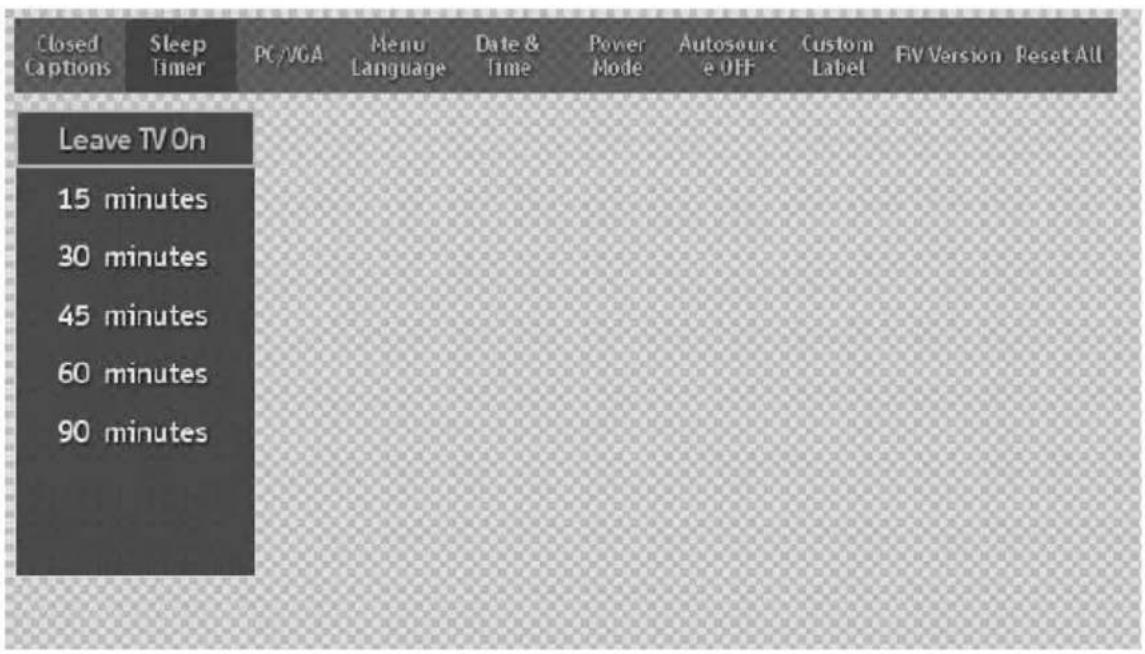
PC/VGA
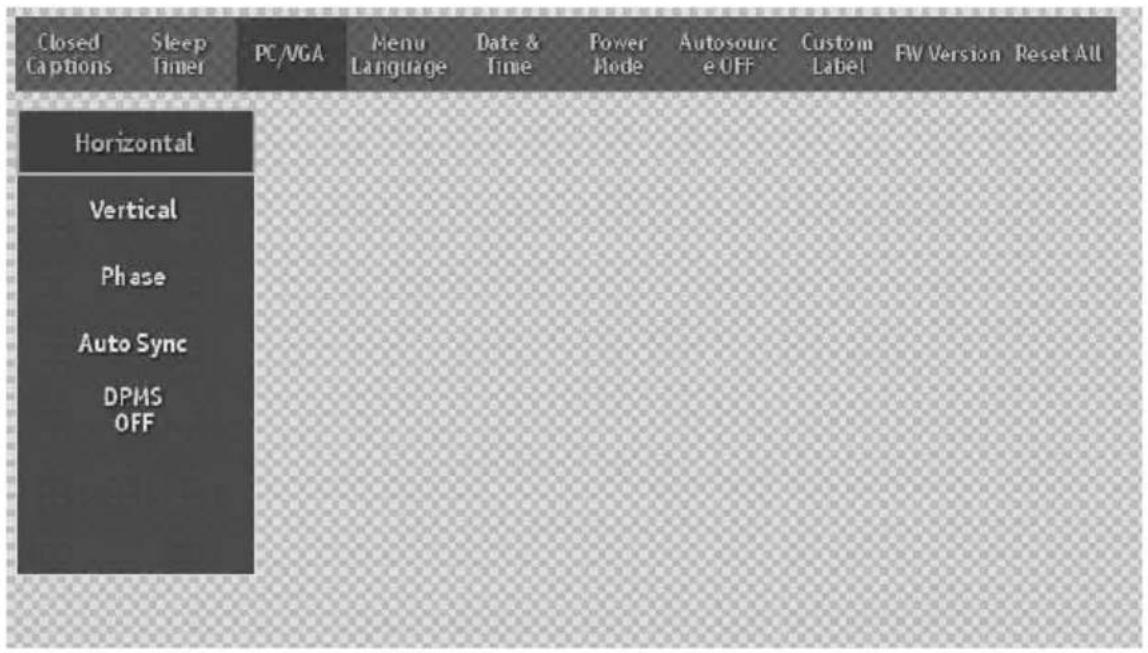
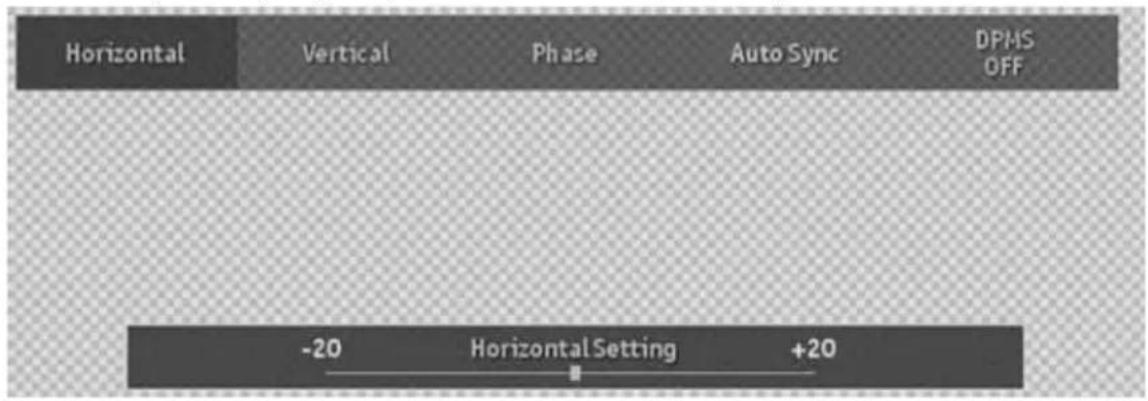
Horizontal, Vertical
Use arrow keys to adjust your picture horizontal or vertical position.
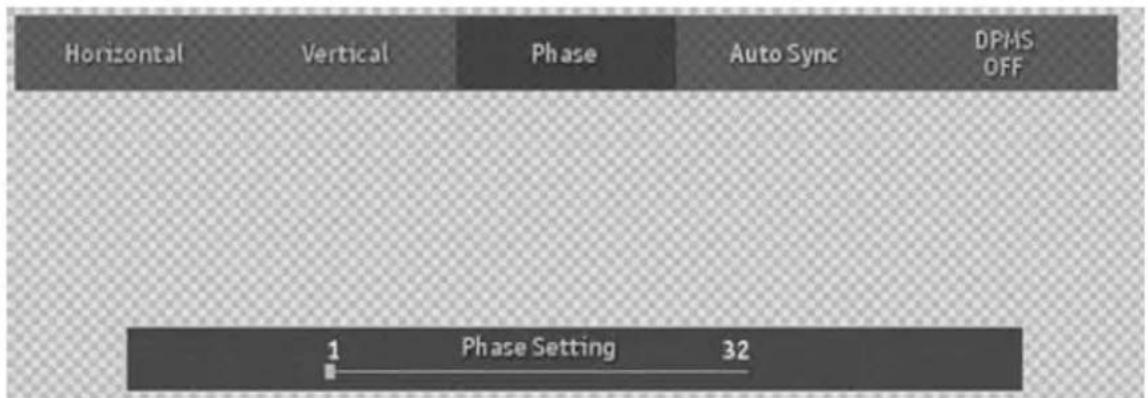
Phase
You can use Phase to adjust your picture phase.
AutoSync
Use to auto adjust your VGA picture.
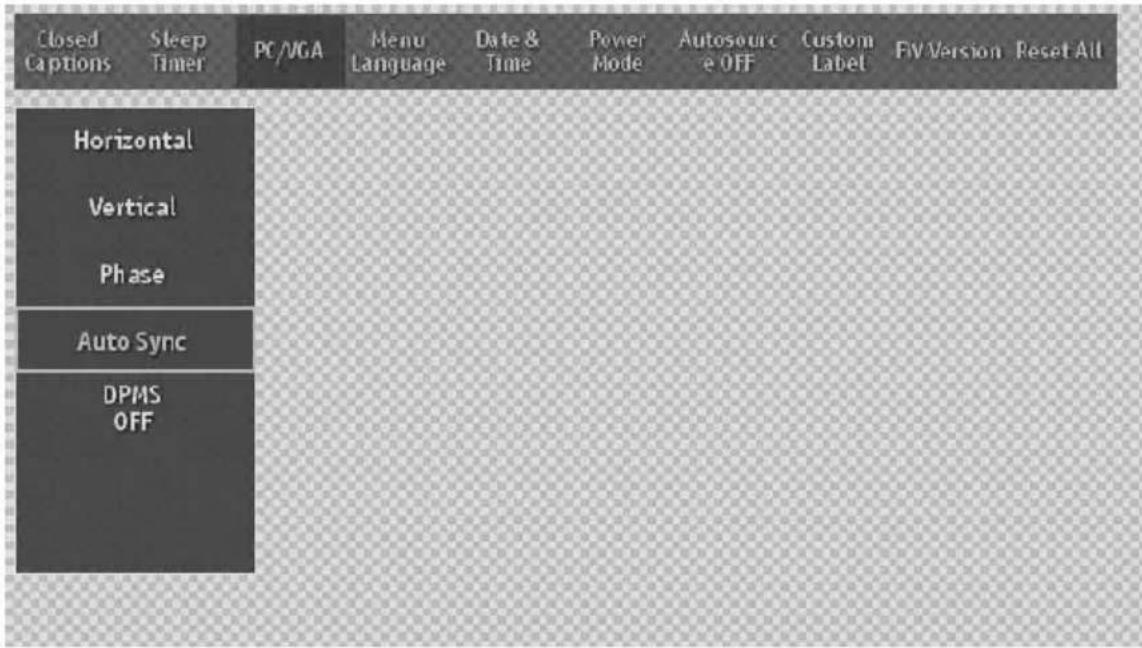
DPMS
Set DPMS ON/OFF.
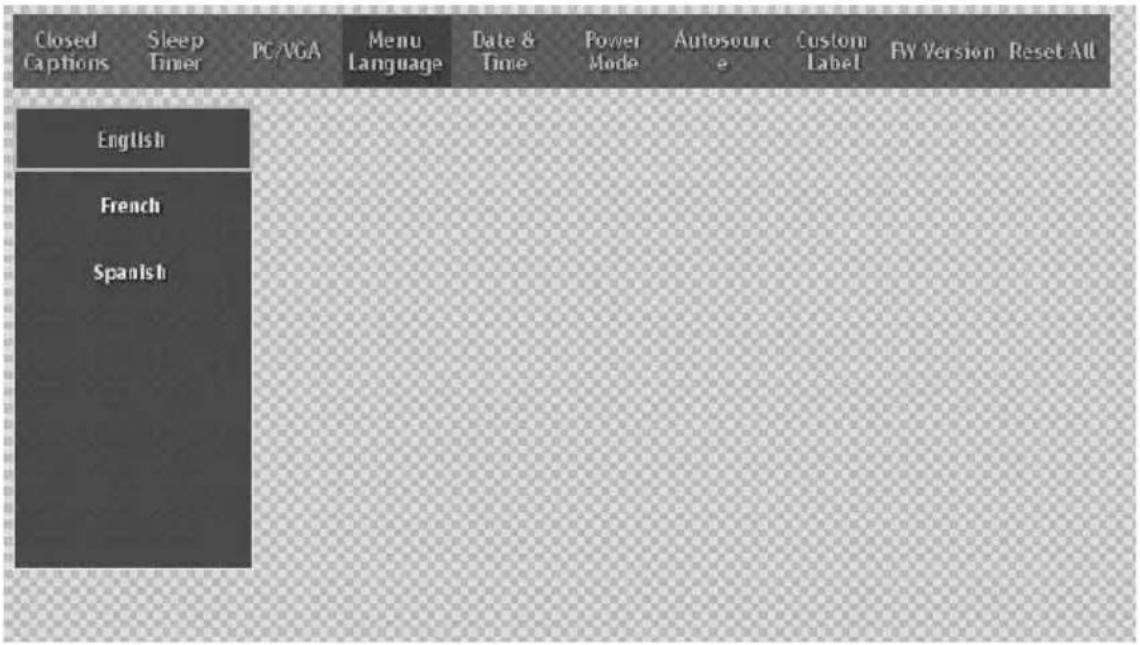
Menu Language
Use arrow keys to adjust Menu Language
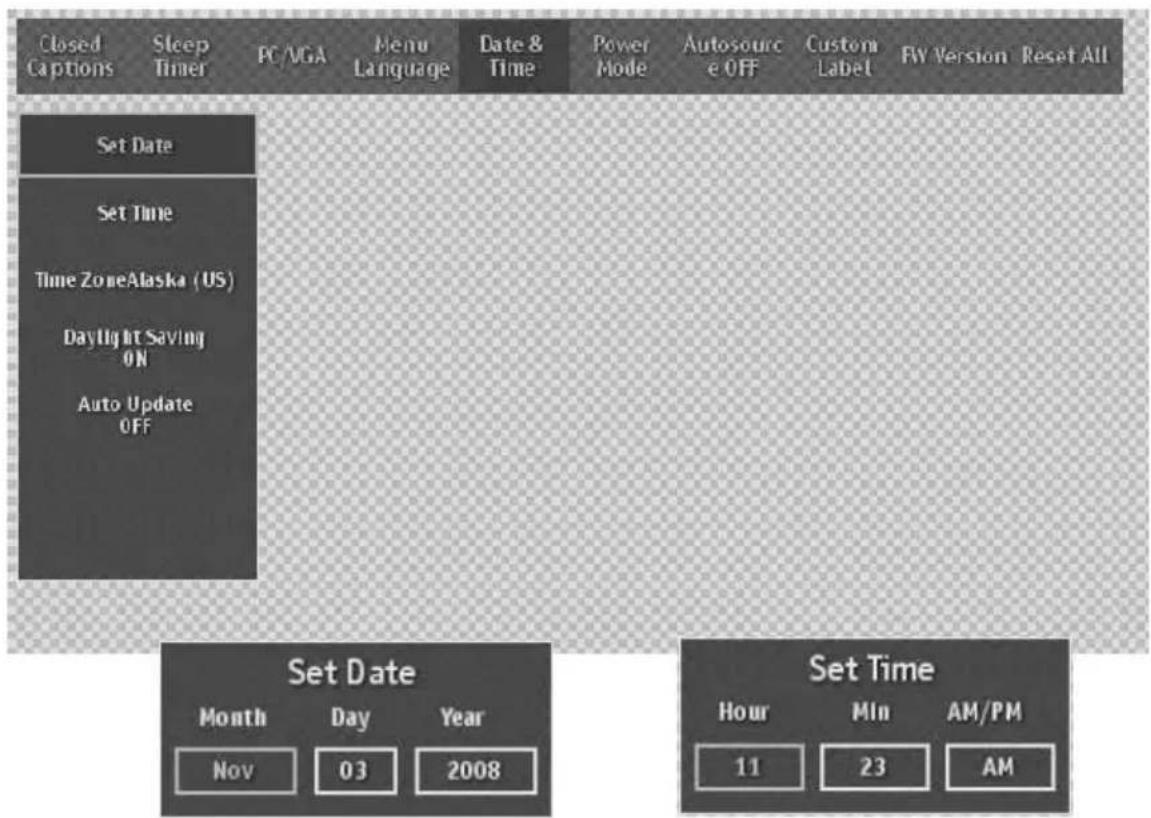
Date & Time
Set Date & Time.
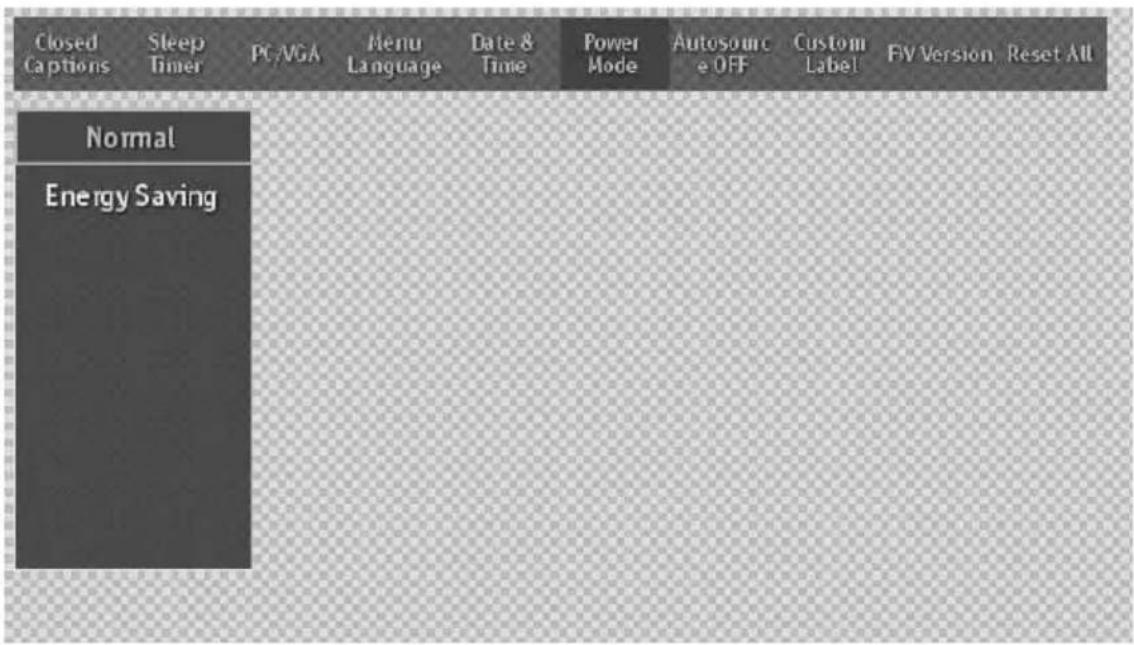
Power Mode
Set TV power modes (Normal = quick boot-up time, but large power consumption; Energy saving = longer boot-up time, but small power consumption.)
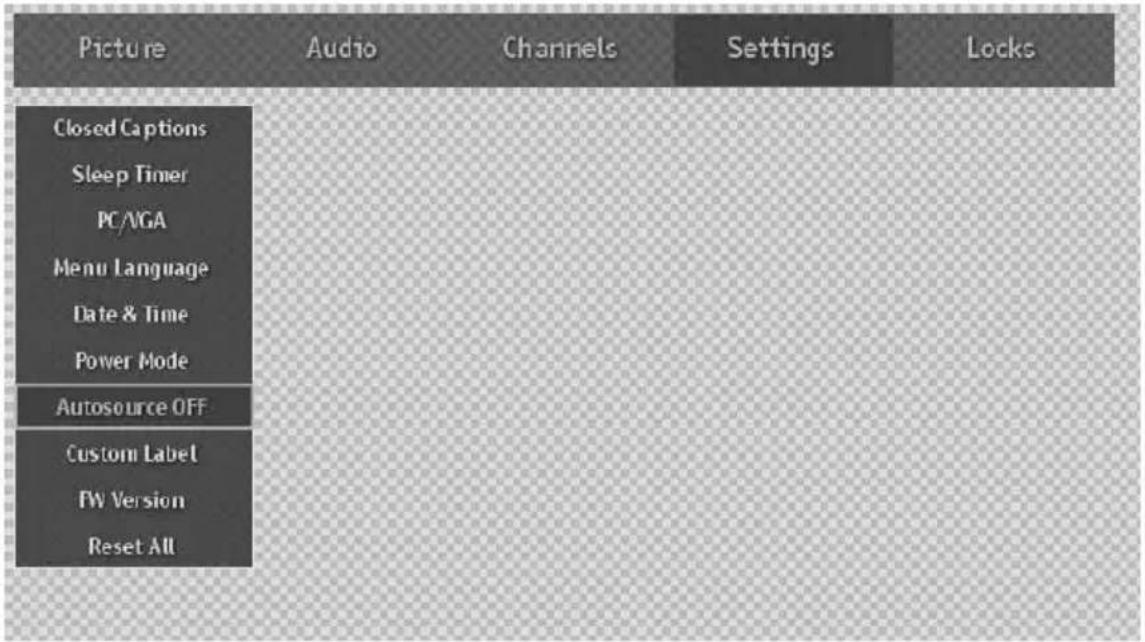
Autosource™
Autosource™ will detect a new incoming signal and automatically switch the input source to the connection of the new source's device.
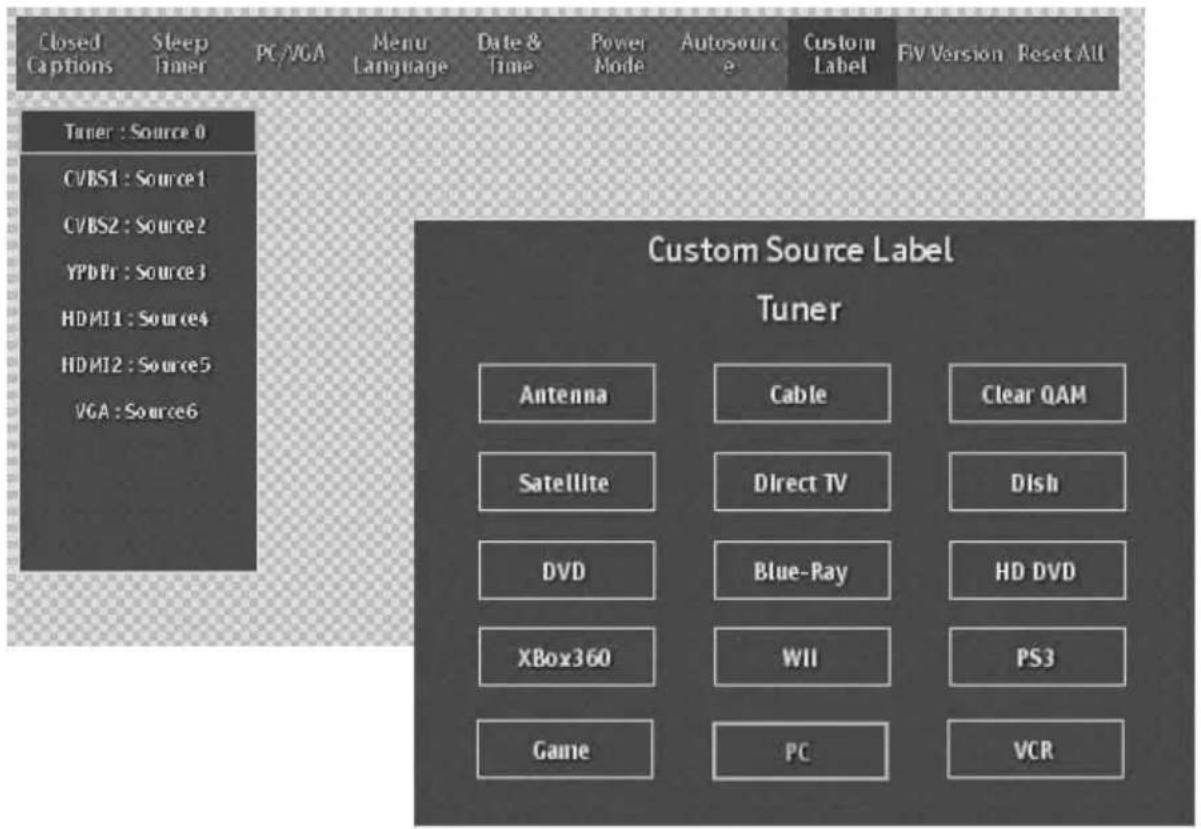
Custom Label
Choose the custom source Label
FW Version
You can see what Software version your TV has.
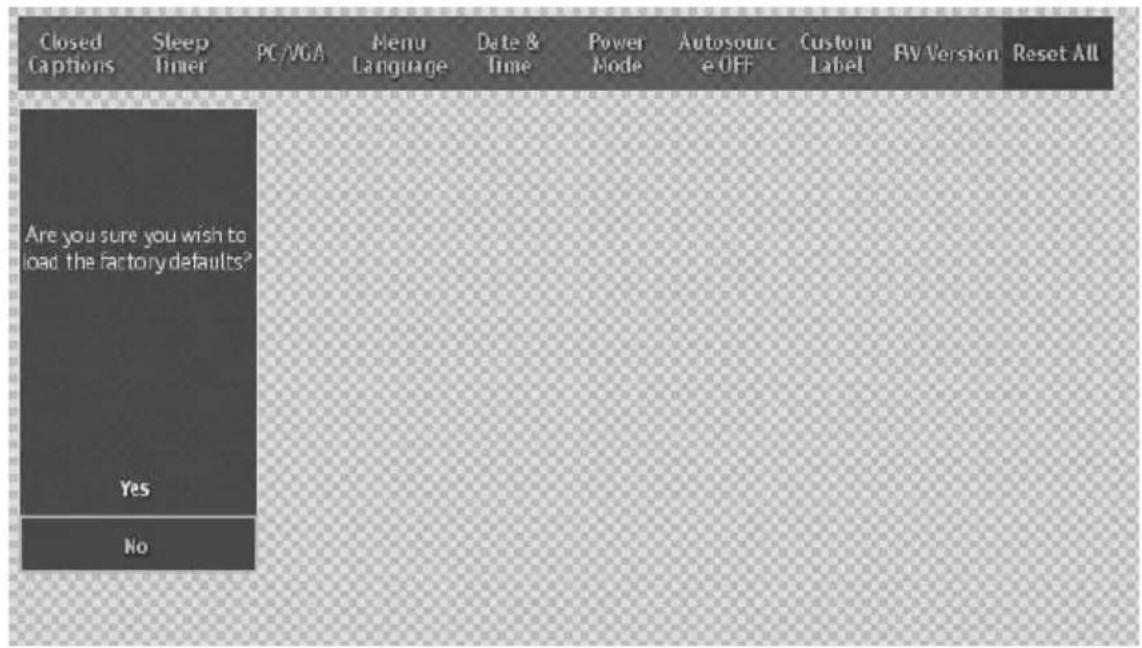
RESET ALL
Reset all settings back to factory defaults. Reset will delete all settings you have made including channel list.
Locks
Lock feature prevents viewers from watching programs that are not age-appropriate, such as programs containing violence or adult language.
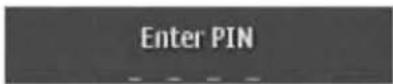
The pin number is required when you want to enter Locks menu, just use the remote control to key in your pin number. The factory default pin number is 0000.
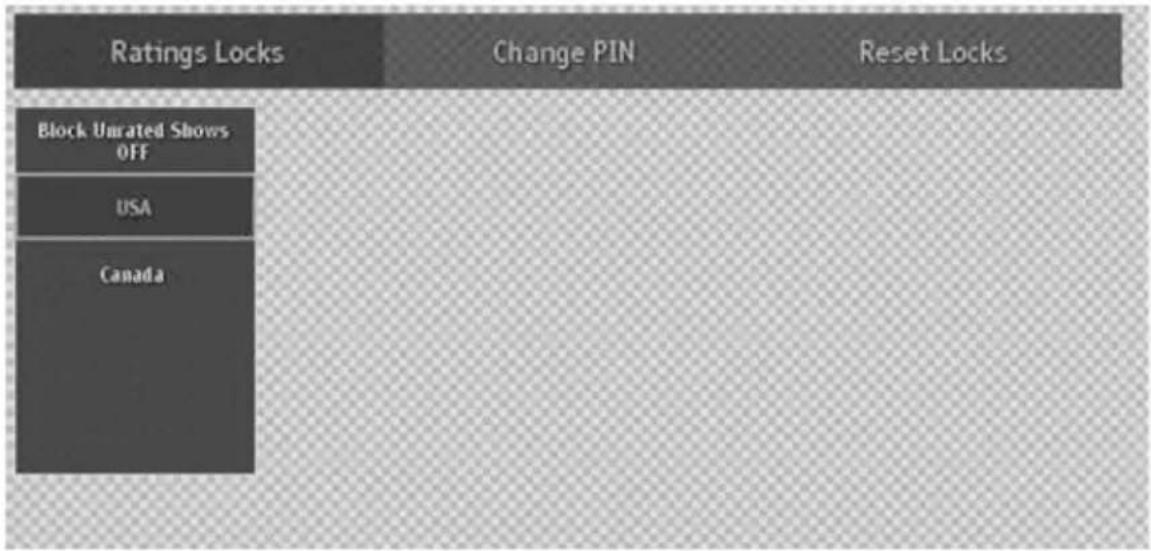
Rating Locks
Select what you want to set.
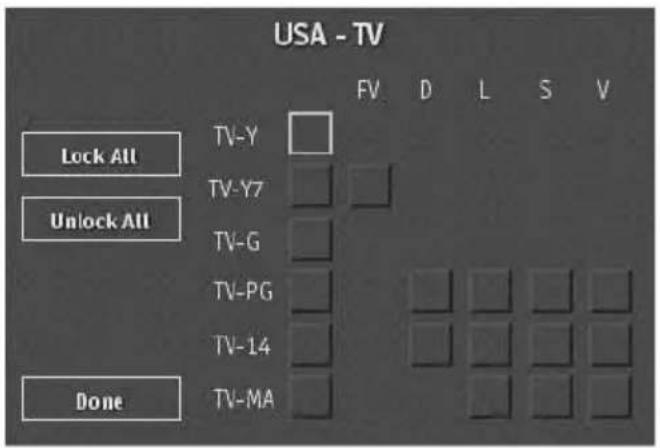
USA TV Rating
TV Y All children
TV Y7 For older children
TV G General audience
TV PG Parental guidance suggested
TV 14 Parental strongly cautioned
TV MA Mature audience only
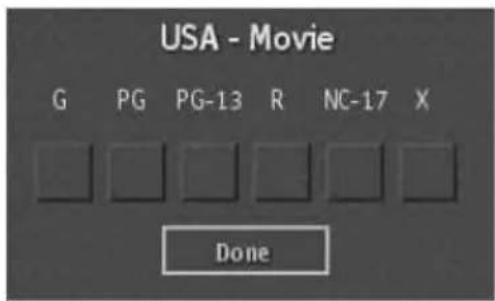
USA Movie Rating
G General audience
PG Parental guidance suggested
PG-13 Parental strongly cautioned
R Restricted
NC 17 No on 17 and under admitted
X Adult audience only
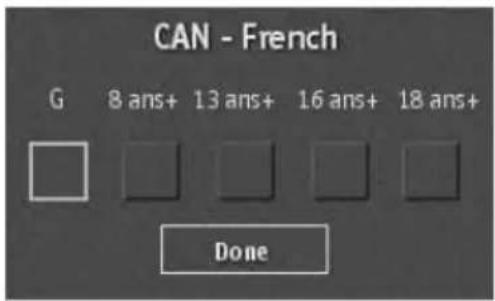
Canada-French
G General programming, suitable for all audience
8 ans+ Children eight years and older
13 ans+ Viewers 13 year and older
16 ans+ Viewers 16 year and older
18 ans+ Adult programming
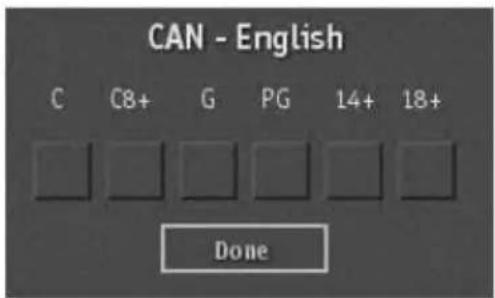
C a n a d a - E n g l i s h
C Children
C8+ Children eight years and older
G General programming, suitable for all audience
PG Parental guidance
14+ Viewers 14 year and older
18+ Adult programming
TROUBLESHOOTING
There is no picture or sound.
natural_image
Solid dark gray rectangle with no visible text, symbols, or features.- Make sure the AC adapter is connected.
- Verify that there is a valid source signal.
- Make sure the correct input mode is selected.
There is no picture from AV.
- Make sure the BRIGHTNESS is properly adjusted.
- The florescent lamp may have reached the end of its life. Contact an authorized service center.
- Make sure the video source is plugged into the composite video-in port.
There is no sound.
natural_image
Illustration of two soccer players in action, one kicking the ball while the other plays a block (no text or symbols)- Make sure the volume is not set to minimum.
- Make sure the sound is not muted
There is no picture or sound, just noise.
natural_image
Pure geometric pattern of repeating black and white dots on white background (no text or symbols)- The source signal may be weak.
- Your provider may be experiencing difficulties.
- Check your input connections.
Picture is not clear.
natural_image
Illustration of two soccer players in action, one kicking the ball (no text or symbols)- The source signal may be weak.
- The provider may be experiencing difficulties.
- Check input connections.
Picture is light or improperly tinted.
natural_image
Illustration of two soccer players in action, one kicking a ball (no text or symbols)- Check the Hue, Saturation and Color adjustments.
- Reset the TV to the factory default settings.
The picture is too dark.
natural_image
Illustration of two soccer players in action, one dribbling and the other defending (no text or symbols)- Select a different Video Preset mode.
- Check the Brightness of Picture Settings.
- The fluorescent lamp may have reached the end of its life. Contact an authorized service center.
Remote control does not work.
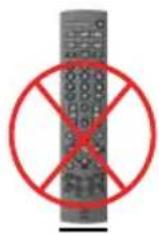
- Install new batteries.
- Make sure the remote sensor window isn't blocked.
- Make sure the system is in the right mode (TV / VCR / CBL / AUX)
There are stripes on the screen or colors fade.
natural_image
Two soccer players in action on a wavy field, one kicking the ball (no text or symbols visible)- There may be interference from other appliances.
- There may be interference between the video source cable and the power cable.
- Make sure the power and video cables are not touching. Check the Hue, Saturation and Color adjustments
The picture is not sharp.
natural_image
Two soccer players in action, one standing and one kneeling, with a circular emblem at the base (no visible text or symbols)- The signal source may be weak.
- The provider may be experiencing difficulties.
- Check input connections.
- Check the Sharpness of Picture Settings.
The picture moves.
natural_image
Two soccer players in action, one kicking a ball while the other plays a shot (no text or symbols visible)- The source signal may be weak.
- The provider may be experiencing difficulties.
- Check input connections.
The picture is doubled or tripled.
natural_image
Illustration of two soccer players competing for the ball (no text or symbols)- The source signal may be weak.
- Check input connections.
The picture is spotted.
natural_image
Illustration of two soccer players in action, one kicking a ball while the other plays a block (no text or symbols)- There may be interference from other appliances nearby or around the LCD TV.
PC INPUT PRESET TIMMING TABLE
PC / Timing Table
| No. | Mode Name Resolution | H.Freq. V.Fre. | H. Polarity V. Polarity | Pixel CLK (MHz) | Hor. Total CLK No. | Hor. Display CLK No. | Hor. Bck Porch CLK No. | Hor. Syth CLK No. | Vert. Total Line No. | Vert. Display Line No. | Vert. Bak Porch Line No. | Vert. Syc Width Line No. |
| 1 | VGA 70HZ 720*400 | 31.469 70.087 | - + | 28.322 | 900 | 720 | 54 | 108 | 449 | 400 | ||
| 2 | VGA 60HZ 640*480 | 31.469 59.941 | - - | 25.175 | 800 | 640 | 48 | 96 | 525 | 480 | ||
| 3 | VGA 67HZ 640*480 | 35.00 66.667 | - - | 30.24 | 864 | 640 | 96 | 64 | 525 | 480 | ||
| 4 | VGA 72HZ 640*480 | 37.861 72.809 | - - | 31.5 | 832 | 640 | 120 | 40 | 520 | 480 | 20 | |
| 5 | VGA 75HZ 640*480 | 37.5 75.0 | - - | 31.5 | 840 | 640 | 120 | 64 | 500 | 480 | 16 | |
| 6 | SVGA 56Hz 800*600 | 35.156 56.25 | + + | 36.0 | 1024 | 800 | 128 | 72 | 625 | 600 | ||
| 7 | SVGA 60Hz 800*600 | 37.879 60.317 | + + | 40.0 | 1056 | 800 | 88 | 128 | 628 | 600 | ||
| 8 | SVGA 72Hz 800*600 | 48.077 72.188 | + + | 50.0 | 1040 | 800 | 64 | 120 | 666 | 600 | ||
| 9 | SVGA 75Hz 800*600 | 46.875 75.0 | + + | 49.5 | 1056 | 800 | 160 | 80 | 625 | 600 | ||
| 10 | 75Hz 832*624 | 49.72 74.55 | - - | 57.28 | 1152 | 832 | 224 | 64 | 667 | 624 | 39 | 3 |
| 11 | XGA 60Hz 1024*768 | 48.363 60.004 | - - | 65.0 | 1344 | 1024 | 160 | 136 | 806 | 768 | ||
| 12 | XGA 70Hz 1024*768 | 56.476 70.069 | - - | 75.0 | 1328 | 1024 | 144 | 136 | 806 | 768 | ||
| 13 | XGA 75Hz 1024*768 | 60.023 75.029 | + + | 78.75 | 1312 | 1024 | 176 | 96 | 800 | 768 | 28 | 3 |
| 14 | 60Hz 1280*720 | 44.76 60.0 | - + | 74.481 | 1664 | 1280 | 192 | 136 | 746 | 720 | 22 | 3 |
| 15 | 60Hz 1280*800 | 49.68 60.0 | - + | 83.462 | 1680 | 1280 | 200 | 136 | 828 | 800 | 24 | 3 |
| 16 | 60Hz 1280*1024 | 63.98 60.02 | + + | 108.00 | 1688 | 1280 | 248 | 112 | 1066 | 1024 |
35
22
23
23
21
29
29
38
33
39
3
3
2
4
6
3
6
6
3
| No. | Mode Name Resolution | H.Freq. V.Fre. | H. Polarity V. Polarity | Pixel CLK (MHz) | Hor. Total CLK No. | Hor. Display CLK No. | Hor. Bck Porch CLK No. | Hor. Syth CLK No. | Vert. Total Line No. | Vert. Display Line No. | Vert. Bak Porch Line No. | Vert. Syc Width Line No. |
| 17 | 60Hz 1360*768 | 47.712 60.015 | + + | 85.5 | 1792 | 1360 | 256 | 112 | 795 | 768 | ||
| 18 | 60Hz 1366*768 | 48.96 60.0 | + - | 73.25 | 1496 | 1366 | 58 | 32 | 816 | 768 |
* The resolution and the frequencies are displayed on the screen may not exactly same as this list.
PRODUCT SPECIFICATION
| ITEMS 26" LCD - TV | ||
| Panel | Screen Size 26" LCD Panel | |
| Aspect Ratio 16:9 | ||
| Resolution 1366 x 768 | ||
| Display colors 16.2M colors | ||
| Viewing Angle (CR>10) 170 | ° Hor. / 170° Ver. (typ.) | |
| TV Function | Broadcasting System Analog: NTSC M/N Digital: ATSC/Clear QAM | |
| Receiving Channel Analog: PL181Ch., CATV 125Ch Digital: 54M Hz~864M Hz | ||
| Sound System Analog: Multi-channel TV Sound Digital: Multi-Track Sound | ||
| Resolution Analog: 480i | Digital: 1080i, 720p,480p, 480i | |
| Data Broadcasting | Close Caption, V - Chip | |
| Video Input | Composite Signal | CVBS x 2 |
| Component Signal | Y Pb Pr x 1 (720P / 1080i, HDTV ready) | |
| HDMI Connection | HDMI x 2 | |
| VGA Connection | D-Sub 15 pin x 1 | |
| Scanning Frequency | f_H=31.560KHz / f_y=5675Hz | |
| Audio Input | Audio 1 | Composite x 2 |
| Audio 2 | Component x 1 | |
| Audio 3 | HDMI to DVI x 1 | |
| Audio 4 | PC jack in x 1 | |
| Audio Output | Speaker (build-in) | 10W + 10W (Average) |
| RCA Out | Left / Right | |
| Digital Audio Out SPDIF (DTV) | ||
| Feature | Function Keys | Menu, +/-Volume), Up/Down(Channel), Source, Power |
| Video Performance | 3D Comb-filter, 3D De-interlace, Aspect Ratio Control (ARC), Auto Picture Control, Noise Reduction | |
| Other Control | Sleep Timer, Timer On, Timer Off | |
| Power | Power Supply | AC 100V ~ 240V, 50 / 60Hz (SK-26H540S) |
| AC 120V, 50 / 60Hz (SK-26H730S) | ||
| Power Consumption | < 200 W | |
| Wall Mount | For use only UL Listed Wall mount Bracket or F4030 Wall Mount Bracket. | |
| Dimension | W x H x D | 655 mm * 505 mm * 175 mm (SK-26H540S) |
| 639 mm * 470 mm * 213 mm (SK-26H730S) | ||
| Weight (net) | Without Accessories | 11 Kg (SK-26H540S) |
| 9 Kg (SK-26H730S) | ||

www.wde.com
- IMPORTANT SAFETY AND PRECAUTIONS....1
- GENERAL INFORMATION......4
- INSTALLATION AND FUNCTION ADJUSTMENT....12
- TROUBLESHOOTING 34
- PC INPUT PRESET TIMMING TABLE....37
- PRODUCT SPECIFICATION ....39
- IMPORTANT SAFETY AND PRECAUTIONS
- Important Information
- CAUTION
- Safety Precautions
- GENERAL INFORMATION
- Feature
- Controls and Ports of the Panel
- FUNCTION KEYS
- Front Panel Views (SK-26H730S)
- Side Panel Views (SK-26H540S)
- Side Panel Views (SK-26H730S)
- Accessories
- Remote Control
- INSTALLATION AND FUNCTION ADJUSTMENT
- Installation
- Insert Batteries into Remote Control
- Connect power cables
- Turn Power On
- Select input source for the LCD TV using the OSD menu or remote control direct select buttons
- If connecting to Antenna, Cable or other RF source on TV inputs:
- If connecting to a PC(VGA):
- How to remove the BASE
- Function adjustment
- Viewing OSD Menu
- Picture
- Settings
- Brightness, Contrast, Hue, Saturation, Sharpness, Backlight
- View Mode
- Presets
- Advanced
- Film Mode, Dynamic Contrast, Color Stretch
- Noise Reduction
- Color Temperature
- Audio Setting
- Bass, Treble, Balance
- Analog Audio
- Digital Audio
- SPDIF
- Level Set, TV Speaker
- Channel list
- Antenna Scan
- Cable Scan
- Close Captions
- Basic Selection
- Advanced Selection
- Advanced Appearance
- Caption Preference
- Sleep Timer
- Horizontal, Vertical
- Phase
- AutoSync
- DPMS
- Menu Language
- Date & Time
- Power Mode
- Autosource™
- Custom Label
- FW Version
- RESET ALL
- Locks
- Rating Locks
- USA TV Rating
- USA Movie Rating
- Canada-French
- TROUBLESHOOTING
- There is no picture or sound.
- There is no picture from AV.
- There is no sound.
- There is no picture or sound, just noise.
- Picture is not clear.
- Picture is light or improperly tinted.
- The picture is too dark.
- Remote control does not work.
- There are stripes on the screen or colors fade.
- The picture is not sharp.
- The picture moves.
- The picture is doubled or tripled.
- The picture is spotted.
- PC INPUT PRESET TIMMING TABLE
- PRODUCT SPECIFICATION
Brand : WESTINGHOUSE
Model : SK-26H540S
Category : Television