
LCD5300-BN - Video camera LG - Free user manual and instructions
Find the device manual for free LCD5300-BN LG in PDF.


| Product Type | Color Video Camera for Video Surveillance |
| Model Number | LCD5300-BN (NTSC) / LCD5300-BP (PAL) |
| Image Sensor | 6 mm (1/3 Type) Exview HAD CCD II |
| Lens | 2.8 mm to 11 mm Vari-focal Lens, F1.2 |
| Digital Zoom | x16 |
| Horizontal Resolution | 650 TV Lines (Color), 700 TV Lines (B/W) |
| Minimum Illumination | Color 0.03 lx (Sens-up Off), B/W 0.002 lx (Sens-up Off) |
| Video Output | 1 Vp-p Composite (75 Ω) |
| Day & Night | ICR (AUTO / DAY / NIGHT) |
| Backlight Compensation | BLC / HSBLC / OFF |
| Noise Reduction | 2D + 3D-DNR |
| Electronic Shutter Speed | 1/60 to 1/120,000 (NTSC) / 1/50 to 1/120,000 (PAL) |
| White Balance | ATW / AUTO / AWC→SET KEY / MANUAL |
| Motion Detection | 8 Zones |
| Privacy Zone Masking | 14 Masks (Rectangle, Circle, Polygon) |
| Power Supply | DC 12 V or AC 24 V (auto-switching) |
| Power Consumption | 190 mA |
| Operating Temperature | -10 °C to 50 °C |
| Storage Temperature | -20 °C to 60 °C |
| Dimensions (∅ x H) | 140 mm x 96 mm |
| Weight | 395 g |
| Mounting | Ceiling mount with supplied bracket |
| Included Accessories | Installation sticker, fixing screws |
| Safety Compliance | FCC Part 15 Class A, CE, RoHS |
Frequently Asked Questions - LCD5300-BN LG
User questions about LCD5300-BN LG
0 question about this device. Answer the ones you know or ask your own.
Ask a new question about this device
Download the instructions for your Video camera in PDF format for free! Find your manual LCD5300-BN - LG and take your electronic device back in hand. On this page are published all the documents necessary for the use of your device. LCD5300-BN by LG.
USER MANUAL LCD5300-BN LG
Please read this manual carefully before operating your set and retain it for future reference.
MODEL
LCD5300-BN
LCD5300-BP
CAUTION
RISK OF ELECTRIC SHOCK DO NOT OPEN
CAUTION: TO REDUCE THE RISK OF ELECTRIC SHOCK DO NOT REMOVE COVER (OR BACK) NO USER-SERVICEABLE PARTS INSIDE REFER SERVICING TO QUALIFIED SERVICE PERSONNEL.

This lightning flash with arrowhead symbol within an equilateral triangle is intended to alert the user to the presence of uninsulated dangerous voltage within the product's enclosure that may be of sufficient magnitude to constitute a risk of electric shock to persons.

The exclamation point within an equilateral triangle is intended to alert the user to the presence of important operating and maintenance (servicing) instructions in the literature accompanying the product.
FCC WARNING: This equipment may generate or use radio frequency energy. Changes or modifications to this equipment may cause harmful interference unless the modifications are expressly approved in the instruction manual. The user could lose the authority to operate this equipment if an unauthorized change or modification is made.
REGULATORY INFORMATION: FCC Part 15
This equipment has been tested and found to comply with the limits for a Class A digital device, pursuant to Part 15 of the FCC Rules. These limits are designed to provide reasonable protection against harmful interference when the equipment is operated in a commercial environment. This equipment generates, uses, and can radiate radio frequency energy and, if not installed and used in accordance with the instruction manual, may cause harmful interference to radio communications. Operation of this equipment in a residential area is likely to cause harmful interference in which case the user will be required to correct the interference at his own expense.
A suitable conduit entries, knock-outs or glands shall be provided in the cable entries of this product in the end user.
- Caution: Danger of explosion if battery is incorrectly replaced. Replace only with the same or equivalent type recommended by the manufacturer. Dispose of used batteries according to the manufacturer's instructions.
- Holes in metal, through which insulated wires pass, shall have smooth well rounded surfaces or shall be provided with brushings.
Warning: Do not install this equipment in a confined space such as a bookcase or similar unit.
Warning: Wiring methods shall be in accordance with the National Electric Code, ANSI/NFPA 70.
Warning: This is a class A product. In a domestic environment this product may cause radio interference in which case the user may be required to take adequate measures.
Warning: To reduce a risk of fire or electric shock, do not expose this product to rain or moisture.
Caution: This installation should be made by a qualified service person and should conform to all local codes.
Caution: To avoid electrical shock, do not open the cabinet. Refer servicing to qualified personnel only.
Caution: The apparatus shall not be exposed to water (dripping or splashing) and no objects filled with liquids, such as vases, shall be placed on the apparatus.
To disconnect power from mains, pull out the mains cord plug. When installing the product, ensure that the plug is easily accessible.
Disposal of your old appliance
- All electrical and electronic products should be disposed of separately from the municipal waste stream via designated collection facilities appointed by the government or the local authorities.
- The correct disposal of your old appliance will help prevent potential negative consequences for the environment and human health.
- For more detailed information about disposal of your old appliance, please contact your city office, waste disposal service or the shop where you purchased the product.
- EEE Compliance with Directive. (for Turkey only)
CE
LG Electronics hereby declares that this/these product(s) is/are in compliance with the essential requirements and other relevant provisions of Directive 2004/108/EC and 2011/65/EU.
European Standards Centre: Krijgsman 1, 1186 DM Amstelveen The Netherlands
- Please note that this is NOT a Customer Service contact point. For Customer Service Information, see Warranty Card or contact the dealer that you purchased this product.
Important Safety Instructions
- Read these instructions.
- Keep these instructions.
- Heed all warnings.
- Follow all instructions.
- Do not use this apparatus near water.
- Clean only with dry cloth.
- Do not block any ventilation openings. Install in accordance with the manufacturer's instructions.
- Do not install near any heat sources such as radiators, heat registers, stoves, or other apparatus (including amplifiers) that produce heat.
- Do not defeat the safety purpose of the polarized or grounding-type plug. A polarized plug has two blades with one wider than the other. A grounding type plug has two blades and a third grounding prong. The wide blade or the third prong are provided for your safety. If the provided plug does not fit into your outlet, consult an electrician for replacement of the obsolete outlet.
- Protect the power cord from being walked on or
pinched particularly at plugs, convenience receptacles, and the point where they exit from the apparatus.
- Only use attachments/accessories specified by the manufacturer.
- Use only with the cart, stand, tripod, bracket, or table specified by the manufacturer, or sold with the apparatus. When a cart is used, use caution when moving the cart/apparatus combination to avoid injury from tip-over.

- Unplug this apparatus during lightning storms or when unused for long periods of time.
- Refer all servicing to qualified service personnel. Servicing is required when the apparatus has been damaged in any way, such as power-supply cord or plug is damaged, liquid has been spilled or objects have fallen into the apparatus, the apparatus has been exposed to rain or moisture, does not operate normally, or has been dropped.
Cautions for Safe Operation
Power Supply
This camera must always be operated DC 12 V or AC 24 V. Certified/Listed Adaptor which comply with LPS.
Handling of the unit
Be careful not to spill water or other liquids on the unit. Be cautious not to get combustible or metallic material inside the body. If used with foreign matter inside, the camera is liable to fail or to get cause of fire or electric shock.
- Remove dust or dirt on the surface of the lens with a blower.
- Use a dry soft cloth to clean the body. If it is very dirty, use a cloth dampened with a small quantity of neutral detergent then wipe dry.
- Avoid the use of volatile solvents such as thinners, alcohol, benzene and insecticides. They may damage the surface finish and/or impair the operation of the camera.
Operating and storage location
Avoid viewing a very bright object (such as light fittings) during an extended period. Avoid operating or storing the unit in the following locations.
- Extremely hot or cold places (operating temperature -10 °C to 50 °C, however, we recommend that the unit be used within a temperature range of 0 °C to 45 °C)
- Damp or dust place
- Places exposed to rain
- Places subject to strong vibration
- Close to generators of powerful electromagnetic radiation such as radio or TV transmitters.
Contents
Features......8
Accessories....8
Part Names and Functions 9
Connections 11
Basic connection....11
Installation....12
Mounting the Camera....12
Image Adjustment ....14
Menu Operation.... 18
OSD Menu control buttons....18
OSD Menu Overview....19
General Operation....21
Exposure Settings....22
White Balance settings 26
Day & Night Setting 27
Motion Detection Setting....28
3D-DNR Setting....29
Privacy Mask Setting 29
Special Menu Settings 31
SYSTEM Setting 35
Specification 36
Features
This Color Video Camera is designed for installation in a video surveillance system.
This manual contains instructions on how to install and manage the Color Video Camera in your video surveillance system.
Should you require any technical assistance, please contact authorized service center.
- High resolution and high sensitivity with a 6 mm (1/3 Type) Exview HAD CCD II. • Automatically switch between DC 12 V and AC 24 V. • Smart motion detector.
Accessories
| Installation sticker |  |
| Fixing screws |  |
Part Names and Functions
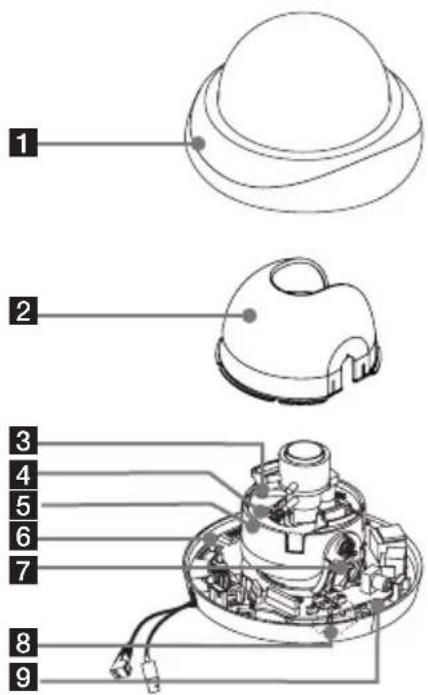
1 Dome Cover 2 Lens Cover 3 Focus lock lever Fixes the focus position after adjusting.
4 Zoom lock lever Fixes the zoom position after adjusting.
5 Azimuth adjuster Adjusts the azimuth angle to obtain a level image.
6 Lock button
You can lock the camera mounting bracket by using the lock button.
7 Tilting lock screw Fixes the tilting position after adjusting.
8 Setup menu control buttons
9 Video Out connector
Use this jack for checking the picture with portable monitor when install the camera.
Part Names and Functions
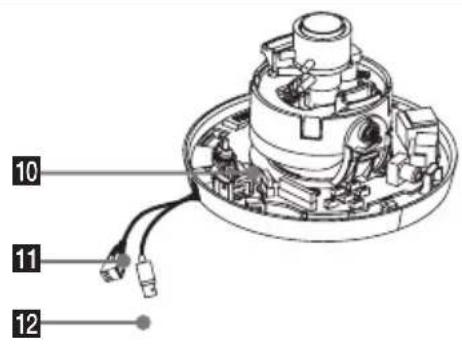
10 Pan adjuster
Adjusts the pan position.
11 Power input connector
Supplies AC 24 V or DC 12 V from an external power source.
12 Video output connector (BNC type)
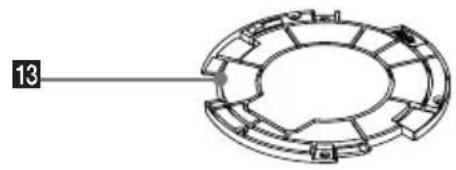
13 Camera mounting bracket
This bracket is supplied for ceiling installation.
Connections
Basic connection
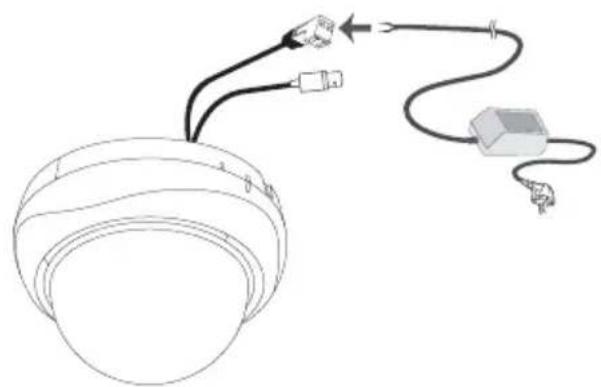
The peripheral devices (DVR, monitor, etc.), AC/DC adapter and cables are not supplied.
- Make the video signal connection between the camera and the monitor or DVR.
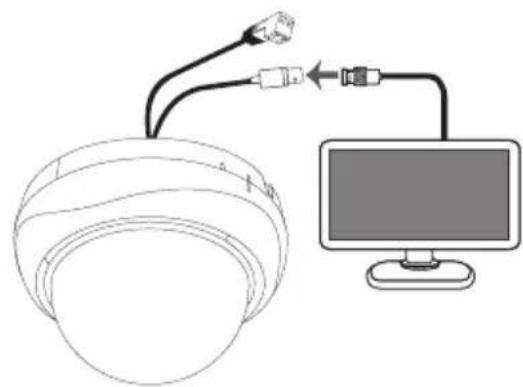
- Connect an external power source to the power input jack of the camera.
Installation
Mounting the Camera
Surface mount
Follow the instructions below to surface mount the camera with the supplied camera mounting bracket.
- Use the installation guide template to check the mounting location. Face the front of the label toward the area of interest. Using the template as a guide, make a hole through the ceiling.
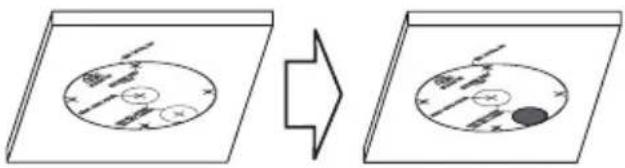
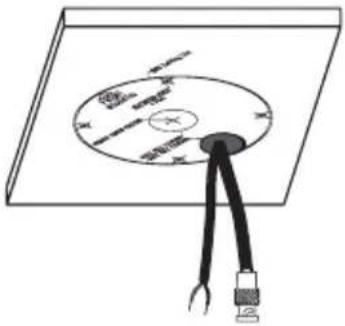
- Pass the connection cable through the inner side of the ceiling.
Installation
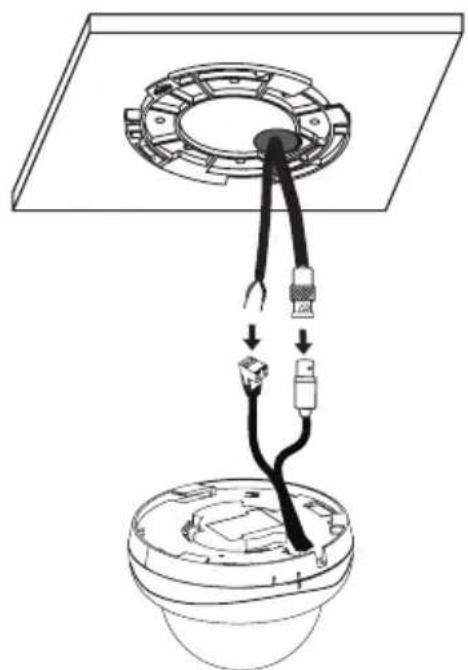
- Install the camera mounting bracket to the ceiling.

- Connect the cables to the cable jacks of the camera body.
Installation
- Assemble the camera and mounting bracket after aligning the front part of the camera and mounting bracket. Connect the unit by following steps 1 and 2.

Image Adjustment
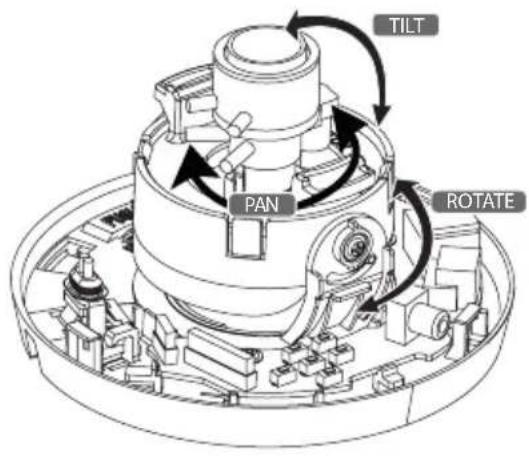
You can manually adjust the pan/tilt/azimuth angles, focus, and zoom while observing the connected monitor.
Notes:
- Do not hold the camera by the lens unit to adjust panning, tilting, or azimuth.
- The video output to the BNC will be interrupted while a portable monitor is connected to the video jack.
- Disassemble the dome cover from the main body by turning it counterclockwise and detach the lens cover.

Installation
- Connect a portable monitor to the video jack.

- Adjust the pan/tilt/rotate position of the camera.
Installation
- Adjust the zoom.
4-1. Unlock the zoom lever. 4-2. Move the lever to adjust the zoom. 4-3. Lock the lever.
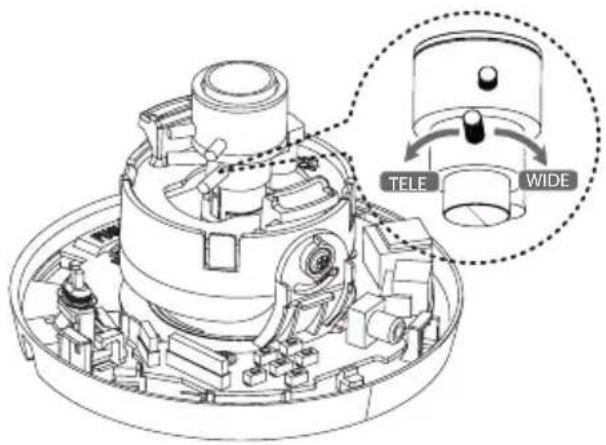
- Adjust the focus.
5-1. Unlock the focus lever. 5-2. Move the lever to adjust the focus. 5-3. Lock the lever.
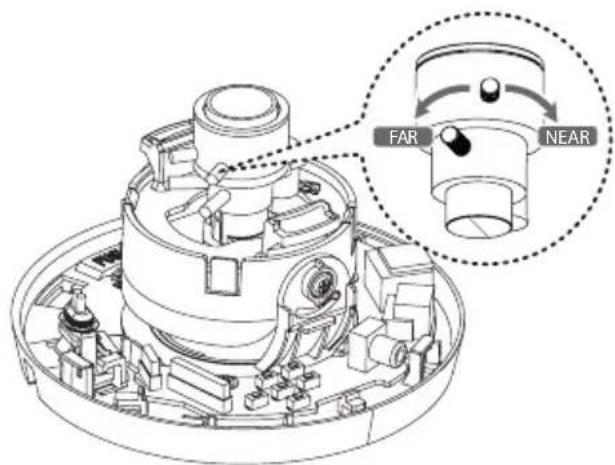
Installation
- This camera utilizes an on-screen user MENU. To set items on the menu, use the following buttons. After then attach the lens cover and dome cover.
![graph TD A["Top Component"] --> B["Bottom Component"] B --> C["Arrow indicating transformation"] C --> D["Bottom Component"]](/content/2026/06/1201704/images/117eb45b364b632c8323bc1782fe9d95769e48bc613614044653fc7bac9f8256.jpg)
Note:
To disassemble the camera from the mounting bracket, rotate the camera counterclockwise with pressing the PUSH button inside the camera body.
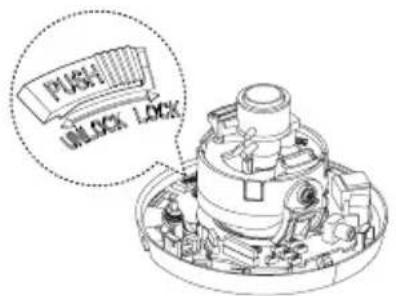
Menu Operation
OSD Menu control buttons
This camera utilizes an on-screen user MENU. To set items on the menu, use the following buttons.
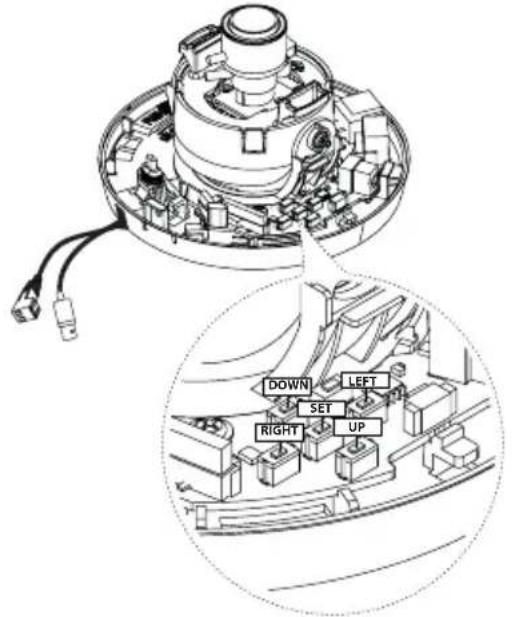
- UP button:
Used to move upper direction on the menu screen. Use this button to select an item or adjust the parameters.
- DOWN button:
Used to move lower direction on the menu screen. Use this button to select an item or adjust the parameters.
• RIGHT button:
Moves the cursor to the right. Used to increment the value selected in the menu. The parameter changes each time this button is pressed.
- LEFT button:
Moves the cursor to the left. Used to decrement the value selected in the menu. The parameter changes each time this button is pressed.
- SET button:
Executes selections and displays a submenu for an item with the 📄 mark.
Menu Operation
OSD Menu Overview
The following table shows the list of menu items and options. You can adapt the camera to your requirements by setting up the respective items in these menus.
| Main Menu | Sub Menu Contents | |
| EXPOSURE ALC /ELC | BACKLIGHT OFF/BLC/HSBLC | |
| BRIGHTNESS 0 to 100 | ||
| AGC | OFF/LOW/MIDDLE/HIGH | |
| SHUTTER | 1/120 000, ..., 1/160,A.FLK, OFF, AUTO, x2,..., x512 | |
| SENS-UP | OFF | |
| AUTO | ||
| EXIT TOP/RET/END | ||
| WHITE BAL | ATW - | |
| AUTO - | ||
| AWC → SET KEY | - | |
| MANUAL | RED -100 to 100 | |
| BLUE -100 to 100 | ||
| EXIT TOP/RET/END | ||
| Main Menu | Sub Menu Contents | |||
| DAY/NIGHT | AUTO | BURST ON/OFF | ||
| LEVEL LOW/ MIDDLE/ HIGH / USER | ||||
| DWELL TIME | 3 SEC to 60 SEC | |||
| EXIT TOP/RET/END | ||||
| DAY - | ||||
| NIGHT | BURST ON/OFF | |||
| EXIT TOP/RET/END | ||||
| MOTION DET | OFF | |||
| ON | AREA SETUP | AREA SELECTION | 1 to 8 | |
| STATE | ON / OFF | |||
| POSITION ←→ | 0 to 7 | |||
| POSITION ↑↓ | 0 to 5 | |||
| SIZE ←→ | 1 to 8 | |||
| SIZE ←→ | 1 to 6 | |||
| EXIT | TOP/RET/ END | |||
| SENSITIVITY | 0 to 100 | |||
| DISPLAY | OUTLINE,MASK1,MASK2,OFF | |||
| ALRAM OUT | MESSAGE,OFF | |||
| EXIT TOP/RET/END | ||||
Menu Operation
| Main Menu | Sub Menu | Contents | ||
| 3D-DNR 0 to 100 | ||||
| PRIVACY MASK | OFF - | |||
| ON | RECTANGLE | MASK SELECTION | 1 to 8 | |
| DISPLAY | OFF,MOZAIC,COLOR1 to COLOR 8 | |||
| POSITION ←→ | 2 to 98 | |||
| POSITION ↑↓ 2 | to 98 | |||
| SIZE ←→ 4 to 100 | ||||
| SIZE ←→ 4 to 100 | ||||
| EXIT TOP/RET/END | ||||
| CIRCLE | MASK SELECTION | 1 to 4 | ||
| DISPLAY | OFF,MOZAIC,COLOR1 to COLOR8 | |||
| POSITION ←→ | 0 to 100 | |||
| POSITION ↑↓ 0 | to 100 | |||
| SIZE ←→ 1 to 15 | ||||
| SIZE ←→ 1 to 15 | ||||
| RADIOUS 1 to 100 | ||||
| EXIT TOP/RET/END | ||||
| Main Menu | Sub Menu | Contents | ||
| PRIVACY MASK | ON | POLYGON | MASK SELECTION | 1 to 2 |
| DISPLAY | OFF,MOZAIC,COLOR1 to COLOR 8 | |||
| SHAPE - | ||||
| POSITION - | ||||
| EXIT TOP/RET/END | ||||
| EXIT TOP/RET/END | ||||
| SPECIAL | D-ZOOM | OFF - | ||
| ON | ZOOM x1.0 to x16.0 | |||
| PAN-100 to 100 | ||||
| TILT | -100 to 100 | |||
| EXIT TOP/RET/END | ||||
| D-EFFECT | OFF / MIRROR / ROTATE / V-FILP | |||
| SHARPNESS | 0 to 100 | |||
| COLOR | 0 to 100 | |||
| SYNC | INT / LL | |||
| USER TITLE | ON / OFF | |||
| LANGUAGE | ENG/CHN/KOR/JAP/FRE/ITA/ESP/POR/DUT/GER/POL/RUS/TUR/ARA/HEB | |||
| EXIT | TOP/RET/END | |||
Menu Operation
| Main Menu | Sub Menu | Contents |
| SYSTEM | FACTORY RESET | - |
| EXIT | TOP/RET/END | |
| EXIT | ||
General Operation
- Press [SET] button.
[CAMERA SETTING] menu appears on the monitor.
![[CAMERA SETTING] ► EXPOSURE ALC# WHITE BALANCE ATV DAY/NIGHT AUTO# MOTION DET OFF 3D-DNR [50] PRIVACY MASK ON# SPECIAL# SYSTEM# EXIT](/content/2026/06/1201704/images/792c388cf147d5280c16b21b4d15af25f9741dfdeb0af44fa70dadef7e277d66.jpg)
- Use [UP] or [DOWN] button to select an option then press [SET] button. Submenu appears on the monitor.
- Use [UP] or [DOWN] button to select a submenu option.
- Use [LEFT] or [RIGHT] button to select a value.
- Select [EXIT] option then press [SET] to exit the setup menu. In the submenu, use [UP] or [DOWN] button to select the [RET] then press [SET] to return to the
Menu Operation
previous setup menu.
• RET: Return to the previous. • TOP: Return to the CAMERA SETTING menu screen. • END: Exit the setup menu.
Exposure Settings
You can set the exposure options using the EXPOSURE menu.
- Select [EXPOSURE] option on the [CAMERA SETTING] menu.
- Use [LEFT] or [RIGHT] button to select a mode.
- Press [SET] button and the [EXPOSURE] menu appears.
![[CAMERA SETTING] • EXPOSURE ALC# WHITE BALANCE ATU DAY/NIGHT AUTO# MOTION DET OFF 3D-DNR [50] PRIVACY MASK ON# SPECIAL# SYSTEM# EXIT#](/content/2026/06/1201704/images/c25c792214627c03c3d800fca210e502c26cc6fcc6292383200524eddec062cb.jpg)
Backlight setting
Use Backlight option to view the object clearly in backlight conditions.
![[EXPOSURE-ALC] • BACKLIGHT OFF BRIGHTNESS ......[50] AGC MIDDLE SHUTTER AUTO♦ SENS-UP OFF EXIT RET♦](/content/2026/06/1201704/images/8166b899e976326ba0032164555d30db099d853593ab2a77ea23196d59b6d977.jpg)
- Select [Backlight] option.
- Use [LEFT] or [RIGHT] button to select a mode then press [SET].
- BLC: The camera's backlight compensation feature helps alleviate visibility issues in high contrast areas. Set the BLC limit.
- HSBLC: Use to mask the brightness of a specific area to view the subject more clearly. The HSBLC mode is automatically activated regardless of Day and Night mode.
Menu Operation
AREA SETTING: Use the [LEFT] or [RIGHT] button to select an area, then use the [UP] or [DOWN] button to select [ON] or [OFF]. Press [SET] to exit the Area setting menu. GRAY SCALE: Use the [LEFT] or [RIGHT] button to select a gray scale. USER SCALE: Use the [LEFT] or [RIGHT] button to select a brightness level. MASK: Use the [LEFT] or [RIGHT] button to select [ON] or [OFF].
If you set [MASK] to [ON], the mask function is activated only when [HSBLC] is automatically activated in low luminance scenes.
- OFF: Not used.
BRIGHTNESS setting
You can increase the brightness of darkened video. If you set the brightness to a lower value, the image becomes darker. If you set the brightness to a higher value, the image becomes brighter.
![[EXPOSURE-ALC] BACKLIGHT OFF BRIGHTNESS ....[50] AGC MIDDLE SHUTTER AUTO↓ SENS-UP OFF EXIT RET↓](/content/2026/06/1201704/images/84b6fb0b82b72811d1adcc9347c61610ac458498f58168d7b36a810328a34ec5.jpg)
- Select the [BRIGHTNESS] option.
- Use the [LEFT] or [RIGHT] button to set the brightness level.
Menu Operation
AGC (Automatic Gain Control) setting
If the images are too dark, change the maximum [AGC] value to make the images brighter. However, noise will increase.
![[EXPOSURE-ALC] BACKLIGHT OFF BRIGHTNESS ...... [50] AGC MIDDLE SHUTTER AUTO♦ SENS-UP OFF EXIT RET♦](/content/2026/06/1201704/images/37ba8c33d58f19ef58400b291cddfac493fe43fe42abf639c66b94687118166f.jpg)
- Select the [AGC] option.
- Use the [LEFT] or [RIGHT] button to select a mode.
SHUTTER (Shutter Speed) setting
Select the desired shutter speed for camera exposure. You can change the shutter speed to a higher speed to capture fast-moving subjects, though the image becomes darker.
![[EXPOSURE-ALC] BACKLIGHT OFF BRIGHTNESS ......[50] AGC MIDDLE SHUTTER AUTO SENS-UP OFF EXIT RET](/content/2026/06/1201704/images/dd02d186f437314917f4f0e9af7d26a8b1e372eadf0f4ebbfb82f4c071fd8df6.jpg)
- Select the [SHUTTER] option.
- Use the [LEFT] or [RIGHT] button to set the shutter speed.
• AUTO: Adjust the [LOW LIMIT] and [HIGH LIMIT].
LOW LIMIT: Use the [LEFT] or [RIGHT] button to set the [LOW LIMIT]. HIGH LIMIT: Use the [LEFT] or [RIGHT] button to set the [HIGH LIMIT].
Menu Operation
Note:
When the SHUTTER is set to AUTO, the picture may become unstable if the camera faces a bright fluorescent light directly. Therefore, take care when installing.
SENS-UP setting
If pictures are not clear due to darkness, this SENS-UP operation would increase the sensitivity of the picture.
![[EXPOSURE-ALC] BACKLIGHT OFF BRIGHTNESS [50] AGC MIDDLE SHUTTER AUTO# SENS-UP OFF EXIT RET](/content/2026/06/1201704/images/c69b9bcf8672ab29784c9ae31a9bcee6da6692cb764c9c8084ffda638c6ce521.jpg)
- Use the [UP] or [DOWN] button to select the [SENS-UP] option.
- Use the [LEFT] or [RIGHT] button to select the mode.
- AUTO: Adjust the sensitivity of the picture automatically.
SENS-UP LIMIT: Use the [LEFT] or [RIGHT] button to set the SENS-UP limit.
- OFF: Not used.
Note:
If you set to one of the [SHUTTER] options except [AUTO] on the [SHUTTER] menu, the [SENS-UP] setting is not available and [---] mark is displayed.
Menu Operation
White Balance settings
Select the method by which the camera shifts its output colors to compensate for the color of a light source.
![[CAMERA SETTING] EXPOSURE ALC# WHITE BALANCE ATV DAY/NIGHT AUTO# MOTION DET OFF 3D-DNR [50] PRIVACY MASK ON# SPECIAL# SYSTEM# EXIT](/content/2026/06/1201704/images/8b5d50fd1af34ba7df841d3de3469a498f209f8d99cb9d0450b17f4b9ea514e6.jpg)
- Select [WHITE BAL] option.
- Use [LEFT] or [RIGHT] button to select a mode then press [SET].
- ATW (Auto-Tracing White Balance): Use [LEFT] or [RIGHT] button to select the ATW.
- AUTO : Use [LEFT] or [RIGHT] button to select the [AUTO].
- AWC→SET KEY: If you select the [AWC→SET
KEY] mode, you will be able to set up the White Balance automatically.
- MANUAL: You can set the white balance options manually. Push the [AWC→SET KEY] mode, and then adjust White Balance. You can set the RED and BLUE in the [MANUAL] mode.
RED: Obtains the optimum amount of red gain. BLUE: Obtains the optimum amount of blue gain.
Menu Operation
Day & Night Setting
![[CAMERA SETTING] EXPOSURE ALC# WHITE BALANCE AT# DAY/NIGHT AUTO# MOTION DET OFF 3D-DNR [50] PRIVACY MASK ON↓ SPECIAL↓ SYSTEM↓ EXIT↓](/content/2026/06/1201704/images/aa4b3cf809adfdd5849d4278494eb4e65c53373035ba49a0cad2bffbe318f851.jpg)
- Select [DAY/NIGHT] option.
- Use [LEFT] or [RIGHT] button to select mode for Day/Night function.
- AUTO: You will be able to change the Day/Night mode automatically.
Note:
If you set the AGC to [OFF] on the [EXPOSURE] menu, the AUTO mode of the DAY/NIGHT function is not available and [---] mark is displayed.
BURST: Use [LEFT] or [RIGHT] button to select [ON] or [OFF]. LEVEL: Use [LEFT] or [RIGHT] button to select a level. DWELL TIME: Use [LEFT] or [RIGHT] button to select a dwell time.
• DAY: Color mode enabled. • NIGHT: Black-and-white mode enabled.
BURST: Use [LEFT] or [RIGHT] button to select [ON] or [OFF].
Note:
Select the BURST [ON] or [OFF] when the color noise occurs on the screen in NIGHT Mode after operating the Line-Lock.
Menu Operation
Motion Detection Setting
The motion detection feature identifies moving objects in the scene by monitoring changes in brightness levels. You can select the sensitivity level for motion detection across 8 zones.
![[CAMERA SETTING] EXPOSURE ALC# WHITE BALANCE AT# DAY/NIGHT AUTO# • MOTION DET OFF 3D-DNR [50] PRIVACY MASK ON# SPECIAL# SYSTEM# EXIT#](/content/2026/06/1201704/images/d297a613309086e070407d6cf80e4fca42833cee5654b58ea1a345027de59839.jpg)
- Select the [MOTION DET] option.
- Use the [LEFT] or [RIGHT] button to select [ON] and press [SET]. The [MOTION DETECTION] menu appears.
- Select the [AREA SETUP] option.
- Use the [LEFT] or [RIGHT] button to select an area on the [AREA SELECTION].
- Use the [LEFT] or [RIGHT] button to set the [STATE] to [ON] or [OFF].
- Use [UP] or [DOWN] to select an option, then use [LEFT] or [RIGHT] to adjust it.
POSITION ←→: Moves the mask horizontally. POSITION ↑↓: Moves the mask vertically. SIZE ←→: Enlarges or reduces the horizontal size of the mask. SIZE ↑↓: Enlarges or reduces the vertical size of the mask.
- Use the [SENSITIVITY] option to achieve the optimal detection level.
- Use the [LEFT] or [RIGHT] button to select the [DISPLAY] option.
- Use the [LEFT] or [RIGHT] button to select the [ALARM OUT] option.
Menu Operation
3D-DNR Setting
![[CAMERA SETTING] EXPOSURE ALC# WHITE BALANCE AT# DAY/NIGHT AUTO# MOTION DET OFF 3D-DNR [50] PRIVACY MASK ON↓ SPECIAL# SYSTEM# EXIT](/content/2026/06/1201704/images/e26c505cab5c5c4833d0062d79f9c8d1054ad7cc1814fe103d68832efca0b7f2.jpg)
- Select [3D-DNR] option. If pictures are not clear due to brightness, this option would reduce the noise of picture.
- Use [LEFT] or [RIGHT] button to select a value.
Privacy Mask Setting
This function is aiming at the protection of personal privacy, selecting a screen part black not to be displayed in the screen. Up to 8 zones can be registered.
![[CAMERA SETTING] EXPOSURE ALC# WHITE BALANCE AT# DAY/NIGHT AUTO# MOTION DET OFF 3D-DNR [50] • PRIVACY MASK ON↓ SPECIAL↓ SYSTEM↓ EXIT↓](/content/2026/06/1201704/images/3a1ac1b7dc9ef20a9c641a1094628a58a49dcb7d178e91ebbbae7d613464c6a5.jpg)
- Select [PRIVACY] option.
- Use [LEFT] or [RIGHT] button to select a [ON] and press [SET]. The PRIVACY SETUP menu appears.
- RECTANGLE: Use [LEFT] or [RIGHT] button to select a mask on the [MASK SELECTION]. Use [LEFT] or [RIGHT] button to set up the OFF, MOSAIC, COLOR 1 to COLOR 8 on the
Menu Operation
[DISPLAY] option.
Use [UP] or [DOWN] to select an option then use [LEFT] or [RIGHT] button to adjust the option.
- POSITION←→: Moves horizontal position of the mask.
- POSITION ↑↓: Moves vertical position of the mask.
- SIZE ←→: Enlarge or decrease the horizontal size of the mask.
- SIZE ↑↓: Enlarge or decrease the vertical size of the mask.
CIRCLE:
Use [LEFT] or [RIGHT] button to select a mask on the [MASK SELECTION]. Use [LEFT] or [RIGHT] button to set up the OFF, MOSAIC, COLOR 1 to COLOR 8 on the [DISPLAY] option. Use [UP] or [DOWN] to select an option then use [LEFT] or [RIGHT] button to adjust the option.
- POSITION ←→: Moves horizontal
position of the mask.
- POSITION ↑↓: Moves vertical position of the mask.
- SIZE ↔: Enlarge or decrease the horizontal size of the mask.
- SIZE ↑↓: Enlarge or decrease the vertical size of the mask.
- RADIUS SIZE : You can adjust the RADIUS SIZE (1 to 100).
- POLYGON :
Use [LEFT] or [RIGHT] button to select a mask on the [MASK SELECTION]. Use [LEFT] or [RIGHT] button to set up the OFF, MOSAIC, COLOR 1 to COLOR 8 on the [DISPLAY] option. Use the [LEFT], [RIGHT], [UP], [DOWN], [SET] button to draw the polygon on the [SHAPE]. Use the [LEFT], [RIGHT], [UP], [DOWN], [SET] button to move the polygon on the [POSITION].
Menu Operation
Notes:
- You can adjust the mask color manually except for COLOR 8.
- RED, GREEN, BLUE and TRANSPARENCY adjustments are applied in common from COLOR 1 to COLOR 7, after mask setting.
Special Menu Settings
This menu lets you adjust and set up D-ZOOM, D-EFFECT, SHARPNESS, COLOR, SYNC, USER TITLE, and LANGUAGE functions yourself in the [SPECIAL] menu.
![[CAMERA SETTING] EXPOSURE ALC↓ WHITE BALANCE ATV DAY/NIGHT AUTO↓ MOTION DET OFF 3D-DNR [50] PRIVACY MASK ON↓ SPECIAL↓ SYSTEM↓ EXIT↓](/content/2026/06/1201704/images/e1d2e8749bc8478a0e0a9b45e7384528a4ba4511c6ef37900ae738aadb8cf380.jpg)
- Select the [SPECIAL] option.
- Press the [SET] button and the [SPECIAL] menu appears.
Menu Operation
D-ZOOM (Digital Zoom) Setting
You can select the digital zoom level.
![[SPECIAL] • D-ZOOM OFF D-EFFECT OFF SHARPNESS ...... [50] COLOR ...... [50] SYNC INT USER TITLE OFF LANGUAGE ENGLISH EXIT RET↓](/content/2026/06/1201704/images/08dd0d51dbf226002234786dbc140d77ab59b1fab22fe3305470f91a0b004d60.jpg)
- Select the [D-ZOOM] option on the [SPECIAL] menu.
- Use the [LEFT] or [RIGHT] button to select [ON], then press [SET]. The DIGITAL ZOOM menu appears. When set to ON, the displayed image may shake.
- Use [UP] or [DOWN] to select an option, then use the [LEFT] or [RIGHT] button to select a level.
• ZOOM: Use the [LEFT] or [RIGHT] button to enlarge the screen. • PAN: Use the [LEFT] or [RIGHT] button to move the screen.
- TILT: Use the [LEFT] or [RIGHT] button to move the screen.
Note:
If you set [D-ZOOM] to [ON], the ZOOM level is automatically set to [x1.0].
D-EFFECT (Digital Effect) Setting
You can select the digital effect.
![[SPECIAL] D-ZOOM OFF ► D-EFFECT OFF SHARPNESS ----------------[50] COLOR ----------------[50] SYNC INT USER TITLE OFF LANGUAGE ENGLISH EXIT RET↓](/content/2026/06/1201704/images/4e7a46fe913501f6443595208f5f0a48a9bce703489d8111adeb0e89399081e2.jpg)
- Select [D-EFFECT] option on the [SPECIAL] menu.
- Use [LEFT] or [RIGHT] button to select a digital effect.
• MIRROR: Turn on the mirror effect. • ROTATE: Rotate the picture. (180°)
Menu Operation
• V-FLIP: Flip the picture vertically.
• OFF: Turn off the digital effect.
SHARPNESS Setting
The degree to which the boundary of the two portions is clearly distinguished.
![[SPECIAL] D-ZOOM OFF D-EFFECT OFF SHARPNESS ----------------[50] COLOR ----------------[50] SYNC INT USER TITLE OFF LANGUAGE ENGLISH EXIT RET](/content/2026/06/1201704/images/5d9059a127d32c2813fb8f6e76bde26ac05ff702069adae825c5624d2a3f9534.jpg)
- Select [SHARPNESS] option on the [SPECIAL] menu.
- Use [LEFT] or [RIGHT] button to change a adjust the option. If you set the sharpness value to higher, the image outline becomes sharp. If you set to lower value, the image outline becomes dim.
COLOR Setting
You can switch the displayed picture to gray scale or color.
![[SPECIAL] D-ZOOM OFF D-EFFECT OFF SHARPNESS ----------------[50] COLOR ----------------[50] SYNC INT USER TITLE OFF LANGUAGE ENGLISH EXIT RET↓](/content/2026/06/1201704/images/84761342600ffe0d4a381a4e26f08db27b7eb40fcaf474d43825bbadc455ad55.jpg)
- Select [COLOR] option on the [SPECIAL] menu.
- Use the [LEFT] or [RIGHT] button to change or adjust the option.
Menu Operation
SYNC Setting
![[SPECIAL] D-ZOOM OFF D-EFFECT OFF SHARPNESS [50] COLOR [50] SYNC INT USER TITLE OFF LANGUAGE ENGLISH EXIT RET↓](/content/2026/06/1201704/images/66e7b36f0b33952a861157d45d0b676f4d1770cac7c0cf427752aaad14f18bb6.jpg)
- Select the [SYNC] option on the [SPECIAL] menu.
- The [SYNC] option is set to [INT] automatically.
Note:
The AC24V adaptor must be used for the [LL] mode setting.
USER TITLE Setting
You can use the camera identification to assign a number and character to the camera. To make the user title disappear, select [OFF].
- Select the [USER TITLE] option on the [SPECIAL] menu.
- Use the [LEFT] or [RIGHT] button to select [ON], then press [SET]. The USER TITLE menu appears.
![[SPECIAL] D-200CM OFF D-EFFECT OFF SHARPNESS ---- [50] COLOR ---- [50] SYNC INT • USER TITLE OFF LANGUAGE ENGLISH EXIT RET# USER TITLE ABCDEFGHIJKLMNOPQRSTUVWXYZ abcdefghijklmnopqrstuvwxyz - :0123456789 • CLR POS END --------------------------](/content/2026/06/1201704/images/ab8e2aaf70126fa65f076738178994eb42e2533132857276098e2bf37377348d.jpg)
- Use [UP], [DOWN], [LEFT] or [RIGHT] button to select a character or number then press [SET] button.
• CLR: Clear all entered characters and numbers. • POS: Move the USER TITLE position on the screen using the arrow buttons. • END: Confirm your selection or exit the setting • 1 (Blank): Inserts a space at the cursor position.
Menu Operation
• Moves cursor to left or right.
LANGUAGE Setting
Select the viewer language for the camera setup menu and OSD information display.
![[SPECIAL] D-ZOOM OFF D-EFFECT OFF SHARPNESS ----------------[50] COLOR ----------------[50] SYNC INT USER TITLE ON LANGUAGE ENGLISH EXIT RET](/content/2026/06/1201704/images/1bafa5df89fee07dc92dc334ab07e25a3f6d3b9cfcd51323c58ec5476750ee9d.jpg)
- Select [LANGUAGE] option on the [SPECIAL] screen.
- Press [LEFT] or [RIGHT] button to select a language.
SYSTEM Setting
![[CAMERA SETTING] EXPOSURE ALC# WHITE BALANCE ATP# DAY/NIGHT AUTO# MOTION DET OFF 3D-DNR =[50] PRIVACY MASK ON# SPECIAL# SYSTEM# EXIT# [SYSTEM] FACTORY RESET# EXIT RET#](/content/2026/06/1201704/images/6ea6e99bf663f30b387118fddfc006edd3da4e38ead17303f11d5cf8c576d76a.jpg)
- Select the [SYSTEM] menu.
- Press [SET] button and the [SYSTEM] menu appears.
- Use [UP] or [DOWN] button to select the option.
• FACTORY RESET: To reset the camera setting to factory setting, select the [FACTORY RESET] option.
- Press [SET] button to confirm your selection.
Note:
The menu screen moves to the top menu after setting up [FACTORY RESET].
Specification
| Item LCD5300-BN LCD5300-BP | |||
| Signal System NTSC PAL | |||
| Total/Effective Pixels Number 520 000 Pixels / 480 000 Pixels 610 000 Pixels / 570 000 Pixels | |||
| Image Device 6 mm (1/3) Type) Exview HAD CCD II | |||
| DSP XDI-V | |||
| Lens 2.8 mm to 11 mm Vari-focal Lens, F1.2 | |||
| Digital Zoom x16 | |||
| IRIS Control DC | |||
| Sync. System Internal / Line Lock | |||
| Scanning Frequency (H/V) 15.734 KHz / 59.94 Hz 15.625 KHz / 50 Hz | |||
| Horizontal Resolution | 650 TV Lines (Color), 700 TV Lines (B/W) | ||
| S/N Ratio | 50 dB | ||
| Minimum Illumination (30 IRE,F1.2) | Color | 0.03 lx (Sens-up Off), 0.0003 lx (Sens-up Auto), 0.0001 lx (Sens-up x512) | |
| B/W | 0.002 lx (Sens-up Off), 0.000 03 lx (Sens-up Auto), 0.000 001 lx (Sens-up x512) | ||
| Video Output Signal | 1 Vp-p Composite (75 Ω) | ||
| Day & Night | ICR (AUTO / DAY / NIGHT) | ||
| BACKLIGHT | BLC / HSBLC / OFF | ||
Specification
| Item LCD5300-BN LCD5300-BP | |
| DNR 2D + 3D-DNR | |
| Electronic Shutter Speed 1/60 to 1/120 000 1/50 to 1/120 000 | |
| White Balance ATW / AUTO / AWC→SET KEY / MANUAL | |
| Motion Detection 8 Zones | |
| Privacy Zone Masking 14 Masks | |
| Digital Effect OFF / MIRROR / ROTATE / V-FILP | |
| Communication Coaxial Communication | |
| Power Source DC 12 V / AC 24 V | |
| Power Consumption 190 mA | |
| Operation Temperature/Humidity | -10 °C to 50 °C / 0 % RH to 80 % RH |
| Storage Temperature/Humidity -20 °C to 60 °C / 0 % RH to 90 % RH | |
| Dimension (∅ x H) 140 mm x 96 mm | |
| Weight | 395 g |

LG
Life's Good



- CAUTION
- REGULATORY INFORMATION: FCC PART
- DISPOSAL OF YOUR OLD APPLIANCE
- CE
- IMPORTANT SAFETY INSTRUCTIONS
- CAUTIONS FOR SAFE OPERATION
- POWER SUPPLY
- HANDLING OF THE UNIT
- OPERATING AND STORAGE LOCATION
- CONTENTS
- FEATURES
- CONNECTIONS
- INSTALLATION
- MENU OPERATION
- SPECIFICATION
- PART NAMES AND FUNCTIONS
- BASIC CONNECTION
- MOUNTING THE CAMERA
- SURFACE MOUNT
- IMAGE ADJUSTMENT
- NOTES
- NOTE
- OSD MENU CONTROL BUTTONS
- UP BUTTON
- DOWN BUTTON
- RIGHT BUTTON
- LEFT BUTTON
- SET BUTTON
- OSD MENU OVERVIEW
- GENERAL OPERATION
- EXPOSURE SETTINGS
- BACKLIGHT SETTING
- BRIGHTNESS SETTING
- AGC (AUTOMATIC GAIN CONTROL) SETTING
- SHUTTER (SHUTTER SPEED) SETTING
- SENS-UP SETTING
- WHITE BALANCE SETTINGS
- DAY & NIGHT SETTING
- MOTION DETECTION SETTING
- D-DNR SETTING
- PRIVACY MASK SETTING
- SPECIAL MENU SETTINGS
- D-ZOOM (DIGITAL ZOOM) SETTING
- D-EFFECT (DIGITAL EFFECT) SETTING
- SHARPNESS SETTING
- COLOR SETTING
- SYNC SETTING
- USER TITLE SETTING
- LANGUAGE SETTING
- SYSTEM SETTING
Brand : LG
Model : LCD5300-BN
Category : Video camera