
906 - Cellphone Kramer - Free user manual and instructions
Find the device manual for free 906 Kramer in PDF.


| Product Type | Stereo Audio Amplifier |
| Model | 906 |
| Brand | Kramer |
| Output Power | 6.6W per channel into 8Ω; 11W per channel into 4Ω |
| Amplifier Class | Class D |
| Inputs | 1 unbalanced stereo on RCA, 1 balanced stereo on 5-pin terminal block |
| Outputs | 1 stereo speaker on 4-pin terminal block |
| Frequency Response (-3dB) | 32.5 kHz |
| Signal-to-Noise Ratio | 67.5 dB @ 1 kHz |
| Crosstalk | -55.6 dB @ 1 kHz |
| Controls | Front panel buttons, adjustment knob, RS-232, Ethernet, IR remote, 10V external control |
| Power Supply | 12V DC, 1.2A (8Ω load), 1.7A (4Ω load) |
| Dimensions (W x D x H) | 18.8 cm x 11.4 cm x 2.4 cm (7.4" x 4.5" x 0.94") |
| Weight | 0.6 kg (1.32 lbs) |
| Enclosure Type | Kramer MegaTOOLS™ |
| Communication Protocols | RS-232 (115200 baud, 8N1), Ethernet (TCP/UDP) |
| Firmware Update | Via USB or Ethernet |
| Accessories Included | Power supply, RC-IR3 remote controller, user manual |
| Safety | Disconnect power before servicing; use provided power supply only |
| Maintenance | Clean with dry cloth; avoid moisture, extremes of temperature and sunlight |
| Repairability | Servicing by authorized Kramer technician only; unauthorized modifications void warranty |
| Warranty | 7 years parts and labor |
Frequently Asked Questions - 906 Kramer
User questions about 906 Kramer
0 question about this device. Answer the ones you know or ask your own.
Ask a new question about this device
Download the instructions for your Cellphone in PDF format for free! Find your manual 906 - Kramer and take your electronic device back in hand. On this page are published all the documents necessary for the use of your device. 906 by Kramer.
USER MANUAL 906 Kramer
Kramer Electronics, Ltd.

USER MANUAL
Model:
906
6.6W Per Channel Stereo Audio Amplifier
Contents
1 Introduction 1
2 Getting Started 1
2.1 Quick Start 2
3 Overview 3
4 Your 906 Amplifier 4
5 Connecting the 906 Amplifier 5
5.1 Connect the 10V CONTROL Port to an External Controller 6
5.2 Connecting a PC 7
5.3 Connecting the 906 via the Ethernet Port 7
6 Operating the 906 9
6.1 Using the Front Panel Buttons 9
6.2 Using Serial Commands 9
6.3 Using the Embedded Web Server 9
6.4 Using the RC-IR3 Infrared Remote Controller 14
6.5 Updating the 906 Firmware 14
7 Default Communication Parameters 14
8 Technical Specifications 15
9 906 Commands in Protocol 3000 16
9.1 Operating Commands 16
9.2 Help Commands 16
9.3 Device Initiated Messages 16
9.4 Result and Error Codes 16
9.5 Basic Routing Commands 17
9.6 Audio Parameter Commands 17
9.7 Identification Commands 18
9.8 Network Setting Commands 19
9.9 Machine Information Commands 19
9.10 Protocol 3000 Syntax 20
9.10.1 Host Message Format 20
9.10.1.1 Simple Command 20
9.10.1.2 Command String 20
9.10.1.3 Device Message Format 20
9.10.1.4 Device Long Response 20
9.10.2 Command Terms 21
9.10.3 Entering Commands 21
9.10.4 Command Forms 22
9.10.5 Command Chaining 22
9.10.6 Maximum String Length 22
Figures
Figure 1: 906 Amplifier 4
Figure 2: Connecting the 906 Audio Amplifier 6
Figure 3: Connecting the 10V CONTROL Terminal Block Connector 6
Figure 4: Connecting to a PC 7
Figure 5: Local Area Properties Window 8
Figure 6: Internet Protocol (TCP/IP) Properties Window 8
Figure 7: Java Test Page Success Message 10
Figure 8: Entering the IP Number in the Address Bar 10
Figure 9: Loading the Embedded Web Server 11
Figure 10: First Time Security Warning 11
Figure 11: The 906 Control Window 12
Figure 12: Control Settings 13
Figure 13: Ethernet Settings 13
Tables
Table 1: 906 Amplifier Functions 4
Table 2: Default Communication Parameters 14
Table 3: 906 Technical Specifications 15
1 Introduction
Welcome to Kramer Electronics! Since 1981, Kramer Electronics has been providing a world of unique, creative, and affordable solutions to the vast range of problems that confront the video, audio, presentation, and broadcasting professional on a daily basis. In recent years, we have redesigned and upgraded most of our line, making the best even better!
Our 1,000-plus different models now appear in 11 groups ^1 that are clearly defined by function.
Thank you for purchasing the Kramer MegaTOOLS ^® 906 6.6W Per Channel Stereo Audio Amplifier, which is ideal for:
- Presentation rooms and multimedia applications for quick, local audio amplification
- Personal audio listening (for example, a PC and portable CD player)
The package includes the following items:
• 906 6.6W Per Channel Stereo Audio Amplifier
- Kramer RC-IR3 Infrared Remote Control Transmitter (including the required battery and a separate user manual)
• Power supply (12V DC)
- This user manual ^2
2 Getting Started
We recommend that you:
- Unpack the equipment carefully and save the original box and packaging materials for possible future shipment
- Review the contents of this user manual
- Use Kramer high performance high resolution cables ^3
2.1 Quick Start
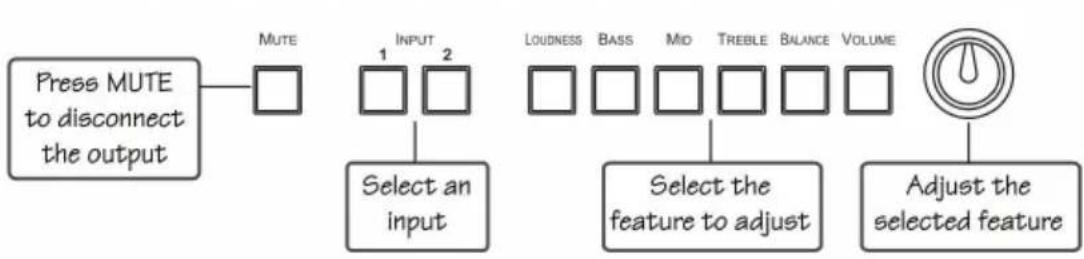
This quick start chart summarizes the basic setup and operation steps.
Step 1: Connect the inputs and outputs - see section 5

flowchart
graph TD
    A["PISOLium"] -->|Connect the inputs 1-4| B["To RC-63A"]
    A -->|Connect the output 1-2| B
    A -->|Connect the remote control 3-4| B
    A -->|Connect the computer control 4| B
    B --> C["Audio"]
    B --> D["DVD"]
    B --> E["Speaker"]
    C --> F["RS-232"]
    D --> F
    E --> F
    F --> G["Audio"]
    F --> H["Speaker"]
    style A fill:#f9f,stroke:#333
    style B fill:#ccf,stroke:#333
    style C fill:#cfc,stroke:#333
    style D fill:#fcc,stroke:#333
    style E fill:#cff,stroke:#333
    style F fill:#ffc,stroke:#333
Step 2: Connect the power
Step 3: Operate the amplifier- see section 6
flowchart
graph LR
    A["Press MUTE to disconnect the output"] --> B["MUTE"]
    B --> C["1"]
    B --> D["2"]
    C --> E["Select an input"]
    D --> F["Select the feature to adjust"]
    G["LOADNESS"] --> H["BASS"]
    G --> I["MID"]
    G --> J["TREBLE"]
    G --> K["Balance"]
    G --> L["VOLUME"]
    M["Adjust the selected feature"] --> N["Power Gauge"]
Operate via the front panel buttons, IR remote control, RS-232 and/or Ethernet embedded Web server
3 Overview
The Kramer 906 is a high-performance audio amplifier for line-level stereo audio signals. It accepts either a stereo audio signal on RCA connectors or a balanced stereo audio signal on a terminal block connector. It delivers a speaker output of 6.6W RMS per channel into 8Ω loads on a 4-pin terminal block connector. The 906 features:
- Two input selector buttons and a mute button
- One gain knob for adjusting the audio output levels for loudness, bass, middle, treble, balance and the volume
• A USB connector for firmware upgrade
• RS-232 and Ethernet ports - A 10V control port for adjusting the audio gain via an external connector ^1
The 906 can be controlled:
- Directly, via the front panel push buttons and adjustment knob
• Via an external 10V controller (for volume) - By RS-232 serial commands transmitted by a touch screen system, PC, or other serial controller
• Via the Ethernet using the embedded Web server - Remotely, from the infrared remote control transmitter
The 906 is housed in a Kramer MegaTOOLS™ enclosure and is fed by a 12V DC power supply.
To achieve the best performance:
- Use only good quality connection cables ^2 to avoid interference, deterioration in signal quality due to poor matching, and elevated noise levels (often associated with low quality cables).
- Avoid interference from neighboring electrical appliances that may adversely influence signal quality and position your Kramer 906 away from moisture, excessive sunlight and dust

4 Your 906 Amplifier
Figure 1 and Table 1 define the 906.

Figure 1: 906 Amplifier
Table 1: 906 Amplifier Functions
| # | Feature | Function | |
| 1 | INPUT 1 L RCA Connector | Connect to the left unbalanced stereo analog audio source 1 | |
| 2 | INPUT 1 R RCA Connector | Connect to the right unbalanced stereo analog audio source 1 | |
| 3 | INPUT 2 Terminal Block Connector | Connect to the balanced stereo audio source 2 | |
| 4 | OUT Terminal Block Connector | Connect to a balanced stereo acceptor (speakers) | |
| 5 | 10V VOL Terminal Block Connector | Connect to a controller ^1 to adjust the volume via the controller | |
| 6 | RS-232 Tx Rx G Terminal Block Connector | Control connector for RS-232 | |
| 7 | ETHERNET Port | Connects to your LAN ^2 | |
| 8 | FACTORY RESET Button | Press to reset to the factory default state | |
| 9 | PROGRAM Switch | For factory use only | |
| 10 | 12V DC Connector | +12V DC for powering the unit | |
| 11 | IR IN Receiver | Accepts IR remote commands | |
| 12 | ON LED | Illuminates green when receiving power, flashes when receiving IR commands | |
| 13 | MUTE Button | Press to disable/enable the audio output. The button illuminates when the audio output is disabled | |
| 14 | INPUT SELECTOR Buttons | 1 | Press to select the input 1 audio source |
| 15 | 2 | Press to select the input 2 audio source | |
| 16 | LOUDNESS Adjustment Button | Press to select the loudness adjustment, adjust with the Level Knob | |
| 17 | BASS Adjustment Button | Press to select the bass adjustment, adjust with the Level Knob | |
| 18 | MID Adjustment Button | Press to select the mid range adjustment, adjust with the Level Knob | |
| 19 | TREBLE Adjustment Button | Press to select the treble adjustment, adjust with the Level Knob | |
| 20 | BALANCE Adjustment Button | Press to select the balance between right and left speakers, adjust with the Level Knob | |
| 21 | VOLUME Adjustment Button | Press to select the volume adjustment, adjust with the Level Knob. Press and hold to disable local volume control and enable remote volume control. Press and hold again to activate local volume control (see section 6.1) | |
| 22 | Adjustment Potentiometer Knob | Turn to raise or lower the selected audio feature | |
| 23 | PROGRAM USB Connector | For factory use only | |
5 Connecting the 906 Amplifier
To connect the 906, as illustrated in the example in Figure 2, do the following:
- Connect an unbalanced stereo audio source (for example, the unbalanced stereo audio output of a DVD player) to the L and R INPUT 1 RCA connectors.
- Connect a balanced stereo audio source (for example, the balanced stereo audio output of a DVD player) to the INPUT 2 terminal block connector.
- Connect the OUTPUT terminal block to a pair of loudspeakers: Connect the “L+” and the “L-” terminal block connectors to the left loudspeaker, and the “R+” and the “R-” terminal block connectors to the right loudspeaker. Do not ground the loudspeakers.
- Connect the 12V DC power adapter to the power socket and connect the adapter to the mains electricity (not shown in Figure 2).
- If required connect:
- The 10V CONTROL terminal block connector to an external controller ^1 (see section 5.1
■ The RS-232 port to a PC and/or serial controller (see section 5.2)
- The Ethernet port to a PC or a network hub or router (see section 5.3)

flowchart
graph TD
    A["Network Device"] -->|To RC-83A| B["Speaker"]
    A -->|Audio| C["DVD"]
    A -->|Audio| D["DVD"]
    A -->|Audio| E["RS-232"]
    A -->|Audio| F["Speakers"]
    style A fill:#f9f,stroke:#333
    style B fill:#ccf,stroke:#333
    style C fill:#cfc,stroke:#333
    style D fill:#fcc,stroke:#333
    style E fill:#cff,stroke:#333
    style F fill:#ffc,stroke:#333
Figure 2: Connecting the 906 Audio Amplifier
5.1 Connect the 10V CONTROL Port to an External Controller
You can connect the 906 10V CONTROL terminal block connector to a controller (for example, the Kramer RC-63A) as illustrated in Figure 3:
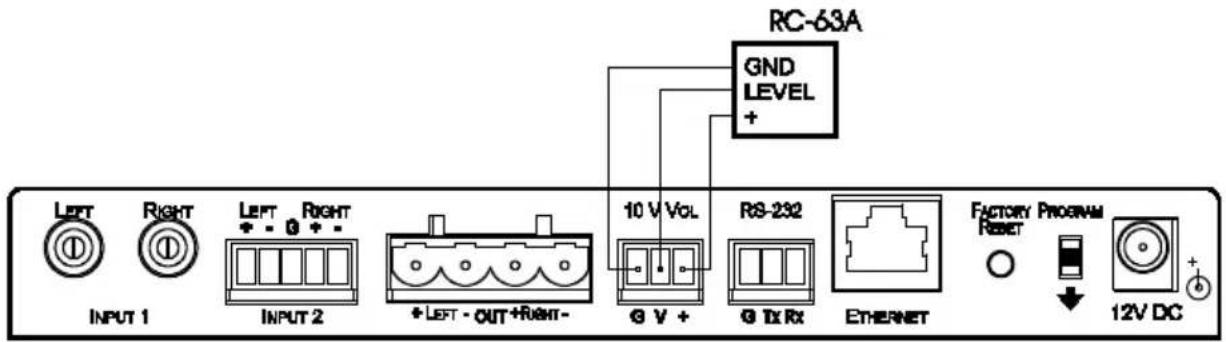
Figure 3: Connecting the 10V CONTROL Terminal Block Connector
5.2 Connecting a PC
You can connect a PC (or other controller) to the 906 via the RS-232 terminal block connector.
To connect a PC to a 906 unit, connect the RS-232 terminal block connector on the 906 unit to the RS-232 9-pin D-sub port on your PC, see Figure 4
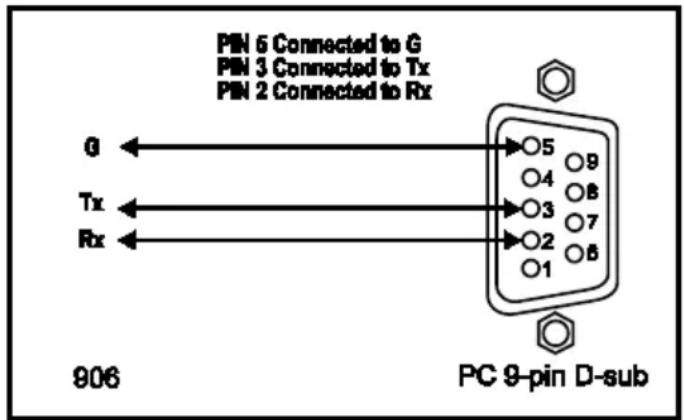
Figure 4: Connecting to a PC
5.3 Connecting the 906 via the Ethernet Port
To connect the 906 via the Ethernet port, do the following:
- When connecting to the Ethernet port on a network hub or network router, use a straight-through cable with RJ-45 connectors
- When connecting to the Ethernet port of a PC, use a crossover cable with RJ-45 connectors
If you are connecting the 906 directly to your computer (not through the network) you may need to reconfigure the PC network settings.
To reconfigure the PC network settings:
- Navigate to Start > Settings > Network Connections.
- Click on the appropriate Local Area Connection.
- Right-click the Local Area Connection and click Properties. The Local Area Properties Window appears:

Figure 5: Local Area Properties Window
- Select Internet Protocol (TCP/IP) and click Properties. The Internet Protocol (TCP/IP) Properties Window appears:
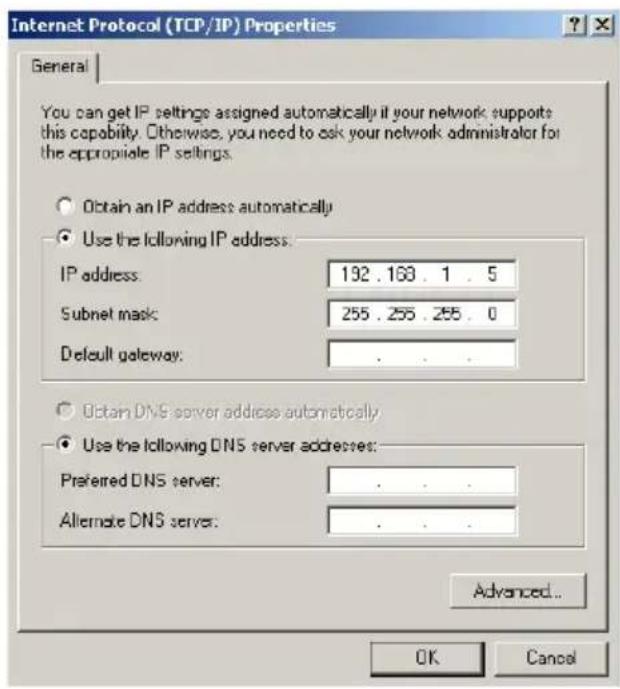
Figure 6: Internet Protocol (TCP/IP) Properties Window
- Click Use the following IP address and enter the IP address and Subnet mask shown above. Click OK and OK to close both windows and save the settings.
6 Operating the 906
You can operate your 906 using:
• The front panel buttons (see section 6.1)
- PC, touch screen system, or other serial controller via RS-232 serial commands (see section 6.2)
- The Ethernet via the embedded Web server (see section 6.3)
6.1 Using the Front Panel Buttons
The front panel buttons let you:
- Select an input, by pressing the INPUT 1 or the INPUT 2 button
- Adjust the sound
To adjust the sound of the output signal:
- Press the sound component that you want to adjust (LOUD, BASS, MID, TREBLE, BAL or VOLUME). The button illuminates.
- Turn the adjustment knob to adjust the value.
Note: To enable remote volume control via the 10V VOL connector (using for example, the Kramer RC-63A), you must disable the local digital volume control by pressing and holding the VOLUME button on the front panel for several seconds. The LED flashes to indicate that remote control is enabled. In this mode, volume control via software ("Set simple audio volume" P3000 command, see section 9.6) is disabled. To disable remote control, press and hold the VOLUME button and the LED lights solid.
6.2 Using Serial Commands
To operate your device using serial commands, you need to install Kramer's control software ^1 .
For an explanation of all control commands, see section 9.
6.3 Using the Embedded Web Server
You can remotely operate the 906 using a Web browser via the Ethernet connection (see section 5.3). To be able to do so, you must use a supported Web browser; Microsoft (V6.0 and higher), Chrome or Firefox (V3.0 and higher).
To check that Java is installed correctly and running, browse to: http://www.java.com/en/download/help/testvm.xml
This page runs a test and displays a Java success (see Figure 7) or failure message.

Figure 7: Java Test Page Success Message
If you do not see the success message, follow the instructions on the page to:
- Load and enable Java
- Enable Javascript in your browser
Make sure that your PC is connected via the Ethernet connection to the 906 (see section 5.3) and do the following:
- Open your Internet browser.
- Enter the unit's IP number ^1 or name in the Address bar of your browser. If you are using DHCP, you must enter the name.

http://192.168.1.39

Figure 8: Entering the IP Number in the Address Bar
The following window appears:
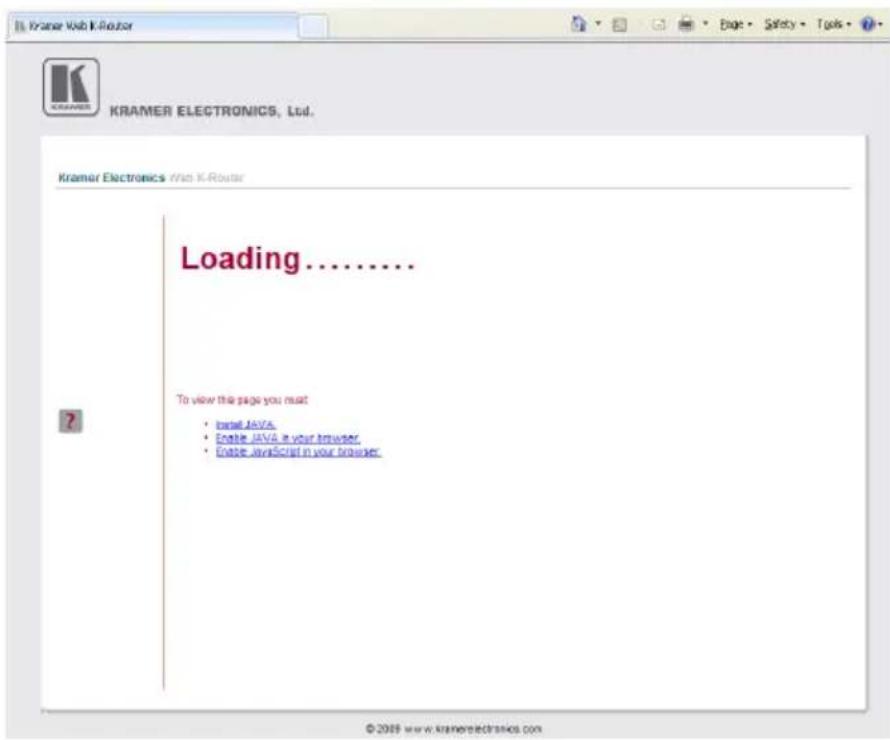
Figure 9: Loading the Embedded Web Server
- Check that Java and JavaScript is enabled in your browser. The following window appears:
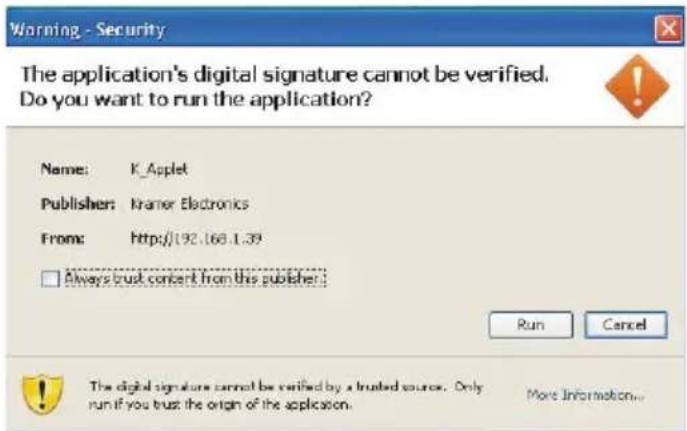
Figure 10: First Time Security Warning
- Click Run.
The 906 Control Window opens (see Figure 11):

Figure 11: The 906 Control Window
- To choose the desired input, click on Input 1 or Input 2 (see Figure 12). Each input has its own set of audio adjustments.
- To adjust each function, click and hold each slider and drag to the right to increase or to the left to decrease the shown value.
- To mute the output, check the Mute box.

Figure 12: Control Settings
- To change the Ethernet settings, click the Settings tab at the top of the Control Window. The Ethernet settings display (see Figure 13):

Figure 13: Ethernet Settings
-
Make any necessary changes and click Save to save the settings.
-
To return to the Control Window, click 906 under the Kramer logo.
6.4 Using the RC-IR3 Infrared Remote Controller
You can use the RC-IR3 remote controller to make some ^1 of the adjustments that are made using the front panel buttons:
• To choose an input, press button 1 or 2
• To toggle muting, press the OFF button
• To increase the volume, press + (▶)
• To decrease the volume, press – (◀)
6.5 Updating the 906 Firmware
The 906 functions by means of a device microcontroller that runs firmware located in FLASH memory.
If required, you can download ^2 and upgrade to the latest version of firmware ^3 .
7 Default Communication Parameters
Table 2 lists the communication parameters as used in Kramer Electronics products.
Table 2: Default Communication Parameters
| RS-232 | |
| Protocol 3000 (Default) | |
| Baud Rate: 115,200 | |
| Data Bits: 8 | |
| Stop Bits: 1 | |
| Parity: None | |
| Command Format: ASCII | |
| Ethernet Factory Default Values | |
| IP Address: 192.168.1.39Mask: 255.255.255.0Gateway: 192.168.1.1 | Power cycle the unit while pressing the Factory Reset button, located on the rear panel of the unit. |
| TCP Port #: 5000 | |
| UDP Port #: 50000 | |
8 Technical Specifications
906 technical specifications are shown in Table 3:
Table 3: 906 Technical Specifications ^1
| INPUTS: | 1 unbalanced stereo audio input on RCA connectors; 1 balanced stereo audio input on a 5-pin terminal block connector |
| OUTPUTS: | 1 speaker stereo audio output on a 4-pin terminal block connector |
| INPUT SENSITIVITY: 224mVpp | |
| OUTPUT POWER: | 6.6W per channel into 8Ω; 11W per channel into 4Ω |
| MAX. VOLTAGE GAIN: 65.6x, | 36.3dB |
| OUTPUT MUSIC POWER: | 22W per channel into 8Ω; 28W per channel into 4Ω |
| BANDWIDTH (-3dB): | 32.5kHz |
| S/N RATIO: 67.5dB @1kHz | |
| CROSSTALK: -55.6dB @1kHz | |
| CONTROLS: | Volume: < -37dB to 35.6dB;balance: < -20dB to 0dB;treble: -5.3dB to 10.9dB @10kHz;mid: -7.8dB to 13.2dB @1kHz;bass: -4.1dB to 15.1dB @100Hz;RS-232 on a terminal block connector; Ethernet; USB for upgrading firmware |
| ADDITIONAL CONTROLS: | Input selector, mute, external potentiometer, remote by contact closure, infrared remote |
| COUPLING: Input: AC, output: | DC |
| AUDIO THD + NOISE: 3.4% @ | 1kHz |
| AUDIO 2nd HARMONIC: | 0.3% @1kHz |
| AMPLIFIER TYPE: Class D | |
| POWER SOURCE: | 12V DC 1.2A (8Ω load), 1.7A (4Ω load) |
| DIMENSIONS | 18.8cm x 11.4cm x 2.4cm (7.4" x 4.5" x 0.94") W, D, H |
| WEIGHT: | 0.6kg (1.32lbs) |
| ACCESSORIES: | Power supply, RC-IR3 remote controller |
| OPTIONS: | RK-T2B 19" rack adapter |
9 906 Commands in Protocol 3000
This RS-232/RS-485 communication protocol lets you control the machine from any standard terminal software (for example, Windows ^® )
HyperTerminal Application) and uses a data rate of 115200 baud, with no parity, 8 data bits, and 1 stop bit.
This section describes all commands sent to the 906. For an explanation of the syntax and use of Protocol 3000, see section 9.10.
9.1 Operating Commands
Following are the specific commands that the room controller (RC device) sends to the 906 to operate the external devices.
9.2 Help Commands
| Command | Syntax | Response |
| Protocol handshaking | #CR ~OKCRLF |
9.3 Device Initiated Messages
| Command Syntax | |
| Start message | Kramer Electronics LTD. ,Device Mode VersionSoftware Version |
| Switcher actions: | |
| Audio channel has switched (breakaway mode) | AUDIN>OUT |
9.4 Result and Error Codes
| Syntax | ||
| Command ran successfully, no error. | COMMAND | PARAMETERS OK |
Protocol Errors:
| Syntax error ERR001 | |
| Command not available for this device | ERR002 |
| Parameter is out of range | ERR003 |
| Unauthorized access (command run without the matching login). | ERR004 |
9.5 Basic Routing Commands
| Command Syntax Response | ||
| Switch audio only | AUD IN>OUT, IN>OUT, ...Short form: A IN>OUT, IN>OUT, ... | AUD IN>OUT, IN>OUT, ...RESULT |
| Switch audio only | AUD IN>OUT, IN>OUT, ...Short form: A IN>OUT, IN>OUT, ... | AUD IN>OUT, IN>OUT, ...RESULT |
| Read audio connection | AUD? OUTShort form: A? OUTAUD? * | AUD IN>OUTAUD IN>1, IN>2, ... |
Parameter Description:
IN = Input number or '0' to disconnect output.
'> = Connection character between in and out parameters.
OUT = Output number or '*' for all outputs.
9.6 Audio Parameter Commands
Command Syntax Response
| Set simple audio volume1 | VOLUME VOLUMEShort form: VOL VOLUME | VOLUME VOLUME RESULT |
| Read simple audio level1 | VOLUME?Short form: VOL? | VOLUME VOLUME |
| Set audio level in specific amplifier stage. | AUD-LVL STAGE, CHANNEL, VOLUMEShort form: ADL STAGE, CHANNEL, VOLUME | AUD-LVL STAGE, CHANNEL, VOLUME RESULT |
| Read audio volume level | AUD-LVL? STAGE, CHANNELShort form: ADL? STAGE | AUD-LVL STAGE, CHANNEL, VOLUME |
Advanced commands for controlling each stage of audio amplification:
| Set audio bass level | BASS CHANNEL BASSShort form: ADB CHANNEL, BASS | BASS CHANNEL BASSRESULT |
| Read audio bass level | BASS? CHANNELShort form: ADB? CHANNEL | BASS CHANNEL BASS |
| Set audio treble level | TREBLE CHANNEL TREBLEShort form: ADT CHANNEL TREBLE | TREBLE CHANNEL TREBLERESULT |
| Read audio treble | TREBLE? CHANNELShort form: ADT? CHANNEL | TREBLE CHANNEL TREBLE |
| Set audio midrange | MIDRANGE CHANNEL, MID_RANGEShort form: ADM CHANNEL, MID_RANGE | MIDRANGE CHANNEL,MID_RANGE RESULT |
| Read audio midrange | MIDRANGE? CHANNELShort form: ADM? CHANNEL | MIDRANGE CHANNEL,MID_RANGE |
| Set audio loudness | LOUDNESS CHANNEL LOUDNESSShort form: ADS CHANNEL, LOUDNESS | LOUDNESS CHANNELLOUDNESS RESULT |
| Read audio loudness | LOUDNESS? CHANNELShort form: ADS? CHANNEL | LOUDNESS CHANNELLOUDNESS |
| Mute audio | MUTE MUTE-MODE | MUTE MUTE-MODE RESULT |
| Command Syntax Response | ||
| Read audio mute state | MUTE? | MUTE MUTE-MODE |
| Set stereo mode | STEREO STEREO-MODE | STEREO STEREO-MODE RESULT |
| Read stereo mode STEREO? | STEREO STEREO-MODE | |
| Set balance mode | BALANCE OUT-CHANNEL, BALANCE-LEVEL | BALANCE OUT-CHANNEL BALANCE-LEVEL RESULT |
| Read balance mode | BALANCE? OUT-CHANNEL | BALANCE OUT-CHANNEL BALANCE-LEVEL |
| Parameter Description:STAGE=‘IN,’OUT’orNumeric value of present audio processing stage. For example: ‘0’ for input level, ‘1’ for pre-amplifier, ‘2’ for amplifier (OUT) etc.CHANNEL=Input or Output #VOLUME/BASS/TREBLE/MID_RANGE=Audio parameter in Kramer units, minus sign precedes negative values.++ increase current value,-- decrease current value. | ||
9.7 Identification Commands
| Command Syntax Response | ||
| Protocol handshaking | #CR ~OK CRLF | |
| Read device model | MODEL? | MODEL MACHINE_MODEL |
| Read device serial number | SN? | SN SERIAL_NUMBER |
| Read device firmware version | VERSION? | VERSION MAJOR MINOR BUILD REVISION |
| Set machine name | NAME MACHINE_NAME | NAME MACHINE_NAME RESULT |
| Read machine name | NAME? | NAME MACHINE_NAME |
| Reset machine name to factory default* | NAME-RST | NAME-RST MACHINE_FACTORY_NAME RESULT |
*Note: The machine name is not the same as the model name. The machine name is used to identify a specific machine or a network in use (with DNS feature on).
MACHINE_NAME = Up to 14 alphameric chars.
* Machine factory name = Model name + last 4 digits from serial number.
| Set machine ID number | MACH-NUMMACHINE NUMBER | MACH-NUMOLD MACHINE NUMBERNEW MACHINE NUMBERRESULT |
* A response is sent after the machine number was changed. The response with the header is: NEW_MACHINE_NUMBER @MACH-NUM OLD_MACHINE_NUMBER, NEW_MACHINE_NUMBER OK
9.8 Network Setting Commands
| Command Syntax Response | ||
| Set IP address | NET-IPIP_ADDRESSShort form: NTIP | NET-IPIP_ADDRESSRESULT |
| Read IP address NET-IP?Short form: NTIP? | NET-IPIP_ADDRESS | |
| Read MAC address NET-MAC?Short form: NTMC | NET-MACMAC_ADDRESS | |
| Set subnet mask | NET-MASKSUBNET_MASKShort form: NTMSK | NET-MASKSUBNET_MASKRESULT |
| Read subnet mask | NET-MASK?Short form: NTMSK? | NET-MASKSUBNET_MASK |
| Set gateway address | NET-GATEGATEWAY_ADDRESSShort form: NTGT | NET-GATEGATEWAY_ADDRESSRESULT |
| Read subnet mask NET-GATE?Short form: NTGT? | NET-GATEGATEWAY_ADDRESS | |
| Set DHCP mode | NET-DHCPDHCP_MODEShort form: NTDH | NET-DHCPDHCP_MODERESULT |
| Read subnet mask NET-DHCP?Short form: NTDH? | NET-DHCPDHCP_MODE | |
DHCP MODE =
'0' – Don't use DHCP (Use IP set by factory or IP set command).
'1' – Try to use DHCP, if unavailable use IP as above.
| Change protocolEthernet port | ETH-PORT PROTOCOL , PORTShort form: ETHP | ETH-PORT PROTOCOL , PORT RESULT |
| Read protocolEthernet port | ETH-PORT? PROTOCOLShort form: ETHP? | ETH-PORT PROTOCOL , PORT |
PROTOCOL = TCP/UDP (transport layer protocol)
PORT = Ethernet port that accepts Protocol 3000 commands
1-65535 = User defined port
0 - Reset port to factory default (50000 for UDP, 5000 for TCP)
9.9 Machine Information Commands
| Command Syntax Response | ||
| Set device time and date | TIME DATE TIME | TIME DATE TIME RESULT |
| Read device time and date TIME? | TIME? DATE_TIME | |
Note: Time setting commands require administrator authorization.
| Read in/out count INFO-IO? | INFO-IO: IN INPUTS_COUNT, OUT OUTPUTS_COUNT | |
| Read max preset count | INFO-PRST? | INFO-PRST: VID PRESET_VIDEO_COUNT, AUD PRESET_AUDIO_COUNT |
| Execute firmware upgrade* | UPGRADE | UPGRADE OK |
Firmware usually uploads to a device via a command like LDFW. The device may need to be reset to complete the process.
| Command Syntax Response | ||
| Reset to factory default configuration | FACTORY | FACTORY RESULT |
| Set model name FCT-MODEL | FACTORY_PASSWORDMODEL_NAME | FCT-MODEL MAC_ADDRESS RESULT |
*If implemented by hard coding, protocol command is unnecessary
| Set MAC address | FCT-MACFACTORY_PASSWORDMAC_ADDRESS | FCT-MAC MAC_ADDRESS RESULT |
| Set SN # FCT-SN | FACTORY_PASSWORD $N# | FCT-SN SN# RESULT |
* Machine factory settings commands are not for public knowledge. Reference is only for internal implementation
9.10 Protocol 3000 Syntax
Protocol 3000 is used to control the 906 via an RS-232 connection using a PC, touch screen, other serial controller or RC type controller.
9.10.1 Host Message Format
| Start | Address (optional) | Body | Delimiter |
| # | Destination_id@ | Message | CR |
9.10.1.1 Simple Command
Command string with only one command without addressing:
| Start | Body | Delimiter |
| # | Command SP Parameter_1,Parameter_2,... | CR |
9.10.1.2 Command String
Formal syntax with commands concatenation and addressing:
| Start | Address | Body | Delimiter |
| # | Destination_id@ | Command_1 Parameter1_1,Parameter1_2,...|Command_2 Parameter2_1,Parameter2_2,...|Command_3 Parameter3_1,Parameter3_2,...|... | CR |
9.10.1.3 Device Message Format
| Start | Address (optional) | Body | delimiter |
| ~ | Sender_id@ | Message | CR LF |
9.10.1.4 Device Long Response
Echoing command:
| Start | Address (optional) | Body | Delimiter |
| ~ | Sender_id@ | Command SP [Param1,Param2 ...] result | CR LF |
= Carriage return (ASCII 13 = 0x0D )
= Line feed (ASCII 10 = 0x0A )
= Space (ASCII 32 = 0x20)
9.10.2 Command Terms
Command
A sequence of ASCII letters ('A'-Z', 'a'-z' and '-').
Command and parameters must be separated by at least one space.
Parameters
A sequence of alphameric ASCII characters ('0'-'9', 'A'-'Z', 'a'-'z' and some special characters for specific commands). Parameters are separated by commas.
Message string
Every command entered as part of a message string begins with a message starting character and ends with a message closing character.
Note: A string can contain more than one command. Commands are separated by a pipe ( " ) character.
Message starting character
'#' – For host command/query
'\~' – For machine response
Device address (Optional, for K-NET)
K-NET Device ID followed by '@'
Query sign
'?' follows some commands to define a query request.
All outputs sign
'*' defines all outputs.
Message closing character
CR – For host messages; carriage return (ASCII 13)
CRLF - For machine messages; carriage return (ASCII 13) + line-feed (ASCII 10)
Command chain separator character
When a message string contains more then one command, a pipe ( '') character separates each command.
Spaces between parameters or command terms are ignored.
9.10.3 Entering Commands
You can directly enter all commands using a terminal with ASCII communications software, such as HyperTerminal, Hercules, etc. Connect the terminal to the serial, Ethernet, or USB port on the Kramer device. To enter CR, press the Enter key.
(LF is also sent but is ignored by command parser).
For commands sent from some non-Kramer controllers like Crestron, some characters require special coding (such as, /X##). Refer to the controller manual.
9.10.4 Command Forms
Some commands have short name syntax in addition to long name syntax to allow faster typing. The response is always in long syntax.
9.10.5 Command Chaining
Multiple commands can be chained in the same string. Each command is delimited by a pipe character ( ' |' ). When chaining commands, enter the message starting character and the message closing character only once, at the beginning of the string and at the end.
Commands in the string do not execute until the closing character is entered.
A separate response is sent for every command in the chain.
9.10.6 Maximum String Length
64 characters
LIMITED WARRANTY
We warrant this product free from defects in material and workmanship under the following terms.
HOW LONG IS THE WARRANTY
Labor and parts are warranted for seven years from the date of the first customer purchase.
WHO IS PROTECTED?
Only the first purchase customer may enforce this warranty.
WHAT IS COVERED AND WHAT IS NOT COVERED
Except as below, this warranty covers all defects in material or workmanship in this product. The following are no covered by the warranty:
-
Any product which is not distributed by us or which is not purchased from an authorized Kramer dealer. If you are uncertain as to whether a dealer is authorized, please contact Kramer at one of the agents listed in the Web site www.kramerelectronics.com.
-
Any product, on which the serial number has been defaced, modified or removed, or on which the WARRANTY VOID IF TEMPERED Retriker has otherwise, interfered with.
-
Damage, deterioration or malfunction resulting from:
i) Accident, misuse, abuse, neglect, fire, water, lightning or other acts of nature
ii) Product modification, or failure to follow instructions supplied with the product
iii) Repair or attempted repair by anyone not authorized by Kramer
iv) Any shipment of the product (claims must be presented to the carrier)
v) Removal or installation of the product
vi) Any other cause, which does not relate to a product defect
vii) Cartons, equipment enclosures, cables or accessories used in conjunction with the product
WHAT WE WILL PAY FOR AND WHAT WE WILL NOT PAY FOR
We will pay labor and material expenses for covered items. We will not pay for the following:
-
Removal or installations charges.
-
Costs of initial technical adjustments (set-up), including adjustment of user controls or programming. These costs are the responsibility of the Kramer dealer from whom the product was purchased.
-
Shipping charges.
HOW YOU CAN GET WARRANTY SERVICE
-
To obtain service on you product, you must take or ship it prepaid to any authorized Kramer service center.
-
Whenever warranty service is required, the original dated invoice (or a copy) must be presented as proof of warranty coverage, and should be included in any shipment of the product. Please also include in any mailing a contact name, company, address, and a description of the problem(s).
-
For the name of the nearest Kramer authorized service center, consult your authorized dealer.
LIMITATION OF IMPLIED WARRANTIES
All implied warranties, including warranties of merchantability and fitness for a particular purpose, are limited in duration to the length of this warranty.
EXCLUSION OF DAMAGES
The liability of Kramer for any effective products is limited to the repair or replacement of the product at our option. Kramer shall not be liable for:
-
Damage to other property caused by defects in this product, damages based upon inconvenience, loss of use of the product, loss of time, commercial loss; or:
-
Any other damages, whether incidental, consequential or otherwise. Some countries may not allow limitations on how long an implied warranty lasts and/or do not allow the exclusion or limitation of incidental or consequential damages, so the above limitations and exclusions may not apply to you.
This warranty gives you specific legal rights, and you may also have other rights, which vary from place to place.
NOTE: All products returned to Kramer for service must have prior approval. This may be obtained from your dealer.
This equipment has been tested to determine compliance with the requirements of:
EN-50081: "Electromagnetic compatibility (EMC);
generic emission standard.
Residential, commercial and light industry"
EN-50082: "Electromagnetic compatibility (EMC) generic immunity standard.
Part 1: Residential, commercial and light industry environment".
CFR-47: FCC* Rules and Regulations:
Part 15: "Radio frequency devices
Subpart B Unintentional radiators"
CAUTION!
Servicing the machines can only be done by an authorized Kramer technician. Any user who makes changes or modifications to the unit without the expressed approval of the manufacturer will void user authority to operate the equipment.
Use the supplied DC power supply to feed power to the machine.
Please use recommended interconnection cables to connect the machine to other components.
* FCC and CE approved using STP cable (for twisted pair products)
For the latest information on our products and a list of Kramer distributors, visit our Web site: www.kramerelectronics.com where updates to this user manual may be found.
We welcome your questions, comments and feedback.

Caution
Safety Warning:
Disconnect the unit from the power supply before opening/servicing.

CE
- Kramer Electronics, Ltd.
- USER MANUAL
- Contents
- Figures
- Tables
- Introduction
- Getting Started
- Quick Start
- Overview
- Your 906 Amplifier
- Connecting the 906 Amplifier
- Connect the 10V CONTROL Port to an External Controller
- Connecting a PC
- Connecting the 906 via the Ethernet Port
- Operating the 906
- Using the Front Panel Buttons
- Using Serial Commands
- Using the Embedded Web Server
- Using the RC-IR3 Infrared Remote Controller
- Updating the 906 Firmware
- Default Communication Parameters
- Technical Specifications
- 906 Commands in Protocol 3000
- Operating Commands
- Help Commands
- Device Initiated Messages
- Result and Error Codes
- Basic Routing Commands
- Parameter Description:
- Audio Parameter Commands
- Identification Commands
- Network Setting Commands
- DHCP MODE =
- Machine Information Commands
- Protocol 3000 Syntax
- Host Message Format
- Simple Command
- Command String
- Device Message Format
- Device Long Response
- Command Terms
- Command
- Parameters
- Message string
- Message starting character
- Query sign
- All outputs sign
- Message closing character
- Command chain separator character
- Entering Commands
- Command Forms
- Command Chaining
- Maximum String Length
- LIMITED WARRANTY
- HOW LONG IS THE WARRANTY
- WHO IS PROTECTED?
- WHAT IS COVERED AND WHAT IS NOT COVERED
- WHAT WE WILL PAY FOR AND WHAT WE WILL NOT PAY FOR
- HOW YOU CAN GET WARRANTY SERVICE
- LIMITATION OF IMPLIED WARRANTIES
- EXCLUSION OF DAMAGES
- CAUTION!
- Safety Warning:
Brand : Kramer
Model : 906
Category : Cellphone