
WP-210A - Charger Kramer - Free user manual and instructions
Find the device manual for free WP-210A Kramer in PDF.


| Product Type | XGA/Audio Line Driver Wall Plate |
| Brand | Kramer |
| Model | WP-210A |
| Dimensions (W x D x H) | 6.9 cm x 5.0 cm x 11.4 cm (2.72" x 1.97" x 4.49") |
| Weight | 0.3 kg (0.67 lbs) approx. |
| Power Supply | 12 VDC, 95 mA (included) |
| Video Input | 1 x HD15F (VGA/XGA up to UXGA); 1 x HD15F loop-through |
| Video Output | 1 x RGBHV on 5 BNC connectors |
| Audio Input | 1 x 3.5mm mini jack (unbalanced stereo) |
| Audio Output | 1 x Terminal block (balanced stereo) |
| Resolution | Exceeding UXGA |
| Controls | Level, EQ, ID Bit, Term, H/V Sync switches, Audio L/R trimmers |
| Indicators | ON LED, VGA Det. LED |
| Cable Equalization | 0 to +8 dB @ 50 MHz |
| Signal Level Control | -1.3 dB to +6 dB |
| Audio Bandwidth | >100 kHz |
| Signal-to-Noise Ratio | Video: 74.2 dB |
| Warranty | 7 years (labor and parts) |
| Safety | Use only provided power adapter; disconnect power before servicing |
| Maintenance | No operator-serviceable parts; refer to authorized service |
Frequently Asked Questions - WP-210A Kramer
User questions about WP-210A Kramer
0 question about this device. Answer the ones you know or ask your own.
Ask a new question about this device
Download the instructions for your Charger in PDF format for free! Find your manual WP-210A - Kramer and take your electronic device back in hand. On this page are published all the documents necessary for the use of your device. WP-210A by Kramer.
USER MANUAL WP-210A Kramer
Kramer Electronics, Ltd.

natural_image
Abstract black geometric shape on white background (no text or symbols)KRAMER
USER MANUAL
Model:
WP-210A
XGA/Audio Line Driver
Contents
1 Introduction 1
2 Getting Started 1
3 Overview 1
4 Your WP-210A XGA/Audio Line Driver 2
4.1 Your WP-210A Front Panel 3
4.2 Your WP-210A Left Panel 4
4.3 Your WP-210A Right Panel 4
5 Using the WP-210A XGA/Audio Line Driver 5
5.1 Installing the WP-210A XGA/Audio Line Driver 6
5.2 Operating the WP-210A XGA/Audio Line Driver 7
6 Technical Specifications 9
Figures
Figure 1: WP-210A Front Panel 3
Figure 2: WP-210A Left Panel 4
Figure 3: WP-210A Right Panel 4
Figure 4: Example of Conference Room WP-210A Installation 5
Figure 5: WP-210A RGBHV Outputs 6
Figure 6: Connecting the Balanced Stereo Audio Output to a Balanced Acceptor 6
Figure 7: Connecting the Balanced Stereo Audio Output to an Unbalanced Acceptor 6
Figure 8: Connecting the WP-210A 8
Tables
Table 1: WP-210A Front Panel Features 3
Table 2: WP-210A Left Panel 4
Table 3: WP-210A Right Panel 4
Table 4: Technical Specifications of the WP-210A XGA/Audio Line Driver 9
This addendum adds the following information to the user manual:

Caution – No operator-serviceable parts inside unit.
Warning - Use only the Kramer Electronics input power wall adapter that is provided with this unit ^1 .
Warning - Disconnect power and unplug unit from wall before installing or removing device or servicing unit.
This addendum clarifies the correct color of the V sync and H sync coax cables.
The color of the coax cables with all Kramer Wall Plates, including the WP-210, WP-210E, WP-210A, WP-210AE, WP-210AL, WP-220, WP-220E, WP-230 will be as follows:
- For V sync (vertical sync) – black ^1
- For H sync (horizontal sync) – yellow ^2
1 Introduction
Welcome to Kramer Electronics (since 1981): a world of unique, creative and affordable solutions to the infinite range of problems that confront the video, audio and presentation professional on a daily basis. In recent years, we have redesigned and upgraded most of our line, making the best even better! Our 500-plus different models now appear in 8 Groups ^1 , which are clearly defined by function.
Congratulations on purchasing your WP-210A XGA/Audio Line Driver active wall plate ^2 , which is ideal for graphics and audio installations in board, conference and training rooms, as well as long distance signal distribution. The package includes the following items:
• WP-210A XGA/Audio Line Driver
- This user manual ^3
2 Getting Started
We recommend that you:
- Unpack the equipment carefully and save the original box and packaging materials for possible future shipment
- Review the contents of this user manual
- Use Kramer high performance high resolution cables ^4
3 Overview
The Kramer WP-210A XGA/Audio Line Driver—part of our successful line of Wall Plate Adapters—is an enhanced version of our popular WP-210 XGA Line Driver wall plate.
The WP-210A XGA/Audio Line Driver includes:
- A VGA input (up to UXGA resolution) on a standard HD-15 connector
-
Local monitor loop-through on an HD15F connector
-
An amplified and equalized RGBHV output on 5 BNC connectors
- An unbalanced stereo audio input on a 3.5mm mini jack
- A balanced stereo audio output on a terminal block connector
In particular, the WP-210A XGA/Audio Line Driver has:
- Level ^1 control
• Cable equalization control
• Left and right audio level controls - Buttons for ID Bit control and loop termination
- Switches to select between analog / digital sync operation
- Resolution exceeding UXGA, that ensures transparent operation
• A standard 12 Volt DC feed
Achieving the best performance means:
- Connecting only good quality connection cables, thus avoiding interference, deterioration in signal quality due to poor matching, and elevated noise levels (often associated with low quality cables)
- Avoiding interference from neighboring electrical appliances
- Positioning your WP-210A away from moisture, excessive sunlight and dust
4 Your WP-210A XGA/Audio Line Driver
This section defines the WP-210A XGA/Audio Line Driver:
• Front panel (see section 4.1)
• Left panel (see section 4.2)
• Right panel (see section 4.3)
4.1 Your WP-210A Front Panel
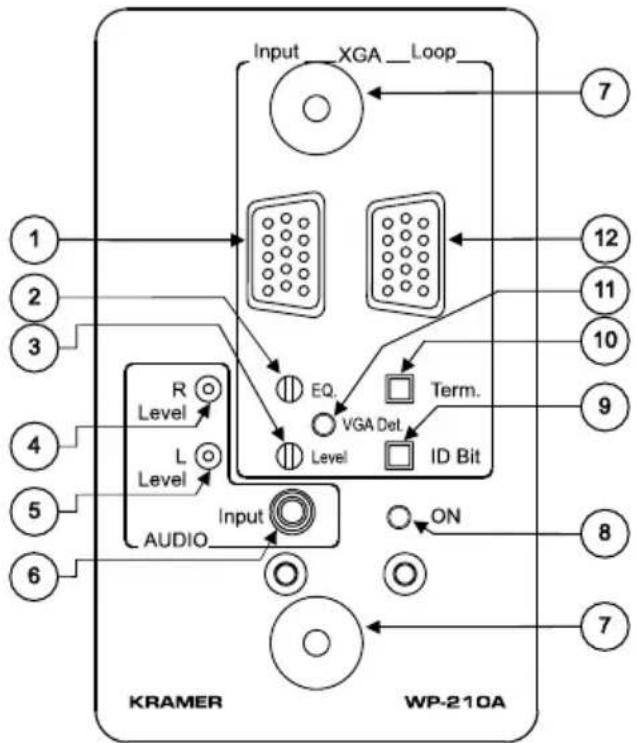
Figure 1 and Table 1 define the front panel of the WP-210A:
flowchart
graph TD
    A["Input"] --> B["XGA__Loop"]
    B --> C["7"]
    D["Level"] --> E["EQ."]
    E --> F["VGA Det."]
    F --> G["ID Bit"]
    G --> H["Term."]
    H --> I["ON"]
    I --> J["7"]
    K["Level"] --> L["DATA"]
    M["Audio"] --> N["Input"]
    O["1"] --> P["KRAMER"]
    Q["2"] --> P
    R["3"] --> P
    S["4"] --> T["KRAMER"]
    U["5"] --> T
    V["6"] --> W["KRAMER"]
    X["7"] --> Y["WP-210A"]
Figure 1: WP-210A Front Panel
Table 1: WP-210A Front Panel Features
| # | Feature Function | |
| 1 | Input HD15F Connector Connect to the VGA/XGA source | |
| 2 | EQ. ^1 Potentiometer Adjusts | ^2 the cable compensation equalization level |
| 3 | Level Potentiometer Adjusts | ^2 the output signal level |
| 4 | AUDIO R Level Trimmer Adjusts | ^3 the right audio output signal level |
| 5 | AUDIO L Level Trimmer Adjusts | ^3 the left audio output signal level |
| 6 | AUDIO Input 3.5mm Mini Jack | Connects to the unbalanced stereo audio source |
| 7 | Holes (2) For fastening the wall plate in place | |
| 8 | ON LED Illuminates when receiving power | |
| 9 | ID Bit Button Selects ID BIT when pushed in (when outputting a VGA signal from a notebook to an external VGA monitor ^4 ) | |
| 10 | Term. Button | Terminates with 75Ω when pushed in, or release for looping |
| 11 | VGA Det. LED Illuminates when detecting an XGA ^5 signal | |
| 12 | Loop HD15F Connector For VGA/XGA looping to increase output availability | |
4.2 Your WP-210A Left Panel
Figure 2 and Table 2 define the left panel of the WP-210A:

Table 2: WP-210A Left Panel
| # | Feature Function | |
| 1 | Bal. Audio Out Terminal Block Connector | Connects to the balanced stereo audio acceptor |
Figure 2: WP-210A Left Panel
4.3 Your WP-210A Right Panel
Figure 3 and Table 3 define the right panel of the WP-210A:

flowchart
graph TD
    A["+12V GND"] --> B["TTL H Sync Analog"]
    A --> C["TTL V Sync Analog"]
    B --> D["①"]
    C --> E["②"]
    C --> F["③"]
Table 3: WP-210A Right Panel
| # | Feature Function | |
| 1 | +12V GND +12V | DC connector for powering the unit |
| 2 | H (Horizontal) Sync Switch | Set both switches to TTL for a digital sync source (for example, a graphics card from a PC or laptop). Set both switches to Analog if the source is analog based, for example, an RGBHV source with coaxial cable for sync, such as a camera with analog H and V syncs |
| 3 | V (Vertical) Sync Switch | |
Figure 3: WP-210A Right Panel
5 Using the WP-210A XGA/Audio Line Driver
You can use your WP-210A XGA/Audio Line Driver, for example, in a conference room, as the example in Figure 4 illustrates:
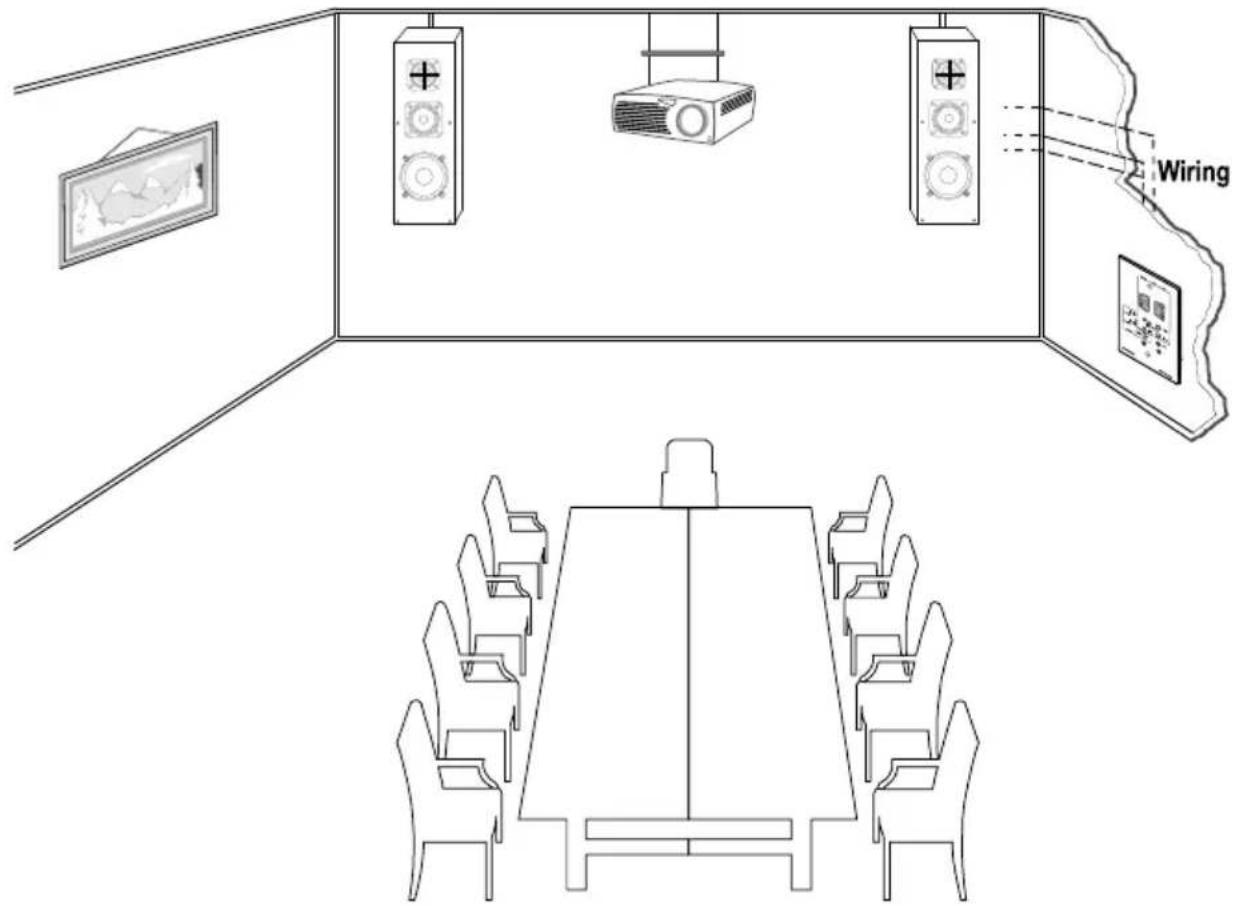
Figure 4: Example of Conference Room WP-210A Installation
For details of how to:
• Install your WP-210A XGA/Audio Line Driver, see section 5.1
• Operate your WP-210A XGA/Audio Line Driver, see section 5.2
5.1 Installing the WP-210A XGA/Audio Line Driver
To install your WP-210A XGA/Audio Line Driver:
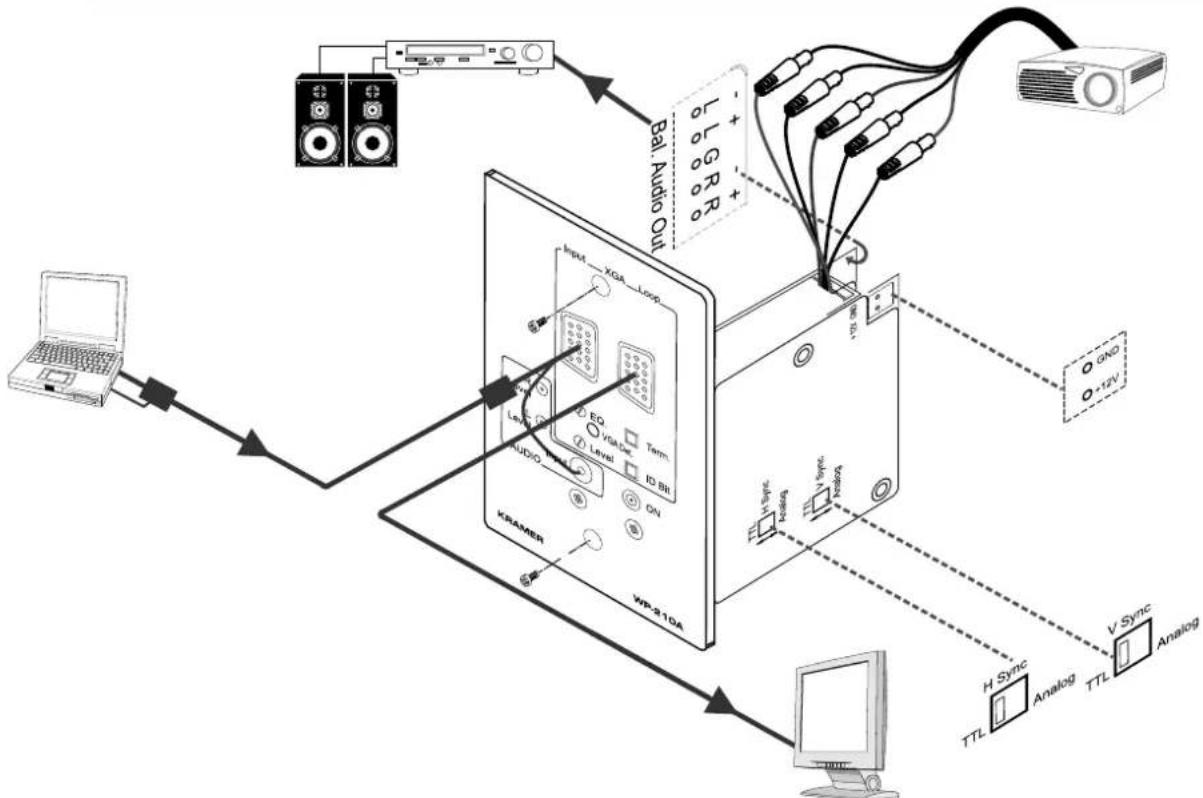
- Connect the 5 RGBHV BNC output connectors ^1 to the pre-installed wiring in the wall box opening that connects to the XGA acceptor (for example, a projector), as Figure 5 defines.
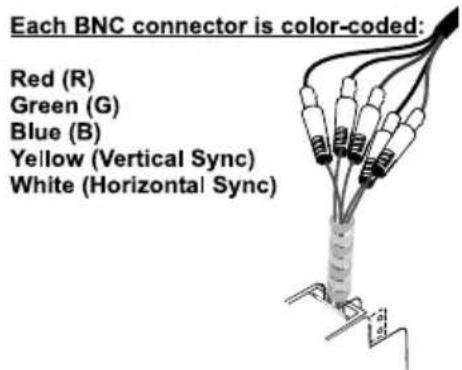
Figure 5: WP-210A RGBHV Outputs
- Connect the terminal block balanced stereo output as one of the following:

Figure 6: Connecting the Balanced Stereo Audio Output to a Balanced Acceptor
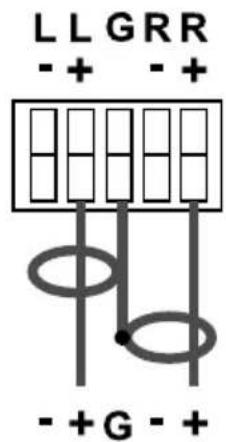
Figure 7: Connecting the Balanced Stereo Audio Output to an Unbalanced Acceptor
-
Set both the Hs and Vs switches.
-
Connect your 12V DC power supply to the terminal block connector, taking care that polarity is correct.
-
Insert the WP-210A directly into the wall box opening, and then mount the front panel securely using the screws.
5.2 Operating the WP-210A XGA/Audio Line Driver
To operate your WP-210A XGA/Audio Line Driver:
-
Connect your XGA source (for example, a laptop's digital graphics card) to the Input HD15F connector and to the AUDIO Input 3.5mm mini jack, for example, using a Kramer C-GMA/GMA cable (VGA HD15M +Audio jack to VGA HD15M +Audio jack) ^1 .
Alternatively, you can connect an XGA source to the Input HD15F connector, and a separate audio source to the AUDIO Input. -
Connect the HD15F Loop connector to a local monitor, if required.
-
Push in the ID Bit button to set to ON.
-
Adjust ^2 the output signal level and/or cable compensation equalization level, if required, as well as the right ^3 and/or left ^3 audio output signal levels.
Using the WP-210A XGA/Audio Line Driver
flowchart
graph TD
    A["Laptop"] --> B["Audio System"]
    B --> C["KRAMER"]
    C --> D["WP-210A"]
    D --> E["Computer"]
    C --> F["Antenna"]
    F --> G["Amplifier"]
    G --> H["Bl. Audio Out"]
    H --> I["+"]
    H --> J["-"]
    H --> K["+"]
    H --> L["-"]
    H --> M["+"]
    H --> N["-"]
    H --> O["+"]
    H --> P["+"]
    H --> Q["+"]
    H --> R["+"]
    H --> S["+"]
    H --> T["+"]
    H --> U["+"]
    H --> V["+"]
    H --> W["+"]
    H --> X["+"]
    H --> Y["+"]
    H --> Z["+"]
    H --> AA["+"]
    H --> AB["+"]
    H --> AC["+"]
    H --> AD["+"]
    H --> AE["+"]
    H --> AF["+"]
    H --> AG["+"]
    H --> AH["+"]
    H --> AI["+"]
    H --> AJ["+"]
    H --> AK["+"]
    H --> AL["+"]
    H --> AM["+"]
    H --> AN["+"]
Figure 8: Connecting the WP-210A
6 Technical Specifications
Table 4 includes the technical specifications:
Table 4: Technical Specifications ^1 of the WP-210A XGA/Audio Line Driver
| INPUTS:VIDEO: Looping | analog red, green, blue signals: 0.7 Vpp/75 Ω, H and V sync, TTL level, on HD15F connectors | AUDIO: Unbalanced stereo 3.5mm mini jack |
| OUTPUTS:VIDEO: 1 RG | BHV on 5 BNC connectors | AUDIO: Balanced stereo terminal block connector |
| MAX. OUTPUT LEVEL: | VIDEO: 2Vpp AUDIO: 5.3Vpp | |
| RESOLUTION: Exceeding UXGA | ||
| DIFF. GAIN: 0.05% | ||
| DIFF. PHASE: 0.02 Deg. | ||
| K-FACTOR: <0.05% | ||
| S/N RATIO:VIDEO: 74.2dB | ||
| CONTROLS: Cable EQ. | control: 0dB to +8dB @ 50 MHz; Level control: -1.3dB to +6dB ID BIT button; TERM button; Hs (Horizontal) and Vs (Vertical) Sync switches; right and left audio level controls | |
| COUPLING:VIDEO: AC | AUDIO: AC | |
| AUDIO BANDWIDTH: >100kHz | ||
| AUDIO THD + NOISE: <0.032% | ||
| AUDIO 2nd HARMONIC: | <0.005% | |
| POWER SOURCE: | 12 VDC, 95mA | |
| DIMENSIONS: | 6.9cm x 5.0cm x 11.4cm (2.72" x 1.97" x 4.49", W, D, H) | |
| WEIGHT: | 0.3 kg (0.67 lbs.) approx | |
| ACCESSORIES: | Power supply | |
LIMITED WARRANTY
Kramer Electronics (hereafter Kramer) warrants this product free from defects in material and workmanship under the following terms.
HOW LONG IS THE WARRANTY
Labor and parts are warranted for seven years from the date of the first customer purchase.
WHO IS PROTECTED?
Only the first purchase customer may enforce this warranty.
WHAT IS COVERED AND WHAT IS NOT COVERED
Except as below, this warranty covers all defects in material or workmanship in this product. The following are not covered by the warranty:
- Any product which is not distributed by Kramer, or which is not purchased from an authorized Kramer dealer. If you are uncertain as to whether a dealer is authorized, please contact Kramer at one of the agents listed in the web site www.kramerelectronics.com.
- Any product, on which the serial number has been defaced, modified or removed.
- Damage, deterioration or malfunction resulting from:
i) Accident, misuse, abuse, neglect, fire, water, lightning or other acts of nature
ii) Product modification, or failure to follow instructions supplied with the product
iii) Repair or attempted repair by anyone not authorized by Kramer
iv) Any shipment of the product (claims must be presented to the carrier)
v) Removal or installation of the product
vi) Any other cause, which does not relate to a product defect
vii) Cartons, equipment enclosures, cables or accessories used in conjunction with the product
WHAT WE WILL PAY FOR AND WHAT WE WILL NOT PAY FOR
We will pay labor and material expenses for covered items. We will not pay for the following:
-
Removal or installations charges.
-
Costs of initial technical adjustments (set-up), including adjustment of user controls or programming. These costs are the responsibility of the Kramer dealer from whom the product was purchased.
-
Shipping charges.
HOW YOU CAN GET WARRANTY SERVICE
- To obtain service on you product, you must take or ship it prepaid to any authorized Kramer service center.
- Whenever warranty service is required, the original dated invoice (or a copy) must be presented as proof of warranty coverage, and should be included in any shipment of the product. Please also include in any mailing a contact name, company, address, and a description of the problem(s).
- For the name of the nearest Kramer authorized service center, consult your authorized dealer.
LIMITATION OF IMPLIED WARRANTIES
All implied warranties, including warranties of merchantability and fitness for a particular purpose, are limited in duration to the length of this warranty.
EXCLUSION OF DAMAGES
The liability of Kramer for any effective products is limited to the repair or replacement of the product at our option. Kramer shall not be liable for:
-
Damage to other property caused by defects in this product, damages based upon inconvenience, loss of use of the product, loss of time, commercial loss; or:
-
Any other damages, whether incidental, consequential or otherwise. Some countries may not allow limitations on how long an implied warranty lasts and/or do not allow the exclusion or limitation of incidental or consequential damages, so the above limitations and exclusions may not apply to you.
This warranty gives you specific legal rights, and you may also have other rights, which vary from place to place.
NOTE: All products returned to Kramer for service must have prior approval. This may be obtained from your dealer.
This equipment has been tested to determine compliance with the requirements of:
EN-50081: "Electromagnetic compatibility (EMC);
generic emission standard.
Part 1: Residential, commercial and light industry"
EN-50082: "Electromagnetic compatibility (EMC) generic immunity standard.
Part 1: Residential, commercial and light industry environment".
CFR-47: FCC Rules and Regulations:
Part 15: "Radio frequency devices
Subpart B – Unintentional radiators”
CAUTION!
Servicing the machines can only be done by an authorized Kramer technician. Any user who makes changes or modifications to the unit without the expressed approval of the manufacturer will void user authority to operate the equipment.
☒ Use the supplied DC power supply to feed power to the machine.
☒ Please use recommended interconnection cables to connect the machine to other components.
For the latest information on our products and a list of Kramer distributors, visit our Web site: www.kramerelectronics.com, where updates to this user manual may be found.
We welcome your questions, comments and feedback.

Caution
Safety Warning:
Disconnect the unit from the power supply before opening/servicing.

CE

- Kramer Electronics, Ltd.
- USER MANUAL
- Contents
- Figures
- Tables
- Introduction
- Getting Started
- Overview
- Your WP-210A XGA/Audio Line Driver
- Your WP-210A Front Panel
- Your WP-210A Left Panel
- Your WP-210A Right Panel
- Using the WP-210A XGA/Audio Line Driver
- Installing the WP-210A XGA/Audio Line Driver
- Operating the WP-210A XGA/Audio Line Driver
- Technical Specifications
- LIMITED WARRANTY
- HOW LONG IS THE WARRANTY
- WHO IS PROTECTED?
- WHAT IS COVERED AND WHAT IS NOT COVERED
- WHAT WE WILL PAY FOR AND WHAT WE WILL NOT PAY FOR
- HOW YOU CAN GET WARRANTY SERVICE
- LIMITATION OF IMPLIED WARRANTIES
- EXCLUSION OF DAMAGES
- CAUTION!
Brand : Kramer
Model : WP-210A
Category : Charger