
IN3002CAM1 - Webcam Tripp Lite - Free user manual and instructions
Find the device manual for free IN3002CAM1 Tripp Lite in PDF.


| Product Type | Webcam |
| Model Number | IN3002CAM1 |
| Brand | Tripp Lite |
| Color | Black |
| Image Sensor | 1/4" Color Progressive CMOS, 640x480 pixels (VGA) |
| Lens | F=2.4mm, f=4.9mm |
| View Angle | 54° |
| Focus Range | 10cm to infinity (fixed focus) |
| Video Capture Resolutions | 640x480, 320x240, 352x288 |
| PC Interface | USB |
| Power Source | Powered via USB port |
| Supported Operating Systems | Microsoft Windows 98/ME/2000/XP |
| Mounting Type | Notebook Clip-On |
| Snap Shot Button | Software-based (no physical button) |
| Minimum System Requirements | Pentium 166MHz, active USB port, CD-ROM drive, color monitor, mouse, keyboard; internet connection for video conferencing |
| Package Contents | Camera, Installation CD, USB Cable |
| Included Software | Ulead Cool 360 (on CD), Ulead Photo Express (downloadable) |
| Application | Video conferencing, image capture, panoramic photography |
Frequently Asked Questions - IN3002CAM1 Tripp Lite
User questions about IN3002CAM1 Tripp Lite
0 question about this device. Answer the ones you know or ask your own.
Ask a new question about this device
Download the instructions for your Webcam in PDF format for free! Find your manual IN3002CAM1 - Tripp Lite and take your electronic device back in hand. On this page are published all the documents necessary for the use of your device. IN3002CAM1 by Tripp Lite.
USER MANUAL IN3002CAM1 Tripp Lite
Notebook Clip-On Camera User's Guide
Model: IN3002CAM1

natural_image
Black handheld electronic device with a circular head and adjustable base (no visible text or symbols)Tripp Lite World Headquarters
1111 W. 35th Street
Chicago, IL 60609 USA
(773) 869-1234
www.tripplite.com
Copyright © 2005 Tripp Lite. All rights reserved. All trademarks are the property of their respective owners. The policy of Tripp Lite is one of continuous improvement. All specifications are subject to change without notice.
Contents
page
Introduction 2
System's Requirements 2
Package Include 2
I. USB PC Camera 3
II. Specification 3
III. Installing Your Camera's Driver 4
IV. Checking connection of your camera 4
V. Installing software 5
VI. Uninstalling software 5
VII. Ulead photo express 6
VIII. Ulead cool 360 7
Introduction
Welcome to the World of Digital Imaging.
The following information will guide you to install and use the PC Camera to its full capabilities.
System's requirements
- Personal Computer, Laptop, Desktop, or IBM Compatible Computer with Pentium 166MHz minimum with an active USB (universal serial bus) port.
- Windows 98/ME/2000/XP, CD-ROM drive, color monitor, mouse and keyboard. For video conference, Internet connection must be equipped.
Package includes
Note Camera | CD Installation Disc |
USB Cable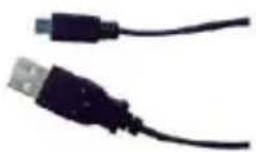 |
I. USB PC Camera

II. Specification
| Image Sensor | 1/4” color progressive CMOS,640×480pixels |
| Lens Specification F=2.4mm,f=4.9mm,View Angle 54° | |
| Focus Range 10cm to infinity | |
| Operating System Microsoft Windows98/ME/2000/XP | |
| Video Capture Res. 640×480, 320×240,352×288 | |
| Snap Shot Button Software | |
| PC Interface USB | |
| Power Powered from USB port | |
III. Installing your camera's driver
- Turn on your computer
- Do Not Connect the camera to the Computer until CD is installed.
- Insert CD into CD-ROM drive, the installation CD menu should appear.
- Click the "Install Driver" icon on the installation menu and follow the on screen instructions.
IV. Checking connection of your camera
- Plug the USB cable to the computer's USB Port.
- Restart your computer when Installation is completed.
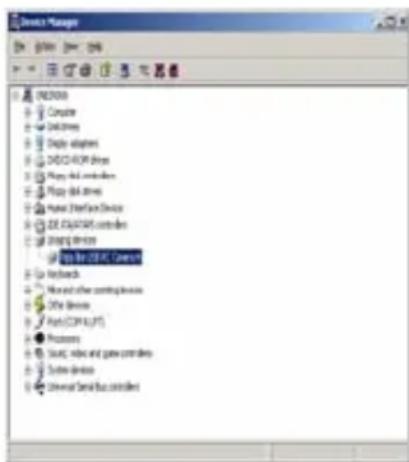
- Double click “My Computer” icon->Control Panel->System->Device Manager->Imaging Device; if you see “Tripplite USB PC Camera H”, then your camera is now installed.
For Windows 2000/XP:
Double click "My Computer" icon->Control Panel->System->Hardware->Device Manager->Imaging Device; if you see "Tripplite USB PC Camera H", then your camera is installed.
V. Installing Software
Insert installation CD into your CD-ROM drive, the installation CD menu should appear. Click the “Ulead Cool 360” icon on the installation menu and follow the instructions.

VI. Uninstalling Driver
- Click "Start" from the task bar and choose "Programs"
- Select "Tripplite USB PC Camera H"->"Uninstall" and follow the instructions.

VII. Visit www.tripplite.com now to download bonus software – Ulead Photo Express!
The latest version of Photo Express offers a new look that makes image editing much more fun and intuitive. There are a lot of improvements and enhancements that comes with Photo Express 4. Here are some of the new features that you can expect in Photo Express 4.
Photo Management: With Photo Express' new user interface, it is now easier to keep track of your files. In the Browse mode, you are able to view your image, audio and video files visually.
Editing Photo: Express has a huge range of image editing tools, from correcting the brightness of an image all the way to fancy Hollywood style special effects. These tools are always ready at the click of your mouse. Photo Express? Object oriented design and ready-made templates take image editing into another realm, even for a beginner.
Brand New User Interface: Photo Express has a brand new look and feel. With a more intuitive layout and easier to understand interface, image editing is made even easier than before.
Customizable User Interface: Change the appearance of the interface to suit your taste. You can now download skins from the Ulead Website to give your interface that unique look.
Browse Mode: A Windows Explorer like browsing feature that makes photo management easier. You can also now browse
your image, audio and video files visually.
Internal Browser: Open any of the links to Ulead related Web sites, available from the Ulead Links menu, right in the Photo Express Workspace. Download extra content, presets and program updates in the Ulead Website right inside Photo Express.
Batch Adjust: Do quick enhancements or file conversions to your images. With Batch Adjust, you can apply the same enhancements or conversions to all the selected images with just one click. There is no need for you to do it one image at a time.
Enhanced Effects: Photo Express added more editing tools to the different effects already existing before. Colored pencil, adding a signature and stamp clone are just a few of the newly added tools in Photo Express 4.
Acquiring Images: In Photo Express 4, you can now capture still images from your DV camera. There is also the auto slice feature in scanning that lets you save images as separate files while scanning them all at once.
Share over the Web: With iMira, Ulead's new free photo sharing site, you can now share those memorable photos over the net. Photo Express lets you upload your photos to iMira right inside the program.
MORE! Just can't get enough of those extras that Ulead Products are known for? In Photo Express, there are more decorative elements (over 500!), more calendar styles (over 200!), more 3D folding card styles, more FREE images (over
5000!) and more Web project templates (over 100!).
VIII. Ulead cool 360 (Included in the disc)
Taking great picture: Panoramic photos are substantially different from other types of photographs and are much more challenging.
* Take a lot of pictures. If you are using a digital camera, this isn't really a problem because the "film" is essentially free. Later, you can pick the best images to use in your panorama.
* Use landmarks at the edge of the frame and overlap images (minimum of 15%).
* Use a tripod. Even an inexpensive tripod can make the process of getting god pictures easier.
Viewing panoramic images: Panoramic photos are substantially different from other types of images, and therefore require a special viewer. Using the Viewer is also very easy.
* When the arrow cursor is visible, click the image and drag in the direction you want to scroll in.
* When the magnifying glass is visible (around the center of your image), click and drag up to zoom out or drag down to zoom in.
Sharing images: 360°panoramic images are more than just large versions of a normal image. To get the wraparound effect, these images must be opened in a special viewer, which is included with the COOL 360 software. Family and friends who do not have COOL 360 will not be able to view these images
unless you also send them the viewer. This is not a problem. When you use the program to send e-mail, you can select Attach viewer to create a self-executable file (*.EXE) that includes both the image and the viewer. When someone double-clicks on the EXE file, the viewer automatically runs, displaying your image and allowing them to use the mouse and keyboard to navigate the panorama.
Setting up your e-mail program: Ulead COOL 360 automatically sends your panorama by e-mail using your default MAPI e-mail client.
- Notebook Clip-On Camera User's Guide
- Contents
- page
- Introduction
- System's requirements
- Package includes
- USB PC Camera
- Specification
- Installing your camera's driver
- Checking connection of your camera
- Installing Software
- Uninstalling Driver
- Visit www.tripplite.com now to download bonus software – Ulead Photo Express!
- Ulead cool 360 (Included in the disc)
Brand : Tripp Lite
Model : IN3002CAM1
Category : Webcam