
MVDP1076 - Portable DVD Player MEMOREX - Free user manual and instructions
Find the device manual for free MVDP1076 MEMOREX in PDF.


| Product Type | Portable DVD Player |
| Brand | Memorex |
| Model | MVDP1076 |
| Dimensions (Main Unit without Battery) | 9 x 6.7 x 1.5 inches |
| Weight | 2 lbs |
| Power Supply | DC 9V (center positive) via included AC adapter (120V AC, 60Hz) |
| Battery | Rechargeable Lithium-Polymer 7.4V, 2600mAh |
| Battery Life | Approximately 2 hours (fully charged) |
| Charging Time | Approximately 5 hours (initial charge 12 hours) |
| Disc Compatibility | DVD-Video, Audio CD, Picture CD (JPEG) |
| Disc Sizes Supported | 12cm and 8cm discs (single/double sided, single/dual layer) |
| Region Code | Region 1 (USA/Canada) – manufacturer's default |
| Screen Rotation | 180° clockwise rotation, foldable onto unit |
| Video Output | Composite video (via included A/V cable), 1Vp-p |
| Audio Output | Stereo analog via included A/V cable; Coaxial digital output |
| Headphone Jacks | 2 (3.5mm stereo) |
| Remote Control | Yes, with CR2025 battery |
| Playback Features | Skip, Search, Slow Motion, Pause/Step, Time/Title/Chapter Search, Bookmark, Repeat, A-B Repeat, Zoom, Angle, Programmed Playback |
| Setup Options | Language (OSD, Subtitle, Audio, DVD Menu), Video (TV shape, system), Audio (Digital Out), Reset |
| Included Accessories | AC Adapter, Rechargeable Battery Pack, Remote Control, Remote Battery, A/V Cable, Coaxial Audio Cable |
| Operating Temperature | 41°F to 95°F (5°C to 35°C) |
| Operating Humidity | 5% to 90% (no condensation) |
Frequently Asked Questions - MVDP1076 MEMOREX
User questions about MVDP1076 MEMOREX
0 question about this device. Answer the ones you know or ask your own.
Ask a new question about this device
Download the instructions for your Portable DVD Player in PDF format for free! Find your manual MVDP1076 - MEMOREX and take your electronic device back in hand. On this page are published all the documents necessary for the use of your device. MVDP1076 by MEMOREX.
USER MANUAL MVDP1076 MEMOREX
natural_image
Illustration of a desktop computer with open screen and CD/DVD tray, accompanied by a remote control (no text or symbols)Before operating this product, please read these instructions completely.
TABLE OF CONTENTS
Contents 1
Important Safety Instructions....2
Precautions 5
Power Sources....7
Rotating the Screen....8
Location of Controls 9
- Main Unit 9
- Side 10
- Remote 10
Remote Control 11
- Battery Installation .... 11
- Effective Distance of the Remote Control Transmitter.... 11
Connection 12
- Connecting the Unit to a TV Using the A/V Cable.... 12
- Connecting the Unit to a Home Theater System .... 13
- Connecting the Unit to Another Media Player .... 15
About Discs 16
Setup Menu....18
- Language Setup Menu .... 19
• Video Setup Menu ..... 20
• Audio Setup Menu....20
- Reset Setup Menu....21
Basic Operation 22
- Mute. 22
- Rotate Button.... 22
• Headphone Jack(s) 22
- Source Button 22
- OSD Button 23
• LCD Button 23
• Volume. 23
DVD Operation 24
- Playback of a DVD 24
- Skip 26
- Search 26
- Slow Motion 26
- Pause/Step 26
• Time Search 26
• Title Search ..... 26
• Chapter Search ..... 26
- Bookmark....28
- Repeat Playback 29
- Repeat A-B Playback. 29
• Audio Menu 30
- Subtitle Menu.... 30
• DVD Menu 30
- Title Menu 30
- Zoom In 31
- Angle 31
- Programmed Playback .... 32
CD Operation 33
- Playback of a CD.... 33
- Pause....33
- Skip 34
- Search 34
- Track Time Search. 34
- Track Search 34
• Disc Time Search ..... 35
- Track Search 35
- Bookmark. 35
- Selecting Tracks Using the Number Buttons....36
- Repeat Playback 36
- Repeat A-B Playback. 36
Picture CD Operation 38
Troubleshooting Guide 39
Care and Maintenance....41
Specifications....42
SAFETY INSTRUCTIONS
CAUTION
RISK OF ELECTRIC SHOCK DO NOT OPEN

CAUTION: TO REDUCE THE RISK OF ELECTRIC SHOCK, DO NOT REMOVE COVER (OR BACK). NO USER-SERVICEABLE PARTS INSIDE. REFER SERVICING TO QUALIFIED SERVICE PERSONNEL.
DANGEROUS VOLTAGE:
The lightning flash with arrowhead symbol within an equilateral triangle is intended to alert the user to the presence of uninsulated dangerous voltage within the product's enclosure that may be of sufficient magnitude to constitute a risk of electric shock to persons.

ATTENTION:
The exclamation point within an equilateral triangle is intended to alert the user to the presence of important operating and maintenance (servicing) instructions in the literature accompanying the appliance.
CAUTION:
THIS DIGITAL VIDEO DISC PLAYER EMPLOYS A LASER SYSTEM.
TO ENSURE PROPER USE OF THIS PRODUCT, PLEASE READ THIS OWNER'S MANUAL CAREFULLY AND RETAIN FOR FUTURE REFERENCE. SHOULD THE UNIT REQUIRE MAINTENANCE, CONTACT AN AUTHORIZED SERVICE LOCATION.
USE OF CONTROLS, ADJUSTMENTS OR THE PERFORMANCE OF PROCEDURES OTHER THAN THOSE SPECIFIED HEREIN MAY RESULT IN HAZARDOUS RADIATION EXPOSURE.
TO PREVENT DIRECT EXPOSURE TO LASER BEAM, DO NOT TRY TO OPEN THE ENCLOSURE. VISIBLE LASER RADIATION MAY BE PRESENT WHEN THE ENCLOSURE IS OPENED. DO NOT STARE INTO BEAM.
WARNING:
TO REDUCE THE RISK OF FIRE OR ELECTRIC SHOCK, DO NOT EXPOSE THIS PRODUCT TO RAIN OR MOISTURE.
WARNING:
TO REDUCE THE RISK OF FIRE OR ELECTRIC SHOCK, AND ANNOYING INTERFERENCE, USE THE RECOMMENDED ACCESSORIES ONLY.
SAFETY INSTRUCTIONS (CONT.)
SURGE PROTECTORS:
It is recommended to use a surge protector for AC connection. Lightning and power surges ARE NOT covered under warranty for this product.
LASER WARNING:
This unit employs a laser. Only qualified service personnel should attempt to service this device due to possible eye injury.
FCC NOTICE:
This equipment has been tested and found to comply with the limits for a Class B digital device, pursuant to part 15 of the FCC Rules. These limits are designed to provide reasonable protection against harmful interference in a residential installation. This equipment generates, uses and can radiate radio frequency energy and, if not installed and used in accordance with the instructions, may cause harmful interference to radio communications.
However, there is no guarantee that interference will not occur in a particular installation. If this equipment does cause harmful interference to radio or television reception, which can be determined by turning the equipment off and on, the user is encouraged to try to correct the interference by one or more of the following measures:
- Reorient or relocate the receiving antenna.
- Increase the separation between the equipment and receiver.
- Connect the equipment into an outlet on a circuit different from that to which the receiver is connected.
- Consult the dealer or an experienced radio/TV technician for help.
Modifications not authorized by the manufacturer may void user's authority to operate this device.
FCC CAUTION:
To assure continued compliance, follow the attached installation instructions and use only shielded cables when connecting to other devices. Also, any changes or modifications not expressly approved by the party responsible for compliance could void the user's authority to operate the equipment.
ATTENTION:
POUR ÉVITER LES CHOC ÉLECTRIQUES, INTRODUIRE LA LAME LA PLUS LARGE DE LA FICHE DANS LA BORNE CORRESPONDANTE DE LA PRISES ET POUSSER JUSQU'AU FOND.
This Class B digital apparatus complies with Canadian ICES-003.
Selecting fine audio equipment such as the unit you've just purchased is only the start of your musical enjoyment. Now it's time to consider how you can maximize the fun and excitement your equipment offers. This manufacturer and the Electronic Industries Association's Consumer Electronics Group want you to get the most out of your equipment by playing it at a safe level. One that lets the sound come through loud and clear without annoying blaring or distortion and, most importantly, without affecting your sensitive hearing. Sound can be deceiving. Over time your hearing “comfort level” adapts to higher volumes of sound. So what sounds “normal” can actually be loud and harmful to your hearing. Guard against this by setting your equipment at a safe level BEFORE your hearing adapts.
To establish a safe level:
- Start your volume control at a low setting.
- Slowly increase the sound until you can hear it comfortably and clearly, and without distortion.
Once you have established a comfortable sound level:
- Set the dial and leave it there.
Taking a minute to do this now will help to prevent hearing damage or loss in the future. After all, we want you listening for a lifetime.
We Want You Listening For A Lifetime
Used wisely, your new sound equipment will provide a lifetime of fun and enjoyment. Since hearing damage from loud noise is often undetectable until it is too late, this manufacturer and the Electronic Industries Association's Consumer Electronics Group recommend you avoid prolonged exposure to excessive noise. This list of sound levels is included for your protection.
Decibel
Level Example
30 Quiet library, soft whispers
40 Living room, refrigerator, bedroom away from traffic
50 Light traffic, normal conversation, quiet office
60 Air conditioner at 20 feet, sewing machine
70 Vacuum cleaner, hair dryer, noisy restaurant
80 Average city traffic, garbage disposals, alarm clock at two feet
THE FOLLOWING NOISES CAN BE DANGEROUS UNDER CONSTANT EXPOSURE:
90 Subway, motorcycle, truck traffic, lawn mower
100 Garbage truck, chain saw, pneumatic drill
120 Rock band concert in front of speakers, thunderclap
140 Gunshot blast, jet engine
180 Rocket launching pad
Information courtesy of the Deafness Research Foundation.

Want You
LISTENING
For A Lifetime

PRECAUTIONS
NOTES ON HANDLING:
- When shipping the DVD player, always use the original shipping carton and packing materials. For maximum protection, repack the unit as it was originally packed at the factory.
- Do not use volatile liquids, such as insect spray, near the DVD player. Do not leave rubber or plastic products in contact with the DVD player for a long time. They will leave marks on the finish.
- The top and rear panels of the DVD player may become warm after a long period of use. This is normal and not a malfunction.
- When the DVD player is not in use, be sure to remove the disc and turn off the power.
- If you do not use the DVD player for a long period, the unit may not function properly in the future. Turn on and use the DVD player occasionally.
NOTES ON LOCATING THE DVD PLAYER:
- When you place this DVD player near a TV, radio or VCR, the playback picture may become poor and the sound may be distorted. In this case, move the DVD player away from the TV, radio or VCR.
NOTES ON CLEANING:
Use a soft, dry cloth for cleaning.
- For stubborn dirt, soak the cloth in a weak detergent solution, wring well and wipe. Use a dry cloth to wipe it dry. Do not use any type of solvent, such as thinner or benzene, as they may damage the surface of the DVD player.
- If you use a chemical-saturated cloth to clean the unit, follow that product's instructions.
Warning: Cleaning and adjustment of lenses and/or other components of playback mechanism should be performed by a qualified service technician.
CAUTION:
To reduce the risk of injury, only charge with supplied rechargeable Battery Pack; other types of batteries may burst causing personal injury or damage.
TO OBTAIN A CLEAR PICTURE:
The DVD player is a high technology, precision device. If the optical pick-up lens and disc drive parts are dirty or worn down, the picture quality becomes poor. To obtain a clear picture, we recommend regular inspection and maintenance (cleaning or parts replacement) every 1,000 hours of use depending on the operating environment. For details, contact your nearest dealer.
NOTES ON MOISTURE CONDENSATION:
Moisture condensation damages the DVD player. Please read the following carefully.
- Moisture condensation occurs, for example, when you pour a cold drink into a glass on a warm day. Drops of water form on the outside of the glass. In the same way, moisture may condense on the optical pick-up lens inside this unit, one of the most crucial internal parts of the DVD player.
Moisture condensation occurs during the following cases:
- When you bring the DVD player directly from a cold place to a warm place.
- When you use the DVD player in a room where you just turned on the heater, or a place where the cold wind from the air conditioner directly hits the unit.
- In summer, when you use the DVD player in a hot and humid place just after you moved the unit from an air conditioned room.
- When you use the DVD player in a humid place.
Do not use the DVD player when moisture condensation may occur.
- If you use the DVD player in such a situation, it may damage discs and internal parts. Remove the disc, insert the small end of the AC adapter into the DC IN jack on the side of the unit and insert the other end into a conveniently located AC outlet having 120 AC, 60 Hz, turn on the DVD player and leave it “ON” for two or three hours. After two or three hours, the DVD player will have warmed up and evaporated any moisture. Keep the DVD player connected to the wall outlet and moisture condensation will seldom occur.
POWER SOURCES
AC CONNECTION
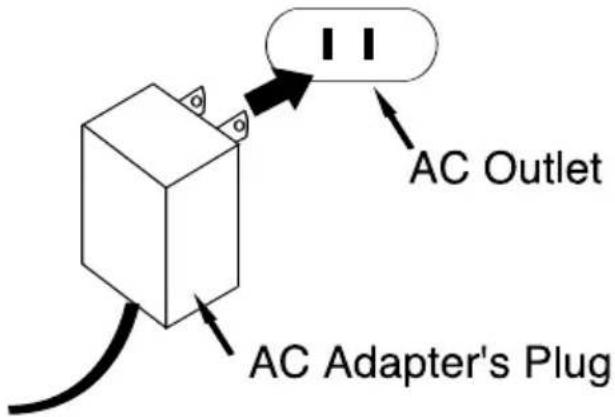
Insert the small end of the AC adapter into the DC IN jack (located on the side of the unit) and connect the other end to a wall outlet having 120V AC, 60 Hz.
AC Adapter, DC 9V ⊙ ⊕ ⊕
NOTES:
- Use the enclosed AC adapter for this product only.
- Remove both the DC plug and the AC-IN plug to disconnect the AC adapter when not using.
BATTERY PACK INSERTION/REMOVAL
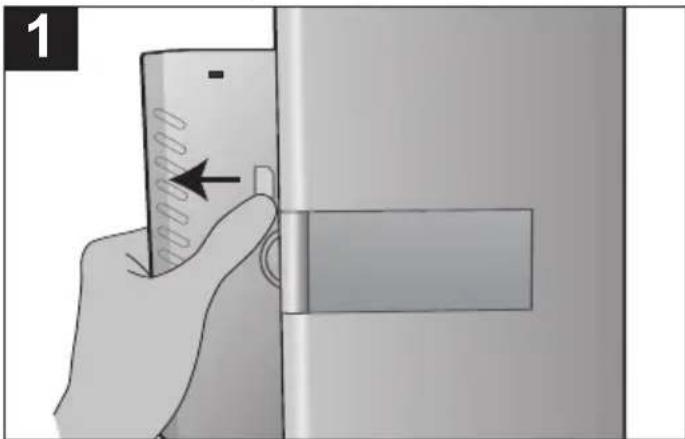
Follow the diagram below to insert or remove the Battery Pack.
natural_image
Illustration of a hand holding a smartphone next to a door, with no visible text or symbolsTO REMOVE: Press the PUSH (Release) button, then slide the Battery Pack out and down.
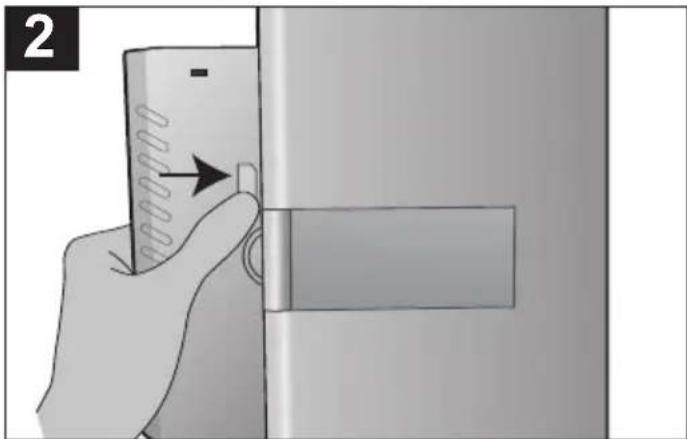
TO INSERT: Align the tabs from the Battery Pack into the holes on the bottom of the main unit. Then, slide the Battery Pack into the main unit until it clicks into place.
POWER SOURCES (CONTINUED)
CHARGING THE BATTERY PACK
"Low Battery" will appear on the screen when the battery is low and needs recharging. The battery can be charged while attached to the unit as follows:
With the Battery Pack attached, insert the small end of the AC adapter into the DC IN jack on the side of the unit. Insert the other end (with the 2 blades) into a conveniently-located AC outlet having 120V AC, 60Hz. The CHARGE indicator on the battery will light red as the battery is charging and green when charging has completed. Disconnect the AC adapter plugs when charging has finished.
NOTE:
- Fully charge the Battery Pack for 12 hours before using it for the first time. After the initial charge, it should take approximately five hours to charge.
- A fully-charged Battery Pack can operate for about 2 hours.
ROTATING THE SCREEN
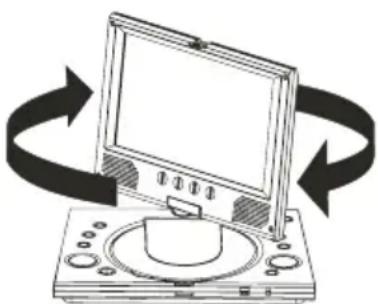
To rotate the screen, twist in a clockwise direction up to 180 degrees as shown in Figure 1. It is suggested that the screen remains in a perpendicular position while it is being rotated to avoid scratching or damaging the surface of the unit. To return the unit to its original position, rotate the unit in a counter-clockwise direction.
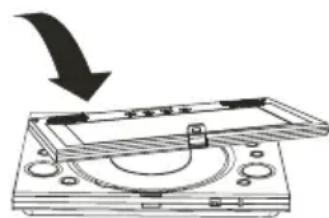
If desired, when the screen is rotated to 180 degrees, you can fold it over onto the body of the unit as shown in Figure 2. To secure the screen onto the body of the unit, tuck the tab on the top of the screen into the hole beneath the Disc Compartment. To release, press the button next to the hole.
natural_image
Diagram of a computer monitor with rotating arrows indicating rotation (no text or symbols)Figure 1
natural_image
Diagram of a CD or DVD disc with an arrow indicating downward motion (no text or symbols present)Figure 2
LOCATION OF CONTROLS
MAIN UNIT
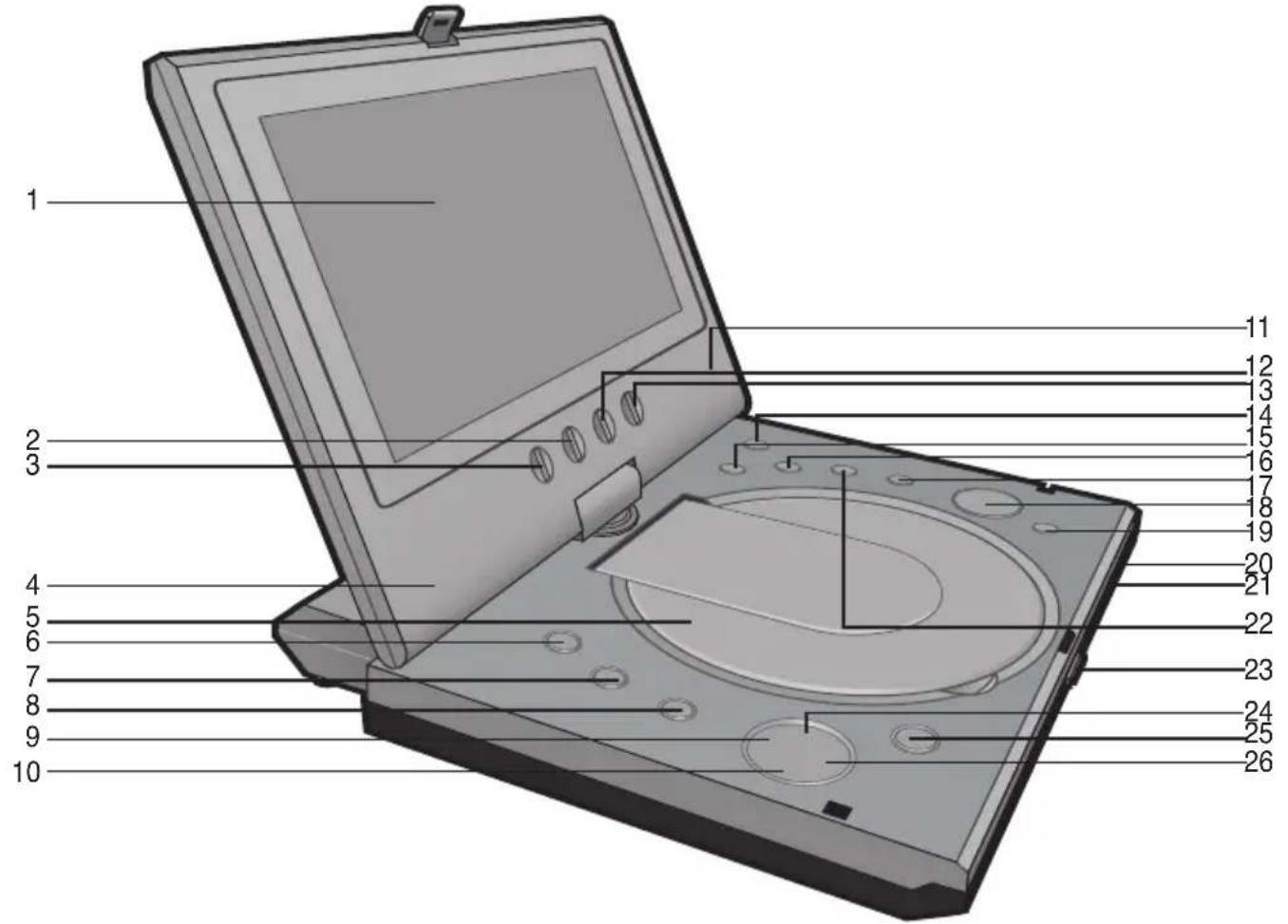
- Display
- Alternate Navigation ( ◀) Button
- LCD Button
- Left Speaker
- Disc Compartment
- SOURCE Button
- AUDIO Button
- SUBTITLE Button
- Skip ◀ Button
- Search ◀◀ Button
- Right Speaker
- Alternate Navigation ( ▶) Button
- ROTATE Button
- POWER Button
- SETUP Button
-
MENU Button
-
Play/Pause ( ▶II) Button
- Navigation (◀,▶, ▲,▼) Buttons
- ENTER Button
- Power Indicator
- Remote Sensor
- Stop ( ■) Button
- Screen Display Open Button
- Search ▶▶ Button
- Disc Compartment Cover OPEN Button
- Skip ▶Button
LOCATION OF CONTROLS (CONTINUED)
SIDE
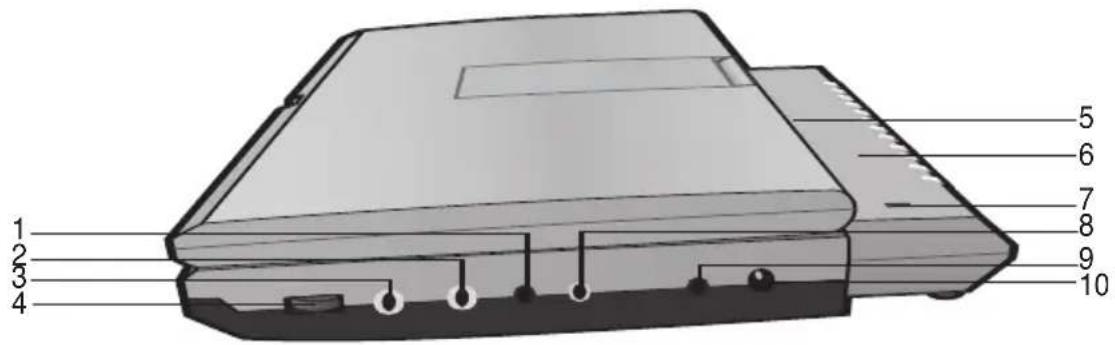
- AUDIO (IN/OUT) Jack
- Headphone 2 Jack
- Headphone 1 Jack
- VOLUME Control
-
PUSH (Release) Button
(Top of the Battery Pack) -
Battery Pack
- CHARGE Indicator (Top of the Battery Pack)
- VIDEO (IN/OUT) Jack
- COAXIAL OUT Jack
- DC IN Jack 9V
REMOTE
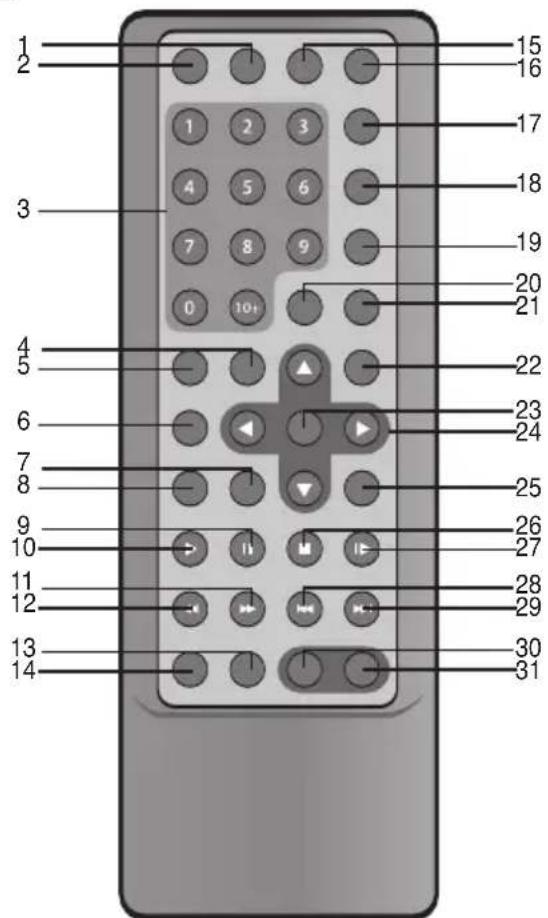
NOTE: Press the POWER button (on the main unit) to turn the unit on; the Power indicator will light red. When the unit is on, if you press the STANDBY button (on the remote), the unit will turn to the Standby mode. To reduce the unit's power consumption, press the POWER button (on the main unit) to turn the unit off; the Power indicator will turn off. Also, the STANDBY button is just for turning the unit to Standby mode. To turn the unit on or off, press the POWER button (on the main unit).
- MUTE Button
- STANDBY Button
- Number (0-9, 10+) Buttons
- LCD Button
- RETURN Button
- TITLE Button
- STEP Button
- MENU Button
- PAUSE (Ⅱ) Button
- PLAY (▶) Button
- Search ▶▶ Button
- Search ◀◀ Button
- REPEAT A-B Button
- REPEAT Button
- SEARCH Button
- OSD Button
- SUBTITLE Button
- AUDIO Button
- ANGLE Button
- CLEAR Button
- PROG. Button
- SETUP Button
- ENTER Button
- Navigation (◀,▶, ▲,▼) Buttons
- ZOOM Button
- STOP (■) Button
- SLOW Button
- Skip (◀) Button
- Skip (▶) Button
- VOL - Button
- VOL + Button
REMOTE CONTROL
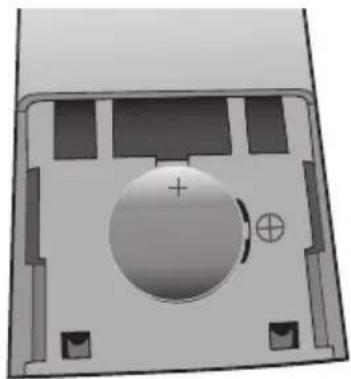
BATTERY INSTALLATION
natural_image
3D diagram of a mechanical component with a central circular feature and mounting holes (no text or symbols)- Remove the Battery Compartment door by sliding it downward.
- Install a CR2025 battery, paying attention to the polarity diagram in the battery compartment (positive side up).
- Replace the Battery Compartment door.
BATTERY PRECAUTIONS
Follow these precautions when using a battery in this device:
- Use only the size and type of battery specified.
- Be sure to follow the correct polarity when installing the battery as indicated next to the battery compartment. A reversed battery may cause damage to the device.
- If the device is not to be used for a long period of time, remove the battery to prevent damage or injury from possible battery leakage.
- Do not try to recharge a battery not intended to be recharged; it can overheat and rupture. (Follow battery manufacturer's directions.)
EFFECTIVE DISTANCE OF THE REMOTE CONTROL TRANSMITTER
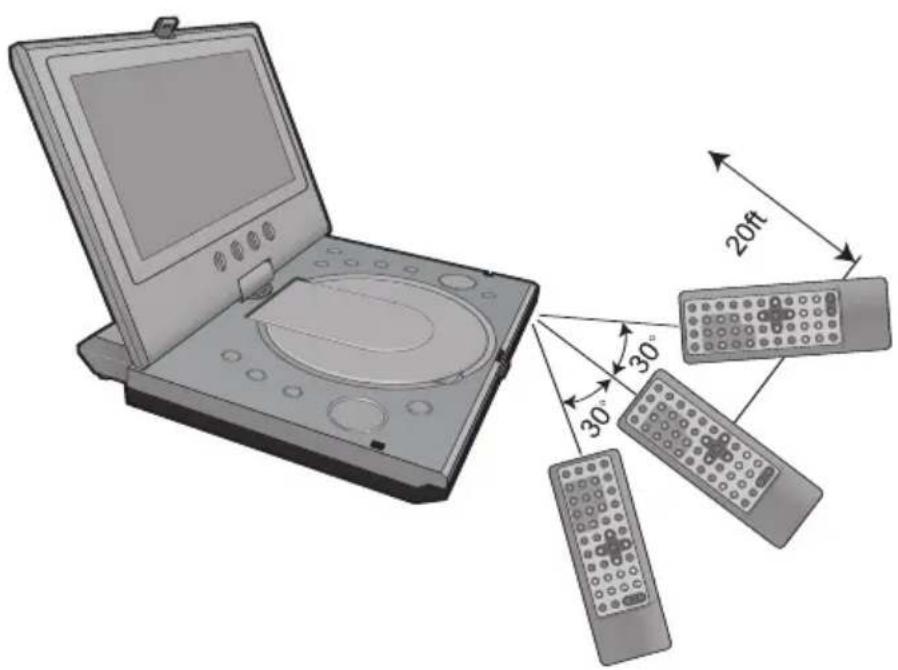
NOTES:
- When there is an obstacle between the DVD and the transmitter, the transmitter may not operate.
- When direct sunlight, an incandescent lamp, fluorescent lamp or any other strong light shines on the Remote Sensor of the DVD, the remote operation may be unstable.
CONNECTION
CONNECTING THE UNIT TO A TV USING THE A/V CABLE (INCLUDED)
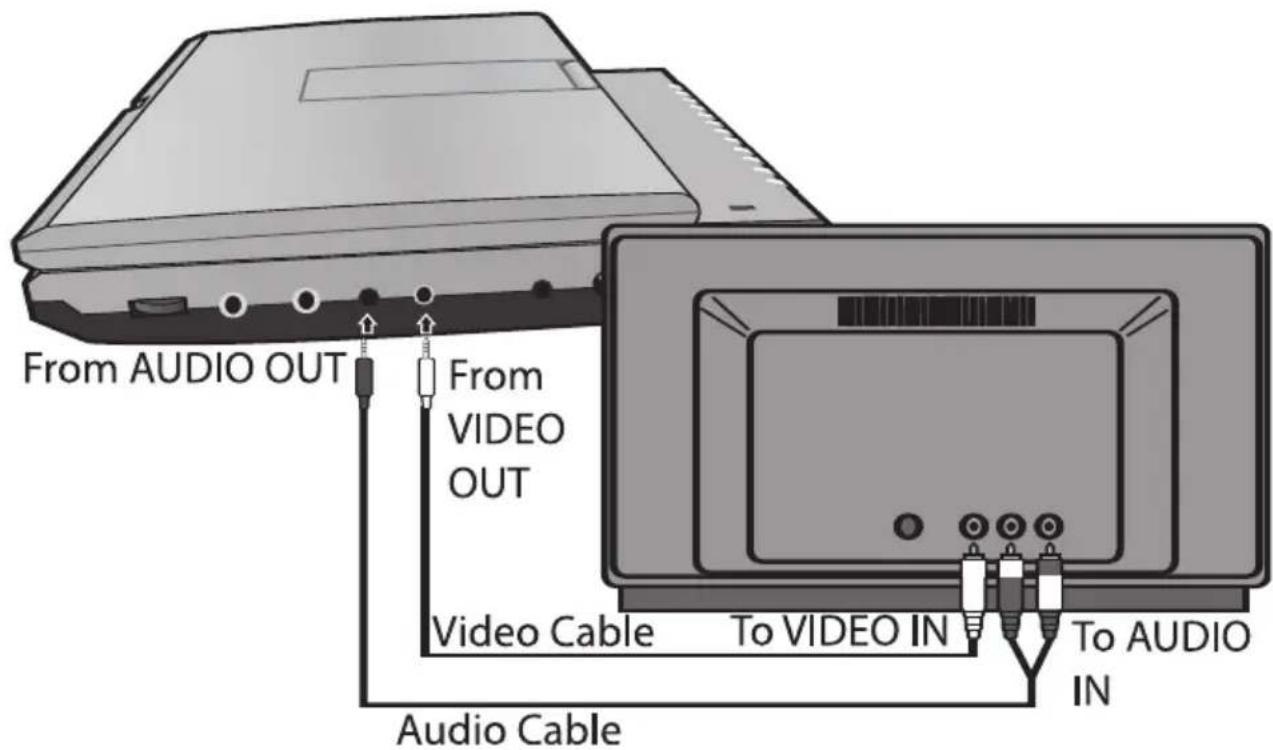
NOTES FOR CONNECTING TO A TV:
- Set the TV's TV/VIDEO button or switch to the VIDEO setting.
- When connecting the unit, refer to the owner's manual of the TV, as well as this manual.
- When connecting the unit to the TV, make sure the power is off and both units are unplugged before making any connections.
- Connect the unit to your TV directly. If you connect the unit through a VCR, the playback picture will be distorted because DVD video discs are copy protected.
CONNECTION (CONTINUED)
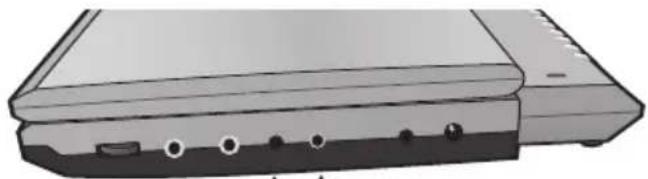
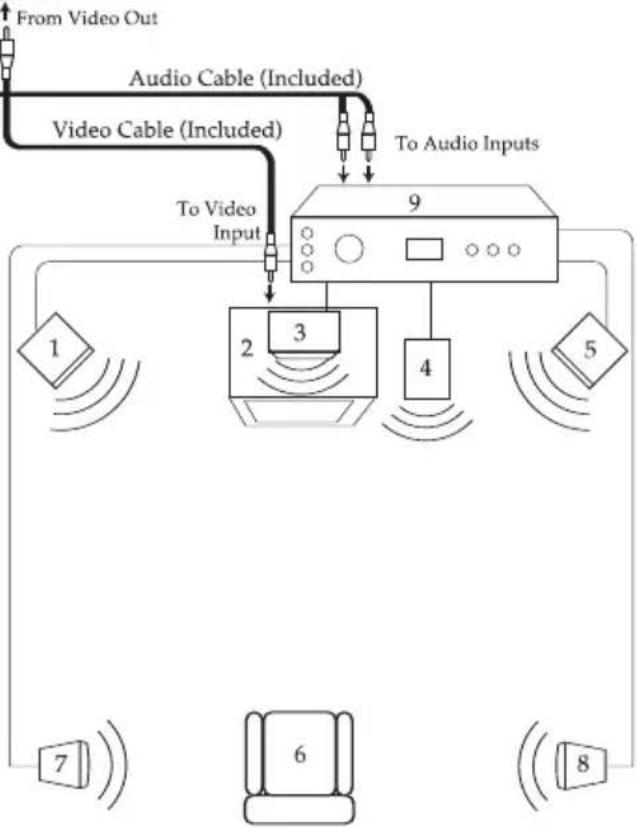
CONNECTING THE DVD TO A HOME THEATER SYSTEM (AUDIO JACK)
natural_image
Illustration of a computer chassis with ports and connectors (no text or symbols)Place the subwoofer, front, rear and center speakers in locations as shown/described here. After correctly positioning the speakers, perform the Tone Test on the AV Amplifier and adjust the Volume control(s) until the desired sound is achieved. For best results, sit in the viewing position and have someone adjust the volumes for you; this will enable you to set the optimal levels.
NOTE: The rear speakers can also be located on the side wall facing the viewing position and each other. Make sure the viewing position is located between the two speakers in this case. Experiment to find optimal position.
flowchart
graph TD
    A["From Video Out"] --> B["Video Cable (Included)"]
    B --> C["To Audio Inputs"]
    C --> D["9"]
    D --> E["1"]
    D --> F["2"]
    D --> G["3"]
    D --> H["4"]
    D --> I["5"]
    E --> J["7"]
    F --> K["6"]
    G --> L["8"]
    style A fill:#f9f,stroke:#333
    style B fill:#ccf,stroke:#333
    style C fill:#cfc,stroke:#333
    style D fill:#fcc,stroke:#333
    style E fill:#cff,stroke:#333
    style F fill:#ffc,stroke:#333
    style G fill:#cfc,stroke:#333
    style H fill:#fcc,stroke:#333
    style I fill:#cfc,stroke:#333
- Viewing/Listening Position— The best listening position is obtained by positioning the chair, sofa, etc. in the middle of all the speakers.
- Rear Left Speaker
- Rear Right Speaker
-
AV Amplifier w/Dolby Digital Decoder
-
Front Left Speaker
- Television
- Center Speaker— can be located on top or below the television.
- Sub-woofer—can be located anywhere in the room.
- Front Right Speaker
NOTES FOR CONNECTING TO A TV:
- Set the TV's TV/VIDEO button or switch to the VIDEO setting.
- When connecting the unit, refer to the owner's manuals for the TV and the audio system, as well as this manual.
- When connecting, make sure the power is off and all units are unplugged before making any connections.
- Connect the unit to your TV directly. If you connect the unit through a VCR, the playback picture will be distorted because DVD video discs are copy protected.
CONNECTION (CONTINUED)
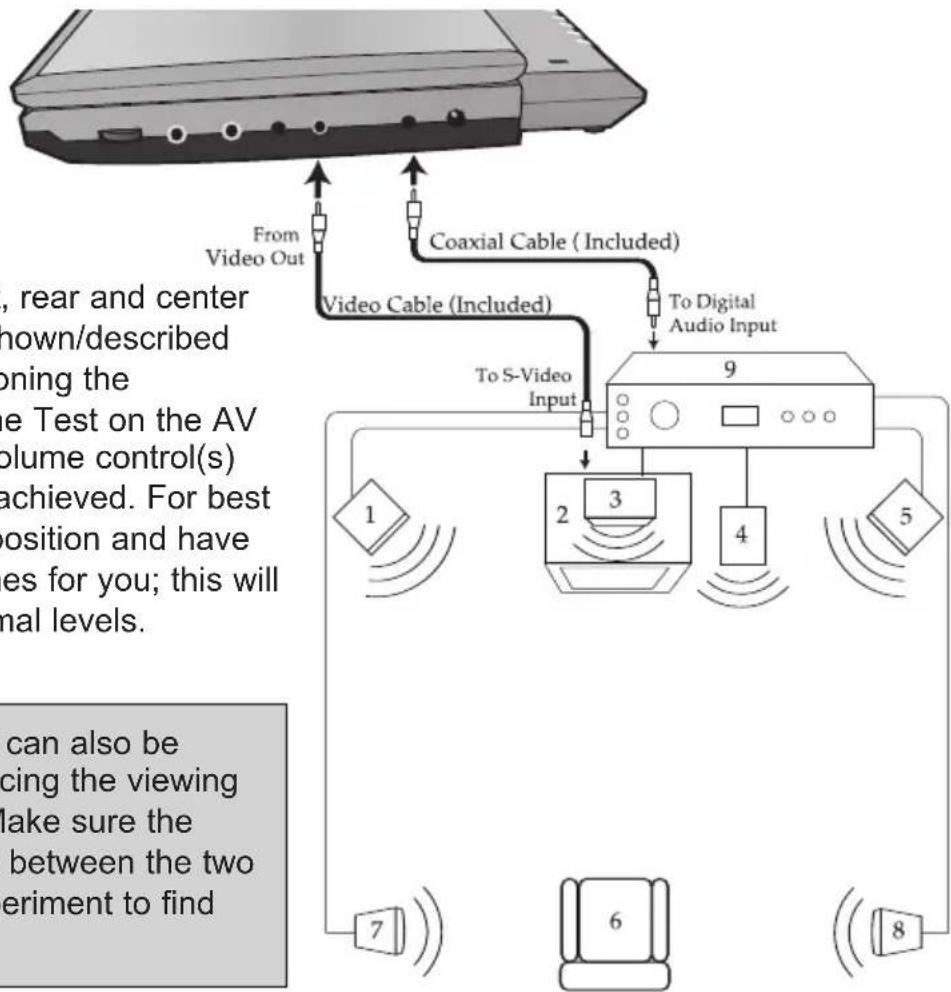
CONNECTING THE DVD TO A HOME THEATER SYSTEM (COAXIAL JACK)
flowchart
graph TD
    A["Video Cable (Included)"] -->|From Video Out| B["Video Cable (Included)"]
    A -->|To S-Video Input| C["9"]
    C --> D["1"]
    C --> E["2"]
    C --> F["3"]
    C --> G["4"]
    C --> H["5"]
    C --> I["6"]
    C --> J["7"]
    C --> K["8"]
    style A fill:#f9f,stroke:#333
    style C fill:#ccf,stroke:#333
    style D fill:#cfc,stroke:#333
    style E fill:#cfc,stroke:#333
    style F fill:#cfc,stroke:#333
    style G fill:#cfc,stroke:#333
    style H fill:#cfc,stroke:#333
    style I fill:#cfc,stroke:#333
    style J fill:#cfc,stroke:#333
    style K fill:#cfc,stroke:#333
Place the subwoofer, front, rear and center speakers in locations as shown/described here. After correctly positioning the speakers, perform the Tone Test on the AV Amplifier and adjust the Volume control(s) until the desired sound is achieved. For best results, sit in the viewing position and have someone adjust the volumes for you; this will enable you to set the optimal levels.
NOTE: The rear speakers can also be located on the side wall facing the viewing position and each other. Make sure the viewing position is located between the two speakers in this case. Experiment to find optimal position.
- Front Left Speaker
- Television
- Center Speaker— can be located on top or below the Television.
- Sub-woofer—can be located anywhere in the room.
-
Front Right Speaker
-
Viewing/Listening Position— The best listening position is obtained by positioning the chair, sofa, etc. in the middle of all the speakers.
- Rear Left Speaker
- Rear Right Speaker
- AV Amplifier w/Dolby Digital Decoder
NOTES FOR CONNECTING TO A TV:
- Set the TV's TV/VIDEO button or switch to the VIDEO setting.
- When connecting the unit, refer to the owner's manuals for the TV and the audio system, as well as this manual.
- When connecting, make sure the power is off and all units are unplugged before making any connections.
- Connect the unit to your TV directly. If you connect the unit through a VCR, the playback picture will be distorted because DVD video discs are copy protected.
- Set the Digital Out on the Audio Setup menu to PCM, see page 20.
CONNECTION (CONTINUED)
CONNECTING THE UNIT TO ANOTHER MEDIA PLAYER
(To view the image/hear the sound from an external unit):
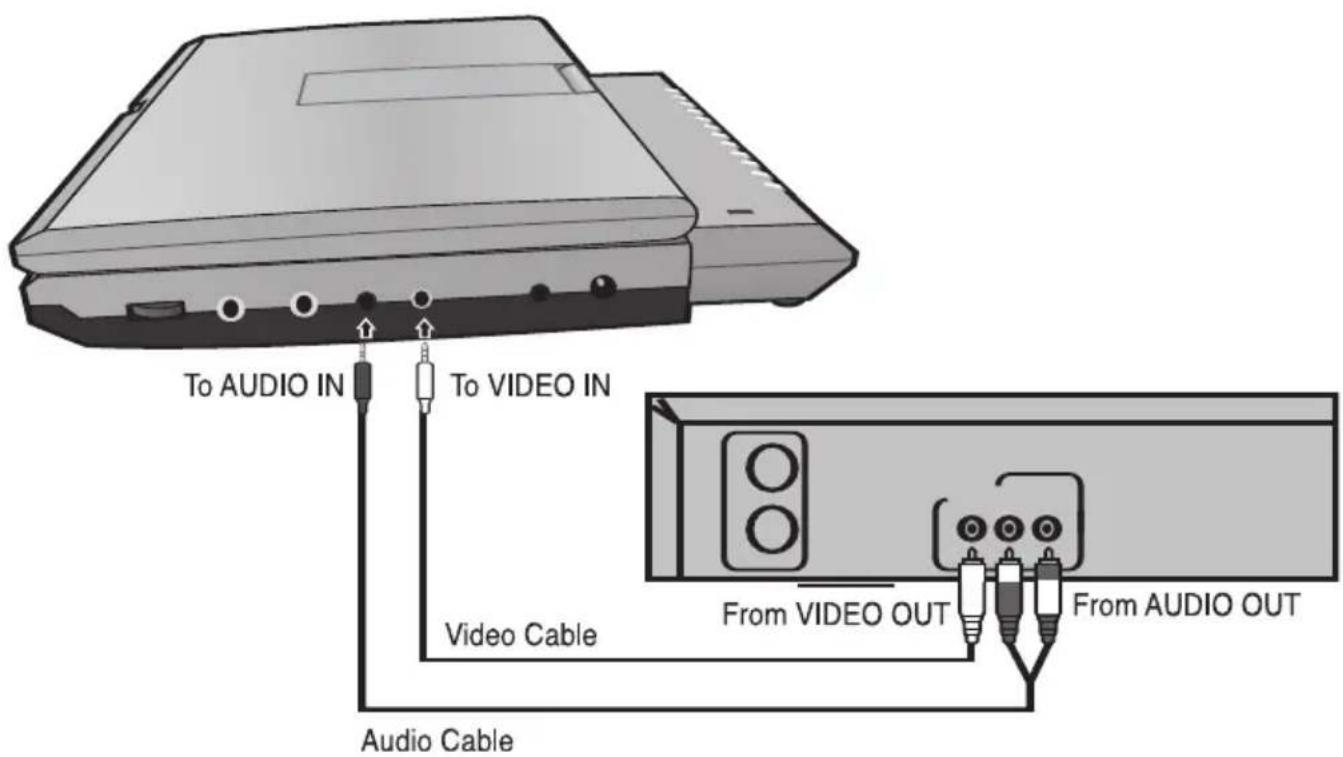
NOTES FOR CONNECTING:
- When connecting the unit, refer to the owner's manual(s) of the external unit(s), as well as this manual.
- When connecting the unit, make sure the power is off and all units are unplugged before making any connections.
- Press the POWER button (on the main unit) to turn on the unit and press the SOURCE button (on the main unit) to select AV Input.
ABOUT DISCS
The region number for this DVD Player is: See the following page for information regarding region numbers.

PLAYABLE DISCS:
The following discs can be played back on this DVD player:

DISC TYPES:
DVD
Data on most DVDs is divided into sections called “titles” and then into subsections called “chapters”, each of which is given a title or chapter number. Some features of this DVD player will not operate with some DVD discs as they are preset. If a function you selected does not run as desired, refer to the manual accompanying the DVD disc.
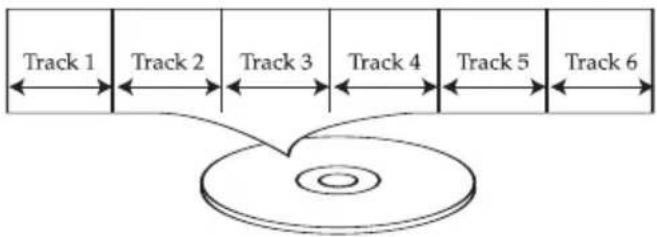
AUDIO CD
Data on an audio CD is divided into sections called "tracks", each of which is given a track number.

flowchart
graph TD
    A["Chapter 1"] --> B["Chapter 2"]
    B --> C["Chapter 3"]
    C --> D["Chapter 4"]
    D --> E["Chapter 1"]
    E --> F["Chapter 2"]
    style A fill:#f9f,stroke:#333
    style B fill:#f9f,stroke:#333
    style C fill:#f9f,stroke:#333
    style D fill:#f9f,stroke:#333
    style E fill:#f9f,stroke:#333
    style F fill:#f9f,stroke:#333
flowchart
graph LR
    A["Track 1"] --> B["Track 2"]
    B --> C["Track 3"]
    C --> D["Track 4"]
    D --> E["Track 5"]
    E --> F["Track 6"]
    F --> G["Central Interface"]
IMPORTANT:
It is important that you read the manual that accompanies the DVD disc, as there are features that are on the DVD player that cannot be used with certain DVDs. There are also extra features on the DVD disc that are different for each DVD disc, so they are not explained in this owner's manual.
ABOUT DISCS (CONTINUED)
Notes on Copyright:
It is forbidden by law to copy, broadcast, show, broadcast on cable, play in public and rent copyrighted material without permission. DVD video discs are copy protected, and any recordings made from these discs will be distorted. This product incorporates copyright protection technology that is protected by method claims of certain U.S. patents and other intellectual property rights owned by Macrovision Corporation and other rights owners. Use of this copyright protection technology must be authorized by Macrovision Corporation, and is intended for home and other limited viewing uses only, unless otherwise authorized by Macrovision Corporation. Reverse engineering or disassembly is prohibited.
Region Management Information:
This DVD Player is designed and manufactured to respond to the Region Management Information that is recorded on a DVD disc. If the Region number described on the DVD disc does not correspond to the Region number of this DVD player, this DVD player cannot play that disc. You may not be able to play back some DVD video discs on this player if they were purchased from outside your geographic area or made for business purposes. When you try to play back an unauthorized disc, "Wrong Region" appears on the TV screen.
SETUP MENU
The Setup Menu lets you customize the DVD player by allowing you to select various language preferences, set video/audio settings, adjust what type of television screen you have and more.
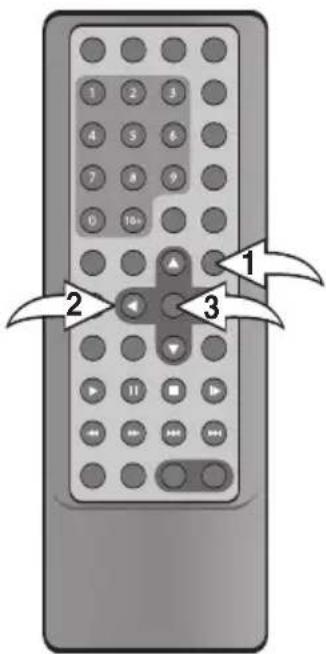
Use the following instructions to navigate and change the options as described on the upcoming pages.
- Without a disc inserted and with the disc compartment cover closed, press the SETUP button ① to enter the Setup Menu.
- Select one of the Setup icons at the top of the screen using the Navigation (◀,▶) buttons ②, then press the ENTER button ③ to select it.
- Use the Navigation (▲,▼) buttons ② to select one of the Setup options, then press the ENTER button ③ to select it.
- Use the Navigation (▲,▼) buttons ② to change the desired setting, then press the ENTER button ③ to make the change.
- Exit by pressing the SETUP button ① again.
NOTE:
- To turn on the unit, press the POWER button (on the main unit); the Power indicator will light. To turn off the unit, press the POWER button (on the main unit); the Power indicator will turn off.
- You can also press the RETURN button (on the remote) to exit the Setup menu.
SETUP MENU (CONTINUED)
LANGUAGE SETUP MENU:
Press the SETUP button to enter the menu, select LANGUAGE using the Navigation (◀,▶) buttons, then press the ENTER button to select it. Select/change the Setup option as described on page 18.
OSD LANGUAGE
1
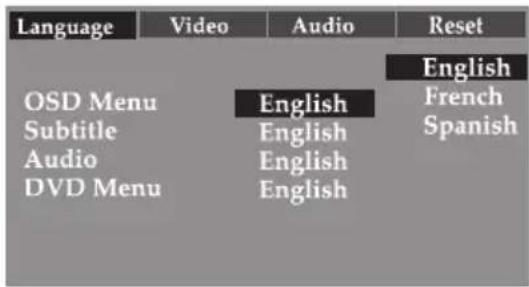
Select the desired language (ENGLISH, FRENCH, SPANISH) for the On-Screen display to display text. Note that the DVD must have the language included in order to display it.
SUBTITLE
1

Select the language the Subtitle (OSD) will be in (ENGLISH, FRENCH, SPANISH, AUTO, OFF). The DVD must be recorded in the selected language, otherwise the default language of the DVD will be shown. Select OFF to select without any language showing on the TV screen.
AUDIO
1
| Language | Video | Audio | Reset |
| English | |||
| OSD Menu | English | French | |
| Subtitle | English | Spanish | |
| Audio | English | ||
| DVD Menu | English | ||
Select the language the DVD will be played back in (ENGLISH, FRENCH, SPANISH). The DVD must be recorded in the selected language, otherwise the default language of the DVD will be played.
DVD MENU
1
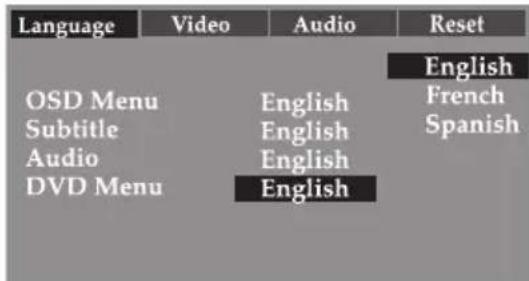
Select the language the DVD MENU will be in (ENGLISH, FRENCH, SPANISH). The DVD's MENU must be made in the selected language, otherwise the default language of the DVD will be shown.
SETUP MENU (CONTINUED)
VIDEO SETUP MENU:
Press the SETUP button to enter the menu, select VIDEO using the Navigation (◀,▶) buttons, then press the ENTER button to select it. Select/change the Setup option as described on page 18.
TV SHAPE (TV DISPLAY)
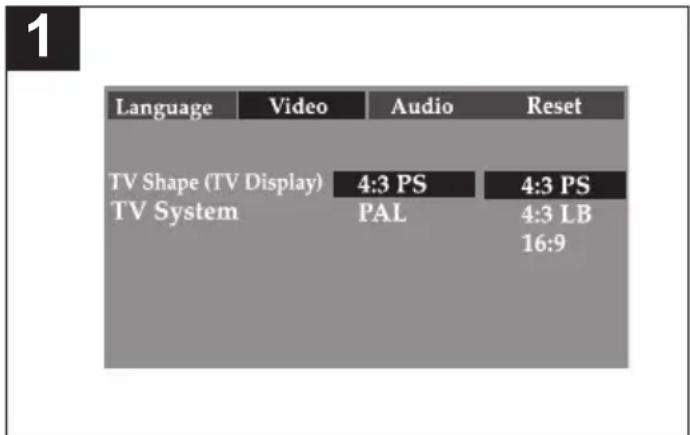
4:3/PS: Pan Scan. Select when the unit is connected to a conventional TV. Video material formatted in the Pan Scan style is played back in that style (the left and right edges are cut off).
4:3/LB: Letter Box. Select when the unit is connected to a normal TV. Wide-screen images are shown on the screen with a black band at the top or bottom.
16:9: Select when the unit is connected to a wide-screen TV.
TV SYSTEM
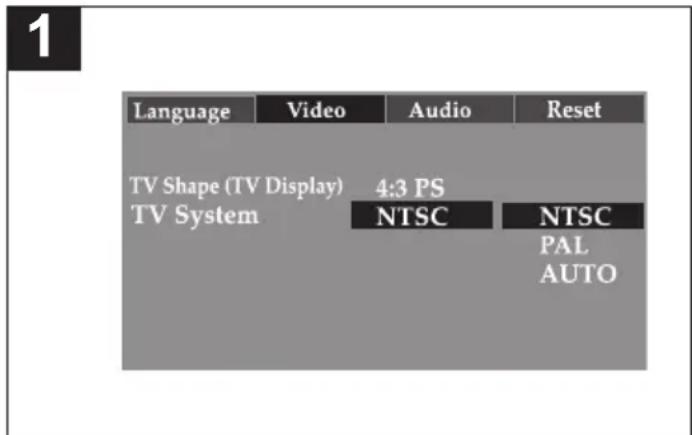
NTSC: Select when using an NTSC TV. PAL: Select when using a PAL TV.
AUTO: Select AUTO only if your TV supports both formats, the output signal will follow automatically the video format on the DVD disc.
IMPORTANT: In the USA, the standard is NTSC.
AUDIO SETUP MENU:
Press the SETUP button to enter the menu, select AUDIO using the Navigation (◀,▶) buttons, then press the ENTER button to select it. Select/change the Setup option as described on page 18.
DIGITAL OUT
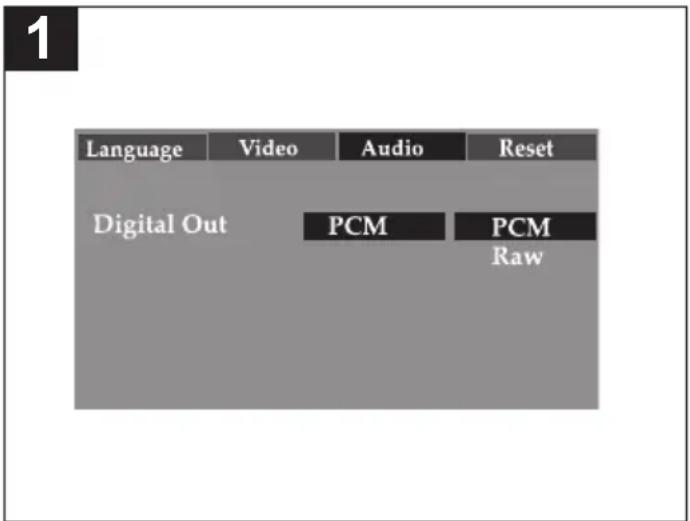
Select the desired Digital Out for coaxial audio transmissions:
RAW: Select to use the coaxial for Dolby Digital Audio.
PCM: Select for two channel Digital mode. Selects the Left and Right channel for stereo audio output.
SETUP MENU (CONTINUED)
RESET SETUP MENU:
Press the SETUP button to enter the menu, select RESET using the Navigation (◀,▶) buttons, then press the ENTER button to select it.
RESET
1
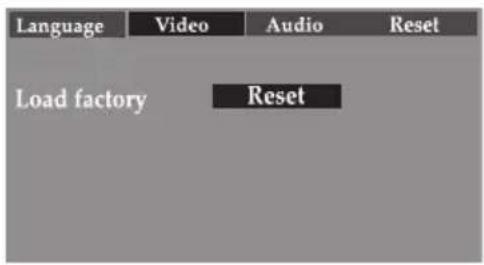
Press the ENTER button to reset the functions of the player to the original factory settings.
BASIC OPERATION
IMPORTANT:
When “” appears while pressing a button, this means that the corresponding function cannot be performed either on the disc inserted, or in the selected mode.
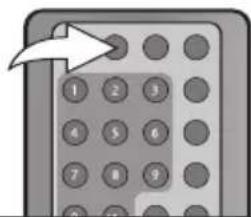
MUTE BUTTON
1
natural_image
Illustration of a gray calculator with numbered keypad and an arrow pointing to the top (no text or symbols)Press the MUTE button once to mute the sound; the Mute indicator will appear on the screen. Press the MUTE button again to restore the sound; the Mute indicator will disappear from the screen.
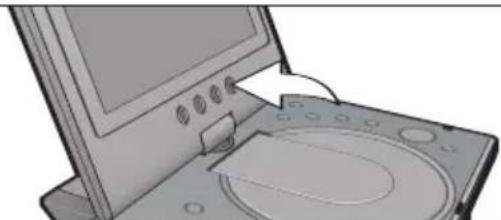
ROTATE BUTTON
1
natural_image
Illustration of a computer monitor with a CD/DVD disc and control panel (no text or symbols)Press the ROTATE button on the main unit to flip the display's picture 180°. This is useful when the screen is rotated as shown on page 8. Press the ROTATE button again to flip the display's picture back to the normal position.
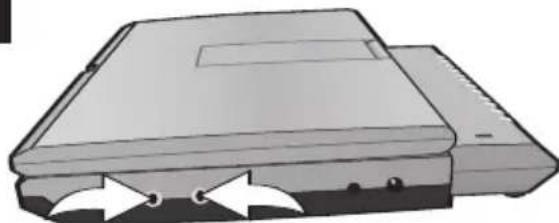
HEADPHONE JACK(S)
1
natural_image
Illustration of a computer monitor with two arrows indicating directional flow (no text or symbols)For private listening, plug headphones into one or both of the Headphone jacks. The speakers will be disconnected when headphone(s) are connected.
SOURCE BUTTON
1
natural_image
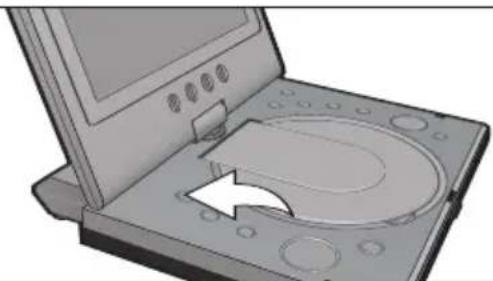
Illustration of a computer monitor with an open screen and a circular button, showing a white arrow pointing to the button (no text or symbols present)To view the image/hear the sound from an external unit, press the SOURCE button to select AV Input. Press again to exit the AV Input mode. Please refer to page 15 to connect an external unit to this player.
NOTE: While in the AV Input mode, only the POWER button (on the main unit) and the SOURCE button will function.
BASIC OPERATION (CONTINUED)
OSD BUTTON
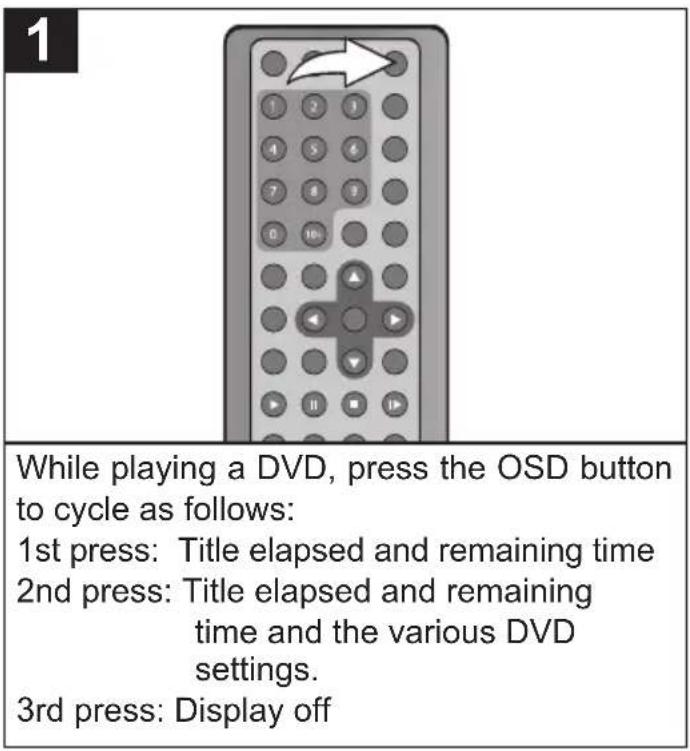
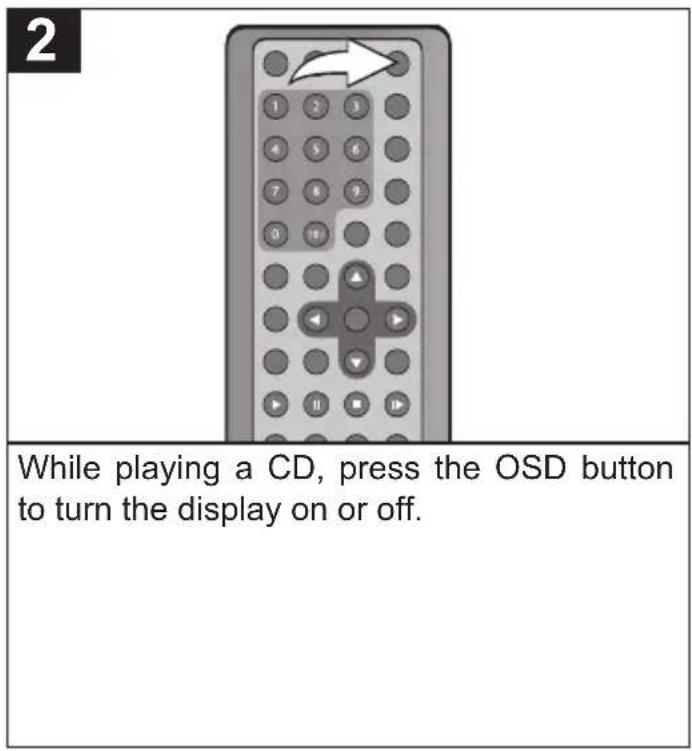
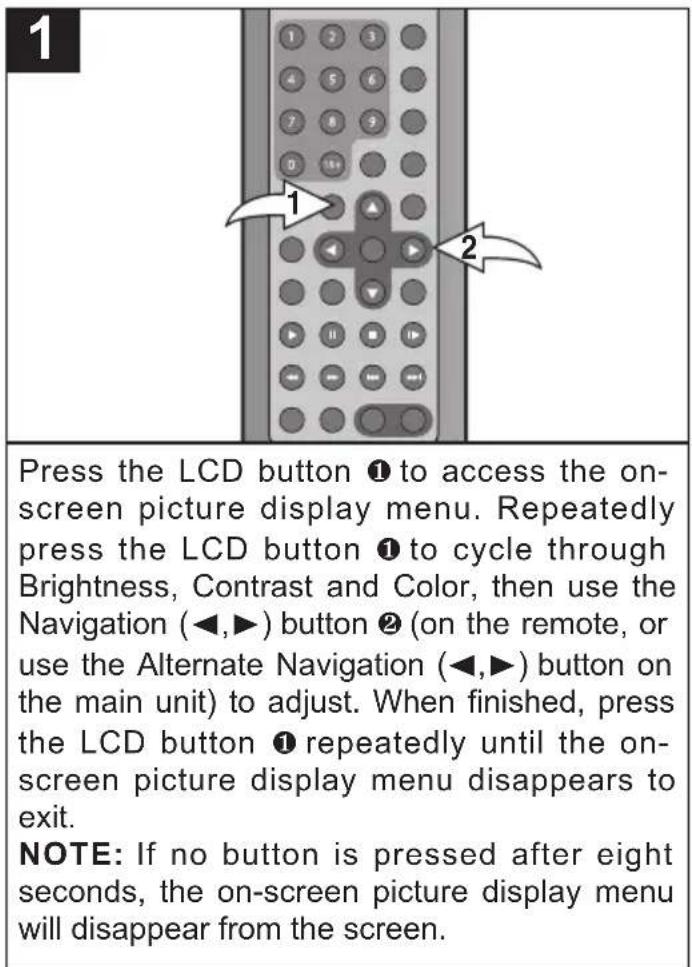
LCD BUTTON
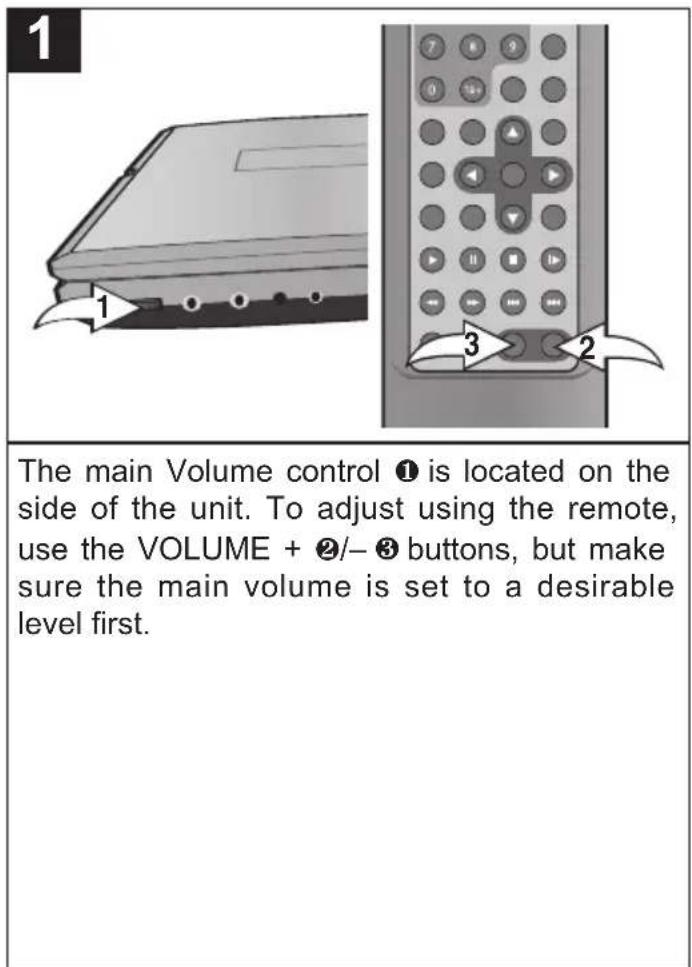
VOLUME
DVD OPERATION
IMPORTANT NOTES:
• After plugging in, the unit will be in the Power Off mode. Press the Power button on the main unit to turn on the unit.
- “” will appear on the screen during operation if you try to access a function that is not available on the disc.
• Some discs may take a few seconds to load.
- If a disc is inserted incorrectly, dirty, damaged, or is not present at all, "NO DISC" will appear in the display.
• Always hold the disc without touching either of its surfaces. When inserting a disc, position it with the printed title side facing up, align it with the guides and place it in its proper position.
- It is important that you read the manual that accompanies the DVD disc as there are features that are on this DVD player that cannot be used with certain DVDs. There are also extra features that are different for each DVD disc, so they are not explained in this owner's manual.
- If the unit is in the Stop mode, Pause mode or if there is no disc in the disc tray, the screen saver will appear on the screen after three minutes.
PLAYBACK OF A DVD
natural_image
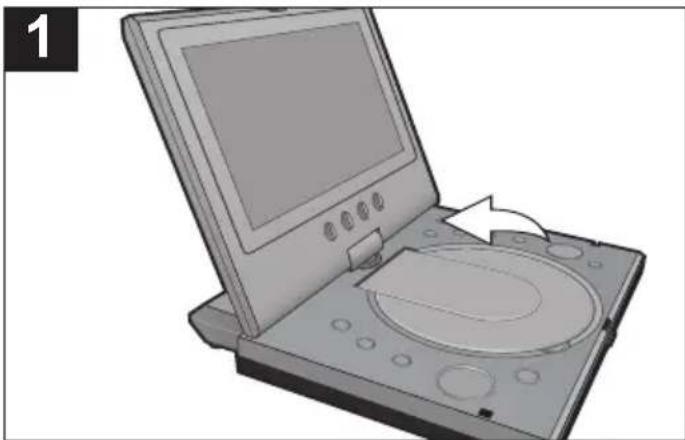
Illustration of a desktop computer with an open screen and disc (no text or symbols visible)Press the POWER button on the main unit to turn on the unit.
natural_image
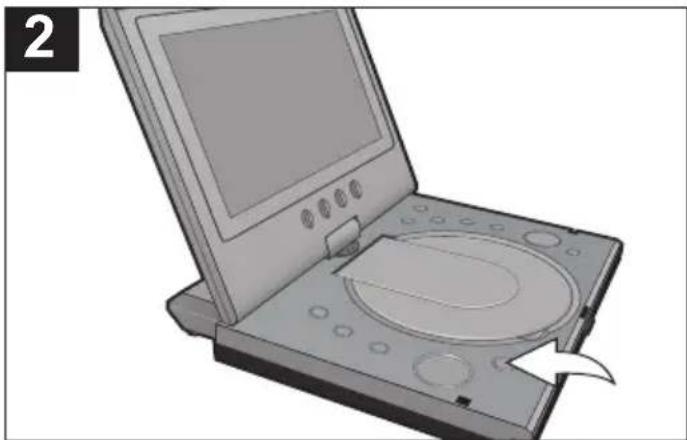
Illustration of an open digital CD or DVD device with a screen and disc (no text or symbols visible)Press the OPEN button to open the disc tray, "OPEN" will appear on the screen. Insert a disc with the label side facing up on the disc tray.
CONTINUED ON THE NEXT PAGE
DVD OPERATION (CONTINUED)
3
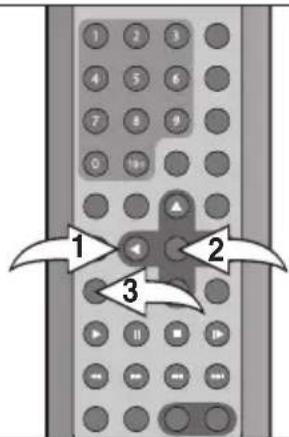
Close the disc tray. After loading, the menu screen of the DVD should appear. Use the Navigation (◀,▶,▲,▼) buttons ① to select the desired option and press the ENTER button ② to select it. Adjust the volume as described on page 23.
NOTE:
If the menu screen does not appear, press the MENU button ③ to access it.
4
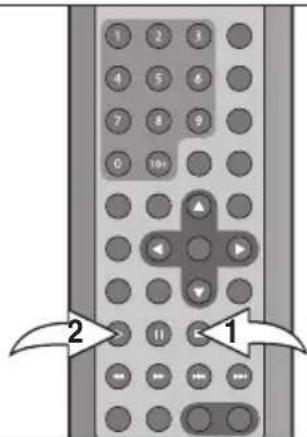
To stop playback, press the Stop (■) button ①; "STOP (PLAY TO RESUME)" will appear on the screen. Because the unit will remember where you stopped, simply press the PLAY (▶) button ② to resume playback where you left off (resuming playback). If the Stop (■) button ① is pressed twice, the screen shows "(■) STOP" and the unit will stop completely.
NOTES:
- If a menu appears on the TV screen, press the Navigation (◀,▶,▲,▼) buttons to select the desired option/item, then press the PLAY (▶) button. Please make sure to refer to the disc's jacket or case for additional information.
- Resuming playback may not work on all discs.
DVD OPERATION (CONTINUED)
SKIP
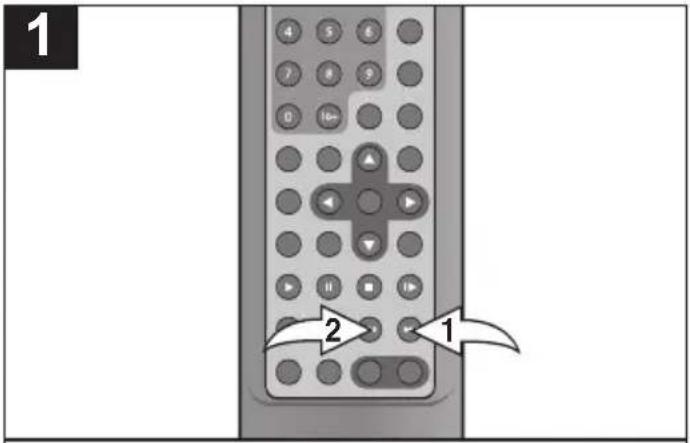
Press the Skip (▶) button ① to advance the DVD to the beginning of the next chapter.
Press the Skip (◀) button ② to move the DVD to the beginning of the current or previous chapters.
SEARCH
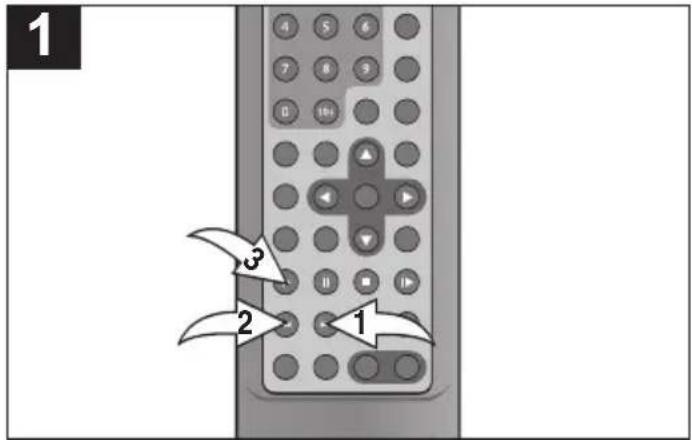
During playback, press either the Search ▶▶ button ① or Search ◀◀ button ② to move the DVD forward or backward at double (x2) speed to locate a specific section. Repeatedly press these buttons and the speed will increase to x4, x8, x20 and resume normal playback.
The DVD will move forward or backward at high speed until the PLAY (▶) button ③ is pressed again; normal playback will resume at that point.
SLOW MOTION
Use this feature to move the DVD in slow motion.
PAUSE/STEP
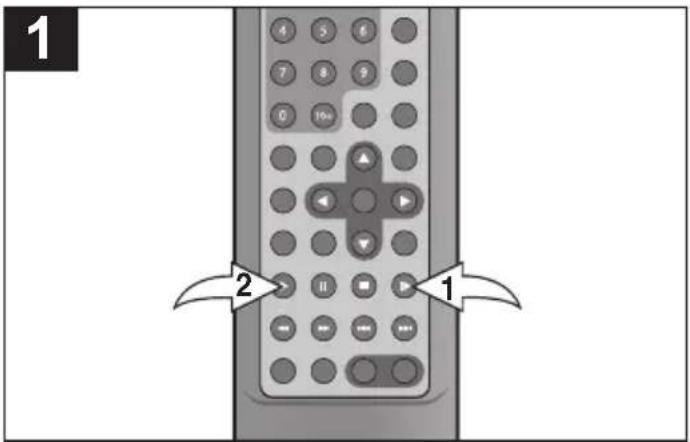
During playback, press the SLOW button ① to move the DVD forward in slow motion speeds of 1/2, 1/4, 1/6, 1/7 and resume normal playback. The sound will be muted. You can also resume normal playback by pressing the PLAY (▶) button ②.
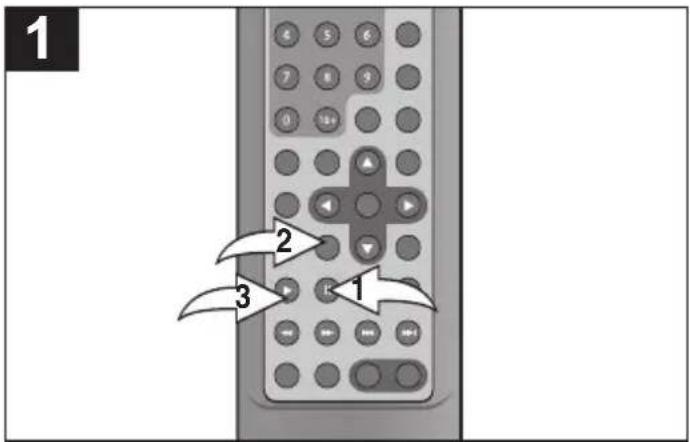
Press the PAUSE button ① once to pause the picture.
Repeatedly press the STEP button ② to play the DVD one frame at a time.
Press the PLAY (▶) button ⓣ to resume normal playback.
DVD OPERATION (CONTINUED)
TIME SEARCH
Use this feature to directly go to a specific time.
TITLE SEARCH
Use this feature to directly go to a specific title.
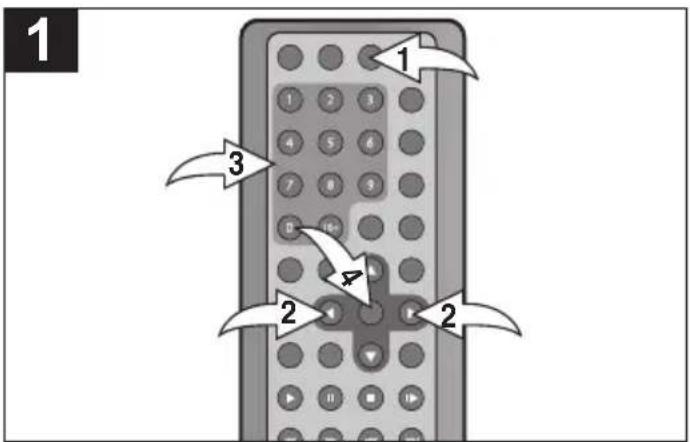
Press the SEARCH button ① once. Press the Navigation (◀,▶) buttons ② to select “--:--:-” after TIME, then use the Number buttons ③ to select the desired time (Hour/Minutes/Seconds). Press the ENTER button ④ and playback will start.
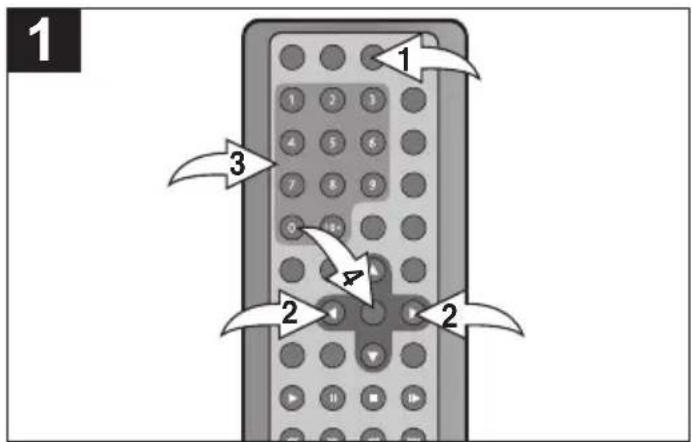
Press the SEARCH button ① once. Press the Navigation (◀,▶) buttons ② to select “--- /” after TITLE/CHAPTER, then use the Number buttons ③ to select the desired title number. Press the ENTER button ④ and playback will start.
CHAPTER SEARCH
Use this feature to directly go to a specific chapter.
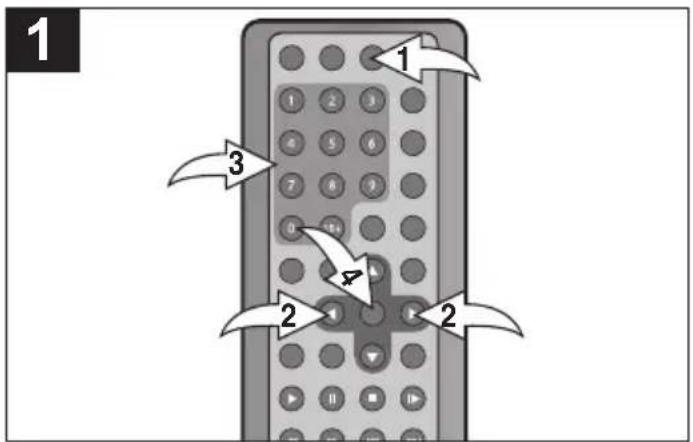
Press the SEARCH button ① once. Press the Navigation (◀,▶) buttons ② to select "/---" after TITLE/CHAPTER, then use the Number buttons ③ to select the desired chapter number. Press the ENTER button ④ and playback will start.
NOTE:
- If an incorrect number is entered, press the CLEAR button (on the remote) to cancel/erase the number.
OPERATION (CONTINUED)
BOOKMARK
This unit can allow you to bookmark up to 3 sections of a DVD for later viewing as follows:
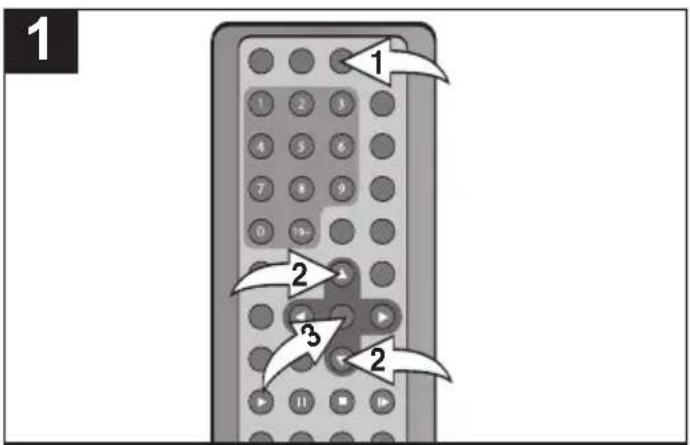
During playback, press the SEARCH button ① twice; the bookmark menu will appear on the screen. Use the Navigation (▲,▼) buttons ② to select a blank bookmark box, then when the desired scene appears, press the ENTER button ③ to bookmark it. To remove the bookmark menu from the screen, press the SEARCH button ① again.
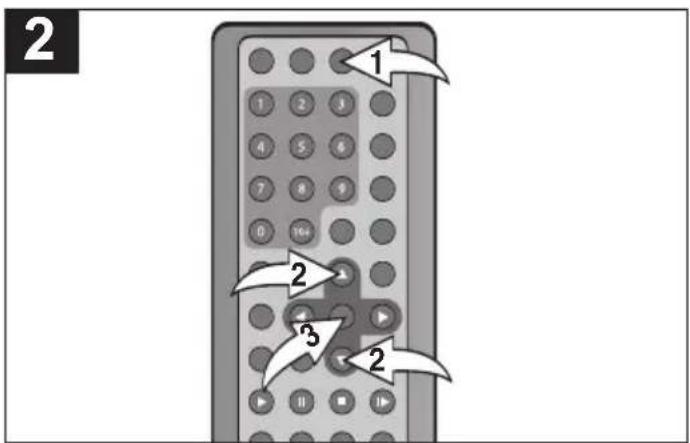
To go to a previously bookmarked section, press the SEARCH button ① twice; the bookmark menu will appear on the screen. Use the Navigation (▲,▼) buttons ② to select the desired bookmark and press the ENTER button ③; the DVD will then begin playing at that point.
TO DELETE A BOOKMARK, simply select the bookmark that you want to delete in the Bookmark menu, then press the CLEAR button.
NOTE:
- If the unit is turned off, the disc is changed or the disc compartment door is opened, all the bookmarks will be cleared.
DVD OPERATION (CONTINUED)
REPEAT PLAYBACK
While playing back a DVD, this unit can repeatedly playback a chapter or title.
A-B REPEAT PLAYBACK
While playing back a DVD, this unit can repeatedly playback a specific section.
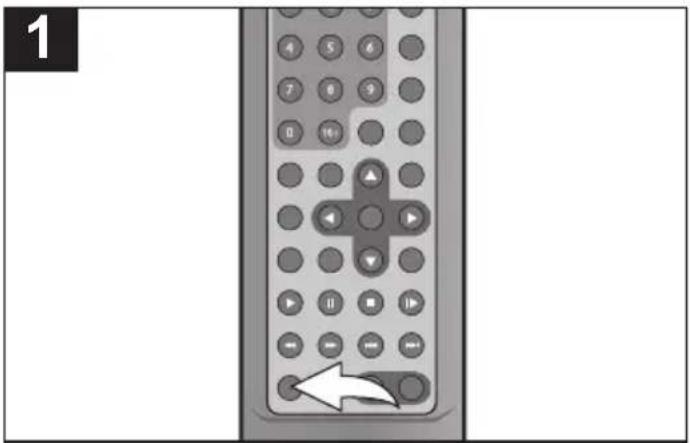
While in the Playback mode, press the REPEAT button once; "REPEAT OFF" will appear on the screen.
Press the REPEAT button a second time; "REPEAT CHAPTER" will appear on the screen and the currently playing Chapter will repeat continuously.
Press the REPEAT button a third time; "REPEAT TITLE" will appear on the screen and the currently playing Title will repeat continuously.
Press the REPEAT button once more to cancel Repeat mode; "REPEAT OFF" will appear temporarily on screen.
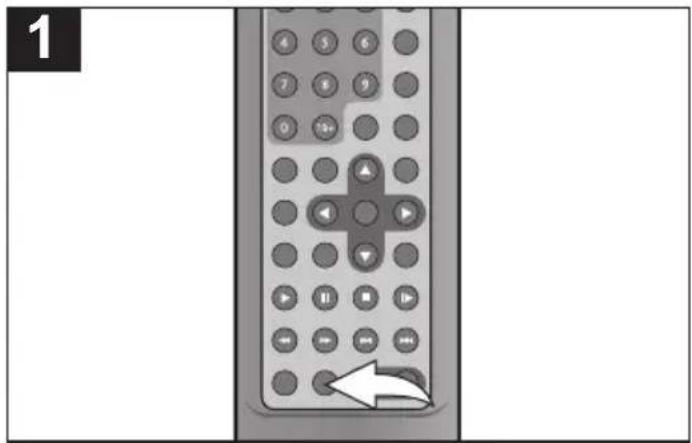
While in the Playback mode, press the Repeat A-B button to define where you want the section to start. Press the Repeat A-B button again to define where you would like the section to end, the unit will then play the selected area continuously.
Press the Repeat A-B button again to cancel Repeat A-B mode.
NOTE:
- Repeat may not work properly with some discs.
DVD OPERATION (CONTINUED)
AUDIO MENU
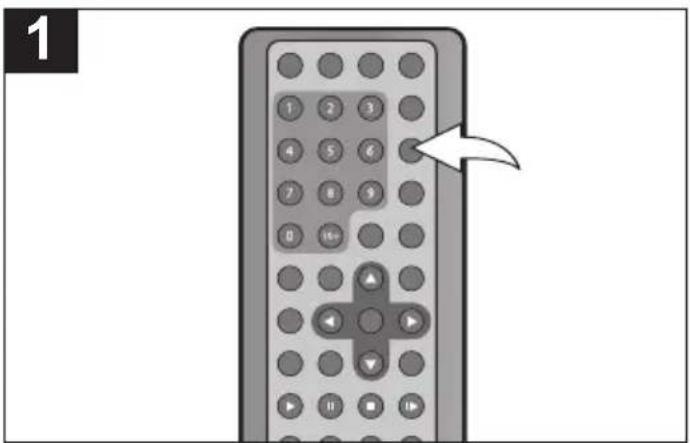
Press the AUDIO button repeatedly to change the audio language. This feature is not available on all discs.
SUBTITLE MENU
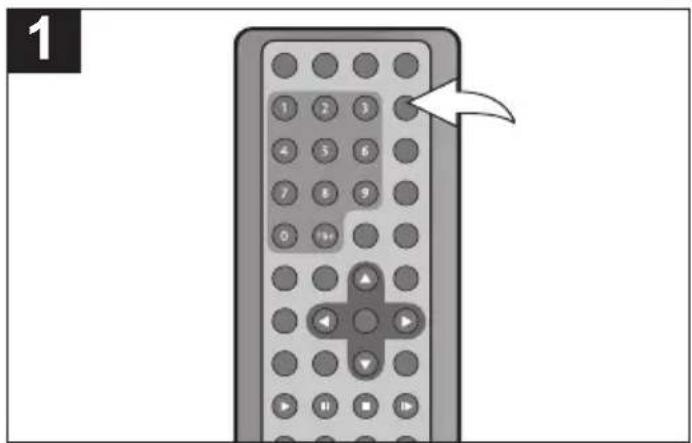
Press the SUBTITLE button repeatedly to select a subtitle language, and to turn the subtitle menu on/off. This feature is not available on all discs.
DVD MENU
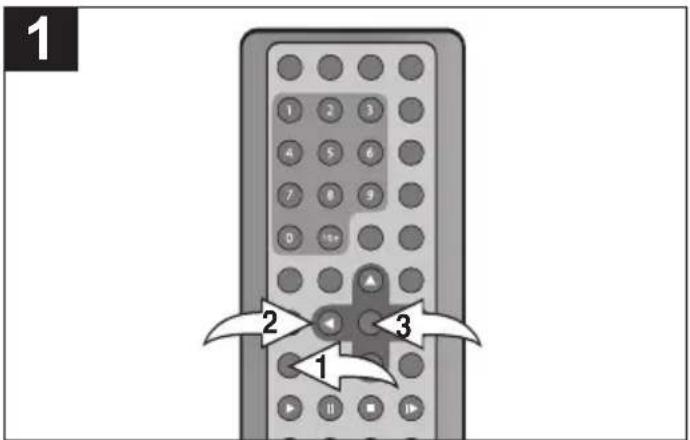
Press the MENU button ①, and the Main Menu of the disc will appear. Use the Navigation (◀,▶,▲,▼) buttons ② to select the desired option, and then press the ENTER button ③. This is not available on all discs.
TITLE MENU
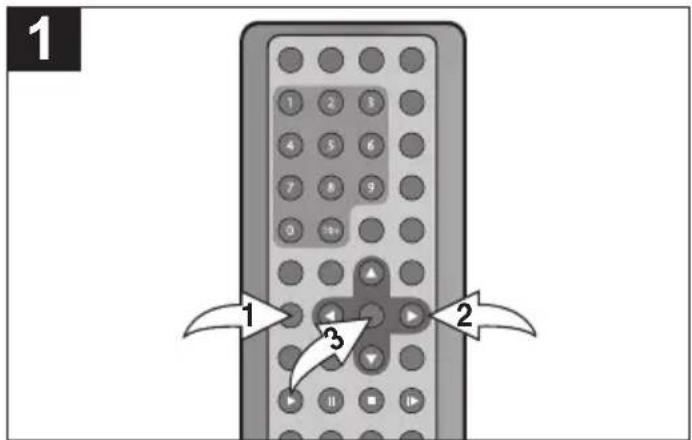
Press the TITLE button ①, and the Title Menu of the disc will appear. Use the Navigation (◀,▶,▲,▼) buttons ② to select the desired option, and then press the ENTER button ③. This is not available on all discs.
DVD OPERATION (CONTINUED)
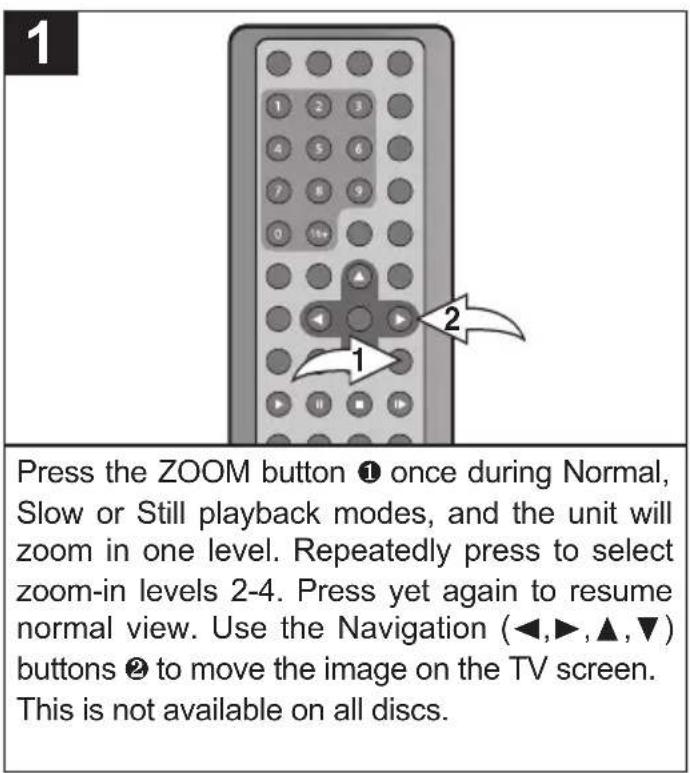
ZOOM IN
The image on the screen can be magnified as follows:
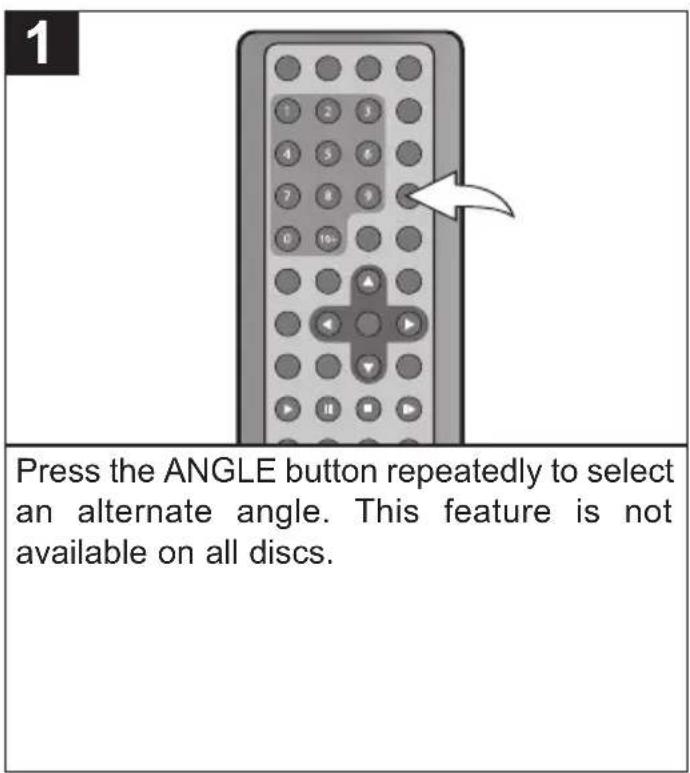
ANGLE
Some discs may contain scenes which have been shot simultaneously from a number of different camera angles. This feature only works on discs with more than one camera angle. The jacket will be marked with “.”
DVD OPERATION (CONTINUED)
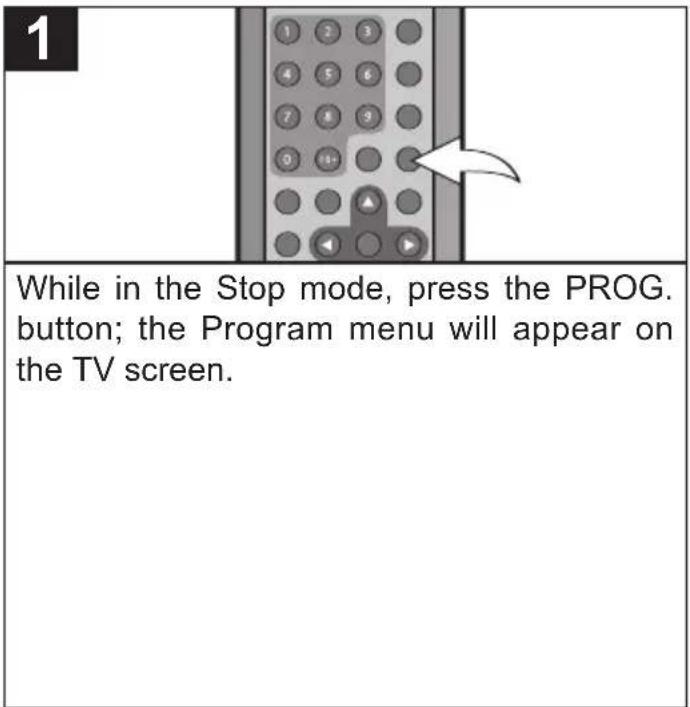
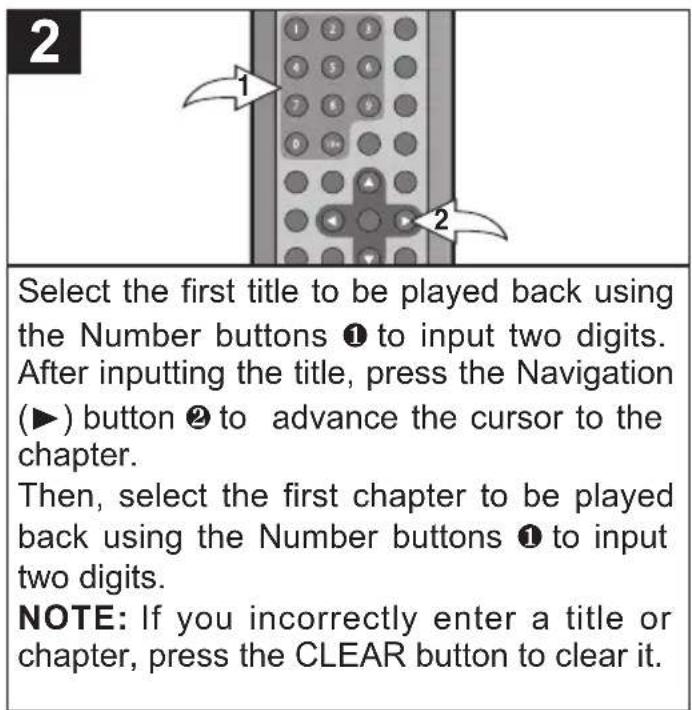
PROGRAMMED PLAYBACK
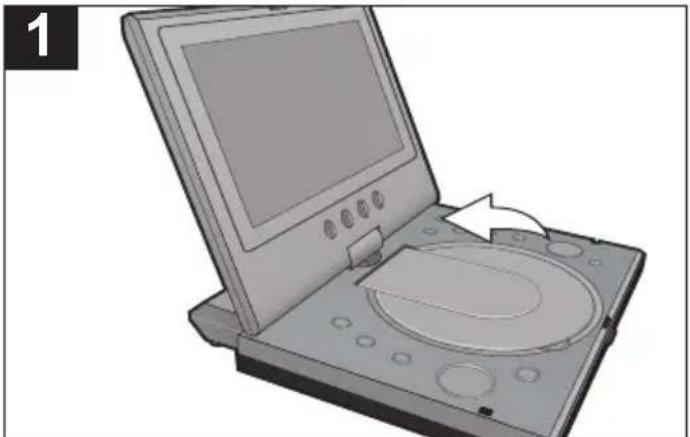
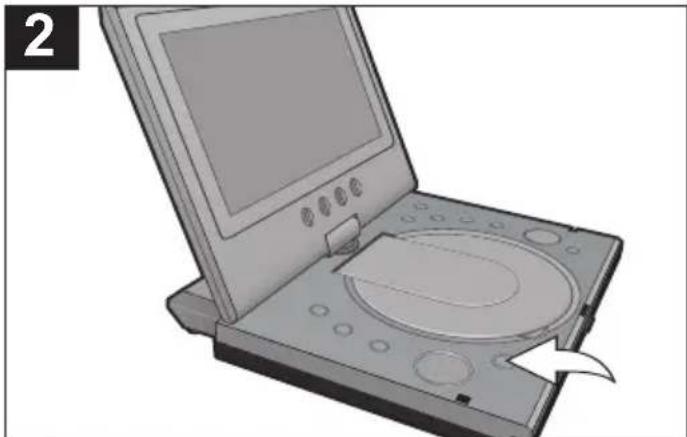
The DVD player in this unit has a 16 chapter programmable memory that allows you to program up to 16 chapters on any disc for playback in any desired order. You may program 16 different chapters or you may also program certain chapters to play more than once. To perform Programmed Playback, proceed as follows:
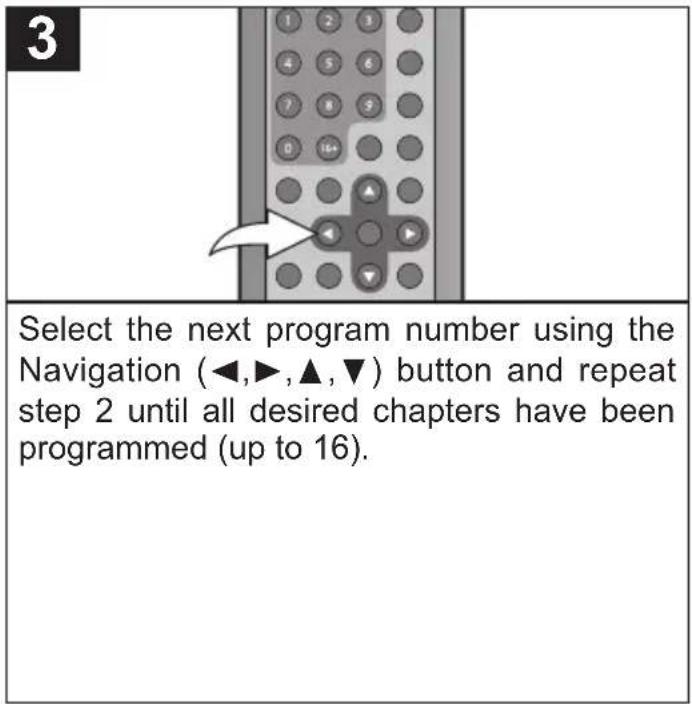
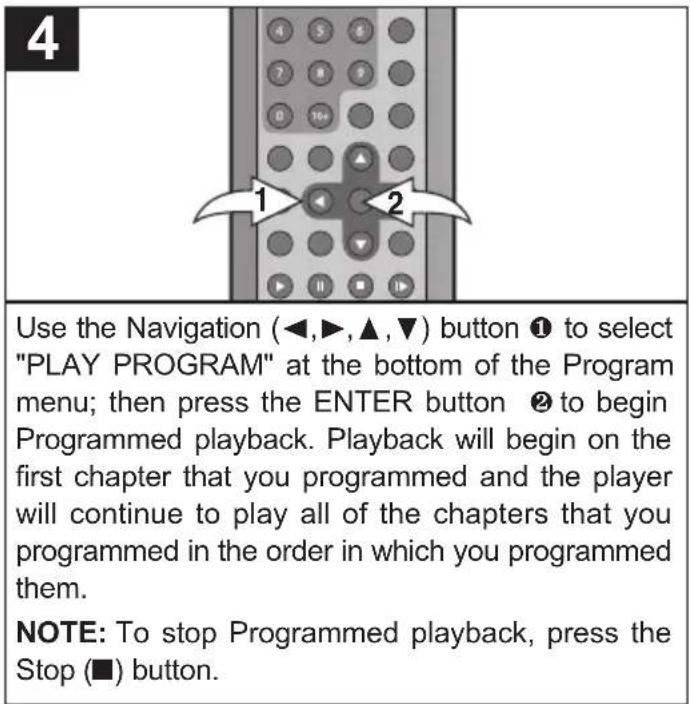
TO CLEAR ALL OF THE PROGRAM:
While in the Stop mode, press the PROG button, then use the Navigation (◀,▶,▲,▼) button to select "CLEAR ALL" at the bottom of the Program menu; then press the ENTER button to clear the program.
NOTE:
- If the unit is turned off, the disc is changed or the disc compartment door is opened, all the programs will be cleared.
CD OPERATION
PLAYBACK OF A CD
natural_image
Illustration of a desktop computer with an open disc and control panel (no text or symbols visible)Press the POWER button to turn on the unit.
natural_image
Illustration of a desktop computer with an open screen and CD/DVD disc (no text or symbols visible)Press the OPEN/CLOSE button to open the disc tray, "OPEN" will appear on the screen. Insert a disc with the label side facing up on the disc tray.
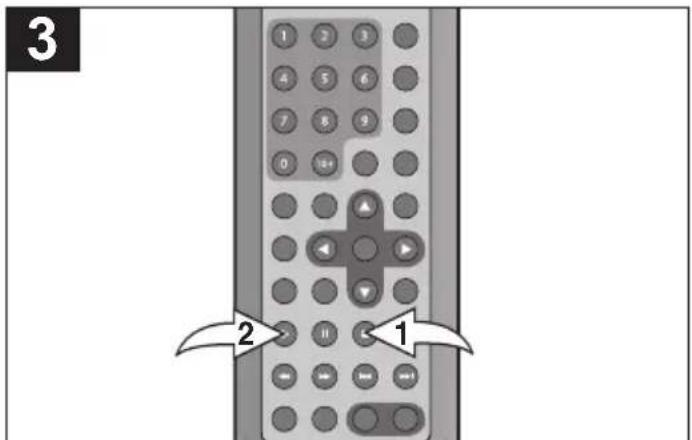
Close the disc tray. After loading, playback will start automatically and the elapsed track and remaining track time will appear, as well as the track number. To stop playback, press the Stop (■) button ①; "STOP (PLAY TO RESUME)" will appear on the screen for three seconds. Press the PLAY (▶) button ② to resume playback where you left off (resuming playback). If the Stop (■) button ① is pressed twice, the screen will show "(■) STOP" and the unit will stop completely.
PAUSE
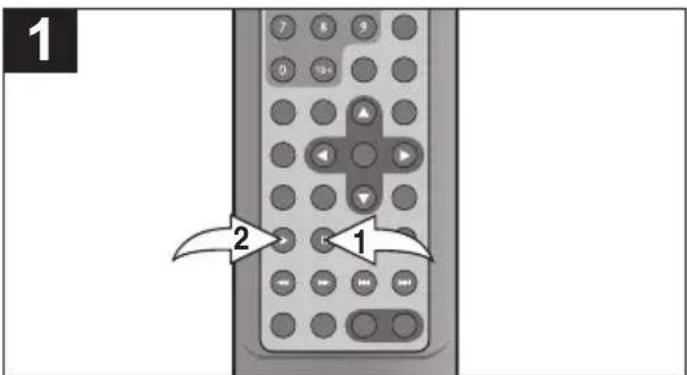
Press the PAUSE button ① to pause playback; the Pause indicator will appear on the screen temporarily. Press the Play (▶) button ② to resume playback.
CD OPERATION (CONTINUED)
SKIP
1
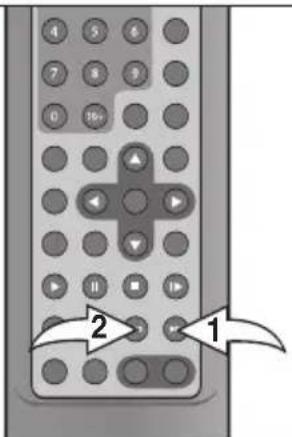
Press the Skip (▶) button ① to advance to the beginning of the next file.
Press the Skip (◀) button Ⓞ to move to the beginning of the previous file.
SEARCH
1
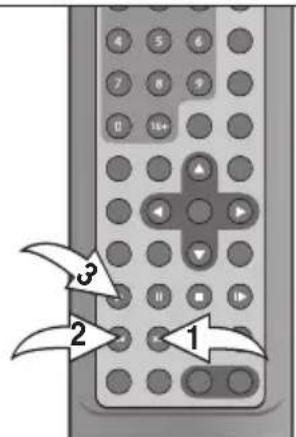
During playback, press either the Search ▶▶ button ① or Search ◀◀ button ② to move the disc forward or backward at double (x2) speed to locate a specific section. Repeatedly press these buttons and the speed will increase to x4, x8, x20 and resume normal playback.
The disc will move forward or backward at high speed until the PLAY (▶) button ③ is pressed again; normal playback will resume at that point.
TRACK TIME SEARCH
Use this feature to directly go to a specific time within the current track.
TRACK SEARCH
Use this feature to directly go to a specific track.
1
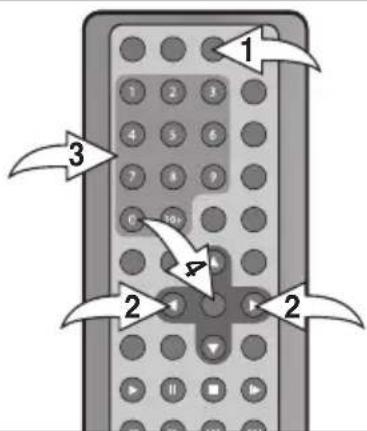
Press the SEARCH button ① once. Press the Navigation (◀,▶) buttons ② to select “--:--:-” after TIME, then use the Number buttons ③ to select the desired time (Hour/Minutes/Seconds) within the current track. Press the ENTER button ④ and playback will start.
1
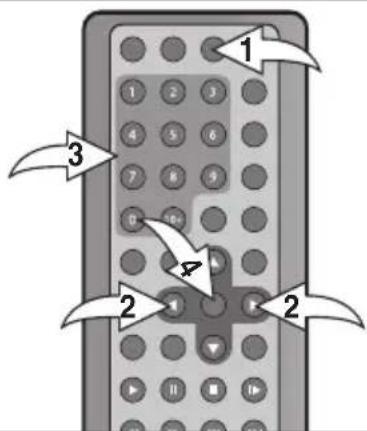
Press the SEARCH button ① once. Press the Navigation (◀,▶) buttons ② to select “---” after TRACK, then use the Number buttons ③ to select the desired track number. Press the ENTER button ④ and playback will start.
NOTE:
- If an incorrect number is entered, press the CLEAR button (on the remote) to cancel/erase the number.
OPERATION (CONTINUED)
DISC TIME SEARCH
Use this feature to directly go to a specific time within the disc.
TRACK SEARCH
Use this feature to directly go to a specific track.
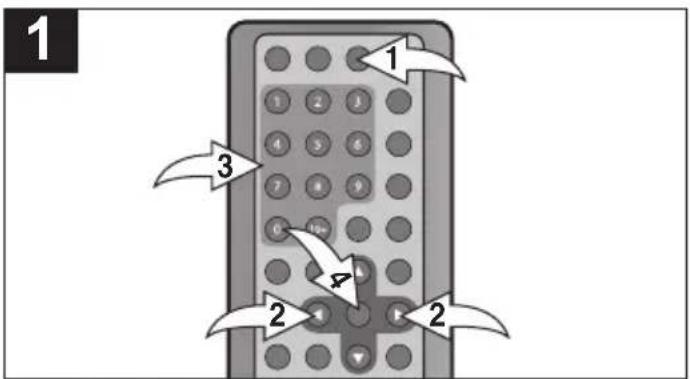
Press the SEARCH button ① twice. Press the Navigation (◀,▶) buttons ② to select “--:--:--” after TIME, then use the Number buttons ③ to select the desired time (Hour/Minutes/Seconds) within the disc. Press the ENTER button ④ and playback will start.
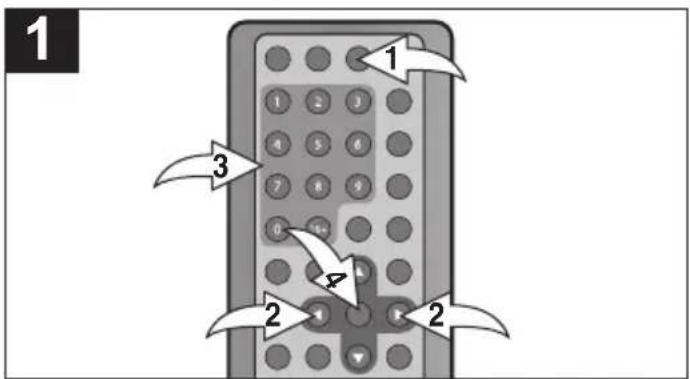
Press the SEARCH button ① twice. Press the Navigation (◀,▶) buttons ② to select “---” after TRACK, then use the Number buttons ③ to select the desired track number. Press the ENTER button ④ and playback will start.
NOTE:
• If an incorrect number is entered, press the CLEAR button (on the remote) to cancel/erase the number.
BOOKMARK
This unit can allow you to bookmark up to 3 sections of a CD for later viewing as follows:
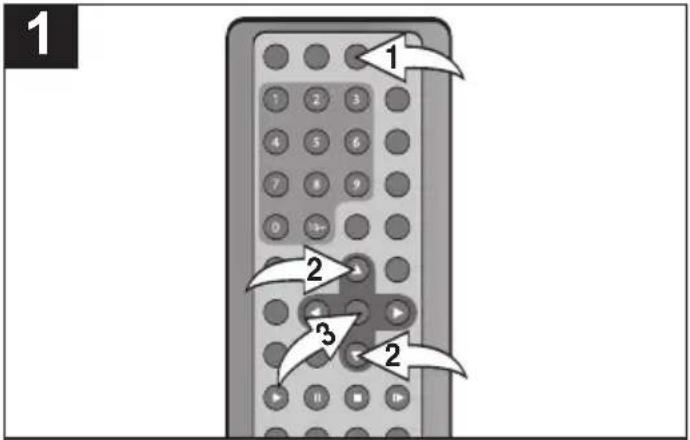
During playback, press the SEARCH button ① three times; the bookmark menu will appear on the screen. Use the Navigation (▲,▼) buttons ② to select a blank bookmark box, then when the desired section appears, press the ENTER button ③ to bookmark it. To remove the bookmark menu from the screen, press the SEARCH button ① again.
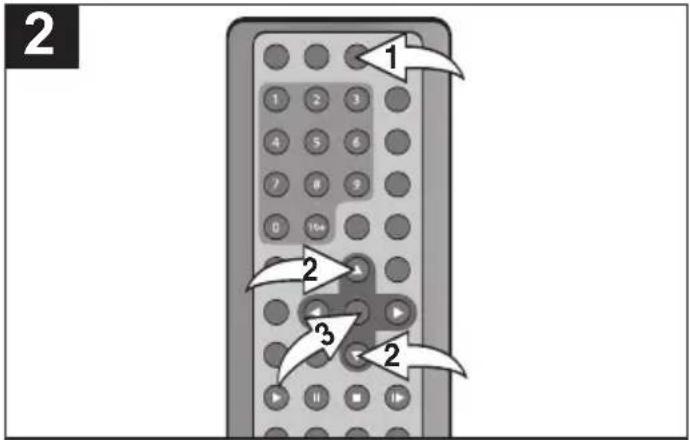
To go to a previously bookmarked section, press the SEARCH button ① three times; the bookmark menu will appear on the screen. Use the Navigation (▲,▼) buttons ② to select the desired bookmark and press the ENTER button ③; the CD will then begin playing at that point.
TO DELETE A BOOKMARK, simply select the bookmark that you want to delete in the Bookmark menu, then press the CLEAR button.
NOTE: If the unit is turned off, the disc is changed or the disc compartment door is opened, all the bookmarks will be cleared.
CD OPERATION (CONTINUED)
SELECTING TRACKS USING THE NUMBER BUTTONS
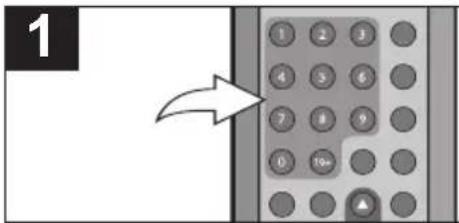
During playback, press the Number buttons corresponding to the track number to select your desired track, and the unit will playback the desired track automatically.
NOTE: To enter a track number larger than 9, press the 10+ button, followed by the Number button (0-9). If the track number is larger then 19, press the 10+ button to select the number for the first digit followed by the Number button (0-9) for the second digit.
REPEAT PLAYBACK
While playing back a disc, this unit can repeatedly playback one or all track(s) on a disc.
A-B REPEAT PLAYBACK
While playing back a disc, this unit can repeatedly play back a specific section.
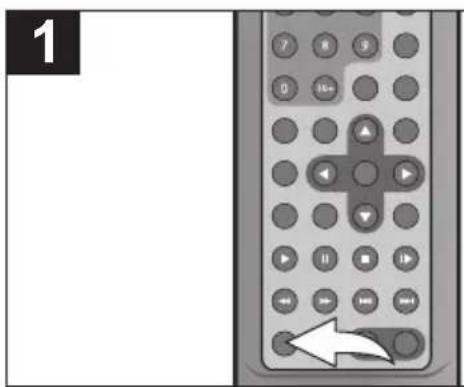
While in the Playback mode, press the REPEAT button once; "REPEAT OFF" will appear on the screen.
Press the REPEAT button a second time; "REPEAT SINGLE" will appear on the screen and the currently playing track will repeat continuously.
Press the REPEAT button a third time; "REPEAT ALL" will appear on the screen and all tracks on the disc will repeat.
Press the REPEAT button once more to cancel Repeat mode; "REPEAT OFF" will appear temporarily on screen.
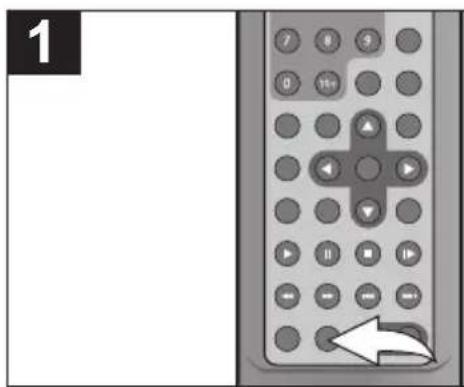
While in the Playback mode, press the Repeat A-B button to define where you want the section to start. Press the Repeat A-B button again to define where you would like the section to end, the unit will then play the selected area continuously.
Press the Repeat A-B button again to cancel Repeat A-B mode.
CD OPERATION (CONTINUED)
PROGRAMMED PLAYBACK
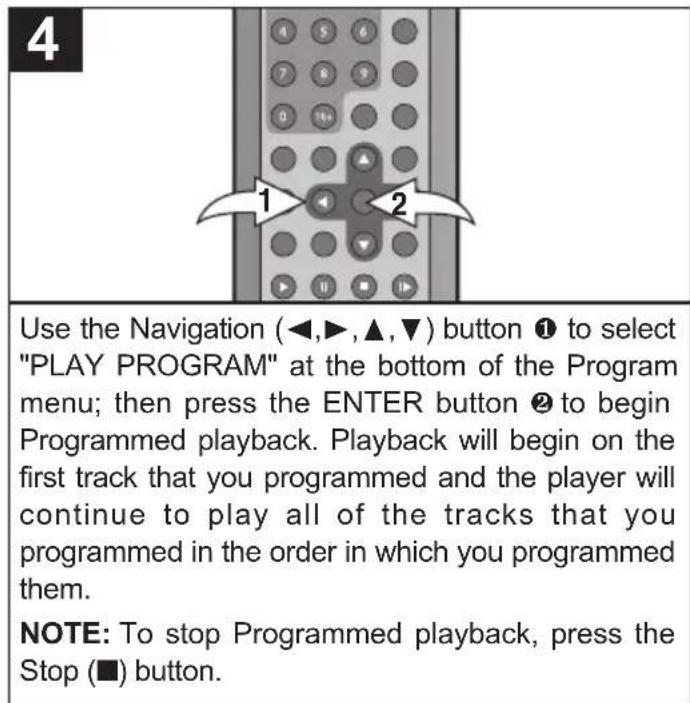
The DVD player in this unit has a 16 track programmable memory that allows you to program up to 16 tracks on any disc for playback in any desired order. You may program 16 different tracks or you may also program certain tracks to play more than once. To perform Programmed Playback, proceed as follows:
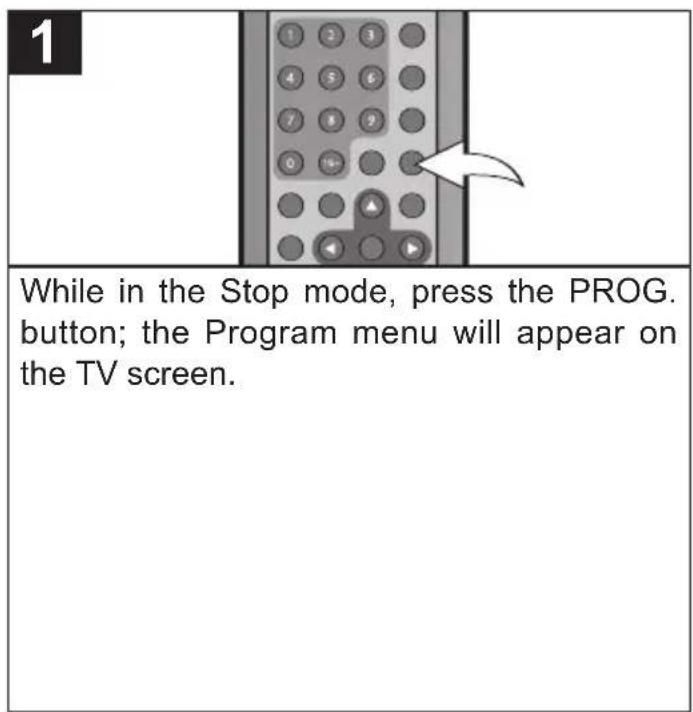
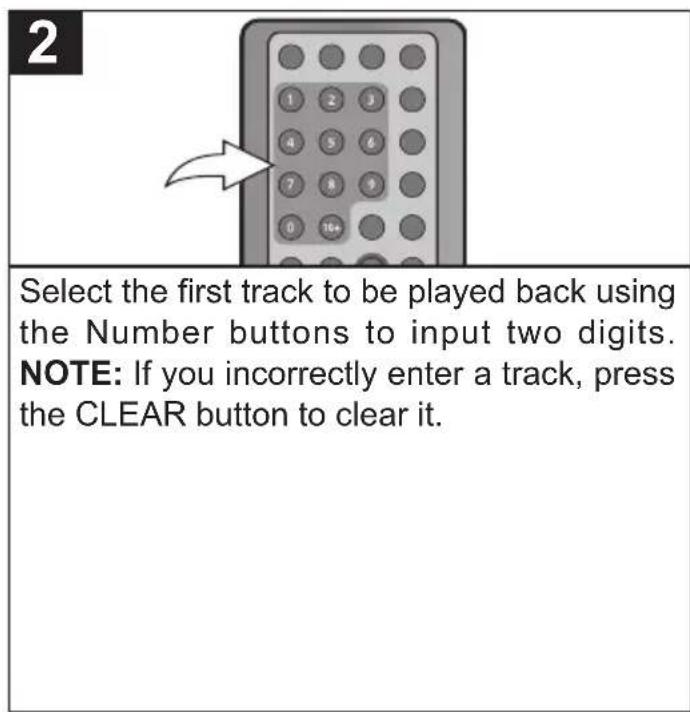
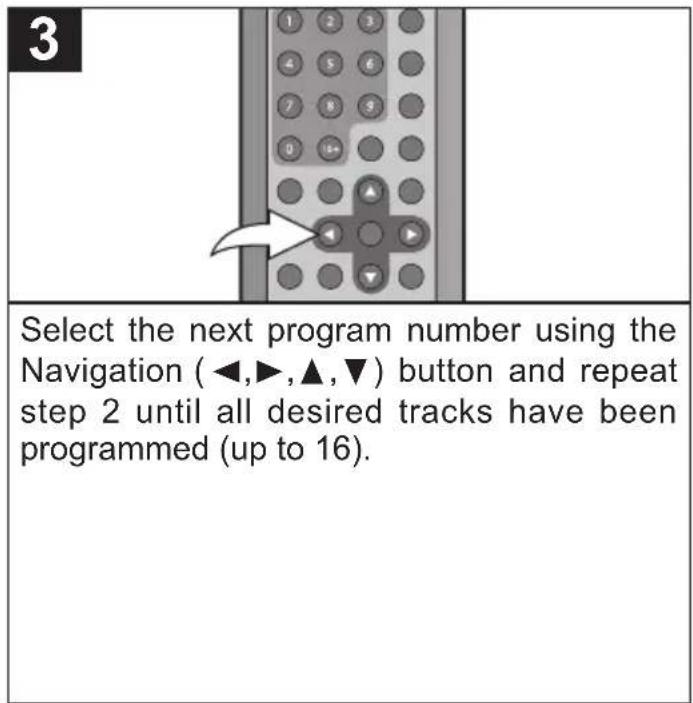
TO CLEAR ALL OF THE PROGRAM:
While in the Stop mode, press the PROG button, then use the Navigation (◀,▶,▲,▼) button to select "CLEAR ALL" at the bottom of the Program menu; then press the ENTER button to clear the program.
NOTE:
- If the disc is changed or the disc compartment door is opened, all the programs will be cleared.
natural_image
Illustration of a desktop computer with an open screen and CD/DVD disc (no text or symbols)Press the POWER button to turn on the unit; the Power indicator will light.
natural_image
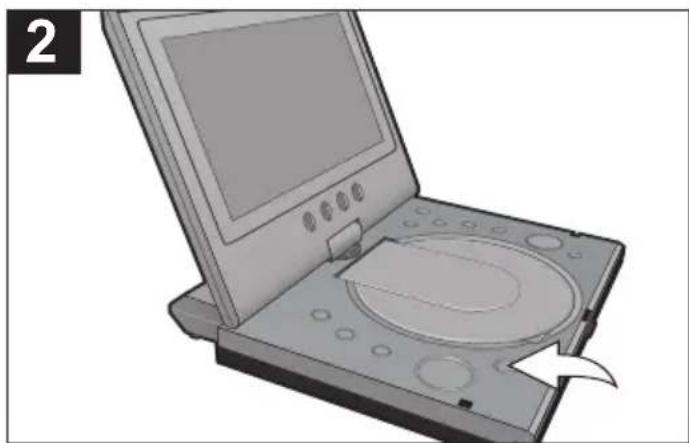
Illustration of a desktop computer with an open disc and control panel (no text or symbols visible)Press the OPEN/CLOSE button to open the disc tray, "OPEN" will appear on the screen. Insert a disc with the label side facing up on the disc tray. Close the disc tray.
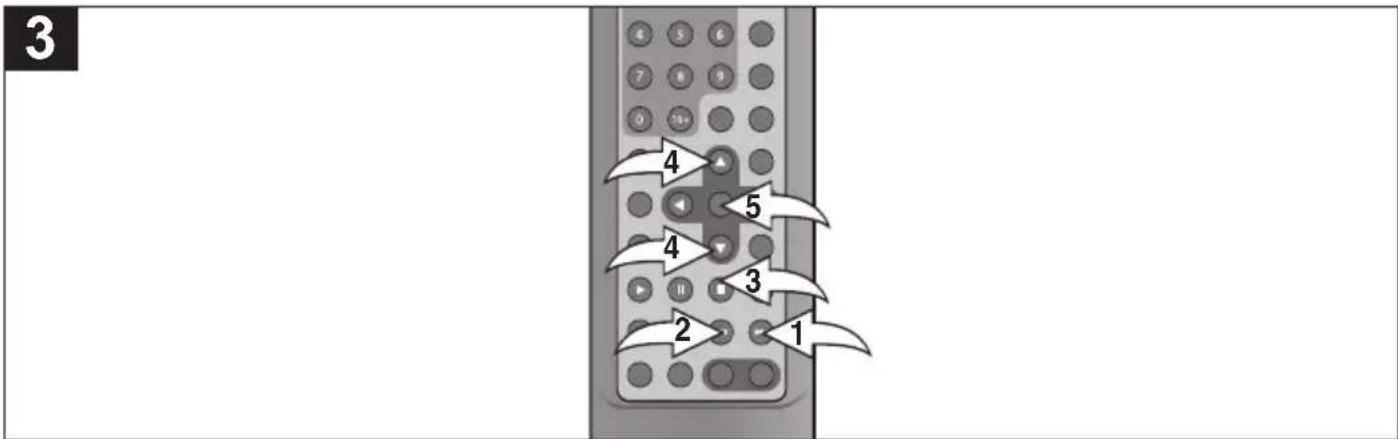
After loading a picture CD, the pictures will automatically show as a slideshow on the screen. Press the Skip (▶) ① or (◀) ② button to select the previous or next picture. After the slideshow is done, it will stop. Press the Stop (■) button ③ to stop the slideshow before it is finished; then the Picture menu will appear. Press the Navigation (▲,▼) button ④ to select the desired picture then press the ENTER button ⑤ to view it.
TROUBLESHOOTING GUIDE
Check the following before requesting service:
| SYMPTOM | POSSIBLE CAUSE | POSSIBLE SOLUTION |
| GENERAL | ||
| No power. | Battery pack is empty. | Recharge battery pack. |
| Power on, but unit not functioning properly. | Condensation has formed. | Unplug the unit and wait about one to two hours to allow the player to dry. |
| Wrong type of CD inserted. | This unit cannot play discs, other than DVD, standard CDs or picture CDs. | |
| Unit needs to be reset. | Press the POWER button, then unplug the power cord. Wait one minute and then plug the unit back in. | |
| The disc is dirty or inserted incorrectly. | Clean disc and insert label side-up. | |
| Some features and functions are not available on all discs. | This is normal, try another function. | |
| No picture. | The equipment is not connected properly. | Connect the equipment according to the instructions in this manual. |
| The INPUT of the TV is not set to receive the DVD signal output. | Select the appropriate video input mode, usually VIDEO or AV. | |
| The video cables are not securely connected. | Connect the video cables securely. | |
| No sound. | The equipment is not connected properly. | Connect the equipment according to the instructions in this manual. |
| The equipment connected with the audio cable is not set to receive the DVD signal input. | Select the appropriate audio input mode. | |
| The main Volume control on the side of the unit is turned all the way down. | Rotate the main Volume control before using the remote's Volume buttons. | |
| The connected receiver's power is off. | Turn the audio receiver on. | |
| Playback picture rolls. | Unit needs to be reset to NTSC. | Select NTSC in the menus (see page 20). |
| The playback picture is poor. | The disc is dirty. | Clean the disc. |
| The Search feature is not working. | Some discs have sections that do not allow searching. | This is normal on some discs. |
| The picture is not fitting properly. | Wrong menu option is selected in the SETUP MENU. | Select the correct TV type (PS, LB, WIDE) which matches the TV you are using. |
| The remote control is not working. | The battery is weak or dead. | Install a fresh battery. |
| The battery is not installed properly. | Install battery according to the diagram. | |
| The remote is not aimed at the sensor. | Aim the remote at the sensor. | |
| Distance is too far or there is too much light in the room. | Operate within 20ft, or reduce the light in the room. | |
| There is an obstacle in the path of the beam. | Move obstacle. | |
| DVD | ||
| The unit does not start playback. | DVD not inserted, or inserted upside-down. | Insert DVD correctly. |
| A non-playback disc is inserted. | Make sure to insert a DVD; “DVD” will appear in the display. | |
| The disc is not placed in the guide. | Place the disc on the disc tray correctly inside the guide. | |
| The disc is dirty. | Clean the disc. | |
| Some functions do not operate as stated. | Some features and functions are not available on all discs. | This is normal; try another function. |
| Selected language is not being shown in the subtitles, or spoken. | If the audio or subtitle language does not appear on the disc, then the initial setting will not be seen/heard. | This is normal; try another disc. |
| Subtitles are not working properly. | Subtitles appear only when the discs contain them. | This is normal; try another disc. |
| Subtitles not turned on. | Turn the subtitles on. | |
| Angle cannot be changed. | Angles may not be recorded on the disc (see disc jacket/case), or they may only be recorded on certain scenes. | Try another disc, or wait for a scene which allows a different camera angle. |
FOR ADDITIONAL SET-UP OR OPERATING ASSISTANCE, PLEASE VISIT OUR WEBSITE AT WWW.MEMOREXELECTRONICS.COM OR CONTACT CUSTOMER SERVICE AT
(954) 660-7100
PLEASE KEEP ALL PACKAGING MATERIAL FOR AT LEAST 90 DAYS IN CASE YOU NEED TO RETURN THIS PRODUCT TO YOUR PLACE OF PURCHASE OR MEMOREX.
FOR PARTS AND ACCESSORIES, CONTACT FOX INTERNATIONAL AT 1-800-321-6993.
CARE AND MAINTENANCE
Caring for Discs
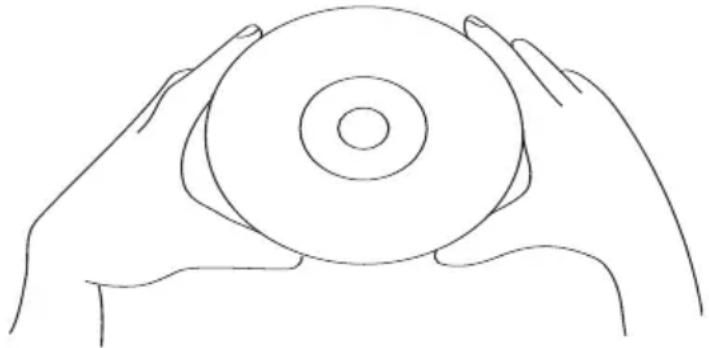
- Treat the disc carefully. Handle the disc only by its edges. Never allow your fingers to come in contact with the shiny, unprinted side of the disc.
- Do not attach adhesive tape, stickers, etc. to the disc label.
- Clean the disc periodically with a soft, lint-free, dry cloth. Never use detergents or abrasive cleaners to clean the disc. If necessary, use a CD cleaning kit.
- If a disc skips or gets stuck on a section of the disc, it is probably dirty or damaged (scratched).
- When cleaning the disc, wipe in straight lines from the center of the disc to the outer edge of the disc. Never wipe in circular motions.
• Discs should be stored in their cases after each use to avoid damage. - Do not expose discs to direct sunlight, high humidity, high temperatures or dust, etc. Prolonged exposure or extreme temperatures can warp the disc.
- Do not stick or write anything on either side of the disc. Sharp writing instruments, or the ink, may damage the surface.
natural_image
Line drawing of two hands holding a circular object (no text or symbols)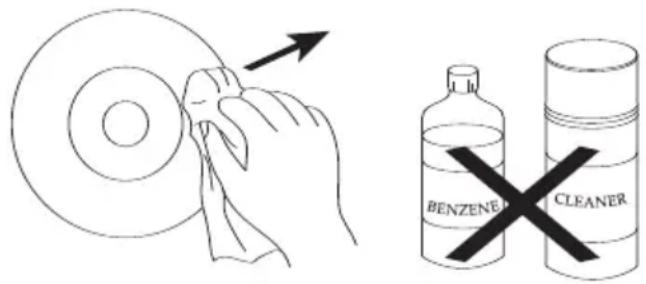
Cleaning the Unit
- To prevent fire or shock hazard, disconnect your unit from the AC power source when cleaning.
- The finish on your unit may be cleaned with a dust cloth and cared for as other furniture. Use caution when cleaning and wiping the plastic parts.
- Mild soap and a damp cloth may be used on the front panel.
SPECIFICATIONS
Power Requirements ....DC IN 9V (Center Positive ⊙⊕⊕)
Battery Pack......Lithium-Polymer Rechargeable Battery DC 7.4V 2600mAh
Weight 2 Lbs
Dimensions......(Main unit without battery pack) 9 (L) x 6.7 (W) x 1.5 (Thickness) inches
Operating Temperature 41° to 95°F
Operating Humidity Range 5% to 90% (no condensation)
Accessories AC Adapter, Rechargeable Battery Pack, Remote Control,
Remote Battery, Audio/Video Cable, Audio (Coaxial) Cable
Discs Played:
DVD-VIDEO Disc
12cm single-sided, single layer
12cm single-sided, dual layer
12cm double-sided, single layer
8cm single-sided, single layer
8cm single-sided, dual layer
8cm double-sided, single layer
COMPACT DISC
12cm disc
8cm disc
Video Output Level 1Vp-p
Audio Output Level....2Vrms (1KHz, 0dB)
Audio Signal Output Characteristics:
Frequency Responses:
DVD (Linear Audio) 20Hz-20KHz (48KHz/96KHz sampling)
CD Audio....20Hz-20KHz
S/N Ratio....70dB
Wow and Flutter......Below Measurable Level
Pickup:
Wavelength....655nm
Specifications are subject to change without notice.
Memcorp, Inc.
Weston, FL
Printed in Hong Kong
- TABLE OF CONTENTS
- SAFETY INSTRUCTIONS
- CAUTION
- RISK OF ELECTRIC SHOCK DO NOT OPEN
- DANGEROUS VOLTAGE:
- ATTENTION:
- CAUTION:
- WARNING:
- SAFETY INSTRUCTIONS (CONT.)
- SURGE PROTECTORS:
- LASER WARNING:
- FCC NOTICE:
- FCC CAUTION:
- To establish a safe level:
- Once you have established a comfortable sound level:
- We Want You Listening For A Lifetime
- Decibel
- Level Example
- THE FOLLOWING NOISES CAN BE DANGEROUS UNDER CONSTANT EXPOSURE:
- PRECAUTIONS
- NOTES ON HANDLING:
- NOTES ON LOCATING THE DVD PLAYER:
- NOTES ON CLEANING:
- TO OBTAIN A CLEAR PICTURE:
- NOTES ON MOISTURE CONDENSATION:
- Moisture condensation damages the DVD player. Please read the following carefully.
- Moisture condensation occurs during the following cases:
- Do not use the DVD player when moisture condensation may occur.
- POWER SOURCES
- AC CONNECTION
- NOTES:
- BATTERY PACK INSERTION/REMOVAL
- POWER SOURCES (CONTINUED)
- CHARGING THE BATTERY PACK
- NOTE:
- ROTATING THE SCREEN
- LOCATION OF CONTROLS
- LOCATION OF CONTROLS (CONTINUED)
- SIDE
- REMOTE
- REMOTE CONTROL
- BATTERY INSTALLATION
- BATTERY PRECAUTIONS
- EFFECTIVE DISTANCE OF THE REMOTE CONTROL TRANSMITTER
- CONNECTION
- CONNECTING THE UNIT TO A TV USING THE A/V CABLE (INCLUDED)
- NOTES FOR CONNECTING TO A TV:
- CONNECTION (CONTINUED)
- CONNECTING THE DVD TO A HOME THEATER SYSTEM (AUDIO JACK)
- CONNECTING THE DVD TO A HOME THEATER SYSTEM (COAXIAL JACK)
- CONNECTING THE UNIT TO ANOTHER MEDIA PLAYER
- (To view the image/hear the sound from an external unit):
- NOTES FOR CONNECTING:
- ABOUT DISCS
- PLAYABLE DISCS:
- DISC TYPES:
- DVD
- AUDIO CD
- IMPORTANT:
- ABOUT DISCS (CONTINUED)
- Notes on Copyright:
- Region Management Information:
- SETUP MENU
- SETUP MENU (CONTINUED)
- LANGUAGE SETUP MENU:
- OSD LANGUAGE
- SUBTITLE
- AUDIO
- DVD MENU
- VIDEO SETUP MENU:
- AUDIO SETUP MENU:
- RESET SETUP MENU:
- RESET
- BASIC OPERATION
- MUTE BUTTON
- 1
- ROTATE BUTTON
- HEADPHONE JACK(S)
- SOURCE BUTTON
- BASIC OPERATION (CONTINUED)
- OSD BUTTON
- LCD BUTTON
- VOLUME
- DVD OPERATION
- IMPORTANT NOTES:
- PLAYBACK OF A DVD
- CONTINUED ON THE NEXT PAGE
- DVD OPERATION (CONTINUED)
- SKIP
- SEARCH
- SLOW MOTION
- PAUSE/STEP
- TIME SEARCH
- TITLE SEARCH
- CHAPTER SEARCH
- OPERATION (CONTINUED)
- BOOKMARK
- REPEAT PLAYBACK
- A-B REPEAT PLAYBACK
- AUDIO MENU
- SUBTITLE MENU
- TITLE MENU
- ZOOM IN
- ANGLE
- PROGRAMMED PLAYBACK
- TO CLEAR ALL OF THE PROGRAM:
- CD OPERATION
- PLAYBACK OF A CD
- PAUSE
- CD OPERATION (CONTINUED)
- TRACK TIME SEARCH
- TRACK SEARCH
- DISC TIME SEARCH
- SELECTING TRACKS USING THE NUMBER BUTTONS
- TROUBLESHOOTING GUIDE
- FOR ADDITIONAL SET-UP OR OPERATING ASSISTANCE, PLEASE VISIT OUR WEBSITE AT WWW.MEMOREXELECTRONICS.COM OR CONTACT CUSTOMER SERVICE AT
- CARE AND MAINTENANCE
- Caring for Discs
- Cleaning the Unit
- SPECIFICATIONS
- DVD-VIDEO Disc
- COMPACT DISC
- Audio Signal Output Characteristics:
- Pickup:
Brand : MEMOREX
Model : MVDP1076
Category : Portable DVD Player