
AXIUM HD-L32 - Television SAGEM - Free user manual and instructions
Find the device manual for free AXIUM HD-L32 SAGEM in PDF.


| Product Type | LCD/LED Television |
| Screen Size | 32 inches (80 cm) |
| Resolution | HD (1366 x 768 pixels) |
| Dimensions with stand (W x H x D) | 78 x 52.5 x 22 cm |
| Dimensions without stand (W x H x D) | 78 x 48 x 8 cm |
| Weight with stand | 11.5 kg |
| Weight without stand | 10 kg |
| Power Supply | 220-240 V, 50 Hz |
| Power Consumption (standby) | Less than 1 W |
| Power Consumption (operation) | 70 W |
| Main Features | Built-in HD DVB-T, HDMI (2), USB (1), VGA (1), composite input, optical audio output, stereo speakers 2 x 10 W |
| Maintenance and Cleaning | Clean with a soft, dry cloth. Do not use chemical or abrasive products. |
| Safety | Do not expose to water or moisture. Do not block ventilation slots. Use only on a stable surface. |
| Spare Parts and Repairability | Spare parts are available through customer service. Repair can be done by a certified technician. |
| General Information | 2-year manufacturer warranty. Manufactured by SAGEM. User manual included. |
Frequently Asked Questions - AXIUM HD-L32 SAGEM
User questions about AXIUM HD-L32 SAGEM
0 question about this device. Answer the ones you know or ask your own.
Ask a new question about this device
Download the instructions for your Television in PDF format for free! Find your manual AXIUM HD-L32 - SAGEM and take your electronic device back in hand. On this page are published all the documents necessary for the use of your device. AXIUM HD-L32 by SAGEM.
USER MANUAL AXIUM HD-L32 SAGEM
Please read this guide thoroughly before using your unit.
Dear SAGEM Customer,
Congratulations and thank you for choosing the SAGEMAXIUM™ High Definition LCD TV. This product was manufactured with the greatest care and attention and we hope you will enjoy the spectacular viewing experience for many years. This product is very diverse and we recommend that you first refer to the Quick Start Guide on page 4.
We recommend you to keep this document in a safe place in order to be able to refer to it afterwards. This product is European compliant.
If you should incur any potential problem which is not covered in Troubleshooting and Support on page 70, please contact your retailer or distributor where applicable.
© 2005 SAGEM COMMUNICATION SA. All rights reservedThis document is the property of SAGEM COMMUNICATION SA. Reproduction without written permission from SAGEM COMMUNICATION SA is strictly forbidden. The information contained in this document may be changed without prior warning. The brands quoted in this operating manual, SAGEM logo and SAGEM, are SAGEM COMMUNICATION SA registered trademarks. Virtual Dolby Surround 'Manufactured under license from Dolby Laboratories. 'Dolby', 'Pro Logic' and the double-D symbol are trademarks of Dolby Laboratories.' The 'HD ready' Logo is a trademark of EICTA. Documentation content can be subject to amendment.
ENVIRONMENT
Preservation of the environment as part of a sustainable development logic is an essential concern of SAGEM SA. The desire of SAGEM SA is to operate systems observing the environment and consequently it has decided to integrate environmental performances in the life cycle of its products, from manufacturing to commissioning, use and elimination.
PACKAGING

The presence of the logo (green circle) means that a contribution is paid to an approved national organization to improve packaging recovery and recycling infrastructures.
To facilitate recycling, respect the sorting rules set up locally for this kind of waste.
THE PRODUCT

The crossed-out waste bin stuck on the product means that the product belongs to the family of electrical and electronic equipment.
In this respect, the European regulations ask you to dispose of it selectively:
- At sales points in the event of the purchase of similar equipment.
- At the collection points made available to you locally (drop-off center, selective collection, etc.).
In this way you can participate in the re-use and upgrading of Electrical and Electronic Equipment Waste, which can have an effect on the environment and human health.
SAFETY PRECAUTIONS
High Voltage
This LCD TV is a class 1 appliance; it MUST be connected to an electrical wall socket equipped with an earth.

This LCD TV is designed to function:
with a 100 - 240V 50 - 60Hz AC (alternating current) network,
- at an ambient temperature between +5 deg C and +35 deg C,
in areas with humidity less than 85%
This LCD TV uses high voltages. Never attempt to access the interior of the device. Only suitably qualified persons are authorised to do this.
Do not open or dismantle this product, as this will expose you to risk of electrocution.
Damage
Never use your TV if it is damaged in any way. Always place your TV on a flat level surface avoiding anywhere which may be subject to strong vibration.
Weather
It is advisable to unplug the aerial during an electrical storm.
Moisture
Do not allow your TV to be exposed to rain, moisture, dust. If any liquid is spilt into your TV it can cause serious damage. If you spill any liquid into your TV switch it off at the mains immediately. Contact your store.
Interference
Do not place your TV on or near appliances which may cause electromagnetic interference (TV or Hi-Fi speakers). If you do, it may adversely affect the working of the unit, and cause a distorted picture or sound.
Temperature
Avoid extremes of temperature, either hot or cold, place your TV well away from heat sources such as radiators or gas/electric fires.
Ventilation
The TV must be well ventilated. Do not cover your TV or position in a small confined space. It is recommended that you leave a gap all around your TV.
Batteries
Batteries are easily swallowed by young children. Do not allow young children to play with the remote control unit.


Covers
Standby
Screen Burn
Only use suitable batteries that comply with the maker's specifications (see 4-2 Inserting Batteries into the Remote Control).
- The batteries supplied are not rechargeable;
- Pay particular attention to environmental matters;
- Take the defective or used batteries to places provided for this effect in accordance with current regulations; never throw them in the dustbin.
Do not remove any fixed covers as this may expose dangerous high voltages.
Do not leave your TV in standby for long periods of time e.g. while on holiday.
ATTENTION! Please note that some programmes are broadcast with a logo that will appear in the corner of your TV screen. Some of these logo's can be very bright and may cause damage by permanently marking the logo on the screen. To prevent this, avoid leaving channels displaying a logo for prolonged periods of time, particularly when the TV is not being watched.
QUICK START GUIDE
Display Stand Installation
The display stand may not be already assembled when you receive your unit. If it is not, follow the procedure below to install it to your unit before you continue.
- Remove the protective cover and hinge cover on the back
of your LCDTV.
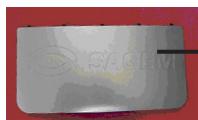
Back Protective Cover
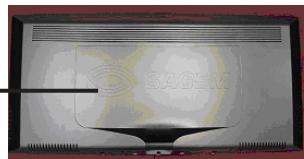
Back of LCD TV
- Remove the hinge cover on the back of your LCD TV.
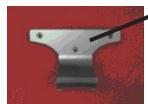
Hinge Cover
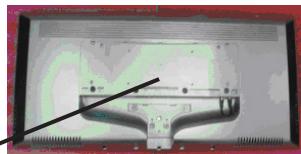
Back of TV with Protective Cover and Hinge Cover Removed
- Fasten the two (2) M8*100 capscrews with washers to the bottom of the glass display stand using the provided hexagon key.
NOTE: The washers are necessary to prevent damage to the glass when fastening the capscrews.
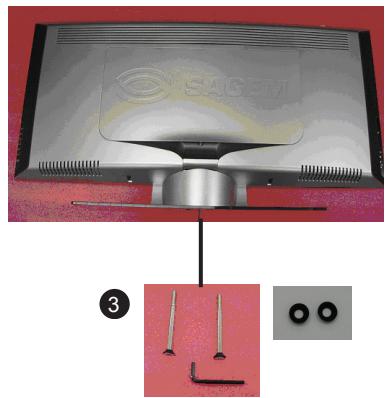
- Attach the display stand to the back of your LCD TV with two (2) M8*30 capscrews using a hexagon key to tighten the capscrews.
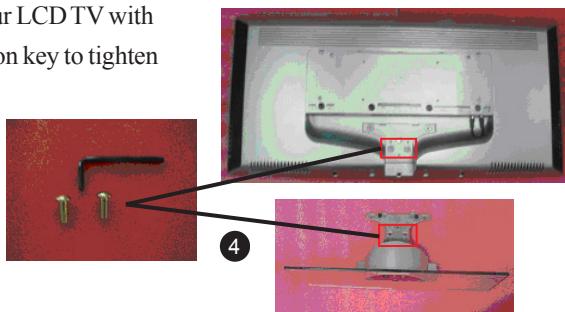
Glass Display Stand
- Fasten the hinge cover with the three (3) M8*30 capscrews that were removed in Step 1 using the provided hexagon key.
LCD TV with Display Stand Attached
- Fasten the back protective cover that was removed in Step 1.
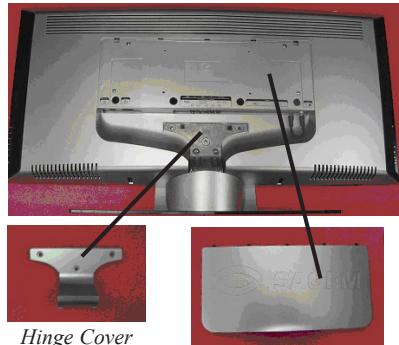
Back Protective Cover
Hinge Cover
5
6
Connection Diagrams
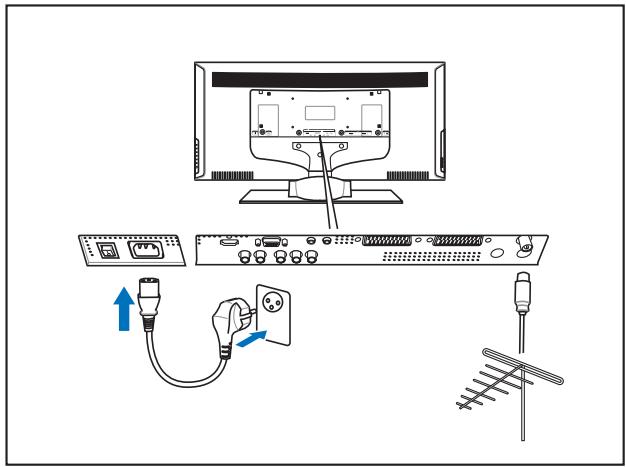
Basic Connection for Analog TV
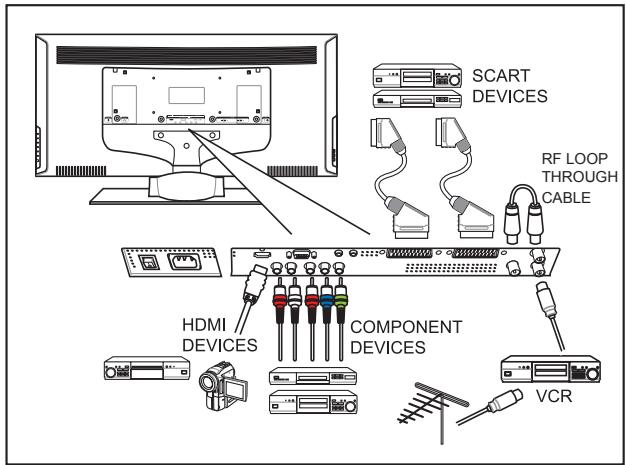
Basic Connection for Digital TV (DTV)^* and AV
- Available only with SAGEMAXIUM HD-L32T.
Getting Started
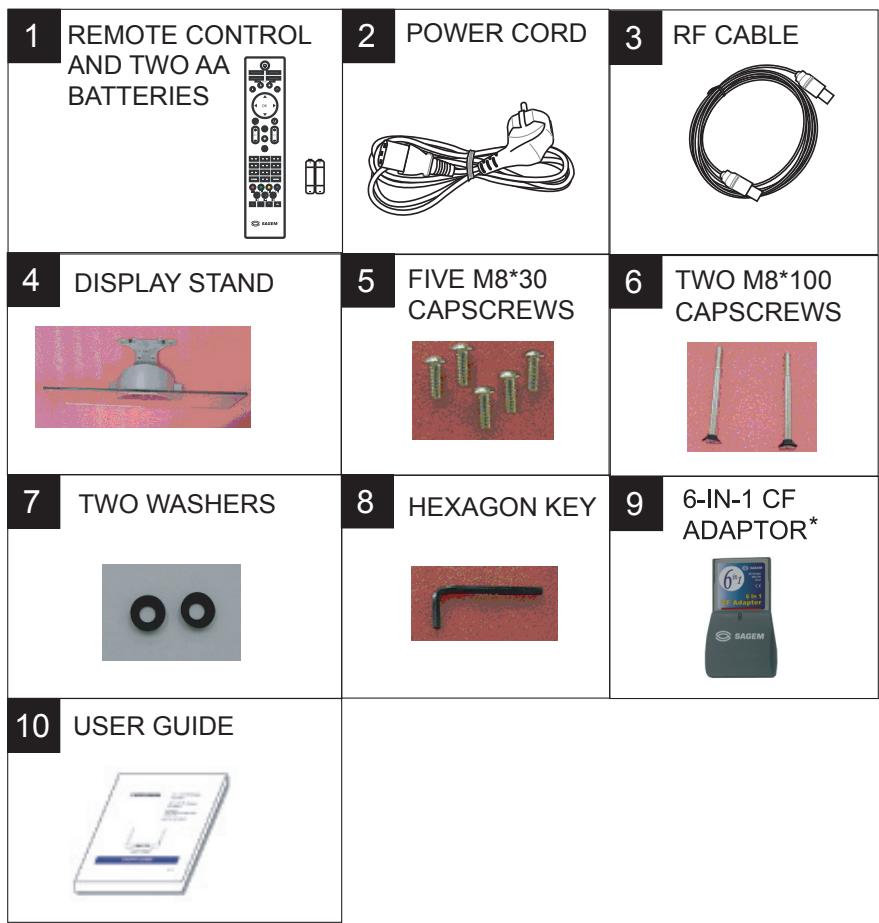
- Unpack your LCD TV.
LCDTV
Remote control
- Two (2)AA alkaline batteries
- 6-in-1 CF adaptor
Power cord
RF (aerial) lead
This user's guide
- Display stand
Five (5) M830 capscrews
- Two (2) M8100 capscrews
- Two (2) washers for M8100 capscrews
- Hexagon key
- Disconnect power to all your existing equipment.
- Locate unit in preferred position.
- Connect all equipment as shown in the diagram on the adjacent page.
- Once all other connections are made, connect power and switch on your unit.
Remote Control Modes
The remote control must be in the same mode (analog or digital*) as the LCD TV in order for it to work properly. The Power/Status LED at the front of the unit indicates the current mode of your unit (see 2-1 Front Panel Controls for the different modes and the corresponding LED indicator color).
When the remote control is in analog mode, the TV button on your remote control will light up in green each time a button on the remote control is pressed. When the remote control is in digital mode*, the DTV button on your remote control will light up in yellow each time a button on the remote control is pressed.
| LCD TV POWER LED | REMOTE CONTROL | MODE |
| GREEN | GREEN TV BUTTON | ANALOG TV |
| AMBER | YELLOWDTV BUTTON | DIGITAL TV* |
- Available only with SAGEMAXIUM HD-L32 T.
Connecting Your TV
- Connect an aerial antenna (see Basic Connection diagram on the adjacent page).
- Insert batteries into the remote control (see 4-2 Inserting Batteries into the Remote Control for more details).
- Connect the power cord to the power cord connector on the back of your LCD TV (see Basic Connection diagram on the adjacent page).
- Press the Main Power switch next to the power cord connector on the LCD TV.
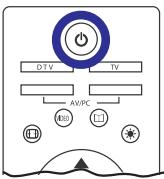
- Press the POWER button on your remote control.
Setting Up Analog TV
To change the language of the OSD menus
- Press the TV MENU button on your remote control to access the Main Menu.
- Use to highlight Options.
- Press OK, and the Options Menu opens.
- Use to highlight Language.
- Use to select the desired language.
- Press the EXIT button on your remote control to close the OSD.
To tune channels automatically
To quickly add all channels that have signals to your channel list, refer to 7-1 Tuning Channels Automatically for detailed instructions.
Switching to Digital TV*
This LCD TV features an integrated digital TV tuner designed to receive digital broadcast. To switch to digital TV, press the DTV button.
NOTE: When set to digital TV, the DTV button will light up in yellow each time you use your remote control.
When set to analog TV, the TV button will light up in green each time you use your remote control.
First Time Use
The first time you use your TV in DTV mode, you will have to perform a "First Installation procedure".
NOTE: The OK button always confirms a selection within these menus, and pressing it will take you to the next step in the installation process. However, and this is important, often more than one value has to be entered in a menu. First, perform all necessary settings on the different lines. Then confirm them all simultaneously by pressing OK.
Use to move upwards and downwards from one line to another.
Use to change settings. You can also use the numerical keys on the remote control to enter numeric values.
- Press the DTV button to switch to digital TV.
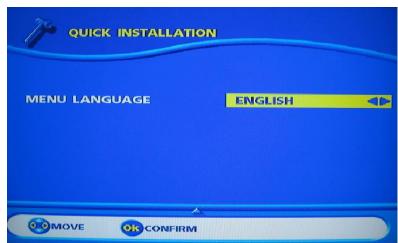
- Press OK on your remote control to continue. The Menu Language menu opens.
- Select the desired language with and press OK.
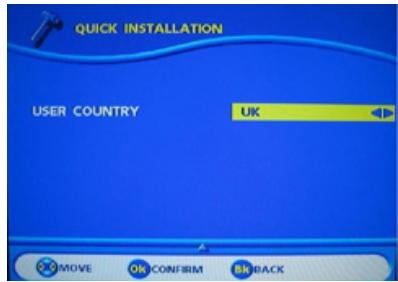
- Select the desired country with and press OK. This will also set the current time.
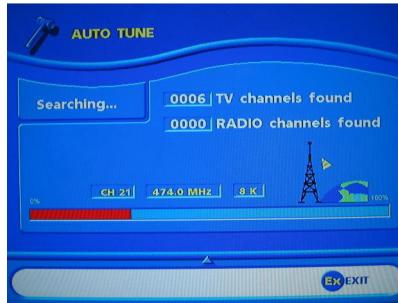
- The search procedure begins for digital TV and radio channels.
NOTE: The search procedure may take a few minutes, so be patient. Cancel at any time by pressing EXIT.
When the search procedure has ended, a message will indicate how many digital TV and radio channels have been found.
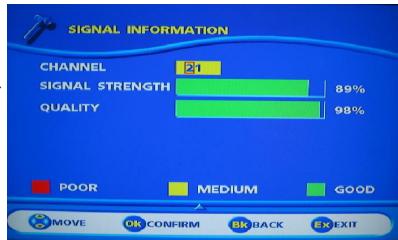
- If the channel has found no channel, this screen is displayed to help you adjust the aerial. Enter a channel number (refer to http:// www.dtg.org.uk/retailer/tx_details/_tx_index.htm For example, Oxford channel numbers are 29, 34, 48, 51, 52, 68. These numbers depend on broadcasters and are subject to change.) and move the antenna until the signal and quality bars are green. When signal and quality are green, press to launch a new channel search.
Contents
SAFETY PRECAUTIONS 2
QUICK START GUIDE 4
Display Stand Installation 4
Connection Diagrams 6
Getting Started 7
Remote Control Modes 7
Connecting Your TV 8
Setting Up Analog TV 8
Switching to Digital TV* 9
First Time Use 9
1 BEFORE YOU START 13
1-1 What's in the Box 13
1-2 Optional Accessories 14
2 YOUR LCD TV AT A GLANCE 15
2-1 Front Panel Controls 15
2-2 Back Connectors 16
3 YOUR REMOTE CONTROL AT A GLANCE 18
4 BASIC LCD TV SETUP 21
4-1 Connecting an Aerial Antenna 21
4-2 Inserting Batteries into the Remote Control 22
4-3 Using the Remote Control (Basic Operation) 22
4-4 Plugging In Your LCD TV 23
4-5Turning ON the Power 24
5 CONNECTING EXTERNAL DEVICES 25
5-1 Connecting an HDMI Device 26
5-2 Connecting a Component Device 27
5-3 Connecting a VCR Using Coaxial (RF) 28
5-4 Connecting a SCART Device 29
5-5 Connecting a Computer (VGA) 30
6 ADJUSTING TV SETTINGS 35
6-1 Basic Operations 35
6-2 Using the TV On-screen Display (TV OSD) 37
6-3 OSD Menus and Options 38
6-4 Adjusting Picture Settings 44
7 TUNING YOUR ANALOG TV 45
7-1 Tuning Channels Automatically (AUTO SEARCH) 45
7-2 Tuning Channels Manually (MANUAL SEARCH) 46
7-3 Sorting Channels (PROGRAMME SORT) 47
7-4 Removing Unwanted Channels (MANUAL SEARCH) 48
8 ADVANCED SETTINGS AND FUNCTIONS 49
8-1 Setting the Sleep Timer 49
8-2 Setting Parental Control 50
8-3 Setting a Password 51
8-4 Displaying Teletext 52
8-5 Dual Picture Modes 53
8-6 Multi-channel View Mode 56
8-7 Picture Formats 56
9 DIGITAL TV (DTV)* 57
9-1 Advanced Digital TV Settings 57
9-2 Using Digital TV 62
9-5 Digital TV Software Upgrade 69
TROUBLESHOOTING AND SUPPORT 70
PRODUCT SPECIFICATIONS 73
1 BEFORE YOU START
1-1 What's in the Box
When you receive your LCD TV, unpack it carefully, and check to make sure you have all the items below.
1-2 Optional Accessories
The following are optional accessories you may purchase for your LCD TV:
CABLE KITS
RCA audio cable
VGA video cable
SCART lead/cable
HDMI video cable
S-video video cable
Composite video cable - RCA to RCA
- Component (YUV) video cable - 3 RCA to 3 RCA
WALL MOUNT KIT
The SAGEM wall mount kit, which is sold separately, contains all of the required hardware for mounting your LCD TV on your wall. It is highly recommended that you find a qualified installer to do this.
2 YOUR LCD TV AT A GLANCE
2-1 Front Panel Controls
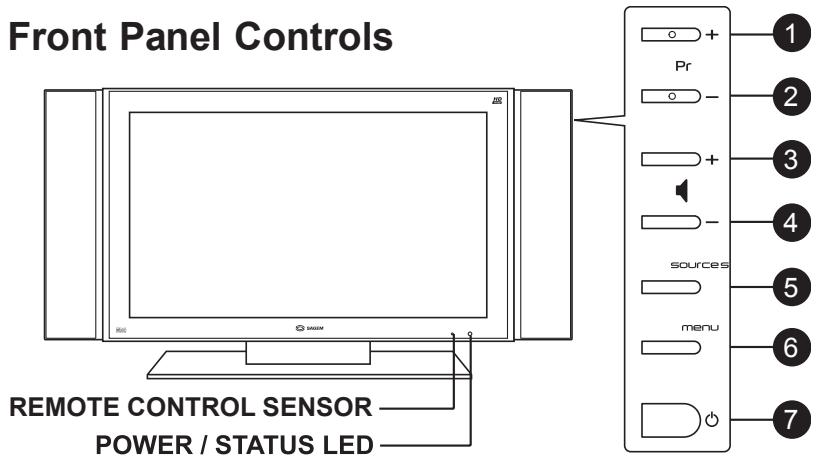
Red in standby mode
Green in TV mode
Amber in DTV mode
Flashing during IR reception
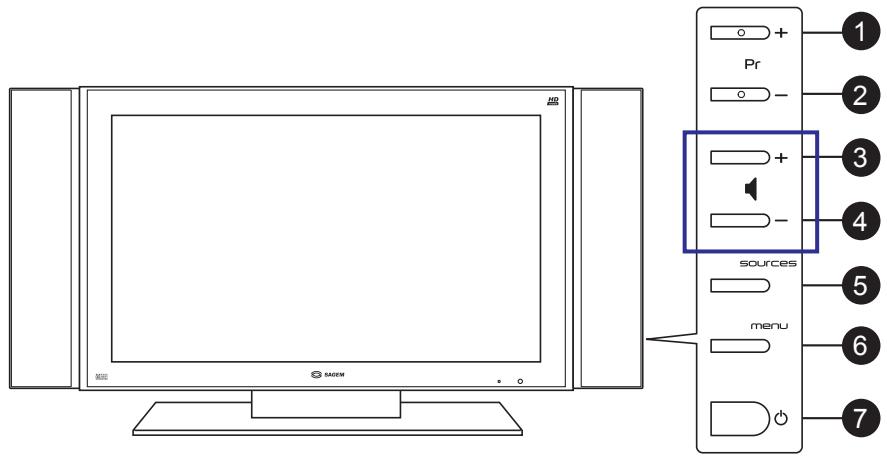
| BUTTON | VIEWING FUNCTION (OSD OFF) | MENU FUNCTION (OSD ON) |
| 1 | Displays the next stored channel. N/A when the video source is set to DTV*. | Selects the next menu option. |
| 2 | Displays the previous stored channel. N/A when the video source is set to DTV*. | Selects the previous menu option. |
| 3 | Increases the sound level. | Displays a submenu with selections for the current menu option. |
| Increases a menu option value. | ||
| 4 | Lowers the sound level. | Reduces a menu option value. |
| 5 | Selects the next input source. | Selects the next input source. |
| 6 | Activates the OSD main menu. | Returns to the previous menu or exits OSD menus. |
| 7 | Turns the LCD TV ON/OFF. | Turns the LCD TV OFF. |
2-2 Back Connectors
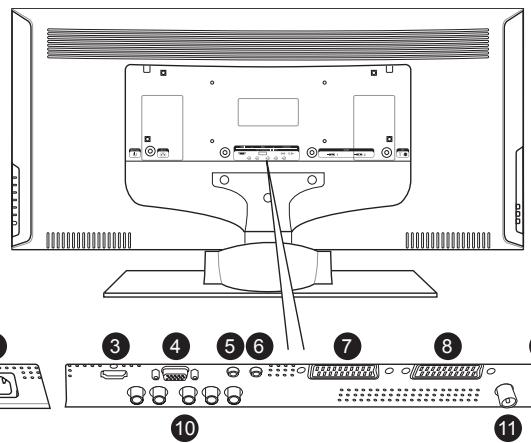
| CONNECTOR | DESCRIPTION |
| 1 | Main power switch - Turns the main power ON and OFF. |
| 2 | Power cord connector - Connect the power cable to this. |
| 3 | HDMI - Connect a Consumer Electronics device, such as a DVD player or HDTV STB, to this. NOTE: This connector can also accept DVI signal with a DVI-to-HDMI adaptor. |
| 4 | VGA - Connects to a computer's VGA terminal output. |
| 5 | Audio In - Connects to a computer's audio out jack. |
| 6 | HiFi Out - Connects to your audio amplifier device. |
| 7 | SCART - Connect a decoder, DVD player, or satellite box to this connector (RGB, S-Video, or Composite). |
| 8 | SCART - Connect a decoder, DVD player, or satellite box to this connector (RGB, S-Video, or Composite). |
| 9 | TUNER (UHF/VHF-CATV) - Connect to antenna or analog cable service. |
| 10 | YUV - Connect a component (YPbPr) device, such as a DVD player, to these connectors. |
| 11 | DTV loop through* - Feeds both analog and digital TV signals to the TV's tuner and enables independent recording of both analog and digital channels. |
| 12 | DTV Antenna In* - Connects to digital broadcast. |
2-3 Right-side Connectors
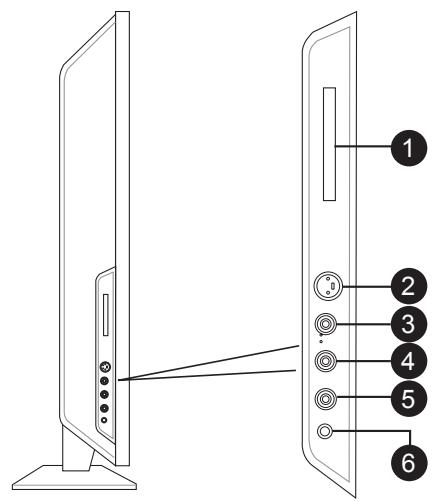
| CONNECTOR | DESCRIPTION |
| 1 | Memory card reader* - Supports Type I/II CompactFlash cards. For other compatible cards, please use the 6-in-1 adapter provided. |
| 2 | AV3 (S-Video In) - Connect an S-Video device to this. |
| 3 | AV3 (Composite Video In) - Connect a composite audio/video device, such as a camcorder or digital camera, to this connector. |
| 4 | Audio In (Left) - Connect the white (L) audio RCA from a composite or S-video device to this connector. |
| 5 | Audio In (Right) - Connect the red (R) audio RCA from a composite or S-video device to this connector. |
| 6 | Headphone jack - Connect a headphone to this stereo headphone jack. Using this jack automatically disables the built-in speakers. |
3 YOUR REMOTE CONTROL AT A GLANCE
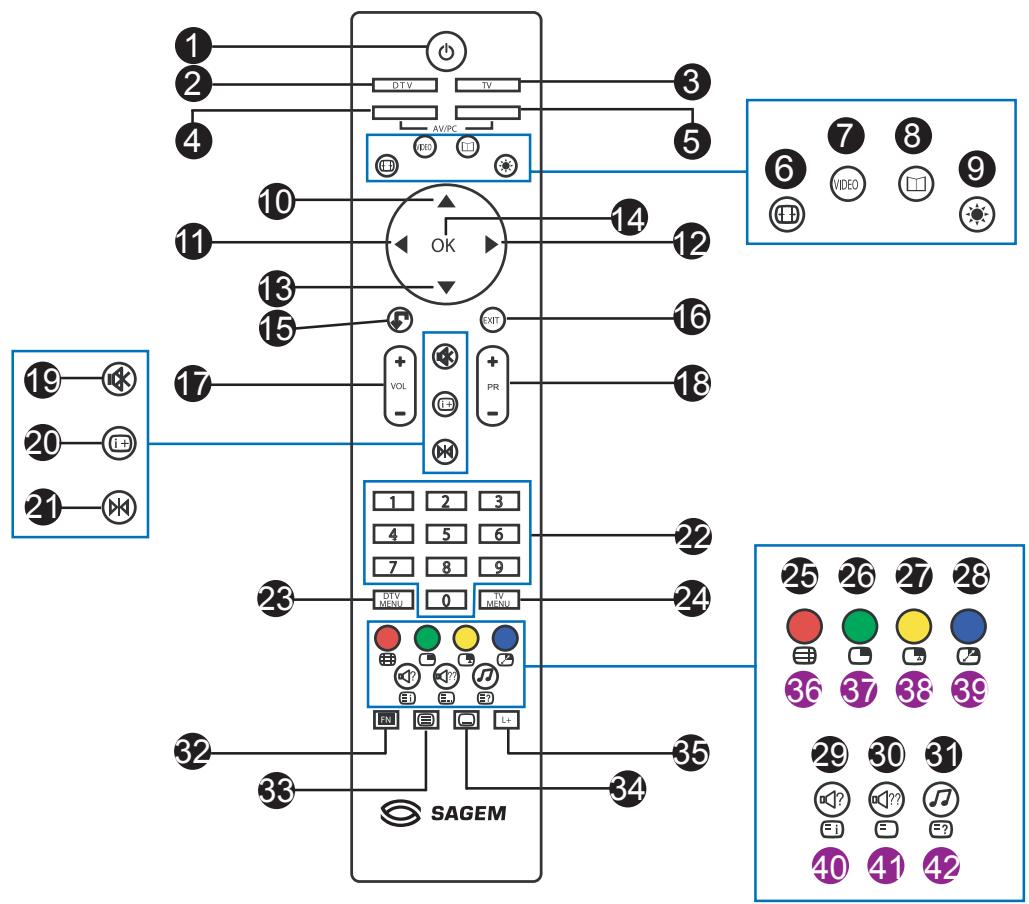
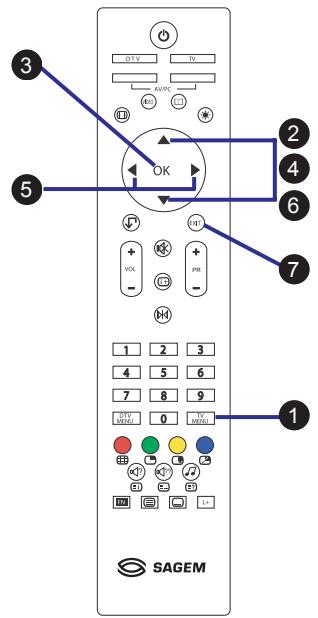
| BUTTON | DESCRIPTION (TV MODE) | |
| 1 | POWER | Turns the power ON/OFF. |
| 2 | DTV* | Switches to DTV mode (Digital TV). |
| 3 | TV | Switches to TV mode (Analog TV). |
| 4 | AV | Changes the input source to AV1, AV2, or AV3. |
| 5 | PC | Changes the input source to YUV, HDMI, or VGA. |
| 6 | FORMAT | Selects the picture format (4:3, 14:9, 16:9, Zoom, Panorama) that best meets your viewing requirement. |
| 7 | VIDEO MODE | Sets the video mode. Options are User, Soft, Normal, Strong, and Intense. |
| 8 | GUIDE* | Displays the channel guide when in DTV mode. |
| 9 | BACKLIGHT | Adjusts the backlight brightness level. |
| 10 | UP | Navigates up in the on-screen display (OSD) menus. |
| 11 | LEFT | Navigates left in the on-screen display (OSD) menus. |
| 12 | RIGHT | Navigates right in the on-screen display (OSD) menus. |
| 13 | DOWN | Navigates down in the on-screen display (OSD) menus. |
| 14 | OK | Works as the ENTER button. Confirms selection. Displays the channel list in DTV* mode. |
| 15 | BACK | Toggles between the last viewed channel and the current channel. |
| 16 | EXIT | Exits from the on-screen display (OSD). |
| 17 | VOL+/VOL- | Increases/decreases the volume. |
| 18 | PR+/PR- | Changes the channel. |
| 19 | MUTE | Mutes or restores the sound volume. |
| 20 | INFO | Shows information about the current input source. |
| 21 | STILL | Freezes the displayed image. |
| 22 | NUMBER PAD | Selects a channel or enters a number. |
| 23 | DTV MENU* | Activates the DTV* OSD menu. |
| BUTTON | DESCRIPTION (cont'd) | |
| 24 | TV MENU | Activates the TV OSD menu. |
| 25 | RED | Activates Teletext RED functions. |
| 26 | GREEN | Activates Teletext GREEN functions. |
| 27 | YELLOW | Activates Teletext YELLOW functions. |
| 28 | BLUE | Activates Teletext BLUE functions. |
| 29 | AUDIO | Changes the audio mode. |
| 30 | AUDIO ENH | Options are STANDARD, SPATIAL, VIRTUAL DOLBY SURROUND, and ENHANCED SPATIAL. |
| 31 | RADIO* | Available in DTV mode only. Switches to Radio mode. |
| 32 | FUNCTION | Press to activate functions such as PIP that are marked in blue. |
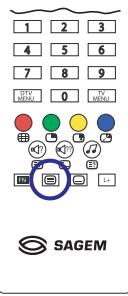
| 33 | TELETEXT | Toggles ON/OFF Teletext mode. |
| 34 | SUBTITLES* | Activates subtitles in DTV mode. |
| 35 | LIST* | Changes the favorite list when in DTV mode. |
| 36 | EN + 25 | MOSAIC - Activates Multi Channel View mode (only available in Analog Mode). |
| 37 | EN + 26 | PIP, PAP, Full Screen - Selects PIP mode. |
| 38 | EN + 27 | PIP SEL - Changes sub source (TV/AV1/AV2/AV3) when the main source is set to YUV, HDMI, or VGA, or vice versa. |
| 39 | EN + 28 | PIP SWAP - Swaps the main and sub pictures. |
| 40 | EN + 29 | Teletext Index (only in Teletext mode) |
| 41 | EN + 30 | Teletext List (only in Teletext mode) |
| 42 | EN + 31 | Teletext Reveal (only in Teletext mode) |
4 BASIC LCD TV SETUP
4-1 Connecting an Aerial Antenna
Connect the outdoor aerial (antenna) cable lead-in to the TUNER (UHF/VHF-CATV) jack on the back of your LCD TV using the supplied RF (coaxial) lead. See 2-2 Back Connectors for location.


4-2 Inserting Batteries into the Remote Control
Before using the remote control for the first time, insert two AA batteries (supplied). When the batteries become depleted and the remote control fails to operate, replace the batteries with new batteries.
TO INSERT BATTERIES
- Remove the battery cover on the back of the remote control.
- Insert two AA batteries into the remote control. Make sure that you match the + and -on the batteries with the + and - symbols inside the battery compartment.
- Close the battery cover by aligning it with the base of the remote control and sliding it back into place.
NOTE: Always recycle used batteries in accordance with local regulations. Contact your local recycling center for proper disposal information.


- The batteries supplied are not rechargeable.
- Pay particular attention to environmental matters.
- Take the defective or used batteries to places provided for this effect in accordance with current regulations; never throw them in the dustbin.
4-3 Using the Remote Control (Basic Operation)
Point the remote control towards the remote control sensor window located on the front of your LCD TV. Make sure no objects are in the line of aim, otherwise the remote control may not operate properly.
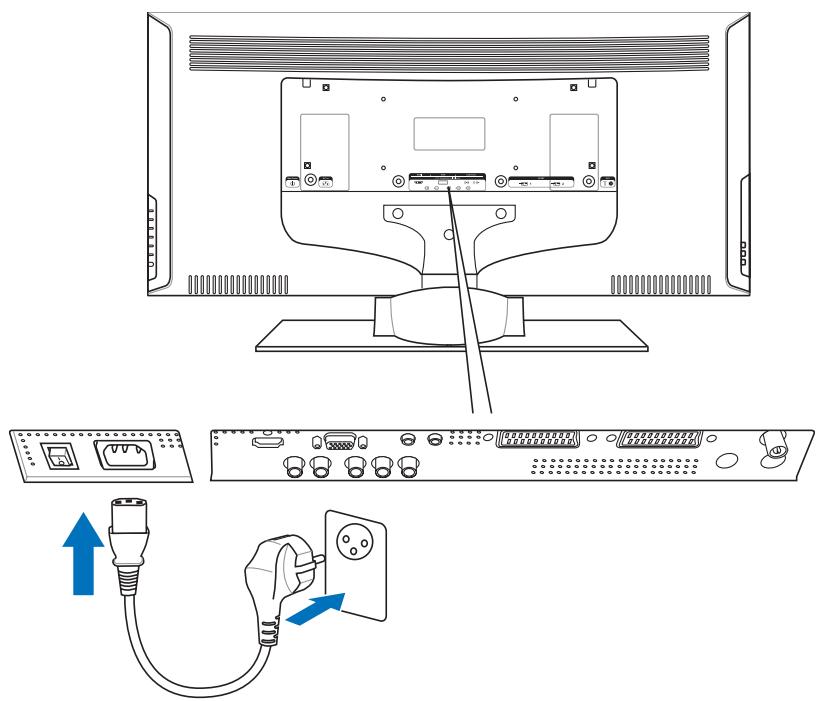
4-4 Plugging In Your LCD TV
- Connect the power cord to the power cord connector on the back of your LCDTV (see 2-2 Back Connectors).
- Plug the other end of the power cord into a properly grounded electrical outlet or surge protector.
4-5 Turning ON the Power
- Press the Main Power switch next to the power cord connector on the LCD TV. The Status LED on the front turns red and your LCD TV is ready to turn on.
- Press the POWER button on the right side of your LCD TV or on your remote control. The Status LED on the front turns green, and the unit turns on.
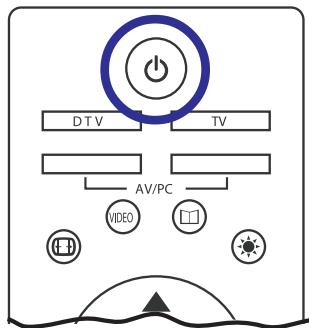
NOTE: When in analog TV mode, the power LED at the front of your unit will be green.
When in digital TV* mode, the power LED at the front of your unit will be amber.
5 CONNECTING EXTERNAL DEVICES
Read this section to learn how to connect the following devices:
DVDplayers
DTV or HDTV set-top boxes
VCRs
Computers
Game players
WARNING! Before connecting any external components, make sure to unplug your LCD TV and any connecting devices to prevent damage.
5-1 Connecting an HDMI Device
- Connect one end of an HDMI cable (not supplied) to your device and the other to the HDMI connector on the back of your LCD TV. See 2-2 Back Connectors for location.
- Turn on your LCD TV (see 4-5 Turning ON the Power), then press the PC button on your remote control repeatedly to select HDMI.
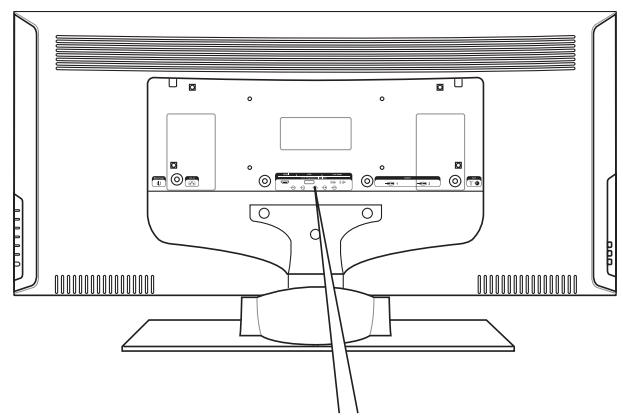

NOTE: To connect a DVI device, use a DVI-to-HDMI adaptor. You will also have to connect the audio cable from your DVI device to the PC Audio In connector.
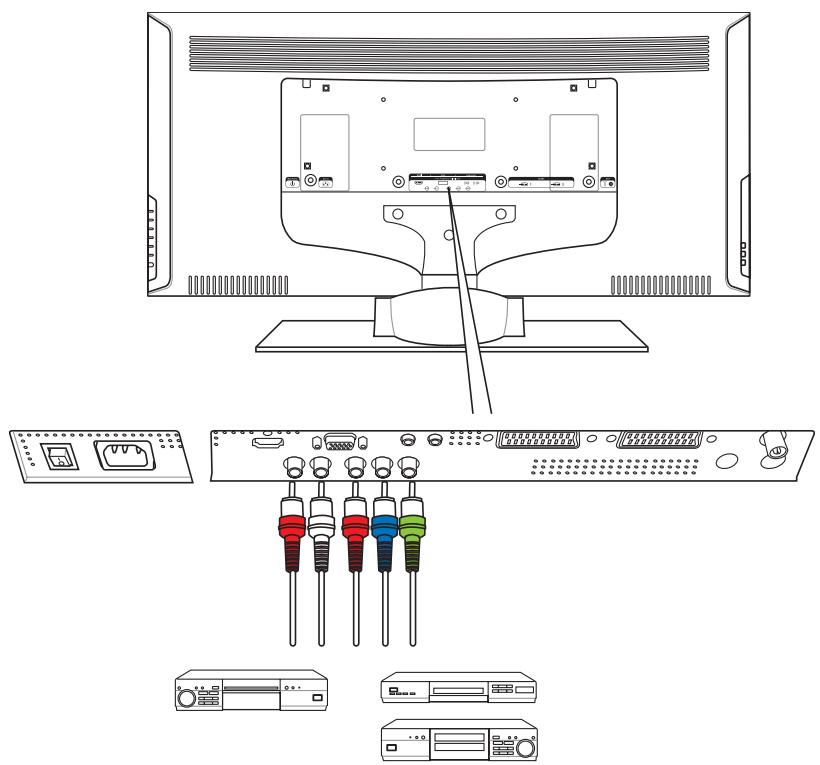
5-2 Connecting a Component Device
- Connect the green-colored Y RCA jack on the back of your device to the green-colored Y RCA jack on the back of your LCD TV.
- Connect the red-colored Pr RCA jack on the back of your device to the red-colored Pr RCA jack on the back of your LCD TV.
- Connect the blue-colored Pb RCA jack on the back of your device to the blue-colored Pb RCA jack on the back of your LCD TV.
- Connect the red (R) and white (L) audio RCA jacks on the back of your device to the YUV R and L audio-in RCA jacks on the back of your LCD TV.
- Turn on your LCD TV, then press the PC button repeatedly to select YUV.
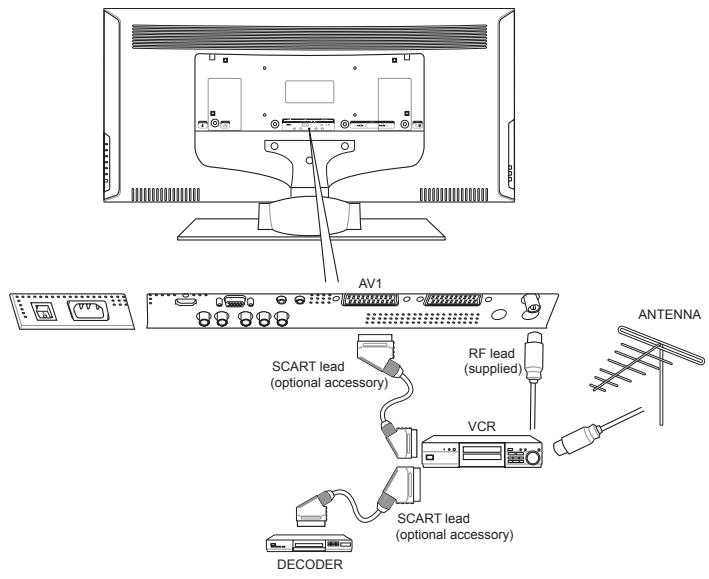
5-3 Connecting a VCR Using Coaxial (RF)
5-3-1 Video Recorder without Decoder
To record digital programmes from your LCD TV, the VCR must be connected to a SCART connector.
NOTE: If your VCR does not have a SCART connector, the only connection possible is via the aerial cable. You will therefore need to tune in your video recorder's test signal and assign it to a program number. In this case, it will not be possible to record digital channels.
5-3-2 Video Recorder with Decoder
Connect the decoder to the second SCART connector on your video recorder. You will then be able to record scrambled transmissions.
WARNING! If an outdoor antenna or cable system is connected to your LCD TV, make sure that the antenna or cable system is correctly grounded.
5-4 Connecting a SCART Device
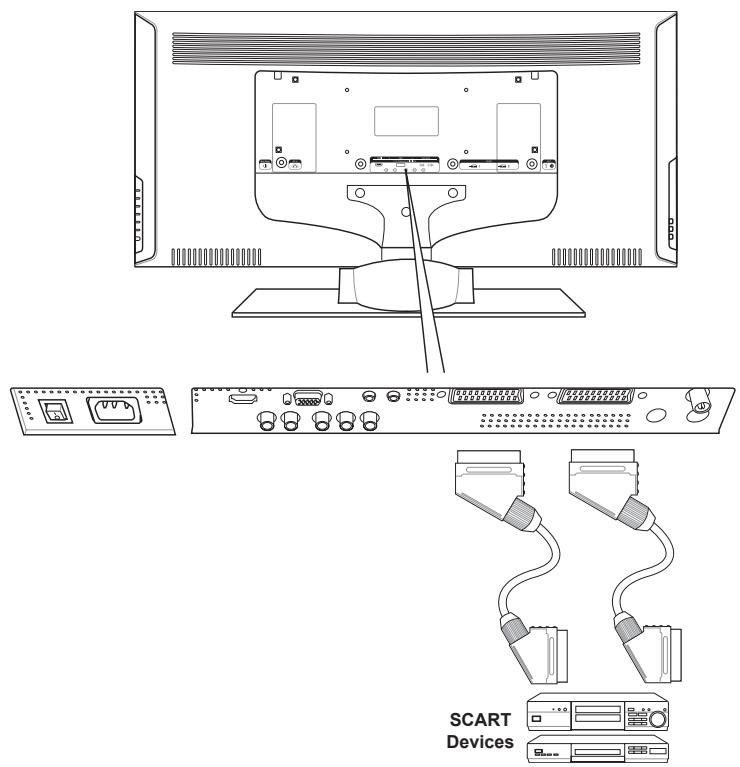
- Connect one end of a 21-pin Euro-SCART lead (not supplied) to your device and the other to the SCART connector on the back of your LCD TV. See 2-2 Back Connectors for location.
- Turn on your LCD TV (see 4-5 Turning ON the Power), then press the AV button repeatedly to select either AV1 or AV2, depending on to which connector your SCART device is connected.
NOTES: The picture format (16:9) is automatically detected by your unit.
5-5 Connecting a Computer (VGA)
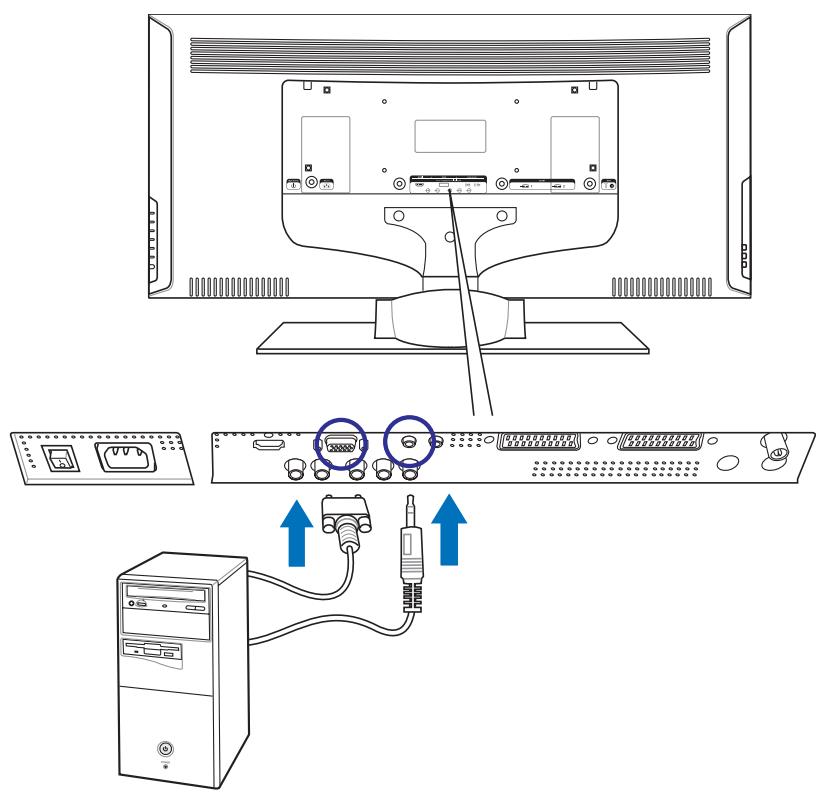
- Connect the VGA connector on your computer to the VGA connector on the back of your LCDTV with a VGA monitor cable.
- Connect the Audio Out jack on your computer to the Audio In jack on the back of your LCD TV.
- Turn on your LCD TV (see 4-5 Turning ON the Power), then press the PC button on your remote control to select VGA as your input source.
5-6 Connecting an Audio Amplifier Device
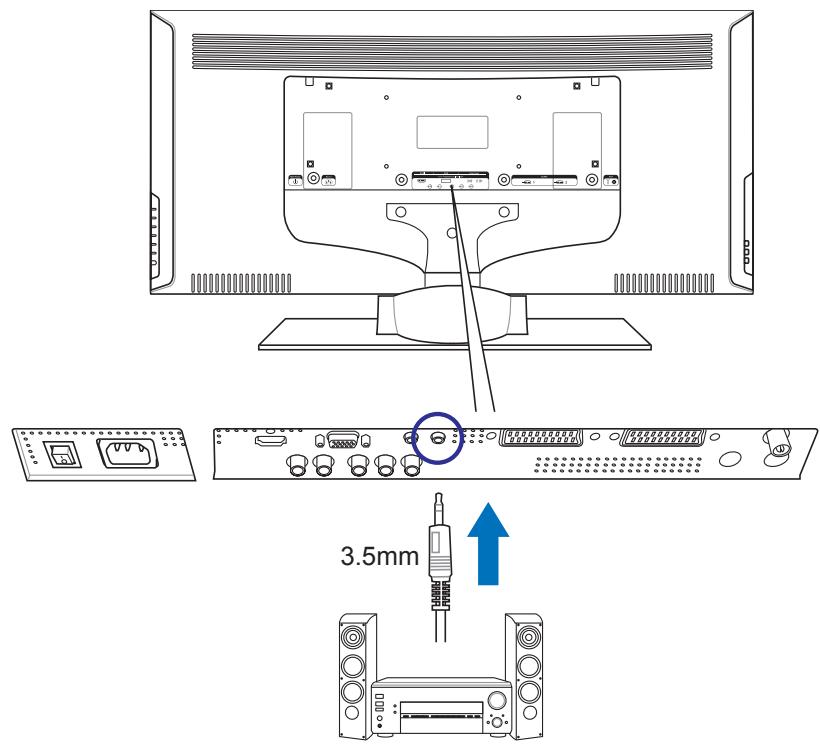
Connect an audio amplifier device to the HiFi Out jack on the back of your LCDTV.
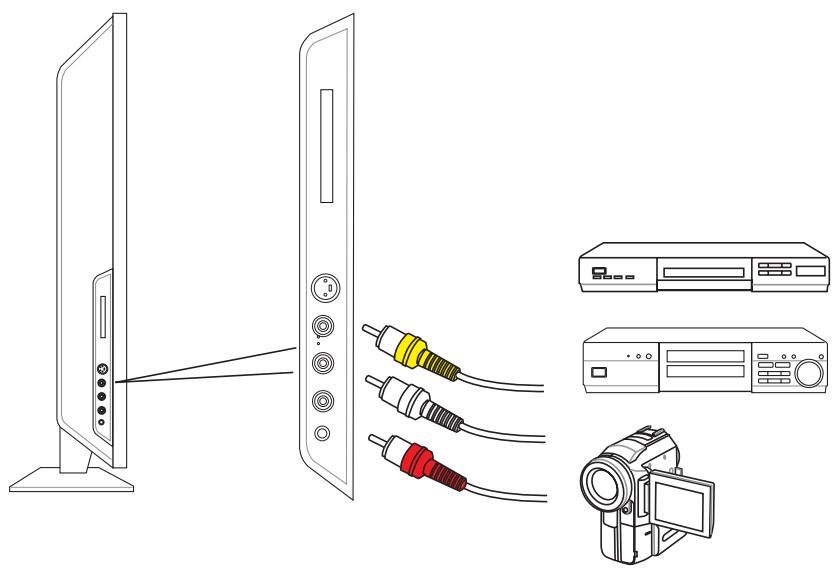
5-7 Connecting a Composite Device
- Connect the yellow video RCA from your VCR, camcorder, or digital camera to the yellow AV3 videoRCA connector on the right-side of your LCD TV with an RCA cable (not supplied).
- Connect the red (R) and white (L) audio jacks from your VCR, camcorder, or digital camera to the appropriately numbered AV3 R and L audio-in jacks on the right-side of your LCD TV.
- Turn on your LCD TV (see 4-5 Turning ON the Power), then press the AV button on your remote control repeatedly to select AV3.
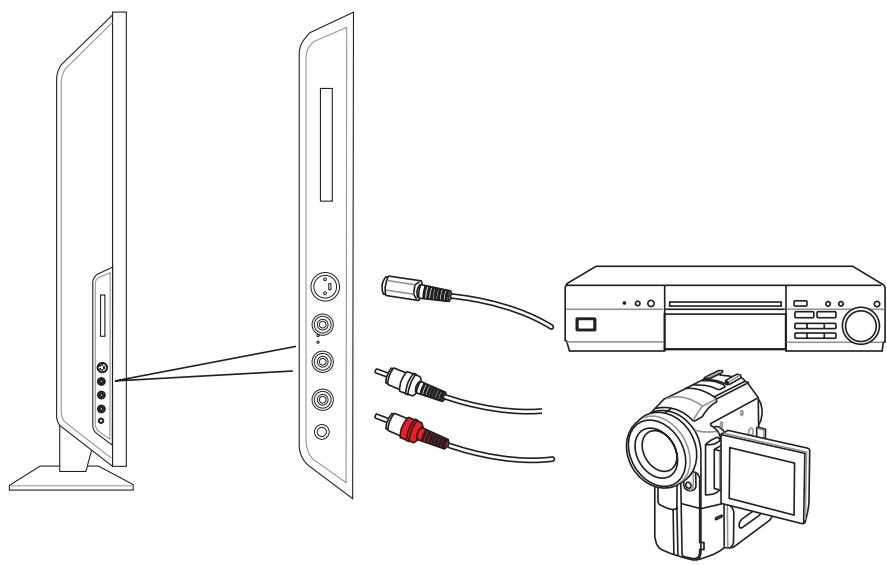
5-8 Connecting an S-Video Device
- Connect the S-Video mini-DIN connector on the back of your S-Video device to the SVIDEO connector on the right-side of your LCD TV with the correct optional cable.
- Connect the red (R) and white (L) audio RCA jacks on the back of your S-Video device to the R and L audio-in RCA jacks on the right-side of your LCD TV.
- Turn on your LCD TV (see 4-5 Turning ON the Power), then press the AV button on your remote control repeatedly to select AV3.
5-9 Connecting a Headphone
Connect a headphone to the Line Out jack on the right-side of your LCD TV.
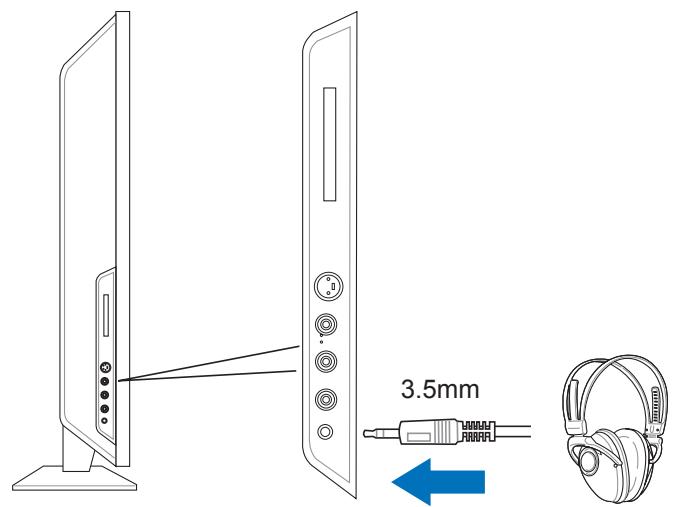
NOTE: When a headphone is connected, the TV's internal speakers are turned OFF.
6 ADJUSTING TV SETTINGS
6-1 Basic Operations
6-1-1 Adjusting the Volume
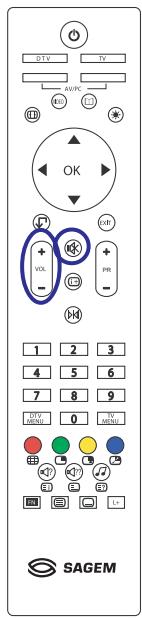
You can adjust the volume in two ways - from your LCD TV's right side panel or by using the remote control.
TO ADJUST VOLUME FROM THE RIGHT SIDE PANEL
Press + to increase/decrease the sound level.
TO ADJUST VOLUME FROM THE REMOTE
Press + - (see illustration for location) to turn up or turn down the volume.
TO TEMPORARILY TURN OFF VOLUME (MUTE)
Press the MUTE button on the remote control.
TO TURN VOLUME BACK ON
Press the MUTE button again or press +
6-1-2 Selecting Channels
TO SELECT CHANNELS FROM THE LCD TV
Press -0 + to select channels.
TO SELECT CHANNELS FROM THE REMOTE
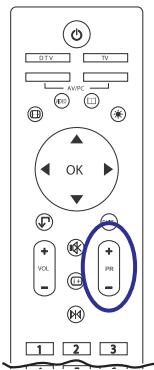
Press + (see illustration for location) or use the number pad to input the channel number..
6-2 Using the TV On-screen Display (TV OSD)
Your LCD TV features an on-screen display (OSD) that lets you adjust and save contrast, brightness, and other settings. All the function settings are accessible either through the proper control buttons on the right side of your LCD TV or through the remote control. OSD menus may be different depending on the current input source.
6-2-1 Making Adjustments
You can access the OSD from either the right side of your LCD TV display or from your remote control.
- With the power ON, press the TV button.
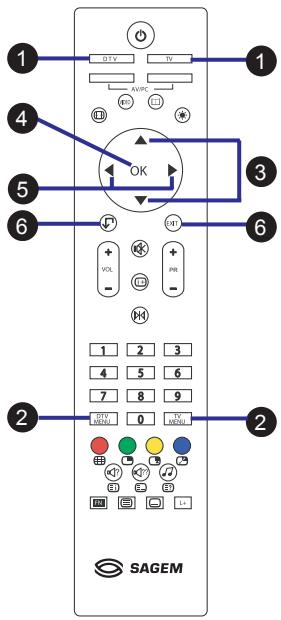
- Press TV MENU to access the Main Menu. In DTV mode, press DTV MENU to set DTV parameters.
NOTE: When you press the TV MENU button on your remote control, the remote control switches automatically to TV mode.
- Press to select one of the menu options.
- Press OK on your remote control to access the submenu.
- Press to make adjustments.
- Press the BACK button to return to the previous menu option.
-OR
Press the EXIT button to close the OSD.
6-3 OSD Menus and Options
You can use these OSD menus and options to adjust various settings for your LCD TV.
6-3-1 With Source Input Set to TV
Main Menu
Picture Menu
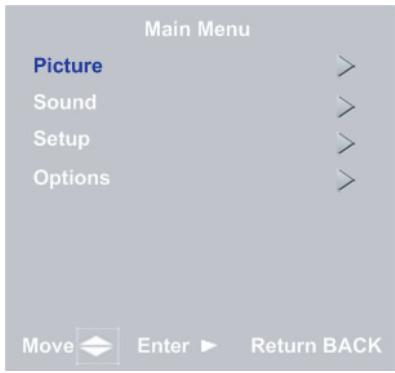
To access the Picture Menu, highlight Picture from the Main Menu and press OK.

Contrast - Adjusts the contrast ratio.
Brightness - Adjusts the luminance of the image.
Colour - Adjusts the color intensity, making colors more or less intense.
Sharpness - Adjusts the sharpness of the image.
Image - Adjusts the image clarity. Options are Normal and Crystal+.
Colour Temp - Adjusts the color temperature. Options are Natural, Cold, and Warm.
Sound Menu
To access the Sound Menu, highlight Sound from the Main Menu and press OK.
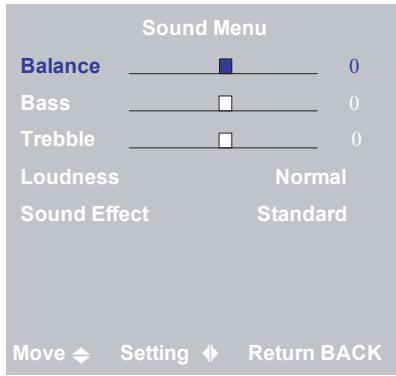
Balance - Adjusts the level of sounds between the left and right speakers.
Bass - Adjusts the bass value to enhance the low frequency sounds.
Treble - Adjusts the treble value to enhance high frequency sounds.
Loudness - Sets the sound intensity.
Sound Effect - Select Standard, Spatial, Virtual Dolby Surround, or Enhanced Spatial.
Setup Menu
To access the Setup Menu, highlight Setup from the Main Menu and press OK.
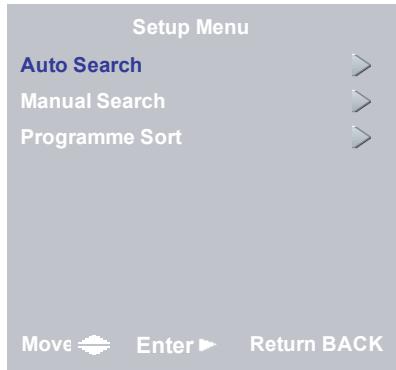
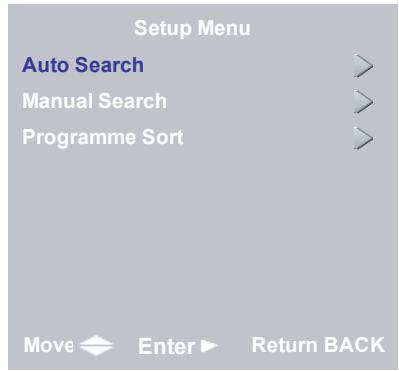
Auto Search - Select this option allows you to automatically search for all analog programmes that are available in your region.
Manual Search - Select this option allows you to store analog programmes one at a time.
Programme Sort - Select this option to rearrange the channel list and remove channels from the channel list.
NOTE: See 7 Tuning Your LCD TV for detailed procedures for Auto Search and Manual Search.
Options Menu
To access the Options Menu, highlight Options from the Main Menu and press OK.
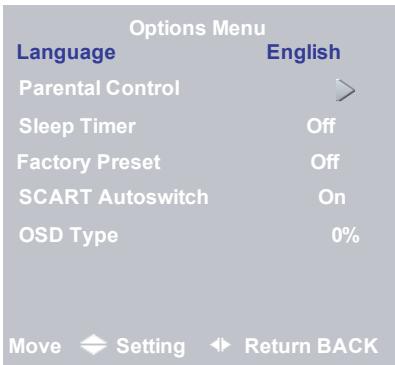
Language - Changes the language of the OSD menu.
Parental Control - Activates parental controls. This option is accessible only from the remote control.
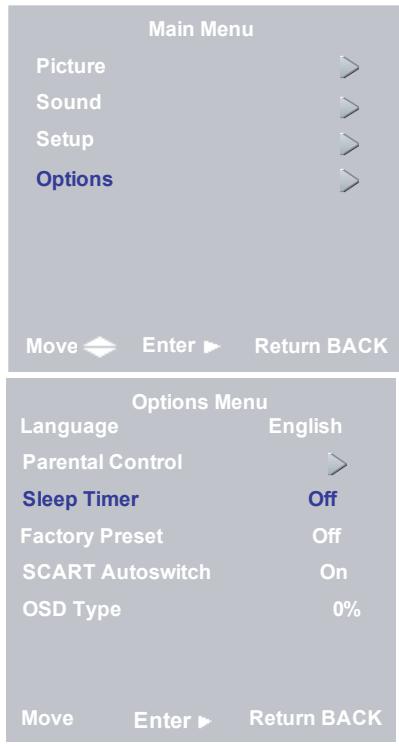
Sleep Timer - Turns the sleep timer ON/ OFF. Select 15, 30, 45, 60, 90, or 120 minutes.
Factory Preset - Resets user password to 0000 and deletes the analog channel list.
SCART Autoswitch - Sets the SCART autoswitch ON or OFF.
OSD Type - Sets the transparency of the OSD. Options are 0% , 50% , 100% (OSD gray background), and 50% , 100% (blue background).
NOTE: See 8 Advanced Settings for detailed procedures for Parental Control and Sleep Timer.
6-3-2 With Source Input Set to AV1, AV2, AV3, or DTV
NOTE: The Picture, Sound, and Options Menu for these inputs are the same as those for TV and DTV sources.
Main Menu
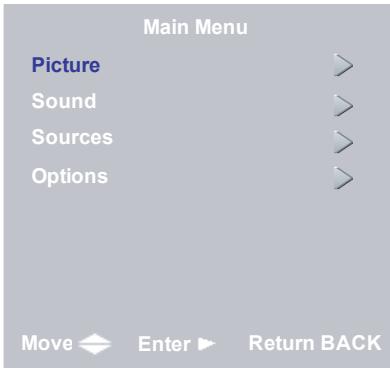
Sources Menu
To access the Sound Menu, highlight Sound from the Main Menu and press OK.
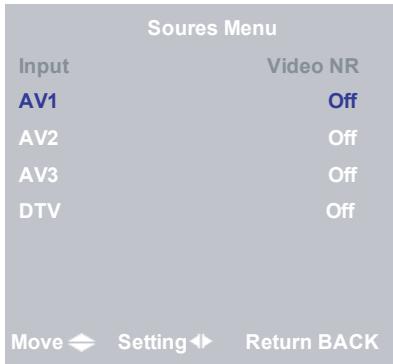
Set the Video NR for each input source from this menu. Turn Video NR ON to reduce on-screen noise.
Four modes are available:
OFF: not activated
LOW: if original screen noise is low
MIDDLE: if original screen noise is middle
HIGH: if original screen noise is high
6-3-3 With Source Input Set to PC VGA, HDMI, or YUV
NOTE: The Sound Menu and Options Menu for this input is the same as the one for TV.
Main Menu
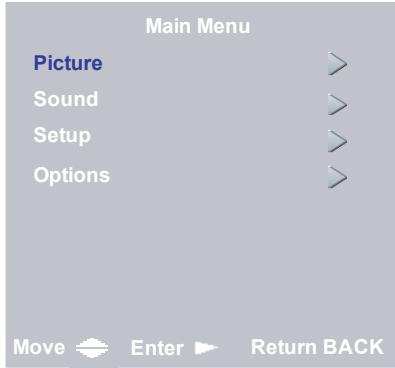
Picture Menu
To access the Picture Menu, highlight Picture from the Main Menu and press OK.
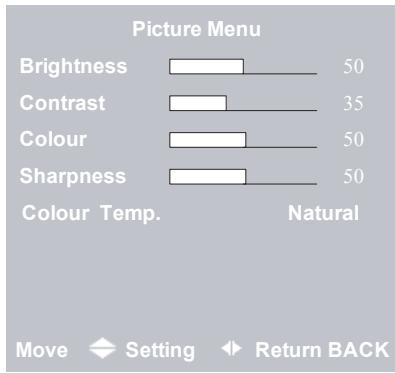
Brightness - Adjusts the luminance of the image.
Contrast - Adjusts the contrast ratio.
Colour - Adjusts the color saturation, making colors more or less intense.
Sharpness - Adjusts the sharpness of the image.
Colour Temp - Adjusts the color temperature. Options are Natual, Cool, and Warm.
Setup Menu
To access the Setup Menu, highlight Setup from the Main Menu and press OK.
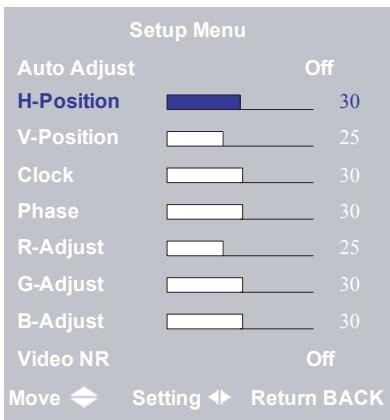
Auto Adjust - Automatically adjusts to the best image position, as well as the best clock and phase settings.
H-Position - Adjusts the horizontal position of the image.
V-Position - Adjusts the vertical position of the image.
Clock - Adjusts your LCD TV to match the video input source. Used when patterns appear.
Phase - Adjusts the picture to remove any noise such as, horizontal distortion, and clears or sharpens the displayed characters.
R-Adjust - Adjusts the red color.
G-Adjust - Adjusts the green color.
B-Adjust - Adjusts the blue color.
Video NR - Turns Video NR ON or OFF.
Turn Video NR ON to reduce on-screen noise. Four modes: OFF/LOW/MIDDLE/ HIGH.
NOTE: Depending on the selected input source, some options may be disabled (grayed out).
6-4 Adjusting Picture Settings
Follow these steps to adjust your LCD TV image.
- Press TV MENU to call up the on-screen display (OSD) main menu.
- Press to highlight Picture.
- Press OK. The Picture Menu opens.
- Press to select the option you want to adjust.
- Press to adjust the setting.
- Press to select and adjust other picture settings.
- Press EXIT to close the OSD menus.
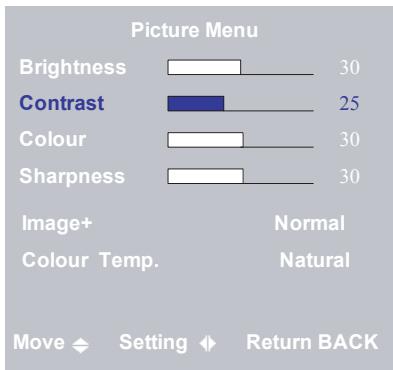
Source Input - TV
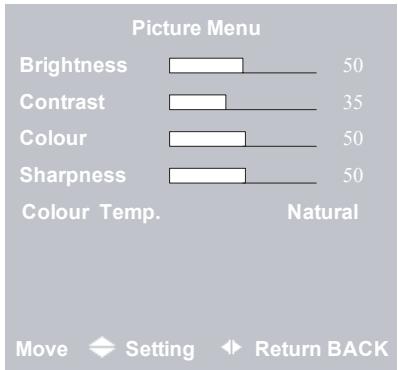
Source Input - AV
7 TUNING YOUR ANALOG TV
7-1 Tuning Channels Automatically (AUTO SEARCH)
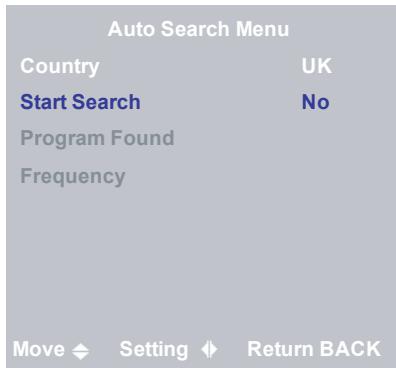
With the input source set to TV, use this option to quickly add all channels that have a signal to the channel list.
TO TUNE CHANNELS AUTOMATICALLY
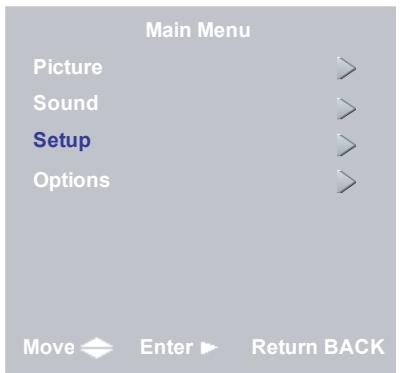
- Press the TV MENU button on the remote control to open the OSD.
- Press to select Setup Menu
- Press OK to open the menu.
- Press to select AUTO SEARCH.
- Press OK to open the Auto Search submenu.
- Press to select Start Search.
- Use to select Yes to start search. The LCD TV will search for all available channels. This will take a few minutes.
NOTE: Auto Search replaces your previous channel list.
7-2 Tuning Channels Manually (MANUAL SEARCH)
Use this option to add certain channels to the channel list.
TO ADD CHANNELS MANUALLY
- Press the TV MENU button on the remote control to open the OSD.
- Press to select Setup Menu.
- Press OK to open the menu.
- Press to select MANUAL SEARCH.
- Press OK to select. The Manual Search menu opens.
- Press to select the method to use for search.
- Use to select setting for the method selected.
To change the settings for Channel, Name, or Frequency, press OK and then enter the numbers and/or characters. Press OK again when finished.
- When finished, press EXIT to close the OSD.
| Main Menu | |
| Picture | > |
| Sound | > |
| Setup | > |
| Options | > |
| Move ⇌ Enter ➔ Return BACK | |
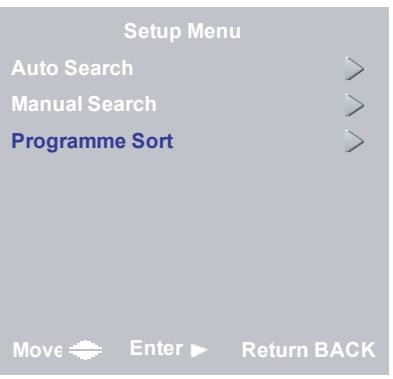
| Setup Menu | |
| Auto Search | > |
| Manual Search | > |
| Programme Sort | > |
| Move ⇌ Enter ➔ Return BACK | |
| Manual Search/Edit Menu | |
| Programme | 10 |
| Country | France |
| Frequency | 61.75MHz |
| Fine Tune | 0 |
| Naming | TF 1 |
| System | L |
| Noise Reductor | Off |
| Memorize | Off |
| Move ⇌ Setting ⇌ Return BACK | |
7-3 Sorting Channels (PROGRAMME SORT)
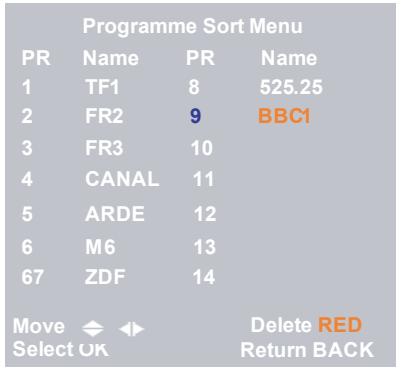
To sort the channels so that, for example, BBC1 is stored as number “1”, follow the steps below:
- Press the TV MENU button on the remote control to open the OSD.
- Press to select Setup Menu.
- Press OK to open the menu.
- Press to select PROGRAMME SORT.
- Press OK to select. The Programme Sort menus opens.
- Use and to find your first chosen channel e.g. BBC1.
- Press OK to highlight in red.
- Press to move the channel to your selected position e.g. "1".
- Press OK, the channel name will change from red to white.
- Repeat steps 6-9 for all the channels you want to watch. When complete, press the EXIT button to close the OSD menu.
Now you will be able to select programmes using the number pad or + on your remote control.
| Programme Sort Menu | |||
| PR | Name | PR | Name |
| 1 | TF1 | 8 | 525.25 |
| 2 | FR2 | 9 | BBC1 |
| 3 | FR3 | 10 | |
| 4 | CANAL | 11 | |
| 5 | ARDE | 12 | |
| 6 | M6 | 13 | |
| 67 | ZDF | 14 | |
| Move | ← | → | Delete RED |
| Select OK | Return BACK | ||
| Programme Sort Menu | |||
| PR | Name | PR | Name |
| 1 | BBC1 | 8 | ZDF |
| 2 | TF1 | 9 | 525.25 |
| 3 | FR2 | 10 | |
| 4 | FR3 | 11 | |
| 5 | CANAL | 12 | |
| 6 | ARDE | 13 | |
| 67 | M6 | 14 | |
| Move | ← | → | Delete RED |
| Select OK | Return BACK | ||
| Programme Sort Menu | |||
| PR | Name | PR | Name |
| 1 | BBC1 | 8 | ZDF |
| 2 | TF1 | 9 | 525.25 |
| 3 | FR2 | 10 | |
| 4 | FR3 | 11 | |
| 5 | 12 | ||
| 6 | ARDE | 13 | |
| 67 | M6 | 14 | |
| Move | ← | → | Delete RED |
| Select OK | Return BACK | ||
7-4 Removing Unwanted Channels (MANUAL SEARCH)
TO REMOVE CHANNELS
- Press the TV MENU button on the remote control to open the OSD.
- Press to select Setup Menu.
- Press OK to open the menu.
- Press to select PROGRAMME SORT.
- Press OK to select. The Programme Sort menus opens.
- Use and to highlight the channel you want to remove.
- Press (red) to remove the highlighted channel.
8 ADVANCED SETTINGS AND FUNCTIONS
8-1 Setting the Sleep Timer
The sleep timer allows your LCD TV to automatically turn OFF after a given amount of time. You can set the sleep timer through the on-screen display (OSD).
TO SET THE SLEEP TIMER
- Press the TV MENU button on the remote control to open the OSD.
- Press to select Options.
- Press OK to open the menu.
- Press to select Sleep Timer.
- Use to select the time duration (in minutes) that you want.
- Press the OK button on the remote control to confirm. The sleep timer appears at the top of your screen.
NOTE: To turn off the sleep timer, access the OSD menu and set SLEEP TIMER to OFF.
8-2 Setting Parental Control
The Parental Control feature prevents viewers from turning on the TV without entering a password.
TO SET PARENTAL CONTROL
- Press the TV MENU button on the remote control to open the OSD.
- Press to select the Options menu.
- Press OK to open the menu.
- Press to select the Parental Control submenu.
- Press OK to open the menu.
- Use the number pad to enter your password if prompted. If the password is 0000, the system skips the Input Password screen.
- Press OK.
- Press to select Startup Lock.
- Press to select On.
- Press EXIT when you are finished making changes to this option.
Options Menu
| Language | English |
| Parental Control | |
| Sleep Timer | Off |
| Factory Preset | Off |
| SCART Autoswitch | On |
| OSD Type | 0% |
Move Enter Return BACK
| Password Menu |
| Please Input Password |
| ??? |
| 0~9 Delete BACK Cancel EXIT |
| Parental Control Menu | |
| Startup Lock | Off |
| Change Password | > |
Move Setting Return BACK
8-3 Setting a Password
You control access to the parental control with a password. The default password is 0000.
You can change the password to any four-digit number.
TO SET OR CHANGE A PASSWORD
- Press the TV MENU button on the remote control to open the OSD.
- Press to select the Options menu.
- Press OK to open the menu.
- Press to select Parental Control.
- Press OK to open the submenu.
- Use the number pad to enter your password if prompted.
- Use to select the Change Password submenu.
- Press OK opens the Password menu.
- Use the number pad to enter a new four-digit password when prompted.
- Re-enter the new four-digit password.
- Press EXIT to close the OSD.
| Parental Control Menu | |
| Startup Lock | Off |
| Change Password | |
Move Enter Return BACK
| Change Password Menu |
| Enter New Password |
| ??? |
| Reconfirm New Password |
| ??? |
0~9 Delete BACK Cancel EXIT
| Change Password Menu Enter New Password |
| XXXX |
| Reconfirm New Password |
| ??? |
0~9 Delete BACK Cancel EXIT
8-4 Displaying Teletext
Many television stations provide Teletext, a written information service, in addition to regular television broadcasting. Information such as television program times, news bulletin, weather forecast, stock exchange prices, and closed captioning for the deaf, are sent by a TV station to your LCDTV through special Teletext signals and displayed on screen.
8-4-1 To Turn ON/OFF Teletext Mode
- Select a TV channel that provides Teletext service.
- Press the TELETEXT button to activate Teletext mode.
- To turn OFF Teletext mode, press the TELETEXT button twice.
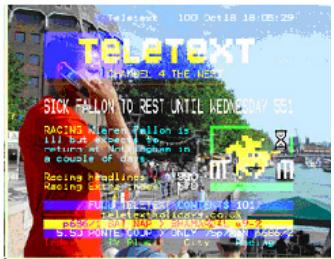
Teletext Mix Mode
8-4-2 Teletext Buttons
O(red)
Activates Teletext RED functions.
(green)
Activates Teletext GREEN functions.
(yellow)
Activates Teletext YELLOW functions.
(blue)
Activates Teletext BLUE functions.
First press - displays Teletext (if available)
Second press - displays Teletext in Mix mode with transparent background
Third press - turns off Teletext.
E[ F

Teletext Index (only in Teletext mode)
E [

Teletext List (only in Teletext mode)
E[

Teletext Reveal (only in Teletext mode)
8-5 Dual Picture Modes


(green)]
PIP, PAP, Full Screen - Selects PIP mode.


(yellow)]
PIP SEL - Changes sub source (TV/AV1/AV2/AV3) when the main source is set to YUV, HDMI, or VGA, or vice versa.


(blue)]
PIP SWAP - Swaps the main and sub pictures.
NOTE: This function is not available if the current source is DTV*.
8-5-1 Picture in Picture (PIP)
The Picture in Picture (PIP) function displays a small image from a secondary source on the screen within the main picture.
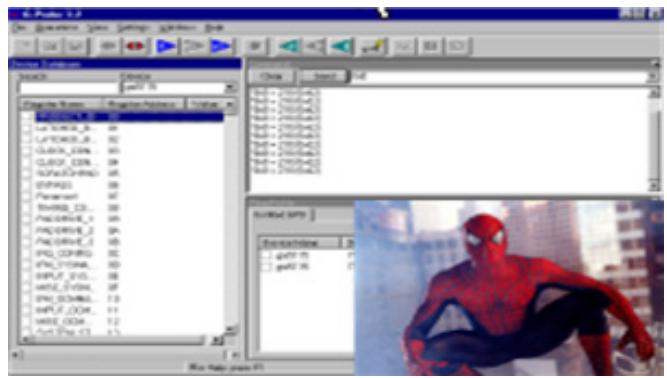
To display PIP, on your remote control press FN and then press (green).
To change the main picture source, press the TV, AV, or PC button on your remote control.
To change the sub (smaller) picture source, on your remote control press and then press (yellow).
NOTE: If the main source is a video one (TV, AV1, AV2, AV3), the sub source can only display a graphic source (VGA, DVI/HDMI, YUV) and vice versa.
To swap the main and sub picture locations, on your remote control press FN and then press (blue).
To change the size of the sub picture, press on your remote control.
To change the position of the sub picture on screen, press on your remote control.
To change the sound source from main to sub source or vice versa, press while the PIP or sound source text is still on screen.
8-5-4 Picture and Picture (PAP)
The Picture and Picture (PAP) function displays two equal size split screen images so that you can watch two programs at a time. The left image displays the main picture while the right image displays the sub picture.

To display PAP, on your remote control, press and then press (green) twice.
To change the main picture source, press the TV, AV, or PC button on your remote control.
To change the sub (right side) picture source, on your remote control press and then press (yellow).
To swap the main and sub picture locations, on your remote control press and then press .
To change the sound source from main to sub source or vice versa, press while PAP or sound source text is still on screen.
8-6 Multi-channel View Mode
To activate channel scan, press the MOSAIC button. Press this button again to stop channel scan and return to the main source.
NOTE: This feature is only available in Analog Mode.
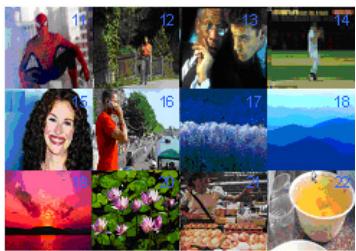
8-7 Picture Formats
Press the FORMAT button repeatedly to move through the different picture format options. Each time that you press the FORMAT button on your remote control, the display format information will show at the top-left corner of the display for a few seconds.
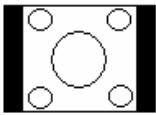
4:3
Displays a 4:3 input picture at its standard 4:3 size without any distortion. Black bands will be visible down the left and right sides of the picture.
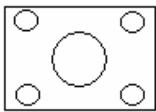
14:9
Displays the picture enlarged to 14:9 format with part of the top and bottom of a 4:3 image cut off. Thin black bands are visible on both the right and left sides of the picture.
16:9 (full screen)
Displays a true 16:9 picture full screen with no distortion.
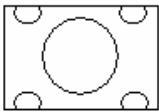
Zoom
Enlarges or reduces the original picture without distorting it. Use to change the zoom factor. Use to move the picture up and down.
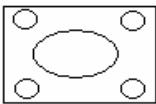
Panorama (4:3 stretch)
Displays a 4:3 input picture stretched to full screen. The picture is progressively stretched from the center third of the screen outward.
9 DIGITAL TV (DTV)*
9-1 Advanced Digital TV Settings
Access the DTV OSD main menu by pressing the DTV MENU button on your remote control.
NOTE: In general, press OK to confirm selection.
Return to the previous OSD menu by pressing the BACK button. Exit from the OSD menu by pressing the EXIT button.
9-1-1 Box Settings
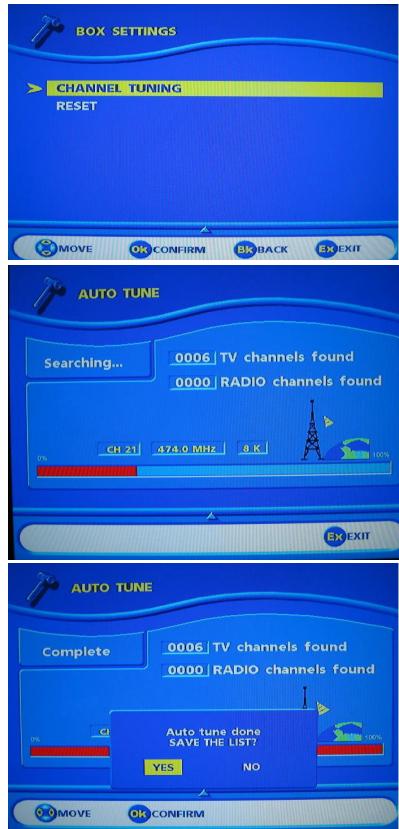
CHANNEL TUNING
It is recommended that you perform a channel search each month to keep your digital TV channels up-to-date.
TO TUNE CHANNELS
- From the Box Settings Menu, select CHANNELTUNING and press OK.
- An indicator at the bottom of the screen indicates the percentage of the scanned frequency band. The current frequency found is displayed in real time.
- A message at the end of the scanning process will ask you to save. Press OK.
You can cancel the scanning process at any time by pressing EXIT.
RESET
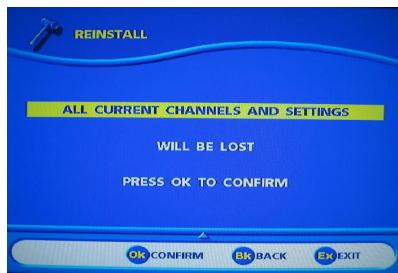
Use this option only if you have to start the complete installation procedure all over again. If you continue from here, all your previous settings, access code and favourite channels, etc. will be erased!
If you do not want to perform a reinstallation, you can leave this menu when the warning is displayed by pressing the BACK or EXIT button.
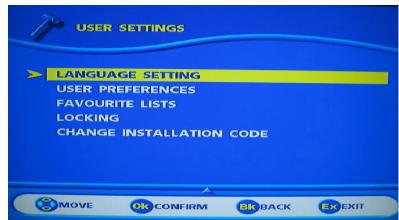
9-1-2 Changing User Settings
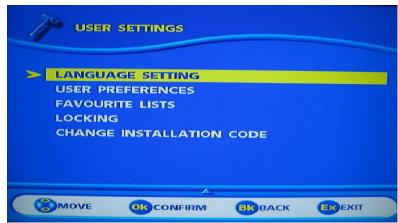
Press OK for access to various configurations.
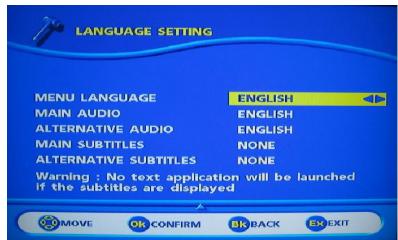
LANGUAGE SETTING
- Press to select LANGUAGE SET-TING.
- Press OK to confirm.
- Press to select one of the language options and press OK to access the submenu.
- Press to make adjustments.
MENULANGUAGE-Set the menu display lanuguage.
MAIN AUDIO/ALTERNATIVE AUDIO-If there is more than one audio language transmitted, you may set the main and alternative languages separately.
MAIN SUBTITLES / ALTERNATIVE
SUBTITLES - If there is more than one subtitle transmitted, you may set the main and alternative subtitles separately. Select NONE to remove either subtitle.
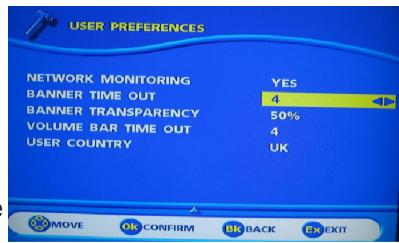
USER PREFERENCES (APPEARANCE PREFERENCES)
NETWORK MONITORING - Set to NO if you do not want the decoder to scan automatically when a new channel is available.
BANNER TIME OUT - Sets the number of seconds (0 to 5 seconds) that you would like the information banner to show when you switch channels. When set to 0, no banner is displayed.
BANNER TRANSPARENCY - Sets the transparency aspect of the banner (0% for full blue, 100% for full transparent).
VOLUME BAR TIME OUT - Sets the number of seconds (0 to 5 seconds) that you would like the volume bar to show when you adjust volume. When set to 0, no volume bar is displayed.
USER COUNTRY - The time is set from the GMT time by using to select the country where you live. Press OK to confirm.
FAVOURITE Lists
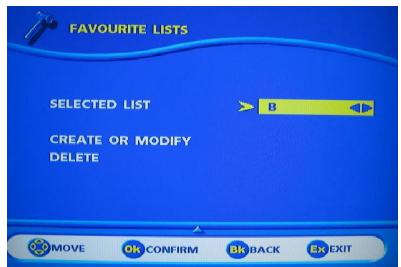
This function allows you to create FAVOURITE Lists of TV channels or radio stations from a reference list ALL CHANNELS (built from provider (transponder) installation or a scanning).
Two lists are displayed simultaneously. The list on the right side is the reference list (issued from transponder or scanning installation). The list on the left side is the list under construction.
To Add a Channel
- Use to select the list that you want to create or modify.
- Use to select CREATE OR MODIFY.
- Press OK to confirm.
- Press to highlight the channel you want to add to your list.
- Press the BLUE button on your remote control to copy from the highlighted channel from the ALL CHANNEL list on the right side to your FAVOURITE LIST X on the left side of the OSD.
- Repeat steps 3 and 4 until you have all the channels that you frequently use added to your FAVOURITE LIST.
- Press the YELLOW button on your remote control to save your list(s).
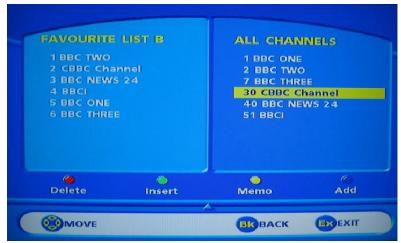
NOTE: To erase a channel, highlight the channel to be erased and press the RED button on your remote control.
To insert a new channel from main list A (for example if you have forgotten to put it in position 5).
- Highlight the channel in listA (ALL CHANNELS), select it by pressing the GREEN button (the highlighted channel moves to the FAVOURITE LIST).
- Move the highlighted channel in your favourite list to the channel just after the number where you want to insert, and press the GREEN button.
- After modifying your favourite list (B to H), press the YELLOW button to save the list.
To move a channel from one place to another in a favourite list, delete it and then insert it from the main list to the place you want.
9-2 Using Digital TV
Access the DTV OSD main menu by pressing the DTV MENU button on your remote control.
9-2-1 Changing Channels
Your DTV function provides several ways to switch channels.
Using ( +\ -m ) on the remote control
Switch to the next service up (PR+) or the next service down (PR-) from the current channel.
Type in a single digit (1), which is displayed on the screen banner, e.g. "1". If you do not type in another digit within 2 seconds, the digit is displayed in the first digit position on the screen banner, the second and the third digits are blanked out and the video and audio playing process is activated on the new Video service, e.g. "1". If you type in another digit (2), this is displayed in the second digit position, e.g. "12-". If you do not type in another digit within 2 seconds, the two digits are displayed in the first and second digit positions on the screen banner, the third digit is blanked out and the video and audio playing process is activated on the new Video service, e.g. "12". If you type in another digit (3), this last digit is displayed in the first digit position on the screen banner and the video and audio playing process is activated on the new Video service, e.g. "123". If the numerical code entered does not correspond to a video service in the list, the unit selects the first lower video service in the list.
Previous Channel
The BACK button enables you to toggle between the current channel and the last channel viewed. This button is especially useful when waiting for a movie to begin.
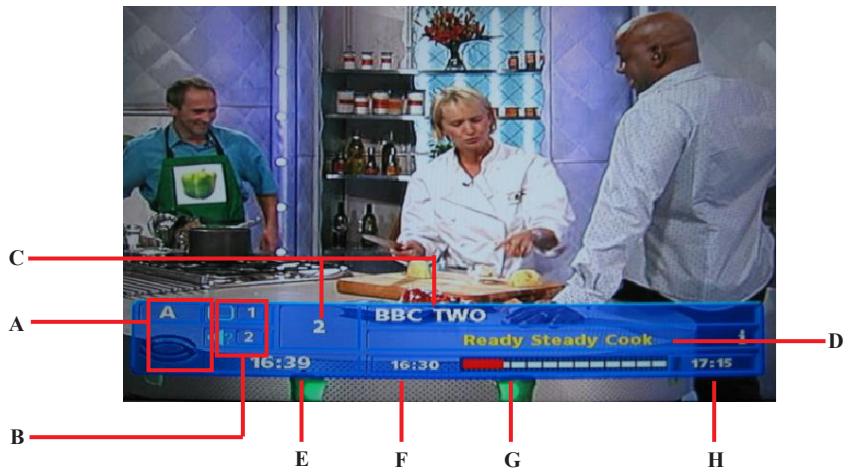
9-2-2 Program Information
Every time you change channels, you will receive program information for a few seconds (in the User Preferences menu (see 9-1-2 Changing User Settings), you can select how long this information will be shown).
Information may include the following:
A. Channel list
B. Number of audio tracks and subtitles available
C. Channel number and name
D. Name of the current program
E. Current time
F. The start and end time of the current program
G. A bar, indicating the elapsed time of the current program
H. The start and end time of the next program.
Program information will only be available if it is included in the transmission. You can change directly the transparency of the zapping banner: press INFO for 2 seconds, adjust with and then press OK to save.
9-2-3 Extended Program Information
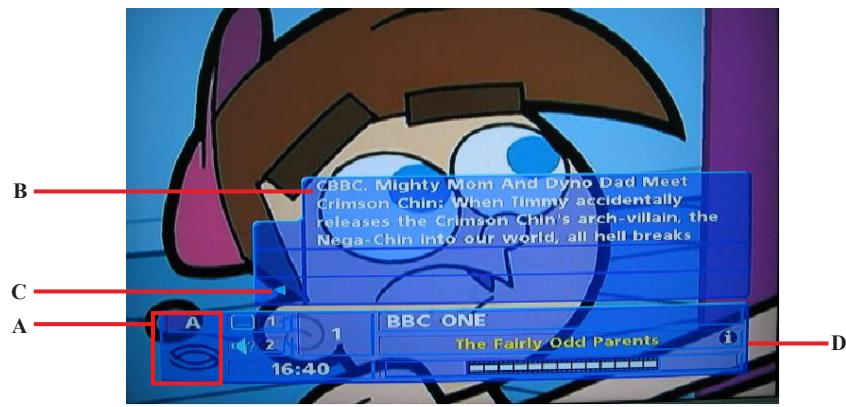
You can display information about programs currently being broadcasted as well as those that will be broadcasted next. By pressing INFO while watching TV, you will get the "Program information" banner.
A. Program information
B. Short summary
C. Next program
D. Information icon
If necessary, use the LIST button on your remote control to continue reading on the next info page.
9-2-4 TV Channel List
- When viewing TV programs, press OK to display the current channels list.
Use to select channel and then press OK. - You can access your favourite list by pressing the LIST button on your remote control.
- You can directly change your favourite list without first displaying the TV list by pressing the LIST button.
9-2-5 Audio and Subtitle Language Selection
By pressing the AUDIO or SUBTITLE button, you open a menu that lets you enter temporary settings. Settings made in either one of these options menus are only valid for the program you are currently watching. If you leave the program and return to it again, the temporary settings will be lost.
AUDIO LANGUAGE
When available, you can select among the different languages being broadcast. If a digital audio stream is available, "DA"eg digital audio - will be displayed on the same line than the audio language tag. This allows you to choose between stereo or home cinema audio tracks.
NOTE: When you select a digital audio, there will be no sound output from the analogue audio connections.
SUBTITLE LANGUAGE
When available, you can select among different subtitle languages.
Each time you press this button, you change the language.
- A timeout automatically closes this menu.
- The number on the left of each language indicates how many languages are available for this current channel.
9-2-6 Enhanced Program Guide
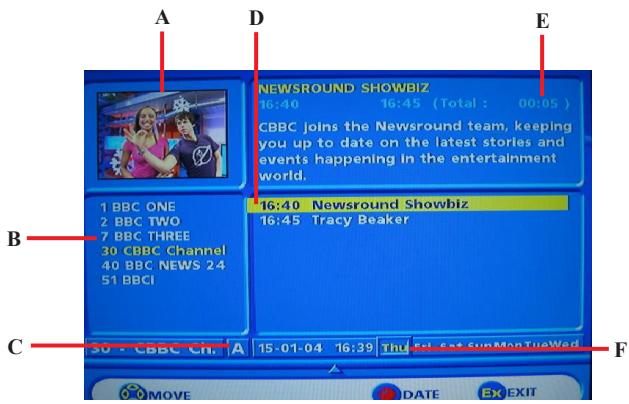
To display more detailed information about a selected program, press the GUIDE button. To remove this information, press the EXIT button.
A. Resized video is displayed. This video is the current one before entering the EPG.
B. Channels list of the current list is displayed. Select the chosen channel with .
C. Display the name of the favourite list used.
D. By pressing , the current event is high lighted. You can see all events of the day by pressing .
E. The following information about the selected program is displayed at the top of the screen:
- The time the program begins and ends
- A bar which fills in as the program progresses
The name of the program - Information about the program's contents (press the INFO button to have extended content shown by...).
F. Press the RED button to be able to change the date. Then press to change the date (7 days available according to the data sent by the provider).
NOTE: Information about a selected program can be displayed only if available from the broadcaster.
9-2-7 Freeze Video
The current video image can be frozen using the STILL button. Pressing the button again to bring back the live image.
In order to avoid screen burning, brightness is automatically decreased after a few minutes. Normal brightness can be recovered by pressing the STILL button again.
WARNING: Keeping the video frozen at full brightness for a long time may damage your TV.
9-2-8 Radio Mode

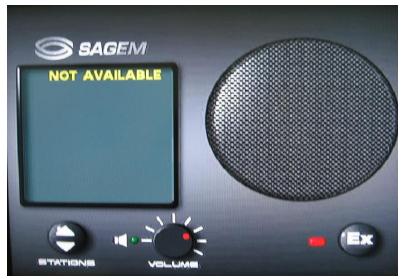
Press the RADIO button on the remote control to access radio mode. You can move through the list
displayed using
9-2-9 Photo Viewer
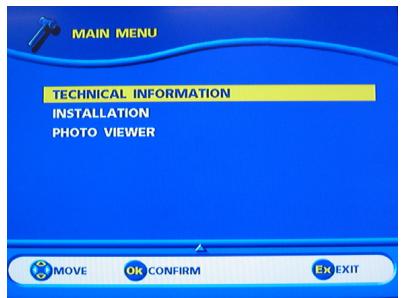
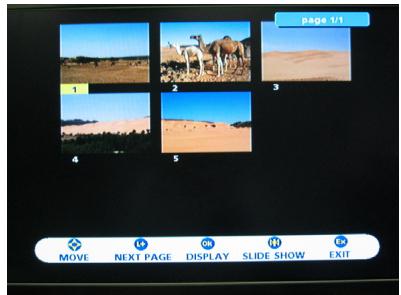
You can launch PHOTO VIEWER by inserting a memory card and selecting "PHOTO VIEWER" in the Main Menu. The total number of pictures is read and an album screen preview is displayed.
You can launch PHOTO VIEWER by selecting PHOTO VIEWER from the Main Menu.
The total number of pictures is read and an album screen preview is displayed.
NOTES: File supported: Jpeg (JFIFF Format).
Cards supported: CF Type I and Type II and with the 6-in-1 adaptor, SM (Smartmedia), MS (Memory stick), MSPRO (Memory stick Pro), SD (Secure Digital), MMC (Multimedia card), and XD card.
If the file has no thumbnail or no DCF format thumbnail, the decoder will show a?

Change the selected picture

Go directly to the next page of thumbnail

Display the selected picture

Run directly the slide show beginning with the selected picture

Exit from photo Mode to TV Mode.

Show the Photo Menu

Show the Radio Menu
9-5 Digital TV Software Upgrade
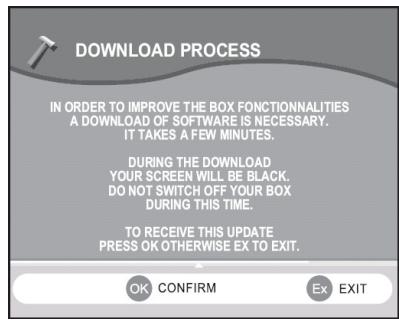
The Download Process screen appears after startup when a new version of software is available on the network.
You can delay the downloading process by pressing the EXIT button. This process will be displayed again the next time you switch to digital TV.
When you press OK, the downloading starts and the screen becomes black.
During this mode, no action is authorized.
On completion, digital TV switches on automatically.
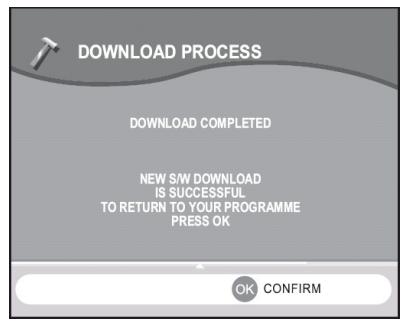
After startup, an information screen is displayed to confirm that the download has been completed.
Press OK and enjoy your last viewed program.
NOTE: If the download process was not correctly performed, the screen remains black.
When an error occurs, press any button on the remote to continue. Put the unit in standby mode and switch it back ON to download again.
If this operation does not succeed, unplug the main power cord and the antenna cord. Plug them back in and download again.
TROUBLESHOOTING AND SUPPORT
Before contacting customer service, use the following information to solve common problems.
No Picture
Make sure that the power cord is properly plugged into a grounded electrical outlet.
Make sure that the main power switch and power button are turned ON.
Make sure that the selected video input source is connected to a working device.
If your LCD TV is connected to your computer in VGA mode, press any key on your keyboard to wake up your computer.
No Sound
Try pressing the MUTE button.
Make sure that the headphones are not connected.
Check Audio setting under the OSDAio menu.
Distorted Picture or Unusual Sounds
You may be getting interference from electrical appliances, cars, motorcycles, or fluorescent lights. Try moving your LCD TV to another location.
Abnormal Colors
Make sure that the input source cable is connected securely and correctly to your LCD TV.
Use OSD menus to restore the factory default color settings.
Normal Picture, No Sound
Make sure that the volume is not turned down.
Make sure that the sound is not muted.
Make sure that your audio input source cables are connected securely and correctly.
Wrong Image Size
If you are using VGA mode, make sure that the H-Position and V-Position in the OSD is set correctly.
Screen Noise
When your LCD TV's digital capabilities exceed a digital broadcast signal, the signal is upconverted (increased) to match your LCD TV's display capabilities. Up-converting can cause noise or trash.
Dim Screen
Video display devices experience degradation of brightness over the life of the device. Normal brightness degradation is not covered by your warranty.
No Photo Displayed*
Make sure that the photo card is inserted in the correct orientation. If the problem still exists, your card model is not supported by this LCD TV.
Pixel Problems
Your LCD TV is manufactured using an extremely high level of precision technology. However, sometimes some pixels of your LCD TV may not display correctly. Pixel defects within industry specifications are inherent to this type of product and do not constitute a defective product.
Remote Control Not Working
Make sure that the batteries are inserted correctly.
Make sure the remote control sensor window is not under strong lighting.
Make sure the remote control is in the correct mode :
Yellow remote control LED:
Digital TV mode
Green remote control LED:
Analog TV mode
Technical Support
If this troubleshooting information does not resolve your problem or if you have other questions relating to your LCD TV, please visit our website www.sagem.com or contact your local dealer.
PRODUCT SPECIFICATIONS
| PICTURE | |
| Technology | 16/9 TFT LCD |
| Screen size : diagonal (cm / inch) | 80/31,5 |
| Resolution | 1366x768 (WXGA) |
| Horizontal Viewing Angle | 170° |
| Vertical Viewing Angle | 170° |
| Brightness | >= 500 Cd/m² |
| Picture Contrast | >= 800:1 |
| TV SYSTEM | |
| frequency range | 45,5 - 85,25 MHz (VHF-UHF-Cable tv) |
| Reception Norm | Pan European (LL' / BG / I / DKK) |
| Program number | 200 |
| Video standard | PAL / SECAM |
| Added Video standard via video in | NTSC 3.58 / 4.43 |
| DTV SYSTEM* | |
| Compliant to | DVBT MPEG2 MP@ML |
| RF input frequency range: | UHF 470-862 MHz ; VHF 174-222 MHz |
| COFDM bandwidth : | 7 / 8 MHz ( according to country set up) |
| COFDM mode : | 2k and 8k supported ; Support SFN |
| SOUND | |
| Loudspeakers built in | 10 speakers |
| Power | 2x28 W Music |
| CONNECTION | |
| TV Antenna Input | 1 (IEC169-2 Female) |
| DTV Antenna Input* | 1 (IEC169-2 Female) |
| DTV loopthrough output* | 1 (IEC169-2 Male) |
| AV1 | CVBS / RGB / S-Video (21 pins euro connector) |
| AV2 | CVBS / RGB / S-Video (21 pins euro connector) |
| AV3 | CVBS (1x RCA) |
| AV3 S | S-VIDEO ( 1x minidin) |
| AV3 Audio input | Audio stereo (2xCRA) |
| YUV input | YPbPr progressive and enterlaced ( 3x RCA) |
| YUV Audio input | Audio stereo (2xCRA) |
| PC input | VGA (1xD-sub 15 pin) |
| HDMI | HDMI with HDCP |
| Audio for VGA/HDMI input | Audio stereo (1xJack 3,5mm stereo) |
| Hifi Output | Audio stereo (1xJack 3,5mm stereo) |
| Headphone output | Audio stereo (1xJack 3,5mm stereo) |
The manufacturer reserves the right to change specifications.
PHOTO MEMORY CARD*
| Card reader | Compact flash I&I reader + external adaptor 6 to 1 |
| External adaptor | 6 to 1 (Memory stick, Memory stick Pro, Secure Digital, MultiMediaCard, Smart media Card, XD) |
| GENERAL DATA | |
| Power supply | AC 100-240 V ~ 50-60Hz |
| Consumption | 200W max. (<3W in stand-by) |
| Size (W x H x D) in cm | 104 x 55,8 x 14,3 |
| Packaging size (WxHxD) in cm | 117,5 x 750 x 37,5 |
| Weight : Net / Gross in kg | 23.5 / 30 kg |

The CE marking certifies that the product is in compliance with the essential requirements and other relevant provisions of Council Directives:
- 73/23/EEC on the harmonization of the law of Member States relating to electrical equipment designed for use within certain voltage limits,
- 89/336/EEC on the approximation of the laws of the Member States relating to electromagnetic compatibility.
The declaration of compliance can be consulted on the site www.sagem.com category "support", or can be requested at the following address:
SAGEM SA - Customer relations department
All characteristics contained in this manual are meant for information only and are subject to change without notice.
- Dear SAGEM Customer,
- ENVIRONMENT
- PACKAGING
- THE PRODUCT
- SAFETY PRECAUTIONS
- High Voltage
- Damage
- Weather
- Moisture
- Interference
- Temperature
- Ventilation
- Batteries
- Covers
- Standby
- Screen Burn
- QUICK START GUIDE
- Display Stand Installation
- Connection Diagrams
- Getting Started
- Remote Control Modes
- Connecting Your TV
- Setting Up Analog TV
- Switching to Digital TV*
- First Time Use
- Contents
- SAFETY PRECAUTIONS 2
- QUICK START GUIDE 4
- BEFORE YOU START 13
- YOUR LCD TV AT A GLANCE 15
- YOUR REMOTE CONTROL AT A GLANCE 18
- BASIC LCD TV SETUP 21
- BEFORE YOU START
- 1-1 What's in the Box
- 1-2 Optional Accessories
- CABLE KITS
- WALL MOUNT KIT
- YOUR LCD TV AT A GLANCE
- 2-1 Front Panel Controls
- 2-2 Back Connectors
- 2-3 Right-side Connectors
- YOUR REMOTE CONTROL AT A GLANCE
- BASIC LCD TV SETUP
- 4-1 Connecting an Aerial Antenna
- 4-2 Inserting Batteries into the Remote Control
- TO INSERT BATTERIES
- 4-3 Using the Remote Control (Basic Operation)
- 4-4 Plugging In Your LCD TV
- 4-5 Turning ON the Power
- CONNECTING EXTERNAL DEVICES
- 5-1 Connecting an HDMI Device
- 5-2 Connecting a Component Device
- 5-3 Connecting a VCR Using Coaxial (RF)
- 5-3-1 Video Recorder without Decoder
- 5-3-2 Video Recorder with Decoder
- 5-4 Connecting a SCART Device
- 5-5 Connecting a Computer (VGA)
- 5-6 Connecting an Audio Amplifier Device
- 5-7 Connecting a Composite Device
- 5-8 Connecting an S-Video Device
- 5-9 Connecting a Headphone
- ADJUSTING TV SETTINGS
- 6-1 Basic Operations
- 6-1-1 Adjusting the Volume
- TO ADJUST VOLUME FROM THE RIGHT SIDE PANEL
- TO ADJUST VOLUME FROM THE REMOTE
- TO TEMPORARILY TURN OFF VOLUME (MUTE)
- TO TURN VOLUME BACK ON
- 6-1-2 Selecting Channels
- TO SELECT CHANNELS FROM THE LCD TV
- TO SELECT CHANNELS FROM THE REMOTE
- 6-2 Using the TV On-screen Display (TV OSD)
- 6-2-1 Making Adjustments
- 6-3 OSD Menus and Options
- 6-3-1 With Source Input Set to TV
- Picture Menu
- Sound Menu
- Setup Menu
- Options Menu
- 6-3-2 With Source Input Set to AV1, AV2, AV3, or DTV
- Main Menu
- Sources Menu
- 6-3-3 With Source Input Set to PC VGA, HDMI, or YUV
- 6-4 Adjusting Picture Settings
- TUNING YOUR ANALOG TV
- 7-1 Tuning Channels Automatically (AUTO SEARCH)
- TO TUNE CHANNELS AUTOMATICALLY
- 7-2 Tuning Channels Manually (MANUAL SEARCH)
- TO ADD CHANNELS MANUALLY
- 7-3 Sorting Channels (PROGRAMME SORT)
- 7-4 Removing Unwanted Channels (MANUAL SEARCH)
- TO REMOVE CHANNELS
- ADVANCED SETTINGS AND FUNCTIONS
- 8-1 Setting the Sleep Timer
- TO SET THE SLEEP TIMER
- 8-2 Setting Parental Control
- TO SET PARENTAL CONTROL
- 8-3 Setting a Password
- TO SET OR CHANGE A PASSWORD
- 8-4 Displaying Teletext
- 8-4-1 To Turn ON/OFF Teletext Mode
- 8-4-2 Teletext Buttons
- 8-5 Dual Picture Modes
- 8-5-1 Picture in Picture (PIP)
- 8-5-4 Picture and Picture (PAP)
- 8-6 Multi-channel View Mode
- 8-7 Picture Formats
- 4:3
- 14:9
- 16:9 (full screen)
- Zoom
- Panorama (4:3 stretch)
- DIGITAL TV (DTV)*
- 9-1 Advanced Digital TV Settings
- 9-1-1 Box Settings
- CHANNEL TUNING
- TO TUNE CHANNELS
- RESET
- 9-1-2 Changing User Settings
- LANGUAGE SETTING
- MAIN SUBTITLES / ALTERNATIVE
- USER PREFERENCES (APPEARANCE PREFERENCES)
- FAVOURITE Lists
- To Add a Channel
- 9-2 Using Digital TV
- 9-2-1 Changing Channels
- Using ( arrayl+\ -m array ) on the remote control
- Previous Channel
- 9-2-2 Program Information
- 9-2-3 Extended Program Information
- 9-2-4 TV Channel List
- 9-2-5 Audio and Subtitle Language Selection
- AUDIO LANGUAGE
- SUBTITLE LANGUAGE
- 9-2-6 Enhanced Program Guide
- 9-2-7 Freeze Video
- 9-2-8 Radio Mode
- 9-2-9 Photo Viewer
- 9-5 Digital TV Software Upgrade
- TROUBLESHOOTING AND SUPPORT
- No Picture
- No Sound
- Distorted Picture or Unusual Sounds
- Abnormal Colors
- Normal Picture, No Sound
- Wrong Image Size
- Screen Noise
- Dim Screen
- No Photo Displayed*
- Pixel Problems
- Remote Control Not Working
- Technical Support
- PRODUCT SPECIFICATIONS
- PHOTO MEMORY CARD*
Brand : SAGEM
Model : AXIUM HD-L32
Category : Television