
DriveCore Install DCi 8|600DA - Power Strip CROWN - Free user manual and instructions
Find the device manual for free DriveCore Install DCi 8|600DA CROWN in PDF.


| Product Type | Professional Power Amplifier |
| Model | DriveCore Install DCi 8|600DA |
| Brand | Crown |
| Channels | 8 |
| Output Power (Dual Mode, 2Ω) | 300W per channel |
| Output Power (Dual Mode, 4Ω) | 600W per channel |
| Output Power (Dual Mode, 8Ω) | 600W per channel |
| Output Power (Bridge Mono, 8Ω) | 1200W per bridged pair |
| Dimensions (W x H x D) | 19 in x 3.5 in x 17 in (48.3 cm x 8.9 cm x 43.2 cm) |
| Weight | 30 lbs (13.6 kg) |
| AC Power Requirements | 100V-240V~, 50/60Hz (±10%) |
| Power Connector | 20A IEC connector |
| Cooling | Continuously variable speed forced air, front-to-back airflow |
| Digital Audio Transport | Dante™ / AES67, 8 inputs and 8 outputs, 48kHz or 96kHz |
| DSP Features | Input/Output EQ, Crossover, Delay, LevelMax™ Limiters, Priority Input Router |
| Control Port | 2-in, 2-out GPIO (RJ-11), programmable for preset recall, gain control, etc. |
| Network Control | TCP/IP via Ethernet, HiQnet Audio Architect software |
| Protection Circuits | Shorted outputs, DC, mismatched loads, overheating, over/under-voltage, HF overload |
| Sleep Mode Power Consumption | <1W |
| Warranty | Three Year, No-Fault Transferable Warranty (USA) |
| Frequency Response | ±0.25dB (20Hz-20kHz, 8Ω) |
| Signal-to-Noise Ratio (Dante) | >108dB (ref. rated power, 8Ω) |
| THD | 0.35% (full rated power, 20Hz-20kHz) |
Frequently Asked Questions - DriveCore Install DCi 8|600DA CROWN
User questions about DriveCore Install DCi 8|600DA CROWN
0 question about this device. Answer the ones you know or ask your own.
Ask a new question about this device
Download the instructions for your Power Strip in PDF format for free! Find your manual DriveCore Install DCi 8|600DA - CROWN and take your electronic device back in hand. On this page are published all the documents necessary for the use of your device. DriveCore Install DCi 8|600DA by CROWN.
USER MANUAL DriveCore Install DCi 8|600DA CROWN
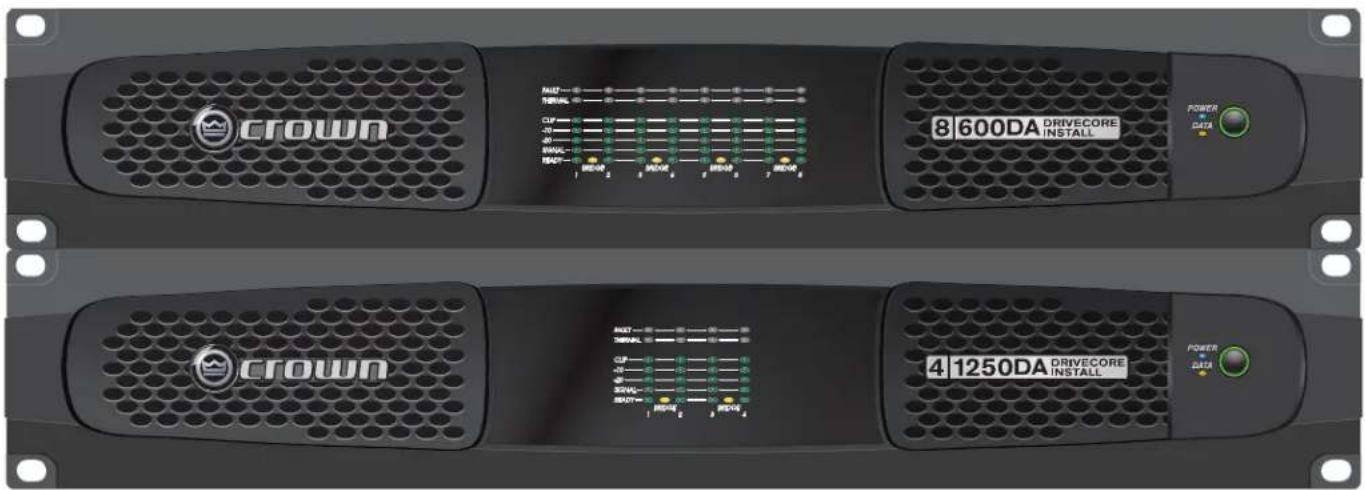
DriveCore Install DA Series
Operation Manual
- DCi 8|600DA
- DCi 4|1250DA
Product Registration: Register your new product at http://warranty.harmanpro.com.
Obtaining Other Language Versions: To obtain information in another language about the use of this product, please contact your local Crown Distributor. If you need assistance locating your local distributor, please contact Crown at 574-294-8000 or visit www.crownaudio.com.
This manual does not include all of the details of design, production, or variations of the equipment. Nor does it cover every possible situation which may arise during installation, operation or maintenance.
The information provided in this manual was deemed accurate as of the publication date. However, updates to this information may have occurred. To obtain the latest version of this manual, please visit the Crown website at www.crownaudio.com.
Trademark Notice: Com-Tech, BCA, Crown, Crown Audio, Amcron and Multi-Mode are registered trademarks of Crown International. DriveCore, DriveCore Install, IQwic, PIP and PIP2 are trademarks of Crown International. Other trademarks are the property of their respective owners.
Some models may be exported under the name Amcron®
Important Safety Instructions
- Read these instructions.
- Keep these instructions.
- Heed all warnings.
- Follow all instructions.
- Do not use this apparatus near water.
- Clean only with a dry cloth.
- Do not block any ventilation openings. Install in accordance with the manufacturer's instructions.
- Do not install near any heat sources such as radiators, heat registers, stoves, or other apparatus (including amplifiers) that produce heat.
- Do not defeat the safety purpose of the polarized or grounding-type plug. A polarized plug has two blades with one wider than the other. A grounding-type plug has two blades and a third grounding prong. The wide blade or the third prong are provided for your safety. If the provided plug does not fit into your outlet, consult an electrician for replacement of the obsolete outlet.
- Protect the power cord from being walked on or pinched, particularly at plugs, convenience receptacles, and the point where they exit from the apparatus.
- Use only with the cart, stand, tripod, bracket, or table specified by the manufacturer, or sold with the apparatus. When a cart is used, use caution when moving the cart/apparatus combination to avoid injury from tip-over.
- Unplug this apparatus during lightning storms or when unused for long periods of time.
- Refer all servicing to qualified service personnel. Servicing is required when the apparatus has been damaged in any way, such as power-supply cord or plug is damaged, liquid has been spilled or objects have fallen into the apparatus, the apparatus has been exposed to rain or moisture, does not operate normally, or has been dropped.
- Use the mains plug to disconnect the apparatus from the mains.
- WARNING: TO REDUCE THE RISK OF FIRE OR ELECTRIC SHOCK, DO NOT EXPOSE THIS APPARATUS TO RAIN OR MOISTURE.
- "DO NOT EXPOSE THIS APPARATUS TO DRIPPING OR SPLASHING AND ENSURE THAT NO OBJECTS FILLED WITH LIQUIDS, SUCH AS VASES, ARE PLACED ON THE APPARATUS" AND "NE PAS EXPOSER CET APPAREIL À DES ÉCLABOUSSURES OU GOUTTELETTES D'UN LIQUIDE. AUCUN OBJET REMPLIE DE LIQUIDE COMME PAR EXEMPLE UN VASE NE DOIT ÊTRE PLACÉ SUR L'APPAREIL".
- THE MAINS PLUG OF THE POWER SUPPLY CORD SHALL REMAIN READILY ACCESSIBLE. LA PRISE DU RÉSEAU D'ALIMENTATION DOIT DEMEURER AISÉMENT ACCESSIBLE.

TO PREVENT ELECTRIC SHOCK DO NOT REMOVE TOP COVER. NO USER SERVICEABLE PARTS INSIDE. REFER SERVICING TO QUALIFIED SERVICE PERSONNEL.

TO COMPLETELY DISCONNECT THIS APPARATUS FROM THE AC MAINS, DISCONNECT THE POWER SUPPLY CORD PLUG FROM THE AC RECEPTACLE. POUR DÉCONNECTER COMPLÈTEMENT L'APPAREIL DU RÉSEAU D'ALIMENTATION, DÉCONNECTER LE CORDON D'ALIMENTATION DE LA PRISE MURALE.
WARNING:
WATCH FOR THESE SYMBOLS:

The lightning bolt triangle is used to alert the user to the risk of electric shock.

The exclamation point triangle is used to alert the user to important operating or maintenance instructions.

IMPORTANT
Class 2 output wiring permitted.
MAGNETIC FIELD
CAUTION! Do not locate sensitive high-gain equipment such as preamplifiers or tape decks directly above or below the unit. Because this amplifier has a high power density, it has a strong magnetic field which can induce hum into unshielded devices that are located nearby. The field is strongest just above and below the unit.
If an equipment rack is used, we recommend locating the amplifier(s) in the bottom of the rack and the preamplifier or other sensitive equipment at the top.
FCC COMPLIANCE NOTICE
This device complies with part 15 of the FCC rules. Operation is subject to the following two conditions: (1) This device may not cause harmful interference, and (2) this device must accept any interference received, including interference that may cause undesired operation.
CAUTION: Changes or modifications not expressly approved by the party responsible for compliance could void the user's authority to operate the equipment.
NOTE: This equipment has been tested and found to comply with the limits for a Class B digital device, pursuant to part 15 of the FCC Rules. These limits are designed to provide reasonable protection against harmful interference in a residential installation. This equipment generates, uses, and can radiate radio frequency energy and, if not installed and used in accordance with the instruction manual, may cause harmful interference to radio communications. However, there is no guarantee that interference will not occur in a particular installation. If this equipment does cause harmful interference to radio or television reception, which can be determined by turning the equipment off and on, the user is encouraged to try to correct the interference by one or more of the following measures:
- Reorient or relocate the receiving antenna.
- Increase the separation between the equipment and receiver.
- Connect the equipment into an outlet on a circuit different from that to which the receiver is connected.
- Consult the dealer or an experienced radio/TV technician for help.
Declaration of Conformity
Manufacturer:
HARMAN International HARMAN International
1718 West Mishawaka Road
Elkhart IN 46517 USA
+1.574.294.8000
European Representative:
Salisbury House
London Wall
+44 207 562 9450
Brand: Crown
Equipment Type: Commercial Audio Power Amplifiers
Family Name: DCi DA Family
Model Names: 4|1250, 8|600
We, Harman International, declare under our sole responsibility that the product, to which this declaration relates, is in conformity with the relevant Union harmonizes legislation:
| 2014/35/EU | Low Voltage Directive (LVD) |
| 2014/30/EU | Electromagnetic compatibility directive (EMCD) |
| 2009/125/EC | as amended by 2012/27/EU Ecodesign directive (ErP) |
| 2011/65/EU | Restriction of the use of certain hazardous substances (RoHS) |
| 2012/19/EU | Waste electrical and electronic equipment directive (WEEE) |
| 1907/2006/EC amended by 2015/282/EU | Registration, evaluation and authorization of chemicals (REACH) |
The following harmonized standards and technical specifications have been applied:
| EMC Standards: | Description |
| EN 55032:2015, CISPR 32:2015 | EMC Compatibility of multimedia equipment – Emissions requirements |
| EN 55022:2010 +AC:2011 | Limits and Methods of Measurement of Radio Disturbance Characteristics of ITE: Radiated, Class B Limits; Conducted, Class B |
| EN 55103-2:2009 | EMC Compatibility – Product Family Standard for Audio, Video, Audio-Visual and Entertainment Lighting Control Apparatus for Professional Use, Part 2: Immunity |
| EN 61000-3-2:2014 | Limits for Harmonic Current Emissions (equipment input current less than or equal to 16A |
| EN 61000-3-3:2013 | Limitation of Voltage Fluctuations and Flicker in Low-Voltage Supply systems Rated Current less than or equal to 16A |
| EN 61000-4-2:2009 | Electrostatic Discharge Immunity (Environment E2-Criteria B, 4k V Contact, 8k V Air Discharge) |
| EN 61000-4-3:2006+ A2:2010 | Radiated, Radio-Frequency, EMC Immunity (Environment E2, Criteria A) |
| EN 61000-4-4:2012 | Electrical Fast Transient/Burst Immunity (Criteria B) |
| EN 61000-4-5:2014 | Surge Immunity (Criteria B) |
| EN 61000-4-6:2004 | Immunity to Conducted Disturbances Induced by Radio-Frequency Fields (Criteria A) |
| EN 61000-4-11:2004 | Voltage Dips, Short Interruptions and Voltage Variation |
| Safety Standard: | |
| EN 60065:2014 8th Ed | Audio, Video, and Similar Electronic Apparatus – Safety Requirements |
| UL 60065:2015 8th Ed | Audio, Video, and Similar Electronic Apparatus – Safety Requirements |
| CAN/CSA 60065:2016 8th Ed | Audio, Video, and Similar Electronic Apparatus – Safety Requirements |
Copies of all technical documentation can be obtained by contacting Sue Whitfield at sue.whitfield@harman.com.
October 21, 2016
Elkhart, Indiana, USA
(Place and Date of issue)
Jeff Denman,
SR. Director, Operations-ABU & SPBU
(Name, signature and function of authorized person)

Table of Contents
Welcome....1
Features....1
How to Use This Manual ....1
Installation....2
Unpacking 2
Additional Materials....2
Installing the Amplifier 2
Proper Cooling 2
Front Panel Features .... 3
Back Panel Features....3
Hardware Setup and Configuration 4
Wiring Input Connectors 4
Wiring Output Connectors....4
Connecting Network Cables 5
Connecting to AC Mains 5
Startup Procedure 5
Precautions 5
Software Setup 6
Configuring the Network using NetSetter ....7
The NetSetter Grid....9
Offline/Online Operation Explained 13
Setup and System Configuration.... 15
Amplifier Mode Settings....15
Hi-Z/Low-Z....15
Cascading Inputs 16
Bridge Mono Operation....17
Application Examples 18
Dual Mode Low-Z (8Ω, 4Ω or 2Ω) Output Operation ....18
Bridge Mode Low-Z (16Ω, 8Ω, or 4Ω) Output Operation ....19
Dual Mode Hi-Z (70Vrms/100Vrms) Mode 20
Bridge Mode Hi-Z (140Vrms/200Vrms) 21
General Purpose In/Out Control Port 22
Hardware Specification 22
Configuring the Control Port Inputs 22
Software Parameters 22
Configuring the Control Port Outputs....25
Aux Port/Sleep/Amp Status 27
AUX Port....27
Sleep 27
Amp Status 27
Dante 28
Dante Introduction 28
Dante Specifications 28
Hardware Configuration....28
Fault Tolerance....28
Mastership....28
Dante LED indicators....29
Dante Routing....29
Advanced Operation 31
Introduction 31
Amplifier Presets and Speaker Tunings ....31
User Presets....31
Speaker Tunings 32
Speaker Tuning Panel....32
Speaker Tuning Libraries....33
Working Library 33
Channel Levels and Mutes 35
Software-Controllable Onboard DSP 36
Input Signal Router 37
Source Routing/Configuration 38
Input Delay and Driver/Output Delay 39
Input/Output Equalization....39
Crossover Filters....40
LevelMax™ Suite 41
Transducer Thermal Limiter 41
Signal Path Block Diagram 42
Protection System 43
Thermal Indicator 43
Fault 43
Auto Insertion High-Pass Filters....43
AC Under/Over Voltage Protection 43
Breaker 43
Fan-Cooled Chassis 43
Universal Switching Power Supply 43
Troubleshooting 44
DCi DA Specifications 47
Dual Mode — All Channels Driven 47
Bridge Mono Mode — All Channels Driven 47
Input Sensitivity 47
Dimensions 47
Performance Specifications....48
AC Power Draw and Thermal Dissipation.... 49
Warranty (United States Only) 51
Service 52
Worldwide Service 52
US and Canada Service....52
Service at a US or Canada Service Center 52
Factory Service 52
Factory Service Shipping Instructions....52
Packing Instructions....53
Estimate Approval 53
Payment of Non-Warranty Repairs....53
Service Return Authorization Request 54
Welcome

Thank you for purchasing a new Crown DriveCore™ Install DA Series installation amplifier, one in a complete line of high-performance amplifiers based on exclusive DriveCore technology. DriveCore Install DA Series amplifiers are designed, engineered and manufactured to the industry's highest quality standards, and provide system integrators with the advanced features and flexibility required for challenging 21st century installed sound applications. Versatile, compact, and highly energy-efficient, DCi DA Series amplifiers continue the unbroken Crown tradition of leadership in professional and commercial power amplifier technology.
Features
- Exclusive multi-patented DriveCore™ Technology — The patented DriveCore integrated circuit combines hundreds of discrete circuits into one chip for better performance, lower power consumption, and improved reliability.
• Dante™ Digital Audio Transport
- Configuration in HiQnet ® Audio Architect TM
• Programmable General Purpose Input/Output Control Port
- Digital Signal Processing (Input/Output EQ Filters, Crossover, Input/Output Delay, LevelMAX TM Limiters)
- Priority Input Router
• Universal power supply with PFC for reduced current draw and industry-leading efficiency
• Monitoring and Control over TCP/IP
• Real time Continuous Loading Monitoring
- Power Saving Modes – Power consumption in sleep mode is less than 1W.
- Adjustable Auto Standby
- Remote Power Off – Sleep mode activated via AUX port
- 70Vrms/100Vrms Direct Drive – Each channel individually selectable for low-Z or high-Z operation
- Advanced Protection Circuits – Amplifier and loads are protected against shorted outputs, DC, mismatched loads, overheating, over/under-voltage, and high-frequency overload
- Three Year, No-Fault Transferable Warranty – Your investment is fully protected
- Complies with GreenEdge™ by HARMAN – Environmentally friendly practices in design, manufacturing, and packaging complement energy-efficient operation
- AES67 Compatible
How to Use This Manual
This manual provides you with the necessary information to safely and correctly setup and operate your Crown product. It does not cover every aspect of installation, setup, or operation that might occur under every condition. For additional information, please contact technical support, your system installer, or retailer.
We strongly recommend you read all instructions, warnings, and cautions contained in this manual. Also, for your protection, please register your product at www.warranty.harmanpro.com. And save your bill of sale—it's your official proof of purchase.
Installation
Unpacking
Unpack your amplifier and inspect for any damage that may have occurred during transit. If damage is found, notify the shipping company immediately. Only you can initiate a claim for shipping damage, though Crown will be happy to help as needed. If the product arrived showing signs of damage, save the shipping carton for the shipper's inspection.
We also recommend that you save all packing materials for use if you ever need to transport the unit. Never ship the unit without the factory carton and packing materials.
Additional Materials
For installation, you will need the following (not supplied):
- Input wiring cables
- Output wiring cables
- Flathead screwdriver
- Phillips screwdriver
- Rack for mounting amplifier (or a stable surface for stacking)
• Category 5e or higher cabling

WARNING: Before you start to set up your amplifier, read and observe the Important Safety Instructions included in the box. These instructions can also be downloaded from the product page at www.crownaudio.com.
Installing the Amplifier

CAUTION: Before you begin, make sure your amplifier is disconnected from the power source.
The DCi DA Series amplifiers are 3.5 in. (8.9 cm) high, 19 in. (48.3 cm) wide, and 17 in. (43.2 cm) deep (See Figure 1).
Mount the unit in a standard 19-inch (48.3 cm) equipment rack (EIA RS-310B). You can also place a single amp on a solid, stable surface or stack multiple amps.
NOTE: Amplifiers should be supported at both the front and rear of the rack.

Figure 1: Dimensions
Proper Cooling
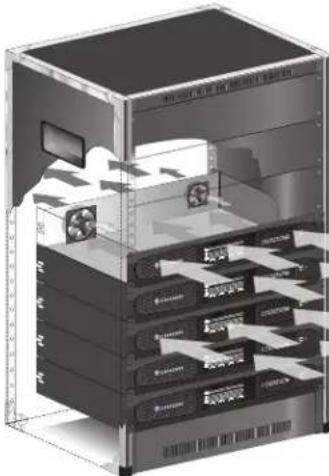
When using an equipment rack, mount units directly on top of each other. Close any open spaces in the rack with blank panels. (Open spaces will reduce cooling efficiency.) DO NOT block front or rear air vents.
The rack should be a minimum of two inches (5.1 cm) away from the amplifier, and the back of the rack should be a minimum of four inches (10.2 cm) from the amplifier back panel.
Air flow is front to back as illustrated in Figure 2.
natural_image
3D diagram of a server rack with multiple drive bays and ventilation ducts (no text or labels)Figure 2: Proper rack venting
Front Panel Features
Indicators:
Fault Indicator (red): Flashes when the amplifier output channel has stopped operating.
Thermal Indicator (red): Illuminates when the channel reaches 80 degrees Celsius, indicating the onset of protection compression. If the temperature continues to rise, the amplifier output will shut off at 98 degrees Celsius and remain off until a safe operating temperature is present.
Clip Indicator (red): Illuminates when any of the following conditions are present: Onset of audible clipping, clipped signal detected at input, clipped signal detected at output, engagement of protection circuits.
Level and Signal Indicators (green): Three LEDs indicate signal presence and level as follows: -10 = 10 dB below rated output, -20 = 20 dB below rated output, Signal = -40dBU input level.
Ready Indicator (green): When this indicator is activated, the amplifier is ready to pass audio.
Power Indicator (blue)
Illuminates when the amplifier is ON and acceptable AC line voltage is present.
Blinks when AC line voltage is outside ±10% range.
Flashes for 4 seconds if Power button pressed when amplifier is in sleep mode.
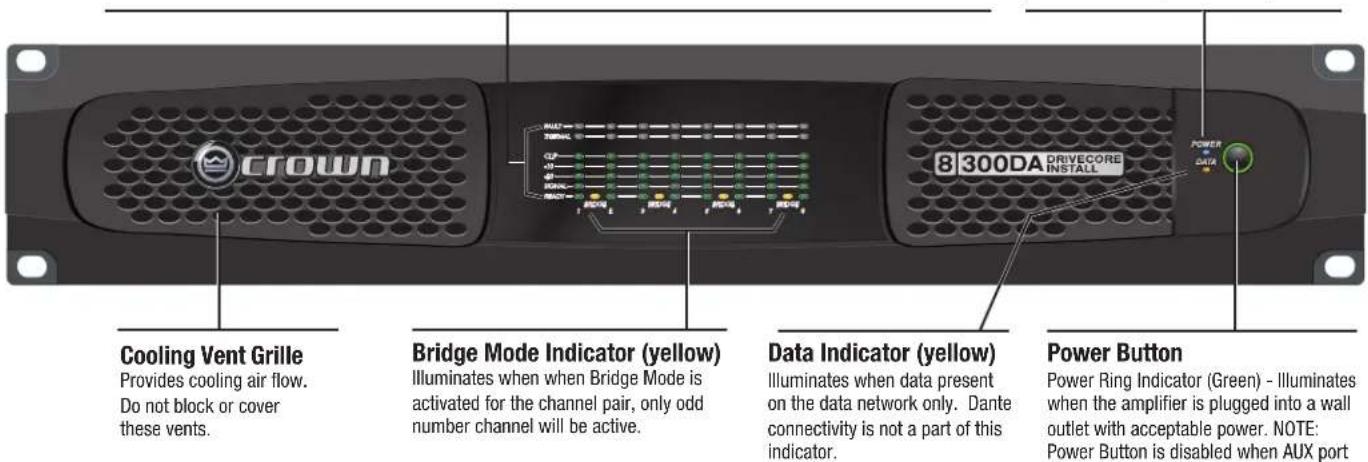
Note: DCi 8|600DA (8-channel) model shown. Indications per channel pair are identical for 4-channel models.
Back Panel Features
Reset Switch/Circuit Breaker
If the current draw of the amplifier exceeds safe limits, this breaker automatically disconnects the power supply from the AC mains. The switch resets the circuite breaker.
Ethernet\*
For monitoring and control of the amplifier over Cat5e wiring through the Audio Architect software.
Dante\*
Connect to a Dante™ / AES67 audio network using Cat5e or higher wiring. (Cat5 wiring can be used for purely 100Mbps networks.)
Data LED
Data LED indicates HiQnet data activity
Preset LED
Preset LED blinks successively to indicate preset number (e.g., if the LED blinks 5 times, pauses, then repeats, the amp is on preset 5).
Input Connectors
One 6-pin plug-in connector per input pair. High impedance balanced
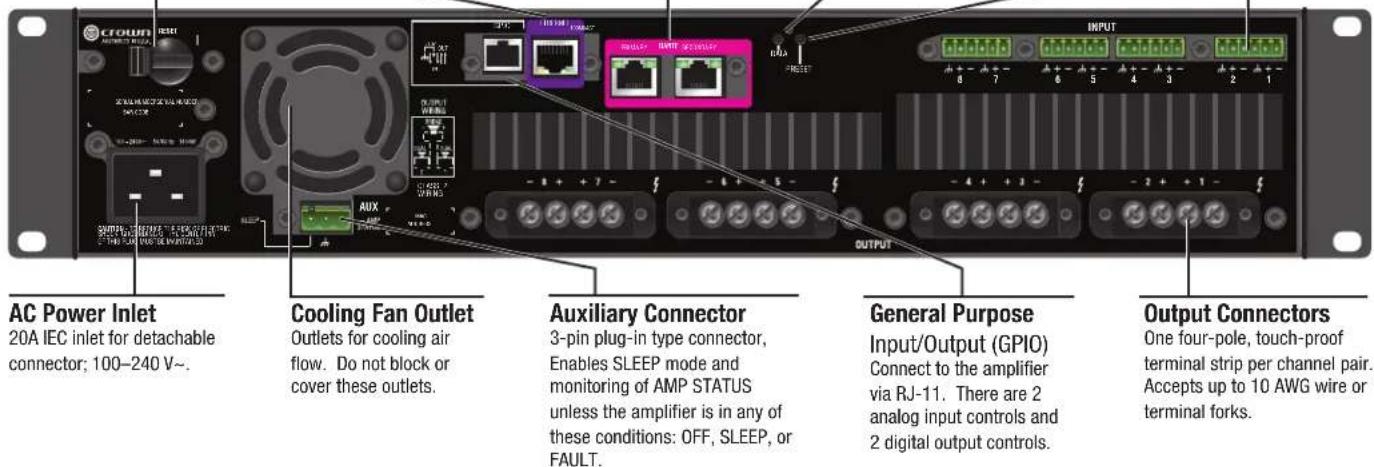
*Warning: Only connect to networks that remain inside the building.
Note: DCi DA 8|600 (8-channel) back panel shown. 4-channel model has same features but half as many input/output channels.
Hardware Setup and Configuration
Wiring Input Connectors
Crown recommends using pre-built or professionally wired balanced cables (two-conductor plus shield). Balanced wiring provides better rejection of unwanted noise and hum; however, unbalanced line may also be used.
Use 6-pin plug-in cable ends at the amp input connectors. A male connector is supplied for each input of your model of amplifier. Additional connectors are available from Crown (P/N 5024623).
Figure 3 shows connector pin assignments for balanced wiring and Figure 4 shows connector pin assignments for unbalanced wiring. Note that for bridged operation, only the odd-numbered input channels (1,3,5,7) should be wired for each bridged pair.
For Dante audio connections, standard Category 5e or 6 Ethernet cabling should be used for Gigabit networks. Category 5 cabling can be used for 100Mbps network connections. Primary and Secondary Dante ports are provided; Dante audio traffic is duplicated to both of these ports. The Secondary port can be connected to a second network switch for redundant operation in the event the Primary cable connection or switch is compromised.
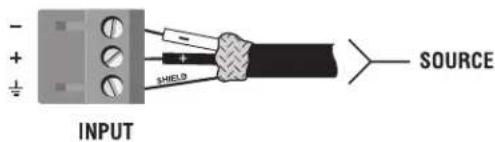
Figure 3: Balanced wiring
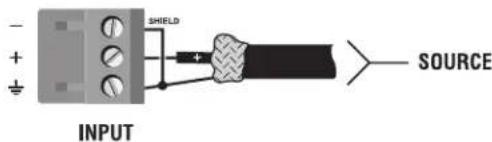
Figure 4: Unbalanced wiring
Wiring Output Connectors
IMPORTANT: The amplifier output mode (Low Z, High Z) should be properly configured for the application before connecting the speakers. By default, all outputs are configured for Low Z operation. See "Hi-Z/Low-Z" on page 15 for more information.
Before making any output connections, ensure the power cord is disconnected from the amplifier and carefully review the total impedance for loudspeakers connected to each amplifier output. If multiple loudspeakers are connected to an output in Low Z mode (i.e., in series, parallel, or series-parallel), be certain the total system impedance is within allowed specification for the output. When multiple loudspeakers are connected to one output in High Z mode, be certain total tapped power is below the rated power output for the channel. See "DCi DA Specifications" on page 47 for supported load specifications.
NOTE: Crown has designed an output cover that does not need to be removed to connect the output wiring.
Crown recommends using the included spade connectors and two or four-conductor, heavy gauge speaker wire. You may use terminal forks up to 10 AWG or bare wire for your output connectors (see Figure 5). For best results, Crown recommends Panduit part #PV10-6LF-L or equivalent terminal fork. For bare wire, it is highly recommended that output wiring is tinned. To reduce strain on input and output wiring, Crown recommends the use of horizontal lacer bars. For best results, Crown recommends Middle Atlantic part# LBP-4R90 or equivalent horizontal lacer bar.
For low-impedance loads, select the appropriate size of wire based on the distance from amplifier to speaker.
| Distance Wire Size | |
| Up to 25 ft. (7.6m) 16 AWG | |
| 26-40 ft. (7.9-12.2m) 14 AWG | |
| 41-60 ft. (12.5-18.3m) 12 AWG | |
| >60 ft (18.3m) 10 AWG |

Figure 5: Wiring output connectors

CAUTION: Never use shielded cable for output wiring.

CAUTION: Never connect the speaker return to the chassis of the amplifier, or damage to the amplifier may result.

NOTE: Custom wiring should only be performed by qualified personnel. Class 2 output wiring is required.
For application-specific output connection diagrams, including how to wire outputs for bridge mono operation, see "Application Examples" on page 18.
Connecting Network Cables
When making connections to the control network and Dante ports, the included ferrites should be attached to the network and Dante cables at the back of the amplifier as shown in Figure 6. Both a small and large ferrite should be attached to each cable as shown.
Connecting to AC Mains
Connect your amplifier to the AC mains power source (power outlet) using the supplied AC power cord set. First, connect the IEC end of the cord set to the IEC connector on the amplifier; then, plug the other end of the cord set to the AC mains.

WARNING: The third prong of this connector (ground) is an important safety feature. Do not attempt to disable this ground connection by using an adapter or other methods.
Make certain the AC mains voltage and current ratings are sufficient to deliver full power to all amplifiers. If the AC line voltage varies out of an acceptable range, the amplifier's power supply turns off and the blue Power LED flashes. The amplifier will turn back on when the AC line voltage returns to safe operating levels.
DriveCore Install DA amplifiers utilize a universal power supply. The AC voltage requirements are 100V-240V\~, 50/60Hz (±10%). If the voltage exceeds these requirements, the Power LED will flash and the amplifier will stop passing audio until the voltage is within the requirements.
Startup Procedure
When first turning on your amplifier:
- Turn down the level of your audio source.
- Turn on the "Power" switch. The Power indicator should light.
- Turn down the amplifier levels in Audio Architect, see "Channel Levels and Mutes" on page 35
- Turn up the level of your audio source to an optimum level. Ensure that at no point in the signal chain is the signal being clipped in any way.
- In Audio Architect, turn up the amplifier levels to the desired level.
IMPORTANT: Before making any wiring or installation changes, turn off the amplifier and disconnect the power cord.
For help with determining your system's optimum gain structure (signal levels) please refer to the Crown Amplifier Application Guide, available online at www.crownaudio.com.
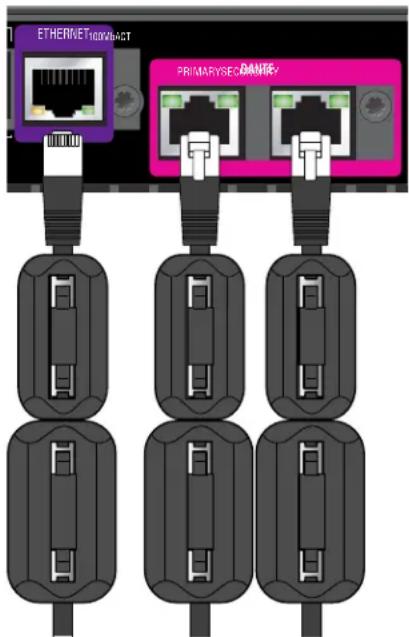
Figure 6: Ferrites attached to network cables
Precautions
Your amplifier is protected from internal and external faults, but you should still take the following precautions for optimum performance and safety:
- Configure the amplifier for proper operation, including input and output wiring hookup. Improper wiring can result in serious operating difficulties. For information on wiring and configuration, please consult "Wiring Input Connectors" and "Wiring Output Connectors" on page 4. For advanced setup techniques, consult Crown's Amplifier Application Guide available online at www.crownaudio.com.
- Use care when making connections, selecting signal sources, and controlling the output level. The load you save may be your own!
- Do not short the ground lead of an output cable to the input signal ground. This may form a ground loop and cause oscillations.
- Never connect the output to a power supply, battery, or power main. Electrical shock may result.
- Tampering with the circuitry or making unauthorized circuit changes may be hazardous and invalidate all agency listings.
- Do not operate the amplifier with the Clip LEDs constantly flashing.
- Do not overdrive the mixer, which will cause clipped signal to be sent to the amplifier. Such signals will be reproduced with extreme accuracy, and loudspeaker damage may result.
- Do not operate the amplifier with less than the rated load impedance. Due to the amplifier's output protection, such a configuration may result in premature clipping and speaker damage.
REMEMBER: Crown is not liable for damage that results from overdriving other system components.
Software Setup
Setup and configuration of the DriveCore Install DA Series amplifiers can be completed through HiQnet Audio Architect™. The amplifier should be connected to a TCP/IP network via the Ethernet connection on the back of the amplifier. Note that the Dante digital audio transport connectors cannot be used for control and monitoring of the amplifier.
To quickly configure your DriveCore Install DA amplifier, connect all of the amplifiers and configuration computer to the same network. For more information on network configuration, please visit http://audioarchitect.harmanpro.com. In the following example, we will only show amplifiers.
When Audio Architect is first loaded, the software will scan the network for HiQnet devices. All devices that are discovered on the network will be found under the ADD DEVICES tab on the left hand tree menu. If the devices are not found, then the network may not be configured correctly. See Figure 7.
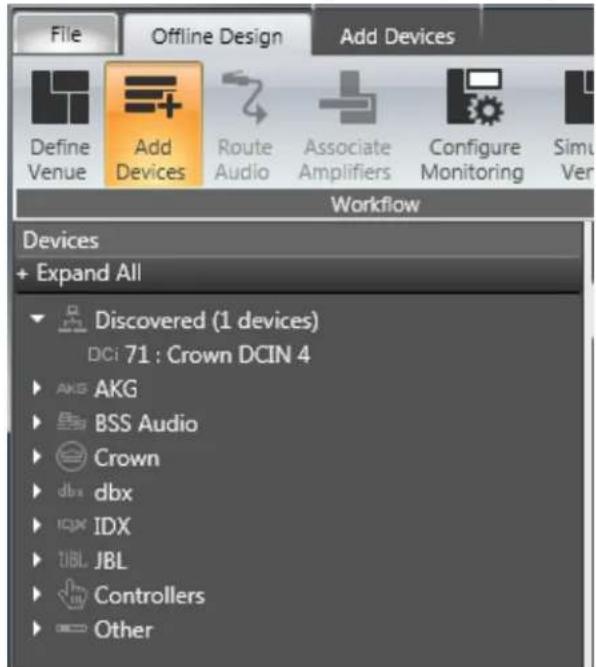
Figure 7: Add Devices tab tree menu
NOTE: Illustrations and some text references are for channel pair 1–2 and 3–4 only. Note that channels 5–6 and 7–8 can be programmed in the same manner, and each channel may be configured independently.
Configuring the Network using NetSetter
NetSetter is a software tool which enables you to discover HiQnet devices and reconfigure their network settings in real time, from one central location. Its function is to configure a system of devices to interoperate correctly on the same network and resolve conflicts quickly and easily. The latest version of NetSetter can be downloaded at www.audioarchitect.harmanpro.com/en-US/software.
The top of the NetSetter window displays overall operational functions that are available. At the bottom of the NetSetter window is an informational section that lists the number of discovered devices and the IP address of the DHCP server (if available). There is also information regarding the PC HiQnet Address, IP Address, and Subnet Mask.
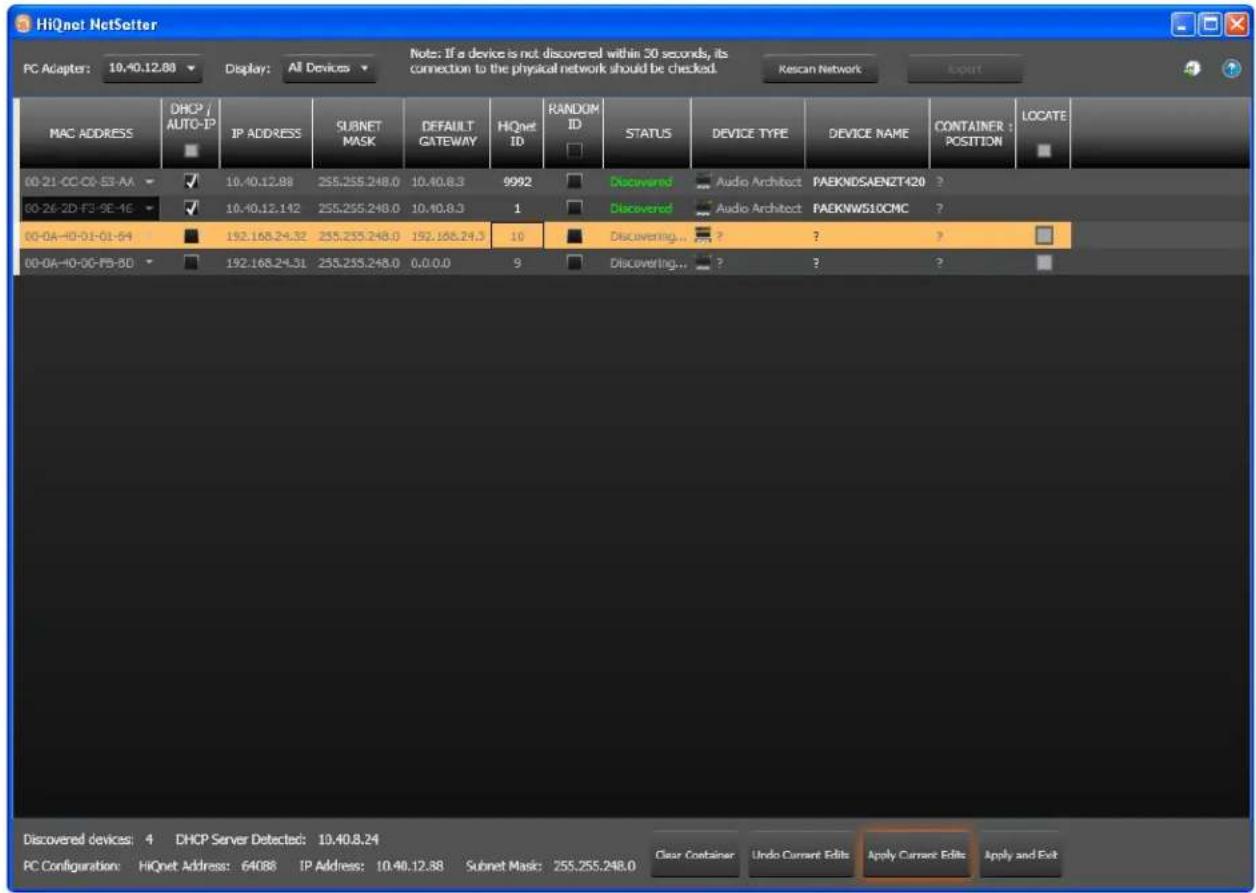
Figure 8: NetSetter window
1. PC Adapter
Use this dropdown menu to select the Network Interface Card (NIC) that NetSetter will use to attempt to discover HiQnet devices. All available NIC's are listed by IP Address. Selecting a new NIC will force a rescan of the network to which the new NIC is connected.
2. Display
The options available in this dropdown menu will filter the device list as follows:
a. All Devices
This is the default setting. All discovered devices are displayed.
b. HiQnet ID conflicts
Only discovered devices with HiQnet address conflicts are displayed.
c. IP address conflicts
Only discovered devices with IP address conflicts are displayed.
d. All conflicts
Only discovered devices with either HiQnet address conflicts or IP address conflicts are displayed.
e. Locked
Only devices in a Locked configuration will be displayed.
f. Discovering
Only devices in the process of being discovered will be displayed.
g. Discovered
Only discovered devices with no conflicts will be displayed.
h. DHCP/Auto-IP
All devices which have been discovered with DHCP/Auto-IP enabled and those which have been set to use DHCP/Auto-IP on applying the edits are displayed.
3. Rescan Network
Clicking this button re-scans the network to which the currently selected NIC is connected.
4. Export
Clicking this button brings up a "Save As" window, allowing you to save the HiQnet Addresses and IP Configurations of all devices on the network as a .CSV (Comma Separated Values) formatted file. This allows you to archive the information and open it in a spreadsheet program such as Microsoft® Excel®.
5. Proxies
This feature is used to connect to devices that cannot automatically be located by Audio Architect due to network configuration or security measures via proxy connections.
6. Static Routes
This feature is used to set up a static route and connect directly to a device located on a different subnet than the PC.
7. Clear Container
Resets the Container/Position Venue data of the selected device. The action occurs on either "Apply Current Edits" or "Apply and Exit" so that changes may be undone with the Undo Current Edits button.
8. Undo Current Edits
Resets any open edits in the grid to the values as currently on the network.
9. Apply Current Edits
Confirms any open edits in the grid. Devices update accordingly until connection is re-established with HiQnet NetSetter.
10. Apply and Exit
Confirms and saves any open edits in the grid. Devices update accordingly until connection is re-established with HiQnet.
NOTE: If you have made changes to NetSetter and attempt to exit the program, the confirmation window shown in Figure 9 will appear. Clicking OK will apply the edits you have made since opening NetSetter. Clicking Cancel will return you to the program.
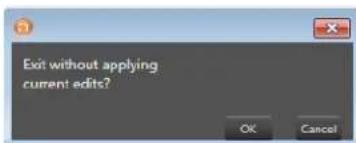
Figure 9: Confirmation window
The NetSetter Grid
The NetSetter grid is divided into the 12 sections described below.
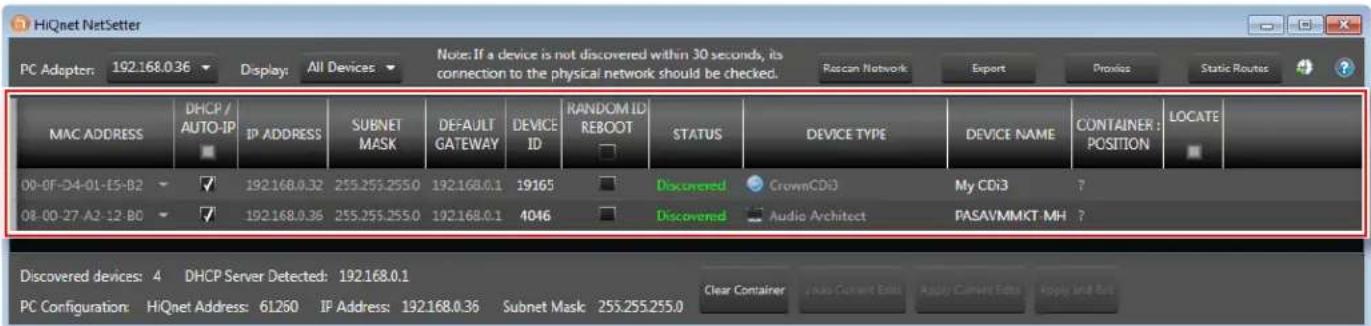
Figure 10: NetSetter grid
1. MAC Address
Displays the MAC address of the discovered device. The data in this field cannot be edited.
NOTE: If more than one MAC address is discovered for a single device (e.g., HiQnet device MAC address, Dante card MAC address, etc.), the field will be represented as a dropdown menu and the desired MAC address can be selected from the list. For a device connected to the same control network with two control MAC addresses, the MAC address field will be displayed in red.
2. DHCP/Auto-IP
If the discovered device is configured to use DHCP/Auto-IP, this checkbox will be checked. If the discovered device is not using DHCP/Auto-IP, you may check the box so it will do so on applying edits. The device row will then become selected. The device will attempt to have its IP settings configured by DHCP on applying the edits; if no DHCP server is present, the device will attempt to have IP settings configured by Auto-IP.
All devices in the current filter view may be configured with DHCP/Auto-IP enabled by checking the checkbox in the column header—the individual checkboxes for all devices will become checked. If a single individual checkbox for a device is subsequently unchecked, the column header DHCP/Auto-IP checkbox will be automatically unchecked. Conversely, all devices in the current filter view can be configured with DHCP/Auto-IP disabled by unchecking the checkbox in the column header.
DHCP server status will be among the information displayed at the bottom of the NetSetter window. If a DHCP server is not detected, the information will read "DHCP server not detected". Note that checking a device's DHCP/Auto-IP checkbox has no immediate effect on the column sort order.
NOTE: Once edits have been made, it is critical to click the Apply Current Edits or Apply and Exit buttons for the changes to take affect.
3. IP Address
Displays the IP address of the discovered device. A valid IP address may be edited inline. If the edited value scopes the device out of the current Display filter, it will not be visible.
NOTE: A discovered device with an IP address that conflicts with that of another, already discovered device will be displayed in red. A conflicting IP address may be edited inline if you wish to change the device IP address on applying current edits. If DHCP/Auto-IP is enabled, the IP address field may not be edited inline.
NOTE: Once edits have been made, it is critical to click the Apply Current Edits or Apply and Exit buttons for the changes to take affect.
4. Subnet Mask
Displays the Subnet Mask of the discovered device. The Subnet Mask may be edited inline. The device row will be ordered accordingly with the current column sort immediately on successful editing of the field. The device row will remain selected.
NOTE: If DHCP/Auto-IP is enabled, the Subnet Mask field may not be edited inline.
NOTE: Once edits have been made, it is critical to click the Apply Current Edits or Apply and Exit buttons for the changes to take affect.
5. Default Gateway
Displays the Default Gateway of the discovered device. The Default Gateway may be edited inline. The device row will be ordered accordingly with the current column sort immediately on successful editing of the field. The device row will remain selected.
NOTE: If DHCP/Auto-IP is enabled, the Default Gateway field may not be edited inline.
If the device is being rediscovered, then the following behavior will occur:
- When the device is not selected, the device Default Gateway address field is displayed but is grayed out.
- When the device is selected and highlighted in orange, the field is represented in dark gray.
NOTE: Once edits have been made, it is critical to click the Apply Current Edits or Apply and Exit buttons for the changes to take affect.
6. Device ID
Displays the HiQnet address of the discovered device. This field may be edited inline if you want to change the device HiQnet address. If the edited value scopes the device out of the current Display filter, it will not be visible and no devices will be selected. If devices are discovered with a conflicting HiQnet address, then the following will occur:
- The HiQnet ID field of a discovered device will be displayed in pink when a HiQnet address conflicts with that of another, already discovered HiQnet address.
- When the device is selected and highlighted in orange, the field is represented in red.
- The HiQnet address is not displayed, instead a dash is displayed as grayed out.
NOTE: A conflicting HiQnet address may be edited inline if you want to change the device HiQnet address.
NOTE: Devices are not discoverable at the IP level. A device which is not discoverable at the IP level (invalid IP address, etc.) will not be able to report a HiQnet address. In this instance, the HiQnet ID field will display a "?" to indicate that the field may exist but that the software does not have enough discoverability of the device to determine the value. A blank field or "-" implies the value is null and the HiQnet ID field may not be edited inline.
NOTE: Once edits have been made, it is critical to click the Apply Current Edits or Apply and Exit buttons for the changes to take affect.
7. Random ID Reboot
When enabled, the device will be given a random HiQnet address. If you want to set the HiQnet address of a device to a random ID, check the Random ID checkbox. If the checkbox is unchecked before applying current edits, the prior HiQnet ID value will be restored.
All devices in the current filter view may be set to Random HiQnet ID by checking the checkbox in the column header—the individual checkboxes for all devices will become checked. If any individual checkbox is subsequently unchecked, the column header Random ID checkbox will automatically be unchecked. Conversely, if all devices in the current filter view are set to Random ID on and the Random HiQnet ID column header checkbox is checked, all devices may be set to Random ID off by unchecking the column header checkbox—the individual checkboxes for all devices will become unchecked.
NOTE: Devices are not discoverable at the IP level. A device which is not discoverable at the IP level (invalid IP address, etc.) will not be able to report a HiQnet address. In this instance, the Random ID checkbox will be unavailable.
8. Status
Displays the current discovery status of the device. The Status field may not be edited. Discovery status hierarchy is as follows:
a. Discovered
If a device has a unique IP address and a unique HiQnet address, this condition will be shown unless the device is access controlled. When the device is not selected, the "Discovered" label is represented in green.
The "Discovered" status is determined by the following conditions:
- The device is discoverable at the MAC address level.
- The device has a valid and unique IP address (manual or DHCP/Auto-IP).
• The device has a unique HiQnet address. - The device is not access controlled.
b. IP Conflict
If a device has an IP address conflict, this error will be shown regardless of other status notifications. When the device is not selected, the "IP conflict" label is represented in blue.
The "IP conflict" status is determined by the following conditions:
• The device is discoverable at the MAC address level.
- The device has an IP address that conflicts with another device which has already been discovered by NetSetter.
c. HiQnet Conflict
If a device has a unique IP address yet has a HiQnet address conflict, this error will be shown regardless of other status notifications. When the device is not selected, the "HiQnet conflict" label is represented in red.
The "HiQnet conflict" status is determined by the following conditions:
- The device is discoverable at the MAC address level.
- The device has a valid and unique IP address (manual or DHCP/Auto-IP).
- The device has a HiQnet address that conflicts with another device which has already been discovered by NetSetter.
d. Locked
If a device has a unique IP address and a unique HiQnet address, this condition will be shown if the device is access controlled. When the device is not selected, the "Locked" label is represented in yellow.
The "Locked" status is determined by the following conditions:
- The device is discoverable at the MAC address level.
- The device has a valid and unique IP address (manual or DHCP/Auto-IP).
• The device has a unique HiQnet address.
• The device is access controlled.
When a device has been discovered in a Locked state and any field is attempted to be edited for the first time, a dialog prompting for the Admin password will appear. Only a successful login with the Admin password will enable all fields to be edited. This state may need to be reset on rediscovery after applying current edits, requiring the Admin password to be entered again.
e. Discovering
This condition will be displayed if the device has had changes made to its IP configuration or HiQnet address and HiQnet NetSetter is waiting to re-establish connection. When a device being rediscovered is not selected, all fields within the device row are displayed but grayed out.
The "Discovering" status is determined by the following conditions:
- The device had been previously discovered at the MAC address level.
- Edits had been made to one or more fields.
- The device is being rediscovered after applying current edits.
NOTE: Since the sort order automatically updates when a field within the sorted column is updated, the rediscovered device will occupy the same row on rediscovery. The exception is when DHCP/Auto-IP or Random ID has been set prior to applying current edits, in which case the rediscovered device will occupy the appropriate row in the current column sort order.
9. Device Type
The device class name is displayed here, as reported by the discovered device. To the left of each device class name, the brand icon is displayed. The software application name is displayed for discovered PCs running an instance of HiQnet software. HiQnet software programs include System Architect, Audio Architect, and Performance Manager.
NOTE: The Device Type field may not be edited inline.
NOTE: Devices are not discoverable at the IP or HiQnet level. A device which is not discoverable at the IP level (invalid IP address, etc.) or HiQnet address level (HiQnet address conflict, etc.) will not be able to report its class name. In this instance, the Device Type field will display a "?" to indicate that the field may exist but that the software does not have enough discoverability of the device to determine the value. A blank field or "-" implies the value is null.
10. Device Name
The user-definable Device Name is displayed here, as reported by the discovered device.
NOTE: This field may be edited inline if you want to change the Device Name. This field may not be edited for discovered PCs running an instance of HiQnet software.
NOTE: Devices are not discoverable at the IP or HiQnet level. A device which is not discoverable at the IP level (invalid IP address, etc.) or HiQnet address level (HiQnet address conflict, etc.) will not be able to report its Device Name. In this instance, the Device Name field will display a "?" to indicate that the field may exist but that the software does not have enough discoverability of the device to determine the value. A blank field or "-" implies the value is null.
NOTE: Once edits have been made, it is critical to click the Apply Current Edits or Apply and Exit buttons for the changes to take affect.
11. Container : Position
The Container and Position Venue Data is displayed here (separated by a colon), as reported by the discovered device. The field is left blank for discovered PCs
running an instance of HiQnet software. HiQnet software programs include System Architect, Audio Architect, and Performance Manager.
TIP: A selected device may have its Venue Data cleared (including all Building, Floor, and Room Venue data) by pressing the Clear Container button. This action takes place on applying current edits only and can be undone with the Undo Current Edits button.
NOTE: The Container/Position Venue Data may not be edited inline.
NOTE: Devices are not discoverable at the IP or HiQnet level. A device which is not discoverable at the IP level (invalid IP address, etc.) or HiQnet address level (HiQnet address conflict, etc.) will not be able to report its Container : Position data. In this instance, the Container : Position field will display a "?" to indicate that the field may exist but that the software does not have enough discoverability of the device to determine the value. A blank field or "-" implies the value is null.
12. Locate
The Locate feature allows a device to be easily identified within a network full of HiQnet devices. Clicking in the Locate column for a device will put the corresponding networked device into a Locate state—the Locate icon will be displayed on-screen and something will happen on the device to indicate the Locate state is active (e.g., an LCD or LED will flash, etc.). Clicking an active Locate icon will disable the Locate state for the device. Disabling the Locate state from the device will clear the icon. Devices may be put into a Locate state independently from selection so that more than one device can be located at any one time.
Offline/Online Operation Explained
Audio Architect has two define modes of operation: Offline and Online. Offline operation allows the system to be configured without real time changes to the system. In this mode, changes have to be sent to the edited device. In Online mode, changes to amplifiers are made real time.
When Audio Architect first opens, the Offline Design Tab is the ribbon presented, and the Device Toolbox appears on the left and an empty Properties window is at the bottom. The Add Devices box is highlighted. When going Online, it may be necessary to Match Devices and/or Synchronize Venue.

Figure 11: Main Audio Architect window
Match Devices allows users to associate amplifiers within their venue design to amplifiers on the network.

Figure 12: Match Devices ribbon
In the Match Devices tab, the following options are available:
- Networking
Clicking the Refresh button will temporarily take Audio Architect offline, then restart the network.
- Match
Clicking the Auto-Match Venue button will automatically match devices on the network with the devices in the Audio Architect venue. Selecting a device then clicking the Detach button removes the device's virtual connection with Audio Architect.
- Editing
Clicking the Undo button will undo the last change made and revert back to the previous state. Clicking the Redo button will redo the last action that was undone.
• Show
Any checked items in this section will be displayed alongside the appropriate devices in the Main Audio Architect window. The available items include Device Names, Rack/Array Names, HiQnet Addresses, IP Addresses, Matched Indicator, and Unmatched Indicator.
When going Online, the following options are possible:
• If one or more devices in the Venue are not matched AND corresponding devices are available on the network, going online lands in Match Devices mode.
- If all the devices in the Venue are matched, going online lands in Synchronize Venue mode. In Synchronize Venue mode, the user is given the option to either Send data from Audio Architect to the device or Receive data from the device to Audio Architect.
- If no devices require to be synced, going online lands in Run Venue mode.
Each amplifier can be dragged into the room window. Each device will have an IP address listed on the left of the amplifier and a Name ID on the right of the amplifier. The Name ID can be edited in the properties menu at the bottom of the window. The number to the left of Name ID is the HiQnet Device Address. The green circle only indicates that the amplifier has been discovered on the network.
The small box located below the rack allows quick access to amplifier factory panels. These panels include the following items:
- Factory Master Panels
- Monitor Panels
- Meter Panels
• Level and Mute Panels
NOTE: When a device is added to the window, it is automatically removed from the "Discovered" section.
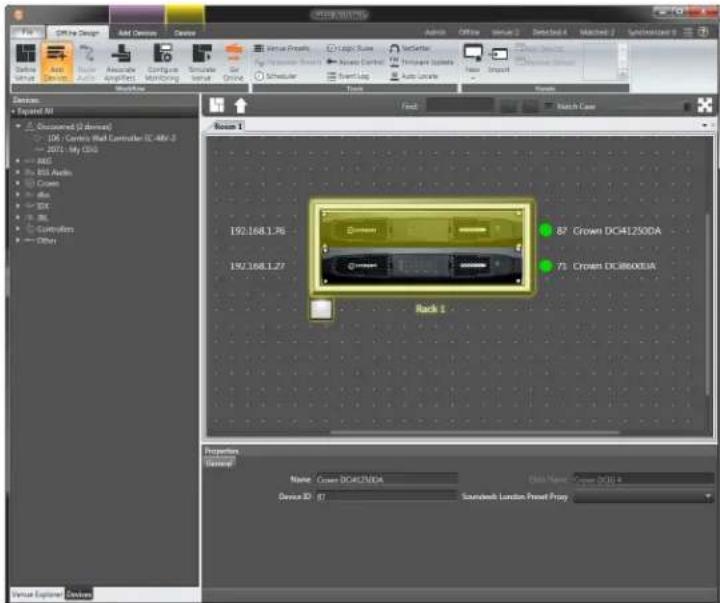
Figure 13: Device information
Double clicking an amplifier will access the amplifier factory control panel. At this point, Audio Architect is in OFFLINE MODE. In OFFLINE MODE, amplifier changes are not made in real time and will need to be sent to the amplifiers. Amplifier changes can also be sent in real time in ONLINE MODE. To go to ONLINE MODE, click on the GO ONLINE tab in the Workflow bar menu. RECEIVE and SEND buttons will appear for each device, rack, and room in the design. This gives the user the option to just update a single device, all devices in a rack or an entire venue. Click SEND to load the settings made in Audio Architect to the amplifier. Click RECEIVE to read the settings off of the amplifier to be reflected in Audio Architect.
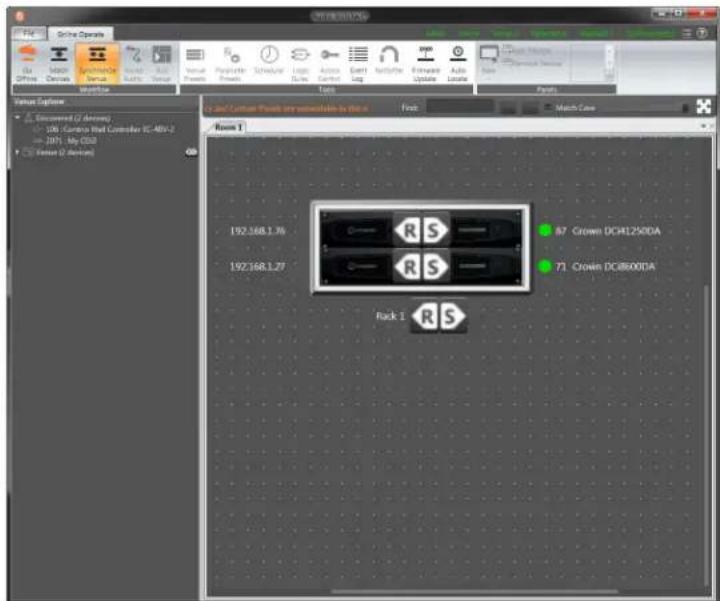
Figure 14: Send and Receive icons
Setup and System Configuration
Amplifier Mode Settings
![2 - DCi 41250D [OFFLINE] File Edit View Panel Tools Help 1 2 LEVEL 3 4 INPUT CLIP OUTPUT CLIP 1: Default RECALL STORE PRESET MANAGER SIG GEN AMP INFO PILOT TONE APPLY TO OTHERS MODE INPUT DELAY EQ XOVER EQ DELAY LINT AMP SLH SPKR MODE CH1 CH2 CH3 CH4 CH1: Output Attenuator DCi 4 Channel DA Series - Offline OFF LINK 1-2 LINK 3-4 OFF LINK RLL PS TEMP TEMP LHT LORD READY FAULT 1 2 3 4](/content/2026/06/1198692/images/cd0a4630c1f7dc7d2bbec5c2fcf7d8abed04d799af8db8afd351582b22f7512a.jpg)
Figure 15: Configuration panel (4-channel amp model shown)
Figure 15 (above) shows the Configuration panel for a 4-channel DriveCore Install DA amplifier. The 8-channel amplifier Configuration panels have the same feature set. The DriveCore Install DA amplifier includes Digital Signal Processing (DSP), multiple input/output routing options, and a comprehensive diagnostics feature set. All of these features can be adjusted from the Configuration panel.
The DriveCore Install DA amplifiers are very capable and flexible amplifiers. In the Amplifier Mode Setting window (see Figure 16), the following items can be adjusted.
• Hi-Z/Low-Z on an individual channel basis.
- 70Vrms or 100Vrms operation
- Any analog input can be sent to any amplifier output
- Mono Bridge Output - Output pairs can be bridged for mono operation
Hi-Z/Low-Z
The DriveCore Install DA amplifiers are capable of High Z and Low Z outputs. Each individual channel is capable of Hi-Z or Low-Z operation. To select Hi-Z or Low-Z operation, double click on the mode button, the Amplifier Mode Setting Window will open (see Figure 16).
![2 - DCi 41250D: Amplifier Mode Settings [OFFLINE] Amplifier Mode Settings High Z = 70 V 100 V Global Mode Select Low Z / High Z DSP INPUT 1 DSP OUTPUT 1 BRIDGE Y 1+2 MONO 1+2 DSP INPUT 2 DSP OUTPUT 2 BRIDGE Y 2+3 MONO 3+4 DSP INPUT 3 DSP OUTPUT 3 BRIDGE Y 3+4 MONO 4 MONO 3+4 DSP INPUT 4 DSP OUTPUT 4](/content/2026/06/1198692/images/ae71a68d82f29e61d0ca70ce95b5d8c75b71c8bd3fc782d0bb86c17c60383fac.jpg)
Figure 16: Low Z/High Z configuration
NOTE: Choosing 70Vrms or 100Vrms is an amplifier global setting, and affects all output channels selected for High-Z operation.
Cascading Inputs
Cascading the analog inputs, or "Y-ing channels", gives more flexibility to the installation of a DCi DA amplifier (See Figure 17). One input can be used to drive some or all of the amplifier outputs.
NOTE: By cascading the inputs, the corresponding input DSP functions for individual channels will be removed and only the output DSP functions will be available (See Figure 18).
![2 - DCi 41250D: Amplifier Mode Settings [OFFLINE] Amplifier Mode Settings High Z = 70 V 100 V Mode Select DSP INPUT 1 Y 1+2 DSP INPUT 2 Y 2+3 DSP INPUT 3 Y 3+4 DSP INPUT 4 DSP OUTPUT 1 BRIDGE MONO 1+2 DSP OUTPUT 2 DSP OUTPUT 3 BRIDGE MONO 3+4 DSP OUTPUT 4 Low Z / High Z](/content/2026/06/1198692/images/f5bdd0aa7825d90a3d18d8f729350e5be14f64d1582b6c81d1764f8902148a6c.jpg)
Figure 17: Use the "Y" checkboxes to cascade input channels
![2 - DCi 41250D [OFFLINE] File Edit View Panel Tools Help 1 2 LEVEL 3 4 INPUT CLIP OUTPUT CLIP -0 0 0 0 0 0 0 0 0 0 0 0 0 0 0 0 0 -10 -20 -30 -40 -50 -60 -70 -80 -90 -100 M M M M PS TEMP 1 2 TEMP LHIT LORD READY FAULT 1 2 3 4 1: Default RECALL STORE PRESET MANAGER SIG GEN AMP INFO PILOT TONE APPLY TO OTHERS MODE INPUT DELAY EQ XOVER EQ DELAY LHIT AMP SLH SPKR CH1 CH2 CH3 CH4 CH4 OFF OFF LINK 1-2 LINK 3-4 OFF LINK ALL Amplifier Information DCi 4 Channel DA Series - Offline](/content/2026/06/1198692/images/3259c1437c57c6d6be87c408e549bac48a029447f88b51b6987575bbb5488a1c.jpg)
Figure 18: With the "Y 1+2" box checked, both output Ch.1 and Ch.2 are fed by input Ch.1 and input processing is organized accordingly
Bridge Mono Operation
The DCi DA amplifier outputs can be bridged to increase the power and voltage available at the output of the amplifier. The amplifier can be bridged in the Amplifier Mode window. By selecting the bridging option, only the first input channel will need to be wired. (See Figure 19). Note that the Low-Z and High-Z options are still available.
NOTE: If the amplifier output is in bridge mono mode and the High-Z option is selected, the amplifier will produce 140Vrms or 200Vrms.
![2 - DCi 41250D: Amplifier Mode Settings [OFFLINE] Amplifier Mode Settings High Z = 70 V 100 V Mode Select Low Z / High Z DSP INPUT 1 Y 1+2 DSP INPUT 2 Y 2+3 DSP INPUT 3 Y 3+4 DSP INPUT 4 DSP OUTPUT 1 BRIDGE MONO 1+2 DSP OUTPUT 2 DSP OUTPUT 3 BRIDGE MONO 3+4 DSP OUTPUT 4](/content/2026/06/1198692/images/d4a9764afff7888f84f6f253636099ed4e6292b2173e8ce527e9ac6188a7cf7e.jpg)
Figure 19: Bridge mono configuration
![2 - DCi 41250D [OFFLINE] File Edit View Panel Tools Help LEVEL 3 4 INPUT CLIP OUTPUT CLIP M M M 1 3 4 1 3 4 PS TEMP TEMP LMHT LORD READY FAULT LINK 3-4 OFF LINK ALL OUTPUT CLIP 1: Default RECALL STORE PRESET MANAGER SIG GEN AMP INFO PILOT TONE APPLY TO OTHERS MODE INPUT DELAY EQ XOVER EQ DELAY LIME AMP SLM SPKR CH1 CH2: BRIDGED CH3 CH3 CH4 Y/Bridge settings DCi 4 Channel DA Series - Offline RIS AUDIO](/content/2026/06/1198692/images/cf9acf7310e0069430160f457b805f05a69f12858608a8b71642779403f337b9.jpg)
Figure 20: DSP chain configured for bridge mono operation
NOTE: When an output is configured for bridge mono operation, only one channel in the channel pair DSP will be available (See Figure 20).
Application Examples
Dual Mode Low-Z (8Ω, 4Ω or 2Ω) Output Operation
Typical input and output wiring, along with Audio Architect software settings are shown in Figure 21 and Figure 22.
INPUTS: Connect the input with wiring in place for each channel. If the same signal is to drive both outputs of a channel pair ("mono"), the input signal can be sent to adjacent amplifier channels.
OUTPUTS: Maintain proper polarity (+/-) on output connectors. Connect the Channel 1 speaker's positive (+) lead to amplifier Channel 1 positive terminal; repeat for negative (-). Repeat Channel 2 wiring as for Channel 1, and for any subsequent channel pairs on multichannel models. Refer "Wiring Output Connectors" on page 4 for output connector terminal assignments.
DANTE: When connecting via Dante, two Dante-equipped devices can be connected directly together using the Primary Dante ports. If connecting more than two Dante devices, the Primary ports of each device should be connected to a network switch (this is a referred to as a "star" network topology).
100Mbps network switches and Category 5 cabling can be used for smaller Dante networks where smaller channel counts and/or lower sample rates are used. For optimum performance and improved reliability, a Gigabit network and Category 5e or Category 6 cabling should be used. Visit the Audinate website for more information.
To provide fault protection when using Dante, connect the Secondary ports of all Dante devices to a secondary (separate) network switch. If any "primary" cable connections or the "primary" switch fail, the "secondary" Dante network will automatically take over.
For further information on Dante, refer to "Dante" on page 28.

Figure 21: System Wiring Dual Mode
![2 - DCi 41250D: Amplifier Mode Settings [OFFLINE] Amplifier Mode Settings High Z = 70 V 100 V BSS AUDIO Mode Select Low Z / High Z DSP INPUT 1 Y 1+2 DSP INPUT 2 Y 2+3 DSP INPUT 3 Y 3+4 DSP INPUT 4 DSP OUTPUT 1 BRIDGE MONO 1+2 DSP OUTPUT 2 DSP OUTPUT 3 BRIDGE MONO 3+4 DSP OUTPUT 4](/content/2026/06/1198692/images/a0ddb94d294f2883e80fc00bdd2007ccf2ff77c307f89e21b5b0ecd3cf34f9c9.jpg)
Figure 22: Audio Architect amplifier mode settings
NOTE: Always route the input and output wires in separate bundles.
WARNING: Only connect to networks that remain inside the building.
Bridge Mode Low-Z (16Ω, 8Ω, or 4Ω) Output Operation
Typical input and output wiring, along with software settings are shown in Figure 23 and Figure 24.
INPUT WIRING: If using analog inputs, it is only necessary to wire the odd number inputs.
OUTPUTS: Connect the speaker across the positive terminals of each channel pair. Do not use the negative terminals of the channel pair when the pair is being operated in Bridge Mono mode.
DANTE: When connecting via Dante, two Dante-equipped devices can be connected directly together using the Primary Dante ports. If connecting more than two Dante devices, the Primary ports of each device should be connected to a network switch (this is a referred to as a "star" network topology).
100Mbps network switches and Category 5 cabling can be used for smaller Dante networks where smaller channel counts and/or lower sample rates
are used. For optimum performance and improved reliability, a Gigabit network and Category 5e or Category 6 cabling should be used. Visit the Audinate website for more information.
To provide fault protection when using Dante, connect the Secondary ports of all Dante devices to a secondary (separate) network switch. If any "primary" cable connections or the "primary" switch fail, the "secondary" Dante network will automatically take over.
For further information on Dante, refer to "Dante" on page 28.
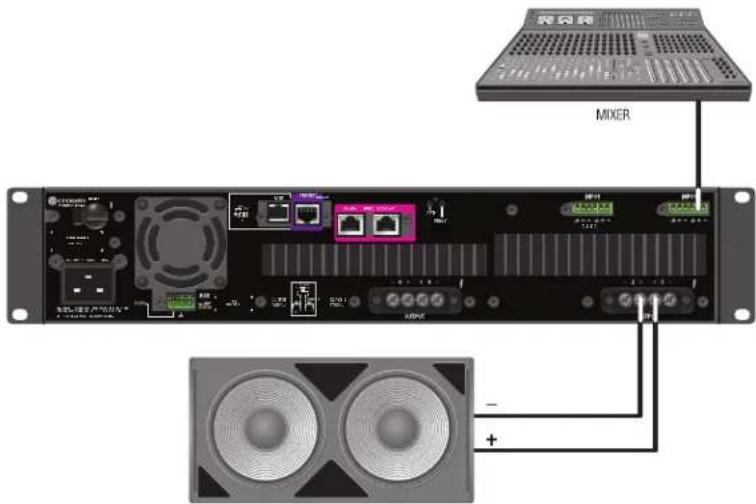
Figure 23: System wiring in Bridge Mono mode
![2 - DCi 41250D: Amplifier Mode Settings [OFFLINE] Amplifier Mode Settings High Z = 70 V 100 V BSS AUDIO Mode Select Low Z / High Z DSP INPUT 1 Y 1+2 DSP INPUT 2 Y 2+3 DSP INPUT 3 Y 3+4 DSP INPUT 4 DSP OUTPUT 1 BRIDGE MONO 1+2 DSP OUTPUT 2 DSP OUTPUT 3 BRIDGE MONO 3+4 DSP OUTPUT 4](/content/2026/06/1198692/images/9f9bf1713fbf3e110ceef9f8b902e4f52f4264cbc32a9e4e4d0c40a2eb080e0a.jpg)
Figure 24: Audio Architect amplifier mode settings
NOTE: Always route the input and output wires in separate bundles.
WARNING: Only connect to networks that remain inside the building.
Dual Mode Hi-Z (70Vrms/100Vrms) Mode
Typical input and output wiring, along with software settings are shown in Figure 25 and
Figure 26. A 35Hz high pass filter is selected automatically when the amplifier channel is in Hi-Z or Bridged Hi-Z mode. Remember, DCi amplifiers allow each channel Hi-Z or Low-Z mode of operation to be selected independently, while 70Vrms/100Vrms selection is global.
DANTE: When connecting via Dante, two Dante-equipped devices can be connected directly together using the Primary Dante ports. If connecting more than two Dante devices, the Primary ports of each device should be connected to a network switch (this is a referred to as a "star" network topology).
100Mbps network switches and Category 5 cabling can be used for smaller Dante networks where smaller channel counts and/or lower sample rates are used. For optimum performance and improved reliability, a Gigabit network and Category 5e or Category 6 cabling should be used. Visit the Audinate website for more information.

Figure 25: System wiring for 70Vrms/100Vrms operation
To provide fault protection when using Dante,
connect the Secondary ports of all Dante devices to a secondary (separate) network switch. If any "primary" cable connections or the "primary" switch fail, the "secondary" Dante network will automatically take over.
For further information on Dante, refer to "Dante" on page 28.
![2 - DCi 41250D: Amplifier Mode Settings [OFFLINE] Amplifier Mode Settings High Z = 70 V 100 V BSS AUDIO Mode Select Low Z / High Z DSP INPUT 1 DSP OUTPUT 1 Y 1+2 BRIDGE MONO 1+2 DSP INPUT 2 DSP OUTPUT 2 Y 2+3 DSP INPUT 3 DSP OUTPUT 3 Y 3+4 BRIDGE MONO 3+4 DSP INPUT 4 DSP OUTPUT 4](/content/2026/06/1198692/images/3f8ecb841e103f0e9b4fe47340984ac6955bb6224e21fb02063f6b56db84f623.jpg)
Figure 26: Audio Architect amplifier mode settings
NOTE: 70Vrms/100Vrms is global, while Low-Z/Hi-Z is per output channel.
NOTE: Always route the input and output wires in separate bundles.
WARNING: Only connect to networks that remain inside the building.
Bridge Mode Hi-Z (140Vrms/200Vrms)
Typical input and output wiring, along with software settings are shown in Figure 27 and Figure 28.
INPUTS: Connect the input to the odd-numbered channels (1,3,5,7) only. Even-numbered inputs are disabled when the Bridge Mono mode is active.
OUTPUTS: Connect the speaker across the positive terminals of each channel pair. Do not use the negative terminals of the channel pair when the pair is being operated in Bridge Mono mode.
NOTE: For global selection of 70Vrms (140Vrms bridged) or 100Vrms (200Vrms bridged) operation, refer to "Hi-Z/Low-Z" on page 15.
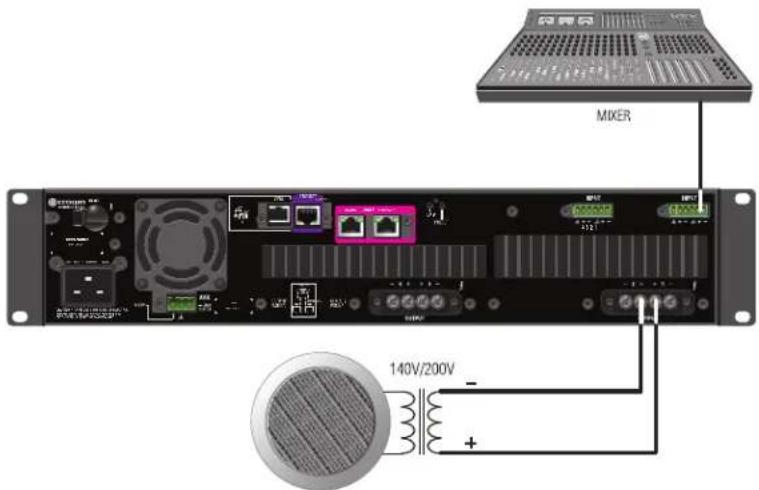
Figure 27: System wiring for 140Vrms/200Vrms operation
DANTE: When connecting via Dante, two Dante-equipped devices can be connected directly together using the Primary Dante ports. If connecting more
than two Dante devices, the Primary ports of each device should be connected to a network switch (this is a referred to as a "star" network topology).
100Mbps network switches and Category 5 cabling can be used for smaller Dante networks where smaller channel counts and/or lower sample rates are used. For optimum performance and improved reliability, a Gigabit network and Category 5e or Category 6 cabling should be used. Visit the Audinate website for more information.
To provide fault protection when using Dante, connect the Secondary ports of all Dante devices to a secondary (separate) network switch. If any "primary" cable connections or the "primary" switch fail, the "secondary" Dante network will automatically take over.
For further information on Dante, refer to "Dante" on page 28.
![2 - DCi 41250D: Amplifier Mode Settings [OFFLINE] Amplifier Mode Settings High Z = 70 V 100 V Mode Select Low Z / High Z DSP INPUT 1 Y 1+2 DSP INPUT 2 Y 2+3 DSP INPUT 3 Y 3+4 DSP INPUT 4 DSP OUTPUT 1 BRIDGE MONO 1+2 DSP OUTPUT 2 DSP OUTPUT 3 BRIDGE MONO 3+4 DSP OUTPUT 4](/content/2026/06/1198692/images/0576bf33ea4a54efa6a7333fa5546577d25a6977534e00a63b8b9d39b6c5df81.jpg)
Figure 28: Audio Architect amplifier mode settings
NOTE: Always route the input and output wires in separate bundles.
WARNING: Only connect to networks that remain inside the building.
General Purpose In/Out Control Port
DriveCore Install DA Series amplifiers come with a 2-in, 2-out General Purpose In/Out (GPIO) control port in the form of a 6 position RJ-11 connector. The Control Port has multiple functions and uses which include preset selection and gain control, among others.
Hardware Specification
Inputs are capable of either binary or analog control of a State Variable (SV) within the amplifier. Outputs are binary only that represent an SV of the amplifier. Additionally, outputs can be controlled independently (on/off, polarity) via the software.
PIN 1: Output 1. 0VDC to +3.3VDC output. Output impedance = 1KΩ pullup to +3.3V.
PIN 2: Output 2. 0VDC to +3.3VDC output. Output impedance = 1KΩ pullup to +3.3V.
PIN 3: Input 1. 0VDC to +3.3VDC input. Logic = TTL thresholds. Analog = full scale 0-3.3V. Input impedance >20KΩ.
PIN 4: +3.3VDC output. ILIMIT = 30mA. Output impedance = 100Ω to +3.3V.
PIN 5: Input 2. 0VDC to +3.3VDC input. Logic = TTL thresholds. Analog = full scale 0-3.3V. Input impedance >20KΩ.
PIN 6: GND.
Configuring the Control Port Inputs
2 inputs: Can be variable (connect to potentiometer), binary (connect to switch), or multilevel connect to rotary switch and voltage steps.
• Audio Architect is used to assign up to 40 SV's to each input
- An input mode is selected
SET - Sets the assigned SV(s) to a specific value
VARY - Continuously varies the assigned SV(s) by a specified value, typically a volume pot application.
PRESET - Recalls the max preset in one state (high) and the min preset in the other state (low)
BUMP - Similar to vary but implemented with a button instead of a pot. A high level will bump the assigned SV(s) by a specific value.
AUTOBUMP - Similar to bump, but will continue to bump the assigned SV(s) value as long as the input state is changed.
Right click on a DCi DA in the venue. Select "Configure Control Ports". A new tab labeled "(amplifier name) – Control Ports" will open.
Software Parameters
High Limit – Available only on input, and only for parameters in "Analog Input" mode. This field determines the value that the selected assigned parameter will assume when the control port input is at the maximum end of its range.
Input - selects between control port inputs, labeled 1 and 2.
Low Limit – Available only on input, and only for parameters in “Analog Input” mode. This field determines the value that the selected assigned parameter will assume when the control port input is at the minimum end of its range.
Mode - For the control port input, the Mode field determines how the assigned parameters will be controlled. For the control port output, the Mode field determines the conditions under which the output status will change.
Off Value – Available only on input, and only for parameters in "Direct Action" mode. Determines what the value of the selected assigned parameter will be when the control port input is logic "Low".
On Value – Available only on input, and only for parameters in "Direct Action" mode. Determines what the value of the selected assigned parameter will be when the control port input is logic "High".
Output - Selects between control port outputs, labeled 1 and 2.
Output Polarity – Enables selection between "Normal" and "Inverted".
Parameter Assignment – List of parameters that are currently assigned to a given control port input

Figure 29: Control Port Configuration window
In the Venue Explorer, select and expand the device for a list of objects. Expand an object for a list of state variables (SVs) within the object. A state variable can be added to the control port input assignment by clicking and dragging with the mouse into the "Parameter Assignment" tab for either input 1 or 2.
![Audio Architecture File Offline Design Crown Undo Eodo Exchange Control Port Remove Assignment Edit Editions Venue Explores Ch3 Processing Output [F:16.3] Ch4 Processing Output [F:16.4] Ch5 Processing Output [F:16.5] Ch6 Processing Output [F:16.6] Ch7 Processing Output [F:16.7] Ch8 Processing Output [F:16.8] Ch1 Amp Output [10.17.1] Ch2 Amp Output [10.17.2] Ch3 Amp Output [10.17.3] Ch4 Amp Output [10.17.4] Ch5 Amp Output [10.17.5] Ch6 Amp Output [10.17.6] Ch7 Amp Output [10.17.7] Ch8 Amp Output [10.17.8] Ch1 Load Supervision [11.19.1] Ch2 Load Supervision [11.19.2] Ch3 Load Supervision [11.19.3] Ch4 Load Supervision [11.19.4] Ch5 Load Supervision [11.19.5] Ch6 Load Supervision [11.19.6] Ch7 Load Supervision [11.19.7] Ch8 Load Supervision [11.19.8] Signal Generator [12C.0] Amp Global [13.0.0] Room 1 / 1: DCI 8600D - Control Ports INPUT PARAMETER ASSIGNMENT MODE HIGH LIMIT LOW LIMIT 1 1: Crown DCIO 6: Presets: Recall Preset Analog Input 20 Unassigned OUTPUT PARAMETER ASSIGNMENT MODE OUTPUT POLARITY Disabled Unassigned Manual + Normal Disabled Unassigned Manual + Normal](/content/2026/06/1198692/images/d46636c9303f6fc315262dea189a128ab3a36a6c23d353603e4609ae2f1ac772.jpg)
Figure 30: Assigning the "Current Preset" parameter to Control Port Input 1
Once an SV has been added, its type will determine which MODE options become available. If a binary SV has been assigned, only the "Direct Action" mode is selectable, and the "ON VALUE" and "OFF VALUE" parameters can be toggled as desired. However, if a non-binary SV is added, the "Analog Input" Mode becomes available. In this mode, the ON and OFF VALUE fields are unused, and the "HIGH LIMIT" and "LOW LIMIT" fields appear and become accessible. The LIMIT fields allow control of an SV over a specified range.
Additional state variables can be added to a given control port input by selecting the SV and dragging on top of a previously assigned row of the desired input. However, once an SV has been assigned and the MODE has been set, any subsequent SV that is added must function in the same MODE. Up to 40 SV's can be assigned to a given input.
![Audio Architect File Offline Design Crown Undo Rico Enable Control Port Remove Assignment Exit Editing Venue Explorers CH8 Dante Input [3.9.8] CH1 Input Router [4.0.1] CH2 Input Router [4.0.2] CH3 Input Router [4.0.3] CH4 Input Router [4.0.4] CH5 Input Router [4.0.5] CH6 Input Router [4.0.6] CH7 Input Router [4.0.7] CH8 Input Router [4.0.8] CH1 IOC Limiter [A.10.1] CH2 IOC Limiter [A.10.2] CH3 IOC Limiter [A.10.3] CH4 IOC Limiter [A.10.4] CH5 IOC Limiter [A.10.5] CH6 IOC Limiter [A.10.6] CH7 IOC Limiter [A.10.7] CH8 IOC Limiter [A.10.8] CH1 Processing Output [F.16.1] CH2 Processing Output [F.16.2] CH3 Processing Output [F.16.3] CH4 Processing Output [F.16.4] Attenuator Limit [DxG] Fader [Dx3] Multi Fader [Dx6] Peak Level Meter [Dx7] RMS Level Meter [Dx8] Clip Indicator [Dx9] CH3 Processing Output [F.16.5] CH6 Processing Output [F.16.6] CH7 Processing Output [F.16.7] CH8 Processing Output [F.16.8] CH1 Amp Output [10.17.1] CH2 Amp Output [10.17.2] CH3 Amp Output [10.17.3] CH4 Amp Output [10.17.4] CH5 Amp Output [10.17.5] CH6 Amp Output [10.17.6] CH7 Amp Output [10.17.7] Room 1: DCI 8500D - Control Ports INPUT PARAMETER ASSIGNMENT MODE ON VALUE OFF VALUE HIGH LIMIT LOW LIMIT 1 1: Crown DCIG B Ch1 Processing Output: Fader Analog Input Cd8 -100dB 1: Crown DCIG B Ch2 Processing Output: Fader Analog Input Cd8 -100dB 1: Crown DCIG B Ch3 Processing Output: Fader Analog Input Cd8 -100dB 1: Crown DCIG & Ch4 Processing Output: Fader Analog Input Cd8 -100dB 2 1: Crown DCIG & Ch1 Processing Output: Mute Enable Direct Action 0 0 - 1: Crown DCIG & Ch2 Processing Output: Mute Enable Direct Action 0 0 - 1: Crown DCIG & Ch3 Processing Output: Mute Enable Direct Action 0 0 - 1: Crown DCIG & Ch4 Processing Output: Mute Enable Direct Action 0 0 - OUTPUT POLARITY CUTPUT PARAMETER ASSIGNMENT MODE OUTPUT POLARITY 1 Disabled Unassigned Manual + Normal 2 Disabled Unassigned Manual + Normal](/content/2026/06/1198692/images/82077ef270c3487c079b1536b0ddb1e735b8bacce5507f687d48f451edcf8e26.jpg)
Figure 31: Configuring Input 1 to control Processing Output Faders for Channels 1–2, and Input 2 To control Processing Output Mutes for Channels 1–2
An assigned state variable can be removed by highlighting and selecting "Remove Assignment" in the upper left hand corner.
Configuring the Control Port Outputs
2 outputs: Binary only.
- There is a polarity control on each output so that it may function as active-high or active-low
- Output Mode 1 - Manual: Controlled directly by the output enable button
• Output Mode 2 - Report Errors: Active when any enabled error is reported. The indicator will stay on for up to 60 seconds after the error is cleared. Errors include:
Load Supervision
AC Line Voltage is out of range
Hardware Protection (faults)
Over temperature (any channel or power supply)
Amp output clipping
Processing output clipping (off by default)
Analog Input clipping (off by default)
• Output Mode 3 - Report online status: Active when HiQnet connection is lost. The length of time to wait for a time out is user adjustable, default = 60 seconds
The Control Port output configuration options can be found directly below those for the input. No parameters can be assigned to the outputs. Instead, there are three modes available: Manual, Report Errors, and Report Online Status. Manual mode enables direct control over the selected output. In "Report Errors" mode, the output status will change if any errors are reported to the network, such as clip errors, temperature errors, line voltage errors, etc. Finally, in "Report Online Status" mode, the output status will change if no network communication is detected for at least 60 seconds. The control port output does not turn off right away when reporting errors or online status. There are several reasons for this. The online status does not change quickly, it can take up to 60 seconds to drop offline or to recover. In these modes, the output is intended to be used with devices such as a backup amp switcher or an electro-mechanical system. We want to prevent this output from toggling on/off quickly. It may take the output up to 90 seconds to recover (i.e. switch states) from an error or loss of connection.
![Audio Archuted* File Offline Design Crown Undo Pedo Enable Control Port Remove Assignment Edit Venue Explorer Ch8 Dante Input [3.9.8] Ch1 Input Router [4.0.1] Ch2 Input Router [4.0.2] Ch3 Input Router [4.0.3] Ch4 Input Router [4.0.4] Ch5 Input Router [4.0.5] Ch6 Input Router [4.0.6] Ch7 Input Router [4.0.7] Ch8 Input Router [4.0.8] Ch9 IDC Limiter [A.10.1] Ch1 IDC Limiter [A.10.2] Ch3 IDC Limiter [A.10.3] Ch4 IDC Limiter [A.10.4] Ch5 IDC Limiter [A.10.5] Ch6 IDC Limiter [A.10.6] Ch7 IDC Limiter [A.10.7] Ch8 IDC Limiter [A.10.8] Ch1 Processing Output [F.16.1] Ch2 Processing Output [F.16.2] Ch3 Processing Output [F.16.3] Ch4 Processing Output [F.16.4] Attenuator Limit [0x0] Fader [0x3] Mate Enable (0x6) Peak Level Meter [0x7] RMS Level Meter [0x8] Clip Indicator [0x9] Ch5 Processing Output [F.16.5] Ch6 Processing Output [F.16.8] Ch7 Processing Output [F.16.7] Ch8 Processing Output [F.16.8] Ch1 Amp Output [10.17.1] Ch2 Amp Output [10.17.2] Ch3 Amp Output [10.17.3] Ch4 Amp Output [10.17.4] Ch5 Amp Output [10.17.5] Ch6 Amp Output [10.17.6] Ch7 Amp Output [10.17.7] Room 1 / E: DCI 8600D - Control Ports INPUT PARAMETER ASSIGNMENT MODE ON VALUE OFF VALUE HIGH LIMIT LOW LIMIT 1 1: Crown DCIG B: Ch1 Processing Output: Fader Analog Input OdB -100dB 1: Crown DCIG B: Ch2 Processing Output: Fader Analog Input OdB -100dB 1: Crown DCIG B: Ch3 Processing Output: Fader Analog Input OdB -100dB 1: Crown DCIG B: Ch4 Processing Output: Fader Analog Input OdB -100dB 2 1: Crown DCIG B: Ch1 Processing Output: Mute Enable Direct Action 0 0 - 1: Crown DCIG B: Ch2 Processing Output: Mute Enable Direct Action 0 0 - 1: Crown DCIG B: Ch3 Processing Output: Mute Enable Direct Action 0 0 - 1: Crown DCIG B: Ch4 Processing Output: Mute Enable Direct Action 0 0 - OUTPUT PARAMETER ASSIGNMENT MODE OUTPUT POLARITY 1 Disabled Unassigned Manual Normal 2 Disabled Unassigned Manual + Normal Report Errors Report Online Status Programmable](/content/2026/06/1198692/images/e0c50f7e8acab92a7751c23b8dd1c09e24f21522992d32dbb874be84990c53ff.jpg)
Figure 32: Control Port Output Configuration
NOTE: In all modes, the polarity of the binary output can be toggled under the OUTPUT POLARITY tab, where "Normal" or "Inverted" can be selected.
Aux Port/Sleep/Amp Status
AUX Port
The AUX port can be used for basic monitoring of the amplifier and for remote standby. The port is a 3 pin block connector with pin-2 used as ground.
Sleep
The amplifier can be put to sleep by connecting pins 1 and 2 together on the AUX port. When applying this connection, the amplifier will shut down and remain in sleep until the connection between pins 1 and 2 is open. While the amplifier is in sleep, the front panel power button is disabled. When the connection between pins 1 and 2 is open, the amplifier will revert to its last configuration and begin to output audio within 20 seconds. Communication via the network will take as long as the network interface card boots. If the front power button is pressed while the amp is in sleep mode, the blue power indicator will blink twice.
Amp Status
AMP STATUS can be used for basic monitoring of the amplifier. Monitoring of the amplifier can determine if the amplifier is operating within optimal parameters or if the amplifier has been shut off or is in fault. Between pins 2 and 3, there will be either a +5VDC potential or a 2Hz square wave (heart beat). This option can be found in the AMP INFO button on the main amplifier Configuration panel within Audio Architect.
Dante
Dante Introduction
Dante is a licensed technology from Audinate®. It uses standard Internet Protocols over a 100Mb or Gigabit network and is capable of transporting professional-quality, low-latency audio. Dante runs on inexpensive off-the-shelf computer networking hardware and does not require dedicated network infrastructure; Ethernet switches transmit Dante digital media streams alongside ordinary data traffic. The physical Dante connections must be made using Category 5e or Category 6 cables when using a Gigabit network (Category 5 cables may be used for purely 100Mbps networks).
The two Dante (RJ-45) ports on the back of the DCi DA amplifiers can be used to connect to other Dante-enabled devices for transmission and receival of high-resolution digital audio over standard Ethernet cabling. The Dante protocol supports 24-bit resolution with a sample rate of either 48kHz or 96kHz. All DCi DA amplifiers support 8 Dante input channels and 8 Dante output channels.
Dante Specifications
• Supports 48kHz or 96KHz sample rates
• 24-bit audio resolution
- Dante data can co-exist on a network alongside control information and other standard data traffic
- Supports high channel counts; maximum channel count varies based on network speed (e.g., 100Mbps, Gigabit, etc.)
- Dante protocol based on networking technology standards, allowing the transport to operate with off-the-shelf networking peripherals
- 100m/328ft over Category 5e or Category 6 cable between devices (Category 5 cable can be used for purely 100Mbps networks)
• Supports fiber runs using fiber-enabled network switches
- Typical Dante transport latency contribution to a system is approximately 150μs or less
- Supports unicast (point-to-point) or multi-cast (one-to-many) audio packet transmission
• Supports redundancy using the Secondary Dante ports and a second network switch
Hardware Configuration
Dante devices have two Dante ports. One is the Primary and the other is the Secondary. When using only two Dante devices, the devices can be connected directly together. When connecting more than two devices, they should be connected to an Ethernet switch using a star networking topology. If using the Secondary Dante ports for redundancy, the Secondary ports should be connected to a second switch and operated as a separate network.
Fault Tolerance
The DCi DA amplifiers have a Primary and a Secondary Dante port; Dante audio traffic is duplicated to both of these ports. The Secondary port can be connected to a secondary network switch for redundant operation in the event a primary cable connection or the primary network is compromised.
Mastership
The Dante network requires one device on the network to act as master for the whole network. The master will provide the clock for all the other Dante devices on the network. This means that the whole network is synchronised to a single audio clock.
In certain cases, it is possible to utilize devices of more than one Ethernet transport type (AVB, CobraNet™, or BLU link) connected within the same Dante network. In other words, if you're careful, you can design a Harman system which actually includes more than two transports.
For example, it's possible for a Harman system to have CobraNet™ audio being converted to BLU link audio (the BSS Audio BLU-800 and BLU-320 both have the ability to "bridge" CobraNet to/from BLU link), which is then converted to Dante audio (BLU-806, BLU-326 and BLU-DAN all have the ability to "bridge" BLU link to/from Dante). It all depends on a given transport's ability to "slave" (AKA "re-clock") to a clock being generated by a separate transport.
Can it be "slaved" to the clock of another transport?
AVB No
BLU link Yes
CobraNet No
Dante Yes
The previous chart has critical implications on system design when combining two or more transports. Any system based on Soundweb London (including Architectural Media Systems) supports the following five multi-transport combinations:
- BLU link + AVB (AVB provides the clock)
- BLU link + CobraNet (CobraNet provides the clock)
- BLU link + Dante (either BLU link or Dante provides the clock)
- BLU link + Dante + AVB (AVB provides the clock)
- BLU link + Dante + CobraNet (CobraNet provides the clock)
Any multi-transport combination NOT specifically listed in the previous section is not allowed in Soundweb London systems (without being forced to use analog interconnects between transports). For example, Dante + AVB + CobraNet is NOT allowed, because the AVB and CobraNet networks would each be synced to different clocks—their own.
Mastership is negotiated between all the devices on the network, and change to the network will trigger the negotiation to be started. There are various rules for determining which device on the network becomes clock master :
- If there is only one device connected to CobraNet/AVB then that is master.
- If there are multiple devices connected to CobraNet/AVB, then they compare master priorities.
• If there are multiple devices on CobraNet/AVB with the same highest priority, then they use MAC address to decide which is master.
• If there are no devices connected to CobraNet/AVB, then they first compare master priorities. Next, if the priorities are the same, they compare MAC addresses.
Dante LED indicators
These are found on the Dante ports on the back panel of the device and indicate the following:
- Green LEDs
The green LED will light solid to indicate a network link is established and flash to indicate link activity. - Orange LEDs
The orange LED indicates network connection speed (off = 10/100Mbps, on = 1 Gbps)
Dante Routing
The DriveCore Install DA amplifiers can use both analog and/or Dante inputs.
All Dante routing must be configured using Audinate's Dante Controller software, which can be downloaded from https://www.audinate.com/products/software/dante-controller.
Once Dante audio has been configured, input levels can be adjusted in the DriveCore Install DA amplifiers by clicking the Input Icon > Input Configuration. This panel allows you to make changes to the levels of the various sources. This feature allows you to adjust for different signal levels from the source (i.e. if analog inputs are quieter than Dante inputs) or can be used as an additional gain if needed.
The meters on this panel allow you to see both Peak and RMS levels. You are also able to set the maximum input level for the amplifier which will affect all channels. Network Signal Status lights below each Dante input channel provide confirmation of Dante signal presence.
NOTE: Gain Mode for the analog inputs can be used to maximize the Signal to Noise Ratio.
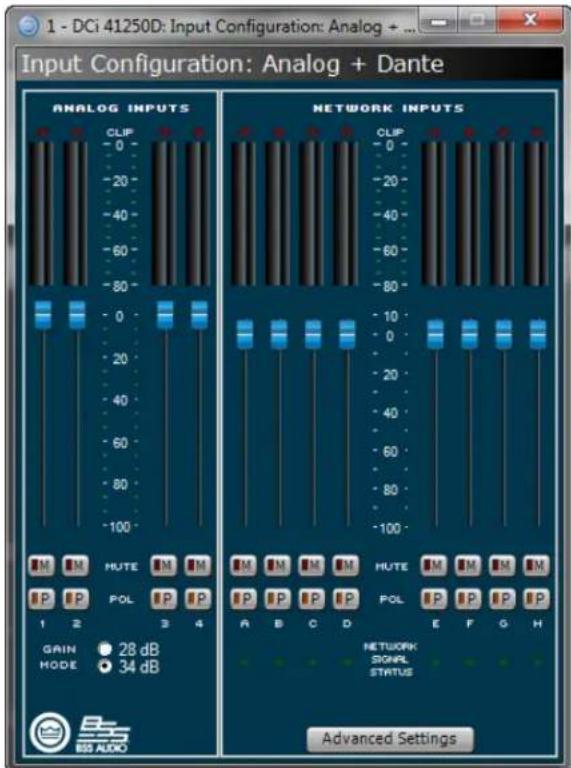
Figure 33: Input Configuration panel
Clicking the Advanced button opens the Dante Advanced Settings window (see Figure 34) where the following information is displayed:
• Dante Device Name:
The name of the device as shown in Dante Controller.
- Sample Rate
Dante sample rate (read only). To change sample rate, use Dante Controller, then reboot the amplifier.
- MAC Address
MAC Address of the Primary Dante port.
- Version
Firmware version of the Dante module.
The analog inputs in the DriveCore Install DA amplifiers provide additional flexibility when using the amplifiers Dante outputs. From the Dante Output Configuration window (Input Icon > Output Configuration), it is possible to utilize the DCi DA amplifier to be a Dante On-Ramp in two different ways:
- Send unprocessed audio from the analog inputs of the amplifier to one of the 8 available Dante outputs
NOTE: The audio from the analog inputs passes though the amplifier input gain stage (affected by selecting 28dB or 34dB of gain), and then through the input trim and polarity switches in the Source Routing - Input Configuration panel, before being sent to the Dante network.
- Send post-processed audio from a DCi DA amp output channel to one of the 8 available Dante outputs
NOTE: The post-processed audio is bussed from a point at the end of the entire channel processing chain in the DCi DA. This is effectively analogous to taking the audio from the physical output of the amplifier feeding a loudspeaker, and routing it onto the Dante network.
After selecting an Audio Source in the dialogue shown above, you must also route the Dante audio using the Dante Controller software.
NOTE: When connected to a Dante network running at 96kHz, the DCi DA's Dante outputs will be disabled and the amp will not be able to transmit audio onto the Dante network. The amplifier will be able to receive a full compliment of up to 8 Dante streams to send to the input router, but it will not be able to output any audio signals back onto the Dante network.
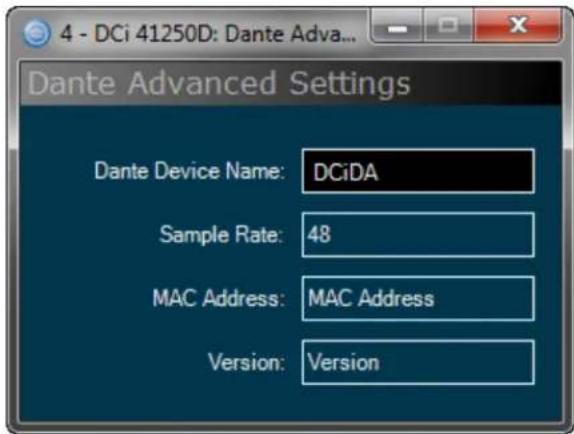
Figure 34: Dante Advanced Settings panel
![2 - DCi 41250D: Output Configuration: Dante [OFFLINE] Output Configuration: Dante AUDIO SOURCE 1 Analog Input 1 2 Analog Input 2 3 Analog Input 3 4 Analog Input 4 5 Amp Output 1 6 Amp Output 2 7 Amp Output 3 8 Amp Output 4 80 60 40 20 0 RSS AUDIO](/content/2026/06/1198692/images/ce1685895bdff00ada1dc3a4c1359d26a736885f24a09dd4d3c648719b3bf866.jpg)
Figure 35: Dante Output Configuration panel
Advanced Operation
Introduction
Your DCi DA amplifier has a wide variety of onboard Digital Signal Processing (DSP). HiQnet Audio Architect software lets you adjust the DSP settings, such as filter slope, compression ratio, EQ frequency bands, and so on.
A preset is a group of DSP settings that configure the amp for a specific application. For example, you might use one preset that optimizes the amp's DSP for a JBL tri-amplified speaker setting. You might use another preset that sets up the DSP for a stereo pair of loudspeakers of your choice. You can choose any of 20 presets.
Amplifier Presets and Speaker Tunings
Preset 1 is the factory default preset and cannot be overwritten. It sets up the amplifier for pass-thru operation with no DSP features enabled. The DCi DA amplifier works with two types of presets:
User Presets – Using Audio Architect, you can create your own custom DSP presets, label them, and send them to the DCi DA amplifier. The amp stores those presets in firmware.
Downloadable Presets – Available for download from a variety of manufacturers, these presets are configured for optimal performance and can be sent to the amplifier via Audio Architect.
User Presets
User presets are DSP presets that are configured manually. The following three steps outlines setting up User Presets.
- Adjust the DSP settings as desired in the Audio Architect software.
- Save this group of settings as preset, you will be prompted to name it.
- Download the preset to the DCi DA amplifier. See the software Help file for details. As soon as you save the setting as a preset, it is sent to the amplifier.
Speaker Tunings
Crown and JBL engineers have designed DriveCore Install DSP settings that are optimized for various JBL loudspeakers. Speaker tunings can be downloaded at the following website: www.jblpro.com. An improved speaker tuning approach has been developed for the DriveCore Install DA Series. The system is software library based rather than device preset based. The new approach offers significant benefits:
- Unlimited number of tunings organized into an unlimited number of libraries
- Simple and fast drop-down tuning recall/store/delete within device GUI
- Channel/band specific tunings – no more managing tunings across channels or amp chassis. Also yields logical one-to-one correlation of amp output to transducer/band.
- Faster tuning load/store times – much easier to compare and run A/B tests on multiple tunings without audio dropouts
- Library based – allows logical groupings and archiving of similar tunings (e.g. Screen Array Series or VTX Series, etc.)
- Tunings can be held within but are de-coupled from device presets. Eliminates concern of accidentally deleting or changing other device parameters – speaker tunings only contain the parameters required for speaker tunings! Now presets can be used for complete device configurations – as intended.
- Simpler and faster third-party and user tunings and libraries development – more people will be willing to develop custom or 3rd party tunings
- Single panel access to all required tuning parameters – easier/faster to create/modify tunings.
Speaker Tuning Panel
A new "speaker tuning" icon is implemented on the main device panel for each channel of DCi amplifiers. Double-clicking the speaker tuning icon will open the basic Speaker Tuning Panel (STP).
![2 - DCi 41250D DCi Speaker Tuning [OFFLINE] Output 1 Label: DCi Speaker Tuning (Last Selected) Speaker Tuning: Recall Store Delete Speaker Manufacturer: JBL Speaker Model: Output Band: Full Range Advanced Settings](/content/2026/06/1198692/images/64b5eb9ecd5d6e213edcc630e48d4dcf1090185edce07516812fd85e286a5206.jpg)
Figure 36: Basic Speaker Tuning panel
Basic STP functions are:
Recall
Loads the selected tuning from the working library (drop-down list) into the respective channel.
Store
Stores the STP settings from the respective channel into the working library with specified user name. The stored tuning is then available in the drop-down list for any other channel or amp.
Delete
Deletes the selected tuning from the working library.
Speaker Manufacturer
This parameter displays a text description of the respective speaker manufacturer (i.e.JBL, Custom, etc.). The data for this parameter is stored within the tuning and also within the device settings.
Speaker Model
This parameter displays a text description of the respective speaker model (i.e.3722, Three-Way, etc.). The data for this parameter is stored within the tuning and also within the device settings.
Band
This parameter displays a text description of the respective tuning band (i.e. LF, MF, HF). The data for this parameter is stored within the tuning and also within the device settings.
Tool Tips
The Mfr, Model and Band text fields are displayed in the tool tip box when the mouse is hovered over the respective channel Speaker Tuning Icon.
Advanced STP functions are available to create/modify speaker tunings. Holding CTRL-ALT-SHFT while double-clicking the speaker tuning icon opens the advanced panel. See Figure 37.
![2 - DG 412503: DCI Speaker Tuning [OFFLINE] 2 3 4 ALL Output 1 Label: DCI Speaker Tuning (Liant Selected) Speaker Tuning: Recall Store Delete Speaker Manufacturer: JBL Speaker Model: Output Band: Full Range Basic Settings IRR Crossover Filters Highpass Enable DISAMED Frequency 20Hz Type Linkwitz-Riley 24dB/Hz Lowpass Enable DISAMED Frequency 20kHz Type Linkwitz-Riley 24dB/Hz FIR Crossover Filters Enable DISAMED 0 Speaker Delay Bypass Delay Coarse DISAMED On Fine DISAMED On Processing Output Polarity NORMAL Band Gain 0dB Speaker EQ Filters Enable Bypass ENABLED Filter 1 DISAMED Parametric EQ 1kHz 0.0dB 4.000 6.000 Filter 2 DISAMED Parametric EQ 1kHz 0.0dB 4.000 6.000 Filter 3 DISAMED Parametric EQ 1kHz 0.0dB 4.000 6.000 Filter 4 DISAMED Parametric EQ 1kHz 0.0dB 4.000 6.000 Filter 5 DISAMED Parametric EQ 1kHz 0.0dB 4.000 6.000 Filter 6 DISAMED Parametric EQ 1kHz 0.0dB 4.000 6.000 Filter 7 DISAMED Parametric EQ 1kHz 0.0dB 4.000 6.000 Filter 8 DISAMED Parametric EQ 1kHz 0.0dB 4.000 6.000 Limiter Suite Enable Mode DISAMED Auto Pack Limiter Enable Threshold Lockahead Delay Release DISAMED 100 500us 0.01 Sadochain EQ Filters Enable Bypass ENABLED Filter 1 DISAMED Parametric EQ 1kHz 0.0dB 4.000 6.000 Filter 2 DISAMED Parametric EQ 1kHz 0.0dB 4.000 6.000 Filter 3 DISAMED Parametric EQ 1kHz 0.0dB 4.000 6.000 RMS Limiter Enable Detector Time Constant Threshold Attack Release DISAMED 9 100 0.01 0.01 Thermal Limiter Enable Time Constant Threshold Proportional K Integral K DISAMED 12 100 1 1](/content/2026/06/1198692/images/6260efe936abfa09821ff872e2a9d0a4b0d631693ddc0d99731b09e357631f5b.jpg)
Figure 37: Advanced Speaker Tuning panel
The advanced panel includes every parameter implemented in a speaker tuning:
- All parameters from basic panel (Recall, Store, Load, Delete, Mfr Name, Model, Band)
- Crossover Filters (HP lower band-edge, LP upper band-edge, 18 types up to 48dB/oct)
- EQ Filters (8 second order filter sections, 11 types, full parametric control)
- LevelMax Limiter Suite (Peak, RMS, Thermal Limiters, Auto/Manual modes)
- Delay (Fine adjustable from OS to 0.1S, Coarse adjustable from OS to 2S)
- Band Gain (adjustable from -100dB to +20dB in 0.5dB steps)
- Polarity/Invert
Speaker Tuning Libraries
The new system uses software based Speaker Tuning Libraries. Audio Architect manages these libraries within the device DLL. A library can contain any number of tunings. Audio Architect can manage any number of libraries. The library system implemented includes:
Working Library
The working library is opened and active when opening any Speaker Tuning Panel. The working library is automatically updated with the latest stored tunings/settings when exiting the open STP. Audio Architect is installed pre-configured for DCi amplifiers with a working library previously loaded with JBL Screen Array tunings from the JBL Master Screen Array Library.
NOTE: Multiple STP's can be opened but only the last parameters on the last panel closed are saved to the working library.
JBL Master Screen Array Library
This library is included with Audio Architect at install. The tunings in this library were developed and validated against previous same tunings for Crown DSI amplifiers. It is read-only to prevent over-write. At any time, a user can load this library to access reference JBL tunings for these devices.
User Libraries
At any time, the user may save the current working library to a custom user library file.
Loading a Library
Click on the File/Open > Speaker Tuning dialog on the device main panel to open and load an existing library file into the working library. This action replaces the current working library. Any changes not saved to the existing working library will be lost.
Saving a Library
Click on the File/Save > Speaker Tuning dialog on device main panel to save the current working library to any filename.
NOTE: JBL files are write-protected/read-only and cannot be over-written.
Library File Locations
The file location and naming conventions for all speaker tuning libraries is:
- Windows 7 and Windows 8.1 path C:\ProgramData\Harman Professional\Audio Architect\
- Windows XP path C:\Documents and Settings\All Users\Application Data\Harman Professional\Audio Architect\
Library Filename Conventions
The general file names are:
• Working Library: Crown Library.DCi Series.SpeakerTuning
• JBL Screen Array Library: JBL Master Screen Array Library.DCi Series.SpeakerTuning
- User Libraries: Any_user_file_name.DCi Series.SpeakerTuning
Channel Levels and Mutes
When viewing the Configuration panel, the panel can be expanded or minimized using the Arrow button, as shown on the right side of the Basic Configuration panel in Figure 38. From the Configuration panel, channel levels can be adjusted using the Level faders, channels can be muted, and Level faders can be linked using the Link buttons.
![2 - DCi 41250D [OFFLINE] File Edit View Panel Tools Help 1 2 LEVEL 3 4 INPUT CLIP OUTPUT CLIP M M M M 1 2 3 4 PS TEMP + OFF LINK 1-2 OFF LINK 3-4 OFF LINK ALL 1 2 TEMP LIMIT LOAD READY FAULT 3 4](/content/2026/06/1198692/images/27ba6da80a46e9ee143c660a89453d91fd4e0ae2a9d97b8e48944e2193a098f5.jpg)
Figure 38: Basic Configuration panel
Input Signal Level Meter (green)
The measurement range is from 0dBFS to -40dBFS with 0.5dB resolution. Each audio channel has the following monitors:
- Switched Audio Input: This meter shows only the switched (selected) audio input after the Input Audio Router.
- Clip Indicator
- Peak + RMS levels
Output Signal Level Meter (blue)
The measurement range is from 0 dB to -40 dB with 0.5 dB resolution. The monitors are scaled so that 0 dB is referenced to the full rated output voltage of the amplifier. The wider left meter is rms and the right meter is peak for each channel. An output clip indicator is provided.
Indicators
-
Temp: Lights if the temperature of the amplifier is too high and the amplifier is near shutdown.
Green: Thermal headroom used up is less than 59%.
Yellow: Thermal headroom used up is 60-80%.
Red: Thermal headroom used up is more than 81%. -
Limit: Lights when the amplifier signal is being limited.
- Load: Lights when the load impedance is out of range.
- Ready: Lights when the amplifier is on and ready to supply power.
- Fault: Lights when the amplifier is in a fault mode service may be required.
Software-Controllable Onboard DSP
Crown DriveCore Install DA amplifiers have Digital Signal Processing built into the amplifier.
When you use a DriveCore Install DA amp, the loudspeaker processors, crossovers, limiters and delays are in the onboard DSP – so discrete rack mount devices are not needed. This drastically cuts setup time, commissioning, rack space and costs. The DriveCore Install DA DSP can be monitored and controlled with a computer running Audio Architect software, and connected to the amplifier Network Connector by a Category 5 Network cable.
Some applications for this DSP are:
- Configure signal flow
- Optimize system gain structure
- Configure speaker configurations (set the drive levels, frequency bands, delays and limiting for your particular speakers)
- Configure EQ, filtering, and much more
See the Audio Architect Help files for more detailed information.
![2 - DCi 41250D [OFFLINE] File Edit View Panel Tools Help 1 2 LEVEL 3 4 INPUT 0 1 OUTPUT 0 0 20 40 60 80 100 1 2 3 4 1 2 3 4 M M M M OFF OFF LINK 1-2 LINK 3-4 PS TEMP THP LHT LORD READY FRUIT 1 2 3 4 OFF LINK ALL 1: Default RECALL STORE PRESET MANAGER SIG GEN AMP INFO PILOT TONE APPLY TO OTHERS MODE INPUT DELAY EQ XOVER EQ DELAY LHT AMP SLH SPKR MODE CH1 CH2 CH3 CH4 Crown Audio, Inc. DCi 4 Channel DA Series - Offline](/content/2026/06/1198692/images/6b6f6cc4d7ca0fe3c2ceed5e14e9ae1db0d3fef721a4f17734a6cf22dde83f86.jpg)
Figure 39: Onboard DSP controllable from Configuration panel
On the left of this panel is the Input and Output Signal Level Monitor. On the right side are rows of DSP selection buttons for each channel. When you double click on a button, a control panel opens for that button's function.
Also on the right are buttons that open control panels for these functions:
- Amplifier mode
• Signal generator (pink noise and sine wave) - Amplifier information
- Recall and store presets
- Preset manager
- Apply to others (apply this amplifier's DSP settings to other devices)
These functions will be further explained on the next several pages.
Input Signal Router
Each channel of the DriveCore Install DA signal processing has an Input Signal Router that lets you choose the audio signal that will be used by the channel.
- Analog Audio: This selection configures the input router for analog sources. Each output channel will select its corresponding analog input. Choices for the Analog Audio input are any available analog input channels or one of the summed variants (e.g. Analog Input 1+2, Analog Input 3+4, etc.). Selecting Analog only will automatically change the MEDIUM input source to none.
- Network Only: This selects the audio input from the Dante port on the back panel of the amp. Each amplifier has 8 Dante input channels, as well as summed variants (e.g. Dante Inputs A+B, Dante Inputs C+D, etc.).
- Network With Analog Backup: The input takes the network signal as its source when the network signal or just the network clock is present. If the network lock is lost, the input switches to the selected Analog Source. Once that network lock is found again, the input switches back to the selected network source. This works even when the network signal has no audio but is sending a clock signal.
- Analog Overrides Network: Dante input is used as the channel's source. If the analog signal level is greater than an Analog Signal Threshold, which is user-defined, the input switches to the analog signal. As long as the analog signal level exceeds the threshold, or as long as its level falls below threshold for a user-defined hold time, the analog signal remains the channel's source.
The control operation will vary based on the mode that is selected.
![2 - DCi 41250D: Source Routing [OFFLINE] 1 2 3 4 ALL Output 1 Label: Source Routing Input Configuration Output Configuration NETWORK SIGNAL STATUS INPUT A INPUT B INPUT C INPUT D INPUT E INPUT F INPUT G INPUT H Signal Generator SIGNAL GENERATOR STATUS ENABLE CHANNEL MUTE -100dB MASTER LEVEL -100dB CHANNEL LEVEL CH1 Channel Settings - Priority Input Routing ACTIVE HIGH SOURCE Analog Input 1 LABEL Analog Input 1 Label MEDIUM SOURCE Dante Input A LABEL Network Input 1 Label LOW SOURCE None FACTORY QUICK START SELECTIONS ANALOG ONLY NETWORK ONLY NETWORK WITH ANALOG BACKUP ANALOG OVERRIDES NETWORK -100.0dB M SIGNAL GENERATOR](/content/2026/06/1198692/images/fb95dcd0ba2b20f9a7505fa8e81881d3e4ee4006bf26bca5e23228bbd9c31cf7.jpg)
Figure 40: Basic Source Routing panel
Source Routing/Configuration
![2 - DCi 41250D: Source Routing [OFFLINE] 1 2 3 4 ALL Output 1 Label: Source Routing Input Configuration Output Configuration NETWORK SIGNAL STATUS Signal Generator INPUT A SIGNAL GENERATOR STATUS INPUT B ENABLE CHANNEL MUTE INPUT C CHANNEL MUTE INPUT D -100dB MASTER LEVEL INPUT E -100dB CHANNEL LEVEL INPUT F INPUT G INPUT H CH1 Channel Settings - Priority Input Routing ACTIVE HIGH SOURCE Analog Input 1 LABEL Analog Input 1 Label MEDIUM SOURCE Dante Input A LABEL Network Input 1 Label LOW SOURCE None THRESHOLD ATTACK RELEASE DEPTH OF CUT -80.0dB 0.100 0.100 -100.0dB -60.0dB 0.100 0.100 -100.0dB Disabled Disabled Disabled Disabled FACTORY QUICK START SELECTIONS ANALOG ONLY NETWORK ONLY NETWORK WITH ANALOG BACKUP M SIGNAL GENERATOR ANALOG OVERRIDES NETWORK RSS AUDIO](/content/2026/06/1198692/images/7c4f8e37e2d92792c097fe0c12dbc295bf935c59df5fc370606c04cd8b7a0832.jpg)
Figure 41: Advanced Source Routing panel
Quick Start Selection button at the bottom of the panel. Manual configuration of Threshold, Attack, Release, and Depth of Cut can be adjusted in this panel. These items are defined as follows:
- Threshold – Sets the level in dB below which the secondary input will be engaged.
- Attack – Defined as the time it takes for the secondary source to engage. This can range from 0.1 seconds to 1.0 seconds
- Release – Defined as the time it takes for the primary input to re-engage one the threshold level is exceeded.
- Depth of Cut – Defined as the level in dB of the primary source is held at if the release time is not exceeded.
Analog Only: This is the audio input from the audio connector on the back panel of the amp. Choices for the Analog Audio input are Channel 1, Channel 2, or a sum of Channels 1 and 2.
Input Delay and Driver/Output Delay
Input delay includes up to 2 seconds of delay. Output delay is typically used for driver alignment. Up to 0.1 seconds of output delay is provided. See Figure 42.
![2 - DCi 41250D: Input Delay [OFFLINE] Output 1 Label: Input Delay 0ft 563.750 1127.5 1691.25 2255 Feet 0s 0.5 1 1.5 2 Seconds 0m 171.831 343.662 515.493 687.324 Meters SECONDS FEET METERS ON 0.000s 0.000ft 0.000m BSS AUDIO](/content/2026/06/1198692/images/20cfff91f36b2ca44c2c7df394e6623ce706e71d85db45ffdc72d0f1ca8ecb0b.jpg)
Figure 42: Delay panel
Input/Output Equalization
These panels let you adjust channel equalization for up to 8 frequencies. You can select filter type, frequency, gain, and bandwidth in octaves or Q as set by the user preferences in Audio Architect. Changes to the equalizer's frequency response can be done by typing in parameters or by click-dragging the response curve. See Figure 43.

line
| Frequency | Gain (dB) | | --------- | --------- | | 72.78 | 14.64 | | 374.44 | -7.68 | | 1.07 | 3.6 | | 2.6 | -3.36 | | 3.47 | 13.68 | | 8.898 | 1.699 |Figure 43: EQ panel
Crossover Filters
The Crossover section lets you use infinite impulse response (IIR) Crossover filter.
Each audio channel has three separate places where filters can be placed in the system: input EQ, Crossover, and Output EQ. Up to 16 EQ filters per channel are available, plus crossover filters. Each filter has up to +/-24dB of gain.
The following filters are available:
- Lowpass & Highpass:
- Bessel 12dB/oct, 18dB/oct, 24dB/oct, 30dB/oct, 36dB/oct, 42dB/oct, 48dB/oct
- Butterworth 12dB/oct, 18dB/oct, 24dB/oct, 30dB/oct, 36dB/oct, 42dB/oct, 48dB/oct
- Linkwitz-Riley 24dB/oct, 36dB/oct, 48dB/oct
- Lowshelf: Low-frequency shelving EQ
• Highshelf: High-frequency shelving EQ
- Lowpass EQ: Variable bandwidth, can be expressed as Q (0.100 to 35) or Octaves (0.041 to 6.672)
• Highpass EQ: Variable Q from 0.1 to 25
• Parametric EQ: Variable Q from 0.1 to 35
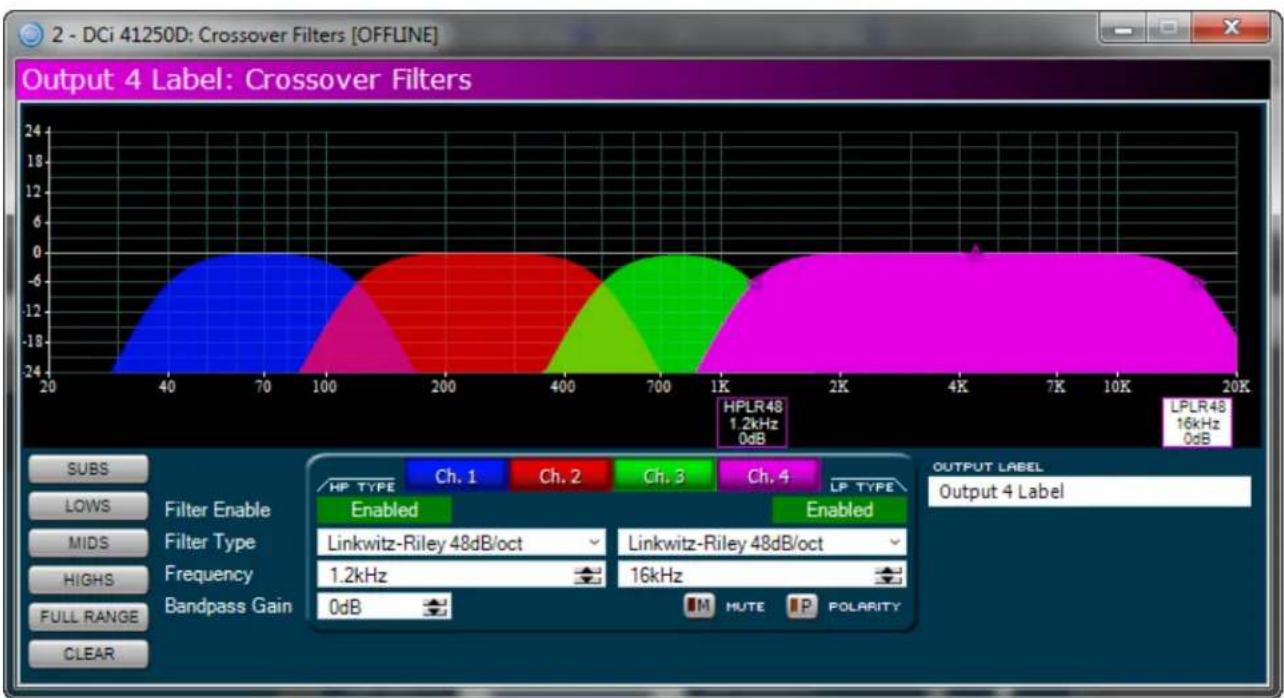
line
| Frequency | Channel | Value | | --------- | ------- | --------- | | 0 | Ch. 1 | -24 | | 70 | Ch. 1 | -12 | | 200 | Ch. 2 | -6 | | 400 | Ch. 2 | -12 | | 700 | Ch. 3 | -6 | | 1K | Ch. 3 | -12 | | 2K | Ch. 4 | -6 | | 4K | Ch. 4 | -12 | | 7K | Ch. 4 | -6 | | 10K | Ch. 4 | -12 | | 20K | Ch. 4 | -6 |Figure 44: Crossover panel
LevelMax™ Suite
This is a suite consisting of a peak voltage limiter, RMS power limiter, clip limiter and transducer thermal limiter. First you will set the mode to automatic or advanced: See Figure 45.
- Automatic mode: The software determines the best settings based on the signal characteristics. You can modify only the RMS threshold, Speaker Thermal threshold and time constant. Everything else is set automatically.
- Advanced mode: You can modify the RMS threshold, Speaker Thermal threshold, time constant, Peak threshold and Peak/RMS release. Peak Voltage Limiter This limits the peak voltage output of the amplifier.
- On: Enables or disables this function. You'll set the parameters below:
• Threshold: Sets the level, in absolute voltage, which the limiter will allow from the amplifier. The range is from 1 Vpk to 255 Vpk. - Attack Time: Sets the attack time of the limiter. The attack time is defined as the time it takes the limiter to attenuate the output signal by 20 dB. The range is from .1 millisecond to 100 milliseconds. The Instant setting attack time is instant (0 millisecond).
- Release Time: Sets the release time of the compressor. The release time is defined as the time it takes the limiter to increase the output signal by 20 dB. The range is the same range as attack time above.
![2 - DCi 41250D: Output Limiters [OFFLINE] Output 1 Label: Output Limiters LevelMAX™ OUTPUT VOLTAGE LIMITING PEAK THRESHOLD (VPK) Auto RELEASE (SEC) Auto RMS THRESHOLD (VRMS) 100.0 RELEASE (SEC) Auto TRANSDUCER THERMAL LIMITING THERMAL VOLTAGE (VRMS) 100.0 THERMAL RESPONSE TIME (SEC) 10 AUTOMATIC ADVANCED AMP OUTPUT dBFS GAIN REDUCTION -30 -25 -20 -15 -10 -5 0 -3 -10 -5 0 -30 -25 -20 -15 -10 -5 0 -30 -25 -20 -15 -10 -5 -30 -25 -20 -15 -10 -5 0 -30 -25 -20 -15 -10 -5 -30 -25 -20 -15 -10 -5 0 -30 -25 -20 -15 -10 -5 -3](/content/2026/06/1198692/images/b67ddab0415f20feece5bc6560a0ded60c5afe4d1761b30927cac56d9862cae2.jpg)
Figure 45: LevelMAX panel
Transducer Thermal Limiter
This limits the long-term output power of the amplifier to what the loudspeaker load can handle without overheating and going into thermal compression. You can set the voltage level at which the thermal limiter engages, the thermal response time and thermal voltage. Your loudspeaker manufacturer might be able to provide this information.
Meters show the amplifier output level in dBFS; and peak, RMS, and total gain reduction.
Signal Path Block Diagram
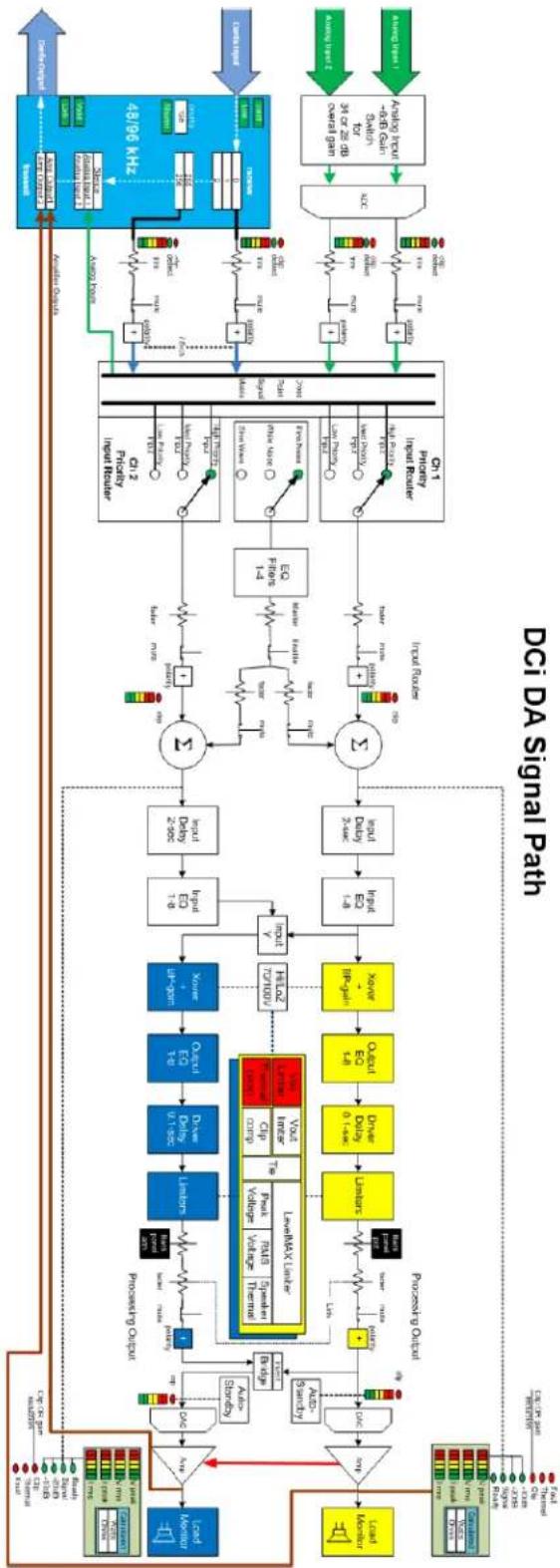
flowchart
graph TD
    A["Input Router"] --> B["Amplifier"]
    B --> C["FL1/2 Filter"]
    C --> D["Signal"]
    D --> E["FL2/2 Filter"]
    E --> F["Filter"]
    F --> G["FL3/2 Filter"]
    G --> H["Output"]

    subgraph DCi DA Signal Path
        I["Input Router"] --> J["Amplifier"]
        J --> K["FL1/2 Filter"]
        K --> L["Signal"]
        L --> M["FL2/2 Filter"]
        M --> N["Filter"]
        N --> O["FL3/2 Filter"]
        O --> P["Output"]

    end

    style A fill:#f9f,stroke:#333
    style B fill:#ccf,stroke:#333
    style C fill:#cfc,stroke:#333
    style D fill:#fcc,stroke:#333
    style E fill:#cff,stroke:#333
    style F fill:#ffc,stroke:#333
    style G fill:#cfc,stroke:#333
    style H fill:#fcc,stroke:#333
    style I fill:#fff,stroke:#333
    style J fill:#fff,stroke:#333
    style K fill:#fff,stroke:#333
    style L fill:#fff,stroke:#333
    style M fill:#fff,stroke:#333
    style N fill:#fff,stroke:#333
    style O fill:#fff,stroke:#333
    style P fill:#fff,stroke:#333

    %% Note: The image contains multiple lines (e.g., 'Input Router', 'Signal', 'Processing Unit', etc.) and labels such as 'Q1', 'Q2', 'Q3', 'Q4' with corresponding symbols. Bottom row is a duplicate label in the image.
Figure 46: Signal Path Block Diagram
Protection System
Thermal Indicator
If the amplifier becomes too hot for safe operation, the channel that is generating too much heat will be shut down until the temperature drops below the thermal limit. The front-panel thermal indicator will illuminate at 80 degrees Celsius, indicating the onset of compression affecting the audio signal. The amplifier will continue to run in this state until either the temperature is reduced to a safe operating range, or if the temperature continues to rise, the channel will shut off to protect itself above 98 degrees Celsius.
Fault
The amplifier will enter a Fault state if the amplifier senses an unsafe condition. This protection is for both internal and external faults. In addition, be sure that the load connected to the amplifier is within 2 - 16 Ohm limit (4 - 16 Ohm Bridge Mono). If wiring is verified as correct and the fault condition persists, see "Service" on page 52 for servicing information.
Auto Insertion High-Pass Filters
A 35 Hz high-pass filter is inserted automatically when a channel is selected for Hi-Z operation.
AC Under/Over Voltage Protection
If the AC line voltage drops below 10% or rises above 10% of the nominal operating voltage of the amplifier, the amplifier's power supply turns off and the blue Power LED flashes. The amplifier will turn back on when the AC line voltage returns to safe operating levels.
Breaker
The DCi 4|1250DA and 8|600DA models utilizes a resettable breaker. Please contact Crown Service department for more information.
Fan-Cooled Chassis
DCi Series amplifiers are cooled by quiet, variable speed fans. Maximum fan noise level of a DCi amplifier is 47 dBA. The fans will pull air from the front of the amplifier to the rear of the amplifier.
The following fault conditions cause the fan to turn on full speed.
- High Frequency fault
- DC fault
- Short circuit fault
- Thermal fault
- Rail fault
• After a fault, the fan will remain at full speed for at least 60sec
Universal Switching Power Supply
The DCi Series incorporates a new switching power supply designed for extremely high efficiency and high output power. The supply includes Power Factor Correction (PFC), a Series Resonant Converter (SRC) and accepts AC supply voltages from 100 V\~ to 240 V\~. Microprocessor controlled diagnostic and control capabilities both optimize performance, and enhance long-term reliability.
Troubleshooting
| Fault Thermal Clip -10 -20 Signal Ready Bridge | Power Data | CONDITION: Power indicator is off. Mains indicator is on. POSSIBLE REASON: • The amplifier's Power switch is off. |
| Fault Thermal Clip -10 -20 Signal Ready Bridge | Power Data | CONDITION: Power indicator is off. Mains indicator is off. POSSIBLE REASON: • The power supply breaker has tripped. • The amplifier has lost AC Power. • The amplifier is not plugged in to the power receptacle. |
| Fault Thermal Clip -10 -20 Signal Ready Bridge | Power Data | CONDITION: Power indicator is flashing. POSSIBLE REASON: • The AC line voltage has dropped below 10% or has risen above 10% of the nominal line voltage of the power supply. • When the Amp is in Sleep Mode as set by the AUX Port, the amplifier will not power up until the ground closure on the AUX Port is released. When the power button is pushed in this condition, the Power Indicator will flash for 2–3 seconds. |
| Fault Thermal Clip -10 -20 Signal Ready Bridge | Power Data | CONDITION: Thermal indicator is on. POSSIBLE REASON: • The amplifier is becoming too hot for safe operation. Allow amplifier to cool. Check for loads less than 2Ω, and for excessive input levels. Check for proper ventilation and proper mode-switch setting. |
| Fault Thermal Clip -10 -20 Signal Ready Bridge | Power Data | CONDITION: Fault indicator is flashing. POSSIBLE REASON: • There are a number of conditions that result in the Fault indicator flashing: temperature above 98C, DCy/LF protection is engaged, HF detect, output short circuit detected. These conditions should all be checked and attempted to be resolved before the amp is shipped back for service. |

"Off/Flashing/On" above means that the LED can be off, or flashing, or on.
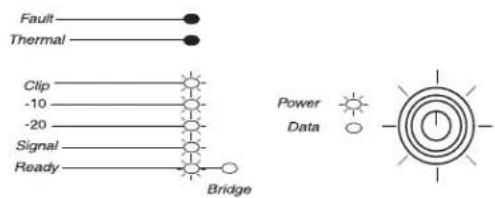
CONDITION: Distorted sound.
POSSIBLE REASON:
- Load is wired incorrectly or Stereo/Bridge mode switch is set incorrectly. Check both.
- Input is overloaded by a signal level that is too high. Turn down your amplifier level controls, or turn down the input signal, until the clip light goes out.
NOTE: If the signal sounds distorted even though the Clip LED is off, the input signal may be distorted before it reaches the amplifier input. Check gain staging and output levels of the mixer or preamp..
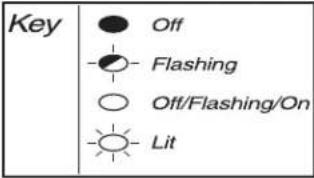
"Off/Flashing/On" above means that the LED can be off, or flashing, or on.

CONDITION: No sound, even though the amp has power.
Power LED is on with out flashing and the amp is receiving an input signal. Signal indicator is flashing.
POSSIBLE REASON:
- Speakers not connected.
- Open circuit due to speaker failure.
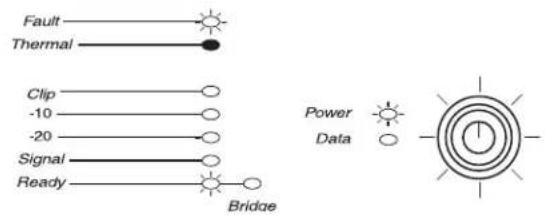
- Based on the front panel LEDs, determine which channel has a short. Remove the associated input connector to ensure that no voltage will be present on the output. Remove the shorted load (and possibly attached cables) and have it checked by a qualified technician. If the shorted condition remains after the load is removed, the unit should be sent into a qualified service center.

- Ready LED is off. Channel has been set to Sleep mode via the Aux port or Power Save mode.
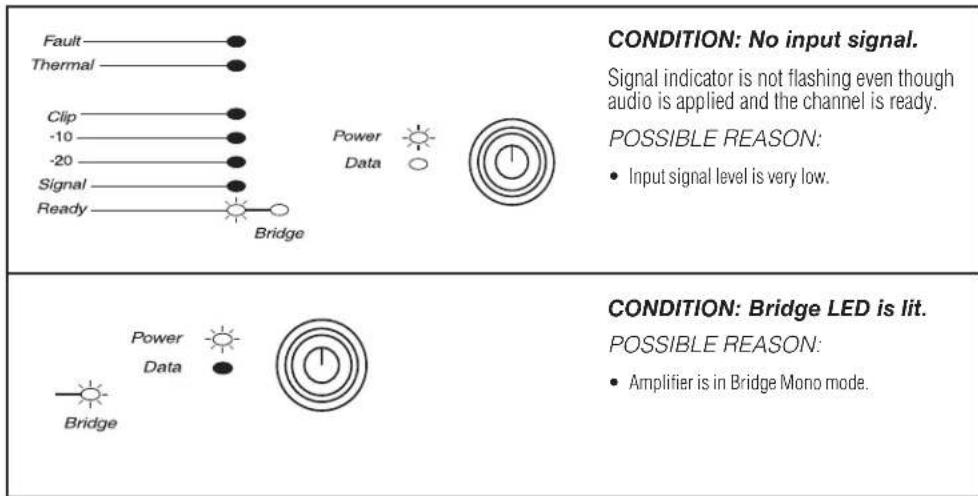
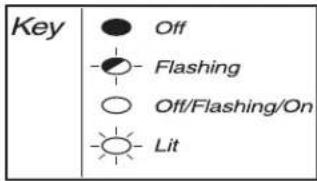
"Off/Flashing/On" above means that the LED can be off, or flashing, or on.
DCi DA Specifications
Dual Mode — All Channels Driven
| DCI Dante Model Channels 2Ω 4Ω 8Ω 16Ω 70Vrms 100Vrms | ||||||
| 8|600DA 8 300W | 600W 600W 300W | 600W 600W | ||||
| 4|1250DA 4 1250W | 1250W 1250W | 625W 1250W 1250W | ||||
Minimum Guaranteed Power (20 Hz - 20 kHz)
Bridge Mono Mode — All Channels Driven
| DCi Dante Model | 4Ω | 8Ω | 16Ω | 140Vrms | 200Vrms |
| 8|600DA | 600W | 1200W | 1200W | 1200W | 1200W |
| 4|1250DA | 2500W | 2500W | 2500W | 2500W | 2500W |
Minimum Guaranteed Power (20 Hz - 20 kHz)
Input Sensitivity
| DCI Dante Model | 8Ω | 70Vrms | 100Vrms |
| 8|600DA | 1.4Vrms | 1.4Vrms | 2.0Vrms |
| 4|1250DA | 2.0Vrms | 1.4Vrms | 2.0Vrms |
Dimensions
| DCI Dante Model | Width | Height | Depth |
| 8|600DA | 19 in. (48.3 cm) | 3.5 in. (8.9 cm) | 17 in. (43.2 cm) |
| 4|1250DA | 19 in (48.3 cm) | 3.5 in. (8.9 cm) | 17 in. (43.2 cm) |
Performance Specifications
| 8|600DA 4|1250DA | ||
| Voltage Gain(at maximum level setting) 4/8Ω, 70Vrms and 100VrmsOperation | 34dB | |
| Frequency Response(8Ω, 20Hz - 20kHz) | ±0.25dB | |
| DanteSignal-to-Noise Ratio(ref. rated power, 8Ω, 20Hz - 20kHz) | >108dB | |
| Total Harmonic Distortion(at full rated power, from 20Hz - 20kHz) | 0.35% | |
| Analog Input Signal to Noise Ratio(ref. rated power, 8Ω, 20Hz - 20kHz) | >104dB | |
| Intermodulation Distortion(60Hz and 7kHz at 4:1, from - 30dB to full rated power) | ≤0.35% | |
| Damping Factor(20Hz to 100Hz) | >1000 >1500 | |
| Crosstalk(below rated power, 20Hz to 1kHz) | >80dB | |
| Common Mode Rejection(20Hz to 1kHz, typical) | >70dB | |
| DC Output Offset(with inputs shorted) | ±10mV | |
| Input Impedance(Nominally balanced, nominally unbalanced) | 10 kΩ,5 kΩ | |
| Maximum Input Level(Low Gain Mode) | +20dBU | |
| Required AC Mains(±10%) | 100Vrms - 240Vrms~ 50/60Hz | |
| Cooling Continuously variable speed forced air, front-to-back airflow | ||
| Power Supply Connector 20A IEC connector | ||
| Load ImpedanceStereo/Dual Mode | 2Ω - 16Ω; 70Vrms and 100Vrms | |
| Load ImpedanceBridge Mono | 4Ω - 16Ω; 140Vrms and 200Vrms | |
| Maximum Fan Noise(re dB SPL @ 1M) | 47 | |
| Weight 30 lbs | (13.60 kg) | |
AC Power Draw and Thermal Dissipation
AC Power Draw and Thermal Dissipation:
Pink noise 12dB crest factor, bandwidth limited 22Hz to 22kHz.
Typical line impedance used.
Data based on all channels driven.
| DCi 411250DA - Bridge | |||||||||
| P1-32 120 VAC / 60 Hz 230 VAC / 50 Hz | |||||||||
| Condition Load | "Line current (amps)" | Power Dissipated as Heat "Line | current (amps)" | Power Dissipated as Heat | |||||
| watts BTU kcal/hr watts | BTU kcal/hr watts | BTU kcal/hr watts | |||||||
| At Idle Awake | N/A | 1.6 | 183 | 625 | 157 | 0.9 | 183 | 625 | 157 |
| 1/8 Power Pink Noise Typical of program material just at clip | 4Ω | 8.4 | 309 | 1054 | 266 | 4.3 | 238 | 813 | 205 |
| 8Ω | 8.0 | 263 | 898 | 226 | 3.8 | 207 | 707 | 178 | |
| 16Ω | 7.4 | 232 | 792 | 200 | 3.8 | 216 | 737 | 186 | |
| 140V (8Ω) | 7.3 | 227 | 775 | 195 | 4.3 | 230 | 785 | 198 | |
| 200V (16Ω) | 7.6 | 226 | 773 | 195 | 3.9 | 229 | 781 | 197 | |
| 1/3 Power Pink Noise Typical of program material at extreme clip | 4Ω | 19.5 | 533 | 1819 | 458 | 10.0 | 419 | 1432 | 361 |
| 8Ω | 17.5 | 384 | 1311 | 330 | 9.5 | 414 | 1412 | 356 | |
| 16Ω | 17.5 | 365 | 1246 | 314 | 9.0 | 292 | 997 | 251 | |
| 140V (8Ω) | 16.8 | 330 | 1128 | 284 | 8.8 | 345 | 1176 | 296 | |
| 200V (16Ω) | 17.1 | 334 | 1139 | 287 | 9.0 | 291 | 991 | 250 | |
| DCi 4|1250DA - Dual | |||||||||
| P1-32 120 VAC / 60 Hz 230 VAC / 50 Hz | |||||||||
| Condition Load | "Line current (amps)" | Power Dissipated as Heat "Line | current (amps)" | Power Dissipated as Heat | |||||
| watts BTU kcal/hr watts | BTU kcal/hr | Current (amps)" | |||||||
| At Idle Awake | N/A | 1.6 | 183 | 625 | 157 | 0.9 | 184 | 628 | 158 |
| 1/8 Power Plnk Noise Typical of program material just at clip | 2Ω | 8.9 | 217 | 740 | 187 | 4.5 | 230 | 787 | 198 |
| 4Ω | 9.0 | 245 | 835 | 210 | 4.3 | 215 | 734 | 185 | |
| 8Ω | 8.3 | 232 | 792 | 200 | 3.9 | 195 | 665 | 168 | |
| 70V (4Ω) | 8.5 | 220 | 751 | 189 | 4.4 | 198 | 675 | 170 | |
| 100V (8Ω) | 7.6 | 219 | 747 | 188 | 3.9 | 177 | 604 | 152 | |
| 1/3 Power Plnk Noise Typical of program material at extreme clip | 2Ω | 21.3 | 443 | 1512 | 381 | 10.6 | 405 | 1382 | 348 |
| 4Ω | 20.3 | 397 | 1357 | 342 | 9.3 | 300 | 1025 | 258 | |
| 8Ω | 18.0 | 301 | 1027 | 259 | 8.8 | 249 | 851 | 215 | |
| 70V (4Ω) | 17.1 | 289 | 988 | 249 | 9.0 | 262 | 896 | 226 | |
| 100V (8Ω) | 17.4 | 278 | 950 | 240 | 9.1 | 265 | 904 | 228 | |
AC Power Draw and Thermal Dissipation:
Pink noise 12dB crest factor, bandwidth limited 22Hz to 22kHz.
Typical line impedance used.
Data based on all channels driven.
| DCi 8|600DA - Bridge | |||||||||
| 15004563770 120 VAC / 60 Hz 230 VAC / 50 Hz | |||||||||
| Condition Load | "Line current (amps)" | Power Dissipated as Heat "Line | current (amps)" | Power Dissipated as Heat | |||||
| watts BTU kcal/hr watts | BTU kcal/hr watts | BTU kcal/hr watts | |||||||
| At Idle Awake | N/A | 1.9 | 218 | 744 | 188 | 1.0 | 220 | 751 | 189 |
| 1/8 Power Pink Noise Typical of program material just at clip | 4Ω | 5.4 | 330 | 1126 | 284 | 2.8 | 325 | 1109 | 279 |
| 8Ω | 8.1 | 346 | 1181 | 298 | 4.2 | 335 | 1144 | 288 | |
| 16Ω | 7.7 | 306 | 1044 | 263 | 3.8 | 276 | 941 | 237 | |
| 140V (16Ω) | 7.7 | 300 | 1023 | 258 | 3.9 | 285 | 973 | 245 | |
| 200V (33.33Ω) | 7.5 | 281 | 960 | 242 | 3.9 | 272 | 929 | 234 | |
| 1/3 Power Pink Noise Typical of program material at extreme clip | 4Ω | 10.8 | 468 | 1597 | 403 | 5.4 | 445 | 1519 | 383 |
| 8Ω | 17.9 | 530 | 1810 | 456 | 9.0 | 476 | 1625 | 410 | |
| 16Ω | 17.0 | 421 | 1437 | 362 | 8.7 | 389 | 1328 | 335 | |
| 140V (16Ω) | 17.3 | 439 | 1500 | 378 | 8.8 | 382 | 1305 | 329 | |
| 200V (33.33Ω) | 17.0 | 412 | 1407 | 355 | 8.6 | 342 | 1168 | 294 | |
| DCi 8|600DA - Dual | |||||||||
| 15004563770 120 VAC / 60 Hz 230 VAC / 50 Hz | |||||||||
| Condition Load | "Line current (amps)" | Power Dissipated as Heat "Line | current (amps)" | Power Dissipated as Heat | |||||
| watts BTU kcal/hr watts BTU kcal/hr | |||||||||
| At Idle Awake | N/A | 1.9 | 222 | 756 | 191 | 1.0 | 221 | 754 | 190 |
| 1/8 Power Pink Noise Typical of program material just at clip | 2Ω | 5.5 | 336 | 1147 | 298 | 3.0 | 332 | 1133 | 286 |
| 4Ω | 8.2 | 363 | 1241 | 313 | 4.4 | 348 | 1186 | 299 | |
| 8Ω | 7.8 | 314 | 1071 | 270 | 4.1 | 293 | 999 | 252 | |
| 70V (16.33Ω) | 7.6 | 307 | 1047 | 264 | 4.0 | 289 | 979 | 274 | |
| 100V (33.33Ω) | 7.8 | 293 | 1001 | 252 | 3.9 | 262 | 896 | 226 | |
| 1/3 Power Pink Noise Typical of program material at extreme clip | 2Ω | 11.0 | 498 | 1700 | 429 | 5.9 | 476 | 1625 | 410 |
| 4Ω | 17.5 | 510 | 1739 | 438 | 10.0 | 547 | 1868 | 471 | |
| 8Ω | 17.4 | 467 | 1593 | 402 | 9.1 | 421 | 1437 | 362 | |
| 70V (16.33Ω) | 17.0 | 446 | 1522 | 384 | 9.0 | 393 | 1342 | 338 | |
| 100V (33.33Ω) | 16.8 | 419 | 1430 | 360 | 8.9 | 362 | 1234 | 311 | |
Warranty (United States Only)
SUMMARY OF WARRANTY
Crown International, 1718 West Mishawaka Road, Elkhart, Indiana 46517-4095 U.S.A. warrants to you, the ORIGINAL PURCHASER and ANY SUBSEQUENT OWNER of each NEW Crown product, for three years from the date of purchase by the original purchaser (the "warranty period") that the new Crown product is free of defects in materials and workmanship. We further warrant the new Crown product regardless of the reason for failure, except as excluded in this Warranty.
* Warranty is only valid within the United States of America. For information on Warranty outside of the U.S.A, please contact your local distributor.

ITEMS EXCLUDED FROM THIS CROWN WARRANTY
This Crown Warranty is in effect only for failure of a new Crown product which occurred within the Warranty Period. It does not cover any product which has been damaged because of any intentional misuse, accident, negligence, or loss which is covered under any of your insurance contracts. This Crown Warranty also does not extend to the new Crown product if the serial number has been defaced, altered, or removed.
WHAT THE WARRANTOR WILL DO
We will remedy any defect, regardless of the reason for failure (except as excluded), by repair, replacement, or refund. We may not elect refund unless you agree, or unless we are unable to provide replacement, and repair is not practical or cannot be timely made. If a refund is elected, then you must make the defective or malfunctioning product available to us free and clear of all liens or other encumbrances. The refund will be equal to the actual purchase price, not including interest, insurance, closing costs, and other finance charges less a reasonable depreciation on the product from the date of original purchase. Warranty work can only be performed at our authorized service centers or at the factory. Warranty work for some products can only be performed at our factory. We will remedy the defect and ship the product from the service center or our factory within a reasonable time after receipt of the defective product at our authorized service center or our factory. All expenses in remedying the defect, including surface shipping costs in the United States, will be borne by us. (You must bear the expense of shipping the product between any foreign country and the port of entry in the United States including the return shipment, and all taxes, duties, and other customs fees for such foreign shipments.)
HOW TO OBTAIN WARRANTY SERVICE
You must notify us of your need for warranty service within the warranty period. All components must be shipped in a factory pack, which, if needed, may be obtained from us free of charge. Corrective action will be taken within a reasonable time of the date of receipt of the defective product by us or our authorized service center. If the repairs made by us or our authorized service center are not satisfactory, notify us or our authorized service center immediately.
DISCLAIMER OF CONSEQUENTIAL AND INCIDENTAL DAMAGES
YOU ARE NOT ENTITLED TO RECOVER FROM US ANY INCIDENTAL DAMAGES RESULTING FROM ANY DEFECT IN THE NEW CROWN PRODUCT. THIS INCLUDES ANY DAMAGE TO ANOTHER PRODUCT OR PRODUCTS RESULTING FROM SUCH A DEFECT. SOME STATES DO NOT ALLOW THE EXCLUSION OR LIMITATIONS OF INCIDENTAL OR CONSEQUENTIAL DAMAGES, SO THE ABOVE LIMITATION OR EXCLUSION MAY NOT APPLY TO YOU.
WARRANTY ALTERATIONS
No person has the authority to enlarge, amend, or modify this Crown Warranty. This Crown Warranty is not extended by the length of time which you are deprived of the use of the new Crown product. Repairs and replacement parts provided under the terms of this Crown Warranty shall carry only the unexpired portion of this Crown Warranty.
DESIGN CHANGES
We reserve the right to change the design of any product from time to time without notice and with no obligation to make corresponding changes in products previously manufactured.
LEGAL REMEDIES OF PURCHASER
THIS CROWN WARRANTY GIVES YOU SPECIFIC LEGAL RIGHTS, YOU MAY ALSO HAVE OTHER RIGHTS WHICH VARY FROM STATE TO STATE. No action to enforce this Crown Warranty shall be commenced after expiration of the warranty period.
THIS STATEMENT OF WARRANTY SUPERSEDES ANY OTHERS CONTAINED IN THIS MANUAL FOR CROWN PRODUCTS. 04/15
Service
Crown products are quality units that rarely require servicing. Before returning your unit for servicing, please contact Crown Technical Support to verify the need for servicing.
Warranty is only valid within the country in which the product was purchased.
This unit has very sophisticated circuitry which should only be serviced by a fully trained technician. This is one reason why each unit bears the following label:

CAUTION: To prevent electric shock, do not remove covers. No user serviceable parts inside. Refer servicing to a qualified technician.
Complete the Service Return Authorization form in the back of this manual, when returning a Crown product to the factory or authorized service center. The form must be included with your product inside the box or in a packing slip envelope securely attached to the outside of the shipping carton. Do not send this form separately.
Worldwide Service
Service may be obtained from an authorized service center (contact your local Crown/Amcron representative or our office for a list of authorized service centers). To obtain service, simply present the bill of sale as proof of purchase along with the defective unit to an authorized service center. They will handle the necessary paperwork and repair.
Remember to transport your unit in the original factory pack.
US and Canada Service
Service may be obtained in one of two ways: from an authorized service center or from the factory. You may choose either. It is important that you have your copy of the bill of sale as your proof of purchase.
Service at a US or Canada Service Center
This method usually saves the most time and effort. Simply present your bill of sale along with the defective unit to an authorized service center to obtain service. They will handle the necessary paperwork and repair. Remember to transport the unit in the original factory pack. A list of authorized service centers in your area can be obtained from Crown Factory Service, or online from www.crownaudio.com/en/support/service_lookup
Factory Service
Crown accepts no responsibility for non-serviceable product that is sent to us for factory repair. It is the owner's responsibility to ensure that their product is serviceable prior to sending it to the factory.
A Service Return Authorization (SRA) is required for product being sent to the factory for repair. An SRA can be completed online at www.crownaudio.com/support/rma. If you do not have access to the web, please call Customer Service at 574.294.8200 or 800.342.6939 extension 8205 in North America, Puerto Rico and the Virgin Islands only.
For warranty service, we will pay for ground shipping both ways in the United States. Contact Customer Service to obtain prepaid shipping labels prior to sending the unit. Or, if you prefer, you may prepay the cost of shipping, and HARMAN will reimburse you. Send copies of the shipping receipts to HARMAN to receive reimbursement.
Your repaired unit will be returned via UPS ground. Please contact us if other arrangements are required.
Factory Service Shipping Instructions
- Service Return Authorization (SRA) is required for product being sent to the factory for service. Please complete the SRA by going to www.crownaudio.com/support/rma. If you do not have access to our website, call 1.800.342.6939, extension 8205 and we will create the SRA for you.
- See packing instructions that follow.
- Ship product to: HARMAN Factory Service 1718 W Mishawaka Rd. Elkhart, IN 46517
- Use a bold black marker and write the SRA number on three sides of the box.
- Record the SRA number for future reference. The SRA number can be used to check the repair status.
Packing Instructions
Important: These instructions must be followed. If they are not followed, HARMAN International, Inc. assumes no responsibility for damaged goods and/or accessories that are sent with your unit.
- Fill out and include the Service Return Authorization Request in the back of this manual.
- Do not ship any accessories (manuals, cords, hardware, etc.) with your unit. These items are not needed to service your product. We will not be responsible for these items.
- When shipping your Crown product, it is important that it has adequate protection. We recommend you use the original pack material when returning the product for repair. If you do not have the original box, please call HARMAN at 800.342.6939 or 574.294.8210 and order new pack material. (Do not ship your unit in a wood or metal cabinet).
- If you provide your own shipping pack, the minimum recommended requirements for materials are as follows:
a. 275 P.S.I. burst test, double-wall carton that allows for 2-inch solid Styrofoam on all six sides of unit or 3 inches of plastic bubble wrap on all six sides of unit.
b. Securely seal the package with an adequate carton sealing tape.
c. Do not use light boxes or "peanuts". Damage caused by poor packaging will not be covered under warranty.
Enclose the completed Service Return Authorization Request (or securely attach it to the outside of carton) and re-seal the shipping pack with a sturdy carton sealing tape.
Estimate Approval
Approval of estimate must be given within 30 days after being notified by HARMAN International. Units still in the possession of HARMAN after 30 days of the estimate will become the property of HARMAN International.
Payment of Non-Warranty Repairs
Payment on out-of-warranty repairs must be received within 30 days of the repair date. Units unclaimed after 30 days become the property of HARMAN International.
If you have any questions, please contact HARMAN.
HARMAN Factory Service
1718 W. Mishawaka Rd.,
Elkhart, Indiana 46517 U.S.A.
Facsimile:
574-294-8301 (Technical Support)
574-294-8124 (Factory Service)
Telephone:
574-294-8200
800-342-6939 (North America, Puerto Rico, and Virgin Islands only)
Web site:
www.crownaudio.com
Service Return Authorization Request
Shipping Address: HARMAN Factory Service, 1718 W. Mishawaka Rd., Elkhart, IN 46517
You may also request a service return authorization at www.crownaudio.com/support/rma
PLEASE PRINT CLEARLY
SRA #: ____ (If sending product to Crown factory service)
Model: ____ Serial Number: ____ Purchase Date: ____
PRODUCT RETURN INFORMATION
Individual or Business Name: ____
Phone #: ____ Fax #: ____ E-Mail: ____
Street Address (please, no P.O. Boxes): ____
City: ____ State/Prov: ____ Postal Code: ____ Country: ____
Nature of problem: ____
Other equipment in your system: ____
If warranty is expired, please provide method of payment. Proof of purchase may be required to validate warranty.
PAYMENT OPTIONS
☐ I have open account payment terms. Purchase order required. PO#: ____ ☐ COD
☐ Credit Card (Information below is required; however if you do not want to provide this information at this time, we will contact you when your unit is repaired for the information.)
Credit card information:
Type of credit card: □ MasterCard □ Visa □ American Express □ Discover
Type of credit card account: Personal/Consumer Business/Corporate
Card # ____ Exp. date: ____ *Card ID #: ____
*Card ID # is located on the back of the card following the credit card #, in the signature area. On American Express, it may be located on the front of the card. This number is required to process the charge to your account. If you do not want to provide it at this time, we will call you to obtain this number when the repair of your unit is complete.
Name on credit card: ____
Billing address of credit card: ____

CROWN®
by HARMAN


- DriveCore Install DA Series
- Operation Manual
- Important Safety Instructions
- WARNING:
- WATCH FOR THESE SYMBOLS:
- IMPORTANT
- MAGNETIC FIELD
- FCC COMPLIANCE NOTICE
- Declaration of Conformity
- Table of Contents
- Welcome....1
- Installation....2
- Front Panel Features .... 3
- Back Panel Features....3
- Hardware Setup and Configuration 4
- Precautions 5
- Software Setup 6
- Configuring the Network using NetSetter ....7
- Offline/Online Operation Explained 13
- Setup and System Configuration.... 15
- Application Examples 18
- General Purpose In/Out Control Port 22
- Aux Port/Sleep/Amp Status 27
- Dante 28
- Advanced Operation 31
- Signal Path Block Diagram 42
- Protection System 43
- Troubleshooting 44
- DCi DA Specifications 47
- AC Power Draw and Thermal Dissipation.... 49
- Warranty (United States Only) 51
- Service 52
- Service Return Authorization Request 54
- Welcome
- Features
- How to Use This Manual
- Installation
- Unpacking
- Additional Materials
- Installing the Amplifier
- Proper Cooling
- Front Panel Features
- Indicators:
- Power Indicator (blue)
- Back Panel Features
- Reset Switch/Circuit Breaker
- Ethernet\*
- Dante\*
- Data LED
- Preset LED
- Input Connectors
- Hardware Setup and Configuration
- Wiring Input Connectors
- Wiring Output Connectors
- Connecting Network Cables
- Connecting to AC Mains
- Startup Procedure
- Precautions
- Software Setup
- Configuring the Network using NetSetter
- PC Adapter
- Display
- e. Locked
- f. Discovering
- g. Discovered
- h. DHCP/Auto-IP
- Rescan Network
- Export
- Proxies
- Static Routes
- Clear Container
- Undo Current Edits
- Apply Current Edits
- Apply and Exit
- The NetSetter Grid
- MAC Address
- DHCP/Auto-IP
- IP Address
- Subnet Mask
- Default Gateway
- Device ID
- Random ID Reboot
- Status
- a. Discovered
- b. IP Conflict
- c. HiQnet Conflict
- d. Locked
- e. Discovering
- Device Type
- Device Name
- Container : Position
- Locate
- Offline/Online Operation Explained
- - Networking
- - Match
- - Editing
- • Show
- Setup and System Configuration
- Hi-Z/Low-Z
- Cascading Inputs
- Bridge Mono Operation
- Application Examples
- Dual Mode Low-Z (8Ω, 4Ω or 2Ω) Output Operation
- Bridge Mode Low-Z (16Ω, 8Ω, or 4Ω) Output Operation
- Dual Mode Hi-Z (70Vrms/100Vrms) Mode
- Bridge Mode Hi-Z (140Vrms/200Vrms)
- General Purpose In/Out Control Port
- Hardware Specification
- Configuring the Control Port Inputs
- Software Parameters
- Configuring the Control Port Outputs
- Aux Port/Sleep/Amp Status
- Sleep
- Amp Status
- Dante
- Dante Introduction
- Dante Specifications
- Hardware Configuration
- Fault Tolerance
- Mastership
- Dante LED indicators
- Dante Routing
- • Dante Device Name:
- - Sample Rate
- - MAC Address
- - Version
- Advanced Operation
- Introduction
- Amplifier Presets and Speaker Tunings
- User Presets
- Speaker Tunings
- Speaker Tuning Panel
- Recall
- Store
- Delete
- Speaker Manufacturer
- Speaker Model
- Band
- Tool Tips
- Speaker Tuning Libraries
- Working Library
- JBL Master Screen Array Library
- User Libraries
- Loading a Library
- Saving a Library
- Library File Locations
- Library Filename Conventions
- Channel Levels and Mutes
- Input Signal Level Meter (green)
- Output Signal Level Meter (blue)
- Indicators
- Software-Controllable Onboard DSP
- Input Signal Router
- Source Routing/Configuration
- Input Delay and Driver/Output Delay
- Input/Output Equalization
- Crossover Filters
- LevelMax™ Suite
- Transducer Thermal Limiter
- Signal Path Block Diagram
- Protection System
- Thermal Indicator
- Fault
- Auto Insertion High-Pass Filters
- AC Under/Over Voltage Protection
- Breaker
- Fan-Cooled Chassis
- Universal Switching Power Supply
- Troubleshooting
- CONDITION: Distorted sound.
- POSSIBLE REASON:
- CONDITION: No sound, even though the amp has power.
- DCi DA Specifications
- AC Power Draw and Thermal Dissipation
- AC Power Draw and Thermal Dissipation:
- Warranty (United States Only)
- SUMMARY OF WARRANTY
- ITEMS EXCLUDED FROM THIS CROWN WARRANTY
- WHAT THE WARRANTOR WILL DO
- HOW TO OBTAIN WARRANTY SERVICE
- DISCLAIMER OF CONSEQUENTIAL AND INCIDENTAL DAMAGES
- WARRANTY ALTERATIONS
- DESIGN CHANGES
- LEGAL REMEDIES OF PURCHASER
- Service
- Worldwide Service
- US and Canada Service
- Service at a US or Canada Service Center
- Factory Service
- Factory Service Shipping Instructions
- Packing Instructions
- Estimate Approval
- Payment of Non-Warranty Repairs
- HARMAN Factory Service
- Facsimile:
- Telephone:
- Web site:
- Service Return Authorization Request
- PLEASE PRINT CLEARLY
- PRODUCT RETURN INFORMATION
- PAYMENT OPTIONS
Brand : CROWN
Model : DriveCore Install DCi 8|600DA
Category : Power Strip