
PLC-XTC50L - Video projector SANYO - Free user manual and instructions
Find the device manual for free PLC-XTC50L SANYO in PDF.


| Product Type | Video Projector |
| Brand | Sanyo |
| Model | PLC-XTC50L |
| Display Technology | 3LCD (0.79-inch TFT) |
| Brightness (ANSI Lumens) | 5000 |
| Native Resolution | XGA (1024 x 768) |
| Contrast Ratio | 1000:1 |
| Lens | 1.7x zoom, f=14.3-41.3 mm, F/1.7-2.0 |
| Lamp Type | 275W NSH |
| Lamp Life (Normal Mode) | 2000 hours |
| Power Consumption | 350 W (standby < 1 W) |
| Weight | Approx. 10.5 kg (23.1 lbs) |
| Dimensions (W x H x D) | 411 x 117 x 316 mm (16.2 x 4.6 x 12.4 in) |
| Inputs | VGA x2, HDMI x1, S-Video x1, Composite x1, Audio L/R |
| Outputs | VGA monitor out, Audio out, RS-232C, USB (service) |
| Noise Level | 29 dB (Eco mode) |
| Keystone Correction | Vertical: +/- 30°, Horizontal: +/- 15° |
| Zoom Ratio | 1.7x (manual) |
| Safety Features | Kensington lock, key lock, password protection |
| Cleaning Instructions | Clean air filter every 100 hours; wipe lens with soft cloth |
| Repairability | Replaceable lamp and filter; service door for easy access |
| General Information | Built-in speaker (5W x1), compatible with NTSC/PAL/SECAM |
Frequently Asked Questions - PLC-XTC50L SANYO
User questions about PLC-XTC50L SANYO
0 question about this device. Answer the ones you know or ask your own.
Ask a new question about this device
Download the instructions for your Video projector in PDF format for free! Find your manual PLC-XTC50L - SANYO and take your electronic device back in hand. On this page are published all the documents necessary for the use of your device. PLC-XTC50L by SANYO.
USER MANUAL PLC-XTC50L SANYO
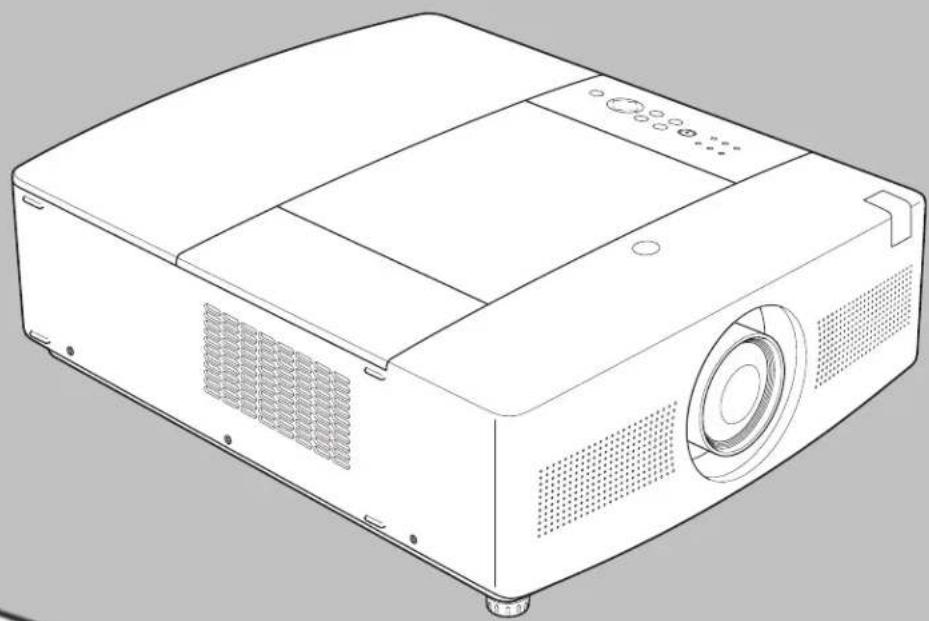
Multimedia Projector
MODEL PLC-XTC50L
*Projection lens is optional.
natural_image
Line drawing of a projector with ventilation grilles and a circular lens (no text or symbols)Owner's Manual
PJLink™
◆ Functionally Rich
This projector has many useful functions such as lens shifting, ceiling and rear projection, perpendicular omnidirectional projection, variety of lens options, etc.
◆ Auto Lamp Selection System
The projector is equipped with 2 projection lamps and automatically switches the active lamp between 2 lamps.(p.63)
◆ Multi-use Remote Control
Use the remote control as wired and wireless, or as a PC wireless mouse. Eight remote control codes and selectable pointer shapes are also available.
◆ Simple Computer System Setting
The projector has the Multi-scan system to conform to almost all computer output signals quickly (p.37). Supported resolution up to WUXGA.
◆ Useful Functions for Presentation
Digital zoom function allows you to focus on the crucial information during a presentation (pp.15, 47).
◆ Security Function
The Security function helps you to ensure security of the projector. With the Key lock function, you can lock the operation on the top control or remote control (p.56). PIN code lock functions prevents unauthorized use of the projector (pp.57–58).
♦ Lamp Control
Brightness of the projection lamp can be selected (p.52).
Power Management
The Power management function reduces power consumption and maintains lamp life (p.54).
◆ Multilanguage Menu Display
Operation menu is available in 12 languages; English, German, French, Italian, Spanish, Portuguese, Dutch, Swedish, Russian, Chinese, Korean, and Japanese (p.49).
◆ Network-capable
Through an optional Network Manager, you can operate and control the projector.
♦ Logo Function
The Logo function allows you to customize the screen logo (pp.49-51). You can capture an image for the screen logo and use it for the starting-up display or between presentations.
◆ Multiple Interface Terminals
The projector has several interface terminals that can support various types of equipment and signals (pp.11–12).
◆ Shutter Function
The projector is equipped with the shutter that provides complete blackness for a while the projected image is not needed with keeping the projector on. The Shutter management function allows you to set the timer. It prevents leaving the projector on with the shutter closed for a long time. (p.56)
◆ Automatic Filter Replacement Function
The projector monitors the condition of the filter and replaces a filter automatically when it detects the clogging.
√ Notes:
- The On-Screen Menu and figures in this manual may differ slightly from the product.
- The contents of this manual are subject to change without notice.
Table of Contents
Features and Design.... 2
Table of Contents 3
To the Owner 4
Safety Instructions 5
Air Circulation 6
Installing the Projector in Proper Directions 7
Positioning Precautions 7
Moving the Projector 8
Cautions in Handling the Projector 8
Compliance 9
Part Names and Functions.... 10
Front 10
Back 10
Bottom 10
Side Terminal 11
Top Control 13
Remote Control 14
Remote Control Battery Installation 16
Remote Control Receivers and Operating Range 16
Wired Remote Control 16
Remote Control Code 17
Installation 18
Adjustable Feet 18
Lens Installation 19
Connecting to a Computer (Digital and Analog RGB) 20
Connecting to Video Equipment (Video, S-video,
Component and RGB Scart) 21
Connecting for Audio Signal 22
Connecting the AC Power Cord 23
Basic Operation 24
Turning On the Projector 24
Turning Off the Projector 25
How to Operate the On-Screen Menu 26
Menu Bar 27
Operating with Projector Control 28
Sound Adjustment 29
Operating with Remote Control 30
Laser Pointer Function 32
Pointer Function 32
Wireless Mouse Operation 33
Input Selection 34
Input 34
Input Source Selection 35
Video System Selection 36
Computer Adjustment 37
Computer System Selection 37
Auto PC Adjustment 38
Manual PC Adjustment 39
Image Level Selection 41
Image Level Selection 41
Image Adjustment 42
Image Adjustment 42
Screen Adjustment 45
Screen Adjustment 45
Screen Size Adjustment (Computer Signals) 46
Screen Size Adjustment (Video, Component Signals) 48
Setting 49
Setting 49
Maintenance and Care 60
Filter Instructions 60
Replacing the Filter Cartridge 61
Resetting the Filter Counter 62
Resetting the Scroll Counter 62
Auto Lamp Selection System 63
Lamp Replacement 64
Warning Indicators 66
Cleaning the Projection Lens 67
Cleaning the Projector Cabinet 67
Appendix 68
Troubleshooting 68
Menu Tree 71
Indicators and Projector Condition 73
Compatible Computer Specifications 76
Technical Specifications 78
Optional Parts 79
PJ Link Notice 80
Configurations of Terminals 81
PIN Code Number Memo 82
Dimensions 83
Trademarks
Each name of corporations or products in this book is either a registered trademark or a trademark of its respective corporation.
Before installing and operating the projector, read this manual thoroughly.
The projector provides many convenient features and functions. Operating the projector properly enables you to manage those features and maintains it in good condition for many years to come.
Improper operation may result in not only shortening the product life, but also malfunctions, fire hazard, or other accidents.
If your projector seems to operate improperly, read this manual again, check operations and cable connections and try the solutions in the “Troubleshooting” section in the back of this manual. If the problem still persists, contact the dealer where you purchased the projector or the service center.

CAUTION: TO REDUCE THE RISK OF ELECTRIC SHOCK, DO NOT REMOVE COVER (OR BACK). NO USER-SERVICEABLE PARTS INSIDE EXCEPT LAMP REPLACEMENT. REFER SERVICING TO QUALIFIED SERVICE PERSONNEL.

THIS SYMBOL INDICATES THAT DANGEROUS VOLTAGE CONSTITUTING A RISK OF ELECTRIC SHOCK IS PRESENT WITHIN THIS UNIT.

THIS SYMBOL INDICATES THAT THERE ARE IMPORTANT OPERATING AND MAINTENANCE INSTRUCTIONS IN THE OWNER'S MANUAL WITH THIS UNIT.
The symbol mark and recycling systems described below apply to EU countries and do not apply to countries in other areas of the world.
Your product is designed and manufactured with high quality materials and components which can be recycled and/or reused.
The symbol mark means that electrical and electronic equipment, batteries and accumulators, at their end-of-life, should be disposed of separately from your household waste.
Note:
If a chemical symbol is printed beneath the symbol mark, this chemical symbol means that the battery or accumulator contains a heavy metal at a certain concentration. This will be indicated as follows: Hg: mercury, Cd: cadmium, Pb: lead In the European Union there are separate collection systems for used electrical and electronic equipment, batteries and accumulators.
Please, dispose of them correctly at your local community waste collection/recycling centre.
Please, help us to conserve the environment we live in!

READ AND KEEP THIS OWNER'S MANUAL FOR LATER USE.

Safety Precaution
WARNING: ● THIS APPARATUS MUST BE EARTHED
● TO REDUCE THE RISK OF FIRE OR ELECTRIC SHOCK, DO NOT EXPOSE THIS APPLIANCE TO RAIN OR MOISTURE.
- This projector produces intense light from the projection lens. Do not stare directly into the lens as much as possible, otherwise eye damage could result. Be especially careful that children do not stare directly into the beam.
- Install the projector in a proper position. Otherwise it may result in fire hazard.
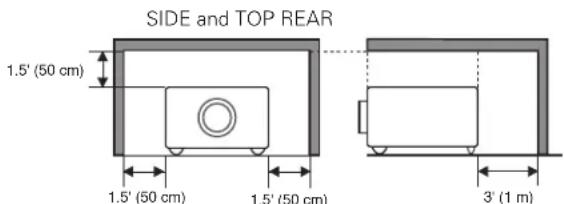
- Allowing the proper amount of space on the top, sides, and rear of the projector cabinet is critical for proper air circulation and cooling of the unit. The dimension shown here indicate the minimum space required. If the projector is to be built into a compartment or similarly enclosed, these minimum distances must be maintained.
- Do not cover the ventilation slot on the projector. Heat build-up can reduce the service life of your projector, and can also be dangerous.
- If the projector is unused for an extended time, unplug the projector from the power outlet.
- Do not project the same image for a long time. The afterimage may remain on the LCD panels by the characteristic of panel.

CAUTION ON HANGING FROM THE CEILING
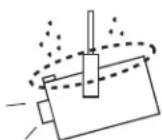
When hanging the projector from the ceiling, clean air intake vents, filters, or top of the projector periodically with a vacuum cleaner. If you leave the projector unclean for a long time, the cooling fans can be clogged with dust, and it may cause a breakdown or a disaster.
DO NOT SET THE PROJECTOR IN GREASY, WET, OR SMOKY CONDITIONS SUCH AS IN A KITCHEN TO PREVENT A BREAKDOWN OR A DISASTER. IF THE PROJECTOR COMES IN CONTACT WITH OIL OR CHEMICALS, IT MAY BECOME DETERIORATED.
CAUTION
Not for use in a computer room as defined in the Standard for the Protection of Electronic Computer/Data Processing Equipment, ANSI/NFPA 75.
All the safety and operating instructions should be read before the product is operated.
Read all of the instructions given here and retain them for later use. Unplug this projector from AC power supply before cleaning. Do not use liquid or aerosol cleaners. Use a damp cloth for cleaning.
Follow all warnings and instructions marked on the projector.
For added protection to the projector during a lightning storm, or when it is left unattended and unused for long periods of time, unplug it from the wall outlet. This will prevent damage due to lightning and power line surges.
Do not expose this unit to rain or use near water... for example, in a wet basement, near a swimming pool, etc...
Do not use attachments not recommended by the manufacturer as they may cause hazards.
Do not place this projector on an unstable cart, stand, or table. The projector may fall, causing serious injury to a child or adult, and serious damage to the projector. Use only with a cart or stand recommended by the manufacturer, or sold with the projector. Wall or shelf mounting should follow the manufacturer's instructions, and should use a mounting kit approved by the manufacturers.
An appliance and cart combination should be moved with care. Quick stops, excessive force, and uneven surfaces may cause the appliance and cart combination to overturn.

Slots and openings in the side and bottom of the cabinet are provided for ventilation, to ensure reliable operation of the equipment and to protect it from overheating.
The openings should never be covered with cloth or other materials, and the bottom opening should not be blocked by placing the projector on a bed, sofa, rug, or other similar surface. This projector should never be placed near or over a radiator or heat register.
This projector should not be placed in a built-in installation such as a book case unless proper ventilation is provided.
Never push objects of any kind into this projector through cabinet slots as they may touch dangerous voltage points or short out parts that could result in a fire or electric shock. Never spill liquid of any kind on the projector.
Do not install the projector near the ventilation duct of air-conditioning equipment.
This projector should be operated only from the type of power source indicated on the marking label. If you are not sure of the type of power supplied, consult your authorized dealer or local power company.
Do not overload wall outlets and extension cords as this can result in fire or electric shock. Do not allow anything to rest on the power cord. Do not locate this projector where the cord may be damaged by persons walking on it.
Do not attempt to service this projector yourself as opening or removing covers may expose you to dangerous voltage or other hazards. Refer all servicing to qualified service personnel.
Unplug this projector from wall outlet and refer servicing to qualified service personnel under the following conditions:
a. When the power cord or plug is damaged or frayed.
b. If liquid has been spilled into the projector.
c. If the projector has been exposed to rain or water.
d. If the projector does not operate normally by following the operating instructions. Adjust only those controls that are covered by the operating instructions as improper adjustment of other controls may result in damage and will often require extensive work by a qualified technician to restore the projector to normal operation.
e. If the projector has been dropped or the cabinet has been damaged.
f. When the projector exhibits a distinct change in performance-this indicates a need for service.
When replacement parts are required, be sure the service technician has used replacement parts specified by the manufacturer that have the same characteristics as the original part. Unauthorized substitutions may result in fire, electric shock, or injury to persons.
Upon completion of any service or repairs to this projector, ask the service technician to perform routine safety checks to determine that the projector is in safe operating condition.
NOTE FOR CUSTOMERS IN THE US
HgLAMP(S) INSIDE THIS PRODUCT CONTAIN MERCURY AND MUST BE RECYCLED OR DISPOSED OF ACCORDING TO LOCAL, STATE OR FEDERAL LAWS.
Air Circulation
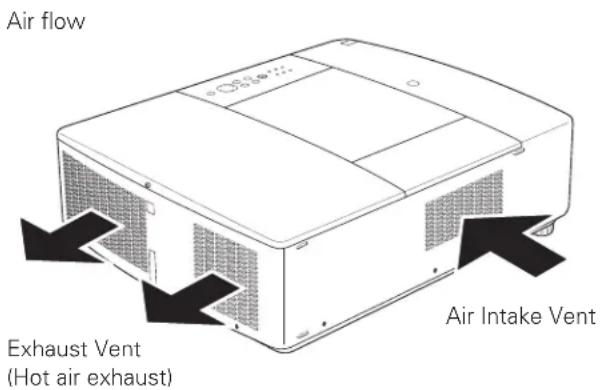
Openings in the cabinet are provided for ventilation. To ensure reliable operation of the product and to protect it from overheating, these openings must not be blocked or covered.

CAUTION
Hot air is exhausted from the exhaust vent. When using or installing the projector, the following precautions should be taken.
- Do not put any flammable object or spray can near the projector, hot air is exhausted from the air vents.
- Keep the exhaust vent at least 3' (1 ~m) away from any objects.
- Do not touch peripheral parts of the exhaust vent, especially screws and metallic parts. These areas will become hot while the projector is being used.
- Do not put anything on the cabinet. Objects put on the cabinet will not only get damaged but also may cause fire hazard by heat.
Cooling fans are provided to cool down the projector. The fans' running speed is changed according to the temperature inside the projector.
IMPORTANT!
Filter Maintenance!!
The projector uses a lamp which generates significant heat. The cooling fans and air vents are provided to dissipate the heat by drawing air into the housing and the filter is located in the intake vents to prevent dust from getting inside of the projector.
In order to care for the projector appropriately, regular cleaning is required. Remove any dirt or dust that has accumulated on the projector.
If the projector reaches a time set in the timer setting, a Filter replacement icon (Fig. 1) appears on the screen and WARNING FILTER indicator on the top panel lights up (see below), indicating that the filter replacement is necessary.
If the projector detects that the filter is clogged and no scroll is left in the filter cartridge, a Filter cartridge replacement icon (Fig. 2) appears on the screen and WARNING FILTER indicator on the top panel lights up (see below). Stop using the projector immediately and replace the filter cartridge.
Blocking the air vents and leaving the projector uncleaned for a long time may not only damage the projector and may require costly repairs but may also cause accidents or fire.
For maintenance of the filter, refer to "Filter counter" on page 59 and "Maintenance and Care" on pages 60–61.
Damages to the projector caused by using an uncleaned filter or improper maintenance will void the warranty on the projector.
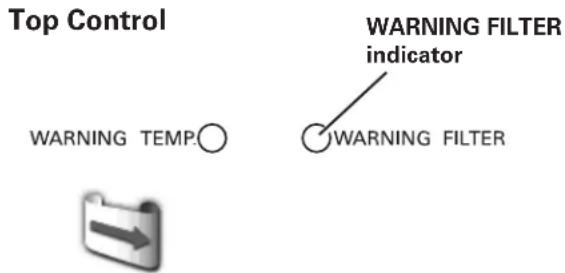
Fig.1 Filter replacement icon

Fig.2 Filter cartridge replacement icon
Installing the Projector in Proper Directions
Use the projector properly in specified positions. Improper positioning may reduce the lamp life and result in severe accident or fire hazard.
This projector can project the picture in upward, downward, or inclined position in perpendicular direction to the horizontal plane.
√Note:
- To inverse or reverse the image, set the ceiling function to "On." (p. 45)
Positioning Precautions
Avoid positioning the projector as described below when installing.
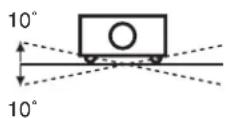
Do not tilt the projector more than 10 degrees from side to side.

Do not put the projector on either side to project an image.

In upward projection, do not tilt the projector over 10 degrees right and left.

In downward projection, do not tilt the projector over 10 degrees right and left.

CAUTION ON CEILING MOUNTING
For ceiling mounting, you need the ceiling mount kit designed for this projector. When not mounted properly, the projector may fall, causing hazards or injury. For details, consult your dealer. The warranty on this projector does not cover any damage caused by use of any non-recommended ceiling mount kit or installation of the ceiling mount kit in an improper location.
Moving the Projector
Use the hand grip when moving the projector.
Replace the lens cap and retract the adjustable feet to prevent damage to the lens and cabinet when carrying.
When the projector is not in use for an extended period, put it into a suitable case to protect the projector.

CAUTION IN CARRYING OR TRANSPORTING THE PROJECTOR
- Do not drop or bump the projector, otherwise damages or malfunctions may result.
- When carrying the projector, use a suitable carrying case.
- Do not transport the projector by courier or any other transport service in an unsuitable transport case. This may cause damage to the projector. For information about transporting the projector by courier or any other transport service, consult your dealer.
- Do not put the projector in a case before it is cooled enough.
- Do not transport the projector with a replacement lens installed.
Cautions in Handling the Projector
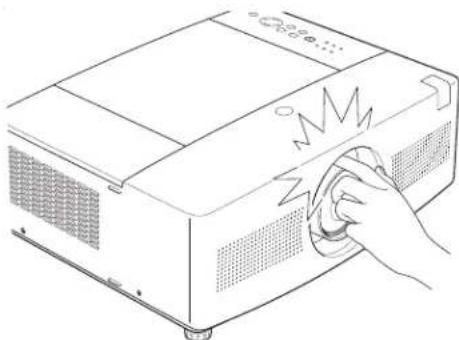
Do not hold the lens when lifting or moving the projector. Doing so may cause damage to the lens and the projector.
Care must be taken when handling the projector; do not drop, bump, subject it to strong forces, or put other things on the cabinet.

natural_image
Line drawing of two hands holding a device with a control panel and bubbles, no text or symbols present
natural_image
Illustration of a hand using a circular device to clean a microwave oven with a prohibition symbol (no text or labels)Do not hold the lens and the peripheral part.

CAUTION

Projection lens is a motorized lens. Please note the followings when using the projector.
- Do not touch the lens while it is moving as this could cause injury to the fingers.
● Never allow children to touch the lens.
natural_image
Line drawing of a portable electronic device with a hand operating the button (no text or symbols)Federal Communications Commission Notice
This equipment has been tested and found to comply with the limits for a Class B digital device, pursuant to Part 15 of the FCC Rules. These limits are designed to provide reasonable protection against harmful interference in a residential installation. This equipment generates, uses, and can radiate radio frequency energy and, if not installed and used in accordance with the instructions, may cause harmful interference to radio communications. However, there is no guarantee that interference will not occur in a particular installation. If this equipment does cause harmful interference to radio or television reception, which can be determined by turning the equipment off and on, the user is encouraged to try to correct the interference by one or more of the following measures:
- Reorient or relocate the receiving antenna.
– Increase the separation between the equipment and receiver. - Connect the equipment into an outlet on a circuit different from that to which the receiver is connected.
- Consult the dealer or an experienced radio/TV technician for help.
Use of shielded cable is required to comply with class B limits in Subpart B of Part 15 of FCC Rules.
Do not make any changes or modifications to the equipment unless otherwise specified in the instructions. If such changes or modifications should be made, you could be required to stop operation of the equipment.
Model Number(s) : PLC-XTC50L
Trade Name : Sanyo
Responsible party : SANYO FISHER COMPANY
Address : 21605 Plummer Street, Chatsworth, California 91311 U.S.A.
Telephone No. : (818)998-7322
AC Power Cord Requirement
The AC Power Cord supplied with this projector meets the requirement for use in the country you purchased it.
AC Power Cord for the United States and Canada:
AC Power Cord used in the United States and Canada is listed by the Underwriters Laboratories (UL) and certified by the Canadian Standard Association (CSA).
AC Power Cord has a grounding-type AC line plug. This is a safety feature to be sure that the plug will fit into the power outlet. Do not try to defeat this safety feature. Should you be unable to insert the plug into the outlet, contact your electrician.

AC Power Cord for the United Kingdom:
This cord is already fitted with a moulded plug incorporating a fuse, the value of which is indicated on the pin face of the plug. Should the fuse need to be replaced, an ASTA approved BS 1362 fuse must be used of the same rating, marked thus
If the fuse cover is detachable, never use the plug with the cover omitted. If a replacement fuse cover is required, ensure it is of the same colour as that visible on the pin face of the plug (i.e. red or orange). Fuse covers are available from the Parts Department indicated in your User Instructions. If the plug supplied is not suitable for your socket outlet, it should be cut off and destroyed. The end of the flexible cord should be suitably prepared and the correct plug fitted.
WARNING: A PLUG WITH BARED FLEXIBLE CORD IS HAZARDOUS IF ENGAGED IN A LIVE SOCKET OUTLET.
The Wires in this mains lead are coloured in accordance with the following code:
| Green-and-yellow | Earth |
| Blue | Neutral |
| Brown | Live |
As the colours of the wires in the mains lead of this apparatus may not correspond with the coloured markings identifying the terminals in your plug proceed as follows:
The wire which is coloured green-and-yellow must be connected to the terminal in the plug which is marked by the letter E or by the safety earth symbol 12 or coloured green or green-and-yellow.
The wire which is coloured blue must be connected to the terminal which is marked with the letter N or coloured black.
The wire which is coloured brown must be connected to the terminal which is marked with the letter L or coloured red.
WARNING: THIS APPARATUS MUST BE EARTHED.
THE SOCKET-OUTLET SHOULD BE INSTALLED NEAR THE EQUIPMENT AND EASILy ACCESSIBLE.
Part Names and Functions
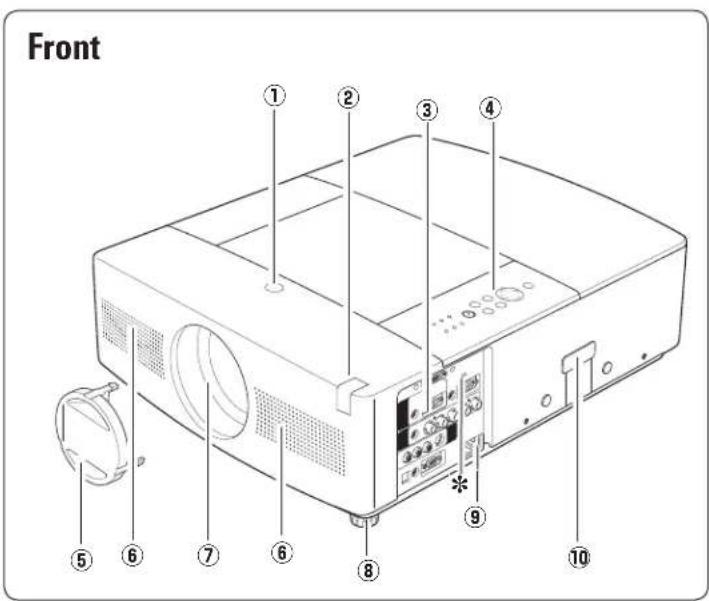
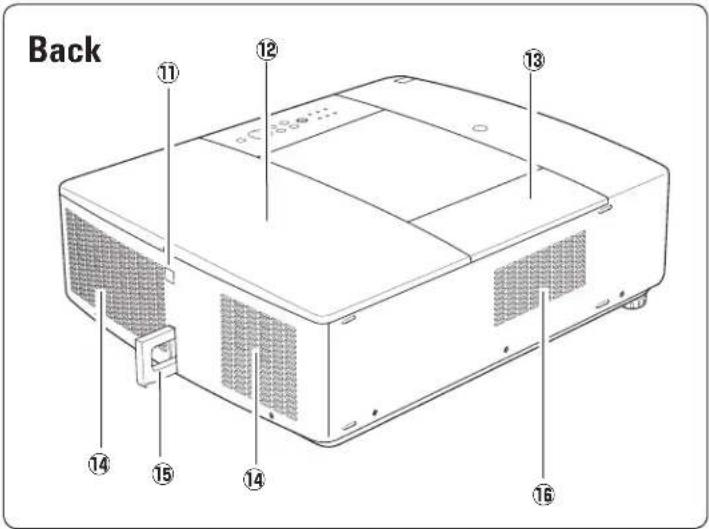

① Lens Release Button
② Infrared Remote Receiver (Top&Front)
③ Terminals and Connectors
④ Top Controls and Indicators
⑤ Lens Cover
⑥ Speaker
⑦ Projection Lens(Optional)
⑧ Adjustable Feet
⑨ Power Cord Connector
⑩ Optional Parts Attachment
⑪ Infrared Remote Receiver (Back)
⑫ Lamp Cover
⑬ Filter Cover
⑭ Exhaust Vent

CAUTION
Hot air is exhausted from the exhaust vent. Do not put heat-sensitive objects near this side.
\*Kensington Security Slot
This slot is for a Kensington lock used to deter theft of the projector.
* Kensington is a registered trademark of ACCO Brands Corporation.
⑮ Security Chain Hook
√Notes:
This is not a handle for carrying the projector. Do not carry the projector with this hook.
⑯ Air Intake Vent
⑰ Hand Grip
Side Terminal
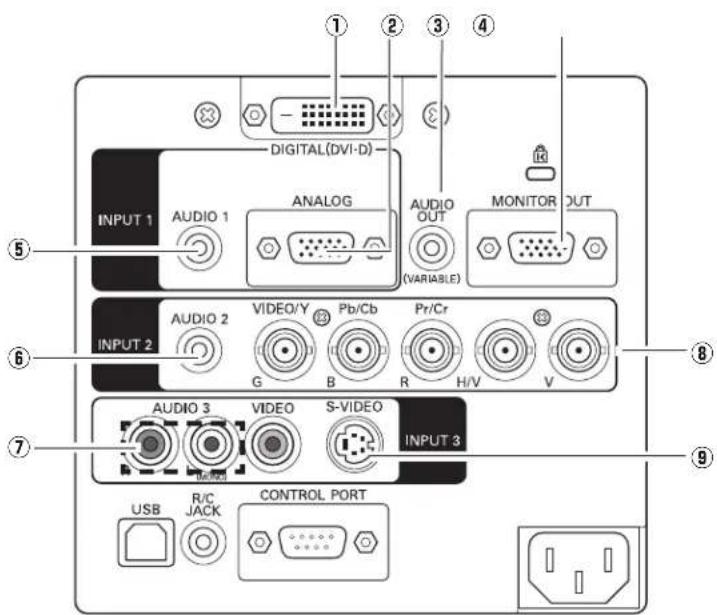
① COMPUTER INPUT TERMINAL (DIGITAL)
Connect the computer output signal (Digital DVI-D type) to this terminal. The HDTV (HDCP compatible) signal can also be connected (p.20).
② COMPUTER INPUT TERMINAL (ANALOG)
Connect the computer (or RGB scart) output signal to this terminal (p.20).
③ AUDIO MONITOR OUTPUT jACK (VARIABLE)
This jack outputs the audio signal from computer or video equipment to external audio equipment (p.22).
④ MONITOR OUTPUT TERMINAL (ANALOG)
This terminal outputs the video signal from computer to external video equipment (p.21).
⑤ AUDIO 1 jACK
Connect the audio output (stereo) signal from a computer or video equipment connected to ① or ② to this jack (p.22).
⑥ AUDIO 2 jACK
Connect the audio output (stereo) signal from a computer or video equipment connected to Ⓑ to this jack (p.22).
⑦ AUDIO 3 jACKS (L(MONO)/R)
Connect the audio output signal from video equipment connected to ⑨ or ⑫ to these jacks (p.22). For a mono audio signal (a single audio jack), connect it to the L (MONO) jack.
⑧ 5 BNC INPUT jACKS
Connect the component or composite video output signal from video equipment to VIDEO/Y, Cb/Pb, and Cr/Pr jacks or connect the computer output signal (5 BNC Type [Green, Blue, Red, Horiz. Sync, and Vert. Sync.]) to G, B, R, H/V, and V jacks (pp.20-21).
Connect the S-VIDEO output signal from video equipment to this jack (p.21).
Side Terminal

⑩ USB CONNECTOR (Series B)
Use this connector when controlling a computer with the remote control of the projector. Connect the USB terminal of your computer to this connector with the supplied USB cable (p.20).
⑪ R/C jACK
When using the wired remote control, connect the wired remote control to this jack with a remote control cable (not supplied).
⑫ VIDEO INPUT jACK
Connect the composite video output signal from video equipment to this jack (p.21).
⑬ CONTROL PORT CONNECTOR
When controlling the projector from a computer, connect the computer to this connector with a control cable.
Top Control
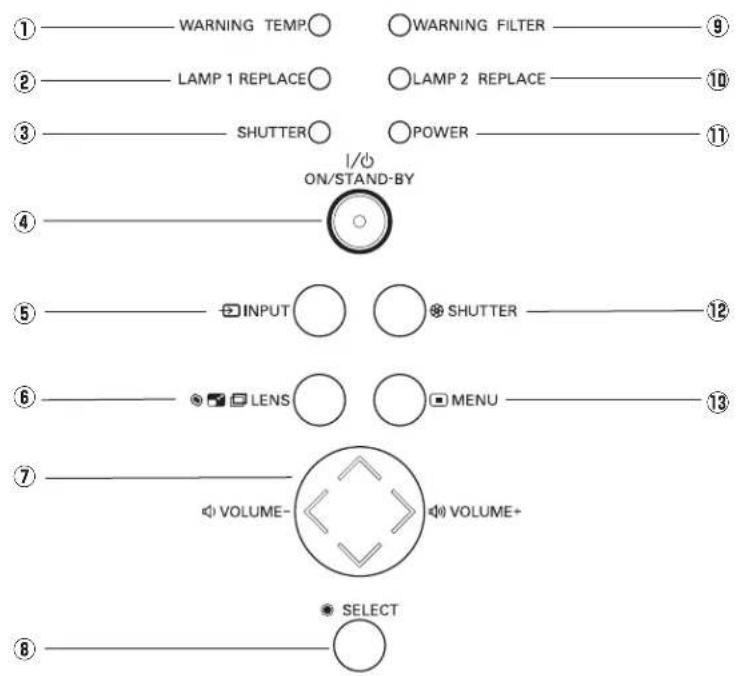
① WARNING TEMP. indicator
- Lights red light when the projector detects an abnormal condition or the filter cartridge is not installed. - Blinks red when the internal temperature of the projector exceeds the operating range (pp.66, 75).
② LAMP 1 REPLACE indicator
Turn yellow when the life of the projection lamp1 draws to an end. (pp.63-64, 74)
③ SHUTTER indicator
Light blue when the shutter is closed. (pp.73-75)
④ ON/STAND-By button
Turn the projector on or off (pp.24–25).
⑤ INPUT button
Select an input source (pp.34–35).
⑥ LENS button
Enter the focus, zoom, and lens shift adjustment mode (p.28).
⑦ POINT ▲▼◀▶ (VOLUME +/-) buttons
- Select an item or adjust the value in the On-Screen Menu (p.26). - Pan the image in Digital zoom + mode (p.47). - Adjust the volume level (Point ◀▶ buttons) (p.29).
⑧ SELECT button
- Execute the selected item (p.26). - Expand or compress the image in the Digital zoom mode (p.47).
⑨ WARNING FILTER indicator
- Blink slow when the filter is being scrolled (pp. 53, 73). - Blink fast when the filter scroll is not working properly or the filter cartridge is not installed (pp.59-60, 75). - Light orange when the clogging of the filter is detected or the filter counter reaches a time set in the timer setting, urging immediate filter/ filter cartridge replacement (pp.59-60, 75).
⑩ LAMP 2 REPLACE indicator
Turn yellow when the life of the projection lamp2 draws to an end. (pp.63-64, 74)
⑪ POWER indicator
- Light red while the projector is in stand-by mode. - Light green during operations. - Blink red during the cooling-off period. - Blink green in the Power management mode or the Shutter management mode(p.56).
⑫ SHUTTER button
Close and open up the built-in shutter.(pp.28, 56)
⑬ MENU button
Open or close the On-Screen Menu (p.26).
Remote Control
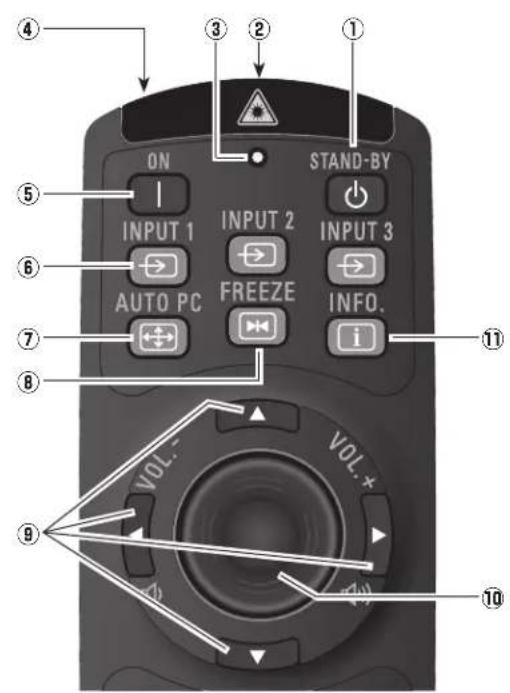
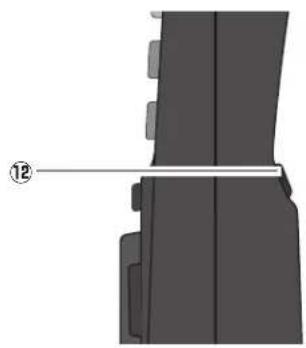
natural_image
Mechanical component diagram showing a cross-section with labeled dimension (12), no readable text or symbols present.① STAND-By button
Turn the projector off (p.25).
② WIRED REMOTE jack
Connect the remote control cable (not supplied) to this jack when using as a wired remote control.
③ SIGNAL EMISSION indicator
Light red while the laser beam is being emitted from the laser light window or a signal is being sent from the remote control to the projector (p.32).
④ LASER LIGHT window
A laser beam is emitted from here (p.32).
⑤ ON button
Turn the projector on (p.24).
⑥ INPUT 1 - 3 buttons
Select an input source (INPUT 1 - INPUT 3) (pp.34-35).
⑦ AUTO PC button
Automatically adjusts the computer image to its optimum setting (pp.30, 38).
⑧ FREEZE button
Freeze the picture on the screen (p.30).
⑨ POINT ▲▼ ◀▶ (VOLUME + / - ) buttons
- Select an item or adjust the value in the On-Screen Menu (p.26).
- Pan the image in Digital zoom + mode (p.47)
- Adjust the volume level (with Point ◀▶ buttons) (p.29).
⑩ PRESENTATION POINTER button
Move a pointer of the projector or a pointer for wireless mouse operation (pp.32–33).
⑪ INFO. button
Display the input source information (p.30).
⑫ L-CLICK button
Act as the left mouse button for wireless mouse operation (p.33).
To ensure safe operation, observe the following precautions:
- Do not bend, drop, or expose the remote control to moisture or heat.
- For cleaning, use a soft dry cloth. Do not apply benzene, thinner, spray, or any other chemical materials.
Remote Control
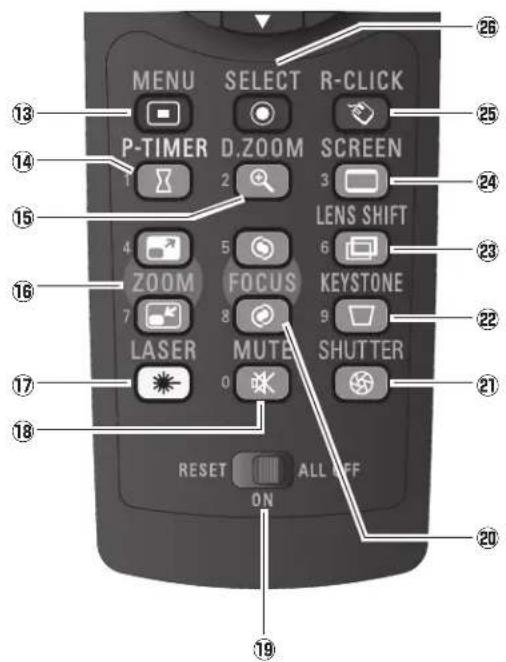
⑬ MENU button
Open or close the On-Screen Menu (p.26).
⑭ P-TIMER button
Operate the P-timer function (p.31).
⑮ D.ZOOM button
Select the Digital zoom +/- mode and resize the image (pp.30,47).
⑯ ZOOM ▲▼ buttons
Zoom in and out the images (p.30).
⑰ LASER button
- Operate the Laser pointer function. Laser beam is emitted while pressing this button for one minute. When using the laser pointer for more than one minute, release the LASER button and press it again (p.32).
- Display the Pointer on the screen (p.32).
⑱ MUTE button
Mute the sound (p.29).
⑲ RESET/ON/ALL-OFF switch
When using the remote control, set this switch to "ON." Set it to "ALL OFF" for power saving when it is not in use. Slide this switch to "RESET" to initialize the remote control code or switch the Spotlight and Pointer to the Laser pointer function (p.32).
⑳ FOCUS button
Adjust the focus (pp.28,30).
②1 SHUTTER button
Close the built-in shutter for light blocking.(pp.28,56)
② KEySTONE button
Correct keystone distortion (p.31).
②3 LENS SHIFT button
Select the Lens Shift function (p.28).
24 SCREEN button
Select the screen size (p.30).
25 R-CLICK button
Act as the right mouse button for wireless mouse operation (p.33).
⑳ SELECT button
- Execute the selected item (p.26).
- Expand or compress the image in the Digital zoom mode (p.47).
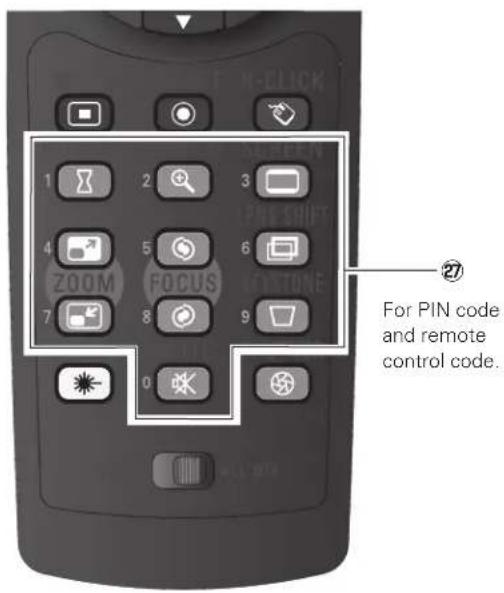
⑳ NUMBER buttons
Act as number buttons. Use these buttons when setting the remote control codes (p.17) or when entering the PIN code numbers (pp. 24, 49–51, 56-58).
Remote Control Battery Installation
123 Open the battery compartment lid.
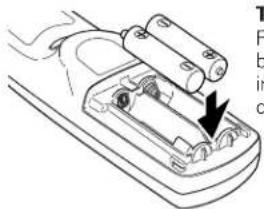
Install new batteries into the compartment.
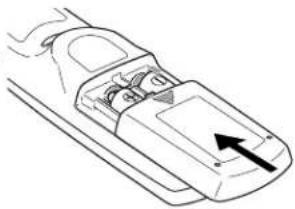
Replace the compartment lid.
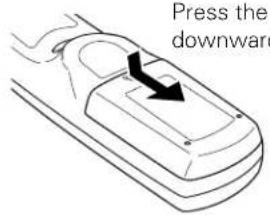
Press the lid downward and slide it.
natural_image
Line drawing of a car interior showing a hand holding a battery and a black arrow indicating a component (no text or symbols)Two AAA size batteries For correct polarity (+ and -), be sure battery terminals are in contact with pins in the compartment.
natural_image
Line drawing of a car interior component with an arrow indicating direction (no text or symbols)
To ensure safe operation, please observe the following precautions:
● Use two (2) AAA or LR03 type alkaline batteries.
● Always replace batteries in sets.
● Do not use a new battery with a used battery.
● Avoid contact with water or liquid.
- Do not expose the remote control to moisture or heat.
- Do not drop the remote control.
- If the battery has leaked on the remote control, carefully wipe the case clean and install new batteries.
● Risk of an explosion if battery is replaced by an incorrect type.
● Dispose of used batteries according to the instructions.
Remote Control Receivers and Operating Range
Point the remote control toward the projector (to Infrared Remote Receivers) when pressing the buttons. Maximum operating range for the remote control is about 16.4' (5 m) and 60 degrees in front and rear of the projector.
Infrared Remote Receivers are provided both in front and back of the projector. You can conveniently use both of the receivers (see pages 10, 53).
√Notes:
- When hanging the projector from the ceiling, select the Infrared Remote Receiver which is located farther away from the fluorescent light (p.53).
- When using the projector in the horizontal position without hanging from the ceiling, it is recommended to deactivate the top Infrared Remote Receiver to avoid the effects of the fluorescent light (p.53).


Wired Remote Control
The remote control can be used as a wired remote control. Wired remote control helps you use the remote control outside of the operating range (16.4'/5 m). Connect the remote control and the projector with the remote control cable (sold separately). Connected with the remote control cable, the remote control does not emit wireless signal.
Remote Control Code
The eight different remote control codes (Code 1–Code 8) are assigned to this projector. Switching the remote control codes prevents interference from other remote controls when several projectors or video equipment next to each other are operated at the same time. Change the remote control code for the projector first before changing that for the remote control. See "Remote control" in the Setting Menu on page 53.
1 Press and hold the MENU and a number button (1–8) for more than five seconds to switch between the codes.
2 To initialize the remote control code, slide the RESET/ON/ALL-OFF switch to "RESET," and then to "ON." The initial code is set to Code 1.
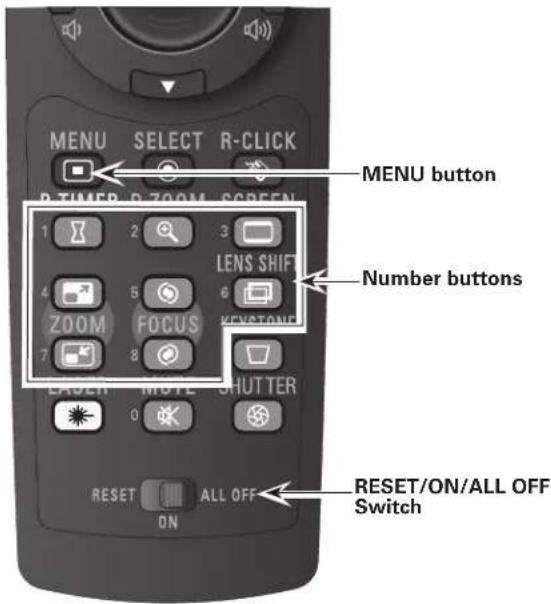
Press and hold the MENU and a number button (1–8) that corresponds to the remote control code for more than five seconds to switch between the codes.
√Notes:
- When using as a wired remote control while the standby mode is set to "Eco", the same remote control code should be set on both the projector and the remote control to turn on the projector. (p.54)
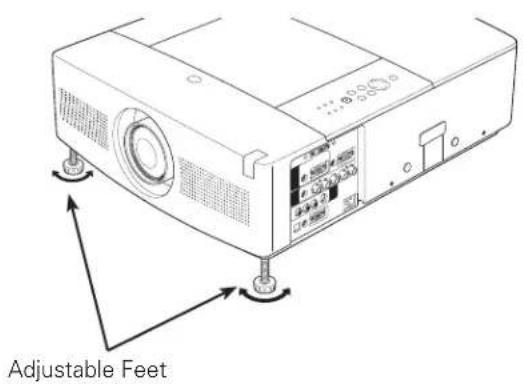
Adjustable Feet
Projection angle can be adjusted up to 3.5 degrees with the adjustable feet.
Rotate the adjustable feet and tilt the projector to the proper height; to raise the projector, rotate the both feet clockwise.
To lower the projector or to retract the adjustable feet, rotate the both feet counterclockwise.
To correct keystone distortion, press the KEYSTONE button on the remote control or select Keystone from the menu (see pages 15, 31, 45).
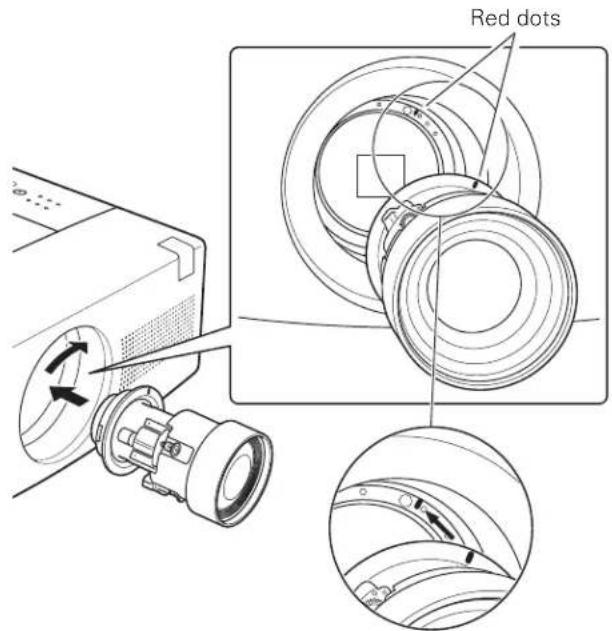
Lens Installation
When replacing the lens or using an optional lens, install the lens by following the instructions below. Ask the sales dealer for detailed information of the optional lens specifications.
Removing the lens
1 Shift the lens to the center position by using the Lens shift function (see page 28).
2 Turn off the projector and unplug the AC power cord.
3 While pressing the Lens release button on the top of the cabinet, turn the lens counterclockwise until it stops and pull it out slowly from the projector.

CAUTION
Be careful when handling the lens. Do not drop.


natural_image
Technical line drawing of a projector with a circular component and lens (no text or symbols)Attaching the lens to the projector
1 Remove the lens mount cover.
2 Fit the lens to the projector by aligning the red dot on the lens with the red dot of the projector.
3 Slowly turn the lens clockwise until it clicks. Make sure that the lens is fully inserted to the projector.

CAUTION
Do not press the lens release button when attaching the lens.
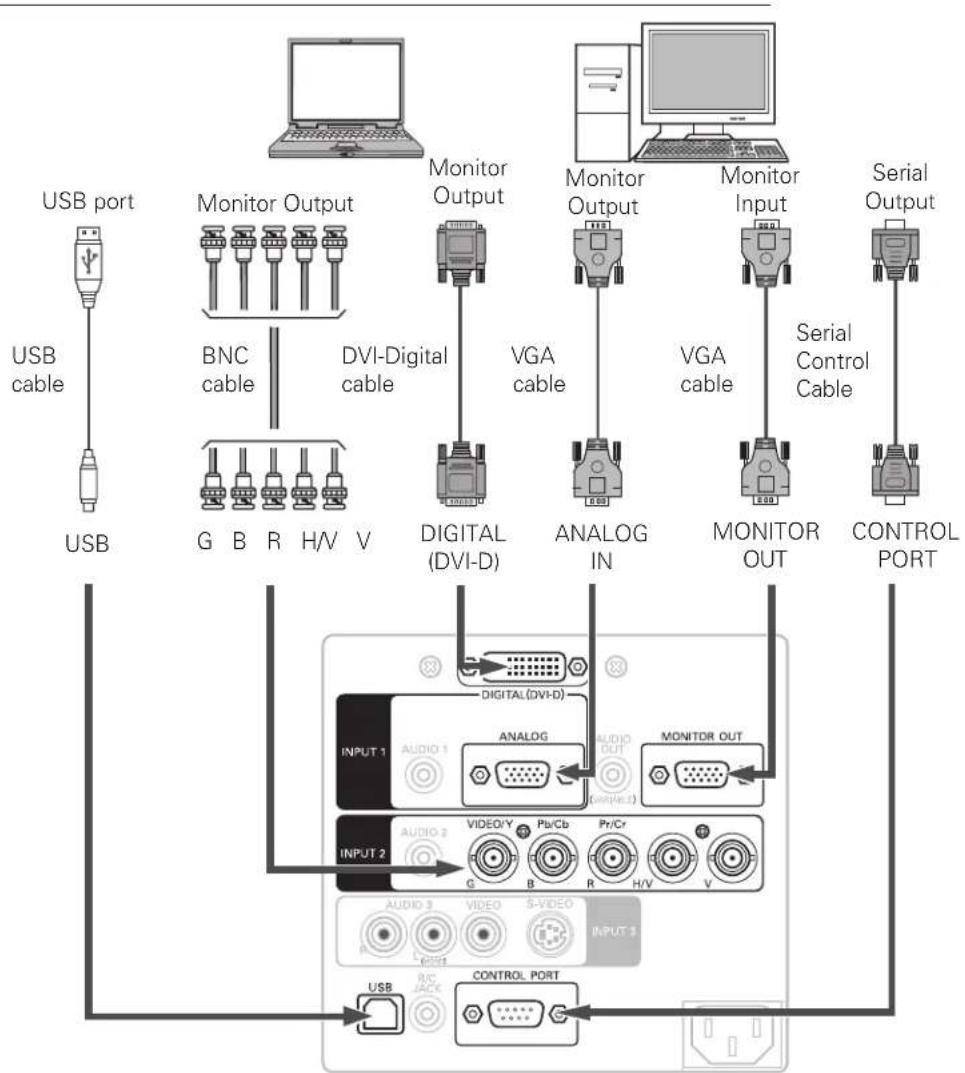
Connecting to a Computer (Digital and Analog RGB)
Cables used for connection )(*=Cables are not supplied with this projector.)
- VGA Cable (Mini D-sub 15 pin) (One cable is supplied)*
- DVI-Digital Cable * - Serial Control Cable *
- BNC Cable * • USB Cable *
flowchart
graph TD
    A["USB"] --> B["USB port"]
    B --> C["BNC cable"]
    C --> D["G B R H/V V"]
    D --> E["DVI-Digital cable"]
    E --> F["MONITOR OUTPUT"]
    F --> G["VGA cable"]
    G --> H["ANALOG IN"]
    H --> I["MONITOR OUT"]
    I --> J["CONTROL PORT"]
    K["MONITOR OUTPUT"] --> L["MONITOR INPUT"]
    M["MONITOR INPUT"] --> N["Serial Control Cable"]
    O["Serial Output"] --> P["CONTROL PORT"]
    Q["CONTROL PORT"] --> R["CONTROL PORT"]
    S["CONTROL PORT"] --> T["CONTROL PORT"]
    U["CONTROL PORT"] --> V["CONTROL PORT"]
    W["CONTROL PORT"] --> X["CONTROL PORT"]
    Y["CONTROL PORT"] --> Z["CONTROL PORT"]
    AA["CONTROL PORT"] --> AB["CONTROL PORT"]
√Notes:
- USB cable connection is needed when operating the computer with the remote control.
- When the Standby mode is set to "Eco" in the Setting, MONITOR OUT and AUDIO OUT are disabled. (p.54)
• See page 79 for ordering optional cables.

Unplug the power cords of both the projector and external equipment from the AC outlet before connecting cables.
Connecting to Video Equipment (Video, S-video, Component and RGB Scart)
Cables used for connection
• Video Cable (RCA x 1) • VGA-Scart Cable
• S-VIDEO Cable • BNC Cable
• DVI-Digital Cable
(Cables are not supplied with the projector.)
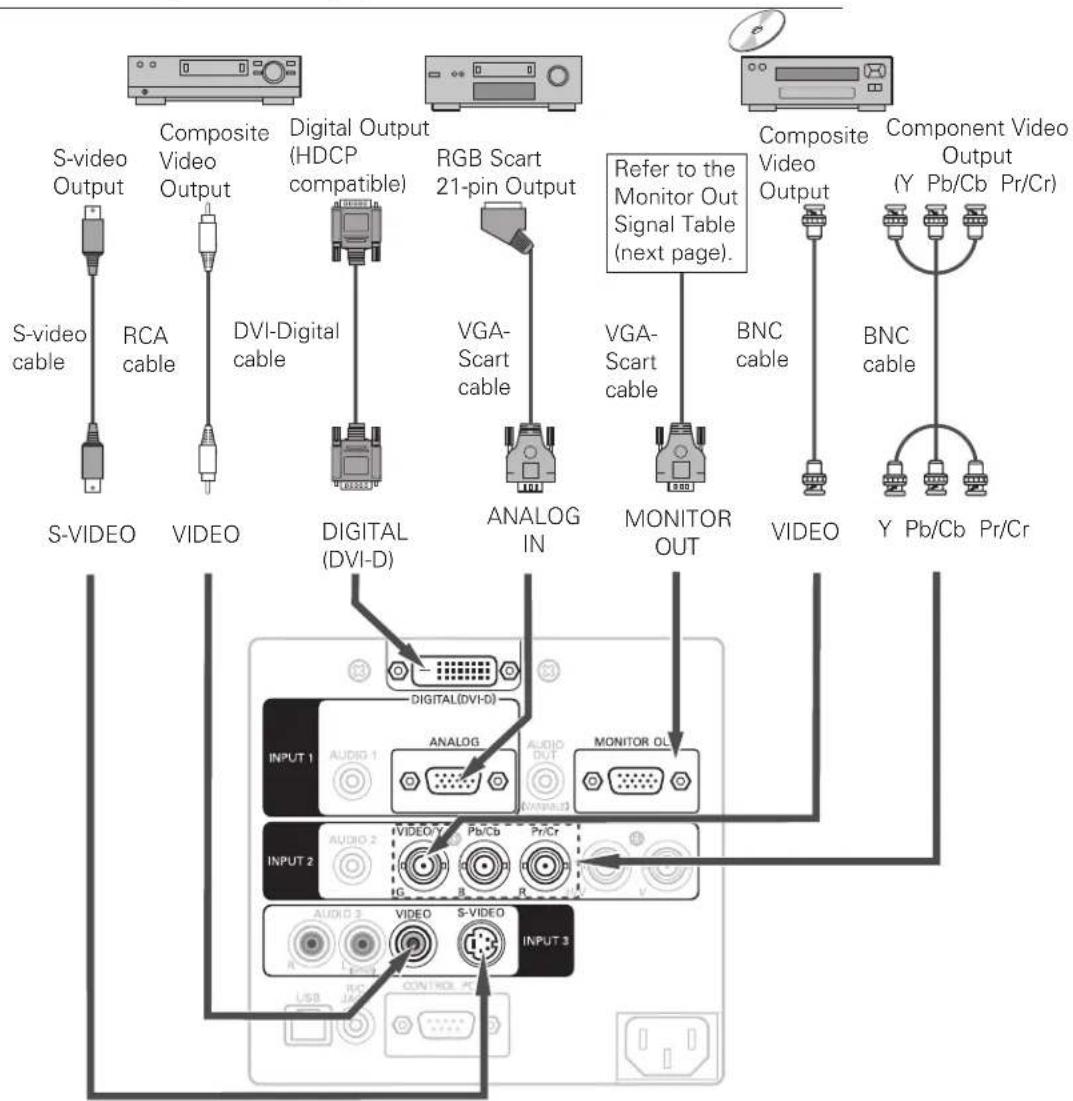
√Notes:
- The S-VIDEO jack connection overrides the VIDEO jack connection when selecting AUTO in the Input Menu (p.35).
- When the Standby mode is set to "Eco" in the Setting,
MONITOR OUT and AUDIO OUT are disabled. (p.54)
• See page 79 for ordering optional cables.

Unplug the power cords of both the projector and external equipment from the AC outlet before connecting cables.
Connecting for Audio Signal
Cables used for connection
• Audio Cable (Mini Plug [stereo] x 2)
• Audio Cable (RCA x 2)
(Cables are not supplied with the projector.)
MONITOR OUT and AUDIO OUT Specifications
| Selected Input | MONITOR OUT Terminal | AUDIO OUT Terminal |
| Input 1 Input 1(D-Sub) Input 1 | ||
| Input 2 Input 2(5-BNC) Input 2 | ||
| Input 3 Input 1 or Input 2 * | Input 3 | |
| Network Input 1 or Input 2 * | NIL |
* Between Input1 and Input2, the last selected Input is output to MONITOR OUT terminal.

flowchart
graph TD
    A["External Audio Equipment"] --> B["Audio Input"]
    B --> C["Audio Output"]
    C --> D["Audio cable (Stereo)"]
    D --> E["Audio IN"]
    E --> F["OUTPUT 1"]
    F --> G["ANALOG"]
    G --> H["AUDIO OUT (VARIABLE)"]
    H --> I["VIDEO Y"]
    I --> J["VIDEO"]
    J --> K["CONTROL PORT"]
    L["OUTPUT 2"] --> M["VIDEO 2"]
    M --> N["VIDEO"]
    N --> O["CONTROL PORT"]
    P["OUTPUT 3"] --> Q["VIDEO 3"]
    Q --> R["CONTROL PORT"]
    S["External Audio Equipment"] --> T["Audio cable (Stereo)"]
    T --> U["OUTPUT 1"]
    U --> V["ANALOG"]
    V --> W["AUDIO OUT (VARIABLE)"]
    X["External Audio Equipment"] --> Y["Audio Input"]
    Y --> Z["VIDEO"]
    Z --> AA["CONTROL PORT"]
√Notes:
- When the AUDIO OUT is plugged-in, the projector's built-in speaker is not available.
- When the Standby mode is set to "Eco" in the Setting, MONITOR OUT and AUDIO OUT are disabled. (p.54)

Unplug the power cords of both the projector and external equipment from the AC outlet before connecting cables.
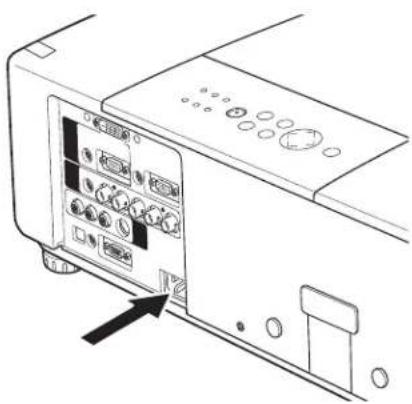
Connecting the AC Power Cord
This projector uses nominal input voltages of 100–120 V or 200–240 V AC and it automatically selects the correct input voltage. It is designed to work with single-phase power systems having a grounded neutral conductor. To reduce the risk of electrical shock, do not plug into any other type of power system.
If you are not sure of the type of power being supplied, consult your authorized dealer or service station.
Connect the projector with all peripheral equipment before turning the projector on.

CAUTION
The AC outlet must be near this equipment and must be easily accessible.
natural_image
Diagram of a device rear panel with control buttons and an arrow pointing to the front panel (no text or symbols present)Connect the AC power cord (supplied) to the projector.
√ Note:
- Unplug the AC power cord when the projector is not in use. When the projector is connected to an outlet with the AC power cord, it is in stand-by mode and consumes a little electric power.
AC power cord must meet the requirements of the country where you use the projector. Confirm the AC plug type with the chart below and proper AC power cord must be used. If the supplied AC power cord does not match your AC outlet, contact your sales dealer.
| Projector side AC outlet side | |||
 To power cordconnector on yourprojector. To power cordconnector on yourprojector. | 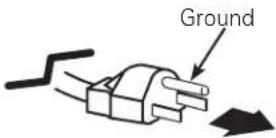 To the AC outlet.(120 V AC) To the AC outlet.(120 V AC) | For Continental Europe For the U.S. For the CaKada To the AC outlet.(200–240 V AC) To the AC outlet.(200–240 V AC) |  AC outlet.(200–240 V AC) AC outlet.(200–240 V AC) |
Turning On the Projector
1 Complete peripheral connections (with a computer, VCR, etc.) before turning on the projector.
2 Connect the projector's AC power cord into an AC outlet. The POWER indicator lights red.
3 Press the ON/STAND-BY button on the top control or the ON button on the remote control. The POWER indicator turns green and the cooling fans start to operate. The preparation display appears on the screen and the count down starts.
4 After the countdown, the input source that was selected the last time and the lamp control and status icons (see pages 52,63) appear on the screen.
If the projector is locked with a PIN code, PIN code input dialog box will appear. Enter the PIN code as instructed below.
Enter a PIN code
Use the Point ▲▼ buttons on the top control or Number buttons on the remote control to enter a number.
When using top control
Use the Point ▲▼ buttons on the top control to select a number. Press the Point ▶ button to fix the number and move the red frame pointer to the next box. The number changes to “*.” Repeat this step to complete entering a four-digit number. After entering the four-digit number, move the pointer to “Set.” Press the SELECT button so that you start to operate the projector.
When using remote control
Press the Number buttons on the remote control to enter a number (p.15). When you complete entering a four-digit number, the pointer moves to "Set." Press the SELECT button so that you can start to operate the projector.
If you fixed an incorrect number, use the Point ◀ button to move the pointer to the number you want to correct, and then enter the correct number.
If you entered an incorrect PIN code, "PIN code" and the number (****) will turn red for a moment. Enter the correct PIN code all over again.
What is PIN code?
PIN (Personal Identification Number) code is a security code that allows the person who knows it to operate the projector. Setting a PIN code prevents unauthorized use of the projector.
A PIN code consists of a four-digit number. Refer to the PIN code lock function in the Setting Menu on page 57 for locking operation of the projector with your PIN code.
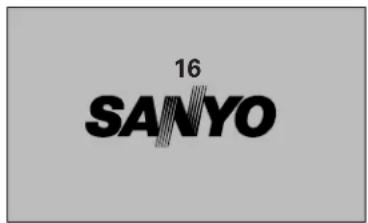
The preparation display will disappear after 20 seconds.
Selected Input Source and Lamp Control
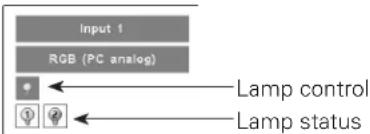
See pages 52,63 for the Lamp control and status.
√Note:
- The Filter warning and Lamp replacement icons may appear on the screen depending on the usage state of the projector.
PIN Code Input Dialog Box
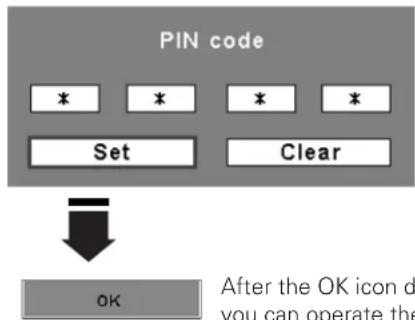
flowchart
graph TD
    A["SET"] --> B["OK"]
    C["Clear"] --> B
    D["*"] --> E["*"]
    F["*"] --> G["*"]
    H["*"] --> I["*"]
    J["After the OK icon d you can operate the"]
√ Notes:
- When the Logo select function is set to "Off," the logo will not be shown on the screen (p.49)
- When the "Countdown off" or "Off" is selected in the Display function, the countdown will not be shown on the screen (p.54).
- During the countdown period, all operations are invalid.
- If the OK icon does not appear within three minutes after the PIN code dialog box appeared, the projector will be turned off automatically.
- The "1234" is set as the initial PIN code at the factory.

CAUTION ON HANDLING PIN CODE
If you forget your PIN code, the projector can no longer be started. Take a special care in setting a new PIN code; write down the number in a column on page 82 of this manual and keep it on hand. Should the PIN code be missing or forgotten, consult your dealer or service center.
Turning Off the Projector
1 Press the ON/STAND-BY button on the top control or the STAND-BY button on the remote control, and "Power off?" appears on the screen.
2 Press the ON/STAND-BY button or the STAND-BY button on the remote control again to turn off the projector. The POWER indicator starts to blink red. After the projector is turned off, the cooling fans operates for 90 seconds. During the POWER indicator is blinking, you cannot turn on the projector.
3 When the projector has cooled down enough, the POWER indicator stops blinking and you can turn on the projector. After it is cooled down completely, unplug the AC power cord.

TO MAINTAIN LIFE OF THE LAMP, ONCE YOU TURN THE PROJECTOR ON, WAIT AT LEAST FIVE MINUTES BEFORE TURNING IT OFF. DO NOT UNPLUG THE AC POWER CORD WHILE THE COOLING FANS ARE RUNNING OR BEFORE THE POWER INDICATOR STOPS BLINKING. OTHERWISE IT WILL RESULT IN SHORTENING THE LAMP LIFE.

DO NOT OPERATE THE PROJECTOR CONTINUOUSLY WITHOUT REST. CONTINUOUS USE MAY RESULT IN SHORTENING THE LAMP LIFE. TURN OFF THE PROJECTOR AND LET STAND FOR ABOUT AN HOUR IN EVERY 24 HOURS.
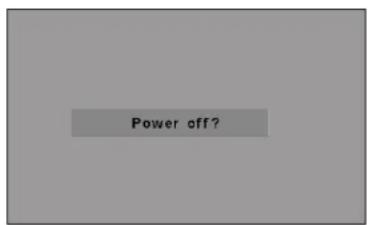
"Power off?" disappears after 4 seconds.
√ Notes:
- When the On start function is set to "On," the projector will be turned on automatically by connecting the AC power cord to an AC outlet (p.55).
- The running speed of cooling fans is changed according to the temperature inside the projector.
- Do not put the projector in a case before the projector is cooled enough.
- If the WARNING TEMP. indicator blinks or emits red light, see "Warning Indicators" on page 66.
- While the POWER indicator is blinking, the lamp is being cooled down and the projector cannot be turned on. Wait until the POWER indicator stops blinking to turn on the projector again.
How to Operate the On-Screen Menu
The projector can be adjusted or set via the On-Screen Menu. For each adjustment and setting procedure, refer to the respective sections in this manual.
1 Press the MENU button on the top control or the remote control to display the On-Screen Menu.
2 Use the Point ◀▶ buttons to select a Menu icon. Use the Point ▲▼ buttons to select an item in the selected menu.
3 Press the SELECT button to show the item data. Use the Point ◀▶ buttons to adjust the values.
To close the On-Screen Menu, press the MENU button again.
√ Note:
- The selected item is not active until the SELECT button is pressed.
Top Control

Remote Control

On-Screen Menu
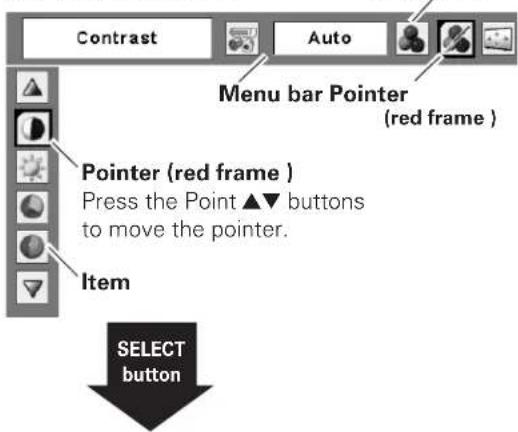
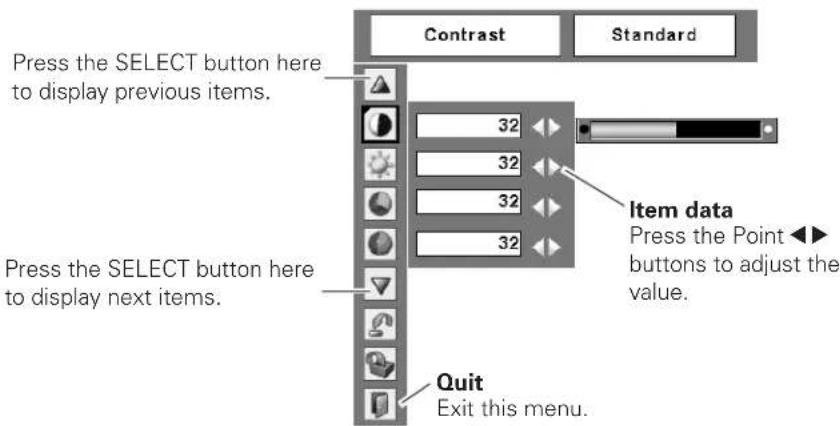
Menu Bar
For detailed functions of each menu, see "Menu Tree" on pages 71-72.
*The menu bar displays changes depending on the input signals.
Guide Window
Show the selected Menu of the On-Screen Menu.
System
Select a computer or video system mode (pp.36, 37).
[PC Adjust]
Adjust parameters to match with an input signal format (pp.38–40)
Image Adjust
Adjust the picture image (pp.42–44).
- Contrast
- Brightness
-
Setting Menu
Set the projector's operating configurations (pp.49–59). - Language - Logo - Background - Lamp mode - Lamp control - Filter control - Pointer - Remote Control - RC sensor - Display - Standby mode - Power management - On start - Slant - Shutter - Security - Test pattern - Warning log - Filter counter - Factory default - Quit
Input
Select either Computer or Video for input source (pp.34–35).
Image
Select an image level (p. 41).
- Dynamic
- Standard
- [Real]
-
Screen
Adjust the screen (pp.45–48). - Keystone - Ceiling - Rear - Normal - [True] - Wide - [Full screen] - Custom - [Digital zoom +/-]
Sound
Adjust the volume or mute the sound (p.29).
Information
Display the input source information (p.30).
Note: [For PC input only.]
Operating with Projector Control
Lens Operation
The following lens operation can be made with the Lens button on the top control.
Press the Lens button to enter each lens operation mode. The selected adjustment display appears on the screen.
Zoom → Focus → Lens Shift →……
Zoom Adjustment
Display "Zoom" on the screen. Use the Point ▲▼ buttons to zoom in and out the image.
Focus Adjustment
Display "Focus" on the screen. Use the Point ▲▼ buttons to adjust focus of the image.
Lens Shift Adjustment
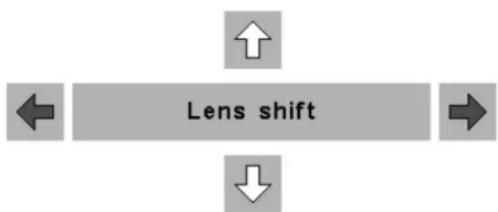
Display "Lens shift" on the screen. Use the Point ▲▼◀▶ buttons to position the screen to the desired point without having picture distortion.
The screen can be moved up or down to 50 percent, or sideways up to 15 percent from the central axis of the lens shift.
√Note:
- The arrow disappears at the maximum lens shift in each direction.
Shutter Function
Shutter function allows you to completely block out light to the screen. Press the SHUTTER button to close the shutter inside the projector. To open up the shutter, press the SHUTTER button again. Refer to p.56 for detail of setting for the Shutter function.
√Note:
- The SHUTTER button on the top control and the remote control cannot be effective when Shutter Protection is "On" in the Setting menu. (p.56)
- The SHUTTER indicator on the projector's top lights blue when the shutter is closed. (p.13)
- The projector will shut down automatically when the set time on Shutter management has passed. (p56)
- The Power management function does not work when the shutter is closed.(pp.54-55)
Top Control

flowchart
graph TD
    A["Left Arrow"] --> B["Lens shift"]
    C["Right Arrow"] --> B
    D["Down Arrow"] --> B
Sound Adjustment
Direct Operation
Volume
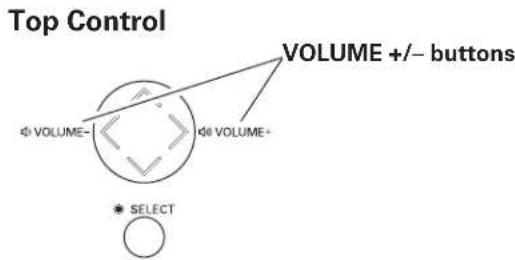
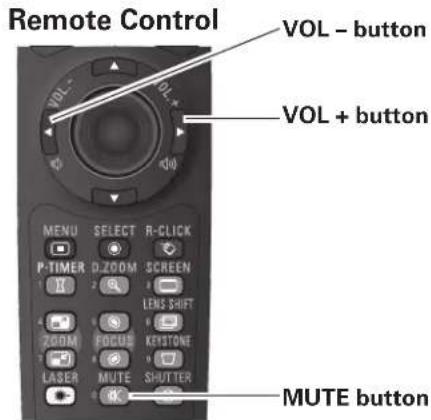
Press the VOLUME+/- buttons on the top control or on the remote control to adjust the volume. The volume dialog box appears on the screen for a few seconds.
Mute
Press the MUTE button on the remote control to temporarily turn off the sound. To turn the sound back on, press the MUTE button again or press the VOLUME +/- buttons. The Mute function is also effective for the AUDIO OUT jack.
Menu Operation
1 Press the MENU button to display the On-Screen Menu. Use the Point ◀▶ buttons to move the red frame pointer to the Sound Menu icon.
2 Use the Point ▲▼ buttons to move the red frame pointer to the desired item, and then press the SELECT button.

Volume
Press the Point ▶ button to turn up the volume; press the Point ◀ button to turn down the volume.

Mute
Press the Point ◀▶ buttons to switch the mute function On/Off. When the sound is turned off, "On" is displayed. Press the Point ◀▶ buttons again to turn the sound back on.
Volume Dialog Box

Press the MUTE button to set the Mute function On or Off. The dialog box disappears after 4 seconds.
Sound Menu

Operating with Remote Control
Using the remote control for some frequently used operations is advisable. Just pressing one of the buttons enables you to make the desired operation quickly without calling up the On-Screen Menu.
FREEZE button
Press the FREEZE button on the remote control to freeze the picture on the screen. To cancel the Freeze function, press the FREEZE button again or press any other button.
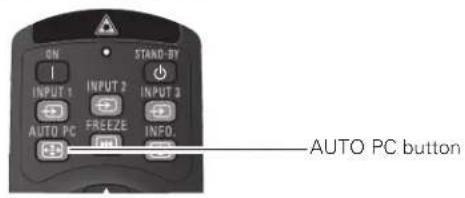
AUTO PC button
Press the AUTO PC button on the remote control to operate the Auto PC Adj. function. The computer screen adjustment can be done easily by pressing this button. See page 38 for details.
INFO. button
Information display can be used to confirm the current operating condition of the projector and the signal being projected through the projector.
Press the INFO. button on the remote control to display the information window on the screen. To hide the information window, press the INFO. button again or Point ◀▶ buttons.
The information window can also be selected from the menu.
D.ZOOM button
Press the D.ZOOM button on the remote control to enter to the Digital zoom +/- mode. See page 47 for details.
SCREEN button
Press the SCREEN button on the remote control to select the desired screen size. The selected screen size symbol appears on the screen for 4 seconds. See pages 45–48 for details.
LENS SHIFT button
See page 28 for details.
ZOOM buttons
Press the ZOOM buttons on the remote control to zoom in and out the image.
FOCUS buttons
Press the FOCUS buttons on the remote control to adjust focus of the image.
Remote Control

√Note:
• See the next page for the description of other buttons.
Information Menu


* The H- and V-sync freq. values described in this figure may be different from the actual values.
SHUTTER button
See pages 28 and 56 for details.
Remote Control

√Note:
• See the previous page for the description of other buttons.
P-TIMER button
Press the P-TIMER button on the remote control. The P-Timer display "00:00" appears on the screen and the countdown starts (00:00–59:59).
To stop the countdown, press the P-TIMER button. To cancel the P-Timer function, press the P-TIMER button again.
P-Timer display
KEySTONE button
Press the KEYSTONE button on the remote control. The "Keystone" appears on the screen.
Use the Point ▲▼◀▶ buttons to correct keystone distortion. The keystone adjustment can be stored (p.45).
Keystone

• The white arrows indicate that there is no correction.
- A red arrow indicates the direction of correction.
- An arrow disappears at the maximum correction.
- If you press the KEYSTONE button on the remote control again while the Keystone dialog box is being displayed, the keystone adjustment will be canceled.
- The adjustable range can be limited depending on the input signal.
- "Keystone" disappears after 4 seconds.
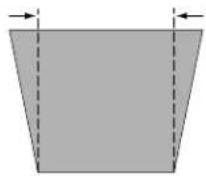
Reduce the upper width with the Point ▲ button.
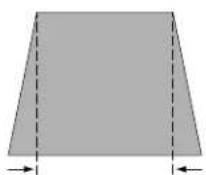
Reduce the lower width with the Point ▼ button.
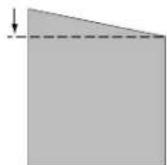
Reduce the left part with Point ◀ button.
Reduce the right part with Point ▶ button.

Laser Pointer Function
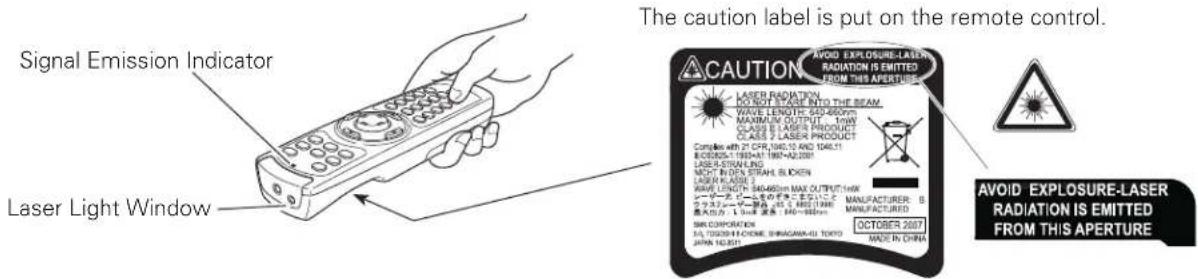
This remote control emits a laser beam from the laser light window. Press the LASER button to activate the laser pointer. The signal emission indicator lights red and the red laser beam is emitted. If the LASER button is pressed for more than one minute or if it is released, the laser light goes off.
The laser emitted is a Class II laser. Do not look into the laser light window or point the laser beam at yourself or other people. The following is the caution label for the laser beam.
CAUTION: Use of controls, adjustments or performance of procedures other than those specified herein may result in hazardous radiation exposure. Never look directly into the laser light window while a laser is emitted, otherwise eye damage may result.
Pointer Function
You can move the Spotlight or Pointer of the projector with the remote control to emphasize a part of the projected image.
1 Press and hold the MENU and SHUTTER buttons for more than 10 seconds to activate the Pointer function. (The Laser pointer has switched to the Pointer function.)
2 Press the LASER button on the remote control pointing toward the projector. The Spotlight or Pointer is displayed on the screen with the LASER button lighting green. Then move the Spotlight or Pointer with the PRESENTATION POINTER button. If the LASER button does not light green and continues to emit a laser beam, try the above-mentioned procedure until the LASER button lights green.
3 To clear the Spotlight or Pointer out the screen, press the LASER button pointing toward the projector and see if the LASER button lighting is turned off.
To switch to the Laser pointer again, press and hold the SHUTTER and MENU buttons for more than 10 seconds or slide the RESET/ON/ALL-OFF switch to "RESET" and then to "ON".
When you reset the Pointer function, the remote control code will be reset, as well.
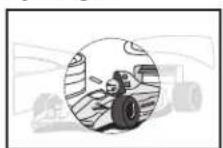
Spotlight
Pointer


After the Laser pointer has switched to the Pointer, use the LASER button as the Pointer function ON-OFF switch. Press the LASER button pointing toward the projector and see if it lights green.
√Note:
- You can choose the size of Spotlight (Large/Middle/Small) and the pattern of Pointer (Arrow/Finger/Dot) in the Setting Menu. See "Pointer" on page 53.
Wireless Mouse Operation
The remote control can be used as a wireless mouse for your computer.
1 Before operating the wireless mouse, connect your computer and the projector with the supplied USB cable (p. 20). When the Pointer function is used, the wireless mouse is not available.
2 When a USB cable is connected to the computer and the projector, turn on the projector first, then the computer. If you turn on the computer first, the wireless mouse function may not operate properly.
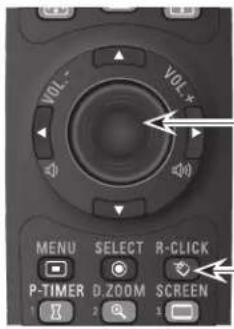
PRESENTATION POINTER button
Move the pointer on the screen with this button.
R-CLICK button
Act as right (click) mouse button while the projector and a computer are connected with a USB cable.
natural_image
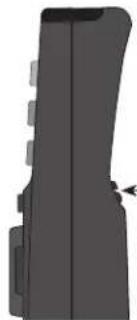
Pure mechanical part diagram without any text, numbers, or symbolsL-CLICK button
Act as left (click) mouse button while the projector and a computer are connected with a USB cable.
Input Selection
Input
Remote Control
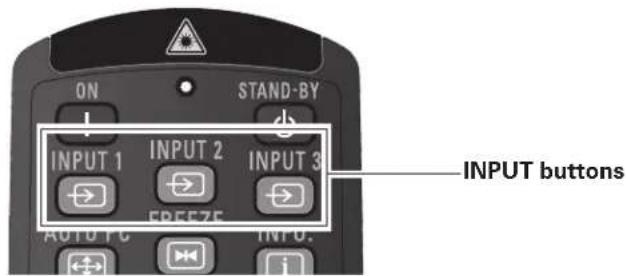
Remote Control Operation
Press the INPUT 1, INPUT 2, or INPUT 3 buttons on the remote control. The input source appears on the screen as you press each button. Select the connected input source.
Top Control
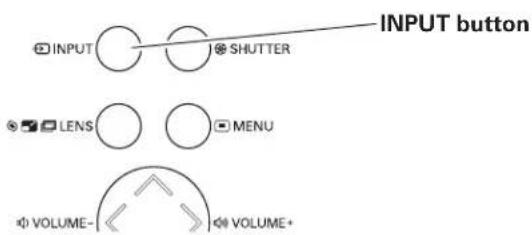
Top Control Operation
Press the INPUT button on the top control. It switches to INPUT 1, INPUT 2, and INPUT 3 as you press the INPUT button.
Before using the INPUT button on the top control, you must select a correct input source by On-Screen Menu and the latest input source will be displayed.
Remote Control button operation
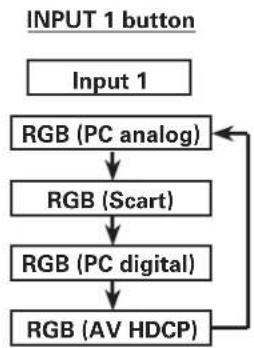
flowchart
graph TD
    A["Input 1"] --> B["RGB (PC analog)"]
    B --> C["RGB (Scart)"]
    C --> D["RGB (PC digital)"]
    D --> E["RGB (AV HDCP)"]
    E --> B

flowchart
graph TD
    A["INPUT 2 button"] --> B["Input 2"]
    B --> C["RGB"]
    C --> D["Video"]
    D --> E["Component"]
    E --> F["INPUT 3 button"]
    F --> G["Input 3"]
    G --> H["Video"]
    H --> I["S-video"]
    I --> J["INPUT 3 button"]
Input Source Selection
Menu Operation
1 Press the MENU button to display the On-Screen Menu. Use the Point ◀▶ buttons to move the red frame pointer to the Input Menu icon.
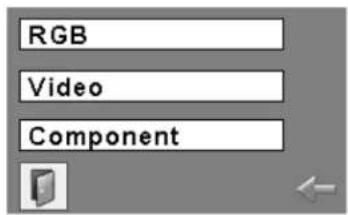
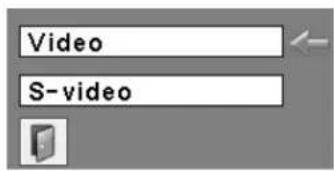
2 Use the Point ▲▼ buttons to move the red arrow pointer to the desired input and then press the SELECT button. The signal format menu appears.
3 Use the Point ▲▼ buttons to select the desired signal format and then press the SELECT button.
INPUT 1
RGB (PC analog)
When the RGB PC (analog) signal is connected
RGB (Scart)
When the RGB PC (scart) signal is connected
RGB (PC digital)
When the RGB PC (digital) signal is connected.
RGB (AV HDCP)
When the HDCP video signal is connected.
INPUT 2
RGB
When the RGB PC signal is connected.
Video
When the RGB video signal is connected.
Component*
When the component signal is connected.
* If the projector cannot reproduce proper video image, select a system manually (see "Video System Selection" on page 36).
INPUT 3
Video*
When the video signal is connected.
S-video*
When the S-video signal is connected.
* If the projector cannot reproduce proper video image, select a system manually (see "Video System Selection" on page 36).
Input Menu


Video System Selection
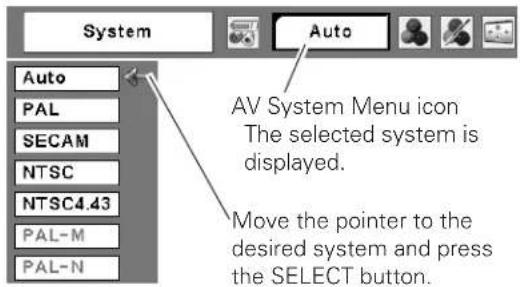
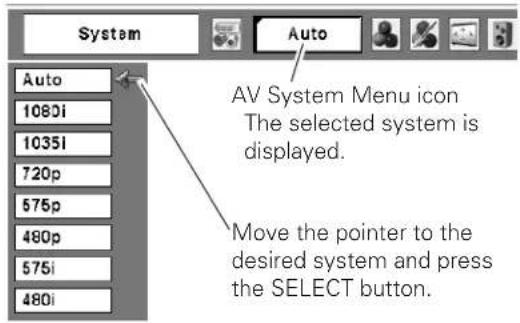
1 Press the MENU button to display the On-Screen Menu. Use the Point ◀▶ buttons to move the red frame pointer to the AV System Menu icon.
2 Use the Point ▲▼ buttons to move the red arrow pointer to the desired system and then press the SELECT button.
Video or S-video
Auto
The projector automatically detects an incoming video system, and adjusts itself to optimize its performance. When Video System is PAL-M or PAL-N, select the system manually.
PAL/SECAM/NTSC/NTSC4.43/PAL-M/PAL-N
If the projector cannot reproduce proper video image, select a specific broadcast signal format from among PAL, SECAM, NTSC, NTSC 4.43, PAL-M, and PAL-N.
Component
Auto
The projector automatically detects an incoming video signal, and adjusts itself to optimize its performance.
COMPONENT VIDEO SIGNAL FORMAT
If the projector cannot reproduce proper video image, select a specific component video signal format from among 480i, 575i, 480p, 575p, 720p, 1035i, and 1080i.
√Note:
- The AV System Menu cannot be selected when selecting RGB (Scart).
AV System Menu (Video or S-video)
AV System Menu (Component)
Computer Adjustment
Computer System Selection
This projector automatically tunes to various types of computers based on VGA, SVGA, XGA, SXGA, WXGA, UXGA or WUXGA with its Multi-scan system and Auto PC Adjustment. If a computer is selected as a signal source, this projector automatically detects the signal format and tunes to project a proper image without any additional settings. (Signal formats provided in this projector are shown on pages 76–77.)
One of the following messages may appear when:
Auto
The projector cannot recognize the connected signal conforming to the provided PC Systems. The "Auto" is displayed on the System Menu box and the Auto PC Adjustment function works to display proper images. If the image is not projected properly, a manual adjustment is required (pp.39-40).
......
There is no signal input from the computer. Check the connection between your computer and the projector. (See "Troubleshooting" on page 68.)
Mode 1
The preset system is manually adjusted in the PC Adjust Menu. The adjusted data can be stored in Mode 1-10 (pp.39-40).
SVGA 1
PC Systems provided in this projector is chosen. The projector chooses a proper system provided in the projector and displays it.
PC System Menu
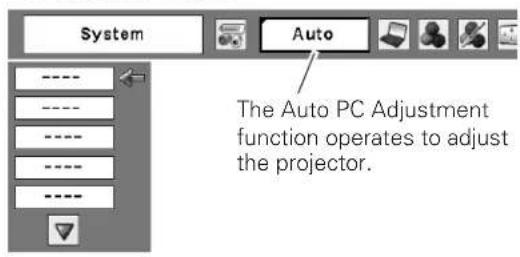
*Mode 1 and SVGA 1 are examples.
Selecting Computer System Manually
PC system can also be selected manually.
1 Press the MENU button to display the On-Screen Menu. Use the Point ◀▶ buttons to move the red frame pointer to the PC System Menu icon.
2 Use the Point ▲▼ buttons to move the red arrow pointer to the desired system and then press the SELECT button.
PC System Menu
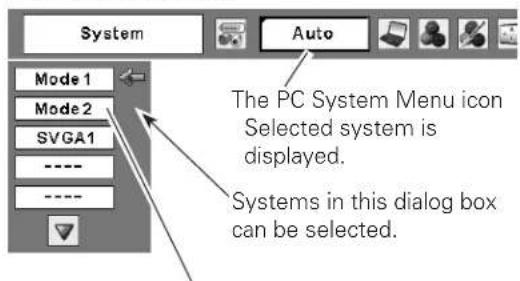
Custom Mode (1–10) set in the PC Adjust Menu (pp.39–40).
Auto PC Adjustment
Auto PC Adjustment function is provided to automatically adjust Fine sync, Total dots, Horizontal and Vertical positions to conform to your computer.
Direct Operation
The Auto PC adjustment function can be operated directly by pressing the AUTO PC button on the remote control.
Remote Control
Menu Operation

Auto PC Adj.
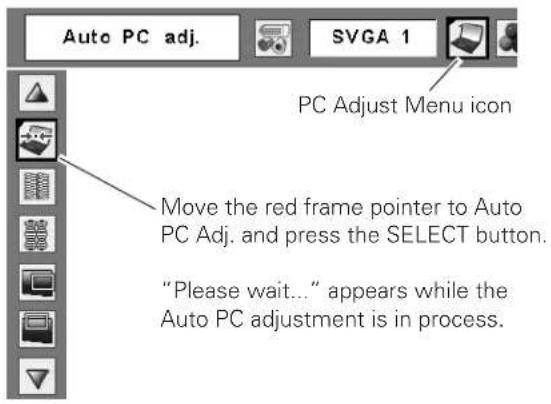
1 Press the MENU button to display the On-Screen Menu. Use the Point ◀▶ buttons to move the red frame pointer to the PC Adjust Menu icon.
2 Use the Point ▲▼ buttons to move the red frame pointer to Auto PC Adj. and then press the SELECT button twice.
To store adjustment parameters
The adjusted parameters from the Auto PC Adjustment can be stored in the projector. Once the parameters are stored, the setting can be done just by selecting a Mode (1–10) in the PC System Menu (see page 37). See also "Store" on page 40.
PC Adjust Menu
√ Notes:
- Fine sync, Total dots, Horizontal and Vertical position of some computers cannot be fully adjusted with the Auto PC Adjustment function. When the image is not provided properly with this operation, manual adjustments are required (pp.39–40).
- The Auto PC Adjustment cannot be operated when 480i, 575i, 480p, 575p, 720p,1035i, or 1080i is selected in the PC System Menu (p.37), or when the signal is coming from the DVI-terminal.
Manual PC Adjustment
Some computers employ special signal formats which may not be tuned by Multi-scan system of this projector. Manual PC Adjustment enables you to precisely adjust several parameters to match those signal formats. The projector has 10 independent memory areas to store those parameters manually adjusted. It allows you to recall the setting for a specific computer.
1 Press the MENU button to display the On-Screen Menu. Use the Point ◀▶ buttons to move the red frame pointer to the PC Adjust Menu icon.
2 Use the Point ▲▼ buttons to move the red frame pointer to the desired item and then press the SELECT button to display the adjustment dialog box. Use the Point ◀▶ buttons to adjust the setting value.

Fine sync
Use the Point ◀▶ buttons to adjust the value, eliminating a flicker from the image displayed (from 0 to 31).

Total dots
Use the Point ◀▶ buttons to adjust the number of total dots in one horizontal period to match your PC image.

Horizontal
Use the Point ◀▶ buttons to adjust the horizontal picture position.

Vertical
Use the Point ◀▶ buttons to adjust the vertical picture position.

Current mode
Press the SELECT button to show H-sync freq. and V-sync freq. of the connected computer.

Clamp
Use the Point ◀▶ buttons to adjust the clamp level. When the image has dark bars, try this adjustment.
PC Adjust Menu


Display area H
Use the Point ◀▶ buttons to adjust the horizontal area displayed by this projector.

Display area V
Use the Point ◀▶ buttons to adjust the vertical area displayed by this projector.

Reset
To reset the adjusted data, select Reset and press the SELECT button. A confirmation box appears and then select [Yes]. All adjustments will return to their previous figures.

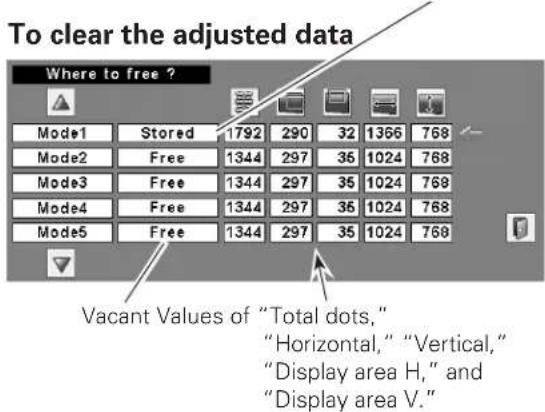
Mode free
To clear the stored data, select Mode free and then press the SELECT button. Move the red arrow pointer to the Mode that you want to clear and then press the SELECT button.

Store
To store the adjusted data, select Store and then press the SELECT button. Move the red arrow pointer to one of the Modes 1 to 10 in which you want to store, and then press the SELECT button.

Quit
Exit the PC Adjust Menu.

This Mode has stored parameters.
To store the adjusted data
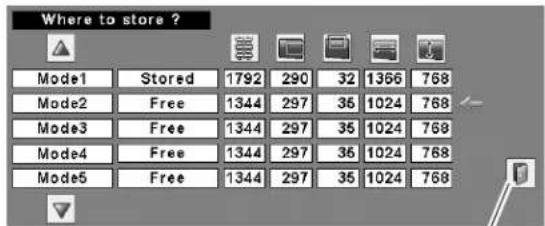
Close this dialog box.
√ Notes:
- Display area (H/V) cannot be selected when 480i, 575i, 480p, 575p, 720p, 1035i, or 1080i is selected in the PC System Menu (p.37).
- PC Adjust Menu cannot be selected when Input 1[RGB (PC digital)] is selected in the Input Menu (p.35).
Image Level Selection
1 Press the MENU button to display the On-Screen Menu. Use the Point ◀▶ buttons to move the red frame pointer to the Image Menu icon.
2 Use the Point ▲▼ buttons to move the red frame pointer to the desired image level and then press the SELECT button.

Dynamic
For viewing pictures in a bright room.

Standard
Normal picture mode preset on the projector.

Real
Picture mode with improved halftone for graphics. (This icon is displayed with the computer signal.)

Cinema
Picture mode adjusted with fine tone. (This icon is displayed with the video signal.)

Image 1-4
For viewing with the user preset image level in the Image Adjust Menu (see page 44).

Image Adjustment
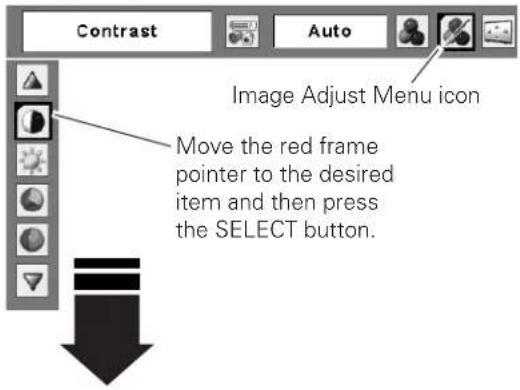
1 Press the MENU button to display the On-Screen Menu. Use the Point ◀▶ buttons to move the red frame pointer to the Image Adjust Menu icon.
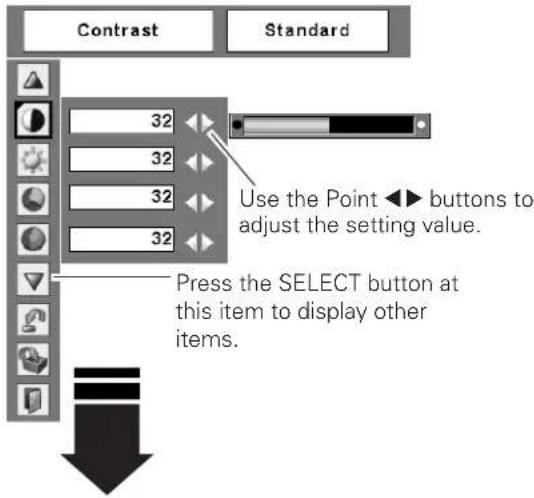
2 Use the Point ▲▼ buttons to move the red frame pointer to the desired item and then press the SELECT button to display the adjustment dialog box. Use the Point ◀▶ buttons to adjust the setting value.

Contrast
Press the Point ◀ button to decrease the contrast; press the Point ▶ button to increase the contrast (from 0 to 63).

Brightness
Press the Point ◀ button to decrease the brightness; press the Point ▶ button to increase the brightness (from 0 to 63).

Color
Press the Point ◀ button decrease the intensity of the color; press the Point ▶ button increase the intensity of the color (from 0 to 63).

Tint
Press the Point ◀▶ buttons to adjust the tint value to get a proper color balance (from 0 to 63).

Color temp.
Use the Point ◀▶ buttons to select the desired Color temp. level (XLow, Low, Mid or High).

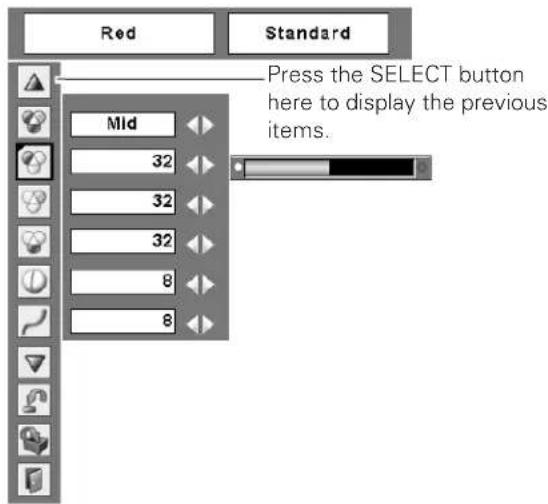
White balance (Red)
Press the Point ◀ button to lighten red tone; press the Point ▶ button to deepen red tone (from 0 to 63).

White balance (Green)
Press the Point ◀ button to lighten green tone; press the Point ▶ button to deepen green tone (from 0 to 63).

White balance (Blue)
Press the Point ◀ button to lighten blue tone; press the Point ▶ button to deepen blue tone (from 0 to 63).
√Notes:
- When the White balance Red, Green, or Blue is adjusted, the Color temp. level will change to "Adj."
- Tint cannot be selected when the video system is PAL, SECAM, PAL-M, or PAL-N (p.36).
• Each input signal has different On-Screen Menu display.
*The figure below shows for video signal input.
Image Adjust Menu

Sharpness
Press the Point ◀ button to decrease the sharpness of the image; press the Point ▶ button to increase the sharpness of the image (from 0 to 15).

Gamma
Use the Point ◀▶ buttons to adjust the gamma value to obtain a better balance of contrast (from 0 to 15).

Noise reduction
Noise interference on the screen can be reduced. Select one of the following options to get smoother images.
Off ...... Disabled.
L1 ...... Lower reduction
L2 ...... Higher reduction

Progressive
An interlaced video signal can be displayed in progressive mode. Select one of the following options.
Off ...... Disabled.
L1 ...... For an active picture.
L2 ...... For a still picture.
Film ...... For watching a film. With this function, the projector reproduces pictures faithful to the original film quality.
√ Notes:
- Progressive cannot be selected when 480p, 575p, or 720p is selected (p.36).
- Reset and Store icons will be displayed when more than one adjustment is made.

Reset
To reset the adjusted data, select Reset and press the SELECT button. A confirmation box appears and then select [Yes]. All adjustments will return to their previous figures.

Store
To store the adjusted data, select Store and press the SELECT button. Use the Point ▲▼ buttons to select one from Image 1 to 4 and press the SELECT button. A confirmation box appears and then select [Yes]. Stored data can be called up by selecting an "Image (1–4)" in the Image Level Selection on page 41.

Quit
Exit the Image Adjust Menu.
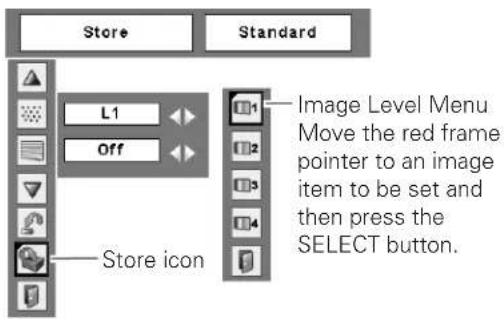

A confirmation box appears and then select [Yes].
Screen Adjustment
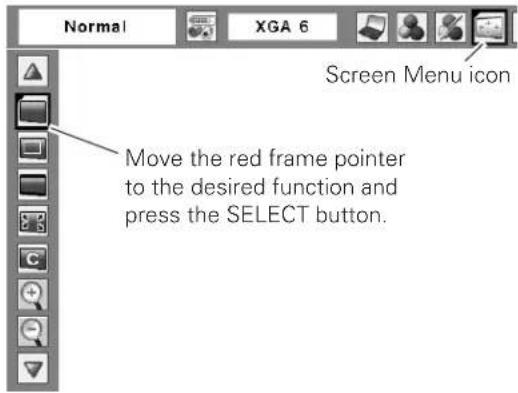
1 Press the MENU button to display the On-Screen Menu. Use the Point ◀▶ buttons to move the red frame pointer to the Screen Menu icon.
2 Use the Point ▲▼ buttons to move the red frame pointer to the desired function and then press the SELECT button.

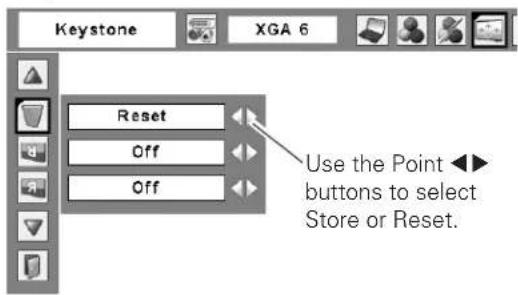
Keystone
This function is used to store or reset the keystone correction when the AC power cord is unplugged. Use the Point ◀▶ buttons to switch between each option.
Store .... Keep the keystone correction even when the AC power cord is unplugged.
Reset ...... Release the keystone correction when the AC power cord is unplugged.
To correct keystone distortion, press the SELECT button. The "Keystone" appears on the screen. Use the Point ▲▼◀▶ buttons to correct keystone distortion. (p.31)
Screen Menu

Keystone

Ceiling
When this function is set to "On," the picture is top/bottom and left/right reversed. This function is used to project the image from a ceiling-mounted projector.

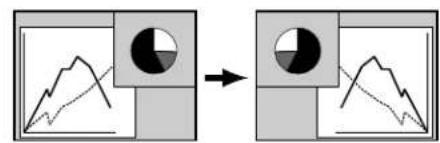
Rear
When this function is set to "On," the picture is left/right reversed. This function is used to project the image from the rear of the screen.
Ceiling
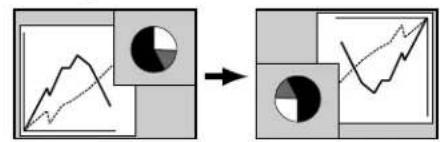
flowchart
graph LR
    A["Line Graph"] --> B["Pie Chart"]
    B --> C["Transformation"]
    C --> D["Side-Section Diagram"]
Rear
Screen Size Adjustment (Computer Signals)
Select the desired screen size that conforms to the input signal source.

Normal
Provide the image to fit the screen size.

True
Provide the image in its original size. When the original image size is larger than the screen size (1024 x 768), the projector enters to the panning mode automatically. Use the Point ▲▼◀▶ buttons to pan the image. When adjusted, the arrows will turn red. When reached to the correction limits, the arrows will disappear.

Wide
Provide the image to fit the wide video aspect ratio (16:9) by expanding the image width uniformly. This function can be used for providing a squeezed video signal at 16:9.

Full screen
Provide the full screen image.

Custom
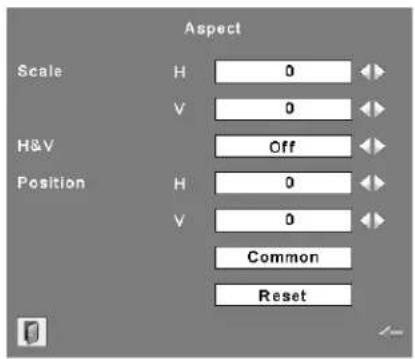
Adjust the screen scale and position manually with this function. Press the SELECT button at Custom and the "Custom" is displayed on the screen for a few seconds and then the Aspect dialog box appears.
Scale H/V .... Adjust the Horizontal/Vertical screen scale.
H&V .... When set to "On," the aspect ratio is fixed. The "Scale V" appears dimmed and becomes unavailable. Adjust "Scale H," then the screen scale is automatically modified based on the aspect ratio.
Position H/V ..... Adjust the Horizontal/Vertical screen position.
Common .... Save the adjusted scale to all the inputs. Press the SELECT button at Common to display a confirmation box. To save the scale, press the SELECT button at "Yes." When Custom is selected, the saved scale is used.
Reset ...... Reset the all adjusted values. Press the SELECT button at Reset to display a confirmation box. To reset, press the SELECT button at "Yes."
Screen Menu

Press the SELECT button at Common or Reset, to display a confirmation box.
√ Notes:
- When no signal is detected, "Normal" is set automatically and the Aspect dialog box disappears.
- The adjustable range for Scale H/V and Position H/V is limited depending on the input signal.
For zooming in and out the images

Digital zoom +
Select Digital zoom +. The On-Screen Menu disappears and "D. zoom +" appears. Press the SELECT button to expand the image size. Use the Point ▲▼◀▶ buttons to pan the image. The Panning function can work only when the image is larger than the screen size.
You can also enter the Digital zoom + mode by pressing the D.ZOOM button on the remote control.

Digital zoom –
Select Digital zoom –. The On-Screen Menu disappears and "D. zoom –" appears. Press the SELECT button to compress image size.
You can also enter the Digital zoom - mode by pressing the D.ZOOM button on the remote control.
To exit the Digital zoom +/- mode, press any button except the D.ZOOM, SELECT, and Point buttons.
To return to the previous screen size, select a screen size from the Screen Menu or select an input source from the Input Menu (p.35) again, or adjust the screen size with the D.ZOOM buttons on the remote control.
√Notes:
- The projector cannot display any resolution higher than 1600 × 1200 . If your computer's screen resolution is higher than that, lower the resolution before connecting to the projector.
- The image data other than 1024 x 768 is modified to fit the screen size in initial mode.
- True, Full screen, and Digital zoom +/- cannot be selected when 480i, 575i, 480p, or 575p is selected in the PC System Menu (p.37).
- The panning function may not be operated properly if the stored Mode in the PC Adjust Menu is used (pp.38–40).
- The minimum compression ratio can be limited depending on the input signal or when the Keystone function is working.
- Digital zoom +/- cannot be selected when Full screen or True is selected.
- Wide cannot be selected when 720p, 1035i, or 1080i is selected in the PC System Menu (p.37).
- The minimum compression size is limited to Normal when Custom is selected.
Screen Size Adjustment (Video, Component Signals)
1 Press the MENU button to display the On-Screen Menu. Use the Point ◀▶ buttons to move the red frame pointer to the Screen Menu icon.
2 Use the Point ▲▼ buttons to move the red frame pointer to the desired function and then press the SELECT button.

Normal
Provide the image at the 4:3 normal video aspect ratio.

Wide
Provide the image at the 16:9 wide screen ratio.

Custom
Adjust the screen scale and position manually with this function. Press the SELECT button at Custom and the "Custom" is displayed on the screen for a few seconds and then the Aspect dialog box appears.
Scale H/V .... Adjust the Horizontal/Vertical screen scale.
H&V .... When set to "On," the aspect ratio is fixed. The "Scale V" appears dimmed and becomes unavailable. Adjust "Scale H," then the screen scale is automatically modified based on the aspect ratio.
Position H/V ..... Adjust the Horizontal/Vertical screen position.
Common .... Save the adjusted scale to all the inputs. Press the SELECT button at Common to display a confirmation box. To save the scale, press the SELECT button at "Yes." When Custom is selected, the saved scale is used.
Reset ...... Reset the all adjusted values. Press the SELECT button at Reset to display a confirmation box. To reset, press the SELECT button at "Yes."
Screen Menu

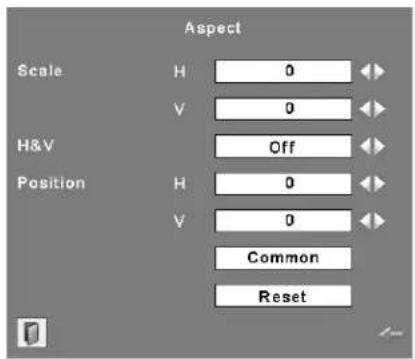

Press the SELECT button at Common or Reset, to display a confirmation box.
√ Notes:
- When no signal is detected, "Normal" is set automatically and the Aspect dialog box disappears.
- The adjustable range for Scale H/V and Position H/V is limited depending on the input signal.
- Wide cannot be selected when 720p, 1035i, or 1080i is selected in the AV System Menu (p.36)
Setting
Setting
This projector has a Setting menu that allows you to set up the other various functions described below.
1 Press the MENU button to display the On-Screen Menu. Use the Point ◀▶ buttons to move the red frame pointer to the Setting Menu icon.
2 Use the Point ▲▼ buttons to move the red frame pointer to the desired item and then press the SELECT button. The Setting dialog box appears.

Language
The language used in the On-Screen Menu is available in English, German, French, Italian, Spanish, Portuguese, Dutch, Swedish, Russian, Chinese, Korean, and Japanese.
Setting Menu (Language)


Logo (Logo and Logo PIN code lock settings)
This function allows you to customize the screen logo with Logo select, Capture, and Logo PIN code lock functions.
√ Note:
- When "On" is selected in the Logo PIN code lock function, Logo select and Capture functions cannot be selected.

Logo select
This function decides on the starting-up display from among following options.
User ...... Show the image you captured
Default ..... Show the factory-set logo
Off ...... Show the countdown display only
Logo
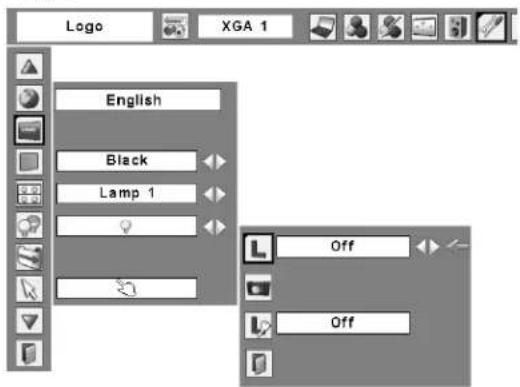

Capture
This function enables you to capture an image being projected to use it for a starting-up display or interval of presentations.
Select Capture and press the SELECT button.
A confirmation box appears and select [Yes] to capture the projected image.
After capturing the projected image, go to the Logo select function and set it to "User". Then the captured image will be displayed the next time you turn on the projector.
To cancel the Capture function, select [No].
√ Notes:
- Before capturing an image, select "Standard" in the Image Menu to capture a proper image (p.41).
- A signal from a computer can be captured up to XGA (1024 x 768). A signal from video equipment can be captured except for 720p, 1035i, and 1080i.
- When capturing the image that has been adjusted by the Keystone function, the adjusted data is automatically reset and the projector captures an image without keystone correction.
- When the Logo PIN code lock function is set to "On," the Capture function cannot be selected.
- When starting to capture a new image, the previously stored image is cleared even if you cancel the capturing.
- "User" cannot be selected when the image is not captured.
Capture
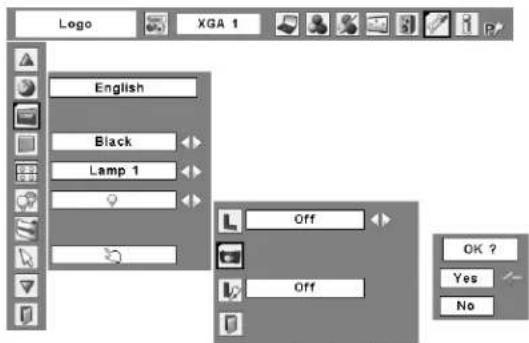
Select [Yes] to capture the projected image.
![Quit? Yes No Select [Yes] to stop capturing.](/content/2026/06/1198532/images/74f4e0e279b4e37621e329b46826f57069225af7d70474829d3866863f8ac7ff.jpg)

Logo PIN code lock
This function prevents an unauthorized person from changing the screen logo.
Off .... The screen logo can be changed freely from the Logo Menu (p.51).
On .... The screen logo cannot be changed without a Logo PIN code.
If you want to change the Logo PIN code lock setting, press the SELECT button and the Logo PIN code dialog box appears. Enter a Logo PIN code by following the steps below. The initial Logo PIN code is set to "4321" at the factory.
Logo PIN code lock
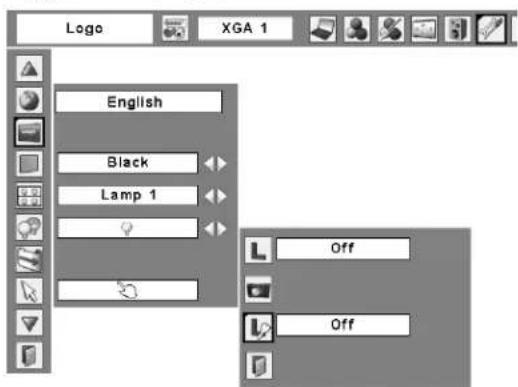
Enter a Logo PIN code
Use the Point ▲▼ buttons on the top control or Number buttons on the remote control to enter a number.
When using top control
Use the Point ▲▼ buttons on the top control to select a number. Press the Point ▶ button to fix the number and move the red frame pointer to the next box. The number changes to "*." Repeat this step to complete entering a four-digit number. After entering the four-digit number, move the pointer to "Set." Press the SELECT button so that you can change the Logo PIN code lock setting.
When using remote control
Press the Number buttons on the remote control to enter a number (p.15). When you complete entering a four-digit number, the pointer moves to "Set." Press the SELECT button so that you can change the Logo PIN code lock setting.
If you fixed an incorrect number, use the Point ◀ button to move the pointer to the number you want to correct, and then enter the correct number.
If you entered an incorrect PIN code, "Logo PIN code" and the number (****) will turn red for a moment. Enter the correct PIN code all over again.
Change the Logo PIN code lock setting
Use the Point ◀ button to switch On/Off, and then press the Point ▼ button to move the pointer to "Quit." Press the SELECT button to close the dialog box.
Change the Logo PIN code
Logo PIN code can be changed to your desired four-digit number. Press the Point ▼ button to select "Logo PIN code change" and then press the SELECT button. The New Logo PIN code input dialog box appears. Set a new Logo PIN code.
Be sure to note the new Logo PIN code and keep it on hand. If you lost the number, you could no longer change the Logo PIN code setting. For details on PIN code setting, refer to "PIN code lock" on pages 57–58.

Background
The selected background screen will be displayed when no input signal is detected.
Blue ..... Project a blue background
User ...... Project an image selected in the Logo setting.
Black ..... Project a black background
√Note:
- When no captured image is set, the "User" options is not available.
Enter a Logo PIN code


After a correct Logo PIN code is entered, the following dialog box appears.
Change the Logo PIN code lock setting

Use the Point ◀▶ buttons to switch On/Off.
Change the Logo PIN code

CAUTION: WHEN yOU HAVE CHANGED THE LOGO PIN CODE, WRITE DOWN THE NEW PIN CODE IN COLUMN OF THE LOGO PIN CODE NO. MEMO ON PAGE 82, AND KEEP IT SECURELy. SHOULD THE LOGO PIN CODE BE LOST OR FORGOTTEN, THE LOGO PIN CODE SETTING CAN NO LONGER BE CHANGED.

Lamp mode
This Projector is equipped with 2 Projection Lamps. This function allows you to choose how to use the lamp as follows.
Lamp1..... Always use Lamp 1.
Lamp2 ...... Always use Lamp 2.
Lamp1/2..... Automatically switch the active lamp from one lamp to the other when the projector is turned Off and On each time the lighting time of a lamp exceeds 10 hours.
√Note:
- When Lamp 1 or Lamp 2 mode is switched to Lamp 1/2 mode, the active lamp changes after the total lighting time of a currently used lamp exceeds 10 hours.
- When the total lighting time of one lamp exceeds the recommended total hours of use in the Lamp 1/2 mode, the Lamp mode will be switched to Lamp 1 or Lamp 2 mode automatically.
- Lamp mode cannot be changed for a while after turning on the projector. Lamp needs some time to stabilize after the power is turned on. Stored lamp mode will be active after the lamp is stabilized.
- When the different lighting time of the lamps light alternately, you may recognize different brightness and white balance on each different lighting time of lamps.
When you change the other lamp, we recommend you always use the other lamp which is not changed.

Lamp control
Lamp control
This function allows you to change brightness of the screen.
Auto 1 ...... The brightness according to the input signal (between Normal and Eco mode).
Auto 2 ...... The brightness according to the input signal (between High and Eco mode).
High ...... Brighter than the Normal mode. Normal ...... Normal brightness
Ego 1 .... Lower brightness and Fan speed decrease. Lower brightness reduces the lamp power consumption and extends the lamp life.
Eco 2 .... Lower brightness and Fan speed increase. Lower brightness reduces the lamp power consumption and extends the lamp life. It is recommended to use Eco 2 when using the projector continuously over a long period of time.
Lamp life control
Select the lamp operation when the total lighting time of a lamp exceeds the recommended total hours of use.
Mode 1 ...... A lamp can be turned on even after exceeding the recommended total hours of use.
Mode 2 ..... A lamp is not turned on after exceeding the recommended total hours of use.

Set the red frame pointer to the item and press the SELECT button.
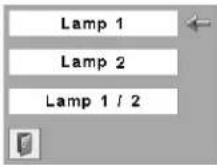
Use the Point ▲▼ buttons to set the Lamp mode. Select from (Lamp1, Lamp2 or Lamp 1/2).
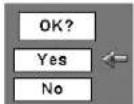
Select [Yes] to activate it.
√Note:
- The fan noise becomes louder in Eco 2 than in Eco 1. Select the suitable mode for the used environment.
√Note:
- A lamp is switched to the lamp which is not exceeding the recommended total hours of use next time when you turn on the projector, even when the Mode 1 is selected.

Filter control
You can replace the filter with this function. Press the SELECT button at Filter control to display a confirmation box. To replace, press the SELECT button at "YES" and the electrically operated filter starts to scroll.

Pointer
You can emphasize a part of the projected image with this function. Use the Point ▲▼ buttons to choose either Spotlight or Pointer and press the SELECT button. Then use the Point ◀▶ buttons to select a size of the Spotlight (Large, Middle, or Small) or a pattern of the Pointer (Arrow, Finger, or Dot). (See page 32 for operation.)

Remote control
The eight different remote control codes (Code 1–Code 8) are assigned to the projector; the factory-set, initial code (Code 1) and the other seven codes (Code 2 to Code 8).
The same code should be set on both the projector and the remote control. For example, operating the projector in "Code 7", the remote control code also must be switched to "Code 7".
To change the code for the projector
Select a remote control code in this Setting Menu.
To change the code for the remote control:
Press and hold the MENU button and a number button (1–8) on the remote control for more than five seconds to switch between the codes. (See page 17 for details.)

RC sensor
Select a location of the infrared remote receiver of the remote control. See "Remote Control Operating Range" on page 16 for details.
All ...... Activate All of the front, top and back receivers.
Front & Top ..... Activate the front and top receivers.
Top & Back ..... Activate the top and back receivers.
Front & Back .. Activate the front and back receivers.
Front ...... Activate only the front receiver.
Top ...... Activate only the top receiver.
Back ...... Activate only the back receiver.
√Note:
- Filter replacement icon and "Please wait..." message appear on the screen when the filter is being scrolled.
• The filter cannot be rewound. - When the filter is replaced, the total accumulated time of the filter use is automatically set to 0.

Please wait...
Pointer
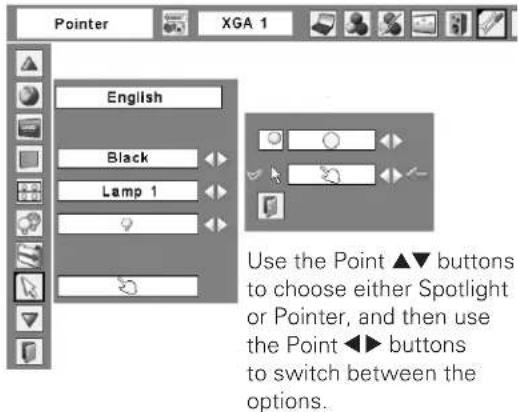
Remote control

√Notes:
- When using the projector in the horizontal position without hanging from the ceiling, it is recommended to deactivate the top Infrared Remote Receiver to avoid the effects of the fluorescent light.
- When the Standby mode is set to "Eco" in the Setting(p.54), all of the infrared remote receivers are activated regardless of the RC sensor setting. After turning Off and On the projector, the RC sensor setting will be activated.

Display
This function decides whether to display On-Screen Displays.
On .... Show all the On-Screen displays. Use this function when you want to project images after the lamp becomes bright enough. The factory default setting is in this option.
Countdown Off .... Show the input image instead of the countdown when turning on the projector. Use this function when you want to project the image as early as possible even when the lamp is not bright enough.
Off ...... Hide the On-Screen Displays except;
● On-Screen Menu
● "Power off?" (p.25)
● "No signal" for Power management (p.55)
● "Please wait ..."
● Arrows for panning mode(p.47)

Standby mode
This function is available when operating the projector via network.
Normal ..... Supply the power to the network function even after turning off the projector. You can turn on/off the projector via network, modify network environment, and receive an e-mail about projector status while the projector is powered off.
Eco...... Select "Eco" when you do not use the projector via network. The projector's network function will stop when turning off the projector.
Display
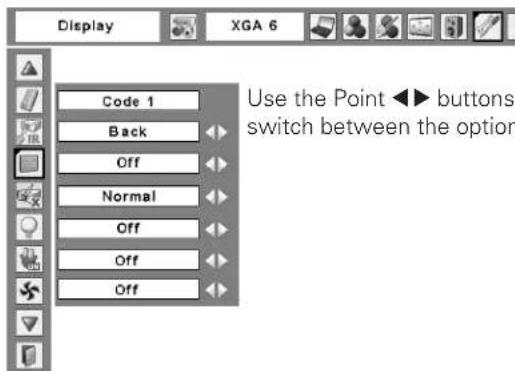
√Note:
- When selecting "Normal", the cooling fans may be running depending on the temperature inside the projector even if the projector is turned off.
- When "Eco" is selected, several functions will be restricted. (pp. 17, 20-22, 53, 55)
- When "Eco" is selected, all of the infrared remote receivers are activated regardless of the RC sensor setting. The projector may be effected the noise of the fluorescent light and so on.

Power management
For reducing power consumption as well as maintaining the lamp life, the Power management function turns off the projection lamp when the projector is not used for a certain period.
If the input signal is interrupted and no button is pressed for more than 30 seconds, the timer display with "No signal" appears. It starts the countdown until the lamp is turned off. The countdown time can be set between 1–30 minutes. Use the Point ◀▶ buttons to set the countdown timer.
Power management
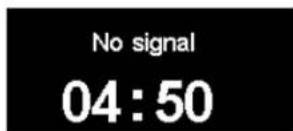
Time left before the lamp is off.
Select one of the following options:
Ready .... When the lamp has been fully cooled down, the POWER indicator changes to fast blinking. In this condition, the projection lamp can be turned on if the input signal is reconnected or any button on the top control or remote control is pressed.
Shut down ..... When the lamp has been fully cooled down, the power will be turned off.
Off ...... Power management function is off.
√ Note:
- Factory default is "Ready: 5 min."

On start
When this function is set to "On," the projector will be automatically turned on just by connecting the AC power cord to a wall outlet.
√Note:
- Be sure to turn off the projector properly (see "Turning Off the Projector" on page 25). If the projector is turned off in the incorrect sequence, the On start function does not work properly.
When the Standby mode is set to "Eco" in the Setting, the On start function is disabled. (p.54)

Slant
This function is used to set the cooling fans' operation to the projector's setting environment. Set this function properly in accordance with the projector's installation method. Otherwise, the cooling fans will not work properly and that causes malfunctions of the projector and decreases the lamp life.
Select the projector's installation condition from the following options:
Off .....When using the projector within the range of the upward/ downward inclination of ±70^ and +110^+180^ , -110^-180^ to the horizontal plane.
L1 .....When using the projector within the range of the upward/downward inclination of +70°\~+110 to the horizontal plane.
L2 .....When using the projector within the range of the upward/downward inclination of -70^ -110 to the horizontal plane.
L3 .....When using the projector within the range of the upward/downward inclination of ±70^ to the horizontal plane and the ceiling function is set to “On”.
L4 .....When using the projector within the range of the upward/downward inclination of +110°\~+180, -110° \~ -180° to the horizontal plane and the ceiling function is set to "Off".
Power management

Press the SELECT button at Power management and this dialog box appears. Use the Point ◀▶ buttons to choose one of the three options. Press the Point ▼ button to select the timer, and then use the Point ◀▶ buttons to set timer.
Slant setting


Shutter
Shutter function is available to block out light to the screen, so that the screen can be used for the other presenters.
Protection
Prohibits the shutter operation from the remote control and the projector's top control.
Remote control ... Selecting "On" prohibits the shutter operation from the remote control.
Projector ..... ... Selecting "On" prohibits the shutter operation from the top control.
It is possible to prohibit the shutter operation from both of the remote control and the top control.
Management
The Shutter Management function turns off the projection lamp when the projector is left with the shutter closed and the set time has passed away. The count-down time can be set between 5 and 180 minutes. When the count-down time has elapsed, the shutter will be opened up automatically and the lamp will be turned off to cool itself down. The SHUTTER indicator is blinking blue during this cooling-off period. When the lamp has been fully cooled down, the READY indicator turns green lighting and the SHUTTER indicator keeps blinking. Should the ON / STAND-BY button be pressed in this condition, the projection lamp will be turned on and the SHUTTER indicator turns off.

Security (Key lock and PIN code lock settings)
This function allows you to use the Key lock and PIN code lock function to set the security for the projector operation.

Key lock
This function locks the top control and remote control buttons to prevent operation by unauthorized persons.

..... Unlocked

..... Lock all the top control buttons

..... Lock the top control buttons except for the ON/STAND-BY and INPUT buttons. To unlock, use the remote control.

..... Lock all the remote control buttons. To unlock, use the top control.

..... Lock the remote control buttons except for the ON, STAND-BY, INPUT 1-3, AUTO PC, FREEZE, and INFO. buttons.
If the top control accidentally becomes locked and you do not have the remote control nearby or there is something wrong with your remote control, contact the dealer where you purchased the projector or the service center.

√Note:
• The Factory default value is set to 180 minutes for the count down time.
• The Shutter Management function cannot be halted.
Key lock
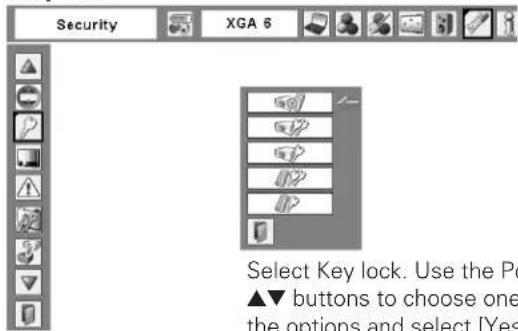
Select Key lock. Use the Point
▲▼ buttons to choose one of the options and select [Yes] to activate it.

PIN code lock
This function prevents the projector from being operated by unauthorized persons and provides the following setting options for security.
Off ...... Unlocked.
On1 ...... Enter the PIN code every time turning on the projector.
On2 ...... Enter the PIN code to operate the projector once the power cord is disconnected; as long as the AC power cord is connected, the projector can be operated without a PIN code.
Whenever you change the PIN code lock setting or the PIN code (the four-digit number), you are required to enter the PIN code. The "1234" is set as the initial PIN code at the factory.
If you want to change the PIN code lock setting, Press the SELECT button and the PIN code dialog box appears. Enter a PIN code by following the steps below.
Enter a PIN code
Use the Point ▲▼ buttons on the top control or Number buttons on the remote control to enter a number.
When using top control
Use the Point ▲▼ buttons on the top control to select a number. Press the Point ▶ button to fix the number and move the red frame pointer to the next box. The number changes to "*." Repeat this step to complete entering a four-digit number. After entering the four-digit number, move the pointer to "Set." Press the SELECT button so that you can change the PIN code lock setting.
When using remote control
Press the Number buttons on the remote control to enter a number (p.15). When you complete entering a four-digit number, the pointer moves to "Set." Press the SELECT button so that you can change the PIN code lock setting.
If you fixed an incorrect number, use the Point ▶ button to move the pointer to the number you want to correct, and then enter the correct number.
If you entered an incorrect PIN code, "PIN code" and the number (***** ) will turn red for a moment. Enter the correct PIN code all over again.
Change the PIN code lock setting
Use the Point ◀▶ button to select Off, On1, or On2 and then move the pointer to "Quit" with the Point ▼ button. Press the SELECT button to close the dialog box.
PIN code lock
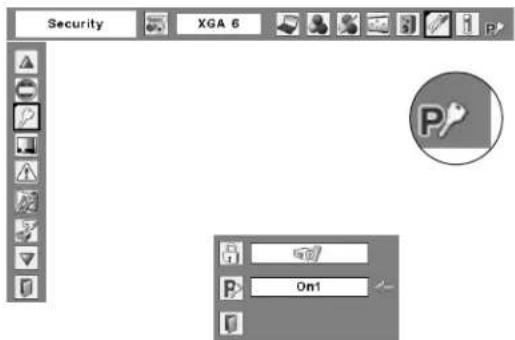
When the projector is locked with a PIN code, the PIN code lock symbol appears on the menu bar.
Enter a PIN code
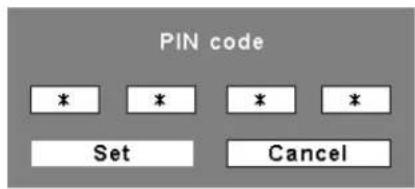
flowchart
graph TD
    A["Set"] --> B["*"]
    C["Cancel"] --> D["*"]
    E["Set"] --> F["*"]
    G["Cancel"] --> H["*"]

After a correct PIN code is entered, the following dialog box appears.
Change the PIN code lock setting

Use the Point ◀▶ buttons to switch between the options.
Change the PIN code
The PIN code can be changed to your desired four-digit number. Press the Point ▼ buttons to select "PIN code change" and press the SELECT button. The New PIN code input dialog box appears. Set a new PIN code.
Change the PIN code
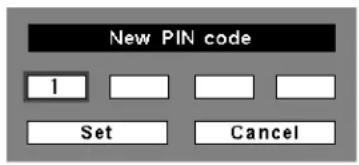
CAUTION: WHEN yOU HAVE CHANGED THE PIN CODE, WRITE DOWN THE NEW PIN CODE IN COLUMN OF THE PIN CODE NO. MEMO ON PAGE 82, AND KEEP IT SECURELy. IF yOU FORGET yOUR PIN CODE, THE PROjECTOR CAN NO LONGER BE STARTED.

Test pattern
Various test pattern are available for use when setting up the projector.

Warning log
This function records anomalous operations while the projector is in operation and use it when diagnosing faults. Up to 10 warning logs are displayed with the latest warning message at the top of the list, followed by previous warning messages in chronological order.
√Note:
- When the Factory default function is executed, all the warning log records will be deleted.
Filter counter
This function is used to set a time for the filter replacement.
Use the Point ▲▼ buttons to move the red frame pointer to Filter counter and then press the SELECT button. A dialog box appears showing the Used time option and the Scrolls remaining option.
Used Time ..... Show the total accumulated time of the filter use, timer setting option and the Reset options. When the projector reaches a time set in the timer setting, the Filter replacement icon (Fig. 1) appears on the screen and the total accumulated time turns red, indicating that the filter replacement is necessary. If the filter is out of scroll and the projector reaches a time set in the timer setting, Fig. 2 appears on the screen, indicating that the filter cartridge replacement is necessary.
Scrolls remaining . . Show the scroll counter and the Reset options. When the filter scroll is counted down to 1 (Scroll counter on the screen is showing "0 scroll(s)", the last scroll icon (Fig. 3) appears on the screen. When the filter scroll is counted down to 0, the Filter cartridge replacement icon (Fig. 4) appears on the screen and the WARNING FILTER indicator lights orange, indicating that the filter cartridge replacement is necessary.
To set a timer, press the SELECT button on Used time option. Move the red arrow pointer to the timer setting option and use the Point ◀▶ buttons to select from (Off/ 400H/700H/1000H) depending on the use environment.
When replacing the Filter cartridge, reset the Filter counter and the Scroll counter (p.62).
√Note:
- Do not reset the Filter counter and the Scroll counter without replacing the Filter cartridge. Be sure to reset the Filter counter and the Scroll counter only after replacing the Filter cartridge.
- Timer setting notifies that the filter needs replacement. To replace the filter, use the filter control function (p.53).

Factory default
This function returns all setting values except for the user logo, PIN code lock, Logo PIN code lock, lamp counter, and filter counter to the factory default settings.

Quit
Exit the Setting Menu.

Set the red frame pointer to the item and press the SELECT button.

Use the Point ◀▶ buttons to set the timer. Select from (Off/ 400H/700H/1000H) depending on the use environment
Fig.1 Filter replacement icon

Filter replacement icon appears on the screen at a set time.
Fig.2

Fig.3 Last scroll icon

Last scroll icon appears on the screen when the filter is down to the last scroll.
Fig.4 Filter cartridge replacement icon

Filter cartridge replacement icon appears on the screen when the filter scroll is counted down to 0 scroll.
√ Note:
- Fig.1, Fig. 2, Fig. 3 or Fig. 4 will appear at turning on and selecting input source.
- Fig.1, Fig. 2, Fig. 3 or Fig. 4 will the Display function is set to "Off" (p.54), or during "Freeze" (p.30).
Factory default
![Factory default XGA 6 Select Factory default and this box appears. Select [Yes], and the next box appears. Return to Factory default? Yes No OK? Yes No Select [Yes] to activate it.](/content/2026/06/1198532/images/5a5f7d8a88e99478f824d62f0092ee56de867b374696607edd6f932b36e35142.jpg)
Filter Instructions
Filter prevents dust from accumulating on the optical elements inside the projector. Should the filter becomes clogged with dust particles, it will reduce cooling fans' effectiveness and may result in internal heat buildup and adversely affect the life of the projector. This projector has an electrically operated filter which helps you to replace the filter easily. The projector monitors the condition of the filter at all time and replaces a filter with a new one automatically when it detects the clogging.
If the projector reaches a time set in the timer setting (p.59), a Filter replacement icon (Fig.1) appears on the screen and the WARNING FILTER indicator on the top panel lights up (p.75). When you see this icon, replace the filter as soon as possible (p53). If the filter is out of scroll and the projector reaches a time set in the timer setting, Fig. 2 appears on the screen, indicating that the filter cartridge replacement is necessary.
When the filter scroll is counted down to 1, the Last scroll icon (Fig.3) appears on the screen, indicating that there is one scroll left in the filter cartridge (p.59).
If the projector detects that the filter is clogged and no scroll is left in the filter cartridge, a Filter cartridge replacement icon (Fig. 4) appears on the screen and the WARNING FILTER indicator on the top panel lights up (p.75). When you see this icon, replace the filter cartridge (p.61) and reset the Filter counter (p.62) and the Scroll counter (p.62).
When the filter is being scrolled by the Filter control function in the setting menu (p.53), a Filter replacement icon and "Please wait..." message (Fig.5) appear on the screen and the WARNING FILTER indicator blinks slow (approx. 2 seconds ON, 2 seconds OFF) (p.73).
The WARNING FILTER indicator blinks fast when the projector detects an abnormal condition, the filter cartridge is not installed properly, or the filter scroll is not working properly (p.75).

Fig.1 Filter replacement icon

Fig.2

Fig.3 Last scroll icon

Fig.4 Filter cartridge replacement icon

Fig.5 Filter replacement icon and "Please wait..." message.
√Note:
- Fig.1, Fig.2, Fig.3 or Fig. 4 will not appear when the Display function is set to "Off" (p.54), or during "Freeze" (p.30).
• The filter cannot be rewound. - The filter can be scrolled 9 times since the filter cartridge has 10 scrolls.
- The filter cartridge is disposable. Do not clean and reuse the filter cartridge.
- Do not expose the filter cartridge to water or liquid, or it may cause a breakdown.
- Replace the filter cartridge after all the scroll is used up. If you replace the filter cartridge when there are some scrolls left in the filter cartridge, the filter counter and the scroll counter do not recognize the correct number of remaining scrolls and the reset function cannot work properly. It may cause a breakdown.
-
The used part of the filter can be seen on the edge of the Filter cartridge after scrolling the filter, but there is no problem for the use of the projector.
-
Do not use the filter cartridge with other projector. The filter counter and the scroll counter do not recognize the correct number of remaining scrolls of the used filter cartridge and the reset function cannot work properly. It may cause a breakdown.
- Make sure that the projection lamps are turned off when you are replacing the filter cartridge. If you replace the filter cartridge when the projection lamps are turned on, the projector will be shut down automatically for safety purposes.
- Do not forget to reset the filter counter and the scroll counter in the setting menu after replacing the filter cartridge. If you forget to reset the filter counter and the scroll counter, the projector cannot recognize the correct number of remaining scrolls and it may cause a breakdown.
- When the projector is kept used for 3 minutes without getting the filter cartridge replaced after the Fig.4 appears on the screen, the projector is turned off automatically to prevent the damage of optical components.
Replacing the Filter Cartridge
1 Turn off the projector, press the Main On/Off Switch to Off and unplug the AC power cord from the AC outlet.
2 First, clean up the dust on the projector and around the air vents.
3 Slide and open the Filter cover. (See the right figure.)
4 Pull out the filter cartridge by holding the finger grip.
5 Put the new one back into the position until it clicks and close the filter cover. Make sure that the filter cartridge is properly and fully inserted.
6 Connect the AC power cord to the projector and turn on the projector.
7 Reset the filter counter and the scroll counter (p.62).

CAUTION
Make sure the filter cartridge is inserted in the projector. If the filter cartridge is not inserted, the projector cannot be turned on.
Make sure the filter cover is closed when using the projector.
Do not put anything into the air vents. Doing so may result in malfunction of the projector.
RECOMMENDATION
We recommend avoiding dusty/smoky environments when operating the projector. Usage in these environments may cause a poor image quality.
When using the projector under dusty or smoky conditions, dust may accumulate on a lens, liquid crystal panels, or optical elements inside the projector. Such condition may degrade the quality of the projected image.
When the symptoms above are noticed, contact your authorized dealer or service station for proper cleaning.
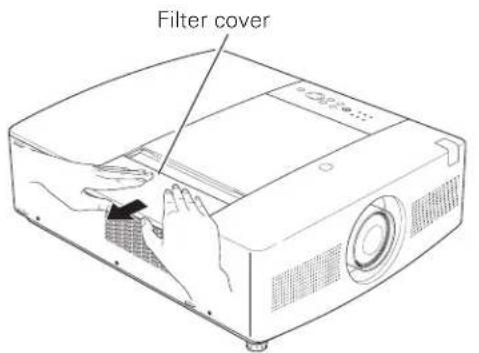
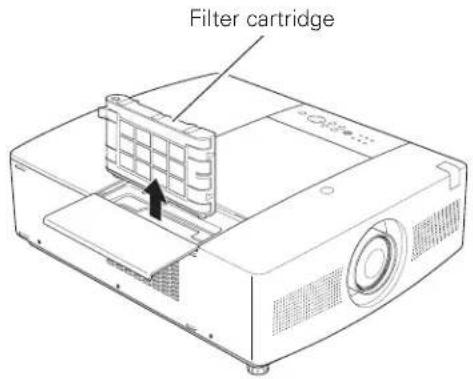
ORDER REPLACEMENT FILTER CARTRIDGE
Replacement filter cartridge can be ordered through your dealer. When ordering, give the following information to the dealer.
● Model No. of your projector PLC-XTC50L
● Replacement Filter Cartridge Type No.: POA-FIL-100
(Service Parts Code: 610 342 5764)
Resetting the Filter Counter
Be sure to reset the Filter counter after replacing the filter cartridge.
1 Press the MENU button to display the On-Screen Menu. Use the Point ◀▶ buttons to move the red frame pointer to the Setting Menu icon.
2 Use the Point ▲▼ buttons to move the red frame pointer to Filter counter and then press the SELECT button. A dialog box appears showing the Used time option and the Scrolls remaining option. Use the Point ▲▼ buttons to select Used time.
3 Used time shows the total accumulated time of the filter use, a timer setting option, and the Reset option. Select Reset and the "Filter counter Reset?" appears. Select [Yes] to continue.
4 Another confirmation dialog box appears, select [Yes] to reset the Filter counter.
Resetting the Scroll Counter
Be sure to reset the Scroll counter after replacing the filter cartridge.
1 Press the MENU button to display the On-Screen Menu. Use the Point ◀▶ buttons to move the red frame pointer to the Setting Menu icon.
2 Use the Point ▲▼ buttons to move the red frame pointer to Filter counter and then press the SELECT button. A dialog box appears showing the Used time option and the Scrolls remaining option. Use the Point ▲▼ buttons to select Scroll(s) remaining.
3 Scroll(s) remaining shows the number of the remaining scrolls and the Reset option. Select Reset and the "Scroll counter Reset?" appears. Select [Yes] to continue.
4 Another confirmation dialog box appears, select [Yes] to reset the Scroll counter.
Filter counter
![Filter counter XGA 6 Used time Scrolls remainig Select "Used time" and the dialogue box below appears. 100 H 400 H Reset Hour(s) Select Reset and the "Filter counter Reset?" appears. Filter counter Reset ? Yes No Select [Yes] then another confirmation box appears OK? Yes No Select [Yes] again to reset the Filter counter.](/content/2026/06/1198532/images/073b125bc428670fa47e3830bbc1d6dae9de660aaff99a1103301276d98f341f.jpg)
Scroll counter
![Filter counter XGA 6 Used time Scrolls remaining Select "Scrolls remaining" and the dialogue box below appears 9 Scroll(s) Reset Select Reset and the "Scroll counter Reset?" appears. Scroll counter Reset ? Yes No Select [Yes] again to reset the Scroll counter. OK? Yes No](/content/2026/06/1198532/images/a48038bab2008fdfdc3e4d5c7338bee66e14a54196ef8206029698286beb3206.jpg)
Auto Lamp Selection System
This Projector is equipped with 2 Projection Lamps. The Lamp Management Function detects the status of lamps and shows the status on screen or on the LAMP 1/2 REPLACE indicators. This function also automatically controls the Lamp Mode when any of lamps reaches the recommended total hours of use or is out for the end of life or malfunctions.

flowchart
graph TD
    A["LAMP 1 REPLACE"] --> B["LAMP 1/2 REPLACE indicators"]
    C["LAMP 2 REPLACE"] --> B
    D["WARNING TEMP"] --> A
    E["WARNING FILTER"] --> C
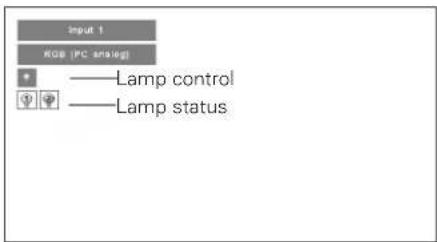
Lamp 1/2 Replace Indicators
The LAMP 1/2 REPLACE indicators light yellow when the total lighting time of a Projection Lamp reaches the recommended total hours of use. Check the number of lamp on the Lamp Status Display or the LAMP 1/2 REPLACE indicators and replace the lamp.
Lamp Status Display
The Lamp Status Display appears on screen when the projector is turned on or the input position (input 1, input 2, or Input 3) is switched. This shows the status of each lamp as; ON, OFF, NEAR END, or OUT. Refer to the following for each status.

LAMP STATUS DISPLAY
Yellow Lamp ---- Projection Lamp lights normally.
Dim Lamp ---- Projection Lamp is turned off.
Red Lamp ---- The total lighting time of Projection Lamp reaches the recommended total hours of use. (LAMP 1/2 REPLACE indicator lights yellow.)
X Mark on Lamp - - - - (LAMP 1/2 REPLACE indicator flashes yellow.)
Projection lamp is defective or fails to be turned on. Restart the projector on, and make sure lamp is on. If this mark still appears, replace lamp corresponding with number marked X.
Lamp Mode Changeover
The Lamp Management Function automatically changes the lighting lamp (Lamp Mode) by detecting the status of lamp. When either of the 2 lamps is out, the projector operates with the other lamp. The Lamp Mode can be switched manually. Refer to the SETTING section on page 52.
LAMP 1 MODE

LAMP 2 MODE
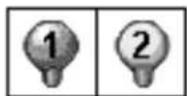
When Lamp 1 is burnt out.
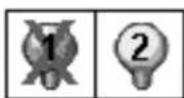
When Lamp 2 is burnt out.
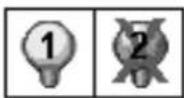
When the total lighting time of a lamp reaches the recommended total hours of use.
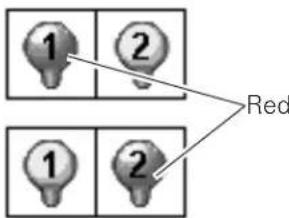
flowchart
graph TD
    A["1"] --> C["Red"]
    B["2"] --> C["Red"]
Lamp Replacement
When the total lighting time of a Projection Lamp reaches the recommended total hours of use, the Lamp replacement icon appears on the screen and LAMP 1/2 REPLACE indicator lights yellow. Replace the lamp with a new one promptly. The timing when the LAMP 1/2 REPLACE indicator should light is depending on the lamp mode.
Top Control
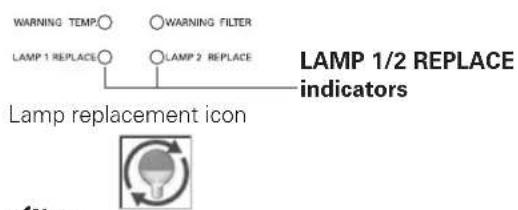
√Note:
- The Lamp replacement icon will not appear when the Display function is set to "Off" (p.54), or during "Freeze" (p.30).

CAUTION
Allow a projector to cool for at least 45 minutes before you open the Lamp cover. The inside of the projector can become very hot.

CAUTION
For continued safety, replace with a lamp of the same type lamp. Do not drop the lamp or touch the glass bulb! The glass can shatter and may cause injury.

CAUTION
When replacing the lamp because it has stopped illuminating, there is a possibility that the lamp maybe broken. If replacing the lamp of a projector which has been installed on the ceiling, you should always assume that the lamp is broken, and you should stand to the side of the lamp cover, not underneath it. Remove the lamp cover gently. Small pieces of glass may fall out when the lamp cover is opened. If pieces of glass get into your eyes or mouth, seek medical advice immediately.
Follow these steps to replace the lamp.
1 Check the number of lamp to be replaced on the Lamp Status Display or the LAMP 1/2 REPLACE indicators and replace the lamp.
2 Turn off the projector and unplug the AC power cord. Let the projector cool for at least 45 minutes.
3 Remove the screw that secures the lamp cover with a coin, and then open the lamp cover.
4 Lift the lamp out of the projector by using the handle.
5 Replace the lamp with a new one. Make sure that the lamp is set properly. Put the lamp cover back and secure it with the screw.

√Note:
• After lamp replacement, make sure to check the Lamp mode (p.52).
ORDER REPLACEMENT LAMP
Replacement lamp can be ordered through your dealer. When ordering, give the following information to the dealer.
● Model No. of your projector : PLC-XTC50L
● Replacement Lamp Type No. : POA-LMP125 (Service Parts No. 610 342 2626)

LAMP HANDLING PRECAUTIONS
This projector uses a high-pressure lamp which must be handled carefully and properly. Improper handling may result in accidents, injury, or create a fire hazard.
- Lamp life may differ from lamp to lamp and according to the environment of use. There is no guarantee of the same life for each lamp. Some lamps may fail or terminate their life in a shorter period of time than other similar lamps.
- If the projector indicates that the lamp should be replaced, i.e., if the LAMP 1/2 REPLACE indicators lights up, replace the lamp with a new one IMMEDIATELY after the projector has cooled down. (Follow carefully the instructions in the Lamp Replacement section of this manual.) Continuous use of the lamp with the LAMP 1/2 REPLACE indicators lighted may increase the risk of lamp explosion.
● A Lamp may explode as a result of vibration, shock or degradation as a result of hours of use as its lifetime draws to an end. Risk of explosion may differ according to the environment or conditions in which the projector and lamp are being used.
IF A LAMP EXPLODES, THE FOLLOWING SAFETY PRECAUTIONS SHOULD BE TAKEN.
If a lamp explodes, disconnect the projector's AC plug from the AC outlet immediately. Contact an authorized service station for a checkup of the unit and replacement of the lamp. Additionally, check carefully to ensure that there are no broken shards or pieces of glass around the projector or coming out from the cooling air circulation holes. Any broken shards found should be cleaned up carefully. No one should check the inside of the projector except those who are authorized trained technicians and who are familiar with projector service. Inappropriate attempts to service the unit by anyone, especially those who are not appropriately trained to do so, may result in an accident or injury caused by pieces of broken glass.
Warning Indicators
The WARNING indicators show the state of the function which protects the projector. Check the state of the WARNING indicators and the POWER indicator to take proper maintenance.
The projector is shut down and the WARNING TEMP. indicator is blinking red.
When the temperature inside the projector reaches a certain level, the projector will be automatically shut down to protect the inside of the projector. The POWER indicator is blinking while the projector is being cooled down. When the projector has cooled down enough (to its normal operating temperature), it can be turned on again by pressing the ON/STAND-BY button.
√Note:
- The WARNING TEMP. indicator continues to blink even after the temperature inside the projector returns to normal. When the projector is turned on again, the WARNING TEMP. indicator stops blinking.
Then check the matters below:
- Did you provide appropriate space for the projector to be ventilated? Check the installing condition to see if the air vents of the projector are not blocked.
- Has the projector been installed near an Air-Conditioning/ Heating Duct or Vent? Move the installation of the projector away from the duct or vent.
- Is the filter clean? Clean the filter periodically or replace it with a new one.
The projector is shut down and the WARNING TEMP. indicator lights red.
When the projector detects an abnormal condition, it will be automatically shut down to protect the inside of the projector and the WARNING TEMP. indicator lights red. In this case, unplug the AC power cord and plug it, and then turn on the projector once again to verify operation. If the projector cannot be turned on and the WARNING TEMP. indicator lights red, unplug the AC power cord and contact the service station.

CAUTION
DO NOT LEAVE THE PROJECTOR WITH THE AC POWER CORD CONNECTED UNDER AN ABNORMAL CONDITION. IT MAY RESULT IN FIRE OR ELECTRIC SHOCK.

flowchart
graph TD
    A["Top Control"] --> B["WARNING TEMP. blinking red"]
    B --> C["WARNING TEMP."]
    B --> D["WARNING FILTER"]
    B --> E["LAMP 1 REPLACE"]
    B --> F["LAMP 2 REPLACE"]
    B --> G["SHUTTER"]
    B --> H["POWER"]
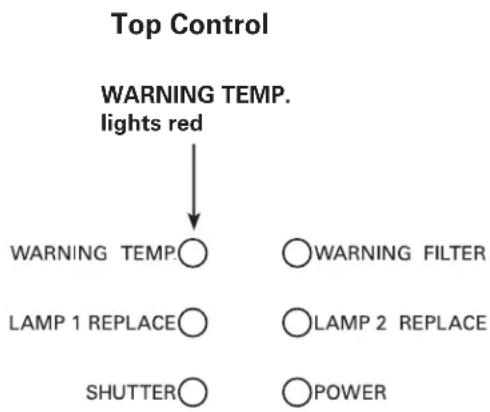
flowchart
graph TD
    A["Top Control"] --> B["WARNING TEMP. lights red"]
    B --> C["WARNING TEMP."]
    B --> D["LAMP 1 REPLACE"]
    B --> E["SHUTTER"]
    B --> F["WARNING FILTER"]
    B --> G["LAMP 2 REPLACE"]
    B --> H["POWER"]
Cleaning the Projection Lens
Unplug the AC power cord before cleaning.
Gently wipe the projection lens with a cleaning cloth that contains a small amount of non-abrasive camera lens cleaner, or use a lens cleaning paper or commercially available air blower to clean the lens.
Avoid using an excessive amount of cleaner. Abrasive cleaners, solvents, or other harsh chemicals might scratch the surface of the lens.
When the projector is not in use, replace the lens cap.
Cleaning the Projector Cabinet
Unplug the AC power cord before cleaning.
Gently wipe the projector body with a soft dry cleaning cloth. When the cabinet is heavily soiled, use a small amount of mild detergent and finish with a soft dry cleaning cloth. Avoid using an excessive amount of cleaner. Abrasive cleaners, solvents, or other harsh chemicals might scratch the surface of the cabinet.
When the projector is not in use, put the projector in an appropriate carrying case to protect it from dust and scratches.
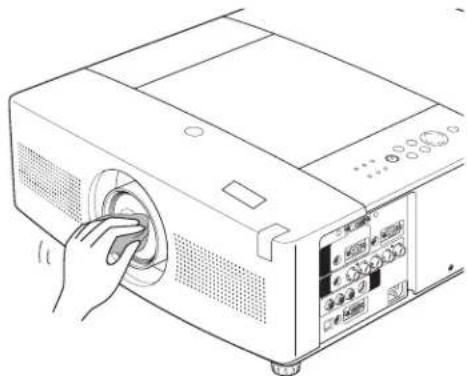
natural_image
Line drawing of a projector with a hand inserting a circular component (no text or symbols)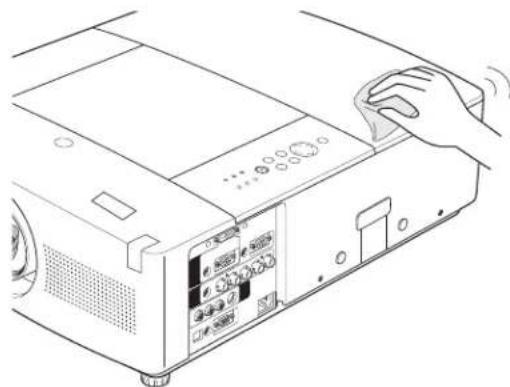
natural_image
Line drawing of a projector with a hand operating the button (no text or symbols visible)Appendix
Troubleshooting
Before calling your dealer or service center for assistance, check the items below once again.
- Make sure you have properly connected the projector to peripheral equipment as described on pages 20–22.
- Make sure all equipment is connected to AC outlet and the power is turned on.
- When the projector does not project an image from the connected computer, restart the computer.
Problem: - Solutions
No power - Plug the power cord of the projector into the AC outlet.
– See if the POWER indicator is lit.
- Wait until the POWER indicator stops blinking to turn on the projector again. See on page 25.
- Check the WARNING TEMP. indicator. If the WARNING TEMP. indicator is blinking, the projector cannot be turned on. See page 66.
– Check the projection lamp. See page 64.
- Check if the projector is installed in proper position.
- Unlock the Key lock function for the projector. See page 56.
PIN code dialog box appears at start-up.
- PIN code lock is being set. Enter a PIN code; the "1234" or numbers you have set. See pages 24, 57.
The initial display is not shown. See page 54.
- Make sure "Off" or "Countdown Off" are not chosen at Display function.
The initial display is not same with the default one.
- Make sure "User" or "Off" are not chosen at Logo function. See page 49.
An icon other than Input mode, Lamp control or lamp status icon appears.
- That is the Lamp replacement icon or the Filter warning icon. See pages 59,64.
No image the projector. See pages 20–22.
- Check the connection between your computer or video equipment and
- See if the input signal is correctly output from your computer. Some laptop computers may need to change the setting for monitor output when connecting to the projector. See your computer's instruction
manual for the setting. projector.
- It takes about 20 seconds to display an image after turning on the
video equipment. See pages 36, 37.
– See if the selected system is corresponding with your computer or
- Select correct input source once again through menu operation. See page 35.
Temperature (
- Make sure the temperature is not out of the specified Operating 41^ - 104^ [5 °C-40 °C]).
Image is out of focus.
- Adjust focus of the projector. See pages 28, 30.
- Provide proper distance between the projector and projection screen.
- Check the projection lens to see if it needs cleaning. See page 67.
- Moving the projector from a cool to warm place may result in moisture condensation on the projection lens. In such cases, leave the projector off and wait until condensation evaporates.
- Projecting from the excessive slant angle to the screen may cause keystone distortion and partial imperfect focus.
Picture is not bright enough. – Check if "Contrast" or "Brightness" are adjusted properly See page 42.
- Check if "Image level" is selected properly See page 41.
- Check the LAMP 1/2 REPLACE indicators. If it lights, the end of lamp life is approaching. Replace the lamp with a new one promptly. See pages 63-65, 74.
– Check the Lamp control function See page 52.
The color is strange. - Check the Input signal, color system, video system, or computer system mode.
- Adjust the Image level properly. See page 41.
Image is Left/Right reversed. – Check the Ceiling/Rear function. See page 45.
Image is Top/Bottom reversed. – Check the Ceiling function. See page 45.
The image is distorted or runs off. – Check the "PC Adjustment" menu or "Screen" menu and adjust them.
See pages 37-40, 45-48.
The edge of image is distorted. – With maximum lens shift, image distortion may be observed.
No sound – Check the audio cable connection from audio input source.
- Adjust the audio source.
- Press the Volume + button. See page 29.
- Press the Mute button. See page 29.
- When the AUDIO OUT is plugged in, the projector's built-in speaker is not available. See page 22.
projected.
Auto PC adjustment function does not work. – Check the Input signal. Auto PC Adjustment function can not work, when 480p, 575p, 720p, 480i, 575i, 1035i, or 1080i is selected.
See page 38.
signals. See page 38.
Some displays are not seen during the operation. - Check the Display function. See page 54.
The setting does not remain after turning off power. – Make sure you selected "Store" after adjusting settings. Some settings cannot be stored if not registered with "Store."
Power management function does not work. - Power management function cannot work while "Freeze" function is running or the shutter is closed.
Image disappears automatically – Check the power management function in the Setting. The power management is set to "On" at the factory.
Capture function does not work. – Check the connection and the Input signal to see if there is signal.
The Remote Control does – Check the batteries.
not work.
– Make sure no obstruction is between the projector and remote control.
- Make sure you are not too far from the projector when using the remote control. Maximum operating range is 16.4' (5 m).
- Make sure that the remote control code conforms to the projector's code. See page 53.
- Unlock the Key lock function for the remote control. See page 56.
- Wireless remote control does not work when the remote control cable is connected to the projector.
The wired remote control does not work to the projector on. – When the standby mode is set to "ECO", the same remote control code should be set on both the projector and the remote control to turn the projector on.
- Wireless Mouse function does not work. - Check the connection between the projector and your computer. - Check the mouse setting on your computer.
– Turn on the projector before you turn on the computer.
- Make sure the computer input is selected. - Make sure that the mouse driver is installed in your computer. To use the mouse as a wireless mouse, the mouse driver needs to be installed in
the computer.
Indicator blinks or lights. – Check the status of the projector with referring to "Indicators and Projector Condition." See pages 73-75.
The exclamation mark appears – Your operation is invalid. Operate correctly. on the screen.
The top control does not work. – Unlock Key lock for the projector in the Key lock function.
Unable to unlock the Logo PIN code lock, Security key lock or Security PIN code lock. – Contact the dealer where you purchased the projector or the service center.
WARNING :
High voltages are used to operate this projector. Do not attempt to open the cabinet.
If problems still persist after following all operating instructions, contact the dealer where you purchased the projector or the service center. Specify the model number and explain about the problem. We will advise you how to obtain service.

The CE Mark is a Directive conformity mark of the European Community (EC).

US LISTED
This symbol on the nameplate means the product is Listed by Underwriters Laboratories Inc. It is designed and manufactured to meet rigid U.L. safety standards against risk of fire, casualty and electrical hazards.

Pixelworks ICs used.
Menu Tree
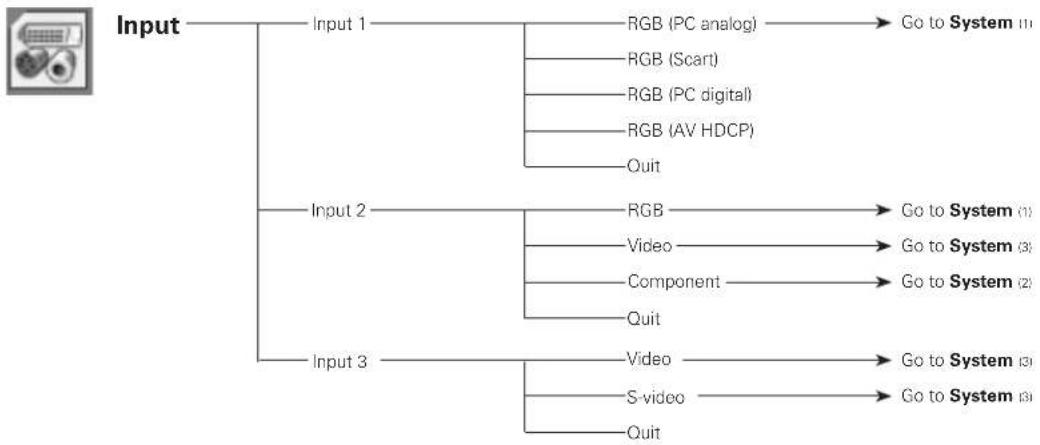
flowchart
graph TD
    A["Input"] --> B["Input 1"]
    A --> C["Input 2"]
    A --> D["Input 3"]
    B --> E["RGB (PC analog)"]
    B --> F["RGB (Scart)"]
    B --> G["RGB (PC digital)"]
    B --> H["RGB (AV HDCP)"]
    B --> I["Quit"]
    C --> J["RGB"]
    C --> K["Video"]
    C --> L["Component"]
    C --> M["Quit"]
    D --> N["Video"]
    D --> O["S-video"]
    D --> P["Quit"]
    E --> Q["Go to System 11"]
    F --> R["Go to System 11"]
    G --> S["Go to System 11"]
    H --> T["Go to System 11"]
    I --> U["Go to System 11"]
    J --> V["Go to System 11"]
    K --> W["Go to System 11"]
    L --> X["Go to System 11"]
    M --> Y["Go to System 11"]
    N --> Z["Go to System 11"]
    O --> AA["Go to System 11"]
    P --> AB["Go to System 11"]
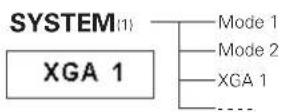

flowchart
graph TD
    A["Auto"] --> B["1080i"]
    A --> C["1035i"]
    A --> D["720p"]
    A --> E["575p"]
    A --> F["480p"]
    A --> G["575i"]
    A --> H["480i"]
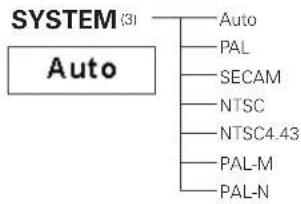
flowchart
graph TD
    A["SYSTEM (3)"] --> B["Auto"]
    B --> C["Auto"]
    B --> D["PAL"]
    B --> E["SECAM"]
    B --> F["NTSC"]
    B --> G["NTSC4.43"]
    B --> H["PAL-M"]
    B --> I["PAL-N"]

flowchart
graph TD
    A["Image"] --> B["Dynamic"]
    A --> C["Standard"]
    A --> D["Real"]
    A --> E["Cinema*"]
    A --> F["Image 1"]
    A --> G["Image 2"]
    A --> H["Image 3"]
    A --> I["Image 4"]
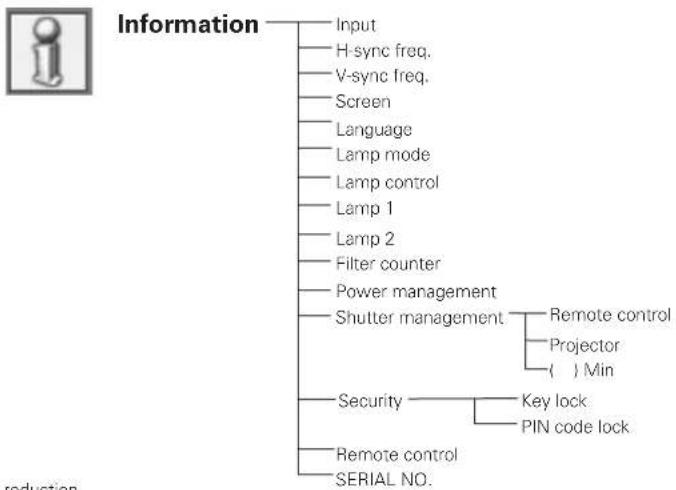
flowchart
graph TD
    A["Information"] --> B["Input"]
    A --> C["H-sync freq."]
    A --> D["V-sync freq."]
    A --> E["Screen"]
    A --> F["Language"]
    A --> G["Lamp mode"]
    A --> H["Lamp control"]
    A --> I["Lamp 1"]
    A --> J["Lamp 2"]
    A --> K["Filter counter"]
    A --> L["Power management"]
    A --> M["Shutter management"]
    M --> N["Remote control"]
    M --> O["Projector"]
    O --> P["( ) Min"]
    M --> Q["Security"]
    Q --> R["Key lock"]
    Q --> S["PIN code lock"]
    M --> T["Remote control"]
    T --> U["SERIAL NO."]
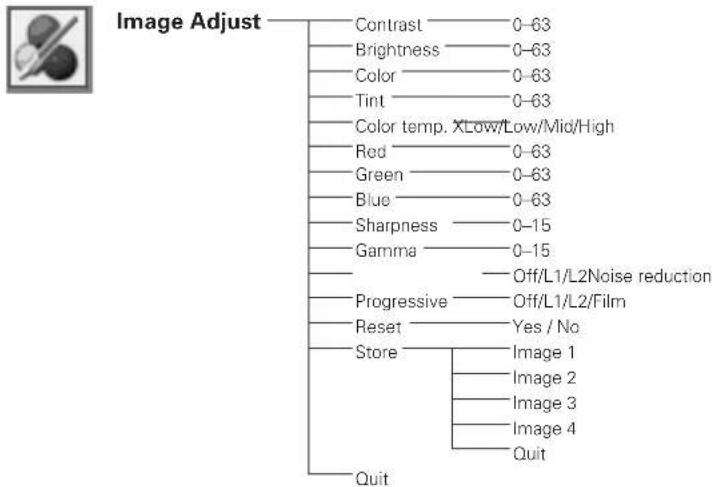
flowchart
graph TD
    A["Image Adjust"] --> B["Contrast 0-63"]
    A --> C["Brightness 0-63"]
    A --> D["Color 0-63"]
    A --> E["Tint 0-63"]
    A --> F["Color temp. XLow/Low/Mid/High"]
    A --> G["Red 0-63"]
    A --> H["Green 0-63"]
    A --> I["Blue 0-63"]
    A --> J["Sharpness 0-15"]
    A --> K["Gamma 0-15"]
    A --> L["Off/L1/L2Noise reduction"]
    A --> M["Progressive Off/L1/L2/Film"]
    A --> N["Reset Yes / No"]
    A --> O["Store Image 1"]
    O --> P["Image 2"]
    O --> Q["Image 3"]
    O --> R["Image 4"]
    O --> S["Quit"]
    A --> T["Quit"]
√Note:
- The Menu display varies depending on the input signal.

PC Adjust
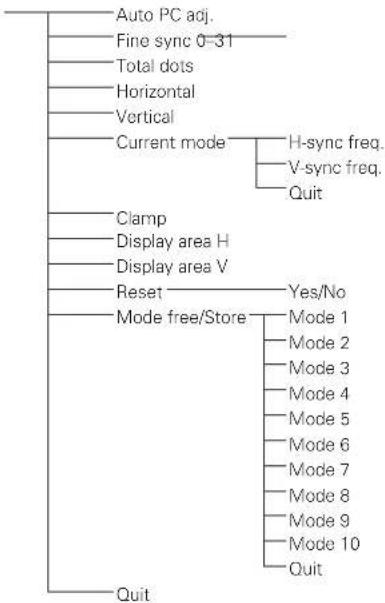
flowchart
graph TD
    A["Auto PC adj."] --> B["Fine sync 0-31"]
    B --> C["Total dots"]
    C --> D["Horizontal"]
    D --> E["Vertical"]
    E --> F["Current mode"]
    F --> G["H-sync freq."]
    F --> H["V-sync freq."]
    F --> I["Quit"]
    F --> J["Clamp"]
    J --> K["Display area H"]
    K --> L["Display area V"]
    L --> M["Reset"]
    M --> N{Yes/No}
    M --> O["Mode free/Store"]
    O --> P["Mode 1"]
    O --> Q["Mode 2"]
    O --> R["Mode 3"]
    O --> S["Mode 4"]
    O --> T["Mode 5"]
    O --> U["Mode 6"]
    O --> V["Mode 7"]
    O --> W["Mode 8"]
    O --> X["Mode 9"]
    O --> Y["Mode 10"]
    O --> Z["Quit"]
    A --> AA["Quit"]


Screen

flowchart
graph TD
    A["Normal"] --> B["True"]
    B --> C["Wide"]
    C --> D["Full screen"]
    D --> E["Custom"]
    E --> F["Scale — H/V"]
    E --> G["H&V — On/Off"]
    E --> H["Position — H/V"]
    E --> I["Common"]
    E --> J["Reset"]
    E --> K["Quit"]
    E --> L["Digital zoom +"]
    E --> M["Digital zoom -"]
    M --> N["Keystone — Store\nReset"]
    M --> O["Ceiling — On/Off"]
    M --> P["Rear — On/Off"]

Sound
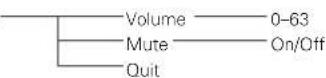
√ Note:
- The Menu display varies depending on the input signal.
Setting

flowchart
graph TD
    A["Language"] --> B["12 languages provided"]
    A --> C["Quit"]
    A --> D["Logo selectLogo"]
    D --> E["Off/Default/User"]
    D --> F["Capture"]
    F --> G["Yes/No"]
    F --> H["Logo PIN code lock"]
    H --> I["On/Off"]
    H --> J["Logo PIN code change"]
    H --> K["Quit"]
    A --> L["Background"]
    L --> M["Blue/User/Black"]
    M --> N["Lamp 1/Lamp 2 Lamp mode"]
    N --> O["Lamp 1 / 2"]
    O --> P["Quit"]
    A --> Q["Lamp control"]
    Q --> R["Lamp control"]
    R --> S["Auto 1/Auto 2/High /Normal/Eco 1/Eco 2"]
    R --> T["Lamp life control"]
    T --> U["Mode 1/Mode 2"]
    T --> V["Quit"]
    A --> W["Filter control"]
    W --> X["Yes/No"]
    W --> Y["Spotlight/PointerPointer"]
    W --> Z["Quit"]
    A --> AA["Remote control"]
    AA --> AB["Code 1-Code 8"]
    AB --> AC["Quit"]
    A --> AD["RC sensor"]
    AD --> AE["All/Front&Top/Top&Back/ Front&Back//Front/Top/Back"]
    AD --> AF["Display"]
    AF --> AG["Off/Countdown off/On"]
    AF --> AH["Eco/Normal Standby mode"]
    AF --> AI["Power management"]
    AI --> AJ["Off/Ready/Shutdown"]
    AJ --> AK["Timer (1-30 Min)"]
    AJ --> AL["Quit"]
    A --> AM["Slant"]
    AM --> AN["On/Off On start"]
    AM --> AO["Off/L1/L2/L3/L4"]
    AM --> AP["Shutter"]
    AP --> AQ["Protection"]
    AQ --> AR["Remote control—On/Off"]
    AQ --> AS["Projector—On/Off"]
    AQ --> AT["Management—5 - 180 Min."]
    AQ --> AU["Quit"]
    A --> AV["Key lockSecurity"]
    AV --> AW["Off"]
    AV --> AX["Projector (all)"]
    AV --> AY["Projector (part)"]
    AV --> AZ["Remote control (all)"]
    AV --> BA["Remote control (part)"]
    AV --> BB["Quit"]
    AV --> BC["PIN code lock"]
    BC --> BD["Off/On 1/On 2"]
    BC --> BE["PIN code change"]
    BC --> BF["Quit"]
    A --> BG["Warning log"]
    BG --> BH["8 test patterns provided Test pattern"]
    BG --> BI["Quit"]
    BG --> BJ["Filter counter"]
    BJ --> BK["( ) Hours"]
    BJ --> BL["Off/400H/700H/1000H"]
    BJ --> BM["Reset"]
    BJ --> BN["Quit"]
    BJ --> BO["Scrolls remaining"]
    BO --> BP["Scroll(s)"]
    BO --> BQ["Reset"]
    BO --> BR["Quit"]
    BJ --> BS["Yes/No Factory default"]
Indicators and Projector Condition
Check the indicators for the projector condition.
The projector is operating normally.
| Indicators | Projector Condition | ||||
| POWER green / red | WARNING TEMP. red | WARNING FILTER orange | SHUTTER blue | LAMP 1/2 REP. yellow | |
| ● | ● | ● | ● | ● | The projector is off. (The AC power cord is unplugged.) |
| ○red | * | * | * | * | The projector is in stand-by mode. Press the ON/STAND-BY button to turn on the projector. |
| ○green | * | * | ● | * | The projector is operating normally.(The Shutter is open) |
| ○green | * | * | ○ | * | The projector is operating normally.(The Shutter is closed) |
| ▽red | * | * | * | * | The projector is preparing for stand-by or the projection lamp is being cooled down. The projector cannot be turned on until cooling is completed and the POWER indicator lights red. |
| ▽red | * | * | ● | * | The projection lamp is being cooled down in the Power management mode. |
| ▽green | * | * | ● | * | The projector is in the Power management mode. |
| ▽red | * | * | ○ | * | The projection lamp is being cooled down in the Shutter management mode. |
| ▽green | * | * | ○ | * | The projector is in the Shutter management mode. Press the ON/STAND-BY button to turn on the projector. |
| * | * | ○ | * | * | The filter is scrolled using the Filter control function in the setting menu. When the filter is being scrolled, the Filter replacement icon and “ Please wait...” message (Fig. 1) appear on the screen. |
 Please wait...Fig.1 Filter replacement icon and “Please wait...” Please wait...Fig.1 Filter replacement icon and “Please wait...” | |||||


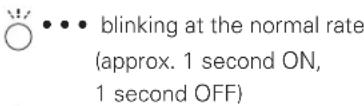


The projector is detecting abnormal condition.
| Indicators | Projector Condition | ||||
| POWER green / red | WARNING TEMP. red | WARNING FILTER orange | SHUTTER blue | LAMP 1/2 REP. yellow | |
| [KDS8]green | [706A] | * | * | * | The temperature inside the projector is elevated close to the abnormally high level. |
| [5X4V]red |  | * | * | * | The temperature inside the projector is abnormally high. The projector cannot be turned on. When the projector is cooled down enough and the temperature returns to normal, the POWER indicator lights red and the projector can be turned on. (The WARNING TEMP. indicator keeps blinking.) Check and replace the filter. |
 red red |  | * | * | * | The projector has been cooled down enough and the temperature returns to normal. When turning on the projector, the WARNING TEMP. indicator stops blinking. Check and replace the filter. |
 red red | * | * | * | [733E] | The lamp cannot light up. (The projector is preparing for stand-by or the projection lamp is being cooled down. The projector cannot be turned on until cooling is completed.) |
 red red | * | * | * | [STDC] | The lamp cannot light up. (The lamp has been cooled down enough and the projector is in stand-by mode and ready to be turned on with the ON/STAND-BY button.) |
| [YX07]green | * | * | * |  | When either of the 2 lamps is out. |
| * | * | * | * | ○ | The lamp has been used overtime. Replace the lamp immediately. |
WARNING FILTER
When the filter detects clogging, reaches a time set in the timer setting or runs out of the filter scroll, the WARNING FILTER indicator lights orange. When this indicator lights orange, replace the filter or the filter cartridge with a new one promptly. Reset the Filter counter and Scroll counter after replacing the filter cartridge (p.62).
LAMP 1/2 REPLACE
When the LAMP 1 REPLACE indicator and the LAMP 2 REPLACE indicator light yellow, replace the projection lamps with new ones promptly. See pages 52, 63-65.
The projector is detecting abnormal condition.
| Indicators | Projector Condition | ||||
| POWER green / red | WARNING TEMP. red | WARNING FILTER orange | SHUTTER blue | LAMP 1/2 REP. yellow | |
| * | * | ○ | * | * | If the Filter counter reached a time set in the timer setting, a Filter replacement icon (Fig.2) appears on the screen and the WARNING FILTER indicator on the top panel lights up. Replace the filter as soon as possible. If the filter is out of scroll and the projector reaches a time set in the timer setting, Fig. 3 appears on the screen and the WARNING FILTER indicator lights up. Replace the filter cartridge as soon as possible.If the filter is clogged and no scroll is left in the filter cartridge, a Filter cartridge replacement icon (Fig.4) appears on the screen and the WARNING FILTER indicator lights up. Replace the filter cartridge as soon as possible.√Note:• Fig.2, Fig.3 and Fig.4 icon will not appear when the Display function is set to “Off” (p.54), or during “Freeze” (p.30). |
 Fig.2 Filter replacement icon Fig.2 Filter replacement icon Fig.3 Fig.3 Fig.4 Filter cartridge replacement icon Fig.4 Filter cartridge replacement icon | |||||
| ● | ○ | * | * | The filter cartridge is not installed in the projector. Check the filter compartment to see if the filter cartridge is installed in the projector. | |
| ○green | * | * | * | The projector detects an abnormal condition during filter scroll. | |
| red | * | * | * | The projection is being cooled down after detecting an abnormal condition during filter scroll. | |
| ○red | * | * | * | The projector has been cooled down enough and is in the stand-by mode after detecting an abnormal condition during filter scroll | |
| ● | ○ | * | * | * | The projector detects an abnormal condition and cannot be turned on. Unplug the AC power cord and plug it again to turn on the projector. If the projector is turned off again, unplug the AC power cord and contact the dealer or the service center. Do not leave the projector on. It may cause an electric shock or a fire hazard. |
| * | * | * | * | The shutter is out of control. | |
| red | * | ● | * | The shutter is out of control. (The projector is in the cooling mode.) | |
| ○red | * | ● | * | The shutter is out of control. (The projector is in the stand-by mode.) In that case, contact the service station immediately. | |
Compatible Computer Specifications
Basically this projector can accept the signal from all computers with the V- and H-Frequency mentioned below and less than 140 MHz of Dot Clock.
PC Adjustment is limited when selecting these modes.
| ON-SCREEN DISPLAY | RESOLUTION | H-Freq. (kHz) | V-Freq. (Hz) |
| VGA 1 640x480 31.470 59.880 | |||
| VGA 2 720x400 31.470 70.090 | |||
| VGA 3 640x400 31.470 70.090 | |||
| VGA 4 640x480 37.860 74.380 | |||
| VGA 5 640x480 37.860 72.810 | |||
| VGA 6 640x480 37.500 75.000 | |||
| VGA 7 640x480 43.269 85.000 | |||
| MAC LC13 640x480 34.970 66.600 | |||
| MAC 13 640x480 35.000 66.670 | |||
| 480p 640x480 31.470 59.880 | |||
| 575p 768x575 31.250 50.000 | |||
| 575i | 768x576 15.625 | 50.000(Interface) | |
| 480i | 640x480 15.734 | 60.000(Interface) | |
| SVGA 1 | 800x600 35.156 56.250 | ||
| SVGA 2 | 800x600 37.880 60.320 | ||
| SVGA 3 | 800x600 46.875 75.000 | ||
| SVGA 4 | 800x600 53.674 85.060 | ||
| SVGA 5 | 800x600 48.080 72.190 | ||
| SVGA 6 | 800x600 37.900 61.030 | ||
| SVGA 7 | 800x600 | 34.500 55.380 | |
| SVGA 8 | 800x600 | 38.000 60.510 | |
| SVGA 9 | 800x600 | 38.600 60.310 | |
| SVGA 10 | 800x600 | 32.700 51.090 | |
| SVGA 11 | 800x600 | 38.000 60.510 | |
| MAC 16 832x624 49.720 74.550 | |||
| XGA 1 | 1024x768 | 48.360 60.000 | |
| XGA 2 | 1024x768 | 68.677 84.997 | |
| XGA 3 | 1024x768 | 60.023 75.030 | |
| XGA 4 | 1024x768 | 56.476 70.070 | |
| XGA 5 | 1024x768 | 60.310 | 74.920 |
| XGA 6 | 1024x768 48.500 60.020 | ||
| XGA 7 | 1024x768 44.000 54.580 | ||
| XGA 8 | 1024x768 | 63.480 79.350 | |
| XGA 9 | 1024x768 36.000 | 870170(Interface) | |
| XGA 10 | 1024x768 | 62.040 | 77.070 |
| XGA 11 | 1024x768 | 61.000 75.700 | |
| XGA 12 | 1024x768 | 35.522 | 86.95(Interface) |
| XGA 13 | 1024x768 46.900 58.200 | ||
| XGA 14 | 1024x768 | 47.000 | 58.300 |
| XGA 15 | 1024x768 | 58.030 72.000 | |
| MAC 19 | 1024x768 | 60.240 75.080 | |
| SXGA 1 | 1152x864 | 64.200 70.400 | |
| SXGA 2 1280x1024 62.500 58.600 | |||
| SXGA 3 1280x1024 63.900 60.000 | |||
| SXGA 4 1280x1024 63.340 59.980 | |||
| SXGA 5 1280x1024 63.740 60.010 | |||
| SXGA 6 1280x1024 71.690 67.190 | |||
| SXGA 7 1280x1024 81.130 76.107 | |||
| SXGA 8 1280x1024 63.980 60.020 |
| ON-SCREEN DISPLAY | RESOLUTION | H-Freq. (kHz) | V-Freq. (Hz) | |
| SXGA 9 12 | 80x1024 | 79.976 | 75.025 | |
| SXGA 10 12 | 80x960 | 60.000 | 60.000 | |
| SXGA 11 | 1152x900 | 61.200 | 65.200 | |
| SXGA 12 11 | 52x900 | 71.400 | 75.600 | |
| SXGA 13 | 1280x1024 | 50.000 | 86.000Interlacel | |
| SXGA 14 | 1280x1024 | 50.000 | 94.00Interlacel | |
| SXGA 15 | 1280x1024 | 63.370 | 60.010 | |
| SXGA 16 | 1280x1024 | 76.970 | 72.000 | |
| SXGA 17 11 | 52x900 | 61.850 | 66.000 | |
| SXGA 18 | 1280x1024 | 46.430 | 86.700Interlacel | |
| SXGA 19 | 1280x1024 | 63.790 | 60.180 | |
| SXGA 20 | 1280x1024 | 91.146 | 85.024 | |
| SXGA+ 1 | 1400x1050 | 63.970 | 60.190 | |
| SXGA+ 2 | 1400x1050 | 65.350 | 60.120 | |
| SXGA+ 3 | 1400x1050 | 65.120 | 59.900 | |
| SXGA+ 4 | 1400x1050 | 64.030 | 60.010 | |
| SXGA+ 5 | 1400x1050 | 62.500 | 58.600 | |
| MAC 21 11 | 52x870 | 68.680 | 75.060 | |
| MAC | 1280x960 | 75.000 | 75.080 | |
| MAC | 1280x1024 | 80.000 | 75.080 | |
| WXGA 1 13 | 66x768 | 48.860 | 60.000 | |
| WXGA 2 13 | 60x768 | 47.700 | 60.000 | |
| WXGA 3 | 1376x768 | 48.360 | 60.000 | |
| WXGA 4 13 | 60x768 | 56.160 | 72.000 | |
| WXGA 6 12 | 80x768 | 47.776 | 59.870 | |
| WXGA 7 12 | 80x768 | 60.289 | 74.893 | |
| WXGA 8 12 | 80x768 | 68.633 | 84.837 | |
| WXGA 9 12 | 80x800 | 49.600 | 60.050 | |
| WXGA 10 12 | 80x800 | 41.200 | 50.000 | |
| WXGA 11 12 | 80x800 | 49.702 | ||
| WUXGA 1 | 1920x1200 | 74.556 | 59.885 | |
| WUXGA 2 | 1920x1200 | 74.038 | 59.950 | |
| WSXGA+1 | 1680x1050 | 65.290 | 59.954 | |
| WXGA+1 14 | 40x900 | 55.935 | ||
| WXGA+2 14 | 40x900 | 74.918 | 60.000 | |
| 720p 128 | x720 | 45.000 | 60.000 | |
| 720p 128 | x720 | 37.500 | 50.000 | |
| 1035i | 1920x1035 | 33.750 | 60.000Interlacel | |
| 1080i | 1920x1080 | 33.750 | 60.000Interlacel | |
| 1080i | 1920x1080 | 28.125 | 50.000Interlacel | |
When an input signal is digital from the DVI terminal, refer to the chart below.
PC Adjust Menu cannot be selected when Input 1 [RGB (PC digital)] is selected in the Input Menu.
| ON-SCREEN DISPLAY | RESOLUTION | H-Freq. (kHz) | V-Freq. (Hz) | ON-SCREEN DISPLAY | RESOLUTION | H-Freq. (kHz) | V-Freq. (Hz) |
| D-VGA 640x | 480 31.470 59.940 | D-WXGA 6 | 1280x768 | 47.776 | 59.870 | ||
| D-480p 720x | 480 31.470 59.880 | D-WXGA 7 | 1280x768 | 60.289 74.893 | |||
| D-575p 768x | 575 31.250 50.000 | D-WXGA 9 | 1280x800 | 49.600 | 60.050 | ||
| D-SVGA 800x | 600 37.879 60.320 | D-WXGA 10 | 1280x800 | 41.200 | 50.000 | ||
| D-XGA 1024x | 768 43.363 | 60.000 | D-WXGA 11 | 1280x800 | 49.702 | 59.810 | |
| D-WXGA 1 | 1366x768 | 48.360 | 60.000 | D-SXGA 2 | 1280x1024 | 60.276 | 58.069 |
| D-WXGA 2 | 1360x768 | 47.700 60.000 | D-SXGA 3 | 1280x1024 | 31.650 | 29.800 | |
| D-WXGA 3 | 1376x768 | 48.360 | 60.000 | D-WXGA+1 | 1440x900 | 55.935 | 59.887 |
| D-WXGA 4 | 1360x768 | 56.160 | 72.000 | D-720p | 1280x720 | 45.000 | 60.000 |
| D-WXGA 5 | 1366x768 | 46.500 | 50.000 | D-1035i | 1920x1035 | 33.750 | 60.000 interface |
| D-1080i | 1920x1080 | 33.750 | 60.000 interface | ||||
| D-1080i | 1920x1080 | 28.125 | 50.000 interface | ||||
√ Notes:
- When the input signal is D-WXGA +1 images may not be displayed properly depending on computers
- Specifications are subject to change without notice..
Technical Specifications
Mechanical Information
Projector Type Multi-media Projector
Dimensions (W x H x D) 21.66" x 6.89" x 17.76" (451.0 mm x 175.0 mm x 550.1 mm)
Net Weight 32.4 lbs (14.7 kg)
Feet Adjustment 0° to 3.5°
Panel Resolution
LCD Panel System 1.0" TFT Active Matrix type, 3 panels
Panel Resolution 1,024 x 768 dots
Number of Pixels 2,359,296 (1,024 x 768 x 3 panels)
Signal Compatibility
Color System PAL, SECAM, NTSC, NTSC4.43, PAL-M, and PAL-N
High Definition TV Signal 480i, 480p, 575i, 575p, 720p, 1035i, and 1080i
Scanning Frequency H-sync. 15 kHz–100 kHz, V-sync. 50 Hz–100 Hz
Optical Information
Projection Lens Optional
Projection Lamp 330 W NSHA(1 lamp + 1 lamp)
Interface
Input 1 Digital (DVI-D) x 1, Analog (Mini D-sub 15 pin) x 1
Input 2 BNC Type x 5 (G or Video/Y, B or Cb-Pb, R or Cr-Pr, HV and V)
Input 3 RCA Type x 1, Mini DIN 4 pin x 1
AUDIO IN Audio 1 (Mini Type stereo), Audio 2 (Mini Type stereo), Audio 3 (RCA Type) x 2
Analog Out Mini D-sub 15 pin x 1
Audio Out Audio (Mini Type stereo) x 1
R/C Jack Mini Type (Wired Remote) x 1
Control Port D-sub 9 pin x 1
USB Connector USB Series B x 1
Option PJ-Net Organizer Terminal x 1
Audio
Internal Audio Amp 3.0 W + 3.0W (stereo)
Built-in Speaker 2 speaker, 1.97" x 3.54" (50 x 90 mm)
Power
Voltage and Power Consumption AC 100–120 V (4.6A Max. Ampere), 50/60 Hz (The U.S.A and Canada)
AC 200–240 V (2.3A Max. Ampere), 50/60 Hz (Continental Europe and The U.K.)
Operating Environment
Operating Temperature 41°F–104°F (5°C–40°C)
Storage Temperature 14°F–140°F (-10°C–60°C)
Remote Control
Battery AAA or LR03 Type x 2
Operating Range 16.4' (5 m/±30°)
Dimensions 1.8" (W) x 1.0" (H) x 5.7" (D) (45 mm x 25 mm x 145 mm)
Net Weight 3.5 oz (99 g) (including batteries)
Laser Pointer Class II Laser (Max. Output: 1 m W/Wave length: 640–660 nm)
Accessories
Owner's Manual (CD-ROM)
Quick Reference Guide
AC Power Cord
Remote Control and Batteries
VGA Cable
USB Cable
Lens Mount Cover
PIN Code Label
Lens Antitheft Screw *
* Contact the dealer where you purchased the projector or the service center about the Lens Antitheft Screw.
● The specifications are subject to change without notice.
- LCD panels are manufactured to the highest possible standards. Even though 99.99% of the pixels are effective, a tiny fraction of the pixels (0.01% or less) may be ineffective by the characteristics of the LCD panels.
Optional Parts
The parts listed below are optionally available. When ordering those parts, specify the item name and Model No. to the sales dealer.
Model No.
This projector is compliant with PJLink Standard Class 1 of JBMIA (Japan Business Machine and Information System Industries Association). The projector supports all commands defined by PJLink Class 1 and is verified conformance with PJLink Standard Class 1.
| Projector Input | PJLink Input | Parameter | |
| Input 1 | RGB (PC analog) | RGB 1 | 11 |
| RGB (Scart) | RGB 2 | 12 | |
| RGB (PC digital) DIGITAL 1 | 31 | ||
| RGB (AV HDCP) DIGITAL 2 | 32 | ||
| Input 2 | RGB | RGB 3 | 13 |
| Video | VIDEO 1 | 21 | |
| Component | VIDEO 2 | 22 | |
| Input 3 | Video | VIDEO 3 | 23 |
| S-video | VIDEO 4 | 24 | |
| Input 4 | Network NETWORK 1 51 | ||
PJLink is a registered trademark of JBMIA and pending trademark in some countries.
PJLink™
Configurations of Terminals
INPUT 1/ANALOG OUT
Terminal: Analog RGB (Mini D-sub 15 pin)
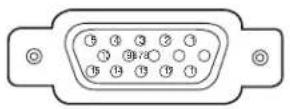
Input
| 1 | Red Input | 9 | +5V Power |
| 2 | Green Input | 10 | Ground (Vert.sync.) |
| 3 | Blue Input | 11 | Ground |
| 4 | No Connect | 12 | DDC Data |
| 5 | Ground (Horiz.sync.) | 13 | Horiz. sync. Input (Composite H/V sync.) |
| 6 | Ground (Red) | 14 | Vert. sync. Input |
| 7 | Ground (Green) | 15 | DDC Clock |
| 8 | Ground (Blue) | ||
Output
| 1 | Red Output | 9 | No Connect |
| 2 | Green Output | 10 | Ground (Vert.sync.) |
| 3 | Blue Output | 11 | No Connect |
| 4 | No Connect | 12 | No Connect |
| 5 | Ground (Horiz.sync.) | 13 | Horiz. sync. Output |
| 6 | Ground (Red) | 14 | Vert. sync. Output |
| 7 | Ground (Green) | 15 | No Connect |
| 8 | Ground (Blue) | ||
DVI-D TERMINAL (DIGITAL)

| 1 | T.M.D.S. Data2- | 9 | T.M.D.S. Data1- | 17 | T.M.D.S. Data0- |
| 2 | T.M.D.S. Data2+ | 10 | T.M.D.S. Data1+ | 18 | T.M.D.S. Data0+ |
| 3 | T.M.D.S. Data2 Shield | 11 | T.M.D.S. Data1 Shield | 19 | T.M.D.S. Data0 Shield |
| 4 | No Connect | 12 | No Connect | 20 | No Connect |
| 5 | No Connect | 13 | No Connect | 21 | No Connect |
| 6 | DDC Clock | 14 | +5V Power | 22 | T.M.D.S. Clock Shield |
| 7 | DDC Data | 15 | Ground (for +5V) | 23 | T.M.D.S. Clock+ |
| 8 | No Conknect | 16 | Hot Plug Detect | 24 | T.M.D.S. Clock- |
CONTROL PORT CONNECTOR
Terminal : D-sub 9 pin

| Serial | |
| 1 | — |
| 2 | R X D |
| 3 | T X D |
| 4 | — |
| 5 | SG |
| 6 | — |
| 7 | RTS |
| 8 | CTS |
| 9 | — |
USB CONNECTOR (Series B)
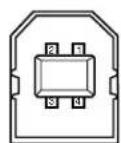
| 1 | Vcc |
| 2 | - Data |
| 3 | + Data |
| 4 | Ground |
PIN Code Number Memo
Write down the PIN code number in the column below and keep it with this manual securely. If you forgot or lost the number and unable to operate the projector, contact the service station.
PIN Code Lock No.
Factory default set No: 1 2 3 4*
Logo PIN Code Lock No.
Factory default set No: 4 3 2 1*
* Should the four-digit number be changed, the factory set number will be invalid.
While the projector is locked with the PIN code...
Put the label below (supplied) on in a prominent place of the projector's body while it is locked with a PIN code.

Dimensions
Unit: inch (mm)
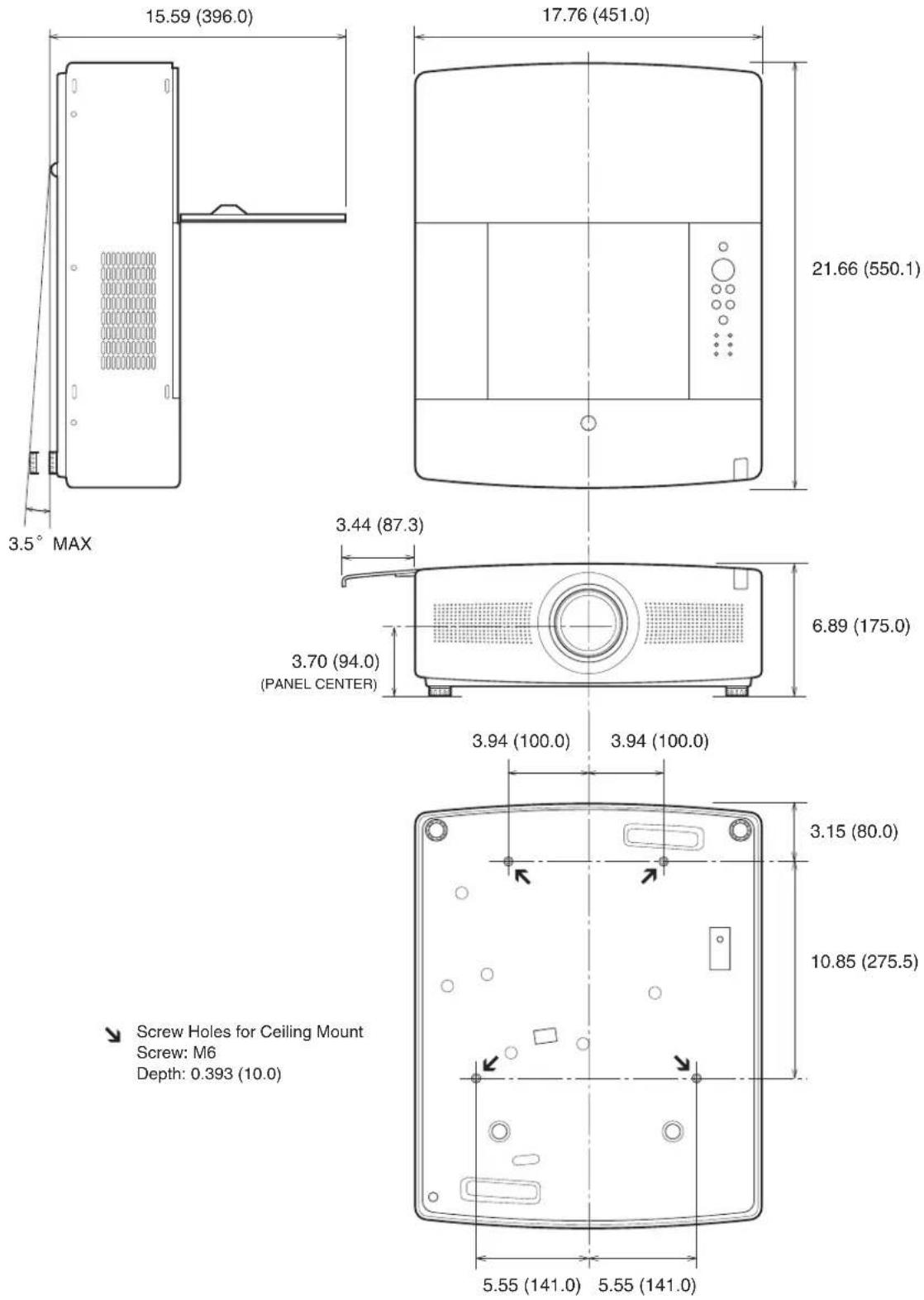
- Multimedia Projector
- MODEL PLC-XTC50L
- ◆ Functionally Rich
- ◆ Auto Lamp Selection System
- ◆ Multi-use Remote Control
- ◆ Simple Computer System Setting
- ◆ Useful Functions for Presentation
- ◆ Security Function
- ♦ Lamp Control
- Power Management
- ◆ Multilanguage Menu Display
- ◆ Network-capable
- ♦ Logo Function
- ◆ Multiple Interface Terminals
- ◆ Shutter Function
- ◆ Automatic Filter Replacement Function
- √ Notes:
- Table of Contents
- Features and Design.... 2
- Table of Contents 3
- To the Owner 4
- Safety Instructions 5
- Compliance 9
- Part Names and Functions.... 10
- Installation 18
- Basic Operation 24
- Input Selection 34
- Computer Adjustment 37
- Image Level Selection 41
- Image Adjustment 42
- Screen Adjustment 45
- Setting 49
- Maintenance and Care 60
- Appendix 68
- Trademarks
- Safety Precaution
- WARNING: ● THIS APPARATUS MUST BE EARTHED
- ● TO REDUCE THE RISK OF FIRE OR ELECTRIC SHOCK, DO NOT EXPOSE THIS APPLIANCE TO RAIN OR MOISTURE.
- CAUTION ON HANGING FROM THE CEILING
- CAUTION
- NOTE FOR CUSTOMERS IN THE US
- Air Circulation
- IMPORTANT!
- Filter Maintenance!!
- Installing the Projector in Proper Directions
- √Note:
- Positioning Precautions
- CAUTION ON CEILING MOUNTING
- Moving the Projector
- CAUTION IN CARRYING OR TRANSPORTING THE PROJECTOR
- Cautions in Handling the Projector
- Federal Communications Commission Notice
- AC Power Cord Requirement
- AC Power Cord for the United States and Canada:
- AC Power Cord for the United Kingdom:
- WARNING: A PLUG WITH BARED FLEXIBLE CORD IS HAZARDOUS IF ENGAGED IN A LIVE SOCKET OUTLET.
- Part Names and Functions
- \*Kensington Security Slot
- ⑮ Security Chain Hook
- √Notes:
- Side Terminal
- ① COMPUTER INPUT TERMINAL (DIGITAL)
- ② COMPUTER INPUT TERMINAL (ANALOG)
- ③ AUDIO MONITOR OUTPUT jACK (VARIABLE)
- ④ MONITOR OUTPUT TERMINAL (ANALOG)
- ⑤ AUDIO 1 jACK
- ⑥ AUDIO 2 jACK
- ⑦ AUDIO 3 jACKS (L(MONO)/R)
- ⑧ 5 BNC INPUT jACKS
- ⑩ USB CONNECTOR (Series B)
- ⑪ R/C jACK
- ⑫ VIDEO INPUT jACK
- ⑬ CONTROL PORT CONNECTOR
- Top Control
- Remote Control
- Remote Control Battery Installation
- Remote Control Receivers and Operating Range
- Wired Remote Control
- Remote Control Code
- Adjustable Feet
- Lens Installation
- Removing the lens
- Attaching the lens to the projector
- Connecting to a Computer (Digital and Analog RGB)
- Connecting to Video Equipment (Video, S-video, Component and RGB Scart)
- Cables used for connection
- Connecting for Audio Signal
- Connecting the AC Power Cord
- √ Note:
- Turning On the Projector
- Enter a PIN code
- When using top control
- When using remote control
- What is PIN code?
- Selected Input Source and Lamp Control
- PIN Code Input Dialog Box
- CAUTION ON HANDLING PIN CODE
- Turning Off the Projector
- How to Operate the On-Screen Menu
- Menu Bar
- Guide Window
- System
- [PC Adjust]
- Image Adjust
- Setting Menu
- Input
- Image
- Screen
- Sound
- Information
- Operating with Projector Control
- Lens Operation
- Zoom Adjustment
- Focus Adjustment
- Lens Shift Adjustment
- Shutter Function
- Sound Adjustment
- Direct Operation
- Volume
- Mute
- Menu Operation
- Operating with Remote Control
- FREEZE button
- AUTO PC button
- INFO. button
- D.ZOOM button
- SCREEN button
- LENS SHIFT button
- ZOOM buttons
- FOCUS buttons
- SHUTTER button
- P-TIMER button
- KEySTONE button
- Keystone
- Laser Pointer Function
- Pointer Function
- Wireless Mouse Operation
- PRESENTATION POINTER button
- R-CLICK button
- L-CLICK button
- Input Selection
- Remote Control Operation
- Top Control Operation
- Input Source Selection
- INPUT 1
- INPUT 2
- INPUT 3
- Video System Selection
- Video or S-video
- Auto
- PAL/SECAM/NTSC/NTSC4.43/PAL-M/PAL-N
- Component
- COMPONENT VIDEO SIGNAL FORMAT
- Computer Adjustment
- Computer System Selection
- ......
- Mode 1
- SVGA 1
- Selecting Computer System Manually
- Auto PC Adjustment
- Auto PC Adj.
- To store adjustment parameters
- Manual PC Adjustment
- Fine sync
- Total dots
- Horizontal
- Vertical
- Current mode
- Clamp
- Display area H
- Display area V
- Reset
- Mode free
- Store
- Quit
- Image Level Selection
- Dynamic
- Standard
- Real
- Cinema
- Image 1-4
- Image Adjustment
- Contrast
- Brightness
- Color
- Tint
- Color temp.
- White balance (Red)
- White balance (Green)
- White balance (Blue)
- Sharpness
- Gamma
- Noise reduction
- Progressive
- Screen Adjustment
- Ceiling
- Rear
- Screen Size Adjustment (Computer Signals)
- Normal
- True
- Wide
- Full screen
- Custom
- For zooming in and out the images
- Digital zoom +
- Digital zoom –
- Screen Size Adjustment (Video, Component Signals)
- Setting
- Language
- Logo (Logo and Logo PIN code lock settings)
- Logo select
- Capture
- Logo PIN code lock
- Enter a Logo PIN code
- Change the Logo PIN code lock setting
- Change the Logo PIN code
- Background
- Lamp mode
- Lamp control
- Lamp life control
- Filter control
- Pointer
- To change the code for the projector
- To change the code for the remote control:
- RC sensor
- Display
- Standby mode
- On start
- Slant
- Shutter
- Protection
- Management
- Security (Key lock and PIN code lock settings)
- Key lock
- PIN code lock
- Change the PIN code lock setting
- Change the PIN code
- Test pattern
- Warning log
- Filter counter
- Factory default
- Filter Instructions
- Replacing the Filter Cartridge
- RECOMMENDATION
- ORDER REPLACEMENT FILTER CARTRIDGE
- Resetting the Filter Counter
- Resetting the Scroll Counter
- Auto Lamp Selection System
- Lamp 1/2 Replace Indicators
- Lamp Status Display
- Lamp Mode Changeover
- Lamp Replacement
- ORDER REPLACEMENT LAMP
- LAMP HANDLING PRECAUTIONS
- IF A LAMP EXPLODES, THE FOLLOWING SAFETY PRECAUTIONS SHOULD BE TAKEN.
- Warning Indicators
- The projector is shut down and the WARNING TEMP. indicator is blinking red.
- Then check the matters below:
- The projector is shut down and the WARNING TEMP. indicator lights red.
- Cleaning the Projection Lens
- Cleaning the Projector Cabinet
- Appendix
- Troubleshooting
- WARNING :
- Indicators and Projector Condition
- WARNING FILTER
- LAMP 1/2 REPLACE
- Compatible Computer Specifications
- Technical Specifications
- Mechanical Information
- Panel Resolution
- Signal Compatibility
- Optical Information
- Interface
- Audio
- Power
- Operating Environment
- Accessories
- Optional Parts
- Configurations of Terminals
- INPUT 1/ANALOG OUT
- DVI-D TERMINAL (DIGITAL)
- CONTROL PORT CONNECTOR
- USB CONNECTOR (Series B)
- PIN Code Number Memo
- Dimensions
Brand : SANYO
Model : PLC-XTC50L
Category : Video projector