
A103 - Smartphone Plum - Free user manual and instructions
Find the device manual for free A103 Plum in PDF.


| Product Type | Smartphone |
| Brand | Plum |
| Model | A103 |
| SIM Card Support | Dual SIM (SIM1 and SIM2) |
| Memory Card Support | microSD |
| Input Methods | English (upper/lower case), French, Spanish, Portuguese, Numeric |
| Camera | Yes (photo and video capture) |
| Audio Player | Yes (supports audio files) |
| Video Player | Yes |
| FM Radio | Yes (requires earphone) |
| Bluetooth | Yes (data transfer and pairing) |
| USB Connectivity | Yes (USB data transfer and charging) |
| Torch (Flashlight) | Yes (via long press of 0 key) |
| Alarm Clock | 3 programmable alarms |
| Calendar | Monthly view with event tracking |
| Calculator | Yes |
| World Clock | Yes (multiple time zones) |
| Internet | Yes (web browser) |
| Languages Supported | English, French, Spanish, Portuguese |
| Security | PIN lock, Phone lock (default password 1234) |
| Battery Type | Lithium-ion, rechargeable |
| Water Resistance | Not water-resistant (keep dry) |
| FCC Compliance | FCC Part 15 compliant |
Frequently Asked Questions - A103 Plum
User questions about A103 Plum
0 question about this device. Answer the ones you know or ask your own.
Ask a new question about this device
Download the instructions for your Smartphone in PDF format for free! Find your manual A103 - Plum and take your electronic device back in hand. On this page are published all the documents necessary for the use of your device. A103 by Plum.
USER MANUAL A103 Plum
- Phone Overview 4
- Safety Precaution 6
- Getting started 8
- Input method ....10
- Contacts ....11
- Call logs ......11
- Messages ...... 11
- Multimedia.... 12
- FM radio 13
- Application 13
- Profiles 14
-
Settings 15
-
Fun & Games ...... 17
- Internet 17
- Use of USB 17
- Maintenance & Safety 18
- Other Warning.... 19
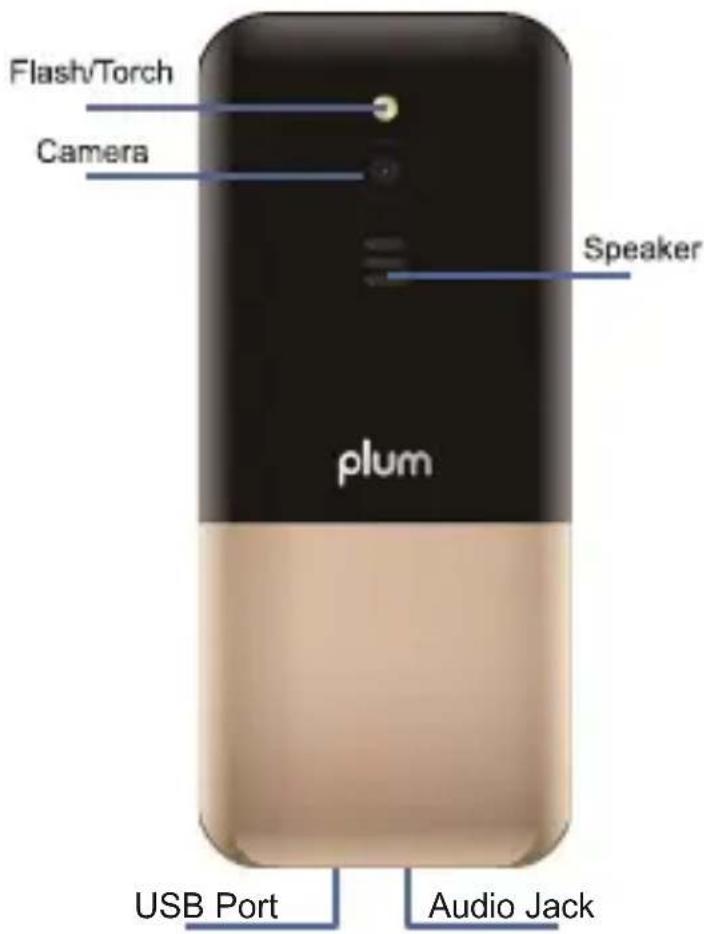
1. Phone Overview
Turn on / off the flashlight
Press the "0" key for a few seconds until the flashlight is turned on/off

Lock the Keypad:
Press Menu key, then press *** key.
The keypad will be locked.
Unlock the Keypad:
When the screen shows "Unlock", press
"Menu" key then press the "" key.
2. Safety Precaution
Not following these simple guidelines may be dangerous or illegal. Read the complete user guide for further information.
TURN ON SAFELY
Do not turn on the phone when wireless phone is prohibited or when it may cause interference or danger.
ROAD SAFETY
Obey all road safety laws. Always use both of your hands to operate the vehicle while driving.
INTERFERENCE
All wireless phones may be sensitive to interference, which may affect performance.
TURN OFF IN HOSPITALS
Follow all restrictions. Turn off the phone near medical equipment.
TURN OFF ON AIRCRAFTS
Follow all restrictions. Wireless devices can cause interference on aircrafts.
TURN OFF WHEN REFUELING
Do not use the phone at/near refueling stations. Do not use near fuel or chemicals.
USE SENSIBLY
Only qualified personnel may install or repair this product.
ENHANCEMENTS AND BATTERIES
Use only appropriate enhancements and batteries. Do not connect incompatible products.
WATER-RESISTANCE
Your phone is not water-resistant. Keep it dry.
BACKUP COPIES
Remember to make back-up copies or keep a written record of all important information stored in your phone.
CONNECTING TO OTHER DEVICES
When connecting to any external device, read its user guide for detailed safety instructions. Do not connect with incompatible products.
3. Getting started
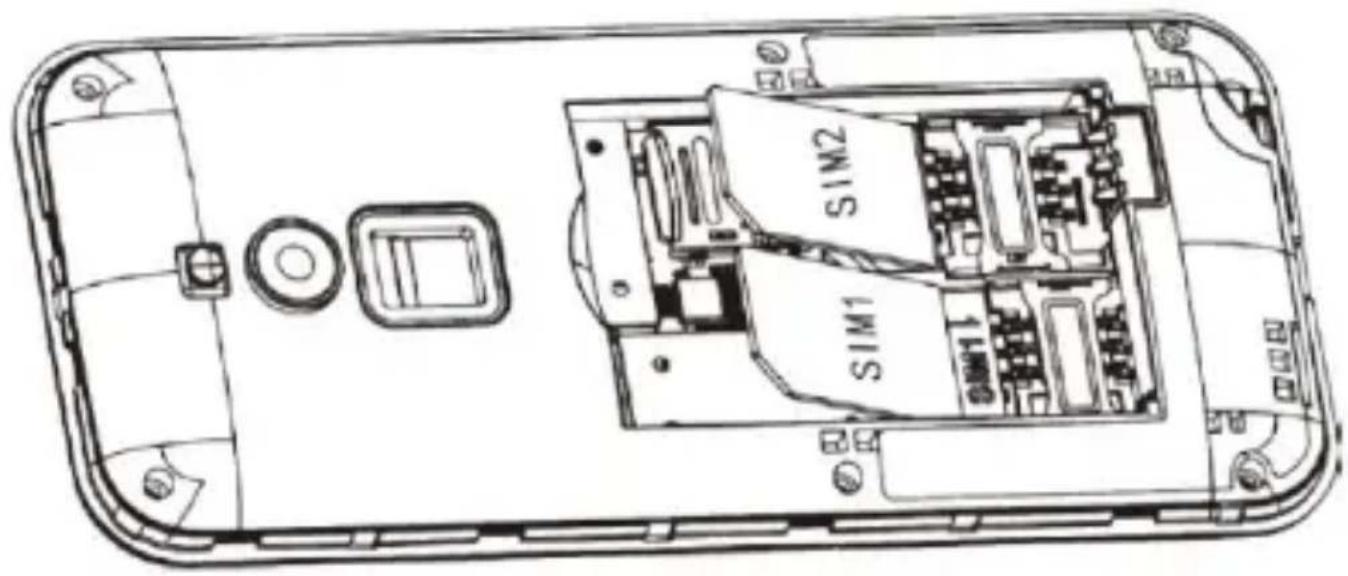
Installing the SIM card(s) and the Micro SD card
The line schematic diagram is noted how to install SIM card and the Micro SD card.
ATTENTION:
1) To insert the SIM card and Micro SD card, please make sure your phone is Power off, then remove the cover, battery and other external power connection, as shown in the image.
2) Insert SIM card and memory card into card slot as the above drawings.
3) Push the SIM card into the slot until it fixed.
The lithium battery delivered with the mobile phone can be put into use immediately after being unpacked. Your mobile phone can monitor and display the battery state.
Normally the remaining energy of the battery is indicated by the battery level icon at the upper right corner of the display screen.
When the battery energy is insufficient, the mobile phone prompts "Battery low". If you have set an alert tone, an alert tone will be given off when the battery level is too low.
◆ A charging animation appears when the battery is being charged. When the charging is complete, the animation disappears.
It is normal of the battery to become hot during the charging period.
◆ The battery icon does no longer flicker when the charging process ends.
◆ Use only the battery provided by the vendor. Otherwise, damages or even injuries could be caused during the charging.
◆ Power off the mobile phone before removing the battery.
The charging process lasts a longer time for a new battery or a battery not in use for long. If the battery voltage is too low to enable the mobile phone to be powered on, charge the battery for a longer time.
During the charging, ensure the battery is placed in a room temperature environment or in an environment close to room temperature.
- Immediately stop using the battery if the battery produces odor, overheats, cracks, distorts or has other damage, or if the electrolyte leaks.
◆ The battery wears out with use. A longer charging time is required as the battery is put into use for a long time.
4. Input method
This mobile phone provides multiple input methods, including English input in both upper and lower case, French, Spanish, Portuguese and numeric input method.
To Shift Entry Methods
Press # key to open the input methods interface
Numeric and English Input
You can input numbers with the numeric input method. Press a number key to input the corresponding number. Switch to English input, press letter keys to input the English word.
Inserting a Symbol
Press the * key to enter the Select symbol interface and select a symbol you want.
5. Contacts
You can check all the contacts in the phone and SIM cards.
6. Call History
You can view all the phone call record in this interface.
7. Messages
You can send and receive the SMS or MMS. If the short message memory is full, a blinking message icon appears on the top of the screen. While entering the Messaging interface, you will see the following menu options: Write message, Inbox, Drafts, Outbox,
Sent Items. If you select Options key, then you can see Settings and Message capacity status.
8. Multimedia
Camera
You can capture pictures or videos by this function.
Image viewer
You can view the pictures or images through this function.
Video recorder
Use this function to capture videos.
Audio player
Use this function to play audio files.
Video player
Use this function to play video files.
Sound recorder
To record audio files. The phone supports WAV and AMR format.
9. FM radio
This phone supports FM radio, you can plug in the earphone and then use FM radio. During FM radio, you can press Up or Down key to control the volume.
● Channel list: You can edit and save channels.
● Manual search: You can edit the specified radio frequency band.
Auto search: You can have automatic search and save the searched channels into the list.
- Record and File list: You can record the FM and the phone will save the record files.
10. Organizer
Torch
Switch on/off the torch here.
In addition, when in the idle screen, you can long press 0 key to turn on/off the torch.
BT
You can use the BT to transfer data and files by pairing with other device.
Alarm
3 alarm clocks are set but deactivated by default. For each alarm clock, the date and time can be set with ringing alert.
Calendar
Once you enter this menu, there is a monthly-view calendar for you to keep track of important appointments, etc.
World clock
You can see the different time in different countries and different cities.
Calculator
This phone supports function of calculator.
11. Profiles
The mobile phone provides multiple user profiles Normal, Silent, Meeting, Outdoor, etc.
You can customize settings on profile and then activate corresponding profiles.
12. Settings
Phone Settings
◆ Time and date: set home city, set time and date, set format, update with time zone.
◆ Language Settings: Your mobile phone supports with English, French, Spanish and Portuguese.
◆ Shortcut settings: Customize the shortcut functions of the Up, Down, Left and Right direction keys. In the standby interface, you can press a direction key to directly enter the function menu corresponding to that direction key.
◆ Restore factory setting: Use this function to restore factory settings. The initial password is 1234.
Call settings
Call waiting/ Call divert/ Call barring/Line switching. You can browse a list of above.
Security Settings
This function provides you with related settings about safety use.
◆ SIM security
PIN lock: The PIN (Personal identification number, 4 to 8 digits) code prevents your SIM card from being used by unauthorized people.
Modify PIN: In general, the PIN is supplied with SIM card by the network operator. If PIN check is enabled, you need to input the PIN each time when you power on your mobile phone. The SIM card will be locked if you input wrong PIN code for three times.
◆ Phone lock: Set the phone lock, the password is 1234 by default.
◆ Modify the phone password: You should firstly input initial password 1234, and input the desired new password.
Connections
Network accounts.
You can select the data account for SIM1 and SIM2.
13. Fun & Games
In this menu, you can play a game or access to Facebook
14. Internet
In this menu, you can access to internet, enter the URL and you can start to browse the web.
15. Use of USB
Notices before use
Always connect and stop USB device correctly.
For other operation systems, the connection between PC and the mobile phone cannot be conducted unless USB driver is installed.
16. Maintenance & Safety
Please read and observe the following information for safe and proper use of your phone and to prevent damage. Also, keep the user guide in an accessible place at all the times after reading it.
Charger and Adapter Safety
Charger and adapter are designed for indoor use only.
Battery Information and Care
- Please dispose of your battery properly.
- Do not disassemble or short-circuit the battery. - Keep the battery's metal contacts clean.
- Recharge the battery after long periods of non-use to maximize battery life.
- Battery life will vary due to usage patterns and environmental conditions.
The self-protection function of the battery cuts the power of the phone when its operation is in an abnormal status. In this case, remove the battery from the phone, reinsert it, and turn the phone on.
17. Other Warning
Any Changes or modifications not expressly approved by the party responsible for compliance could void the user's authority to operate the equipment.
This device complies with part 15 of the FCC Rules. Operation is subject to the following two conditions: (1) This device may not cause harmful interference, and (2) this device must accept any interference received, including interference that may cause undesired operation. Note: This equipment has been tested and found to comply with the limits for a Class B digital device, pursuant to part 15 of the FCC Rules. These limits are designed to provide reasonable protection against harmful interference in a residential installation. This equipment generates, uses and can radiate radio frequency energy and, if not installed and used in accordance with the instructions, may cause harmful interference to radio communications. However, there is no guarantee that interference will not occur in a particular installation. If this equipment does cause harmful interference to radio or television reception, which can be determined by turning the equipment off and on, the user is encouraged to try to correct the interference by one or more of the following measures:
—Reorient or relocate the receiving antenna.
—Increase the separation between the equipment and receiver. —Connect the equipment into an outlet on a circuit different from that to which the receiver is connected.
—Consult the dealer or an experienced radio/TV technician for help. SAR tests are conducted using standard operating positions accepted by the FCC with the phone transmitting at its highest certified power level in all tested frequency bands, although the SAR is determined at the highest certified power level, the actual SAR level of the phone while operating can be well below the maximum value, in general, the closer you are to a wireless base station antenna, the lower the power output. Before a new model phone is available for sale to the public, it must be tested and certified to the FCC that it does not exceed the exposure limit established by the FCC, Tests for each phone are performed in positions and locations (e.g. at the ear and worn on the body) as required by the FCC.
For body worn operation, this model phone has been tested and meets the FCC RF exposure guidelines when used with an accessory designated for this product or when used with an accessory that Contains no metal and that positions the handset a minimum of 1.0 cm from the body.
Non-compliance with the above restrictions may result in violation of RF exposure guidelines.
- Phone Overview
- Safety Precaution
- TURN ON SAFELY
- ROAD SAFETY
- INTERFERENCE
- TURN OFF IN HOSPITALS
- TURN OFF ON AIRCRAFTS
- TURN OFF WHEN REFUELING
- USE SENSIBLY
- ENHANCEMENTS AND BATTERIES
- WATER-RESISTANCE
- BACKUP COPIES
- CONNECTING TO OTHER DEVICES
- Getting started
- ATTENTION:
- Input method
- To Shift Entry Methods
- Numeric and English Input
- Inserting a Symbol
- Contacts
- Call History
- Messages
- Multimedia
- Camera
- Image viewer
- Video recorder
- Audio player
- Video player
- Sound recorder
- FM radio
- Organizer
- Torch
- BT
- Alarm
- Calendar
- World clock
- Calculator
- Profiles
- Settings
- Phone Settings
- Call settings
- Security Settings
- Connections
- Network accounts.
- Fun & Games
- Internet
- Use of USB
- Notices before use
- Maintenance & Safety
- Charger and Adapter Safety
- Battery Information and Care
- Other Warning
Brand : Plum
Model : A103
Category : Smartphone