
C11 - Smartphone LAVA - Free user manual and instructions
Find the device manual for free C11 LAVA in PDF.


| Product Type | Smartphone |
| Brand | Lava |
| Model | C11 |
| Network Support | GSM dual SIM |
| Display | Touchscreen with stylus support |
| Camera | Rear camera with photo and video recording (requires memory card) |
| Video Recording | AVI format |
| Music Player | Supports MP3, with playlist, shuffle, repeat |
| FM Radio | Requires headset as antenna |
| Bluetooth | Yes, supports file transfer and pairing |
| Memory Card Slot | Yes (required for camera and media functions) |
| Battery | Removable lithium-ion battery |
| Charging | Via charger (included) |
| Operating System | Proprietary (feature phone OS) |
| Profiles | General, Meeting, Outdoor, Silent, plus custom |
| Security | Phone lock, SIM lock, privacy protection, auto keypad lock |
| Call Features | Call waiting, call divert, call barring, auto redial, call timer |
| Messaging | SMS and MMS with text and multimedia |
| Additional Tools | Calendar, alarm, world clock, ebook reader, calculator, unit converter, BMI, stopwatch |
| WAP Browser | Yes, requires GPRS |
| SAR Value | <1.6 W/kg (1g tissue) |
| Warranty | 1 year for phone, 6 months for battery/charger |
Frequently Asked Questions - C11 LAVA
User questions about C11 LAVA
0 question about this device. Answer the ones you know or ask your own.
Ask a new question about this device
Download the instructions for your Smartphone in PDF format for free! Find your manual C11 - LAVA and take your electronic device back in hand. On this page are published all the documents necessary for the use of your device. C11 by LAVA.
USER MANUAL C11 LAVA
- Camera......6
-
Gallery......6
-
Tools 6
13.1. Bluetooth....6
13.2. Calendar 6
13.3. Alarm 6
13.4. World clock....6
13.5. Ebook....6
13.6. Calculator....6
13.7. Unit Convert....6
13.8. BMI....6
13.9. Stopwatch....6
- WAP browser....6
- FM radio 6
- SAR (SPECIFIC ABSORPTION RATE) INFORMATION 7
- Service Center number 7
- DO'S AND DON'TS FOR DISPOSAL E-WASTE....7
- Lava Warranty Certificate....8
This user guide is for reference only and may not be fully consistent with the actual product.
General Information
Thank you for purchasing Lava C11 GSM mobile phone. This user guide provides general information and operation instructions.
Note:
Use only accessories approved by Lava to ensure safety. Failing to comply with this will violate the terms and conditions of the warranty.
The phone set has been manufactured in strict compliance with various national standards and requirements set by the authorities. If the contents and displays described in this user guide do not match the actual operation of the phone set, please follow the contents and
displays of your phone set. We reserve the rights to change any mechanisms/ feature of the phone without notice.
This user guide is subject to change without notice.
1. Key introduction
In this guide, different typing format indicates different operation:
| Key Description | Logo | |
| OK key | Determine the location selectedPress and hold it, turn on /off the torch | OK |
| Power key | Press and hold it, turn on /off the phonePress in idle screen, the phone will be locked. | power |
| Call key | Input the phonebook number and press it, then call the number | Call |
2. Security
Emergency call
If any emergency arises, dial 112 (or other emergency call number) for emergency help.
Note:
➢ Success of calling Emergency number depends on your service provider
Notes on phone usage
- Your phone will give off electromagnetic waves. Do not place it near storage medium such as floppy disk.
- Using the phone near television, land phone, radio and office automatic devices may cause interference and affect the function of the mobile phone.
- Keep the phone dry; all kinds of liquid can erode electronic circuit.
- Keep the phone away from extreme temperatures.
- Keep the phone away from fire or a lighted cigarette.
-
Do not paint the phone.
-
Do not drop the phone or violently crush or shake the phone.
- Do not keep the phone near magcards and other object with magnetism. The phone's magnetism may clear the information stored on floppy disk, pre-paid phone card and credit card.
- Keep the phone away from hot places where the temperature may exceed 60°C, such as dashboard, windowsill, or areas exposed to direct sunlight.
- Do not disassemble or modify your phone. This can damage the phone, cause leakage and break the internal circuit.
- Use only damp cloth or non-static cloth to clean your phone.
- Do not use alcohol, thinner, benzene or other chemicals or abrasive cleaner to clean your phone.
- The phone will become warm under normal use and while in battery charging.
- Do not leave the phone with battery uninstalled or with the battery empty for a long period of time. This may cause data loss.
- The metal parts of the phone may irritate your skin depending on your health condition.
- Do not put the phone in the back pocket. Sitting on it may damage the phone. Do not put the phone at the bottom of a bag. You may crush it.
- When the vibrate mode is on, place the phone carefully to prevent it from being dropped from a height or being moved to a heat source due to the vibrating.
- Use only the stylus approved by the phone manufacturer.
- Using stylus of unauthorized source will violate the terms and conditions of the warranty and may damage the touch screen.
- Handle the stylus with care. Place it back to its proper storing place when not in use. Keep it away from children.
- Do not press the touch screen with needles, pen point or other sharp
4. Main Menu
On the Standby screen, press OK or tap the icon to enter the Main Menu. You can then access the various functions and operations.
5. Phonebook
objects; it can damage the LCD and violate the terms and conditions of the warranty.
3. Getting Started
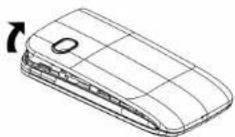
Uninstalling the battery cover
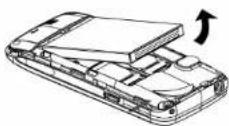
Uninstalling the battery
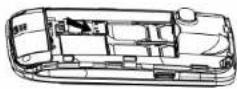
Installing the SIM card
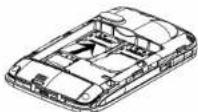
Install Memory Card
New To add New Contact
View To view contact info
Send To send SMS to contact.
Call To dial the contact directly.
vCard To send vcard to contact by SMS or by Bluetooth.
Add to Blacklist To add contact to blacklist.
Delete To delete the selected phonebook entry.
Mark To mark or mark all entries for further operations.
Copy to phone
To copy the phonebook entries from your SIM card to your mobile.
Copy to SIM
To copy the phonebook entries from your mobile to your SIM card
Others
To do other operations such as set Fixed Dial No., Memory details.Check memory details
Blacklist: you can add an entry in Blacklist, or check call records to select the number you want to set as rejected number.
- Call Logs
Call history function logs all recent calls including missed calls, dialed calls and answered calls.
Note:
➢ Refer to the Settings chapter for the phone password setup.
- Music
Upon entering the Music Player, All music in My music file will be displayed. In the player settings, you have the following options: Update playlist,
Repeat, Shuffle, Spectrum display.
- Media
The memory card should be installed before using following functions without FM radio.
8.1. Sound recorder
Enter the Voice memo function, tap to start recording, and tap to stop. The memo can be played back immediately or using Options menu to do the following functions: Play, New, Delete, View, Rename, Append, Settings, Use as, Send.
The Sound files are stored in Audio file.
8.2. Image viewer
Upon entering the Photo Album, the photos in Photos file are listed.
8.3. Video recorder
Before using Camcorder, make sure you have inserted a memory card. The video will be saved in AVI format to Videos file of your memory card.
8.4. Video player
Upon entering the Video Player, Video file list will be displayed. Several functions are available by Options menu: Play, Send, Rename, Delete, and Sort by.
- Settings
Enter Settings from the Main Menu. There are General, Phone and Connection Settings.
9.1. Dual SIM settings
Only SIM1 open, Only SIM2 open or Dual SIM open.
9.2. Pen calibration
Click anywhere on the screen with your stylus to start calibration.
9.3. Phone settings
Time and date: enter to set home city, date/time and format.
Auto power on/off: You can set the time and condition for the phone to automatically power on/off itself.
Language: Set display language.
Input method settings: Include Multi language settings, English settings, Handwriting settings and Handwriting language.
Display: Set wallpaper, Lock screen image, Screen auto lock, Power on/off display.
Flight mode: set Normal mode or Flight mode.
Backlight: Set the brightness of backlight.
Torch status: On/off.
9.4. Profile
Seven Profiles are available: General Mode, Meeting Mode, Outdoor Mode, Silent Mode. You can select any of these Profiles or customize your own profile by adjusting the parameters of the Profile. Restore to default settings by using the Restore option.
9.5. Security settings
You can set Phone lock, SIM lock, Remote tracker and Auto keypad lock here.
SIM security: Allow you to check the SIM card lock status and change password.
Phone security: Turn the phone lock on/off and edit your phone password. The default is 4321.
Privacy protection: If set personal security lock for Phonebook, Message, Call history and File manager, you should input the password (default is 4321) when enter these functions. Also you can change password for yourself.
9.6. Connectivity
Display data accounts, and you can edit them.
9.7. Call settings
9.7.1. SIM1 Call settings
Call waiting
You can turn the call waiting on/off and look up the current status. When the call waiting is turned off and your phone is busy, all other incoming calls will hear the busy ring tone.
Call divert
Set the divert methods for the following different types of calls: all, voicemail, data, fax. The divert methods are: divert all, when busy, when no answer, when no service, when power-off, cancel all divert.
Call barring
Set the block methods for the following different types of calls: all, voicemail, data, fax and SMS. Block options are: all outgoing, international outgoing, international outgoing while abroad, all incoming, incoming while abroad, cancel all barring, change password.
SIM2 Call settings is same as SIM1 Call settings.
9.7.2. Advanced settings
Blacklist
Set the status of Reject numbers in blacklist.
And also you can edit the blacklist numbers.
Auto redial
You can set whether or not to uto redial the number last called that was
unanswered.
Call time display
On, Off
Auto call recorder
If you set it on, then the call will be recorded automatically
Call time Reminder
You can set the duration of the call for the phone to remind you when the time is reached.
Call limiter
You can set the phone's talking time
9.8. Restore factory settings
Restore your phone to the factory or default settings through this option. You need to input your phone password (default is 4321) for this operation. All data will be deleted when your phone is restored to its factory settings.
10. Message
This chapter introduces the messaging services provided by the GSM network. Some services may not be supported by the local network.
10.1. Writing messages
10.1.1. SMS
Enter the SMS editor screen. You may use keypad, virtual keypad or screen handwriting to input English, digits and punctuation marks.
10.1.2. MMS
The MMS function allows you to send text and multimedia such as pictures, voice and video to the other phone. Additionally, you can send the MMS message using CC and BCC functions.
If the MMS is multi-page, the Options menu will provide the following options: Delete page, Go to and Move to. If there is a subject in the MMS contents, you will have Subject and Delete options in the Options menu.
10.2. Settings
You can adjust the various settings of the message functions including Text message and Multimedia message.
11. Camera
Before using Camera, make sure you have inserted a memory card. The photos will be saved in JPEG format to your memory card.
Note:
➢ Taking pictures in dim lighting may result in poor picture quality.
After entering the Camera function, the Camera Preview screen will appear with the status icons. Press Cam or tap to take the picture.
12. Gallery
The Gallery provides a summary for all files stored in memory card.
The path of the Files Stored in memory card:
Photo: Photos
Music: My Music
Video player: Videos
Voice memo: Audio
13. Tools
The Tools includes the following functions: Calendar, Alarm, and so on.
13.1. Bluetooth
You may do functions for your Bluetooth settings such as: Turn on/off, Paired devices, Search devices, Settings.
13.2. Calendar
In addition to the western calendar, a lunar calendar is also provided. You can add, edit and look up events on different dates.
13.3. Alarm
You can set up to 6 alarm clocks. The Alarm Clock settings include: Title, Time, Status, Frequency and Ringtone. The frequency settings are: Once, Daily, Monday, Tuesday, Wednesday, Thursday, Friday, Saturday and Sunday.
Alarm Dialog will be displayed when the alarm goes off. You can stop the alarm or snooze for 5 minutes.
13.4. World clock
World clock is provided with a world map. You can tap on the left or right of the current time zone to switch to the next time zone. The local time of the city on the map is displayed.
13.5. Ebook
The eBook function lists the eBooks in TXT format stored in your memory card. On the bottom of the screen, the size and the number of rows of the selected eBook are displayed. Scroll up or down the list, and press OK to open the selected eBook.
13.6. Calculator
A basic calculator is provided
13.7. Unit Convert
The Unit Converter can help you convert Currency, Energy, Speed, Mass, Area, Volume, Power, Time, Pressure, Length, and Temperature
13.8. BMI
BMI function is provided. By inputting your weight and height, you are able to obtain your BMI and save it. This allows you to monitor your BMI changes over a period of time.
13.9. Stopwatch
Stopwatch provides 20 sets of entries with both total and lap timer functions.
14. WAP browser
You may browse WAP websites. Make sure you have enabled GPRS network.
15. FM radio
Make sure the headset, which is used as the antenna, is plugged in before using the FM radio.
The following functions are available via the Options menu:
My channel: Edit My channel. You can set up to 30 favorite channels. In My channel menu, you have the following options: Play, Edit, Delete, and Delete all.
Auto search: Auto search channels and then save in My channel.
Manual input: Switch to your desired channel by manual input of the radio
frequency.
Record: Select it, Record the channel.
Speaker: On, Off.
16. SAR (SPECIFIC ABSORPTION RATE) INFORMATION
The highest SAR value for this mobile phone is <1.6 W/Kg, in accordance with the requirements of the ICNIRP, which recommended that the limit for exposure to radio waves is 1.6 watts/kilogram(W/kg) averaged over 1 gram of tissue. For more information, please visit our website (www.lavamobiles.com) to query.
Safety precautions:
Use a wireless hands-free system (Headphone, headset) with a low power Bluetooth emitter
Make sure the cell phone has a low SAR
Keep your calls short or send a text message (SMS) instead. This advice applies especially to children, adolescents and pregnant women
Use cell phone when the signal quality is good
People having active medical implants should preferably keep the cell phone at least 15cm away from the implant
17. SERVICE CENTER NUMBER
Service Center number
No.: +919560394002
Kindly note please send area code of place through SMS to this No. and in return you will get address of service center nearest to you by SMS.
18. DO'S AND DON'TS FOR DISPOSAL E-WASTE
Do's:
- Ensure that an Authorised Person repairs your Lava products
-
Call Our Local Authorised Collection Centers to Dispose Lava products
-
Always drop your used electronic products, batteries or any accessories thereof after the end of their life at nearest Authorised Collection Point or Collection Center.
- Separate the packaging material according to responsible waste disposal options and sorting for recycling.
- Always remove the battery from the product, when you do not intend to use the product anymore it in future.
Don'ts:
- Do not Dismantle your Lava Product on your own
- Do not give your e-waste to Kabbadi Wala / Scrap Dealer/ Rag Pickers.
- Do not dispose-off the e-waste in landfills
- Never dump E-waste in garbage bins.
- Do not dispose of your product at municipal waste bins or rooms.
- Do not throw used batteries into household waste.
Consequences of improper handling and disposal of E-Waste
- Improper disposal of waste prevents natural resources from being re-used.
- Some waste contains hazardous chemicals and if not disposed of properly may release toxins into the soil and water, and also releases greenhouse gases into the environment
- If e-waste is not properly disposed of, it can threat to the health and well-being of humans and animals and it also has adverse effect on the environment.
- Placing of batteries or devices on or in heating devices, such as microwave, ovens, stoves, or radiators and improper disposal of batteries may lead to explosion.
- If the battery terminals are in contact with metal objects, it may cause a fire.
- For more details on how to dispose of your Lava products at the end of life, Please refer the list of our Services Centers on Pan India basis on our website www.lavamobiles.com or please view this link for the details of Service Centers
http://www.lavamobiles.com/support-services.
19. LAVA WARRANTY CERTIFICATE
Limited warranty:
LAVA international Ltd. (LAVA) provides limited warranty for your mobile phone and original accessories delivered with your mobile phone (hereinafter referred to as "product")
The warranty period for the transceiver is one (1) year and for battery, charger and headset is six (6) months from the date of purchase.
LAVA Warranty
Subject to the conditions of this Limited Warranty, LAVA warrants a product to be free from defects in design, material and workmanship at the time of its original purchase by you, and for a subsequent period of one (1) year for transceiver and six (6) months for battery & charger.
You shall have coverage or benefits under this warranty in the event that any of the following conditions are applicable:
- The product has been subjected to abnormal use or conditions, improper storage, exposure to 1.excessive moisture or dampness, exposure to excessive temperature, unauthorized modification, unauthorized repair (including but not limited to use of unauthorized spare parts in repairs),abuse, accidents, Acts of God, spills of food or liquids, improper installation
- You have not notified Lava of the defect in the product during the applicable warranty period.
- The product serial no. code or the accessories date code has been removed, defaced or altered.
- The product has been used with or connected to an accessory (i) Not supplied by Lava or its affiliates, (ii) Not fit for use with the product or (iii) Used otherwise than in manner intended.
- The seals of the product's battery enclosure have been broken or shown evidence of tempering or the product's battery has been used in equipment other than that for which it has been specified usable by LAVA.
- All plastic surfaces and all other externally exposed part that is scratched or damaged due to normal use.
To get maximum of your new product, we recommend you to:
Read the guidelines for safe and efficient use as mentioned in the manual.
Read the terms and conditions of your Lava warranty in the manual.
Keep your original receipt; you will need it for warranty services if asked to produce.
Present this Lava Warranty Certificate along with original proof of purchase whenever you require any warranty services.
In case Lava product needs service, please visit the nearest Lava service centers given in the service guide. Please visit our Website www.lavamobiles.com for updated list of Authorized Service Centers near to your location.
Important note: for your warranty to be valid, all information on the warranty certificate has to be completed including the stamp from the authorized distributor/retailer.
All warranty information, product features and specifications are subject to change without notice.
IMEI No.
Dealer Stamp
Date Of Purchase
Model No.
IMEI No.
- General Information
- Note:
- Key introduction
- Security
- Emergency call
- Notes on phone usage
- Main Menu
- Phonebook
- Getting Started
- Security settings
- Connectivity
- Call settings
- SIM1 Call settings
- Call waiting
- Call divert
- Call barring
- Advanced settings
- Blacklist
- Auto redial
- Call time display
- Auto call recorder
- Call time Reminder
- Call limiter
- Restore factory settings
- Message
- Writing messages
- SMS
- MMS
- Settings
- Camera
- Gallery
- Tools
- Bluetooth
- Calendar
- Alarm
- World clock
- Ebook
- Calculator
- Unit Convert
- BMI
- Stopwatch
- WAP browser
- FM radio
- SAR (SPECIFIC ABSORPTION RATE) INFORMATION
- Safety precautions:
- SERVICE CENTER NUMBER
- DO'S AND DON'TS FOR DISPOSAL E-WASTE
- Do's:
- Don'ts:
- Consequences of improper handling and disposal of E-Waste
- LAVA WARRANTY CERTIFICATE
- Limited warranty:
- LAVA Warranty
- You shall have coverage or benefits under this warranty in the event that any of the following conditions are applicable:
- To get maximum of your new product, we recommend you to:
Brand : LAVA
Model : C11
Category : Smartphone