
KKT 45 - Smartphone LAVA - Free user manual and instructions
Find the device manual for free KKT 45 LAVA in PDF.


| Product Type | Smartphone / Feature Phone |
| Brand | Lava |
| Model | KKT 45 |
| Network | Dual SIM (2G) |
| Display | Not specified (estimated 2.4 inches TFT) |
| Camera | Built-in camera (resolution not specified) |
| Memory | Expandable via T-Flash (microSD) card |
| Battery | Removable Li-Ion (capacity not specified) |
| Charging | Micro USB, 0-40°C ambient temperature |
| Audio | FM radio, MP3 player, loudspeaker |
| Connectivity | Bluetooth, USB |
| Key Features | Torch, Calendar, Alarm, Calculator, Games |
| Security | Phone lock password (default 4321), PIN/PUK |
| SAR Value | < 1.6 W/kg (head) |
| Warranty | 1 year for phone, 6 months for battery/charger |
| Operating Temperature | Charging: 0-40°C; Storage: -10 to 55°C |
| Cleaning | Use soft cloth; avoid alcohol, benzene, liquids |
| Service Center | +919560394002 (SMS for nearest center) |
Frequently Asked Questions - KKT 45 LAVA
User questions about KKT 45 LAVA
0 question about this device. Answer the ones you know or ask your own.
Ask a new question about this device
Download the instructions for your Smartphone in PDF format for free! Find your manual KKT 45 - LAVA and take your electronic device back in hand. On this page are published all the documents necessary for the use of your device. KKT 45 by LAVA.
USER MANUAL KKT 45 LAVA
© 2010. All rights are reserved. No part of this document may be reproduced without permission.
While all efforts have been made to ensure the accuracy of all the contents in this manual, we assume no liability for errors or omissions or statements of any kind in this manual, whether such errors or omissions or statements resulting from negligence, accidents, or any other cause. The contents of this manual are subject to change without notice.
Protect our environment! We strive to produce products in compliance with global environmental standards. Please consult your local authorities for proper disposal.
Note: User Manual is just to guide the user about the functionality of the phone. This does not seem any certificate of technology. Some functions may vary due to modifications and upgrade of software, or due to print mistake.
For your safety
Read these simple guideline. Not following them may be dangerous or illegal. Read the complete user manual for further information.
 | Not switch your phone on when the use of wireless devices is prohibited or when the wireless device may cause interference or danger. |
 | Do not use your phone while driving. |
 | Follow relevant rules or regulations in hospitals and health care facilitiesSwitch your phone off near medical devices. |
 | Switch your phone off in aircraft. The radio signal from it may cause interference in signals of the aircraft. |
 | Switch your phone off near high-precision electronic devices. It may affect the performance of these devices. |
 | Not attempt to disassemble your phone or its accessories. Only qualified personnel may service or repair the phone. |
 | Not place your phone and its accessories in containers with strong electromagnetic field. |
 | Do not place magnetic storage media near your phone.Radiation from the phone may erase the information stored on them. |
 | Not put your phone in a high-temperature place or use it in a place with flammable gas such as a petrol pumps. |
 | Keep your phone and its accessories away from children. Do not allow children to use your phone without guidance. |
 | Observe any laws or regulations on the use of phone. Respect others' privacy and legal rights when using your phone. |
1. Welcome
Congratulations on your purchase of the LAVA mobile phone. Your phone provides many functions which are practical for daily use, such as a hands-free loudspeaker, camera, MP3 player, Ultra clear video,
You can read the manual to understand how to use KKT 45 mobile phone and experience the well-established functions and simple operation method. Please use the original accessory in order to achieve the best use of effects. Use of non-original components results in the damage caused of machinery, in which case Lava shall not be responsible.
2.LAVA support and contact Information
Check www.Lavamobiles.com web site for additional information, downloads, and services related to your LAVA product.
To check for the nearest LAVA service center location for maintenance services, you may like to visit www.lavamobiles.com/support-services.
3. Introduction
3.1 Phone Display
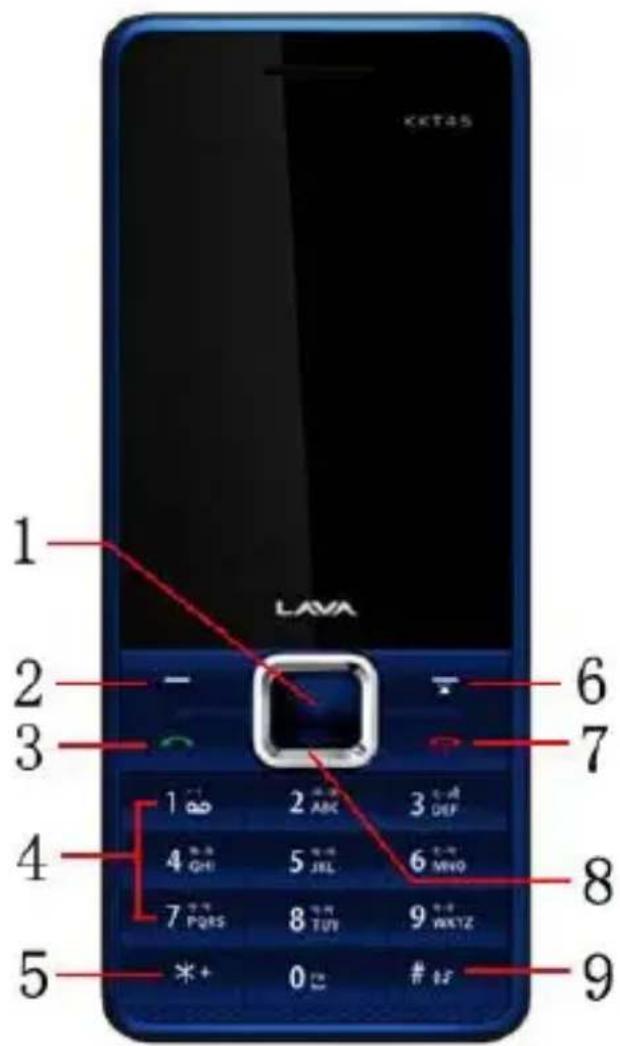
3.2 Key
| Key Function | |
| 1.OK key Ener into | the Audio player in Idle mode. |
| 2. Left soft key Enter | main menu in idle mode.Press left soft key, then press * to lock/unlock the key pad. |
| 3. Dial key Dial and | receive a call.View All calls in the standby mode. |
| 4. Numeric keys Enter numbers, letters or characters. | |
| 5. * key Press and | then press again and hold to toggle between *,+,P (pause character) and W. |
| 6. Right soft key | Access the Contacts list menu in idle mode.Return to previous menu.Long press the Key can on/off the torch. |
| 7. Call end key Pressing and holding to turn the phone on/off.End a call or reject an incoming call.Return to the idle mode. | |
| 8. Navigation Keys | Press to access four functions in idle modeUp —— Camera, Down —— CalendarRight —— Shortcuts, Left —— Write messageWithin a menu, press Up, Down, Left or Right to scroll through menu options. |
| 9. # key Press to switch input modes when entering text.Press and hold to activate or deactivate the silent mode when phone is in idle mode. | |

Note: “Press” in this manual, means to press and release the key; “press and hold” means to press and hold the key for at least 2 seconds.
3.3 Icons & Symbols
| Icon Indicates | |
 | Signal strengthVertical bars show the strength of the network connection.The icon is displayed on the standby screen. |
 | Battery strengthFilled area shows the battery level. The icon is displayed on the standby screen. |
 | AlarmThe icon shows an alarm is on.When the alarm is off, it disappears. |
 | Unread messageThe icon is displayed on the standby screen when there are unread messages in the inbox. |
 | MeetingWhen the mode is set to meeting, the icon displays in the standby screen. |
 | General, OutdoorWhen the mode is set to General Outdoor, the icon displays in the standby screen. |
 | SilentWhen the mode is set to Silent, the icon displays in the standby screen. |
 | The keypad is locked. |
 | Earphone. |
4. Getting Started
Please read the safety instructions in the "Safety Information and Notices" section before use.
4.1 Inserting the SIM Card and the battery
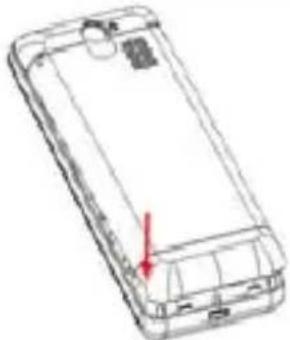
Remove the back cover
Make sure the phone is switched off. You need to remove the back cover of your phone before you can insert the SIM card. Hold the phone with the front facing downwards; pull the battery cover downwards and lift the cover upwards to remove it.
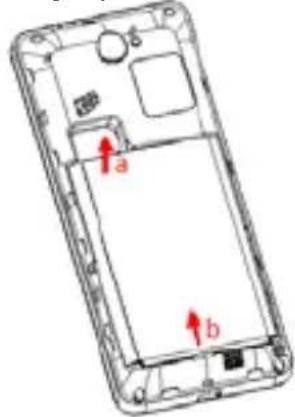
Remove the battery Image
Put your finger on the black holder located at the bottom of the battery slot and lift the battery up to remove it.
Insert the SIM card
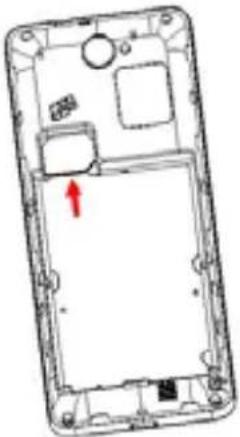
Make sure that the clipped corner of the SIM card is facing the correct direction (clipped corner at top left) and the metallic contacts are facing downwards. Slide the SIM card into the card slot until it stops.
natural_image
Diagram of a smartphone showing the front panel, internal compartments, and a red arrow pointing to a screen (no text or symbols present)Install the battery
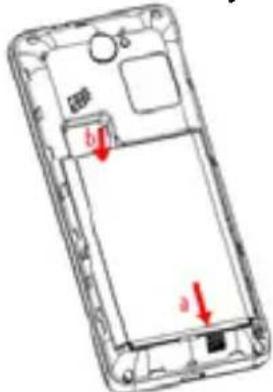
With the metallic contacts of the battery facing the metallic contacts in the battery slot, press the battery down until it locks into place.
Install the back cover
Align and hook the back cover to the top of the battery slot and then push the cover upwards until it locks into place.
natural_image
Line drawing of a smartphone showing the front panel and side door (no text or symbols)4.2 Inserting a T-Flash (External Memory) Card Image
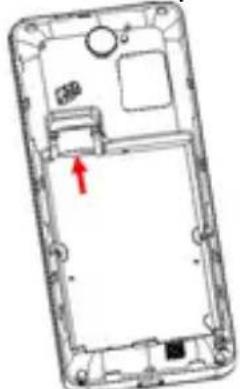
Lift up the T- Flash card cover on the side of the SIM card slot. Pull the cover down if it is locked and then lift it.
With the metal contacts facing down, gently slide the T-Flash card into the slot Press and pull the cover up to lock it.
natural_image
Interior view of a smartphone showing the front panel, internal components, and a red arrow pointing to a component (no text or symbols present)4.3 Turning the phone on
To turn the phone on, press and hold the Call End key. If you have already enabled the SIM Lock function then enter the PIN code (the 4 to 8 digit secret code of your SIM card). It is preconfigured and provided to you by your network operator or retailer. If you enter an incorrect PIN code 3 times in succession, your SIM card will be locked. To unlock it, you must obtain a code from your network operator.
If the phone lock is enabled then you must enter the 4 to 8 digit phone lock code to unlock the handset. By deafault this code is based on the operator
4.4 Charging the Battery
Ensure the battery inserted in the handset. To charge the battery, plug in the charger connector at the bottom of your phone (USB interface) and then plug the other end into an AC power socket.
The battery symbol indicates the charging status. While charging, the charge indicators will scroll. When all the scroll bars are steady, the battery is fully charged.
Disconnect the charger from the phone.
Disconnect the charger from the AC power socket.

Note: If the battery is powerless, the battery icon will reappear after a few minutes of charging.
4.5 Important Password
Phone lock password is 4321.
4.6 Keypad Lock and Unlock
In the standby mode, press the Left Soft Key and then * Key in quick succession to lock the keypad manually and Left Soft key and * key to unlock the keypad.
5. Text Entry
5.1 Entering (ABC and abc)
Such as, in the "ABC" or "abc" input mode, you can press a key labeled the desired letters once to enter the first letter on the key, twice to enter the second letter on the key, and so on.
5.2 Entering Numbers
Such as, In the "123" input mode, press a key labeled the desired number.
In the "ABC" or "abc" input mode, press a numeric key repeatedly until the desired number appears on the screen.
6. Calling
6.1 Making a Call
In idle mode, enter the phone number.
Press the Dial Key to dial the number.
Press the Call End Key to end the call.

Note: During a call, press the Left/Right key to adjust the volume.
Making an International Call
- Press the '*' Key twice to enter "+".
- Enter the country code.
- Enter the area code (normally without the 0 before it) followed by the phone number.
- Press the Dial Key to call directly.
6.2 Answering a Call
Press the Dial Key to answer it.
Press Call End key to reject it.
7. Menu Functions
7.1 How To Use
Select Menu
Press the Left Soft Key [Menu] to enter main menu in idle mode.
Press the Navigation Key Up/Down/Left/Right to choose desired operation and press the Left Soft Key [Ok] to enter the selected operation.
You can exit a menu and return to idle mode by pressing the Right Soft Key [Back] or the Call End Key.
7.2 Main Menu
| Messaging Phonebook Call log | OrganizerProfiles | |
| Camera Audio player Multimedia | ||
| Settings File | manager | |
| Extras Fun |
7.3 Messaging
- Enter Messaging > Write message.
- Enter Text message.
- Press the Left function key (Options) and select the required items, including Send to, Input method, Advanced and Save.
- Press the Left soft key (Options) select Send to, and enter the recipient's phone number or add a recipient from Phonebook.
7.4 Phonebook
Your phone features two Contacts. The SIM Contacts is located on your SIM card and the number of entries you can store depends on the SIM card. The second Contacts (Smart Contacts) is integrated in the phone memory.
Add new contact
Lava
KKT 45
- Select Phonebook > Add new contact.
- Edit contact.
If you want to save to SIM, you can only edit name and number. - Finish editing, press left soft key (Options), select Save or Cancel.
Searching for a Contact - Select Menu > Phonebook.
- Enter the name or the first letter of the name.
7.5 Call log
View Log
- Press the Navigation Key to view different call logs.
- Choose a particular number and press the Dial Key to call the number directly.
- Select Delete call logs if you want.
7.6 Camera
Your mobile phone features a camera that allows you to take pictures with great clarity and sharpness, store them, set them as wallpaper or send them to your friends. Please ensure that the camera lens is clean before you take pictures, as small dust particles can strongly affect the picture quality.
How to ...
| Launch Camera | From idle mode, press the Left Soft Key to enter the main menu then selectCamera Orpress the navigation Key upwards to directly enter camera. |
| Take a picture Press the OK Key.After taking, the picture will be saved as JPEG format in Menu > File manager > Memory card (T-Card) > Photos menu automatically. | |
| Exit Press the Call End Key or the Right Soft Key [Back]. | |
Camera Option Menu
When the camera mode is activated you can change a number of settings by pressing the Left Soft Key [Options] and using the navigation key to choose from the menu list.
Menu > Camera > Options
| Options Description | |
| Switch to video recorder | Switch the mode to video recorder. |
| Photos Enter the | Image viewer according to the storage. |
| Camera settings | Flash Light: On, Off.Anti-flicker: 50Hz, 60Hz.Delay timer: Off, 5 sec, 10 sec, 15 sec. |
| Image settings | Image Size: 160x120, 320x240, 640x480, 240x320.Image quality: Low, Normal, Good. |
| White balance Auto | DaylightTungstenFluorescentCloudyIncandescent |
| Scene mode Auto | Night |
| Restore default | Restore the camera settings to the default settings. |

Note: When there is not enough memory space, you will be unable to save the picture and prompted with a warning message. So you should delete existing pictures before you can store new ones. Storage capacity also depends on the size of the T-Flash card that you insert.
7.7 Audio player
When an external memory card is loaded into your phone, its files will be automatically available at through their respective applications.
The keypad operations during music playback are as follows:
| Key Description | |
| The OK Key Press to play/pause the current song. | |
| Navigation Keys ▲ or ▼ | Adjust the volume |
| Navigation Keys ◀ or ▶ | Short press to select the previous song/next song and long press to FF and RW the song. |
| Left Soft Key [List] Enter the play list. | |
| Right Soft Key [Back] Return to previous menu. | |
7.8 Multimedia
Camera
Your mobile phone features a camera that allows you to take pictures with great clarity and sharpness, store them, set them as wallpaper or send them to your friends. Please ensure that the camera lens is clean before you take pictures, as small dust particles can strongly affect the picture quality.
Image viewer
This menu lists the pictures from Menu > File manager > Memory card (T-Card) > Photos according to its storage setting.
Video recorder
- Select Menu > Multimedia > Video recorder.
- On the Video recorder screen, you can do as follows:
Press OK key to record.
Press right soft key to stop record.
- Press left soft key (Options) and select Switch to camera and Camcorder settings.
Video player
In your Lava KKT 45 you have a video player with ultra clear video quality with all the available video formats.
The keypad operations during video playback are as follows:
| Key Description | |
| The OK Key Press to Start/Pause/resume the current video. | |
| Navigation Keys ▲ or ▼ | Adjust the volume. |
| Navigation Keys ◀ or ▶ | Long press to fast forward or rewind.Short press to play next/previous video. |
| Right Soft Key [Back] Return to previous menu. | |
| * press * key to access or exit the full-screen mode. | |
When an external memory card is loaded into your phone, its files will be automatically available at through their respective applications.
Example: videos will be automatically available in Video folder.
Audio player
Play the music files in File manager/My Music folder.
Sound recorder
- Select Menu > Multimedia > Sound recorder.
- Press the Left Soft Key [Options] and select Settings to set your Audio quality.
- Back to the previous menu, select New record.
In the recording screen, you can press the Left Soft Key to Pause or Continue. If you have finished, press the Right Soft Key [Stop] to stop recording.
Rename the file by choosing Rename from Options.
FM radio
- Select Menu > Multimedia> FM radio.
- Press the OK Key to stop or play FM.
Press the Navigation Key up and down to change channel frequency by 0.1 mhz.
Press the */# key to adjust the volume.
- Enter the options menu to select Channel list, Manual input, Auto search, Record and File list.

Note: Saved sound files can be found in the Menu > File manager > Memory card (T-Card) > Audio
7.9 Settings
You can configure your mobile phone to best suit your usage preferences.
Dual SIM settings
This function allows you to deactivate or activate either 1 or both sim cards.
Display
Wallpaper, LCD backlight, show date and time can be edited.
Phone settings
This Menu option allows you to set phone parameters such as Time and date, Language, Preferred input method, Display, Shortcuts and Dedicated keys.
Network settings
This feature allows you to automatically or manually choose your network operator.
Security settings
SIM1 Security:
| PIN lock The SIM1 card is protected against misuse by the PIN code. SIM1 card lock may be set after you enter the PIN code correctly. | |
| Change PIN/PIN2 | Set new passwords, including SIM1 PIN and SIM1 PIN2. |
SIM2 Security: For the detailed information of SIM2 security, please refer to the contents in "SIM1 security".
Phone security: When activated, this feature requires you to enter a pre-set password every time you switch on/ power on your handset. It protects your phone from unauthorised access.
Screen auto lock: This allows you to setup an automatic keypad lock with delayed timer options of Off, 15 secs, 30 secs, 1 min and 5 mins. When your phone is in idle state for the chosen time period, the keypad will automatically be locked. To unlock the keypad press left soft key and * key to release in quick succession.
Call settings
SIM 1/SIM 2 settings
SIM1/2 call settings:
Call waiting – Activate, Deactivate or Query status.
Call divert – Set the condition for divert.
Call barring – set the condition for barring, and the password
Line switching – change the associated line, press
Advanced settings
Blacklist --- Set on/off and the blocked number.
Auto redial --- To enable/disable redial phone number.
Call time reminder---To set the reminder time as Off, Single or Period, when select period, you should enter the period (from 30 to 60 seconds).
Auto record in call --- Set on/off.
Answer mode--- Set answer mode.
Restore settings
This function allows you to reset the most of the phone setting to the original setting when it is produced. The phone password is needed to access this function. The default password is "4321".
7.10 File manager
- Select Menu > File manager.
- Select Memory card using OK key.
7.11 Organizer
Calendar
You can enter events in the calendar.
In the calendar interface, press the up and down direction keys to scroll to different weeks, and press the left and right direction keys to scroll to different days. Press Left soft key [Options] to select your desired items.
Bluetooth
Through Bluetooth, you can transfer data between your phone and other Bluetooth devices. You can also talk by using a Bluetooth headset.
Select Search new device to search for other Bluetooth devices within a valid range and pair a device with your phone.
If the device is found for the first time, a password is required for authentication.
After the device is paired with your phone, you can directly transfer data between your phone and the device.
7.12 Extras
Calculator
Enter the amount to be calculated. Press the pound key to enter decimal points.
Use navigation keys to operate and OK key to get the result.
Torch
You can set on/off.
Alarm
You can set five types of alarm clock time if required. Then the alarm icon will be displayed on the idle screen.
Scroll to an alarm and select Edit for settings. You can set whether to enable the alarm, the ring time, repeat mode, alarm tone, alert type, etc.
SIM toolkit
Shows all the SIM card based services, the name and service may be different according to your SIM card and OPERATOR.

Note: The submenus of this feature depends on the operator and different operators may provide different services which cannot be modified.
Please contact your operator.
7.13 Fun
Games
You can enjoy the available games in this mobile.
7.14 Profiles
Select one of the profiles from the list.
Press the OK Key to activate.
Press Left Soft Key to customize and adjust the settings.
Back to previous menu, press left soft key to Activate the chosen profile.
Select able Profiles include General, Silent, Meeting and Outdoor.
8. Frequently Asked Questions and Troubleshooting
| Frequently Asked Questions | Cause and Solution |
| Unable to turn on phone | Press the power on key for over 1 second.Check if the battery is properly connected. Please remove and install it again, retry to turn on;Check if battery is appropriately charged |
| Unable to connect to a network | Weak signal. PleaseTry and move to a location with strong signal and try connecting to the network again;Please ensure that you are not beyond the network coverage of service providers;Please ensure you have a valid SIM card. Please contact your network provider for further information; |
| Display information while turning on | Check if the SIM card (insert the SIM card) is installed correctly Handset lock password. If the handset lock is activated, you have to input handset password before using.Input PIN. Inputting PIN while turning on each time is activated, you have to input the PIN code.Input PUK code: Having input wrong PIN code for 3 times straight will lock the SIM card. You need to input the PUK code provided by your network provider. |
| Poor quality of calling | Please check if the sound volume is tuned improperly In an area with poor receiving condition, example: basement, the signal might be weak. Try reaching a location with stronger signal reception and call again.While using the mobile phone in the peak period of communication, like commute time, you may be unable to call |
Lava
KKT 45
| because of line congestion. | |
| Standby duration shortened | The standby duration is relative to the system setting of network. While the mobile phone is in an area with poor signal strength and can not receive the signal, the handset will continuously search for a base station. This will significantly reduce battery charge. It is recommended that you turn off your mobile in area with no signal reception to save battery.Need replacing the battery. Please change a new battery. |
| SIM Card Error | Dirt on the metal surface of an SIM card. Use clean cloth to wipe the metal touch point on an SIM card.The SIM card is not installed.The SIM card is damaged. Please contact your Web provider. |
| Unable to dial out | Please confirm if you press the dial key after dialing.Please confirm if calling is forbidden because of defaulting.Please confirm if the SIM is valid.Please confirm if the call barring is set.Please confirm if the fixed dial function is set. |
| Callers unable to contact you | Please confirm if the mobile phone is on and connected with the network.Please confirm if calling is forbidden because of defaulting.Please confirm if the SIM card is valid.Please confirm if the call barring is set. |
| Unable to charge handset | Poor contact. Please check if the plug is connected well.Please confirm if the environment temperature is within the range of 0°C ~40°C while charging.The battery or charger is damaged. You need to replace it. |
| Unable to set some functions | Wrong operation.The network provider does not support the function, or you have not applied for it. |
Note: If the instruction above can not help you solve problems, please record:
Mobile phone model and serial number
Specific content of warranty
Clear statement of problems
Then contact your local dealer or a LAVA authorized service center in your area.
9. Safety Information and Notices
Using the Mobile Phone and Charger
Only use authorised battery and charger. Using other brands may cause battery leakage, overheating, explosion or even fire.
Caution:
Keep the phone away from dust, water and damp areas. Dust, water or other liquids may cause overheating, electrical leakage, and/or phone failure.
The phone, battery, charger and AC adapter are not waterproof. Keep them away from rain and liquid.
Warning:
Do not bump, shake or tamper with the phone or charger. This may cause battery leakage, overheating, explosion or even fire.
Do not place the battery, phone or charger near a microwave or high-voltage device. This may cause battery leakage, overheating, explosion or even fire; also prevent the phone and AC adapter from overheating, smoking or short circuiting.
Do not use the phone around volatile oil. This may cause fire, breakdown or damage.
To avoid any damage or breakdown, do not disassemble the phone, battery, charger or internal components by yourself.
Using the Mobile Phone
Warning:
Do not use the phone while you are driving. Pull over and stop your automobile to dial or listen to a phone call.
Usage of mobile phones in aircrafts or hospitals is prohibited. Switch the phone off to prevent interference with electronic medical devices. Follow any rules or regulations in such places.
Do not use the phone at a gas station, near fuel or near chemicals.
Do not use the phone near electronic medical devices such as hearing aids, pacemakers and auto-control devices such as fire detectors and automatic doors.
If you have to use your mobile phone near an electronic medical device such as a pacemaker, please contact your manufacturer or dealer for information about preventing interference.
Caution:
Electronic systems in automobiles such as anti-lock brakes, speed control, or fuel spraying systems, are usually not influenced by wireless devices. Manufacturers of these systems will tell you whether they are provided with good screening functions. If you suspect that an automobile failure is caused by a wireless wave, please contact your automobile dealer.
Avoid using your phone in crowded places.
Do not store your mobile phone near or with a credit card, disk or other magnetic materials. This may effect information stored on your phone.
Keep your phone away from pins. Pins can be absorbed by the phone's receiver magnet, which may cause harm.
Using the Battery
Do not dispose of the battery into a fire. Doing so may cause battery explosion or even fire.
If you have difficulties installing the battery, do not force the installation. This may cause battery leakage, overheating, explosion or even fire.
Keep metal objects away so they do not come in contact with the battery or its connectors as it may cause the battery to short circuit, overheat or explode.
Do not weld the polarities of the battery directly together. This may cause battery leakage, overheating, explosion or even fire.
Battery liquid is severely harmful for your eyes. If battery liquid gets in your eyes, do not rub them. Instead, wash your eyes with water first and then go directly to a doctor for help.
Do not use or store your phone in high temperature areas. This may cause battery leakage, overheating, explosion or even fire.
Warning:
Replace the battery when the normal usage time begins to decrease or if you notice the battery is overheated or has changed shape or color.
If battery liquid leaks onto your skin or clothes, immediately wash the affected parts with water.
If the battery begins to leak or emits a strange odor, properly dispose of the battery according to local regulations. Do not throw it into a fire.
Caution:
Do not leave the product or its battery inside a vehicle or in places where the temperature may exceed 60^ C ( 140^ F), such as on a car dashboard, window sill, or behind a glass that is exposed to direct sunlight or strong ultraviolet light for extended periods of time. This may damage the product, overheat the battery, or pose a risk to the vehicle.
Using the Charger
Only use the charger that came with the phone. Using a different charger may cause the phone to breakdown or explode.
If the charger short circuits, a fire may occur.
Do not use a damaged, worn or broken charger. This may cause a fire.
Clean dust away from the power socket to avoid the possibility of a fire.
Do not store the charger near any liquids. If liquids spill onto the charger it may cause it to overheat or breakdown.
If liquid does spill onto the charger, immediately unplug the power cable to prevent overheating, fire or another type of breakdown.
Do not use the charger in places with high humidity like a bathroom. This may cause a fire or other breakdown.
Do not touch the charger, power cable or socket with wet hands. This may cause an electric shock.
Caution:
Keep the environment temperatures within the range of 0^ C \~ 40^ C while charging. Temperature below 0^ C or higher than 40^ C will cause insufficient charging, terminate charging or even cause the battery to explode.
Unplug the charger from its power source before cleaning it.
Do not place heavy objects on the power cord. This may cause electric shock or fire.
Hold the plug while unplugging the power cord. This will avoid any potential damage or even fire.
Requirements for Mobile Phone
Avoid using your mobile phone in extremely high or low temperatures. Use the phone in a temperature range between -10\~55°C and humidity of 35%\~85%.
It is recommended that you do not use your mobile phone near a telephone, TV set, radio or other radio frequency sensitive devices.
Requirements for the Battery
When not in use, store the battery in a cool, well-ventilated place with sunshine.
If you will not be using the mobile phone for an extended period of time, charge the battery on a regular basis to avoid battery breakdown.
The phone battery wears out fast. If charging the battery does not improve its performance, it is time to replace the battery. Properly dispose of the battery according to local regulations. Do not throw it into a fire.
Requirements for the Charger and AC Adapter
Do not charge your phone under the following circumstances: sunshine, temperatures equal to or lower than 0^ C, temperatures equal to or higher than 40^ C, high humidity, dust, high vibration areas, or near a TV, a radio, etc.
Cleaning and Maintenance
The mobile phone, the battery and the charger are not waterproof. Do not use them in places with high humidity like a bathroom and also avoid spilling any liquids on them.
Use a soft cloth to clean the mobile phone, the battery and the charger.
Do not use alcohol, diluted liquid or benzene to clean the mobile phone.
If dust gets in the sockets the phone can be damaged, short-circuit or even the lose the ability to be re-charged. Be sure to clean the socket regularly.
10. SAR declaration
The highest SAR value for this mobile phone is < 1.6 W/Kg, in accordance with the requirements of the ICNIRP, which recommended the limit for exposure to radio waves is 1.6 watts/kilogram(W/kg) averaged over 1 gram of tissue. For more information, please visit (www.lavamobiles.com) to query
Safety precautions:
a. Use a wireless hands-free system (Headphone, headset) with a low power Bluetooth emitter
b. Make sure the cell phone has a low SAR
c. Keep your calls short or send a text message (SMS) instead. This advice applies especially to children, adolescents and pregnant women
d. Use cell phone when the signal quality is good
e. People having active medical implants should preferably keep the cell phone at least 15cm away from the implant.
11. Service Center number
No: +919560394002
Kindly note please send area code of place through SMS to this No. and in return you will get address of service center nearest to you by SMS.
12. Lava warranty certificate
Limited warranty:
LAVA international Ltd. (LAVA) provides limited warranty for your mobile phone and original accessories delivered with your mobile phone (hereinafter referred to as "product")
The warranty period for the transceiver is one (1) year and for battery, charger and headset is six (6) months from the date of purchase.
LAVA Warranty
Subject to the conditions of this Limited Warranty, LAVA warrants a product to be free from defects in design, material and workmanship at the time of its original purchase by you, and for a subsequent period of one (1) year for transceiver and six (6) months for battery & charger.
You shall have to coverage or benefits under this warranty in the event that any of the following conditions are applicable:
- The product has been subjected to abnormal use or conditions, improper storage, exposure to 1.excessive moisture or dampness, exposure to excessive temperature, unauthorized modification, unauthorized repair (including but not limited to use of unauthorized spare parts in repairs),abuse, accidents, Acts of God, spills of food or liquids, improper installation
- You have not notified Lava of the defect in the product during the applicable warranty period.
- The product serial no. code or the accessories date code has been
removed, defaced or altered.
- The product has been used with or connected to an accessory (i) Not supplied by Lava or its affiliates, (ii) Not fit for use with the product or (iii) Used otherwise than in manner intended.
- The seals of the product's battery enclosure have been broken or shown evidence of tempering or the product's battery has been used in equipment other than that for which it has been specified usable by LAVA.
- All plastic surfaces and all other externally exposed part that is scratched or damaged due to normal use.
To get maximum of your new product, we recommend you to:
➢ Read the guidelines for safe and efficient use as mentioned in the manual.
Read the terms and conditions of your Lava warranty in the manual.
- Keep your original receipt; you will need it for warranty services if asked to produce.
Present this Lava Warranty Certificate along with original proof of purchase whenever you require any warranty services.
In case Lava product needs service, please visit the nearest Lava service centers given in the service guide. Please visit our Website www.lavamobiles.com for updated list of Authorized Service Centers near to your location.
Important note: for your warranty to be valid, all information on the warranty certificate has to be completed including the stamp from the authorized distributor/retailer.
All warranty information, product features and specifications are subject to change without notice.
IMEI No.
Dealers Stamp
Date of purchase ....
Model No.
- For your safety
- Welcome
- 2.LAVA support and contact Information
- Introduction
- Phone Display
- Icons & Symbols
- Getting Started
- Inserting the SIM Card and the battery
- Inserting a T-Flash (External Memory) Card Image
- Turning the phone on
- Charging the Battery
- Important Password
- Keypad Lock and Unlock
- Text Entry
- Entering (ABC and abc)
- Entering Numbers
- Calling
- Making a Call
- Answering a Call
- Menu Functions
- How To Use
- Main Menu
- Messaging
- Phonebook
- Lava
- Call log
- View Log
- Camera
- Camera Option Menu
- Audio player
- Multimedia
- Camera
- Image viewer
- Video recorder
- Sound recorder
- FM radio
- Settings
- Dual SIM settings
- Display
- Phone settings
- Network settings
- Security settings
- Restore settings
- File manager
- Organizer
- Calendar
- Bluetooth
- Extras
- Calculator
- Torch
- Alarm
- SIM toolkit
- Fun
- Games
- Profiles
- Frequently Asked Questions and Troubleshooting
- Safety Information and Notices
- Using the Mobile Phone and Charger
- Using the Mobile Phone
- Using the Battery
- Warning:
- Caution:
- Using the Charger
- Requirements for Mobile Phone
- Requirements for the Battery
- Requirements for the Charger and AC Adapter
- Cleaning and Maintenance
- SAR declaration
- Service Center number
- Lava warranty certificate
Brand : LAVA
Model : KKT 45
Category : Smartphone