
KKT 20+ - Smartphone LAVA - Free user manual and instructions
Find the device manual for free KKT 20+ LAVA in PDF.


| Product Type | Smartphone |
| Brand | LAVA |
| Model | KKT 20+ |
| Dimensions | 120 x 52 x 12.65 mm |
| Weight | 86.5 g (without battery) |
| Battery | 1400 mAh, removable |
| Network | GSM |
| SIM Card | Dual SIM (2 slots) |
| Memory | Expandable via T-Flash (microSD) card |
| Camera | Yes |
| Connectivity | Bluetooth, USB 2.0 |
| Audio | FM Radio, MP3 player, loudspeaker, 3.5mm headset jack |
| Keypad | Numeric keypad with navigation keys |
| Profiles | Multiple (General, Silent, etc.) |
| Languages | Multiple selectable |
| Security | Phone lock (default 4321), PIN lock, Mobile Tracker |
| Special Features | Torch, calculator, calendar, alarm, world clock, games |
| SAR Value | <1.6 W/kg |
| Warranty | 1 year for phone, 6 months for battery/charger |
| Charging | via USB, standard wall charger |
Frequently Asked Questions - KKT 20+ LAVA
User questions about KKT 20+ LAVA
0 question about this device. Answer the ones you know or ask your own.
Ask a new question about this device
Download the instructions for your Smartphone in PDF format for free! Find your manual KKT 20+ - LAVA and take your electronic device back in hand. On this page are published all the documents necessary for the use of your device. KKT 20+ by LAVA.
USER MANUAL KKT 20+ LAVA
© 2014. All rights are reserved. No part of this document may be reproduced without permission.
While all efforts have been made to ensure the accuracy of all contents in this manual, we assume no liability for errors or omissions or statements of any kind in this manual, whether such errors or omissions or statements resulting from negligence, accidents, or any other cause. The contents of this manual are subject to change without notice.
Protect our environment! We strive to produce products in compliance with global environmental standards. Please consult your local authorities for proper disposal.
Note: User's Manual is Just to guide the user about the functionality of the phone. This does not substantiates any certificate of technology. Some functions may very due to modifications and up-gradation of software or due to printing mistake.
TABLE OF CONTENT
1 WELCOME....- 5 -
2 INTRODUCTION....-7-
3 GETTING STARTED....- 8 -
3.1 BATTERY INSTALLATION.... - 8 -
3.2 SIM CARD/T-FLASH CARD INSTALLATION.... - 9 -
3.3 CHARGING THE BATTERY - 9 -
3.4 T-FLASH CARD.... -9 -
3.5 USB CABLE - 9 -
3.6 KEYPAD LOCK AND UNLOCK - 10 -
3.7 IMPORTANT PASSWORD - 10 -
BASIC FUNCTIONS ...... - 10 -
4.1 MAKING A CALL.... - 10 -
4.2 ANSWERING A CALL.... - 10 -
4.3 REJECTING A CALL - 10 -
GUIDE TO MENU OPERATIONS....- 10 -
5.1 PHONEBOOK - 10 -
5.2 CALL HISTORY.... - 11 -
5.3 SETTINGS - 11 -
5.3.1 PROFILES - 11 -
5.3.2 PHONE SETTINGS.... - 11 -
5.3.3 DUAL SIM SETTINGS - 12 -
5.3.4 CALL SETTINGS.... - 12 -
5.3.5 SHORTCUTS.... - 12 -
5.3.6 NETWORK SETTINGS - 12 -
5.3.7 SECURITY SETTINGS.... - 12 -
5.3.8 RESTORE SETTINGS - 13 -
5.4 FILE MANAGER - 13 -
5.5 MESSAGING - 13 -
5.6 MULTIMEDIA - 15 -
5.6.1 VIDEO PLAYER - 15 -
5.6.2 VIDEO RECORDER - 15 -
5.6.3 IMAGE VIEWER - 15 -
5.6.4 SOUND RECORDER.... - 15 -
5.7 CAMERA - 15 -
5.8 AUDIO PLAYER.... - 15 -
5.9 FM RADIO.... - 15 -
5.10 ORGANIZER.... - 15 -
5.10.1 TORCH.... - 15 -
5.10.2 CALENDAR.... - 15 -
5.10.3 ALARM - 16 -
5.10.4 WORLD CLOCK - 16 -
5.10.5 BLUETOOTH.... - 16 -
5.10.6 CALCULATOR - 16 -
5.11 FUN....- 16 -
5.11.1 LAVA SPACE.... - 16 -
5.11.2 PANDIT JI.... - 16 -
5.11.3 GAMES.... - 16 -
5.12 SERVICES - 16 -
6 CARE AND MAINTENANCE - 16 -
7 TECHNICAL INFORMATION...... - 18 -
8 SAR INFORMATION....- 19 -
9 TROUBLESHOOTING....- 21 -
1 Welcome
Congratulations on your purchase of the LAVA mobile phone. Your phone provides many functions which are practical for daily use, such as a hands-free loudspeaker, camera, MP3 player, video recorder, and more. Your phone can also connect to a PC, laptop, or other device using a USB data cable.
You can read the manual to understand how to use KKT20+ mobile phone and experience the well-established functions and simple operation method. Please use the original accessory in order to achieve the best use of effects. Use of non-original components results in of the damage caused of by machinery, in which case Lava shall not be responsible.
LAVA support and contact Information
Check www.Lavamobiles.com web site for additional information downloads, and services related to your LAVA product.
To check for the nearest LAVA service center location for maintenance services, you may like to visit www.lavamobiles.com/support-services Service Center number
No.:+919560394002
Kindly note please send area code of place through SMS to this No. and in return you will get address of service center nearest to you by SMS
For Your Safety
Before using your phone, please read the following important information to eliminate or reduce any possibility of causing damage and personal injury.
 | Safe power onDo not use your mobile phone where it is forbidden to use or it might cause disturbance or danger. |
 | Safe transportation firstPlease observe all local laws and regulations.Do not use your mobile phone while driving.Safe transportation should be considered first when driving. |
  | DisturbanceMobile phone's performances may fluctuate during a disturbance.Turn off when in the hospitalPlease follow location-specific applicable limitations.Please switch your mobile phone off when near a medical instrument. |
 | Turn off on an airplanePlease follow location-specific applicable limitations.Do not use your mobile phone on an airplane. |
 | Turn off when at a gasoline stationDo not use your mobile phone at a filling station or around fuels or chemicals. |
 | Turn off around exposure AreaPlease observe location-specific applicable limitationsDo not use your mobile phone near an area where explosions can occur. |
 | Proper useAs described in this manual, your mobile phone can be used only in the locations free from mobile phone usage restrictions.Please do not touch the antenna area of your phone. |
 | Use qualified after sales serviceOnly a qualified technician can install or repair your mobile phone. Please contact LAVA authorized service center in case of phone failure. |
 | Accessories and batteriesOnly use the authorized accessories and batteries. |
 | WaterproofYour mobile phone as well as battery is not waterproof. Please keep it away from water. |
 | BackupRemember to make a backup or keep a written record of all important information saved in your mobile phone. |
 | Connect to other devicesPlease read the user manual of the device to get more detailed security instructions before connecting to other devices and do not connect to an incompatible product. |
 | SOS emergency callsMake sure your mobile phone is switched on and in a service area. In idle mode, input the SOS number; then press the Dial Key. Advise where you are and do not hang up without permission. |
Improper use will invalidate the warranty! These safety instructions also apply to original accessories.
Backup Copies
Remember to make back-up copies or keep a written record of all important
information stored in your phone.
2 Introduction
Know Your Phone
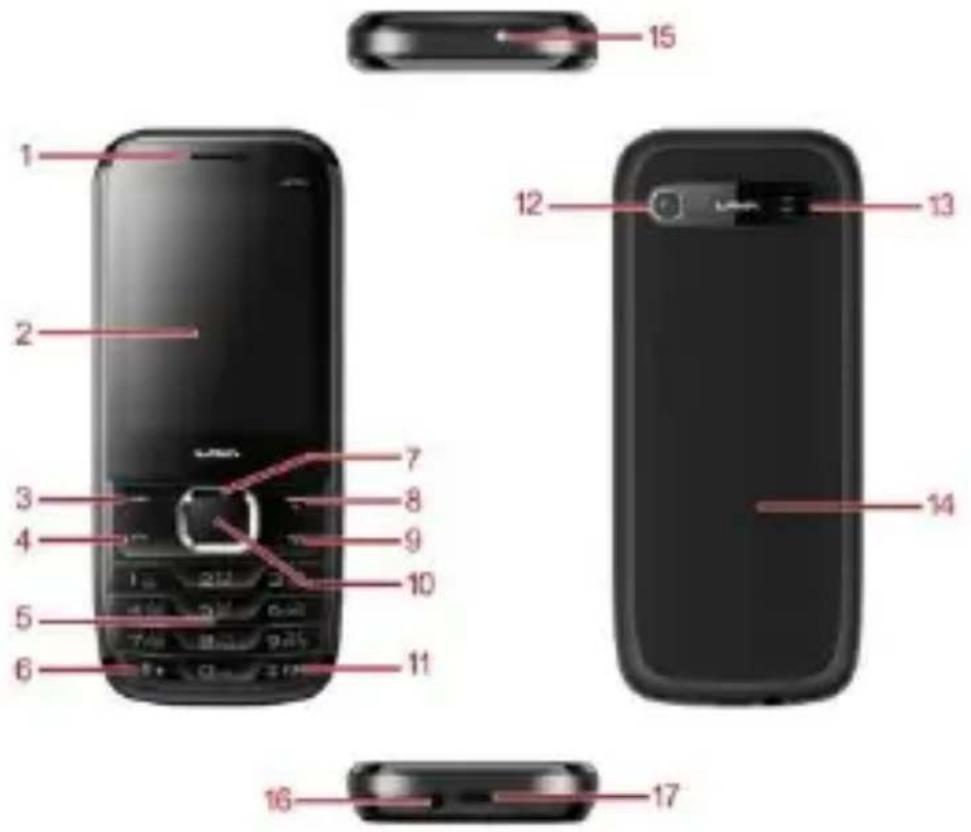
The Symbols above indicate:
1-Receiver
3- Left Soft Key
5- Number Keys
7- Navigation Keys
9- End Key/Power Key
11 - # Key/Silent Mode Shortcut
13-Speaker
15- Torch
17- USB Interface
2- Display Screen
4- Dial Key
6- * Key
8- Right Soft Key/Torch Shortcut
10- OK Key
12-Camera
14- Battery Cover
16- Headset Jack
Keypad Definition
| Key | Definitions |
| Left /Right Soft key | 1. Execute functions that the left-down/ right-down corner indicator shows.2. In standby mode, press left soft key to access Menu, press right soft key to access Names.3. In standby mode, long press right soft ket to power-on/power-off TORCH. |
| Navigation Keys | 1. In other mode, it is used as the navigation/direction keyexceptfor some special functions.2. In standby mode, use navigation keys to enter shortcuts function. |
| OK Key | 1. In standby mode, press this key to enter Audio player.3. In other mode, press this key for confirmation. |
| End Key/ Power Key | 1. Mainly used as power on/off.2. Press to return to standby screen in any interface.3. End calls or reject incoming calls. |
| Dial Key | 1. Press this key to dial or receive an incoming call.2. In standby mode, press to access All calls. |
| Number Keys | 1. Use these keys to input numbers or letters. |
| * Key | 1. In standby mode, long press * key to turn on/off Bluetooth.2. In standby mode, press left soft key and * key to lock keypad.When keypad is locked, press left soft key and * key to unlock. |
| # Key | 1. In text editing interface, press # key to switch the text input method.2. Press and hold # key to activate or deactivate Silent mode. |
Figure of Icons
| Icon | Indicates | Icon | Indicates | |
 | Signal strength | Battery level | ||
 | New text message | Missed calls | ||
 | Call divert enabled | Headset connected | ||
 | Bluetooth turned on | Ring only enabled | ||
| [XTST] | Alarm enabled | Vibrate only enabled | ||
 | Slient profile activated | Vibrate then ring enabled | ||
 | Vibrate and ring enabled | Keypad locked | ||
3 Getting Started
3.1 Battery Installation
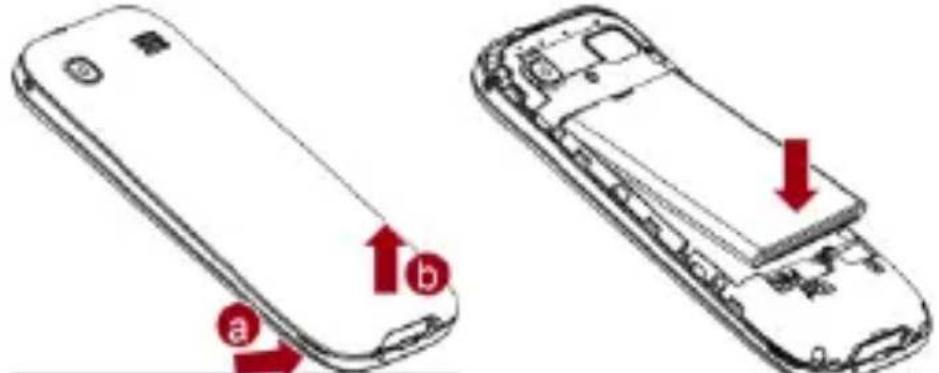
Caution: Install according to the illustration above to avoid breaking the battery connectors.
3.2 SIM Card/T-Flash Card Installation
Your phone supports two SIM cards.
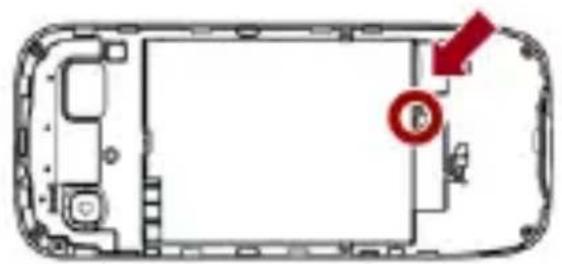
To install the SIM card in the lower layer, follow the steps:
-
Find the small pin shown in figure below and pull it out slowly with your finger. It will then open a tray to insert and pull the SIM card.
-
Insert the SIM card and push the slot back.
natural_image
Top-down schematic of a vehicle showing internal components and a red arrow pointing to a circular symbol (no text or labels)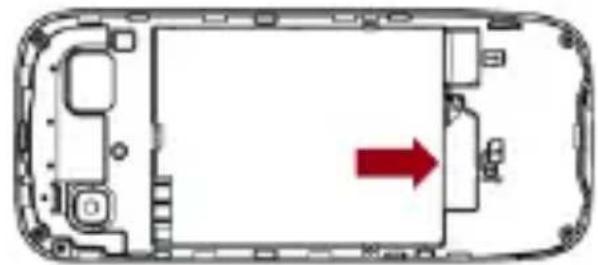
natural_image
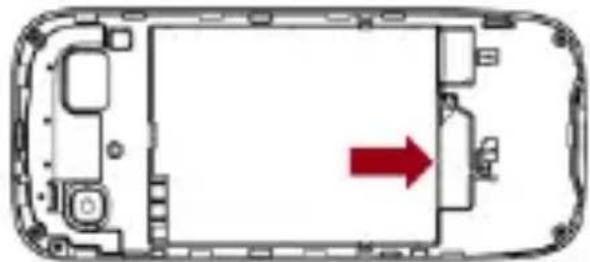
Top-down schematic of a device casing with internal components and a red arrow indicating direction (no text or symbols)To install the SIM card in the upper layer and T-Flash card, do as following figures show:
natural_image
Top-down schematic of a device casing with internal components and a red arrow indicating direction (no text or symbols)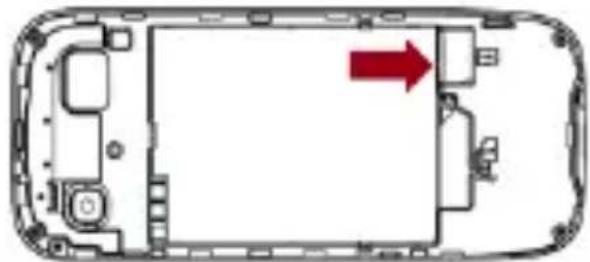
natural_image
Top-down schematic of a smartphone rear panel showing internal components and a red arrow indicating direction (no text or symbols)Caution: Do not bend or scratch your SIM card and T-Flash card. Avoid exposing your SIM card and T-Flash card to static electricity, water, or dirt.
Tips: Place the gold color contact point of SIM card towards the cell phone and push the SIM card into the slot. With the metal contacts facing down, gently slide the T-Flash card into the slot. Press and pull up the cover to lock it.
3.3 Charging the Battery
Insert the charger into USB interface of the phone.
Connect the charger to a standard wall outlet and the battery power icon in the up-right corner of the screen will start scrolling. When the battery bar stops scrolling, the battery charge is complete. Press the two sides of the charger plug and disconnect the charger from the phone.
When the battery is low, a "low battery" message will display across the screen and the battery icon will seem empty. If the battery level is insufficient, the phone will turn off automatically. Do not use your phone under low battery state for an extended period of time or it may cause battery damage.
3.4 T-flash Card
Insert the T-Flash card into phone. This will expand the Flash memory of the phone.
3.5 USB Cable
You can transfer and store files, such as MP3, MP4 and pictures from PC, through USB cable, to the mass storage in phone or identified SD card that is inserted.
3.6 Keypad Lock and Unlock
In the standby mode, press the Left Soft Key and then * key in quick succession to lock the keypad manually and Left Soft key and * key to unlock the keypad.
3.7 Important Password
Phone lock password is 4321.
4 Basic Functions
4.1 Making a Call
In standby mode, press numerical keys to input phone number to dial. If you're making a long distance call, add the area code preceding the telephone number. If you have installed two SIM cards, both network carriers will appear on the screen.
The upper left icons on the screen indicate the signal intensity of the two SIM cards (strongest when full). The call quality is easily impaired by stumbling blocks. To improve signal intensity, keep clear of blocks by moving about.
To make phone calls, you may dial the number either from the keypad or use the numbers saved in the phonebook.
4.1.1 Emergency Calls
This phone, like any wireless phones, operates using radio signals, wireless and landline networks which cannot guarantee connection in all conditions. Therefore, you should never rely solely upon any wireless phone for essential communications (e.g. medical emergencies)
To make an emergency call:
Switch your phone on.
Some networks may require that a valid SIM card is properly inserted in the phone. Dial the official emergency number. Emergency numbers vary by location.
4.2 Answering a Call
When you receive a call, the phone will ring or vibrate and will display an incoming call notification. Press the dial key or left soft key to answer. During the calling, you can press left soft key to access menu to use options: Hold, End single call, Phonebook, Call history, Messaging, Start recording, and Mute.
4.3 Rejecting a Call
You can press End key or right soft key to reject or end a call.
5 Guide to Menu Operations
5.1 Phonebook
In the phonebook, you can store contacts' personal information and numbers while also search for previously stored contacts.
— Select Add new contact:
You can save new contact To SIM1/2 or To Phone.
— Select one contact and press left soft key to access options:
• View: Check the detailed information of the contact
- Send text message: Edit text message and select SIM1/2 to send message
- Call: Select SIM1/2 voice call to call the number
- Edit: Edit the contact
- Delete: Confirm whether to delete the contact
- Copy: Copy the contact To Phone, To SIM1, To SIM2
- Move: Move the contact among SIM cards and Phone
- Add to Blacklist: Add the contact to Blacklist
- Mark several: Select to mark one or more contacts
• Phonebook settings: Set Speed dial, FDN number, etc
5.2 Call History
In the call history menu, you can check dialled calls, received calls, missed calls, etc.
— Missed calls: Display the latest missed calls list.
— Dialled calls: Display the latest dialled calls list.
— Received calls: Display the latest received calls list.
— Delete call logs: Delete all records.
— Call duration: Check all call time records and you can select to reset.
5.3 Settings
5.3.1 Profiles
This phone provides several profiles, by pressing left soft key or OK key, you can enter options to set (expect Silent): Activate, Customize, and Reset.
5.3.2 Phone Settings
— Time and Date
You can select Set home city, Set time/date, Set format, Auto update time, and Update with time zone.
— Schedule Power On/Off
Set time to power on/off the phone automatically.
- Language
You can choose several languages under this function.
— Preferred Input Method
Select one input method as preferred input method.
- Display
- Wallpaper
You can set wallpaper under this function.
• Show Date and Time
Select On or Off.
— Dedicated Keys
Set shortcut functions for navigation keys.
— Flight Mode
Select Normal mode or Flight mode
— LCD Backlight
Set brightness and time for backlight
5.3.3 Dual SIM Settings
Select: Dual SIM open, Only SIM 1 open, or Only SIM 2 open
5.3.4 Call Settings
— SIM1/2 Call Settings
- Call Waiting
Set the mode of call waiting, this function need to be activated.
- Call Divert
When the call divert is activated, incoming calls will be diverted to voice mail or other phone numbers according to the call divert settings.
- Call Barring
When the call barring is activated, some of the calls will be barred according to the call barring setting condition. Contact your service provider to sign up for call barring.
- Line Switching
Switch between Line 1 and Line 2.
— Advanced Settings
- Blacklist
Select whether to Reject number in Blacklist and edit Blacklist numbers.
- Auto redial
Set: On/ Off.
- Call time reminder
Set: Off/ Single/ Periodic.
- Auto call record
Set: On/Off
- Answer mode
Set: Any key or Auto answer when headset mode
5.3.5 Shortcuts
By using the shortcuts function, you can access the desired menu quickly and convienetly. Press left soft key to do options.
5.3.6 Network Settings
— SIM1/SIM2
• Network selection
This function can let you select the network manually or automatically.
5.3.7 Security Settings
— SIM 1/SIM 2 Security
- PIN lock
PIN number setting can avoid unauthorized usage of SIM card. If PIN number has been wrongly inputted for 3 times, the SIM card will be locked. PUK number is needed to unlock the SIM card. Please contact the network provider if you don't know the PUK number.
- Change PIN
Input old SIM1/2 PIN, and then input new PIN, input the PIN code again to confirm. Before change PIN, you need to turn on PIN lock.
- Change PIN2
Input old SIM1/2 PIN2, and then input new PIN2, input the PIN code again to confirm.
— Phone Security
- Phone Lock
Input phone password to turn on/off phone lock. The default password is 4321.
- Change password
Input old password, and then input new password, input the new password again to confirm.
— Screen Auto Lock
You can set the time to lock the screen and keypad automatically.
— Mobile Tracker
Enter password to activate mobile tracker function.
When user activated this function and lost the mobile, if someone pick-up the mobile and insert new SIM, the anti steal will send SMS to predetermined numbers to show detail of the lost mobile.
Input default password 4321 to restore factory settings.
5.4 File Manager
Enter this menu; you can check the files stored on Memory card. Select one file to open and press left soft key, you can do option.
5.5 Messaging
5.5.1 Write Message
This function can begin a new message. After completing the message:
— Press OK key:
- Enter number: Input number
- Add from Phonebook: Select contact from phonebook
— Press left soft key: - Send to: Enter number or Add from Phonebook to send message
- Input method: Select input method
- Advanced: Insert number, name
- Save: Save the message to drafts of SIM1/2
5.5.2 Inbox
After entering the Inbox, press navigation key to select messages. Press OK key to check the details of message, or press left soft key to access Options:
— View: Check the message
— Reply: Reply message to the sender
— Call sender: Select SIM1/2 voice call to call the sender
— Forward: Send the message to others
— Delete: Confirm whether to delete the message
— Delete all: Confirm whether to delete all messages
— Save to phonebook: Save the sender's number to phonebook
5.5.3 Drafts
You can save unsent and edit incomplete messages in draft box. Press left soft key to access to Options:
— View: Check the message
— Send: Enter number or Add from Phonebook and select SIM1/2 to send the message
— Edit: Edit the message
— Delete: Confirm whether to delete the message
— Delete all: Confirm whether to delete all messages
5.5.4 Outbox
Check the information of unsuccessfully sent message in outbox. Press left soft key to access to Options:
— View: Check the message
— Resend: Send the message once more
— Edit: Edit the message
— Delete: Confirm whether to delete the message
— Delete all: Confirm whether to delete all messages
5.5.5 Sent Messages
Check the message in sent box. Select one message to open, or press left soft key to access Options:
— View: Check the message
— Forward: Send the message to others
— Delete: Confirm whether to delete the message
— Delete all: Confirm whether to delete all messages
5.5.6 Broadcast Messages
You can select SIM1/2 to check broadcast messages.
5.5.7 SMS Settings
— SIM1/SIM2: Set SMSC address, Delivery report, Reply path, and Voicemail server
— Memory status: Check the message memory of SIM cards and phone
— Save Sent Message: Select whether to save sent messages
— Preferred storage: Select SIM or Phone as preferred storage
— SMS Backup: Select to backup messages
5.6 Multimedia
5.6.1 Video Player
Preview the videos. Press * key and # key to adjust volume. Press navigation keys and OK key to operate the video player. Press left soft key to access Options.
5.6.2 Video Recorder
After enter video recorder, press OK key to shoot, press left soft key to access Options, press right soft key to back.
5.6.3 Image Viewer
Enter image, you can choose photos to view or return. Press left soft key to access to Options: View, Send, Use as, Rename, Delete, and Image information.
5.6.4 Sound Recorder
You can take a recorder in this function. Press OK key or left soft key to enter and select New record to record. After record, press left soft key to access Options. After entering the record file list, select one file, press left soft key to access Options.
5.7 Camera
Press left soft key or OK key to enter. The photo can be previewed in the screen; press OK key to shoot and right soft key to back, left soft key to access Options.
5.8 Audio Player
This function menu is used to store and play the audio files. Press the left soft key or OK key to enter and then use the navigation keys and OK key to operate audio player. Press * key and # key to adjust volume. Press left soft key you can access List.
5.9 FM Radio
Enter FM radio. Press OK key to turn on/off the radio. Press left/right navigation keys to change channels, press up/down navigation keys to change frequency manually, press * key and # key to adjust volume. Press the left soft key to access Options.
5.10 Organizer
5.10.1 Torch
Press left soft key or OK key to turn on/off the torch.
5.10.2 Calendar
You can use this feature to view the year, date and term easily. Use navigation keys to navigate other date. Press left soft key, you can enter to submenu to do options.
5.10.3 Alarm
The alarm clock feature sounds an alert or makes a vibration alert at a time you specify. There are 5 alarm clocks can be edit and set.
5.10.4 World Clock
By pressing left/right navigation keys to change time zone on world map, you can check time and date of different cities and regions. Press left soft key or OK key to access options.
5.10.5 Bluetooth
This mobile phone support Bluetooth wireless connection. You can establish wireless connection between mobile phone and device to realize voice communication, data exchange and synchronization. Press left soft key or OK key to enter: Power, Visibility, My device, and My name.
5.10.6 Calculator
This feature can use your phone as a calculator for simple calculations. Press number keys to enter the numbers. Use following keys to calculate:
Navigation keys: +, -, ×, ÷
OK key: Show the calculation result.
* Key: Input double 0
# Key: Decimal point
5.11 Fun
5.11.1 Lava Space
Select SIM card to enter Lava space and use the function.
5.11.2 Pandit Ji
Use this function for talking with astrological experts.
5.11.3 Games
The phone has a built-in game. And you can enter the menu to set games settings.
5.12 Services
If your SIM card supports STK function, the phone can display different first level menu according to different STK card. This function needs the network provider support. If user finds STK function can't operate normally, please contact the network provider. If the network provider does not support this function, we do not claim any responsibility whatsoever.
6 Care and Maintenance
Battery care
- Your device is powered by a rechargeable battery. When the power is weak,
please charge the battery. In order to extend the lifespan of the battery, use all the battery's power before recharging.
- Unplug the charger from the electrical plug and the device when not in use. Overcharging may shorten its lifespan.
- Extreme temperatures can affect the ability of your battery to charge. Battery needs the fit temperature. If the surrounding temperature is over 40^ C, the battery cannot be charged.
- Use the battery only for its intended purpose. Never use any charger or battery that is damaged.
- Do not short-circuit the battery. Accidental short-circuiting can occur when a metallic object such as a coin, clip, or pen causes direct connection of the positive (+) and negative (-) terminals of the battery. (These look like metal strips on the battery.) Short-circuiting the terminals may damage the battery or the connecting object.
- Leaving the battery in hot or cold places, such as in a closed car in summer or a freezer in winter conditions, will reduce the capacity and lifetime of the battery. Always try to keep the battery between 59°F and 77°F (15°C and 25°C). A hot or cold battery may not function temporarily, even when the battery is fully charged.
- Battery performance is particularly limited in temperatures below freezing.
- Do not dispose of batteries in a fire! Dispose of batteries according to local regulations. Please recycle when possible. Cellphones are not considered household waste.
Mobile phone maintenance
- Keep the device dry. Precipitation, humidity, and all types of liquids or moisture can contain minerals that will corrode electronic circuits. If your device does get wet, remove the battery and allow the device to dry completely before replacing it.
- Do not use or store the device in dusty, dirty areas. Its moving parts and electronic components can be damaged.
- Do not store the device in hot areas. High temperatures can shorten the life of electronic devices, damage batteries, and warp or melt certain plastics.
- Do not store the device in cold areas. When the device returns to its normal temperature, moisture can form inside the device and damage electronic circuit boards.
- Do not attempt to open the device other than as instructed in this guide.
- Do not drop, knock, or shake the device. Rough handling can break internal circuit boards and fine mechanics.
- Do not use harsh chemicals, cleaning solvents, or strong detergents to clean the device.
- Do not paint the device. Paint can clog the moving parts and prevent proper operation.
- Use only the supplied or an approved replacement antenna. Unauthorized antennas, modifications, or attachments could damage the device and may violate regulations governing radio devices.
- Do not store your mobile phone near or with a credit card, disk or other
magnetic materials. This may affect information stored on your phone.
- Keep your phone away from pins. Pins can be absorbed by the phone's receiver magnet which may cause harm.
- If you intend not to use your mobile phone for a long period of time, please remove the battery from the phone. Leaving the battery inside the mobile phone for a long period of time may cause moisture to the battery, and it can damage the mobile phone or the battery.
- All of the above suggestions apply to your device, battery, charger, or any enhancement. If any device is not working properly, take it to the nearest authorized service facility for service.
Using the Charger
Danger:
- Only use the lava charger that came with the phone. Using a different charger may cause the phone to breakdown or explode.
- If the charger short circuits, a fire may occur.
- Do not use a damaged, worn or broken charger. This may cause a fire.
- Clean dust away from the power socket to avoid the possibility of a fire.
- Do not store the charger near any liquids. If liquids spill onto the charger and may cause it to overheat or breakdown.
- If liquid does spill onto the charger, immediately unplug the power cable to prevent overheating, fire or another type of break down.
- Do not use the charger in places with high humidity like a bathroom. This may cause a fire or other breakdowns.
- Do not touch the charger, power cable or socket with wet hands. This may cause an electric shock.
7 Technical Information
Weight: 86.5g (without battery)
Size: 120x52x12.65mm
Battery: 1400mAh
Networks: GSM
Battery work times refer to the list below (Will not announce if the capacity is changed):
The operation time of the battery depends on conditions such as:
• Transmitting power level
• Network parameters defined by the operator
• Phone use (WAP, games, SMS)
- Charging procedure used
• Signal (distance between the phone and the base station)
Exclusions:
Subject to the exclusions contained below:
-
Damage due to the improper use.
-
User does not follow the manual.
Explanation:
LAVA has the final right of the explanation for this document.
Software upgrades will not be announced.
8 SAR Information
The highest SAR value for this mobile phone is <1.6 W/Kg, in accordance with the requirements of the ICNIRP, which recommended the limit for exposure to radio waves is 1.6 watts/kilogram(W/kg)averagedover1 gramoftissue. For more information, please visit Lava's website www.lavamobiles.com to query Safety precautions:
a. Use a wireless hands-free system (Headphone, headset) with a low power Bluetooth emitter
b. Make sure the cell phone has a low SAR
c. Keep your calls short or send a text message (SMS) instead. This advice applies especially to children, adolescents and pregnant women
d. Use cell phone when the signal quality is good
e. People having active medical implants should preferably keep the cell phone at least 15cm away from the implant
All the configurations mentioned in this user manual is only for reference; please refer to the actual phone.
E-waste Disposal Mechanism
'E-waste' means waste electrical and electronic equipment (WEEE). In other words E-waste is a popular, informal name for electronic products nearing the end of their "useful life". For more details about e-waste please refer e-waste rules, 2011 www.moef.nic.in
Do's and Don'ts for disposal e-waste
Do's:
a. Ensure that an Authorised Person repairs your Lava products
b. Call Our Local Authorised Collection Centers to Dispose Lava products
c. Always drop your used electronic products, batteries or any accessories thereof after the end of their life at nearest Authorised Collection Point or Collection Center.
d. Separate the packaging material according to responsible waste disposal options and sorting for recycling.
e. Always remove the battery from the product, when you do not intend to use the product anymore it in future.
Don'ts:
a. Do not Dismantle your Lava Product on your own
b. Do not give your e-waste to KabbadiWala / Scrap Dealer/ Rag Pickers.
c. Do not dispose-off the e-waste in landfills.
d. Never dump E-waste in garbage bins.
e. Do not dispose of your product at municipal waste bins or rooms.
f. Do not throw used batteries into household waste.
g. Consequences of improper handling and disposal of E-Waste
h. Improper disposal of waste prevents natural resources from being re-used.
i. Some waste contains hazardous chemicals and if not disposed of properly may release toxins into the soil and water, and also releases greenhouse gases into the environment
j. If e-waste is not properly disposed of, it can threat to the health and well-being of humans and animals and it also has adverse effect on the environment.
k. Placing of batteries or devices on or in heating devices, such as microwave, ovens, stoves, or radiators and improper disposal of batteries may lead to explosion.
I. If the battery terminals are in contact with metal objects, it may cause a fire.
m. For more details on how to dispose of your Lava products at the end of life, Please refer the list of our Services Centers on Pan India basis on our website www.lavamobiles.com or please view this link for the details of Service Centers http://www.lavamobiles.com/support-services.
9 Troubleshooting
Service Center number
No.:+919560394002
Kindly note please send area code of place through SMS to this No. and in return you will get address of service center nearest to you by SMS
Frequently Asked Questions
| Frequently Asked Questions | Cause and Solution |
| Fail to turn on | Press the power key for over 1 second.Check if the battery is properly connected. Please remove and install it again and retry;Check if battery is appropriately charged. |
| Fail to connect network | In case of Weak signal, please try and move to a location with strong signal and try connecting to the network again;Please ensure that you are not beyond the network coverage of service providers;Please ensure you have a valid SIM card. Please contact your network provider for further information. |
| Display information while turning on | Check if the SIM card is installed correctlyHandset lock password: If the handset lock is activated, you have to input handset password.Input PIN: if Inputting PIN while turning the phone on each time is activated, you have to input the PIN code.Input PUK code: When you've input wrong PIN code for 3 times will lock the SIM card. You need to input the PUK code provided by your network provider. |
| Poor quality of calling | Please check if the sound volume is tuned properlyIn an area with poor network conditions, example: basement, the signal might be weak. Try searching a location with stronger signal reception and call again.While using the mobile phone in the peak period of communication, like commute time, you may not be able to call because of line congestion. |
| Standby duration shortened | The standby duration is relative to the network systems. While the mobile phone is in an area with poor signal strength and cannot receive the signal, the handset will continuously search for a base station. This will significantly reduce battery charge. It is recommended that you turn off your mobile in area with no signal reception to save battery.Need replacing the battery: Please change to a new battery as battery performance may decrease after prolonged usage. |
| SIM Card Error | Dirt on the metal surface of an SIM card: Use clean cloth to wipe the metal touch point on an SIM card.The SIM card is not installed.The SIM card is damaged. Please contact your network service provider. |
| Fail to dial out | Please check if you press the dial key after typing the number.Please check if calling is forbidden because of default settings.Please check if the SIM is valid.Please check if the call barring is set.Please check if the fixed dial function is set. |
| Callers can not contact you | Please check if the mobile phone is on and connected with the network.Please check if the Call barring or call divert is activated.Please check if the SIM card is valid. |
| Fail to charge | May be due to poor contact. Please check if the plug is connected well.Please confirm if the environment temperature is within the range of 0^ 40^ while charging.The battery or charger is damaged in which case you need to replace it. |
Lava warranty certificate
Limited warranty:
LAVA international Ltd. (LAVA) provides limited warranty for your mobile phone and original accessories delivered with your mobile phone (hereinafter referred to as “product”)
The warranty period for the transceiver is one (1) year and for battery, charger and headset is six (6) months from the date of purchase.
LAVA Warranty
Subject to the conditions of this Limited Warranty, LAVA warrants a product to be free from defects in design, material and workmanship at the time of its original purchase by you, and for a subsequent period of one (1) year for transceiver and six (6) months for battery & charger.
You shall have to coverage or benefits under this warranty in the event that any of the following conditions are applicable:
- The product has been subjected to abnormal use or conditions, improper storage, exposure to 1.excessive moisture or dampness, exposure to excessive temperature, unauthorized modification, unauthorized repair (including but not limited to use of unauthorized spare parts in repairs),abuse, accidents, Acts of God, spills of food or liquids, improper installation
- You have not notified Lava of the defect in the product during the applicable warranty period.
- The product serial no. code or the accessories date code has been removed, defaced or altered.
- The product has been used with or connected to an accessory (i) Not supplied by Lava or its affiliates, (ii) Not fit for use with the product or (iii) Used otherwise than in manner intended.
- The seals of the product's battery enclosure have been broken or shown evidence of tempering or the product's battery has been used in equipment other than that for which it has been specified usable by LAVA.
- All plastic surfaces and all other externally exposed part that is scratched or damaged due to normal use.
To get maximum of your new product, we recommend you to:
Read the guidelines for safe and efficient use as mentioned in the manual.
Read the terms and conditions of your Lava warranty in the manual.
Keep your original receipt; you will need it for warranty services if asked to produce.
Present this Lava Warranty Certificate along with original proof of purchase whenever you require any warranty services.
In case Lava product needs service, please visit the nearest Lava service centers given in the service guide. Please visit our Website www.lavamobiles.com for updated list of Authorized Service Centers near to your location.
Important note: for your warranty to be valid, all information on the warranty
certificate has to be completed including the stamp from the authorized distributor/retailer.
All warranty information, product features and specifications are subject to change without notice.
IMEI No.
Dealers Stamp
Date of purchase ....
Model No.
- TABLE OF CONTENT
- Welcome
- LAVA support and contact Information
- For Your Safety
- Backup Copies
- Introduction
- Getting Started
- Battery Installation
- SIM Card/T-Flash Card Installation
- Charging the Battery
- T-flash Card
- USB Cable
- Keypad Lock and Unlock
- Important Password
- Basic Functions
- Making a Call
- Emergency Calls
- Answering a Call
- Rejecting a Call
- Guide to Menu Operations
- Phonebook
- Call History
- Settings
- Profiles
- Phone Settings
- — Time and Date
- — Schedule Power On/Off
- - Language
- — Preferred Input Method
- - Display
- — Dedicated Keys
- — Flight Mode
- — LCD Backlight
- Dual SIM Settings
- Call Settings
- — SIM1/2 Call Settings
- — Advanced Settings
- Shortcuts
- Network Settings
- — SIM1/SIM2
- Security Settings
- — SIM 1/SIM 2 Security
- — Phone Security
- — Screen Auto Lock
- — Mobile Tracker
- File Manager
- Messaging
- Write Message
- Inbox
- Drafts
- Outbox
- Sent Messages
- Broadcast Messages
- SMS Settings
- Multimedia
- Video Player
- Video Recorder
- Image Viewer
- Sound Recorder
- Camera
- Audio Player
- FM Radio
- Organizer
- Torch
- Calendar
- Alarm
- World Clock
- Bluetooth
- Calculator
- Fun
- Lava Space
- Pandit Ji
- Games
- Services
- Care and Maintenance
- Battery care
- Mobile phone maintenance
- Using the Charger
- Danger:
- Technical Information
- SAR Information
- E-waste Disposal Mechanism
- Do's:
- Don'ts:
- Troubleshooting
- Service Center number
- No.:+919560394002
- Lava warranty certificate
- Limited warranty:
- LAVA Warranty
Brand : LAVA
Model : KKT 20+
Category : Smartphone