
VX1221e - Hi-Fi System Digigram - Free user manual and instructions
Find the device manual for free VX1221e Digigram in PDF.


| Product Type | Hi-Fi System |
| Brand | Digigram |
| Model | VX1221e |
| Color | Black |
| Dimensions (W x H x D) | 420 x 230 x 280 mm |
| Weight | 6.5 kg |
| Power Output | 50 W RMS per channel |
| Frequency Response | 20 Hz - 20 kHz |
| Inputs | AUX, USB, Optical, Coaxial |
| Outputs | Speaker terminals, Headphone jack |
| Wireless Connectivity | Bluetooth 5.0, Wi-Fi |
| Radio | FM/AM with presets |
| Disc Playback | CD, CD-R/RW |
| Power Supply | AC 100-240V, 50/60 Hz |
| Power Consumption | 120 W (standby <0.5 W) |
| Remote Control | Included (batteries not included) |
| Main Functions | Amplifier, CD player, FM/AM tuner, Bluetooth streaming, USB playback, equalizer presets |
| Care and Maintenance | Wipe with dry cloth; avoid liquids; do not obstruct ventilation |
| Safety Instructions | Keep away from moisture; use grounded outlet; do not open casing |
| Spare Parts Availability | Contact Digigram support or authorized service center |
| Repairability Index | 8.2 / 10 (based on design) |
| Accessories Included | Power cord, remote control, user manual, FM antenna |
| Warranty | 2 years limited |
Frequently Asked Questions - VX1221e Digigram
User questions about VX1221e Digigram
0 question about this device. Answer the ones you know or ask your own.
Ask a new question about this device
Download the instructions for your Hi-Fi System in PDF format for free! Find your manual VX1221e - Digigram and take your electronic device back in hand. On this page are published all the documents necessary for the use of your device. VX1221e by Digigram.
USER MANUAL VX1221e Digigram
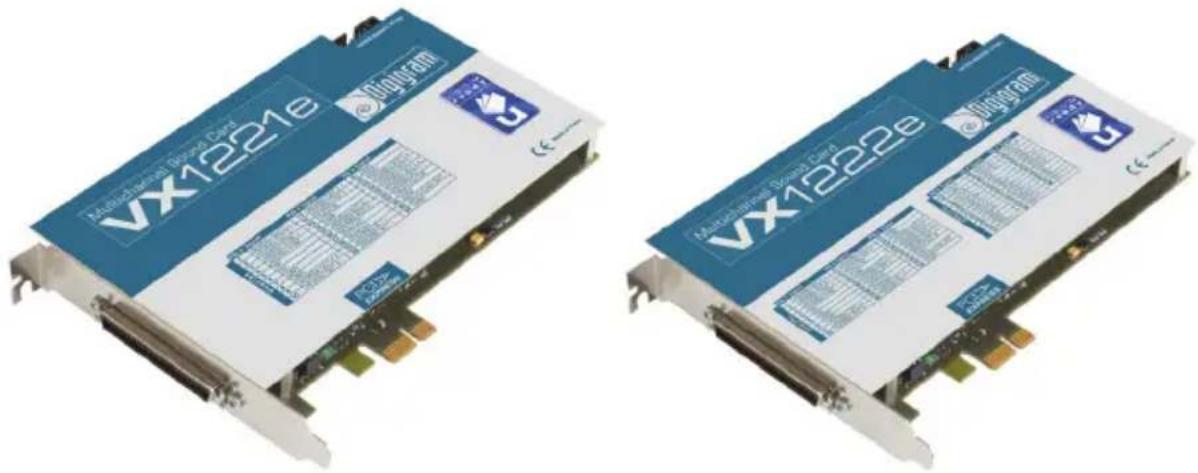
Professional Multichannel Sound Cards
natural_image
Two identical electronic device modules labeled VX1221e and VX1222e, shown from top and bottom views (no additional text or symbols visible)User manual
For technical support, please contact your system supplier.

natural_image
Abstract blue square with a white spiral design (no text or symbols)digigram
Digigram S.A.
82/84 Allée Galilée, 38330 Montbonnot-Saint-Martin, FRANCE
Tel: +33 (0)4 76 52 47 47• Fax: +33 (0) 4 76 52 18 44• E-mail: info@digigram.com
Digigram Inc.
2000 North 14th Street - Suite 530, Arlington, VA 22201-USA
Tel: +1 703 875 9100 • Fax: +1 703 875 9161 • E-mail: input@digigram.com
Digigram Asia Pte Ltd.
350 Orchard Road - #19-07 Shaw House Singapore 238868, SINGAPORE
Tel: +65 6291 2234 • Fax: +65 6291 3433 • E-mail: info_asia@digigram.com
Table of Contents
INFORMATION FOR THE USER 4
IMPORTANT NOTICE 5
CONTENTS OF THIS PACKAGE 5
FEATURES......6
VX1221e main hardware features....6
VX1222e main hardware features....6
Main software features....6
REQUIREMENTS....7
Minimum hardware requirements....7
Software requirements....7
Supported operating systems....7
HARDWARE INSTALLATION....7
Installing the card....7
Interrupt and memory address....7
SOFTWARE INSTALLATION 8
Standard installation under Windows XP, Windows Server 2003 and Windows Vista....8
Digigram Control Center....10
Removing the driver under Windows XP and Windows Server 2003....11
Removing the driver under Windows Vista....11
HOW TO CHECK THE INSTALLATION.... I I
THE 'DIGIGRAM HARDWARE SETTINGS'
('DHS') CONTROL PANEL....13
SPECIFICATIONS 14
Configuration....14
Inputs 14
Outputs....15
Connectors....15
Audio specifications....15
Audio Performance....16
Development environments....16
APPENDICES 17
VX1221e Schematic Diagram....17
VX1222e Schematic Diagram....17
Layout....18
VX1221e cable diagram.... 19
VX1221e wiring diagram....19
Adapter cable Sub-D 62 ⇔ SCSI 68 MDR....20
Connection cable VX1222e ⇔ BoB12....20
Sub-D 62 ⇔ SCSI 68 MDR wiring diagram....21
VX1222e cable diagram.... 22
VX1222e wiring diagram....23
VX122 le cable pinout....24
VX1222e cable pinout....24
Copyright 2007 --- 2008 Digigram. All rights reserved.
No portion of this manual may be reproduced without prior written consent from Digigram. The copyright protection claimed here includes photocopying, translation and/or reformatting of the information contained in this manual.
While every effort has been made to ensure accuracy, Digigram is not responsible for typos, errors, or omissions, and reserves the right to make improvements or changes in the products and programs described without notice.
Digigram and the Digigram logo, VX1222e, and VX1221e are registered trademarks or trademarks of Digigram S.A. Other trademarks are property of their respective holders.
INFORMATION FOR THE USER
This device complies with part 15 of FCC rules. Operation is subject to the following two conditions: (1) This device may not cause harmful interference, and (2) This device must accept any interference received, including interference that may cause undesired operation.
This equipment has been tested and found to comply with the limits for a CLASS B digital device, pursuant to Part 15 of the FCC Rules. These limits are designed to provide reasonable protection against harmful interference in a residential installation. This equipment generates, uses, and can radiate radio frequency energy and, if not installed and used in accordance with the instructions contained in this data sheet, may cause harmful interference to radio and television communications. However, there is no guarantee that interference will not occur in a particular installation.
If this equipment does cause harmful interference to radio or television reception, which can be determined by turning the equipment off and on, the user is encouraged to try to correct the interference by one or more of the following measures:
* reorient or relocate the receiving antenna
* increase the separation between the equipment and the receiver
* connect the equipment into an outlet on a circuit different from that of the receiver
* consult the dealer or an experienced audio television technician.
Note: Connecting this device to peripheral devices that do not comply with CLASS B requirements or using an unshielded peripheral data cable could also result in harmful interference to radio or television reception. The user is cautioned that any changes or modifications not expressly approved by the party responsible for compliance could void the user's authority to operate this equipment. To ensure that the use of this product does not contribute to interference, it is necessary to use shielded I/O cables.

Warning:
Electrostatic discharge (ESD) can damage several components on the board. To avoid such damage in handling the board, take the following precautions:
Bring the device and everything that contacts it to ground potential by providing a conductive surface and discharge paths. As a minimum, observe these precautions:

• Disconnect all power and signal sources.
- Place the device on a grounded conductive work surface.
- Ground yourself via a grounding wrist strap or by holding a grounded object.
- Ground any tool that will contact the device.
Due to the reduced length of the PCI EXPRESS ^TM bus connector and the resulting lack of mechanical stability, we strongly advise against transporting the card(s) installed in a computer, unless its chassis or case provides a dedicated support to keep the card securely in place in order to avoid physical damage.
IMPORTANT NOTICE
This card has been tested and found to comply with the following standards:
• International: CISPR22 Class B
• Europe: EMC 89/336/CEE (1992) specifications
• United States: FCC Rules-Part 15-Class B (digital device)
In order to guarantee compliance with the above standards in an installation, the following must be done:
- the provided cable must not be modified
- additional cables used must have their respective shield connected to each extremity
CONTENTS OF THIS PACKAGE
Thank you for purchasing a Digigram VX sound card. The package consists of the following components:
- a VX1221e or VX1222e sound card
- the user manual at hand.
The end user version additionally includes:
- breakout cable(s)
- a CD-Rom with drivers, installation notices, FAQs, etc...
- a registration form
For the OEM version, the cables are available optionally.
Also available (optional):
2U 19-inch breakout box allowing straightforward and secure connection to all the cards' I/Os
FEATURES
VX1222e and VX1221e are audio cards for PCI EXPRESS ^TM (PCIe ^® ) bus. They are in PCI EXPRESS ^TM x1 format and can thus be plugged into any PCIe ^® slot (x1, x2, x4, x8, x16, x32).
VXI22Ie main hardware features
- 1 digital AES/EBU * stereo input, with hardware sample rate converter (up to 192 kHz) and programmable digital gain
- 6 digital AES/EBU * stereo outputs (up to 192 kHz) with programmable digital gain
- 1 digital AES/EBU * stereo sync input (up to 192 kHz in play and record)
• 1 standard Word Clock input (up to 96 kHz)
• 1 standard Word Clock output (up to 96 kHz) - 1 video sync input
• 1 SMPTE/LTC (Linear Time Code) sync input
VXI222e main hardware features
All features of the VX1221e, plus:
- 2 balanced ** analog mono line inputs, with software programmable analog and digital gain
- 12 servo-balanced *** analog mono line outputs, with software programmable analog and digital gain
• 192 kHz / 24-bit converters
• Maximum level on analog inputs and outputs: +24 dBu
Note: The digital outputs always play the digital version of the corresponding analog outputs. The selection of the AES/EBU input excludes the selection of the corresponding analog inputs.
Main software features
- Real-time, simultaneous PCM record and playback (8, 16 and 24 bits), Float IEEE754 (with 24-bit fixed-point dynamic range)
- When using the np SDK, real-time on-board mixing of several PCM audio streams, direct monitoring, level adjustment, panning, cross-fades, punch-in/punch-out, scrubbing
- Low latency DirectSound, Wave ****, and ASIO drivers
REQUIREMENTS
Minimum hardware requirements
PC with one free PCI EXPRESS ^TM (PCIe ^® ) slot (x1, x2, x4, x8, x16 or x32).
CPU power and memory required depend on the operating system and on the audio application used.
Software requirements
To use your VX1221e or VX1222e, install the driver from the HR Runtime package version 1.60 or higher. This package includes:
- a Digigram np driver enabling OEM applications to best capitalize on the boards
- a WDM DirectSound driver Microsoft DirectX 9 or higher must be installed on your computer
- a Wave driver * (installation optional)
- an ASIO driver (installation optional)
Note: the HR Runtime package for Windows Vista does not include a Wave driver. In case your audio application explicitly requires a Wave interface, a Wave driver is available on request. In this case, please contact Digigram.
Supported operating systems
VX1221e and VX1222e cards run under Windows XP ^ , Windows Server 2003 ^ , and Windows Vista ^** .
HARDWARE INSTALLATION
Due to the reduced length of the PCI EXPRESS ^TM bus connector and the resulting lack of mechanical stability, we strongly advise against transporting the card(s) installed in a computer, unless its chassis or case provides a dedicated support to keep the card securely in place in order to avoid physical damage.
The card has to be installed in the computer prior to installing its driver.
Installing the card
Gently plug the card in a free PCI slot and press it down to position it firmly. Tighten the screw.
Interrupt and memory address
Hardware interrupt and addresses are automatically set up at start-up by the PCI PnP BIOS.
SOFTWARE INSTALLATION
Note: the installation of the software requires administrator rights on your computer
Please visit the Digigram web site at www.digigram.com for the most recent driver.
In case you run a specific application developed or installed by a Digigram Partner, this application might require the use of a specific driver version. In this case, make sure that the updated driver has been approved by your supplier.
Standard installation under Windows XP, Windows Server 2003 and Windows Vista
If the driver has been downloaded from our web site, it has to be expanded prior to the driver's installation as follows: double-click on the downloaded file (self-expanding). You can use the default destination location (Windows temporary folder) or select another directory.
Important note: this default procedure installs the 'Digigram Hardware Settings' control panel. This application allows the configuration of the hardware resources of Digigram cards for all audio applications. The DHS allows for instance to define the clock of the card, the input source, input and output analog and digital gain, Sample Rate Converters, digital output format, etc...
Please note that, with the DHS installed, controls available through the DirectSound control panel are limited to:
• Volume control for input and output
- Wave control
Under Windows XP and Server 2003 you may also install the driver without installing the DHS control panel, and in this case more controls are available through the DirectSound control panel:
• Volume control for input
- Wave control
• Monitoring control
- Analog input level
- Digital input level
• Clock selection: AES Sync, AESI, Word Clock
• Digital output format: professional, consumer
To do so, install the driver with the command line: "setup x_topology" (not available under Windows Vista). For detailed information, please refer to the dedicated document on our web site.
- Shut down your computer and insert your VX card.
- Restart your computer.
- Click on Cancel if the Found New Hardware Wizard appears.
- Double-click on the HR Runtime vxx.msi/HR Runtime vxx.msi for Vista icon to launch the driver installation.
• A welcome message is displayed, click Next to continue. - The “License Agreement” window appears: read it, and click on “I accept the terms in the license agreement” to approve it.
- Do the same in the next window for Virtual PCX and PC Codec Legal Notice.
- In the “Custom Setup” window, the “Drivers for the HR boards” are displayed; by default, both WDM DirectSound and ASIO HR are installed.
To install the Wave driver ^* , select 'Wave'.
To be able to use your VX card through np, select the 'Digigram np' component option (or make sure that the np application explicitly sets the 'VX_FLAG' with PCXInitialize()). Next. - In the “Ready to Install the Program Window”, click on Install to start copying the files.
- Note: In case you use an unsigned driver version, the "Digital Signature Not Found" message may appear because a non-Microsoft software is about to be installed. Click on Continue in the "Hardware installation" window (Windows XP, Server 2003).
- Under Windows Vista: Click Allow in the "User Account Control" window. Click Install in the "Windows Security" window.
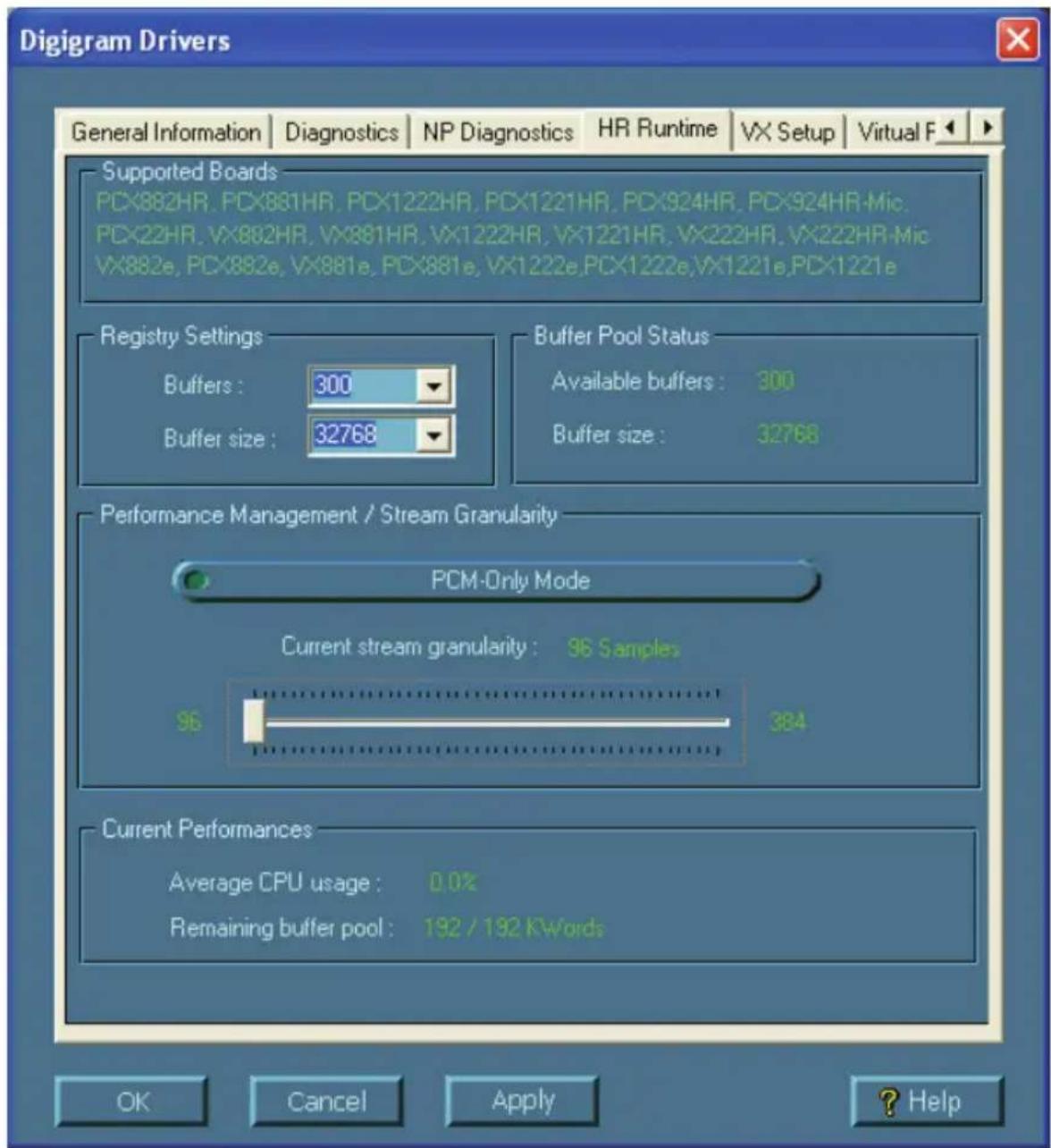
- In the “Digigram drivers” window, select the number and the size of buffers required by your applications. Click on Ok.
- Click Finish to complete the driver installation.
Digigram Control Center
This control panel allows to define:
• the number of buffers and their size
- the granularity
Please note that for all sound cards of the VX range, “PCM only” is the only operating mode, therefore this button is not functional in the Digigram control panel (CPL). (To access this control panel, go to
Removing the driver under Windows XP and Windows Server 2003
- Open the Windows Control Panel and double-click on the Add/Remove Software icon.
- Select "Digigram HR Runtime …", and Change/Remove.
- Select Remove in the np Runtime window.
- Follow the instructions to finish driver removal.
Removing the driver under Windows Vista
- Open the Windows Control Panel and double-click on the Programs and Features icon.
- Select "Digigram HR Runtime for Vista...", and Change/Remove.
- Select Remove in the HR Runtime window.
- Follow the instructions to finish removing the driver.
How to check the installation
Once the cards and the driver have been installed according to the procedure described in this manual, you can verify that the card is properly installed and works fine as follows:
- Menu
Available WDM recording and playback devices are:
• VX1221e (VX1222e) 1+2 (WDM) (record and playback)
• VX1221e (VX1222e) 3+4 (WDM) ( playback)
• VX1221e (VX1222e) 5+6 (WDM) ( playback)
• VX1221e (VX1222e) 7+8 (WDM) ( playback)
• VX1221e (VX1222e) 9+10 (WDM) ( playback)
• VX1221e (VX1222e) 11+12 (WDM) ( playback)
• VX1221e (VX1222e) 5.1A (WDM) ( playback)
• VX1221e (VX1222e) 5.1B (WDM) ( playback)
• VX1221e (VX1222e) 7.1 (WDM) (playback)
- The card is also visible via the np interface: go to
- In the “Digigram drivers” window, select the ‘General Information’ tab. In the “Modules Information” window, you can see the HR Runtime modules that have been installed, and their versions.
- In the “Digigram drivers” window, select the ‘Diagnostics’ tab.
You should see here the icons of the cards you have installed.
- If the card you have installed is listed:
- Right click on the icon of the card.
- Select ‘Diagnostics’, and Play Sine. This plays in loop a sine signal on the outputs of the card. You can also select Play file to play in loop a file of your choice (PCM only). If the playback is correct, the card is correctly installed and works.
- To stop the playback, right click on the card icon, and select Stop Activities.
- If the card is not displayed:
- Make sure that during the HR Runtime installation the "Driver for the HR boards" has been selected in the "Select components" window.
- Make sure that the card is correctly inserted in the PCI slot, and screwed on the PC chassis.
- If necessary, uninstall the HR Runtime package as described in this manual, and re-install it.
- If the Wave driver has been installed:
- Go to menu
Available Wave recording and playback devices are:
-
VX1221e (VX1222e) 1+2 (Wave) (record and playback)
• VX1221e (VX1222e) 3+4 (Wave) ( playback)
• VX1221e (VX1222e) 5+6 (Wave) ( playback)
• VX1221e (VX1222e) 7+8 (Wave) (playback)
• VX1221e (VX1222e) 9+10 (Wave) ( playback)
• VX1221e (VX1222e) 11+12 (Wave) ( playback)
• VX1221e (VX1222e) 5.1A (Wave) ( playback)
• VX1221e (VX1222e) 5.1B (Wave) ( playback)
• VX1221e (VX1222e) 5.1+2 (Wave) ( playback)
• VX1221e (VX1222e) 7.1 (Wave) (playback)
• VX1221e (VX1222e) 7.1+2 (Wave) ( playback) -
If the ASIO driver has been installed:
- The card is visible from any ASIO application.
Note:
5.1A plays on outputs 1, 2, 3, 4, 5, 6
5.1B plays on outputs 7, 8, 9, 10, 11, 12
7.1 plays on outputs 1, 2, 3, 4, 5, 6, 7, 8
5.1+2 plays on outputs 1, 2, 3, 4, 5, 6, 7, 8
7.1+2 plays on outputs 1, 2, 3, 4, 5, 6, 7, 8, 9, 10
The ‘Digigram Hardware Settings’ (‘DHS’) control panel
Digigram hardware settings (DHS) is an application allowing to configure the hardware resources of Digigram cards for all audio applications using them. A resource being managed by the DHS application can not be modified by any other applications. To enable an audio application to modify a Digigram card resource, this resource must not be managed by the DHS.
Note: As soon as a resource of a card is managed by the DHS, the clock selection of this card MUST be defined in the DHS.
The DHS allows to:
- Select the clock the card uses
- Select the input source
• Set analog and digital gains of an input - Enable Sample Rate Converters of an input
- Select the input monitored on an output
- Set the monitoring gains
- Set the analog and digital gains of an output
- Define the digital output format
For help on how to use this control panel, please refer to its on-line help.
SPECIFICATIONS
Configuration
| VX1221e VX1222e | ||
| Bus/Format | PCI EXPRESSTM (PCIe®) x1(x2, x4, x8, x16, x32 compatible) | |
| Digital Signal Processor Motorola 56321 at 240 MHz | ||
| RAM 512 kWords | ||
| Size 168 mm x 111 mm x 20 mm | ||
| Power requirements(+3.3 V / +12 V) | 1.5 A / 0.1 A 3 A / | 0.4 A |
| Operating: temp / humidity(non-condensing) | 0°C / +50°C • 5% / 90% | |
| Storage: temp / humidity(non-condensing) | -5°C / +70°C • 0% / 95% | |
Inputs
| VX1221e VX1222e | ||
| Analog line inputs (mono) - | 2 balanced* | |
| Maximum input level/ impedance | - | +24 dBu/>10 kΩ |
| Digital input (stereo) | 1 AES/EBU** with hw Sample Rate Converter, 7.5:1 to 1:8, up to 192 kHz | |
| Programmable input gain | digital: from -110 dB to +18 dB | analog: from -94.5dB to +15.5 dB ^ digital: from -110 dB to +18 dB |
| Other inputs | AES/EBU Sync (up to 192 kHz), Word clock (up to 96 kHz), LTC, Video | |
| AES11 synchronization Yes | ||
Outputs
| VX1221e VX1222e | ||
| Analog line outputs (mono) - | 12 servo-balanced*** | |
| Maximum output level / impedance | - | +24 dBu / <100 Ω |
| Digital outputs (stereo) | 6 AES/EBU**, up to 192 kHz | |
| Programmable output gain | digital: from -110 dB to +18 dB | analog: from -86 dB to +24 dB digital: from -110 dB to +18 dB |
| Other outputs Word clock (up to 96 kHz) | ||
Connectors
| VX1221e VX1222e | |
| Internal connectors Inter-board Sync | |
| External connector 68-pin SCSI MDR | |
| Digigram accessories available | Breakout cable or 2U 19" Breakout Box |
Audio specifications
| VX1221e VX1222e | ||
| Sampling frequencies available | Programmable from 22.05 to 192 kHz | Programmable from 8 to 192 kHz |
| A/D and D/A converter resolution | - | 24 |
| Supported audio formats PCM (8, 16, 24 bits), Float IEEE754 | ||
Audio Performance
measured at Fs=48 kHz
| VX1221e VX1222e | ||
| Frequency response (record + play) | - 20 Hz | -20 kHz: ±0.3 dB |
| Channel phase difference: 20/20kHz | - | <0.2°/2° |
| Dynamic range (A-weighted) | - | Analog In: >104 dBAnalog Out: >110 dB |
| THD + noise 1 kHz at -1 dBfs | - | Analog In: <-96 dBAnalog Out: <-96 dB |
| Crosstalk (Analog in or out) - | 1 kHz at 24 dBu: <-100 dB15 kHz at 24 dBu: <-90 dB | |
Development environments
| VX1221e VX1222e | ||
| Digigram management | np SDK (HR Runtime, PCM only) | |
| Other management | Wave*, ASIO, DirectSound (all PCM only) | |
| OS supported | Windows XP**, Windows Server 2003** and Windows Vista** | |
| Main on-board processing features (with np SDK) | PCM play, rec, Float IEEE754, direct monitoring, real-time mixing, level adjustment, panning, cross-fade, punch-in/punch-out, scrubbing | |
APPENDICES
VXI22Ie Schematic Diagram

flowchart
graph TD
    A["AES/EBU Sync"] --> B["RECEIVE"]
    C["CRYSTAL"] --> D["RECEIVE"]
    E["Word Clock"] --> D
    F["Video"] --> D
    G["AES/EBU IN 1"] --> H["RECEIVE"]
    I["LTC"] --> H
    J["Bypass"] --> H
    H --> K["SRC"]
    K --> L["DSP"]
    M["CLOCK GENERATION"] --> L
    L --> N["TRANSMIT"]
    N --> O["AES/EBU OUT 1-6"]
    P["INTERFACE"] <--> Q["PCIe BUS"]
    Q <--> R["-->"]
    R --> S["-->"]
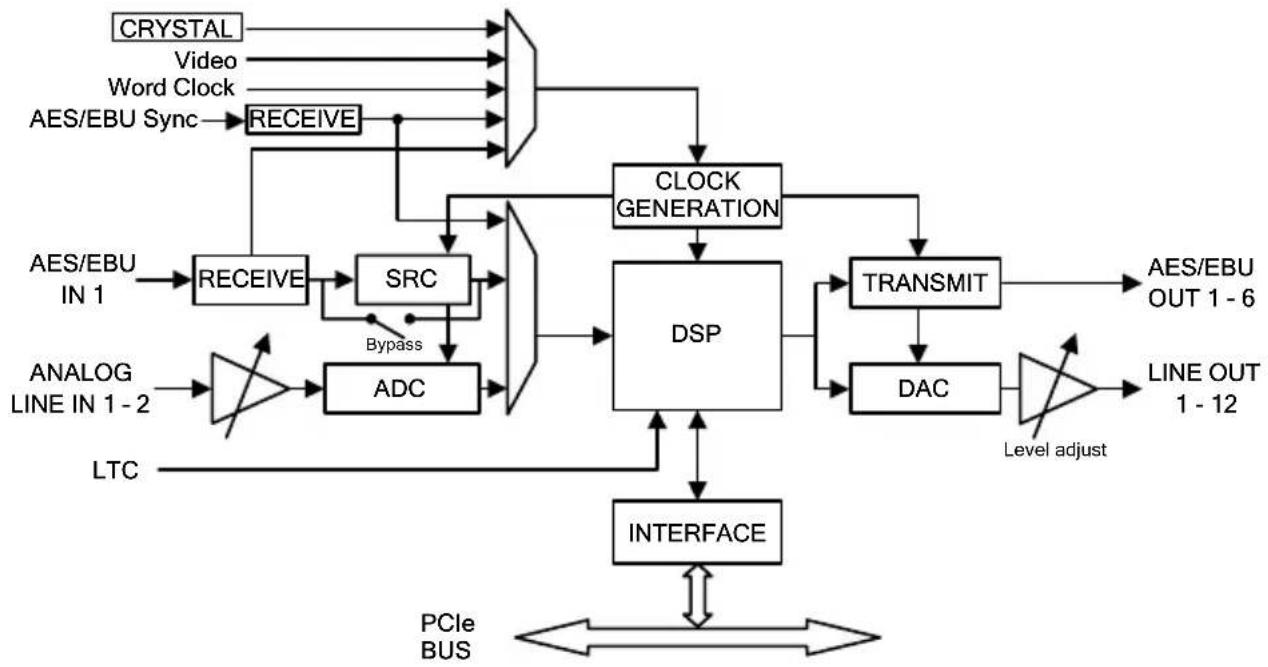
VXI222e Schematic Diagram
flowchart
graph TD
    A["CRYSTAL"] --> B["Video"]
    C["WORD Clock"] --> D["RECEIVE"]
    E["AES/EBU Sync"] --> F["RECEIVE"]
    G["AES/EBU IN 1"] --> H["RECEIVE"]
    I["ANALOG LINE IN 1-2"] --> J["AND"]
    K["LTC"] --> L["ADC"]
    M["PCIe BUS"] --> N["INTERFACE"]
    O["DSP"] --> P["CLOCK GENERATION"]
    P --> Q["TRANSMIT"]
    Q --> R["DAC"]
    R --> S["Level adjust"]
    T["AES/EBU OUT 1-6"] --> U["TRANSMIT"]
    V["LINE OUT 1-12"] --> W["TRANSMIT"]
    X["Bypass"] --> Y["ARC"]
    Z["AND"] --> AA["AND"]
    AB["AND"] --> AC["AND"]
    AD["AND"] --> AE["AND"]
    AF["AND"] --> AG["AND"]
    AH["AND"] --> AI["AND"]
    AJ["AND"] --> AK["AND"]
    AL["AND"] --> AM["AND"]
    AN["AND"] --> AO["AND"]
    AP["AND"] --> AQ["AND"]
    AR["AND"] --> AS["AND"]
    AT["CRYSTAL"] --> AU["RECEIVE"]
    AV["RECEIVE"] --> AW["SRC"]
    AX["ENCURITIES"] --> AY["DSP"]
    AZ["CONTENTS"] --> BA["DSP"]
    BB["CLOCK GENERATION"] --> BC["DSP"]
    BD["CLOCK GENERATION"] --> BE["DSP"]
    BF["CLOCK GENERATION"] --> BG["DSP"]
    BH["CLOCK GENERATION"] --> BI["DSP"]
    BJ["CLOCK GENERATION"] --> BK["DSP"]
    BL["CLOCK GENERATION"] --> BM["DSP"]
    BN["CLOCK GENERATION"] --> BO["DSP"]
    BP["CLOCK GENERATION"] --> BQ["DSP"]
    BR["CLOCK GENERATION"] --> BS["DSP"]
    BT["CLOCK GENERATION"] --> BU["DSP"]
    BV["CLOCK GENERATION"] --> BW["DSP"]
    BX["CLOCK GENERATION"] --> BY["DSP"]
    BZ["CLOCK GENERATION"] --> CA["DSP"]
    CB["CLOCK GENERATION"] --> CC["DSP"]
    CD["CLOCK GENERATION"] --> CE["DSP"]
    CF["CLOCK GENERATION"] --> CG["DSP"]
    CH["CLOCK GENERATION"] --> CI["DSP"]
    CJ["CLOCK GENERATION"] --> CK["DSP"]
    CL["CLOCK GENERATION"] --> CM["DSP"]
    CN["CLOCK GENERATION"] --> CO["DSP"]
    CP["CLOCK GENERATION"] --> CQ["DSP"]
    CR["CLOCK GENERATION"] --> CS["DSP"]
    CT["CLOCK GENERATION"] --> CU["DSP"]
    CV["CLOCK GENERATION"] --> CW["DSP"]
    CX["CLOCK GENERATION"] --> CY["DSP"]
    CZ["CLOCK GENERATION"] --> DA["DSP"]
    DB["CLOCK GENERATION"] --> DC["DSP"]
    DD["CLOCK GENERATION"] --> DJ["DSP"]
    DK["CLOCK GENERATION"] --> DL["DSP"]
    DV["CLOCK GENERATION"] --> DW["DSP"]
LAYOUT
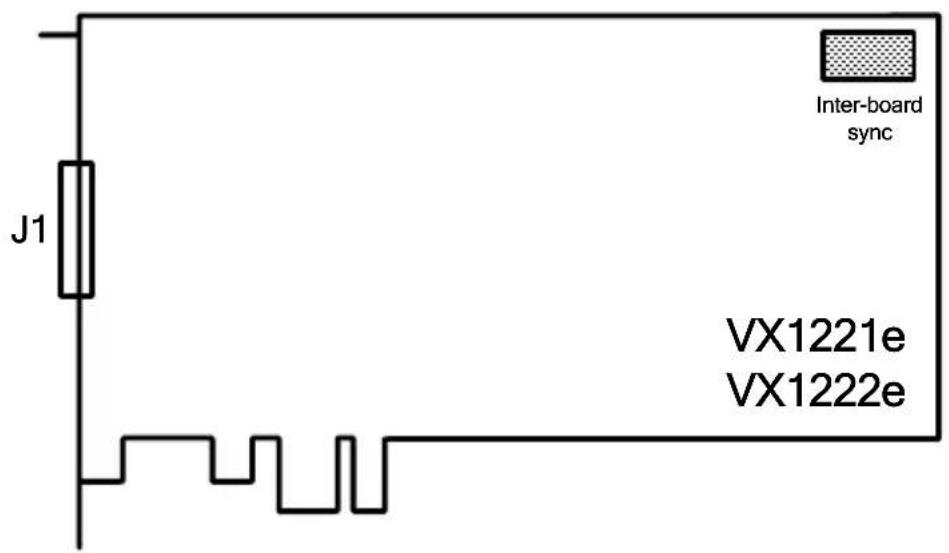
J1:
• Digital cable (VX1221e)
• Analog/digital cable (VX1222e)
VXI22Ie cable diagram
Schematic diagram of the cable delivered by Digigram*:
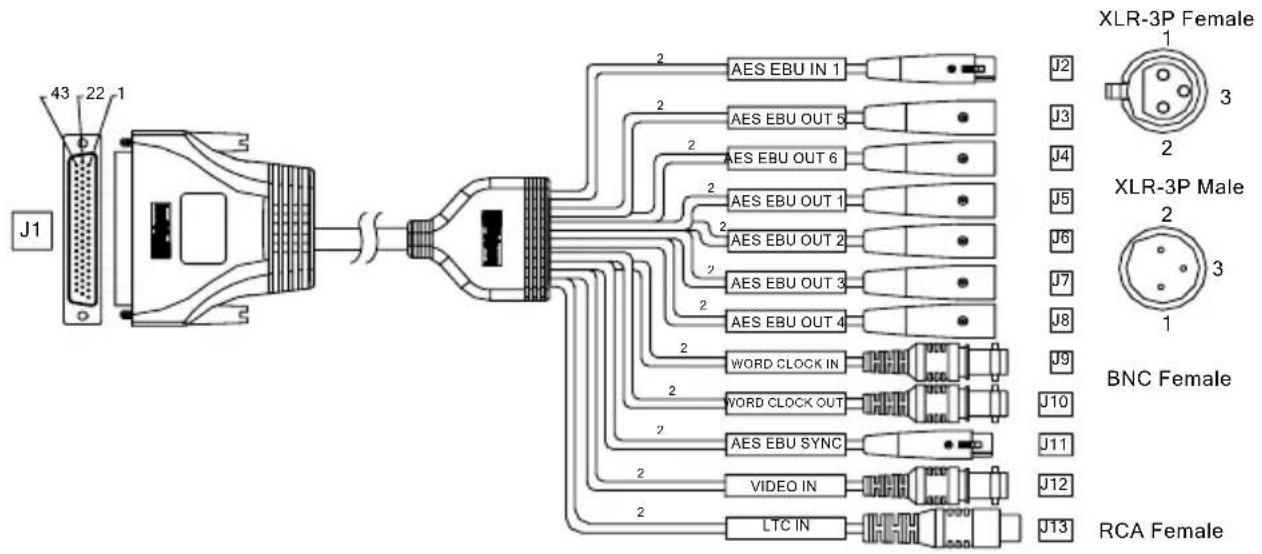
* Your cable may look different if it is not a Digigram cable.
VXI22Ie wiring diagram

line
| Channel | Value | |---------|-------| | J1 | 44 | | J1 | 43 | | J1 | 26 | | J1 | 25 | | J1 | 29 | | J1 | 28 | | J1 | 48 | | J1 | 47 | | J1 | 8 | | J1 | 7 | | J1 | 46 | | J1 | 45 | | J1 | 6 | | J1 | 5 | | J1 | 49 | | J1 | 50 | | J1 | 4 | | J1 | 3 | | J1 | 23 | | J1 | 9 | | J1 | 22,24 | | J1 | 27,30 | | J1 | 33,36 | | J1 | 39,42 | Shell | Shell Shell Shell Shell Shell Shell Shell Shell Shell Shell Shell Shell Shell Shell Shell Shell Shell Shell Shell Shell Shell Shell Shell Shell Shell Shell Shell Shell Shell Shell Shell Shell Shell Shell Shell Shell Shell Shell Shell Shell Shell Shell Shell Shell Shell Shell Shell Shell Shell Shell Shell ShellAdapter cable Sub-D 62⇔ SCSI 68 MDR

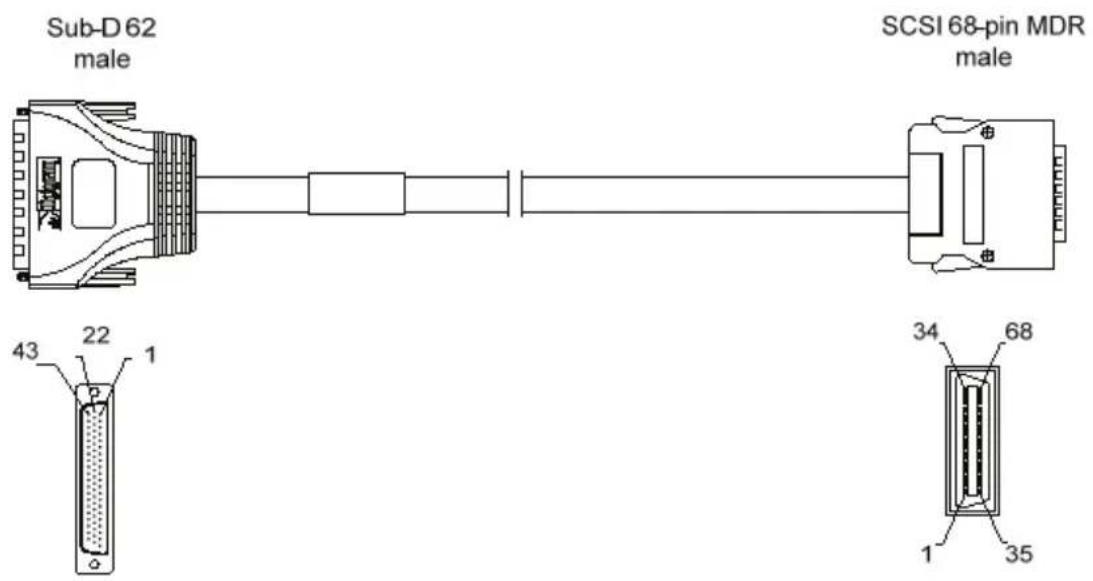
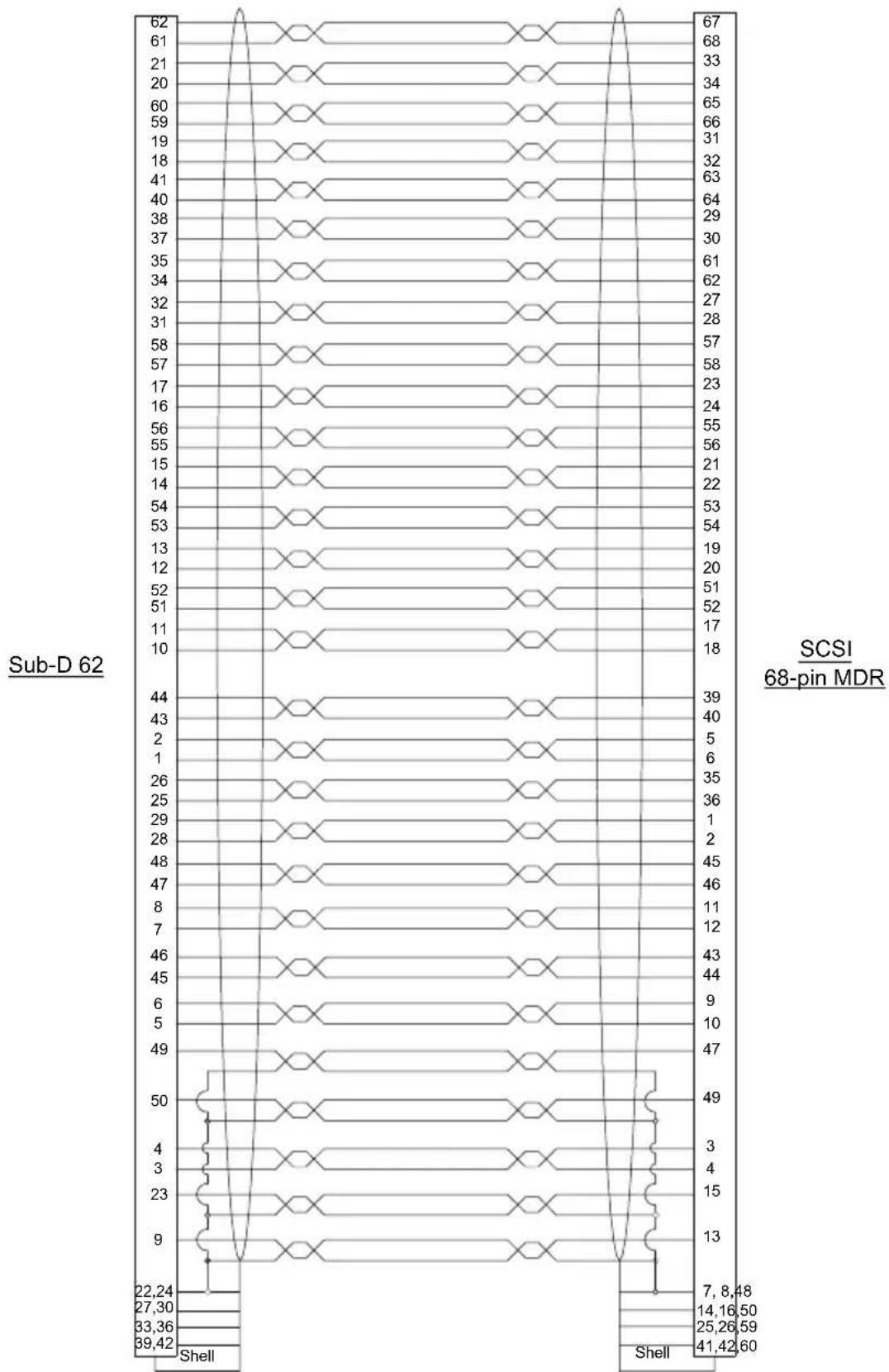
If you dispose of a VX1221HR or VX1222HR cable, this adapter allows its use with the VX PCI EXPRESS™ multichannel boards.
Connection cable VX1222e ⇔ BoBI2
Sub-D 62⇔ SCSI 68 MDR wiring diagram
line
| Time | Value | |------|-------| | 62 | 67 | | 61 | 68 | | 21 | 33 | | 20 | 34 | | 60 | 65 | | 59 | 66 | | 19 | 31 | | 18 | 32 | | 41 | 63 | | 40 | 64 | | 38 | 29 | | 37 | 30 | | 35 | 61 | | 34 | 62 | | 32 | 27 | | 31 | 28 | | 58 | 57 | | 57 | 58 | | 17 | 23 | | 16 | 24 | | 56 | 55 | | 55 | 56 | | 15 | 21 | | 14 | 22 | | 54 | 53 | | 53 | 54 | | 13 | 19 | | 12 | 20 | | 52 | 51 | | 51 | 52 | | 11 | 17 | | 10 | 18 | | 44 | 39 | | 43 | 40 | | 2 | 5 | | 1 | 6 | | 26 | 35 | | 25 | 36 | | 29 | 1 | | 28 | 2 | | 48 | 45 | | 47 | 46 | | 8 | 11 | | 7 | 12 | | 46 | 43 | | 45 | 44 | | 6 | 9 | | 5 | 10 | | 49 | 47 | | 50 | 49 | | 4 | 3 | | 3 | 4 | | 23 | 15 | | 9 | 13 | | 22,24| | | 27,30| | | 33,36| | | 39,42| | | | | | | | | | | | | | | | | | | | | | | | | | | | | | | | | | | | | | | | | | | | | | | | | | | | | | |VXI222e cable diagram
Schematic diagram of the cable delivered by Digigram*:

* Your cable may look different if it is not a Digigram cable.
VXI222e wiring diagram

line
| J1 | Shell | Center | Outside | |----|-------|--------|---------| | 67 | 2 | 3 | 1 | | 68 | 3 | 2 | 1 | | 33 | 2 | 3 | 1 | | 34 | 3 | 2 | 1 | | 63 | 2 | 3 | 1 | | 64 | 3 | 2 | 1 | | 29 | 2 | 3 | 1 | | 30 | 3 | 2 | 1 | | 61 | 2 | 3 | 1 | | 62 | 3 | 2 | 1 | | 27 | 2 | 3 | 1 | | 28 | 3 | 2 | 1 | | 57 | 2 | 3 | 1 | | 58 | 3 | 2 | 1 | | 23 | 2 | 3 | 1 | | 24 | 3 | 2 | 1 | | 55 | 2 | 3 | 1 | | 56 | 3 | 2 | 1 | | 21 | 2 | 3 | 1 | | 22 | 3 | 2 | 1 | | 53 | 2 | 3 | 1 | | 54 | 3 | 2 | 1 | | 19 | 2 | 3 | 1 | | 20 | 3 | 2 | 1 | | 51 | 2 | 3 | 1 | | 52 | 3 | 2 | 1 | | 17 | 2 | 3 | 1 | | 18 | 3 | 2 | 1 | | 39 | 3 | 2 | 1 | | 40 | 3 | 2 | 1 | | 35 | 3 | 2 | 1 | | 36 | 3 | 2 | 1 | | 1 | 3 | 2 | 1 | | 2 | 3 | 2 | 1 | | 45 | 3 | 2 | 1 | | 46 | 3 | 2 | 1 | | 11 | 3 | 2 | 1 | | 12 | 3 | 2 | 1 | | 43 | 3 | 2 | 1 | | 44 | 3 | 2 | 1 | | 9 | 3 | 2 | 1 | | 10 | 3 | 2 | 1 | | 47 | Center| Outside| Outside| | 49 | Center| Outside| Outside| | J16| J16 | J17 | J18 | | J17| J17 | J18 | J19 | | J18| J18 | J19 | J20 | | J19| J19 | J20 | J21 | | J20| J20 | J21 | J22 | | J21| J21 | J22 | J23 | | J24| J24 | J25 | J26 | | J25| J25 | J26 | J27 | | J26| J26 | J27 | Outside| | J27| J27 | Outside| Outside| 7,8,48| | End| - | - | - | | End(50)| - | - | - | | End(50)| - | - | - | | End(50)| - | - | - | | End(50)| - | - | - | | End(50)| - | - | - | | End(50)| - | - | - | | End(50)| - | - | - | | End(50)VX1221e cable pinout
| Digital | Pin | Signal | Pin | Signal | Pin | Signal |
| 1 | AES/EBU OUT 6 + | 11 | AES/EBU OUT 2 + | 41 | GND | |
| 2 | AES/EBU OUT 6 - | 12 | AES/EBU OUT 2 - | 42 | GND | |
| 3 | AES/EBU SYNC + | 15 | Video IN | 43 | AES/EBU OUT 3 + | |
| 4 | AES/EBU SYNC - | 16 | GND | 44 | AES/EBU OUT 3 - | |
| 5 | NC | 35 | AES/EBU OUT 5 + | 45 | AES/EBU OUT 1 + | |
| 6 | NC | 36 | AES/EBU OUT 5 - | 46 | AES/EBU OUT 1 - | |
| 7 | GND | 37 | Reserved | 47 | Word Clock IN | |
| 8 | GND | 38 | Reserved | 48 | GND | |
| 9 | AES/EBU OUT 4 + | 39 | AES/EBU IN 1 + | 49 | Word Clock OUT | |
| 10 | AES/EBU OUT 4 - | 40 | AES/EBU IN 1 - | 50 | GND |
VXI222e cable pinout
| Digital | Pin | Signal | Pin | Signal | Pin | Signal |
| 1 | AES/EBU OUT 6 + | 11 | AES/EBU OUT 2 + | 41 | GND | |
| 2 | AES/EBU OUT 6 - | 12 | AES/EBU OUT 2 - | 42 | GND | |
| 3 | AES/EBU SYNC + | 15 | Video IN | 43 | AES/EBU OUT 3 + | |
| 4 | AES/EBU SYNC - | 16 | GND | 44 | AES/EBU OUT 3 - | |
| 5 | NC | 35 | AES/EBU OUT 5 + | 45 | AES/EBU OUT 1 + | |
| 6 | NC | 36 | AES/EBU OUT 5 - | 46 | AES/EBU OUT 1 - | |
| 7 | GND | 37 | Reserved | 47 | Word Clock IN | |
| 8 | GND | 38 | Reserved | 48 | GND | |
| 9 | AES/EBU OUT 4 + | 39 | AES/EBU IN 1 + | 49 | Word Clock OUT | |
| 10 | AES/EBU OUT 4 - | 40 | AES/EBU IN 1 - | 50 | GND |
| Analog | Pin | Signal | Pin | Signal | Pin | Signal |
| 13 | LTC IN | 28 | OUT 12 - | 57 | OUT 1 + | |
| 14 | GND | 29 | OUT 10 + | 58 | OUT 1 + | |
| 17 | OUT 8 + | 30 | OUT 10 - | 59 | GND | |
| 18 | OUT 8 - | 31 | NC | 60 | GND | |
| 19 | OUT 6 + | 32 | NC 4 - | 61 | OUT 11 + | |
| 20 | OUT 6 - | 33 | IN 2 + | 62 | OUT 11 - | |
| 21 | OUT 4 + | 34 | IN 2 - | 63 | OUT 9 + | |
| 22 | OUT 4 - | 51 | OUT 7 + | 64 | OUT 9 - | |
| 23 | OUT 2 + | 52 | OUT 7 - | 65 | NC | |
| 24 | OUT 2 - | 53 | OUT 5 + | 66 | NC | |
| 25 | GND | 54 | OUT 5 - | 67 | IN 1 + | |
| 26 | GND | 55 | OUT 3 + | 68 | IN 1 - | |
| 27 | OUT 12 + | 56 | OUT 3 - | |||
- digigram
- Digigram S.A.
- Digigram Inc.
- Digigram Asia Pte Ltd.
- Table of Contents
- INFORMATION FOR THE USER 4
- IMPORTANT NOTICE 5
- CONTENTS OF THIS PACKAGE 5
- FEATURES......6
- REQUIREMENTS....7
- HARDWARE INSTALLATION....7
- SOFTWARE INSTALLATION 8
- HOW TO CHECK THE INSTALLATION.... I I
- THE 'DIGIGRAM HARDWARE SETTINGS'
- ('DHS') CONTROL PANEL....13
- SPECIFICATIONS 14
- APPENDICES 17
- INFORMATION FOR THE USER
- Warning:
- IMPORTANT NOTICE
- CONTENTS OF THIS PACKAGE
- FEATURES
- VXI22Ie main hardware features
- VXI222e main hardware features
- Main software features
- REQUIREMENTS
- Minimum hardware requirements
- Software requirements
- Supported operating systems
- HARDWARE INSTALLATION
- Installing the card
- Interrupt and memory address
- SOFTWARE INSTALLATION
- Standard installation under Windows XP, Windows Server 2003 and Windows Vista
- Digigram Control Center
- Removing the driver under Windows XP and Windows Server 2003
- Removing the driver under Windows Vista
- How to check the installation
- Note:
- The ‘Digigram Hardware Settings’ (‘DHS’) control panel
- The DHS allows to:
- SPECIFICATIONS
- Audio Performance
- Development environments
- APPENDICES
- VXI22Ie cable diagram
- VXI222e cable diagram
Brand : Digigram
Model : VX1221e
Category : Hi-Fi System