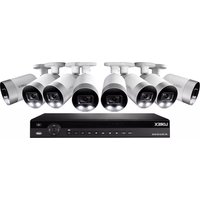
NK263-88ABE - Security Camera Lorex - Free user manual and instructions
Find the device manual for free NK263-88ABE Lorex in PDF.


| Product Type | Outdoor Security Camera |
| Resolution | 4K Ultra HD (3840 x 2160) |
| Field of View | 90° - 120° (depending on lens) |
| Night Vision | Up to 100 ft (30 m) with IR LEDs |
| Video Compression | H.265 / H.264 |
| Power Supply | Power over Ethernet (PoE) or 12V DC adapter (not included) |
| Power Consumption | Maximum 12W |
| Dimensions (W x H x D) | 2.8 x 7.5 x 2.8 inches (71 x 190 x 71 mm) |
| Weight | 1.1 lbs (0.5 kg) |
| Weather Rating | IP67 weatherproof |
| Operating Temperature | -22°F to 140°F (-30°C to 60°C) |
| Audio | Built-in microphone (two-way audio with external speaker via NVR) |
| Motion Detection | Yes, with customizable zones and sensitivity |
| Smart Detection | Person and vehicle detection (requires NVR with smart analytics) |
| Active Deterrence | Built-in warning light and siren (manual and automatic trigger) |
| Connectivity | RJ45 Ethernet port (10/100 Mbps) |
| Mounting | Wall or ceiling mount with included bracket |
| Maintenance | Clean lens with soft dry cloth; check cables periodically |
| Safety | Overvoltage protection; UL/CE listed |
| Spare Parts | Mounting bracket, extension cable (sold separately), power adapter (sold separately) |
| Repairability | No user-serviceable parts; contact Lorex support for repairs |
Frequently Asked Questions - NK263-88ABE Lorex
User questions about NK263-88ABE Lorex
0 question about this device. Answer the ones you know or ask your own.
Ask a new question about this device
Download the instructions for your Security Camera in PDF format for free! Find your manual NK263-88ABE - Lorex and take your electronic device back in hand. On this page are published all the documents necessary for the use of your device. NK263-88ABE by Lorex.
USER MANUAL NK263-88ABE Lorex
User Manual N881 Series

natural_image
Black LOREX 4K Ultra HD NVR device with control buttons and playback controls (no visible text beyond branding)User Manual N881 Series
Thank you for purchasing this product. Lorex Corporation is committed to providing our customers with quality, reliable security solution.
This manual refers to the following models:
N881A63B
N881A38B
For the latest online manual, downloads and product updates, and to learn about our complete line of products, please visit our website at:
a high
lorex.com

WARNING
RISK OF ELECTRIC SHOCK DO NOT OPEN

WARNING: TO REDUCE THE RISK OF ELECTRIC SHOCK DO NOT REMOVE COVER NO USER SERVICEABLE PARTS INSIDE.
REFER SERVICING TO QUALIFIED SERVICE PERSONNEL.

The lightning flash with arrowhead symbol, within an equilateral triangle, is intended to alert the user to the presence of uninsulated "dangerous voltage" within the product's enclosure that may be of sufficient magnitude to constitute a risk of electric shock.

The exclamation point within an equilateral triangle is intended to alert the user to the presence of important operating and maintenance (servicing) instructions in the literature accompanying the appliance.
WARNING: TO PREVENT FIRE OR SHOCK HAZARD, DO NOT EXPOSE THIS UNIT TO RAIN OR MOISTURE.
CAUTION: TO PREVENT ELECTRIC SHOCK, MATCH WIDE BLADE OF THE PLUG TO THE WIDE SLOT AND FULLY INSERT.
Table of contents
1 Important Safeguards .... 1
1.1 General Precautions.... 1
1.2 Installation 1
1.3 Service 3
1.4 Use 3
2 Package Contents....4
3 Recorder Overview 5
3.1 Front Panel 5
3.2 Back Panel 6
4 Basic System Setup....7
4.1 STEP 1: Connect cameras....7
4.2 STEP 2: Connect router 7
4.3 STEP 3: Connect mouse 7
4.4 STEP 4: Connect monitor....8
4.5 STEP 5: Connect power 8
4.6 STEP 6: Upgrade Firmware to Latest Version (If Available) ...... 9
4.7 Quick Access to System Information.... 9
4.8 Connecting Cameras to the Local Area Network (LAN) .....10
5 Camera Installation....13
5.1 Installation Tips ....13
5.2 Installing Cameras ....13
5.3 Connecting Camera Extension Cables ....14
6 Using the Mouse ....15
7 Setting the Date & Time ....16
8 Using the On-Screen Display....18
8.1 Navigation Bar....18
8.2 Quick Menu ....18
8.3 Camera Toolbar....19
8.4 On-Screen Keyboards 20
8.5 Camera Image Settings 21
9 Recording....23
9.1 Video Recording Types....23
9.2 Configuring Recording Quality 23
9.3 Setting the Recording Schedule 24
9.4 Setting up Scheduled or Manual Recording 25
9.5 Configuring Hard Drive Overwrite 27
10 Playback....28
10.1 Playing Back Video from the Hard Drive....28
10.2 Playback Controls....28
10.3 Area Search .... 30
10.4 Video Clip Backup ....32
10.5 Playing Back Video from a USB Drive ....33
11 Backup....35
11.1 Formatting the USB Flash Drive....35
11.2 Backing Up Video....36
11.3 Using Video Clip Backup....37
11.4 Viewing Backed Up Files 37
11.4.1 Viewing Backed Up Files on PC 37
11.4.2 Viewing Backed Up Files on Mac....38
11.4.3 Lorex Player Controls....39
12 Motion Detection 42
12.1 Status Icons ....42
12.2 Configuring Motion Detection .....42
13 Active Deterrence....45
13.1 Automatic Deterrence Settings ....45
13.2 Manually Activate Deterrence Features....47
14 Smart Motion Detection....48
14.1 Ensuring Accurate Person & Vehicle Detection .....48
14.2 Configuring Person & Vehicle Detection .....49
14.3 Searching for Person & Vehicle Detection Events (Smart Search)....51
15 Managing Passwords and User Accounts ....53
15.1 User Accounts ....53
15.1.1 Changing Passwords ....53
15.1.2 Adding Users....54
15.1.3 Modifying Users 55
15.1.4 Deleting Users ....56
15.2 Account Groups ....56
15.2.1 Adding Groups....56
15.2.2 Modifying Groups 57
15.2.3 Deleting Groups ....57
16 Using the Main Menu....59
16.1 Main Menu Overview ....59
16.2 Camera Menu....59
16.2.1 Viewing Camera Status ....59
16.2.2 Camera Firmware Versions 60
16.2.3 Upgrading Camera Firmware 61
16.2.4 PoE Manager 62
16.2.5 Configuring Snapshot Recording Settings 63
16.2.6 Configuring Video Overlay Settings....64
16.2.7 Creating Custom Channel Names 65
16.3 Information Menu 66
16.3.1 Hard Drive Information....66
16.3.2 Recording Information....67
16.3.3 Fan and CPU Status 68
16.3.4 Version Information ......69
16.3.5 Event Information 69
16.3.6 Online Users....70
16.3.7 Network Load 71
16.3.8 Network Test 72
16.3.9 BPS 73
16.3.10 System Log 74
16.4 Settings Menu 75
16.4.1 Selecting DHCP or Static IP Address (TCP/IP) 75
16.4.2 Configuring System Ports (Connection)....76
16.4.3 Configuring IP Filter 77
16.4.4 Configuring Email Alerts....78
16.4.5 FTP (Advanced) 80
16.4.6 Configuring Switch Settings (Advanced) 81
16.4.7 P2P Setting 82
16.4.8 Configuring Video Loss Settings 82
16.4.9 Configuring Hard Drive Warnings 84
16.4.10 Configuring Network Warnings 84
16.4.11 Configuring Fan Warnings 85
16.4.12 Configuring Alarm Input Devices....86
16.4.13 Controlling Alarm Output Devices....88
16.4.14 Configuring Pre-Recording 89
16.4.15 Formatting the Hard Drive .....90
16.4.16 Configuring Hard Drive Type....91
16.4.17 Setting up Hard Drive Mirroring (Advanced) 92
16.4.18 Configuring Hard Drive Groups (Advanced)....94
16.4.19 Configuring Holidays 96
16.4.20 Configuring General System Settings .....98
16.4.21 Setting the Monitor Resolution (Display) .....99
16.4.22 Configuring Sequence Mode.... 100
16.4.23 Saving Your System Configuration to a USB Thumb Drive 101
16.4.24 Restore Default Settings 103
16.4.25 Upgrading Firmware Manually.... 103
16.4.26 Automatic Firmware Upgrades 104
16.5 Shutdown.... 105
17 Pan/Tilt/Zoom (PTZ) Cameras....106
17.1 Connecting PTZ Cameras to the Recorder.... 106
17.2 Basic PTZ Controls 107
17.3 Advanced PTZ Controls.... 107
17.4 Presets 108
17.5 Tours 109
17.6 Patterns 109
17.7 AutoScan 109
18 Connecting Audio Devices.... 111
19 Replacing the Hard Drive 113
19.1 Removing the Hard Drive.... 113
19.2 Installing a New Hard Drive.... 114
20 DDNS Setup (Advanced).... 118
20.1 STEP 1: Port Forwarding .... 118
20.2 STEP 2: Create a Lorex Account 118
20.3 STEP 3: Activate Your Warranty 119
20.4 STEP 4: Sign Up for a DDNS Account 119
20.5 STEP 5: Enable DDNS on the Recorder 120
21 Troubleshooting.... 122
22 Technical Specifications....124
22.1 General 124
22.2 Inputs/Outputs 124
22.3 Display.... 124
22.4 Recording 124
22.5 Playback 124
22.6 Storage.... 124
22.7 Special Features 124
22.8 Smart Home.... 125
22.9 Connectivity 125
Table of contents
22.10 Additional Specifications 125
23 Notices 126
23.1 FCC/IC 126
23.2 CE 126
23.3 Modification 126
23.4 RoHS.... 126
23.5 ICES-003 126
Important Safeguards1
In addition to the careful attention devoted to quality standards in the manufacturing process of your product, safety is a major factor in the design of every instrument. However, safety is your responsibility too. This sheet lists important information that will help to ensure your enjoyment and proper use of the product and accessory equipment. Please read them carefully before operating and using your product.
1.1 General Precautions
- All warnings and instructions in this manual should be followed.
- Remove the plug from the outlet before cleaning. Do not use liquid aerosol detergents. Use a water-dampened cloth for cleaning.
- Do not use this product in humid or wet places.
- Keep enough space around the product for ventilation. Slots and openings in the storage cabinet should not be blocked.
- It is highly recommended to connect the product to a surge protector to protect from damage caused by electrical surges. It is also recommended to connect the product to an uninterruptible power supply (UPS), which has an internal battery that will keep the product running in the event of a power outage.

CAUTION
Maintain electrical safety. Power line operated equipment or accessories connected to this product should bear the UL listing mark or CSA certification mark on the accessory itself and should not be modified so as to defeat the safety features. This will help avoid any potential hazard from electrical shock or fire. If in doubt, contact qualified service personnel.
1.2 Installation
- Read and Follow Instructions: All the safety and operating instructions should be read before the product is operated. Follow all operating instructions.
- Retain Instructions: The safety and operating instructions should be retained for future reference.
- Heed Warnings: Comply with all warnings on the product and in the operating instructions.
- Polarization: Do not defeat the safety purpose of the polarized or grounding-type plug. A polarized plug has two blades with one wider than the other.
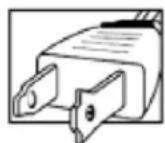
A grounding type plug has two blades and a third grounding prong.
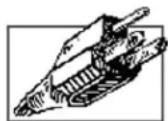
The wide blade or the third prong are provided for your safety.
If the provided plug does not fit into your outlet, consult an electrician for replacement of the obsolete outlet.
-
Power Sources: This product should be operated only from the type of power source indicated on the marking label. If you are not sure of the type of power supplied to your location, consult your video dealer or local power company. For products intended to operate from battery power, or other sources, refer to the operating instructions.
-
Overloading: Do not overload wall outlets or extension cords as this can result in the risk of fire or electric shock. Overloaded AC outlets, extension cords, frayed power cords, damaged or cracked wire insulation, and broken plugs are dangerous. They may result in a shock or fire hazard. Periodically examine the cord, and if its appearance indicates damage or deteriorated insulation, have it replaced by your service technician.
-
Power-Cord Protection: Power supply cords should be routed so that they are not likely to be walked on or pinched by items placed upon or against them. Pay particular attention to cords at plugs, convenience receptacles, and the point where they exit from the product.
-
Surge Protectors: It is highly recommended that the product be connected to a surge protector. Doing so will protect the product from damage caused by power surges. Surge protectors should bear the UL listing mark or CSA certification mark.
-
Uninterruptible Power Supplies (UPS): Because this product is designed for continuous, 24/7 operation, it is recommended that you connect the product to an uninterruptible power supply. An uninterruptible power supply has an internal battery that will keep the product running in the event of a power outage. Uninterruptible power supplies should bear the UL listing mark or CSA certification mark.
-
Ventilation: Slots and openings in the case are provided for ventilation to ensure reliable operation of the product and to protect it from overheating. These openings must not be blocked or covered. The openings should never be blocked by placing the product on a bed, sofa, rug, or other similar surface. This product should never be placed near or over a radiator or heat register. This product should not be placed in a built-in installation such as a bookcase or rack unless proper ventilation is provided and the product manufacturer's instructions have been followed.
-
Attachments: Do not use attachments unless recommended by the product manufacturer as they may cause a hazard.
-
Water and Moisture: Do not use this product near water — for example, near a bath tub, wash bowl, kitchen sink or laundry tub, in a wet basement, near a swimming pool and the like.
-
Heat: The product should be situated away from heat sources such as radiators, heat registers, stoves, or other products (including amplifiers) that produce heat.
-
Accessories: Do not place this product on an unstable cart, stand, tripod, or table. The product may fall, causing serious damage to the product. Use this product only with a cart, stand, tripod, bracket, or table recommended by the manufacturer or sold with the product. Any mounting of the product should follow the manufacturer's instructions and use a mounting accessory recommended by the manufacturer.

-
Camera Extension Cables: Check the rating of your extension cable(s) to verify compliance with your local authority regulations prior to installation.
-
Mounting: The cameras provided with this system should be mounted only as instructed in this guide or the instructions that came with your cameras, using the provided mounting brackets.
-
Camera Installation: Cameras are not intended for submersion in water. Not all cameras can be installed outdoors. Check your camera environmental rating to confirm if they can be installed outdoors. When installing cameras outdoors, installation in a sheltered area is required.
1.3 Service
-
Servicing: Do not attempt to service this product yourself, as opening or removing covers may expose you to dangerous voltage or other hazards. Refer all servicing to qualified service personnel.
-
Conditions Requiring Service: Unplug this product from the wall outlet and refer servicing to qualified service personnel under the following conditions:
- When the power supply cord or plug is damaged.
- If liquid has been spilled or objects have fallen into the product.
- If the product has been exposed to rain or water.
- If the product has been dropped or the cabinet has been damaged
- If the product does not operate normally by following the operating instructions. Adjust only those controls that are covered by the operating instructions. Improper adjustment of other controls may result in damage and will often require extensive work by a qualified technician to restore the product to its normal operation.
- When the product exhibits a distinct change in performance. This indicates a need for service.
-
Replacement Parts: When replacement parts are required, have the service technician verify that the replacements used have the same safety characteristics as the original parts. Use of replacements specified by the product manufacturer can prevent fire, electric shock, or other hazards.
-
Safety Check: Upon completion of any service or repairs to this product, ask the service technician to perform safety checks recommended by the manufacturer to determine that the product is in safe operating condition.
1.4 Use
- Cleaning: Unplug the product from the wall outlet before cleaning. Do not use liquid cleaners or aerosol cleaners. Use a damp cloth for cleaning.
- Product and Cart Combination: When product is installed on a cart, product and cart combination should be moved with care. Quick stops, excessive force, and uneven surfaces may cause the product and cart combination to overturn.
- Object and Liquid Entry: Never push objects of any kind into this product through openings as they may touch dangerous voltage points or "short-out" parts that could result in a fire or electric shock. Never spill liquid of any kind on the product.
- Lightning: For added protection of this product during a lightning storm, or when it is left unattended and unused for long periods of time, unplug it from the wall outlet and disconnect the antenna or cable system. This will prevent damage to the product due to lightning and power line surges.
Package Contents2
Your security recorder package includes the following components:

4K Ultra HD Security NVR

Power Adapter Ether
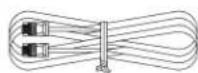
Hard drive size, number of channels, and camera configuration may vary by model. Please refer to your package for specific details. Check your package to confirm that you have received the complete system, including all components shown above.
Recorder Overview3
3.1 Front Panel

1. LED Indicators:
• POWER: Glows to indicate the system is on.
- HDD: Glows to indicate hard drive is operating properly. Turns off when there is a hard drive error.
- NET: Glows to indicate the recorder is connected to the Internet for remote access and automatic firmware updates. Turns off when there is no Internet access.
-
Channel Indicators: Glow when camera is connected to the corresponding channel.
-
Navigational Buttons:
-
Center Button: From live view, press once to open the System Information screen. In menus, press to confirm menu options.
-
Directional Buttons: Press to move cursor in menus. In live view, press up to change split screen layout; press left / right to select channels when single-channel mode is selected.
-
Power Button: Press and hold to power off the system (system password required). Press to power the system back on.
-
USB Port: Connect a USB mouse (included) to control the system, or a USB flash drive (not included) for data backup or manual firmware updates.
-
esc: In menus, press to go back / exit menus. In playback, press to return to live view.
| NOTE |
| To activate deterrence features manually: Press and hold for 5 seconds. Warning lights and sirens will be activated for all connected deterrence camera The camera warning light and siren will automatically switch off after 10 seconds. |
- fn: Performs special functions in some menus.
- rec: Press to open manual recording controls.
-
shift: During text input, press to switch input types.
-
Playback Buttons:
• Slow: Press to slow playback / decrease playback speed.
• Fast: Press to speed up playback / increase playback speed.
• Play Backwards: Press to play video backwards / pause video.
• Play: Press to play video / pause video.
3.2 Back Panel

- Power Input: Connect the included AC power cable.
- Power Switch: Press to power the system on / off.
- PoE Video Inputs: Connect Lorex IP cameras to the system. For a full list of compatible cameras, visit lorex.com/compatibility.
- Alarm Block: Connect alarm / sensor devices (not included).
- VGA: Connect a VGA monitor (not included) to view the system interface.
- RS232: Connect access control systems (not included).
-
AUDIO IN/OUT:
-
Connect an external microphone to the AUDIO IN port for single-channel audio recording.
- Connect an external speaker to the AUDIO OUT port to hear system audio
-
For full details on connecting external audio devices, see 18 Connecting Audio Devices, page 111.
-
LAN: Connect the included RJ45 Ethernet cable from the recorder to your router for remote connectivity and automatic firmware updates.
- USB Port: Connect a USB mouse (included) to control the system, or a USB flash drive (not included) for data backup or manual firmware updates.
- HDMI: Connect to an HDMI monitor or TV (not included) using the included HDMI cable to view the system interface.
Basic System Setup4
4.1 STEP 1: Connect cameras
NOTE
This step is for verification of the camera image only. It is recommended to connect cameras to a nearby power adapter for this step. The Lorex Setup Wizard that runs at startup will assist you in naming and organizing your cameras, so it is also recommended to leave cameras connected until the wizard asks you to install cameras in their permanent mounting location.
Option 1: Direct Connection to NVR
Test your cameras prior to selecting a permanent mounting location by temporarily connecting the cameras and cables to your recorder. Connect the cameras to the recorder using the RJ45 Ethernet extension cables provided with your cameras.
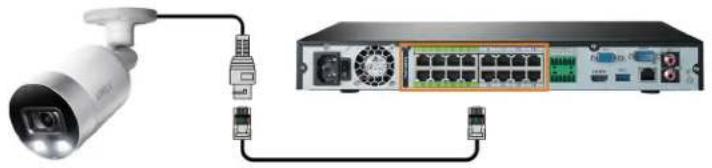
natural_image
Diagram showing a surveillance camera connected to an internal network device with ports and connectors (no text or labels visible)Option 2: Connect Cameras to Local Network
You can also connect your IP cameras to your local network for flexible installations. For details, see 4.8 Connecting Cameras to the Local Area Network (LAN), page 10.
NOTE
Before selecting a permanent mounting location for your cameras, see 5 Camera Installation, page 13 for important notes and installation tips.
4.2 STEP 2: Connect router
Connect the recorder to your router using the included Ethernet cable.
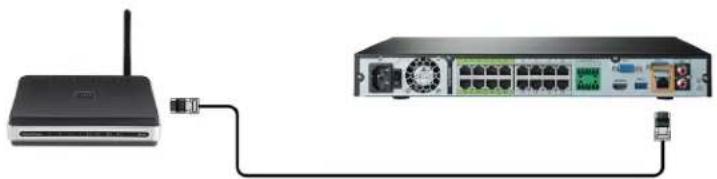
natural_image
Two electronic devices connected by a cable: a wireless router and a network switch (no text or symbols visible)NOTE
To receive automatic firmware updates and enable remote viewing with mobile apps, a high speed Internet connection is required (minimum upload speed of 5Mbps required for 4K viewing; 3.5Mbps for lower resolutions). All other system features can be used without an Internet connection.
4.3 STEP 3: Connect mouse
Connect the included mouse to a USB port on the recorder.
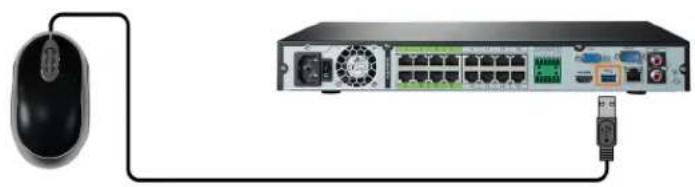
natural_image
Diagram showing connection between a computer mouse and a network device with ports and connectors (no text or symbols visible)4.4 STEP 4: Connect monitor
Connect the recorder to a monitor using the included HDMI cable (supports up to 4K resolution).
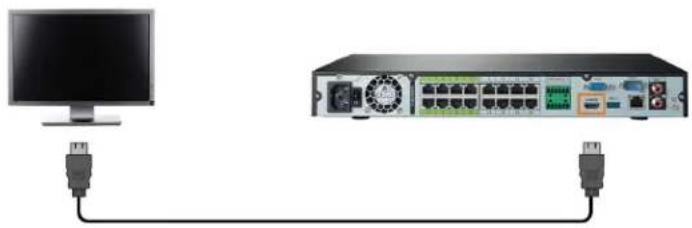
natural_image
Diagram showing a computer monitor connected to an electronic device with ports and connectors (no text or symbols visible)OR
Connect the recorder to a monitor using a VGA cable (not included - supports up to 1080p resolution).

natural_image
Diagram showing a computer connected to a network device via two blue cables (no text or symbols visible)CAUTION
If you need to switch monitors, make sure you set the recorder to an output resolution supported by the new monitor before switching. See 16.4.21 Setting the Monitor Resolution (Display), page 99 for details.
4.5 STEP 5: Connect power
Use the included power adapter to connect the recorder to a nearby outlet.
Turn on the power switch on the back of the unit to power up the recorder.

natural_image
Pure electrical connection diagram showing power outlet, cable, and network switch (no text or symbols)4.6 STEP 6: Upgrade Firmware to Latest Version (If Available)
If a firmware upgrade is available, you will be asked to install it once the system starts up. It is recommended to upgrade your system firmware and client software or mobile apps to the latest version to ensure remote connectivity to the system and support newly-developed features.
| NOTE |
| You must connect your recorder to a router with Internet access in order to get automatic firmware upgrades. |
If a firmware upgrade is available:
- After startup, a notification will appear asking you to upgrade the firmware. Click OK to upgrade.
- Enter the system user name (default: admin) and your secure password, then click OK. Wait for the firmware update to complete. The system will restart once the firmware has been upgraded.
| CAUTION |
| DO NOT POWER OFF THE SYSTEM OR DISCONNECT THE POWER CABLE DURING FIRM-WARE INSTALLATION. |
4.7 Quick Access to System Information
Perform one of the following actions to bring up the system information window. This window contains vital system information including the model number, serial number, and device ID.

| NOTE |
| The QR code shown on this screen can be scanned during mobile setup to enter the system's device ID. |
To quickly open a window that displays important system information:
- From the Live View display, right-click to open the Quick Menu, then click Info. OR
- Press the front panel button on the recorder.

NOTE
Do not press and hold the button. The front panel button doubles as a panic button that activates warning lights and sirens for deterrence cameras if held for 3 seconds.

4.8 Connecting Cameras to the Local Area Network (LAN)
For flexibility, you may also connect IP cameras to the same Local Area Network (LAN) as the NVR instead of connecting them directly to NVR. This is accomplished by connecting the cameras to the same router as the NVR.
For these installations, an external PoE switch (sold separately) or power adapter (sold separately) must be used to provide power to each IP camera. You also must add the cameras on the NVR before they will show a picture on the monitor or be recorded by the NVR.
Follow the steps below to connect the cameras to the NVR over the LAN.

NOTE
Compatible with Lorex HD IP cameras. For a list of compatible cameras, please visit lorex.com/compatibility.
Step 1 of 2 — Option A: Connecting cameras to your local network using a PoE switch:

flowchart
graph LR
    A["Internet"] --> B["Router"]
    B --> C["NVR"]
    C --> D["IP Cameras"]
    C --> E["PoE Switch"]
    E --> F["IP Cameras"]
- Connect an Ethernet cable from the LAN port on an external PoE switch (sold separately on lorex.com) to your router using a CAT5e or higher Ethernet cable. Connect the power cable to the PoE switch and to a power outlet or surge protector.

NOTE
Terminology may vary depending on the model of PoE switch you have.
- Connect the IP cameras to the PoE switch using the Ethernet extension cables. The PoE switch will provide power and video transmission the same way as your NVR.
Step 1 of 2 — Option B: Connecting cameras to your local network using power adapters:

flowchart
graph LR
    A["Internet"] --> B["Router"]
    B --> C["NVR"]
    C --> D["IP Cameras"]
    D --> E["Power Adapter (not included)"]
    E --> F["IP Camera"]
-
Connect each camera to a compatible power adapter (check your camera documentation at lorex.com for compatible power adapters for your cameras).
-
Connect the camera to your router using a CAT5c or higher Ethernet cable.
Step 2 of 2: Add the cameras to your NVR:
- Right-click and select Device Search.
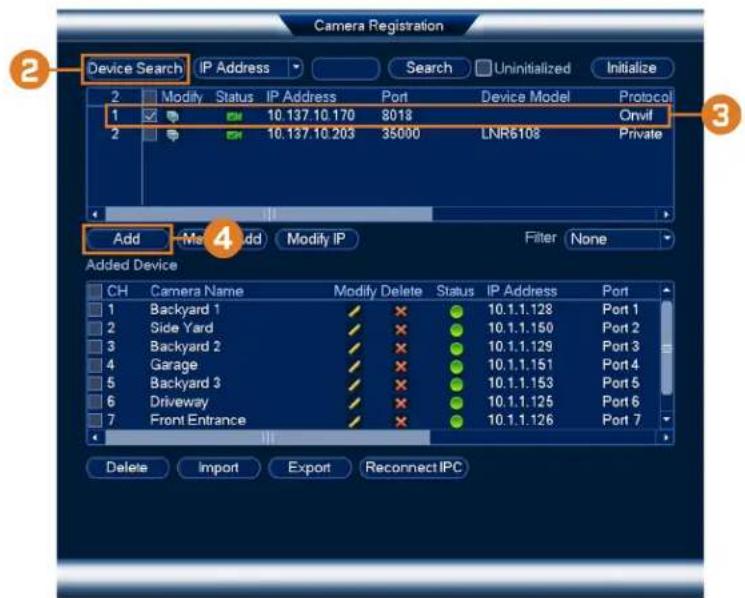
- Click Device Search. The system searches the network for compatible cameras.

NOTE
It may take a few minutes after you power up IP cameras for them to appear in your search.
- Check the camera(s) you would like to add.
- Click Add. The Status indicator turns green to show the camera is successfully connected.

NOTE
You can also add a camera to a specific channel by hovering the mouse over an empty channel in split-screen view and clicking. Double-click the camera you would like to add, then right-click to exit.
Camera Installation
The following chapter provides general setup instruction and installation tips for security cameras.
| NOTE |
| This section covers connection of cameras to the recorder and general installation tips only. Please refer to the documentation that came with your camera or search for your camera model number atlorex.comfor specific installation instructions. |
5.1 Installation Tips
General camera installation tips that apply to all camera models. Please review before selecting a permanent mounting location for your cameras.
- Test the cameras before permanent installation. Plan where you will route the wiring for the camera and where you will aim the camera.
- Point the camera where there is the least amount of obstructions (e.g., tree branches).
- Mount the camera where the lens is away from direct and intense sunlight.
- Plan your cable wiring so that it does not interfere with power lines or telephone lines.
- Secure cabling so that it is not exposed or easily cut.
- Mount the camera in an area that is visible, but out of reach.
- Avoid pointing the camera at a glass window to see outside. This may result in a bright white ring in the night vision image, as the light from the night vision LEDs may reflect off the glass.
- Adjust the camera angle so that it covers an area with high traffic.
- In "high-risk" locations, have multiple cameras point in the same area. This provides camera redundancy if a vandal attempts to damage one of your cameras.
- For outdoor rated cameras, installation in a sheltered location is recommended to ensure the camera lens remains clear of rainwater and other precipitation.
5.2 Installing Cameras
- Mount the cameras to the desired mounting surface according to the instructions that came with the cameras (visit lorex.com for the most up-to-date documentation). Choose a firm mounting surface that can support the full weight of the camera.
| NOTE |
| If you wish to mount cameras to drywall, it is recommended to use the included drywall anchors. |
- Adjust the camera stand to ensure that the camera has a satisfactory view of the area you would like to monitor. Stand configuration depends on the mounting surface you have chosen (see below for suggested stand configurations).
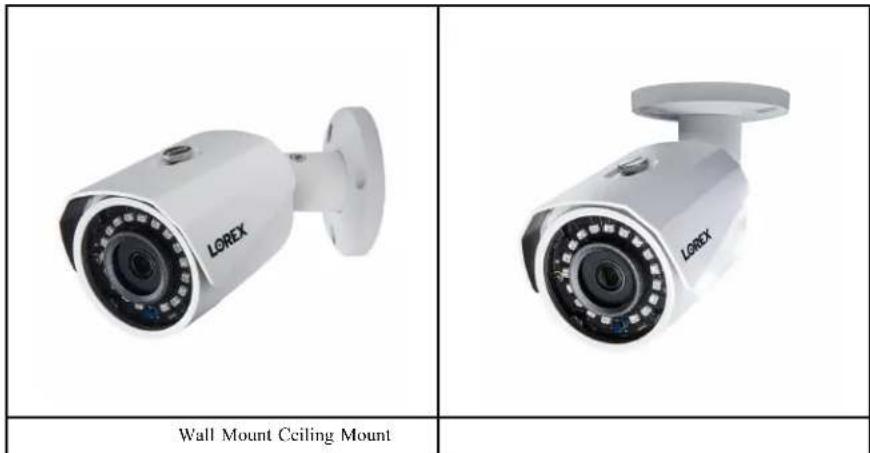

NOTE
Counter / table top mounting is not recommended if you are planning to utilize Person & Vehicle detection due to limited accuracy. Please refer to 14.1 Ensuring Accurate Person & Vehicle Detection, page 48 for recommended camera angling to ensure accurate detection.
5.3 Connecting Camera Extension Cables
It is recommended to connect your cameras directly to the NVR. This is because the NVR features Power over Ethernet (PoE) ports that are used to transmit video and audio, as well as provide power to the camera without the need for a power adapter.
You can also connect cameras to a network switch or router (see 4.8 Connecting Cameras to the Local Area Network (LAN), page 10 for details). If your switch does not support PoE, or you are connecting cameras to a router, you will require a power adapter for each camera (sold separately). Refer to your camera's documentation at lorex.com for the correct power adapter to use.

- Connect the camera to the included Ethernet extension cable.
- Connect the other end of the Ethernet extension cable to one of the PoE ports on the rear panel of the NVR.
Using the Mouse6
The mouse is the primary control device for the system. Connect the included mouse to the USB port on the front or rear panel.
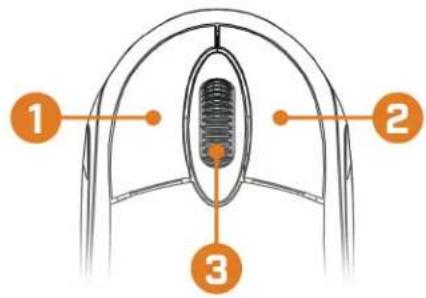
1. Left-button:
- In live view, while in a split-screen display mode, click an individual channel to view it in full-screen. Click again to return to the split-screen display mode.
- While navigating menus, click to open a menu option.
2. Right-button:
- During live view, right-click anywhere on the screen to open the Quick Menu.
-
Within system menus, right-click to exit menus.
-
Scroll wheel: In live view, use the scroll wheel to zoom in/out.
Setting the Date & Time
| CAUTION |
| It is highly recommended to set the date and time when first setting up your system.Inaccurate time stamps may render your footage unusable for court evidence. |
| NOTE |
| This chapter covers setting system date and time only. See the references below for full instructions on the other submenus shown below:General: Scc 16.4.20 Configuring General System Settings, page 98.Holiday: Scc 16.4.19 Configuring Holidays, page 96. |
To set the date and time:
-
From the Live View display, right-click to open the Quick Menu, then click Main Menu.
-
Click 📄, then click SYSTEM. Click the GENERAL tab on the side panel, then click Date & Time on the top panel.

- Under System Time, enter the current time and select your time zone. Then, click OK.
- Check the DST check box to enable auto Daylight Savings Time updates.
| NOTE |
| You can adjust the Start Time and End Time for Daylight Savings Time if the default settings do not match your region.Under DST Type, select Week to set the start and end time based on a day and week (e.g. 2nd Sunday in March), or select Date to set the start and end time to a specific date. |
- (Optional) Check the NTP check box to sync your system with an Internet time server. Click Manual Update to instantly update the time.

NOTE
- Your system must have a constant connection to the Internet to use NTP.
-
(Advanced) You can enter a custom NTP server under Server and Port, and you can select how often the system will sync the time using Interval.
-
Click Apply to save changes.
Using the On-Screen Display
Use the system's on-screen display to navigate menus and configure options and settings.
| NOTE |
| To access the on-screen display, you must connect the included mouse and a monitor (not included) to the recorder. See 4 Basic System Setup, page 7 for full instructions. |
8.1 Navigation Bar
The Navigation Bar along the bottom of the recorder's Live View display allows you to access the Main Menu and control basic functions of the recorder.
To show the Navigation Bar:
• Hover the mouse pointer near the bottom of the Live View screen.

- Main Menu: See 16 Using the Main Menu, page 59 for full instructions on using the Main Menu.
- Collapse Navigation Bar
- Viewing Modes: Select how many channels are shown on screen during live viewing.
- Sequence Mode: Start or stop Sequence Mode. In Sequence Mode, the system display will automatically cycle through connected channels every few seconds.
- Pan/Tilt/Zoom: Control and configure settings for Pan-Tilt-Zoom (PTZ) cameras. For full instructions on connecting and using PTZ cameras, see 17 Pan/Tilt/Zoom (PTZ) Cameras, page 106.
- Camera: Click to open camera image settings. For full details, see 8.5 Camera Image Settings, page 21.
- Playback: Opens the Playback Menu. This allows you to search for video recordings saved on the recorder's hard drive. For details on using the Playback menu, see 10 Playback, page 28.
- Alarm Status: View alarms in progress. See 16.3.5 Event Information for details.
- Channel Info: Click to access status information about connected cameras.
- Remote Device Search: Manage IP cameras over the network.
- Network: View and configure network options, including setting a dynamic or static IP address. For full instructions on configuring network options, see 16.4.1 Selecting DHCP or Static IP Address (TCP/IP), page 75.
- Hard Drive Manager: Configure hard drive read/write options (see 16.4.16 Configuring Hard Drive Type, page 91 for details) or format drives (see 16.4.15 Formatting the Hard Drive, page 90 for details).
- USB Manager: Click to access options for connected USB thumb drives (not included). You can backup video, logs, or system configurations and install firmware upgrades.
- System Upgrade: Check for firmware upgrades. The system must be connected to the Internet to check for or receive updates.
- Warning Light & Siren — Deterrence Cameras Only: Click to activate warning lights and sirens for all connected deterrence cameras. Click again to deactivate.
8.2 Quick Menu
The Quick Menu gives you quick access to functions which can also be accessed using the Navigation Bar.
To open the Quick Menu:
• Right-click anywhere on the Live View screen.
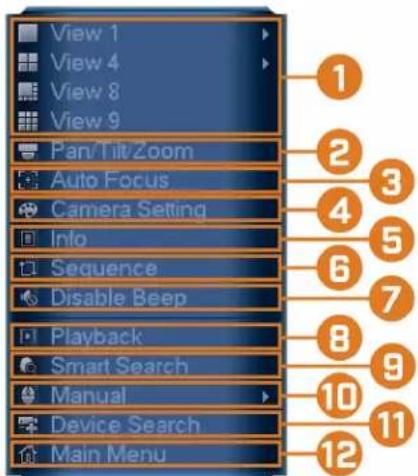
- Viewing Modes: Select how many channels are shown on screen during live viewing.
- Pan/Tilt/Zoom: Control and configure settings for Pan-Tilt-Zoom (PTZ) cameras. For full instructions on connecting and using PTZ cameras, see 17 Pan/Tilt/Zoom (PTZ) Cameras, page 106.
- AutoFocus: Access zoom/focus controls for auto-focus cameras (not included).
- Camera Setting: Configure image settings for cameras. For full details, see 8.5 Camera Image Settings, page 21.
- Info: Displays system information, such as model number, device ID, IP address, etc.
- Sequence: Start or stop Sequence Mode. In Sequence Mode, the system display will automatically cycle through connected channels every few seconds.
- Disable Beep: Temporarily disable the current audible warning.

NOTE
Audible warnings can be given for a wide range of events, such as hard drive issues, network connectivity, motion detection events and more. Disabling the current audible alarm using the Quick Menu will silence the recorder only for a short time, then audible warnings will continue.
- Playback: Opens the Playback Menu. This allows you to search for video recordings saved on the recorder's hard drive. For details on using the Playback menu, see 10 Playback, page 28.
- Smart Search: Search for person and vehicle detection events only from compatible cameras. For full instructions, see 14.3 Searching for Person & Vehicle Detection Events (Smart Search), page 51
- Manual: Select manual recording and snapshot options. For details, see 9.4 Setting up Scheduled or Manual Recording, page 25.
- Device Search: Open the Device Search menu to manage IP cameras over the local network.
- Main Menu: See 16 Using the Main Menu, page 59 for full instructions on using the Main Menu.
8.3 Camera Toolbar
The Camera Toolbar lets you perform quick functions for a specific channel on the recorder.
To use the Camera Toolbar:
- Hover the mouse near the top of a channel with a connected camera.
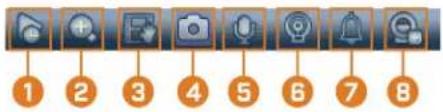
- Instant Playback: Plays back recent video from the selected channel. By default, instant playback is set to play the last 5 minutes of recorded video. See 16.4.20 Configuring General System Settings, page 98 to set a custom playback length.
- Digital Zoom: Click to enable digital zoom. Click-and-drag over the camera image to zoom in on the selected area. Right-click to return to the full camera image. You can then repeat to zoom in on a different area, or click the icon again to disable zoom.
- Real-time Backup: Click to start recording the current channel manually. Click again to stop recording and save the video file to a USB flash drive (not included).
- Snapshot: Save a snapshot of the current camera image to a USB flash drive (not included).
- Two-Way Audio: (Two—way audio cameras only) Click to enable two-way talk on compatible cameras.
- Warning Light: (Deterrence cameras only) Click to manually turn on the camera's warning light for 10 seconds.
- Siren: (Deterrence cameras only) Click to manually turn on the camera's siren for 10 seconds.
- Remote Device Search: Manage IP cameras over the network.
8.4 On-Screen Keyboards
The Full Keyboard is used to input alphanumeric characters, such as in user name or password fields. The Number Keyboard is used to input numeric characters only, such as in the time or date fields.
To use the Full Keyboard:
- Using the mouse, click on a field where alphanumeric characters are entered, such as the user name and password fields.
• The Full Keyboard opens:
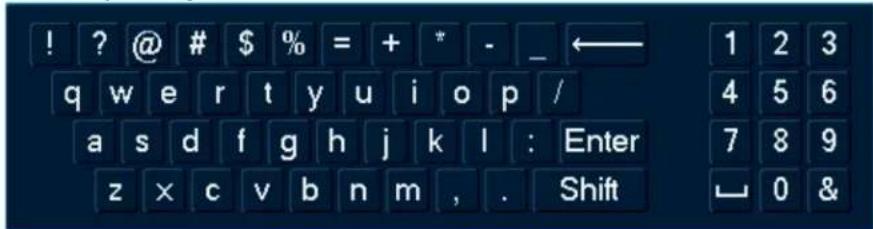
- Click Shift to switch between uppercase and lowercase characters.
• Right-click to close the Full Keyboard.
To use the Number Keyboard:
- Using the mouse, click on a field where numeric characters are entered, such as the date or time fields.
• The Number Keyboard opens:
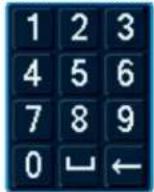
- Right-click to close the Number Keyboard.
8.5 Camera Image Settings
Use the Camera Setting menu to adjust image settings for your cameras.
To adjust image settings:
- Right-click on the channel you would like to configure and select Camera Setting.

- Configure the following settings as needed:

NOTE
The settings listed below are only shown if they are supported on the selected camera. Some camera models do not support all settings.
- Config File: Select from image setting presets.
- Brightness: Adjust the image brightness.
- Contrast: Adjust the image contrast.
- Saturation: Adjust the vibrancy of colors in the image.
- Sharpness: Adjust the sharpness of the image.
- Gamma: Adjust the light-to-dark balance of the image.
• Mirror: Select On to flip the image horizontally. - Flip: Select 180^ to flip the image vertically, or select 0^ for the default orientation. You can also select 90^ or 270^ .
• Corridor Mode: Not supported. -
BLC Mode: Select one of the following backlight compensation modes:
-
BLC (Back Light Compensation): Adjusts the lighting levels in the picture so you can see objects in the foreground if there is a strong light source behind them.
WDR / HDR (Wide / High Dynamic Range): (Compatible camera required) The camera compensates for changes in brightness across the image to enhance the picture quality of both light and dark areas. - HLC (High Light Compensation): The camera dims the brightest areas of the image to make them clearer.
- Off: Disable this function.
- Day&Night Mode: This setting sets the camera's day/night mode. Select Auto for the camera to automatically determine whether to use color or black and white mode. Select Black&White for the camera to use black and white mode at all times. Select Color for the camera to use color mode at all times.

NOTE
It is recommended for most installations to select Auto mode. Using Color mode will keep the camera in color even as light levels drop, which will impact image quality on cameras without low-light image sensors.
- 3D NR: Select On to turn on the camera's noise reduction feature. Noise reduction will ensure a cleaner image, especially at night, and may reduce the amount of disk space required to store video.
- WB Mode: This mode allows you to adjust white balance levels for the camera. Choose from the list of preset modes, or select Auto to have the system automatically set the optimal white balance mode.
-
Lorex Logo: Select Enable to include a Lorex watermark on the camera image.
-
Click OK to save changes.

NOTE
You must save changes to apply settings changes. It is recommended to adjust one setting at a time so you can see the results of each change. Click Default to reset the camera to default image settings.
Recording9
By default, the system is set to immediately record video from connected cameras continuously, 24 hours a day. You can customize the recording settings according to your needs.
9.1 Video Recording Types
The system supports the following recording types:
- Continuous recording: Normal, continuous recording. A C icon is shown in the bottom left-hand corner of the camera image when continuous recording is in progress.
- Motion recording: Motion-triggered video recording. An M icon is shown in the bottom left-hand corner of the camera image when a motion event is being recorded.
- Smart motion recording: Smart motion video recording of a person or vehicle. An S icon is shown in the bottom left-hand corner of the camera image when a motion event of a person or vehicle is being recorded. For more details on configuring smart motion detection of people and/or vehicles, see 14 Smart Motion Detection, page 48.
9.2 Configuring Recording Quality
The system uses two video recording streams: a Main Stream and a Sub Stream. The Main Stream records high quality video to your system's hard drive. The Sub Stream records lower resolution video for efficient streaming to devices over the Internet. You can customize the video quality settings for these streams according to your needs.
To configure recording quality:
-
From the Live View display, right-click to open the Quick Menu, then click Main Menu.
-
Click 🙏, then click RECORDING. Click the Recording tab on the top panel.
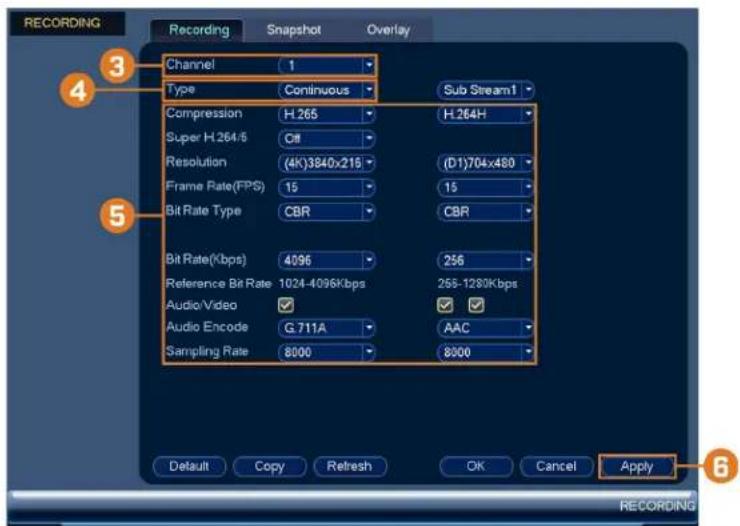
- Under Channel, select the camera you would like to configure.
-
Under Type, select the recording type you want to configure the recording quality settings for.
-
Configure the following settings. Except where noted, options for Main Stream and Sub Stream are the same:
-
Compression: Select the video compression type that will be used. For H.265 compatible cameras, it is recommended to select H.265, as it will use the least amount of disk space.
- Super H.264/5: (Main Stream only) Enable to reduce system requirements for unimportant recordings to maximize hard drive storage. If you enable, select the Quality from 1 (lowest) to 6 (highest).
- Resolution: Select the resolution that you want to use to record the selected channel. Higher resolutions create a more detailed image, but take up more hard drive space to record and require more bandwidth to stream to connected computers or mobile devices.

NOTE
Available resolutions for the Main Stream and Sub Stream depend on the model of camera that is connected to the system.
- Frame Rate (FPS): Select the frame rate in Frames Per Second (FPS) that each stream will record at. A higher frame rate provides a smoother picture, but requires more storage and bandwidth.
- Bit Rate Type: Select CBR (Constant Bit Rate) or VBR (Variable Bit Rate) to determine the bit rate type. If you select VBR, select the Quality from 1 (lowest) to 6 (highest).
- Bit Rate (Kbps): Select the bit rate for each recording stream. A higher bit rate results in a better image, but increases the amount of hard drive space or bandwidth required.

NOTE
Recording settings include options for audio recording. For full details, see 18 Connecting Audio Devices, page 111.
- Click Apply.
- (OPTIONAL) Click Copy to apply the settings for the current channel to one or more other channels.
9.3 Setting the Recording Schedule
You can set a custom recording schedule according to your needs. For example, you can set the system to record continuously during business hours and record on motion detection only outside of business hours.
A custom recording schedule helps reduce the amount of hard drive space required, increasing the time your system can retain recordings.
To configure the recording schedule:
-
From the Live View display, right-click to open the Quick Menu, then click Main Menu.
-
Click X, then click STORAGE. Click the SCHEDULE tab on the side panel.

-
Under Channel, select the channel you would like to configure or select All.
-
Configure the schedule as needed:
-
Check Continuous, Motion, Alarm, MD&Alarm, or Smart Motion to select the recording type you would like to configure.
- Click-and-drag on each day to customize the recording schedule. The schedule is set up as a grid, which each block representing one hour.
- Click beside 2 or more days to link schedules. This allows you to quickly change multiple schedules at once.
- To make fine adjustments to a schedule, click 📋. This will allow you to set exact start and end times for a schedule.
• To disable all recording of the selected type on the selected day, click
5. Click Apply.
9.4 Setting up Scheduled or Manual Recording
You can set the system to record based on a schedule or you can manually turn recording on and off. By default, the system is set to always record on a schedule.
To configure the recording schedule, see 9.3 Setting the Recording Schedule, page 24.
To set options for manual recording:
- From the Live View display, right-click to open the Quick Menu. Click Manual, then Record.
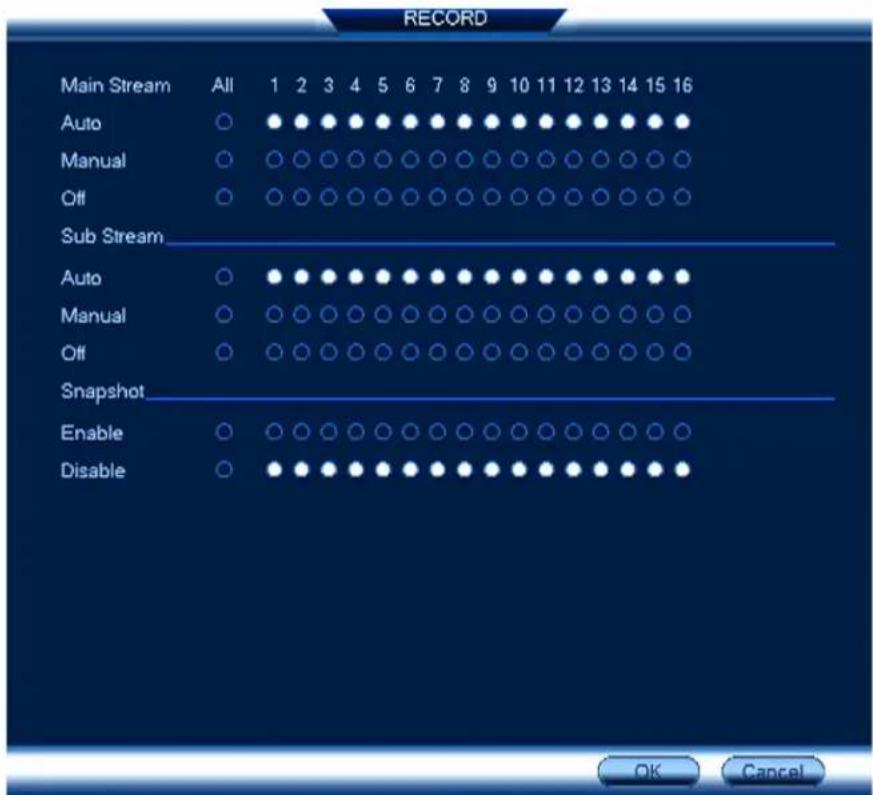
- Under Main Stream, select how the system will record the Main Stream for each channel:
• Auto: Main Stream recording will follow the recording schedule.
- Manual: The system will record the Main Stream continuously as long as this option is checked.
- Off: The system will not record the Main Stream for this channel. This option is not recommended.
- Under Sub Stream, select how the system will record the Sub Stream for each channel.
• Auto: Sub Stream recording will follow the recording schedule.
- Manual: The system will record the Sub Stream continuously as long as this option is checked.
- Off: The system will not record the Sub Stream for this channel. This option is not recommended.
- Under Snapshot, select Enable to enable snapshot recording on each channel. Or, select Disable to disable snapshot recording.

NOTE
To set more preferences for snapshots recording, see 16.2.5 Configuring Snapshot Recording Settings, page 63.
- Click Apply.
9.5 Configuring Hard Drive Overwrite
When the hard drive is full, the system will overwrite the oldest recordings by default. This is recommended, as it makes sure that your system will continue to record without any input from you. You can also set the system to stop recording once the hard drive is full.
To configure hard drive overwrite:
-
From the Live View display, right-click to open the Quick Menu, then click Main Menu.
-
Click 📄, then click SYSTEM. Click the GENERAL tab on the side panel, then click the General tab on the top panel.
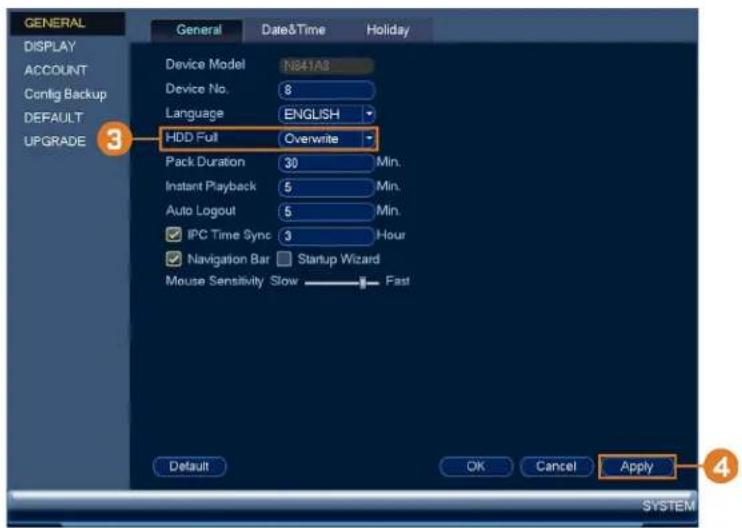
- Ensure HDD Full is set to Overwrite to overwrite the oldest recordings when the hard drive is full.
| NOTE |
| Select Stop Record for the system to stop recording when the hard drive is full. |
- Click Apply.
Playback
Search through and playback recorded video files on the system.
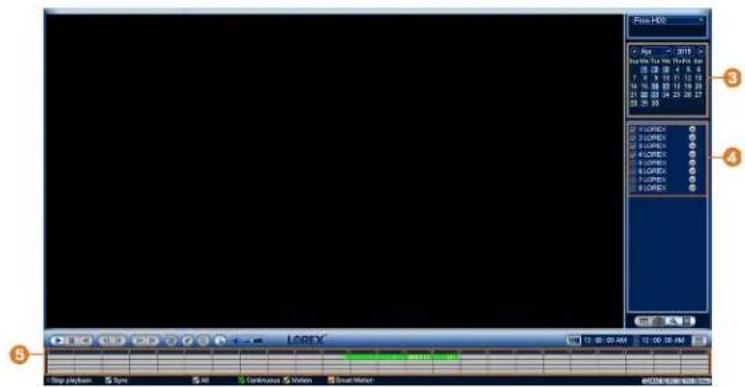
10.1 Playing Back Video from the Hard Drive
To play back recorded video:
- From the Live View display, right-click to open the Quick Menu, then click Playback.

-
Use the calendar on the right to select the day to playback.
-
Check the channels you want to play back. Click the icons to the right of each channel name to choose the video quality (M for Main Stream, for Sub Stream).
-
Click inside the video bar to select the playback time. The system will begin playing back video from the selected time.
10.2 Playback Controls
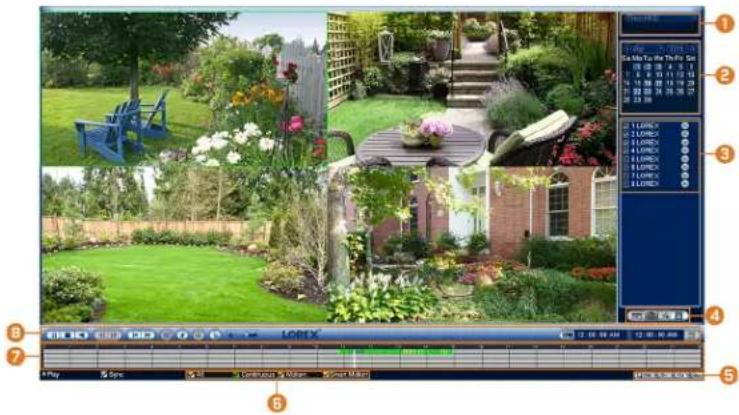
-
Select Playback Device: Choose between searching the recorder's hard drive or a USB flash drive (not included).
-
Calendar: Select the date to playback.
-
Channel Selection: Select channels and video quality for playback.
4. Viewing Modes:
• Not supported
• Not supported
- Bookmark List: Shows all bookmarked recordings for a single channel on the selected date (requires bookmarked recordings — see below for details). - File List: Shows all available recordings for the selected date and channel(s) in lis format.
- Playback Bar Time Scale: Select the length of the time period shown on the playback bar.
- Recording Type Filters: Click to show/hide recording types.
- Playback Bar: Click inside the bar to select a playback time.
8. Playback Controls:
• / Play / Pause
- Stop
• Play Backwards
• Previous Frame: Go to the previous frame when video is paused.
• Next Frame: Go to the next frame when video is paused.
- Slow Playback: Click repeatedly to slow the video down by half speed up to 16× slower than normal. Click again to return to regular speed.
- Fast Playback: Click repeatedly to double the speed of the video up to 16× faster than normal. Click again to return to regular speed.
• Area Search: Click to select an area of the camera image and play back all recordings with motion in the selected area. For full details, see 10.3 Area Search, page 30.
• Add Bookmark: Bookmark recordings for easy retrieval.
• Digital Zoom: Click to enable digital zoom. Click-and-drag over the camera image to zoom in on the selected area. Right-click to return to the full camera image. You can then repeat to zoom in on a different area, or click the icon again to disable zoom.
• Show/Hide Smart Search Rules: Click to show/hide active areas for smart detection of people and vehicles during playback.
• Volume / Mutc: Click on the volume bar to set the volume for audio in playback. Click the icon to mute/unmute.

NOTE
- You must be viewing an audio camera in single channel to hear audio. You must also be using an HDMI monitor with built-in speakers, or connect an external speaker to the recorder in order to hear audio.
^3 Audio recording and / or use of listen-in audio without consent is illegal in certain jurisdictions. Lorex Corporation assumes no liability for use of its products that does not conform with local laws.
- Video Clip: Back up a custom video clip to a USB flash drive (not included). For full instructions, see 10.4 Video Clip Backup, page 32.
10.3 Area Search
Play back all recordings from a single channel with motion in a specific area of the camera image.
To perform an area search:
- From the Live View display, right-click to open the Quick Menu, then click Playback.

-
Use the calendar on the right to select the day to playback.
-
Check a single channel you want to play back. Click the icon to the right of the channel name to choose the video quality (M for Main Stream, for Sub Stream).
-
Click inside the video bar to select the playback time. The system will begin playing back video from the selected time.
-
Click to configure an area for the search.
-
The icon changes to 📄, and the camera image appears with a grid overlay. Click or click-and-drag to add / remove squares from the grid. Solid blue areas mark the part of the image that will be searched for motion events.
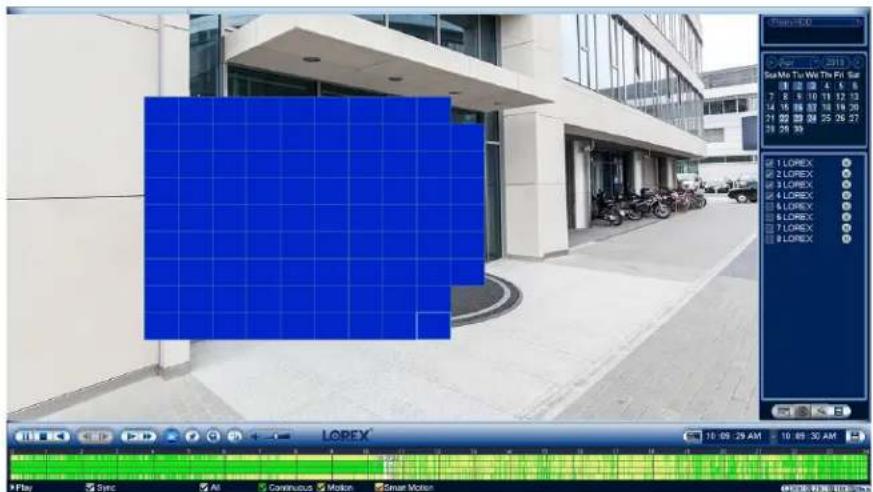
- Click to begin area search.
10.4 Video Clip Backup
Video clip backup allows you to select a duration of video during playback mode and save it to a USB device (not included).
To use video clip backup:
- Connect the USB thumb drive (not included) to a free USB port on the recorder.
- From the Live View display, right-click to open the Quick Menu, then click Playback.
- Use the calendar on the right to select the day to playback.
- Check the channels you want to play back. Click the icons to the right of each channel name to choose the video quality (M for Main Stream, for Sub Stream).
- Click inside the video bar to select the playback time. The system will begin playing back video from the selected time.

-
Click to mark the beginning of the video clip, then click again to mark the end of the video clip.
-
Click to open the backup menu.

-
Select a filetype for your backup file.
-
Click Backup.
10.5 Playing Back Video from a USB Drive
If you have video files saved to a USB flash drive (not included), you can play them back using the system.
For full instructions on backing up video to a USB flash drive, see 11 Backup, page 35.
To play back video from a USB flash drive:
-
Connect the USB thumb drive (not included) with video files on it into a free USB port on the recorder.
-
From the Live View display, right-click to open the Quick Menu, then click Playback.

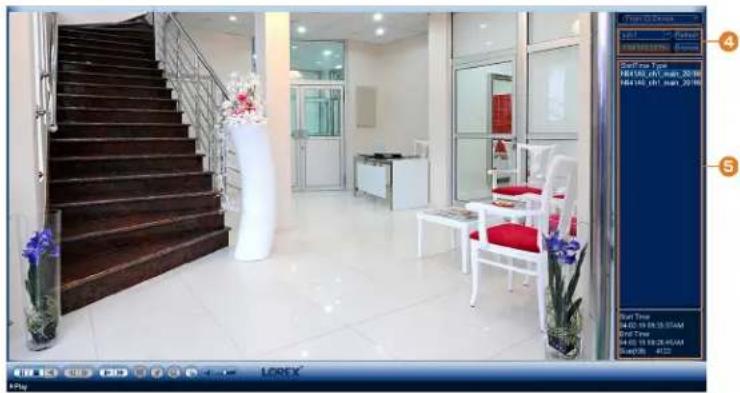
- Click the dropdown and select From IO Device.
natural_image
Interior view of a modern hotel lobby with staircase, white furniture, and decorative potted plants (no visible text or symbols)- Click Browse to locate the video file on your USB flash drive.
- Double-click the video file you want to open from the file list to start playback.
Backup
Backup video files to external USB flash drive (not included).
11.1 Formatting the USB Flash Drive
It is recommended to format your USB thumb drive (not included) before using it with the system.
| CAUTION |
| Formatting the USB device will permanently erase all data. This step cannot be undone. |
Prerequisite:
- Connect a USB flash drive (not included) to a free USB port on the unit.
To format a USB flash drive:
-
From the Live View display, right-click to open the Quick Menu, then click Main Menu.
-
Click , then click BACKUP.

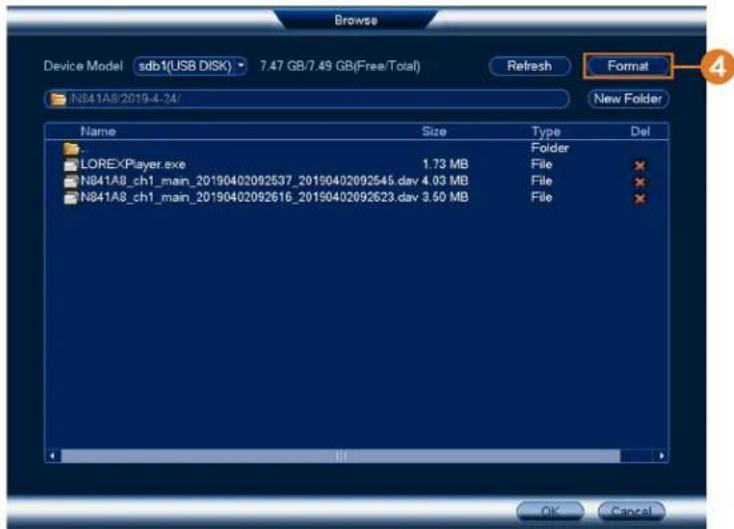
- Click Browse to locate the USB drive you want to format.
-
Select the correct drive, then click Format.
-
Select a format mode:
• FAT32: Recommended — offers the greatest compatibility with other devices.
- NTFS: Advanced users only — should only be used on drives larger than 32GB where file sizes will be larger than 4GB.
- Click OK.
11.2 Backing Up Video
You can save video recordings from your system to a USB flash drive. Ensure you format new drives before backing up video (see 11.1 Formatting the USB Flash Drive, page 35 for details).
To back up video:
-
From the Live View display, right-click to open the Quick Menu, then click Main Menu.
-
Click, then click BACKUP.

-
Click Browse to select the USB backup device and the folder to save your backup files to.
-
Configure the following:
-
Type: Select the recording type you would like to search for or select All to search all recording types.
- Record CH: Select the channel you would like to search or select All to search all channels.
- Start Time / End Time: Select the start and end time for your search.
-
File Format: Select DAV to save files to save files to .dav format. You can playback .dav files using the Lorex video player software.
-
Click Add. A list of files that match your search criteria appears.
-
Check files you would like to backup.
-
Click Start

NOTE
HD video files saved on the system may take up a large amount of disk space. The size of video files selected and the amount of free space on your USB device is shown on screen.
11.3 Using Video Clip Backup
Video clip backup allows you to select a duration of video during playback mode and save it to a USB device (not included). For full instructions on video clip backup, see 10.4 Video Clip Backup, page 32.
11.4 Viewing Backed Up Files
Use the free Lorex Player to play back .dav files.
11.4.1 Viewing Backed Up Files on PC
-
Download and install the Lorex Player for PC from the recorder's product page at lorex.com
-
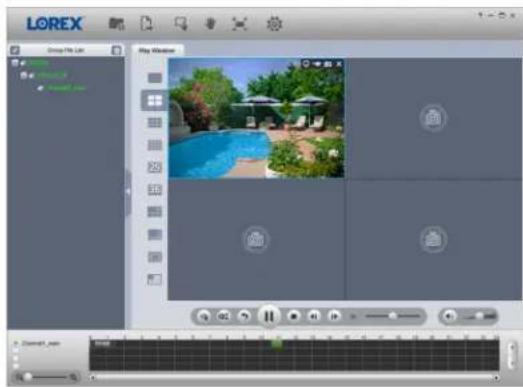
Double-click one of the files under the Group File List on the left to begin playback.

NOTE
By default, the video file will play in the top-left playback window as shown below. Select an unused playback window then double-click another file to play additional videos at the same time.
natural_image
Screenshot of a video editing software interface showing a pool scene with greenery and blue umbrellas, displayed within a media player window (no readable text or symbols on the main image area)OR
Click to open a backed up video file in another location.
- Use the Lorex Player controls to control playback or select other files for playback.

NOTE
For a full overview of Lorex Player controls, see 11.4.3 Lorex Player Controls, page 39.
11.4.2 Viewing Backed Up Files on Mac
- Download and install the Lorex Player for Mac from the recorder's product page at lorex.com
- Double-click the downloaded file in Safari to extract the Lorex Player app file.
-
Drag the Lorex Player app to your Desktop or Applications list. Double-click Lorex Player to open the application.
-
Double-click one of the files under the Group File List on the left to begin playback.

NOTE
By default, the video file will play in the top-left playback window as shown below. Select an unused playback window then double-click another file to play additional videos at the same time.

OR
Click to open a backed up video file in another location.
- Use the Lorex Player controls to control playback or select other files for playback.

NOTE
For a full overview of Lorex Player controls, see 11.4.3 Lorex Player Controls, page 39.
11.4.3 Lorex Player Controls

- File List: Double-click to open a file.
- Viewing Mode: Select between single-channel viewing and various split-screen options.
3. Hide/Show File List
4. Playback Controls:
• : Playback files in sequence.
• Synchronize playback times.
• : Play/pause playback.
• : Stop playback.
• : Previous frame.
•: Next frame.
• 1X : Playback speed.
• : Volume control.
5. Zoom Timeline
- Display Area: Double-click a video file to expand. Click the controls inside the display area to do the following:
• View information about the video file.
• Start/stop a manual recording of the video file.
• Take a snapshot of the video file.
- ✗: Close the video file.
- Add Files: Click to open backed up video files.
- Export Files: Export a video file to a different format.
- Digital Zoom: Click, then click-and-drag over a camera image to zoom in. Right-click to return to the full image.
- Drag: Click, then click-and-drag to move around a camera image that has been digitally zoomed in.
-
Fullscreen: Click to open the player in full screen. Press ESC to exit full screen.
-
Settings: Click to open the configuration menu for the player. From here you can control the default file formats and save locations for snapshots and control the aspect ratio.

Motion Detection12
Configure motion detection settings to ensure that events are captured according to your preferences.
12.1 Status Icons
The system displays different icons in the bottom left-hand corner of the camera image to inform you of motion detection events:
- Motion detection: Motion has been detected by the camera. An M icon is shown in the bottom left-hand corner of the camera image to show that motion was detected, but the system is not recording a motion event. This is because motion recording is not enabled on the channel, or the movement detected by the camera was not significant enough to trigger motion recording. See 12.2 Configuring Motion Detection, page 42 to configure settings for motion detection and recording.
- Motion recording: Motion-triggered video recording. An M icon is shown in the bottom left-hand corner of the camera image when a motion event is being recorded.
12.2 Configuring Motion Detection
Set preferences for motion detection per channel.
To configure motion detection:
-
From the Live View display, right-click to open the Quick Menu, then click Main Menu.
-
Click X, then click EVENT.

- Select a channel to configure motion detection for.
-
Check to enable motion detection on the selected channel.
-
Click Setup next to Area to configure which areas of the image will be enabled for motion detection. A grid will appear on the monitor:

- The camera image appears with a red grid overlay. This means the entire image is enabled for motion detection.
-
Click or click-and-drag to add / remove boxes from the active area. Cells that have been removed from the active area appear transparent.
• Hover near the top of the image to reveal zone selection. You can set up to 4 different zones with different sensitivity and threshold values.
• Right-click when finished. -
Click Setup next to Schedule to choose which days and times of the week to enable motion detection:

- Click or click-and-drag along each of the yellow timelines to quickly add or remove time from each day's schedule in 15-minute segments.
- Click beside 2 or more days to link schedules. This allows you to quickly change multiple schedules at once.
-
To make fine adjustments to a schedule, click Set. This will allow you to set exact start and end times for a schedule.
-
Choose how the system will react when motion is detected:
-
Alarm Out: Check the box to activate alarm output devices (not included) when the selected channel detects motion. Select the alarm output devices that will be activated when motion is detected, then enter the number of seconds the alarm output device(s) will activate after motion is detected next to Latch.
- Show Message: Check to enable an on-screen pop-up when one of your cameras detects motion. On-screen pop-up shows the channels an event occurred on and the type of event.
- Send Email: Check to enable email alerts. You must configure email alerts before you will be able to receive them (see 16.4.4 Configuring Email Alerts, page 78).
- Rercord Channel: Select the channels that will record when motion is detected on the selected channel. Set the length of recording following a video loss event in the Post_REC field.
- PTZ Activation: Set connected PTZ cameras to start a tour, pattern, or go to a preset location.
- Sequence: Sequence mode will begin. Select the numbered tiles next to this option to include the corresponding channels in the sequence.
- Snapshot: Select the numbered tiles next to this option to save a snapshot of the corresponding channels.
-
Buzzer: Check to enable the system buzzer.
-
Click Apply.
Active Deterrence13
Lorex Active Deterrence cameras feature bright, customizable warning lights and a remote-triggered siren. The recorder allows you to customize automatic light-triggering when motion is detected to deter intruders (see 13.1 Automatic Deterrence Settings, page 45). You can also trigger the lights and sirens manually using the recorder or Lorex Home connectivity software (see 13.2 Manually Activate Deterrence Features, page 47).
For a complete list of compatible deterrence cameras, navigate to your recorder series at lorex.com/compatibility.
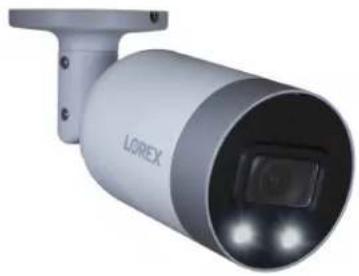
natural_image
Exterior view of a modern security camera (no visible text or symbols on body)13.1 Automatic Deterrence Settings
Set preferences for automatic warning light triggering on compatible Lorex deterrence cameras.
To configure deterrence settings:
- From the Live View display, right-click to open the Quick Menu, then click Main Menu.
- Click ALARM. Click the MOTION tab on the side panel, then Deterrence on the top panel.

- Select the channel of a connected deterrence camera.
- Check Enable.

NOTE
This is for automatic warning light triggering only. You can manually activate the warning light and siren without enabling automatic warning light triggering.
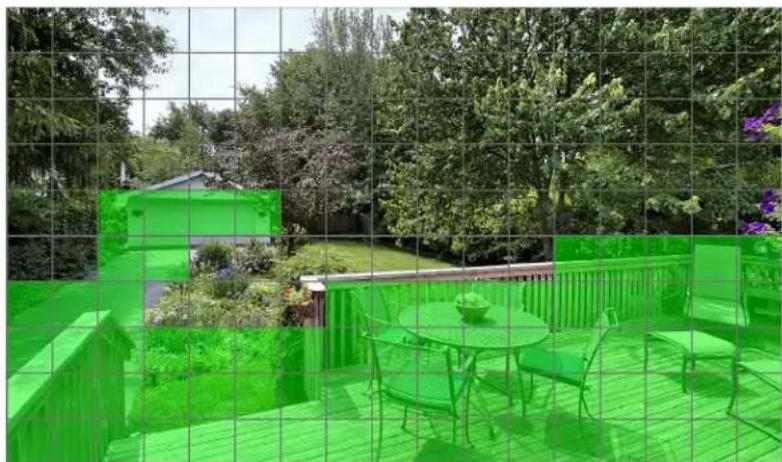
- Click Set next to Area to set an active area for automatic deterrence.
natural_image
Green outdoor patio area with table, chairs, and fence, surrounded by trees and a distant house (no visible text or symbols)- The camera image appears with a grid overlay. The green area is the active area for deterrence.
- Click or click-and-drag to add / remove boxes from the active area.
-
In the example image above, only motion around the garage or on the porch will trigger the warning light.
• Right-click when finished. -
Click Set next to Schedule to set the weekly schedule for automatic deterrence.
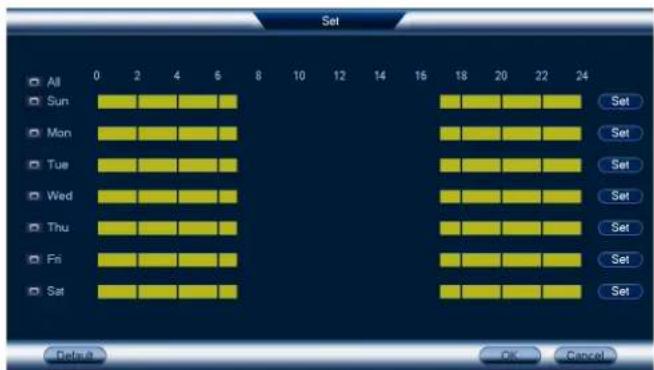
- Click or click-and-drag along each of the yellow timelines to quickly add or remove time from each day's schedule in 15-minute segments.
- Click beside 2 or more days to link schedules. This allows you to quickly change multiple schedules at once.
- To make fine adjustments to a schedule, click Set. This will allow you to set exact start and end times for a schedule.
-
Click OK when finished.
-
Configure preferences for the warning light:
• Duration: Choose how long the warning light will stay on when motion is detected.
- Select Warning Light for a solid white light, or Strobe for a flashing light. If you select Strobe, set how quickly the light will flash under Strobe Frequency.
-
Set the sensitivity and threshold for the warning light:
-
Sensitivity: The amount of activity required to classify an on-screen event as motion. A higher sensitivity will classify even small movements as motion events, and trigger the warning light.
-
Threshold: The level at which a motion detection event triggers the warning light. A lower threshold will trigger the warning light even for small objects.
-
Click Apply.
13.2 Manually Activate Deterrence Features
The system has multiple options for activating deterrence features.
To activate deterrence features on a single camera:
• Hover the mouse pointer near the top of the camera image in Live View to reveal the Camera Toolbar. Click to activate the warning light, or to activate the siren.

- Activate deterrence features using the Lorex Home app. For details, see , page .
To activate deterrence features on all connected cameras:
- Push and hold the front panel panic button on the recorder for 3 seconds.

- From the Live View display, click on the Navigation Bar.

Smart Motion Detection14
The system supports detection of people and vehicles with compatible IP cameras only. This helps deliver more relevant notifications when using the Lorex Home app for remote viewing. You can also link white light deterrence to person and/or vehicle detection on compatible Lorex deterrence cameras for an added level of smart security.
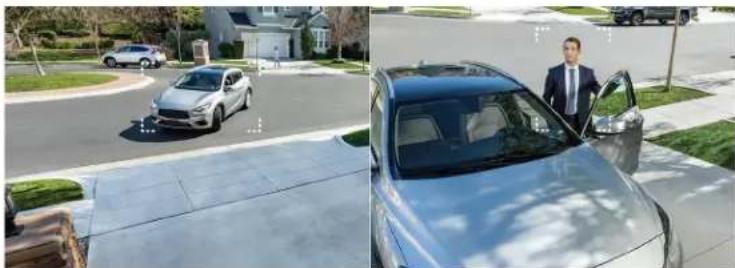
natural_image
Split image showing a silver sedan parked on a residential street and a man in a suit standing beside the door of a silver sedan (no visible text or symbols)14.1 Ensuring Accurate Person & Vehicle Detection
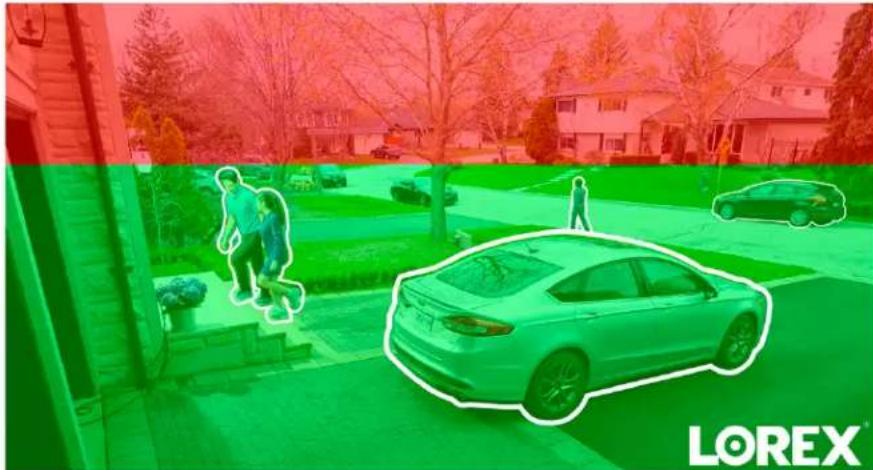
The following are important camera installation notes to ensure accurate Person & Vehicle detection. Refer to the documentation that came with your camera or search for your camera model number at lorex.com for full mounting instructions.
- Choose a location where objects of interest will be no further than 50ft (\~15m) from the camera.
- Angle the camera so that objects of interest appear in the bottom 13 of the camera image
natural_image
Exterior view of a residential area with cars and pedestrians, overlaid with a green heatmap overlay (no readable text or symbols)- Angle the camera between 30 60^ down from the level position.

natural_image
Diagram showing a vehicle with a curved trajectory and directional arrows, no text or symbols present.• Install the camera between 8-16ft (2.5-5m) off of the ground.
| NOTE |
| Accuracy of Person & Vehicle detection will be influenced by multiple factors, such as the object's distance from the camera, the size of the object, and the height and angle of the camera. Night vision will also impact the accuracy of detection. |
14.2 Configuring Person & Vehicle Detection
Set preferences for person and/or vehicle detection per channel.
To configure person and/or vehicle detection:
-
From the Live View display, right-click to open the Quick Menu, then click Main Menu.
-
Click 📄, then click EVENT. Click the MOTION tab on the side panel, then click SMD/Deterrence on the top panel.
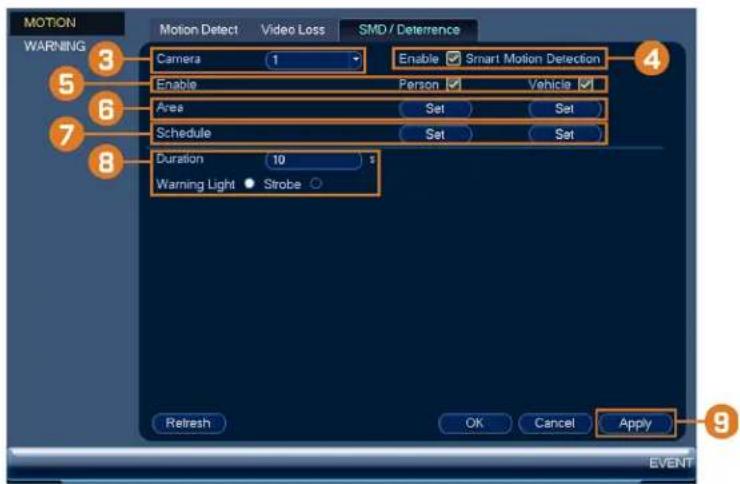
- Select a channel with a compatible camera you would like to configure smart detection for.
- Check Enable next to Smart Motion Detection.
- Check Enable next to Person and/or Vehicle.

NOTE
A maximum of 16 channels will support person/vehicle detection at once.
- Click Set next to Area to set active areas for person and/or vehicle detection.
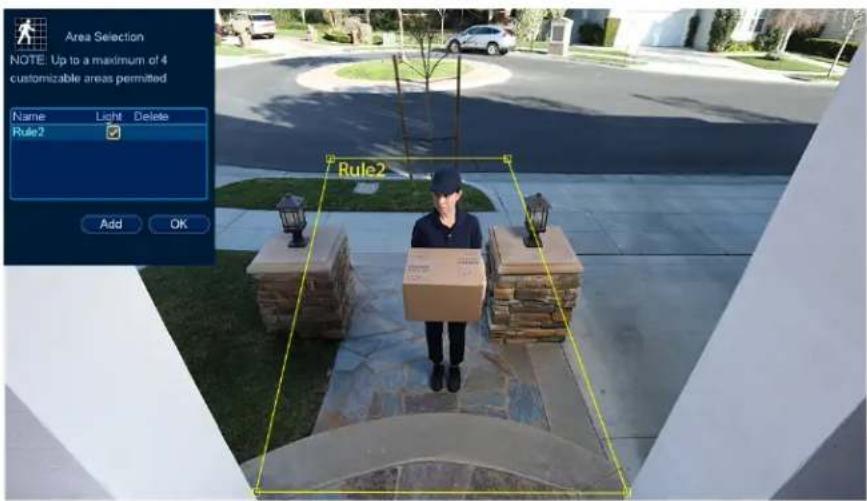
- Click Add to set an area for person or vehicle detection on the selected channel. Click-and-drag the corners to resize the area.
- For most accurate results, set an area where objects of interest will move within the bounding box as well as into / out of.
- Check Light next to a rule to flash the camera's warning light when an object is detected.
-
See 14.1 Ensuring Accurate Person & Vehicle Detection, page 48 for optimal camera positioning for person and vehicle detection.
-
Click Set next to Schedule to set a weekly schedule for person and/or vehicle detection.

- Click or click-and-drag along each of the yellow timelines to quickly add or remove time from each day's schedule in 15-minute segments.
- Click beside 2 or more days to link schedules. This allows you to quickly change multiple schedules at once.
- To make fine adjustments to a schedule, click Set. This will allow you to set exact start and end times for a schedule.
-
Click OK when finished.
-
If you choose to flash the camera's warning light when a person or vehicle is detected, configure the following warning light options:
-
Duration: Enter the time in seconds the warning light will remain on after a person or vehicle is detected.
-
Warning Light / Strobe: Choose Warning Light to use a solid white light, or Strobe for a flashing light. If you select Strobe, choose the Strobe Frequency to determine how quickly the warning light will flash when triggered.
-
Click Apply.
14.3 Searching for Person & Vehicle Detection Events (Smart Search)
Smart Search lets you filter recorded video to search for person detection events, vehicle detection events, or both.
| NOTE |
| In order to use Smart Search, you must configure at least one channel's smart detection settings. See the procedure above for full instructions. |
To perform a Smart Search:
- From the Live View display, right-click to open the Quick Menu, then click Smart Search.
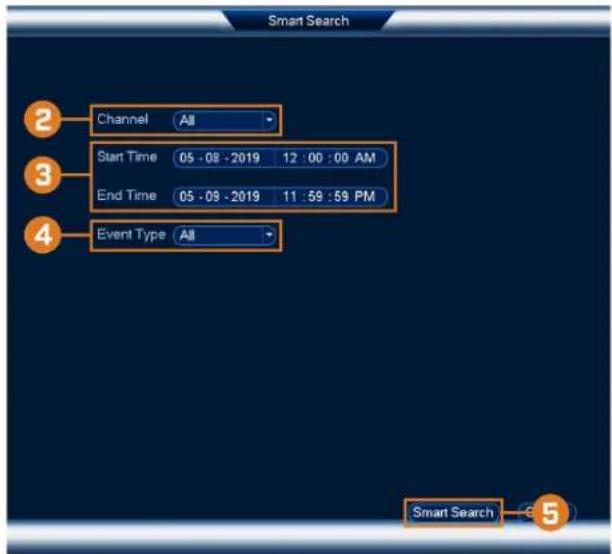
- Select a channel to search for detection events from, or select All.
- Enter a start and end time for your search.
- Next to Event Type, select Person, Vehicle, or All.
5. Click Smart Search.
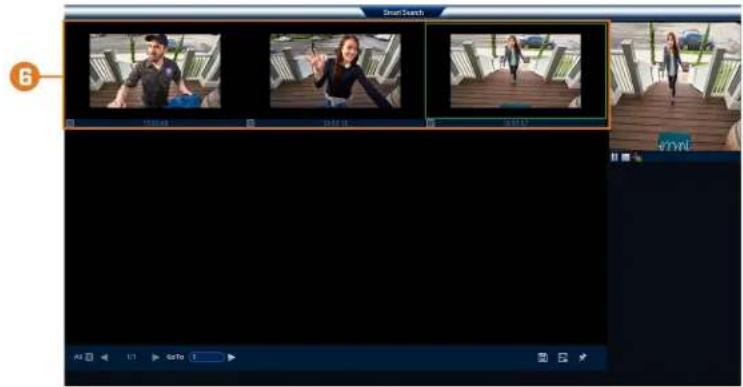
- Events that match your search criteria are displayed. You now have the following options:
- Click a thumbnail to preview the event. Double-click the preview window to view in full screen.
- Check thumbnails to perform other actions:
- Back up events.
。 E: Lock events.
。: Bookmark events.
Managing Passwords and User Accounts
Passwords are enabled by default and are required to access the Main Menu or connect to the system using a computer or mobile device. You will be prompted to create a custom password after you connect for the first time.

NOTE
If you forget the password to the system, contact technical support to have it reset.
15.1 User Accounts
The system includes the following default accounts:
- admin: The administrator account has full access to the system, may configure all system settings, and can manage user accounts.
- user: User accounts are secondary accounts which can be assigned limited access to system settings and camera feeds.
15.1.1 Changing Passwords
You can change the system password of the administrator and user accounts.
To change an account password:
-
From the Live View display, right-click to open the Quick Menu, then click Main Menu.
-
Click 📄, then click SYSTEM. Click the ACCOUNT tab on the side panel, then click User on the top panel.
-
Click next to the account you want to change the password for.

-
Configure the following:
-
Modify Password: Check to modify password.
- Old Password: Enter the current password.
- New Password: Enter the new password you want to use for the system.

NOTE
Passwords for the system must be a minimum of 8 characters, and must include at least 2 of the following character types: lowercase, uppercase, numeric, and special characters.
- Confirm Password: Re-enter the new password.
- Click OK.
15.1.2 Adding Users
You can allow multiple users to log in to the system. When adding different users, you can assign what menus they have access to. For example, you may want your friend to monitor your system while you are away, while not giving full access to your system.
To add a user:
-
From the Live View display, right-click to open the Quick Menu, then click Main Menu.
-
Click 📧, then click SYSTEM. Click the ACCOUNT tab on the side panel, then click User on the top panel.

3. Click Add User.
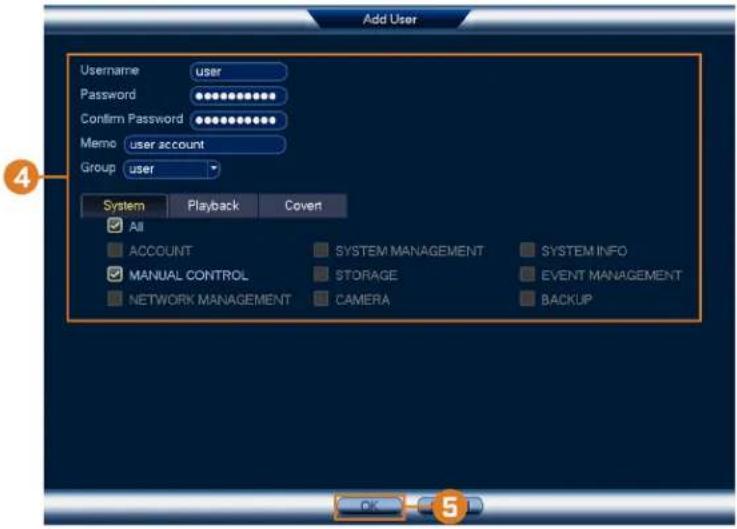
4. Configure the following:
- Username: Enter a name for the user account.
- Password: Enter a password for the user account. Enter the password again under Confirm Password.
- Memo: (Optional) Enter a description of the user account.
- Group: Select the group you would like to assign to this user account. A user account cannot be given permissions its group does not have.
- Authority: Check the permissions you would like the user account to have. Under the System tab, select the menus the user account may access. Under the Playback tab, select which channels the user account may access recorded video from. Under the Covert tab, select the channels the user account may view live video from.
5. Click OK.

NOTE
Now, you can log in to the system locally, or remotely using the user name and password you created. When logging into the system with a user account, the user will only have access to the menus you assigned.
15.1.3 Modifying Users
Modify account details, such as account username or permissions.
To modify a user:
- From the Live View display, right-click to open the Quick Menu, then click Main Menu.
- Click 📄, then click SYSTEM. Click the ACCOUNT tab on the side panel, then click User on the top panel.
- Click next to the account you want to modify.
- Update account details as needed, then click OK.
15.1.4 Deleting Users
Remove a user from the system.
To remove a user:
- From the Live View display, right-click to open the Quick Menu, then click Main Menu.
- Click 📧, then click SYSTEM. Click the ACCOUNT tab on the side panel, then click User on the top panel.
- Click ✗ next to the account you want to delete.
- Click OK.
15.2 Account Groups
Account groups can be used to easily manage permissions for multiple user accounts. User accounts can be given all the permissions of a group, but cannot be given permissions that the group does not have.
The system includes the following groups by default:
- admin: Accounts in the admin group are system administrators. They have full access to the system, may configure all system settings, and can manage user accounts.
- user: Accounts in the user group are normal users. They have limited access to system menus.
15.2.1 Adding Groups
Add a new group with unique system permissions.
To add a group:
-
From the Live View display, right-click to open the Quick Menu, then click Main Menu.
-
Click 📧, then click SYSTEM. Click the ACCOUNT tab on the side panel, then click User on the top panel.
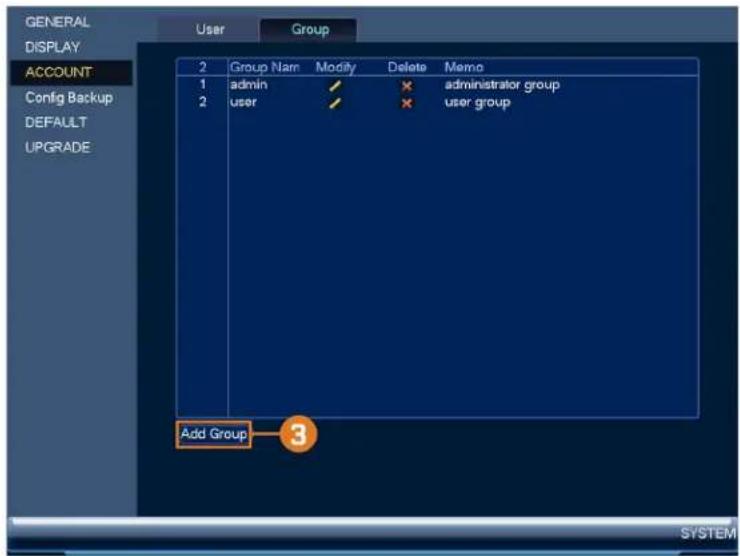
3. Click Add Group.
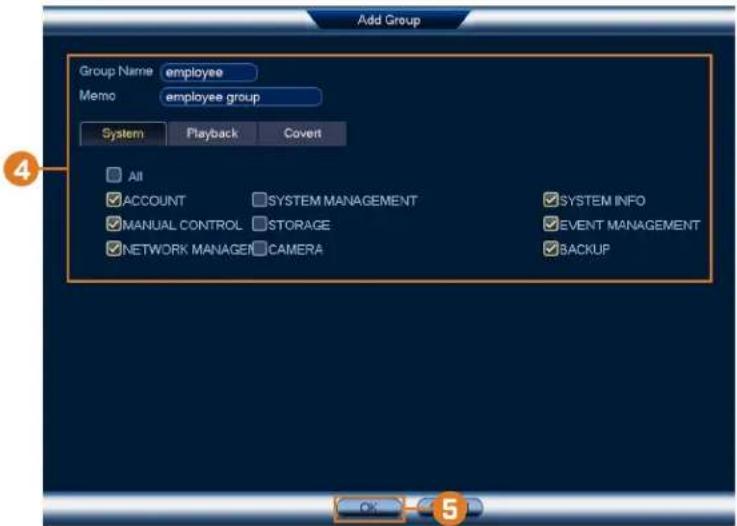
4. Configure the following:
- Group Name: Enter a name for the group.
- Memo: (Optional) Enter a description of the group.
- Authority: Check the permissions you would like the user account to have. Under the System tab, select the menus the user account may access. Under the Playback tab, select which channels the user account may access recorded video from. Under the Covert tab, select the channels the user account may view live video from.
5. Click OK.
15.2.2 Modifying Groups
Change an existing group's name or permissions.
To modify a group:
- From the Live View display, right-click to open the Quick Menu, then click Main Menu.
- Click 📄, then click SYSTEM. Click the ACCOUNT tab on the side panel, then click User on the top panel.
- Click next to the group you want to modify.
- Update group details as needed, then click OK.
15.2.3 Deleting Groups
Remove a group.
To delete a group:
- From the Live View display, right-click to open the Quick Menu, then click Main Menu.
-
Click 📄, then click SYSTEM. Click the ACCOUNT tab on the side panel, then click User on the top panel.
-
Click ✗ next to the group you want to delete.
- Click OK.
Using the Main Menu16
To open the main menu:
• From the Live View display, right-click to open the Quick Menu, then click Main Menu.
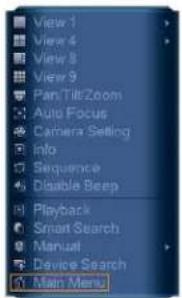
OR
- From the Live View display, hover the mouse near the bottom of the screen, then click
on the Navigation Bar.

16.1 Main Menu Overview
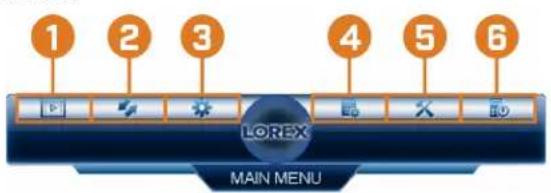
- Playback: Search for and play back recordings, or search for person and/or vehicle detection events. For full details, see 10 Playback, page 28.
- Backup: Export recordings and snapshots to a USB flash drive (not included). For full details, see 11 Backup, page 35.
- Camera: Open the menu to manage IP cameras connected to the network, set recording parameters, and assign custom titles for your cameras.
- Information: View system information.
- Settings: Configure general system settings, recording schedule, motion settings, and more.
- Shutdown: Logout, restart, or shutdown the system.
16.2 Camera Menu
The Camera Menu allows you to manage IP cameras, set recording parameters, and assign custom titles for your cameras.
16.2.1 Viewing Camera Status
View the connection and alarm status for all connected cameras.
To view camera status:
- From the Live View display, right-click to open the Quick Menu, then click Main Menu.

- Click 🧑️, then click REMOTE DEVICE. Click the STATUS tab on the side panel.

16.2.2 Camera Firmware Versions
View firmware versions for connected cameras.
To view camera firmware versions:
- From the Live View display, right-click to open the Quick Menu, then click Main Menu.
2. Click
then click REMOTE DEVICE. Click the FIRMWARE tab on the side
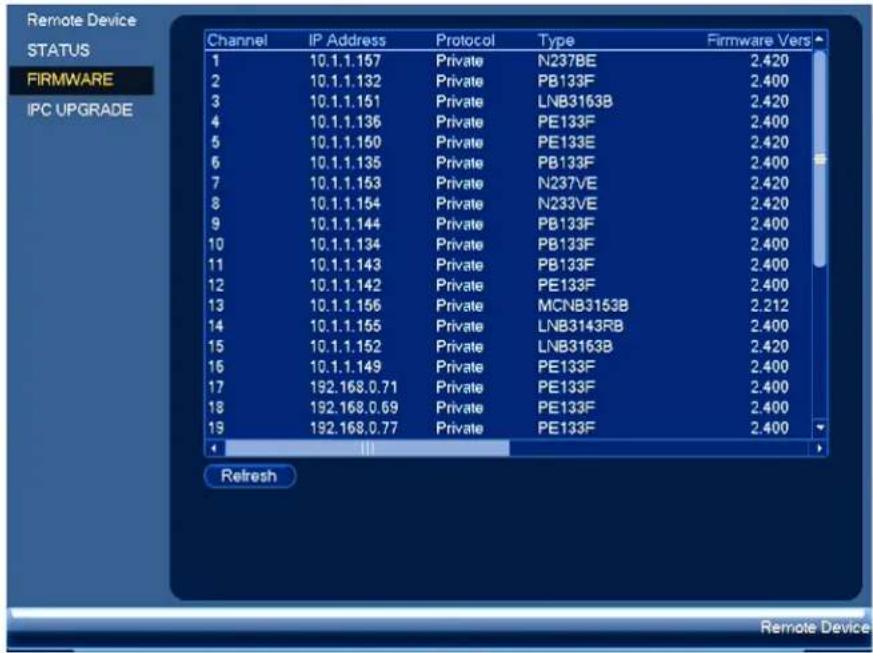
16.2.3 Upgrading Camera Firmware
You can update the firmware for connected IP cameras through the NVR. Firmware upgrades provide enhanced functionality for the cameras. Typically, a camera firmware upgrade will not be necessary unless directed to do so by technical support.
To upgrade the camera firmware:
- Download the camera firmware file.

NOTE
Make sure that the firmware file you are using is compatible with your IP camera model.
- Extract the firmware file and copy it to a USB thumb drive (not included).
- Insert the USB thumb drive (not included) into a USB port on the system.
-
From the Live View display, right-click to open the Quick Menu, then click Main Menu.
-
Click 📋 then click REMOTE DEVICE. Click the IPC UPGRADE tab on the side panel.

-
Click Select. Select the firmware file on the USB drive and click OK.
-
Check the cameras you would like to apply the upgrade to in the list and then click Start Upgrade.

CAUTION
Wait for the firmware upgrade to complete before turning off or unplugging the cameras or NVR. The cameras will restart during the firmware update process.
16.2.4 PoE Manager
View the status of IP cameras connected to the recorder, including video transmission speed and power drawn through PoE.
| NOTE |
| If the total power requirement of cameras connected to the system exceeds the power output of the unit, cameras will be automatically disconnected one at a time until all connected cameras can be powered. |
To view camera PoE status:
- From the Live View display, right-click to open the Quick Menu, then click Main Menu.
2. Click
then click REMOTE DEVICE. Click the POE MANAGER tab on the
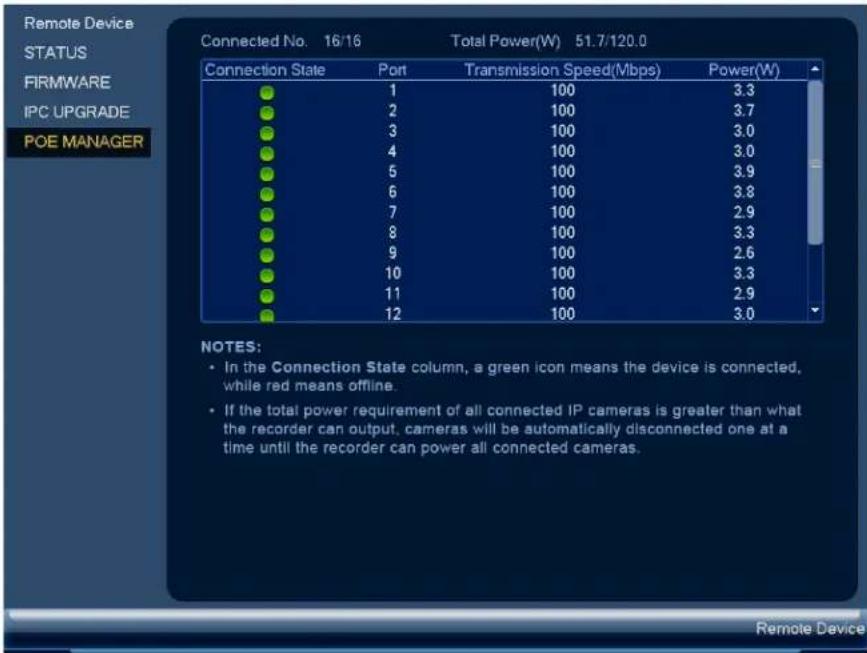
16.2.5 Configuring Snapshot Recording Settings
The system can be set to record snapshot images when a camera detects motion. These snapshots can be viewed through the Playback menu or can be attached to email alerts and push notifications. Use the following procedure to set the snapshot parameters for each camera.
| NOTE |
| Snapshot recording must be enabled for motion detection in the Event menu. See 12 Motion Detection, page 42 for details. |
To configure snapshot recording settings:
-
From the Live View display, right-click to open the Quick Menu, then click Main Menu.
-
Click 📄, then click RECORDING. Click the Snapshot tab on the top panel.
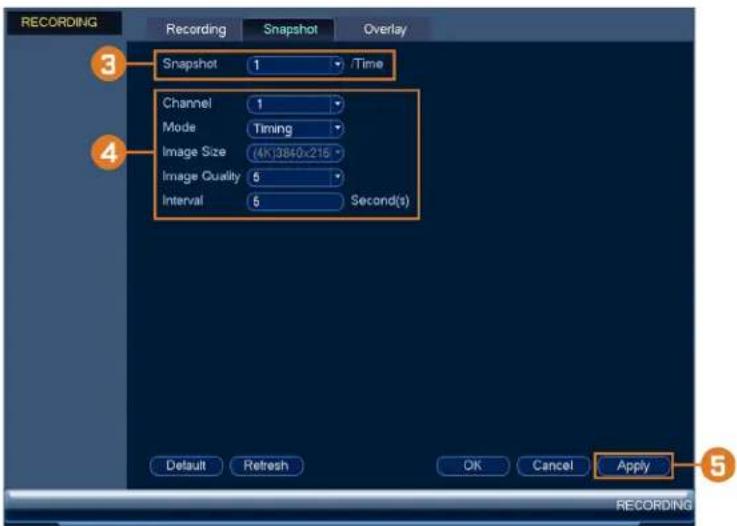
-
Under Snapshot, select the number of snapshots the system will take when the snapshot button is pressed.
-
Configure the following settings for snapshots saved automatically from motion detection or the snapshot schedule:
-
Channel: Select the channel you would like to configure.
- Mode: Select Timing for the system to take snapshots at fixed intervals throughout the day, or select Trigger for the system to take snapshots only when triggered by motion detection (snapshot recording must be enabled in the motion detection menu - see 12 Motion Detection, page 42 for details).
• Image Size: The image size is the same as the Main Stream resolution of the camera.
• Image Quality: Select the snapshot image quality between 1 (lowest) and 6 (highest) -
Interval: Enter the time between snapshots in seconds.
-
Click OK to save changes.
16.2.6 Configuring Video Overlay Settings
The Overlay tab allows you to configure the text and information that appears overtop of the camera image, such as time and channel display.
To configure video overlay settings:
-
From the Live View display, right-click to open the Quick Menu, then click Main Menu.
-
Click 🤒, then click RECORDING. Click the Overlay tab on the top panel.
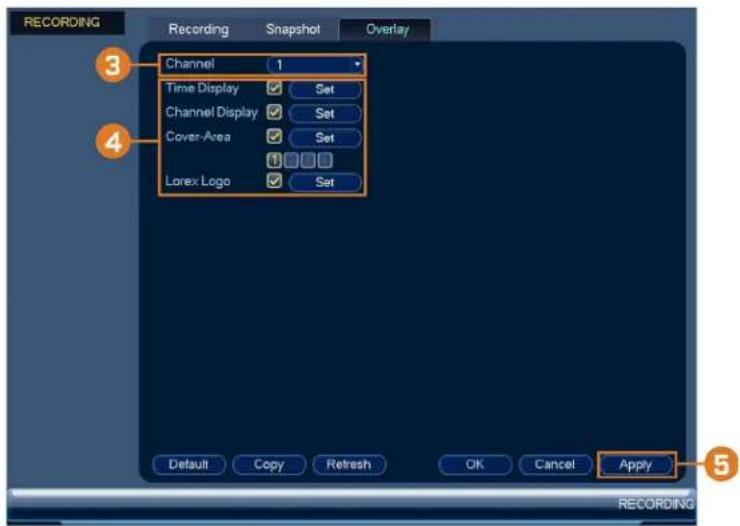
-
Under Channel, select the camera you would like to configure.
-
Configure the following settings:
-
Time Display: Check to display the time information during live view. Click Set next to Time Display to choose the position of the time display overlay. Click-and-drag the time display to reposition it. Right-click when finished.
- Channel Display: Check to display the channel information. Click Set next to Channel Display to choose the position of the channel display overlay. Click-and-drag the channel display to reposition it. Right-click when finished.
- Cover-Area: Check to hide certain parts of the camera image in video recordings. Click the numbered boxes under the Cover-Area checkbox, representing the number of black boxes (masks) that will appear on the camera image. Click Set next to Cover-Area to choose the position of the mask overlay. Click-and-drag masks to reposition them, or click-and-drag the edges to resize a mask. Right-click to exit the live screen.
-
Lorex Logo: Check to display a Lorex logo watermark on the selected channel. Click Set next to Lorex Logo to choose the position of the logo overlay. Click-and-drag the logo to reposition it. Right-click when finished.
-
Click OK to save changes.
-
(Optional) Click Copy to copy overlay settings to other channels.
16.2.7 Creating Custom Channel Names
You can assign custom names to your cameras. For example, you can name your cameras based on their location (e.g. hallway or front door).
To create custom channel names:
-
From the Live View display, right-click to open the Quick Menu, then click Main Menu.
-
Click

then click CHANNEL NAME.

- Click a channel to enter a custom name.
- Click Apply to save changes.
16.3 Information Menu
View system information related to storage, network status, system warnings, and more.
16.3.1 Hard Drive Information
View information related to the hard drives installed in the system, including capacity, status, and type.
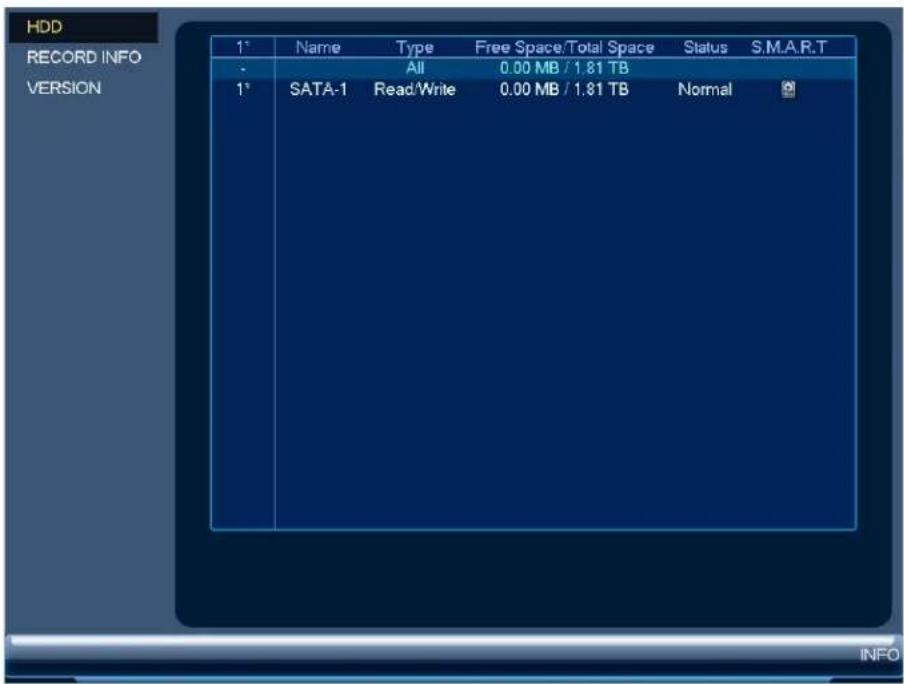
To access the HDD Info menu:
-
From the Live View display, right-click to open the Quick Menu, then click Main Menu.
-
Click 📄, then click INFO. Click the HDD tab on the side panel.
16.3.2 Recording Information
View start and end times of recordings saved on the hard drive.
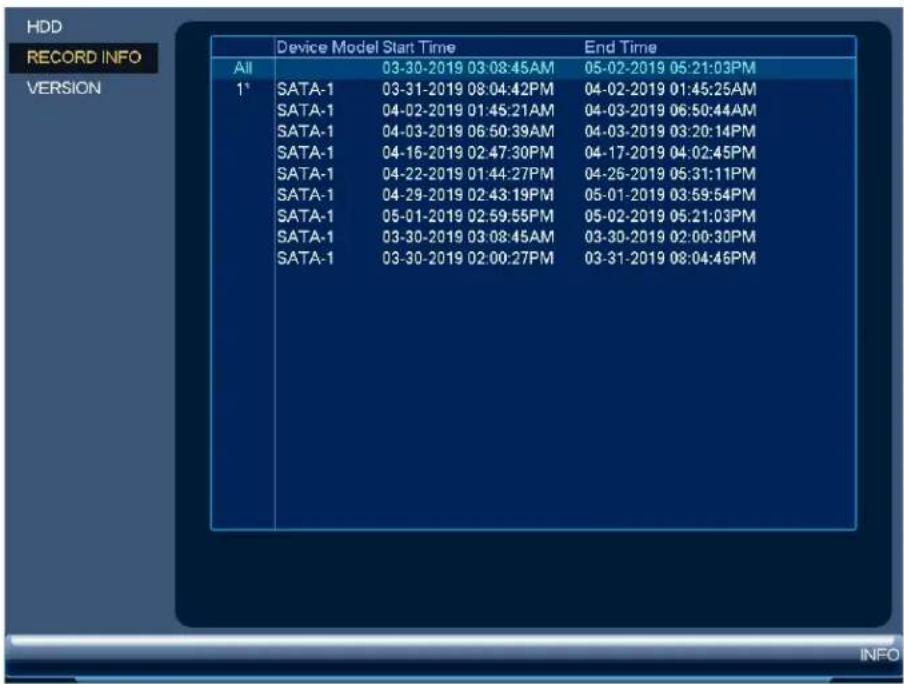
To access the Record Info menu:
-
From the Live View display, right-click to open the Quick Menu, then click Main Menu.
-
Click 📄, then click INFO. Click the RECORD INFO tab on the side panel.
16.3.3 Fan and CPU Status
Configure fan speed setting and monitor system health.
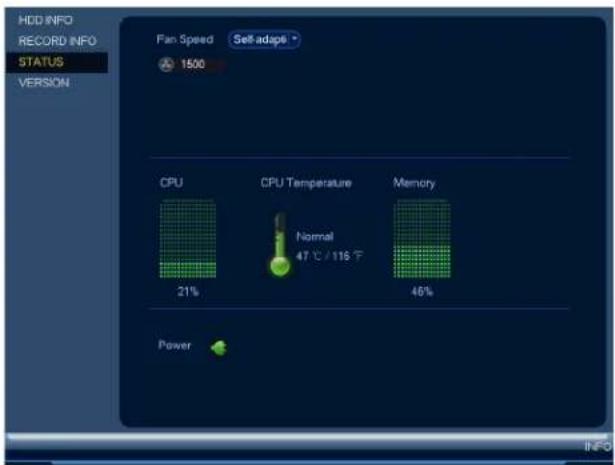
-
From the Live View display, right-click to open the Quick Menu, then click Main Menu.
-
Click 📄, then click INFO. Click the STATUS tab on the side panel.
16.3.4 Version Information
View system information such as device ID, model number, IP address, and firmware version.
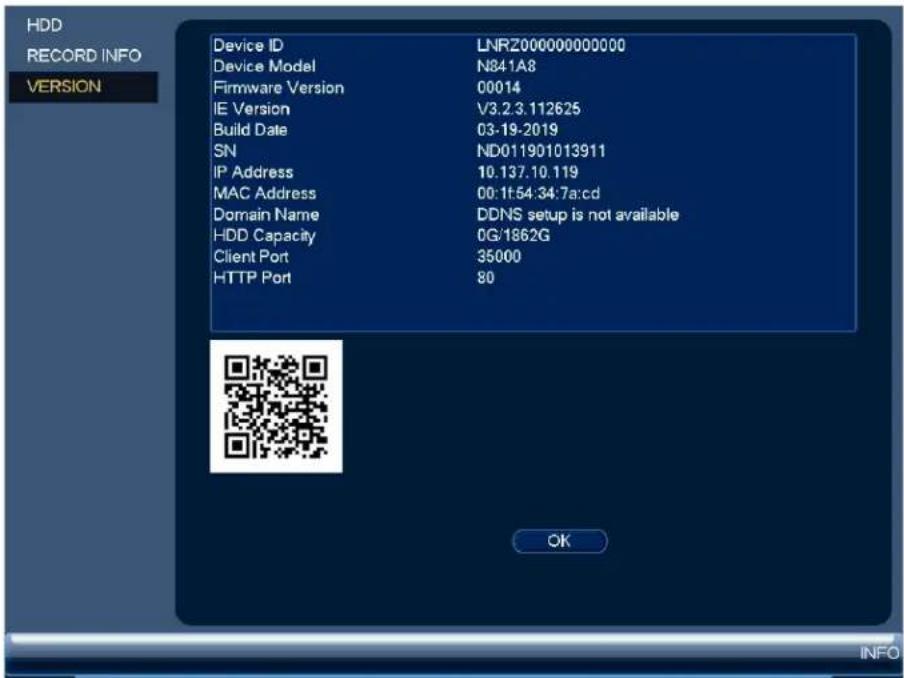
To access the Version Info menu:
-
From the Live View display, right-click to open the Quick Menu, then click Main Menu.
-
Click , then click INFO. Click the VERSION tab on the side panel.
16.3.5 Event Information
View a summary of active system alarms. Activated alarms are highlighted in white. Additional info such as channels that are currently detecting motion is shown.

The following alarms are shown in the Alarm Status menu:
- No HDD: No hard drive is detected.
• HDD Error: Hard drive error detected. - Disk Full: Hard drive is full.
• IP Conflict: More than one device on the network is using the same IP address.
• Net Disconnect: System is not connected to the network.
• MAC Conflict: More than one device on the network is using the same MAC address.
• Video Loss: Shows disconnected channels. - Motion Detect: Shows channels with active motion alarms.
To access the event information menu:
-
From the Live View display, right-click to open the Quick Menu, then click Main Menu.
-
Click , then click EVENT.
16.3.6 Online Users
View all users connected to the system using computers or mobile devices.
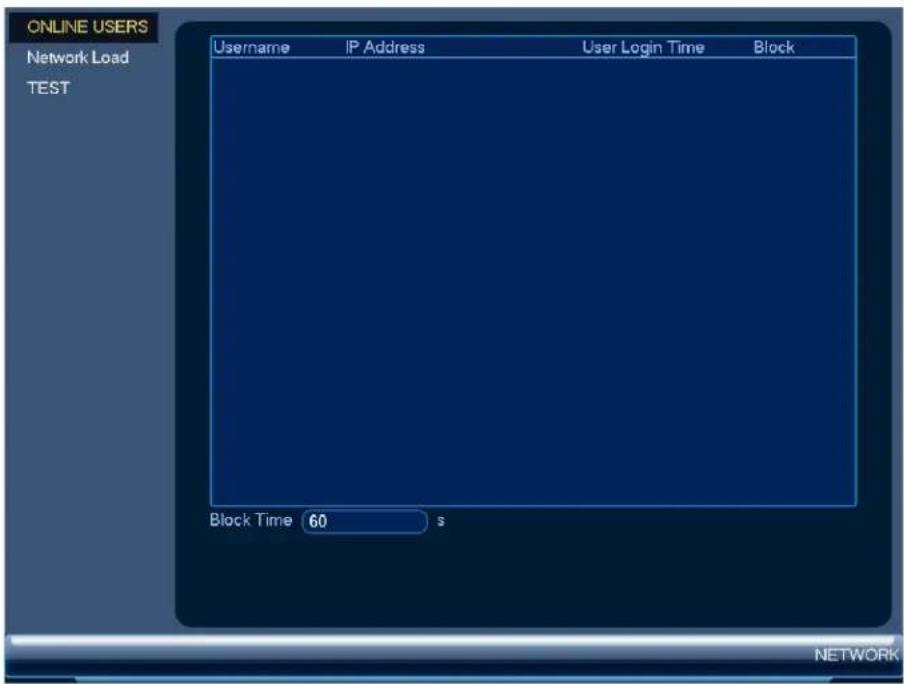
To access the online users menu:
-
From the Live View display, right-click to open the Quick Menu, then click Main Menu.
-
Click 📄, then click NETWORK. Click the ONLINE USERS tab on the side panel.
16.3.7 Network Load
View network traffic your system is sending and receiving.
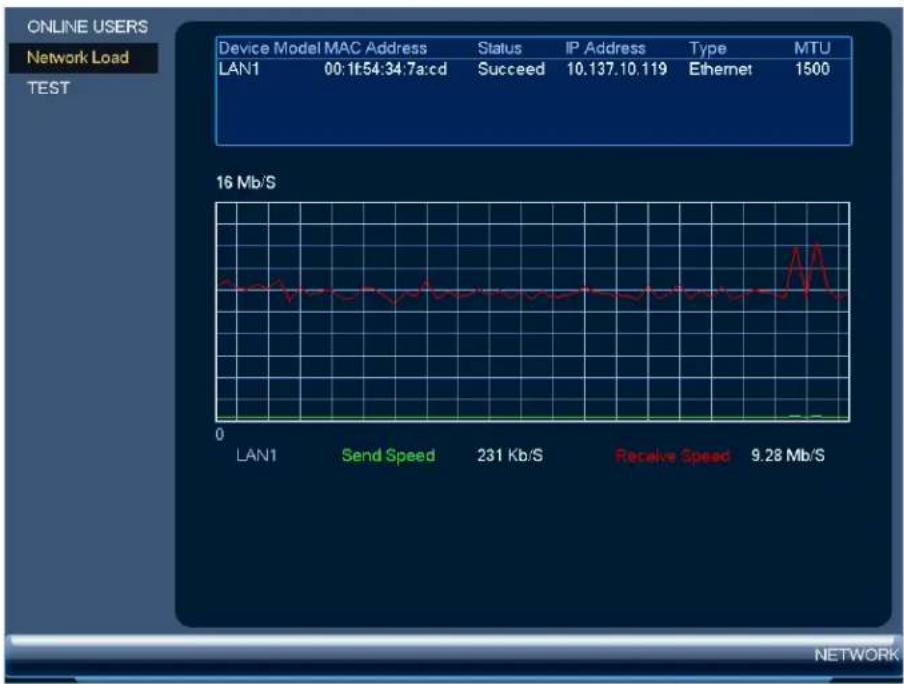
line
| Device Model MAC Address | Status | IP Address | Type | MTU | | ------------------------ | ------ | ---------- | ---- | --- | | LAN1 | Succeed | 10.137 | Ethernet | 1500 |To access the network load menu:
-
From the Live View display, right-click to open the Quick Menu, then click Main Menu.
-
Click 📄, then click NETWORK. Click the Network Load tab on the side panel.
16.3.8 Network Test
Test if your system can connect to other devices over the LAN or Internet. You can enter the IP address of a device and click Test to determine if your system can connect to it.
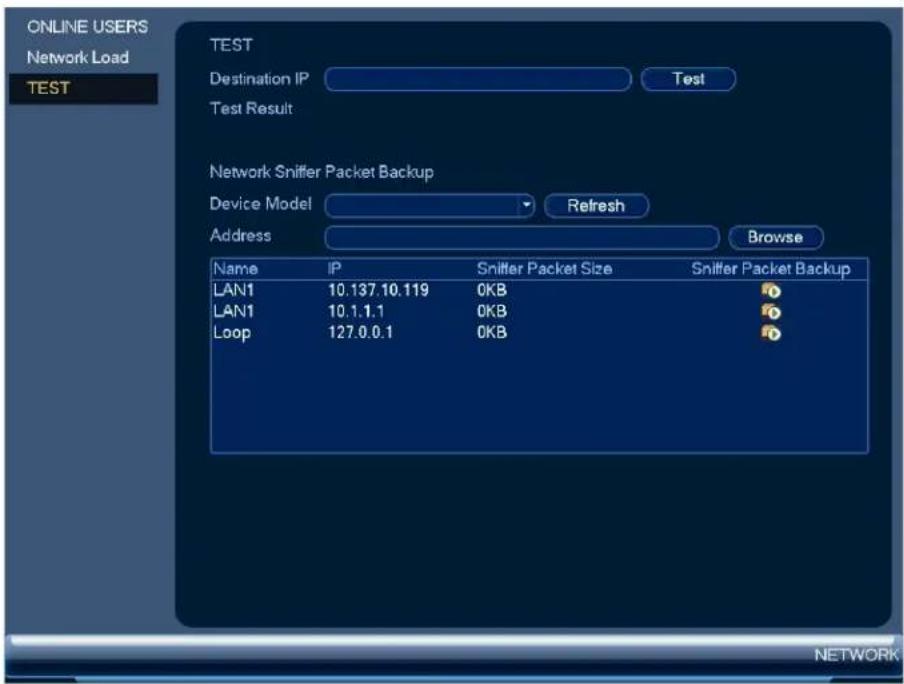
To access the network test menu:
-
From the Live View display, right-click to open the Quick Menu, then click Main Menu.
-
Click 📄, then click NETWORK. Click the TEST tab on the side panel.
16.3.9 BPS
Shows bitrates of connected cameras. The bitrate is the amount of data the camera is sending to the system.
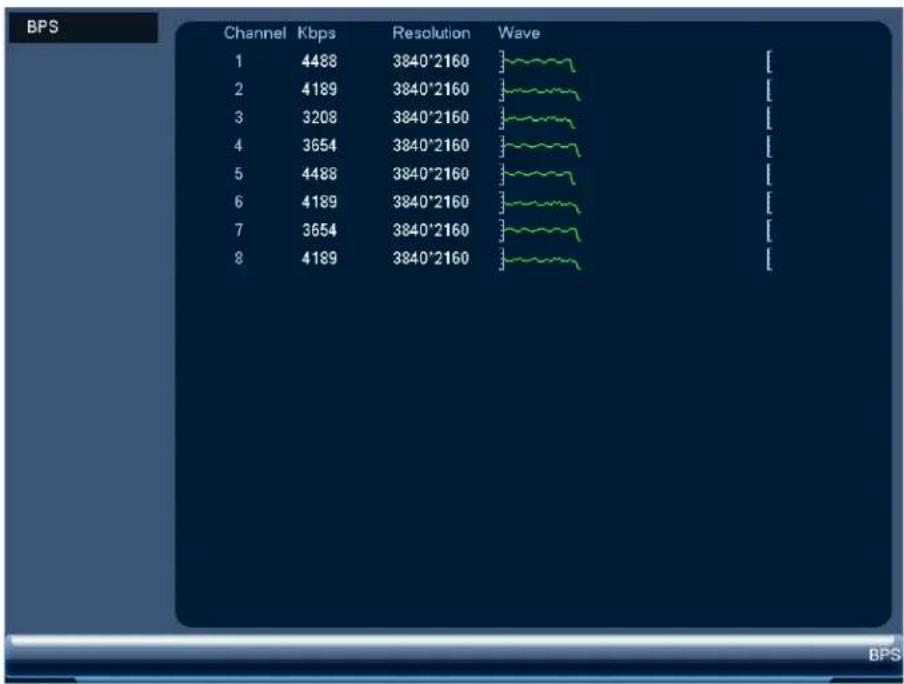
line
| Channel | Kbps | Resolution | Wave | | :--- | :--- | :--- | :--- | | 1 | 4488 | 3840*2160 | [---] | | 2 | 4189 | 3840*2160 | [---] | | 3 | 3208 | 3840*2160 | [---] | | 4 | 3654 | 3840*2160 | [---] | | 5 | 4488 | 3840*2160 | [---] | | 6 | 4189 | 3840*2160 | [---] | | 7 | 3654 | 3840*2160 | [---] | | 8 | 4189 | 3840*2160 | [---] |To access the BPS menu:
-
From the Live View display, right-click to open the Quick Menu, then click Main Menu.
-
Click , then click BPS.
16.3.10 System Log
Search for system logs in a certain time range.
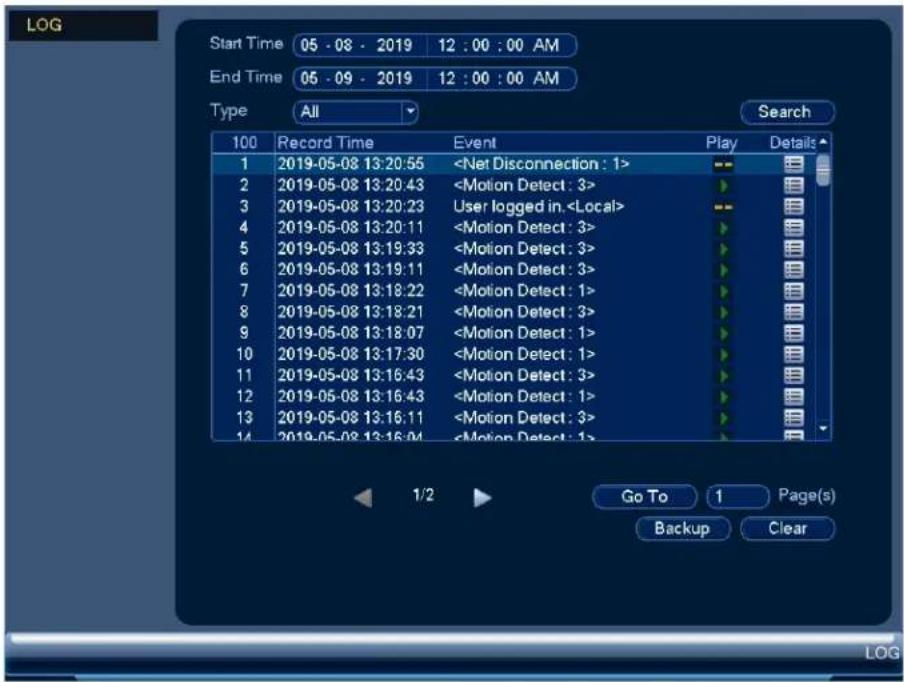
To access the log menu:
-
From the Live View display, right-click to open the Quick Menu, then click Main Menu.
-
Click , then click LOG.
16.4 Settings Menu
Configure general system settings, recording schedule, motion settings, and more.
16.4.1 Selecting DHCP or Static IP Address (TCP/IP)
Configure IP address settings.
To configure IP address settings:
-
From the Live View display, right-click to open the Quick Menu, then click Main Menu.
-
Click 📧, then click NETWORK. Click the TCP/IP tab on the side panel.

- Check DHCP (recommended) to let the system automatically obtain an IP address from the router.
OR
Uncheck DHCP to assign a static IP address (advanced users only).
- If you uncheck DHCP, configure the following:
• IP Version: Select IPv4 or IPv6.
- IP Address: Enter the IP address you would like to assign to the system. Make sure that no other device on your network is using the same IP address.
- Subnet Mask: Enter the subnet mask for your network.
- Default Gateway: Enter the gateway address for your network.
• Preferred DNS: Enter the address of your primary DNS server.
• Alternate DNS: Enter the address of your secondary DNS server.
- Click Apply to save changes.
16.4.2 Configuring System Ports (Connection)
Configure ports used by the system for remote connectivity. If you are using DDNS connectivity, port forwarding is required for the HTTP Port (default: 80) and TCP (Client) Port (default: 35000).
| NOTE |
| Port forwarding is not required unless you are using DDNS for remote access. Using mobile apps does not require port forwarding or DDNS setup. |
To configure system ports:
-
From the Live View display, right-click to open the Quick Menu, then click Main Menu.
-
Click 📧, then click NETWORK. Click the Port tab on the side panel.

- Configure the port numbers as needed.
- Click Apply to save changes.

NOTE
Up to 3 devices may connect to the system at the same time.
16.4.3 Configuring IP Filter
Configure permissions for external IP addresses attempting to access the unit.
-
From the Live View display, right-click to open the Quick Menu, then click Main Menu.
-
Click 📧, then click NETWORK. Click the IP FILTER tab on the side panel.
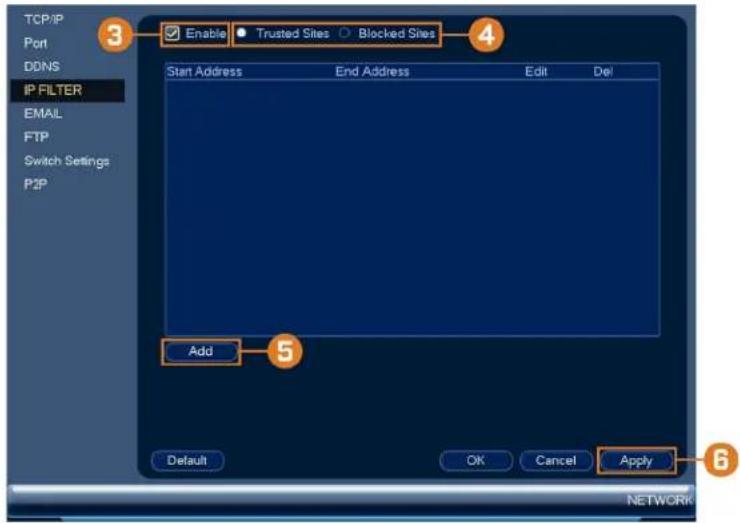
- Check Enable.
- Select Trusted Sites to add IP addresses or ranges that are permitted to access the recorder, or select Blocked Sites to add IP addresses or ranges that are not permitted to access the recorder.
- Click Add to enter an IP address or range.
- Click Apply when finished.
16.4.4 Configuring Email Alerts
You can configure the system to send out email alerts for motion detection or other events.

NOTE
To send out motion detection alerts, you must enable the Send Email option for motion detection on each camera you would to receive alerts from. For details, see 12 Motion Detection, page 42.
To configure Email Alerts:
-
From the Live View display, right-click to open the Quick Menu, then click Main Menu.
-
Click 📄, then click NETWORK. Click the EMAIL tab on the side panel.
-
Check Enable to enable email notifications.
If you want to use Lorex's email server (recommended):
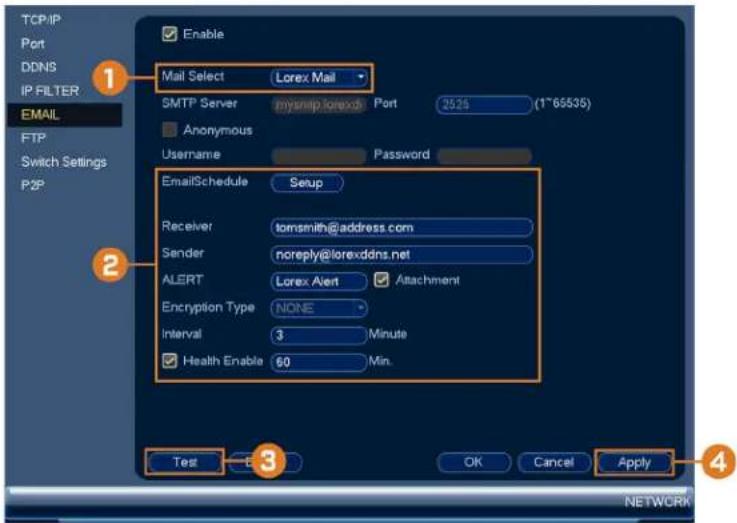
- Under Mail Select, select Lorex Mail to use the Lorex email server to send out alarm notifications. This is the recommended setting.
2. Configure the following:
- Email Schedule: Configure time periods during which email alerts will be sent.
- Receiver: Enter the email address that will receive alerts.
- Sender: Enter the sender's email address.
• ALERT: Enter the subject line for the email alert. - Attachment: Check to include an image attachment of the camera.

NOTE
You must enable the Snapshot option for motion detection on each camera you would to receive attachments. For details, see 12 Motion Detection, page 42.
- Interval: Enter the interval between alert emails.
-
Health Enable: Check to enable health check emails. Health check emails will be sent periodically to ensure that the system is functioning normally. Enter the interval in minutes for health check emails.
-
Click Test to send a test email.
- Click Apply to save settings.
If you want to use your own email server (advanced):
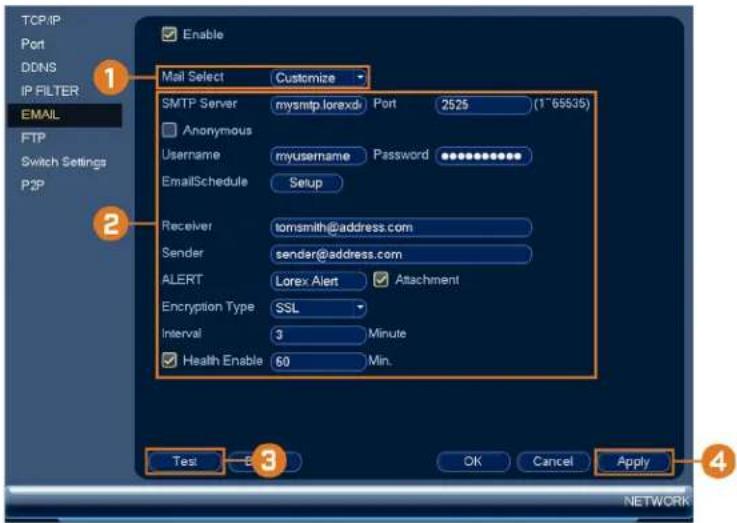
-
Under Mail Select, select Customize.
-
Configure the following:
-
SMTP Server: Enter the SMTP server address.
- Port: Enter the port used by the SMTP server.
- Anonymous: Check if your server supports anonymous log ins. Otherwise, leave this unchecked.
- User: Enter the SMTP user name.
- Password: Enter the SMTP password.
- Receiver: Enter the email address that will receive alerts.
- Sender: Enter the sender's email address.
• ALERT: Enter the subject line for the email alert. - Attachment: Check to include an image attachment of the camera.

NOTE
You must enable the Snapshot option for motion detection on each camera you would to receive attachments. For details, see 12 Motion Detection, page 42.
- Encryption Type: Select SSL or TLS if your server uses encryption. Select None if your server does not use encryption.
- Interval: Enter the interval between alert emails.
-
Health Enable: Check to enable health check emails. Health check emails will be sent periodically to ensure that the system is functioning normally. Enter the interval in minutes for health check emails.
-
Click Test to send a test email.
- Click Apply to save settings.
16.4.5 FTP (Advanced)
Send recordings and/or snapshots to an FTP server.
To configure FTP settings:
- From the Live View display, right-click to open the Quick Menu, then click Main Menu.
then click NETWORK. Click the FTP tab on the side panel.
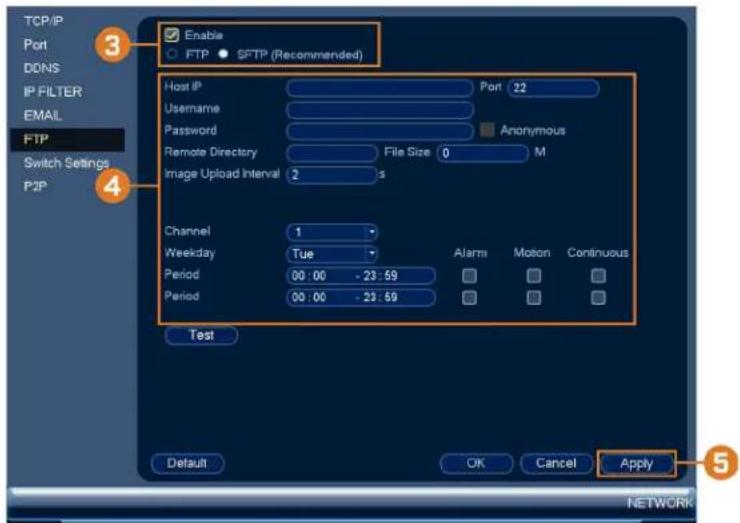
-
Check Enable to allow FTP connection, and select either FTP or SFTP depending on your configuration.
-
Configure the following:
-
Host IP: Enter the FTP server's address.
- Port: Enter the FTP port.
- Username: Enter your FTP username.
- Password: Enter your FTP password.
- Anonymous: Enable if your FTP server supports anonymous login.
- Remote Directory: Enter the directory to save recordings and/or snapshots to.
- File Length: Enter the recording file length in minutes.
• Image Upload Interval: Enter the interval between snapshots in seconds. - Channel: Select a channel to set FTP recording preferences for.
- Weekday: Select a day of the week to configure FTP recording settings for, or select All to apply to all days of the week.
- Period: Select up to 2 periods of time where the system will save recordings to the FTP. Check Alarm, Motion, or Continuous beside each period to determine which recording type will be uploaded to the FTP.
5. Click Apply.
16.4.6 Configuring Switch Settings (Advanced)
Configure the networking settings for the internal PoE switch.

CAUTION
It is recommended to leave this menu on the default settings. Changing the information in this menu may disrupt the connection to the cameras.
To configure switch settings:
-
From the Live View display, right-click to open the Quick Menu, then click Main Menu.
-
Click 📧, then click NETWORK. Click the Switch Settings tab on the side panel.
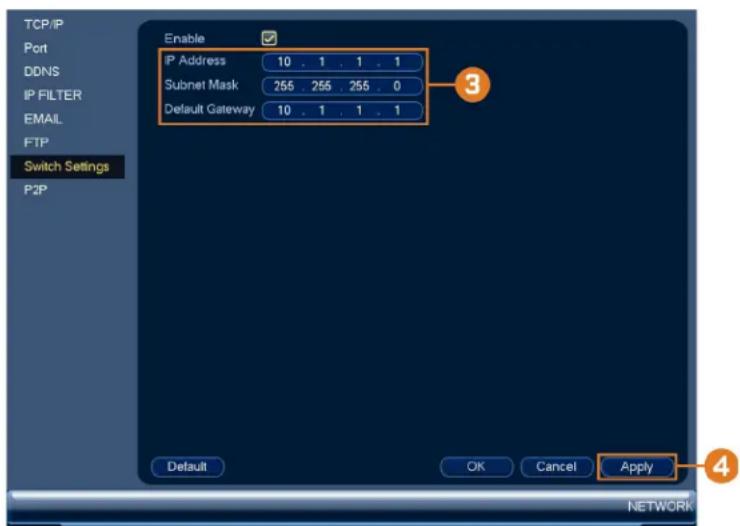
- Configure the IP Address, Subnet Mask, and Default Gateway for the internal PoE switch.
- Click OK. Click Save to save changes. The system will restart.
16.4.7 P2P Setting
The P2P Setting menu is used only to enable / disable remote access to the system using a P2P connection.
| CAUTION |
| P2P connection is the primary method used for remote access to your security system using the Lorex Home app. If you disable P2P connectivity, you will only be able to access your system over the Internet using DDNS. See 2 DDNS Setup (Advanced), page 118 for details. |
To change P2P setting:
-
From the Live View display, right-click to open the Quick Menu, then click Main Menu.
-
Click 📧, then click NETWORK. Click the P2P tab on the side panel.
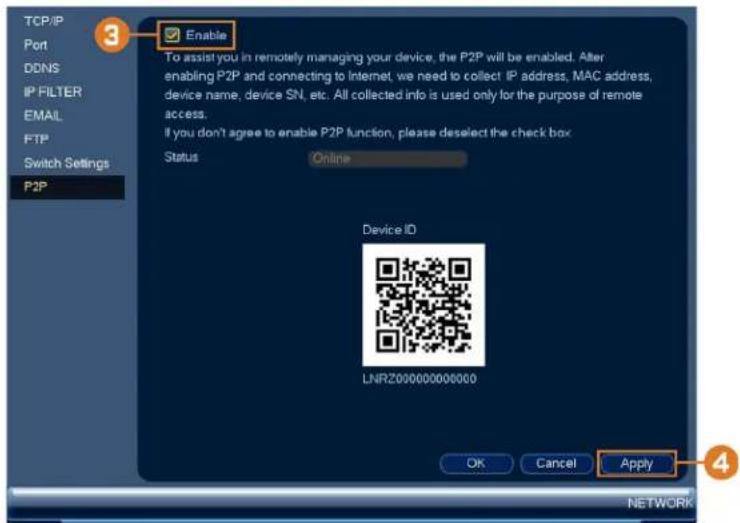
-
Check Enable to use P2P, or uncheck to disable.
-
Click Apply.
16.4.8 Configuring Video Loss Settings
Configure video loss settings and how the system reacts to a video loss event. Video loss means that video from one or more cameras was interrupted or disabled. It could be caused by a number of factors, such as a loose or damaged connection, loss of power to a camera, or a blocked camera lens.
To configure video loss settings:
-
From the Live View display, right-click to open the Quick Menu, then click Main Menu.
-
Click 📧, then click EVENT. Click the MOTION tab on the side panel, then click the Video Loss tab on the top panel.

-
Under Camera, select the channel you would like to configure.
-
Check Enable to enable video loss events for the selected channel.
-
Configure the following to customize settings for video loss events:
- Alarm Out: Check the box to activate alarm output devices (not included) when the selected channel loses video. Select the alarm output devices that will be activated when video loss occurs, then enter the number of seconds the alarm output device(s) will activate after video loss occurs next to Latch.
- Schedule: Click Set to configure a schedule for video loss events. It is recommended to leave this on the default setting, so you can be alerted at any time one of your cameras loses video.
- Show Message: Check to show a popup message on the monitor if one of your cameras loses video.
- Send Email: Check to enable email alerts. You must configure email alerts before you will be able to receive them (see 16.4.4 Configuring Email Alerts, page 78).
- Record Channel: Click the checkbox to enable video recording when video loss occurs. You can then select the channels the system will record when video loss occurs on the currently selected channel.
- PTZ Activation: Check to enable PTZ actions when video loss occurs (PTZ camera required; not included). Click Set to select which PTZ actions will be taken by each camera.
- Post_REC: Enter the number of seconds the system will record after video loss occurs.
- Sequence: Check to enable a custom sequence mode when motion is detected on the selected channel. Then click the channels you would like to display in the custom sequence mode.
- Snapshot: Click the box to enable snapshot recording when video loss occurs. You can then select which channels will save snapshots when video loss occurs on the currently selected channel.
- Buzzer: Check to enable the system buzzer when video loss occurs on the currently selected channel.
- Click Apply to save changes.
16.4.9 Configuring Hard Drive Warnings
Hard drive warnings will notify you if an issue is detected with the hard drive.
To configure hard drive warnings:
-
From the Live View display, right-click to open the Quick Menu, then click Main Menu.
-
Click 📄, then click EVENT. Click the WARNING tab on the side panel, then click the HDD tab on the top panel.
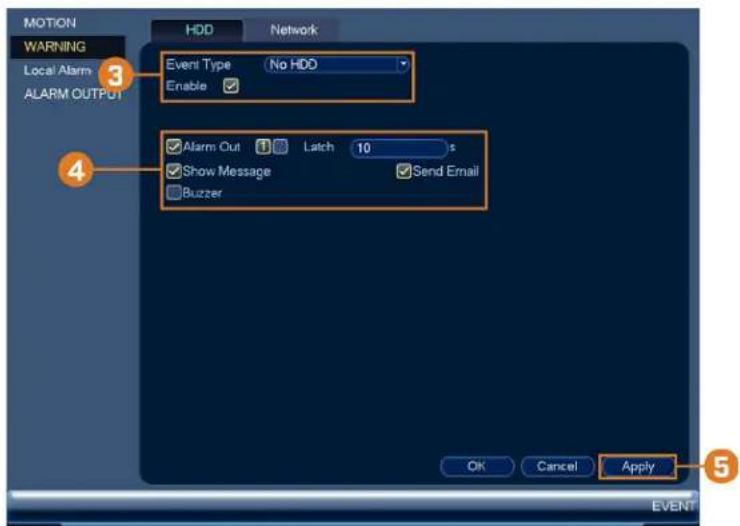
- Under Event Type, select the hard drive event you would like to configure. Check Enable to activate the selected warning.
• No HDD: No hard drive detected.
- Disk Error: A hard drive error has been detected.
- Disk Full: The hard drive is full or almost full. You can enter the percentage of disk space remaining that will trigger a warning under Less Than (e.g. when less than 10% of the hard drive is empty, trigger a warning). Disk Full warnings will not occur if overwrite is enabled.
- All: Configure warnings for all hard drive events.
-
Configure the responses the system will take when the selected event occurs:
-
Alarm Out: Check the box to activate alarm output devices (not included) when the selected event occurs. Select the alarm output devices that will be activated, then enter the number of seconds the alarm output device(s) will activate after the selected event occurs next to Latch.
• Show Message: Show a popup message on the monitor. - Send Email: Check to enable email alerts. You must configure email alerts before you will be able to receive them (see 16.4.4 Configuring Email Alerts, page 78).
-
Buzzer: Check to activate the system buzzer.
-
Click Apply to save changes.
16.4.10 Configuring Network Warnings
Network warnings will notify you if there your system loses connection to the Internet or local network or if there is an issue on your network.
To configure network warnings:
-
From the Live View display, right-click to open the Quick Menu, then click Main Menu.
-
Click 📄, then click EVENT. Click the WARNING tab on the side panel, then click the Network tab on the top panel.

-
Under Event Type, select the event type you would like to configure. Check Enable to activate the selected warning.
-
Disconnect: The system has lost connection to the network.
• IP Conflict: More than one device on your network has the same IP address.
• MAC Conflict: More than one device on your network has the same MAC address. -
All: Configure responses for all network events.
-
Configure the following for the selected event type:
-
Alarm Out: Check the box to activate alarm output devices (not included) when the selected event occurs. Select the alarm output devices that will be activated, then enter the number of seconds the alarm output device(s) will activate after the selected event occurs next to Latch.
• Show Message: Check to show a popup message when the selected event occurs. - Send Email: Check to enable email alerts. You must configure email alerts before you will be able to receive them (see 16.4.4 Configuring Email Alerts, page 78).
-
Buzzer: Check to activate the system buzzer.
-
Click Apply to save changes.
16.4.11 Configuring Fan Warnings
Fan warnings will notify you if there is an issue with the system's cooling fan.
To configure fan warnings:
-
From the Live View display, right-click to open the Quick Menu, then click Main Menu.
-
Click 📧, then click EVENT. Click the WARNING tab on the side panel, then click the Fan tab on the top panel.
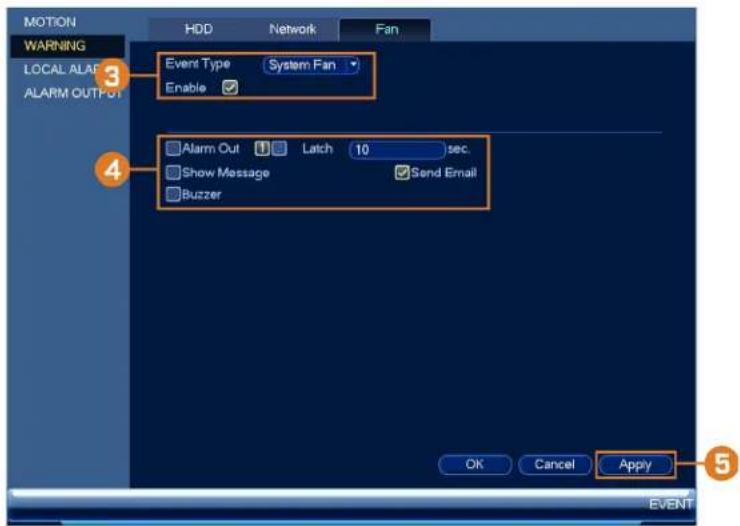
-
Check Enable to activate fan warnings.
-
Configure the following for the selected event type:
-
Alarm Out: Check the box to activate alarm output devices (not included) when the selected event occurs. Select the alarm output devices that will be activated, then enter the number of seconds the alarm output device(s) will activate after the selected event occurs next to Latch.
• Show Message: Check to show a popup message when the selected event occurs. - Send Email: Check to enable email alerts. You must configure email alerts before you will be able to receive them (see 16.4.4 Configuring Email Alerts, page 78).
-
Buzzer: Check to activate the system buzzer.
-
Click Apply to save changes.
16.4.12 Configuring Alarm Input Devices
You can connect alarm input devices such as motion sensors (not included) or glass break detectors (not included) to the system. The system can be set to trigger recording or take other actions when these devices are activated.
To connect alarm devices:

natural_image
Front view of a network switch device showing ports and connectors, with an orange arrow pointing to a green connector (no text or symbols visible)- Connect the included green alarm blocks to the back panel of the recorder.
- Connect your alarm device according to the supplied documentation.
To configure alarm input devices (not included):
-
From the Live View display, right-click to open the Quick Menu, then click Main Menu.
-
Click X, then click EVENT. Click the LOCAL ALARM tab on the side panel.
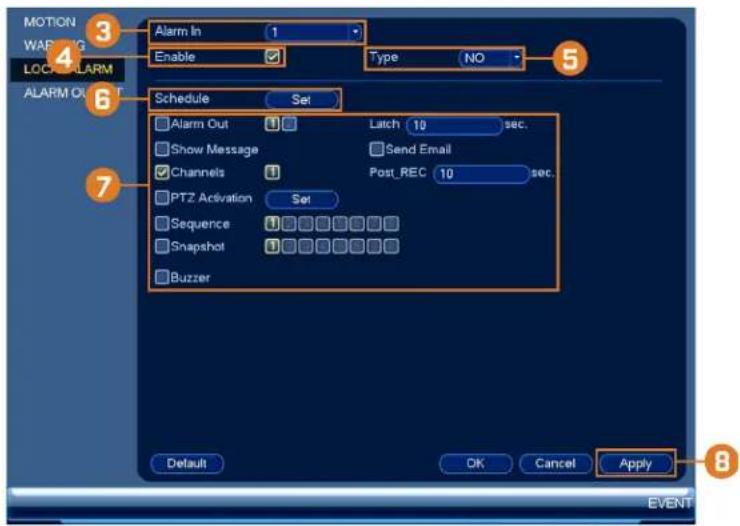
-
Select the alarm input port the device is connected to.
-
Check Enable.
-
Select NO (Normal Open) or NC (Normal Close) depending on the type of alarm input device you have.
-
Click Setup next to Schedule to configure the times of the week when the selected device will be activated. By default, the device will be activated 24/7.
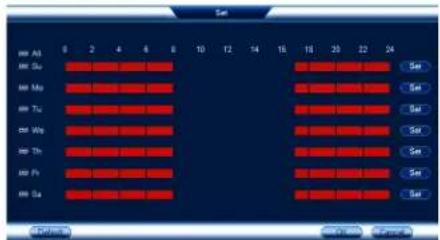
- Click or click-and-drag along each of the red timelines to quickly add or remove time from each day's schedule in 30-minute segments.
- Click beside 2 or more days to link schedules (1). This allows you to quickly change multiple schedules at once.
- To make fine adjustments to a schedule, click Set. This will allow you to set exact start and end times for a schedule.
-
Click OK when finished.
-
Configure the following system responses and parameters for the alarm input device:
-
Alarm Out: Check the box to activate alarm output devices (not included) when the selected device is triggered. Select the alarm output devices that will be activated, then enter the number of seconds the alarm output device(s) will activate after the selected device is triggered next to Latch.
• Show Message: Check to enable an on-screen pop-up when the selected device is triggered. - Send Email: Check to enable email alerts. You must configure email alerts before you will be able to receive them (see 16.4.4 Configuring Email Alerts, page 78).
- Channels: Click the checkbox to enable video recording when video loss occurs. You can then select the channels the system will record when video loss occurs on the currently selected channel.
- Post_REC: Enter the number of seconds the system will record after video loss occurs.
- PTZ Activation: Check to enable PTZ actions when video loss occurs (PTZ camera required; not included). Click Set to select which PTZ actions will be taken by each camera.
- Sequence: Check to enable a custom sequence mode when motion is detected on the selected channel. Then click the channels you would like to display in the custom sequence mode.
- Snapshot: Check to save a snapshot.
-
Buzzer: Check to enable the system buzzer.
-
Click OK to save changes.
16.4.13 Controlling Alarm Output Devices
You can connect alarm output devices (not included), such as sirens or strobe lights, to the system. The Alarm Output menu allows you to enable or disable alarm output devices and manually an activated device.
To connect alarm devices:

natural_image
Front view of a network switch device showing ports, connectors, and a green plastic connector (no text or symbols visible)- Connect the included green alarm blocks to the back panel of the recorder.
- Connect your alarm device according to the supplied documentation.
To configure alarm output devices (not included):
-
From the Live View display, right-click to open the Quick Menu, then click Main Menu.
-
Click X, then click EVENT. Click the ALARM OUTPUT tab on the side panel.
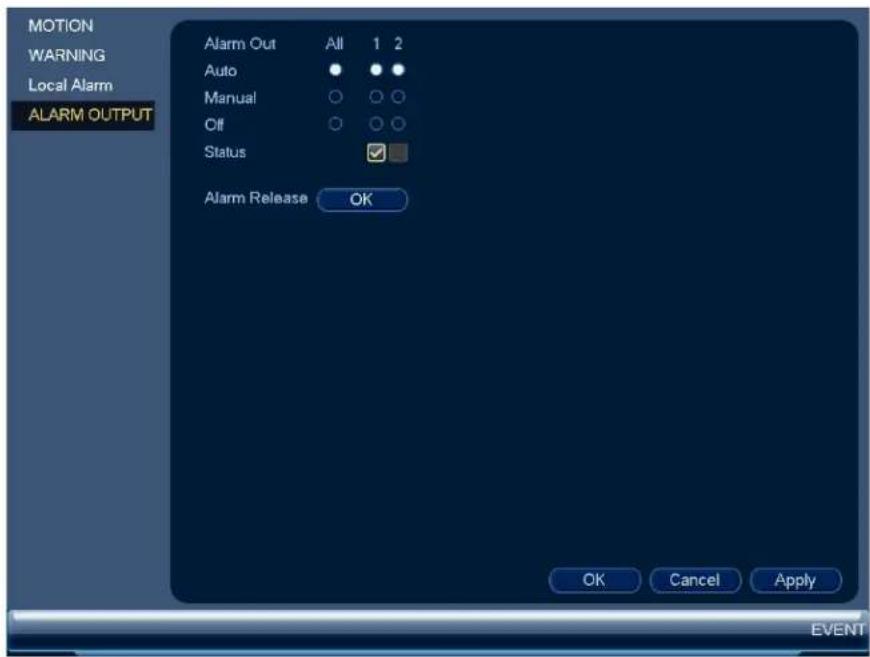
To control alarm output devices:
- To enable alarm output devices, select Auto or Manual for each device you would like to enable. Select Stop to disable the alarm output device. Click Apply to save changes.
• To manually disable activated alarm devices, click OK next to Alarm Release.
16.4.14 Configuring Pre-Recording
The system can pre-record video when motion detection events occur. This will ensure that the system records the entire event when motion is detected. By default, the system pre-records 4 seconds of video every time motion is detected.
| NOTE |
| Ensure you have set your preferences for motion detection (see 12 Motion Detection, page 42 for details). |
To configure pre-recording:
-
From the Live View display, right-click to open the Quick Menu, then click Main Menu.
-
Click X then click STORAGE. Click the SCHEDULE tab on the side panel.

- Under Channel, select the camera you would like to configure or select All.
- Under PreRecord, select the duration for pre-recording.
- Click OK to save settings.
16.4.15 Formatting the Hard Drive
Format the hard drive to erase all saved data. If you install a new hard drive, you must format the hard drive using the procedure below before you will be able to record.
To format the hard drive:
| CAUTION |
| Formatting the hard drive crases all data on the hard drive. Formatting cannot be undone. |
-
From the Live View display, right-click to open the Quick Menu, then click Main Menu.
-
Click
then click STORAGE. Click the HDD MANAGER tab on the side panel.

- Select the hard dive you would like to format.
- Click Format, then click Yes to confirm.
16.4.16 Configuring Hard Drive Type
The system supports the following hard drive types:
- Read/Write: Normal recording hard drive.
- Read-Only: The system can playback data from this hard drive, but it will not record to it.
- Mirror: The hard drive will be used for mirror recording only. You must set up mirroring recording before this feature will work. For full instructions, see 16.4.17 Setting up Hard Drive Mirroring (Advanced), page 92.
To set the hard drive type:
-
From the Live View display, right-click to open the Quick Menu, then click Main Menu.
-
Click X then click STORAGE. Click the HDD MANAGER tab on the side panel.
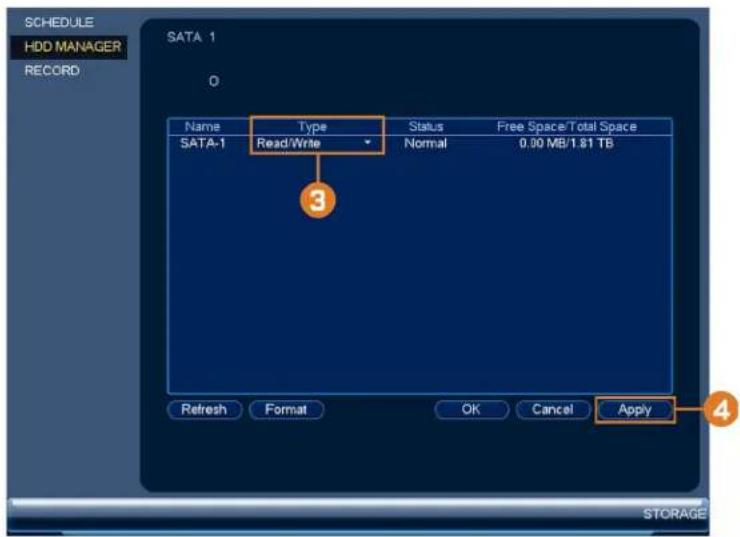
- Select the hard drive type under the Type column next to the hard drive you would like to configure.
- Click Apply to save changes. The system will restart to complete this operation.
16.4.17 Setting up Hard Drive Mirroring (Advanced)
A mirror hard drive can be used to automatically backup video footage recorded to the recording (read/write) hard drive. When a mirroring hard drive is installed, the system can be set to record cameras in parallel to both the recording hard drive and the mirror hard drive. This way, the footage is automatically backed up if the recording hard drive fails.
How hard drive mirroring works:
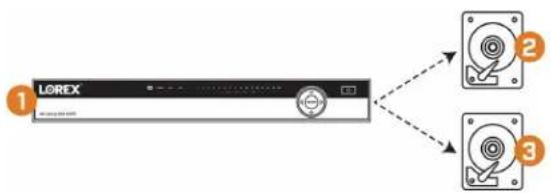
flowchart
graph TD
    A["LOREX"] --> B["1"]
    A --> C["2"]
    A --> D["3"]
    style A fill:#f9f,stroke:#333
    style B fill:#ccf,stroke:#333
    style C fill:#cfc,stroke:#333
    style D fill:#fcc,stroke:#333
- Security system
- Primary hard drive
- Mirror hard drive

NOTE
- The mirror hard drive must be as large or larger than primary hard drive to backup all recordings.
- Mirroring begins from when mirror hard drive is installed and configured.
- Two hard drives must be installed in the system to use mirroring. For details on installing hard drives, see 19 Replacing the Hard Drive, page 113.
To set up hard drive mirroring:
- From the Live View display, right-click to open the Quick Menu, then click Main Menu.

- Click 📄, then click STORAGE. Click the HDD MANAGER tab on the side panel.
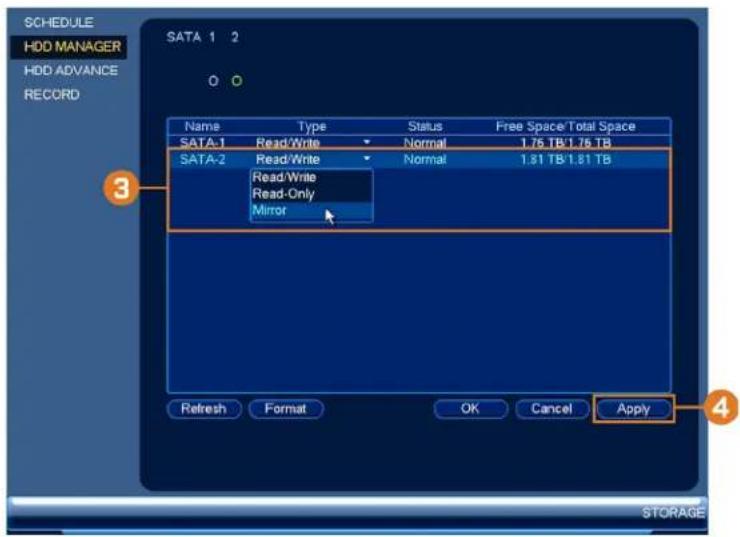
- Click the Type drop-down under the second hard drive and select Mirror.

CAUTION
Setting a hard drive for mirroring erases all data on the hard drive. This step cannot be undone.
-
Click Apply to apply changes. Click Yes to confirm. The system will format the hard drive and restart.
-
When the system restarts, right-click to open the Quick Menu, then click Main Menu. Click
then click STORAGE. Click the SCHEDULE tab on the side panel, then Re-top panel.

-
Under Channel, select the channel you would like to enable for mirror recording.
-
Check Mirror. Repeat the process for any additional channels.
- Click Apply to save changes.
16.4.18 Configuring Hard Drive Groups (Advanced)
Hard drive groups allow you to balance recordings across multiple hard drives. For example, you can record channels 1\~4 to one hard drive and 4\~8 to a second hard drive. This can reduce the amount of wear on the hard drives and may extend the life of the hard drives.

NOTE
Two hard drives must be installed in the system to use hard drive groups, and both hard drives must be formatted as Read-write hard drives. For details on installing hard drives, see 19 Replacing the Hard Drive, page 113.
To configure hard drive groups:
- From the Live View display, right-click to open the Quick Menu, then click Main Menu.

- Click 📄, then click STORAGE. Click the HDD ADVANCE tab on the side panel, then click the HDD Setting tab on the top panel.
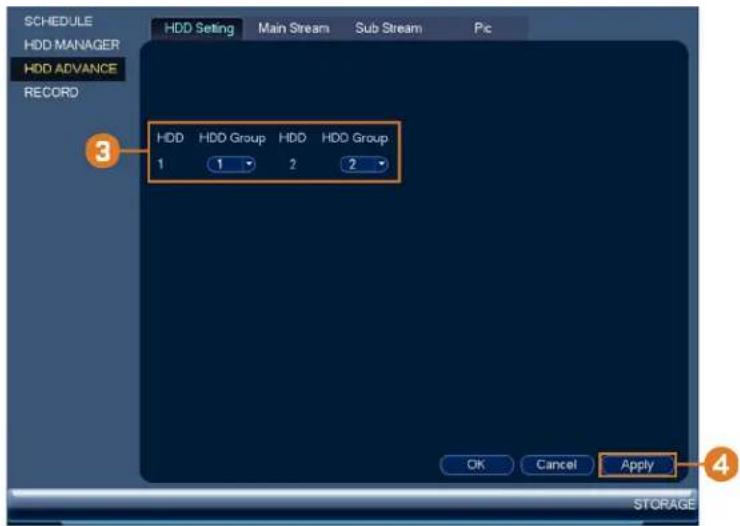
- Under HDD Group, assign a group to each hard drive. To set up two hard drive groups, assign one hard drive to group 1 and the other to group 2.
- Click Apply. The system will restart to apply changes.
- When the system restarts, right-click to open the Quick Menu, then click Main Menu.
- Click 📄, then click STORAGE. Click the HDD ADVANCE tab on the side panel, then click the Main Stream tab on the top panel.
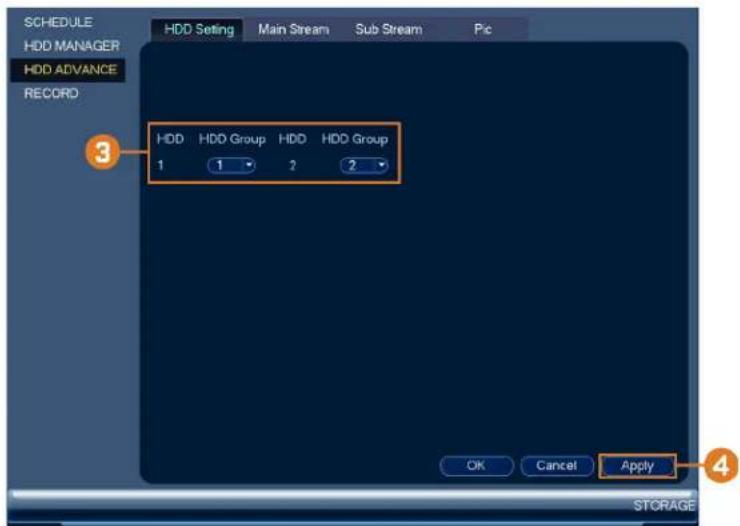
- For each channel, select the hard drive group you would like to record the main stream (high quality) video and then click Apply.
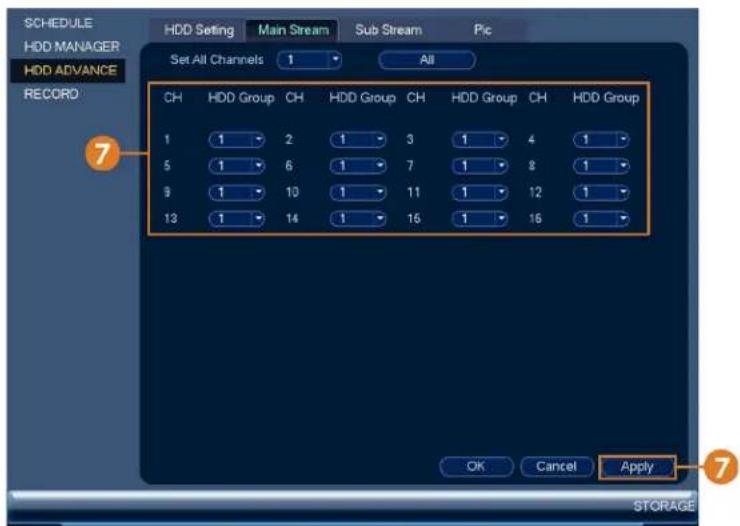
- Click the Sub Stream tab. For each channel, select the hard drive group you would like to record the sub stream (reduced quality) video and then click Apply.
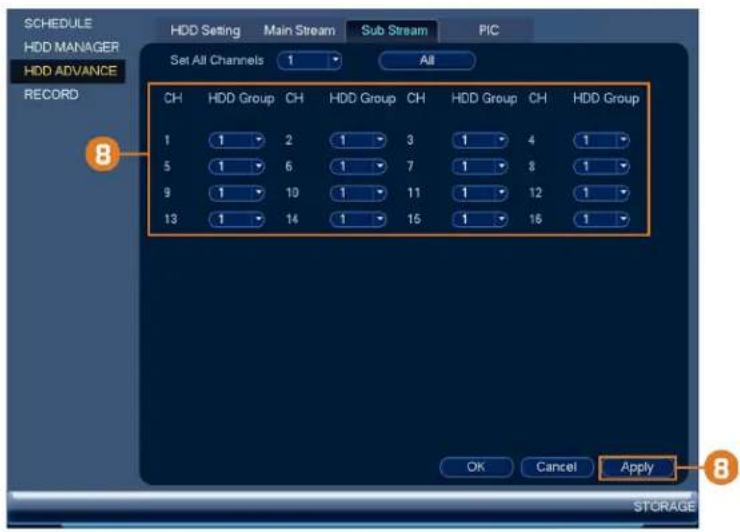
- Click the PIC tab. For each channel, select the hard drive group you would like to record snapshots and then click Apply.
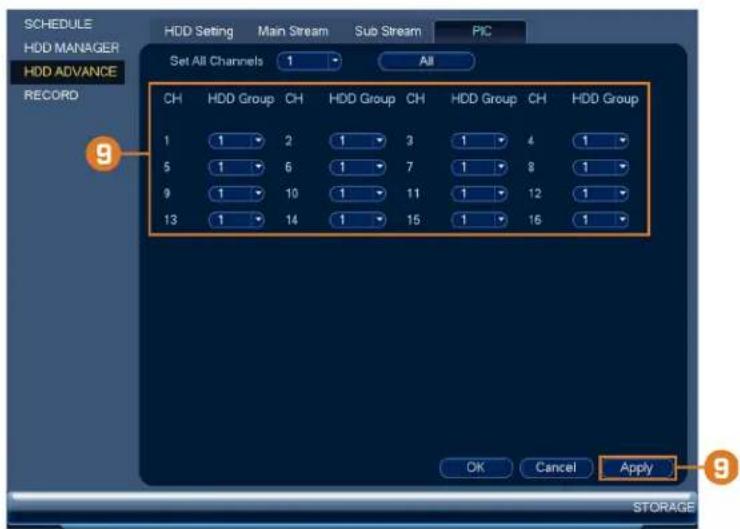
16.4.19 Configuring Holidays
You can set certain days as holidays. Holidays have a special recording schedule.
To configure holidays:
- From the Live View display, right-click to open the Quick Menu, then click Main Menu.
- Click 📄, then click SYSTEM. Click the GENERAL tab on the side panel, then click the Holiday tab on the top panel.
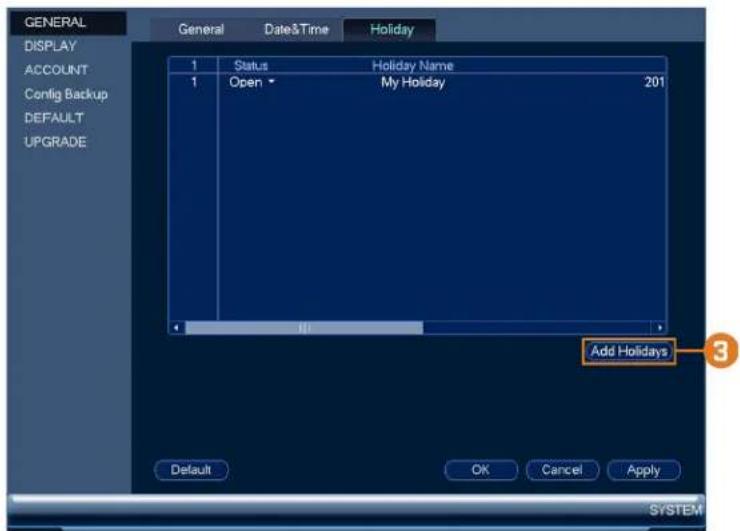
-
Click Add Holidays.
-
Configure the following:
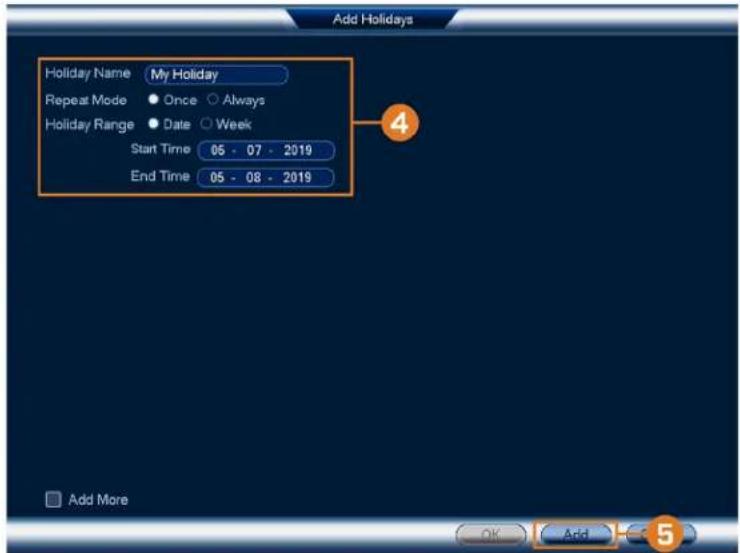
• Holiday Name: Enter a name for this holiday.
- Repeat Mode: Select Once for the holiday to occur only this year or Always for the holiday to be repeated each year.
- Holiday Range: Select Date to select a specific date, or select Week to select holidays based on which week they fall on.
- Click Add. Now that you have added a holiday, an extra holiday setting is added to the recording schedule.
| NOTE |
| You cannot delete holidays, but you can disable them by selecting Off under the Status drop-down, then click Apply. |
16.4.20 Configuring General System Settings
Configure miscellaneous system settings.
To configure general settings:
-
From the Live View display, right-click to open the Quick Menu, then click Main Menu.
-
Click 📄, then click SYSTEM. Click the GENERAL tab on the side panel, then click the General tab on the top panel.

- Configure the following:
• Device No.: Not supported.
• Language: Set the system languages. Available options are English, French, and Spanish.
• Video Standard: Select NTSC (North America) or PAL (Europe).
- HDD Full: Select Overwrite for the system to overwrite the oldest recordings when the hard drive is full or select Stop Record for the system to stop recording when the hard drive is full.
- Pack Duration: Set the length of time (in minutes) for video files saved to the hard drive. For example, if set to 30 minutes, the system will create a new video file for every 30 minutes of continuous recording.
- Instant Playback: Select the amount of time (in minutes) the system will go back when instant playback is activated in live view.
- Auto Logout: Select the idle time (in minutes) before the system will logout the current user.
- IPC Time Sync: Select how often (in hours) the NVR will update the time on the IP cameras.
- Navigation Bar: Check to enable the Navigation Bar that comes up when you left click in live view.
- Mouse Sensitivity: Use the slider to adjust the mouse speed.
- Click Apply to save changes.
16.4.21 Setting the Monitor Resolution (Display)
Configure the system's monitor resolution and other display settings.
To set the monitor resolution:
-
From the Live View display, right-click to open the Quick Menu, then click Main Menu.
-
Click 📄, then click SYSTEM. Click the DISPLAY tab on the side panel, then click the Display tab on the top panel.

- Under Resolution, select the correct resolution for your monitor.
- Click Apply to save changes. Click OK again to restart the system using the new resolution.
To configure other display settings:
-
From the Live View display, right-click to open the Quick Menu, then click Main Menu.
-
Click 📀, then click SYSTEM. Click the DISPLAY tab on the side panel, then click the Display tab on the top panel.

-
Configure the following:
-
Transparency: Select the menu transparency.
• Time Display: Check to show the time on the monitor. - Channel Display: Check to show the channel names on the monitor.
- Image Enhance: Check for the system to digitally improve the video quality on the live display. This setting does not affect recordings.
-
Original Scale: Set the system to show the true aspect ratio of the cameras on the live display. This may add black bars on the top and bottom of the image.
-
Click Apply to save changes.
16.4.22 Configuring Sequence Mode
Sequence mode cycles through connected channels to give you an overview of what is happening on all cameras. You can customize the order that channels appear in Sequence mode, as well as configure which viewing modes should be used.
To configure Sequence mode:
- From the Live View display, right-click to open the Quick Menu, then click Main Menu.
- Click 📄 then click SYSTEM. Click the DISPLAY tab on the side panel, then click the Sequence tab on the top panel.
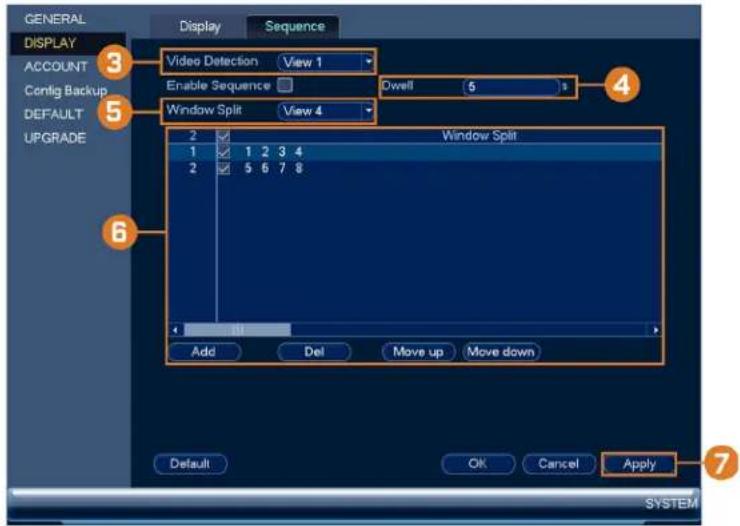
- Choose how many channels will appear on screen when Sequence mode is triggered by motion detection (you must check Sequence when configuring motion detection — see 12 Motion Detection, page 42 for details).
- Enter the amount of time in seconds that each channel or page will appear on screen during Sequence mode.
- Select a viewing mode to configure. It is recommended to start with View 1 and make your way to View 9. By default, all viewing modes are included in the Sequence mode cycle.
- Configure the order of channels shown on screen for each viewing mode. Uncheck channels / channel groups that you want to remove from the Sequence mode cycle.
- Click Apply.
16.4.23 Saving Your System Configuration to a USB Thumb Drive
The system allows you to save your current system configuration to a USB thumb drive (not included). This is useful if you want to backup your current settings.
| NOTE |
| This function only saves settings created in system menus. It does not save or backup any video. |
To save your system configuration to a USB thumb drive:
-
From the Live View display, right-click to open the Quick Menu, then click Main Menu.
-
Click X, then click SYSTEM. Click the Config Backup tab on the side panel.

- Under Device Model, select the USB device where you would like to save the configuration.
- Click EXPORT to save your current system configuration.
To restore a saved system configuration:
-
From the Live View display, right-click to open the Quick Menu, then click Main Menu.
-
Click 📧, then click SYSTEM. Click the Config Backup tab on the side panel.
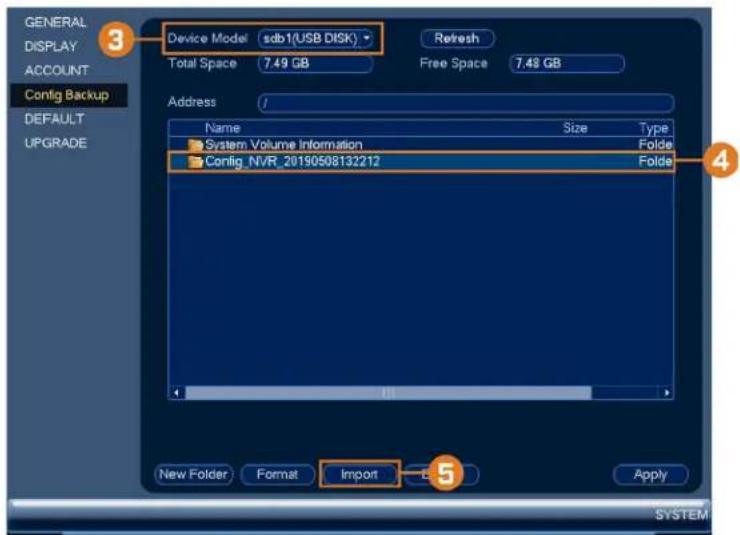
- Under Device Model, select the USB device where the system configuration is saved.
-
Click the folder with the configuration file you would like to restore. Configuration file folders are labeled "Config" and then the time and date the configuration was saved (e.g., Config_20140425103727).
-
Click Import to restore the system configuration.
-
Click OK to confirm. The system will restart to complete the operation.
16.4.24 Restore Default Settings
Restore the system to its default settings.
To restore default settings:
-
From the Live View display, right-click to open the Quick Menu, then click Main Menu.
-
Click X, then click SYSTEM. Click the DEFAULT tab on the side panel.
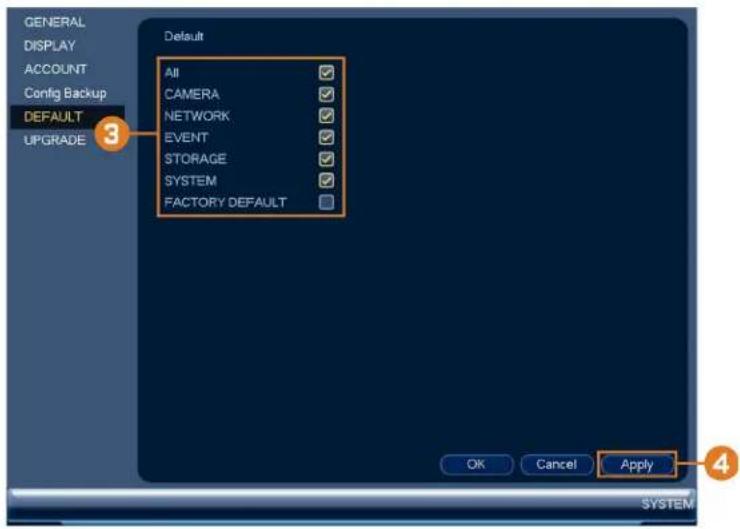
-
Check the menus you would like to reset to default settings.
-
Click OK.
16.4.25 Upgrading Firmware Manually
The primary method for upgrading system firmware is automatically over the Internet. The system also supports firmware upgrades from a USB thumb drive (not included).
Prerequisite:
- Save the .bin firmware file for your unit onto a USB flash drive (not included), and connect the drive to one of the system's free USB ports.
To upgrade firmware manually:
-
From the Live View display, right-click to open the Quick Menu, then click Main Menu.
-
Click 📧, then click SYSTEM. Click the UPGRADE tab on the side panel.

- Click Browse.
- Click on the .bin firmware file for your recorder.
- Click Start.
16.4.26 Automatic Firmware Upgrades
Firmware upgrades provide enhanced functionality. The system will automatically check for firmware upgrades if it is connected to the Internet.
To configure automatic firmware upgrade:
-
From the Live View display, right-click to open the Quick Menu, then click Main Menu.
-
Click 📧, then click SYSTEM. Click the UPGRADE tab on the side panel.

- Ensure Automatically Check for Updates is checked. If it was previously unchecked, click OK to save changes.
- Click Check for Updates to check for a newer firmware version.
- If a newer version is found, click Upgrade Now to upgrade the system.
16.5 Shutdown
Shut down, restart, or log out of the system.
To access the shutdown menu:
-
From the Live View display, right-click to open the Quick Menu, then click Main Menu.
-
Click 📄, then click SHUTDOWN.
-
Select one of the following:
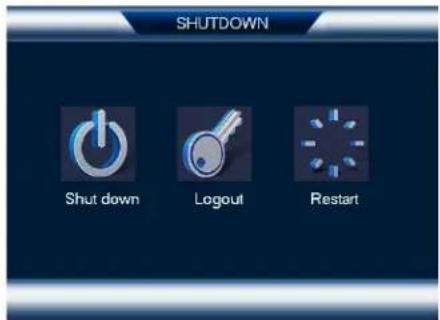
- Logout: Log out the account that is currently active.
- Shutdown: Power off the system.
- Restart: Power off the system, then restart.
Pan/Tilt/Zoom (PTZ) Cameras17
Pan/Tilt/Zoom (PTZ) cameras are specialty cameras that move according to commands given by the recorder. You can move PTZ cameras manually using the recorder's on-screen display, or create preset locations and patterns for the camera to follow automatically.
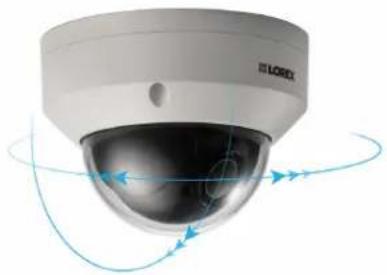
natural_image
Exterior view of a LOREX security camera with visible dials and control arrows (no text or symbols)17.1 Connecting PTZ Cameras to the Recorder
Lorex HD PTZ cameras connect to your recorder just like any other camera with no need to run special wiring — these cameras can accept PTZ commands directly through the Ethernet cable.

CAUTION
When the PTZ camera powers on, it will perform an initial diagnostics check. The camera will move around during this process, so ensure the camera module is not resting against another object or surface.
To connect Lorex PTZ cameras:
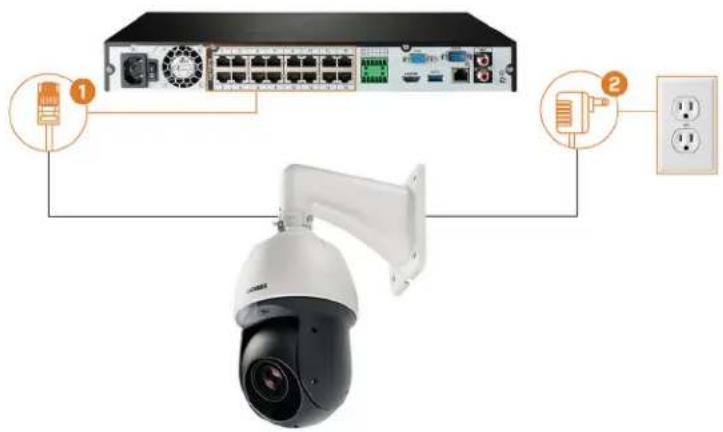
- Connect the Ethernet cable to one of the video inputs on the recorder.
- (OPTIONAL) Connect the PTZ camera's power adapter to a power outlet.

CAUTION
Most PTZ cameras have a higher power requirement than fixed cameras. If you are planning to connect more than one PTZ camera to the system, check the power requirement in your PTZ camera's documentation to ensure you remain within the total PoE power output of the recorder (80W). Connecting the included power adapter to your PTZ camera as shown above will force it to draw power from the wall outlet rather than the recorder's PoE switch.
17.2 Basic PTZ Controls
Controlling PTZ cameras.
| NOTE |
| Ensure you have completed initial setup of your PTZ camera in order to control the camera using the recorder. Se 17.1 Connecting PTZ Cameras to the Recorder for more details. |
To access the PTZ controls:
- Open the Live View screen for your PTZ camera in single-channel view (fullscreen). Right-click to open the Quick Menu, then click Pan/Tilt/Zoom.
• Right-click again to close PTZ controls.
To use the PTZ controls:

- Navigation Controls: Click the directional arrows to move the PTZ camera manually.
- Zoom-to-Area: Click, then click-and-drag to draw a box on the camera image. The PTZ camera will zoom in to the selected area.
- Mouse Tracking: Click to enable/disable mouse tracking. When enabled, click-and-drag in the direction you would like the PTZ camera to move. The camera will follow the path of the mouse cursor.
4. PTZ Settings:
- Speed: The speed of PTZ camera movement. A higher value means the camera will move faster.
- Zoom: Optical zoom level. Click + to zoom in, and - to zoom out.
- Focus: Manually control focus level. Click + to focus on objects further from the camera, or - to focus on objects closer to the camera.
-
Iris: Controls the amount of light coming through the lens. Click + to allow more light, or - for less.
-
Advanced: Expand to show advanced options. For a full overview, see 17.3 Advanced PTZ Controls, page 107.
17.3 Advanced PTZ Controls
Using advanced options for PTZ cameras, including presets, tours, patterns, etc.
| NOTE |
| Ensure you have completed initial setup of your PTZ camera in order to control the camera using the recorder. Se 17.1 Connecting PTZ Cameras to the Recorder for more details. |
To access the advanced PTZ controls:
- Open the Live View screen for your PTZ camera in single-channel view (fullscreen). Right-click to open the Quick Menu, then click Pan/Tilt/Zoom.
- Click the arrow on the far-right side of the PTZ control panel to access advanced options.
• Right-click again to close PTZ controls.
To use advanced PTZ controls:

NOTE
Depending on your PTZ camera model, some of the features in the advanced menu may not be supported. Refer to your camera documentation to confirm which features are supported by your camera.

- No.: Enter the ID number for a preset, tour, or pattern you want to activate.
- Preset: Move the camera to the preset number specified in the No. field. For instructions on setting up preset locations, see 17.4 Presets, page 108.
- AutoPan: Set the camera to rotate 180° back and forth.
- Tour: Perform the tour number specified in the No. field. For instructions on creating a tour, see 17.5 Tours, page 109.
- Flip: Rotate the camera 180° from its current position.
- Pattern: Perform the pattern number specified in the No. field. For instructions on creating a pattern, see 17.6 Patterns, page 109.
- Reset: Move the camera to the home position.
- AutoScan: Move the camera between a predetermined left and right point. For instructions on creating an autoscan, see 17.7 AutoScan, page 109.
- Configuration: Click to open the configuration menu, where you can configure presets, tours, patterns and autoscans.
- OSD Menu: Click to open the camera's OSD menu. This may not be supported on all camera models.
- Auxiliary Settings: Not supported.
17.4 Presets
Presets will save a camera position for quick retrieval.
To add preset locations:
- From the Live View display of your PTZ camera, right-click to open the Quick Menu, then click Pan/Tilt/Zoom.
- The PTZ controls open. Click to open advanced PTZ controls, then click
- Click the Preset tab.
- Enter the number of the preset you want to create under Preset.
- Move the camera to the desired position and click Set.
To go to a preset location:
- Under No., select the number of the preset you want to go to, then click

17.5 Tours
Tours will cycle through a set of presets.
To add tours:
-
From the Live View display of your PTZ camera, right-click to open the Quick Menu, then click Pan/Tilt/Zoom.
-
The PTZ controls open. Click to open advanced PTZ controls, then click
-
Click the Tour tab.
-
Under Patrol No., enter the number of the tour you want to create.
-
Under Preset, select a preset you want to add to the tour.
-
Click Add Preset.
-
Repeat steps 5 & 6 to add additional presets to the tour.
To run a tour:
- Under No., select the number of the tour you want to go to, then click
17.6 Patterns
Patterns automatically move the camera according to manually-entered movements.
To add patterns:
- From the Live View display of your PTZ camera, right-click to open the Quick Menu, then click Pan/Tilt/Zoom.
- The PTZ controls open. Click to open advanced PTZ controls, then click
- Click the Pattern tab.
- Under Pattern, enter the number of the pattern you want to create.
- Move the camera to the desired starting position, then click Start.
- Using the on-screen controls, move the camera in any pattern you wish. When finished, click End.
To run a pattern:
- Under No., select the number of the pattern you want to go to, then click

17.7 AutoScan
An autoscan automatically cycles between a left and right point.
To configure autoscan:
- From the Live View display of your PTZ camera, right-click to open the Quick Menu, then click Pan/Tilt/Zoom.
- The PTZ controls open. Click ▶ to open advanced PTZ controls, then click
- Click the Border tab.
- Move the camera into the desired left position and click Left.
- Move the camera into the desired right position and click Right.
To run autoscan:
- Click

Connecting Audio Devices18
The system supports Lorex HD audio cameras, which transmit audio through the same network cable used for video connection and powering the camera. The system can also record one audio channel using the AUDIO IN port on the rear panel. You must have a self-powered microphone or an audio camera with an RCA-type audio connection to use this port.
| NOTE |
| Use of an external microphone allows you to record audio on Channel 1 of the system. It cannot be moved to a different channel. |
The second RCA-type connector on the back panel is the AUDIO OUT port, which can be used to connect a self-powered speaker that will play audio from the system (requires audio-capable camera or self-power microphone).
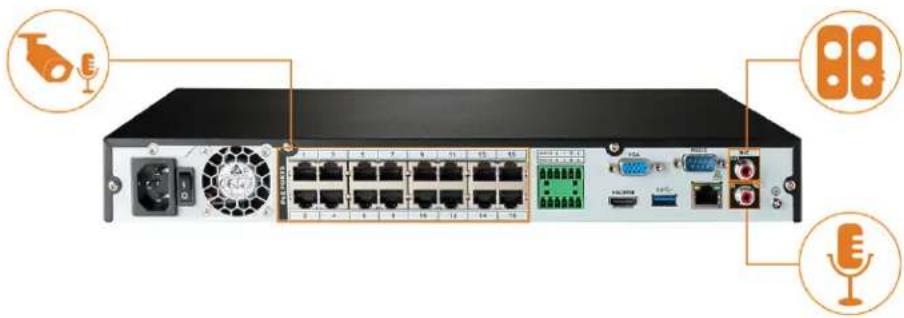
natural_image
Front view of a network switch device with ports, connectors, and external components (no visible text or labels)To enable audio recording:
| CAUTION |
| Audio recording and / or use of listen-in audio without consent is illegal in certain jurisdictions. Lorex Corporation assumes no liability for use of its products that does not conform with local laws. |
-
From the Live View display, right-click to open the Quick Menu, then click Main Menu.
-
Click 📄, then click RECORDING. Click the Recording tab on the top panel.
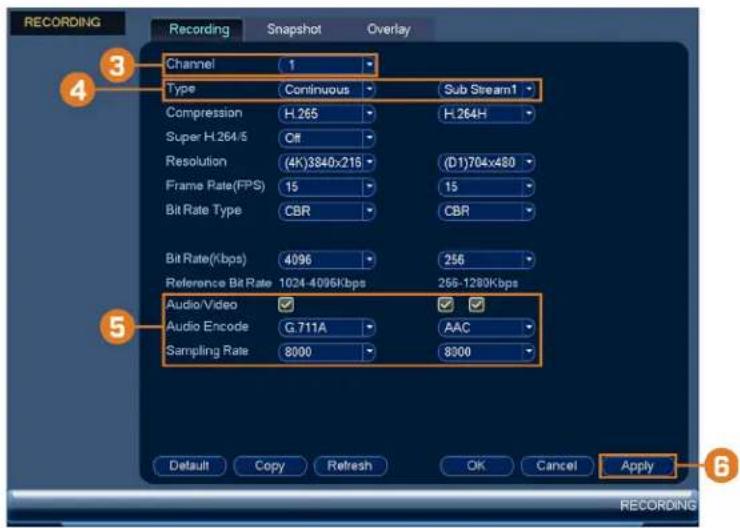
-
Select the channel where the audio camera is connected.
-
Select the type of recording to enable audio for. If you wish to record audio at all times, ensure you configure both Continuous and MD (Motion Detection) recording.
-
Configure the following:
• Audio/Video: Ensure all boxes are checked.
• Audio Encode: Select an audio codec (G711a or AAC recommended).

CAUTION
In order to use voice commands with your security system, you must choose AAC encoding for the SubStream. For more details on using voice commands with your security system, see, page.
- Sampling Rate: Select an audio sampling rate (8000 recommended).
- Click Apply.
Replacing the Hard Drive19
The system comes with a pre-installed 3.5" SATA hard drive. You can replace the hard drive with one up to a maximum size of 10TB, and add a second drive if you choose to.
19.1 Removing the Hard Drive

CAUTION
Make sure that the system is OFF and the power adapter is disconnected before removing/installing a hard drive.
To remove the hard drive:
- Power off the system, and unplug all cabling from the system.
- Remove the back panel screws (4×). Remove the cover by sliding it backwards.

natural_image
Front view of a network equipment rack with ports, switches, and connectors (no visible text or labels)- Turn the recorder over carefully. Remove the 2 hard drive screws closest to the edge of the recorder. Loosen the remaining 2 hard drive screws, but do not remove them.

natural_image
Close-up of a hand holding a black rectangular electronic device with perforated panel and screw holes (no visible text or symbols)- Remove the power and SATA cables from the hard drive.
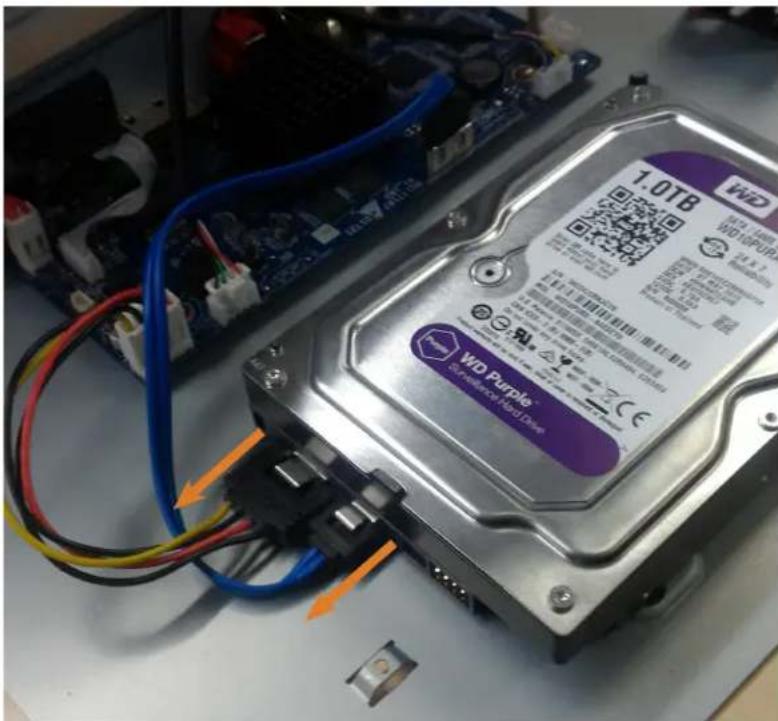
natural_image
Close-up of a WID Purple hard drive with visible circuit board and wiring (no readable text beyond branding)-
Slide the hard drive out of the recorder.
-
If you are not immediately going to install a new hard drive, replace the top panel and the 4 back panel screws.
19.2 Installing a New Hard Drive

CAUTION
Make sure that the system is OFF and the power adapter is disconnected before removing/installing a hard drive.
To install a new hard drive:
- Insert the 2 hard drive screws closest to the SATA and power ports on the hard drive and tighten them half way.
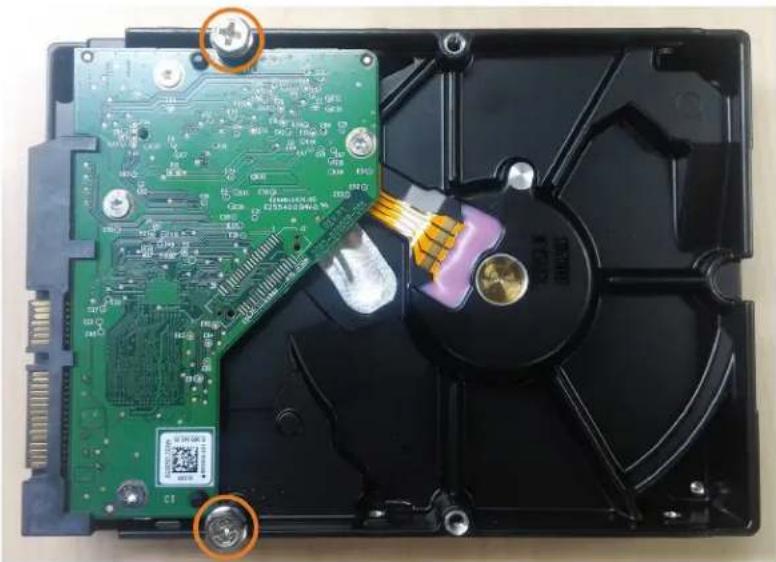
natural_image
Internal view of a hard disk drive showing internal components like CPU socket, GPIO socket, and drive casing (no text or symbols visible)-
Power off the system, and unplug all cabling from the system.
-
Remove the back panel screws (4×). Remove the cover by sliding it backwards.

natural_image
Front view of a network switch device showing ports, connectors, and ventilation slots (no readable text or symbols)- Insert the hard drive so the 2 pre-inserted screws line up with the holes in the bottom panel as shown below. Slide the hard drive in place. Insert the remaining 2 hard drive screws, and tighten all 4 screws tightly.
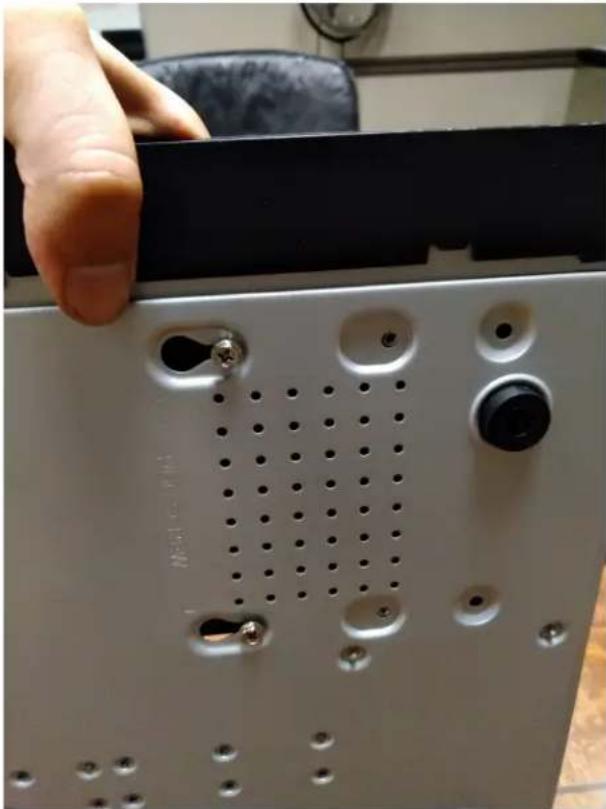
natural_image
Close-up of a hand adjusting a white electronic device panel with perforated and bolt holes (no visible text or symbols)- Connect the power and SATA cables to the hard drive.
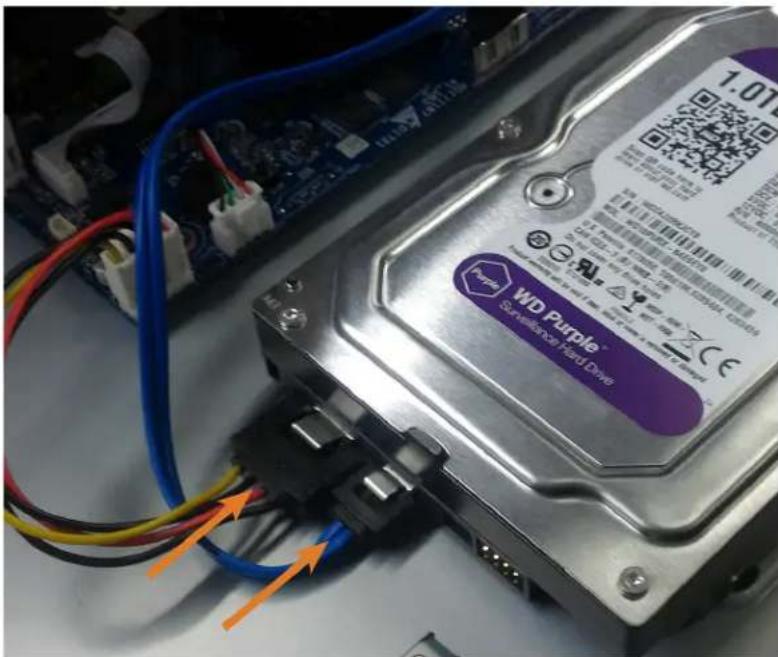
- Replace the top panel and the 4 back panel screws.
DDNS Setup (Advanced)20
Setting up DDNS connectivity allows you to view your recorder from any computer or compatible mobile device with Internet access.

NOTE
The primary connectivity option for the recorder uses the Lorex Home app to connect to your system over the Internet without the need for port forwarding or DDNS registration.
- For instructions on using the Lorex Home app for mobile devices, see , page .
20.1 STEP 1: Port Forwarding
If you are using DDNS, you must port forward the HTTP and Client Ports (default: 80 and 35000) on your router to your recorder's IP address before you can remotely connect to your system:
- Manually port forward the required ports on your router to your recorder's IP address by following your router manufacturer's instructions. For more information on port forwarding, see the reference guides on lorex.com.
20.2 STEP 2: Create a Lorex Account

- Visit lorex.com and click Login at the top of the page.
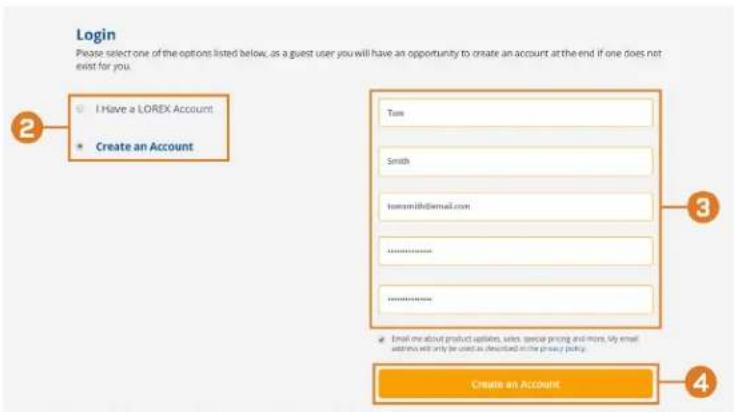
- Select Create an Account.

NOTE
If you have already set up an account, select I Have a LOREX Account and log in. Proceed directly to , page
- Enter basic information for account setup.
- Click Create an Account.
20.3 STEP 3: Activate Your Warranty
Activate the manufacturer's warranty on your recorder.
To activate your product warranty:

- From your Lorex account, click the WARRANTIES tab.
- Click Activate Warranty.
- Enter your product information (attaching bill of sale optional).
- Click Save Warranty.
Once submitted, your warranty information will be summarized under My Warranties.
20.4 STEP 4: Sign Up for a DDNS Account
Activate the manufacturer's warranty on your recorder.
To sign up for a DDNS account:

- From your Lorex account, click the DDNS tab.
- Click Set up a New DDNS.
- Select your recorder warranty from the dropdown next to Warranty. Enter the rest of your product information.

NOTE
- The Device Name can be any name of your choice (for example, "Store Security System").
-
You can find your recorder's MAC Address in the system information window on the recorder. From the
Live View display, right-click and click Info, or click on the Navigation Bar. -
Click Add Device.
Once submitted, your DDNS account information will be summarized under My DDNS Devices. Make a note of your DDNS URL, Username and Password, as they will be needed to complete DDNS setup.
20.5 STEP 5: Enable DDNS on the Recorder
Enter your DDNS information into the menu of your recorder. You can find the information referenced below on your My Lorex account, or on the confirmation email sent to you after registering for DDNS service.
To configure DDNS in the recorder:
-
From the Live View display, right-click to open the Quick Menu, then click Main Menu.
-
Click 📧 then click NETWORK. Click the DDNS tab on the side panel.

-
Check to enable DDNS connectivity.
-
Configure the following:
• DDNS Type: Select Lorex DDNS.
- Domain Name: Enter the first part of the DDNS domain that you requested during setup.
- User ID: Enter the username provided in the DDNS confirmation email.
- Password: Enter the password provided in the DDNS confirmation email.
5. Click Apply.
You will now be able to access your system remotely using DDNS. Enter the full domain name into a web browser (e.g., http://www.tomsmithsecurity.lorexddns.net) and login using the provided credentials.
| NOTE |
| If your system uses an HTTP port other than 80, you will need to add a colon to the end of your DDNS domain name and enter the port number (e.g., http://www.lomsmithsecurity.lorexddns.net:81) |
Troubleshooting21
When a malfunction occurs, it may not be serious and can be corrected easily. The following describes the most common problems and solutions. Please refer to the following before calling Lorex technical support:
| Error Possible Causes Solutions | ||
| • System is not receiving power, or is not powering up. | • Cable from power adapter is loose or is unplugged. | • Confirm that all cables are connected correctly.• Confirm that the power adapter is securely connected to the back of the unit. |
| • Cables are connected, but system is not receiving sufficient power. | • Confirm that the system is powered on (LED indicators on the front should be ON).• If the unit is connected through a power bar or surge protector, try bypassing the bar and connecting the power directly to the wall outlet.• Confirm that there is power at the outlet:• Connect the power cable to another outlet.• Test the outlet with another device (such as a lamp or phone charger). | |
| • Hard drive is not detected by the system. | • Hard drive cables are loose or not properly connected. | • Remove the housing and check that hard drive cables are firmly connected. |
| • There is no hard drive in the system. | • Open the housing and install compatible hard drive. Make sure to format the drive after installing. For details, see 19 Re-placing the Hard Drive, page 113. | |
| • Hard drive is full (0%) and the unit is no longer recording. | • Overwrite is not enabled. • See 9.5 | Configuring Hard Drive Overwrite, page 27 for full instructions on enabling hard drive overwrite. |
| • There is no picture on monitor/TV after connecting it to the system. | • Monitor/TV not detected by system. | • Power off the monitor/TV and system. Power on the monitor/TV, and then power on the system. |
| • Input channel for system not selected on monitor/TV. | • On the monitor/TV, select the input channel the system is connected to. | |
| • Video cable is loose or has become disconnected. | • Check the video cable connection to the system and monitor/TV. | |
| Camera is not compatible with the recorder. | Visit lorex.com/compatibility and navigate to N881 Series for a list of all compatible cameras. | |
| • Mouse not detected by system. • Mouse cable is not firmly connected to the system.Mouse is not connected to the system. | • Firmly connect the mouse cable to one of the USB ports. | |
| • System needs to be reset • Power off the system (disconnect power cable). Firmly connect a USB mouse to one of the USB ports. Reconnect the power cable to the DC 12V port on the rear panel. | ||
| • There is no picture on selected channels / camera picture is not being displayed. | • Camera cables are loose or have become disconnected. | • Check the camera video cable and connections.• Disconnect and reconnect the cable at the system and at the camera.• Try moving the camera to another channel or use another cable. |
| Camera is not compatible with the recorder. | Visit lorex.com/compatibility and navigate to N881 Series for a list of all compatible cameras. | |
| Power output of the recorder's PoE switch is being exceeded. | If you have multiple PTZ cameras connected to the recorder's PoE ports, the camera power requirement may surpass the recorder's power output. Lorex PTZ cameras come with a power adapter, which you can use to power the camera instead of the recorder's PoE ports.See 17 Pan/Tilt/Zoom (PTZ) Cameras, page 106 for full instructions. | |
| • The system beeps at startup. • The beep at startup is normal. | ||
| • The system beeps during motion detection. | • Motion detection is enabled and the alarm buzzer is activated. | • See 12 Motion Detection, page 42 for instructions on configuring motion detection options.Uncheck the Buzzer option in the motion detection configuration screen. |
| • I am not receiving email notifications. | • Email notification is disabled. • Ensure you have configured email notification. For details, see 16.4.4 Configuring Email Alerts, page 78. | |
| • Send Email setting not enabled in Event menu. | • Make sure that Send Email is checked for any events you want to be notified of. | |
Technical Specifications22
22.1 General
| Video Transmission Technology |
| Channels |
22.2 Inputs/Outputs
| Video Input |
| Video Outputs ^1 |
| Audio Input |
| Audio Output |
| Alarm Input |
| Alarm Output |
22.3 Display
| Display Output Resolution |
| Live Display |
| Live Display Speed (Max) |
| OSD |
| System Navigation |
22.4 Recording
| Recording Resolution |
| Recording Frame Rate |
| Recording Scheduling |
| Back-up File Format |
| Video Compression |
22.5 Playback
| Simultaneous Playback |
| Playback Speed |
| Search |
22.6 Storage
| Hard Drive Bays |
| Hard Drive Capacity |
| Backup Media |
| Storage Mirroring |
22.7 Special Features
| Smart Motion Detection |
22.8 Smart Home
| Amazon Alexa |
| Google Assistant |
| Streaming Options |
22.9 Connectivity
| Mobile Viewing ^3 | Android, |
| Compatible App Lorex Clo | |
| PC/MAC Remote Viewing | Yes/Lore: |
| Email Notification Text and | |
| Network Interface | 10/100 B |
| Network Bit Rate | 320Mbps |
| DDNS Yes (Opti | |
| USB Interface USB 2.0 × |
22.10 Additional Specifications
| FW Upgrade |
| Watchdog Function |
| Power Consumption |
| Supply Voltage |
| Total PoE Power Output |
| Unit Dimensions (W × D × II) |
| Unit Weight |
| Operating Temperature |
| Humidity |
Disclaimers:
- HDMI output supports 4K HD for high definition multi-channel live or recorded video viewing. Image quality and resolution is dependent on the type of camera connected to the NVR, as well as TV/monitor resolution.
- Compatible with certain Lorex IP cameras only. For a list of compatible cameras please visit lorex.com/compatibility
- Both firmware and software must be updated to latest version to ensure remote connectivity.
Notices23
This product has been certified and found to comply with the limits regulated by FCC, EMC, and LVD. Therefore, it is designated to provide reasonable protection against interference and will not cause interference with other appliance usage. However, it is imperative that the user follows the guidelines in this manual to avoid improper usage, which may result in damage to the product, electrical shock and fire hazard injury.
23.1 FCC/IC
This equipment has been tested and found to comply with the limits for a digital device, pursuant to Part 15 of the FCC Rules. These limits are designed to provide reasonable protection against harmful interference in a residential or commercial installation. This equipment generates, uses, and can radiate radio frequency energy and, if not installed and used in accordance with the instruction manual, may cause harmful interference to radio communications.
23.2 CE
This product and the supplied accessories are marked with “CE” and comply with the applicable harmonized European standards listed under Low Voltage Directive 2006/95/EC and the EMC Directive 2004/108/EC.
23.3 Modification
Any changes or modifications not expressly approved by the grantee of this device could void the user's authority to operate the device.
This product is fully compliant with the European Union Restriction of the Use of Certain Hazardous Substances in Electrical and Electronic Equipment ("RoHS") Directive (2002/95/EC). The RoHS directive prohibits the sale of electronic equipment containing certain hazardous substances such as lead, cadmium, mercury, and hexavalent chromium, PBB, and PBDE in the European Union.
23.5 ICES-003
This device meets the CAN ICES-3 (A) / NMB-3 (A) standards requirements.
Website
www.lorextechnology.com
Copyright
© 2019, Lorex Corporation
All rights reserved worldwide. Names and marks appearing herein are either registered trademarks or trademarks of Lorex Corporation and/or its subsidiaries. All other trademarks, trade names or company names referenced herein are used for identification only and are the property of their respective owners.
Legal disclaimer
As our product is subject to continuous improvement, Lorex Corporation & subsidiaries reserve the right to modify product design, specifications & prices without notice and without incurring any obligation.E&OE.
- User Manual N881 Series
- WARNING
- Table of contents
- Important Safeguards .... 1
- Package Contents....4
- Recorder Overview 5
- Basic System Setup....7
- Camera Installation....13
- Using the Mouse ....15
- Setting the Date & Time ....16
- Using the On-Screen Display....18
- Recording....23
- Playback....28
- Backup....35
- Important Safeguards1
- General Precautions
- CAUTION
- Installation
- Service
- Use
- Package Contents2
- Recorder Overview3
- LED Indicators:
- Back Panel
- Basic System Setup4
- STEP 1: Connect cameras
- NOTE
- Option 1: Direct Connection to NVR
- Option 2: Connect Cameras to Local Network
- STEP 2: Connect router
- STEP 3: Connect mouse
- STEP 4: Connect monitor
- OR
- STEP 5: Connect power
- STEP 6: Upgrade Firmware to Latest Version (If Available)
- If a firmware upgrade is available:
- Quick Access to System Information
- To quickly open a window that displays important system information:
- Connecting Cameras to the Local Area Network (LAN)
- Step 2 of 2: Add the cameras to your NVR:
- Delete
- Camera Installation
- Installation Tips
- Installing Cameras
- Connecting Camera Extension Cables
- Using the Mouse6
- Left-button:
- Right-button:
- Setting the Date & Time
- To set the date and time:
- Using the On-Screen Display
- Navigation Bar
- To show the Navigation Bar:
- Quick Menu
- Camera Toolbar
- To use the Camera Toolbar:
- On-Screen Keyboards
- To use the Full Keyboard:
- To use the Number Keyboard:
- Camera Image Settings
- To adjust image settings:
- Recording9
- Video Recording Types
- Configuring Recording Quality
- To configure recording quality:
- Setting the Recording Schedule
- To configure the recording schedule:
- Click Apply.
- Setting up Scheduled or Manual Recording
- To set options for manual recording:
- Configuring Hard Drive Overwrite
- To configure hard drive overwrite:
- Playback
- Playing Back Video from the Hard Drive
- To play back recorded video:
- Playback Controls
- Viewing Modes:
- Playback Controls:
- Area Search
- To perform an area search:
- Video Clip Backup
- To use video clip backup:
- Playing Back Video from a USB Drive
- To play back video from a USB flash drive:
- Backup
- Formatting the USB Flash Drive
- Prerequisite:
- To format a USB flash drive:
- Backing Up Video
- To back up video:
- Using Video Clip Backup
- Viewing Backed Up Files
- Viewing Backed Up Files on PC
- Viewing Backed Up Files on Mac
- Lorex Player Controls
- Hide/Show File List
- Playback Controls:
- Zoom Timeline
- Motion Detection12
- Status Icons
- Configuring Motion Detection
- To configure motion detection:
- Active Deterrence13
- Automatic Deterrence Settings
- To configure deterrence settings:
- Manually Activate Deterrence Features
- To activate deterrence features on a single camera:
- To activate deterrence features on all connected cameras:
- Smart Motion Detection14
- Ensuring Accurate Person & Vehicle Detection
- Configuring Person & Vehicle Detection
- To configure person and/or vehicle detection:
- Searching for Person & Vehicle Detection Events (Smart Search)
- To perform a Smart Search:
- Click Smart Search.
- Managing Passwords and User Accounts
- User Accounts
- The system includes the following default accounts:
- Changing Passwords
- To change an account password:
- Adding Users
- To add a user:
- Click Add User.
- Configure the following:
- Click OK.
- Modifying Users
- To modify a user:
- Deleting Users
- To remove a user:
- Account Groups
- The system includes the following groups by default:
- Adding Groups
- To add a group:
- Click Add Group.
- Modifying Groups
- To modify a group:
- Deleting Groups
- To delete a group:
- Using the Main Menu16
- To open the main menu:
- Main Menu Overview
- Camera Menu
- Viewing Camera Status
- To view camera status:
- Camera Firmware Versions
- To view camera firmware versions:
- Click
- Upgrading Camera Firmware
- To upgrade the camera firmware:
- PoE Manager
- To view camera PoE status:
- Configuring Snapshot Recording Settings
- To configure snapshot recording settings:
- Configuring Video Overlay Settings
- To configure video overlay settings:
- Creating Custom Channel Names
- To create custom channel names:
- Information Menu
- Hard Drive Information
- To access the HDD Info menu:
- Recording Information
- To access the Record Info menu:
- Fan and CPU Status
- Version Information
- To access the Version Info menu:
- Event Information
- The following alarms are shown in the Alarm Status menu:
- To access the event information menu:
- Online Users
- To access the online users menu:
- Network Load
- To access the network load menu:
- Network Test
- To access the network test menu:
- BPS
- To access the BPS menu:
- System Log
- To access the log menu:
- Settings Menu
- Selecting DHCP or Static IP Address (TCP/IP)
- To configure IP address settings:
- Configuring System Ports (Connection)
- To configure system ports:
- Configuring IP Filter
- Configuring Email Alerts
- To configure Email Alerts:
- If you want to use Lorex's email server (recommended):
- Configure the following:
- FTP (Advanced)
- To configure FTP settings:
- Configuring Switch Settings (Advanced)
- To configure switch settings:
- P2P Setting
- To change P2P setting:
- Configuring Video Loss Settings
- To configure video loss settings:
- Configuring Hard Drive Warnings
- To configure hard drive warnings:
- Configuring Network Warnings
- To configure network warnings:
- Configuring Fan Warnings
- To configure fan warnings:
- Configuring Alarm Input Devices
- To connect alarm devices:
- To configure alarm input devices (not included):
- Controlling Alarm Output Devices
- To configure alarm output devices (not included):
- To control alarm output devices:
- Configuring Pre-Recording
- To configure pre-recording:
- Formatting the Hard Drive
- To format the hard drive:
- Configuring Hard Drive Type
- To set the hard drive type:
- Setting up Hard Drive Mirroring (Advanced)
- How hard drive mirroring works:
- To set up hard drive mirroring:
- Configuring Hard Drive Groups (Advanced)
- To configure hard drive groups:
- Configuring Holidays
- To configure holidays:
- Configuring General System Settings
- To configure general settings:
- Setting the Monitor Resolution (Display)
- To set the monitor resolution:
- To configure other display settings:
- Configuring Sequence Mode
- To configure Sequence mode:
- Saving Your System Configuration to a USB Thumb Drive
- To save your system configuration to a USB thumb drive:
- To restore a saved system configuration:
- Restore Default Settings
- To restore default settings:
- Upgrading Firmware Manually
- To upgrade firmware manually:
- Automatic Firmware Upgrades
- To configure automatic firmware upgrade:
- Shutdown
- To access the shutdown menu:
- Pan/Tilt/Zoom (PTZ) Cameras17
- Connecting PTZ Cameras to the Recorder
- Basic PTZ Controls
- To access the PTZ controls:
- PTZ Settings:
- Advanced PTZ Controls
- To access the advanced PTZ controls:
- To use advanced PTZ controls:
- Presets
- To add preset locations:
- To go to a preset location:
- Tours
- To add tours:
- To run a tour:
- Patterns
- To add patterns:
- To run a pattern:
- AutoScan
- To configure autoscan:
- Connecting Audio Devices18
- To enable audio recording:
- Replacing the Hard Drive19
- Removing the Hard Drive
- To remove the hard drive:
- Installing a New Hard Drive
- To install a new hard drive:
- DDNS Setup (Advanced)20
- STEP 1: Port Forwarding
- STEP 3: Activate Your Warranty
- STEP 4: Sign Up for a DDNS Account
- STEP 5: Enable DDNS on the Recorder
- To configure DDNS in the recorder:
- Troubleshooting21
- Technical Specifications22
- Disclaimers:
- Notices23
- FCC/IC
- CE
- Modification
- ICES-003
- Website
- Copyright
- Legal disclaimer
Brand : Lorex
Model : NK263-88ABE
Category : Security Camera