HDSTB100 - Decoder Palsonic - Free user manual and instructions
Find the device manual for free HDSTB100 Palsonic in PDF.


| Type | Digital Set-Top Box (DTV Receiver) |
| Model | HDSTB100 |
| Dimensions (W x H x D) | 350 x 50 x 280 mm |
| Weight | 3.5 kg |
| Power Supply | AC 240V, 50Hz |
| Power Consumption | 30 W |
| Operating Temperature | 0 to 40°C |
| Humidity | 0 to 99% non condensing |
| Video Outputs | Component (YPbPr), RGB (15-pin D-sub), S-Video, Composite (RCA), SCART (via adapter) |
| Audio Outputs | Optical, Coaxial (digital), Analog stereo RCA |
| Display Formats | 1080i, 720p, 576p, 576i (selectable via switch) |
| Analog Audio Modes | Stereo, Mono, Alternate languages |
| Digital Audio | Dolby Digital 5.1, PCM |
| Tuner | Terrestrial DTV (PAL, DVB-T) |
| Channel Coverage | VHF/UHF channels 6-69 |
| Search Methods | Quick, Auto, Manual |
| Remote Control Range | Approx. 5 m, 30° angle |
| Parental Control | Rating control (G, PG, M, MA, AV, R), password-protected |
| Time Zone Setting | NSW/ACT, VIC, QLD, SA, WAT, TAS, NT |
| PIP (Picture-in-Picture) | Yes (with PIP/VCR toggle) |
| Teletext | Supported (pages 100, 801 for captions) |
| EPG | Electronic Program Guide (via DSP button) |
| Cleaning | Unplug before cleaning; use dry cloth only |
| Safety | Do not remove cover; no user-serviceable parts; keep away from water and heat |
Frequently Asked Questions - HDSTB100 Palsonic
User questions about HDSTB100 Palsonic
0 question about this device. Answer the ones you know or ask your own.
Ask a new question about this device
Download the instructions for your Decoder in PDF format for free! Find your manual HDSTB100 - Palsonic and take your electronic device back in hand. On this page are published all the documents necessary for the use of your device. HDSTB100 by Palsonic.
USER MANUAL HDSTB100 Palsonic
WATERLOO NSW 2017 AUSTRALIA
TEL: (02) 9313 7111
FAX: (02) 9313 7555
www.palsonic.com.au
PALSONIC CUSTOMER SERVICE
TELEPHONE
AUSTRALIA: 1300 657 888
Table of Contents
Set-up and Quick Use Guide .... 1
Chapter1: Safety Instructions ...... 2
Chapter 2: Introduction ...... 3
Front and rear view of the STB 3
Remote control functional key list 4
Menu overview....7
Chapter 3: Getting Started....8
Connection....8
Chapter 4: Operation....13
Program Search.... 13
Channel and Program Selection.... 14
Channel Banner.... 15
Audio setup/Default setting.... 16
LOCK Settings.... 17
Time Zone Selection.... 18
Chapter 5: Appendix.... 19
DTV channel Table.... 19
Troubleshooting.... 20
Specifications.... 21
Step 1: Connect AC Power Cord
Plug the AC power cord into the AC outlet. Do not turn on any devices until you have finished making all necessary connections.
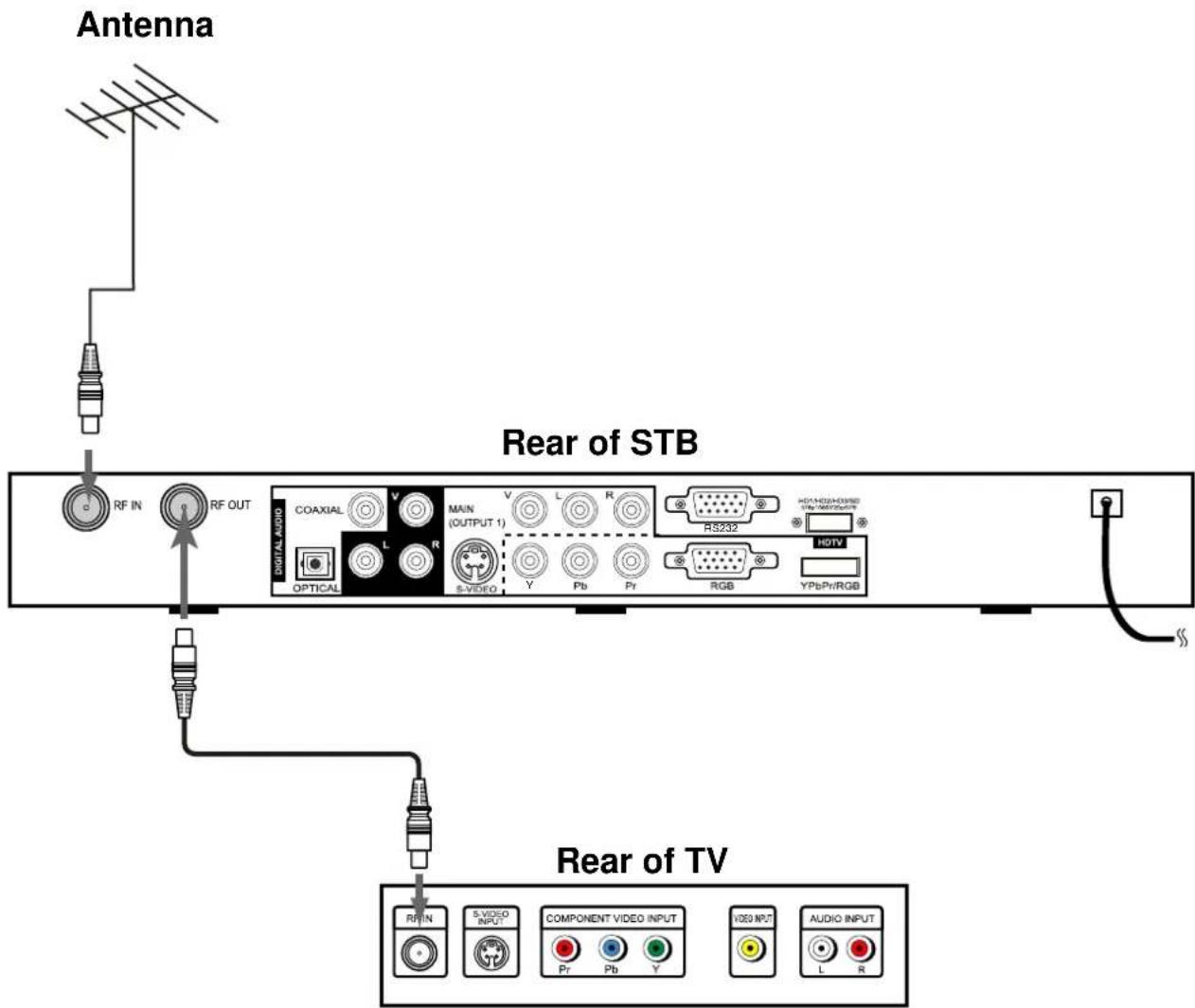
Step 2: Antenna Connection
Connect the antenna cable to the RF IN jack on the rear panel of the STB (For details, please refer to page 8).
Step 3: Connecting to Monitor
A. If your monitor is an Analog Monitor, please follow the diagram and notes in page 9 when connecting the STB to your monitor.
B. If your monitor is a HD Monitor (YPbPr type), please follow the diagram and notes in page 10 when connecting the STB to your monitor.
C. If your monitor is a HD Monitor (RGB type), please follow the diagram and notes in page 11 when connecting the STB to your monitor.
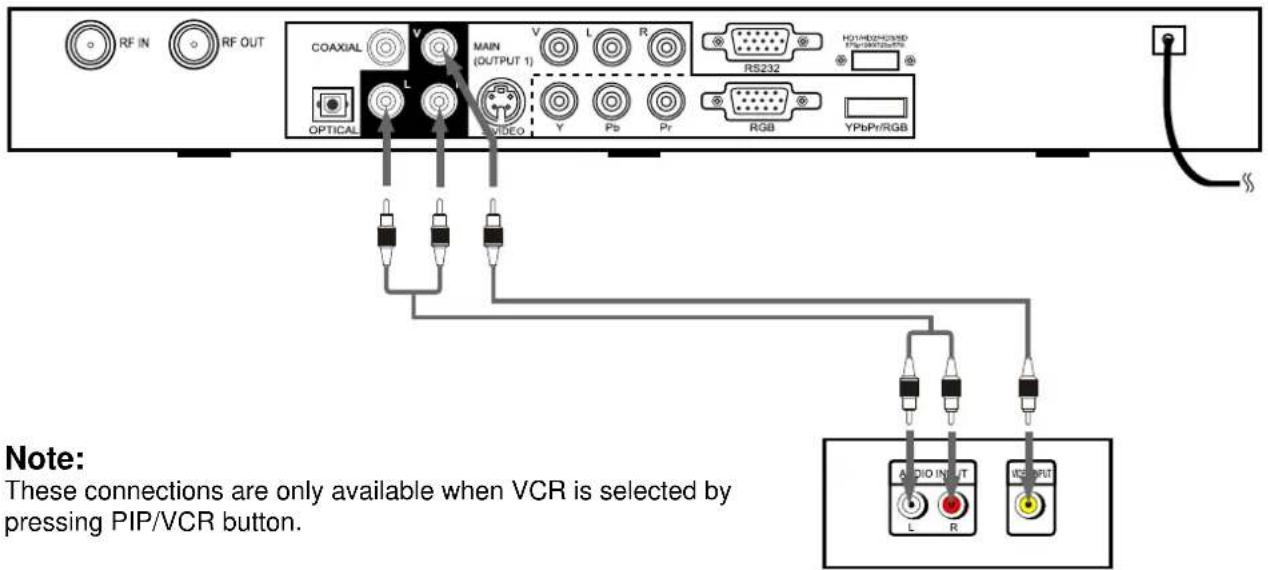
Step 4: Connecting to a Secondary Display or VCR
Please follow the diagram and notes in page 12 when connecting the STB to the Secondary Display or VCR.
Step 5: Connecting to an Amplifier
Please follow the diagram and notes in page 12 when connecting the STB to the Amplifier.
Step 6: Turning STB On
Press the Power Switch on the STB to turn on the STB. Note: Monitor should also be turned on.
Step 7: Setting Time Zone
To obtain local time, you should first set local time zone. For further details, please refer to page 18.
CAUTION: PLEASE READ AND OBSERVE ALL WARNINGS AND INSTRUCTIONS IN THIS INSTALLATION AND OPERATING GUIDE AND THOSE MARKED ON THE UNIT. RETAIN THIS GUIDE FOR FUTURE REFERENCE.
This set has been designed and manufactured to assure personal safety. Improper use can result in electric shock or fire hazard. The safeguards incorporated in this unit will protect you if you observe the following procedures for installation, use, and servicing.
This unit does not contain any parts that can be repaired by the user.
DO NOT REMOVE THE CABINET COVER, OR YOU MAY BE EXPOSED TO DANGEROUS VOLTAGE. REFER SERVICING TO QUALIFIED SERVICE PERSONNEL ONLY.
- Read these instructions. - All these safety and operating instructions should be read before the product is operated.
- Keep these instructions. - The safety, operating and use instructions should be retained for future reference.
- Heed all warnings. - All warnings on the product and in the operating instructions should be adhered to.
- Follow all instructions. - All operating and use instructions should be followed.
- Do not use this apparatus near water. For example: near a bath tub, wash bowl, kitchen sink, laundry tub, in a wet basement; near a swimming pool; etc.
- Clean only with dry cloth. Unplug this product from the wall outlet before cleaning. Do not use liquid cleaners.
- Do not block any ventilation openings. Install in accordance with the manufacturer's instructions. Slots and openings in the cabinet are provided for ventilation, to ensure reliable operation of the product, and to protect it from over-heating. The openings should never be blocked by placing the product on a bed, sofa, rug or other similar surface. This product should not be placed in a built-in installation such as a bookcase or rack unless proper ventilation is provided and the manufacturer's instructions have been adhered to.
- Do not install near any heat sources such as radiators, heat registers, stoves, or other apparatus (including amplifiers) that produce heat.
- Do not defeat the safety purpose of the grounding-type plug. A grounding type plug has two blades and a third grounding prong. The third prong are provided for your safety. If the provided plug does not fit into your outlet, consult an electrician for replacement of the obsolete outlet.
- Protect the power cord from being walked on or pinched particularly at plugs, convenience receptacles, and the point where they exit from the apparatus.
- Only use attachments/accessories specified by the manufacturer.
- Use only the cart, stand, tripod, bracket, or table specified by the manufacturer, or sold with apparatus. When a cart is used, use caution when moving the cart/ apparatus combination to avoid injury from tip-over.
- Unplug this apparatus during lightning storms or when unused for long periods of time.
- Refer all servicing to qualified service personnel. Servicing is required when the apparatus has been damaged in any way, such as power-supply cord or plug is damaged, liquid has been spilled or objects have fallen into the apparatus, the apparatus has been exposed to rain or moisture, does not operate normally, or has been dropped.
Front View

Back View


Remote control battery installation
Detach the battery cover on the rear of the remote control, and insert two size AAA batteries in correct polarity.
Caution
Do not mix old and new batteries. Never mix different types of batteries (standard, alkaline, etc.).
Remote Control Operation Range
Point the remote control at the remote sensor and press the buttons.
- Distance: About 5 m from the front of the remote sensor.
- Angle: About 300 in each direction of the front of the remote sensor.
You can operate every function of this STB using the buttons on the remote control handset. Below is the remote control functional key list.
| 1 | Press to turn ON and OFF (in standby). |
| 2 | Press to mute the sound. Press again to restore. |
| 3 | Press numeric keypad to select any channel.In menu operation, used to enter numerical values wherever required, e.g. to enter a password. |
| 4 | You can quickly check the status of current display program by pressing the DSP button.Press DSP button twice to display EPG information if available. |
| 5 | You can choose different audio outputs in Audio Setup menu. The STB includes standard audio mode options such as stereo or mono sound to match the broadcast signal or your home entertainment stereo system. Other audio mode options may be supported by your service provider or TV broadcaster, such as selecting alternate languages, or different commentators for sport events.Press AUDIO button, then make use of menu navigation button (▲,▼) and ENTER button to select. |
| 6 | VOLUME +/- Press to increase or decrease the volume. |
| 7 | PROGRAM+/- Select next/previous programs. |
| 8 | LIST When you are watching TV channels, you can press LIST button to call up the Program List. |
| 9 | MIX Press to conceal or reveal main picture and (or) PIP when viewing teletext. |
| 10 | TELETEXTPress to display teletext on the screen if available. |
| Note: normally it will display teletext index page P100 when pressing TTX button. If TV station does not broadcast teletext information but caption, the unit will switch to Page 801 to display Caption after 15 seconds.If you are sure that there is no index page, you can directly enter into page 801 to save time. Whether there is index page or not, you can consult local station. |

Cautions regarding use of remote control
■ Do not expose the remote control to shock. In addition, do not expose the remote control to liquids, and do not place in an area with high humidity.
■ Do not install or place the remote control under direct sunlight. The heat may cause deformation of the unit.
■ The remote control may not work properly if the remote sensor window of the main unit is under direct sunlight or strong lighting. In such a case, change the angle of the lighting or STB, or operate the remote control closer to the remote sensor window.
| 11 MENU | Brings up the main menu. Press again to return to normal viewing. | |
| 12 EXIT | Press to exit the current menu and return to previous level menu. | |
| 13 <> ▲▼ | Menu navigation buttons. | |
| 14 ENTER | Press to select the highlighted menu item or enter into sub-menu. | |
| 15 ASPECT | Press to select picture aspect ratio to match signal and monitor format. You can also change the aspect ratio for your personal viewing preference. Each time theASPECTbutton is pressed, the STB will cycle to the next available aspect ratio choice. | |
| Note:see following chart for illustrations of the various aspect ratios. | ||
| Source Signal | PressingASPECTbutton | |
| 16:9 | 16:9FULL⇨4:3 LETTERBOX⇨4:3 ZOOM | |
| 4:3 | 4:3 FULL⇨16:9 SIDEBAR⇨16:9 ZOOM | |
| Full Aspect (16:9 FULL, 4:3 FULL)16:9 or 4:3 picture will be displayed in the centre of the viewing screen at full screen width and height. | ||
| Zoom Aspect (4:3 ZOOM, 16:9 ZOOM)The picture will be expanded uniformly (width and height) to fill the viewing screen. The picture will be cropped, either horizontally or vertically to fit the viewing screen. The cropped portion of the original picture will be lost from view.In some cases, in order to properly view Captioning, you may change the aspect ratio from ZOOM to Full. | ||
| 4:3 Letterbox AspectVideo formats with aspect ratios greater than 16:9 will be displayed at the proper width, so no video information is lost. Black bars will appear above and below the picture. | ||
| 16:9 Sidebar Aspect4:3 pictures will be viewed on a wide aspect TV screen with vertical bars on both sides of the picture. | ||

16 PIP/VCR
Switch between PIP and VCR for the secondary program display.
Note: For PIP output or VCR output, you can only select one output at the same time. If PIP is selected, then VCR can not be selected; If VCR is selected, then PIP can not be selected. You can press PIP/VCR button to toggle and select one mode you desire.
17 PIP control buttons
ON/OFF: to turn on/off PIP function.
POS.: to select PIP position.
PR+/-: to select next/previous program for PIP.
SWITCH: to swap the main and sub-pictures if the secondary display is at PIP status. Or to switch VCR program to main screen display and main program to VCR if the secondary display is at VCR status.
LIST: to display PIP (or VCR) program list.
Note: when pressing PIP/VCR and PIP control buttons, within 5 seconds after corresponding OSD disappear, if you press digit buttons, DSP, ASPECT, VOLUME+/-, MUTE buttons, it will affect PIP picture (or VCR picture). After 5 seconds, it will affect main picture.
Menu Overview
1 Press MENU button to access the menu mode.
2 Press ▲/▼ button to select and highlight the menu item upward or downward.
3 Press ENTER button to confirm and enter into its sub-menu.
4 In menu operation, press ▲/▼ and ◀/▶ to navigate in menus, press ENTER to activate the selected menu items.
5 Press EXIT button to exit the current menu and return to previous-level menu while pressing MENU button will exit the menu mode.

flowchart
graph TD
    A["Main Menu"] --> B["Program"]
    A --> C["System"]
    A --> D["Password"]
    A --> E["Time"]
    B --> F["Quick Search\nAuto Search\nManual Search"]
    C --> G["Default"]
    D --> H["Rating Control\nPassword Setup\nClear Password"]
    E --> I["Time Zone"]
Connect AC power cord
Plug the AC power cord into an AC outlet. Do not turn on any devices until you have finished making all necessary connections.
Connecting to Antenna
Follow this diagram when connecting.
Display Formats Overview
The HD-STB Tuner offers various display formats and multiple video outputs. When the HD-STB Tuner is connected to A/V systems, the HD-STB Tuner can provide video signal formats 1080i, 720p, 576p, or 576i. 1080i, 720p and 576p modes are available for component video (YPbPr) and monitor outputs.
576i mode is available for VIDEO and S-VIDEO outputs.
The HD-STB Tuner has two digital audio outputs; Dolby Digital 5.1 and PCM. The HD-STB Tuner sends out digital audio signal to OPTICAL and COAXIAL audio outputs when a digital broadcast is being received by the HD-STB Tuner.
Connecting to an Analog monitor
Follow this diagram when connecting.

flowchart
graph TD
    A["Antenna"] --> B["RF IN"]
    B --> C["RF OUT"]
    C --> D["COAXIAL"]
    D --> E["MAIN (OUTPUT 1)"]
    E --> F["RS232"]
    F --> G["HOTV"]
    G --> H["RGB"]
    H --> I["YPbPrRGB"]
    I --> J["Audio INPUT"]
    J --> K["COMPONENT VIDEO INPUT"]
    K --> L["PGPAT"]
    L --> M["L"]
    M --> N["R"]
    N --> O["OR"]
    O --> P["Component Video Input"]
    P --> Q["PGPAT"]
    Q --> R["L"]
    R --> S["R"]
Rear of TV
Note:
- Connect video (or S-video) cable from the OUTPUT 1 video (or S-video) jack on the STB to the video (or S-video) input jack on the TV. S-video is recommended to be used because S-video will provide better picture quality.
- These connections are only available when SD (576i display format) is selected by toggling the Display Format Selection Switch.
Important
After you toggle the Display Format Selection Switch, you must turn off the STB and then turn on again, then the toggling can effect.
Connecting to a HD monitor (YPbPr type)
Follow this diagram when connecting.
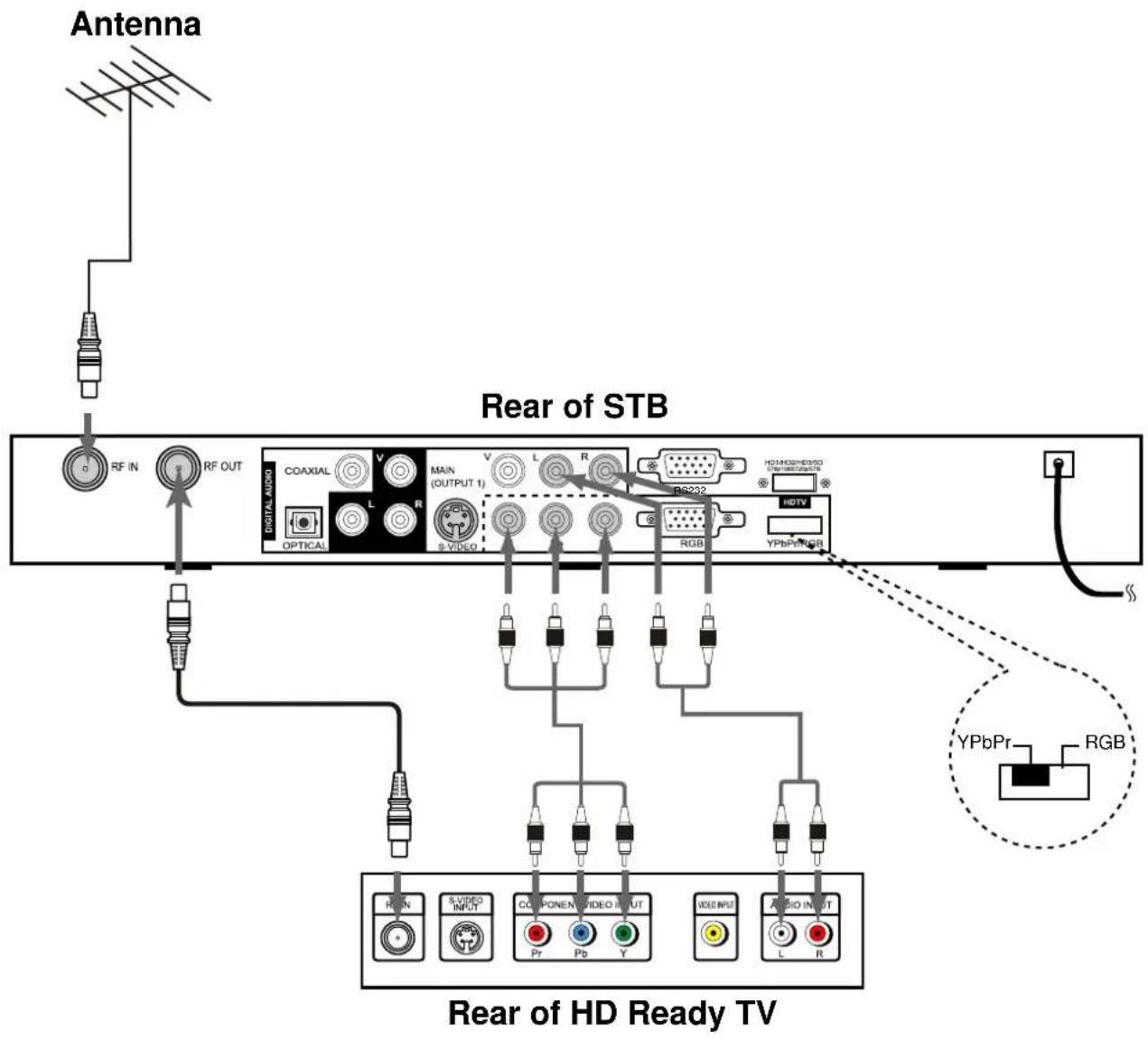
Note:
The YPbPr/RGB selection switch must be set to YPbPr.
The component out jacks are available when HD1 (576p), HD2 (1080i), or HD3 (720p) display format is selected.
Important
After you toggle the Display Format Selection Switch, you must turn off the STB and then turn on again, then the toggling can effect.
Connecting to a HD monitor (RGB type)
Follow this diagram when connecting.

Note:
The YPbPr/RGB selection switch must be set to RGB.
The RGB out jack is available when HD1 (576p), HD2 (1080i), or HD3 (720p) display format is selected.
Important
After you toggle the Display Format Selection Switch, you must turn off the STB and then turn on again, then the toggling can effect.
Connecting to a VCR
Follow this diagram when connecting.
Rear of STB
Rear of VCR
Note:
These connections are only available when VCR is selected by pressing PIP/VCR button.
Connecting to an Amplifier
Follow this diagram when connecting.
Rear of STB
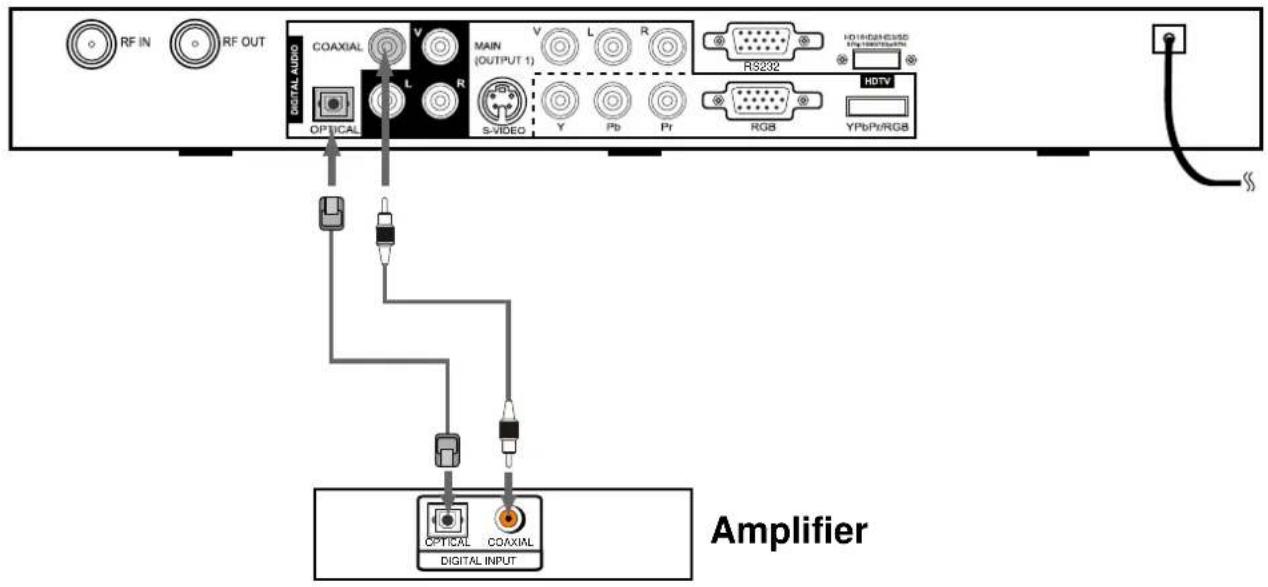
Connecting to an amplifier equipped with OPTICAL or COAXIAL.
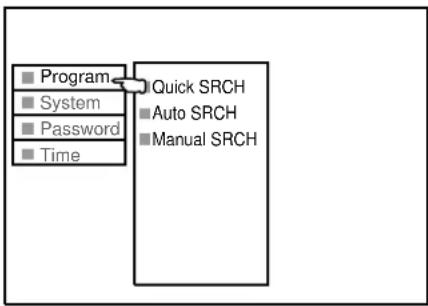
You must perform the program search when using the STB at the first time. There are three ways to search programs: Quick Search, Auto Search and Manual Search.
Quick Search
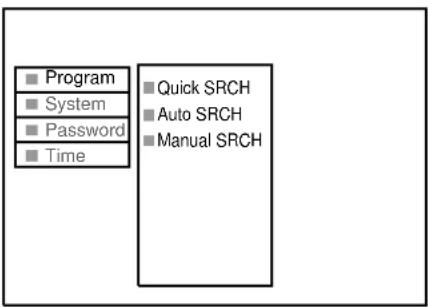
If you live in the cities listed on the Quick Search menu, you may go ahead to select your city and start scanning all digital TV channel Signals.
1 Press MENU button to access the menu mode.
2 Press ▲/▼ button to select and highlight Program.
3 Press ENTER button to enter into the Program menu.
4 Press ▲/▼ button to highlight Quick SRCH.
5 Press ENTER button to enter into Quick search sub-menu.
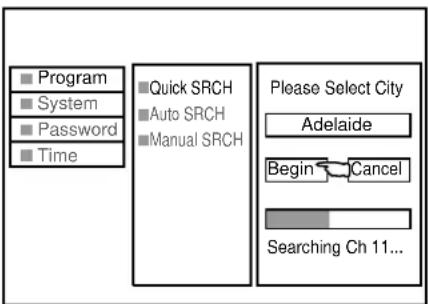
6 Highlight the first menu bar and use ◀/▶ button to select the city you live in.
7 Move the highlight to Begin and press ENTER to start the searching.
To cut off the searching during the process, highlight CANCEL and press ENTER.
flowchart
graph TD
    A["Program"] --> B["System"]
    B --> C["Password"]
    C --> D["Time"]
    E["Quick SRCH"] --> F["Auto SRCH"]
    G["Manual SRCH"] --> H["Manual SRCH"]
Auto Search
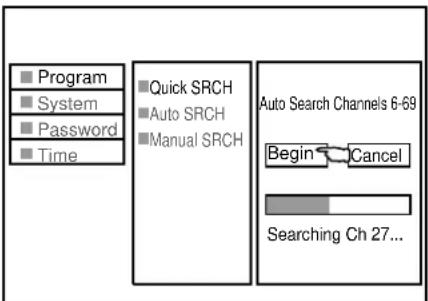
Auto search will automatically find all channels (digital) available through the antenna inputs, and store all the active channels in the channel list.
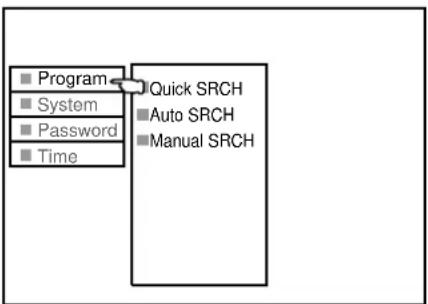
1 Enter into Program menu and select Auto SRCH. Press ENTER button to enter into Auto search sub-menu.
2 Move the cursor to Begin and press ENTER. Now the auto channel search process begins.
3 When channel scanning is complete, the first channel found appears on the TV screen.
To cut off the searching during the process, highlight CANCEL and press ENTER.
flowchart
graph TD
    A["Program"] --> B["Quick SRCH"]
    C["System"] --> B
    D["Password"] --> B
    E["Time"] --> B
    B --> F["Auto SRCH"]
    B --> G["Manual SRCH"]
Manual Search
If desired programs can not be searched, you can make use of Manual Search.
1 Press MENU button to access the menu mode.
2 Press ▲/▼ button to select and highlight Program.
3 Press ENTER button to enter into the Program menu.
4 Press ▲/▼ button to highlight Manual SRCH.
5 Press ENTER button to enter into Manual search sub-menu.
6 Highlight CH NO. and press ENTER. Use ◀/▶ button to move the cursor rightward or leftward and use ▲/▼ button to select number (or directly input the number by digit buttons), then press ENTER. Be sure you know the channel number.
(You can refer to Digital TV channel table on page 19).
flowchart
graph TD
    A["Program"] --> B["Quick SRCH"]
    C["System"] --> B
    D["Password"] --> B
    E["Time"] --> B
    B --> F["Auto SRCH"]
    B --> G["Manual SRCH"]

7 Move the highlight to OK and press ENTER.
Now it starts searching.
Note: Normally it is unnecessary to input the frequency value. However, if you want to input the frequency, you can highlight Freq., then make use of ENTER, ▲/▼, ◀/▶ 0-9 digit buttons to input.
Channel and Program Selection
Channel and program selection in digital television is very different from current conventional television. In DTV, multiple programs can exist within a single 7 MHz channel. These programs behave as sub-channels within the single channel. When tuning to a channel, the STB will also tune to a program. Your STB will indicate the channel and program through the On-Screen Display.
The STB allows channel and program selection in the following ways:
Direct select (0-9 keys) - Directly selects a channel or program.
Program up/down select (PROGRAM+/PROGRAM- buttons) - Select the next or previous available channel or program.
Making use of Program List to select.
Making use of Program List to select program
1 Press LIST button to call up Program List.
2 Press navigation buttons (▲/▼/◄/►) to select and press ENTER to confirm, then the desired program is selected.

Note: the shown information is only served as an illustration and may differ from the actual ones.
Channel Banner
You can quickly check the status of current display program by pressing the DSP button.
Press DSP button twice to display EPG information if available.
Indicator
if shows MAIN, it means current operation acts to main picture.
if shows PIP, it means current operation acts to PIP sub-picture.
if shows VCR, it means current operation acts to VCR or 2nd TV picture.

flowchart
graph TD
    A["MAIN"] --> B["9"]
    B --> C["MPEG2"]
    C --> D["Now 06:00 -- 09:00 Today"]
    D --> E["Next 09:00 -- 11:00 MORNINGS WITH KERRI-ANNE"]
    E --> F["Signal"]
    F --> G["Present event information"]
    G --> H["The current program audio type"]
    H --> I["Following event information"]
    I --> J["Teletext information"]
    J --> K["Nine Network A"]
    K --> L["Rating control level"]
    L --> M["The local time"]
    M --> N["Teletext information"]
    N --> O["Nine Digital"]
    O --> P["Program title"]
    P --> Q["Aspect"]
    Q --> R["Program service provider"]
| EPG (MAIN) | ||
| Start | Stop | Event Name |
| 06:00 | 09:00 | TODAY |
| 09:00 | 11:00 | MORNINGS WITH KERRI-ANNE |
| TODAY | ||
Audio Setup
You can choose different audio outputs in Audio Setup menu. The STB includes standard audio mode options such as stereo or mono sound to match the broadcast signal or your home entertainment stereo system. Other audio mode options may be supported by your service provider or TV broadcaster, such as selecting alternate languages, or different commentators for sport events.
1 Press AUDIO button to access the Audio Setup menu.
2 Press ▲/▼ button to move the highlight upward or downward.
3 Press ENTER button to select sub-audio.
You can select different audio output systems for Primary Audio and Secondary Audio.

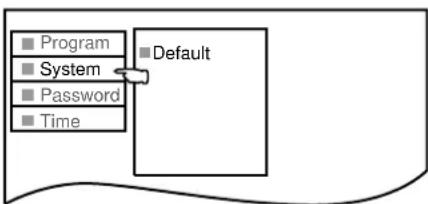
Default Setup
Making use of Default function, you can restore all settings to the factory settings.
1 Enter into System menu and select Default.
2 Press ENTER button to enter into the sub-menu and then press ENTER button to confirm.
3 If you have set a password in Password Sub-menu, then a dialogue box appears asking you to input a password.
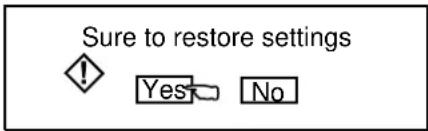
4 Input the password correctly. After inputting, a dialogue box "Sure to restore settings" pops up.
5 Highlight Yes and press ENTER button if you want to restore all settings to the factory settings.
If not, highlight No and press ENTER.
Note: as regards to password information, please refer to page 17 for details. There is no preset password in this STB.
flowchart
graph TD
    A["Program"] --> B["Default"]
    C["System"] --> B
    D["Password"] --> B
    E["Time"] --> B

flowchart
graph TD
    A["Program"] --> B["Default"]
    C["System"] --> B
    D["Password"] --> B
    E["Time"] --> B
    B --> F["Press Enter Key to restore the factory settings"]
    B --> G["Restore Defaults"]

Password setup
The Rating Control lets you set up specific channels and ratings through blocking schemes. To activate or disable all of the lock schemes previously set up, a password is required to gain access to this menu. You can change the password by inputting a new password twice.
1 Press MENU button to access the menu mode.
2 Press ▲/▼ button to select and highlight Password.
3 Press ENTER button to enter into the Password menu.
4 Press ▲/▼ button to highlight PWD Setup. Press ENTER to enter into the next level.
When you have not set a password yet;
Enter a password using the numbered buttons to create a personal 4-digit security password.
When you have already set a password and you want to change it;
Enter the old password, then input a 4-digit new password using the numbered buttons and confirm again.

flowchart
graph TD
    A["Program"] --> B["Password"]
    C["System"] --> B
    D["Time"] --> B
    E["Rating CTRL"] --> F["PWD Setup"]
    G["Clear PWD"] --> H["End"]

flowchart
graph TD
    A["Program"] --> B["Rating CTRL"]
    C["System"] --> B
    D["Password"] --> B
    E["Time"] --> B
    B --> F["PWD Setup"]
    B --> G["Clear PWD"]
    H["Set Password"] --> I["Confirm Password"]
Input Password

□ □ □
Note:
There is no preset password in this STB, therefore when you use this STB at the first time, you may create a password by yourself if required.
Clear password
If you want to clear the password, please do the following steps:
1 Enter into the Password sub-menu.
2 Press ▲/▼ button to select and highlight Clear PWD. Press ENTER to enter into the next level.
Now a dialogue box appears asking you to input the old password.
3 Input the old password correctly. Now a dialogue box "Sure to clear password?" appears. Select Yes and press ENTER.
4 Now the password is cleared.

flowchart
graph TD
    A["Program"] --> B["Rating CTRL"]
    C["System"] --> B
    D["Password"] --> B
    E["Time"] --> B
    B --> F["PWD Setup"]
    B --> G["Clear PWD"]
    F --> H["Press Enter key to Clear"]
    G --> H
Rating control
Blocks programs according to the program ratings limit so children can not view certain programs. You can set the ratings limit by blocking out all the programs with the ratings above a specified level.
1 Press MENU button to access the menu mode.
2 Press ▲/▼ button to select and highlight Password.
3 Press ENTER button to enter into the Password menu.
4 Press ▲/▼ button to highlight Rating CTRL. Press ENTER to enter into next level sub-menu.
When you have not set a password yet, you directly go to the Rating Control sub-menu.
When you have already set a password, input the password correctly and enter.
5 Press ▲/▼ to move the highlight upward or downward and press ENTER to either block or unblock the rating.
Note:
You can either block (☑) or unblock (■) all programs quickly by using Block All setting.

flowchart
graph TD
    A["Program"] --> B["Rating CTRL"]
    C["System"] --> B
    D["Password"] --> B
    E["Time"] --> B
    B --> F["* G"]
    B --> G["* PG"]
    B --> H["* M"]
    B --> I["* MA"]
    B --> J["* AV"]
    B --> K["* R"]
    B --> L["* Block All"]
| G (General Audiences): Content not offensive to most viewers. |
| PG (Parental Guidance Suggested):Content is such that parents may not want their children to view the program. |
| M (Mature Audience): Suitable for mature audience. |
| MA (Mature Adult Audience): May contain mature themes, profane language,graphic violence, and sexual situations. |
| AV (AdultAudience): Strong violence. |
| R (Restricted viewing): Not for children under age 17. Strong elements of sex and/or violence. |
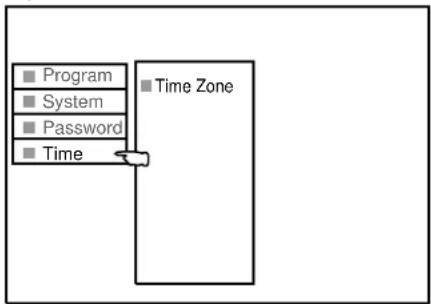
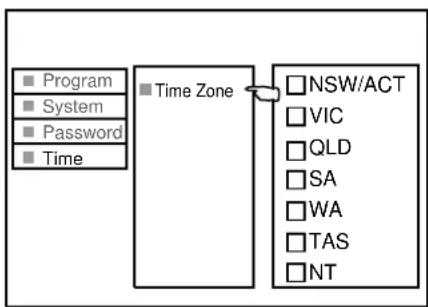
Time zone selection
To obtain local time, you should first set local time zone, and it depends on your local station whether has
broadcast time zone information.
1 Press MENU button to access the menu mode.
2 Press ▲/▼ button to select and highlight Time.
3 Press ENTER button. Now Time Zone is highlighted.
4 Press ENTER button again to enter into next level.
5 Press ▲/▼ button to move the highlight upward or downward and press ENTER to select your local time zone.
flowchart
graph TD
    A["Program"] --> B["Time"]
    C["System"] --> B
    D["Password"] --> B
    E["Time"] --> F["Time Zone"]
flowchart
graph TD
    A["Program"] --> B["Time Zone"]
    C["System"] --> B
    D["Password"] --> B
    E["Time"] --> B
    B --> F["NSW/ACT"]
    B --> G["VIC"]
    B --> H["QLD"]
    B --> I["SA"]
    B --> J["WAT"]
    B --> K["TAS"]
    B --> L["NT"]
Following is the list of DTV channels available in your area. You can use it for Manual search. You can check the following list for channel number and channel frequency.
| City | Identifier | Channel & Middle Frequency | Transmitter Location | Start Date |
| Adelaide | Digital 7 | VHF 6-177.5MHz | Main Transmitter-Mt Lofty | 1/1/2001 |
| Digital 9 | VHF 8-191.625MHz | Main Transmitter-Mt Lofty | 1/1/2001 | |
| Digital 10 | VHF 11-219.5MHz | Main Transmitter-Mt Lofty | 1/1/2001 | |
| Digital ABC | VHF 12-226.5MHz | Main Transmitter-Mt Lofty | 1/1/2001 | |
| Digital SBS | UHF 33-564.5MHz | Main Transmitter-Mt Lofty | 1/1/2001 | |
| Brisbane | Digital 7 | VHF 6-177.5MHz | Main Transmitter-Mt Coot-tha | 1/1/2001 |
| Digital 9 | VHF 8-191.625MHz | Main Transmitter-Mt Coot-tha | 1/1/2001 | |
| Digital 10 | VHF 11-219.5MHz | Main Transmitter-Mt Coot-tha | 1/1/2001 | |
| Digital ABC | VHF 12-226.5MHz | Main Transmitter-Mt Coot-tha | 1/1/2001 | |
| Digital SBS | UHF 36-585.5MHz | Main Transmitter-Mt Coot-tha | 1/1/2001 | |
| Melbourne | Digital 7 | VHF 6-177.5MHz | Main Transmitter-Mt Dandenong | 1/1/2001 |
| Digital 9 | VHF 8-191.625MHz | Main Transmitter-Mt Dandenong | 1/1/2001 | |
| Digital 10 | VHF 11-219.5MHz | Main Transmitter-Mt Dandenong | 1/1/2001 | |
| Digital ABC | VHF 12-226.5MHz | Main Transmitter-Mt Dandenong | 1/1/2001 | |
| Digital SBS | UHF 29-536.625MHz | Main Transmitter-Mt Dandenong | 1/1/2001 | |
| Perth | Digital 7 | VHF 6-177.5MHz | Main Transmitter-Bickley | 1/1/2001 |
| Digital 9 | VHF 8-191.625MHz | Main Transmitter-Walliston | 1/1/2001 | |
| Digital 10 | VHF 11-219.5MHz | Main Transmitter-Carmel | 1/1/2001 | |
| Digital ABC | VHF 12-226.5MHz | Main Transmitter-Bickley | 1/1/2001 | |
| Digital SBS | UHF 29-536.625MHz | Main Transmitter-Bickley | 1/1/2001 | |
| Sydney | Digital 7 | VHF 6-177.5MHz | Main TransmitterArtarmon | 1/1/2001 |
| Digital 9 | VHF 8-191.625MHz | Main Transmitter Willoughby | 1/1/2001 | |
| Digital 10 | VHF 11-219.5MHz | Main Transmitter Artarmon | 1/1/2001 | |
| Digital ABC | VHF 12-226.5MHz | Main Transmitter Gore Hill | 1/1/2001 | |
| Digital SBS | UHF 34-571.5MHz | Main Transmitter Gore Hill | 1/1/2001 | |
| Batchelor | QQQ-51 | UHF 50-683.5MHz | ||
| SBS-54 | UHF 53-704.5MHz | |||
| ABD-69 | UHF 56-725.5MHz | |||
| NTD-60 | UHF 59-746.5MHz | |||
| TN D-63 | UHF 62-767.5MHz | |||
| IMP-66 | UHF 65-788.5MHz | |||
| Canberra | CTC-7 | UHF 6-177.5MHz | Telstra Tower Black Mountain | TBA |
| ABC-9 | UHF 9A-205.5MHz | Telstra Tower Black Mountain | TBA | |
| WIN-31 | UHF 11-219.5MHz | Telstra Tower Black Mountain | TBA | |
| CBN-34 | UHF 12-226.5MHz | Telstra Tower Black Mountain | TBA | |
| SBS-28 | UHF 30-613.5MHz | Telstra Tower Black Mountain | TBA | |
| Darwin | SBS-28 | UHF 29-536.5MHz | ||
| ABD-6 | UHF 30-543.5MHz | |||
| NTD-8 | UHF 31-550.5MHz | |||
| TN D-34 | UHF 32-557.5MHz | |||
| Newcastle | NBN-3 | UHF 36-585.5MHz | Mt Sugarloaf | 6/30/2001 |
| NEN-54 | UHF 53-704.5MHz | Broadcast Site Mt Sugarloaf Range | TBA | |
| NRN-57 | UHF 51-690.5MHz | Broadcast Site Mt Sugarloaf Range | 6/30/2001 | |
| ABHN-5A/4B | UHF 37-592.5MHz | Mt Sugarloaf | TBA | |
| SBS-45 | UHF 38-599.5MHz | Mt Sugarloaf | TBA | |
| Wollongong | WIN-59 | UHF 36-585.5MHz | WIN Tower Knights Hill | TBA |
| CTC-62 | UHF 37-592.5MHz | NTL Tower Knights Hill | TBA | |
| CBN-65 | UHF 38-599.5MHz | WIN Tower Knights Hill | TBA | |
| ABWN-56 | UHF 51-590.5MHz | NTL Tower Knights Hill | TBA | |
| SBS-53 | UHF 54-711.5MHz | NTL Tower Knights Hill | TBA |
Note: If you have trouble getting DTV channel's signal, please contact your local antenna installer for help. For updated channel table please contact your local dealer.
Check the following guide for the possible cause of a problem before contacting service.
| Symptom Solutions | ||
| No power. | ● Plug the power cord into the wall outlet securely. | |
| No picture. | ● Check your antenna input or location. ● Make sure the correct video display format is selected. ● If the STB is connected to your monitor or TV via VIDEO OUT jack on the back panel, the display format must be SD. Otherwise, you may not be able to see a picture. ● If STB is connected to your monitor or TV via YPbPr port or RGB on the back panel, the display format must not be SD. Otherwise, you may not be able to see a picture. ● If STB is connected to your monitor or TV via YPbPr port on the back panel, the YPbPr/RGB selection switch must be flipped to the YPbPr. Otherwise, you may not be able to see a picture. ● If STB is connected to your monitor or TV via RGB port on the back panel, the YPbPr/RGB selection switch must be flipped to the RGB. Otherwise, you may not be able to see a picture. ● Check to make sure all the cables are installed correctly and that the proper source is selected on your TV. ● The antenna signal strength may be low. Check the signal strength and adjust the antenna location and direction. | |
| The toggle of Display Format Selection Switch can not effect. | ● After you toggle the Display Format Selection Switch, you must turn off the STB and then turn on again, then the toggling can effect. | |
| Normal picture but no sound. | ● Check volume levels. ● Make sure the TV is not muted. ● Check that the STB is connected properly. | |
| Picture is distorted. | ● Make sure the proper format is selected. ● Make sure the proper aspect ratio is selected. ● Make sure the video output is connected to the TV. | |
| Available channels are missing. | ● The only way that you can find all the available channels is by running the Auto search in the Program menu. | |
| No teletext Make sure the channel you are watching carries teletext information. | ||
| Password is forgotten. | ● If you forget your password, perform the following steps to enter. When the dialogue box asking you to enter a password appears, press TELETEXT button, followed by ASPECT button, DSP button and then AUDIO button, and then you can enter. But make sure not let children know it. | |
| The remote control does not work properly | ● Point the remote control at the remote sensor of the STB. Operate the remote control within 5m. ● Remove the obstacle. ● Replace the batteries with new ones. | |
| Television System | PAL, DTV standard (1080i, 720p, 576p, 576i) | |
| Channel Coverage | Terrestrial: 6-69 | |
| Input/Output | ANT Input | 1 |
| ANT Output 1 (Out to TV) | ||
| Component Video Output (YPbPr) | 1 group, RCA type(1080i, 720p, 576p) | |
| S-Video Output | 1 | |
| AV Output 2 groups, RCA type | ||
| Digital Audio Output Coaxial, Optical | ||
| RS-232 Interface | 1, 9-pin Serial Port | |
| RGB | 1, 15-pin D-sub | |
| Dimension (W x H x D) 350 x 50 x 280 mm | ||
| Weight | 3.5 kg | |
| Power Requirements | AC 240V, 50Hz | |
| Power Consumption 30W | ||
| Environment | Humidity | 0 to 99 percent non condensing |
| Storage Temperature | -20 to 60 degrees Celsius | |
| Operating Temperature | 0 to 40 degrees Celsius | |
Note: Design and specifications are subject to change without notice.
PALSONIC CORPORATION PTY LTD
1 JOYNTON AVENUE
WATERLOO NSW 2017 AUSTRALIA
TEL: (02) 9313 7111
FAX: (02) 9313 7555
www.palsonic.com.au
PALSONIC CUSTOMER SERVICE
TELEPHONE
AUSTRALIA: 1300 657 888
- Table of Contents
- Set-up and Quick Use Guide .... 1
- Chapter1: Safety Instructions ...... 2
- Chapter 2: Introduction ...... 3
- Chapter 3: Getting Started....8
- Chapter 4: Operation....13
- Chapter 5: Appendix.... 19
- Step 1: Connect AC Power Cord
- Step 2: Antenna Connection
- Step 3: Connecting to Monitor
- Step 4: Connecting to a Secondary Display or VCR
- Step 5: Connecting to an Amplifier
- Step 6: Turning STB On
- Step 7: Setting Time Zone
- CAUTION: PLEASE READ AND OBSERVE ALL WARNINGS AND INSTRUCTIONS IN THIS INSTALLATION AND OPERATING GUIDE AND THOSE MARKED ON THE UNIT. RETAIN THIS GUIDE FOR FUTURE REFERENCE.
- DO NOT REMOVE THE CABINET COVER, OR YOU MAY BE EXPOSED TO DANGEROUS VOLTAGE. REFER SERVICING TO QUALIFIED SERVICE PERSONNEL ONLY.
- Remote control battery installation
- Caution
- Remote Control Operation Range
- Cautions regarding use of remote control
- PIP/VCR
- PIP control buttons
- Menu Overview
- Connect AC power cord
- Connecting to Antenna
- Display Formats Overview
- Connecting to an Analog monitor
- Note:
- Important
- Connecting to a HD monitor (YPbPr type)
- Connecting to a HD monitor (RGB type)
- Connecting to a VCR
- Connecting to an Amplifier
- Quick Search
- Auto Search
- Manual Search
- Channel and Program Selection
- The STB allows channel and program selection in the following ways:
- Making use of Program List to select program
- Channel Banner
- Audio Setup
- Default Setup
- Password setup
- Clear password
- Rating control
- Time zone selection
Brand : Palsonic
Model : HDSTB100
Category : Decoder