HDSTB200 - TV Decoder Palsonic - Free user manual and instructions
Find the device manual for free HDSTB200 Palsonic in PDF.


| Product Type | High Definition Digital Receiver (TV Decoder) |
| Brand | Palsonic |
| Model | HDSTB200 |
| Dimensions (W x H x D) | 280mm x 39mm x 199mm |
| Weight | Approx. 1.3 kg |
| Power Supply | AC 180-250V, 50/60Hz, Max. 15W |
| Standby Power Consumption | Less than 2W |
| Video Outputs | HDMI, HD YPbPr (1080i/720p/576p), S-Video, Composite (576i) |
| Audio Outputs | Stereo L/R (RCA), Optical SPDIF, Coaxial SPDIF |
| Input Frequency | VHF 174-230MHz, UHF 520-820MHz |
| Channel Memory | Max. 256 channels |
| Remote Control | Universal IR with code setting for TV/VCR/DVD |
| Electronic Program Guide (EPG) | 7-day EPG support |
| Special Functions | Freeze, Zoom (HD only), Parental Control, Timers (Wake-up & Power-off) |
| Power Restore | Yes (Auto turn-on after power failure) |
| Auto Power Off | Yes (adjustable timer) |
| Ventilation Clearance | At least 10cm on all sides |
| Operating Temperature | 0°C to 40°C |
| Storage Temperature | -10°C to 50°C |
| Cleaning | Use a damp cloth; unplug before cleaning |
Frequently Asked Questions - HDSTB200 Palsonic
User questions about HDSTB200 Palsonic
0 question about this device. Answer the ones you know or ask your own.
Ask a new question about this device
Download the instructions for your TV Decoder in PDF format for free! Find your manual HDSTB200 - Palsonic and take your electronic device back in hand. On this page are published all the documents necessary for the use of your device. HDSTB200 by Palsonic.
USER MANUAL HDSTB200 Palsonic
High Definition Digital Receiver
HDSTB200
PALSONIC CORPORATION PTY LTD
1 JOYNTON AVENUE
WATERLOO NSW 2017 AUSTRALIA
TEL: (02) 9313 7111
FAX: (02) 9313 7555
www.palsonic.com.au
PALSONIC CUSTOMER SERVICE
TELEPHONE
AUSTRALIA: 1300 657 888
User Manual
Safety Information

CAUTION
RISK OF ELECTRIC SHOCK DO NOT OPEN

CAUTION: TO AVOID THE RISK OF ELECTRIC SHOCK, DO NOT OPEN.
NO USER-SERVICEABLE PARTS INSIDE.
REFER SERVICING TO QUALIFIED SERVICE PERSONNEL ONLY.

The lightning flash with arrowhead symbol within an equilateral triangle, is intended to alert the user to the presence of uninsulated dangerous voltage" within the product's enclosure that may be of sufficient magnitude to constitute a risk of electric shock.

The exclamation point within an equilateral triangle is intended to alert the user to the presence of important operating and servicing instructions. In the literature accompanying the appliance.
WARNING: TO REDUCE THE RISK OF FIRE OR ELECTRIC SHOCK, DO NOT EXPOSE THIS APPLIANCE TO WATER OR MOISTURE.
CAUTION: TO PREVENT ELECTRIC SHOCK. ENSURE 240V AC POWER PLUG IN FULLY INSERTED INTO THE POWER SOCKET.
CAUTION: CHANGES OR MODIFICATIONS NOT EXPRESSLY APPROVED BY THE MANUFACTURER WILL VOID THE USER'S WARRANTY.
WARNING: TO ENSURE RELIABLE OPERATION AND PREVENT THE HS-STB FROM OVER HEATING, YOU MUST REMOVE THE PROTECTIVE PLASTIC FILM FROM THE HS-STB COVER.
Important Safeguards
These important safeguard messages will help ensure your enjoyment and proper use of the HD-STB and accessories. Please read them carefully before you begin to operate your HD-STB product.
1. Read and Retain this User's Guide
This User's Guide should be read before the HD-STB is operated and retained for future reference
2. Use Correct Power
This HD-STB should be operated only from the type of power source indicated on the rear panel.
3. HD-STB Installation
Do not place HD-STB on an unstable trolley stand, tripod, bracket, or table as it may fall, causing serious injury to a child or adult and damage the HD STB.
4. Provide Antenna Ground
If an outside antenna or cable system is connected to the HD-STB, be sure the antenna or cable system is grounded to provide some protection against voltage surges and built-up static charges. An outside antenna system should not be located in the vicinity or overhead power lines, or other power circuits, where it can fall onto such power lines or circuits. When installing an outside antenna system, extreme care should be taken to keep from touching or approaching such power lines or circuits as contact with them might be fatal. Installing an outdoor antenna can be hazardous and should be left to a professional antenna installer.
5. Provide Proper Ventilation
Opening slots in the STB cabinet are provided for ventilation to ensure reliable STB operation and to protect it from overheating. HD-STB should not be located in an enclosed / built-in installation such as a bookcase unless proper ventilation is provided.
For sufficient ventilation, there must be at least 10cm free air space above, behind, top and on each side of the HD-STB.
6. Keep Away from Heat
Do not expose the HD-STB to direct sunlight. This product should be situated away from heat sources such as radiators, heat registers, stoves and other electronic products (including amplifiers) that produce heat.
Important Safeguard
7. Keep Away from Moisture
Do not use HD-STB near water or in wet areas such as near a bathtub, wash bowl, kitchen sink, laundry tub, in a wet basement, or near a swimming pool and the like.
Caution: Maintain electrical safety, Power line operated equipment or accessories connected to this unit should bear the CE listing mark or C-Tick certification mark on the accessory itself and should not be modified to defeat the safety features. This will help avoid any potential hazard from electrical shock or fire.
8. Do Not Open
Do not attempt to service this HD-STB, as opening or removing STB cover will expose you to dangerous voltages. To prevent of the risk of fire or electric shock, do not open the cabinet. There are no user serviceable parts inside the HD-STB. Refer servicing to qualified service personnel only.
9. Unplug before Cleaning
When cleaning the HD-STB, turn the HD-STB power off and unplug it from the wall AC outlet before cleaning. Do not use liquid cleaners or aerosol cleaners. Use a damp cloth for cleaning only.
10. Object and Liquid Entry
Never push objects of any kind through HD-STB openings as they may touch dangerous voltage points or short-out parts that could result in a fire or electric shock.
Never spill liquid of any kind on the HD-STB. In case of liquid spillage, please contact your qualified service centre.
11. For Additional Protection
For added protection during a lightning storm, or when left unattended for long periods of time, unplug the HD-STB from the AC wall outlet and disconnect the antenna and A/V cable system. This will prevent damage to the HD-STB from Lightning and power line surges.
CONTENTS
1. Overview of the Equipment 3
Front Panel 3
Rear Panel 4
Remote Control 5
Installing remote control batteries 8
Remote Control Universal Code Setting 8
Accessories 10
2. Connecting Your HD-STB 11
1) Antenna Connection 11
HD-STB, TV and VCR antenna connection
HD-STB and TV antenna connection
2) Video Connection 12
HDMI (High Definition Multimedia Interface) connection
Connecting to a HDTV with HD YPbPr
Connecting to a Conventional TV with S-Video
Connecting to a Conventional TV with Composite Video
3) Audio Connection 15
Stereo Audio Connection
Digital Audio Connection
4) Display Mode Change 16
STB Connection to 576p/720p/1080i High Definition Display
STB Connection to Standard Definition Display
3. Getting Started 17
Step 1. Unpacking and accessories.
Step 2. Remove Protective Plastic Film.
Step 3. Connect ANT Cable.
Step 4. Connecting the Video.
Step 5. Connecting the Audio.
Step 6. Connecting the Power.
Step 7. Display Mode Setup.
Step 8. Install Remote Control battery and Universal
Code Setting.
Step 9. Check up the On Screen Display.
Step 10. Automatic Channel Search and Channel Change.
4. Using Menu System 19
1) User Preference 19
Preferred Audio Type (I-II)
SD Output Aspect Ratio
i-Plate Banner Duration
Front Panel LED Dimmer
Power Restore
Content
2) Channel Setup 21
Channel Favourites
Automatic Channel Scan
Manual Channel Scan
Test Reception
3) Access & Timer Setup 24
Program Blocking Level
Wake-up Channel
Wake-up Timer
Power-off Timer
4) System Setup 26
Time Zone
Auto Power Off
Factory Reset
System Information
TV Remote Control Code List
- Remote Control Buttons 28
1) Using INFO button 28
2) Using EPG button 29
3) Using LIST & FAV button 30
4) Using ZOOM button 30
5) Using FREEZE button 30
-
Trouble Shooting Guide 31
-
Reception Trouble Shooting Guide 32
-
Specifications 34
-
Remote Control Universal Code List 36
Overview of the equipment
This section summarises HD-STB buttons, controls, and terminals.
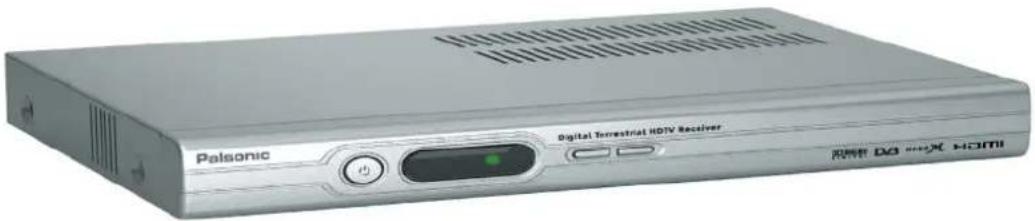
Front Panel

1. POWER
Press to turn the HD-STB on or off.
2. Power Indicator
Displays STB operation status. In power off mode, STB will display a RED light. In power on mode the RED light will flash to acknowledge a remote control key press.
3. Remote Sensor
Infrared red remote control sensor. To ensure reliable remote control operation do not place any objects in front of the sensor.
4. Video Display Mode Indicators
Two green LEDs indicate the current HD video display mode setting LED combination is as follows:
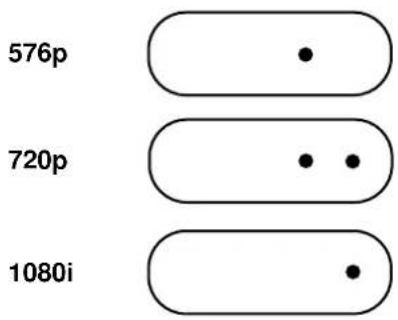
bar
| Category | Value | |---|---| | 576p | ● | | 720p | ● ● | | 1080i | ● |5. UP / DOWN
Channel up or down movement. These two buttons also change the HD video display mode as detailed on page 16.
Overview of the equipment
Rear Panel

-
LOOP OUT Terminal Use this terminal to feed RF signal to your TV or VCR for analogue TV reception.
-
ANT IN Terminal Attach an external Antenna to this terminal.
-
Optical Digital Audio (SPDIF) Output terminal Use this terminal with A/V device equipped with Optical Digital input for Dolby* Digital 5.1-channel sound.
-
Coaxial Digital Audio (SPDIF) Output terminal Use this terminal with A/V device equipped with Coaxial Digital input for Dolby* Digital 5.1-channel sound.
-
S-Video Output terminal Use this terminal with your TV S-Video input.
-
TV Composite Video Output terminal (CVBS) Use this terminal with your TV Video input.
-
AUDIO L/R (Analog Stereo Audio) Output terminal This terminal can be used with your TV analog audio input. Refer to Audio Connection. Pages.
-
HD YPbPr (HD Component Video) Output terminal. Use this terminal with your TV HD Component Video input. (HDTV only)
-
HDMI Output terminal Use this terminal with your TV HDMI Video input.
-
RS-232C Use this terminal for software upgrade purpose only.
-
External IR Sensor Terminal Use this terminal for External IR Sensor connection.
-
Power Cord Plug this Cord to the specified AC Power socket.
● Manufactured under license from Dolby Laboratories. Dolby and the double-D Symbol are trademarks of Dolby Laboratories.
Overview of the equipment
Remote Control
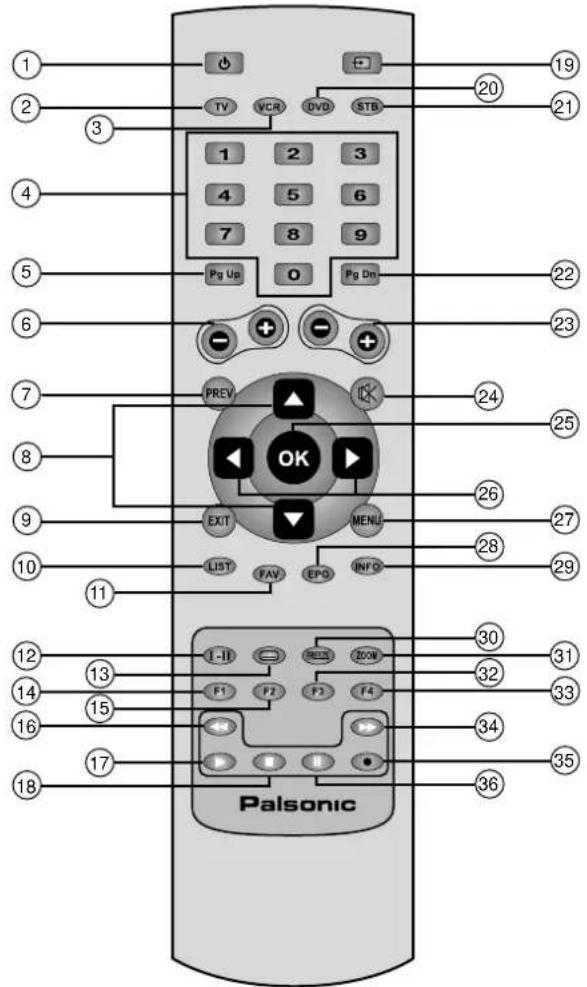
1. POWER
Turn your HD-STB on or off.
2. TV
Change your Remote Controller to TV mode.
3. VCR
Change your Remote Controller to VCR mode.
4. 0\~9 (Number Button)
Direct change the desired channel.
To change the channel, simply press desired channel number.
The button operation should be less than 2 seconds between button pressing.
Overview of the equipment
5. PgUp (STB Mode)
In the menu system, move up item list by page.
6. CH+ / CH-
Change the TV/HDTV's analog channel / Change the STB's digital channel.
7. PREV (Previous Channel - STB mode)
Go to the previous watched channel.
8. Up / Down
In the menu system, move up or down the cursor.
9. Exit
In the menu system, exit menu from any menu level.
10. LIST (STB Mode)
Set & display ALL DTV channel list as the default channel list.
11. FAV (STB Mode)
Set & Display FAV DTV channel list as the default favourite channel list.
12. I-II (STB mode)
Switch between MPEG and Dolby Digital audio.
13. Subtitle (STB Mode)
Enable/ disable program subtitles.
14. RED (F1)
RED button. Also worked with function 1 button.
15. GREEN (F2)
GREEN button. Also worked with function 2 button.
16. REWIND
In the VCR or DVD mode, it works with REWIND button.
17. PLAY
In the VCR or DVD mode, it works with PLAY button.
18. STOP
In the VCR or DVD mode, it works with STOP button.
19. AV (TV's External Video Input Selection)
Select the TV External Video Input.
20. DVD
Change your Remote Controller to DVD mode.
21. STB
Change your Remote Controller to STB mode.
22. PgDn (STB Mode)
In the menu system, move down item list by page.
23. VOL+ / VOL-
Change the TV/HDTV's volume level up or down.
Overview of the equipment
- MUTE
Activate TV/HDTV's mute operation.
- OK (STB Mode)
Confirm current menu item selection.
- Left / Right
In the menu system, move the cursor left or right.
- MENU (STB Mode)
Enter STB menu. Whilst in the STB menu, this key also functions as the BACK key.
- EPG (Electronic Program Guide STB mode)
Activate Electronic Program Guide information broadcast by the DTV networks.
- INFO (STB Mode)
Display current channel information. You can see the information of current channel.
- FREEZE (STB mode)
Freeze the current picture while audio continues normally in the background.
- ZOOM (STB Mode)
Zoom out 4:3 pillar box black bars. (Available on HD YpbPr and HDMI only).
- YELLOW (F3)
YELLOW button. Also works with function 3 button.
- BLUE (F4)
BLUE button. Also works with function 4 button.
- WIND
In the VCR or DVD mode, it works with WIND button.
- PAUSE
In the VCR or DVD mode, works with PAUSE button.
- REC
In the VCR or DVD mode, it works with REC button.
Overview of the equipment
Installing the remote control batteries
Cautions:
Always replace batteries in pairs of the same brand. Do not mix batteries from different brands or use an old and a new battery.
Replace old or weak batteries to avoid battery leakage which can damage the remote control. Dispose old batteries thoughtfully with due respect to the environment. Do not incinerate old batteries.
I) Open the battery compartment on the back of the remote control.
2) Install two AAA (LR03) size batteries as shown.
Make sure the "+" and "-" terminals are oriented correctly.
3) Replace the cover.
4) After changing the batteries, please reset Remote Control Universal Code Setting.

natural_image
Exploded view diagram of a remote control box showing battery, casing, and internal components (no text or labels)Remote Control Universal Code Setting
This Remote Control is also compatible with a range of popular CE brands
To use this remote with other CE equipment, you must program the remote with a universal code number as detailed on page 36.
There are two methods of entering the universal code.
1. Using Automatic Code Search
1) Turn on the CE component (TV, VCR or DVD) you want to control.
2) Press and hold the CE component (TV, VCR or DVD) button until the LED on the remote control stays on, then release the button.
3) Point the remote at the CE component (TV, VCR or DVD) and press the UP (A) button, then wait for three seconds or until the LED stops flashing.
At this point the remote control is searching for the correct code. If, after three
Overview of the equipment
seconds, the CE component (TV, VCR or DVD) does not turn off, press the UP (▲) button again which tells the remote to search the next set of codes. Continue pressing and releasing UP (▲) button until the CE component (TV, VCR or DVD) turns off.
4) If the CE component (TV, VCR or DVD) turns off; press the OK button, and then the LED blinks three times.
2. Using Direct Entry Method
1) Turn on the CE component (TV, VCR or DVD) you want to control.
2) Refer the brand Code List on page 36 and locate your brand of the component you want to control.
3) Press and hold the CE component (TV, VCR or DVD) button you want to program until the LED on the remote control turns on, then release the key.
4) Enter 3-digit code from the code list, then the LED blinks three times.
5) If you get no response, repeat these steps using the next code listed for your brand until the CE component (TV, VCR or DVD) responds to the remote control command.
3. Using the remote control
1) Ensure there is a direct and unblocked line of sight between the remote control and the HD-STB.
2) Dark walls, direct sunshine or very bright light may reduce the remote sensor's sensitivity.
3) The remote control will not work correctly if you press several buttons at the same time.
4) Hold the remote control within an angle range of about 30 degree from either side of the remote sensor. The remote control range about 23 feet (7 metres) from the HD-STB.
5) Remember to press the mode selection button (ie; TV, VCR or DVD) before pressing a remote control button to control the device.
Overview of the equipment
Accessories
Carefully remove the HD-STB from the carton. Check that the HD-STB has not been Damaged. The following accessories are included.
- Wireless Universal Remote Control
-
Two AAA (LR03) size batteries
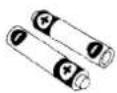
-
User Manual

- A/V Cable
SD A/V Cable (Yellow/White/Red)
HD Video Cable (Green/Blue/Red)

natural_image
Two coiled cable wires with black connectors, no text or symbols visible- Bracket
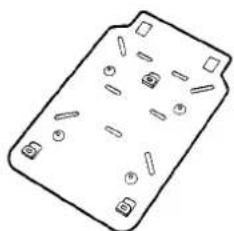
natural_image
Simple line drawing of a rectangular electronic component with holes and mounting holes (no text or symbols)-
External IR Module
-
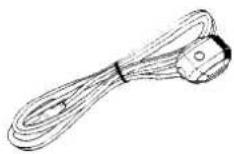
RF Cable

natural_image
Line drawing of a coiled cable with a connector (no text or symbols)Connecting your HD-STB
1. Antenna Connection
HD-STB, TV and VCR antenna connection
Connect IEC-Male antenna cable into HD-STB 'ANT IN' terminal.
Connect VCR 'ANT IN' cable into HD-STB 'LOOP OUT' terminal.
Connect VCR 'LOOP OUT' cable into TV RF IN terminal. (Refer to Fig. 1)
HD-STB and TV antenna connection
Connect IEC-Male antenna cable into HD-STB 'ANT IN' terminal.
Connect HD-STB 'LOOP OUT' cable into TV RF IN terminal. (Refer to Fig. 2)

Fig. 1 HD-STB, TV and VCR antenna connection
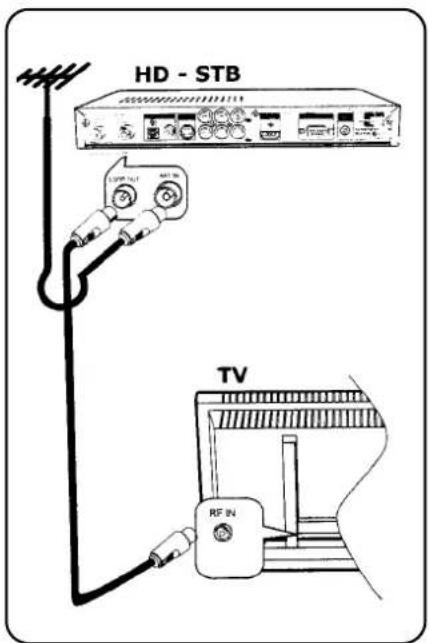
Fig. 2 HD-STB and TV antenna connection
To ensure optimum DTV reception the HD STB must be the first device connected to the antenna system when daisy chaining RF input / output products such as VCRs, DVD Recorders and analog television as illustrated in Fig. 1 and 2.
Connecting your HD-STB
2. Video Connection
HDMI (High Definition Multimedia Interface) connection
HDMI is the new digital inter-connection standard that carries digital video & audio signals via a single cable.
HD-STB HDMI output supports the following 50Hz HD video modes: 1080i, 720p, and 576p SD via HDMI is not supported.
Connect HDMI cable between HD-STB and TV HDMI terminals as shown (Refer to Fig. 3)
The HD-STB HDMI connection is also DVI compatible when using a HDMI to DVI cable (not supplied) or HDMI to DVI gender changer (not supplied) (Refer to Fig. 4). When using a HDMI to DVI connection, a separate audio connection is also required between the HD-STB and display device.

Fig. 3 HDMI to HDMI Input TV

Fig. 4 HDMI to DVI Input TV
Connecting your HD-STB
Connecting to a HDTV with HD YPbPr
Connect YPbPr cable between HD-STB and your TV as shown in Figure 5.
HD-STB YPbPr output supports the following 50Hz HD video modes: 1080i, 720p and 576p SD via YPbPr is not supported.
1) Connect YPbPr Video cable to the HD terminal on the back of HD-STB
2) Connect the other end of the YPbPr cable to the HD YPbPr input terminal on the HDTV
3) Usually, the Y is Green colour. Pb is Blue colour, and Pr is Red colour assigned.
4) Setting Up the Display desired resolution.

Fig. 5 HD YPbPr Video Connection
Connecting you HD-STB
This HD-STB simultaneous output the HD Video and SD Video. So, you can watch HD Video and recording SD Video at the same time.
For the SD Video connection, please refer below diagram.
Connecting to a Conventional TV with S-Video
Connect a S-Video cable to the S-Video terminal on the rear of HD-STB. Connect the other end of S-Video cable to the S-Video input terminal on the TV. (Refer to Fig. 6)

Fig. 6 TV with S-Video Connection
Connecting to a Conventional TV with Composite Video
Connect a Video Cable to the TV Video terminal on the rear of the HD-STB. Connect the other end of Video Cable to the Video input terminal on the TV.
(Refer to Fig. 7)
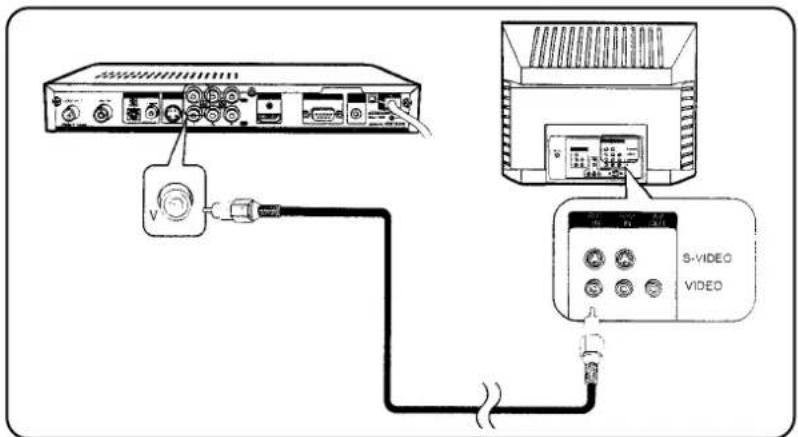
Fig. 7 TV with Composite Video Connection
This HD-STB can support four different options for connecting audio signals. Each of the audio connections delivers the same audio sound. You can select desired audio connection by following the Audio connection Diagrams below.
Pease make sure, if you are using HDMI connection, you do not need this Audio Connection. The HDMI connection is already included Digital Audio internally.
Stereo Audio Connection
Audio L/R deliver analog stereo sound or Dolby Digital 2-channel downmix analog stereo sounds. Connect Audio Cable to Audio L/R terminal on the rear of the HD-STB.
Connect the other end of the Audio Cable to the conventional TV Audio input or Stereo Amplifier Audio Input. (Refer to Fig. 8)
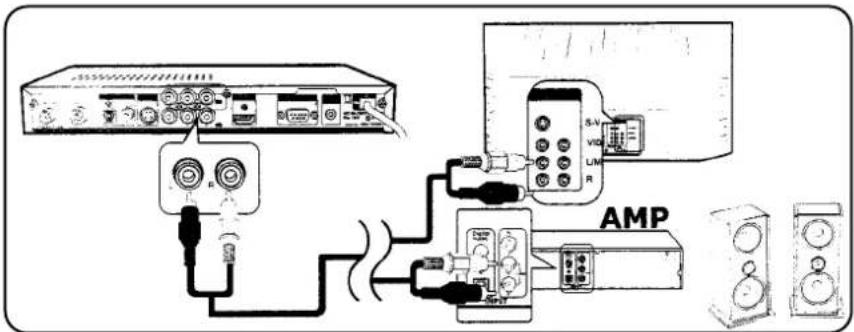
Fig. 8 Stereo Audio Connection
Digital Audio Connection
Optical Digital Audio and Coaxial Digital Audio deliver Dolby Digital 5.1-channel digital sound or PCM digital sound.
If you have a Home Theatre system and it can receive Digital Audio, then you can connect Digital Audio.
For the Optical Digital Audio connection, connect the Optical Digital Audio Cable (Available in Local Store) to the Optical Audio terminal on the rear of the HD-STB. Connect the other end of the Optical Digital Audio Cable to the Optical Audio input terminal on the Home Theatre System.
For the Coaxial Digital Audio connection, connect the RCA Cable to the Coaxial Audio terminal on the rear of the HD-STB. Connect the other end of the RCA Cable to the Coaxial Audio input terminal on the Home Theatre System. (Refer to Fig. 9)

Fig. 9 Digital Audio Connection
Connecting your HD-STB
4. Display Mode Change
This HD-STB supports simultaneous video output of HD and SD.
For HD output, it required display mode setting.
This HD-STB supports Native 1080i/50Hz, Native 720p/50Hz and Native 576p/50Hz.
The factory default is Native 1080i/50Hz.
For change the output display mode, please check up your TV support display mode. To determine which resolution your HD input television supports, please consult the
Television's user manual.
For change display mode, please follow below procedure.
1) Press front panel UP and DOWN button simultaneously.
2) Press front panel UP or DOWN button for desired display mode.
The OSD will show selected mode and LED indicator will blink.
3) Press front panel UP and DOWN button simultaneously again to change selected Display Mode.
STB Connection to 576p/720p/1080i High Definition Display
Most Plasma and LCD display and some CRT television with HD input(s) fall into this category. To determine which resolution(s) your display support, consult the user manual for your display device.
| STB Video Output | Video Output Scan Frequency | STB Video Connection |
| 1080i | 28.125 KHz | HD-YPbPrHDMI |
| 720p | 37.500 KHz | |
| 576p | 31.250 KHZ |
STB Connection to Standard Definition Display
Most existing 4:3 televisions fall into this Category.
For optimum SD picture quality, we recommend S-Video connection. If your TV sets dose not supports S-Video then you should use the composite (CVBS) Video input.
(Yellow cinch socket)
| STB Video Output | Video Output Scan Frequency ST | TB Video Connection |
| 576i 15.625 | KHz | S-Video and CVBS |
Getting Started
Step 1. Unpacking and accessories.
After open the gift box, you should check up and find the following items.
- Digital HD-STB
- Universal Remote Control
- 2 Batteries AAA (LR03) size
- User Manual
- SD A/V Cable (Yellow/White/Red) & HD Video Cable (Green/Blue/Red)
- Bracket
- External IR Module
- RF Cable
If you find a missing or broken parts, then ask your supplier or contact the service centre.
Step 2. Remove protective plastic film.
Remove protective plastic film from HD-STB top cover.
Step 3. Connect ANT Cable.
Connect external ANT cable to ANT IN.
Connect another ANT cable between LOOP OUT of HD-STB and ANT IN of TV for analog reception.
Step 4. Connecting the Video.
Prepare HD-STB and HDTV you want to connect.
There are several methods to connecting the video. You should find the correct connection method for your HDTV. Please refer to the Video Connection Diagram.
Step 5. Connecting the Audio.
Prepare HDTV or Audio equipment you want to connect.
If you are using HDMI connection, you do not need audio connection.
There are four different connection methods for Audio connection. For general TV analog audio connection, it has Audio L/R.
For digital audio connection, you should prepare Optical Audio cable for optical audio connection with Home Theatre Equipment.
If your Home Theatre Equipment system has coaxial digital input, you can use well-shielded RCA cable for coaxial audio connection.
Step 6. Connecting the Power.
Plug the Power Cord to wall AC outlet. The power source is AC 180-250V, 50/60Hz.
This unit is designed for continuous operation. Switching it off does not disconnect it from the AC outlet. To disconnect this HD-STB from AC outlet, you have to unplug the HD-STB.
Step 7. Display Mode Setup.
The default display mode is native 1080i. If you need change the display mode, press the UP and DOWN button at the front panel simultaneously for display mode change.
Press UP or DOWN button at the front panel to select desired display mode.
Press UP and DOWN button concurrently to confirmed display mode change.
Getting Started
Step 8. Install Remote Control battery and Universal Code setting.
Install Remote Control battery. The battery has polarity so when insert the batteries make sure the "+" and "-" terminals are oriented correctly. The mode selection, buttons are TV, VCR, DVD and STB. You can change the code of other CE component with this mode button. For more detailed information, please refer to the Remote Control Universal Code Setting section.
Step 9. Check up the On Screen Display.
For verify correct setting of Display Mode, you should check up the OSD from HDTV's display screen.
Turn on the HD-STB and HDTV. Press Menu button on the remote control, you should check up the OSD for verify A/V connection. If you cannot find any OSD in your TV display, please check up again the Display Mode Setting and A/V connection.
Step 10. Automatic Channel Search and Channel Change.
Please set the time Zone and perform the Automatic Channel Search to find possible channels. Please make sure, you should wait until fully searched. Normally, it will take several minutes.
If you setting up the favourite channel using Favourite Setup in the menu system, you can change the channel using "CH+" or "CH-" between selected favourite channels.
Please make sure in favourite channel mode, the channel change operation is based on Favourite Setting in the internal memory. If you unmark the channel in the favourite list, you cannot access the channel using "CH+ of "CH-" button. At that time, please perform the Favourite Setup and mark the Channel in the favourite list.
Using the MENU System
From here you can adjust whole setting and function of HD-STB.
If you press the MENU button, the menu screen will display.
You can move up and down using UP or DOWN button in the menu system. Press OK or RIGHT button to select the items. MENU button will go back to one step back.
If there is no remote control activity more than 60 sec, then all menu will automatically disappear for prevent unwanted operation.
1. User Preference
From here you can adjust User Preference settings concerning your TV.
Preferred Audio Type (I-II)
You can select desired audio signal from broadcaster. If you select Dolby Digital and broadcaster simultaneous broadcast the Dolby Digital and MPEG audio, then your HD-STB will check up the Dolby Digital audio first and decode Dolby Digital audio.
If you select Dolby Digital but broadcaster broadcast MPEG audio only, then your HD-STB will check up the Dolby Digital audio first and next select MPEG audio automatically.
Also you can set up Audio Preference (I-II) with I-II button on the remote control. But this change is affected to selected channel only if you change channel or turn off the HD-STB, then default audio type be selected.
1) Press MENU to display the menu.
2) Press OK or RIGHT to select the User Preference menu.
3) Press RIGHT to select sub-menu.
4) Press UP or DOWN to select desired audio mode.
5) Press OK or RIGHT to save the selected audio mode.
6) Press MENU to exit the menu.
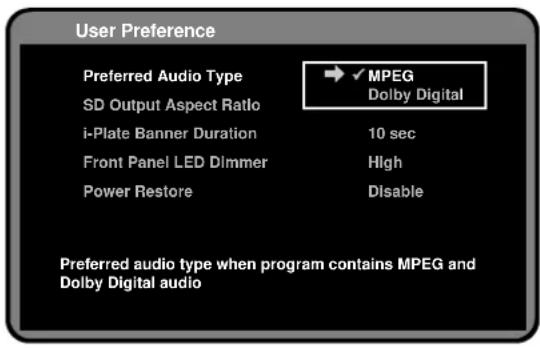
Preferred audio type when program contains MPEG and Dolby Digital audio
Using the MENU System
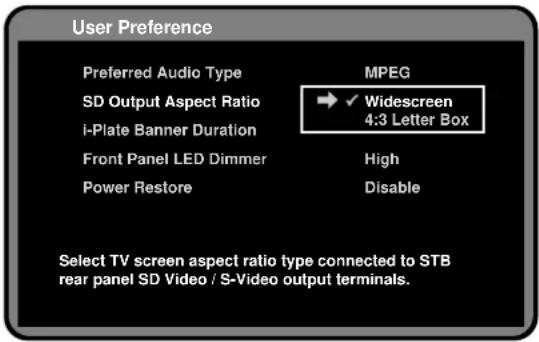
SD Output Aspect Ratio
You can select best fitting display mode for your SD TV screen.
This function is available only Composite Video and S-Video output when the 16:9 source is coming from Broadcaster. The 16:9 format is the standard mode for most wide TV screens. You can select Widescreen or 4:3 Letter Box for fit your SD TV's screen.
1) Press MENU to display the menu.
2) Press OK or RIGHT to select the User Preference menu.
3) Press DOWN to select display format menu.
4) Press RIGHT to select sub-menu.
5) Press UP or DOWN to select desired display format.
6) Press OK or RIGHT to save the selected display format.
7) Press MENU to exit the menu.
i-Plate Banner Duration
You can adjust Information Banner (i-Plate) time duration. If you feel i-Plate time is too long or short, you can select time out period using i-Plate Banner Duration setup. It is affected with i-Plate and 7-DAY EPG display.
Front Panel LED Dimmer
You can adjust front LED display brightness. If you feel the front panel LED is too brighter or darker, you can adjust the brightness of LED display using Front Panel LED Dimmer setup.
Power Restore
This HD STB has Power Restore function If you setup the Power Restore to Enabled and when AC main power is restored, the HD-STB will automatically turn on and display final memorised channel. It is useful for multiple display or exhibition for control the HD-STB. After setup the Power Restore to Enabled, just turn on the AC main power for HD-STB on and turn off the AC main power for HD-STB off. The factory default value is Power Restore Disabled.
Using the MENU System
2. Channel Setup
From here you can adjust Favourite Setup settings or channel search concerning your TV. After automatic channel scan, you can assign whole scanned channels to TV Favourite List or Radio Favourite List.
You can change channel list mode by pressing LIST button or FAV button.
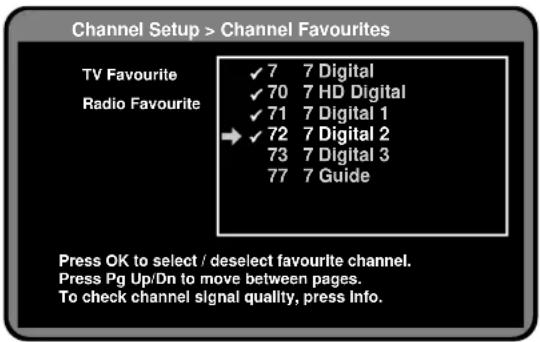
Channel Favourites
You can assign any scanned channel to TV Favourite List / Radio Favourite List. After assigned each channel to Favourite List, then it will appear in FAV Channel list. Here is the TV Favourite List setup procedure.
1) Press MENU to display the menu.
2) Press DOWN to select the Channel Setup menu.
3) Press OK or RIGHT to enter Channel Setup menu.
4) Press OK or RIGHT to enter Channel Favourites menu.
5) Press OK or RIGHT to enter to TV Favourite edit display.
6) If you want add or exclude individual channel, press RIGHT or OK to select to individual channel list.
7) In this sub menu, press INFO button for display selected channel signal status. For quit signal status, press INFO button again. It is useful for duplicate channel presence.
8) Press Menu to go back.
Using the MENU System
Automatic Channel Scan
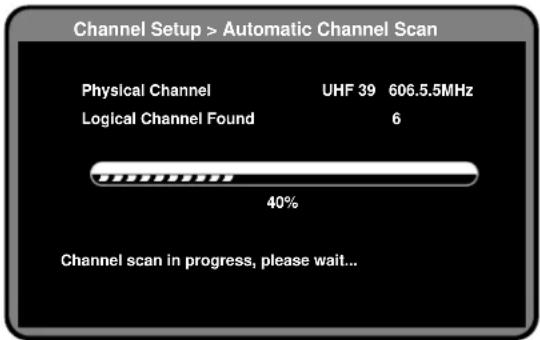
From here, the HD-STB will perform automatic scan the whole channel frequency for available digital channels. It will take several minutes. In the process of Automatic Channel Scan, the searched channel will memorise to the internal memory. After that, you can assign these channels to Favourite Channel List.
1) Press MENU to display the menu.
2) Press DOWN to select the Channel Setup menu.
3) Press OK or RIGHT to enter Channel Setup menu.
4) Press DOWN to select Automatic Channel Scan.
5) Press OK or RIGHT to go to Sub menu.
6) Press OK to Start Automatic Scan procedure.
7) The Automatic Scan procedure will take several minutes.
8) After finished the Automatic Scan procedure, the searched program will automatic memorise in the internal memory.
9) The menu will be exited automatically.
Manual Channel Scan
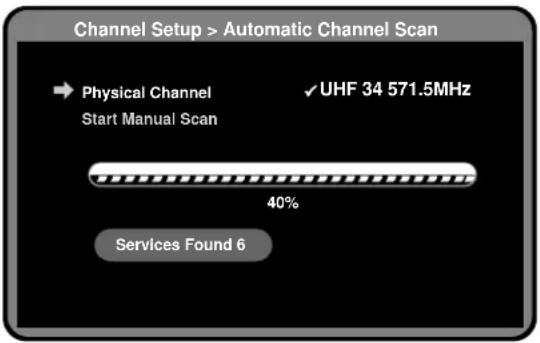
You can manually find the program in one of the specific channels. When you perform Manual Channel Scan you need to select the local broadcaster digital channel number. In this process, the HD-STB will try to find available digital program in the selected channel number. After finished Manual Channel Scan, the HD-STB will memorise to the internal memory.
1) Press MENU to display the menu.
2) Press DOWN to select the Channel Setup menu.
3) Press OK or RIGHT to enter Channel Setup menu.
4) Press DOWN to select manual Channel Scan.
5) Press OK or RIGHT to go to Sub menu.
6) For select Physical Channel. Press RIGHT or OK to display physical channel table.
7) Press UP/DOWN or PgUp/PgDn to select physical channel number.
8) Press OK or RIGHT to select the channel you want to manual scan.
9) Press LEFT to return.
10) Press DOWN to select Start Manual Scan.
11) Press OK to Start Manual Scan. Also the progress bar will display scanning progress.
12) After finished the Manual Channel Scan, the searched program will automatically memorised to the internal memory. Press MENU to go back.
Using the MENU System
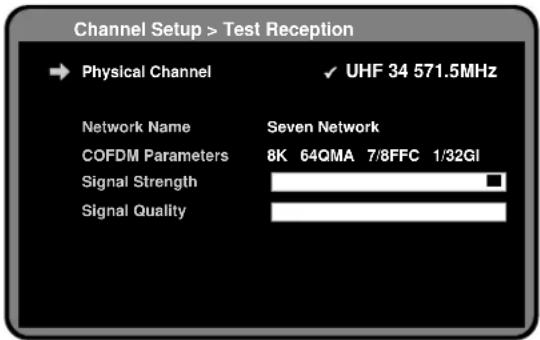
Test Reception
You can review your aerial signal strength using this menu.
In this menu, you can check up the Network Name, COFDM Parameters, Signal Strength and Signal Quality.
1) Press MENU to display the menu.
2) Press DOWN to select the Channel Setup menu.
3) Press OK or RIGHT to enter Channel Setup menu.
4) Press DOWN to select Test Reception.
5) Press OK or RIGHT to go to Sub menu.
6) For change physical channel, Press OK or RIGHT again to display physical channel list.
7) Press UP/DOWN or PgUp/PgDn to select the physical channel you want to check up the signal strength.
8) Press OK or RIGHT to change physical channel.
9) Press LEFT to return. You can check up and review the signal strength, quality and signal related information.
10) Press MENU to go back.
3. Access & Timer Setup
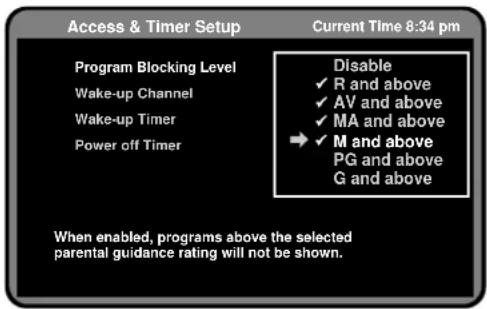
Program Blocking Level
You can setup channel blocking level with this item. If current channel having a lower level than Program Blocking Level which you setting up previously then the display will be blanked and shows blocked message with OSD. Whenever you enter Program Blocking Level menu. HD-STB always asking you PIN code.
1) Press MENU to display the menu.
2) Press DOWN to select the Access & Timer Setup menu.
3) Press OK or RIGHT to select Access & Timer Setup menu.
4) Press OK or RIGHT to go to Sub menu.
5) HD-STB will ask you enter the PIN code.
6) Press UP or DOWN to select the Program Blocking Level you want to setup.
7) Press OK or RIGHT to change Program Blocking Level.
8) Press MENU to go back.
Wake-up Channel
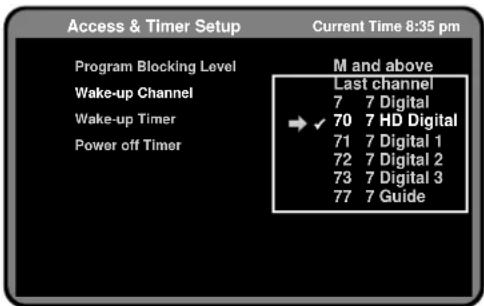
You can select any channel when Wake-up Timer is turned on the HD-STB. The default is last watched channel. For select the desired channel, you should setting up the Wake-up Channel.
1) Press MENU to display the menu.
2) Press DOWN to select the Access & Timer Setup menu.
3) Press OK or RIGHT to select Access & Timer Setup menu.
4) Press DOWN to select Wake-up Channel menu.
5) Press OK or RIGHT to go to Sub menu.
6) Press UP or DOWN to select desired channel you want to setup.
7) Press OK or RIGHT to change desired channel.
8) Press MENU to go back.
Using the MENU System
Wake-up Timer
You can setup the Wake-up Timer for automatic turn on the HD-STB.
When the setting up time is reached, the HD-STB will automatic turn on and display setting up channel. This Wake-up Timer is operating daily. You can refer current time upper side right of the OSD.
1) Press MENU to display the menu.
2) Press DOWN to select the Access &Timer Setup menu.
3) Press OK or RIGHT to select Access & Timer Setup menu.
4) Press DOWN to select Wake-up Timer menu.
5) Press OK or RIGHT to go to Sub menu.
6) Press UP or DOWN button enabling sub menu.
7) Use UP/DOWN or numeric button to change time.
8) Press LEFT or RIGHT to move each item.
9) After finished setup, press MENU or LEFT to go back.

Power-off Timer
You can setup the Power off Timer for automatic turn off the HD-STB.
When the setting up time is reached, the HD-STB will automatically turn off. This Power-off Timer is operating daily.
1) Press MENU to display the menu.
2) Press DOWN to select the Access &Timer Setup menu.
3) Press OK or RIGHT to select Access &Timer Setup menu.
4) Press DOWN to select Power-off Timer menu.
5) Press OK or RIGHT to go to Sub menu.
6) Press UP or DOWN button enabling sub menu.
7) Use UP/DOWN or numeric button to change time.
8) Press LEFT or RIGHT to move each item.
9) After finished setup, press MENU or LEFT to go back.

Using the MENU System
4. System Setup
From here you can setup Time Zone, Auto power off, Factory Reset and check up the HD-STB's system information.
Time Zone
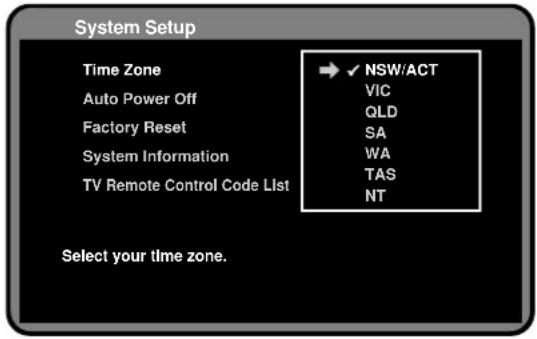
From here you can setup the Time Zone. You should select the time zone information after factory Reset. It is for correct time display when EPG information is displayed.
1) Press MENU to display the menu.
2) Press DOWN to select the System Setup menu.
3) Press OK or RIGHT to select System Setup menu.
4) Press OK or RIGHT to enter sub menu.
5) Press UP or DOWN to select Time Zone.
6) Press OK or RIGHT to change Time Zone where you live.
7) Press MENU to go back.
Auto Power Off
This HD-STB has Auto Power Off - Power Saver function. If you setup the Auto Power Off - Power Saver with period of times, then this HD-STB will automatically turn off after preset period of time in case of none remote control activity for prevent unwanted operation. Prior to turn off, a pop-up menu will warns of impending HD-STB power down. If you setup to Off, then this function will disable.

Using the MENU System
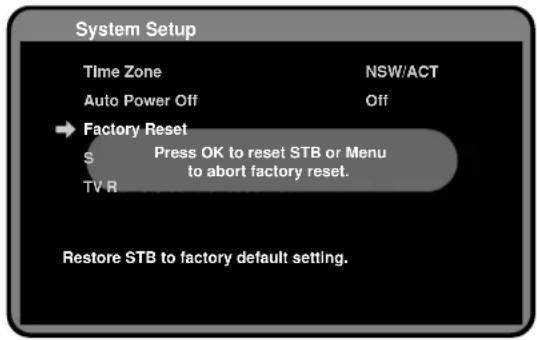
Factory Reset
The HD-STB will erase all of current setting value and go to factory default setting after Factory Reset. The HD-STB asked to confirm to Factory Reset. You should enter your PIN code. Press OK to confirm Factory Reset. The HD-STB will be restored factory default value and restart automatically. After Factory Reset, you should set the Time Zone and perform the Automatic Channel scan for correct menu operation. The default PIN code is "0000". You can not change the default PIN code value.
System Information
You can find System information from this menu. It will display Manufacturer, Model Name, Software Version and Hardware Version.
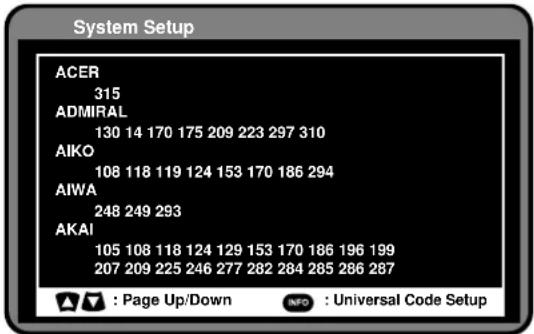
Remote Control Code List
From here you can look up most popular CE component remote control code list. You can setup your CE component remote control code follow the list. Please refer detailed setup instruction on page 8.
Using the Remote Control Button
1. Using INFO button
This HD-STB has the ability to display additional information about programs.
By pressing INFO button white watching TV you will get simple program information.
By pressing INFO button again you will get the detailed NOW program information display.
By pressing INFO button again, you will get the detailed NEXT program information Display. Press INFO button fourth time to return to TV mode. You can quit the program Information display at any time by pressing MENU or EXIT button.
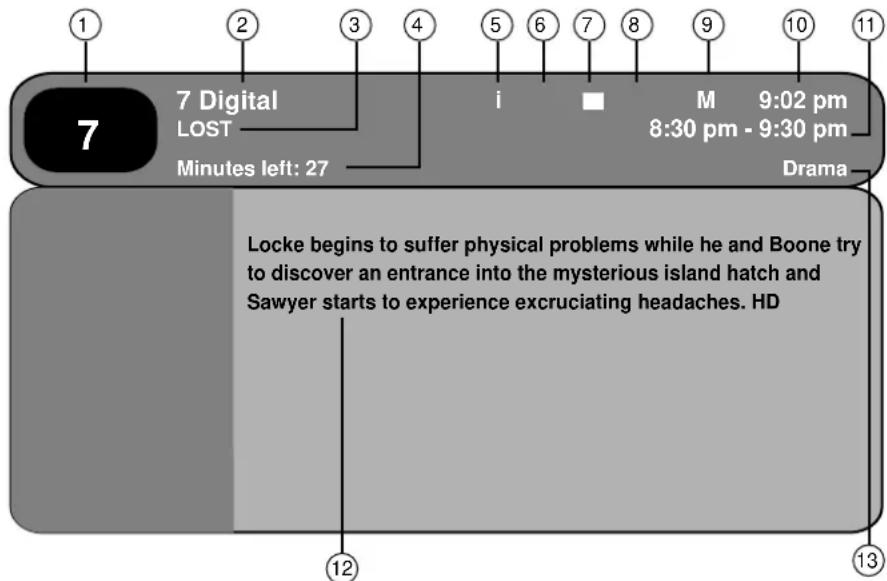
- Program Number
It is Program Number. It is also called Logical Channel Number.
- Program Provider Name
It showed current program provider's name.
- Program Title
It showed program title.
- Remain Program Time
It shows remained program time.
- Information Display
It showed the program has additional information.
- Sound Mode Display
Display the program has additional sound mode present.
- Subtitle Information
Display the program has subtitle present.
- Fav Mode Indicator
It indicates current channel mode whether FAV mode or ALL channel list mode.
- Rating Information
It showed program's rating Information for Parental Guide.
Using the Remote Control Buttons
10. Current Time
It showed the current time
11. Program Schedule
It showed the start and end time of program
12. Information Contents
It displayed the current program's event title information contents. Pressing INFO button again, you can see the NEXT program information.
13. Genre
It showed the program Genre.
2. Using EPG button
This HD-STB can display 7-day EPG information which channel is including EPG data. By pressing EPG button while watching TV you will get whole channel's 7-day EPG program information. You can surf date, time and program information using direction buttons. For the fast surfing between dates, press MENU Button to select date item.
| 7 Day EPG Thursday 30 June 2005 9:03 pm | ||||||
| Thu 30 Fri 1 Sat 2 Sun 5 Mon 4 Tue 5 Wed 6 | ||||||
| 7 7 Digital | LOST | 8.30pm - 9.30pm | ||||
| THE AMAZING RACE | 9.30pm - 10.30pm | |||||
| 70 7 HD Digital | LOST | 8.30pm - 9.30pm | ||||
| THE AMAZING RACE | 9.30pm - 10.30pm | |||||
| 71 7 Digital 1 | LOST | 8.30pm - 9.30pm | ||||
| THE AMAZING RACE | 9.30pm - 10.30pm | |||||
| 72 7 Digital 2 | LOST | 8.30pm - 9.30pm | ||||
| THE AMAZING RACE | 9.30pm - 10.30pm | |||||
| 75 7 Digital 5 | LOST | 8.30pm - 9.30pm | ||||
| THE AMAZING RACE | 9.30pm - 10.30pm | |||||
If you want to get more detailed program information then press INFO button. Press INFO button again to return to 7-day EPG display. At any position, press OK to change to Desired channel.
![Thursday 30 June 2005 9:03 pm 7 Thu 30 Fri 1 Sat 2 Sun 5 Mon 4 Tue 5 Wed 6 7 HD Digital [8.30pm - 9.30pm] LOST Drama Locke begins to suffer physical problems while he and Boone try to discover an entrance into the mysterious island hatch and Sawyer starts to experience excruciating headaches. HD Rating M](/content/2026/06/1192351/images/1535e1961417b7130b0112e0ae5cf7ed9772bb44d1a8b9e2eff6513572887413.jpg)
Using the Remote Control Button
3. Using LIST & FAV button
If you press LIST or FAV button on the remote control, ALL channel list or FAV channel list will be displayed respectively. In this menu you can navigate among channel list and change the channel directly by pressing OK button. If you have a lot of channels in the list, then press PgUp/PgDn button for faster move up or down.
4. Using ZOOM button
This HD-STB has specially designed PB ZOOM function. Press ZOOM button to swap between widescreen and PB ZOOM screen. In the PB ZOOM screen, this HD-STB will expand the original picture. Press UP or DOWN button to move the picture display position. In the 4:3 picture with side black bars, this PB ZOOM can eliminate side black bars. This PB ZOOM is affected with HD output only SD output cannot use PB ZOOM for prevent information loss when VCR recording. If you change the channel under PB ZOOM screen, then it will automatically release PB ZOOM and return to widescreen display. For release PB ZOOM, simply press ZOOM button again.
5. Using FREEZE button
You can freeze the picture using press FREEZE button in the remote control it will release the freeze picture automatically after 10 minutes. It is for preventing burn-in on flat panel screen.
Trouble Shooting Guide
Your HD-STB is designed to give you trouble-free performance for many years. If you have a problem with your HD-STB, try the solutions listed below.
| Problem | Possible Cause | What to do |
| The display on the front panel does does not up. | Power cable is not connected. | Check up the Power cable which is plugged in to the AC wall mounted socked. |
| No Sound or Picture but the front LED shows RED light. | The HD-STB is not powered ON. | Press the power button on the front or remote controller to powered ON status. |
| Pixelated picture. | Signal to weak or No antenna connect. | Check the antenna or antenna connection. Simply check the analog reception of TV. |
| No Picture, Sound OK. | The HDTV does not support selected Video Resolution. | Check the Video Display Mode. Refer Display Mode Change on page 16. |
| The Sound is OK but the Picture is Blank.The Picture is OK, but the Sound is Blank. | Audio or Video Connection is not good. | Check up the Audio/Video cable or connection. |
| The remote control is not working. | Battery exhausted.Remote control is incorrectly aimed.Blocked the HD-STB front panel. | Change the batteries.Aim the remote control at HS-STB Check that nothing blocks the front panel. |
| The universal TV key is not working. | TV code is not setting. | Please refer to page 8. |
| The composite Video S-Video cannot work with PB Zoom. | It is normal. PB Zoom is working only HD Video Output. |
Reception Trouble Shooting Guide
After a channel scan, some channels or no channels are found
- Your TV antenna may not be properly connected to your digital receiver
- Did you connect your antenna as illustrated on Page 11? The HD-STB must be the first device connected to the antenna when daisy-chaining RF input / output products such as VCRs, DVD Recorders and analog televisions.
- Is the antenna wall socket in good condition? For optimum and reliable contact performance, the antenna wall connector should be an 'F' (screw) type connector.
- Are you using a quality antenna fly lead between antenna wall socket and HD-STB? The use of RG6 or RG59 Quad Shield 75 ohm coaxial cable fly leads with metal 'F' connectors provides a secure, reliable connection that also greatly reduces impulse noise pickup. Low cost antenna fly leads with right-angled plastic moulded connectors are a common cause of poor reception and impulse noise pickup.
- Digital TV or some channels (services) may not have yet commenced in your area.
Consult with your retailer who has local knowledge on DTV broadcasting
- The signal received may be too poor to allow the digital receiver to find some or all available channels or
- Your old antenna may not be designed to receive all DTV channels or
- Antenna reception performance has deteriorated due to weathering, corrosion of antenna Connections / cabling and broken elements.
Please contact your local TV antenna installer.
Generally, a quality suburban antenna installation consists of:
(1) Separate VHF (Ch's 6-12) and UHF (Ch's 27.69) antenna's (rule of thumb; larger antenna's with more elements capture more signal). If you live within 5-10Km of DTV transmission towers, a combined VHF/UHF antenna should be adequate. Outside this area, separate VHF and UHF antennas provide superior reception performance.
(2) A shielded diplexer that combines the separate VHF and UHF antenna signals into one signal. Depending on DTV signal conditions, some installations may instead require a VHF/UHF masthead amplifier.
(3) RG6 Quad Shield 75 ohm coaxial cabling 'F' connectors. These guidelines equally apply to regional installations except for the antenna, which, in most cases will be UHF only, since Most DTV broadcasting is usually located in the UHF bands.
TO AVOID PERSONAL INJURY AND PROPERTY DAMAGE, QUALIFIED ANTENNA INSTALLERS MUST PERFORM ANTENNA INSTALLATIONS, REPAIRS AND INSPECTIONS.
• I am a home unit dweller
The existing Master Antenna TV (MATV) system may have been originally designed for analog PAL TV only, and may require a substantial upgrade or replacement to also carry DTV signals. Please consult your Body Corporate.
Reception Trouble Shooting Guide
Some channels display 'Poor/NoSignal' 'Check Antenna Connection'
- Received signal is 'too weak' (i.e; poor quality) to generate a stable picture. Please check antenna &cabling or contact your local TV antenna installer.
Picture regularly breaks up on some channels
- The received signal may be too weak to allow the digital TV receiver to reliably 'lock' to the desired signal and generate a stable picture.
Please check antenna & cabling or contact your local TV antenna installer.
- 'Impulse Noise' interference from household appliances such as lights, refrigerators, washing machines, electric stoves etc may cause pictures to break up and audio to mute or distort momentarily.
In the first Instance, replace antenna fly-lead with a quality RG6 or RG59 Quad Shield 75 ohm coaxial cable fly lead. If problem persists, check / improve antenna & cabling or contact your local TV antenna installer.
- A masthead amplifier may be 'over-boosting' the antenna signal, which is overloading the DTV tuner, resulting in poor reception on some or all channels.
Please contact your local TV antenna installer.
Picture very infrequently breaks up on some or all channels
- Electrical atmospheric interference caused by local or distant lighting storms or heavy rain with wind in 'leafy' locations may cause pictures to break up and audio to mute or distort momentarily.
- Impulse noise interference from an infrequently used electrical appliance, Or a passing Vehicle or lawn mower with a 'noisy' ignition system.
For further DTV reception trouble shooting information please visit the Digital Broadcasting Australia (DBA) website: www.dba.org.au
Specifications
| Section | Detailed section Explanation | |
| Terrestrial Input Signal Input Frequency | VHF 174MHz to 230MHzUHF 520MHz to 820MHz | |
| Video MPE-2 com AlgiorhMP@ML, MP@HL | ||
| S-/Video (Y/C), Composite Video (CVBS) | ||
| Audio | Algorithm | MPEG-1 layers and 2, MPEG-2 layers 2Dolby Digital (AC-3) |
| Frequency Response | 20Hz~20kHz < *2db | |
| Sampling Frequency | 32, 44.1 and 48kHz | |
| Analog Audio Output | Stereo (RCA phone jack), 2.0Vrms Max.>10K ohm (1 Sets) | |
| Digital Audio Output | S/PIDF optical (TOS Link) S/PIDF Coaxial (RCA) | |
Specifications
| Section | Detailed section Explanation | |
| Controller Features Main CPU 32 bit RISC | ||
| SW Download Upgrade via RS-232C (9 pin D-SUB connector) | ||
| Menu System Graphic User Interface | ||
| Channel Memory Max. 256 Channel | ||
| Remote Controller IR Remote Controller with Universal TV Key | ||
| Power | Power AC 180 - 250V ~ 5%, Max. 15W | |
| Operating Frequency 50/60Hz 5% | ||
| Standby Power Consumption Less than 2W | ||
| Power Protection Slow Blow Fuse (250V, 2A) | ||
| Environmental Condition | Operating Temperature 0~40 °C | |
| Storage Temperature -10 ~ +50 °C | ||
| Operating Humidity 5% ~ 90% Non-condensed | ||
| Storage Humidity 5% ~ 90% Non-condensed | ||
| Weight Approx. 1.3Kg | ||
| Dimension 280mm x 39mm x 199mm (WxHxD) | ||
Note : Specifications are subject to change without notice.
Using Direct Entry Remote Control Universal Code Setting
1) Locate your CE component brand in R/C Code List.
2) Turn on the component you wish to control.
3) Press & hold component key until component key red LED remains on, then release it.
4) Enter 3 digit code from the R/C Code list Component key LED flashes three times and TV switches off.
5) If component does not switch off, repeat above steps using the next code number as listed for your component brand until component switches off.
Remote Control Universal Code List
BRAND LIST FOR TV
| BRAND Code | List |
| ACER | 315 |
| ADMIRAL | 130,144,170,175,209,223,297,310 |
| AKIO | 108,118,119,124,153,170,186,207,294 |
| AIWA | 248,249,293 |
| AKAI | 105,108,118,124,129,153,170,186,196,199,207,209,225,246,277,282,284,285,286,287,288,294,310 |
| ALBA | 107,108,124,154,186,210,223,246,274,300,310 |
| AMSTRAD | 108,124,141,149,170,186,231,246,255,284,308 |
| ANAM | 108,114,123,124,162,186 |
| APOLLO | 281 |
| AR, AR System | 333,108,186,309 |
| AUDIOSONIC | 108,124,153,170,186,274,276,208,287,288 |
| AUDIOVOX | 119,122,162,182 |
| AUTOVOX | 153,158,175,207,278,296,297,305 |
| AWA | 108,124,153,170,186,231,285 |
| BEKO | 108,186,274,276,280,285,287,288,294 |
| BEST | 274 |
| BESTAR | 108,186,274 |
| BLAUPUNKT | 150,151,169,289 |
| BLUE SKY | 108,154,174,186,246,287,288,289,300 |
| BOSCH-BAUER | 208 |
| BROTHER | 170 |
| BURNS | 228,280,297 |
| BUSH | 017,108,124,153,154,170,174,186,196,203,207,209,210,246,287,300,301,305,310 |
| CASADE | 108,124,186 |
| CASIO | 108,186,305,310 |
| CATHY | 108,186 |
| CENTURY | 297 |
| CGE | 191,223,274,296,310 |
| BRAND Code | List |
| CITIZEN | 105,109,115,116,119,142,167,173 |
| CLARIVOX | 108,186,223,229,295 |
| CONCORDE | 124 |
| CONIC | 213 |
| CONRAD | 108,186 |
| CONTEC | 107,108,124,152,162,166,170,186 |
| CONTINENTAL EDISON | 251 |
| CROWN | 108,109,124,162,186,196,223,229,274,276,285,287,288,296,304,307,309 |
| CYBERTRON | 154 |
| DAEWOO | 108,109,119,124,129,153,182,186,233 |
| DENON | 136 |
| DIAMOND | 170,301 |
| DIGITRON | 108,186 |
| DIGILINE | 108,186 |
| DIGITOR | 108,186 |
| DUAL | 108,153,186,207,305,310 |
| ELBE-SHARP | 284 |
| ELEKTA | 108,124,170,174,186 |
| ELITE | 108,142,154,186,196,208 |
| EMERSON | 108,109,129,139,141,157,160,161,162,163,164,165,166,171,173,174,183,186,207,274,276,295,296,297,310 |
| FERGUSON | 108,186,207,294,298 |
| FIDELITY | 108,152,170,186,187,194,207,231,310 |
| FISHER | 118,139,143,153,196,198,207,228,274,297,298,305,310 |
| FUJITSU | 108,123,124,118,153,161,186,207,225,229,310,322,323 |
| FUJITSU General | 124,153,310 |
| FUNAI | 149,161,162,170,211,231,300 |
| GALAXI | 108,186,207,229,310 |
| GALAXIS | 108,186,223,229,252,274 |
Remote Control Universal Code List
| BRAND Code | List |
| GE | 101,103,110,111,114,129,130,135,160,174,182 |
| GEC | 108,118,153,186,205,207,213,226,284,305,310 |
| GENERAL Technic | 124 |
| GENESIS | 124 |
| GOLSTAR | 105,106,108,109,115,120,121,124,129,134,153,160,170,186,203,207,213,225,250,274,285,310,312 |
| GOODMANS | 107,108,118,124,153,161,170,186,233,246,282,284,294,300,312 |
| GRANDA | 108,118,153,186,196,199,225,281,284,296,304,306,307,310 |
| GRUNDIG | 108,118,150,158,169,186.237,270,274,295,296,302 |
| HAIER | 170,301 |
| HARMAN KARDON | 113 |
| HATACHI | 106,107,108,115,118,129,131,132,136,138,140,144,153,156,186,187,192,198,199,200,201,204,205,206,207,209,213,214,215,216,217,225,258,267,281,282,283,284,299,305,306,307,310,311 |
| HMV | 297 |
| HYUNDAI | 108,186 |
| IMPERIAL | 108,186,191,202,207,209,212,223,274,296,305,310 |
| INFINITY | 113 |
| ITT-NOKIA | 161,196,207,268,273,277,281,282,285,286,304,305,310 |
| JACSON | 226 |
| JBL | 113 |
| JEC | 142,294 |
| JUBILEE | 108 |
| JVC | 107,112,147,164,223,285 |
| KATHREIN | 108,186,187 |
| KEC | 162 |
| KENWOOD | 105,129,299 |
| KONKA | 108,1186,223,287 |
| KTV | 105,109,153,162,165,166,173 |
| LEMAIR | 212 |
| BRAND Code | List |
| LENCO | 108,124,170,186,233,256,298,310 |
| LG | 108,115,124,129,153,186,207,244,274,285,287,310,313 |
| LOEWE | 108,113,186,187,246,247,271,272,274,275,290,308,313 |
| LUXMAN | 115 |
| MAGNADYNE | 207,229,262,284,297,310 |
| MAGNAVOX | 100,102,104,105,107,108,113,161,167,168,186,213 |
| MAGNUM | 108,186,287,288 |
| MANHATTAN | 108,106,246,300,310 |
| MARANTZ | 105,108,113,186,187,231 |
| MUSUDA | 108,124,153,170,186 |
| MATSI | 108,118,124,125,114,153,186,196,202,207,210,284,289,294,305,310 |
| MATSUSHITA | 111,179 |
| MITSUBISHI | 107,108,129,130,133,137,158,160,186,187,196,297 |
| MITSURI General | 310 |
| MORGAN'S | 108,186 |
| MOTOROLA | 114,130 |
| NAD | 129,142,146,160,207,310 |
| NATIONAL | 158 |
| NEC | 105,107,108,115,124,129,148,153,186,289 |
| NIKKO | 105,110,119,127,129,139,142,160 |
| NOKIA | 161,170,196,198,204,205,206,207,209,253,273,281,282,283,285,286,304,305,307,310 |
| NORDMENDE | 108,186,287,310 |
| OMEGA | 170 |
| ONWA | 162,229 |
| ORION | 108,124,141,157,161,170,183186,207,208,210,211,229,231,284,287 |
| PALSONIC | 108,153,170,186,231,310,334,335 |
| PANASONIC | 108,110,111,112,113,114,116,120,130,136,137,139,142,144,145,155,158,160,178,179,186,207,209,284,310 |
| PANAVISION | 108,186,212 |
Remote Control Universal Code
| BRAND Code | List |
| PHILCO | 100,102,104,105,108,113,129,136,167,168,183,186,223,262,274,296,297,310 |
| PHILIPS | 100,101,102,103,104,108,109,113,127,128,129,186,187,213,225,238,240,249,297,314,321,327,328,329,331 |
| PHOENIX | 108,118,186,274,276,297,310 |
| PIONEER | 108,144,146,186,187,207,274,276,280,310 |
| PRIMA | 124,142,170,196,231 |
| PROTON | 122,129,160 |
| PYE | 108,186,231,297,305 |
| QUASAR | 111,114,124,145,179 |
| RADIO SHACK | 105,106,108,109,110,115,129,139,145,160,162,186,196 |
| RANK | 295 |
| RANK ARENA | 107,295,316,317,318,319 |
| RCA | 110,111,128,129,130,135 |
| RICOH | 108,186 |
| ROWA | 153,170,301,303 |
| SABA | 144,205,207,209,297,284,310 |
| SEGAM | 174,239,289 |
| SAMPO | 105,106,109 |
| SAMSUNG | 105,106,108,109,115,116,118,124,129,153,160,170,177,186,187,196,225,237,274,310,312 |
| SANSUI | 108,183,186,289,302 |
| SANYO | 107,108,118,123,124,125,139,143,153,164,186,196,197,198,225,226,261,274,276,298,304,309,310,313,320,324,325,326,332 |
| SCHAUB LORENZ | 207,209,276,285,287,305 |
| SCHNEIDER | 108,153,154,170,186,207,236246,253,257,262,287,300,305310 |
| SCOTT | 129,157,160,161,162 |
| SEC | 107,108,124,153,170,186,228,229,246,296,300,305,308,310 |
| SHARP | 107,109,130,145,284 |
| SHIVAKI | 108,186 |
| SEIMENS | 108,150,151,169,186,207 |
| SIMPSON | 167,168 |
| BRAND Code | List |
| SINGER | 108,124,186,229,262,297,310 |
| SKY | 108,186 |
| SONY | 106,107,108,125,130,164,172,185,186,229,324,326,330 |
| SUPRA | 115,124 |
| TADNDY | 225 |
| TANDBERG | 207,212,308,310 |
| TANDY | 118,130,144,153,154,310 |
| TATUNG | 108,114,118,122,153,186,225,284 |
| TEAC | 108,124,129,153,170,174,186,187,207,223,231,246,262,289,300,301,302,303,305 |
| TEC | 108,124,153,186,207,233,310 |
| TECHNICS | 110,111,127,176 |
| TECHNISAT | 108,186,230,310 |
| TEDELEX | 108,124,153,186,196,285 |
| TEKNIKA | 109,113,115,116,119,126,129,137,161,162,167 |
| TELEFUNKEN | 108,115,186,276 |
| TEMPEST | 108,124,186 |
| TEVION | 108,186,300 |
| THOMSON | 108,158,186,245,305 |
| THORN | 108,118,142,185,186,187,197,198,207,213,215,226,227,294,298,307 |
| TOSHIBA | 107,116,139,142,153,159,196,198,229,270,294,295 |
| TOYODA | 124 |
| TRIDENT | 153,284 |
| TRISTAR | 170 |
| VESTEL | 108,153,186,246,300,310 |
| VICTOR | 112 |
| VOXSON | 108,114,186,209,223,296,297,310 |
| WEGA | 107,108,186,297 |
| WHARFEDALE | 108,186 |
| WHITEWESTINGHOUSE | 108,152,186,196,208 |
| WINTEL | 287 |
| YAMAHA | 105,129 |
| ZANUSSI | 153,175,209 |
| ZENITH | 119,126,127 |
Remote Control Universal Code List
BRAND LIST FOR VCR
| BRAND Code | List |
| ADMIRAL | 121 |
| AIKO | 165 |
| AIWA | 100,111 |
| AKAI | 115,124,129,146,162 |
| ALBA | 105,135,154,165,167 |
| AMSTRAD | 100,165 |
| AUDIOVOX | 111 |
| BLAUPUNKT | 108,147 |
| BUSH | 135,154,165 |
| CANON | 109 |
| CGE | 100 |
| CITIZEN | 111,165 |
| CROWN | 105,135,165 |
| DAEWOO | 105,118,165 |
| DENON | 116 |
| DUAL | 115 |
| ELBE | 112 |
| EMERSON | 100,101,110,111,117,129,134,139,143,150,153,154,156,157,165,166,167,169 |
| FERGUSON | 115 |
| FIDELITY | 100 |
| FISHER | 119,120,125,132,141 |
| FUJI | 107,109 |
| FUNAI | 100 |
| GE | 109,121,128,131,152,161 |
| GEC | 137 |
| GENERAL | 105,123 |
| GOLDSTAR | 104,111,112,159 |
| GOODMANS | 100,105,111,130,135,165 |
| GRANADA | 119,137,141 |
| HITACHI | 100,115,116,131,138,142,144,148,160,161,170 |
| IMPERIAL | 100 |
| ITT | 115,119,141,161,163,170 |
| JVC | 102,115,133,170 |
| KEC | 111,165 |
| KENWOOD | 121,115,119,133,170 |
| KODAK | 109,111 |
| LENCO | 165 |
| LOEWE | 111,137 |
| MAGNAVOX | 100,109,113,137,140 |
| MARANTZ | 109,112,130,137,145,167 |
| MATSUI | 110,139,154,167 |
| MATSUSHITA | 109,147 |
| MITSUBISHI | 117,121,129,133,136,137,149,158,162 |
| BRAND Code | List |
| MOTOROLA | 109,121 |
| NAD | 127 |
| NEC | 112,114,115,133,138,141 |
| NIKKO | 111 |
| NOKIA | 115,116,119,137,141,161,163 |
| NORDMENDE | 115,170 |
| OLYMPUS | 109 |
| ORION | 101,110,139,143,150,153,154 167 |
| PANASONIC | 109,147,159 |
| PHILCO | 109,112,154 |
| PHILIPS | 109,130,137,145,170 |
| PIONEER | 127,133,137,160 |
| PYE | 137 |
| QUASAR | 109,147 |
| RADIO SHACK | 100 |
| RADIX | 111 |
| RCA | 109,116,121,128,131,142,152, 161 |
| RICHO | 108 |
| ROADSTAR | 111,135,161,165 |
| SABA | 115,170 |
| SAMSUNG | 118,121,124,161 |
| SANSUI | 100,115,133,138,164 |
| SANYO | 119,120,141,161,163 |
| SCHAUB LORENZ | 100,115,141 |
| SCHNEIDER | 100,135,137 |
| SCOTT | 117,118,143,150,155,156,157 |
| SEG | 161 |
| SHARP | 121,130 |
| SIEMENS | 111,125,137,141,145,163 |
| SINGER | 118,135 |
| SONY | 100,103,106,107,108,109 |
| TATUNG | 100,115,137 |
| TEAC | 100,115 |
| TEC | 105 |
| TECHNICS | 109,113,128,147,152 |
| TELEFUNKEN | 115,151,170 |
| THOMSON | 115,170 |
| THORN | 110,115,141 |
| TOSHIBA | 115,117,118,126,132,137,155 157,170 |
| VECTOR | 118 |
| WHITE WESTINGHOUSE | 165 |
| YAMAHA | 112,115 |
| ZENITH | 100,107,108,113 |
Remote Control Universal Code List
BRAND LIST FOR DVD
| BRAND Code | List |
| AIWA | 116,126 |
| AKAI | 125,129,131,133,146,147 |
| AKI | 135 |
| AMSTRAD | 131 |
| AUDIOSONIC | 125 |
| AWA | 137 |
| BLAUPUNKT | 134 |
| BLUE SKY | 122,126,128,131 |
| BUSH | 124,125,126,128,131,134,143,149 |
| CAMBRIDGE Audio | 127 |
| CELESTIAL | 122 |
| CENTREX | 122,15 |
| CONIA | 122 |
| CROWN | 101,118,125 |
| DAEWOO | 101,128,129,132 |
| DENON | 115,142 |
| DIAMOND | 118 |
| DIGIRED | 134 |
| DIGITREX | 122 |
| DUAL | 118,120,131,137,143,145,147 |
| EMERSON | 110,129 |
| FERGUSON | 118 |
| FUNAI | 126 |
| GE | 134 |
| GOLDASTAR | 110,139 |
| GOODMANS | 118,125,145,147,149,150 |
| GRUNDIG | 118,121,126,129,131,147 |
| HDT | 129 |
| HITACHI | 109,119,120 |
| HYUNDAI | 145 |
| JVC | 102,111,157 |
| KENWOOD | 105,138,142 |
| KODA | 149 |
| LENCO | 101,118,128,143,149 |
| LG | 110,139,154 |
| LOGIX | 129,145 |
| LUXMAN | 109 |
| MAGNAVOX | 102,149 |
| MATSUI | 118,126 |
| MICROSOFT | 103 |
| MITUSBISHI | 131 |
| MIZUDA | 149 |
| NAD | 139 |
| NAKIO | 101 |
| NORMENDE | 143 |
| OMNI | 125,128 |
| BRAND Code | List |
| ONKYO | 102,112 |
| ORION | 126 |
| ORITRON | 118 |
| PALSONIC | 122,124 |
| PANASONIC | 142,155 |
| PANDA | 142 |
| PHILIPS | 106,156 |
| PIONEER | 151 |
| RANK ARENA | 135 |
| RCA | 103,118 |
| ROADSTAR | 124,125,128,131,149 |
| ROWA | 150 |
| SABA | 118 |
| SAMSUNG | 109,142 |
| SANSUI | 101,126,133 |
| SANYO | 121,126,147 |
| SCHAUB LORENZ | 101,146 |
| SCHNEIDER | 118,129,145,146,147 |
| SCOTT | 118,121,135 |
| SEG | 120,131 |
| SHARP | 113,126 |
| SHERWOOD | 114,134,139 |
| SONY | 104,109,153 |
| TATUNG | 101 |
| TEAC | 110,134,139,147 |
| TECHNICS | 142,155 |
| TECHNIKA | 101 |
| THOMSON | 103,107 |
| TOSHIBA | 102 |
| VOXSON | 137,143 |
| WHARFEDALE | 123,127 |
| XBOX | 103 |
| YAMAHA | 142 |
| ZENITH | 102,110,139 |
PALSONIC CORPORATION PTY LTD
1 JOYNTON AVENUE
WATERLOO NSW 2017 AUSTRALIA
TEL: (02) 9313 7111
FAX: (02) 9313 7555
www.palsonic.com.au
PALSONIC CUSTOMER SERVICE
TELEPHONE
AUSTRALIA: 1300 657 888
- High Definition Digital Receiver
- HDSTB200
- Safety Information
- CAUTION
- Important Safeguards
- Read and Retain this User's Guide
- Use Correct Power
- HD-STB Installation
- Provide Antenna Ground
- Provide Proper Ventilation
- Keep Away from Heat
- Important Safeguard
- Keep Away from Moisture
- Do Not Open
- Unplug before Cleaning
- Object and Liquid Entry
- For Additional Protection
- CONTENTS
- Overview of the Equipment 3
- Connecting Your HD-STB 11
- Getting Started 17
- Using Menu System 19
- Content
- Overview of the equipment
- Front Panel
- POWER
- Power Indicator
- Remote Sensor
- Video Display Mode Indicators
- UP / DOWN
- Remote Control
- TV
- VCR
- 0\~9 (Number Button)
- PgUp (STB Mode)
- CH+ / CH-
- PREV (Previous Channel - STB mode)
- Up / Down
- Exit
- LIST (STB Mode)
- FAV (STB Mode)
- I-II (STB mode)
- Subtitle (STB Mode)
- RED (F1)
- GREEN (F2)
- REWIND
- PLAY
- STOP
- AV (TV's External Video Input Selection)
- DVD
- STB
- PgDn (STB Mode)
- VOL+ / VOL-
- Installing the remote control batteries
- Cautions:
- Remote Control Universal Code Setting
- Using Automatic Code Search
- Using Direct Entry Method
- Using the remote control
- Accessories
- Connecting your HD-STB
- Antenna Connection
- Video Connection
- Connecting to a HDTV with HD YPbPr
- Connecting you HD-STB
- Connecting to a Conventional TV with S-Video
- Connecting to a Conventional TV with Composite Video
- Stereo Audio Connection
- Digital Audio Connection
- Display Mode Change
- STB Connection to 576p/720p/1080i High Definition Display
- STB Connection to Standard Definition Display
- Getting Started
- Step 1. Unpacking and accessories.
- Step 2. Remove protective plastic film.
- Step 3. Connect ANT Cable.
- Step 4. Connecting the Video.
- Step 5. Connecting the Audio.
- Step 6. Connecting the Power.
- Step 7. Display Mode Setup.
- Step 8. Install Remote Control battery and Universal Code setting.
- Step 9. Check up the On Screen Display.
- Step 10. Automatic Channel Search and Channel Change.
- Using the MENU System
- User Preference
- Preferred Audio Type (I-II)
- SD Output Aspect Ratio
- i-Plate Banner Duration
- Front Panel LED Dimmer
- Power Restore
- Channel Setup
- Channel Favourites
- Automatic Channel Scan
- Manual Channel Scan
- Test Reception
- Access & Timer Setup
- Program Blocking Level
- Wake-up Channel
- Wake-up Timer
- Power-off Timer
- System Setup
- Time Zone
- Auto Power Off
- Factory Reset
- System Information
- Remote Control Code List
- Using the Remote Control Button
- Using INFO button
- Using the Remote Control Buttons
- Current Time
- Program Schedule
- Information Contents
- Genre
- Using EPG button
- Using LIST & FAV button
- Using ZOOM button
- Using FREEZE button
- Trouble Shooting Guide
- Reception Trouble Shooting Guide
- After a channel scan, some channels or no channels are found
- TO AVOID PERSONAL INJURY AND PROPERTY DAMAGE, QUALIFIED ANTENNA INSTALLERS MUST PERFORM ANTENNA INSTALLATIONS, REPAIRS AND INSPECTIONS.
- Some channels display 'Poor/NoSignal' 'Check Antenna Connection'
- Picture regularly breaks up on some channels
- Picture very infrequently breaks up on some or all channels
- Specifications
- Using Direct Entry Remote Control Universal Code Setting
- Remote Control Universal Code List
Brand : Palsonic
Model : HDSTB200
Category : TV Decoder