
MPQC91 - Mp3 player MPMAN - Free user manual and instructions
Find the device manual for free MPQC91 MPMAN in PDF.


| Product Type | Multimedia Tablet PC |
| Brand | MPMAN |
| Model | MPQC91 |
| Operating System | Android (version not specified) |
| Display | Touchscreen |
| Storage | Internal NAND + micro SD slot (up to 32 GB) |
| Connectivity | Wi-Fi 802.11 b/g/n, USB 2.0 (micro USB), Bluetooth (assumed) |
| Audio | 3.5mm headphone jack, built-in speaker |
| Camera | Rear camera, photo and video recording |
| Power | Built-in rechargeable Li-Polymer battery, AC adapter via micro USB |
| Battery Charging | Charge via included AC adapter; optimum temperature 5°C to 40°C |
| Battery Care | Recharge at least once a month; if idle long, charge for at least 30 minutes before use |
| Disposal | Dispose of at official recycling station; battery contains polluting materials |
| Input Method | Touchscreen, software keyboard |
| Navigation | Virtual buttons: Back, Home, Recent apps |
| Main Functions | Web browsing, multimedia playback, app installation, camera, Wi-Fi connectivity |
| Reset | Press and hold power button for 5 seconds or use reset button on back |
| Factory Reset | Settings > Backup & reset > Factory data reset (erases all data) |
| Cleaning | Wipe with a soft, dry cloth; avoid liquids |
| Safety | Do not replace battery without authorization; risk of explosion |
| Repair/Spare Parts | Not user-serviceable; contact manufacturer for service |
Frequently Asked Questions - MPQC91 MPMAN
User questions about MPQC91 MPMAN
0 question about this device. Answer the ones you know or ask your own.
Ask a new question about this device
Download the instructions for your Mp3 player in PDF format for free! Find your manual MPQC91 - MPMAN and take your electronic device back in hand. On this page are published all the documents necessary for the use of your device. MPQC91 by MPMAN.
USER MANUAL MPQC91 MPMAN
Tablet Part
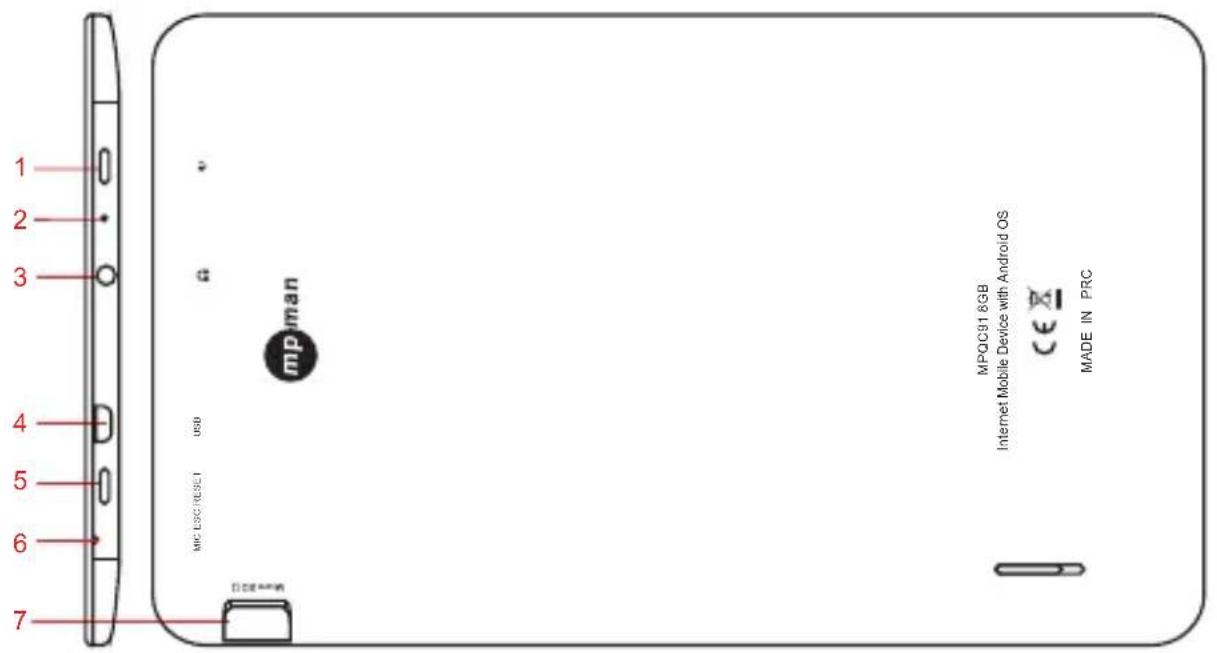
| Namefunction | |
| PowerKeep pressed to turn on/off the tablet; shortly press to activate standby | |
| Reset | Tablet will force to shutdown |
| Earphone jack | Connect earphone to this standard 3.5mm jack |
| USB Port | PC connection through USB cable (for example keyboard, USB device)/battery charge through the supplied adaptor |
| Esc | / |
| Mic | / |
| Micro SD Port | Insert a micro SD card (up to 32GB) |
Getting Started
Battery Charging
The tablet has a built-in rechargeable Li-polymer battery.
-
To charge connect the AC power adapter to the micro USB jack on the right side of the tablet.
-
The battery icon shows the battery status and charging status
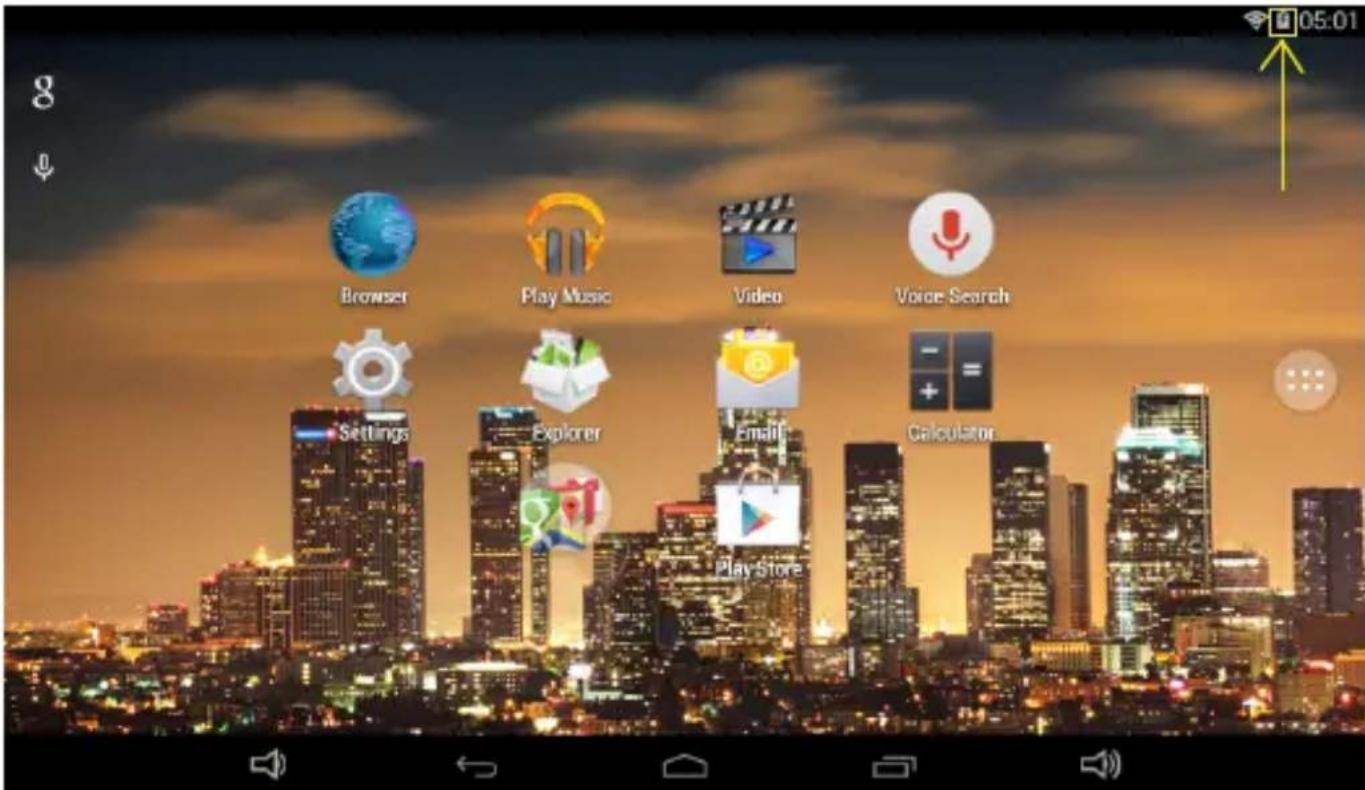
- The tablet can be used even if the battery is being charged.
the above icons indicate the different level of electricity left in the battery
-
no replacement of battery without authorization, or the explosion hazard might happen.
-
Recharge it for at least half hour if it has been idle for long time and fails to start itself.
-
Regularly recharge it at least one time monthly
-
40° - 5° is the optimum temperature for the battery recharging or the battery performance might deteriorate slightly
Disposal
the battery might contain the polluting material, please give it to the official
recycling-station before disposing the tablet pc, and don't litter.
Power ON/OFF
ON:
press the ⏻ button for continuous 5 seconds until the take OFF:
-
Press the ⏻ button for continuous 5 seconds and it will appear
-
Select OK to power off the tablet
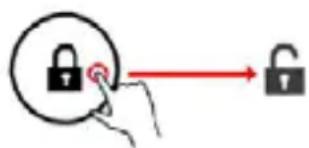
Screen Lock
This feature locks the screen, at the same time turn OFF the screen's backlight after a few seconds.
Screen locks when:
-
System is idle.
-
Manually activated by pressing the Power button once.
Screen unlock :
Home screen
The Home screen will look similar to the picture below. It is actually five screens, each of which can have a different layout of icons. To switch between screens, simply slide your finger left or right across the display. The status bar and navigation buttons are always visible, no matter which Home screen you can currently viewing.
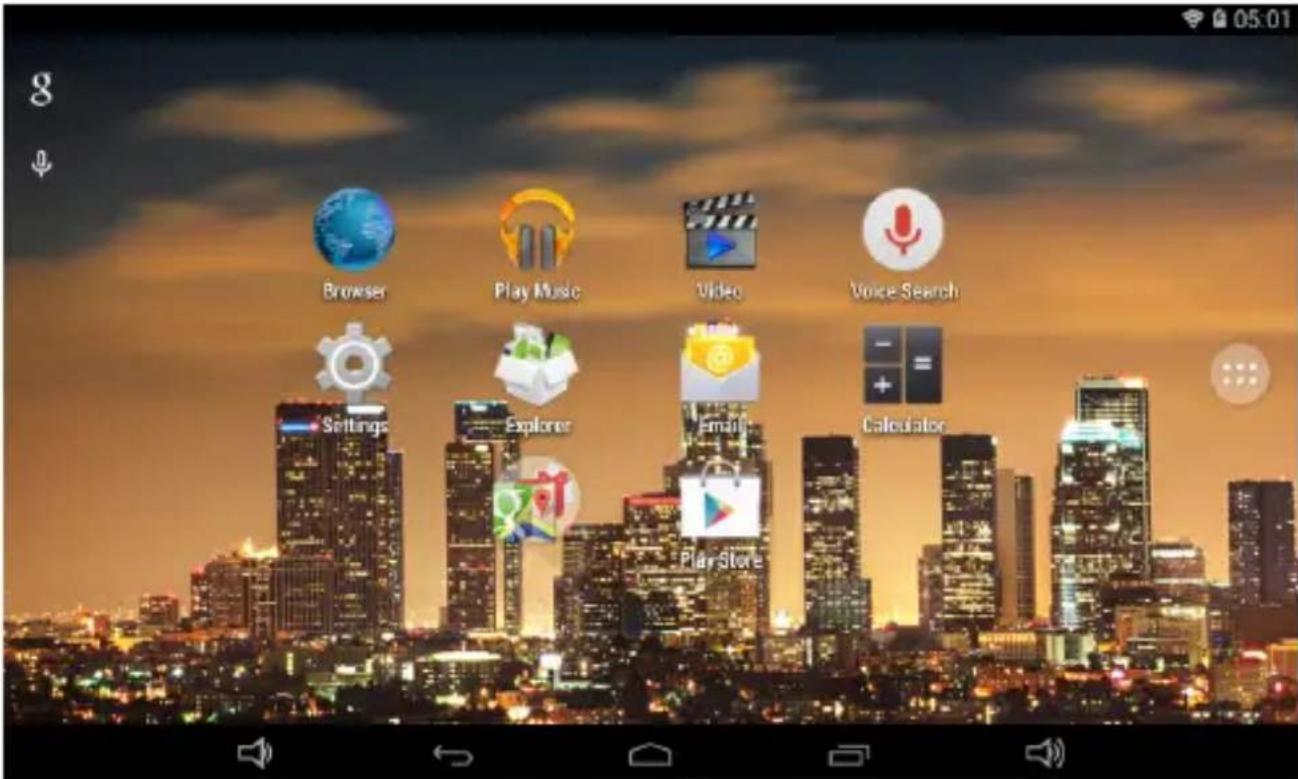
The Desktop cn contains shortcuts to your most-used applications and widgets. Touch the screen icon to quickly search the World Wide Web using Google.
The icon will launch the Application menu.
The status bar displays system information, such as current time, wireless connectivity and battery.
Touch to Expand the status bar for more detailed information.
The ← button moves back one step to the previous menu/page.
The 📄 buttons returns immediately to the Android desktop.
The button display a menu of recently opened applications.
Settings Menu
The settings menu allows you to adjust Tablet system configuration.
To change settings:

- Touch the "Settings" menu icon on the Application menu. The Settings menu will open.
- Guide your finger up or down the left side of the screen to scroll through the list of available categories.
- Touch a category title to view further options on the right side of the screen.
Wi-Fi - Connect to /disconnect from wireless networks, view connection status
Data usage - Enable / disable mobile data, view current usage etc
Sound - Change volume, touch sound, screen lock sounds etc
Display - Change brightness, wallpaper, sleep settings daydream, font size etc
ScreenshotSetting: set up delay time, storage location and whether show the screenshot button in the status bar or not
Storage - Manage NAND and Micro SD card, view available capacity etc
Battery - See battery status and powered-on time
Apps - Manage applications, running services etc
Location services - Change approximate location detection, improve search results
Security - Change screen lock type, encryption, password, credential storage etc
Language & input Select language, add to the dictionary, edit on-screen keyboard settings, vocal search, etc
Backup & reset - Backup & restore data, perform factory reset, etc
Accounts - Manage accounts etc
Date & time - Set date, time zone, time, clock format etc
Accessibility - Set up large text, auto-rotate screen, speak password etc
Developer options - Advanced functions for Android developers - debugging, HDCP check etc
About tablet - Information about your Android device
How to Use TF card
-
Insert the TF card into the TF card slot. Gently push TF card into slot until it clicks into place.
-
A prompt will be seen on the screen saying “Preparing SD card” Removing TF card
-
Close all applications and documents which have been opened from
the TF card.
- Select "Setting" and find "Storage" then click "Unmount SD card".
- A prompt will be seen on the screen saying "SD card safe to remove"
- Gently press the TF card to remove and pull out the TF card.
Note: Insert the TF card in correct position, otherwise it will damage the card and the slot.
Software Keyboard
The tablet has a software keyboard which automatically show up when you tap the place on screen where text or number are to be entered.
Touch Screen
The touch screen responds to finger touch.
Note: don't place any object on the touch screen for it may damage or crush the screen.
Single Click: single click one icon to choose the icon or option you want.
Long Press: press and hold one icon to make appear a menu related to the executed function (if available).
Drag: drag on the screen and you can move between magic cube sides or drag the application icons into the shortcut bar.
How to connect with computer
Note: Turn on your Tablet before connect the Tablet to PC by USB cable.
- Select "setting" and click "developer options", then choose "USB debugging", click OK
- Use the USB cable to connect MID with computer, then tablet connect automatically
Connection to Internet
Wireless:
1 Select "Settings"
2 Select "Wi-Fi" and slide OFF to ON status.

3 All detected wireless networks in the area will be listed, Click to select desired wireless connection.
4Once connected to a wireless network, settings will be saved 5Wireless icon will appear on the taskbar when connected successfully.
Note: when the tablet detects the same wireless network in the future, the device will connect to the network automatically with same password record.
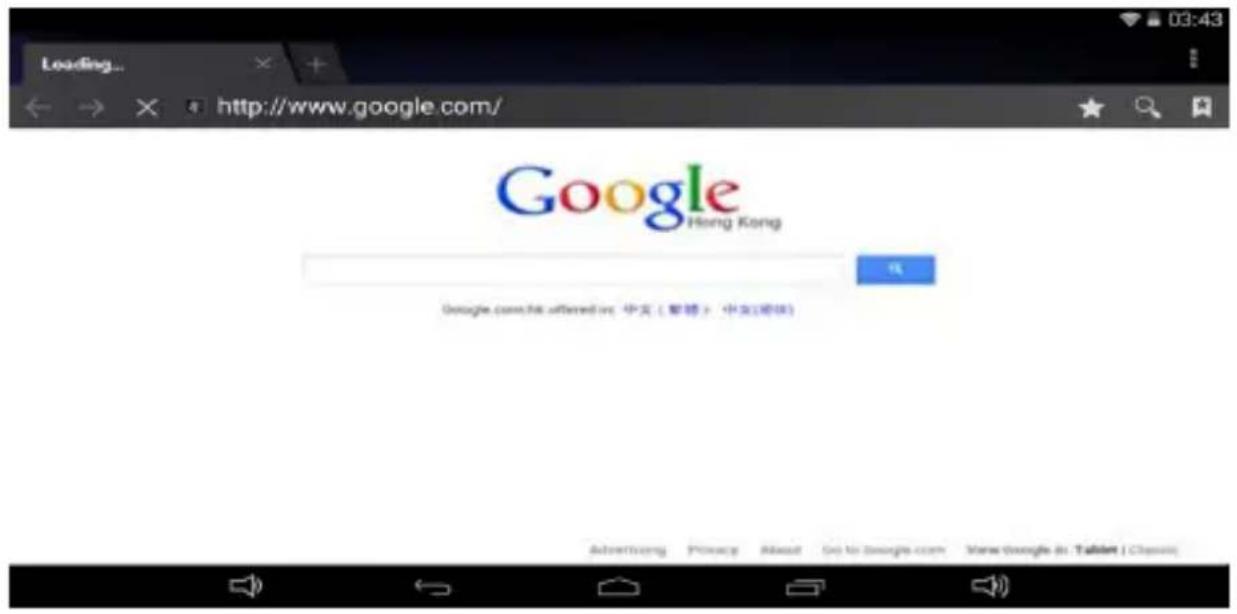
Web Browsing
Connect to the internet and launch the browser.
Camera
Touch the icon
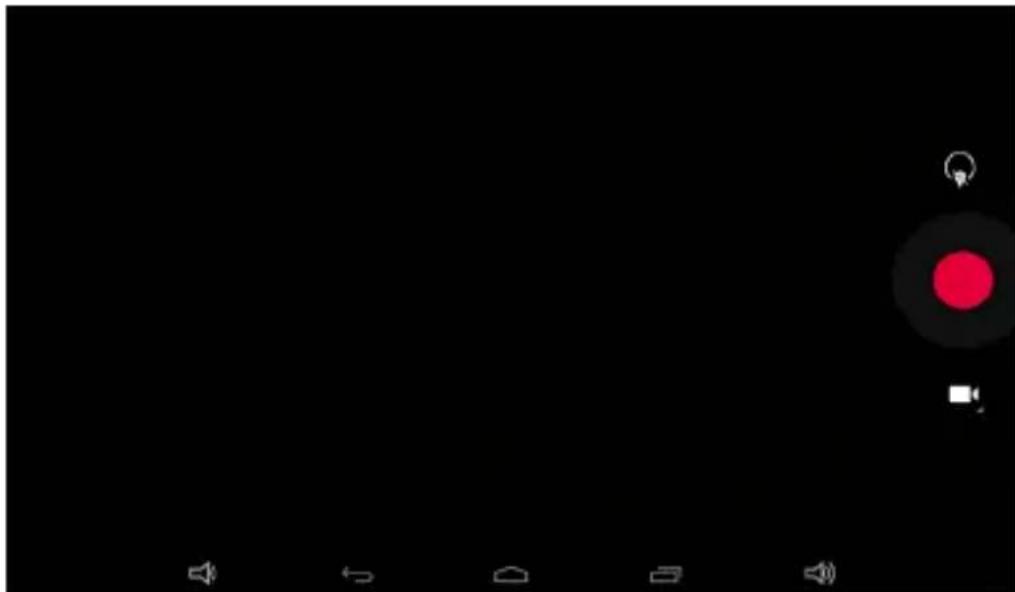
to enter camera mode and the interface is
shown as follows:
-
Touch the icon in the middle to take photo
-
Move the icon on bottom and you can switch camera mode to camera recording mode.
-
touch the icon on the top right to see the previous picture and you can also delete, share, set it as the wallpaper. Click return button to exit camera interface.
Trouble Shooting
Close Application
All running applications take up system memory and will slow down system response. Please shut down all idle applications to release memory and get the system speed back to normal.
To close the application, click the icon 📋 on the shortcut bar to enter the system configuration interface. Select the Application → Running services and the interface is shown as follows:
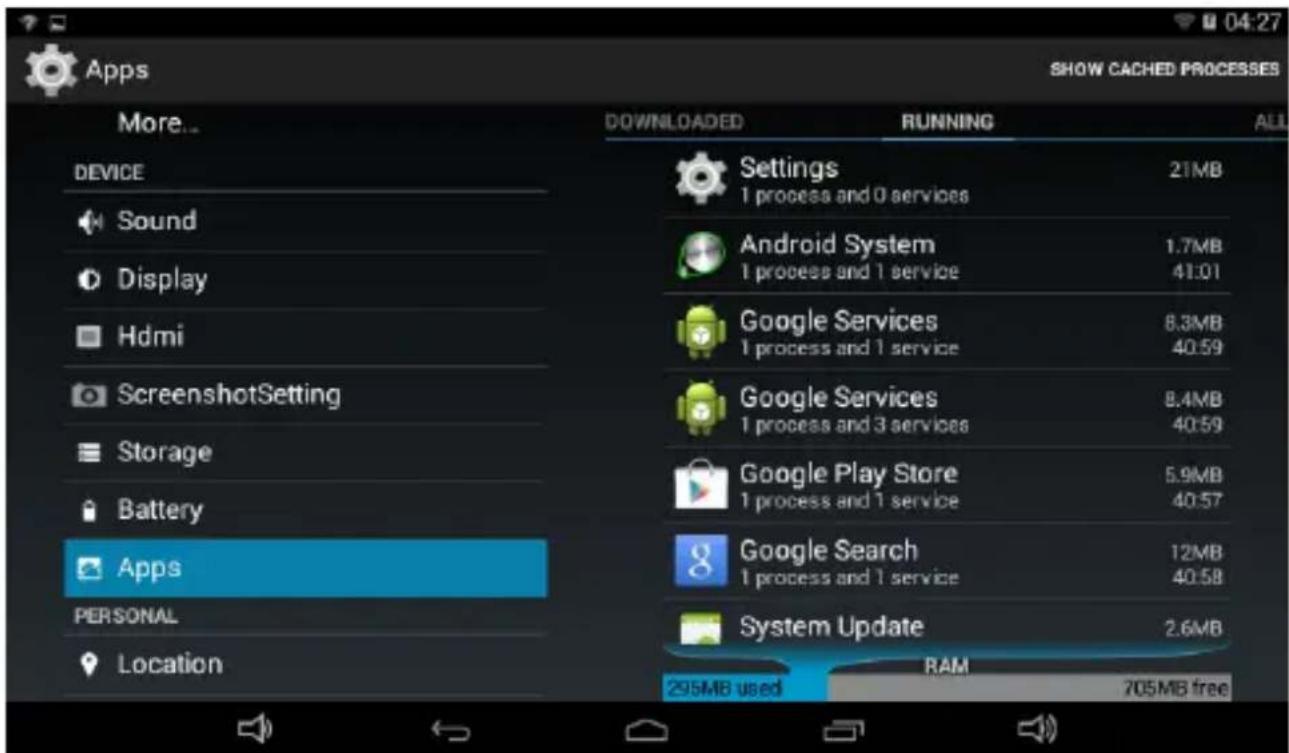
Tap the application you want to close. A pop-up window will be displayed. Tap “Stop” to close that application.
Mandatory Power off
- Press and hold the power button for 5 seconds and the device will be powered off.
- Press the reset button on the back and the device will be forced to be powered off.
If you want to reset the factory setting and erase all materials, please press Settings → Backup & reset → Factory data reset.
** Warning: Factory data reset setting will delete your data and configuration of system and applications from downloading.
**Please use this function carefully.
For more information please check our website
www.mpmaneurope.com
CE


Brand : MPMAN
Model : MPQC91
Category : Mp3 player