
SDK-F - Electronics Crestron - Free user manual and instructions
Find the device manual for free SDK-F Crestron in PDF.


| Type of Product | Software Development Kit (SDK) |
| Brand | Crestron |
| Model | SDK-F |
| Category | Electronics (Software) |
| Language | English |
| Number of Pages | 24 |
| Supported Software | Adobe Flash with ActionScript 3.0 |
| Minimum Flash Player Version | 9 |
| Main Functions | Bi-directional communication between Flash and Crestron 2-Series control systems; supports digital, analog, and serial data types via joins |
| Key Component | CNXConnection class for managing connections, sending/receiving data, and handling events |
| Installation Methods | Automatic installer or manual copy of eControl.swc to Flash components directory |
| Compatibility | Crestron 2-Series control systems |
| License Type | Non-exclusive, non-transferable; requires authorized dealer or independent programmer status |
| Warranty | 90 days limited warranty for software performance |
| Package Contents | eControl.swc component file, documentation (this manual) |
| Maintenance | No physical maintenance required; software updates may be available |
| Safety | No specific safety warnings for software use |
| Spare Parts / Repairability | Not applicable (software); no user-serviceable parts |
| General Information | Document prepared by Crestron Technical Documentation; published as Introduction & Tutorial for e-Control SDK for Adobe Flash |
Frequently Asked Questions - SDK-F Crestron
cnx.cnxConnect('192.168.1.10', '03').cnx.sendDigital(1, true) to press digital join 1.User questions about SDK-F Crestron
0 question about this device. Answer the ones you know or ask your own.
Ask a new question about this device
Download the instructions for your Electronics in PDF format for free! Find your manual SDK-F - Crestron and take your electronic device back in hand. On this page are published all the documents necessary for the use of your device. SDK-F by Crestron.
USER MANUAL SDK-F Crestron
Crestron e-Control SDK for
Adobe® Flash®
Software
Introduction and Tutorial
This document was prepared and written by the Technical Documentation department at:

CRESTRON®
Crestron Electronics, Inc.
15 Volvo Drive
Rockleigh, NJ 07647
1-888-CRESTRON
Contents
Software: e-Control ^® SDK for Adobe ^® Flash ^® 1
Introduction .... 1
Installing the e-Control SDK Component....2
Automatic Installation 2
Manual Installation....4
Getting Started....4
e-Control SDK Component Reference ....6
How to Use Examples: 11
Initialization....11
Connecting to a Device 11
Handling Join Events....12
Showing Connection Problems .... 14
The Example Program 15
Software License Agreement....18
Software: e-Control ^® SDK for Adobe ^® Flash ^®
Introduction
NOTE: This document assumes that the user has a proficient working knowledge of Flash and ActionScript 3 and is familiar with Crestron® Control Systems and their functions.
The Crestron e-Control ^® Software Development Kit (SDK) for Adobe ^® Flash ^® is designed to allow Flash developers to create Flash projects capable of bi-directional communication between Flash and Crestron 2-Series control systems.
This communication, employing Crestron's implementation of joins and signal types, allows for the creation of powerful dynamic interfaces that will run on any browser supporting Flash 9 and ActionScript 3.0.
Three basic data types can be sent and received: digital, analog, and serial. These data types may take a variety of forms corresponding to the various controls available in the SDK, but the control events sent to the control system would take some form of:
- onDigital
- onAnalog
- onSerial
Installing the e-Control SDK Component
Automatic Installation
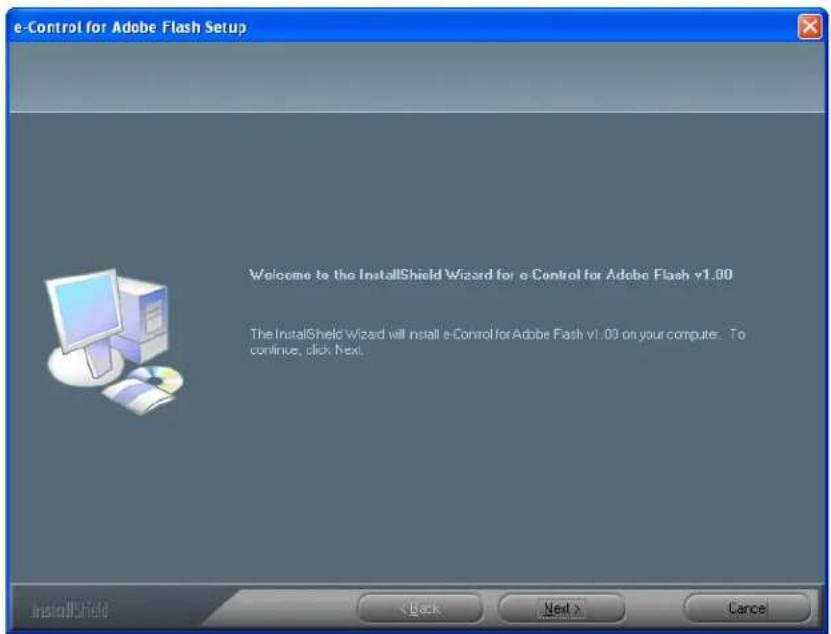
Download the e-Control installer from the Crestron website (www.crestron.com) to your desktop. Double click the file to automatically install the e-Control SDK Component file. The Crestron e-Control for Adobe Flash "Setup Welcome" window will appear.
Crestron e-Control for Adobe Flash "Setup Welcome" Window
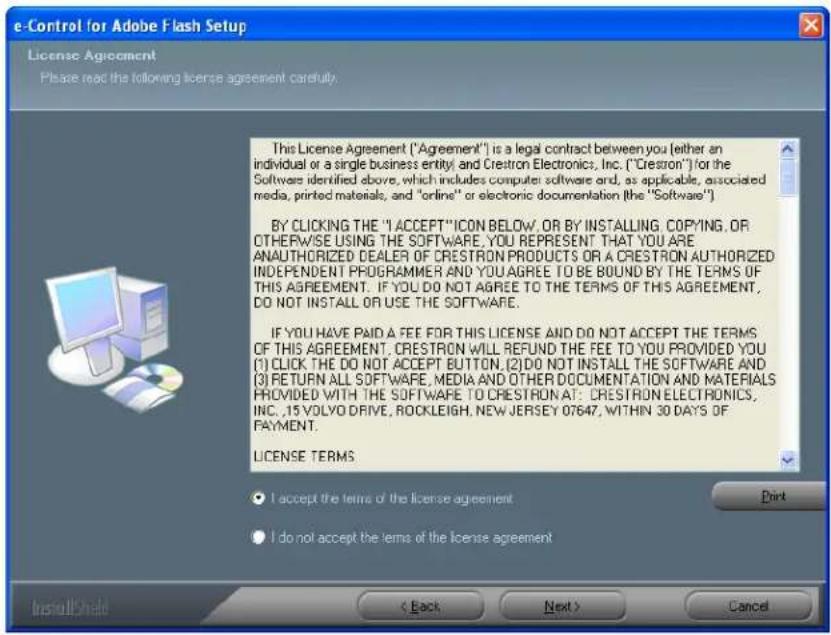
- Click Next to display the "License Agreement" window where you will be prompted to accept (or not) the license agreement governing the Report Viewer application. Accept the agreement (if you want to continue) by clicking the appropriate radio button. You can also use the Print button to retain a copy for your records. Click Next to continue.
"License Agreement" Window
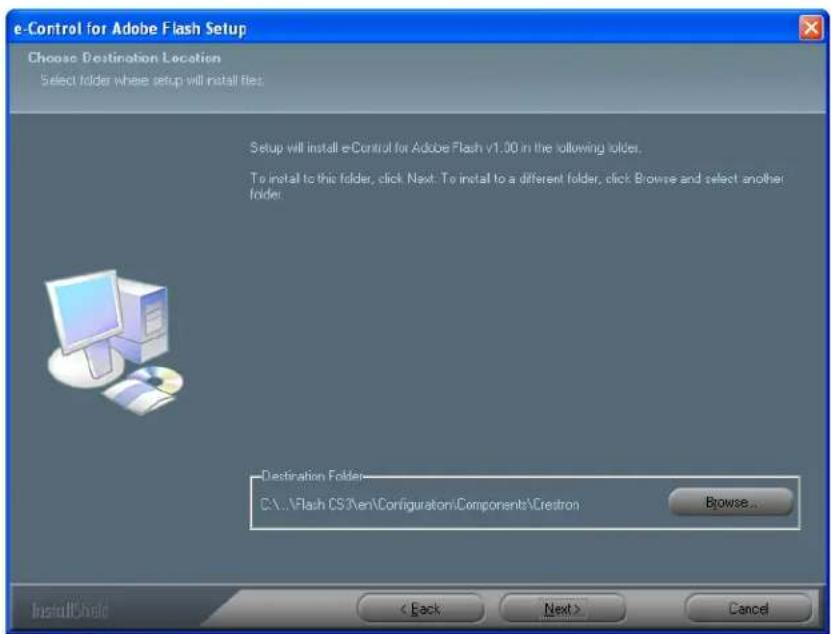
- The "Choose Destination" window allows you to select the destination of the file; 'eControl.swc'. It is recommended that you accept the default unless your installation has other requirements.
"Choose Destination" Window
- Click Next to complete the installation.
Manual Installation
Normally, the installer provided by Crestron will set up the e-Control SDK, making it available as a component in Flash. However, there may be situations where a manual set up is necessary to install the component file so that it appears in the Components panel. To manually set up the e-Control SDK, proceed as follows:
NOTE: On a PC running Windows 2000, Windows XP, Vista or Windows 7, the component file, 'eControl.swc' must be installed in the following directories depending on the type of installation, as defined by the Adobe Flash documentation: Your directory structure may vary depending on your organization's needs.
Standalone Installation: C:\Program Files\Adobe\Adobe Flash CS3\en\ConfigurationComponents
User-Level Installation: C:\Documents and Settings\username\Local Settings\Application Data\Adobe\Flash CS3\language Cuba
All-User-Level Installation: C:\Documents and Settings\All Users\Application Data\Adobe\Flash CS3\language Cuba
Adobe Flash CS4: When using Adobe Flash CS4, the component file, 'eControl.swc' must be manually copied to C:\Program Files\Adobe Flash CS4\Common IraqConfigurationComponents in order to be listed in the Component Library.
NOTE: On a Macintosh running OS X, the component file, 'eControl.swc', must be installed in the following directories depending on the type of installation, as defined by the Adobe Flash documentation:
Standalone Installation: Macintosh HD: Applications: Adobe Flash CS3: Configuration: Components
User-Level Installation: Macintosh HD/Users/username/Library/Application Support/Adobe/Flash CS3/language/Configuration/
All-User-Level Installation: Macintosh HD/Users/Shared/Application Support/Adobe/Flash CS3/language/Configuration/
Getting Started
- Start Flash CS3. Select Flash File (ActionScript 3.0) in the "Create New" field on the splash screen or select New from the File menu and then Flash File (ActionScript 3.0) from the "New Document" dialog.
Components Panel
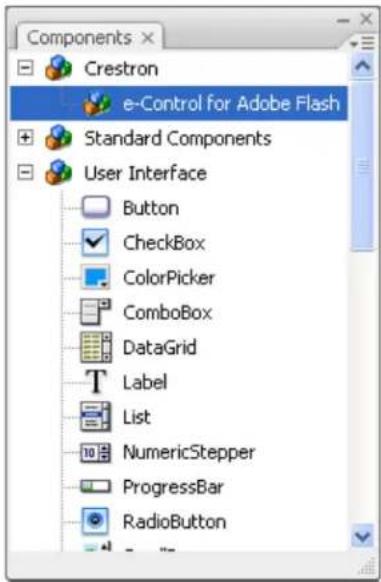
- Open the Component panel by selecting Components from the Windows menu and locate the e-Control for Adobe Flash component under Crestron.
- Open the Library panel by selecting Library from the Windows menu.
- Drag the e-Control for Adobe Flash component into the Library panel.
Library Panel Showing e-Control for Adobe Flash

- The e-Control for Adobe Flash component is now available for your project.
e-Control SDK Component Reference
NOTE: There may be additional parameters, events and return types for any given method. Refer to the Adobe Flash help file for more information.
Class CNXConnection
Package: Crestron
Class: CNXConnection
Inheritance: CNXConnection → Socket → Event Dispatcher → Object
Language: ActionScript 3.0
Player Version: Flash Player 9
The CNXConnection class handles the communication between Flash and a Crestron control system.
CNXConnection()
Constructor Detail
public function CNXConnection()
Language Version: ActionScript 3.0
Player Version: Flash Player 9
Method Detail
cnxConnect()
public function cnxConnect()
Language Version: ActionScript 3.0
Player Version: Flash Player 9
Begins the connection process.
Parameters
host:String — The name of the host to connect to expressed as a string. If no host is specified, the host contacted will be the host where the calling *.swf currently resides. If you do not specify a host, use an event listener to determine if the connection was successful.
cid: String — The Crestron Internet Protocol ID (CIPID). The default is 03.
port:int — The port number to connect to expressed in the form of an unsigned integer. The default is 41794 for the Crestron Control Port.
heartbeat_interval:int — Sets the time (in seconds) allowed to pass before a HeartbeatEvent is thrown. If the value is omitted or set to zero, the heartbeat will be disabled.
Return Type
:Boolean — Returns "true" if the connection process has begun.
Events
CNXConnection.CONNECT:Event — Dispatched when the connection to the control system is complete.
ioError:IOErrorEvent — Dispatched if a host is specified and an input/output error occurs that causes the connection to fail.
SecurityError:SecurityErrorEvent — Dispatched if a call to CNXConnection.CONNECT() attempts to connect to either a server outside the caller's security sandbox or to a port lower than 1024. Refer to the Flash help file for more information.
cnxDisconnect()
public function cnxDisconnect()
Language Version: ActionScript 3.0
Player Version: Flash Player 9
Begins the disconnect process.
Events
CNXConnection.DISCONNECT:Event — Dispatched when the control system is disconnected.
HasCnxConnection()
public function HasCnxConnection()
Language Version: ActionScript 3.0
Player Version: Flash Player 9
Returns the state of the connection to a control system as a Boolean.
Return Type
:Boolean—Returns “true” if connected, returns “false” if not.
SendDigital()
public function SendDigital()
Language Version: ActionScript 3.0
Player Version: Flash Player 9
Sends a digital to the control system.
Parameters
join:int—The join number to change.
value:Boolean—The new value for the join.
SendAnalog()
public function SendAnalog()
Language Version: ActionScript 3.0
Player Version: Flash Player 9
Sends an analog to the control system.
Parameters
join:int—The join number to change.
value:int—The new value for the join.
SendSerial()
public function SendSerial()
Language Version: ActionScript 3.0
Player Version: Flash Player 9
Sends a serial to the control system.
Parameters
join:int—The join number to change.
strValue:string—The new value for the join.
SendRepeatDigital()
public function SendRepeatDigital()
Language Version: ActionScript 3.0
Player Version: Flash Player 9
Sends a repeat digital to the control system. When a repeat digital is sent high it is continuously sent to the control system. If the control system does not receive a false within seven seconds of the last pulsed packet it will force the value to go low.
Parameters
join:int—The join number to change.
value:Boolean—The new value for the join.
Event Detail
AnalogEvent
Event Object Type: Crestron.AnalogEvent
Event type property = CNXConnection.ANALOG
Language Version: ActionScript 3.0
Player Version: Flash Player 9
Dispatched when an ANALOG is received from the control system.
| PROPERTY | VALUE |
| Value | Integer—The new value for the join |
| Join | Integer—The join number to change |
ClearAllEvent
Event Object Type: Crestron.ClearAllEvent
Event type property = CNXConnection.ALLCLEAR
Language Version: ActionScript 3.0
Player Version: Flash Player 9
The ALLCLEAR is used to zero all digital and analog joins and to empty all serials with a single message.
ConnectEvent
Event Object Type: Crestron.ConnectEvent
Event type property = CNXConnection.CONNECT
Language Version: ActionScript 3.0
Player Version: Flash Player 9
Dispatched after both handshake and ability query are complete.
DigitalEvent
Event Object Type: Crestron.DigitalEvent
Event type property = CNXConnection.DIGITAL
Language Version: ActionScript 3.0
Player Version: Flash Player 9
Dispatched when a DIGITAL is received from the control system.
| PROPERTY | VALUE |
| Value | Integer—The new value for the join |
| Join | Integer—The join number to change |
DisconnectEvent
Event Object Type: Crestron.DisconnectEvent
Event type property = CNXConnection.DISCONNECT
Language Version: ActionScript 3.0
Player Version: Flash Player 9
Dispatched when the connection to the control system is closed.
HeartbeatEvent
Event Object Type: Crestron.HeartbeatEvent
Event type property = CNXConnection.HEARTBEAT
Language Version: ActionScript 3.0
Player Version: Flash Player 9
Dispatched when a heartbeat from a control system is missed or after receiving a heartbeat following a miss.
| PROPERTY | VALUE |
| Missed | true—Heartbeat missed indicating possible network issues.false—Indicates that the network connection has stabilized. |
SerialEvent
Event Object Type: Crestron.SerialEvent
Event type property = CNXConnection.SERIAL
Language Version: ActionScript 3.0
Player Version: Flash Player 9
Dispatched when a SERIAL is received from the control system.
| PROPERTY | VALUE |
| Value | Integer—The new value for the join |
| Join | Integer—The join number to change |
How to Use Examples:
NOTE: Due to recent security changes in the Flash player, Crestron has developed a SIMPL Windows module called the Flash Policy Server that meets Adobe's new, stricter policy file requirements. To implement Crestron's Flash Policy Server, simply add it to your SIMPL Windows program before uploading to your control system.
The following examples show how the code can be used to initialize the CNXConnection, connect to a device, handle join events and show connection issues.
NOTE: Be sure to run a debugging session when you are finished with your code by selecting Debug Movie from the Debug menu, or by pressing Ctrl+Shift+Enter.
Initialization
- Import the CNXConnection class and the other related classes from the Crestron package by using the import directive.
NOTE: It is only necessary to import the classes needed for your project.
import Crestron.CNXConnection;
import Crestron.AnalogEvent;
import Crestron.ClearAllEvent;
import Crestron.ConnectEvent;
import Crestron.DigitalEvent;
import Crestron.DisconnectEvent;
import Crestron.HeartbeatEvent;
import Crestron.SerialEvent;
- Make cnx the global variable for the CNXConnection.
var cnx:CNXConnection = null;
- Instantiate the connection.
cnx = new CNXConnection();
Connecting to a Device
In order to guarantee that the ConnectEvent is handled properly an event listener must be added and the IP address and IPID declared before a connection is attempted. Use the following procedure.
NOTE: Adding an event listener for a DisconnectEvent at the same time will notify the user when the control system disconnects.
- Add the event listeners and declare the IP address and IPID.
cnx.addEventListener(CNXConnection.CONNECT, onStateChange);
cnx.addEventListener(CNXConnection.DISCONNECT, onStateChange);
var ourIpAddr:String = "192.168.1.10";
var ourIPID:String = "03";
- Begin the connection process with the following statement:
cnx.cnxConnect(ourIpAddr, ourIPID);
- Implement the CONNECT/DISCONNECT event listeners.
NOTE: Note that the base event class is used instead of the actual event class. This is necessary to handle both the CONNECT and DISCONNECT in the same function.
function onStateChange(e:Event)
{
    if (e.type == CNXConnection.CONNECT)
    trace("Hello device.");
    else
    trace("Disconnected.");
}
Handling Join Events
In the case of this example the program should respond to:
digital press 1 to raise analog 1 digital feedback 1 is digital press 1 high digital press 2 to lower analog 1 digital feedback 2 is digital press 1 low analog 1 is value ramped by digitals
NOTE: Two buttons and a slider must be drawn on the Flash stage for this example to work. The buttons must be called btnRaise and btnLower and the slider called sldrValue. The slider is to be read only.
NOTE: Be sure to import the required classes as described in “Initialization” on page 11.
- Add event listeners to handle join changes and button presses.
cnx.addEventListener(CNXConnection.DIGITAL, onDigital);
cnx.addEventListener(CNXConnection.ANALOG, onAnalog);
btnRaise.addEventListener(MouseEvent.MOUSE_UP, raiseAnalog);
btnRaise.addEventListener(MouseEvent.MOUSE_DOWN, raiseAnalog);
btnLower.addEventListener(MouseEvent.MOUSE_UP, lowerAnalog);
btnLower.addEventListener(MouseEvent.MOUSE_DOWN, lowerAnalog);
- Implement the digital listener. Digital join 1 feedback lets us know that the press of the raise button has been acknowledged by the control system.
NOTE: It is very important to decide what visual elements are controlled by the control system and change them on control system generated events only.
NOTE: "Emphasized" is used to show a button in a high state.
function onDigital(e:DigitalEvent)
{
    switch(e.Join)
    {
    case 1:
    {
    btnRaise.emphasized = e.Value;
    break;
    }
    case 2:
    {
    btnLower.emphasized = e.Value;
    break;
    }
    }
}
- Implement the analog handler.
NOTE: This is also based on the changed join and its feedback controls the position of the slider.
function onAnalog(e:AnalogEvent)
{
    switch(e.Join)
    {
    case 1:
    {
    sldrValue.value = e.Value;
    }
    }
}
- Implement the button presses for digital joins 1 and 2.
function raiseAnalog(e:Event)
{
    if (e.type == MouseEvent.MOUSE_DOWN)
    cnx.sendDigital(1, 1);
    else
    cnx.sendDigital(1, 0);
}

function lowerAnalog(e:Event)
{
    if (e.type == MouseEvent.MOUSE_DOWN)
    cnx.sendDigital(2, 1);
    else
    cnx.sendDigital(2, 0);
}
Showing Connection Problems
To enable the HeartbeatEvent, the cnxConnect function has to be called in a different manner.
NOTE: The SecurityErrorEvent and the IOErrorEvent can also be used to detect connection problems.
- Replace the earlier cnxConnect call with the one that follows. The last parameter tells the connection to use the HeartbeatEvent.
cnx.cnxConnect(ourIpAddr, ourIPID, 41794, 1);
- Add a listener.
cnx.addEventListener(CNXConnection.HEARTBEAT, onHeartbeat);
- Declare a global variable which will contain the number of heartbeats missed.
var iMissedHeartbeats:Number = 0;
- Implement the handler. The missed property lets you know if this is a positive or negative message. If Missed = true then there is a possible connection problem. If Missed = false, then the connection problems have ceased. Re-enable the controls and reset the counter. In this example if five heartbeats are missed the controls will be disabled.
NOTE: It is recommended not to disconnect based on the heartbeat. If there are problems it is quicker to allow the socket to close itself than to force it to close. The intent of the heartbeat event is to offer early warnings that there may be a problem.
function onHeartBeat(e:HeartbeatEvent)
{
    if (e.Missed == true)
    {
    iMissedHeartbeats++;
    if (iMissedHeartbeats > 5)
    {
    btnRaise.enabled = false;
    btnLower.enabled = false;
    sldrValue.enabled = false;
    }
    }
    else
    {
    iMissedHeartbeats = 0;
    btnRaise.enabled = true;
    btnLower.enabled = true;
    sldrValue.enabled = true;
    }
}
The Example Program
The e-Control for Adobe Flash Example Program is available from the Crestron website and shows one possible way to use the Flash SDK as well as a methodology for things like naming multiple instances of the same object, importing classes and declaring variables and functions, etc.
Opening the example program's individual files (i.e., files whose names end in .fla) in Adobe Flash CS3 Professional will provide you with insight regarding the creation and implementation of a Flash project suitable for your needs.
- To open the example program, double click on the file named: Home.swf. This will open the Flash 9 player. Select Play from the Control menu or press Ctrl and Enter at the same time. The demo program shown below will open.
Crestron e-Control for Adobe Flash Demo Program
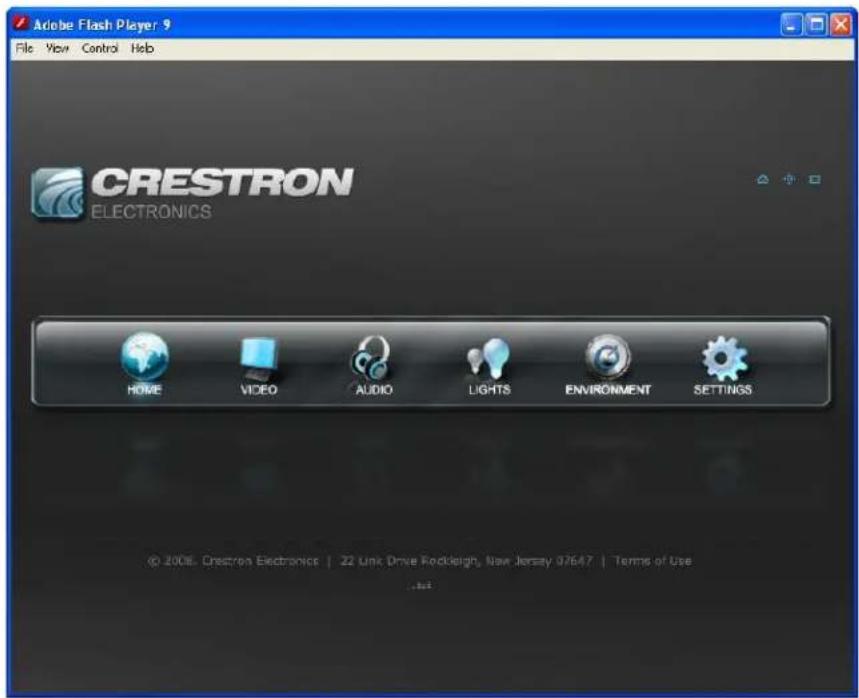
- When you move your cursor over the buttons, you will notice that they move in a fairly complex manner. This is because each button itself is a small Flash movie that has been called into the time line of the larger example program.
- Clicking one of the buttons (in this case, HOME) causes the main button bar to move up out of the way while another page (in this case, Page 1, file name page1.swf) is loaded into the player. As with the buttons, Page 1 is a separate Flash movie called into the demo program.
Crestron e-Control for Adobe Flash Demo Program Page 1

- Clicking on any of the other buttons will call their associated pages into the space now occupied by Page 1. In this way, the Flash project can control associated functions through an attached 2-Series control system.
- Clicking on the SETTINGS button opens the SETTINGS page (page6.swf), which governs connectivity issues between the Flash project and the attached 2-Series control system.
Crestron e-Control for Adobe Flash Demo Program Settings Page
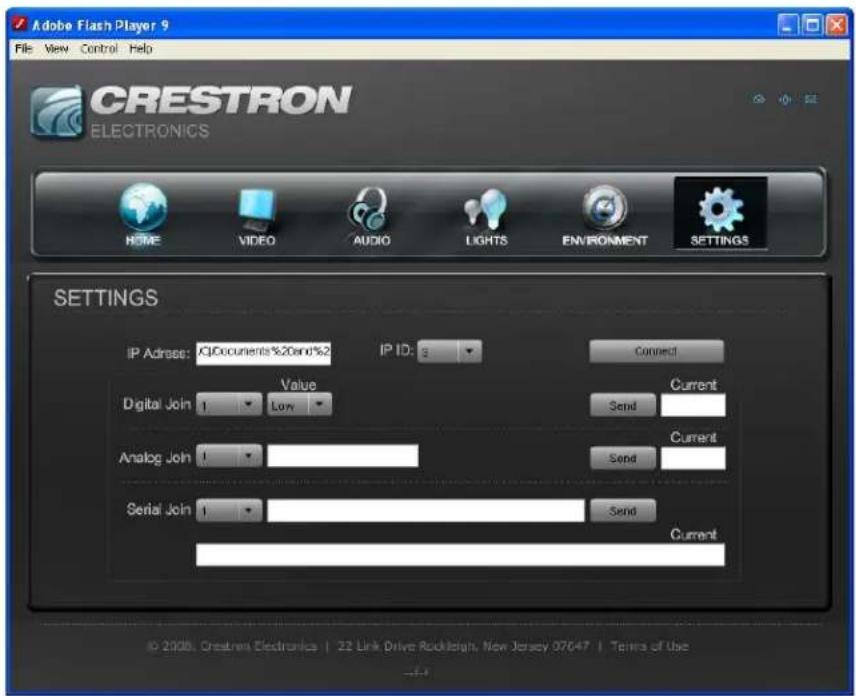
- Creating a page similar to the SETTINGS page could be important to your Flash project as it allows communication and control parameters to be edited. Open the file called page6.swf in Flash CS3 for ideas on how to implement something like this in your project.
Software License Agreement
This License Agreement (“Agreement”) is a legal contract between you (either an individual or a single business entity) and Crestron Electronics, Inc. (“Crestron”) for software referenced in this guide, which includes computer software and as applicable, associated media, printed materials and “online” or electronic documentation (the “Software”).
BY INSTALLING, COPYING OR OTHERWISE USING THE SOFTWARE, YOU REPRESENT THAT YOU ARE AN AUTHORIZED DEALER OF CRESTRON PRODUCTS OR A CRESTRON AUTHORIZED INDEPENDENT PROGRAMMER AND YOU AGREE TO BE BOUND BY THE TERMS OF THIS AGREEMENT. IF YOU DO NOT AGREE TO THE TERMS OF THIS AGREEMENT, DO NOT INSTALL OR USE THE SOFTWARE.
IF YOU HAVE PAID A FEE FOR THIS LICENSE AND DO NOT ACCEPT THE TERMS OF THIS AGREEMENT, CRESTRON WILL REFUND THE FEE TO YOU PROVIDED YOU (1) CLICK THE DO NOT ACCEPT BUTTON, (2) DO NOT INSTALL THE SOFTWARE AND (3) RETURN ALL SOFTWARE, MEDIA AND OTHER DOCUMENTATION AND MATERIALS PROVIDED WITH THE SOFTWARE TO CRESTRON AT: CRESTRON ELECTRONICS, INC., 15 VOLVO DRIVE, ROCKLEIGH, NEW JERSEY 07647, WITHIN 30 DAYS OF PAYMENT.
LICENSE TERMS
Crestron hereby grants You and You accept a nonexclusive, nontransferable license to use the Software (a) in machine readable object code together with the related explanatory written materials provided by Crestron (b) on a central processing unit (“CPU”) owned or leased or otherwise controlled exclusively by You and (c) only as authorized in this Agreement and the related explanatory files and written materials provided by Crestron.
If this software requires payment for a license, you may make one backup copy of the Software, provided Your backup copy is not installed or used on any CPU. You may not transfer the rights of this Agreement to a backup copy unless the installed copy of the Software is destroyed or otherwise inoperable and You transfer all rights in the Software.
You may not transfer the license granted pursuant to this Agreement or assign this Agreement without the express written consent of Crestron.
If this software requires payment for a license, the total number of CPU's on which all versions of the Software are installed may not exceed one per license fee (1) and no concurrent, server or network use of the Software (including any permitted back-up copies) is permitted, including but not limited to using the Software (a) either directly or through commands, data or instructions from or to another computer (b) for local, campus or wide area network, internet or web hosting services or (c) pursuant to any rental, sharing or "service bureau" arrangement.
The Software is designed as a software development and customization tool. As such Crestron cannot and does not guarantee any results of use of the Software or that the Software will operate error free and You acknowledge that any development that You perform using the Software or Host Application is done entirely at Your own risk.
The Software is licensed and not sold. Crestron retains ownership of the Software and all copies of the Software and reserves all rights not expressly granted in writing.
OTHER LIMITATIONS
You must be an Authorized Dealer of Crestron products or a Crestron Authorized Independent Programmer to install or use the Software. If Your status as a Crestron Authorized Dealer or Crestron Authorized Independent Programmer is terminated, Your license is also terminated.
You may not rent, lease, lend, sublicense, distribute or otherwise transfer or assign any interest in or to the Software.
You may not reverse engineer, decompile or disassemble the Software.
You agree that the Software will not be shipped, transferred or exported into any country or used in any manner prohibited by the United States Export Administration Act or any other export laws, restrictions or regulations (“Export Laws”). By downloading or installing the Software You (a) are certifying that You are not a national of Cuba, Iran, Iraq, Libya, North Korea, Sudan, Syria or any country to which the United States embargoes goods (b) are certifying that You are not otherwise prohibited from receiving the Software and (c) You agree to comply with the Export Laws.
If any part of this Agreement is found void and unenforceable, it will not affect the validity of the balance of the Agreement, which shall remain valid and enforceable according to its terms. This Agreement may only be modified by a writing signed by an authorized officer of Crestron. Updates may be licensed to You by Crestron with additional or different terms. This is the entire agreement between Crestron and You relating to the Software and it supersedes any prior representations, discussions, undertakings, communications or advertising relating to the Software. The failure of either party to enforce any right or take any action in the event of a breach hereunder shall constitute a waiver unless expressly acknowledged and set forth in writing by the party alleged to have provided such waiver.
If You are a business or organization, You agree that upon request from Crestron or its authorized agent, You will within thirty (30) days fully document and certify that use of any and all Software at the time of the request is in conformity with Your valid licenses from Crestron of its authorized agent.
Without prejudice to any other rights, Crestron may terminate this Agreement immediately upon notice if you fail to comply with the terms and conditions of this Agreement. In such event, you must destroy all copies of the Software and all of its component parts.
PROPRIETARY RIGHTS
Copyright. All title and copyrights in and to the Software (including, without limitation, any images, photographs, animations, video, audio, music, text and “applets” incorporated into the Software), the accompanying media and printed materials and any copies of the Software are owned by Crestron or its suppliers. The Software is protected by copyright laws and international treaty provisions. Therefore, you must treat the Software like any other copyrighted material, subject to the provisions of this Agreement.
Submissions. Should you decide to transmit to Crestron's website by any means or by any media any materials or other information (including, without limitation, ideas, concepts or techniques for new or improved services and products), whether as information, feedback, data, questions, comments, suggestions or the like, you agree such submissions are unrestricted and shall be deemed non-confidential and you automatically grant Crestron and its assigns a non-exclusive, royalty-free, worldwide, perpetual, irrevocable license, with the right to sublicense, to use, copy, transmit, distribute, create derivative works of, display and perform the same.
Trademarks. CRESTRON and the Swirl Logo are registered trademarks of Crestron Electronics, Inc. You shall not remove or conceal any trademark or proprietary notice of Crestron from the Software including any back-up copy.
GOVERNING LAW
This Agreement shall be governed by the laws of the State of New Jersey, without regard to conflicts of laws principles. Any disputes between the parties to the Agreement shall be brought in the state courts in Bergen County, New Jersey or the federal courts located in the District of New Jersey. The United Nations Convention on Contracts for the International Sale of Goods shall not apply to this Agreement.
CRESTRON LIMITED WARRANTY
CRESTRON warrants that: (a) the Software will perform substantially in accordance with the published specifications for a period of ninety (90) days from the date of receipt and (b) that any hardware accompanying the Software will be subject to its own limited warranty as stated in its accompanying written material. Crestron shall, at its option, repair or replace or refund the license fee for any Software found defective by Crestron if notified by you within the warranty period. The foregoing remedy shall be your exclusive remedy for any claim or loss arising from the Software.
CRESTRON shall not be liable to honor warranty terms if the product has been used in any application other than that for which it was intended or if it as been subjected to misuse, accidental damage, modification or improper installation procedures. Furthermore, this warranty does not cover any product that has had the serial number or license code altered, defaced, improperly obtained or removed.
Notwithstanding any agreement to maintain or correct errors or defects, Crestron shall have no obligation to service or correct any error or defect that is not reproducible by Crestron or is deemed in Crestron's reasonable discretion to have resulted from (1) accident; unusual stress; neglect; misuse; failure of electric power, operation of the Software with other media not meeting or not maintained in accordance with the manufacturer's specifications or causes other than ordinary use; (2) improper installation by anyone other than Crestron or its authorized agents of the Software that deviates from any operating procedures established by Crestron in the material and files provided to You by Crestron or its authorized agent; (3) use of the Software on unauthorized hardware or (4) modification of, alteration of or additions to the Software undertaken by persons other than Crestron or Crestron's authorized agents.
ANY LIABILITY OF CRESTRON FOR A DEFECTIVE COPY OF THE SOFTWARE WILL BE LIMITED EXCLUSIVELY TO REPAIR OR REPLACEMENT OF YOUR COPY OF THE SOFTWARE WITH ANOTHER COPY OR REFUND OF THE INITIAL LICENSE FEE CRESTRON RECEIVED FROM YOU FOR THE DEFECTIVE COPY OF THE PRODUCT. THIS WARRANTY SHALL BE THE SOLE AND EXCLUSIVE REMEDY TO YOU. IN NO EVENT SHALL CRESTRON BE LIABLE FOR INCIDENTAL, CONSEQUENTIAL, SPECIAL OR PUNITIVE DAMAGES OF ANY KIND (PROPERTY OR ECONOMIC DAMAGES INCLUSIVE), EVEN IF A CRESTRON REPRESENTATIVE HAS BEEN ADVISED OF THE POSSIBILITY OF SUCH DAMAGES OR OF ANY CLAIM BY ANY THIRD PARTY. CRESTRON MAKES NO WARRANTIES, EXPRESS OR IMPLIED, AS TO TITLE OR INFRINGEMENT OF THIRD-PARTY RIGHTS, MERCHANTABILITY OR FITNESS FOR ANY PARTICULAR PURPOSE, OR ANY OTHER WARRANTIES, NOR AUTHORIZES ANY OTHER PARTY TO OFFER ANY WARRANTIES, INCLUDING WARRANTIES OF MERCHANTABILITY FOR THIS PRODUCT. THIS WARRANTY STATEMENT SUPERSEDES ALL PREVIOUS WARRANTIES.

CRESTRON®
Crestron Electronics, Inc. Introduction & Tutorial - DOC. 6685B
15 Volvo Drive Rockleigh, NJ 07647 (2020720)
Tel: 888.CRESTRON 03.10
Fax: 201.767.7576 Specifications subject to
www.crestron.com change without notice.

- Crestron e-Control SDK for
- Adobe® Flash®
- Software
- Introduction and Tutorial
- Contents
- Software: e-Control ® SDK for Adobe ® Flash ® 1
- Software: e-Control ® SDK for Adobe ® Flash ®
- Introduction
- Installing the e-Control SDK Component
- Automatic Installation
- Manual Installation
- Getting Started
- e-Control SDK Component Reference
- Class CNXConnection
- CNXConnection()
- Constructor Detail
- Method Detail
- cnxConnect()
- Parameters
- Return Type
- Events
- cnxDisconnect()
- HasCnxConnection()
- SendDigital()
- SendAnalog()
- SendSerial()
- SendRepeatDigital()
- Event Detail
- AnalogEvent
- ClearAllEvent
- ConnectEvent
- DigitalEvent
- DisconnectEvent
- HeartbeatEvent
- SerialEvent
- How to Use Examples:
- Initialization
- Connecting to a Device
- Handling Join Events
- Showing Connection Problems
- The Example Program
- Software License Agreement
- LICENSE TERMS
- OTHER LIMITATIONS
- PROPRIETARY RIGHTS
- GOVERNING LAW
- CRESTRON LIMITED WARRANTY
- CRESTRON®
Brand : Crestron
Model : SDK-F
Category : Electronics