
ARMSLIMDUO - Monitor Stand StarTech.com - Free user manual and instructions
Find the device manual for free ARMSLIMDUO StarTech.com in PDF.


| Product Type | Dual Monitor Mount with USB Pass-Through |
| Model Numbers | ARMSLIMDUO (Black), ARMSLIMDUOS (Silver) |
| Mounting Method | C-Clamp (desk thickness up to 3.35 in / 85 mm) |
| VESA Compatibility | 75x75 mm and 100x100 mm |
| Screen Size Support | 15" to 32" |
| Maximum Weight Capacity (per monitor) | 8 kg (17.6 lb total for two monitors) |
| Arm Type | Articulated spring arm with adjustable tension |
| Rotation Range | -360° to +360° |
| Tilt Range | -90° to +85° |
| Swivel Range | -90° to +90° |
| USB Ports | 2x USB 2.0 Type-A (front) + 2x USB Type-B (rear) pass-through |
| Audio Ports | 3.5 mm headset and microphone pass-through |
| Cable Management | Integrated cable clips and removable cable covers |
| Tools Included | 4 mm and 5 mm hex keys |
| Mounting Hardware Included | M4x12, M4x30, M6x12, M8x12 screws, spacers, rubber pads |
| Construction Material | Steel and aluminum |
| Warranty | 2 years |
| Indoor Use Only | Yes |
| Compliance | ISO 9001 registered manufacturer |
| Desk Thickness Range (Standard) | Up to 2.36 in (60 mm); extended mode up to 3.35 in (85 mm) with inverted lower clamps |
Frequently Asked Questions - ARMSLIMDUO StarTech.com
User questions about ARMSLIMDUO StarTech.com
0 question about this device. Answer the ones you know or ask your own.
Ask a new question about this device
Download the instructions for your Monitor Stand in PDF format for free! Find your manual ARMSLIMDUO - StarTech.com and take your electronic device back in hand. On this page are published all the documents necessary for the use of your device. ARMSLIMDUO by StarTech.com.
USER MANUAL ARMSLIMDUO StarTech.com
Dual Monitor Mount with Built-in 2-port USB Pass-Through
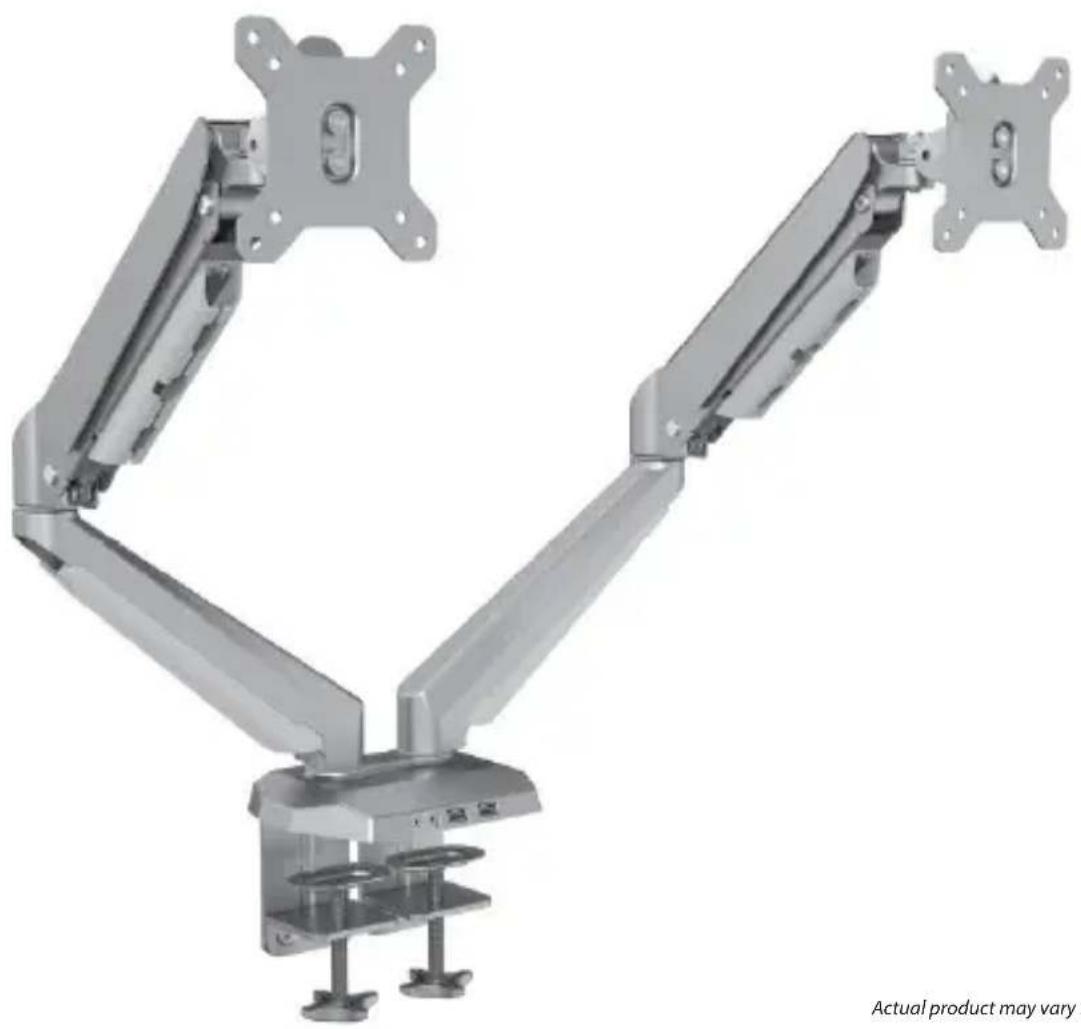
natural_image
Mechanical robotic arm with articulated joints, no visible text or symbols on the device itselfActual product may vary from photos
User Manual
SKU#: ARMSLIMDUOS (Silver)
SKU#: ARMSLIMDUO (Black)
For the latest information and specifications visit
www.startech.com/ARMSLIMDUOS
Use of Trademarks, Registered Trademarks, and other Protected Names and Symbols
This manual may make reference to trademarks, registered trademarks, and other protected names and/or symbols of third-party companies not related in any way to StarTech.com. Where they occur these references are for illustrative purposes only and do not represent an endorsement of a product or service by StarTech.com, or an endorsement of the product(s) to which this manual applies by the third-party company in question. Regardless of any direct acknowledgement elsewhere in the body of this document, StarTech.com hereby acknowledges that all trademarks, registered trademarks, service marks, and other protected names and/or symbols contained in this manual and related documents are the property of their respective holders.
To view manuals, videos, drivers, downloads, technical drawings, and more visit www.startech.com/support
Warning Statements
• Make sure that you assemble this product according to the instructions.
- Do not exceed the weight capacity of this product. Overloading this product might result in injury or property damage. This product can support the following weight: 17.6 lb. (2 x 8 kg).
- This product is intended for indoor use only and should not be used outdoors.
Varningsmeddelanden
To view manuals, videos, drivers, downloads, technical drawings, and more visit www.startech.com/support
To view manuals, videos, drivers, downloads, technical drawings, and more visit www.startech.com/support
Safety Statements
Safety Measures
- Cables (including power and charging cables) should be placed and routed to avoid creating electric, tripping or safety hazards.
Mesures de sécurité
Warning Statements....2
Safety Statements....4
Product Diagram....6
Product Dimensions....7
Product Information......8
Package Contents 8
Product Specifications....11
Requirement 12
Assembling the Monitor Mount....13
Mounting the Monitors....18
Adjusting the Monitor Mount....21
Adjusting the Spring Arm Tension....21
Adjusting the Tilt 23
Adjusting the Swivel 24
Routing the Cables....26
Using the USB Pass-though Ports....28
Using the 3.5 mm Audio Port 29
To view manuals, videos, drivers, downloads, technical drawings, and more visit www.startech.com/support
Product Diagram
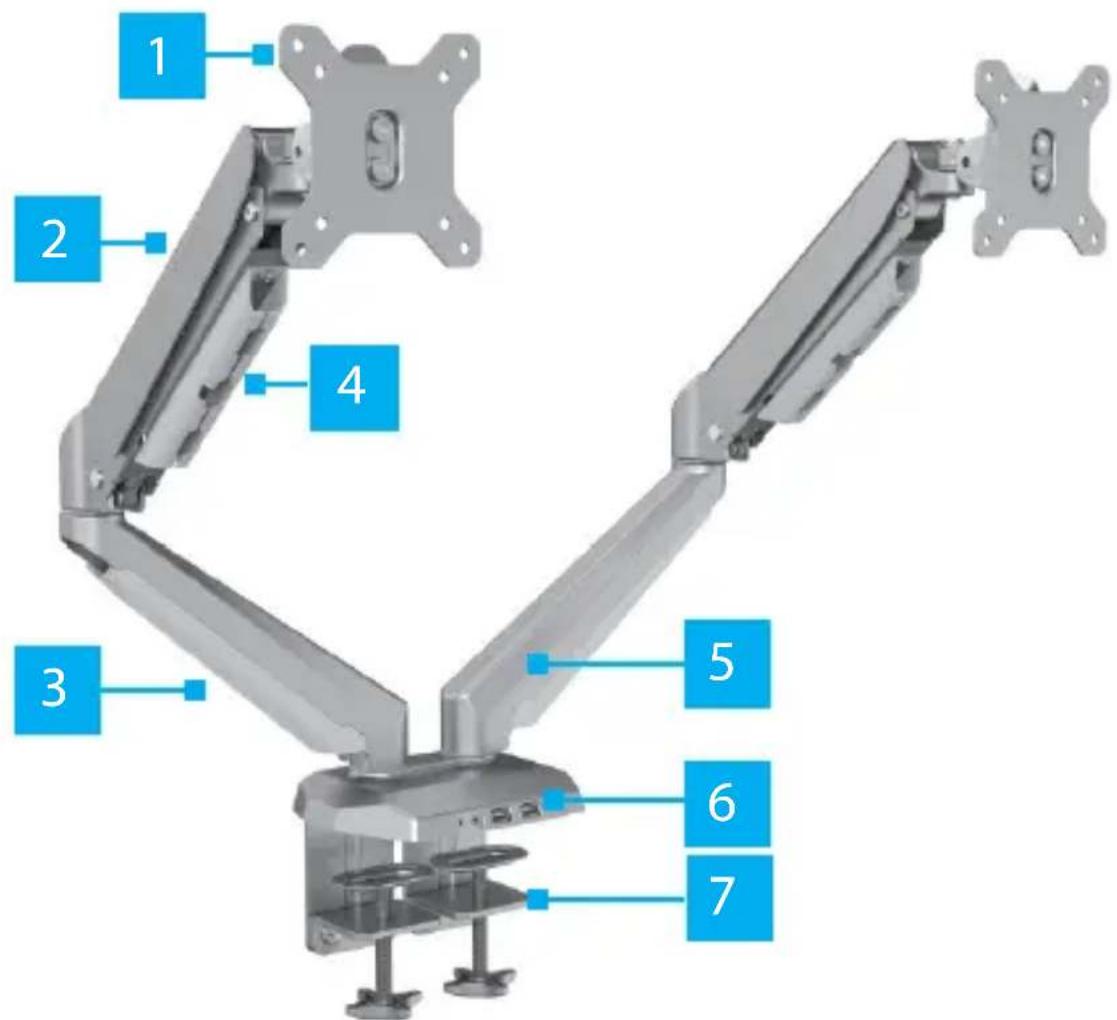
| 1 VESA Holder Lower Arm | |
| 2 Upper Spring Arm | USB Ports and 3.5 mm Audio Ports |
| 3 Cable Cover C-Clamp | |
| 4 Cable Clip |
To view manuals, videos, drivers, downloads, technical drawings, and more visit www.startech.com/support
Product Dimensions
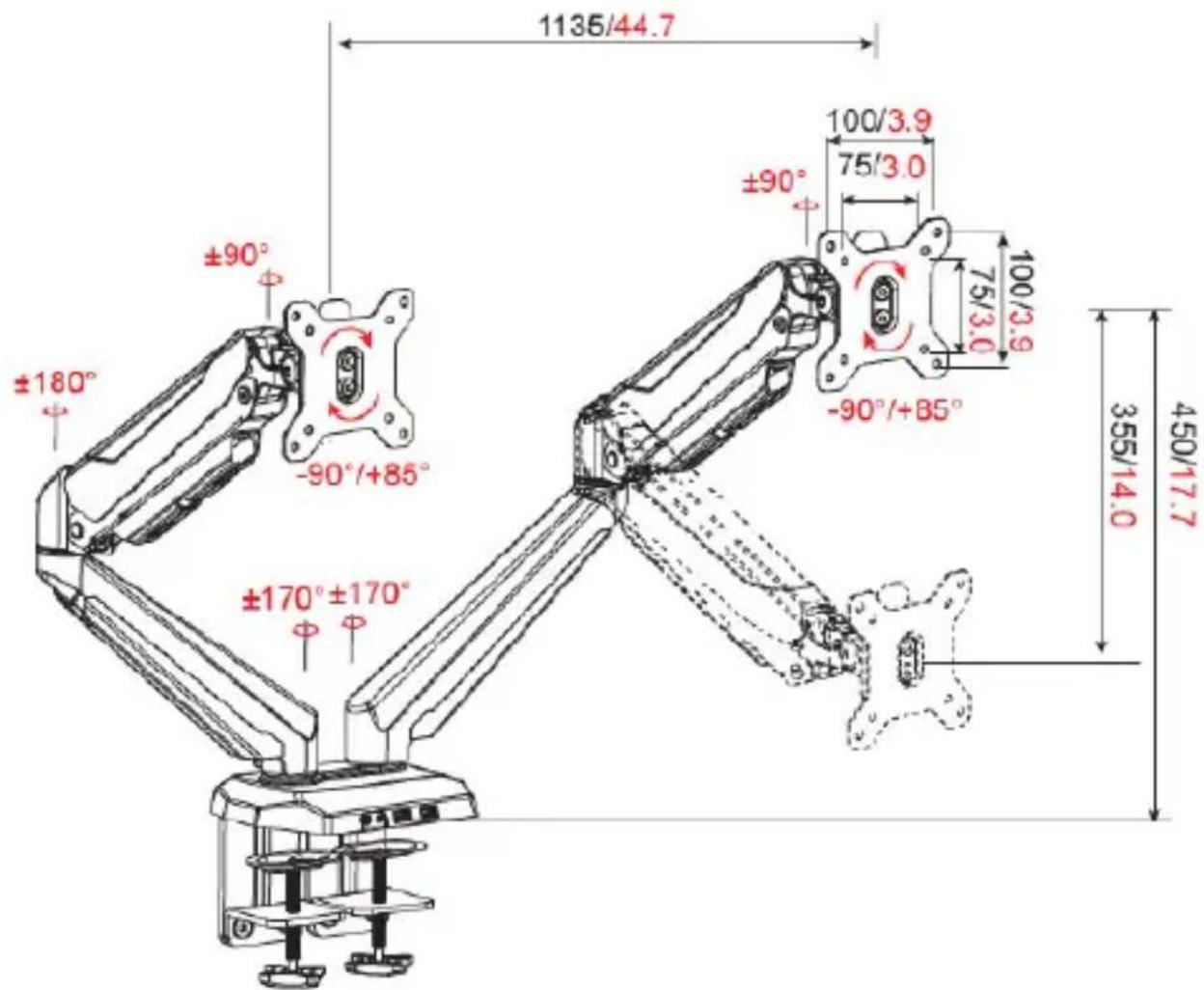
Note: The measurements displayed are maximum measurements and are in mm/inches, unless otherwise specified.
To view manuals, videos, drivers, downloads, technical drawings, and more visit www.startech.com/support
Product Information
Package Contents
 Arm AssemblyQty: 1 Arm AssemblyQty: 1 | 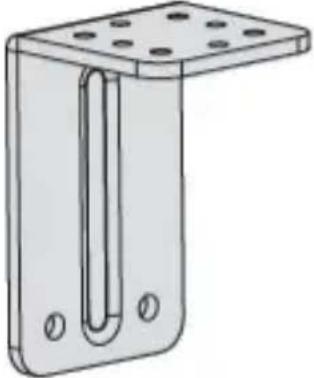 Upper ClampsQty: 2 Upper ClampsQty: 2 |
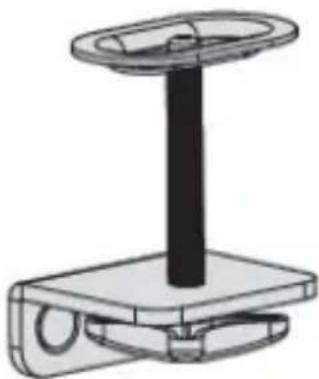 Lower ClampsQty: 2 Lower ClampsQty: 2 | 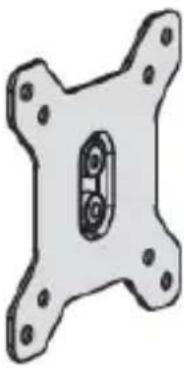 VESA MountsQty: 2 VESA MountsQty: 2 |
To view manuals, videos, drivers, downloads, technical drawings, and more visit www.startech.com/support

natural_image
3D rendering of a square metal plate with a central hole (no text or symbols)Rubber Pads Qty: 2
natural_image
Simple line drawing of a screw with a central fastener (no text or symbols)M4 x 12 mm Screws Qty: 8

natural_image
Simple line drawing of a screw with a central fastener (no text or symbols)M4 x 30 mm Screws Qty: 8

natural_image
Simple line drawing of a cylindrical object with a hollow top (no text or symbols)Plastic Spacers Qty: 8
To view manuals, videos, drivers, downloads, technical drawings, and more visit www.startech.com/support

natural_image
Simple black L-shaped line drawing on white background (no text or symbols)4 mm Hex Key Qty: 1
natural_image
Simple black L-shaped line drawing on white background (no text or symbols)5 mm Hex Key Qty: 1
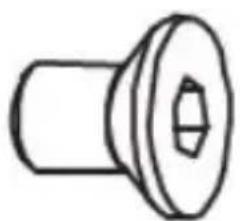
natural_image
Simple line drawing of a mechanical component with a flanged top and central hole (no text or symbols)M6 x 12 mm Screws Qty: 8
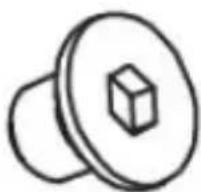
natural_image
Simple line drawing of a mechanical component with a central hexagonal nut (no text or symbols)M8 x 12 Screws Qty: 4
To view manuals, videos, drivers, downloads, technical drawings, and more visit www.startech.com/support
Product Specifications
 VESA VESA | 75 x 75100 x 100 |
 Rotation Rotation | -360 ^o to +360 ^o |
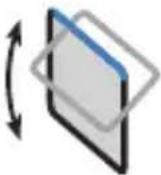 Tilt Tilt | -90 ^o to +85 ^o |
 Total Weight (two monitors) Total Weight (two monitors) | 17.6 lb (2 x 8 kg) |
To view manuals, videos, drivers, downloads, technical drawings, and more visit www.startech.com/support
 Screen Size Screen Size | 15" to 32" |
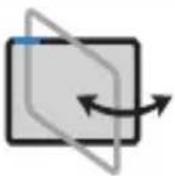 Swivel Swivel | -90° to +90° |
Requirement
Tools
• Phillips Head Screwdriver x 1
Displays
- 15" to 32" Displays x 2
Optional
- USB Cables x 2
• USB Compatible Devices x 2 - 3.5 mm Headset
To view manuals, videos, drivers, downloads, technical drawings, and more visit www.startech.com/support
Assembling the Monitor Mount
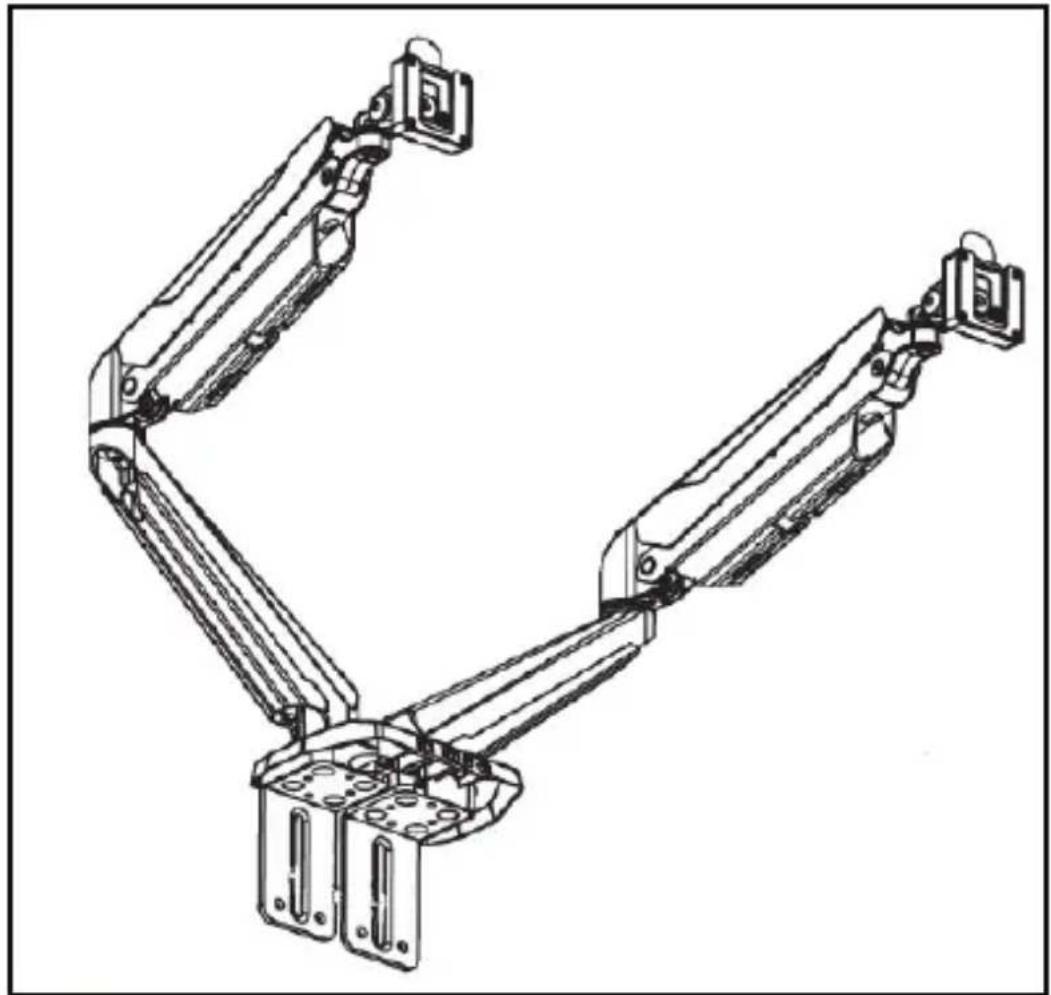
- Align the four Screw Holes on the top of the Upper Clamps with the four Screw Holes on the bottom of the Base of the Arm Assembly.
natural_image
Technical line drawing of a robotic arm with articulated joints and mounting brackets (no text or symbols)Installing the Upper Clamps
-
Insert eight M6 x 12 mm Hex Screws through the Screw Holes on the Upper Clamps and into the Screw Holes on the bottom of the Base.
-
Using the 4 mm Hex Key, tighten the M6 x 12 mm Screws, being careful not to over-tighten.
To view manuals, videos, drivers, downloads, technical drawings, and more visit www.startech.com/support

natural_image
Technical diagram of a mechanical assembly with multiple components and a pipe connection (no text or symbols)Installing the M6 x 12 mm Screws
-
Remove the backing from the Rubber Pads.
-
Apply the adhesive side of the Rubber Pads onto the bottom of the Upper Clamps covering the M6 x 12 mm Screws.
-
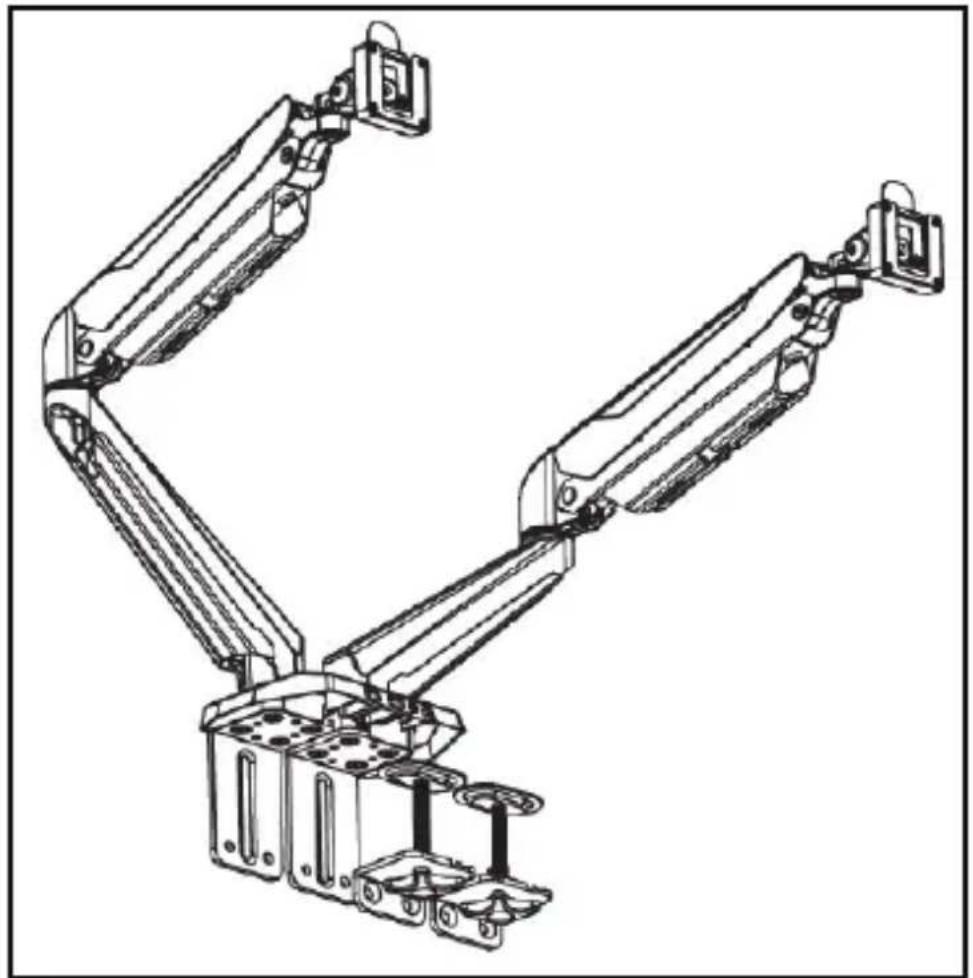
Align the two Screw Holes on the Lower Clamps with two Screw Holes on the bottom of the Upper Clamps.
To view manuals, videos, drivers, downloads, technical drawings, and more visit www.startech.com/support
natural_image
Technical line drawing of a robotic arm with articulated joints and mounting brackets (no text or symbols)Installing the Lower Clamps
- Insert four M8 x 12 mm Screws through the Screw Holes on the Lower Clamps and into the Screw Holes in the Upper Clamps.
- Using the 5 mm Hex Key, tighten the M8 x 12 mm Screws, being careful not to over-tighten.
To view manuals, videos, drivers, downloads, technical drawings, and more visit www.startech.com/support

natural_image
Technical line drawing of a mechanical assembly inside a circular frame, showing components like gears and levers (no text or symbols)Tightening the M8 x 12 mm Screws
-
Align the C-Clamp Assembly with the edge of the Mounting Surface.
-
Slide the C-Clamp Assembly over the edge of the Mounting Surface.
-
From underneath the Mounting Surface, tighten the two Thumb Screws at the bottom of the C-Clamp Assembly. Tighten the Thumb Screws until the C-Clamp Plate is pressed tightly against the bottom of the Mounting Surface.
To view manuals, videos, drivers, downloads, technical drawings, and more visit www.startech.com/support
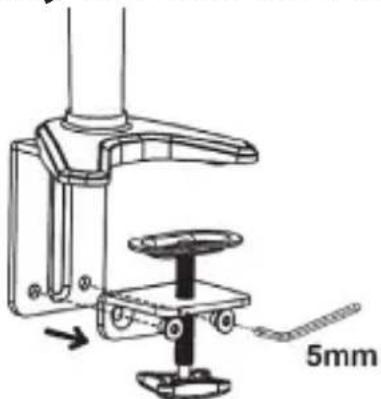
For desks with a thickness of more than 2.36 inches (60 mm) and less than 3.35 inches (85 mm), the Lower Clamps (x2) need to be removed and installed upside-down.
- Remove the Screws (x2) at the bottom of the Upper Clamp with the 5mm Hex Key to remove the Lower Clamp.
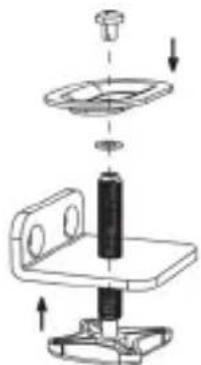
- Remove the Screw (x1) from the Pressure Plate using a Phillips Head Screwdriver, and detach the Pressure Plate from the Hand Screw. Next, separate the Hand Screw from the Lower Clamp.

natural_image
Mechanical assembly diagram showing a rotating component with arrows indicating motion direction (no text or symbols)- Rotate the Lower Clamp upside-down. Using a Phillips Head Screwdriver, reinstall the Pressure Plate onto the Hand Screw using the same Screw from Step 2. Reverse Step 1 to reinstall the Lower Clamp.
natural_image
Exploded view diagram of a mechanical assembly with no visible text or symbolsTo view manuals, videos, drivers, downloads, technical drawings, and more visit www.startech.com/support
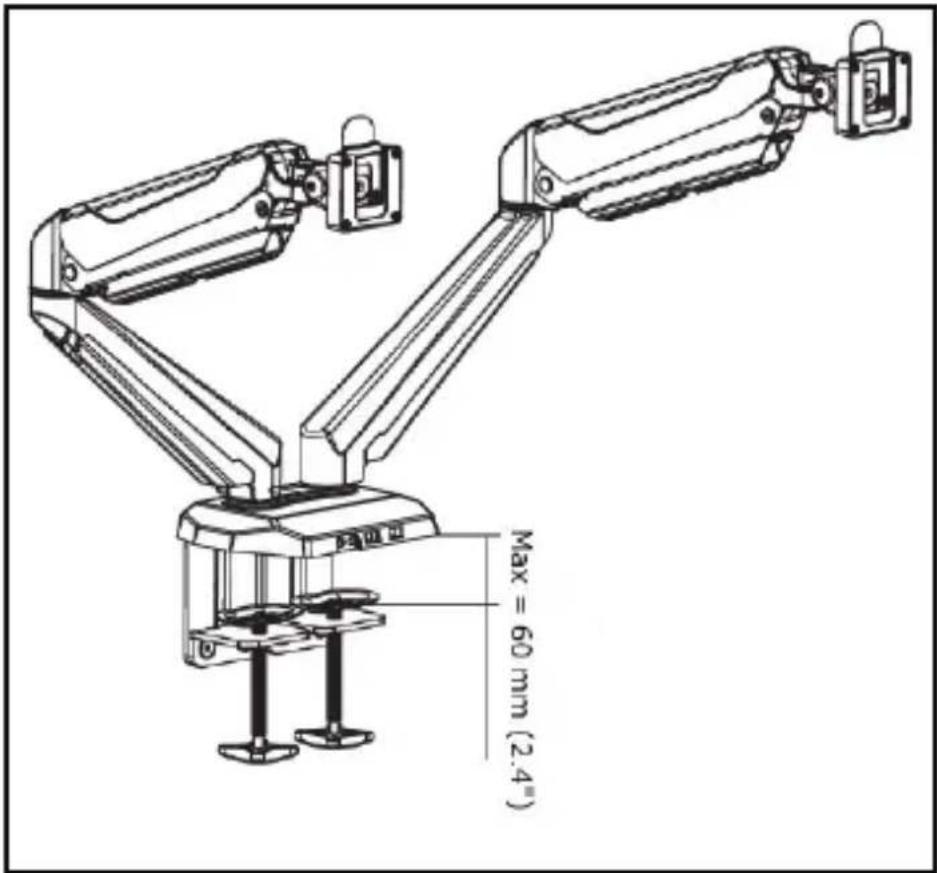
C-Clamp Dimensions
Mounting the Monitors
- Place the Monitor screen side down on a flat, clean surface.
- (Optional) Remove any Screws or Place Holders from the VESA Mounting Holes on the back of the Monitor.
Note: Be careful not to remove any of the Screws holding the Monitor's Casing together.
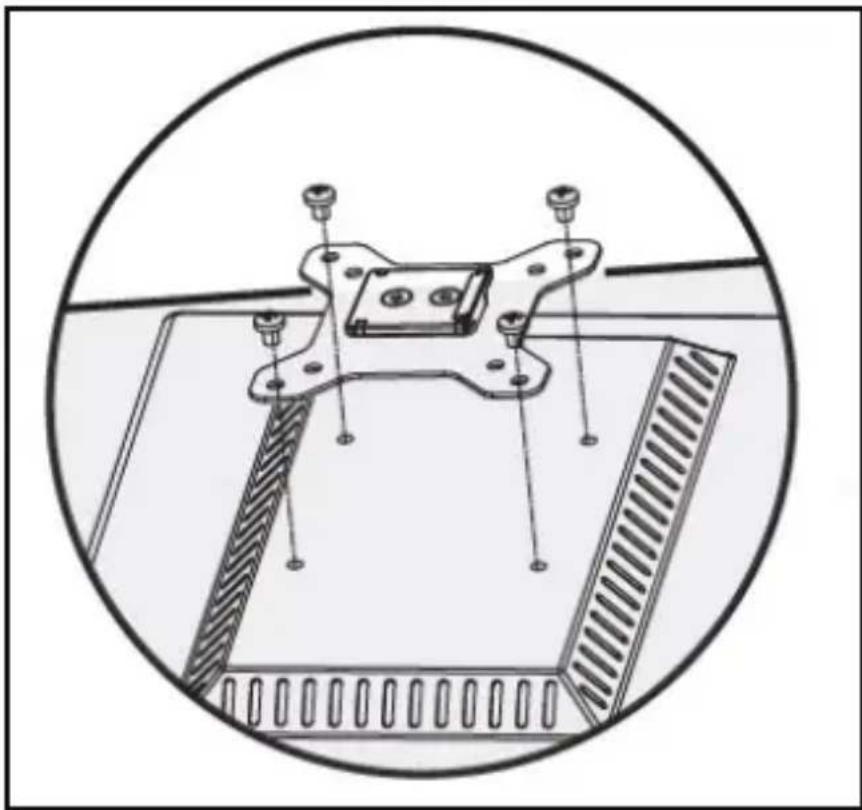
- Align the Screw Holes on the VESA Mount with the VESA Mounting Holes on the back of the Monitor. The VESA Mount can support 75 x 75 or 100 x 100 mounting pattern.
To view manuals, videos, drivers, downloads, technical drawings, and more visit www.startech.com/support
Note When attached, the Arrow on the VESA Mount should be point upward.
natural_image
Technical diagram of a mechanical assembly with mounting brackets and a central bracket, enclosed in a circular frame (no text or symbols)Aligning the VESA Mount with Monitor
-
Select the appropriate hardware for mounting the VESA Mount to the back of the Monitor either M4 x 12 mm, M4 x 30 mm, or customer sourced screws.
-
Insert the appropriate Screws through the Screw Holes on the VESA Mount and into the VESA Mounting Holes on the back of the Monitor.
-
(Optional) For recessed surface mounting, align the four Spacers with the VESA Mounting Holes on the back on the Monitor, prior to securing the VESA Mount to the Monitor.
To view manuals, videos, drivers, downloads, technical drawings, and more visit www.startech.com/support
- Using a Phillips Head Screwdriver (or appropriate screwdriver) tighten the screws.
Note: Do not over-tighten the Screws. If you encounter resistance while you're tightening the Screws, stop tightening. Failure to do so could result in damage to the Monitor.
- Repeat steps 1 - 7 to install the VESA Mount of the second Monitor.
Note: It is recommended that two people mount the Monitors.
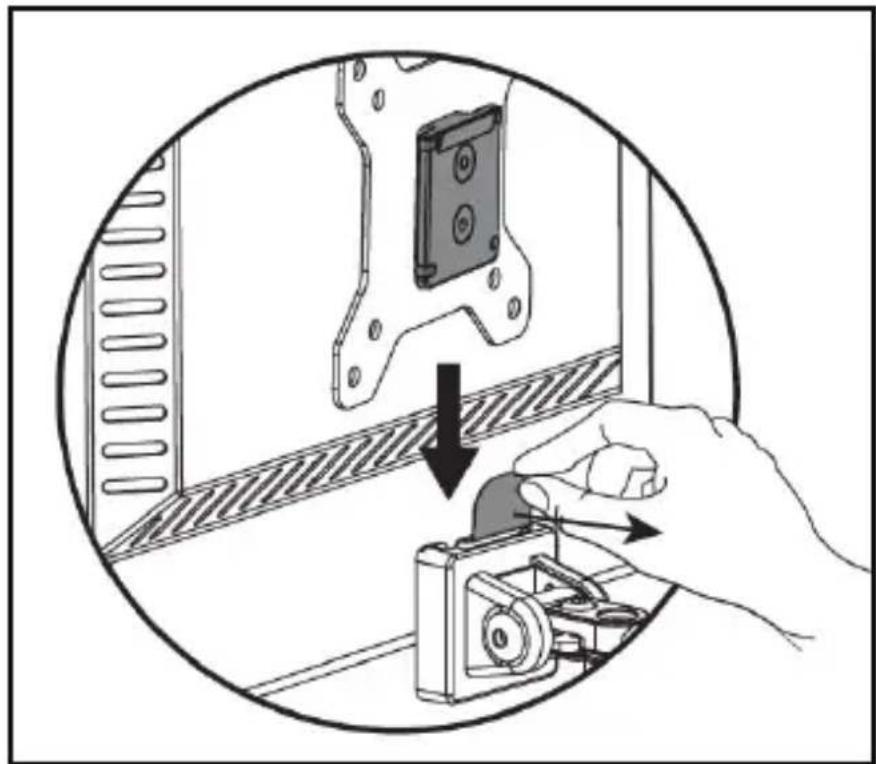
- Pull the VESA Clip on the VESA Holder back towards the Spring Arm.
natural_image
Illustration of a hand using a tool to adjust or install a mechanical component, showing a device with a handle and a circular arrow indicating process (no text or symbols present)Pulling back the VESA Clip
To view manuals, videos, drivers, downloads, technical drawings, and more visit www.startech.com/support
Note: The VESA Clip on the VESA Holder should be upright before mounting the Monitor.
-
While holding the VESA Clip and supporting the weight of the Monitor, align the Mounting Plate of the VESA Mount with the VESA Holder on the Spring Arm.
-
Slide the Mounting Plate on the VESA Mount down into the VESA Holder until the Mounting Plate is sitting on the bottom of the VESA Holder and the VESA Clip, once released will hold the top of the Mounting Plate in place.
-
While holding the Monitor in place, release the VESA Clip, securing the Monitor in place.
-
Repeat steps 9 - 12 to mount the second Monitor.
Adjusting the Monitor Mount
Adjusting the Spring Arm Tension
-
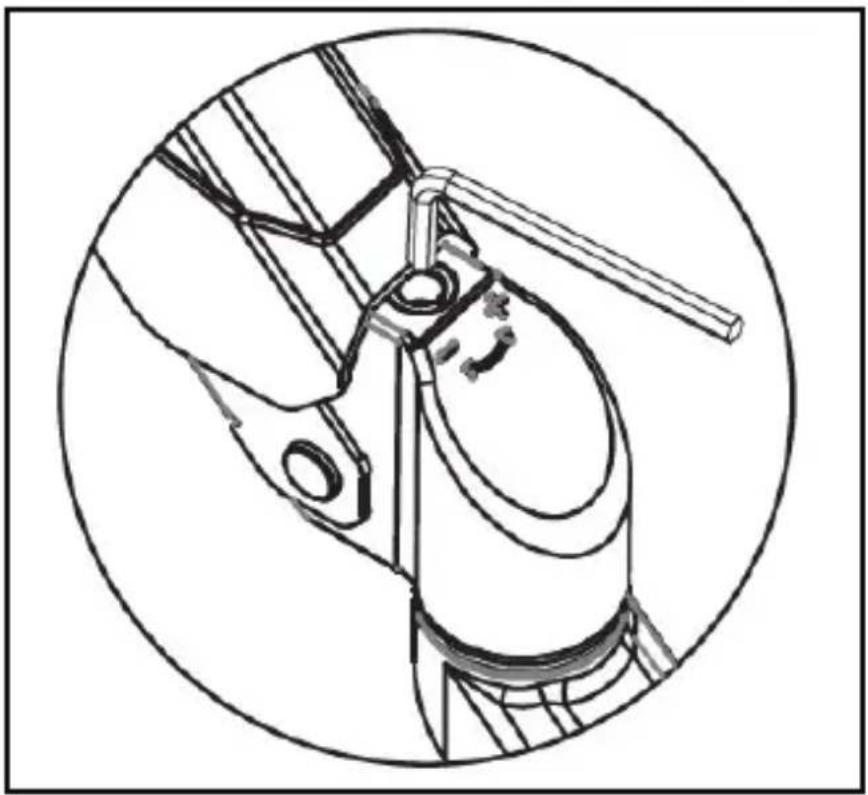
Using your hand push downward on the Spring Arm and hold it in place.
-
The Spring Arm should only be placed in a horizontal position.
-
Use the 5 mm Hex Key to rotate the Adjustment Screw located at the base of the Spring Arm, clockwise (decreasing tension) or counter clockwise (increasing tension).
To view manuals, videos, drivers, downloads, technical drawings, and more visit www.startech.com/support
natural_image
Technical line drawing of a mechanical component inside a circular frame (no text or symbols)Adjusting the Spring Arm Tension
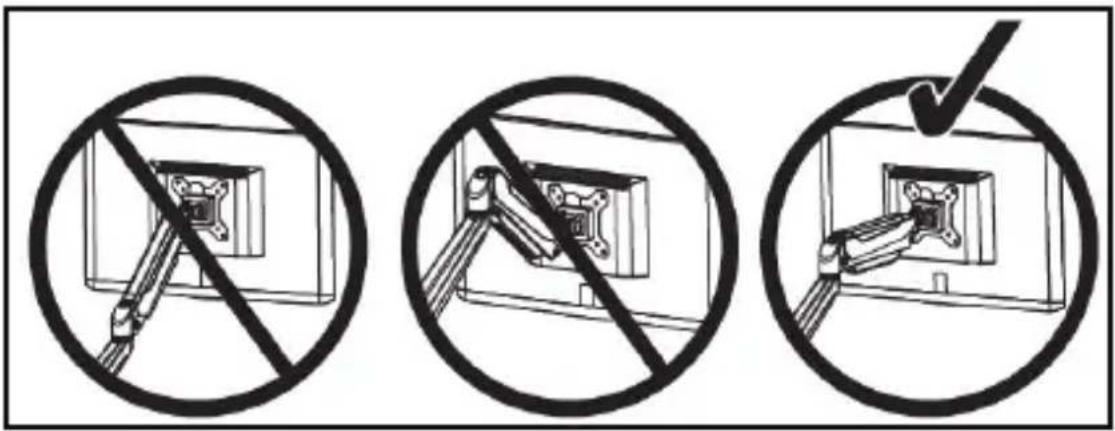
Correct Spring Arm Position
To view manuals, videos, drivers, downloads, technical drawings, and more visit www.startech.com/support
Adjusting the Tilt
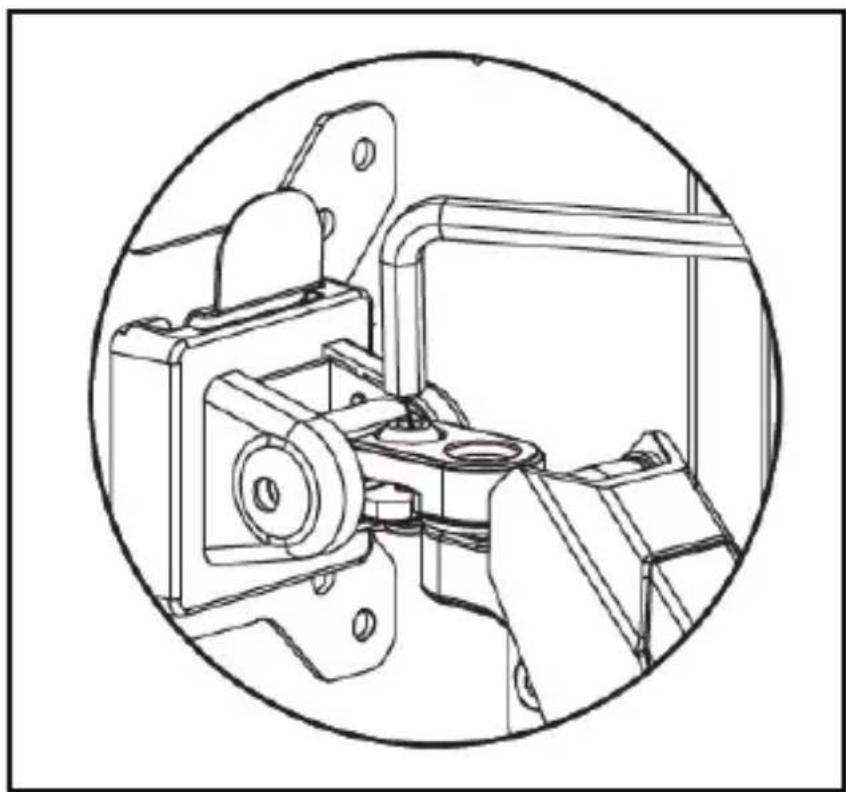
- Use the 5 mm Hex Key to loosen the Tilt Adjustment Screw located at the back of the VESA Holder (the hex screw closest to the back of the Monitor).
natural_image
Technical line drawing of a mechanical assembly inside a circular frame (no text or symbols)Loosening the Tilt Adjustment Screw
- Use your hand to adjust the tilt of the Monitor.
To view manuals, videos, drivers, downloads, technical drawings, and more visit www.startech.com/support
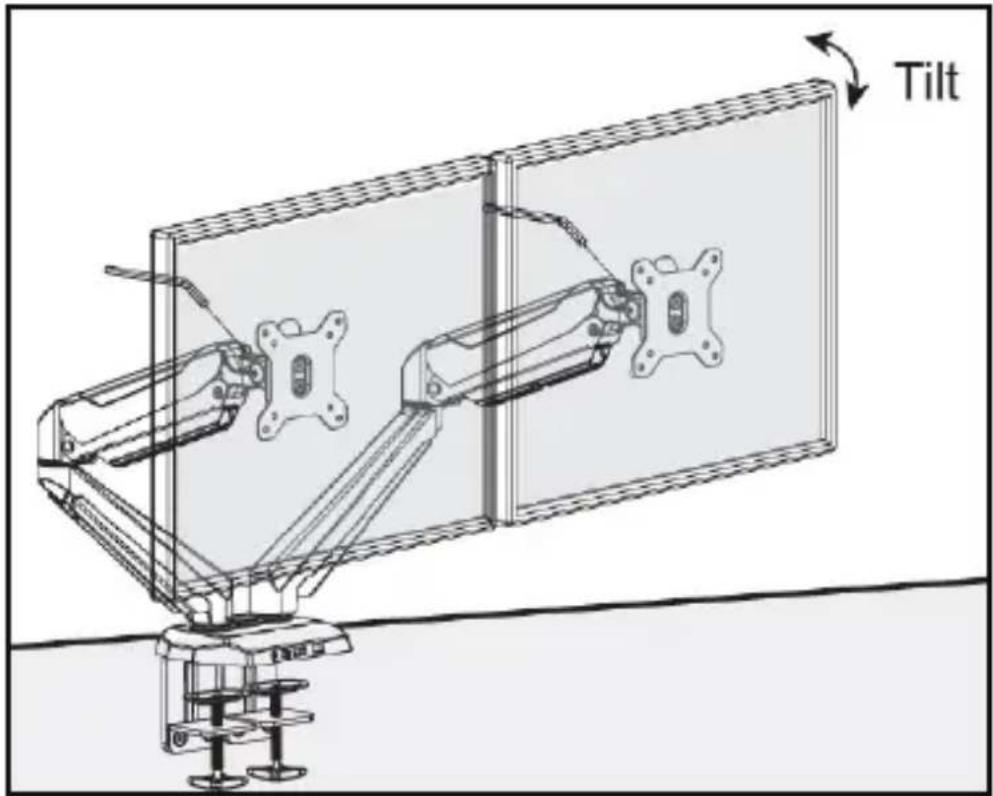
Adjusting the Monitor Tilt
- When you have achieved the desired tilt, hold the Monitor in that position and tighten the Tilt Adjustment Screw.
Adjusting the Swivel
- Use the 5 mm Hex Key to loosen the Swivel Adjustment Screw located at the back of the VESA Holder (the hex screw closest to the Spring Arm).
To view manuals, videos, drivers, downloads, technical drawings, and more visit www.startech.com/support

natural_image
Technical line drawing of a mechanical assembly inside a circular frame (no text or symbols)Loosening the Swivel Adjustment Screw
- Use your hand to adjust the swivel of the Monitor.
To view manuals, videos, drivers, downloads, technical drawings, and more visit www.startech.com/support
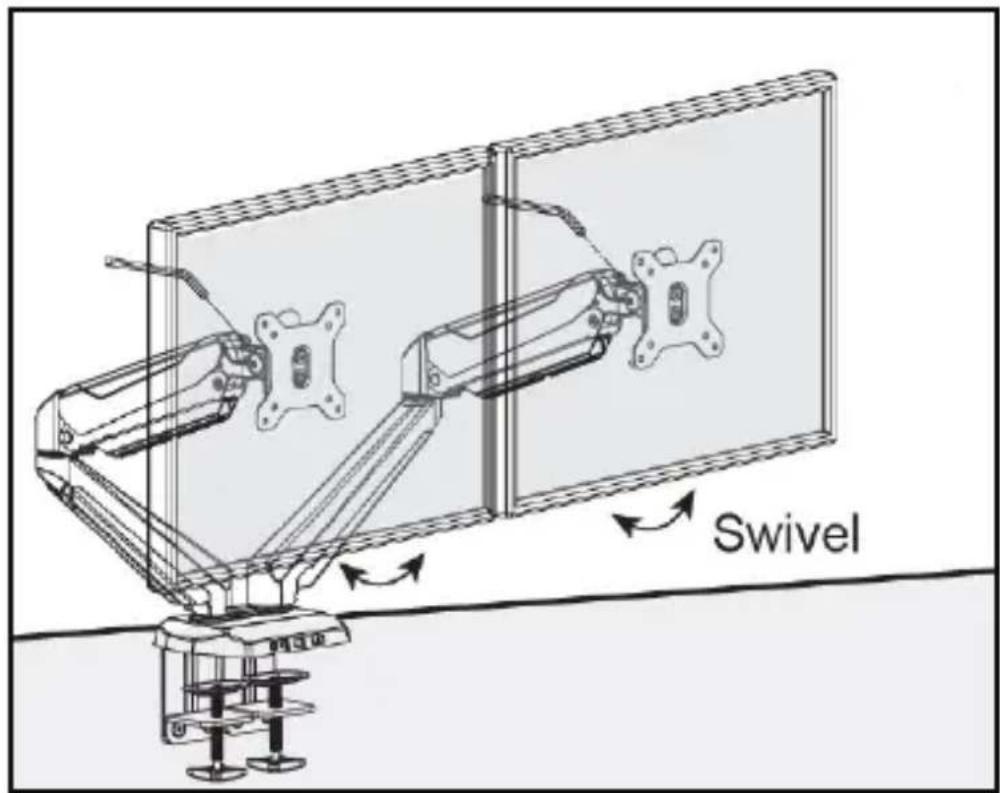
Adjusting the Monitor Swivel
- When you have achieved the desired swivel, hold the Monitor in that position and tighten the Swivel Adjustment Screw.
Routing the Cables
-
Run the Monitor Cables along the inside of the Spring Arm.
-
Gently push the Monitor Cables into the Cable Clip located along the inside of the Spring Arm.
To view manuals, videos, drivers, downloads, technical drawings, and more visit www.startech.com/support

natural_image
Technical line drawing of a mechanical assembly inside a circular frame, showing internal components and a directional arrow (no text or symbols)Routing the Monitor Cables Along the Spring Arm
-
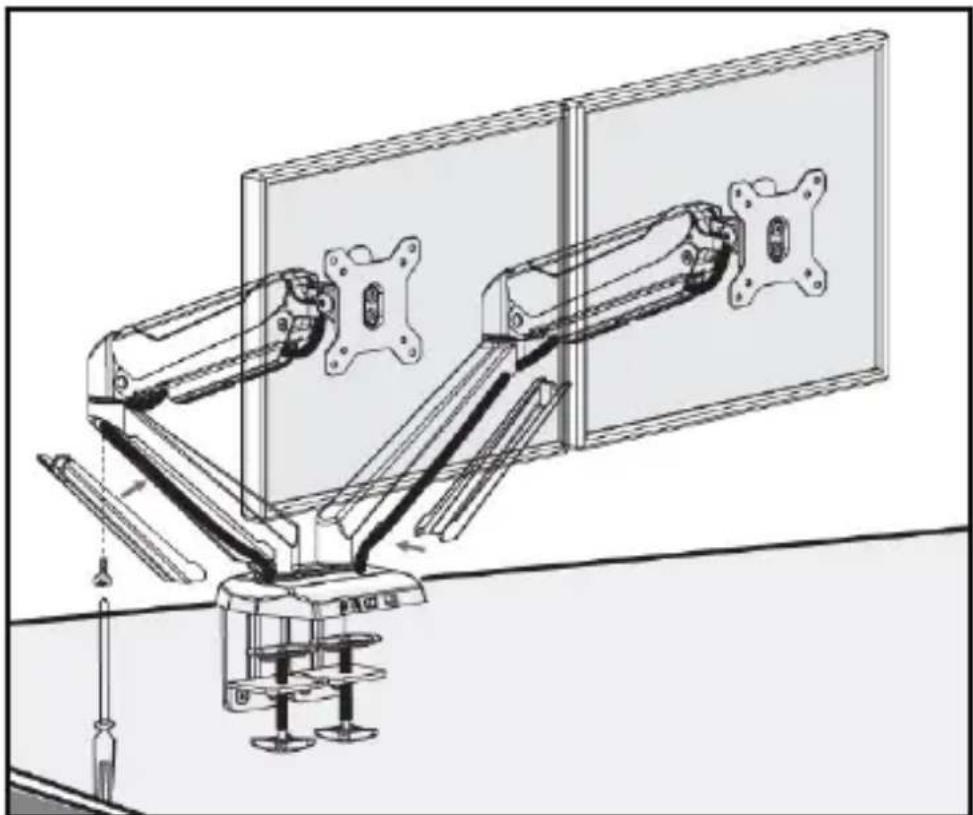
Run the Monitor Cable through the joint between the Upper Spring Arm and the Lower Arm. Make sure that you leave enough slack in the Monitor Cable to compensate for arm movement and adjustments.
-
Using a Phillips Head Screwdriver, remove the Screw from the Cable Cover, located on the outside of the Lower Arm, detaching the Cable Cover from the Lower Arm.
-
Route the Monitor Cables down the Lower Arm, on either side of the Screw Hole on the Cable Cover.
-
Replace the Screw removed in step 4, securing the Cable Cover to the Lower Arm, being careful not to pinch the Monitor Cable between the Cable Cover and Lower Arm.
To view manuals, videos, drivers, downloads, technical drawings, and more visit www.startech.com/support
natural_image
Technical line drawing of a mechanical arm assembly with articulated arms and a wall-mounted panel (no text or symbols)Removing the Cable Covers
Using the USB Passthrough Ports
-
Plug the two USB Cables on the back of the Base into USB Ports on the Host Computer.
-
Connect a USB Cable to the USB Ports on the front of the Base and the other end to a compatible USB Device.
To view manuals, videos, drivers, downloads, technical drawings, and more visit www.startech.com/support
Using the 3.5 mm Audio Port
Headset or Speakers
- Plug the Audio Cable (green) located at the back of the Monitor Mount Base into the appropriate Audio Port on the Host Computer.
- Plug the Audio Cable from the Headset or Speakers into the Audio Port (green) on the base of the Monitor Mount.
Microphone
-
Plug the Microphone Cable (pink) located at the back of the Monitor Mount Base into the Microphone Port on the Host Computer.
-
Plug the Cable from the Microphone into the Microphone Port (pink) on the base of the Monitor Mount.
Warranty Information
This product is backed by a two-year warranty.
For further information on product warranty terms and conditions, please refer to www.startech.com/warranty.
Limitation of Liability
In no event shall the liability of StarTech.com Ltd. and StarTech.com USA LLP (or their officers, directors, employees or agents) for any damages (whether direct or indirect, special, punitive, incidental, consequential, or otherwise), loss of profits, loss of business, or any pecuniary loss, arising out of or related to the use of the product exceed the actual price paid for the product.
Some states do not allow the exclusion or limitation of incidental or consequential damages. If such laws apply, the limitations or exclusions contained in this statement may not apply to you.
Hard-to-find made easy. At StarTech.com, that isn't a slogan. It's a promise.
StarTech.com is your one-stop source for every connectivity part you need. From the latest technology to legacy products — and all the parts that bridge the old and new — we can help you find the parts that connect your solutions.
We make it easy to locate the parts, and we quickly deliver them wherever they need to go. Just talk to one of our tech advisors or visit our website. You'll be connected to the products you need in no time.
Visit www.startech.com for complete information on all StarTech.com products and to access exclusive resources and time-saving tools.
StarTech.com is an ISO 9001 Registered manufacturer of connectivity and technology parts. StarTech.com was founded in 1985 and has operations in the United States, Canada, the United Kingdom and Taiwan servicing a worldwide market.
Reviews
Share your experiences using StarTech.com products, including product applications and setup, what you love about the products, and areas for improvement.
| StarTech.com Ltd. | StarTech.com LLP | StarTech.com Ltd. | StarTech.com Ltd. |
| 45 Artisans Crescent London, Ontario | 4490 South Hamilton Road Groveport, Ohio | Unit B, Pinnacle 15 Gowerton Road Brackmills, | Siriusdreef 17-27 2132 WT Hoofddorp |
| N5V 5E9 Canada | 43125 U.S.A. | Northampton NN4 7BW United Kingdom | The Netherlands |
To view manuals, videos, drivers, downloads, technical drawings, and more visit www.startech.com/support
- Dual Monitor Mount with Built-in 2-port USB Pass-Through
- User Manual
- Use of Trademarks, Registered Trademarks, and other Protected Names and Symbols
- Warning Statements
- Varningsmeddelanden
- Safety Statements
- Safety Measures
- Mesures de sécurité
- Product Diagram
- Product Dimensions
- Product Information
- Package Contents
- Product Specifications
- Requirement
- Tools
- Displays
- Optional
- Assembling the Monitor Mount
- Mounting the Monitors
- Aligning the VESA Mount with Monitor
- Adjusting the Monitor Mount
- Adjusting the Spring Arm Tension
- Adjusting the Tilt
- Adjusting the Swivel
- Routing the Cables
- Using the USB Passthrough Ports
- Using the 3.5 mm Audio Port
- Headset or Speakers
- Microphone
- Warranty Information
- Limitation of Liability
- Hard-to-find made easy. At StarTech.com, that isn't a slogan. It's a promise.
- Reviews
Brand : StarTech.com
Model : ARMSLIMDUO
Category : Monitor Stand