
BLUESYNC-MCWB - Docking Station Accessory Power - Free user manual and instructions
Find the device manual for free BLUESYNC-MCWB Accessory Power in PDF.


| Product Type | Bluetooth Stereo Speaker Docking Station |
| Brand | Accessory Power |
| Model | BLUESYNC-MCWB |
| Dimensions (L x W x H) | 11 x 4 x 3.75 inches |
| Weight | 2.5 lbs |
| Power Supply | AC 110V via included AC adapter |
| Bluetooth Profile | A2DP (Advanced Audio Distribution Profile) |
| Bluetooth Range | Up to 30 feet (10 meters) |
| Speaker Output | 6W RMS (3W x 2), 12W Peak |
| Audio Input | 3.5mm AUX line-in (cable included) |
| Controls | Play/Pause, Volume +/-, Bluetooth Pairing button, On/Off switch |
| LED Indicator | Power LED: solid when on, flashes during pairing, flashes every 3 seconds when connected |
| Paired Device Memory | Up to 8 devices |
| Box Contents | BlueSync MC Speaker, AC plug, 3.5mm audio cable |
| Warranty Registration | Free registration within 30 days of purchase for full warranty coverage |
| Safety Precautions | Keep away from children; do not expose to dust, water, or extreme temperatures; do not disassemble |
| Compliance | FCC Part 15 compliant; RoHS |
Frequently Asked Questions - BLUESYNC-MCWB Accessory Power
User questions about BLUESYNC-MCWB Accessory Power
0 question about this device. Answer the ones you know or ask your own.
Ask a new question about this device
Download the instructions for your Docking Station in PDF format for free! Find your manual BLUESYNC-MCWB - Accessory Power and take your electronic device back in hand. On this page are published all the documents necessary for the use of your device. BLUESYNC-MCWB by Accessory Power.
USER MANUAL BLUESYNC-MCWB Accessory Power
Your easy-to-use reference for getting the most out of your product
USER GUIDE
Enjoy
FREE REGISTRATION
FREE PRODUCT REGISTRATION
Protect your investment and take advantage of this free product warranty.
YOU MUST REGISTER WITHIN 30 DAYS
of purchase to receive full warranty coverage and access to special offers.
www.AccessoryPower.com/warranty
Other products you may

natural_image
Exterior view of a handheld electric car with visible brand logo and control knob (no text or symbols on device body)So convenient. So comfortable. Sounds so good.
Version 2.1
GOgroove™ AirBAND™ Bluetooth® Headset
Adjustable headband design and plush padding offers complete comfort
Built-in rechargeable battery for up to 8 hours of wireless music on one charge
Supports hands-free calling - equipped with Bluetooth v2.1
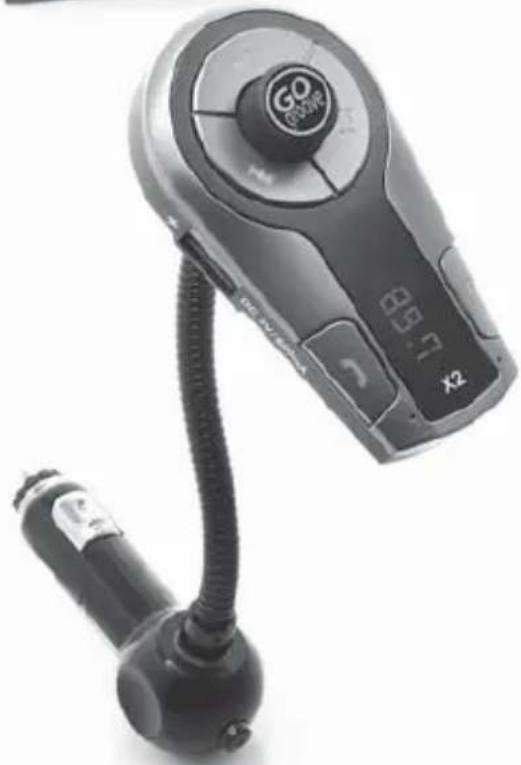
Wirelessly broadcast music and phone calls through your car speakers.
FlexSMART™ X2
Wirelessly transmit phone calls and music through your car stereo
Compatible with any Bluetooth enabled device
Controller provides full access to music and phone settings
Charging port for USB devices
need, want and enjoy!
Helping You and Your Computer Sit-up Straight

natural_image
Exterior view of a modern tablet device with app icons on the screen (no visible text or symbols)
ErgoProp™ Multimedia Stand
Easy setup with adjustable viewing angle
Anti-slip surface securely supports tablets, e-readers, netbooks and laptops
Ergonomically adjustable height and angle prevents neck strain while working
Cable organizer feature manages cords
Every Product

Every day
For information, special offers and more, please visit:
AccessoryPower.com/promo
Thank you for purchasing the
GOgroove™ BlueSync™ MC
Dynamic Bluetooth® Stereo Speaker
Say "Goodbye!" to wires with this high-fi delity speaker that allows you to move freely with your Bluetooth enabled device up to 30 feet! The GOgroove BlueSync MC also supports non-Bluetooth audio devices with the included 3.5mm cable and AUX line-in port. The BlueSync MC's stylish, modern design and full-range sound complements and equips any room with stunning Bluetooth audio.
What's in the Box
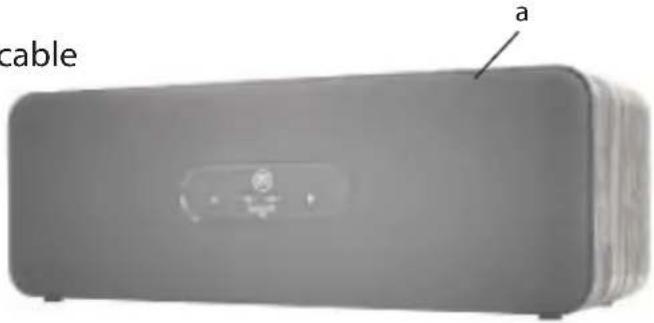
a- BlueSync MC Speaker
b- AC plug
c- 3.5mm audio cable

natural_image
Close-up of a handheld electronic device with wires and a labeled component 'b' (no text or symbols on the device itself)
Product Diagram
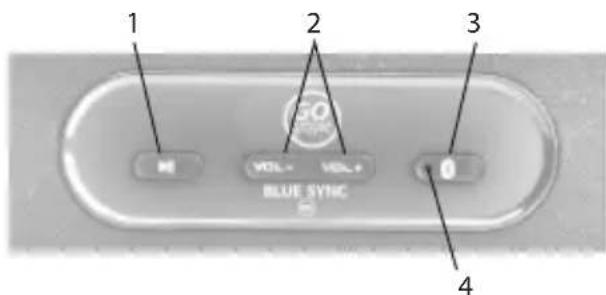
1- Play/Pause button
2- Volume +/- buttons
3- Bluetooth pairing button
4- Power LED indicator
5- On/Off switch
6- AUX line-in port
7- DC in port

Operating Instructions
Connect the BlueSync MC to Power:
Connect the (b) AC plug into a wall outlet and plug the small end into the (7) DC in port. Find the (5) On/Off switch on the rear of the speaker and switch it to the ON position. The (4) Power LED indicator will illuminate to indicate power flow.
Pairing your mobile Bluetooth device to the BlueSync MC:
Pairing instructions may differ depending on the device you are using. Please refer to your device's user manual for further information.
1- Pairing
a. Make sure that your mobile device is within at least 3 feet of the receiver when trying to pair and that the BlueSync MC is powered on.
b. Enter pairing mode on the BlueSync MC by pressing and holding the (3) Bluetooth pairing button for 3 seconds until the (4) Power LED indicator flashes rapidly and you hear 2 short tones.
c. Access the Bluetooth settings in your mobile device and select SEARCH/SCAN FOR DEVICES. Your mobile device will begin to search for a Bluetooth Signal.
d. You will see the name "BlueSync MC" appear in the device list. Select it to pair, and if a password or PIN is needed enter the numbers "0000".
***You may have to then select BlueSync MC and press "CONNECT".
e. After a successful connection has been made, you will hear a short tone and the (4) Power LED indicator will flash every 3 seconds.
2- Toggling between paired devices
a. Toggling allows you to switch between devices that have been paired with the BlueSync MC.
b. To switch devices, press the (3) Bluetooth pairing button once. Allow 3 seconds after pressing the (3) Bluetooth pairing button. Press up to 8 times to toggle through the paired memory. If your device does not connect after toggling, please refer to the pairing instructions.
c. After a successful connection has been made you will hear a short tone.
Operating Instructions continued
3- Reconnecting
a. The BlueSync MC remembers up to 8 paired devices. When reconnecting you will not have to go through the initial pairing set up.
b. To reconnect, make sure that your mobile device is within at least 3 feet of the receiver and press the (3) Bluetooth pairing button to toggle through the remembered devices. Allow 3 seconds after pressing the (3) Bluetooth pairing button each time.
c. If your device does not automatically reconnect by toggling, access the Bluetooth settings in your mobile device and select "BlueSync MC".
d. After a successful connection has been made, you will hear a short tone. If your device does not connect after toggling, please refer to the "Pairing your mobile Bluetooth device to the BlueSync MC" instructions above.
Playing music:
1- Make sure that your Bluetooth A2DP (audio/music) mobile device is paired with the BlueSync MC.
2- Simply begin playing music on your mobile device and you should hear the music play through the BlueSync MC. If the music is low, increase the volume on the BlueSync MC first, then adjust your device's volume.
3- You can control the volume and playback directly from the BlueSync MC using the (1) Play/Pause button and (2) Volume +/- button.
4- If you would like to connect a device which does not have Bluetooth capability, you may use the (6) AUX line-in port on the BlueSync MC. Just use the included (C) 3.5mm audio cable. Connect one end to the headphone jack of your music playing device, and the other end into the (6) AUX line-in port on the rear of the BlueSync MC. Once connected, begin playing music on your mobile device and you should hear the music play through the BlueSync MC.
Pause/Resume
1- Short press on the (1) Play/Pause button to pause the BlueSync MC.
2- Long press on the (1) Play/Pause button to resume the BlueSync MC.
Troubleshooting
Why can't I get the BlueSync MC to pair with my mobile device?
a. Please make sure the BlueSync MC is in PAIRING MODE and that the (4) Power LED indicator is flashing. If not, please turn off the BlueSync MC and start from the beginning of "Pairing your mobile Bluetooth device to the BlueSync MC" instructions above.
b. Please make sure the (c) 3.5mm audio cable is disconnected from the (6) AUX line-in port. Once disconnected, start from the beginning of "Pairing your mobile Bluetooth device to the BlueSync MC" instructions above.
Why can't I play music via Bluetooth using my mobile device?
a. Please make sure that your Bluetooth mobile device supports A2DP (audio/music) connection.
b. Please make sure your device is paired to the BlueSync MC. To switch to another Bluetooth audio device refer to the "Toggling between paired devices" instructions above.
Why can't I hear any sound?
a. Please make sure that the (5) On/Off switch is in the ON position and that the (4) Power LED indicator is illuminated.
b. Please make sure that the volume on your mobile device and the BlueSync MC are loud enough.
c. Please make sure that your mobile Bluetooth device is within 30 feet of the BlueSync MC. The maximum Bluetooth range may vary in different environments and on the paired device.
Cautions
- Please only use this product in the manner described in this manual
- Please keep out of the reach of children
- Do not expose the unit to dust, water, or extreme temperatures
- Do not attempt to disassemble the product
Product Specifications
Speaker: (3wx2) 6w RMS; 12w Peak
Bluetooth profi le: A2DP
Operating distance: 30 feet
Power: AC110v
Input: Standard 3.5mm audio plug (cable included)
Dimensions: 11 x 4 x 3.75 inches
Weight: 2.5 lbs

RoHS
Learn more about this and other quality Accessory Power products

www.AccessoryPower.com

Facebook.com/AccessoryPower

Twitter.com/AccessoryPower
For more on this product + tips and tricks please visit AccessoryPower.com/videos

ACCESSORY POWER
MUSTAN LEAVES CALIFORNIA
WWW.ACCESSORYPOWER.COM
MADE NCHWA
©2012 ACCESSORY POWER
All trademarks and brand names are the property of their owners.
FCC NOTE
This device complies with Part 15 of the FCC Rules. Operation is subject to the following two conditions: (1) this device may not cause harmful interference, and (2) this device must accept any interference received, including interference that may cause undesired operation.
The antenna used for this transmitter must be installed to provide a separation distance of at least 20 cm from all persons and must not be co-located or operated in conjunction with any other antenna or transmitter.
The manufacturer is not responsible for any radio or TV interference caused by unauthorized modifications to this equipment. Such modifications could void the user's authority to operate the equipment.

Please Always Recycle
- USER GUIDE
- FREE REGISTRATION
- FREE PRODUCT REGISTRATION
- Other products you may
- So convenient. So comfortable. Sounds so good.
- GOgroove™ AirBAND™ Bluetooth® Headset
- Wirelessly broadcast music and phone calls through your car speakers.
- FlexSMART™ X2
- need, want and enjoy!
- ErgoProp™ Multimedia Stand
- Thank you for purchasing the
- GOgroove™ BlueSync™ MC
- Dynamic Bluetooth® Stereo Speaker
- What's in the Box
- Product Diagram
- Operating Instructions
- Connect the BlueSync MC to Power:
- Pairing your mobile Bluetooth device to the BlueSync MC:
- 1- Pairing
- 2- Toggling between paired devices
- Operating Instructions continued
- 3- Reconnecting
- Playing music:
- Pause/Resume
- Troubleshooting
- Why can't I get the BlueSync MC to pair with my mobile device?
- Why can't I play music via Bluetooth using my mobile device?
- Why can't I hear any sound?
- Cautions
- Product Specifications
- FCC NOTE
Brand : Accessory Power
Model : BLUESYNC-MCWB
Category : Docking Station