
CQ-DF701W - Car Radio PANASONIC - Free user manual and instructions
Find the device manual for free CQ-DF701W PANASONIC in PDF.


| Product Type | Car Radio / CD Player/Receiver |
| Brand | Panasonic |
| Model | CQ-DF701W |
| Dimensions (W×H×D) | 178 mm × 50 mm × 150 mm |
| Weight | 1.6 kg |
| Power Supply | 12 V DC (11 V – 16 V), negative ground |
| Current Consumption | Less than 2.2 A |
| Maximum Power Output | 50 W × 4 channels (at 1 kHz, volume max) |
| Suitable Speaker Impedance | 4 – 8 Ω |
| Display | 3D dot matrix LCD (full-dot expressiveness) |
| Audio Control | S-HDB (Super High Definition Bass): Boom and Tight modes |
| Anti-Theft System | Removable face plate with security indicator and panel removal alarm |
| CD Player | 12 cm CD, 8× oversampling, MASH 1-bit/4 DAC system |
| FM Radio | 87.50 MHz – 108.00 MHz |
| AM Radio | 531 kHz – 1,602 kHz |
| Remote Control | Included with CR2025 lithium battery |
| Pre-Amp Output Voltage | 5.0 V (front/rear) |
| Subwoofer Output Voltage | 5.0 V |
| Weight | 1.6 kg |
| Installation Angle | Up to 30° from horizontal |
| Spectrum Analyzer | 6 patterns (including 9-band standard) |
Frequently Asked Questions - CQ-DF701W PANASONIC
User questions about CQ-DF701W PANASONIC
0 question about this device. Answer the ones you know or ask your own.
Ask a new question about this device
Download the instructions for your Car Radio in PDF format for free! Find your manual CQ-DF701W - PANASONIC and take your electronic device back in hand. On this page are published all the documents necessary for the use of your device. CQ-DF701W by PANASONIC.
USER MANUAL CQ-DF701W PANASONIC
CD Player/Receiver with Dot Matrix LCD and CD Changer Control
Operating Instructions
使用説明書

natural_image
Black-and-white photo of a long, straight tree-lined road leading to the distance under a bright light (no text or symbols visible)- Please read these instructions carefully before using this product and save this manual for future use.
- 使用本產品前,請務必閱讀這些說明並將本說明書保管好以備將來之用。
Panasonic welcomes you to our ever growing family of electronic product owners. We know that this product will bring you many hours of enjoyment. Our reputation is built on precise electronic and mechanical engineering, manufactured with carefully selected components and assembled by people who take pride in their work. Once you discover the quality, reliability, and value we have built into this product, you too will be proud to be a member of our family.
□ Use this Product Safely
When Driving
Keep the volume level low enough to be aware of road and traffic conditions.
When Car Washing
Do not expose the product, including the speakers and CDs, to water or excessive moisture. This could cause electrical shorts, fire, or other damage.
When Parked
Parking in direct sunlight can produce very high temperatures inside your car. Give the interior a chance to cool down before switching the unit on.
Use the Proper Power Supply
This product is designed to operate with a 12 V DC, negative ground battery system.
Disc Mechanism
Do not insert coins or any small objects. Keep screwdrivers and other metallic objects away from the disc mechanism and disc.
Use Authorized Servicenters
Do not attempt to disassemble or adjust this precision product. Please refer to the Servicenter list Including with this product for service assistance.
For Installation
This product should be installed in a horizontal position with the front end up at a convenient angle, but not more than 30irc .
Components
- Operating instructions .... 1
- Installation hardware....1 set (→ page 28)
●Power connector 1 - Remote control unit .... 1
●Lithium battery (CR2025)....1
このページは
繁体中国語のため
本社で作成しております。
Features
Full-dot expressiveness <3D dot matrix display>
You can select an operation quickly because operation items are shown on the display. You can also enjoy variety of actions and direction.
Audio control functions
●S-HDB (Super High Definition Bass) (→ page 14)
- CD changer control (→ page 20)
Anti-theft removable face
You can remove the face plate when you leave your car. (→ page 33)
Before Reading these Instructions
You can operate this unit by pressing buttons on the main unit and the remote control.
■ These instructions describe buttons that are concerned with operations as follows.
Example: Press [P. SET ∧] or [P. SET ∨]/[∧] or [∨].
↓
[buttons on the main unit]/[remote control]
■ Some operations can be activated by pressing buttons only on main unit or remote control.
Those cases are described in the instructions.
Example: Press [D dot M] on the main unit to select the preset station.
Remote Control Unit Preparation
Battery Installation
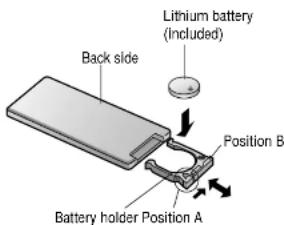
1 Remove the battery holder.
Pull the holder by the position B while pushing position A in the direction indicated by the arrow.
2 Install the battery on the battery holder.
Set a new battery properly with its (+) side facing up as shown in the figure.
3 Insert the battery holder.
Push in the battery holder back into its original position.
Battery Notes
Remove and dispose of an old battery immediately.
Battery Information:
●Battery type: Panasonic lithium battery (CR2025) (included)
●Battery life: Approximately 6 months with normal use (at room temperature)
Caution:
- Improper use of batteries may cause overheating, an explosion or ignition, resulting in injury or a fire. Battery leakage may damage the unit.
- Do not disassemble or short the battery. Do not throw a battery into a fire.
- Keep batteries away from children to avoid the risk of accidents.
- Be careful to the local disposal rules when you dispose of batteries.
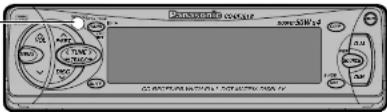
Point the remote control unit at the main unit's sensor (REMOTE).
General

Power
Turn the key in the ignition until the accessory indicator lights.
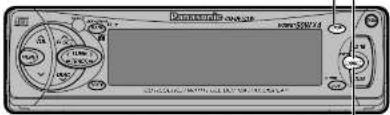
ON: Press [SOURCE] (PWR).
OFF: Press [SOURCE] (PWR) again for more than 1 second.
- After turning off the ignition key, a security message is displayed, and the panel removable alarm that reminds you to take the panel is activated.
(When S-LED is set to ON → page 26)
Note:
- When the power is switched on for the first time, a demonstration message appears on the display. To cancel this display, press [DISP].


Source
Press [SOURCE] (PWR) to change the source.
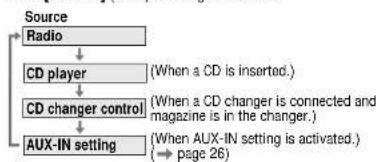
flowchart
graph TD
    A["Source"] --> B["Radio"]
    B --> C["CD player"]
    C --> D["CD changer control"]
    D --> E["AUX-IN setting"]
    style A fill:#f9f,stroke:#333
    style B fill:#ccf,stroke:#333
    style C fill:#cfc,stroke:#333
    style D fill:#fcc,stroke:#333
    style E fill:#cff,stroke:#333
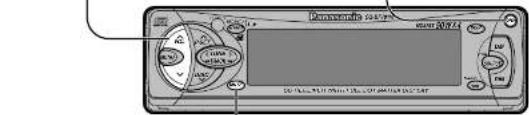
![[SOURCE] (POWER) [VOL ^] [VOL ♥] [MUTE] Panasonic Power](/content/2026/06/1191031/images/752c47253aa501455f9586c6d09ee125f32813ee675f31a457f386a6fa38b156.jpg)
CQ-DF701W
Volume
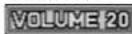
Setting range: 0 to 40
Note:
●The sound level for each source is stored in memory. (For radio, one volume setting for AM, one volume setting for all FMs)
Open/Close the Front Panel
OPEN: Press [OPEN] on the front panel. CLOSE: Raise the panel by hand.
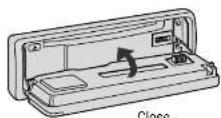
Decreasing volume range depends on setting.
(→ page 26)
No sound.
Decrease the volume to 1/10.
Cautions:
- To avoid damaging the front panel, do not push it down or place objects on it while it is open.
- Do not pinch your finger or hand in the front panel.
- Do not insert foreign matter into the disc slot.
- To avoid damaging the front panel, do not push it down or place objects on it while it is open.
- Do not pinch your finger or hand in the front panel.
- Do not insert foreign matter into the disc slot.
General (Continued)
S·HDB
(Super High Definition Bass)
Especially for rock music, the bass-sound will be more powerful.
Press [S-HDB] on the main unit to change the Super High Definition Bass on.
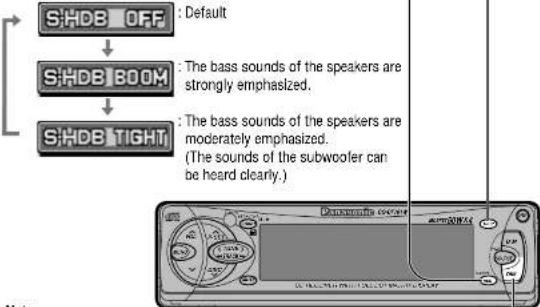
flowchart
graph TD
    A["SHDB OFF"] --> B["SHDB BOOM"]
    B --> C["SHDB TIGHT"]
    style A fill:#f9f,stroke:#333
    style B fill:#f9f,stroke:#333
    style C fill:#f9f,stroke:#333
Note:
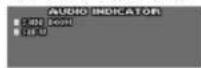
- When S·HDB is on, the indicator (S·HDB BOOM or TIGHT) is shown on the audio indicator display. (→ page 15)
Dimmer
(Display Brightness Setting Range)
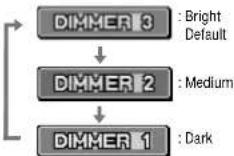
Press [DIM] on the main unit to change the dimmer level.
![PANSSA 1 2 3 4 5 6 7 8 9 10 11 12 13 14 15 16 17 18 19 20 21 22 23 24 25 26 27 28 29 30 31 32 33 34 35 36 37 38 39 40 41 42 43 44 45 46 47 48 49 50 51 52 53 54 55 56 57 58 59 60 61 62 63 64 65 66 67 68 69 70 71 72 73 74 75 76 77 78 79 80 81 82 83 84 85 86 87 88 89 90 91 92 93 94 95 96 97 98 99 [DISP]](/content/2026/06/1191031/images/e4f9b65b93f6f6d3c490bb1aaab4c38b06fa2432199f776302d8a6954258001e.jpg)
CQ-DF701W
Display Change
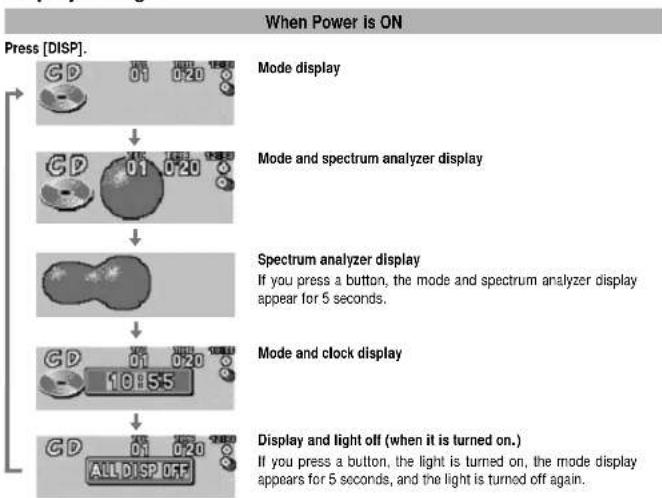
flowchart
graph TD
    A["Press [DISP."]] --> B["Mode display"]
    B --> C["Mode and spectrum analyzer display"]
    C --> D["Spectrum analyzer display\nIf you press a button, the mode and spectrum analyzer display appear for 5 seconds."]
    D --> E["Mode and clock display"]
    E --> F["Display and light off (when it is turned on.)\nIf you press a button, the light is turned on, the mode display appears for 5 seconds, and the light is turned off again."]
    F --> G["AND DISP OFF"]
Press and hold [DISP] for more than 2 seconds.
●The audio indicator is displayed for 15 seconds and returns to the previous display.
- When the indicator lights, the audio function (S·HDB/SUB·W) is now activated.
Press [DISP] again to cancel.

flowchart
graph TD
    A["10:55"] --> B["Clock display"]
    B --> C["Display and light off"]
Notes:
- Set the spectrum analyzer pattern in a separate procedure. (→ page 24)
• ADJUST : Displays before adjusting the clock. (→ page 24)
CQ-DF701W
Radio

Radio Mode
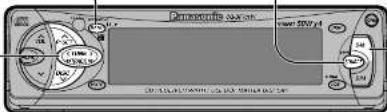
Press [SOURCE] to change to the radio mode.

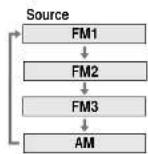
Band
Press [BAND] to change the band.

Tuning
[TUNE >]/[>]: Up
[TUNE <]/[<]: Down
Press and hold [TUNE >] or [TUNE <]/[>] or
[<] for more than 0.5 seconds, then release.
Seeking will start.
Direct Memory
Your favorite radio station can be memorized in [D·M] on the main unit.
Default: FM 87.50 MHz
Memorize
1 Select a band and frequency (steps ①, ② and ③).
2 Press and hold [D-M] for more than 2 seconds. Frequency blinks once and is saved in the memory.
Note:
- The new station is overwritten on existing saved stations after following this procedure.
Recalling the Direct Memory
Press [D·M].
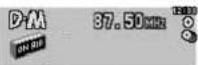
Press [D·M] again to cancel and return to the previous source.
Note:
- You can recall the direct memory when the power is off.
![[SOURCE] [^][✓] (PRESET MEMORY) (SELECT) PULSE [BAND] [1] to [6] Preset button [<<] (TUNE)](/content/2026/06/1191031/images/91eac3e06d20d4ed0e9bf8ba2900f61272f393595f0ed470d9e75f51e44beff6.jpg)
CQ-DF701W
One-Touch Selection of a Preset Station
Up to 6 stations each can be saved in the FM1, FM2, FM3 and AM preset station memories.
Manual Preset Memory
Manually save a station in the preset memory
1 Select a band and frequency (steps ①, ② and ③ on the previous page).
2 Press and hold [P. SET ∧] or [P. SET ∨]/[∧] or [∨] for more than 2 seconds until the preset number blinks.
3 Press [P. SET ∧] or [P. SET ∨]/[∧] or [∨] to select a preset number.
4 Press and hold [P. SET ∧] or [P. SET ∨]/[∧] or [∨] for more than 2 seconds to memorize.
- The display blinks once, and a receiving station is saved in the memory.
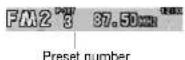
Note:
- Frequency setting can be performed even after selecting a preset number.
Entering Numbers Directly from the Remote Control
1 Select a band and frequency (step ①, ② and ③ on the previous page).
2 Press and hold [1] to [6] on the remote control for more than 2 seconds to memorize.
Auto Preset Memory (AUTO·P)
Automatically save strong stations in the preset memory
1 Select a band (steps ① and ② on the previous page).
2 Press and hold [BAND] (AUTO-P) for more than 2 seconds.
●The 6 strongest available stations will be automatically saved in the memory under preset number 1 to 6.
- Once set, the preset stations are sequentially scanned for 5 seconds each.
- Press [P. SET ∧] or [P. SET ∨]/[∧] or [∨] for the broadcast you want to listen to.
(Press [1] to [6] on the remote control.)
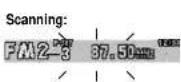
Note:
- New stations are overwritten on existing saved stations after following this procedure.
Preset Station Calling
1 Select a band (steps ① and ② on the previous page).
2 Press [P. SET ∧] or [P. SET ∨]/[∧] or [∨] to select the preset number for tuning in the preset station.
Entering Numbers Directly from the Remote Control
Press [1] to [6] on the remote control.
CQ-DF701W
CD Player
Disc Insert and Playback

Open the front panel.
Press [OPEN] on the front panel.
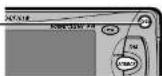

Insert the disc.
Close the front panel manually. Playback will start automatically.
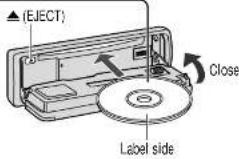
When CD is in the player
Press [SOURCE] to change to CD player mode.
Notes:
- Do not insert a disc when this indicator lights.
- Loading a CD when the power is off allows the power to be turned on.
- Ejecting the CD when the unit is in the CD player mode allows the power to be turned off.
Stop and Disc Eject
Press [▲] (EJECT) to stop CD play and eject the disc.
CD player mode display
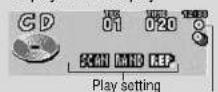
- Lights when the disc is loaded. - Blinks when the disc is played.
Listening to a CD
Pause
Press [BAND] (Ⅱ/▶) during CD playing. Press [BAND] (Ⅱ/▶) again to cancel.
PAUSE
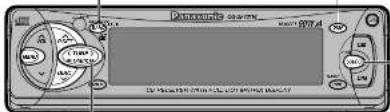
Track Selection
[TRACK ▶▶]/[>]: Next track. [TRACK ◀◀]/[<]: Beginning of the current track. Previous track (Press twice.)
CD Player Mode
Press [SOURCE] to change to CD player mode and playback starts.
[DISP]
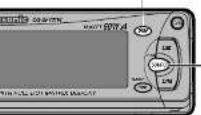
Track Search
Press and hold. [TRACK ▶▶]/[>]: Fast forward [TRACK ◀◀]/[<]: Fast backward Release to resume the regular play.
CQ-DF701W
Menu Setting on CD Player Mode
1 Press [MENU]/[SEL] (MENU) during CD playing.
2 Press [P. SET ∧] or [P. SET ∨]/[∧] or [∨] to select a submenu.
3 Press [BAND] (SET) to change the setting.
Notes:
●Operations except setting should be performed after returning to the mode display.
- The display returns to the previous one with no operation for 15 seconds after changing to the menu display.
- Press [DISP] to return to the regular mode.
Play Setting
Random Play

Select
RA

All the
quence Cancel
Scan Play

Select
SC

The fi
sequen Cancel
Repeat Play

Select
R

Repea
Cancel
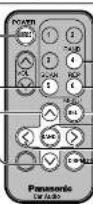
Direct setting on the remote control when the menu is not displayed:
Random Play

Press
Press

ain to
ain to c
Scan Play

Press
Press

ain to
n to ca
Repeat Play
[4
[6]
[S
1
[
1
Cautions:
- Only 12 cm CD is available for this unit.
- To avoid damaging the front panel, do not push it down or place objects on it while it is open.
- Do not use irregularly shaped CDs (heart-shaped, octagon, etc.)
- Do not pinch your finger or hand in the front panel. Do not insert foreign matter into the disc slot.
CQ-DF701W
CD Changer
CD changer functions are designed for optional Panasonic CD changer unit.
Preparation:
- Connect the CD changer, and load a magazine (disc).
Notes:
- Loading a magazine when the power is off allows the power to be turned on.
- Ejecting the magazine when the unit is in the CD changer mode allows the power to be turned off.
●Pausing does not function in the CD changer mode.

CD Changer Mode
Press [SOURCE] to change to CD changer mode and playback starts.
Note:
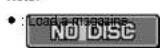
with CDs.

Disc Selection
[DISC ∧]/[∧]: Next disc. [DISC ∨]/[∨]: Previous disc.
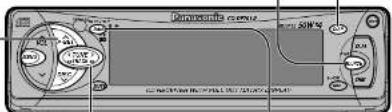
Track Selection
[TRACK ▶▶]/[>]: Next track.
[TRACK ◀◀]/[<]: Beginning of the current track. Previous track (Press twice.)
Track Search
Press and hold.
[TRACK ▶▶]/[>]: Fast forward
[TRACK ◀◀]/[<]: Fast backward
Release to resume the regular play.
Caution:
- Do not use irregularly shaped CDs (heart-shaped, octagon, etc.).
Change the CD Changer Unit
Press [BAND] (CH·C 12) to select the CD changer 1 or 2 mode.
CD-CH1: CD changer 1 mode
CD-CH2: CD changer 2 mode
![[SOURCE] [5] (SCAN) [^] (V) (DISC/MENU SELECT) Ponemeles 7 RECO 4 6 RE SEL [BAND] [<<] (TROCK) [DISP]](/content/2026/06/1191031/images/66e57af71dde3a992896513cf8f2ba03debddf7168e1843d1d86ab4ed64a82c7.jpg)
CQ-DF701W
Menu Setting on CD Changer Mode
1 Press [MENU]/[SEL] (MENU) during CD changer playing.
2 Press [P. SET ∧] or [P. SET ∨]/[∧] or [∨] to select a submenu.
3 Press [BAND] (SET) to change the setting.
Notes:
●Operations except setting should be performed after returning to the mode display.
- The display returns to the previous one with no operation for 15 seconds after changing to the menu display.
- Press [DISP] to return to the regular mode.
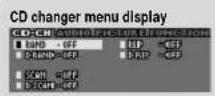
Play Setting
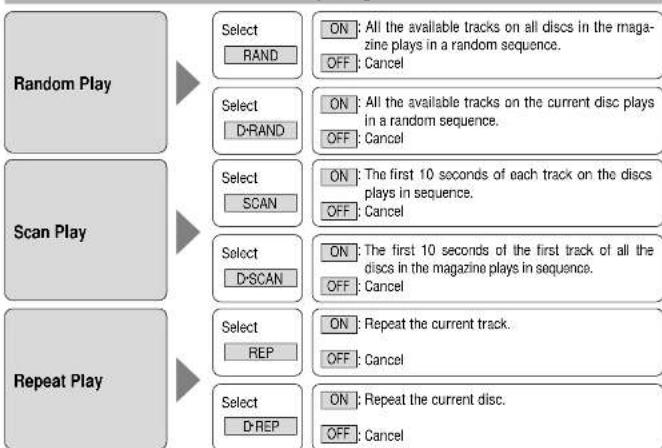
flowchart
graph TD
    A["Random Play"] --> B["Select RAND"]
    A --> C["Select D-RAND"]
    A --> D["Select SCAN"]
    A --> E["Select D-SCAN"]
    A --> F["Select REP"]
    A --> G["Select D-REP"]
    B --> H["ON: All the available tracks on all discs in the magazine plays in a random sequence. OFF: Cancel"]
    C --> I["ON: All the available tracks on the current disc plays in a random sequence. OFF: Cancel"]
    D --> J["ON: The first 10 seconds of each track on the discs plays in sequence. OFF: Cancel"]
    E --> K["ON: The first 10 seconds of the first track of all the discs in the magazine plays in sequence. OFF: Cancel"]
    F --> L["ON: Repeat the current track. OFF: Cancel"]
    G --> M["ON: Repeat the current disc. OFF: Cancel"]
Direct setting on the remote control when the menu is not displayed:

flowchart
graph TD
    A["Random Play"] --> B["Press [4"] (RAND). Press again to cancel.]
    C["Disc Random Play"] --> D["Press and hold [4"] (RAND). Press and hold again to cancel.]
    E["Scan Play"] --> F["Press [5"] (SCAN). Press again to cancel.]
    G["Disc Scan Play"] --> H["Press and hold [5"] (SCAN). Press and hold again to cancel.]
    I["Repeat Play"] --> J["Press [6"] (REP). Press again to cancel.]
    K["Disc Repeat Play"] --> L["Press and hold [6"] (REP). Press and hold again to cancel.]
CQ-DF701W
Audio Settings
![[MENU] [BAND] (SET) [DISP] [P.SET ^] [P.SET ∨] [TUNE <] [TUNE > (MENU SELECT) (BAS/TRE/BAL/FAD/ LEVEL/LPF)](/content/2026/06/1191031/images/6f5b372f3e28936985ce488838872d89ea3063af273b71297af9ffe447cf4890.jpg)
Audio menu display
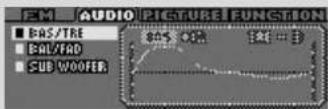
Bass and Treble
You can adjust the bass and treble
sound.
Default: BAS (Bass) 0 dB
TRE (Treble) 0 dB
Setting range: -12 dB to +12 dB
by 3 dB step
Balance and Fader
You can adjust the sound balance among the front, rear, right and left speakers.
Default: BAL (Balance) Center
FAD (Fader) Center
Setting range: 15 levels each
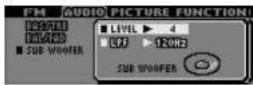
Subwoofer Level
When the subwoofer is activated, you can change the subwoofer volume level.
Default: 4
Setting range: 0 (MUTE) to 8
Cut-off Frequency Control
The maximum lower frequency level can be adjusted to match your subwoofer and the acoustics Inside your car.
Default: 120 Hz
Setting range: 120 Hz/80 Hz
1 Menu Submenu Setting
Press [MENU]
[SEL] (MENU) to select
"AUDIO" on the menu display.
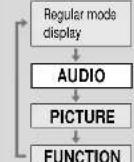
Press [P. SET ∧] or
[P. SET ∨]/[∧] or [∨]
to select
BAS/TRE
Press [BAND] (SET) to
set.
Press [P. SET ∧] or
[P. SET ∨]/[∧] or [∨]
to select
BAL/FAD
Press [BAND] (SET) to
set.
Press [P. SET ∧] or
[P. SET ∨]/[∧] or [∨]
to select
SUB WOOFER
Press [BAND] (SET) to
sel.
![[^][∨] (MENU SELECT) [SEL] (MENU) [BAND] (SET) [<] (>) (BAS/TRE/BAL/ FAD/LEVEL/LPF) [DISP]](/content/2026/06/1191031/images/20561cec44937205e156a95cd63b155a929d12d2ccf00e1c4aa9481386ffd623.jpg)
Notes:
● Operations except setting should be performed after returning to the mode display.
- The display returns to the previous one with no operation for 15 seconds after changing to the menu display.
- Press [DISP] to return to the regular mode.
3
Press [TUNE >] or [TUNE <]/[>] or [<] to select BAS or TRE.
BAS (Bass) TRE (Treble)
[P. SET ∧]/[∧]: Increase the bass.
[P. SET ∨]/[∨]: Decreases the bass.
Press [BAND] (SET) to set.
[P. SET ∧]/[∧]: Increases the treble.
[P. SET ∨]: [∨]: Decreases the treble.
T) to set.
BAL (Balance) FAD (Fader)
[TUNE >]/[>]: Right enhanced.
[TUNE <]/[<]: Left enhanced.
[P. SET ∧]/[∧]: Front enhanced.
[P. SET ∨]: [∨]: Rear enhanced.
Press [BAND] (SET) to set.
Press [P. SET ∧] or [P. SET ∨]/[∧] or [∨] to select LEVEL or LPF.
LEVEL
[TUNE >]/[>]: Increase the level.
[TUNE <]/[<]: Decrease the level.
Press [BAND] (SET) to set.
LPF
Press [TUNE >] or [TUNE <]/[>] or [<] to select
120 Hz or 80 Hz.
Press [BAND] (SET) to set.
Note:
- When subwoofer level is set 0, the indicator (SUB-W) is not shown on the audio indicator display. (→ page 15)
CQ-DF701W
CQ-DF701W
Picture (Display) Settings
[MENU] [BISFA] (SET)
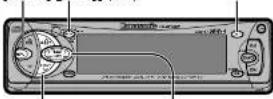
[P.SET ∧] [P.SET ∨] [TUNE <] [TUNE >] (MENU SELECT/CLOCK ADJ) (S-A PATTERN/
CONTRAST/CLOCK ADJ)
Display menu display
![[^][V] [MENU SELECT/ CLOCK ADJ] [SEL] (MENU) [BAND] (SET) [](S-A PATTERN/ CONTRAST/ CLOCK ADJ) [DISP]](/content/2026/06/1191031/images/f61a7e86796415fb17213c4dd44777fa9ad85be48261817a4c2c8d7c2349304a.jpg)
Notes:
● Operations except setting should be performed after returning to the mode display.
- The display returns to the previous one with no operation for 15 seconds after changing to the menu display.
- Press [DISP] to return to the regular mode.
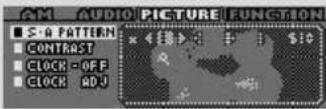
Spectrum Analyzer (S-A) Display Pattern
Default: Pattern A
Variety: 6 types
Contrast
Allows you to adjust the display contrasts for better viewing.
Default: Level 3
Setting range: Level 1 to level 5
Clock on the Mode Display
Default: ON
("--:--" will appear before adjusting the clock.)
Clock Adjustment
(12 hour system)
Default: Not adjusted.
CQ-DF701W
1 Menu
Press [MENU]
[SEL] (MENU) to select
"PICTURE" on the
menu display.
Regular mode
display
AUDIO
PICTURE
↓
FUNCTION
2 Submenu
Press [P. SET ∧] or
[P. SET ∨]/[∧] or [∨]
to select
S·A PATTERN
Press [RAND] (SET) to
1. Less [BAND] (OET) to set
Press [P. SET △] or
[P. SET ∨ M[∧] or [∨]
to select
CONTRAST
Press [BAND] (SET) to
set
Press [P. SET ∧] or
[P. SET ∨]/[∧] or [∨]
to select
CLOCK-OFF
CLOCK-ON
Press [P. SET ∧] or
[P. SET ∨] [∧] or [∨]
to select
CLOCK ADJ
Press [RAND] (SET) to
set
3 Setting
Press [TUNE >] or [TUNE <]/'[>] or [<] to select the pattern.
A : Display showing a cube that continues to change
B : Display showing a globe that continues to change
C : Display showing a flower or doll pattern
Press [BAND] (SET) to set.
Note:
- Change the display to show the spectrum analyzer display. (→ page 15)
D : Display showing a bird flapping its wings
E : Display showing the image of a circuit
STD : Standard spectrum analyzer display (9 bands)
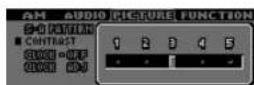
[TUNE>]/[>]: level up
[TUNE <]/[<]: level down
Press [BAND] (SET) to set.
Press [BAND] (SET)
to select
ON
: Clock display ON
OFF
: Clock display OFF
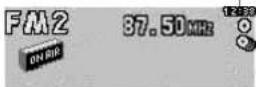
Hour/Minute Switch Hour/Minute Adjustment
[TUNE <]/'[<]: The hour display high lights.
[TUNE >]/[>]: The minutes display high lights.
[P. SET ∧]/[∧]: Put forward hour/minute.
[P. SET ∨]/[∨]: Put back hour/minute.
Press [BAND] (SET) to set.
CQ-DF701W
User Settings
[MENU] [[BAND] (SET)
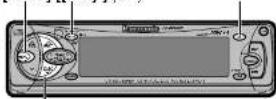
[P.SET ∧] [P.SET ∨]
(MENU SELECT)
Function menu display
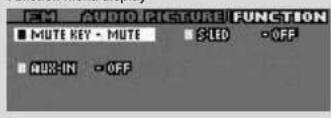
Mute/Attenuator
You can select how much to lower the volume when [MUTE] is pressed.
Default: MUTE
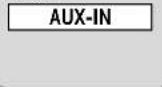
Excluding AUX-IN from Source Selection
Default: ON
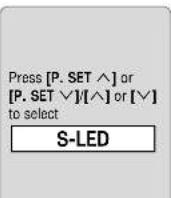
Security Function
Default: ON
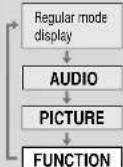
1 Menu
Press [MENU]/ [SEL] (MENU) to select "FUNCTION" on the menu display.
2 Submenu
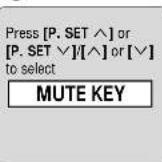
Press [P. SET ∧] or [P. SET ∨]/[∧] or [∨] to select
![[^][∨] (MENU SELECT) [SEL] (MENU) [BAND] (SET) [DISP] Panasonic Control](/content/2026/06/1191031/images/17466ffe1aecec622b44d984f0987b0dd5d327afa7dc847b313266d99696e375.jpg)
Notes:
● Operations except setting should be performed after returning to the mode display.
- The display returns to the previous one with no operation for 15 seconds after changing to the menu display.
- Press [DISP] to return to the regular mode.
3 Setting
Press [BAND] (SET) to switch between MUTE (mute) or ATT (attenuator) In turn.
MUTE
: No sound.
ATT
: Decrease the volume to 1/10.
Press [BAND] (SET) to activate the function or inactivate it in turn.
ON
: External Input (AUX-IN) is selectable as a source.
OFF
: External input (AUX-IN) is not selectable as a source.
With AUX-IN set to OFF, AUX-IN will not be selected when [SOURCE] is pressed. (→ page 12)
Press [BAND] (SET) to activate the function or inactivate it in turn.
ON
: Security function is active.
OFF
: Security function is non-active.
Security Function
When the key in the ignition is turned OFF.
● Security message will be active.
●The panel removable alarm will be active.
When the removable face plate is removed.
- The security indicator blinks. (→ page 33)
Security message display
PLEASE REMOVE PANEL
Installation Guide

WARNING
This installation information is designed for experienced installers and is not intended for non-technical individuals. It does not contain warnings or cautions of potential dangers involved in attempting to install this product.
Any attempt to install this product in a motor car by anyone other than qualified installer could cause damage to the electrical system and could result in serious personal injury or death.
□ Installation Hardware
| No. | Item Diagram Q'ty | ||
| 1 | Mounting collar |  | 1 |
| 2 | Hex. nut (5 mm φ ) |  | 1 |
| 3 | Rear support strap |  | 1 |
| 4 | Tapping screw(5 mm φ ×16 mm) | G-V | 1 |
| 5 | Mounting bolt (5 mm φ ) |  | 1 |
| 6 | Power connector |  | 1 |
| 7 | Removable face plate case | [7YSA] | 1 |
| 8 | Trim plate | 1 |
Overview
This product should be installed by a professional. However, if you plan to install this product yourself, your first step is to decide where to install it. The instructions in these pages will guide you through the remaining steps:
(Please refer to the "WARNING" statement above.)
- Identify and label the car wires.
- Connect the car wires to the wires of the power connector.
● Install the unit in the dashboard. - Check the operation of the unit.
If you encounter problems, please consult your nearest professional installer.
Caution:
- This unit operates with a 12 V DC negative ground auto battery system only. Do not attempt to use it in any other system. Doing so could cause serious damage.
Before you begin installation, look for the items which are packed with your unit. - Panasonic Servicenter for Service Directory ...Keep for future reference in case the product needs servicing.
- Installation Hardware...Needed for in-dash installation.
□ Required Tools
You'll need a screwdriver, a 1.5 V AA battery, and the following:
12 V DC
Test bulb
Electrical
tape
Side-cut
pliers


□ Dashboard Specifications
□ Identify All Leads
The first step in installation is to identify all the car wires you'll use when hooking up your sound system.
As you identify each wire, we suggest that you label it using masking tape and a permanent marker. This will help avoid confusion when making connections later.
Note:
- Do not connect the power connector to the stereo unit until you have made all connections. If there are no plastic caps on the stereo hooking wires, insulate all exposed leads with electrical tape until you are ready to use them. Identify the leads in the following order.
Power Lead
If your car has a radio or is pre-wired for one:
Cut the connector wires one at a time from the plug (leaving the leads as long as possible) so that you can work with individual leads.


Turn the ignition on to the accessory position, and ground one lead of the test bulb to the chassis.
Touch the other lead of the test bulb to each of the exposed wires from the cut radio connector plug. Touch one wire at a time until you find the outlet that causes the test bulb to light.
Now turn the ignition off and then on. If the bulb also turns off and on, that outlet is the car power lead.
If your car is not wired for an audio unit:
Go to the fuse block and find the fuse port for radio (RADIO), accessory (ACC), or ignition (IGN).
Battery Lead
If your stereo unit has a yellow lead, you will need to locate the car's battery lead. Otherwise you may ignore this procedure. (The yellow battery lead provides continuous power to maintain a clock, memory storage, or other function.)
If your car has a radio or is pre-wired for one:
With the ignition and headlights off, identify the car battery lead by grounding one lead of the test bulb to the chassis and checking the remaining exposed wires from the cut radio connector plug.
If your car is not wired for an audio unit:
Go to the fuse block and find the fuse port for the battery, usually marked BAT.
Speakers
Identify the car speaker leads. There are two leads for each speaker which are usually color coded.
A handy way to identify the speaker leads and the speaker they are connected with is to test the leads using a 1.5 V AA battery as follows.
Hold one lead against one pole of the battery and stroke the other lead across the other pole. You will hear a scraping sound in one of the speakers if you are holding a speaker lead.
If not, keep testing different lead combinations until you have located all the speaker leads. When you label them, include the speaker location for each.
Antenna Motor
If your car is equipped with an automatic power antenna, identify the car motor antenna lead by connecting one bulb tester lead to the car battery lead and touching the remaining exposed wires from the cut radio connector plug one at a time. You will hear the antenna motor activate when you touch the correct wire.
Antenna
The antenna lead is a thick, black wire with a metal plug at the end.
□ Connect All Leads
Now that you have identified all the wires in the car, you are ready to begin connecting them to the stereo unit wires. The wiring diagram (→ pages 34–35) shows the proper connections and color coding of the leads.
We strongly recommend that you test the unit before making a final installation.
You can set the unit on the floor and make temporary connections to test the unit. Use electrical tape to cover all exposed wires.
Important:
- Connect the rod power lead last, after you have made and insulated all other connections.
Ground
Connect the black ground lead of the power connector to the metal car chassis.
CQ-DF701W
CQ-DF701W
Installation Guide (Continued)
Speakers
Connect the speaker wires. See the wiring diagram ( → pages 34–35) for the proper hookups. Follow the diagram carefully to avoid damaging the speakers and the stereo unit.
The speakers used must be able to handle more than 50 W of audio power. If using an optional audio amplifier, the speakers should be able to handle the maximum amplifier output power. Speakers with low input ratings can be damaged. Speaker Impedance should measure 4–8 Ω, which is typically marked on most speakers. Lower or higher impedance speakers will affect output and can cause both speaker and stereo unit damage.
Motor Antenna
Connect the car motor antenna lead to the dark blue motor antenna relay control lead.
Battery
Connect the yellow battery lead to the correct radio wire or to the battery fuse port on the fuse block.
Antenna
Connect the antenna by plugging the antenna lead into the antenna receptacle.
Equipment
Connect any optional equipment such as an amplifier, according to the instructions furnished with the equipment. Leave about 30 cm of distance between the speaker leads/amplifier unit and the antenna/antenna extension cord. Read the operating and installation instructions of any equipment you will connect to this unit.
Power
Connect the red power lead to the correct car radio wire or to the appropriate fuse port on the fuse block.
If the stereo unit functions properly with all these connections made, disconnect the wires and proceed to the final installation.
□ Final Installation
Lead Connections
Connect all wires, making sure that each connection is insulated and secure. Bundle all loose wires and fasten them with tape so they will not fall down later. Now insert the stereo unit into the mounting collar.
Congratulations! After making a few final checks, you're ready to enjoy your new auto stereo system.
□ Final Checks
-
Make sure that all wires are properly connected and insulated.
-
Make sure that the stereo unit is securely held in the mounting collar.
-
Turn on the ignition to check the unit for proper operation.
If you have difficulties, consult your nearest authorized professional installer for assistance.
□ Preparation
- We strongly recommend that you wear gloves for installation work to protect yourself from injuries.
- When bending the mounting tabs of the mounting collar with a screwdriver, be careful not to injure your hands and fingers.
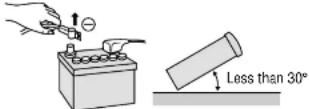
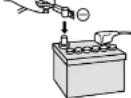
- Disconnect the cable from the negative ⊖ battery terminal (see caution below).
- Unit should be installed in a horizontal position with the front end up at a convenient angle, but not more than 30°.
Caution:
- Do not disconnect the battery terminals of a car with a trip or navigational computer since all user settings stored in memory will be lost. Instead take extra care with installing the unit to prevent shorts.
Dashboard Installation
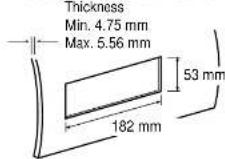
Installation Opening
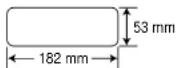
This unit can be installed in any dashboard having an opening as shown above. The dashboard should be 4.75 mm—5.56 mm thick in order to be able to support the unit.
CQ-DF701W
□ Installation Procedures
First complete the electrical connections, and then check them for correctness. (→ pages 34–35)
1
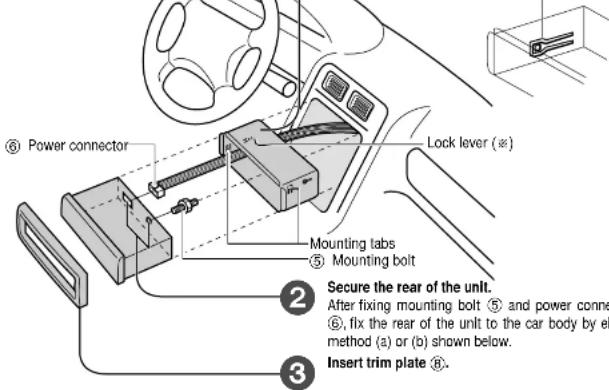
Insert mounting collar ① into the dashboard, and bend the mounting tabs out with a screwdriver. Make sure that the lock lever (※) is flush with the mounting collar ① (not projecting outward).
Lock lever (※)
4
After installation, reconnect the negative ⊖ battery terminal.
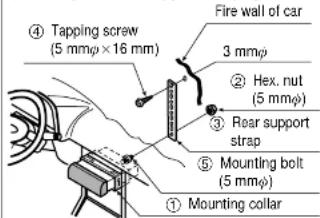
(a) Using the rear support strap ③
(b) Using the rubber cushion (option)
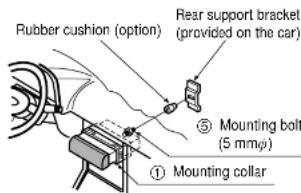
CQ-DF701W
Installation Guide (Continued)
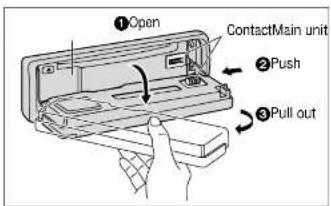
Remove the Unit
Switch off the power of the unit.

![Remove the removable face plate. ① Press [OPEN]. The removable face plate will be opened. [OPEN] ② Push the face plate to the left. ③ Pull it out toward you.](/content/2026/06/1191031/images/bdae57e28dee03f7cc409ef5b26cc83303ff0d4ee95fff30e0395229da9a9a5c.jpg)

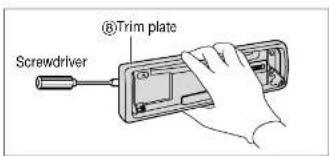
Remove the trim plate ⑧ with a screwdriver.

Pull out the unit while pushing down the lock lever with a screwdriver.
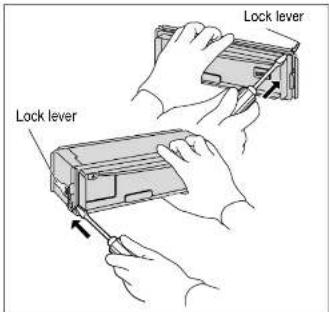

Remove the unit pulling with both hands.
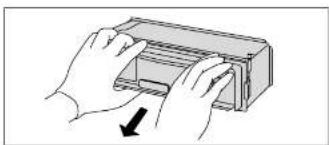
natural_image
Illustration of hands holding a rectangular device with a downward arrow indicating rotation (no text or symbols)CQ-DF701W
Anti-Theft System
This unit is equipped with a removable face plate. Removing this face plate makes the radio totally inoperable. The security indicator will blink.
Place the Removable Face Plate into Case
①Switch off the power of the unit.
② Remove the removable face plate. (→ page 32)
③Gently press the button of the case and open the cover. Place the face plate into the case and take it with you when you leave the car.
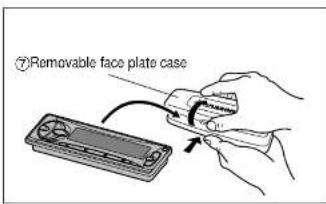
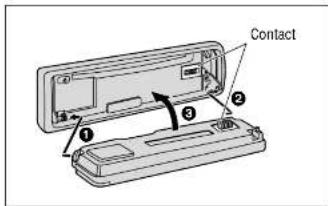
Install Removable Face Plate
①Fit the face plate with its left hole on one of the pins provided on the main unit.
②Fit the other hold on the other pin applying slight pressure.
③Move the face plate up and down a few times to make sure it is secure. Then close the front panel and press down the right side of the face plate until it clicks into plate.
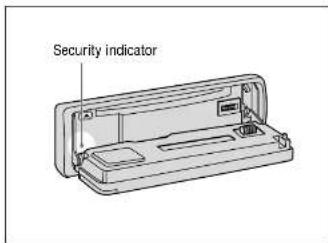
Security Indicator
The security indicator blinks when the removable face plate is removed from the unit.
Active the security function in the function menu display. (→ page 26)
Panel Removal Alarm
This alarm sounds to warn you not to forget to remove the panel before leaving your car. This function is activated when the security indicator is on.
Cautions:
●This face plate is not water-proof. Do not expose it to water or excessive moisture.
- Do not remove the face plate while driving your car.
- Do not place the face plate on the dashboard or nearby areas where the temperature rises to high level.
- Do not touch the contacts on the face plate or on the main unit, since this may result in poor electrical contacts.
- If dirt or other foreign substances get on the contacts, wipe them off with a clean and dry cloth.
- To avoid damaging the front panel, do not push it down or place objects on it while it is open.
CQ-DF701W
Electrical Connections
Cautions:
- This product is designed to operate of a 12 V DC, negative ground battery system.
●To prevent damage to the unit, be sure to follow the connection diagram below. - Remove approx. 5 mm of protective covering from the ends of the leads before connecting.
- Do not insert the power connector into the unit until the wiring is completed.
- Be sure to insulate any exposed wires from a possible short-circuit from the car chassis. Bundle all cables and keep cable terminals free from touching any metal parts.
- Remember, if your car has a drive computer or a navigation computer, the data of its memory may be erased when the battery terminals are disconnected.
- All other installation methods require the use of dedicated metal fittings. Consult with a qualified servicing engineer or your dealer if other method are required.
Accessory used for wiring
| No. Item Q'ty | |
| 6Power connector 1 |
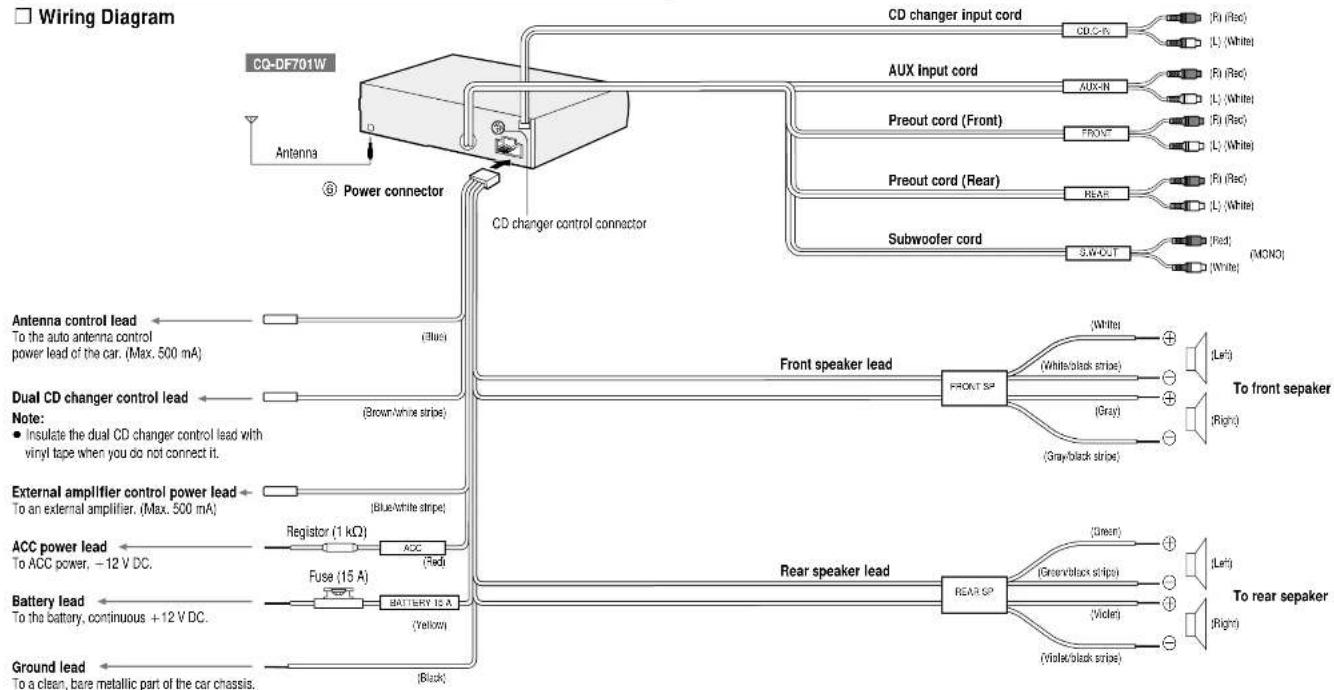
flowchart
graph TD
    A["Antenna"] --> B["Power connector"]
    B --> C["CD changer control connector"]
    C --> D["CD changer input cord"]
    C --> E["AUX Input cord"]
    C --> F["Preout cord (Front)"]
    C --> G["Preout cord (Rear)"]
    C --> H["Subwoofer cord"]
    D --> I["CD/CR"]
    D --> J["AUX/N"]
    E --> K["FRONT"]
    F --> L["REAF"]
    G --> M["3-WOUT"]
    H --> N["MONO"]
    B --> O["Antenna control lead"]
    B --> P["Dual CD changer control lead"]
    B --> Q["External amplifier control power lead"]
    B --> R["ACC power lead"]
    B --> S["Battery lead"]
    B --> T["Ground lead"]
    O --> U["(Blue)"]
    P --> V["(Brown/white stripe)"]
    Q --> W["(Blue/white stripe)"]
    R --> X["(Red)"]
    S --> Y["(Yellow)"]
    T --> Z["(Black)"]
    U --> AA["FRONT SP"]
    V --> AA
    W --> AB["REAR SP"]
    X --> AB
    Y --> AB
    Z --> AB
    AA --> AC["(White/Black stripe)"]
    AB --> AD["(Gray/Black stripe)"]
    AC --> AE["(Left/Right)"]
    AD --> AF["(Green/Black strips)"]
    AB --> AG["(Right/Right)"]
Electrical Connections (Continued)
□ Upgrading the System
Example Combination
- CD changer (CX-DP88U/N)
- Stereo power amplifier
Note:
- For wiring, carefully read the operating instructions for the devices connected.
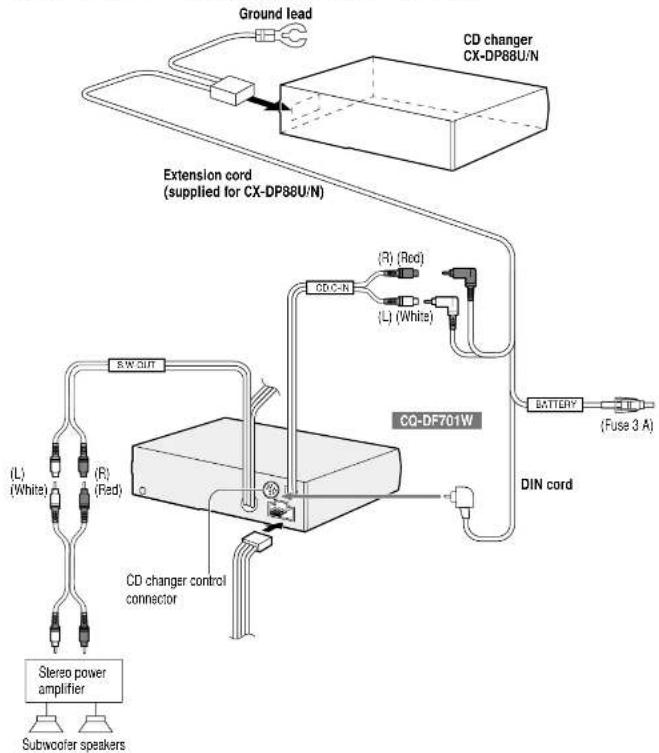
flowchart
graph TD
    A["Ground lead"] --> B["CD changer CX-DP88U/N"]
    B --> C["Extension cord (supplied for CX-DP88U/N)"]
    C --> D["CQ-DF701W"]
    D --> E["DIN cord"]
    E --> F["BATTERY (Fuse 3 A)"]
    F --> G["CD changer control connector"]
    G --> H["Stereo power amplifier"]
    H --> I["Subwoofer speakers"]
    D --> J["(L) (White)"]
    D --> K["(R) (Red)"]
    D --> L["(R) (Red)"]
    D --> M["(L) (White)"]
    D --> N["CD-C-N"]
    N --> O["Ground"]
    style A fill:#f9f,stroke:#333
    style B fill:#ccf,stroke:#333
    style C fill:#cfc,stroke:#333
    style D fill:#fcc,stroke:#333
    style E fill:#cff,stroke:#333
    style F fill:#ffc,stroke:#333
    style G fill:#cfc,stroke:#333
    style H fill:#fcc,stroke:#333
    style I fill:#ffc,stroke:#333
    style J fill:#cfc,stroke:#333
    style K fill:#fcc,stroke:#333
    style L fill:#cfc,stroke:#333
    style M fill:#cfc,stroke:#333
CQ-DF701W
Troubleshooting
Preliminary Steps
Check and take steps as described in the tables below.
If You Suspect Something Wrong
Immediately switch power off.
Disconnect the power connector and check that there is neither smoke nor heat from the unit before asking for repairs. Never try to repair the unit yourself because it is dangerous to do so.
Cautions:
- Do not use the unit if it malfunctions or is something wrong.
- Do not use the unit in abnormal condition, for example, without sound, or with smoke or foul smell, can cause ignition or electric shock. Immediately stop using it and call the store where you purchased it.
Troubleshooting Tips
□ Common
Trouble
Cause/Step
No power.
Car's engine switch is not on.
→Turn your car's ignition switch to ACC or ON.
Cables are not correctly connected.
=Connect cables correctly.
Battery cable is not correctly connected.
-Connect the battery cable to the terminal that is always live.
Accessory cable is not correctly connected.
=Connect the accessory cable to your car's ACC source.
Grounding wire is not correctly connected.
=Connect the grounding wire to a metal part of the car.
Fuse is burnt.
—Call the store where you purchased the unit, or your nearest service station and ask for fuse replacement.
Mute is set to ON.
→Set it to OFF.
Cables are not correctly connected.
→Connect cables correctly.
Condensation (dew)
→Wait for a while before use.
The display shows "display and light off".
→Press [DISP] to change the display.
A mobile phone is used near the unit.
→Keep the mobile phone away from the unit.
Demonstration mode is ON.
=Press [DISP] to cancel demonstration mode.


Troubleshooting (Continued)
□ Radio
Trouble Cause/Step
Much noise in FM stereo and monaural broadcasts.
Preset station is reset.
Station is too far, or signals are too weak. →Select other stations of higher signal level.
The radio antenna is not extended enough. →Set the radio antenna enough.
Battery cable is not correctly connected. →Connect the battery cable to the terminal that is always live.
□ CD
Trouble Cause/Step
CD is in the CD compartment but no sound is made, or CD is ejected automatically.
CD sound skips, tone quality is low.
Sound skips due to vibration.
CD is not ejected.
CD is upside down. →Place CD in the correct direction, and the label side up.
CD is dirty. →Clean CD, referring to the section on "Notes on CD".
8 cm disc is ejected automatically.
CD is dirty. →Clean CD, referring to the section on "Notes on CD".
Mounting angle is over 30irc . →Adjust mounting angle to less than 30irc .
Instable mounting. →Mount the unit securely with the mounting parts, referring to the section on installation.
- CD is defective. - Mechanical trouble. - Press [OPEN] to open the panel and press [▲] (EJECT). If normal operation is not restored yet, call the store where you purchased the unit or the nearest service station to ask for repairs.
□ Sound Setting
Trouble Cause/Step
No sound from left, right, front or rear speakers.
Left and right sounds are reversed in stereo listening.
Left and right balance, or front and rear balance is off on one side. →Adjust BAL/FAD mode as appropriate.
Cables are not correctly connected. →Connect the cables correctly.
The right speaker wire is connected to the left speaker and the left speaker wire to the right speaker. →Connect the speaker wires to the correct ones.
□ Remote Control
Trouble Cause/Step
Buttons are invalid for operation.
Battery poles (+) (−) are reversed. →Insert the battery correctly.
Wrong the battery. →Check the battery.
The battery has run down. →Replace the battery.
Remote control is in the wrong direction. →Direct the remote control at sensor (REMOTE) on the panel.
Troubleshooting (Continued)
Error Display Messages
□ CD
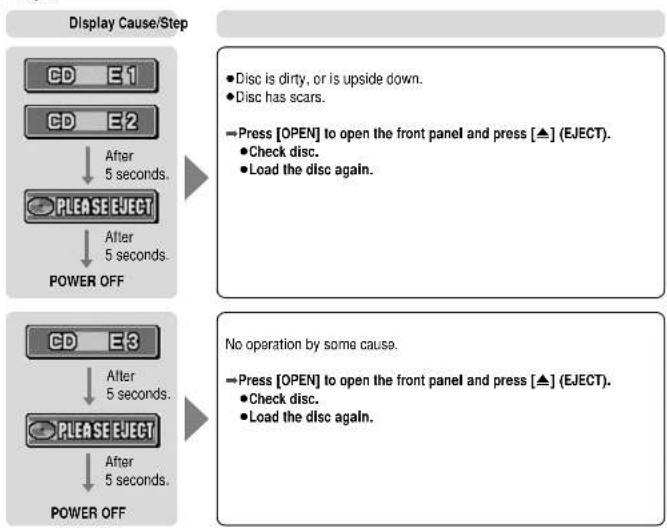
flowchart
graph TD
    A["CD E1"] --> B["CD E2"]
    B --> C["After 5 seconds."]
    C --> D["PLEASE ELECT"]
    D --> E["After 5 seconds."]
    E --> F["POWER OFF"]

    G["CD E3"] --> H["CD E2"]
    H --> I["After 5 seconds."]
    I --> J["PLEASE ELECT"]
    J --> K["After 5 seconds."]
    K --> L["POWER OFF"]

    M["Disc is dirty, or is upside down."]
    N["Disc has scars."]
    O["Press [OPEN"] to_open_the_front_panel_and_press["▲"] (EJECT).]
    P["Check disc."]
    Q["Load the disc again."] --> R["No operation by some cause."]
    S["Press [OPEN"] to_open_the_front_panel_and_press["▲"] (EJECT).]
    T["Check disc."]
    U["Load the disc again."] --> V["No operation by some cause."]
□ CD Changer
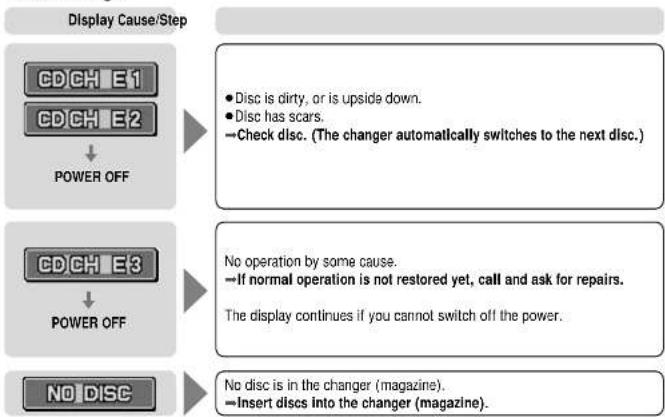
flowchart
graph TD
    A["CDCH E1"] --> B["POWER OFF"]
    C["CDCH E2"] --> B
    D["CDCH E3"] --> E["POWER OFF"]
    F["NO DISC"] --> G["POWER OFF"]
    B --> H["• Disc is dirty, or is upside down.<br>• Disc has scars.<br>→Check disc. (The changer automatically switches to the next disc.)"]
    E --> I["No operation by some cause.<br>→If normal operation is not restored yet, call and ask for repairs.<br>The display continues if you cannot switch off the power."]
    G --> J["No disc is in the changer (magazine).<br>→Insert discs into the changer (magazine)."]
Note:
- For details, refer to operating instructions for the changer used.
Maintenance
Your product is designed and manufactured to ensure a minimum of maintenance. Use a soft cloth for routine exterior cleaning. Never use benzine, thinner or other solvents.
Product Servicing
If the suggestions in the charts do not solve the problem, we recommend that you take it to your nearest authorized Panasonic Servicenter. The product should be serviced only by a qualified technician.
Replacing the Fuse
Use fuses of the same specified rating (15 A). Using different substitutes or fuses with higher ratings, or connecting the unit directly without a fuse, could cause fire or damage to the stereo unit. If the replacement fuse falls, contact your nearest Panasonic Servicenter for service.
Maintenance
Care of the Unit
□ Cleaning this Unit
Use a dry, soft cloth to wipe.
□ Caution on Cleaning
Never use solvents such as benzine, thinner as they may mar the surface of the unit.
Notes on CD
- Do not touch the underside of the disc.
- Do not make scratches on the discs.
- Do not bend disc.
- When not in use, keep CD in the case.
Do not use irregular shaped CDs.
Do not leave discs on the following places:
- Direct sunlight
● Near car heaters
●Dirty, dusty and damp areas - Seats and dashboards
Disc cleaning
Use a dry, soft cloth to wipe from the center outward.
Caution on new discs
A new disc may have rough edges on its inner and outer perimeter. These may cause malfunction.
Remove the rough edges using a pencil, etc.
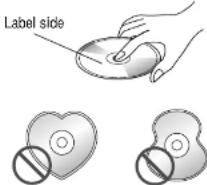
Do not use irregular shaped CDs.


Power supply: 12 V DC (11 V–16 V), test voltage 14.4 V, negative ground
Current consumption: Less than 2.2 A (CD play mode: 0.5 W×4 channels)
Maximum power output: 50 W×4 channels at 1 kHz, Volume control maximum
Tone adjustment range:
Bass: ±12 dB at 100 Hz
Treble: ±12 dB at 10 kHz
Suitable speaker impedance: 4–8 Ω
Pre-Amp output voltage: 5.0 V (CD play mode: 1 kHz, 0 dB)
Subwoofer output voltage: 5.0 V
Pre-Amp output impedance: 60 Ω
Subwoofer output impedance:60 Ω
Dimensions (W×H×D): 178×50×150 mm
Weight: 1.6 kg
□ FM Stereo Radio
Frequency range: 87.50 MHz–108.00 MHz
Usable sensitivity: 11.0 dBi. (1.25 μV, 75 Ω)
50 dB quieting sensitivity: 15.2 dBf. (1.6 μV, 75 Ω)
Frequency response: 30 Hz–15 kHz (±3 dB)
Alternate channel selectivity: 75 dB
Stereo separation: 35 dB (1 kHz)
Image response ratio: 75 dB
IF response ratio: 100 dB
Signal/noise ratio: 70 dB
□ AM Radio
Frequency range: 531 kHz-1 602 kHz
Usable sensitivity: 28 dB/μV (25 μV, S/N 20 dB)
□ CD Player
Sampling frequency: 8 times oversampling
DA converter: MASH • 1 bit/4 DAC system
Error correction system: Panasonic super decoding algorithm
Pick-up type: Astigma 3-beam
Light source: Semiconductor laser
Wave length: 780 nm
Frequency response: 20 Hz–20 kHz (±1 dB)
Signal/noise ratio: 96 dB
Total harmonic distortion: 0.01 % (1 kHz)
Wow and flutter: Below measurable limits
Channel separation: 75 dB
Note:
- Specifications and the design are subject to modification without notice due to improvements in technology.
- Operating Instructions
- □ Use this Product Safely
- When Driving
- When Car Washing
- When Parked
- Use the Proper Power Supply
- Disc Mechanism
- Use Authorized Servicenters
- For Installation
- Components
- このページは
- 繁体中国語のため
- 本社で作成しております。
- Features
- Full-dot expressiveness <3D dot matrix display>
- Audio control functions
- Anti-theft removable face
- Before Reading these Instructions
- [buttons on the main unit]/[remote control]
- Remote Control Unit Preparation
- Battery Installation
- Battery Notes
- General
- Power
- Note:
- Source
- Volume
- Open/Close the Front Panel
- Cautions:
- General (Continued)
- S·HDB
- (Super High Definition Bass)
- Dimmer
- (Display Brightness Setting Range)
- Display Change
- Radio
- Radio Mode
- Band
- Tuning
- Direct Memory
- Memorize
- Recalling the Direct Memory
- One-Touch Selection of a Preset Station
- Manual Preset Memory
- Entering Numbers Directly from the Remote Control
- Auto Preset Memory (AUTO·P)
- Preset Station Calling
- CD Player
- Disc Insert and Playback
- Stop and Disc Eject
- Listening to a CD
- Pause
- Track Selection
- CD Player Mode
- Track Search
- Menu Setting on CD Player Mode
- Random Play
- Scan Play
- Repeat Play
- CD Changer
- CD Changer Mode
- Disc Selection
- Change the CD Changer Unit
- Menu Setting on CD Changer Mode
- Audio Settings
- Bass and Treble
- Balance and Fader
- Subwoofer Level
- Cut-off Frequency Control
- Menu Submenu Setting
- BAS/TRE
- BAL/FAD
- SUB WOOFER
- Notes:
- 3
- BAS (Bass) TRE (Treble)
- BAL (Balance) FAD (Fader)
- LEVEL
- LPF
- Picture (Display) Settings
- Spectrum Analyzer (S-A) Display Pattern
- Contrast
- Clock on the Mode Display
- Clock Adjustment
- Menu
- Submenu
- Setting
- Hour/Minute Switch Hour/Minute Adjustment
- User Settings
- Mute/Attenuator
- Excluding AUX-IN from Source Selection
- Security Function
- Installation Guide
- WARNING
- Overview
- Caution:
- □ Required Tools
- □ Dashboard Specifications
- □ Identify All Leads
- Power Lead
- Battery Lead
- Speakers
- Antenna Motor
- Antenna
- □ Connect All Leads
- Important:
- Ground
- Installation Guide (Continued)
- Motor Antenna
- Battery
- Equipment
- □ Final Installation
- Lead Connections
- □ Final Checks
- □ Preparation
- Dashboard Installation
- Installation Opening
- □ Installation Procedures
- Remove the Unit
- Anti-Theft System
- Place the Removable Face Plate into Case
- Install Removable Face Plate
- Security Indicator
- Panel Removal Alarm
- Electrical Connections
- Electrical Connections (Continued)
- □ Upgrading the System
- Troubleshooting
- Preliminary Steps
- If You Suspect Something Wrong
- Troubleshooting Tips
- □ Common
- Troubleshooting (Continued)
- □ Radio
- □ CD
- □ Sound Setting
- □ Remote Control
- Error Display Messages
- □ CD Changer
- Maintenance
- Product Servicing
- Replacing the Fuse
- Care of the Unit
- Notes on CD
- Do not use irregular shaped CDs.
Brand : PANASONIC
Model : CQ-DF701W
Category : Car Radio