
CXDVP292N - Car Radio PANASONIC - Free user manual and instructions
Find the device manual for free CXDVP292N PANASONIC in PDF.


| Product Type | Car Radio |
| Brand | Panasonic |
| Model | CXDVP292N |
| Form Factor | DIN (Standard 178 mm width) |
| Dimensions (Approx.) | 178 x 50 x 160 mm (W x H x D) |
| Weight (Approx.) | 500 g |
| Power Supply | 12 V DC (negative ground) |
| Maximum Power Output | 50 W x 4 channels (max) |
| Radio Bands | FM / AM |
| Media Playback | CD / CD-R / CD-RW, USB, AUX |
| File Formats Supported | MP3, WMA, WAV (via USB) |
| Display | LCD with multi-color illumination |
| Remote Control | Included (wired/wireless) |
| Audio Features | Preset EQ, Bass/Treble, Balance, Fader |
| Connectivity | Front USB port, AUX input, ISO connectors |
| Steering Wheel Control Compatible | Yes (with adaptor, not included) |
| Maintenance | Clean with dry cloth; avoid liquids |
| Safety | Use specified fuse; professional installation recommended |
| Spare Parts / Repairability | Contact Panasonic support for parts; repair by qualified technician |
| General Information | User manual and instructions available for free download |
Frequently Asked Questions - CXDVP292N PANASONIC
User questions about CXDVP292N PANASONIC
0 question about this device. Answer the ones you know or ask your own.
Ask a new question about this device
Download the instructions for your Car Radio in PDF format for free! Find your manual CXDVP292N - PANASONIC and take your electronic device back in hand. On this page are published all the documents necessary for the use of your device. CXDVP292N by PANASONIC.
USER MANUAL CXDVP292N PANASONIC
Mobile DVD-Video Player with 96 kHz 24 bit D/A Converter
CX-DVP292N
Operating Instructions
Bedienungsanleitung
natural_image
Black-and-white photo of a long straight road stretching across the sea under a cloudy sky (no text or symbols visible)


MP3


- Please read these instructions carefully before using this product and save this manual for future use.
- Bitte lesen Sie diese Bedienungsanleitung vor der Verwendung dieses Produktes aufmerksam durch und bewahren Sie sie danach für spätere Nachschlagzwecke sorgfältig auf.
- Prière de lire ces instructions attentivement avant d'utiliser le produit et garder ce manuel pour l'utilisation ultérieure.
- Least u deze instructie alstublieft zorgvuldig door voor u dit product in gebruik neemt en bewaar deze handleiding voor later gebruik.
- Läs igenom denna bruksanvisning noga innan produkten tas i bruk. Spara bruksanvisningen för framtida behov.
- Si prega di leggere attentamente queste istruzioni prima di usare questo prodotto, e di conservare questo manuale per usi futuri.
- Lea con atención estas instrucciones antes de utilizar el producto y guarde este manual para poderlo consultar en el futuro.
| Contents | Page | ||
| Safety Information......4 | Disc Operations......8 | Language Code List......31 | |
| Precautions......5 | User Settings......18 | Definition of Terms......32 | |
| Features......5 | Troubleshooting......22 | Installation Guide......33 | |
| Discs that can be Played Back......6 | Notes on MP3......27 | Electrical Connections......34 | |
| Components/Remote Control Unit Preparation..7 | Maintenance......30 | Specifications......39 | |
| Inhaltsverzeichnis | Seita | ||
| Sicherheitsinformationen......40 | Disc-Betrieb......44 | Verzeichnis der Sprachen-Codes......67 | |
| Vorsichtsmaßnahmen......41 | Benutzereinstellungen......54 | Erläuterung von Fachausdrücken......68 | |
| Merkmale......41 | Liste von Fehlermöglichkeiten......58 | Montageanleitung......69 | |
| Von diesem Player unterstützte Disc-Formate....42 | Hinweise zum MP3-Format......63 | Elektrische Anschlüsse......70 | |
| Lieferumfang/Vorbereiten der Fernbedienung....43 | Instandhaltung und Pflege......66 | Technische Daten......75 | |
| Table des matières | Page | ||
| Informations sur la sécurité......76 | Utilisation des disques......80 | Liste des codes de langue......103 | |
| Mesures de précaution......77 | Réglages d'utilisateur......90 | Définition des termes......104 | |
| Caractéristiques......77 | Dépannage......94 | Guide d'installation......105 | |
| Les disques dont la lecture est possible......78 | Remarques sur MP3......99 | Connexions électriques......106 | |
| Composants/Préparation de la télécommande....79 | Entretien......102 | Spécifications......111 | |
| Inhoudsopgave | Bladzijde | ||
| Veiligheidsinformatie......112 | Disc-bedieningen......116 | Taalcodellijst......139 | |
| Voorzorgen......113 | De standaardinstellingen wijzigen......126 | Verklaring van technische termen......140 | |
| Kenmerken......113 | Verhelpen van problemen......130 | Installatiegids......141 | |
| Discs geschikt voor weergave op dit apparaat....114 | Opmerkingen over MP3......135 | Elektrische aansluitingen......142 | |
| Componenten/Voorbereidlingen voor afstandsbediening....115 | Onderhoud......138 | Technische gegevens......147 | |
| Innehåll | Sida | ||
| Säkerhetsinformation......148 | Manövrer vid skivavspelning......152 | Lista över spräkkoder......175 | |
| Observera......149 | Användarinställningar......162 | Definition av termer......176 | |
| Egenskaper......149 | Felsökning......166 | Monteringshandledning......177 | |
| Spelbara skivor......150 | Att observera angående MP3......171 | Elektriska anslutningar......178 | |
| Förberedelser av komponentema och fjärkontrollen....151 | Underhåll......174 | Tekniska data......183 | |
| Contenuto | Pag. | ||
| Informazioni per la sicurezza......184 | Operazioni con i dischi......188 | Lista dei codici delle lingue......211 | |
| Precauzioni......185 | Impostazioni dell'utente......198 | Definizione dei termini......212 | |
| Caratteristiche......185 | Correzione dei problemi......202 | Guida all'installazione......213 | |
| Dischi utilizzabili......186 | Note riguardo all'MP3......207 | Collegamenti elettrici......214 | |
| Preparazione dei componenti/telecomando....187 | Manutenzione......210 | Dati tecnici......219 | |
| Indice | Pagina | ||
| Información para su seguridad......220 | Operaciones con discos......224 | Lista de códigos de Idiomas......247 | |
| Precauciones......221 | Configuraciones del usuario......234 | Definición de términos......248 | |
| Características......221 | Solución de problemas......238 | Guía de Instalación......249 | |
| Discos que pueden reproducirse......222 | Notas sobre MP3......243 | Conexiones del cableado......250 | |
| Componentes/Preparación del control remoto....223 | Mantenimiento......246 | Especificaciones......255 | |
Safety Information
WARNING:
TO REDUCE THE RISK OF FIRE OR ELECTRIC SHOCK, DO NOT EXPOSE THIS PRODUCT TO RAIN OR MOISTURE.
TO REDUCE THE RISK OF FIRE OR ELECTRIC SHOCK, AND ANNOYING INTERFERENCE, USE ONLY THE INCLUDED COMPONENTS.
WARNING:
NOT FOR USE WHERE VIDEO MONITORS IS VISIBLE TO DRIVER TO AVOID RISK OF SERIOUS INJURY OR POSSIBLE VIOLATION.
This product incorporates copyright protection technology that is protected by method claims of certain U.S. patents and other intellectual property rights owned by Macrovision Corporation and other rights owners. Use of this copyright protection technology must be authorized by Macrovision Corporation, and is intended for home and other limited viewing uses only unless otherwise authorized by Macrovision Corporation. Reverse engineering or disassembly is prohibited.
□ Laser Product
Label indications and their locations
CLASS1
LASER PRODUCT
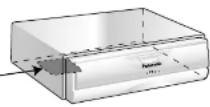
CAUTION:
THIS PRODUCT IS A CLASS I LASER PRODUCT. HOWEVER THIS PRODUCT USES A VISIBLE/INVISIBLE LASER BEAM WHICH COULD CAUSE HAZARDOUS RADIATION EXPOSURE IF DIRECTED. BE SURE TO OPERATE THIS PRODUCT CORRECTLY AS INSTRUCTED. USE OF CONTROLS OR ADJUSTMENTS OR PERFORMANCE OF PROCEDURES OTHER THAN THOSE SPECIFIED HEREIN MAY RESULT IN HAZARDOUS RADIATION EXPOSURE. DO NOT OPEN COVERS AND DO NOT REPAIR YOURSELF. REFER SERVICING TO QUALIFIED PERSONNEL.
Laser products:
Wave length: 650 nm
Laser power: No hazardous radiation is emitted with safety protection.
CLASS1 LASER PRODUCT
• KLASSE 1 LASERPRODUKT
• LUOKAN 1 LASERPLAITE
• LASERPRODUKT AV KLASS 1
• LASERPRODUKT KLASSE 1
Caution label
Deck assembly (upper side)
CAUTION LASER RA- DIATION WHEN OPEN. DO NOT STARE INTO BEAM.
Panasonic welcomes you to our ever growing family of electronic product owners. We know that this product will bring you many hours of enjoyment. Our reputation is built on precise electronic and mechanical engineering, and our products are manufactured with carefully selected components and assembled by people who take pride in their work. Once you discover the quality, reliability, and value we have built into this product, you too will be proud to be a member of our family.
□ Precautions
Volume Level
For your driving safety, keep the volume level low enough to be aware of road and traffic conditions.
Car Washing
To avoid electrical shorts which may cause fire, or other damage, do not expose this product (including the speakers and discs) to water or excessive moisture.
Car Ventilation
If your car is parked for several hours in direct sunlight, the temperature inside the car may become very high. It is advisable to drive the car and give the interior a chance to cool down before switching the unit on.
Power Supply
This product is designed to be used in a car having a 12 V DC, negative ground battery system.
Disc Mechanism
Do not insert coins or any small objects. Keep screwdrivers and other metallic objects away from the disc mechanism and disc.
Protect the DVD Software
When you leave the car, be sure to eject the disc from this unit and bring it out.
Service
This product is made of precision parts. Do not attempt to disassemble or adjust any parts. For repair, please consult your nearest authorized Panasonic Service Center.
□ Features
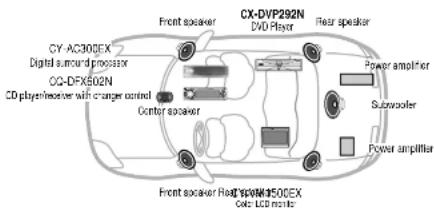
- Digital audio output terminal for upgrading to Dolby Digital and dts surround [Requires separately sold optical cable (CA-LRD60) and digital surround processor (CY-AC300EX)].
- L/R stereo analog audio outputs (RCA) for connection to existing head unit auxiliary Inputs. Video output is composite video (RCA).
- Supplied remote handles multi-function software (multi-language audio-track/subtitle, multi-angle, multi-story, etc.), plus all basic functions.
The figure on the right shows
an example of a combination
recommended.
See pages 34 to 37 for information on how to connect the wires.
Note:
- The LCD monitor CY-VMR5800N is an RGB connection unit which has been designed especially only for Panasonic mobile navigation system. This DVD player cannot be connected to the LCD monitor CY-VMR5800N.


Discs that can be Played Back
| Disc | Disc size | Video format | Audio format | MPEG No. | |
| DVD video | [IMAGE] | 12 cm8 cm | PAL/NTSC® | LPCM, MPEG 1MPEG 2,Dolby Digital | 2ALL |
| Video CD |  | PAL/NTSC® | LPCM,MPEG 1 | ||
| CD,CD TEXT | [IMAGE] | LPCMMP3 |
^32 This product can play discs recorded in either PAL or NTSC format. However, the product must be connected to a PAL TV which is capable of receiving PAL 525/60 system to play both PAL DVD (video CD), and NTSC DVD (video CD).
Note:
- With MP3s, only those files whose data is written in CD can be played back.
- About CD-Rs and CD-RWs, refer to "Notes on CD-Rs/RWs" on page 30.
Example:
□ Region Management Information
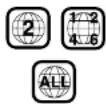
Region Management Information: This product is designed and manufactured to respond to the Region Management Information that is recorded on a DVD disc. If the Region number described on the DVD disc does not correspond to the Region number of this product, this product cannot play this disc.
The Region number for this product is "2" and "ALL".
□ Symbols used on jackets (Examples of such symbols include)
- Number of subtitle languages 3. Number of audio tracks 4) Number of angles 41 The numbers indicate the number of languages, tracks, angles, etc., recorded on the disc.
Screen size (H:V aspect ratio)
- 4:3 standard size 4:3 - 16:9 wide size 16:9 LB : Play back in letterbox format on a standard screen (4:3). - 16:9 PS : Play back in "Pan & Scan" (⇒ page 32) format on a standard screen (4:3).
Note:
- The size of the image that is displayed on the screen depends on the screen mode of the monitor, and on screen size for the content on the disc.
☐ The following discs cannot be played back on this product.
•DVD-Audio
• DVD-ROM
• VSD
• CD-RW (except MP3 and LPCM)
CDV Divx Video Discs CD-EXTRA (audio-only playback possible)
●DVDs with a region number other than "2" or "ALL"
Even if you play back a dts CD and DVD, normal sound cannot be output. (Only digital signals are output.)
CX-DVP292N CX-D

Components/Remote Control Unit Preparation
Components
The numbers in parentheses indicate the accessory quantities.
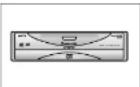
●DVD Player (1)
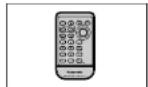
- Remote control unit (1)
●Lithium battery (CR2025) (1)
- Remote control signal receiver* (1)
●Power connector (1)
- Operating instructions (1)
- Warranty card (1)
- Installation hardware (screws, cords, etc.) (→ page 33)
* The remote control signal receiver is not used when the remote control is operated through the monitor unit ( page 34).
Remote Control Unit Preparation
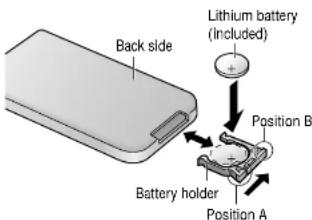
Battery Installation (Inserting/Replacing the Battery)
1 Remove the battery holder.
Pull the battery holder by position B while pushing position A in the direction indicated by the arrow.
2 Install the battery on the battery holder.
As shown in the figure on the right, fit the battery into the battery holder with the "+" side facing up while pressing on position A.
③ Insert the battery holder.
Push the battery holder back into its original position.
Battery Notes
Remove and dispose of an old battery immediately.
Battery Information:
- Battery type: Panasonic lithium battery (CR2025) (included)
- Battery life: Approximately 6 months with normal use (at room temperature)
Caution:
- Improper use of batteries may cause overheating, an explosion or ignition, resulting in injury or a fire. Battery leakage may damage the unit.
- Do not disassemble or short the battery. Do not throw a battery into a fire.
- Keep batteries away from children to avoid the risk of accidents.
- Be careful to observe proper local disposal rules when you dispose of batteries.
Point the remote control unit at the sensor.

Disc Operations
Not all CD media containing MP3 data will play back normally. For details, see "Notes on MP3" (→ page 27).
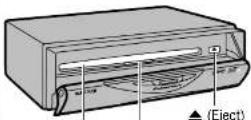
Disc slot
Slot illumination (The slot illumination turns off after a disc has been inserted.)
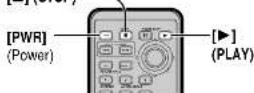
[■] (STOP)
□ Make this setting the first time you operate the unit.
The menu language has been factory preset to English. If you would like to change the menu language to French, Spanish, German, Italian or other language, please refer to "Menu Language" on page 18.
Preparation
Check the monitor connection setting. (→ pages 34–37)
Turn the car's ignition switch ACC or ON. (ACC indicator* lights.)
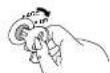
ACC indicator*
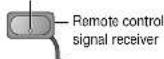
*ACC indicator lights when the remote control signal receiver is connected.
- The remote control signal receiver is not used when the remote control is operated through the LCD monitor CY-VM1500EX. (→ page 34)
Turn the monitor switch to ON.
- Select the monitor system (PAL/NTSC) to suit the type of DVD's disc you have inserted when connecting the LCD monitor CY-VM1500EX.

1
Push [PUSHOPEN] to open the cover and insert the disc.
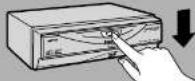
- Before loading a disc, check to make sure that a disc is not already loaded.
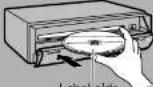
- The power turns to ON and playback begins automatically.
When a disc is already loaded:

2
Close the cover.
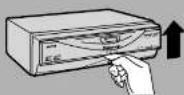
■Always close the cover completely when using the player.
Ejecting the disc:
- You can eject the disc even when the power is off.
- You can eject a disc even when ACC is off by pressing [▲] (eject) for a second or more.
To turn the power off:

Caution:
- The player can only play the following types of discs: DVD video, Video CD, CD and CD-DA data recorded CD-R and CD-RW, and MP3 data recorded CD media (CD-ROM, CD-R, CD-RW).
■ If a disc contains both CD-DA data and MP3 data, only CD-DA data will be played back.
■Refer to page 30 about notes on CD-Rs/RWs.
●Refer to page 27 about notes on MP3. - Do not use irregularly shaped discs.
- Do not use discs that have a seal or label attached.
- Do not insert foreign matter into the disc slot.
- Never attempt to play a file that is not in the MP3 format by changing its file name extension to ".mp3". This may produce noise from the speakers and speaker damage, and can damage your hearing.
Note:
- Operations vary according to the disc. For details, refer to the guide provided with the disc.
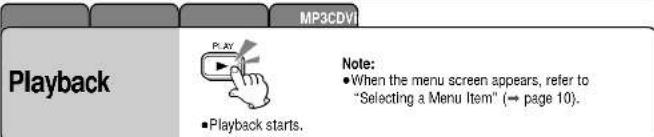
- When you insert a CD media containing MP3 files (CD-ROM, CD-R, CD-RW) into the slot, this player will automatically enter MP3 mode and start playing the MP3s on the discs.
■ If you record too many folders and MP3 files onto a disc, it may take some time before playback starts. - Since some DVD discs have data recorded on both sides, take care not to mistake top side for the reverse side and vice versa.
- It may take a few moments for play to begin after the disc has been inserted.
- When it is difficult to hear comparatively quiet sounds (such as movie dialogue), setting "Minimum" (→ page 20) will make those sounds easier to hear (only Dolby Digital encoded material).
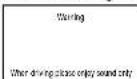
- Only a message as shown right is displayed on the screen while driving the car. Only audio is enabled.
- If the ignition switch of your car is turned OFF during playback, the player records the point where the ignition switch is OFF (Continued playback function).
Screen while driving the car
□ When “⊗” is displayed
Input is not possible because a soundtrack, subtitle language or angle number which was not recorded on the disc has been selected or because the user has attempted to perform an operation which is not supported by the player.
DVD Video
Video CD
CD
MP3
Stop
(During playback)

- Playback stops.
Note:
- When play is stopped, the player records the point where [■] (STOP) was pressed (Continued playback function).
Press [▶] (PLAY) again, and play will resume from this point.
To cancel continued playback:
Hold [■] (STOP) for more than 2 seconds again in the stop mode.
CX-DVP292N CX-D

Disc Operations (continued)
![[◀◀][▶▶▶] (TRACK/SEARCH) RET (RETURN) Numeric buttons [▶] (PLAY) [“][#][%][$]/ [ENTER] (Push the center.) Panasonic](/content/2026/06/1191020/images/faf12950ade83c24162997ed22c22aabb39c73e93a4534bfb063df8730de88db.jpg)
Video CDDV
CX-DVP292N CX-D
![DVD Video Video CD CD MP3 Go to Beginning DVD Video/Video CD/CD/MP3 (Backward) (Forward) Each time one of these buttons is pressed, the player jumps to the start of the appropriate chapter/track/file. If the backward button is pressed once, the player returns to the start of the chapter/ track/file that is currently being played. MP3 only [ ]: Next folder [# ]: Previous folder Each time one of these buttons is pressed, the player jumps to the file at the next (or previous) folder. Note: If the selected folder does not contain any MP3 files, the nearest MP3 file in the order of playback will be played. If the total of files and folders exceeds 254, successful playback may not be performed.](/content/2026/06/1191020/images/11af70162092163ff758f741ac3c657206c25337c32b16b5bd029f31ca3361c6.jpg)
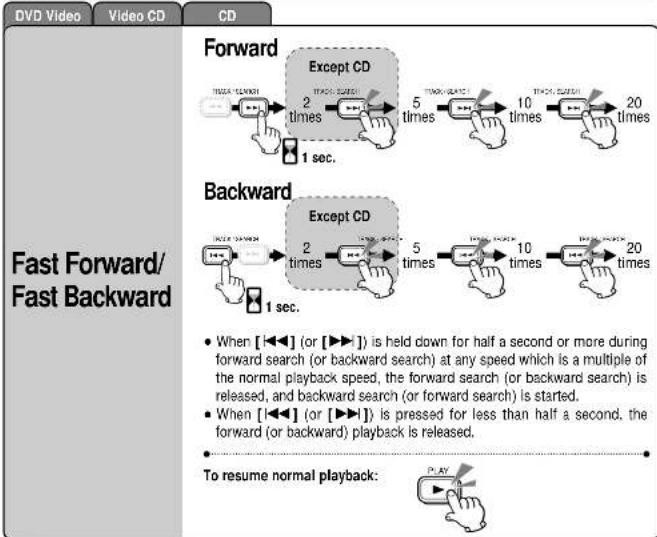
flowchart
graph TD
    A["Forward"] --> B["Except CD"]
    B --> C["1 sec."]
    D["Backward"] --> E["Except CD"]
    E --> F["1 sec."]
    G["To resume normal playback:"] --> H["PLAY"]

Disc Operations (continued)
![[▶-] [RET] (RETURN) Numeric buttons, [6] (REPEAT) [II] (PAUSE) [▶] (PLAY) [ENTER] (Push the center.) [GRP] (Group) (TRACK/TITLE/CHAPTER)](/content/2026/06/1191020/images/13174babe0174c8841218db24380f0fb192a0da4ff843083c0559df00782bec8.jpg)
![MP3CDVI Pause (During playback) When pressing [11] (PAUSE) during pause: DVD Video/Video CD Each time the button is pressed, the image play- back is advanced frame-by-frame. CD/MP3 Normal playback is restored. The playback pauses. To resume normal playback:](/content/2026/06/1191020/images/dd5fc6a110c978893d4e51349abafae13ab62ae7e4b78d9615a032e35872b18f.jpg)

CDDVD VideoMP3
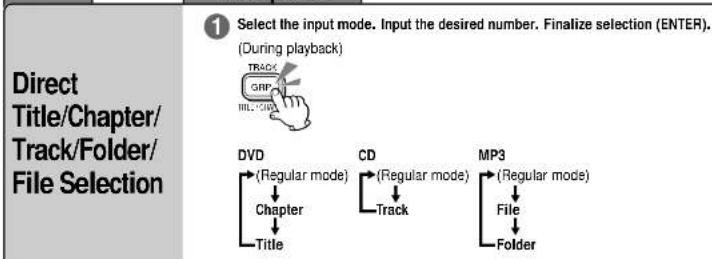
flowchart
graph TD
    A["Select the input mode. Input the desired number. Finalize selection (ENTER). (During playback)"] --> B["DVD"]
    B --> C["(Regular mode)"]
    C --> D["Chapter"]
    D --> E["Title"]
    B --> F["CD"]
    F --> G["(Regular mode)"]
    G --> H["Track"]
    H --> I["MP3"]
    I --> J["(Regular mode)"]
    J --> K["File"]
    K --> L["Folder"]
| Repeat Play | Chapter/ Track (Video CD) Repeat | (During playback) 2 sec. DVD Video The chapter that is currently being played repeats. Video CD The track that is currently being played repeats. Note: - Repeating is cleared by actions such as fast forward, fast backward, slow play, and going to beginning. | To resume normal playback: 2 sec. |
| Track (CD)/ File Repeat | (During playback) 6 REPEA CD The track that is currently being played repeats. MP3 The file that is currently being played repeats. Note: - Repeating is cleared by actions such as fast forward, fast backward, and going to beginning. | To resume normal playback: 6 REPEA |
2
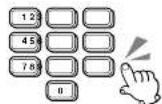
To input the number again:

3

- The corresponding title/chapter/track/file on the selected folder/file starts playing.
Note:
- If a non-existent title/chapter/track/folder/file number is input and entered, the command is invalid and the display returns to regular mode.
- Title selections (only for DVD video) can be made even in the stop mode.

Disc Operations (continued)
![[MENU] (TITLE) [“] [# ] [%] [$ ]/ [ENTER] (Push the center.) Numeric buttons [OSD] (On-Screen Displays)](/content/2026/06/1191020/images/1468805c0d96cd685cc255e908db90860f73050253389fb666a6a0691e9bf19e.jpg)
DVD Video
DVD Menu
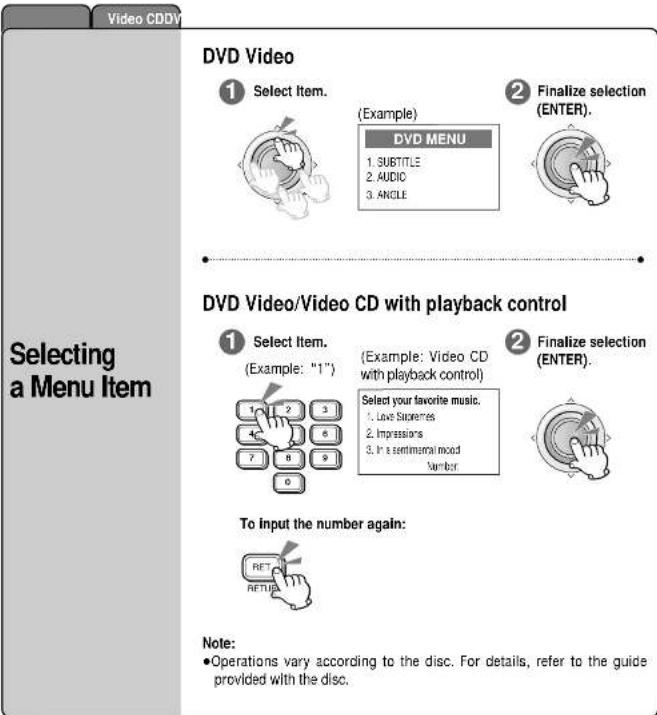
Use this menu during play-back to select content, audio, subtitles, etc., from a menu (the DVD menu) that is unique to each disc.
1 (During playback)

(Example)
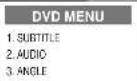
- The DVD menu appears on the screen. (Pressing this button again causes playback to start at the scene from which the DVD menu was called.)
② Select the item.

(Example: "3")
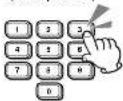
③ Finalize the selection (ENTER).

DVD Video
Title Menu
If the DVD has multiple titles recorded on it, it is possible to select the preferred title from the title menu to start playback.
1 (During playback or stopping)
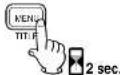
(Example)
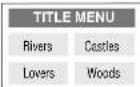
- The title menu appears on the screen. (Pressing this button again causes playback to start at the scene from which the title menu was called.)
② Select the item.

③ Finalize the selection (ENTER).

Note:
● Operations vary according to the disc. For details, refer to the guide provided with the disc.
CX-DVP292N CX-D
MP3CDVi
(During playback)

Each time the button is pressed:
ON (default) OFF
- In the case of CD/MP3, the On-Screen Display cannot be turned off.
Current Operation Mode — (Loading, Eject, Play, Pause, Stop, FF, REW, Still, Repeat, Slow Play)
Title Number (DVD Video) Folder Number (MP3)
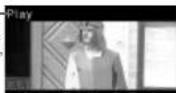
Playback Time
Chapter Number (DVD Video) Track Number (CD) File Number (MP3)
CD only
The display automatically differs according to whether CD-text is present.
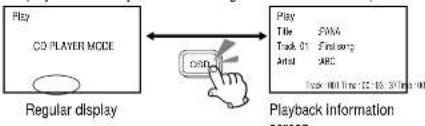
flowchart
graph LR
    A["Play CD PLAYER MODE"] --> B["Regular display"]
    B --> C["Playback information screen"]
    C --> D["Play Title: FMA Track 01: Finland Artol ABC Track 00: Time: 12:00-34:00"]
    D --> E["O5D Icon"]
MP3 only
Each time the button is pressed, the folder and file name or the normal screen information will be displayed.
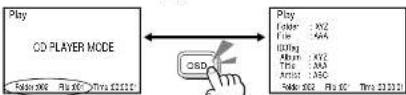
Regular display
Playback Information screen ("NO CD-TEXT" appears for discs without CD-text.)
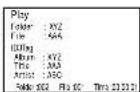
Playback information screen
Note:
- Each display may sometimes show “---”. This is not a malfunction.
- The On-Screen Display may not be displayed properly when the display size (aspect) of the connected display unit is set to "Zoom". In this case, select the other display size type: NORMAL, JUST or FULL.

Disc Operations (continued)
![[2] (AUDIO) [1] (SUBTITLE) [3] (ANGLE)](/content/2026/06/1191020/images/8fe6c0d8d0f9bf2e07aaf415646cab77a477f9c677b4b23f8ee07664a1b86e2a.jpg)
DVD Video
Switching the Subtitle Language
It is possible to change the subtle language during play if multiple languages are recorded on the disc.
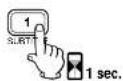
(Example)
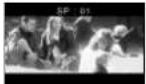
- The subtitle language is switched every time this is pressed for more than 1 second.
- Initially, the subtitle language is the language that is set in the user settings.
(If this language has not been recorded, the language that is displayed is determined by the disc.)
Note:
- There may be brief delay before the subtitles appears.
Note:
- If no operation is performed for 5 seconds, the display returns to the regular mode.
- It may not be possible to switch subtitles/audio languages unless the unit is at the DVD menu (→ page 14) or is at the user settings (→ page 18).
- The number of subtitle languages/audio languages depends on the disc. (Some discs have only one language.)
DVD Video
Switching the Angle
For DVDs which contain scenes that have been shot simultaneously from a number of different angles, the same scene can be viewed from each of these different angles during play.
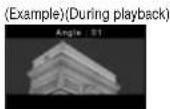
- The angle is switched every time this is pressed for more than 1 second.
Note:
- Some discs do not support the angle function. See the operating manual with the disc for details.
DVD Video
Switching the Audio Language
It is possible to change the audio language during play. If multiple audio languages are recorded on the disc.
(During playback)
(Example)
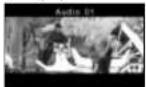
- The audio language is switched every time this is pressed for more than 1 second.
- Initially, the audio language is the language that is set in the user settings.
(If this language has not been recorded, the language that is displayed is determined by the disc.)
Video CD
Switching between Stereo and Monaural
(During playback)
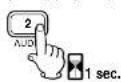
Audio: Stereo


(The left channel audio is output both on the left and right speakers.) (The right channel audio is output both on the left and right speakers.)
■Stereo is switched to monaural or vice versa every time this is pressed for more than 1 second.

User Settings
1 (While disc stopped, or no disc.) Display the Main Menu.
![MEN T1 P MEN (Main Menu) 1. Mouse Language: English 2. Subtable Language: English 3. Audio Language: English 4. TV Aspect: 18.8 5. TV Mode: [48]: Paradoxian 6. On-Screen Messages: ON 7. Audio Output Level: 2 8. D. Rango Compression: OFF 0. Edit](/content/2026/06/1191020/images/8c7eae393722e69aac65353d6bedd5300dde0e04d4b0c48c45b9a38e3b469273.jpg)
2 Select each setting menu.
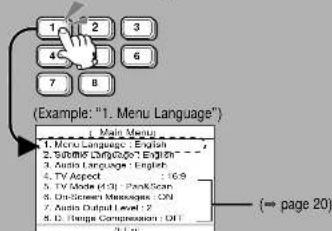
3 Select each item.
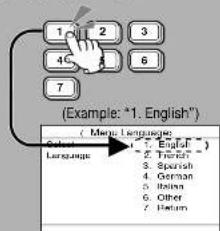
4 Finish the Setting.
• The setting is completed.
Note:
- To apply changes to settings, be sure to press [0] at the end.
- After the user settings have been changed and entered, the player returns to the start of the disc and begins playback.
- When the disc has predetermined language or other settings, the user settings are not reflected.
Note: - Only English is displayed on the Main Menu of the user settings.
![[MENU] [0] Numeric buttons [1]-[8] Panasonic](/content/2026/06/1191020/images/8baeb73d18e93cd2d6778bd06d68d7e8630e8863d99a93f75943e57b61182f64.jpg)
DVD Video
- Menu Language
You can change the language used for menus shown on the monitor. (→ pages 10, 14)
[Default: English]
- English
- French
- Spanish
- German
- Italian
- Other:
→ page 31 - Return
The display returns to "Main Menu".
DVD Video
- Subtitle Language
[Default: English]
- English
- French
- Spanish 7. Disp Off:
-
German Subtitle language is not displayed.
-
Italian 8. Return: The display returns to "Main Menu".
Note:
- A disc supporting closed captioning and subtitles may overlap each other on the screen. In this case, turn the subtitle off.
DVD Video
- Audio Language
[Default: English]
- English
- French
- Spanish 7. Return:
-
German The display returns to "Main Menu
-
Italian
Video CDDV
- TV Aspect
[Default: 16:9]
- 4:3: When a conventional TV Monitor is connected.
- 16:9: When a wide-screen TV Monitor is connected.
- Wide screen video can be played on the full screen.
- Return: The display returns to "Main Menu".

User Settings(continued)
1 (While disc stopped, or no disc.)
Display
the Main Menu.
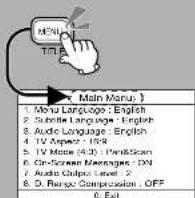
2 Select each setting menu.
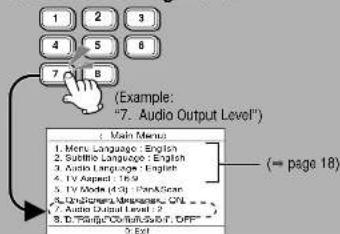
3 Select each item.
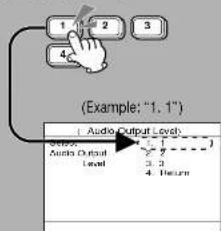
flowchart
graph TD
    A["1"] --> B["2"]
    B --> C["3"]
    C --> D["4"]
    D --> E["(Example: "1, 1")"]
    F["Audio Output Level"] --> G["Audio Output Level"]
    G --> H["3, 3"]
    H --> I["4, Future"]
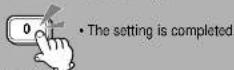
4 Finish the Setting.
Note:
- To apply changes to settings, be sure to press [0] at the end.
- After the user settings have been changed and entered, the player returns to the start of the disc and begins playback.
- When the disc has predetermined language or other settings, the user settings are not reflected.
Note:
- Only English is displayed on the Main Menu of the user settings.
![[MENU] [0] Numeric buttons [1]-[6] Panasonic](/content/2026/06/1191020/images/b247f4324f1d44ff8806812e91cc7b82e2d3099307a9a09f497b09da082ad5b4.jpg)
DVD Video Y Video CD
5. TV Mode
Set this when playing wide-screen video on a conventional-size (4:3) TV. [Default: Pan&Scan]
Video CDDV
6. On-Screen Messages
This is to select On-Screen Display (→ page 15) messages which will be displayed when On-Screen Display is turned off by pressing [OSD]. [Default: ON]
DVD Video | Video CD | CD | MP3
7. Audio Output Level
[Default: 2]
- Pan & Scan: Plays in Pan & Scan mode
- Letterbox: Plays in Letter Box mode
- Return: The display returns to "Main Menu".
Note:
- If "Pan&Scan" or "Letterbox" is already set in the software, this setting is ignored.
- ON: When power is turned on, On-Screen Display messages such as "Play" and "Pause" will always be displayed on the screen for 5 seconds.
- OFF: When power is turned on, On-Screen Display messages such as "Play" and "Pause" will not be displayed on the screen.
- Return: The display returns to "Main Menu".
- ON: When power is turned on, On-Screen Display messages such as "Play" and "Pause" will always be displayed on the screen for 5 seconds.
- OFF: When power is turned on. On-Screen Display messages such as "Play" and "Pause" will not be displayed on the screen.
- Return: The display returns to "Main Menu".
- ON: When power is turned on, On-Screen Display messages such as "Play" and "Pause" will always be displayed on the screen for 5 seconds.
- OFF: When power is turned on, On-Screen Display messages such as "Play" and "Pause" will not be displayed on the screen.
- Return: The display returns to "Main Menu".
- ON: When power is turned on, On-Screen Display messages such as "Play" and "Pause" will always be displayed on the screen for 5 seconds.
- OFF: When power is turned on, On-Screen Display messages such as "Play" and "Pause" will not be displayed on the screen.
- Return: The display returns to "Main Menu".
- ON: When power is turned on, On-Screen Display messages such as "Play" and "Pause" will always be displayed on the screen for 5 seconds.
- OFF: When power is turned on, On-Screen Display messages such as "Play" and "Pause" will not be displayed on the screen.
- Return: The display returns to "Main Menu".
DVD Video
8. D. Range Compression
By compressing the range of the playback level (the dynamic range), It is possible to maintain the impact of audio even at low volumes. This function only works with Dolby Digital encoded material. [Default: OFF]
1.1: Minimum Level
2.2: Middle level
3.3: Maximum level
4. Return: The display returns to "Main Menu".
Note:
- We recommend that you select the default when you use this player in the system configurations (= pages 34–37), and adjust the volume control on the display unit or stereo unit concerned to this player. See the display unit operating manual for details.
- Minimum: Most compressed mode: TV broadcasts, etc.
- Standard: Mode recommended by software creators for listening at low volumes.
- OFF: Does not compress the dynamic range.
- Return: The display returns to "Main Menu".
Note:
- When it is difficult to hear comparatively quiet sounds (such as movie dialogue), setting "Minimum" will make those sounds easier to hear.

Troubleshooting
Error Display Messages
Cause/StepError Display
Playback Error
Please eject.
- Disc is dirty, scratched or upside down.
●A disc that has data other than CD-DA or MP3 type is loaded.
→ Check the disc.
This type of disc cannot be played.
Please eject.
-
Disc is dirty, scratched or upside down.
●A disc that has data other than CD-DA or MP3 type is loaded.
→ Check the disc. -
The player for some reason cannot read the file you are trying to play. (File recorded in an unsupported file system, compression scheme, data format, file name extension, damaged data, etc.)
→ Select a file that the player can read. Confirm the type of data recorded on the disc. Create a new disc if necessary.
The unit will not operate for some reason.
→ Eject the disc. If the disc is not ejected when you press [▲] (eject), then simply press the reset switch (= page 26).
Mechanical Error
Please eject.
This disc may not be played
in your region
Please eject.

An attempt was made to play a disc with a region number that was not "2" or "ALL".
→ Eject the disc.
An attempt was made to play a disc with a region number that was not "2" or "ALL".
→ Eject the disc.
Troubleshooting Tips
Common
Cause/StepTrouble
No power.
Car's engine switch is not on.
→ Turn your car's Ignition switch to ACC or ON.
Cables are not correctly connected.
→ Connect cables correctly.
Battery cable is not correctly connected.
→ Connect the battery cable to the terminal that is always active.
Accessory cable is not correctly connected.
→ Connect the accessory cable to your car's ACC source.
Grounding wire is not correctly connected.
→ Connect the grounding wire to a metal part of the car.
□ Common (continued)
Cause/StepTrouble
No power. (continued.)
Fuse is burnt out
→ Call the store where you purchased the unit, or your nearest Service Center and ask for fuse replacement.
No sound.
Cables are not correctly connected. Connect cables correctly.
Condensation (dew). → Wait for a while before use.
□ DVD/Video CD/CD
Cause/StepTrouble
The disc is inside but there is no sound.
Disc is upside down.
→ Place disc in the correct direction with the label side up.
Disc is dirty, or has scratches.
→ Clean disc, or change the disc referring to the section on "Notes on Disc".
→ The player can only play the following types of discs: DVD video, Video CD, CD and CD-DA data recorded CD-R and CD-RW, and MP3 data recorded CD media (CD-ROM, CD-R, CD-RW)
→ The unit may not successfully play back a CD-R/RW that is made in combination of writing software, a CD recorder (CD-R/RW drive) and a disc which are incompatible one another. Refer to Instructions for the concerned devices for details.
You are trying to play a dts CD or DVD.
→ The player cannot play audio on dts CDs or DVDs unless a digital surround processor is used (= pages 36–37).
Disc is dirty, or has scratches.
→ Clean disc, or change the disc referring to the section on "Notes on Disc".
→ The unit may not successfully play back a CD-R/RW that is made in combination of writing software, a CD recorder (CD-R/RW drive) and a disc which are Incompatible one another. Refer to Instructions for the concerned devices for details.
Mounting angle is over 30°.
→ Adjust mounting angle to less than 30°.
Sound skips, bad sound quality (e.g. caused by noise).
- Disc is defective.
- Mechanical trouble.
→ Open the cover and press [▲] (eject). If the disc still does not eject, press the reset switch (→ page 26).
Sound skips due to vibration.
Disc is dirty, or has scratches.
→ Clean disc, or change the disc referring to the section on "Notes on Disc".
Disc is not ejected.
CD-text is not displayed normally.

Troubleshooting(continued)
□ DVD/Video CD/CD (continued)
Cause/StepTrouble
| Time is counted but no sound comes out. | The first track of a mix mode disc was reproduced. (Mix mode is a format in which data except music is recorded on the first track and music data is recorded on other than the first track in a session.)→ Play back music data recorded on a track other than the first track. |
| The disc will not play, or else it stops very quickly. | Condensation (dew).→ Wait for a while before use. |
| Disc is dirty, or has scratches.→ Clean disc, or change the disc referring to the section on “Notes on Disc”. | |
| The picture does not appear on the monitor. | Cables are not correctly connected.→ Connect cables correctly.→ Check the settings for the monitor itself.→ Select the monitor system (PAL/NTSC) to suit the type of DVD’s disc you have inserted when connecting the LCD monitor CY-VM1500EX.→ Stop the car and apply the parking brake. |
| The buttons do not work. | Some operations are not permitted with certain discs.→ Refer to the guide provided with your disc. |
| Two REMOTE IN connectors are connected.→ Do not connect the remote control signal receiver when remote control signals can be received by the display unit. | |
| Video CD menu playback does not work. | → Menu playback is only possible when playing a video CD that has the playback control feature. |
| The picture becomes distorted while fast forwarding or reversing. | → A certain amount of distortion is normal. |
| No subtitles appear. | Subtitles must be recorded on the disc, or they will not appear.→ Refer to the guide provided with your disc. |
| It is difficult to hear qulet sounds. | → Set “D. Range Compression” setting to “Minimum”. |
| The sound volume level Is too low or too high. | → Adjust the output level settling at the menu of “Audio Output Level”. |
| Cannot switch the audio language/subtitle language/angle. | ● It is not possible to switch if the disc does not have multiple audio languages/subtitle languages/angles recorded on it.→ Refer to the guide provided with your disc.● Some discs permit switching through a menu screen.● Sometimes, switching angles is possible only with certain scenes. |
□ DVD/Video CD/CD (continued)
Cause/StepTrouble
| The audio/subtitle language selected in the user settings is not used. | If audio or subtitles in that language are not recorded on the disc, the audio or subtitles do not switch to that language. (Some discs permit switching through a menu screen.)⇒ Refer to the guide provided with your disc. |
| Messages in the menu screen are not in the desired language. | ⇒ Check the setting for “Menu Language” in the user settings. |
□ MP3
Trouble
Cause/Step
| No playback. | The disc does not conform to any of the file systems supported by this player.→ Insert a disc that conforms to the file systems supported by this player. For supported file systems, see “Notes on MP3”. |
| The MP3 files is missing the “.mp3” file name extension.→ Make sure to add the “.mp3” extension to each MP3 file name. | |
| It takes too long for play-back to start. | The folders and files recorded on the disc are layered too much.→ As checking of files takes longer in this case, do not record any unnecessary folders or files other than MP3s on the disc. |
| Poor recording quality, sound skipping. | → The recording quality differs depending on the encoding software used, and on settings such as the bit rate. Set the bit rate within the range specified in the specifications chart (← page 39). It is recommended to set the bit rate to “128 kbps or more” and “Fixed”. |
| High-speed writing was executed when MP3 data was recorded on the disc.→ Decrease writing speed as low as possible. | |
| Files are not played in the desired order. | Files or folders are not recorded in the desired playback order.→ Some writing software lets you specify the recording order by adding a prefix in the range of “01”~“99”, etc. to the file name. For details, refer to the user manual of your writing software. |
| Folder/file name is not displayed correctly. | The disc does not conform to the file systems supported by this player.→ Insert a disc that conforms to the file systems supported by this player. For supported file systems, see “Notes on MP3”. |
| → There may be a problem with your writing software or CD recorder (CD-R/RW drive). For details, refer to the user manual of your writing software. |


Notes on MP3Troubleshooting(continued)
□ MP3 (continued)
Cause/StepTrouble
File playing time is not displayed correctly.
You turned off the ignition switch of the car during playback. → Playing another file will return the file playing time to normal.
You played a VBR (Variable Bit Rate) format MP3 file. → The file playing time of VBR (Variable Bit Rate) format MP3 file is sometimes displayed incorrectly.
□ Remote Control Unit
Cause/StepTrouble
Buttons are invalid for operation.
Battery polarities are reversed. → Insert the battery correctly.
Wrong battery. → Check the battery.
The battery has run down. → Replace the battery.
Remote control unit is facing the wrong direction. Direct the remote control unit at the sensor.
Maintenance
Your product is designed and manufactured to ensure a minimum of maintenance. Use a soft cloth for routine exterior cleaning. Never use benzine, thinner or other solvents.
Product Servicing
If the suggestions in the charts do not solve the problem, we recommend that you take it to your nearest authorized Panasonic Service Center. The product should be serviced only by a qualified technician.
Replace the Fuse
Use fuses of the same specified rating (5 A). Using different substitutes or fuses with higher ratings, or connecting the product directly without a fuse, could cause fire or damage to the unit. If the replacement fuse fails, contact your nearest Panasonic Service Center for service.
If the unit begins to operate malfunctionally
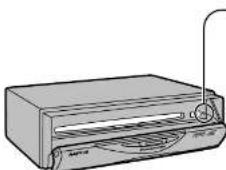
natural_image
Line drawing of a flatbed printer with ventilation slots and a paperclip (no text or symbols)Reset Switch
When you press this switch with a tough pointed object, the user setting is restored after irregular recovery. And, all your settings will be canceled.
Caution:
- Press this switch when any operation buttons do not work. If the unit does not become restored even after pressing the switch, contact your nearest Panasonic Service Center for service.
CX-DVP292N CX-D
This player allows you to play MP3 files recorded on CD-ROMs, CD-Rs (recordable) and CD-RWs (rewritable). About CD-Rs and CD-RWs, see "Notes on CD-Rs/RWs" on page 30.
What is MP3?
MP3, short for MPEG Audio Layer-3, is a standard for compressing digital video data adopted for video CDs and similar media. It is one of the audio compression schemes covered by MPEG's (Motion Picture Experts Group) digital audio compression standards. What it does is reduce the number of bytes in a song without hurting the sound quality by means such as eliminating big sound waves within in the sound range that is imperceptible to the human ear. This compression allows you to reduce the contents of a conventional music CD by a factor of around 10. This means that you can record the contents of 10 music CDs on a single CD-R or CD-RW. (The figures refer to data recorded on a 650 MB CD-R or CD-RW at a fixed bit rate of 128 kbps and a sampling frequency of 44.1 kHz.)
Points to Remember When Recording an MP3 Disc
□ Converting (encoding) audio data to an MP3 file
- It is recommended to set the bit rate to "128 kbps or more" and "Fixed".
- Bit rate 8 kbps of MPEG 2 and sampling frequency 16 kHz of MPEG 2 cannot be reproduced.
- If set to VBR (Variable Bit Rate), the file playing time may not be displayed correctly.
- The playback sound quality differs depending on the encoding software and the bit rate. For details, refer to the user manual of your encoding software.
□ Recording MP3 files on CD-R/RW
- Do not record files other than MP3s or unnecessary folders on a disc.
If too many folders or files other than MP3s are recorded on a disc, it may take some time before playback starts. - Use ISO 9660 file system (Extension of the ISO 9660 file systems are included.) (→ page 28). APPLE HFS file system is not supported. If they do not conform to the ISO 9660 file system, the file may not play normally, or the file or folder names may not be displayed correctly.
- Make sure to add the “.mp3” extension to each MP3 file name.
A file with a different file name extension or none at all will not play. - Although Multi session recording is supported, the use of Disc-at-Once is recommended. Make sure to close the session when you finished recording on a disc.
• ID3 Tag Ver. 2 and up are not supported.
With ID3 Tag Ver. 2 and up, the song information is stored but not displayed. - Packet writing software is not supported.
- A playlist function is not supported.
Record files and folders in the order in which you want them to be played. Some writing software lets you specify the recording order by adding a prefix in the range of "01"-99", etc. to the file name. For details, refer to the user manual of your writing software.
Note:
- You may encounter trouble in playing MP3s or displaying the information of MP3 files recorded with certain writing softwares or CD recorders (CD-R/RW drives).


Notes on MP3(continued)
Caution:
- Never assign the ".mp3" file name extension to a file that is not in the MP3 format. This may not only produce noise from the speakers and speaker damage, but can damage your hearing.
Note:
- MP3 encode software and writing software are not supplied to this model.
☐ Maximum Number of Files/Folders
■Maximum number of trees: 8
- Maximum number of files/folders: 254 (files + folders. Root folder is not included.)
Note:
- If the total of trees and folders exceeds 254, successful playback may not be performed.
□ Supported File Systems and File Names
| Supported file system Displayable folder names and file names | |
| ISO 9660 Level 1 | Name file and folders in accordance with the standard of each file system. Refer to the instructions of writing software for details.This player can display file names of up to 60 ASCII character set. ^ Up to 30 letters can be displayed in the Joliet systems. According to the standard, “ , “ ”, etc. can be used.Characters that the player cannot display are shown as an asterisk. |
| ISO 9660 Level 2 | |
| Joliet* | |
| Romeo | |
| Apple Extension to ISO 9660 | |
Glossary
ISO 9660
The most common international standard for the logical format for files and directories.
APPLE HFS
The file system used by the Macintosh operating system to organize data. (Not supported.)
Multi-session
A method of adding data incrementally to a CD-R or CD-RW in more than one recording session.
Disc-at-Once
A method of writing data in a media by just one operation and no more writing after that.
ID3 Tag
A function that allows character information (title, artist, album title, date, etc) to be written onto the disc. (ID3 Tag Ver. 2 and up are not supported.)
Packet writing
A method of writing data on a CD media in small increments. (Not supported.)
ASCII character set
ASCII character set consisting of A to Z, a to z, digits 0 to 9, and the following symbols: (space) ! *
% \& ' ()^* + , - . / : ; < = > ? @ [ ] ^ _ | )
CX-DVP292N CX-D
□ Copyright
It is prohibited by copyright laws to copy, distribute and deliver copyrighted materials such as music without the approval of copyright holder except enjoying yourself personally.
☐ Folder Selection Order/MP3 file playback order (Example)
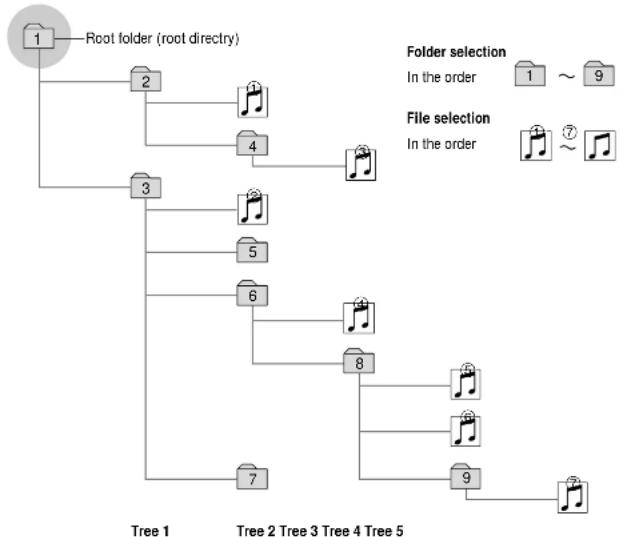
flowchart
graph TD
    A["Root folder (root directory)"] --> B["2"]
    A --> C["3"]
    A --> D["4"]
    A --> E["5"]
    A --> F["6"]
    A --> G["7"]
    B --> H["1"]
    C --> I["2"]
    C --> J["3"]
    C --> K["4"]
    C --> L["5"]
    C --> M["6"]
    C --> N["7"]
    D --> O["1 ~ 9"]
    E --> P["2 ~ 7"]
    F --> Q["3 ~ 7"]
    G --> R["4 ~ 7"]
    H --> S["1 ~ 9"]
    I --> T["2 ~ 7"]
    J --> U["3 ~ 7"]
    K --> V["4 ~ 7"]
    L --> W["5 ~ 7"]
    M --> X["6 ~ 7"]
    N --> Y["7 ~ 7"]
    O --> Z["1 ~ 9"]
    P --> AA["2 ~ 7"]
    Q --> AB["3 ~ 7"]
    R --> AC["4 ~ 7"]
    S --> AD["5 ~ 7"]
    T --> AE["6 ~ 7"]
    U --> AF["7 ~ 7"]
    V --> AG["1 ~ 9"]
    W --> AH["2 ~ 7"]
    X --> AI["3 ~ 7"]
    Y --> AJ["4 ~ 7"]
    Z --> AK["5 ~ 7"]
    AA --> AL["6 ~ 7"]
    AB --> AM["7 ~ 7"]
Note:
- This unit counts the number of the folders irrespective of the presence or absence of MP3 file. (Example: there is no MP3 file in a root folder as shown in the drawing, but a folder number "001" is given. In fact, there is no MP3 file to reproduce. Therefore, the next folder is automatically selected.)
- The writing software sometimes changes the order of folders and files on a disc, so the order may differ from what you specified. For details, refer to the user manual of your writing software.
- If you record too many folders or files other than MP3 onto a disc, it may take some time before playback starts.
●Playback order varies with players even if the same disc is loaded. - If a disc contains both CD-DA and MP3 data, only CD-DA data will be played back.
- If the ignition switch of your car is turned to OFF during playback, there may be a time lag between the file playing time on the display and the actual playing time. In addition, playback may start from the beginning of the music when using VBR (Variable Bit Rate) of a MP3 file in the same situation.


Language Code ListMaintenance
Care of the Unit
□ Cleaning this Unit
Use a dry, soft cloth to wipe.
□ Caution on Cleaning
Never use solvents such as benzine or thinner as they may mar the surface of the unit.
Notes on Disc
How to hold the disc
- Do not touch the underside of the disc.
- Do not scratch the disc.
■ Do not bend the disc. - When not in use, keep the disc in the case.
Do not use irregularly shaped discs.
Do not leave discs on the following places:
- Direct sunlight
- Near car heaters
- Dirty, dusty and damp areas
• Seats and dashboards
Disc cleaning
Use a dry, soft cloth to wipe from the center outward.
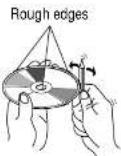
Caution on new discs
A new disc may have rough edges on its inner and outer
perimeter. These may cause malfunction.
Remove the rough edges using a pencil, etc.
Do not attach any seals or labels to your discs.
Do not write on the disc label in a heavy pen or ball-point pen stroke.
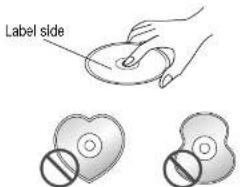
Do not use irregular shaped discs.
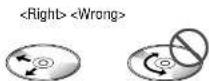
Notes on CD-Rs/RWs
- You may have trouble playing back some CD-R/RW discs recorded on CD recorders (CD-R/RW drives),
either due to their recording characteristics or dirt, fingerprints, scratches, etc. on the disc surface. - CD-R/RW discs are less resistant to high temperatures and high humidity than ordinary music CDs. Leaving them inside a car for extended periods may damage them and make playback impossible.
■ The unit may not successfully play back a CD-R/RW that was made by the combination of writing software, a
CD recorder (CD-R/RW drive) and a disc if they are incompatible one another.
■This player cannot play the CD-R/RW discs if the session is not closed. - This player cannot play the CD-R/RW discs which contains other than CD-DA or MP3 data (video CD, etc.).
■Be sure to observe the instructions of CD-R/RW disc for handling it.
CX-DVP292N CX-D
In "Other" cases (Menu Language, Subtitle Language, Audio Language) (→ page 18)
① Input the four digit language
code. (See below.)
To input the number again:

② Finalize the selection (ENTER).

- Setting is finished and the display returns to "Main Menu".
| Code Language Name |
| 6585 Ahr |
| 6566 Akhazlan |
| 6570 Ariakans |
| 6577 Ameharic |
| 6582 Arabic |
| 6583 Asamese |
| 6588 Ajmara |
| 6590 Azerbaijani |
| 6665 Bashkir |
| 6669 Byelorussian |
| 6671 Bulgarian |
| 6672 Bhari |
| 6678 Bengali: Bangla |
| 6679 Ticetan |
| 6682 Breton |
| 6765 Citalan |
| 6779 Corsican |
| 6783 Czech |
| 6789 Welsh |
| 6865 Danish |
| 6869 German |
| 6890 Bhutani |
| 6976 Greek |
| 6978 English |
| 6979 Esperanto |
| 6983 Spanish |
| 6984 Estonian |
| 6985 Basque |
| 7065 Persian |
| 7073 Finnish |
| 7074 Fiji |
| 7079 Faroese |
| 7082 French |
| 7089 Fisian |
| 7165 Irish |
| 7168 Scots Gaelic |
| 7176 Galician |
| 7178 Gujarani |
| 7185 Gujarati |
| 7265 Hausa |
| 7273 Hindi |
| 7282 Croatian |
| Code | Language Name |
| 7285 | Hungarian |
| 7289 | Armenian |
| 7385 | Interlingua |
| 7378 | Indonesian |
| 7383 | Icelandic |
| 7384 | Italian |
| 7387 | Hebrew |
| 7465 | Japanese |
| 7473 | Yiddish |
| 7487 | Vanese |
| 7565 | Georgian |
| 7575 | Kazakh |
| 7576 | Greenlandic |
| 7577 | Cambodian |
| 7578 | Kinnada |
| 7579 | Kruan |
| 7583 | Kashmiri |
| 7585 | Kurdish |
| 7589 | Kirghiz |
| 7665 | Latin |
| 7678 | Lingala |
| 7679 | Laothian |
| 7684 | Lithuanian |
| 7686 | Latvian, Lettish |
| 7771 | Malagasy |
| 7773 | Maori |
| 7775 | Macedonian |
| 7776 | Malayalam |
| 7778 | Mongolian |
| 7779 | Moldavian |
| 7782 | Marathi |
| 7783 | Malay |
| 7784 | Valteso |
| 7789 | Burmese |
| 7805 | Nauru |
| 7869 | Nepali |
| 7876 | Dutch |
| 7879 | Norwegian |
| 7982 | Oriya |
| 8065 | Panjabi |
| 8076 | Philish |
| 8083 | Pishto. Pushto |
| Code Language Name |
| 8064 Portuguese |
| 8185 Qucchua. |
| 8277 Phaeto-Romance |
| 8279 Romanian |
| 8285 Russian |
| 8365 Sanskrit |
| 8368 Shchi |
| 8372 Serbo-Croatian |
| 8373 Singhalese |
| 8375 Slovak |
| 8376 Slovenian |
| 8377 Simoan |
| 8378 Shona |
| 8379 Somali |
| 8381 Albanian |
| 8382 Serbian |
| 8385 Sundanese |
| 8386 Swedish |
| 8387 Swanili |
| 8465 Tamil |
| 8469 Telugu |
| 8471 Tajik |
| 8472 Thai |
| 8473 Tigrinya |
| 8475 Turkmen |
| 8476 Tagalog |
| 8479 Tonga |
| 8482 Turkish |
| 8484 Tarar |
| 8487 Twi |
| 8575 Ukrainian |
| 8582 Urdu |
| 8590 Uzbek |
| 8673 Vietnamese |
| 8679 Vapuk |
| 8779 Wolof |
| 8872 Xhosa |
| 8979 Yoruba |
| 9072 Chinese |
| 9085 Zulu |

Digital audio output connector (Optical)
The digital audio output connector (optical) converts electrical signals into optical signals and transfers them to the amplifier. Consequently, it has a number of features including its immunity from electrical interference from external sources and its ability to prevent the generation of noise and its minimal effect on the external environment.
Dolby Digital
Dolby Digital is a digital sound compression technique developed by the Dolby Laboratories Licensing Corporation.
Supporting 5.1-channel surround sound, as well as stereo (2-channel) sound, this technique enables a large quantity of sound data to be efficiently recorded on a disc.
Manufactured under license from Dolby Laboratories. "Dolby" and the double-D symbol are trademarks of Dolby Laboratories. Confidential unpublished works. C 1992–1997 Dolby Laboratories. All rights reserved.
Interactive DVD
An Interactive DVD is DVD software which includes multiple angles, multiple plot endings, etc.
Letterbox screen
This refers to a screen on which the playback picture of wide-screen DVDs or Video CDs appears with black bands running along the top and bottom.
Linear PCM audio (LPCM)
This refers to a signal recording format used in CDs. While CDs are recorded in 44.1 kHz/16 bit, DVDs are recorded in 48 kHz/16 bit up to 96 kHz/24 bit, thus achieving higher quality audio than that of CDs.
CX-DVP292N CX-D
MPEG
MPEG is an International standard format for the compression of motion video as defined by the Motion Picture Experts Group, a working committee which functions under the auspices of the International Standardization Organization and International Electrotechnical Commission. The Group established the MPEG 1 standard in 1991 and the MPEG 2 standard in 1994. MPEG 2 builds on MPEG 1 with many improvements, and it yields a higher picture quality level.
Pan & Scan screen
This refers to a screen on which the playback picture of wide-screen DVDs or Video CDs is cut off at the left and right sides.
Playback control (Video CD)
If the Video CD has "With Playback Control" or others written on the disc surface or on the jacket, the scenes or information to be viewed (or listened to) can be selected interactively with the screen by looking at the menu shown on the screen.
In these Instructions, playback using the menu screen is referred to as the "menu play" for video CDs. This player supports Video CDs with playback control.
Title, Chapter (DVD)
DVDs are divided into some large sections (titles) or some small sections (chapters). Each section is numbered; these numbers are called "Title number" or "Chapter number".
| Title 2Title 1 | ||||
| Chapter 1 | Chapter 2 | ...... | Chapter 1 | ...... |
Track (Video CD/CD)
Video CDs or CDs are divided into some sections (tracks). Each section is numbered; these numbers are called "Track number".
| Track 1 Track 3Track 2 | Track ...... | |

Installation GuideDefinition of Terms
□ Preparation
- We strongly recommend that you wear gloves for installation work to protect yourself from injuries.
- Disconnect the cable from the negative ⊖ battery terminal (see caution below).
- Unit should be installed in a horizontal position with the front end up at a convenient angle, but not more than 30^ .
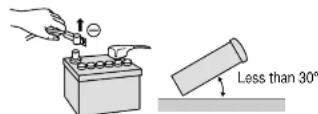
Caution:
- Do not disconnect the battery terminals of a car with a trip or navigational computer since all user settings stored in memory will be lost. Instead take extra care with installing the unit to prevent shorts.
□ Installation Hardware
| No. | DiagramItem Q'hy | ||
| 1 | Tapping screws(5 mm × 16 mm) | 4 | |
| 2 | Screw with washers(5 mm × 6 mm) | 4 | |
| 3 | L-shaped brackets | 2 | |
| 4 | Power connector | 1 | |
| 5 | Clamp connector | 1 | |
| 6 | Cord clamp | 1 | |
Note:
- Consult a qualified servicing engineer or your dealer for information on installing this player to a dashboard.
□ How to install the unit
The diagram below shows an example in which this unit is installed to the floor. Consult a qualified servicing engineer or your dealer for information on installing this unit to a different location.
When Installing the unit with the L-shaped brackets ③
a) Attach the L-shaped brackets ③ on both sides of unit with the screw with washers ②.
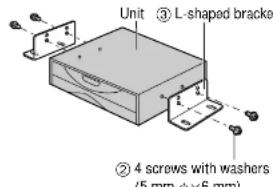
b) Install the unit with tapping screws ①.
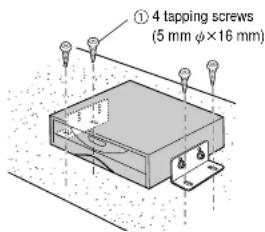
Caution:
- All other installation methods required the use of dedicated metal fittings. Consult with a qualified servicing engineer or your dealer if other methods are required.
- When drilling holes in the car, make sure that you do not damage any pipes or wiring on the underside of the car.
- When installing the unit, make sure that the cord is positioned in a location where it will not pinched or damaged when the seat slides forward or backward.


Electrical Connections
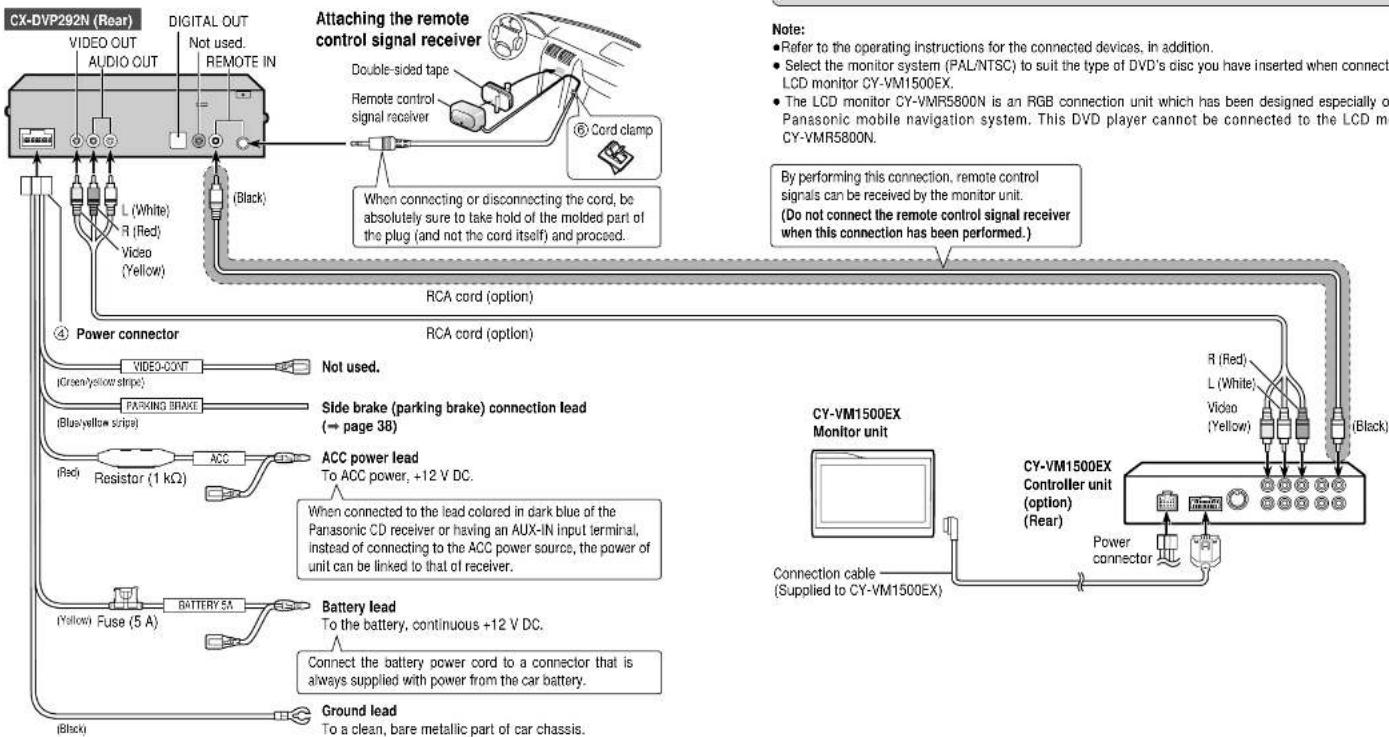
□ Basic System Configuration □ Accessories for Use
Examples of system combination: ■Color LCD monitor (CY-VM1500EX, option)
| No. | Item | Q'ty |
| 4 | Power connector | 1 |
| 6 | Cord clamp | 1 |
flowchart
graph TD
    A["VIDEO OUT AUDIO OUT"] --> B["Black"]
    C["L (White) R (Red) Video (Yellow)"] --> B
    D["Power connector"] --> E["Video-COUT"]
    E --> F["PARKING BRAKE"]
    F --> G["Resistor (1 kΩ)"]
    G --> H["Battery 5A"]
    H --> I["Ground lead"]
    J["Black"] --> H
    K["Black"] --> H
    L["Attaching the remote control signal receiver"] --> M["Double-sided tape"]
    M --> N["Remote control signal receiver"]
    N --> O["Cord clamp"]
    O --> P["When connecting or disconnecting the cord, be absolutely sure to take hold of the molded part of the plug (and not the cord itself) and proceed."]
    P --> Q["RCA cord (option)"]
    Q --> R["ACCC power lead To ACC power, +12 V DC."]
    R --> S["Side brake (parking brake) connection lead (→ page 38)"]
    S --> T["Power connector"]
    U["Power connector"] --> V["Not used."]
    W["Power connector"] --> X["ACCC power lead To ACC power, +12 V DC."]
    X --> Y["Back to Power connector"]
    Z["Back to Power connector"] --> AA["Connection cable (Supplied to CY-VM1500EX)"]
    AB["Note: Refer to operating instructions for the connected devices, in addition. Select the monitor system (PAL/NTSC) to suit the type of DVD's disc you have inserted when connecting LCD monitor CY-VM1500EX. The LCD monitor CY-VMR5800N is an RGB connection unit which has been designed especially on Panasonic mobile navigation system. This DVD player cannot be connected to the LCD monitor CY-VMR5800N."] --> AC["By performing this connection, remote control signals can be received by the monitor unit. (Do not connect the remote control signal receiver when this connection has been performed.)"]
CX-DVP292N CX-D

Electrical Connections (continued)
□ Advanced System Configuration
Examples of system combination:
•Color LCD monitor (CY-VM1500EX, option)
■Digital surround processor (CY-AC300EX, option)
●Power amplifier (CY-M9054 or CY-M7052, option)
- CD player/receiver with changer control
(CQ-DFX602N, option)
● Center speaker (EAB-CF2, option)
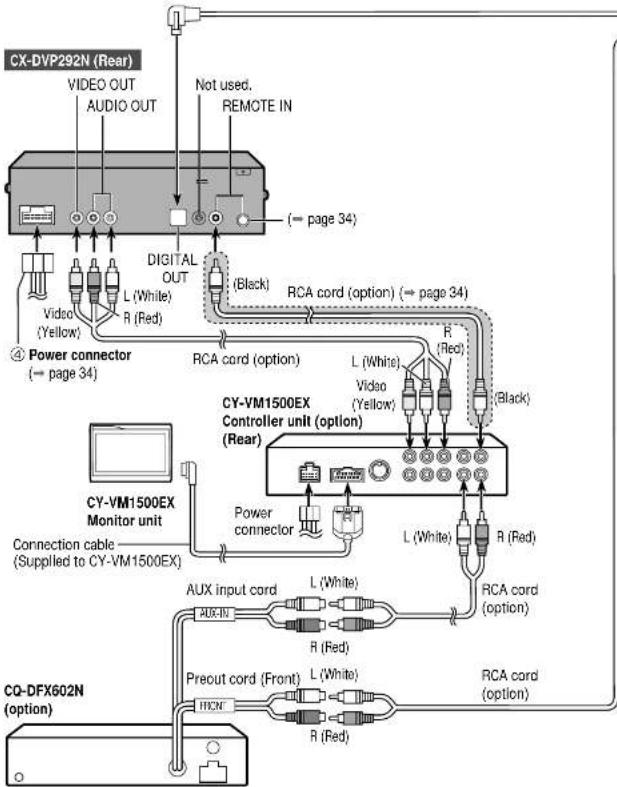
flowchart
graph TD
    A["CX-DVP292N (Rear)"] --> B["VIDEO OUT"]
    A --> C["AUDIO OUT"]
    A --> D["NOT USED. REMOTE IN"]
    B --> E["Video (Yellow)"]
    C --> F["L (White)"]
    C --> G["R (Red)"]
    D --> H["DIGITAL OUT"]
    H --> I["(Black)"]
    I --> J["RCA cord (option)"]
    J --> K["L (White)"]
    J --> L["Video (Yellow)"]
    J --> M["R (Red)"]
    K --> N["CY-VM1500EX Controller unit (Option)"]
    L --> N
    M --> N
    N --> O["Power connector"]
    O --> P["AUX input cord"]
    O --> Q["R (Red)"]
    O --> R["L (White)"]
    O --> S["R (Red)"]
    O --> T["RCA cord (option)"]
    U["CQ-DFX602N (Option)"] --> V["Preout cord (Front)"]
    U --> W["HNCN"]
    U --> X["R (Red)"]
    Y["Connection cable (Supplied to CY-VM1500EX)"] --> Z["Power connector"]
    AA["④ Power connector (→ page 34)"] --> AB["Video (Yellow)"]
    AC["④ Power connector (→ page 34)"] --> AD["Video (Yellow)"]
    AE["④ Power connector (→ page 34)"] --> AF["Video (Yellow)"]
    AG["CY-VM1500EX Monitor unit"] --> AH["Power connector"]
    AI["CY-VM1500EX Controller unit (Option)"] --> AJ["Power connector"]
    AK["CY-VM1500EX Controller unit (Option)"] --> AL["Power connector"]
    AM["CY-VM1500EX Controller unit (Option)"] --> AN["Power connector"]
Note:
- Refer to the operating instructions for the connected devices, in addition.
- Select the monitor system (PAL/NTSC) to suit the type of DVD's disc you have inserted when connecting the LCD monitor CY-VM1500EX.
- The LCD monitor CY-VMR5800N is an RGB connection unit which has been designed especially only for Panasonic mobile navigation system. This DVD player cannot be connected to the LCD monitor CY-VMR5800N.
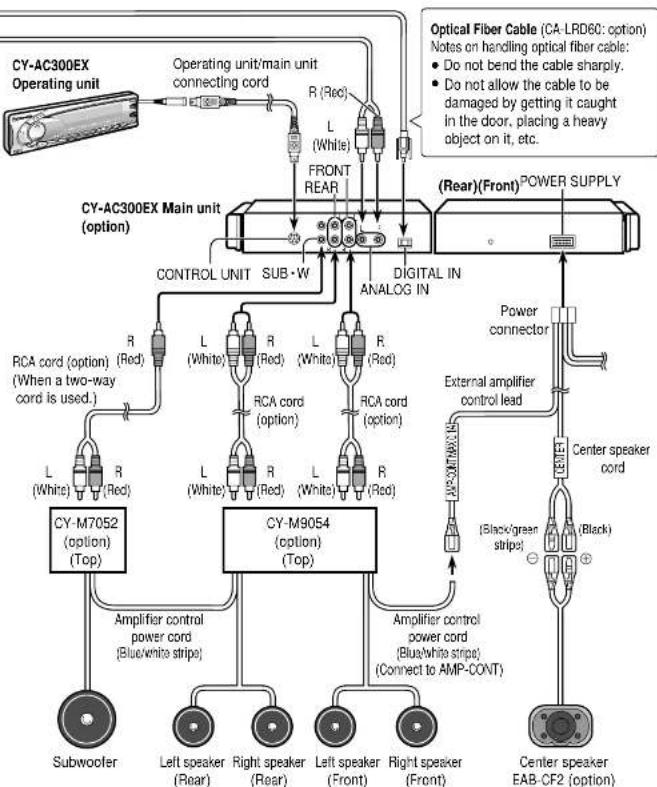
flowchart
graph TD
    A["CY-AC300EX Operating unit"] --> B["Operating unit/main unit connecting cord"]
    B --> C["CY-AC300EX Main unit (option)"]
    C --> D["CONTROL UNIT SUB-W"]
    D --> E["RCA cord (option) (When a two-way cord is used.)"]
    D --> F["RCA cord (option)"]
    D --> G["RCA cord (option)"]
    D --> H["RCA cord (option)"]
    D --> I["RCA cord (option)"]
    D --> J["RCA cord (option)"]
    C --> K["CY-M7052 (option) (Top)"]
    K --> L["Subwoofer"]
    K --> M["Left speaker (Rear)"]
    K --> N["Right speaker (Rear)"]
    K --> O["Left speaker (Front)"]
    K --> P["Right speaker (Front)"]
    C --> Q["CY-M9054 (option) (Top)"]
    Q --> R["Amplifier control power cord (Blue/white stripe)"]
    Q --> S["Amplifier control power cord (Blue/white strips) (Connect to AMP-CONT)"]
    Q --> T["Power connector"]
    Q --> U["Center speaker cord"]
    U --> V["(Black)"]
    U --> W["(Black)"]
    U --> X["(Black)"]
    U --> Y["(Black)"]
    U --> Z["(Black)"]
    U --> AA["(Black)"]
    U --> AB["(Black)"]
    U --> AC["(Black)"]
    U --> AD["(Black)"]
    U --> AE["(Black)"]
    U --> AF["(Black)"]
    U --> AG["(Black)"]
    U --> AH["(Black)"]
    U --> AI["(Black)"]
    U --> AJ["(Black)"]
    U --> AK["(Black)"]
    U --> AL["(Black)"]
    U --> AM["(Black)"]
    U --> AN["(Black)"]
    U --> AO["(Black)"]
    U --> AP["(Black)"]
    U --> AQ["(Black)"]
    U --> AR["(Black)"]
    U --> AS["(Black)"]
    U --> AT["(Black)"]
    U --> AU["(Black)"]
    U --> AV["(Black)"]
    U --> AW["(Black)"]
    U --> AX["(Black)"]
    U --> AY["(Black)"]
    U --> AZ["(Black)"]
    U --> BA["(Black)"]
    U --> BB["(Black)"]
    U --> BC["(Black)"]
    U --> BD["(Black)"]
    U --> BE["(Black)"]
    U --> BF["(Black)"]
    U --> BG["(Black)"]
    U --> BH["(Black)"]
    U --> BI["(Black)"]
    U --> BJ["(Black)"]
    U --> BK["(Black)"]
    U --> BL["(Black)"]
    U --> BM["(Black)"]
    U --> BN["(Black)"]
    U --> BO["(Black)"]
    U --> BP["(Black)"]
    U --> BQ["(Black)"]
    U --> BR["(Black)"]
    U --> BS["(Black)"]
    U --> BT["(Black)"]
    U --> BU["(Black)"]
    U --> BV["(Black)"]
    U --> BW["(Black)"]
CX-DVP292N CX-D


SpecificationsElectrical Connections (contin
□ Connecting side brake (parking brake) connection lead
Caution:
- For safety, be sure to ask your nearest professional installer to do this connection.
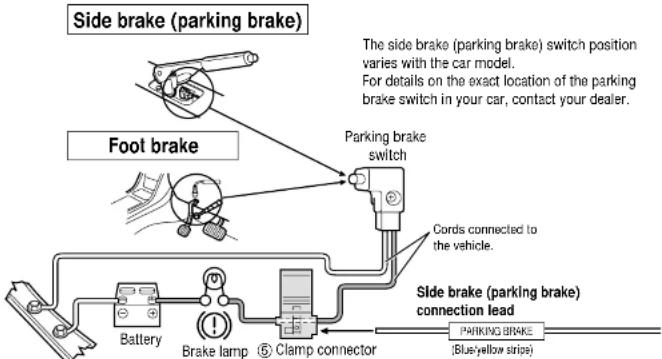
flowchart
graph TD
    A["Side brake (parking brake)"] --> B["Foot brake"]
    B --> C["Parking brake switch"]
    C --> D["Cords connected to the vehicle."]
    D --> E["Side brake (parking brake) connection lead"]
    E --> F["PARKING BRAKE (Blue/yellow stripe)"]
    G["Battery"] --> H["Brake lamp ⑤ Clamp connector"]
    H --> E
Of the 2 cords emerging from the parking brake switch, connect the player's parking brake cord to the one that is not connected to the vehicle's chassis while the brake is in the released state.
Connecting the Clamp Connector ⑤
- Attach the clamp connector to the vehicle cord at a suitable position.
- Note that if the cord being clamped onto is too thin (0.3 mm ^2 or less), the connection may not be adequate.

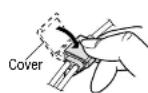
Push the end of the side brake cord into the hole on the clamp connector.
Place the vehicle cord into the groove in the clamp connector.

While making sure that the cords do not slip out of the clamp connector, press the element down with a pair of pliers.

Close the cover until it snaps shut.

- Vehicle cord Push the end of the cord in until it touches this part.
Parking brake cord
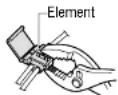
Supply voltage:
12 V DC (10.8 V–16 V), test voltage 14.4 V, negative ground
Current consumption: Less than 2.0 A
Signal system: PAL 1.0 Vp-p 75 Ω RCA pin jack
Discs played: (1) DVD-Video disc
12 cm single-sided, single-layer/double-layer
12 cm double-sided, single-layer/double-layer
8 cm single-sided, single-layer/double-layer
8 cm double-sided, single-layer/double-layer
(2) Compact disc (CD-DA, Video CD, CD-ROM, CD-R, CD-RW) 12 cm disc
8 cm disc
Audio output level:
600 Ω (2 ch 2.5 Vrms Max.)
Audio signal
output characteristics: (1) Frequency response: 20 Hz–20 kHz
(2) S/N ratio: 95 dB (IHF, A)
(3) Wow and flutter: Below measurable limits
Dimensions (W×H×D):
178×50×155 mm
Weight: 1.5 kg
Digital audio output:
Disc Sound recording format Optical digital audio output from connector
| DVD | Dolby Digital | Dolby Digital bitstream (1–5.1 ch) |
| DTS ^- | DTS bitstream (1–5.1 ch) (The analog portion is not output.) | |
| Linear PCM(48 kHz 16/20/24 bit) | Linear PCM (2 ch)(48 kHz sampling/16 bit only) | |
| Video CD | MPEG 1 | MPEG 1 bitstream |
| Linear PCM | Linear PCM (2 ch) (44.1 kHz sampling/16 bit) | |
| CD | Linear PCM | Linear PCM (2 ch) (44.1 kHz sampling/16 bit) |
| DTS ^- | DTS bitstream (1–5.1 ch) (The analog portion is not output.) | |
| MP3 | MP3 | Linear PCM (2 ch) (32 kHz/44.1 kHz/48 kHz sampling/16 bit ) |
* DTS only works with optical outputs.
"DTS" and "DTS Digital Out" are trademarks of Digital Theater Systems, Inc.
Note:
- Specifications and design are subject to modification, without notice, due to improvements in technology.
Matsushita Electric Industrial Co., Ltd
Central P.O. Box 288, Osaka 542-8588, Japan
YEFM283809 F0502-0 Printed in China
- CX-DVP292N
- Safety Information
- WARNING:
- □ Laser Product
- Label indications and their locations
- CAUTION:
- Laser products:
- CLASS1 LASER PRODUCT
- Caution label
- □ Precautions
- Volume Level
- Car Washing
- Car Ventilation
- Power Supply
- Disc Mechanism
- Protect the DVD Software
- Service
- □ Features
- The figure on the right shows
- Note:
- Discs that can be Played Back
- □ Region Management Information
- □ Symbols used on jackets (Examples of such symbols include)
- Screen size (H:V aspect ratio)
- ☐ The following discs cannot be played back on this product.
- •DVD-Audio
- Components/Remote Control Unit Preparation
- Components
- Remote Control Unit Preparation
- Battery Installation (Inserting/Replacing the Battery)
- Battery Notes
- Disc Operations
- □ Make this setting the first time you operate the unit.
- Preparation
- Ejecting the disc:
- Disc Operations (continued)
- Video CDDV
- DVD Video
- DVD Menu
- Title Menu
- MP3CDVi
- CD only
- MP3 only
- Switching the Subtitle Language
- Switching the Angle
- Switching the Audio Language
- Video CD
- Switching between Stereo and Monaural
- User Settings
- User Settings(continued)
- DVD Video Y Video CD
- TV Mode
- On-Screen Messages
- DVD Video | Video CD | CD | MP3
- Audio Output Level
- D. Range Compression
- Troubleshooting
- Error Display Messages
- Cause/StepError Display
- Troubleshooting Tips
- Common
- Cause/StepTrouble
- □ Common (continued)
- □ DVD/Video CD/CD
- Troubleshooting(continued)
- Notes on MP3Troubleshooting(continued)
- □ MP3 (continued)
- □ Remote Control Unit
- Maintenance
- Product Servicing
- Replace the Fuse
- If the unit begins to operate malfunctionally
- Reset Switch
- What is MP3?
- Points to Remember When Recording an MP3 Disc
- □ Converting (encoding) audio data to an MP3 file
- □ Recording MP3 files on CD-R/RW
- Notes on MP3(continued)
- ☐ Maximum Number of Files/Folders
- □ Supported File Systems and File Names
- Glossary
- ISO 9660
- APPLE HFS
- Multi-session
- Disc-at-Once
- ID3 Tag
- Packet writing
- ASCII character set
- □ Copyright
- ☐ Folder Selection Order/MP3 file playback order (Example)
- Language Code ListMaintenance
- Care of the Unit
- □ Cleaning this Unit
- □ Caution on Cleaning
- Notes on Disc
- Notes on CD-Rs/RWs
- In "Other" cases (Menu Language, Subtitle Language, Audio Language) (→ page 18)
- Digital audio output connector (Optical)
- Dolby Digital
- Interactive DVD
- Letterbox screen
- Linear PCM audio (LPCM)
- MPEG
- Pan & Scan screen
- Playback control (Video CD)
- Title, Chapter (DVD)
- Track (Video CD/CD)
- Installation GuideDefinition of Terms
- □ Preparation
- □ How to install the unit
- When Installing the unit with the L-shaped brackets ③
- Electrical Connections
- □ Basic System Configuration □ Accessories for Use
- Electrical Connections (continued)
- □ Advanced System Configuration
- SpecificationsElectrical Connections (contin
- □ Connecting side brake (parking brake) connection lead
- Connecting the Clamp Connector ⑤
Brand : PANASONIC
Model : CXDVP292N
Category : Car Radio