
NX10RH0DBB - Computing SAMSUNG - Free user manual and instructions
Find the device manual for free NX10RH0DBB SAMSUNG in PDF.


| Product Type | Notebook Computer |
| Model | NX10RH0DBB |
| CPU | Intel Banias 1.3~1.7 GHz |
| Main Memory | 128/256/512/1024 MB DDR SDRAM, up to 2 GB |
| Hard Disk Drive | 2.5\" UltraDMA 100, S.M.A.R.T, 9.5mm height |
| Graphics | Nvidia GeForce 4, 32/64 MB DDR SDRAM, default 1024x768 XGA |
| Sound | Cirrus Logic CS4202 (AC97 CODEC) |
| Wired LAN | 10/100 Base T Ethernet |
| Wireless LAN | 802.11b (Mini PCI, optional) |
| Bluetooth | Optional |
| PCMCIA Slot | Type I and II compatible |
| Ports | IEEE1394 (4-pin), USB x2, microphone, headphone, S/PDIF, RJ-11 (modem), RJ-45 (LAN), VGA (external monitor), S-VHS |
| Display | 14\" XGA TFT LCD |
| Dimensions (W x D x H) | 315 x 259 x 19.3-25.4 mm |
| Weight | 1.8 kg (including standard battery) |
| Battery | Lithium-Ion smart battery, charge time ~2 hours |
| Power Adapter | Input 100-240 VAC, 50-60 Hz, Output 19 VDC, 1.5A-0.8A |
| Operating System | Windows XP (pre-installed) |
| Optical Drive | CD-RW/DVD-ROM Combo |
| Security | Security lock slot, fingerprint sensor (optional) |
| Warranty | Refer to manufacturer's warranty statement |
Frequently Asked Questions - NX10RH0DBB SAMSUNG
User questions about NX10RH0DBB SAMSUNG
0 question about this device. Answer the ones you know or ask your own.
Ask a new question about this device
Download the instructions for your Computing in PDF format for free! Find your manual NX10RH0DBB - SAMSUNG and take your electronic device back in hand. On this page are published all the documents necessary for the use of your device. NX10RH0DBB by SAMSUNG.
USER MANUAL NX10RH0DBB SAMSUNG
No part of this publication may be reproduced, stored in a retrieval system, or transmitted, in any form or by any means, mechanical photocopying, recording or otherwise, without the prior written permission of the manufacturer.
The information within this manual is subject to change without notice.
The manufacturer shall not be held liable for technical or editorial errors or omissions contained in herein; nor for incidental or consequential damages resulting from the furnishing, performance or use of this material.
Microsoft Windows is a registered trademark of the Microsoft Corporation.
Product names mentioned herein are for identification purposes only, and may be trademarks and/or registered trademarks of their respective companies.
Macrovision Statement
If your computer has a DVD drive and an analog TV Out port, the following paragraph applies:
This product incorporates copyright protection technology that is protected by method claims of certain U.S. patents and other intellectual property rights owned by Macrovision Corporation and other rights owners. Use of this copyright protection technology must be authorized by Macrovision Corporation, and is intended for home and other limited viewing uses only unless otherwise authorized by Macrovision Corporation. Reverse engineering or disassembly is prohibited.
Copyright 2003 All rights are reserved
Safety Instructions
Your system is designed and tested to meet the latest standards for safety of information technology equipment. However, to ensure safe use of this product, it is important that the safety instructions marked on the product and in the documentation are followed.
Always follow these instructions to help guard against personal injury and damage to your system.
Setting Up your System
- Read and follow all instructions marked on the product and in the documentation before you operate your system. Retain all safety and operating instructions for future use.
- Do not use this product near water or a heat source such as a radiator.
- Set up the system on a stable work surface.
- The product should be operated only with the type of power source indicated on the rating label.
- Ensure that the electrical outlet you are using to power your equipment is easily accessible in case of fire or short circuit.
- If your computer has a voltage selector switch, make sure that the switch is in the proper position for your area.
- Openings in the computer case are provided for ventilation. Do not block or cover these openings. Make sure you provide adequate space, at least 6 inches (15 cm), around the system for ventilation when you set up your work area. Never insert objects of any kind into the computer ventilation openings.
- Ensure that the fan vents on the bottom of the casing are clear at all times. Do not place the computer on a soft surface, doing so will block the bottom vents.
- If you use an extension cord with this system, make sure that the total ampere rating on the products plugged into the extension cord does not exceed the extension cord ampere rating.
Care During Use
- Do not walk on the power cord or allow anything to rest on it.
- Do not spill anything on the system. The best way to avoid spills is to not eat or drink near your system.
- Some products have a replaceable CMOS battery on the system board. There is a danger of explosion if the CMOS battery is replaced incorrectly. Replace the battery with the same or equivalent type recommended by the manufacturer. Dispose of batteries according to the manufacturer's instructions. If the CMOS battery requires replacement insure that a qualified technician performs the task
- When the computer is turned off, a small amount of electrical current still flows through the computer. To avoid electrical shock, always unplug all power cables, remove the battery and modem cables from the wall outlets before cleaning the system.
- Unplug the system from the wall outlet and refer servicing to qualified personnel if:
– The power cord or plug is damaged.
– Liquid has been spilled into the system.
- The system does not operate properly when the operating instructions are followed.
- The system was dropped or the casing is damaged.
– The system performance changes.
Replacement Parts and Accessories
Use only replacement parts and accessories recommended by manufacturer.

To reduce the risk of fire, use only No. 26 AWG or larger telecommunications line cord.

Do not use this product in areas classified as hazardous. Such areas include patient care areas of medical and dental facilities, oxygen rich environments, or industrial areas.
Battery Disposal

Do not put rechargeable batteries or products powered by non-removable rechargeable batteries in the garbage.
Contact the Samsung Helpline for information on how to dispose of batteries that you cannot use or recharge any longer.
Follow all local regulations when disposing of old batteries.
All systems equipped with CD or DVD drives comply with the appropriate safety standards, including IEC 825. The laser devices in these components are classified as “Class 1 Laser Products” under a US Department of Health and Human Services (DHHS) Radiation Performance Standard. Should the unit ever need servicing, contact an authorized service location.

Laser Safety Note:
Use of controls or adjustments or performance of procedures other than those specified in this manual may result in hazardous radiation exposure. To prevent exposure to laser beams, do not try to open the enclosure of a CD or DVD drive.
Power Cord Requirements
The power cord set (wall plug, cable and AC adapter plug) you received with your computer meets the requirements for use in the country where you purchased your equipment.
Power cord sets for use in other countries must meet the requirements of the country where you use the computer. For more information on power cord set requirements, contact your authorized dealer, reseller, or service provider.
General Requirements
The requirements listed below are applicable to all countries:
- The length of the power cord set must be at least 6.00 feet (1.8m) and a maximum of 9.75 feet (3.0m).
- All power cord sets must be approved by an acceptable accredited agency responsible for evaluation in the country where the power cord set will be used.
- The power cord set must have a minimum current capacity of 7 A and a nominal voltage rating of 125 or 250 volts AC, as required by each country's power system.
- The appliance coupler must meet the mechanical configuration of an EN 60 320/IEC 320 Standard Sheet C7 connector, for mating with appliance inlet on the computer.
Wireless Guidance
Low power, Radio LAN type devices (radio frequency (RF) wireless communication devices), operating in the 2.4 GHz Band, may be present (embedded) in your notebook system. The following section is a general overview of considerations while operating a wireless device.
Additional limitations, cautions, and concerns for specific countries are listed in the specific country sections (or country group sections). The wireless devices in your system are only qualified for use in the countries identified by the Radio Approval Marks on the system rating label. If the country you will be using the wireless device in, is not listed, please contact your local Radio Approval agency for requirements. Wireless devices are closely regulated and use may not be allowed.
The power output of the wireless device or devices that may be embedded in your notebook is well below the RF exposure limits as known at this time. Because the wireless devices (which may be embedded into your notebook) emit less energy than is allowed in radio frequency safety standards and recommendations, manufacturer believes these devices are safe for use. Regardless of the power levels, care should be taken to minimize human contact during normal operation.
As a general guideline, a separation of 20 cm (8 inches) between the wireless device and the body, for use of a wireless device near the body (this does not include extremities) is typical. This device should be used more than 20 cm (8 inches) from the body when wireless devices are on and transmitting.
This transmitter must not be collocated or operate in conjunction with any other antenna or transmitter.
Some circumstances require restrictions on wireless devices. Examples of common restrictions are listed below:
Radio frequency wireless communication can interfere with equipment on commercial aircraft. Current aviation regulations require wireless devices to be turned off while traveling in an airplane. 802.11B (also known as wireless Ethernet or Wifi) and Bluetooth communication devices are examples of devices that provide wireless communication.

In environments where the risk of interference to other devices or services is harmful or perceived as harmful, the option to use a wireless device may be restricted or eliminated. Airports, Hospitals, and Oxygen or flammable gas laden atmospheres are limited examples where use of wireless devices may be restricted or eliminated. When in environments where you are uncertain of the sanction to use wireless devices, ask the applicable authority for authorization prior to use or turning on the wireless device.

Every country has different restrictions on the use of wireless devices. Since your system is equipped with a wireless device, when traveling between countries with your system, check with the local Radio Approval authorities prior to any move or trip for any restrictions on the use of a wireless device in the destination country.
If your system came equipped with an internal embedded wireless device, do not operate the wireless device unless all covers and shields are in place and the system is fully assembled.

Wireless devices are not user serviceable. Do not modify them in any way. Modification to a wireless device will void the authorization to use it. Please contact manufacturer for service.

Only use drivers approved for the country in which the device will be used. See the manufacturer System Restoration Kit, or contact manufacturer Technical Support for additional information.
Unintentional Emitter per FCC Part 15
This device complies with Part 15 of the FCC Rules. Operation is subject to the following two conditions:(1) this device may not cause harmful interference, and (2) this device must accept any interference received, including interference that may cause undesired operation.

This equipment has been tested and found to comply with the limits for a Class B digital device pursuant to Part 15 of the FCC Rules. These limits are designed to provide reasonable protection against harmful interference in a residential installation. This equipment generate uses and can radiate radio frequency energy and if not installed and used in accordance with the instructions may cause harmful interference will not occur in a particular installation. If this equipment does cause harmful interference to radio or television reception, which can be determined by turning the equipment off and on, the user is encouraged to try to correct the interference by one or more of the following measures:
- Reorient or relocate the receiving antenna.
- Increase the separation between the equipment and receiver.
- Connect the equipment into an outlet on a circuit different from that to which the receiver is connected.
- Consult the dealer or an experienced radio/TV technician for help.
If necessary, the user should consult the dealer or an experienced radio/television technician for additional suggestions. The user may find the following booklet helpful: "Something About Interference." This is available at FCC local regional offices. Our company is not responsible for any radio or television interference caused by unauthorized modifications of this equipment or the substitution or attachment of connecting cables and equipment other than those specified by our company. The correction will be the responsibility of the user. Use only shielded data cables with this system.
Intentional emitter per FCC Part 15
Low power, Radio LAN type devices (radio frequency (RF) wireless communication devices), operating in the 2.4 GHz Band, may be present (embedded) in your notebook system. This section is only applicable if these devices are present. Refer to the system label to verify the presence of wireless devices.
Wireless devices that may be in your system are only qualified for use in the United States of America if an FCC ID number is on the system label.
The FCC has set a general guideline of 20 cm (8 inches) separation between the device and the body, for use of a wireless device near the body (this does not include extremities). This device should be used more than 20 cm (8 inches) from the body when wireless devices are on. The power output of the wireless device (or devices), which may be embedded in your notebook, is well below the RF exposure limits as set by the FCC.
This transmitter must not be collocated or operate in conjunction with any other antenna or transmitter.
Operation of this device is subject to the following two conditions: (1) This device may not cause harmful interference, and (2) this device must accept any interference received, including interference that may cause undesired operation of the device.
Wireless devices are not user serviceable. Do not modify them in any way. Modification to a wireless device will void the authorization to use it. Contact manufacturer for service.

FCC Statement for Wireless LAN use:
"While installing and operating this transmitter and antenna combination the radio frequency exposure limit of 1mW/cm2 may be exceeded at distances close to the antenna installed. Therefore, the user must maintain a minimum distance of 20cm from the antenna at all times. This device can not be colocated with another transmitter and transmitting antenna."
FCC Part 68
This equipment compiles with part of the FCC rules. On the back of this equipment is a label that contains, among other information, the FCC registration number and ringer equivalence number (REN) for this equipment. If requested, this information must be provided to the telephone company.
This equipment uses the following USOC jacks : RJ11C
An FCC compliant telephone cord and modular plug is provided with this equipment. This equipment is designed to be connected to the telephone network or promises wiring using a compatible modular jack which is Part 68 compliant. See Installation Instructions for details.
The REN is used to determine the quantity of devices which may be connected to telephone line. Excessive RENs on the telephone line may result in the devices not ringing in response to an incoming call. In most, but not all areas, the sum of RENs should not exceed five (5.0). To be certain of the number of devices that may be connected to a line, as determined by total RENs, contact the local telephone company to determine the maximum REN for the calling area.
If the terminal equipment causes harm to the telephone network, the Telephone Company will notify you in advance that temporary discontinuance of service may be required. But if advance notice is not practical, the telephone company will notify the customer as soon as possible. Also, you will be advised of your right to file a complaint with the FCC if you believe it is necessary.
The telephone company may make changes in its facilities, equipment, operations, or procedures that could affect the operation of the equipment. If this happens, the telephone company will provide advanced notice in order for you to make necessary modifications to maintain uninterrupted service.
If trouble is experienced with this equipment (Modem) for repair or warranty information, please contact your local distributor. If the equipment is causing harm to the telephone network, the telephone company may request that you disconnect the equipment until the problem is resolved.
The user must use the accessories and cables supplied by the manufacturer to get optimum performance from the product.
No repairs may be done by the customer.
This equipment cannot be used on public coin phone service provided by the telephone company. Connection to party line service is subject to state tariffs.
The Telephone Consumer Protection Act of 1991 makes it unlawful for any person to use a computer or other electronic device, including fax machines, to send any message unless such message clearly contains in a margin at the top or bottom of each transmitted page or on the first page of the transmission, the date and time it is sent and an identification of the business or other entity, or other individual sending the message and the telephone number of the sending machine or such business, other entity, or individual. (The telephone number provided may not be any number for which charges exceed local or long-distance transmission charges.)
In order to program this information into your fax machine, refer to your communications software user manual.
Unintentional Emitter per ICES-003
This digital apparatus does not exceed the Class B limits for radio noise emissions from digital apparatus as set out in the radio interference regulations of Industry Canada.
Low power, Radio LAN type devices (radio frequency (RF) wireless communication devices), operating in the 2.4 GHz Band, may be present (embedded) in your notebook system. This section is only applicable if these devices are present. Refer to the system label to verify the presence of wireless devices.
Wireless devices that may be in your system are only qualified for use in Canada if an Industry Canada ID number is on the system label.
As a general guideline, a separation of 20 cm (8 inches) between the wireless device and the body, for use of a wireless device near the body (this does not include extremities) is typical. This device should be used more than 20 cm (8 inches) from the body when wireless devices are on.
The power output of the wireless device (or devices), which may be embedded in your notebook, is well below the RF exposure limits as set by Industry Canada.
This transmitter must not be collocated or operate in conjunction with any other antenna or transmitter.
Operation of this device is subject to the following two conditions: (1) This device may not cause harmful interference, and (2) this device must accept any interference received, including interference that may cause undesired operation of the device.

To prevent radio interference to licensed service, this device is intended to be operated indoors and away from windows to provide maximum shielding. Equipment (or its transmit antenna) that is installed outdoors is subject to licensing.

Wireless devices are not user serviceable. Do not modify them in any way. Modification to a wireless device will void the authorization to use it. Contact manufacturer for service.
Telecommunications per DOC notice (for products fitted with an IC-compliant modem)
The Industry Canada label identifies certified equipment. This certification means that the equipment meets certain telecommunications network protective, operation, and safety requirements. The Department does not guarantee the equipment will operate to the users' satisfaction.
Before installing this equipment, users should make sure that it is permissible to be connected to the facilities of the local telecommunications company. The equipment must also be installed using an acceptable method of connection. In some cases, the inside wiring associated with a single-line individual service may be extended by means of a certified connector assembly. The customer should be aware that compliance with the above conditions may not prevent degradation of service in some situations.
Repairs to certified equipment should be made by an authorized Canadian maintenance facility designated by the supplier. Any repairs or alterations made by the user to this equipment, or equipment malfunctions, may give the telecommunications company cause to request the user to disconnect the equipment.
Users should make sure, for their own protection, that the electrical ground connections of the power utility, telephone lines, and internal metallic water pipe system, if present, are connected together. This precaution may be particularly important in rural areas.

To avoid electrical shock or equipment malfunction do not attempt to make electrical ground connections by yourself. Contact the appropriate inspection authority or an electrician, as appropriate.
The Ringer Equivalence Number (REN) assigned to each terminal device provides an indication of the maximum number of terminals allowed to be connected to a telephone interface. The termination on an interface may consist of any combination of devices subject only to the requirement that the sum of the Ringer Equivalence Numbers of all the devices does not exceed 5.
The following information is only applicable to systems labeled with the CE mark

European Directives
This Information Technology Equipment has been tested and found to comply with the following European directives:
- EMC Directive 89/336/EEC with amending directives 92/31/EEC & 93/68/EEC as per
- EN 55022 Class B
- EN 61000-3-2
- EN 61000-3-3
-
EN 55024
-
Low Voltage Directive (Safety) 73/23/EEC as per EN 60950(A1/A2/A3/A4/A11)
• Radio and Telecom Terminal Equipment Directive 199/5/EC as per
- CTR21 (if fitted with a modem device)
- ETS 300 328 (if fitted with a 2.4 GHz band embedded wireless device)
- ETS 301 489-1 (if fitted with a 2.4 GHz band embedded wireless device)
- ETS 301 489-17 (if fitted with a 2.4 GHz band embedded wireless device)
European Radio Approval Information (for products fitted with EU-approved radio devices)
This Product is a Notebook computer; low power, Radio LAN type devices (radio frequency (RF) wireless communication devices), operating in the 2.4 GHz band, may be present (embedded) in your notebook system which is intended for home or office use. This section is only applicable if these devices are present. Refer to the system label to verify the presence of wireless devices.
Wireless devices that may be in your system are only qualified for use in the European Union or associated areas if a CE mark with a Notified Body Registration Number and the Alert Symbol is on the system label.
The power output of the wireless device or devices that may be embedded in you notebook is well below the RF exposure limits as set by the European Commission through the R&TTE directive.
European States qualified under wireless approvals:
EU Austria, Belgium, Denmark, Finland, France (with frequency restrictions), Germany, Greece, Ireland, Italy, Luxembourg, The Netherlands, Portugal, Spain, Sweden and the United Kingdom.
Accept EU Iceland, Liechtenstein, Norway and Switzerland
European States with restrictions on use:
EU In France, the frequency range is restricted to 2446.5-2483.5 MHz for devices above 10 mW transmitting power such as wireless LAN.
Accept EU No limitations at this time.
European Telecommunication Information (for products fitted with EU-approved modems)
Marking by the symbol indicates compliance of this equipment to the Radio and Telecom Terminal Equipment Directive 1999/5/EC. Such marking is indicative that this equipment meets or exceeds the following technical standards:
CTR 21 – Attachment requirements for pan-European approval for connection to the analogue Public Switched Telephone Networks (PSTNs) of TE (excluding TE supporting voice telephony services) in which network addressing, if provided, is by means of Dual Tone Multi-Frequency (DTMF) signaling.
Although this equipment can use either loop disconnect (pulse) or DTMF (tone) signaling, only the performance of the DTMF signaling is subject to regulatory requirements for correct operation. It is therefore strongly recommended that the equipment is set to use DTMF signaling for access to public or private emergency services. DTMF signaling also provides faster call setup.
This equipment has been approved to Council Decision 98/482/EEC—“CTR 21” for Pan-European single terminal connection to the Public Switched Telephone Network (PSTN).
However, due to differences between the individual PSTNs provided in different countries, the approval does not, of itself, give an unconditional assurance of successful operation on every PSTN termination point. In the event of problems, you should contact manufacturer Technical Support.
VCCI Statement
This equipment is in the Class B category (Information Technology Equipment to be used in a residential area or an adjacent area thereto) and conforms to the standards set by the Voluntary Control Council for Interference by Information Technology Equipment aimed at preventing radio interference in such residential areas. When used near a radio or TV receiver, it may become the cause of radio interference. Read instructions for correct handling.
電波障害について
Low power, Radio LAN type devices (radio frequency (RF) wireless communication devices), operating in the 2.4 GHz Band, may be present (embedded) in your notebook system. This section is only applicable if these devices are present. Refer to the system label to verify the presence of wireless devices.
Wireless devices that may be in your system are only qualified for use in Japan if a TELEC ID is on the system label.
Operational guidelines for 2.4 GHz band wireless equipment (if equipped)
This equipment uses the 2.4 GHz ISM frequency band. The ISM band is the industrial, scientific, and medical device band. Devices that might also use this band are microwave ovens, other LAN devices, amateur radio stations, licensed premises radio stations, and non-licensed specified low-power radio stations.
Prior to setting up your device:
-
Make sure that there are no other devices in your area using the same frequency band.
-
Change the channel, location, or discontinue device use if you are interfering with any other radio station.
-
Contact manufacturer if you have any problems with this device.
この機器の使用上の注意
Congratulations on your purchase of a notebook computer with the Windows® XP operating system. Whether you are new to using a portable computer or are an experienced user, this user's manual can help you get the most from your computer.
Manual Documentation Conventions
Information Icons
Three icons and their associated messages appear in this manual. The information icons are placed before the step/information they apply to:

Warning:
Indicates the possibility of personal injury.

Caution:
Warns you of possible damage to equipment or data.

Note:
Informs you of special circumstances.

Technical Information:
Informs you of special requirements or limitations for use of item(s).
Keyboard Conventions
Keys that you need to press to perform certain functions are displayed in the manual in brackets. For example:
If you need to press two keys at the same time, the key names are shown joined by a plus sign. For example:
CD-ROM Device Naming Convention
In many installation programs you will have to get a program from the CD-ROM device. The program installation sequence assumes that the CD is drive d:\, however this is not always the case. The name of the CD-ROM drive is the letter following the letter assigned to your last HDD. For instance, if you have one HDD with two partitions, the HDD is drives C: and D: and the CD-ROM drive is then drive E.
Touchpad Conventions
You may be asked to click or double-click on items on the display screen. As a general note the touchpad actions act much in the same way as a wheel mouse, any differences are explained fully.
The object that needs to be clicked upon will be displayed in Bold text or shown in a small figure such as the "Start Button" shown on the right =>.
Table 1. Touchpad Click Conventions
Action Process
Click Depress the touchpad left button and release
Double-click Quickly click the left touchpad button two times
Windows Conventions:
Almost all "Windows" programs will display the name/function of a button or icon if you place the touchpad pointer on the item you want information about.
Software User Documentation
Your computer is shipped from the factory with several software programs installed. The software may include its own online or printed documentation. Refer to the documentation or the Help options in the software for more information.

The figures and illustrations in this manual may not be identical to those on your system.
General Icon Note:
Some of the Icons used in Windows XP may be placed on the taskbar by selecting (ex: Place the volume icon in the taskbar) in the properties dialog box.
Introducing Your Computer
Your computer is a lightweight portable computer that includes following features to meet your computing needs at home or on the road:
- Home Theater System Support (dependant on configuration)
- CD-RW/DVD-ROM Combo Drive
Factory options (Figures may be different depending on options)
- Fingerprint recognition system
- Memory Stick
- Wireless LAN (802.11b)
- Bluetooth
Where Everything Is
The next section will explain the location of all of the buttons, LEDs and equipment needed to operate your notebook computer.
Front
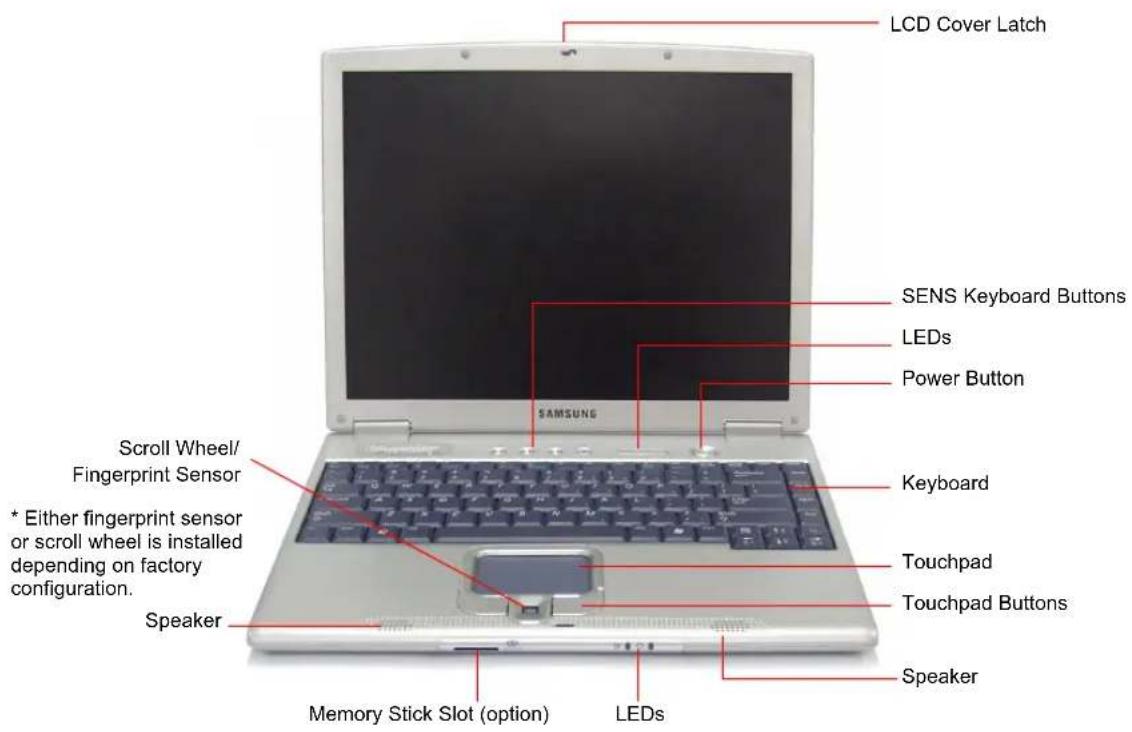
Right Side
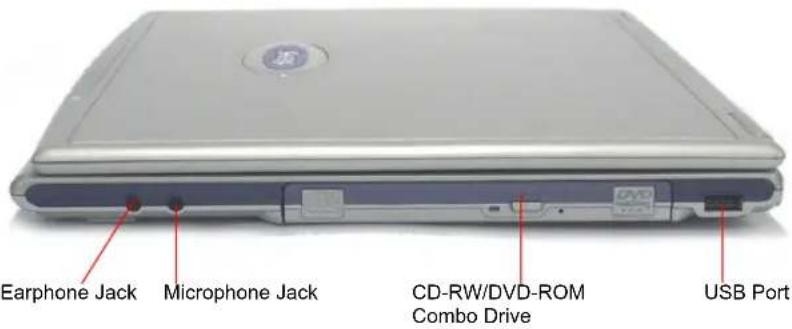
Left Side
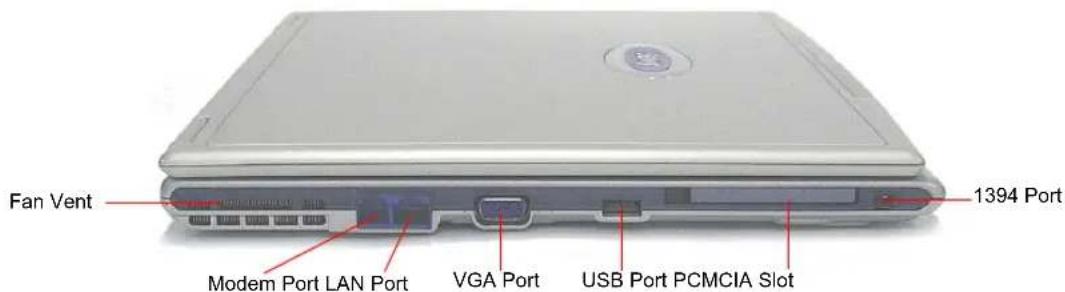
Back Side
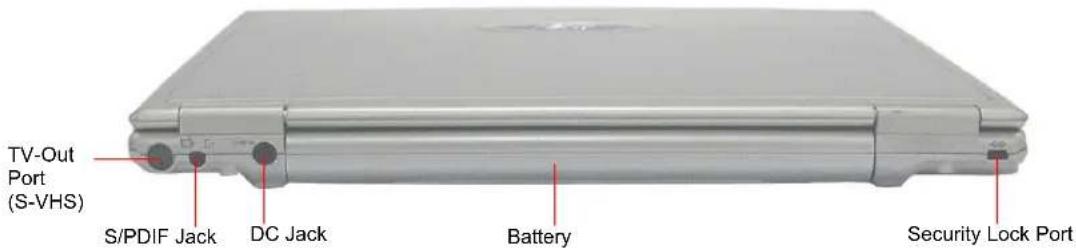
Bottom
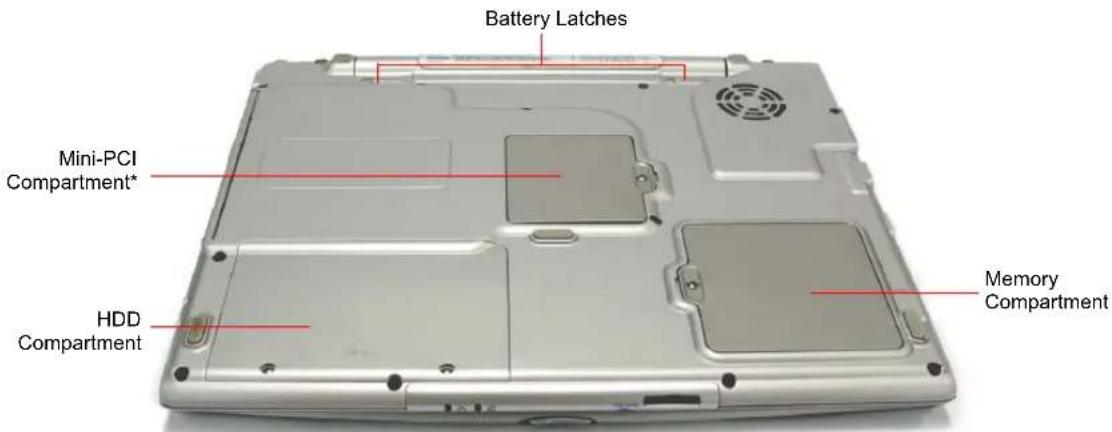
* Wireless communication module(option) is installed in the mini PCI compartment.
Using Your Computer for the First Time
This section gives you detailed information on using your computer for the first time.
Turning On the Computer
To turn on the computer's power for the first time:
- Install the battery and connect the AC adapter according to the Installation Guide.
- Slide the LCD cover latch to the right.
- Lift up the cover.
- Press and then release the power button.
The power LED is on when the computer's power is on.
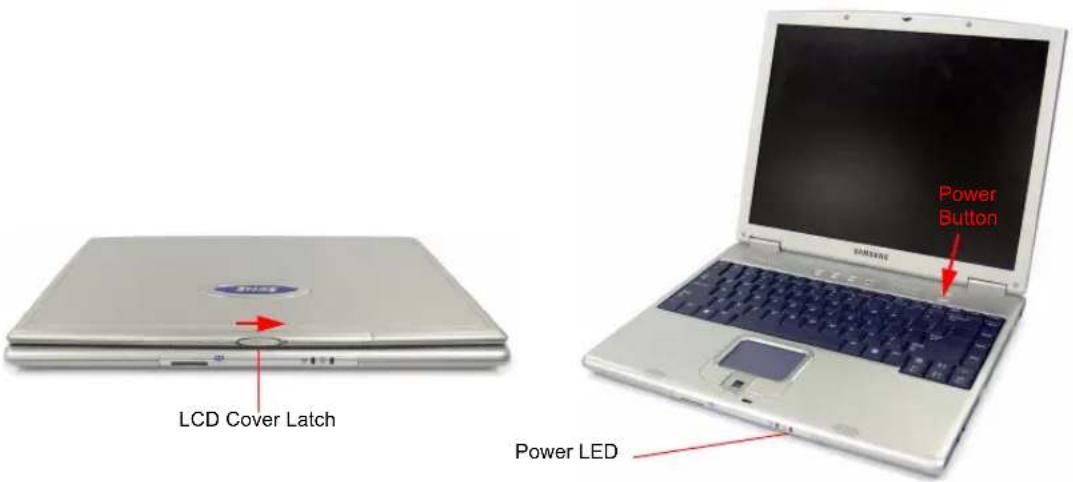

Initial Computer Startup:
The first time you start your computer you will see the operating system registration screens. Simply read each screen and follow the simple directions. You must complete this process in order to use your computer. A tutorial is provided if you require it.
Prior to shutting down your computer ensure all of your data and current work are saved. The system will ask if you wish to save any unsaved work, saving your work first will speed the shutdown process.
To turn off the computer, complete the following steps:
- Click on the taskbar.
If you need to restart your computer after software (re)installation or because it is not responding select the Restart option in step 3 below.
-
Click Shut Down Computer to display the shutdown popup window shown below.
-
Click Turn Off to complete the shutdown sequence.
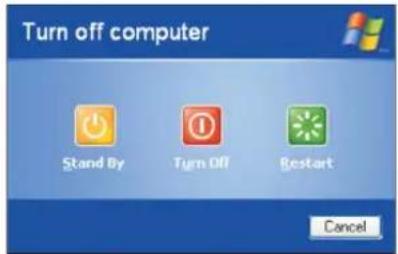

Power Off:
If the system does not power off, then press and hold the power button for over 4 seconds. See "Using Power Management Options" on page 66.
Power Button Functions:
The power button has several functions other than just turning on and off your computer, see "Using Power Management Options" on page 66.
You can also perform a soft boot by saving your files and pressing
Click Shut Down > Restart.
You can perform a cold boot by pressing the power button for more than 4 seconds to turn the computer off, waiting more than five seconds, and then pressing the power button to turn the computer on. The system may perform some extra checks during the restart.
The following information helps you avoid potential problems as you use your computer:

Do not try to disassemble your computer. Opening the system chassis voids your warranty. Only an authorised manufacturer service center can replace or add any parts inside the chassis.
- Follow all the instructions and cautions in your computer user documentation.
- The LCD has a polarized surface and can be damaged easily. To prevent damage, avoid touching the screen.
- Use only approved AC adapters, auto adapters, memory modules and other options.
- Because a notebook computer is small and has restricted air flow around components, it is more likely to overheat than a desktop computer. A fan inside your computer runs when needed to help eliminate heat. Make sure the fan vent on the left side of your computer is not blocked when you use the computer. Occasionally check the vents and remove any accumulated dust on the outside.
- Avoid using or storing the computer in extremely hot or cold areas, such as a car on a hot day. Keep the computer away from heaters and out of direct sunlight. Exposure to excessive heat may damage computer components. If you have left your computer in a hot place, let it cool down slowly to room temperature (with the LCD panel open) before using it.
- Do not remove the memory-module compartment door, or try to install a memory module when the computer is on. (For information on installing memory modules, see “Installing a Memory Module” on page 80.)
- Set up your computer work area to avoid physical strain. Sit with your back straight and supported by your chair. Adjust your chair or work table so that your arms and wrists can remain in a relaxed position, parallel with the floor. Avoid bending or twisting your wrists as you work. Your hands should “float” slightly above the keyboard. Refer to a book on office ergonomics for more information on setting up your work area.
- Take frequent breaks from working at the computer to rest your eyes and stretch your muscles.
- Remember to save your data files frequently and to make backup copies of your files.
Air Travel
If you are travelling by air, follow these tips:
- Take the computer with you as carry-on luggage. Do not check the computer with your baggage.
- Allow the computer and disks to go through the X-ray security devices. Do not hand-carry disks through the walk-through metal detectors, which can cause loss of data.
- Make sure that the battery is charged or the power cord is easily accessible. You may be required to turn on the computer for airport security personnel.
- Be prepared to turn off the computer during take off and landing.
Locking your Computer
As a precaution when you are travelling or using your computer in an unsecured area, you should keep your computer as safe as possible. An option to do this is the Security Lock System. Follow the Security Lock System manufacturers instructions for specific installation and use. The following figure shows generally how to use the lock.
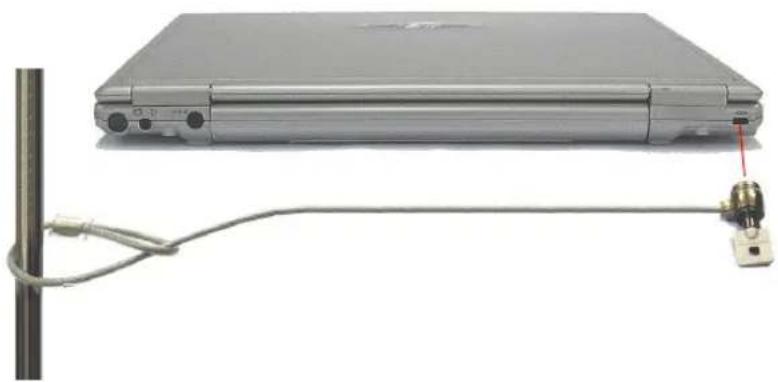
natural_image
Laptop with attached sensor and cable, no visible text or symbolsDo not spill anything on your computer. The best way to avoid spills is to avoid eating and drinking around your computer. If you do spill something on your computer, turn off your computer, unplug it immediately, and do the following:
- If you spill liquid on the keyboard, drain as much of the liquid from the keyboard as possible. Be careful not to let the liquid drip onto the LCD panel. Allow the system to dry for several days before trying to use it.
- If you spill liquid on an external keyboard or keypad, unplug it and drain as much of the liquid as possible. Allow the keyboard to sit at room temperature for a full day before trying to use it.

Sweet liquids leave a sticky residue that may jam the keyboard despite your efforts to dry it.
- If you spill liquid on the LCD panel, clean it immediately with a soft cloth and denatured alcohol or a proprietary LCD screen cleaner. Do not use water, window cleaner, acetone, aromatic solvent, or dry, rough towels to clean it.

Some liquids damage the polarized LCD screen. If your screen is damaged, contact your authorized manufacturer's service center for a replacement.
Storing the Computer for Long Periods
If possible, leave the power cord connected to the computer and an electrical outlet when the computer is not in use. This extends the life of the battery and keeps the battery fully charged.
If you will not be using the computer for a long period of time (a month or more), you should charge the battery until it is completely full. After you have done so, remove the battery from the unit.
Using the Keyboard
Your computer has an 87/88-key keyboard. By pressing designated key combinations, you can have access to all the key functions of a full-sized keyboard.
Function & Special Purpose Keys


Although the layout of the keys on your computer's keyboard is different from that on a desktop computer's keyboard, the keyboard feels like a full-sized keyboard when you use it.
The keys on the keyboard can be grouped into the following categories:
- Full-sized Alphanumeric typewriter keys are arranged like a standard typewriter keyboard and are used for text entry. The Windows keys on either side of the spacebar open Windows menus and perform other special functions.
- Function keys, when pressed together with the
key, enable special functions. - Cursor and Screen control keys move the cursor. They may perform other functions, depending on your software.
To clean the computer keyboard, use slightly damp cotton swabs. Scrub the keys and the surface around the keys.

Do not allow liquid to drip into the keyboard or you may damage the keyboard.
Using the Numeric Keypad
Your keyboard includes a numeric keypad, which is a group of keys that you can set to type numbers and mathematical symbols, such as the plus sign. A number or symbol on the right corner of each keypad key shows its numeric function.
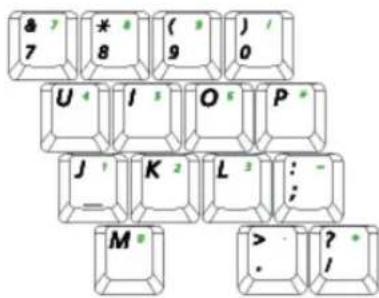
Press
While the numeric functions are enabled, you can temporarily return a key to its normal function by pressing the key and the
To turn the numeric keypad off, press
Using Special Function Keys
The function key activates special functions when it is pressed in combination with another keys. Table 2 shows the special key combinations.
Table 2. Description of Special Function Key Combinations
| Key Name Key Function | ||
| Esc | Rest Puts the computer into Suspend mode. To resumenormal operation from rest, press the power button. | |
| F2 | Gauge Displays the battery gauge and the power source inthe upper-left corner of your screen. The gaugecloses in a few seconds. | |
| F4 | LCD/CRT Switches the display between the LCD, the externaldisplay device, and simultaneous display on both theLCD and the external display device. | |
| F6 | Mute Mute Mutes the audio. | |
| F7 | S/PDIF Toggles the S/PDIF function On/Off. | |
| F11 | Num Lock Num Lock Activates the numeric keypad. | |
| F12 | Scroll Scroll In some applications, sets the cursor-control keys toscroll the page up or down while the cursor positiondoes not change. Pressing key combination againturns off the scrolling function. | |
| Up Arrow Brightness | Increases the LCD brightness. | |
| Down Arrow Brightness | Decreases the LCD brightness. | |
| Right Arrow | Volume Up Increases the audio volume. | |
| Left Arrow | Volume Down Decreases the audio volume. | |
When you press a function key combination, the system sound may be temporarily muted.
User Defined Buttons (SENS Keyboard)
You may program the four buttons to the left of the power button to start any program you have installed on your computer.

The default settings for these buttons are:
| Icon Name Function | |
| Internet Button Launches Internet Explorer. | |
 | E-Mail Button Launches Outlook Express. |
| [4xww] | User Button Executes user-defined action. |
| [5xwd] | WLAN/Bluetooth Turns WLAN/bluetooth on and off.On/Off Button (If you do not have WLAN/Bluetooth module installed, an additional User Button is provided instead.) |

What is Bluetooth?
Bluetooth is a worldwide standard for the wireless exchange of data between two devices.

Using Wireless LAN/Bluetooth Button
Loading or unloading wireless LAN/Bluetooth driver takes about 5 seconds. Therefore, if you turn wireless LAN/Bluetooth on/off using the wireless LAN/Bluetooth button, the button does not work in 5 seconds. (For wireless LAN/Bluetooth installed models)
To reprogram the Sens Keyboard, follow the steps below:
-
Double-click icon on the Windows taskbar, the Key Setting window is displayed.
-
Use the Browse button to locate the program you wish to assign to the SENS Keyboard button selected.
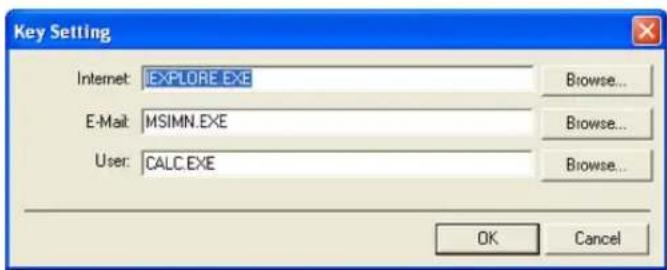
-
Click on your program choice to select it. Click Open.
-
Click OK to close window and complete programming the Sens Keyboard.
Using the Touchpad
Your computer is equipped with a touchpad, which is an integrated-pointing device that is used to perform standard mouse functions. The touchpad is an advanced and reliable pointing device that works with a touch of your finger.
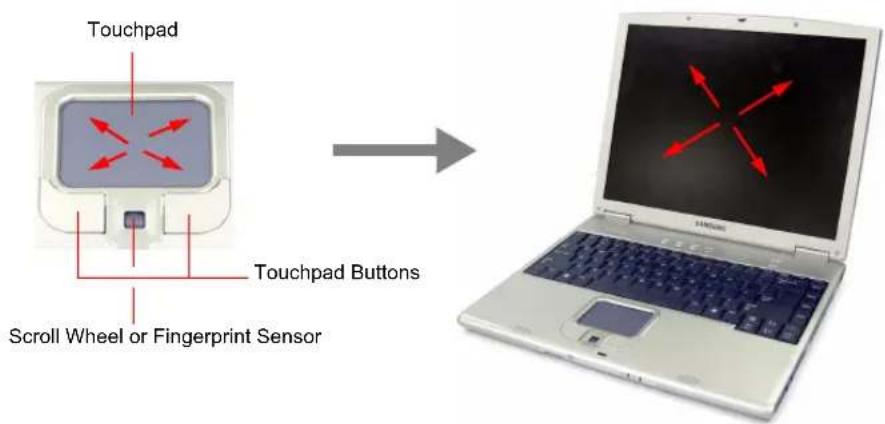

Scroll Wheel Use
If the scroll wheel does not function properly, install the scroll wheel driver provided on the Software CD.
Press on the touchpad gently. The touchpad responds to light pressure.
Action Process and Comment
Click/Tap Process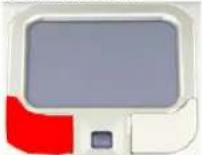 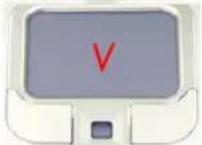 | Depress the touchpad left button and release or position the pointer over the object and quickly tap the touchpad once with your finger.This action is called clicking.CommentThis will cause a process to begin or select an object on the screen. |
Double-click/Tap Process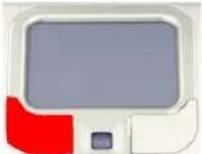 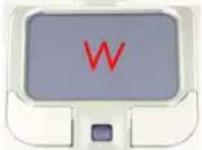 | Quickly click the left touchpad button two times or position the pointer over the object and quickly tap the touchpad twice with your finger.This action is called Double-clicking.CommentThis will cause a process to begin or open a file folder. |
Click-Hold Process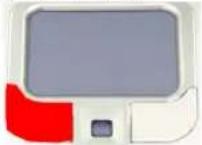 | Depress the left touchpad button and do not release.CommentThis is used to move/drag objects to new locations. See "Drag (Move)" on page 18. |
Right-click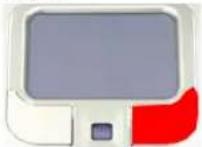 | ProcessPosition the pointer over the object. Quickly press and release the right button once.This action is called Right-clicking.CommentThis is usually used to obtain information about an object or access a short cut menu. |
Scroll Up/Down Process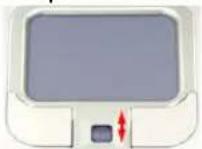 | Roll the wheel up/down to display upper/lower part of current window.(Supported when you have the scroll wheel option.) |
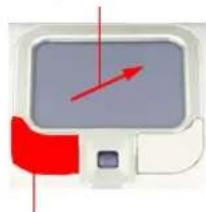
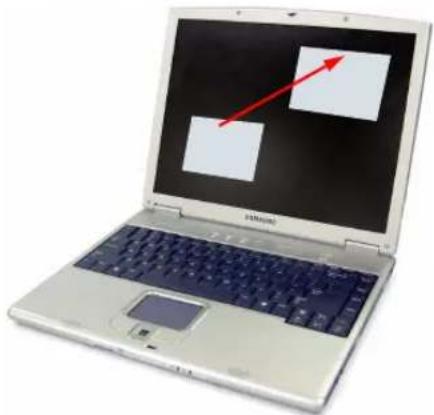
To move a window on the desktop, complete the following:
-
Click the window title bar of the window which you want to drag using the touchpad.
-
Press the left touchpad button and hold it.
-
Drag the window using the touchpad.
② Drag your finger to move the window.
natural_image
Simple diagram of a computer monitor with a red arrow pointing to the screen (no text or symbols)① Click the Window Title Bar and Hold.
natural_image
Laptop with a red arrow pointing to two white square buttons on a black screen (no text or symbols visible)
Area or Multiple item selection:
The drag function may be used to select an area or multiple items in an area by clicking in one area and then dragging to create a selection window. The items inside the window will be selected.
Reading the System Status Lights
System Top
System Status lights show the status of computer functions.

LED Name Function
 | Num Lock Changes a portion of the keyboard to a numeric keypad.See "Using the Numeric Keypad" on page 12. |
 | Caps Lock Changes all alphabet letter input into capital letters.No changes occur to numeric and special keys. |
 | Scroll Lock Scroll lock in certain software. |
| [YSxK] | HDD Access Blinking Green - HDD is being accessed. |
System Bottom

LED Name Function
| Battery Status Green - No battery pack installed/battery fully charged.Amber - Charging.Blinking - Bad Battery. | |
| Power Green - System power on.Blinking - Standby mode. |
Connecting to the Internet
This section explains how to connect you to the internet. For details on how to establish the connection contact the Internet Service Provider (ISP) or system administrator (SysAdmin).
Using the Modem
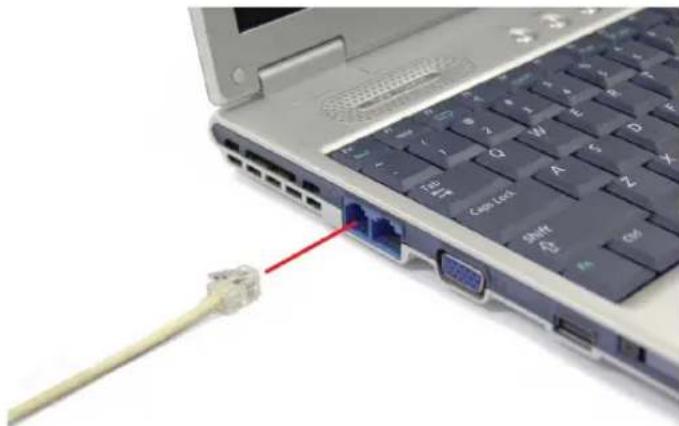
Install the Modem cable by simply plugging the cable into the modem slot as shown in the figure below.
Your notebook computer may have both a modem and a LAN socket, please ensure you plug the modem cable into the correct socket.
natural_image
Close-up of a laptop keyboard with two USB ports and a cable inserted into the front panel (no visible text or symbols)- Contact your Internet Service Provider to obtain information or CD required to make the connection in your area.
- After the cable is connected create a "Dialup" connection by clicking Start > Control Panel > Network and Internet Connections.
- Click Set up or change your Internet connection > Setup to start the connection wizard.
- Follow the instructions in provided in the Make New Connection wizard.
Precautions Before Use
Country Selection
Country Selection:
Because you may use your computer in more than one country, please ensure you select the country you are calling from to avoid connection problems.
To change the country selection proceed as follows:
- Click Start > Control Panel > Network and Internet Connections.
- Click Phone and Modem Options.
- Click on the connection you wish to edit in the Locations: box.
- Click Edit in the Dialing Rules Tab.
- Select the Country/region you are calling from in the General tab.
- Click OK to close the "Edit Locations" box.
- Click OK to close "Phone and Modem Options" box.

Digital Phone Lines:
If you connect the modem to a digital phone line (such as a company 4-wire system), the modem may be damaged.
DOS support
- Windows XP: Does not support pure DOS mode and the modem does not support a DOS box in Windows. So you cannot use a communication application which runs under DOS.
Using the Modem on a PBX system
If you use a Windows Communication Program:
- Click Start > Control Panel > Network and Internet Connections.
- Click Phone and Modem Options.
- Click Properties in the Modems tab section.
- Check off "Wait for dial tone before dialing" check box in the Modem tab section.
- Click OK to close the dialog box.
- Click OK to close "Modem Properties" dialog box.
If you use a simple terminal program (i.e. hyper terminal):
Type the "ATX3&W" or "ATX3" command as an initialization command.
MODEM Notes:
-
In order to use the V.90 feature, be sure to check if the standards supported by the on-line service provider and the modem are identical. Download speed is limited to 53Kbps. Upload speed is limited to 31.2Kbps. Speeds can vary by line condition.
-
If you use a PBX phone system, you can not connect using the V.90 mode.
-
Internationally connected calls will be limited to 33.6K (Max.)
Configuring the Wired LAN Connections
You may connect to the network using either a LAN cable or by establishing a wireless connection if factory option is installed.
Cable Connection
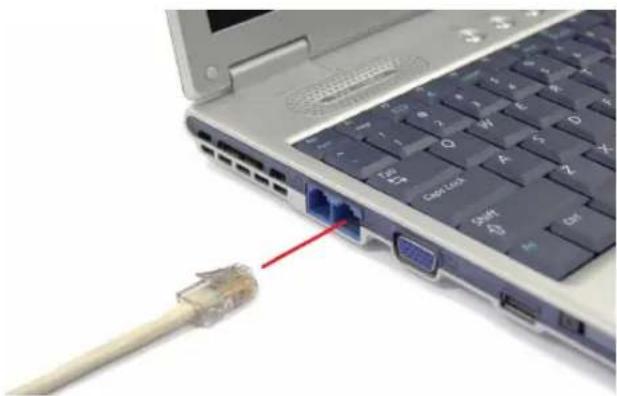
Install the LAN cable by simply plugging the cable into the slot in the left side of the computer.
natural_image
Close-up of a laptop keyboard with an attached Ethernet cable showing port connections (no text or symbols visible)Your computer's LAN adapter is ready to use for most situations, however if your system does not have access to a DHCP server or you wish to personally configure your LAN connection, proceed as outlined in “Configuring Network Environment” below.
Network Protocols:
You may need to consult your SysAdmin if their network protocols and settings are required for your LAN environment.
Configuring Network Environment
Configure the Network Adapter as follows:
- Click Start > Control Panel > Network and Internet Connections.
- Click icon (Network Connections).
- Right-click the icon (Local Area Network) then click Properties button.
- Select Internet Protocol (TCP/IP) in the "This connection uses the following items:" box.
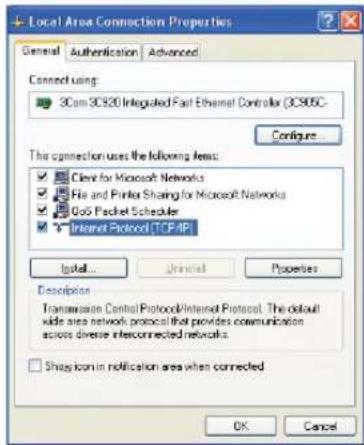
- Click Properties. The TCP/IP Properties window opens.
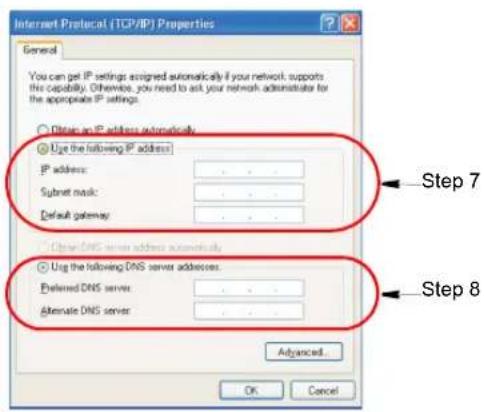
- Click "Use the following IP address" in the General tab.
- In the "Use the following IP address" box, enter your IP address:, subnet mask: and Default Gateway:.
- In the "Use the following DNS server addresses" box, enter your Preferred DNS server: and Alternate DNS server:
- Click OK when you finish the TCP/IP set-up.
Using Both DHCP and Static IP Simultaneously
When you are alternatively using networks with either DHCP or static IP addressing, you can use both of the network connections without reconfiguring using alternative settings that enable simultaneous configurations of DHCP and static IP.
This function is provided only when your operating system is Windows XP.
-
Click Start > Control Panel > Network and Internet Connections > Network Connections > Local Area Connection, press the right button of the touchpad, and then select Properties.
-
Select the Internet Protocol (TCP/IP) item, and then click Properties.
-
In the Alternate Configuration tab, click User configured, and then enter the appropriate values for the following: IP address, Subnet mask, Default gateway, Preferred and alternate DNS server, and Preferred and alternate WINS server.
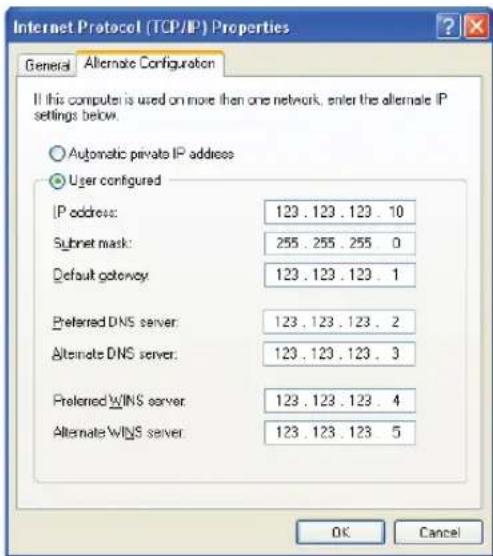
- When the configuration has been completed, click OK. Now you can connect to both networks using DHCP and static IP respectively.
Wake On LAN Function
To use
- Click Start > My Computer > My Network Places > View network connections.
- Click the right button on the touchpad over Local Area Connection, and select Properties.
- Click Configure, and select Power Management tab. Select 'Allow this device to bring the computer out of standby', then click OK. Restart the system.
If the system in rest mode is activated when there is no received signal, use the system after disabling
Connecting wired LAN while using wireless LAN may not execute
Configuring the Network Environment Settings for Wireless Network (WLAN)
A wireless network (Wireless LAN) environment is a network environment that enables communication between multiple computers at home or a small-size office through wireless LAN devices.
Using the wireless network connections between the systems, you can use normal network functions such as sharing of files, folders and printers. Using computer-to-computer network (ad hoc) connections, you can access the Internet through a computer connected directly to the Internet even if your computer is not directly connected to the Internet. For details, see “Using Network Services” on page 37.
The information provided in this section only applies to models equipped with an optional wireless LAN device.
Wireless network connections can be classified into two categories.
1) Access Point
You can connect to an AP to use the network. This is possible only in an environment equipped with an AP. For details, see “Connecting to an Access Point (AP)” on page 27.
What is an Access Point (AP)?
An AP is a network device that bridges wired and wireless LANs, and corresponds to a wireless hub in a wired network. You can connect multiple wireless LAN installed computers to an AP.
2) Computer-to-computer (ad hoc)
This is also called a peer-to-peer or ad hoc network.
In computer-to-computer wireless networks, you can wirelessly connect 2 or more computers that have wireless LAN modules. Using computer-to-computer wireless networks, you can access the Internet through a computer that is connected to the Internet even if your computer is not directly connected to the Internet. For details, see “Connecting to computer-to-computer networks (peer-to-peer or ad hoc)” on page 28.
Connecting to an Access Point (AP)
This section describes how to connect to an AP. You can use the network when you are connected to an AP.
In this section, the configuration procedures are described for Windows XP installed computers. For information on the configuration procedures for other operating systems, see "Using Wireless Networks in Other Operating Systems" on page 33. Please ask your network administrator about detailed configuration information such as the network key (encryption key).
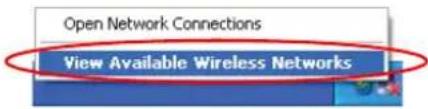
- Right-click on the Wireless Network Connection (图标) icon on the taskbar, and select View Available Wireless Networks.
- Select your desired AP (e.g. Test) to connect, and enter the encryption key for the AP in the Network key field, and click Connect.
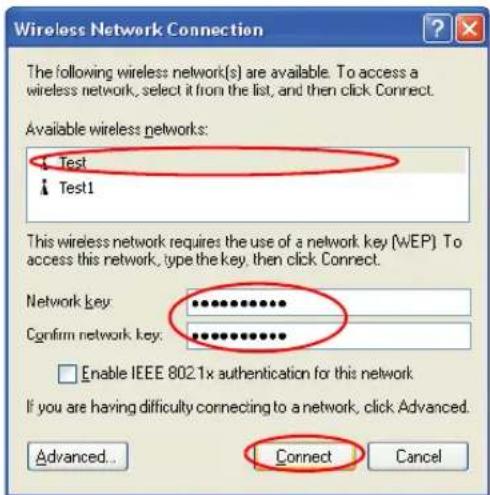
If the network key is not configured for the desired AP, select 'Allow me to connect to the selected wireless network, even though it is not secure'.
Now you are connected to the AP, and you can access the network.
Checking the connection status
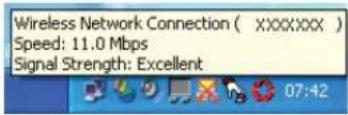
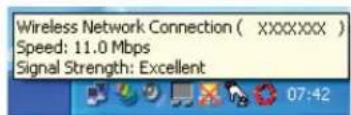
Move the mouse pointer over the Wireless Network Connection ( ) icon on the taskbar, and the connection status is displayed.
Connecting to computer-to-computer networks (peer-to-peer or ad hoc)
In computer-to-computer wireless networks, you can wirelessly connect 2 or more computers that have wireless LAN modules.
You can connect by completing the following steps:
- Step 1. Set up a computer-to-computer network on a computer.
- Step 2. Connect to the configured computer from other computers.
In this section, the configuration procedures are described for Windows XP installed computers. For information on the configuration procedures for other operating systems, see "Using Wireless Networks in Other Operating Systems" on page 33.
Step 1. Setting up a computer-to-computer network
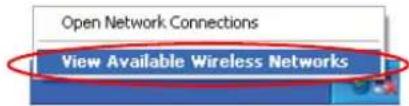
- Right-click on the Wireless Network Connection ( ) icon on the taskbar, and select View Available Wireless Networks.
- Click Advanced.

- On the Wireless Network tab, click Advanced.
- Clear 'Automatically connect to non-default network' check box, if it is selected. Select 'Computer-to-computer (ad hoc) networks only', and click Close.
-
In the Wireless Networks tab, click Add.
-
Enter the network name (e.g. samsung), and unselect 'The key is provided for me automatically'. Enter the encryption key in the Network key field, and click OK.
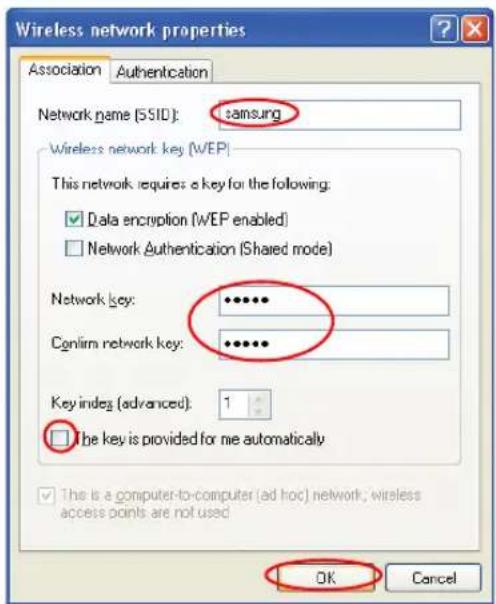
To prevent a network connection from an unauthorized user, it would be better to configure a network key (encryption key). A network key consists of 5 or 13 alphanumeric characters (e.g. magic), or of 10 or 26 hexadecimal numbers (a hexadecimal number is represented by numbers '0' to '9' or letters 'a' to 'f').
- Check that the configured network name (e.g. samsung) is in the 'Preferred networks' item, and click OK.
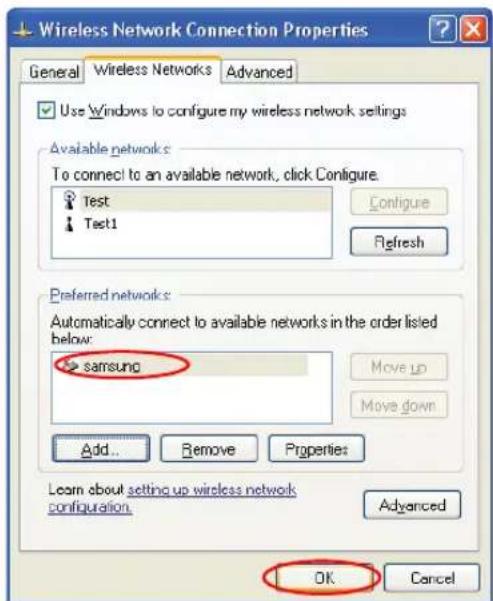
Now your wireless network setup has been completed.
Step 2. Connecting to the configured computer
-
Right-click on the Wireless Network Connection (图标) icon on the taskbar, and select View Available Wireless Networks.
-
Select the wireless network name (e.g. samsung) specified in "Connecting to computer-to-computer networks (peer-to-peer or ad hoc)" on page 28, enter the encryption key in the Network key field, and then click Connect.
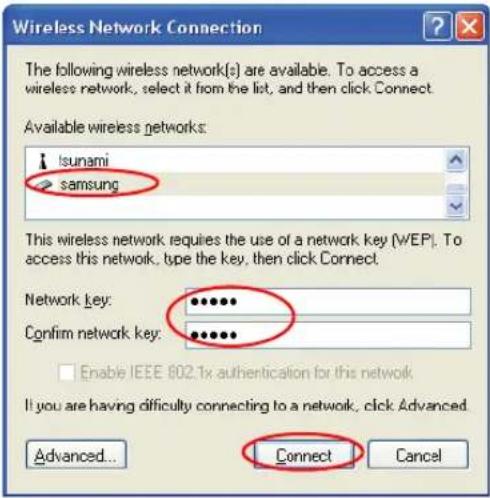
If the network key is not configured in "Connecting to computer-to-computer networks (peer-to-peer or ad hoc)" on page 28, select 'Allow me to connect to the selected wireless network, even though it is not secure'.
The two computers are connected and are able to communicate with each other. When the computers are connected, the 'Wireless Network Connection' message is displayed for a short time over the Wireless Network Connection icon of the two computers.
Checking the connection status
Move the mouse pointer over the Wireless Network Connection ( ) icon on the taskbar, and the connection status is displayed.
Using Wireless Networks in Other Operating Systems
In a operating system other than Windows XP, you have to install additional wireless LAN configuration program, and configure wireless network settings.
To use wireless network connection, complete the following procedures.
- Step1. Install the wireless LAN configuration program (PROSet).
- Step2. Configure wireless network settings through the wireless LAN configuration program.
Step 1. Installing the wireless LAN configuration program (PROSet)
You can install the wireless LAN client administrator program following the instruction displayed automatically when you insert the system software CD. Insert the system software CD into the CD-ROM drive, and install the wireless LAN configuration program.
To not display 'Intel Configuration Service' window afterward
After installing the wireless LAN configuration program, select "Do not show this again." check box, then click Close.
Step 2. Using the wireless LAN configuration program (PROSet)
Double-click the wireless LAN program ( ) icon on the taskbar.
(Or, click Start > All Programs > Intel Network Adapters > Intel(R) PROSet.)
In some languages, some buttons on the window may not be displayed.
Resize the window to use the program.
Configure wireless network settings in PROSet following the procedures below.
To connect to an Access Point:
To connect to an access point or existing computer-to-computer (Ad Hoc) network, refer to the following procedures. (To create a new computer-to-computer network, refer to the following "To create computer-to-computer (Ad Hoc) network" section.)
- Click Scan in the Networks tab.
- Select the name of desired access point or computer-to-computer network to connect from the searched available networks list, and click Connect.
If your desired network does not appear, click Refresh.
An access point is represented by ( ) icon, and a computer-to-computer network is represented by ( ) icon. An ( ) icon is displayed in front of an access point or a computer-to-computer network with configured security settings.
- Select "Yes, create a profile for this Network.", and click OK.
- Enter Profile Name and click Next.
- Enter the network authentication, data encryption (WEP), key index, and password configured for the target access point or computer-to-computer network in the Security Settings window, and click Finish.
The network authentication, data encryption (WEP), key index, and password of a access point are configured in the access point management program. For the information on the security information, check the security settings of the access point or ask your wireless network administrator.

To connect to an existing computer-to-computer (Ad Hoc) network, enter the password configured when creating the computer-to-computer network for the first time. You do not need to enter network authentication and key index.

Security Settings
- Network authentication: Network authentication has two options of Open System and Shared Key. If you select Open, no authentication procedure is used. If you select Shared, WEP key is used as authentication procedure. Default option setting is Open.
- Data encryption (WEP): IEEE 802.11 WEP (Wired Equivalent Privacy) standard has two security levels of 64-bit key (40-bit key for some cases) and 128-bit key.
- Key index: Select the current encryption key index used by the access point out of 1 to 4.
- To use pass phrase: Click Use pass phrase to activate, and enter 5 (for 64-bit) or 13 (for 128-bit) alphanumeric characters (represented by 0-9, a-z, or A-Z).
- To use WEP key: Click Use WEP keys to activate, and enter a hexadecimal number (represented by 0-9 and A-F) of 10 (for 64-bit) or 26 (for 128-bit) digits in the WEP key field.
When a wireless connection to an access point is established, connection icon ( ) appears in front of the name of connected profile.
To create a computer-to-computer (Ad Hoc) network:
To create a new computer-to-computer (Ad Hoc) network or to connect to a hidden access point (Stealth/Closed Mode), refer to the following procedures.

A hidden access point is an access point that exists, but is configured not to be detected by the scan operation to prevent access attempts from unauthorized users.
-
Click Add in the Networks tab.
-
Enter Profile Name and Network name (SSID), select Operating Mode, then click Next.

What is a network name (SSID)?
Network name (SSID) is a name that a wireless adapter uses for identifying connection. Enter the name of computer-to-computer network to create (e.g., P2P) or the name of access point to connect. The network name identifies cases. (capital and lowercase) For the name of access point, check the settings of the access point, or ask your wireless network administrator.
Operating Mode:
- Infrastructure - Connect to an Access Point - Select to connect to an access point.
- Ad hoc - Connect directly to other computers - Select to create a computer-to-computer (Ad Hoc) network.
- Configure password setting to be used for computer-to-computer network connection in the Security Settings window.
To connect to an access point, enter the network authentication, data encryption (WEP), key index, and password configured in the access point.

It is recommended to configure data encryption for security purposes when creating a computer-to-computer network connection profile. For more information on security settings refer to the security settings in Connecting to AP or Help.
When you are creating a computer-to-computer network connection profile, the network authentication setting is disabled.
- When a profile creation is completed, the new created profile appears in the profiles list in the Networks tab. Select corresponding profile, and click Connect to connect to the created profile.
When a wireless connection to the created profile is established, connection icon ( ) appears in front of the name of connected profile.
While the computer is connected to the network, you can use network services to share files, folders, and printers. Using computer-to-computer wireless networks, you can access the Internet through a computer that is connected to the Internet even if your computer is not directly connected to the Internet.
Network services are provided for the computers that are connected to the network through wired or wireless network connections. For details, see "Configuring the Wired LAN Connections" on page 22 and see "Configuring the Network Environment Settings for Wireless Network (WLAN)" on page 26.
Sharing files or folders
This section describes how to share files and folders between computers connected to the network.
To share files, complete the following procedures:
- Step 1. Configuring the sharing of files and folders on a computer.
- Step 2. Accessing shared files and folders from another computer.

When a file or folder is shared, anyone connected to the network can open and delete the shared file or folder.
Configure a file sharing network only when the network is secure, and do not share important data.
Step 1. Configuring Sharing
- Right-click the target file or folder to share in My Computer, and select Sharing and Security.
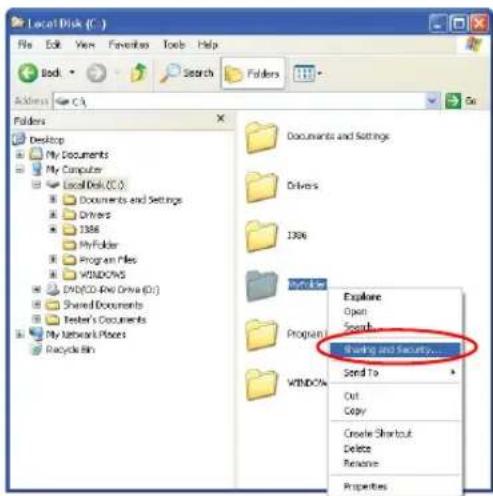
- Click 'IF you understand the security risks but want to share files without running the wizard, click here'.

It has the same security effect as that of the 'Network Setup Wizard'. This screen does not appear if Internet Sharing Network Wizard has been installed in the computer-to-computer wireless network environment.
-
Select 'Just enable file sharing', and click OK.
-
In the 'Network sharing and security' field, select 'Share this folder on the network', enter the share name, and click OK.
Be cautious when selecting 'Allow network users to change my files' since other network users can change the files in the shared folder.
The file and folder sharing configuration has been completed.
Step 2. Using Shared Files or Folders
This section describes how to access shared files or folders if your computer is a member of the same workgroup.
-
Click Start > My Computer. Under Other Places, click My Network Places in your computer.
-
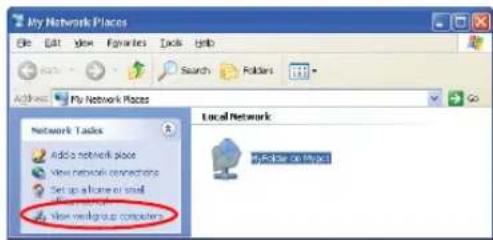
Click 'View workgroup computers', and click the desired computer to access the shared file.
If your computer is a member of another workgroup:
-
Click Other Places > Microsoft Windows Network.
-
Click the desired workgroup.
-
Click the desired computer to display the shared files or folders.
Sharing Printers
This section describes how to share a printer between computers connected to a network.
To share a printer, complete the following procedures:
- Step 1. Configure printer sharing in the computer connected to the printer
- Step 2. Add and use the shared printer in other computers on the network.
Step 1. Configuring Printer Sharing
- From the computer connected to the printer, click Start > Printers and Faxes.
- Right-click the printer you want to share, and click Sharing.
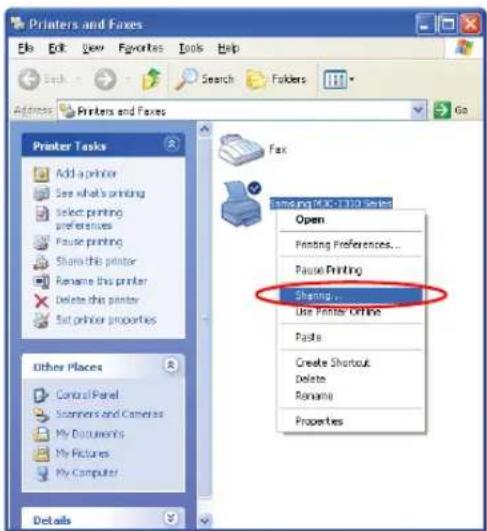
- Select 'Share this printer', enter a share name for the shared printer, and click OK.
- In the Printers and Faxes window, you will find the printer icon has been changed to another icon on a hand.

Samsung MJC-1310 Series
Step 2. Adding and Using a Shared Printer.
- From a different computer that wants to use the shared printer, click Start > Printers and Faxes.
- Click Add a printer.
- In the Add Printer Wizard, click Next.
-
Select 'A network printer, or a printer attached to another computer', and click Next.
-
Select 'Browse for a printer', and click Next.
-
Select the workgroup or computer, select the desired printer, and click Next.
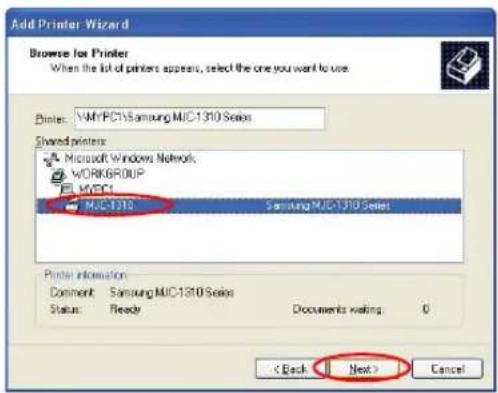
If you cannot find the desired printer, try again after a while.
-
Read the warning about a shared printer, and click Yes to install the shared printer.
-
Select Yes for 'Do you want to use this printer as a default printer?', and click Next.
-
Click Finish.
-
When the printer sharing configuration has been completed, the shared printer appears in the Printers and Faxes window.
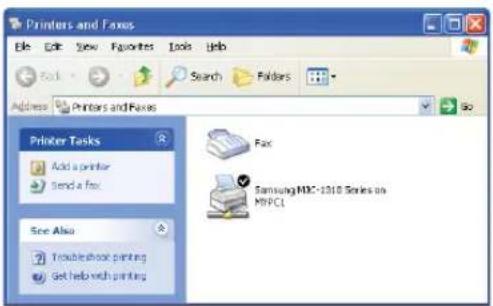
Now you can print using the shared printer even if your computer is not directly connected to a printer.
Sharing an Internet Connection
Using computer-to-computer (peer-to-peer) network connections, you can access the Internet through a computer connected to the Internet even if your computer is not directly connected to the Internet.

To share an Internet connection, the computers should be connected to a computer-to-computer (peer-to-peer) wireless network. For details, see "Connecting to computer-to-computer networks (peer-to-peer or ad hoc)" on page 28.
Also, one of the computers has to be connected to the Internet (external network).
The configuration procedure to share an Internet connection are described for Windows XP installed computers.
To share an Internet connection, complete the following procedures:
- Step 1. Configuring a Internet connection sharing from the computer connected to the Internet.
- Step 2. After completing the shared Internet connection configuration, check that the other computers can access the Internet through the shared Internet connection.
Step 1. Configuring Internet Sharing.
Configuring a shared Internet connection on the computer connected to the Internet.
- Click Start > Control Panel > Network and Internet Connections > Network Connections.
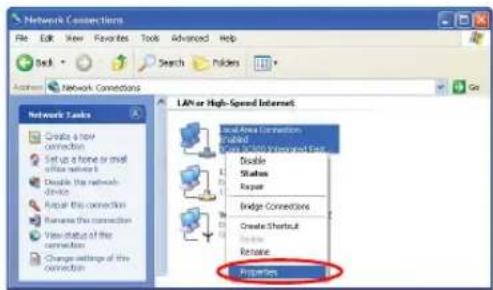
- Right-click on the device connected to the Internet, the external network, and select Properties.
If the computer is connected to the Internet through a wired LAN, select 'Local Area Connection'.
- On the Advanced tab, select 'Allow other network users to connect through this computer's Internet connection', and click OK.
Step 2. Checking the Shared Internet Connection.
When the Internet connection sharing configuration has been completed, the network icon in the Network Connections window is displayed as follows:
Click Start > Control Panel > Network and Internet Connections > Network Connections.
– A computer connected to the Internet.

Local Area Connection
Enabled, Shared
3Com 3C920 Integrated Fast
– A computer sharing the remote Internet connection (other computer).
Internet Gateway

Local Area Connection on MYPC1
Enabled
Local Area Connection on MYPC1
If the icon does not appear after a long time, restart the computer.
Computers on the network can access the Internet through the shared Internet connection only when the computer connected to the Internet is turned on.
Using the CD-RW/DVD-ROM Combo Drive

You have to install the CD Writer software provided on a separate CD to write a CD. For more information, read the manual included in the CD.

You have to install the DVD software provided on a separate CD to view a DVD title.
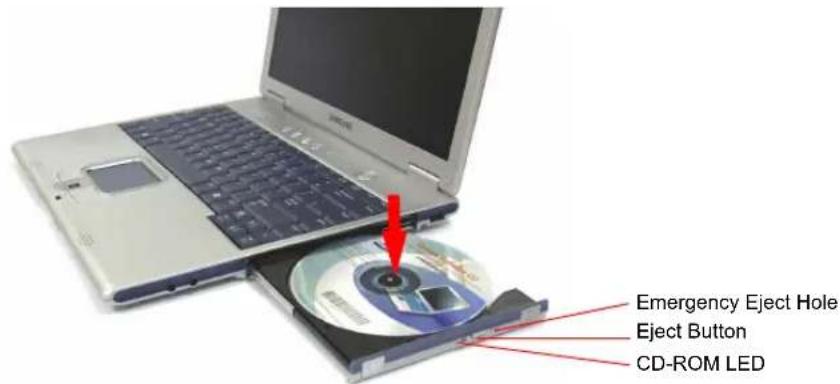
- Press the button on the CD-RW/DVD-ROM Combo drive, and the tray slides out.

CD-ROM Drive Warnings:
Do not place reflective objects other than the CD/DVD disks in the disk slot because of possible hazardous laser emissions. The laser beam used in this CD-ROM drive is harmful to the eyes. Do not attempt to disassemble the CD-ROM drive. Refer servicing to your authorized service center.
Please do not lean or exert undue pressure on the CD-ROM tray as it may cause damage not covered under warranty.

CD-ROM Precautions:
The tray may be stuck, in which case straighten out a paper clip, insert it into the Emergency Eject hole in the front of the CD-RW/DVD-ROM Combo drive and push it until the tray ejects.
A LED on the drive tray is on when the computer is reading from a CD. Do not remove a disc when this LED is on.
To clean a CD/DVD, wipe from the center outwards with clean and dry cloth. Remove the CD/DVD when the drive CD-ROM LED is off.
-
Insert a CD/DVD, label side up (or remove a disc, if you have finished using it).
-
Push the tray in gently to close the drive tray.
Install and/or start a CD-based program as you would run a program on a floppy disk.
Using the Memory Stick (Factory Option)
The Memory Stick is a factory option that will increase your computer storage capacity as well as increase data portability. The Memory Stick may used in many types of equipment such as digital cameras and PDAs for example.
Memory Stick and are a trademarks of the Sony Corporation.
Memory Stick Support
The Magic Gate model is not currently supported.
Inserting the Memory Stick
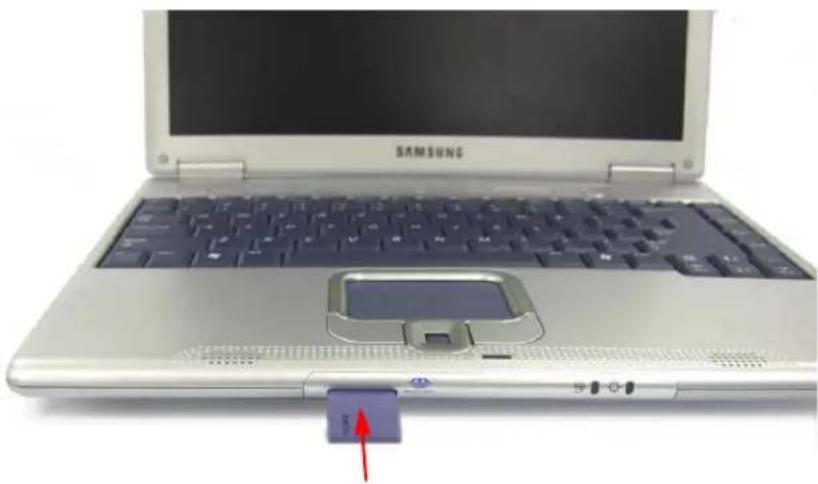
To insert the memory stick proceed as follows:

Ensure you Insert the Memory Stick into the slot with the correct orientation (Name Up) so that the Memory Stick will operate properly and be recognized by the computer.
- Slide the Memory stick into the slot until you feel the first latch catch.
natural_image
Laptop keyboard with a red arrow pointing to the right side of the mouse (no visible text or symbols on the device body)- Then push the Memory stick in until it clicks into place.
Using the Memory Stick
The Memory Stick is used the same as the FDD drive on your computer but with much larger capacity, currently up to 128MB.
Formatting the Memory Stick
The Memory Stick may need to be formatted before use, if so insert it into the slot and format it the same as the FDD Drive.
Protecting Data on the Memory Stick
To prevent overwriting/deleting your data in the Memory Stick, move the slide lock to the "Lock" position.
To see the contents of the Memory Stick:
-
Double-click "My Computer" on the desktop, the My Computer window opens.
-
Double-click the 📄 icon in the Devices with Removable Storage section of the window.
Removing the Memory Stick
To remove the Memory Stick proceed as follows:

Ensure any operations using the Memory stick have completed before you remove it. Otherwise you will corrupt your data.

When you are using Windows 2000, remove a memory stick after at least 20 seconds after finishing a task, such as formatting, copying, or deleting. Removing a memory stick directly after executing a task may cause a problem in Windows 2000.
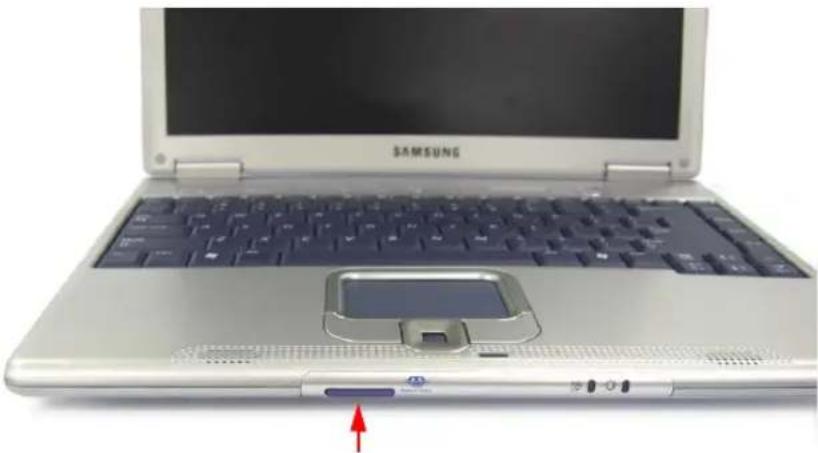
- Push the Memory Stick in until it clicks and release.
natural_image
Front view of a Samsung laptop with visible keyboard and control buttons (no text or symbols on the device itself)- The Memory Stick will pop out about 1 cm and then you can slide it out.
Working with PC Cards
By installing PC Cards, you can add functions to your notebook computer similar to those found on add-in boards for desktop computers. Available PC Cards include:
- Input/output, such as modem, network, video capture, and SCSI cards.
• Storage, such as hard drive and flash memory cards.
Your computer includes the following PC Card support:
• One PC-Card slot: You can install Type I or II cards in the slot.
- CardBus hardware and software: CardBus enables the computer to use 32-bit PCMCIA Cards. Windows supports 32-bit and 16-bit PC Cards.
Maintaining PC Cards
To maintain your PC Cards, follow these guidelines:
- Keep cards away from excessive heat, direct sunlight, and liquids.
- Do not drop, bend, flex, or crush cards when handling.
- Keep dust, magnets, and static electricity away from PC Cards.
- When a card is not in use, carry it in its protective carrying case.
- Some PC Cards include cables that extend from the back of the cards. Be careful not to bend or put excessive strain on these cables.
Using PC Cards
To insert a PC Card into a slot:
- If a dummy card is in place, push the eject button once to pop it outward, then push the eject button again to eject the dummy card.
-
If the eject button is still projecting out, push it firmly in to lock in place. It will protect the eject button from damage.
-
Align the card with a slot and insert the card into the slot until it locks in place.
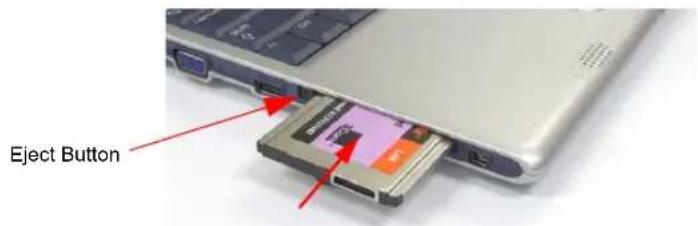
Windows automatically assigns computer resources (such as communication ports and memory addresses) to a PC Card installed in your computer.
To remove a PC Card from your computer:

Use the following procedures to remove PC Cards, or you may lose data that is being stored to a card.
- Click icon on the taskbar.
- Select the card currently in use, and click the Stop button.
The eject button for the card slot operates in two steps, therefore to remove a PC Card:
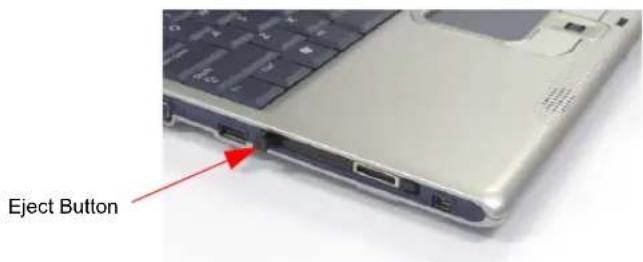
- Push the eject button once to pop it outward then push the eject button again to eject the card.
- Pull the card out of the PC Card slot.
Media Player
The Windows Media player is used to play audio files while the computer is on. You can play audio/video CD files using the Windows Media Player, as well as watching TV, video and listening to the radio through internet. The instructions to play a video CD-ROM are the same as the instructions for the audio CD below.
Playing an Audio/Multimedia CD
To play a CD follow the instructions below:
- Insert a compact disc into your CD-ROM drive.
- Press the eject button on the CD-ROM drive to open the CD-ROM device.
-
Insert a CD, label side up.
-
Carefully push the tray in to close the drive tray. The Windows Media Player button appears on the taskbar if not already there, and the music begins to play. If the disk does not play click Start > All Programs > Accessories > Entertainment > Windows Media Player.

CD-ROM LED On:
A LED on the drive tray is on when the computer is reading from a CD. Do not remove a disc when this LED is on.

If you maximize or restore down the window while playing a media such as an audio CD on Media Player, the screen may not displayed properly for a moment.
Removing the Audio/Multimedia CD
To remove the CD follow the instructions below:
- Click Start > All Programs > Accessories > Entertainment > Windows Media Player to open the Windows Media Player window, if not already open.
- Click Stop in the Windows Media Player window or simply close the Windows media player.
- Press the button on your CD-ROM drive. The drive tray opens and you can remove the CD from the CD-ROM drive.
- For more information on playing compact discs, see the Help menu in the Windows Media Player window.
Dolby Digital & Home Theater System (S/PDIF Port)
This product supports 5.1 channel output, which is a basic function for home theater systems and DVD drives. It provides 3D surround sound and a vivid screen.
Home theater system usually consists of a TV, DVD, 5.1 channel speakers, and a digital amplifier to provide a high-resolution vivid (MPEG2) picture and 3D surround sound (Dolby 5.1 or DTS). With a home theater system, you can enjoy the same vivid picture and sound in your home that you would in a movie theater.
You will need the following to enjoy a home theater system:
- 5.1 channel speaker system / Digital amplifier (Purchased separately).
• DVD drive and DVD program
• S/PDIF cable (Option)
Setting Up Your Home Theater
-
Connect the digital amplifier to the S/PDIF port of your computer.
-
Connect the speakers to the digital amplifier.
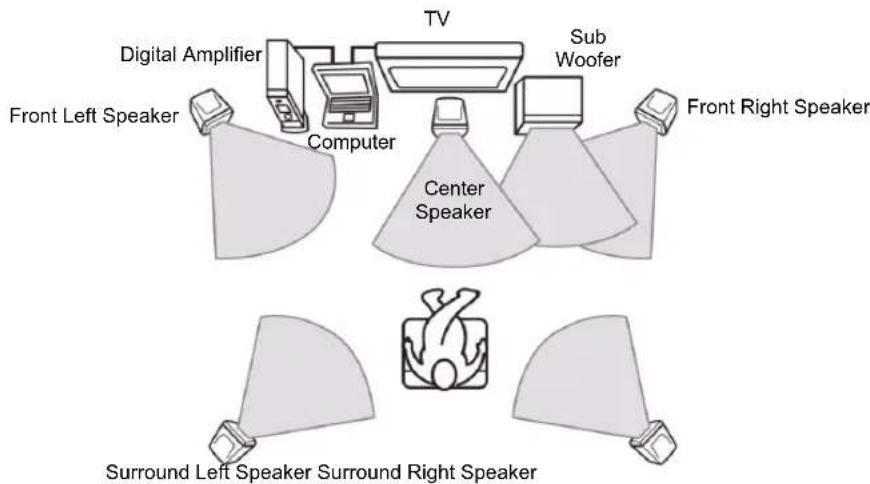
If your computer supports a TV-Out port, you can connect and enjoy a large screen.
After connecting the TV, you will need to select the TV as the display device using the Windows Display Properties window.

After making all connections, ensure you enable S/PDIF:
-
Enable S/PDIF in Windows.
-
Enable S/PDIF in the DVD program.
Using the S/PDIF Connection
- Use

When purchasing a 5.1 channel speaker system, make sure it supports a S/PDIF (optical) port.
Enabling S/PDIF on the DVD Program
When using 5.1 channel speakers, you will need to install the “Power DVD” program on the DVD Installation CD (supplied separately) and then set it up as described below:
- Run the “Power DVD” program and click the settings button. The configurations window pops up.
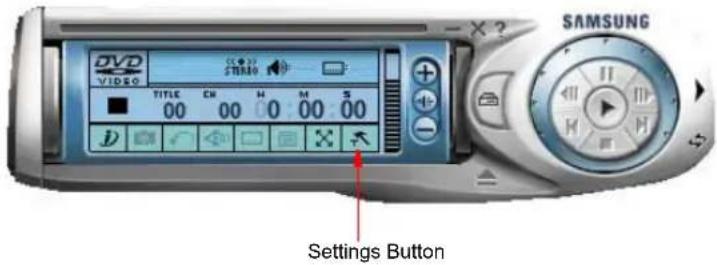
- On the Audio tab, change the Audio Output setting to "Use SPDIF" and click OK.
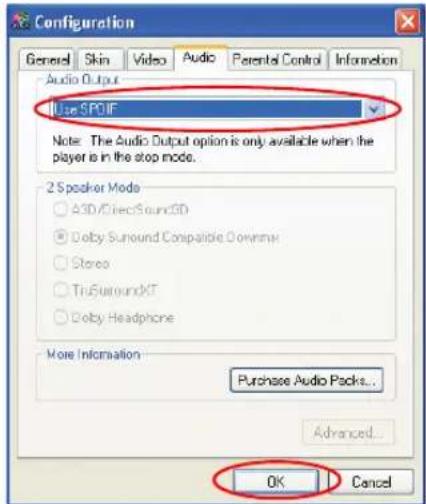
- You are ready to enjoy your home theater system with your own DVD.

To control the sound volume on your 5.1 channel speaker system, use the control on the digital amplifier. (Please refer to the speaker manual.)
The instructions below are for controlling speaker volume when the computer is on.
Using the Keyboard
Changing the volume with your keyboard.
Use
Using the Volume Control Icon
Double-click icon in the active program tray. The Volume Control window pops up. Use this window to adjust the volume. You can pop up a simple volume slider by a single click icon.
Movie Maker
You can edit audio and video data using this Movie Maker included with Windows XP. It is also possible to make a slide show with each frame or picture.
To start the program:
Click Start > All Programs > Accessories > Windows Movie Maker.
Please refer to the on-line help manual to operate the Windows Movie Maker.
Using the Battery
Your computer uses a smart rechargeable Lithium-ion (Li-ion) battery pack for power when the AC adapter is not attached to an electrical outlet. The smart battery gives a accurate measurement of the current battery capacity which helps extend operating time by enabling effective power management in operating systems that take advantage of the accurate information supplied by the battery.
Charging the Battery
Your computer's battery starts charging automatically when you connect the power to the computer and to an electrical outlet.
Approximate charging time for the Li-Ion battery is 2 hours. While the battery is charging normally, the battery charge light on the computer is amber. When the battery is fully charged, the light changes to green.
When you use a new battery pack for the first time or use a battery after a long period of storage, the initial battery life is shorter than normal. Normal battery life resumes after a few discharge-recharge cycles.
Follow these rules for charging your battery:
- A battery normally discharges power when not used for long periods of time. Be sure to recharge the battery every two months when it is not in use.
- Make it a practice to discharge your battery fully before recharging the battery. This can help extend the life of the battery.
- Do not attempt to charge the battery in temperatures of under 5ircC or over 45ircC

All batteries eventually wear out and lose the ability to hold a charge. You may need to replace your battery pack after a year of average usage.

Battery charging time may differ depending on system environment or using condition.
Follow these guidelines to safely use the battery:
- Turn off your computer and unplug it if you accidentally:
- Expose the equipment to liquid.
- Drop, jar, or damage the computer.
• Use only approved battery chargers. - Do not disassemble the battery, heat it above 100irc C, or burn it. The battery used in this computer may cause a fire or chemical burn if mistreated.
- Your computer's rechargeable battery may be considered hazardous waste. If you replace your battery with a new one:
- Keep the old battery out of the reach of children.
- Dispose of the old battery promptly.
- Make sure that you follow all local requirements when you dispose of the old battery.
Installing the Battery
To install the battery pack:
- With the computer's power off, close the LCD panel and turn the computer over so the bottom of the unit faces up.

Insert the battery into the battery compartment, ensuring the correct orientation so that the battery fits in its compartment properly.
- Insert the battery into the battery compartment until the battery latch snaps into place.
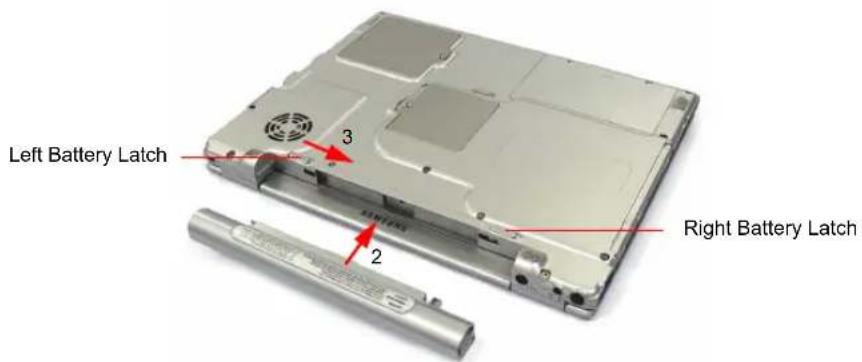
- Slide the left battery latch toward center to lock the battery in place.
Removing the Battery
Your computer comes with the battery pack inserted in the computer.
To remove the battery from the computer:
- Turn the computer's power off.
- Close the LCD panel, and turn the computer over so that the bottom of the unit faces up.
- Slide the left battery latch outward.
- While holding the right battery latch outward, slide the battery out of the battery compartment.
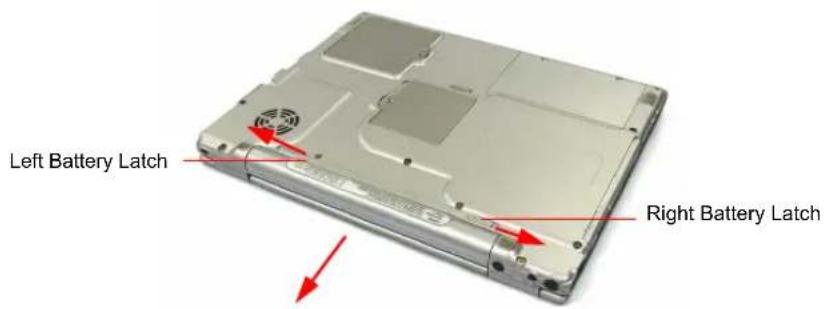
Battery life is affected by factors such as the power-management settings in System Setup, the applications you use, and the brightness settings of the LCD. Under normal usage, the battery charge lasts approximately 2 hours.
Battery life estimates are subject to variation. The actual life of your battery may be less than the estimates given in the manual.
You can monitor the charge of the battery pack installed in your computer by using the Power Meter or Battery Gauge.
Power Meter
The Power Meter displays the charge of the batteries and the current source of computer power, AC or batteries. You may monitor the battery charge or usage by using the "Power Meter". To access the power meter click Icon on the taskbar or click Start > Control Panel > Performance and Maintenance > Power Options > Power Meter tab.

The Power Status icons shown below are displayed during Battery Charging Operations.


At \~15% and 10% remaining battery power the current power source and the battery icons respectively change to the icon shown below and you should follow the instructions in "Battery Warnings" section below.

Battery Gauge
You may display the battery gauge while you are in any program by pressing

When using this function, the LCD display may not operate properly.
Power Source:

Indicates that the computer is powered by the AC adapter.
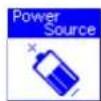
Indicates that the computer is powered by the battery.
Battery Level:
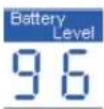
Indicates the approximate amount of the primary battery charge remaining.
You may also determine the charge of your battery by simply pushing the symbol below the word PUSH located on the side of the battery. The green LEDs will illuminate to show you the percentage of charge remaining in the battery.

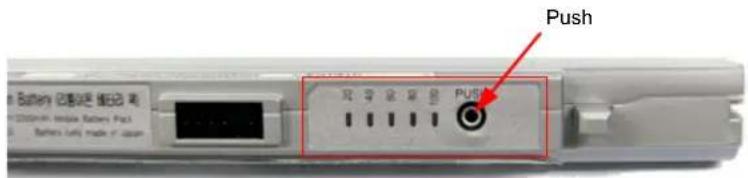
If the battery charge is low (about 10%) you have \~ 5–10 minutes of battery life left.
You should:
- Save your work and,
- Connect the power cord to the computer or turn off the computer and install a fully charged battery.
You can adjust the battery alarm features by using the operating systems power management program (Start > Control Panel > Power Options in Windows).
If you cannot run your computer from the battery and the battery will not charge when you attach the power cord, the problem may be that:
- The battery temperature is below 0irc C or over 45irc C. If you think the battery temperature is too hot or too cold, turn off the computer, remove the battery, and let the battery reach room temperature. Then try charging the battery again.
- The battery may be defective, please try running your system from the AC adaptor with the battery removed from the system. Please contact the Samsung helpline if you are unsure.
Battery Calibration
Calibrating your battery once a month is one of the recommended methods of increasing your computer's battery life. To calibrate the battery complete the following steps:
Calibration Notes:
You should start the battery calibration process with a fully charged battery, battery status LED is green. The power meter may not show 100%.
Before you commence the battery calibration process you should fully charge, then fully discharge and finally fully recharge the battery again.
- Disconnect the AC power adapter after turning off the system.
- Restart your computer and press
to enter BIOS setup. - Using the arrow keys, highlight Smart Battery Calibration in the Boot menu.
- Press
to start calibration process. The calibration usually takes 3 to 5 hours depending on the current battery charge. - When the calibration process is complete, recharge the battery fully.
Using System Setup
The System Setup (BIOS) program enables you to configure your computer hardware and set security and power-savings options. The settings you choose are stored in battery-maintained CMOS memory that saves the information even when the computer's power is turned off. When your computer is turned back on, it is configured with the values found in this memory.
Run System Setup if you get a message prompting you to run the program. You may also want to run System Setup, particularly the first time you use your computer, to set the time and date, use security or power-management features, or alter the settings of other features.

BIOS Caution:
If you are not familiar with BIOS setup and what the parameters mean, seek help from a person who is knowledgeable. Incorrect settings may cause your system to "Crash".
Your computer's version of System Setup may not include all the fields listed here or may include additional fields. Field names and order of appearance can vary according to the version of the BIOS (basic input/output system) on your computer.
Starting System Setup
To start System Setup, turn on your computer and then press
Table 3. System Setup Menus
| Menu Function |
| Main Changes the basic system. |
| Advanced Configures advanced features on your computer. |
| Security Enables security features, including passwords. |
| Boot Specifies the order of boot devices and configures boot features. |
| Exit Specifies how to exit System Setup. |
To open the menu you need to use, use the left or right arrow keys to select the menu name.
Table 4. System Setup Navigation Keys
| Navigation Key Function | |
| Displays the General Help window. | |
| Exits the current menu. | |
| Moves the cursor up and down between fields. | |
| Selects different menus. Pressing thekey at the Main menu brings you to the Exit menu. | |
| Scrolls backwards through the options for the highlighted field. | |
| Scrolls forward through the options for the highlighted field. | |
| Sets the parameters for the current menu to their default values. | |
| Save changes and exit system setup. | |
| Executes commands or opens a submenu. | |
Changing Booting Priority
The Boot menu in System Setup enables you to select the booting device and to set booting options.
Boot Device Priority field enables:
You to select the order in which the computer attempts to boot from different devices. The field has four (4) options: CD-ROM Drive, Removable Devices, Hard Drive and MBA UNDI (Bus2 Slot5).
To change the booting device priority, choose the device positions by completing the following:
- At startup, press
to open System Setup. - Use
to select the Boot menu. - Press
to enter Boot Options. - Highlight the 1 st Boot Device option with
or keys. - Press
key until the option moves up in the list to the desired position or press key until the option moves down in the list to the desired position. - Press
to exit and save your changes. - Press
again to restart the computer.
Setting the Supervisor Password
By configuring a supervisor password, you can restrict system access to authorized users only.

To use a fingerprint in the fingerprint sensor installed model, refer to the supplied manual for the fingerprint sensor.
- Select the Security menu in the System Setup. To enter System Setup, see "Starting System Setup" on page 61.
- On the Set Supervisor Password item, press
. - Enter a password, press
, re-enter the password for confirmation, and press again. - When a message confirming the password configuration appears in the [Setup Notice] window, press
.
Setting the User Password
You can configure user passwords so that other users can use the system.
Before configuring a user password, a supervisor password must have been configured.
Users can start the system with their user password, but cannot enter into the System Setup.
Deactivating the supervisor password also deactivates the user password.
On the Set User Password item, press

Before activating the booting password, the supervisor password must have been configured.
Set the Password on boot option to [Enabled].
From now on, system booting will not proceed without the password.
Activating the Hard Disk Drive Password
Activating the hard disk drive password prevents the currently installed hard disk drive from being used in other systems.

Before activating the hard disk drive password, the supervisor password must have been configured.
On the Set HDD 0 Password item, press
Deactivating the Password
- On the password to delete, press
. (e.g. supervisor password) - Enter the current configured password, and press
. - Leave the 'New Password' and 'Confirm New Password' field empty, and press
to deactivate the password.
Using Power Management Options
Your computer includes Power Management options that can help the battery charge last longer and extend the life of the battery. Power-management options will slow down or shut off system components when the components are not being used.
Power management may slow down system performance. Your computer runs fastest with the power cord attached, when power management is disabled.
In the next sections, basic and advanced methods of power management will be discussed.
Basic Power Management Schemes
This section discusses the basic schemes of power management when the computer is operating on battery power or using AC power.

Standby vs. Hibernation
Hibernation is a state where the contents of memory are stored in a special file on the hard disk, and Standby simply keeps a small holding current through the memory to keep the data. You are more likely to sustain loss of data in Standby mode so it is recommended to save all open files before entering Standby.

Changing Devices:
Do not change PC Cards while in standby or hibernate modes.
To enter the power management window complete the following:
- Click Start > Control Panel > Performance and Maintenance.
-
Click icon to display the Power Options Properties window.
-
Click the Power Schemes tab to display the basic power management options.
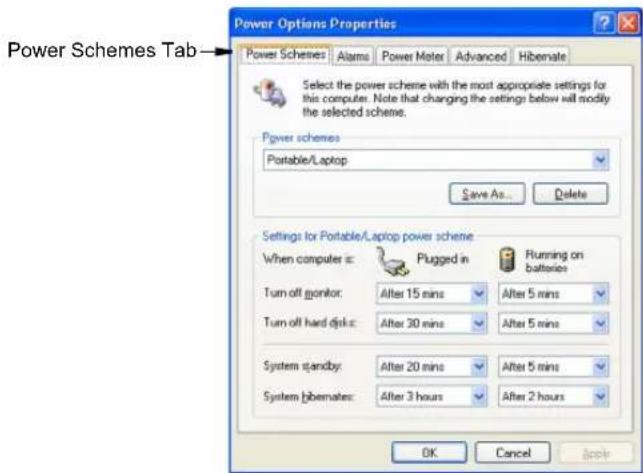
-
Select the time that you wish each of the following actions to occur in Battery and AC power mode.
-
Turn off monitor
• Turn off hard disks - System standby
• System hibernates
Turning off the monitor and HDDs will save a substantial battery power, therefore when in battery only mode select the shortest time practical.
Hibernate Mode (Power Management or Manual Method)
When hibernation is used, your computer turns off and when you power up again, everything is restored exactly as you left it—including programs and documents you may not have saved or closed. Everything in memory gets saved to the HDD, and the monitor and hard disk get turned off.
If You Reinstall Windows:
You should re-establish hibernate in power options by opening Power Options Properties window and click on the Hibernate tab then click "Enable Hibernation".
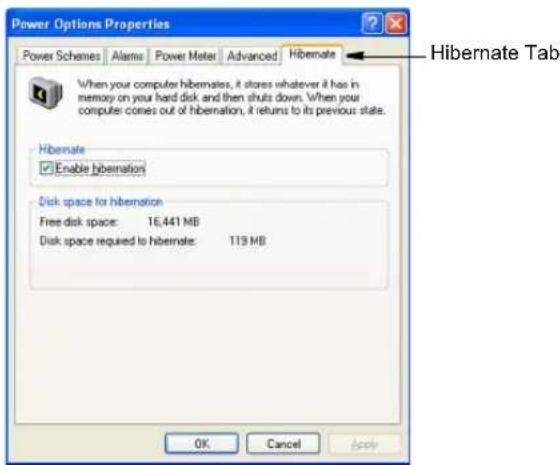
Frequent Interruptions:
If you experience frequent interruptions, you might also consider putting your computer into automatic hibernation after a specified number of minutes using the power management options.
Standby Mode (Power Management or Manual Method)
Standby is used mainly for conserving battery power in your notebook computer. It also gives you the benefit of getting right back to your work without waiting for the computer to restart. Standby turns off your monitor and hard disks, placing your entire system in a low-power state. When you return to your computer, restores your desktop exactly as you left it. It is recommended that you do not enter standby mode with less than 20% battery power.
5. Click OK to set your power management options and close the window.
Rest Key:
The manual
This section discusses the advanced power management schemes. There are two buttons that you can use to manually conserve power.
To enter the power management window complete the following:
-
Click Start > Control Panel > Performance and Maintenance.
-
Click icon to display the Power Options Properties window.
-
Click the Advanced tab to display the advanced power management options.
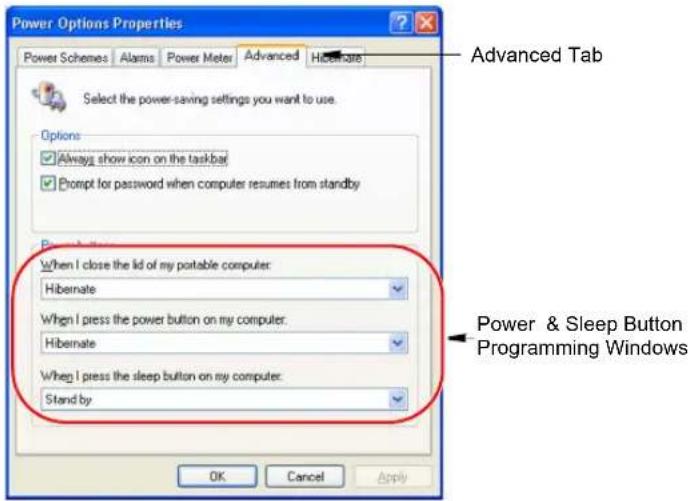
- Select the mode (Do nothing/Ask me what to do/Standby/Hibernate/Shut down) assigned to the Power button and/or Rest
key. Also select the action (Do nothing/Standby/Hibernate) associated with closing the computer lid.
The "Rest" key is assigned to the
- Click OK to set your power management options and close the window. You can return to normal operation after you have used one of the “Power Management” buttons by quickly pushing and releasing the Power button.
Using the Hard Drive
Your computer includes a removable IDE (integrated drive electronics) hard drive. The IDE hard drive can store the data and programs your computer uses. The drive plugs into a connector on the system board.

The hard drive that comes with your computer has already been formatted. Do not format the hard drive. Doing so destroys all data contained on the drive. If you need to format a new drive, or want to erase all data on your existing hard drive, refer to the manual for your operating system.
Installing/Reinstalling a HDD
To install a new HDD you should contact a Service Centre, replacement of the HDD is not a user task. You should follow the instructions below before the HDD is replaced.
- Back up data files of your old hard drive.
- For system boot with CD-ROM, under the Boot menu in System setup, set Bootable CD Check to Enabled and set Boot Device Priority is ordered starting from the [DVD/CD-ROM].
When you are ready to install the new HDD, use the Recovery CD-ROM to install the device driver.
(Re)Installing Windows and Device Drivers
Use System Recovery CD to (re)install OS and System Software CD to (re)install device drivers. For details, see “Reinstalling Windows XP” on page 95 and “Reinstalling Software” on page 93.
Resolution and Colour Depth
The resolution of the LCD is the sharpness of the image it can display. Resolution is measured by the number of pixels (individual dots) displayed on the entire screen. In general, the more pixels the LCD can display, the better the image.
The number of colours the LCD can display is measured by how many bits the LCD uses to represent each pixel:
• 16-bit colour can support 64 K (65,536) colours.
• 32-bit colour can support 16 M (16.8 million) colours.
All these video modes can be displayed on an external monitor. However, if you disconnect an external monitor that was attached to your computer and then start the computer, the LCD may revert to a different resolution than the one you chose for the external monitor.
Adjusting the LCD Brightness
There are 9 levels of LCD brightness (1: Dimmest \~ 9: Brightest). The default LCD brightness setting is level 5. Whenever you change the power source, the brightness level is changed to the following setting:
- When operating on AC power : Level 9 (Brightest)
- When operating on battery power : Level 3 (Slightly dimmer)
Once the LCD brightness has been changed, the changed setting will be maintained after restarting the computer. When the power source is changed (AC to battery or battery to AC) while in operation, both the default brightness settings described above will be restored.
You can adjust the LCD brightness by pressing
The following sections describe how to configure the display settings on your computer.

Display Resolution Notes:
When Windows XP is initially installed it will automatically adjust the resolution to maximum available.
Changing Colour Depth and Resolution
To change the colour depth and resolution of your LCD:
- Click Start > Control Panel > Appearance and Themes.
- Click icon. The Display Properties window appears.
- Click the Settings tab. The Settings screen appears.
- To change the colour depth, click the arrow next to the Colour quality palette and select the available colour depth you want.
- To change the resolution, click and drag the slider under the Screen resolution until you select the available resolution you want.
- Click OK.
- Follow the prompts that appear on the screen.
Using PowerMizer
The PowerMizer technology supplied with your graphics adapter to extend battery life.

PowerMizer Use Limitations
Activating PowerMizer will reduce your graphic card performance.
To activate PowerMizer proceed as follows:
- Click Start > All Programs > Appearance and Themes > Display > Settings tab > Advanced > GeForce4 4x0 Go xxM tab > Additional Properties > PowerMizer tab.
- Move the slider to the left to set to the Maximum Power Savings.
SIC is a function that adjusts the LCD brightness automatically when the system is operating on battery power so that you can use the battery for a long time.
SIC function is activated as a default. If you feel the screen is too dim, deactivate the SIC function following the procedures below.
- Restart the system.
- Press
key to run System Setup. - Change the Smart Inverter Control item in Advanced menu to [Disabled].
- Use the screen brightness adjustment keys on the keyboard to adjust the LCD brightness to the comfortable level.
Using External Display Devices
Using external display devices such as a monitor, projector, TV, etc allows you to view screen images alternatively or simultaneously on each device. You can also split a screen into two display devices, or view different images on each display device. Using external display devices is especially useful when you are giving a presentation or watching a movie through your TV.
Switching Display Devices Using the Shortcut Key
You can watch the screen through either the LCD or an external display device, or you can even watch the screen through both the LCD and an external display device simultaneously.
- Connect the external display device (e.g. a monitor or a projector) to the corresponding port of the system. To connect a TV, connect the TV to the TV output port of the system.
- Press the

Provided that multiple external display devices are connected, the display order would be LCD > CRT > LCD+CRT > TV > LCD+TV > CRT+TV whenever the

In the full screen DOS mode of Windows,

If you configure display device to display on both LCD and CRT, and start the system with a language using 2-byte characters, some vertical noises may appear on the screen.
You can expand the screen into two display devices and work conveniently in a wide workspace.
- Connect the external display device (e.g. a monitor or a projector) to the corresponding port of the system. To connect a TV, connect the TV to the TV output port of the system.
- Click Start > Control Panel > Appearance and Themes > Display.
- On the [Display Properties] window, click Settings tab > Advanced > nView tab. Select the desired item, and click Apply.
nView provides the following three display modes:
- Standard Mode
The Screen image is displayed only through the primary device, LCD.
- Duplication Mode
The same screen image is displayed through both the primary device, (the LCD) and the external display device.
• Horizontal/Vertical Span Mode
The screen image is spanned to the primary device(the LCD), and the external display device.




Horizontal Span ModeDuplication Mode Vertical Span Mode
Pressing the
You can expand the screen into two display devices and work conveniently in separate workspaces.
In Dual View mode, you can select the screen resolution and color quality for each display device, as if there were two separate graphics cards.
- Connect the external display device (e.g. a monitor or a projector) to the corresponding port of the system. To connect a TV, connect the TV to the TV output port of the system.
- Click Start > Control Panel > Appearance and Themes > Change the screen resolution.
- Click the monitor '2' icon, select the 'Extend my Windows desktop onto this monitor' check box, and then click Apply.
![Display Properties Themes Desktop Screen Saver Appearance Settings Drop the monitor icons to match the physical arrangement of your monitors. 1 2 Display 2 (Default Monitor) on NVIDIA GeForce4 420 Go 32M [Samsung] Screen resolution More Less 1024 by 768 pixels Color quality Highest (32 bit) Use this device as the primary monitor Extend my Windows desktop onto this monitor. Identity Troubleshoot... Advanced OK Cancel Apply](/content/2026/06/1190423/images/f83bbdec454ca3cfbe6bf36f068f34d334426416a7a4fdf6883872b04d6dbce3.jpg)
- Click OK. The primary display device(the LCD) is indicated as '1', and the secondary display device is indicated as '2'. Now you can use each of the two display devices as independent display devices.
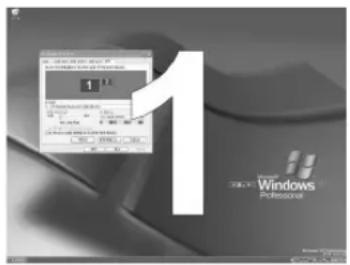

2 : Secondary1 : Primary

When using Dual View, it is recommended that LCD is kept as '1', the primary display device.

If the screen of the secondary display device is displayed at 640x480 pixels, with 256 colors, change the settings to the desired screen resolution and color quality in the [Display Properties] window.
Deactivating Dual View Mode
Click the monitor '2' icon, clear the 'Extend my Windows desktop onto this monitor' check box, and then click Apply.

To move a window between display devices in nView or Dual View mode. Click the title bar of the window in the primary display device(1, the LCD), and drag it to the secondary display device (2). The window is move to the secondary display device.
You can select these options at purchase:
- Wireless communication module (802.11b, bluetooth)
• Fingerprinter recognition system / scroll wheel - Memory stick slot
You can purchase these options separately:
• Extra battery pack (3 cell/6 cell)
- Battery charger
- Ear set
The options that are available may change periodically. Contact your reseller for updated information on current and new options.
You can increase system memory by installing optional memory modules.

To avoid possible system problems, use only approved memory modules in your computer. Please consult the appropriate sections of this manual, Samsung Technical Support, or the support Web site (www.samsungpc.com) for additional information.
Before You Install Memory

To prevent personal injury and damage to the equipment, follow the precautions listed here before installing a memory module.
Take the following precautions when installing a memory module:
- Before you remove the memory module compartment door, turn off the computer, unplug the power cord, and remove the battery. Also, disconnect any peripheral devices.
- Before handling a memory module, discharge any static electricity by touching a grounded surface or using a grounding wrist strap.
- Do not insert objects with conductive material, such as metal screwdrivers or graphite pencils, into the memory-module compartment.
- Be careful in handling the metal plate of the memory door.
Installing a Memory Module

Handle a memory module carefully. Hold them only by the edges.
To install a memory module:
-
Turn the computer over so that the bottom faces up.
-
Using a screwdriver, remove the screw that holds the memory-module compartment door in place.
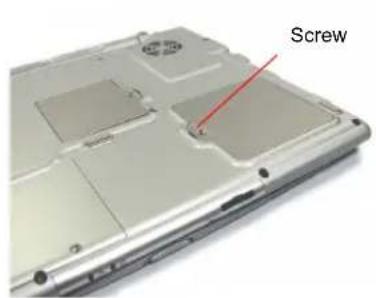
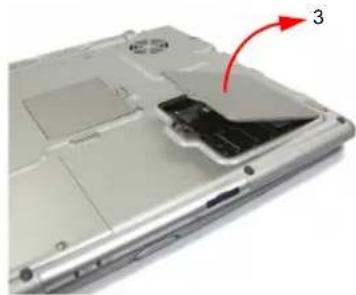
natural_image
Close-up of a silver laptop with a partially open rear panel and a red arrow labeled '3' pointing to the screen (no text or symbols on the device itself)- Grasp the edge of the door and pull the door off the chassis.

Memory Module Precautions:
When removing the module, pull on the plastic portion of the connector slots tabs only. Do not pull on the metal part of the tabs, this may damage the tabs.
- Remove the installed module if necessary.
a. Pull the tabs on the connector slot outward slightly, until the edge of the memory module pops up.
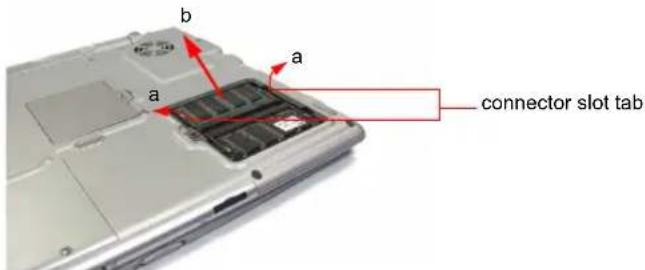
b. Hold the memory module by the edges and pull it forward out of the compartment.
-
Align the connector on the memory module with the connector of the slot.
-
Push the memory module into the slot at a slight angle ( 30irc ) until the connectors are fully engaged.
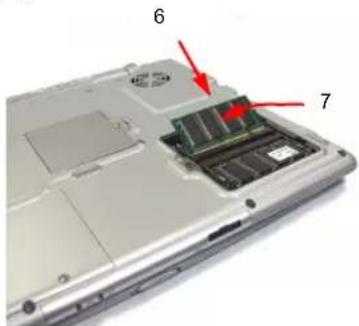
-
Push down on the edge of the memory module until the module snaps into place.
-
Align the memory module compartment door with the compartment and push the door down until it snaps into place.
-
Reinstall the screw you removed in step 2.
Wireless Communication Module
You have one of these options on your computer:
• No wireless communication module
802.11b
- Bluetooth
Check the option your computer has, and see "Configuring the Network Environment Settings for Wireless Network (WLAN)" on page 26 or the Quick Guide for Samsung Bluetooth Software for details.
Fingerprint Recognition System
You have either fingerprint sensor or scroll wheel on your computer. For details on using the fingerprint recognition, read the Quick Guide for Fingerprint Recognition Software and Fingerprint Recognition Software Help files.
Troubleshooting
Complete the following in the order presented until your system is functioning properly. If all of the steps below fail then contact your local reseller for assistance.
▶ Questions and Answers
Please see “Questions and Answers” on page 83 for assistance in correcting any computer operational problems.
▶ Check the Connections
Verify all of the power and peripheral cables are securely plugged into their sockets and that your system and power supply is on.
Norton AntiVirus
Run Norton AntiVirus to ensure a virus is not affecting your computer.
To run Norton AntiVirus proceed as follows:
Click Start > All Programs > Norton AntiVirus > Norton AntiVirus 2002.
The Norton Antivirus Subscription on your Samsung notebook will expire within 3 months. It is your responsibility to update the virus definitions, and renew subscription with Symantec when the subscription expires.
▶ Windows Help and Support
Run Windows Help and Support to find problem that may be affecting your computer.
To run Windows Help and Support proceed as follows:
Click Start > Help and Support.
▶ Reinstalling Software
If for some reason your system crashes you may corrupt your HDD, Windows operating system and/or some of your device drivers. If this is the case, use System Recovery CD to reinstall OS and System Software CD to reinstall the corrupt device drivers.

System Recovery Precaution:
Before you start restoring your windows operating system insure you backup all data on your hard drive.
Samsung is NOT responsible for any data loss.
This section provides information on possible problems, solutions and other references for system use.
Windows Related
Q1 The system does not shutdown properly.
A When the system does not shutdown normally, press and hold the Power button until the system manually shuts off. If the Power-Saving Mode is configured into the Power button, press and hold for more than 4 seconds to shut the system off. When the system is turned on after such manual shutdown, Scandisk will run to check errors in the system.
Q2 The system freezes during program operation
A1 There is an error with the program currently being used. Press the
A2 There is an error with the Windows OS. Reboot the system by using the Power button.
Display Related
Q1 The LCD screen is blank.
A Adjust the LCD screen brightness. Use the
Q2 The screen saver disturbs screen viewing during Media Player or video file operation.
A Under the Media Player Options, in Player > Enable Screen Saver During Use, uncheck the box and restart the player.
Q3 In DOS mode or with a screen resolution lower than 1024x768 pixels, pressing the Fn+F2 key does not display the icon clearly.
A The screen image is extended across the LCD size when the screen resolution setting is lower than 1024x768 pixels. If the icon appears unclear, it is because the video chip does not support this function, but it does not affect the system performance.
Q4 When the horizontal or vertical span function is used, connecting an external monitor with a screen resolution lower than 1024x768 pixels in Windows XP or 2000, the screen image is not displayed on the external monitor.
A The horizontal or vertical span mode does not support a screen resolution lower than 1024x768 pixels. Set the screen resolution to higher than or equal to 1024x768 pixels.
Q5 Running the program after configuring the horizontal or vertical span mode displays a program window spanned to the LCD and the external display device.
A Since Dual View (Extended Desktop) mode enables each display device to operate as if there were two separate graphics cards, you can select the screen resolution and color quality for each display device. Therefore dual view mode displays a program window on either the LCD or the external monitor, while the horizontal or vertical span mode may display a program window onto the LCD and the external monitor because the horizontal or vertical span mode displays a single screen image spanned over two display devices.
Q6 In DOS mode, changing the full screen DOS mode by pressing
A The DOS mode which supports 2 Byte characters such as Korean and Japanese runs in graphic not in text mode. In this case, a broken image may be displayed while changing the video mode settings.
Q7 In the following cases, the screen blinks or displays noise for a short time: (Clicking the nView tab, changing the resolution, changing the display device, removing the AC adapter, restarting the system, or changing the PowerMizer level)
A This may happen while the video driver is examining the connected device.
Q8 When I connect a projector, and change the setting to display screen image on both the LCD and the projector by pressing + keys, screen is not displayed properly.
A Press
Modem Related
Q1 I cannot hear the modem sound.
A1 Check that the telephone line is properly connected to the modem.
A2 Check that the modem driver is installed properly.
- Click Start > Control Panel > Performance and Maintenance > System.
-
Select Hardware tab > Device Manager > Modems in the System Properties window, and check if there is a yellow exclamation mark on the installed modem icon. If there is, delete the modem device driver and reinstall the driver, because the yellow exclamation mark represents a not properly installed driver.
-
If there is no yellow exclamation mark, double-click the installed modem, and click Diagnostics tab > Query Modem in the Modem Properties window to diagnose the modem.
No message in either of Command and Response in the Diagnostics tab means that the modem is not operating properly.
Diagnose the modem again after restarting the system or reinstalling the driver. (You have to exit all programs using modem in the advance of diagnostics of the modem).
A3 Although I can make a connection with the modem, I cannot hear the dial tone and modem connection sound. In this case check the following list:
- Click Start > All Programs > Accessories > Entertainment > Volume Control.
- Clear the Mute check box in the Telephone Line item.
(Depending on the sound driver, it may be displayed as another name such as Modem, Phone, Mono. If there is no corresponding item, click Options > Properties > Volume Control, select 'Playback', and select the 'Telephone Line' under the 'Display the following volume controls'. Click OK.)
Q2 I cannot make a call using an extension line.
A In general, the dial tone of a PBX or a digital phone switching system is not a continuous one, unlike that of trunk line.
Therefore, the modem may not make a call because the modem mistakes the dial tone from a PBX or a digital phone switching system as a busy tone.
In this case, complete the following procedures.
- Using an AT command
As an initialization command, use the command, ATX3.
Otherwise, enter the ATX3 command manually before making a call.
It can correct this problem by skipping the dial tone check step.
- Configuring the Modem through the Control Panel
- Click Start > Control Panel > Network and Internet Connections.
- Under See Also, click Phone and Modem Options.
- In the Modems tab, select the installed modem, and click Properties.
- In the Modem tab of the Modem Properties window, clear the 'Wait for dial tone before dialing' check box.
- When the configuration is completed, click OK.
Q3 How do I use my modem when dialing from overseas?
A1 Check that the modem is correctly configured according to the current country. Because the values for communication may differ according to the country, you may not be able to connect via the modem due to an incorrect modem configuration.
- Click Start > Control Panel > Network and Internet Connections.
- Under See Also, click Phone and Modem Options.
- In the Dialing Rules tab, click Edit.
- In the General tab in the Edit Location window, select the current country from the Country/region radio box, specify the Area code, and click OK.
A2 Because the shape of the telephone plug may differ according to the country, you have to purchase and use the appropriate telephone plug for that particular country.
Q4 How do I receive a fax while the system is in power saving mode (Rest mode) (For Windows XP and 2000)?
A To receive a fax when the system is in power saving mode, and the operating system is Windows XP or 2000, configure the system as follows:
- The automatic fax reception function of the fax program needs to be activated. (For more information, refer to the corresponding fax program manual.)
- Click Start > Control Panel > Network and Internet Connections.
- Under See Also, click Phone and Modem Options.
- In the Modems tab, select the installed modem, and click Properties.
- In the Power Management tab of the Modem Properties window, select the "This device activates the computer in power saving mode" check box, and click OK.
The above setting enables the modem to turn on the system and receive a fax when in power saving mode.
Wireless LAN Related
Q1 The Wireless LAN device is operating properly, but I cannot connect to the network.
This is due to an incorrect configuration, or a configuration error. Check the following check lists:
A1 If you are using a computer-to-computer network (peer-to-peer) connection, check that the name of the configured network is correct. The network name used to connect should be the same in all computers. The network name is case sensitive, if the name contains letters.
A2 If you are using a network key (encryption key), an AP (Access Point) and a computer-to-computer network (peer-to-peer), you have to use the same network key. The network key of the AP is configured in the AP management program. Ask your network administrator for more detailed information.
A3 Check that the device driver is properly installed. If the driver is not properly installed, you will find a yellow exclamation mark on the network icon by clicking Start > Control Panel > Performance and Maintenance > System > Hardware tab > Device Manager > Network adapters > Wireless LAN adapter. If there is a yellow exclamation mark, please reinstall the device driver with the system software CD.
A4 To connect to an access point using network authentication (Shared key):
- In Windows XP, select Network Authentication (Shared mode) in the Wireless Network Properties window.
- If you use the wireless LAN program (PROSet) in Windows 2000, make sure that the network authentication mode is configured to Shared in security settings. For more information on the network authentication configuration procedures, ask your access point administrator.
Q2 The signal strength is excellent, but I cannot connect to the network.
Even if the signal strength is excellent, the network connection may not operate properly if the TCP/IP properties are not properly configured, or the network key (encryption key) is incorrect.
A1 Check that the TCP/IP properties are configured properly. When you connect to an AP, click the Wireless Network Connection icon on the taskbar and select the Support tab. If the IP is not allocated properly, the IP address will be displayed as follows. (e.g. 169.254.xxx.xxx)
If the network does not provide DHCP, you have to specify the correct IP address by asking your network administrator.
Even if the network provides DHCP, the server may not allocate an IP address to the client properly, and the client station cannot connect to the network.
A2 Referring to A2 of Q1, check that the network key is correct.
Q3 I cannot share an Internet connection.
A1 It may require some time to synchronize the computers to share an Internet connection after the Internet connection sharing configuration is completed. If you cannot share Internet connection even after a longer period, restart the computer.
A2 Check if there is a configured bridge connection between the network adapters. If there is a configured bridge connection between the network adapters through the network configuration wizard, remove the network bridge, and reconfigure the Internet connection sharing.
Q4 I cannot connect to the AP wireless network.
A1 Check the wireless LAN radio environment. Using a wireless LAN may be restricted by the surrounding radio environment, and the distance between wireless stations. Also obstacles such as walls or doors may affect wireless LAN connections.
A2 Check that the AP is operating properly. Turn the AP off, and turn it on after a short wait.
A3 Check that the network key (encryption key) configuration for the AP is correct.
A4 Check if the wireless LAN/Bluetooth button on the upper part of the keyboard is switched off. If the wireless button is switched off, press the button to switch the wireless function on.
If you are using Windows 2000, check if switch radio is set to "On" on the General tab of PROSet program. If is set to "Off", change it to "On".
Q5 In the Windows XP 'Available wireless networks' window, the Wireless Network Connection is displayed as 'Not Available'.
A1 Check that the specific program for a wireless LAN connection is installed. Windows XP supports wireless LAN connections through the Wireless Zero Configuration (WZC) service. Therefore, an additional program for a wireless LAN connection is not required. However, installation of the specific program for a wireless LAN connection may disable the 'Available wireless networks' window of the Wireless Network Connection supported by WZC service in certain cases. Exit the program and try again.
A2 Initialize the device driver.
Click Start > Control Panel > Performance and Maintenance > System > Hardware tab > Device Manager > Network adapters, and select the wireless LAN adapter. Right-click the network adaptor and select 'Disable'. Then right-click over the network adaptor and select 'Enable' after a short wait to check that the device is operating properly.
Q6 The Wireless network connection operates properly, but the Wireless Network Connection icon on the Taskbar displays the "Disconnected" message.
A This is one of the known problems when you are using a wireless LAN connection after installing Windows XP service pack 1.
Check that the wireless LAN card is operating properly by initializing the device driver referring to A2 of Q5. For more information, refer to the following link for known problems with Microsoft.
http://support.microsoft.com/default.aspx?scid=kb;en-us;Q328647
Q7 When connecting to a computer-to-computer (Ad Hoc) network, I cannot connect to another computer connected to the same computer-to-computer network.
A1 Make sure that the security settings and network name of the computer-to-computer (Ad Hoc) network is correct.
A2 Check the TCP/IP properties of the computers to be connected through the computer-to-computer (Ad Hoc) network. All of those computers should be configured so that their IP addresses are within the same subnet range.
- If the IP address is configured to DHCP (Obtain an IP address automatically) in TCP/IP properties, IP address is configured within the same subnet range automatically.
- If the IP address is configured to static IP in TCP/IP properties, select Use the following IP address in the TCP/IP properties of the wireless adapter, configure IP address:10.0.0.1\~10.0.0.254, and Subnet mask: 255.255.0.0, and then try again.
Q8 When using a computer-to-computer (Ad Hoc) network, sometimes I cannot search some access points.
A It may happen occasionally when you are using a computer-to-computer (Ad Hoc) network connection. Even if you cannot find some access points, the computer-to-computer (Ad Hoc) network is operating properly. Click Refresh to view the latest search result.
Q9 Running Help file while running Profile Wizard in the wireless LAN program (PROSet) makes the PROSet window white.
A It will be displayed properly when you finish the profile wizard. It does not affect the program operation.
Games and Programs Related
Q1 3D game is not executed, or some functions are not working.
A Change the graphic setting of the game to '2D' or 'Software Renderer', then execute the program again.
Q2 I launched a game right after installing it, and the game is not executed.
A This problem may occur when the game is not compatible with Windows XP. Launch the game again, and it will be executed properly.
Q3 The screen is displayed in reduced size when playing a game.
A This problem may occur when the Screen Expansion option in system setup is set to Disabled by default.
To fit the screen on the LCD size, change the setting as follows:
-
Push the power button to start the system.
-
When the booting screen appears, press
. -
After a while, the initial system setup screen appears.
-
Use arrow keys on the keyboard to move to Boot menu, then move to Screen Expansion item.
-
Use
or to change the setting to . -
Use
to save the setting and exit system setup.
Q4 While playing a 3D game, I tried to change display devices using
A When you use
Do not use
Q5
A While displaying video of VCD or MPEG, or the display setting is Dual View, you cannot toggle display devices. Also the installation of NetWare Client 32 program disables the function of
Q6 While running a game,
A While running Direct3D game, display device configuration keys do not work to maintain the system stability. Since display device control varies depending on the type of display devices in some games, the screen may not displayed properly.
Use
(It may happen while running Harry Porter and the Chamber of Secrets, Warcraft 3, Unreal Tournament 2003, Starcraft, Quake 3, Soldier of Fortune 2, Heroes of Might or Magic 4.)
Q7 Running speed of a game is too slow or fast.
A Change the setting of Power Schemes to 'Always On'.
(Click Start > Control Panel > Performance and Maintenance > Power Options > Power Schemes tab, then configure the Power schemes field to 'Always On'.)
Q8 Pressing + keys while running a game may cause abnormal operation of the system.
A Do not press
If you have reinstalled the Windows operating system, or the system and program do not operate properly, you can re-install the driver and program using the system software CD.
The drivers and programs included in the system software CD are listed in the D:\ReadMe.htm file. (Provided that the name of CD-ROM drive is "D".)
Running the system software CD
Insert the system software CD into the CD-ROM drive. The initial screen appears automatically.
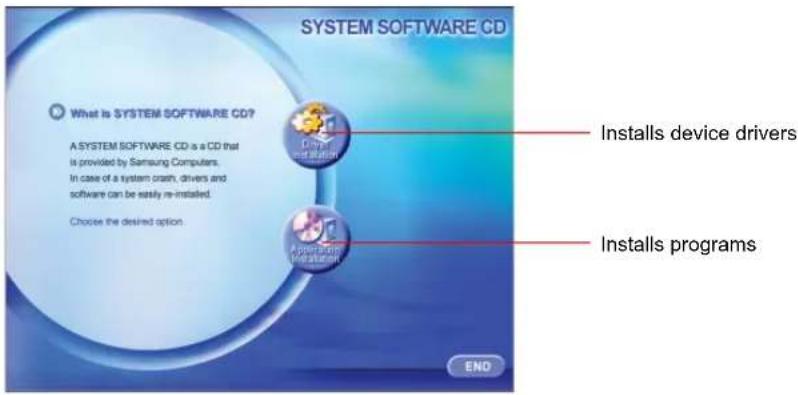
Installing drivers
- In the initial screen, click Install drivers.
- Select the driver you want to install from the device installation screen, and click Install.

How can one install the drivers for operating systems other than Windows XP?
Install the appropriate driver software included in the system software CD.
Installing programs
-
In the initial screen, click Install programs.
-
Click Standard installation in the program installation screen (standard installation is recommended).
- Standard installation: Installs and recovers programs to the state of shipment.
- User installation: You can select the program installation location, and other options for the program installation.
If the Windows XP does not operate properly due to an error in the system, or if you have replaced the hard disk drive, you can reinstall Windows XP using the system recovery CD.

With the system recovery CD, you can reinstall Windows XP only. To return the system to the state of shipment, reinstall the device drivers and programs with the system software CD after reinstalling Windows XP with the system recovery CD.
Reinstalling Window may delete the data on the hard disk drive such as files, programs, etc. In order to minimize damage from data loss, please remember to always back up data. Samsung Electronics is not liable in the case of data loss, please consult your warranty statement for clarification.
Reinstalling Windows
-
Insert the system recovery CD into the CD-ROM drive.
-
In the initial screen, click Standard installation. (Installation with the standard installation option is recommended. The standard installation does not require steps 5 and 7.)

- Standard installation: Installs Windows preserving the data saved on the hard disk drive. However, since personal data that is in the Windows folder may be deleted, please backup personal data.
- Custom installation: Enables Windows installation after partitioning or formatting the hard disk drive. Note that all data on the hard disk drives may be deleted depending on your configuration.
- The description for the standard installation appears. Click Yes.
The installation starts, and the system will be restarted after a while.
- After the system has restarted, the message 'Press any key to boot from CD'
appears. Do not press any key at this time. After a while the partition configuration screen appears.
To not change the partition, press

What is partition configuration?
Partition configuration is a function that divides the hard disk drive into one or several partitions. Note that changing the partition deletes all of the data on the hard disk drive.
- Select the desired file system (format).
To maintain the current file system, press
What is Format?
Format is an operation that initializes the hard disk drive. Since formatting operation deletes all content on the hard disk drive, use Format with great care.
- Select the folder to install the Windows operating system.
To delete the previous version of Windows and install in the current folder, press
Note that selecting 'Use another folder to install' creates a new windows folder and installs Windows in dual boot mode.
- The Windows XP installation wizard appears. Proceed installation according to the instructions provided by the Windows XP installation wizard.
When the installation is completed, the computer will restart.
- After the system has restarted, the message 'Press any key to boot from CD' appears. Do not press any key at this time.
The Windows installation has been completed. Remove the system recovery CD, and insert the system software CD into the CR-ROM drive to install the device drivers and programs.
If You Cannot Run Windows
If you cannot run Windows, you have to boot the system with the system recovery CD, and reinstall Windows. If you boot the system from the system recovery CD, you can install Windows only with the user installation option. You cannot install with the standard installation option.
- Insert the system recovery CD into the CD-ROM drive and start the computer.
- If the following message appears on the screen, press any key from the keyboard.
Press any key to boot from CD.....

This message appears only when the CD drive has booting priority. If the message does not appear, configure the CD drive as the first booting device referring to "Changing Booting Priority" on page 63.
- After a while, the partition configuration screen appears. Complete the installation referring to "Reinstalling Windows" on page 95.
Specifications
The following is the basic hardware specification for the purchased product. Variations may exist depending on the model type.
| Item Specification Remarks | ||
| CPU Intel Banias 1.3~1.7GHz | ||
| Cache memory 1MB | ||
| Main memory 128/256/512/1024 MB DDR SDRAM, 2 DDR socket Maximum 2GB | ||
| Main Chipset Odem/ICH4M | ||
| Hard disk drive (HDD) 2.5", UltraDMA 100, S.M.A.R.T9.5mmH | ||
| Graphics Nvidia GeForce 4, Memory: 32 / 64 MB DDR SDRAMDefault: 1024 x 768 pixels, XGA | ||
| Sound Cirrus Logic CS4202 (AC97 CODEC) | ||
| Network Interface Wired LAN 10/100 Base T Ethernet, Wireless LAN (Mini PCI),Bluetooth | Optional | |
| PCMCIA Slot Type I and II Compatible | ||
| Fingerprint Sensor | Fingerprint recognition utility | Optional |
| Memory Stick | Support up to 128MB | Optional |
| Ports | IEEE1394 (4 pin), USB(x2), microphone, headphone, S/PDIF, RJ-11(modem), RJ-45(LAN), video (external monitor), S-VHS | |
| Options | Lithium-Ion smart battery, car adapter, battery charger, ear-set | |
| Dimensions (mm) | 315 x 259 x 19.3(minimum), 23.6(typical), 25.4(maximum) | W x D x H |
| LCD Panel Size | 14" XGA TFT LCD | |
| Weight | 1.8 Kg (including standard type battery) | |
| Battery | Lithium-Ion smart battery | |
| Operation Environment | Temperature (storage) : -5 ~ 40°C (operation) : 10 ~ 32°C Humidity (storage) : 5% ~ 90% (operation) : 20% ~ 80% | |
| Operation Voltage | 100 - 240 VAC | |
| Frequency | 50 - 60 Hz | |
| Input/Output Power | 1.5A 100V ~ 0.8A 240V | |
| Output Voltage 19.0 VDC | ||
* Please refer to the product catalog or consult your product provider for availability when purchasing optional accessories for this system.
| Item Detailed Specifications | ||
| Physical Specifications | Dimensions (Width X Height) | 59.75 X 44.45 mm |
| operation temperature and humidity | Same as system operation | |
| Temperature: 0°C ~ 70°CHumidity: less than 85% | ||
| Power Specification Power Saving Mode 135 mW | ||
| Network Specifications | Compatibility IEEE802.11b standard (DSSS)Mini-PCI Rev.1.0 | |
| Operating System Microsoft | Windows XP, 2000- NDIS5 Miniport Driver | |
| Media Access Protocol CSM | A/CA (Collision Avoidance) with Acknowledgement(ACK) | |
| Security Wired Equivalent Privacy support (WEP)64bit / 128bit | ||
Radio Specifications
| RF Band 2.4 GHz | ||||
| Support Channels 1~13 channel (See "Regulatory Notice for Channel Use in France".) | ||||
| Device Transceiver | Direct Sequence Spread Spectrum (DSSS) | |||
| Modulation Scheme | Direct Sequence Spread Spectrum (DSSS)CCK for high and mid transmission rateDQPSK for standard transmission rateDBPSK for low transmission rate | |||
| Standard Output Power | 5 mW | |||
| Transmission Rate | High Speed | Mid Speed | Standard | Low Speed |
| 11 Mb/s | 5.5 Mb/s | 2 Mb/s | 1 Mb/s | |
| Antenna Type | Internal antenna (TX/RX) | |||
Regulatory Notice for Channel Use in France
The number of channels that can be used for wireless LAN differs from country to country. In France however, use only 4 channels (channel 10, 11, 12, 13) when using wireless networks.
• Standard: IEEE 802.b
• Regulation: ETSI 300 328, CE Marked
• Channel Allocation:
- Channel 10 (2457 MHz)
- Channel 11 (2462 MHz)
- Channel 12 (2467 MHz)
- Channel 13 (2472 MHz)
Abbreviations
A ..... Amperes
AC....Alternating current
ACPI ..... Advanced Configuration and Power management Interface
APM ..... Advanced Power Management
ATA. . . . . . AT attachment (refers to the hard-drive interface in an AT-compatible computer)
ATAPI.....AT attachment packet interface
BBS ..... Bulletin board system
BIOS ..... Basic input/output system
C .... Centigrade
CD .... Compact disc
CD-ROM .. Compact disc read-only memory
cm .... Centimeters
COM ..... Communication (as in communication port)
CMOS ..... Complementary metal-oxide semiconductor
DC.... Direct current
DMA ..... Direct memory access
DPMS ..... Display power-management signaling
DRAM.....Dynamic random access memory
DSTN ..... Double layer super twist nematic
ECP ..... Extended capabilities port
EPP ..... Enhanced parallel port
g......gram
G . . . . . . . Gravity
GB....Gigabytes
hr .... hour
Hz ..... Hertz
IDE ..... Integrated drive electronics
I/O ..... Input/output
IRQ ..... Interrupt request line
ISA ..... Industry Standard Architecture
KB....Kilobytes
kg. . . . . . . Kilograms
LAN.....Local-area network
lb.....Pounds
LBA. . . . . . Logical block addressing
LCD.....Liquid-crystal display
m ..... Meters
mA..... Milliampere
mAhr..... Milliampere hour
MB.....Megabyte
mm ..... millimeter
MPEG ..... Motion Picture Experts Group
MPU ..... Microprocessor unit
ms ..... Millisecond
PDF ..... Portable document format
PC .... Personal computer
PCI .... Peripheral component interconnect
PCMCIA... Personal Computer Memory Card International Association
POST.....Power-on self-test
PNP ..... Plug and play
PS/2 ..... Personal System/2
RAM ..... Random-access memory
ROM ..... Read-only memory
SVGA ..... Super video graphics array
TFT ..... Thin-film transistor
USB ..... Universal serial bus
V ..... Volt
VAC ..... Voltage alternating current
VCC ..... Voltage collector current
VDC ..... Voltage direct current
whr ..... Watt hour
AC adapter
The AC (or alternating current) adapter regulates current coming into your computer from the wall outlet. The current at the wall outlet is alternating current and needs to be changed by the adapter to DC (direct current) before your computer can use it for power.
ACPI
ACPI (Advanced Configuration and Power Interface)- a method for describing hardware interfaces in terms abstract enough to allow flexible and innovative hardware implementations and concrete enough to allow shrink-wrap OS code to use such hardware interfaces.
BIOS
BIOS stands for basic input/output system. The BIOS is software (often called firmware) that is independent of any operating system. It enables the computer to communicate with the screen, keyboard, and other peripheral devices without using programs on the hard disk.
The BIOS on your computer is flash BIOS, which means that it has been recorded on a flash memory chip that can be updated if needed.
Boot
To start your computer. A cold boot resets the entire computer and runs through all computer self-tests. A warm boot clears out computer memory only.
Boot disk
A disk containing operating system programs required to start your computer. A boot disk can be a floppy disk, hard drive, or compact disc.
Byte
The basic unit of measure for computer memory. A character—such as a letter of the alphabet—uses one byte of memory. Computer memory is often measured in kilobytes (1,024 bytes) or megabytes (1,048,576 bytes).
Each byte is made up of eight bits. For more information on bytes and bits, see an introductory book on computers.
Cache memory
Cache is very fast, zero-wait-state memory located between the microprocessor and main memory. Cache reduces the average time required by the microprocessor to get the data it needs from the main memory by storing recently accessed data in the cache.
CardBus
CardBus technology enables the computer to use 32-bit PC Cards. Hardware in the computer and the Windows operating system provide support for the 32-bit cards. The voltage of 32-bit cards (3.3 volts) is lower than that of 16-bit cards (5 volts). The 32-bit cards can transmit more data at a time than the 16-bit cards, thus increasing their speed.
CMOS memory
CMOS (complementary metal oxide semiconductor) memory is powered by the CMOS battery. The System Setup settings and other parameters are maintained in CMOS memory. Even when you turn your computer off, the information in CMOS memory is saved.
COM port
COM stands for communication. COM ports are the serial ports in your computer.
Compact Disc
A compact disc (CD).
Conventional memory
The first 640 KB of system memory. Operating systems and application programs can directly access this memory without using memory-management software.
Disk
The device used by the computer to store and retrieve information. Disk can refer to a floppy disk, hard disk, or RAM disk.
Disk cache
A software device that accumulates copies of recently used disk sectors in RAM. The application program can then read these copies without accessing the disk. This, in turn, speeds up the performance of the application.
A cache is a buffer for transferring disk sectors in and out of RAM. Data stored in a disk cache is a copy of data already stored on the physical disk.
DMA (direct memory access)
A method of transferring data from a device to memory without having the data pass through the microprocessor. Using DMA can speed up system performance.
DPMS
Display Power Management Signalling. Displays or monitors that comply with this can be managed by the Power Management features found in the system setup.
Floppy disk
A removable disk, also called floppy or diskette.
Hard drive
Also called fixed disk. A hard drive is connected to the computer and can be installed or removed. Data written to a hard drive remains until it is overwritten or corrupted.
The 2.5-inch hard drive in your computer was designed for use in a notebook computer. Because hard drives in notebook computers are smaller than those in desktop computers, their maximum storage capacity may be less than that of desktop hard drives. However, because of their smaller size, the drives handle shock and vibration better than larger drives, which is important for a notebook computer.
I/O
Input/output. Refers to peripheral devices, such as printers, that are addressed through an I/O address.
I/O address
I/O stands for input/output. Peripheral devices, such as printers, are addressed through the I/O port address.
IRQ (interrupt request line)
The IRQ is a hardware line that a device uses to signal the microprocessor when the device needs the microprocessor's services. The number of IRQs is limited by industry standards.
LCD (liquid-crystal display)
The LCD screen on your computer differs from the display screen of a desktop monitor. Most desktop monitors use CRT (cathode-ray tube) displays, which work by moving an electron beam across phosphor dots on the back of the screen. The phosphor dots light up to show the image. LCDs use a liquid-crystal solution between two sheets of polarizing material. Electric current passing through the liquid aligns the crystals so that light can or cannot pass through them, creating an image.
MB (megabyte)
1,024 kilobytes.
Megabit
1,048,576 bits or about 128 kilobytes.
Operating system
A program that supervises the computer's operation, including handling I/O. Application programs and users can request operating-system services. A user might request operation-system services to copy files or format a disk. An application program might use the operating system to obtain keyboard input, write data to a file, or write data to a screen.
PC Card
PC Card stands for personal computer card. The Personal Computer Memory Card International Association (PCMCIA) defines the standards used to develop all PC Cards. PC Card types include: modems, Ethernet adapters, SCSI adapters, ATA cards, and memory cards.
PC slot
The PC slot is the hardware slot in the computer where the PC Card is placed.
Pixel
A pixel is an individual dot in a graphic displayed on your computer. The pixels are so close together that they look as though they are connected. An LCD screen displays thousands or millions of pixels.
Plug and Play
A plug and play operating system automatically configures computer components to work with your system. With this type of operating system, you normally do not need to set jumpers on devices or set memory addresses or IRQs.
RAM (random access memory)
The computer's system memory, including conventional and extended memory. You can write to and read from RAM. Information stored in RAM is temporary, and is erased when the system is turned off.
Refresh rate
The refresh rate is the rate at which the image on the LCD screen is rewritten to the screen. A fast refresh rate helps keep the image from flickering.
Resolution
The resolution is the sharpness or clarity of the image on your LCD screen. Resolution is measured by the number of pixels the computer's screen can display. For example, a resolution of 800 x 600 means that the screen can display 800 pixels in row and can display 600 rows. The more pixels displayed, the higher the resolution and the better the image.
ROM (read-only memory)
Permanent computer memory dedicated to a particular function. For example, the instructions for starting the computer when you first turn on power are contained in ROM. You cannot write to ROM. (ROM is not the same as RAM).
Sector
Also known as disk sector. The portion of a track that is numbered and can hold a specified number of characters (usually 512 KB).
Shadow RAM
A write-protected area of RAM that contains a copy of the BIOS. As the computer boots, the BIOS is copied from its permanent location in ROM to RAM. The BIOS can be executed much faster in RAM than in ROM. The BIOS remains in shadow RAM until you turn off the computer.
TFT (thin film transistor) LCD
A TFT LCD uses a separate transistor circuit to control each pixel. This technology provides the best resolution for an LCD screen. A TFT LCD is also sometimes called an active matrix LCD.
- Macrovision Statement
- Safety Instructions
- Setting Up your System
- Care During Use
- Replacement Parts and Accessories
- Battery Disposal
- Laser Safety Note:
- Power Cord Requirements
- General Requirements
- Wireless Guidance
- Unintentional Emitter per FCC Part 15
- Intentional emitter per FCC Part 15
- FCC Statement for Wireless LAN use:
- FCC Part 68
- Unintentional Emitter per ICES-003
- Telecommunications per DOC notice (for products fitted with an IC-compliant modem)
- European Directives
- European Radio Approval Information (for products fitted with EU-approved radio devices)
- European States qualified under wireless approvals:
- European States with restrictions on use:
- European Telecommunication Information (for products fitted with EU-approved modems)
- VCCI Statement
- 電波障害について
- Operational guidelines for 2.4 GHz band wireless equipment (if equipped)
- Prior to setting up your device:
- この機器の使用上の注意
- Manual Documentation Conventions
- Information Icons
- Warning:
- Caution:
- Note:
- Technical Information:
- Keyboard Conventions
- CD-ROM Device Naming Convention
- Touchpad Conventions
- Action Process
- Windows Conventions:
- Software User Documentation
- General Icon Note:
- Introducing Your Computer
- Factory options (Figures may be different depending on options)
- Where Everything Is
- Using Your Computer for the First Time
- Turning On the Computer
- To turn on the computer's power for the first time:
- Initial Computer Startup:
- To turn off the computer, complete the following steps:
- Power Off:
- Power Button Functions:
- Air Travel
- Locking your Computer
- Storing the Computer for Long Periods
- Using the Keyboard
- The keys on the keyboard can be grouped into the following categories:
- Using the Numeric Keypad
- Using Special Function Keys
- User Defined Buttons (SENS Keyboard)
- What is Bluetooth?
- Using Wireless LAN/Bluetooth Button
- To reprogram the Sens Keyboard, follow the steps below:
- Using the Touchpad
- Scroll Wheel Use
- Area or Multiple item selection:
- Reading the System Status Lights
- System Top
- System Bottom
- Connecting to the Internet
- Using the Modem
- Precautions Before Use
- Country Selection:
- To change the country selection proceed as follows:
- Digital Phone Lines:
- DOS support
- Using the Modem on a PBX system
- If you use a Windows Communication Program:
- MODEM Notes:
- Configuring the Wired LAN Connections
- Cable Connection
- Network Protocols:
- Configuring Network Environment
- Configure the Network Adapter as follows:
- Using Both DHCP and Static IP Simultaneously
- Wake On LAN Function
- Configuring the Network Environment Settings for Wireless Network (WLAN)
- 1) Access Point
- What is an Access Point (AP)?
- 2) Computer-to-computer (ad hoc)
- Connecting to an Access Point (AP)
- Checking the connection status
- Connecting to computer-to-computer networks (peer-to-peer or ad hoc)
- Step 1. Setting up a computer-to-computer network
- Step 2. Connecting to the configured computer
- Using Wireless Networks in Other Operating Systems
- Step 1. Installing the wireless LAN configuration program (PROSet)
- To not display 'Intel Configuration Service' window afterward
- Step 2. Using the wireless LAN configuration program (PROSet)
- To connect to an Access Point:
- Security Settings
- To create a computer-to-computer (Ad Hoc) network:
- What is a network name (SSID)?
- Operating Mode:
- Sharing files or folders
- Step 1. Configuring Sharing
- Step 2. Using Shared Files or Folders
- If your computer is a member of another workgroup:
- Sharing Printers
- Step 1. Configuring Printer Sharing
- Step 2. Adding and Using a Shared Printer.
- Sharing an Internet Connection
- Step 1. Configuring Internet Sharing.
- Using the CD-RW/DVD-ROM Combo Drive
- CD-ROM Drive Warnings:
- CD-ROM Precautions:
- Using the Memory Stick (Factory Option)
- Memory Stick Support
- Inserting the Memory Stick
- Using the Memory Stick
- Formatting the Memory Stick
- Protecting Data on the Memory Stick
- To see the contents of the Memory Stick:
- Removing the Memory Stick
- Working with PC Cards
- Your computer includes the following PC Card support:
- Maintaining PC Cards
- To maintain your PC Cards, follow these guidelines:
- Using PC Cards
- To insert a PC Card into a slot:
- To remove a PC Card from your computer:
- Media Player
- Playing an Audio/Multimedia CD
- CD-ROM LED On:
- Removing the Audio/Multimedia CD
- To remove the CD follow the instructions below:
- Dolby Digital & Home Theater System (S/PDIF Port)
- Setting Up Your Home Theater
- Using the S/PDIF Connection
- Enabling S/PDIF on the DVD Program
- Using the Volume Control Icon
- Movie Maker
- Using the Battery
- Charging the Battery
- Follow these rules for charging your battery:
- Follow these guidelines to safely use the battery:
- Installing the Battery
- To install the battery pack:
- Removing the Battery
- To remove the battery from the computer:
- Power Meter
- Battery Gauge
- Power Source:
- Battery Level:
- You should:
- Battery Calibration
- Calibration Notes:
- Using System Setup
- BIOS Caution:
- Starting System Setup
- Changing Booting Priority
- Boot Device Priority field enables:
- To change the booting device priority, choose the device positions by completing the following:
- Setting the Supervisor Password
- Setting the User Password
- Activating the Hard Disk Drive Password
- Deactivating the Password
- Using Power Management Options
- Basic Power Management Schemes
- Standby vs. Hibernation
- Changing Devices:
- If You Reinstall Windows:
- Frequent Interruptions:
- Standby Mode (Power Management or Manual Method)
- Click OK to set your power management options and close the window.
- Rest Key:
- To enter the power management window complete the following:
- Using the Hard Drive
- Installing/Reinstalling a HDD
- (Re)Installing Windows and Device Drivers
- Resolution and Colour Depth
- Adjusting the LCD Brightness
- Display Resolution Notes:
- Changing Colour Depth and Resolution
- Using PowerMizer
- PowerMizer Use Limitations
- To activate PowerMizer proceed as follows:
- Using External Display Devices
- Switching Display Devices Using the Shortcut Key
- Deactivating Dual View Mode
- Before You Install Memory
- Take the following precautions when installing a memory module:
- Installing a Memory Module
- To install a memory module:
- Memory Module Precautions:
- Wireless Communication Module
- Fingerprint Recognition System
- Troubleshooting
- ▶ Questions and Answers
- ▶ Check the Connections
- Norton AntiVirus
- To run Norton AntiVirus proceed as follows:
- ▶ Windows Help and Support
- ▶ Reinstalling Software
- System Recovery Precaution:
- Windows Related
- Q1 The system does not shutdown properly.
- Q2 The system freezes during program operation
- Display Related
- Q1 The LCD screen is blank.
- Q2 The screen saver disturbs screen viewing during Media Player or video file operation.
- Q8 When I connect a projector, and change the setting to display screen image on both the LCD and the projector by pressing + keys, screen is not displayed properly.
- Modem Related
- Q1 I cannot hear the modem sound.
- Q2 I cannot make a call using an extension line.
- - Using an AT command
- - Configuring the Modem through the Control Panel
- Q3 How do I use my modem when dialing from overseas?
- Wireless LAN Related
- Games and Programs Related
- Q7 Running speed of a game is too slow or fast.
- Q8 Pressing + keys while running a game may cause abnormal operation of the system.
- Running the system software CD
- Installing drivers
- Installing programs
- Reinstalling Windows
- What is partition configuration?
- What is Format?
- If You Cannot Run Windows
- Specifications
- Regulatory Notice for Channel Use in France
- Abbreviations
- AC adapter
- ACPI
- BIOS
- Boot
- Boot disk
- Byte
- Cache memory
- CardBus
- CMOS memory
- COM port
- Compact Disc
- Conventional memory
- Disk
- Disk cache
- DMA (direct memory access)
- DPMS
- Floppy disk
- Hard drive
- I/O
- I/O address
- IRQ (interrupt request line)
- LCD (liquid-crystal display)
- MB (megabyte)
- Megabit
- Operating system
- PC Card
- PC slot
- Pixel
- Plug and Play
- RAM (random access memory)
- Refresh rate
- Resolution
- ROM (read-only memory)
- Sector
- Shadow RAM
- TFT (thin film transistor) LCD
Brand : SAMSUNG
Model : NX10RH0DBB
Category : Computing