
FOX T UWP 302 SM - Video transmitter Extron - Free user manual and instructions
Find the device manual for free FOX T UWP 302 SM Extron in PDF.


| Product Type | Video transmitter (wallplate) |
| Model | FOX T UWP 302 SM (singlemode) |
| Brand | Extron |
| Inputs | 1x HDMI Type A, 1x 15-pin HD (RGBHV/component), 1x 3.5 mm stereo audio |
| Output | Fiber optic LC connectors (Tx/Rx) |
| Maximum Resolution | 1920x1200 @ 60 Hz, 2K (2048x1080) in Plus mode |
| Fiber Type | Singlemode (1310 nm) |
| Maximum Transmission Distance | Up to 30 km (18.75 miles) |
| HDCP Compliance | Yes, with Key Minder technology |
| EDID Management | EDID Minder for automatic EDID communication |
| Audio Support | Embedded HDMI audio and analog stereo (embedding from analog to digital) |
| Control | RS-232 via rear panel or USB mini-B front panel; SIS commands or FOX Extenders software |
| Power Supply | External 12 VDC, 1.0 A (Class 2/LPS) |
| Dimensions (approx.) | 4.5 x 4.5 x 1.7 inches (114 x 114 x 43 mm) (wallplate only) |
| Weight (approx.) | 1.0 lb (0.45 kg) |
| Mounting | Three-gang decorator-style wallplate (included) |
| LED Indicators | Power, PC, HDMI, HDCP, Audio, Link 1, Link 2 |
| Safety | Class 1 laser product; FCC Class A; use caution with invisible light |
| Maintenance | Clean with dry cloth; no user-serviceable parts inside |
| Repairability | Service only by Extron qualified personnel |
| Spare Parts | LockIt HDMI lacing bracket included; power supply optional |
| Warranty | 3 years limited warranty |
Frequently Asked Questions - FOX T UWP 302 SM Extron
User questions about FOX T UWP 302 SM Extron
0 question about this device. Answer the ones you know or ask your own.
Ask a new question about this device
Download the instructions for your Video transmitter in PDF format for free! Find your manual FOX T UWP 302 SM - Extron and take your electronic device back in hand. On this page are published all the documents necessary for the use of your device. FOX T UWP 302 SM by Extron.
USER MANUAL FOX T UWP 302 SM Extron
Safety Instructions • English
WARNING: This symbol, , when used on the product, is intended to alert the user of the presence of uninsulated dangerous voltage within the product's enclosure that may present a risk of electric shock.
ATTENTION: This symbol, when used on the product, is intended to alert the user of important operating and maintenance (servicing) instructions in the literature provided with the equipment.
For information on safety guidelines, regulatory compliances, EMI/EMF compatibility, accessibility, and related topics, see the Extron Safety and Regulatory Compliance Guide, part number 68-290-01, on the Extron website, www.extron.com.
© 2017 Extron Electronics. All rights reserved.
Trademarks
All trademarks mentioned in this guide are the properties of their respective owners. The following registered trademarks(®), registered service marks(™), and trademarks(™) are the property of RGB Systems, Inc. or Extron Electronics (see the current list of trademarks on the Terms of Use page at www.extron.com):
| Registered Trademarks ^® |
| Extron, AVTrac, Cable Cubby, ControlScript, CrossPoint, DTP, eBUS, EDID Manager, EDID Minder, Flat Field, FlexOS, Global Configurator, Global Scripter, GlobalViewer, Hideaway, Inline, IP Intercom, IP Link, Key Minder, LinkLicense, LockIt, MediaLink, MediaPort, NetPA, PlenumVault, PoleVault, PowerCage, PURE3, Quantum, SoundField, SpeedMount, SpeedSwitch, System INTEGRATOR, TeamWork, TouchLink, V-Lock, VersaTools, VN-Matrix, VoiceLift, WallVault, WindoWall, XTP, and XTP Systems |
| Registered Service Mark ^(SM) : S3 Service Support Solutions |
| Trademarks ^(TM) |
| AAP, AFL (Accu-Rate Frame Lock), ADSP (Advanced Digital Sync Processing), Auto-Image, CableCover, CDRS (Class D Ripple Suppression), DDSP (Digital Display Sync Processing), DMI (Dynamic Motion Interpolation), Driver Configurator, DSP Configurator, DSVP (Digital Sync Validation Processing), eLink, Entwine, EQIP, EverLast, FastBite, FOX, FOXBOX, HyperLane, IP Intercom HelpDesk, MAAP, MicroDigital, Opti-Torque, ProDSP, QS-FPC (QuickSwitch Front Panel Controller), Room Agent, Scope-Trigger, ShareLink, SIS, Simple Instruction Set, Skew-Free, SpeedNav, Triple-Action Switching, True4K, Vector ^TM 4K , WebShare, XTRA, ZipCaddy, and ZipClip |
FCC Class A Notice
This equipment has been tested and found to comply with the limits for a Class A digital device, pursuant to part 15 of the FCC rules. The Class A limits provide reasonable protection against harmful interference when the equipment is operated in a commercial environment. This equipment generates, uses, and can radiate radio frequency energy and, if not installed and used in accordance with the instruction manual, may cause harmful interference to radio communications. Operation of this equipment in a residential area is likely to cause interference. This interference must be corrected at the expense of the user.
NOTE: For more information on safety guidelines, regulatory compliances, EMI/EMF compatibility, accessibility, and related topics, see the “Extron Safety and Regulatory Compliance Guide” on the Extron website.
Class 1 Laser Product
Any service to this product must be carried out by Extron Electronics and its qualified service personnel.
CAUTION: Using controls, making adjustments, or performing procedures in a manner other than what is specified herein may result in hazardous radiation exposure.
NOTE: For more information on safety guidelines, regulatory compliances, EMI/EMF compatibility, accessibility, and related topics, see the “Extron Safety and Regulatory Compliance Guide” on the Extron website.
Conventions Used in this Guide
Notifications
The following notifications are used in this guide:
WARNING: Potential risk of severe injury or death.
NOTE: A note draws attention to important information.
TIP: A tip provides a suggestion to make working with the application easier.
Software Commands
Commands are written in the fonts shown here:
^AR Merge Scene,,∅p1 scene 1,1 ^B 51 ^W^C.∅ [∅1] R∅∅04∅03∅0∅04∅0∅08∅0∅06∅[∅2] 35 [17] [∅3]
Esc X1 * X17 * X20 * X23 * X21 CE ←
NOTE: For commands and examples of computer or device responses used in this guide, the character "∅" is used for the number zero and "O" is the capital letter "O."
Computer responses and directory paths that do not have variables are written in the font shown here:
Reply from 208.132.180.48: bytes=32 times=2ms TTL=32
C:\Program Files\Extron
Variables are written in slanted form as shown here:
ping xxx.xxx.xxx.xxx -t
SOH R Data STX Command ETB ETX
Selectable items, such as menu names, menu options, buttons, tabs, and field names are written in the font shown here:
From the File menu, select New. Click the OK button.
Specifications Availability
Product specifications are available on the Extron website, www.extron.com.
Extron Glossary of Terms
A glossary of terms is available at http://www.extron.com/technology/glossary.aspx.
Contents
Introduction.... 1
About this Guide....1
About the FOX T UWP 302....1
System Compatibility 2
Cable Transmission Modes....3
Key Features 3
Installation and Operation....5
Installation Overview 5
Rear Panel Features 6
Front Panel Features....8
Outside-the-Faceplate Features......8
Inside-the-Faceplate Features....9
Mounting and Making Connections 10
Mounting 10
Connecting the HDMI Connector....11
Wiring for Remote RS-232 and Alarm Communication.... 11
Wiring the Power Supply 12
Operation 13
Initial Power Up.... 13
System Reset 14
SIS Configuration and Control....15
Simple Instruction Set Control 15
SIS Programming Guide 15
Using the Command and Response Tables for SIS Commands....16
Symbol Definitions 16
Command and Response Tables for SIS
Commands 18
Input Switching Commands....18
Audio Configuration Commands....18
Picture Adjustment Commands (Analog Only)....19
EDID Commands....19
Advanced Configuration Commands 20
FOX Extenders Control Program....23
Installing the Software....23
Starting the Software....24
Using the Software 24
Menu Bar 25
Main Screen 32
Reference Information 41
Firmware Loader 41
Downloading Extron Firmware Loader ...... 41
Installing Firmware Loader 42
Firmware Updates 43
Downloading Firmware 43
Installing Firmware with Firmware Loader.....44
Introduction
This section contains general information about this guide, the FOX T UWP 302 Universal Wallplate Transmitter, and selected device features. Topics in this section include:
- About this Guide
• About the FOX T UWP 302
• Key Features
About this Guide
This guide describes installation, operation, and control procedures, and reference information for the FOX T UWP 302 Universal Wallplate Transmitter. In this guide, "FOX T UWP 302" refers to the FOX T UWP 302 Universal Wallplate Transmitter in singlemode or multimode.
About the FOX T UWP 302
The Extron FOX T UWP 302 is a three-gang universal wallplate transmitter with a two input integrated switcher that provides long haul transmission of HDCP-compliant HDMI, RGBHV, or HD component video; stereo audio; and RS-232 signals over fiber optic cabling. It delivers pixel-for-pixel transmission of images up to 1920x1200 and 2K, including HDTV 1080p @ 60 Hz.
To configure and control the FOX T UWP 302, connect a host device, such as a computer, and enter Simple Instruction Set (SIS) commands (see SIS Configuration and Control on page 15) or use the FOX Extenders Control Program (see FOX Extenders Control Program on page 23).
WARNING: Potential risk of severe injury. The FOX T UWP 302 outputs continuous invisible light, which may be harmful to the eyes; use with caution.
Figure 1. Typical FOX T UWP 302 Application
System Compatibility
The FOX T UWP 302 supports Plus or Non-Plus mode transmission for compatibility with FOX receivers. Devices in Plus mode are only compatible with other devices in Plus mode. Use SIS commands (see Plus mode transmission on page 20) or the FOX Extenders Control Program (see Plus Mode Transmission panel on page 36) to change the mode.
- Non-Plus — Supports resolutions from 640x480 up to 1600x1200 @ 60 Hz, including 480p up to 1080p @ 60 Hz. Embedded audio is not supported, but analog audio is supported and HDCP compliant.
- Plus — Supports all resolutions supported in non-plus mode, plus 1920x1200 and 2K (2048x1080) @ 60 Hz. Embedded audio and analog audio are supported and are both HDCP compliant.
| Supported ReceiversPlus Mode Non-Plus Mode | ||
| FOXBOX Rx DVI Plus FOX II R | DP FOXBOX Rx VGA | |
| FOXBOX Rx HDMI FOX II R DP | 4K FOXBOX Rx DVI | |
| FOXBOX SR HDMI PowerCage | 401 DR HD FOX 500 DVI Rx | |
| PowerCage FOX Rx DVI Plus FOX 500 Rx | ||
| PowerCage FOX Rx HDMI | PowerCage FOX Rx VGA | |
| PowerCage FOX SR HDMI | PowerCage FOX Rx DVI | |
Cable Transmission Modes
The transmitter is categorized by the type of fiber optic cable, multimode (FOX T UWP 302 MM) or singlemode (FOX T UWP 302 SM), which define the effective range of transmission:
- Multimode — Long distance, up to 2 km (6,560 feet) (depending on the fiber cable)
- Singlemode — Very long distance, up to 30 km (18.75 miles)
Key Features
High reliability and maximum performance transmission over long distance fiber optic cabling — Transmits HDMI or analog video and stereo audio signals over very long distances using fiber optic cabling.
Inputs — Include a female HDMI type A connector; 15-pin HD connector for RGBHV, RGBS, or HD component video; and a 3.5 mm stereo mini-jack for unbalanced stereo audio.
All digital technology — Delivers pixel-for-pixel transmission of video signals to ensure optimal image quality at resolutions up to 1920x1200 and 2K, including HDTV 1080p @ 60 Hz.
Digital conversion of analog video — Analog signals are digitized, ensuring that a reliable, high quality digital video signal is sent to the output destination.
Auto-input switching — Automatically switches to the lowest or highest priority input with an active video signal for simplified operation.
HDCP-compliance
Key Minder — Authenticates and maintains continuous HDCP encryption between input and output devices to ensure quick and reliable switching in professional AV environments, while enabling simultaneous distribution of a single source signal to one or more displays.
EDID Minder — Automatically manages EDID communication between connected devices to ensure that all sources properly power up and reliably display content.
Audio embedding — Converts analog stereo audio signals to digital HDMI audio when the analog input is selected.
Audio gain and attenuation adjustment capability
LED indicators for signal presence, HDCP, and power — Provides a visual indication of system status for real-time feedback and monitoring of key performance parameters.
Multimode and singlemode availability — Available as an 850 nm multimode model for long-range transmissions up to 2 km (6,560 feet), and a 1310 nm singlemode model for extreme distances up to 30 km (18.75 miles).
Industry standard LC connectors — Provide reliable physical connectivity and precise fiber core alignment.
Compatibility with the following Extron FOX series products:
- Matrix switchers — Creates HDCP-compliant signal distribution systems up to 1000x1000 and larger.
- DisplayPort, HDMI, DVI Plus, DVI, and VGA receivers — Compatible with FOX series DisplayPort, HDMI, and DVI Plus receivers up to 1920x1200 and 2K, including HDTV 1080p/60. Compatible with FOX series DVI and VGA receivers up to 1600x1200, including HDTV 1080p/60.
NOTE: The FOX T UWP 302 is not compatible with the FOX 3G HD-SDI, FOX 3G DVC, or FOX AV models.
Front panel USB configuration port
Mounts in an included three-gang decorator-style wallplate — Includes a black or white three-gang decorator-style wallplate to blend with a wide range of environments.
Includes LockIt HDMI cable lacing bracket
Energy-efficient external universal power supply included — Provides worldwide compatibility, low power consumption, and reduced operating costs.
Installation and Operation
This section describes procedures to cable, connect, and manually operate the FOX T UWP 302. Topics in this section include:
• Installation Overview
- Rear Panel Features
- Front Panel Features
- Mounting and Making Connections
- Operation
Installation Overview
Install the FOX T UWP 302 into an electrical UL Listed junction box.
CAUTION: Risk of personal injury. Failure to check the items listed below may result in personal injury.
ATTENTION: Failure to check the items listed below may result in property damage.
-
Prepare the mounting surface
-
Ensure there are no utility cables or pipes at the intended location that might be damaged or cause injury when installing the device.
- Check that the installation meets building, electrical, and safety codes.
- Ensure there is sufficient space behind the device.
- Choose a location that will allow cable runs without interference.
NOTES:
- Cables may need to be installed in the wall or conduits before installation.
-
For junction boxes, refer to the manufacturer for more installation requirements.
-
Cut a hole in the mounting surface.
- Install the junction box according to the junction box installation instructions.
- Prepare and pull the cables through the junction box.
TIP: Secure cables with clamps or ties to provide strain relief.
- Trim back and insulate shields with heat shrink.
ATTENTION:
- To prevent short circuits, the outer foil shield can be cut back to the point where the cable exits the cable clamp. Both braided and foil shields should be connected to an equipment ground at the other end of the cable.
-
Afin d'éviter les court circuits, le blindage en aluminium extérieur peut être réduit jusqu'à ce que le câble sorte de la cosse de câble. Le blindage tressé et le blindage en aluminium devraient être connectés à la masse d'un équipement à l'autre bout du câble.
-
Connect cables to the rear panel connectors (see Rear Panel Features on page 6).
- Mount the FOX T UWP 302 enclosure into the junction box (see Mounting on page 10).
- Configure the FOX T UWP 302 with SIS commands (see SIS Configuration and Control on page 15) or the FOX Extenders control program (see FOX Extenders Control Program on page 23).
- Install the faceplate (see Mounting on page 10).
Rear Panel Features

A Fiber connector (see page 7)
B Remote RS-232 and Alarm connector (see page 7)
© Power connector (see page 7)
Figure 2. FOX T UWP 302 Rear Connectors from the Side and Rear Panels
A Fiber connector — For one-way video, audio, and serial communication from the FOX T UWP 302 to a receiver, connect a fiber optic cable between the Tx port on the FOX T UWP 302 and the Rx port on a compatible receiver.
To return serial data from a receiver to the FOX T UWP 302 (such as responses from a controlled device) or for HDCP-compliance, connect a fiber optic cable between the Rx port on the transmitter and the Tx port on the receiver.
WARNING: Potential risk of severe injury. The FOX T UWP 302 outputs continuous invisible light, which may be harmful to the eyes; use with caution.
- Ensure that you use the proper fiber optic cable. Typically, singlemode fiber optic cable has a yellow jacket and multimode fiber optic cable has an orange or aqua jacket.
- Only one fiber optic cable, transmitter-Tx-to-receiver-Rx, is required for video, audio, and serial command transmission, but the HDMI signal output on the receiver will not be HDCP-compliant and the FOX T UWP 302 will not receive RS-232 reports from the controlled device.
B Remote RS-232 port — For serial RS-232 control, connect a host device to the transmitter via the leftmost poles (Tx, Rx, and G) of this 5-pole captive screw connector (see Wiring for Remote RS-232 and Alarm Communication on page 11 for wiring configuration).
Alarm output port — For remote monitoring of the status of fiber optic link 2, connect a custom or furnished monitoring device to the transmitter via the rightmost poles (1 and 2) of this 5-pole captive screw connector (see Wiring for Remote RS-232 and Alarm Communication on page 11).
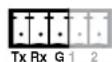

NOTE: Pins 1 and 2 short when link 2 does not detect any connection.
C Power connector — Connect the provided external 12 VDC power supply to this 3.5 mm, 2-pole captive screw connector (see Wiring the Power Supply on page 12).

Front Panel Features
Outside-the-Faceplate Features
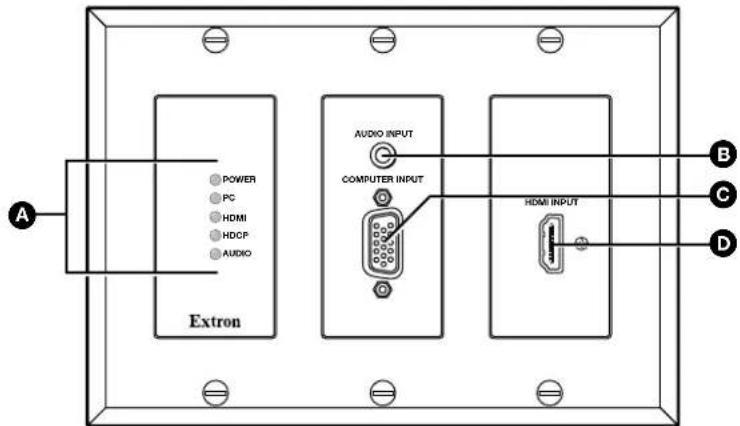
Figure 3. FOX T UWP 302 Outside-the-Faceplate Features
A LED indicators
Power LED — Lights when the device receives 12 V from an external power supply.
PC LED — Lights when a computer input is detected.
HDMI LED — Lights when an HDMI input is detected.
HDCP LED — Lights if the HDMI input signal is HDCP encrypted.
Audio LED — Lights in one of the following ways when the transmitter detects audio on the selected input:
- Lights when an analog audio signal remains above -44 dBV but turns off after the audio signal level drops below the threshold continuously for 10 seconds.
- Lights when the transmitter detects digital embedded audio.
B Audio Input connector — Connect an audio source to the 3.5 mm tip-ring-sleeve (TRS) connector.
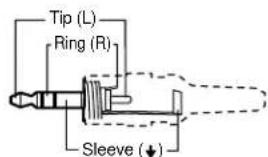
3.5 mm Stereo Plug Connector (unbalanced)
Figure 4. Wiring for Unbalanced Stereo Audio
Computer Input connector — Connect a video source to the female 15-pin HD connector.
HDMI input connector — Connect a source device to the HDMI connector. This connector can accept HDMI, DVI, or dual mode DisplayPort video signals.
Inside-the-Faceplate Features
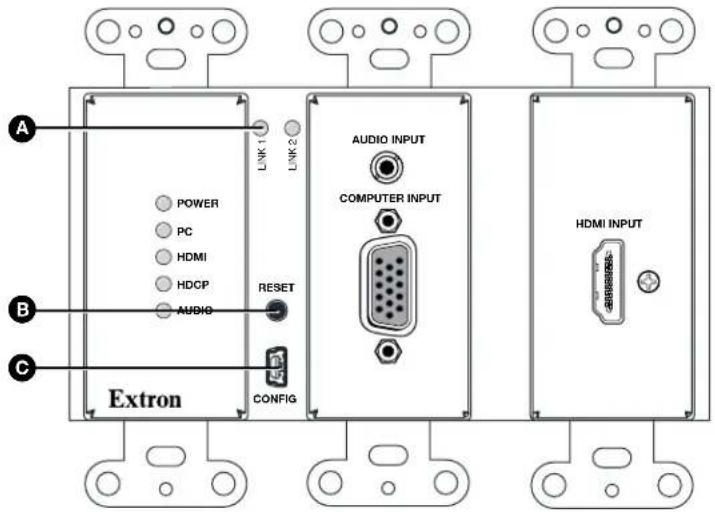
Figure 5. FOX T UWP 302 Under-the-Faceplate Features
A Link 1 and Link 2 LED indicators — Light when there is light present on the corresponding fiber optic port.
B Reset button — Press the Reset button to return device settings or firmware to the factory default settings (see System Reset on page 14).
Config port — Connect a host device, such as a PC, to the USB mini-B configuration port for RS-232 protocol control of all FOX T UWP 302 functions. Configure the FOX T UWP 302 with SIS commands (see SIS Configuration and Control on page 15) or the FOX Extenders control program (see FOX Extenders Control Program on page 23).
Mounting and Making Connections
Mounting
Before mounting an electrical UL Listed junction box, consider the mounting location and prepare the surface as necessary.

Figure 6. Mounting the FOX T UWP 302 Into a Junction Box
-
Mount the junction box in the wall or floor, following the directions provided with the box.
-
Run the cables through the junction box (see figure 6, ①).
ATTENTION:
TIP: Secure cables with clamps or ties to provide strain relief.
-
Disconnect power from all devices at the source.
-
Connect all cables to the FOX T UWP 302 rear panel connectors.
-
Secure the FOX T UWP 302 enclosure to the box using three of the provided screws into the slots at the top and bottom of the device (see figure 6, ② on the previous page).
-
Fasten the decorator-style wallplate onto the enclosure using six of the provided screws in the holes at the top and bottom (see figure 6, ③).
Connecting the HDMI Connector
Use an Extron LockIt lacing bracket to secure an HDMI cable to each device.
-
Plug the HDMI cables into the panel connection (see ① of the image to the right).
-
Loosen the side HDMI connection mounting screw from the panel enough to allow the LockIt lacing bracket to be placed over it (②). The screw does not have to be removed.
-
Place the LockIt lacing bracket on the screw and against the HDMI connector, then tighten the screw to secure the bracket (③).
ATTENTION: Do not overtighten the HDMI connector mounting screw. The shield to which it is fastened is very thin and can easily be stripped.
-
Loosely place the included tie wrap around the HDMI connector and the LockIt lacing bracket (④).
-
While holding the connector securely against the lacing bracket, use pliers or a similar tool to tighten the tie wrap, then remove any excess length.
Wiring for Remote RS-232 and Alarm Communication
The Remote RS-232 and Alarm connector is for RS-232 control (such as updating firmware, status queries, and various control functions) and the alarm feature. Wire the connector as shown in figure 7 below.

Figure 7. Wiring the Remote RS-232 and Alarm Connector
ATTENTION:
For RS-232 over fiber connection, cross the Tx and Rx lines once between the source and the target.
The alarm pins do not produce any discrete on or off or voltage signals. It is an internal relay to connect or disconnect a custom alarm circuit.
NOTE: If power is lost or if link 2 optical light is disconnected, lost, or broken, alarm pins 1 and 2 internally short.
Wiring the Power Supply
Connect 12 VDC power supply to the 3.5 mm, 2-pole captive screw connector.

Figure 8. Power Connector Wiring
CAUTION: Electric shock hazard. The wires must be kept separate while the power supply is plugged in. Remove power before wiring.
- This product is intended to be supplied by a UL Listed Power Unit marked "Class 2" or "LPS," rated 12 VDC, 1.0 A minimum. Always use a power supply supplied by or specified by Extron. Use of an unauthorized power supply voids all regulatory compliance certification and may cause damage to the supply and the unit.
- Unless otherwise stated, the AC/DC adapters are not suitable for use in air handling spaces or in wall cavities. The installation must always be in accordance with the applicable provisions of National Electrical Code ANSI/NFPA 70, article 725 and the Canadian Electrical Code part 1, section 16. The power supply shall not be permanently fixed to a building structure or similar structure.
- Power supply voltage polarity is critical. Incorrect voltage polarity can damage the power supply and the unit. The ridges on the side of the cord identify the power cord negative lead.
TIP: Do not tin the stripped power supply leads. Tinned wires are not as secure in the captive screw connectors and could be pulled out.
Operation
After all devices are connected and powered, the system is fully operation. The FOX T UWP 302 can be configured through SIS commands (see SIS Configuration and Control on page 15) or the FOX Extenders control program (see FOX Extenders Control Program on page 23).
Initial Power Up
Upon initial power up, all the front panel LEDs blink simultaneously. They blink once to indicate the device is a multimode device or twice to indicate the device is a singlemode device. Afterwards, the LEDs return to their normal signal presence indication.
If a different SFP module or no SFP module is connected, the LEDs first blink once or twice to identify the device and then blink continuously.
System Reset
Use the Reset button beneath the faceplate to return the device to default settings or to restore factory-shipped firmware (see to the Reset Mode Summary table below for more details). If necessary, remove the faceplate.
| Reset Mode Summary | ||||
| Mode | Mode Activation Result Purpose/Notes | |||
| Factory Reset | 1 Hold the Reset button down while applying power to the device. | NOTE: After a mode 1 reset, update the device with the latest firmware version. DO NOT operate the firmware version that results from this mode reset. | The device reverts to the factory default firmware.All user files and settings (audio adjustments, audio input selection, input selection, auto-switch mode, picture adjustments, and input video format) are maintained. | Use mode 1 to revert to factory firmware for a single power cycle if an incompatibility issue arises. |
| Reset to Factory Defaults | 5 Hold the Reset button down for about 9 seconds or until the Power LED blinks three times. Then press the Reset button momentarily (for <1 second) within 1 second. | NOTE: The reset procedure is aborted if the second momentary press does not occur within one second. | Mode 5 performs a complete reset to factory defaults except for firmware.Reset all user modifiable configurations to default values including real-time adjustments.The Power LED blinks 4 times in quick succession during the reset. | Use mode 5 to start over with configuration or uploading.NOTE: This is equivalent to SIS command ZXXX. |
SIS Configuration and Control
This section describes remote control of the FOX T UWP 302 through SIS commands and basic installation instructions for the FOX Extenders Control Program (see to the FOX Extenders Control Program Help File for configuration and control details).
To enable serial control of the transmitter, use a computer running the HyperTerminal or Extron DataViewer utility, or a control system to enable serial control of the transmitter. Connect the computer to the FOX T UWP 302 through the front panel Config port or the rear panel Remote RS-232 connector (see Installation and Operation on page 5).
The protocol for the RS-232 port is as follows: 9600 baud, no parity, 8 data bits, 1 stop bit, no flow control.
Topics in this section include:
• Simple Instruction Set Control
• Command and Response Tables for SIS Commands
Simple Instruction Set Control
SIS Programming Guide
Host-to-device and device-to-host communication
SIS commands consist of one or more characters per field. No special characters are required to begin or end a command sequence. When the FOX T UWP 302 determines that a command is valid, it executes the command and sends a response to the host device. All responses from the transmitter or receiver to the host end with a carriage return and a line feed (CR/LF = ←), which signals the end of the response character string. A string is one or more characters.
Device-initiated messages
When a local event occurs, the device responds by sending a message to the host. The device-initiated message may depend on whether the device is a multimode or singlemode unit. They are listed below.
© Copyright YYYY, Extron Electronics FOX T UWP 302 MM, Vx.xx, 60-1232-xx
© Copyright YYYY, Extron Electronics FOX T UWP 302 SM, Vx.xx, 60-1232-xx
YYYY is a four digit year. Vx.xx is the firmware version number. 68-1232-xx is the part number of the model.
Reconfig
The FOX T UWP 302 returns this message when there is any change to the input frequency on the currently selected input.
1LnkX5•2LnkX5•VidX5•AudX5•X10•TX←
The FOX T UWP 302 returns this status message whenever a change in the fiber link, video, or audio connection occurs. × 5 indicates whether the link is present or not present ( = not present, 1 = present) and × 10 represents whether the device is multimode or singlemode (MM = multimode, SM = singlemode).
Error responses
When the FOX T UWP 302 receives an SIS command and determines it is valid, it performs the command and sends the corresponding response to the host device. If the command is determined invalid or contains invalid parameters, the transmitter returns an error response to the host. The error response codes are:
| E01 = Invalid input number | E14 = Not valid for this configuration |
| E06 = Invalid switch attempt in this mode | E17 = Invalid command for signal type |
| E10 = Invalid command E22 = Busy | |
| E13 = Invalid parameter |
Using the Command and Response Tables for SIS Commands
The Command and Response Tables begin on page 18. Lowercase letters are acceptable in the command field except where indicated. Figure 9 shows the hexadecimal equivalent of ASCII characters used in the command and response tables.
| Space | ASCII to Hex | Conversion Table | Esc | 1B | CR | ØD | LF | ØA | |||||||
| 20 | ! | 21 | " | 22 | # | 23 | \$ 24 | % | 25 | & | 26 | ' | 27 | ||
| ( 28 ) | 29 | * | 2A | + | 2B , | 2C | - | 2D | - | 2E | / | 2F | |||
| 0 30 | 1 | 31 | 2 | 32 | 3 | 33 | 4 34 | 5 | 35 | 6 | 36 | 7 | 37 | ||
| 8 38 | 9 | 39 : | 3A ; | 3B < 3C | = | 3D > 3E | ? 3E | 3F | |||||||
| @ 40 A | 41 B | 42 C | 43 D 44 | E | 45 F 46 | G 47 | |||||||||
| H 48 I | 49 J | 4A K | 4B L 4C | M | 4D N 4E | O 4F | |||||||||
| P 50 Q | 51 R | 52 S | 53 T 54 | U | 55 V 56 | W 57 | |||||||||
| X 58 Y | 59 Z | 5A [ | 5B \\ 5C] | ] | 5D ^ 5E | - 5F | |||||||||
| 、60 a | 61 b | 62 c | 63 d 64 | e | 65 f 66 | g 67 | |||||||||
| h 68 i | 69 j | 6A k | 6B l 6C | m | 6D n 6E | o 6F | |||||||||
| p 70 q | 71 r | 72 s | 73 t 74 | u | 75 v 76 | w 77 | |||||||||
| x 78 y | 79 z | 7A { | 7B l 7C} | } | 7D ~ 7E DEL 7F | ||||||||||
Figure 9. ASCII to Hexadecimal Conversion
Symbol Definitions
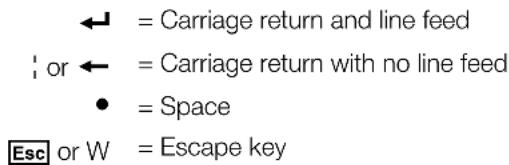
X26 = EDID output resolution and refresh rate
See the tables below.
| VGA - PC | ||||||||
| SIS Value | Resolution Refresh Rate (Hz) | SIS Value | Resolution Refresh Rate (Hz) | SIS Value | Resolution Refresh Rate (Hz) | |||
| 1 800x600 60 7 1360x768 | 60 12 1600x | 1200 60 | ||||||
| 2 1024x768 60 8 1366x768 | 60 13 1680x | 1050 60 | ||||||
| 3 | 1280x720 (default - analog) | 60 9 | 1400x | 1050 | 60 | 14 1920x1080 | 60 | |
| 4 1280x768 60 | 10 | 1440x | 900 60 | 15 | 1920x1200 60 | |||
| 5 1280x800 60 | 11 | 1600x | 900 60 | 16 | 2048x1080 60 | |||
| 6 | 1280x1024 | 60 | ||||||
| DVI - PC | ||||||||
| SIS Value | Resolution | Refresh Rate (Hz) | SIS Value | Resolution | Refresh Rate (Hz) | SIS Value | Resolution | Refresh Rate (Hz) |
| 17 | 800x600 | 60 | 23 | 1360x768 | 60 | 28 | 1600x1200 | 60 |
| 18 | 1024x768 | 60 | 24 | 1366x768 | 60 | 29 | 1680x1050 | 60 |
| 19 | 1280x720 | 60 | 25 | 1400x1050 | 60 | 30 | 1920x1080 | 60 |
| 20 | 1280x768 | 60 | 26 | 1440x900 | 60 | 31 | 1920x1200 | 60 |
| 21 | 1280x800 | 60 | 27 | 1600x900 | 60 | 32 | 2048x1080 | 60 |
| 22 | 1280x1024 | 60 | ||||||
| HDMI - PC with 2-channel Audio | ||||||||
| SIS Value | Resolution | Refresh Rate (Hz) | SIS Value | Resolution | Refresh Rate (Hz) | SIS Value | Resolution | Refresh Rate (Hz) |
| 33 | 800x600 | 60 | 38 | 1360x768 | 60 | 43 | 1600x1200 | 60 |
| 34 | 1024x768 | 60 | 39 | 1366x768 | 60 | 44 | 1680x1050 | 60 |
| 35 | 1280x768 | 60 | 40 | 1400x1050 | 60 | 45 | 1920x1200 | 60 |
| 36 | 1280x800 | 60 | 41 | 1440x900 | 60 | 46 | 2048x1080 | 60 |
| 37 | 1280x1024 | 60 | 42 | 1600x900 | 60 | |||
| HDMI HDTV | ||||||||
| SIS Value | Resolution | Refresh Rate (Hz) | SIS Value | Resolution | Refresh Rate (Hz) | SIS Value | Resolution | Refresh Rate (Hz) |
| 47 | 480p2-ch audio | 60 | 51 | 1080i2-ch audio | 50 | 54 | 1080p2-ch audio | 60 |
| 48 | 576p2-ch audio | 50 | 52 | 1080i2-ch audio | 60 | 55 | VGA user assigned or imported 1 | |
| 49 | 720p2-ch audio | 50 | 53 | 1080p2-ch audio | 50 | 56 | HDMI user assigned or imported 2 | |
| 50 | 720p2-ch audio(default - digital) | 60 | ||||||
Command and Response Tables for SIS Commands
| Command ASCII Command (Host to Device) | Response (Device to Host) | Additional Description | |
| Input Switching Commands Input selection | |||
| NOTE: The FOX T UWP 302 saves the last input selection when cycling power. | |||
| Video input select | X11! In X11 | ●ALL←Select input X11. | |
| View video input | ! | X11← | View currently selected source. |
| Auto switch mode | |||
| Disable auto switch mode | Esc∅AUSW←Ausw∅← | Manual input switching only. | |
| Set priority to the highest active input | Esc1AUSW←Ausw1← | Gives priority to the highest numbered active input (default). | |
| Set priority to the lowest active input | Esc2AUSW←Ausw2← | Gives priority to the lowest numbered active input. | |
| View auto switch mode setting | EscAUSW←X12← | View current setting. | |
| NOTE: This command can be entered only via RS-232 or USB. The settings will only reset back to (off) once setting is changed, or when unit is reset. | |||
| Audio Configuration Commands Audio gain and attenuation | |||
| NOTE: The gain (G) and attenuation (g) commands are case-sensitive. The audio level commands are not case-sensitive. | |||
| Set gain | X7G Aud X9←Set gain to X9 dB. | ||
| Set attenuation | X8 g | Aud X9← | Set attenuation to X9 dB. |
| Increment audio level | +G or +g | Aud X9← | Increase audio level by 1 dB. |
| Decrement audio level | -G or -g | Aud X9← | Decrease audio level by 1 dB. |
| View audio level | G or g | X9← | View the current audio level in dB. |
| Audio input selection | |||
| Set audio input format | Esc I X11* X25 AFMT← | Afmt I X11* X25← | Set the format of input X11 to X25. |
| View input audio format | Esc I X11 AFMT← | X25← | View the format of input X11. |
| NOTE: X7 = Audio gain X8 = Audio attenuation X9 = Audio level X11 = Input selection X12 = Auto switch mode X25 = Audio input format | ∅ to 1∅ (in dB) -18 to ∅ (in dB) -18 to +1∅ (in dB) 1 = VGA 2 = HDMI ∅ = disable 1 = gives priority to the highest numbered active input (default) 2 = gives priority to the lowest numbered active input ∅ = auto (default) 1 = embedded digital 2 = analog | ||
| Picture Adjustment Commands (Analog Only) | |||
| Pixel phase | |||
| Set a pixel phase value | Esc1*X22PHAS← | PhasX22← | Adjust the pixel phase to X22 for input 1. |
| Increment value | Esc1+PHAS←PhasX22← | Increase the pixel phase. | |
| Decrement value | Esc1-PHAS← | PhasX22← | Decrease the pixel phase. |
| View pixel phase value | Esc1PHAS←X22← | Show the pixel phase value for input 1. | |
| Total pixels | |||
| Set the total pixel value | Esc1*X23TPIX← | TpixX23← | Set the total pixels to X23 for input 1. |
| Increment value | Esc1+TPIX←TpixX23← | Increase the total pixels. | |
| Decrement value | Esc1-TPIX←TpixX23← | Decrease the total pixels. | |
| View total pixel value | Esc1TPIX←X23← | Show the total pixels for input 1. | |
| Horizontal start | |||
| Set horizontal start value | Esc1*X24HSRT←HsrtX24← | Set horizontal location of first active pixel in input 1. | |
| Increment value | Esc1+HSRT←HsrtX24← | Move the image to the right. | |
| Decrement value | Esc1-HSRT←HsrtX24← | Move the image to the left. | |
| View horizontal start value | Esc1HSRT←X24← | Show horizontal location of the first active pixel in input 1. | |
EDID Commands
NOTE: Digital EDID can be assigned only to a digital input and analog EDID can be assigned only to an analog input.
| Input EDID (VGA and HDMI) | |||
| Assign EDID | Esc A X11 * X26 EDID← | EdidA X11 * X26← | Set the EDID for the X11 input. |
| View assigned EDID | Esc A X11 EDID← | X26← | View EDID for the X11 input. |
| View EDID native resolution | Esc N X11 EDID← X2← | ||
| View current EDID in Hex | Esc R X11 EDID← X3← | View EDID in Hex format. | |
| Export specific EDID selection | Esc E X26 EDID← X4 | Export EDID in binary format. | |
| Import EDID to store location | Esc I X14 EDID← X4 | Esc EdidI X14← | Import EDID in binary format to user stored EDID slot ‘X14.’ |
NOTE: 2 = Native resolution and refresh rate
| X3 = EDID record (Hex) | 128 or 256 bytes |
| X4 = EDID record (binary) | 128 or 256 bytes |
| X11 = Input selection | 1 = VGA |
| 2 = HDMI | |
| X14 = User assigned EDID | 55 = VGA input 1 |
| 56 = HDMI input 2 | |
| X22 = Pixel phase | ∅ to 63 (32 = default) |
| X23 = Total pixels | ±255 of the default value (depends on the input rate) |
| X24 = Horizontal start | ∅ to 255 (128 = default) |
| X26 = EDID output resolution | See the tables on page 17. |
| Command ASCII Command (Host to Device) | Response (Device to Host) | Additional Description | |
| Advanced Configuration Commands | |||
| Input sync detection | |||
| View input sync detection | Esc1LS←xxx.x,xxx.x← | Shows horizontal frequency in kHz and vertical frequency in Hz.000.0,000.0 if no signal. | |
| Input video format (VGA only) | |||
| Set input video format | 1*X15\ | Typ1*X15← | Sets input 1 to format X15. |
| View input video format | 1\ | X15← | View video format of input 1. |
| Plus mode transmission | |||
| Disable Plus mode transmission | 81*0# | Plus0← | Disable Plus mode transmission. |
| Enable Plus mode transmission | 81*1# | Plus1← | Enable Plus mode transmission (default). |
| View Plus mode transmission | 81# | X5← | View Plus mode transmission setting. |
| HDCP authorized device (HDMI input only) | |||
| HDCP authorized device on | EscE2*1HDCP←HdcpE2*1← | HDCP authorized device on for input 2 (default). | |
| HDCP authorized device off | EscE2*∅HDCP←HdcpE2*0← | HDCP authorization off for input 2. | |
| Query HDCP authorized device status | EscE2HDCP←X6← | View the HDCP authorization status. | |
| HDCP status (HDMI input only) | |||
| Query HDCP status | EscI2HDCP←X13← | Query the HDCP status of the current input. | |
| NOTE: | X5 = Enable or disable | ∅ = off or disabled1 = on or enabled | |
| X6 = HDCP authorization | ∅ = HDCP authorization off1 = HDCP authorization on (default) | ||
| X13 = HDCP status | ∅ = no source detected1 = source detected with HDCP2 = source detected but no HDCP is present | ||
| X15 = Input video format | ∅ = auto detect (default)1 = RGB (full range)2 = YUV | ||
| Command ASCII Command (Host to Device) | Response (Device to Host) | Additional Description | |
| Device name | |||
| NOTE: No blank or space characters are permitted. The first character must be a letter. The last character cannot be a minus or hyphen. | |||
| Set unit name | EscX16CN←Ipn | ●X16← | Set device name. |
| Set unit name to factory default | Esc●CN←Ipn | ●X17← | Set device to default. |
| View unit name | EscCN←X16← | View device name. | |
| Information requests | |||
| General information | I | 1LnkX5●2LnkX5●VidX5●AudX5●X10●TX← | |
| Query part number | N | 60-1232-xx← | |
| Query firmware version | Q | x.xx← | |
| Query firmware build | *Q | x.xx.xxxx← | |
| Query all firmware version | ∅Q | x.xx.xxxx-x.xx← | |
| Query updated FPGA version | 35Q | x.xx← | View the updated loaded FPGA version. |
| Status request | |||
| View fiber link 1 status | 1S | X5← | |
| View fiber link 2 status | 2S | X5← | |
| View input video status | 3S | X5X5← | View the on or off status of input 1 and 2. |
| View input audio status | 4S | X5← | |
| Request all signal status | 5S | SigI X5 X5●Sig0-●2HdcpI X5●Hdcp0-← | |
| Request HDMI signal status | 6S | SigI X5●Sig0-← | |
| Request HDCP status | 7S | 2HdcpI X5●Hdcp0-← | |
| NOTE: X5 = Enable or disable | ∅ = off or not detected1 = on or detected | ||
| X6 = HDCP authorization | ∅ = HDCP authorization off1 = HDCP authorization on (default) | ||
| X10 = SFP module type | SM = singlemodeMM = multimode | ||
| X13 = HDCP status | ∅ = no source detected1 = source detected with HDCP2 = source detected but no HDCP is present | ||
| X16 = Unit name | Text string up to 24 characters (A-Z, ∅-9, -) | ||
| X17 = Extron device name | FOX-T-UWP-302 | ||
| Command ASCII Command | (Host to Device) | Response (Device to Host) | Additional Description |
| Internal temperature | |||
| View internal temperature | 20S | X1← | Internal temperature in degrees Fahrenheit and Celsius. |
| Factory reset | |||
| System reset (factory default) | EscZXXX←Zpx← | Resets unit to factory default (see System Reset on page 14). | |
| Reset audio gain and attenuation | EscZA←Zpa← | Reset audio gain and attenuation to default levels. | |
| Upload firmware | |||
| Upload firmware | EscUpload←SendHeader← | ||
| SFP module | |||
| View SFP module information | 40S | X18●X19●X20●X21← | |
NOTE: 1 = Internal temperature 18 = Vendor or manufacturer name 19 = Transmit (Tx) output power in dBm 20 = Receive (Rx) optical power in dBm 21 = Operation temperature of the SFP modules in degrees Celsius
FOX Extenders Control Program
The Extron FOX Extenders Control Program provides an alternate method to control and configure the FOX T UWP 302. The application provides controls to adjust device parameters and manage firmware. The FOX T UWP 302 can also be configured and controlled with SIS commands (see SIS Configuration and Control on page 15).
The Extron FOX Extenders Control Program communicates with the transmitter via the Remote RS-232 port on the rear panel Remote RS-232 and Alarm connector or front panel USB Config port. The program is compatible with Microsoft® Windows® 2000, Windows XP, or later Windows operating systems. Updates to this program can be downloaded from the Extron website (www.extron.com). Topics in this section include:
• Installing the Software
- Starting the Software
• Using the Software
Installing the Software
The program is available for download on the Extron website.
To download the software from the website:
- On the Extron website, click the Download tab.
- From the left sidebar, click the Software link.
- Navigate to FOX Extenders.
- Click the Download link to the right of the desired device.
- Submit any required information to start the download. Note where the file is saved.
- Open the executable (.exe) file from the save location.
- Follow the instructions that appear on the screen. By default, the installation creates a folder in the Program Files directory for the FOX Extenders Control Program.
Starting the Software
Start the Extron FOX Extenders Control Program as follows:
- Open the FOX Extenders Control Program. The Communication Setup dialog box appears.
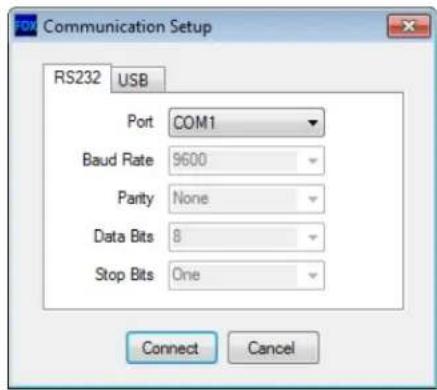
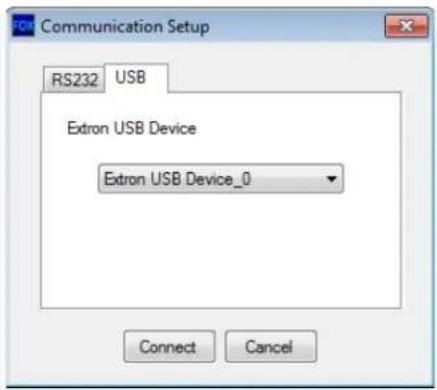
Figure 10. Communication Setup Window Connection Methods
-
Select the desired connection method.
-
To connect the software to the device through the rear panel Remote RS-232 connector, click the RS232 tab and select the desired port from the Port drop-down list (see the left side of figure 10).
-
To connect the software to the device through the front panel USB connector, click the USB tab and select the Extron USB device from the Extron USB Device drop-down list (see the right side of figure 10).
-
Click the Connect button. The FOX Extenders Control Program window appears.
NOTE: Some controls and displays are available only when connected to specific devices.
Using the Software
For more configuration and control details, see the FOX Extenders Control Program Help File for configuration and control details. Open the file using one of the following methods:
- Once the FOX Extenders Control Program is open, press the
key on the keyboard. - Once the FOX Extenders Control Program is open, select Contents from the Help menu.
- From the Windows Start Menu, select FOX Extenders Help from the FOX Extenders Control Program folder.
The main screen opens (see figure 11 on page 25).
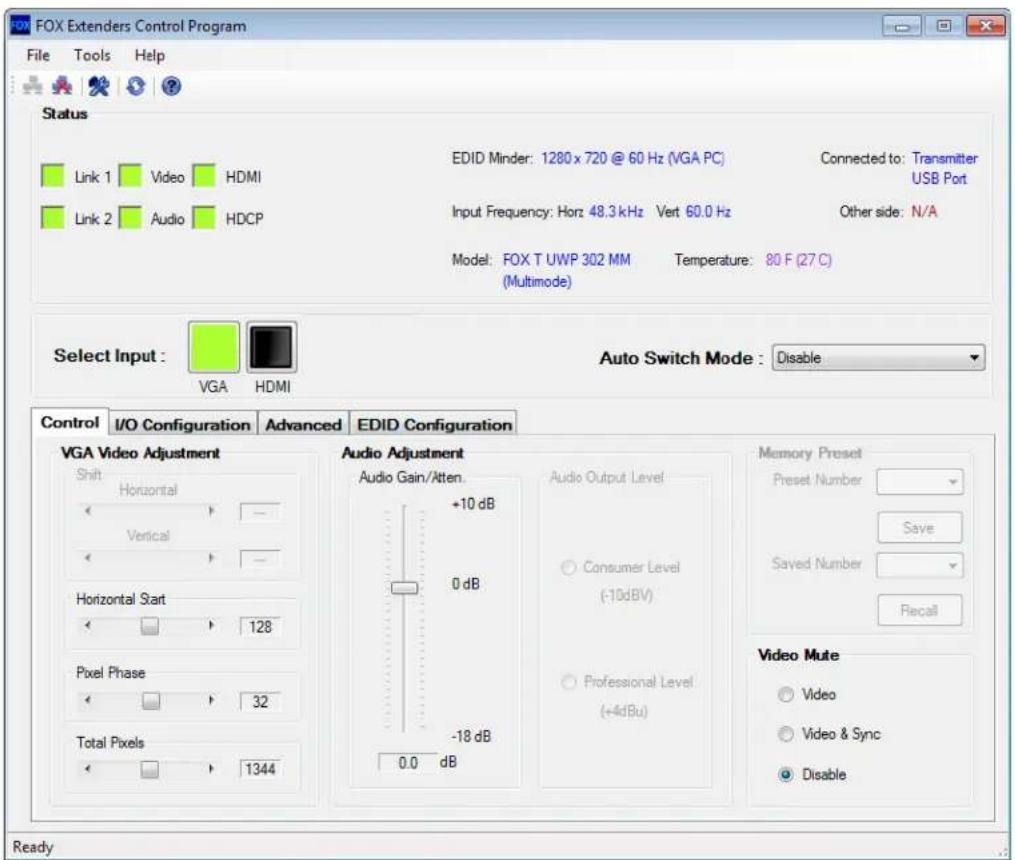
Figure 11. Main Screen
The main screen consists of a menu bar, Status panel, Input panel, and Configuration panel.
Menu Bar
The menu bar consists of three menus for connection options, device information and configuration, and additional resources.
File menu
The File menu contains options for connecting and disconnecting the device and exiting the FOX Extenders Control Program.

Figure 12. File Menu
NOTE: Options that appear gray are not available.
Connect
The Connect option establishes communication with a disconnected device. A disconnected device may include a device that has timed out after prolonged inactivity or a new device that has yet to be connected. If a device is already connected, the Connect option is disabled until the device is disconnected or the connection times out.
To establish a connection:
-
From the File menu, select Connect. Alternatively, click the 📁 icon below the menu bar. This displays the Communication Setup dialog box opens (see figure 10 on page 24).
-
Select the desired connection method.
-
To connect the software to the device through the rear panel Remote RS-232 connector, click the RS232 tab and select the desired port from the Port drop-down list (see the left side of figure 10).
-
To connect the software to the device through the front panel USB connector, click the USB tab and select the Extron USB device from the Extron USB Device drop-down list (see figure 8, right).
-
Click the Connect button. The FOX Extenders Control Program window appears.
NOTE: Some controls and displays are available only when connected to specific devices.
Disconnect
The Disconnect option stops communication with the current device, but leaves the FOX Extenders Control Program open. Once disconnected, configuration can no longer be done unless connection is re-established.
To disconnect from the device, select Disconnect from the File menu or click the icon below the menu bar. The status bar at the bottom of the window indicates that the device is disconnected.
Exit
The Exit option closes the FOX Extenders Control Program.
To exit the program, select Exit from the File menu.
Tools Menu
The Tools menu contains options for displaying device information or configuring the device.
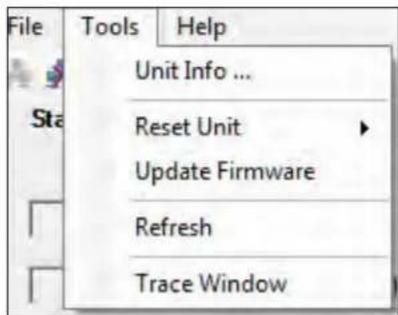
Figure 13. Tools Menu
Unit Info
The Unit Info option opens a dialog box with information about the connected device.

Figure 14. Unit Info Dialog Box
- From the Tools menu, select Unit Info. This opens a dialog box displaying information about the connected unit. The displayed information includes:
• Model number of the device
• Name of the device model
• Description of the model
- Firmware version currently found on the device
- Firmware build
- FPGA version
- Click the OK button to close the dialog box and return to the main screen.
Reset Unit
There are three listed reset options:
- Master System Reset
• Audio Gain/Atten. Reset - Presets Reset
Depending on the chosen reset option, different settings are cleared.

Figure 15. Reset Unit Menu
NOTE: Be careful to select the intended reset option. Selecting the incorrect reset can result in unintended loss of settings.
Master System Reset — Resets all unit settings and user settings to factory defaults.
From the Tools menu, locate the Reset Unit submenu and select Master System Reset.

Figure 16. Unit System Dialog Box
Audio Gain/Atten. Reset — Resets the level of audio gain and attenuation to factory defaults.
From the Tools menu, expand the Reset Unit submenu and select Audio Gain/Atten. Reset.

Figure 17. Audio Gain and Attenuation Reset Dialog Box
Presets Reset — Is not available for the FOX T UWP 302.
Update Firmware
The Update Firmware option opens the Extron Firmware Loader application. This application is used to upload new firmware to the connected device (see Downloading Firmware on page 43 to download new firmware).
NOTE: In order for the Update Firmware option to work, install the Firmware Loader application (see Downloading Extron Firmware Loader on page 41). Otherwise, the Update Firmware option is disabled.
To update firmware:
- From the Tools menu, select Update Firmware. Alternatively, click the icon below the menu bar. This opens Firmware Loader (if this application is already installed on the connected PC).
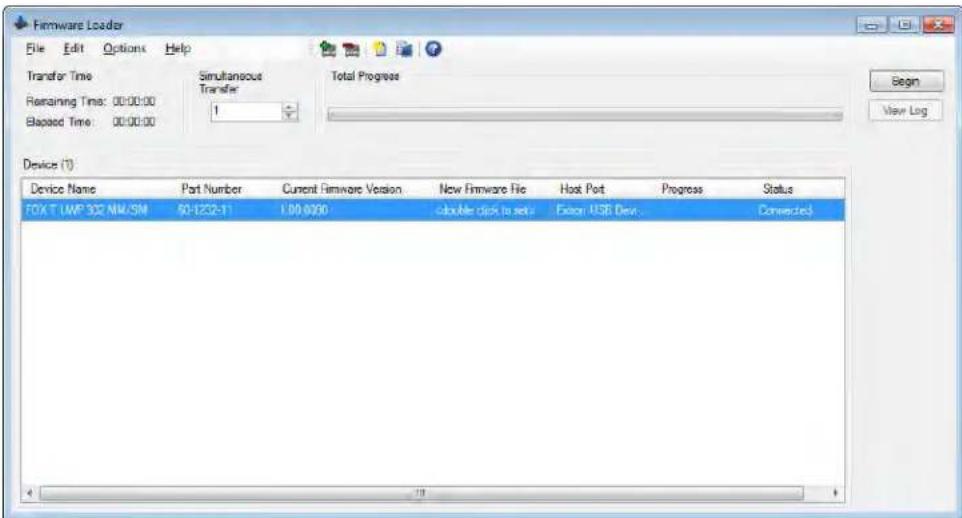
Figure 18. Firmware Loader Interface
- Upload new firmware (see Installing Firmware with Firmware Loader on page 44).
If necessary, download new firmware from the Extron website (see Downloading Firmware on page 43).
-
Exit Firmware Loader.
-
From the File menu of the FOX Extenders Control Program, select Connect to re-establish communication with the device.
-
Re-enter the connection information in the Connect dialog box to re-establish communication with the device.
See the Firmware Loader Help File and supporting documentation for further information about using Firmware Loader.
Refresh
The Refresh option refreshes the main screen of the FOX Extenders Control Program without restarting the application. This is useful if connection to a device is lost (such as if the unit has been unplugged accidentally) or settings change on the device.
From the Tools menu, select Refresh. Alternatively, click the icon.
Trace Window
The Trace Window option displays data sent to and received from the device in a separate window for troubleshooting.

Figure 19. Trace Window Dialog Box
- From the Tools menu, select Trace Window. The Trace Window dialog box opens.
- To clear existing information, click the Clear button.
- Click the Close button to close the Trace Window dialog box.
Help Menu
The Help menu contains options for additional information and reference material, checking for updates to the FOX Extenders Control Program, and software information.
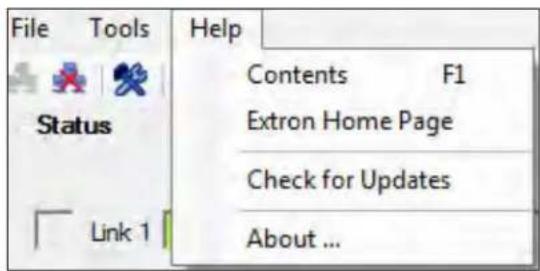
Figure 20. Help Menu
Contents
The Contents option launches the FOX Extenders Control Program help file.
Open the help file in one of the following ways:
• From the Help menu, select Contents.
- Press
- Click the icon to launch the help file.
Extron Home Page
The Extron Home Page option displays the Extron website. The Extron website contains supporting documentation for Extron products and downloadable firmware and software updates (see Firmware Loader on page 41).
From the Help menu, select Extron Home Page. This opens a new Internet browser window to the Extron website.
Check for Updates
The Check for Updates option verifies that the latest version of the FOX Extenders Control Program is being used. If there is a new version available, the option to install it becomes available.
From the Help menu, select Check for Updates.
About...
This option opens a dialog box displaying information about the FOX Extenders Control Program.
- From the Help menu, select About. This opens a dialog box displaying information about the FOX Extenders Control Program. The displayed information includes:
• Name of the application
• Currently installed software version
- Software part number
• Copyright
• Application description
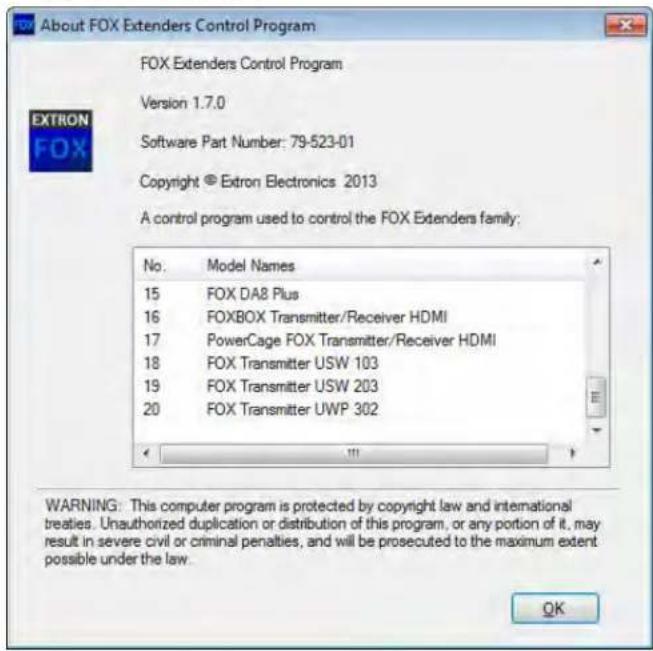
Figure 21. About FOX Extenders Control Program Dialog Box
- Click the OK button to close this dialog box and return to the main screen of the application.
Main Screen
The main screen contains status information, input selection, and configuration options.
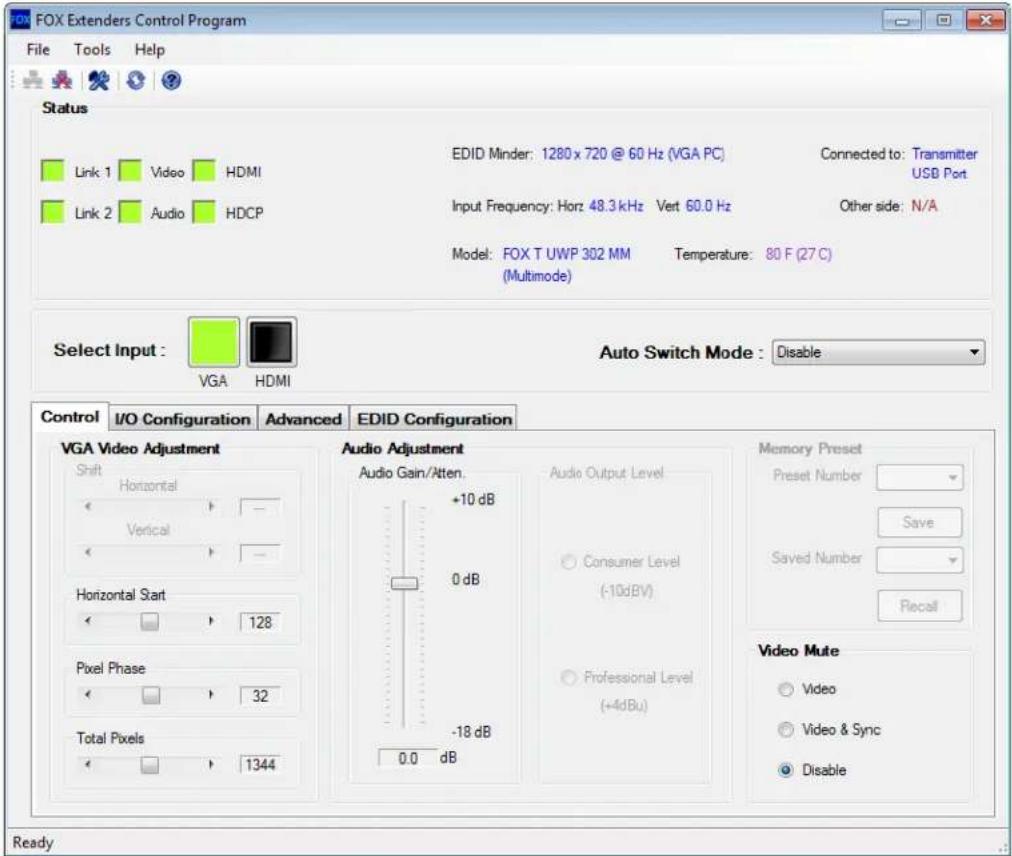
Figure 22. Main Screen
NOTE: The main screen may appear different from the image above depending on what is connected. Functions which are not applicable are disabled.
Status panel
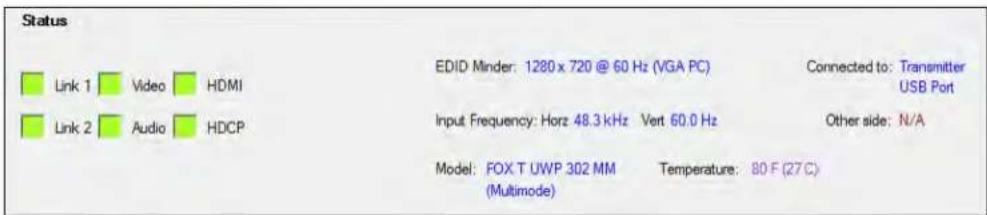
Figure 23. Status Panel
The Status panel of the screen provides visual indications of the connection status and the names of the connected units. The following information is displayed:
Link 1 Indicator — Displays green when the receiver detects light on Link 1 (connecting the Tx port of the transmitter to the Rx port of the receiver).
Link 2 Indicator — Displays green when an HDMI transmitter detects light on Link 2 (connecting the Tx port of an HDMI receiver to the Rx port of an HDMI transmitter).
NOTE: For transmission of HDMI video with HDCP content, two fibers are required.
Video Indicator — Displays green when the transmitter detects an active signal on the VGA input.
Audio Indicator — Displays green when the device detects audio with the selected input. If the selected input has an analog audio signal above -44 dBV, the indicator turns green immediately, but turns gray after the audio signal level drops below the threshold continuously for 10 seconds. If the selected input has digital embedded audio, the indicator displays green and remains green as long as the digital audio signal is detected.
HDMI Indicator — Displays green when the unit receives an HDMI input signal.
HDCP Indicator — Displays green if the input signal is HDCP-encrypted.
EDID Minder — Displays the current EDID Minder settings.
Input Frequency — Displays the horizontal and vertical frequencies of the current input. This field indicates No Input Signal if there is no input signal.
Model — Displays the model of the device that is connected via RS-232 or USB.
Connected to — Displays the communication port of the unit that is connected to the PC. This can be either a communication port on the transmitter or a communication port on the receiver.
Other side — Displays N/A whenever connected to a FOX T UWP 302.
Temperature — Displays the internal temperature of the device.
Input Selection panel
The Input Selection panel is used to select inputs manually or automatically.

Figure 24. Input Selection Panel
Select Input — Select the desired input. The currently selected input is green. The left button represents Input 1 (VGA). The right button represents Input 2 (HDMI).
Auto Switch Mode — Allows the device to auto switch inputs based on the chosen configuration. The options are Disabled, Priority to Highest Active, or Priority to Lowest Active.
NOTE: The default setting on the FOX T UWP 302 is Priority to Highest Active.
Control tab
The Control tab contains picture and audio adjustments. To access these options, click the Control tab.

Figure 25. Control Tab
VGA Video Adjustment panel
The VGA Video Adjustment panel of the Control tab adjusts the following video parameters on the analog input: horizontal start, pixel phase, and total pixels.
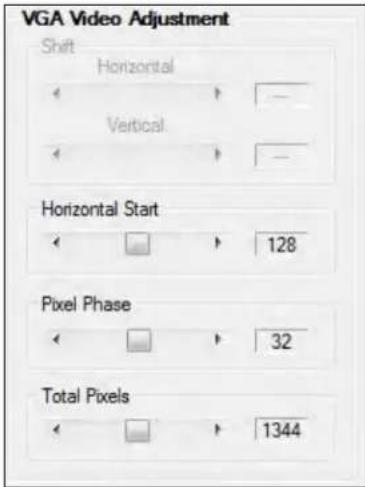
Figure 26. VGA Video Adjustment Panel
Horizontal Start — Defines the number of pixels in the blanking area to the left of the active area.
In the Horizontal Start panel of the VGA Video Adjustment panel, click the Left or Right arrows, or click and drag the slider to adjust the setting to the desired value. The field to the right of a slider shows the current value for the associated setting.
NOTE: The value for Horizontal Start can range between 0 and 255. Default setting: 128.
Pixel Phase — Controls the pixel phase. Sampling at the optimum pixel phase results in a bright, stable output.
In the Pixel Phase panel of the VGA Video Adjustment panel, click the Left or Right arrows, or click and drag the slider to adjust the setting to the desired value. The field to the right of a slider shows the current value for the associated setting.
NOTE: The value for Pixel Phase can range between 0 and 63. Default setting: 32.
The total pixels setting (see below) must be correctly set before adjusting pixel phase.
Total Pixels — Controls the total number of pixels in an active window.
In the Shift panel of the VGA Video Adjustment panel, click the Left or Right arrows, or click and drag the slider to adjust the setting to the desired value. The field to the right of a slider shows the current value for the associated setting.
NOTE: The Total Pixels setting depends on the input rate. It is ±255 of the default value.
Audio Adjustment panel
The Audio Adjustment panel of the Control tab adjusts the gain and attenuation of analog input audio.
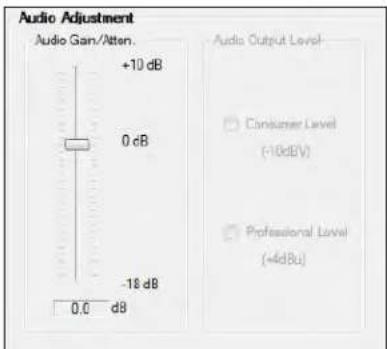
Audio Gain and Attenuation — Adjusts the analog input audio gain or attenuation value. This ranges from -18.0 dB to +10.0 dB in 1.0 dB increments.
In the Audio Gain/Atten. panel, click and drag the slider to the desired level. The current value is displayed in a field below the slider control.
Audio Output Level — Is not available for the FOX T UWP 302.
I/O Configuration Tab
The I/O Configuration tab contains options for input and output settings. To access these options, click the I/O Configuration tab.
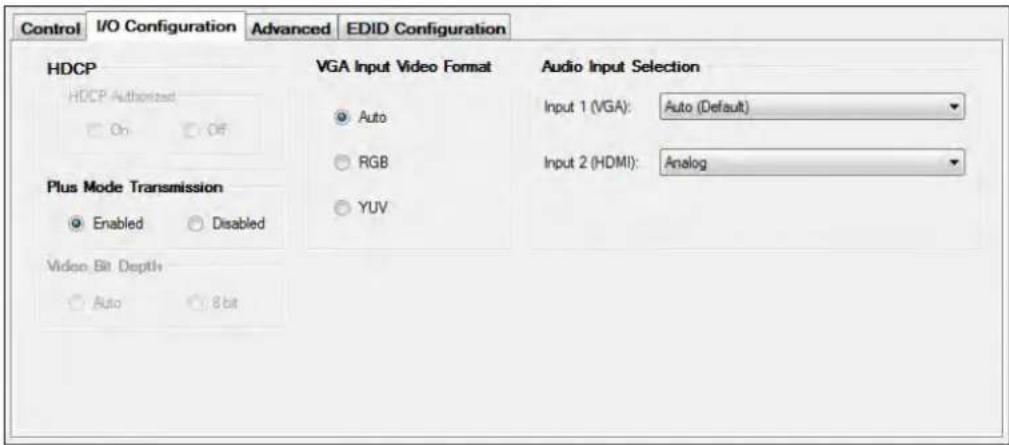
Figure 27. I/O Configuration Tab
HDCP panel
The HDCP Authorized setting allows a user to turn off HDCP communication on discrete inputs. This setting is useful for devices such as Mac computers, iPhones, iPads, and some Windows 7 sources that will always encrypt their output if the downstream sink is capable of HDCP. By not allowing HDCP signals on an input, most content from these sources can be passed as a non-encrypted signal to analog and digital video outputs. In a video system that has requirements to not transmit HDCP encrypted data (such as non-HDMI FOX Extenders), HDCP Authorized should be turned off at the input to keep the non-HDMI FOX Extender's output unencrypted.
In the HDCP panel, select the 0n radio button to enable the HDCP Authorized setting or select 0ff to disable the HDCP Authorized setting.
NOTE: Default setting: HDCP Authorized is 0n.
Plus Mode Transmission panel
Plus mode can support rates up to 1920x1200 @ 60Hz and 2K, with embedded audio, and is HDCP compliant. Non-Plus mode supports rates up to 1600x1200 and 1080p, is HDCP compliant, but does not support audio de-embedding (analog audio is still supported).
In the Plus Mode Transmission panel, click the Enabled radio button to enable Plus mode. To disable Plus mode, click the Disabled radio button.
NOTE: Default setting: Plus Mode is Enabled.
VGA Input Video Format panel
This setting selects RGB or YUV input video format for the VGA input.
NOTE: Default setting: VGA Input Video Format is Auto.
Audio Input Selection panel
This panel sets the audio type for the VGA and HDMI inputs, or set them to Auto for automatic selection.
For each input, select the desired audio input type from the Input drop-down list.
Audio Input Selection
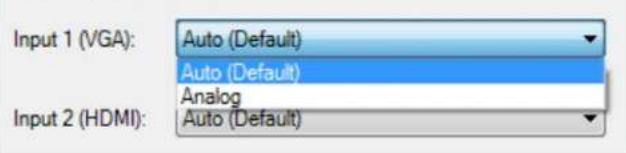
Figure 28. Audio Input 1 Options
NOTE: Default setting: Audio Input Selection is Auto for all inputs.
Advanced Tab
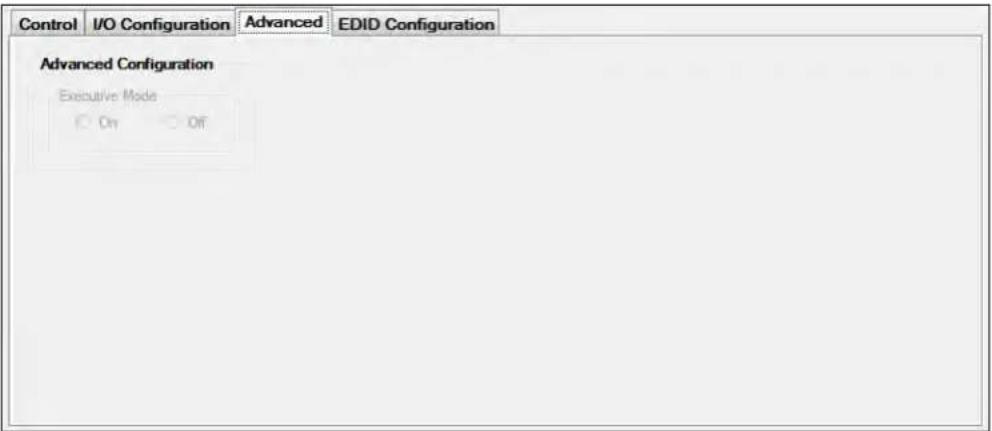
Figure 29. Advanced Tab
Advanced Configuration panel
NOTE: This setting is not available for the FOX T UWP 302.
EDID Configuration Tab
EDID is a data structure used to communicate video display information, including native resolution and vertical refresh rate requirements, to a source device. The source device then outputs the optimal video format for the display based on the provided EDID data, ensuring proper video image quality.
To access EDID options, click the EDID Configuration tab.

Figure 30. EDID Configuration Tab
Assigned EDID panel
This shows the current EDID configuration for each input. You can assign unique EDID for any input.
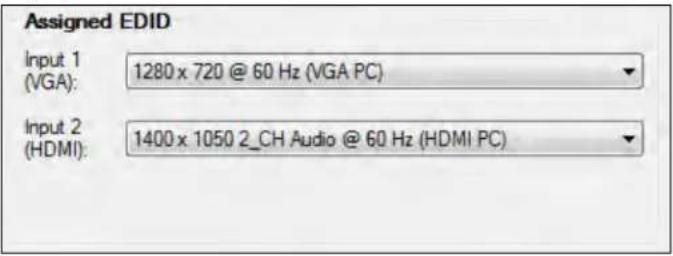
Figure 31. Assigned EDID Panel
Choose the desired EDID from the drop-down list of the desired input.
NOTE: The default EDID is 720p for the HDMI input and 1280x720 for the VGA input.
Save EDID panel
NOTE: This setting is not available for the FOX T UWP 302.
Import EDID panel
EDID files can be imported to the FOX T UWP 302 and saved in a table on the device.
NOTE: When an EDID file is imported to a user assigned input location, the EDID is automatically assigned to the selected user input.
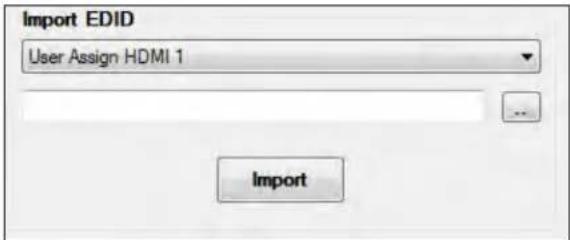
Figure 32. Import EDID Panel
- In the Import EDID panel, from the drop-down list, select the desired input.
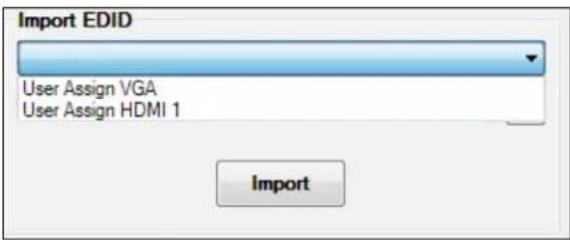
Figure 33. Import EDID Options
- Click on the Browse button to locate and select the desired EDID file on the connected PC.

Figure 34. Browse Button for Importing EDID
The Open dialog box opens.
-
Select the EDID file and click the Open button. The Open dialog box closes.
-
Click the Import button. The EDID is imported and assigned to the selected input.
Export EDID panel
EDID files on the FOX T UWP 302 can be exported to the connected PC. To open and view them, use the Extron EDID Manager software, available at www.extron.com.
The EDID Manager software aids in troubleshooting any EDID related issues that may occur during configuration or operation of an AV system.

Figure 35. Export EDID Panel
- In the Export EDID panel, select the desired EDID to export from the drop-down list.
- Click the Export button. The Save As dialog box opens.
- Select the export destination and file name for the EDID.
- Click the Save button. The EDID setting is exported.
Reference Information
This section describes basic installation information of the Extron Firmware Loader program to upload firmware. Topics in this section include:
- Firmware Loader
- Firmware Updates
Firmware Loader
To upload and update firmware for the FOX T UWP 302, download the new firmware to a connected computer and upload the firmware with the Firmware Loader utility or the FOX Extenders Control Program (see to the FOX Extenders Control Program Help File).
Downloading Extron Firmware Loader
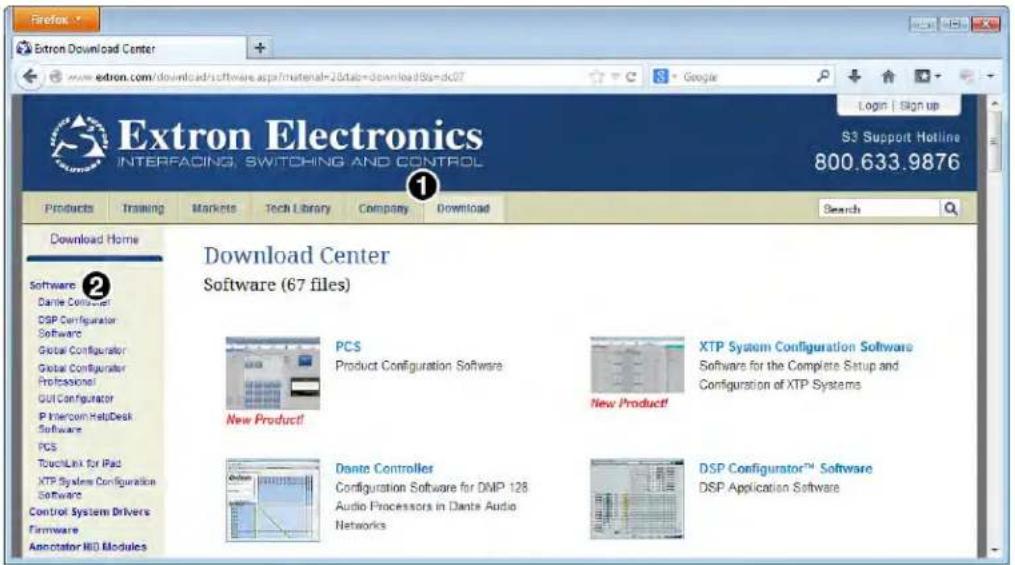
Figure 36. Firmware Loader on the Extron Website
- On the Extron website, click the Download tab (see figure 36, ①).
- From the left sidebar, click the Software link (②).
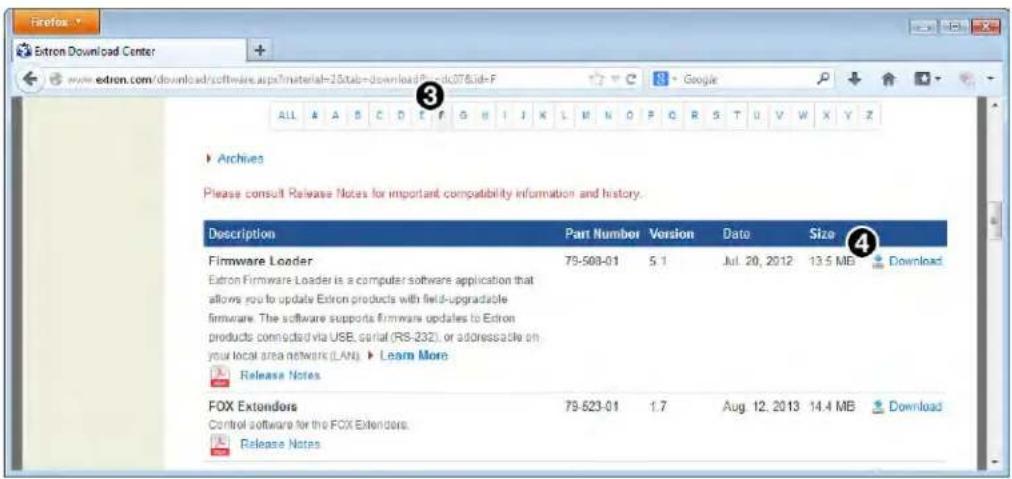
Figure 37. Firmware Loader Download on the Extron Website
- Navigate to Firmware Loader (see figure 37, ③).
- Click the Download link on the right that corresponds with the program (4).
- Submit any required information to start the download.
Installing Firmware Loader
- Once Firmware Loader has been downloaded, run the .exe file from the save location. The installation wizard window opens.
- Click the Next button to continue through the installation process, filling out necessary information and specifying custom settings on each prompt.
Firmware Updates
Downloading Firmware
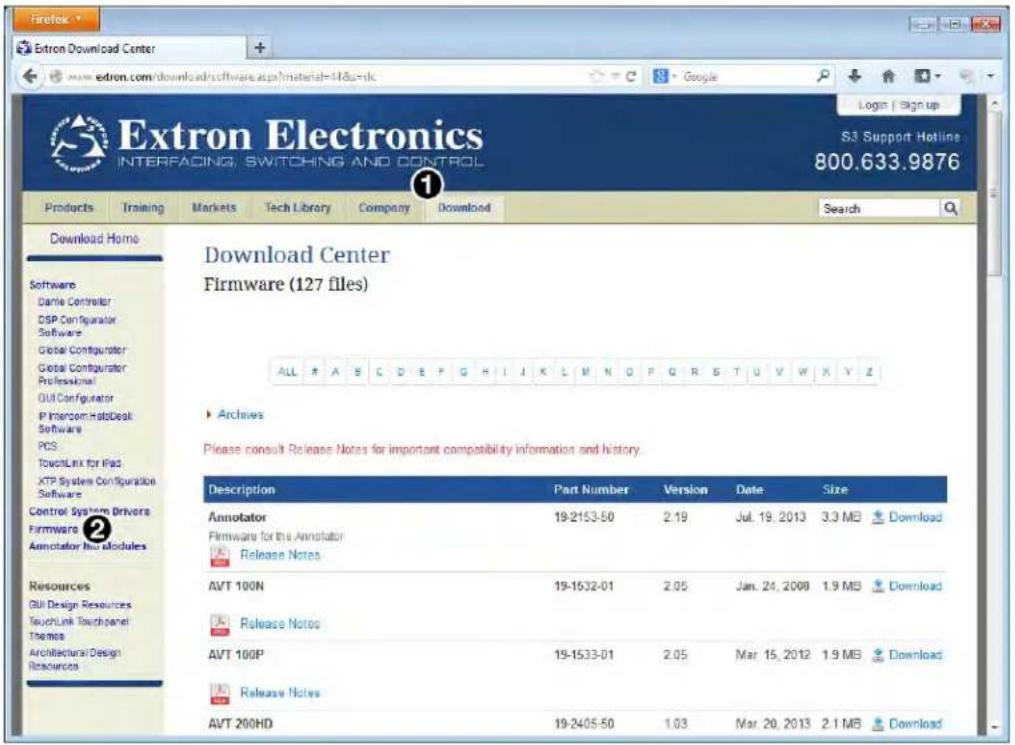
Figure 38. Downloading Firmware from the Extron Website
- On the Extron website, click the Download tab (see figure 38, ①).
- From the left sidebar, click the Firmware link (②).
- Navigate to FOX T UWP 302.
- Ensure the available firmware version is a later version than the current one on the device.
NOTE: The firmware release notes are in a PDF file that provides details about the changes between different firmware versions. The file can be downloaded from the same page as the firmware on the Extron website.
- Click the Download link to the right of the desired device.
- Submit any required information to start the download. Note where the file is saved.
- Open the executable (.exe) file.
- Follow the instructions on the Installation Wizard screens to install the new firmware on the computer. A Release Notes file, giving information on what has changed in the new firmware version, and a set of instructions for updating the firmware are also loaded.
Installing Firmware with Firmware Loader
- Open Firmware Loader to establish a connection between the computer and the device. The Add Device... dialog box opens.
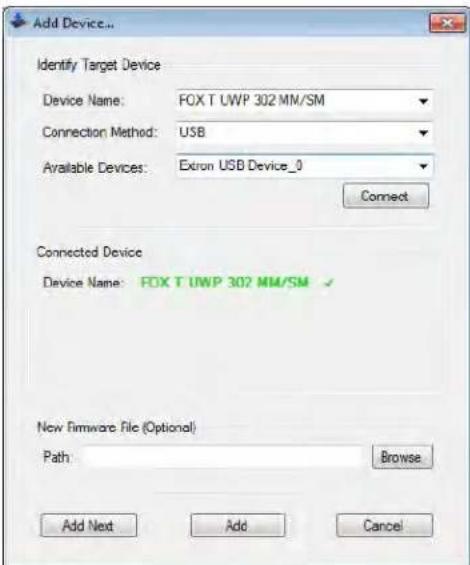
Figure 39. Add Device... Window
- Select FOX T UWP 302 from the Device Name drop-down list.
- Select the method of connection from the Connection Method drop-down list.
- Depending on the connection method, additional options appear. Make the appropriate selections for the current connection method.
- Click the Connect button.
- Click Browse in the New File Firmware (Optional) panel. The Open window opens.
- On the Open window, navigate to the new firmware file, which has an .S19 extension, and click the Open button.
ATTENTION: Valid firmware files must have the file extension .S19. A file with any other extension is not a firmware upgrade for this device and could cause the device to stop functioning.
- Click Add. The Add Device... dialog box closes and the device and firmware are listed in the Firmware Loader main window.
- Click Begin to start the upload process.
- Close Firmware Loader when the Remaining Time field shows 00.00.00, the Progress column shows 100%, and the Status field shows completed.
NOTE: See the Factory reset SIS commands on page 22 or System Reset on page 14 for reset information.
Extron Warranty
Extron Electronics warrants this product against defects in materials and workmanship for a period of three years from the date of purchase. In the event of malfunction during the warranty period attributable directly to faulty workmanship and/or materials, Extron Electronics will, at its option, repair or replace said products or components, to whatever extent it shall deem necessary to restore said product to proper operating condition, provided that it is returned within the warranty period, with proof of purchase and description of malfunction to:
USA, Canada, South America, and Central America:
Extron Electronics
1230 South Lewis Street
Anaheim, CA 92805
U.S.A.
Japan:
Extron Electronics, Japan
Kyodo Building, 16 Ichibancho
Chiyoda-ku, Tokyo 102-0082
Japan
Europe and Africa:
Extron Europe
Hanzeboulevard 10
3825 PH Amersfoort
The Netherlands
China:
Extron China
686 Ronghua Road
Songjiang District
Shanghai 201611
China
Asia:
Extron Asia Pte Ltd
135 Joo Seng Road, #04-01
PM Industrial Bldg.
Singapore 368363
Singapore
Middle East:
Extron Middle East
Dubai Airport Free Zone
F13, PO Box 293666
United Arab Emirates, Dubai
This Limited Warranty does not apply if the fault has been caused by misuse, improper handling care, electrical or mechanical abuse, abnormal operating conditions, or if modifications were made to the product that were not authorized by Extron.
NOTE: If a product is defective, please call Extron and ask for an Application Engineer to receive an RA (Return Authorization) number. This will begin the repair process.
USA: 714.491.1500 or 800.633.9876
Europe: 31.33.453.4040
Asia: 65.6383.4400
Japan: 81.3.3511.7655
Units must be returned insured, with shipping charges prepaid. If not insured, you assume the risk of loss or damage during shipment. Returned units must include the serial number and a description of the problem, as well as the name of the person to contact in case there are any questions.
Extron Electronics makes no further warranties either expressed or implied with respect to the product and its quality, performance, merchantability, or fitness for any particular use. In no event will Extron Electronics be liable for direct, indirect, or consequential damages resulting from any defect in this product even if Extron Electronics has been advised of such damage.
Please note that laws vary from state to state and country to country, and that some provisions of this warranty may not apply to you.
| Extron Headquarters+1.800.633.9876 (Inside USA/Canada Only)Extron USA - West Extron USA - East+1.714.491.1500 +1.919.850.1000+1.714.491.1517 FAX +1.919.850.1001 FAX | Extron Europe+800.3987.6673(Inside Europe Only)+31.33.453.4040+31.33.453.4050 FAX | Extron Asia+65.6383.4400+65.6383.4664 FAX | Extron Japan+81.3.3511.7665+81.3.3511.7656 FAX | Extron China+86.21.3760.1568+86.21.3760.1566 FAX | Extron Middle East+971.4.299.1800+971.4.299.1800 FAX | Extron Australia+61.8.8113.6800+61.8.8351.2511 FAX | Extron India1800.3070.3777(Inside India Only)+91.80.3055.3777+91.80.3055.3737 FAX |
- Safety Instructions • English
- Trademarks
- FCC Class A Notice
- Class 1 Laser Product
- Conventions Used in this Guide
- Notifications
- Software Commands
- Specifications Availability
- Extron Glossary of Terms
- Contents
- Introduction.... 1
- Installation and Operation....5
- SIS Configuration and Control....15
- FOX Extenders Control Program....23
- Reference Information 41
- Introduction
- About this Guide
- About the FOX T UWP 302
- System Compatibility
- Cable Transmission Modes
- Key Features
- HDCP-compliance
- Audio gain and attenuation adjustment capability
- Compatibility with the following Extron FOX series products:
- Front panel USB configuration port
- Includes LockIt HDMI cable lacing bracket
- Installation and Operation
- Installation Overview
- NOTES:
- ATTENTION:
- Rear Panel Features
- WARNING: Potential risk of severe injury. The FOX T UWP 302 outputs continuous invisible light, which may be harmful to the eyes; use with caution.
- Front Panel Features
- A LED indicators
- Mounting and Making Connections
- Mounting
- Connecting the HDMI Connector
- Wiring for Remote RS-232 and Alarm Communication
- Wiring the Power Supply
- Operation
- Initial Power Up
- System Reset
- SIS Configuration and Control
- Simple Instruction Set Control
- SIS Programming Guide
- Host-to-device and device-to-host communication
- Device-initiated messages
- Reconfig
- Error responses
- Using the Command and Response Tables for SIS Commands
- Symbol Definitions
- FOX Extenders Control Program
- Installing the Software
- To download the software from the website:
- Starting the Software
- Using the Software
- Menu Bar
- File menu
- Connect
- To establish a connection:
- Disconnect
- Exit
- Tools Menu
- Unit Info
- Reset Unit
- Update Firmware
- To update firmware:
- Refresh
- Trace Window
- Help Menu
- Extron Home Page
- Check for Updates
- About...
- Main Screen
- Input Selection panel
- Control tab
- VGA Video Adjustment panel
- Audio Adjustment panel
- I/O Configuration Tab
- HDCP panel
- Plus Mode Transmission panel
- VGA Input Video Format panel
- Audio Input Selection panel
- Advanced Configuration panel
- EDID Configuration Tab
- Assigned EDID panel
- Save EDID panel
- Import EDID panel
- Export EDID panel
- Reference Information
- Firmware Loader
- Installing Firmware Loader
- Firmware Updates
- Downloading Firmware
- Installing Firmware with Firmware Loader
- Extron Warranty
- USA, Canada, South America, and Central America:
- Japan:
- Europe and Africa:
- China:
- Asia:
- Middle East:
Brand : Extron
Model : FOX T UWP 302 SM
Category : Video transmitter