
KX-TG3033C - Telephony PANASONIC - Free user manual and instructions
Find the device manual for free KX-TG3033C PANASONIC in PDF.


| Product Type | Cordless Phone with Answering Machine |
| Brand | Panasonic |
| Model | KX-TG3033C |
| Technology | DECT |
| Number of Handsets | 1 (expandable up to 6) |
| Base Unit Dimensions (H x W x D) | Approx. 100 x 100 x 50 mm |
| Handset Dimensions (H x W x D) | Approx. 160 x 45 x 25 mm |
| Base Unit Weight | Approx. 150 g |
| Handset Weight | Approx. 130 g (including battery) |
| Power Supply | Base: AC 220-240V, 50/60 Hz; Handset: 2 x AAA Ni-MH rechargeable batteries |
| Battery Life | Up to 10 hours talk time / 100 hours standby |
| Range | Indoor: up to 50 m; Outdoor: up to 300 m |
| Main Functions | Caller ID, Call Waiting, Answering Machine, Intercom, Conference Call, Phonebook (100 entries), Speakerphone, Redial |
| Answering Machine Capacity | Up to 18 minutes recording time |
| Display | Backlit LCD |
| Care and Cleaning | Wipe with a soft dry cloth; avoid liquids and abrasives |
| Safety | Use only approved batteries and charger; keep away from water and excessive heat |
| Spare Parts and Repairability | Replacement handsets and batteries available; base unit service by authorized Panasonic service centers |
| General Information | Compliant with CE standards; user manual available in PDF |
Frequently Asked Questions - KX-TG3033C PANASONIC
User questions about KX-TG3033C PANASONIC
0 question about this device. Answer the ones you know or ask your own.
Ask a new question about this device
Download the instructions for your Telephony in PDF format for free! Find your manual KX-TG3033C - PANASONIC and take your electronic device back in hand. On this page are published all the documents necessary for the use of your device. KX-TG3033C by PANASONIC.
USER MANUAL KX-TG3033C PANASONIC
TG302X_303XC(e).book Page 1 Monday, December 25, 2006 1:30 PM
natural_image
Pure geometric diagram with intersecting lines and circles, no text or symbols presentPanasonic®
Operating Instructions
2.4 GHz Expandable Digital Cordless Phone
Model No. KX-TG3021C
with 3 Handsets
Model No. KX-TG3023C
2.4 GHz Digital Cordless Phone
with 4 Handsets
Model No. KX-TG3024C
2.4 GHz Expandable Digital Cordless
Answering System
Model No. KX-TG3031C
with 2 Handsets
Model No. KX-TG3032C
with 3 Handsets
Model No. KX-TG3033C

natural_image
Line drawing of a desktop phone and its corresponding keypad (no text or symbols)Model shown is KX-TG3021C.
This unit is compatible with Call Display. To use this feature, you must subscribe to the appropriate service offered by your telephone service provider.
Charge the handset battery for 7 hours before initial use.
Please read these Operating Instructions before using the unit and save for future reference.
For assistance, please call 1-800-561-5505 or visit us at
www.panasonic.ca

natural_image
Pure geometric diagram with intersecting lines and circles, no text or symbols present

natural_image
Pure geometric diagram with intersecting lines and shapes, no text or symbols presentTable of Contents
Introduction
Product information 3
Accessory information 4
Important safety instructions ..... 6
For best performance 8
Preparation
Setting up the base unit....9
Setting up the handset 9
Controls.... 12
Display.... 13
Setting the unit before use 14
Making/Answering Calls
Making calls.... 15
Answering calls 15
Useful features during a call ..... 16
Phonebook
Handset phonebook 18
Copying handset phonebook items . 19
Call Display Service
Using Call Display service.....20
Caller list 22
Programming
Programmable settings 23
Answering System
Answering system 28
Turning the answering system
on/off 28
Greeting message 29
Listening to messages using the base
unit 29
Listening to messages using the
handset 30
Remote operation 31
Answering system settings ..... 32
Voice Mail Service
Using Voice Mail service ..... 34
Multi-unit Operation
Intercom 36
Transferring calls between handsets, conference calls 37
Registering a handset 37
Useful Information
Wall mounting 38
Headset (optional).... 39
Lanyard/strap eyelet 39
Error messages.... 40
Troubleshooting 42
Important information 47
Specifications 49
Warranty 50
Index
Index 51
Product information
Thank you for purchasing a Panasonic cordless telephone.
These operating instructions can be used for the following models:

natural_image
Illustration of two mobile phones, one with a screen and the other with a keypad (no text or symbols visible)
natural_image
Illustration of four different mobile phone models (no text or symbols visible)
natural_image
Illustration of five different mobile phone models arranged in a row (no text or symbols visible)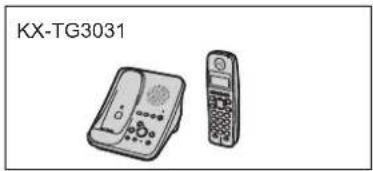
natural_image
Illustration of two mobile phones, one on a landline and the other on a keyboard (no text or symbols visible)
natural_image
Illustration of three different mobile phone models (no text or symbols on devices)
natural_image
Illustration of four different types of 3G phone models (no text or symbols on devices)Important:
- The suffix (C) in the following model numbers will be omitted in these instructions: KX-TG3021C/KX-TG3023C/KX-TG3024C/KX-TG3031C/KX-TG3032C/KX-TG3033C


TG302X_303XC(e).book Page 4 Monday, December 25, 2006 1:30 PM

natural_image
Pure geometric diagram with intersecting lines and circles, no text or symbols presentIntroduction
Notable feature differences among the following models
| Model no. Answering system | Intercom | |
| ∅ ∅^*1 | ∅ ∅^*2 | |
| KX-TG3021 --- | ^*3 | |
| KX-TG3023 --- | ||
| KX-TG3024 --- | ||
| KX-TG3031 ● | ● | - |
| KX-TG3032 ● | ● | ● |
| KX-TG3033 ● | ● | ● |
*1 Intercom calls can be made between the handset and base unit.
*2 Intercom calls can be made between the handsets.
*3 Intercom calls can be made between the handsets by purchasing and registering 1 or more optional handsets (KX-TGA301C, page 5).
Special feature
■Handset voice enhancer
This feature clarifies the voice of the person you are talking to, reproducing a more natural-sounding voice that is easier to hear and understand (page 17).

Accessory information
Included accessories
| No. | Accessory item | Quantity | |||
| KX-TG3021/KX-TG3031 | KX-TG3032 | KX-TG3023/KX-TG3033 | KX-TG3024 | ||
| 1A | C a | d | a | p | t |
| 2Telephone line cord | 1 | 1 | 1 | 1 | |
| 3W | a l | l | m | o | u |
| 4B | a t | t | e | r | y |
| 5Handset cover *1 | 1 | 2 | 3 | 4 | |
| 6C | h a | r | g | e | r |
| 7A | C a | d | a | p | t |
*1 The handset cover comes attached to the handset.
| o | r | f |
| n | t | i |
| 1 | 2 | |
| - | 1 | |
| o | r | f |
4

natural_image
Pure geometric diagram with intersecting lines and circles, no text or symbols present

natural_image
Pure geometric lines and shapes without any text, numbers, or symbolsIntroduction
①

②

③
④

⑤

⑥

⑦

Additional/replacement accessories
| Accessory item Order number | |
| Rechargeable nickel metal hydride (Ni-MH) battery | HHR-P107 |
| Accessory handset with charger KX-TGA301C | |
| Headset RP-TCA86, RP-TCA91, RP-TCA92, RP-TCA94, or RP-TCA95 | |

Expanding your phone system
You can expand the phone system by registering optional handsets to a single base unit.
● A maximum of 4 total handsets (included and optional) can be registered to a single base unit.
- KX-TG3024: An additional handset cannot be registered.
Handset (optional): KX-TGA301C


Introduction
Important safety instructions
When using the product, basic safety precautions should always be followed to reduce the risk of fire, electric shock, or personal injury.
- Read all instructions carefully.
- Follow all warnings and instructions marked on the product.
- Unplug the product from power outlets before cleaning. Do not use liquid or aerosol cleaners. Use a moist cloth for cleaning.
- Do not use the product near water, for example near a bathtub, wash bowl, kitchen sink, etc.
- Place the product securely on a stable surface. Serious damage and/or injury may result if the product falls.
- Do not cover slots and openings on the product. They are provided for ventilation and protection against overheating. Never place the product near radiators, or in a place where proper ventilation is not provided.
- Use only the power source marked on the product. If you are not sure of the type of power supplied to your home, consult your dealer or local power company.
- Do not place objects on the power cord. Install the product where no one can step or trip on the cord.
- Do not overload power outlets and extension cords. This can result in the risk of fire or electric shock.
-
Never push any objects through slots in the product. This may result in the risk of fire or electric shock. Never spill any liquid on the product.
-
To reduce the risk of electric shock, do not disassemble the product. Take the product to an authorized service centre when service is required. Opening or removing covers may expose you to dangerous voltages or other risks. Incorrect reassembly can cause electric shock when the product is subsequently used.
-
Unplug the product from power outlets and take to an authorized service centre when the following conditions occur:
A. When the power cord is damaged or frayed.
B. If liquid has been spilled into the product.
C. If the product has been exposed to rain or water.
D. If the product does not work normally by following the operating instructions. Adjust only controls covered by the operating instructions. Improper adjustment may require extensive work by an authorized service centre.
E. If the product has been dropped or physically damaged.
F. If the product exhibits a distinct change in performance.
-
During thunderstorms, avoid using telephones except cordless types. There may be a remote risk of an electric shock from lightning.
-
Do not use the product to report a gas leak, when in the vicinity of the leak.
SAVE THESE INSTRUCTIONS
Introduction
WARNING:
- To prevent the risk of fire or electrical shock, do not expose the product to rain or any type of moisture.
● Unplug the product from power outlets if it emits smoke, an abnormal smell, or makes an unusual noise. These conditions can cause fire or electric shock. Confirm that smoke has stopped emitting and contact an authorized service centre. - Do not spill liquids (detergents, cleansers, etc.) onto the telephone line cord plug, or allow it to become wet at all. This may cause a fire. If the telephone line cord plug becomes wet, immediately pull it from the telephone wall jack, and do not use.
- Do not place or use this product near automatically controlled devices such as automatic doors and fire alarms. Radio waves emitted from this product may cause such devices to malfunction resulting in an accident.
- Completely insert the AC adaptor/ power plug into the power outlet. Failure to do so may cause electric shock and/or excessive heat resulting in a fire.
● Regularly remove any dust, etc. from the AC adaptor/power plug by pulling it from the power outlet, then wiping with a dry cloth. Accumulated dust may cause an insulation defect from moisture, etc. resulting in a fire.
CAUTION:
Installation
- Never install telephone wiring during a lightning storm.
● Never install telephone line jacks in wet locations unless the jack is specifically designed for wet locations.
● Never touch uninsulated telephone wires or terminals unless the telephone line has been disconnected at the network interface.
- Use caution when installing or modifying telephone lines.
- Do not touch the plug with wet hands.
●The AC adaptor is used as the main disconnect device. Ensure that the AC outlet is installed near the product and is easily accessible.
Battery
To reduce the risk of fire or injury to persons, read and follow these instructions.
- Use only the battery(ies) specified.
- Do not dispose of the battery(ies) in a fire. They may explode. Check with local waste management codes for special disposal instructions.
- Do not open or mutilate the battery(ies). Released electrolyte is corrosive and may cause burns or injury to the eyes or skin. The electrolyte may be toxic if swallowed.
- Exercise care when handling the battery(ies). Do not allow conductive materials such as rings, bracelets or keys to touch the battery(ies), otherwise a short circuit may cause the battery(ies) and/or the conductive material to overheat and cause burns.
- Charge the battery(ies) provided, or identified for use with the product only, in accordance with the instructions and limitations specified in this manual.
Medical
- Consult the manufacturer of any personal medical devices, such as pacemakers or hearing aids, to determine if they are adequately


TG302X_303XC(e).book Page 8 Monday, December 25, 2006 1:30 PM
Introduction
shielded from external RF (radio frequency) energy. (The product operates in the frequency range of 2.4 GHz to 2.48 GHz, and the power output is 125 mW (max.).) Do not use the product in health care facilities if any regulations posted in the area instruct you not to do so. Hospitals or health care facilities may be using equipment that could be sensitive to external RF energy.
For best performance
Base unit location/avoiding noise
The base unit and other compatible Panasonic units use radio waves to communicate with each other.
- For maximum coverage and noise-free communications, place your base unit:
- at a convenient, high, and central location with no obstructions between the handset and base unit in an indoor environment.
– away from electronic appliances such as TVs, radios, personal computers, wireless devices or other phones. - avoid facing radio frequency transmitters, such as external antennas of mobile phone cell stations (avoid putting the base unit on a bay window or near a window).
- Coverage and voice quality depends on the local environmental conditions.
- If the reception for a base unit location is not satisfactory, move the base unit to another location for better reception.
Environment
- Keep the product away from electrical noise generating devices, such as fluorescent lamps and motors.
● The product should be kept free from excessive smoke, dust, high temperature, and vibration. - The product should not be exposed to direct sunlight.
- Do not place heavy objects on top of the product.
- When you leave the product unused for a long period of time, unplug the product from the power outlet.
- The product should be kept away from heat sources such as heaters, kitchen stoves, etc. It should not be placed in rooms where the temperature is less than 5^ (41°F) or greater than 40^ (104°F). Damp basements should also be avoided.
- The maximum calling distance may be shortened when the product is used in the following places: Near obstacles such as hills, tunnels, underground, near metal objects such as wire fences, etc.
- Operating the product near electrical appliances may cause interference. Move away from the electrical appliances.
Routine care
- Wipe the outer surface of the product with a soft moist cloth. Do not use benzine, thinner, or any abrasive powder.

TG302X_303XC(e).book Page 9 Monday, December 25, 2006 1:30 PM
Preparation
Setting up the base unit
Connecting the AC adaptor and telephone line cord
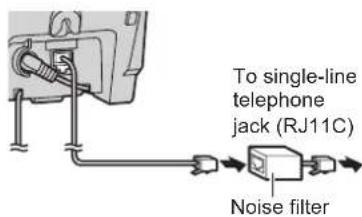
Connect the telephone line cord until it clicks into the base unit and telephone line jack (1). Connect the AC adaptor cord (2) by pressing the plug firmly (3).
- Use only the included Panasonic AC adaptor PQLV203.

Note:
●The AC adaptor must remain connected at all times. (It is normal for the adaptor to feel warm during use.)
- The AC adaptor should be connected to a vertically oriented or floor-mounted AC outlet. Do not connect the AC adaptor to a ceiling-mounted AC outlet, as the weight of the adaptor may cause it to become disconnected.
- The unit will not work during a power failure. We recommend connecting a corded telephone to the same telephone line or to the same telephone line jack using a T-adaptor.
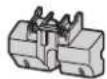
If you subscribe to a DSL service Please attach a noise filter (contact your DSL provider) to the telephone line between the base unit and the telephone line jack in the event of the following:
- Noise is heard during conversations.
- Call Display features do not function properly.
Setting up the handset
Connecting the AC adaptor
Available model:
KX-TG3023/KX-TG3024/KX-TG3032/KX-TG3033
- Use only the included Panasonic AC adaptor PQLV208.

Bottom of the charger
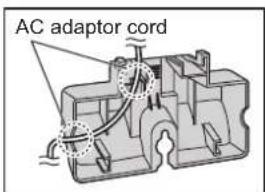
Fasten the AC adaptor cord to prevent it from being disconnected.
9



natural_image
Pure geometric diagram with intersecting lines and circles, no text or symbols present

natural_image
Pure electrical circuit lines without any symbols

TG302X_303XC(e).book Page 10 Monday, December 25, 2006 1:30 PM

Preparation
Battery installation/ replacement
1 Press the notch of the handset cover firmly, and slide it in the direction of the arrow.
- If necessary, remove the old battery.

natural_image
Illustration of hands holding a handheld device with a curved screen and arrow indicating motion (no text or symbols)2 Insert the battery (1), and press it down until it snaps into position (2). Then close the handset cover (3, 4).

Important:
- Use only the rechargeable Panasonic battery noted on page 5.
Attention:

A nickel metal hydride battery that is recyclable powers the product you have purchased.
Please call 1-800-8-BATTERY (1-800-822-8837) for information on how to recycle this battery.
Battery charge
Place the handset on the base unit or charger for 7 hours before initial use.
- While charging, "Charging" is displayed and the charge indicator on the handset lights in amber. When the battery is fully charged, "Charge completed" is displayed and the indicator lights in green.
Base unit:

● Model shown is KX-TG3021.
Charger:
Available model:
KX-TG3023/KX-TG3024/KX-TG3032/KX-TG3033

Note:
- If you want to use the handset immediately, charge the battery for at least 15 minutes.


TG302X_303XC(e).book Page 11 Monday, December 25, 2006 1:30 PM
Preparation
- To ensure that the battery charges properly, clean the charge contacts of the handset, base unit, and charger with a soft, dry cloth once a month. Clean more often if the unit is subject to the exposure of grease, dust, or high humidity.
- When the battery is empty, "Charge for 7h" is displayed and the charge indicator does not light for about 5 minutes to concentrate on charging.
Battery level
| Battery icon Battery level | |
| Fully charged | |
| Medium | |
| Low | Flashing: needs to be recharged. |
| Empty | |
Note:
- When the battery needs to be charged, the handset beeps intermittently during use.
Panasonic battery performance
| Operation Operating time | |
| While in use (talking) | Up to 5 hours |
| While not in use (standby) | Up to 11 days |
| While using the clarity booster feature (page 17) | Up to 3 hours |
Note:
●Battery operating time may be shortened over time depending on usage conditions and surrounding temperature.
● Battery power is consumed whenever the handset is off the base unit or charger, even when the handset is not in use.
- After the handset is fully charged, displaying "Charge completed", it may be left on the base unit or charger without any ill effect on the battery.
●The battery level may not be displayed correctly after you replace the battery. In this case, place the handset on the base unit or charger and let it charge for 7 hours.
Symbols used in these operating instructions
| Symbol Meaning | |
| [ ]Button name/soft key name | The words in the brackets indicate button names/soft key names on the handset and base unit.Example:Unit keys:[◀], [OFF]Soft keys:[View CID],[Phonebook] |
| →Proceed to the next operation. | |
| “ ”Example:“Alarm” | The words in quotations indicate the menu on the display. |
| Example:[▼]/[▲]: “off” | Press [▼] or [▲] to select “off”. |
TG302X_303XC(e).book Page 12 Monday, December 25, 2006 1:30 PM
Preparation
Controls
Base unit (KX-TG3021/KX-TG3023/KX-TG3024)

①[LOCATOR]
②IN USE indicator
③Charge contacts
Base unit (KX-TG3031/KX-TG3032/KX-TG3033)

①[GREETING REC] (Recording)
②[GREETING CHECK]
③Speaker
④[ERASE]
⑤[ANSWER ON]
ANSWER ON indicator
⑥[MESSAGE]
MESSAGE indicator
⑦[▶▶] (SKIP)
⑧IN USE indicator
⑨ [LOCATOR] [INTERCOM]
⑩ VOLUME [V][∧]
①MIC (Microphone)
⑫【◀◀】(REPEAT)
⑬[STOP]
⑭Charge contacts

natural_image
Pure geometric diagram with intersecting lines and circles, no text or symbols present
natural_image
Pure geometric lines and shapes without any text, numbers, or symbolsPreparation
Handset

①Speaker
②Soft keys
③Headset jack
④[\~] (TALK)
⑤ Navigator key ([▲] [▼] [◀] [▶])
6【◀】(SP-PHONE)
⑦【*】(TONE)
⑧ [FLASH] [CALL WAIT]
⑨Microphone
⑩Charge contacts
⑪Lanyard/strap eyelet
⑫Charge indicator
Ringer indicator
Message indicator
⑬Receiver
14Display
15[MENU]
16[OFF]
⑰ [PAUSE] [REDIAL]
⑱ [HOLD] [INTERCOM]
Using the navigator key
The handset navigator key can be used to navigate through menus and to select items shown on the display by pressing [▲], [▼], [◀], or [▶].
Adjusting audio volume
Press [▲] or [▼] repeatedly while talking.
▶]
Using the soft keys
The handset features 2 soft keys. By pressing a soft key, you can select the feature shown directly above it on the display.
![10:30AM [1] View Phone ↓CID book ↓](/content/2026/06/1188411/images/546989acdd75f1657a360f06757dc86d892a3c7c3c99fd1ebe98dd60b21f044c.jpg)

Display
Handset display items
| Displayed item | Meaning |
| (VE)Voice enhancer is on. | |
| (Battery level | |
| Example: [1] | The handset's extension number (example shown here: handset 1) |
Preparation
Setting the unit before use
Important:
- To program features by scrolling through the display menus, see page 23.
Display language
You can select either "English" or "Français" as the display language. The default setting is "English".
1 KX-TG3021/KX-TG3023/KX-TG3024
$$ [ \text { MENU } ] \rightarrow [ 0 ] [ 8 ] $$
$$ \begin{array}{l} \text {KX - TG3031 / KX - TG3032 / KX - } \ \text {TG3033} \end{array} $$
$$ [ \text { MENU } ] \rightarrow [ 0 ] [ 8 ] [ 1 ] $$
2 [▼]/[▲]: Select the desired setting.
3 Press the right soft key to save. → [OFF]
Voice guidance language
Available model:
KX-TG3031/KX-TG3032/KX-TG3033
You can select either "English" or "Français" as the voice guidance language of the answering system. The default setting is "English".
1 [MENU] → [0][8][2]
2 [▼]/[▲]: Select the desired setting.
3 [Save] → [OFF]
Dialing mode
If you cannot make calls, change this setting according to your telephone line service. The default setting is "Tone".
"Tone": For tone dial service.
"Pulse": For rotary/pulse dial service.
1 [MENU] → [0][5][1]
2 [▼]/[▲]: Select the desired setting.
3 [Save] → [OFF]
Date and time
Set the correct date and time.
- To use the available alarm function (page 27).
- When you play back a message from the answering system (page 29), the unit announces the day and time it was recorded. (KX-TG3031/KX-TG3032/KX-TG3033)
1 [MENU] → [4][1]
2 Enter the current month, day, and year by selecting 2 digits for each. Example: August 15, 2007 [0][8] [1][5] [0][7]
3 Enter the current hour and minute (12-hour clock format) by selecting 2 digits for each.
Example: 9:30 [0][9] [3][0]
4 [AM/PM]: Select "AM" or "PM".
5 [Save] → [OFF]
Note:
- When English is selected as the display language, 12-hour clock format is used. When French is selected, 24-hour clock format is used.
- If you make a mistake when entering the date and time, press [◀], [▶], [▲], or [▼] to move the cursor, then make the correction.
- The date and time may be incorrect after a power failure. In this case, set the date and time again.
Making/Answering Calls
Making calls
1 Dial the phone number.
- To correct a digit, press [Clear].
2 Press [→] or [Call].
3 When you finish talking, press [OFF] or place the handset on the base unit or charger.
Note:
- "Line in use" is displayed when someone is talking on the handset or another phone.
Using the speakerphone
1 Dial the phone number, and press [◀].
- Speak alternately with the other party.
2 When you finish talking, press [OFF].
Note:
- Use the speakerphone in a quiet environment.
- To switch to the receiver, press [→]
Adjusting the receiver/speaker volume
Press [▲] or [▼] repeatedly while talking.
Making a call using the redial list The last 5 phone numbers dialed are stored in the redial list (each 48 digits max.).
1 [REDIAL]
2 [▼]/[▲]: Select the desired phone number.
3 [\~]
Erasing a number in the redial list
1 [REDIAL]
2 [▼]/[▲]: Select the desired phone number.
3 [Erase] → [Yes] → [OFF]
PAUSE button (for PBX/long distance service users)
A pause is sometimes required when making calls using a PBX or long distance service. When storing a calling card access number and/or PIN in the phonebook, a pause is also needed (page 19).
For example, if you need to dial the line access number "9" when making outside calls with a PBX:
1 [9] → [PAUSE] → Dial the phone number.
2 [\~]
Note:
- A 3.5 second pause is inserted each time [PAUSE] is pressed. Press repeatedly to insert longer pauses.
Answering calls
When a call is being received, the ringer indicator flashes rapidly.
1 Press [◀] or [◀].
- You can also answer the call by pressing any dial key from [0] to [9], [✗], [#], or [INTERCOM]. (Any key talk feature)
2 When you finish talking, press [OFF].
Note:
- You can change the ringer tone and handset ringer volume (page 25).

TG302X_303XC(e).book Page 16 Monday, December 25, 2006 1:30 PM

Making/Answering Calls
Auto talk
This feature allows you to answer a call by simply lifting the handset off the base unit or charger. You do not need to press [\~]. To activate this feature, see page 25.
Temporary ringer off
While the handset is ringing for an outside call, you can turn the ringer off temporarily by pressing [OFF].
Adjusting the base unit ringer volume
Available model:
KX-TG3031/KX-TG3032/KX-TG3033
Press [A] or [V] repeatedly to select the desired volume.
- To turn the ringer off, press and hold [v] until the unit beeps 2 times.
Useful features during a call
HOLD button
This feature allows you to put an outside call on hold.
Press [HOLD] 2 times during an outside call.
- To release the hold, press [\~].
- Another handset user can take the call by pressing [\~].
Note:
- If another phone is connected to the same line (page 9), you can also take the call by lifting its handset.
- If a call is kept on hold for more than 6 minutes, an alarm tone starts to sound and the ringer indicator flashes
rapidly. After 4 additional minutes on hold, the call is disconnected.
Mute button
While mute is turned on, you can hear the other party, but the other party cannot hear you.
To mute your voice, press [Mute].
- To return to the conversation, press [Mute] or [\~].
Note:
- When this feature is turned on, [Mute] flashes.
• [Mute] is a soft key visible on the handset display during a call.
FLASH button
Pressing [FLASH] allows you to use special features of your host PBX such as transferring an extension call, or accessing optional telephone services such as Call Waiting.
Note:
- To change the flash time, see page 26.
For Call Waiting service
users
To use Call Waiting, you must subscribe to Call Waiting service of your telephone service provider.
This feature allows you to receive calls while you are already talking on the phone. If you receive a call while on the phone, you will hear a Call Waiting tone. Please contact your telephone service provider for details and availability of this service in your area.
Press [CALL WAIT] to answer the 2nd call.
- To switch between calls, press [CALL WAIT].
Making/Answering Calls
Temporary tone dialing (for rotary/pulse service users)
You can temporarily switch the dialing mode to tone when you need to access touch tone services (for example, answering services, telephone banking services, etc.).
Press 【★】(TONE) before entering access numbers which require tone dialing.
Handset clarity booster
This feature can improve sound clarity when the handset is used in an area where there may be interference. During an outside call, this feature is turned on automatically when necessary. You can also turn this feature on or off manually.
1 Press [MENU] during an outside call.
2 [▼]/[▲]: Select "Booster on" or "Booster off". → [Select]
Note:
- When this feature is turned on, "BOOST" flashes.
- When this feature is turned off manually during a call, it does not turn on automatically during the same call.
- While this feature is turned on;
- the battery operating time is shortened (page 11).
- the maximum number of extensions that can be used at a time may decrease.
Handset voice enhancer
This feature clarifies the voice of the person you are talking to, reproducing a more natural-sounding voice that is easier to hear and understand (page 26).
Press [(VE)] during an outside call to turn this feature on or off.
Note:
- When this feature is turned on, (VE) is displayed.
- Depending on the condition and quality of your telephone line, this feature may emphasize existing line noise. If it becomes difficult to hear, turn this feature off.
Call share
This feature allows the handset to join an existing outside call. To join the conversation, press [→] when the other handset is on an outside call.
Note:
- The possible number of participating parties depends on the model. KX-TG3021/KX-TG3023/ KX-TG3024:
- 3 parties (including 1 outside party) KX-TG3031/KX-TG3032/ KX-TG3033:
- 4 parties (including 1 outside party)


TG302X_303XC(e).book Page 18 Monday, December 25, 2006 1:30 PM


Phonebook
Handset phonebook
You can add up to 50 items to the handset phonebook and search for phonebook items by name.
Adding items to the phonebook
1 [Phonebook]
2 [Add]
3 Enter the name (max. 16 characters). → [Next]
4 Enter the phone number (max. 32 digits). → [Next] → [Save]
• To add other items, repeat from step 2.
5 [OFF]
Character table for entering names
| Key Character | |
| [1]& ' | ( ), - . / 1 |
| [2]a b | c A B C 2 |
| [3]d e | f D E F 3 |
| [4]g h | i G H I 4 |
| [5]j k | I J K L 5 |
| [6]m n | o M N O 6 |
| [7]p q | r s P Q R S 7 |
| [8]t u | v T U V 8 |
| [9]w x | y z W X Y Z 9 |
| [0] | 0 Space |
| [*] | * |
| [11] | # |
- To enter another character that is located on the same dial key, first press [▶] to move the cursor to the next space.
Editing/correcting a mistake
Press [◀] or [▶] to move the cursor to the character or number you want to erase, then press [Clear]. Enter the appropriate character or number.
- Press and hold [Clear] to erase all characters or numbers.
Finding and calling a phonebook item
Searching for a name alphabetically by scrolling through all items
1 [Phonebook] → [Search]
2 [▼]/[▲]: Select the desired item.
3 Press [\~] to dial the phone number.
Searching for a name by initial
1 [Phonebook] → [Search]
2 Press the dial key ([0] - [9], [#], or [★]) that corresponds to the first letter you are searching for (see the character table, page 18).
Example: "LISA"
Press [5] repeatedly to display the first phonebook entry starting with the initial "L" and go to step 3.
- If there is no item corresponding to the letter you selected, the next item is displayed.
3 Press [▼] to select the desired item.
4 Press [\~] to dial the phone number.



natural_image
Pure geometric diagram with intersecting lines and a central circle, no text or symbols presentEditing items in the phonebook
1 Find the desired item (page 18). → [Edit]
2 Edit the name if necessary (see the character table, page 18). →
[Next]
3 Edit the phone number if necessary.
→ [Next] → [Save] → [OFF]
Erasing items in the phonebook
1 Find the desired item (page 18).
2 [Erase] → [Yes] → [OFF]
Chain dial
This feature allows you to dial phone numbers in the handset phonebook while you are on a call. This feature can be used, for example, to dial a calling card access number or bank account PIN that you have stored in the handset phonebook, without having to dial manually.
1 During an outside call, press [MENU].
2 [▼]/[▲]: "Phonebook" → [Select]
3 Find the desired item (page 18). → [Call]
Note:
- When storing a calling card access number and your PIN in the phonebook as one phonebook item, press [PAUSE] to add pauses after the number and PIN as necessary (page 15).
- If you have rotary/pulse service, you need to press [★] before pressing [MENU] in step 1 to change the dialing mode temporarily to tone.
Copying handset phonebook items
You can copy one or all of the phonebook items from one handset to another.
Copying an item
1 [MENU] → [#][1]
2 [▼]/[▲]: Select the handset to copy to. → [Next]
3 [▼]/[▲]: Select the desired item. → [Send]
4 Press [OFF] after the long beep.
Copying all items
1 [MENU] → [#][2]
2 [▼]/[▲]: Select the handset to copy to. → [Send]
3 Press [OFF] after the long beep.



natural_image
Pure geometric lines and shapes without any text, numbers, or symbols

Call Display Service
Using Call Display service
This unit is Call Display compatible. To use Call Display features, you must subscribe to Call Display service of your telephone service provider.
Call Display features
When an outside call is being received, the calling party's name and phone number are displayed.
Caller information for the last 50 callers is logged in the caller list by the most recent call to the oldest.
● Generally caller information is displayed from the 2nd ring.
- If the unit cannot receive caller information, the following is displayed:
- "Unavailable Name & No."/ "Unavailable" ^*1 : The caller dialed from an area which does not provide Call Display service.
- "Private caller": The caller requested not to send caller information.
- "Long distance": The caller called you long distance.
- If the unit is connected to a PBX system, caller information may not be received properly. Consult your PBX supplier.
*1 Shown while viewing the caller list.
Missed calls
If a call is not answered, the unit treats the call as a missed call. You can view the number of missed calls by pressing [View CID].
Custom name display
When the Call Display number is received and it matches a phone number stored in the phonebook, the stored name from the phonebook is displayed and logged in the caller list.
Visual Call Waiting service
If you subscribe to both Call Display and Visual Call Waiting services, the 2nd caller's information is displayed after you hear a Call Waiting tone (page 16). Please contact your telephone service provider for details and availability of this service in your area.
For Call Waiting Deluxe
service users
To use Call Waiting Deluxe, you must subscribe to Call Waiting Deluxe service of your telephone service provider.
This feature not only allows your handset to display the 2nd caller's information, but also offers you a variety of ways to deal with the 2nd call.
Important:
- Please contact your telephone service provider for details and availability of this service in your area.
- This feature must be turned on before it can be used.
To turn Call Waiting Deluxe on/off
To use Call Waiting Deluxe, you must turn this feature on. The default setting is "Off".
1 [MENU] → [0][5][4]
2 [▼]/[▲]: Select the desired setting.
3 [Save] → [OFF]
Call Display Service
Call Waiting Deluxe service options When a 2nd call is received, you can choose how to handle the call by selecting an option shown on the handset display.
Note:
- Your telephone service provider may not offer all of the options (page 21).
| Displayed option | Function |
| Answer Answers | s the waiting call, while keeping the 1st call on hold. |
| Hold Holds the | waiting call. The caller will hear the prerecorded hold message played by your telephone service provider. |
| Announcement | The caller will hear the prerecorded busy message played by your telephone service provider (for example, “We are not available now.”) and will then be disconnected. |
| Forward Forwards | s the waiting call to the Voice Mail service provided by your telephone service provider. You must subscribe to Voice Mail service to use this function. |
| Displayed option | Function |
| Drop Disconnects (drops) the current call and answers the waiting call. | |
| Conference Answers the waiting call and combines it with the current call to make a conference call (3-party call). | |
| Return Returns to the waiting caller while keeping the current call on hold. | |
| Drop caller1 | Disconnects (drops) the 1st call during a conference call. |
| Drop caller2 | Disconnects (drops) the 2nd call during a conference call. |
To use Call Waiting Deluxe service
1 When you hear a Call Waiting tone during an outside call, press [FLASH].
● The option menu is displayed.
2 [▼]/[▲]: Select the desired option. → [Select]
- After selecting "Answer", "Hold", or "Conference", you can select another option. → [FLASH] → [▼]/[▲]: Select the desired option. → [Select]
Note:
- To exit from the option menu, wait for 20 seconds.


TG302X_303XC(e).book Page 22 Monday, December 25, 2006 1:30 PM


Call Display Service
Caller list
Viewing the caller list and calling back
1 [View CID]
2 Press [▼] to search from the most recent call, or [▲] to search from the oldest call.
3 To call back, press [\~]. To exit, press [OFF].
Note:
- Each handset has its own caller list. The number of missed calls may differ between handsets. Even if you viewed the caller list or answered a call on one handset, the same information is still recognized as a missed call in the other handsets.
- A √ is displayed in caller information which has already been viewed or answered.
Editing a caller's phone number before calling back
You can edit a phone number in the caller list by adding the long distance code "1" or removing its area code.
1 [View CID]
2 [▼]/[▲]: Select the desired item. → [Select]
3 Press [Edit] repeatedly until the phone number is shown in the desired format.
①1 – Area code – Local phone number
Example:
1-555-321-5555
②Local phone number Example:
321-5555
③Area code – Local phone number
Example:
555-321-5555
4 [\~]
Note:
● The number edited in step 3 will not be saved in the caller list.
Storing caller information into the phonebook
1 [View CID]
2 [▼]/[▲]: Select the desired item. → [Select]
- To edit the number, press [Edit] repeatedly until the phone number is shown in the desired format.
- If there is name information for the caller, skip to step 5.
4 Enter the name (see the character table, page 18). → [Next] → [Save]
3 [Save]
5 [OFF]
Erasing selected caller information
1 [View CID]
2 [▼]/[▲]: Select the desired item.
3 [Erase] → [Yes] → [OFF]
Erasing all caller information
1 [View CID]
2 [All erase] → [Yes]




natural_image
Pure electrical circuit lines without any symbols
TG302X_303XC(e).book Page 23 Monday, December 25, 2006 1:30 PM
natural_image
Pure geometric diagram with intersecting lines and circles, no text or symbols presentProgramming
Programmable settings
You can customize the unit by programming the following features using the handset.
To access the features, there are 2 methods:
- scrolling through the display menus (page 23)
- using the direct commands (page 25)
- Mainly the direct command method is used in these operating instructions.
Programming by scrolling through the display menus
1 [MENU]
2 Press [▼] or [▲] to select the desired menu. → [Select]
- If there is a sub-menu(s), press [▼] or [▲] to select the desired item. → [Select]
3 Press [▼] or [▲] to select the desired setting. → [Save]
●This step may vary depending on the feature being programmed.
4 [OFF]
| Main menu | Sub-menu 1 | Sub-menu 2 | Page |
| Message play(KX-TG3031/KX-TG3032/KX-TG3033) | - | - | 30 |
| V.M. access - | - | 3 | |
| Alarm - | - | 2 | |
| Ringer setting Ringer volume - | - | ||
| Ringer tone - | - | ||
| Set date & time | Date and time^*1 | - | 14 |
| Time adjustment^*1 | - | - | |
| Voice enhancer | - | - | |
| Copy phonebook Copy 1 item - | 19 | ||
| Copy all items | - | ||
| Customer support | - | - | |
7
![PANASONIC KX-TG3033C - [MENU] - 1](/content/2026/06/1188411/images/2d3d0c448a7c3e8274116b8179170b7328f08ae139536be216c5b411302b8e61.jpg)
5
1
2
7
7
![PANASONIC KX-TG3033C - [MENU] - 2](/content/2026/06/1188411/images/6d9ccba41535163cd521155910c49269da1543c4fd2c7486e870528ef7398788.jpg)
23
![PANASONIC KX-TG3033C - [MENU] - 3](/content/2026/06/1188411/images/3b9047d21812b68b907dd738e066ba51e38419088c3ba79dc7d087f90659b241.jpg)
natural_image
Pure geometric diagram with intersecting lines and circles, no text or symbols present![PANASONIC KX-TG3033C - [MENU] - 4](/content/2026/06/1188411/images/2016938541b5f37ead3f3dda10dc341071fb3fbe2881a9ae044217a9ea05517d.jpg)
![PANASONIC KX-TG3033C - [MENU] - 5](/content/2026/06/1188411/images/f1ef6e417673b9b4cf61d0fc9c0fc782a317a671a1fb8b9ff57f50d890733167.jpg)
![PANASONIC KX-TG3033C - [MENU] - 6](/content/2026/06/1188411/images/4e65f49782e10ce9be4969c4f8ead1da5e34aabc007d2b236efab5a5c4d95978.jpg)
TG302X_303XC(e).book Page 24 Monday, December 25, 2006 1:30 PM
Programming
| Main menu | Sub-menu 1 | Sub-menu 2 | Page |
| Initial setting Set answering(KX-TG3031/KX-TG3032/KX-TG3033) | Ring count*1 | 32 | |
| Recording time*1 | 33 | ||
| Remote code*1 | 32 | ||
| Voice Mail Store VM access# *1 | 34 | ||
| VM tone detect*1 | 34 | ||
| Message alert -33, 35 | |||
| LCD contrast - | - | ||
| Key tone - | - | ||
| Auto talk - | 1 6 | ||
| Set tel line Set dial mode *1 | 14 | ||
| Set flash time*1 | |||
| Set line mode*1 | |||
| C.WTG options*1 | |||
| Set base unit(KX-TG3031/KX-TG3032/KX-TG3033) | Ringer tone*1 | ||
| Registration HS registration 37 | |||
| Deregistration 37 | |||
| Change language Display 14 | |||
| Voice prompt*1(KX-TG3031/KX-TG3032/KX-TG3033) | |||
*1 If you program these settings using one of the handsets, you do not need to program the same item using another handset.
Programming
Programming using the direct commands
1 [MENU]
2 Enter the desired feature code.
3 Enter the desired setting code. → [Save]
- This step may vary depending on the feature being programmed.
4 [OFF]
Note:
- In the following table, < > indicates the default setting.
- If you make a mistake or enter the wrong code, press [OFF], then start again from step 1.
| Feature Feature | code | Setting code System | setting*1 | Page |
| Alarm | [8] | [1]: Once [0]: | - | 27 |
| Auto talk*2 | [0][3] | [1]: On [0]: | - | 16 |
| Copy phonebook (1 item) | [11][1]- | - | 1 | |
| Copy phonebook (all items) | [11][2]- | - | 1 | |
| C.WTG options (Call Waiting options) | [0][5][4] | [1]: On [0]: | ● | 20 |
| Date and time | [4][1] | - | ● | 14 |
| Deregistration | [0][0][2] | - | - | 37 |
| HS registration | [0][0][1] | - | - | 37 |
| Key tone*3 | [0][2] | [1]: [0]: Off | - | - |
| LCD contrast (Display contrast) | [0][1] | [1]-[6]: Level 1-6 <3> | - | - |
| Message alert | [0][11] | [1]: On [0]: | - | 33, 35 |
| Ringer tone*4 (Handset) | [1][2] | [1]-[3]: Tone <1>-3[4]-[7]: Melody 1-4 | - | - |
| Ringer volume (Handset) | [1][1] | [1]: Low [2]: Medium[3]: [0]: Off | - | - |
| Set dial mode | [0][5][1] | [1]: Pulse [2]: | ● | 14 |
9
9



natural_image
Pure geometric diagram with intersecting lines and circles, no text or symbols present


Programming
| Feature | Feature code | Setting code | System setting*1 | Page |
| Set flash time*5 | [0][5][2] | [1]: <700ms> [2]: 600ms[3]: 400ms [4]: 300ms[5]: 250ms [6]: 110ms[7]: 100ms [8]: 90ms | ●16 | |
| Set line mode*6 | [0][5][3] | [1]: A [2]: | ● | - |
| Store VM access# | [0][7][1] | - | ● | 34 |
| Time adjustment*7(Call Display subscribers only) | [4][2] | [1]:[0]: Manual | ●- | |
| V.M. access [3]- | - 3 | 5 | ||
| VM tone detect | [0][7][2] | [1]:[0]: Off | ● | 34 |
| Voice enhancer | [5] | [1]: On [0]: | - | 17 |
KX-TG3021/KX-TG3023/KX-TG3024 only
| Feature | Feature code | Setting code | System setting*1 | Page |
| Change language(Display language) | [0][8] | [1]:[2]: Français | - | 14 |
KX-TG3031/KX-TG3032/KX-TG3033 only
| Feature | Feature code | Setting code | System setting*1 | Page |
| Display (Change language) | [0][8][1] | [1]: <English> [2]: Français | - | 14 |
| Message play | [2] | - | - | 30 |
| Recording time | [0][6][2] | [1]: 1min [2]: 2min [3]: <3min> | ●33 | |
| Remote code | [0][6][3] | Default: 11 | ● | 32 |
| Ring count | [0][6][1] | [2]-[7]: 2-7 rings <4> [0]: Toll saver | ●32 | |
| Ringer tone (Base unit) | [0][★][1] | [1]-[3]: Tone <1>-3 | ● | - |

Programming
| Feature Feature | code | Setting code System | setting*1 | Page |
| Voice prompt(Change language) | [0][8][2] | [1]:[2]: Français | ● 14 |
*1 If "System setting" column is checked, you do not need to program the same item using another handset.
*2 If you subscribe to Call Display service and want to view the caller's information after lifting up the handset to answer a call, turn off this feature.
*3 Turn this feature off if you prefer not to hear key tones while you are dialing or pressing any keys, including confirmation tones and error tones.
*4 If you subscribe to a distinctive ring service, select a tone (tone 1 to 3). If you select a melody, you cannot distinguish lines by their ringers.
*5 The flash time depends on your telephone exchange or host PBX. Consult your PBX supplier if necessary.
*6 Generally, the line mode setting should not be adjusted. If "Line in use" is not displayed when another phone connected to the same line is in use, you need to change the line mode to "A".
*7 This feature allows the unit to automatically adjust the date and time setting when caller information is received. To use this feature, set the date and time first.
Alarm
An alarm will sound once for 3 minutes at the set time.
Set the date and time beforehand (page 14).
1 [MENU] → [8]
2 [▼]/[▲]: "Once" → [Select]
• To turn off the alarm, select "off". → [Select] → [OFF]
3 Set the desired date and time. → [Save]
4 [▼]/[▲]: Select the desired ringer tone. → [Save]
- We recommend selecting a different ringer tone from outside call.
5 [OFF]
Note:
- To stop the alarm, press any dial key or place the handset on the base unit or charger.
- When the handset is in use, the alarm will not sound until the handset is in standby mode.
Customer support
The handset can display the Internet address where you can download the operating instructions or get further information for this product using your computer.
$$ [ \text { MENU } ] \to [ \triangledown ] / [ \triangle ]: \text { ``Customer support'' } \to [ \text { Select } ] \to [ \text { OFF } ] $$


natural_image
Pure geometric diagram with intersecting lines and circles, no text or symbols present

natural_image
Pure geometric diagram with concentric circles and radial lines, no text or symbols present
TG302X_303XC(e).book Page 28 Monday, December 25, 2006 1:30 PM
natural_image
Pure geometric diagram with intersecting lines and circles, no text or symbols presentAnswering System
Answering system
Available model: KX-TG3031/KX-TG3032/KX-TG3033
This unit contains an answering system which can answer and record calls for you when you are unavailable to answer the phone.
Important:
- Only 1 person can access the answering system at a time.
- When callers leave messages, the unit records the day and time of each message. Make sure the date and time have been correctly set (page 14).
Turning the answering system on/off
Press [ANSWER ON] to turn on/off the answering system.
- When the answering system is turned on, the ANSWER ON indicator lights.
- When the answering system is turned off, the ANSWER ON indicator turns off.
Screening calls
While a caller is leaving a message, you can listen to the call through the base unit's speaker. To adjust the speaker volume, press [ʌ] or [v] repeatedly. You can answer the call by pressing [ ] on the handset.
Turning off the call screening feature When the base unit is not in use, press [GREETING CHECK], then press and hold [V] until the base unit beeps. OR While screening a call, press and hold [V] until the sound goes off.
Note:
- If you adjust the speaker volume while listening to messages or talking on the intercom, the speaker volume for call screening is turned on again.

Memory capacity
The total recording capacity (including your greeting message) is about 10 minutes.
A maximum of 64 messages can be recorded.
- If the message memory becomes full, the ANSWER ON indicator flashes rapidly (if the answering system is turned on). Erase unnecessary messages (page 29).
- When the message memory becomes full, the greeting message is different depending on your situation: - If you use the prerecorded greeting message, the unit automatically switches to another prerecorded greeting message asking callers to call again later.
- If you recorded your own greeting message, the same message is still announced to callers even though their messages are not recorded.
Answering System
Greeting message
When the unit answers a call, callers are greeted by a greeting message. You can record your own greeting message or use a prerecorded greeting message.
Recording your greeting message
You can record your own greeting message (max. 2 minutes). If you do not record a greeting message, a prerecorded greeting message is used.
1 [GREETING REC]
2 Within 10 seconds, press [GREETING REC] again.
3 After the base unit beeps, speak clearly about 20 cm (8 inches) away from the MIC.
4 To stop recording, press [STOP].
Using a prerecorded greeting message
If you erase or do not record your own greeting message, the unit plays a prerecorded greeting message for callers and ask them to leave messages.
Playing back the greeting message
Press [GREETING CHECK]
Erasing your greeting message
Press [GREETING CHECK], and then press [ERASE] while your greeting message is playing.
Listening to messages using the base unit
When new messages have been recorded, the MESSAGE indicator on the base unit flashes.
Press [MESSAGE].
● The base unit plays new messages.
- When you have no new messages, the base unit plays back all messages.
Operating the answering system
| Key Operation | |
| [∧] or [∨] | Adjust the speaker volume |
| [|◄◄]Repeat m | message(during playback)*1 |
| [►►I]Skip message | (during playback) |
| [STOP]Pause | message– To res u m e playback, press【MESSAGE】.– To stop playback completely, press【STOP】 again. |
| [ERASE]Erase | messagecurrently playing |
*1 If pressed within the first 5 seconds of a message, the previous message is played.
Erasing all messages
Press [ERASE] 2 times while the unit is not being used.


TG302X_303XC(e).book Page 30 Monday, December 25, 2006 1:30 PM

Answering System
Listening to messages using the handset
When new messages have been recorded:
- "New message" is displayed.
- The message indicator on the handset flashes slowly if the message alert feature is turned on (page 33).
1 [MENU]
2 [▼]/[▲]: "Message play" → [Select]
●The handset plays new messages.
- When you have no new messages, the handset plays back all messages.
3 When finished, press [OFF].
Note:
- To switch to the receiver, press [→].
Voice guidance
If you do not press any buttons after the last message is played back, the handset's voice guidance starts. Operate the answering system by following the guidance as necessary.
Calling back (Call Display subscribers only)
If caller information was received for the call, you can call the caller back while listening to the message.
1 Press [Select] during playback.
- To edit the number before calling back, press [Edit] repeatedly to select the desired format (page 22).
2 [Call]
Operating the answering system
You can also operate the answering system by pressing dial keys on the handset during playback.
| Key Operation | |
| [▲] or [▼]Adjust the receiver/speaker volume | |
| [1] or [◀] | Repeat message(during playback)*1 |
| [2] or [▶] | Skip message (during playback) |
| [4]Play new messages | |
| [5]Play all messages | |
| [8]Turn answering system on | |
| [9]Stop playback *2 | |
| [0]Turn answering system off | |
| [★][4] or[Erase] | Erase messagecurrently playing |
| [★][5]Erase all messages | |
*1 If pressed within the first 5 seconds of a message, the previous message is played.
*2 To resume operation, press a command key within 15 seconds, or the voice guidance will start.
*1 If pressed within the first 5 seconds of a message, the previous message is played.
*2 To resume operation, press a command key within 15 seconds, or the voice guidance will start.
Answering System
Remote operation
Using a touch tone phone, you can call your phone number from outside and access the unit to listen to messages. The unit's voice guidance prompts you to press certain dial keys to perform different operations.
Important:
- In order to operate the answering system remotely, you must first set a remote code (page 32). This code must be entered each time you operate the answering system remotely.
Using the answering system remotely
1 Dial your phone number from a touch tone phone.
2 After the greeting message starts, enter your remote code (page 32).
● The unit plays back new messages.
● The voice guidance informs you of the available commands.
3 Control the unit using remote commands (page 31).
4 When finished, hang up.
Voice guidance
During remote operation, the unit's voice guidance starts and prompts you to press [1] to perform a specific operation, or press [2] to listen to more available operations. Operations are presented by voice guidance in the following order:
- Play back all messages
- Play back new messages
- Record a message
- Erase all messages
Note:
- If you do not press any dial keys within 10 seconds after a voice guidance prompt, the unit disconnects your call.
Remote commands
You can press dial keys to access certain answering system functions without waiting for the voice guidance to prompt you.
| Key Remote command | |
| [1]Repeat message(during playback)*1 | |
| [2]Skip message (during playback) | |
| [4]Play new messages | |
| [5]Play all messages | |
| [9]Stop playback *2 | |
| [0]Turn answering system off | |
| [*][4]Erase message currently playing | |
| [*][5]Erase all messages |
*1 If pressed within the first 5 seconds of a message, the previous message is played.
*2 To resume operation, enter a remote command within 15 seconds, or the voice guidance starts.
Turning on the answering system remotely
If the answering system is off, you can turn it on remotely.
1 Dial your phone number.
2 Let the phone ring 15 times.
● The unit answers your call with the greeting message.


natural_image
Pure geometric diagram with intersecting lines and circles, no text or symbols present
Answering System
- You can hang up, or if you call from a touch tone phone, you can enter your remote code and begin remote operation (page 31).
Skipping the greeting message to leave a message
You can leave a message just as any outside caller can. Call your phone number. When the answering system picks up, press [*] to skip the greeting message and record your message after the beep.
Answering system settings
Remote code
A remote code must be entered when operating the answering system remotely. This code prevents unauthorized parties from listening to your messages remotely. The default setting is "11".
1 [MENU] → [0][6][3]
2 Enter the desired 2-digit remote code. → [Save] → [OFF]
Ring count
You can change the number of times the phone rings before the unit answers calls.
The default setting is "4".
"Toll saver": The unit answers on the 2nd ring when new messages have been recorded, and on the 4th ring when there are no new messages. If you call your phone from outside to listen to new messages (page 31), you will know that there are no new messages when the phone rings for the
3rd time. You can then hang up without being charged for the call.
1 [MENU] → [0][6][1]
2 [▼]/[▲]: Select the desired setting.
3 [Save] → [OFF]
For Voice Mail service subscribers If you subscribe to a flat-rate service package that includes Call Display, Call Waiting, Voice Mail, and unlimited local/regional/long distance calls, please note the following:
- To use the Voice Mail service provided by your telephone service provider rather than the unit's answering system, turn off the answering system (page 28).
- To use this unit's answering system rather than the Voice Mail service provided by your telephone service provider, please contact your telephone service provider to deactivate your Voice Mail service. If your telephone service provider cannot do this:
- Set this unit's "Ring count" setting so that this unit's answering system answers calls before the Voice Mail service of your telephone service provider does. It is necessary to check the ring count required to activate the Voice Mail service provided by your telephone service provider before changing this setting.
- Change the ring count of the Voice Mail service so that the answering system can answer the call first. To do so, consult your telephone service provider.


natural_image
Pure geometric lines and symbols without any text, numbers, or symbols
natural_image
Pure electrical circuit lines without any symbolsAnswering System
Caller's recording time
You can change the maximum message recording time allotted to each caller. The default setting is "3min".
1 [MENU] → [0][6][2]
2 [▼]/[▲]: Select the desired setting.
3 [Save] → [OFF]
Message alert
You can select whether or not the message indicator on the handset flashes slowly when new messages are recorded. The default setting is "off".
Important:
- If there are new Voice Mail messages present (page 34), the message indicator also flashes slowly.
1 [MENU] → [0][#]
2 [▼]/[▲]: Select the desired setting.
3 [Save] → [OFF]
Note:
●While message alert is on, battery operating time is shortened (page 11).

natural_image
Pure geometric diagram with intersecting lines and circles, no text or symbols presentVoice Mail Service
Using Voice Mail service
Voice Mail is an automatic answering service offered by your telephone service provider. After you subscribe to this service, the telephone service provider's Voice Mail system will answer calls for you when you are unavailable to answer the phone or when your line is busy. Messages are recorded by the telephone service provider, not your telephone.
Important:
- To use the Voice Mail service provided by your telephone service provider rather than the unit's answering system, turn off the answering system (page 28).
Storing the Voice Mail (VM) access number
In order to listen to your Voice Mail messages, you must dial your telephone service provider's Voice Mail access number. Once you have stored your Voice Mail access number, you can dial it automatically (page 35).
1 [MENU] → [0][7][1]
2 Enter your access number (max. 32 digits). → [Save] → [OFF]
Note:
- When storing your Voice Mail access number and your mailbox password, press [PAUSE] to add pauses (page 15) between the access number and the password as necessary. Consult your telephone service provider for the required pause time.
Example:
1-222-333-4444
VM access number
PPPP 8888
Pauses Password
To erase the Voice Mail access number
Repeat step 1, then press and hold [Clear] until all digits are erased. Press [Save], then press [OFF].
Voice Mail (VM) tone detection
Your telephone service provider sends special signals (sometimes called "Voice Mail tones" or "stutter tones") to the unit to let you know you have new Voice Mail messages. If you hear a series of dial tones followed by a continuous dial tone after you press
【→】, you have new Voice Mail messages. Minutes after you hang up a call or after the phone stops ringing, your unit will check the phone line to see if new Voice Mail messages have been recorded.
Turn this feature off when:
- You do not subscribe to Voice Mail service.
- Your telephone service provider does not send Voice Mail tones.
- Your phone is connected to a PBX. If you are not sure which setting is required, consult your telephone service provider.
Turning VM tone detection on/off
The default setting is "On".
1 [MENU] → [0][7][2]
2 [▼]/[▲]: Select the desired setting.
3 [Save] → [OFF]


natural_image
Pure geometric diagram with intersecting lines and circles, no text or symbols present

natural_image
Pure electrical circuit lines without any symbolsVoice Mail Service
Listening to Voice Mail messages
The unit lets you know that you have new Voice Mail messages in the following ways:
- "New Voice Mail" is displayed on the handset.
- The message indicator on the handset flashes slowly if message alert feature is turned on (page 35).
1 Press [→], then press [VM] within 15 seconds.
$$ \begin{array}{l} \text {OR} \ [ \text {MENU} ] \longrightarrow [ \triangledown ] / [ \triangle ]: ^ {\prime \prime} \text {V.M.} \ \text {access} ^ {\prime \prime} \longrightarrow [ \text {Select} ] \end{array} $$
●The speakerphone turns on.
2 Follow the prerecorded instructions.
3 When finished, press [OFF].
Note:
- If [VM] is not displayed, the Voice Mail access number has not been stored. Store the number (page 34).
- If the handset still indicates there are new messages even after you have listened to all new messages, turn it off by pressing and holding [OFF] until the handset beeps.
- If your Voice Mail service uses Voice Mail tones and the message is over 3 minutes long, the handset may not indicate new messages.
- If your Voice Mail service uses Voice Mail tones, the tones are heard from any phone connected to the same line. If you want to use another phone to listen to Voice Mail messages, you have to dial your access number manually.
Message alert
You can select whether or not the message indicator on the handset flashes slowly when there are new recorded messages in the Voice Mail system. The default setting is "off".
Important:
- KX-TG3031/KX-TG3032/KX-TG3033 If there are new answering system messages present (page 28), the message indicator also flashes slowly.
1 [MENU] → [0][#]
2 [▼]/[▲]: Select the desired setting.
3 [Save] → [OFF]
Note:
●While message alert is on, battery operating time is shortened (page 11).
Multi-unit Operation
Intercom
Intercom calls can be made:
- between handsets
– between the handset and base unit (KX-TG3031/KX-TG3032/ KX-TG3033)
Note:
- If you receive an outside call while talking on the intercom, you hear 2 tones. To answer the call, press [OFF], then press [→].
- When paging a unit for an intercom call, the paged unit beeps for 1 minute.
Making an intercom call
Handset
1 [INTERCOM]
2 [▼]/[▲]: Select the desired unit. → [Select]
- To stop paging, press [OFF].
3 When you finish talking, press [OFF].
Base unit
KX-TG3031/KX-TG3032/KX-TG3033
1 [INTERCOM]
● All the registered handsets beep for 1 minute.
● To stop paging, press [INTERCOM].
2 When you finish talking, press [INTERCOM].
Answering an intercom call
Handset
1 Press [→] or [◀] to answer the page.
2 When you finish talking, press [OFF].
Base unit
KX-TG3031/KX-TG3032/KX-TG3033
1 Press [INTERCOM] to answer the page.
2 When you finish talking, press [INTERCOM].
Note:
- When the ringer volume is set to off, the handset or the base unit rings at a low level for intercom calls.
Handset locator
You can locate a misplaced handset by paging it.
1 Base unit:
[LOCATOR]
●The handset beeps for 1 minute.
2 To stop paging:
Base unit: Press [LOCATOR].
Handset:
KX-TG3021/KX-TG3023/ KX-TG3024
Press [OFF].
KX-TG3031/KX-TG3032/ KX-TG3033
Press [INTERCOM], then press [OFF].

Transferring calls between handsets, conference calls
Outside calls can be transferred between 2 handsets. 2 handsets can have a conference call with an outside party.
1 During an outside call, press
[INTERCOM] to put the call on hold.
2 [▼]/[▲]: Select the desired unit. → [Transfer]
3 Wait for the paged party to answer.
- If the paged party does not answer, press [\~] to return to the outside call.
4 To complete the transfer:
Press [OFF].
• The outside call is being routed to the handset.
To establish a conference call: Press [Conf].
- To leave the conference, press [OFF]. The other parties can continue the conversation.
- To put the outside call on hold, press [HOLD]. To resume the conference, press [Conf].
Answering transferred calls Press [\~] to answer the page.
● After the paging party disconnects, you can talk to the outside caller.
Registering a handset
The included handset and base unit are preregistered. If for some reason the handset is not registered to the base unit, register the handset.
1 Handset:
$$ [ \text { MENU } ] \rightarrow [ 0 ] [ 0 ] [ 1 ] $$
2 Base unit:
KX-TG3021/KX-TG3023/KX-TG3024
Press and hold [LOCATOR] until the IN USE indicator flashes.
KX-TG3031/KX-TG3032/KX-TG3033
Press and hold [LOCATOR/INTERCOM] until the IN USE indicator flashes.
● After the IN USE indicator starts flashing, the rest of the procedure must be completed within 1 minute.
3 Handset:
Press [OK], then wait until a beep sounds.
4 [OFF]
Registering an additional handset See page 5 for information on the available model. Start from step 2.
Deregistering a handset
1 [MENU] → [0][0][2]
2 [3][3][5] → [OK]
3 Select the handset you want to cancel by pressing the desired handset number ([1] - [4]).


natural_image
Pure geometric lines and shapes without any text, numbers, or symbols


TG302X_303XC(e).book Page 38 Monday, December 25, 2006 1:30 PM

Useful Information
Wall mounting
Base unit
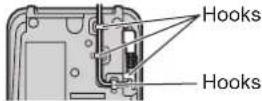
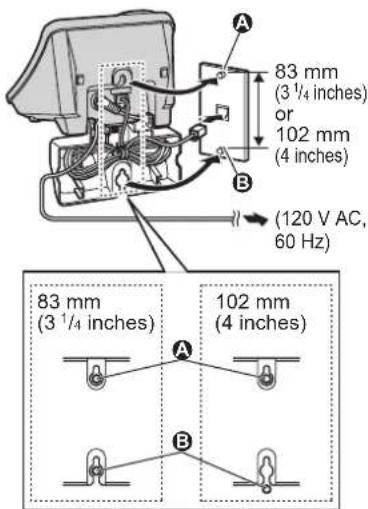
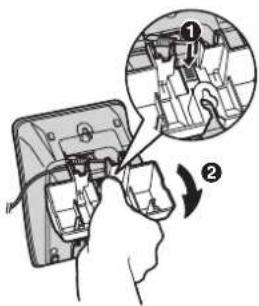
1 Insert the hooks on the wall mounting adaptor into the holes A and B on the base unit.

2 While pressing down the lever (1), press it in the direction of the arrow (2) until it is secure.

3 Tuck the telephone line cord inside the wall mounting adaptor and connect the cord. Mount the unit by inserting the mounting pins into the round openings on the adaptor (for pin ③, use round cut out at the bottom of the adaptor if you are using the 4 inches phone plate), then sliding the unit down to secure it. Connect the AC adaptor to power outlet (page 9).
- There are two common types of wall phone plates. The distance between A and B may vary depending on the size of the wall phone plate installed.
38



natural_image
Pure geometric diagram with intersecting lines and shapes, no text or symbols presentUseful Information
To remove the wall mounting adaptor While pushing down the lever (①), remove the adaptor (②).
Charger
Available model:
KX-TG3023/KX-TG3024/KX-TG3032/KX-TG3033
1 Drive the screws (not included) into the wall.

2 Mount the charger (①), then slide it down (②) and to the right (③) until it is secure.

Headset (optional)
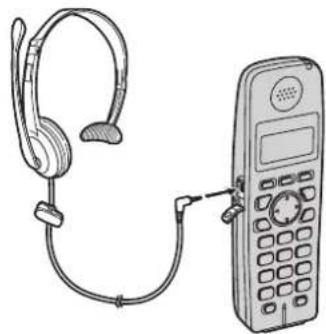
Connecting a headset to the handset allows hands-free phone conversations. We recommend using the Panasonic headset noted on page 5.
natural_image
Line drawing of a pair of earbuds connected to a mobile phone (no text or symbols visible)●Headset shown is RP-TCA86.
Switching a call between the headset and handset speakerphone To switch to the handset speakerphone, press [✿].
To return to the headset, press [→].
Lanyard/strap eyelet
If you have a lanyard/strap (not included), you can hang your handset from your neck or wrist. Thread it through the eyelet as shown and pull to tighten it.

natural_image
Diagram showing a device with a circular vent and a separate close-up of its ring (no text or symbols)

TG302X_303XC(e).book Page 40 Monday, December 25, 2006 1:30 PM


Useful Information
Error messages
If the unit detects a problem, one of the following messages is shown on the display.
| Display message Cause/solution | |
| All handsets are registered. | ●4 handsets have already been registered to the base unit. A previously deregistered handset number may still be retained in the base unit. To register an additional handset, erase the unnecessary handset number (page 37). |
| Busy ●The called unit is in use. | ●The handset you tried to copy phonebook items to is in use. Try again later.●The handset you are calling is too far from the base unit. |
| Error!! ●The handset's registration has failed. Move the handset and base unit away from all electrical appliances and try again.●Another handset user tried to send phonebook items to you but there was an error. Have the other handset user re-send the items to you (page 19). | |
| ---Incomplete---Phonebook full | ●The destination handset's phonebook memory is full. Erase unnecessary items from the destination handset's phonebook (page 19). |
| Invalid ●There is no handset registered to the base unit matching the extension number you entered. | |
| No items stored ●Your phonebook or redial list is empty. | |
| No link to base.Move closer to base, try again. | ●The handset has lost communication with the base unit. Move closer to the base unit, and try again.●Confirm that the base unit's AC adaptor is plugged in.●The handset's registration may have been cancelled. Re-register the handset (page 37). |
| Phonebook full ●There is no space to store new items in the phonebook. Erase unnecessary items (page 19). | |
| Please lift up and try again. | ●A handset button was pressed while the handset was on the base unit or charger. Lift the handset and press the button again. |



natural_image
Pure geometric diagram with intersecting lines and circles, no text or symbols present

natural_image
Pure geometric lines and shapes without any text, numbers, or symbolsUseful Information
| Display message Cause/solution | |
| System is busy.Please try again later. | ●Other units are in use and the system is busy. Try again later.●Another user is listening to messages. Try again later.*1●The handset's registration may have been cancelled. Re-register the handset (page 37). |
| Store VM access# | ●You have not stored the Voice Mail access number. Store the number (page 34). |
*1 KX-TG3031/KX-TG3032/KX-TG3033


natural_image
Pure geometric diagram with intersecting lines and circles, no text or symbols present

TG302X_303XC(e).book Page 42 Monday, December 25, 2006 1:30 PM
natural_image
Pure geometric lines and crosshair symbols without any text or labelsUseful Information
Troubleshooting
General use
| Problem Cause/solution | |
| The unit does not work. | Make sure the battery is installed correctly and fully charged (page 10).Check the connections (page 9).Unplug the base unit's AC adaptor to reset the unit. Reconnect the adaptor and try again.The handset has not been registered to the base unit. Register the handset (page 37). |
| I cannot hear a dial tone. | Confirm the telephone line cord is properly connected (page 9).Disconnect the unit from the telephone line and connect a known working telephone. If the working telephone operates properly, contact our service personnel to have the unit repaired. If the working telephone does not operate properly, contact your telephone service provider. |
| The indicator on the top right of the handset flashes slowly. | New messages have been recorded. Listen to the new messages (page 29). ^1 New Voice Mail messages have been recorded. Listen to the new Voice Mail messages (page 35). |
*1 KX-TG3031/KX-TG3032/KX-TG3033

Useful Information
Programmable settings
| Problem Cause/solution | |
| I cannot program items. | ● Programming is not possible while either the base unit or another handset is being used. Try again later. |
| I cannot set the alarm. | ● In order to set the alarm, you must first set the date and time (page 14).● The handset has lost the communication with the base unit. Move closer to the base unit, and try again. |
| While programming, the handset starts to ring. | ● A call is being received. Answer the call and start again after hanging up. |
Battery recharge
| Problem Cause/solution | |
| I fully charged the battery, but ☐ continues to flash, or ☐ is displayed. | ● Clean the charge contacts and charge again (page 11).● The battery may need to be replaced with a new one (page 10). |
| The handset display is blank. | ● Confirm that the battery is properly installed.● Fully charge the battery (page 10). |
| While charging, the charge indicator does not light and “Charge for 7h” is displayed. | ● The battery is empty. The charge indicator does not light in order to concentrate on charging. After about 5 minutes, the charge indicator lights and “Charging” is displayed. |


TG302X_303XC(e).book Page 44 Monday, December 25, 2006 1:30 PM

Useful Information
Making/answering calls, intercom
| Problem Cause/solution | |
| Static is heard, sound cuts in and out. Interference from other electrical units. | Move the handset and base unit away from other electrical appliances.Move closer to the base unit.Turn on the clarity booster feature (page 17).If your unit is connected to a telephone line with DSL service, we recommend connecting a noise filter between the base unit and the telephone line jack. Contact your DSL provider for details. |
| The handset does not ring. | The ringer volume is turned off. Adjust it (page 25). |
| The base unit does not ring.*1 | The ringer volume is turned off. Adjust it (page 16). |
| I cannot make a call. | The dialing mode may be set incorrectly. Change the setting (page 14).Another handset is in use. Try again later. |
| I cannot have a conversation using the headset. | Make sure that an optional headset is connected properly (page 39).If “SP-phone” is displayed on the handset, press [→] to switch to the headset. |
| I cannot make long distance calls. | Make sure that you have long distance service. |
| I cannot page the handset. | The called handset is too far from the base unit.The called handset is in use. Try again later. |
| I cannot page the base unit.*1 | The base unit is in use. Try again later. |
*1 KX-TG3031/KX-TG3032/KX-TG3033


natural_image
Pure geometric diagram with intersecting lines and circles, no text or symbols presentUseful Information
Call Display
| Problem Cause/solution | |
| The handset does not display the caller's name and/or phone number. | You have not subscribed to Call Display service. Contact your telephone service provider to subscribe.If your unit is connected to any additional telephone equipment such as a Call Display box or cordless telephone line jack, disconnect the unit from the equipment and plug the unit directly into the wall jack.If your unit is connected to a telephone line with DSL service, we recommend connecting a noise filter between the base unit and the telephone line jack. Contact your DSL provider for details.The name display service may not be available in some areas. Contact your telephone service provider for details.Other telephone equipment may be interfering with this unit. Disconnect the other equipment and try again.The caller requested not to send caller information (page 20).Generally, caller information is displayed from the 2nd ring. |
| I cannot dial the phone number edited in the caller list. | The phone number you dialed might have an incorrectly edited pattern (for example, the long distance “1” or the area code is missing). Edit the phone number with another pattern (page 22). |
| The 2nd caller's information is not displayed during an outside call. (Visual Call Waiting feature does not function.) | In order to use Call Display, Call Waiting, or Visual Call Waiting, you must first contact your telephone service provider and subscribe to the desired service.After subscribing, you may need to contact your telephone service provider again to activate this specific service, even if you already subscribed to both Call Display and Visual Call Waiting services. |

TG302X_303XC(e).book Page 46 Monday, December 25, 2006 1:30 PM
Useful Information
Answering system (KX-TG3031/KX-TG3032/KX-TG3033)
| Problem Cause/solution | |
| I cannot listen to messages from a remote location. | ●A touch tone phone is required for remote operation.●Enter the remote code correctly (page 32).●The answering system is off. Turn it on (page 31). |
| The unit does not record new messages. | ●The answering system is off. Turn it on (page 28, 31).●The message memory is full. Erase unnecessary messages (page 29, 30).●If you subscribe to the Voice Mail service, messages are recorded by the telephone service provider not your telephone (page 32). |
| I cannot operate the answering system. | ●Someone is operating the answering system.●If someone is talking on a conference call, you cannot operate the answering system. Try again later. |





natural_image
Pure geometric diagram with intersecting lines and circles, no text or symbols present

Important information
NOTICE:
This equipment meets the applicable Industry Canada Terminal Equipment Technical Specifications. This is confirmed by the registration number. The abbreviation, IC:, before the registration number signifies that registration was performed based on a Declaration of Conformity indicating that Industry Canada technical specifications were met. It does not imply that Industry Canada approved the equipment.
And, the term IC: signifies that Industry Canada radio technical specifications were met.
Before installing this equipment, users should ensure that it is permissible to be connected to the facilities of the local telecommunications company. The equipment must also be installed using an acceptable method of connection. The customer should be aware that compliance with the above conditions may not prevent degradation of service in some situations.
Repairs to certified equipment should be coordinated by a representative designated by the supplier. Any repairs or alterations made by the user to this equipment, or equipment malfunctions, may give the telecommunications company cause to request the user to disconnect the equipment.
Users should ensure, for their own protection, that the electrical ground connections of the power utility, telephone lines and internal metallic water pipe system, if present, are connected together. This precaution may be particularly important in rural areas.
Caution:
Users should not attempt to make such connections themselves, but should contact the appropriate electric inspection authority, or electrician, as appropriate.
NOTICE:
The Ringer Equivalence Number (REN) assigned to each terminal device provides an indication of the maximum number of terminals allowed to be connected to a telephone interface. The termination on an interface may consist of any combination of devices subject only to the requirement that the sum of the Ringer Equivalence Numbers of all the devices does not exceed 5. The Ringer Equivalence Number (REN) of this unit: (found on the bottom of the unit).
NOTICE:
Operation is subject to the following two conditions: (1) this device may not cause interference, and (2) this device must accept any interference, including interference that may cause undesired operation of the device.
Privacy of communications may not be ensured when using this telephone.
Some cordless telephones operate at frequencies that may cause interference to nearby TVs and VCRs. To minimize or prevent such interference, the base of the cordless telephone should not be placed near, or on top of, a TV or VCR. If interference is experienced, move the cordless telephone further away from the TV or VCR. This will often reduce, or eliminate, interference.


TG302X_303XC(e).book Page 48 Monday, December 25, 2006 1:30 PM
Useful Information
RF Exposure Warning:
- This product complies with IC radiation exposure limits set forth for an uncontrolled environment.
- To comply with IC RF exposure requirements, the base unit must be installed and operated 20 cm (8 inches) or more between product and all person's body (excluding extremities of hands, wrist and feet).
- This product may not be collocated or operated in conjunction with any other antenna or transmitter.
- For body-worn operation, the handset must be used only with a non-metallic accessory. Use of other accessories may not ensure compliance with IC RF exposure requirements.


natural_image
Pure geometric diagram with intersecting lines and circles, no text or symbols present
natural_image
Pure geometric diagram with intersecting lines and circles, no text or symbols presentSpecifications
General
| Operating environment | 5 °C – 40 °C (41 °F – 104 °F) |
| Frequency 2.4 GHz – 2.4 | 8 GHz |
Base unit
| Dimensions | Approx. height 95 mm × width 116 mm × depth143 mm ( 3^3/_4 inches × 4^9/_16 inches × 5^5/_8 inches) |
| Mass (Weight) KX-TG3021/KX-TG3023/KX-TG3024Approx. 210 g (0.46 lb.)KX-TG3031/KX-TG3032/KX-TG3033Approx. 250 g (0.55 lb.) | |
| Power consumption Standby: Approx. 1.4 WMaximum: Approx. 4.2 W | |
| Power output 125 mW (max.) | |
| Power supply | AC adaptor (120 V AC, 60 Hz) |
Handset
| Dimensions | Approx. height 156 mm × width 48 mm × depth 33 mm (6 ^1/_8 inches × 1 ^7/_8 inches × 1 ^5/_16 inches) |
| Mass (Weight) | Approx. 150 g (0.33 lb.) |
| Power output 125 mW (max.) | |
| Power supply | Ni-MH battery (3.6 V, 650 mAh) |
Charger (KX-TG3023/KX-TG3024/KX-TG3032/KX-TG3033)
| Dimensions | Approx. height 68 mm × width 82 mm × depth 87 mm (2 ^11 / _16 inches × 3 ^7 / _32 inches × 3 ^7 / _16 inches) |
| Mass (Weight) | Approx. 80 g (0.18 lb.) |
| Power consumption Standby: Approx. 0.4 WMaximum: Approx. 3.2 W | |
| Power supply | AC adaptor (120 V AC, 60 Hz) |
Note:
- Design and specifications are subject to change without notice.
- The illustrations in these instructions may vary slightly from the actual product.

TG302X_303XC(e).book Page 50 Monday, December 25, 2006 1:30 PM
Useful Information
Warranty
Panasonic Canada Inc.
5770 Ambler Drive, Mississauga, Ontario L4W 2T3
PANASONIC PRODUCT - LIMITED WARRANTY
Panasonic Canada Inc. warrants this product to be free from defects in material and workmanship and agrees to remedy any such defect for a period as stated below from the date of original purchase.
Telephone Accessory / Product - One (1) year, parts and labour
LIMITATIONS AND EXCLUSIONS
This warranty does not apply to products purchased outside Canada or to any product which has been improperly installed, subjected to usage for which the product was not designed, misused or abused, damaged during shipping, or which has been altered or repaired in any way that affects the reliability or detracts from the performance, nor does it cover any product which is used commercially. Dry cell batteries are also excluded from coverage under this warranty. Rechargeable batteries are warranted for ninety (90) days from date of original purchase.
This warranty is extended to the original end user purchaser only. A purchase receipt or other proof of date of original purchase is required before warranty service is performed. THIS EXPRESS, LIMITED WARRANTY IS IN LIEU OF ALL OTHER WARRANTIES, EXPRESS OR IMPLIED, INCLUDING ANY IMPLIED WARRANTIES OF MERCHANTABILITY AND FITNESS FOR A PARTICULAR PURPOSE. IN NO EVENT WILL PANASONIC CANADA INC. BE LIABLE FOR ANY SPECIAL, INDIRECT OR CONSEQUENTIAL DAMAGES.
In certain instances, some jurisdictions do not allow the exclusion or limitation of incidental or consequential damages, or the exclusion of implied warranties, so the above limitations and exclusions may not be applicable.
WARRANTY SERVICE
FOR PRODUCT OPERATION ASSISTANCE, please contact:
Our Customer Care Centre: Telephone #: (905) 624-5505
1-800 #: 1-800-561-5505
Fax #: (905) 238-2360
Email link: "Contact Us" on www.panasonic.ca
FOR PRODUCT REPAIRS, please locate your nearest Authorized Servicentre at
www.panasonic.ca
Link : "Servicentres™ locator" under "Customer support"
IF YOU SHIP THE PRODUCT TO A SERVICENTRE
Carefully pack and send prepaid, adequately insured and preferably in the original carton. Include details of the defect claimed, and proof of date of original purchase.
Index
Index
A Alarm: 27
Answering calls: 15
Answering system
Erasing messages: 29, 30, 31
Listening to messages: 29, 30, 31
Turning on/off: 28, 30, 31
Auto talk: 16
B Battery : 10, 11
Booster (Clarity booster): 17
C Call Display service : 20
Call screening: 28
Call share: 17
Call Waiting: 16
Caller list: 22
Chain dial: 19
CID (Call Display): 22
Conference calls: 37
Connections: 9
Customer support: 27
C.WTG (Call Waiting Deluxe): 20
D Date and time : 14
Deregistration : 37
Dialing mode: 14
Display
Contrast: 25
Language: 14
E Error messages : 40
F Flash : 16
Flash time: 26
G Greeting message : 29
H Handset locator : 36
Headset, optional: 39
Hold: 16
I Intercom : 36
K Key tone : 25
L Line mode : 26
M Making calls : 15
Memory capacity (message
recording): 28
Message alert: 33, 35
Missed calls: 20
Mute: 16
N Navigator key : 13
P Pause : 15
Phonebook: 18
Phonebook copy: 19
Power failure: 9
Pulse service: 17
R Recording time : 33
Redial list: 15
Registration: 37
Remote code: 32
Remote operation: 31
Ring count: 32
Ringer off: 16, 25
Ringer tone: 25, 26
Rotary service: 17
S Soft keys : 13
SP-phone: 15
T Time adjustment : 26
Toll saver: 32
Tone: 14, 17
Transferring calls: 37
Troubleshooting: 42
V VE (Voice Enhancer) : 17
Visual Call Waiting: 20
VM (Voice Mail): 34
Voice guidance: 30, 31
Voice guidance language: 14
Voice Mail access number: 34
Volume
Base unit ringer. 16
Handset ringer: 25
Receiver: 15
Speaker: 15
W Wall mounting : 38, 39
Warranty: 50







TG302X_303XC(e).book Page 56 Monday, December 25, 2006 1:30 PM

natural_image
Pure geometric diagram with intersecting lines and circles, no text or symbols presentWe recommend keeping a record of the following information for future reference.
Serial No. Date of purchase
(found on the bottom of the base unit)
Name and address of dealer
Attach your purchase receipt here.

Panasonic Canada Inc.
5770 Ambler Drive, Mississauga, Ontario L4W 2T3
Copyright:
This material is copyrighted by Panasonic Communications Co., Ltd., and may be reproduced for internal use only. All other reproduction, in whole or in part, is prohibited without the written consent of Panasonic Communications Co., Ltd.
© 2007 Panasonic Communications Co., Ltd. All Rights Reserved.


Printed in U.S.A. PQQX15832ZA DA1206PY0


natural_image
Pure geometric diagram with intersecting lines and shapes, no text or symbols present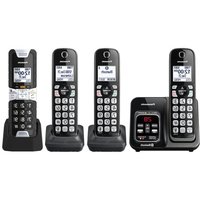
- Panasonic®
- Operating Instructions
- Table of Contents
- Introduction
- Preparation
- Making/Answering Calls
- Phonebook
- Call Display Service
- Programming
- Answering System
- Voice Mail Service
- Multi-unit Operation
- Useful Information
- Index
- Product information
- Important:
- Special feature
- ■Handset voice enhancer
- Accessory information
- Additional/replacement accessories
- Expanding your phone system
- Important safety instructions
- SAVE THESE INSTRUCTIONS
- WARNING:
- CAUTION:
- Installation
- Battery
- Medical
- For best performance
- Base unit location/avoiding noise
- Environment
- Routine care
- Setting up the base unit
- Connecting the AC adaptor and telephone line cord
- Note:
- Setting up the handset
- Connecting the AC adaptor
- Battery installation/ replacement
- Attention:
- Battery charge
- Base unit:
- Charger:
- Controls
- Using the navigator key
- Adjusting audio volume
- Using the soft keys
- Display
- Setting the unit before use
- Display language
- Voice guidance language
- Available model:
- Dialing mode
- Date and time
- Making calls
- Using the speakerphone
- Adjusting the receiver/speaker volume
- Erasing a number in the redial list
- PAUSE button (for PBX/long distance service users)
- Answering calls
- Auto talk
- Temporary ringer off
- Adjusting the base unit ringer volume
- Useful features during a call
- HOLD button
- Mute button
- FLASH button
- For Call Waiting service
- users
- Temporary tone dialing (for rotary/pulse service users)
- Handset clarity booster
- Handset voice enhancer
- Call share
- Handset phonebook
- Adding items to the phonebook
- Finding and calling a phonebook item
- Editing items in the phonebook
- Erasing items in the phonebook
- Chain dial
- Copying handset phonebook items
- Copying an item
- Copying all items
- Using Call Display service
- Call Display features
- Missed calls
- Custom name display
- Visual Call Waiting service
- For Call Waiting Deluxe
- service users
- To turn Call Waiting Deluxe on/off
- To use Call Waiting Deluxe service
- Caller list
- Viewing the caller list and calling back
- Editing a caller's phone number before calling back
- [\~]
- Storing caller information into the phonebook
- [Save]
- [OFF]
- Erasing selected caller information
- Erasing all caller information
- Programmable settings
- Programming by scrolling through the display menus
- [MENU]
- Programming using the direct commands
- [OFF]
- Alarm
- Customer support
- Turning the answering system on/off
- Screening calls
- Memory capacity
- Greeting message
- Recording your greeting message
- [GREETING REC]
- Using a prerecorded greeting message
- Playing back the greeting message
- Erasing your greeting message
- Listening to messages using the base unit
- Press [MESSAGE].
- Operating the answering system
- Erasing all messages
- Listening to messages using the handset
- When finished, press [OFF].
- Voice guidance
- Calling back (Call Display subscribers only)
- [Call]
- Remote operation
- Using the answering system remotely
- Remote commands
- Turning on the answering system remotely
- Skipping the greeting message to leave a message
- Answering system settings
- Remote code
- Ring count
- Caller's recording time
- Message alert
- Using Voice Mail service
- Storing the Voice Mail (VM) access number
- Example:
- To erase the Voice Mail access number
- Voice Mail (VM) tone detection
- Turning VM tone detection on/off
- Listening to Voice Mail messages
- Intercom
- Making an intercom call
- Handset
- Base unit
- KX-TG3031/KX-TG3032/KX-TG3033
- Answering an intercom call
- Handset locator
- Transferring calls between handsets, conference calls
- Registering a handset
- Deregistering a handset
- Wall mounting
- Charger
- Headset (optional)
- Lanyard/strap eyelet
- Error messages
- Troubleshooting
- Important information
- NOTICE:
- RF Exposure Warning:
- Specifications
- Warranty
- LIMITATIONS AND EXCLUSIONS
- WARRANTY SERVICE
- IF YOU SHIP THE PRODUCT TO A SERVICENTRE
- Copyright:
Brand : PANASONIC
Model : KX-TG3033C
Category : Telephony