
Qpad E704 - Tablet LAVA - Free user manual and instructions
Find the device manual for free Qpad E704 LAVA in PDF.


| Product Type | Tablet |
| Brand | LAVA |
| Model | Qpad E704 |
| Display Size | 7 inches |
| Display Resolution | 1024 x 600 pixels (estimated) |
| Processor | BCM23550 Quad Core |
| Processor Speed | 1.2 GHz |
| Operating System | Android 4.2 Jelly Bean |
| Network Connectivity | 2G, 3G |
| Wireless Connectivity | Wi-Fi, Bluetooth |
| GPS | Glonass assisted GPS |
| FM Radio | Yes (requires headset) |
| Camera | Front and rear cameras with scene modes |
| Battery Capacity | 3000 mAh (estimated) |
| Battery Type | Lithium-ion rechargeable |
| Charging | AC power adapter (LED turns green when fully charged) |
| Audio Formats | MP3, AAC, AMR, Midi |
| Video Formats | MP4, 3GP |
| Weight | 300 g (estimated) |
| Dimensions | 191 x 110 x 10 mm (estimated) |
| Special Features | Voice call capability, multitasking, GPS navigation |
Frequently Asked Questions - Qpad E704 LAVA
User questions about Qpad E704 LAVA
0 question about this device. Answer the ones you know or ask your own.
Ask a new question about this device
Download the instructions for your Tablet in PDF format for free! Find your manual Qpad E704 - LAVA and take your electronic device back in hand. On this page are published all the documents necessary for the use of your device. Qpad E704 by LAVA.
USER MANUAL Qpad E704 LAVA
natural_image
Digital tablet displaying a sunset over clouds with a crescent moon visible in the sky (no text or symbols)QPAD E704
User Manual
Introduction
Acknowledgement
Thanks for your purchase of our product. QPAD E704 is a 7inch high definition tablet PC. Its CPU is BCM23550, Quad Core, clocked at 1.2GHz; it is based on Android 4.2 operating system.
The product is designed with various functions, including 2G, 3G, WI-FI, Bluetooth, GPS, FM, voice call and so on. It is easy to achieve wireless communication and internet, you have access to surf the internet anytime and anywhere using 3G; it is also built with high accuracy Glonass assisted GPS module, so that it can be used for navigation.
The manual systemically introduces the functions, use techniques and announcements, please read this manual carefully before your operation.
Announcements
Preventive maintenance
- Please always keep the device dry. To avoid the device from short circuit troubles, corrosion faults and electric shorts, please prevent the device, battery and charger from water and moisture, and do not operate the device or charger with wet hand(s).
- To avoid failure of device, battery and charger, please prevent the device, battery, charger from violent shock or shake.
- To avoid failure of device, battery and charger, please prevent the device, battery, charger of all over heating or too cold circumstances.
- Never disassemble the device and accessories arbitrarily.
Safety Instruction
Before the operation of the device, please read this chapter. For further details, please refer to the safety instructions and announcement.
- Never use the device when driving, in order to ensure safe driving.
- In the medical area, please abide by related rules and regulations. Please shut down the device when near to the medical area.
- To avoid the wireless signals from interrupting the flight-controlling signals, please shut down the device or use airplane mode when you are boarding a flight.
- To avoid electronic equipment failure, please shut down the device in the vicinity of high-accuracy electronic equipment.
- Please keep the device away from magnetic equipment. The radiation of device may erase the data stored in the magnetic equipment.
- Please comply with related rules and regulations, and respect others' privacy and legal rights while using the device.
- Please strictly adhere to related instructions in the manual when using USB cable to ensure the safety of the device or PC.
Device Introduction
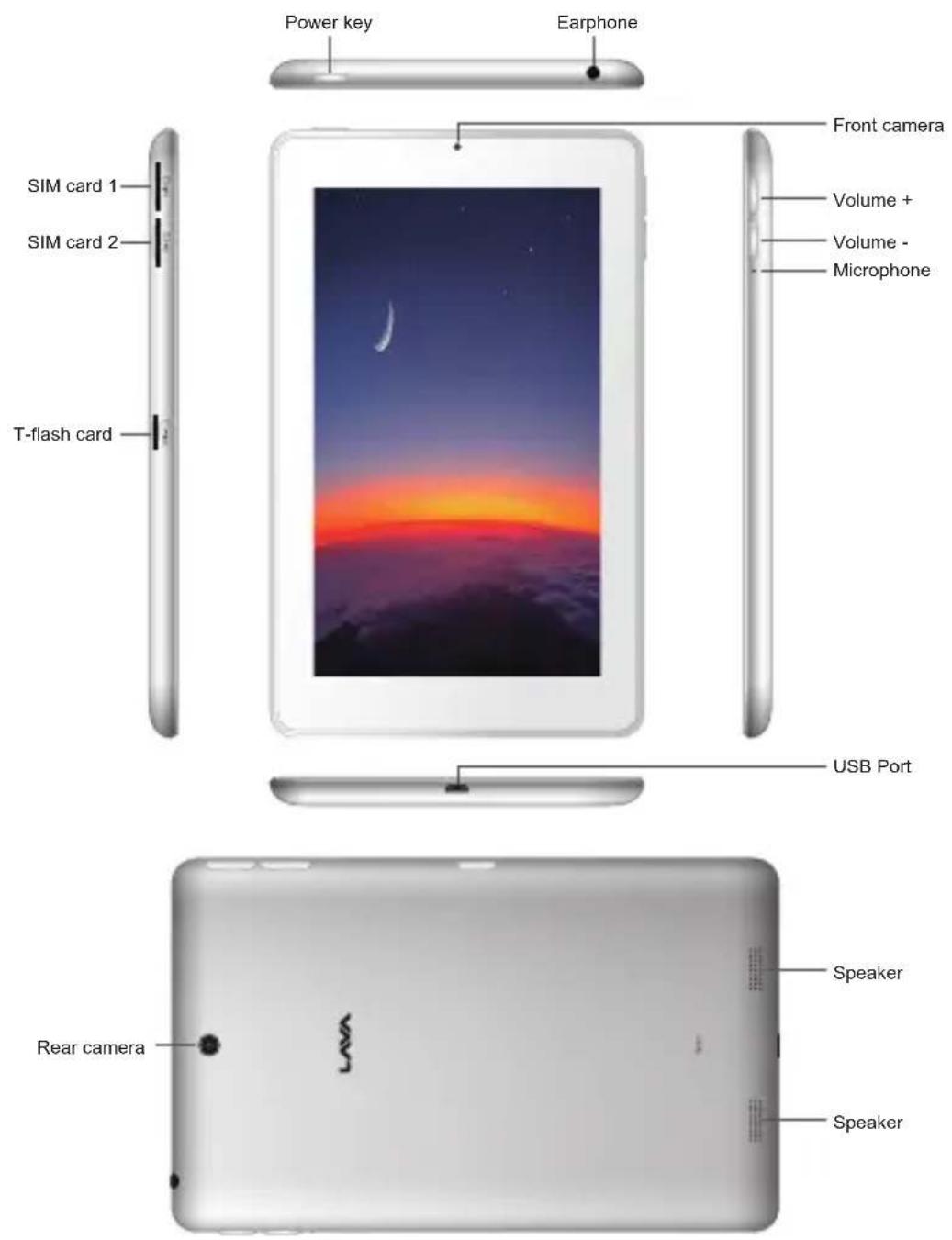
▲ Pictures in this guide are for your reference only, please refer to the real product.
Device Operation and Preparation
Battery Charging
Please use AC adaptor to fully charge the device.
- Apply the power adaptor to charge the device.
- Please wait until it is fully charged and don't pull out the adaptor while charging. When it is fully-charged, the LED will turn to Green.
Device Status and Reminder
Reminder icons
When some reminder message appears on your reminder window, please tap the column and slip the screen to open the reminder list. Choose the menu you need, and confirm the information. Then you can close the reminder window through clicking the column to slide up. Please refer to below status icons:
 | New email |  | Airplane mode on |
 | USB connected |  | USB adjustment connected |
 | Return button |  | Downloading |
 | Display recently-used application |  | Home button |
 | Battery |  | WIFI connected |
Keys Function
Keys Function Description:
| Power button | Short press to sleep/wake up, long press to Power ON/OFF |
| Volume + (up) | Increase the volume |
| Volume - (down) Decrease the volume | |
Home button  | Click it in any interface will return to main interface. |
Back button  | Click it in any interface will return to previous menu |
Menu button  | This button will display the menu interface. |
Display recently-used application  | Display recently browsed history |
Unlock
Under the standby mode, press Powerkey once to make the screen to sleep, press it again to wake the screen. Touch and drag the lock icon to the unlock icon to unlock the screen. Long press the Power key can activate a prompt for powering off your device or switching to airplane mode.
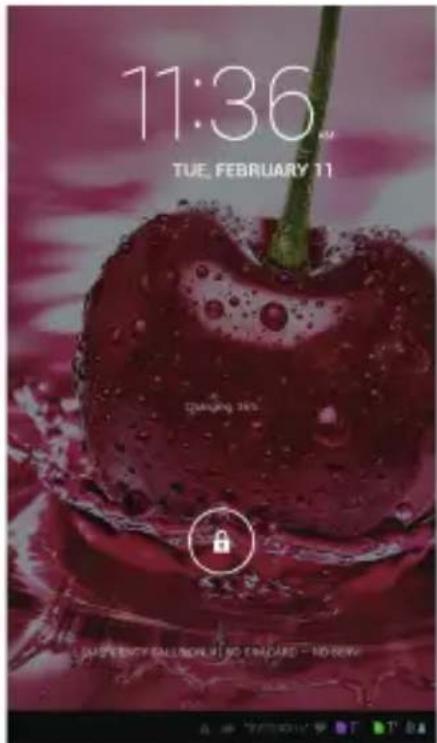
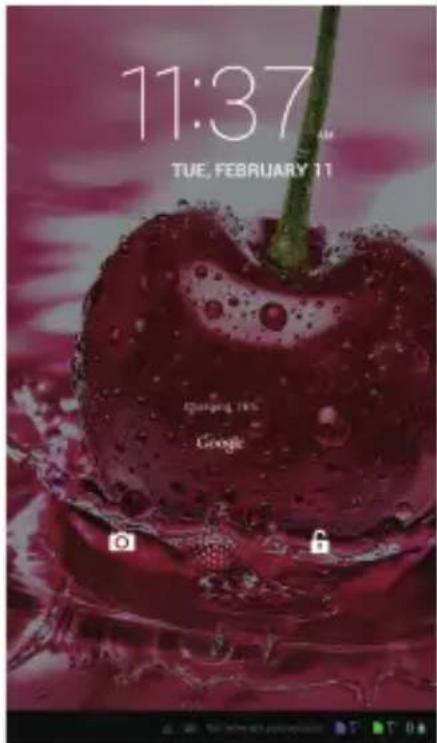
If you can not power off your device for unknown reasons, please long press the Power key for more than 10 second to force a shutdown.
Main Menu
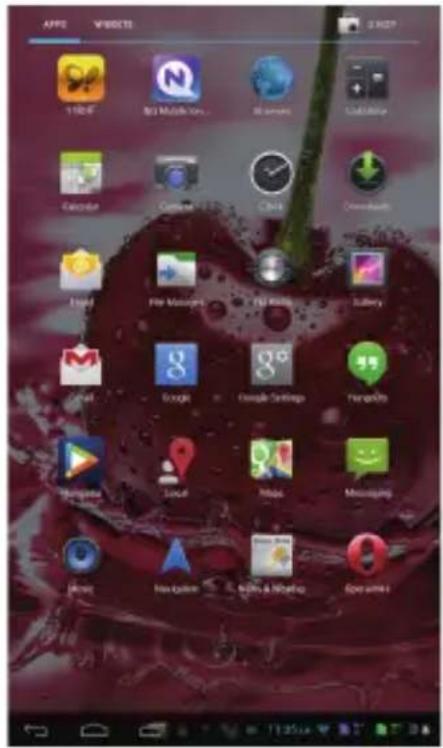
Touch Menu icon to enter Main Menu screen, scroll the screen left or right to switch the page of Main Menu. Touch and hold a widget or an app on the screen, and you can customize your Home screen by dragging it to different positions and different screens. Press the Home key to go back to the Home screen.
Notification
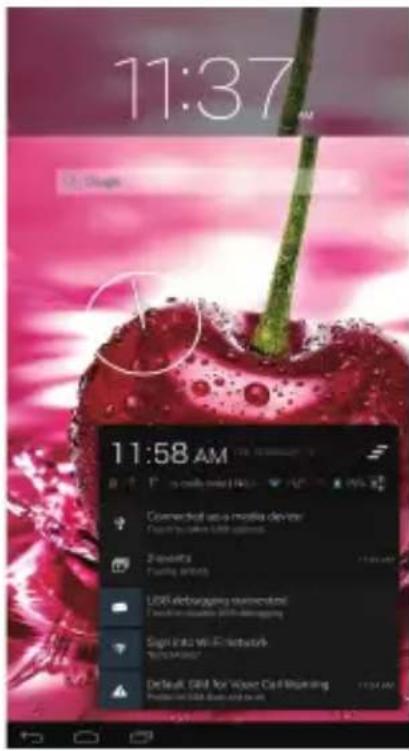
You can pull up the status bar on any page to quickly enter Settings screen. You can also see the notification received by the device. Touch the notification to quickly enter your app receiver to check out.
Calling
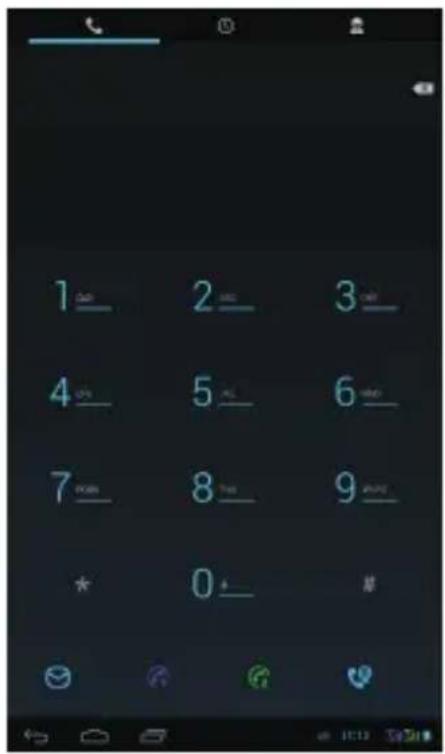
From you Home screen, touch phone Dialer to dial the phone number. During the call, you can open the keypad to dial numbers or enter your Contacts. Return a call, or call a number from a recent call stored in call log.
Messaging
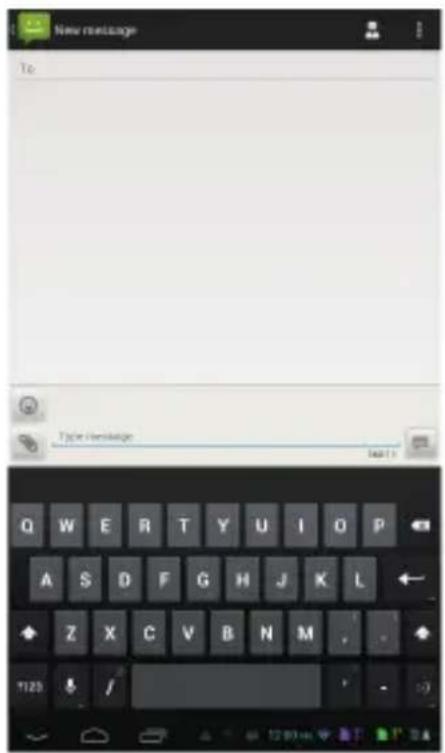
Your Tablet can send and receive text and multimedia messages to other mobile phones and to email addresses. Tablet's default input method is Android keyboard. You can also install other input Apps as you like.
Browser
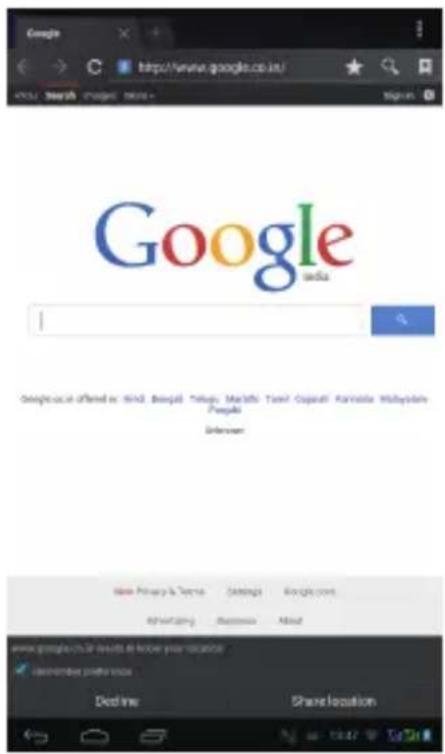
Your Tablet is equipped with a full HTML Browser, which allows you to access the internet. From the Home screen, select Browser. The webpage can be adjusted according to the screen size. Double tap to zoom in or out while viewing your webpage.
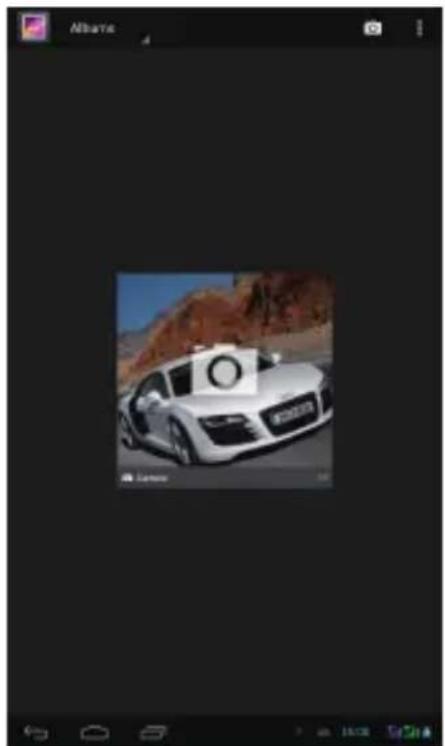
Gallery
The pictures and videos are displayed as folder thumbnails when enter the gallery. The gallery supports many picture formats including PNG and JPG, video formats including MP4, 3GP. Touch the picture or the video to play.
natural_image
White Audi car parked on a desert road with rocky background (no visible text or symbols)Camera
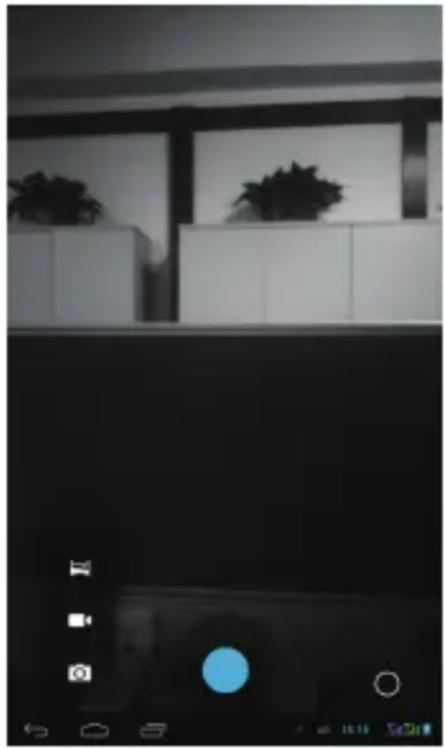
Enter the camera, touch the screen to focus and shoot freely. There are several kinds of scene modes to select: auto, cloudy, sunny, fluorescent, filament, etc.
natural_image
Interior view of a modern living room with white furniture and a dark screen (no visible text or symbols)Music
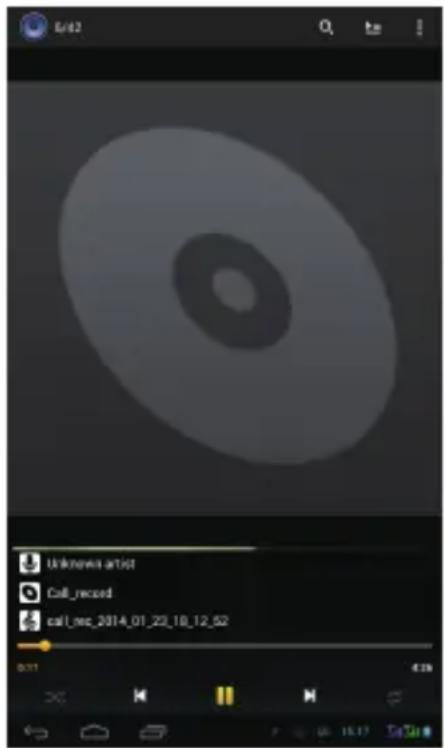
Your Tablet supports music formats including MP3, AAC, AMR and midi, etc.
You can choose to play songs as in playlist, or shuffle. An individual song can be repeated and or a playlist.
FM Radio
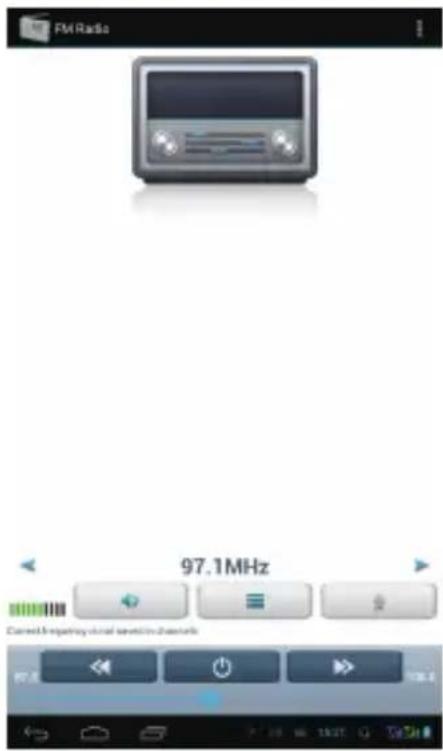
You need to plug your headset into the jack to listen to FM radio. You can switch the playing mode from headset to speaker playing. The channel can be searched automatically and stored for collecting your favorite program.
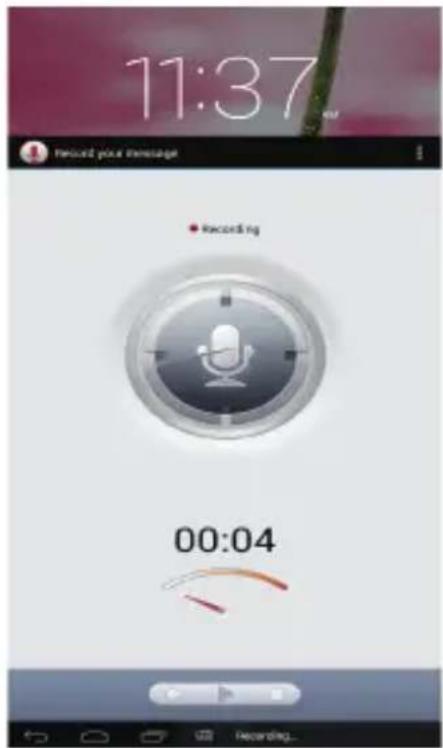
Sound Recorder
Your Tablet has a built-in sound recorder function. Touch the record button to start the recording and touch the stop button to finish the recording and save the audio file automatically. It can record audio and play the recorded audio.
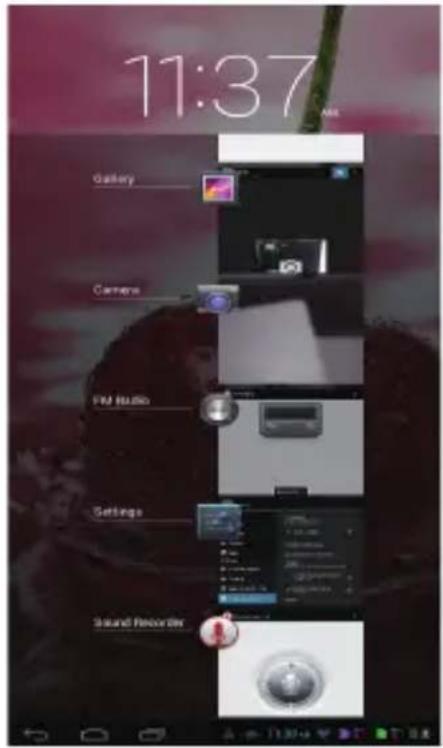
Multitasking
While on a call, you can access your email, calendar, or any other app, and even surf the web when you're connected to WiFi or 3G. To quickly switch between apps, long press the Home key to reveal recently used apps. Scroll up to see more apps, then touch one to reopen it. Scroll an app right or left to end it.
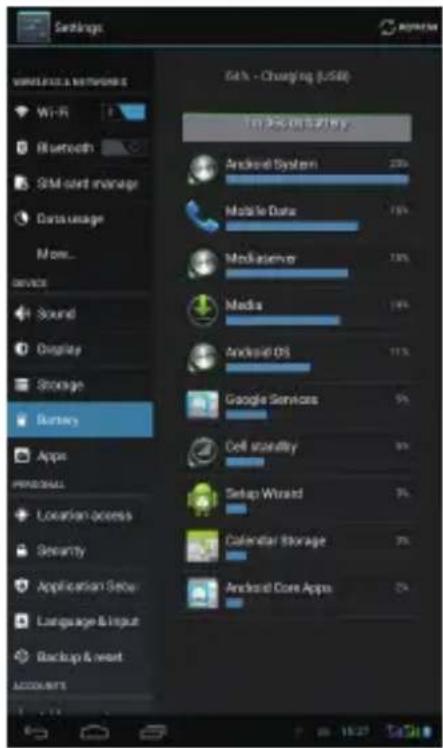
Settings
Enter the Settings screen to customize your Tablet, Personalize it with a different wallpaper and ringtone, and you can also choose a method for locking your screen, view the storage, choose default write disk etc.
Reboot the device
To reboot the device, when device is powered off, press power button, while the device vibrates press volume up key. The device opens into Factory Mode. Using the volume down key, select the action, and press the power key to select “Reboot”.
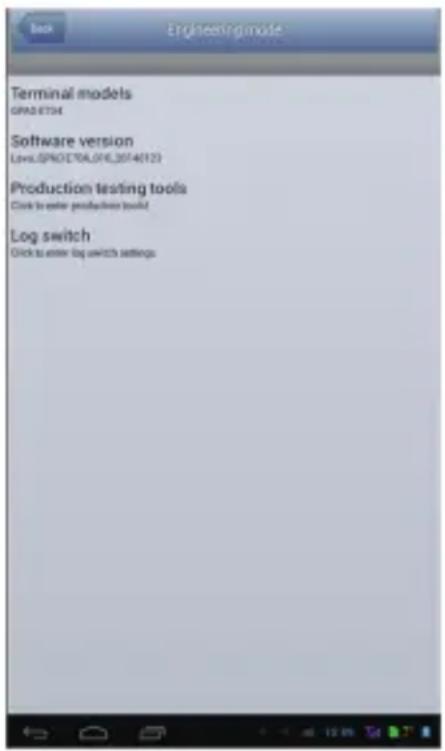
Note: LAVA does not take any responsibility for any misshappening during this incidence.
- Introduction
- Acknowledgement
- Announcements
- Preventive maintenance
- Safety Instruction
- Device Introduction
- Device Operation and Preparation
- Battery Charging
- Device Status and Reminder
- Reminder icons
- Keys Function
- Keys Function Description:
- Unlock
- Main Menu
- Notification
- Calling
- Messaging
- Browser
- Gallery
- Camera
- Music
- FM Radio
- Sound Recorder
- Multitasking
- Settings
- Reboot the device
Brand : LAVA
Model : Qpad E704
Category : Tablet