KGNEBK6VAA - Consumer Electronics Kogan - Free user manual and instructions
Find the device manual for free KGNEBK6VAA Kogan in PDF.


| Product Type | eBook Reader |
| Brand | Kogan |
| Model | KGNEBK6VAA |
| Display | 6" Electronic Paper Display, 600x800 pixels, 16-bit grayscale |
| Processor | Samsung S3C2416 |
| Memory (RAM) | 64 MB DDR2 |
| Storage Expansion | SD/MMC card slot |
| Supported Text Formats | PDF, CHM, EPUB, TXT, HTM, HTML, RTF, PDB, DJVU, DJV, iw44, iw4, FB2, OEB, PRC, MOBI, TCR, OPF |
| Supported Audio Formats | MP3 (32 kbps – 384 kbps) |
| Supported Image Formats | JPEG, PNG, TIF, GIF, BMP |
| Battery | 1700 mAh Li-Polymer, 3.7 V |
| Charging | DC 5V 800 mA via USB or wall charger |
| Weight | 228 g |
| Dimensions | 178 x 128.4 x 9.9 mm |
| Connectivity | USB 2.0, 3.5 mm headphone jack |
| Supported Languages | English, Russian, Spanish, Dutch, French, German, Italian, Portuguese |
| DRM Support | Adobe DRM (requires Adobe Digital Editions) |
| Additional Features | Music player, photo viewer, bookmarks, favourites, file explorer, multiple input methods (Pinyin, abc, ABC, 123, Russian) |
| Power Button | Located on front |
| Reset Button | Located on rear, use a pin to reset |
Frequently Asked Questions - KGNEBK6VAA Kogan
User questions about KGNEBK6VAA Kogan
0 question about this device. Answer the ones you know or ask your own.
Ask a new question about this device
Download the instructions for your Consumer Electronics in PDF format for free! Find your manual KGNEBK6VAA - Kogan and take your electronic device back in hand. On this page are published all the documents necessary for the use of your device. KGNEBK6VAA by Kogan.
USER MANUAL KGNEBK6VAA Kogan
Chapter 2 Buon Instrucons
Chapter 3 Menu Introducon
Chapter 4 eBook Library
Chapter 5 Music Player
Chapter 6 Picture Explorer
Chapter 7 My Bookmarks
Chapter 8 My Favourites
Chapter 9 Recent
Chapter 10 File Explorer
Chapter 11 Sengs
Chapter 12 Inpung
Chapter 13 Charging
Chapter 14 USB conncon
Chapter 15 Imporng DRM Contents
Chapter 1
Product Specifications
● Display: 6" Electronic Paper Display
- Resolution: 600x800 pixels (16 bit Greyscale)
- Processor: Samsung S3C2416
- DDR2 : 64 MB
● Battery: 1700mAh/3.7V Li-Polymer Ba ery
- Adapter: DC5V 800mA
- Supported Text Formats: PDF, CHM, EPUB, TXT, HTM, HTML, RTF, PDB, DJVU, DJV, iw44, iw4, FB2, OEB, PRC, MOBI, TCR, OPF
● Supported Audio Formats: MP3 (32kbps-384kbps)
- Supported Image Formats: JPEG, PNG, TIF, GIF, BMP
- Expandable Memory: SD Card/ MMC
- Supported Languages: English, Russian, Spanish, Dutch, French, German, Italian, Portuguese
- Dimensions: 178(L) x 128.4 (W) x 9.9(H) mm
- Weight: 228g
Chapter 2
Introduction to parts of the eBook

| FRONTsnottuB sseccA5cerPDower1 ButtonTo select items on the screen2- Page Turning Buttons3- 3.5 mm Headphone Jack4- USBconnectorTo connect to the USB charger or PC | REAR |
| 6 -SD card slot7 -Reset ButtonTo reset the eBook reader, use a pen or other sharp-tipped object to depress the button |
Chapter 3
Menu Introducon
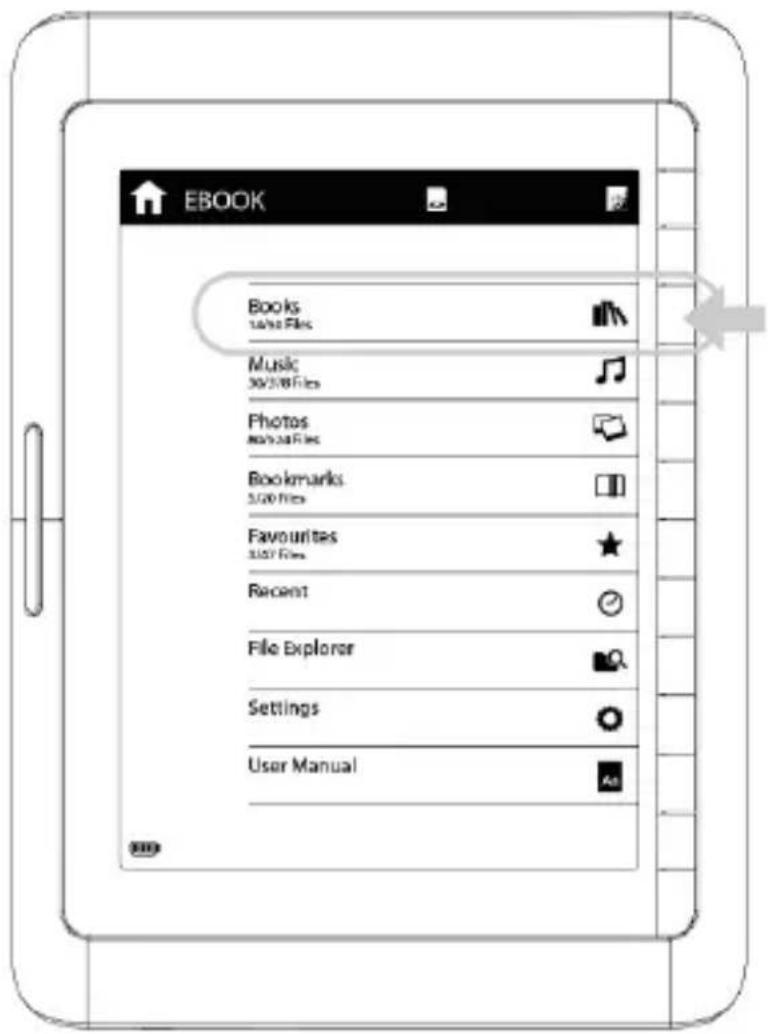
1 - Books

This allows you to access books loaded on the eBook reader
2 - Music

This applicaon lets you access and play audio les stored on the eBook reader
3 – Photos

This applicaon lets you view photos loaded onto the eBook reader
4 - Bookmarks

This will display the saved bookmarks
5 – Favourites

This will display the list of favourites
6 – Recent

Recent items read or used by the user will be shown.
7 – File explorer

8 - Sengs

9 – User Manual

Chapter 4
eBook Library
- Press the corresponding button of the category you wish to choose
- Operate the buttons to turn pages
- Press menu button ≡ once submenu function appears

3.1 - Favourites

Add books to your list of favourites. This allows books marked as 'favourites' to be easily accessible
3.2 - Go to Page

Go directly to a desired page, by inputting the page number.
3.3 - Search

Find a book stored on the eBook reader by inputting a word or phrase from its title
3.4 - Music

Go to music playback interface to access and control the music available on the eBook reader
3.5 – Return

Closes the drop down menu and returns to the book's menu
- Choose a book to read
4.1 Press

to turn the page
| Discover your Genius The introduction to Discover Your Genius shows off the double meaning of the book's title in plain language: it is meant to help you find both your own potential for greaterness and a meaningful role provide focus. In an effort to both simultaneously, Michael J. Gelb has created a combination workbook, guided journal, and historical biography of 10 outstanding huma | Refresh | Discover your Genius The introduction to Discover Your Genius shows off the double meaning of the book's title in plain language: it is meant to help you find both your own potential for greaterness and a meaningful role provide focus. In an effort to both simultaneously, Michael J. Gelb has created a combination workbook, guided journal, and historical biography of 10 outstanding huma | Refresh |
| Dictionary | Settings menu | ||
| View Bookmark | Font | ||
| Add Bookmark | Encode | ||
| Music | Margins | ||
| Setting | Line spacing | ||
| Contents | Hyphenation | ||
| Search | Bold | ||
| Page | Italic | ||
| Rotate | Book information | ||
| Zoom |
- Press the menu button reading an eBook
once submenu function appears when
5.1 Refresh
The screen will be refreshed
5.2 Bookmark view
Displays bookmarks
5.3 Bookmark add
Press to add a bookmark for the current page.
5.4 Music
Press to go to the music player
5.5 Settings
Mark : if there is text passing the edges in PDF mode
5.5.1 Font
Select different Fonts: Microsoft Yahei, Arial, Courier, Times, ARIALN
5.5.2 Encode
If the encoding is incorrect
5.5.3 Margins
To set the margins
5.5.4 Line spacing
To set line spacing
5.5.5 Hyphenation
To make adjustments for sentence structure
5.5.6 Bold
To display text in bold
5.5.7 Italic
To display text in italic
5.5.8 Book information
Press to see information on the eBook currently opened
* Please note that features 5.5.1, 5.5.3 & 5.5.7 are not compatible with ePub or PDF les.
5.6 Directory view
Press “Directory view” to go into this book’s directory, and select favourite directory to read directly
5.7 Search
The search contents will be displayed. Press the corresponding button of ↑ to look up the previous or next key words
5.8 Page Jump
Allows you to move to the desired page by entering the page number
5.9 Rotation
Rotate the text 90°
5.10 Zoom
To zoom in or zoom out
5.11 Return
Press ← to close the drop down menu and return to the Books menu
Chapter 5
Selecting from music list
- From the Main Menu, select "Music" to browse the Playlist stored on the eBook reader

- Press to turn the page in playlist. Press menu button to go to the menu function:
2.1 Favourites
Press “favourites”, the spot on the right side of playlist is empty. Operate the corresponding button to choose the music you like, the spot will become solid. After confirming, the music is added into

"favourites". Enter "favourites" under the main menu; you can listen to the saved music
2.2 Go to Page
Press “go to page” and enter the page you want to go and confirm. The playlist will skip to the page.
2.3 Search
Press “search” and enter the key words of the music you want, then press search.
2.4 Return
Press "Return" to return from sub-menu.
3 Operate the button of corresponding music to play music. Operate the menu to adjust the music.
3.1 To skip to the next track or return to the previous track, press on the “” button, press” ” to the sub-menu.
3.2 Press "volume up" / "volume down" to adjust the volume.
3.3 Press "mute" to enter mute mode, press again to resume the volume.
3.4 Press on the button "play mode" to change the music play mode.
There are 3 modes: Random ✗, Loop ⏻ and Repeat Once .
3.5 Press "play/pause" ▶ to play or pause current audio playback.
3.6 Press "stop" to stop the current playing music.
3.7 Press "Return" to return back to the Music list.
Remarks: 1. The eBook reader only supports MP3 audio les.
- The eBook reader allows you to listen to your favourite MP3s while you are reading.
Chapter 6
Photo Explorer
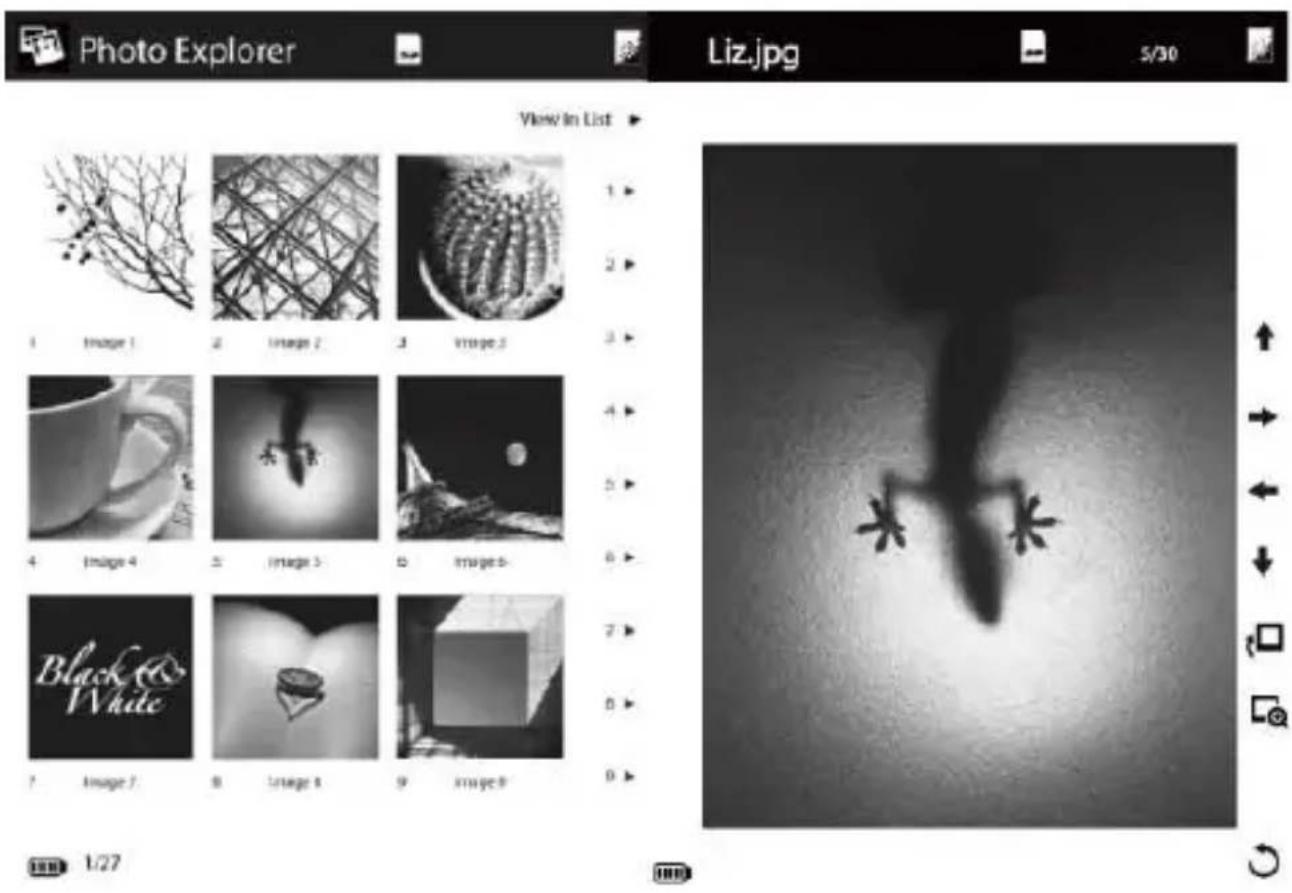
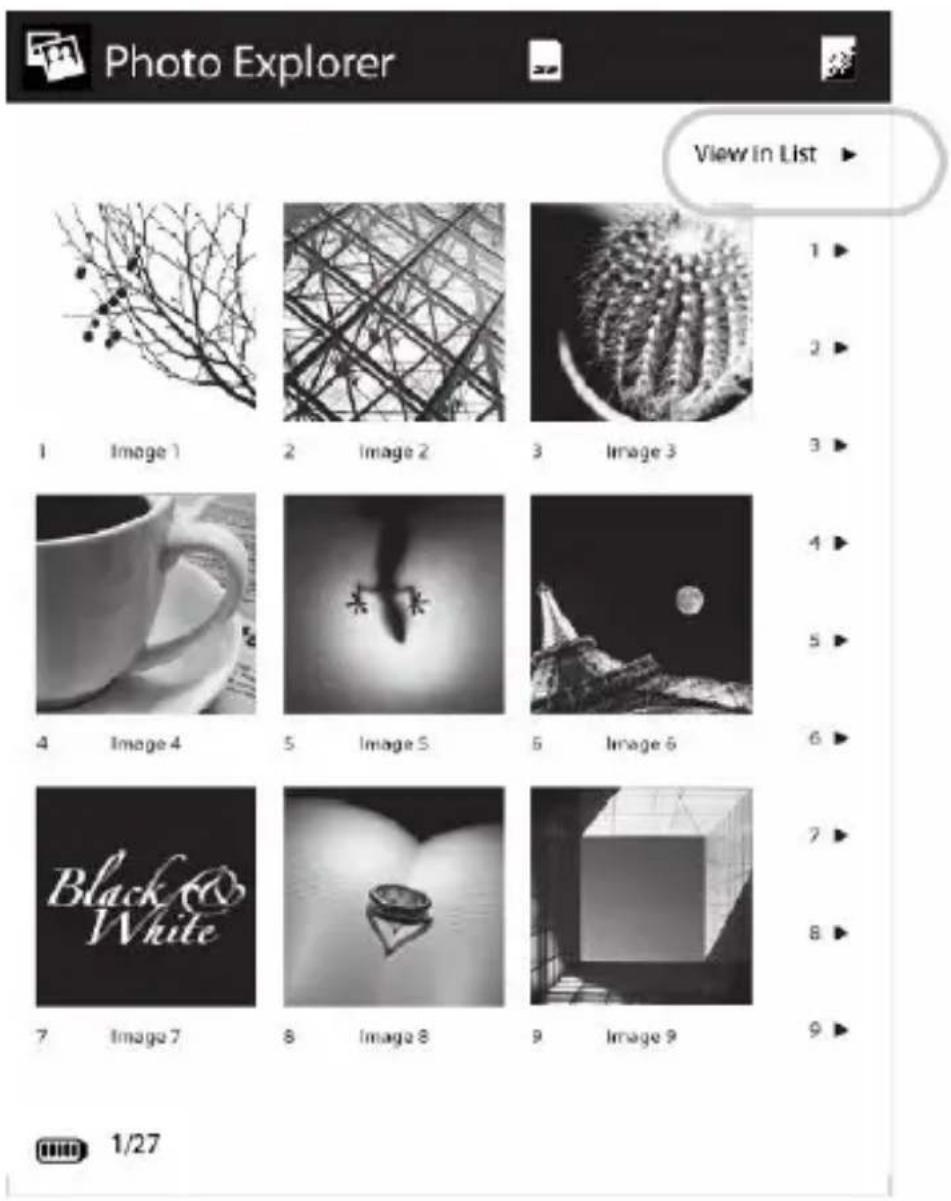
- Press the corresponding button to enter “photo explorer”, displaying all the picture list of different formats. Press “ ” to show sub-menu:
1.1 Favourites

Press “favourites”, the round dot on the right side of the photo list is empty. After pressing the corresponding button to choose the favourite picture, the round dot becomes solid. And then press the corresponding
button to add the picture into “favourites”. You can find your favourite pictures by entering “Favourites” under the main menu.
1.2 Go to Page

Go directly to the desired page by inputting the page number.
1.3 Search

Find a photo stored in the eBook; by inputting a word from its title.
1.4 Thumbnails

View Photos in Thumbnails.
1.5 Music

Go to music playback interface to access and control the music available on the E-book.
1.6 Return

Close the drop-down menu and return to the Photo Explorer.
- Photo view
Press the corresponding access button to view the pictures.
2.1 Press "to rotate the pictures
1.2 Press “ ” zoom in /out. A er zoom in/out, press the
corresponding button to move the picture up and down, left and right.
1.3 Moving direc tion key
Press to move the picture up.
Press to move the picture right.
Press to move the picture le ft.
Press ↓ to move the picture down .
2.4 Return
Press to return to the last interface.
Chapter 7
My Bookmarks
Press “ ” to show sub-menu
7.1 Delete

Press corresponding button to delete bookmark directly
7.2 Go to page

Go directly to the desired page by inputting the page number if there are many bookmarks in your e-book read.
7.3 Search

Find a bookmark added in the Bookmarks by inputting a word or phrase from it's filename.
7.4 Music

Go to music playback interface to access and control the music available on the E-book.
7.5 Return

Close the drop down menu and return to the previous interface
Chapter 8
My Favourites
- When reading, listening or browsing pictures, you can use 'My Favourites' to organise your files
From the Main Menu, select “My Favourites” to browse all the lists of my favourites and then Press” for the sub-menu.
1.1 Move out
Press the corresponding button “move out”, the round dot on the right of the files are empty. Choose the files you want to move out. The round dot becomes solid. Press confirm to move the file into the favourite list.
1.2 Go to Page
Go directly to the desired page, by inputting the page number.
1.3 Search
Find an audio file stored in the EBook by inputting a word or phrase
from its filename.
1.4 Music
Go to music playback interface to access and control the music available on the eBook.
1.5 Return
Close the drop down menu and return to the my favourites
Chapter 9
Recent
- Press the corresponding button “recent” to show all the latest read book list. Press “menu” key to show the submenu.
1.1 Moving files
To press the corresponding menu & choose the file to move out of the favorite list;
1.2 Favourites
Choose the book you want to collect by press Favourites to add in the list. When you instruct the main menu, you can read your favourites directly from Favourites.
1.3 Go to page
To input the page number then press confirm to show the exact page you want to see.
1.4 Search
Choose “Search” with input interface, input the key words for search then click it, it will show the files searched.
1.5 Music
Choose “music” to work with music mode quickly, click return to withdraw the submenu
1.6 Return
Click "return" to return back from the submenu.
Chapter 10
File explorer
- Press the corresponding direct access button to enter "file explorer" to view all the files in SD card. Press "menu" ≡ in SD card, the drop-down menu has the following options:
1.1 Cut
Press the corresponding access button “cut”, the round dots on the right of the list are empty. Choose the file which you want to cut by pressing the corresponding button, then the chosen round dot becomes solid Ⓞ. Press confirm to choose the file you want to put in the cut file and press “menu” 📋 to paste. Then the chosen file will be cut into this file.
1.2 Copy
Press the corresponding access button “copy”, the round dot on the right side of the list is empty, choose the file you want to copy by pressing the corresponding button, the round dot becomes solid, press confirm and press “menu” ☐ to paste. Then the chosen file will be copied into this folder.
1.3 Delete
Press “delete”, the round dot on the right of the list is empty. Choose the file you want to delete by pressing the corresponding button, the button becomes solid. Press confirm to delete the chosen files.
1.4 Paste
Choose the files you want to cut or copy and paste into the folder.
1.5 Favourites
Press “Favourites”, the round dot on the right of the list is empty,
choose the favourite files by corresponding button, then the round dot becomes solid @Press confirm to save the files.
1.6 Go to page
Press “go to page”, popup the inputting box, enter the page you want and confirm to show the page you want;
1.7 New folder
Press “New folder” to jump to the interface of inputting, enter the file name and confirm, the list will show the new folder name;
1.8 Search
Press “search”, popup the inputting interface, enter the key word of the file and press “search”, the popup window shows the list of searched files;
1.9 Music
Press "music" to enter the music player instantly;
1.10 Return
Press "Return" to return back from sub-menu.
Choose the file to move then press confirm. To Copy or Paste the file & put the files to the file you want to save.
1.2 Delete
Select "Delete" from the drop down menu to delete files or folders stored on the SD Card.
Select files or folders in the selection menu to be deleted. Press the "Done" button to confirm files or folders to be deleted.
*Files deleted are non-recoverable.
1.3 Favourites
Choose the file with a filled circle 🔒 to save it under collection menu. Books & music undergoing can be collected.
1.4 Go to Page
To input the page# then press confirm to show the exact page you want to see.
1.5 New Folder
You can create new folders to organize your files better.
Select "Menu" ≡ in the Directory you want to create the new folder in. Press on "New Folder" on the Drop down Menu to create the folder.
1.6 Search
Choose “Search” with input interface, input the key words for search then click it, it will show the files searched.
1.7 Music
Choose “music” to work with music mode quickly, click return to withdraw the submenu.
1.8 Return
Press Return to get back to last menu bar
Chapter 11
System Sengs
The 'Sengs' sub-menu will list:
Device Seng, Auto Shutdown Setngs, About Product and Restore Factory Sengs.
1. Device sengs
1.1 Press “Device Name” Select Device Name to personalize the eBook name. A text input menu will appear to allow you to input the text.
1.2 Press "Language", then press on the corresponding Direct Access Buon for mulple languages set;
2. Auto Shutdown Sengs
2.1 Press “Auto Shutdown Sengs”, there are 10 minutes for you to make your choice, eBook to shut down automacally aer it idles for a preset duraon; (default 10 minutes to shut down itself automatically)
3. About Product
3.1 This page provides informaon of the eBook including its soware version and its customer
4. Restore Factory Settings
4.1 Using the buttons located on the left side of the screen to confirm the restoration. Press on the button indicating "Return ⬇" to exit the restoration. Press on the "Confirm√" to validate the restoration. The eBook will be restored to its original factory settings
Chapter 12
Input methods
TEBR-700 eBook reader offer 5 kinds of input methods , : “Pinyin”、“abc”、“ABC”、“123”“Russian”
1.Pinyin
1.1 Input Pinyin: Press to toggle Pinyin input method, repeated pressing the right corresponding Direct Access Button will get all desired Pinyin alphabet, when pressing Direct Access Button, the Pinyin alphabet on the display keep changing, After inputting the last Pinyin alphabet, we can ignore the other Pinyin alphabets left on the display
1.2 Delete: press ← can delete the left character of cursor Press √ to confirm input finished, then press the corresponding Direct Access Button to choose Hanzi, Press ▼ for next page, and ▲ for
previous page
-
Press to toggle to number input method;
-
Press to toggle to Punctuations input method;
-
ABC
4.1 Press toggle to "ABC" input method
4.2 Click once the corresponding Direct Access Button to input the first letter, Click twice for the second letter, and so on, you need to wait until cursor appears again if desired letter is located on the same Direct Access Button as previous letter.
4.3 Delete: press ← can delete the left character of cursor 5. ABC
5.1 Press toggle to "abc" input method;
5.2 Click once the corresponding Direct Access Button to input the first letter, Click twice for the second letter, and so on, you need to wait for the cursor to appear again if desired letter is located on the same Direct Access Button as previous letter.
5.3 Delete: press ← can delete the left character of cursor;
Chapter 13
Charging
There are two methods for charging your eBook reader
- Connect the eBook to the computer's USB Port via the supplied USB Cable
- Connect the eBook to the USB wall charger
Chapter 14
USB Connecon
- Aach USB cable to device and computer
- To charge device, select 'charge'
- For data transfer follow on-screen instrucons
Chapter 15
Imporng Content
Imporng DRM Contents
The eBook reader supports Adobe DRM contents. Adobe Digital Edions (ADE) is required
Installing Adobe Digital Edions (ADE)
- Connect the eBook reader to your PC via the supplied USB cable and open the eBook reader as removable disk. Go to [My Computer], double click on the reader's disk to open
- You can download the installer from hp://www.adobe.com/products/digitaledions/#fp.
- As a rst me user, you will need to get a free Adobe ID from www.adobe.com
- Enter your email address and complete the online form as per instrucons
Imporng and Transferring Content
Authorizing PC and Reader
- Upon registraon, return to the ADE window. Enter the username and password to acvate your Adobe account.
- Aer activaon, connect the eBook reader to your PC. ADE will detect the eBook reader and you will be prompted to authorise the device.
- Aer authorizaon, you will be able to nd the eBook reader recognized in ADE.
- You can now start downloading or buying eBooks from online eBook stores supporting Adobe DRM.
- Purchased or downloaded eBooks will be stored in [My Digital Edions] in [My Documents].
Transferring DRM eBooks to Reader
- From ADE menu, click on [All Items] in the le hand column
- Items in [My Digital Edions] will be listed in right window.
- Select the desired item(s) to be transferred.
- Drag and drop the selected item(s) into the eBook reader's drive located on the last row of the le hand column.
Opening Book
- Books transferred to the eBook reader will be listed in the Home Menu.
- The eBook reader supports eBooks in epub, PDF & txt format.
- Use the
buons to move the cursor to select book and press to open.
Turning book page
- On reading page, press
- Chapter 1
- Product Specifications
- Chapter 2
- Chapter 3
- Menu Introducon
- Chapter 4
- eBook Library
- - Favourites
- - Go to Page
- Music
- Settings
- Font
- Encode
- Margins
- Line spacing
- Hyphenation
- Bold
- Italic
- Book information
- Directory view
- Search
- Page Jump
- Rotation
- Zoom
- Return
- Chapter 5
- Selecting from music list
- Favourites
- Go to Page
- Search
- Return
- Chapter 6
- Photo Explorer
- Favourites
- Go to Page
- Search
- Thumbnails
- Music
- Return
- Chapter 7
- Chapter 8
- My Favourites
- Move out
- Music
- Return
- Chapter 9
- Recent
- Moving files
- Favourites
- Go to page
- Search
- Chapter 10
- File explorer
- Cut
- Copy
- Delete
- Paste
- Favourites
- Go to page
- New folder
- Search
- Music
- Return
- Delete
- Favourites
- Go to Page
- New Folder
- Search
- Music
- Return
- Chapter 11
- System Sengs
- Device sengs
- Auto Shutdown Sengs
- About Product
- Restore Factory Settings
- Chapter 12
- Input methods
- 1.Pinyin
- Chapter 13
- Charging
- Chapter 14
- USB Connecon
- Chapter 15
- Imporng Content
- Imporng DRM Contents
- Installing Adobe Digital Edions (ADE)
- Imporng and Transferring Content
- Authorizing PC and Reader
- Transferring DRM eBooks to Reader
- Opening Book
- Turning book page
Brand : Kogan
Model : KGNEBK6VAA
Category : Consumer Electronics