
Desire 516c Dual sim - Smartphone HTC - Free user manual and instructions
Find the device manual for free Desire 516c Dual sim HTC in PDF.


| Product Type | Smartphone |
| Brand | HTC |
| Model | Desire 516c Dual sim |
| Display Size | 5.0 inches |
| Display Resolution | 480 x 854 pixels |
| Processor | 1.2 GHz Quad-core |
| RAM | 512 MB |
| Internal Storage | 4 GB |
| Expandable Storage | microSD up to 32 GB |
| Rear Camera | 5 MP |
| Front Camera | 2 MP |
| Battery Capacity | 1950 mAh |
| Dimensions | 143.1 x 72.4 x 9.8 mm |
| Weight | 160 grams |
| SIM Type | Dual SIM (Mini-SIM) |
| Operating System | Android 4.2 Jelly Bean |
| Connectivity | Wi-Fi 802.11 b/g/n, Bluetooth 4.0, GPS, microUSB 2.0 |
| Network | GSM / HSPA |
| Security Features | Screen lock, PIN, Pattern |
| Maintenance | Keep device dry, clean with soft cloth, avoid extreme temperatures |
| Spare Parts Availability | Battery, screen, back cover available through third-party services |
Frequently Asked Questions - Desire 516c Dual sim HTC
User questions about Desire 516c Dual sim HTC
0 question about this device. Answer the ones you know or ask your own.
Ask a new question about this device
Download the instructions for your Smartphone in PDF format for free! Find your manual Desire 516c Dual sim - HTC and take your electronic device back in hand. On this page are published all the documents necessary for the use of your device. Desire 516c Dual sim by HTC.
USER MANUAL Desire 516c Dual sim HTC
HTC Desire 516c dual sim
User guide
Contents
Unboxing
HTC Desire 516c dual sim 7
Back cover 8
UIM and SIM cards 10
Storage card 11
Battery 13
Switching the power on or off 15
Setting up your phone
Setting up HTC Desire 516c dual sim for the first time 16
Installing an update 16
Checking for updates manually 16
Your first week with your new phone
Basics 17
HTC BlinkFeed 23
Working with text 26
Battery 30
Camera
Using Android Camera 32
Gallery and Video Highlights
Viewing photos and videos in Gallery 33
Editing photos 33
Viewing and editing Video Highlights 33
Personalizing
Making HTC Desire 516c dual sim truly yours 35
Changing your wallpaper 35
Personalizing the launch bar 36
Adding a widget to your Home screen 36
Adding apps and other shortcuts on your Home screen 37
Rearranging or removing widgets and icons on your Home screen 38
Grouping apps into a folder 39
Adding a Home screen panel 40
Changing your main Home screen 40
Adding a widget on the lock screen 40
Phone calls
Making a call 41
Calling a speed dial number 41
Making an emergency call 42
Answering or rejecting a call 42
What can I do during a call? 42
Setting up a conference call 44
Checking calls in the Call History 44
Switching between silent, vibrate, and normal modes 45
Messages
Sending a text or multimedia message via Android Messaging 46
Contacts
Your contacts list 47
Setting up your personal contact information 47
Adding a new contact 48
Editing a contact's information 48
Getting in touch with a contact 48
Importing contacts from your UIM or SIM card 48
Importing contacts from the storage 49
Sending contact information 49
Contact groups 49
Search and web browser
Searching HTC Desire 516c dual sim and the Web 51
Getting instant information with Google Now 52
Browsing the Web 53
Bookmarking a webpage 54
Clearing your browsing history 54
Adding an email account 55
Checking your mail 56
Sending an email message 56
Reading and replying to an email message 57
Searching email messages 57
Viewing your Gmail Inbox 58
Sending an email message in Gmail 58
Replying to or forwarding email messages in Gmail 59
Music
Listening to music 60
Creating music playlists 60
Travel and maps
Turning location services on or off 62
About Google Maps 62
Getting around maps 62
Searching for a location 63
Exploring places and activities near you 65
Getting directions 65
Google Play and other apps
Getting apps from Google Play 67
Downloading apps from the web 68
Uninstalling an app 68
Using the Clock app 69
Viewing the Calendar 69
Watching videos on YouTube 70
Internet connections
Turning the data connection on or off 72
Managing your data usage 72
Wi-Fi 74
Connecting to a virtual private network (VPN) 75
Using HTC Desire 516c dual sim as a Wi-Fi hotspot 76
Sharing your phone's Internet connection by USB tethering 76
Bluetooth
Connecting a Bluetooth headset 78
Unpairing from a Bluetooth device 78
Storage
Types of storage 79
Copying files to or from HTC Desire 516c dual sim 79
Backup and reset
Backup 80
Reset 80
Settings and security
Adding and syncing an account 82
Removing an account 82
Turning Airplane mode on or off 82
Turning automatic screen rotation off 83
Adjusting the time before the screen turns off 83
Adjusting the screen brightness manually 83
Changing the display language 83
Working with certificates 84
Assigning a PIN to the UIM or SIM card 84
Protecting HTC Desire 516c dual sim with a screen lock 85
Managing your UIM and SIM cards with Dual network manager 85
Trademarks and copyrights
Index
Conventions used in this guide
In this user guide, we use the following symbols to indicate useful and important information:

This is a note. A note often gives additional information, such as what happens when you choose to do or not to do a certain action. A note also provides information that may only be applicable to some situations.

This is a tip. A tip gives you an alternative way to do a particular step or procedure, or lets you know of an option that you may find helpful.

This indicates important information that you need in order to accomplish a certain task or to get a feature to work properly.

This provides safety precaution information, that is, information that you need to be careful about to prevent potential problems.
Safety precautions:
a) Use a wireless hands-free system (headphone, headset) with a low power Bluetooth emitter.
b) Make sure the cell phone has a low SAR.
c) Keep your calls short or send a text message (SMS) instead. This advice applies especially to children, adolescents and pregnant women.
d) Use cell-phone when the signal quality is good.
e) People having active medical implants should preferably keep the cell phone at least 15 cm away from the implant.
7 Unboxing
Unboxing
HTC Desire 516c dual sim
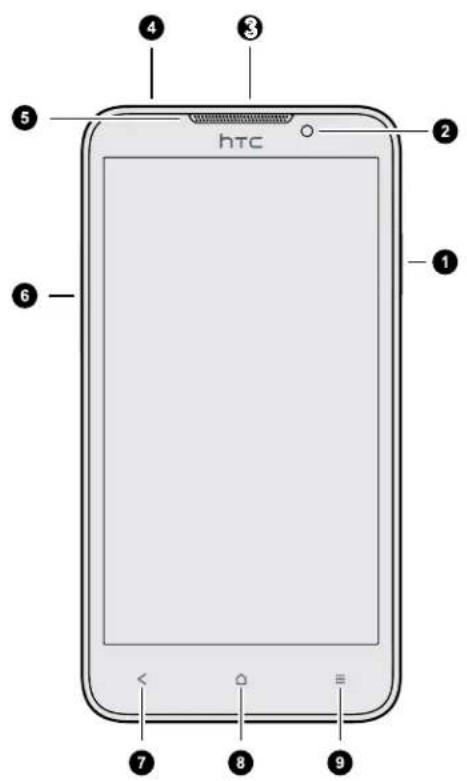
- POWER
- Front camera
- USB connector
- 3.5mm headset jack
- Earpiece
- VOLUME
- BACK
- HOME
- MENU
8 Unboxing
Back cover
Removing the back cover
- Securely hold HTC Desire 516c dual sim facing down.
- With your thumb or finger, open the back cover from the small opening at the bottom of HTC Desire 516c dual sim.
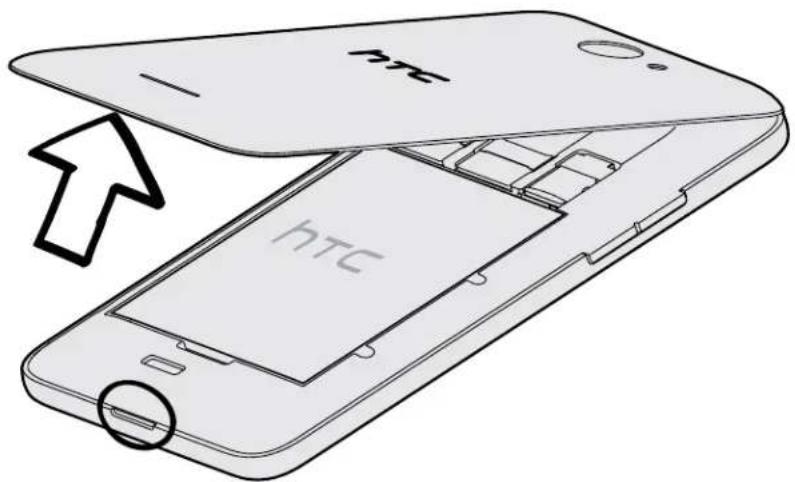
Replacing the back cover
After installing the SIM or storage card, make sure to replace the back cover properly.
- Place HTC Desire 516c dual sim face down on a flat and smooth surface.
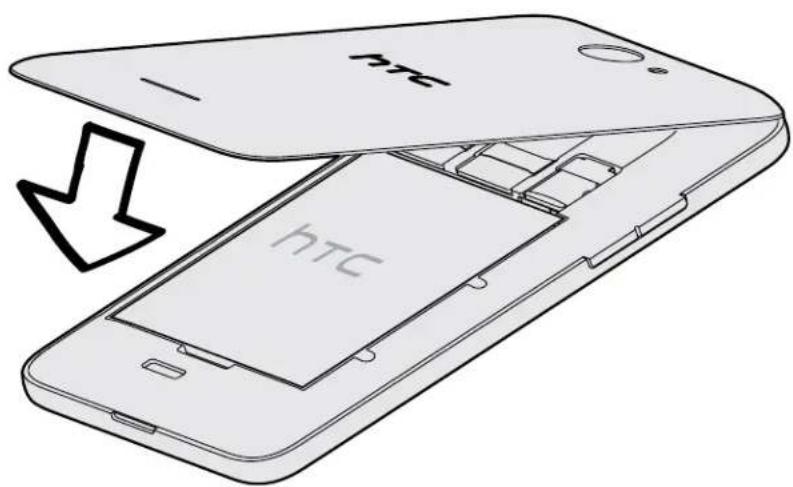
- Align the top part of the back cover with the back panel of HTC Desire 516c dual sim.
9 Unboxing
- Gently press the back cover and then run your thumbs along the sides from the top to the bottom.
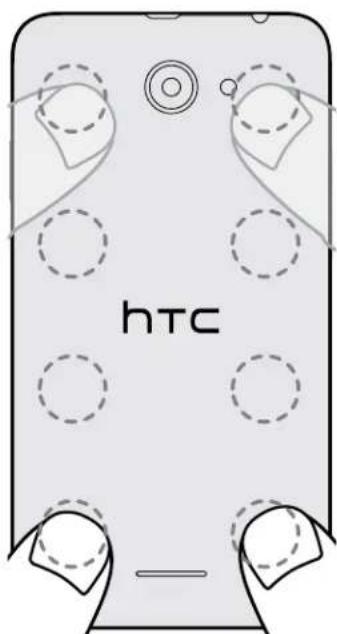
You'll hear clicks as the back cover locks into place.
- Make sure that the back cover is tight and there are no gaps or bulges on any side.
10 Unboxing
UIM and SIM cards
HTC Desire 516c dual sim has two card slots that allow you to insert a UIM card and GSM SIM card.
Inserting the UIM and SIM cards

Inserting a smaller size UIM/SIM (such as a micro UIM/SIM with an adapter or a modified UIM/SIM) may cause the card to not fit properly or damage the card slot.
- Take the back cover off.
- Insert a CDMA or dual-mode UIM card in the UIM 1 slot. Insert a GSM SIM in the SIM 2 slot.

When inserting, make sure the gold contacts on the card are facing down.
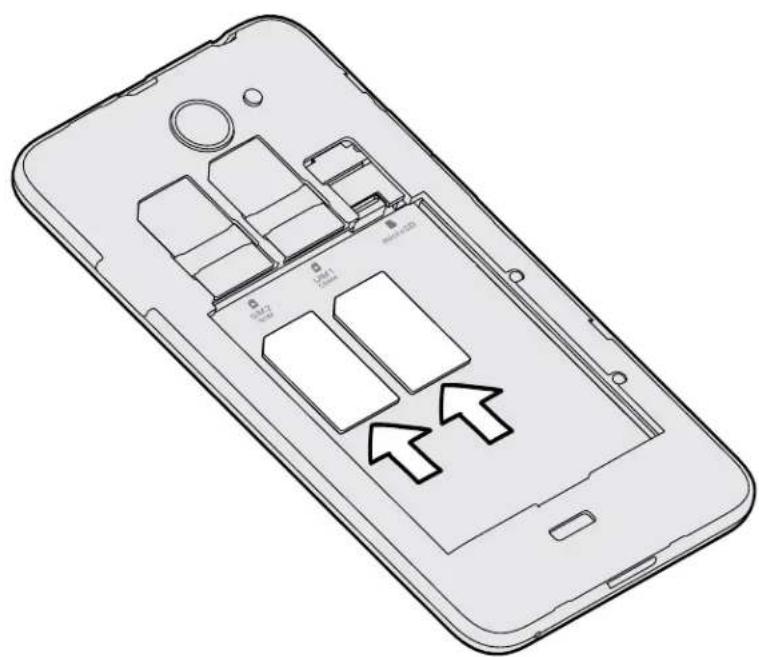
natural_image
Line drawing of a smartphone showing internal components and two upward arrows indicating movement or flow (no text or symbols present)Removing the UIM and SIM cards

Make sure to switch off HTC Desire 516c dual sim before removing the card.
- Take the back cover off.
- Remove the battery.
- Slide the UIM card or SIM card out from the slots.
11 Unboxing
Storage card
Use a storage card to store your photos, videos, and music.
Inserting the storage card
- Take the back cover off.
- Make sure to remove the battery first before inserting the microSD ^TM card.
- Insert the microSD card into the storage card slot with its gold contacts facing down and push it all the way in.
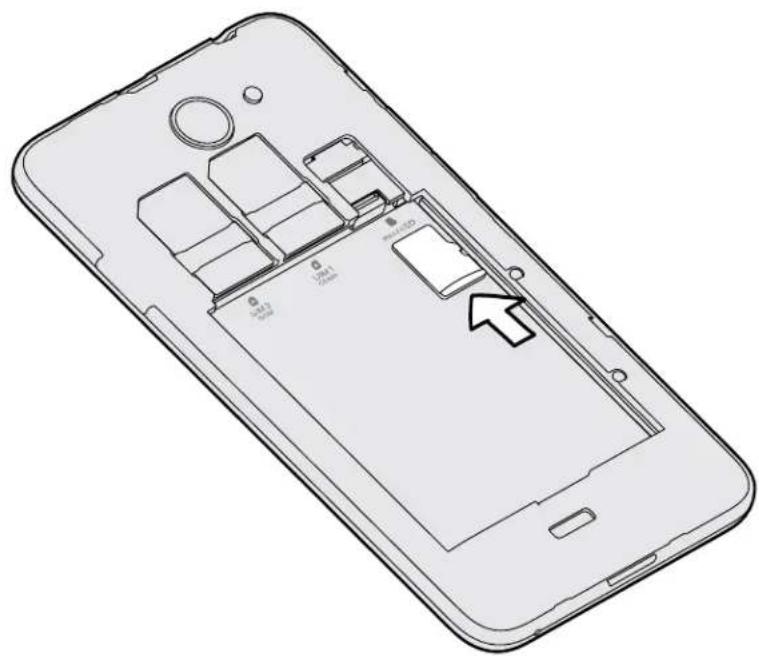
natural_image
Line drawing of a smartphone showing internal components and an arrow pointing to a specific area (no text or symbols present)Removing the storage card
- Take the back cover off.
- Make sure to remove the battery first before removing the microSD card.
- Slide the microSD card out from its slot.
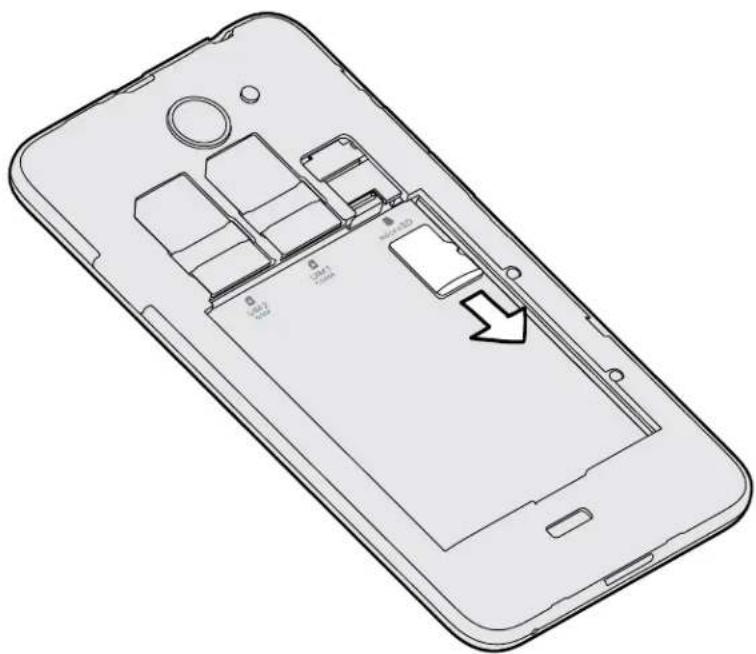
natural_image
Line drawing of a smartphone showing internal components and a downward arrow indicating a specific area (no text or symbols present)13 Unboxing
Battery
Removing the battery
-
Take the back cover off.
-
With your thumb or finger, lift the battery from the battery compartment.
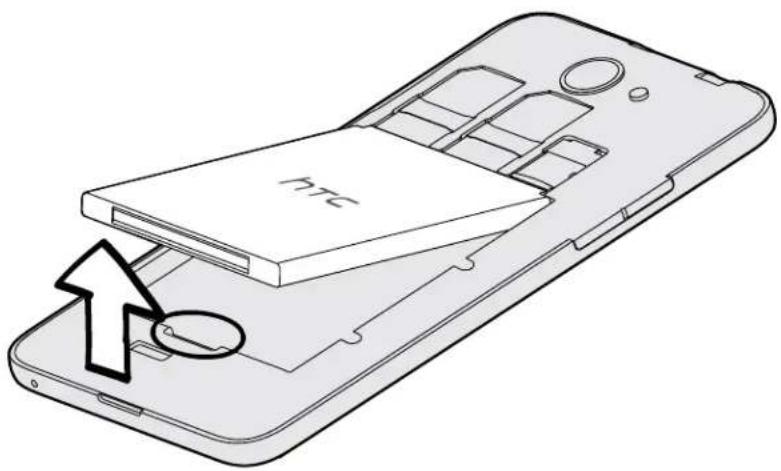
natural_image
Diagram of a smartphone showing internal components and an upward arrow indicating a process (no text or symbols present)Inserting the battery

Please use only original batteries that came in the box or replacements that we recommend.
-
Take the back cover off.
-
Insert the battery (with its exposed copper contacts first) into the battery compartment.
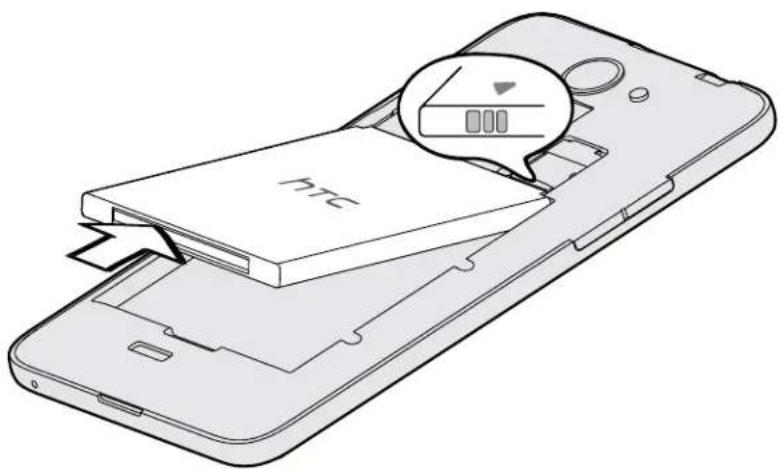
Charging the battery
Before you turn on and start using HTC Desire 516c dual sim, it is recommended that you charge the battery.

- Use only the adapter and the USB cable that came with HTC Desire 516c dual sim to charge the battery. When the battery power is too low, make sure to use the power adapter to charge, not the USB cable connection with your computer.
-
Do not remove the battery from HTC Desire 516c dual sim while you are charging it using the power or car adapter.
-
Insert the small end of the USB cable into the USB connector.
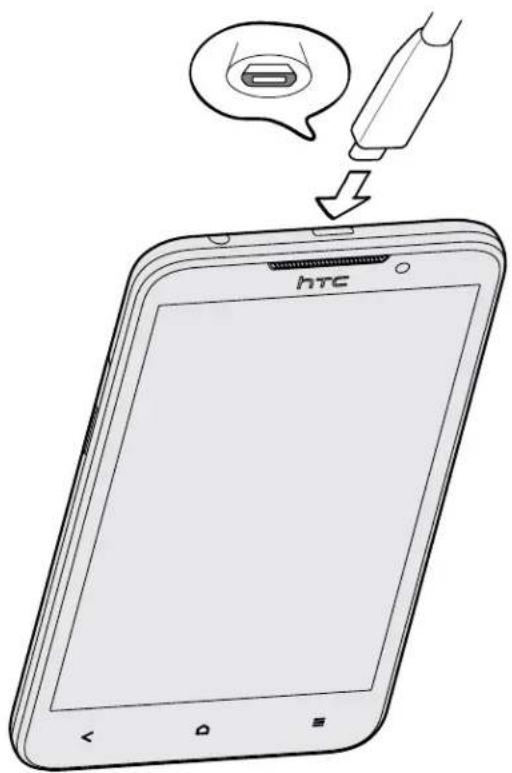
- Insert the other end of the USB cable into the power adapter.
- Plug in the power adapter to an electrical outlet to start charging the battery.

- As a safety precaution, the battery may stop charging to avoid overheating.
- When you're using the Internet and charging the battery, HTC Desire 516c dual sim may become warmer. This is normal.
- To conserve energy, unplug the power adapter from the electrical outlet after you finish charging.
15 Unboxing
Switching the power on or off
Switching the power on
Press and hold the POWER button until the screen turns on.

When you turn on HTC Desire 516c dual sim for the first time, you'll need to set it up.
Switching the power off
- If the display is off, press the POWER button to turn it back on, then unlock the screen.
- Press and hold the POWER button for a few seconds.
- Tap Power off on the options menu.
- Tap OK.
Setting up your phone
Setting up HTC Desire 516c dual sim for the first time
When you switch on HTC Desire 516c dual sim for the first time, you'll be asked to set it up.
Walk through the on-device setup to choose your Internet connection and more. You can also sign in to your Google® account.

Some features that need to connect to the Internet such as location-based services and auto-sync of your online accounts may incur extra data fees. To avoid incurring these fees, disable these features under Settings.
Installing an update
When Internet connection is on and there's a new software update available, you will receive a notification.
- Slide the Notifications panel open, and then tap the system update notification.
- If you don't want to download the update using your data connection, select Update over Wi-Fi only.
- Tap Download.
- When download is complete, select Install now, and then tap OK.
After updating, HTC Desire 516c dual sim will restart.
Checking for updates manually
- Go to Settings, and then tap About phone
- Tap Software updates > Check now. HTC Desire 516c dual sim checks if updates are available.

If you don't have Internet connection, you'll be prompted to turn on mobile data or connect to a Wi-Fi network. Once connected, tap Check now to check for updates.
17 Your first week with your new phone
Your first week with your new phone
Basics
Touch gestures
Use touch gestures to get around the Home screen, open apps, scroll through lists, and more.
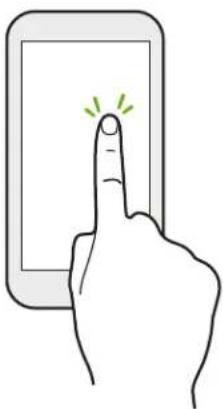
Tap
natural_image
Line drawing of a hand pressing on a tablet screen with green glowing dots (no text or symbols)Tap the screen with your finger when you want to select onscreen items such as application and settings icons, or press onscreen buttons.
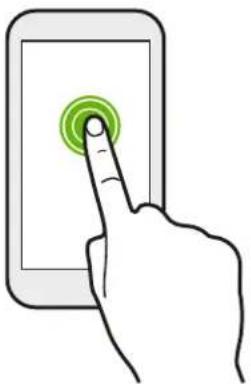
Press and hold
natural_image
Hand pressing a green circular button on a tablet screen (no text or symbols visible)To open the available options for an item (for example, a text message), just press and hold the item.
18 Your first week with your new phone
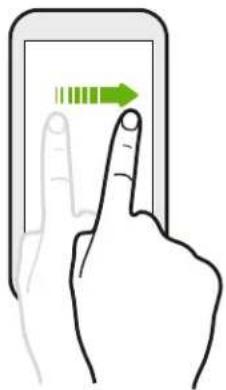
Swipe or slide
natural_image
Illustration of a hand pressing a finger on a smartphone screen with a green directional arrow (no text or symbols)Quickly swipe your finger vertically or horizontally across the screen to go to other Home screen, read the next e-mail, and more.
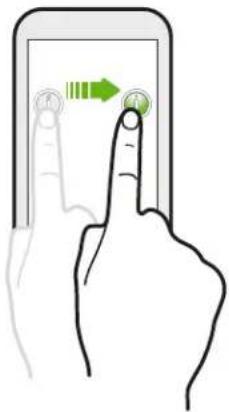
Drag
natural_image
Illustration of a hand pressing on a smartphone screen with a green right-handled button (no text or symbols)Press and hold your finger with some pressure before you start to drag. While dragging, don't release your finger until you have reached the target position.
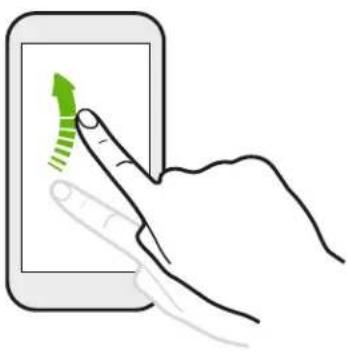
Flick
natural_image
Illustration of a hand interacting with a smartphone displaying a green screen interface (no text or symbols)Flicking the screen is similar to swiping, except that you need to swipe your finger in light, quicker strokes, such as when moving right and left on the Home screen, or flicking through a contacts or message list.
19 Your first week with your new phone
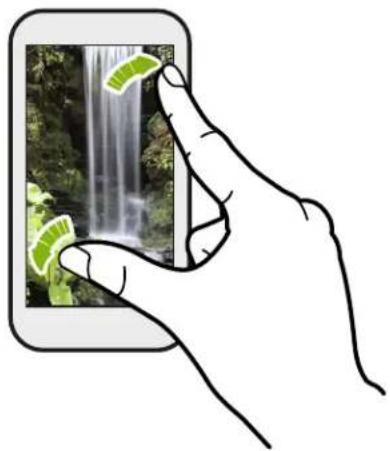
Slide with two fingers
natural_image
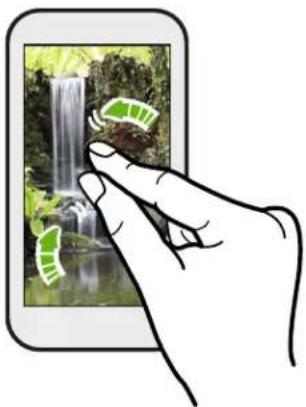
Hand holding a smartphone displaying a waterfall image (no text or symbols visible)In some apps, like Gallery or the web browser, slide two fingers apart to zoom in when viewing a picture or text.
natural_image
Hand interacting with a smartphone displaying a waterfall image (no text or symbols visible)Slide two fingers together to zoom out of the picture or text.
Sleep mode
Sleep mode saves battery power by putting HTC Desire 516c dual sim into a low power state while the display is off. It also stops accidental button presses when HTC Desire 516c dual sim is in your bag.
Switching to Sleep mode
Briefly press the POWER button to turn off the display and switch to Sleep mode. HTC Desire 516c dual sim also automatically goes into Sleep mode when it's left idle for a while.
You can change the time before HTC Desire 516c dual sim sleeps in the Settings > Display.
20 Your first week with your new phone
Waking up from Sleep mode
To wake HTC Desire 516c dual sim up manually, press the POWER button. You may need to unlock the screen.

HTC Desire 516c dual sim automatically wakes up when you have an incoming call.
Unlocking HTC Desire 516c dual sim
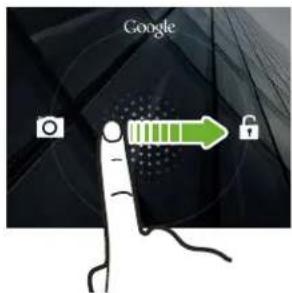
If you're using the default screen lock, you need to unlock HTC Desire 516c dual sim before you can open HTC BlinkFeed ^™ , app shortcuts on the widget panels, and more.
To unlock, press and hold the lock icon, and then drag it to the right.
Opening an app
- Tap an app on the launch bar at the bottom of the Home screen.
- To see the All Apps screen, tap 📄 Then tap the app you want to use.
- In the All Apps screen, tap and enter the name of the app you're looking for.
Switching between recently opened apps
You can easily access apps you've just recently opened.
-
Double tap the button.
-
Slide your finger up or down to see recently-opened apps.
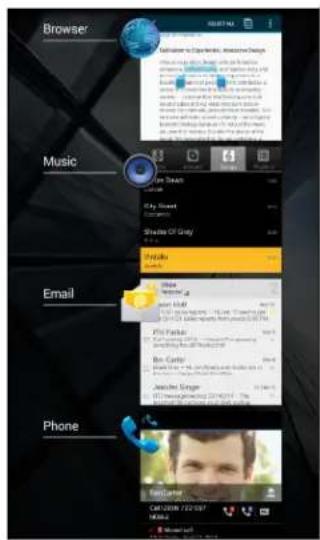
- To remove an app from the list, drag it left or right.
- To switch back to an app, just tap it.
Using Quick Settings
Tap the tiles in Quick Settings to easily turn on Wi-Fi, Bluetooth ^* , and more. You'll also find a few shortcuts, such as for viewing your profile in the Contacts app.
- Swipe down from the status bar to open the Notifications panel.
- Tap to switch to Quick Settings.
Notifications panel
Notification icons inform you of new messages, calendar events, alarms, and activities in progress such as files downloading. When you see notification icons, open the Notifications panel to check out details of the notifications that you've received.

- To open the Notifications panel, slide down from the top of the screen.
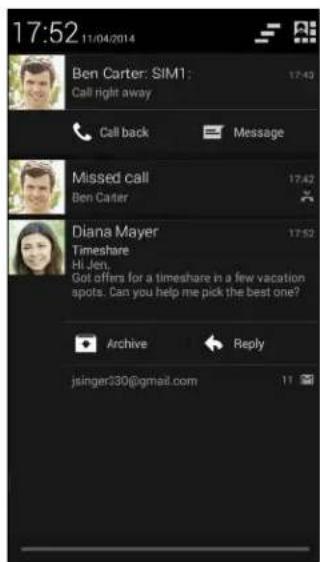
If you have several notifications, scroll down the screen to see them all.

To quickly access the Notifications panel from Quick settings, tap :
-
On the Notifications panel:
-
You can expand certain notifications to see more information, such as email previews and calendar events. Slide two fingers apart to expand a notification. To collapse it, slide two fingers together.
- You'll see icons in some notifications that allow you to take immediate actions. For example, when you have a missed call, tap the available icons to return the call or reply with a text message.
- Tap the notification icon on the left to open the corresponding app.
-
To dismiss just one notification in the list, drag it left or right.
-
To close the Notifications panel, slide up from the bottom bar of the panel or press the ◀button.
You can also tap to dismiss all notifications and close the Notifications panel.
Capturing the HTC Desire 516c dual sim screen
Want to show off your high game score, write a blog post about
HTC Desire 516c dual sim features, or post a status update about a song you're playing? It's easy to take a picture of the screen and share it from Gallery.
Simultaneously press and hold POWER and VOLUME DOWN buttons. The screen is saved in the Screenshot album in Gallery.
Changing your ringtone, notifications, and sounds
-
Go to Settings.
-
Tap Audio profiles, and then select a profile.
-
To customize a profile, tap the profile name and then set the ringtone and notification sounds.
HTC BlinkFeed
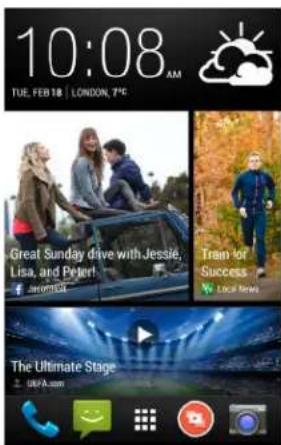
Your dynamic Home screen
Stay in touch with friends or get the latest about your interests right on HTC BlinkFeed. Set up which social networks, news sources, and more will appear.
- Tap a tile to view the content or to comment on a post or status update.
- Scroll to the top and pull down on the screen to manually refresh the stream.

While on HTC BlinkFeed, you can press the button or button to scroll to the top.
- On HTC BlinkFeed, swipe right to open the slideout menu to choose the type of feeds to display. Select Highlights to see a mix of articles from selected feeds and your favorite news sources.
Turning HTC BlinkFeed on or off
- On HTC BlinkFeed or any widget panel, slide two fingers together to customize the Home screen.
- Tap BlinkFeed on/off to show or hide the Feeds panel.
Selecting feeds
Get updated with the most relevant content and posts with just a swipe. Choose which feeds to display on HTC BlinkFeed. You can select popular news channels and websites or choose a category like Entertainment. You can also show posts from friends in social networks.
- On HTC BlinkFeed, swipe right to open the slideout menu.
- Tap ▶ Topics and services.

The first time you try to select content, you'll be asked if you want to sign in to your social network account to automatically select content based on your interests.
- Swipe left or right to choose from the different types of feeds you can display on HTC BlinkFeed. You can select news media sources, social networks, and more.

Content from feeds that have just been added may take a few minutes to appear on HTC BlinkFeed.
Customizing the Highlights feed
When you select topics and services for HTC BlinkFeed, the top trending articles from the selected sources, recent status updates, and more are shown. If you want to temporarily show fewer items in your Highlights feed, you can filter out some of your selected topics and services.
- On HTC BlinkFeed, swipe right to open the slideout menu.
- Tap : Settings.
- Tap Choose Highlights topics.
- Select the news sources and topics you want to appear in the Highlights feed.
Adding or removing locales
Want to keep up to date on current events in more than one locale? You can add several locales.
- On HTC BlinkFeed, swipe right to open the slideout menu.
- Tap ■ Topics and services.
- While on the Featured headlines or Categories tab, press the button, and then tap Add editions (or Remove editions).
Adding topics of your interest
Looking for a more specific topic? Search for and select topics of your interest to display them on HTC BlinkFeed.
- On HTC BlinkFeed, swipe right to open the slideout menu.
- Tap ▶ Topics and services.
- Swipe to the Custom topics tab, tap and enter the topic you're looking for.
- Tap a result, and then tap to add it to the Custom topics tab.
Reading articles in HTC BlinkFeed
- While on HTC BlinkFeed, swipe up or down to find an article you want to read.
- Tap the tile to view the article.

If related articles are found, you can scroll down to the end to see the links.
Saving articles for later
Don't have time to read that potentially interesting article? You can bookmark articles to your reading list.
Do one of the following:
■ While viewing an article, tap
- On the Feeds panel, press and hold the tile of the article you want to bookmark. Then tap Read later.
You'll find the reading list in the slideout menu.
Deleting tiles on HTC BlinkFeed
Want to get rid of a tile? Now you can easily remove any tile on HTC BlinkFeed.
- On HTC BlinkFeed, press and hold the tile you want to remove.
- Tap Remove.
Posting to your social networks
You can easily post a status update from the Home screen.
- On HTC BlinkFeed, swipe right to open the slideout menu.
- Tap ▶ Compose, and then choose a social network.
- Compose your status update and post it on your social network.
Working with text
Selecting, copying, and pasting text
In apps such as the web browser and Email, you can select and copy text, and then paste or share it.
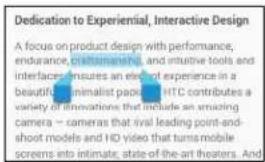
- Press and hold on a word.
- Drag the start and end anchors to highlight the surrounding text you want to select.
-
After you have selected the text you want to copy, tap □ > Copy (or tap 📄). The selected text is then copied to the clipboard.
-
In a text entry field (for example while composing an email), press and hold at the point where you want to paste the text.
-
Tap Paste.

To copy the address of a linked webpage, press and hold the link, and then tap Copy link URL (or Copy link address).
Sharing text
- After you have selected the text you want to share, tap > Share (or tap ◀).
- Choose where to paste and share the selected text, such as in an email message or social network status update.
The HTC Sense keyboard
Typing is fast and accurate with the HTC Sense™ keyboard.
- Word prediction also saves typing time. As you type, you'll see word suggestions that you can choose from. You can even add words, phrases, and shortcuts to the word prediction dictionary. See Entering text with word prediction on page 28.
- You can type words by just speaking. See Entering text by speaking on page 30.
- Turn on the Trace keyboard so you can type words by just sliding your finger from one letter to another. See Using the Trace keyboard on page 29.
- Just swipe right to access the numeric and symbol keyboard. Or swipe left to switch between languages.
- The keys have secondary numbers, punctuation symbols, or other characters that you can insert without having to switch to the numeric and symbol keyboard.
For example, just press and hold a key on the first row to insert a number.
- Choose from a wide selection of emoji.
- Show or hide navigational arrow keys on the keyboard. If you enable the arrow keys in Settings, they'll only appear on the portrait keyboard.
Entering text
The onscreen keyboard becomes available when you tap a text field in an app. Enter letters and numbers, change the keyboard layout or language, and more.
Tap the keys on the onscreen keyboard to enter letters and numbers, as well as punctuation marks and symbols.
- Tap to enter an uppercase letter. Tap twice to turn on caps lock.
- Press and hold keys with gray characters at the top to enter numbers, symbols, or accented letters. Some keys have multiple characters or accents associated with them.
- Swipe right to show number and symbol keys. To return to the main keyboard, swipe left.
- Press the <button to close the onscreen keyboard.

To open the keyboard settings, press and hold the comma key if you see above the key. Or go to Settings > Language & input and tap beside HTC Sense Input.
Selecting a keyboard layout
Choose a keyboard layout that suits your typing style.
-
Go to Settings, and then tap Language & input.
-
Tap Inside HTC Sense Input.
-
Tap Keyboard selection > Keyboard types.
-
Select the keyboard layout that you want to use.
Choosing and switching between keyboard languages
If multiple keyboard languages are available on HTC Desire 516c dual sim, you can choose which languages to enable in the onscreen keyboard.
-
Go to Settings, and then tap Language & input.
-
Tap Inside HTC Sense Input.
-
Tap Keyboard selection, and then choose the languages you want.
To change the keyboard language, do any of the following:
28 Your first week with your new phone
- Swipe left on the onscreen keyboard (not available if you're using trace keyboard).
- Tap the language key (for example, EN) until you see the keyboard language you want to use.
- Press and hold the language key, and then drag your finger to the keyboard language you want to use.
Entering text with word prediction
Ever started typing something you weren't sure how to spell? With word prediction, you'll see suggested words displayed just above the keyboard.


Word prediction and next word prediction are enabled by default.
To enter text in word prediction mode, do any of the following:
- Tap the space bar to insert a highlighted word in the suggestion list.
- Tap a word from the suggestion list.
- Tap the arrow next to the suggestion list to see more choices.

If you've accidentally chosen a wrong word from the suggestion list, you can always go back and change it by tapping the word and selecting another suggestion.
Setting a second language for word prediction
You can set the word prediction to be bilingual. As you type, you'll get word suggestions in the languages that you've selected.

Bilingual prediction is available only when you're using a Latin-based keyboard.
- Go to Settings, and then tap Language & input.
- Tap Inside HTC Sense Input.
- Tap Keyboard selection > Bilingual prediction, and then choose the language you want.
Adding words and phrases to the word prediction dictionary
Add frequently-used names, acronyms, and even phrases to the word prediction dictionary to easily find them in the suggestion list.
Type even faster when you create text shortcuts to words and phrases. Instead of typing "Talk to you later", save a few keystrokes by adding the ttyl shortcut. In your message or email, just type "tty1", and then tap the spacebar to enter the complete phrase.
- Go to Settings, and then tap Language & input.
- Tap beside HTC Sense Input.
- Tap Personal dictionary > . +
- Enter a word or phrase, and then enter its text shortcut.
- Tap Add to dictionary.
Editing or deleting words and phrases in the word prediction dictionary
- Go to Settings, and then tap Language & input.
- Tap Inside HTC Sense Input.
- Tap Personal dictionary.
- To edit a word, phrase, or shortcut, tap the item in the list.
- To delete an item, tap it and then tap 📄
Using the Trace keyboard
Instead of tapping the keys on the onscreen keyboard, you can "trace" to type words.

You need to turn on the Trace keyboard in Settings > Language & input > HTC Sense Input.
- Slide your finger from one letter to the next to enter a word.
- Lift your finger when the word is completed.
- If you want to continue entering text, slide your finger over the letters again to enter the next word.

If the word that appears after you traced isn't the one you want, you can:
- Tap a word from the suggestion list.
- Tap the arrow next to the suggestion list to see more choices.
Turning Trace keyboard on or off
- Go to Settings, and then tap Language & input.
- Tap beside HTC Sense Input.
- Select or clear the Trace keyboard option.
Entering text by speaking
No time to type? Try speaking the words to enter them.
- Tap an area where you want to enter text.
- On the onscreen keyboard, press and hold .
- When you see the animated microphone button and the words "Speak now", say the words you want to enter.

To set the voice input language, tap the language bar above the microphone button. You can choose one or more languages. Available languages may vary.
- If a word doesn't match what you've spoken and it's underlined, tap the underlined word to delete it or to see more choices.
- Enter punctuation marks by saying the name (for example, say "comma").
Battery
Checking battery usage
See a ranking list of apps that are using the battery. You can also see how much and how long the battery has been used for each app.
- Go to Settings.
- Tap Battery.
- Tap an app to check how it's using the battery. You'll see how much battery power is used.
Getting the battery to last longer
How long the battery can last before it needs recharging depends on how you use HTC Desire 516c dual sim.
In times when you need to extend the battery life more, try out some of these tips:
Check your battery usage
Monitoring your battery usage helps you identify what's using the most power so you can choose what to do about it. For details, see Checking battery usage on page 30.
Manage your connections
- Turn off wireless connections you're not using. Go to Settings to turn on or off connections such as mobile data, Wi-Fi, or Bluetooth.
- Turn GPS on only when a precise location is needed.
To prevent some apps from using GPS in the background, keep the GPS satellites setting off. Turn it on only when you need your precise location while using navigation or location-based apps. Go to Settings and tap Location access to turn this setting on or off.
Manage your display
Lowering the brightness and setting the screen timeout to a shorter time help save battery power.
Manage your apps
- Install the latest software and application updates. Updates sometimes include battery performance improvements.
- Uninstall or disable apps that you never use.
Many apps run processes or sync data in the background even when you're not using them. If there are apps that you don't need anymore, uninstall them.
If an app came preloaded and can't be uninstalled, disabling the app can still prevent it from continuously running or syncing data. In Settings > Apps, swipe to the All tab, tap the app, and then tap Disable.
Limit background data and sync
Background data and sync can use a lot of battery power if you have many apps syncing data in the background. Determine which apps can be set with longer sync times, or sync manually.
- If you have many email accounts, consider manually syncing some accounts.
- In Google Play™ Store, tap > Auto-update apps, and then choose to manually update apps.
Other tips
To squeeze in a little bit more battery power, try these tips:
■ Tone down the ringtone and media volume.
- Minimize the use of vibration or sound feedback. In Settings, tap Audio profiles and then tap a profile name. Choose which ones you don't need and can disable.
- Check your apps' settings as you may find more options to optimize the battery.
Camera
Using Android Camera
You can take photos and videos using Android™ Camera.
-
On the Apps screen, open the Camera app.
-
Do one of the following:
■ To take a photo, tap
- To start recording video, switch to Video mode by tapping 📄, then tap to start recording. Tap to stop.
- To take a selfie, tap ⚙ while in the Normal mode, and then tap .
- To capture a panoramic photo, tap 📋, and then tap . Pan HTC Desire 516c dual sim as smoothly as you can to the direction you want to capture. You can tap anytime to stop capturing frames.
You can also adjust camera settings and turn the flash on and off by tapping ⚠.
Gallery and Video Highlights
Viewing photos and videos in Gallery
Remember the good times. Gallery lets you view all the photos and videos on HTC Desire 516c dual sim. You can also filter by albums, locations, and more.
- Open the Gallery app.
- Tap ▲ and choose how to filter the photos and videos.
- Tap a tile to browse the photos and videos inside.
- Tap a photo or video to view it in full screen.
- Swipe left to view the next photo or video.
Editing photos
Make your pictures even better. Gallery has an array of editing tools that let you crop, rotate, and apply effects on your photos.
- Browse to the photo that you want to edit.
- Tap . Do one of the following:
- Choose a photo effect.
- Tap ☐, and then tap Crop. Drag the crop box over the part of the photo that you want to crop, or drag the markers to resize the crop box.
- Tap ☐, and then tap Rotate. Press and drag the top part of the photo in 90-degree increments.
Viewing and editing Video Highlights
Want to share the excitement of the day's events? With Video Highlights, your best photos and videos (highlights) are automatically compiled into a short video with background theme and music.
This video is about half a minute long. You can change the content, theme, and music, and also save or share the video.
- Open the Video Highlights. Shots taken on the same day are grouped together.
-
Tap a tile. The large tile on top automatically plays a video, showing the highlights taken on a particular date.
-
To change the highlights in the video:
-
Tap Content, and then tap a thumbnail to include or exclude it from the video.
-
Tap ✗ to shuffle the highlights.
-
Tap Themes to choose from a variety of color schemes and music themes to apply to the video.
-
Tap Music to change the default soundtrack to your own music.
To restore the default soundtrack, press the button, and then tap Restore default track.

Do not reproduce, distribute, or otherwise use copyrighted materials in connection with the Video Highlights feature unless you have secured the copyright owner's permission first.
- To trim the chosen soundtrack, include audio that was captured with the video, and enable content to play back chronologically, press the button, and then tap Video and audio settings.
- To view the Video Highlights in full screen, hold HTC Desire 516c dual sim in landscape orientation.
- To create a video file of the highlights, press the ≡ button, and then tap Save. This will be saved in the Video Highlights album.
- To share the Video Highlights, tap and then select how to share the video.
Personalizing
Making HTC Desire 516c dual sim truly yours
Make HTC Desire 516c dual sim look and sound just the way you want it. Personalize it with a different wallpaper and ringtone, and you can also choose notification sounds for events such as incoming text, email, and calendar reminders.
Changing your wallpaper
Pick your favorite photo as your Home wallpaper. Choose from the available wallpapers, or use any photo you've taken with the camera.
- On a widget panel, tap and hold an empty space on the screen.
- Tap Select wallpaper.
- Tap one of the following:
HTC wallpapers Choose a preset wallpaper, and then tap Preview.
Live wallpapers Choose a preset animated wallpaper, and then tap Preview.
Gallery or Photos Choose an existing photo and crop it.
- Tap Apply or Save.
36 Personalizing
Personalizing the launch bar
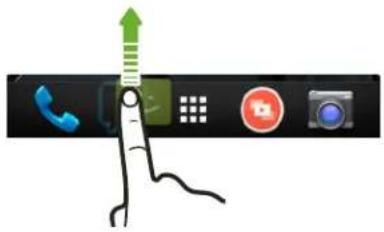
The launch bar gives you one-touch access to commonly used apps. You can replace the apps on the launch bar with other apps you often use.
- Press and hold the app you want to replace, and then drag it out to .
natural_image
Illustration of a finger pointing at a device interface with icons for phone, chat, app, and monitor (no text or symbols)- Tap go to the All Apps screen.
- Press and hold an app, and then drag it to the empty slot on the launch bar.

You can also group apps on the launch bar into a folder.
Adding a widget to your Home screen
Widgets make at-a-glance important information and media content easily available. Choose from a selection of widgets and add the most useful ones to your Home screen.
- On HTC BlinkFeed or any widget panel, slide two fingers together to customize the Home screen.
-
Tap >Widgets. You can:
-
Swipe to browse through the widgets.
- Tap to search for specific widgets.

Some widgets are available in different styles and sizes.
- Press and hold and then drag a widget to a home screen thumbnail where you want to add it.
You can also add widgets that allow you to quickly switch on or off certain settings such as Wi-Fi and Bluetooth.
Changing the settings of a widget
You can modify basic settings of some widgets (for example, the News & Weather widget).
- Press and hold a widget on your Home screen, and then drag it to .
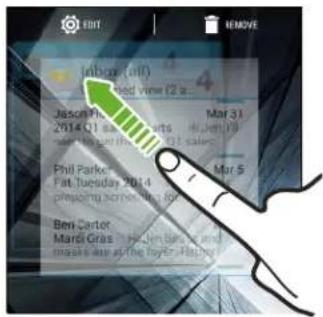
- Customize the widget settings.
Resizing a widget
Some widgets can be resized after you've added them to your Home screen.
-
Press and hold a widget on the Home screen, and then release your finger. If a border appears, that means the widget is resizable.
-
Drag the sides of the border to enlarge or shrink the widget size.
Adding apps and other shortcuts on your Home screen
Place apps you often use on any widget panel of your Home screen. You can also add shortcuts to frequently used settings, bookmarked webpages, and more.
-
On HTC BlinkFeed or any widget panel, slide two fingers together to customize the Home screen.
-
Tap ➤ Apps or Shortcuts. You can:
-
Swipe to browse through the apps or shortcuts.
-
Tap to search for specific apps or shortcuts.
-
Press and hold and then drag an app or a shortcut to a home screen thumbnail where you want to add it.

To add an app from the All Apps screen, press and hold an app and drag it to Drop the app on an empty space on the Home screen.

Rearranging or removing widgets and icons on your Home screen
Moving a widget or icon
You can easily move a widget or icon from one widget panel to another.
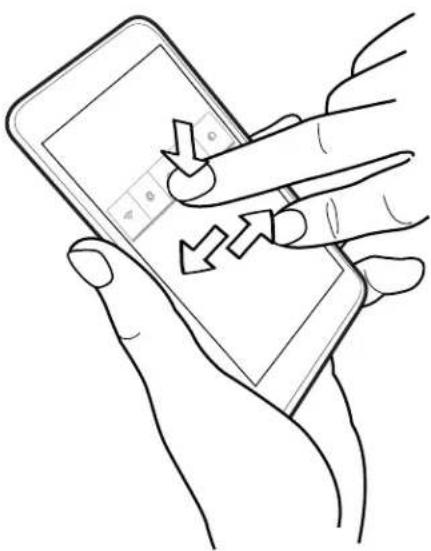
- Press and hold the widget or icon with one finger.
- With another finger, flick left or right to rotate the screen to another widget panel.
natural_image
Line drawing of a hand holding a smartphone with a finger pointing at the screen (no text or symbols)- Release the widget or icon.
Removing a widget or icon
- Press and hold the widget or icon you want to remove, and then drag it to
- When the widget or icon turns red, lift your finger.
Grouping apps into a folder
Use folders to group apps on the launch bar or on your Home screen to free up space so you can add more apps.
- Press and hold an app, and then drag it over to another app to automatically create a folder.

-
Tap the folder to open it.
-
Tap . +
-
Select one or more apps that you want to add to the folder.
-
Tap Done.

- You can also add shortcuts to settings or information. Add a shortcut first to the Home screen, and then drag it over to the folder.
- You can also group apps into a folder in the All Apps screen. Tap ▼ > Custom. Press and hold an app and drag it to another app. Do the same for more apps that you want to group into the folder.
Renaming a folder
- Tap the folder to open it.
- Tap the folder window's title bar.
- Enter a new folder name.
- Tap outside the folder to close it.
Removing items from a folder
- Tap the folder to open it.
- Press and hold an app, and then drag it out to remove.
If there's only one item left in the folder, the folder ungroups the last item and removes itself automatically.
40 Personalizing
Adding a Home screen panel
Add a Home screen if you have more widgets, apps, and shortcuts that you want to access right away.
- On HTC BlinkFeed or any widget panel, slide two fingers together to customize the Home screen.
- Tap . A new Home screen appears. You can start adding widgets, apps, and shortcuts.
To remove a panel, press and hold and then drag it to
Changing your main Home screen
- On HTC BlinkFeed or any widget panel, slide two fingers together to customize the Home screen.
- Tap a widget panel that you want to be your main Home screen.
- Tap Set as home.

Pressing the button from an app will first return you to the last panel you were in. Just press the button again to go to your main Home screen.
Adding a widget on the lock screen
Choose from our selection of lock screen widgets.
- On the lock screen, pull from the left edge until you see a + icon.
- Tap . +
- Tap a widget that you want to add to the lock screen.
Phone calls
Making a call
You can either dial a number directly or browse through your contact list and call logs to make a call.
- Open the Phone app.
- Enter the phone number.

You can also search for a call log in the Call history Ⓤ.
-
Tap for the corresponding card you want to use.
-
To hang up, tap .
Calling a speed dial number
- Open the Phone app.
-
On the phone keypad:
-
The number 1 key is generally reserved for your voicemail. Press and hold this key to call voicemail and retrieve your voicemail messages.
-
Press and hold the key that is associated with the contact you want to call.
-
Tap 📞 for the corresponding card you want to use.
Assigning a speed dial key
- Open the Phone app.
- Press the ≡ button, and then tap Speed dial. You can also press and hold an unassigned number key.
- On the Speed dial screen, choose a speed dial key to assign.
- Select a contact from the list.
42 Phone calls
Making an emergency call
In some regions, you can make emergency calls from HTC Desire 516c dual sim even if a UIM or SIM card has been blocked or if you don't have a card installed.

If you don't have a network signal, you won't be able to make an emergency call.
- Open the Phone app.
- Dial the emergency number for your locale, and then tap .

If you've enabled but forgotten your lock password or lock pattern, you can still make emergency calls by tapping Emergency call on the screen.
Answering or rejecting a call
When you receive a phone call from a contact, the Incoming call screen appears.
- Press and hold to see your call options, and then drag it to on.
- To decline a call and send a text message to the caller, drag to , and then select a message to send.
Muting the ringing sound without rejecting the call
Do one of the following:
- Press the VOLUME DOWN or VOLUME UP button.
- Press the POWER button.
What can I do during a call?
When a call is in progress, you can turn the speakerphone on, place the call on hold, and more.
Putting a call on hold
To put the call on hold, tap. To resume the call, tap again.
Switching between calls
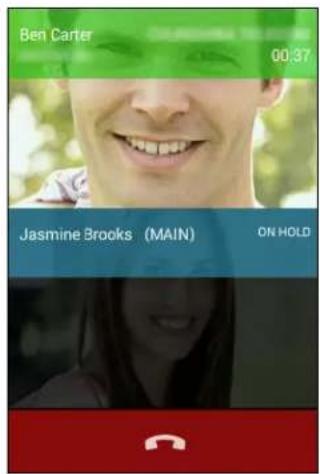
If you're already in a call and you accept another call, you can switch between the two calls.
-
When you receive another call, press and hold to see your call options, and then drag it to to accept the second call and put the first call on hold.
-
To switch between the calls, tap .
Turning the speakerphone on or off during a call

To decrease potential damage to your hearing, do not hold HTC Desire 516c dual sim to your ear when the speakerphone is on.
- On the call screen, tap to turn the speakerphone on.
■ To turn the speakerphone off, tap
Muting the microphone during a call
On the call screen, tap to toggle between turning the microphone on or off.
Setting up a conference call
Conference calling with your friends, family, or co-workers is easy. Make the first call (or accept a call), and then simply dial each subsequent call to add it to the conference.

Make sure that you have conference calling service activated. Contact your mobile operator for details.
- Make a call to the first conference call participant.
- When connected, tap, and then dial the number of the second participant.

Make sure to select the same SIM card you used to call the first participant.
- When connected to the second participant, tap .
- To add another participant, tap 🙏 and then dial the number of the contact.

Make sure to select the same SIM card you used to call the other participants.
- When connected, tap to add the participant to the conference call.
- To end the conference call, tap .
Checking calls in the Call History
Use Call History to check missed calls, your dialed numbers, and received calls.
- Open the Phone app.
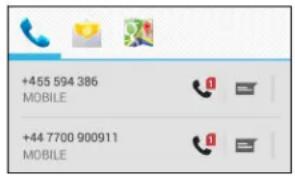
- Swipe to view the Call History tab 🔒.
- Tap a name or number in the list to view a detailed call log. Or, tap beside it to call.
To display just a particular type of call such as missed calls or outgoing calls, tap All Calls.
Adding a new phone number to your contacts from Call History
-
On the Call History tab, tap the phone number, and then tap Add to contacts.
-
Choose whether to create a new contact or save the number to an existing contact.
Switching between silent, vibrate, and normal modes
Do one of the following:
- To change from vibrate to normal mode, press the VOLUME UP button.
- To change from silent to normal mode, press the VOLUME UP button twice.
- Press and hold the POWER button for a few seconds, and then select a sound profile on the options menu.
Messages
Sending a text or multimedia message via Android Messaging
- Open the Messaging app.
- Tap .
- Enter a contact name or mobile number in the To field. You can also select a contact or a group.
- Tap the box that says Type message, and then enter your message.

- There is a limit on the number of characters for a single text message. If you exceed the limit, your text message will be delivered as one but will be billed as more than one message.
-
Your text message automatically becomes a multimedia message if you enter an email address as the recipient, add a message subject, attach an item, or compose a very long message.
-
To add a multimedia attachment, tap, choose an attachment type, and then select the item to attach.
-
Tap for the corresponding card that you want to use.
Viewing and saving an attachment from a multimedia message
- If there's a media attachment such as a photo or video in a received message, tap it to view the content.
- To save the attachment, press and hold the multimedia message (not the thumbnail), and then choose to save the attachment from the options menu.
Contacts
Your contacts list
The Contacts app lists all contacts from online accounts you're logged in to.
- Open the Contacts app.
- On your contacts list, you can:
■ View your profile and edit your contact information.
■ Create, edit, find, or send contacts.
- Tap a contact photo to find ways to quickly connect with the contact.
Filtering your contacts list
When your contacts list gets long, you can choose which contact accounts to show.
- On the People 📄 tab, press the ≡ button, and then tap Contacts to display.
- Choose the accounts that contain the contacts you want to display.

If you want to filter by contact groups, tap Customize and then tap the contact groups that you want shown.
Searching for contacts
- Open the Contacts app.
- Tap, and then enter the first few letters of the contact name.
Setting up your personal contact information
Store your personal contact information (such as mobile and phone numbers, email addresses, and more) to easily send it to other people.
- On the People 📁 tab, tap Set up my profile.
- Enter your name and contact details.
- To add more information (such as your personal website), tap Add another field.
- Tap Done.
Adding a new contact
- On the People 📁, tap . 🖱+
- Choose where you want to store the new contact.
- Tap the Name field, and then enter the contact name.
- Enter the contact information in the fields provided.
- To add more information, tap Add another field.
- Tap Done.
Editing a contact's information
- On the People tab, tap a contact to view the contact details.
- Press the button, and then tap Edit.
- Enter the new information.
- Tap Done.
Getting in touch with a contact
- Open the Contacts app.
- Tap a contact's photo (not the name), and then choose how you want to get in touch with that contact.
Importing contacts from your UIM or SIM card
- On the Contacts tab, press, and then tap Manage contacts.
- Tap Import/export and then choose which card to import from.
- If prompted, select which account you'd like to import your contacts to.
- Select the contacts you want to import.
- Tap OK.
Importing contacts from the storage
- On the Contacts app, press the button and then tap Import/Export.
- Choose the storage where the contacts are saved.
- If you're signed in to a supported email account, tap which account to use for storing the imported contacts. You can also store contacts in your Google account. HTC Desire 516c dual sim will automatically import contacts from .vcf files.
Sending contact information
- On the Contacts app, tap a contact to view the contact details.
- Press the button, and then tap Share.
- Choose how you want to share the .vcf file.
Contact groups
Organize your friends, family, and colleagues into groups.
Creating a group
- On the Groups the group.

to go to the account where you want to create
- Tap, and then enter a name for the group.
- If creating a group on your phone, tap the group name, and then tap Add members and select contacts. If creating a group in your Google account, tap the group name and then type a contact's name to add to the group.

You can only add contacts from the same account where you're creating the group.
- When your group is complete, tap Done or Ok.
Editing a group
- On the Groups tap the group that you want to edit.
- If editing a group in your Google account, press the button, and then tap Edit.
50 Contacts
3. You can:
■ Change the group name.
- Add more contacts to the group.
■ Remove contacts from the group.
4. Tap Done or Ok.
Search and web browser
Searching HTC Desire 516c dual sim and the Web
You can search for information on HTC Desire 516c dual sim and on the Web by using Google Search. Start your search by entering a keyword or by using GoogleVoice Search™.

Some apps, such as Contacts or Email, have their own search function, which you can use to search only within those apps.
Performing searches on the Web and HTC Desire 516c dual sim
- Open the Google app.
- In the search box, enter what you want to search for. As you type, matching items on HTC Desire 516c dual sim and suggestions from Google web search are shown.

To search for the information exclusively on HTC Desire 516c dual sim, tap Search phone at the bottom of the suggestion list.
- If what you're searching for is in the list of suggestions, tap the item to open it in its compatible app.
Searching the Web with your voice
Use Google Voice Search to find information on the Web just by speaking to HTC Desire 516c dual sim.
- Open the Google app.
- Say "Ok Google", and then say what you want to search for. After speaking, matching items from Google web search are shown.
- If what you're searching for is in the list, tap the item to open it in its compatible app. Otherwise, tap ↓ to search again.
Setting search options
-
Open the Google app.
-
Press the ≡ button, and then tap Settings to set the following options:
| Voice Set the Google Voice Search language, speech output, and more. | |
| Phone search Select which apps on HTC Desire 516c dual sim are included when doing a search. | |
| Accounts & privacy | Manage your location history, enable recent web searches to show, or clear your search history. |
Getting instant information with Google Now
Do you want to know the weather or your morning commute time before you start your day? Google Now™ delivers quick and up-to-date information that matters to you —all without the search.
Depending on your location, time of day, and previous Google searches, Google Now displays information cards that include:
- The day's weather and the weather forecast for upcoming days.
- The traffic conditions on your way to work or your commute back home.
- The directions and travel time to your next appointment.
- The next train or bus arriving at your platform or bus stop.
- Your favorite team's score and stats while you enjoy the game.
To refresh the information, just pull down the screen.
Setting up Google Now

Before setting up Google Now:
- Make sure that you're signed in to your Google account.
-
Turn location services on and make sure that you have an Internet connection. For more information on location services, see Turning location services on or off on page 62.
-
Open the Google app.
-
Tap Next on the Get Google Now! screen.
-
Tap Yes, I'm in. Google Now information cards will start to appear on the Google search screen.
- To see all available information cards, swipe up the screen and tap More.
Depending on the information that you've allowed to share, more information cards will appear on the Google search screen as you use HTC Desire 516c dual sim to search the Web, create appointments, and more.
Changing card settings
You can easily customize the settings of Google Now cards to suit your information needs. For example, you can change the weather units in the Weather card or your transportation mode in the Traffic card. You can also specify the details on certain cards or keep a card from appearing on the Google search screen.
- Open the Google app.
- On a card, tap . :
- Set options for the card.

For certain cards that need specific details, such as your work address or sports teams and stocks you follow, scroll to the bottom of the screen, and then tap
Dismissing and hiding cards
- Open the Google app.
- Do any of the following:
■ To dismiss a card, swipe it left or right. - To keep the card from appearing on the Google search screen, tap on a card and then choose to not receive updates.
Turning off Google Now
- Open the Google app.
- Press the button, and then tap Settings.
- Tap the On/Off switch next to Google Now, and then tap Turn off.
Browsing the Web
Visit your favorite websites or search the Web using Google Chrome™.
- Open the Chrome app.
- Tap the URL box on top of the screen.
- Enter the webpage address or your search keywords.
54 Search and web browser
- To open more browser tabs, tap .
- To return to the previous webpage you've viewed, press the button.
Bookmarking a webpage
Add your favorite webpages as bookmarks so you can access them quickly.
- While viewing a webpage, press the button, and then tap. ☆
- On the Add Bookmark screen, you can edit the bookmark name and save the bookmark in a new category folder.
- Tap Save.
To view and open a bookmark, press the Button, and then tap Bookmarks. Navigate to the bookmark you want to open, and then tap it.
Clearing your browsing history
- While viewing a webpage, press the ≡ button, and then tap Settings > Privacy.
- Tap Clear browsing data.
- Choose which types of data to delete, and then tap Clear.
Adding an email account
Set up email accounts such as a Microsoft ^ Exchange ActiveSync ^ account or an account from a Web-based email service or email provider.
F
- If you're adding a Microsoft Exchange ActiveSync or a POP3/IMAP email account, ask your network administrator or email service provider for additional email settings that you may need.
-
Some email accounts, such as corporate emails, may require advanced security administration.
-
Open the Email app.
- Enter the email address and password for your email account, and then tap Next.
- Select an email account type.
- Set the sync options for this email account, and then tap Next.
- Enter a name for your email account, and then tap Next.
To add more email accounts in the Email app, press the Button, and then tap Settings > Add account.
Checking your mail
The Email app is where you read, send, and organize email messages from one or more email accounts that you've set up on HTC Desire 516c dual sim.
- Open the Email app. The inbox of one of your email accounts appears.
-
Do any of the following:
-
Tap an email message to read.
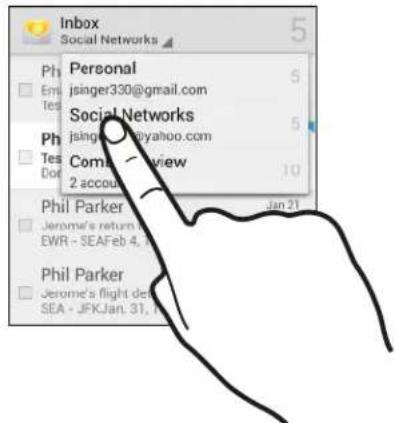
- To switch between email accounts, tap the bar that shows the current email account, and then tap another account.
- To display email messages in another mail folder, tap and then tap the folder you want to view.
- To view email messages from all your accounts, tap the bar that shows the current email account, and then tap Combined view.
- To archive, delete or label multiple conversations, tap the check box before the email message or conversation. Then tap the onscreen buttons at the bottom to choose what to do with the selected messages or conversations.
- To change an email account's settings, select the account, press the button, and then tap Settings.
Sending an email message
- Open the Email app.
- Switch to the email account that you want to use.
- Tap .
- Fill in one or more recipients.

Want to loop in more recipients in a carbon copy (Cc) or blind carbon copy (Bcc) of the email message? Press the button, and then tap Add Cc/Bcc.
- Enter the subject, and then compose your message.
57 Email
-
To add a photo attachment, press the ≡ button, and then tap Attach file.
-
Tap .
To save the email as draft and send it later, press the button, and then tap Save draft. Or press the button.
Resuming a draft email message
-
In an email account inbox, tap >Drafts.
-
Tap the message.
-
When you finish editing the message, tap .
Reading and replying to an email message
- Open the Email app.
- Switch to the email account you want to use.
- In the email account inbox, tap the email message or conversation you want to read.
- To reply to the sender, tap . or, tap , and then choose whether to Reply all or Forward.
Searching email messages
- Tap Q.
- In the search box, enter the words you want to search for.
- Tap a result to open the email message.
58 Email
Viewing your Gmail Inbox
All your received email messages are delivered to your Inbox.
- Open the Gmail app.
-
Do any of the following from your Inbox.
-
Tap an email message (not the sender image or letter tile) to read, forward, or reply to the message.
- Tap the inbox at the top bar to switch to your other Gmail™ account or to display drafts, sent messages, or other email labels.
- Tap the sender image or letter tile to select one or more messages or conversations. You can then tap the onscreen buttons at the top bar to archive, delete, or mark the selected messages or conversations.
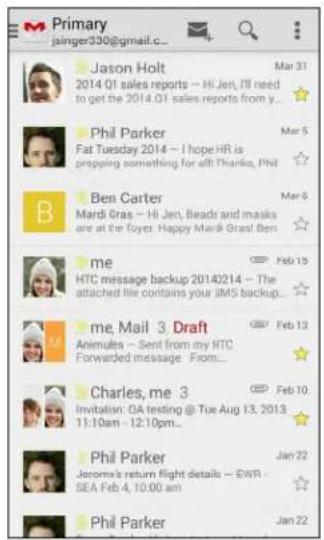

Get help in using Gmail by pressing the ≡ button and then tapping Help.
Sending an email message in Gmail
- In the inbox of the Gmail account you want to use, tap 📄.
- Fill in one or more recipients.

Want to loop in more recipients in a carbon copy (Cc) or blind carbon copy (Bcc) of the email message? Press the Button, and then tap Add Cc/Bcc.
- Enter the email subject, and then compose your message.
- If you want to attach a photo or video, press the button, and then tap the attachment type.
- Tap to send.
59 Email
Replying to or forwarding email messages in Gmail
-
In the Gmail inbox, tap the email message or conversation.
-
To reply to the sender, tap ↩. Or, tap and choose whether to Reply all or Forward.
-
Do one of the following:
-
If you're replying to the sender or you selected Reply all, enter your reply message.
- If you selected Forward, specify the message recipients.

Tap Respond inline if you want to interleave your new message with the received email. But this removes any attachments or formatting in the original email message.
- Tap to send.
Music
Listening to music
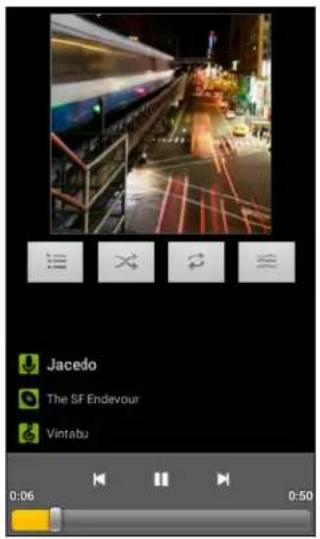
Enjoy your favorite songs on HTC Desire 516c dual sim using the Music app.
- Open the Music app.
- Browse by artists, albums, or other categories.
- Tap a song to play.
- Use the onscreen icons to control music playback, repeat the song, and more.
Creating music playlists
Personalize your music experience by creating music playlists. Make a playlist containing just your favorite songs or create one to match your mood for the day.
- Open the Music app.
- Press and hold the song that you want to add to a playlist.
- Tap Add to playlist.
- Tap New, and enter a playlist name.
- Browse to other songs and repeat the steps to add them to the playlist.
To view the playlist you've created, on the main screen, tap Playlists.
Playing the songs in a playlist
- Open the Music app.
- Tap Playlists.
- Tap the playlist, and then tap a song in the playlist to start playing the songs.
Deleting music playlists
- Open the Music app.
- Tap Playlists.
- Press and hold the playlist you want to delete, tap Delete.
Travel and maps
Turning location services on or off
In order to find your location on HTC Desire 516c dual sim, you need to enable location sources.
- Go to Settings.
- Tap Location access.
- Select or clear the location sources you want to turn on or off.
About Google Maps
Google Maps ^™ lets you track your current location, view real-time traffic situations, and receive detailed directions to your destination.
It also provides a search tool where you can locate places of interest or an address on a map, or view locations at street level.

- To find your location with Google Maps, you need to enable location sources.
- The Google Maps app does not cover every country or city.
Getting around maps
When you open Google Maps, you can easily find your location on the map or check out nearby places by panning and zooming in and out on the map.
- Open the Maps app.
- Tap 🔒 to show your current location. The blue marker or shows your current location on the map.
63 Travel and maps
- Navigate the map using finger gestures.
■ Slide your finger on any direction to pan.
- Double-tap the map or slide two fingers apart over an area to zoom in.
- Double-tap the map with two fingers or slide two fingers together over an area to zoom out.
- Press and hold an area with two fingers and then drag your fingers in a circular motion to rotate the map.
- Tap to turn Compass mode on. In Compass mode, the map orients itself depending on the direction you're facing. To exit Compass mode, tap

Add a map view to see more information overlaid on the map. Tap 1 and then tap a map view such as Traffic or Public transport. To remove the map view, tap it again on the map view list.
Searching for a location
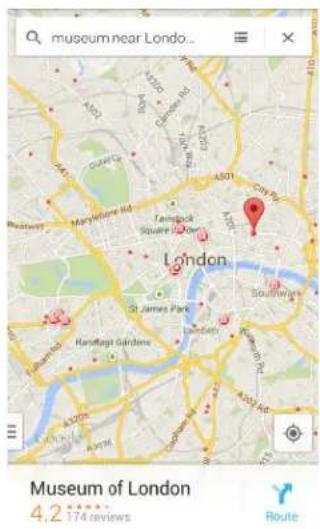
Use Google Maps to search for a location, such as an address or a type of business or establishment (for example, museums).
- Open the Maps app.
- Tap the search box and then enter the place you want to search for.
64 Travel and maps
- Tap the Enter key on the keyboard or tap a suggested search item. The first location on the search appears with a place marker and its info sheet displays at the bottom of the screen. All other search results are indicated by a red dot or a smart map icon.

-
To check the next or previous location on the search, swipe the info sheet left or right.
■ To view the search results list, tap ≡ -
Tap the info sheet to check the address, get directions, see the location in Street View (if available), and more.
To clear the map and search another location, swipe down the info sheet (if it's expanded), and then tap ✗
Finding services near you
Quickly search for banks, gas stations, grocery stores, and other services nearby.
- Open the Maps app.
- Tap to show your current location.
- Tap the search box and then press the button to hide the keyboard.
- Tap one of the service icons (such as grocery or bank) or tap to select other services.
- Tap the info sheet to check the address, get directions, see the location in Street View (if available), and more.
Checking the details of a location
- Open the Maps app.
- Press and hold a location on the map. A place marker opens and the location's info sheet appears at the bottom of the screen.
- Tap the place marker or the info sheet to call, get directions, view the place in Street View, and more.
Exploring places and activities near you
Google Maps lets you find places of interest where you can dine, sleep, shop, and more.

This feature may not be available for certain countries and locales.
- Open the Maps app.
- Tap to show your current location.
- Tap the search box and then press the button to hide the keyboard.
- Tap the Explore nearby card.
- Tap an activity, and then tap a place of interest from the list. The place is displayed on the map.
- Tap the info sheet to check the address, get directions, see the location in Street View (if available), and more. Scroll down the screen to view more information.

To find another place or activity, press the button twice to return to the Explore nearby screen.
Getting directions
Get detailed directions to your destination. Google Maps provides travel directions by car, public transit, bike, or foot.
- Open the Maps app.
- Tap . ↗
- Choose how you want to get to your destination.
- Use your current location as starting point, or tap My location to enter your starting point or select a location from your search history.
- Tap Choose destination, and then enter or select your destination.

If you're taking public transit, tap to set the date and time of travel, or tap Options to set your route preferences.
66 Travel and maps
- Tap a route or transit option to view the directions on the map. You'll also see the travel duration on the info sheet at the bottom of the screen.
- Tap the info sheet to view the directions in a list.
When you're finished viewing or following the directions, tap ✗ to reset the map. Your destination is automatically saved in the Google Maps history.
Google Play and other apps
Getting apps from Google Play
Google Play is the place to go to find new apps for HTC Desire 516c dual sim. Choose from a wide variety of free and paid apps ranging from productivity apps, entertainment, to games.

- A Google Wallet ^® payment service is required to purchase a paid app. You will be asked to confirm method of payment when you purchase an app.
- The name of the Play Store app may differ depending on your region.
■ The ability to purchase apps varies by region.
Finding and installing an app
When you install apps and use them on HTC Desire 516c dual sim, they may require access to your personal information or access to certain functions or settings. Download and install only apps that you trust.

Be cautious when downloading apps that have access to functions or a significant amount of your data on HTC Desire 516c dual sim. You're responsible for the results of using downloaded apps.
- Open the Play Store app.
- Browse or search for an app.
- When you find the app that you like, tap it and read its description and user reviews.
- To download or purchase the app, tap Install (for free apps) or the price button (for paid apps).
- Tap Accept.

Apps sometimes get updated with improvements or bug fixes. To automatically download updates, after installing the app, press the ☐ button, and then tap Auto-update.
To open the app, go to the All Apps screen and tap the app.
Restoring apps from Google Play
Upgraded to a new phone, replaced a lost one, or performed a factory reset? Restore apps that you previously downloaded.
- Open the Play Store app.
- Tap ☐ open the slideout menu.
- Tap My apps, swipe to the All tab, and then tap the app you want to restore.
- Install the app.
For more details, refer to the Google Play help.
Downloading apps from the web
You can download apps directly from websites.

-
Apps downloaded from websites can be from unknown sources. To help protect HTC Desire 516c dual sim and your personal data, we strongly recommend that you only download from websites you trust.
Before you can install the downloaded app, make sure that you've set HTC Desire 516c dual sim to allow installation of third-party apps in Settings > Security > Unknown sources. -
Open the browser, and then go to the website where you can download the app you want.
- Follow the website's download instructions for the app.

After installing the app, make sure to go back to Settings > Security and clear the Unknown sources option.
Uninstalling an app
If you no longer need an app that you've downloaded and installed, you can easily uninstall it.

Most of the preloaded apps cannot be uninstalled but can be disabled instead.
From the All Apps screen, press and hold the app you want to remove, and then drag it to Uninstall.

If you purchased an app in Play Store, you can uninstall it for a refund within a limited time. To know more about the refund policy for paid apps, refer to the Google Play help.
Disabling an app
If an app cannot be uninstalled, you can disable it instead.
- Go to Settings > Apps
- Swipe to the All tab, and then select the app that you want to disable.
- Tap Disable.
Disabled apps will be removed from the All Apps screen, and will not sync data on the background anymore.
Using the Clock app
Check the time and set up alarms.
Setting an alarm
You can set up one or more alarms.
- Open the Clock app.
- Tap .
- Tap . +
- Set the time.
- If you want the alarm for multiple days, choose the Repeat option and select when the alarm will go off.
Tap the On/Off switch next to the alarm you want to go off.
Setting the date and time manually
- Go to Settings.
- Tap Date & time.
- Tap Automatic date & time and turn it off.
- Clear the Automatic time zone option, and then set the time zone, date, and time as required.
Viewing the Calendar
Use the Calendar app to view your events, meetings, and appointments. If you've signed into your online accounts, related events will also appear in Calendar.
- Open the Calendar app.
- Tap, and then choose a calendar view.
Scheduling or editing an event
You can create or edit events on HTC Desire 516c dual sim, and also sync events with your Exchange ActiveSync calendar. You can also create, modify, and sync events with your Google calendar.

Editing events is not supported for all accounts.
-
Open the Calendar app.
-
On any Calendar view, do one of the following:
Create an event Press the Button, and then tap New event. Select the calendar you will add the event to.
Edit an event View an event, and then tap .
-
Enter and set the event details.
-
To invite contacts from your Exchange ActiveSync account, tap Guests. You can also invite contacts from your Google account.
-
Tap Done.
Choosing which calendars to show
-
In any calendar view, press and then tap Settings.
-
Choose an account, and then select or clear the calendars you wish to show or hide.

You can also choose which calendars to sync with HTC Desire 516c dual sim. Calendars are synced on HTC Desire 516c dual sim even if they are hidden.
Watching videos on YouTube
Check out the latest video sensations using the YouTube ^® app.
-
Open the YouTube app.
-
Browse or search for a video.
-
When you find the video that you like, tap it.

Want to watch the video at a later time instead? Tap + Watch later. You can access the video again from your account profile's Watch later list.
-
While watching a video, you can:
-
Turn HTC Desire 516c dual sim sideways to watch the video in full screen.
- Tap the video screen to pause or to resume playback, or drag the slider to jump to a different part of the video.
- Scroll down the video information panel to see related videos and comments from other viewers.
- Tap to minimize the video screen and browse other videos. To close the video thumbnail, swipe it left or right.
Minimize the video screen and then tap the 📄 to open the slideout menu.
Preloading videos
Set the YouTube app to preload videos so that you can watch them without interruptions. Videos are preloaded when HTC Desire 516c dual sim is being charged and is connected to a Wi-Fi network.
For more information about preloading videos, refer to the YouTube help.
- Open the YouTube app.
- Press the ≡ button, and then tap Settings > Preloading.
- Select what type of videos to preload.
The videos are preloading when ↓appears on Watch later screen or on the channel you subscribed to. The icon changes to 📋when the videos are ready.
Internet connections
Turning the data connection on or off
Turning your data connection off saves battery life and money on data charges.
- Go to Settings.
- Tap the Mobile data On/Off switch to turn data connection on and off.

If you don't have the data connection turned on and you're also not connected to a Wi-Fi network, you won't receive automatic updates to your email, social network accounts, and other synced information.
Managing your data usage
If you're on a limited data allowance, it's important to keep track of the activities and apps that usually send and receive data, such as browsing the web, syncing online accounts, and sending email or sharing status updates.
Here are some other examples:
■ Streaming web videos and music
- Playing online games
■ Downloading apps, maps, and files
■ Refreshing apps to update info and feeds
- Uploading and backing up your files to your online storage account
■ Using HTC Desire 516c dual sim as a Portable Wi-Fi hotspot
■ Sharing your mobile data connection by USB tethering
To help you save on data usage, connect to a Wi-Fi network whenever possible and set your online accounts and emails to sync less frequently.
Turning data roaming on or off
Connect to your mobile operator's partner networks and access data services when you're out of your mobile operator's coverage area.

Using data services while roaming may be costly. Check with your mobile operator for data roaming rates before you use data roaming.
- Go to Settings.
- Tap Mobile data, and then select the card you want to configure.
- Select the Data roaming option.
Keeping track of your data usage
Monitor your data usage to help prevent going over your monthly data allowance.

Your actual data usage may differ and may be higher than the data usage measured by HTC Desire 516c dual sim.
- Go to Settings.
- Tap Data usage, and then select the card that you want to configure.
- Select Set mobile data limit to automatically disable your data connection when you reach the set limit.
Then, drag the upper limit line to set your monthly data limit. - Drag the lower warning line to set an alert before you reach your monthly data limit.
- Drag the vertical line markers to see how much data you've used during a particular time interval.

If you're connecting HTC Desire 516c dual sim to another portable Wi-Fi hotspot, press the ☐ button, and then tap Mobile hotspots to restrict background data from downloading that may incur extra data fees.
Viewing the data usage of apps
- Go to Settings.
- Tap Data usage.
- Drag the vertical line markers to see how much data you've used during a particular time interval.
- Scroll down the screen to see a list of apps and their data usage info.
- Tap an app to see more details.
Wi-Fi
To use Wi-Fi, you need access to a wireless access point or "hotspot".

The availability and strength of a Wi-Fi signal varies depending on objects the Wi-Fi signal has to pass through (such as buildings or a wall between rooms).
Turning Wi-Fi on and connecting to a wireless network
- Go to Settings.
- Tap the WLAN On/Off switch to turn Wi-Fi on.
- Tap WLAN.
Detected Wi-Fi networks will be listed.

If the wireless network that you want is not listed, tap + to manually add it.
- Tap the Wi-Fi network you want to connect to. If you selected a secured network, you'll be asked to enter the network key or password.
- Tap Connect. You'll see the Wi-Fi icon in the status bar when connected.
The next time HTC Desire 516c dual sim connects to a previously accessed secured wireless network, you won't be asked to enter the key or other security information again.
Connecting to a Wi-Fi network via WPS
If you're using a Wi-Fi router with Wi-Fi Protected Setup™ (WPS), you can connect HTC Desire 516c dual sim easily.
- Go to Settings.
- Tap the WLAN On/Off switch to turn Wi-Fi on.
- Tap WLAN.
- Tap ^17 , and then press the WPS button on your Wi-Fi router.

To use the Wi-Fi Protected Setup (WPS) PIN method, press the Button and then tap WPS Pin Entry.
Connecting to a different Wi-Fi network
- Go to Settings.
- Tap WLAN. Detected Wi-Fi networks are displayed.

To manually scan for available Wi-Fi networks, press the button and then tap Scan.
- Tap a Wi-Fi network to connect to it.
Connecting to a virtual private network (VPN)
Add virtual private networks (VPNs) so you can connect and access resources inside a secured local network, such as your corporate network.
Before you can connect to your organization's local network, you may be asked to:
- Install security certificates
- Enter your login credentials
- Download and install a required VPN app on HTC Desire 516c dual sim
Contact your network administrator for details. Also, HTC Desire 516c dual sim must first establish a Wi-Fi or data connection before you can start a VPN connection.
Adding a VPN connection

You must first set a lock screen PIN or password before you can use credential storage and set up the VPN.
- Go to Settings.
- Under Wireless & networks, tap More.
- Tap VPN > . +
-
Tap Save.
-
Enter the VPN settings and set them up according to the security details your network administrator gave you.
The VPN is then added to the VPNs section of the VPN settings screen.
Connecting to a VPN
- Go to Settings.
- Under Wireless & networks, tap More.
- Tap VPN.
- Tap the VPN that you want to connect to.
- Enter your log in credentials, and then tap Connect. When you're connected, the VPN connected icon appears in the notification area of the status bar.
You can then open the web browser to access resources such as your corporate network intranet.
Disconnecting from a VPN
- Slide the Notifications panel open.
- Tap the VPN connection to return to the VPN settings screen, and then tap the VPN connection to disconnect from it.
Using HTC Desire 516c dual sim as a Wi-Fi hotspot
Share your data connection with other devices by turning HTC Desire 516c dual sim into a Wi-Fi hotspot.

■ Make sure the data connection is turned on.
- You must have an approved data plan associated with your account from your mobile service provider to use this service.
- Go to Settings.
- Under Wireless & networks, tap More.
- Tap Tethering & portable hotspot > Set up WLAN hotspot.
- Enter a Wi-Fi hotspot name or use the default name.
- Choose the type of security and set the password (key) for your Wi-Fi hotspot. If you selected None in Security, you don't need to enter a password.

The password is the key other people need to enter on their device so they can connect and use HTC Desire 516c dual sim as a Wi-Fi hotspot.
- Tap Save.
- On the Tethering & portable hotspot screen, tap the Portable WLAN hotspot switch to turn on the Wi-Fi hotspot.
HTC Desire 516c dual sim is ready to be used as a Wi-Fi hotspot when you see on the status bar.
Sharing your phone's Internet connection by USB tethering
No Internet connection available for your computer? No problem. Use the data connection of HTC Desire 516c dual sim to connect to the Internet.

■ Make sure you have a USB tethering service enabled by your mobile operator.
- You may need to have USB tethering added to your data plan, and it may incur additional cost. Contact your mobile operator for details.
- Connect HTC Desire 516c dual sim to your computer using the provided USB cable.
- Go to Settings.
- Under Wireless & networks, tap More.
77 Internet connections
- Tap Tethering & portable hotspot.
- Select the USB tethering option.
Bluetooth
Connecting a Bluetooth headset
You can listen to music over a Bluetooth stereo headset, or have hands-free conversations using a compatible Bluetooth headset.

-
To listen to music with your headset, the headset must support the A2DP Bluetooth profile.
■ Before you connect your headset, make it discoverable so HTC Desire 516c dual sim can find it. Refer to your headset manual for details. -
Go to Settings.
- If Bluetooth is off, tap the Bluetooth On/Off switch to turn it on.
- Tap Bluetooth. The Bluetooth screen opens.
- If you don't see your headset listed, tap Search for devices to refresh the list.
- When you see the name of your headset in the Available Devices section, tap the name. HTC Desire 516c dual sim pairs with the headset and the headset connection status is displayed in the Paired Devices section.

If automatic pairing fails, enter the passcode supplied with your headset.
When the Bluetooth headset is connected to HTC Desire 516c dual sim, the Bluetooth connected icon 🎩s displayed in the status bar.
Unpairing from a Bluetooth device
- Go to Settings.
- If Bluetooth is off, tap the Bluetooth On/Off switch to turn it on.
- Tap Bluetooth. The Bluetooth screen opens.
- In the Paired devices section, tap text to the device to unpair.
- Tap Unpair.
Storage
Types of storage
Want to know what types of storage you can use for your apps, data, and files?
HTC Desire 516c dual sim has these storage types:
| Internal storage | This storage combines both the app storage, where apps, email, data, and text messages are stored, and the file storage, where photos, videos, and music files are kept. |
| Storage card Use a storage card for storing more files. You can also set apps such as Camera to store directly to the card. |
Copying files to or from HTC Desire 516c dual sim
You can copy your music, photos, and other files to HTC Desire 516c dual sim.
- Connect HTC Desire 516c dual sim to the computer using the supplied USB cable.
- Slide the Notification panel, and then tap the notification that lets you choose USB options.
- Choose a connection type. You can:
- Choose USB storage to access the storage card only.
- Choose Media device (MTP) to access both the internal storage and storage card. You'll see options for viewing or importing files on the computer screen. Choose to view files.
-
Copy the files from your computer to HTC Desire 516c dual sim, or vice versa.
-
After copying the files, disconnect HTC Desire 516c dual sim from the computer.
Backup and reset
Backup
Backing up settings to Google
You can choose to automatically back up some settings such as Wi-Fi and bookmarks to Google servers using your Google Account so you can restore them when needed.
- Go to Settings.
- Tap Factory data reset, and then select the Back up my data option.
Reset
Restarting HTC Desire 516c dual sim (Soft reset)
If HTC Desire 516c dual sim is running slower than normal, is unresponsive, or has an app that is not performing properly, try rebooting and see if that helps solve the problem.
- If the display is off, press the POWER button to turn it back on.
- Press and hold the POWER button, and then tap Restart.

If these steps don't work, you can remove and reinstall the battery, and then turn HTC Desire 516c dual sim on to restart it.
Resetting HTC Desire 516c dual sim (Hard reset)
If HTC Desire 516c dual sim has a persistent problem that cannot be solved, you can perform a factory reset (also called a hard reset or master reset).

Factory reset will remove apps you've downloaded and installed, your accounts, as well as system and app data and settings. Be sure to back up any data and files you want to keep before you do a factory reset.
Factory reset may not permanently erase all data from your phone, including personal information.
Performing a factory reset from settings
- Go to Settings.
- Tap Factory data reset > Factory data reset.
- Tap Reset phone, and then tap Erase everything.
Performing a factory reset using hardware buttons
If you can't turn HTC Desire 516c dual sim on or access settings, you can still perform a factory reset by using the hardware buttons on HTC Desire 516c dual sim.
- Remove the battery, wait for a few seconds, then reinsert the battery.
- Press and hold the VOLUME UP button, and then press and hold the POWER button.
- Wait for the screen with the Android image to appear and to be in recovery mode, and then release the POWER and VOLUME UP buttons.
- Press the VOLUME DOWN button to select wipe data/factory reset, and then press the POWER button.
- Press the VOLUME DOWN button to select Yes--delete all user data, and then press the POWER button. A message appears when the data has been wiped.
- Remove the battery, wait for a few seconds, then reinsert the battery.
Settings and security
Adding and syncing an account
- Go to Settings.
- Under Accounts, tap Add account.
- Choose an account type, and then enter your login information.
- Choose the types of information that you want to sync on HTC Desire 516c dual sim.
Removing an account
- Go to Settings.
- Under Accounts, tap an account type.
- Tap the account that you want to remove.
- Press the ≡ button, and then tap Remove account.
Removing an account does not delete information from the online service itself.
Turning Airplane mode on or off
When you enable Airplane (Flight) mode, all wireless radios on HTC Desire 516c dual sim are turned off, including the call function, data services, Bluetooth, and Wi-Fi.
When you disable Airplane mode, the call function is turned back on and the previous state of Bluetooth and Wi-Fi is restored.

- You can manually turn Bluetooth and Wi-Fi back on after enabling Airplane mode.
- If USB tethering is turned on, enabling Airplane mode turns it off. You need to manually turn USB tethering on after you disable Airplane mode.
Press and hold POWER, and then tap Airplane mode.
When enabled, the Airplane mode icon is displayed in the status bar.
Turning automatic screen rotation off

Automatic rotation is not supported in all apps.
- Go to Settings.
- Tap Display.
- Clear the Auto-rotate screen option.
Adjusting the time before the screen turns off
After a period of inactivity, the screen turns off to conserve battery power. You can set the idle time before the screen turns off.
- Go to Settings.
- Tap Display, and then tap Sleep.
- Tap the time before the screen turns off.
Adjusting the screen brightness manually
- Go to Settings.
- Tap Display > Brightness.
- Drag the brightness slider to the left to decrease or to the right to increase the screen brightness.
- Tap OK.
Changing the display language
Changing the language adjusts the keyboard layout, date and time formatting, and more.
- Go to Settings.
- Tap Language & input > Language.
- Tap the language you want to use.
Working with certificates
Use client and Certificate Authority (CA) digital certificates to enable HTC Desire 516c dual sim to access VPN or secured Wi-Fi networks, and also to provide authentication to online secure servers. You can get a certificate from your system administrator or download it from sites that require authentication.

Some apps such as your browser or email client let you install certificates directly in the app. See the app's help for details.
Installing a digital certificate

You must set a lock screen PIN or password before installing a digital certificate.
- Save the certificate file in the root folder on HTC Desire 516c dual sim.
- Go to Settings.
- Tap Security > Install from SD card.
- If you have more than one certificate in the root folder, select the certificate you want to install.
- Enter a name for the certificate and tap OK.
Assigning a PIN to the UIM or SIM card
You can help to protect the UIM or SIM card by assigning a Personal Identification Number (PIN).

Make sure you have the default PIN provided by your mobile operator before continuing.
- Go to Settings, and then tap Security.
- Tap Set up UIM/SIM card lock.
- Select which card you want to assign a new PIN to.
- Choose to lock the card, enter the default PIN of the card, and then tap OK.
- To change the card PIN, tap Change UIM PIN or Change SIM PIN.
Restoring a UIM or SIM card that has been locked out
If you enter the wrong PIN more times than the maximum number of attempts allowed, the UIM card will become "PUK-locked."
You need a Pin Unlock Key (PUK) code to restore access to HTC Desire 516c dual sim. Contact your mobile operator for this code.
- On the Phone dialer screen, enter the PUK code, and then tap .
- Enter the new PIN you want to use, and then tap .
- Enter the new PIN again, and then tap OK.
Protecting HTC Desire 516c dual sim with a screen lock
Help protect your personal information and help prevent others from using HTC Desire 516c dual sim without your permission by setting a screen lock pattern, face unlock, PIN, or password.
You'll be asked to unlock the screen every time HTC Desire 516c dual sim is turned on or when it's idle for a certain period of time.
- Go to Settings.
- Tap Security > Screen lock.
- Select a screen lock option and set up the screen lock.
- Tap Automatically lock, then specify the idle time before the screen is locked.

You can also clear Make pattern visible or Make passwords visible if you don't want your screen lock to display as you enter it onscreen.
Managing your UIM and SIM cards with Dual network manager
- Go to Settings.
- Tap Dual UIM settings.
- You can:
■ Turn both slots on or off.
- Tap a slot name to rename it.
- Choose which slot you want to use for voice call, messaging, and data connection.
Trademarks and copyrights
©2014 HTC Corporation. All Rights Reserved.
HTC, the HTC logo, HTC Desire, and HTC BlinkFeed are trademarks or service marks of HTC Corporation.
Google, Android, Android Beam, Android Market, Google Calendar, Google Chrome, Google Maps, Google Now, Google Play, Google Talk, Google Wallet, Google Voice Search, Google+, Gmail, and YouTube are trademarks of Google Inc.
Microsoft and ActiveSync are either registered trademarks or trademarks of Microsoft Corporation in the United States and/or other countries.
The Bluetooth ^® word mark and logos are registered trademarks owned by Bluetooth SIG, Inc.
Wi-Fi ^® is a registered trademark of the Wireless Fidelity Alliance, Inc.
microSD is a trademark of SD-3C LLC.
All other company, product and service names mentioned herein are trademarks, registered trademarks or service marks of their respective owners. Not all marks listed necessarily appear in this User Guide.
Screen images contained herein are simulated. HTC shall not be liable for technical or editorial errors or omissions contained herein, nor for incidental or consequential damages resulting from furnishing this material. The information is provided “as is” without warranty of any kind and is subject to change without notice. HTC also reserves the right to revise the content of this document at any time without prior notice.
No part of this document may be reproduced or transmitted in any form or by any means, electronic or mechanical, including photocopying, recording or storing in a retrieval system, or translated into any language in any form without prior written permission of HTC.
Index
A
Airplane mode 82
Alarms
- setting 69
Android Market
See Google Play
Messages 46
Apps
- grouping into a folder 39
- icons on Home screen 37
- installing 67, 68
- installing from the web 68
- on Home screen 37
- restoring 68
- uninstalling 68
B
Backup
- restoring backed up apps 68
Battery
- checking usage 30
- saving battery power 30
Bluetooth
- connecting a Bluetooth headset 78
Browser
- bookmarks 54
- history 54
- using 53
C
Calendar
- creating an event 70
- views 69
Camera
- basics 32
Capture screen 23
Change phone language 83
Clock
- alarm 69
- setting date and time 69
Conference call 44
Contacts
- adding 48
- copying from SIM card 48
- importing contacts 48
Copying
- files to computer 79
- text 26
D
Data connection
- data roaming 73
- sharing 76
- turning on or off 72
- usage 72
Display
- changing the time before the screen turns off 83
- screen brightness 83
- screen rotation 83
- Sleep mode 19
E
See Mail
F
Factory reset 80
Files
- copying to computer 79
Finger gestures 17
Folder
- grouping apps 39
- removing items 39
- renaming 39
G
Gallery
-editing 33
- Video Highlights 33
- viewing 33
88 Index
Gestures
- touch gestures 17
Gmail 58
Google Chrome
- browser 53
Google Maps 62
Google Now
- setting up 52
- turning off 53
Google Play
- installing apps 67
- refund 68
Google Voice Search 51
GPS (Global Positioning System)
See Locations
H
Hands free 78
Hard reset
See Factory reset
Headphones
See Bluetooth
Home screen
- widgets 36
- adding, removing, or arranging widget panels 40
- apps 37
- changing your main Home screen 40
- folder 39
- HTC BlinkFeed 23
- launch bar 36
- rearranging widgets and icons 38
- removing widgets and icons 38
- shortcuts 37
- wallpaper 35
HTC BlinkFeed
- about 23
- adding or removing locales 24
- deleting tiles 25
- posting to social networks 25
- reading articles 25
- saving articles for later 25
- selecting feeds 24
- setting up custom topics 25
- turning on or off 24
Internet connection
- VPN 75
- Wi-Fi 74
- Wi-Fi Hotspot 76
K
Keyboard
- dictionary 29
- entering text 27
- entering text by speaking 30
- HTC Sense keyboard 26
- layout 27
- multi-language keyboard 27
- predictive text 28
- shortcuts 29
- speech recognition 30
L
Language
- system language 83
Locations
- turning on location services 62
Low battery 30
M
- attachments 56
- carbon copy, blind copy (cc, bcc) 56
- draft 56
- replying 57
- searching 57
- sending 56
Making calls
- calling 41
Maps
- Google Maps 62
Market
See Google Play
Master reset
See Factory reset
Music
- listening 60
- playlist 60
P
Pair a Bluetooth headset 78
People
- adding a new contact 48
- contact groups 49
- copying contacts 49
- editing contacts 48
- filtering your contacts 47
- groups 49
- personal profile 47
- sending contact information 49
Phone calls
- calling 41
- conference call 44
- emergency call 42
- missed calls 41
- muting the microphone 43
- putting a call on hold 42
- speakerphone 43
Power
- checking battery usage 30
- saving power 30
- sleep mode 19
Print screen
See Capture screen
PUK (PIN Unblock Key) 85
R
Reset 80
S
Screen
- adjusting brightness 83
- capture 23
- changing the time before the screen turns off 83
- rotation 83
- Sleep mode settings 83
Screen shot
See Capture screen
Search
- searching phone and Web 51
- voice search 51
Security
- protecting SIM card with PIN 84
- security certificates 75
Settings
- display language 83
- Storage 79
Setup
- initial setup 16
SIM card
- SIM PIN 84
Sleep mode 19
Slideshow
See Video Highlights
Soft reset 80
Sound
- switching profiles 45
Speakerphone 43
Storage
- copying files 79
- types of storage 79
T
Tethering
See USB Tethering
U
USB Tethering 76
V
Video Highlights 33
Voice input 30
Voice search 51
VPN
- adding a connection 75
- connecting 75
- disconnecting 75
W
Wallpaper 35
Wi-Fi
- connecting to another network 74
- connecting via WPS 74
- turning on 74
Wi-Fi hotspot 76
Widgets
- adding 36
- changing settings 37
- rearranging 38
- removing 38
- resizing 37
90 Index
Word prediction
- bilingual prediction 28
Y
YouTube
- preloading 71
- watching 70
- HTC Desire 516c dual sim
- User guide
- Contents
- Unboxing
- Setting up your phone
- Your first week with your new phone
- Camera
- Gallery and Video Highlights
- Personalizing
- Phone calls
- Messages
- Contacts
- Search and web browser
- Music
- Travel and maps
- Google Play and other apps
- Internet connections
- Bluetooth
- Storage
- Backup and reset
- Settings and security
- Trademarks and copyrights
- Index
- Conventions used in this guide
- Safety precautions:
- Back cover
- Removing the back cover
- Replacing the back cover
- UIM and SIM cards
- Inserting the UIM and SIM cards
- Removing the UIM and SIM cards
- Storage card
- Inserting the storage card
- Removing the storage card
- Battery
- Removing the battery
- Inserting the battery
- Charging the battery
- Switching the power on or off
- Switching the power on
- Switching the power off
- Setting up HTC Desire 516c dual sim for the first time
- Installing an update
- Checking for updates manually
- Basics
- Touch gestures
- Tap
- Press and hold
- Swipe or slide
- Drag
- Flick
- Slide with two fingers
- Sleep mode
- Switching to Sleep mode
- Waking up from Sleep mode
- Unlocking HTC Desire 516c dual sim
- Opening an app
- Switching between recently opened apps
- Using Quick Settings
- Notifications panel
- Capturing the HTC Desire 516c dual sim screen
- Changing your ringtone, notifications, and sounds
- HTC BlinkFeed
- Your dynamic Home screen
- Turning HTC BlinkFeed on or off
- Selecting feeds
- Customizing the Highlights feed
- Adding or removing locales
- Adding topics of your interest
- Reading articles in HTC BlinkFeed
- Saving articles for later
- Deleting tiles on HTC BlinkFeed
- Posting to your social networks
- Working with text
- Selecting, copying, and pasting text
- Sharing text
- The HTC Sense keyboard
- Entering text
- Selecting a keyboard layout
- Choosing and switching between keyboard languages
- Entering text with word prediction
- Adding words and phrases to the word prediction dictionary
- Editing or deleting words and phrases in the word prediction dictionary
- Using the Trace keyboard
- Turning Trace keyboard on or off
- Entering text by speaking
- Checking battery usage
- Getting the battery to last longer
- Check your battery usage
- Manage your connections
- Manage your display
- Manage your apps
- Limit background data and sync
- Other tips
- Using Android Camera
- Viewing photos and videos in Gallery
- Editing photos
- Viewing and editing Video Highlights
- Making HTC Desire 516c dual sim truly yours
- Changing your wallpaper
- Personalizing the launch bar
- Adding a widget to your Home screen
- Changing the settings of a widget
- Resizing a widget
- Adding apps and other shortcuts on your Home screen
- Rearranging or removing widgets and icons on your Home screen
- Moving a widget or icon
- Removing a widget or icon
- Grouping apps into a folder
- Renaming a folder
- Removing items from a folder
- Adding a Home screen panel
- Changing your main Home screen
- Adding a widget on the lock screen
- Making a call
- Calling a speed dial number
- Assigning a speed dial key
- Making an emergency call
- Answering or rejecting a call
- Muting the ringing sound without rejecting the call
- What can I do during a call?
- Putting a call on hold
- Switching between calls
- Turning the speakerphone on or off during a call
- Muting the microphone during a call
- Setting up a conference call
- Checking calls in the Call History
- Adding a new phone number to your contacts from Call History
- Switching between silent, vibrate, and normal modes
- Sending a text or multimedia message via Android Messaging
- Viewing and saving an attachment from a multimedia message
- Your contacts list
- Filtering your contacts list
- Searching for contacts
- Setting up your personal contact information
- Adding a new contact
- Editing a contact's information
- Getting in touch with a contact
- Importing contacts from your UIM or SIM card
- Importing contacts from the storage
- Sending contact information
- Contact groups
- Creating a group
- Editing a group
- You can:
- Tap Done or Ok.
- Searching HTC Desire 516c dual sim and the Web
- Performing searches on the Web and HTC Desire 516c dual sim
- Searching the Web with your voice
- Setting search options
- Getting instant information with Google Now
- Setting up Google Now
- Changing card settings
- Dismissing and hiding cards
- Turning off Google Now
- Browsing the Web
- Bookmarking a webpage
- Clearing your browsing history
- Adding an email account
- F
- Checking your mail
- Sending an email message
- Resuming a draft email message
- Reading and replying to an email message
- Searching email messages
- Viewing your Gmail Inbox
- Sending an email message in Gmail
- Replying to or forwarding email messages in Gmail
- Listening to music
- Creating music playlists
- Playing the songs in a playlist
- Deleting music playlists
- Turning location services on or off
- About Google Maps
- Getting around maps
- Searching for a location
- Finding services near you
- Checking the details of a location
- Exploring places and activities near you
- Getting directions
- Getting apps from Google Play
- Finding and installing an app
- Restoring apps from Google Play
- Downloading apps from the web
- Uninstalling an app
- Disabling an app
- Using the Clock app
- Setting an alarm
- Setting the date and time manually
- Viewing the Calendar
- Scheduling or editing an event
- Choosing which calendars to show
- Watching videos on YouTube
- Preloading videos
- Turning the data connection on or off
- Managing your data usage
- Turning data roaming on or off
- Keeping track of your data usage
- Viewing the data usage of apps
- Wi-Fi
- Turning Wi-Fi on and connecting to a wireless network
- Connecting to a Wi-Fi network via WPS
- Connecting to a different Wi-Fi network
- Connecting to a virtual private network (VPN)
- Adding a VPN connection
- Connecting to a VPN
- Disconnecting from a VPN
- Using HTC Desire 516c dual sim as a Wi-Fi hotspot
- Sharing your phone's Internet connection by USB tethering
- Connecting a Bluetooth headset
- Unpairing from a Bluetooth device
- Types of storage
- Copying files to or from HTC Desire 516c dual sim
- Backup
- Backing up settings to Google
- Reset
- Restarting HTC Desire 516c dual sim (Soft reset)
- Resetting HTC Desire 516c dual sim (Hard reset)
- Performing a factory reset from settings
- Performing a factory reset using hardware buttons
- Adding and syncing an account
- Removing an account
- Turning Airplane mode on or off
- Turning automatic screen rotation off
- Adjusting the time before the screen turns off
- Adjusting the screen brightness manually
- Changing the display language
- Working with certificates
- Installing a digital certificate
- Assigning a PIN to the UIM or SIM card
- Restoring a UIM or SIM card that has been locked out
- Protecting HTC Desire 516c dual sim with a screen lock
- Managing your UIM and SIM cards with Dual network manager
- A
- B
- C
- D
- E
- G
- Gestures
- H
- K
- L
- M
- P
- R
- S
- T
- U
- V
- W
Brand : HTC
Model : Desire 516c Dual sim
Category : Smartphone