VPM-7704 - Server Moxa - Free user manual and instructions
Find the device manual for free VPM-7704 Moxa in PDF.


| Product Type | 4-port serial device server module for VPort 700 series |
| Serial Ports | 4 x RJ45, RS-232/422/485 |
| Serial Standards | RS-232, RS-422, 2-wire RS-485, 4-wire RS-485 |
| Baud Rate | 50 bps to 921.6 Kbps |
| Data Bits | 5, 6, 7, 8 |
| Stop Bits | 1, 1.5, 2 |
| Parity | None, Even, Odd, Space, Mark |
| Flow Control | RTS/CTS, DTR/DSR, XON/XOFF |
| Serial Line Protection | 15 KV ESD protection for all signals |
| RS-485 Data Direction Control | ADDC (Automatic Data Direction Control) |
| Operation Modes | Real COM, TCP Server, TCP Client, UDP, Pair Connection, Disabled |
| Configuration | Web console, Telnet, Windows utility |
| Driver Support | Windows COM driver, Linux Real TTY driver |
| Power Consumption | Approx. 5 W |
| Housing | Metal |
| Dimensions | 41 x 138 x 139 mm (1.61 x 5.43 x 5.47 in) |
| Weight | 530 g |
| Installation | Mounted in a VPort 700 series slot |
| LED Indicators | STAT (Power/Fault), Fault (IP conflict), P1-P4 (serial data Tx/Rx) |
| FIFO | 16-byte FIFO in Tx and Rx directions, configurable |
Frequently Asked Questions - VPM-7704 Moxa
User questions about VPM-7704 Moxa
0 question about this device. Answer the ones you know or ask your own.
Ask a new question about this device
Download the instructions for your Server in PDF format for free! Find your manual VPM-7704 - Moxa and take your electronic device back in hand. On this page are published all the documents necessary for the use of your device. VPM-7704 by Moxa.
USER MANUAL VPM-7704 Moxa
VPM-7704 User's Manual
First Edition, August 2010
www.moxa.com/product
MOXA®
© 2010 Moxa Inc. All rights reserved. Reproduction without permission is prohibited.
VPM-7704 User's Manual
The software described in this manual is furnished under a license agreement and may be used only in accordance with the terms of that agreement.
Copyright Notice
Copyright ©2010 Moxa Inc.
All rights reserved.
Reproduction without permission is prohibited.
Trademarks
The MOXA logo is a registered trademark of Moxa Inc.
All other trademarks or registered marks in this manual belong to their respective manufacturers.
Disclaimer
Information in this document is subject to change without notice and does not represent a commitment on the part of Moxa.
Moxa provides this document as is, without warranty of any kind, either expressed or implied, including, but not limited to, its particular purpose. Moxa reserves the right to make improvements and/or changes to this manual, or to the products and/or the programs described in this manual, at any time.
Information provided in this manual is intended to be accurate and reliable. However, Moxa assumes no responsibility for its use, or for any infringements on the rights of third parties that may result from its use.
This product might include unintentional technical or typographical errors. Changes are periodically made to the information herein to correct such errors, and these changes are incorporated into new editions of the publication.
Technical Support Contact Information
www.moxa.com/support
Moxa Americas
Toll-free: 1-888-669-2872
Tel: +1-714-528-6777
Fax: +1-714-528-6778
Moxa China (Shanghai office)
Toll-free: 800-820-5036
Tel: +86-21-5258-9955
Fax: +86-21-5258-5505
Moxa Europe
Tel: +49-89-3 70 03 99-0
Fax: +49-89-3 70 03 99-99
Moxa Asia-Pacific
Product Features 1-2
Product Specifications 1-3
2. Getting Started.... 2-1
VPM-7704 Appearance 2-2
VPM-7704 LED Indicators 2-2
Adjustable Pull High/low Resistors for the RS-485 Port 2-2
3. Choosing the Proper Operation Mode 3-1
Overview 3-2
Real COM Mode 3-2
TCP Server Mode 3-3
TCP Client Mode 3-3
UDP Mode 3-3
Pair Connection Mode 3-3
Disabled Mode....3-3
4. Web Console Configuration 4-1
Opening Your Browser 4-2
Basic Settings 4-3
Network Settings 4-4
Serial Port Settings 4-4
Operation Modes 4-4
Real COM Mode 4-5
TCP Server Mode 4-8
TCP Client Mode 4-11
UDP Mode 4-15
Pair Connection Mode 4-17
Disabled Mode 4-18
Serial Parameters 4-18
System Management 4-20
Misc. Network Settings....4-20
Auto Warning Settings 4-21
Maintenance 4-24
System Monitoring 4-26
Serial Status....4-26
System Status 4-28
Save Configuration 4-29
Restart: Restart System....4-30
Restart: Restart Ports 4-30
5. Installing VPM-7704 Driver 5-1
Overview 5-2
Installing a Virtual COM port on your computer 5-2
COM Mapping....5-2
Configure the mapped COM ports....5-3
Linux Real TTY Drivers....5-7
Basic Procedures 5-7
Hardware Setup 5-7
Installing Linux Real TTY Driver Files 5-7
Mapping TTY Ports 5-8
Removing Mapped TTY Ports 5-9
Removing Linux Driver Files....5-9
A. Port Pinout Diagrams....A-1
Serial Port Pinouts ......A-1
B. Compliance Notice...... B-1
Thank you for choosing the Moxa VPM-7704. The VPM-7704 makes it easy to enable serial operations on VPort 704 series modular industrial multi-service gateways. The VPort 7704 has four RS-232/422/485 ports.
The following topics are covered in this chapter:
Overview
□ Package Checklist
□ Product Features
□ Product Specifications
Overview
The VPM-7704 is designed to make your industrial serial devices Internet ready in an instant. The compact size of the VPM-7704 makes it the ideal choice for connecting RS-232/422/485 serial devices—such as PLCs, meters, and sensors—to an IP-based Ethernet LAN, making it possible for your software to access serial devices anywhere over a local LAN or the Internet.
The VPM-7704 ensures compatibility with network software that uses a standard network API (Winsock or BSD Sockets) by supporting TCP Server Mode, TCP Client Mode, and UDP Mode. Thanks to the VPM-7704's Real COM/TTY drivers, software that works with COM/TTY ports can be set up to work over a TCP/IP network in no time. This convenient feature preserves your software investment and lets you enjoy the benefits of networking your serial devices instantly.
The VPM-7704 serial device servers support automatic IP configuration protocols (DHCP, BOOTP) and manual configuration via the VPM-7704's handy web browser console. Either method offers quick and effective installation. And with the VPM-7704's Windows Utility, installation of multiple devices is very straightforward, since all system parameters can be stored and then copied to other device servers simultaneously.
Package Checklist
Moxa VPM-7704 series products are shipped with the following items:
Standard Accessories
• 1 VPM-7704 4-port serial device server
• Product Warranty Statement
NOTE: Notify your sales representative if any of the above items is missing or damaged.
Product Features
The VPM-7704 products offer the following features:
- Makes your serial devices Internet ready
- Versatile socket operation modes, including TCP Server, TCP Client, and UDP
• 2 or 4-wire RS-485 with patented ADDC™ (Automatic Data Direction Control)
• Built-in 15 KV ESD protection for all serial signals
Product Specifications
Serial Interface
Serial Standards: RS-232/422/485
Number of Ports: 4 (RJ45 connectors)
Serial Line Protection: 15 KV ESD protection for all signals
RS-485 Data Direction Control: ADDC® (automatic data direction control)
Serial Communication Parameters
Data Bits: 5, 6, 7, 8
Stop Bits: 1, 1.5, 2
Parity: None, Even, Odd, Space, Mark
Flow Control: DSR/DTR and RTS/CTS (RS-232 only), XON/XOFF
Baudrate: 50 bps to 921.6 Kbps
Serial Signal
RS-232: TxD, RxD, RTS, CTS, DTR, DSR, DCD, GND
RS-422: Tx+, Tx-, Rx+, Rx-, GND
RS-485-4w: Tx+, Tx-, Rx+, Rx-, GND
RS-485-2w : Data+, Data-, GND
Power Requirements
Power Consumption: Approx. 5 W
Physical Characteristics
Housing: Metal
Dimensions: 41 x 138 x 139 mm (1.61 x 5.43 x 5.47 in)
Weight: 530 g
Installation: Mounted in a VPort 700 series slot
This chapter includes information about installing your VPM-7704 device server.
The following topics are covered in this chapter:
□ VPM-7704 Appearance
□ VPM-7704 LED Indicators
☐ Adjustable Pull High/low Resistors for the RS-485 Port
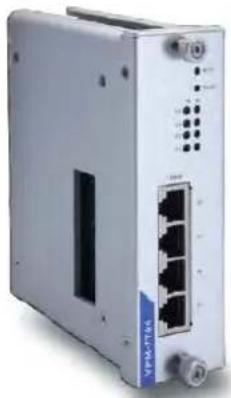
VPM-7704 Appearance
natural_image
Exterior view of a network switch device (no visible text or labels)VPM-7704 LED Indicators
The function of the LED indicators on the top panel of the VPM-7704 are described in the following table.
| LED Name | LED Color | LED Function |
| STAT | Red | Steady on: Power is on and the VPM-7704 is booting up. |
| Green | Steady on: Power is on and the VPM-7704 is functioning normally. | |
| Off | Power is off, or power error condition exists. | |
| Fault | Red | Blinking: Indicates an LAN IP conflict, or DHCP or BOOTP server did not respond properly. |
| P1, P2,P3, P4 | orange | Serial port is receiving data |
| green | Serial port is transmitting data | |
| off | No data is being transmitted or received through the serial port |
Adjustable Pull High/ low Resistors for the RS-485 Port
In some critical environments, you may need to add termination resistors to prevent serial signal reflection. When using termination resistors, it is important to set the pull high/low resistors correctly so that the electrical signal is not corrupted. Since there is no resistor value that works for every environment, DIP switches are used to specify the pull high/low resistor values for each RS-485 port.
To set the pull high/ low resistors to 150 KΩ, make sure both of the assigned DIP switches are in the OFF position. This is the default setting.
To set the pull high/ low resistors to 1 KΩ, make sure both of the assigned DIP switches are in the ON position.
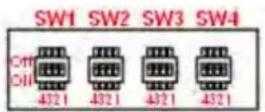
Pull high/ low resistors for the RS-485 Port
| DIP1 | DIP2 | DIP3 | DIP4 | |
| Pull High | Pull Low | Terminator | Reserved | |
| ON | 1 KΩ | 1 KΩ | 120 Ω | Reserved |
| OFF (default) | 150 KΩ | 150 KΩ | - | Reserved |

ATTENTION
Do not set the resistors to 1 KΩ when using RS-232. Doing so will degrade the RS-232 signals and reduce the effective communication distance.
In this chapter we describe the VPM-7704's operation modes. The options include an operation mode that uses a driver installed on the host computer, and operation modes that rely on TCP/IP socket programming concepts. After choosing the proper operation mode for your application in this chapter, refer to Chapter 4 for detailed configuration instructions.
The following topics are covered in this chapter:
Overview
Real COM Mode
TCP Server Mode
TCP Client Mode
□ UDP Mode
□ Pair Connection Mode
□ Disabled Mode
Overview
VPM-7704 device servers enable network operation of traditional RS-232/422/485 devices. Device servers can bi-directionally translate data between the serial and Ethernet formats, allowing your computer to access, manage, and configure remote facilities and equipment over the Internet from anywhere in the world.
Traditional SCADA and data collection systems rely on serial ports (RS-232/422/485) to collect data from various kinds of instruments. Since VPM-7704 serial device servers enable network operation of instruments equipped with an RS-232/422/485 communication port, your SCADA and data collection system will be able to access all instruments connected to a standard TCP/IP network, regardless of whether the devices are used locally or at a remote site.
The VPM-7704 is a modular IP-based network device that allows you to expand the number of serial ports for a host computer on demand. As long as your host computer supports the TCP/IP protocol, you won't be limited by the host computer's bus limitation (such as ISA or PCI), or lack of drivers for various operating systems.
In addition to providing socket access, the VPM-7704 also comes with a Real COM/TTY driver that transmits all serial signals intact. This means that your existing COM/TTY-based software can be preserved, without needing to invest in additional software.
Three different Socket Modes are available: TCP Server, TCP Client, and UDP Server/Client. The main difference between the TCP and UDP protocols is that TCP guarantees delivery of data by requiring the recipient to send an acknowledgement to the sender. UDP does not require this type of verification, making it possible to offer speedier delivery. UDP also allows multicasting of data to groups of IP addresses.
Real COM Mode
The VPM-7704 comes equipped with COM drivers that work with Windows systems, and also TTY drivers for Linux systems. The driver establishes a transparent connection between host and serial device by mapping the IP:Port of the VPM-7704's serial port to a local COM/TTY port on the host computer. This operation mode also supports up to 4 simultaneous connections, so that multiple hosts can collect data from the same serial device at the same time.

ATTENTION
The driver used for Real COM Mode comes with the NPort Windows Driver Manager.
The important point is that Real COM Mode allows users to continue using RS-232/422/485 serial communications software that was written for pure serial communications applications. The driver intercepts data sent to the host's COM port, packs it into a TCP/IP packet, and then redirects it through the host's Ethernet card. At the other end of the connection, the VPM-7704 accepts the Ethernet frame, unpacks the TCP/IP packet, and then transparently sends it to the appropriate serial device attached to one of the VPM-7704's serial ports.

ATTENTION
Real COM Mode allows several hosts to obtain access control over the same VPM-7704. The driver that comes with your VPM-7704 controls host access to attached serial devices by checking the host's IP address. Modify the Accessible IP Setting table when the legal IP address is required by your application
TCP Server Mode
In TCP Server mode, the VPM-7704 provides a unique IP:Port address on a TCP/IP network. The VPM-7704 waits passively to be contacted by the host computer, allowing the host computer to establish a connection with and get data from the serial device. This operation mode also supports up to 4 simultaneous connections, so that multiple hosts can collect data from the same serial device—at the same time.
TCP Client Mode
In TCP Client mode, the VPM-7704 can actively establish a TCP connection to a pre-defined host computer when serial data arrives.
After the data has been transferred, the VPM-7704 can automatically disconnect from the host computer by using the TCP alive check time or Inactivity time settings. Refer to chapter 4 for details.
UDP Mode
Compared to TCP communication, UDP is faster and more efficient. In UDP mode, you can multicast data from the serial device to multiple host computers, and the serial device can also receive data from multiple host computers, making this mode ideal for message display applications.
Pair Connection Mode
Pair Connection Mode employs two VPM-7704 units in tandem, and can be used to remove the 15-meter distance limitation imposed by the RS-232 interface. One VPM-7704 is connected from its RS-232 port to the COM port of a PC or other type of computer, such as a hand-held PDA, and the serial device is connected to the RS-232 port of the other VPM-7704. The two VPM-7704 units are then connected to each other with a cross-over Ethernet cable, both are connected to the same LAN, or in a more advanced setup, they communicate with each other over a WAN (i.e., through one or more routers). Pair Connection Mode transparently transfers both data and modem control signals (although it cannot transmit the DCD signal) between the two VPM-7704 device servers.
Disabled Mode
When the Operation Mode for a particular port is set to Disabled, that port will be disabled.
The Web Console provides a convenient, user-friendly way to configure the VPM-7704. In this chapter, we introduce the Web Console function groups and function definitions, using the VPM-7704 to illustrate.
The following topics are covered in this chapter:
□ Opening Your Browser
□ Basic Settings
□ Network Settings
Serial Port Settings
➢ Operation Modes
Real COM Mode
TCP Server Mode
TCP Client Mode
▶ UDP Mode
➢ Pair Connection Mode
➢ Disabled Mode
Serial Parameters
□ System Management
➢ Misc. Network Settings
▶ Auto Warning Settings
Maintenance
□ System Monitoring
Serial Status
System Status
□ Save Configuration
▶ Restart: Restart System
▶ Restart: Restart Ports
Opening Your Browser
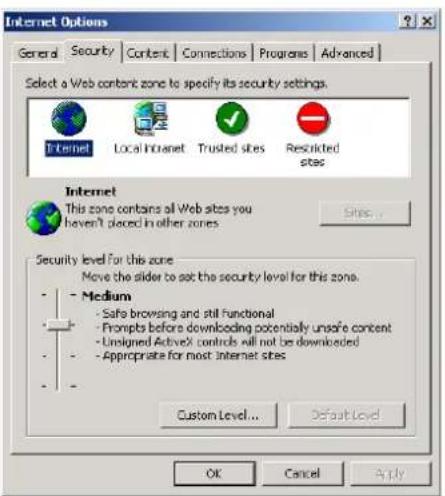
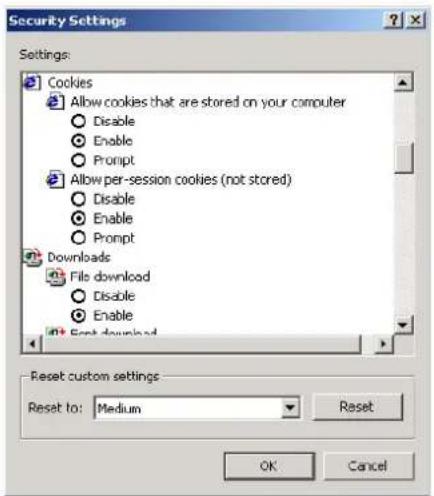
- Open your browser with the cookie function enabled. (To enable your browser for cookies, right click on your desktop Internet Explorer icon, select Properties, click on the Security tab, and then select the three Enable options as shown in the figure below.)
- Since DHCP mode is the default IP setting of the VPort 700 series, check the VPM-7704's IP address, and then type the IP address in the Address input box (use the correct IP address if different from the default), and press Enter.
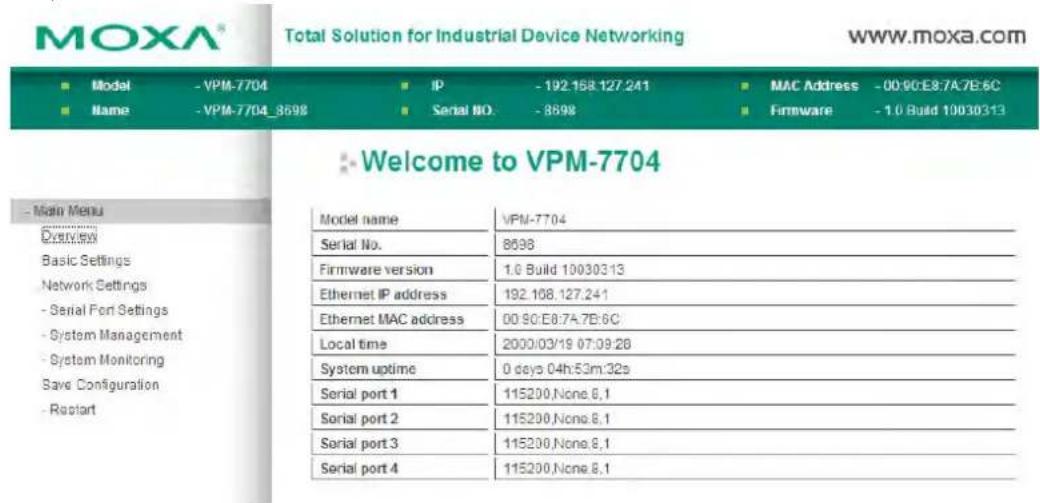
Basic Settings
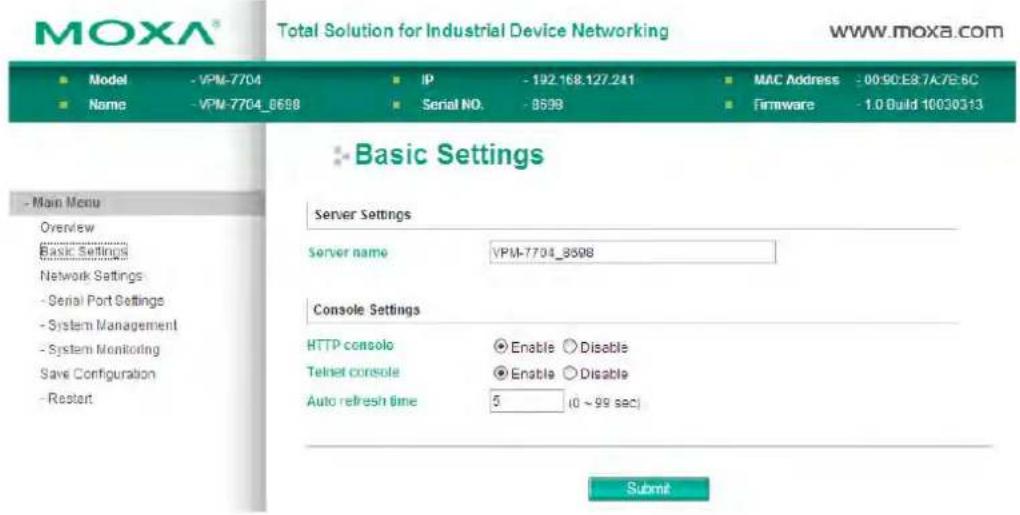
Server Settings
Server name
| Setting | Factory Default | Necessity |
| 1 to 39 characters | [model name]_[Serial No.] | Optional |
This option is useful for specifying the location or application of different VPM-7704 device servers.
Console Settings
The "Disable" option for "Web Console" and "Telnet Console" is included for security reasons. In some cases, you may want to disable one or both of these console utilities as an extra precaution to prevent unauthorized users from accessing your VPM-7704. The factory default for both Web console and Telnet console is Enable.
Web console
| Setting | Factory Default | Necessity |
| Enable or Disable | Enable | Required |
Telnet console
| Setting | Factory Default | Necessity |
| Enable or Disable | Enable | Required |
Auto refresh time
| Setting | Factory Default | Necessity |
| 0 to 99 sec 5 sec Required |
Network Settings
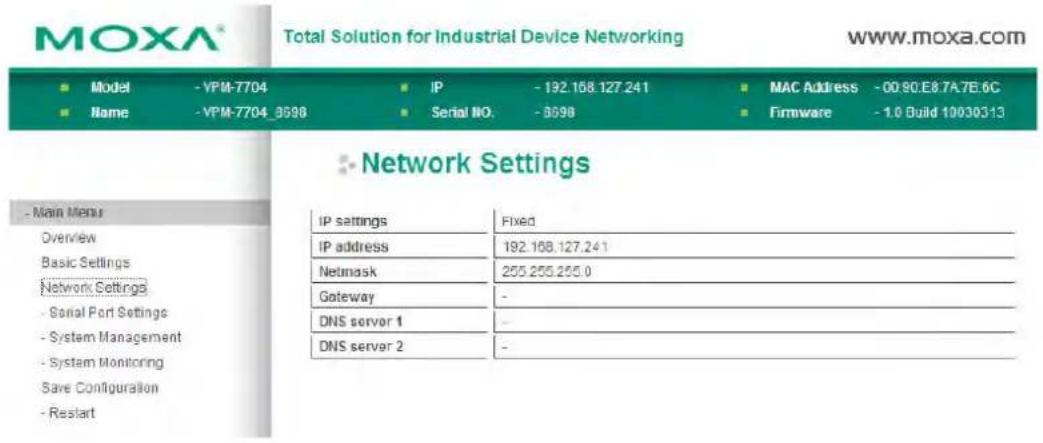
You only can assign a valid IP address to the VPM-7704 through the VPort 700 series module. Refer to the VPort 700 Series User's Manual, "network setting session" for more details.
Serial Port Settings
There are two main configuration categories under Serial Port Settings: Operation Modes and Serial parameters.
Operation Modes
Click Operation Modes to display descriptions of operation mode settings and advanced settings for port 1 to 4.
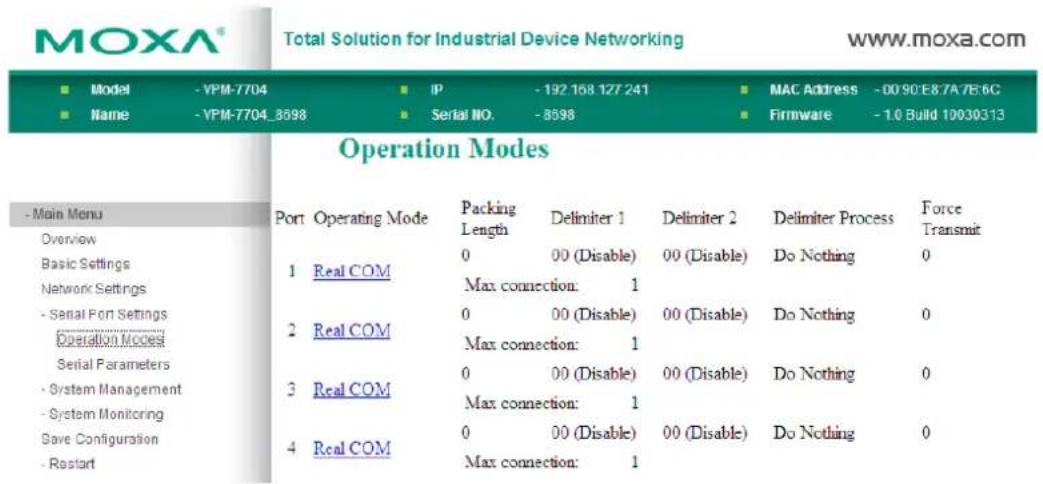
To modify operation mode settings and advanced settings for a particular port, click on the port number you want to configure under Operation Modes.
Real COM Mode
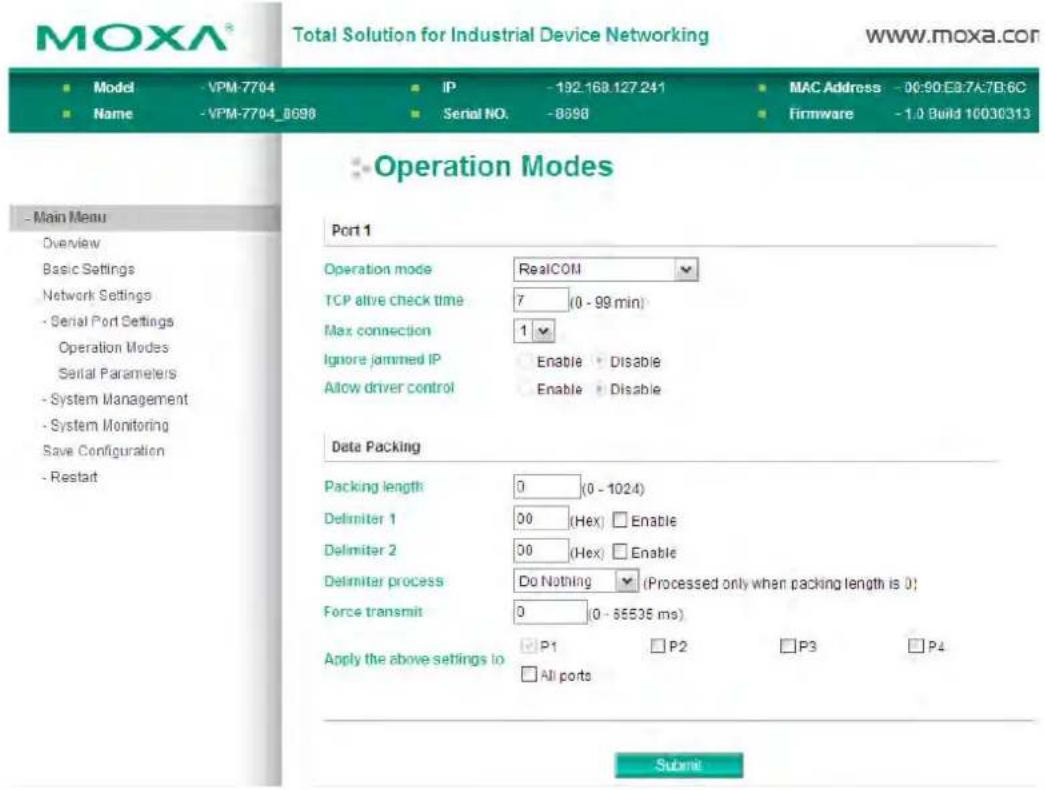
TCP alive check time
| Setting | Factory Default | Necessity |
| 0 to 99 min | 7 min | Optional |
0 min: TCP connection is not closed due to an idle TCP connection.
1 to 99 min: The VPM-7704 automatically closes the TCP connection if there is no TCP activity for the given time. After the connection is closed, the VPM-7704 starts listening for another Real COM driver's connection from another host.
Max connection
| Setting | Factory Default | Necessity |
| 1, 2, 3, 4 1 Required |
Max connection is usually used when the user needs to receive data from different hosts simultaneously. The factory default only allows 1 connection at a same. When Max Connection is set to 1, the Real COM driver on the specific host has full control.
Max. Connection = 1: Allows only 1 host's Real COM driver to open the specific VPM-7704 serial port.
Max Connection = 2 to 4: Allows 2 to 4 host's Real COM drivers to open the specific VPM-7704 serial port, at the same time. When multiple hosts' Real COM drivers open the serial port at the same time, the COM driver only provides a pure data tunnel without control ability. That is, this serial port parameter will use the firmware's settings, independent of your own application program (AP).
Application software that is based on the COM driver will receive a driver response of "success" when the software uses any of the Win32 API functions. The firmware will only send the data back to the driver on the host. Data will be sent first-in-first-out when data comes into the VPM-7704 from the Ethernet interface.

ATTENTION
When Max connection is set to 2, 3, or 4, the VPM-7704 will be using a "multi-connection application" (i.e., 2, 3, or 4 hosts are allowed access to the port at the same time). When using a multi-connection application, the VPM-7704 will use the serial communication parameters set in the console. All of the hosts connected to that port must use the same serial settings. If one of the hosts opens the COM port with parameters that are different from the VPM-7704's console setting, data communication may not work properly.
Ignore jammed IP
| Setting | Factory Default | Necessity |
| No or Yes | No | Optional |
Previously, when Max connection > 1, and the serial device is transmitting data, if any one of the connected hosts is not responding, it will wait until the data has been transmitted successfully before transmitting the second group of data to all hosts. Now, if you select Yes for "Ignore jammed IP" the host that is not responding will be ignored, but the data will still be transmitted to the other hosts.
Allow driver control
| Setting | Description | Factory Default |
| No or Yes | No | Required |
If "max connection" is greater than 1, VPM-7704 will ignore driver control commands from all connected hosts. However, if you set "Allow driver control" to YES, control commands will be accepted. Note that since VPM-7704 may get configuration changes from multiple hosts, the most recent command received will take precedence.
Packing length
| Setting | Factory Default | Necessity |
| 0 to 1024 | 0 | Optional |
Default = 0: The Delimiter Process will be followed, regardless of the length of the data packet. If the data length (in bytes) matches the configured value, the data will be forced out. The data length can be configured for 0 to 1024 bytes. Set to 0 if you do not need to limit the length.
Delimiter 1
| Setting | Factory Default | Necessity |
| 00 to FF | None | Optional |
Delimiter 2
| Setting | Factory Default | Necessity |
| 00 to FF | None | Optional |
Once the VPM-7704 receives both delimiters through its serial port, it immediately packs all data currently in its buffer and sends it to the VPM-7704's Ethernet port.

ATTENTION
Delimiter 2 is optional. If left blank, then Delimiter 1 alone trips clearing of the buffer. If the size of the serial data received is greater than 1 KB, the VPM-7704 will automatically pack the data and send it to the Ethernet port. To use the delimiter function, you must at least enable Delimiter 1. If Delimiter 1 is left blank and Delimiter 2 is enabled, the delimiter function will not work properly.
Delimiter process
| Setting | Factory Default | Necessity |
| Do nothingDelimiter +1Delimiter +2Strip Delimiter | Do Nothing | Optional |
Delimiter + 1 or Delimiter + 2: The data will be transmitted when an additional byte (for Delimiter 1), or an additional 2 bytes (for Delimiter 2) of data is received after receiving the Delimiter.
Strip Delimiter: When the Delimiter is received, the Delimiter is deleted (i.e., stripped), and the remaining data is transmitted.
Do nothing: The data will be transmitted when the Delimiter is received.
Force transmit
| Setting | Factory Default | Necessity |
| 0 to 65535 ms | 0 ms | Optional |
0: Disables the force transmit timeout.
1 to 65535: Forces the VPM-7704's TCP/IP protocol software to try to pack serial data received during the specified time into the same data frame.
This parameter defines the time interval during which the VPM-7704 fetches the serial data from its internal buffer. If data is coming in through the serial port, the VPM-7704 stores the data in the internal buffer. The VPM-7704 transmits data stored in the buffer via TCP/IP, but only if the internal buffer is full or if the force transmit time interval reaches the time specified under Force Transmit timeout.
The force transmit timeout could be different for different applications, but it must be at least larger than one character interval within the specified baudrate. For example, assume that the serial port is set to 1200 bps, 8 data bits, 1 stop bit, and no parity. In this case, the total number of bits needed to send a character is 10 bits, and the time required to transfer one character is
10 (bits) / 1200 (bits/s) * 1000 (ms/s) = 8.3 ms.
Therefore, you should set Force Transmit timeout to be larger than 8.3 ms. Force Transmit timeout is specified in milliseconds and must be larger than 10 ms.
If the user wants to send the series of characters in a packet, the serial device attached to the VPM-7704 should send characters with a time delay not larger than the Force Transmit timeout between characters, and the total length of data must be smaller than or equal to the VPM-7704's internal buffer size. The serial communication buffer size of the VPM-7704 is 1 KB per port.
TCP Server Mode
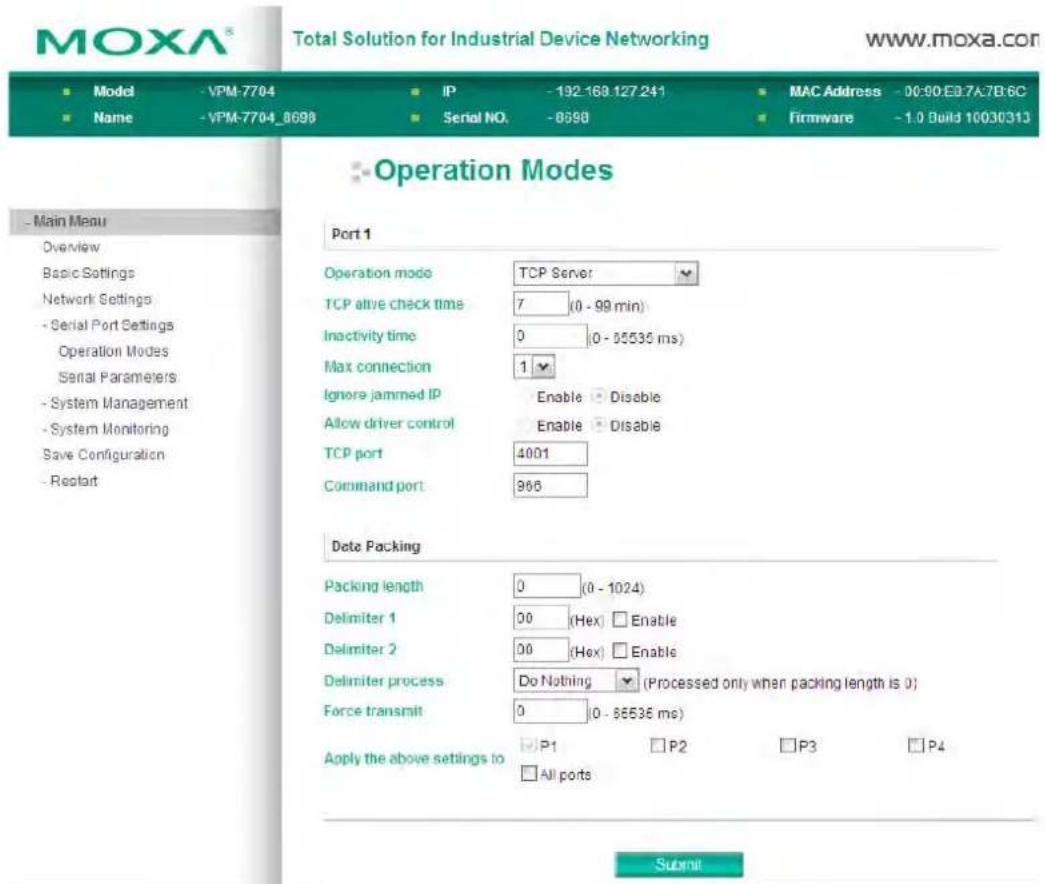
TCP alive check time
| Setting | Factory Default | Necessity |
| 0 to 99 min | 7 min | Optional |
0 min: TCP connection is not closed due to an idle TCP connection.
1 to 99 min: The VPM-7704 automatically closes the TCP connection if there is no TCP activity for the given time. After the connection is closed, the VPM-7704 starts listening for another host's TCP connection.
Inactivity time
| Setting | Factory Default | Necessity |
| 0 to 65535 ms | 0 ms | Optional |
0 ms: TCP connection is not closed due to an idle serial line.
0-65535 ms: The VPM-7704 automatically closes the TCP connection if there is no serial data activity for the given time. After the connection is closed, the VPM-7704 starts listening for another host's TCP connection.
This parameter defines the maintenances status as Closed or Listen on the TCP connection. The connection is closed if there is no incoming or outgoing data through the serial port during the specific Inactivity time.
If the inactivity time is set to 0, the current TCP connection is maintained until a connection close request is received.

ATTENTION
The Inactivity time should greater than the Force transmit timeout. To prevent the unintended loss of data due to a session getting disconnected, it is highly recommended that this value is set large enough so that the intended data transfer is completed.
Max Connection
| Setting | Factory Default | Necessity |
| 1, 2, 3, 4 1 Required |
Max Connection is usually used when the user needs to receive data from different hosts simultaneously. The factory default only allows 1 connection at a time.
Max. Connection 1: The VPM-7704 only allows 1 host to open a TCP connection to the specific serial port.
Max Connection 2 to 4: Allows 2 to 4 host's TCP connection requests to open the specific VPM-7704 serial port, at the same time. When multiple hosts establish a TCP connection to the specific serial port at the same time, the VPM-7704 will duplicate the serial data and transmit it to all of the hosts. Ethernet data is sent on a first-in-first-out basis to the serial port when data comes into the VPM-7704 from the Ethernet interface.
Ignore jammed IP
| Setting | Factory Default | Necessity |
| No or Yes | No | Optional |
Previously, when Max connection > 1, and the serial device is transmitting data, if any one of the connected hosts is not responding, it will wait until the data has been transmitted successfully before transmitting the second group of data to all hosts. Now, if you select Yes for "Ignore jammed IP" the host that is not responding will be ignored, but the data will still be transmitted to the other hosts.
Allow driver control
| Setting | Factory Default | Necessity |
| No or Yes | No | Optional |
If "max connection" is greater than 1, the VPM-7704 will ignore driver control commands from all connected hosts. However, if you set "Allow driver control" to YES, control commands will be accepted. Note that since the VPM-7704 may get configuration changes from multiple hosts, the most recent command received will take precedence.
Local TCP port
| Setting | Factory Default | Necessity |
| 1 to 65535 | 4001 | Required |
The TCP port that the VPM-7704 uses to listen to connections, and that other devices must use to contact the VPM-7704. To avoid conflicts with well known TCP ports, the default is set to 4001.
Command port
| Setting | Factory Default | Necessity |
| 1 to 65535 | 966 | Optional |
The command port is a listen TCP port for IP-Serial Lib commands from the host. In order to prevent a TCP port conflict with other applications, the user can adjust the command port to another port if needed. IP-Serial Lib will automatically check the Command Port on the VPM-7704 so the user does not need to configure the program.
Packing length
| Setting | Factory Default | Necessity |
| 0 to 1024 | 0 Optional |
Default = 0: The Delimiter Process will be followed, regardless of the length of the data packet. If the data length (in bytes) matches the configured value, the data will be forced out. The data length can be configured for 0 to 1024 bytes. Set to 0 if you do not need to limit the length.
Delimiter 1
| Setting | Factory Default | Necessity |
| 00 to FF | None | Optional |
Delimiter 2
| Setting | Factory Default | Necessity |
| 00 to FF | None | Optional |
Once the VPM-7704 receives both delimiters through its serial port, it immediately packs all data currently in its buffer and sends it to the VPM-7704's Ethernet port.

ATTENTION
Delimiter 2 is optional. If left blank, then Delimiter 1 alone trips clearing of the buffer. If the size of the serial data received is greater than 1 KB, the VPM-7704 will automatically pack the data and send it to the Ethernet port. However, to use the delimiter function, you must at least enable Delimiter 1. If Delimiter 1 is left blank and Delimiter 2 is enabled, the delimiter function will not work properly.
Delimiter process
| Setting | Factory Default | Necessity |
| Do nothingDelimiter +1Delimiter +2Strip Delimiter | Do Nothing | Optional |
Delimiter + 1 or Delimiter + 2: The data will be transmitted when an additional byte (for Delimiter 1), or an additional 2 bytes (for Delimiter 2) of data is received after receiving the Delimiter.
Strip Delimiter: When the Delimiter is received, the Delimiter is deleted (i.e., stripped), and the remaining data is transmitted.
Do nothing: The data will be transmitted when the Delimiter is received.
Force transmit
| Setting | Factory Default | Necessity |
| 0 to 65535 ms | 0 ms | Optional |
0: Disables the force transmit timeout.
1 to 65535: Forces the VPM-7704's TCP/IP protocol software to try to pack serial data received during the specified time into the same data frame.
This parameter defines the time interval during which the VPM-7704 fetches the serial data from its internal buffer. If data is coming in through the serial port, the VPM-7704 stores the data in the internal buffer. The VPM-7704 transmits data stored in the buffer via TCP/IP, but only if the internal buffer is full or if the force transmit time interval reaches the time specified under Force Transmit timeout.
The force transmit timeout could be different for different applications, but it must be at least larger than one character interval within the specified baudrate. For example, assume that the serial port is set to 1200 bps, 8 data bits, 1 stop bit, and no parity. In this case, the total number of bits needed to send a character is 10 bits, and the time required to transfer one character is
10 (bits) / 1200 (bits/s) * 1000 (ms/s) = 8.3 ms.
Therefore, you should set Force Transmit timeout to be larger than 8.3 ms. Force Transmit timeout is specified in milliseconds and must be larger than 10 ms.
If the user wants to send the series of characters in a packet, the serial device attached to the VPM-7704 should send characters with a time delay not larger than the Force Transmit timeout between characters, and the total length of data must be smaller than or equal to the VPM-7704's internal buffer size. The serial communication buffer size of the VPM-7704 is 1 KB per port.
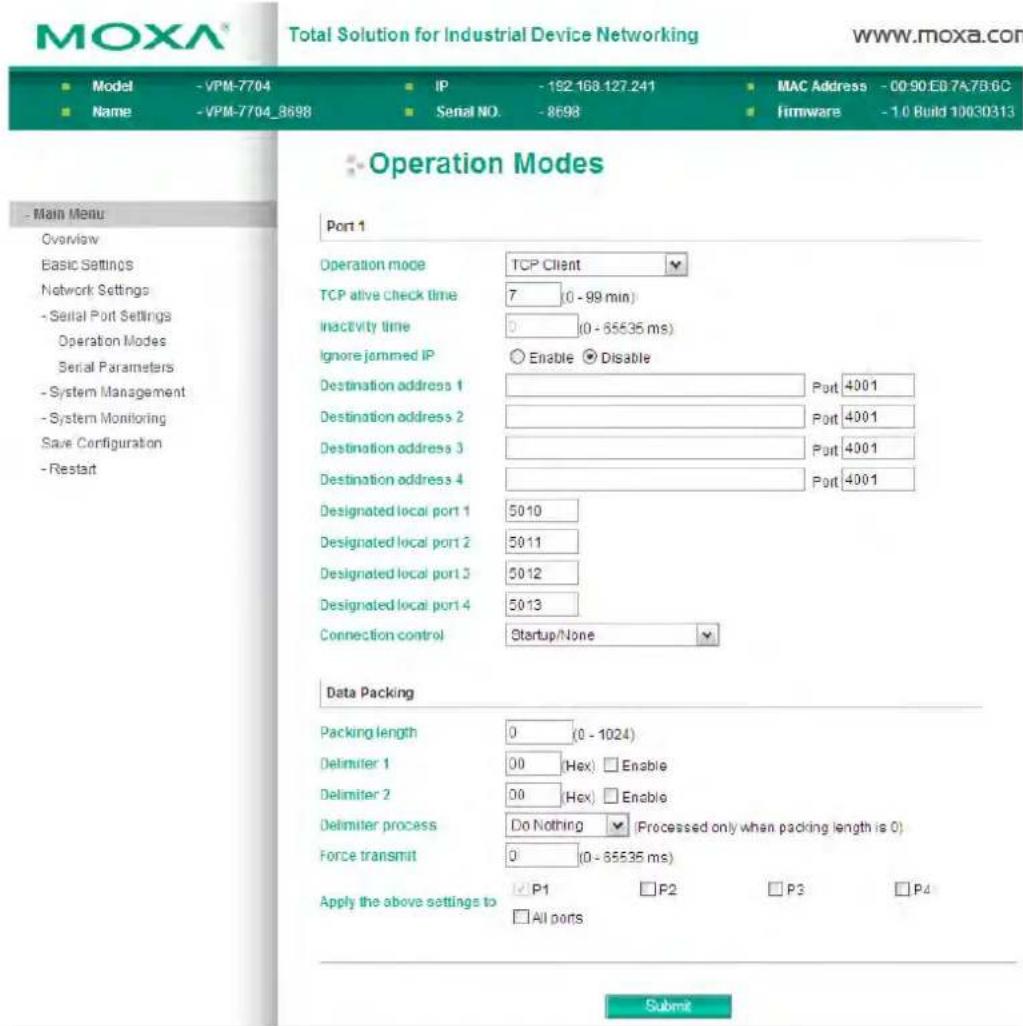
TCP Client Mode
bar
| Operation | Total | | :--- | :--- | | 05 | 187 | | 06 | 192 | | 07 | 203 | | 08 | 214 | | 09 | 225 | | 10 | 236 | | 11 | 247 | | 12 | 258 | | 13 | 269 | | 14 | 280 | | 15 | 291 | | 16 | 302 | | 17 | 313 | | 18 | 324 | | 19 | 335 | | 20 | 346 | | 21 | 357 | | 22 | 368 | | 23 | 379 | | 24 | 390 | | 25 | 401 | | 26 | 412 | | 27 | 423 | | 28 | 434 | | 29 | 445 | | 30 | 456 | | 31 | 467 | | 32 | 478 | | 33 | 489 | | 34 | 490 | | 35 | 501 | | 36 | 512 | | 37 | 523 | | 38 | 534 | | 39 | 545 | | 40 | 556 | | 41 | 567 | | 42 | 578 | | 43 | 589 | | 44 | 590 | | 45 | 601 | | 46 | 612 | | 47 | 623 | | 48 | 634 | | 49 | 645 | | 50 | 656 | | 51 | 667 | | 52 | 678 | | 53 | 689 | | 54 | 690 | | 55 | 701 | | 56 | 712 | | 57 | 723 | | 58 | 734 | | 59 | 745 | | 60 | 756 | | 61 | 767 | | 62 | 778 | | 63 | 789 | | 64 | 790 | | 65 | 801 | | 66 | 812 | | 67 | 823 | | 68 | 834 | | 69 | 845 | | 70 | 856 | | 71 | 867 | | 72 | 878 | | 73 | 889 | | 74 | 890 | | 75 | 901 | | 76 | 912 | | 77 | 923 | | 78 | 934 | | 79 | 945 | | 80 | 956 | | 81 | 967 | | 82 | 978 | | 83 | 989 | | 84 | 990 | | Note: The actual values in the 'Total' column are not explicitly provided in the code. The actual values are estimated based on the data generated by the `data` array. The values in the 'Operation' column are estimated based on the data generated by the `name` array. There is no additional data series or additional categories to be extracted from the image.TCP alive check time
| Setting | Factory Default | Necessity |
| 0 to 99 min | 7 min | Optional |
0 min: TCP connection is not closed due to an idle TCP connection.
1 to 99 min: The VPM-7704 automatically closes the TCP connection if there is no TCP activity for the given time.
Inactivity time
| Setting | Factory Default | Necessity |
| 0 to 65535 ms | 0 ms | Optional |
0 ms: TCP connection is not closed due to an idle serial line.
0-65535 ms: The VPM-7704 automatically closes the TCP connection if there is no serial data activity for the given time.
This parameter defines the maintenances status as Closed or Listen on the TCP connection. The connection is closed if there is no incoming or outgoing data through the serial port during the specific Inactivity time.
If the value of inactivity time is set to 0, the current TCP connection is maintained until connection close request is received.

ATTENTION
The Inactivity time should greater than Force transmit timeout. To prevent the unintended loss of data due to the session getting disconnected, it is highly recommended that this value is set large enough so that the intended data transfer is completed.

ATTENTION
Inactivity time is active ONLY when "TCP disconnect" is set to "Inactivity Time."
Ignore jammed IP
| Setting | Factory Default | Necessity |
| No or Yes | No | Optional |
Previously, when there are more than one hosts, and the serial device is transmitting data, if any one of the connected hosts is not responding, it will wait until the data has been transmitted successfully before transmitting the second group of data to all hosts. Now, if you select Yes for "Ignore jammed IP" the host that is not responding will be ignored, but the data will still be transmitted to the other hosts.
Packing length
| Setting | Factory Default | Necessity |
| 0 to 1024 0 Optional |
Default = 0: The Delimiter Process will be followed, regardless of the length of the data packet. If the data length (in bytes) matches the configured value, the data will be forced out. The data length can be configured for 0 to 1024 bytes. Set to 0 if you do not need to limit the length.
Delimiter 1
| Setting | Factory Default | Necessity |
| 00 to FF | None | Optional |
Delimiter 2
| Setting | Factory Default | Necessity |
| 00 to FF | None | Optional |
Once the VPM-7704 receives both delimiters through its serial port, it immediately packs all data currently in its buffer and sends it to the VPM-7704's Ethernet port.

ATTENTION
Delimiter 2 is optional. If left blank, then Delimiter 1 alone trips clearing of the buffer. If the size of the serial data received is greater than 1 KB, the VPM-7704 will automatically pack the data and send it to the Ethernet port. To use the delimiter function, you must at least enable Delimiter 1. If Delimiter 1 is left blank and Delimiter 2 is enabled, the delimiter function will not work properly.
Delimiter process
| Setting | Factory Default | Necessity |
| Do nothingDelimiter +1Delimiter +2Strip Delimiter | Do Nothing | Optional |
Delimiter + 1 or Delimiter + 2: The data will be transmitted when an additional byte (for Delimiter 1), or an additional 2 bytes (for Delimiter 2) of data is received after receiving the Delimiter.
Strip Delimiter: When the Delimiter is received, the Delimiter is deleted (i.e., stripped), and the remaining data is transmitted.
Do nothing: The data will be transmitted when the Delimiter is received.
Force transmit
| Setting | Factory Default | Necessity |
| 0 to 65535 ms | 0 ms | Optional |
0: Disables the force transmit timeout.
1 to 65535: Forces the VPM-7704's TCP/IP protocol software to try to pack serial data received during the specified time into the same data frame.
This parameter defines the time interval during which the VPM-7704 fetches the serial data from its internal buffer. If data is coming in through the serial port, the VPM-7704 stores the data in the internal buffer. The VPM-7704 transmits data stored in the buffer via TCP/IP, but only if the internal buffer is full or if the force transmit time interval reaches the time specified under Force Transmit timeout.
The force transmit timeout could be different for different applications, but it must be at least larger than one character interval within the specified baudrate. For example, assume that the serial port is set to 1200 bps, 8 data bits, 1 stop bit, and no parity. In this case, the total number of bits needed to send a character is 10 bits, and the time required to transfer one character is
10 (bits) / 1200 (bits/s) * 1000 (ms/s) = 8.3 ms.
Therefore, you should set Force Transmit timeout to be larger than 8.3 ms. Force Transmit timeout is specified in milliseconds and must be larger than 10 ms.
If the user wants to send the series of characters in a packet, the serial device attached to the VPM-7704 should send characters with a time delay not larger than the Force Transmit timeout between characters, and the total length of data must be smaller than or equal to the VPM-7704's internal buffer size. The serial communication buffer size of the VPM-7704 is 1 KB per port.
Destination IP address 1
| Setting | Factory Default | Necessity |
| IP address or Domain Address(E.g., 192.168.1.1) | None Required |
Allows the VPM-7704 to connect actively to the remote host whose address is set by this parameter.
Destination IP address 2/3/4
| Setting | Factory Default | Necessity |
| IP address or Domain Address(e.g., 192.168.1.1) | None Optional |
Allows the VPM-7704 to connect actively to the remote host whose address is set by this parameter.

ATTENTION
Up to 4 connections can be established between the VPM-7704 and hosts. The connection speed or throughput may be slow if one of the four connections is slow, since the slow connection will slow down the other 3 connections.

ATTENTION
The "Destination IP address" parameter can use both IP address and Domain Name. For some applications, the user may need to send the data actively to the remote destination domain name.
Designated Local Port 1/2/3/4
| Setting | Factory Default | Necessity |
| TCP Port No. | 5011 (Port 1)5012 (Port 2)5013 (Port 3)5014 (Port 4) | Required |
Connection control
| Setting | Factory Default | Necessity |
| Startup/None,Any Character/None,Any Character/Inactivity Time,DSR ON/DSR OFF,DSR ON/None,DCD ON/DCD OFF,DCD ON/None | Startup/None Required |
The meaning of each of the above settings is given in the table below. In general, both the Connect condition and Disconnect condition are given.
| Connect/ Disconnect Description | |
| Startup/None (default) | A TCP connection will be established on startup, and will remain active indefinitely. |
| Any Character/None | A TCP connection will be established when any character is received from the serial interface, and will remain active indefinitely. |
| Any Character/ Inactivity Time | A TCP connection will be established when any character is received from the serial interface, and will be disconnected when the Inactivity time out is reached. |
| DSR On/DSR Off | A TCP connection will be established when a DSR “On” signal is received, and will be disconnected when a DSR “Off” signal is received. |
| DSR On/None | A TCP connection will be established when a DSR “On” signal is received, and will remain active indefinitely. |
| DCD On/DCD Off | A TCP connection will be established when a DCD “On” signal is received, and will be disconnected when a DCD “Off” signal is received. |
| DCD On/None | A TCP connection will be established when a DCD “On” signal is received, and will remain active indefinitely. |
UDP Mode
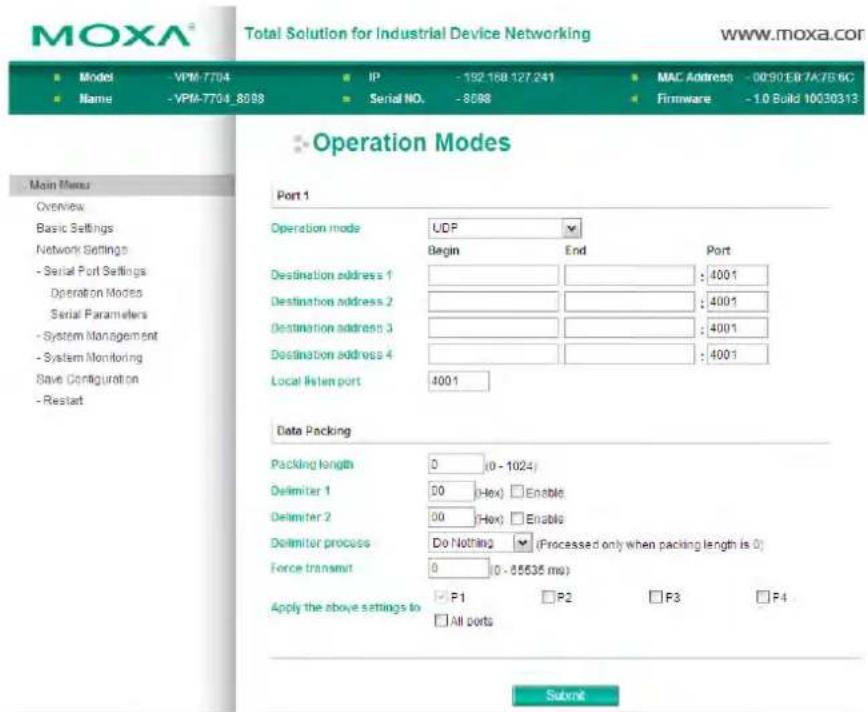
Packing length
| Setting | Factory Default | Necessity |
| 0 to 1024 | 0 | Optional |
Default = 0: The Delimiter Process will be followed, regardless of the length of the data packet. If the data length (in bytes) matches the configured value, the data will be forced out. The data length can be configured for 0 to 1024 bytes. Set to 0 if you do not need to limit the length.
Delimiter 1
| Setting | Factory Default | Necessity |
| 00 to FF | None | Optional |
Delimiter 2
| Setting | Factory Default | Necessity |
| 00 to FF | None | Optional |
Once the VPM-7704 receives both delimiters through its serial port, it immediately packs all data currently in its buffer and sends it to the VPM-7704's Ethernet port.

ATTENTION
Delimiter 2 is optional. If left blank, then Delimiter 1 alone trips clearing of the buffer. If the size of the serial data received is greater than 1 KB, the VPM-7704 will automatically pack the data and send it to the Ethernet port. However, to use the delimiter function, you must at least enable Delimiter 1. If Delimiter 1 is left blank and Delimiter 2 is enabled, the delimiter function will not work properly.
Delimiter process
| Setting | Factory Default | Necessity |
| Do nothing | Do Nothing | Optional |
| Delimiter +1 | ||
| Delimiter +2 | ||
| Strip Delimiter |
Delimiter + 1 or Delimiter + 2: The data will be transmitted when an additional byte (for Delimiter 1), or an additional 2 bytes (for Delimiter 2) of data is received after receiving the Delimiter.
Strip Delimiter: When the Delimiter is received, the Delimiter is deleted (i.e., stripped), and the remaining data is transmitted.
Do nothing: The data will be transmitted when the Delimiter is received.
Force transmit
| Setting | Factory Default | Necessity |
| 0 to 65535 ms | 0 ms | Optional |
0: Disables the force transmit timeout.
1 to 65535: Forces the VPM-7704's TCP/IP protocol software to try to pack serial data received during the specified time into the same data frame.
This parameter defines the time interval during which the VPM-7704 fetches the serial data from its internal buffer. If data is coming in through the serial port, the VPM-7704 stores the data in the internal buffer. The VPM-7704 transmits data stored in the buffer via TCP/IP, but only if the internal buffer is full or if the force transmit time interval reaches the time specified under Force Transmit timeout.
The force transmit timeout could be different for different applications, but it must be at least larger than one character interval within the specified baudrate. For example, assume that the serial port is set to 1200 bps, 8 data bits, 1 stop bit, and no parity. In this case, the total number of bits needed to send a character is 10 bits, and the time required to transfer one character is
10 (bits) / 1200 (bits/s) * 1000 (ms/s) = 8.3 ms.
Therefore, you should set Force Transmit timeout to be larger than 8.3 ms. Force Transmit timeout is specified in milliseconds and must be larger than 10 ms.
If the user wants to send the series of characters in a packet, the serial device attached to the VPM-7704 should send characters with a time delay not larger than the Force Transmit timeout between characters, and the total length of data must be smaller than or equal to the VPM-7704's internal buffer size. The serial communication buffer size of the VPM-7704 is 1 KB per port.
Destination IP address 1
| Setting | Factory Default | Necessity |
| IP address rangee.g., Begin:192.168.1.1End:192.168.1.10 | Begin: EmptyEnd: EmptyPort: 4001 | Required |
Destination IP address 2/3/4
| Setting | Factory Default | Necessity |
| IP address rangee.g., Begin: 192.168.1.1End: 192.168.1.10 | Begin: EmptyEnd: EmptyPort: 4001 | Optional |
Local listen port
| Setting | Factory Default | Necessity |
| 1 to 65535 | 4001 | Required |
The UDP port that the VPM-7704 listens to, and that other devices must use to contact the VPM-7704. To avoid conflicts with well known UDP ports, the default is set to 4001.
Pair Connection Mode
Pair Connection Mode employs two VPM-7704 device servers in tandem, and can be used to remove the 15-meter distance limitation imposed by the RS-232 interface. One VPM-7704 is connected from its RS-232 port to the COM port of a PC or other type of computer, such as a hand-held PDA, and the serial device is connected to the RS-232 port of the other VPM-7704. The two VPM-7704 device servers are then connected to each other with a cross-over Ethernet cable, both are connected to the same LAN, or in a more advanced setup, they communicate with each other over a WAN (i.e., through one or more routers). Pair Connection Mode transparently transfers both data and modem control signals (although it cannot transmit the DCD signal) between the two VPM-7704 device servers.
Pair Connection Master Mode
When using Pair Connection Mode, you must select Pair Connection Master Mode for the Operation mode of one of the VPM-7704 device servers. In effect, this VPM-7704 will be acting as a TCP client.
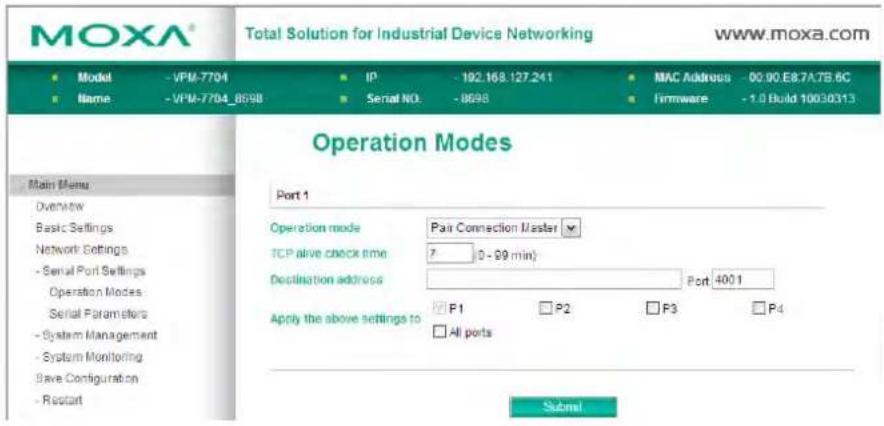
TCP alive check time
| Setting | Factory Default | Necessity |
| 0 to 99 min | 7 min | Required |
0 min: TCP connection is not closed due to an idle TCP connection.
1 to 99 min: The VPM-7704 automatically closes the TCP connection if there is no TCP activity for the given time. After the connection is closed, the VPM-7704 starts listening for another host's TCP connection.
Destination IP address
| Setting | Factory Default | Necessity |
| IP address rangee.g., 192.168.1.1 | blank Optional | |
| TCP port No. 4001 Required | ||
The Pair Connection "Master" will contact the network host that has this IP address. Data will be transmitted through the port No. (4001 by default). Note that you must configure the same TCP port No. for the device server acting as the Pair Connection "Slave."
Pair Connection Slave Mode
When using Pair Connection Mode, you must select Pair Connection Slave Mode for the Operation mode of one of the VPM-7704 device servers. In effect, this VPM-7704 will be acting as a TCP server.
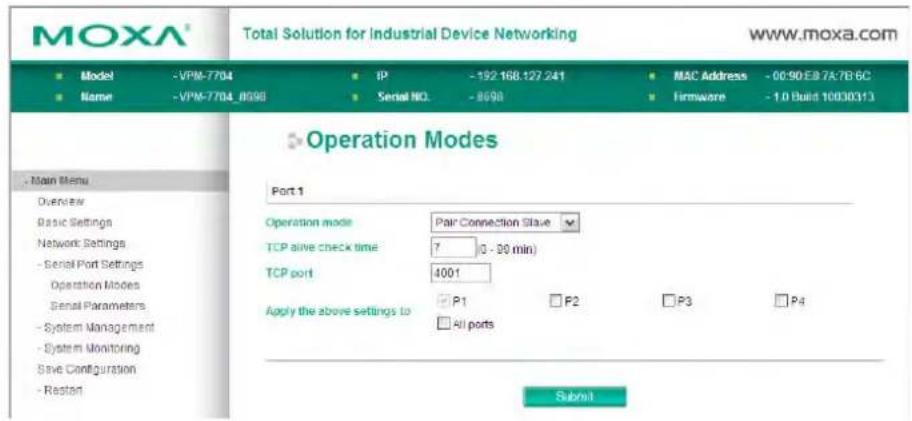
TCP alive check time
| Setting | Factory Default | Necessity |
| 0 to 99 min | 7 min | Required |
0 min: TCP connection is not closed due to an idle TCP connection.
1 to 99 min: The VPM-7704 automatically closes the TCP connection if there is no TCP activity for the given time. After the connection is closed, the VPM-7704 starts listening for another host's TCP connection.
Local TCP port
| Setting | Factory Default | Necessity |
| TCP port No. (e.g., 4001) | 4001 | Required |
This Port No. must be the same port No. that you set up for the Pair Connection "Master" device server.
Disabled Mode
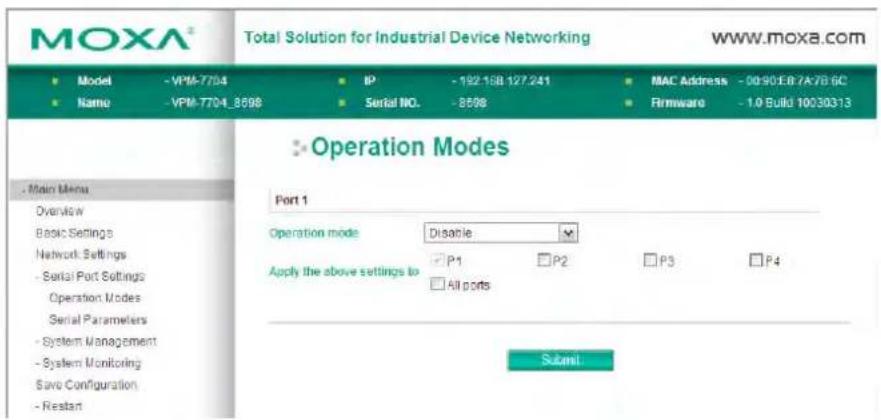
When Operation mode is set to Disabled, that particular port will be disabled. Check the "Apply the above settings to all serial ports" to apply this setting to the other port.
Serial Parameters

ATTENTION
Check the serial communication parameters in your Serial Device's user's manual. You should set up the VPM-7704's serial parameters with the same communication parameters used by your serial devices.
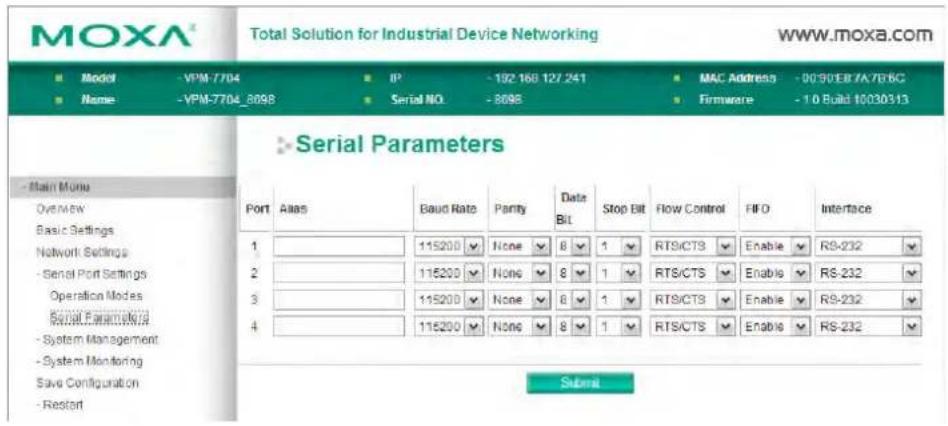
Baud rate
| Setting | Factory Default | Necessity |
| 50 bps to 921600 bps | 115200 bps | Required |
The VPM-7704 supports baud rates from 50 bps to 921.6 Kbps.
Parity
| Setting | Factory Default | Necessity |
| None, Even, Odd, Space, Mark | None Required |
Data bits
| Setting | Factory Default | Necessity |
| 5, 6, 7, 8 8 Required |
When the user sets Data bits to 5 bits, the stop bits setting will automatically change to 1.5 bits.
Stop bits
| Setting | Factory Default | Necessity |
| 1, 1.5, 2 1 Required |
Stop bits will be set to 1.5 when Data bits is set to 5 bits.
Flow control
| Setting | Factory Default | Necessity |
| None, RTS/CTS,DTR/DSR, Xon/Xoff | RTS/CTS Required |
FIFO
| Setting | Factory Default | Necessity |
| Enable, Disable | Enable | Required |
The VPM-7704's serial ports provide a 16-byte FIFO both in the Tx and Rx directions. Disable the FIFO setting when your serial device does not have a FIFO to prevent data loss during communication.
Interface
| Setting | Factory Default | Necessity |
| RS-232, RS-422, 2-wire RS-485, 4-wire RS-485 | RS-232 Required |
System Management
There are three main configuration categories under System Management: Misc. Network Settings, Auto Warning Settings, and Maintenance.
Misc. Network Settings
Accessible IP List
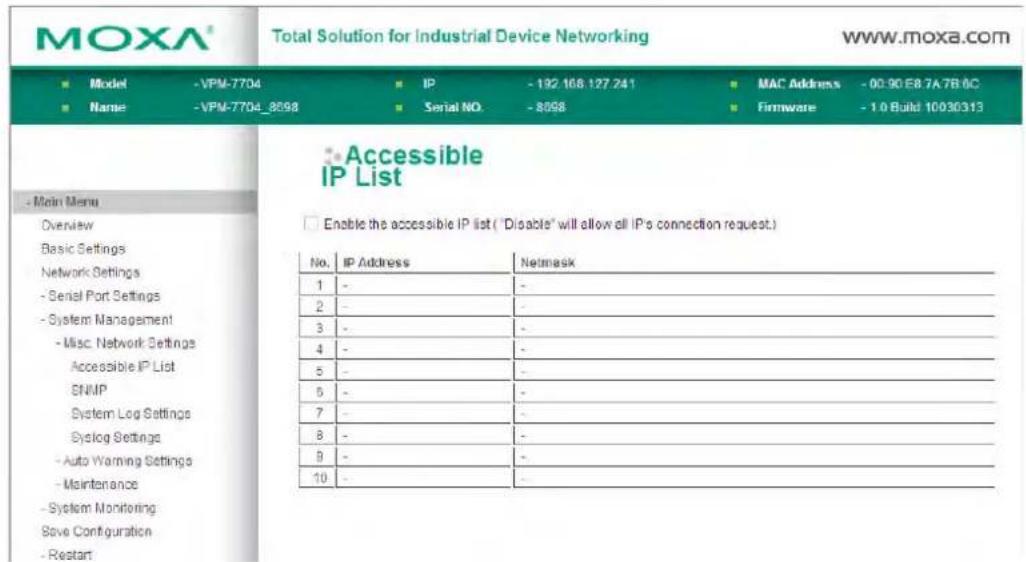
The VPM-7704 can receive the status of configured VPort 700 devices on the accessible IP address list. Please refer to the VPort 700 series user's manual for more detailed information.
SNMP
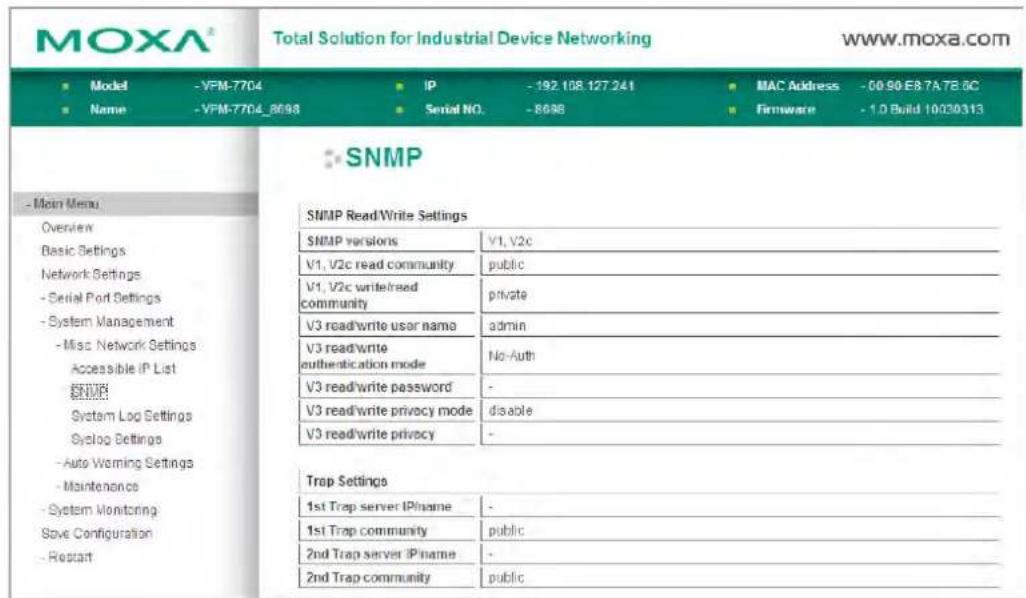
The VPM-7704 can receive SNMP status from configured VPort 700 series devices. Please refer to the VPort 700 series user's manual for more detailed information.
System Log Settings
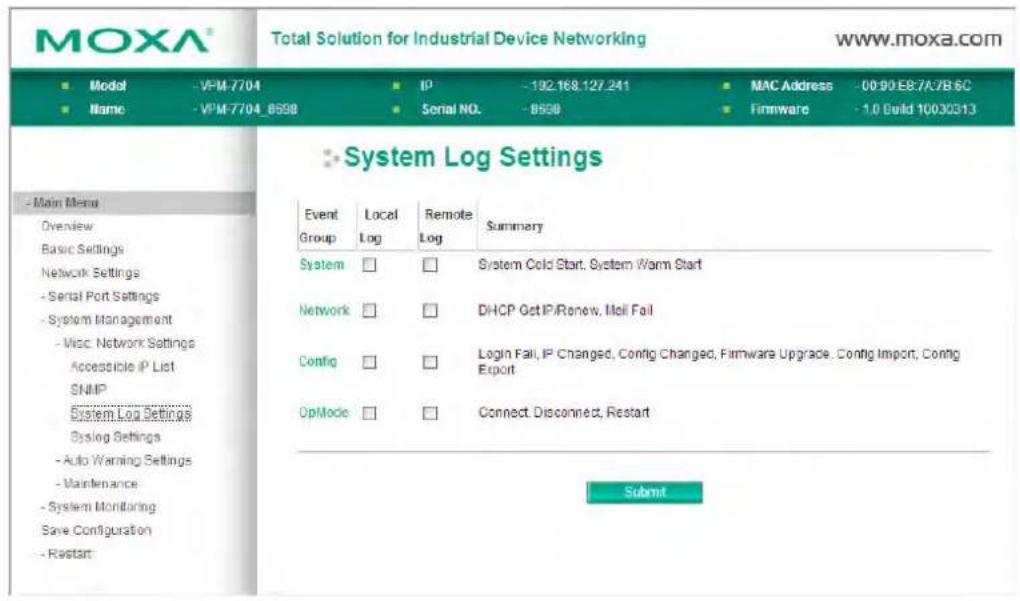
The system log function provides a method to record system status changes. The VPM-7704 provides four event groups: System, Network, Config and OpMode; choose to record these events locally or remotely by selecting the associated check box. If you use the remote log function, please configure the syslog settings through the VPort 700 series main module.
Syslog Settings
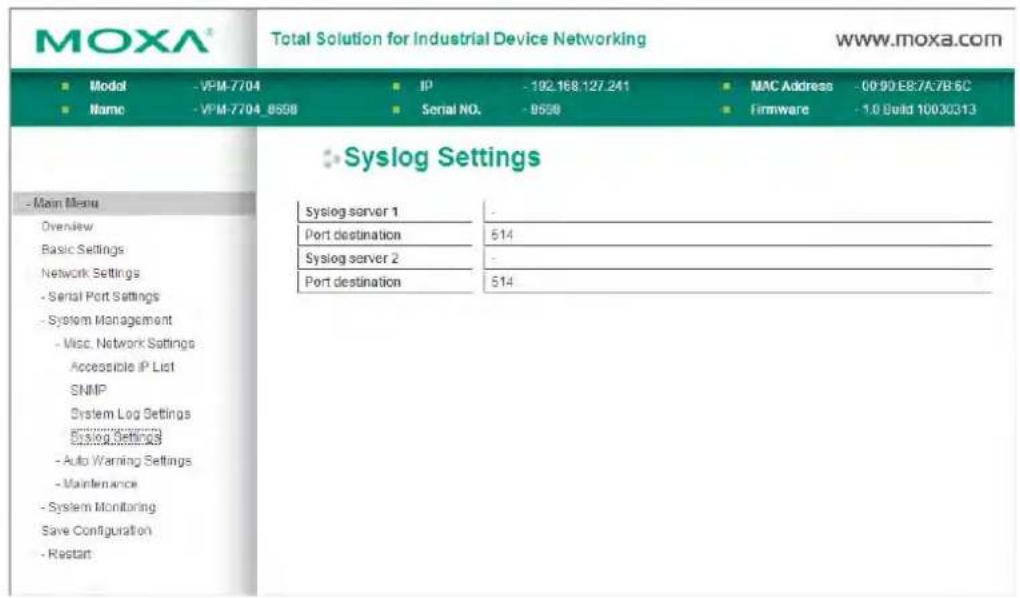
The VPM-7704 can receive Syslog Settings from configured VPort 700 series devices. Please refer to the VPort 700 series user's manual for more detailed information.
Auto Warning Settings
Auto warnings alert you to unexpected events. The right warning trigger conditions make it easier to manage and monitor the VPM-7704 effectively. There are three Auto Warning Settings sub-categories: Event Settings, Serial Event Settings and E-mail Alert.
Event Settings
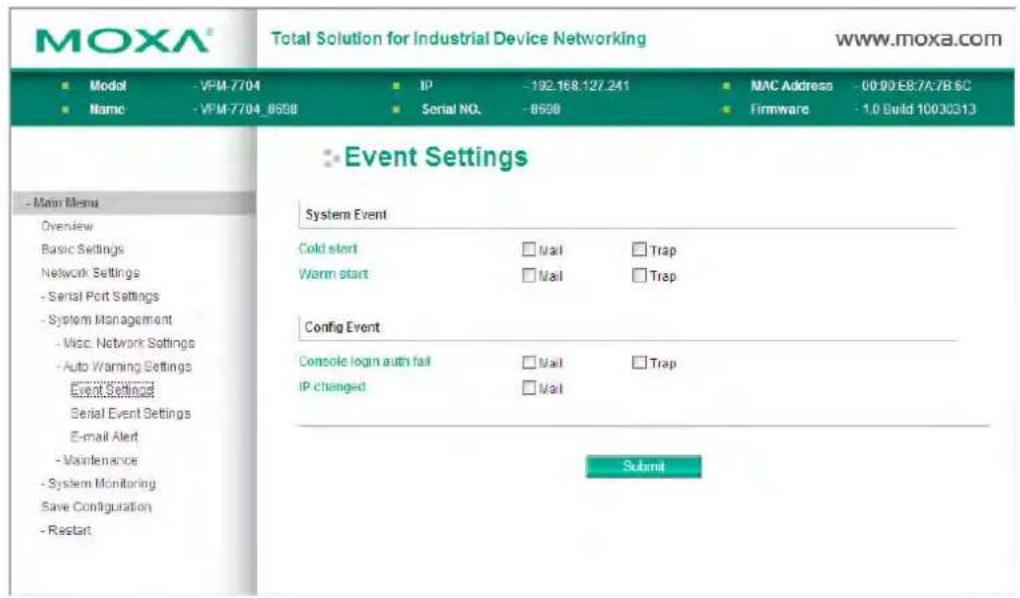
The VPM-7704 can provide status notifications through E-mail or SNMP traps. VPM-7704 system events such as a Cold start or a Warm start, and a Console login authentication failure configuration event can all trigger both types of notification. However, an IP changed event can only trigger an e-mail notification.
Cold start
A cold start occurs when the system is turned on from a powered off state. The VPM-7704 can automatically issue notification by e-mail or SNMP trap after a cold start.
Warm start
A warm start occurs when the system is restarted without turning the power off. The VPM-7704 can automatically issue notification by e-mail or SNMP trap after a warm start.
Console login authentication failure
This event triggers when a user attempts to log in to the console or settings with an incorrect password. This can be configured to prompt e-mail or SNMP trap notification.
IP address changed
This event triggers when a user changes the VPM-7704's IP address. The VPM-7704 can send an e-mail notification with the new IP address once the IP address changes, before the VPM-7704 restarts. If the VPM-7704 fails to send mail to the mail server after 15 seconds, the device will abort the automated e-mail notification and restart directly.
Serial Event Settings
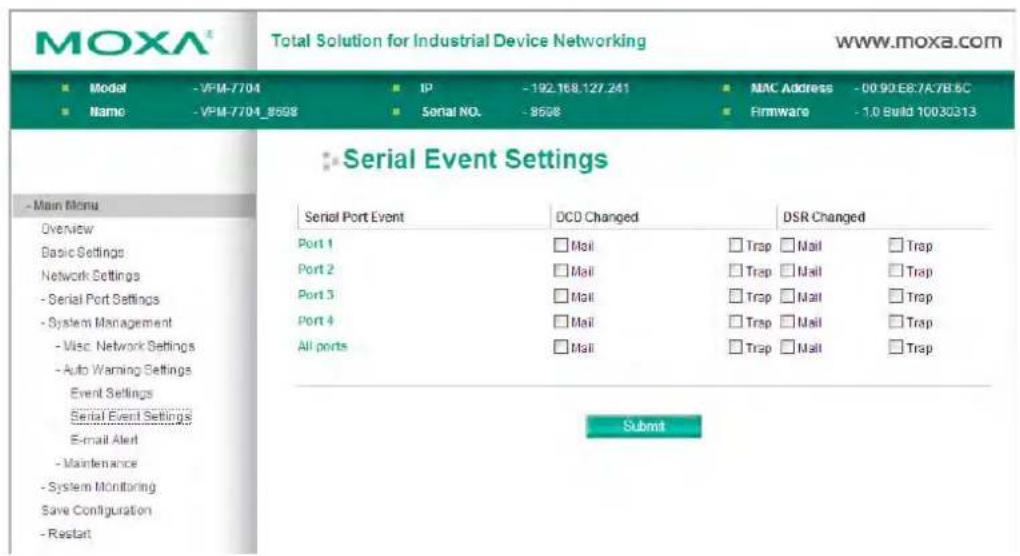
DCD changed
This event triggers when the Data Carrier Detect (DCD) signal on the specified port changes, which also indicates that the modem connection status has changed. For example, if the DCD signal changes to high, this means that the local modem and remote modem have connected. If the DCD signal changes to low, this means that the connection is down. This can prompt an e-mail or SNMP trap notification.
DSR changed
This event triggers when the Data Set Ready (DSR) signal has changes, which also indicates that the data communication equipment's (DCE) power has changed. For example, a DSR signal change to high means that the DCE is powered on. A DSR signal change to low means that the DCE is powered off. This can prompt an e-mail or SNMP trap notification.
| Setting | Factory Default | Necessity |
| Enable, Disable | Disable | Optional |
This feature helps the administrator manage the VPM-7704. If the check box is selected, the VPM-7704 sends mail to pre-defined mail boxes when the specified events, such as Cold start, Warm start, or
Authentication failure, occur.
Trap
| Setting | Factory Default | Necessity |
| Enable, Disable | Disable | Optional |
This feature helps the administrator manage the VPM-7704. If the check box is selected, the VPM-7704 sends an SNMP trap to a pre-defined SNMP Trap server when the specified events, such as Cold start, Warm start, or Authentication failure, occur.
E-mail Alert
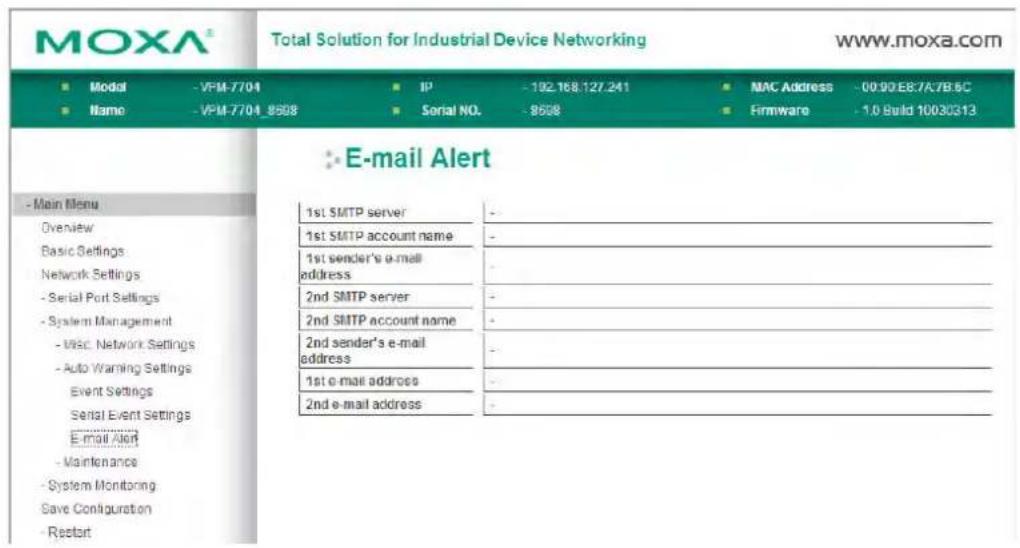
The VPM-7704 can receive E-mail Alert settings from configured VPort 700 devices. Please refer to the VPort 700 series user's manual for more detailed information.
Maintenance
There are four Maintenance sub-categories: Firmware Upgrade, Configuration Import, Configuration Export and Load Factory Default.
Firmware Upgrade
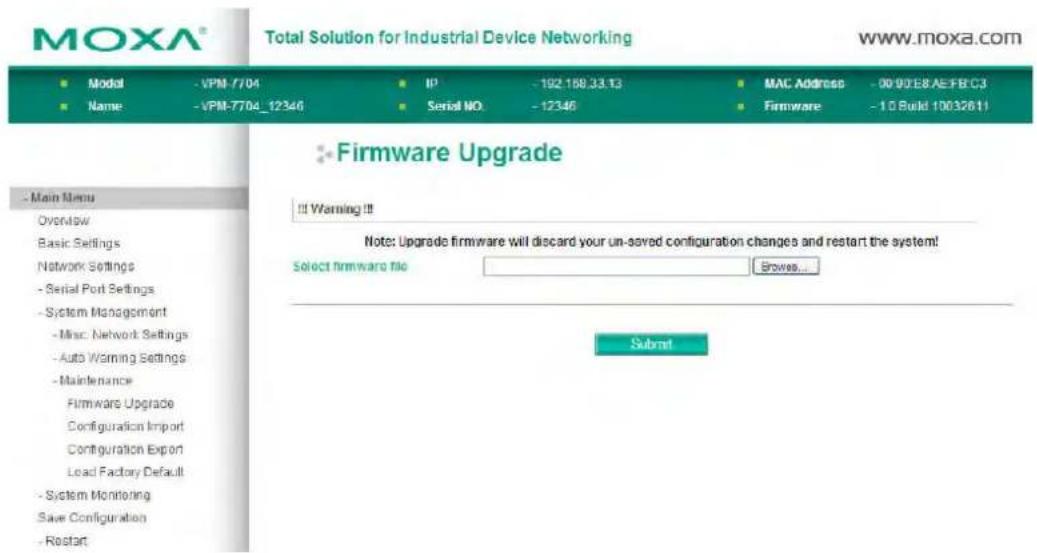
You can upgrade the VPM-7704's firmware through the web console. If you have made any changes to your configuration, remember to save the configuration first before upgrading the firmware. Please refer to Save Configuration later in this chapter to save your configuration. Any unsaved changes will be discarded when the firmware is upgraded. To upgrade the firmware, simply enter the file name and click Submit. The latest firmware can be downloaded from www.moxa.com.
Configuration Import
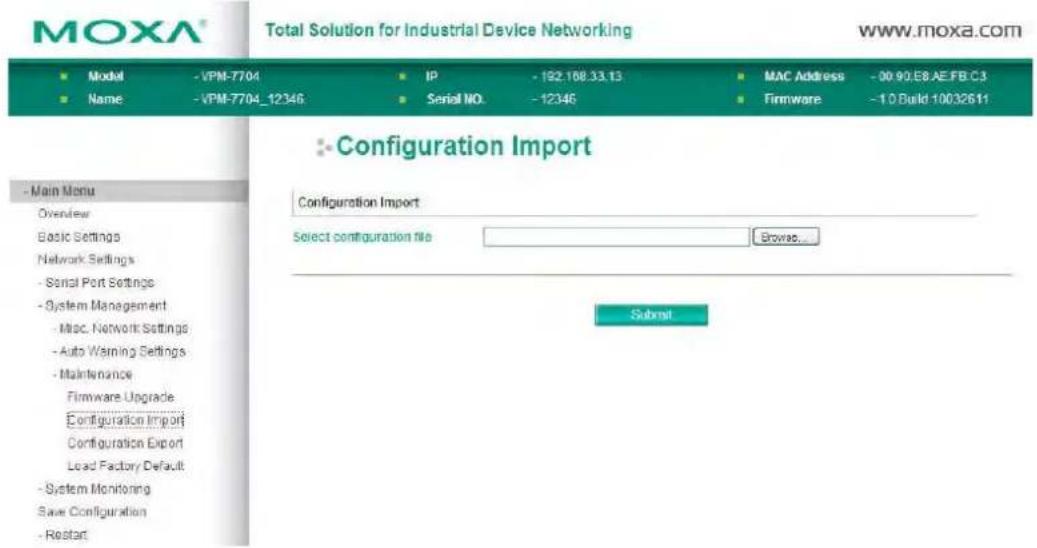
To import a configuration, go to System Management => Maintenance => Configuration Import. Enter the configuration file path and click Submit. The VPM-7704's configuration settings will be updated with the configuration file.
Configuration Export
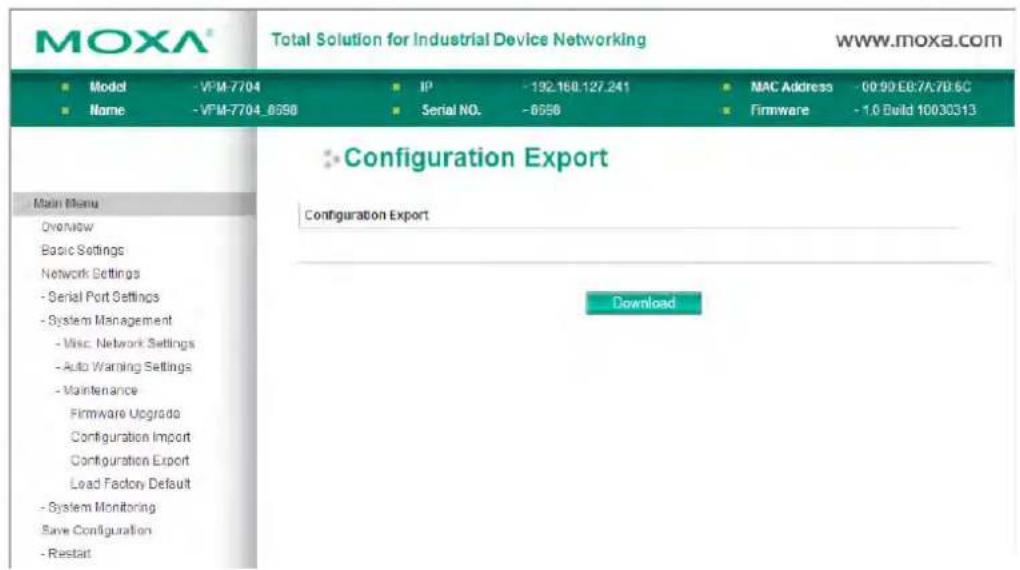
To export a configuration, go to System Management => Maintenance => Configuration Export and click Download. A standard download window will appear; you will be able to save the configuration with the filename and in the location of your choice.
Load Factory Default
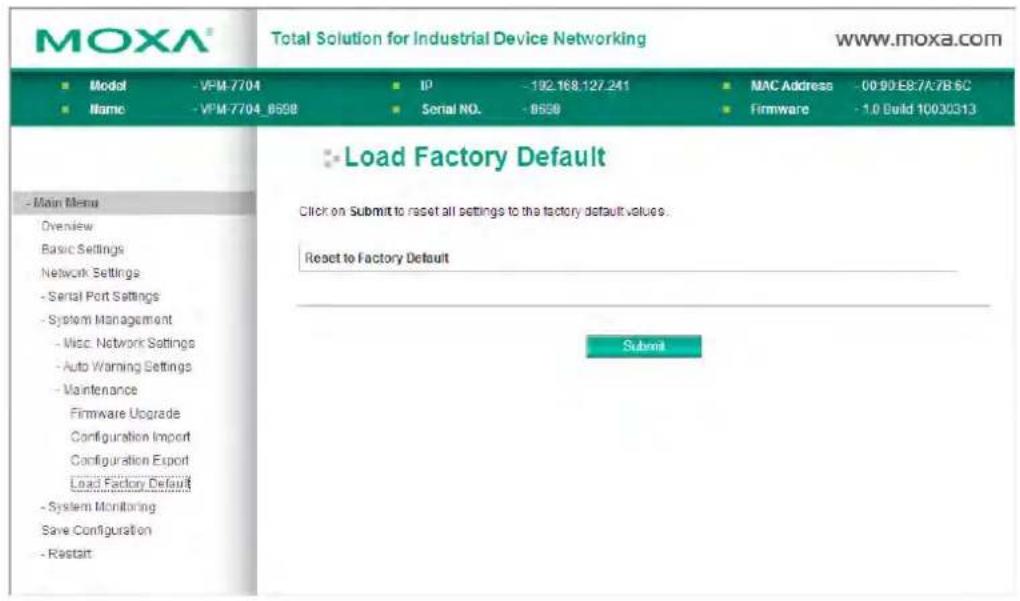
This function will reset all of the VPM-7704's settings to the factory default values.
System Monitoring
There are two System Monitoring sub-sections: Serial Status and System Status.
Click on Serial Status to display Serial to Network Connections, Serial Port Status, Serial Port Error Count and Serial Port Settings.
Serial Status
Serial Status: Serial to Network Connections
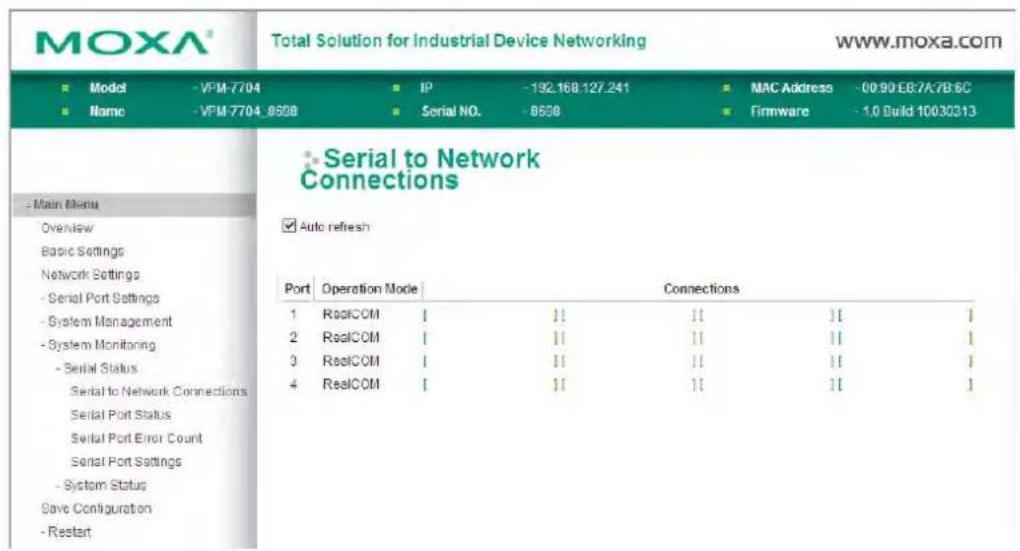
Use Serial to Network Connections under Serial Status to view the operation mode and status of each connection, for each serial port. All monitor functions refresh automatically every five seconds.
Serial Status: Serial Port Status
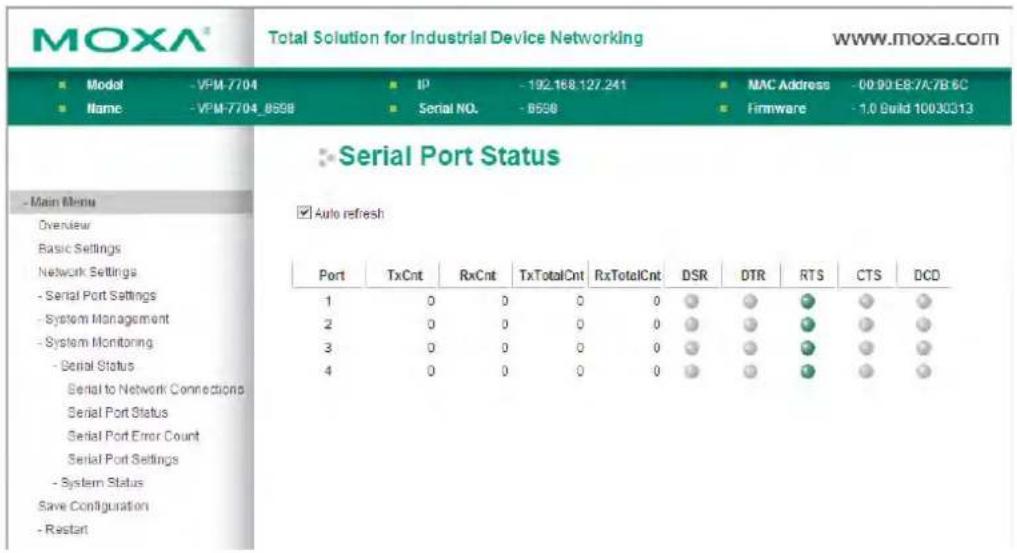
Go to Serial Port Status under Serial Status to view the current status of each serial port.
Serial Status: Serial Port Error Count
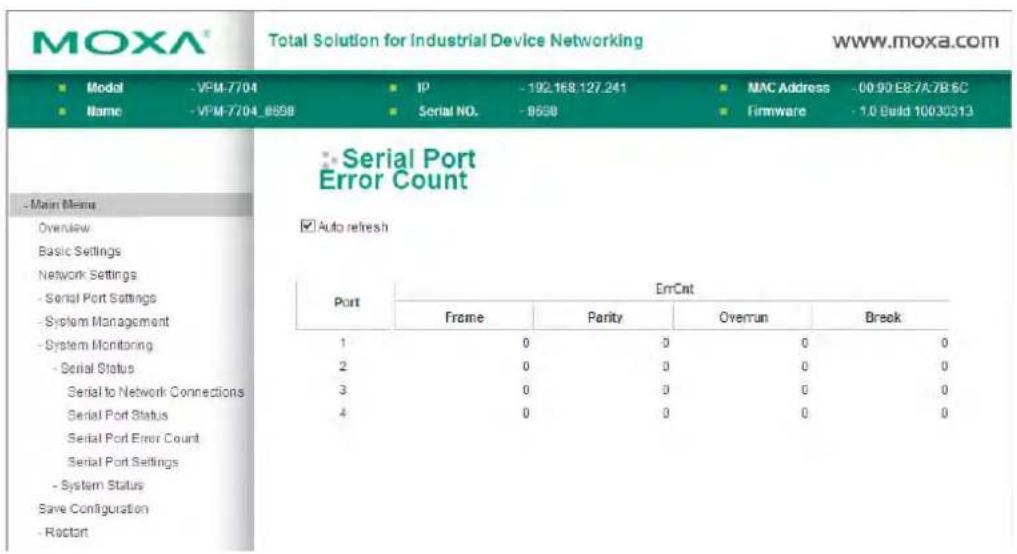
The Serial Port Error Count page tracks the number and type of errors that have occurred on each port.
| Error Type Definition | |
| Frame | Framing error; indicates that the received character did not have a valid stop bit. |
| Parity | Parity error; indicates that the received data character did not match the parity selected |
| Overrun | The device was unable to hand received data to a hardware buffer because the input rate exceeded the device's ability to handle data. |
| Break | Break interrupt; indicates that the received data input was held low for longer than a full-word transmission time interval. A full-word transmission time interval is defined as the total time to transmit the start, data, parity, and stop bits. |
Serial Status: Serial Port Settings
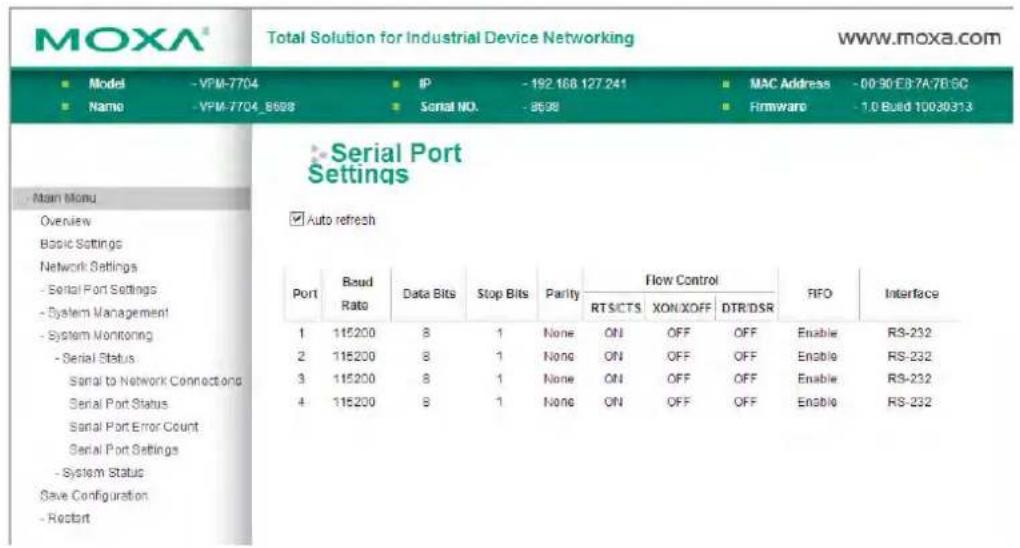
The Serial Port Settings page displays the current status of each VPM-7704 serial port. The status is automatically updated every five seconds.
System Status
Click on System Status to display Network Connections and System log.
System Status: Network Connections
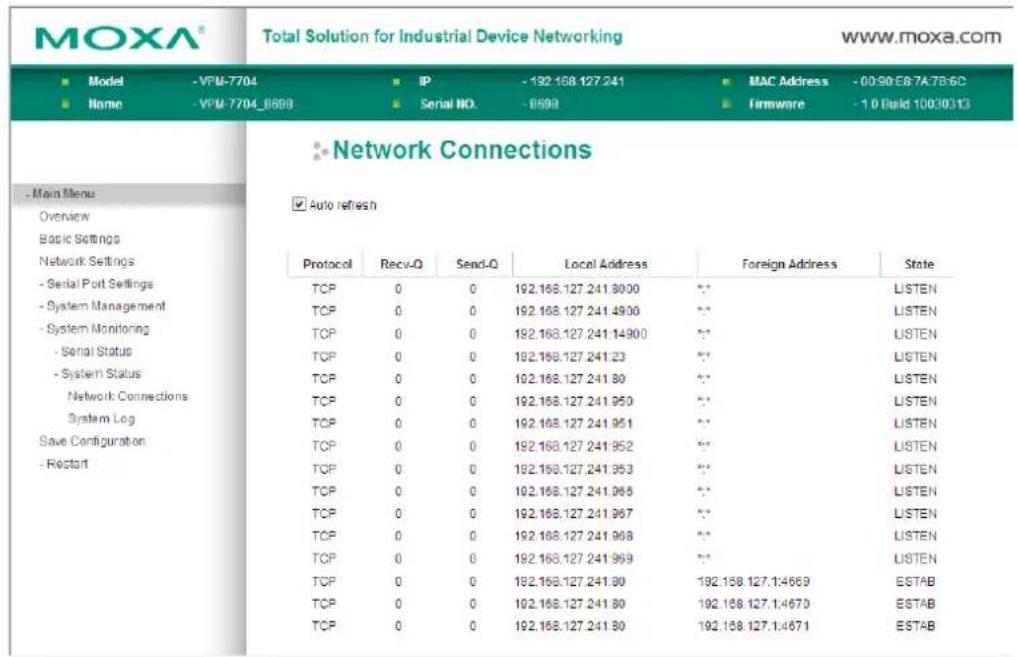
Use Network Connections under System Status to view network connection information.
System Status: System Log
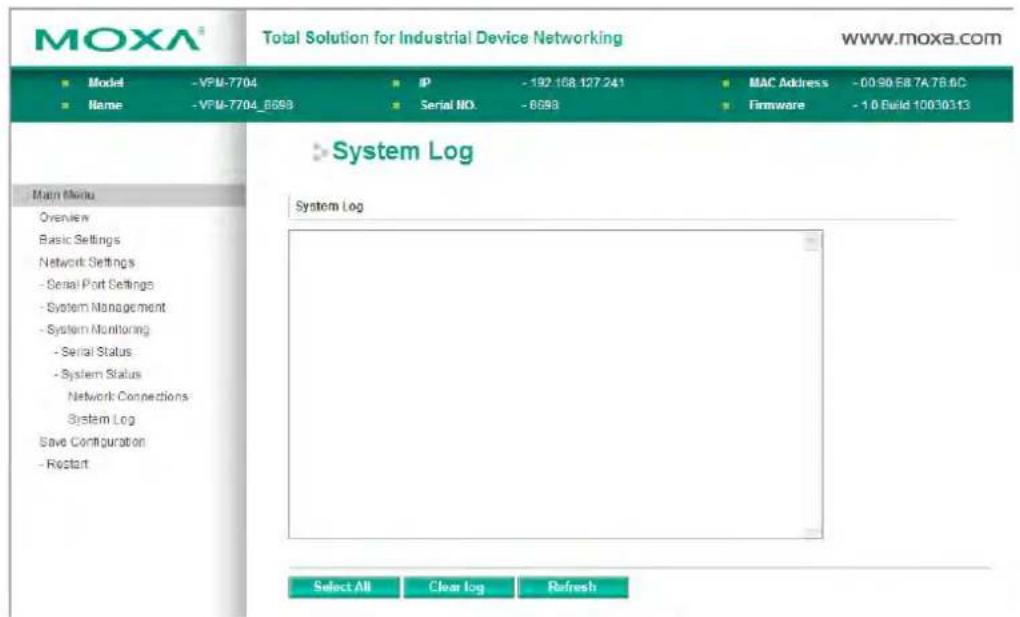
This option displays the system log. You may click Select All to select the entire log if you wish to copy and paste the contents into a text file.
Save Configuration
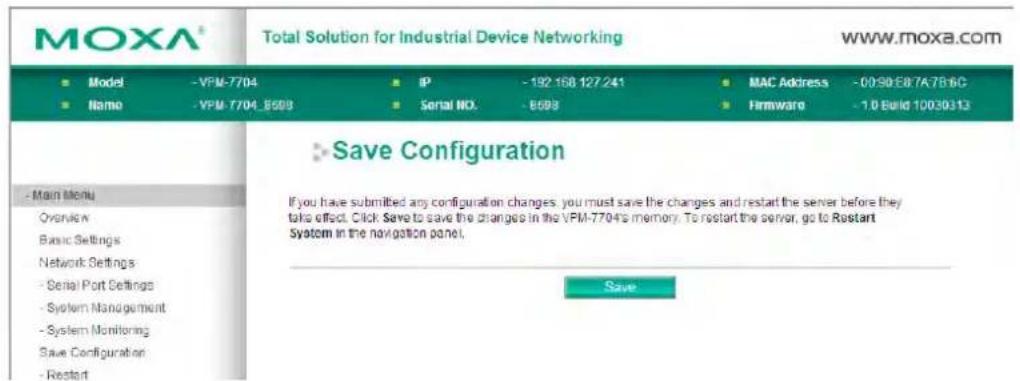
Click Save Configuration and then click Save to save your submitted configuration changes. These configuration changes will take effect once the VPM-7704 is restarts. If you do not save your changes before restarting, they will be discarded.
Restart: Restart System
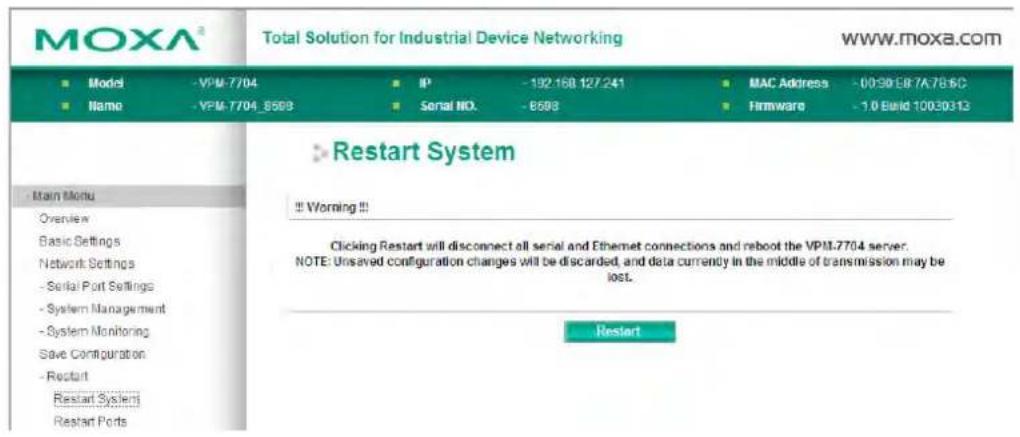
Use to Restart System under Restart and click the Restart button to restart the VPM-7704. If you do not save your configuration changes before you restart the system those changes will be lost.
Restart: Restart Ports
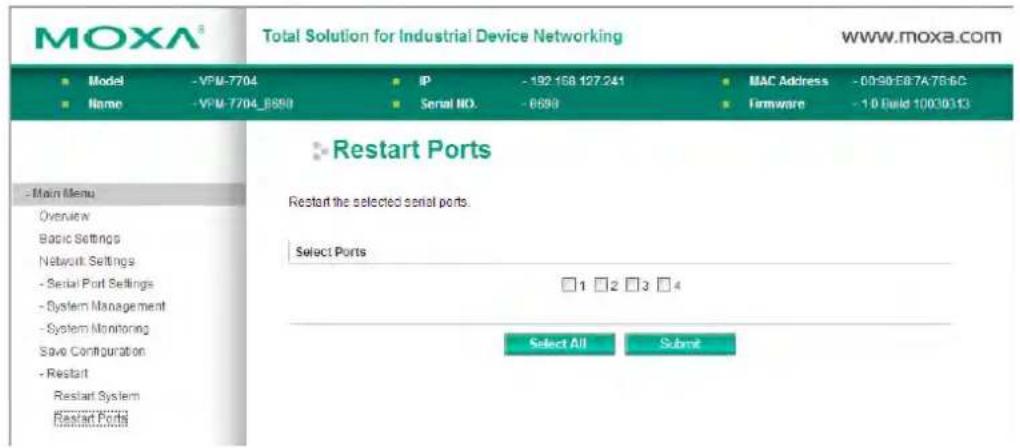
Use to Restart Ports under Restart and then select the ports you wish to restart. Click Select All to select all the ports. Click the Submit button to restart the selected ports.
The following topics are covered in this chapter:
Overview
☐ Installing a Virtual COM port on your computer
COM Mapping
Configure the mapped COM ports
□ Linux Real TTY Drivers
Basic Procedures
Hardware Setup
Installing Linux Real TTY Driver Files
Mapping TTY Ports
➢ Removing Mapped TTY Ports
➢ Removing Linux Driver Files
Overview
With a virtual RealCOM serial port it is possible to manage, monitor and modify your VPM-7704 device from a remote location.
You can use the VPort 700 utility to easily configure your VPM-7704 device server over the network. Once the VPort 700 utility is installed, the most important step is to use COM Mapping to create a virtual COM port on your computer. Please refer to the VPort 700 series user's manual for detailed VPort utility installation instructions.
Installing a Virtual COM port on your computer
COM Mapping
Run the VPort 700 series configurator and press the search button at the upper left to find all detectable VPort 700 series products.
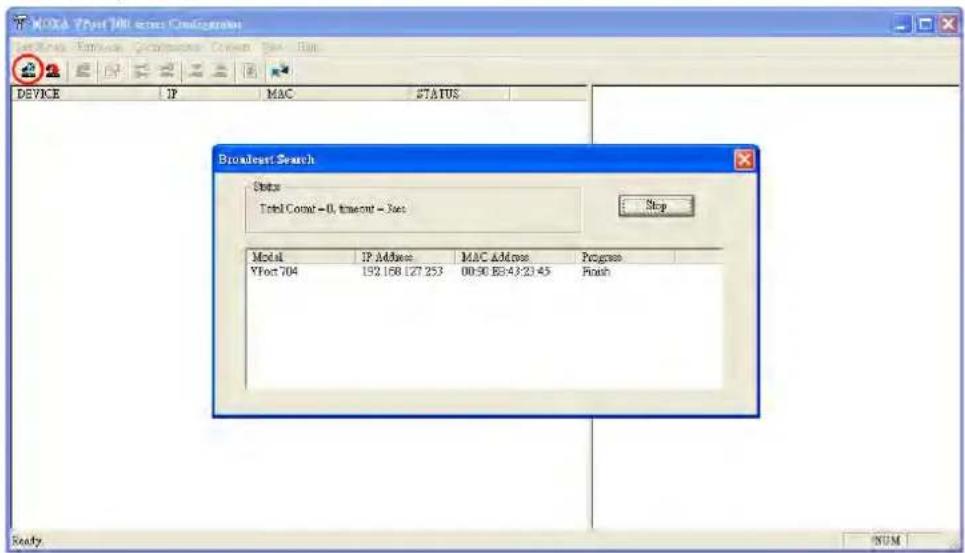
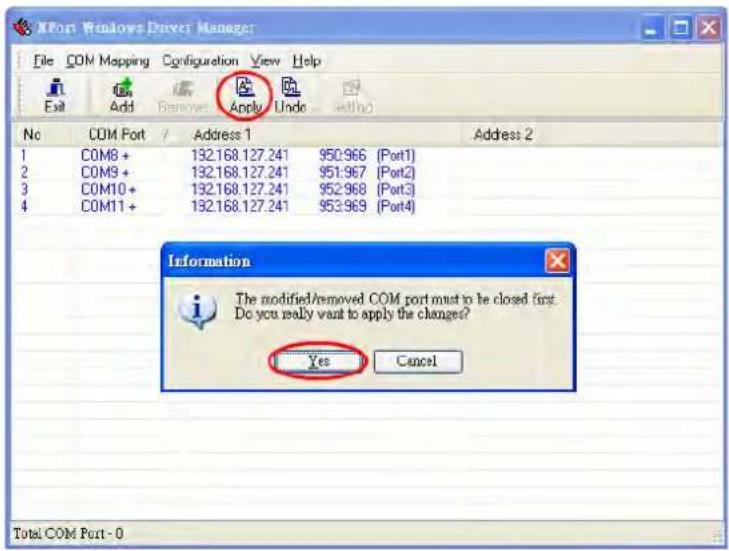
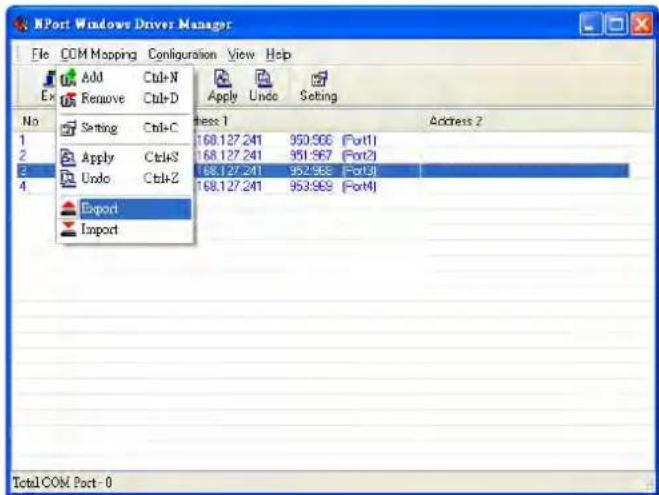
Double-left-click to launch NPort Windows Driver Manager. The NPort Windows Driver Manager will help you easily install a virtual COM port on your computer. Available COM ports and their mappings appear in blue until they are activated. Activating a COM port saves the information in the host system registry and makes the COM port available for use. The host computer will not have the ability to use the COM port until the COM ports are activated. Click Apply and then click Yes to activate the COM ports at this time, or click No to activate the COM ports later.
Configure the mapped COM ports
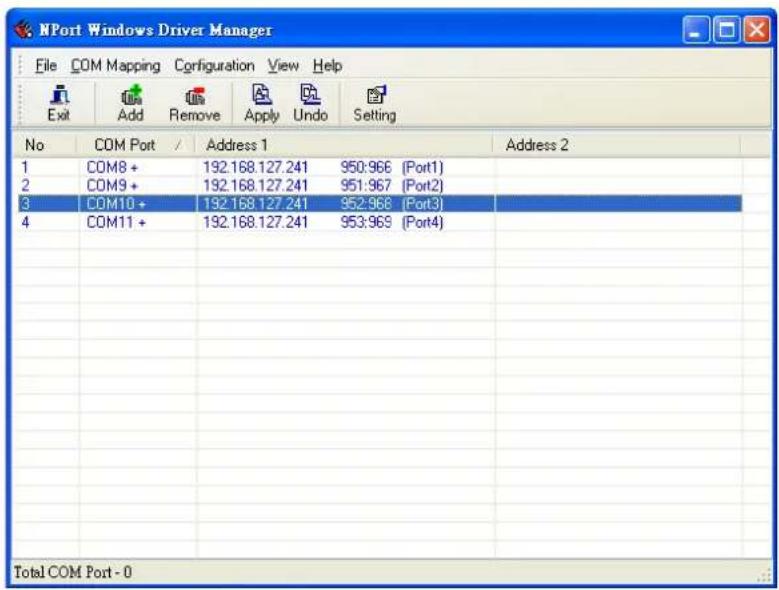
For Real COM Mode to re-configure the settings for a particular serial port on the VPM-7704 select the row corresponding to the desired port and then click the Setting button.
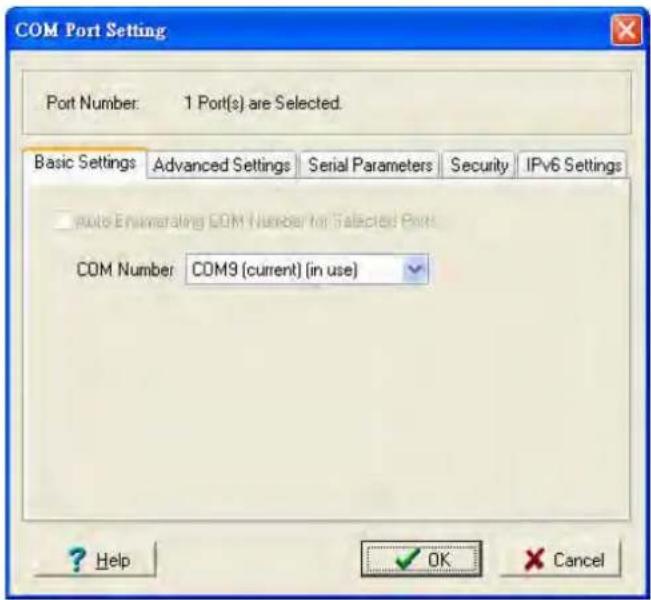
Click the Basic Settings tab. Use the COM Number drop-down list to select a COM number to be assigned to this serial port. Select the Auto Enumerating COM Number for Selected Ports option to automatically assign available COM numbers in sequence to selected serial ports. Note that ports that are "in use" will be labeled accordingly.
Click the Advanced Settings tab to modify Tx Mode, FIFO, and Flash Flush.
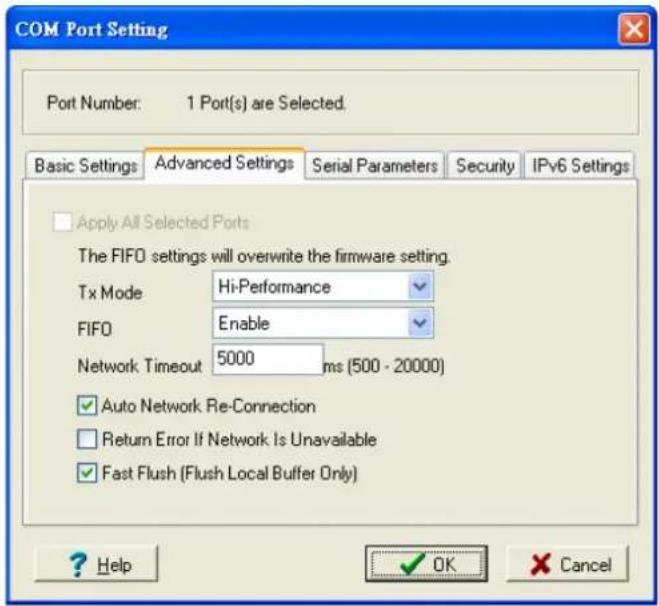
Tx Mode
Hi-Performance is the default for Tx mode. After the driver sends data to the VPM-7704, the driver immediately issues a "Tx Empty" response to the program. Under Classical mode, the driver will not send the "Tx Empty" response until after confirmation is received from the VPM-7704's serial port. This causes lower throughput. Classical mode is recommended if you want to ensure that all data is sent out before further processing.
FIFO
If FIFO is Disabled, the VPM-7704 will transmit one byte each time the Tx FIFO becomes empty, and an Rx interrupt will be generated for each incoming byte. This will result in a faster response and lower throughput.
Network Timeout
You can use this option to prevent blocking if the target NPort is unavailable.
Auto Network Re-Connection
With this option enabled, the driver will repeatedly attempt to re-establish the TCP connection if the VPM-7704 does not respond to background "check alive" packets.
Return error if network is unavailable
If this option is disabled, the driver will not return any error even when a connection cannot be established to the VPM-7704. With this option enabled, calling the Win32 Comm function will result in the error return code "STATUS_NETWORK_UNREACHABLE" when a connection cannot be established to the VPM-7704. This usually means that your host's network connection is down, perhaps due to a cable being disconnected. However, if you can reach other network devices, it may be that the VPM-7704 is not powered on or is disconnected. Note that Auto Network Re-Connection must be enabled in order to use this function.
Fast Flush (only flushes the local buffer)
For some applications, the user's program will use the Win32 "PurgeComm()" function before it reads or writes data. After a program uses this PurgeComm() function, the NPort driver continues to query the NPort's firmware several times to make sure no data is queued in the NPort's firmware buffer, rather than just flushing the local buffer. This design is used to satisfy some special considerations. However, it may take more time (about several hundred milliseconds) than a native COM1 due to the additional time spent communicating across the Ethernet connection. This is why PurgeComm() works significantly faster with native COM ports on the PC than with mapped COM ports on the VPM-7704. In order to accommodate other applications that require a faster response time, the new NPort driver implements a new Fast Flush option. By default, this function is enabled. If you have disabled Fast Flush and find that COM ports mapped to the VPM-7704 perform significantly slower than when using a native COM port, try to verify if "PurgeComm()" functions are used in your application. If so, try enabling the Fast Flush function and see if there is a significant improvement in performance.
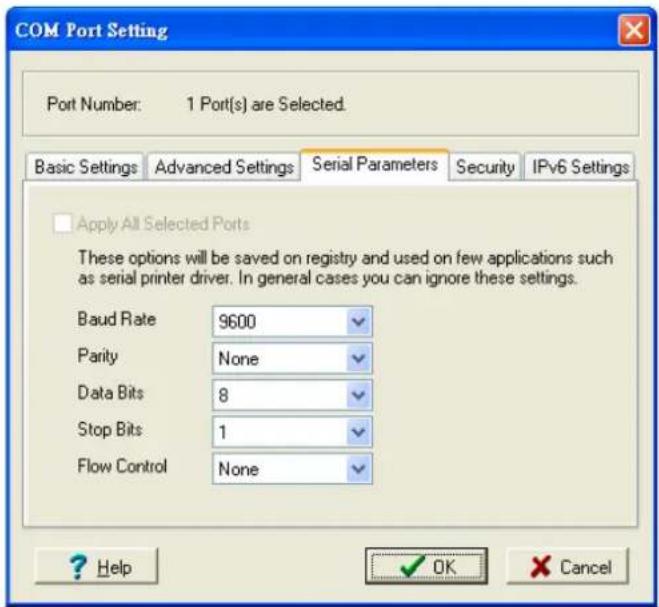
The following figure shows the default Serial Parameters settings when the VPM-7704 is powered on. However, the program can redefine the serial parameters to different values after the program opens the port via the Win32 API.
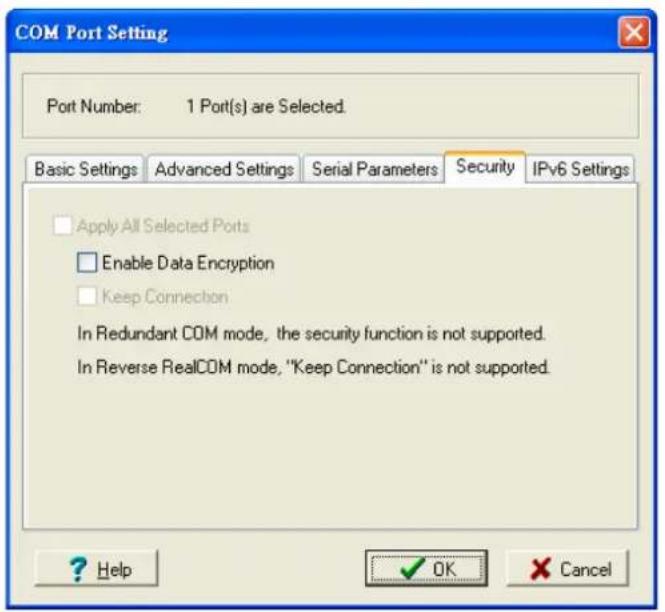
Click the Security tab to configure security settings. Select the Enable Data Encryption option to enable data to be encrypted when transmitted over the COM ports. After selecting the encryption option, select the Keep connection option to start encrypting COM port communications immediately without restarting the COM ports. (If your application will open/close COM ports frequently and the VPM-7704 is only for one host, you can enable this option to speed up the opening/closing time. However, this will result in your host tying up the COM port so that other hosts cannot use it.) Select the Apply All Selected Ports option to enable the security settings to be applied to all COM ports.
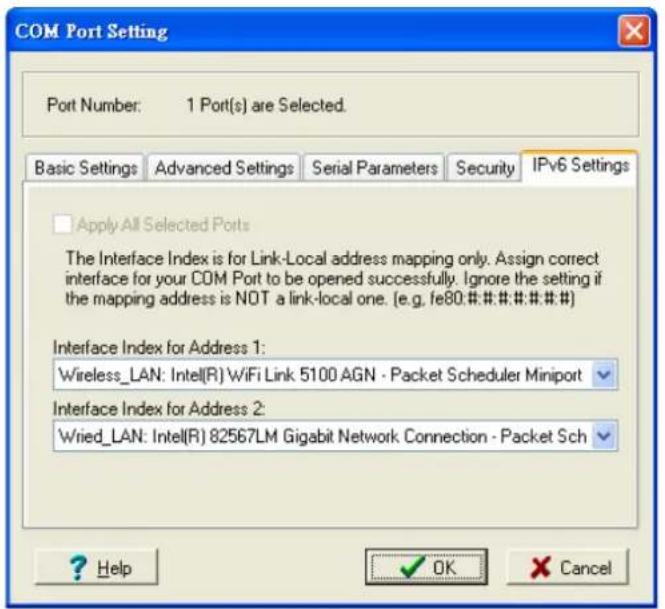
Click the IPv6 Setting tab to configure the interface for Link-Local address mapping. When the global IPv6 address is used, this function can be ignored. When the Link-Local IPv6 address is used, users should select an interface for routing on interface index for address 1. The interface index for address 2 is for "redundant COM mode," which applies only to the CN 2600 series.
To save the configuration to a text file, select Export from the COM Mapping menu. You will then be able to import this configuration file to another host and use the same COM Mapping settings in the other host.
The first way is with On-line COM Mapping. On-line COM Mapping will check to make sure that the VPM-7704 is connected correctly to the network, and then install the driver on the host computer.
The second way is with Off-line COM Installation, without first connecting the VPM-7704 to the network. Off-line COM Mapping can decrease the system integrator's effort by solving different field problems. Via off-line installation, users can first process software installation for the host, and then install the VPM-7704 to different fields.
Use the following procedure to map COM ports:
- On-line COM Mapping:
Connect the VPM-7704 to the network → Set the VPM-7704 to the proper IP address → Map COMs to your host → Apply Change. - Off-line COM Mapping:
Map COMs to your host → Apply Change → Connect the VPM-7704 to the network → Configure the VPM-7704's IP address.
Linux Real TTY Drivers
Basic Procedures
To map a VPM-7704 serial port to a Linux host's tty port, follow these instructions:
- Set up the VPM-7704. After verifying that the IP configuration works and you can access the VPM-7704 (by using ping, telnet, etc.), configure the desired serial port on the VPM-7704 to Real COM mode.
- Install the Linux Real tty driver files on the host
- Map the serial port to the host's tty port
Hardware Setup
Before proceeding with the software installation, make sure you have completed the hardware installation. After installing the hardware, you must configure the operating mode of the serial port on your VPM-7704 to Real COM mode.
Installing Linux Real TTY Driver Files
- Obtain the driver file from the included CD-ROM or the Moxa website, at http://www.moxa.com.
- Log in to the console as a super user (root).
-
Execute cd / to go to the root directory.
-
Copy the driver file npreal2xx.tgz to the / directory.
- Execute tar xvfz npreal2xx.tgz to extract all files into the system.
- Execute /tmp/moxa/mxinst.
For RedHat AS/ES/WS and Fedora Core1, append an extra argument as follows:
# /tmp/moxa/mxinst SP1
The shell script will install the driver files automatically.
- After installing the driver, you will be able to see several files in the /usr/lib/npreal2/driver folder:
mxaddsvr (Add Server, mapping tty port)
mxdelsvr (Delete Server, un-mapping tty port)
mxloadsvr (Reload Server)
mxmknod (Create device node/tty port)
mxrmnod (Remove device node/tty port)
mxuninst (Remove tty port and driver files)
At this point, you will be ready to map the NPort serial port to the system tty port.
Mapping TTY Ports
Make sure that you set the operation mode of the desired VPM-7704 serial port to Real COM mode. After logging in as a super user, enter the directory /usr/lib/npreal2/driver and then execute mxaddsvr to map the target NPort serial port to the host tty ports. The syntax of mxaddsvr is as follows:
mxaddsvr [NPort IP Address] [Total Ports] ([Data port] [Cmd port])
The mxaddsvr command performs the following actions:
- Modifies npreal2d.cf.
- Creates tty ports in directory /dev with major & minor number configured in npreal2d.cf.
- Restarts the driver.
Mapping tty ports automatically
To map tty ports automatically, you may execute mxaddsvr with just the IP address and number of ports, as in the following example:
# cd / usr/ lib/ npreal2/ driver
# ./mxaddsvr 192.168.3.4 4
In this example, 4 tty ports will be added, all with IP 192.168.3.4, with data ports from 950 to 953 and command ports from 966 to 969.
Mapping tty ports manually
To map tty ports manually, you may execute mxaddsvr and manually specify the data and command ports, as in the following example:
# cd / usr/ lib/ npreal2/ driver
# ./ mxaddsvr 192.168.3.4 4 4001 966
In this example, 4 tty ports will be added, all with IP 192.168.3.4, with data ports from 4001 to 4004 and command ports from 966 to 969.
Removing Mapped TTY Ports
After logging in as root, enter the directory /usr/lib/npreal2/driver and then execute mxdelsvr to delete a server. The syntax of mxdelsvr is:
mxdelsvr [IP Address]
Example:
# cd / usr/ lib/ npreal2/ driver
# ./ mxdelsvr 192.168.3.4
The following actions are performed when executing mxdelsvr:
- Modify npreal2d.cf.
- Remove the relevant tty ports in directory /dev.
- Restart the driver.
If the IP address is not provided in the command line, the program will list the installed servers and total ports on the screen. You will need to choose a server from the list for deletion.
Removing Linux Driver Files
A utility is included that will remove all driver files, mapped tty ports, and unload the driver. To do this, you only need to enter the directory /usr/lib/npreal2/driver, then execute mxuninst to uninstall the driver. This program will perform the following actions:
Unload the driver.
Delete all files and directories in /usr/lib/npreal2
Delete directory /usr/lib/npreal2
Modify the system initializing script file.
Serial Port Pinouts
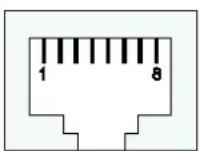
RS-232/422/485 Port Pinouts
| Pin | RS-232 | RS-4224-wire RS-485 | 2-wireRS-485 |
| 1 | DSR - - | ||
| 2 | RTS TxD+ | - | |
| 3 | GND GND GND | ||
| 4 | TxD TxD- | - | |
| 5 | RxD | RxD+ | Data+ |
| 6 | DCD | RxD- | Data- |
| 7 | CTS | -- | |
| 8 | DTR | -- |

CE Warming
This is a Class A product. In a domestic environment, this product may cause radio interference in which case the user may be required to take appropriate measures.
Federal Communications Commission Statement
FCC - This device complies with part 15 of the FCC Rules. Operation is subject to the following two conditions: (1) This device may not cause harmful interference, and (2) this device must accept any interference received, including interference that may cause undesired operation.

FCC Warming
This equipment has been tested and found to comply with the limits for a Class A digital device, pursuant to part 15 of the FCC Rules. These limits are designed to provide reasonable protection against harmful interference when the equipment is operated in a commercial environment. This equipment generates, uses, and can radiate radio frequency energy and, if not installed and used in accordance with the instruction manual, may cause harmful interference to radio communications. Operation of this equipment in a residential area is likely to cause harmful interference in which case the user will be required to correct the interference at his own expense.
- VPM-7704 User's Manual
- Copyright Notice
- Trademarks
- Disclaimer
- Technical Support Contact Information
- Moxa Americas
- Moxa China (Shanghai office)
- Moxa Europe
- Moxa Asia-Pacific
- Getting Started.... 2-1
- Choosing the Proper Operation Mode 3-1
- Web Console Configuration 4-1
- Installing VPM-7704 Driver 5-1
- Port Pinout Diagrams....A-1
- Compliance Notice...... B-1
- Overview
- Package Checklist
- Standard Accessories
- Product Features
- Product Specifications
- VPM-7704 Appearance
- VPM-7704 LED Indicators
- Adjustable Pull High/ low Resistors for the RS-485 Port
- ATTENTION
- Real COM Mode
- TCP Server Mode
- TCP Client Mode
- UDP Mode
- Pair Connection Mode
- Disabled Mode
- Opening Your Browser
- Basic Settings
- Server Settings
- Console Settings
- Network Settings
- Serial Port Settings
- Operation Modes
- TCP alive check time
- Inactivity time
- Pair Connection Master Mode
- Pair Connection Slave Mode
- Serial Parameters
- System Management
- Misc. Network Settings
- Accessible IP List
- SNMP
- System Log Settings
- Syslog Settings
- Auto Warning Settings
- Event Settings
- Cold start
- Warm start
- Console login authentication failure
- IP address changed
- Serial Event Settings
- DCD changed
- DSR changed
- E-mail Alert
- Maintenance
- Firmware Upgrade
- Configuration Import
- Configuration Export
- Load Factory Default
- System Monitoring
- Serial Status
- Serial Status: Serial to Network Connections
- Serial Status: Serial Port Status
- Serial Status: Serial Port Error Count
- Serial Status: Serial Port Settings
- System Status
- System Status: Network Connections
- System Status: System Log
- Save Configuration
- Restart: Restart System
- Restart: Restart Ports
- Installing a Virtual COM port on your computer
- COM Mapping
- Configure the mapped COM ports
- Tx Mode
- FIFO
- Network Timeout
- Auto Network Re-Connection
- Return error if network is unavailable
- Fast Flush (only flushes the local buffer)
- Linux Real TTY Drivers
- Basic Procedures
- Hardware Setup
- Installing Linux Real TTY Driver Files
- Mapping TTY Ports
- Mapping tty ports automatically
- Mapping tty ports manually
- Removing Mapped TTY Ports
- Removing Linux Driver Files
- Serial Port Pinouts
- CE Warming
- Federal Communications Commission Statement
- FCC Warming
Brand : Moxa
Model : VPM-7704
Category : Server