
LW242B - Baby monitor Lorex - Free user manual and instructions
Find the device manual for free LW242B Lorex in PDF.


| Product Type | Video Baby Monitor |
| Brand | Lorex |
| Model | LW242B |
| Camera Image Sensor | 1/5" CMOS |
| Infrared LEDs | 8 pcs for night vision |
| Monitor Display | 3.5" TFT LCD |
| Wireless Frequency | 2400–2483.5 MHz |
| Maximum Range (outdoor) | 450 ft (138 m) line of sight |
| Maximum Range (indoor) | 150 ft (46 m) line of sight |
| Camera Dimensions | 2.8 x 2.4 x 6.1 in (72 x 62 x 155 mm) |
| Monitor Dimensions | 5.0 x 0.7 x 3.0 in (126 x 17 x 76 mm) |
| Camera Weight | 0.25 lb (0.10 kg) |
| Monitor Weight | 0.35 lb (0.16 kg) |
| Power Adapter (Camera) | 5V DC, 1A |
| Power Adapter (Monitor) | 5V DC, 1A |
| Monitor Battery | Built-in 3.7V Li-Polymer, up to 4.5 hours |
| Monitoring Capacity | Up to 4 cameras |
| Two-Way Talk | Yes, push-to-talk on monitor |
| Music Playback | Pre-loaded lullabies |
| Remote Viewing | Via Skype (USB connection to PC/Mac) |
| Temperature Sensor | Yes, in camera; alert range configurable |
| Night Light | Yes, on camera |
| Wall Mountable | Yes (camera) |
| Safety Features | Auto mute, alarm volume, tamper-resistant |
| Cleaning Instructions | Damp cloth; no solvents |
Frequently Asked Questions - LW242B Lorex
User questions about LW242B Lorex
0 question about this device. Answer the ones you know or ask your own.
Ask a new question about this device
Download the instructions for your Baby monitor in PDF format for free! Find your manual LW242B - Lorex and take your electronic device back in hand. On this page are published all the documents necessary for the use of your device. LW242B by Lorex.
USER MANUAL LW242B Lorex
natural_image
White LOREX portable phone with a white earphone and a digital camera displaying three scenes: home visits, family photos, and a baby photo (no visible text or symbols on device body)Welcome!
Thank you for purchasing the Lorex LIVE video monitor. This user's guide refers to the following models:
- LW2400
Contents
Before you start, make sure you have the contents listed below.
- 1x Video monitor
- 1x Camera
- 1x Video monitor power adapter
- 1x Camera power adapter
- 1x mini-USB cable
- 1x User's guide
- 1x Quick start guide
- 1x Driver CD
- 1x Mounting screw kit
- 3x Cable clips
Safety Instructions
WARNING
This video monitor is compliant with all relevant standards regarding electromagnetic fields and is, when handled as described in the User's Guide, safe to use. Therefore, always read the instructions in this user's guide carefully before using the device.
- Adult assembly is required. Keep small parts away from children when assembling.
- This product is not a toy. Do not allow children to play with it.
- This video monitor is not a substitute for responsible adult supervision.
- Keep the cords out of reach from children.
- Do not cover the video monitor with a towel or blanket.
- Never use extension cords with power adapters.
- Only use the power adapters provided.
- Test the video monitor before use. Become familiar with its functions.
- Do not use the video monitor near water.
- Do not install the video monitor near a heat source.
- Only insert batteries/battery pack of the same type.
- Do not touch the plug contacts with sharp or metal objects. Only use the chargers and power adapters provided. Do not use other chargers or power adapters as this may damage the device and battery pack.
- Keep this user's guide for future reference.
CAUTION
Risk of explosion if battery is replaced by an incorrect type.
- DISPOSE OF OR RECYCLE BATTERIES PROPERLY IN ACCORDANCE WITH APPLICABLE LAWS, which may vary by location.
- Insert batteries with the correct polarity.
- Do not mix new and used batteries.
- Do not mix alkaline, standard, and rechargeable batteries.
- Remove exhausted batteries from the product.
- Keep all batteries away from children.
Using this product as a baby monitor
If you intend to use this wireless video monitor as a baby monitor, we advise you to take the following precautions to avoid possible injury to infants:
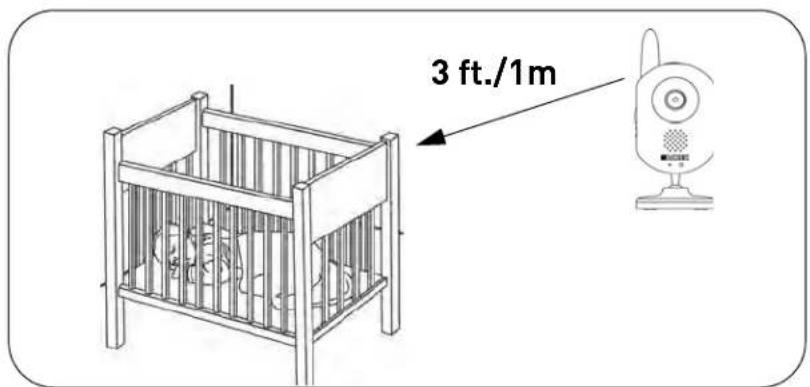
- DO NOT place baby audio and video camera monitors too close to cribs, bassinets, play yards, and other safe sleep environments for infants.
- MAKE SURE to run all power adapter cords where they are unlikely to be tripped over and are out of arms reach of your infant. Keep them at least 3 ft./1m away
- MAKE SURE baby audio and video camera monitors are on a stable footing so they cannot be easily knocked over
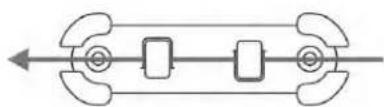
- Use the included cable clips to keep the power cord out of reach from infants and young children.
NOTE: These precautions are important even if your infant is not yet standing or mobile.
Using the cable clips
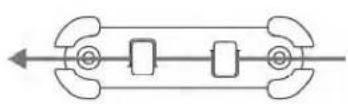
Option 1:
Thread the extra cable through
the cable clip notches.
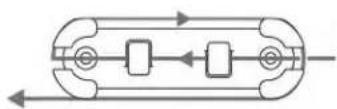
Option 2:
Thread the extra cable through the cable clip notches. Wrap the excess cable around the clip.
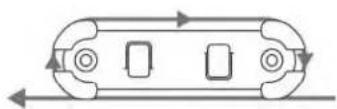
Option 3:
Wrap the excess cable around the clip.
Table of Contents
Video monitor overview.... 1
Monitor display icons .... 3
Camera overview 4
Getting started 5
Step 1 of 2: Powering on the camera 5
Step 2 of 2: Powering on the video monitor 6
Testing your setup 6
Camera setup 7
Adjusting the camera sensitivity 7
Adjusting the camera volume 7
Turning on the camera night light 7
Video monitor setup 7
Unlocking the video monitor antenna 7
Reading the power indicator LED 8
Sequence view 8
Viewing multiple cameras (Quad view) 8
Using the talk function 9
Music 10
Turning the video monitor screen on/off 11
Configuring your video monitor 12
Using the joystick to navigate menus 12
Enabling the Auto-Mute feature 12
Changing the date and time 13
Adjusting the alarm volume 13
Adjusting the screen brightness 14
Adjusting the timer settings 14
Adjusting the temperature unit of measurement 15
Configuring the temperature alert range 15
Restoring default settings 16
Viewing your camera remotely using Skype.... 17
How it works ....17
System requirements 17
Connecting to Skype on a PC 18
Step 1 of 6: Installing the camera driver for PC 18
Step 2 of 6: Connecting the video monitor to the PC 19
Step 3 of 6: Creating a Skype account .... 19
Step 4 of 6: Configuring Skype 21
Step 5 of 6: Send a contact request .... 22
Step 6 of 6: Test the connection ..... 23
Connecting to Skype on a Mac 24
Step 1 of 6: Installing the camera driver for Mac OS 24
Step 2 of 6: Connecting the video monitor or receiver to your computer 24
Step 3 of 6: Creating a Skype account 25
Step 4 of 6: Configuring Skype 26
Step 5 of 6: Send a contact request 27
Step 6 of 6: Test the connection ..... 28
If you do not have a Skype account.... 29
Changing the camera view on Skype 30
Viewing a camera on your smart phone or tablet 31
Supported apps & devices 31
Prerequisites 31
Viewing your camera on iPhone 31
Viewing your camera on an Android smartphone or tablet 32
Troubleshooting 34
Troubleshooting (continued) 35
Frequently asked questions 36
Add-on cameras and accessories.... 38
Pan/tilt control (requires LW2451AC1) 39
Pairing cameras 40
Technical specifications.... 41
Cleaning and disposal 42
Cleaning 42
Disposal of the device 42
Notices 43
FCC notice 43
IC notice 43
Wall mounting your camera 44
Video monitor overview
Antenna Unlock Switch
Slide the switch to release the monitor antenna.
Menu Button
Press to access the monitor menu options. Press Menu again to exit.
SCAN LED
Lights up when the video monitor is in Scan mode.
Audio Level Indicator
Displays the level of sound detected by the camera.
Power LED
Glows green to indicate unit is powered on. Blinks when the battery is low.
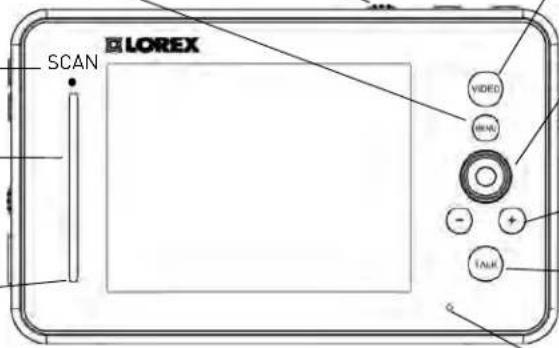
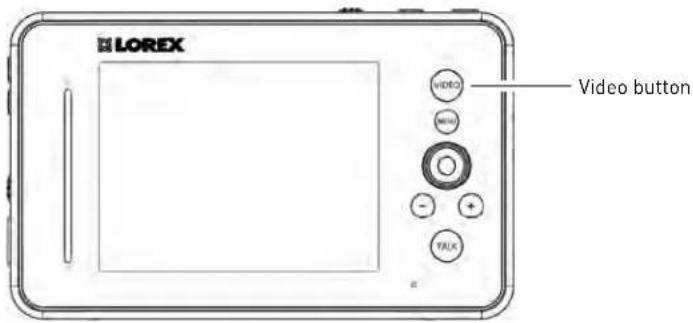
Video Button
Press the Video button to turn off the screen until the Video button is pressed again. The speaker will remain on.
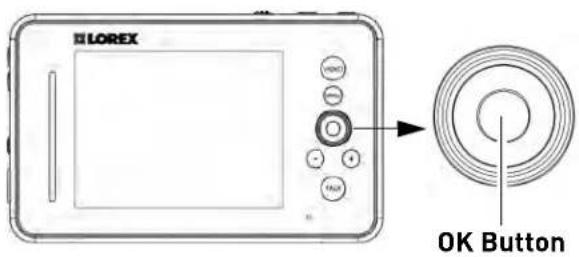
Joystick
Use to navigate monitor menus. Press down on the joystick to confirm a selection.
Volume Control
Press + / - to control the volume level.
Talk Button
Hold the talk button to enable two-way audio between the video monitor and camera.
Microphone
Allows you to speak to the person on the camera side when you press the Talk button.
Music Buttons
Press the button once to begin playing a tune. Press the button again to stop the tune.
Press the button to skip to the next tune.
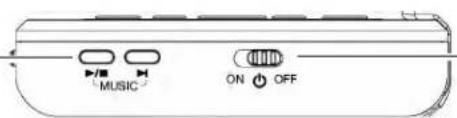
ON/OFF Switch
Slide the power switch to the ON position to turn the video monitor on.
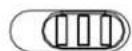
On Off
Mini-USB Port
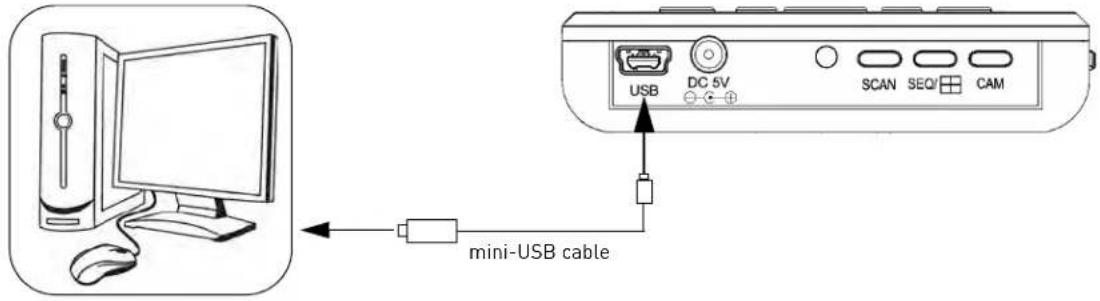
Connect a mini-USB cable (included) between the video monitor and a computer to view video remotely using Skype (setup required).
Power Port
Connect the power adapter into the power port to charge the video monitor.
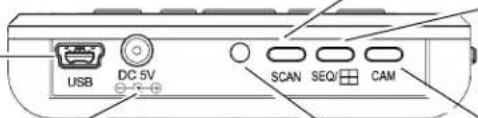
Scan Button
Turns off the video monitor, and waits for a camera to detect a sound. When sound is detected, the video monitor turns back on.
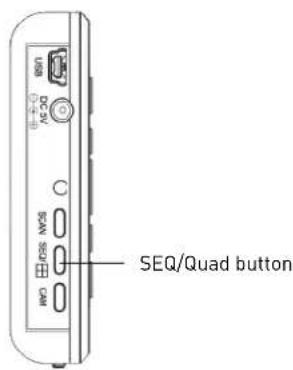
Sequence/Quad Button
Press the Sequence/Quad button to view video in Quad view (4 screen split view), or in Sequence view.
Cam Button
Press the Cam button to manually switch between channels 1-4.
Charging LED Indicator
Glows red to indicate video monitor is charging. Glows green to indicate video monitor is finished charging.
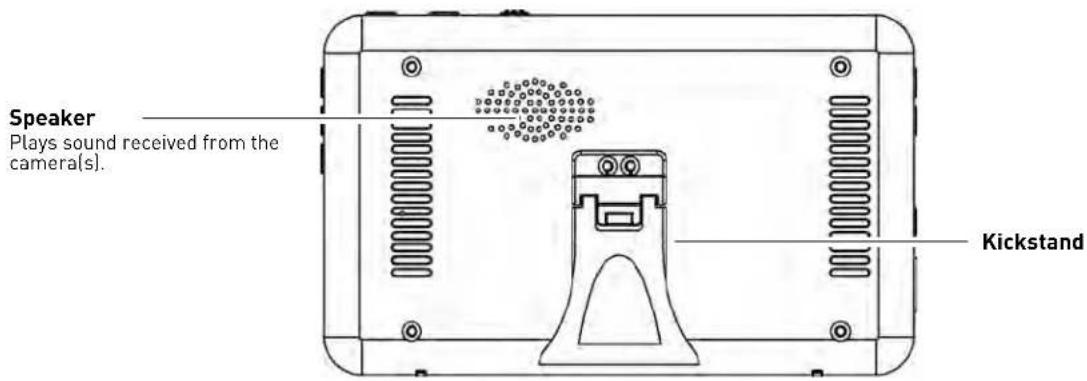
Using the joystick to navigate menus
The joystick allows you to navigate through the video monitor menus.
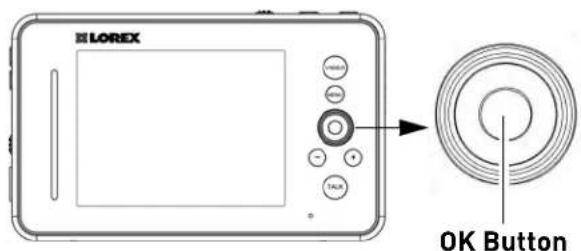
Menu Navigation
Step 1: Press the Menu button on the video monitor.
Step 2: Move the joystick up, down, left, or right to navigate through the menus.
Step 3: Press down on the OK button to confirm a selection or press Menu to exit menus without saving changes.
Monitor display icons
| Icon Meaning | |
| [42YZ] | No signal between the camera and video monitor. |
| [39HZ] | Full signal between the camera and video monitor. |
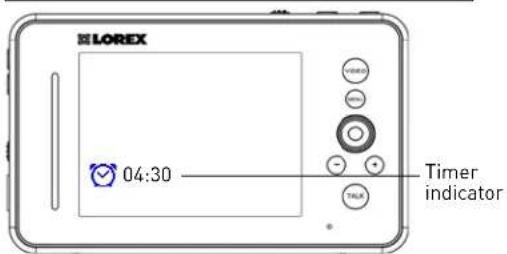
| [62WK] | Timer is enabled. |
 | The video monitor audio is muted. |
| [34D8] | The camera night light is on. |
| [38ZZ] | Talk function is enabled. You can now speak into the video monitor to talk to the camera. Release the Talk button on the video monitor to listen to audio from the camera. |
| CAM1 | Indicates what channel the video monitor is on. |
| CHARGE BATTERY | The video monitor battery is low. |
| OUT OF RANGE | The camera is out of range. Move the camera closer to the video monitor. |
Camera overview
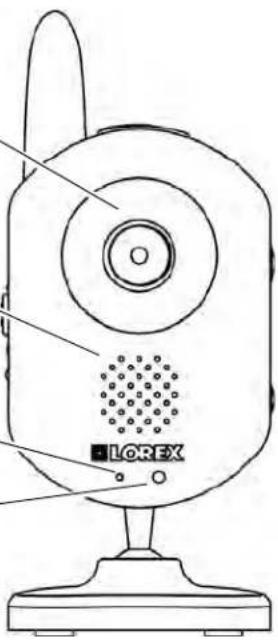
Infrared LEDS
Infrared (IR) LEDs that allow you to see in the dark.
Speaker
The speaker allows you to hear the person speaking into the video monitor.
Microphone
IR Light Sensor
Detects the level of light in the room to trigger night vision.
natural_image
Line drawing of a retro-style device with lens and speaker, labeled 'LOREX' (no text or symbols on the device itself)Night Light Button
Press to activate the camera's night light.
Temperature Sensor
Detects the room's ambient temperature.
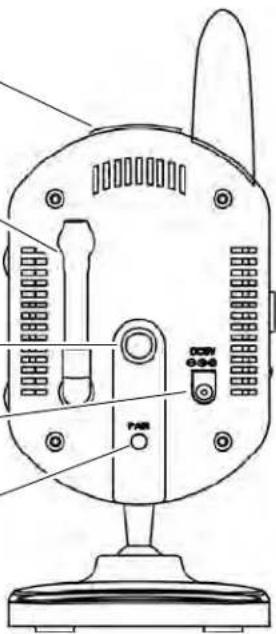
Wall Mounting Hole
Connect the stand here to wall mount the camera.
Power Port (DC5V)
Connect the power adapter.
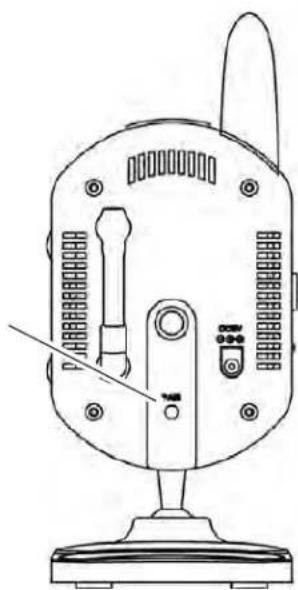
Pair Button
Press the Pair button during the pairing process with the video monitor.
natural_image
Technical line drawing of a device with labeled components (no readable text or symbols)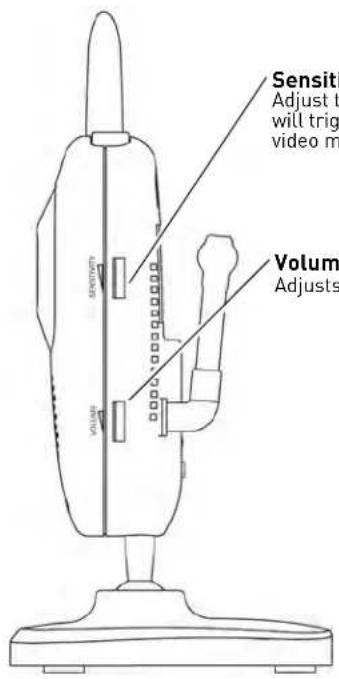
Sensitivity Dial
Adjust the audio level that will trigger an alert on the video monitor.
Volume Dial
Adjusts the speaker volume.
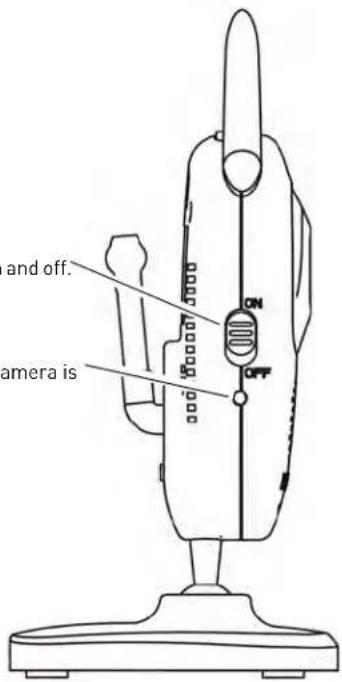
Power Switch
Turns the camera on and off.
Power LED
Glows to indicate camera is on.
Getting started
Step 1 of 2: Powering on the camera
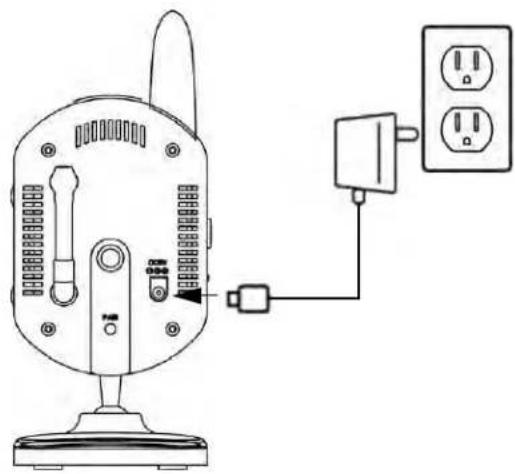
1 Connect the power adapter to the DC5V port on the camera. Connect the other end to a power outlet.
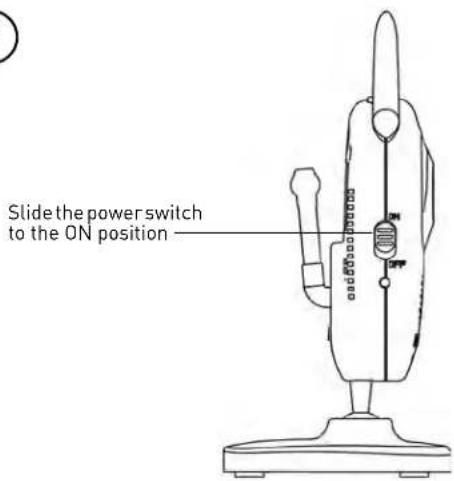
2 Slide the power switch to the ON position.
1
natural_image
Line drawing of a device with labeled ports and connections, no text or symbols present2

ATTENTION
- Keep cables and wires at least 3 feet (1 meter) away from infants or young children.
- Use the cable clips to keep the power cords out of reach.
natural_image
Pure mechanical diagram showing symmetrical components with no text or symbols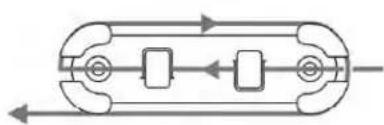
natural_image
Pure mechanical diagram showing a symmetrical component with directional arrows, no text or symbols present.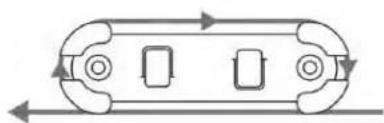
natural_image
Pure mechanical component diagram with no text, numbers, or symbolsUse the cable clips to secure and manage the cables. You can wrap the excess cable around the security clip to reduce the cable length.
NOTE: For wall mounting instructions, see page 44.
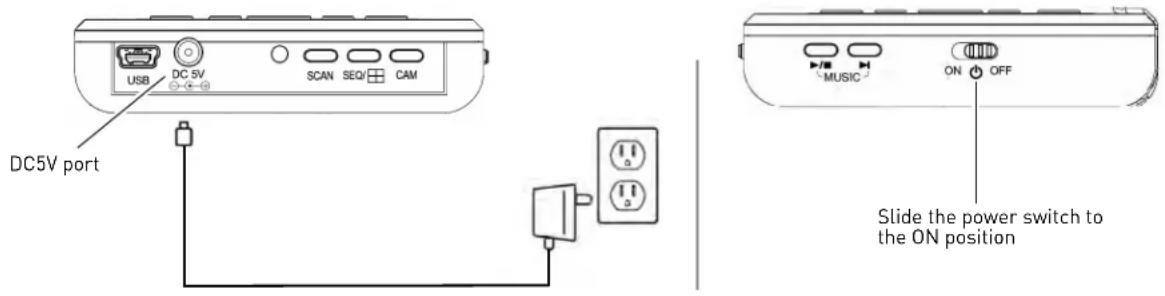
Step 2 of 2: Powering on the video monitor
1 Connect the power adapter to a power outlet and to the DC5V port on the video monitor. The video monitor's charging LED indicator glows red to indicate charging is in progress. The charging LED glows green when the video monitor is fully charged.
NOTE: It requires 6 hours to fully charge the battery.
2 Slide the power switch to ON. The video monitor will automatically scan for cameras in range.
Testing your setup
It is recommended that you test your camera setup before permanent installation so that you get the best picture and sound quality from your video monitor.
Test the camera and video monitor reception:
1 Place the camera and video monitor in two different rooms.
2 Have one person monitor the signal strength on the video monitor.
3 If the signal strength is low, have a second person move the camera to different locations in the room to find the best placement location.
Test the camera volume level:
1 Have a person with the video monitor press and hold the TALK button to confirm the camera volume level. Have the other person adjust the volume dial on the camera as required.
2 Have the person near the camera speak into it to test the sound quality on the video monitor. The person holding the video monitor can determine if the camera needs to move to a different location in the room for better sound clarity.
Camera setup
Adjusting the camera sensitivity
The camera's Sensitivity dial allows you to adjust the microphone sensitivity level for triggering an alert on the video monitor.
To adjust the camera's sensitivity level:
- Scroll the Sensitivity dial to increase camera sensitivity (i.e. softer noises trigger the camera) or reduce sensitivity (i.e. louder noises trigger the camera).
Adjusting the camera volume
The camera's speaker volume can be adjusted to the desired level. Scroll the Volume dial to increase or decrease the camera volume.
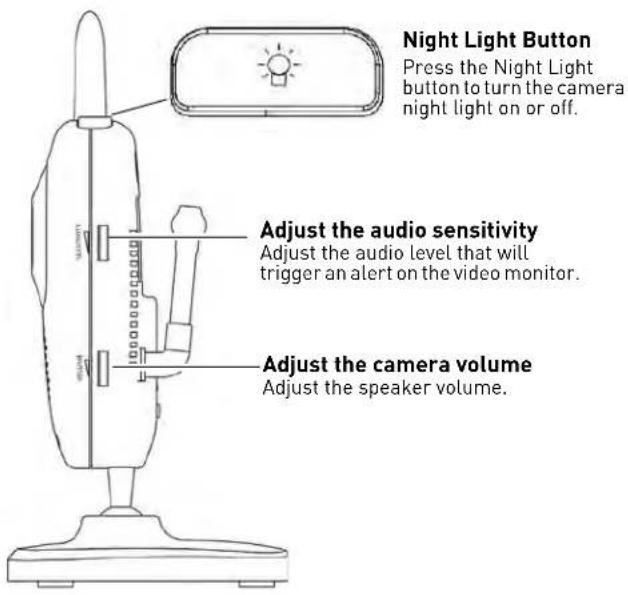
Turning on the camera night light
- Press the Night Light button on the top of the camera to turn the night light on or off. The night light button glows when the night light is on and the monitor displays the icon to indicate the camera night light is on.
Video monitor setup
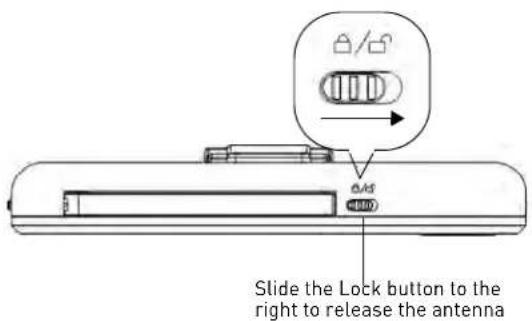
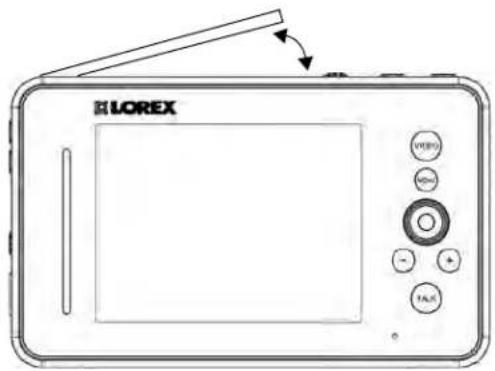
Unlocking the video monitor antenna
The video monitor has a built-in antenna that improves signal range. It is recommended that you extend antenna for optimal performance.
To unlock the monitor antenna:
- Slide the lock button to the right.
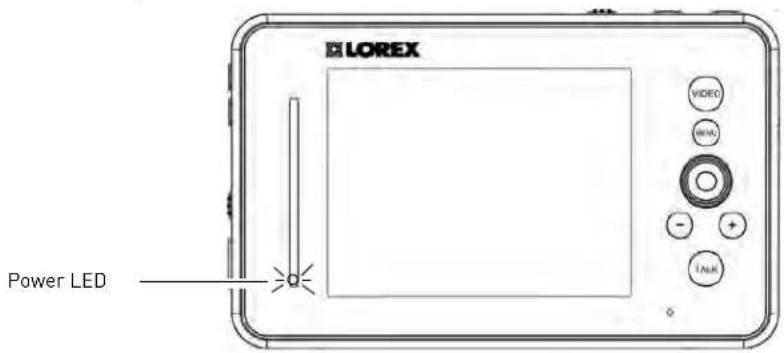
Reading the power indicator LED
The power indicator LED glows green when the monitor is powered on. When the battery is low, the power LED blinks.
Sequence view
In Sequence view, the monitor switches between paired cameras every six seconds. For example, the monitor displays channel 1 for six seconds, then channel 2 for six seconds and so on. The monitor only switches to channels that are paired with a camera.
To enable Sequence view:
- Press the SEQ/Quad button once to enter Sequence view.
To exit Sequence view:
- Press the CAM button.
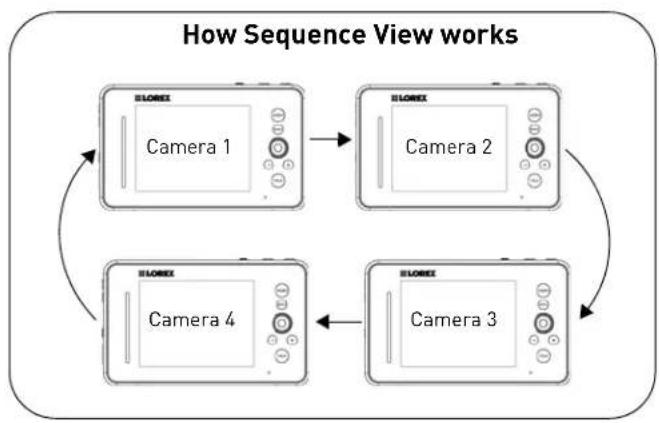
flowchart
graph TD
    A["Camera 1"] --> B["Camera 2"]
    B --> C["Camera 3"]
    C --> D["Camera 4"]
    D --> A
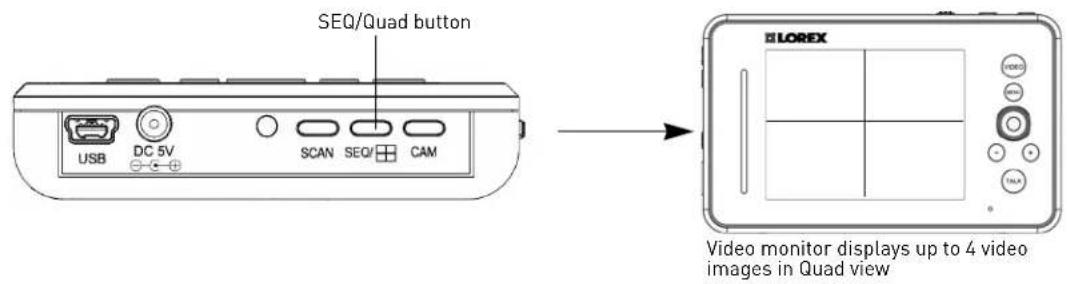
Viewing multiple cameras (Quad view)
You can view all of the paired cameras in Quad view. The video monitor supports a maximum of four cameras.
NOTE: Audio monitoring is not available in Quad view.
To view multiple cameras in Quad view:
- Press the SEQ/Quad button twice on the video monitor.
To exit Quad view:
- Press the SEQ/Quad button, and then press CAM to exit Sequence view and return to single-camera view.
Using the talk function
The talk function allows you to speak into the video monitor and have the camera speaker play your voice. The camera also has a built-in microphone, which allows the person to speak into the camera.
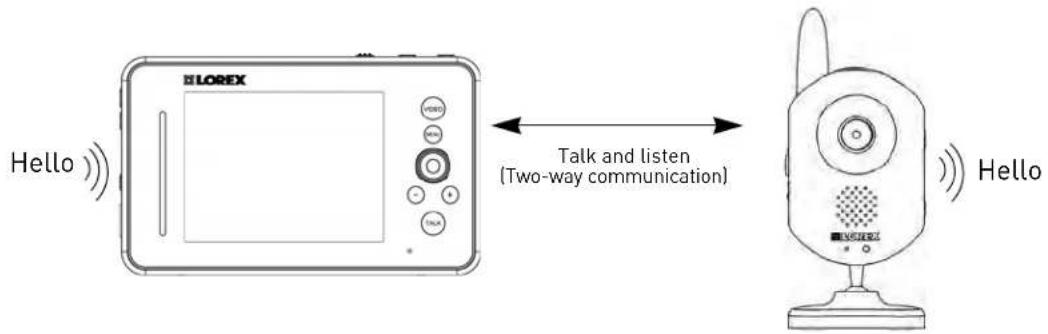
To use the talk function:
1 Adjust the volume on the camera and video monitor to the desired level.
2 Press and hold the Ta lk button on the video monitor and begin speaking. Release the Talk button when you are finished.
NOTE: You must release the Talk button on the video monitor in order to listen to the audio from the camera.
NOTE: The talk function does not work in Quad view.
Music
The music feature allows the camera to play pre-loaded tunes.
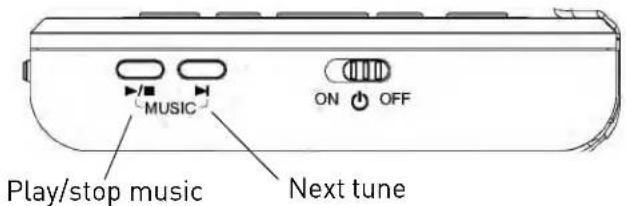
To use the music feature:
- Press the button to begin playing a tune on the camera and video monitor.
- Press the button again to stop the tune.
- Press the button to skip to the next tune. The song title appears on-screen.
NOTE: Music is not available in Quad view.
Using Scan mode
Scan mode temporarily turns off the video monitor, and waits for a camera to detect a noise. Once one of the cameras detect sounds, the video monitor automatically turns on, and beeps to notify you. This feature is especially useful if you have multiple cameras, and only want to view the camera that detects a sound (e.g. infant crying).
To enable Scan mode:
- Press the Scan button.
To disable the Scan mode:
- Press the Scan button to turn off Scan mode.
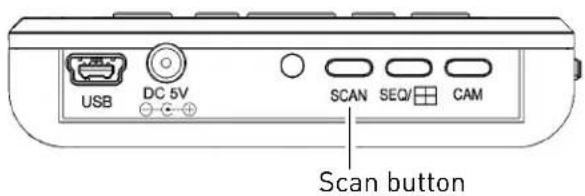
NOTE: The first camera to detect a sound will trigger the video monitor to turn on. After several seconds, the monitor turns off and begins monitoring the cameras again.
Turning the video monitor screen on/off
You can turn off the video monitor screen while still listening to audio from the camera. For example, you can monitor audio from a baby's room while you sleep and turn off the video monitor screen to conserve power.
To turn the video monitor screen on/off:
- Press the Video button to turn the screen off.
- Press the Video button again to turn the screen on.
Configuring your video monitor
Using the joystick to navigate menus
The joystick allows you to navigate through the video monitor menus.
Menu Navigation
Step 1: Press the Menu button on the video monitor.
Step 2: Move the joystick up, down, left, or right to navigate through the menus.
Step 3: Press down on the OK button to confirm a selection or press Menu to exit menus without saving changes.
Enabling the Auto-Mute feature
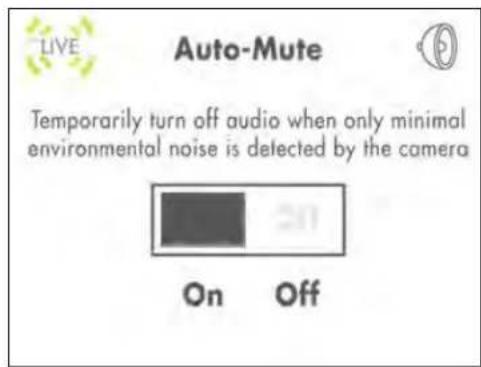
The Auto-Mute feature eliminates white noise when monitoring a room by muting the video monitor when the camera detects no audible noise. Once the camera detects a sound, the video monitor plays sound again.
To enable Auto-Mute:
1 Press the Me nu button on the video monitor.
2 Select Aut o-Mute ( ) using the joystick and press OK.
3 Select ON to enable auto mute.
4 Press the OK but ton (press down on the joystick) to save your settings.
Changing the date and time
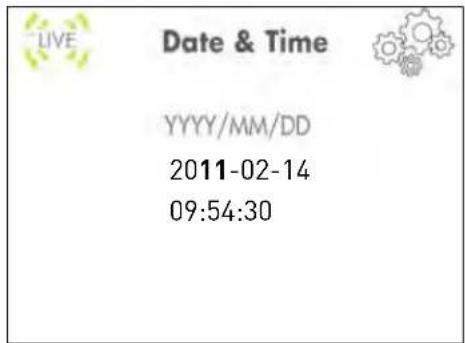
To adjust the video monitor's date and time:
1 Press the Menu button on the video monitor.
2 Select Settings (button.

) and then press the OK
3 Select Date & Time and then press the OK button.
4 Use the joystick to configure the Year, Month, Day, Hours, Minutes, and Seconds.
- Press up/down on the joystick to adjust the values.
- Press left/right to move between the year, month, and date.
• Time is in 24-hour format.
5 Press the OK but ton to save your changes, or press Menu to exit the menu without saving your changes.
Adjusting the alarm volume
The video monitor can be set to 'beep' when the camera detects audio triggers (e.g. a loud noise). You can adjust how loud the video monitor beeps when the alarm triggers.
NOTE: If you have the LW2401AC2 accessory camera, the alarm activates when motion is detected.
This is useful if you want to monitor activity in an area, but cannot keep your eyes on the video monitor.
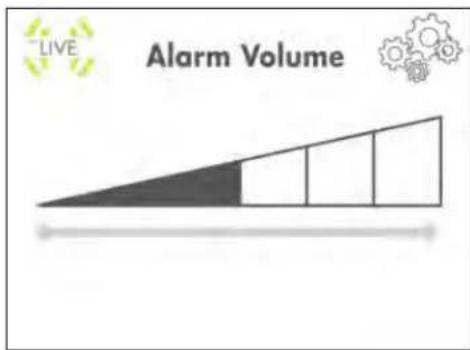
NOTE: To disable the alarm 'beep' turn the volume all the way down.
To change the video alarm volume:
1 Press the Me nu button on the video monitor.
2 Select Alarm Volume ( ) and then press the OK button.
3 Press left and right on the joystick to adjust the alarm volume.
4 Press the OK b utton to save your settings.
Adjusting the screen brightness
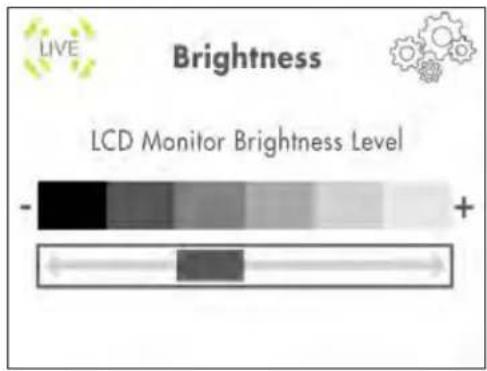
To adjust screen brightness:
1 Press the Me nu button on the video monitor.
2 Select Settings ( ) and then press the OK button.
3 Se lect Brightness and then press the OK button.
4 Press left and right on the joystick to adjust the screen brightness.
5 Press the OK button to save your settings.
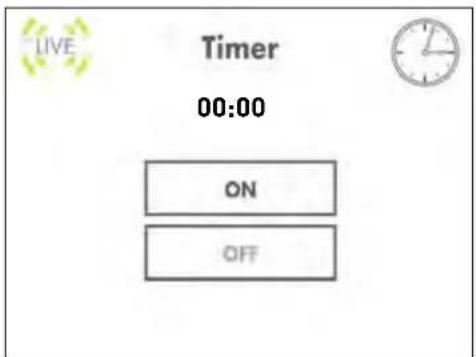
Adjusting the timer settings
The timer allows the video monitor to beep after a set duration. If the monitor is used as a baby monitor, the timer can help remind you when it is time to feed the baby.
To enable the Timer:
1 Press the Menu button on the video monitor.
2 Select Settings (OK button.) and then press the
3 Select Tim er and then press the OK button.
4 Enter the timer duration using the joystick. Press left / right to navigate the values. Press up/down to adjust the values. Press OK to confirm.
NOTE: Timer duration is represented as (Hours: Minutes)
5 Se lect ON and then press the OK button to activate the timer. When the timer duration ends, an alarm goes off and the timer resets until it is manually disabled.
Adjusting the temperature unit of measurement
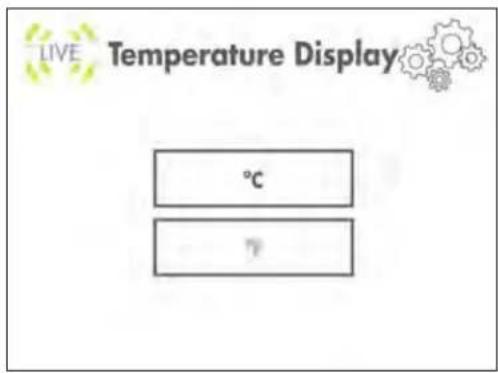
The camera has a built-in temperature sensor. You can change the video monitor to display temperature in Fahrenheit (F) or Celsius (C).
To change the unit of measurement:
1 Press the Me nu button on the video monitor.
2 Select Settings (button.

3 Select Tem p. Display and press the OK button.
4 Select either C for Celsius or F for Fahrenheit.
5 Press the OK button to save your settings.
Configuring the temperature alert range
You can configure the video monitor to alert you through alarm beeps, when the temperature goes above or below the set temperature range.
NOTE: Temperature sensor is accurate within 3^ F/ 1^ C.
NOTE: The LW2401AC2 accessory camera does not have a temperature sensor. When this camera is selected, the temperature reading is permanently set to 68°F/20°C.
To configure the temperature alert range:
1 Press the Me nu button on the video monitor.
2 Select Settings (button.

3 Select Tem p. Alert and then press the OK button.
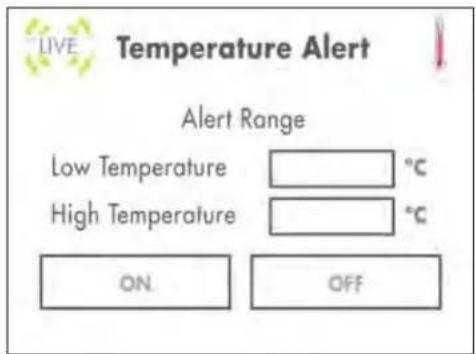
4 Using the joystick, press up/down to change selection, left/right to adjust the values:
- Beside Low Temperature, enter the lowest room temperature threshold.
- Beside High Temperature, enter the highest room temperature threshold.
5 Select the ON button and then press OK.
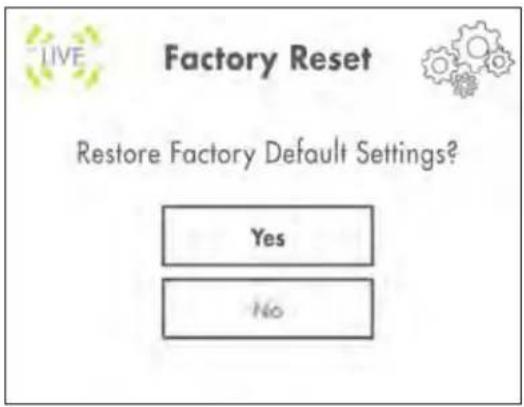
Restoring default settings
Restoring your video monitor settings returns any setting changes to factory default settings
To restore the video monitor factory defaults:
1 Press the Me nu button on the video monitor.
2 Select Settings (OK button.) and then press the
3 Select Factory Reset and then press the OK button.
4 Select Ye s, and then press the OK button.
Viewing your camera remotely using Skype
Connecting to your video monitor through Skype is a convenient and free* method to view your camera from anywhere with an Internet connection.
NOTE: When remotely connecting to your video monitor using Skype, audio monitoring is disabled.
How it works
Your computer connects to the Skype server. The Skype server is connected to your home computer. Your home computer connects to the video monitor, which captures video from the camera.

flowchart
graph LR
    A["Laptop"] --> B["Skype server"]
    B --> C["Home computer"]
    C --> D["Router"]
    D --> E["Wireless device"]
System requirements
For the latest device compatibility list, visit www.lorextechnology.com
iPhone, iPad, iPod Touch Requirements
- Skype for iPhone v. 3.0 and above
- Skype for iPadv. 3.5 and above
- iPhone 4S/4/3GS, iPad (1st generation and above), iPod touch (3rd generation and above)
- iOS 4.0 and above
Android Requirements
- Skype v. 2.8 and above
• Android v. 2.3 and above
PC requirements
- Skype for Windows v. 4.2 and above
- Windows XP SP2/Vista/Windows 7
• 1 Ghz or greater processor
For instructions, see "Connecting to Skype on a PC" on page 18.
Mac requirements
- Skype for Mac OS v. 5.3 and above
• Mac OS v. 10.5.8 and above - 1 GHz or higher Intel processor (PowerPC™ not supported)
For instructions, see "Connecting to Skype on a Mac" on page 24.
Disclaimers
You must have a high-speed internet connection to use the video function on Skype. Traffic congestion may result in choppy video.
Mobile Data Charges
When using a mobile cellular network, data charges may apply. Check with your provider for details.
*Computer to computer
For Skype related support, visit https://support.skype.com/
Connecting to Skype on a PC
Step 1 of 6: Installing the camera driver for PC
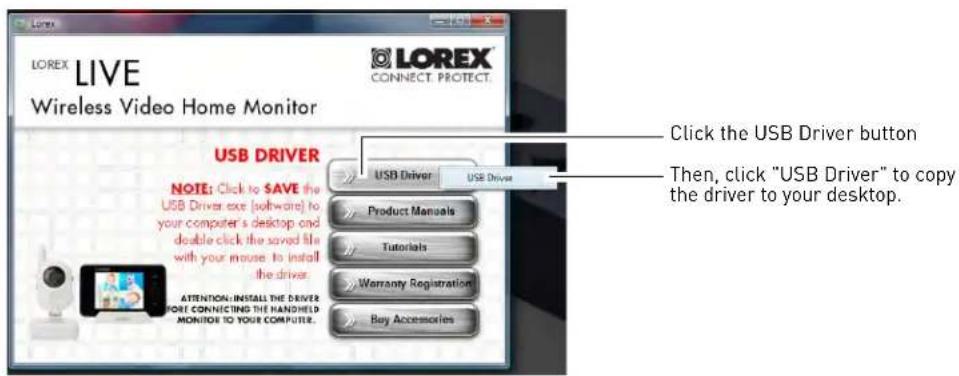
You will need to install the camera drivers located on the software CD (included) or available as a free download from www.lorextechnology.com.
To install the camera drivers:
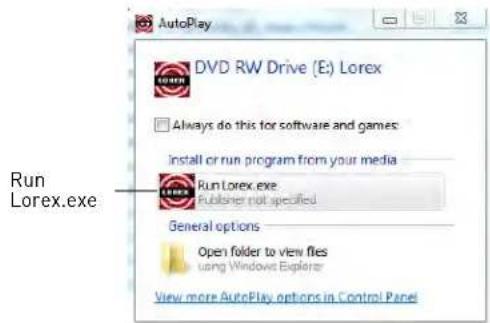
1 Insert th e software CD into your computer. An Autoplay window opens.
2 Click Run Lor ex.exe.
3 Click the USB Driver button, and then click USB Driver. The driver appears on your desktop.
4 Click the button to close the window.
5 Double-click the Usbdr iver-PC icon on your desktop.
6 Follow the on-screen instructions to complete the driver installation
Step 2 of 6: Connecting the video monitor to the PC
1 Turn on the camera first, then the video monitor. Make sure you can see a video image on channel 1.
NOTE: Pair the camera that is most important for you to view remotely to Channel 1. For instructions on how to pair cameras, see "Pairing cameras" on page 40.
2 Con nect the mini-USB cable (included) to your video monitor and into the computer's USB port. The video monitor displays the following: "USB PC CAMERA MODE"
Step 3 of 6: Creating a Skype account
A Skype account allows you to connect to your camera through the Skype service. Skype is a service that allows users to make voice calls and video calls to anywhere in the world. In order to connect to your video monitor using Skype, you will need two accounts---one for the camera (e.g. Lorex Camera) and one for yourself (e.g. Tom Smith).
NOTE: The Skype illustrations and instructions below serve as a guideline only. Skype may change their website / product interface without prior notice.
If you do not have a Skype account
See "If you do not have a Skype account..." on page 29.
If you have an existing Skype account (PC)
You will have to create a separate account for your camera. Follow the instructions below.
1 Launch Skype. If you are connected to Skype, click Skype→Sign Out.
2 From the Skype Login window, click Create a new account.
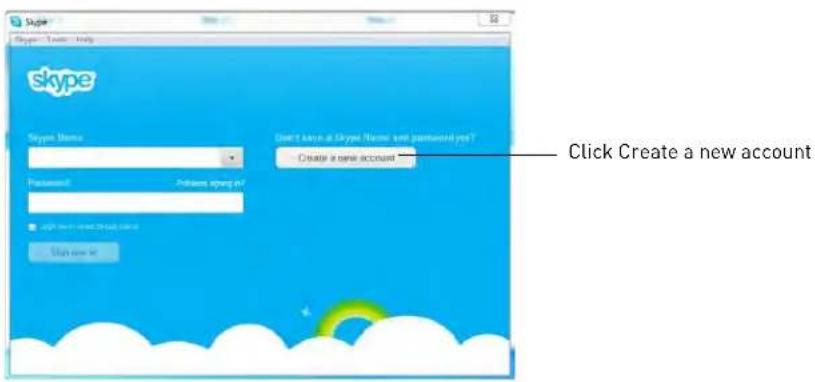
3 Follow the on-screen instructions to create a new account. Upon login, the Setting up Skype wizard starts. Click Continue. Under Video, you will see an image from the camera. If no image appears, make sure the monitor is connected to the computer via the USB cable.
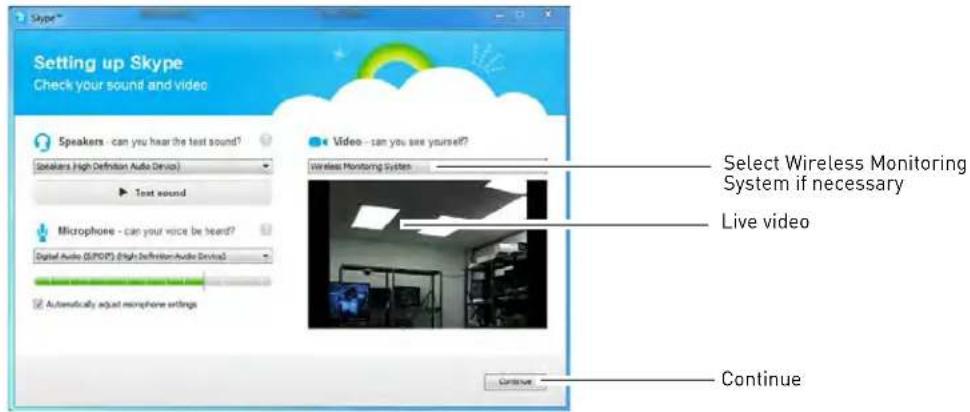
NOTE: If you can see an image from a webcam that is already connected, select Wireless Monitoring System from the drop-down menu.
NOTE: If the Setting up Skype wizard does not run, click Tools→Options→Video Settings. Make sure you can see video in the window. Click Save to exit. If the image is from an already connected webcam, select Wireless Monitoring System under Select Webcam.
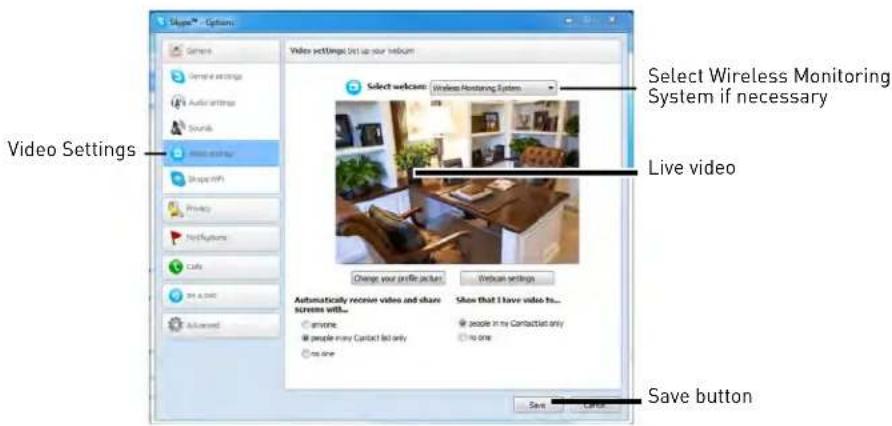
4 Click Continue.
5 In the next page, click Add later to not include a profile picture for the camera's Skype account, or click Continue and follow the instructions to add a profile picture for the camera's Skype account.
6 Cl ick Start using Skype.
Step 4 of 6: Configuring Skype
7 Click on Tools→Options.
![Skype™ [1] - Iorex Skype Contacts Conversation Call View Tools Help Iorex Call cheaply to mobile phones and landline Contact request Contacts Rece Search Echo / Sound Test Service Extras Change Language Accessibility Share Skype with a Friend... Skype Access... Options... Profile Facebook use Skype Making a video call Options](/content/2026/06/1185766/images/4fb069dc67b2f71b1db146db8a362928cd4aa9d6a021836e273d006d1555562c.jpg)
8 Click the Calls button ( ).
9 Click the Show advanced options button.
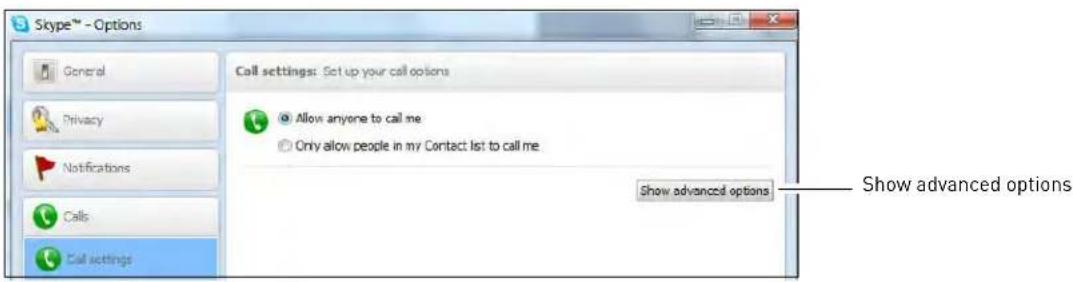
10 Under Allow calls from..., select people in my Contact list only. This will prevent the device from accepting Skype calls from anyone who is not in the contact list for its account.
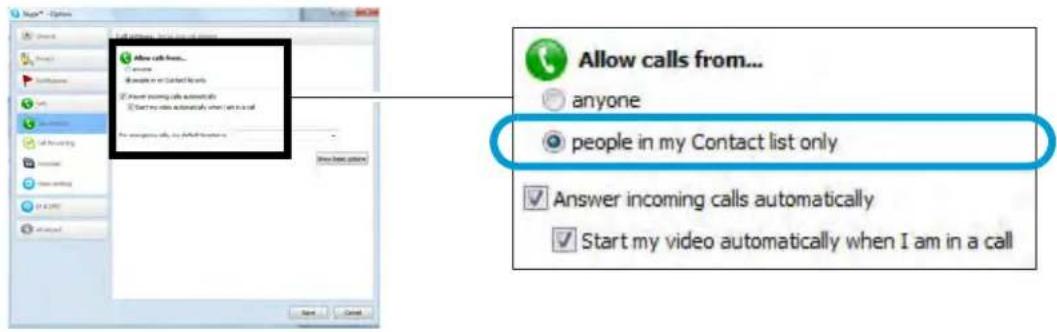
NOTE: You may also select anyone, which will allow anyone with a Skype account to call the device and access your camera. This setting is not recommended
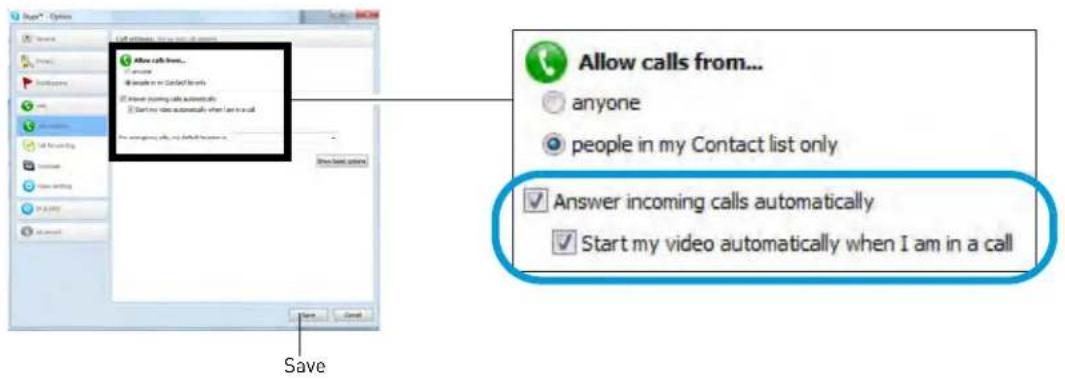
11 Check Answer incoming calls automatically and Start my video automatically when I am in a call. Click Save.
Step 5 of 6: Send a contact request
Next, you have to send a friend request to your personal account (e.g. Tom Smith).
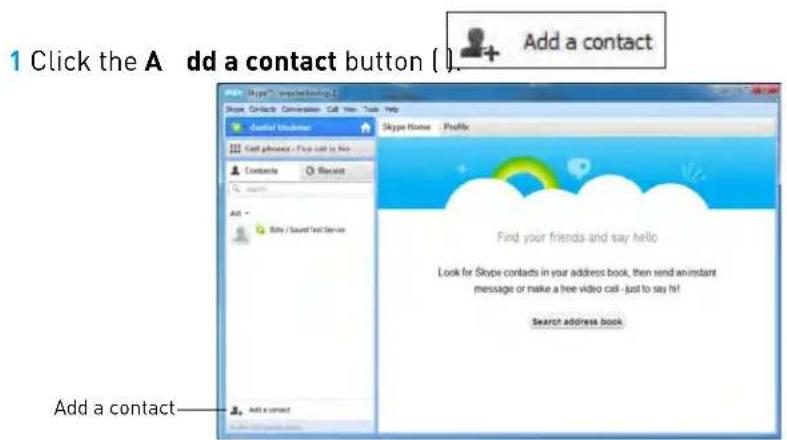
2 Search for the name of your personal account (e.g. Tom Smith), and then click the Add button.
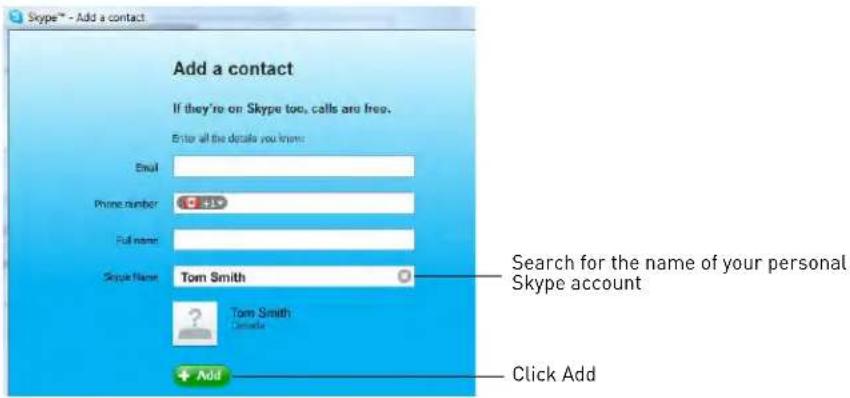
3 Click Send Request.
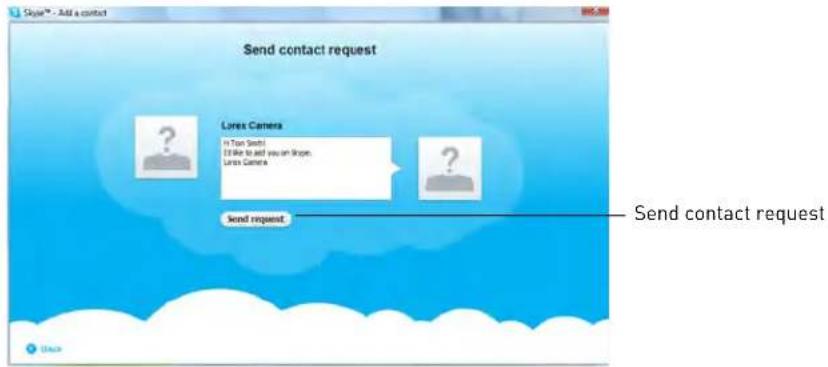
Step 6 of 6: Test the connection
NOTE: This step requires you to log in to Skype from a different computer or compatible mobile device.
1 Log in t o your personal account (e.g. Tom Smith).
2 A "new contact" pop-up appears. Click the new contact request icon that appears on the bottom-right corner of the window.
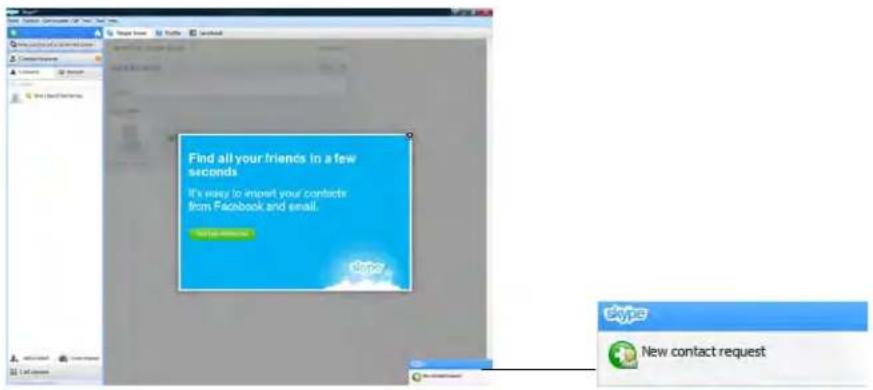
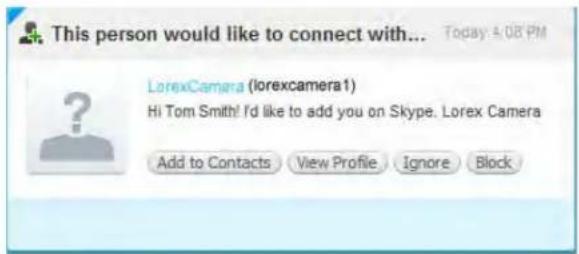
3 Click the Add to Contacts button to add the camera to your contact list.
4 From the contact list, right-click on your camera's account name (e.g. Lorex Camera), and click Call. The video call begins automatically. Please allow around 15 to 25 seconds for the video connection to be established.
![Call Send IM Send SMS Message Send Contacts... Send File... Send Voicemail View Profile Rename... View Old Messages Remove from Contacts Skype® [A]: Email Skype: Contacts Generation Call View Tools Help Skype Home Profile Facebook Call directly to mobile phones and emails Contact request Contacts Recent Skype None Profile Facebook Learn how to use Skype Views Making a call Making a video call Wizards Find Friends Add people you know or choose contacts from email, Facebooks and more. Set up your sound equipment Make sure anything's call up property for calls and video calls](/content/2026/06/1185766/images/ed4c9bfdc2ac799f8e3cc12d95a89130a222ffd572bfcd49cc121c460a5c0192.jpg)
NOTE: Video may appear pixelated immediately after connecting. It should improve within a few seconds, depending on your Internet connection.
Connecting to Skype on a Mac
Step 1 of 6: Installing the camera driver for Mac OS
You will need to install the camera drivers included on the software CD (included) or available as a free download from www.lorextechnology.com.
1 Insert the software CD into your computer. The Lorex CD icon () appears on your desktop.
2 Double-click the Lor ex CD icon ( ) on your desktop.
3 Double-click the Mac folder.
4 Double-click the SD Series Mac Driv er.zip file to extract the installer. The installer is saved to your Downloads folder and your downloads folder opens automatically.
5 Double-click the SD S eries Mac Driver folder and then double-click the WirelessCameraMacDriverSuitelnstaller (.pkg) file.
6 Follow the on-screen instructions to install.
Step 2 of 6: Connecting the video monitor or receiver to your computer
1 Turn on your camera first, and then turn on your video monitor or receiver. Make sure you can see a video image on Channel 1.
NOTE: Pair the camera that is most important for you to view remotely to Channel 1. For instructions on how to pair cameras, see "Pairing cameras" on page 40.
2 Connect the mini-USB cable (included) from the USB port on your video monitor or receiver to an available USB port on your computer. "USB PC CAMERA MODE" appears on the screen.
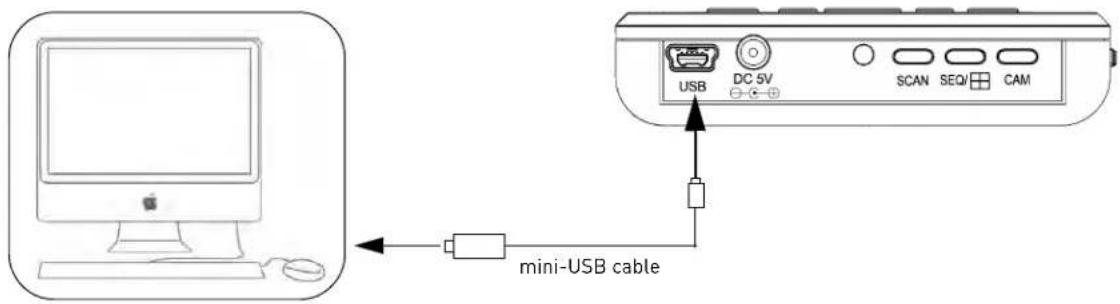
Step 3 of 6: Creating a Skype account
A Skype account allows you to connect to your camera through the Skype service. Skype is a service that allows users to make voice and video calls to anywhere in the world.
In order to connect to your video monitor using Skype, you will need two accounts—one for the camera (e.g. Lorex Camera) and one for yourself (e.g. Tom Smith).
NOTE: The Skype illustrations and instructions below serve as a guideline only. Skype may change their website / product interface without prior notice.
If you do not have an existing Skype account:
See "If you do not have a Skype account..." on page 29.
If you have an existing Skype account (Mac):
You have to create a separate account for your camera. Follow the instructions below.
1 Launch Skype. If you are already connected to Skype, click File→Sign Out.
2 Click Create New Account.
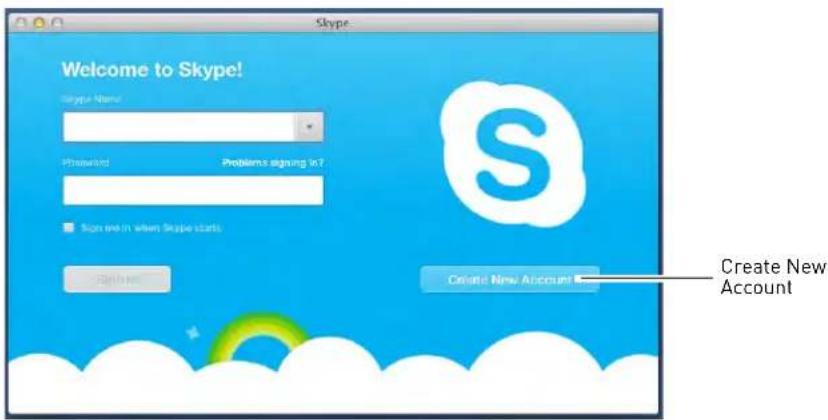
3 Follow the on-screen instructions to create a new account.
Step 4 of 6: Configuring Skype
1 Upon login, click Skype→Preferences. Select the Audio/Video tab.
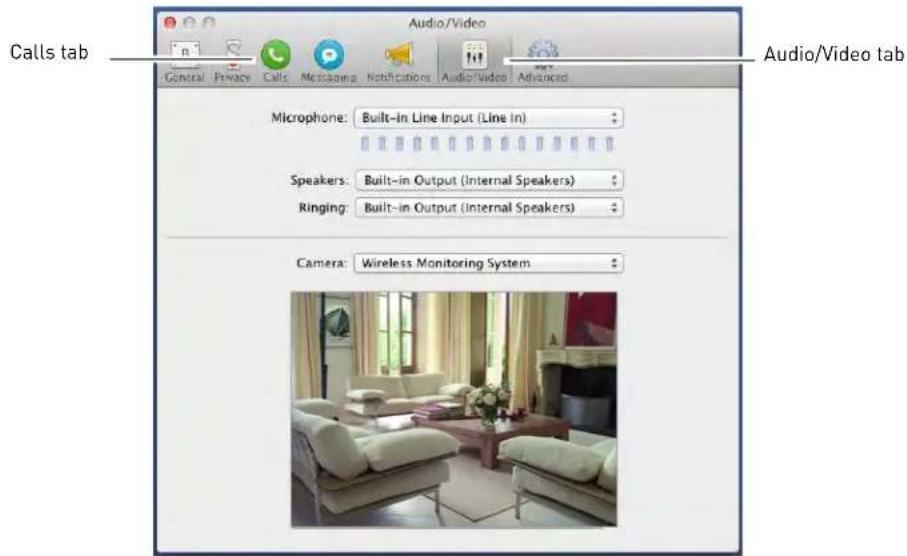
2 Under Camera, select Wireless Monitoring System if it is not already selected. You will see live video from your camera if your device is connected.
- If the video area is black, check to see if your camera is on and is paired to Channel 1. Also check to make sure your video monitor is connected to your computer.
NOTE: When connecting or reconnecting your video monitor, you must close the Preferences window and re-open it to the Audio/Video tab to test the video connection.
3 Se lect the Calls tab.
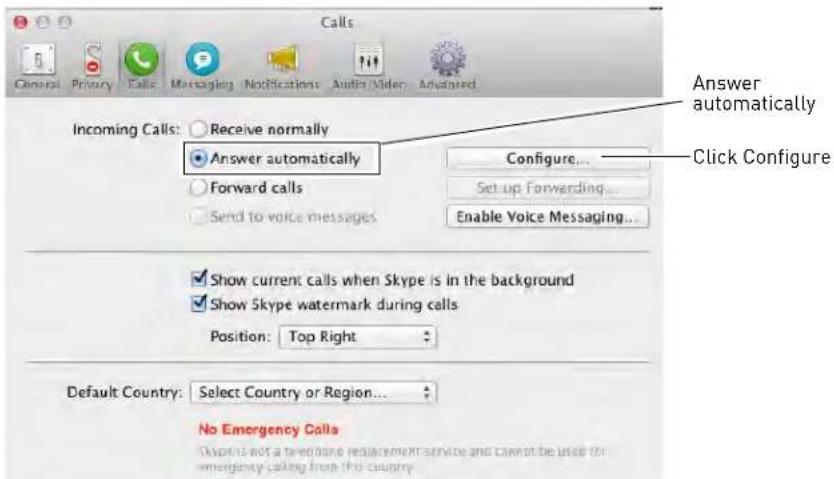
4 Under Incoming Calls, select Answer Automatically.
5 Click Configur e.
6 Select Answer automatically with video. Click Done.

7 Select the Privacy tab.
8 Under Allow calls from, select Co n tacts. This will prevent the device from accepting Skype calls from anyone who is not in the contact list for its account.
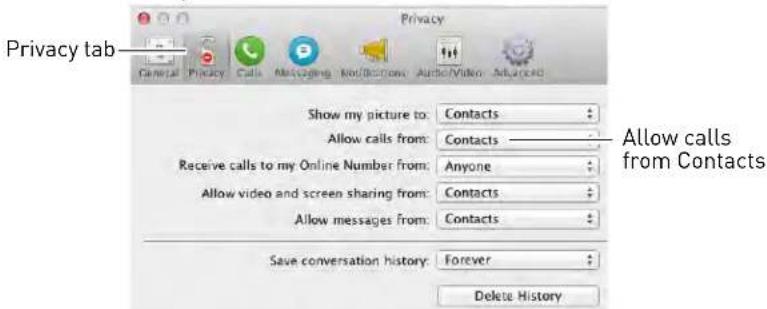
NOTE: You may also select Anyone, which will allow anyone with a Skype account to call the device and access your camera. This setting is not recommended.
9 Close the Preferences window to return to the main Skype window.
Step 5 of 6: Send a contact request
Next, you have to send a friend request to your personal Skype account (e.g. Tom Smith).
1 From the main Skype window, click Co n tacts then click Add Contact.
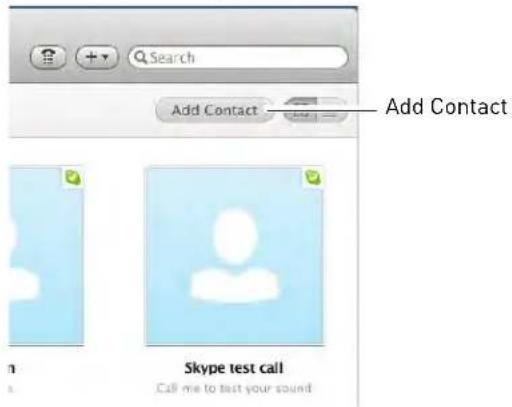
2 Under Add Contact, enter the Skype account name (e.g. Tom Smith) or email address for your personal Skype account. Click Find. Your personal Skype account should appear below the search bar.
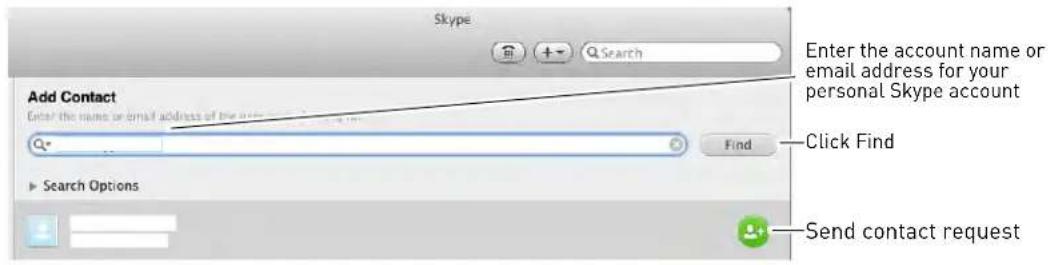
3 Next to your personal Skype account, click 🙏 and then click Send to send the contact request.
Step 6 of 6: Test the connection
NOTE: This step requires you to log in to Skype from a different computer or compatible mobile device.
1 Log in t o your personal account (e.g. Tom Smith).
2 The contact request from your device's Skype account should appear in the left column under Recent. Click the Skype account name for your device.
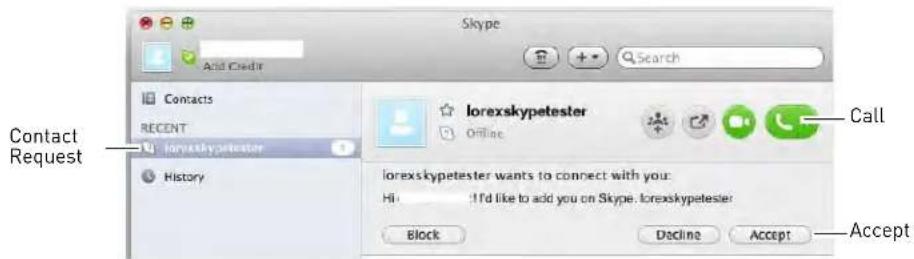
3 Click Accept.
4 Click the 📊 (Make a Voice Call) button to call your camera. The video call begins automatically. Please allow around 15 to 25 seconds for the video connection to be established.
- You can also call the camera from the contact list using the button. Do not use the Video Call ( ) button.
NOTE: Video may appear pixelated immediately after connecting. It should improve within a few seconds, depending on your Internet connection.
If you do not have a Skype account...
Create your personal account first (e.g. Tom Smith), then create a second account for your camera (e.g. Lorex Camera).
Create a personal account (i.e. Tom Smith):
1 Go to www.skype.com, and click on Join Skype.
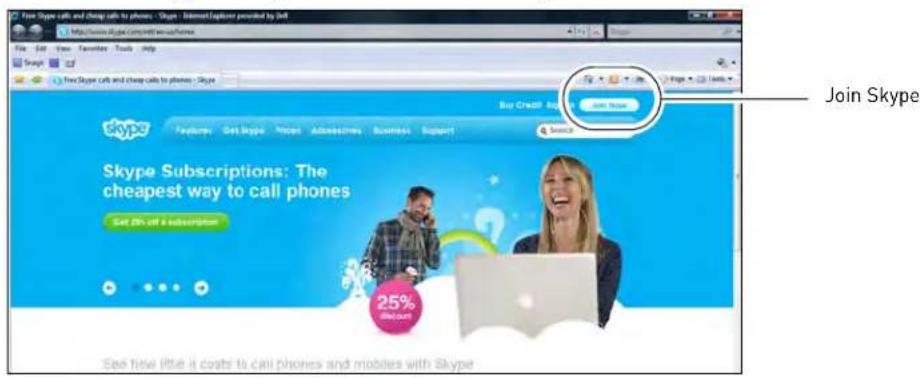
2 Click Create an Account. Fill in the appropriate fields.
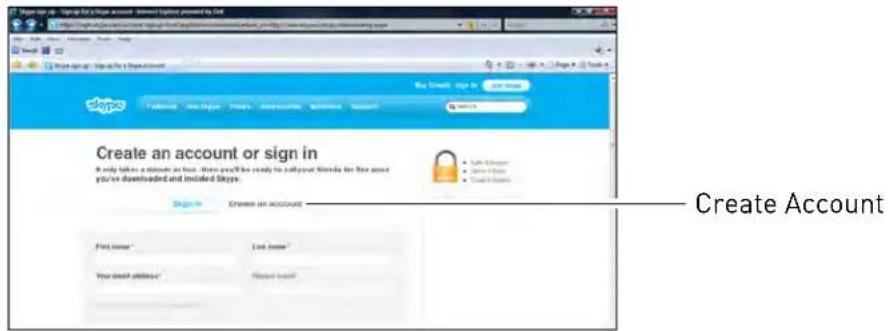
3 Click the I Agree - Continue button.
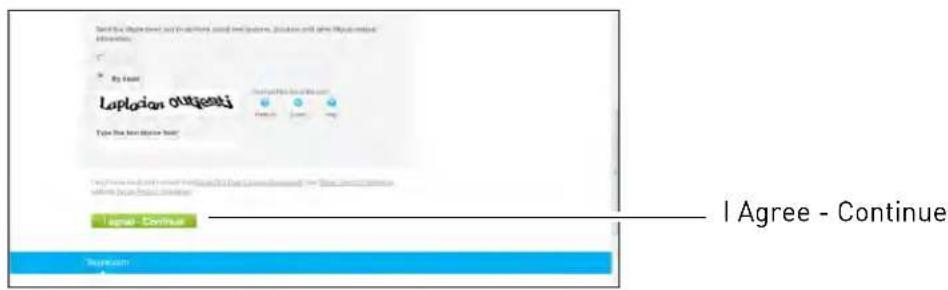
4 Follow the on-screen instructions to download and install Skype on your computer.
5 Once you are logged in to Skype, click on Skype→Sign out (PC) or File→Sign out (Mac), then see "If you have an existing Skype account (PC)" on page 19 or see "If you have an existing Skype account (Mac):" on page 25.
My Skype Account Information
"Personal" Skype account (e.g. Tom Smith)
Skype Name:
Password:
Email address used to register this account (used for account retrieval):
"Camera" Skype account (e.g. Lorex Camera)
Skype Name:
Password:
Email address used to register this account (used for account retrieval):
Changing the camera view on Skype
NOTE: This section is applicable only if you have more than 1 camera.
You cannot change the camera remotely using Skype; however, you can change the camera that is shown on Skype manually using the video monitor.
Pair the camera that is most important for you to view remotely to Channel 1. When you connect the USB cable to the video monitor, the video monitor defaults to Camera 1, even if you have a different channel selected.
To change the camera view:
- From your video monitor, press CAM to change cameras.
- The camera number changes to the next connected camera.
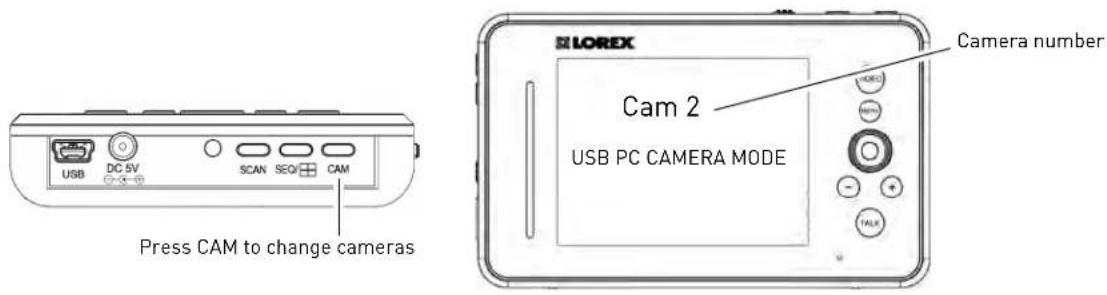
NOTE: You can only view one camera at a time
Viewing a camera on your smart phone or tablet
You can remotely monitor your camera using Skype on supported smart phones or tablets.
Supported apps & devices
For the latest device compatibility list, visit www.lorextechnology.com
iPhone / iPad / iPod touch
- Skype for iPhone v. 3.0 and above
- Skype for iPadv. 3.5 and above
- iPhone 4S/4/3GS, iPad (1st generation and above), iPod touch (3rd generation and above)
- iOS 4.0 and above
Android
- Skype v. 2.8 and above
- Android v. 2.3 and above
Prerequisites
- Install and configure the PC/Mac Skype software and USB drivers. For details, see "Viewing your camera remotely using Skype" on page 17.
- Ensure the video monitor is connected to your computer with the USB cable.
- Ensure you have configured your camera's Skype account to auto-accept incoming calls.
- Ensure your personal Skype account has been added to the contact list for the video monitor's Skype account.
Viewing your camera on iPhone
1 Download and install the Skype application from the App Store.
NOTE: Skype is a free application, but it requires a valid iTunes account to download.
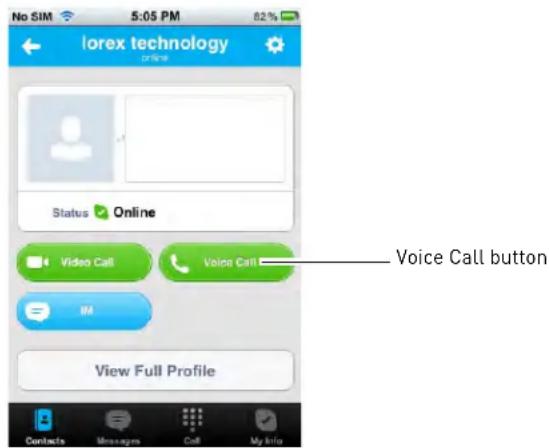
2 Launch Skype and sign in using your personal account. Your contact list opens to All Contacts. If a different contact list is open, tap Contacts and then tap All Contacts.
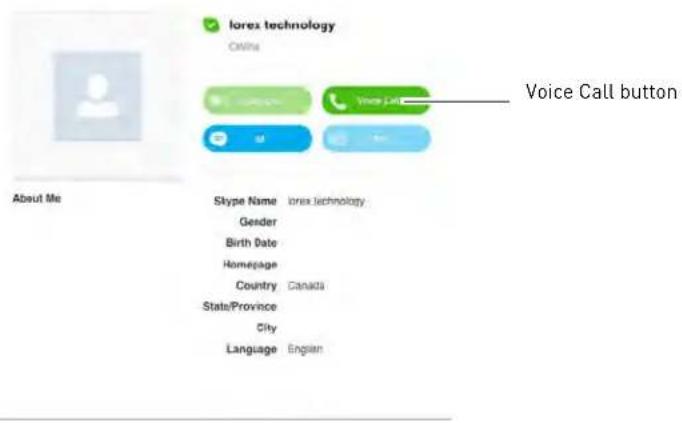
3 Select the video monitor's account, and tap Voice Call to connect to the camera. The video call connects automatically. Please allow 15 to 25 seconds for the call to connect.
NOTE: Video may appear pixelated immediately after connecting. It should improve within a few seconds, depending on your Internet connection.
Viewing your camera on iPad
1 Download and install the Skype for iPad application from the App Store.
NOTE: Skype for iPad is a free application, but it requires a valid iTunes account to download.
2 Launch Skype and sign in using your personal account. Your contact list opens to All
Contacts. If a different contact list is open, tap Lists (B) and then tap All Contacts.
3 Select the video monitor's
account, and tap Voice Call to connect to the camera. The video call connects automatically. Please allow 15 to 25 seconds for the call to connect.
NOTE: Video may appear pixelated immediately after connecting. It should improve within a few seconds, depending on your Internet connection.
Viewing your camera on an Android smartphone or tablet
1 Download and install the Skype application from the Google Play Store.
NOTE: Skype is a free application.
2 Launch Skype and sign using your personal account.
3 Tap Co n tacts.
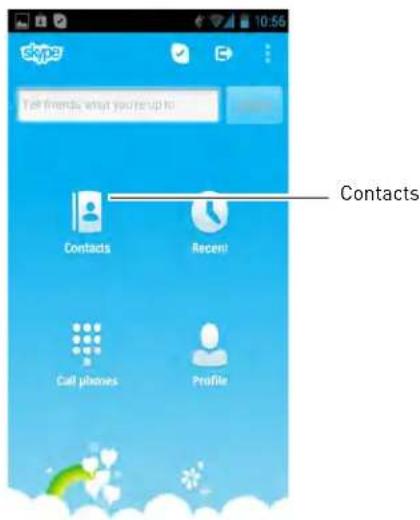
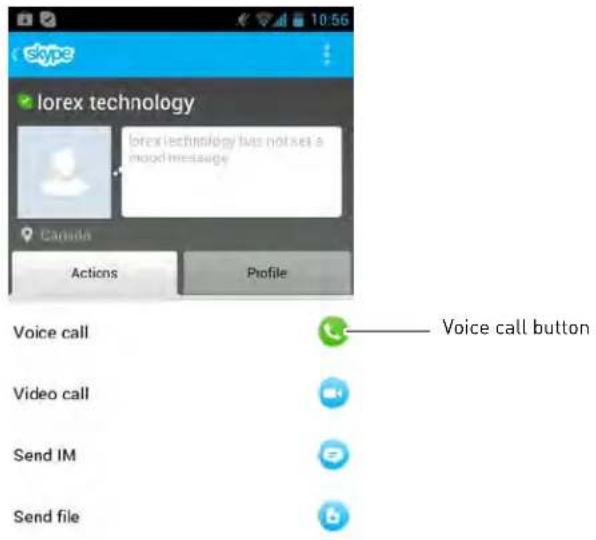
4 Tap the name of the video monitor's account, and tap Voice Call to connect to the camera. The video call connects automatically. Please allow 15 to 25 seconds for the call to connect.
NOTE: Video may appear pixelated immediately after connecting. It should improve within a few seconds, depending on your Internet connection.
Troubleshooting
| Problem Possible Causes Solution | ||
| No picture or sound on the monitor | The monitor may be off.The batteries on the video monitor may be low.The monitor may be in Scan mode. | Ensure that both the camera and monitor are turned on.Ensure that the monitor is plugged in and fully chargedPress the Scan button to turn off Scan mode. |
| Monitor produces a high-pitched noise (squealing) | The video monitor and camera are too close together.The video monitor volume may be too loud. | Move the camera and video monitor further apart.Lower the video monitor volume. |
| Picture but no sound on the monitor | The volume on the video monitor may be too low.The Auto-Mute feature may be enabled. | Turn up the volume on the video monitor.In the Main Menu select Auto-Mute, then turn the setting Off. |
| Sound but no picture on monitor | The video monitor screen may be off. | Press the Video button on the video monitor to turn the screen back on. |
| I get an "Out of Range" message on the monitor | The video monitor lost connection with the camera.The camera may be off. | Move the video monitor and camera closer together.Ensure the camera(s) are turned on. |
| Picture is not clear • The video monitor and camera may have a weak signal.Interference from the environment (from microwaves, wireless routers, etc.)Brightness on the video monitor may be too low. | Move monitor closer to the camera.Move the monitor away from other wireless devices (e.g. wireless routers, cordless phones, walkie-talkies, etc).Adjust the brightness on the video monitor (Menu→Settings→Brightness). | |
| The video monitor does not turn on | The video monitor may have low batteries. | Connect a power adapter to the video monitor and a power outlet to charge the monitor. Charge the monitor for 4.5 hours. |
| Incorrect temperature reading | The camera may be under direct sunlight.Temperature sensor is accurate within 3°F/1°C.Temperature setting on LW2401AC2 accessory camera is permanently set to 68°F/20°C. | Move the camera to an area away from direct sunlight. |
| I'm connected to Skype, but I don't see any video | The video monitor may be on the wrong channel.The camera(s) may be off.Handheld monitor may not be connected to computer.USB drivers may not be installed.USB port may be broken.Auto-answer is not enabled. | Press right on the joystick to change to the correct channel.Ensure the camera has power, and is turned on.Launch Skype, then click Tools→Options→Video Settings (PC) or Skype→Preferences→Audio/Video (Mac). Ensure you can see the video on SkypeEnsure the handheld monitor is connected to the computer via the USB cable.Insert the driver CD and install the USB driver or download USB drivers from www.lorextechnology.com.Change the USB port the video monitor is connected to.For instruction on how to configure Skype to auto-answer incoming calls, see page 21 for PC or page 26 for Mac. |
| I can't see video on my mobile device | Outdated version of Skype.Camera drivers may not be installed.Viewing on a non-supported mobile device. | Install the latest version of Skype on your mobile device.Ensure the camera drivers are installed from the CD or www.lorextechnology.com.Ensure the device is compatible with Skype. For a compatibility list, visit www.lorextechnology.com |
| Video for webcam is shown on Skype instead of video monitor. | Video monitor has not been selected as Skype camera. | (PC) In Skype, click Tools→Options→Video Settings and select Wireless Monitoring System under Select Webcam.(Mac) In Skype, click Skype→Preferences→Audio/Video and select Wireless Monitoring System above the video area. |
Frequently asked questions
Q: I have Skype. Why do I need to create a Skype account for the video monitor?
A: The video monitor requires a Skype account so you can access the camera(s) from your personal Skype account. Setup the video monitor for Skype viewing (for instructions, see "Viewing your camera remotely using Skype" on page 17). Then create a Skype account for the video monitor and add your personal Skype account to its Contacts. You access the camera by calling it - just like calling any one of your Skype contacts.
Q: Why can't I see an image from the camera(s) in Skype?
A: Is this the first time you are setting up the video monitor for remote viewing? If so, follow the instructions in "Viewing your camera remotely using Skype" on page 17.
If you have already performed the initial setup, and still cannot access your camera(s) (or the video monitor appears as 'Offline'), check the following:
- Have you configured Skype to auto-answer incoming calls. For instruction on how to configure Skype to auto-answer incoming calls, see page 21 for PC or page 26 for Mac.
- Is the camera you want to view paired to Channel 1 or the channel selected on the video monitor?
- Is the handheld monitor connected to the computer?
- Are the camera and handheld monitor powered on?
- Is the computer powered on?
- Is the computer in Sleep mode or Hibernate mode? The video monitor will not be able to connect to Skype if the computer is in Sleep or Hibernate mode.
- Is Skype running on the computer and is the video monitor's account signed in?
- Have you created a Skype account for the video monitor?
- Have you added your personal Skype account to the video monitor's contact list?
- Do you have the latest version of Skype installed on your computer and/or mobile device?
Q: What Skype app do I use to connect to the video monitor on my iPhone, iPad, or Android device?
A: For the iPhone, use the Skype app. For the iPad, use the Skype for iPad app. For Android, use the Skype app. All apps are available for free from the Apple App Store or Google Play Store.
Q: How do I pair cameras?
A: The camera included with your device has already been paired up with the handheld monitor. If for any reason your monitor and camera are not paired up, or you wish to add additional cameras, please perform the following:
1 Place the camera and video monitor 12 inches apart. Turn on the camera first and then the video monitor.
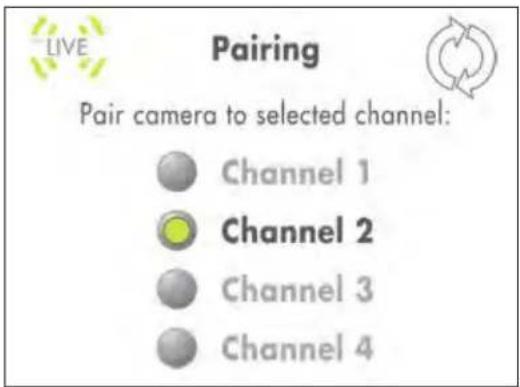
2 Press the Menu button on the monitor, then select Pairing and press the OK button.
3 Select an available channel, and press the OK button.
NOTE: By default, the camera included with the system is paired to Channel 1.
4 Press the PA IR button behind the camera within 30 seconds. You should immediately see video from the camera on the video monitor.
NOTE: You can add a maximum of four (4) wireless cameras to the handheld monitor.
Q: Why is my picture at night time not as clear via Skype compared to my handheld monitor?
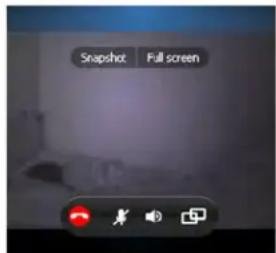
A: Video is transmitted at a resolution of QVGA (320x240).
When viewing on your computer, typically the viewing screen is larger than the handheld monitor, resulting in a stretched image to fit the screen-size. This is even more evident in night vision mode. In Skype, we recommended using "pop up mode" (image 1) for better clarity compared to default view (image 2).
Pop up mode
natural_image
Interior view of a dimly lit room with indistinct furniture and lighting (no visible text or symbols)Default view
Add-on cameras and accessories
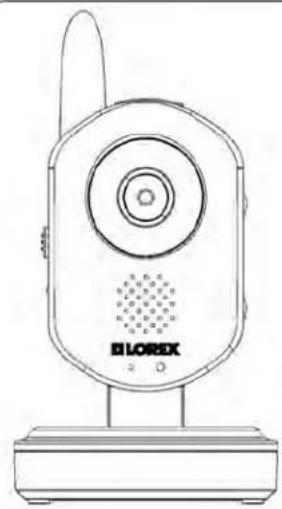
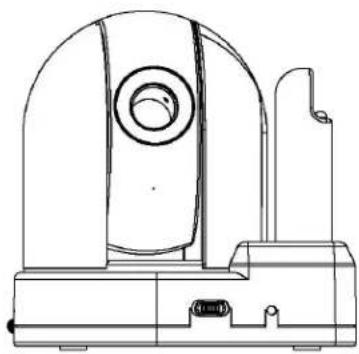
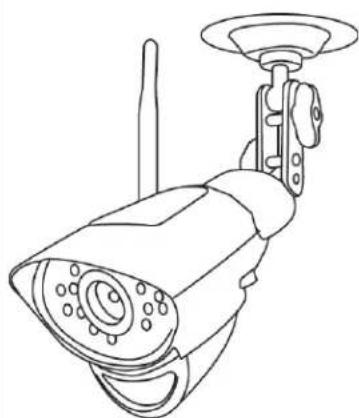
The camera(s) included with your system depends on the model number of your device. The cameras and accessories shown below are all compatible with the video monitor system and are available from www.lorextechnology.com. The video monitor supports up to 4 cameras and can support a mix of compatible cameras.
natural_image
Line drawing of a BLOREX wireless device with antenna and speaker (no text or symbols on body)LW2401AC1 Camera
Accessory #: LW2401AC1
- Wall mountable
- Includes night light
• Takes AA batteries (optional, not included) or rechargeable battery pack (optional, not included)
natural_image
Technical line drawing of a mechanical device with a circular component and base mount (no text or symbols)LW2451AC1 Pan-Tilt Camera
Accessory #: LW2451AC1
- Adjustable pan/tilt using the video monitor joystick
• Wall mount accessory available - AC power only
natural_image
Line drawing of a surveillance camera with antenna and control panel (no text or symbols)LW2401AC2 Indoor/Outdoor Camera
Accessory #: LW2401AC2
• Wall/ceiling mountable
- Motion detector for motion alarms
- No volume control, audio alarms, or alarm sensitivity control
- No temperature sensor*
- AC power only

natural_image
Line drawing of a mechanical component labeled 'LOREX' (no other text or symbols)Charging Cradle for Video Monitor
Accessory #: ACC241CRDL
natural_image
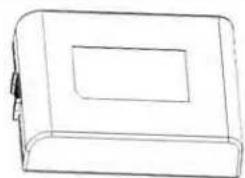
Simple line drawing of a rectangular box with a recessed top and a small protrusion on the left side (no text or symbols)Rechargeable Battery for LW2401AC1 Camera
Accessory #: ACC2401BATT
NOT compatible with included camera
natural_image
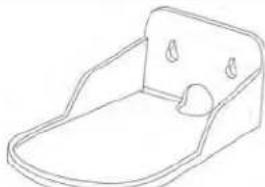
Line drawing of a baby seat with two handles and a small neck (no text or symbols)Wall Mount for LW2451AC1 Camera**
Accessory #: ACCMNT2451
*When selected, temperature reading on monitor is permanently set to 68°F / 20°C.
**May not appear exactly as shown.
Pan/tilt control (requires LW2451AC1)
1 Select the channel the pan/tilt camera is connected to. Ensure you are in full-screen view.
NOTE: You must be in full-screen view to adjust the angle. If the monitor is in Quad view (i.e. showing multiple cameras), press SEQ and then CAM to return to full-screen view. If the monitor is in Sequence view (i.e. switching between cameras), press CAM to exit Sequence view.
2 Use the joystick on the video monitor to control the camera.
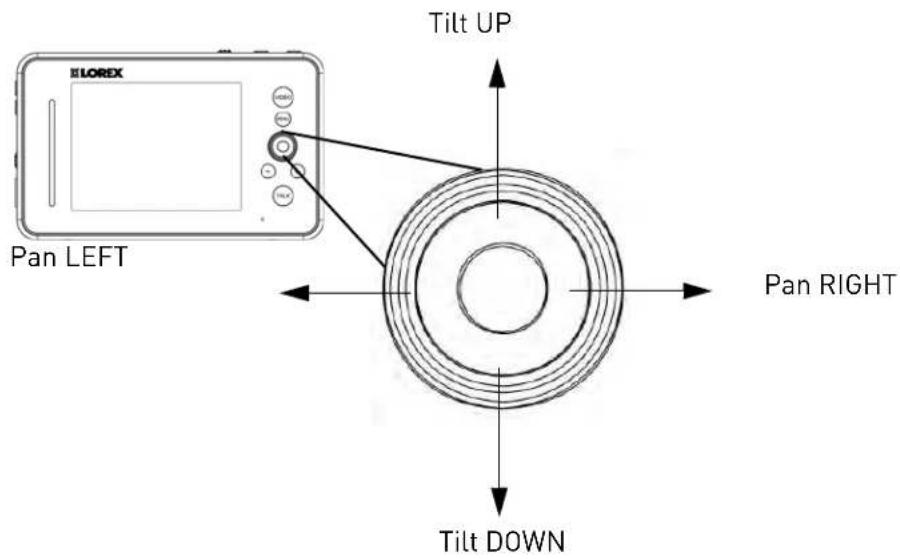
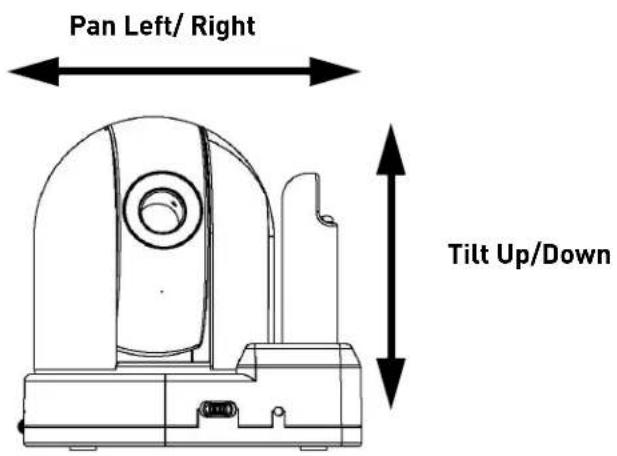
NOTE: Pan-tilt control is not available through Skype.
Pairing cameras
The camera included with the video monitor has already been paired up with the video monitor. If for any reason your monitor and camera are not paired up, or you wish to add additional cameras, follow the directions below.
To pair a camera to the video monitor:
1 Place the camera and video monitor 12 inches apart. Turn on the camera first and then the video monitor.
2 Press the Me nu button on the monitor, then select Pairing and press the OK button.
3 Select an available channel, and press the OK button.
NOTE: By default, the camera included with the system is paired to channel 1.
4 Press the PAIR button on the camera within 30 seconds.
- You should immediately see video from the camera on the video monitor.
5 OPTIONAL: T o pair multiple cameras, repeat steps 2\~4, selecting a different channel in the pairing menu.
You can add a maximum of four (4) wireless cameras to the video monitor. Add-on cameras are available from www.lorextechnology.com (accessory # LW2401AC1, LW2451AC1, LW2401AC2).
Pair Button
Press the Pair button during the pairing process with the video monitor.
natural_image
Technical line drawing of a mechanical device with no visible text or symbolsTechnical specifications
| Camera Specifications | |
| Frequency 2400~2483.5Mhz | |
| Maximum Range | 450 ft. (138m) outdoor / 150 ft. (46m) indoor line of sight |
| Image Sensor 1/5" CMOS sensor | |
| IR LED 8 Pcs. | |
| Power Adapter Voltage 5V 1A | |
| Dimensions 2.8in x 2.4in x 6.1in | / 72mm x 62mm x 155mm |
| Weight 0.25lbs / 0.10kg | |
| Video Monitor Specifications | |
| Frequency 2400~2483.5Mhz | |
| Display size 3.5" TFT LCD | |
| Power adapter voltage 5V 1A | |
| Battery voltage 3.7V Li-Polymer battery (built-in) | |
| Battery Life Up to 4.5 hours | |
| Dimensions 5.0in x 0.7in x 3in / | 126mm x 17mm x 76mm |
| Weight 0.35lbs / 0.16kg | |
Cleaning and disposal
Cleaning
Clean the monitor and camera with a slightly damp cloth or an anti-static cloth. Never use cleaning agents or abrasive solvents.
- Do not clean any part of the product with cleaners with thinners or other solvents and chemicals. This may cause permanent damage to the product which is not covered by the Warranty. When necessary, clean it with a damp cloth.
- Keep your camera and monitor away from hot, humid, pr wet areas or strong sunlight.
- Every effort has been made to ensure high standards of reliability for your video monitor. However, if something does go wrong, please do not try to repair it yourself. Contact Customer Service for assistance.
Disposal of the device
At the end of the product lifecycle, you should not dispose of this product with normal household waste, but take the product to a collection point for the recycling of electrical and electronic equipment. The symbol on the product, user's guide and/or box indicates this.
Some of the product materials can be re-used if you take them to a recycling point. By reusing some parts or raw materials from used products you make an important contribution to the protection of the environment.

natural_image
Symbol of a trash bin crossed out by two diagonal lines (no text or numbers present)Please contact your local authorities in case you need more information on the collection points in your area. Dispose of the battery pack in an environmentally-friendly manner according to your local regulations.
Notices
Warning: Any changes or modifications not expressly approved by the grantee of this device could void the user's authority to operate the device.
FCC notice
This device complies with Part 15, subpart C, of the FCC Rules. Operation is subject to the following two conditions: (1) this device may not cause harmful interference, and (2) this device must accept any interference received, including interference that may cause undesired operation. The manufacturer is not responsible for any radio or TV interference caused by unauthorized modifications to this equipment. Such modifications could void the user's authority to operate the equipment.
However, it is imperative that the user follows the guidelines in this manual to avoid improper usage which may result in damage to the unit, electrical shock and fire hazard injury. In order to improve the feature functions and quality of this product, the specifications are subject to change without notice from time to time.
Caution: To maintain compliance with the FCC's RF exposure guidelines, place the camera at least 20cm (7.87in) from nearby persons.
IC notice
This device complies with Industry Canada license-exempt RSS standard(s). Operation is subject to the following two conditions: (1) this device may not cause interference, and (2) this device must accept any interference, including interference that may cause undesired operation of the device.
Wall mounting your camera
Determine the camera position that will give you the best view before permanently mounting the camera. Ensure the power cable is long enough to power the camera.

ATTENTION
- Keep cables and wires at least 3 feet (1 meter) away from infants or young children.
- Use the cable clips to keep the power cords out of reach.
To wall mount your camera:
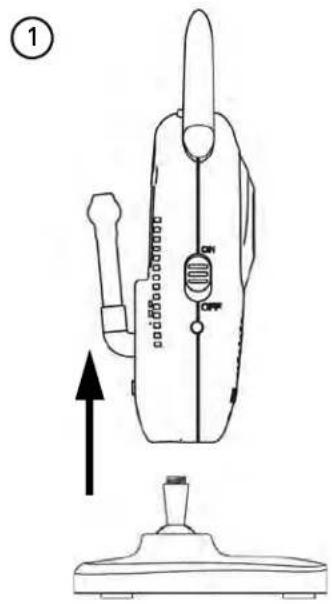
1 Unscrew the camera from the mounting stand.
2 Mark 2 screw holes 1.5in (38mm) apart. See the mounting template for details. Drill the holes in the wall.
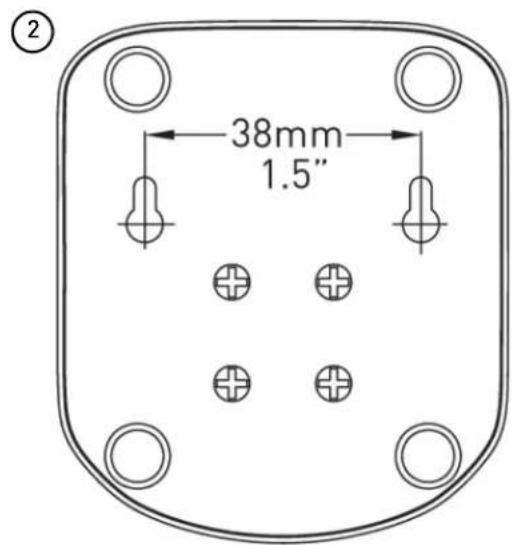
Camera Mounting Template
3 Insert the screw anchors (included) into the hole. Lightly tap the anchor into the hole with the hammer until the anchor is flush with the wall.
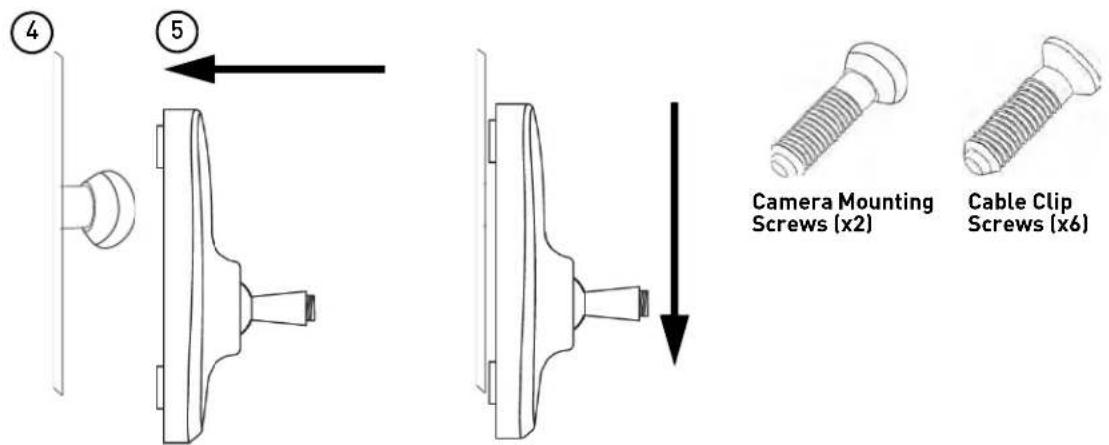
4 Tighten the camera mounting screws into the anchors, leaving 1/4" of the screw exposed.
5 Place the mounting stand as shown over the screws and pull down to secure the stand in place.
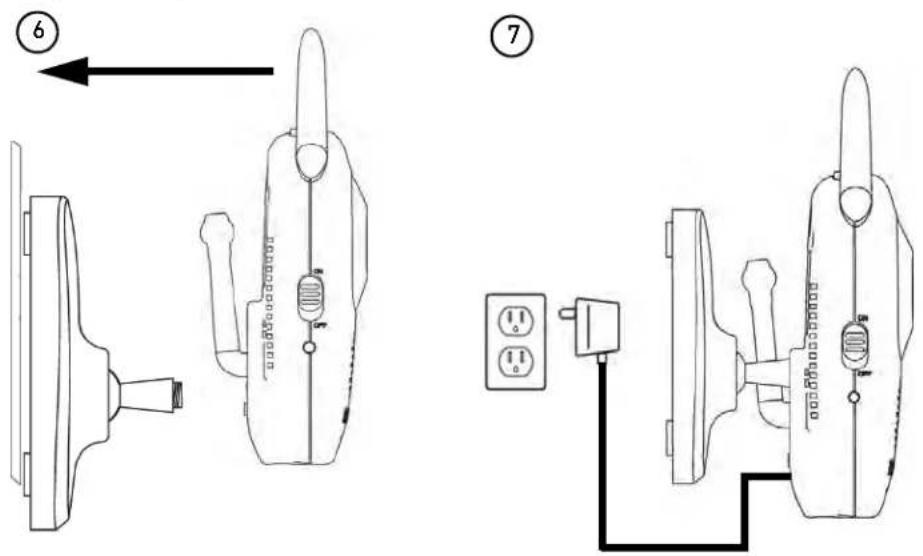
6 Screw the camera into the mounting stand using the wall mounting hole at the back of the camera.
7 Connect the power adapter to the camera.
8 Use the cable clips to keep the cables out of reach from infants and young children. Use the cable clip screws or the adhesive on the back of the cable clips to attach them to walls or furniture.

LOREX®
VIEW YOUR WORLD™

LW2400
Version 1.0
www.lorextechnology.com
- Welcome!
- Contents
- Safety Instructions
- WARNING
- CAUTION
- Using this product as a baby monitor
- Using the cable clips
- Table of Contents
- Video monitor overview.... 1
- Camera overview 4
- Getting started 5
- Testing your setup 6
- Video monitor setup 7
- Sequence view 8
- Configuring your video monitor 12
- Viewing your camera remotely using Skype.... 17
- Connecting to Skype on a Mac 24
- If you do not have a Skype account.... 29
- Changing the camera view on Skype 30
- Viewing a camera on your smart phone or tablet 31
- Troubleshooting 34
- Frequently asked questions 36
- Add-on cameras and accessories.... 38
- Pairing cameras 40
- Technical specifications.... 41
- Cleaning and disposal 42
- Notices 43
- Wall mounting your camera 44
- Video monitor overview
- Antenna Unlock Switch
- Menu Button
- SCAN LED
- Audio Level Indicator
- Power LED
- Video Button
- Joystick
- Volume Control
- Talk Button
- Microphone
- Music Buttons
- ON/OFF Switch
- Mini-USB Port
- Power Port
- Scan Button
- Sequence/Quad Button
- Cam Button
- Charging LED Indicator
- Using the joystick to navigate menus
- Menu Navigation
- Camera overview
- Infrared LEDS
- Speaker
- IR Light Sensor
- Night Light Button
- Temperature Sensor
- Wall Mounting Hole
- Power Port (DC5V)
- Pair Button
- Sensitivity Dial
- Volume Dial
- Power Switch
- Getting started
- Step 1 of 2: Powering on the camera
- ATTENTION
- Step 2 of 2: Powering on the video monitor
- Testing your setup
- Test the camera and video monitor reception:
- Test the camera volume level:
- Camera setup
- Adjusting the camera sensitivity
- To adjust the camera's sensitivity level:
- Adjusting the camera volume
- Turning on the camera night light
- Video monitor setup
- Unlocking the video monitor antenna
- To unlock the monitor antenna:
- Reading the power indicator LED
- Sequence view
- To enable Sequence view:
- To exit Sequence view:
- Viewing multiple cameras (Quad view)
- To view multiple cameras in Quad view:
- To exit Quad view:
- Using the talk function
- To use the talk function:
- Music
- To use the music feature:
- Using Scan mode
- To enable Scan mode:
- To disable the Scan mode:
- Turning the video monitor screen on/off
- To turn the video monitor screen on/off:
- Configuring your video monitor
- Enabling the Auto-Mute feature
- To enable Auto-Mute:
- Changing the date and time
- To adjust the video monitor's date and time:
- Adjusting the alarm volume
- To change the video alarm volume:
- Adjusting the screen brightness
- To adjust screen brightness:
- Adjusting the timer settings
- To enable the Timer:
- Adjusting the temperature unit of measurement
- Configuring the temperature alert range
- To configure the temperature alert range:
- Restoring default settings
- To restore the video monitor factory defaults:
- Viewing your camera remotely using Skype
- How it works
- System requirements
- iPhone, iPad, iPod Touch Requirements
- Android Requirements
- PC requirements
- Mac requirements
- Disclaimers
- Mobile Data Charges
- Connecting to Skype on a PC
- Step 1 of 6: Installing the camera driver for PC
- To install the camera drivers:
- Step 2 of 6: Connecting the video monitor to the PC
- Step 3 of 6: Creating a Skype account
- If you do not have a Skype account
- If you have an existing Skype account (PC)
- Step 4 of 6: Configuring Skype
- Click on Tools→Options.
- Click the Calls button ( ).
- Click the Show advanced options button.
- Under Allow calls from..., select people in my Contact list only. This will prevent the device from accepting Skype calls from anyone who is not in the contact list for its account.
- Step 5 of 6: Send a contact request
- Click Send Request.
- Step 6 of 6: Test the connection
- Connecting to Skype on a Mac
- Step 1 of 6: Installing the camera driver for Mac OS
- Step 2 of 6: Connecting the video monitor or receiver to your computer
- Upon login, click Skype→Preferences. Select the Audio/Video tab.
- Se lect the Calls tab.
- Select Answer automatically with video. Click Done.
- Select the Privacy tab.
- If you do not have a Skype account...
- Create a personal account (i.e. Tom Smith):
- Go to www.skype.com, and click on Join Skype.
- Click Create an Account. Fill in the appropriate fields.
- Click the I Agree - Continue button.
- My Skype Account Information
- Changing the camera view on Skype
- To change the camera view:
- Viewing a camera on your smart phone or tablet
- Supported apps & devices
- iPhone / iPad / iPod touch
- Android
- Prerequisites
- Viewing your camera on iPhone
- Viewing your camera on iPad
- Viewing your camera on an Android smartphone or tablet
- Frequently asked questions
- Q: I have Skype. Why do I need to create a Skype account for the video monitor?
- Q: Why can't I see an image from the camera(s) in Skype?
- Q: What Skype app do I use to connect to the video monitor on my iPhone, iPad, or Android device?
- Q: How do I pair cameras?
- Q: Why is my picture at night time not as clear via Skype compared to my handheld monitor?
- Add-on cameras and accessories
- Pan/tilt control (requires LW2451AC1)
- Pairing cameras
- To pair a camera to the video monitor:
- Cleaning and disposal
- Cleaning
- Disposal of the device
- Notices
- FCC notice
- IC notice
- Wall mounting your camera
- To wall mount your camera:
- LOREX®
Brand : Lorex
Model : LW242B
Category : Baby monitor