LED2612QD - Television Cello - Free user manual and instructions
Find the device manual for free LED2612QD Cello in PDF.


| Product Type | LED TV with Integrated DVD Player |
| Brand | Cello |
| Model | LED2612QD |
| Screen Size | 26 inches |
| Display Resolution | 1920 x 1080 pixels (Full HD) |
| Brightness | 280 cd/m² |
| Contrast Ratio | 3000:1 |
| Power Supply | 100-240V~50/60Hz |
| Operating Power Consumption | 27 W |
| Standby Power Consumption | < 0.5 W |
| Energy Efficiency Class | A |
| TV System | PAL I/BG/DK, SECAM BG/DK |
| Digital Tuners | DVB-T, DVB-S/S2, DVB-C |
| Built-in DVD Player | Yes (Region 2, PAL/NTSC) |
| USB Media Playback | Photo, Music, Movie, Text |
| PVR via USB | Yes (supports recording & time shift) |
| HDMI Inputs | 3 |
| SCART Input | 1 |
| VGA/PC Input | 1 (with PC audio in) |
| Component (YPbPr) Input | 1 (via mini YPbPr) |
| Composite AV Input | 1 (via mini AV) |
| Digital Audio Output | Coaxial |
| Headphone Output | Yes (3.5mm) |
| CI Slot | CI+ (for pay TV CAM) |
| Wall Mount Standard | VESA 100 x 100 mm, screw M4 x 10 |
| Dimensions (without stand) | 658 x 54.5 x 429 mm (W x D x H) |
| Dimensions (with stand) | 658 x 204.8 x 499.4 mm |
| Net Weight | 7.9 kg |
| Remote Control | IR, 5 m range, 30° angle, 2x AAA batteries |
| Operating Temperature | 0°C to 40°C |
| Safety Features | Auto standby after 4 hours, parental lock, hotel mode |
Frequently Asked Questions - LED2612QD Cello
User questions about LED2612QD Cello
0 question about this device. Answer the ones you know or ask your own.
Ask a new question about this device
Download the instructions for your Television in PDF format for free! Find your manual LED2612QD - Cello and take your electronic device back in hand. On this page are published all the documents necessary for the use of your device. LED2612QD by Cello.
USER MANUAL LED2612QD Cello
Remote control instructions in DTV/USB mode

Mute
Unmute sound Available in all modes.
SOURCE
Display / Hide Source Menu.
Power button
On/Off Standby mode.
Menu
Display / Hide main menu, step back one menu, exit menu.
Help
Display / Hide the Help Menu.
Quick start
Display / Hide the Quick start menu.

Short cut to ATV source. Sequences ATV, DVBT-TV, DVBT-Radio, ATV

Shortcut to DVBS/DVBS2 source.

Shortcut to DVBC source
▶(Timeshift)\*
Play or pause.
Press to enter Timeshift, the image paused and it start record from the paused position.

Stop playing or stop recording.

Fast reverse and Fast forward.

Previous / next chapter in USB mode or play the Previous /next scene of the recorded programs, jump by 30 seconds.
VOL+/VOL-
Press to increase / decrease the sound level.
CH+/CH-
When watching a channel, changes the channel.
NUMBER BUTTONS
Press 0-9 to select a TV channel directly when you are watching TV. The channel change after 2 seconds.
Remote control instructions in TELETEXT mode
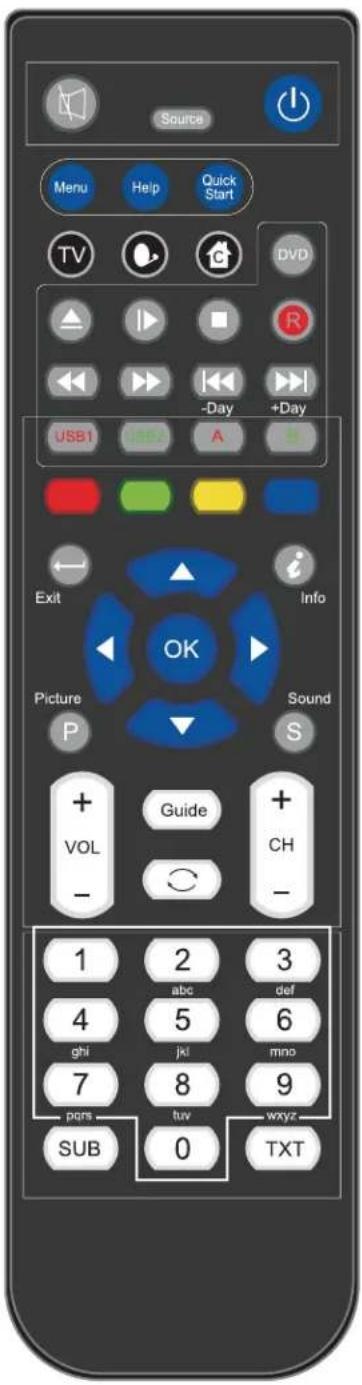
Coloured
Fast text when in update mode and fast text links present.
Can be used for other functions in Hold mode.
Exit
Exit text mode.
i (Index)
Index page (page 100)
Up/Down
Select +/- Page in Hold mode.
Left / Right
Hold main page and select sub pages using Red / Green soft.
OK
Hold page and Expand TOP / Bottom / Full, Use TXT for Update.
NUMBER BUTTONS
Press 0-9 to select a teletext page.

Press this button to show hidden text (e.g. the solutions for TV quiz shows). Press it again to hide the text.
SUB
Subtitle display/ select button (can display/Hide a menu). TXT
Text / Mix / TV( always in Update mode)
Installing Batteries in the Remote Control
- Remove the battery compartment cover at the rear of the remote control by pushing the retaining clip forward and pulling up.
- Install the supplied batteries, ensuring the polarity matches what is shown in the battery compartment.
- Replace the battery compartment cover.
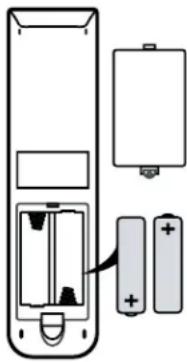
natural_image
Diagram of a remote control unit showing battery, battery pack, and internal components (no text or labels)Aerial connection
WARNING! ENSURE THE TV AND ALL ANCILLARY EQUIPMENT IS UNPLUGGED FROM THE MAINS BEFORE MAKING ANY CONNECTIONS!
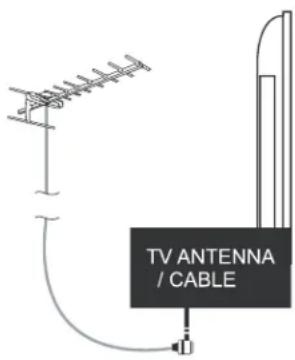
Connecting the TV Antenna
Connect the TV antenna to the aerial socket with a 75 ohm co-axial plug. For best results use a high gain TV aerial, preferably roof or loft mounted.
- To improve picture quality in a poor signal area, purchase and install a signal amplifier.
- If the antenna needs to be split for two TVs, use a 2-Way Signal Splitter (not supplied).

Using the Remote Control
To use the remote control point it at the TV and press the required buttons. You must be within 6 meters and at an angle of less than 30 degrees from the center of the TV.
NOTE: Sunshine or other strong light sources may interfere with the signal from the remote control. In this situation turn the TV away from the light source.

WARNING! DO NOT LEAVE BATTERIES IN THE REMOTE CONTROL FOR EXTENDED PERIODS AS THEY CAN LEAK OR CORRODE CAUSING DAMAGE TO THE REMOTE CONTROL. CHECK THEM PERIODICALLY AND REPLACE THEM AS REQUIRED.

WARNING! DO NOT MIX BATTERY TYPES. WHEN INSERTING BATTERIES, REPLACE ALL BATTERIES AT THE SAME TIME. DO NOT MIX OLD AND NEW BATTERIES.

WARNING! EXHAUSTED BATTERIES MUST BE TREATED WITH CARE AND DISPOSED OF ACCORDING TO ANY SAFETY OR RECYCLING REGULATIONS IN FORCE IN YOUR LOCAL AREA, NEVER DISPOSE OF BATTERIES INTO GENERAL WASTE, OR FIRE.

WARNING! NEVER EXPOSE BATTERIES TO EXCESSIVE HEAT SUCH AS SUNSHINE, FIRE OR THE LIKE.
Connecting external devices
This instruction manual shows the simplest and most effective way of connecting your TV to ancillary equipment. Alternate methods are listed below.
HDMI Lead
You can connect this TV to a compatible device using a HDMI lead. This method will give the best picture.
Connect the cable from the HDMI equipment to the TV HDMI socket.
SCART Lead
You can connect this TV to a compatible device using a SCART lead. The connection uses component video signals, i.e. the red, green and blue (RGB) content of the video are sent on separate signals.
VGA Cable
You can use your TV as a monitor for your personal computer by using a VGA cable. Sound from your personal computer may also be played through the TV.
Connecting external devices
CONNECTIONS
| Name Function Description | |
| HDMI | Connect to the HDMI output of your DVD or Satellite Box |
| SAT LNB Connection | Connect to Satellite signal |
| VGA (PC IN) | Connect to the PC VGA output to display PC graphics |
| PC-IN PC Audio input | |
| Mini YpbPr | Connect to the YPbPr output on external devices |
| Mini AV | Connect to AV output on external devices |
| SCART | Connect to the SCART input / output of external devices |
| RF Connect to TV signal cable | |
| Head phone Connect Head phone | |
| CI / CI+ CI slot (Pay as you view card slot) | |
| Coax Output t | o audio amplifier |
| USB Media playback | |
Caution:
Before connecting external devices:
- Makes sure to disconnect the appliances from the power supply in order to avoid any potential damage from occurring.
• Make sure to establish the required connection. - Make sure that the connectors are properly and correctly attached before connecting the appliances to the power supply.
PC connection
As PCs are sometimes still supplied with a 'conventional' CRT monitor, you may need to adjust the display settings of your PCs graphics card, otherwise the pictures may not appear correctly. Switch on your PC (still with your original monitor connected) now select the screen resolution, and select 60Hz refresh rate. Switch off your PC, then connect it to your TV while both appliances are still switched off.
VGA, HDMI PC Connection
Use a PC-VGA cable (not supplied) to connect the TV to your PC. You can also use an HDMI cable to connect to your PC (if your PC Graphic card supports HDMI). When the HDMI cable is used, the PC audio cable is no longer required. If you use the HDMI to DVI cable, you will need to use the PC audio cable. Connect all cables carefully and do not bend or break the connector pins.
When using the VGA cable
- Switch on the TV
- Switch on the PC
- Select PC/VGA as input source
When using the HDMI cable
- Select HDMI as input source
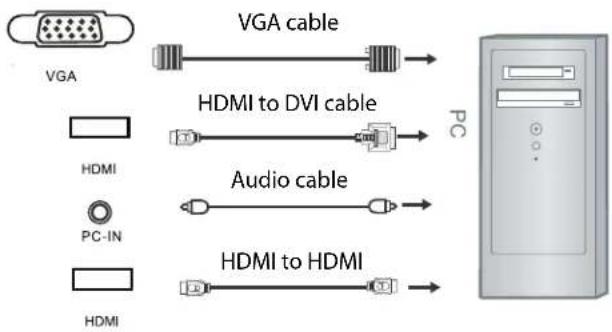
flowchart
graph LR
    A[" VGA "] --> B[" VGA cable "]
    C[" HDMI "] --> D[" HDMI to DVI cable "]
    E[" PC-IN "] --> F[" Audio cable "]
    G[" HDMI "] --> H[" HDMI to HDMI "]
(All illustrated cables are not supplied)
Satellite connection

Connect the DVB-S/DVB-S2 signal to the SATELLITE LNB on the TV SET. Select the SATELLITE input source using the DVBS/DVBS2 button on the remote control.
Note: If there is no DVBS(S2) reception, please check whether there is any problem (such as a short-circuit) on the F-type connector, on the LNB cable, the multi-switch etc. of your satellite antenna system. In this case, please disconnect the TV set from the antenna system. If necessary, c consult a qualified technician to solve the problem.
Connecting Video camera and Video recorder
Video camera
- Connect the AV cable to the TV and to the video camera.
• Turn on both video camera and the TV. - Select AV/CVBS source
- You can now see the playback picture from the video camera. Note:
- To connect the video camera using other cables, refer to the video camera instruction manual.
Video recorder
- Connect the Scart cable to the TV and video recorder.
• Turn on both video recorder and the TV. - Select Scart source
- You can now see the playback picture from the video recorder.
Note:
To connect the video recorder using other cables, refer to the video recorder instruction manual.

flowchart
graph TD
    A["Scart cable"] --> B["Video recorder"]
    B --> C["Device"]
Connecting an audio system
You can supply the TV sound to the stereo system (A) with the Scart socket. Use a special Scart cable SCART to RCA. (Please consult your hi-fi instructions for details). If you have a surround sound amplifier/decoder (B) Use the Scart cable or the special Scart cable Scart to RCA.

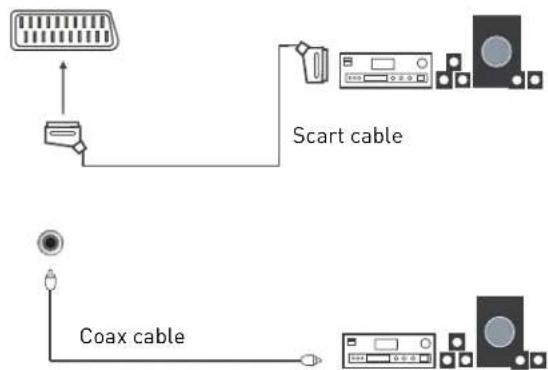
(All illustrated cables are not supplied)
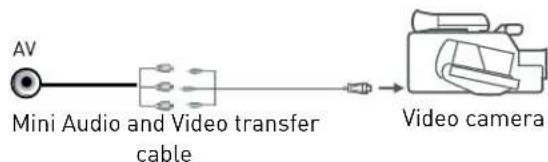
flowchart
graph LR
    A["AV"] --> B["Mini Audio and Video transfer cable"]
    B --> C["Video camera"]
(Mini AV cables are supplied)
Connecting a DVD player
Connect a DVD player using either a SCART cable or the HDMI cable. (only if your external equipment supports HDMI).
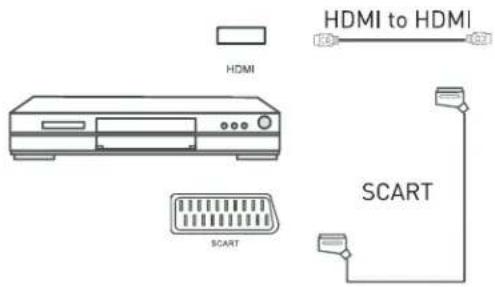
(All illustrated cables are not supplied)
When using the SCART cable
- Switch on the TV
- Switch on the DVD player
- Select SCART as input source
When using the HDMI cable
- Select HDMI as input source
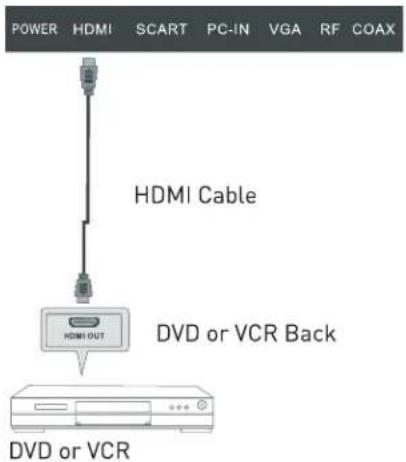
HDMI Connection
TV Back
SCART Connection

Connect the SCART connector to the external video item and the SCART connector on the TV. The SCART lead operates as an Input/Output connection. If the tv does not select the SCART input automatically, press the SOURCE button on the remote control and select the SCART signal source.
HDMI connection allows the user to transfer all audio/video/control signals through one cable only. These signals are transferred in digital.
USB Connection
Put the USB flash drive in to the USB port, Select the USB channel source using the SOURCE button on the remote control. The maximum supported capacity of external storage devices (e.g. USB memory stick or USB hard disk) is 1TB. However, not all available storage media may be compatible.

TV Back
AV Connection
TV Back

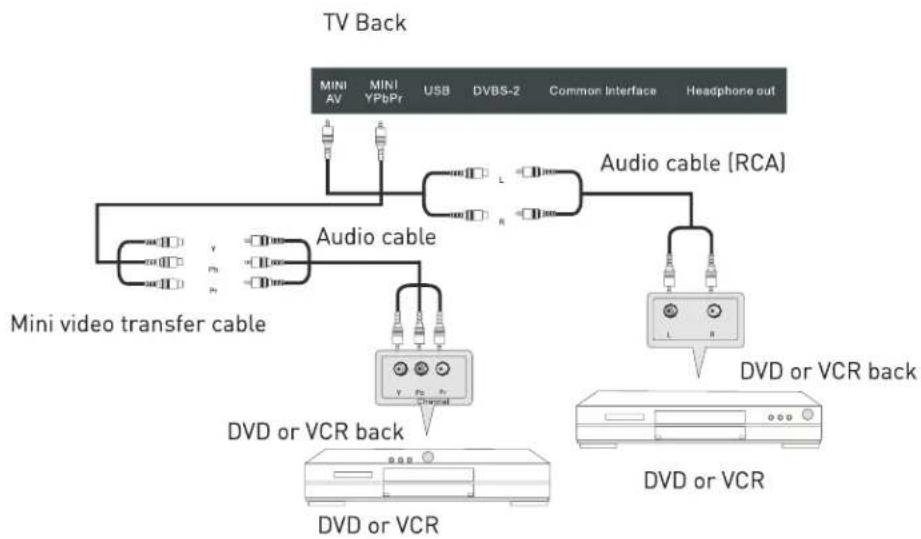
Connect the VIDEO and AUDIO output jack of the DVD or VCR to the VIDEO jacks on the TV set using the supplied YPbPr converter cable and an RCA cable (not supplied). Match the jack colors: Video is yellow, Audio left is white, and Audio right is red. Press the SOURCE button on the remote control and select the AV input source.
YPbPr Connection
flowchart
graph TD
    A["TV Back"] --> B["MINI AV"]
    A --> C["MINI YPbPr"]
    A --> D["USB"]
    A --> E["DVBS-2"]
    A --> F["Common Interface"]
    A --> G["Headphone out"]
    B --> H["Audio cable"]
    C --> H
    D --> H
    E --> H
    F --> H
    G --> H
    H --> I["Mini video transfer cable"]
    H --> J["Audio cable (RCA)"]
    H --> K["DVD or VCR back"]
    K --> L["DVD or VCR"]
    K --> M["DVD or VCR back"]
Connect the YPbPr output of the DVD or VCR to the YPbPr input on the TV set Connect the Audio output of the DVD or VCR to the Audio input jacks on the TV set using two RCA cables together with the supplied converter cables. Match the jacks colors: Y is green, Pb is blue, Pr is red, Audio left is white, and Audio right is red. Press the SOURCE button on the remote control and select the YPbPr input source.
Common Interface Slot
USING YOUR COMMON INTERFACE SLOT
This TV set features a Cl+ slot and supports the following digital standards: DVB-T, DVB-S(S2) and DVB-C.
Common Interface
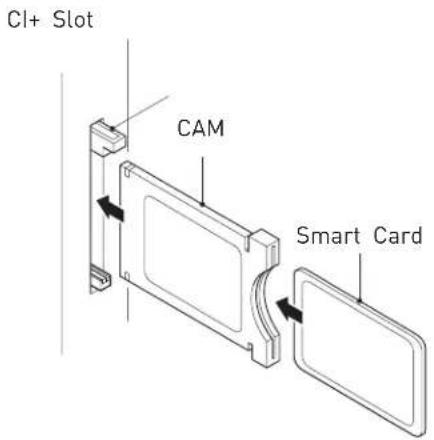
The Common Interface (CI+) slot is designed to accept the Conditional Access Module (CAM) and Smart Card in order to view the pay TV programmes and additional services. Contact your Pay Per View TV service provider to get more information about the modules and subscriptions.
NOTE: Conditional Access Module and Smart Cards are sold separately.
WARNING! SWITCH OFF YOUR TV BEFORE ANY MODULE IS INSERTED INTO THE COMMON INTERFACE SLOT, THEN ADD THE SMART CARD TO THE CAM.
- Turn on the TV and ensure 'DTV' Source is selected.
- If the CAM is detected the TV will display the following message on the screen. "Common Interface Module inserted" wait for a few moments until the card is activated.
- Select the relevant digital Pay Per View channel.
- Detailed information on the Smart Card in use is displayed
- Press the Ok button to access the card menu. Refer to the Module Instruction Manual for setting details.
- When the module is removed, the following message will appear on the screen. "Common Interface module removed".
Auto installation setup
Power On / Off the LED TV To turn on the LED TV
Press the power button on the LED TV or the POWER button on the remote control, the standby indicator will light green.
To turn off the LED TV
Press the power button on the LED TV or the POWER button on the remote control, the standby indicator will light red.
When you initially turn on the LED TV you will see the first time installation menu as below:
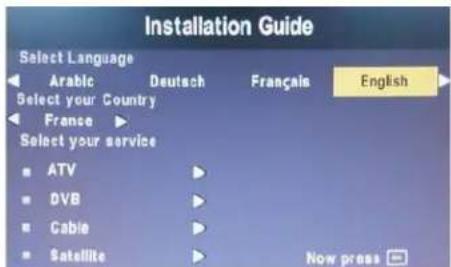
Use the left/Right/Down keys to select your language and country use the up/down keys to select the type of service you want to install. You can only install one service at a time but you can return to this menu in order to install an additional service by pressing the Quick Start button.
ATV (Analogue Television) is used for Analogue Cable systems.
DVB (DTT - Digital Terrestrial Television, DVB-T) is used if you have an antenna receiving signals from a terrestrial transmitter.
Cable is used for Digital Cable systems (DVBC)
Satellite is preset for Astra 19.2E. You need a fixed dish with a universal LNB. To install any other satellites use the full satellite installation menu.
Press OK button and you will see the following menu.
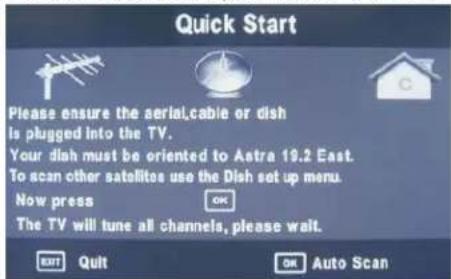
Ensure your aerial, cable or dish is plugged in to the TV and then press OK again.
The TV will start to install the service you have selected. This could take some time depending on your selected service.
Select Home mode and confirm with OK button.
You can tune an additional service at any time by pressing the Quick Start button.
TV SETTINGS Menu
All options mentioned on the previous page can also be accessed through the Main Menu system in the TV Settings menu.
To access the correct service you need the TV to be in the correct mode, ATV, DVB, Cable or Satellite.
Select the desired signal source either from the handset or from the source menu.
Signal Source
Press the Source button on the remote control or the TV/AV button on your LED TV to select the signal source.
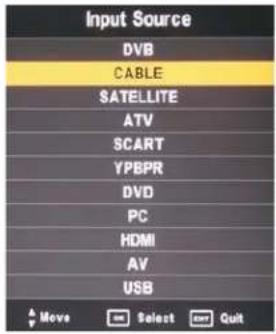
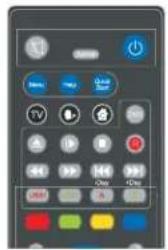
Press the ▲▼ buttons to highlight the desired signal source. Press OK to select it.
After you have selected the desired operating mode, press the Menu button on the remote control to display the "TV Settings" menu.
When you are in the correct mode, press Menu button on the remote control and enter the TV Settings Menu
To select the TV mode directly from the remote control use the 3 mode keys
Press MENU button to display the main menu, use left/right buttons to select EINSTELLUNGEN menu, press OK or down button to enter the menu. Press MENU or up button to return to the main menu.
NOTE: TV SETTINGS can only be selected under the ATV/DVB/SATELLITE/CABLE modes, it is disabled whilst in all other modes.
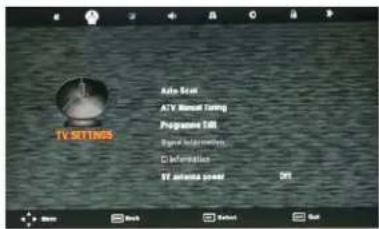
ATV / CABLE SETTINGS
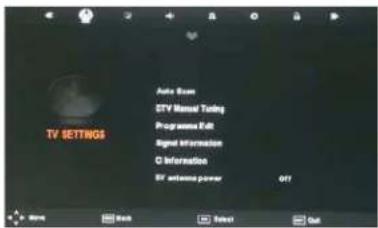
DVB / DVB-T SETTINGS
SATELLITE / DISH SETTINGS

DIGITAL CABLE (DVBC) SETTINGS

Auto Scan
In the Auto Scan menu there are 3 options for you to select from: DVB Select type, Country and Tune Type.
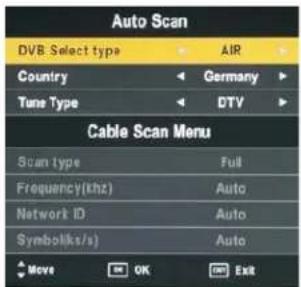
Press ◀ / ▶ to select DVB Select type, Country and Tune Type, press OK to start scanning.
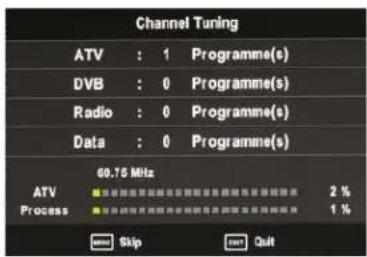
If you select ATV+DTV, the first 50% of the processing is for ATV tuning, while the second 50% represent DTV tuning. When ATV tuning, you can press MENU to Skip ATV tuning and start DTV tuning or press EXIT to exit tuning.
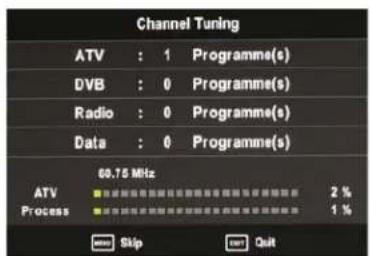
During the channel search a preview of the already-found channels is displayed.
Unlike QUICKSTART the satellite search will search the whole satellite for channels and will not be instant.
Also the channels will appear in the order on the satellite and not the pre-set order.
Auto search replaces any previous searched channels with those of the new search. To add an extra satellite if you have a suitable Dish/LNB/Switch you must use the Dish Installation menu.
DTV (DVBT) Manual Tuning
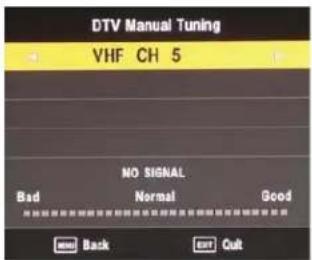
You can manually tune DTV channels in the TV SETTINGS menu. Press the Left/Right arrow buttons to select the channel you wish to tune, then press OK button to scan for the channel.
CADTV (DVB-C) Manual Tuning

You can manually tune CADTV channels in the TV SETTINGS menu.

Note: for more information about the channel parameters (frequency, symbol rate and QAM type), please check with your cable TV provider.
Frequency
Select Frequency using the buttons.
Symbol (ks/s)
Select the Symbol (ks/s) using the buttons.
QAM Type
Select the QAM Type using the buttons
ATV (analogue cable TV) Manual Tuning
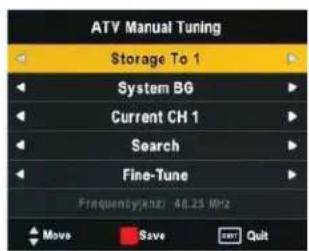
You can manually tune ATV channels in the TV SETTINGS menu.
Storage to
Press the ◀▶ buttons to change the numbered location of the found channel.
System
Select the system using the 🔊 buttons.
Current CH
Displays the current channel number, press the buttons to choose the channel you wish to modify.
Search
Press the ◀▶ buttons to scan through the frequencies to find new channels.
Fine tune
In case of bad reception, you can press the ◀▶ buttons to make fine adjustments to the tuning. After manual tuning is complete, please press the RED button to save any found channels.
PROGRAMME EDIT

Use up/down keys to select program edit. Press OK or Right button to enter the menu. Use up/down buttons to navigate through the menu
Delete
Press the RED button to delete the highlighted channel, a red circle will appear next to the channel name.
Press the RED button again to confirm delete.
Press the MENU to return to the main menu.
Move
Press ▲▼elect the channel, press yellow button to enter the move mode, then press ▲▼ to move the channel location, press yellow button again or press OK to confirm.
Press MENU to return to the main menu.
Skip
Press ▲▼select the channel you wish to skip.
Press the BLUE button, a logo will appear next to the channel name and the channel will be skipped when you scroll through the channels.
Press the BLUE button again on the highlighted channel to disable the skip function. Press MENU to return to the main menu.
Rename (Only available in ATV)
Modify current channel name.
Press the ◀ button to enter RENAME mode, then use the ▲▼◀▶ buttons to change name. Press the green button, the OK button or the menu button to confirm.
Favorite
Press the green button to set the favorite channel.
Press MENU to return to the main menu.
Signal Information
Only available in DTV mode, Signal Information includes: channel /network/modulation/quality /strength.
Cl Information
When insert CI Module, display CI Information.
Note: The following reception types or reception combinations are possible: ATV, DVB-C, DVB-S(S2), DVB-T, ATV and DVB-C, ATV and DVB-S(S2), ATV and DVB-T. The simultaneous reception of DVB-C, DVB-S(S2) and DVB-T channels is not possible.
5V antenna power
Press ◀ button to turn on or off.
Software Update (USB)
-
Download the software to the usb device, then insert the usb device to the unit.
-
Press the Menu button to select the TV SETTINGS menu.
-
Press the ◀▶ buttons to select Software Update(USB) and then press the OK button to update software.
-
when the updating is completed, the unit will be reset to standby mode.
Power-Off-No-Signal-Down
If no valid input signal is detected, the TV set will toggle to standby mode automatically after approx. 10 minutes.
Auto-Power-Down
4 hours maximum after the last user interaction and/or the last channel switching, the TV set will automatically toggle from On to standby mode. Prior to this automatic toggling, a message will be displayed allowing you to extend the delay time for another 4 hours.
Guide (EPG - Electronic Program Guide)
Press the GUIDE button on the remote control to open the Electronic Program Guide. EPG contains a 7-day programme preview as long as the selected channel supports this function. If there is more information about a programme, press the ▲ and but◀s to scroll through the pages. Please note that the maximum viewable number of characters is limited.
Favourite Lists
Select the desired channel and press the green (Fav) button to add it to the list of favourite channels. To remove a channel from the favourite list, select the desired channel and press the green (Fav) button. You can display your favourite list by pressing the green (Fav) button. You can create an own favourite list for each tuner module.
Dish Setup
-
If you do not have a fixed dish aligned to Astra 19.2E fitted with universal LNB you will need to use this section.
-
If you have a fixed Dish aligned to a different Satellite or with a different LNB you will need to use this section.
-
If you have a motorised Dish with a DiSEqC rotator and wish to tune more than one satellite you will need this section.
-
If you are on a DiSEqC switch system you will need this section.
The first 2 installations can be done by most people so long as you know what satellite your dish is aligned with and what type of LNB it is fitted with.
Installation of 3 & 4 require an experienced user or engineer.
To set a different Satellite or LNB
Select Satellite mode, press MENU key, navigate down to the Dish Setup option, press OK. You will see the Satellite Dish Setup menu.
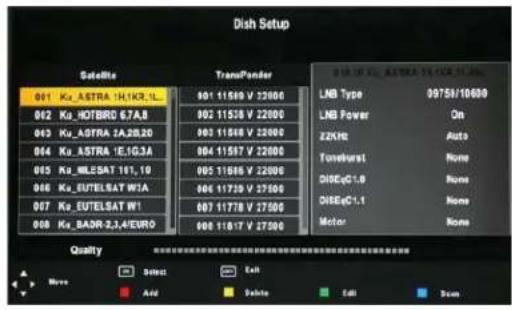
To set Multiple Satellites and LNBs (only possible on multi-LNB dish, switch systems)
Use ▲▼ buttons to select the satellite to which your dish is aligned. Press OK. An arrow will display against the chosen satellite.
Press ▶ button to navigate to LNB section of the menu. Select the LNB type and settings for your LNB.
Press the Exit button and the ◀ button to select the second satellite.
Use ▲▼ buttons to select the second satellite. Use ▲▼ keys to select the satellite to which your dish is aligned. Press OK. An arrow will display against the chosen satellite.
Press ▶ button to navigate to LNB section of the menu. Select the LNB type and settings for your second LNB and switch settings.
Press the Exit button and the ◀ button.
Press the blue Key twice to search the satellite channels.
A full description of the advanced Dish set up for multiple satellites using DiSEqC switches and DiSEqC positioner follows. This should only be attempted by experience users.
The Dish set up main menu page displays the main interface. The interface consists of Satellite List, Transponder list and Dish/LNB parameter list
Satellite List
The Satellite list displays the satellite names.

Satellite Edit
No. The current list number of the selected satellite Satellite name. The No. cannot be edited.
Satellite name: Press the green button to open the edit menu explained below.

For editing via the on-screen keyboard, press the▶ button.
In the input frame, use ▲▼◀▶ and OK button to select characters.
Input Frame (On-screen keyboard)
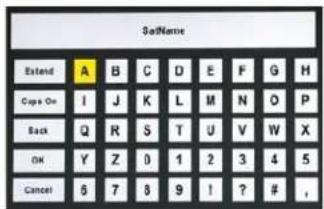
Extend: Extended characters
Caps On: Change character case. Press OK button to select.
Back: Delete letters, press OK to confirm.
OK: Sure to set the naming of the satellite, and return to Edit Menu
Cancel: Return directly back to edit menu.
Longitude Direction: Added to determine the location of the satellite. Use the ◀ arrow buttons to select West/East.
Longitude Angle: Input Longitude. By moving the cursor tu buttons to enter the satellite longitude.
Band: band selection. Press ◀ to select.
Delete Satellite menu
Press the YELLOW button, the confirmation menu will appear. Press OK to delete.
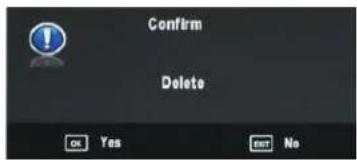
Add Satellite
Press the RED button to see the Add menu.
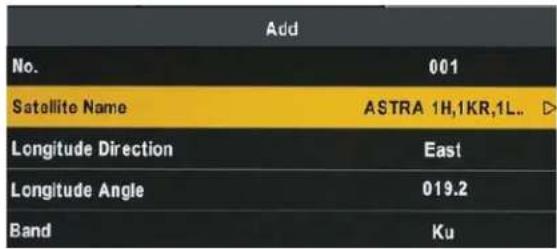
NO: This is the list placing numbe. This number cannot be manually edited.
Adjust all settings and parareccos to theding instruction. Of the previous section. P o sa press EXIT o can el.
A new position number will be a signed o the added satddi
Transponder List
The list shows the transponders for the selected satellite.
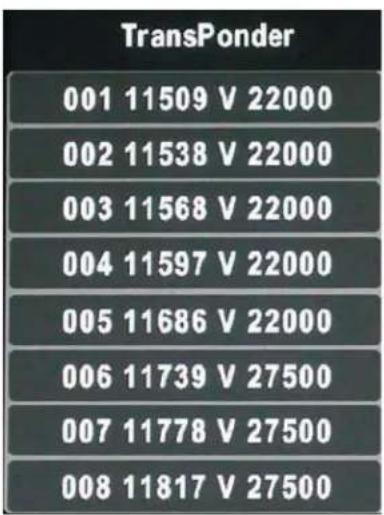
Edit Transponder menu
Press GREEN button to enter Transponder edit menu.
| Edit | |
| TransPonder | 001 |
| Frequency (khz) | 10723 |
| Symbol(ks/s) | 29900 |
| Polarity | H |
No. This is the list placing numbe cannot be manually edited
Frequency: Set the downlink frequency.
Symbol (ks/s): Set the Symbol Rate.
Polarity: Set the polarity (horizontal or vertical).
Delete Transponder
Press the YELLOW button, the confirmation menu will appear. Press OK to delete.
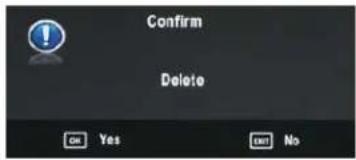
Add Transponder
Press RED button to enter the add transponder menu.
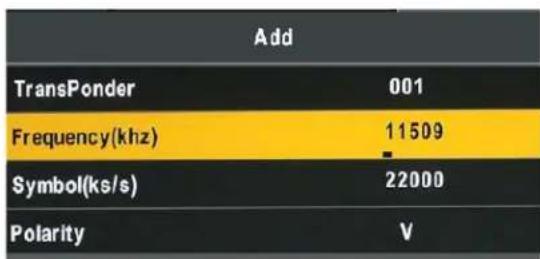
No. Can not be manually edited.
Frequency: Set the downlink frequency.
Symbol (ks/s): Set the Symbol Rate.
Polarity: Set the polarity (horizontal or vertical).
Dish Parameter description
Highlight the LNB Type, and use the ◀▶ buttons or Ok to enter submenu then you can set specific parameters.
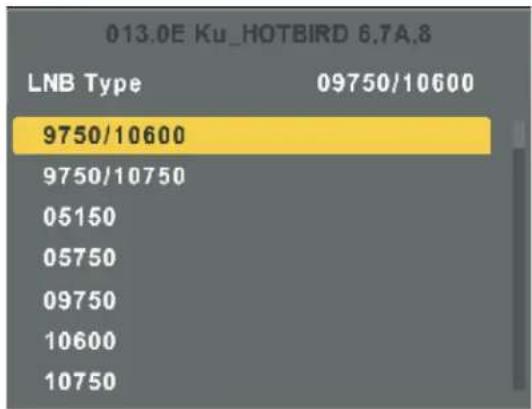
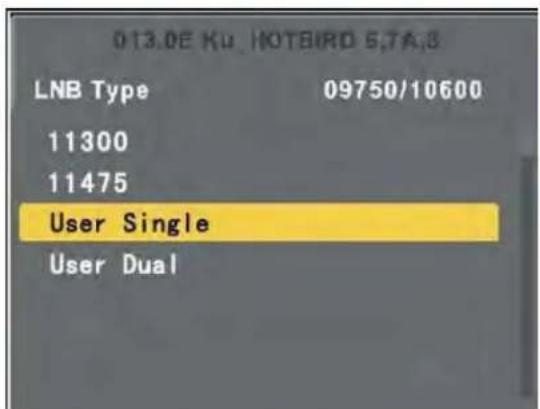
LNB Power: Polarization switching power supply, Press ◀▶ to select On/Off.

On: Allowed to receive Horizontal / Vertical Polarization program.
Off: out-off of supply.
22KHz: The level of the LO switch / DS switch ( Require the user to have installed 22KHzSatellite signal switch). Press ◀▶ to select Auto/On/Off.
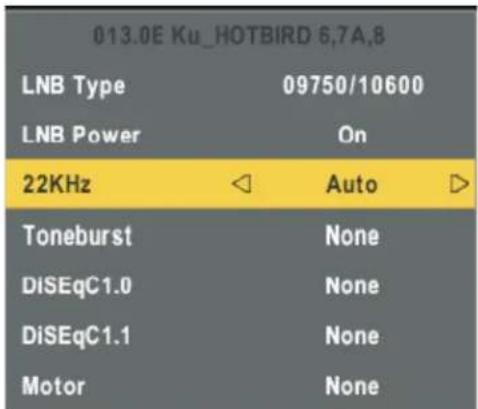
Auto: Automatically issued 22 KHz pulse signal to control switching.
On/Off: Manual control switch.
Tone burst: Double Single Switch (Require users to install Tone burst switch), Press ◀▶ to select Burst A/Burst B/None.
Burst A /Burst B: Manually switch the satellite A/B.
DiSEqC1.0: 4 select 1 switch ( Require the user device support DiSEqC 1.0 protocol). Press ◀ to select LNB1/ LNB2/ LNB3/LNB4/None.
LNB1/LNB2/LNB3/LNB4: Corresponding to a satellite, After selecting the corresponding list will appear in the satellite list.
DiSEqC 1.1: 16 select 1 switch ( Require the user device support DiSEqC1 .0 protocol) Equipment needs support DiSEqC 1.1 protocol, Most control 16↑LNB. Press t▶ select LNB1\~LBN16/None.
LNB 1-LNB 16: Corresponding to a satellite, After selecting the corresponding list will appear in the satellite list.
Motor: Control of multi-satellite polar (Require the user device support DiSEqC1.2 or DiSEqC1.3 protocol), Left and right buttons to select DiSEqC1.2/ DiSEqC1.3/None.
DiSEqC1.2: DiSEqC1.2 Protocol selection
DiSEqC1.3: DiSEqC1.3 Protocol selection
For Motor definite "DiSEqC1.2", Operating Instructions:
Press RED button to enter "Set Limit" menu.
Press OK button to enter Set Position menu.
Move Continue: Control of the east or the west continued to turn the polar axis to the desired position.
Move Step: Control of the east or west, at a fixed polar axis step rotation.
| Set Limit | ||
| Move Continue | ◀ | STOP ▷ |
| Move Step | STOP | |
| Set West Limit | ||
| Set East Limit | ||
| Goto Reference | ||
| Disable Limit | ||
Set West Limit: The current position is set to the maximum point of the west.
Set East Limit: The current position is set to the maximum point of the east.
Goto Reference: Back to the default values.
Disable Limit: Abolish the current limit set.
| Set Position | ||
| Move Auto | ◀ | STOP ▷ |
| Move Continue | STOP | |
| Move Step | $TOP | |
| Store Position | ||
| Goto Position | ||
| Goto Reference | ||
| GotoX | ||
Move Auto: East or west of Automatic Control continued to turn the polar axis to the desired position.
Move Continue: Manual control of the east or the west continued to turn the polar axis to the desired position.
Move Step: Control of the east or west, at a fixed polar axis step rotation.
Store Position: Save the current rotation angle of polar axis.
Goto Position: Control the polar angle automatically to the previously saved.
Goto Reference: Control the angle of polar axis automatically to the default. When Motor definite "DiSEqC1.3".
Press RED button to enter "Set Limit" and Motor Defined as "DiSEqC1.3" "Set Limit" menu same.
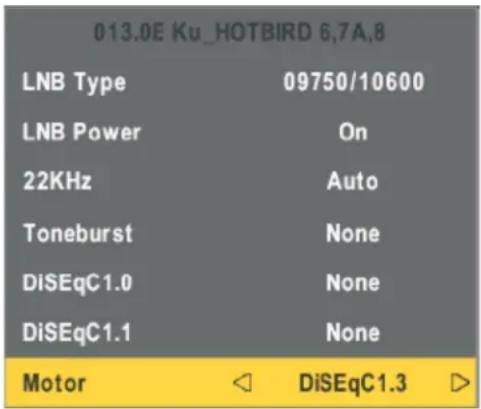
Press GREEN button to enter Set Location menu.
| Set Location | ||
| Location | Manual | |
| Longitude Direction | East | |
| Longitude Angle | 000.0 | |
| Latitude Direction | North | |
| Latitude Angle | 000.0 | |
Location: Select the user area or similar areas, if the user is not in the system default settings when in these areas, can select Manual custom settings.
Longitude Direction: Select the user area in the east longitude or longitude.
Longitude Angle: Longitude angle. Select the user area in which the longitude, Enter the appropriate values to move the cursor.
Latitude Direction: Select the user area in the latitude or latitude.
Latitude Angle: Select the user latitude area, Enter the appropriate values to move the cursor.
Press OK button to enter Set Position menu.

Move Auto: East or west of Automatic Control continued to turn the polar axis to the desired position.
Move Continue: Manual control of the east or the west continued to turn the polar axis to the desired position.
Move Step: Control of the east or west, at a fixed polar axis step rotation.
Store Position: Save the current rotation angle of polar axis.
Goto Position: Control the polar angle automatically to the previously saved.
Goto Reference: Control the angle of polar axis automatically to the default.
GotoX: Area based on user input parameters, Automatically calculate the satellite over the area,
Control the polar axis rotation to the right place.
Scan Menu
When all the parameters after. Press BLUE button to Tuning the setup menu to enter.
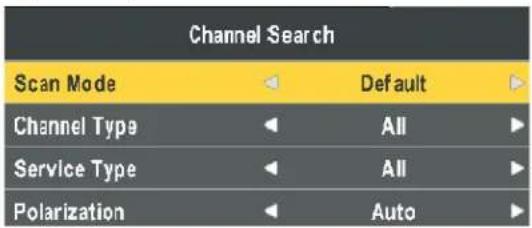
Scan Mode: Scan from Default, Blind Scan and Network to select.
Default: Default search program.
Blind Scan: Searches all the programs for the LNB settings. (This is a long search but will find all channels including new Channels).
Network: Search the known channel frequencies for the selected LNB & Satellite settings at the time of manufacture. (This will be the quickest search).
Channel Type: FTA (Free to Air) or ALL (Free to Air and Pay Channels).
Service Type: DTV (DVB TV) or Radio (DVB Radio) or both DTV & Radio.
Polarization: The LNB polarization: H (horizontal), V (vertical) and AUTO depending on the LNB installation.
Menu Settings
Picture menu


Picture Mode: Choose from Standard, Dynamic, User and Mild.
Note: Contrast, Brightness, Colour and sharpness are only available and can be adjusted in the User mode option in the Picture Mode Settings.
Contrast: Controls the difference between the brightest and darkest regions of the picture.
Brightness: Controls the overall brightness of the picture.
Color: Control the color.
Sharpness: Increase this setting to see crisp edges in the picture; decrease it for soft edges.
Tint: Controls the tint (NTSC mode only).
Color Temperature: Choose from Medium, Cool, User and Warm.
Red: Controls the red colour of the picture.
Green: Controls the green colour of the picture.
Blue: Controls the blue colour of the picture.
Aspect Ratio: Choose from Auto, 4:3, 16:9, Zoom1, Zoom2, and Panorama.
Noise Reduction: Choose interference noise modes from Off, Low, Middle and High.
SOUND menu

Sound Mode: Allows you to select among: Standard, Music, Movie, Sports and User.
Treble (Can be adjusted when the sound mode is set to User): Controls the relative intensity of higher pitched sounds.
Bass (Can be adjusted when the sound mode is set to User): Controls the relative intensity of lower pitched sounds.
Balance: To adjust the balance of the left and right speakers audio output, or turn off the volume of the left or right speaker.
Auto Volume: This feature automatically adjusts the audio level when the TV is turned on. This function is activated by selecting "On".
Surround Sound: Turn on / off the surround sound function by selecting "On" or "Off".
EXTRAS menu
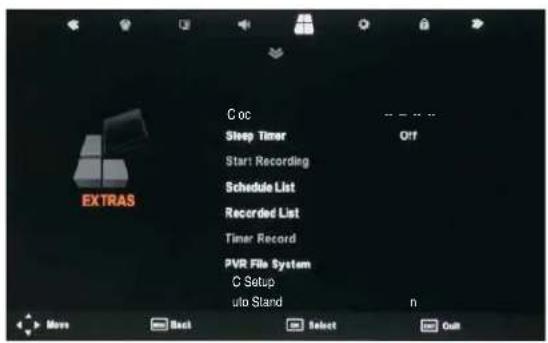
Clock: Manually set the clock for ATV mode.
PC Setup (PC mode only): Press the OK button to enter the submenu to adjust the Horizontal / Vertical position or Size and Phase of the picture.
To select automatic installation use the up down buttons to highlight the option and press OK.
Auto Standby: Turn energy saving 4hr auto standby On/Off.
OPTIONS menu

OSD Language: Allowsyouto select the on screen display menu language.
Audio Language (can only be selected in DTV mode): Select the audio language. The availability of this function depends on the tuned-in channel.
Subtitle Language (can only be selected in DTV mode): Select the subtitle language. The availability of this function depends on the tuned-in channel.
Menu Time Out: Allows you to setup the length of time that the on screen display is visible: 5s, 10s, 15s, 20s, 25s, 30s, 35s, 40s, 600s.
Country: This is defaulted to Germany, but can be changed by using the Auto tune function.
Restore Setting: Press the OK button to restore the factory default settings.
Home mode: Allows you to select among: Max Performance mode, Home mode and Max Economy mode.
First Time Installation: This option allows you to reset the tv to the default factory setting. Once activated the TV will go to standby mode.
LOCK menu

The password must be entered to access the Lock Menu. The default password is 0000. Once inside the menu you can change the password to your own choice.

Lock System: Enables or disables the system lock. After selecting ON, the settings made under "Lock Channel", "Parental Guidance" and "Hotel Settings" will be enabled and applied.

Set Password: If you had already changed the password, enter the current password.
Old Password: Enter the current password.
New Password: Enter the new password.
Confirm New Password: Enter the new password.
You can use the Channel Lock to lock selected channels. Press the ▲▼ buttons to select the desired channel and then press the GREEN button on the remote control to lock it. To unlock a previously locked channel, select the channel and press the GREEN button.
Note: In order to view locked channels, you have to enter your password.
Parental Guidance blocks programmes according to their parental level. This feature is available only for digital TV and the tuned-in channel must support it.
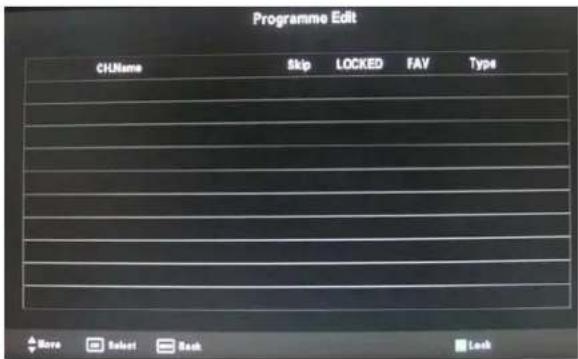
Hotel Setting: Opens the "Hotel Setting" menu.

Hotel mode
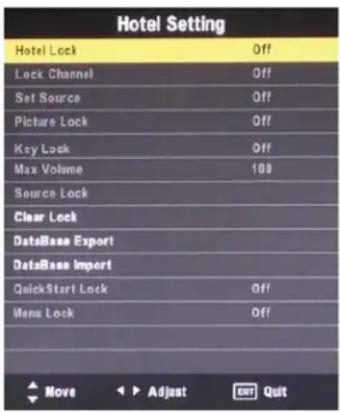
Restricts access to tuning menus, limitation of maximum volume setting. Locks picture and signal menus.
Hotel Lock: Press the ▲▼ buttons to select the "Hotel Lock" option and then press ▶ to choose between the options ON or OFF. After selecting ON, the following options except the "Clear Lock" option are available.
Lock Channel: Press the ▲▼ buttons to select the "Lock Channel" option and then press ▶ to choose between the options ON or OFF. After selecting ON, the TV settings options will not appear in main menu any more.
Set Source: Press the ▲▼ buttons to select the "Set Source" option and then press ▶ to choose a signal source or OFF. This function lets you set the signal source (DVB/Cable/Satellite/ATV/SCART/AV/YPBPR/PC/DVD/HDMI/USB) to be used when powering on the unit. It will be used until you select a different signal source or disable this function (OFF).
Picture Lock: Press the ▲▼ buttons to select the "Picture Lock" option and then press ▶ to choose between the options ON or OFF. After selecting ON, the Picture menu options will not appear in main menu any more.
Key Lock: Press the ▲▼ buttons to select the "Key Lock" option and then press ▶ to choose between the options ON or OFF. After selecting ON, the front panel buttons TV/AV/ Menu/CH+/CH-/VOL+/VOL of the device will be locked.
Max.Volume: Press the ▲▼ buttons to select the "Max. Volume" option and then press ▶ to set the desired volume. Then the output volume will never exceed the set maximumvalue.
Source Lock: Press the ▲▼ buttons to select the "Source Lock" option and then press OK to enable the menu. Press the ▶ button to toggle between ON and OFF. All signal sources labelled ON will not be available any more in the signal source selection menu.
Clear Lock: Press the ▲▼ buttons to select the "Clear Lock" option and then press ▶ to enable it. All hotel settings will remain disabled until you enable the Hotel Lock again.
Database export and import: Allows Picture, Sound, Options, Lock and Hotel menus to be copied from one set to other sets, to make a group of sets all set up the same.
To export the settings to a file on a USB memory: Connect a USB memory stick to the USB1 port. Select "Database export". Press the ▶ button. When export is completed successfully "Export Success" is displayed.
To import the settings on the same type AIL model: Insert the memory stickcont being SRE for the new TV. Select "Database import". Press the ▶ button. When complete the TV will turn off. When turned on again it will have same settings as the first TV.
QuickStart Lock: Press the ▲▼ buttons to select the "QuickStart Lock" option and then press ▶ to choose between the options ON or OFF. After selecting ON, the QUICK START button on the remotecontrol will be disabled.
Menu Lock: Press the ▲▼ buttons to select the "Menu Lock" option and then press ▶ to choose between the options ON or OFF. After selecting ON, all submenus except the "Lock" menu will not appear in main menu any mor
Multimedia Operation
Basic Operation
- Press the SOURCE button on the remote control to display the input source menu, select the USB source with the ▲▼ buttons and press the OK button to enter the Multimedia menu below.


- Insert the USB device, the name of the device will be displayed on the screen.
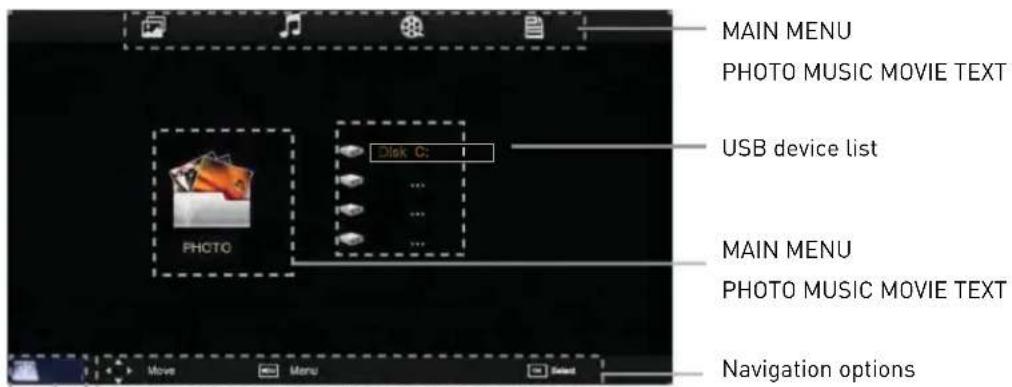
Information of the USB device
3). Press ◀/▶ button to select the files on the USB device (PHOTO, MUSIC, MOVIE, TEXT) to view or play.
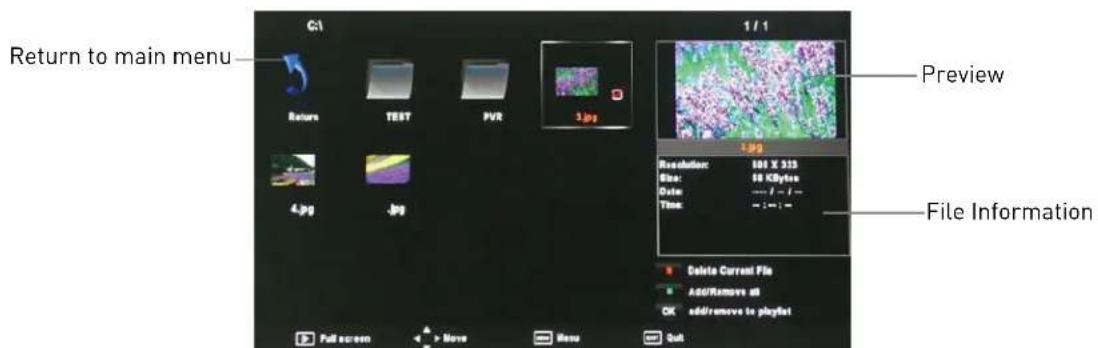
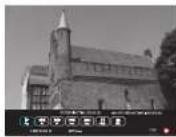
Press ▲/▼/◄/► buttons to select and the OK button to activate the file or open folder. Press ▶ button to play the files in full screen mode. When in full screen mode press the OK button to show the navigation option menu on the bottom of the screen or press ■top button to return t o files.
1. Photo
Photo viewing
natural_image
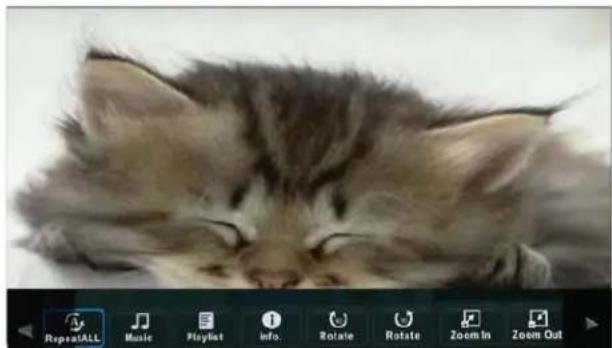
Close-up of a fluffy kitten resting on a surface, with no visible text or symbols in the image itself.Press ◀/▶buttons to select the option on the menu, and press the OK button to activate.
Repeat: Select the repeat mode from Repeat All, Repeat 1, Repeat None.
Music: Play/Pause the background music of your choice.
Playlist: Display the playlist on the screen and select the photo of your choice.
Info: Display the information of the file.
Rotate: Rotate the photo clockwise/counterclockwise.
Zoom In/Out: Zoom In/Out of your photos.
Move View: Move the photo in Zoom out mode.
2. Music
Listen to music
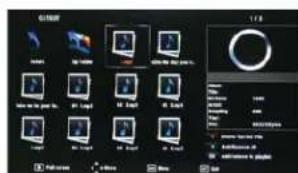
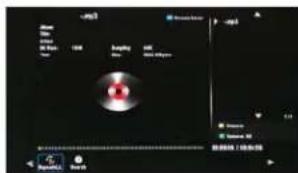
Press ◀/▶buttons to select the option on the menu, and press the OK button to activate.
Press ▲/▼ buttons to select the music, and press the OK button to play.
Repeat: Select the repeat mode from Repeat All, Repeat 1, Repeat None.
Search: Program the music to play from the time you set.
Press the OK button to display the time table, and select the position with the ▲▼◀▶ buttons, set the time using the numeral buttons on the remote, select "OK" and press the OK button to search.
Screen Saver: Press the BLUE button to enter the Screen Saver mode, press any button to exit.
3. Movie
Watch a film

Press ◀/▶ buttons to select the option on the menu, and press OK button to activate.
Repeat: Select the repeat mode from Repeat All, Repeat 1, Repeat None.
Set A-B: Select and play the preferable part of the file by setting A and B at the beginning and end. Press OK button to cancel.
Playlist: Display the playlist on the screen.
Info: Display the information of the movie file.
Slow: Play the movies at slow speed, press T button to cancel and resume at normal speed.
Step: Step quickly through the movie by using this option
Search: Program the movie form the time you set.
Zoom In/Out: Zoom In/Out of the movie screen.
Aspect Ratio: Select the aspect ratio of the on screen display.
Move View: Moves the enlarged picture area.
4. Text
View textefi
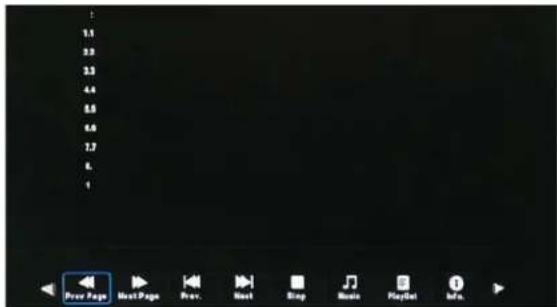
Press ◀/▶buttons to select the option on the menu, and press the OK button to activate.
Prev/Next page: Turn to previous/next page of the text.
Prev./Next: Turn to previous/next file.
Stop: Stop auto turning pages.
Music: Play/pause the background music of your choice.
Playlist: Display the playlist on the screen.
Info: Display the information of the text file.
Recording Operation
PVR Settings
PVR File System: Press the MENU button and select EXTRAS menu, choose PVR File System and press OK.
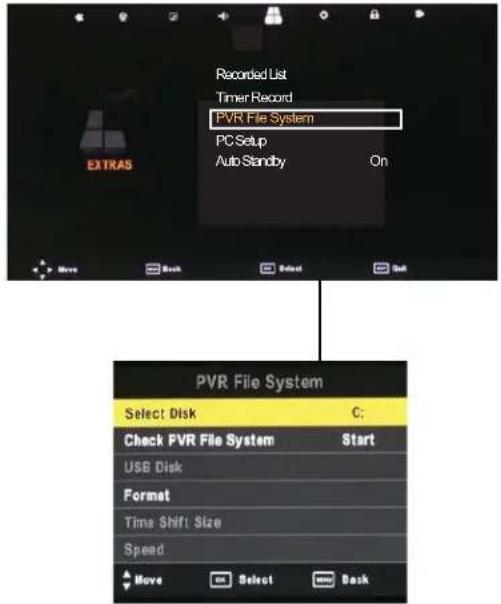
Select Disc: Select the USB device to record on.
Check PVR File System: Check the system of the USB device
USB Disc: Displays information
Format: Format the USB device for PVR operating
Time Shift Size: Displays the memory size of the USB device
Speed: Displays the speed of the USB device
Recorded List
Press the USB1 button on the remote control to display the recorded list

Note: Delete any scheduled recordings out of this list with the RED button.
Schedule List
Press the A button on the remote control to display the recorder schedule list

Note: Delete any scheduled recordings out of this list with the RED button
Timer Record
When selecting a programme in the EPG for Timer record the Recorder menu will appear. Press OK and the Timer will set automatically from the EPG data. If you choose to manually programme the Recorder menu you can.

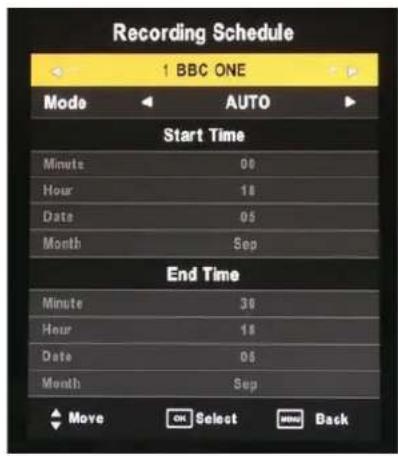
Channel: Select the channel you want to record
Mode: Select the recording mode
Start time: Select the record time begin
End time: Select the record time end
Press the OK button to save and exit the menu
Recording
Record and Time shift function buttons
When you press the Rec button the navigation menu will display on screen.
Note: Display and exit the navigation menu by pressing the R button. While you are recording you can press the play button and watch what has already been recorded.
![RECORDING TIME: [08:01:04] MAX RECORDING TIME: [0000:25:10] Play 1 ITV1 This Morning 11:25](/content/2026/06/1184973/images/3fab30346532172da6d15d7912c76b917e9195174ee8f7afce7bf6da22275966.jpg)
Recording: Press R to start instant recording
Pause: Press to activate the time shift function and pause live TV.
Stop: Press button ■ to stop the recording or the time shift process.
Remote Control button USB1: Displays the recorded List
Remote Control button A: Displays the Recording Schedule List
Time shift
When you press the EXIT/RE button the navigation menu will display on screen.
Note: Display and exit the navigation menu by pressing the EXIT button While you are recording you can press the play button and watch what has already been recorded.
When you press the | Pause/Play button the picture will be paused and the navigation menu will displayed on screen
![SHPT TIME/MAX SHIFT TIME: [-40:00:04/06:29:00] Play FB FF Prev. Next Pause Stop 11:33](/content/2026/06/1184973/images/c65eaf295803ee90293f5e4a0a5bb63c90c376991a4d26ad486714f28d278867.jpg)
While you are doing a time shift recording you can press the play button and watch what has already been recorded
EPG Recording
Display the programme guide by pressing the GUIDE button
Select a programme to record by navigating through the EPG with the ▲▼◀▶ buttons.


Record: Press the RED button to display the recorder menu and set the timer record. When the programme starts it will be recorded to the USB device.
Schedule: Press YELLOW button to display the recording Schedule List
Remind: Press GREEN button to display the remind menu. Once the programme starts the TV will automatically switch to this programme.
DVD Operation
Basic Operation
Press the Power button on the TV or the remote control, and select "DVD" source by the TV/AV[SOURCE]. If there is no disc in the DVD player the screen will show "NO DISC" Insert Disc according to picture next to disc slot. Do not touch the playing surface.
Hold the disc around the outside with your fingers and place the disc into the slot The player will automatically draw the disc into the player
To "Eject" the disc, press the EJECT button on the TV or the "▲" button on the remote control.
DVD Setup MENU
- DVD Setup is a menu to enable the user to configure the DVD settings.
Enter the DVD Setup menu
Press the Menu button on the remote control and select the OPTIONS MENU. Scroll down and select DVD Setup. When in the DVD setup menu use the ◀ button to navigate along the top of the menu and the ▲▼ to scroll up and down the menus.

Exit the DVD Setup menu
In the General setup page options scroll down to Exit setup and press OK.
General Setup
TV Display
4:3 Pan Scan
This is selected when the DVD player is connected to a normal TV. Wide-screen images are shown on the screen, but with some parts cut automatically.
4:3 Letter Box
This is selected when the player is connected to a normal TV. Wide-screen images are shown on the screen, with black belt on the top and bottom.
Wide
This is selected when the player is connected to a wide-screen TV.


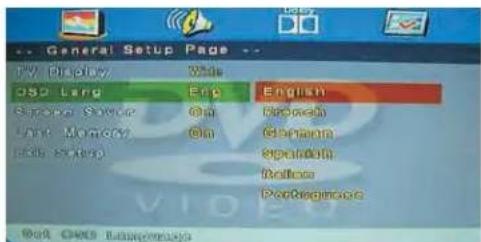
OSD Language
This is used to select the OSD language
Screen Saver
Start the screen saver, the screen saver image will appear when the player stops or the picture is paused for a few minutes. This saver can keep the screen from being damaged.
- On(Start the screen saver)
- Off (Turn off the screen saver)
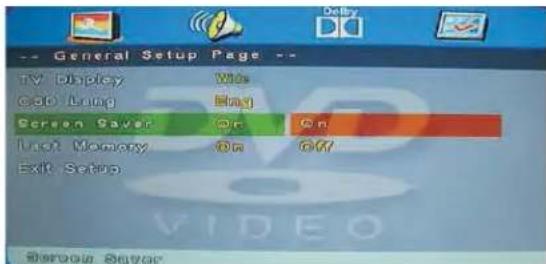
Last Memory
This is setting enables you to watch the DVD from the last point it was turned off, (for example changing the source to watch TV)
• ON(Activate the last memory function)
- OFF(Deactivate the last memory function)

AUDIO Setup
- Speaker Setup
Enter the Audio setup page using ▼ button, press ok see the options.

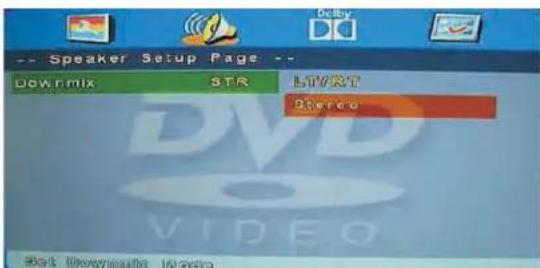
Downmix
LT/RT
A disc recorded multi channel soundtrack, the output signal will be incorporated to left and right channel.
. Stereo
A disc recorded multi channel soundtack, The output signal will be incorporated to stereo.
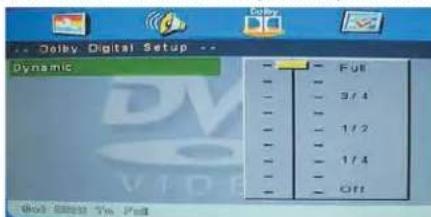
Dolby Digital Setup
Dynamic
This option is used to set the compression ration in order to control the sound (Volume) contrast.
Preference Setup

This menu is only available when in DVD mode and no DVD is playing or the DVD has been stopped.
TV System
PAL
This is selected when the player is connected to a PAL system TV.
MULTI
The player will set the TV system according to the disc in the tray.
NTSC
This is selected when the player is connected to a NTSC system TV.
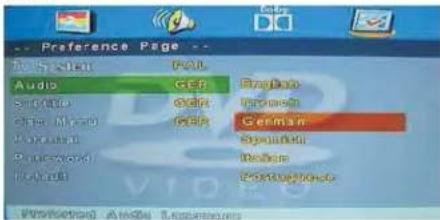
Audio
Choose the language you want to watch your DVD in. Only if the language is recorded to the DVD will this option be functional.
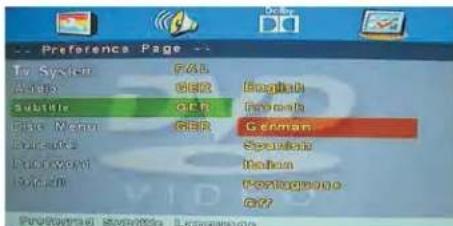
Subtitle
Choose the subtitle language you want to watch. Only if subtitles have been recorded to the DVD will this option be functional.
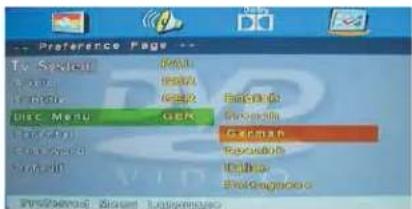
Disc Menu
Choose the language you want to see the Disc menu in. Only if the language is recorded to the DVD will this option be functional.
Parental
Parental lock gives you the option of selecting an age control grade. For example if PG is selected any disc inserted rated higher will not be played.
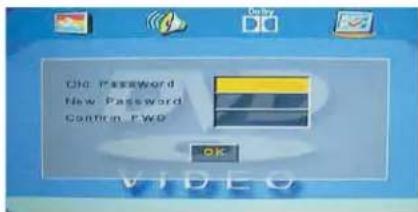
The password is a tool to lock and unlock the parental Lock setting.
Note: (Default password is 123456)

Default
To set the DVD settings back to factory default, choose reset and press the OK button.

Disc Care
About Disc Terms
Title
Generally, pictures or music compressed on a DVD are divided into several sections, "title".
Chapter
The smaller section unit of picture or music in a DVD under the title, usually one title is comprised of one or more chapters and each of them is numbered for easy searching, but some discs may not have a recording chapter.
Track
A segment of picture or music on a CD, Each track is numbered for searching.
Care of Disc
Video disc contains high-density compressed data that needs proper handling.
- Hold the disc with fingers by outer edge and/or the center spindle hole. Do not touch the discs surface.
- Do not bend or press the disc



- Do not expose the disc to direct sunlight or heating sources, Stere discs in cabinet vertically and in dry condition.
Prevent exposure to:
Direct sunlight
Heat or exhaust from a heating device
Extreme humidity
Clean the disc surface with a soft, dry cleaning cloth, Wipe the disc surface gently and radically from center toward the outer edge.
Do not apply thinner, alcohol, chemical solvent, or sprays when cleaning. Such cleaning fluids will permanently damage the disc surface.

TROUBLE SHOOTING GUIDE
To assist in locating possible faults use the help guide below.
| SYMPTOM | SOLUTION |
| No Picture | Check that the TV is correctly plugged in. Check that the TV is connected to a suitable power source. Check the electrical supply is turned on. |
| No Picture | Ensure that the TV is powered on. Check that the cables are fitted securely. Ensure the aerial and/or external sources are connected. Press the SOURCE button to change the source. Turn the TV on or off. |
| No Sound | Press the MUTE button and check if Mute mode is set. Switch to another channel and see if the same problem occurs. Press V+ button to see if the problem can be solved. |
| No picture on some channels | Check that correct channel is selected. Adjust the antenna. |
| No colour on some channels (black &white) | Check if the same problem exists on other channels. Ensure the correct picture settings are selected. |
| Noisy, Snowy, Ghosting picture. | Check the antenna is connected correctly. Check that the antenna is in good condition. Try moving the antenna. |
| Will not accept disc | DVD not selected. Select DVD mode with SOURCE button. |
| Screen shows "NO DISC" | Disc placed incorrectly. Disc must have mirror side facing you if single side. |
| Disc damaged or dirty. Inspect disc. If damaged you must discard. If dirty see "Disc care" page. | |
| Picture "Freezes" or breaks up | Disc damaged or dirty, See "Disc care" page |
| Certain disc functions not working. | Disc may not support required feature. Read disc information. |
If none of the suggestions seem to work, try switching your TV off and then on again. If this does not work contact our technical helpline.
NOTE: The TV must only be repaired by a qualified registered service person. Never attempt to remove the back cover as the TV has dangerous voltages inside that may cause fatality or fire.

DVD-Signal: NTSC, PAL (Regionalcode 2)

Caution:
This unit is a class 1 laser product. However this unit uses a visible laser beam which could cause hazardous radiation exposure if directed. Be sure to operate the player correctly as instructed.
Remote controdatpensfi
| Type Infrared | |
| Control distance 5m | |
| Control angle 30 degrees (Horizontal) | |
| Batteries 2 x 1.5V, Size AAA | |
| Dimensions 48 x 193 x 20mm | |
| Weight 120g (without batteries) | |
Wall Mounting
- The stand base and stand stem must be removed.
- Please follow the instructions of how to apply the stand (included in the gift box), if you have already attached the TV stand read the instructions in reverse order to detach.
- Be sure the stand stem is removed (unscrew 4 screws at the stem).
- Use four machine screws to mount the TV on the bracket.
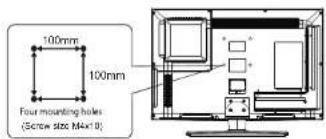
This unit is VESA-Compliant and designed to be wall mounted with a VESA-Compliant 100mm x 100 mm mounting kit. Mount this unit according to the instructions of the wall bracket (not supplied)
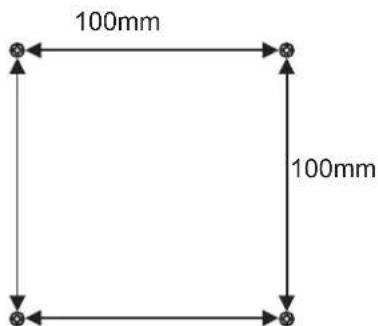
4 Mounting holes Screw size M4 x 12
Waste Electrical Recycling
Correct disposal of Product
This sign indicates that this product may not be disposed of with your regular household waste. The recycling and separate collection of such products is your responsibility. Please drop off the above mentioned waste at a designated place for recycling waste electri-
cal and electronic equipment. If you do not know where to drop off your waste equipment for recycling, please contact your local city office or household waste collection service.
The crossed out wheeled dust bin symbol indicates that batteries and/or accumulators must be collected and disposed of separately from household waste.
Hg Cd Pb
If the battery or accumulator contains more than the specified values of lead (Pb), mercury (Hg), and/or cadmium (Cd) defined in the Battery Directive (2006/66/EC), then the chemicals Hg Cd Pb symbols for lead(Pb), mercury (Hg) and/or cadmium (Cd) will appear below the crossed out wheeled dust bin symbol.
By participating in separate collection of batteries, you will help to assure the proper disposal of products and batteries thus help to prevent potential negative consequences for the environment and human health.
For more detailed information about the collection and recycling programmes available in your country, please contact your local city office or the shop where you purchased this product.

This appliance complies with European Safety and Electrical directives. It fulfils the following EU regulations:
En55013:2001+A1:2003+A2:2006
EN55020: 2007
EN61000-3-2: 2006 EN61000-3-3:1995+A1:2001+A2:2005
EN55022:2006(CLASS-A)
EN55024:1998+A1:2001+A2:2003
QUICK START GUIDE
Model: LED 2612 QD
Important Note:
To download an Instruction manual from the Internet please go to WWW.Celloelectronics.com and select Service.
If you do not have an internet connection, please call the Cello service team on UK: 0871 288 7345 Rep Ireland: 0818 333 833
and they will provide you with an Instruction manual per Post.
What's in the box?
TV set
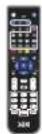
Remote Control

Batteries
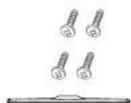
Stand & Screws
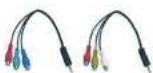
Converter cable for AV and YPbPr video

First Time Installation
- Connect the adapter and the power cable to the AC power supply and the Aerial lead to the Aerial in (RF) socket.
2.Switch on the TV by pressing
3.The 2 step "Quick Start" menu will appear on your screen.(Pictures below) - Select Language, Country and service then press the OK button to start the tuning process, This process will find all available channels and store them.
The SAT tuning has a preselected channel list, this enables you to watch your SAT channels almost instantly after activating the SAT tuning.
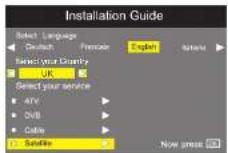
Step 1
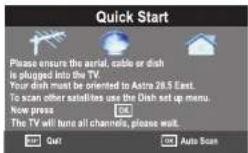
Step 2
Rear View and Sockets
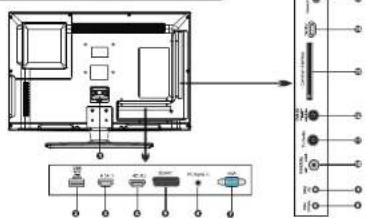
| Socket | Description | |
| 1 | Fixed Power load | Connect to power supply. |
| 2 | USB | Allows the insertion of a USB storage device to play video, audio, photo and text files (Media mode) and record DTV programmes on to a USB storage device. |
| 3/4/14 | HDMI IN | To connect to a High-Definition (HD) signal output device, such as a set-top-box, blurray disc player or AV receiver. |
| 5 | SCART | To connect to a VCR, DVD Player, or other AV device with a SCART output socket. |
| 6 | PC AUDIO IN | To connect to a computer or other devices with a VGA interface. |
| 7 | VGA | Connect to the PC VGA output to display PC graphics. |
| 8 | Mini YPBPr | To connect to a DVD player, Digital Set-Top-Box, or other AV devices with component (YPBPr) video and audio output sockets. |
| 9 | Mini AV | To connect to the Composite VIDEO and AUDIO (L/R) output sockets on external video devices. |
| 10 | DIGITAL AUDIO OUT (COAXIAL) | To connect to the audio socket on the digital/standard 5.1 audio system. |
| 11 | TV Aerial | To connect to the aerial socket on the wall with the RF coastal cable. |
| 12 | DVB-S21To connect Satellite signal. | |
| 14 | CI (Common Interface) Slot | Allows the insertion of a Common Access Module. |
| 15 | Headphone out | To connect to the earphones. |
HELP
If you have any problems installing this product please contact our Technology Customer Service Centre
TEL: UK 0871 288 7345 Rep Ireland 0818 333 833
Useful Information
Remote control

Muse
Unmute sound Available in all nodes.
SOURCE
Display / Hide Source Menu.
Power button
On/OFF Standby mode.
Mena
Display / Hide main menu, step back one menu, exit menu
Help
Display / Hide the Help Menu.
Quick start
Display/ Hide the Quick start menu.
TV
Spot cut to 65% source Sequences A16, D481, 12, 13
S451 Can
Ra
C
Shortcut to DVBS/DVBS2 source.
信
Shortfall in DUBS
15.100.0 DADO SERVICE
D'Trimeshift
Play of pause.
Press to enter timesmall, the image is used and it starts away from the ground position.
Record from the passed position.
C
Stop playing or stop rescending.
[Unreadable]
Fast reverse and fast forward.
[NO TEXT]
Previous / next chapter in USD mode or play the Previous
/nea, scene of the recorded programs, jump by 30 seconds.
Val+Val
Press to increase/decrease the sound level.
CH
When watching a channel, changes the channel.
NUMBER BUTTONS
Press 8-9 to select a TV channel directly when you are
watching TV. The channel change after 2 seconds.
* depending on the model
Coloured
Fast text when in update mode and fast text links present
Can be used for other junctions in Hold motor
Fruit
Exit
Exit text mode.
2 [Index]
index page (page 100)
index pag
Up/Down
Select +/- Page in Hold mode.
Left / Right
Hold main page and select sub pages using Red / Green
Hott card
SUI.
OK
Hold page and Expand TOP / Bottom / Full, Use TXT for
Uod
NUMBER BUTTONS
NUMBER BUTTONS
Press U-V to select a text page.
C
Press this button to show hidden text [e.g. the solutions for
TV quiz shows!. Press it again to hide the text
SUB
SOD
Subtle display/ select button (can display/ hide a menu)
1x1
Text / Mix / TVI always in Update model
Important Note:
To download an Instruction manual from the Internet please go to WWW.Celloelectronics.com and select Service.
If you do not have an Internet connection, please call the Cello service team on UK: 0871 288 7345 Rep Ireland: 0818 333 833
and they will provide you with an Instruction manual per Post.
Front / Right Side View and Controls

natural_image
Line drawing of a flat-screen monitor with base and stand (no text or symbols)
| item | Description | |
| 1 | POWER LED | Illuminates green when the TV is turned on. Illuminates red when the TV is in standby mode. The LED will alternate between red and green when the PVR timur programming has started in the standby mode. |
| 2 | IR (Infrared Receiver) | Receives IR signals from the remote control.Do not put anything near the sensor, as its function may be affected. |
| 3 | EJECT (A) | Eject |
| 4 | PLAY (H) | Play |
| 5 | STANDBY | Switches the TV on from standby mode.Switches the TV back to standby mode. |
| 6 | SOURCE | Press to select among different input signal sources:DTV,CAS.P,SATR.HITF,ATV,HDMI1,HDAD2,HDMI3,AV,SCART,YBPR,RVD,NC,USAConfirmed the selection on OSD menu. |
| 7 | MENU | Displays the OSD (on screen display) menu. |
| 8 | CH+/- | Press to select a channel or select a sub-menu from the OSD menu. |
| 9 | VOL+/- | Adjusts the volume.Press to select and adjust a setting in the OSD menu. |
Recording a DTV Programme onto a USB Storage Device
Use this function to record the DTV programme you are watching on the main screen and save them for future viewing. Make sure that your connected USB storage device has enough available memory space
- Press the Rec button to record the programme that you are currently watching.

The recording progress bar will disappear after 15 seconds. To display the recording progress bar again, press the OK button or the Rec button
- Press the ■ Stop button to stop recording.

Recording will stop automatically when the disk is full.
Lock System
The Lock System is designed to prevent accidental retuning of the TV / losing channels and prevent children watching unsuitable programmes.
The Lock System must be set to On for this function to operate. If the Lock System is set to On, a valid password must be entered when you access Auto Tuning / Manual Tuning / Restore Factory Default.
• The default password is "0000"
- If you change the password, be sure to remember the new password! If you forget the new password, press the master password "B899"

Technical Specifications Attaching the Stand
TV Specifications
| Model | LED 2612 QD |
| Panel System | 26 inch LED Panel |
| Display Resolution | 1920 g08ks (H), 8") pixels |
| Television System | PAL I / 8G / DK / SECAM BG/DK |
| Brightness | 280 cd/m2 |
| Contrast Ratio | 3000 :1 |
| Power Source | 100-240V~50/60Hz |
| Energy Efficiency Class | A |
| Operating Power Consumption | 27 W |
| Average Annual Energy Consumption | 39 kWh |
| Standby Power Consumption | < 0.5 W |
| Operating Temperature | 0°C ~ 40°C |
| Vesa Wall mounting size / Screw size | 100 x 100mm / M4 x 10 |
| Speaker Power | 8 W + 6 W |
| Dimension (W x D x H)without base | 658 x 54.5x 429 mm |
| Dimension (W x D x H) with base | 658 x 204.8 x 499.4 mm |
| Weight (Net) | 7.9 kg |
Important Note:
To download an Instruction manual from the Internet please go to WWW.Celloelectronics.com and select Service.
If you do not have an internet connection, please call the Cello service team on UK: 0871 288 7345 Rep Ireland: 0818 333 833 and they will provide you with an Instruction manual per Post.
Waste Electrical Recycling
Correct disposal of Product

This sign indicates that this product may not be disposed of with your regular household waste. The recycling and separate collection of such products is your responsibility. Please drop off the above mentioned waste at a designated place for recycling waste electrical and electronic equipment. If you do not know where to drop off your waste equipment for recycling, please contact your local city office or household waste collection service.

The crossed out wheeled dust bin symbol indicates that batteries and/or accumulators must be collected and disposed of separately from household waste.
If the battery or accumulator contains more than the specified values of lead (Pb), mercury (Hg), and/or cadmium (Cd) defined in the Battery Directive (2006/66/EC), then the chemicals symbols for lead(Pb), mercury (Hg) and/or cadmium (Cd) will appear below the crossed out wheeled dust bin symbol.

By participating in separate collection of batteries, you will help to assure the proper disposal of products and batteries thus help to prevent potential negative consequences for the environment and human health.
For more detailed information about the collection and recycling programmes available in your country, please contact your local city office or the shop where you purchased this product.

This appliance complies with European Safety and Electrical directives. It fulfills the following EU regulations:
EN 55022:2006+A1:2007 EN 55013:2001+A1:2003+A2:2006 EN 61000-3-2:2006+A1:2009+A2:2009 EN 61000-3-3:2008 EN 55024:1998+A1:2001+A2:2003 EN 55020:2007
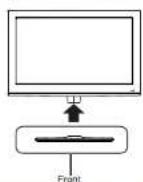
Attaching the stand
How to attach/remove the stand
Follow instructions below to attach the base of the TV, reverse the instructions to remove the base.
- Fix the base cover to the fixed-ring base as image 1;
image 1
2.Fx the base cover to fixe-ring base
with 148426592.
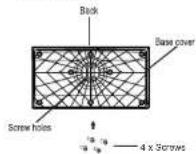
Image 2

Image 3
This unit is VESA-Compliant and designed to be wall mounted with a VESA-Compliant 100x100mm
mounting kit.
Mount this unit according to the instructions of the wall bracket(not supplied)
SAFETY INFORMATION
Read all the instructions carefully before using the unit and keep them for future reference.
Retain the manual. If you pass the unit onto a third party make sure to include this manual.
Check that the voltage marked on the rating label matches your mains voltage.
Damage
- Please inspect the unit for damage after unpacking. - Do not continue to operate the unit if you are in any doubt about it working normally, or if it is damaged in any way - switch off, withdraw the mains plug and consult your dealer.
Location of Unit
The unit must be placed on a flat stable surface and should not be subjected to vibrations.
Do not place the unit on sloped or unstable surfaces as the unit may fall off or tip over.
The mains socket must be located near the unit and should be easily accessible.
This unit is designed for indoor use only.
Temperature
- Avoid extreme degrees of temperature, either hot or cold. Place the unit well away from heat sources such as radiators or gas / electric fires. - Avoid exposure to direct sunlight and other sources of heat.
Naked Flames
- Never place any type of candle or naked flame on the top of or near the unit.
Moisture
• To reduce the risk of fire, electric shock or product damage, do not expose this unit to rain, moisture, dripping or splashing. No objects filled with liquids, such as vases, should be placed on the unit.
- If you spill any liquid into the unit, it can cause serious damage. Switch it off at the mains immediately. Withdraw the mains plug and consult your dealer.
Ventilation
• To prevent the risk of electric shock or fire hazard due to overheating, ensure that curtains and other materials do not obstruct the ventilation vents.
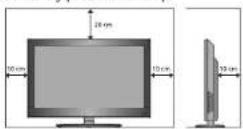
- Do not install or place this unit in a bookcase, built-in cabinet or in another confined space. Ensure the unit is well ventilated.
• Make sure that there is a gap of at least 10 cm on both sides and a gap of 20 cm at the top.
Safety
- Always disconnect the unit from the mains supply before connecting / disconnecting other devices or moving the unit.
- Unplug the unit from the mains socket during a lightning storm.
Mains Cable
- Make sure the unit or unit stand is not resting on top of the mains cable, as the weight of the unit may damage the mains cable and create a safety hazard.
- If the mains cable is damaged it must be replaced by the manufacturer, its service agent, or similarly qualified persons in order to avoid a hazard.
Interference
- Do not place the unit on or near appliances which may cause electromagnetic interference. If you do, it may adversely affect the operating performance of the unit, and cause a distorted picture or sound.
Optimum viewing
- View the unit in moderate light to prevent eye strain. It is recommended to watch the unit from a distance 3-7 times that of the screen height.
LED screen
- The LED screen is manufactured using high-precision technology. However, some tiny black points and / or bright points (red, blue or green in colour) may constantly appear on the LED screen. These points are generated in the manufacturing process and are normal.
Screen Burn
A characteristic of Plasma and LED TV Panels is that displaying the same image for a long time may cause a permanent after-image to remain on the screen. This is called screen burn. Most pictures shown on the unit will be constantly moving and fill the screen.
• Examples of images that you need to watch out for are as follows (this is not an all-inclusive list):
-
Black Bars: if black bars appear at the left / right or top / bottom of the screen, it is recommended to change the format so that the picture fills the entire screen.
-
TV Channel Logos: e.g. Shopping channel logos and pricing displays - especially if they are bright and stationary. Moving or low-contrast graphics are less likely to cause ageing of the screen.
3. Time Displays
- Teletext: Do not view a stationary page for long periods of time.
5. TV Menus
- Pause Mode: Do not leave the screen in pause mode for long periods of time, e.g. when watching videos.
• To prevent screen burn if viewing any of the above for long periods of time, reduce contrast and brightness when viewing. Once burn-in occurs it will never disappear completely.
Missing channels or other issues
In order to receive the full digital services we recommend the use of an outdoor aerial suitable to receive digital transmissions, the use of indoor or set top aerials may not provide full services. PLEASE NOTE You may need to upgrade your outdoor aerial in order to get the full Digital Service.
Headphones
- Listening to loud sounds for prolonged periods of time may permanently damage your hearing.
- Before putting on headphones, turn the volume down then put the headphones on and slowly increase the volume until you reach a comfortable listening level.
Standby
- The button on the remote control does not switch off the unit completely. The unit will continue to draw electricity from the mains supply while in standby. In the interests of safety and to avoid unnecessary energy consumption, never leave the unit in standby while unattended for long periods of time, e.g. overnight, while on holiday or while out of the house. Switch it off and disconnect the mains plug from the mains socket.
Batteries
- Batteries used in the remote control for this unit are easily swallowed by young children and this is dangerous.
- Keep loose batteries away from young children and make sure that the battery holder tray is secure in the remote control. Seek medical advice if you believe a cell has been swallowed.
- Please dispose of batteries correctly by following the guidance in this manual.
Supervision
- Children should be supervised to ensure that they do not play with the unit and the remote control. - Never let anyone especially children push anything into the holes, slots or any other openings in the case - this could result in a fatal electric shock.
Service
- To reduce the risk of electric shock, do not remove screws. The unit does not contain any user-serviceable parts. Please leave all maintenance work to qualified personnel.
- Do not open any fixed covers as this may expose dangerous voltages.
Maintenance
- Ensure to unplug the unit from the mains socket before cleaning.
- Do not use any type of abrasive pad or abrasive cleaning solutions as these may damage the unit's surface.
Do not use liquids to clean the unit.
Others
The apparatus shall not be exposed to dripping or splashing and that no objects filled with liquids, such as vases, shall be placed on the apparatus.
- A warning that an apparatus with CLASS-1 construction shall be connected to A MAINS socket outlet with a protective earthing connection.
• Instructions to ensure correct and safe installation and interconnection of the apparatus in multimedia systems
• Where the MAINS plug or appliance coupler is used as the disconnect device, the disconnect device shall remain readily operable
• "To prevent possible hearing damage, do not listen at high volume levels for long periods."
Important Note
This TV is fitted with the latest ECO friendly power saving technology. If whilst viewing the TV the remote control is not used for a period of 4 hours, the Auto Standby feature will operate and power down the TV.
A warning message will be displayed to inform you that the TV is about to power down.
Disable this feature by setting the AUTO STANDY option in the main Menu / TIME to OFF:

Packaging materials are not toys. Please keep away from children. Plastic bags can cause suffocation when pulled over the head.

The lightning flash with arrowhead symbol, within an equilateral triangle, is intended to alert the user to the presence of uninsulated "dangerous voltage" within the unit's enclosure that may be of sufficient magnitude to constitute a risk of electric shock.

The exclamation point within an equilateral triangle is intended to alert the user to the presence of important operating and maintenance (servicing) instructions in the manual accompanying the unit.
- Remote control instructions in DTV/USB mode
- Mute
- SOURCE
- Power button
- Menu
- Help
- Quick start
- Shortcut to DVBC source
- ▶(Timeshift)\*
- VOL+/VOL-
- CH+/CH-
- NUMBER BUTTONS
- Remote control instructions in TELETEXT mode
- Coloured
- Exit
- i (Index)
- Up/Down
- Left / Right
- OK
- SUB
- Installing Batteries in the Remote Control
- Aerial connection
- Connecting the TV Antenna
- Using the Remote Control
- Connecting external devices
- HDMI Lead
- SCART Lead
- VGA Cable
- Caution:
- PC connection
- VGA, HDMI PC Connection
- Satellite connection
- Connecting Video camera and Video recorder
- Video camera
- Video recorder
- Connecting an audio system
- Connecting a DVD player
- HDMI Connection
- USB Connection
- AV Connection
- YPbPr Connection
- Common Interface Slot
- USING YOUR COMMON INTERFACE SLOT
- Common Interface
- Auto installation setup
- Power On / Off the LED TV To turn on the LED TV
- To turn off the LED TV
- TV SETTINGS Menu
- Signal Source
- Auto Scan
- DTV (DVBT) Manual Tuning
- CADTV (DVB-C) Manual Tuning
- Frequency
- Symbol (ks/s)
- QAM Type
- ATV (analogue cable TV) Manual Tuning
- Storage to
- System
- Current CH
- Search
- Fine tune
- PROGRAMME EDIT
- Delete
- Move
- Skip
- Rename (Only available in ATV)
- Favorite
- Signal Information
- Cl Information
- 5V antenna power
- Software Update (USB)
- Power-Off-No-Signal-Down
- Auto-Power-Down
- Guide (EPG - Electronic Program Guide)
- Favourite Lists
- Dish Setup
- To set a different Satellite or LNB
- Satellite List
- Satellite Edit
- Delete Satellite menu
- Add Satellite
- Transponder List
- Edit Transponder menu
- Delete Transponder
- Add Transponder
- Dish Parameter description
- Scan Menu
- Menu Settings
- LOCK menu
- Hotel mode
- Multimedia Operation
- Basic Operation
- Photo
- Photo viewing
- Music
- Listen to music
- Movie
- Watch a film
- Text
- View textefi
- Recording Operation
- PVR Settings
- Recorded List
- Schedule List
- Timer Record
- Recording
- Record and Time shift function buttons
- Time shift
- EPG Recording
- DVD Operation
- DVD Setup MENU
- Enter the DVD Setup menu
- Exit the DVD Setup menu
- General Setup
- TV Display
- 4:3 Pan Scan
- 4:3 Letter Box
- Wide
- OSD Language
- Screen Saver
- Last Memory
- AUDIO Setup
- - Speaker Setup
- Downmix
- LT/RT
- Stereo
- Dolby Digital Setup
- Dynamic
- Preference Setup
- TV System
- PAL
- MULTI
- NTSC
- Audio
- Subtitle
- Disc Menu
- Parental
- Default
- Disc Care
- About Disc Terms
- Chapter
- Track
- TROUBLE SHOOTING GUIDE
- Wall Mounting
- Waste Electrical Recycling
- Correct disposal of Product
- Hg Cd Pb
- QUICK START GUIDE
- Model: LED 2612 QD
- Important Note:
- First Time Installation
- Useful Information
- Remote control
- Muse
- Recording a DTV Programme onto a USB Storage Device
- Lock System
- Technical Specifications Attaching the Stand
- Attaching the stand
- SAFETY INFORMATION
- Damage
- Location of Unit
- Temperature
- Naked Flames
- Moisture
- Ventilation
- Safety
- Mains Cable
- Interference
- Optimum viewing
- LED screen
- Screen Burn
- Time Displays
- TV Menus
- Missing channels or other issues
- Headphones
- Standby
- Batteries
- Supervision
- Service
- Maintenance
- Others
- Important Note
Brand : Cello
Model : LED2612QD
Category : Television