
MultiPhone 7500 - Smartphone PRESTIGIO - Free user manual and instructions
Find the device manual for free MultiPhone 7500 PRESTIGIO in PDF.


| Product Type | Smartphone |
| Brand | Prestigio |
| Model | MultiPhone 7500 (PAP7500) |
| Dimensions (H x W x D) | 143.9 x 70.5 x 9.5 mm |
| Weight | 142.6 g |
| Battery Capacity | 2300 mAh |
| Processor | Quad Core 1.5 GHz |
| Operating System | Android 4.2 Jelly Bean |
| Display | 5.0" FHD 1920 x 1080 IPS with OGS technology |
| Rear Camera | 13 MP AF BSI |
| Front Camera | 8 MP AF |
| Internal Memory | 16 GB or 32 GB (eMMC) |
| RAM | 1 GB or 2 GB (depending on configuration) |
| Connectivity | Wi-Fi 802.11 b/g/n, Bluetooth 4.0, NFC, 3G (UMTS 900/2100 MHz, GSM 900/1800/1900 MHz), Micro USB 2.0 |
| Sensors | Proximity sensor, light sensor, G-sensor, gyroscope |
| SIM Card Type | Micro SIM |
| Key Features | FM radio, GPS, Google Play Store, eReader Prestigio, voice recorder, motion gestures |
| Care & Cleaning | Clean with a soft, dry cloth. Avoid water and harsh chemicals. |
| Safety | Read the included legal and safety notices. Use only authentic accessories. Avoid covering the antenna area. |
| Spare Parts & Repairability | Contact Prestigio authorized service centers for repairs. Spare parts available through official channels. |
Frequently Asked Questions - MultiPhone 7500 PRESTIGIO
User questions about MultiPhone 7500 PRESTIGIO
0 question about this device. Answer the ones you know or ask your own.
Ask a new question about this device
Download the instructions for your Smartphone in PDF format for free! Find your manual MultiPhone 7500 - PRESTIGIO and take your electronic device back in hand. On this page are published all the documents necessary for the use of your device. MultiPhone 7500 by PRESTIGIO.
USER MANUAL MultiPhone 7500 PRESTIGIO
MultiPhone PAP7500
Android Smartphone
User Manual
Version 1.0
About this user manual
This user manual is specially designed to detail the device's functions and features.
- Please read this manual before using the device to ensure safe and proper use.
-Descriptions are based on the device's default settings. - Images and screenshots may differ in appearance from the actual product.
- Prestigio continuously strives to improve its products. Due to software upgrading, some contents in this user manual may be different from your product. Prestigio reserves the rights to revise this user manual or withdraw it at any time without prior notice. Please take your product as standard.
- The Android Applications which are provided by your device have been developed by Android's users or other companies, not by Prestigio and are provided at no charge. Unless otherwise indicated, Prestigio makes no promises nor representations and takes no responsibilities about their performance, quality, content, or intellectual property rights.
Conventions used in this manual
In this user manual, we use the following symbols to indicate useful and important information:

Caution: provides safety precaution and important information.

Note: gives additional information.

Tips: usage tips.
The order of options or menus you must select to perform a step.
Warranty Information
Prestigio MultiPhone PAP7500 has a two-year warranty.
You may find detailed warranty information at
http://www.prestigio.com/support/warranty-terms
Contents
1. Unboxing .... 1
Inside your package ....1
Your phone at a glance ....1
Buttons....2
2. Getting started....3
Install the SIM card ....3
Power on your phone....4
Home screens....4
List menu....5
3. Basics......6
Finger tips....6
Motion gesture 7
Charge the battery 8
Connect to your PC 9
Lock and unlock the screen....9
Adjust the volume....10
Recently used apps ....10
Notifications panel....11
Enter text 11
Use widgets....13
System upgrade 13
Status icons 13
4. Phone 14
Make a call 14
Answer a call 14
Reject a call 14
End a call 14
Contacts 14
Use speed dial....16
Call a phone number in a text message 16
Call a phone number in an e-mail 16
Set up a conference call....17
Make an emergency call 17
5. Messages 18
Send a message....18
Check your message....18
Reply to a message 18
Forward a message ....18
Delete messages 19
Create a conversation shortcut....19
WAP push messages 19
6. Mail 20
Set up an e-mail account....20
Send a mail....20
View your mails....20
Reply to a mail....21
Delete mails 21
Gmail 21
7. Camera 23
Your camera at a galance....23
Take a photo 24
Take a photo of yourself 24
Take a combined photo of the front and rear camera....24
Take a panoramic photo 24
Take a 3D photo....25
Using HDR 25
Record a video 25
Camera scenes 25
Camera and video settings....25
8. Multimedia 27
Gallery 27
Video player 30
Music player....31
FM radio....32
Voice recorder....33
9. Web & network.... 35
Connect to the Internet 35
VPN....38
Web browse 38
10. Bluetooth & NFC 40
Bluetooth 40
NFC 41
11. Apps....42
Play store....42
Manage your apps....42
12.eReader Prestigio 43
Your eReader at a glance 43
Download an eBook 43
Read an eBook 43
eReader settings 44
13. Travel & maps 45
Find a location....45
Get directions....45
Navigation 46
Use Google maps 46
14.My files and storage 47
My files....47
Storage 47
15. Utilities 48
Clock....48
Calendar 49
Calculator 49
ToDo list 50
Google search 50
16. Set up your phone 52
Wireless & Networks....52
Device....53
Personal 53
Accounts....54
System....54
17. Specifications 55
18. Specific Absorption Rate Information.... 56
International standards....56
19. Troubleshooting....57
1. Unboxing
Inside your package
- Prestigio MultiPhone • Earphones • Battery
- USB cable • AC/DC Adapter • SIM eject tool
- Back case
- Quick start guide
- Legal and safety notices
- Warranty card

Your phone at a glance

| 1 | Micro SIM card slot | 8 | Proximity and light sensor |
| 2 | Front camera | 9 | Earpiece |
| 3 | Volume button | 10 | Power button |
| 4 | Touch screen | 11 | Speaker |
| 5 | Home key | 12 | Back key |
| 6 | Menu key | 13 | Rear camera |
| 7 | Headset jack | 14 | Micro USB port |
Buttons
| Button Definition Function | ||
| Power | Press and hold to power on or off your phone.Press to lock or unlock the screen display. | |
| Volume • Press to adjust the volume. | ||
| Menu | Tap to open a list of options available on the current screen.Tap and hold to open the list of recent apps. | |
| Home • Tap to return to Home screen. | ||
| Back | Tap to return to the previous screen.Tap to hide the onscreen keyboard when it is opened. | |
2. Getting started
Congratulations on your purchase and welcome to Prestigio.
To get the most from your product and enjoy all that Prestigio has to offer, please access:
http://www.prestigio.com/catalogue/MultiPhones
For more details about your product, please visit:
http://www.prestigio.com/support
2

Please read the "MultiPhone legal and safety notices" on your package before use.

- Do not cover the antenna area with your hands or other objects. This may cause connectivity problems or drain the battery.
- Do not allow water to contact the touch screen. The touch screen may malfunction in humid conditions or when exposed to water.
Install the SIM card
Follow the steps below to insert your SIM card. Remember to turn off your mobile phone before removing the back cover.
-
Securely hold your MultiPhone with your fingers and remove the SIM card cover with the SIM eject tool.
-
Put the SIM card's cut-off corner facing inwards.
-
Insert the SIM card all the way into the SIM card slot. Push the SIM card in with the SIM eject tool until it clicks into place.
-
Close the the SIM card cover.
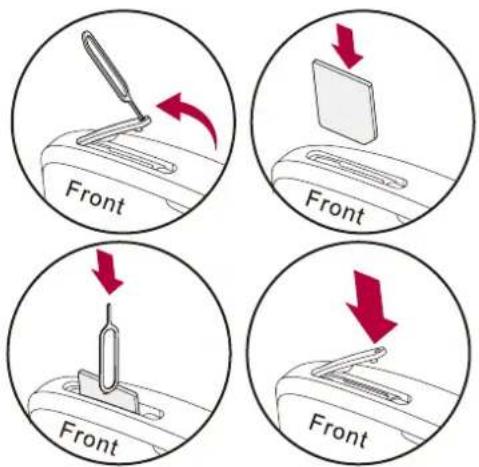

Remove the SIM card: Remove the the SIM card from its slot with the SIM eject tool.
Power on your phone
Press and hold the Power button for a few seconds to power on your phone.
- When turning on the device for the first time, follow the on-screen instructions to set up your device.
- After setting up your phone, a Prestigio installer wizard will appear on the screen. It offers you a few third-party apps, tap the apps you want to install on your phone. Follow the on-screen instructions to install the apps.
- It may take a few minutes for your phone to install the apps.

To turn off your phone, press and hold the Power button, and then tap Power off on the pop up screen.

If you do not install the apps provided by the Prestigio installer wizard the first time, you can tap on the Home screen to install the apps next time.
Home screens
Your Home screen is the starting point to access all of your phone's features. The Home screen can have multiple panels. To view other panels, swipe left or right. Tap [?]to return to the center Home screen. You can add your favorite applications, shortcuts, folders and widgets here so they are always just a tap away. Your phone's Home screen consists of the following areas:
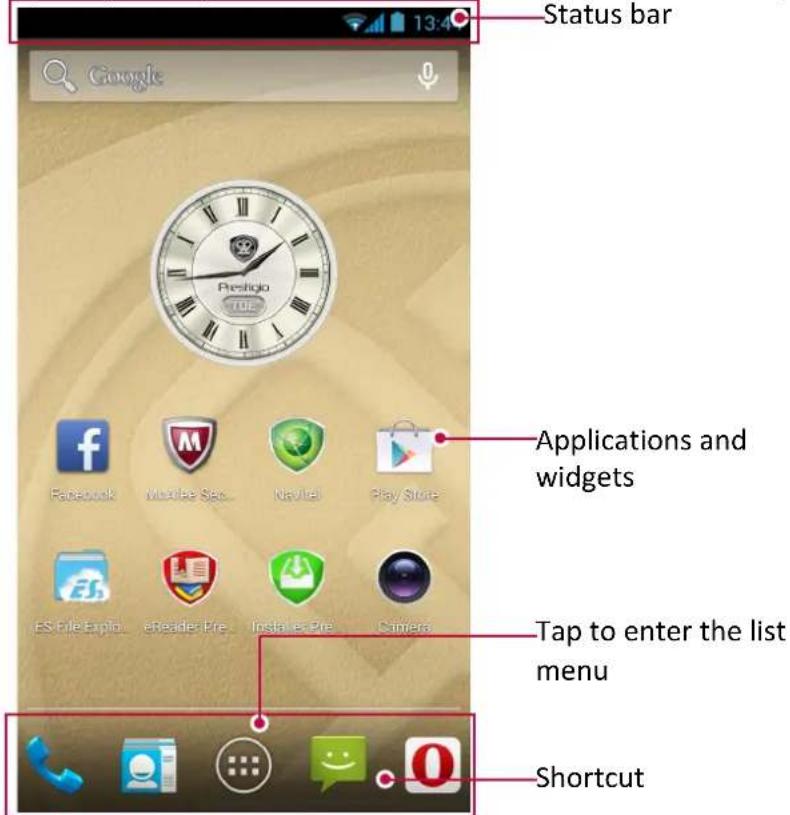
Personalise your wallpaper
Pick your favorite photo as your Home wallpaper. Choose from the available wallpapers, or use any photo you have taken with the camera.
- On the Home screen, tap[●]→Wallpaper.
-
Select one of the following: ES File Explorer, Gallery, Live wallpapers, Video Wallpaper or Wallpapers.
-
Select an image and tap Set wallpaper. Or, select an image, resize it by dragging the frame, and then tap OK.
Add an app icon to the Home screen
- On the Home screen, tap 📄 open the list menu.
- Tap and hold an application icon.
- Drag it into a panel preview.
Remove an item on the Home screen
- Tap and hold an item to remove.
- The Remove option appears at the top of the Home screen.
- Drag the item to the Remove option.
- When the Remove option turns red, release the item.
List menu
All yours apps' icons can be found on the list menu. You can also find all the widgets of the apps on the list menu. On the Home screen, tap 🎨 open the list menu. The list menu can have multiple panels. To view other panels, swipe left or right. Tap [♣or [ ]♣] return to the Home screen. Your phone's list menu consists of the following areas:
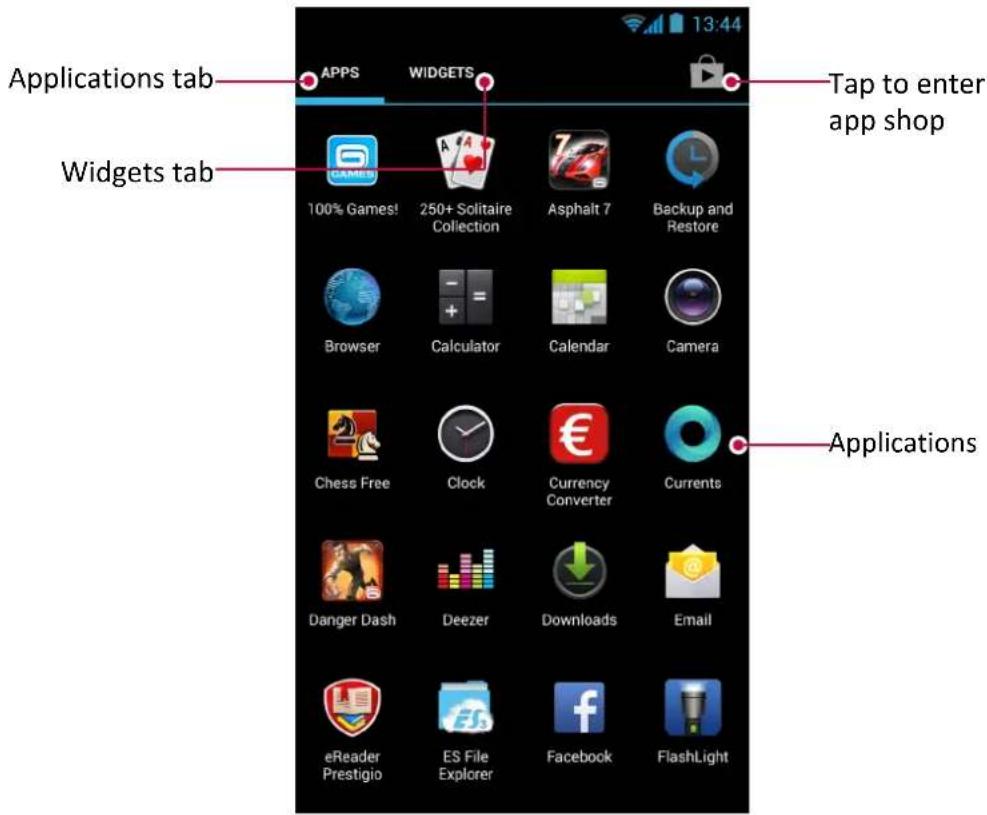
3. Basics
Finger tips
Only use your fingers to use the touch screen.
Tap
To open an application, to select a menu item, to press an on-screen button, or to enter a character using the on-screen keyboard, tap it with a finger.
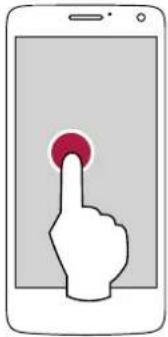
natural_image
Illustration of a hand pressing a red button on a smartphone screen (no text or symbols)Swipe
Quickly swipe your finger vertically or horizontally across the screen to go to other Home pages, scroll through documents, and more.

Zoom in
Spread two fingers apart on a webpage, map, or image to zoom in a part.

natural_image
Smartphone screen displaying a red double-headed arrow with three dots, no text or symbols present.
Tap and hold
Tap and hold an item for more than 2 seconds to access available options.

natural_image
Illustration of a hand pressing a button on a smartphone screen (no text or symbols)Slide
Slide your finger vertically across the screen to open drop-down menu.
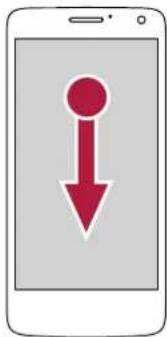
Zoom out
Pinch two fingers together on a webpage, map, or image to zoom out a part.

natural_image
Illustration of a smartphone displaying two connected red arrows (no text or symbols)Scroll
Drag up or down to scroll. On some screens, such as webpages, you can also scroll side to side.
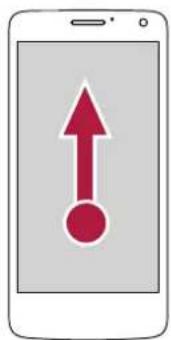
Flick
Flick left or right on the Home screen or the Applications screen to see another panel. Flick up or down to scroll through a webpage or a list, such as contacts.

natural_image
Illustration of a hand pointing at a smartphone screen displaying two red upward arrows (no text or symbols)Motion gesture
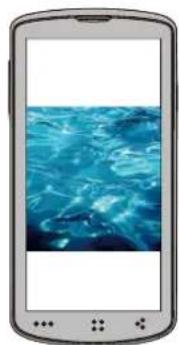
Rotate your phone for a better view
For many screens, you can automatically change the screen orientation from portrait to landscape by turning your phone sideways. When entering text, you can turn your phone sideways to bring up a bigger keyboard.
natural_image
Smartphone displaying a blue water splash image (no text or symbols visible)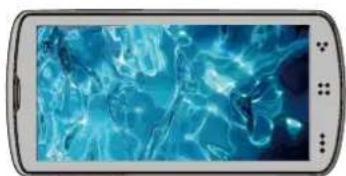
natural_image
Smartphone displaying a digital water splash screen (no visible text or symbols)
To prevent the display from rotating automatically, open the notifications panel and deselect Auto rotation.

- Some applications do not allow screen rotation.
- Some applications display a different screen depending on the orientation.
Charge the battery
A new battery is partially charged. The battery icon at the upper-right corner shows the level of charging status.
- Plug the small end of the charger into the micro USB port of the device, and plug the large end of the charger into an electric socket.
- After being fully charged, disconnect the device from the charger. First unplug the charger from the device, and then unplug it from the electric socket.

natural_image
Diagram showing a device with a red arrow pointing to it, enclosed in a circle (no text or symbols)
Always use authentic accessories to optimise your battery performance. Non-authentic accessories (eg. chargers) can damage your battery and even your phone.

- You can use the phone while it is charging.
- Keeping the charger plugged to the phone when the battery is fully charged will not damage the battery. The only way to turn off the charger is to unplug it, so it is advisable to use an easily accessible power socket.
- If you do not intend to use your phone for several days, we recommend that you remove the battery.
- If a fully charged battery is left unused, it will lose its charge over time.
- If a battery is being used for the first time or the battery has not been used for a prolonged period, it may take longer time to recharge.
Optimise your battery performance
Here are some steps to help you optimise your battery performance.
- Always ensure that your phone profile is appropriately set to meet your actual usage. Profile setting significantly impacts the phone's battery performance. In general, outdoor mode is the most power-draining setting while silent mode consumes the least amount of power.
- If you are not using Bluetooth, WiFi, GPS or other applications, turn them off. And be sure to lock your phone to prevent accidental pressing of the keys with the auto-lock feature.
- Adjust the intensity of your display screen's backlight to low or medium level and for the shortest duration. In general, the lower the backlight level and the shorter the duration, the more power you will save.
- Avoid using or placing your phone near magnetic objects (eg. a radio or television) or on metal surfaces, which will impact the network connection and ultimately drain power from your battery.
Connect to your PC
You may need to connect your phone to a PC in order to complete activation. Your phone's micro USB port allows you to exchange media and other files with a PC.
-Connect your phone to the PC using the included USB cable.

natural_image
Illustration of a smartphone connected to a laptop via cable (no text or symbols)Connect as a media device
- Connect your phone to the PC with the included USB cable.
- Open the notifications panel, and then tap Connected as a media device > Media device (MTP).
- Transfer files between your phone and the PC.
Connect with Windows Media Player
Ensure that Windows Media Player is installed on the PC.
- Connect your phone to the PC with the USB cable.
- Open the notifications panel, and then tap Connected as a media device > Media device (MTP).
- Run Windows Media Player and sync music files.

Tap Camera (PTP) on USB computer connection screen if your PC does not support Media Transfer Protocol (MTP) nor have any appropriate driver installed.
Lock and unlock the screen
When not in use, lock your phone to prevent unwanted operations and save the battery power.
-Lock: press the power button.

When your phone is locked, nothing happens if you touch the screen.
Your phone can still:
- Receive calls, text messages, and other updates.
- Play music.
- Adjust the volume.
You can use the earphones to answer a call or listen to music.
- Unlock: press the power button, and then slide the lock icon to unlock your screen.
Auto lock
You can set a time span for the screen to be locked automatically.
- On Home screen, tap 📄 open the list menu.
- Tap >Display > Sleep.
- Select your desired time span.

You can also access System settings by taping [ ] on the Home screen or list menu.
Set screen lock pattern
Protect your personal information and prevent others from using your phone without your permission by setting a screen lock pattern, PIN, or password. You will be asked to unlock the screen every time your phone is powered on or when it is idle for a certain period of time.
- On the Home screen, tap 📄 open the list menu.
- Tap >Security > Screen lock.
Setting a slide unlock
- On the Home screen, tap 📋 open the list menu.
- Tap >Security > Screen lock > Slide.
Setting a pattern
- On the Home screen, tap 📄 open the list menu.
- Tap >Security >Screen lock >Pattern.
- Draw a pattern by connecting four dots or more, and then draw the pattern again to verify it.
Setting a PIN
- On the Home screen, tap 📄 open the list menu.
- Tap >Security >Screen lock >PIN.
- Enter at least four numbers, and then enter the PIN again to verify it.
Setting a password
- On the Home screen, tap 📄 open the list menu.
- Tap >Security >Screen lock >Password.
- Enter at least four characters including numbers and symbols, and then enter the password again to verify it.
Unlock your phone
Turn on the screen by pressing the Power button, and enter the unlock code.
If you have forgotten your screen lock pattern, you have up to five attempts to try and unlock your phone. If this fails, take the device to your dealer to reset it.
Adjust the volume
Press the volume button to adjust the volume. Press the top of the button to turn up the volume, and press the bottom of the button to lower it.
Recently used apps
You can easily access apps you have just recently opened.
- Press and hold the Home button [●] to open the list of recently used apps.
- Slide your finger up and down to see recently opened apps.
-To switch back to an app, tap it.
-To remove an app from the list, swipe it.
Notifications panel
To help make sure you do not miss important events, many apps can provide alerts. An alert can appear briefly as a banner at the top of the screen, which goes away if you do not respond to it, or as a notice in the center of the screen that remains until you acknowledge it.
When you get a new notification, you can open the notifications panel to see what event notification or new information you have received. You can also quickly access settings from the notifications panel.
- To open the notifications panel, slide down from the top of the screen.
- To close the notifications panel, drag up the bar that is at the bottom of the screen.
-To dismiss the notification, tap
-To enter system settings, tap
Using Quick Settings
The Quick Settings tab allows you to easily turn airplane mode, Wi-Fi, and other functions on and off. It also provides a quick shortcut to change the mode, set the brightness and auto rotation.
-Tap for to switch between notifications and quick settings list.
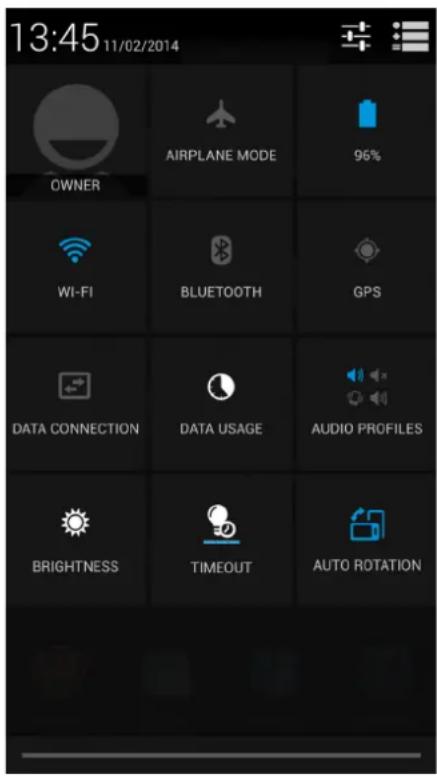
You can view your phone's current status and use the following options:
-Airplane mode: turn on or off your phone's wireless radios.
-Battery: check the battery status.
-Wi-Fi: activate or deactivate the Wi-Fi feature.
-Bluetooth: activate or deactivate the Bluetooth feature.
-GPS: activate or deactivate the GPS feature.
-Data connection: activate or deactivate the data connection.
-Data usage: check the data usage of the data connection.
-Audio profiles: switch to general, silent, meeting or outdoor -profiles quickly.
-Brightness: adjust the brightness of the screen.
-Timeout: adjust the screen timeout.
-Auto rotation: allow or prevent the interface from rotating when you rotate the device.
Enter text
Use the on-screen keyboard to enter text, such as contact information, mail, and web addresses. Depending on the app and the language you are using, the keyboard may correct misspellings, predict what you are typing, and even learn as you use it.
Change the input method
You can download an input app or use the input method pre-installed on your phone. To change the input method, follow these steps:
- On the Home screen, tap 📄 open the list menu.
- Tap >Language & input >Default.
- Choose the desired input method.
Use the Prestigio keyboard
Tap a text field to bring up the keyboard, and then tap keys on the keyboard. You can enter text with the built-in QWERTY keyboard.

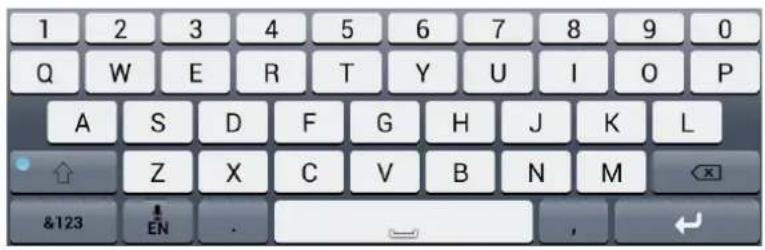
Enter text
As you type, each letter appears above your thumb or finger. The letter is not entered until you choose your desired word.
- Type uppercase: tap the Shift key 📍 before tapping a letter. Or touch and hold the Shift key, then tap a letter.
-Type lowercase: tap the Shift key again and then tap a letter.
-Enter numbers, symbols or punctuation: tap 8123
Enter text by voice
You also can enter the text by activating the voice input feature and then speak into the microphone. Your phone displays what you speak.
Voice typing: open the Prestigio keyboard, tap EN

- If the device does not recognise your words correctly, tap the underlined text and select an alternative word or phrase from the dropdown list.
- To change the language or add languages for the voice recognition, tap English (US) and select Add more languages.
Copy and paste text
- After you have selected the text you want to copy, tap ☐ The selected text is then copied to the clipboard.
- In a text entry field, press and hold at the point where you want to paste the text.
- Tap Paste.
Move a text
-
After you have selected the text you want to cut, tap the selected text is then cut to the clipboard.
-
In a text entry field, press and hold at the point where you want to paste the text.
-
Tap Paste.

You can tap 📁 select all the text you have entered.
Use widgets
Widgets put at-a-glance important information and media content up front on your Home screen. Some widgets are already added to your Home screen for your convenience. You can add more from the available selections of widgets.
Add a widget to the Home screen
- On the Home screen, tap 📄 open the list menu.
- Tap WIDGETS to open the widgets list.
- Scroll left or right on the widgets panel.
- Tap and hold the desired widgets to add it to the Home screen.

- Some widgets connect to web services. Using a web-based widget may result in additional charges.
- The widgets available may vary depending on the region or service provider.
System upgrade
Your phone can check and notify you if there is a new upgrade available. You can also manually check if there is an available update.
You can set this option in Settings > About phone > System updates.

Do not press any buttons while the device is upgrading.
Status icons
The icons in the status bar at the top of the screen give information about your phone:
| Icons What it means Icons What it means | ||
| Silent mode activated. HSPA network connected. | ||
| Vibration mode activated. 3G network connected. | ||
| Airplane mode activated. Wi-Fi connected. | ||
| Battery power level. | Roaming (outside of normal service area). | |
| Call in progress. Bluetooth is activated. | ||
| Missed call. Connected to PC. | ||
| New SMS or MMS. | Wired microphone headset connected. | |
| GPRS network connected. Wired headset connected. | ||
| EDGE network connected. Alarm is set. | ||
4. Phone
Learn to use calling functions, such as making and answering calls, using options available during a call or customizing and using call-related features.

Make a call
-
Tap to open the dial pad, enter your number directly. Or enter the first few digits of a phone number, then choose a contact.
-
Tap
You also can use the following methods to make a call:
- Make a call from the history of incoming and outgoing calls and messages.
-Make a call from the contacts list. - Make a call from the list of favourite contacts.

The phone dialer's SmartDial features makes it quick and easy for you to make a call. Simply enter the phone number or first few letters of the person's name you want to call. SmartDial automatically searches and filters your stored contacts and the phone numbers from the call history.
Answer a call
When you receive a phone call from a contact, the incoming call screen appears. To pick up the phone, do the following:
-Slide .

- If there is a headset connected to your phone, you can pick up a call by pressing the center button of your headset.
- If the call waiting service is active, another call can be made. When the second call is answered, the first call is put on hold.
Reject a call
When a call comes in, do the following to reject the call:
-Slide , re the call immediately.
- Slide to , you can send a message to the caller or create a task for returning the call.
- Press the Power button or Volume button to mute the ringing sound without rejecting the call.
End a call
Tap to end a call. Or press the center button of your headset.
Contacts
Contacts are stored in one of the two available phonebooks: SIM phonebook (located on your SIM card, by which the number of entries you can store depends on its capacity) or the Smart Phonebook (located on your phone). When adding new contacts, the contacts will only be added to the phonebook you have selected.
View contacts
Do the following methods to view the contact list:
-On the Home screen, tap
-Or on the list menu, tap


Search for a contact
- Go to to view the contact list.
- Scroll up or down the contact list.
- Tap and enter the first few letters of the name in the search bar.
- Select the contact from the option list.
Call a contact
- Go to to view the contact list.
- Scroll the list to select your desired contact.
-Tap the number area to call the contact.
-Tap to make a video call with the contact.
Add a new contact
Method one:
- On the Home screen, tap to display the dial pad.
- Enter a number, tap [●]→Add to contacts.
- Tap Create new contact, select your desired storage.
- Add details as desired.
- Tap Done to finish and save.
Method two:
- Go to to view the contact list.
- Tap to add a new contact.

For contacts on the Smart Phonebook, you can add detailed information, like home number, office number, contact pictures and etc.
My favourites
Add a contact to favourites
You can add contacts from your Smart Phonebook to favourites.
- Search for the desired contact.
- Tap to add the contact to your favourites.
View your favourites
- Go to to view the contact list.
- Tap to view your favourites.
Contact groups
You can group your contacts as different groups. For different groups, you can use different identifications, and send messages to a group.
Add contacts to a group
- Go to to view the contact list.
- Tap to view contact groups.
- Tap to add contacts to a group.
- Enter your group's name, and tap to add contacts.
Import/Export contacts
- Go to to view the contact list.
- Tap [●]▶Import/export.
- Select the contacts storage.
- Follow the prompts to finish.
Delete contacts
- Go to to view the contact list.
- Tap [●] Delete contact.
- Choose the contacts you wish to remove.
- Tap OK to delete the contacts.
Use speed dial
Use speed dial to call a phone number with a single tap. For example, if you assign a contact's number to the number 2 key, you can just press and hold 2 to dial the number.

The number 1 key is generally reserved for your voice-mail. Press and hold this key to call voice-mail and retrieve your voice-mail messages.
To assign a contact to a speed-dial key
- On the Home screen, tap to display the dial pad.
- Tap [●]→Speed dial.
- Choose a numeric key.
- Tap the desired contact from your phonebook.
Call a phone number in a text message
- Tap the phone number within the message.
- Tap to call the number.

To call the message sender, tap on the top of your screen.
Call a phone number in an e-mail
- Tap the phone number in the e-mail body.
- Tap to call the number.
Set up a conference call
If network is available, you can make the first call or accept a call. Then simply dial each subsequent call to add it to the conference.

Make sure your SIM card is enabled with conference calling service. Contact your mobile operator for details.
- During a call, tap to enter a phone number or select a contact from your phonebook.
- Tap to dial the number.
- The second number is dialed, and the first call is put on hold at this time.
-You can tap 📋 toggle between 2 calls.
-Tap add the contact to a conference call.
Make an emergency call
In some regions, you can make emergency calls even if you do not have a SIM card installed or your SIM card has been blocked.

If you are out of base station coverage, you will not be able to make an emergency call.
-
On the Home screen, tap to open the dial pad.
-
Dial the emergency number for your location, and then tap

In Europe, the standard emergency number is 112; in the UK, it is 999.
5. Messages
Messages let you exchange text messages with other SMS and MMS devices via your cellular connection. Your sent and received messages are neatly grouped into conversations, by contact name or phone number.

Send a message
- On the Home screen or list menu, tap

-
Tap to start composing a new message.
-
Use the following methods to add recipients:
-Enter a phone number.
-Tap, select contacts, and then tap OK.
-
Enter the text message in the text box.
-
Tap to add picture/video/audio/slideshow if you want to send an MMS message.
-
Tap to send the message.

After you finish entering your text, you can just tap [to save the message as a draft.

- There is a limit on the number of characters for a single text message (displayed above the send button). If you exceed the limit, your text message will be delivered as one but will be billed as more than one message.
- Your text message automatically becomes a multimedia message if you enter an e-mail address as the recipient, add a message subject, attach an item, or compose a long message.
Check your message
Depending on your notification settings, your phone plays a sound, vibrates, or displays the message briefly in the status bar when you receive a new message. A new message icon is also displayed in the status bar. Incoming messages are grouped into message threads by contact.
Check your text message
- Open the notifications panel, and then tap the new message notification.
-Go to the messages app and open the message.
Listen to a voice message
When you receive a voice message, check the message and tap to start voice playback.
Reply to a message
-
On the messages screen, tap a contact (or phone number) to display the exchange of messages with that contact.
-
In the text box, enter your message.
-
Tap to send the message.
Forward a message
-
On the messages screen, tap a contact (or phone number) to view the exchange of messages with that contact.
-
Tap and hold a message.
-
In the pop up window (Message options), select Forward.
-
Use the following methods to add recipients:
-Enter a phone number.
-Tap, select contacts, and then tap OK.
- Enter more text if you want.
- Tap to send the message.
Delete messages
Delete a message

- On the Home screen or list menu, tap
- The messages screen is displayed.
- Tap a contact (or phone number) to view the exchange of messages with that contact.
- Tap and hold a message.
- In the pop up window (Message options), select Delete.
Delete a conversation

- On the Home screen or list menu, tap
- The messages screen is displayed.
- Tap and hold a contact or phone number.
- Tap at the bottom of the screen.
Create a conversation shortcut
You can create a shortcut for the conversation, do the following:

- On the Home screen or list menu, tap
- The messages screen is displayed.
- Tap and hold a contact or phone number.
- Tap at the bottom of the screen.
- Then you can find the shortcut on your Home screen.
WAP push messages
WAP push messages contain a web link. Often, the link is to download a file that you have requested from a service provider.
When you receive a WAP push message, a notification icon is displayed in the status bar.
Read a new WAP push message
- Open the notifications panel, and then tap the push message notification.
- Tap Visit website.
View all your WAP push messages
- On the Home screen or list menu, tap

- Tap [●] Wappush messages.

You can only see this option if you have previously received WAP push messages.
6. Mail
Use this application to send or view e-mail messages. Learn to send or view e-mail messages via your personal or company e-mail account.

Set up an e-mail account
-
On the Home screen or list menu, tap and do one of the following:
-
If this is your first time adding an e-mail account in Mail, move to the next step.
-
If you have already added an e-mail account, then tap [●●●] > Settings > ADD ACCOUNT.
-
Enter the e-mail address and password for your e-mail account.
- Tap Next for a private e-mail account, or tap Manual setup for a company e-mail account.
- Follow the on-screen instructions to complete the setup.

When you finish setting up the e-mail account, the e-mail messages will download to your device.

Consult your mail service provider for the mail server configuration.
Send a mail

- On the Home screen or list menu, tap
- Switch to the e-mail account that you want to use.
- Tap .
- Fill in one or more recipients.
- If you want to loop in more recipients in a carbon copy (Cc) or blind carbon copy (Bcc) of the e-mail message, tap [●] Add Cc/Bcc.
- Enter the subject, and then compose your mail.
- Add an attachment: tap [●●●] > Attach file and then choose what you want.
- Tap to send the mail.
View your mails

- On the Home screen or list menu, tap
- Switch to the e-mail account that you want to use.
- The mail inbox will be displayed on the screen.
- Tap to check whether there is a new mail.
- Tap the desired mail to read it.
-Use or to view the previous or next mail.

Unread e-mail messages are displayed in bold and color bars appear next to them.
Search for a mail

- On the Home screen or list menu, tap
- Switch to the e-mail account that you want to use.
- Tap to display the search bar.
- Choose a search option in the drop-down list.
- Enter the first few letters of the mail sender or subject in the search bar.
- Select the mail from the list.
Reply to a mail
- On the Home screen or list menu, tap
- Switch to the e-mail account that you want to use.
- In the inbox, tap the e-mail message.
- Tap and then compose your mail.
- Tap to send the mail.

Delete mails
- On the Home screen or list menu, tap
- Switch to the e-mail account that you want to use.
- Tap the mail you wish to delete, and then tap


Gmail
Use this application to quickly and directly access the Google Mail service.
View your Gmail Inbox
All your received e-mail messages are delivered to your Inbox.
- On the Home screen or list menu, tap
- Your mail inbox is displayed on the screen.
- Tap to check whether there is a new mail.
- Tap the desired mail to read it.
- Swipe left or right to view the previous or next mail.

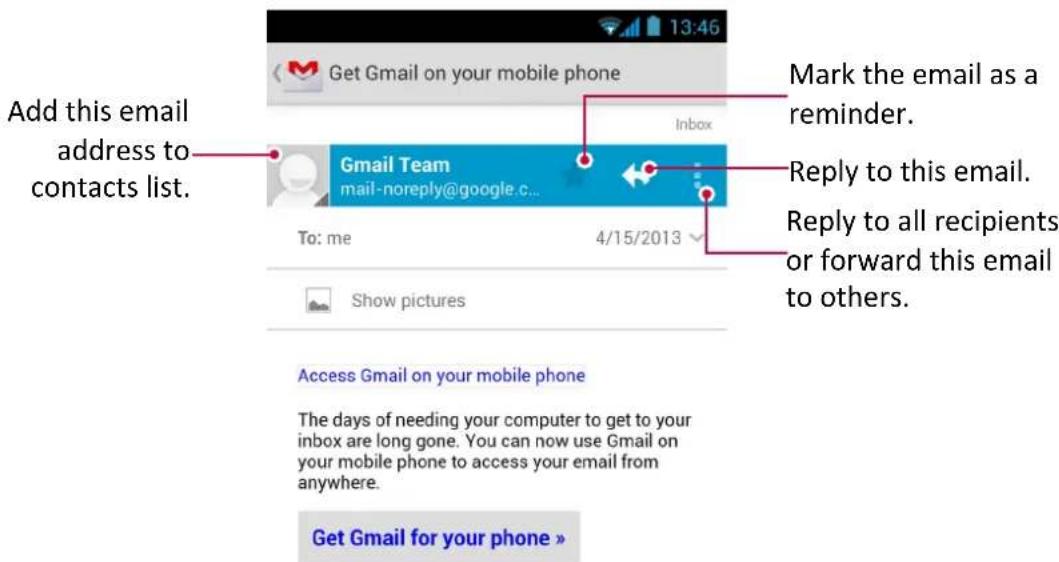

Search for a mail

- On the Home screen or list menu, tap
- Tap to display the search bar.
- Enter the first few letters of the mail sender or subject in the search bar.
- Select the mail from the list.
Send a mail in Gmail

- On the Home screen or list menu, tap
- Tap
- Fill in one or more recipients.
- If you want to loop in more recipients in a carbon copy (Cc) or blind carbon copy (Bcc) of the e-mail message, tap [ ] Add Cc/Bcc.
- Enter the subject, and then compose your mail.
- Add a picture or video: tap [●●●] > Attach picture/Attach video.
- Tap to send the mail.
Reply to a mail in Gmail

- On the Home screen or list menu, tap
- In the e-mail account inbox, tap the e-mail message.
- Tap, and then compose your mail.
- Tap to send the mail.
Delete mail in Gmail
- On the Home screen or list menu, tap

- Tap the desired mail, and then tap

7. Camera
With your phone, you can take both photos and videos as desired. In addition to a rear camera, there is a camera on the front for video calls and self-portraits. An LED flash on the back gives you extra light when you need it.
-To use the camera, on the Home screen or list menu, tap


Your camera at a galance

Select capture mode
While using your camera, you can scroll down to select your desired capture mode. You can choose the following capture modes:




Auto capture when smile is detected.
Take a photo with lightened faces for gentler images.
Use HDR (High Dynamic Range) to capture your subjects clearly when shooting portraits against a bright background.
Add effects for the photo captured.
Take a panoramic photo. You can take a photo composed of many photos strung together.
Create a photo combined with photos captured by the front and rear camera.
Create a 3D photo by taking a multi-angle picture.
Take a photo
- Tap to turn on the camera.
- Spread or pinch the screen to zoom in or out.
- Change the camera setting if necessary.
- Point the camera at what you want to capture. The camera will adjust the focus automatically as you move it.
- Tap to capture the photo.
Take a photo of yourself
- Tap to turn on the camera.
- On the screen, tap
- Tap to capture the photo.
Set self timer
- Tap to turn on the camera.
- Tap to customise your camera.
- On the pop up window, tap Camera options > Self timer, select your time span.
- When you are ready to take a photo, tap. The photo will be captured after the set time span.
Take a combined photo of the front and rear camera
You can use your phone to create a photo combined with photos captured by the front and rear camera.
- Tap to turn on the camera.
- Tap to select the campture, and then tap .
- When you are ready to take the photo, tap 📷
- The camera will take the photo with the front camera first. Select the method the photo to displayed.
- Tap again. Those two photos are combined to one photo.
Take a panoramic photo
You can capture wide or tall objects in a single photo with your phone.
- Tap to turn on the camera. 2. Tap to select the campture, and then tap .
- When you are ready to take the first shot, tap! Directional arrows appear, prompting you to pan left or right in landscape view (or pan up or down in portrait view).
- Pan your phone as smoothly as you can, and then pause when you see a complete frame on the Viewfinder screen. The camera will automatically capture the shot.
- Repeat the previous step to take the remaining shots.
- The camera will stitch the shots into a single photo.

Zoom and flash are disabled when you are in this mode.
Take a 3D photo
You can use your phone to get perfect group portraits with the most smiles and the fewest blinks.
- Tap to turn on the camera.
- Tap to select the campture, and then tap
- When you are ready to take the photo, tap


- The camera will take several shots and merges them into the best possible group photo.
Using HDR
When shooting portraits against a bright background, use the HDR (High Dynamic Range) scene to capture your subjects clearly. HDR brings out the details of both the highlights and shadows, even in high contrast lighting.
- Tap to turn on the camera.
- Scroll down the capture modes, and tap
- When you are ready to take the photo, tap


Do not move your phone during HDR capturing.
Record a video
- Tap to turn on the camera.
- When you are ready to start recording, slide to the right.
- While recording, you may choose to do the following:
-Zoom in or out.
- Change focus to a different subject or area by tapping it on the Viewfinder screen.
- Tap the flash icon to turn the flash on or off.
-To capture an image from the video while recording, tap

- To stop recording, slide to the left.
Camera scenes
A scene is a collection of settings to suit the lighting and environment. Use normal mode and let the camera automatically determine the optimal settings, or choose from a wide selection of scenes before you take a photo. Predefined settings make point-and-shoot photos easier to take.
- Tap to turn on the camera.
- Tap to customise your camera.
- On the pop up window, tap Scene mode.
Camera and video settings
Before you take a photo or record a video, customise your camera settings.
- Tap to turn on the camera.
- Tap to customise your camera.
General settings:
- GPS location info: Attach a GPS location tag to the photo.
- Gyroscope: Turn on or off the Gyroscope displayed on the camera preview mode.
- Shutter sound: Turn on or off shutter sound.
- Patternedlines: Show the patternlines on the camera preview mode.
- Touch screen shot: Set to capture a photo by just tapping the touch screen.
- Scene mode: Select your desired scene mode.
- White balance: Select an appropriate white balance, so images have a true-to-life colour range. The settings are designed for specific lighting situations. These settings are similar to the heat range for white-balance exposure in professional cameras.
- ISO: An ISO value indicates the light sensitivity of your camera's imaging sensor. A high ISO setting increases light sensitivity, but it can also add noise to the picture. Low values are for stationary or brightly-lit objects. Higher values are for fast-moving or poorly-lit objects.
- Picture size: Select from various standard sizes for your picture.
- Video quality: Set the quality level for videos as this setting will affect your file size.
- Image properties: Sharpen or blur the borders between objects; select an appropriate hue; make colors more or less pronounced; adjust the brightness and contrast.
- Zero shutter delay: The ZSD (zero shutter delay) function helps you capture photos immediately.
- Face detection: Set the ideal exposure and clarity of faces.
- Self timer: Select a time span for shutter delay to take a self-portrait.
- Anti-flicker: Select a band to avoid the impacts on photos caused by flickers from lighting sources.
Video options:
- EIS: The EIS (Electronic Image Stabilization) function helps reduce blurring associated with the motion of a camera during exposure.
- Microphone: Enable or disenable microphone while recording a video.
- Audio mode: Select an audio mode for your video.
- Time lapse interval: Set the time lapse interval to adjust the speed of your video output.

- To improve GPS signals, avoid shooting in locations where the signal may be obstructed, such as between buildings or in low-lying areas, or in poor weather conditions.
- Your location may appear on your photos when you upload them to the Internet. To avoid this, deactivate the GPS location info.
8. Multimedia
Your phone provides several multimedia for your entertainment. You can view your photo gallery, enjoy music, and watch videos.
8
Gallery
Use Gallery to view all your photos and videos on your phone.
-To open your gallery, on the Home screen or list menu, tap

- Some file formats may not be supported depending on the software installed on your device.
- Some files may not play properly depending on their encoding.
View your photos
View photos in the album
- On the Home screen or list menu, tap
- Tap and open a drop-down list, and then tap Albums.
- Browse an album or a group of photos.
- Tap a photo to view it in full screen.

View photos by locations
- On the Home screen or list menu, tap
- Tap to open a drop-down list, and then tap Locations.
- Pinch the screen or pan across the map until (location indicator) appears. The location indicator shows how many photos are taken in that area. Only photos with geo-tag info will appear on the map.
- Tap the location indicator. The photos taken in the same area will be displayed.

View photos by time
View photos and videos based on when they were taken.
- On the Home screen or list menu, tap
- Tap ☐ to open a drop-down list, and then tap Time. Photos and videos stored on your phone will be displayed according to the time they were taken.
- Tap the sorted photos by a act time. All the photos taken around that time will be displayed.

Zoom in and out
Use one of the following methods to zoom in or zoom out an image:
- Double-tap anywhere to zoom in.
- Spread two fingers apart on any place to zoom in. Pinch to zoom out, or double-tap to return.
Start a photo slideshow
- On the Home screen or list menu, tap

-
Browse to an album or a group of photos.
-
Tap [●]▶▶Slideshow.
-
On the Home screen or list menu, tap 📄
- Browse to an album or a group of photos.
- Tap [●]→Slideshow.
Watch a video

- On the Home screen or list menu, tap
- Go to one album in Gallery, select the video that you want to watch.
- Tap the on-screen keys to control the video playback.
- Press the volume button to adjust the sound.
- Tap [●] for more options.
Edit your photos
When viewing a photo, tap [●] to use the following functions:
- Delete: Delete the photo.
- Slideshow: Start a slideshow with images in the current folder.
• Edit: Launch Paper Artist to edit a photo. - Rotate left: Rotate anticlockwise.
- Rotate right: Rotate clockwise.
- Crop: Resize the orange frame to crop and save your photo.
- Set picture as: Set a photo as your wallpaper or a contact image.
• Details: Check information of the photo file.
Crop a photo

- On the Home screen or list menu, tap
- Select the photo that you want to edit.
- Tap [●●●] > Edit, and then tap □> Crop. You will see a crop box around the photo.
-Drag the crop box over the part of the photo you want to keep.
- Press the edge of the crop box, and drag your finger inward or outward to resize the photo.
- Tap Save.
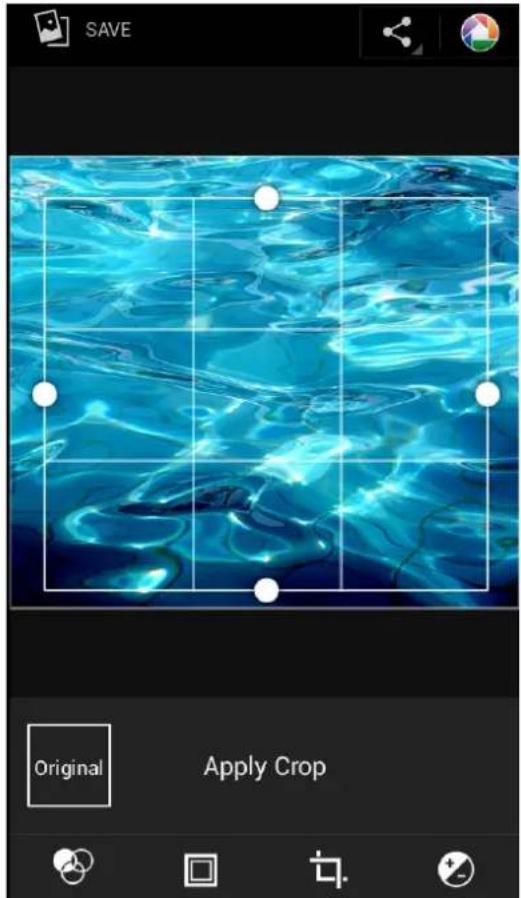

The cropped photo is saved as a copy. The original photo remains unedited.
Add photo effects


- On the Home screen or list menu, tap
- Select the photo that you want to edit.
- Tap [●]→Edit, and then tap .
- Tap an effect to apply to the photo.
- Tap Save.

The enhanced photo is saved as a copy. The original photo remains unedited.
Share your photos
You can share your photos with another device via e-mail, MMS or Bluetooth.
Share photos by E-mail

- On the Home screen or list menu, tap
- Select the photo(s) that you want to share.
- Tap open a drop-down list, and then tap E-mail.
- Choose an e-mail account.
- Compose your message.
- Tap to send the mail.

If you have multiple e-mail accounts, the default e-mail account will be used.
Share photos by MMS

- On the Home screen or list menu, tap
- Select the photo(s) that you want to share.
- Tap open a drop-down list, and then tap Messaging.
- Enter a phone number or add a contact from your phonebook.
- Compose your message.
- Tap to send the message.
Share photos via Bluetooth

- On the Home screen or list menu, tap
- Select the photo(s) that you want to share.
- Tap open a drop-down list, and then tap Bluetooth.

You will be asked to turn on Bluetooth and connect to the receiving Bluetooth device so the files can be sent.
Delete photos

- On the Home screen or list menu, tap
- Select the photo(s) that you want to delete.
- Tap [●] and then tap delete.
Set as wallpaper or contact photo

- On the Home screen or list menu, tap
- Select the desired photo.
-
Tap [●] and then tap Set picture as.
-
Select Wallpaper or Contact photo.
-
You will see a crop box around the photo.
-Drag the crop box over the part of the photo you want to keep.
- Press the edge of the crop box, and drag your finger inward or outward to resize the photo.
- Tap OK to set the photo as your wallpaper or contact photo.
Video player
You can use the video player on your phone to watch videos.
Watch a video with the video player

- On the Home screen or list menu, tap
- Select the video that you want to watch.
- Tap the on-screen keys to control the video playback.
- Press the volume button to adjust the sound.
- Tap [●] to select more options.
Share your videos
You can share your videos with another device via e-mail, MMS or Bluetooth.
Share videos by E-mail

- On the Home screen or list menu, tap
- Select the video(s) that you want to share.
- Tap open a drop-down list, and then tap E-mail.
- Choose an E-mail account.
- Compose your message.
- Tap to send the mail.

If you have multiple e-mail accounts, the default e-mail account will be used.
Share videos by MMS

- On the Home screen or list menu, tap
- Select the video(s) that you want to share.
- Tap open a drop-down list, and then tap Messaging.
- Enter a phone number or add a contact from your phonebook.
- Compose your message.
- Tap to send the message.
Share videos via Bluetooth

- On the Home screen or list menu, tap
- Tap the video that you want to share.
- Tap open a drop-down list, and then tap Bluetooth.

You will be asked to turn on Bluetooth and connect to the receiving Bluetooth device, so the files can be sent.
Music player
You can listen to your favourite music with the music player. The Music app is a central hub for your favorite music whether it is on your phone or streamed through a music service.
-To use the music player, on the Home screen or list menu, tap

- Some file formats are not supported depending on the device's software version.
- Some files may not play properly depending on the encoding used.
Browse music
- From the Home screen, tap

-
You can:
-
Tap Artists/Albums/Playlists to browse songs sorted by artists, albums, or playlists.
-Tap Songs to browse all songs. - Tap Now playing to check the song that is playing now.

The Now playing selection is only available in landscape view.
Listen to music

- On the Home screen or list menu, tap
- Tap a song from the list.
- Use the following keys to control playback:

Set a song as ringtone
- On the Home screen or list menu, tap
- Tap a song from the list.
- Tap [●] and select Use as ringtone.

Your playlist
Create a playlist
You can make your own playlist.
- On the Home screen or list menu, tap
- Tap a song from the list.
- Tap [●] and select Add to playlist.
- On the pop up screen, tap New to create a new playlist.
- Enter a title and tap Save.
Rename the playlist
- On the Home screen or list menu, tap
- Tap Playlists to view all your playlists.
- Tap and hold the playlist you want to rename.
- Select Rename on the pop up screen.

Delete a playlist
- On the Home screen or list menu, tap
- Tap Playlists to view all your playlists.
- Tap and hold the playlist you want to delete.
- Select Delete on the pop up screen.

Delete a song
- On the Home screen or list menu, tap
- Tap a song from the list.
- Tap [●] and select Delete.

FM radio
You can listen to radio programs on your phone.
• To use the FM radio, on the Home screen or list menu, tap


You must connect a headset before using the FM radio on your phone.
Listen to a radio station
- On the Home screen or list menu, tap
- Tap Search. It will start scanning automatically and save the available channels.
- Use the following keys to control playback:


Turn off FM
-You can use other apps while listening to the radio.
-To turn off FM Radio completely, tap
Record radio programs
You can record a radio program when listen to it.
- On the Home screen or list menu, tap

-
Tune to your desired radio station.
-
Tap Record FM.
-
Tap to stop recording.
-
Enter a name for the recording and tap Save.
Voice recorder
Use Voice Recorder to capture information during lectures, interviews, or even to create your own audio log.
Record a voice memo
- On the Home screen or list menu, tap

-
Hold the microphone near the sound source.
-
Tap to start recording a voice clip.
-
Tap to pause voice recording. (Tap
to resume voice recording.)
-
Tap to stop recording.
-
Tap Save.

Voice Recorder can run in the background while you do other things on your phone, except when you open other apps that also use audio functions.
Play a voice memo

- On the Home screen or list menu, tap
- Tap ☐ open the recorded files list.
- Tap your voice memo to play it.
Delete a voice memo

- On the Home screen or list menu, tap
- Tap to open the recorded files list.
- Tap and hold the voice memo you want to delete.
- Tap to delete the file.
9. Web & network
You can connect your phone to the Internet and browse a webpage on the website.
9
Connect to the Internet
Your phone connects to the Internet whenever necessary, using a Wi-Fi connection (if available) or your mobile operator's data connection.
Data connection
You can use your mobile operator's data connection. Some apps and services may transfer data over your mobile operator's cellular network, which may result in additional fees. Contact your mobile operator for details.
Turn on or off data connection
- On the Home screen or list menu, tap

-Or, tap [●]► System settings.
- Tap More... > Mobile networks > Data connection.
- Tap to turn on or off data connection.

You can tap to turn on or off data connection on notifications panel. On notifications panel, tap → switch to quick settings list, and then tap Data connection.

If you do not have the data connection turned on and you are also not connected to a Wi-Fi network, you will not receive automatic updates to your e-mail, social network accounts, and other synced information.
Add a new access point
Access Point Names (APNs) connect your phone to data networks for services such as mobile web browsing.

Before you add another data connection, have the access point name and settings from your mobile operator ready (including username and password if required).
- On the Home screen or list menu, tap

-Or, tap [●]► System settings.
- Tap More... > Mobile networks > Access Point Names.
- On the APNs screen, tap [●]→New APN.
- Enter the APN settings.
- Tap [●]→Save.
- Select the new APN on the APNs screen.
Turn on or off data roaming
Connect to your mobile operator's partner networks and access data services when you are out of your mobile operator's coverage area.

Using data services while roaming may be costly. Check with your mobile operator for data roaming rates before you use data roaming.
- On the Home screen or list menu, tap -Or, tap [▶]▶ System settings.

- Tap Data usage.
- Tap [●]→Data roaming to turn it on or off.
Keep track of your data usage
If you are on a limited data allowance, it is important to keep track of the activities and apps that send and receive data, such as browsing the web, syncing online accounts, and receiving e-mails or sharing status updates.

To help you save on data usage, connect to a Wi-Fi network whenever possible and set your online accounts and e-mails to sync less frequently.

Data usage measured by your phone may vary with your actual data usage.
- On the Home screen or list menu, tap -Or, tap [▶]▶ System settings.

- Tap Data usage.
- Turn on Mobile data, select Set mobile data limit to automatically disable your data connection when you reach the set limit.
- Tap Data usage cycle, you can set a particular time interval to see how much data you have used.
- Drag the red line marker to set your monthly data limit.

- You can check your data usage on notifications panel. On notifications panel, tap to switch to quick settings list, and then tap Data usage.
- If you are connecting your phone to another portable Wi-Fi hotspot, tap [•]→ Mobile hotspots to restrict background data from downloading that may incur extra data fees.
Check the data usage of apps
- On the Home screen or list menu, tap -Or, tap [▶]▶ System settings.

- Tap Data usage.
- On the mobile usage chart, drag the vertical line markers to see how much data you have used during a particular time interval.
- Scroll down the screen to see a list of apps and their data usage info.
- Tap an app to see more details.
Wi-Fi
Connect the device to a Wi-Fi network to use the Internet or share media files with other devices. To use Wi-Fi, you need access to a wireless point or hotspot.

The availability and strength of the Wi-Fi signal will vary depending on objects, such as buildings or simply a wall between rooms, the Wi-Fi signal has to pass through.
Turn on or off Wi-Fi
Do the following method:
- On notifications panel, tap 📄 to switch to quick settings list, and then tap WI-FI.
- On the Home screen or list menu, tap 📋, and then tap Wi-Fi to turn it on or off.
Connect to a wireless network
- On the Home screen or list menu, tap and then tap Wi-Fi to turn it on.
- Detected Wi-Fi networks will be listed in the Wi-Fi networks section.
- Tap the desired Wi-Fi network you want to connect.
- If you selected a secured network, you will be asked to enter the network key or password.

The next time your phone connects to a previously accessed secured wireless network, you will not be asked to enter the key or other security information again.
Forget the wireless network
Any network that has ever been used, including the current network, can be forgotten. Your phone will not automatically connect to it.
- On the Home screen or list menu, tap and then tap Wi-Fi.
- Tap the wireless network you have been connected to.
- Tap Forget.
Use your phone as a wireless router
Share your data connection with other devices by turning your phone into a wireless router.

- Make sure the data connection is turned on.
-
You must have an approved data plan associated with your account from your mobile service provider to use this service.
-
On the Home screen or list menu, tap

- Tap More....> Tethering & portable hotspot.
- In Set up Wi-Fi hotspot, enter a router name or use the default router name.
- Choose the type of security and set the password (key) for your wireless router.
- If you selected None in Security, you do not need to enter a password. The password is the key other people need to enter on their device so they can connect and use your phone as a wireless router.
- Tap to turn on portable Wi-Fi hotspot.
Share your mobile data connection by USB tethering
You can use the data connection of your phone for your computer to connect to the Internet.

- Make sure your SIM card is inserted on your phone.
- You may need to have USB tethering added to your data plan, and it may incur additional cost. Contact your mobile service provider for details.

- Connect your phone to the computer with the included USB cable.
- On the Home screen or list menu, tap
- Make sure that data connection is turned on.
- Tap More....> Tethering & portable hotspot.
- Tap to turn on USB tethering.
VPN
You can connect and access resources inside a secured local network, such as your corporate network. Depending on the type of VPN you are using at work, you may be asked to enter your login credentials and install security certificates before you can connect to your company's local network. You can get this information from your network administrator. You must first establish a Wi-Fi or data connection before you can start a VPN connection.
Add a VPN connection
You must first set a lock screen PIN or password before you can use credential storage and set up the VPN.

- On the Home screen or list menu, tap
- Tap More... > VPN.
- Tap + add VPN profile.
- Enter the VPN settings and set them up according to the security details your network administrator gave you.
- Tap Save.
Connect to a VPN

- On the Home screen or list menu, tap
- Tap More... > VPN.
- Tap the VPN that you want to connect to.
- Enter your log in credentials, and then tap Connect. When you are connected, the VPN connected icon appears in the notification area of the status bar. You can then open the web browser to access resources such as your corporate network intranet.
Disconnect from a VPN

- On the Home screen or list menu, tap
- Tap More... > VPN.
- Tap the VPN connection to disconnect from it.
Web browse
You can use your phone to browse websites. Before browsing a website, please confirm that you have turn on data connection or Wi-Fi.
Browse a webpage

- On the Home screen or list menu, tap
- Enter your search keywords or a webpage address.
- While browse a webpage, you can:
-Tap to go to the previous webpage.
-Tap> to go to the next webpage.
- Tap ☐ to open webpage preview, and you can tap to close the webpage.
- Tap 📂 to browse webpages from Bookmarks, History and Saved pages.
Add bookmarks

- On the Home screen or list menu, tap
- Enter your search keywords or a webpage address.
- Browse a webpage.
- Tap [●]→Save to bookmarks.
Open a bookmark
- While viewing a webpage, tap
- Tap Bookmarks.
- On the Bookmarks tab, navigate to the bookmark you want to open, and then tap it.
Edit a bookmark
- While viewing a webpage, tap
- Tap Bookmarks.
- On the Bookmarks tab, tap and hold the webpage you want to edit.
- Tap Edit bookmark on the pop up screen.
- Enter your changes, and then tap OK.
View browsing history
- While viewing a webpage, tap
- Tap History.
- On the history tab, tap a time period to see a list of webpages you have visited.
Download files
You can download files and apps directly from your favorite websites.

Files and apps downloaded from the web can be from unknown sources. To protect your phone and personal data, we strongly recommend that you download and open only the files you trust.
- On the Home screen or list menu, tap
- Go to the website where you can download the file you want.
- Follow the website's download instructions for apps.


Before you can install the downloaded app, you need to set your phone to allow installation of third-party apps in System settings > Security > Unknown sources.
View your downloads
- On the Home screen, tap
- Tap the file to open it.

Browser settings
Customise the web browser to suit your browsing style. Set display, privacy, and security options when using the web browser.
- From the browser screen, tap [●]Settings.
Set homepage
- On the Home screen or list menu, tap
- On the browser screen, tap [●]→Settings.
- Tap General > Set homepage.
- Select the homepage you want to use.
10. Bluetooth & NFC
10
Bluetooth
Your phone can connect to a compatible Bluetooth device for exchanging data. Bluetooth creates a direct wireless connection between two devices over short distances.

Do not use the Bluetooth feature for illegal purposes (for example, pirating copies of files or illegally tapping communications for commercial purposes).
Turn on or off Bluetooth
- On the Home screen or list menu, tap
-Or, tap [ ] ➤ System settings.
- Tap to turn on or off Bluetooth.


You can tap to turn on or off Bluetooth on notifications panel. On notifications panel, tap 📁 to switch to quick settings list, and then tap Bluetooth.
Pair with a Bluetooth device
- On the Home screen or list menu, tap

-Or, tap [▶]▶ System settings.
- Tap to turn on or off Bluetooth.
- A list of available Bluetooth devices appears.
- Select the device you wish to connect with.
- Tap Pair. The pairing is made if your pairing request is accepted by the other device.
Unpair with a Bluetooth device
- On the Home screen or list menu, tap

-Or, tap [ ] ➤ System settings.

- Tap Bluetooth.
- Select the device you want to unpair and then tap
- Tap Unpair.
Receive data via Bluetooth
- On the Home screen or list menu, tap

-Or, tap [•] ▶ System settings.
- Tap to turn on or off Bluetooth.
- Tap your phone model to make it visible to all nearby Bluetooth devices.
- Accept the request and pair with the other Bluetooth devices.
- Slide to open notifications panel, tap Accept.

- If you do not use the Bluetooth feature for some time, you should deactivate it in order to conserve battery power.
- The files received via Bluetooth are stored in the Bluetooth folder.
Send data via Bluetooth
- On the Home screen or list menu, tap -Or, tap [▶]▶ System settings.

- Tap to turn on or off Bluetooth.
- Pair with a Bluetooth device.
- Tap ES File Explorer on the Home screen or list menu.
- Tap the file you want to share.
- Tap and select Bluetooth.
- Select a device to start sending the file.
NFC
Near Field Communication (NFC) is a short-range wireless technology that is designed for transferring data quickly. You can use NFC technology to exchange files between your phone and other NFC-enabled devices simply by tapping the back of your phone together. You can also use this feature to make payments and buy tickets for transportation or events after downloading the required applications.

The back cover contains a built-in NFC antenna. Handle the back cover carefully to avoid damaging the NFC antenna.
Turn on NFC and Android Beam
- On the Home screen or list menu, tap -Or, tap [ ]System settings.

- Tap More... > NFC to turn on NFC.
- Tap Android Beam, drag the Android Beam switch to the right to turn on Android Beam.
Creat a tag task
- On the Home screen or list menu, tap

- Tap You can create Tag task for the following, such as enabling silent mode, opening the bedside clock application, setting alarm, turning Wi-Fi off and so on.
- By tapping this NFC Tag, you can quickly put your phone into bedside mode without making settings one by one.
Read info from an NFC tag
Turn on NFC, and then place the device near an NFC tag. The information from the tag will appear. Your device will read the Tag information, and then launch or apply the relevant apps or settings.
Make a purchase with the NFC feature
Before you can use the NFC feature to make payments, you must register for the mobile payment service. To register or get details about the service, contact your service provider. Touch the back of your device to the NFC card reader.
Send data via Android Beam
Use the Android Beam feature to send data, such as webpages and contacts, to NFC-Enabled devices.
- On the Home screen or list menu, tap -Or, tap [ ]>System settings.

- Tap More... > Android Beam.
- Drag the Android Beam switch to the right to turn on Android Beam.
- Select an item, touch the back of your device to the back of the other device, and then tap your device's screen.
11. Apps

Play store
Use the Google Play Store to purchase and download applications and games that are able to run on your phone. Choose from a wide variety of free and paid apps ranging from productivity apps, entertainment, to games.
-On the Home screen or list menu, tap

- A Google Wallet™ payment service is required to purchase a paid app. You will be asked to confirm method of payment when you purchase an app.
- The name of the Play Store app may differ depending on your region.
- The ability to purchase apps varies by region.
Search and install an app
- On the Home screen or list menu, tap


- Browse applications by category, or tap
- Select an application to view information.
- To download it, tap Install.
- If there is a charge for the application, tap the price, and follow on-screen instructions to complete the purchase process.

- When a new version is available for any installed application, an update icon appears at the top of the screen to alert you to the update. Open the notifications panel and tap the icon to update the application.
- To install applications that you downloaded from other sources, you need to set your phone to allow installation of third-party apps in System settings > Security > Unknown sources.
Uninstall an app in Play Store

- On the Home screen or list menu, tap
- Tap > My Apps.
- Select an app you want to uninstall.
- Tap Uninstall.
Manage your apps
Check the running apps

- On the Home screen or list menu, tap
- Go to the running tab, you can check all the apps running now.
Stop an app

- On the Home screen or list menu, tap
- Tap the app you want to stop.
- Tap Stop.
Uninstall an app

- On the Home screen or list menu, tap
- Tap the app you want to uninstall.
- Tap Uninstall.

- For different apps, the options maybe vary.
- You can not uninstall the essential apps and system app, such as Contacts, Settings and etc.
12. eReader Prestigio
With the eReader Prestigio, you can easily and quickly download and read eBooks on your phone.
-On the Home screen or list menu, tap
12
Your eReader at a glance
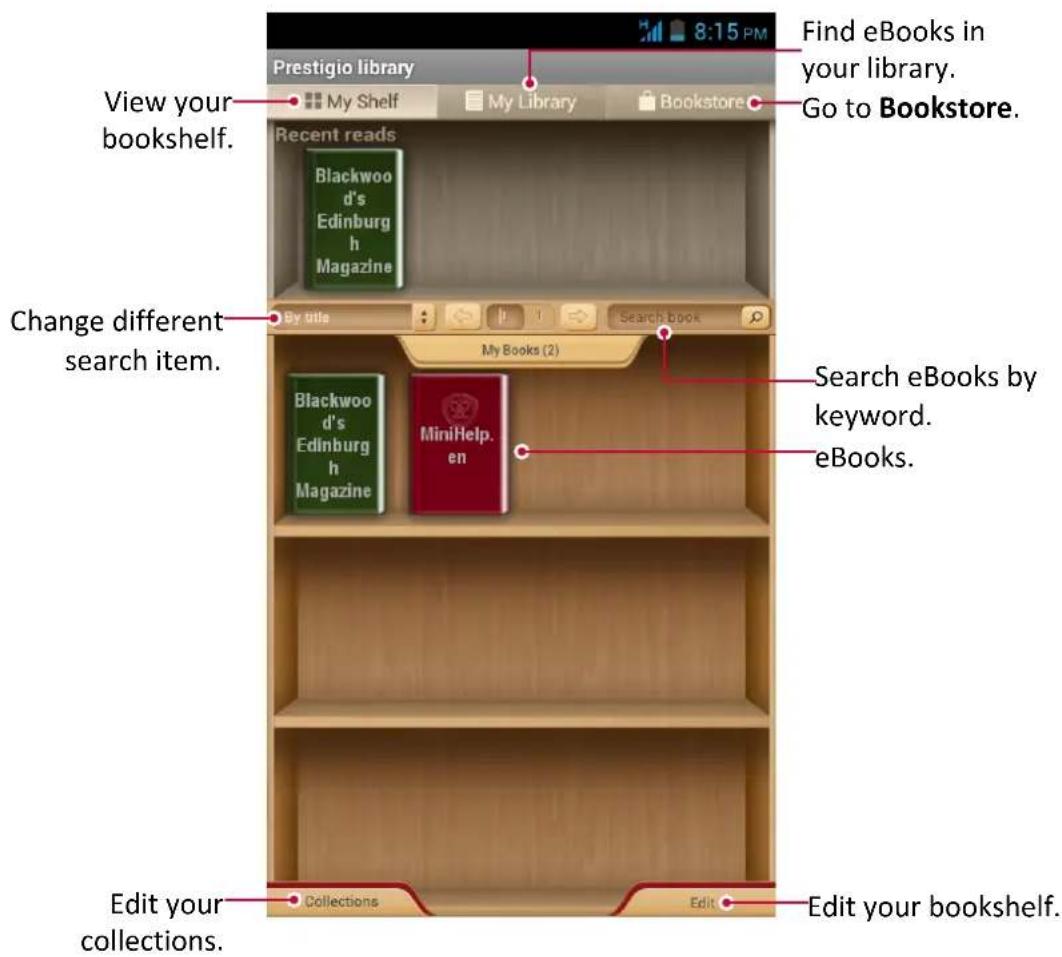
Download an eBook
You can download eBooks via eReader Prestigio. Some eBooks are free to download, and some eBooks need a payment.

You will be asked to confirm method of payment when you purchase a paid eBook.
- On the Home screen or list menu, tap
- Tap Bookstore tab.
- Search your desired eBook.
- Tap to download the eBook.
Read an eBook
- On the Home screen or list menu, tap
- Tap My shelf or My library tab.


- Find your desired eBook.
- Tap the eBook to read it.
Add a bookmark
- While reading a eBook, tap [●]●●
- Tap and then tap New bookmark.
- The certain page is added to bookmark.
Open the bookmark
You can continue reading your eBook from the certain page which you have added to bookmark.
- While reading a eBook, tap [●]●●
- Tap
- In This book or All books tab, tap your desired bookmark.
Search for a content
You can search for a certain content in the eBook, for example, a word, a sentence or a paragraph, etc.
- While reading a eBook, tap [●]●●
- Tap
- Enter a word, a sentence or a paragraph, etc.
- Tap Go in the virtual keyboard to search for the content page by page.
Zoom in and out
While reading an eBook, you can zoom in or out the screen to fit your reading.
- While reading a eBook, tap [●]●●
- Tap
- Tap Zoom in or Zoom out.
eReader settings
You can set up your eReade Prestigio while reading an eBook.
- On the Home screen or list menu, tap
- Tap My shelf or My library tab.
- Find your desired eBook.
- Tap the eBook to read it.
- While reading a eBook, tap [●]●●
- Tap Settings.
- Select your desired options.
13. Travel & maps
Use this application to pinpoint the location of your phone, search for places, or get directions.
13
Find a location
Turn on or off location service
In order to find your location on your phone, you need to enable location services.
- On the Home screen or list menu, tap

-Or, tap [●]→ System settings.
- Tap Location access.
- Select or clear the location sources you want to turn on or off.
Find your location
- On the Home screen or list menu, tap

- Tap to find your location on the map.

- If you are in an area where there are a lot of surrounding buildings, Locations may have a hard time pinpointing your location.
- This application may not be available depending on the region or service provider.
Search for a place
You can search for a name of an establishment, street, or city. Suggested matches will be shown while you type.
- On the Home screen or list menu, tap

-
Tap
-
Enter the place you want to search for.
- Select the desired place in the result list.
Get directions
Get detailed directions to where you want to go.
Get directions from your location

- On the Home screen or list menu, tap
- Tap to get directions.
- Choose how you want to get to your destination.
- Enter the destination.
- Select the desired place in the result list.
- The map opens showing the route to your destination.
Get directions by setting a start and end location

- On the Home screen or list menu, tap
- Tap to get directions.
- Choose how you want to get to your destination.
- Enter your start point and end point.
- The map opens showing the route to your destination.
Navigation
Use this application to search for a route to a destination while driving.

To use navigation, the GPS satellites option in System settings > Location services needs to be selected.

This application may not be available depending on the region or service provider.

Navigation maps, your current location, and other navigational data may differ from actual location information. You should always pay attention to road conditions, traffic, and any other factors that may affect your driving. Follow all safety warnings and regulations while driving.
Do the following to start navigation:
- In Locations, search for the place you want to go to, and then tap Navigation.
- On the Home screen or list menu, tap
Use Google maps
About Google Maps
Google Maps lets you track your current location and receive detailed directions to your destination. It also provides a search tool where you can locate places of interest or an address on a map, or view locations at street level.
-On the Home screen or list menu, tap


- To find your location with Google Maps, you need to enable location services.
- The Google Maps app does not cover every country or city.
Use Google maps
You can do the following:
- Tap to search for a place.
- Tap to get directions.
- Tap to find your location on the map.
Get help
If you need help or have questions about Maps, tap => Help.
Maps settings
You can set up the Google maps, tap => Settings while viewing the maps.
14. My files and storage

My files
Use this application to access all kinds of files stored on your phone, including photos, videos, songs, and sound clips.
-On the Home screen or list menu, tap

View my files
- On the Home screen or list menu, tap

-
Tap to choose a source storage.
-
Select a folder to open it.
Search for a file
- On the Home screen or list menu, tap

-
Tap to choose a source storage.
-
Tap, and enter key word.
-
Select the desired file or folder in the drop down list.
Add a new folder
- While viewing a folder or file, tap

-
Enter a name for the new folder.
-
Tap OK to add the folder to the file list.
Manage my files
You can share, copy, move or delete a file in a folder.
While viewing a folder, tap and hold the file. You can do the following selections:
-Tap to copy the file.
-Tap to cut the file to clipboard.
-Tap to delete the file.
-Tap to rename the file.
-Tap to get more options.
Storage
Check your storage usage
- On the Home screen or list menu, tap

-Or, tap [●] ➤ System settings.
-
Tap Storage.
-
You can check the total space of your phone's memory.

The actual available capacity of the internal memory is less than the specified capacity because the operating system and default applications occupy part of the memory.
15. Utilities
15
Clock
Use the clock app to set alarms, check the time in any location in the world, measure the duration of an event, or set a timer.
-On the Home screen or list menu, tap
World clock
You can add a city to the world clock screen.
- On the Home screen or list menu, tap
- Tap
- Scroll through the list and tap the city that you want to add.
Alarm
You can set up one or more alarms.
Set an alarm
- On the clock screen, tap
- Tap to add a new alarm.
- Use the virtual digit keyboard to set the alarm time.
- Tap OK.
- If you want the alarm for multiple days, tap Repeat.
Turn off an alarm
- On the clock screen, tap
- Select the alarm you want to turn off.
- Drag the check button to Off.
Stop an alarm
When the alarm rings,
-Slide to the alarm stops.
- Slide to zz : The alarm will sound again after a specified length of time.
Delete an alarm
- On the clock screen, tap 🔒
- Tap and hold the alarm you want to delete.
- Tap
Timer
- On the clock screen, tap
- Set the duration, and then tap Start.
Stopwatch
- On the clock screen, tap
-Tap Start to time an event.
-Tap to record lap times.
-Tap to clear lap time records.
Calendar
You can create your event and make a plan on your calendar.
- On the Home screen or list menu, tap

View the calendar
On the Home screen or list menu, tap to check the calendar. Tap to change your calendar to Day, Week, Month or Agenda view.
Create an event
- Go to, select a date.
- Tap [●]→New event.
- Edit reminder settings.
- Tap Done to save the event.
Manage your events
Edit an event
You can only edit events you have created.
- While viewing the calendar, tap to change your calendar to Agenda view.
- Tap the event your want to edit, and then tap .
- Make your changes to the event.
- Tap Done.

If you are editing an event that repeats, you will be asked whether you want to edit just that occurrence or all occurrences of that event.
Delete an event
- While viewing the calendar, tap to change your calendar to Agenda view.
- Tap the event your want to delete, and then tap .

If the event repeats, you will be asked whether you want to delete just that occurrence or all occurrences from Calendar.
Clear all events
- Go to, and then tap[] > Clear events.
Share an event
You can share a calendar event as a vCalendar using Bluetooth or by sending it as a file attachment with your e-mail or message.
- While viewing the calendar, tap to change your calendar to Agenda view.
- Tap the event your want to share, and then tap
- Choose how you want to send the event.
Calculator
Use this app for simple or complex calculations.
On the Home screen or list menu, tap
- Swipe to display the scientific calculator. Or, tap[●●●] > Advanced panel.
- To clear history, tap[●●●] > Clear history.
ToDo list
Use the ToDo app, you can organise and track ToDo and task lists.
- On the Home screen or list menu, tap

Create your to-do list
- On the Home screen or list menu, tap

- Tap
- Edit the title and details, and then set the expire date.
- Tap Done to save the task.
Manage your to-do list
Edit a task
You can only edit tasks you have created.
- On the Home screen or list menu, tap

- Tap the event your want to edit.
- Make your changes to the task.
- Tap Done.
Mark the task as done or undone
- Select the task on the TODO category, tap

to mark the task as done.
- Select the task on the DONE category, tap
to mark the task as undone.
Delete a task
- On the Home screen or list menu, tap

- Tap the task your want to delete, and then tap

Google search
Use this application to search not only the Internet, but also apps and their contents on your phone as well.
-On the Home screen or list menu, tap 8

Some apps, such as Contacts or E-mails, have their own search function, which you can use to search only within those apps.
Search on the web or your phone
- Tap the search field, and then enter a keyword.
- Select one of the suggested keywords that appear.

If no results are returned from the apps, the web browser appears, displaying the search results.
Search with your voice
Use Google Voice Search to find information on the Web just by speaking to your phone.
- On the Home screen or list menu, tap

- If the Google search bar is available on the Home screen, you can also tap

- Speak a keyword or phrase when Speak now appears on the screen.
-
Select one of the suggested keywords that appear.
-
If what you are searching for is in the list, tap the item to open it in its compatible app. Otherwise, tap Retry to search again.

This application may not be available depending on the region or service provider.
Set search options
- On the Home screen or list menu, tap

-
Tap [●]▶Settings to set the following options:
-
Phone search: Select the apps on your phone which you want included when doing a search.
- Voice: Set the Google Voice Search language, speech output, and more.
- Accounts & privacy: Manage your location history, enable recent web searches to show, or clear your search history.
Google Now
Launch Google search to view Google Now cards that show the current weather, public transit info, your next appointment, and more when you are most likely to need it.
Join Google Now when opening Google search for the first time.
To change Google Now settings, tap [●]▶Settings > Google Now.
16. Set up your phone
Use this app to control and customise phone settings .
- On the Home screen or list menu, tap 📄. Or, tap[●●●] > System settings.
16
Wireless & Networks
SIM management
-Check your SIM card information.
-Set the SIM card for data connection.
Wi-Fi
Activate the Wi-Fi feature to connect to a Wi-Fi network and access the Internet or other network devices.
Bluetooth
Activate the Bluetooth feature to exchange information over short distances.
Data usage
Keep track of your data usage amount, and customise the settings for the limitation.
More...
Set up the following items.
- Airplane mode
Activate Flight mode to disable all wireless functions on your device. You can use only nonnetwork features.
Airplane mode disables the wireless features in order to reduce potential interference with aircraft operation and other electrical equipment.
• VPN
Set up and manage virtual private networks (VPNs).
• Tethering & portable hotspot
- Set to use your device as a wireless modem by making a USB connection with a computer.
- Set to use your device as a wireless access point for other devices.
- Activate the Bluetooth tethering feature to share your mobile network with computers via Bluetooth.
• NFC
Activate the NFC feature. Use NFC technology to exchange files between your phone and other NFC-enabled devices quickly.
- Android Beam
Turn on the Android Beam. Use the Android Beam feature to send data, such as webpages and contacts, to NFC-Enabled devices.
- Mobile networks
- Data connection: Use to allow packet switching data networks for network services.
- 3G service: Enable the 3G service. Contact your mobile operator for details.
-Access Point Names: Set up access point names (APNs).
- Network operators: Search for available networks and select a network for roaming.
- USB internet
Turn on to share the Windows PC internet via USB cable..
Device
Audio profiles
- Tap edit the profiles. Or, tap to find your customised profiles.
-Select the profiles of the phone.
-Set the volume, type for ringtone and notification.
Display
Change the settings to control the display and backlight on your device.
Storage
View memory information for your device and memory card. You can also format the memory card.

Formatting a memory card permanently deletes all data from it.

The actual available capacity of the internal memory is less than the specified capacity because the operating system and default applications occupy part of the memory.
Battery
View the amount of battery power consumed by your device.
Apps
Manage running applications, move applications to or from the storage card, and install or uninstall programs.
Personal
Location access
Select the sources to use when determining your location.
- Access to my location: Set to use Wi-Fi and/or mobile networks for finding the current location.
- GPS satellites: Set to use the GPS satellite for finding the current location.
- Wi-Fi & mobile network location: Let apps use Google's location service to estimate your location faster.
Security
Set a screen lock or manage the credential storage.
Language & input
Set the operating system language and region. You can also set on-screen keyboard options.
Backup & reset
Change the settings for managing settings and data.
- Back up my data: Set to back up settings and application data to the Google server.
-Backup account: Set up or edit your Google backup account.
- Automatic restore: Set to restore settings and application data when the applications are reinstalled on the device.
- Factory data reset: Reset settings to the factory default values and delete all data.
Accounts
Add and manage your E-mail, Google, Facebook and Twitter accounts.
System
Date & time
Access and alter the following settings to control how the device displays the time and date.
- Automatic date & time: Automatically update the time and date when moving across time zones.
- Automatic time zone: Set to receive time zone information from the network when you move across time zones.
-Set date: Set the current date manually.
-Set time: Set the current time manually.
-Select time zone: Set the home time zone.
-Use 24-hour format: Display time in 24-hour format.
-Choose date format: Select a date format.
Schedule power on & off
Set the time to power on/off automatically.
Accessibility
Use these settings when you have downloaded and installed an accessibility tool, such as a screen reader that provides voice feedback. You can turn accessibility functions or services on or off.
About phone
Access device information and update device software. View different information about the phone, such as the battery, legal information, model number, software version, baseband version and build number.
17. Specifications
17
Item Specification
| Processor High Performance Quad Core 1.5GHz |
| Memory 16GB+1GB eMMC or 32GB+2GB eMMC |
| OS Android 4.2 |
| Display 5.0" FHD 1920*1080 IPS with OGS technology |
| Camera Front 8MP AF, Rear 13MP AF BSI |
| Band UMTS: 900/2100MHz; GSM: 900/1800/1900MHz |
| Interfaces Micro USB 2.0 |
| Communications WiFi (802.11 b/g/n), 3G, Bluetooth, NFC |
| Battery 2300mAh |
| Dimensions 143.9*70.5*9.5mm (H*W*D) |
| Weight 142.6g |
18. Specific Absorption Rate Information
18
International standards
THIS MOBILE PHONE MEETS THE INTERNATIONAL RECOMMENDATIONS FOR EXPOSURE TO RADIO WAVES.
Your mobile phone is a radio transmitter and receiver. It is designed and manufactured not to exceed the limits for exposure to radio frequency (RF) energy defined by the international standards. These recommendations have been established by the International Commission on Non-Ionizing Radiation Protection (ICNIRP) and, the Institute of Electrical and Electronics Engineers (IEEE) that forecast a substantial safety margin for assuring the protection of all persons, regardless of age and health. The exposure recommendations for mobile phones use a measurement unit known as the Specific Absorption Rate (SAR). The SAR limit recommended by the ICNIRP for the mobile phones used by the general public is 2.0W/kg averaged over ten grams of tissue and, is 1.6W/kg averaged over one gram of tissue by IEEE Std 1528 for the head. Tests for SAR have been conducted using recommended operating positions with the mobile phone transmitting at its highest certified power level in all tested frequency bands. Although the SAR is determined at the highest certified power level, the actual SAR levels of the mobile phone while operating are generally below the maximum SAR value. This is because the phone is designed to operate at multiple power levels so as to use only the power required to reach the network. In general, the closer you are to a base station antenna, the lower the power output. While there may be differences between the SAR levels of various phones and at various positions, they all meet the international protection standards for exposure to radio waves.
The highest SAR value for this PAP7500 model when tested for compliance against the standard was 0.561 W/kg (10g) for ICNIRP recommendation. For limiting the radio waves exposure, it is recommended to reduce the mobile phone call duration or to use a headset. The purpose of those precautions is to take the mobile phone away from the head and the body.
19. Troubleshooting
The phone does not switch on
Remove/reinstall the battery. Then charge the phone until the battery icon stops scrolling. Unplug the charger and try to switch the phone on.
19
The display shows BLOCKED when you switch on the phone
Somebody tried to use your phone but did not know the PIN code nor the unblocking code (PUK). Contact your service provider.
The display shows IMSI failure
This problem is related to your subscription. Contact your operator.
The network symbol is not displayed
The network connection is lost. Either you are in a radio shadow (in a tunnel or between tall buildings) or you are outside the network coverage area. Try from another place, try to reconnect to the network (especially when abroad), or contact your network operator for assistance/information.
The touch screen responds slowly or improperly
If your device has a touch screen and the touch screen is not responding properly, try the following:
- Remove any protective covers from the touch screen. Protective covers may prevent the device from recognizing your inputs and are not recommended for touch screen devices.
- Ensure that your hands are clean and dry when tapping the touch screen.
- Restart your device to clear any temporary software bugs.
-Ensure that your device software is upgraded to the latest version.
- If the touch screen is scratched or damaged, take it to your local dealer.
Your battery seems to over heat
You might be using a charger that was not intended for use with your phone. Make sure you always use the authentic accessory shipped with your phone.
Your phone does not display the phone numbers of incoming calls
This feature is network and subscription dependent. If the network does not send the caller's number, the phone will display Call 1 or Withheld instead. Contact your operator for detailed information on this subject.
You can not send text messages
Some networks do not allow message exchanges with other networks. First check that you have entered the number of your SMS centre, or contact your operator for detailed information on this subject.
You can not receive and/or store JPEG pictures
A picture may not be accepted by your mobile phone if it is too large, if its name is too long, or if it does not have the correct file format.
You feel that you have missed some calls
Check your call divert options.
When charging, the battery icon shows no bar and the outline is flashing
Only charge the battery in an environment where the temperature does not go below 0irc C ( 32irc F) or above 50irc C ( 113irc F). In other cases please contact your phone supplier.
The display shows SIM failure
Check that the SIM card has been inserted correctly. If the problem persists, your SIM card may be damaged. Contact your operator.
Your phone does not work well in your car
A car contains many metallic parts that absorb electromagnetic waves which can affect the phone's performance. A car kit is available to provide you with an external antenna and enables you to make and receive phone calls without handling the handset.
Check with the local authorities whether or not you are allowed to use the phone while driving.
Your phone is not charging
If the battery is completely flat, it might take several minutes of precharge (up to 5 minutes in some cases) before the charging icon is displayed on the screen.
The picture captured with the phone camera is not clear
Make sure that the camera lens on both sides is clean.
When you turn on your device or while you are using the device, it prompts you to enter one of the following codes:
- Password: When the device lock feature is enabled, you must enter the password you set for the device.
- PIN: When using the device for the first time or when the PIN requirement is enabled, you must enter the PIN supplied with the SIM or USIM card. You can disable this feature with the Lock SIM card menu.
- PUK: Your SIM or USIM card is blocked, usually as a result of entering your PIN incorrectly several times. You must enter the PUK supplied by your service provider.
- PIN2: When you access a menu requiring the PIN2, you must enter the PIN2 supplied with the SIM or USIM card. For details, contact your service provider.
Your device freezes or has fatal errors
If your device freezes or hangs, you may need to close programs or reset the device to regain functionality. If your device is frozen and unresponsive, press and hold the Power button for 8-10 seconds. The device reboots automatically.
If this does not solve the problem, perform a factory data reset. On the list menu, tap Settings > Back up & reset > Factory data reset > Reset device > Erase everything.
Others cannot hear you speaking on a call
-Ensure that you are not covering the built-in microphone.
-Ensure that the microphone is close to your mouth.
-If using a headset, ensure that it is properly connected.
Error messages appear when launching the FM radio
The FM radio application on your phone uses the headset cable as an antenna. Without a headset connected, the FM radio cannot receive radio stations. To use the FM radio, first ensure that the headset is properly connected. Next, scan for and save the available radio stations.
Another Bluetooth device is not located
- Ensure that the Bluetooth wireless feature is activated on your device.
- Ensure that the Bluetooth wireless feature is activated on the device you wish to connect to, if necessary.
- Ensure that your device and the other Bluetooth device are within the maximum Bluetooth range (10 m).
A connection is not established when you connect the device to a computer
- Ensure that the USB cable you are using is compatible with your device.
- Ensure that you have the proper drivers installed and updated on your computer.
- If you are a Windows XP user, ensure that you have Windows XP Service Pack 3 or higher installed on your computer.
- Ensure that you have Windows Media Player 10 or higher installed on your computer.

- MultiPhone PAP7500
- Android Smartphone
- User Manual
- About this user manual
- Conventions used in this manual
- Warranty Information
- Contents
- Unboxing .... 1
- Getting started....3
- Basics......6
- Phone 14
- Messages 18
- Mail 20
- Camera 23
- Multimedia 27
- Web & network.... 35
- Bluetooth & NFC 40
- Apps....42
- 12.eReader Prestigio 43
- Travel & maps 45
- 14.My files and storage 47
- Utilities 48
- Set up your phone 52
- Specifications 55
- Specific Absorption Rate Information.... 56
- Troubleshooting....57
- Unboxing
- Inside your package
- Buttons
- Getting started
- Install the SIM card
- Power on your phone
- Home screens
- Personalise your wallpaper
- Add an app icon to the Home screen
- Remove an item on the Home screen
- List menu
- Basics
- Finger tips
- Tap
- Swipe
- Zoom in
- Tap and hold
- Slide
- Zoom out
- Scroll
- Flick
- Motion gesture
- Rotate your phone for a better view
- Charge the battery
- Optimise your battery performance
- Connect to your PC
- Connect as a media device
- Connect with Windows Media Player
- Lock and unlock the screen
- Auto lock
- Set screen lock pattern
- Setting a slide unlock
- Setting a pattern
- Setting a PIN
- Setting a password
- Unlock your phone
- Adjust the volume
- Recently used apps
- Notifications panel
- Using Quick Settings
- Enter text
- Change the input method
- Use the Prestigio keyboard
- Enter text by voice
- Copy and paste text
- Move a text
- Use widgets
- Add a widget to the Home screen
- System upgrade
- Status icons
- Phone
- Make a call
- Answer a call
- Reject a call
- End a call
- Contacts
- View contacts
- Search for a contact
- Call a contact
- Add a new contact
- Method one:
- Method two:
- My favourites
- Add a contact to favourites
- View your favourites
- Contact groups
- Add contacts to a group
- Import/Export contacts
- Delete contacts
- Use speed dial
- To assign a contact to a speed-dial key
- Call a phone number in a text message
- Call a phone number in an e-mail
- Set up a conference call
- Make an emergency call
- Messages
- Send a message
- Check your message
- Check your text message
- Listen to a voice message
- Reply to a message
- Forward a message
- Delete messages
- Delete a message
- Delete a conversation
- Create a conversation shortcut
- WAP push messages
- Read a new WAP push message
- View all your WAP push messages
- Set up an e-mail account
- Send a mail
- View your mails
- Search for a mail
- Reply to a mail
- Delete mails
- Gmail
- View your Gmail Inbox
- Send a mail in Gmail
- Reply to a mail in Gmail
- Delete mail in Gmail
- Camera
- Your camera at a galance
- Select capture mode
- Take a photo
- Take a photo of yourself
- Set self timer
- Take a combined photo of the front and rear camera
- Take a panoramic photo
- Take a 3D photo
- Using HDR
- Record a video
- Camera scenes
- Camera and video settings
- General settings:
- Video options:
- Multimedia
- Gallery
- View your photos
- View photos in the album
- View photos by locations
- View photos by time
- Zoom in and out
- Start a photo slideshow
- Watch a video
- Edit your photos
- Crop a photo
- Add photo effects
- Share your photos
- Share photos by E-mail
- Share photos by MMS
- Share photos via Bluetooth
- Delete photos
- Set as wallpaper or contact photo
- Video player
- Watch a video with the video player
- Share your videos
- Share videos by E-mail
- Share videos by MMS
- Share videos via Bluetooth
- Music player
- Browse music
- Listen to music
- Set a song as ringtone
- Your playlist
- Create a playlist
- Rename the playlist
- Delete a playlist
- Delete a song
- FM radio
- Listen to a radio station
- Turn off FM
- Record radio programs
- Voice recorder
- Record a voice memo
- Play a voice memo
- Delete a voice memo
- Web & network
- Connect to the Internet
- Data connection
- Turn on or off data connection
- Add a new access point
- Turn on or off data roaming
- Keep track of your data usage
- Check the data usage of apps
- Wi-Fi
- Turn on or off Wi-Fi
- Connect to a wireless network
- Forget the wireless network
- Use your phone as a wireless router
- Share your mobile data connection by USB tethering
- VPN
- Add a VPN connection
- Connect to a VPN
- Disconnect from a VPN
- Web browse
- Browse a webpage
- Add bookmarks
- Open a bookmark
- Edit a bookmark
- View browsing history
- Download files
- View your downloads
- Browser settings
- Set homepage
- Bluetooth & NFC
- 10
- Bluetooth
- Turn on or off Bluetooth
- Pair with a Bluetooth device
- Unpair with a Bluetooth device
- Receive data via Bluetooth
- Send data via Bluetooth
- NFC
- Turn on NFC and Android Beam
- Creat a tag task
- Read info from an NFC tag
- Make a purchase with the NFC feature
- Send data via Android Beam
- Apps
- Play store
- Search and install an app
- Uninstall an app in Play Store
- Manage your apps
- Check the running apps
- Stop an app
- Uninstall an app
- eReader Prestigio
- Your eReader at a glance
- Download an eBook
- Read an eBook
- Add a bookmark
- Open the bookmark
- Search for a content
- eReader settings
- Travel & maps
- Find a location
- Turn on or off location service
- Find your location
- Search for a place
- Get directions
- Get directions from your location
- Get directions by setting a start and end location
- Navigation
- Use Google maps
- About Google Maps
- Get help
- Maps settings
- My files and storage
- My files
- View my files
- Search for a file
- Add a new folder
- Manage my files
- Storage
- Check your storage usage
- Utilities
- Clock
- World clock
- Alarm
- Set an alarm
- Turn off an alarm
- Stop an alarm
- Delete an alarm
- Timer
- Stopwatch
- Calendar
- View the calendar
- Create an event
- Manage your events
- Edit an event
- Delete an event
- Clear all events
- Share an event
- Calculator
- ToDo list
- Create your to-do list
- Manage your to-do list
- Edit a task
- Mark the task as done or undone
- Delete a task
- Google search
- Search on the web or your phone
- Search with your voice
- Set search options
- Google Now
- Set up your phone
- Wireless & Networks
- SIM management
- Data usage
- More...
- - Airplane mode
- • VPN
- • Tethering & portable hotspot
- • NFC
- - Android Beam
- - Mobile networks
- - USB internet
- Device
- Audio profiles
- Display
- Battery
- Apps
- Personal
- Location access
- Security
- Language & input
- Backup & reset
- Accounts
- System
- Date & time
- Schedule power on & off
- Accessibility
- About phone
- Specifications
- Specific Absorption Rate Information
- International standards
- Troubleshooting
- The phone does not switch on
- The display shows BLOCKED when you switch on the phone
- The display shows IMSI failure
- The network symbol is not displayed
- The touch screen responds slowly or improperly
- Your battery seems to over heat
- Your phone does not display the phone numbers of incoming calls
- You can not send text messages
- You can not receive and/or store JPEG pictures
- You feel that you have missed some calls
- When charging, the battery icon shows no bar and the outline is flashing
- The display shows SIM failure
- Your phone does not work well in your car
- Your phone is not charging
- The picture captured with the phone camera is not clear
- When you turn on your device or while you are using the device, it prompts you to enter one of the following codes:
- Your device freezes or has fatal errors
- Others cannot hear you speaking on a call
- Error messages appear when launching the FM radio
- Another Bluetooth device is not located
- A connection is not established when you connect the device to a computer
Brand : PRESTIGIO
Model : MultiPhone 7500
Category : Smartphone