
GuestGate MK II - Access Point IC Intracom - Free user manual and instructions
Find the device manual for free GuestGate MK II IC Intracom in PDF.


| Product Type | Wireless Access Point |
| Brand | IC Intracom |
| Model | GuestGate MK II |
| Wi-Fi Standards | 802.11 a/b/g/n/ac |
| Frequency Bands | 2.4 GHz and 5 GHz |
| Maximum Data Rate | 1200 Mbps (2.4 GHz: 300 Mbps, 5 GHz: 900 Mbps) |
| Ethernet Ports | 2 x Gigabit Ethernet (10/100/1000) |
| Power Supply | PoE (IEEE 802.3af) or 12V DC adapter |
| Power Consumption | 12W typical |
| Antenna Type | Internal omnidirectional |
| Security | WPA2-PSK, WPA3, captive portal, guest isolation |
| Management | Web interface, SNMP, cloud management |
| Mounting | Wall or ceiling mount (bracket included) |
| Dimensions (W x D x H) | 180 x 180 x 35 mm |
| Weight | 0.5 kg (1.1 lb) |
| Operating Temperature | 0°C to 40°C |
| Humidity | 10% to 90% non-condensing |
| Cleaning Instructions | Wipe with a dry, soft cloth. Do not use liquids or aerosols. |
| Safety | Use only supplied PoE injector or adapter. Keep vents clear. Do not expose to water. |
| Spare Parts & Repairability | No user-serviceable parts inside. Contact IC Intracom for warranty repairs. |
Frequently Asked Questions - GuestGate MK II IC Intracom
User questions about GuestGate MK II IC Intracom
0 question about this device. Answer the ones you know or ask your own.
Ask a new question about this device
Download the instructions for your Access Point in PDF format for free! Find your manual GuestGate MK II - IC Intracom and take your electronic device back in hand. On this page are published all the documents necessary for the use of your device. GuestGate MK II by IC Intracom.
USER MANUAL GuestGate MK II IC Intracom
GUESTGATE™ MK II Wireless 300N Hotspot Gateway USER MANUAL
MODEL 524827

natural_image
Exterior view of a INTELLINET Wireless M93 network device with two antennas and power ports (no readable text or symbols beyond branding)
INTELLINET
NETWORK SOLUTIONS
INT-524827-UM-0710-01
SAFETY AND REGULATORY NOTICES
This equipment has been tested and found to comply with the limits for a Class B computing device pursuant to Subpart B of Part 15 of FCC rules, which are designed to provide reasonable protection against such interference when operated in a commercial environment. Operation of this equipment in a residential area is likely to cause interference, in which case the user, at his own expense, will be required to
CE take whatever measures may be required to correct the interference. This digital equipment fulfills the requirements for radiated emission according to limit B of EN55022/1998, and the requirements for immunity according to EN55024/1998 residential, commercial and light industry.
R&TTE Compliance Statement
This equipment complies with all the requirements of DIRECTIVE 1999/5/EC OF THE EUROPEAN PARLIAMENT AND THE COUNCIL of March 9, 1999, on radio equipment and telecommunication terminal equipment and the mutual recognition of their conformity (R&TTE). The R&TTE Directive repeals and replaces Directive 98/13/EEC (Telecommunications Terminal Equipment and Satellite Earth Station Equipment) as of April 8, 2000.
Waste Electrical & Electronic Equipment
Disposal of Electric and Electronic Equipment
(Applicable in the European Union and other European countries with separate collection systems)

This symbol on the product or its packaging indicates that this product shall not be treated as household waste.
Instead, it should be taken to an applicable collection point for the recycling of electrical and electronic equipment. By ensuring this product is disposed of correctly, you will help prevent potential negative consequences to the environment and human health, which could otherwise be caused by inappropriate waste
handling of this product. If your equipment contains easily removable batteries or accumulators, dispose of these separately according to your local requirements. The recycling of materials will help to conserve natural resources. For more detailed information about recycling of this product, contact your local city office, your household waste disposal service or the shop where you purchased this product. In countries outside of the EU: If you wish to discard this product, contact your local authorities and ask for the correct manner of disposal.
TABLE OF CONTENTS
SAFETY AND REGULATORY NOTICES 2
TABLE OF CONTENTS 3
INTRODUCTION....4
Function Description 4
Installation Examples 6
GuestGate Function Basics 8
INSTALLATION 9
Recommended Setup 9
Advanced Setup.... 14
CONFIGURATION OPTIONS.... 19
Status Screen.... 19
Guest Configuration Screen.... 20
Host Configuration Screen 24
Welcome Screen Configuration 28
Time / Scheduler Configuration 30
Device Settings Configuration.... 32
Firmware Upgrade Process 35
Exit Screen 36
QUESTIONS & ANSWERS 37
APPENDIX 41
WARRANTY INFORMATION......42
INTRODUCTION
Congratulations on your purchase of the INTELLINET NETWORK SOLUTIONS GuestGate™ MK II Hotspot Gateway. GuestGate connects guests to your network, allowing them to access only the Internet (Web, Email, Chat and other applications). GuestGate protects your existing network from unauthorized access and, if required, even shields the guest computers among themselves. Furthermore, GuestGate features enhanced IP PnP (Plug and Play) technology: It automatically adjusts to the guest computer's TCP/IP settings, eliminating time-consuming client IP reconfigurations. The Mark II edition features 300 Mbps Wireless N support, RADIUS authentication and enhanced logging features. GuestGate seamlessly integrates into your existing network and in many applications a configuration of GuestGate is not necessary. GuestGate provides the core functionality right out of the box.
Function Description
Internet access for Guests
GuestGate is primarily designed to provide configuration-free Internet access for your guests. GuestGate uses the existing Internet connection of your network to provide Web and email access for computers connected in a conference room, a hotel or a public place with wireless network connectivity. GuestGate does not stop here, however. It addresses security-related concerns of the network administrator by shielding the existing network from access attempts from the connected guests. In short, this means that guests can access the Internet, but your own network — i.e., your network file server, email or application server — is off limits.
Password-Protected Internet access for Guests
The network administrator can make it mandatory for your guests to enter a password before Internet access is granted. This is an important function in case you offer Internet access as a paid service or in situations where an open, unprotected wireless access point is connected to GuestGate and you wish to keep unauthorized users from using your bandwidth.
Configurable Welcome Screen for your Guests
You can set up your own welcome screen in seconds. Change the wording and formatting, upload your own banner image or change the entire HTML code. The welcome screen is displayed when a guest connects to the Internet for the first time. The welcome screen can be utilized to make the guest agree to your terms and conditions, and can be completely deactivated if required.
IP PnP
In many situations it is necessary for the network administrator to change the TCP/IP settings of guest computers because the existing settings are not compatible or your network has advanced requirements. GuestGate eliminates this step completely. GuestGate automatically adjusts to the guest computer's TCP/IP settings, providing a true zero guest configuration.
Bandwidth Control
GuestGate controls how much of your Internet connection speed is dedicated to the guest network. Upload and download bandwidth can be configured individually.
Layer 3 Client Isolation Function
In a public location with a public Wireless Access Point there are often concerns about security. GuestGate not only protects the Host Network from unauthorized access by your guests, it takes security one step further. When the “use separate random network for each client” option is activated, no guest computer can access any other guest computer. In this mode GuestGate randomly assigns each guest computer its own network. This option is activated by default.
Packet Filter
Block access to certain Web sites or entire IP ranges.
300 Mbps Wireless N Support
GuestGate MK II has integrated Wireless LAN support for connection speeds up to 300 Mbps. It supports the latest Wireless N technology as well as legacy Wireless G and Wireless B connections.
4 Port 10/100 Auto Sensing LAN Switch
GuestGate provides four 10/100 Mbps LAN switch ports for the connection of PCs, notebooks, or other switches or wireless access points.
Web-Based Administrator Interface
The configuration is fully Web-browser based. For security reasons, the Web administrator menu is only accessible from the host network.
Firmware Updates via Web Browser
Quickly and conveniently upgrade firmware of GuestGate with the Web browser of your choice.
Installation Examples
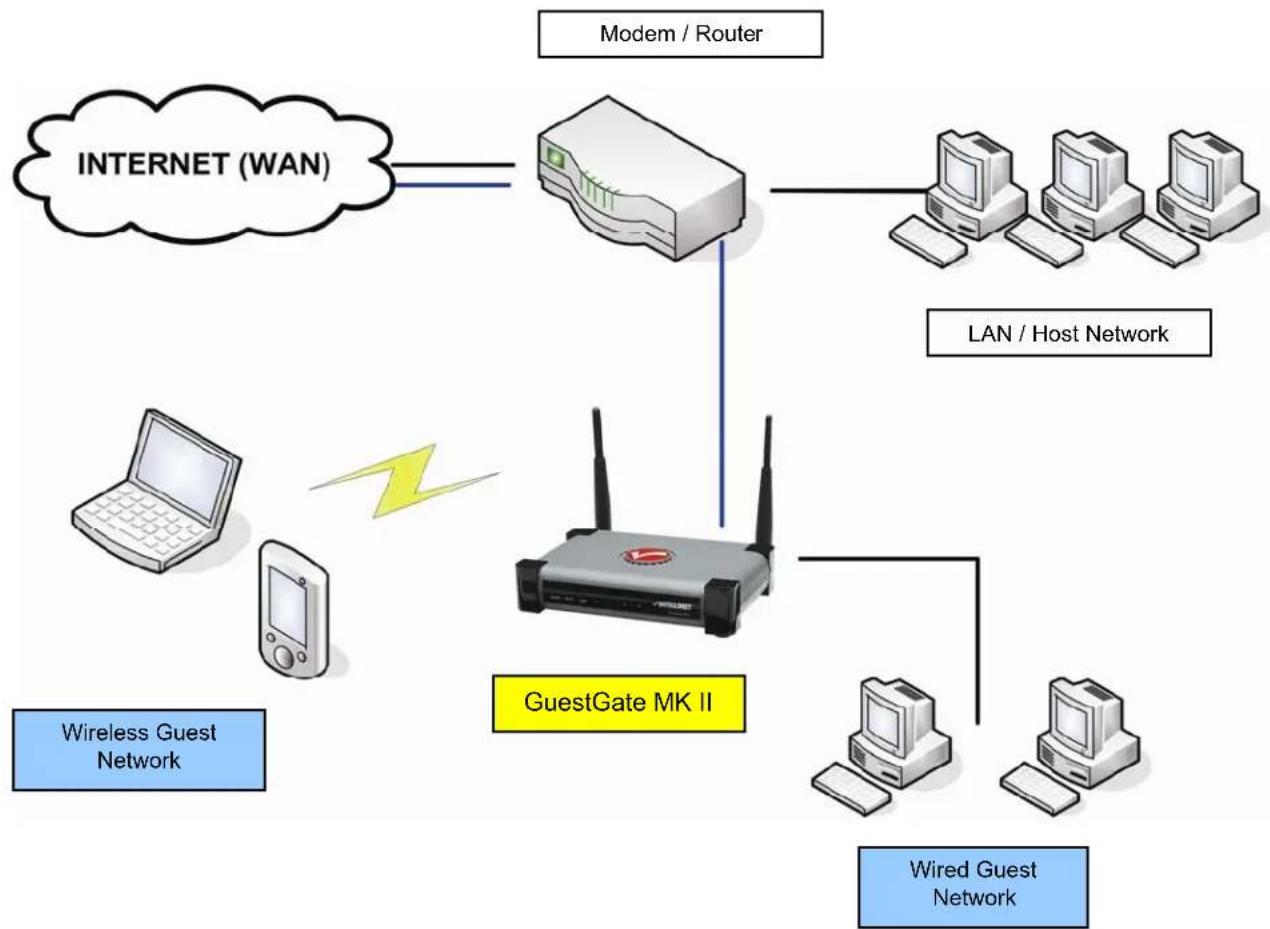
GuestGate in a SOHO Network Environment
This is a typical setup in which the Internet connection is established through an NAT router with an integrated firewall.
flowchart
graph TD
    A["INTERNET (WAN)"] --> B["Modem / Router"]
    B --> C["LAN / Host Network"]
    D["Wi wireless Guest Network"] --> E["Wireless Guest Network"]
    F["Computer"] --> G["Mobile Device"]
    H["Computer"] --> I["Radio Station"]
    J["Computer"] --> K["Radio Station"]
    L["Computer"] --> L["Radio Station"]
    M["Computer"] --> N["Radio Station"]
    O["Internet"] --> P["Router"]
    Q["GuestGate MK II"] --> R["Router"]
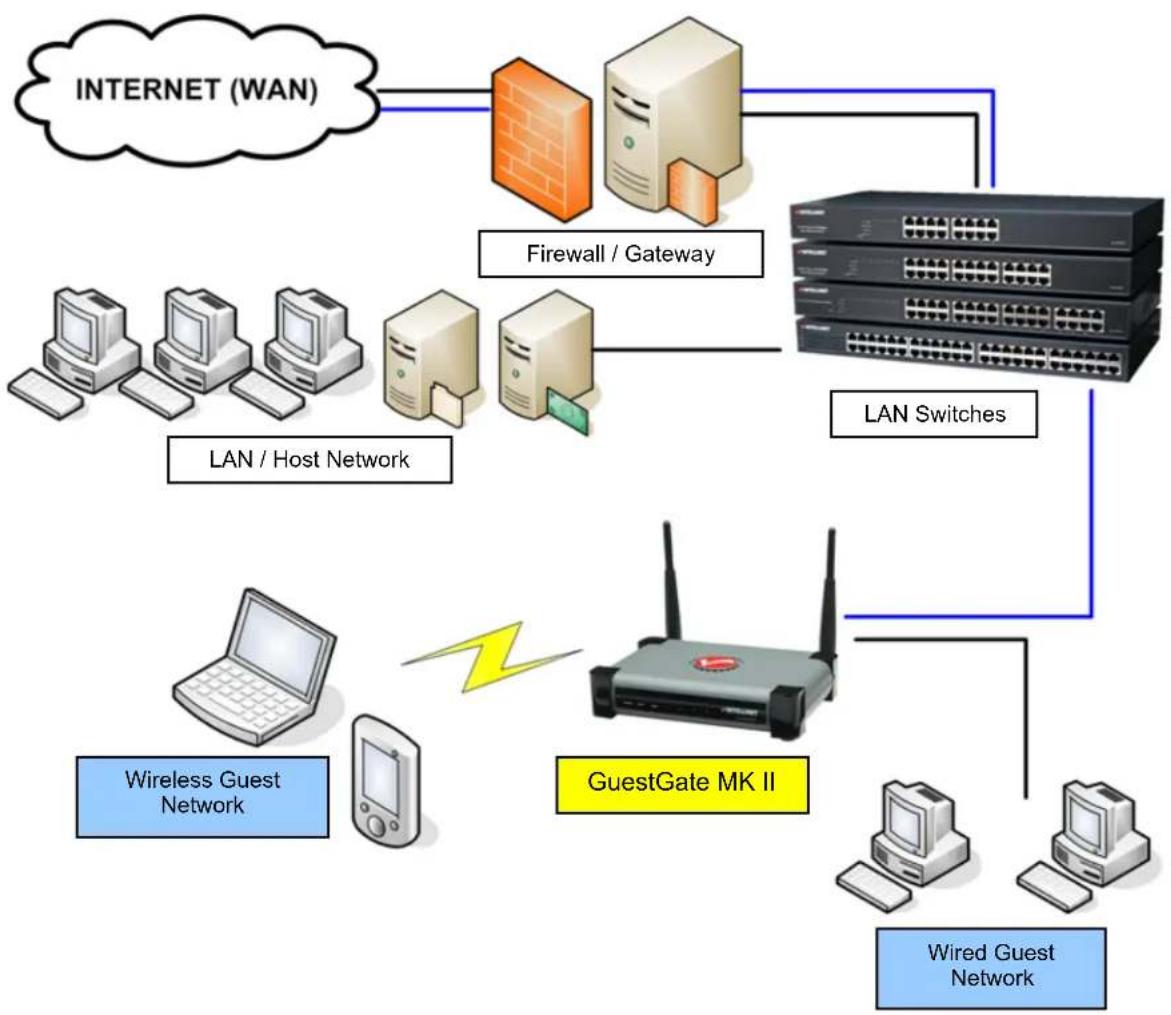
GuestGate in an SMB Environment
In larger networks GuestGate connects to any available switch port behind the Firewall/Gateway/Router.
flowchart
graph TD
    A["INTERNET (WAN)"] --> B["Firewall / Gateway"]
    B --> C["LAN Switches"]
    D["Computer 1"] --> E["LAN / Host Network"]
    F["Computer 2"] --> E
    G["Computer 3"] --> E
    H["Computer 4"] --> E
    I["Computer 5"] --> E
    J["Computer 6"] --> E
    K["Computer 7"] --> E
    L["Computer 8"] --> E
    M["Computer 9"] --> E
    N["Computer 10"] --> E
    O["Computer 11"] --> P["Wireless Guest Network"]
    Q["Computer 12"] --> P
    R["Computer 13"] --> P
    S["Computer 14"] --> T["GuestGate MK II"]
    U["Computer 15"] --> T
    V["Computer 16"] --> T
    W["Computer 17"] --> T
    X["Computer 18"] --> T
    Y["Computer 19"] --> T
    Z["Computer 20"] --> T
GuestGate Function Basics
Ports
GuestGate features a total of five 10/100 RJ45 ports. One port is for the connection of GuestGate to the host network (Host Port), four ports are available for guest connections (guest ports). The guest ports can be connected to hubs, switches, wireless access points, PCs or notebooks.
Host Port
By default GuestGate obtains an IP address from a DHCP server already present in the network. GuestGate analyzes the network and obtains all information necessary for Internet access. The DHCP Server Log reveals the HOST IP address of GuestGate.
In the event that no DHCP Server is present, GuestGate reverts to its default IP address 192.168.2.1. In this case a manual configuration of the HOST IP settings is necessary.
Guest ports
GuestGate assigns IP addresses to the connected guest computers. IP PnP technology ensures that no configuration on the guest computer is necessary. The default IP address range is 172.16.xxx. Changing the guest IP settings is possible via the Web administration interface.
Guest ports with Layer 3 Client Isolation enabled
If the Layer 3 Client Isolation is enabled, GuestGate assigns a different IP Network (Subnet) to each connected guest computer. Since this assignment is random, it makes it virtually impossible for a hacker to guess the other guest computer's IP settings to try to gain access. This option is enabled by default. It can be disabled in the guest configuration screen of the administrator Web interface. The option is “separate network for each client (automatic).”
Time / Scheduler
You can configure the time period in which GuestGate allows Internet access. Possible values are “always on” or based on a schedule (week day and time).
Accessing the Administrator Web Interface
The configuration of GuestGate is entirely Web-based. Any standard Web browser is supported. For security reasons, GuestGate can only be configured from the host port. GuestGate rejects all connection attempts which originate from the guest side.
Internet Access for Guests and Welcome Page
When a guest computer tries to access the Internet for the first time, a welcome page is shown in the Web browser. This welcome page can be configured and altered in the Administrator Web Interface. Guests have to accept the terms and conditions in order to access the Internet. If the Guest Password option is enabled, a password must be provided by the guest to gain Internet access.
This authorization procedure is only required once. GuestGate memorizes all authorized guest computers until GuestGate is restarted.
After a restart of GuestGate, guests again will be shown the welcome page. If a guest computer is disconnected from GuestGate for more than 10 minutes, the welcome page is shown again.
INSTALLATION
Recommended Setup
This setup method assumes that a DHCP Server such as a router is present in your network.
1. Connection to the Host Network
Connect standard RJ45 network cable to GuestGate's Host Port and to a RJ45 port on your existing network (Ethernet switch port, router switch port, etc.).
Turn on GuestGate and verify that the network connection is active (Host LED must be lit on GuestGate).
NOTE: The startup process takes up to 60 seconds (if no DHCP Server is present it may take as long as 300 seconds).
2. Connection of Guests
Using standard RJ45 Network Cable you can connect PCs, notebooks, Ethernet switches, hubs or wireless access points to the guest ports of GuestGate. Each port has its own status LED. Verify that the network connection is active on each port you connect. Alternatively you can connect to GuestGate wirelessly by connecting to the Wireless network with the name of "GuestGate."

3. Testing Internet Access
Start a PC or notebook which is connected to one of the guest ports. Launch a Web browser and open an Internet Web site such as http://www.intellinet-network.com.
You will then see GuestGate's welcome page.
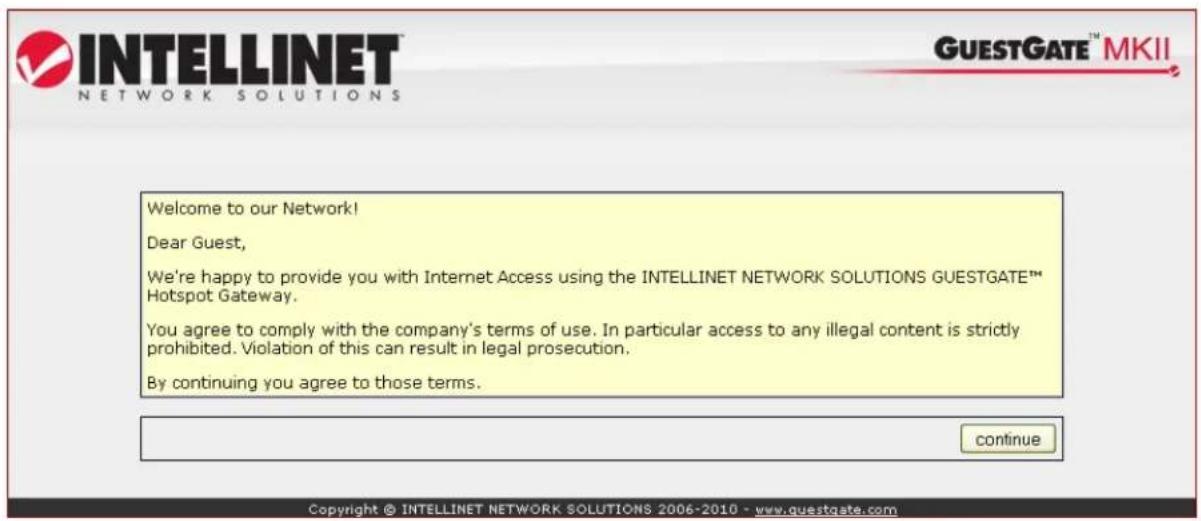
Click "continue" and you will then be forwarded to the Web page you originally entered in the Web browser's address bar.
Note:
In order to get Internet access you must first open a Web browser and open a Web page. Other applications such as chat programs (ICQ, MSN Messenger, Skype, etc.) will not be able to connect to the Internet unless the welcome page has been confirmed in the Web browser.
4. Accessing the Administrator Web Interface from the Host Network
A. Connect to the router (DHCP server) in your network and open the DHCP client log of the router. Connect GuestGate's host port to one of the router's LAN ports and power on GuestGate. Wait about 30 seconds, and then refresh the DHCP client log in the router. The last entry (the newest) belongs to GuestGate.
Below is an example of a DHCP log file:
| IP Address | MAC Address | Time Expired(s) |
| 192.168.0.100 | 00:50:fc:be:48:58 | 169576 |
| 192.168.0.101 | 00:0f:a3:1d:a3:da | 114749 |
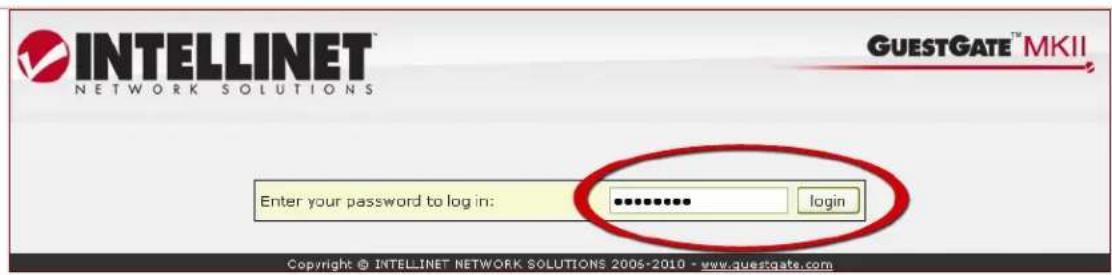
B. Launch your Web browser and open the IP address shown in the DHCP client log. You will then see the Administrator Web Interface.
The default password is 1234.
Note:
If this procedure does not work, you can configure your PC with a static IP address of 192.168.2.xxx, disconnect GuestGate from the router and connect your computer directly to the host port. Power on GuestGate and wait about 1 minute until the Power LED stops blinking, then open GuestGate's default IP address of 192.168.2.1 with the Web browser. Refer to the chapter "Advanced Setup" for more information.
5. Changing Administrator Password
For security reasons it is recommended to change the administrator password of GuestGate. Follow the steps below to change the password.
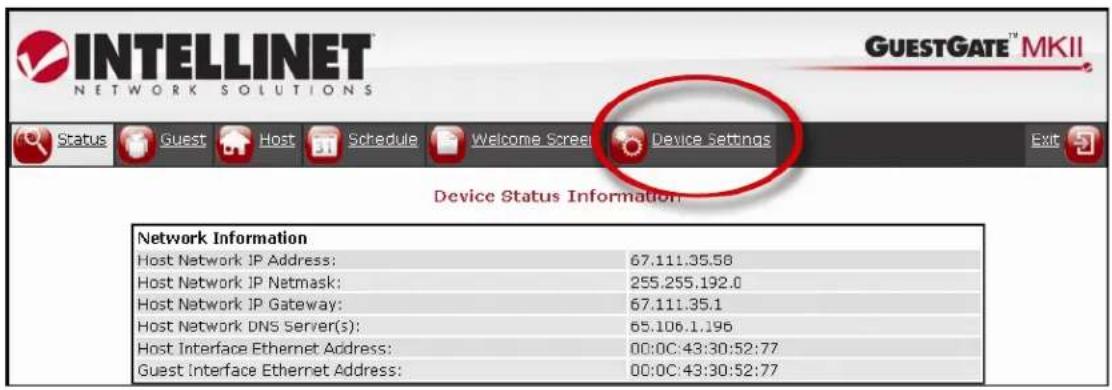
Click on "Device Settings."
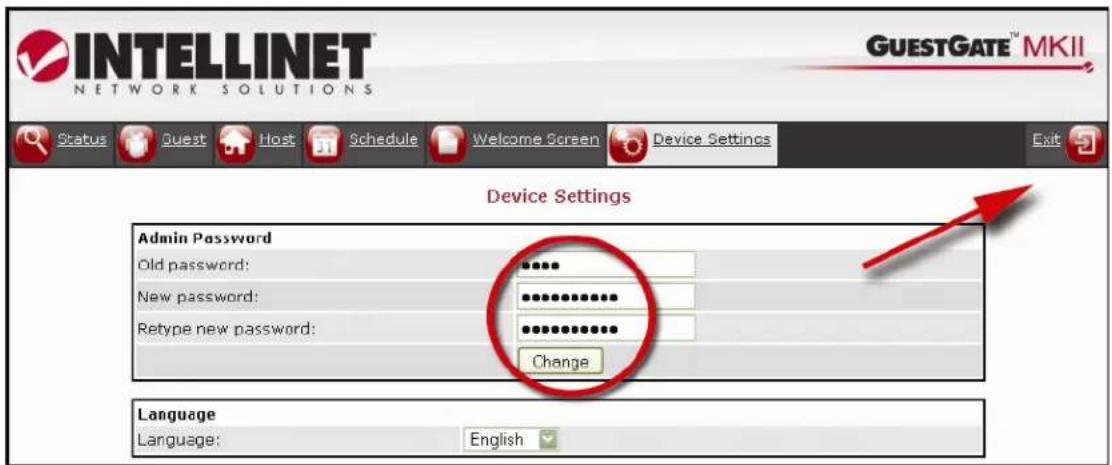
Enter the old password: 1234.
Enter a new password (up to 20 characters long).
Retype the new password.
Click "Change."
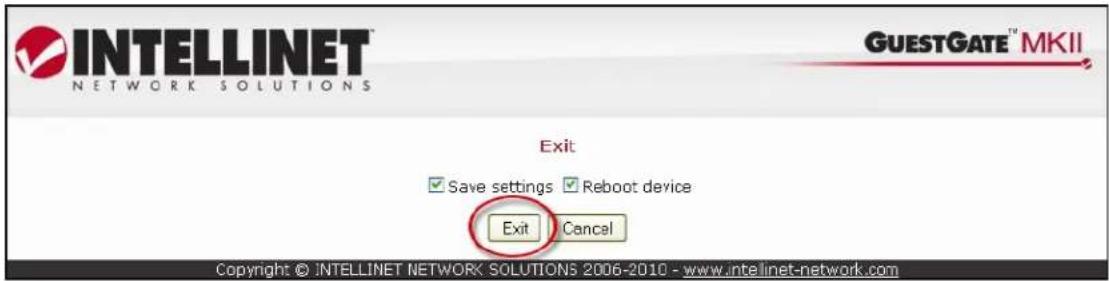
Click on "Exit."
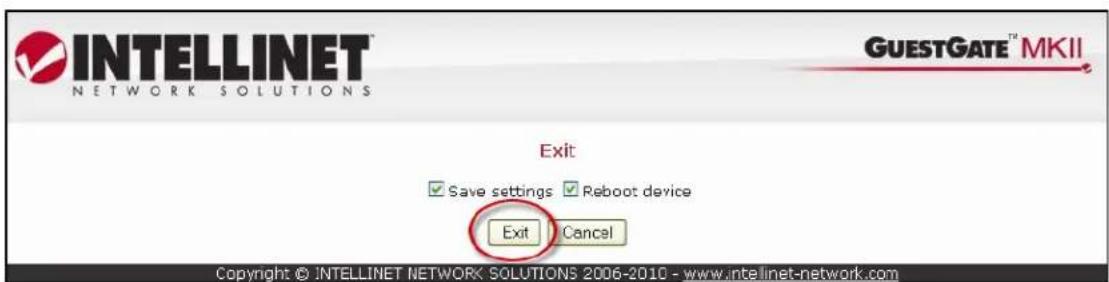
Check "Save settings." Check "Reboot device."
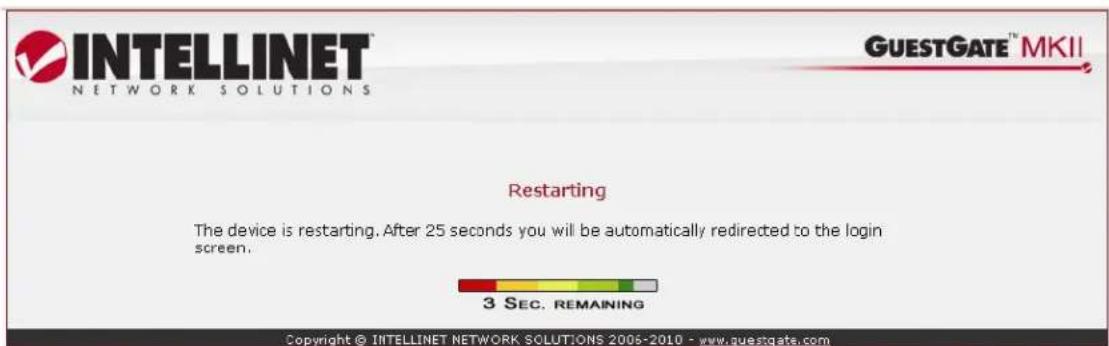
The reboot takes about 25 seconds, after which you will be redirected to GuestGate's login page when the reboot is completed.
NOTE:
The interface is designed to let you make changes on all configuration screens without saving each change individually. Once you are done programming GuestGate, you need to click "Exit" and reboot the device.
The changes will only take effect after GuestGate has been rebooted. Closing the Web browser without saving the configuration changes will result in a loss of the changed configuration.
If you have successfully performed the above steps, you can skip the next section.
Advanced Setup
The standard installation of GuestGate is based on the assumption that a DHCP Server is present in your network. If this is not the case, you can still configure GuestGate manually. To do this you need to turn GuestGate on while it is disconnected from the network. If no DHCP Server can be found after 3 minutes, GuestGate will fall back to its default IP address of 192.168.2.1.
Advanced setup requires:
- A network adapter correctly installed in your computer;
- User rights that allow manual configuration of TCP/IP-related settings on your PC; and
- GuestGate connected with an RJ45 cable to the network adapter in your PC.
1. Changing the IP address of your PC (example: Windows XP)
Click on "Start" -> "Settings" -> "Control Panel."

Double-click the "Network Connections" icon.
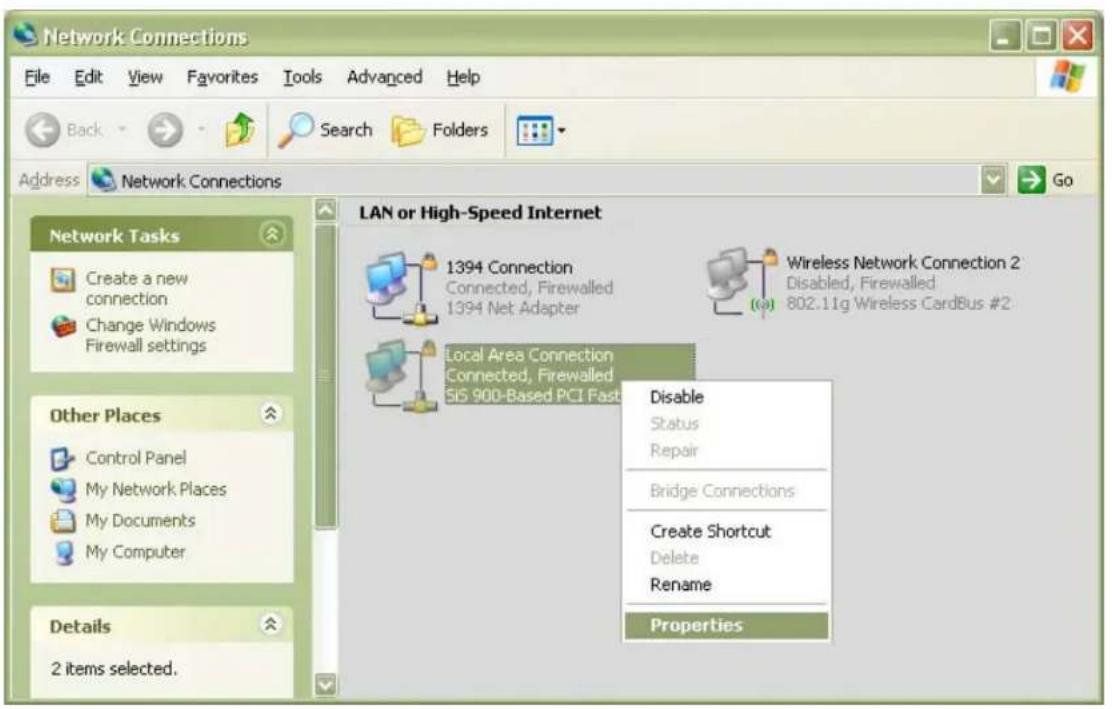
Right-click the "Local Area Connection" icon and select "Properties" from the context menu. In the "Local Area Connection Properties" window, highlight "Internet Protocol (TCP/IP)" and click on "Properties."
When the "Internet Protocol (TCP/IP) Properties" window opens, you need to make the changes as shown below.
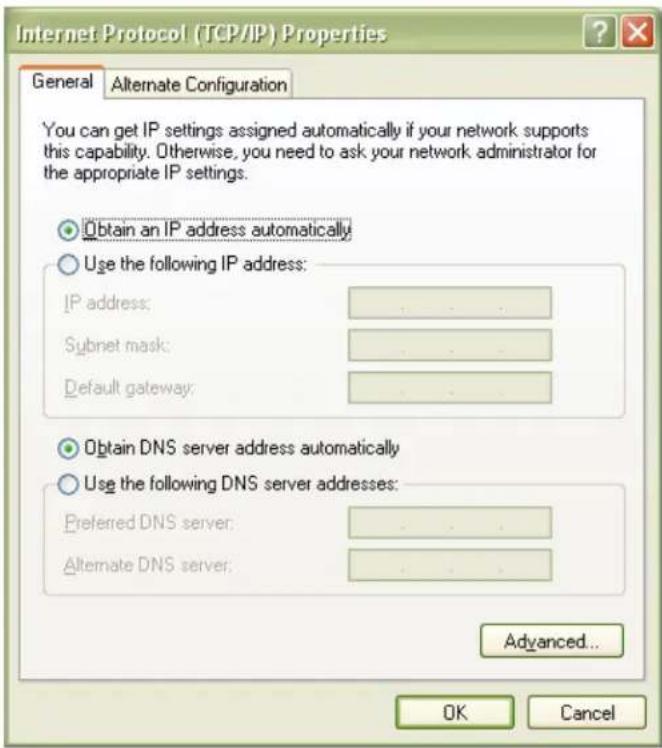

Click "OK" when done.
Close the previous Windows by clicking "OK" as well.
The TCP/IP settings of your system are now compatible to GuestGate.
2. Connecting to GuestGate via a Web Browser
Start your Web browser and open the address http://192.168.2.1.
The Administrator Web Interface Login Screen then appears.
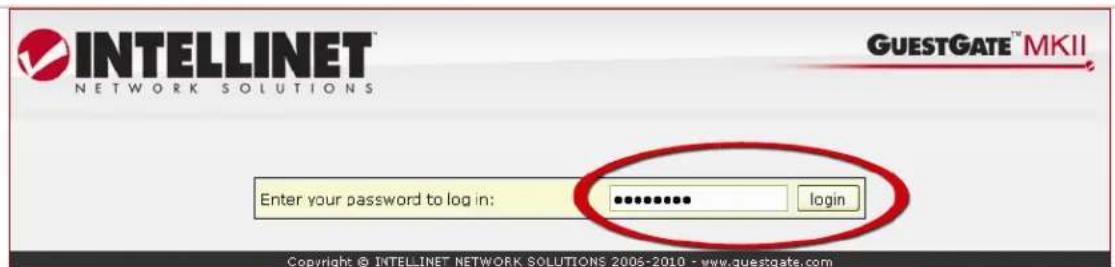
Enter the password 1234 and click "login."
NOTE:
It is recommended that you change the administrator password as described in the previous section.
3. Host Configuration
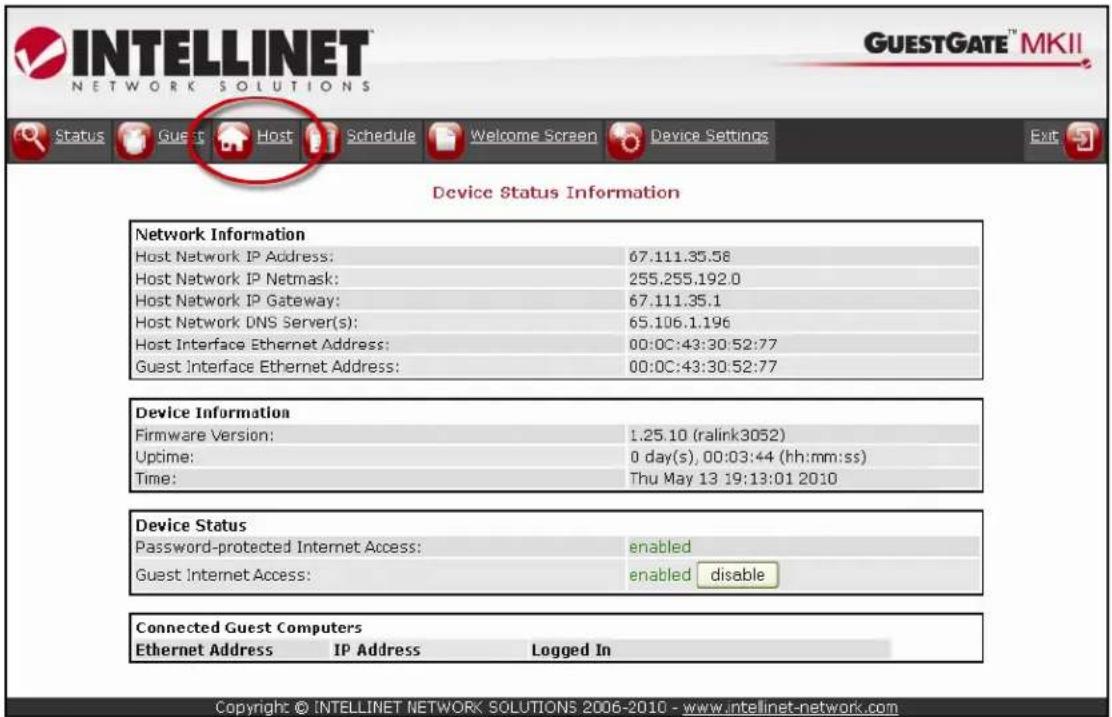
Click on "Host Config."
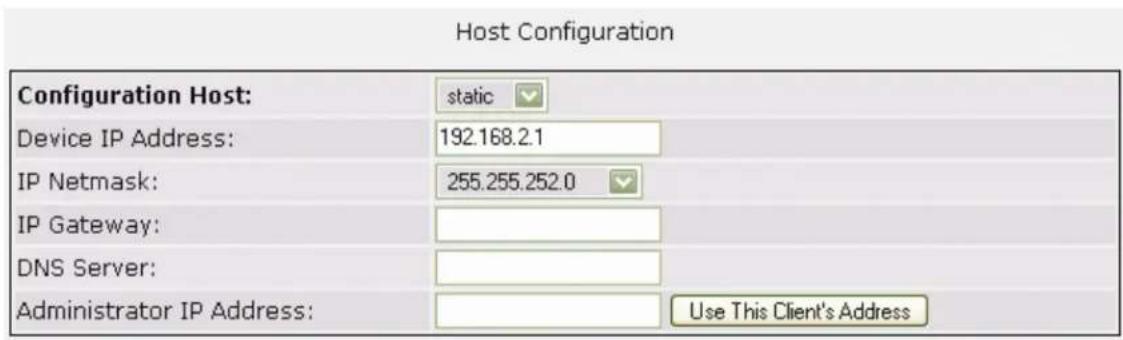
Configuration Host:
With the Configuration Host window displayed, specify the device IP address, IP netmask, IP gateway (Internet connection gateway, router) and DNS server.
Device IP address:
A free IP address in your network. This is the IP address you assign to GuestGate.
IP Netmask:
Enter the same netmask (or subnet mask) you use in your network.
IP Gateway:
The IP address of your Internet gateway (such as a router).
DNS Server:
Domain name service as required by your ISP. You can add multiple DNS servers by separating the different entries with a space.
Administrator IP address:
When specified, only this IP address is allowed to connect to the administrator interface of GuestGate. The function "Use this client's IP address" automatically populates the field with the IP address of the computer currently used to connect to the administrator menu.
When you are done click "Exit" (upper right corner).

Click "Exit" to save the configuration and restart GuestGate.
CONFIGURATION OPTIONS
Status Screen
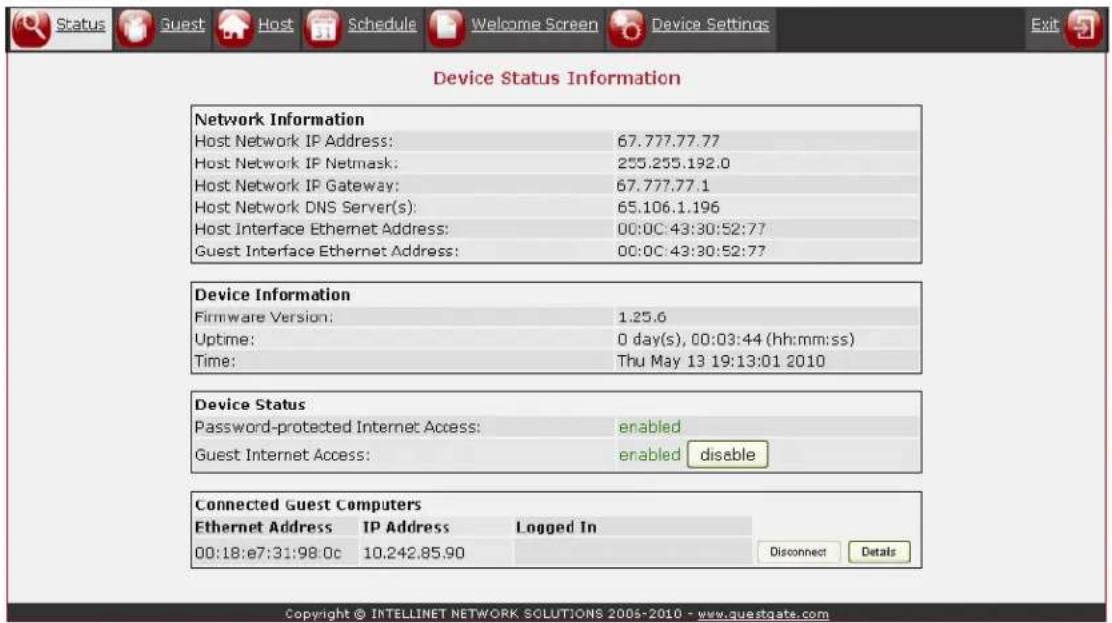
-
Network Information: Basic information about the host network interface.
-
Device Information: Display of the current firmware version, the system's uptime and the system time.
3. Device Status
Displays the status of the password-protected Internet access (“disabled” = no password required) and the status of the Internet access (“enabled” = access to the Internet is active).
4. Connected Guest computers
GuestGate shows all of the connected guest computers, including the MAC address, the assigned IP address and the connection time. Click on "Details" to view individual statistics for each connected PC, including the bandwidth consumed (Mbytes). Click on "Disconnect" to terminate the connection of the selected computer. If no information is shown for "Logged In," it means that the user is attached to GuestGate, but has not gotten past the welcome page.

Guest Configuration Screen

This page shows the configuration options for the connected guest computers.
1. Configuration Guest
Option "separate network for each client (automatic)"
If this option is activated, GuestGate randomly assigns different networks to each connected guest computer. This option should be activated if you want to prevent guest computers from seeing and accessing each other (Layer 3 Client Isolation = on). It is activated by default.
Option "same network for all clients (automatic)"
GuestGate automatically assigns IP addresses to the guest computers. All guest computers operate in the same network (Layer 3 Client Isolation = off).
Option "same network for all clients (enter manually)"
If this option is enabled, you can manually define the network for the connected guest computers (Layer 3 Client Isolation = off).
2. Access Control: Wireless LAN
Wireless LAN
Allows activating or deactivating the WLAN function of GuestGate.
SSID
Define the name of the Wireless network, e.g., "free wifi," "guest wireless," "hotelwifi," etc.
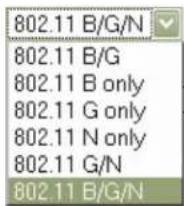
Operational Mode
Here you can select which wireless modes are supported by GuestGate. The standard mode is 802.11 B/GN. It supports legacy Wireless B and Wireless G connections as well as the new Wireless N standard at 300 Mbps.
For best compatibility, we recommend using the default B/G/N mode.
Channel Number
Set GuestGate to a channel between 1 and 11. To achieve the maximum performance from the Wireless network, you should set the channel as far away as you can from existing wireless networks in your vicinity. For example, if there is a nearby wireless network running at channel 4, you should not set GuestGate to channel 4, 5 or 6, but instead to channel 7 or higher.
3. Access Control: General Settings
Control bandwidth usage and trusted Ethernet addresses.

Bandwidth Download Limit
Control the maximum download speed available for the connected guest computers. Available options are from 32 kbps (kilobits per second) up to 2048 kbps (= 2 Megabits per second). Default = unlimited.
Bandwidth Upload Limit
Bandwidth control for the upload speed (sending files to the Internet), with options the same as above.
Trusted Ethernet Addresses
If you wish to permanently authenticate a guest computer, you can add its MAC address to GuestGate's configuration. GuestGate will not show the welcome page to any computer that has been entered here.

Enter the MAC address of the computer as shown above. The syntax is xx:xx:xx:xx:xx:xx. Click "Add Address" to save the MAC address. Repeat these steps for additional MAC addresses. In order to delete a MAC address from the configuration, select the entry from the drop-down list and click on "Remove."

You can obtain the MAC address of a connected computer from the GuestGate Status screen, or you can perform the following steps (example: Windows 2000/XP/Vista/Windows 7): At the DOS Command prompt type: ipconfig/all and press Enter.
Example Output:

The "Physical Address" is the MAC address that needs to be entered in the configuration of GuestGate.
The format is: xx:xx:xx:xx:xx:xx (not xx-xx-xx-xx-xx-xx).
4. Access Control: Welcome Screen
Welcome Screen
Enable or disable the welcome page for guests. (Default = enabled.) If this parameter is set to “disabled,” all guest users can access the Internet freely. No welcome page is displayed, even if a guest password is defined below.
Global Guest Password
If you require your guests to enter a password to access the Internet, you can define it here. If left empty, no password is required (default = no password). This is the global password that can be used by any guest; it is not an individual user password. The password option is only effective if the welcome screen option is set to “enabled” (see above).
Radius Server
In case you have a RADIUS authentication server in your network and you want to utilize it to authenticate your guest users, you need to enter the server's IP address here.
Radius Server
Type in the optional password for the RADIUS server here.
Radius Realm
Enter the optional realm delimiter (e.g., "@" or "\") here.
5. Access Control: Welcome Passwords
Set up individual user passwords that are only valid for a certain time period and can be used by a defined number of computers simultaneously. The example below shows a password “test” that is valid from “05/28/2010, 12 am” until “06/02/2010, 12 am.” The password can be used by five users simultaneously. Up to nine users can use the same password. The amount of user passwords is limited by available memory in GuestGate, but should ideally not exceed 50.

Host Configuration Screen

1. Configuration Host
Option "dhcp"
GuestGate automatically receives the IP address, netmask, gateway and DNS server information from the DHCP server in your network, typically a router.
Option "static"
In larger networks, a manual configuration of the IP settings may be necessary. Select "static" and enter the IP address, netmask, gateway IP address and DNS server IP addresses manually. Multiple DNS Servers can be entered by separating them with a space, i.e., 111.222.333.444 999.888.777.666.
Administrator IP address
Restrict access to GuestGate's administration menu to the IP address you enter in this field. This can be any local or public IP address.
2. Packet filter
Blocked Addresses
If you wish to block certain IP addresses, domain names or an entire network, you can enter this here. "Add Host Address" is used to enter domain names such as guestgate.com or intellinet-network.com.
Enter the domain name and click "Add Host." Repeat the steps to block additional domains. "Add Network Address" is used to enter an IP address. To specify the range you can select the appropriate network mask from the drop-down list. If you wish to delete a blocked address, select it from the drop-down list and click "Remove."

Blocked Ports
This option lets you specify which outgoing TCP/IP ports you wish to block. Enter the port number and click "Add Port." GuestGate blocks both TCP and UDP protocols. A list of common service ports can be found in the APPENDIX at the end of the document. If you wish to remove a port, simply select the desired port from the dropdown list and click on "Remove."
Note: You can only add and remove single ports. Port ranges are not supported.
Permitted Addresses
By default, GuestGate blocks access to all PCs in the Host network. This function lets you define exceptions.
Add Host Address: Enter a single IP address; e.g., the IP address of your Intranet Web server and click on "Add Host." Repeat this step if you wish to enter more IP addresses.

The example above shows that access to IP address 192.168.2.50 is allowed. IP address 192.168.2.51 will be allowed as soon as "Add Host" is clicked.
Add Network Address: Enter an IP address and a subnet mask to define a range of IP addresses permitted to your guests. For example, if you wish to allow access to the entire host network, you can do that quickly by using this function.

The example above shows how to allow access to the entire network range, from 192.168.2.1 to 192.168.2.254.
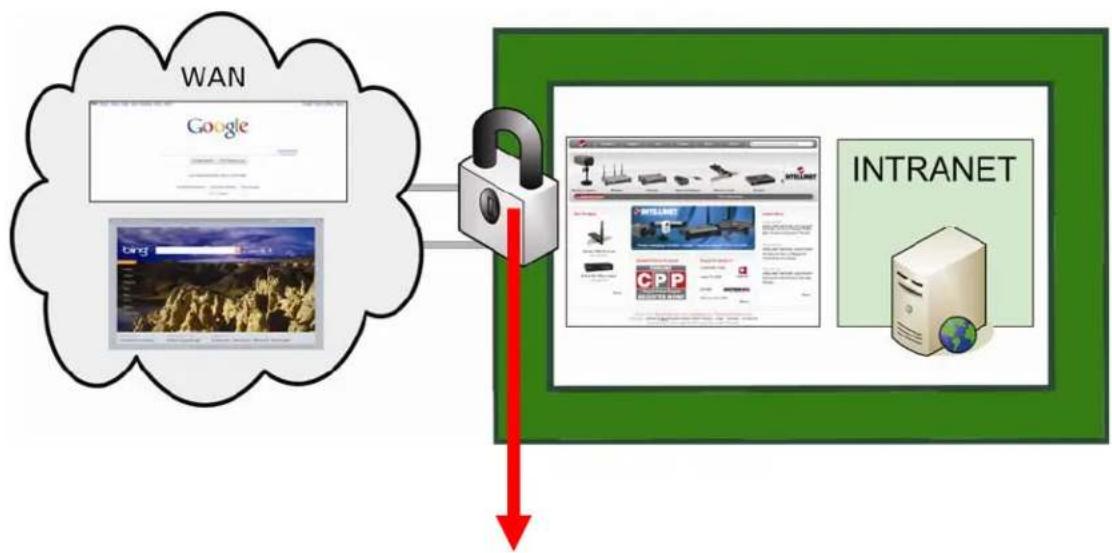
Walled Garden Addresses
You can grant an unauthenticated user limited access to Web sites, both external and internal, using the Walled Garden function. You can define external and internal addresses to which every user, logged in or not, has access. This area is called the Walled Garden.
As soon as the user tries to connect to a Web page that is outside the walled garden, GuestGate requires authentication, as shown below.
Internet
Authorization required for access
Walled Garden
Access without authentication
flowchart
graph TD
    A["WAN"] --> B["Google"]
    A --> C["Intranet"]
    B --> D["Red Arrow"]
    C --> D

INTELLINET
NETWORK SOLUTIONS
GUESTGATE™ MKII
Welcome to our Network!
Dear Guest
We're happy to provide you with Internet Access using the INTELLINET NETWORK SOLUTIONS GUESTGATE™ Hotspot Gateway.
You agree to comply with the company's terms of use. In particular access to any illegal content is strictly prohibited. Violation of this can result in legal prosecution.
By continuing you agree to those terms.
Password:

continue
Copyright © INTELLINET NETWORK SOLUTIONS 2006-2010 - www.questgate.com
Using Walled Garden in combination with a custom welcome screen (see next section), you can allow guests access to Web sites of your choosing without providing a password. The welcome page could look like this:

You need to enter the URLs and IP addresses your guests can access without providing a password in the Walled Garden configuration.

Add Host Address: Enter any Web site URL you wish to include in the Walled Garden. Click "Add Host" to add the URL to the setup.
Add Network Address: In addition to URLs, you can also add IP addresses to the Walled Garden setup. Specify the IP address and the subnet mask and click on "Add Network" to add the IP address range to the setup.
In order to remove a Walled Garden address, select the URL from the drop-down list and click "Remove."
Welcome Screen Configuration
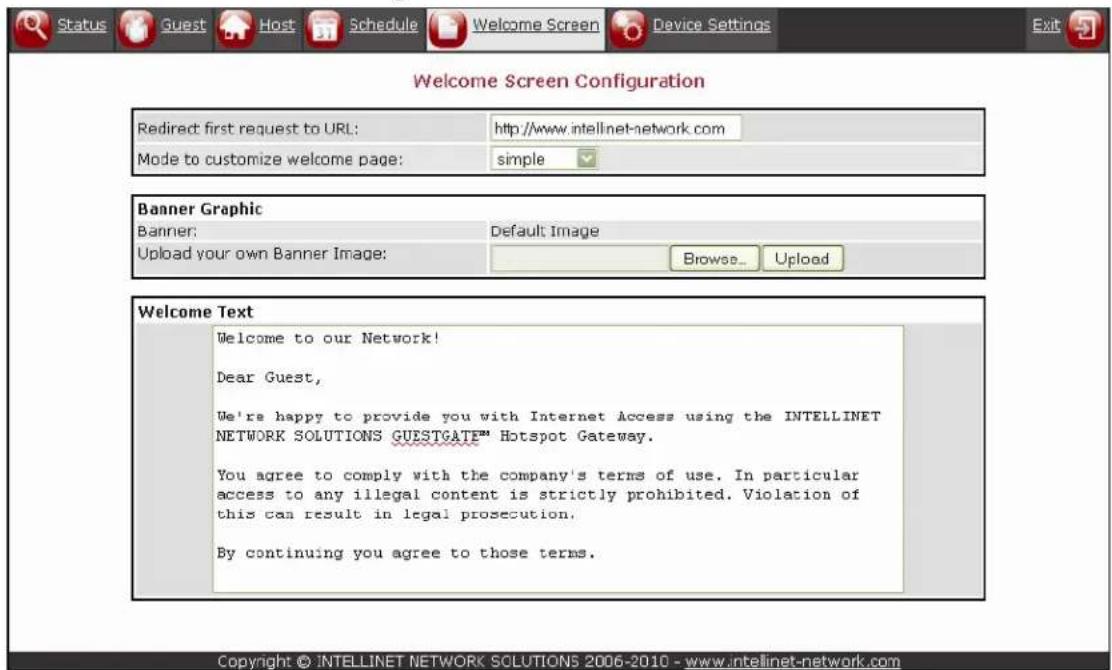
1. Redirect first request to URL:
When a guest connects to GuestGate for the first time, GuestGate can redirect the guest to a Web page you want them to see, e.g., a page displaying special offers or advertising.
2. Mode to customize welcome page:
There are two values to choose from: "simple" and "advanced." In simple mode you can change the welcome text and replace the default banner graphic. In advanced mode, you have access to the entire HTML source code of the welcome page. Once you enable the advanced mode, an additional text box appears on the bottom of the page (see below: "Welcome HTML Code").
3. Banner Graphic
You can replace the default banner image with your own image such as the logo of your company. Click on "Browse" to select the file you wish to upload. Click on "Upload" to replace the default banner image. After the upload, the text "Default Image" changes into "Custom Image."
Note:
The banner image file type must be JPG, GIF or PNG. The banner image size must not exceed 60 kB. The banner image dimension is not limited, but the width should ideally not exceed 1024 pixels. The banner image only displays on the guest welcome screen. It does not replace the banner in the administrator Web interface.
4. Welcome Text
You can overwrite the default text with your own custom text. GuestGate supports HTML tags to format your text. Below is a small selection:
<strong>bold text</strong>
<font color = red>red text</font>
<font color = #00ff00">green text</font>
<u>underlined text</u>
<u><strong><font color = red>red bold underlined text</font></strong></u>
Other HTML commands such as
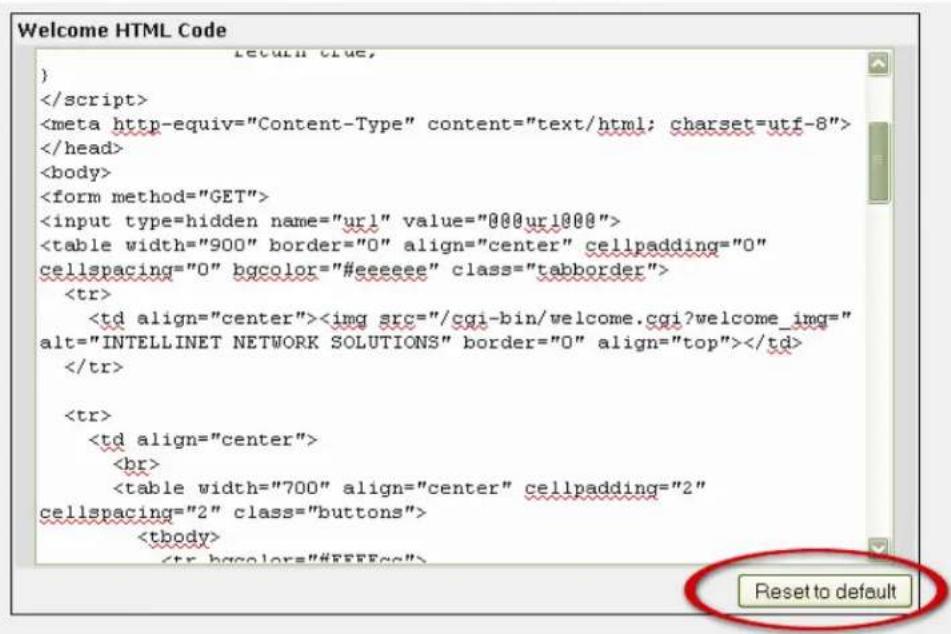
5. Welcome HTML CodeWhen you enable the advanced mode, a new text box will appear. This function is designed for advanced users with knowledge about HTML programming. We don't recommend using this function unless you know what you are doing.
1. Time Setup (Time Zone and Update Interval)Select the time zone in which you are located. The update interval parameter defines how often GuestGate re-synchronizes the internal time with the Internet time. 2. Reboot DeviceWith this parameter, you can set up GuestGate to perform a scheduled restart once per day at a time of your choosing. If you have a lot of users connected to GuestGate, this feature will improve overall system stability. Furthermore, you can use this feature to force all users to re-authenticate at a defined time if you so desire. 3. Internet Access Time Schedules
You can control whether Internet access is available all the time or only at certain times, e.g., only during business hours. Parameter value "always on": Internet access is possible at any time and any day. There are no restrictions. Parameter value "as scheduled below": When you select this option, you can specify the days and hours at which Internet service is provided. You can click the individual fields to activate or deactivate Internet access at that time and day, or you can click on the buttons "SUN," "MON," etc. to toggle access for that day. The same is possible using the buttons in front of each row. Click "4 h" to toggle Internet access for each day during the hour from 4 am to 5 am. Click on "19 h" to toggle Internet access for each day during the hour from 7 pm to 8 pm. The button "all" activates or deactivates all fields. Note:When using the scheduler function, you must make sure that GuestGate has access to an NTP server. You need to check the status page to make sure that GuestGate has retrieved a proper time. If GuestGate has not obtained a time, there will be no Internet access for any user while the scheduler is activated. Device Settings Configuration
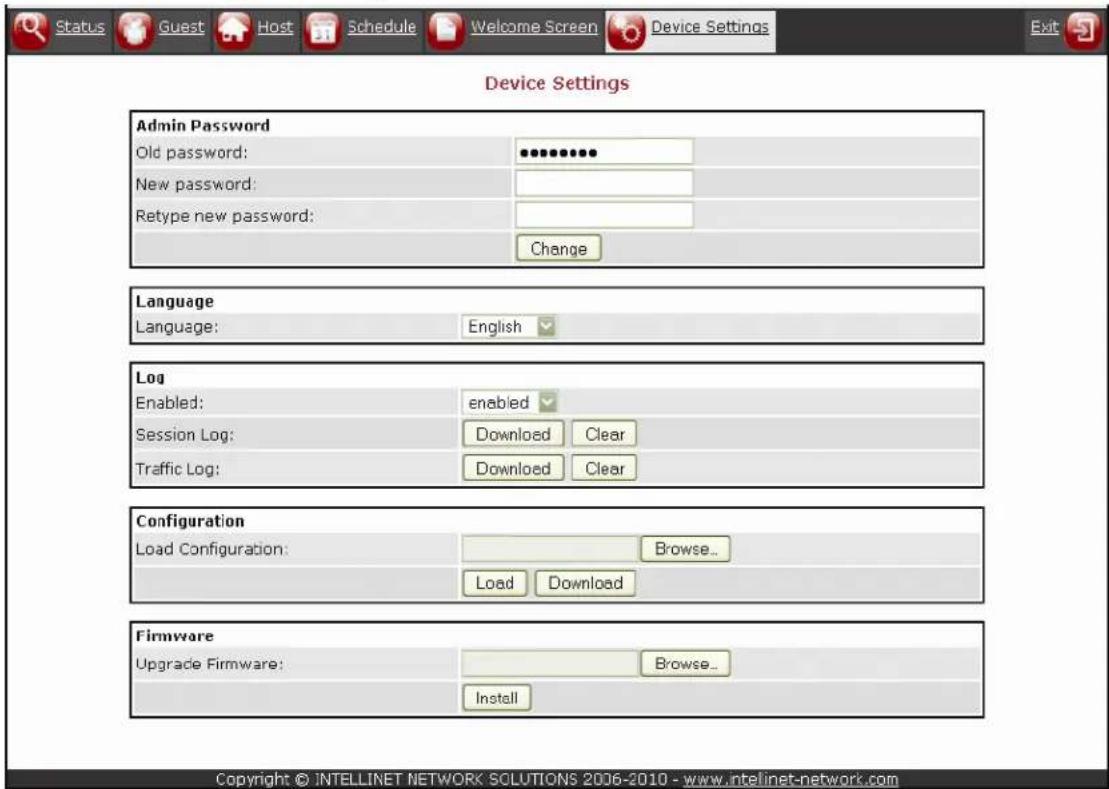
This page allows changing the administrator password, saving and restoring the configuration as well as upgrading the firmware. 1. Admin PasswordTo change the administrator password, you need to enter the old password and the new password. You also must confirm the new password by retyping it. Click "Change" to save the changes. GuestGate's default password is 1234 The password can be up to 20 characters in length. A secure password is at least seven characters in length and contains letters as well as numbers. 2. LogGuestGate can maintain a protocol that includes information such as the login date and time, the logout time, the IP address and the MAC address of the connected guest computer (Session Log) or information about which Web sites guest computers connect to (Traffic Log). Set the parameter to “enabled” in order to activate this function. You can download the log at any time by clicking the "download" button. When you do, you are presented with the following pop-up window:
Select "Save File."
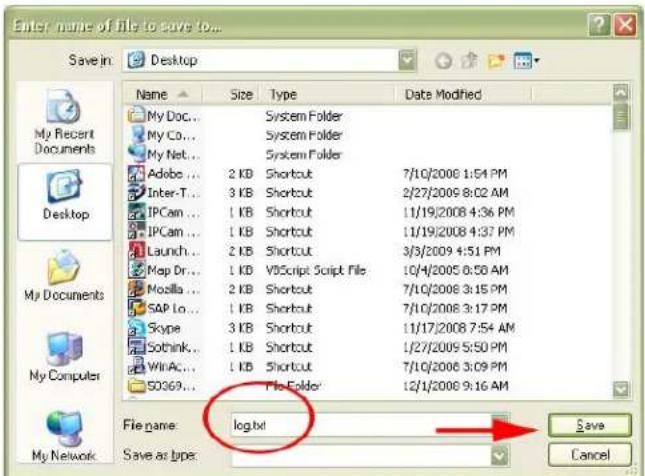
Specify the location and rename the file from "config.cgi" to "log.txt." Click "Save." Start MS Excel and open the file log.txt. You'll then be presented with the Excel's text import wizard.
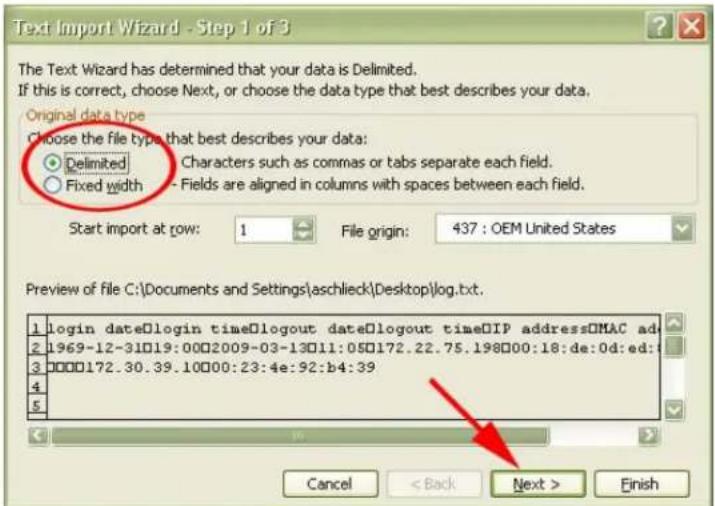
Select "Delimited" and click "Next >."
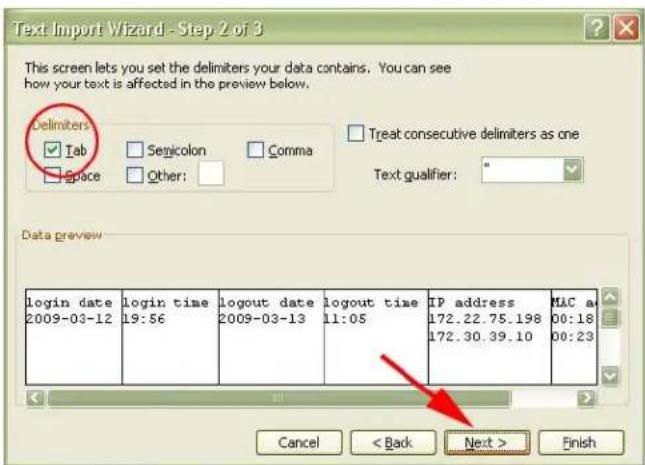
Select "Tab" and click "Next >." On the next screen, you can assign different formats to the individual columns.
Recommended values for the "login date" and "logout date" column are "Date YDM." Click "Finish" and MS Excel will open the log file. 3. ConfigurationYou can create a backup of the configuration by clicking the "download" button. Save the file "config.cgi" to your hard drive. If you wish to reload the configuration at a later time, click "Browse ..., " select the previously saved file "config.cgi," and click "open." Finally, click "Load" to restore the configuration data. 4. FirmwareRefer to the next section "Firmware Upgrade Process." Firmware Upgrade ProcessWhere to obtain a new firmware There are two ways to find out if a new firmware is available. a) Check GuestGate's Status Page GuestGate checks if a new firmware is available when you log in to the Administrator menu. If a new version is found, a text message appears on the status screen. See example below: Device Status Information New firmware version available (Version: 1.42, Date: 2006/09/28) Click here for more information. Click on the link "Click here for more information" and you will be taken to the Web page that includes information about the new firmware. b) Manually check the download section at www.intellinet-network.com. Upgrade Process: Open the Device Settings screen of the Administrator menu. Click "Browse" to select the new firmware Image; e.g., "524827-2.02.img." Click "Install" to begin the upgrade process. The upgrade may take several minutes depending on your connection speed to GuestGate. Firmware is being upgradedThe firmware is being upgraded at the moment. After the upgrade is complete, the device will restart automatically. Please be patient and do not restart the device before the upgrade is complete as this will destroy the device permanently! Copyright © INTELLINET NETWORK SOLUTIONS 2009 - www.questgate.com GuestGate will automatically restart after the upgrade process. After you see the restart message, you need to wait a minute before you can access GuestGate again. Note:The Upgrade Process must not be interrupted!A network connection failure or a crash of your local computer during the upgrade process will result in the destruction of GuestGate. Ideally you want to perform the upgrade from within the local Host Network whenever possible. Device failures resulting from improperly performed firmware upgrades are excluded from the product warranty. Exit Screen
This page lets you save the new configuration. [x] Save SettingsAll changes you made to the configuration will only be remembered if you save the changes by activating this check box. If you made changes in some of the configuration screens and fail to perform this step before closing the Web browser, all changes will be lost. [x] Reboot DeviceIn order to activate the new configuration, you must also check this box. Note:Saving the settings does not automatically activate them. It is necessary to reboot GuestGate for the new configuration to become active. This way, you can make changes to the configuration (i.e., a new guest password) now and activate them at a later time. Rebooting GuestGate will also enforce a re-authentication of all connected guest computers. QUESTIONS & ANSWERS
A: The default IP address is: 192.168.2.1
A: The default password is: 1234
A: Power on GuestGate, wait 5 seconds and then press the reset button on the back panel for 10 seconds.
A: You may have forgotten to save the configuration through the EXIT page of the administrator Web interface.
A: You do not need to activate any settings. GuestGate provides this functionality by default. Should a guest try to access a server or computer in your network, GuestGate will deny the request, displaying a warning message in the guest's Web browser window.
A: Add the IP address of your Intranet server in GuestGate's Host configuration page under "Permit Addresses" and GuestGate will no longer block access to that server.
A: Yes. Upload and download bandwidth can be controlled in the guest configuration of the administrator Web interface.
A: Yes. The welcome page can be changed in the administrator Web interface. You can change the welcome message and upload your own banner image. In advanced mode, you have access to the complete HTML source code, allowing you to change the appearance of the welcome page completely.
A: Yes. GuestGate does not limit you in any way. If you are an HTML Web developer you can create an enhanced welcome page simply by pasting the HTML code into the welcome page configuration field. In advanced mode, you have access to the complete HTML source code.
A: Open the welcome page configuration page and make sure the "Mode to customize welcome page" is set to "advanced." Scroll down to the text box labeled "Welcome HTML Code" and click the button "Reset to default." Save the configuration via the Exit page to activate the default welcome page.
A: This is the Layer 3 Client Isolation function of GuestGate. If this option is activated, GuestGate will prevent the connected guest computers from accessing each other by assigning random TCP/IP network settings to the guest computers. This way each Guest operates in its own "Virtual LAN." The two examples below illustrate how it works:
Guest computer 1 receives IP address 172.16.254.253. Guest computer 2 receives IP address 172.16.254.252. Guest computer 3 receives IP address 172.16.254.251. [...] In this mode, all guest computers operate in one network and are therefore able to access each other. This is the standard mode of virtually any router and DHCP server on the market.
Guest computer 1 receives IP address 192.168.17.42. Guest computer 2 receives IP address 172.16.25.12. Guest computer 3 receives IP address 10.10.8.178. Guest computer 4 receives IP address 10.10.4.18. Guest computer 5 receives IP address 192.168.8.178. [...] In this mode each guest computer operates in its own network and therefore can not access any other device except for the Internet. Since this function is random, it is next to impossible for an attacker to know or guess which IP addresses the other guests have been assigned, making a hacking attempt more difficult. If you are concerned with the security of your guests or are worried about potential liability issues, you should activate this option (it is activated by default). Additional information is available in the Appendix at the end of the user manual.
A: No. GuestGate does not support server-side scripting.
A: Only once. As long as GuestGate is not restarted and the guest remains connected to GuestGate, the guest will never again be prompted to enter the password and agree to your terms and conditions. If the guest disconnects from GuestGate for a period of 10 minutes or more, the welcome page will be displayed again the next time the guest tries to access the Internet.
A: You can connect additional WLAN Access Points to GuestGate's LAN ports, or, you can set up additional Access Points as repeaters. Hardwiring additional Access Points is the preferred choice. It provides a more stable wireless network that provides better performance and is easier to configure.
A: GuestGate's wireless function does not support wireless encryption. You can secure the Internet access using the various guest password mechanisms. If you need a wireless network that is secured by encryption, you need to connect external access points to GuestGate and disable the internal WLAN function.
A: No. For security reasons, this is not possible. Access to the administrator menu can only be gained through the host port.
A: No. Opening ports to connected computers, as you can do with any standard router (virtual server / port forwarding), is not possible with GuestGate for security reasons.
A: No, that is not possible. See the previous question.
A: That is because Layer 3 Client Isolation is activated by default. You need to disable it to allow network communication between the connected guest computers. See question 11.
A: GuestGate cannot access the pool time servers on the Internet and is therefore unable to receive a valid system time. The most likely cause for this problem is that a firewall located in the host network may be blocking outgoing Network Time Protocol (NTP) requests. The system administrator must open the ports required for this service (port 123 for both TCP and UDP). It is important to take care of this problem, especially if you use the Time / Scheduler function to control when Internet access is allowed.
A: The bandwidth control limits the bandwidth that GuestGate can use, regardless of how many guest users are connected to the device. APPENDIXBelow you can find a list of common TCP/IP service ports. These ports can be entered in the host configuration of GuestGate to block access to certain services. Port Number Service Name / Description
WARRANTY INFORMATIONDeutsch Garantieinformationen finden Sie hier unter www.intellinet-network.com/warranty. English For warranty information, go to www.intellinet-network.com/warranty. Español Si desea obtener información sobre la garantía, visite www.intellinet-network.com/warranty. Français Pour consulter les informations sur la garantie, rendezvous à l'adresse www.intellinet-network.com/warranty. Italiano Per informazioni sulla garanzia, accedere a www.intellinet-network.com/warranty. Polski Informacje dotyczące gwarancji znajdują się na stronie www.intellinet-network.com/warranty. México Poliza de Garantia INTELLINET — Datos del importador y responsable ante el consumidor IC Intracom México, S.A. de C.V. • Av. Interceptor Poniente # 73, Col. Parque Industrial La Joya, Cuautitlan Izcalli, Estado de México, C.P. 54730, México. • Tel. (55)1500-4500 La presente garantía cubre los siguientes productos contra cualquier defecto de fabricación en sus materiales y mano de obra. A. Garantizamos cámaras IP y productos con partes moviles por 3 años. B. Garantizamos los demas productos por 5 años (productos sin partes moviles), bajo las siguientes condiciones:
Para hacer efectiva esta garantía bastara con presentar el producto al distribuidor en el domicilio donde ue adquirido o en el domicilio de IC Intracom México, S.A. de C.V., junto con los accesorios contenidos n su empaque, acompañado de su póliza debidamente llenada y sellada por la casa vendedora indispensable el sello y fecha de compra) donde lo adquirió, o bien, la factura o ticket de ompra original donde se mencione claramente el modelo, numero de serie (cuando aplique) yfecha de adquisición. Esta garantía no es valida en los siguientes casos: Si el producto se hubiese tilizado en condiciones distintas a las normales; si el producto no ha sido operado conforme a los nstructivos de uso; ó si el producto ha sido alterado o tratado de ser reparado por el consumidor ó erceras personas.
INTELLINET NETWORK SOLUTIONS™ offers a complete line of active and passive networking products. Ask your local computer dealer for more information or visit www.intellinet-network.com Copyright © INTELLINET NETWORK SOLUTIONS All products mentioned are trademarks or registered trademarks of their respective owners. |




- GUESTGATE™ MK II Wireless 300N Hotspot Gateway USER MANUAL
- INTELLINET
- SAFETY AND REGULATORY NOTICES
- R&TTE Compliance Statement
- Waste Electrical & Electronic Equipment
- Disposal of Electric and Electronic Equipment
- TABLE OF CONTENTS
- SAFETY AND REGULATORY NOTICES 2
- TABLE OF CONTENTS 3
- INTRODUCTION....4
- INSTALLATION 9
- CONFIGURATION OPTIONS.... 19
- QUESTIONS & ANSWERS 37
- APPENDIX 41
- WARRANTY INFORMATION......42
- INTRODUCTION
- Function Description
- Internet access for Guests
- Password-Protected Internet access for Guests
- Configurable Welcome Screen for your Guests
- IP PnP
- Bandwidth Control
- Layer 3 Client Isolation Function
- Packet Filter
- Mbps Wireless N Support
- Port 10/100 Auto Sensing LAN Switch
- Web-Based Administrator Interface
- Firmware Updates via Web Browser
- Installation Examples
- GuestGate in a SOHO Network Environment
- GuestGate in an SMB Environment
- GuestGate Function Basics
- Ports
- Host Port
- Guest ports
- Guest ports with Layer 3 Client Isolation enabled
- Time / Scheduler
- Accessing the Administrator Web Interface
- Internet Access for Guests and Welcome Page
- INSTALLATION
- Recommended Setup
- Connection to the Host Network
- Connection of Guests
- Testing Internet Access
- Note:
- Accessing the Administrator Web Interface from the Host Network
- Changing Administrator Password
- Advanced Setup
- Advanced setup requires:
- Changing the IP address of your PC (example: Windows XP)
- Connecting to GuestGate via a Web Browser
- Host Configuration
- Configuration Host:
- Device IP address:
- IP Netmask:
- IP Gateway:
- DNS Server:
- Administrator IP address:
- CONFIGURATION OPTIONS
- Device Status
- Connected Guest computers
- Guest Configuration Screen
- Configuration Guest
- Access Control: Wireless LAN
- Wireless LAN
- SSID
- Operational Mode
- Channel Number
- Access Control: General Settings
- Bandwidth Download Limit
- Bandwidth Upload Limit
- Trusted Ethernet Addresses
- Example Output:
- Access Control: Welcome Screen
- Welcome Screen
- Global Guest Password
- Radius Server
- Radius Realm
- Access Control: Welcome Passwords
- Host Configuration Screen
- Configuration Host
- Option "dhcp"
- Option "static"
- Administrator IP address
- Packet filter
- Blocked Addresses
- Blocked Ports
- Permitted Addresses
- Walled Garden Addresses
- Internet
- Walled Garden
- GUESTGATE™ MKII
- Welcome Screen Configuration
- Redirect first request to URL:
- Mode to customize welcome page:
- Banner Graphic
- Welcome Text
- Welcome HTML Code
- Time Setup (Time Zone and Update Interval)
- Reboot Device
- Internet Access Time Schedules
- Device Settings Configuration
- Admin Password
- Log
- Configuration
- Firmware
- Firmware Upgrade Process
- Firmware is being upgraded
- The Upgrade Process must not be interrupted!
- Exit Screen
- [x] Save Settings
- [x] Reboot Device
- QUESTIONS & ANSWERS
- APPENDIX
- WARRANTY INFORMATION
Brand : IC Intracom
Model : GuestGate MK II
Category : Access Point