
PDR2053B - Wall mount for flat screen Chief - Free user manual and instructions
Find the device manual for free PDR2053B Chief in PDF.


| Product Type | Large Flat Panel Dual Arm Wall Mount |
| Brand | Chief |
| Model | PDR2053B |
| Finish | Black |
| Weight Capacity | 200 lbs (90.7 kg) |
| Height Adjustment | Up to 1.08 inches |
| Tilt Range | +5° to -17° |
| Roll Adjustment | ±2° |
| Yaw Adjustment | ±0° |
| Mounting Pattern | Fits standard 16" on-center wood studs |
| Maximum Drywall Thickness | 5/8" (1.6 cm) |
| Display Mounting System | ClickConnect with audible click |
| Number of Swing Arms | 2 (dual) |
| Cable Management | Yes, with cable clamps and ties |
| Swing Arm Lateral Adjustment | Up to 1" off-center on each side |
| Includes | Mount assembly, lag bolts, washers, covers, end caps, adjustment wrench, adjustment insert, cable ties |
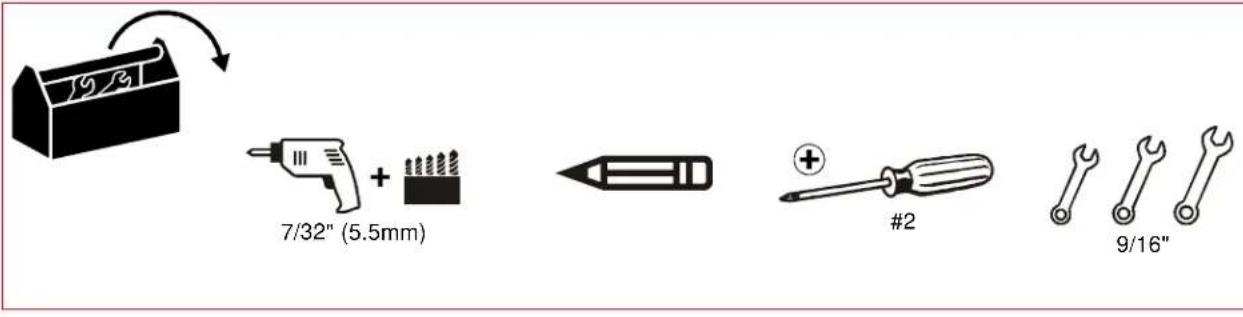
| Tools Required | Phillips screwdriver, open-end wrench, hex-head wrench, drill, stud sensor |
| Material | Steel |
| Safety Note | Wall structure must support 5x combined weight; use two people for displays over 40 lbs |
Frequently Asked Questions - PDR2053B Chief
User questions about PDR2053B Chief
0 question about this device. Answer the ones you know or ask your own.
Ask a new question about this device
Download the instructions for your Wall mount for flat screen in PDF format for free! Find your manual PDR2053B - Chief and take your electronic device back in hand. On this page are published all the documents necessary for the use of your device. PDR2053B by Chief.
USER MANUAL PDR2053B Chief
INSTALLATION INSTRUCTIONS
natural_image
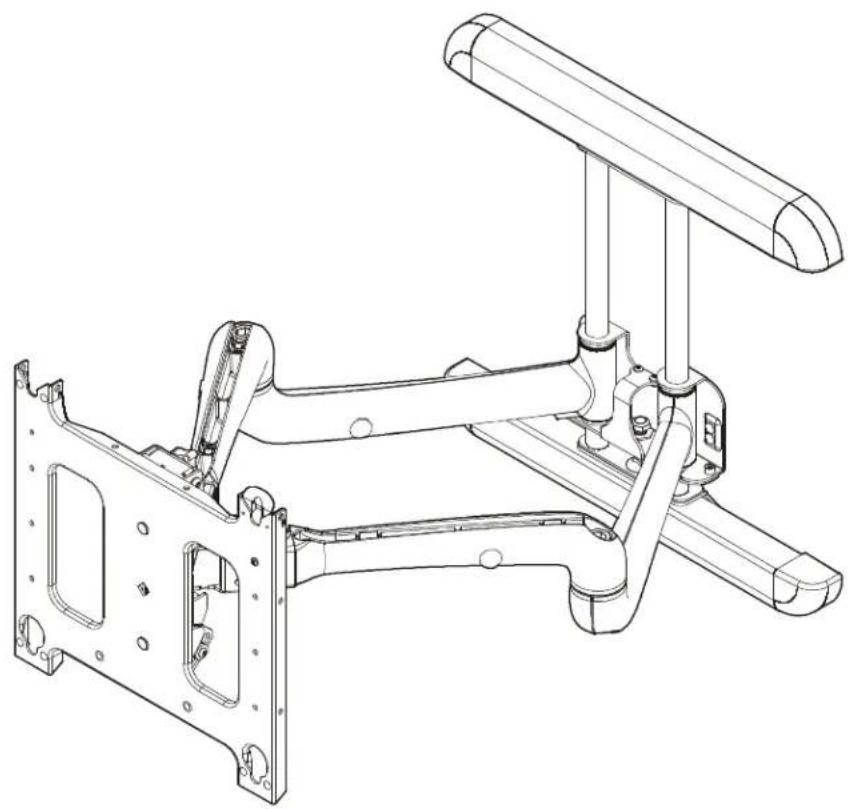
Technical line drawing of a mechanical assembly with frame and support components (no text or symbols)Large Flat Panel Dual Arm Wall Mount
DISCLAIMER
Milestone AV Technologies and its affiliated corporations and subsidiaries (collectively "Milestone"), intend to make this manual accurate and complete. However, Milestone makes no claim that the information contained herein covers all details, conditions or variations, nor does it provide for every possible contingency in connection with the installation or use of this product. The information contained in this document is subject to change without notice or obligation of any kind. Milestone makes no representation of warranty, expressed or implied, regarding the information contained herein. Milestone assumes no responsibility for accuracy, completeness or sufficiency of the information contained in this document.
Chief® is a registered trademark of Milestone AV Technologies. All rights reserved.

IMPORTANT WARNINGS AND
CAUTIONS!

WARNING: A WARNING alerts you to the possibility of serious injury or death if you do not follow the instructions.

CAUTION: A CAUTION alerts you to the possibility of damage or destruction of equipment if you do not follow the corresponding instructions.

WARNING: Failure to read, thoroughly understand, and follow all instructions can result in serious personal injury, damage to equipment, or voiding of factory warranty! It is the installer's responsibility to make sure all components are properly assembled and installed using the instructions provided.

WARNING: Failure to provide adequate structural strength for this component can result in serious personal injury or damage to equipment! It is the installer's responsibility to make sure the structure to which this component is attached can support five times the combined weight of all equipment. Reinforce the structure as required before installing the component. The wall to which the mount is being attached may have a maximum drywall thickness of 5/8" (1.6cm).

WARNING: Exceeding the weight capacity can result in serious personal injury or damage to equipment! It is the installer's responsibility to make sure the combined weight of all components attached to the PDR does not exceed 200 lbs (90.7 kg). Use with products heavier than the maximum weight indicated may result in collapse of the mount and its accessories causing possible injury.
PDR Series contains the following models:
• PDR2000S / PDR2000B
- PDRUS / PDRUB
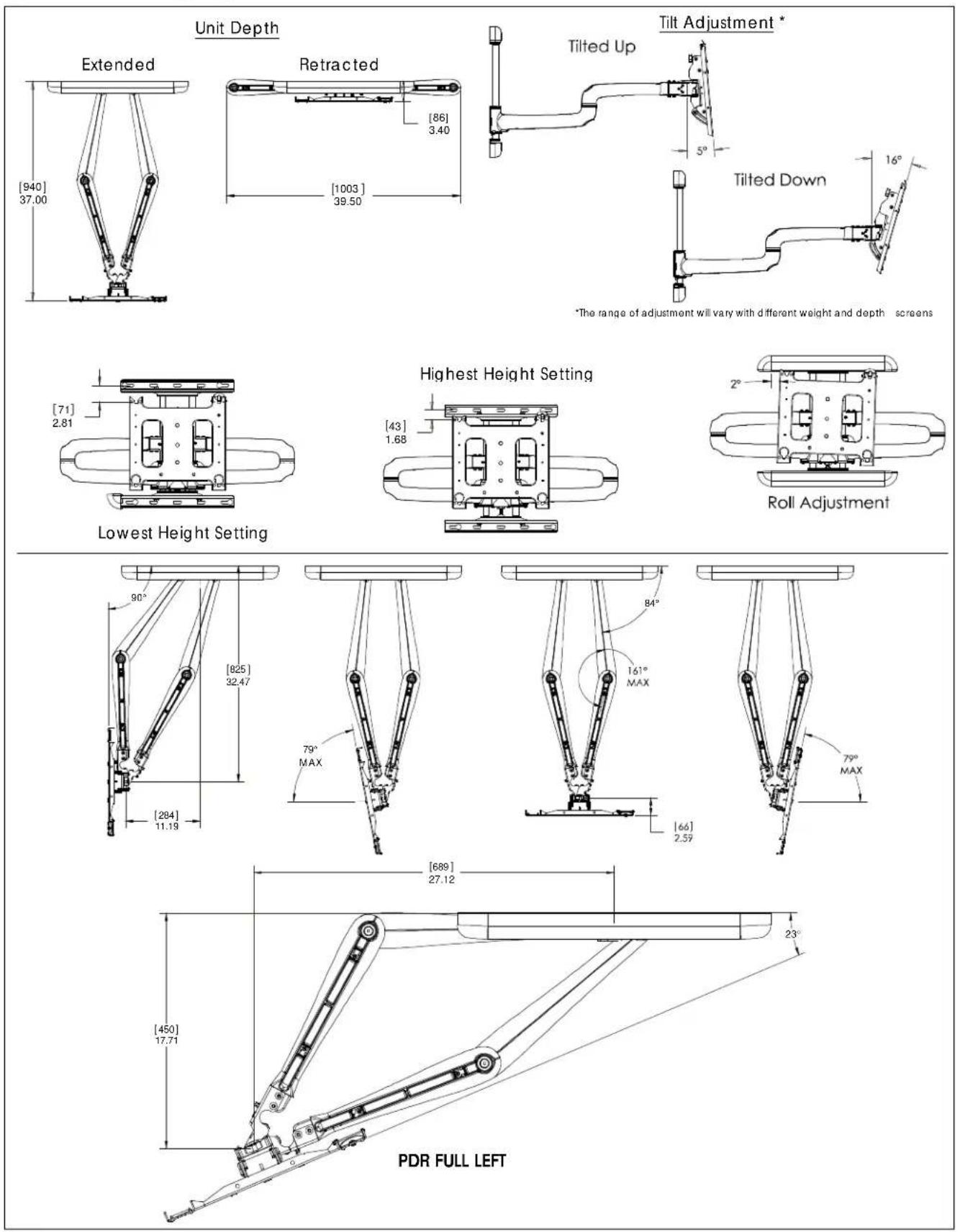
DIMENSIONS
NOTE: CUSTOM INTERFACE BRACKET
NOT SHOWN. THE CUSTOM INTERFACE
BRACKET NEEDED FOR YOUR DISPLAY
WILL ADD BETWEEN 1/2" AND 2" IN DEPTH AND MAY AFFECT LOCATION OF DISPLAY ON THE MOUNT.
SEE PSB-XXXX DRAWING ALSO.
Mounting Pattern
![ECT LOCATION OF DISPLAY DRAWING ALSO. [57] 2.25 [483] 19.00 [25] 1.00 [176] 7.00 [25] 1.00 [500] 19.69 [406] 16.00](/content/2026/06/1183937/images/77cf2789747fcc35c58ffb6ad366251b2634308a8501bfe6cd9bea32be149707.jpg)
![[600] 23.62 END CAP TO END CAP](/content/2026/06/1183937/images/5c0e2cc7e8a7c34c3776b3fe9fed97847ba7220eb04ae8a64a3a60338ddda3a0.jpg)
| PRODUCT FEATURES | |
| WEIGHT CAPACITY | 200 LBS |
| HEIGHT ADJUSTMENT | 1" |
| TILT / ROLL / YAW | +5, -17° / ±2° / ±0° |
![[86] 3.40 DEPTH [560] 22.04](/content/2026/06/1183937/images/9fe22b2b8afdf202132422c6e870d93ac9486587c674aaa0c79e9c89c235bc80.jpg)
DIMENSIONS -- cont'd
LEGEND
 | Tighten Fastener |  | Pencil Mark |
| Apretar elemento de fijación | Marcar con lápiz | ||
| Befestigungsteil festziehen | Stiftmarkierung | ||
| Apertar fixador | Marcar com lápis | ||
| Serrare il fissaggio | Segno a matita | ||
| Bevestiging vastdraaien | Potloodmerkteken | ||
| Serrez les fixations | Marquage au crayon | ||
 | Loosen Fastener |  | Drill Hole |
| Aflojar elemento de fijación | Perforar | ||
| Befestigungsteil lösen | Bohrloch | ||
| Desapertar fixador | Fazer furo | ||
| Allentare il fissaggio | Praticare un foro | ||
| Bevestiging losdraaien | Gat boren | ||
| Desserrez les fixations | Percez un trou | ||
 | Phillips Screwdriver |  | Adjust |
| Destornillador Phillips | Ajustar | ||
| Kreuzschlitzschraubendreher | Einstellen | ||
| Chave de fendas Phillips | Ajustar | ||
| Cacciavite a stella | Regolare | ||
| Kruiskopschroevendraaier | Afstellen | ||
| Tournevis à pointe cruciforme | Ajuster | ||
 | Open-Ended Wrench |  | Hex-Head Wrench |
| Llave de boca | Llave de cabeza hexagonal | ||
| Gabelschlüssel | Sechskantschlüssel | ||
| Chave de bocas | Chave de cabeça sextavada | ||
| Chiave a punte aperte | Chiave esagonale | ||
| Steeksleutel | Zeskantsleutel | ||
| Clé à fourche | Clé à tête hexagonale |
TOOLS REQUIRED FOR INSTALLATION
PARTS
![NOTE: Listed PSBU interface bracket provided with Listed Model PDRUS/B, but not shown. A (1) [PDR assembly] B (2) [Cover] C (2) [End cap] D (2) [End cap] E (1) [Adjustment wrench] J (12) 5-1/2" G (4) .850x.393x.135 F (1) [Adjustment insert] H (4) 5/16 x 3"](/content/2026/06/1183937/images/288cd984ba5067d1d9cec98ab337a423fa5c2bad2e7917176ba6b6a61608eb03.jpg)
MOUNT INSTALLATION
Installing Mount to Wall

WARNING: IMPROPER INSTALLATION CAN LEAD TO MOUNT FALLING CAUSING SERIOUS PERSONAL
INJURY OR DAMAGE TO EQUIPMENT! It is the installer's responsibility to make sure the structure to which the mount is being installed is capable of supporting five times the combined weight of the mount and all attachments.
- Determine mounting location taking into consideration display size and PDR's range of movement.
- Using a stud sensor locate two wood studs 16" apart on center. (See Figure 1)

Figure 1
- Place and level mount against wall, aligning mounting holes in upper and lower wall channels with studs. (See Figure 1)
- Mark four mounting holes making sure mounting holes are located as close as possible to center of studs. (See Figure 1)
- Drill four 7/32" pilot holes where the mounting holes were marked. (See Figure 1)
- Install two 5/16" x 3" lag bolts (H) and two 0.135" thick washers (G), through mounting holes in upper wall channel and into pilot holes. DO NOT tighten at this time. (See Figure 2)
-
Place mount against wall aligning mounting holes in upper wall channel with lag bolts, and hang mount on lag bolts making sure washers are located in front of mount.
-
Adjust mount lateral position left until lag bolts are seated in mounting slots in upper wall channel. (See Figure 2)
- Install two 5/16" x 3" lag bolts (H) and two 0.135" thick washers (G), through mounting holes in lower wall channel and into pilot holes. (See Figure 2)
- Tighten all hardware. DO NOT overtighten!

Figure 2
Adjusting PDR Height
NOTE: Height adjustment range up to 1.08 inches.
-
Check PDR for the desired height. If needed, use the adjustment wrench (E) to adjust the PDR height. (See Figure 3)
-
Turn adjustment nut clockwise to lower the unit height, or
- Turn adjustment nut counterclockwise to raise the unit height.
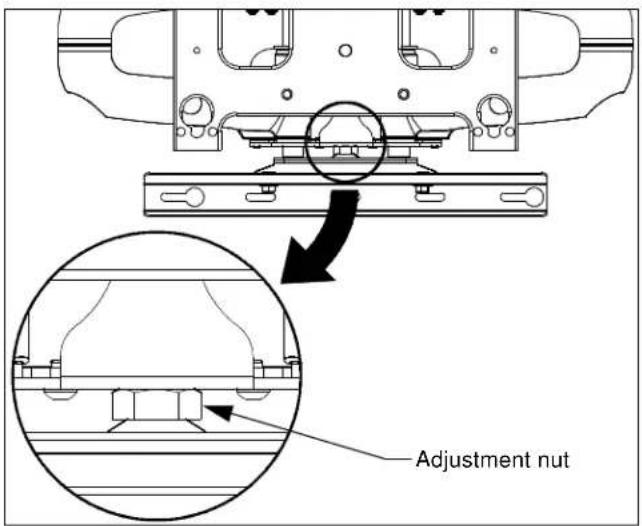
Figure 3
Installing Covers and End Caps
NOTE: The covers and end caps have pressure fitting ends that lock into place with each other.
- Install cover (B) over the top bracket. (See Figure 4)
- Install end caps (C and D) into the cover and top bracket. (See Figure 4)
- Repeat Steps 1 and 2 for the lower mounting bracket. (See Figure 4)

Figure 4
Mounting the Display

WARNING: IMPROPER INSTALLATION CAN LEAD TO MOUNT FALLING CAUSING SEVERE PERSONAL INJURY OR DAMAGE TO EQUIPMENT. Displays can weigh in excess of 40 lbs (18.1kg). ALWAYS use two people and proper lifting techniques when installing display.

WARNING: IMPROPER INSTALLATION CAN LEAD TO MOUNT FALLING CAUSING SEVERE PERSONAL INJURY OR DAMAGE TO EQUIPMENT. Make sure mounting buttons on display are properly seated in mounting holes in faceplate.
- Move mount faceplate to extended position by grasping faceplate and pulling outward away from wall.
- While supporting both sides of display, align four mounting buttons on display or interface bracket with four mounting holes in faceplate. (See Figure 5)
- Lower display into place listening for audible "click" to ensure recessed area of mounting buttons are properly seated in lower area of mounting holes and ClickConnect mechanism has engaged. (See Figure 5) and (See Figure 6)
NOTE: Holes are provided in the faceplate for use with a padlock or similar locking device, if desired. In addition, the pin and nut may be removed from the upper holes and moved to the lower holes for use as a more permanent locking device. (See Figure 6)

Figure 5
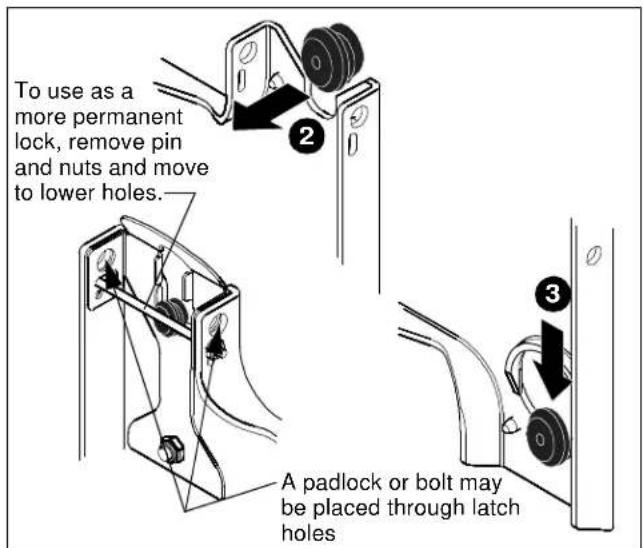
Figure 6

Figure 7
Cable Management

WARNING: IMPROPER INSTALLATION CAN LEAD TO SERIOUS PERSONAL INJURY OR DAMAGE TO EQUIPMENT! Make sure cables do not run through pinch points.
- Loosen front and rear cable clamps on top arm. (See Figure 7)
- Thread cable ties (J) under cable clamps and secure clamps to top arm. (See Figure 7)
- Route power/audio/video cables through the cable channel in top arm (See Figure 7), allowing sufficient slack in cables for left/Right movement of display and swing arm and also swing arm extension and retraction.
- Secure cables to top arm using two cable ties (J).
- Repeat Steps 1 through 4, as necessary, for remaining top arm and lower arms.

WARNING: IMPROPER INSTALLATION CAN LEAD TO SERIOUS PERSONAL INJURY OR DAMAGE TO EQUIPMENT! DO NOT route cables through holes in faceplate.
Tension Adjustments
Vertical Tilt Tension Adjustment
- With display mounted, check for desired vertical tilt tension.
- Adjust the Centris Select knob until desired vertical tilt tension is obtained. (See Figure 8)
- To lock the mount at the desired vertical tilt, tighten the vertical tilt lock screw. (See Figure 9)
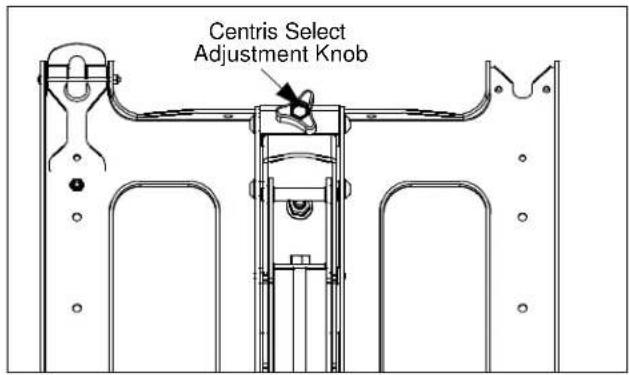
Figure 8

Figure 9
Lateral Tilt Tension Adjustment

CAUTION: DO NOT OVERTIGHTEN LATERAL TILT ADJUSTMENT NUT. Overtightening lateral tilt adjustment will cause excessive wear and may distort adjustment components.
- Using a 9/16" wrench (not provided), slightly tighten or loosen lateral tilt tension adjustment nut. (See Figure 10)
- Attach the display and check for desired tilt tension.
- Repeat Steps 1 and 2 until desired tilt tension is obtained.
Rotational Tilt Tension Adjustment
- If necessary, loosen or tighten bottom rotational tilt tension adjustment nut. (See Figure 10)
- Attach the display and check for desired rotational tilt tension.
- Repeat Steps 1 and 2 until desired rotational tilt tension is obtained.

Figure 10
Swing Arm Adjustments
The dual swing arms are shipped installed in the center of the top and bottom mounting brackets, which is the standard mounting configuration.
The top and bottom mounting brackets have slotted holes, allowing for lateral adjustment of the dual swing arms.
After the top and bottom mounting brackets have been installed between two wood studs 16" on center, the swing arms can be adjusted or moved off center, depending on the location of the mount, the size of the display, and the lateral movement needed to rotate the display.
The swing arms can be adjusted, as follows:
- Adjusting the Swing Arms Off-Center
With no disassembly required, you can adjust the swing arms up to 1-inch to the left of center or up to 1-inch to the right of center.
• Reconfiguring the Swing Arms Left of Center
With some disassembly and reassembly required, you can move the swing arms to the left of center by reconfiguring the mount. Use the first and third slotted holes in the top and bottom mounting brackets.
- Reconfiguring the Swing Arms Right of Center
With some disassembly and reassembly, you can move the swing arms to the right of center by reconfiguring the mount. Use the third and fifth slotted holes in the top and bottom mounting brackets.
Adjusting the Swing Arms Off Center
- Remove the display from the mount.
- Loosen four bolts (two on the top and two on the bottom) securing the swing arm assembly to the top and bottom mounting brackets (See Figure 11).
- Move the swing arm assembly to desired location.
- Tighten the bolts.
- Install the display on the mount.
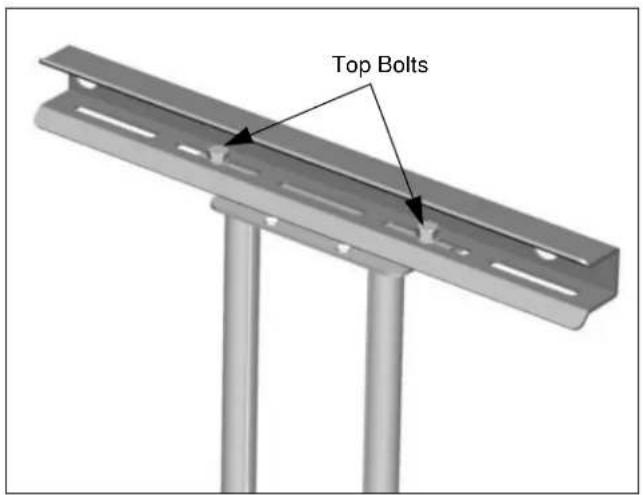
Figure 11
Reconfiguring the Swing Arms to the Left or Right of Center
- Remove the display from the mount.
- Remove four bolts (two on the top and two on the bottom) securing the swing arm assembly to the top and bottom mounting brackets (See figure 14).

WARNING: The next step will release the arm assembly from the mount. The arms and plate may fall if you are not careful.
- Move the swing arm assembly to desired location.
• Left of Center (See Figure 12).
• Right of Center (See Figure 13).
- Install retaining pin assemblies (one top and one bottom) and secure using two bolts (one top and one bottom).
- Install four bolts (two on the top and two on the bottom) to secure the swing arm assembly to the top and bottom mounting brackets.
- Tighten the bolts.
- Install the display on the mount.

Figure 12
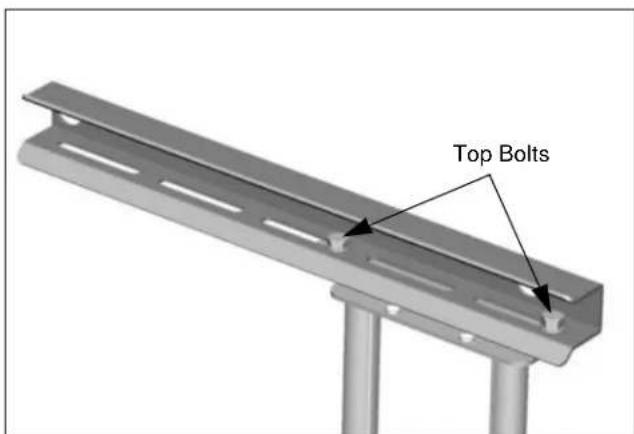
Figure 13
Swing Arm Tension Adjustment
Swing arm tension is pre-set at the factory and is adjusted to accommodate displays with weights near the top of the mounts capacity.
If smaller displays are used it may be difficult to reposition the display after mounting. Swing arm tension can be adjusted to compensate for smaller display by:
NOTE: The display must be mounted prior to adjusting swing arm tension.
- Locate the adjustment insert (F) and wrench (E) provided with the mount.
- Place adjustment insert into socket head cap screw located at swing arm pivot point. (See Figure 14)
NOTE: The display may need to be repositioned in order to gain access to the tension adjustment screw(s).
- Using the wrench provided with the mount, turn adjustment insert clockwise to increase swing arm tension or counterclockwise to reduce swing arm tension. (See Figure 15)
NOTE: Small adjustments of 1/8 turn or less are typically all that is required to achieve desired tension. - Check swing arm tension. If desired tension is present, tension adjustment is complete. If additional tension adjustment is required, repeat steps 2 and 3 until desired tension is achieved.
NOTE: If changing from a smaller display to a larger display it may be necessary to increase swing arm tension.
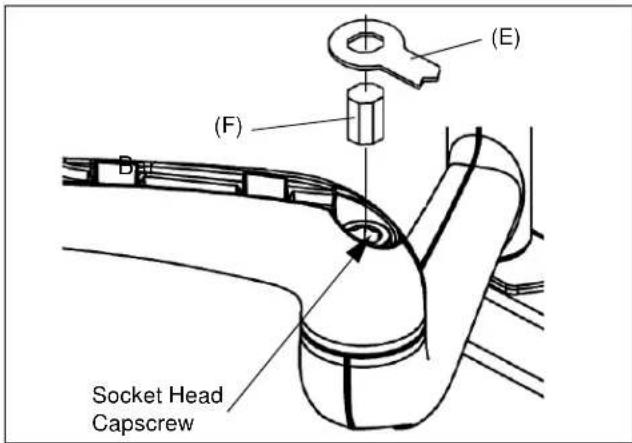
Figure 14

Figure 15
Removing Display from Mount
- Remove bolt or padlock from faceplate (if used).
NOTE: The pin may have been used as a more permanent locking device. If so, remove nut and pin and move from the lower holes to the upper holes.
- Pull back on flag on upper mounting hole and press pin down into "Open" position. (See Figure 16)

WARNING: DISPLAY MAY WEIGH IN EXCESS OF 40 LBS! Always use two people and proper lifting techniques when installing or positioning display on mount.
-
Carefully lift display from mount.
-
Lift up on pin and place flag back against faceplate to return it to "Closed" position.
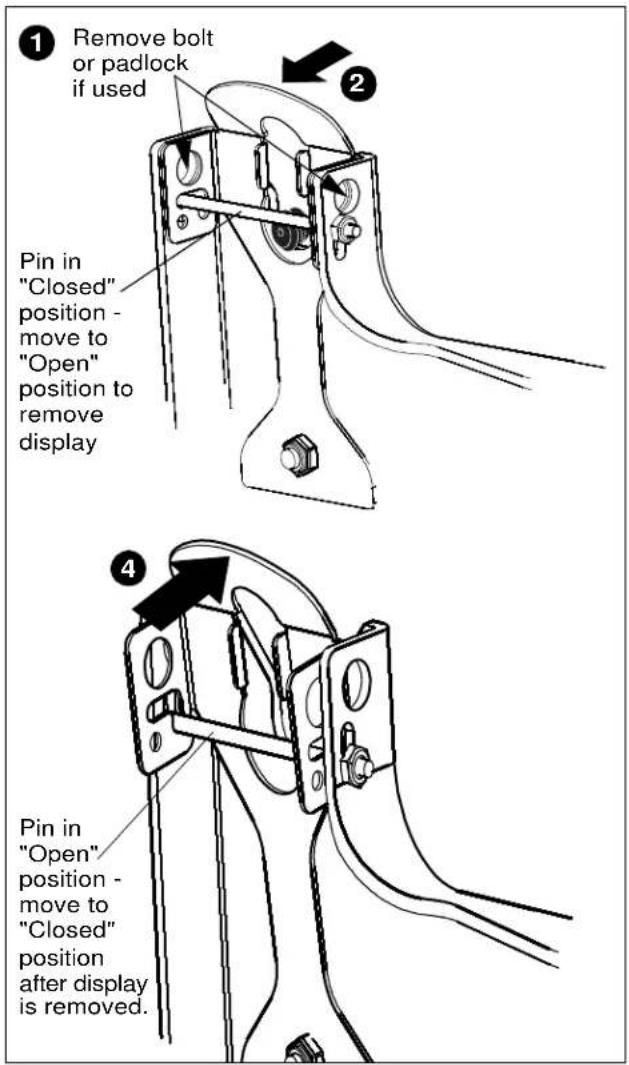
Figure 16
- INSTALLATION INSTRUCTIONS
- DISCLAIMER
- IMPORTANT WARNINGS AND
- CAUTIONS!
- DIMENSIONS
- DIMENSIONS -- cont'd
- MOUNT INSTALLATION
- Installing Mount to Wall
- Adjusting PDR Height
- Installing Covers and End Caps
- Mounting the Display
- Cable Management
- Tension Adjustments
- Vertical Tilt Tension Adjustment
- Lateral Tilt Tension Adjustment
- Rotational Tilt Tension Adjustment
- Swing Arm Adjustments
- Adjusting the Swing Arms Off Center
- Reconfiguring the Swing Arms to the Left or Right of Center
- Swing Arm Tension Adjustment
- Removing Display from Mount
Brand : Chief
Model : PDR2053B
Category : Wall mount for flat screen