
NXA-ICSNET - Network adapter AMX - Free user manual and instructions
Find the device manual for free NXA-ICSNET AMX in PDF.


| Product Type | Network Adapter (ICSNet Daughter Card) |
| Brand | AMX |
| Model | NXA-ICSNET |
| Compatibility | NI-2100, NI-3100, NI-4100 Integrated Controllers |
| Ports | 1 ICSHub Out (RJ-45) + 2 ICSNet (RJ-45) |
| Connectivity | ICSNet bus for device control and data communication |
| Power Supply | Powered by the host controller (no external power required) |
| Installation | Internal daughter card, requires opening controller chassis |
| Supported Baud Rates | 300 to 115,200 bps (via host controller serial ports) |
| Operating Temperature | 0°C to 50°C (32°F to 122°F) |
| Operating Humidity | 20% to 85% RH (non-condensing) |
| Certifications | Host controller is FCC Part 15 Class B, CE, IEC 60950 compliant |
| Weight | Approximately 0.1 kg (0.22 lbs) |
| Dimensions | Approximately 10 x 5 x 1 cm (4 x 2 x 0.4 in) |
Frequently Asked Questions - NXA-ICSNET AMX
User questions about NXA-ICSNET AMX
0 question about this device. Answer the ones you know or ask your own.
Ask a new question about this device
Download the instructions for your Network adapter in PDF format for free! Find your manual NXA-ICSNET - AMX and take your electronic device back in hand. On this page are published all the documents necessary for the use of your device. NXA-ICSNET by AMX.
USER MANUAL NXA-ICSNET AMX
NetLinx Integrated Controllers

AMX Limited Warranty and Disclaimer
This Limited Warranty and Disclaimer extends only to products purchased directly from AMX or an AMX Authorized Partner which include AMX Dealers, Distributors, VIP's or other AMX authorized entity.
AMX warrants its products to be free of defects in material and workmanship under normal use for three (3) years from the date of purchase, with the following exceptions:
- Electroluminescent and LCD Control Panels are warranted for three (3) years, except for the display and touch overlay components are warranted for a period of one (1) year.
• Disk drive mechanisms, pan/tilt heads, power supplies, and MX Series products are warranted for a period of one (1) year. - AMX lighting products are guaranteed to switch on and off any load that is properly connected to our lighting products, as long as the AMX lighting products are under warranty. AMX also guarantees the control of dimmable loads that are properly connected to our lighting products. The dimming performance or quality there of is not guaranteed, impart due to the random combinations of dimmers, lamps and ballasts or transformers.
- AMX software is warranted for a period of ninety (90) days.
- Batteries and incandescent lamps are not covered under the warranty.
- AMX AutoPatch Epica, Modula, Modula Series4, Modula CatPro Series and 8Y-3000 product models will be free of defects in materials and manufacture at the time of sale and will remain in good working order for a period of three (3) years following the date of the original sales invoice from AMX. The three-year warranty period will be extended to the life of the product (Limited Lifetime Warranty) if the warranty card is filled out by the dealer and/or end user and returned to AMX so that AMX receives it within thirty (30) days of the installation of equipment but no later than six (6) months from original AMX sales invoice date. The life of the product extends until five (5) years after AMX ceases manufacturing the product model. The Limited Lifetime Warranty applies to products in their original installation only. If a product is moved to a different installation, the Limited Lifetime Warranty will no longer apply, and the product warranty will instead be the three (3) year Limited Warranty.
All products returned to AMX require a Return Material Authorization (RMA) number. The RMA number is obtained from the AMX RMA Department. The RMA number must be clearly marked on the outside of each box. The RMA is valid for a 30-day period. After the 30-day period the RMA will be cancelled. Any shipments received not consistent with the RMA, or after the RMA is cancelled, will be refused. AMX is not responsible for products returned without a valid RMA number.
AMX is not liable for any damages caused by its products or for the failure of its products to perform. This includes any lost profits, lost savings, incidental damages, or consequential damages. AMX is not liable for any claim made by a third party or by an AMX Authorized Partner for a third party.
This Limited Warranty does not apply to (a) any AMX product that has been modified, altered or repaired by an unauthorized agent or improperly transported, stored, installed, used, or maintained; (b) damage caused by acts of nature, including flood, erosion, or earthquake; (c) damage caused by a sustained low or high voltage situation or by a low or high voltage disturbance, including brownouts, sags, spikes, or power outages; or (d) damage caused by war, vandalism, theft, depletion, or obsolescence.
This limitation of liability applies whether damages are sought, or a claim is made, under this warranty or as a tort claim (including negligence and strict product liability), a contract claim, or any other claim. This limitation of liability cannot be waived or amended by any person. This limitation of liability will be effective even if AMX or an authorized representative of AMX has been advised of the possibility of any such damages. This limitation of liability, however, will not apply to claims for personal injury.
Some states do not allow a limitation of how long an implied warranty last. Some states do not allow the limitation or exclusion of incidental or consequential damages for consumer products. In such states, the limitation or exclusion of the Limited Warranty may not apply. This Limited Warranty gives the owner specific legal rights. The owner may also have other rights that vary from state to state. The owner is advised to consult applicable state laws for full determination of rights.
EXCEPT AS EXPRESSLY SET FORTH IN THIS WARRANTY, AMX MAKES NO OTHER WARRANTIES, EXPRESSED OR IMPLIED, INCLUDING ANY IMPLIED WARRANTIES OF MERCHANTABILITY OR FITNESS FOR A PARTICULAR PURPOSE. AMX EXPRESSLY DISCLAIMS ALL WARRANTIES NOT STATED IN THIS LIMITED WARRANTY. ANY IMPLIED WARRANTIES THAT MAY BE IMPOSED BY LAW ARE LIMITED TO THE TERMS OF THIS LIMITED WARRANTY. EXCEPT AS OTHERWISE LIMITED BY APPLICABLE LAW, AMX RESERVES THE RIGHT TO MODIFY OR DISCONTINUE DESIGNS, SPECIFICATIONS, WARRANTIES, PRICES, AND POLICIES WITHOUT NOTICE.
Table of Contents
Introduction ...... 1
Overview 1
Features.... 1 Timekeeper .... 2
NI-2100....3 NI-2100 Specifications....3
NI-3100....6 NI-3100 Specifications....6
NI-4100....9 NI-4100 Specifications....10
Related Documents.... 12
Installation and Upgrading 13
Installing NetLinx Control Cards (NI-4100 Only) 13
Setting the NetLinx Control Card Addresses (NI-4100 Only).... 13 Device:Port:System (D:P:S).... 14
Removing NetLinx Control Cards (NI-4100 Only) 14
Compact Flash Upgrades.... 15 Accessing The Internal Components On An Integrated Controller .... 15 Installation of Compact Flash Upgrades.... 16 Closing and Securing the Outer Housing .... 16
Installing Into An Equipment Rack .... 17 Rack Mount Safety Instructions .... 17
Connections and Wiring 19
Setting the Configuration DIP Switch (for the Program Port) .... 19 Baud Rate Settings.... 19 Program Run Disable (PRD) Mode.... 19 Working With the Configuration DIP Switch .... 20 Setting the CardFrame DIP Switch (NI-4100 only) .... 20
Program Port Connections and Wiring 20
Modes and Front Panel LED Blink Patterns 21
Port Assignments and Functionality.... 21
AxLink Port and LED.... 22
Wiring Guidelines .... 22 Wiring length guidelines .... 22 Preparing Captive Wires .... 23 Wiring a Power Connection.... 23
Table of Contents
Using the 4-Pin Mini-Phoenix Connector For Data and Power 23
Using the 4-pin Mini-Phoenix Connector For Data With External Power.... 24
DB9 Device Port: Connections and Wiring.... 25
ICSNet Port: Connections and Wiring 26
ICSHub OUT Port: Connections and Wiring 27
Relay Port: Connections and Wiring 27
Relay Connections 27
Input/Output (I/O) Port: Connections and Wiring 28
IR/Serial Port: Connections and Wiring 29
NetLinx Control Card Slot Connector (NI-4100 only).... 30
LAN (Ethernet/RJ-45 Port): Connections and Wiring 30
LAN LEDs 30
LAN Ports Used By the Integrated Controller 31
Introduction
Overview
The X100-Series of NetLinx Integrated Master Controllers can both be programmed to control RS-232/422/485, Relay, IR/Serial, and Input/Output devices through the use of both the NetLinx programming language and the NetLinx Studio application version 2.x.

References within this manual to NI X100-Series Controllers are used to describe the NI-2100/3100/4100 Integrated Controllers. When there is an overlap of information with other related NI Controllers, an X will be used to refer to both sets of units. As an example, if a feature is shared by both the NI-4000 and the NI-4100 Controller, the term "NI-4x00 Series" is used.
NI Controllers are shipped with Duet firmware and can not be downgraded to earlier Non-Duet firmware (< build 300). The Controllers are Duet-compatible and can be upgraded via firmware. Duet is a dual-interpreter firmware platform from AMX which combines the proven reliability and power of NetLinx with the extensive capabilities of the Java®2 MicroEdition (J2ME) platform. Duet simplifies the programming of a system that includes the NI Controller and other third party devices by standardizing device and function definitions, defaulting touch panel button assignments, and controlling feedback methods. Dynamic Device Discovery makes integration even easier by automatically identifying and communicating with devices which support this beaconing technology.
Features
| NI Controllers - Features | |
| NI-2100 NetLinx Integrated Controllers | |
| Name / FG# Features | |
| NI-2100 Controller (FG2105-04) | 3 Configurable RS-232 / RS-422 / RS-485 Serial ports4 R e l a y s4 IR / Serial ports4 Digital I/O ports2 Communication Networks: AxLink and Ethernet (TCP/IP)404 MIPS processor speed64 MB RAM512 MB CompactFlash (upgradeable to 4 GB)1 MB Non-Volatile MemoryAMX Device Discovery enabledJITC CompliantNote:The NI-2100 can be upgraded to provide 1 ICSHub and 2 ICSNet ports by installing the optional ICSNet daughter card (FG2105-10). |
| NI-2100/ICS Controller with ICSNet (FG2105-14) | |
| NI Controllers - Features (Cont.) | |
| NI-3100 NetLinx Integrated Controllers | |
| Name / FG# Features | |
| NI-3100 Controller (FG2105-05) | 7 Configurable RS-232 / RS-422 / RS-485 Serial ports8 Relays8 IR / Serial ports8 Digital I/O ports2 Communication Networks: AxLink and Ethernet (TCP/IP)404 MIPS processor speed256 MB RAM512 MB CompactFlash (upgradeable to 4 GB)1 MB Non-Volatile MemoryAMX Device Discovery enabledThe NI-3100 is JITC Compliant; the NI-3100/256 is not JITC CompliantNote:The NI-3100 can be upgraded to provide 1 ICSHub and 2 ICSNet ports by installing the optional ICSNet daughter card (FG2105-10) |
| NI-3100/256 Controller (FG2105-25) | |
| NI-3100/ICS Controller with ICSNet (FG2105-15) | Same as the NI-3100 (above), but with the ICSNet daughter card pre-installed. |
| NI-3100/256/ICS Controller with ICSNet (FG2105-35) | Same as the NI-3100/256 (above), but with the ICSNet daughter card pre-installed. |
| NI-4100 NetLinx Integrated Controllers | |
| Name / FG# Features | |
| NI-4100 Controller (FG2105-06) | 7 Configurable RS-232 / RS-422 / RS-485 Serial ports8 Relays8 IR / Serial ports8 Digital I/O ports3 Communication Networks: AxLink, ICSNet and Ethernet (TCP/IP)4 NetLinx Control Card Expansion slots that support all NXC control cards404 MIPS processor speed64 MB RAM512 MB CompactFlash (upgradeable to 4 GB)1 MB Non-Volatile MemoryAMX Device Discovery enabledJITC Compliant |
| NI-4100/256 Controller (FG2105-26) | Same as the NI-4100 (above), but with 256 MB RAM.Note:The NI-4100/256 is not JITC Compliant. |
Timekeeper
The Controllers use a combination lithium battery and clock crystal package called a Timekeeper. Only one Timekeeper unit is installed within a given NI controller. The battery can be expected to have up to 3 years of usable life under very adverse conditions. Actual life is appreciably longer under normal operating conditions.
- This calculation is based on storing the unit without power in 50irc C ( 120irc F) temperature until battery levels are no longer acceptable.
● The part number for a replacement battery is 57-0032.

CAUTION
RISK OF EXPLOSION IF BATTERY IS REPLACED BY AN INCORRECT TYPE.
DISPOSE OF USED BATTERIES ACCORDING TO THE INSTRUCTIONS
NI-2100
The NI-2100 (FG2105-04) is ideal for control and automation of medium-sized rooms and multi-room applications. The NI-2100 has 64MB of onboard RAM and is Device Discovery enabled to simplify programming by standardizing device and function definitions, default touch panel button assignments, and control and feedback methods.
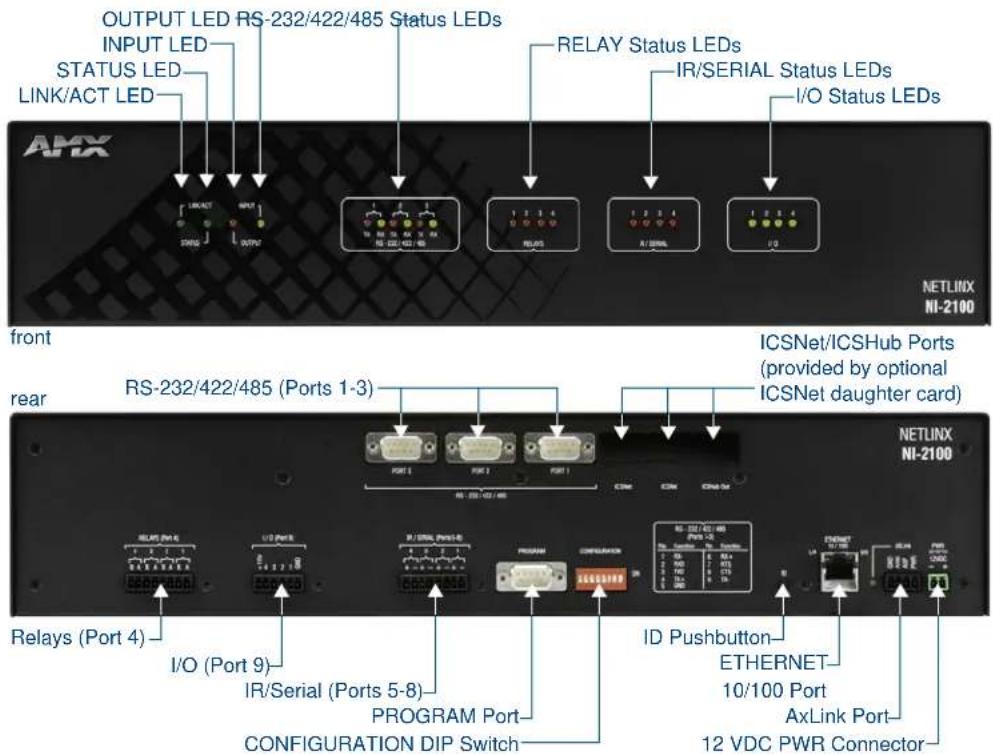
FIG. 1 NI-2100

Verify you are using the latest NI firmware for the on-board Master. Verify you are using the latest version of NetLinx Studio (available for download from www.amx.com).
NI-2100 Specifications
| NI-2100 Specifications | |
| Models Available: • NI-2100 64MB Controller (FG2105-04)The NI-2100 can be upgraded to provide one ICSHub and two ICSNet ports by installing the optional ICSNet daughter card (FG2105-10 - seeOther AMX Equipment)• NI-2100/ICS Controller with ICSNet (FG2105-14) | |
| Dimensions (HWD): • 3 1/2" x 17" x 3 1/2" (8.8 cm x 43.2 cm x 8.8 cm)• RU: 2 | |
| Power Requirement: 700 mA @ 12 VDC | |
| Memory: • 64 MB SDRAM• 1 MB Non-volatile (NV) SRAM | |
| Compact Flash: | 2GB or greater (upgradeable to 4GB - seeOther AMX Equipment).Note: AMX may increaseFlash size at any time in response to market availability. |
| Weight: 4.50 lbs (2.04 kg) | |
| Enclosure: Metal with black matte finish | |
| Certifications: FCC Part 15 Class B, CE, and IEC 60950 | |
| Front Panel LEDs: | |
| LINK/ACT (green): | Blinks when the Ethernet cables are connected and terminated correctly. Also blinks when receiving Ethernet data packets. |
| Status (green): Blinks to indicate that the system is programmed and communicating properly. | |
| Output (red): | Blinks when the Controller transmits data, sets channels On and Off, sends data strings, etc. |
| Input (yellow): | Blinks when the Controller receives data from button pushes, strings, commands, channel levels, etc. |
| RS-232/422/485(red / yellow): | 3 sets of LEDs light to indicate that DB9 Ports 1 - 3 are transmitting or receiving RS-232, 422, or 485 data (red = TX, yellow = RX). |
| Relay (red): | 4 LEDs light to indicate the relay channels 1 - 4 are active (closed). These LEDs reflect the state of the relay on Port 4. |
| IR/Serial (red): 4 LEDs light to indicate the IR/Serial channels 1 - 4 are transmitting control data on Ports 5 - 8. LED indicator for each IR port remains lit for the length of time that IR/Serial data is being generated. | |
| I/O (yellow): | Lights when the I/O channels 1 - 4 are active. The LED for each I/O port reflects the state of that particular port. |
| RS-232/422/485(Ports 1 - 3): | 3 RS-232/422/485 control ports using DB9 (male) connectors with XON/XOFF (transmit on/transmit off), CTS/RTS (clear to send/ready to send), and 300-115,200 baud. |
| ICSNet: | 2 RJ-45 connectors for ICSNet interface (provided by optional ICSNet daughter card). |
| ICSHub Out: | RJ-45 connector provides data to a Hub connected to the Controller (provided by optional ICSNet daughter card). |
| Relay (Port 4): • 4-channel single-pole single-throw relay ports• Each relay is independently controlled.• Supports up to 4 independent external relay devices• Channel range = 1-4• Each relay can switch up to 24 VDC or 28 VAC @ 1 A• 8-pin 3.5 mm mini-Phoenix (female) connector provides relay termination | |
| Digital I/O (Port 9): | 4-channel binary I/O port for contact closure with each input being capable of voltage sensing. Input format is software selectable with interactive power sensing for IR ports. |
| IR/Serial(Ports 5 - 8): | 4 IR/Serial control ports support high-frequency carriers of up to 1.142 MHz with each output being capable of two electrical formats: IR or Serial.• 4 IR/Serial data signals can be generated simultaneously.• IR ports support data mode (at limited baud rates and wiring distances). |
| Rear Panel Components: | |
| Program Port: | RS-232 DB9 connector (male) can be connected to a DB9 port on a PC. This connector can be used with serial and NetLinx programming commands, as well as other DB9 capable devices, to both upload/download information from the NetLinx Studio program. |
| Configuration DIP Switch: | Sets the communication parameters for the Program port (see Baud Rate Settings). |
| ID Pushbutton: Sets the NetLinx ID (Device only) assignment for the device. | |
| Ethernet Port: | RJ-45 connector provides TCP/IP communication. This is an Auto MDI/MDI-X enabled port, which allows you to use either straight-through or crossover Ethernet cables. The Ethernet Port LEDs show communication activity, connection status, speeds, and mode information:SPD (speed) - Yellow LED lights On when the connection speed is 100 Mbps and turns Off when the speed is 10 Mbps.L/A (link/activity) - Green LED lights On when the Ethernet cables are connected and terminated correctly, and blinks when receiving Ethernet data packets. |
| AxLink Port: | 4-pin 3.5 mm mini-Phoenix (male) connector that provides data and power to external control devices. Green AXlink LED indicates the state of the AXlink port. |
| NI-2100 Specifications (Cont.) | |
| Power Port: 2-pin 3.5 mm mini-Phoenix (male) connector. | |
| Operating Environment: | · Operating Temperature: 0°C (32°F) to 50°C (122°F) · Operating Humidity: 20% to 85% RH · Heat Dissipation (Typical): 28.7 BTU/hr |
| Included Accessories: | · 2-pin 3.5 mm mini-Phoenix (female) PWR connector (41-5025) · 4-pin 3.5 mm mini-Phoenix (female) AXlink connector (41-5047) · 6-pin 3.5 mm mini-Phoenix female I/O connector (41-5063) · 8-pin 3.5 mm mini-Phoenix female Relay connector (41-5083) · Installation Kit (KA2105-01): 8-pin Relay Common Strip 4 rack mount screws 4 washers · 2 CC-NIRC NetLinx IR Emitter Cables (FG10-000-11) · 2 removable rack ears (62-2105-07) |
| Other AMX Equipment: | · 2-pin 3.5 mm mini-Phoenix male connector (41-5026) · CC-COM Programming Port Cable (FG10-727) · CC-NSER IR/Serial cable (FG10-007-10) · ICSNet daughter card (FG2105-10) · NCK, NetLinx Connector Kit (FG2902) · STS, Serial To Screw Terminal (FG959) · Upgrade Compact Flash (factory programmed with firmware): NXA-CF2NI4G, 4 GB Flash Upgrade (FG2116-07) |
NI-3100
The NI-3100 (FG2105-05), part of the NI Series of Master Controllers, satisfies the control and automation features common in a larger area or multiple rooms, which may include the integration of a larger number of devices including VCR and DVD players, projectors, lighting, thermostats and other electronic equipment. In technology-driven environments, this solution allows for the future addition of more devices and control capabilities.
The NI-3100 offers higher performance with a faster processor, up to 256 MB of onboard RAM and a 256 MB CompactFlash card. For smaller business and home applications, the NI-3100 includes just the right mix of ports and features.
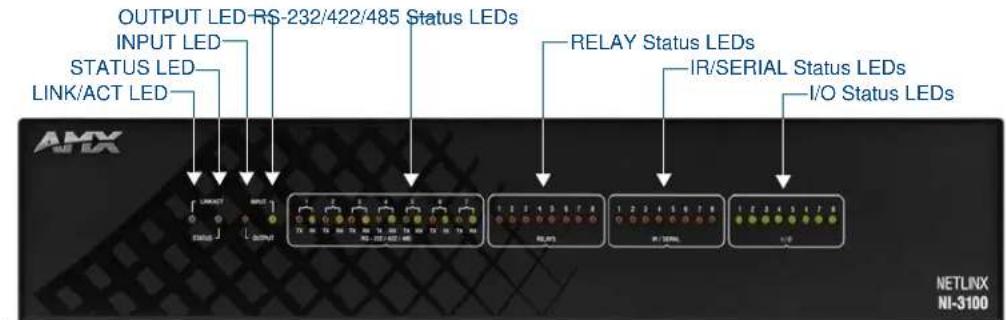
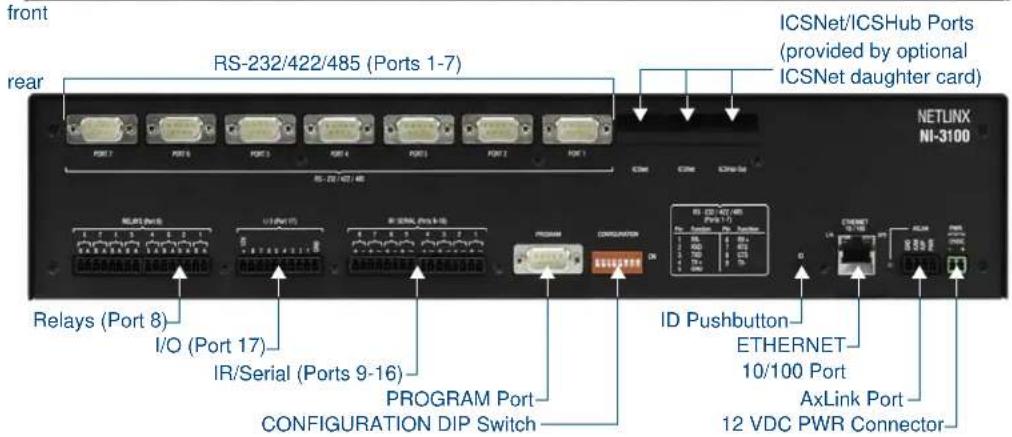
FIG. 2 NI-3100

Verify you are using the latest NI firmware for the on-board Master. Verify you are using the latest version of NetLinx Studio (available for download from www.amx.com).
NI-3100 Specifications
| NI-3100 Specifications | |
| Models Available: • NI-3100 64MB Controller (FG2105-05)• NI-3100/256 256MB Controller (FG2105-25)The NI-3100 & NI-3100+256 can be upgraded to provide one ICSHub and two ICSNet ports by installing the optional ICSNet daughter card (FG2105-10 - see Other AMX Equipment)• NI-3100/ICS 64MB Controller with ICSNet (FG2105-15)• NI-3100/256/ICS 256MB Controller with ICSNet (FG2105-35) | |
| Dimensions (HWD): • 3 1/2" x 17" x 3 1/2" (8.8 cm x 43.2 cm x 8.8 cm)• RU: 2 | |
| NI-3100 Specifications (Cont.) | |
| Power Requirement: 900 mA @ 12 VDC | |
| Memory: NI-3100 & N | -3100/ICS:64 MB SDRAM1 MB Non-volatile (NV) SRAMNI-3100/256 & NI-3100/256/ICS:256 MB SDRAM1 MB Non-volatile (NV) SRAM |
| Compact Flash: | 2GB or greater (upgradeable to 4GB - see Other AMX Equipment).Note: AMX may increase Flash size at any time in response to market availability. |
| Weight: 4.55 lbs (2.06 kg) | |
| Enclosure: Metal with black matte finish | |
| Certifications: FCC Part 15 Class B, CE, and IEC 60950 | |
| Front Panel LEDs: | |
| LINK/ACT (green): | Blinks when the Ethernet cables are connected and terminated correctly. Also blinks when receiving Ethernet data packets. |
| Status (green): Blinks to indicate that the system is programmed and communicating properly. | |
| Output (red): | Blinks when the Controller transmits data, sets channels On and Off, sends data strings, etc. |
| Input (yellow): | Blinks when the Controller receives data from button pushes, strings, commands, channel levels, etc. |
| RS-232/422/485(red / yellow): | Light to indicate that DB9 Ports 1 - 7 are transmitting or receiving RS-232, 422, or 485 data (red = TX, yellow = RX). |
| Relay (red): | Light to indicate the relay channels 1 - 8 are active (closed). These LEDs reflect the state of the relay on Port 8. |
| IR/Serial (red): | Light to indicate the IR/Serial channels 1 - 8 are transmitting control data on Ports 9-16. LED indicator for each IR port remains lit for the length of time that IR/Serial data is being generated. |
| I/O (yellow): | Lights when the rear I/O channels 1 - 8 are active. The LED for each I/O port reflects the state of that particular port. |
| Rear Panel Components: | |
| RS-232/422/485(Ports 1 - 7): | 7 RS-232/422/485 control ports using DB9 (male) connectors with XON/XOFF (transmit on/transmit off), CTS/RTS (clear to send/ready to send), and 300-115,200 baud. |
| ICSNet: | 2 RJ-45 connectors for ICSNet interface (provided by optional ICSNet daughter card). |
| ICSHub Out: | RJ-45 connector provides data to a Hub connected to the Controller (provided by optional ICSNet daughter card). |
| Relay (Port 8): | 8-channel single-pole single-throw relay portsEach relay is independently controlled.Supports up to 8 independent external relay devicesChannel range = 1-8Each relay can switch up to 24 VDC or 28 VAC @ 1 ATwo 8-pin 3.5 mm mini-Phoenix (female) connectors provide relay termination |
| Digital I/O(Port 17): | 8-channel binary I/O port for contact closure with each input being capable of voltage sensing. Input format is software selectable with interactive power sensing for IR ports. |
| IR/Serial(Ports 9 - 16): | 8 IR/Serial control ports support high-frequency carriers of up to 1.142 MHz with each output being capable of two electrical formats: IR or Serial.8 IR/Serial data signals can be generated simultaneously.IR ports support data mode (at limited baud rates and wiring distances). |
| Front Panel LEDs (Cont.): | |
| Program Port: RS-232 DB9 connector (male) can be connected to a DB9 port on a PC.This connector can be used with serial and NetLinx programming commands, as well as other DB9 capable devices, to both upload/download information from the NetLinx Studio program. | |
| Configuration DIP Switch: | Sets the communication parameters for the Program port (see Baud Rate Settings). |
| ID Pushbutton: Sets | the NetLinx ID (Device only) assignment for the device. |
| Ethernet Port: | RJ-45 connector provides TCP/IP communication. This is an Auto MDI/MDI-X enabled port, which allows you to use either straight-through or crossover Ethernet cables.The Ethernet Port LEDs show communication activity, connection status, speeds, and mode information:SPD (speed) - Yellow LED lights On when the connection speed is 100 Mbps and turns Off when the speed is 10 Mbps.L/A (link/activity) - Green LED lights On when the Ethernet cables are connected and terminated correctly, and blinks when receiving Ethernet data packets. |
| AxLink Port: | 4-pin 3.5 mm mini-Phoenix (male) connector that provides data and power to external control devices. Green AXlink LED indicates the state of the AXlink port. |
| Power Port: 2-pin 3.5 mm mini-Phoenix (male) connector. | |
| Operating Environment: | • Operating Temperature: 0°C (32°F) to 50°C (122°F)• Operating Humidity: 20% to 85% RH• Heat Dissipation (Typical): 36.9 BTU/hr |
| Included Accessories: | • 2-pin 3.5 mm mini-Phoenix (female) PWR connector (41-5025)• 4-pin 3.5 mm mini-Phoenix (female) AXlink connector (41-5047)• 10-pin 3.5 mm mini-Phoenix (female) I/O connector (41-5107)• Installation Kit (KA2105-01):8-pin Relay Common Strip4 rack mount screws4 washers• 2 8-pin 3.5 mm mini-Phoenix female Relay connectors (41-5083)• 2 CC-NIRC NetLinx IR Emitter Cables (FG10-000-11)• 2 removable rack ears (62-2105-07) |
| Other AMX Equipment: | 2-pin 3.5 mm mini-Phoenix male connector (41-5026)CC-NSER IR/Serial cables (FG10-007-10)ICSNet daughter card (FG2105-10)NCK, NetLinx Connector Kit (FG2902)STS, Serial To Screw Terminal (FG959)Upgrade Compact Flash (factory programmed with firmware): NXA-CF2NI4G, 4 GB Flash Upgrade (FG2116-07) |
NI-4100
The NI-4100 (FG2105-06) provides versatility with the ability to integrate the largest number of devices in the NI Series of Master Controllers, including projectors, lighting, VCR and DVD players, thermostats and other electronic equipment. In these technology-driven environments, this solution allows for the future addition of more devices and control capabilities. With a perfect mix of compatible formats, the NI-4100 offers flexibility and customization for businesses experiencing rapid growth and for homes that demand seamless integration of technology and design.
The NI-4100 provides higher performance with a faster processor, up to 256 MB of onboard RAM and Duet-compatibility.

FIG. 3 NI-4100
The NI-4100's on-board Master also provides the ability to update installed control card firmware.

Verify you are using the latest NI firmware for the on-board Master. Verify you are using the latest version of NetLinx Studio (available for download from www.amx.com).
NI-4100 Specifications
| NI-4100 Specifications | |
| Models Available: • NI-4100 64MB Controller (FG2105-06)• NI-4100/256 256MB Controller (FG2105-26) | |
| Dimensions (HWD): • 5 3/16" x 17" x 9 5/16" (13.2 cm x 43.2 cm x 23.7 cm)• RU: 3 | |
| Power Requirement: • 900 mA @ 12 VDC | |
| Memory: NI-4100: | • 64 MB SDRAM• 1 MB Non-volatile (NV) SRAMNI-4100/256:• 256 MB SDRAM• 1 MB Non-volatile (NV) SRAM |
| Compact Flash: | 2GB or greater (upgradeable to 4GB - see Other AMX Equipment).Note: AMX may increase Flash size at any time in response to market availability. |
| Weight: 9.15 lbs (4.15 kg) | |
| Enclosure: Metal with black matte finish | |
| Certifications: FCC Part 15 Class B, CE, and IEC 60950 | |
| Front Panel LEDs/Slots | |
| LINK/ACT (green): | Blinks when the Ethernet cables are connected and terminated correctly. Also blinks when receiving Ethernet data packets. |
| Status (green): Blinks to | indicate that the system is programmed and communicating properly. |
| Output (red): | Blinks when the Controller transmits data, sets channels On and Off, sends data strings, etc. |
| Input (yellow): | Blinks when the Controller receives data from button pushes, strings, commands, channel levels, etc. |
| RS-232/422/485 (red): | Light to indicate that DB9 Ports 1 - 7 are transmitting or receiving RS-232, 422, or 485 data. |
| Relay (red): | Light to indicate the relay channels 1 - 8 are active (closed). These LEDs reflect the state of the relay on Port 8. |
| IR/Serial (red): | Light to indicate the IR/Serial channels 1 - 8 are transmitting control data on Ports 9 - 16. LED indicator for each IR port remains lit for the length of time that IR/Serial data is being generated. |
| I/O (yellow): | Light when the rear I/O channels 1 - 8 are active. The LED for each I/O port reflects the state of that particular port. |
| NetLinx Control Card Slots 1 - 4: | Accepts up to 4 compatible NetLinx Cards (NXC-COM2, NXC-I/O10, etc.) |
| Rear Panel Components | |
| RS-232/422/485(Ports 1 - 7): | 7 RS-232/422/485 control ports using DB9 (male) connectors with XON/XOFF (transmit on/transmit off), CTS/RTS (clear to send/ready to send), and 300-115,200 baud. |
| ICSNet: | 2 RJ-45 connectors for ICSNet interface (provided by optional ICSNet daughter card). |
| ICSHub Out: | RJ-45 connector provides data to a Hub connected to the Controller (provided by optional ICSNet daughter card). |
| Relay (Port 8): | • 8-channel single-pole single throw relay ports• Each relay is independently controlled.• Supports up to 8 independent external relay devices• Channel range = 1-8• Each relay can switch up to 24 VDC or 28 VAC @ 1 A• Two 8-pin 3.5 mm mini-Phoenix (female) connectors provide relay termination |
| Digital I/O (Port 17): | 8-channel binary I/O port for contact closure with each input being capable of voltage sensing. Input format is software selectable with interactive power sensing for IR ports. |
| NI-4100 Specifications (Cont.) | |
| Rear Panel Components (Cont.) | |
| IR/Serial(Ports 9 - 16): | 8 IR/Serial control ports support high-frequency carriers of up to 1.142 MHz with each output being capable of two electrical formats: IR or Serial.8 IR/Serial data signals can be generated simultaneously.IR ports support data mode (at limited baud rates and wiring distances). |
| Program Port: RS-232 | DB9 connector (male) can be connected to a DB9 port on a PC. This connector can be used with serial and NetLinx programming commands, as well as other DB9 capable devices, to both upload/download information from the NetLinx Studio program. |
| ConfigurationDIP Switch: | Sets the communication parameters for the Program port (see Baud Rate Settings). |
| ID Pushbutton: Sets the | NetLinx ID (Device only) assignment for the device. |
| Ethernet Port: RJ-45 con | connector provides TCP/IP communication. This is an Auto MDI/MDI-X enabled port, which allows you to use either straight-through or crossover Ethernet cables.The Ethernet Port LEDs show communication activity, connection status, speeds, and mode information:SPD (speed) - Yellow LED lights On when the connection speed is 100 Mbps and turns Off when the speed is 10 Mbps.L/A (link/activity) - Green LED lights On when the Ethernet cables are connected and terminated correctly, and blinks when receiving Ethernet data packets. |
| AxLink Port: | 4-pin 3.5 mm mini-Phoenix (male) connector that provides data and power to external control devices. Green AXlink LED indicates the state of the AXlink port. |
| Power Port: 2-pin 3.5 m | m mini-Phoenix (male) connector. |
| CardFrame #DIP Switch: | Sets the starting address for the Control Cards in the CardFrame. (Factory default CardFrame DIP switch value = 0). The Control Card address range is 1-3064. |
| Control CardConnectors (1-4): | 20-pin (male) connectors that connect the Control Cards and external equipment to the CardFrame. |
| Operating Environment: • | Operating Temperature: 0°C (32°F) to 50°C (122°F)Operating Humidity: 20% to 85% RHHeat Dissipation (Typical): 36.9 BTU/hr |
| Included Accessories: | 2-pin 3.5 mm mini-Phoenix (female) PWR connector (41-5025)4-pin 3.5 mm mini-Phoenix (female) AXlink connector (41-5047)10-pin 3.5 mm mini-Phoenix (female) I/O connector (41-5107)Installation Kit (KA2105-01):8-pin Relay Common Strip4 rack mount screws4 washers2 8-pin 3.5 mm mini-Phoenix (female) Relay connectors (41-5083)2 CC-NIRC NetLinx IR Emitter Cables (FG10-000-11)2 removable rack ears (62-2105-07) |
| Other AMX Equipment: • | 2-pin 3.5 mm mini-Phoenix male connector (41-5026)CC-NSER IR/Serial cables (FG10-007-10)NCK, NetLinx Connector Kit (FG2902)STS, Serial To Screw Terminal (FG959)Upgrade Compact Flash (factory programmed with firmware): NXA-CF2NI4G, 4 GB Flash Upgrade (FG2116-07) |
Related Documents
For information on using the on-board Web Console, as well as NetLinx send commands and terminal communications to configure the NI Controllers, refer to the NetLinx Integrated Controller WebConsole & Programming Guide.

NOTE
All product documentation is available to view or download from www.amx.com.
Installation and Upgrading
Installing NetLinx Control Cards (NI-4100 Only)
NetLinx Cards can be installed into the front card slots. The cards mount horizontally through the card slot openings on the front of the enclosure.
- Discharge the static electricity from your body, by touching a grounded object.
- Remove the three screws by turning them in a counter-clockwise direction and then remove the faceplate (FIG. 4).

FIG. 4 NI-4100 front faceplate
- Align the edges of the card with the internal guide slots and gently slide the card all the way into the slot.
- Carefully apply a small amount of force to insert the cards into their respective connectors. If the cards have LEDs on them, those LEDs will initiate a lighting sequence to indicate they are receiving power and are communicating with the Controller.
- Re-align the faceplate and secure it to the chassis by inserting the three screws by turning them in a clockwise direction and securing the front plate to the Integrated Controller.
- Install all rear connectors and apply power.

If the cards do not appear in the NetLinx Studio's Workspace window for the selected Master System number: give the system time to detect the inserted cards (and refresh the system) and/or cycle power to the unit.
Setting the NetLinx Control Card Addresses (NI-4100 Only)
The 8-position CardFrame Number DIP switch (located on the rear of the NI-4100) sets the starting address (the device number in the D:P:S specification) for the Control Cards installed in the CardFrame. The address range is 1-3064.
- The factory default CardFrame DIP switch value = 0 (all CardFrame DIP switches in the OFF position).
- The formula for setting the starting address is: (DIP switch address x 12) + Card slot Number (1-12) = Card address
For example:
● DIP switch setting, 00010101: (0 + 0 + 0 + 96 + 0 + 384 + 1536) + SLOT # (ex:1) = 2017.
● A card in slot number 1 would be device address 2017.
- Set the CardFrame Number DIP switch based on the information listed in the table below.
| Position 1 | 2 | 3 | 4 | 5 | 6 | 7 | 8 | |
| Value 12 24 48 | 96 | 92 38 | 4 768 | 1536 |
- Cycle power to the unit for approximately 5 seconds. This allows the unit to read the new device number settings.
Device:Port:System (D:P:S)
A device is any hardware component that can be connected to an AXlink or ICSNet bus. Each device must be assigned a unique number to locate that device on the bus. The NetLinx programming language allows numbers in the range 1-32,767 for ICSNet (255 for AXlink).
Only the Device value can be set through the DIP switch settings mentioned above.
NetLinx requires a Device:Port:System (D:P:S) specification. This D:P:S triplet can be expressed as a series of constants, variables separated by colons, or a DEV structure. For example:
STRUCTURE DEV
{
INTEGER Number // Device number
INTEGER Port // Port on device
INTEGER System // System the device belongs to
}
The D:P:S notation is used to explicitly represent a device number, port and system.
For example, 128:1:0 represents the first port on device 128 on this system.
If a device is declared in a NetLinx program with just the Device number (System and Port are omitted), the NetLinx Compiler assumes it has a Port number of 1 and a System number of 0. However, you should convert all existing device declarations using the D:P:S (Device:Port:System) notation. This enables certain NetLinx specific debugging features and can help pinpoint other possibly obscure errors.
Here's the syntax:
NUMBER:PORT:SYSTEM
where:
NUMBER: 16-bit integer represents the device number
PORT: 16-bit integer represents the port number (in the range 1 through the number of ports on the Controller or device)
SYSTEM: 16-bit integer represents the system number (0 = this system)
Removing NetLinx Control Cards (NI-4100 Only)
To install NetLinx Control Card:
- Discharge any static electricity from your body, by touching a grounded object and unplug all connectors (if any) from the unit.
- Remove the three faceplate screws by turning them in a counter-clockwise direction.
- Remove the faceplate from the front plate (FIG. 4 on page 13).
- Gently grasp the rear edge of the control card and gently pull it out from the unit (along the internal guide slots).
- Re-secure the faceplate by inserting the three faceplate screws by turning them in a clockwise direction and securing the front plate to the Integrated Controller.
- Re-apply power and other connections as necessary.
Compact Flash Upgrades
The NetLinx Integrated Controllers are shipped with a default 2GB Compact Flash module.

NOTE
It is recommended that ANY MEMORY UPGRADE should be done prior to any installation. Refer to the following accessing and installation sections for more information.
Upgrade Compact Flash (factory programmed with firmware):
NXA-CF2NI4G, 4 GB Flash Upgrade (FG2116-07)
This Compact Flash upgrade module is used by the NI-2100, NI-3100 and NI-4100 Controllers.
Accessing The Internal Components On An Integrated Controller
-
Carefully detach all connectors from the rear of the unit.
-
Remove the chassis housing screws from both the sides and top of the Controller, as shown in FIG. 5 by using a grounded screwdriver turning in a counter-clockwise rotation.
● The NI-2100 and NI-3100 have six screws on top and three on each side.
● The NI-4100 has six screws on top and four on each side.

FIG. 5 Location of the Compact Flash (NI-4100 shown)
- Carefully pull-up and remove the housing up and away from the Controller to expose the internal circuit board (FIG. 5).
- Refer to the following Installation of Compact Flash Upgrades for detailed replacement information.
Installation of Compact Flash Upgrades
- Discharge any static electricity from your body by touching a grounded metal object.
- Locate the 32 MB Compact Flash card on the main board. For more detailed information on component locations, refer to FIG. 5.
- Insert the tip of a grounded flathead screwdriver into one of the Card Removal Grooves (located on either side of the card), and gently pry the card out of the slot. Repeat this process on the opposite card removal groove. This alternating action causes the card to "wiggle" away from the on-board connector pins.
-
Slip your finger into the opening between the connector pins and the card, and push the card out to remove it.
-
Remove the upgrade card from it's anti-static bag.
-
Insert the upgrade card into the connector opening with the arrow facing towards the pins, then push it in firmly until the contact pins are completely inside the flash card and securely attached to the connector (FIG. 6).
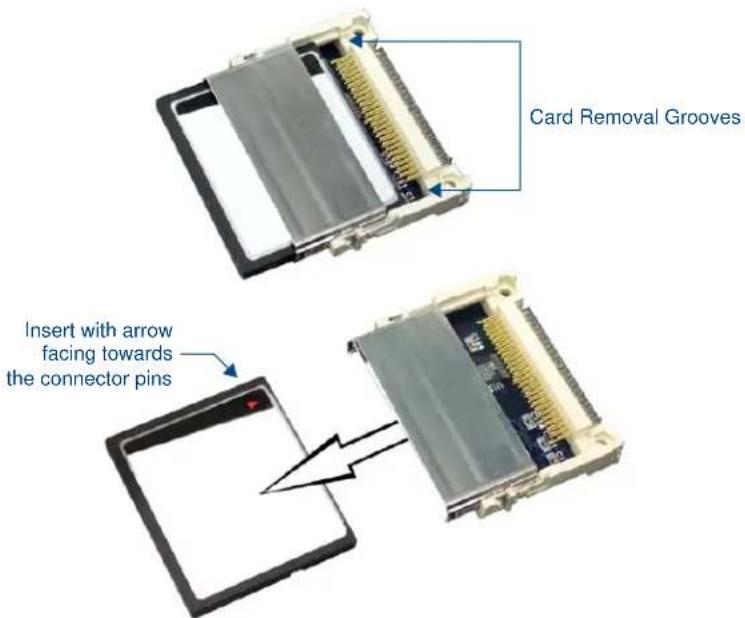
FIG. 6 Removing the Compact Flash card
- To complete the upgrade process, close and re-secure the Integrated Controller enclosure using the procedures outlined in the following section.

Any new internal card upgrade is detected by the Controller only after power is cycled.
Closing and Securing the Outer Housing
Once the card has been replaced, close and re-secure the outer housing:
- Align the cover back over the unit and gently slide-down the chassis until the openings are aligned over their respective openings along both the sides and top of the unit.
- Insert and secure the chassis housing screws back into their respective locations, as shown in FIG. 5 by using a grounded screwdriver.
- Re-install all connectors and apply power to the unit.
Installing Into An Equipment Rack
- Use the rack-mounting brackets (supplied) for equipment rack installations.
- Remove the mounting brackets for flat surface installations.
Rack Mount Safety Instructions
- If installed in a closed or multi-unit rack assembly, the operating ambient temperature of the rack environment may be greater than room ambient. Therefore, consideration should be given to installing the equipment in an environment compatible with the maximum ambient temperature 50°C.
- Installation of the equipment in a rack should be such that the amount of air flow required for safe operation of the equipment is not compromised.
- Mounting of the equipment in the rack should be such that a hazardous condition is not achieved due to uneven mechanical loading.
- Consideration should be given to the connection of the equipment to the supply circuit and the effect that overloading of the circuits might have on over current protection and supply wiring. Appropriate consideration of equipment nameplate ratings should be used when addressing this concern.
- Reliable earthing of rack-mounted equipment should be maintained. Particular attention should be given to supply connections other than direct connections to the branch circuit (e.g. use of power strips).

Before completing the install process, it is recommended that you complete any firmware upgrade of the NetLinx Control Cards. This upgrade involves physically cycling power to the unit and can become cumbersome if the unit is already installed into a rack. Refer to the NI Series NetLinx Integrated Controllers WebConsole & Programming Guide (available online at www.amx.com) for detailed instructions.
- Discharge the static electricity from your body by touching a grounded object.
- Position and install the mounting brackets, as shown in FIG. 7, using the screws supplied with the unit. The mounting brackets can be rotated to accommodate your mounting needs.
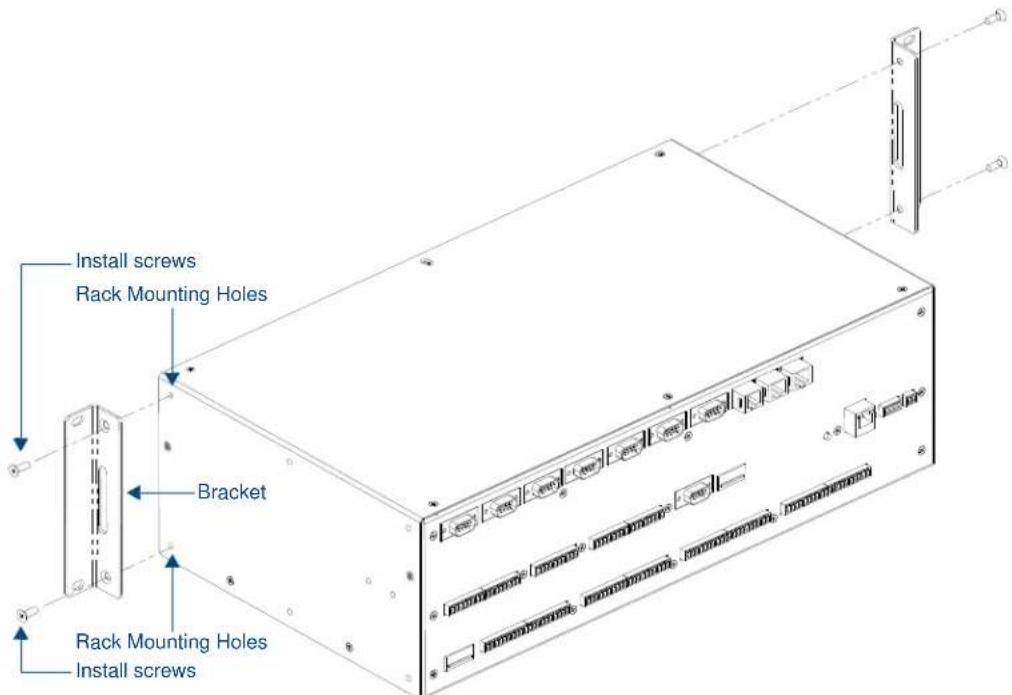
FIG. 7 Mounting Integrated Controller into an equipment rack
- Thread the cables through the opening in the equipment rack. Allow for enough slack in the cables to accommodate for movement during the installation process.
- Reconnect all cables to their appropriate source/terminal locations. Refer to the Connections and Wiring section on page 19 for more detailed wiring and connection information.
- Verify that the terminal end of the power cable is not connected to the a power supply before plugging in the 2-pin power connector.

To prevent repetition of the installation, test the incoming wiring by connecting the Controller's connectors to their terminal locations and applying power. Verify that the unit is receiving power and functioning properly. Disconnect the terminal end of the power cable from the connected 12 VDC-compliant power supply.
- Slide the unit into the rack until the attachment holes, along both sides, align to their corresponding locations on the mounting brackets, as shown in FIG. 7.
- Secure the AC-RK to the rack by using the four #10-32 screws (80-0186) and four #10 washers (80-0342) supplied in the kit.
- Apply power to the unit to complete the installation.
Connections and Wiring
Setting the Configuration DIP Switch (for the Program Port)
Prior to installing the Controller, use the Configuration DIP switch to set the baud rate used by the Program port for communication. The Configuration DIP switch is located on the front of the Integrated Controllers.
Baud Rate Settings
Before programming the on-board Master, make sure the baud rate you set matches the communication parameters set on both your PC's COM port and those set through your NetLinx Studio.
By default, the baud rate is set to 38,400 (bps).
| Baud Rate Settings on the Configuration DIP Switch | |||||
| Baud Rate Position | 5 Position | 6 Position | 7 Position 8 | ||
| 9600 bps OFF ON OFF | ON | ||||
| 38,400 bps (default) | OFF ON ON ON | ||||
| 57,600 bps ON OFF OFF | OFF OFF | ||||
| 115,200 bps ON ON ON | ON ON | ||||

Note the orientation of the Configuration DIP Switch and the ON position label. DIP switches 2, 3, and 4 must remain in the OFF position at all times.
Program Run Disable (PRD) Mode
You can also use the Program port's Configuration DIP switch to set the on-board Master to Program Run Disable (PRD) mode according to the settings listed in the table below.
| PRD Mode Settings | ||
| PRD Mode | Position 1 |  |
| Normal mode (default) | OFF | |
| PRD Mode | ON | |
The PRD mode prevents the NetLinx program stored in the on-board Master from running when you power up the Integrated Controller. This mode should only be used when you suspect the resident NetLinx program is causing inadvertent communication and/or control problems.
If necessary, place the on-board Master in PRD mode and use the NetLinx Studio program to resolve the communication and/or control problems with the resident NetLinx program. Then download the new NetLinx program and try again.

Think of the PRD Mode (On) equating to a PC's SAFE Mode setting. This mode allows a user to continue powering a unit, update the firmware, and download a new program while circumventing any problems with a currently downloaded program. Power must be cycled to the unit after activating/deactivating this mode on the Program Port DIP switch #1.
Working With the Configuration DIP Switch
- Disconnect the power supply from the 2-pin PWR (green) connector on the rear of the NetLinx Integrated Controller.
- Set DIP switch positions according to the information listed in the Baud Rate Settings on the Configuration DIP Switch and PRD Mode Settings tables.
- Reconnect the 12 VDC-compliant power supply to the 2-pin 3.5 mm mini-Phoenix PWR connector.
Setting the CardFrame DIP Switch (NI-4100 only)
Refer to the Setting the NetLinx Control Card Addresses (NI-4100 Only) section on page 13 for a detailed explanation on this process.
Program Port Connections and Wiring
The Integrated Controllers are equipped with a Program port located on the front of the unit. Use an RS232 programming cable to establish a connection between this Program port to your PC's COM port. This connection provides communication with the NetLinx Integrated Controller. Then you can download NetLinx programs to this on-board Master using the NetLinx Studio v 2.4 software program.
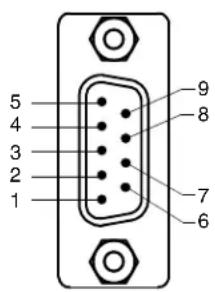
Refer to the NetLinx Studio instruction manual for programming instructions. The following table shows the rear panel Program Port connector (male), pinouts, and signals.
| Program Port, Pinouts, and Signals | ||
| Program Port Connector Pin Signal | ||
 | 2 | RX |
| 3 | TX | |
| 5 | GND | |
| 7 | RTS | |
| 8 | CTS | |

When wiring the 422/485 connections, do NOT use pre-made 9-wire cable or connect the wire in the cable to any connection that will not be used by the DB9 serial port. Only use wiring that connects the needed pins.
Modes and Front Panel LED Blink Patterns
The following table lists the modes and blink patterns for the front panel LEDs associated with each mode. These patterns are not evident until after the unit is powered.
| Modes and LED Blink Patterns | ||||
| Mode Description | LEDs and Blink Patterns | |||
| STATUS (green) | OUTPUT (red) | INPUT (yellow) | ||
| OS Start Starting the operating system (OS). On On On | ||||
| Boot On-board Master is booting. On Off On | ||||
| Contacting DHCP server | On-board Master is contacting a DHCP server for IP configuration information. | On Off | Fast Blink | |
| Unknown DHCP server | On-board Master could not find the DHCP server. | Fast Blink Off | Off | |
| Downloading Boot firmware | Downloading Boot firmware to the Master's on-board flash memory. Do not cycle power during this process! | Fast Blink F | Fast Blink Fast | Blink |
| No program running There is no program loaded, or the program is disabled. | On | Normal | Normal | |
| Normal | On-board Master is functioning normally. | 1 blink per second | Indicates activity | Indicates activity |
Port Assignments and Functionality
The Port Assignments are as follows:
| NI-2100 Port Assignments | |
| Port | ICSP Port # |
| Serial Port #1 | 1 |
| Serial Port #2 | 2 |
| Serial Port #3 | 3 |
| Relays Ports (1-4) | 4 |
| IR/Serial Port #1 | 5 |
| IR/Serial Port #2 | 6 |
| IR/Serial Port #3 | 7 |
| IR/Serial Port #4 | 8 |
| I/O Port | 9 |
| NI-3100/4100 Port Assignments | |
| Port | ICSP Port # |
| Serial Port #1 | 1 |
| Serial Port #2 | 2 |
| Serial Port #3 | 3 |
| Serial Port #4 | 4 |
| Serial Port #5 | 5 |
| Serial Port #6 | 6 |
| Serial Port #7 | 7 |
| Relays Ports (1-8) | 8 |
| IR Serial Port #1 | 9 |
| IR Serial Port #2 | 10 |
| IR Serial Port #3 | 11 |
| IR Serial Port #4 | 12 |
| IR Serial Port #5 | 13 |
| IR Serial Port #6 | 14 |
| IR Serial Port #7 | 15 |
| IR Serial Port #8 | 16 |
| I/O Port | 17 |
AxLink Port and LED
All NI Controllers have an AxLink port and adjacent status LED (FIG. 8). This port allows the NI to support AMX Legacy AXlink devices such as G3 touch panels (ex: CP4/A) and PosiTrack Pilot devices. A green LED shows AXlink data activity. When the AXlink port is operating normally, blink patterns include:
- Off - No power, or the controller is not functioning properly.
- 1 blink per second - Normal operation.
- 3 blinks per second - AXlink bus error. Check all AXlink bus connections.
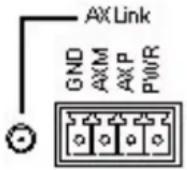
FIG. 8 AXlink connector and LED
The AXlink port can be used to supply power to downstream AXlink-compatible devices as long as both the power required is LESS THAN 2 Amps total and the external power supply feeding the NI unit has the necessary power capability.
Wiring Guidelines
The Integrated Controllers use a 12 VDC-compliant power supply to provide power through the rear 2-pin 3.5 mm mini-Phoenix PWR connector. Use the power requirements referenced in the product's Specifications table to determine the power draw.
The incoming PWR and GND cable from the power supply must be connected to the corresponding locations within the PWR connector.

This unit should only have one source of incoming power.
Using more than one source of power to the Controller can result in damage to the internal components and a possible burn out.
Apply power to the unit only after installation is complete.
Wiring length guidelines
Refer to the following tables for the wiring length information used with the different types of NetLinx Integrated Controllers:
| Wiring Guidelines - NI-2100 (@ 700 mA) | |
| Wire size Max | mum wiring length |
| 18 AWG 154.83 feet (47.19 meters) | |
| 20 AWG 98.30 feet (29.96 meters) | |
| 22 AWG 63.40 feet (19.32 meters) | |
| 24 AWG 38.68 feet (11.79 meters) | |
| Wiring Guidelines - NI-3100 & NI-4100 (@ 900) mA | |
| Wire size Maximum wiring length | |
| 18 AWG 120.41 feet (39.70 meters) | |
| 20 AWG 76.45 feet (23.30 meters) | |
| 22 AWG 49.36 feet (15.04 meters) | |
| 24 AWG 30.08 feet (9.17 meters) |
Preparing Captive Wires
You will need a wire stripper and flat-blade screwdriver to prepare and connect the captive wires.

Never pre-tin wires for compression-type connections.
- Strip 0.25 inch (6.35 mm) of insulation off all wires.
- Insert each wire into the appropriate opening on the connector (according to the wiring diagrams and connector types described in this section).
- Tighten the screws to secure the wire in the connector. Do not tighten the screws excessively doing so may strip the threads and damage the connector.
Wiring a Power Connection
To use the 2-pin 3.5 mm mini-Phoenix connector with a 12 VDC-compliant power supply, the incoming PWR and GND cables from the external source must be connected to their corresponding locations on connector (FIG. 9).
- Insert the PWR and GND wires on the terminal end of the 2-pin 3.5 mm mini-Phoenix cable. Match the wiring locations of the +/- on both the power supply and the terminal connector.
- Tighten the clamp to secure the two wires. Do not tighten the screws excessively; doing so may strip the threads and damage the connector.
- Verify the connection of the 2-pin 3.5 mm mini-Phoenix to the external 12 VDC-compliant power supply.

flowchart
graph LR
    A["PWR + GND -"] --> B["Power Supply"]
    style A fill:#f9f,stroke:#333
    style B fill:#ccf,stroke:#333
To the Integrated Controller
FIG. 9 2-pin mini-Phoenix connector wiring diagram (direct power)
Using the 4-Pin Mini-Phoenix Connector For Data and Power
Connect the 4-pin 3.5 mm mini-Phoenix (female) captive-wire connector to an external NetLinx device as shown in FIG. 10.
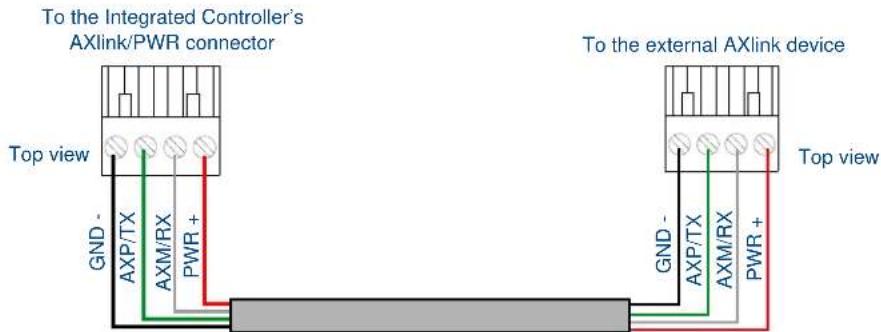
FIG. 10 Mini-Phoenix connector wiring diagram (direct data and power)
Using the 4-pin Mini-Phoenix Connector For Data With External Power
To use the 4-pin 3.5 mm mini-Phoenix (female) captive-wire connector for data communication and power transfer, the incoming PWR and GND cable from the 12 VDC-compliant power supply must be connected to the AXlink cable connector going to the Integrated Controller. FIG. 11 shows the wiring diagram. Always use a local power supply to power the Integrated Controller unit.

FIG. 11 4-pin mini-Phoenix connector wiring diagram (using external power source)

When you connect an external power supply, do not connect the wire from the PWR terminal (coming from the external device) to the PWR terminal on the Phoenix connector attached to the Controller unit. Make sure to connect only the AXM, AXP, and GND wires to the Controller's Phoenix connector when using an external power supply.
Make sure to connect only the GND wire on the AXlink/PWR connector when using a separate 12 VDC power supply. Do not connect the PWR wire to the AXlink connector's PWR (+) opening.
DB9 Device Port: Connections and Wiring
FIG. 12 shows the connector pinouts for the rear RS-232/RS-422/RS-485 (DB9) Device Ports.
These ports support most standard RS-232 communication protocols for data transmission. This figure gives a visual representation of the wiring specifications for the RS-232/422/485 Device connectors. Refer to the rear of the unit for more detailed connector pinout information.
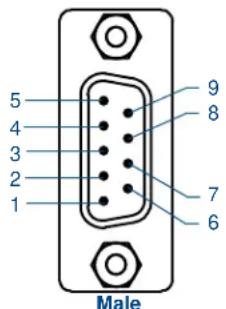
DB9 Serial Port pinouts (male connector)
| RS-232 | RS-422 | RS-485 |
| Pin 2: RX signalPin 3: TX signalPin 5: GNDPin 7: RTSPin 8: CTS | Pin 1: RX - Pin 4: TX + Pin 5: GNDPin 6: RX + Pin 9: TX - | Pin 1: A (strap to 9)Pin 4: B (strap to 6)Pin 5: GNDPin 6: B (strap to 4)Pin 9: A (strap to 1) |
FIG. 12 RS-232/422/485 DB9 (male) connector pinouts for the rear Device Ports
The table below provides information about the connector pins, signal types, and signal functions. This table's wiring specifications are applicable to the rear RS-232/422/485 Device Port connectors as follows:
- NI-2100 (Ports 1-3)
- NI-4100/NI-3100 (Ports 1-7)
RS-232/422/485 Device Port Wiring Specifications
| Pin Signal Function RS-232 RS-422 RS-485 | |||||
| 1 RX-Receive data X X (strap to pin 9) | |||||
| 2 RXD Receive data X | |||||
| 3 TXD Transmit data X | |||||
| 4 | TX+ | Transmit data | X | X (strap to pin 6) | |
| 5 | GND | Signal ground | X | X | |
| 6 | RX+ | Receive data | X | X (strap to pin 4) | |
| 7 RTS Request to send X | |||||
| 8 CTS Clear to send X | |||||
| 9 | TX- | Transmit data | X | X (strap to pin 1) | |
ICSNet Port: Connections and Wiring
The NI Controller must be equipped with the available ICSNet connectors for this functionality to be active. The following tables show the signal and pinouts/pairing information:
ICSNet RJ-45 Signals
| Pin Signal-Master Signal-Device | |||
| 1 TX + RX + | |||
| 2 | T | X | - R |
| 3 | N | / | A |
| 4 | G | N | D |
| 5 | N | / | A |
| 6 | N | / | A |
| 7 RX + TX + | |||
| 8 RX - TX - | |||
X
N
G
N
N
-
/
N
/
/
RJ-45 Pinout Information (EIA/TIA 568 B)
| Pin | Wire Color | Polarity | Function |
| 1 | Orange/White | + | Transmit |
| 2 | Orange | - | Transmit |
| 3 | Green/White | - | Mic |
| 4 | Blue | - | Ground |
| 5 | White/Blue | + | 12 VDC |
| 6 | Green | + | Mic |
| 7 | White/Brown | + | Receive |
| 8 | Brown | - | Receive |

TIA 568B
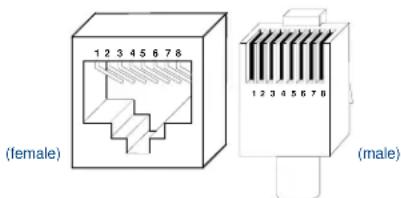
RJ-45 connector - pin configurations

Unlike the ICSNet ports, the ICSHub connections require a specific polarity. The IN/OUT configuration, on the hub ports, was implemented to use the same cables as ICSNet, but these ports need TX and RX crossed. You must connect an OUT to an IN, or an IN to an OUT port. This is done simply to keep the polarity straight. The Hub bus is still a bus. All Hub connections are bi-directional.
ICSHub OUT Port: Connections and Wiring
The NI Controller must be equipped with the available ICSNet connectors for this functionality to be active. The following table describes the pinout/signal information for the ICSHub OUT port located on the rear panel of the Integrated Controller.
| ICSHub OUT Pinouts and Signals | |
| Pin Signal Color | |
| 1 RX + orange-white | |
| 2 RX - orange | |
| 3 ---- | |
| 4 ---- | |
| 5 ---- | |
| 6 ---- | |
| 7 TX + brown-white | |
| 8 T X - b r o w n | |
Relay Port: Connections and Wiring
You can connect up to 8 independent external relay devices on both the NI-4100 and NI-3100 units (4 on the NI-2100) to the Relay connectors on the Integrated Controller.
- Connectors labeled A are for common; B are for output.
● Each relay is isolated and normally open.
● A metal commoning strip is supplied with each Integrated Controller to connect multiple relays.
Relay Connections
Use A for common and B for output (FIG. 13). Each relay is isolated and normally open. A metal connector strip is also provided to common multiple relays.

NI-2100 relay connector configuration (Port 4)

NI-4100/NI-3100 relay connector configuration (Port 8)
FIG. 13 RELAY connector (male)
Input/Output (I/O) Port: Connections and Wiring
The I/O port responds to either switch closures, voltage level (high/low) changes, or it can be used for logic-level outputs.

NI-2100 I/O connector configuration (Port 9)
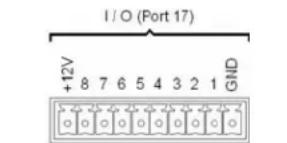
NI-4100/NI-3100 I/O connector configuration (Port 17)
FIG. 14 INPUT/OUTPUT (I/O) connector (male)
● A contact closure between the GND and an I/O port is detected as a Push.
- When used for voltage inputs, the I/O port detects a low signal (0 - 1.5 VDC) as a Push, and a high signal (3.5 - 5 VDC) as a Release. (This IO port uses 5V logic but can handle up to 12V without harm).
- When used for outputs, the I/O port acts as a switch to GND and is rated for 200mA @ 12 VDC.
• The NI-2100 can use up to 4 I/O ports
• The NI-3100 and NI-4100 can use up to 8 I/O ports
- The PWR pin provides +12 VDC @ 200 mA and is designed as a power output for the PCS Power Current Sensors, VSS2 Video Sync Sensors (or equivalent).
- The GND connector is a common ground and is shared by all I/O ports. A common ground is shared with I/O ports 1 - 8 (NI-3100/NI-4100) or with I/O ports 1 - 3 (NI-2100).
| I/O Port Wiring SpecificationsNI-4100 and NI-3100 | ||
| Pin Signal Function Pin Signal Function | ||
| 1 GN | D Signal GND 1 | GND Signal GND |
| 2 I/O | 1 Input/Output 2 | I/O 1 Input/Output |
| 3 I/O | 2 Input/Output 3 | I/O 2 Input/Output |
| 4 I/O | 3 Input/Output 4 | I/O 3 Input/Output |
| 5 I/O | 4 Input/Output 5 | I/O 4 Input/Output |
| 6 I/O | 5 Input/Output 6 | 12 VDC |
| 7 I/O | 6 Input/Output | |
| 8 I/O | 7 Input/Output | |
| 9 I/O | 8 Input/Output | |
| 10 | 12 VDC | PWR |
PWR
| I/O Port Wiring Specifications NI-2100 | ||
IR/Serial Port: Connections and Wiring
You can connect up to eight IR- or Serial-controllable devices to the IR/Serial connectors on the rear of the NI-4100 and NI-3100 and up to four on the NI-2100 (FIG. 15).
These connectors accept an IR Emitter (CC-NIRC) that mounts onto the device's IR window, or a mini-plug (CC-NSER) that connects to the device's control jack. You can also connect a data 0 - 5 VDC device.
These units come with two CC-NIRC IR Emitters (FG10-000-11).
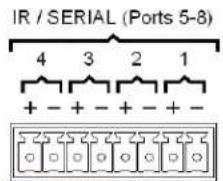
NI-2100 IR/Serial connector configuration (Port 5-8)

NI-4100/NI-3100 IR/Serial connector configuration (Port 9-16)
FIG. 15 IR/SERIAL (male)
The IR/Serial connector wiring specifications are listed in the following table.
IR/Serial Connector Wiring Specifications (per Port)
| # of IR connections NI-2100Port # | Signal Function |  | ||
| 1 5 GND (-) | Signal 1 (+) | Signal GNDIR/Serial data | ||
| 2 6 GND (-) | Signal 2 (+) | Signal GNDIR/Serial data | ||
| 3 7 GND (-) | Signal 3 (+) | Signal GNDIR/Serial data | ||
| 4 8 GND (-) | Signal 4 (+) | Signal GNDIR/Serial data | ||
| 5 N/A GND (-) | Signal 5 (+) | Signal GNDIR/Serial data | ||
| 6 N/A GND (-) | Signal 6 (+) | Signal GNDIR/Serial data | ||
| 7 N/A GND (-) | Signal 7 (+) | Signal GNDIR/Serial data | ||
| 8 N/A GND (-) | Signal 8 (+) | Signal GNDIR/Serial data | ||

The maximum baud rate for ports using DATA mode is 19200. Also, DATA mode works best when using a short cable length (< 10 feet).
NetLinx Control Card Slot Connector (NI-4100 only)
FIG. 16 shows the 20-pin (male) connector that provides connection to the NetLinx Control Cards.
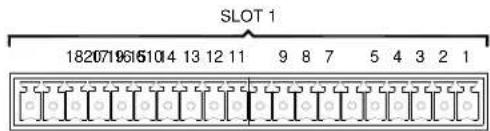
FIG. 16 NetLinx Control Card 20-pin connector
LAN (Ethernet/RJ-45 Port): Connections and Wiring
NI-x100 Controllers feature an Auto MDI/MDI-X LAN port. This provides the option of using either a standard (straight through), or a crossover LAN cable to communicate with a PC - both cable types will work.
The following table lists the pinouts, signals, and pairing for the LAN connector.
| LAN RJ-45 Pinouts and Signals | ||||
| Pin | Signals | Connections | Pairing | Color |
| 1 TX + 1 ---- 1 | 1 | ---- 2 Orange | -White | |
| 2 TX - 2 ---- 2 | Orange | |||
| 3 RX + | 3 ---- 3 3 ---- | 6 Green | -White | |
| 4 no connection | 4 ---- 4 Blue | |||
| 5 no connection | 5 ---- 5 Blue | -White | ||
| 6 RX - | 6 ---- 6 Green | |||
| 7 no connection | 7 ---- 7 Brown | -White | ||
| 8 no connection | 8 ---- 8 Brown | |||
FIG. 17 diagrams the RJ-45 pinouts and signals for the LAN RJ-45 connector and cable.
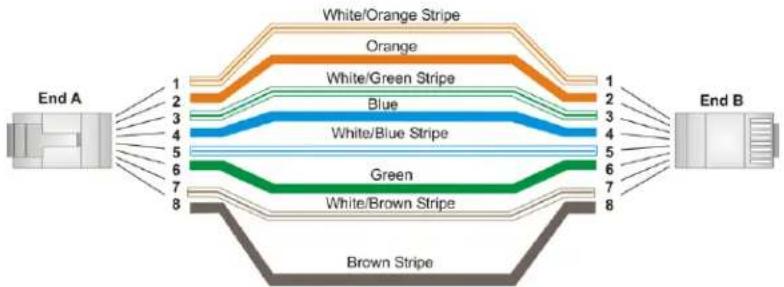
flowchart
graph LR
    A["End A"] -->|1| B["White/Orange Stripe"]
    A -->|2| C["Orange"]
    A -->|3| D["Blue"]
    A -->|4| E["White/Blue Stripe"]
    A -->|5| F["Green"]
    A -->|6| G["White/Brown Stripe"]
    A -->|7| H["Brown Stripe"]
    I["End B"] -->|1| B
    I -->|2| C
    I -->|3| D
    I -->|4| E
    I -->|5| F
    I -->|6| G
    I -->|7| H
    I -->|8| J["Brown Stripe"]
FIG. 17 RJ-45 wiring diagram
LAN LEDs
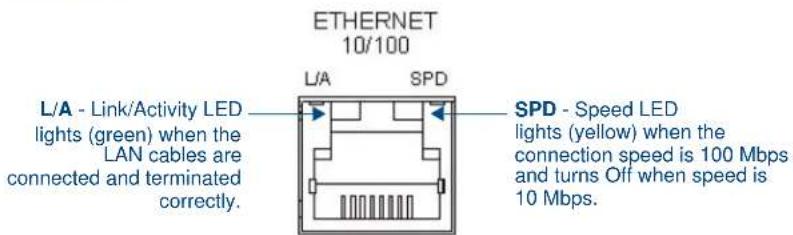
FIG. 18 LAN LEDs

LAN Ports Used By the Integrated Controller
| LAN Port Descriptions | ||
| Port type | Description Standard Port # | |
| FTP The on-board Master has a built-in FTP server. 21/20 (TCP) | ||
| SSH The SSH port functions using the same interface as Telnet but over a secure shell where it uses SSL as a mechanism to configure and diagnose a NetLinx system.This port value is used for secure Telnet communication.Note: SSH version 2 is only supported. | 22 (TCP) | |
| Telnet The NetLinx Telnet server provides a mechanism to configure and diagnose a NetLinx system.For maximum flexibility, the Master can be configured to utilize a different port than 23, or disable Telnet completely from either Telnet or the Program Port located on the rear of the Master itself. Once disabled, the only way to enable Telnet again is from the Master's Program port. | 23 (TCP) | |
| HTTP The Master has a built-in web server that complies with the HTTP 1.0 specification and supports all of the required features of HTTP v1.1.This port is used for unsecure HTTP Internet communication between the web browser's UI and the target Master. | 80 (TCP) | |
| HTTPS/SSL | This port is used by a web browser to securely communicate between the web server UI and the target Master. This port is also used to simultaneously encrypt this data using the SSL certificate information on the Master as a key. | 443 (TCP) |
| ICSP Peer-to-peer protocol used for both Master-to-Master and Master-to-device communications.For maximum flexibility, the Master can be configured to utilize a different port than 1319, or disable ICSP over LAN completely from either Telnet or the Program Port located on the rear of the Master itself.This type of communication is used by the various AMX product for communication amongst themselves. | 1319 (UDP/TCP) | |
| integration! Solutions | This feature on the Master uses, by default, port 10500 for the XML based communication protocol. This port is connected to by the client web browser's JVM when integration! Solutions control pages are retrieved from the on-board Master's web server.For maximum flexibility, the on-board Master can be configured to utilize a different port than 10500 or to disable integration! Solutions completely. | 10500 (TCP) |
Connections and Wiring
Connections and Wiring
AMX
It's Your World - Take Control™
- NetLinx Integrated Controllers
- AMX Limited Warranty and Disclaimer
- Table of Contents
- Introduction ...... 1
- Installation and Upgrading 13
- Connections and Wiring 19
- Introduction
- Overview
- Features
- Timekeeper
- NI-2100
- NI-3100
- NI-4100
- Related Documents
- Installation and Upgrading
- Installing NetLinx Control Cards (NI-4100 Only)
- Setting the NetLinx Control Card Addresses (NI-4100 Only)
- Device:Port:System (D:P:S)
- Only the Device value can be set through the DIP switch settings mentioned above.
- Removing NetLinx Control Cards (NI-4100 Only)
- Compact Flash Upgrades
- NXA-CF2NI4G, 4 GB Flash Upgrade (FG2116-07)
- Accessing The Internal Components On An Integrated Controller
- Installation of Compact Flash Upgrades
- Closing and Securing the Outer Housing
- Installing Into An Equipment Rack
- Rack Mount Safety Instructions
- Connections and Wiring
- Setting the Configuration DIP Switch (for the Program Port)
- Baud Rate Settings
- Program Run Disable (PRD) Mode
- Working With the Configuration DIP Switch
- Setting the CardFrame DIP Switch (NI-4100 only)
- Program Port Connections and Wiring
- Modes and Front Panel LED Blink Patterns
- Port Assignments and Functionality
- AxLink Port and LED
- Wiring Guidelines
- Wiring length guidelines
- Preparing Captive Wires
- Wiring a Power Connection
- Using the 4-Pin Mini-Phoenix Connector For Data and Power
- Using the 4-pin Mini-Phoenix Connector For Data With External Power
- DB9 Device Port: Connections and Wiring
- ICSNet Port: Connections and Wiring
- ICSHub OUT Port: Connections and Wiring
- Relay Port: Connections and Wiring
- Relay Connections
- Input/Output (I/O) Port: Connections and Wiring
- IR/Serial Port: Connections and Wiring
- NetLinx Control Card Slot Connector (NI-4100 only)
- LAN (Ethernet/RJ-45 Port): Connections and Wiring
- LAN LEDs
Brand : AMX
Model : NXA-ICSNET
Category : Network adapter