
K3F220S - Ceiling Panel Chief - Free user manual and instructions
Find the device manual for free K3F220S Chief in PDF.


| Product Type | Ceiling Panel |
| Brand | Chief |
| Model | K3F220S |
| Dimensions (L x W) | 23.6 x 23.6 in (600 x 600 mm) |
| Thickness | 1.5 in (38 mm) |
| Weight | 4.4 lbs (2 kg) |
| Material | Galvanized Steel |
| Finish | White powder coat |
| Load Capacity | 50 lbs (22.7 kg) |
| Compatible Ceiling Type | Suspended grid ceilings (15/16 in grid) |
| Mounting Hardware Included | Yes (screws, nuts, washers) |
| Primary Function | Mounting support for projectors or displays |
| Installation Method | Attaches directly to ceiling grid |
| Maintenance | Periodic cleaning with dry cloth; check fasteners annually |
| Safety Certification | UL Listed for ceiling suspension |
| Spare Parts Available | Replacement screws, brackets available from Chief |
| Color | White |
Frequently Asked Questions - K3F220S Chief
User questions about K3F220S Chief
0 question about this device. Answer the ones you know or ask your own.
Ask a new question about this device
Download the instructions for your Ceiling Panel in PDF format for free! Find your manual K3F220S - Chief and take your electronic device back in hand. On this page are published all the documents necessary for the use of your device. K3F220S by Chief.
USER MANUAL K3F220S Chief
INSTALLATION INSTRUCTIONS
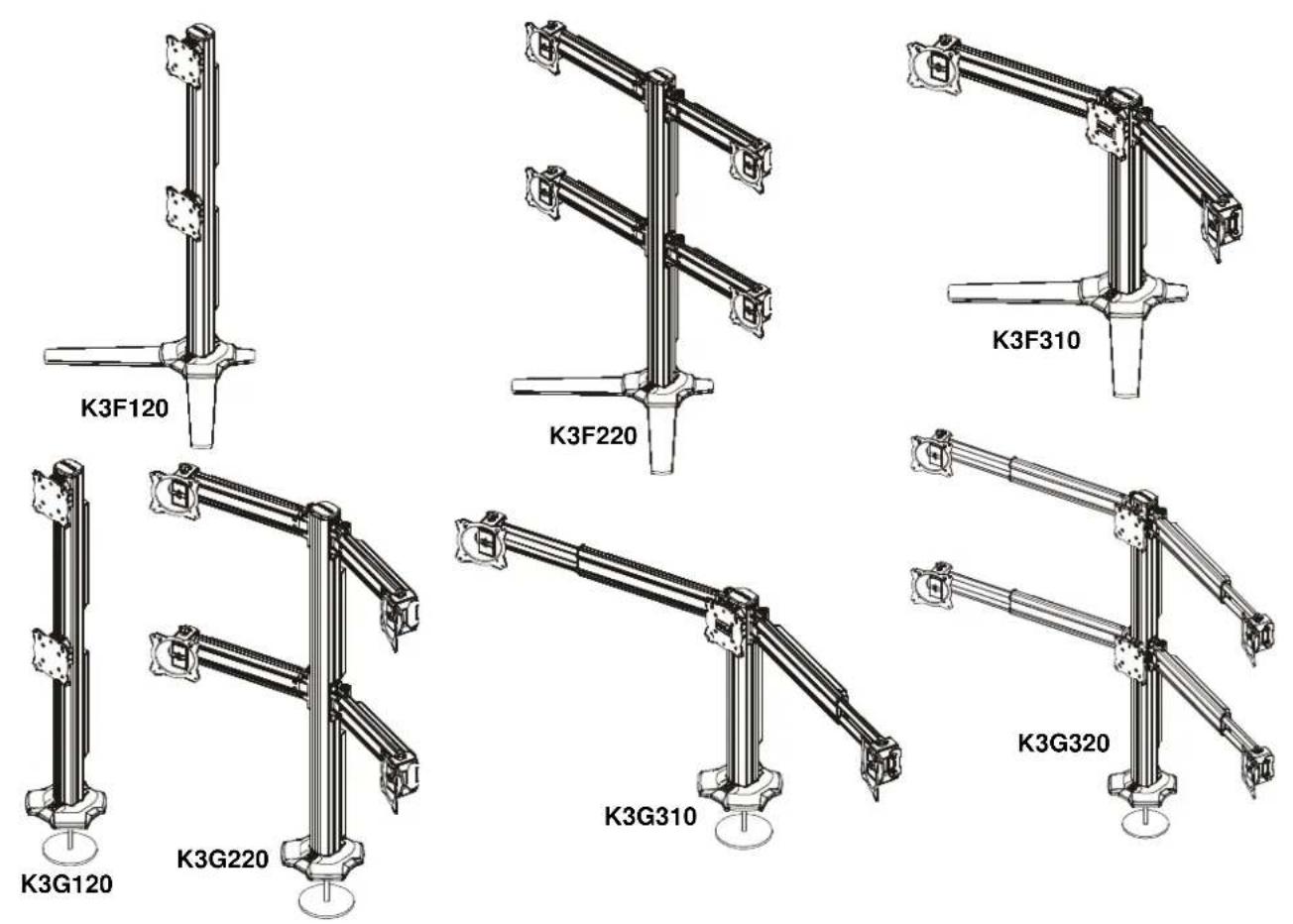
Kontour™ Array Arm Series
DISCLAIMER
Milestone AV Technologies and its affiliated corporations and subsidiaries (collectively "Milestone"), intend to make this manual accurate and complete. However, Milestone makes no claim that the information contained herein covers all details, conditions or variations, nor does it provide for every possible contingency in connection with the installation or use of this product. The information contained in this document is subject to change without notice or obligation of any kind. Milestone makes no representation of warranty, expressed or implied, regarding the information contained herein. Milestone assumes no responsibility for accuracy, completeness or sufficiency of the information contained in this document.
Chief® is a registered trademark of Milestone AV Technologies. All rights reserved.

IMPORTANT SAFETY INSTRUCTIONS

WARNING: A WARNING alerts you to the possibility of serious injury or death if you do not follow the instructions.

CAUTION: A CAUTION alerts you to the possibility of damage or destruction of equipment if you do not follow the corresponding instructions.

WARNING: Failure to read, thoroughly understand, and follow all instructions can result in serious personal injury, damage to equipment, or voiding of factory warranty! It is the installer's responsibility to make sure all components are properly assembled and installed using the instructions provided.

WARNING: Failure to provide adequate structural strength for this component can result in serious personal injury or damage to equipment! It is the installer's responsibility to make sure the structure to which this component is attached can support five times the combined weight of all equipment. Reinforce the structure as required before installing the component.

WARNING: Exceeding the weight capacity can result in serious personal injury or damage to equipment! It is the installer's responsibility to make sure the combined weight of all components located on the K3 Series mount up to (and including) the display does not exceed 15 lbs (6.8 kg) per display for the K3F220, K3G220, K3F310, K3G310 and K3G320 mounts or 25 lbs (11.34 kg) per display for the K3F120 and K3G120 mounts.

WARNING: Use this mounting system only for its intended use as described in these instructions. Do not use attachments not recommended by the manufacturer.

WARNING: The K3F120, K3F220 and K3F310 mounting systems are intended for table top mounting ONLY!

WARNING: Never operate this mounting system if it is damaged. Return the mounting system to a service center for examination and repair.

WARNING: Do not use this product outdoors.
--SAVE THESE INSTRUCTIONS--
DIMENSIONS
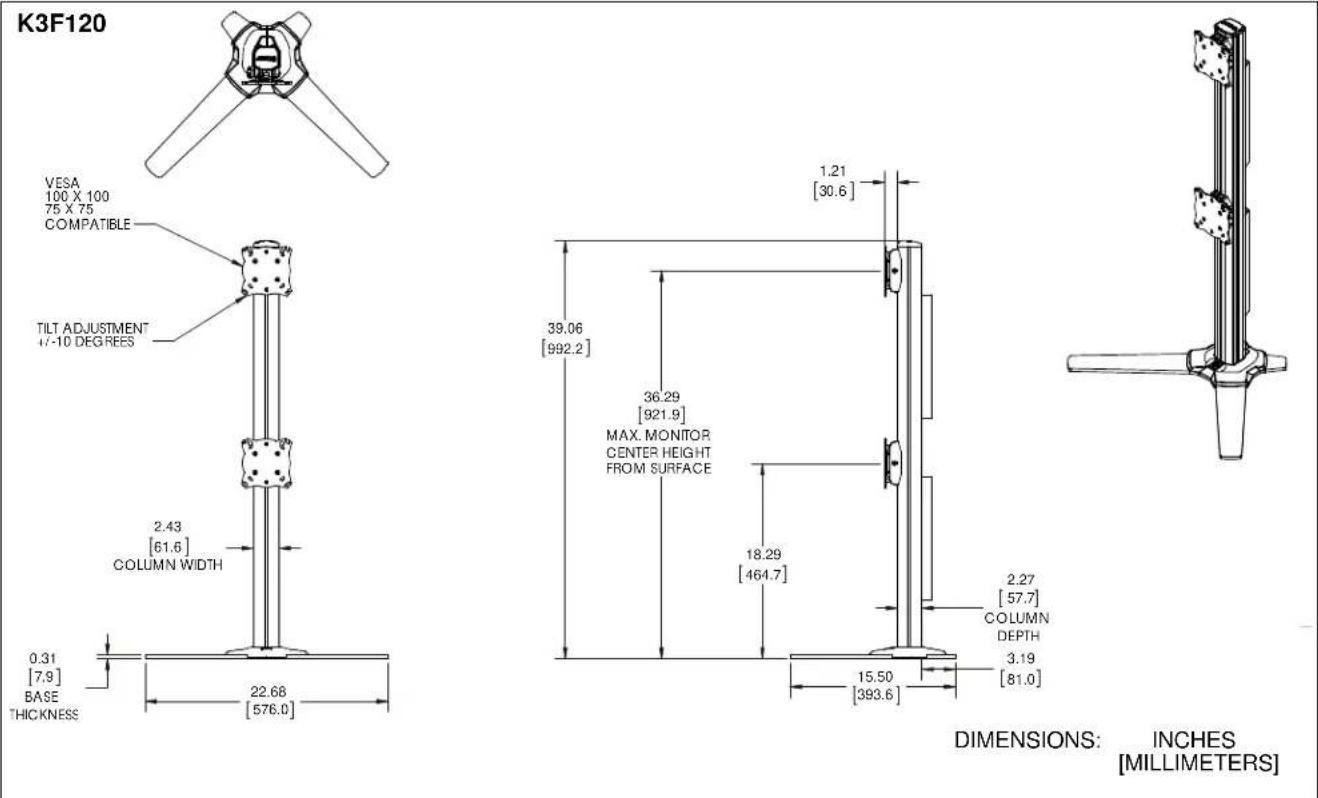
DIMENSIONS:
INCHES
[MILLIMETERS]
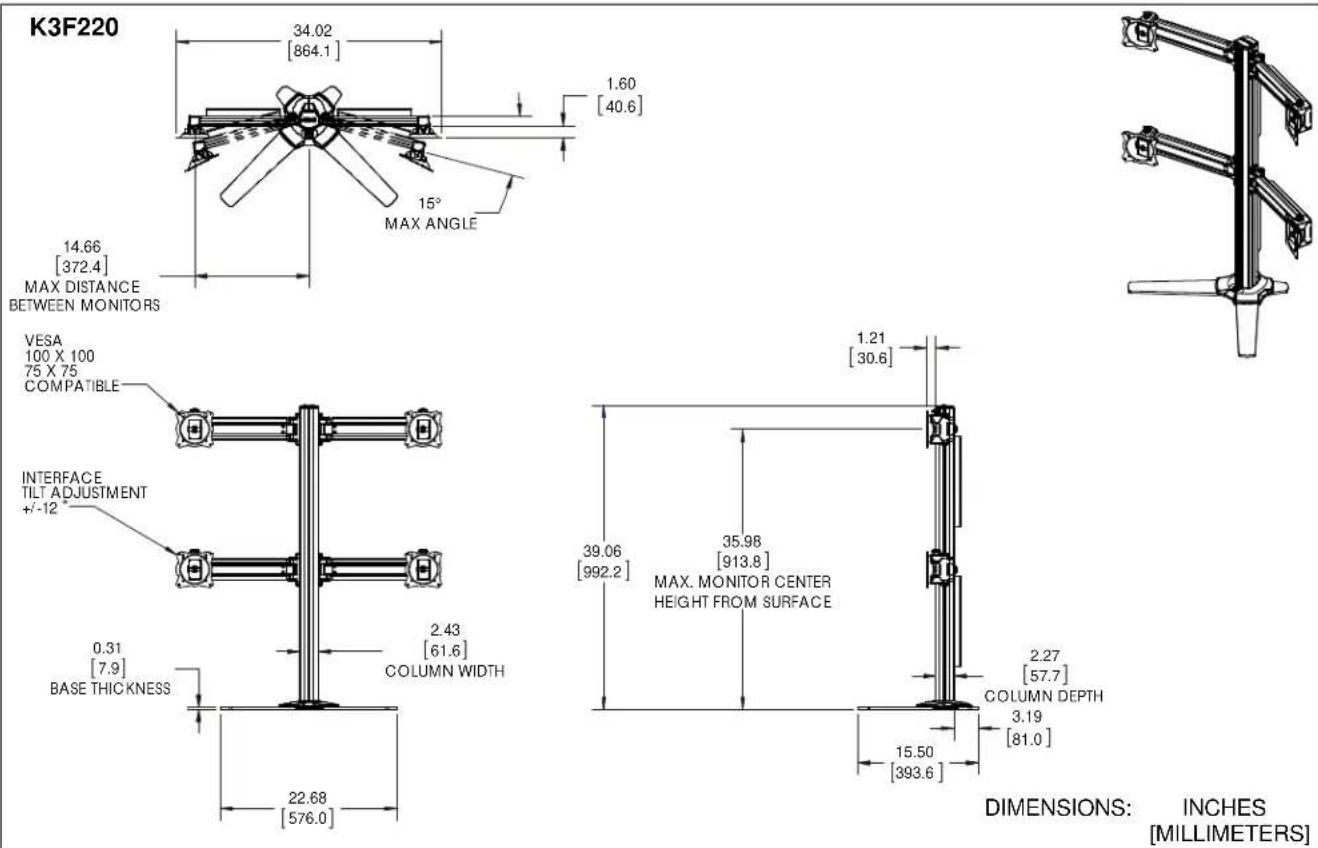
DIMENSIONS:
INCHES
[MILLIMETERS]
DIMENSIONS (continued)
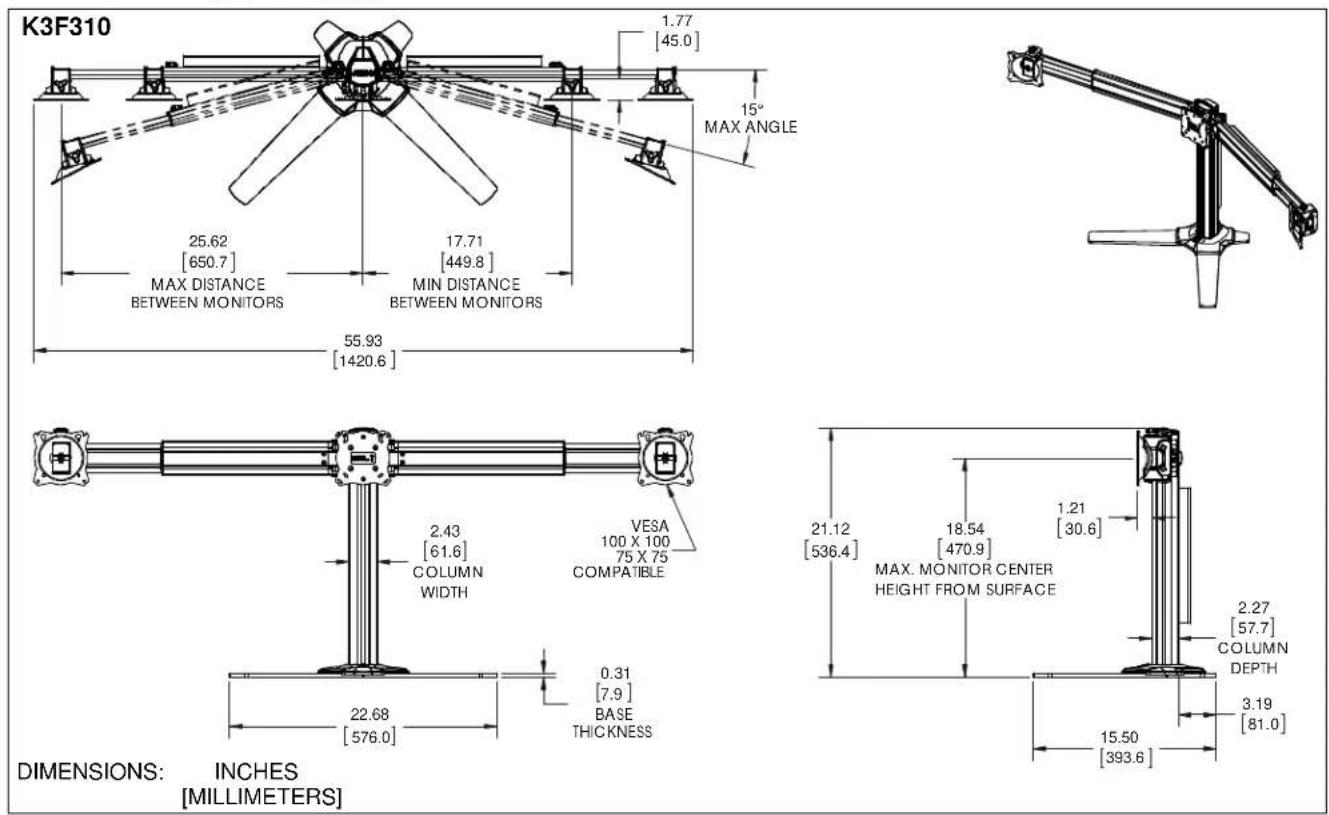
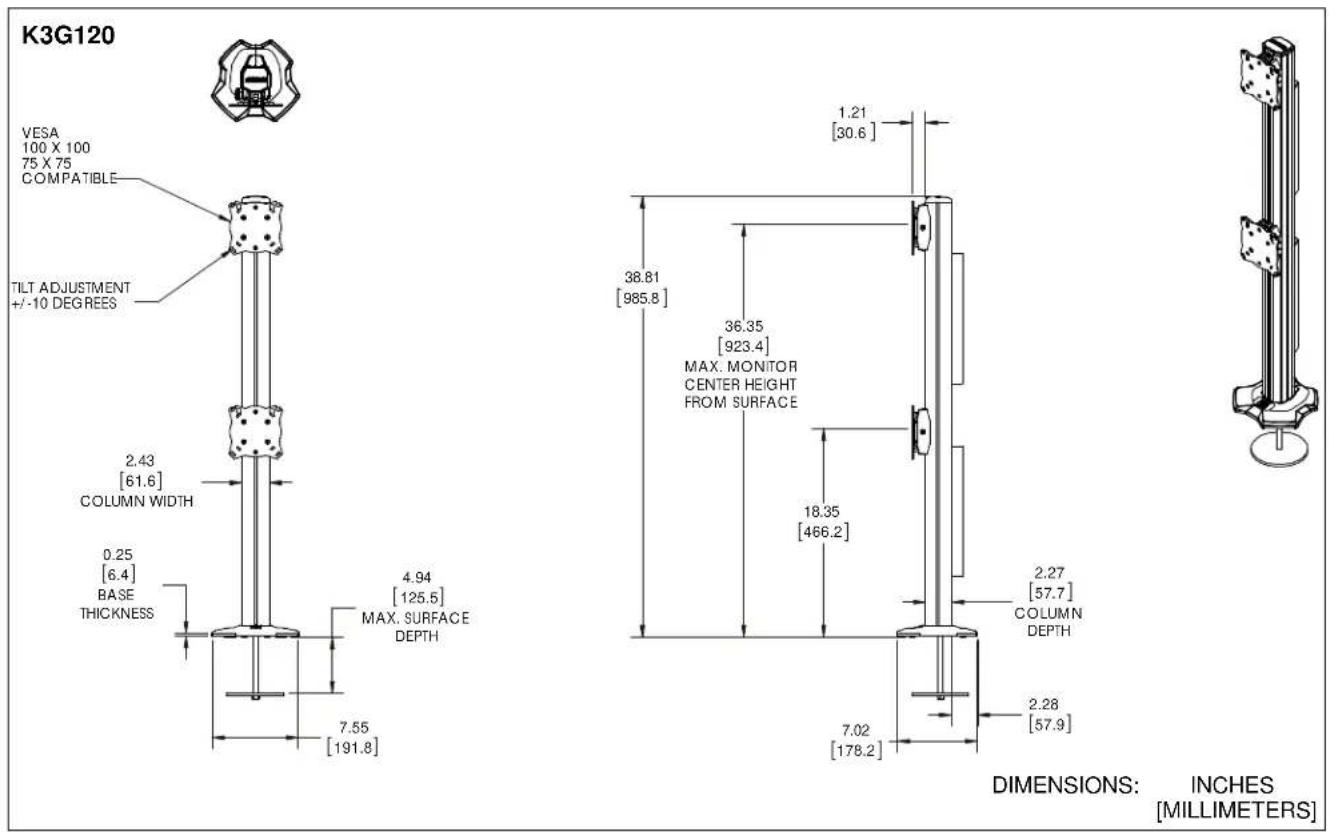
DIMENSIONS (continued)
![K3G220 34.02 [864.1] 1.60 [40.6] 15° MAX ANGLE 14.66 [372.4] MAX DISTANCE BETWEEN MONITORS VESA 100 X 100 75 X 75 COMPATIBLE INTERFACE TILT ADJUSTMENT +/-12° 0.25 [6.4] BASE THICKNESS 2.43 [61.6] COLUMN WIDTH 7.55 [191.8] 38.81 [985.8] 36.04 [915.3] MAX. MONITOR CENTER HEIGHT FROM SURFACE 2.27 [57.7] COLUMN DEPTH 7.03 [178.5] 2.28 [57.9] DIMENSIONS: INCHES [MILLIMETERS]](/content/2026/06/1183808/images/111def73468534b4f97b46c2b41fe2dad0dc3b14026d775da5b16f50d79a9c2c.jpg)
![K3G310 1.77 [45.0] 15° MAX ANGLE 25.62 [650.7] MAX. DISTANCE BETWEEN MONITORS 17.71 [449.8] MIN. DISTANCE BETWEEN MONITORS 55.93 [1420.6] TILT ADJUSTMENT +/-10° 2.43 [61.6] COLUMN WIDTH 0.25 [6.4] BASE THICKNESS 7.55 [191.8] 4.94 [125.5] MAX. SURFACE DEPTH VESA 100 X 100 75 X 75 COMPATIBLE INTERFACES TILT ADJUSTMENT +/-12° 20.87 [530.0] 1.21 [30.6] 18.291 [464.5] MAX. MONITOR CENTER HEIGHT FROM SURFACE 2.27 [57.7] COLUMN DEPTH 7.03 [178.5] 2.28 [57.9] DIMENSIONS: INCHES [MILLIMETERS]](/content/2026/06/1183808/images/f64252540ecf8638c714a42eb3172a9c1009e753932a41b34fd41daf8fefcacc.jpg)
DIMENSIONS (continued)
![K3G320 1.77 MAX ANGLE 25.62 MAX. DISTANCE BETWEEN MONITORS 17.71 MIN DISTANCE BETWEEN MONITORS 2.43 COLUMN WIDTH CENTER INTERFACES TILT ADJUSTMENT +/-10° 96 7.74 5.00 15° VESA 100 X 100 75 X 75 COMPATIBLE INTERFACES OUTSIDE INTERFACES TILT ADJUSTMENT +/-12° 36.00 MAX MONITOR CENTER HEIGHT FROM SURFACE 2.27 COLUMN DEPTH 7.11 2.28 DIMENSIONS: INCHES [MILLIMETERS]](/content/2026/06/1183808/images/5a1322f8911ff44d9985dfea04ab89b5c089042233ac5123c960300a40ae45cc.jpg)
LEGEND
 | Tighten Fastener |  | Open-Ended Wrench |
| Apretar elemento de fijación | Llave de boca | ||
| Befestigungsteil festziehen | Gabelschlüssel | ||
| Apertar fixador | Chave de bocas | ||
| Serrare il fissaggio | Chiave a punte aperte | ||
| Bevestiging vastdraaien | Steeksleutel | ||
| Serrez les fixations | Clé à fourche | ||
 | Loosen Fastener |  | Drill Hole |
| Aflojar elemento de fijación | Perforar | ||
| Befestigungsteil lösen | Bohrloch | ||
| Desapertar fixador | Fazer furo | ||
| Allentare il fissaggio | Praticare un foro | ||
| Bevestiging losdraaien | Gat boren | ||
| Desserrez les fixations | Percez un trou | ||
 | Phillips Screwdriver |  | Hex-Head Wrench |
| Destornillador Phillips | Llave de cabeza hexagonal | ||
| Kreuzschlitzschraubendreher | Sechskantschlüssel | ||
| Chave de fendas Phillips | Chave de cabeça sextavada | ||
| Cacciavite a stella | Chiave esagonale | ||
| Kruiskopschroevendraaier | Zeskantsleutel | ||
| Tournevis à pointe cruciforme | Clé à tête hexagonale |
TOOLS REQUIRED FOR INSTALLATION

PARTS
![A - Column/array assembly (K3F310 shown as example) B - Cable management covers (2 lengths) [Quantities listed as total number of covers] C - Table top base D - Column cap E - Base cover](/content/2026/06/1183808/images/3b2e06aa092a4b0ae768934d18e026022f63f298efc926d662ce7b1c4d62b45d.jpg)


QUANTITIES OF PARTS PER MODEL
| Models | A | B | C | D | E | F | G | H | J | K | L | M | N | P | Q | R | S | T | U | V | W | ||||||||||
| K3F120 | 1 | 2 | 1 | 1 | 4 | 6 | 8 | 8 | 8 | 8 | 0 | 0 | 1 | 1 | 1 | 0 | 0 | 0 | 0 | ||||||||||||
| K3F220 | 1 | 6 | 1 | 1 | 4 | 6 | 16 | 1 | 6 | 16 | 1 | 6 | 16 | 0 | 0 | 1 | 1 | 1 | 0 | 0 | 2 | 2 | |||||||||
| K3F310 | 1 | 3 | 1 | 1 | 4 | 6 | 12 | 1 | 2 | 12 | 1 | 2 | 12 | 0 | 0 | 1 | 1 | 1 | 0 | 0 | 0 | 0 | |||||||||
| K3G120 | 1 | 2 | 0 | 1 | 4 | 12 | 8 | 8 | 8 | 8 | 8 | 1 | 1 | 1 | 1 | 1 | 0 | 0 | 0 | 0 | |||||||||||
| K3G220 | 1 | 6 | 0 | 1 | 4 | 12 | 16 | 16 | 16 | 16 | 16 | 16 | 16 | 1 | 1 | 1 | 1 | 0 | 0 | 2 | 2 | ||||||||||
| K3G310 | 1 | 3 | 0 | 1 | 4 | 12 | 12 | 12 | 12 | 12 | 12 | 12 | 12 | 1 | 1 | 1 | 1 | 0 | 0 | 0 | 0 | ||||||||||
| K3G320 | 1 | 6 | 0 | 1 | 4 | 6 | 24 | 2 | 4 | 24 | 2 | 4 | 24 | 1 | 1 | 1 | 1 | 4 | 4 | 2 | 2 |
ASSEMBLY
Adding Array Arms (K3F220, K3G220 only)
NOTE: Be sure the faceplate adjustment knob is on top when installing the arms. (See Figure 1)
- Slide array arm-right (W) into top of column assembly. (See Figure 1)
- Tighten two fasteners to secure array arm into place. (See Figure 1)
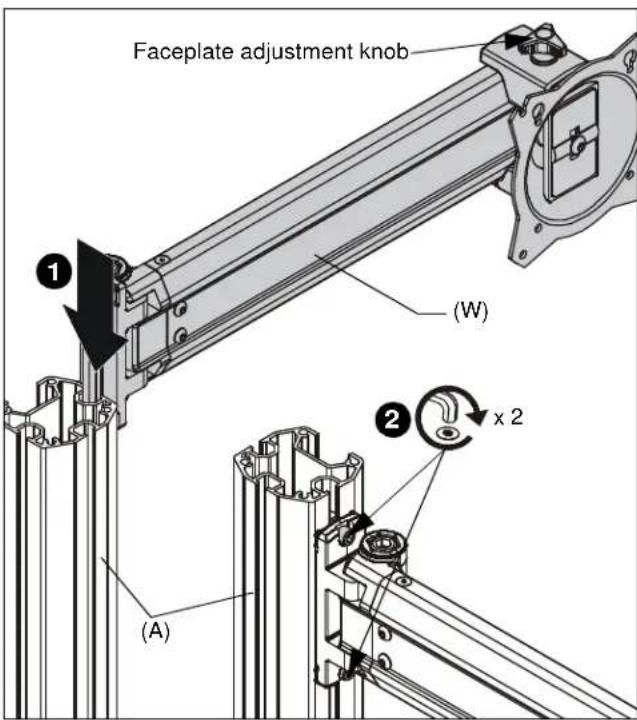
Figure 1
- Repeat Steps 1 and 2 for remaining array arms.
Adding Array Arms (K3G320 only)
NOTE: Be sure the faceplate adjustment knob is on top when installing the arms. (See Figure 1)
- Slide array arm-right (W) between brackets at top of column assembly (A). (See Figure 3)
- Fasten arm in place using one 3/8-16 x 2-3/4" socket head screw (T) and one 3/8" nut (U). (See Figure 2)
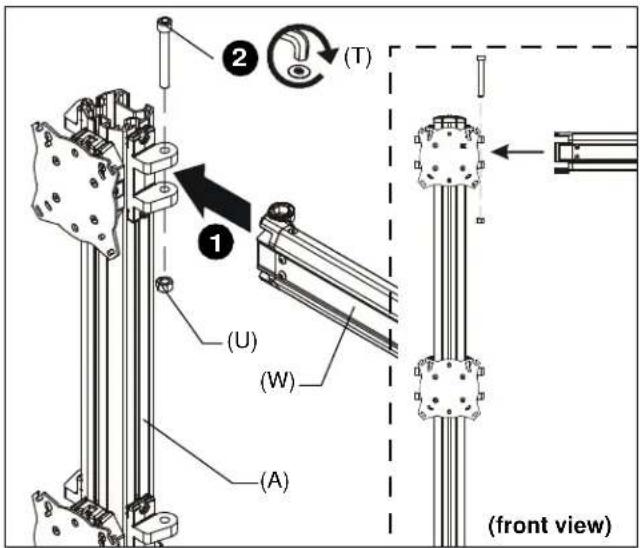
Figure 2
- Repeat Steps 1 and 2 for remaining array arms.
Adding Base - K3F Mounts (Free-standing)
- Use four 1/4-20 x 1 1/4" flat head cap screws (F) to secure table top base (C) to column assembly (A). (See Figure 3)
NOTE: Make sure front of base (long legs) is on the display side when attaching base to column. (See Figure 3)

Figure 3
-
Tighten four existing bolts holding stand to column. (See Figure 3)
-
Carefully manipulate base cover (E) to create an opening large enough to wrap cover around array column. (See Figure 4)
- Wrap base cover around column and slide it down until base cover fits securely onto table top base (C). (See Figure 4)

Figure 4
- Snap column cap (D) onto top of column assembly (A). (See Figure 5)
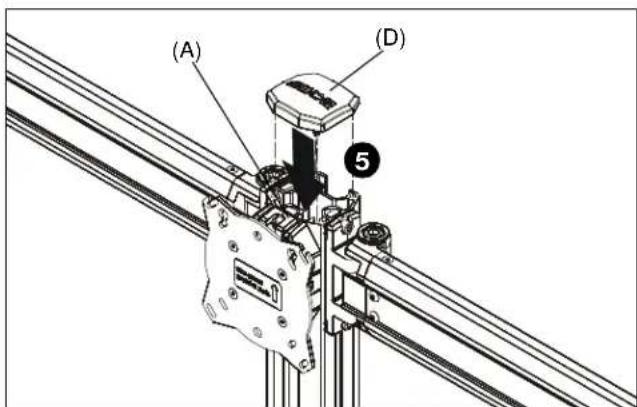
Figure 5
- Apply bumpers (G) to underside of table top base (C). (See Figure 6)
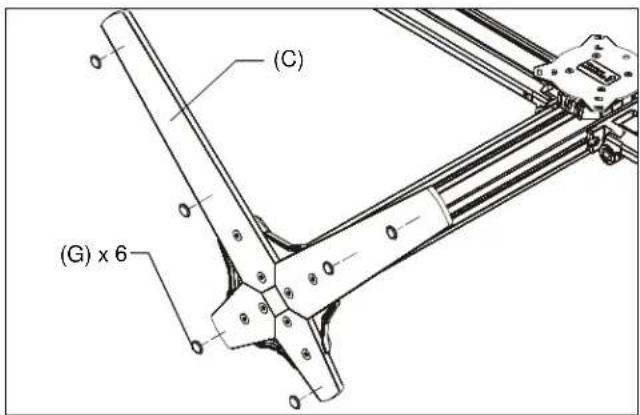
Figure 6
K3G Mounts (Grommet)
- Use four 1/4-20 x 1 1/4" flat head cap screws (F) to secure grommet plate (P) to array assembly (A). Make sure longer legs of grommet plate are aligned with the front of column. (See Figure 7)
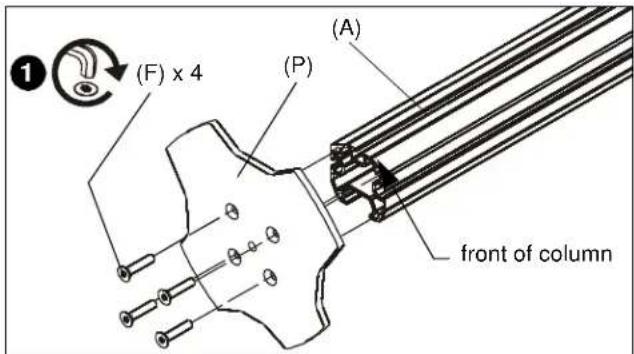
Figure 7
- Apply bumpers (G) to underside of grommet plate (P). (See Figure 8)

Figure 8
- Locate a flat surface (thickness minimum of 1" to maximum of 5") on which to mount the array assembly.
- If a hole doesn't already exist, drill a hole in desk with a diameter between 1/2" and 3 1/2" at desired mounting location. (See Figure 9)
- Position mount on desk so that center hole of grommet plate (P) is centered over grommet hole. (See Figure 9)
- Insert grommet screw (N) through grommet hole and thread into center hole of grommet plate (P). (See Figure 9)
- Tighten grommet screw (N) until grommet base is tightened against underside of desk and mount is securely mounted to desk. (See Figure 9)
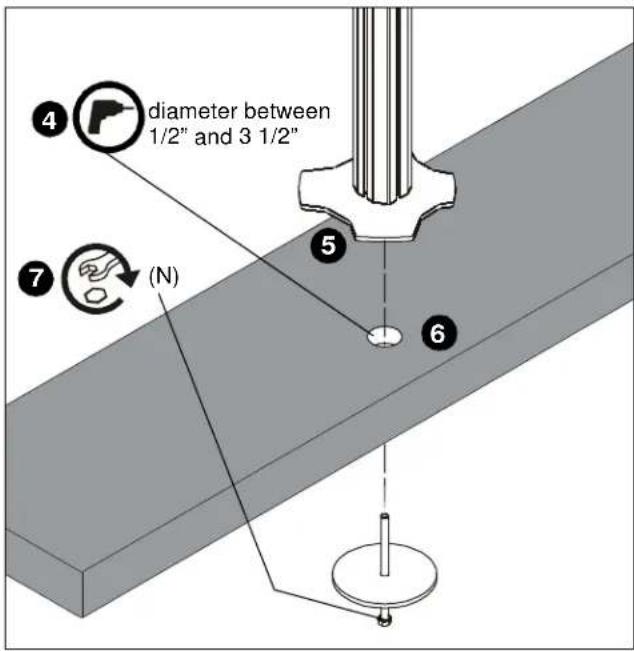
Figure 9
- Carefully manipulate base cover (E) to create an opening large enough to wrap cover around array column. (See Figure 10)
- Wrap base cover around column and slide it down until base cover fits securely onto table top base (C). (See Figure 10)
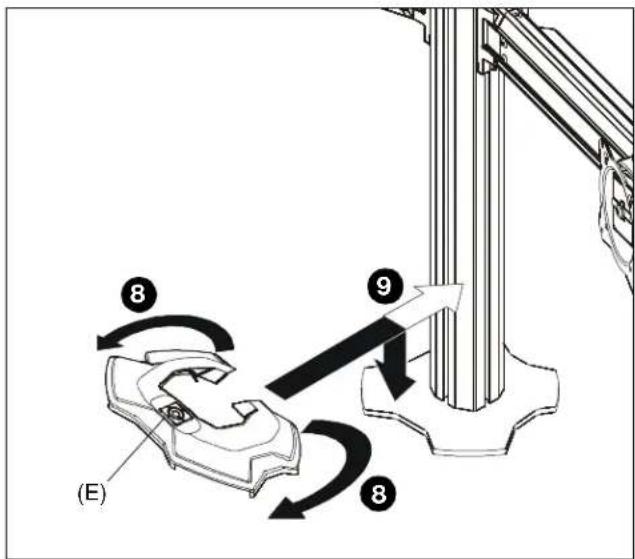
Figure 10
- Snap column cap (D) onto top of array assembly (A). (See Figure 11)
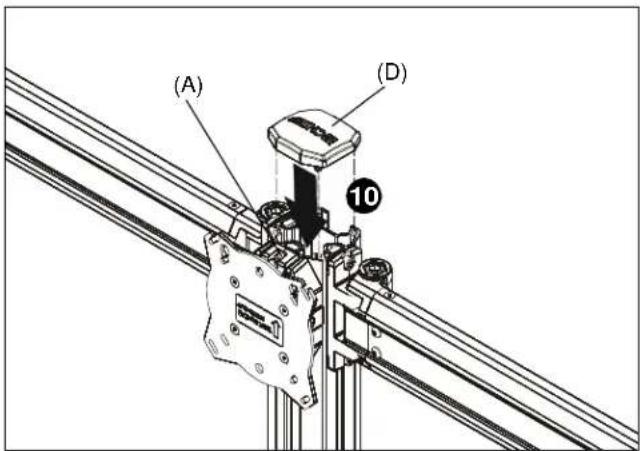
Figure 11
Display Installation

WARNING: Exceeding the weight capacity can result in serious personal injury or damage to equipment! It is the installer's responsibility to make sure the combined weight of all components located on the K3 Series mount up to (and including) the display does not exceed 15 lbs (6.8 kg) per display for the K3F220, K3G220, K3F310, K3G310 and K3G320 mounts or 25 lbs (11.34 kg) per display for the K3F120 and K3G120 mounts.

CAUTION: Using screws of improper size may damage your display! Proper screws will easily thread into display mounting holes.
NOTE: Supplied screws (H, J and K) may not fit properly for all displays. See display's operating instructions for details.
IMPORTANT ! : When applicable, always install center display FIRST in order to prevent stand from tipping! If there are no center faceplates (K3F220 and K3G220), be sure to support opposite arm when mounting displays to prevent stand from tipping! If possible, mount displays to both sides simultaneously.
NOTE: Set height of lower center display prior to installing other displays. See Height Adjustment section for details. Center of display must be at least 18" above desk surface.
Flush Mounting Holes
- Position faceplate in desired mounting position. Adjust as required before proceeding. See Height Adjustment section for details.
- Using Phillips screwdriver, carefully install two M4 x 12mm Phillips pan machine screws (K) into the upper mounting holes on the display. Thread screws completely into display, then back out 3 complete turns. (See Figure 12)

Figure 12
- Pick up and align display so that screws (K) (installed on the back of the display in the previous step) fit into the mounting holes on the faceplate. Lower the display firmly into place. (See Figure 12)
- Using Phillips screwdriver, install two M4x12 mm Phillips pan machine screws (K) through the lower mounting holes on faceplate into the display. (See Figure 13)

Figure 13
5. Tighten all four screws (K). Do not over tighten!
NOTE: If roll adjustment is desired for center faceplate, do not tighten screws.
6. Repeat Steps 1-5 for other displays.
7. Proceed to Cable Management section.
Recessed Mounting Holes
NOTE: If faceplate does not fit into recessed area of display, proceed with the steps in this section.
-
Determine depth of recessed mounting holes relative to back surface of display (against which faceplate will contact).
-
Select proper length spacer and screw from table below:
NOTE: All spacers used should be the same length. If the recess depths result in multiple spacer lengths, then select the longer spacer.
| IF recess DEPTH is: THEN use spacer: AND | screw: | |
| 3/8" or less L (3/8" long) J (M4 x 20mm) | ||
| More than 3/8" up to and including 3/4" | M (3/4" long) | H (M4 x 30mm) |

CAUTION: Using screws of improper size may damage your display! Proper screws will easily and completely thread into display mounting holes.
- Using Phillips screwdriver, carefully install two selected screws (J or H) through selected spacers (L or M) into the upper mounting holes on the display. Thread screws completely into display, then back out 3 complete turns. (See Figure 14)
- Pick up and align display so that screws (K) (installed on the back of the display in the previous step) fit into the mounting holes on the faceplate. Lower the display firmly into place. (See Figure 14)
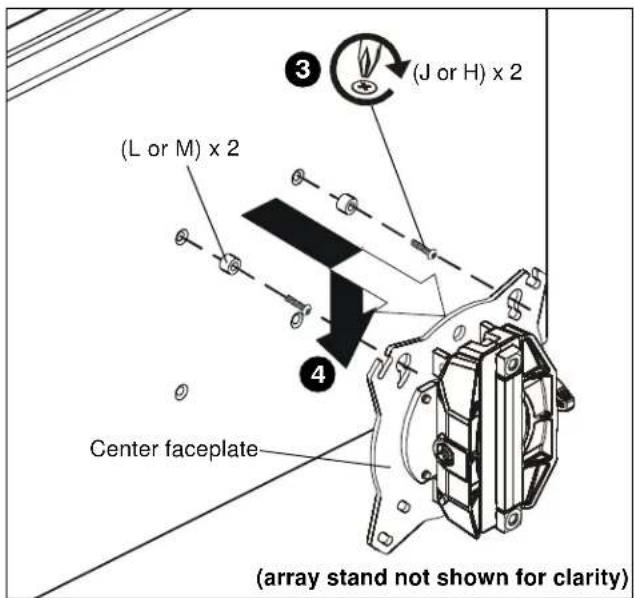
Figure 14
- Slide two remaining selected spacers (L or M) in between faceplate and display, positioning them over the lower two mounting holes. (See Figure 15)
- Install two remaining selected screws (J or H) through lower two mounting holes on faceplate, selected spacers (L or M) into the lower mounting holes on the display. (See Figure 15)

Figure 15
- Tighten all four screws. Do not overtighten!
Adjustments
Pivot Adjustment
- Array arms may pivot toward the front of mount up to 15^ per arm. (See Figure 16)

WARNING: Pivoting array arms toward the back of mount may cause K3 Series mount to tip over causing serious personal injury or damage to equipment! Do not pivot arms toward back of mount! (See Figure 16)

Figure 16
- When arms are at desired pivot position, lock pivot position by tightening pivot adjustment screws using 5/16" hex key (Q). (See Figure 17)
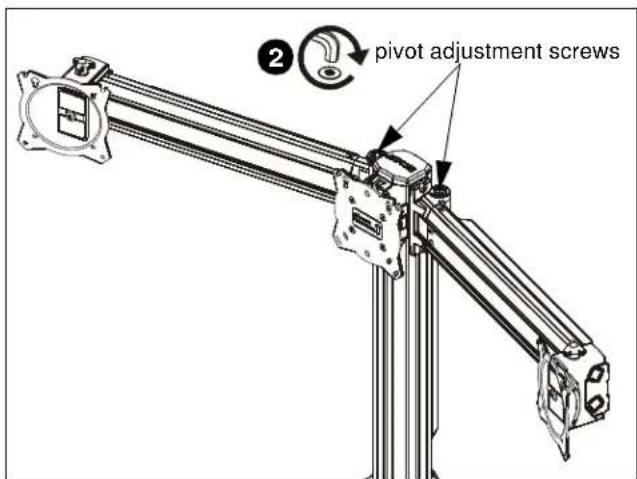
Figure 17
Height Adjustment
NOTE: Height adjustment for center displays should be set prior to installing display. Due to the location of the height adjustment screws for the center displays, the center displays will need to be removed in order to adjust the height. (See Figure 18)
- Loosen height adjustment screws for specific display that will be adjusted. (See Figure 18)
- Adjust arm or display to desired height. (See Figure 18)
- Tighten height adjustment screws to lock display's position. (See Figure 18)

Figure 18
Arm Extension (K3G310 and K3G320 only)
NOTE: For smaller displays or if converting to a 2x1 array, faceplate assemblies may be removed and reattached to fixed part of the arm. See Faceplate Assembly Removal/Reattachment - Outside Faceplates section for details.
- Turn arm extension adjustment knob counter-clockwise on arm to be adjusted. (See Figure 19)
- Adjust arm extension as desired. (See Figure 19)
- Turn arm extension adjustment knob clockwise on adjusted arm to lock position. (See Figure 19)

Figure 19
Faceplate Assembly Removal / Reattachment
Center Faceplate(s)
- Remove column cap (D) from array column. (See Figure 20)
- Loosen height adjustment screws for center faceplate assembly. (See Figure 20)
- Slide faceplate assembly up through column channel until it is removed from column. (See Figure 20)

Figure 20
Outside Faceplates (K3G310 and K3G320 only)
- Remove hex head bolt from bottom of faceplate assembly. (See Figure 21)
- Slide out removable plate from bottom of faceplate assembly. (See Figure 21)

Figure 21
- Remove faceplate assembly from array arm. (See Figure 21)
To Reattach Outside Faceplate Assembly (K3G310 and K3G320 only)
NOTE: Be sure the faceplate adjustment knob is on top when reinstalling the faceplate assembly. (See Figure 22)
NOTE: Faceplate assemblies may be reattached on the fixed part of the arm. (See Figure 22)
- Place faceplate assembly on array arm at desired mounting position. (See Figure 22)
- Slide removable plate back into slot at bottom of faceplate assembly. (See Figure 22)
- Reinstall hex head bolt removed in Step 1 to secure faceplate assembly to array arm. (See Figure 22)

Figure 22
Lateral Shift (On Fixed Arm)
NOTE: The procedure below applies when the outside faceplates have been attached to the fixed arm. If outside faceplates are still attached to extension arms, use the extension arms for lateral shift.
- Loosen knob on top of outside faceplate assembly until faceplate can slide freely along array arm. (See Figure 23)
- Adjust lateral position as desired. (See Figure 23)
- Tighten knob to secure lateral position. (See Figure 23)
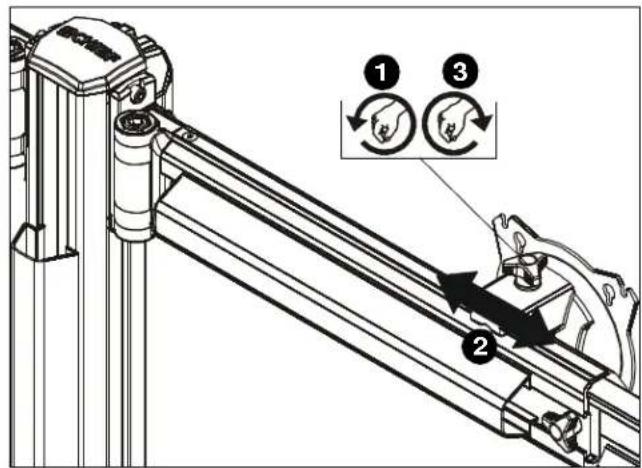
Figure 23
Pitch/Roll/Yaw Adjustment
Outside Faceplates
- Loosen knob on top of faceplate assembly. (See Figure 24)
- Adjust pitch, roll and/or yaw as desired. (See Figure 24)
- Tighten knob to secure desired faceplate position. (See Figure 24)
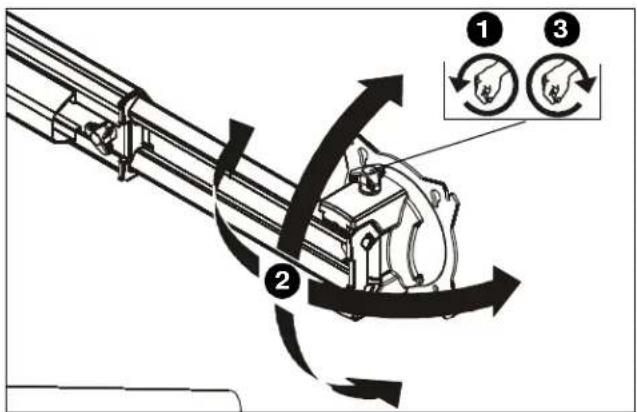
Figure 24
Center Faceplate(s)
Pitch
- Loosen knob on side of center faceplate assembly. (See Figure 25)
- Adjust pitch as desired. (See Figure 25)
- Tighten knob to secure desired pitch position. (See Figure 25)
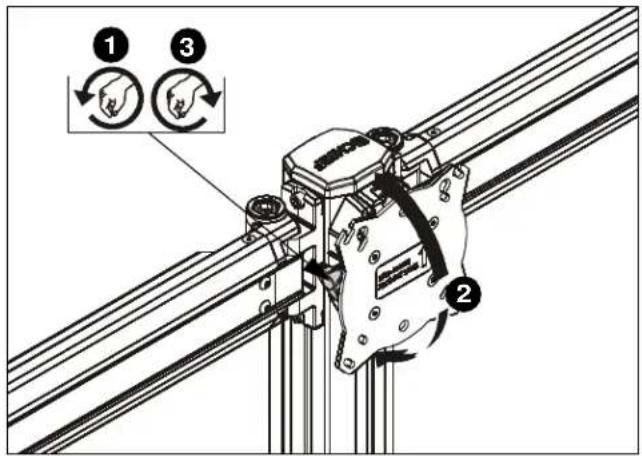
Figure 25
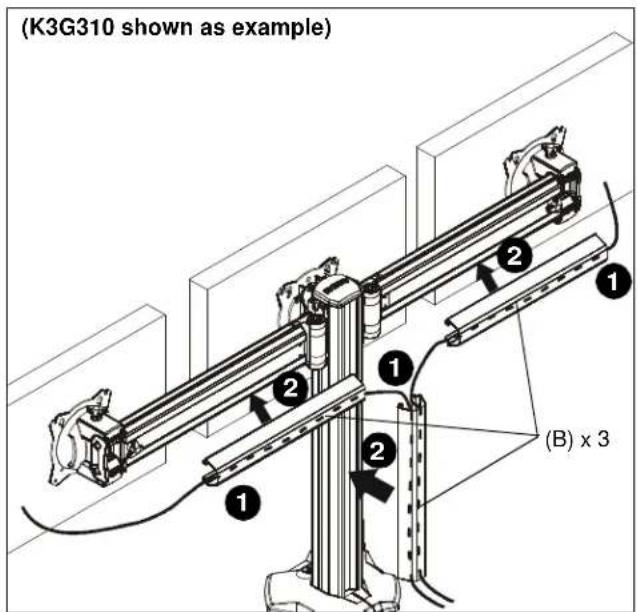
Figure 26
Roll
- Loosen screws holding display to faceplate slightly.
- Adjust roll position as the mounting holes on faceplate allow.
- Tighten screws to lock roll position.
Cable Management
- Route cables from display through cable management covers (B) as desired. (See Figure 26) and (See Figure 27)
- Install cable management covers (B) onto array (A). (See Figure 26) and (See Figure 27)
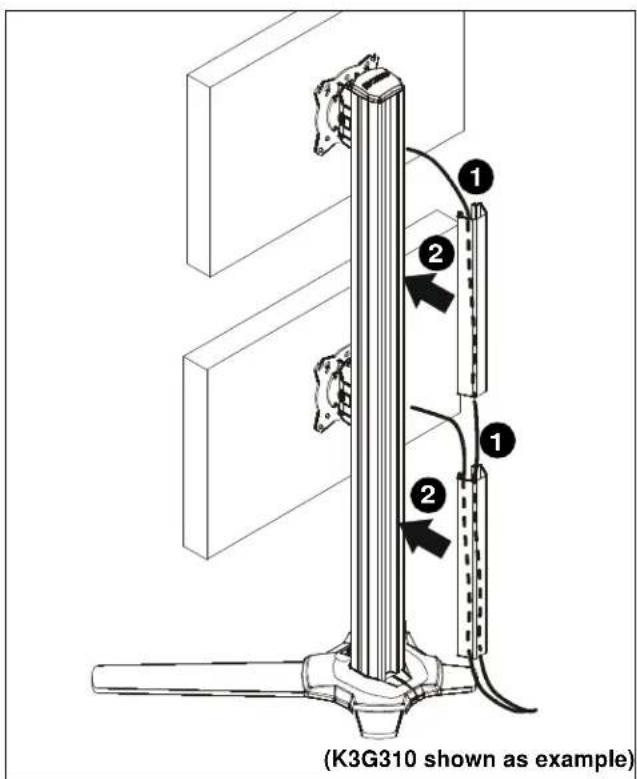
Figure 27
- INSTALLATION INSTRUCTIONS
- DISCLAIMER
- IMPORTANT SAFETY INSTRUCTIONS
- ASSEMBLY
- Adding Array Arms (K3F220, K3G220 only)
- Adding Array Arms (K3G320 only)
- Adding Base - K3F Mounts (Free-standing)
- K3G Mounts (Grommet)
- Display Installation
- Flush Mounting Holes
- Recessed Mounting Holes
- Adjustments
- Pivot Adjustment
- Height Adjustment
- Arm Extension (K3G310 and K3G320 only)
- Faceplate Assembly Removal / Reattachment
- Center Faceplate(s)
- Outside Faceplates (K3G310 and K3G320 only)
- To Reattach Outside Faceplate Assembly (K3G310 and K3G320 only)
- Lateral Shift (On Fixed Arm)
- Pitch/Roll/Yaw Adjustment
- Outside Faceplates
- Pitch
- Roll
- Cable Management
Brand : Chief
Model : K3F220S
Category : Ceiling Panel