
iPAQ h6310 - Mobile Phone HP - Free user manual and instructions
Find the device manual for free iPAQ h6310 HP in PDF.


| Product Type | Mobile Phone / Pocket PC |
| Brand | HP |
| Model | iPAQ h6310 |
| Series | h6300 |
| Operating System | Microsoft Pocket PC 2003 (Phone Edition) |
| Processor | Intel XScale (approx 312 MHz) |
| Memory | RAM: 64 MB (approx), ROM: 64 MB (approx) |
| Display | 3.5-inch TFT touchscreen, 240x320 pixels |
| Dimensions (approx) | 122 x 71 x 20 mm (4.8 x 2.8 x 0.8 in) |
| Weight (approx) | 160 g (5.6 oz) with battery |
| Battery | Removable rechargeable Lithium-Ion (approx 1200 mAh) |
| Charging | AC adapter or USB cradle |
| Phone Network | GSM/GPRS (Quad-band) |
| Data Connectivity | Wi-Fi 802.11b, Bluetooth, Infrared |
| Camera | Built-in digital camera (VGA resolution approx) |
| Expansion Slot | SD/MMC card slot |
| SIM Card | Required for phone functions |
| Maintenance | Clean screen with soft damp cloth (water only) |
| Safety | Use only HP-approved battery; avoid liquid sprays |
| Spare Parts & Repairability | Replacement battery, stylus, and case available at hp.com/go/ipaqaccessories |
| General Information | Supports ActiveSync, SMS/MMS, T-Mobile alerts, Voicemail |
Frequently Asked Questions - iPAQ h6310 HP
User questions about iPAQ h6310 HP
0 question about this device. Answer the ones you know or ask your own.
Ask a new question about this device
Download the instructions for your Mobile Phone in PDF format for free! Find your manual iPAQ h6310 - HP and take your electronic device back in hand. On this page are published all the documents necessary for the use of your device. iPAQ h6310 by HP.
USER MANUAL iPAQ h6310 HP
look inside to see answers to frequently asked questions about your iPAQ Pocket PC
hp iPAQ Pocket PC h6300 series

natural_image
Woman holding a mobile phone outdoors, with autumn trees and buildings in the background (no visible text or symbols)
invent
T Mobile



360338-xx1 Onyx How Do Lbook Page i Wednesday, June 23, 2004 1:34 PM


© 2004 Hewlett-Packard Development Company, L.P.
Microsoft, Windows, and Windows NT are trademarks of Microsoft Corporation in the U.S. and other countries.
T-Mobile is a registered trademark of Deutsche Telekom AG.
All other product names mentioned herein may be trademarks of their respective companies.
Hewlett-Packard Company shall not be liable for technical or editorial errors or omissions contained herein. The information is provided "as is" without warranty of any kind and is subject to change without notice. The warranties for Hewlett-Packard products are set forth in the express limited warranty statements accompanying such products. Nothing herein should be construed as an additional warranty.

CAUTION: Text set off in this manner indicates that failure to follow directions could result in damage to equipment or loss of information.
How Do I...?
HP iPAQ Pocket PC h6300 Series
First Edition (July 2004)
Document Part Number: 360338-002










Contents
How Do I Find Out What's On My CD?....1
How Do I Install Microsoft ActiveSync?...... 2
How Do I Create an ActiveSync Partnership?....7
How Do I Synchronize to a PC? 12
How Do I Perform a Soft ("Normal") Reset? ..... 14
How Do I Perform a Hard ("Full") Reset?.... 15
How Do I Migrate Data from Palm
Desktop Software to Pocket PC 2003? ..... 16
How Do I Transfer Files from
My Personal Computer to My iPAQ Pocket PC? ..... 18
How Do I Insert the Subscriber Identity
Module (SIM) Card Correctly? 20
How Do I Manage Available Storage? 21
How Do I Insert and Remove My Battery Correctly? . . . . 24
How Do I Maximize Battery Life? 26
How Do I Check the Battery Charge Level? 27
How Do I Use the Built-in Digital
Camera in My iPAQ Pocket PC to Take
and Send Pictures? 28
How Do I View Pictures That I've Already Taken? ..... 31
How Do I Save Pictures to a Memory Card?....32
How Do I Send Pictures Using Picture
Messaging (MMS) or E-mail? 33
How Do I Find Out More About Expansion Cards? ..... 34
How Do I Place and Receive Phone Calls? 35
How Do I Set Up and Access My Voicemail?....38
How Do I Make a Conference Call? 38
How Do I Change My Phone Services Settings?.....39
Contents
How Do I Change The Call Forwarding Settings? ..... 39
How Do I Communicate If I am Using a Headset? ..... 40
How Do I Use the Wireless Features of
My iPAQ Pocket PC? 41
How Do I Use Wi-Fi? 43
How Do I Set Up My iPAQ Pocket PC
to Connect and Browse the Internet
through a Wi-Fi HotSpot? 48
How Do I Connect to a T-Mobile HotSpot? 49
How Do I Use Bluetooth? 51
How Do I turn on Bluetooth?....52
How Do I Use Bluetooth to Transfer
Files to Another Pocket PC, Computer, or Printer?.....54
How Do I Send and Receive Text Messages? 56
How Do I Recognize and Filter Spam
Text Messages (SMS)? 57
How Do I Set Up T-Mobile Alerts?....58
How Do I Protect My iPAQ Pocket PC
from Screen Damage or Cracking? 58
How Do I Find the Product ID and
Serial Number of My iPAQ Pocket PC? 59
How Do I Find Information On Topics
Not Covered in This Booklet? 61

This document is intended to answer the most frequently asked questions regarding the HP iPAQ Pocket PC h6300 Series. For complete setup and installation instructions, refer to the Welcome Guide in the box or the User's Guide located on the Companion CD. For further support, visit the T-Mobile website at www.t-mobile.com/help.
How Do I Find Out What's On My CD?
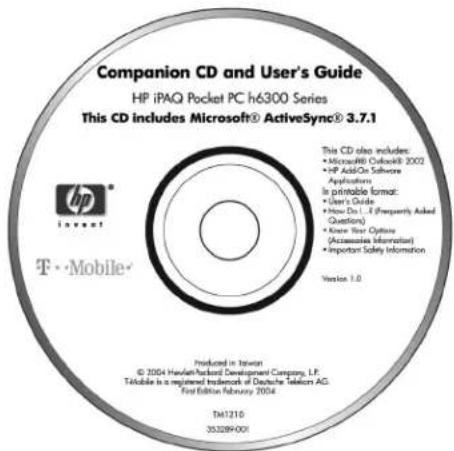
The Companion CD is located in the box and contains:
■Microsoft ActiveSync 3.7.1
■Microsoft Outlook 2002
■HP iPAQ Pocket PC h6300 Series User's Guide
■How Do I...? (this document)
■Know Your Options (Accessories Information)
■Important Safety Information

natural_image
Pure geometric diagram with crosshair and circular shapes, no text or symbols present
All of the software and documents are designed to be installed on your personal computer to enhance your ability to use your iPAQ Pocket PC to its fullest potential. The CD also contains Microsoft add-on software applications and Pocket PC enhancements that can be installed directly onto your Pocket PC for use on the go.
Note: It is recommended that you save the original packaging for the CD because the Microsoft product key for installing Microsoft Outlook is located on the sticker on the CD packaging. You will need that information if you ever need to reinstall Outlook on your personal computer.
How Do I Install Microsoft ActiveSync?
Microsoft ActiveSync, located on the Companion CD, is software that allows your iPAQ Pocket PC and your personal computer to communicate with each other by setting up a partnership. Before you insert your iPAQ Pocket PC into the USB Synchronization Cradle/Charger, you must first install ActiveSync onto your personal computer.
Note: If you have previously installed ActiveSync on your computer, you do not have to uninstall the software to proceed with installing the latest version of ActiveSync.
To install Microsoft ActiveSync, follow the steps below:
- First insert the Companion CD that came with your Pocket PC into the CD-ROM drive on your personal computer. Be sure to do this before inserting your iPAQ Pocket PC into the USB Synchronization Cradle/Charger.
If the CD starts automatically, proceed to step 3.
2

natural_image
Pure geometric diagram with crosshair and circular shapes, no text or symbols present

360338-xx1 Onyx How Do 1.book Page 3 Wednesday, June 23, 2004 1:34 PM


- If the CD doesn't start automatically (auto run), click Start > Run > Browse on your personal computer. Select setup.exe from the list of files, then click Open > OK to run the Setup program.
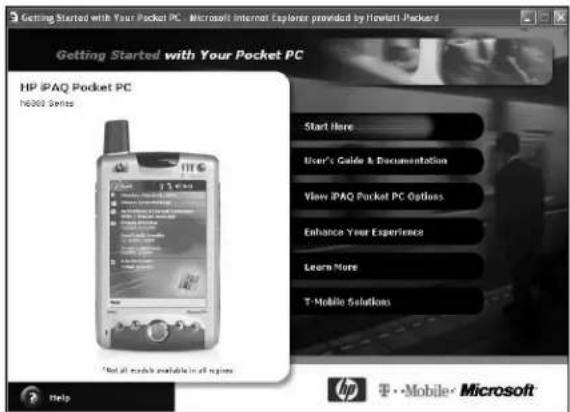
- Click the small arrow in the center of the opening image, or wait a few moments for the Getting Started with Your Pocket PC screen to appear.


3







- Click Start Here. Five options are displayed:
Overview
■Install Outlook 2002
■Install ActiveSync 3.7.1
■Register your iPAQ Pocket PC
■Main Menu
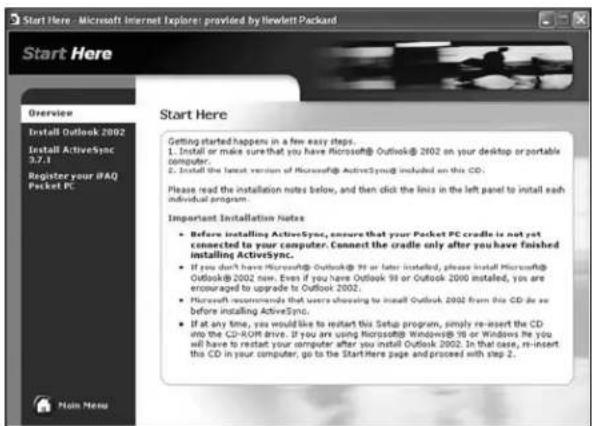
- If you do not already have Microsoft Outlook 98 or higher installed on your personal computer and you want to synchronize your calendar, contacts, inbox, notes, and/or tasks, select Install Outlook 2002 and follow the onscreen instructions to install it on your personal computer. To determine what version of Outlook is installed on your personal computer, click Start > Programs > Microsoft Outlook > Help > About Microsoft Outlook.
Note: Microsoft Outlook Express will not work with the iPAQ Pocket PC and ActiveSync.
If you decide to upgrade from an older version of Microsoft Outlook to Outlook 2002, all your personal settings are saved and reloaded during the upgrade process.
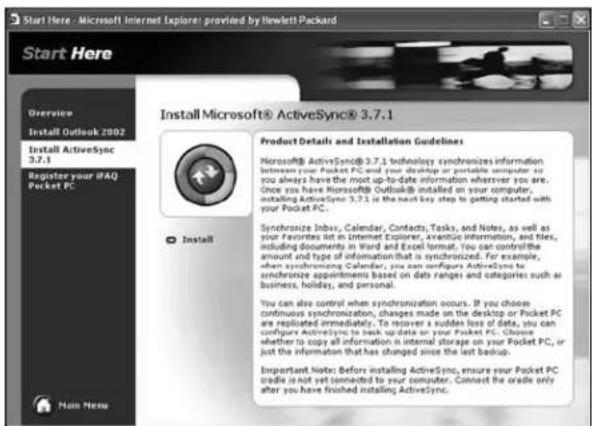
- Once Microsoft Outlook is installed on your personal computer, select Install ActiveSync 3.7.1 from your CD menu and read the "Product Detail and Installation Guidelines." Click Install > OK.









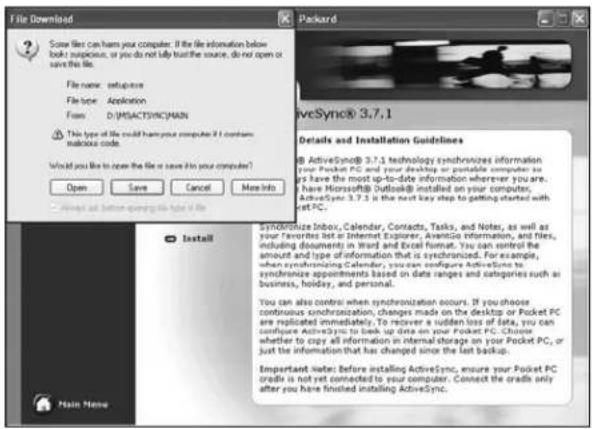
7. When the File Download window is displayed, click Open.
8. When the Set Up Microsoft ActiveSync 3.7.1 window is displayed, follow the onscreen instructions to complete the installation.
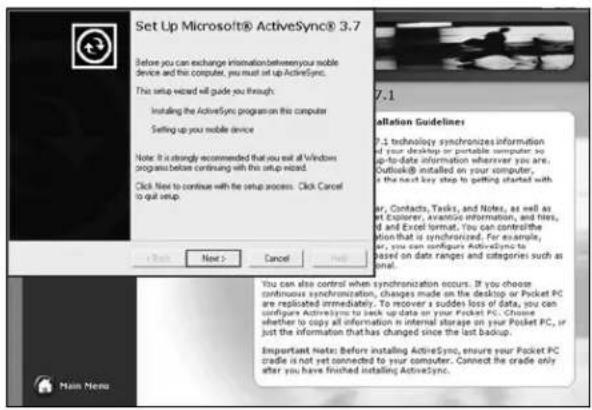
You will know ActiveSync installed successfully when you see the Set Up a Partnership screen. Refer to the next section, "How Do I Create an ActiveSync Partnership?" for more information.
Note: If you are having trouble installing ActiveSync and have firewall software installed, try disabling the firewall software during the ActiveSync installation, then enabling it again after installation is complete. If you are connected to a corporate firewall, contact your network administrator for assistance.
How Do I Create an ActiveSync Partnership?
A Microsoft ActiveSync partnership allows your iPAQ Pocket PC and your personal computer to communicate with each other. To synchronize your HP iPAQ Pocket PC h6300 series and your personal computer, you must first create a partnership using ActiveSync. You only need to create a partnership once.
These instructions will give you information on creating a basic partnership. Other partnership options are available, and these instructions are found in Chapter 12, "Using ActiveSync," of the User's Guide located on the Companion CD.
To create an ActiveSync partnership between your iPAQ Pocket PC and your personal computer, first install ActiveSync.
- When the Get Connected screen is displayed during ActiveSync installation, connect the USB Synchronization Cradle/Charger to your personal computer by attaching the free end of the USB cable to the USB port on your personal computer. Then connect one end of the AC Adapter to the cradle and the other end to an electrical outlet.



natural_image
Three geometric target-like symbols with crosshairs and central dots, no text or labels present7


natural_image
Pure geometric diagram with crosshair and circular pattern (no text or symbols)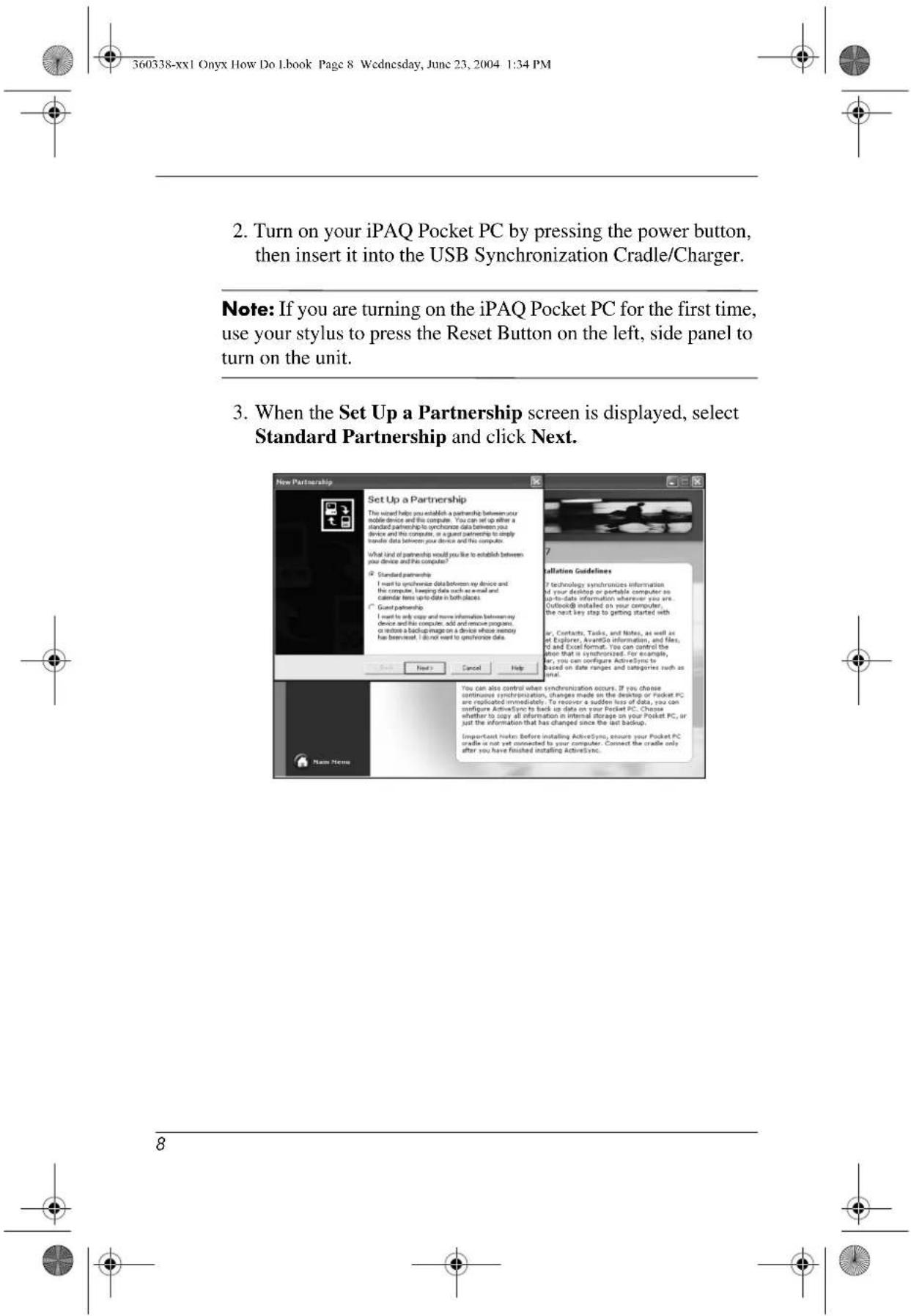


360338-xx1 Onyx How Do 1.book Page 9 Wednesday, June 23, 2004 1:34 PM


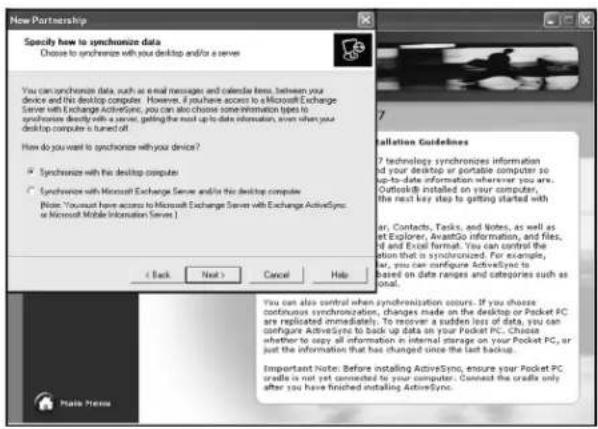
- When the New Partnership screen is displayed, select Synchronize with this desktop computer, then click Next.

9








- When the Select Number of Partnerships screen is displayed, choose whether you want to synchronize with one computer or two (e.g., home and office).
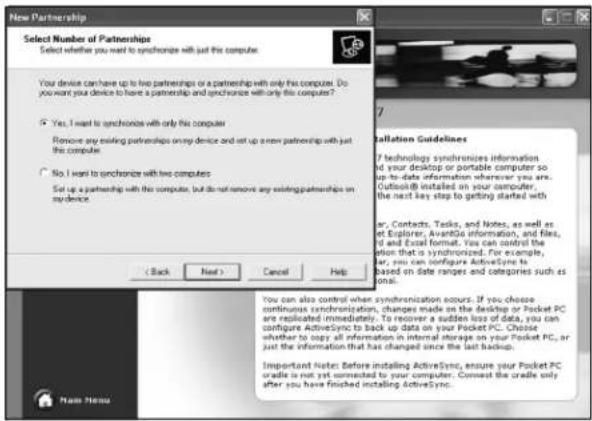
Note: If you set up two (or more) Pocket PCs or are re-establishing a legacy ActiveSync Partnership, you must name each unit. Do not set up a Guest Partnership because you will not be able to synchronize with your PC.
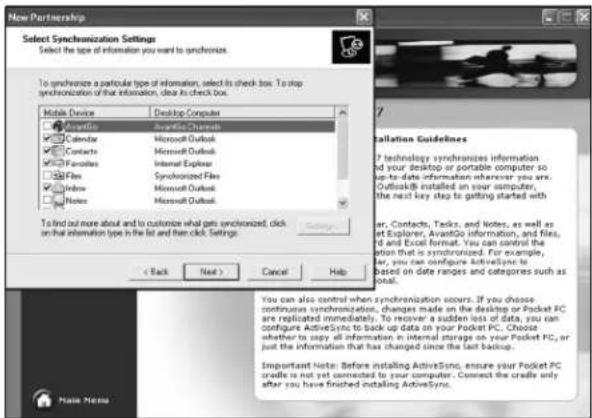
- When the Select Synchronization Settings screen is displayed, check the items you want to synchronize between your iPAQ Pocket PC and your personal computer.
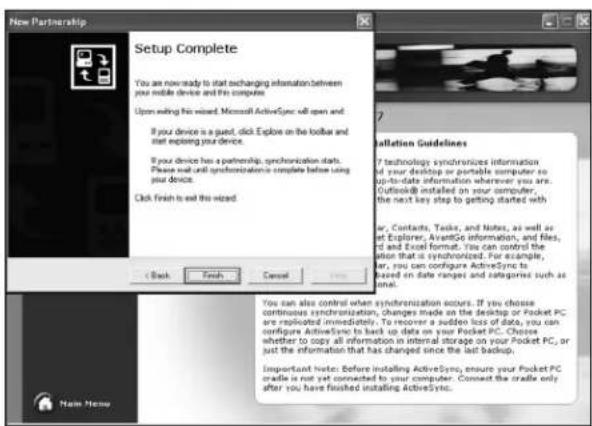
- When the Setup Complete screen is displayed, click Finish. ActiveSync immediately begins synchronizing.

Do you want to learn more about:
■setting up a guest partnership?
■setting up a partnership with a server?
■setting up a partnership with two computers?
Refer to the Microsoft Pocket PC 2003 Web site at www.microsoft.com/windowsmobile/resources/support/pocketpc. Fill in your region, your device, and your operating system, then click the Get Support button. Under Support Topics on the left hand side of the window, select ActiveSync.
How Do I Synchronize to a PC?
Synchronizing your iPAQ Pocket PC and your desktop or laptop computer allows you to keep the same information (such as calendar, contacts, and e-mails) in both places, making it available when you work on your desktop or laptop computer or when you are on the go with your Pocket PC. There are several ways to synchronize your Pocket PC with your personal computer, including:
■USB (Universal Serial Bus) Synchronization Cradle/Charger
Bluetooth
Infrared
■Wireless LAN via a server
The most common way to synchronize is with USB. This section explains how to synchronize using the USB Synchronization Cradle/Charger.

natural_image
Pure geometric diagram with crosshair and circular shapes, no text or symbols presentTo synchronize your personal computer and your iPAQ Pocket PC:
- Be sure to install ActiveSync first. Refer to "How Do I Install Microsoft ActiveSync?" earlier in this document for more information.
Note: ActiveSync must be installed prior to synchronization.
- Connect the USB Synchronization Cradle/Charger to your personal computer.
- Place your iPAQ Pocket PC in the USB Synchronization Cradle/Charger. Synchronization begins automatically.
Note: If you must log in to a server (such as your company's Virtual Private Network), you might receive a message from ActiveSync telling you it is unable to synchronize. Synchronization begins automatically once you have logged in.
Do you want to learn more about:
■synchronizing using Bluetooth?
■synchronizing using Infrared?
■synchronizing using Wireless LAN and a server?
■troubleshooting synchronization connection problems?
Refer to the User's Guide on the Companion CD.
How Do I Perform a Soft ("Normal") Reset?
A soft reset (also known as a normal reset) stops all running applications, but does not erase any programs or saved data.

CAUTION: Be sure to save your data in all currently open applications before performing a soft reset since a soft reset erases all unsaved data.
To perform a soft reset:
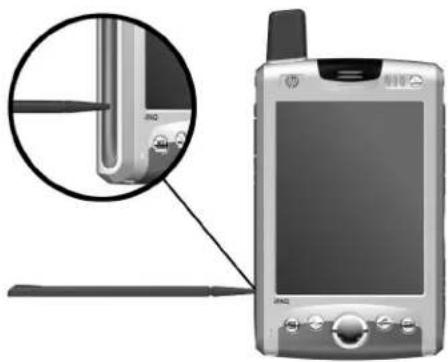
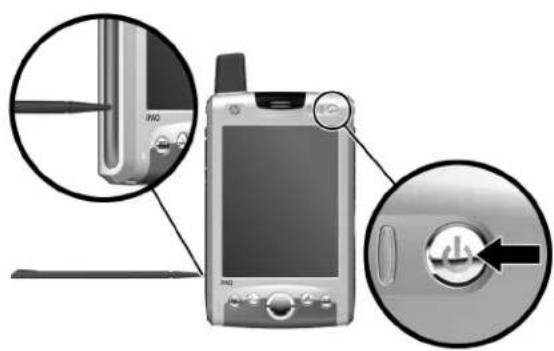
- Locate the recessed Reset button on the left side of your iPAQ Pocket PC.
- Use the stylus to lightly press and release the Reset button.
The Pocket PC restarts and displays the Today screen.

natural_image
Illustration of a handheld electronic device with a close-up inset showing its screen and antenna (no text or symbols visible)
Note: A soft reset does not change any Bluetooth or ActiveSync settings currently set on your Pocket PC.







How Do I Perform a Hard ("Full") Reset?
Perform a hard reset (also known as a full reset) when you want to clear all settings, programs, and data from Random-Access Memory (RAM).

CAUTION: If you perform a hard reset, your iPAQ Pocket PC returns to its default settings and loses all information (files, settings, etc.) that is not recorded in ROM. However, information stored in iPAQ File Store will not be lost. Also, all of your GPRS connection methods are erased with a hard reset, except the default GPRS connection with T-Mobile.
To perform a hard reset:
- Press and hold down the Power button.
- While holding the Power button, use the stylus to lightly press the Reset button on the left side of the Pocket PC for about five seconds.
natural_image
Close-up of a white electronic device with a screen and control panel, showing two circular insets highlighting the interface (no text or symbols visible)- The Pocket PC screen fades and the device resets. Once the device resets and the screen comes back on, release the Power button and remove the stylus from the Reset button.







If the Pocket PC does not power on after a reset, try the following:
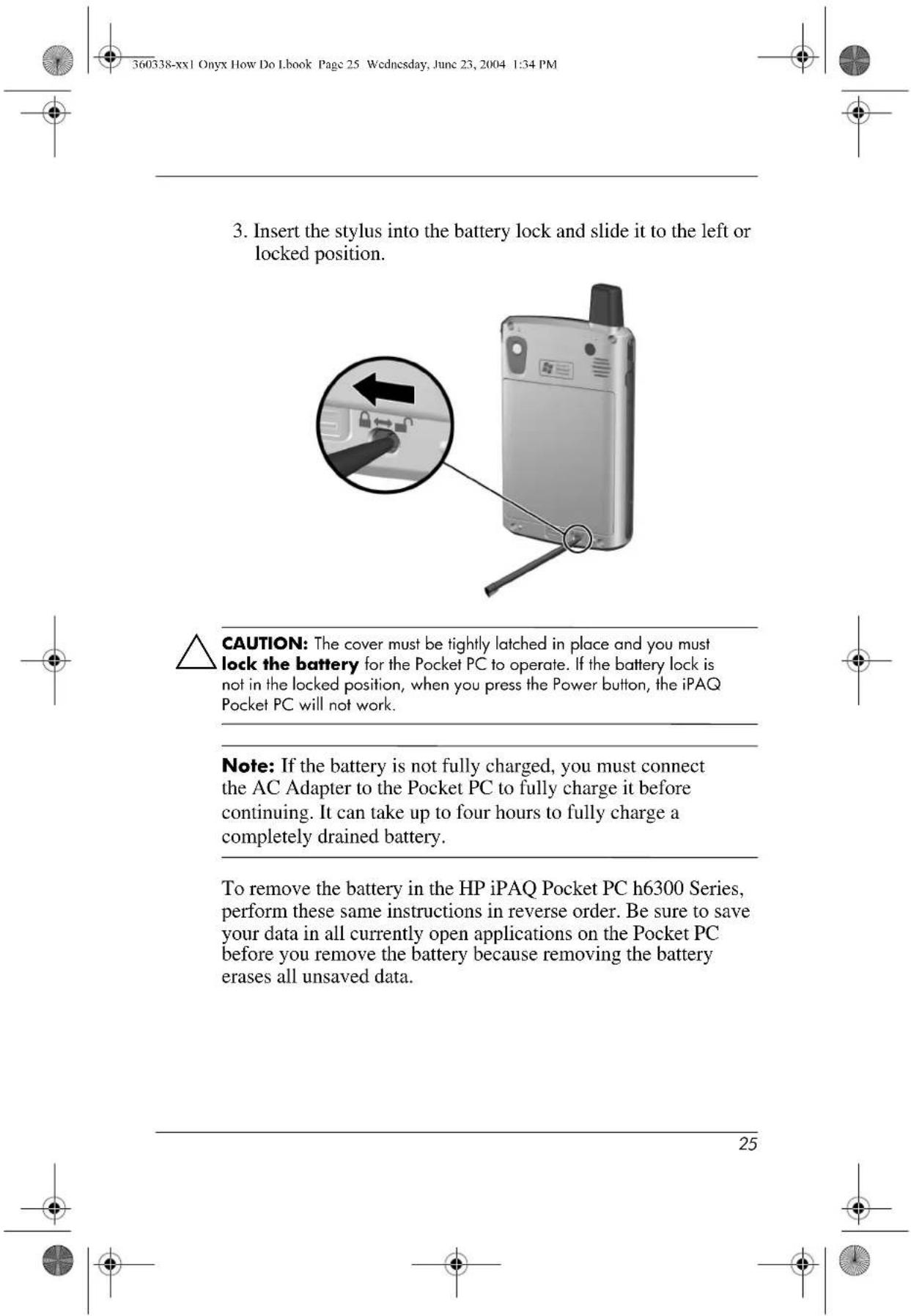
Check the battery door to ensure it is locked. If not, insert the stylus into the battery lock on the back of the Pocket PC and slide the battery lock to the left (or locked position). This action locks the battery door. If the battery door is not locked, the Pocket PC does not power on. For more information, refer to the section "How Do I Insert and Remove My Battery Correctly?" found in this document.
How Do I Migrate Data from Palm Desktop Software to Pocket PC 2003?
If you used a Palm Operating System (OS) based device before purchasing your iPAQ Pocket PC, you will need to migrate your data from the Palm Desktop software to Microsoft Pocket PC 2003.
Note: Do not insert your iPAQ Pocket PC into the USB Synchronization Cradle/Charger until you have installed ActiveSync and are prompted to do so.
To migrate data from Palm Desktop to Pocket PC 2003:
- If you do not already have Microsoft Outlook 98 or higher installed on your personal computer, install Outlook 2002 from the Companion CD as described in "How Do I Install Microsoft ActiveSync?" earlier in this document.
- Insert the Companion CD that came with your Palm device into your computer's CD-ROM drive. From the Discover Your Handheld screen, select Install Microsoft Conduits. Alternatively, you may reinstall the Palm Desktop software.
During the configuration process, select Synchronize your handheld with Microsoft Outlook and Palm Desktop software.
Note: Microsoft Outlook must be set as your default e-mail program to properly synchronize with the Palm Desktop software. If you need to change your settings, open Microsoft Outlook, then click Tools > Options > Other tab and check the Make Outlook the default program for E-mail, Contacts, and Calendar checkbox. Click Apply > OK, then restart your personal computer.
- Use the HotSync software located on the Companion CD that came with your Palm unit to synchronize your Palm information with Outlook. Refer to the instructions that came with your Palm unit for help installing or using HotSync.
- When Outlook is synchronized with your Palm device, uninstall Hotsync from your personal computer. Click Start > Control Panel > double-click Add or Remove Programs. Select Palm Desktop, then click Remove. Follow the onscreen instructions.
- Install ActiveSync on your personal computer as described in "How Do I Install Microsoft ActiveSync?" earlier in this document.
- Create a partnership between your iPAQ Pocket PC and your personal computer as described in "How Do I Create an ActiveSync Partnership?" earlier in this document.
- Synchronize your iPAQ Pocket PC with Outlook as described in "How Do I Synchronize to a PC?" earlier in this document.

How Do I Transfer Files from My Personal Computer to My iPAQ Pocket PC?
If you would like to be able to take files (such as photos, documents, presentation files, etc.) you created on your personal computer with you on your iPAQ Pocket PC, follow these steps:
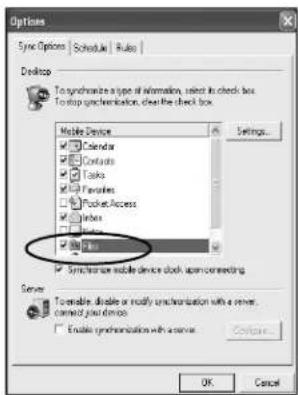
- On your personal computer, click Start > Programs > Microsoft ActiveSync.
- In ActiveSync, click Tools > Options.
- Under the Sync Options tab, check the Files checkbox.

natural_image
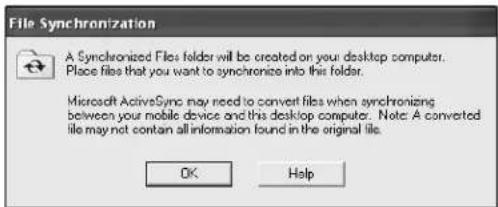
Pure geometric diagram with crosshair and circular shapes, no text or symbols present- A message is displayed stating that a Synchronized Files folder will be created on your personal computer's desktop. Click OK.
-
Click OK to save your changes, then click File > Close to close ActiveSync.
-
If your iPAQ Pocket PC is in the USB Synchronization Charger/Cradle, synchronization begins automatically. A folder is created on your desktop that is named after the name you gave your iPAQ Pocket PC when you set up your partnership (for example, Pocket_PC My Documents). If your iPAQ Pocket PC is not in the cradle, synchronization begins and the folder is created when you place your Pocket PC in the cradle.
Note: If synchronization does not begin automatically on your personal computer, open ActiveSync and click File > Options > Schedule tab. Under Desktop schedule, select either Continuously or On connection from the dropdown list box, then click OK to save the changes.
- Copy any files you want to transfer to your Pocket PC to the Synchronized Files folder for transfer during synchronization.
- To verify that the files were transferred successfully on your iPAQ Pocket PC, tap Start > Programs > File Explorer > My Documents folder.

natural_image
Three geometric diagrams with crosshairs and central dots, no text or symbols present

natural_image
Pure geometric diagram with intersecting lines and a central circle, no text or symbols present
How Do I Insert the Subscriber Identity Module (SIM) Card Correctly?
The SIM card is the intelligence that operates the phone features on your Pocket PC. The SIM card contains a computer chip with information about your phone number, service, registration information, and contacts. The SIM card also contains the memory to store speed dial numbers and text or SMS messages that you receive. With the exception of emergency calls (911), the SIM card must be inserted into the SIM slot under the battery on the back of your Pocket PC.
Note: If the battery is already installed, you must remove it before inserting the SIM card.
To insert the SIM card into the Pocket PC:
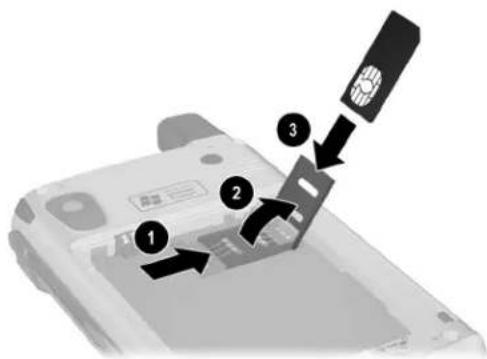
- On the back of your Pocket PC, push the SIM tray to the right ① to unlock and lift up ② to open it.
- Insert the SIM card into the SIM tray by aligning the notched corner on the card with the notched corner in the SIM slot ③.
20

natural_image
Pure geometric diagram with crosshair and circular shapes, no text or symbols present
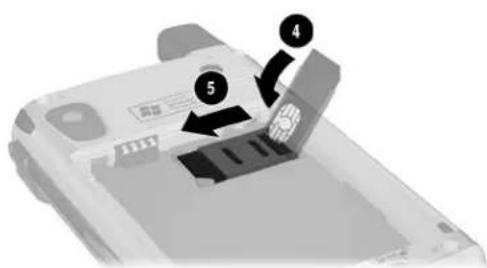
- Press the SIM tray (with the SIM card inserted) down ④ into the SIM slot and lock it into place ⑤ by sliding the tray to the left.
How Do I Manage Available Storage?
Your iPAQ Pocket PC normally manages storage for you by moving available space back and forth between storage memory (memory used to store data and document files) and program memory (memory used to run programs) as needed. However, there are a variety of ways you can manage storage space yourself to maximize the memory capacity of your iPAQ Pocket PC. You can choose any or all of the options below.
Option A: Changing Storage Settings Manually
To temporarily change the storage settings manually:
- On your iPAQ Pocket PC, tap Start > Settings > System tab > Memory.
21

natural_image
Pure geometric diagram with crosshair and circular shapes, no text or symbols present- Use the stylus to slide the Storage/Programs bar as necessary.
- Tap OK to save your changes.
Option B: Stopping Running Programs
To stop programs that are running in the background:
- Tap Start > Settings > System tab > Memory > Running Programs tab.
- Select one or more of the programs in the Running Programs List.
- Tap Stop.
Option C: Removing Unused Programs
To permanently uninstall programs you have installed yourself:
- Tap Start > Settings > System tab > Remove Programs.
- Select a program to remove.
- Tap Remove.
Option D: Using iPAQ File Store
The iPAQ File Store is an unused portion of Read-Only Memory (ROM) where the operating system and built-in programs are stored. Files stored in iPAQ File Store will not be deleted if you perform a full (hard) reset.
- Copy the file(s) you want to store in iPAQ File Store.
- Tap Start > Programs > File Explorer > My Device > iPAQ File Store.
- Tap Edit > Paste.

natural_image
Three geometric diagrams with crosshairs and central dots, no text or symbols present

natural_image
Pure geometric diagram with crosshair and circular shapes, no text or symbols present
To view available memory in iPAQ File Store:
-
Tap Start > Settings > System tab > Memory > Storage Card tab.
-
Select iPAO File Store from the drop-down list box.
Option E: Using Optional Storage Expansion Cards
To maximize the memory capacity of your iPAQ Pocket PC, purchase a Secure Digital (SD) card for your unit. The SD card can be installed in the Expansion Slot on the right side of your iPAQ Pocket PC.
For more information on purchasing expansion cards, visit the HP Web site at www.hp.com/go/ipaqaccessories.
Do you want to learn more about:
■what you can do with optional expansion cards?
■using expansion cards in your iPAQ Pocket PC?
Refer to Chapter 10, "Expansion Cards," in the User's Guide located on the Companion CD.



natural_image
Pure geometric diagram with crosshair and target symbols (no text or labels)How Do I Insert and Remove My Battery Correctly?

CAUTION: Use only an HP approved battery for your iPAQ Pocket PC. Inserting a battery that does not comply with HP requirements might cause the Pocket PC to malfunction.
To install the removable/rechargeable battery in the HP iPAQ Pocket PC h6300 Series:
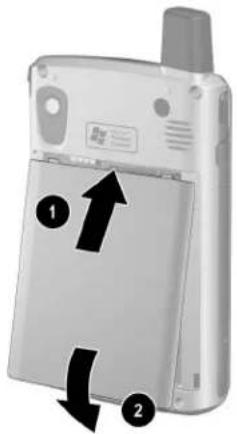
- Insert the two tabs on the top of the battery ① into the latches in the top of the battery compartment on the back of the Pocket PC.
- Snap the bottom of the battery into place ②.

natural_image
Side view of a silver flip phone with two black arrows indicating left and right motion (no text or symbols)







How Do I Maximize Battery Life?
There are a number of ways to ensure your battery lasts as long as possible between charges. You can use as many as necessary to maximize your battery life.
■ Tap Start > Settings > System tab > Power > Advanced tab, then set the iPAQ Pocket PC to turn off after a short time if it is not being used.
Tap Start > Settings > System tab > Backlight, then set the backlight to go off quickly after you stop using your iPAQ Pocket PC.
■Turn off Bluetooth power when not in use. To turn off Bluetooth, from the Today screen, tap the iPAQ Wireless icon in the Command bar, and then tap the Bluetooth icon.
■Turn off Wi-Fi power when not in use. To turn off Wi-Fi, from the Today screen, tap the iPAQ Wireless icon in the Command bar, and then tap the Wi-Fi icon.
■Leave your iPAQ Pocket PC connected to AC power at all times when you're not using it.
Tap Start > Settings > Connections tab > Beam, then uncheck the “Receive all incoming beams” checkbox to receive infrared beams manually.
■To ensure you always have battery power available, purchase a spare battery or Extended Battery. The spare battery can be charged in the USB Synchronization Cradle/Charger. For more information on purchasing optional batteries, visit the HP Web site at www.hp.com/go/ipaqaccessories.

natural_image
Three geometric diagrams with crosshairs and central dots, no text or symbols present

natural_image
Pure geometric diagram with crosshair and circular pattern (no text or symbols)How Do I Check the Battery Charge Level?
Tap Start > Settings > System tab > Power > Battery tab. You can view the amount of battery power remaining for both the main battery and the backup battery.
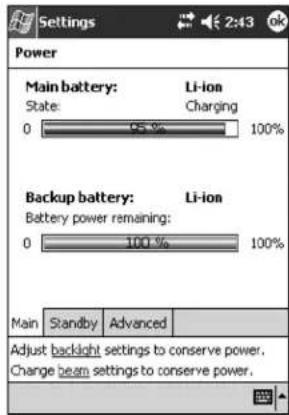
If the battery charge level is low, connect to AC power using the USB Synchronization Cradle/Charger or the AC Adapter, or change the battery. For information on purchasing a spare battery or optional Extended Battery, visit the HP Web site at www.hp.com/go/ipaqaccessories.

CAUTION: It is recommended that you do not allow the battery installed in your iPAQ Pocket PC to discharge completely. Doing so will not harm your Pocket PC or battery, but you will lose all data not stored in Read-Only Memory (ROM). Discharging the battery completely is similar to performing a hard reset. Refer to "How Do I Perform a Hard ("Full") Reset?" later in this document for more information.







How Do I Use the Built-in Digital Camera in My iPAQ Pocket PC to Take and Send Pictures?
If you purchased a HP iPAQ Pocket PC with a built-in camera, the camera allows you to turn your Pocket PC into a mobile digital imaging center. You can share images through e-mail or the Web, print from your iPAQ Pocket PC using Bluetooth, or transfer files to the Pocket PC for storage.
The software programs described below are included on your HP iPAQ Pocket PC or on the Companion CD.
HP Camera Software Function
| HP Image Capture Snap images and modify settingsfor your iPAQ Pocket PC Camera. | |
| HP Image Zone Review and share images from youriPAQ Pocket PC. Print, send, recordand e-mail images directly fromyour Pocket PC, or create slideshosto share your pictures with friendsand family. | |
| HP Image Transfer Transfer images to your personalcomputer. This software is includedon the Companion CD and must bedownloaded before you can use it. |








To take a picture:
- From the Start menu, tap Programs > HP Image Capture.
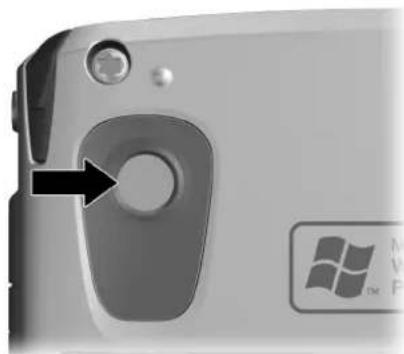
- Locate the camera lens on the top left corner on the back of the Pocket PC and frame the subject to be photographed in the digital viewfinder on the Pocket PC screen.
natural_image
Close-up of a camera with a circular button and a Windows logo on the side (no readable text or symbols)
- Tap the icon to zoom in on the subject or tap the icon to zoom out.

Note: You can also press the top side of the Navigation button to zoom in or press the bottom side of the Navigation button to zoom out. Pressing the Navigation button in the middle snaps a picture.
- Make sure that both you and your subject do not move to ensure a clear image.
- Press the Shutter button on the side of the Pocket PC or tap the Shutter icon on the screen to snap a picture.
Tip: You can also snap pictures by pressing down on the middle of the Navigation button. Use the mode that is convenient for you.







When you snap a picture, your iPAQ Pocket PC makes an audible shutter sound (if you have not muted the sounds). The clock indicates a picture has been taken and the iPAQ Pocket PC processes the picture. It might take a few seconds to process and store the picture, depending on its size, quality, and complexity.
Immediately after taking a picture, Instant Review automatically displays three icons so you can decide to either discard, e-mail, or keep the image.
- Tap one of the three icons to perform the following functions:
☐Trash icon - to delete the current picture
☐E-mail icon - to attach the picture to a Picture Message (MMS)
☐OK icon - finished reviewing the picture
For more information on troubleshooting the way pictures appear on your iPAQ Pocket PC screen, refer to Chapter 9 “Using the Camera” of the User’s Guide located on the Companion CD.

How Do I View Pictures That I've Already Taken?
If you have taken some pictures and you would like to view them, follow these steps:
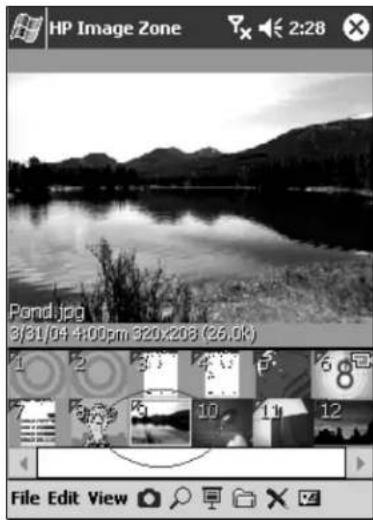
- From the Start menu, tap Programs > HP Image Zone.
- Tap a thumbnail (i.e., a small representation of a larger image) to select the picture. A preview of the picture and information about it will be displayed.
natural_image
Black-and-white photo of a lake with mountains in the background, no visible text or symbols on the scene itself.To view images in a different folder:
- Tap File > Change Folder.
- Select the desired folder.
- Tap OK.
31

natural_image
Pure geometric diagram with crosshair and target symbols (no text or labels)How Do I Save Pictures to a Memory Card?
To set the camera to automatically save a picture to your removable Secure Digital (SD) memory card, follow these steps.
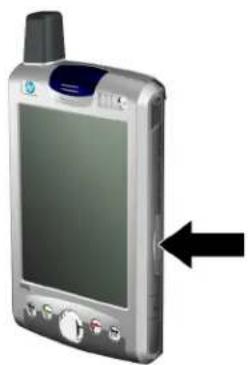
Note: Make sure to insert the SD card into the expansion slot located on the right hand side (as shown below) of the Pocket PC. If the memory card is not present in the expansion slot, the Pocket PC will not list Storage Card as an option on the "Save to" screen.
natural_image
Illustration of a silver handheld electronic device with a black arrow pointing to its side panel (no text or symbols visible)- From the Start menu, tap Programs > HP Image Capture > Menu icon ≡ > File tab > Open Folder icon next to the Save Picture in: list box.
- On the "Save to:" screen, tap Storage Card.
- Tap OK twice to return to the camera application.







To verify you saved the picture, you can view the picture(s) using HP Image Zone.
Note: You can also move or copy pictures to a SD memory card by using the HP Image Zone application.
How Do I Send Pictures Using Picture Messaging (MMS) or E-mail?
Picture Messaging (MMS) allows you to exchange multimedia communications (such as audio and video clips, pictures and text) between your mobile phone and other devices.
Note: You must have phone service to use Picture Messaging (MMS).
To send a picture via Picture Messaging:
- From the Start menu, tap Programs > HP Image Capture > to take a photo and the Instant Review feature automatically comes up displaying three icons.

natural_image
Black-and-white landscape photo of a lake with mountains in the background and trees reflected in water, no visible text or symbols.- Tap one of the three icons to perform the following functions:
☐Trash icon - to delete the current picture
☐E-mail icon - to attach the picture to a Picture Message (MMS)
☐OK icon - finished reviewing the picture
To e-mail a picture:
-
From the Start menu, tap Programs > HP Image Zone.
-
Tap the thumbnail of the image to be e-mailed.
-
Tap File > Send > via E-mail and enter the appropriate e-mail address or tap the Contacts icon in the Navigation bar and select the appropriate Contact name(s).
Note: Notice that the attached image appears at the bottom of the e-mail message.
-
Enter the subject and/or message, if any.
-
Tap Send.
How Do I Find Out More About Expansion Cards?
You can expand the memory and connectivity of your Pocket PC by using SD (Secure Digital), SDIO (Secure Digital IO), or MMC (Multimedia Memory) expansion cards. Use these optional expansion cards for:
■Adding functionality such as the HP PhotoSmart Camera, Bar Code Scanners, etc.
■Expanding the memory of your Pocket PC for data storage
■Viewing the content of memory cards (SD/MMC)

Note: Expansion cards must be purchased separately and are not included with your Pocket PC.
To locate information about expansion cards, go to the following HP Web site: www.hp.com/go/ipaqaccessories.
How Do I Place and Receive Phone Calls?
Once you subscribe and request mobile phone service, you can place local or long distance domestic calls. Also, you can place international calls if you requested setup.
Placing a Call
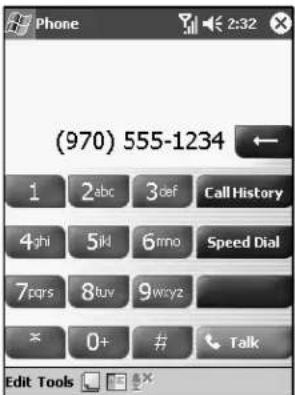
When you turn on the Phone, the Phone keypad displays on the Pocket PC screen.
■From the Phone keypad, tap the number you want to call, and then tap Talk or press the Send button.

natural_image
Pure geometric diagram with crosshair and circular shapes, no text or symbols present■Other ways to make a call:
□Making a Conference Call (refer to “How Do I Make a Conference Call?” later in this document.)
From Contacts (refer to the section on “Making a Call From Contacts” in the User’s Guide located on the Companion CD).
□Using Speed Dial (refer to the section on “Making a Call Using Speed Dial” in the User’s Guide located on the Companion CD).
From Call History (refer to the section on “Making a Call from Call History” in the User’s Guide located on the Companion CD).
Receiving a Call
When you receive a phone call, the iPAQ Pocket PC rings (or vibrates) and a message appears on the screen, giving you an option to either answer or ignore the incoming call.
■ Tap Answer or press the Green 🔔 button to receive the call.
Note: To silence the phone and reject the call, tap Ignore. This option either sends the caller to your voicemail or sends out a busy signal, depending on your service provider.
Helpful Tips Using the Phone
Here are some basic tips when using some of the general phone functions on your iPAQ Pocket PC.

natural_image
Pure geometric diagram with crosshair and circular target shapes (no text or symbols)

natural_image
Pure geometric diagram with crosshair and circular pattern (no text or symbols)Muting an Active Voice Call
During a call, you can mute your microphone so that the person with whom you are speaking cannot hear you, but you can still hear him or her. This is useful if you do not want the other person to hear a conversation or background noise on your side of the call.
■From the Phone keypad, tap the mute icon in the Command bar to mute or unmute a call.
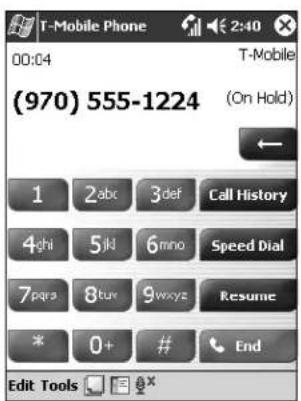
Placing a Call On Hold
During a phone call, tap Hold on the Phone keypad to put the call on hold. The call on hold appears on the top right of the dialer screen. You can switch between calls by tapping the call on hold.
Note: You can have only one call on hold while the other call is active. Also, when a call is placed on hold, the call is not disconnected.

How Do I Set Up and Access My Voicemail?
The first speed dial location is set as a default for your voice mailbox number. When you insert your Subscriber Identity Module (SIM) card into your Pocket PC, it sets (as default) the voice mailbox number of your mobile service provider. You might need to configure your phone to the Voicemail setting by dialing or setting the Voicemail dial number.
To retrieve your voicemail:
■With the Phone turned on and the Phone keypad visible on the screen, press and hold down the left side of the 5-Way Navigation Button (shown below) and release, select 1 Voicemail, then press

How Do I Make a Conference Call?
You can create a three-way conference call between yourself and two other parties.
■ From the Phone keypad, dial the first number, tap Talk and after the call is initiated, tap Hold, dial the second number, tap Talk and then tap Conference.

natural_image
Pure geometric diagram with crosshair and circular shapes, no text or symbols present
How Do I Change My Phone Services Settings?
Your iPAQ Pocket PC has several phone service settings you can change, such as Call barring, Caller ID, Call Forwarding, Call Waiting, and Voicemail and SMS settings.
To change any of these service settings:
-
On the Phone keypad, from the Command bar, tap Tools > Options > Services tab.
-
Tap the appropriate service you would like to change.
How Do I Change The Call Forwarding Settings?
Use call forwarding to forward all incoming calls to a different phone number.
-
From the Phone keypad, tap Tools > Options > Services tab.
-
Tap Call Forwarding > Get Settings.
-
Select Forward all incoming phone calls, and specify the phone number to receive the forwarded calls.
You can also use call forwarding to forward incoming calls to a different number based on your situation.
☐ Select Unavailable to forward calls only when your phone is turned off or you are unreachable.
☐ Select Busy to forward calls only when the line is busy.

natural_image
Pure geometric diagram with crosshair and circular shapes, no text or symbols present
How Do I Communicate If I am Using a Headset?
When you plug in a headset to the iPAQ Pocket PC, the internal microphone on the Pocket PC becomes disabled. If you are using either the headset HP ships with the iPAQ Pocket PC or the HP recommended Plantronics stereo headset, the caller will be able to hear you. However, if you are using a headset without a built-in microphone, you will be able to hear the caller, but the caller will not be able to hear you.
To be able to communicate with the caller again, disconnect the headset from the iPAQ Pocket PC so the microphone can re-engage. After disconnecting the headset, the caller should be able to hear you.
For more information on purchasing a headset, visit the HP Web site at www.hp.com/go/ipaqaccessories.


natural_image
Pure geometric diagram with crosshair and target symbols (no text or labels)How Do I Use the Wireless Features of My iPAQ Pocket PC?
Before learning how to use the wireless features (such as Wi-Fi and Bluetooth) on your iPAQ Pocket PC, first familiarize yourself with the following wireless technology terms.
Term Definition
| 802.11b The standard specification for wireless local area networks, often called Wi-Fi. |
| 802.1x A standard designed to enhance the security of Wi-Fi networks by providing an authentication framework. |
| Authentication The verification of the identity of a person or process. For example, in a communication system, authentication verifies that messages really come from their stated source, similar to a signature on a (paper) letter. Logically, authentication precedes authorization even though they might appear to occur simultaneously. |
| Authorization The process of granting or denying someone access to a network resource. |
| Bluetooth A telecommunication industry specification that allows Bluetooth-enabled devices (mobile phones, computers, and some Pocket PCs) short-range connections and provides fast, reliable, wireless communication. |
| Data Encryption A conversion process that is used for protecting data. |
| HotSpots Public or private areas where there is a wireless access point available. This wireless connection could be located, for example, at a library or cyber cafe. |








| Term Definition (Continued) | |
| Internet Protocol (IP) Address | A number that identifies each sender or receiver of information (sent in packets) across the Internet. |
| Media Access Control (MAC) Address | A computer's unique hardware number in a network. For example, on an Ethernet LAN, it's the same as your Ethernet address.When you are connected to the Internet a correspondence table relates your IP address to your computer's MAC address on the LAN. |
| Service Set Identifier (SSID) | A sequence of characters that uniquely identifies (i.e., names) a Wi-Fi network. This identification number uses a maximum number of 32 characters and is case sensitive. |
| Virtual Private Network A way of providing users (i.e., remote offices, telecommuters, etc.) secure access to their organization's network by way of the Internet. | |
| Wired Equivalent Privacy (WEP) | A security protocol designed to provide Wi-Fi networks with the same level of security usually expected on a LAN. |
| Wireless Fidelity (WiFi) The term used for a high-frequency wireless networking. | |
| Wireless Local Area Network (WLAN) | A wireless network in which a mobile user can connect to a local area network through a wireless connection. |
| Wireless Access Point Physical hardware (device) or computer software that acts as a hub for users of wireless devices to connect to a local area network. | |
How Do I Use Wi-Fi?
Wireless access eliminates the need to use cables to connect your Pocket PC to the Internet. However, to be able to use a Wi-Fi network, you must have a Wireless Access Point. These access points transmit data to and from your wireless device. Your Pocket PC can connect to an 802.11b Wi-Fi network or connect directly to other Wi-Fi enabled devices.
With Wi-Fi, you can:
■Access the Internet
■Send and receive e-mail
■Access corporate network information
■Use virtual private networks (VPN) for secure remote access
■Use HotSpots for wireless connectivity
Getting Started with Wi-Fi
To use Wi-Fi on your Pocket PC, you need to turn on Wi-Fi and set up your device. To turn Wi-Fi on or off from the Today screen, tap the iPAQ Wireless icon (☐) in the Command bar, and then tap the Wi-Fi icon.
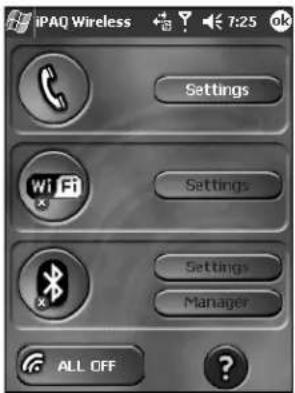








If Wi-Fi is powered on, the Wi-Fi icon background turns from gray to amber to green, and the Wi-Fi LED (located to the left of the power button) blinks green to indicate Wi-Fi is on.
Note: A blinking amber Wi-Fi LED indicates Wi-Fi is on but not connected, and a blinking green Wi-Fi LED indicates Wi-Fi is on and associated with another device.
Even though the Wi-Fi LED flashes to indicate Wi-Fi is turned on, it does not necessarily mean a connection has been established with another device or access point.
Alternatively, you can use the Data Connectivity icon in the Navigation bar to turn Wi-Fi on and off:
- Tap the Data Connectivity icon in the Navigation bar.
- When the Data Connectivity box displays, select either Turn On Wi-Fi or Turn Off Wi-Fi to complete the action.
Battery Saving Tip: Turn Wi-Fi off when you are not using it.
Automatically Connecting to a Network
- If one or more networks are present, the Network Indicator icon appears in the Navigation bar. Tap the network you want to connect to, then tap whether the network connects to the Internet (does not use proxy settings) or Work (uses proxy settings).
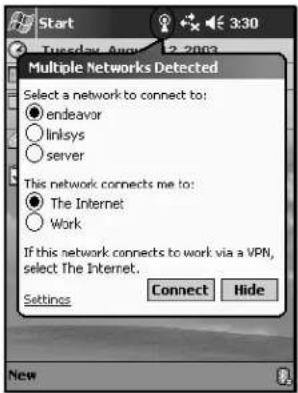
- If you are prompted for a Network Key (WEP), enter it and tap Connect. If you are not sure, contact your network administrator.
Manually Entering New Network Settings
A wireless network can be added either when the network is detected (the Network Indicator icon is showing in the Navigation bar) or manually by entering setting information.
To manually add a wireless network:
- Be sure Wi-Fi is powered on.
- Tap the Connections icon > Settings > Advanced tab > Network Card button > Wireless tab > Add New Settings.

natural_image
Pure geometric crosshair symbol with concentric circles and dots, no text or labels present

natural_image
Pure geometric diagram with crosshair and circular pattern (no text or symbols)- Tap the General tab and enter a network name (SSID).
Note: If a network was detected in step 2, the SSID is automatically entered and cannot be changed.
- In the Connects to: box, select where your network connects to (The Internet or Work).
- If you want to connect to an ad-hoc connection, tap the This is a device-to-computer (ad-hoc) connection checkbox.
- If authentication information is needed, from the Configure Wireless Network screen, tap the Authentication tab.
Note: To determine whether authentication information is needed, see your network administrator.
- Select the type of network authentication to use:
a. To use data encryption, check the Data encryption (WEP enabled) checkbox.
b. To use Shared Key authentication, check the Network Authentication (Shared mode) checkbox. Type the network key in the Network Key: box.
c. If a network key is provided by your network automatically, check the The Key is provided for me automatically checkbox.
d. For increased security, check the Enable network access using IEEE 802.1X checkbox. You should only check this option if it is supported by your network environment. Ask your network administrator if you are unsure.
Note: If you are trying to connect to your corporate network, contact your network administrator for assistance.
Searching for Networks to Access
Networks that you have already configured are preferred networks and are listed in Wireless Networks. You can choose whether to connect only to preferred networks or to have your Pocket PC search for and connect to any available network (preferred or not).
- Tap the Connections icon > Settings > Advanced tab > Network Card button > Wireless tab.
- In the Networks to access box, tap the type of network you want to connect to (All Available, Only access points, or Only computer-to-computer).
- To connect only to networks that have already been configured, clear the Automatically connect to non-preferred networks checkbox.
Note: If you check the Automatically connect to non-preferred networks checkbox, your Pocket PC will detect any new networks and provide you the opportunity to configure them.
For more information on Wireless LAN, refer to Chapter 7, "Using Wi-Fi" in the User's Guide located on the Companion CD or go to the HP website and chat with an online agent. To receive








instructions on how to chat with an online agent, refer to the question “How Do I Find Information On Topics Not Covered in This Booklet?” found at the end of this document.
How Do I Set Up My iPAQ Pocket PC to Connect and Browse the Internet through a Wi-Fi HotSpot?
Connecting to a HotSpot in your local coffee shop or at the airport or other public places usually requires a contract with the HotSpot service provider. A contract can be purchased at the HotSpot site from your service provider or by accessing the service provider's Web site.
Once you have purchased this service, you will be able to connect to their HotSpots using your HP iPAQ Pocket PC h6300 Series.
Note: Some public places might even provide a free HotSpot connection.
To connect at the HotSpot location:
- Turn on Wi-Fi from the Today screen, tap the iPAQ Wireless icon (☐) in the Command bar, and then tap the Wi-Fi icon. The Wi-Fi icon changes to green when it turns on.
- Tap OK.
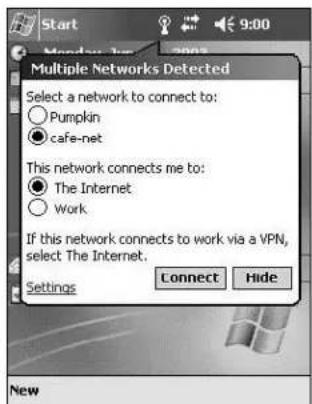
- Tap the network icon in the Navigation bar.

natural_image
Pure geometric diagram with crosshair and target symbols (no text or labels)- Select the network when it is detected and tap Connect.
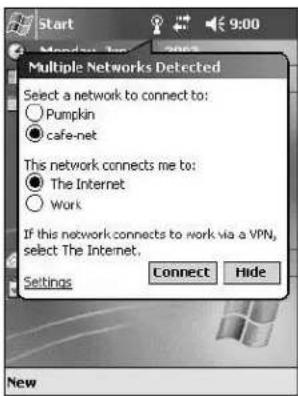
- Launch Internet Explorer—From the Start menu, tap Internet Explorer.
- Enter the Internet address to be accessed in the address bar and tap GO.
Note: If you experience problems connecting to the HotSpot location, you will need to contact the service provider's Help line for help. Most HotSpot locations provide brochures with Help information.

How Do I Connect to a T-Mobile HotSpot?
You can connect to a T-Mobile HotSpot to access the Internet, e-mail, or even your corporate network. T-Mobile HotSpots provide this access at convenient locations, such as airports, coffeehouses, bookstores, universities, etc.
CAUTION: For security reasons, it is recommended that you use a personal firewall or VPN to secure your Internet connection when using HotSpots.

natural_image
Three geometric target symbols with crosshairs and central dots, no text or labels present

natural_image
Pure geometric diagram with crosshair and circular shapes, no text or symbols presentYou do need a T-Mobile service contract to access T-Mobile HotSpots. If you already have a T-Mobile service contract in place, you can immediately connect to a T-Mobile HotSpot using your HP iPAQ Pocket PC h6300 Series.
To connect at the T-Mobile HotSpot location:
- Turn on Wi-Fi from the Today screen, tap the iPAQ Wireless icon (☐) in the Command bar, and then tap the Wi-Fi icon. The Wi-Fi icon changes to green when it turns on.
- Tap OK.
- Tap the network icon in the Navigation bar.
- Select the network (either tmobile or tmobile1x) when it is detected and tap Connect. The tmobile network provides open access for customers who do not have existing T-Mobile Wi-Fi-subscriptions. The tmobile1x network provides a higher level of data encryption and security.
Note: To authenticate to the tmobile1x network, you must have a active account subscription.
» To access the T-Mobile HotSpot network:
a. Select tmobile and tap Connect.
b. Launch Internet Explorer—From the Start menu, tap Internet Explorer. This takes you to the T-Mobile HotSpot login page.
c. Enter your username and password to access the network. If you need to purchase a DayPass, you can do so from the login page.
» To access the T-Mobile1x HotSpot network:
a. Select tmobile1x and tap Connect.
b. From the Configure Network Authentication screen, tap 1x and select the Use IEEE 802.1x network access control checkbox.
c. Enter your username and password to authenticate and connect to the network.
How Do I Use Bluetooth?
Your HP iPAQ Pocket PC comes with built-in Bluetooth technology that allows short-range connections and provides fast, reliable, wireless communication.
With Bluetooth powered on, you can send information or perform the following tasks wirelessly between two Bluetooth devices, within a range of approximately 10 meters (30 feet):
■Exchange contacts, calendar items, and tasks
■Send or exchange business cards
■Transfer files
■Synchronize with a computer through an ActiveSync connection
■Partner with a Bluetooth-enabled cell phone and use the cell phone as a wireless modem
■Connect to other Bluetooth devices (Virtual COM port)
■Connect to Bluetooth wireless local area networks (WLANs)
■Print to a Bluetooth printer
■Use a Bluetooth headset
■Create a personal area network (PAN) to chat, play games, etc.
NOTE: Use of dial-up and wireless Internet, e-mail, corporate networks, and other wireless communications, such as Bluetooth-enabled devices, may require separately purchased additional hardware and other compatible equipment, in addition to a standard Wireless Local Area Network (WLAN) infrastructure and a separately purchased service contract. Check with your service provider for availability and coverage in your area. Not all Web content may be available. Some Web sites may not be formatted to fit Pocket PC screens and may require installation of additional software.
For more information on Bluetooth, refer to Chapter 8, “Using Bluetooth” in the User’s Guide located on the Companion CD or go to the HP website and chat with an online agent. To receive instructions on how to chat with an online agent, refer to the question “How Do I Find Information On Topics Not Covered in This Booklet?” found at the end of this document.
How Do I turn on Bluetooth?
From the Today screen, tap the iPAQ Wireless icon (☐) in the Command bar, tap the Bluetooth icon, then tap Manager box next to Bluetooth.
Note: You must turn on Bluetooth before you can select the Manager or Settings boxes.
Now you have turned on Bluetooth you are ready to transfer files, connect to a Bluetooth printer, synchronize with your computer and more.
Helpful Tip Using Bluetooth
Here is a helpful tip on how to set up the Bluetooth settings on your iPAQ so that other bluetooth devices cannot detect your iPAQ Pocket PC.
Make My iPAQ Invisible to Other Bluetooth Devices
If you would like to change your Bluetooth settings on your iPAQ Pocket PC to where your Pocket PC cannot be seen by other Bluetooth devices, follow these steps:
- From the Today Screen, tap Start then Settings.
- Under the Connections tab, tap the Bluetooth icon.
- Under the Accessibility tab, uncheck the Allow other devices to connect checkbox. This action grays out the options for other devices to be able to discover your Pocket PC.
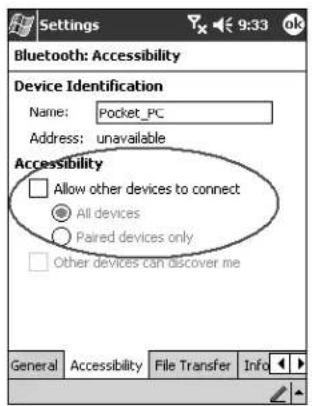

Note: If you want other Bluetooth-enabled devices to be able to connect to your device (all devices or only paired devices), check the All other devices to connect checkbox. If you uncheck this option, no devices are able to discover or connect to your Pocket PC. For more detailed information on Bluetooth, refer to Chapter 8, "Using Bluetooth" in the User's Guide located on the Companion CD.
- Tap OK to save your changes.
How Do I Use Bluetooth to Transfer Files to Another Pocket PC, Computer, or Printer?
Bluetooth is a wireless feature that allows you to exchange information with other Bluetooth-enabled devices located within 10 meters of your iPAQ Pocket PC. To transfer files from your iPAQ Pocket PC to another Bluetooth-enabled device, such as another Pocket PC, personal computer, or printer, you must first create a file transfer connection.
Creating a File Transfer Connection
From the Today screen, tap the iPAQ Wireless icon (☐) in the Command bar, tap the Bluetooth icon, then tap Manager box next to Bluetooth.
Note: You must turn on Bluetooth before you can select the Manager or Settings boxes.
54

natural_image
Pure geometric diagram with crosshair and circular shapes, no text or symbols presentThe first screen that displays is My Shortcuts.
- Tap New > Browse files on a remote device > Next.
- The Bluetooth Connection Wizard Screen displays the devices within a 10 meter range of your iPAQ. Next, follow the connection wizard instructions.
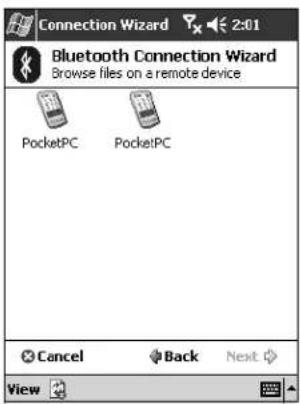
Note: The remote device must have Bluetooth turned on and set up to allow discovery before the connection can occur.
Sending Files
- Tap and hold a file transfer shortcut icon, and tap Connect.
- Tap File > Send a File...
- Locate the file(s) to send.
- Tap the file(s) to send it.
- Tap OK.
For more detailed information on Bluetooth, refer to Chapter 8, "Using Bluetooth" in the User's Guide located on the Companion CD or go to the HP website and chat with an online agent. To







receive instructions on how to chat with an online agent, refer to the question “How Do I Find Information On Topics Not Covered in This Booklet?” found at the end of this document.
How Do I Send and Receive Text Messages?
You can send and receive SMS text messages on your iPAQ Pocket PC by using the phone option. These text messages are sent and received through your wireless phone service provider by using a phone number as the message address.
Note: You must have a Subscriber Identity Module (SIM) card installed in your Pocket PC to send and receive text messages. A SIM card either came with your unit or must be purchased from a mobile phone service provider or electronics store.
To compose and send a message:
- In the message list, tap New.
- To select an account, tap the From list and select SMS.
- Enter the SMS address of one or more recipients, separating them with a semicolon. To access addresses and phone numbers from Contacts, tap To.
- Enter your message. To quickly add a canned message, tap My Text and tap a desired message.
- To check spelling, tap Edit > Spell Check.
- Tap Send. If you are working offline, the message is moved to the Outbox folder and will be sent the next time you connect.
Note: If you are sending a text message and want to know if it was received, before sending the message, tap Edit > Options, and select Request SMS text message delivery notification.

natural_image
Three geometric crosshair symbols: a circle with centerlines, a shaded circle, and a horizontal line (no text or labels)

natural_image
Pure geometric diagram with crosshair and circular pattern (no text or symbols)To reply to a message:
- Tap on the message to open it, tap the reply icon in the navigation bar, and then tap Reply, or Reply All.
- Enter your response. To quickly add common messages, tap My Text and tap a desired message.
- To check spelling, tap Edit > Spell Check.
- Tap Send.
Note: Selections in the Tools > Options > Message tab determine whether the original text is included with the outgoing message.
How Do I Recognize and Filter Spam Text Messages (SMS)?

Spam is unsolicited e-mail on the Internet that sometimes can be hard to filter. Customers can identify and filter unwanted e-mails by setting up a filtering option found on the T-Mobile website.
Spam can be recognized by content if the From address in the e-mail has an unexpected number of digits. For example, most 10-digit phone numbers are messages sent from other Text Messaging (SMS) users and are not considered spam. However, if the message is from a completely unfamiliar number containing 5-digits or more, this increases the chance the message is spam but is not all inclusive.
To set up spam filtering:
- Login to the T-Mobile web site at www.t-mobile.com.
- Select Communications > Two-Way Text Messaging > Spam/Keyword Filters option located on the left-hand side of the screen.








On the “Message Forwarding and Spam Blocking” screen, spam filters (as well as forwarding rules) can be specified. Filters can scan the To: field, the From: field and Subject: field for any string of text that the customer judges to be likely spam keywords.
How Do I Set Up T-Mobile Alerts?
T-Mobile alerts are brief text messages such as e-mail notification, weather forecasts, sports scores, daily jokes, etc. T-Mobile customers can choose which alerts they would like to receive. Customers can also receive e-mail notification alerts through “MyEmail” service which provides a brief summary of the e-mail content.
To set up T-Mobile alerts:
- Login to the T-Mobile web site at www.t-mobile.com.
- Select Entertainment, and then the Alerts option.
- Check the boxes for the alerts desired. Note that some of these are scheduled alerts and some are on demand.
For more details on T-Mobile alerts, refer to the Help Notes listed on this page.
How Do I Protect My iPAQ Pocket PC from Screen Damage or Cracking?
You should observe the following practices to protect the screen of your iPAQ Pocket PC from damage:
☐Never use any device other than the stylus that comes with the Pocket PC or an approved replacement to tap or write on the screen. If you lose or break your stylus, you can order extras at www.hp.com/go/ipaqaccessories.

natural_image
Pure geometric diagram with crosshair and circular shapes, no text or symbols present□When not in use, store your iPAQ Pocket PC in a case. You can use the case that came with your Pocket PC, or you can select from a wide variety of case options at www.hp.com/go/ipaqaccessories.
☐Do not place anything on top of your Pocket PC.
□Avoid scratching the surface of the screen and banging it against hard objects.
☐Clean your Pocket PC by wiping the screen and the exterior with a soft, damp cloth lightly moistened only with water.
CAUTION: To reduce the risk of damage to the internal components, do not spray liquid directly on the screen or allow excess liquid to drip inside your iPAQ Pocket PC. Using soap or other cleaning products on the screen may discolor the finish and damage it.
How Do I Find the Product ID and Serial Number of My iPAQ Pocket PC?
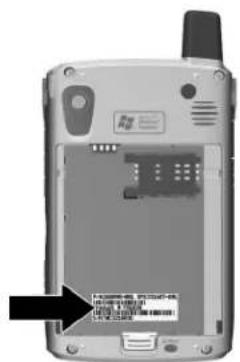
The Product ID and Serial Number for your iPAQ Pocket PC can be found on the label under the battery or in the Asset Viewer program. It is recommended that you have this information available before contacting HP Customer Support, particularly if you are calling for in-warranty support.
Option A—To locate the Product ID and Serial Number in Asset Viewer:
- Tap Start > Settings > System tab > Asset Viewer.
- To locate the Product ID, tap System.
- To locate the Serial Number, tap Identity.


360338-xx1 Onyx How Do Lbook Page 60 Wednesday, June 23, 2004 1:34 PM



Option B—To view the label:
- On the back of the iPAQ Pocket PC, slide the battery lock to the right ① or unlocked position to open the battery door.
- Slide the battery latch down ② to release the battery ③.
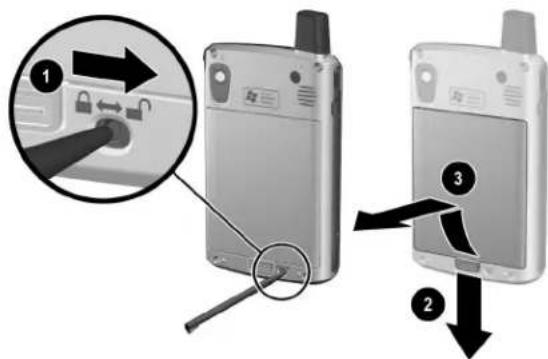
- The label containing the Product ID and the Serial Number is beneath the battery.

natural_image
Interior view of a mobile phone showing the front panel, keypad, and display screen (no visible text or symbols)
60








How Do I Find Information On Topics Not Covered in This Booklet?
For complete setup and installation instructions, refer to the Welcome Guide document in the box or the User's Guide located on the Companion CD. The User's Guide is in a printable format if you prefer a hard copy document.
If you have questions on using your iPAQ Pocket PC that have not been covered in this booklet or in the Welcome Guide or User's Guide, refer to the T-Mobile website at www.t-mobile.com/help.
To receive support from T-Mobile, either:
■Go to the Web site at www.t-mobile.com/help
■Dial 611 from your T-Mobile phone free of charge
■Dial toll free at 1-800-937-8997


61

natural_image
Pure geometric diagram with crosshair and target symbols (no text or labels)
natural_image
Color palette bar with gradient shades from black to white, no text or symbols present

invent
www.hp.com
TM1208
Printed in Taiwan

360338-002
- Contents
- How Do I Find Out What's On My CD?
- How Do I Install Microsoft ActiveSync?
- When the File Download window is displayed, click Open.
- When the Set Up Microsoft ActiveSync 3.7.1 window is displayed, follow the onscreen instructions to complete the installation.
- How Do I Create an ActiveSync Partnership?
- Do you want to learn more about:
- How Do I Synchronize to a PC?
- How Do I Perform a Soft ("Normal") Reset?
- How Do I Perform a Hard ("Full") Reset?
- How Do I Migrate Data from Palm Desktop Software to Pocket PC 2003?
- How Do I Transfer Files from My Personal Computer to My iPAQ Pocket PC?
- How Do I Insert the Subscriber Identity Module (SIM) Card Correctly?
- How Do I Manage Available Storage?
- Option A: Changing Storage Settings Manually
- Option B: Stopping Running Programs
- Option C: Removing Unused Programs
- Option D: Using iPAQ File Store
- Option E: Using Optional Storage Expansion Cards
- How Do I Insert and Remove My Battery Correctly?
- How Do I Maximize Battery Life?
- How Do I Check the Battery Charge Level?
- How Do I Use the Built-in Digital Camera in My iPAQ Pocket PC to Take and Send Pictures?
- How Do I View Pictures That I've Already Taken?
- How Do I Save Pictures to a Memory Card?
- How Do I Send Pictures Using Picture Messaging (MMS) or E-mail?
- How Do I Find Out More About Expansion Cards?
- How Do I Place and Receive Phone Calls?
- Placing a Call
- Receiving a Call
- Helpful Tips Using the Phone
- Muting an Active Voice Call
- Placing a Call On Hold
- How Do I Set Up and Access My Voicemail?
- How Do I Make a Conference Call?
- How Do I Change My Phone Services Settings?
- How Do I Change The Call Forwarding Settings?
- How Do I Communicate If I am Using a Headset?
- How Do I Use the Wireless Features of My iPAQ Pocket PC?
- How Do I Use Wi-Fi?
- Getting Started with Wi-Fi
- Automatically Connecting to a Network
- Manually Entering New Network Settings
- Searching for Networks to Access
- How Do I Set Up My iPAQ Pocket PC to Connect and Browse the Internet through a Wi-Fi HotSpot?
- How Do I Connect to a T-Mobile HotSpot?
- How Do I Use Bluetooth?
- How Do I turn on Bluetooth?
- Helpful Tip Using Bluetooth
- Make My iPAQ Invisible to Other Bluetooth Devices
- How Do I Use Bluetooth to Transfer Files to Another Pocket PC, Computer, or Printer?
- Creating a File Transfer Connection
- Sending Files
- How Do I Send and Receive Text Messages?
- How Do I Recognize and Filter Spam Text Messages (SMS)?
- How Do I Set Up T-Mobile Alerts?
- How Do I Protect My iPAQ Pocket PC from Screen Damage or Cracking?
- How Do I Find the Product ID and Serial Number of My iPAQ Pocket PC?
- How Do I Find Information On Topics Not Covered in This Booklet?
Brand : HP
Model : iPAQ h6310
Category : Mobile Phone