
Z73 - Video Surveillance Camera ACTi - Free user manual and instructions
Find the device manual for free Z73 ACTi in PDF.


| Product Type | Outdoor Dome Camera |
| Model | Z73 |
| Resolution | 2 MP (1920x1080) |
| Lens | Fixed lens |
| Day/Night | Yes (D/N) |
| Infrared | Adaptive IR |
| Wide Dynamic Range | Superior WDR |
| Low Light Sensitivity | SLLS (Smart Low Light Sensitivity) |
| Power Supply | PoE (802.3af) or DC 12V |
| Memory Card Slot | microSDHC/microSDXC |
| Audio | Built-in microphone |
| Ethernet | RJ-45 10/100 Base-T |
| Mounting | Ceiling mount with included base and screws |
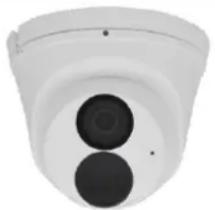
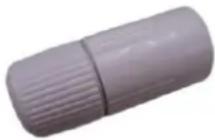
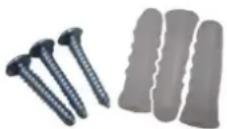
| Package Contents | Camera, cable gland with rubber and washer, wrench, mounting screw kit, drill template, quick guide, warranty card |
| Regulatory Compliance | FCC Part 15, CE (LVD/EMC), WEEE |
| Security | Password setup on first access (9-32 chars, mixed case, digits, special) |
| Maintenance | Clean dome with oil-free brush or cloth; no organic solvents |
| Reparability | Do not disassemble; contact qualified service personnel |
| Default IP Address | 192.168.0.100 |
Frequently Asked Questions - Z73 ACTi
User questions about Z73 ACTi
0 question about this device. Answer the ones you know or ask your own.
Ask a new question about this device
Download the instructions for your Video Surveillance Camera in PDF format for free! Find your manual Z73 - ACTi and take your electronic device back in hand. On this page are published all the documents necessary for the use of your device. Z73 by ACTi.
USER MANUAL Z73 ACTi
Outdoor Dome Camera
Hardware Manual
Z71, Z72, Z73, Z75
2023/07/05
Table of Contents
Precautions 3
Regulatory Compliance 4
Safety and Compliance Information .... 5
Introduction 7
List of Models....7
Package Contents 8
Physical Description 9
Installation Procedures 10
Mount the Base on the Ceiling 10
Install the Memory Card (optional) 11
Connect the Cables.... 13
Waterproof the RJ-45 Connector 13
Using the Cable Gland....13
Waterproof the Power Cable....16
Mount the Camera to the Base.... 17
Access the Camera 18
Configure the IP Addresses.... 18
Using DHCP Server to Assign IP Addresses.... 18
Using the Default Camera IP Address.... 19
Access the Camera 21
Precautions
Read these instructions
Read all the safety and operating instructions before using this product.
Heed all warnings
Adhere to all the warnings on the product and in the instruction manual. Failure to follow the safety instructions given may directly endanger people, cause damage to the system or to other equipment.
Servicing
Do not attempt to service this product yourself as opening or removing covers may expose you to dangerous voltage or other hazards. Refer all servicing to qualified service personnel.
Trademarks
ACTi and ACTi logo are registered trademarks of ACTi Corporation. All other names and products used in this manual are registered trademarks of their respective companies.
Liability
Every reasonable care has been taken during the writing of this manual. Please inform your local office if you find any inaccuracies or omissions. ACTi will not be held responsible for any typographical or technical errors and reserves the right to make changes to the product and manuals without prior notice.
Regulatory Compliance
FCC Part 15
This equipment has been tested and found to comply with the limits for digital device, pursuant to part 15 of the FCC Rules. These limits are designed to provide reasonable protection against harmful interference when the equipment is operated in a commercial environment. This equipment generates, uses, and can radiate radio frequency energy and, if not installed and used in accordance with the instruction manual, may cause harmful interference to radio communications. Operation of this equipment in a residential area is likely to cause harmful interference in which case the user will be required to correct the interference at his own expense.
This product complies with Part 15 of the FCC Rules. Operation is subject to the following two conditions:
• This device may not cause harmful interference.
- This device must accept any interference received, including interference that may cause undesired operation.
LVD/EMC Directive

This product complies with the European Low Voltage Directive 2014/35/EU and EMC Directive 2014/30/EU.
WEEE Directive-2012/19/EU

The product this manual refers to is covered by the Waste Electrical & Electronic Equipment (WEEE) Directive and must be disposed of in a responsible manner.
Safety and Compliance Information
Installation and removal of the unit and its accessories must be carried out by qualified personnel. You must read all of the Safety Instructions supplied with your equipment before installation and operation.
Installation
- This device is a class A product and may cause radio interference. Take measures if necessary.
- Make sure the camera operates in an environment where the temperature and humidity meet requirements. Keep the camera from excessive pressure, vibration, moisture, dust, and intensive electromagnetic radiation.
- Use a power adapter or a PoE device that meets requirements. Otherwise, the device may be damaged.
- Make sure the length of the power cable between the power adapter and the camera is not too long, otherwise the voltage of the camera is lowered, causing the camera to work abnormally. If it is required to lengthen the power cable, lengthen the cable between the power adapter and the mains.
- Do not hold the tail cable by hand for weight bearing. Otherwise, the cable connector of the camera could be loosened.
- Do not cut the tail cable. Exposed tail cables may cause short circuit and damage the camera.
- When connecting to an external interface, use an existing connection terminal, and ensure that the cable terminal (latch or clamp) is in good condition and properly fastened. Ensure that the cable is not tense during mounting, with a proper margin reserved to avoid poor port contact or loosening caused by shock or shake.
- The end of the tail cable must be kept under good protection. Take waterproof measures to protect the tail cable.
- During the process of transportation, special attention is required for the protection of the transparent dome cover to prevent friction, scratch and contamination, etc. In order to keep the cover clean, do not remove the protective film on the cover during mounting. After mounting is finished, remove the film before the device is powered on.
- Contact professionals for maintenance information. Do not attempt to dismantle the device by yourself. We shall not assume any responsibility for problems caused by unauthorized repair or maintenance.
Maintenance
- If there is dust on the front glass surface, remove the dust gently using an oil-free brush or a rubber dust blowing ball.
- If there is grease or a dust stain on the front glass surface, clean the glass surface gently from the center outward using anti-static gloves or an oil-free cloth. If the grease or the stain still cannot be removed, use anti-static gloves or an oil-free cloth dipped with detergent and clean the glass surface gently until it is removed.
- Do not use organic solvents, such as benzene or ethanol when cleaning the transparent dome cover.
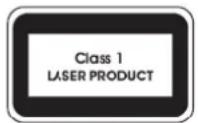
- Never look at the transmit laser while the power is on. Never look directly at the fiber ports and the fiber cable ends when they are powered on.
- Use of controls or adjustments to the performance or procedures other than those specified herein may result in hazardous laser emissions.
Introduction
List of Models
This hardware manual contains the following models:
| Z71 |  | 4MP Outdoor Dome with D/N, Adaptive IR, Superior WDR, SLLS, Fixed Lens |
| Z72 |  | 4MP Outdoor Dome with D/N, Adaptive IR, Superior WDR, SLLS, Fixed Lens |
| Z73 |  | 2MP Outdoor Dome with D/N, Adaptive IR, Superior WDR, SLLS, Fixed Lens |
| Z75 |  | 5MP Outdoor Dome with D/N, Adaptive IR, Superior WDR, SLLS, Fixed Lens |
Package Contents
Contact your local dealer if the package is damaged or incomplete.
| Camera | Cable Gland with Rubber and Washer | Wrench |
 |  |  |
| Mounting Screw Kit | Drill Template | Quick Guide & Warranty Card |
 | Drill Template | Warranty Card |
Drill Template
Warranty Card
IMPORTANT: When the camera is taken out from the box, the lens and sensor are covered by thin film. DO NOT remove these films. It is used to protect the lens and sensor from scratches or fingerprint marks which may happen during installation. Remove the film only after the camera is securely installed and all connections are complete.
Physical Description
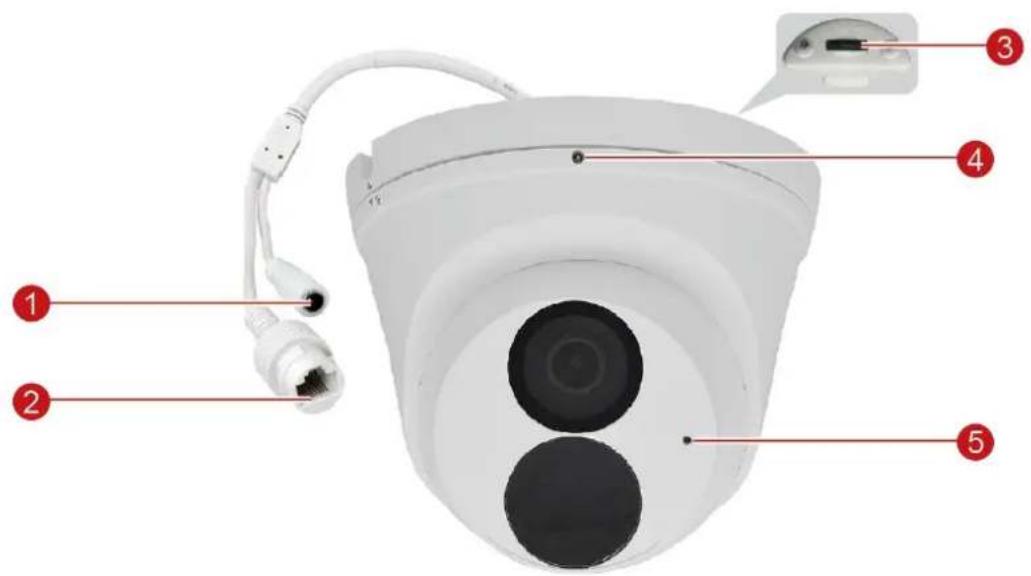
| Item | Description | |
| 1 | DC 12V Power Input Jack | This connector is used to connect to a DC 12V power adapter if a non-PoE network connection will be used. |
| 2 | Ethernet Port | Connects to a network using an Ethernet cable. |
| 3 | Memory Card Slot | Insert a memory card into this slot for local recording purposes.NOTE:Supports microSDHC and microSDXC cards. |
| 4 | Lock Screw | To secure the camera to its base.NOTE:Not available in Z71 model. |
| 5 | Built-in Microphone | Receives audio input. |
Installation Procedures
Mount the Base on the Ceiling
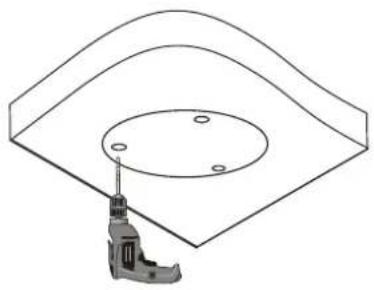
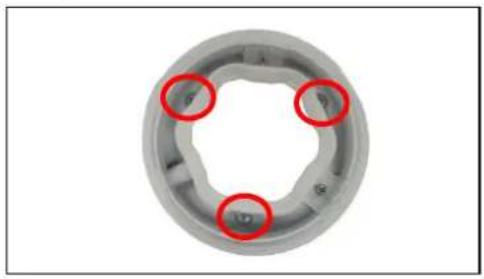
- Locate the positions of the holes; paste the drill template stickers on the surface and then drill the holes according to the positions marked by drill template.
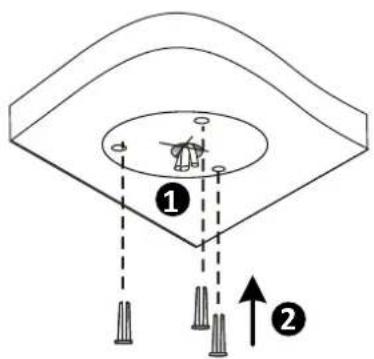
- Insert the plastic anchors and drill a hole to lead the cables out of the ceiling.
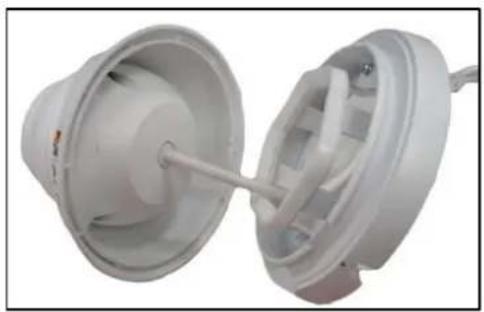
- Twist the camera base from its body until the two (2) arrows are aligned.

- Detach the base from the camera body.
- Mount the base to the ceiling using three (3) screws.
Install the Memory Card (optional)
If a memory card will be used, insert the card at this point.
- Move the camera body around to see the memory card slot.
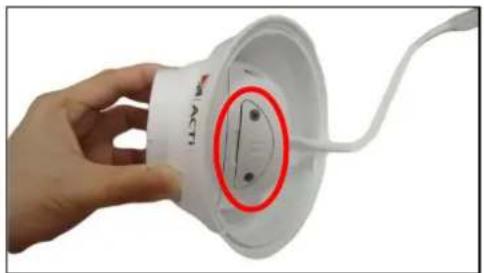
- Loosen the two (2) screws to remove the card slot cover.
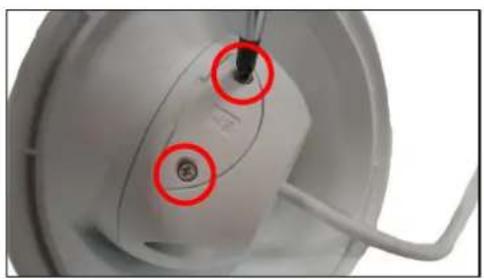
- Insert the memory card with the metal contacts facing the lens. Push until it clicks into place.

- Attach the memory card slot cover.

Connect the Cables
Waterproof the RJ-45 Connector
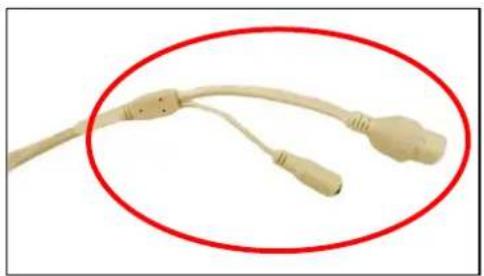
The camera and the pre-installed network cable, "pigtail", are resistant to salt, water, weak acid, alcohol, oil, grease and other common solvents. If the camera will be installed indoors, simply connect the network side cable to the camera Ethernet port.
However, if the camera will be installed outdoors, ensure that the cable connections are protected from different environmental factors. Use the bundled cable gland to protect the Ethernet connection and use a waterproof tape to protect other cable connections. The cables must be protected as marked below.
DISCLAIMER: ACTi will not be responsible for camera damage caused by water entering the cable connections.
Using the Cable Gland
This section describes how to waterproof the cable-out or "pigtail" of the camera using the bundled cable gland. Before connection, prepare an exterior-grade Ethernet cable with RJ-45 connector.
Perform the following to waterproof the "pigtail" using the cable gland:
- Attach the washer to the Ethernet connector of the camera.

- Detach the clamping nut and sealing insert from the gland body:
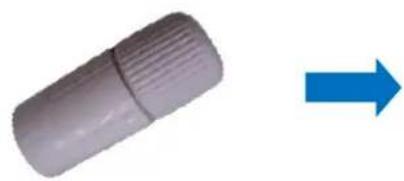
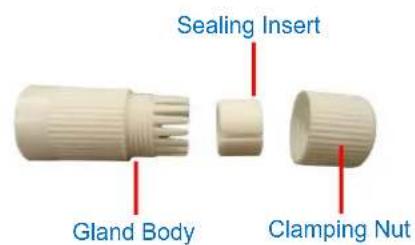
- Insert the clamping nut into the Ethernet cable.
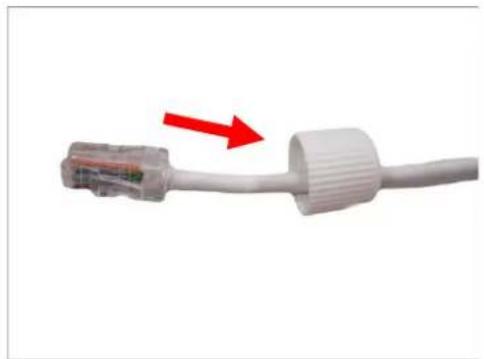
- Insert the sealing insert through the Ethernet cable.

- Insert the cable through the gland body.
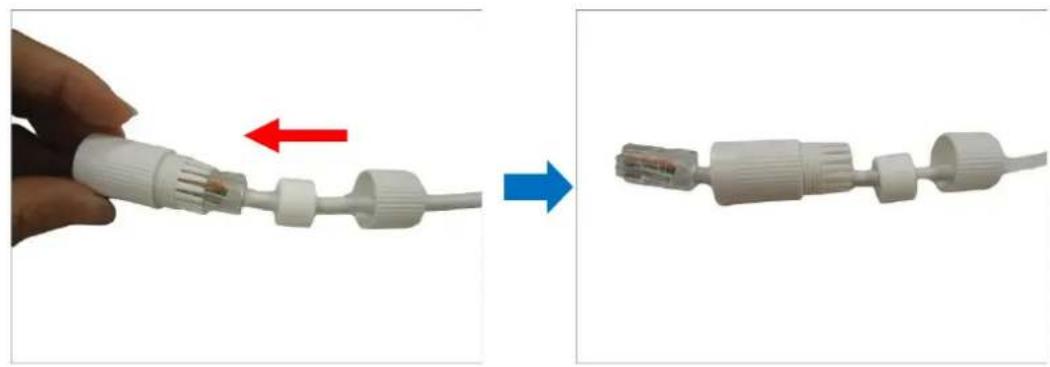
- Push the sealing insert into the gland body.
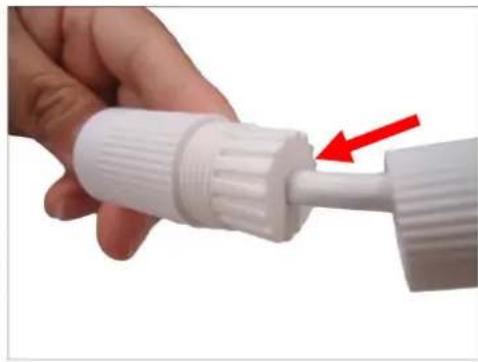
- Connect the RJ-45 connector to the camera connector.

- Attach the gland body to the camera connector.

- Attach the clamping nut to the gland body to complete the cable solution.

NOTE: Make sure the clamping nut is tightly attached to the cable gland body and the sealing insert is squeezed tightly.
Waterproof the Power Cable
(Optional) If a non-PoE switch will be used, connect the camera to a DC 12V power source.
Connect the power cable and then wrap the cable with waterproof tape.
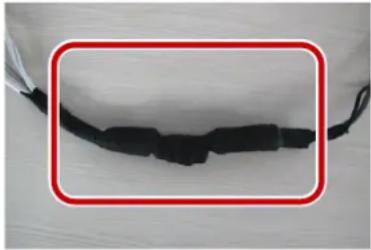
NOTE:
- If the DC 12V connector will not be used, wrap it also in waterproof tape to avoid short circuiting the connector.
- Avoid short circuit when insulating the cables.
- Use self adhesive waterproof tapes that will stick together with the twisted cables.
- Tighten waterproof tapes when wrapping the cables and make sure the cable connections are fully covered.
- You are recommended to put the cables in a waterproof junction box which needs to be purchased separately.
Mount the Camera to the Base
- Push the cables through the hole. Align the two (2) arrows to mount the camera and twist until the camera body locks to the base.

- For Z72 model, loosely tighten the lock screw to secure the position of the camera to the base.

- Move the camera lens to adjust the rotation and viewing angle, as needed.
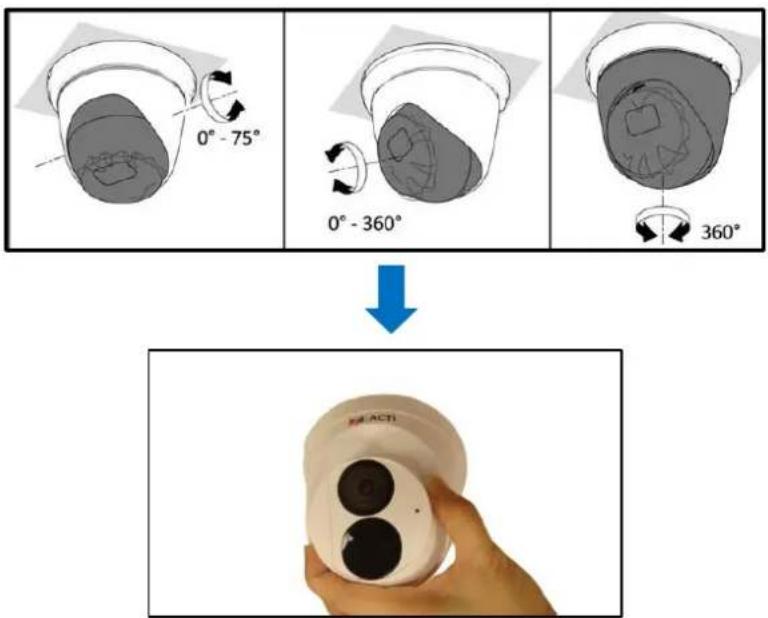
- For Z72, after adjusting the camera lens, tighten the lock screw to complete the installation.
Access the Camera
Configure the IP Addresses
In order to be able to communicate with the camera from your PC, both the camera and the PC have to be within the same network segment. In most cases, it means that they both should have very similar IP addresses, where only the last number of the IP address is different from each other. There are 2 different approaches to IP Address management in Local Area Networks – by DHCP Server or Manually.
Using DHCP Server to Assign IP Addresses
If you have connected the computer and the camera into the network that has a DHCP server running, then you do not need to configure the IP addresses at all – both the camera and the PC would request a unique IP address from DHCP server automatically. In such case, the camera will immediately be ready for the access from the PC. The user, however, might not know the IP address of the camera yet. It is necessary to know the IP address of the camera in other to be able to access it by using a Web browser.
If you work with our cameras regularly, then there is even a better way to discover the cameras in the network – by using IP Utility. The IP Utility is a light software tool that can not only discover the cameras, but also list lots of valuable information, such as IP and MAC addresses, serial numbers, firmware versions, etc, and allows quick configuration of multiple devices at the same time.
The IP Utility can be downloaded for free from http://www.acti.com/IP_Utility
With just one click, you can launch the IP Utility and there will be an instant report as follows:
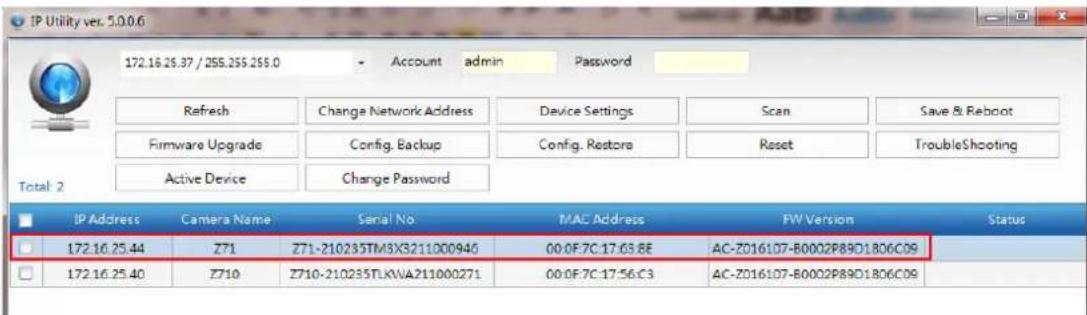
You can quickly see the camera model in the list. Double-click on the IP address to automatically launch the default browser of the PC with the IP address of the target camera filled in the address bar of the browser already.
Using the Default Camera IP Address
If there is no DHCP server in the given network, the user may have to assign the IP addresses to both PC and camera manually to make sure they are in the same network segment.
When the camera is plugged into the network and it does not detect any DHCP services, it will automatically assign itself a default IP:
192.168.0.100
Whereas the default port number would be 80. In order to access that camera, the IP address of the PC has to be configured to match the network segment of the camera.
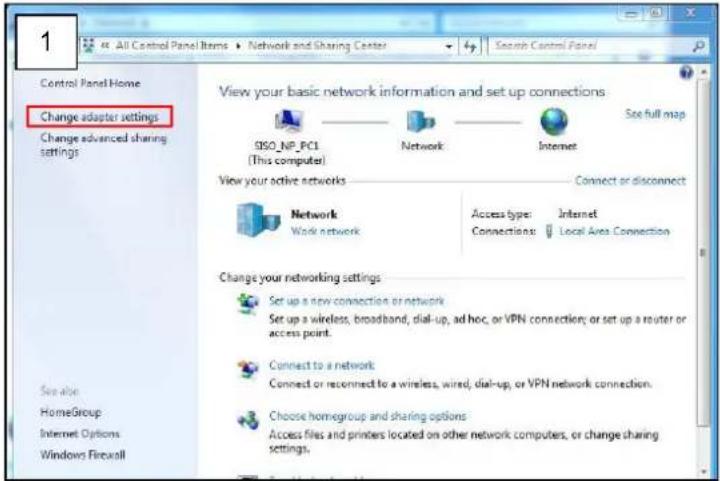
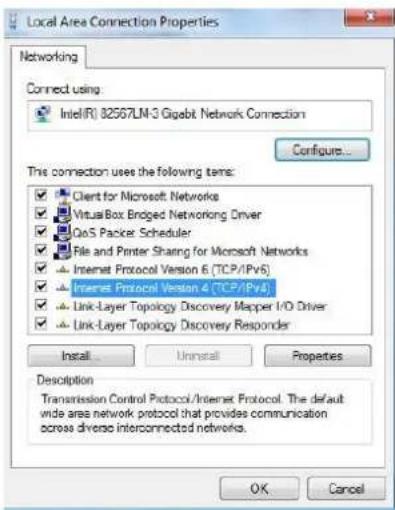
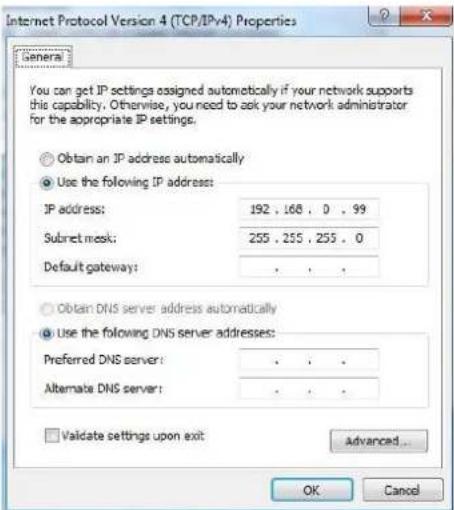
Manually adjust the IP address of the PC:
In the following example, based on Windows 7, we will configure the IP address to
192.168.0.99 and set Subnet Mask to 255.255.255.0 by using the steps below:

Manually adjust the IP addresses of multiple cameras:
If there are more than 1 camera to be used in the same local area network and there is no DHCP server to assign unique IP addresses to each of them, all of the cameras would then have the initial IP address of 192.168.0.100, which is not a proper situation for network devices – all the IP addresses have to be different from each other. The easiest way to assign cameras the IP addresses is by using IP Utility:

With the procedure shown above, all the cameras will have unique IP addresses, starting from 192.168.0.101. In case there are 20 cameras selected, the last one of the cameras would have the IP 192.168.0.120.
Later, by pressing the "Refresh" button of the IP Utility, you will be able to see the list of cameras with their new IP addresses.

Please note that it is also possible to change the IP addresses manually by using the Web browser. In such case, please plug in only one camera at a time, and change its IP address by using the Web browser before plugging in the next one. This way, the Web browser will not be confused about two devices having the same IP address at the same time.
Access the Camera
Now that the camera and the PC are both having their unique IP addresses and are under the same network segment, it is possible to use the Web browser of the PC to access the camera.
You can use Microsoft Internet Explorer to access the camera
When using Internet Explorer browser, the ActiveX control for video stream management will be downloaded from the camera directly – the user just has to accept the use of such control when prompted so. No other third party utilities are required to be installed in such case.
The following examples in this manual are based on Internet Explorer browser in order to cover all functions of the camera.
Assuming that the camera's IP address is 192.168.0.100, you can access it by opening the Web browser and typing the following address into Web browser's address bar:
http://192.168.0.100
Upon successful connection to the camera, the user interface would appear together with the login page. The HTTP port number was not added behind the IP address since the default HTTP port of the camera is 80, which can be omitted from the address for convenience.

When logging in for the first time, the system will prompt you to change the administrator password. Set the password; at least 9 to 32 characters long and must include letters, digits, and special characters. The image below is for reference only, on-screen instructions may slightly differ depending on model.

After setting the new password, you will be required to login in again using the new password.

NOTE: Depending on territory where you purchased the camera, some models may not require users to setup the password, in this case use the default account "admin" and password "123456" to login.

ACTi
Connecting Vision
Copyright © 2021, ACTi Corporation All Rights Reserved
7F, No. 1, Alley 20, Lane 407, Sec. 2, Ti-Ding Blvd., Neihu District, Taipei, Taiwan 114, R.O.C.
TEL : +886-2-2656-2588 FAX : +886-2-2656-2599
Email: sales@acti.com
- OUTDOOR DOME CAMERA
- HARDWARE MANUAL
- TABLE OF CONTENTS
- PRECAUTIONS 3
- INTRODUCTION 7
- INSTALLATION PROCEDURES 10
- ACCESS THE CAMERA 18
- PRECAUTIONS
- READ THESE INSTRUCTIONS
- HEED ALL WARNINGS
- SERVICING
- TRADEMARKS
- LIABILITY
- REGULATORY COMPLIANCE
- FCC PART 15
- LVD/EMC DIRECTIVE
- WEEE DIRECTIVE-2012/19/EU
- SAFETY AND COMPLIANCE INFORMATION
- INSTALLATION
- MAINTENANCE
- INTRODUCTION
- LIST OF MODELS
- PACKAGE CONTENTS
- PHYSICAL DESCRIPTION
- INSTALLATION PROCEDURES
- MOUNT THE BASE ON THE CEILING
- INSTALL THE MEMORY CARD (OPTIONAL)
- CONNECT THE CABLES
- WATERPROOF THE RJ-45 CONNECTOR
- USING THE CABLE GLAND
- WATERPROOF THE POWER CABLE
- NOTE
- MOUNT THE CAMERA TO THE BASE
- ACCESS THE CAMERA
- CONFIGURE THE IP ADDRESSES
- USING DHCP SERVER TO ASSIGN IP ADDRESSES
- USING THE DEFAULT CAMERA IP ADDRESS
- 192.168.0.100
- MANUALLY ADJUST THE IP ADDRESS OF THE PC
- MANUALLY ADJUST THE IP ADDRESSES OF MULTIPLE CAMERAS
- HTTP://192.168.0.100
- ACTI
- CONNECTING VISION
Brand : ACTi
Model : Z73
Category : Video Surveillance Camera