
DA-70811 - Webcam Digitus - Free user manual and instructions
Find the device manual for free DA-70811 Digitus in PDF.


| Product Type | USB 2.0 WebCam |
| Brand | Digitus |
| Model | DA-70811 |
| Interface | USB 2.0 |
| Sensor | 1/4" CMOS |
| Maximum Resolution | 1280 x 960 pixels |
| Picture Resolution | 640 x 480 pixels |
| LED Lighting | Yes (6 white lamps, 3 on each side) |
| Mounting | Integrated clamp/stand for notebook or as stand |
| Supported Operating Systems | Windows 98SE/ME/2000/XP |
| Processor Requirement | Pentium II 200/MMX/AMD K6 or above |
| RAM Requirement | 32 MB or above |
| Audio | Microphone input via pink audio jack |
| Software | VP-Eye with Video-Mail, Netmeeting, Card Maker, Video Monitor, Album Maker, Special effects, Image manager, Video Games |
| Package Contents | USB Webcam, User Manual, Software CD-ROM |
| Power Supply | USB powered |
| Color | Black and silver |
| Additional Features | Can be used for video conferencing and video mail |
| Target Users | Ideal for notebook users, compact and small |
Frequently Asked Questions - DA-70811 Digitus
User questions about DA-70811 Digitus
0 question about this device. Answer the ones you know or ask your own.
Ask a new question about this device
Download the instructions for your Webcam in PDF format for free! Find your manual DA-70811 - Digitus and take your electronic device back in hand. On this page are published all the documents necessary for the use of your device. DA-70811 by Digitus.
USER MANUAL DA-70811 Digitus
USER MANUAL USB 2.0 WebCam
Version 2.0
Features & Specification:
• Idea for notebook users, small and compact with integrated clamp/stand
• LED lighting for taking pictures in the dark
• Maximum resolution: 1280 x 960 Pixels
• Picture resolution: 640 x 480 Pixels
- Sensor specification: 1/4" CMOS
Package Contents:
- USB Webcam
- User manual
- Software CD-ROM
System Requirements:
• One available USB port
• IBM Compatible PC
• Windows 98SE/ME/2000/XP
• System equipped with Pentium II 200/MMX/AMD K6 or above
• DRAM: 32 MB or above
• Sound card, speaker and microphone are required for video and audio recording
• A modem or Lan card is required for application of video conferenced and video mail
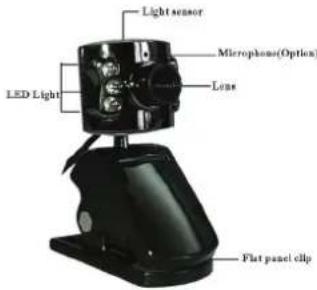
Before installation note:
Do not connect the Camera to the computer system first. Install the driver and applications first. Insert the VP-Eye CD-ROM to the system and you can change the target group name, target directory and folder, and run the installation options first before the driver and VP-Eye installation.
Installing the Driver and Software:
- Place the CD-ROM disc into the CD-ROM drive.
- Do not plug in the camera first. Click on the Driver menu to install the drivers first.
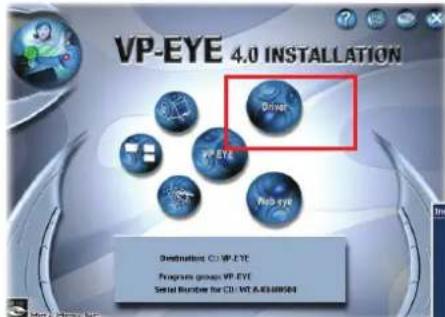
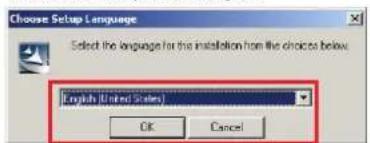
- Select the installation language and click on OK. The installation process begins.
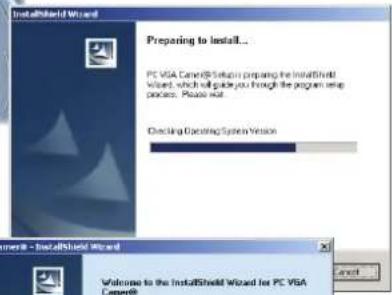
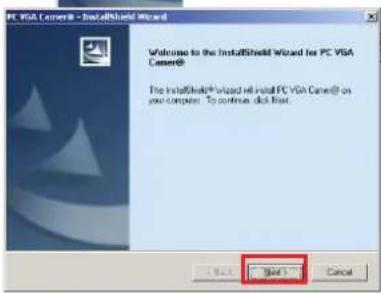
- Click on "Next" button to proceed.
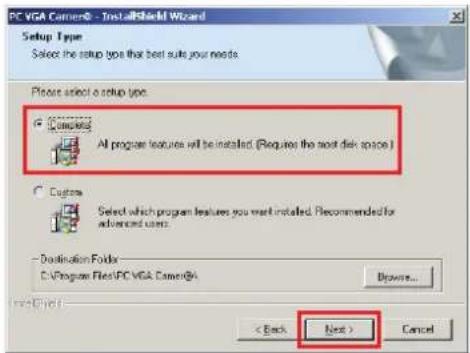
- Next select the "Complete" option to install all the drivers into the hard disk and click on "Next" to begin.
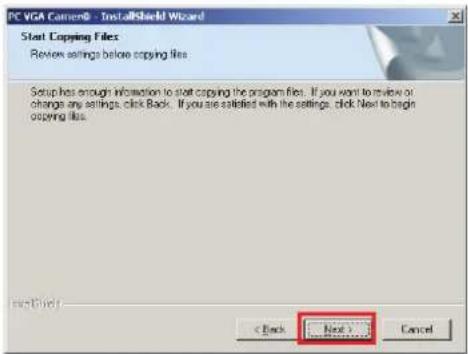
- Click on "Next" again to begin the driver installation.
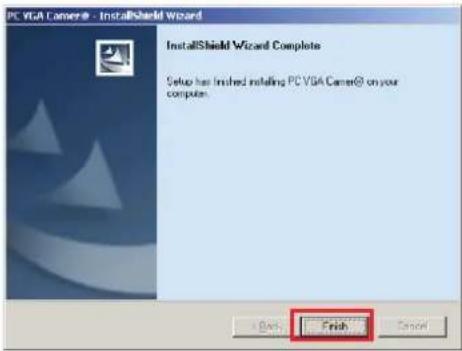
- Once completed click on "Finish" button to end the installation.
-
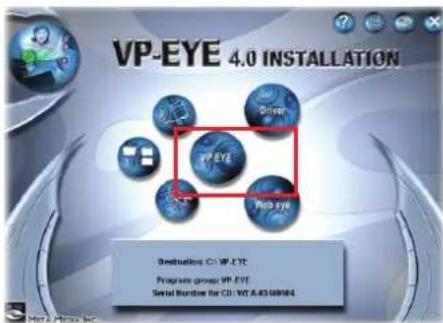
Go back to the opening menu and click on "Install VP-Eye"
-
Next, select the "Install" icon located under the left bottom of the opening screen.
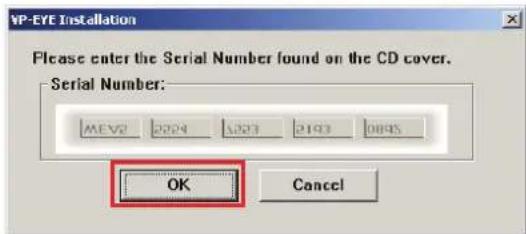
- The authorized serial number will be defaulted into CD and just press "OK" to process
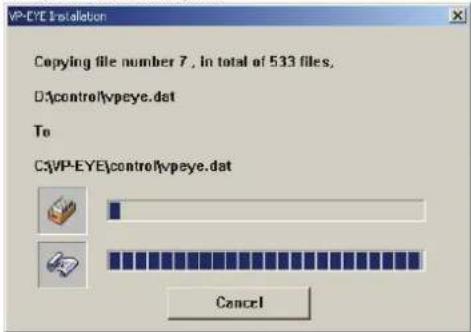
- The VP-Eye installation begins.
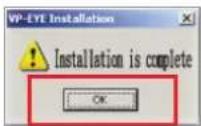
- Once completed, it will automatically end the installation process and return to the main menu again.
- Restart the computer to have driver files loaded.
Installing the Hardware
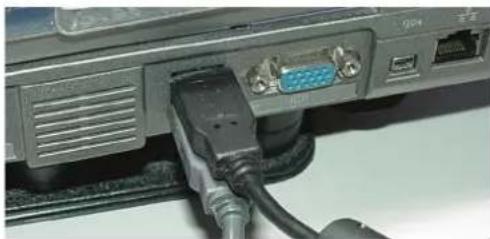
- When Windows has completely loaded, insert the USB type A plug of the camera to your USB 2.0 port.
-
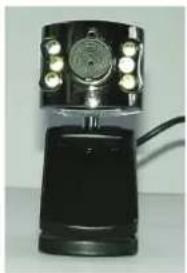
The camera comes with 6 white lamps, 3 on each side of the lens to assist in lighting the subject. These will light up if the subject or area is too dark.
-
Clamp the camera to your Notebook LCD panel or use the clamp as a stand to upright the camera.
-
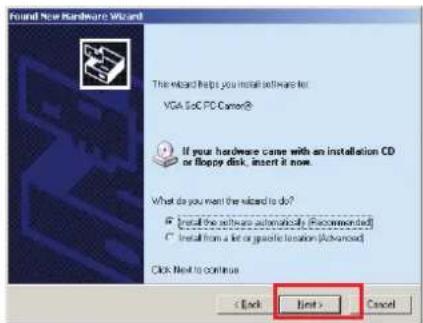
Once Windows detect the USB insertion, it will prompt for a driver source search.
-
The Wizard will then prompt for automatic installation or specify a source location. Select the first option "Install the software automatically". Click on "Next" button to proceed.
-
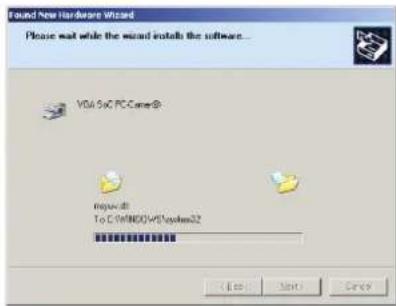
The installation will then assign the drivers to the newly inserted camera.
-
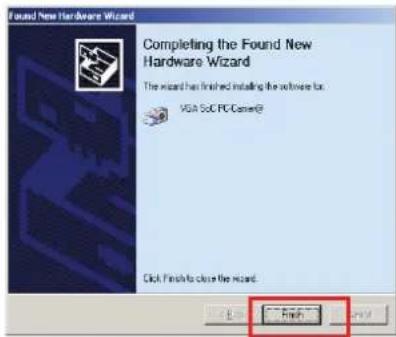
Next and last, click on the "Finish" button to end the installation.
-
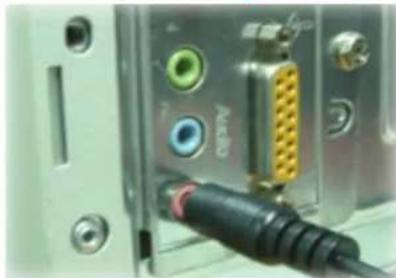
Plug the audio pin for microphone function for standard PC 99 pink jack
Note: The webcam driver will automatically recognize the initial installed USB port. If user plug into another
USB port and the windows will prompt for a driver source search again.
Check followings for correct installation:
- Confirm USB interface in PC;
- Check the USB interface and see if it is working well;
- Check method: Click on "Control panel" > "System" > "Hardware" button > "Device manager" tab, check the "Universal serial bus controllers" list if it exist, and whether it works normal.
- Ensure there are no red or yellow icons in front of each USB controller list.
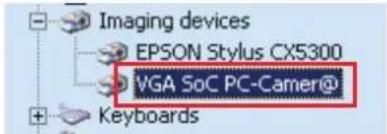
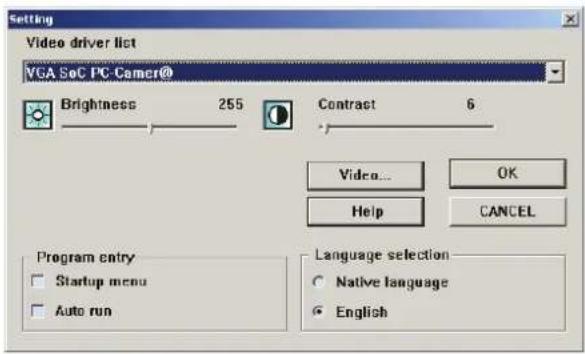
- Next, check if Windows have detected and install the camera correctly. Go to the Imaging Device list and see if "VGA SoC PC-Camer@" line appears in it. If it does then installation is successful.
Using the Camera:
Note: The driver and software must be installed first, and then connect as following.
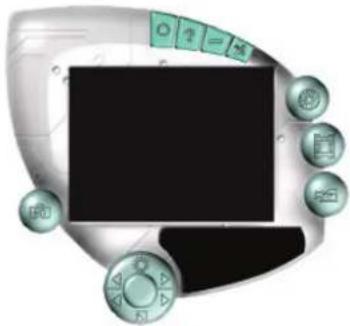
- Double click on VP-Eye icon on the desktop, and the preview image will appear in the main Window.

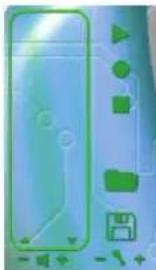
- The VP-Eye software contains many functions and these are available from the main VP-Eye screen.
- Adjust the lens to focus the subject till it is sharp.
- The camera is ready for use.
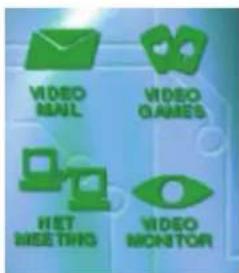
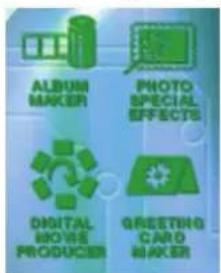
- The VP-Eye have many built-in imaging applications such as Video-Mail, Netmeeting, Card Maker, Video Monitor, Album Maker, Special effects, Image manager, and Video Games.
Video playback
10/11
- To Setup the camera features, select the Circle icon at the top right menu bar.
- end -


Brand : Digitus
Model : DA-70811
Category : Webcam