
Grace P7 LTE - Smartphone PRESTIGIO - Free user manual and instructions
Find the device manual for free Grace P7 LTE PRESTIGIO in PDF.


| Product Type | Smartphone |
| Brand | Prestigio |
| Model | Grace P7 LTE |
| Display Size | 5.0 inches |
| Resolution | 1280 x 720 pixels (HD) |
| Operating System | Android 6.0 Marshmallow |
| Processor | Quad-core 1.3 GHz |
| RAM | 2 GB |
| Internal Storage | 16 GB |
| Battery Capacity | 2000 mAh |
| Main Camera | 8 MP with flash |
| Front Camera | 2 MP |
| Dimensions | 143 x 72 x 8.9 mm |
| Weight | 150 g |
| Network Compatibility | GSM / WCDMA / LTE |
| SIM Card | Dual SIM (Micro-SIM) |
| Connectivity | Wi-Fi 802.11 b/g/n, Bluetooth 4.0, GPS |
| Sensors | Accelerometer, proximity, light |
| Maintenance & Cleaning | Wipe with a soft, dry cloth; avoid liquids |
| Safety | Use only approved chargers and batteries |
| Spare Parts & Repairability | Contact authorized service center |
| General Information | User manual available in PDF format |
Frequently Asked Questions - Grace P7 LTE PRESTIGIO
User questions about Grace P7 LTE PRESTIGIO
0 question about this device. Answer the ones you know or ask your own.
Ask a new question about this device
Download the instructions for your Smartphone in PDF format for free! Find your manual Grace P7 LTE - PRESTIGIO and take your electronic device back in hand. On this page are published all the documents necessary for the use of your device. Grace P7 LTE by PRESTIGIO.
USER MANUAL Grace P7 LTE PRESTIGIO
Prestigio GRACE V7 LTE
You may find detailed warranty information at: www.prestigio.com/support/warranty-terms.
© Copyright 2019 Prestigio. All rights reserved.
Prestigio
Unboxing

Inside your package
Your phone at a glance
Buttons
Inside your package
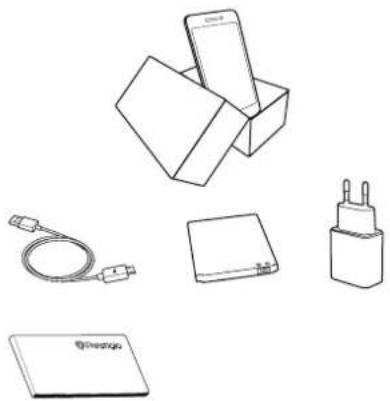
• Prestigio Smartphone
- USB cable
- Battery
- Adapter
- Quick start guide
• Legal & safety notices
- Warranty card
Your phone at a glance

-
Front camera
-
Receiver
-
MIC
-
VOL+/-
-
Power on/off
6.Rear Camera
-
Micro USB Port
-
Earphone Jack
-
Flash
10.Speaker
11.Fingerprint
Prestigio

Inside your package Your phone at a glance Buttons
Buttons
The back, start and search keys help you navigate your phone.
- Tap to open a list of options available on the current screen. To open the list of recent apps and slide, tap and hold.
- Tap to return to the home screen.
- Tap to return to the previous screen.

Do not cover the antenna area with your hands or other objects. This may cause connectivity problems or drain the battery.

Please read the "Legal and safety notices" in your package before use.
Getting started

Installation
Power on your phone
Home screens
List menu
Congratulations on your purchase and welcome to Prestigio. To get the most from your product and enjoy all that Prestigio has to offer, please visit: www.prestigio.com/catalogue/Smartphones
For more details about your product, please visit: www.prestigio.com/support
Installation
Take out sim card tray, insert Sim card and TF card


- The use of incompatible SIM cards, manually cut SIM cards, or SIM card adapters may damage the cards or the device, and it may corrupt the data stored on the cards.
- Scratching or bending of the SIM cards may result in the loss of contacts and information, so be careful when handling, inserting, or removing the cards.

Frequent writing and erasing of data shortens the lifespan of memory cards.
Prestigio

Installation
Power on your phone
Home screens
List menu
Dual SIM standby

The device supports two SIM cards for voice calls and data connection. During a voice call or data transfer via one SIM card, the other SIM card becomes inactive (not registered with your mobile network operator). This means that you cannot receive incoming calls or use data connection via the inactive SIM card. When the call or data transfer ends, both SIM cards will become active and show on the list of registered networks.
Power on your phone

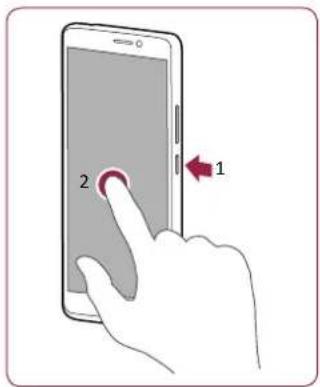
When turning on the device for the first time, follow the on-screen instructions to set up your device.

To turn off your phone, press and hold the power key, and then tap Power off on the pop-up screen.
Prestigio

Installation
Power on your phone
Home screens
List menu
Home screens
Your home screen is the starting point to access all of your phone's features. The home screen can have multiple panels. To view other panels, swipe left or right.
Tap to return to the home screen.
Your phone's home screen consists of the following:

Personalise your wallpaper
Pick your favourite photo as your Home wallpaper. Choose from the available wallpapers, or use any photo you have taken with the camera.
- On the home screen, Tap ^ to open the list menu, Search application and tap Settings > Wallpaper.
- Select an image and tap Set wallpaper.
Add an app icon to home screen
- On the home screen, Tap open the list menu.
- Tap and hold an application icon.
- Drag it into a panel preview.
Remove an item on home screen
- Tap and hold an item to remove.
- Drag the item to the Remove option
- When the Remove option turns red, release the item.
Prestigio

Installation
Power on your phone
Home screens
List menu
List menu
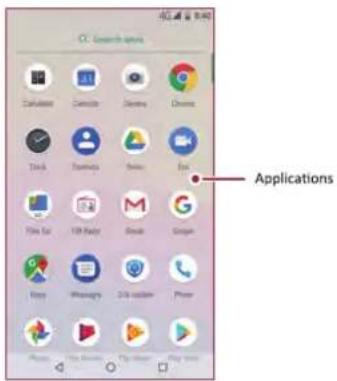
All your apps' icons can be found on the list menu. On the home screen, Tap A to open menu.
Tap or to return to the home screen. Your phone's list menu consists of the following:
Prestigio
Basics

Finger tips
Charge the battery
Connect to your PC
Rotate the screen
Lock and unlock the screen
Use the notifications panel
Enter text
System update
Status icons
Finger tips
Only use your fingers to use the touch screen.

- To open an application, to select a menu item, to press an on-screen button, or to enter a character using the on-screen keyboard, tap it with a finger.
- Tap and hold an item for more than 2 seconds to access available options.
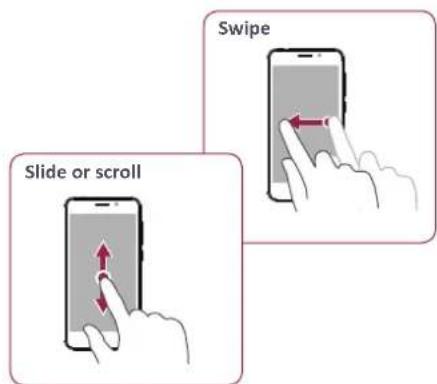
- Quickly swipe your finger vertically or horizontally across the screen to go to other home pages, scroll through documents, and more.
- Slide your finger vertically across the screen to open drop-down menu. Drag up or down to scroll.
Prestigio
Finger tips
Charge the battery
Connect to your PC
Rotate the screen
Lock and unlock the screen
Use the notifications panel
Enter text
System update
Status icons
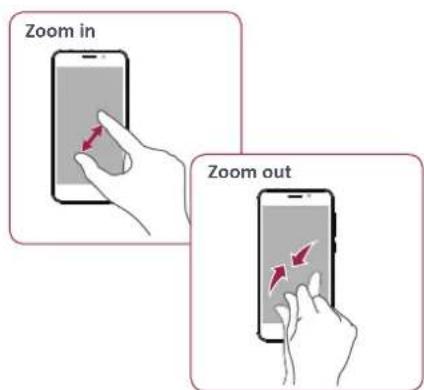
- Spread two fingers apart on a web page, map, or image to zoom in a part.
- Pinch two fingers together on a web page, map, or image to zoom out a part.
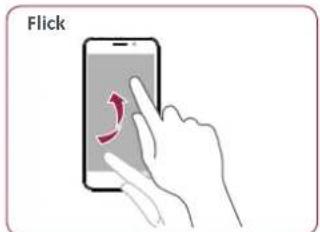
- Flick left or right on the home screen or the applications screen to see another panel. Flick up or down to scroll through a web page or a list, such as contacts.
Prestigio
Finger tips
Charge the battery
Connect to your PC
Rotate the screen
Lock and unlock the screen
Use the notifications panel
Enter text
System update
Status icons
Charge the battery
A new battery is partially charged. The battery icon at the upper-right corner shows the level of charging status.

-
Plug the small end of the charger into the micro USB port of the device, and plug the large end of the charger into an electric socket.
-
After being fully charged, disconnect the device from the charger. First unplug the charger from the device, and then unplug it from the electric socket.

Always use authentic accessories to optimise your battery performance. Non-authentic accessories (eg. chargers) can damage your battery and even your phone.
Optimise your battery performance
Here are some tips to help you optimise your battery performance.
- Always ensure that your phone profile is appropriately set to meet your actual usage.
- If you are not using Bluetooth, Wi-Fi, GPS or other applications, turn them off.
- Adjust the intensity of your display screen's backlight to low or medium level and for the shortest duration.
- Avoid using or placing your phone near magnetic objects (eg. a radio or television) or on metal surfaces, which will impact the network connection and ultimately drain power from your battery.
Prestigio

Finger tips
Charge the battery
Connect to your PC
Rotate the screen
Lock and unlock the screen
Use the notifications panel
Enter text
System update
Status icons
Connect to your PC
You may need to connect your phone to a PC in order to complete activation. Your phone's micro USB port allows you to exchange media and other files with a PC.

Load files from your PC
- Connect your phone to the PC with the included USB cable.
- Open the notifications panel, and then tap Connected as a media device > Media device (MTP).
- Transfer files between your phone and the PC.
Rotate the screen
For many screens, you can automatically change the screen orientation from portrait to landscape by turning your phone sideways. When entering text, you can turn your phone sideways to bring up a bigger keyboard.


To prevent the display from rotating automatically, open the notifications panel and deselect Auto rotation.

- Some applications do not allow screen rotation.
- Some applications display a different screen depending on the orientation.
Prestigio
Finger tips
Charge the battery
Connect to your PC
Rotate the screen
Lock and unlock the screen
Use the notifications panel
Enter text
System update
Status icons
Lock and unlock the screen
When not in use, lock your phone to prevent unwanted operations and save the battery power.

Auto lock
You can set a time span for the screen to be locked automatically.
-
On the list menu, tap Settings >Display >Sleep.
-
Select your desired time span.
Set screen lock pattern
Protect your personal information and prevent others from using your phone without your permission by setting a screen lock pattern, PIN, or password.
- On the list menu, tap Settings > Security & location> Screen lock.

When your phone is locked, Your phone can still:
- Receive calls, text messages, and other updates.
- Play music.
- Adjust the volume.
Prestigio

Finger tips
Charge the battery
Connect to your PC
Rotate the screen
Lock and unlock the screen
Use the notifications panel Enter text
System update
Status icons
Use the notifications panel
Slide down from the top of the screen to open the notifications panel. When you get a new notification, you can open it to see what event or new info you have received. You can also quickly access settings from it. It allows you to easily turn airplane mode, Wi-Fi, and Bluetooth on and off. It also provides a shortcut to set the brightness and orientation of your screen.

Enter text
Use the on-screen keyboard to enter text, such as contact information, mail, and web addresses.
Use the keyboard
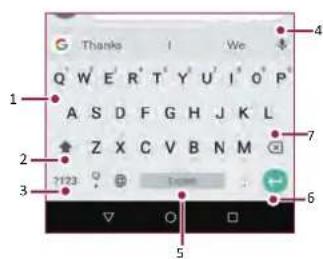
- Character keys
- Shift key
- Numbers and symbols key
- Enter text by voice
- Space key
- Enter key
- Backspace key
Prestigio
Finger tips
Charge the battery
Connect to your PC
Rotate the screen
Lock and unlock the screen
Use the notifications panel
Enter text
System update
Status icons
Enter text by voice
You also can enter the text by activating the voice input feature and then speak into the microphone.
Your phone displays what you speak.
Voice typing: tap 🖼 on the screen.
Copy and paste text
- Tap a word, drag the circles before and after the word to highlight the section you want to copy, and tap COPY.
- To paste the text, tap and hold at the point where you want to paste the text. Tap Paste.
System update
Your phone can check and notify you if there is a new upgrade available. You can also manually check if there is an available update. You can set this
option in ⚙️ Settings > System > updates.

Do not press any keys while the device is upgrading.
Status icons
The icons in the status bar at the top of the screen give information about your phone:
| (6239) | Vibration mode activated | Wi-Fi connected | |
| (8004) | Airplane mode activated | Roaming (outside of normal service area) | |
| (7946) | Battery power level | Bluetooth is activated | |
| (4422) | Calls in progress | Connected to PC | |
| (4427) | Missed call | Wired earphones + microphone connected | |
| (8054) | New SMS or MMS | Wired earphones connected | |
| (1757) | 2G network connected | No SIM card detected | |
| (4406) | 3G network connected | Alarm is set | |
| (8047) | 4G network connected |
Prestigio
Phone

Calls
Contacts
Contact groups
Learn to use calling functions, such as making and answering calls, using options available during a call or customising and using call-related features.
Calls
Make and end a call
- On the home screen or list menu, tap Phone.
- Tap 🌐 to open the dial pad.
- Enter the phone number, and then tap
- Tap 📞 to end a call.


Answer a call
When you receive a phone call from a contact, the incoming call screen appears. To pick up the phone,
Slide 📞 to
Silence an incoming call
When a call comes in, press the power button or volume button to mute the ringing sound without rejecting the call
Set up a conference call
If network is available, you can make the first call or accept a call. Then simply dial each subsequent call to add it to the conference.
- to make a call, tap another person.
- The second number is dialled, and the first call is put on hold at this time.

Make sure your SIM card is enabled with conference calling service. Contact your mobile operator for details.
Prestigio

Calls
Contacts
Contact groups
Make an emergency call
In some regions, you can make emergency calls even if you do not have a SIM card installed or your SIM card has been blocked.
- On the home screen, tap Phone.
- Tap ☐ to open the dial pad.
- Dial the emergency number for your location, and then tap 📞.

If you are out of base station coverage, you will not be able to make an emergency call.

In Europe, the standard emergency number is 112; in the UK, it is 999.
Contacts
Contacts are stored in one of the two available phone books: SIM phone book (located on your SIM card) or the Smart phone book (located on your phone).
- To view your contacts, tap People on the home screen or list menu.
Search for a contact
- Scroll up or down the contact list.
- Tap and enter the first few letters of the name in the search bar.
- Select the contact from the option list.
Add a new contact
Method one:
- On the home screen or list menu, tap Phone.
- Tap ☐ to open the dial pad.
- Enter a number, tap Add to contacts.
- Add details as desired.
- Tap Done to finish and save.
Method two:
- Go to People to view the contact list.
- Tap to add a new contact.
Prestigio

Calls
Contacts
Contact groups
Import/Export contacts
- Go to People to view the contact list.
- Tap > Import/export.
- Select the contacts storage.
- Follow the prompts to finish.
Delete contacts
- Go to People to view the contact list.
- Tap > Delete contact.
- Choose the contacts you wish to remove.
- Tap OK to delete the contacts.
Prestigio
Messages

Send a message
Check your message Reply to a message Forward or delete a message Delete a conversation
Messages let you exchange text messages with other SMS and MMS devices via your cellular connection. Your sent and received messages are neatly grouped into conversations, by contact name or phone number.
Send a message
On the home screen or list menu, tap Messaging. And then tap + to start composing a new message.
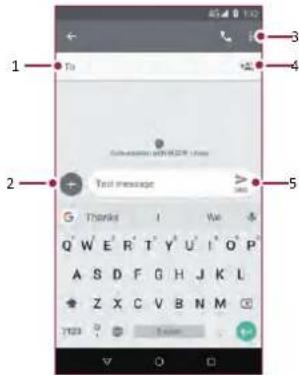
- Enter a phone number
- Add picture/video/audio/slideshow
- More options
- Add a recipient from your contacts list
- Send the message

There is a limit on the number of characters for a single text message (displayed above the send button). If you exceed the limit, your text message will be delivered as one but will be billed as more than one message.
Prestigio

Send a message
Check your message
Reply to a message
Forward or delete a message
Delete a conversation
Check your message
Depending on your notification settings, your phone plays a sound, vibrates, or displays the message briefly in the status bar when you receive a new message.
- On the home screen or list menu, tap Messaging. To check a message, tap a conversation.
Reply to a message
- On the messages screen, tap the conversation containing the message.
- In the text box, enter your message.
- Tap ▶ to send the message.
Forward or delete a message
- On the messages screen, tap the conversation containing the message.
- Tap and hold a message.
- In the pop-up window, select Forward or Delete.
Delete a conversation
- On the home screen or list menu, tap
Messaging to display the messages screen. - Tap and hold a contact or phone number.
- Select the text message you want to delete,
Tap 📄 at the top of the screen.
Prestigio

Set up an email account
Send a mail
View your mails
Reply to a mail
Delete mails
Use this application to send or view email messages. Learn to send or view email messages via your personal or company email account.
Set up an email account
- On the home screen or list menu, tap Email and do one of the following:
- If this is your first time adding an email account in Mail, move to the next step.
- If you have already added an email account, then tap >Settings > add account.
- Enter the email address and password for your email account.

When you finish setting up the email account, the email messages will download to your device.
Delete an email account
- Go to Settings > Accounts.
- Tap the email account your want to delete.
- Tap : > Remove account.
Send a mail
On the home screen or list menu, tap Email. And then tap 🔒 to start composing a new mail.
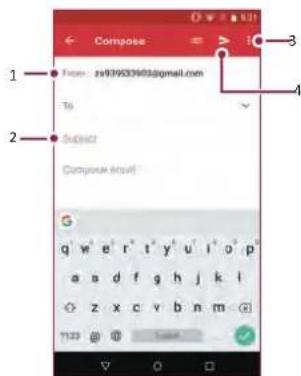
- Enter a recipient
- Enter the mail subject
- More options
- Send the mail
Prestigio

Set up an email account
Send a mail
View your mails
Reply to a mail
Delete mails
View your mails
-
On the email inbox, tap to check whether there is a new mail.
-
Tap the desired mail to read it.
- You can slide up and down the screen to view the previous or next mail.
Search for a mail
- Tap to display the search bar.
- Choose a search option in the drop-down list.
- Enter the first few letters of the mail sender or subject in the search bar.
- Select the mail from the list.
Reply to a mail
- On the email inbox, tap the email message.
- Tap ←, and then compose your mail.
- Tap ▶ to send the mail.
Delete mails
- Tap the mail you wish to delete, and then tap

Prestigio
Camera

Your camera at a glance
Take a photo
Record a video
Photo and video settings
With your phone, you can take both photos and videos as desired. In addition to a rear camera, there is a camera on the front for video calls and self-portraits.
- To use the camera, on the home screen or list menu, tap 📄 Camera.
Your camera at a glance

- Capture mode
- Image preview
- Capture photo
- Video recording
- Phone / video settings
- Flash settings
- Switch between front/rear camera
Take a photo
-
Turn on the camera.
-
Change the camera setting if necessary.
-
Point the camera at what you want to capture.
-
Tap to capture the photo.
Take a photo of yourself
- Turn on the camera.
- On the screen, tap
- Tap to capture the photo.
Take a panoramic photo
You can capture anything wide or tall objects in a single photo with your phone.
- Turn on the camera, and tap ☑ to capture modes.
- When you are ready to take the first shot, tap
- A directional arrow appears. Pan your phone as smoothly as you can.
- The camera will stitch the shots into a single photo.
Prestigio

Your camera at a glance
Take a photo
Record a video
Photo and video settings
Record a video
- Turn on the camera.
- When you are ready to start recording, tap
- To stop recording, tap
Photo and video settings
Before you take a photo or record a video, customise your photo/video settings.
| General settings | |
| GPS location info | Attach a GPS location tag to the photo. |
| Exposure This determines how much light the camera's sensor receives. | |
| Scene mode | Select your desired scene mode. |
| White balance | Select an appropriate white balance, so images have a true-to-life colour range. |
| Anti-flicker Select a band to avoid the impacts on photos caused by flickers from lighting sources. | |
| Restore defaults | Restore to default settings. |
| Photo settings | |
| Zero shutter delay | The ZSD (zero shutter delay) function helps you capture photos immediately. |
| Face detection | Set the ideal exposure and clarity of faces. |
| Self timer | Select a time span for shutter delay to take a self-portrait. |
| Picture size Select from various standard sizes for your picture. | |
| Preview size Set the preview screen ratio before you take a photo. | |
| ISO An ISO value indicates the light sensitivity of your camera's Imaging sensor. Higher values are for fast-moving or poorly-lit objects. | |
| Video settings | |
| EIS The EIS (Electronic Image Stabilization) function helps reduce blurring associated with the motion of a camera during exposure | |
| Time lapse interval | Set the time lapse interval to adjust the speed of your video output. |
| Video quality Set the quality level for videos as this setting will affect your file size. | |
Prestigio
MultiMedia

Gallery
Video player
Music player
FM radio
Your phone provides several multimedia for your entertainment. You can view your photo gallery, enjoy music, and watch videos.
Gallery
View your photos
- On the home screen or list menu, tap Gallery.
- Browse an album or a group of photos.
- Tap a photo to view it full-screen.
Zoom in and out
Spread two fingers apart on any place to zoom in.
Pinch to zoom out, or double-tap to return.
Edit your photos
When viewing a photo, use the keys on the screen to edit the photos.

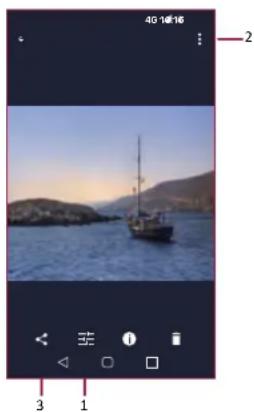
- Edit the photo
- More options
- Share your photo
Prestigio

Gallery
Video player
Music player
FM radio
Video player
You can use the video player on your phone to watch videos.
Watch a video
- On the home screen or list menu, tap Videos.
- Select the video that you want to watch.
- Tap the on-screen keys to control the video playback.
- Press the volume button to adjust the sound.
- Tap to select more options.

Music player
You can listen to your favourite music with the music player. The music app is a central hub for your favourite music whether it is stored in your phone or streamed through a music service.
Listen to music
- On the home screen or list menu, tap Music.
- Tap a song from the list, or tap to find your desired song.
- Tap the on-screen keys to control the music playback.
- Press the volume button to adjust the sound.
- Tap ≡ to select more options.

Prestigio

Video player Music player FM radio
FM radio
You can listen to radio programs with your phone.

You must connect a headset before using the FM radio on your phone.
Listen to a radio station
- On the some screen or list menu, tap FM Radio.
- Tap :> Search. It will start scanning automatically and save the available channels.
- Use the on-screen keys to control playback:
- Press the volume button to adjust the sound.
- Tap to select more options.
Prestigio
Web & network

Connect to the Internet
Web browse
You can connect your phone to the Internet and browse a web page.
Connect to the Internet
Your phone connects to the Internet whenever necessary, using a Wi-Fi connection (if available) or your mobile operator's data connection.
Data connection
You can use your mobile operator's data connection.
Turn on data connection
- Go to Settings > More... > Mobile networks > Data connection.
- Tap to turn on or off data connection.

Some apps and services may transfer data over your mobile operator's cellular network, which may result in additional fees. Contact your mobile operator for details.
Turn on data roaming
Connect to your mobile operator's partner networks and access data services when you are out
of your mobile operator's coverage area.
- Go to Settings > Data usage.
- Tap :> Data roaming to turn it on or off.

Using data services while roaming may be costly. Check with your mobile operator for data roaming rates before you use data roaming.
Use your phone as a wireless router
Share your data connection with other devices by turning your phone into a wireless router.
- Go to Settings > More... > Tethering & hotspot.
- Tap to turn on portable Wi-Fi hotspot.

The other device uses data from your data plan, which may result in data traffic costs. For info on availability and costs, contact your network service provider.
Prestigio

Connect to the Internet Web browse
Wi-Fi
Connect the device to a Wi-Fi network to use the Internet or share media files with other devices.
Connect to a wireless network
- Go to Settings > Wi-Fi.
- Make sure Wi-Fi is switched to On.
- The Wi-Fi section will show the list of networks detected.
- Tap the desired Wi-Fi network you want to connect to.
- If you selected a secured network, you will be asked to enter the network key or password.
Web browse
You can use your phone to browse websites. Before browsing a website, please confirm that you have turn on data connection or Wi-Fi.
Browse a web page
- On the home screen or list menu, tap Browser.
- Enter your search keywords or a web page address.

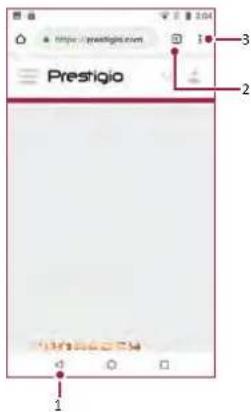
- The previous web page
- Web page preview
- View Bookmarks, History and Saved pages.
Prestigio

Connect to the Internet Web browse
Web page preview

- View Bookmarks
- Open a new page
- Close the web page
Prestigio
Bluetooth

Pair with a Bluetooth device Receive data via Bluetooth Send data via Bluetooth
Your phone can connect to a compatible Bluetooth device for exchanging data. Bluetooth creates a direct wireless connection between two devices over short distances.
Pair with a Bluetooth device
- Go to Settings > Connected devices >Bluetooth.
- Make sure Bluetooth is switched to On.
- A list of available Bluetooth devices will appear.
- Tap the device you wish to connect with.
- The pairing is made if your pairing request is accepted by the other device.
Receive data via Bluetooth
- Make sure Bluetooth is switched to On.
- Tap your phone model to make it visible to all nearby Bluetooth devices.
- Accept the request and pair with the other Bluetooth device(s).
- Slide to open notifications panel, tap Accept.
Send data via Bluetooth
- Select the file you want to share.
- Tap to send the file via Bluetooth.
- Select a device to start sending the file.

The files received via Bluetooth are stored in the Bluetooth folder.
Prestigio
Play store

Search and install an app
Uninstall an app
Use the Google Play Store to purchase and download applications and games that are able to run on your phone. Choose from a wide variety of free and paid apps ranging from productivity apps, entertainment, to games.

- A Google Wallet™ payment service is required to purchase a paid app. You will be asked to confirm the method of payment when you purchase an app.
- The availability of Store and the selection of items available for download depend on your region.
Search and install an app
- On the list menu, tap Play store.
- Browse applications by category, or tap to search with a keyword.
- Select an application to view information.
- To download it, tap Install.
- If there is a charge for the application, tap the price, and follow the prompts to complete the purchase.

Use a Wi-Fi connection to download large files.
Uninstall an app
- On the list menu, tap Play store.
- Tap ≡ > My Apps.
- Select an app you want to uninstall.
- Tap Uninstall.


Prestigio
Maps & navigation

Use Google maps Find a location Search for a place Get directions Maps settings
Use this application to pinpoint the location of your phone, search for places, or get directions.
Use Google maps
Google Maps lets you track your current location and receive detailed directions to your destination. It also provides a search tool where you can locate places of interest or an address on a map, or view locations at street level.
- On the home screen or list menu, tap Maps.
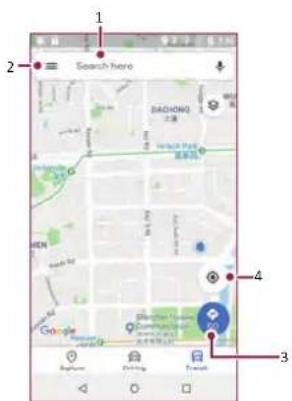
- find an address or place
- Map settings
- Get directions
- Show your location
Find a location
Turn on or off location service
In order to find your location on your phone, you need to enable location service.
- Go to Settings > Location.
- Switch Location to On.
Find your location
- On the Maps screen, tap to find your location on the map.

If you are in an area where there are a lot of surrounding buildings, Locations may have a hard time pinpointing your location.
Prestigio

Use Google maps Find a location Search for a place Get directions Maps settings
Search for a place
You can search for a name of an establishment, street, or city. Suggested matches will be shown while you type.
- On the Maps screen, tap blank space Search here.
- Enter the place you want to search for.
- Select the desired place in the result list.
Get directions
Get detailed directions to where you want to go.
- On the Maps screen, tap to get directions.
- Enter your start point and end point.
- Select the desired place in the result list.
- Choose how you want to get to your destination.
- The map opens showing the route to your destination.
Maps settings
You can set up the Google Maps, tap ≧ Settings while viewing the maps.
Prestigio
Utilities

Google search Alarm
Calendar
Google search
Use this application to search not only the Internet, but also apps and contents on your phone.
- On the home screen or list menu, tap Google.

Search on the web or your phone
- Tap the search field, and then enter a keyword.
- Select one of the suggested keywords that appear.
Search with your voice
Use Google Voice Search to find information on the web just by speaking to your phone.
- On the home screen or list menu, tap Voice search.
- If the Google search bar is available on the Home screen, you can also tap
- Speak a keyword or phrase when Speak now appears on the screen.
- Select one of the suggested keywords that appear.
- If what you are searching for is in the list, tap the item to open it in its compatible app. Otherwise, tap Retry to search again.
Alarm
You can set up one or more alarms.
Set an alarm
- On the home screen or list menu, tap
- On the clock screen, tap Ⓤ.
- Tap + to add a new alarm.
- Set the alarm time, and then tap Done.
- If you want the alarm for multiple days, tap Repeat.
Turn off an alarm
- Select the alarm, and drag the check button to Off.
Stop an alarm
When the alarm sounds,
- Slide to ; the alarm stops.
- Slide to Z2 : the alarm will sound again after a specific length of time.
Delete an alarm
- Tap the alarm, and then tap

Prestigio

Google search
Alarm
Calendar
Calendar
You can create events and make plans on your calendar.
Create an event
- On the home screen or list menu, tap Calendar.
- Select a date, and then tap :> New event.
- Edit reminder settings.
- Tap Done to save the event.

Manage your events
Edit an event
You can only edit events you have created.
- While viewing your calendar, tap the event your want to edit.
- Tap, and then make changes to the event.
- Tap Done.
Delete an event
- Select the event your want to delete, and then tap 📄.
Prestigio
Specifications


Quad core 1.3GHz

RAM 3GB + 16GB

Android™ 8.1

Micro SDHC/SDXC ≤ 64GB

6.0" 2.5D HD IPS 1440*720

8.0MP+13.0MP/5.0MP

UMTS: 900/2100 MHz
GSM: 850/900/1800/1900MHz LTE:B1/B3/B7/B20

Wi-Fi (802.11 b/g/n), 3G, Bluetooth 4.0

GPS,A-GPS,GLONASS

3000 mAh

155*75*8.0mm (H*W*D)

188 g
Prestigio Troubleshooting

The phone does not switch on Remove/reinstall the battery. Then charge the phone until the battery icon stops scrolling. Unplug the charger and try to switch the phone on.
The display shows IMSI failure This problem is related to your subscription. Contact your operator.
The network symbol is not displayed The network connection is lost. Either you are in a radio shadow (in a tunnel or between tall buildings) or you are outside the network coverage area. Try from another place, try to reconnect to the network (especially when abroad), or contact your network operator for assistance/information.
The touch screen responds slowly or improperly. If your device has a touch screen and the touch screen is not responding properly, try the following:
- Remove any protective covers from the touch screen. Protective covers may prevent the device from recognizing your inputs and are not recommended for touch screen devices.
- Ensure that your hands are clean and dry when tapping the touch screen.
- Restart your device to clear any temporary
software bugs.
- Ensure that your device software is upgraded to the latest version.
- If the touch screen is scratched or damaged, take it to your local dealer.
Your battery seems to over heat
You might be using a charger that was not intended for use with your phone. Make sure you always use the authentic accessory shipped with your phone.
You can not send text messages
Some networks do not allow message exchanges with other networks. First check that you have entered the number of your SMS centre, or contact your operator for detailed information on this subject.
You feel that you have missed some calls Check your call divert options.
The display shows SIM failure
Check that the SIM card has been inserted correctly. If the problem persists, your SIM card may be damaged. Contact your operator.
Prestigio

Your phone is not charging
If the battery is completely flat, it might take several minutes of precharge (up to 5 minutes in some cases) before the charging icon is displayed on the screen.
The picture captured with the phone camera is not clear
Make sure that the camera lens on both sides is clean.
Your device freezes or has fatal errors
If your device freezes or hangs, you may need to close programs or reset the device to regain functionality. If your device is frozen and unresponsive, remove the battery and try to switch the phone on. The device reboots automatically.
If this does not solve the problem, perform a factory data reset. On the list menu, tap Settings > Backup & reset > Factory data reset.
Others cannot hear you speaking on a call
- Ensure that you are not covering the built-in microphone.
- Ensure that the microphone is close to your mouth.
- If using a headset, ensure that it is properly
connected.
Another Bluetooth device is not located
- Ensure that the Bluetooth wireless feature is activated on your device.
- Ensure that the Bluetooth wireless feature is activated on the device you wish to connect to, if necessary.
- Ensure that your device and the other Bluetooth device are within the maximum Bluetooth range (10 m).

- PRESTIGIO GRACE V7 LTE
- PRESTIGIO
- UNBOXING
- BUTTONS
- GETTING STARTED
- INSTALLATION
- DUAL SIM STANDBY
- POWER ON YOUR PHONE
- HOME SCREENS
- PERSONALISE YOUR WALLPAPER
- ADD AN APP ICON TO HOME SCREEN
- REMOVE AN ITEM ON HOME SCREEN
- LIST MENU
- BASICS
- FINGER TIPS
- CHARGE THE BATTERY
- CONNECT TO YOUR PC
- LOAD FILES FROM YOUR PC
- ROTATE THE SCREEN
- LOCK AND UNLOCK THE SCREEN
- AUTO LOCK
- USE THE NOTIFICATIONS PANEL
- ENTER TEXT
- SYSTEM UPDATE
- STATUS ICONS
- PHONE
- CALLS
- MAKE AND END A CALL
- ANSWER A CALL
- SILENCE AN INCOMING CALL
- SET UP A CONFERENCE CALL
- MAKE AN EMERGENCY CALL
- CONTACTS
- SEARCH FOR A CONTACT
- ADD A NEW CONTACT
- METHOD ONE
- METHOD TWO
- IMPORT/EXPORT CONTACTS
- DELETE CONTACTS
- MESSAGES
- SEND A MESSAGE
- CHECK YOUR MESSAGE
- REPLY TO A MESSAGE
- FORWARD OR DELETE A MESSAGE
- DELETE A CONVERSATION
- SET UP AN EMAIL ACCOUNT
- DELETE AN EMAIL ACCOUNT
- SEND A MAIL
- VIEW YOUR MAILS
- SEARCH FOR A MAIL
- REPLY TO A MAIL
- DELETE MAILS
- CAMERA
- TAKE A PHOTO
- TAKE A PHOTO OF YOURSELF
- TAKE A PANORAMIC PHOTO
- RECORD A VIDEO
- PHOTO AND VIDEO SETTINGS
- MULTIMEDIA
- GALLERY
- VIEW YOUR PHOTOS
- EDIT YOUR PHOTOS
- VIDEO PLAYER
- WATCH A VIDEO
- MUSIC PLAYER
- LISTEN TO MUSIC
- FM RADIO
- LISTEN TO A RADIO STATION
- WEB & NETWORK
- CONNECT TO THE INTERNET
- DATA CONNECTION
- USE YOUR PHONE AS A WIRELESS ROUTER
- WI-FI
- WEB BROWSE
- BROWSE A WEB PAGE
- BLUETOOTH
- PAIR WITH A BLUETOOTH DEVICE
- RECEIVE DATA VIA BLUETOOTH
- SEND DATA VIA BLUETOOTH
- PLAY STORE
- SEARCH AND INSTALL AN APP
- UNINSTALL AN APP
- MAPS & NAVIGATION
- USE GOOGLE MAPS
- FIND A LOCATION
- TURN ON OR OFF LOCATION SERVICE
- FIND YOUR LOCATION
- SEARCH FOR A PLACE
- GET DIRECTIONS
- MAPS SETTINGS
- UTILITIES
- GOOGLE SEARCH
- SEARCH ON THE WEB OR YOUR PHONE
- SEARCH WITH YOUR VOICE
- ALARM
- CALENDAR
- CREATE AN EVENT
- MANAGE YOUR EVENTS
- EDIT AN EVENT
- DELETE AN EVENT
- SPECIFICATIONS
- PRESTIGIO TROUBLESHOOTING
Brand : PRESTIGIO
Model : Grace P7 LTE
Category : Smartphone